
Blog
Search Docs…
ALL TOPICS
COMPARISONS
GAME
PRODUCTIVITY
TROUBLESHOOTING
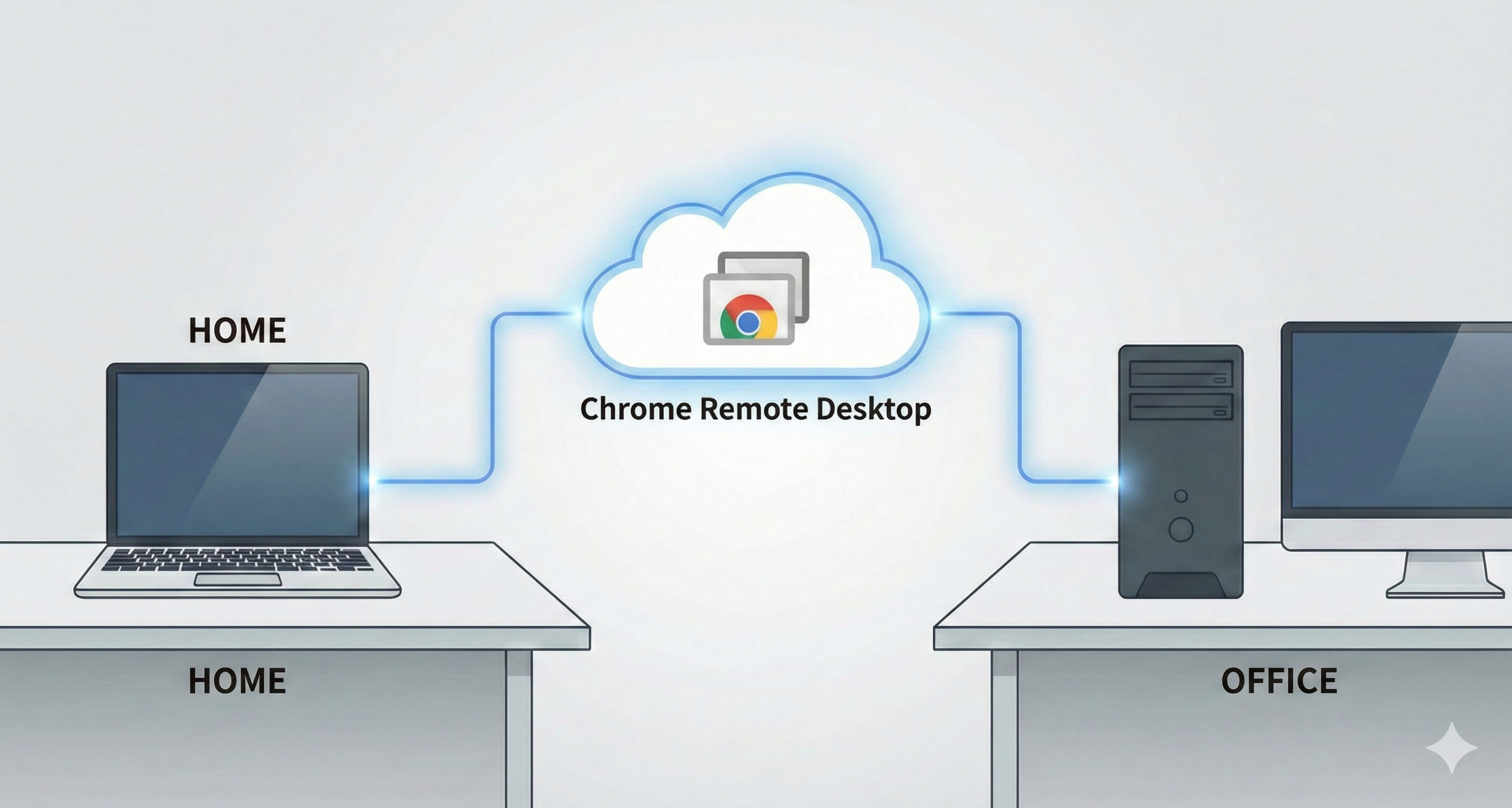
How to Set Up & Use Chrome Remote Desktop: Complete Beginner's Guide | DeskIn Japan
How to Set Up and Use Chrome Remote Desktop in Japan: A Complete Beginner's Guide to CRD
What You'll Learn in This Article
This article walks through the basic setup and features of Chrome Remote Desktop (CRD), Google's free remote access tool — explained clearly for first-time users.
CRD is free, simple to configure, and integrates smoothly with your existing Google account and Chrome browser. It works across Windows, Mac, and smartphones, making it easy to get started with remote access from virtually any device.
For everyday personal use and one-off remote support sessions, it's an excellent option — though its features are limited to "Remote Access" and "Remote Support." For more advanced requirements — 4K display quality, low latency, or stable connections inside Japanese corporate networks — a professional-grade tool like DeskIn is worth considering.
Introduction
What Is Chrome Remote Desktop?
Chrome Remote Desktop (CRD) is a free remote access tool developed by Google. All you need is the Chrome browser and a Google account to remotely control another PC over the internet, from anywhere. No additional hardware is required, making it one of the most accessible ways to get started with remote desktop access.
Why Remote Desktop Is Useful in Japan
Hybrid work has become a fixture across Japan's working culture. Many companies — especially in Tokyo and other major cities — now expect employees to split their time between the office and home. Students, too, often find themselves needing access to files or software left behind on a home PC. And for those who have just joined the workforce as shinshakajin (新社会人 — literally "new members of society," the term for fresh graduates entering their first job, typically in April when Japan's fiscal and academic year begins), juggling unfamiliar tools across multiple environments can be genuinely stressful. Chrome Remote Desktop offers a practical, low-barrier solution for all of these situations.
Recommended Reads:
Which One Is Better, Chrome Remote Desktop Or Microsoft Remote Desktop?
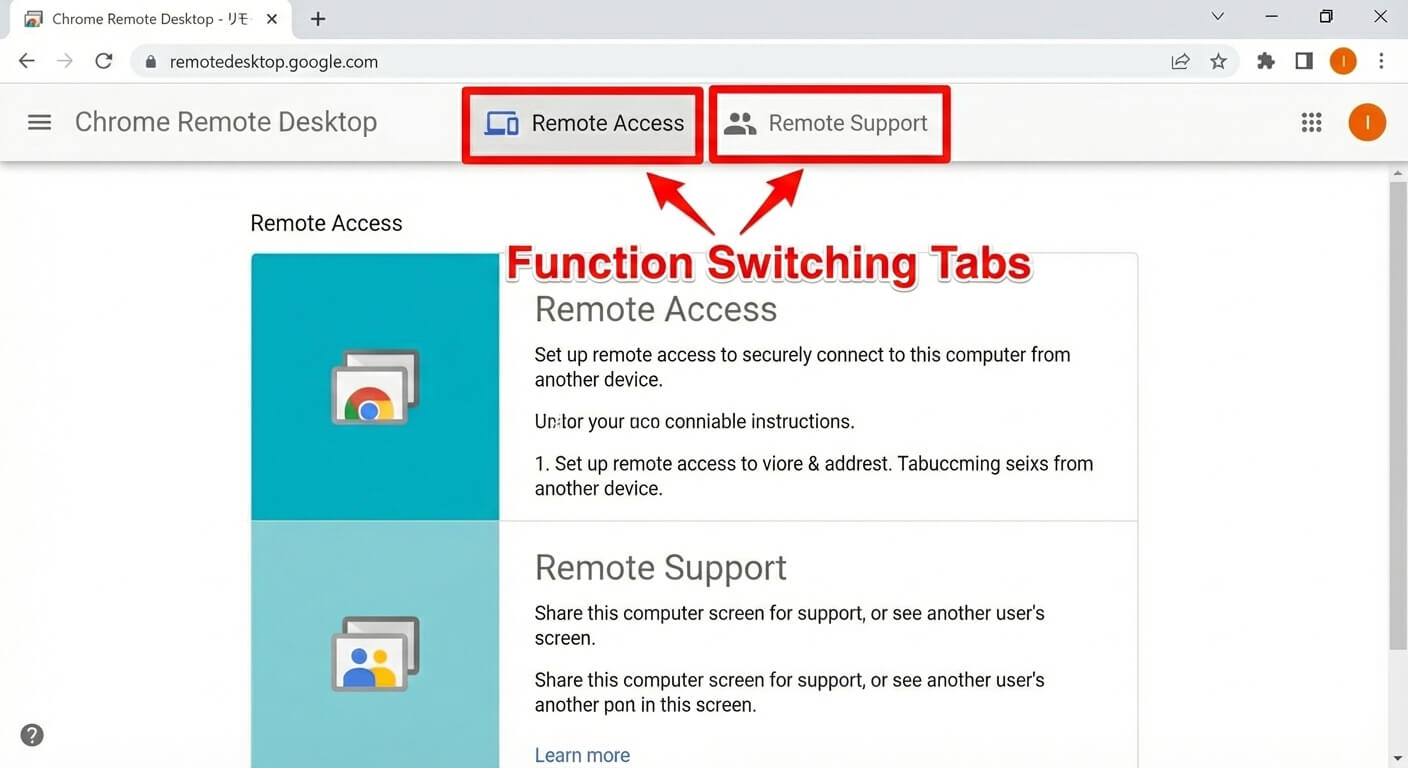
Chrome Remote Desktop's Two Core Features
Remote Access — Connect to Your Own Devices, Anytime
The "Remote Access" feature lets you connect to your home or office PC from any location, at any time. Once the host machine is configured, you can control it remotely as long as it's powered on — even if no one is sitting in front of it. This is ideal for pulling up a file you left on your home PC while you're at school or the office, or for using your full desktop environment from a laptop while you're out.
Remote Support — Temporary Screen Sharing for Troubleshooting
The "Remote Support" feature is built for one-off, temporary sessions. By sharing a connection code, you can let someone else view or control your screen — or do the same for them — without exchanging account credentials. It's a clean and simple way to help a classmate, colleague, or family member work through a technical issue remotely.
Chrome Remote Desktop is designed specifically around these two functions. That focused scope makes it particularly easy to pick up, even if you've never used a remote desktop tool before.
What You'll Need Before Getting Started
A Google Account
A Google account is required. If you don't already have one, register before you begin. If you're already using Gmail or Google Drive, that same account will work here.
Google Chrome Browser
CRD runs inside the Chrome browser, so Chrome needs to be installed on both the host (the PC you want to access remotely) and the client (the device you're connecting from). Chrome can be installed alongside any other browser without conflict.
A Stable Internet Connection
Remote desktop transmits live screen data over the internet, so a reliable connection on both ends matters. If your Wi-Fi is inconsistent, a wired connection will generally produce a much smoother experience.
Step-by-Step Setup Guide
Setting Up the Host PC (the Computer You Want to Control)
Start by configuring Chrome Remote Desktop on the machine you'll be accessing remotely.
Open Google Chrome and navigate to the Chrome Remote Desktop page.
Follow the on-screen prompts to add the extension and complete the installation.
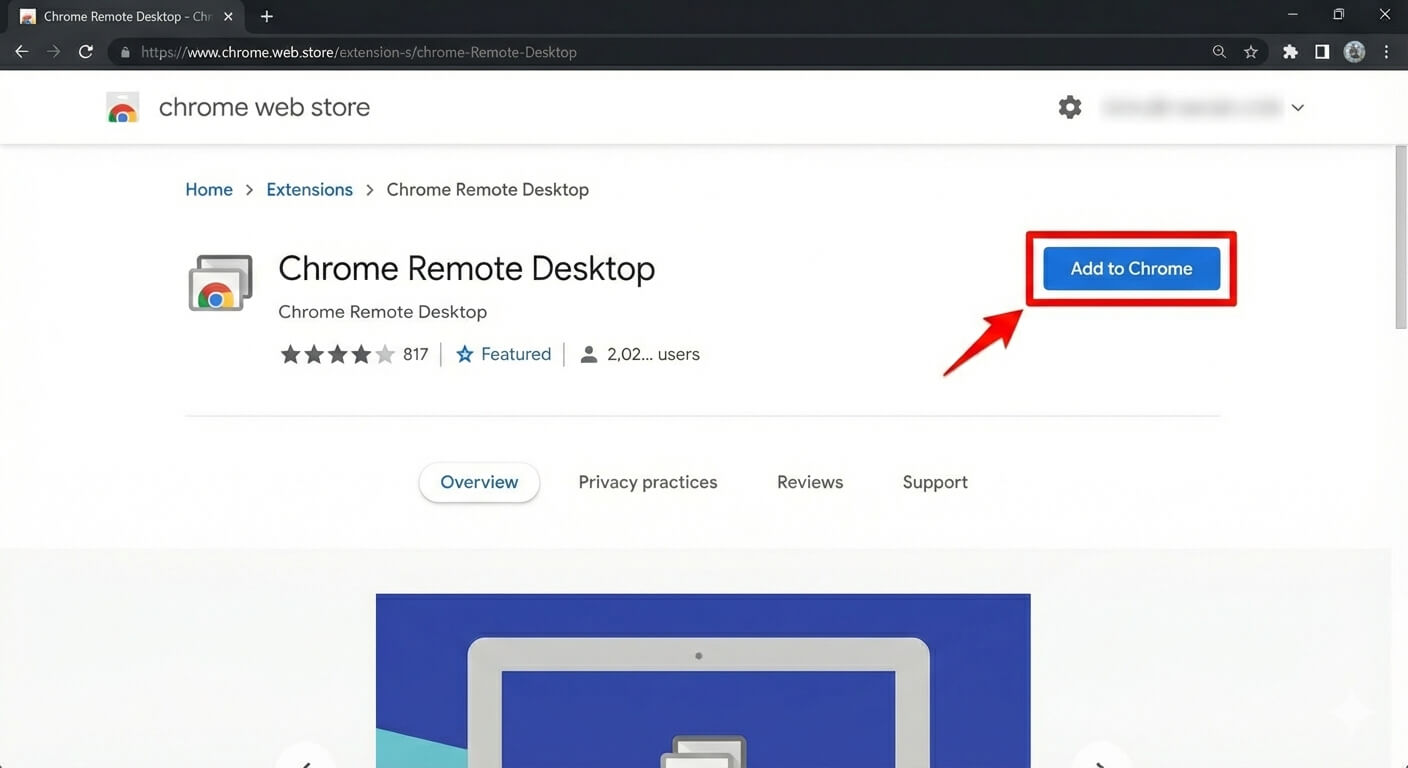
Enable "Remote Access" and follow the steps to set a PIN code of at least six digits.
Once setup is complete, this PC will appear in your list of remotely accessible devices.
Connecting from the Client Device (the Device You're Using to Connect)
Next, prepare the device you'll be connecting from.
Log into Chrome with the same Google account and open the Chrome Remote Desktop page.
Select the host PC from your device list.
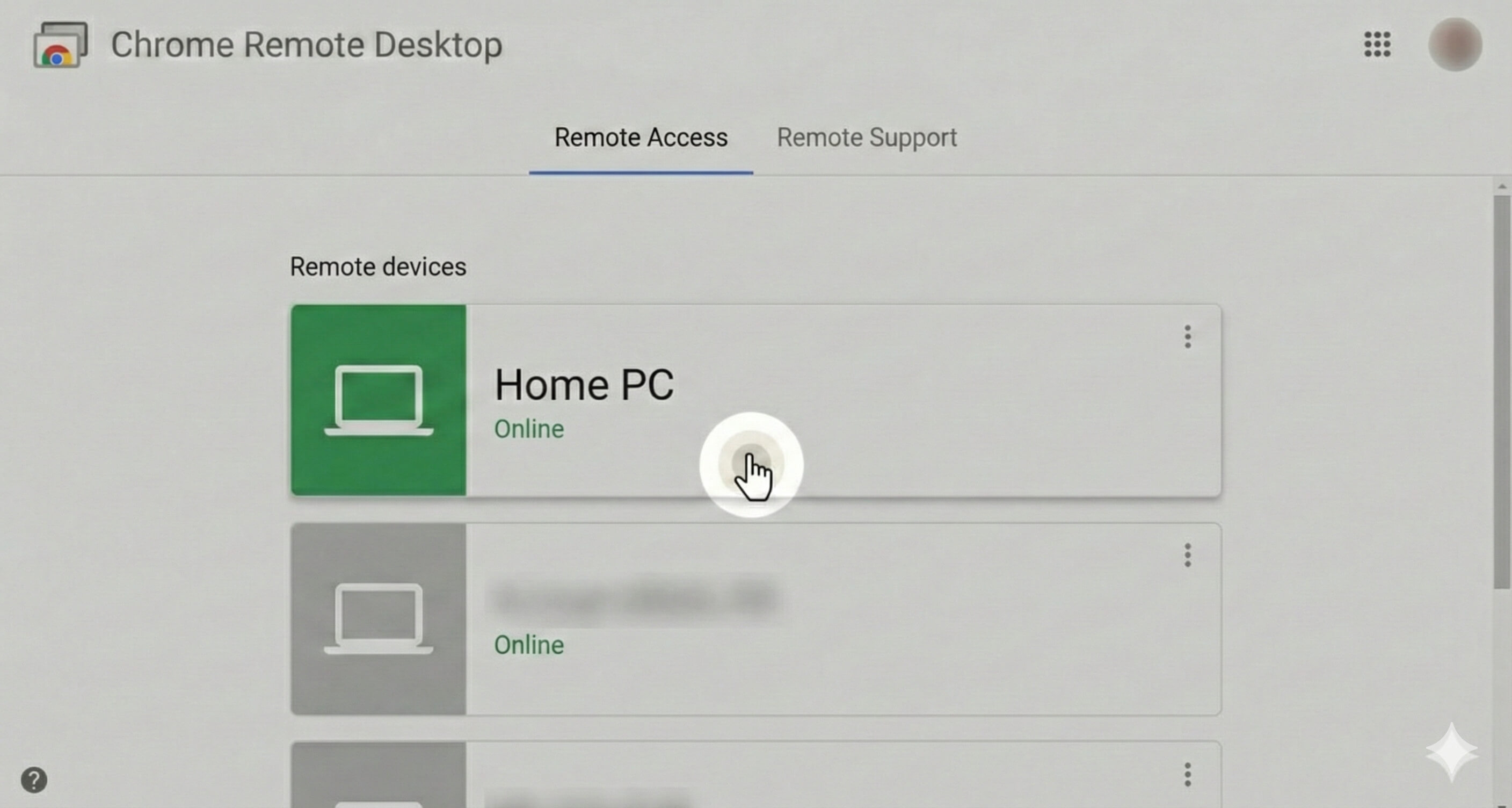
If connecting from a smartphone or tablet, download the dedicated iOS or Android app and select your target PC from within the app.
Authenticating with Your PIN Code
After selecting the host PC, you'll be prompted to enter your PIN to verify the connection.
Enter the PIN you created during setup on the client device.
Once authenticated, the host PC's screen will appear on your device and you'll be able to control it with your mouse and keyboard.
The connection is encrypted and can be ended at any time.
Tips for Getting More Out of CRD
Make the Most of Keyboard Shortcuts
Using keyboard shortcuts deliberately can make a real difference to your efficiency in a remote session. This is especially worth thinking about if you're switching between Windows and Mac, where key behaviour differs — particularly around:
The difference between the Ctrl and Cmd keys
Full-screen toggling and window switching
Familiarising yourself with these basics in advance will help things feel more natural. If shortcuts are being captured by your local device instead of reaching the remote machine, check the settings for an option like "Send all keyboard input to remote" — this is usually the fix.
Using CRD on Mobile: What to Expect
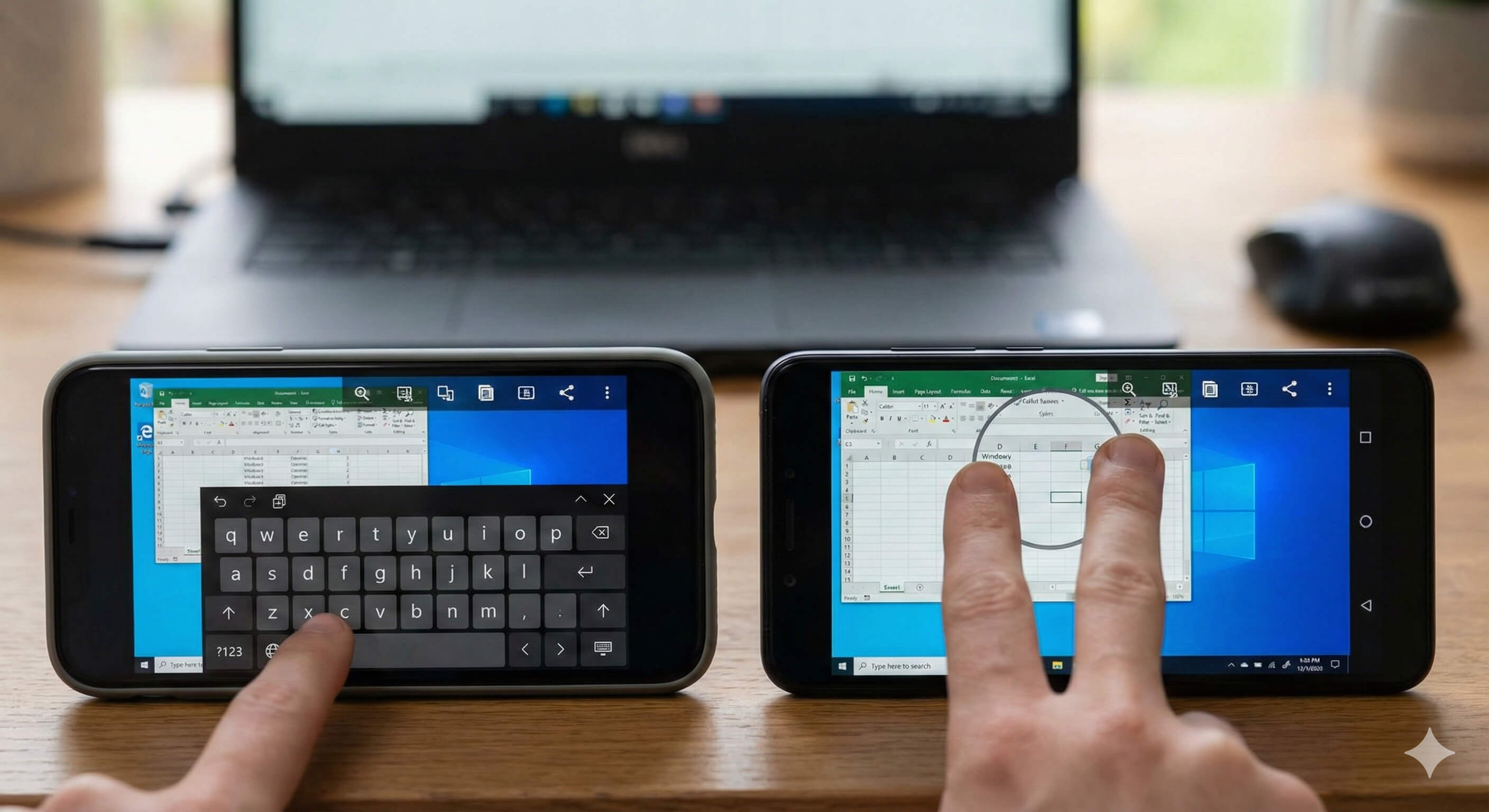
The mobile experience differs quite a bit from working on a desktop. Chrome Remote Desktop's mobile app is built around touch controls:
Swipe to move the mouse cursor
Pinch to zoom in or out
Toolbar at the bottom of the screen to access the keyboard and menu
Precise input — longer text entry, drag-and-drop, clicking small targets — is slower and more effortful on mobile than on a PC. In practice, mobile access works best for quick checks and light tasks. For anything more involved, a laptop or desktop will serve you much better.
The Limitations of Chrome Remote Desktop
Simplicity Has Its Ceiling
Chrome Remote Desktop is, at its core, a tool built for "Remote Access" and "Remote Support" — nothing more. That focus is part of what makes it easy to use, but it also means that more specialised requirements hit a wall fast. If you need to transfer large files quickly, manage multiple users or devices, or keep detailed logs of remote sessions, you'll find CRD doesn't have the tools for the job.
Instability Inside Japanese Corporate Networks
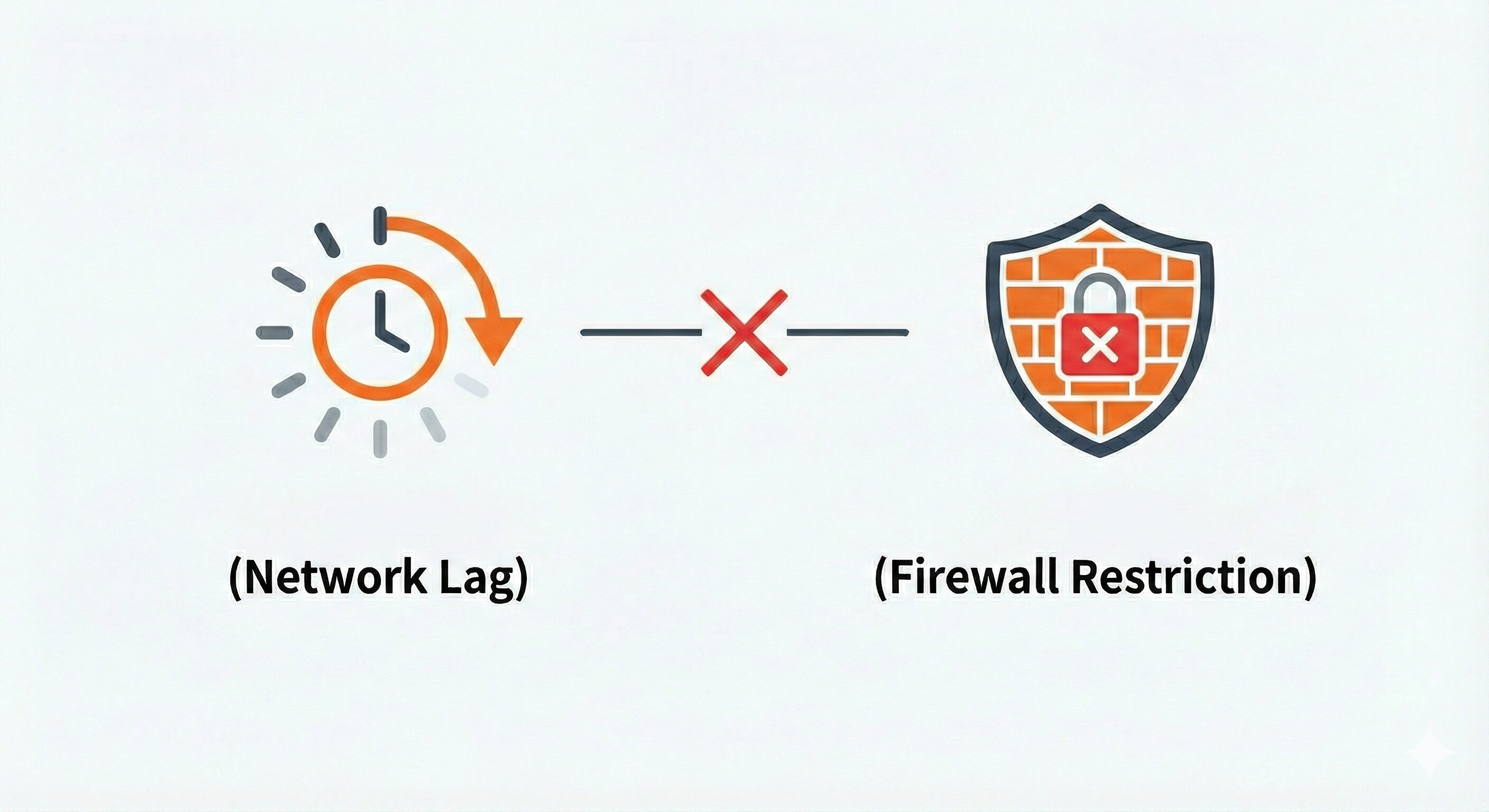
Many Japanese companies — particularly larger organisations — maintain strict internal network environments managed by their IT departments (joho shisutemu-bu, 情報システム部). Firewalls, proxy settings, and restrictions on Google services are common, particularly in finance, manufacturing, and government-adjacent industries. In these environments, Chrome Remote Desktop connections can become unreliable, suffer significant lag, or fail entirely.
If you've started a new job in Japan and found that CRD simply won't connect from the office network, this is almost certainly why.
Dependency on Your Google Account
Because CRD is tied to a Google account, any disruption to that account — a forgotten password, an account lock, or a multi-factor authentication hiccup — directly affects your ability to access remote machines. For personal use this is manageable, but for anything business-critical, it's a meaningful single point of failure.
Ready for More? Meet DeskIn — A Professional Remote Desktop Solution
The Natural Next Step Up from CRD
Chrome Remote Desktop is a solid starting point, but as remote work needs become more regular and more demanding, many users find themselves running up against its limits. For those who need a more robust, feature-rich tool suited to daily professional use, DeskIn is the obvious step up.
Built to Handle Japan's Corporate Network Environments
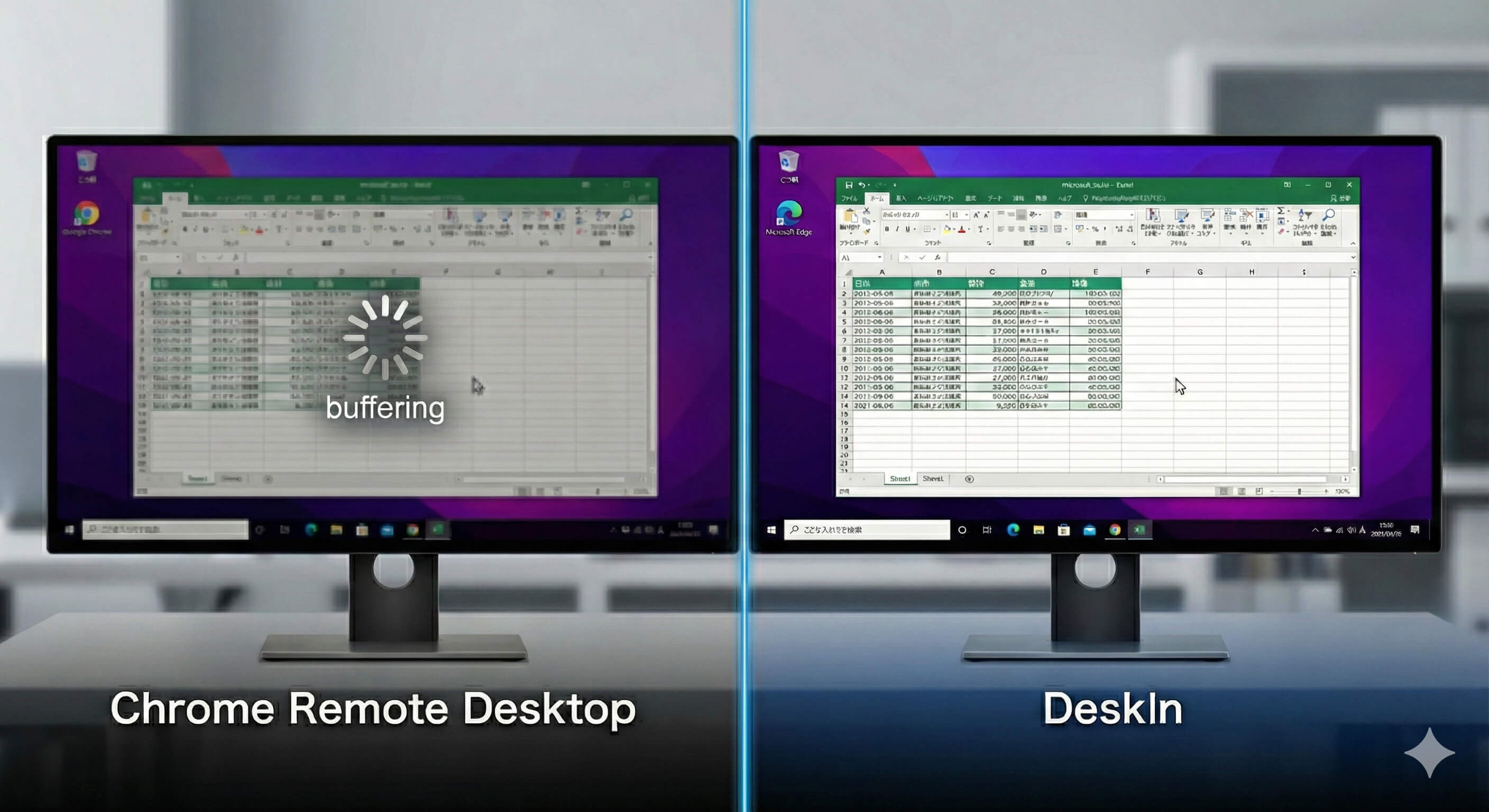
DeskIn is engineered for stability in complex network setups — including the kind of strict firewalls and proxy configurations common in Japanese corporate IT infrastructure. Where CRD struggles in these environments, DeskIn is designed to maintain consistent, low-latency connections even under restrictive conditions.
Professional Performance and an Intuitive Workflow
DeskIn supports 4K display quality and ultra-low-latency response, with a dedicated desktop client that isn't dependent on a browser. For creative work, detailed tasks, or simply getting through a full working day remotely without friction, this level of performance makes a tangible difference.
→ Try DeskIn for free and explore what's possible
Summary
Chrome Remote Desktop is a free, easy-to-use tool that works well for personal use, occasional remote access, and basic screen sharing. If you're new to remote desktop tools — or if you just need a quick, no-cost way to access your own PC remotely — CRD is a perfectly reasonable place to start.
For day-to-day professional use in Japan, however, particularly within corporate network environments or when you need reliable performance and high display quality, CRD will likely fall short. In those cases, transitioning to or pairing CRD with a tool like DeskIn will give you a remote setup that's genuinely fit for purpose.
Recommended Reads:
9 Benefits of Remote Access & Best Practices for Modern Life

TROUBLESHOOTING
Your Windows Home PC Can't Host Remote Desktop. Here's How to Get Remote Access Without the $99 Pro Upgrade.
If you have ever tried to remotely access a second laptop from your Windows Home PC, only to be told that your Home edition does not support Remote Desktop, you already know the frustration. Three pain points hit hardest. First, Windows Home editions can't serve as Remote Desktop hosts, so your desktop/laptop can never be the host. Second, the only official fix is upgrading to Windows Pro, which costs an extra US$99 per licence. Third, Microsoft’s own Remote Desktop client apps are being discontinued through 2025 and 2026, leaving Home users with even fewer built-in options than before. The good news is that affordable (and in some cases free) alternatives exist. Here is what changed, how it affects everyday users, and which tools can get you back in control.
Before: What Windows Home Users Expected
When most people buy a Windows laptop, they assume they are getting the full Windows experience. Remote Desktop Protocol (RDP) is a native app that has been part of the Windows OS for over two decades. But Microsoft reserves the RDP host function, the ability to accept incoming remote connections, for Windows Pro, Enterprise, and Education editions only. Windows Home can only act as a client, meaning you can connect out to a Pro machine, but nobody can connect in to yours.
For designers who need to reach a powerful desktop from a lightweight travel laptop, for students who left a file on their home PC, or for anyone helping a family member troubleshoot remotely, this is a real gap. The assumption was always “I’ll just remote in.” The reality is that Windows Home quietly says no.
The Real Cost of “Just Upgrade to Pro”
Microsoft’s official answer is to purchase a Windows 11 Pro licence. A fresh Pro licence retails at US$199, while the in-place upgrade from Home to Pro costs US$99. If you own more than one machine—say a home desktop and a personal laptop—those costs add up quickly. For freelancers, students, and privacy-conscious home users, that is a steep bill just to unlock one feature. And even after upgrading, configuring RDP for use outside your local network still requires VPN setup or port forwarding, tasks that are far from beginner-friendly.
After: The Phasing Out of Microsoft’s Remote Apps Adds Urgency
To make matters worse, Microsoft retired the Remote Desktop Store app in May 2025 and will end support for the standalone MSI Remote Desktop client on 27 March 2026. Both are being replaced by the new “Windows App,” which focuses on cloud services such as Azure Virtual Desktop and Windows 365. The classic built-in tool (mstsc.exe) remains supported, but it still cannot turn a Home machine into a host. For everyday users who relied on Microsoft’s own apps to bridge devices, the transition adds confusion and reinforces that third-party software is now the practical path forward.
Solution: Third-Party Remote Desktop Tools
The simplest fix is to skip RDP entirely and use a remote access application that works regardless of your Windows edition. Three products are worth comparing and use AES-256 encryption as standard (even for financial institutions).
AnyDesk still technically offers a free tier for personal use, but recent restrictions have made it hard to rely on. Users report that sessions now disconnect in as little as five minutes, down from the 30 to 40 minutes previously allowed. File transfer has been removed from the free version entirely. The free tier is also capped at three devices, with only one session at a time. On top of that, AnyDesk’s commercial-use detection regularly flags and disconnects personal users who have done nothing wrong. Paid plans start at US$14.90 per month.
TeamViewer is one of the most recognised names in remote access. Its free tier covers personal use and includes encryption, file transfer, and multi-platform support. TeamViewer’s large user base means guides and troubleshooting resources are easy to find. However, it suffers from the same commercial-use detection problem as AnyDesk: personal users frequently get flagged and must appeal to regain access. Its paid tiers are also priced for business budgets rather than individual users, approximately around US$58.90 a month
DeskIn takes a different approach. Its free plan gives you full remote control of up to three devices at 1080p 30 FPS, with no session time limits and no commercial-use flags that cut you off mid-task. For the Windows Home user who just needs to reach a file on another PC, help an elderly relative troubleshoot, or check in on a home PC while travelling, the free plan covers it. It connects devices through its own cloud relay, so there is no need for VPN or port forwarding. File transfers run up to 12 MB/s with no size cap but limits to computer-to-phone transfer. The cross-platform capability allows you to control your home PC from a phone, or extend your laptop display to a tablet, all without a Windows Pro licence.
For users who need more, paid plans start from US$9.90 per month with higher resolution streaming, faster file transfers, and support for up to 100 devices
DeskIn: Full Remote Access for Free
All three tools restore the remote control ability that Windows Home withholds. AnyDesk and TeamViewer are familiar names, but their free tiers have become increasingly limited: short session caps, removed features, and unpredictable commercial-use flags make them hard to count on for regular use. If you need colour accuracy for design work, transfer large project files every day, or simply want a reliable remote access experience without networking headaches, DeskIn offers the most complete set of features at a reasonable price, and its personal tier is free to start.
Upgrading to Windows Pro is still a valid option if you need RDP and other Pro features. But if remote desktop access is the main reason you are considering the US$99 upgrade, DeskIn offers a free alternative with low-latency connections that works on any Windows edition. Download DeskIn for remote work or explore its productivity features if this is the right tool for you before spending on a licence upgrade.

COMPARISONS
Why Is DeskIn Remote Desktop Better Than Splashtop?
If you are looking for a better alternative to Splashtop, this article will compare Splashtop and DeskIn in terms of mobile device support, functionality, and the price, and tell you why DeskIn remote desktop is better than Splashtop.
DeskIn vs Splashtop: Mobile device support
DeskIn:The free version already supports using on Android, iOS, Windows and Mac. Commercial use is also allowed
Splashtop:Free version doesn’t not support commercial use. You need to upgrade to the paid version to use on mobile devices. It also lacks the feature of searching devices.
DeskIn vs Splashtop: Functional richness
DeskIn: Provides rich free features, including Extend screen, Audio call, Annotations, Shared clipboard, etc. All are designed to improve users' remote collaboration efficiency and screen management efficiency. There are also Gaming keyboard, Gamepad features. specifically for remote games.
Splashtop: Although it also provides relatively rich functions, some of the paid functions are not suitable for individual users. The free version does not support file transfer and remote printing, you need a paid plan to use them.
DeskIn vs Splashtop: Device management ability
DeskIn:Supports up to 100 devices linked to one account. Suitable for individual users and small teams. With the unattended access feature, you can connect to your device anytime, anywhere.
Splashtop: Splashtop only supports 10 devices per account. This may limit flexibility for some users.
DeskIn vs Splashtop: Price
DeskIn: Providing 3 paid plans: Standard, Gaming and Performance with reasonable features and rights. Support monthly subscription.
Splashtop: Only annual subscription is allowed, and the price is high, which is not very friendly to individual users.
Comparison of DeskIn and Splashtop free and paid edition:

Easily get started with DeskIn
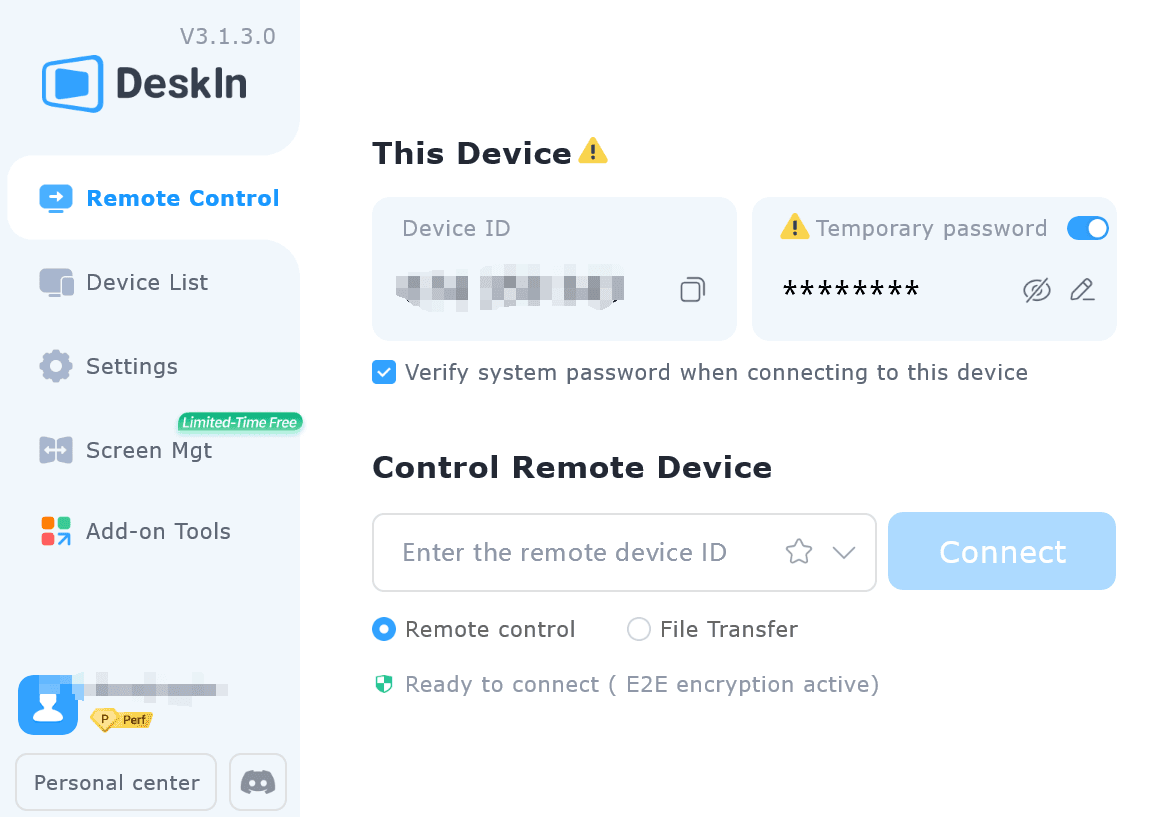
Go to DeskIn official website DeskIn Personal | Free Remote Desktop App with 40M+ Users download and install Deskin. Register an account with your email address and log in.

Enter the ID of the controlled device on the main control device, click connect, and use password connection or password-free connection to complete the verification. Then you can access the remote device.
Conclusion
DeskIn remote desktop is superior to Splashtop in terms of mobile device support, comprehensive functionality, user experience friendliness and cost-effectiveness under the WAN. These advantages make DeskIn remote desktop a more excellent and practical remote desktop solution, bringing a more convenient, efficient and secure remote operation experience to both individual users and corporate users.
6 Best Free Unattended Remote Access Software in 2026
You shouldn't need a phone call to fix a computer. Whether you're helping your father troubleshoot Windows, managing distributed office PCs, or supporting clients after hours, you need free unattended remote access software that lets you log in anytime a machine is powered on — without someone clicking "Accept" on the other side.
But not all remote desktop tools are built for real unattended use. Some require session passwords every time. Others lock you out when versions don't match. A few are powerful but overly complex for small teams. In this guide, we compare the most practical options in 2026 and help you choose the right unattended remote access software for your situation.
Top 6 Free Unattended Remote Access Software Compared
Here are the strongest contenders today:
DeskIn – Best all-around solution for stable, modern unattended access
TeamViewer – Best for well-connected small businesses
AnyDesk – Best for IT teams and structured support workflows
Chrome Remote Desktop – Best for individuals who want an ultra-simple setup
Microsoft Remote Desktop – Best built-in option for Windows users
AnyViewer – Best lightweight mobile-friendly option
Let's have a closer look.
Most Practical Free Unattended Remote Access Software: DeskIn
Pros
True permanent unattended access configuration
Works across Windows, macOS, iOS, Android
Smooth performance for daily work and troubleshooting
Clean interface, beginner-friendly
Supports cross-device access, including mobile
Cons
Advanced features may require upgrading
Best for: Families supporting parents, freelancers, remote workers, and small teams that want reliability without technical setup.
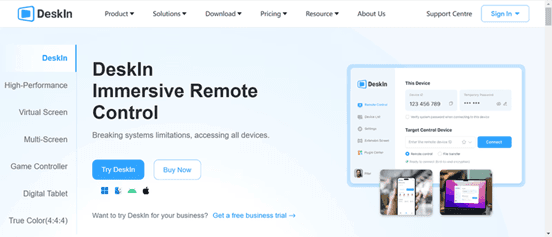
DeskIn is designed for one thing: logging in when nobody is there. Once installed and configured, you can securely access a device anytime it is running. No temporary passwords. No reading codes over the phone. No panic updates blocking access. That's what real free unattended remote access software should feel like.
Unlike tools that focus heavily on session-based support, DeskIn is optimized for ongoing remote access. It works well whether you are managing a parent's PC, maintaining home lab systems, or supporting distributed workstations.
For users searching for the best free remote desktop software for unattended access, DeskIn strikes a balance between simplicity and performance. It avoids complex router configuration, and setup is straightforward even for beginners. If your priority is consistent access without friction, DeskIn is one of the most practical choices available.

You may also like:
Best for Well-Connected Small Businesses: TeamViewer
Pros
Free for personal use
Highly secure with a mature feature set
Wide OS support
Strong brand recognition
Cons
Free version limited to personal use
Can feel bloated
Version mismatches may block connections
Best for: Small businesses with structured remote workflows.
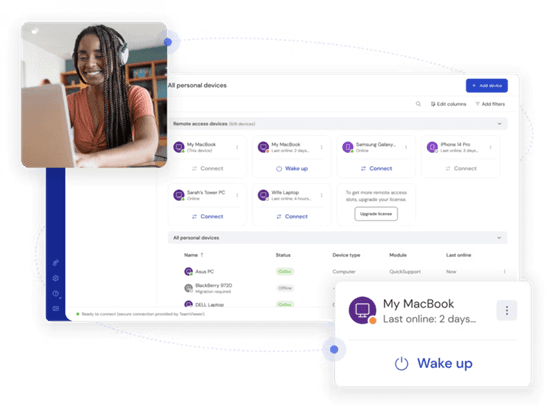
Image alt: Free Unattended Remote Access Software TeamViewer
TeamViewer has been one of the most recognizable names in remote access for nearly two decades, and for good reason. It offers a mature ecosystem that supports Windows, macOS, Linux, Android, and iOS, making it highly versatile across devices. For small businesses, especially those with distributed teams, it provides structured device management, session logging, and secure, encrypted connections.
In terms of unattended remote access, TeamViewer allows users to configure permanent access credentials so machines can be accessed anytime they are online. However, users relying on the free version often report limitations related to "personal use" detection, as well as occasional version-mismatch issues that can temporarily block access. While it remains a powerful option in the free unattended remote access software landscape, it may feel feature-heavy for individuals who simply need stable, always-on remote access without licensing concerns.
Best for IT Teams: AnyDesk
Pros
Free for personal use
Fast performance
Built-in file manager
Collaboration tools
Address book for device management
Cons
Limited features for larger enterprises
UI can feel structured for support workflows
Best for: IT professionals managing multiple machines
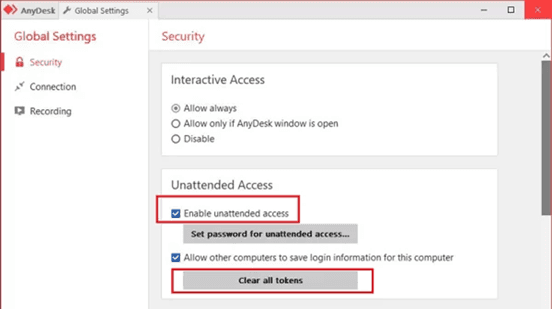
AnyDesk is widely respected for its speed and responsiveness, particularly in environments where low latency is critical. Built with a proprietary codec optimized for remote sessions, it performs well even under limited bandwidth conditions. For IT teams managing multiple endpoints, its address book system and permission controls make device organization straightforward.
As unattended remote access software, AnyDesk supports permanent passwords and background installation, allowing administrators to connect without user interaction. It also includes built-in file transfer and collaboration tools such as chat, which are useful in support workflows. That said, the interface and feature set lean toward professional IT use cases rather than casual personal users. For those specifically searching for the best free remote desktop software for unattended access in structured IT environments, AnyDesk remains a strong and reliable contender.
Best Remote Access for Individuals: Chrome Remote Desktop
Pros
Completely free
Extremely easy setup
Works inside the Google ecosystem
Cross-platform
Cons
Limited features
Requires a Google account
No built-in file transfer
Best for: Individuals who want simple Chrome remote desktop unattended access.
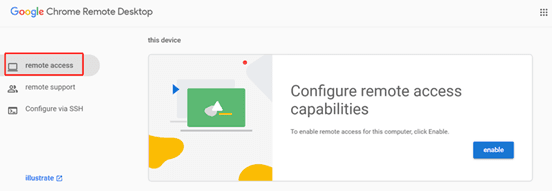
Chrome Remote Desktop stands out for one primary reason: simplicity. Setup typically takes only a few minutes. Users install the browser extension, link their Google account, set a PIN, and can immediately enable Chrome Remote Desktop unattended access for ongoing connections. There is no complicated network configuration or advanced setup process involved.
However, while Chrome Remote Desktop works well for light, individual use, it offers minimal management tools. There is no built-in file transfer feature, and functionality remains intentionally basic. For users who travel frequently or need occasional access to a home PC, it serves as an accessible entry point into free unattended remote access software. But for managing multiple systems or performing advanced troubleshooting tasks, its limited feature set may become restrictive over time.
Best Remote Built-In Windows: Microsoft Remote Desktop
Pros
Integrated into Windows
Full control of the remote device
File transfer supported
No third-party installation needed
Cons
Complex setup outside the local network
May require VPN or port forwarding
No cloud relay
Best for: Advanced Windows users.
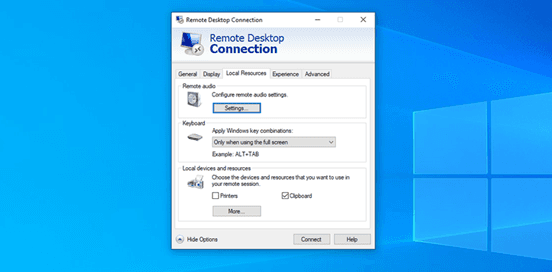
Microsoft Remote Desktop is integrated directly into Windows, making it a natural choice for users seeking free remote desktop Windows 11 or free remote desktop Windows 10 functionality without installing third-party tools. Within a local network, setup is straightforward, and performance is stable, offering full desktop control, file access, and administrative capabilities.
For unattended remote access scenarios, it can be configured to allow remote login without user approval. However, accessing a machine over the public internet often requires additional setup, such as VPN configuration or port forwarding, which may be challenging for non-technical users. While extremely powerful in professional Windows environments, it is generally better suited for users comfortable with networking concepts rather than beginners looking for plug-and-play remote access.
Note
Microsoft has retired its separate Remote Desktop app (from the Microsoft Store) and is ending support for the standalone Remote Desktop client (MSI) in March 2026, replacing both with the new Windows App for cloud services like Azure Virtual Desktop and Windows 365. However, the built-in Remote Desktop Connection (mstsc.exe) that ships with Windows 10 and 11, which is what we're recommending here, remains fully supported and unaffected by these changes. (as of the published date of the article)
Best for Mobile-Friendly Access: AnyViewer
Pros
Easy to use
Secure encryption
Available for iOS and Android
Stable free version
Cons
Windows-focused desktop support
Limited advanced features
Best for: Personal users prioritizing mobile control.
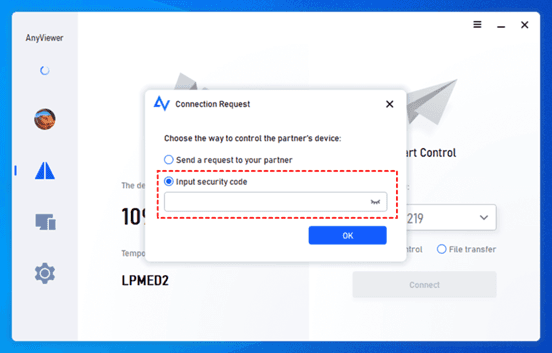
AnyViewer is designed with ease of use in mind and provides a streamlined interface that works well for personal users. It supports Windows PCs along with mobile apps for iOS and Android, making it convenient for accessing desktops on the go. Encryption based on ECC helps protect session data, which is important when connecting over public networks.
For unattended remote access software use, AnyViewer allows secure remote login after initial setup, enabling users to access their machines without repeated approval prompts.
The free version covers most essential functions, including file transfer and remote support. However, compared to more established platforms, it offers fewer advanced management tools and a smaller ecosystem. For individual users prioritizing mobile access and simplicity, it remains a practical and lightweight option.
FAQs About Free Unattended Remote Access Software
What is the best free unattended remote access software?
It depends on your use case.
For structured business environments, TeamViewer or AnyDesk may fit.
For ultra-simple individual access, Chrome Remote Desktop works.
For balanced usability and consistent unattended performance, DeskIn is a strong modern choice.
How do I ensure true unattended remote access?
To configure reliable unattended remote access software, you should:
Install it as a background service
Set a strong permanent password
Prevent the computer from sleeping
Enable encryption and authentication safeguards
Cloud-based solutions simplify this process by avoiding router configuration.
Is free remote desktop Windows 11 enough for remote access?
Microsoft Remote Desktop works well within local networks. For internet-based access without VPN setup, many users prefer cloud-based, free, unattended remote access software.
Why does remote software block connections sometimes?
Common reasons include: version mismatches, free license detection limits, expired sessions, and network configuration changes. Choosing stable unattended remote access software reduces these interruptions.
Conclusion
Remote access should feel invisible, not a scheduled appointment. The best free unattended remote access software allows you to log in quietly, securely, and consistently whenever the remote device is powered on. No codes, no wake-up calls, no update chaos. TeamViewer and AnyDesk remain strong for structured business use. Chrome Remote Desktop is excellent for simplicity. Microsoft Remote Desktop is powerful for experienced Windows users.
But if your priority is smooth, practical, unattended access that simply works across devices, DeskIn offers one of the most balanced solutions in 2026. Because the best remote support session is the one that doesn't require anyone to be there at all.
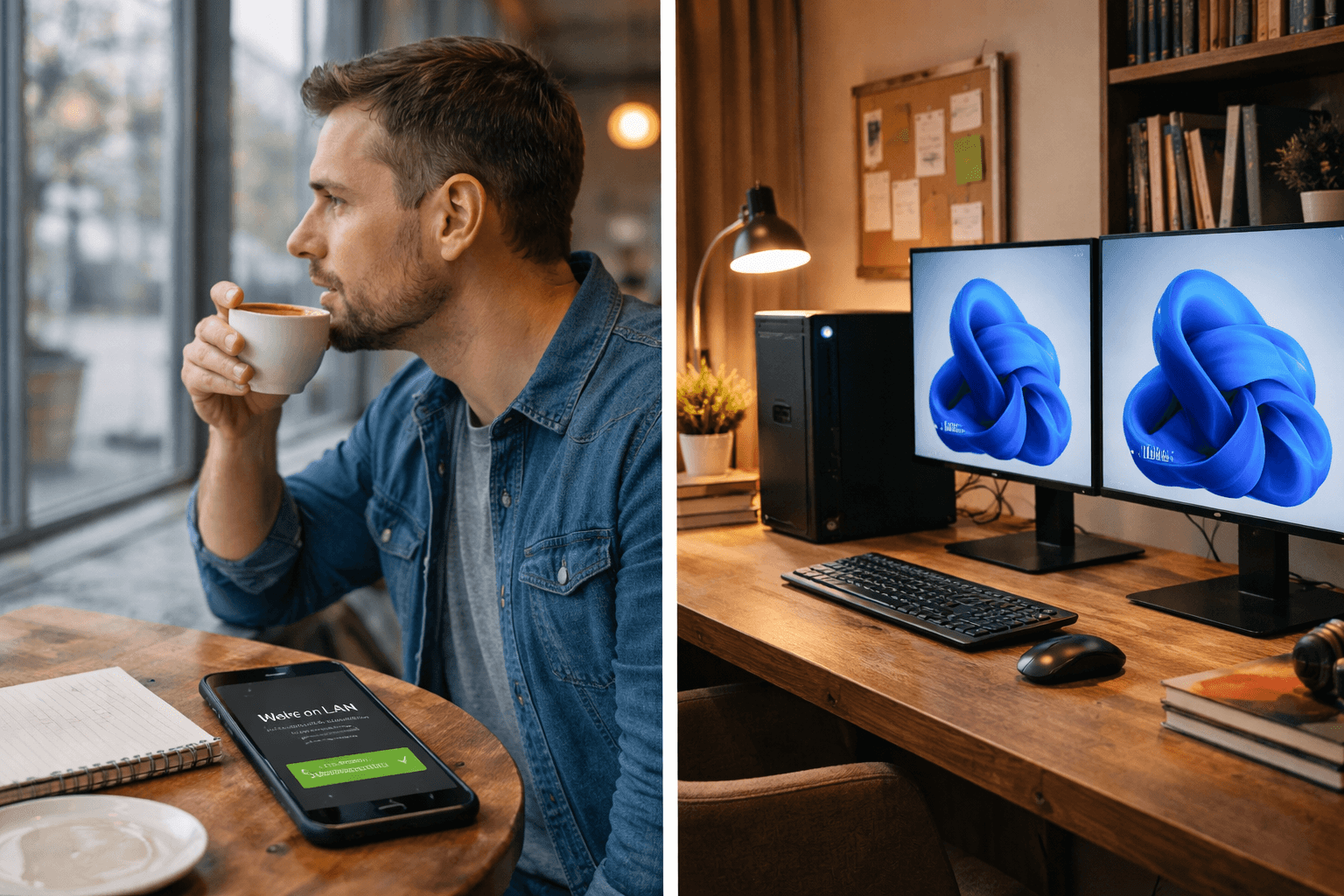
How to Enable Wake on LAN in Windows 11: 2026 Ultimate Guide
Imagine sitting in a coffee shop, suddenly realizing you need a critical file from your home computer, but you deliberately shut it down before leaving to save energy. Or picture yourself as an IT administrator needing to perform maintenance on dozens of remote workstations after hours. In both scenarios, Wake on LAN with Windows 11 transforms an impossibility into a simple click: the ability to power on your computer remotely, even when it's completely shut down.
Wake on LAN (WOL) is an Ethernet networking standard that allows a computer to be turned on remotely by sending a special signal called a "magic packet." When your network card detects this packet - even while the system is off - it triggers the motherboard to start the boot process. For Windows 10/11 users, this capability is built right in, but it requires careful configuration across your BIOS, operating system, and network hardware.
In this comprehensive guide, we'll walk you through every step to enable Wake on LAN Windows 10/11 with the best Wake on LAN software DeskIn, troubleshoot common issues, and show you how to verify your setup works; all while avoiding the frustration that leads countless users to Reddit threads asking why their Wake on LAN not working.
Prerequisites: What You Need Before Starting
Before diving into configuration, ensure your hardware meets these requirements :
To use Wake on LAN, there needs to be a device running DeskIn in the same LAN as the computer about to be woken up. For example, other computers, iPhone, iPad, Android devices (mobile phones, tablets), etc. Using to assist in running DeskIn.
Linux devices do not support sending WOL packets, and Mac and Linux devices do not support remote boot.
Devices that are in an abnormal shutdown state, such as a blue screen or crash, do not support remote boot.
Step-by-Step Guide to Enable Wake on LAN in Windows 11
Enabling Wake on LAN in Windows 11 requires configuration in three places: your computer's BIOS/UEFI, Windows network adapter settings, and power management options. Follow these steps carefully.
Step 1. Network Card Settings
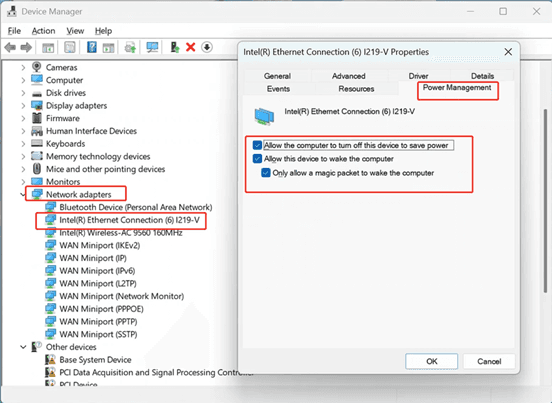
Right-click the Windows Logo (or press Win + X) and select "Device Manager." Find and expand the "Network adapters" section. Locate your wired Ethernet card (e.g., Realtek PCIe GbE Family Controller), right-click it, and select "Properties."
Navigate to the Power Management tab and check "Allow this device to wake the computer."
Switch to the Advanced tab. In the Property list, find "Wake on Magic Packet" and set it to Enabled. If you see other Wake on LAN related options, enable them as well. Click "OK" to save the settings.
Step 2. Motherboard BIOS Settings
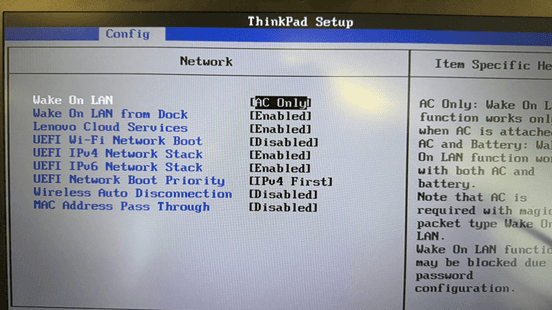
Restart your computer. During boot, repeatedly press Delete or F2 (depending on your motherboard brand) to enter the BIOS setup.
Navigate to the Advanced or Power Management section.
Look for and enable options with names similar to these (you may only find one or two):
Power On By PCI-E
Wake on LAN
Resume on LAN
Power on PME
Press F10 to save changes and restart your computer.
Note: The exact menu names vary by motherboard manufacturer.
Step 3. Enable and Test Remote Wake-Up in DeskIn
First, ensure your auxiliary device (like a phone or tablet) is on the same local network as your target computer, with DeskIn installed and logged into the same account.
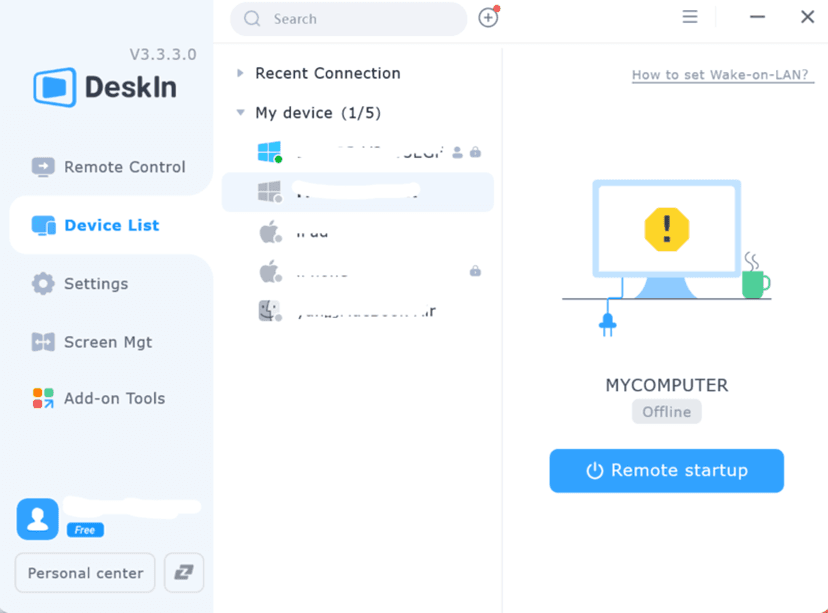
On the auxiliary device, open DeskIn, go to Settings > General Settings, and enable "Remote Boot Support Wake On LAN."
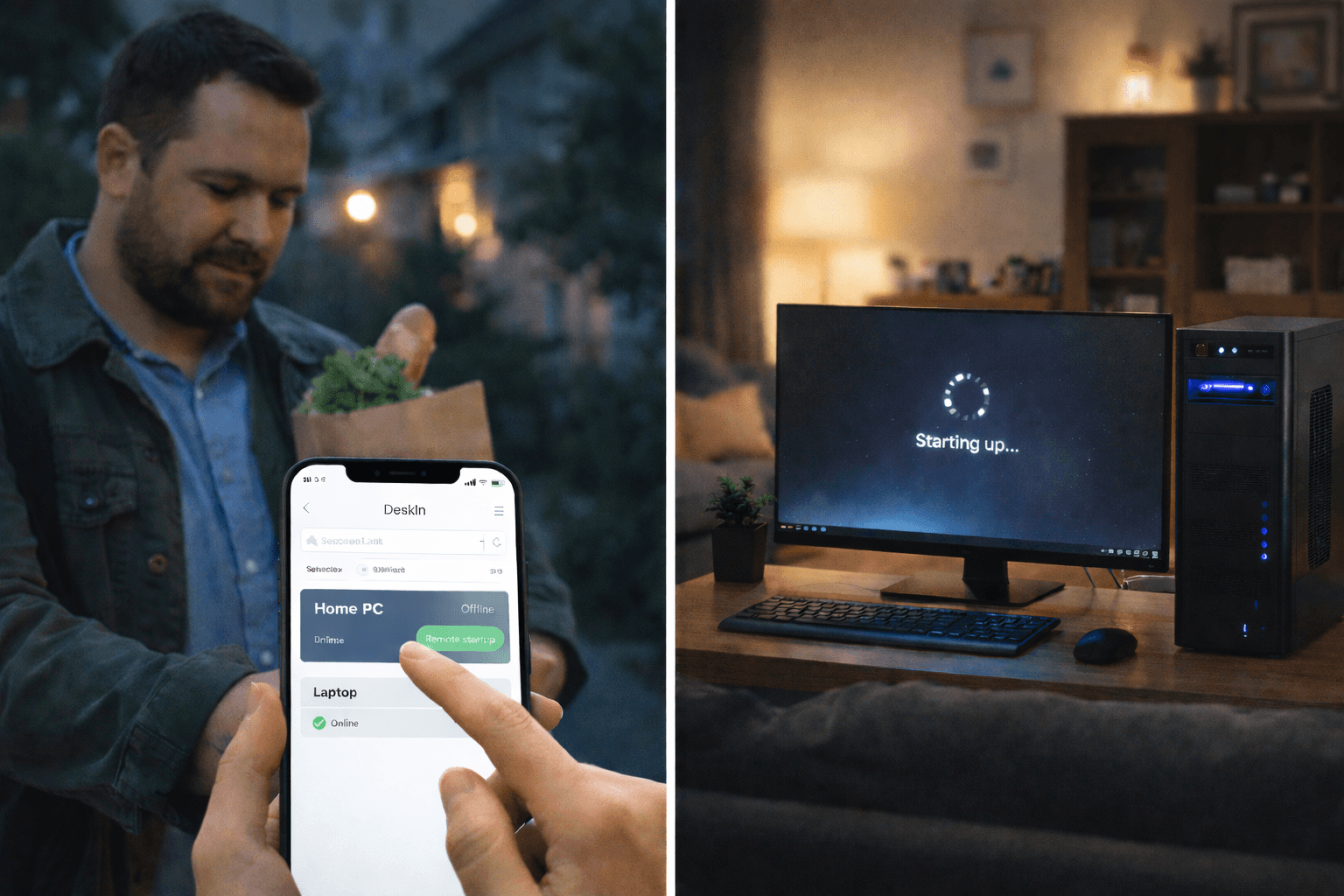
Return to the DeskIn device list. Your powered-off computer will show as "Offline." Click the "Remote startup" button next to that device.
Wait a few seconds, the target computer will wake up, its status will change to "Online," and you can click to connect for remote desktop access.
With DeskIn's integrated approach, you can not only verify your Wake on LAN setup with one click but also seamlessly transition to remote control, eliminating the hassle of separate testing tools.
You may also be interested in:
Troubleshooting: Why Wake on LAN Not Working?
Even after following every step, you might encounter issues. Here are the most common culprits and solutions
1. BIOS Settings Not Saved
Double-check that you properly saved and exited BIOS after enabling WOL options. Some systems require you to press F10 specifically to save.
2. Network Adapter Power Management
Ensure both "Allow this device to wake the computer" and "Only allow a magic packet to wake the computer" are checked. The second option is particularly important—without it, your PC might wake up for any network activity.
3. Fast Startup Conflicts
As mentioned earlier, try toggling Fast Startup. If it's disabled, enable it and test again. If it's enabled, disable it.
4. Router ARP Cache Expired
If your computer wakes successfully after a short shutdown but fails after several hours, ARP binding is likely the solution.
5. Using Wi-Fi Instead of Ethernet
Wake-on-Wireless LAN is unreliable in Windows 11. Microsoft has acknowledged compatibility issues with WoWLAN drivers, and Dell support documentation confirms that Windows 11 driver architecture differs significantly from Windows 10, leading to wake failures over Wi-Fi. Always use a wired Ethernet connection for reliable WOL.
6. Windows Updates Changing Settings
Occasionally, Windows updates may reset your network adapter settings. If Wake on LAN is not working after an update, revisit Step 2 and verify your configurations.
7. Firewall Blocking Magic Packets
Windows Firewall might block incoming magic packets. Consider creating an inbound rule to allow UDP port 9 (the default WOL port) .
Why Windows 11 Users Love Wake on LAN
The benefits of enabling Wake on LAN in Windows 11 extend far beyond occasional file access:
Energy Savings: Keep your PC off 90% of the time, powering it only when needed
Extended Hardware Lifespan: Less runtime means less heat and wear on components
Remote IT Support: Family members or IT staff can access your computer without you being present
Scheduled Maintenance: Run updates or backups during off-hours
Home Server Functionality: Turn any old PC into an on-demand media or file server
FAQs about Wake on LAN in Windows 11
1. Does Windows 11 support Wake-on-LAN over Wi-Fi?
Officially, WoWLAN (Wake-on-Wireless LAN) support in Windows 11 is limited. Microsoft documentation and hardware manufacturers report compatibility issues with Wi-Fi wake, especially with newer CX driver architectures. For reliable operation, use Ethernet.
2. Why is my Wake on LAN not working on Windows 11?
Common causes include: BIOS settings not enabled, Fast Startup interfering, missing "Only allow magic packet" checkbox, router ARP cache expiration, or using Wi-Fi instead of Ethernet.
3. Can I wake Windows 11 over the internet?
Yes, but you'll need either router port forwarding configured or a cloud-based service like the best Wake on LAN software, DeskIn, that handles remote wake through an assistant device on your local network.
4. Do I need special Wake on LAN software for Windows 11?
You need some tool to send the magic packet. Options range from free utilities like NirSoft WakeMeOnLan to integrated solutions like DeskIn that combine WOL with remote desktop access.
Conclusion: Never Leave Your PC Running 24/7 Again
Wake on LAN Windows 11 is one of those features that, once configured, becomes indispensable. Whether you're accessing files remotely, running a home server, or managing multiple computers, WOL gives you on-demand access without the energy waste of always-on operation.
The setup process requires attention to detail across BIOS, Windows settings, and your network hardware. But with this guide, you can navigate each step confidently. And when you're ready to test your configuration, tools like DeskIn make verification simple while providing the remote desktop access you wanted in the first place.
Ready to experience the freedom of remote power-on? Start with the BIOS configuration above, and when you're finished, try DeskIn to verify your setup works and enjoy seamless remote access afterward.
The 4 Best Wake on LAN Software for 2026: Remote Power-On Made Easy
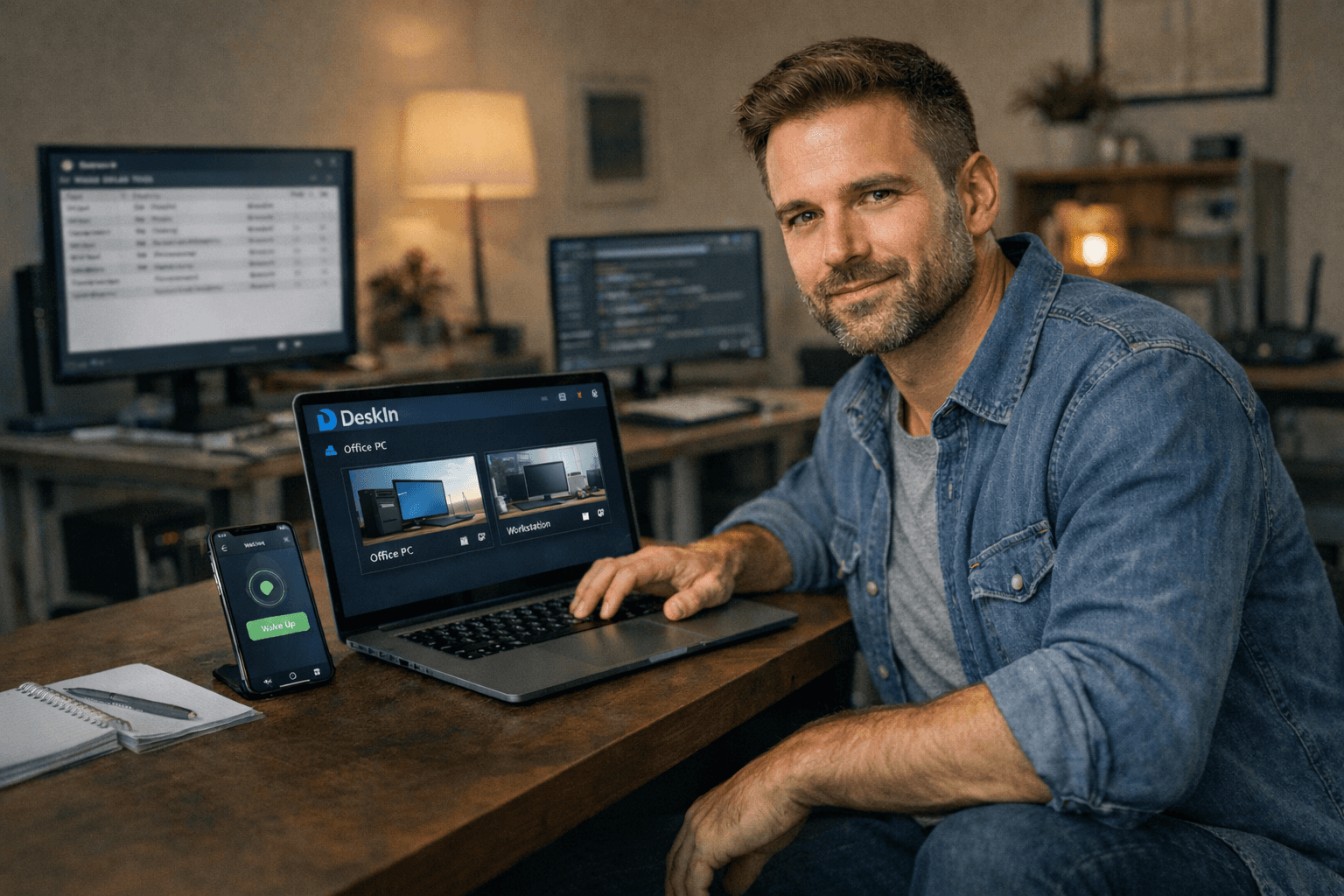
Imagine needing to access your office computer from home, only to realize it's shut down. Or perhaps you're an IT administrator responsible for maintaining dozens of machines across multiple locations. In both scenarios, Wake on LAN software transforms impossibility into simplicity—letting you power on remote systems with a single click.
Wake on LAN (WOL) technology has been around for decades, but the tools to trigger it have evolved dramatically. Today's Wake on LAN software ranges from bare-bones utilities that simply send magic packets to sophisticated platforms that combine remote wake-up with full remote desktop control.
In this guide, we'll explore the four best Wake on LAN software solutions available, helping you find the perfect fit whether you need Wake on LAN software for Windows, a Wake on LAN Android app, or an integrated solution that does it all. And if you're tired of juggling multiple tools, we'll show you why DeskIn might be the only one you'll ever need.
Top 4 Wake on LAN Software Tools Compared
After evaluating dozens of options based on features, ease of use, platform compatibility, and user reviews, here are the four best Wake on LAN software solutions available today:
NetCrunch Wake On LAN Tool - Best lightweight utility for IT admins who need a portable, no-installation tool for occasional local network use.
WOL-Manager - Best Wake on LAN Android app for mobile users who need to wake computers remotely from their phone or tablet.
Depicus Wake on LAN - Best cross-platform versatility with tools for Windows, Mac, Linux, and even web-based interfaces.
NirSoft WakeOnLAN - Best free utility for Windows power users who want network scanning capabilities alongside WOL functionality.
Note
If you want the best integrated solution combining reliable WOL with full remote desktop control in one seamless interface, DeskIn may be your first choice.
1. NetCrunch Wake On LAN Tool: Best Lightweight Utility for IT Admins
Pros
Portable executable—no installation required
Ultra-simple interface: just enter the MAC address and send
Completely free with no feature limitations
Works on Windows 10/11 x64
Cons
Local network only (no built-in remote wake capabilities)
No mobile app or cross-platform support
Bare-bones functionality only
Best for: IT administrators who need a quick, no-fuss utility for occasional use without installing heavyweight software.
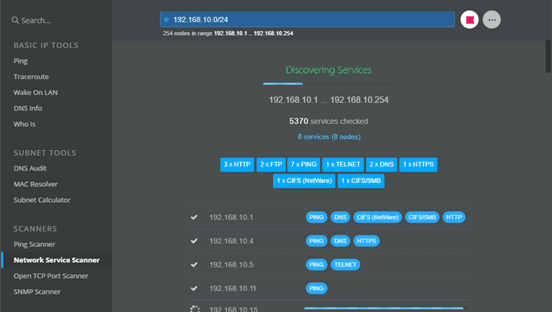
The NetCrunch Wake On LAN Tool is exactly what you'd expect from a dedicated Wake on LAN software download—it does one thing and does it exceptionally well. Part of the NetCrunch admin toolset, this portable utility requires no installation or configuration. Simply launch the executable, enter the MAC address of your target device, and click send. The tool broadcasts a magic packet to your local network, and if the remote system supports WOL and is properly configured, it powers on.
What makes this tool particularly appealing for IT professionals is its reliability and simplicity. When you're troubleshooting Wake on LAN not working issues, having a clean, focused tool eliminates variables. It's ideal for turning on systems after hours, recovering offline endpoints, or managing distributed workstations. However, because it operates only on the local network, you'll need additional solutions—like VPN access or a cloud relay—for true remote wake capabilities.
2. WOL-Manager: Best Wake on LAN Android App
Pros
Remote wake over the internet (WAN) support
Group wake functionality—power on multiple devices simultaneously
Instant-wake feature for frequently accessed devices
Works with IP addresses, broadcast addresses, and dynamic domain names
Cons
Android only (no iOS version mentioned)
Requires router configuration for external access
Focuses solely on wake-up, not remote control
Best for: Mobile users who need to wake computers from anywhere using their Android device.
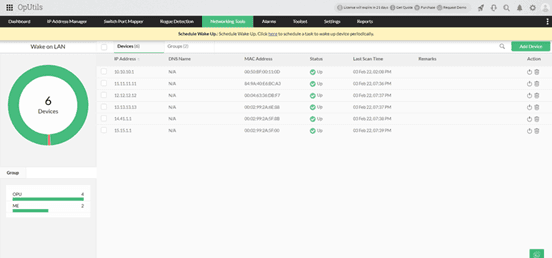
For those seeking a dedicated Wake on LAN Android app, WOL-Manager stands out as a comprehensive solution. This app transforms your smartphone into a powerful remote wake tool, capable of powering on PCs, NAS devices, servers, or any WOL-compatible equipment from anywhere in the world. Unlike basic tools that only work locally, WOL-Manager supports wake-over-internet functionality, provided your router is configured correctly with port forwarding or dynamic DNS services like DynDns.
The app's group management feature is particularly valuable for users with multiple devices. You can organize computers by location or function and wake entire groups with a single tap. The "Instant-Wake" feature automatically powers on specified devices immediately after app launch—perfect for users who regularly need the same machines. WOL-Manager works well with DD-WRT router firmware and gives you flexibility in how you target devices: by IP address, broadcast address, or domain name. Once the computer wakes, you'll need separate remote desktop Wake on LAN software to actually control it - a limitation that integrated solutions like DeskIn elegantly solve.
3. Depicus Wake on LAN: Best Cross-Platform Versatility
Pros:
Multiple tool variants for different scenarios (GUI, command line, web-based)
Supports Windows, macOS, and Linux
Includes specialized tools like WOL for Cisco and remote subnet wake-up
Long-standing reputation in the WOL community
Cons:
Interface feels dated compared to modern apps
Some tools require technical knowledge to use effectively
Free versions may have limitations
Best for: Technical users who need flexibility across different platforms and network configurations.
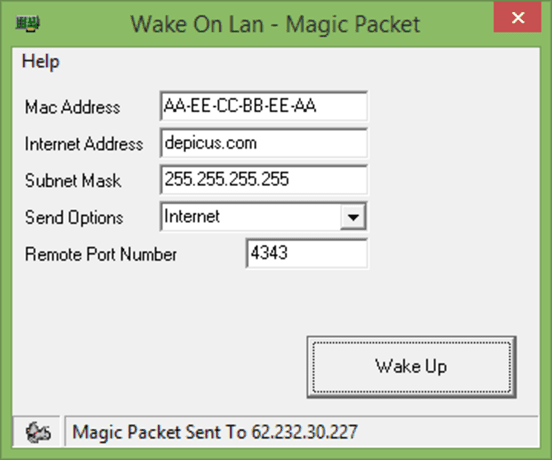
Depicus has been a trusted name in the Wake on LAN software space for years, offering a suite of tools that cater to virtually every use case. Their collection includes a simple GUI tool for Windows, command-line utilities for scripting and automation, and even web-based tools that can run from a browser. This makes Depicus one of the most versatile options when you need Wake on LAN software Mac compatibility, alongside Windows support.
What sets Depicus apart is its attention to complex networking scenarios. Their tools can handle waking computers across different subnets—a challenge that often causes wake on lan not working errors in enterprise environments. The "Wake On Lan Command Line" tool is particularly useful for system administrators who need to integrate wake-up commands into scripts or scheduled tasks. While the interfaces may not win beauty contests, the reliability and depth of functionality make Depicus a go-to resource for professionals who need precise control over their WOL implementation.
You may also be interested in:
4. NirSoft WakeOnLAN: Best Free Utility for Windows Power Users
Pros
Completely free for personal and commercial use
Scans the network and displays all active devices
Allows saving device lists for future reference
Supports command-line options for automation
Tiny footprint (under 100 KB)
Cons
Windows only
Basic interface with limited hand-holding
Requires understanding of networking concepts
Best for: Windows users who want a powerful, no-cost utility with network scanning capabilities.
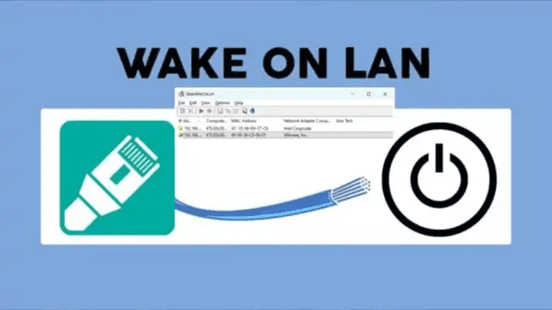
NirSoft has built areputation for creating small, powerful utilities that do exactly what they promise—and Wake on LAN is no exception. This Wake on LAN software for Windows goes beyond simple magic packet sending by including a network scanner that discovers all devices on your local network, displaying their IP addresses, MAC addresses, and device names. This feature alone saves tremendous time when you're setting up WOL for multiple computers and need to collect MAC addresses.
Once you've scanned and saved your device list, waking computers becomes a matter of selecting them from a list and clicking a button. The tool supports sending magic packets to individual devices or entire groups, and its command-line options make it ideal for scripting. For IT professionals managing Windows environments, NirSoft WakeOnLAN represents the perfect balance of power, simplicity, and cost - it's free, portable, and packed with features that simplify WOL management. The only caveat? It's strictly for local network use, so you'll need additional infrastructure for remote waking.
Why DeskIn Is the Smarter Wake on LAN Solution
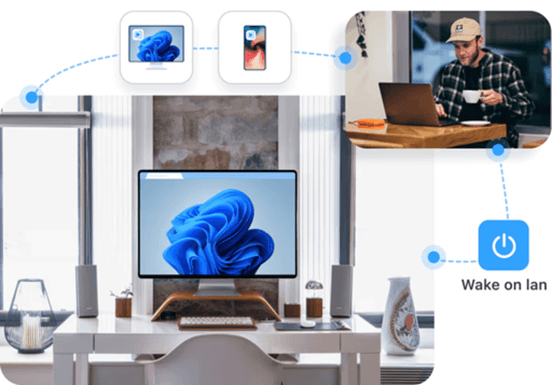
Most Wake on LAN software tools focus on a single task: sending a magic packet. Once the computer powers on, the job is technically done. But in real-world use, waking a device is only the beginning.
DeskIn takes a more practical approach by integrating Wake on LAN directly into a full remote desktop platform. When a device appears offline, you can trigger a wake request through DeskIn's cloud relay system without configuring port forwarding or manually managing network settings. Once the system boots, the platform transitions seamlessly into a remote desktop session, allowing you to access and control the computer immediately.
Unlike basic WOL utilities that provide no confirmation, DeskIn also displays real-time device status, so you know exactly when the machine is online and ready. Instead of combining multiple tools, users get a unified wake-and-connect workflow designed for consistent remote access across Windows, macOS, iOS, and Android.
Wake-on-LAN Software FAQs
1. What is the best free Wake on LAN software?
The best free option depends on your needs. For a simple, portable Wake on LAN software free utility, NirSoft Wake-On-LAN is excellent. It's under 100KB, requires no installation, and includes network scanning. For IT professionals, NetCrunch's Wake On LAN Tool is completely free and dead-simple. If you want an integrated solution that combines WOL with remote desktop, DeskIn offers robust free functionality that goes beyond basic packet sending.
2. Can I wake my computer over the internet with free software?
Yes, but it requires additional configuration. With basic Wake on LAN software download options like NirSoft or NetCrunch, you'll need to set up port forwarding on your router and potentially use dynamic DNS. Alternatively, cloud-based solutions like DeskIn handle remote wake automatically through their infrastructure; no port forwarding required, making it the simplest option for remote waking.
Why is my Wake-on-LAN not working?
Wake on LAN not working issues typically stem from one of several causes:
BIOS settings: WOL must be enabled in the system firmware
Network card configuration: Power management settings in Windows need adjustment
Fast Startup: Windows Fast Startup prevents a proper shutdown for WOL
Router ARP cache: After a prolonged shutdown, routers may forget the device's MAC address
4. How do I choose Wake on LAN software for Windows 10/11?
When selecting Wake-on-LAN software for Windows 10 or Windows 11 compatible tools, consider whether you need local-only or remote wake capabilities. For local network use, NirSoft or NetCrunch work perfectly. If you need to wake computers over the internet, look for solutions with cloud relay (like DeskIn) or those that support port forwarding. Also consider whether you need a remote desktop after wake; if so, an integrated platform saves significant hassle.
Beyond Simple Packet Sending
The landscape of Wake on LAN software has evolved far beyond simple magic packet utilities. Today's best tools recognize that waking a computer is rarely the end goal—it's the first step toward actually using that machine. Whether you choose a dedicated utility like NetCrunch or Depicus depends on whether you're comfortable assembling a toolkit of separate applications.
For most users, however, the integrated approach of DeskIn represents the future of remote access. By combining reliable Wake on LAN Windows 11 support with full remote desktop capabilities, DeskIn delivers a unified experience that saves time, reduces complexity, and just works. No more wondering if the packet arrived. No more switching between apps. Just one click from sleep to full control.
Ready to experience remote access the way it should be? Try DeskIn today and discover the difference an integrated WOL solution makes.
PRODUCTIVITY
Remote Desktop Wake on LAN: The Ultimate Guide to Waking Your PC from Anywhere
Imagine you're on a business trip, and a critical file is sitting on your office PC—but you forgot to leave it running. Or you're a student who needs to access your powerful desktop from the library, only to realize it's in sleep mode. This scenario is all too common, and it's exactly where remote desktop Wake on LAN becomes a lifesaver. Wake on LAN (WOL) is a technology that allows you to remotely power on a computer, even if it's shut down or sleeping. But here's the catch: most remote desktop tools don't include WOL functionality. You'd need one app to wake up the PC and another to connect—a clumsy workaround that frustrates users daily.
Enter DeskIn: a remote desktop solution that bakes WOL right into the experience. With DeskIn, you don't need separate tools. One click, and your PC wakes up and is ready for remote control - no manual intervention required. In this guide, we'll explore everything about remote desktop Wake on LAN, from how it works to step-by-step setup, and show you why DeskIn is the ultimate all-in-one answer.
What Is Wake on LAN (WOL) and How Does It Work?
Wake on LAN is a networking standard that allows a computer to be turned on remotely by sending a special signal called a magic packet. This packet contains the target computer's MAC address and is broadcast over the local network. When the network card detects the packet, it triggers the computer to power up—even if the OS is shut down, as long as the motherboard still has standby power.
1. The Magic Packet: How WOL Communicates with Your PC
The magic packet is a simple frame of data. It starts with six bytes of 0xFF (all ones), followed by the MAC address repeated 16 times. Network cards that support WOL listen to this pattern even when the system is off. Once received, they signal the motherboard to start the boot process.
2. Requirements for WOL: Hardware, BIOS, Network
For WOL to work, three components must align:
Hardware: The network card must support WOL (most modern Ethernet adapters do).
BIOS/UEFI: Wake on LAN must be enabled in the firmware settings.
Power: The computer must be connected to a power source, and the PSU must supply standby power to the network card.
Why You Need WOL for Remote Desktop (Especially for Windows 10/11)
If you rely on remote desktop tools like Windows Remote Desktop, Chrome Remote Desktop, or third-party apps, you've likely encountered the same dilemma: "Should I leave my PC running 24/7 just in case?" That's wasteful and potentially unsafe. With WOL, you can keep your PC off or in sleep mode and wake it only when needed.
This is especially relevant for remote desktop Wake on LAN for Windows 10 and Windows 11 users because these operating systems have robust power-saving features. Pairing them with WOL gives you the best of both worlds: energy savings and on-demand access.
Step-by-Step Guide: Use DeskIn for Remote Desktop Wake on LAN
Enabling WOL involves three main steps: 1) configuring the network adapter, 2) tweaking the BIOS, and 3) setting up your router for remote access. Follow these instructions carefully.
Note:
To use Wake on LAN, the device running DeskIn in the same LAN as the computer about to be woken up. For example, other computers, iPhone, iPad, Android devices (mobile phones, tablets) etc, using that to assist in running DeskIn.
Linux devices do not support sending WOL packets, and Mac and Linux devices do not support remote boot.
Devices that are in an abnormal shutdown state, such as a blue screen or crash, do not support remote boot.
Step 1. Network Card Settings
Right-click the Windows Logo (or press Win + X) and select "Device Manager." Find and expand the "Network adapters" section. Locate your wired Ethernet card (e.g., Realtek PCIe GbE Family Controller), right-click it, and select "Properties."
Navigate to the Power Management tab and check "Allow this device to wake the computer."
Switch to the Advanced tab. In the Property list, find "Wake on Magic Packet" and set it to Enabled. If you see other Wake on LAN related options, enable them as well. Click "OK" to save the settings.
Step 2. Motherboard BIOS Settings
Restart your computer. During boot, repeatedly press Delete or F2 (depending on your motherboard brand) to enter the BIOS setup.
Navigate to the Advanced or Power Management section.
Look for and enable options with names similar to these (you may only find one or two):
Power On By PCI-E
Wake on LAN
Resume on LAN
Power on PME
Press F10 to save changes and restart your computer.
Note: The exact menu names vary by motherboard manufacturer.
Step 3. Enable and Test Remote Wake-Up in DeskIn
First, ensure your auxiliary device (like a phone or tablet) is on the same local network as your target computer, with DeskIn installed and logged into the same account.
On the auxiliary device, open DeskIn, go to Settings > General Settings, and enable "Remote Boot Support Wake On LAN."
Return to the DeskIn device list. Your powered-off computer will show as "Offline." Click the "Remote startup" button next to that device.
Wait a few seconds—the target computer will wake up, its status will change to "Online," and you can click to connect for remote desktop access.
With DeskIn's integrated approach, you can not only verify your Wake on LAN setup with one click but also seamlessly transition to remote control, eliminating the hassle of separate testing tools.
Common Challenges: "Wake on LAN Not Working" and How to Fix Them
A quick search on Reddit reveals countless posts like:
"Can Windows Remote Desktop turn on your PC, or do you need a LAN switch for that?"
"Any Free RDP With Wake on LAN Functionality? Or Good Dedicated WoL App?"
Users often hit roadblocks:
WOL is not working due to incorrect network card settings.
Remote wake over the internet is failing because the magic packet doesn't reach the PC
Chrome Remote Desktop Wake on LAN is not supported natively.
Wake on LAN not working on Windows 10/11 after sleep.
These issues typically stem from misconfigured power management, router settings, or a lack of proper software support. We'll address them in the setup guide.
The Best Wake on LAN Software: Why DeskIn Combines WOL and Remote Desktop Seamlessly
Many users end up juggling multiple apps: one for WOL (e.g., a mobile app) and another for remote desktop. This is clunky and error-prone. DeskIn solves this by integrating remote desktop Wake on LAN into a single, intuitive interface.
DeskIn: One-Click from Sleep to Remote Desktop
With DeskIn, you don't need to remember IP addresses, MAC addresses, or router settings. The best Wake on Lan software handles the wake-up signal through its cloud infrastructure. When you try to connect to a sleeping PC, DeskIn automatically sends a wake-up request—no extra steps.
DeskIn vs. Other Solutions (Chrome Remote Desktop, Splashtop, etc.)
DeskIn: Provides free WOL functionality integrated into the remote desktop client, with easy setup and reliable performance
Chrome Remote Desktop Wake on LAN: Not natively supported; you'd need a separate tool
Splashtop: Offers WOL but often requires a paid plan for advanced features
AnyDesk/TeamViewer: May have WOL limitations or require additional configuration
You may also be interested in:
Frequently Asked Questions About Remote Desktop Wake on LAN
1. When can Wake on LAN be used?
Wake on LAN is useful in scenarios where remote access or IT management is needed without keeping devices powered on constantly. It can be used for remote IT support, scheduled maintenance, powering up servers or workstations before business hours, and enabling employees to access their office computers from home.
2. Can I wake up my PC over the internet?
Yes, but you need either router port forwarding or a cloud-based WOL service. DeskIn's cloud relay makes this seamless—no port forwarding required.
3. Is Wake on LAN safe?
WOL itself is relatively safe because it only powers the PC. However, leaving port 9 open can expose you to potential attacks. Using a service like DeskIn adds a layer of authentication and encryption.
4. Does WOL work on Wi-Fi?
WOL over Wi-Fi is unreliable because Wi-Fi adapters often lose power during sleep. It's best to use a wired Ethernet connection for WOL.
5. Can I turn off Wake on LAN?
Yes, you can turn off Wake on LAN by disabling it in the BIOS/UEFI settings and in the network adapter settings within your operating system. If you decide that you no longer need this functionality, simply adjust these settings to prevent the computer from waking up remotely.
Never Leave Your PC Running 24/7 Again
Remote desktop Wake on LAN transforms how you access your computers. Instead of leaving machines running around the clock, you can save energy, reduce wear, and still have instant access when needed. While setting up WOL manually can be tricky, tools like DeskIn eliminate the complexity by integrating wake-up and remote access into one polished experience.
Whether you're using Windows Remote Desktop, need a solution for Windows 10/11, or want to avoid the "WOL not working" headache, DeskIn delivers. Try it today and experience the freedom of a truly on-demand remote desktop.
PRODUCTIVITY
The 10 Best File Transfer Software for Android in 2026
It's 2026, and you'd think moving files between devices would be seamless by now. Yet here we are: Google's official Android File Transfer still crashes on macOS Sequoia. Quick Share discovers devices only half the time. And Bluetooth? Best reserved for a single contact card—not your 4GB vacation video.
The reality is that file transfer software for Android has fragmented into specialized tools. Some excel at local speed. Others unlock remote access. A few even let you access files on a computer from Android while you're 3,000 miles away.
You may also like:
Overview of Android File Transfer Apps
Tool | Best For | Platforms | Connection | Price |
|---|---|---|---|---|
DeskIn
| Remote file access & cross‑platform management | Win, Mac, iOS, Android, Web | P2P / Relay | Free / Paid |
MobiKin Assistant for Android | Android data backup & transfer (contacts, files, etc.) | Win, Mac ↔ Android | USB / Wi‑Fi | Freemium |
Quick Share | Instant nearby sharing (Android ↔ Win) | Android, Win, ChromeOS | Wi‑Fi Direct + BT | Free |
Send Anywhere | Sending huge files via 6‑digit code | All major OS | Wi‑Fi / Cellular | Free / Paid |
MacDroid
| Reliable Android ↔ Mac USB/ Wi‑Fi | Mac ↔ Android | USB / Wi‑Fi | Freemium |
AirDroid | Remote Android management & control | Web, Win, Mac, Android | Wi‑Fi / Remote | Freemium |
Phone Link | Windows‑Android easy integration | Win, Android | Wi‑Fi / BT | Free |
Smart Switch | Samsung device migration | Samsung, iOS, Android | USB / Wi‑Fi | Free |
LocalSend | Privacy‑friendly local network transfers | All major OS | LAN (Wi‑Fi) | Free (Open source) |
iReaShare Android Manager | Full‑featured Android data management | Win, Mac ↔ Android | USB / Wi‑Fi | Freemium |
Here is the detailed reviews for 10 best Android file transfer applications.
1. DeskIn: Best for Remote File Access and Cross‑Platform Management
Pros
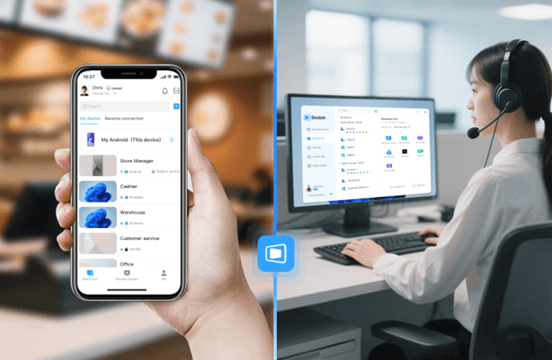
Unattended remote access to PC files from any device (Android, iOS, Web)
High‑speed P2P file transfer (up to 12MB/s) with auto‑resume
Cross‑platform: control Windows/Mac from Android, transfer files between Android and Windows PC wirelessly
Built‑in Wake‑on‑LAN – power on a remote PC from a phone
Free tier supports 3 devices, no file size limits
Cons
Requires app installation on both ends
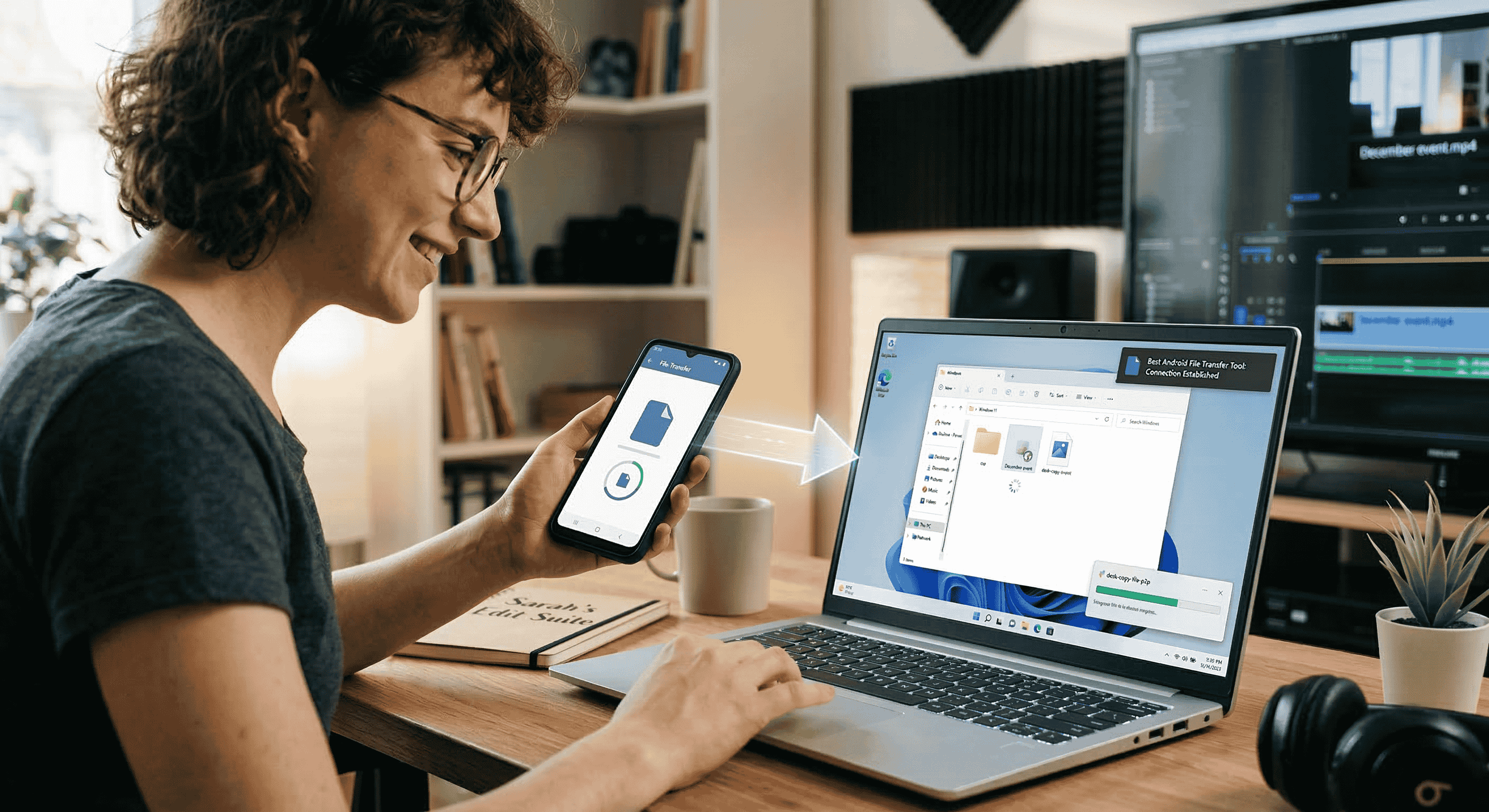
DeskIn stands apart from other file transfer software for Android tools by letting you access files on your PC from your Android phone even when you’re far away. DeskIn lets you also access files on your computer from Android even when you're miles away.
Need a contract from your office PC while at the airport? Simply open DeskIn on your Android, browse the remote desktop, and drag the file to your phone. The connection is secured with AES‑256 + TLS 1.3, and transfers automatically resume if the network drops.
Beyond one‑off transfers, DeskIn is great for transferring files between Android and Windows PC daily. You can push screenshots from your Android to your Windows desktop with a single click, or pull design assets from your Mac to your Android tablet. For users who juggle multiple platforms and need both Android file transfer software for Windows and Android file transfer software for Mac, DeskIn is the one tool that works across all your devices and platforms.
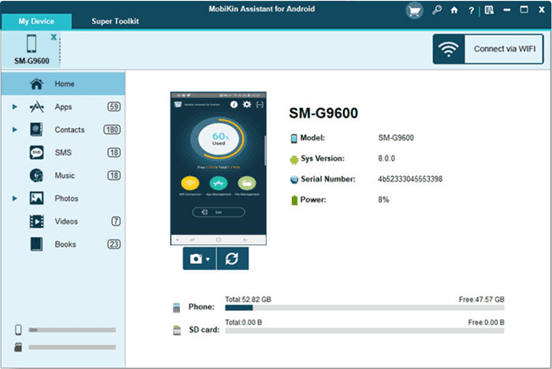
2. Best for Mac Users Who Need a Reliable Android File Transfer Tool: MobiKin Assistant for Android
Pros
Native support for both Windows and macOS
USB and Wi-Fi transfer options
Two-way transfers – Android to Mac and Mac to Android
Manages contacts, SMS, apps, photos, videos, and more
One-click backup and restore
Cons
Paid software – full version from $29.95
Free trial has limitations
Requires USB debugging setup
If you're a Mac user frustrated by Google's abandoned Android File Transfer for Mac, which crashes constantly and hasn't been updated in years, MobiKin Assistant for Android is the reliable replacement you need. It mounts your Android device for fast USB transfers, but also adds Wi-Fi connectivity, two-way file moving, and deep data management.
You can export SMS threads, edit contacts in bulk, install apps, and create full device backups with one click. No cloud, no privacy concerns, no connection drops.
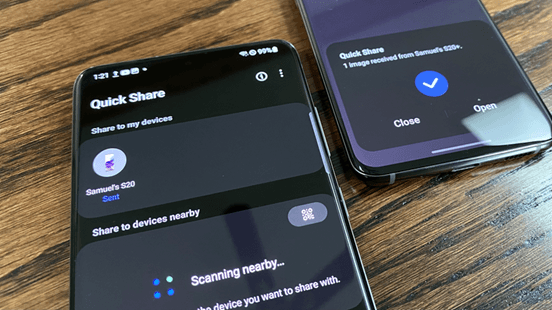
3. Best for Instant Wireless Sharing Between Android and Windows - Quick Share
Pros
Pre‑installed on most Android phones (Android 6+)
Uses Wi‑Fi Direct + Bluetooth – no mobile data
Windows app is available for cross‑platform
Cons
Windows version requires 64‑bit Windows 10/11
Older Android devices may lack support
Quick Share is Google's answer to AirDrop, and it works surprisingly well for local transfers. If you're looking for efficient Bluetooth file transfer software for Android, Quick Share automatically switches between Bluetooth (for device discovery) and Wi‑Fi Direct (for high‑speed data). Sending a 4K video to a nearby Windows laptop takes seconds, with no cables or cloud uploads.
The Windows client (available from Samsung or Google's site) makes Quick Share a viable option for transferring files between Android and Windows PC without any dongles. It's perfect for quick, on‑the‑spot sharing at home or in the office. The main limitation is range: both devices must be within Bluetooth range (~10m). For remote access, you'll still need a tool like DeskIn.
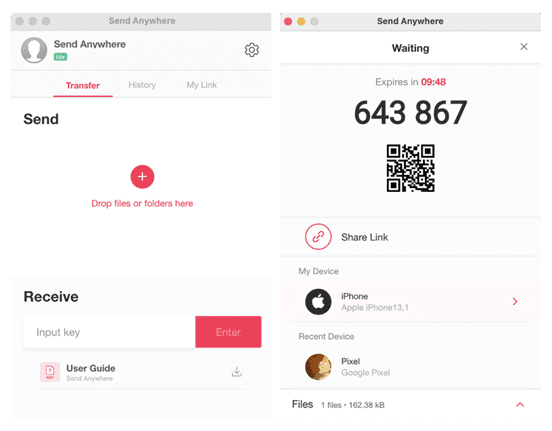
4. Best for Sending Large Files via Temporary Code: Send Anywhere
Pros
No file size limit
6‑digit key system – no account needed
Truly cross‑platform: Android, iOS, Windows, Mac, Linux, Web
Cons
Keys expire in 10 minutes – stressful for slow recipients
Speeds depend on the server relay
Send Anywhere stands out for its simplicity: you select a file, the app generates a 6‑digit code, and the recipient enters it on any device to download. It doesn't matter if they're on Android, iPhone, or a Windows PC – the file travels through Send Anywhere's servers (encrypted) and is then deleted. This makes it ideal for transferring photos from Android to iPhone when switching ecosystems, or for sending a large video to a client who isn't tech‑savvy.
Because there's no file size cap, you can even send 100GB+ files (though speeds may vary). The free version is fully functional; the paid plan adds cloud storage and link control. However, it requires an internet connection on both sides, and the 10‑minute expiry can be problematic.
For high-speed transfers between your devices (phones, tablets, and laptops) without an internet connection, LocalSend is the better choice. Quick Share works great for Android-to-Android transfers, but requires an internet connection when sharing with iPhones.
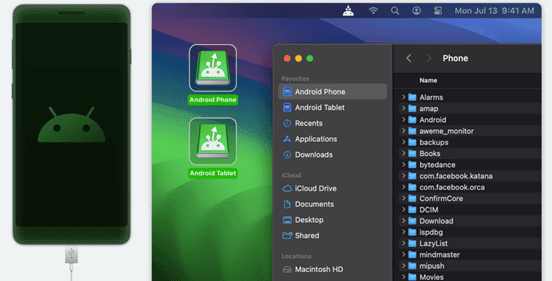
5. Best for Reliable Android ↔ Mac USB/Wireless Transfers: MacDroid
Pros
Mounter – mounts Android as a native macOS volume
Supports both USB and Wi‑Fi
Edit files directly on an Android device
Cons
Free version only allows Android → Mac transfers
The pro version is subscription‑based
MacDroid solves the biggest frustration of Android‑on‑Mac: unreliable MTP connections. It mounts your Android device as a standard disk drive in Finder, so you can drag files both ways, rename folders, or even open documents directly from your phone. The USB transfer speed is stable and much faster than Android File Transfer. If you frequently move large video files between your Android phone and MacBook, MacDroid is the best option.
The wireless mode works over the local network, giving you cable‑free convenience at home. However, the free version severely restricts outgoing transfers, pushing you toward a $19.99/year subscription. For users who only need occasional Android file transfer software for Mac, Android File Transfer (free) might suffice. If you need more than just basic photo transfers—like accessing system files or drag-and-drop management—MacDroid is worth the investment. Alternatively, DeskIn offers remote transfer without any device‑side mounting issues.
6. Best for Remote Android Management and File Transfer: AirDroid
Pros
Wireless file transfer via web browser or desktop client
Remote control of the Android screen (for support)
SMS, notification mirroring
Cons
Privacy concerns; data goes through AirDroid servers
The free version has transfer caps
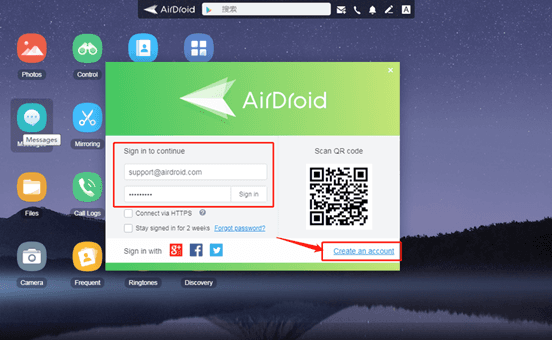
AirDroid is more than a file transfer app. It's a full remote management suite. You can access your Android phone's files from any web browser, transfer photos wirelessly, and even send SMS from your PC. This makes it a powerful tool for accessing files on a computer from Android in reverse: you can push files from your PC to your phone just by dragging them into the browser window.
The downside is that most features rely on AirDroid's cloud servers, which raises privacy questions and can slow down large transfers. The free tier limits data to 200MB/month.
AirDroid remains popular among IT support technicians who need to troubleshoot family members' devices, but for pure file transfer, DeskIn or LocalSend are more direct and private.
7. Best for Seamless Windows‑Android Integration: Phone Link
Pros
Built into Windows 10/11
Drag‑and‑drop photo transfer
View notifications, take calls
Cons
Only transfers photos (no documents, music, etc.)
Requires a Microsoft account and the Link to Windows app
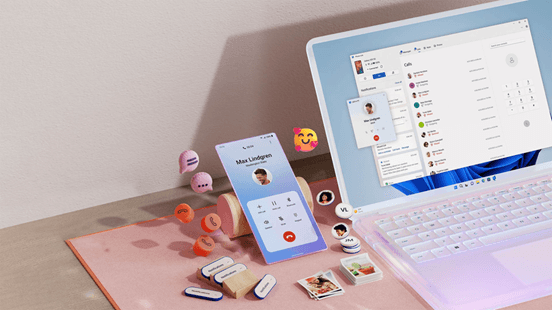
Phone Link (formerly Your Phone) is Microsoft's official solution to connect Android and Windows. It excels at integrating your phone's communication features – messages, calls, notifications – directly on your PC. For file transfer, however, it's strictly limited to photos. You can drag photos from your Android gallery to a Windows folder, but you cannot transfer PDFs, APKs, music, or any other file type.
If your primary need is how to transfer files from pc to pc, Phone Link won't help; it's phone‑to‑PC only. For Android users who mainly want to back up camera shots to their Windows computer, it's convenient and pre‑installed. But anyone needing universal file transfer software for Android will quickly hit a wall. Pair it with DeskIn for full document access.
8. Best for Samsung Users Migrating Data: Samsung Smart Switch
Pros
All‑in‑one data migration (contacts, messages, apps, photos)
Works with iOS as well (cable or wireless)
Free and reliable
Cons
Primarily for device setup, not daily transfers
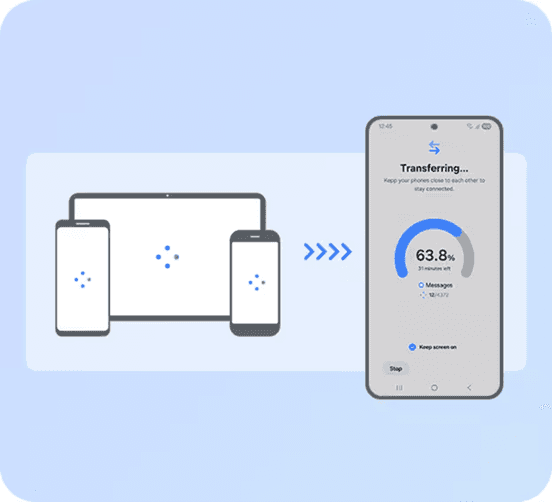
Smart Switch is Samsung's official tool to move data from an old phone (Android or iPhone) to a new Samsung Galaxy device. It's not designed for day‑to‑day file shuffling, but it performs one task exceptionally well: complete phone migration. You can use a USB‑C to USB‑C cable for a 20‑minute full restore, or go wireless if you don't have the cable.
For Samsung loyalists, Smart Switch is indispensable. It transfers almost everything, including WhatsApp chats (from Android) and iMessage history (from iPhone). However, it's not a general‑purpose Android file transfer software for Windows – you can't selectively copy a single document to your PC. That's where tools like DeskIn or iReaShare come in.
9. Best for Privacy‑Focused Local Network Transfers: LocalSend

Pros
Open source, no servers, no tracking
Works on all platforms: Android, iOS, Windows, Mac, Linux
No internet is required – use LAN
Cons
Both devices must be on the same Wi‑Fi
The interface is basic and lacks advanced features
LocalSend has gained massive popularity on Reddit as the anti‑"spyware" alternative to SHAREit and Xender. It's completely open source, sends files directly over your local network (no cloud servers), and requires no account or internet connection. For privacy-conscious users, this is the gold standard for transferring files between an Android and windows PC when both are at home.
While it lacks remote access (you must be on the same Wi‑Fi), LocalSend is incredibly fast and reliable. It also works offline, making it perfect for campus environments or offices with restricted internet. The app is free with no ads or paid tiers. If you need to transfer photos from Android to iPhone across the same network, LocalSend does it instantly without compressing quality.
10. Best for Comprehensive Android Data Management: iReaShare Android Manager
Pros
Complete management: contacts, messages, apps, photos, videos
High‑speed USB & Wi‑Fi transfer
Backup & restore functionality
Cons
Free trial limited; full version paid
Windows/Mac only – no mobile app for receiving
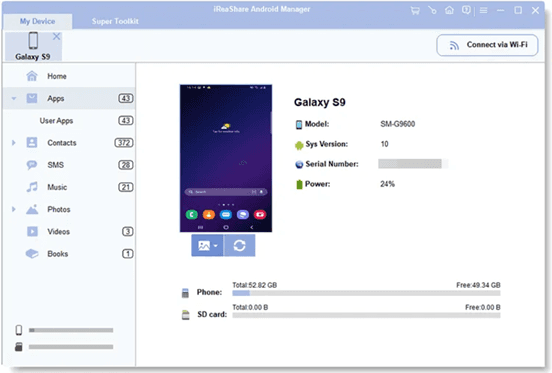
iReaShare Android Manager is a desktop‑based app that gives you full control of your Android device from your computer. Unlike simple transfer apps, it lets you view, edit, add, and delete contacts, send/receive SMS from your PC, install/uninstall apps in bulk, and, of course, transfer any media file. It supports both USB and Wi‑Fi connections, and the transfer speed is consistently high – up to 12MB/s.
The software is particularly useful for users who want to access files on a computer from Android in reverse: you can push files from your PC to your phone just as easily as pulling them. The free trial allows you to test the features, but advanced functions require a license. For users who regularly manage large photo libraries or need to back up text messages, iReaShare is a capable, all‑in‑one alternative to Google's built-in tools.
FAQs
1. What is the fastest way to transfer files from Android to PC?
Wired USB 3.0 connections still win for pure speed, but DeskIn delivers the best balance of convenience and performance, especially when you're not near your computer. The speed of transfers files at up to 12MB/s over any distance, with automatic resumes for unstable connections. For local wireless speed, LocalSend maxes out your Wi-Fi speed.
2. How do I transfer photos from Android to iPhone wirelessly?
Send Anywhere is the simplest: generate a 6‑digit code on Android, enter it on iPhone, and transfer photos without quality loss. DeskIn also works for cross‑platform file moves.
3. Can I access files on my computer from Android when I'm away?
Absolutely. DeskIn is built for this. It lets you wake a sleeping PC remotely, browse folders, and download files directly to your phone. No router configuration is required. AirDroid offers similar remote access but with transfer caps on the free tier.
Conclusion – DeskIn First, Others Second
No single file transfer software for Android does it all. But one does most of it. DeskIn is the only tool that lets you access files on a computer from Android remotely, transfer cross-platform, and even learn how to transfer files from pc to pc—all with AES‑256 + TLS 1.3 encryption. Keep LocalSend for private local sharing and Send Anywhere for emergencies.
But start with DeskIn. Stop searching for Android file transfer software for Windows or Mac. One app. All your devices.
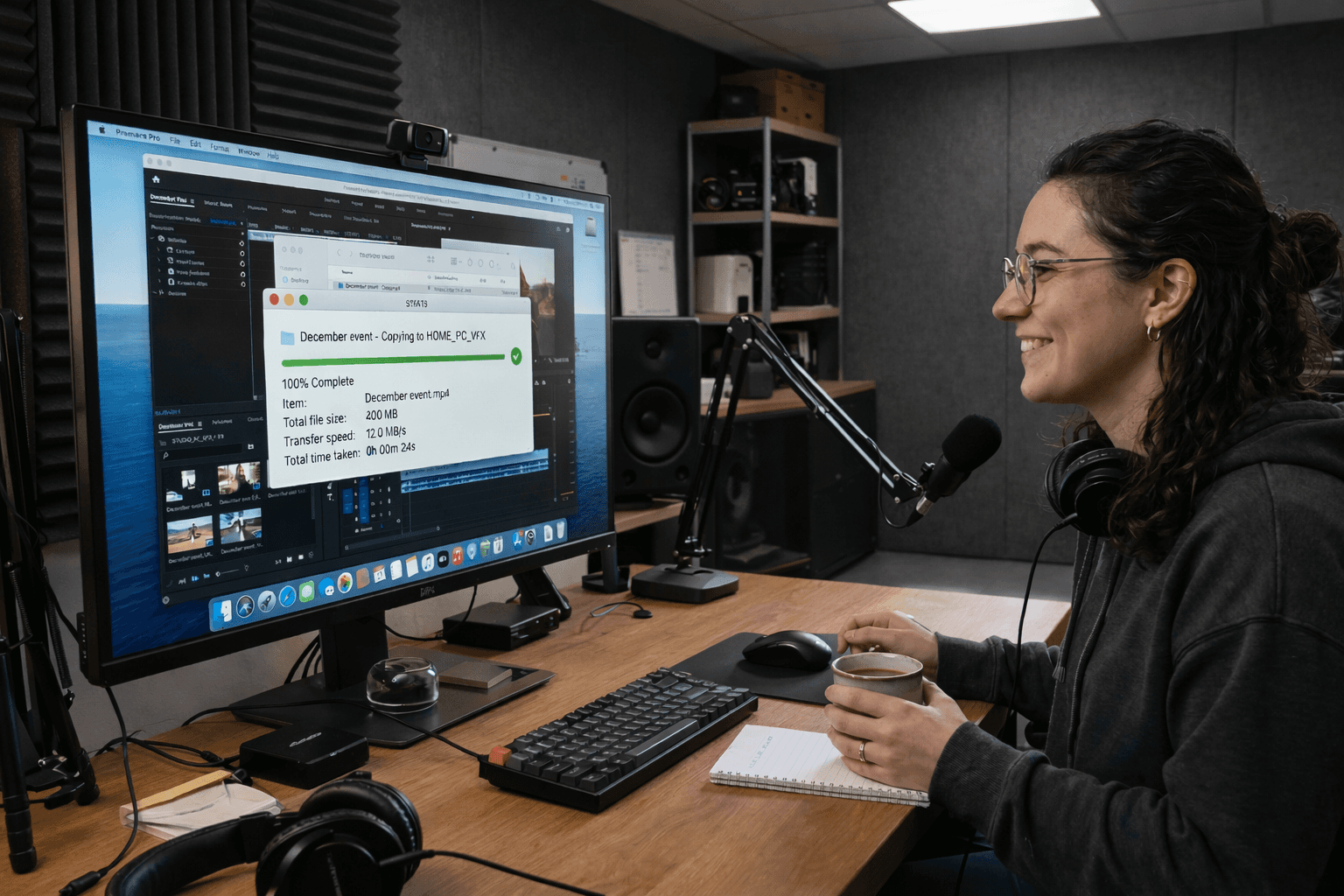
PRODUCTIVITY
How to Transfer Files from PC to PC: 6 Proven Methods
Your new PC is ready, but all your files are still trapped in the old one. USB‑C won't talk to USB‑A, 1TB of data won't fit on a dusty 16GB flash drive, and that transfer cable you bought ships with a driver CD—but new PC doesn't even have a disc drive. These aren't one‑off headaches; they're the exact scenarios real users describe when they search for how to transfer files from PC to PC:
"I have a PC with a Type C port and another PC with a Type A port.
When I connect these, I am unable to transfer files.""My new computer does not have a CD-ROM drive. How do I install the driver?"
"How do I get everything on my old PC on my new PC?"
Six methods exist. One of them is wireless, free to start, and completely independent of whether your computers run Windows, macOS, or other USB languages. Let's find yours!
Quick Comparison: Which Method Fits You?
Method | Best For | Hardware Needed | Speed | Skill Level |
|---|---|---|---|---|
DeskIn | Users with mismatched ports, mixed Windows/Mac, or anyone who hates cables | None
| Fast | Beginner |
External Hard Drive | One‑time, massive transfers (1 TB+) where the internet is slow | USB drive/ SSD | Very fast | Beginner |
USB Transfer Cable | Offline wired transfer; both PCs on the same desk | Special bridging cable | Fast | Intermediate (driver hunt) |
Local Network | Home/office users with both PCs on the same router | None | Medium | Intermediate |
Cloud Storage | Ongoing sync; files needed on multiple devices | None | Slow | Beginner |
PC Migration Software | Full system migration, including apps and settings | None | Medium‑Fast | Advanced / IT pro |
1. DeskIn — Best for Wireless, Cross-Platform, Cable‑Free Transfer
Advantages with DeskIn
No cables, no adapters, no driver CDs – works entirely over Wi-Fi
Compatible with both Windows and macOS – easy cross-platform transfer
No file size limits – send 100GB+ videos or backups without splitting
Direct peer-to-peer transfer – files never touch a third-party cloud server
Drag-and-drop simplicity – no network discovery or drive mapping required
AES-256 encryption – your files are secure
Free tier available – no credit card required to start
Disadvantage
Requires both PCs to be on the internet
Mismatched ports and missing drivers are the most common reasons PC-to-PC transfers fail. DeskIn removes both problems. No cable. No adapter. No installation media required. The application establishes a direct, encrypted peer-to-peer connection over Wi-Fi. It works on both Windows and macOS, and port types don’t matter.
DeskIn bypasses the physical layer entirely: No dongles, no "driver not found" errors, no expensive docks. This is also the only consumer‑friendly tool on this list that lets you transfer files between Windows and Mac wirelessly without any technical setup. Your old Windows workhorse and your new MacBook Air? They shake hands instantly.
How to transfer files with DeskIn
Step 1. Download DeskIn
Visit DeskIn Personal Download and install it on both devices. Create and log in to your account on both devices. DeskIn offers a free trial, and you can start using it immediately.
Step 2. Choose Remote PC to Connect
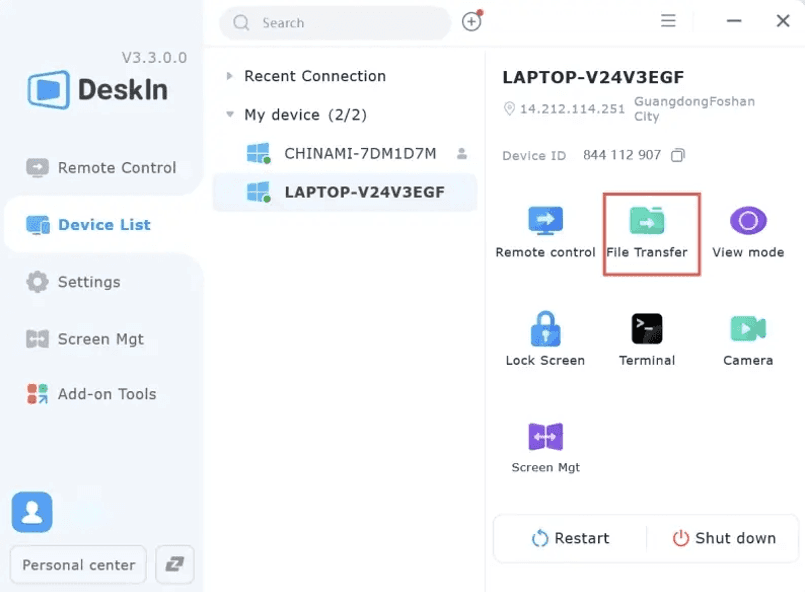
Navigate to the Device List, find the target PC, click the File Transfer button, and enter the Password (Remote Control).
Note: If your two devices are not logged into the same account, you will also need to enter the device code.
Step 3. Send Files Instantly
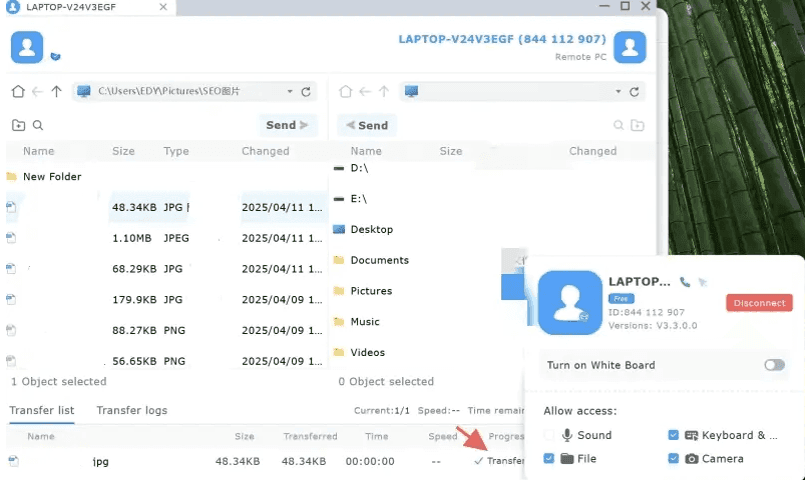
Simply drag and drop files between your computers. DeskIn will transfer files at 12MB/s. At the bottom of the page, you can track the progress of the file transfer. After a successful transfer, you can see the transferred files in your folder.
Note: DeskIn supports cross-system file transfers of unlimited size, type, and number.
That's it. Your files move directly - no cloud staging, no size limits on the free tier for transfers, and no waiting for uploads to finish before downloads can start.
You may also like:
2. External Hard Drive: Best for Massive Offline Transfers (1 TB+)
Advantages
No internet required; works anywhere
One‑time hardware cost; no subscriptions
Total physical control: Are files directly on my computer at all times
Disadvantages
A physical device can be lost, stolen, or dropped
No built‑in encryption; data is exposed if the drive is misplaced
You must own a drive large enough to hold all your data
The Reddit user facing a terabyte of data wasn't exaggerating: "I want to transfer about 1TB of data. It's mostly just in a few folders." When you're moving that much information, cloud uploads can take days. External drives are still the fastest option for moving large amounts of data.
How to transfer files with an external hard drive
Connect the external hard drive to your old PC
Open your file explorer and drag the files or folders you want to transfer into the drive
Safely eject the hard drive and connect it to your new PC
Open the drive in your File Explorer and move the files to their new location
Pro tip: If you are moving your files directly to Windows system folders (like the entire C:\Users directory), you may need administrator permissions. Copy what you can; use DeskIn for the rest.
You may also like:
3. USB Transfer Cable: Best for Direct Wired Transfer Without a Network
Advantages
Faster than external HDDs for thousands of small files
No router or Wi‑Fi needed
Often includes simple transfer software
Disadvantages
Requires a specialized USB cable transfer files — not a standard USB cord
PCs must be within cable length (usually 1–2 meters)
Driver CDs are often included; new PCs may lack optical drives
Cable becomes e‑waste after one use
The Reddit user who asked about bridging cables hit the exact pain point: "I've read about USB bridging cables, but you seem to need to install software from a CD. My new computer does not have a CD-ROM drive." This method works—if you can solve the driver dependency before your old PC is packed away.
How to transfer files with the USB Transfer Cable
Connect the cable to both PCs using the appropriate USB ports
Launch the software that came with the cable (usually auto-installs)
Select the files or folders you want to transfer and begin the process
Can you use an HDMI cable?
No. This question appears in forums constantly. HDMI carries video and audio. It does not carry your documents.
4. Local Network (Wi‑Fi / LAN) — Best for Frequent Transfers on the Same Router
Advantages
No new hardware to buy
Good for ongoing, recurring transfers
Works wirelessly; no cables between PCs
Disadvantages
Speed is capped by your router and Wi‑Fi congestion
Both PCs must be powered on and on the same network
Initial setup requires navigating Windows Settings
If you frequently ask how to move downloads from one laptop to another in the same household, network sharing is the easiest ongoing option. Once set up, it works like moving files between folders on one computer — no speed limits, no USB sticks.
How to set up network sharing (Windows 10/11)
Connect both PCs to the same Wi‑Fi or wired network.
On the source PC, open Settings > Network & Internet > Ethernet (or Wi‑Fi) and ensure the network profile is set to Private.
Go to Control Panel > Network and Sharing Center > Advanced sharing settings.
Turn on Network discovery and File and printer sharing.
Right‑click the folder you want to share → Properties → Sharing → Share.
On the destination PC, open File Explorer, click Network in the sidebar, and double‑click the source PC's name.
For remote workers: You can also transfer files over remote desktop by connecting to the office PC and mapping local drives in the Remote Desktop session—ideal for pulling specific files while travelling.
Cloud Storage — Best for Ongoing Sync and Always‑Available Access
Advantages
Files are encrypted in transit and at rest
Accessible from any device, anywhere
No physical media to lose or damage
Disadvantages
Requires a paid subscription for large volumes
Upload then = double the time
Speed is entirely dependent on your internet pipe
Not everyone is doing a one-time migration. Some users want their files to live in the cloud permanently—available on their phone, tablet, and laptop simultaneously. Cloud storage is less a "transfer method" and more a permanent relocation.
How to transfer files with Cloud Storage
Install your preferred cloud provider's desktop app (Google Drive, OneDrive, Dropbox) on the old PC.
Sign in. Choose which folders to sync to the cloud.
Wait for the upload to complete. (For 1TB of data on average U.S. broadband, plan for roughly 48 hours of uninterrupted upload.)
On the new PC, install the same app and sign in with the same account.
The files will sync down to the new machine.
Heads up: If you delete a synced file on one device while both are signed in, it will be deleted everywhere. Always sign out of your old PC before wiping it.
6. PC Migration Software: Best for Full System State Migration
Advantages
Transfers applications, settings, and user profiles — not just files
High security (SFTP, AES‑256) for regulated industries
Can schedule transfers during off‑peak hours
Disadvantages
Expensive (often enterprise licensing)
Steep learning curve
Massive overkill for most home users
The Reddit user asking "How do I get everything on my old PC on my new PC?" might not realize that "everything" includes application configurations, saved login sessions, and system tweaks accumulated over the years. Regular tools move your files. Migration software moves everything, including your apps, settings, and saved sessions.
How to transfer files with PC Migration Software (varies by vendor)
Install the migration software on both PCs.
Choose a transfer type: network, direct cable, or external media.
Select which system elements to migrate (files, apps, settings).
Follow the vendor's wizard to complete the transfer.
When you actually need this: If you are moving your files directly on Windows system folders that Windows locks during normal operation, or if you are migrating an entire domain‑joined corporate machine, consumer tools won't cut it. This is a job for IT.
You may also like:
FAQs on Transferring Files (PC to PC)
1. How do I transfer everything from my old computer to my new computer Windows 10 to Windows 11?
For personal files: Use DeskIn for a fast, wireless transfer—it's free for up to 2 GB and inexpensive for larger volumes. Unlike a bridging cable, you don't need to hunt down drivers or worry about whether your new PC has a CD-ROM drive.
For system settings: Use the built‑in Windows Backup app (Settings > Accounts > Windows Backup) to sync your preferences to your Microsoft account. Restore them during Windows 11 setup.
2. What is the easiest way to transfer files from PC to PC wirelessly?
DeskIn requires zero configuration beyond installing and logging in to the app. Both PCs discover each other automatically: no network sharing settings to toggle, no folder permissions to configure. If you prefer native tools, Windows Nearby Sharing works when both devices are on the same Wi‑Fi, but it can be finicky with large folders. DeskIn handles bulk transfers more reliably.
3. How do I transfer files if my PCs have different USB port types?
This is the exact situation DeskIn was built for. The Reddit user with "a PC with a Type C port and another PC with a Type A port" doesn't need an adapter, a dongle, or a special cable. Use a wireless method. DeskIn or local network sharing means port types don’t matter at all. Your files move over Wi-Fi instead.
4. Should I wipe my old computer after transferring files?
Yes, absolutely — if you plan to sell, recycle, or give it away. Deleting files and emptying the Recycle Bin is not enough. On Windows 10 or 11: go to Settings > System > Recovery, click Reset this PC, and select Remove everything. This ensures your personal data is unrecoverable. Before you wipe it, double-check that DeskIn (or your chosen transfer method) successfully moved everything. Once you reset, there's no going back.
Pick the Right Method for Your Transfer
No single method works for everyone — only the right one for your situation. External drives are fastest for large data. Windows Sharing works well at home. Migration software is for IT pros. But if you're dealing with mismatched ports, missing CD-ROM drives, or transferring between Windows and Mac, DeskIn is the only tool that skips all those problems. No cables, no drivers, no frustration. DeskIn also works for ongoing remote access, not just one-time transfers.
Start your free DeskIn backup today. No credit card required.

GAME
2 Easy Ways to Play Steam Games Remotely Anytime, Anywhere
Have you ever wanted to use Steam’s remote gaming feature, Remote Play, to continue your favorite game while you’re away from home — only to find that the connection keeps failing? Or tried playing with friends through Steam Remote Play Together, but ended up tangled in frustrating technical problems?
How does Remote Play work on Steam
Steam Link is Steam’s official free game streaming service. It allows you to stream your PC games to other devices — such as phones, tablets, laptops, or even VR headsets. While it’s a convenient feature, many users still face unstable connections, blurry graphics, or high input lag. Among these, failed Remote Play Together connections are one of the most common frustrations.
This guide will walk you through the correct setup steps for Steam Remote Play and introduce alternative remote gaming solutions. Whether you want to enjoy gaming anytime, anywhere, or share the fun with friends, this article will help you make it happen. Let’s dive into the most effective methods!
More to Explore
Steam Remote Play: 2 Best Ways to Enjoy It Anywhere
If you want to experience your Steam library remotely anytime, anywhere, here are two main options:
📥 Click here to download DeskIn
1. Using Steam Remote Play
Steam’s official Remote Play feature is the most direct option. As an official feature within the Steam ecosystem , it’s free and integrates perfectly with the Steam platform. For players with large Steam libraries, it’s the simplest and most direct way to play remotely completely free of charge.
It syncs your Steam account, game progress, and achievements seamlessly, and supports Windows, macOS, Linux, and mobile devices. As long as both devices are on the same network, you can start streaming your PC games remotely with a few simple steps.
However, it has a key limitation — it’s highly dependent on your network environment. When connecting across different networks, you may encounter lag and reduced visual quality.
Setting Requirements Before You Start
Both devices must be connected to the same network, ideally with a stable Wi-Fi speed of 5 Mbps or higher.
Both devices must have Steam installed and logged into the same account, and the host PC must be powered on and running Steam.
Make sure firewall and router settings allow Steam connections for smooth communication between devices.
How to Use Steam Link for Remote Play
Step 1: Install Steam and Log In
Make sure both your host (gaming) PC and client device have Steam installed and are logged into the same account. Keep the host computer powered on and running Steam.
Step 2: Enable “Remote Play” on Your Host Computer
Open Steam, click “Steam” → “Settings” → “Remote Play”, and check “Enable Remote Play.” Click OK to save your settings.
Step 3: Pair Your Devices
Install the Steam Link app on your client device (phone, tablet, or another computer) and connect to the same Wi-Fi network. When prompted, enter the security code shown on your client device into the host PC to complete pairing.
Then, select a game from your library — Steam will automatically connect, and you can start playing as if you were on your main computer.
Despite its convenience, Steam Remote Play has some clear drawbacks:
Network-dependent: Unstable Wi-Fi (e.g. 2.4GHz) can cause blurry visuals, lag, and delayed input.
Connection instability: Long sessions may lead to disconnections, audio sync issues, or stuttering.
Same-network restriction: Steam Link only works within the same local network — remote access from outside isn’t supported.
Limited mobile experience: Few customization options, poor button mapping, and less flexible controls on mobile.
2. Using DeskIn for Remote Gaming in Steam
As a professional remote desktop software, DeskIn provides stable cross-network connectivity through over 200 global relay nodes. Powered by ZeroSync® and RTC real-time communication, DeskIn doesn't need to be on same Wi-Fi input to maintain fluid visuals.
Additionally, DeskIn also offers advanced image optimization to maintain sharp visuals under low bandwidth (up to 4K 60FPS or 2K 144FPS). Most importantly, DeskIn isn’t limited to Steam — it supports all PC games and applications, giving you maximum flex and freedom.
If you’ve faced any issues above with Steam, DeskIn is the better solution. Designed for high-performance remote gaming, DeskIn offers smoother visuals, more stable connections, and lower latency than Steam Remote Play.
Whether you’re commuting, sitting at a café, or traveling, you can easily play your favorite PC games like MapleStory, GTA V, Lineage, Romance of the Three Kingdoms, or Monster Hunter — all in full quality and without distance limits.
Why DeskIn Is the Best Choice for Remote Gaming
Superior Network Adaptability
Smart network optimization across 200+ global nodes ensures stable cross-region connections, even under poor network conditions — far more reliable than Steam Remote Play.Professional Image Optimization
Keeps graphics crisp and smooth even at lower bandwidths, ideal for visually demanding games.Ultra-Low Latency
Proprietary low-latency engine with RTC technology delivers response times as low as 40ms, perfect for competitive and fast-paced games.Smart Custom Controls
Map complex keyboard and mouse inputs into simple touch gestures or combo buttons.Controller Support
Fully compatible with most wired and wireless gamepads for better control.3D View Mode
Automatically activates immersive 3D perspective in Game Mode.Remote Power-On
Power up your PC remotely even if it’s turned off — no need for standby power.Cross-Platform Compatibility
Supports Windows, macOS, iOS, and Android, so you can play from any device.Bonus Features
Includes mobile-to-PC screen projection, screen mirroring, extended display, and voice chat for versatile remote use.
How to Use DeskIn for Remote Gaming with Steam
Step 1: Download DeskIn
Install DeskIn on both your local and remote devices. If you’re a new user, verify your email, then enter your PC’s device code and password in DeskIn to connect successfully.
📥 Click here to download DeskIn
Step 2: Play Steam Games on Your Phone
Once connected, you can control your PC with DeskIn’s virtual mouse or touch controls.
DeskIn supports both pointer mode (with left and right mouse buttons) and touch mode (for tap-based control). The connection is smooth, with responsive cursor movement and minimal delay.
Steam Remote Play FAQs
1. How do I connect to Steam remotely?
Use Steam Link to stream your games from your main PC to another device. For more stable cross-network connections, use DeskIn, which supports global nodes and low-latency streaming.
2. Can I use one Steam account on two computers?
Yes, you can log into multiple computers with one Steam account — but only one can play a game at a time. To play remotely, use DeskIn to control your main PC and continue your session from another device.
3. How can I play Steam games on my phone?
You can use the Steam Link app to stream games to your phone.
For smoother performance and customizable controls, DeskIn is recommended — it works perfectly on both iOS and Android for playing PC games remotely.
Remote Gaming is now easier
With the above options, remote gaming on Steam is now easier than ever.
Steam Remote Play is completely free and ideal for users playing within the same home network.
DeskIn, on the other hand, offers a more stable and professional-grade experience for cross-network play, especially if you value image quality or frequently game on the go.
Your choice depends on your needs:
For occasional in-home streaming, Steam Remote Play is sufficient.
For a seamless, portable gaming experience anywhere, DeskIn is the ultimate solution.
📥 Click here to download DeskIn and start your remote gaming journey — bring your entire Steam library wherever you go, without limits of time or place!
Load More
Blog
Search Docs…
ALL TOPICS
COMPARISONS
GAME
PRODUCTIVITY
TROUBLESHOOTING
How to Set Up & Use Chrome Remote Desktop: Complete Beginner's Guide | DeskIn Japan
How to Set Up and Use Chrome Remote Desktop in Japan: A Complete Beginner's Guide to CRD
What You'll Learn in This Article
This article walks through the basic setup and features of Chrome Remote Desktop (CRD), Google's free remote access tool — explained clearly for first-time users.
CRD is free, simple to configure, and integrates smoothly with your existing Google account and Chrome browser. It works across Windows, Mac, and smartphones, making it easy to get started with remote access from virtually any device.
For everyday personal use and one-off remote support sessions, it's an excellent option — though its features are limited to "Remote Access" and "Remote Support." For more advanced requirements — 4K display quality, low latency, or stable connections inside Japanese corporate networks — a professional-grade tool like DeskIn is worth considering.
Introduction
What Is Chrome Remote Desktop?
Chrome Remote Desktop (CRD) is a free remote access tool developed by Google. All you need is the Chrome browser and a Google account to remotely control another PC over the internet, from anywhere. No additional hardware is required, making it one of the most accessible ways to get started with remote desktop access.
Why Remote Desktop Is Useful in Japan
Hybrid work has become a fixture across Japan's working culture. Many companies — especially in Tokyo and other major cities — now expect employees to split their time between the office and home. Students, too, often find themselves needing access to files or software left behind on a home PC. And for those who have just joined the workforce as shinshakajin (新社会人 — literally "new members of society," the term for fresh graduates entering their first job, typically in April when Japan's fiscal and academic year begins), juggling unfamiliar tools across multiple environments can be genuinely stressful. Chrome Remote Desktop offers a practical, low-barrier solution for all of these situations.
Recommended Reads:
Which One Is Better, Chrome Remote Desktop Or Microsoft Remote Desktop?
Chrome Remote Desktop's Two Core Features
Remote Access — Connect to Your Own Devices, Anytime
The "Remote Access" feature lets you connect to your home or office PC from any location, at any time. Once the host machine is configured, you can control it remotely as long as it's powered on — even if no one is sitting in front of it. This is ideal for pulling up a file you left on your home PC while you're at school or the office, or for using your full desktop environment from a laptop while you're out.
Remote Support — Temporary Screen Sharing for Troubleshooting
The "Remote Support" feature is built for one-off, temporary sessions. By sharing a connection code, you can let someone else view or control your screen — or do the same for them — without exchanging account credentials. It's a clean and simple way to help a classmate, colleague, or family member work through a technical issue remotely.
Chrome Remote Desktop is designed specifically around these two functions. That focused scope makes it particularly easy to pick up, even if you've never used a remote desktop tool before.
What You'll Need Before Getting Started
A Google Account
A Google account is required. If you don't already have one, register before you begin. If you're already using Gmail or Google Drive, that same account will work here.
Google Chrome Browser
CRD runs inside the Chrome browser, so Chrome needs to be installed on both the host (the PC you want to access remotely) and the client (the device you're connecting from). Chrome can be installed alongside any other browser without conflict.
A Stable Internet Connection
Remote desktop transmits live screen data over the internet, so a reliable connection on both ends matters. If your Wi-Fi is inconsistent, a wired connection will generally produce a much smoother experience.
Step-by-Step Setup Guide
Setting Up the Host PC (the Computer You Want to Control)
Start by configuring Chrome Remote Desktop on the machine you'll be accessing remotely.
Open Google Chrome and navigate to the Chrome Remote Desktop page.
Follow the on-screen prompts to add the extension and complete the installation.
Enable "Remote Access" and follow the steps to set a PIN code of at least six digits.
Once setup is complete, this PC will appear in your list of remotely accessible devices.
Connecting from the Client Device (the Device You're Using to Connect)
Next, prepare the device you'll be connecting from.
Log into Chrome with the same Google account and open the Chrome Remote Desktop page.
Select the host PC from your device list.
If connecting from a smartphone or tablet, download the dedicated iOS or Android app and select your target PC from within the app.
Authenticating with Your PIN Code
After selecting the host PC, you'll be prompted to enter your PIN to verify the connection.
Enter the PIN you created during setup on the client device.
Once authenticated, the host PC's screen will appear on your device and you'll be able to control it with your mouse and keyboard.
The connection is encrypted and can be ended at any time.
Tips for Getting More Out of CRD
Make the Most of Keyboard Shortcuts
Using keyboard shortcuts deliberately can make a real difference to your efficiency in a remote session. This is especially worth thinking about if you're switching between Windows and Mac, where key behaviour differs — particularly around:
The difference between the Ctrl and Cmd keys
Full-screen toggling and window switching
Familiarising yourself with these basics in advance will help things feel more natural. If shortcuts are being captured by your local device instead of reaching the remote machine, check the settings for an option like "Send all keyboard input to remote" — this is usually the fix.
Using CRD on Mobile: What to Expect
The mobile experience differs quite a bit from working on a desktop. Chrome Remote Desktop's mobile app is built around touch controls:
Swipe to move the mouse cursor
Pinch to zoom in or out
Toolbar at the bottom of the screen to access the keyboard and menu
Precise input — longer text entry, drag-and-drop, clicking small targets — is slower and more effortful on mobile than on a PC. In practice, mobile access works best for quick checks and light tasks. For anything more involved, a laptop or desktop will serve you much better.
The Limitations of Chrome Remote Desktop
Simplicity Has Its Ceiling
Chrome Remote Desktop is, at its core, a tool built for "Remote Access" and "Remote Support" — nothing more. That focus is part of what makes it easy to use, but it also means that more specialised requirements hit a wall fast. If you need to transfer large files quickly, manage multiple users or devices, or keep detailed logs of remote sessions, you'll find CRD doesn't have the tools for the job.
Instability Inside Japanese Corporate Networks
Many Japanese companies — particularly larger organisations — maintain strict internal network environments managed by their IT departments (joho shisutemu-bu, 情報システム部). Firewalls, proxy settings, and restrictions on Google services are common, particularly in finance, manufacturing, and government-adjacent industries. In these environments, Chrome Remote Desktop connections can become unreliable, suffer significant lag, or fail entirely.
If you've started a new job in Japan and found that CRD simply won't connect from the office network, this is almost certainly why.
Dependency on Your Google Account
Because CRD is tied to a Google account, any disruption to that account — a forgotten password, an account lock, or a multi-factor authentication hiccup — directly affects your ability to access remote machines. For personal use this is manageable, but for anything business-critical, it's a meaningful single point of failure.
Ready for More? Meet DeskIn — A Professional Remote Desktop Solution
The Natural Next Step Up from CRD
Chrome Remote Desktop is a solid starting point, but as remote work needs become more regular and more demanding, many users find themselves running up against its limits. For those who need a more robust, feature-rich tool suited to daily professional use, DeskIn is the obvious step up.
Built to Handle Japan's Corporate Network Environments
DeskIn is engineered for stability in complex network setups — including the kind of strict firewalls and proxy configurations common in Japanese corporate IT infrastructure. Where CRD struggles in these environments, DeskIn is designed to maintain consistent, low-latency connections even under restrictive conditions.
Professional Performance and an Intuitive Workflow
DeskIn supports 4K display quality and ultra-low-latency response, with a dedicated desktop client that isn't dependent on a browser. For creative work, detailed tasks, or simply getting through a full working day remotely without friction, this level of performance makes a tangible difference.
→ Try DeskIn for free and explore what's possible
Summary
Chrome Remote Desktop is a free, easy-to-use tool that works well for personal use, occasional remote access, and basic screen sharing. If you're new to remote desktop tools — or if you just need a quick, no-cost way to access your own PC remotely — CRD is a perfectly reasonable place to start.
For day-to-day professional use in Japan, however, particularly within corporate network environments or when you need reliable performance and high display quality, CRD will likely fall short. In those cases, transitioning to or pairing CRD with a tool like DeskIn will give you a remote setup that's genuinely fit for purpose.
Recommended Reads:
9 Benefits of Remote Access & Best Practices for Modern Life
TROUBLESHOOTING
Your Windows Home PC Can't Host Remote Desktop. Here's How to Get Remote Access Without the $99 Pro Upgrade.
If you have ever tried to remotely access a second laptop from your Windows Home PC, only to be told that your Home edition does not support Remote Desktop, you already know the frustration. Three pain points hit hardest. First, Windows Home editions can't serve as Remote Desktop hosts, so your desktop/laptop can never be the host. Second, the only official fix is upgrading to Windows Pro, which costs an extra US$99 per licence. Third, Microsoft’s own Remote Desktop client apps are being discontinued through 2025 and 2026, leaving Home users with even fewer built-in options than before. The good news is that affordable (and in some cases free) alternatives exist. Here is what changed, how it affects everyday users, and which tools can get you back in control.
Before: What Windows Home Users Expected
When most people buy a Windows laptop, they assume they are getting the full Windows experience. Remote Desktop Protocol (RDP) is a native app that has been part of the Windows OS for over two decades. But Microsoft reserves the RDP host function, the ability to accept incoming remote connections, for Windows Pro, Enterprise, and Education editions only. Windows Home can only act as a client, meaning you can connect out to a Pro machine, but nobody can connect in to yours.
For designers who need to reach a powerful desktop from a lightweight travel laptop, for students who left a file on their home PC, or for anyone helping a family member troubleshoot remotely, this is a real gap. The assumption was always “I’ll just remote in.” The reality is that Windows Home quietly says no.
The Real Cost of “Just Upgrade to Pro”
Microsoft’s official answer is to purchase a Windows 11 Pro licence. A fresh Pro licence retails at US$199, while the in-place upgrade from Home to Pro costs US$99. If you own more than one machine—say a home desktop and a personal laptop—those costs add up quickly. For freelancers, students, and privacy-conscious home users, that is a steep bill just to unlock one feature. And even after upgrading, configuring RDP for use outside your local network still requires VPN setup or port forwarding, tasks that are far from beginner-friendly.
After: The Phasing Out of Microsoft’s Remote Apps Adds Urgency
To make matters worse, Microsoft retired the Remote Desktop Store app in May 2025 and will end support for the standalone MSI Remote Desktop client on 27 March 2026. Both are being replaced by the new “Windows App,” which focuses on cloud services such as Azure Virtual Desktop and Windows 365. The classic built-in tool (mstsc.exe) remains supported, but it still cannot turn a Home machine into a host. For everyday users who relied on Microsoft’s own apps to bridge devices, the transition adds confusion and reinforces that third-party software is now the practical path forward.
Solution: Third-Party Remote Desktop Tools
The simplest fix is to skip RDP entirely and use a remote access application that works regardless of your Windows edition. Three products are worth comparing and use AES-256 encryption as standard (even for financial institutions).
AnyDesk still technically offers a free tier for personal use, but recent restrictions have made it hard to rely on. Users report that sessions now disconnect in as little as five minutes, down from the 30 to 40 minutes previously allowed. File transfer has been removed from the free version entirely. The free tier is also capped at three devices, with only one session at a time. On top of that, AnyDesk’s commercial-use detection regularly flags and disconnects personal users who have done nothing wrong. Paid plans start at US$14.90 per month.
TeamViewer is one of the most recognised names in remote access. Its free tier covers personal use and includes encryption, file transfer, and multi-platform support. TeamViewer’s large user base means guides and troubleshooting resources are easy to find. However, it suffers from the same commercial-use detection problem as AnyDesk: personal users frequently get flagged and must appeal to regain access. Its paid tiers are also priced for business budgets rather than individual users, approximately around US$58.90 a month
DeskIn takes a different approach. Its free plan gives you full remote control of up to three devices at 1080p 30 FPS, with no session time limits and no commercial-use flags that cut you off mid-task. For the Windows Home user who just needs to reach a file on another PC, help an elderly relative troubleshoot, or check in on a home PC while travelling, the free plan covers it. It connects devices through its own cloud relay, so there is no need for VPN or port forwarding. File transfers run up to 12 MB/s with no size cap but limits to computer-to-phone transfer. The cross-platform capability allows you to control your home PC from a phone, or extend your laptop display to a tablet, all without a Windows Pro licence.
For users who need more, paid plans start from US$9.90 per month with higher resolution streaming, faster file transfers, and support for up to 100 devices
DeskIn: Full Remote Access for Free
All three tools restore the remote control ability that Windows Home withholds. AnyDesk and TeamViewer are familiar names, but their free tiers have become increasingly limited: short session caps, removed features, and unpredictable commercial-use flags make them hard to count on for regular use. If you need colour accuracy for design work, transfer large project files every day, or simply want a reliable remote access experience without networking headaches, DeskIn offers the most complete set of features at a reasonable price, and its personal tier is free to start.
Upgrading to Windows Pro is still a valid option if you need RDP and other Pro features. But if remote desktop access is the main reason you are considering the US$99 upgrade, DeskIn offers a free alternative with low-latency connections that works on any Windows edition. Download DeskIn for remote work or explore its productivity features if this is the right tool for you before spending on a licence upgrade.
COMPARISONS
Why Is DeskIn Remote Desktop Better Than Splashtop?
If you are looking for a better alternative to Splashtop, this article will compare Splashtop and DeskIn in terms of mobile device support, functionality, and the price, and tell you why DeskIn remote desktop is better than Splashtop.
DeskIn vs Splashtop: Mobile device support
DeskIn:The free version already supports using on Android, iOS, Windows and Mac. Commercial use is also allowed
Splashtop:Free version doesn’t not support commercial use. You need to upgrade to the paid version to use on mobile devices. It also lacks the feature of searching devices.
DeskIn vs Splashtop: Functional richness
DeskIn: Provides rich free features, including Extend screen, Audio call, Annotations, Shared clipboard, etc. All are designed to improve users' remote collaboration efficiency and screen management efficiency. There are also Gaming keyboard, Gamepad features. specifically for remote games.
Splashtop: Although it also provides relatively rich functions, some of the paid functions are not suitable for individual users. The free version does not support file transfer and remote printing, you need a paid plan to use them.
DeskIn vs Splashtop: Device management ability
DeskIn:Supports up to 100 devices linked to one account. Suitable for individual users and small teams. With the unattended access feature, you can connect to your device anytime, anywhere.
Splashtop: Splashtop only supports 10 devices per account. This may limit flexibility for some users.
DeskIn vs Splashtop: Price
DeskIn: Providing 3 paid plans: Standard, Gaming and Performance with reasonable features and rights. Support monthly subscription.
Splashtop: Only annual subscription is allowed, and the price is high, which is not very friendly to individual users.
Comparison of DeskIn and Splashtop free and paid edition:
Easily get started with DeskIn
Go to DeskIn official website DeskIn Personal | Free Remote Desktop App with 40M+ Users download and install Deskin. Register an account with your email address and log in.
Enter the ID of the controlled device on the main control device, click connect, and use password connection or password-free connection to complete the verification. Then you can access the remote device.
Conclusion
DeskIn remote desktop is superior to Splashtop in terms of mobile device support, comprehensive functionality, user experience friendliness and cost-effectiveness under the WAN. These advantages make DeskIn remote desktop a more excellent and practical remote desktop solution, bringing a more convenient, efficient and secure remote operation experience to both individual users and corporate users.
6 Best Free Unattended Remote Access Software in 2026
You shouldn't need a phone call to fix a computer. Whether you're helping your father troubleshoot Windows, managing distributed office PCs, or supporting clients after hours, you need free unattended remote access software that lets you log in anytime a machine is powered on — without someone clicking "Accept" on the other side.
But not all remote desktop tools are built for real unattended use. Some require session passwords every time. Others lock you out when versions don't match. A few are powerful but overly complex for small teams. In this guide, we compare the most practical options in 2026 and help you choose the right unattended remote access software for your situation.
Top 6 Free Unattended Remote Access Software Compared
Here are the strongest contenders today:
DeskIn – Best all-around solution for stable, modern unattended access
TeamViewer – Best for well-connected small businesses
AnyDesk – Best for IT teams and structured support workflows
Chrome Remote Desktop – Best for individuals who want an ultra-simple setup
Microsoft Remote Desktop – Best built-in option for Windows users
AnyViewer – Best lightweight mobile-friendly option
Let's have a closer look.
Most Practical Free Unattended Remote Access Software: DeskIn
Pros
True permanent unattended access configuration
Works across Windows, macOS, iOS, Android
Smooth performance for daily work and troubleshooting
Clean interface, beginner-friendly
Supports cross-device access, including mobile
Cons
Advanced features may require upgrading
Best for: Families supporting parents, freelancers, remote workers, and small teams that want reliability without technical setup.
DeskIn is designed for one thing: logging in when nobody is there. Once installed and configured, you can securely access a device anytime it is running. No temporary passwords. No reading codes over the phone. No panic updates blocking access. That's what real free unattended remote access software should feel like.
Unlike tools that focus heavily on session-based support, DeskIn is optimized for ongoing remote access. It works well whether you are managing a parent's PC, maintaining home lab systems, or supporting distributed workstations.
For users searching for the best free remote desktop software for unattended access, DeskIn strikes a balance between simplicity and performance. It avoids complex router configuration, and setup is straightforward even for beginners. If your priority is consistent access without friction, DeskIn is one of the most practical choices available.
You may also like:
Best for Well-Connected Small Businesses: TeamViewer
Pros
Free for personal use
Highly secure with a mature feature set
Wide OS support
Strong brand recognition
Cons
Free version limited to personal use
Can feel bloated
Version mismatches may block connections
Best for: Small businesses with structured remote workflows.
Image alt: Free Unattended Remote Access Software TeamViewer
TeamViewer has been one of the most recognizable names in remote access for nearly two decades, and for good reason. It offers a mature ecosystem that supports Windows, macOS, Linux, Android, and iOS, making it highly versatile across devices. For small businesses, especially those with distributed teams, it provides structured device management, session logging, and secure, encrypted connections.
In terms of unattended remote access, TeamViewer allows users to configure permanent access credentials so machines can be accessed anytime they are online. However, users relying on the free version often report limitations related to "personal use" detection, as well as occasional version-mismatch issues that can temporarily block access. While it remains a powerful option in the free unattended remote access software landscape, it may feel feature-heavy for individuals who simply need stable, always-on remote access without licensing concerns.
Best for IT Teams: AnyDesk
Pros
Free for personal use
Fast performance
Built-in file manager
Collaboration tools
Address book for device management
Cons
Limited features for larger enterprises
UI can feel structured for support workflows
Best for: IT professionals managing multiple machines
AnyDesk is widely respected for its speed and responsiveness, particularly in environments where low latency is critical. Built with a proprietary codec optimized for remote sessions, it performs well even under limited bandwidth conditions. For IT teams managing multiple endpoints, its address book system and permission controls make device organization straightforward.
As unattended remote access software, AnyDesk supports permanent passwords and background installation, allowing administrators to connect without user interaction. It also includes built-in file transfer and collaboration tools such as chat, which are useful in support workflows. That said, the interface and feature set lean toward professional IT use cases rather than casual personal users. For those specifically searching for the best free remote desktop software for unattended access in structured IT environments, AnyDesk remains a strong and reliable contender.
Best Remote Access for Individuals: Chrome Remote Desktop
Pros
Completely free
Extremely easy setup
Works inside the Google ecosystem
Cross-platform
Cons
Limited features
Requires a Google account
No built-in file transfer
Best for: Individuals who want simple Chrome remote desktop unattended access.
Chrome Remote Desktop stands out for one primary reason: simplicity. Setup typically takes only a few minutes. Users install the browser extension, link their Google account, set a PIN, and can immediately enable Chrome Remote Desktop unattended access for ongoing connections. There is no complicated network configuration or advanced setup process involved.
However, while Chrome Remote Desktop works well for light, individual use, it offers minimal management tools. There is no built-in file transfer feature, and functionality remains intentionally basic. For users who travel frequently or need occasional access to a home PC, it serves as an accessible entry point into free unattended remote access software. But for managing multiple systems or performing advanced troubleshooting tasks, its limited feature set may become restrictive over time.
Best Remote Built-In Windows: Microsoft Remote Desktop
Pros
Integrated into Windows
Full control of the remote device
File transfer supported
No third-party installation needed
Cons
Complex setup outside the local network
May require VPN or port forwarding
No cloud relay
Best for: Advanced Windows users.
Microsoft Remote Desktop is integrated directly into Windows, making it a natural choice for users seeking free remote desktop Windows 11 or free remote desktop Windows 10 functionality without installing third-party tools. Within a local network, setup is straightforward, and performance is stable, offering full desktop control, file access, and administrative capabilities.
For unattended remote access scenarios, it can be configured to allow remote login without user approval. However, accessing a machine over the public internet often requires additional setup, such as VPN configuration or port forwarding, which may be challenging for non-technical users. While extremely powerful in professional Windows environments, it is generally better suited for users comfortable with networking concepts rather than beginners looking for plug-and-play remote access.
Note
Microsoft has retired its separate Remote Desktop app (from the Microsoft Store) and is ending support for the standalone Remote Desktop client (MSI) in March 2026, replacing both with the new Windows App for cloud services like Azure Virtual Desktop and Windows 365. However, the built-in Remote Desktop Connection (mstsc.exe) that ships with Windows 10 and 11, which is what we're recommending here, remains fully supported and unaffected by these changes. (as of the published date of the article)
Best for Mobile-Friendly Access: AnyViewer
Pros
Easy to use
Secure encryption
Available for iOS and Android
Stable free version
Cons
Windows-focused desktop support
Limited advanced features
Best for: Personal users prioritizing mobile control.
AnyViewer is designed with ease of use in mind and provides a streamlined interface that works well for personal users. It supports Windows PCs along with mobile apps for iOS and Android, making it convenient for accessing desktops on the go. Encryption based on ECC helps protect session data, which is important when connecting over public networks.
For unattended remote access software use, AnyViewer allows secure remote login after initial setup, enabling users to access their machines without repeated approval prompts.
The free version covers most essential functions, including file transfer and remote support. However, compared to more established platforms, it offers fewer advanced management tools and a smaller ecosystem. For individual users prioritizing mobile access and simplicity, it remains a practical and lightweight option.
FAQs About Free Unattended Remote Access Software
What is the best free unattended remote access software?
It depends on your use case.
For structured business environments, TeamViewer or AnyDesk may fit.
For ultra-simple individual access, Chrome Remote Desktop works.
For balanced usability and consistent unattended performance, DeskIn is a strong modern choice.
How do I ensure true unattended remote access?
To configure reliable unattended remote access software, you should:
Install it as a background service
Set a strong permanent password
Prevent the computer from sleeping
Enable encryption and authentication safeguards
Cloud-based solutions simplify this process by avoiding router configuration.
Is free remote desktop Windows 11 enough for remote access?
Microsoft Remote Desktop works well within local networks. For internet-based access without VPN setup, many users prefer cloud-based, free, unattended remote access software.
Why does remote software block connections sometimes?
Common reasons include: version mismatches, free license detection limits, expired sessions, and network configuration changes. Choosing stable unattended remote access software reduces these interruptions.
Conclusion
Remote access should feel invisible, not a scheduled appointment. The best free unattended remote access software allows you to log in quietly, securely, and consistently whenever the remote device is powered on. No codes, no wake-up calls, no update chaos. TeamViewer and AnyDesk remain strong for structured business use. Chrome Remote Desktop is excellent for simplicity. Microsoft Remote Desktop is powerful for experienced Windows users.
But if your priority is smooth, practical, unattended access that simply works across devices, DeskIn offers one of the most balanced solutions in 2026. Because the best remote support session is the one that doesn't require anyone to be there at all.
How to Enable Wake on LAN in Windows 11: 2026 Ultimate Guide
Imagine sitting in a coffee shop, suddenly realizing you need a critical file from your home computer, but you deliberately shut it down before leaving to save energy. Or picture yourself as an IT administrator needing to perform maintenance on dozens of remote workstations after hours. In both scenarios, Wake on LAN with Windows 11 transforms an impossibility into a simple click: the ability to power on your computer remotely, even when it's completely shut down.
Wake on LAN (WOL) is an Ethernet networking standard that allows a computer to be turned on remotely by sending a special signal called a "magic packet." When your network card detects this packet - even while the system is off - it triggers the motherboard to start the boot process. For Windows 10/11 users, this capability is built right in, but it requires careful configuration across your BIOS, operating system, and network hardware.
In this comprehensive guide, we'll walk you through every step to enable Wake on LAN Windows 10/11 with the best Wake on LAN software DeskIn, troubleshoot common issues, and show you how to verify your setup works; all while avoiding the frustration that leads countless users to Reddit threads asking why their Wake on LAN not working.
Prerequisites: What You Need Before Starting
Before diving into configuration, ensure your hardware meets these requirements :
To use Wake on LAN, there needs to be a device running DeskIn in the same LAN as the computer about to be woken up. For example, other computers, iPhone, iPad, Android devices (mobile phones, tablets), etc. Using to assist in running DeskIn.
Linux devices do not support sending WOL packets, and Mac and Linux devices do not support remote boot.
Devices that are in an abnormal shutdown state, such as a blue screen or crash, do not support remote boot.
Step-by-Step Guide to Enable Wake on LAN in Windows 11
Enabling Wake on LAN in Windows 11 requires configuration in three places: your computer's BIOS/UEFI, Windows network adapter settings, and power management options. Follow these steps carefully.
Step 1. Network Card Settings
Right-click the Windows Logo (or press Win + X) and select "Device Manager." Find and expand the "Network adapters" section. Locate your wired Ethernet card (e.g., Realtek PCIe GbE Family Controller), right-click it, and select "Properties."
Navigate to the Power Management tab and check "Allow this device to wake the computer."
Switch to the Advanced tab. In the Property list, find "Wake on Magic Packet" and set it to Enabled. If you see other Wake on LAN related options, enable them as well. Click "OK" to save the settings.
Step 2. Motherboard BIOS Settings
Restart your computer. During boot, repeatedly press Delete or F2 (depending on your motherboard brand) to enter the BIOS setup.
Navigate to the Advanced or Power Management section.
Look for and enable options with names similar to these (you may only find one or two):
Power On By PCI-E
Wake on LAN
Resume on LAN
Power on PME
Press F10 to save changes and restart your computer.
Note: The exact menu names vary by motherboard manufacturer.
Step 3. Enable and Test Remote Wake-Up in DeskIn
First, ensure your auxiliary device (like a phone or tablet) is on the same local network as your target computer, with DeskIn installed and logged into the same account.
On the auxiliary device, open DeskIn, go to Settings > General Settings, and enable "Remote Boot Support Wake On LAN."
Return to the DeskIn device list. Your powered-off computer will show as "Offline." Click the "Remote startup" button next to that device.
Wait a few seconds, the target computer will wake up, its status will change to "Online," and you can click to connect for remote desktop access.
With DeskIn's integrated approach, you can not only verify your Wake on LAN setup with one click but also seamlessly transition to remote control, eliminating the hassle of separate testing tools.
You may also be interested in:
Troubleshooting: Why Wake on LAN Not Working?
Even after following every step, you might encounter issues. Here are the most common culprits and solutions
1. BIOS Settings Not Saved
Double-check that you properly saved and exited BIOS after enabling WOL options. Some systems require you to press F10 specifically to save.
2. Network Adapter Power Management
Ensure both "Allow this device to wake the computer" and "Only allow a magic packet to wake the computer" are checked. The second option is particularly important—without it, your PC might wake up for any network activity.
3. Fast Startup Conflicts
As mentioned earlier, try toggling Fast Startup. If it's disabled, enable it and test again. If it's enabled, disable it.
4. Router ARP Cache Expired
If your computer wakes successfully after a short shutdown but fails after several hours, ARP binding is likely the solution.
5. Using Wi-Fi Instead of Ethernet
Wake-on-Wireless LAN is unreliable in Windows 11. Microsoft has acknowledged compatibility issues with WoWLAN drivers, and Dell support documentation confirms that Windows 11 driver architecture differs significantly from Windows 10, leading to wake failures over Wi-Fi. Always use a wired Ethernet connection for reliable WOL.
6. Windows Updates Changing Settings
Occasionally, Windows updates may reset your network adapter settings. If Wake on LAN is not working after an update, revisit Step 2 and verify your configurations.
7. Firewall Blocking Magic Packets
Windows Firewall might block incoming magic packets. Consider creating an inbound rule to allow UDP port 9 (the default WOL port) .
Why Windows 11 Users Love Wake on LAN
The benefits of enabling Wake on LAN in Windows 11 extend far beyond occasional file access:
Energy Savings: Keep your PC off 90% of the time, powering it only when needed
Extended Hardware Lifespan: Less runtime means less heat and wear on components
Remote IT Support: Family members or IT staff can access your computer without you being present
Scheduled Maintenance: Run updates or backups during off-hours
Home Server Functionality: Turn any old PC into an on-demand media or file server
FAQs about Wake on LAN in Windows 11
1. Does Windows 11 support Wake-on-LAN over Wi-Fi?
Officially, WoWLAN (Wake-on-Wireless LAN) support in Windows 11 is limited. Microsoft documentation and hardware manufacturers report compatibility issues with Wi-Fi wake, especially with newer CX driver architectures. For reliable operation, use Ethernet.
2. Why is my Wake on LAN not working on Windows 11?
Common causes include: BIOS settings not enabled, Fast Startup interfering, missing "Only allow magic packet" checkbox, router ARP cache expiration, or using Wi-Fi instead of Ethernet.
3. Can I wake Windows 11 over the internet?
Yes, but you'll need either router port forwarding configured or a cloud-based service like the best Wake on LAN software, DeskIn, that handles remote wake through an assistant device on your local network.
4. Do I need special Wake on LAN software for Windows 11?
You need some tool to send the magic packet. Options range from free utilities like NirSoft WakeMeOnLan to integrated solutions like DeskIn that combine WOL with remote desktop access.
Conclusion: Never Leave Your PC Running 24/7 Again
Wake on LAN Windows 11 is one of those features that, once configured, becomes indispensable. Whether you're accessing files remotely, running a home server, or managing multiple computers, WOL gives you on-demand access without the energy waste of always-on operation.
The setup process requires attention to detail across BIOS, Windows settings, and your network hardware. But with this guide, you can navigate each step confidently. And when you're ready to test your configuration, tools like DeskIn make verification simple while providing the remote desktop access you wanted in the first place.
Ready to experience the freedom of remote power-on? Start with the BIOS configuration above, and when you're finished, try DeskIn to verify your setup works and enjoy seamless remote access afterward.
The 4 Best Wake on LAN Software for 2026: Remote Power-On Made Easy
Imagine needing to access your office computer from home, only to realize it's shut down. Or perhaps you're an IT administrator responsible for maintaining dozens of machines across multiple locations. In both scenarios, Wake on LAN software transforms impossibility into simplicity—letting you power on remote systems with a single click.
Wake on LAN (WOL) technology has been around for decades, but the tools to trigger it have evolved dramatically. Today's Wake on LAN software ranges from bare-bones utilities that simply send magic packets to sophisticated platforms that combine remote wake-up with full remote desktop control.
In this guide, we'll explore the four best Wake on LAN software solutions available, helping you find the perfect fit whether you need Wake on LAN software for Windows, a Wake on LAN Android app, or an integrated solution that does it all. And if you're tired of juggling multiple tools, we'll show you why DeskIn might be the only one you'll ever need.
Top 4 Wake on LAN Software Tools Compared
After evaluating dozens of options based on features, ease of use, platform compatibility, and user reviews, here are the four best Wake on LAN software solutions available today:
NetCrunch Wake On LAN Tool - Best lightweight utility for IT admins who need a portable, no-installation tool for occasional local network use.
WOL-Manager - Best Wake on LAN Android app for mobile users who need to wake computers remotely from their phone or tablet.
Depicus Wake on LAN - Best cross-platform versatility with tools for Windows, Mac, Linux, and even web-based interfaces.
NirSoft WakeOnLAN - Best free utility for Windows power users who want network scanning capabilities alongside WOL functionality.
Note
If you want the best integrated solution combining reliable WOL with full remote desktop control in one seamless interface, DeskIn may be your first choice.
1. NetCrunch Wake On LAN Tool: Best Lightweight Utility for IT Admins
Pros
Portable executable—no installation required
Ultra-simple interface: just enter the MAC address and send
Completely free with no feature limitations
Works on Windows 10/11 x64
Cons
Local network only (no built-in remote wake capabilities)
No mobile app or cross-platform support
Bare-bones functionality only
Best for: IT administrators who need a quick, no-fuss utility for occasional use without installing heavyweight software.
The NetCrunch Wake On LAN Tool is exactly what you'd expect from a dedicated Wake on LAN software download—it does one thing and does it exceptionally well. Part of the NetCrunch admin toolset, this portable utility requires no installation or configuration. Simply launch the executable, enter the MAC address of your target device, and click send. The tool broadcasts a magic packet to your local network, and if the remote system supports WOL and is properly configured, it powers on.
What makes this tool particularly appealing for IT professionals is its reliability and simplicity. When you're troubleshooting Wake on LAN not working issues, having a clean, focused tool eliminates variables. It's ideal for turning on systems after hours, recovering offline endpoints, or managing distributed workstations. However, because it operates only on the local network, you'll need additional solutions—like VPN access or a cloud relay—for true remote wake capabilities.
2. WOL-Manager: Best Wake on LAN Android App
Pros
Remote wake over the internet (WAN) support
Group wake functionality—power on multiple devices simultaneously
Instant-wake feature for frequently accessed devices
Works with IP addresses, broadcast addresses, and dynamic domain names
Cons
Android only (no iOS version mentioned)
Requires router configuration for external access
Focuses solely on wake-up, not remote control
Best for: Mobile users who need to wake computers from anywhere using their Android device.
For those seeking a dedicated Wake on LAN Android app, WOL-Manager stands out as a comprehensive solution. This app transforms your smartphone into a powerful remote wake tool, capable of powering on PCs, NAS devices, servers, or any WOL-compatible equipment from anywhere in the world. Unlike basic tools that only work locally, WOL-Manager supports wake-over-internet functionality, provided your router is configured correctly with port forwarding or dynamic DNS services like DynDns.
The app's group management feature is particularly valuable for users with multiple devices. You can organize computers by location or function and wake entire groups with a single tap. The "Instant-Wake" feature automatically powers on specified devices immediately after app launch—perfect for users who regularly need the same machines. WOL-Manager works well with DD-WRT router firmware and gives you flexibility in how you target devices: by IP address, broadcast address, or domain name. Once the computer wakes, you'll need separate remote desktop Wake on LAN software to actually control it - a limitation that integrated solutions like DeskIn elegantly solve.
3. Depicus Wake on LAN: Best Cross-Platform Versatility
Pros:
Multiple tool variants for different scenarios (GUI, command line, web-based)
Supports Windows, macOS, and Linux
Includes specialized tools like WOL for Cisco and remote subnet wake-up
Long-standing reputation in the WOL community
Cons:
Interface feels dated compared to modern apps
Some tools require technical knowledge to use effectively
Free versions may have limitations
Best for: Technical users who need flexibility across different platforms and network configurations.
Depicus has been a trusted name in the Wake on LAN software space for years, offering a suite of tools that cater to virtually every use case. Their collection includes a simple GUI tool for Windows, command-line utilities for scripting and automation, and even web-based tools that can run from a browser. This makes Depicus one of the most versatile options when you need Wake on LAN software Mac compatibility, alongside Windows support.
What sets Depicus apart is its attention to complex networking scenarios. Their tools can handle waking computers across different subnets—a challenge that often causes wake on lan not working errors in enterprise environments. The "Wake On Lan Command Line" tool is particularly useful for system administrators who need to integrate wake-up commands into scripts or scheduled tasks. While the interfaces may not win beauty contests, the reliability and depth of functionality make Depicus a go-to resource for professionals who need precise control over their WOL implementation.
You may also be interested in:
4. NirSoft WakeOnLAN: Best Free Utility for Windows Power Users
Pros
Completely free for personal and commercial use
Scans the network and displays all active devices
Allows saving device lists for future reference
Supports command-line options for automation
Tiny footprint (under 100 KB)
Cons
Windows only
Basic interface with limited hand-holding
Requires understanding of networking concepts
Best for: Windows users who want a powerful, no-cost utility with network scanning capabilities.
NirSoft has built areputation for creating small, powerful utilities that do exactly what they promise—and Wake on LAN is no exception. This Wake on LAN software for Windows goes beyond simple magic packet sending by including a network scanner that discovers all devices on your local network, displaying their IP addresses, MAC addresses, and device names. This feature alone saves tremendous time when you're setting up WOL for multiple computers and need to collect MAC addresses.
Once you've scanned and saved your device list, waking computers becomes a matter of selecting them from a list and clicking a button. The tool supports sending magic packets to individual devices or entire groups, and its command-line options make it ideal for scripting. For IT professionals managing Windows environments, NirSoft WakeOnLAN represents the perfect balance of power, simplicity, and cost - it's free, portable, and packed with features that simplify WOL management. The only caveat? It's strictly for local network use, so you'll need additional infrastructure for remote waking.
Why DeskIn Is the Smarter Wake on LAN Solution
Most Wake on LAN software tools focus on a single task: sending a magic packet. Once the computer powers on, the job is technically done. But in real-world use, waking a device is only the beginning.
DeskIn takes a more practical approach by integrating Wake on LAN directly into a full remote desktop platform. When a device appears offline, you can trigger a wake request through DeskIn's cloud relay system without configuring port forwarding or manually managing network settings. Once the system boots, the platform transitions seamlessly into a remote desktop session, allowing you to access and control the computer immediately.
Unlike basic WOL utilities that provide no confirmation, DeskIn also displays real-time device status, so you know exactly when the machine is online and ready. Instead of combining multiple tools, users get a unified wake-and-connect workflow designed for consistent remote access across Windows, macOS, iOS, and Android.
Wake-on-LAN Software FAQs
1. What is the best free Wake on LAN software?
The best free option depends on your needs. For a simple, portable Wake on LAN software free utility, NirSoft Wake-On-LAN is excellent. It's under 100KB, requires no installation, and includes network scanning. For IT professionals, NetCrunch's Wake On LAN Tool is completely free and dead-simple. If you want an integrated solution that combines WOL with remote desktop, DeskIn offers robust free functionality that goes beyond basic packet sending.
2. Can I wake my computer over the internet with free software?
Yes, but it requires additional configuration. With basic Wake on LAN software download options like NirSoft or NetCrunch, you'll need to set up port forwarding on your router and potentially use dynamic DNS. Alternatively, cloud-based solutions like DeskIn handle remote wake automatically through their infrastructure; no port forwarding required, making it the simplest option for remote waking.
Why is my Wake-on-LAN not working?
Wake on LAN not working issues typically stem from one of several causes:
BIOS settings: WOL must be enabled in the system firmware
Network card configuration: Power management settings in Windows need adjustment
Fast Startup: Windows Fast Startup prevents a proper shutdown for WOL
Router ARP cache: After a prolonged shutdown, routers may forget the device's MAC address
4. How do I choose Wake on LAN software for Windows 10/11?
When selecting Wake-on-LAN software for Windows 10 or Windows 11 compatible tools, consider whether you need local-only or remote wake capabilities. For local network use, NirSoft or NetCrunch work perfectly. If you need to wake computers over the internet, look for solutions with cloud relay (like DeskIn) or those that support port forwarding. Also consider whether you need a remote desktop after wake; if so, an integrated platform saves significant hassle.
Beyond Simple Packet Sending
The landscape of Wake on LAN software has evolved far beyond simple magic packet utilities. Today's best tools recognize that waking a computer is rarely the end goal—it's the first step toward actually using that machine. Whether you choose a dedicated utility like NetCrunch or Depicus depends on whether you're comfortable assembling a toolkit of separate applications.
For most users, however, the integrated approach of DeskIn represents the future of remote access. By combining reliable Wake on LAN Windows 11 support with full remote desktop capabilities, DeskIn delivers a unified experience that saves time, reduces complexity, and just works. No more wondering if the packet arrived. No more switching between apps. Just one click from sleep to full control.
Ready to experience remote access the way it should be? Try DeskIn today and discover the difference an integrated WOL solution makes.
PRODUCTIVITY
Remote Desktop Wake on LAN: The Ultimate Guide to Waking Your PC from Anywhere
Imagine you're on a business trip, and a critical file is sitting on your office PC—but you forgot to leave it running. Or you're a student who needs to access your powerful desktop from the library, only to realize it's in sleep mode. This scenario is all too common, and it's exactly where remote desktop Wake on LAN becomes a lifesaver. Wake on LAN (WOL) is a technology that allows you to remotely power on a computer, even if it's shut down or sleeping. But here's the catch: most remote desktop tools don't include WOL functionality. You'd need one app to wake up the PC and another to connect—a clumsy workaround that frustrates users daily.
Enter DeskIn: a remote desktop solution that bakes WOL right into the experience. With DeskIn, you don't need separate tools. One click, and your PC wakes up and is ready for remote control - no manual intervention required. In this guide, we'll explore everything about remote desktop Wake on LAN, from how it works to step-by-step setup, and show you why DeskIn is the ultimate all-in-one answer.
What Is Wake on LAN (WOL) and How Does It Work?
Wake on LAN is a networking standard that allows a computer to be turned on remotely by sending a special signal called a magic packet. This packet contains the target computer's MAC address and is broadcast over the local network. When the network card detects the packet, it triggers the computer to power up—even if the OS is shut down, as long as the motherboard still has standby power.
1. The Magic Packet: How WOL Communicates with Your PC
The magic packet is a simple frame of data. It starts with six bytes of 0xFF (all ones), followed by the MAC address repeated 16 times. Network cards that support WOL listen to this pattern even when the system is off. Once received, they signal the motherboard to start the boot process.
2. Requirements for WOL: Hardware, BIOS, Network
For WOL to work, three components must align:
Hardware: The network card must support WOL (most modern Ethernet adapters do).
BIOS/UEFI: Wake on LAN must be enabled in the firmware settings.
Power: The computer must be connected to a power source, and the PSU must supply standby power to the network card.
Why You Need WOL for Remote Desktop (Especially for Windows 10/11)
If you rely on remote desktop tools like Windows Remote Desktop, Chrome Remote Desktop, or third-party apps, you've likely encountered the same dilemma: "Should I leave my PC running 24/7 just in case?" That's wasteful and potentially unsafe. With WOL, you can keep your PC off or in sleep mode and wake it only when needed.
This is especially relevant for remote desktop Wake on LAN for Windows 10 and Windows 11 users because these operating systems have robust power-saving features. Pairing them with WOL gives you the best of both worlds: energy savings and on-demand access.
Step-by-Step Guide: Use DeskIn for Remote Desktop Wake on LAN
Enabling WOL involves three main steps: 1) configuring the network adapter, 2) tweaking the BIOS, and 3) setting up your router for remote access. Follow these instructions carefully.
Note:
To use Wake on LAN, the device running DeskIn in the same LAN as the computer about to be woken up. For example, other computers, iPhone, iPad, Android devices (mobile phones, tablets) etc, using that to assist in running DeskIn.
Linux devices do not support sending WOL packets, and Mac and Linux devices do not support remote boot.
Devices that are in an abnormal shutdown state, such as a blue screen or crash, do not support remote boot.
Step 1. Network Card Settings
Right-click the Windows Logo (or press Win + X) and select "Device Manager." Find and expand the "Network adapters" section. Locate your wired Ethernet card (e.g., Realtek PCIe GbE Family Controller), right-click it, and select "Properties."
Navigate to the Power Management tab and check "Allow this device to wake the computer."
Switch to the Advanced tab. In the Property list, find "Wake on Magic Packet" and set it to Enabled. If you see other Wake on LAN related options, enable them as well. Click "OK" to save the settings.
Step 2. Motherboard BIOS Settings
Restart your computer. During boot, repeatedly press Delete or F2 (depending on your motherboard brand) to enter the BIOS setup.
Navigate to the Advanced or Power Management section.
Look for and enable options with names similar to these (you may only find one or two):
Power On By PCI-E
Wake on LAN
Resume on LAN
Power on PME
Press F10 to save changes and restart your computer.
Note: The exact menu names vary by motherboard manufacturer.
Step 3. Enable and Test Remote Wake-Up in DeskIn
First, ensure your auxiliary device (like a phone or tablet) is on the same local network as your target computer, with DeskIn installed and logged into the same account.
On the auxiliary device, open DeskIn, go to Settings > General Settings, and enable "Remote Boot Support Wake On LAN."
Return to the DeskIn device list. Your powered-off computer will show as "Offline." Click the "Remote startup" button next to that device.
Wait a few seconds—the target computer will wake up, its status will change to "Online," and you can click to connect for remote desktop access.
With DeskIn's integrated approach, you can not only verify your Wake on LAN setup with one click but also seamlessly transition to remote control, eliminating the hassle of separate testing tools.
Common Challenges: "Wake on LAN Not Working" and How to Fix Them
A quick search on Reddit reveals countless posts like:
"Can Windows Remote Desktop turn on your PC, or do you need a LAN switch for that?"
"Any Free RDP With Wake on LAN Functionality? Or Good Dedicated WoL App?"
Users often hit roadblocks:
WOL is not working due to incorrect network card settings.
Remote wake over the internet is failing because the magic packet doesn't reach the PC
Chrome Remote Desktop Wake on LAN is not supported natively.
Wake on LAN not working on Windows 10/11 after sleep.
These issues typically stem from misconfigured power management, router settings, or a lack of proper software support. We'll address them in the setup guide.
The Best Wake on LAN Software: Why DeskIn Combines WOL and Remote Desktop Seamlessly
Many users end up juggling multiple apps: one for WOL (e.g., a mobile app) and another for remote desktop. This is clunky and error-prone. DeskIn solves this by integrating remote desktop Wake on LAN into a single, intuitive interface.
DeskIn: One-Click from Sleep to Remote Desktop
With DeskIn, you don't need to remember IP addresses, MAC addresses, or router settings. The best Wake on Lan software handles the wake-up signal through its cloud infrastructure. When you try to connect to a sleeping PC, DeskIn automatically sends a wake-up request—no extra steps.
DeskIn vs. Other Solutions (Chrome Remote Desktop, Splashtop, etc.)
DeskIn: Provides free WOL functionality integrated into the remote desktop client, with easy setup and reliable performance
Chrome Remote Desktop Wake on LAN: Not natively supported; you'd need a separate tool
Splashtop: Offers WOL but often requires a paid plan for advanced features
AnyDesk/TeamViewer: May have WOL limitations or require additional configuration
You may also be interested in:
Frequently Asked Questions About Remote Desktop Wake on LAN
1. When can Wake on LAN be used?
Wake on LAN is useful in scenarios where remote access or IT management is needed without keeping devices powered on constantly. It can be used for remote IT support, scheduled maintenance, powering up servers or workstations before business hours, and enabling employees to access their office computers from home.
2. Can I wake up my PC over the internet?
Yes, but you need either router port forwarding or a cloud-based WOL service. DeskIn's cloud relay makes this seamless—no port forwarding required.
3. Is Wake on LAN safe?
WOL itself is relatively safe because it only powers the PC. However, leaving port 9 open can expose you to potential attacks. Using a service like DeskIn adds a layer of authentication and encryption.
4. Does WOL work on Wi-Fi?
WOL over Wi-Fi is unreliable because Wi-Fi adapters often lose power during sleep. It's best to use a wired Ethernet connection for WOL.
5. Can I turn off Wake on LAN?
Yes, you can turn off Wake on LAN by disabling it in the BIOS/UEFI settings and in the network adapter settings within your operating system. If you decide that you no longer need this functionality, simply adjust these settings to prevent the computer from waking up remotely.
Never Leave Your PC Running 24/7 Again
Remote desktop Wake on LAN transforms how you access your computers. Instead of leaving machines running around the clock, you can save energy, reduce wear, and still have instant access when needed. While setting up WOL manually can be tricky, tools like DeskIn eliminate the complexity by integrating wake-up and remote access into one polished experience.
Whether you're using Windows Remote Desktop, need a solution for Windows 10/11, or want to avoid the "WOL not working" headache, DeskIn delivers. Try it today and experience the freedom of a truly on-demand remote desktop.
PRODUCTIVITY
The 10 Best File Transfer Software for Android in 2026
It's 2026, and you'd think moving files between devices would be seamless by now. Yet here we are: Google's official Android File Transfer still crashes on macOS Sequoia. Quick Share discovers devices only half the time. And Bluetooth? Best reserved for a single contact card—not your 4GB vacation video.
The reality is that file transfer software for Android has fragmented into specialized tools. Some excel at local speed. Others unlock remote access. A few even let you access files on a computer from Android while you're 3,000 miles away.
You may also like:
Overview of Android File Transfer Apps
Tool | Best For | Platforms | Connection | Price |
|---|---|---|---|---|
DeskIn
| Remote file access & cross‑platform management | Win, Mac, iOS, Android, Web | P2P / Relay | Free / Paid |
MobiKin Assistant for Android | Android data backup & transfer (contacts, files, etc.) | Win, Mac ↔ Android | USB / Wi‑Fi | Freemium |
Quick Share | Instant nearby sharing (Android ↔ Win) | Android, Win, ChromeOS | Wi‑Fi Direct + BT | Free |
Send Anywhere | Sending huge files via 6‑digit code | All major OS | Wi‑Fi / Cellular | Free / Paid |
MacDroid
| Reliable Android ↔ Mac USB/ Wi‑Fi | Mac ↔ Android | USB / Wi‑Fi | Freemium |
AirDroid | Remote Android management & control | Web, Win, Mac, Android | Wi‑Fi / Remote | Freemium |
Phone Link | Windows‑Android easy integration | Win, Android | Wi‑Fi / BT | Free |
Smart Switch | Samsung device migration | Samsung, iOS, Android | USB / Wi‑Fi | Free |
LocalSend | Privacy‑friendly local network transfers | All major OS | LAN (Wi‑Fi) | Free (Open source) |
iReaShare Android Manager | Full‑featured Android data management | Win, Mac ↔ Android | USB / Wi‑Fi | Freemium |
Here is the detailed reviews for 10 best Android file transfer applications.
1. DeskIn: Best for Remote File Access and Cross‑Platform Management
Pros
Unattended remote access to PC files from any device (Android, iOS, Web)
High‑speed P2P file transfer (up to 12MB/s) with auto‑resume
Cross‑platform: control Windows/Mac from Android, transfer files between Android and Windows PC wirelessly
Built‑in Wake‑on‑LAN – power on a remote PC from a phone
Free tier supports 3 devices, no file size limits
Cons
Requires app installation on both ends
DeskIn stands apart from other file transfer software for Android tools by letting you access files on your PC from your Android phone even when you’re far away. DeskIn lets you also access files on your computer from Android even when you're miles away.
Need a contract from your office PC while at the airport? Simply open DeskIn on your Android, browse the remote desktop, and drag the file to your phone. The connection is secured with AES‑256 + TLS 1.3, and transfers automatically resume if the network drops.
Beyond one‑off transfers, DeskIn is great for transferring files between Android and Windows PC daily. You can push screenshots from your Android to your Windows desktop with a single click, or pull design assets from your Mac to your Android tablet. For users who juggle multiple platforms and need both Android file transfer software for Windows and Android file transfer software for Mac, DeskIn is the one tool that works across all your devices and platforms.
2. Best for Mac Users Who Need a Reliable Android File Transfer Tool: MobiKin Assistant for Android
Pros
Native support for both Windows and macOS
USB and Wi-Fi transfer options
Two-way transfers – Android to Mac and Mac to Android
Manages contacts, SMS, apps, photos, videos, and more
One-click backup and restore
Cons
Paid software – full version from $29.95
Free trial has limitations
Requires USB debugging setup
If you're a Mac user frustrated by Google's abandoned Android File Transfer for Mac, which crashes constantly and hasn't been updated in years, MobiKin Assistant for Android is the reliable replacement you need. It mounts your Android device for fast USB transfers, but also adds Wi-Fi connectivity, two-way file moving, and deep data management.
You can export SMS threads, edit contacts in bulk, install apps, and create full device backups with one click. No cloud, no privacy concerns, no connection drops.
3. Best for Instant Wireless Sharing Between Android and Windows - Quick Share
Pros
Pre‑installed on most Android phones (Android 6+)
Uses Wi‑Fi Direct + Bluetooth – no mobile data
Windows app is available for cross‑platform
Cons
Windows version requires 64‑bit Windows 10/11
Older Android devices may lack support
Quick Share is Google's answer to AirDrop, and it works surprisingly well for local transfers. If you're looking for efficient Bluetooth file transfer software for Android, Quick Share automatically switches between Bluetooth (for device discovery) and Wi‑Fi Direct (for high‑speed data). Sending a 4K video to a nearby Windows laptop takes seconds, with no cables or cloud uploads.
The Windows client (available from Samsung or Google's site) makes Quick Share a viable option for transferring files between Android and Windows PC without any dongles. It's perfect for quick, on‑the‑spot sharing at home or in the office. The main limitation is range: both devices must be within Bluetooth range (~10m). For remote access, you'll still need a tool like DeskIn.
4. Best for Sending Large Files via Temporary Code: Send Anywhere
Pros
No file size limit
6‑digit key system – no account needed
Truly cross‑platform: Android, iOS, Windows, Mac, Linux, Web
Cons
Keys expire in 10 minutes – stressful for slow recipients
Speeds depend on the server relay
Send Anywhere stands out for its simplicity: you select a file, the app generates a 6‑digit code, and the recipient enters it on any device to download. It doesn't matter if they're on Android, iPhone, or a Windows PC – the file travels through Send Anywhere's servers (encrypted) and is then deleted. This makes it ideal for transferring photos from Android to iPhone when switching ecosystems, or for sending a large video to a client who isn't tech‑savvy.
Because there's no file size cap, you can even send 100GB+ files (though speeds may vary). The free version is fully functional; the paid plan adds cloud storage and link control. However, it requires an internet connection on both sides, and the 10‑minute expiry can be problematic.
For high-speed transfers between your devices (phones, tablets, and laptops) without an internet connection, LocalSend is the better choice. Quick Share works great for Android-to-Android transfers, but requires an internet connection when sharing with iPhones.
5. Best for Reliable Android ↔ Mac USB/Wireless Transfers: MacDroid
Pros
Mounter – mounts Android as a native macOS volume
Supports both USB and Wi‑Fi
Edit files directly on an Android device
Cons
Free version only allows Android → Mac transfers
The pro version is subscription‑based
MacDroid solves the biggest frustration of Android‑on‑Mac: unreliable MTP connections. It mounts your Android device as a standard disk drive in Finder, so you can drag files both ways, rename folders, or even open documents directly from your phone. The USB transfer speed is stable and much faster than Android File Transfer. If you frequently move large video files between your Android phone and MacBook, MacDroid is the best option.
The wireless mode works over the local network, giving you cable‑free convenience at home. However, the free version severely restricts outgoing transfers, pushing you toward a $19.99/year subscription. For users who only need occasional Android file transfer software for Mac, Android File Transfer (free) might suffice. If you need more than just basic photo transfers—like accessing system files or drag-and-drop management—MacDroid is worth the investment. Alternatively, DeskIn offers remote transfer without any device‑side mounting issues.
6. Best for Remote Android Management and File Transfer: AirDroid
Pros
Wireless file transfer via web browser or desktop client
Remote control of the Android screen (for support)
SMS, notification mirroring
Cons
Privacy concerns; data goes through AirDroid servers
The free version has transfer caps
AirDroid is more than a file transfer app. It's a full remote management suite. You can access your Android phone's files from any web browser, transfer photos wirelessly, and even send SMS from your PC. This makes it a powerful tool for accessing files on a computer from Android in reverse: you can push files from your PC to your phone just by dragging them into the browser window.
The downside is that most features rely on AirDroid's cloud servers, which raises privacy questions and can slow down large transfers. The free tier limits data to 200MB/month.
AirDroid remains popular among IT support technicians who need to troubleshoot family members' devices, but for pure file transfer, DeskIn or LocalSend are more direct and private.
7. Best for Seamless Windows‑Android Integration: Phone Link
Pros
Built into Windows 10/11
Drag‑and‑drop photo transfer
View notifications, take calls
Cons
Only transfers photos (no documents, music, etc.)
Requires a Microsoft account and the Link to Windows app
Phone Link (formerly Your Phone) is Microsoft's official solution to connect Android and Windows. It excels at integrating your phone's communication features – messages, calls, notifications – directly on your PC. For file transfer, however, it's strictly limited to photos. You can drag photos from your Android gallery to a Windows folder, but you cannot transfer PDFs, APKs, music, or any other file type.
If your primary need is how to transfer files from pc to pc, Phone Link won't help; it's phone‑to‑PC only. For Android users who mainly want to back up camera shots to their Windows computer, it's convenient and pre‑installed. But anyone needing universal file transfer software for Android will quickly hit a wall. Pair it with DeskIn for full document access.
8. Best for Samsung Users Migrating Data: Samsung Smart Switch
Pros
All‑in‑one data migration (contacts, messages, apps, photos)
Works with iOS as well (cable or wireless)
Free and reliable
Cons
Primarily for device setup, not daily transfers
Smart Switch is Samsung's official tool to move data from an old phone (Android or iPhone) to a new Samsung Galaxy device. It's not designed for day‑to‑day file shuffling, but it performs one task exceptionally well: complete phone migration. You can use a USB‑C to USB‑C cable for a 20‑minute full restore, or go wireless if you don't have the cable.
For Samsung loyalists, Smart Switch is indispensable. It transfers almost everything, including WhatsApp chats (from Android) and iMessage history (from iPhone). However, it's not a general‑purpose Android file transfer software for Windows – you can't selectively copy a single document to your PC. That's where tools like DeskIn or iReaShare come in.
9. Best for Privacy‑Focused Local Network Transfers: LocalSend
Pros
Open source, no servers, no tracking
Works on all platforms: Android, iOS, Windows, Mac, Linux
No internet is required – use LAN
Cons
Both devices must be on the same Wi‑Fi
The interface is basic and lacks advanced features
LocalSend has gained massive popularity on Reddit as the anti‑"spyware" alternative to SHAREit and Xender. It's completely open source, sends files directly over your local network (no cloud servers), and requires no account or internet connection. For privacy-conscious users, this is the gold standard for transferring files between an Android and windows PC when both are at home.
While it lacks remote access (you must be on the same Wi‑Fi), LocalSend is incredibly fast and reliable. It also works offline, making it perfect for campus environments or offices with restricted internet. The app is free with no ads or paid tiers. If you need to transfer photos from Android to iPhone across the same network, LocalSend does it instantly without compressing quality.
10. Best for Comprehensive Android Data Management: iReaShare Android Manager
Pros
Complete management: contacts, messages, apps, photos, videos
High‑speed USB & Wi‑Fi transfer
Backup & restore functionality
Cons
Free trial limited; full version paid
Windows/Mac only – no mobile app for receiving
iReaShare Android Manager is a desktop‑based app that gives you full control of your Android device from your computer. Unlike simple transfer apps, it lets you view, edit, add, and delete contacts, send/receive SMS from your PC, install/uninstall apps in bulk, and, of course, transfer any media file. It supports both USB and Wi‑Fi connections, and the transfer speed is consistently high – up to 12MB/s.
The software is particularly useful for users who want to access files on a computer from Android in reverse: you can push files from your PC to your phone just as easily as pulling them. The free trial allows you to test the features, but advanced functions require a license. For users who regularly manage large photo libraries or need to back up text messages, iReaShare is a capable, all‑in‑one alternative to Google's built-in tools.
FAQs
1. What is the fastest way to transfer files from Android to PC?
Wired USB 3.0 connections still win for pure speed, but DeskIn delivers the best balance of convenience and performance, especially when you're not near your computer. The speed of transfers files at up to 12MB/s over any distance, with automatic resumes for unstable connections. For local wireless speed, LocalSend maxes out your Wi-Fi speed.
2. How do I transfer photos from Android to iPhone wirelessly?
Send Anywhere is the simplest: generate a 6‑digit code on Android, enter it on iPhone, and transfer photos without quality loss. DeskIn also works for cross‑platform file moves.
3. Can I access files on my computer from Android when I'm away?
Absolutely. DeskIn is built for this. It lets you wake a sleeping PC remotely, browse folders, and download files directly to your phone. No router configuration is required. AirDroid offers similar remote access but with transfer caps on the free tier.
Conclusion – DeskIn First, Others Second
No single file transfer software for Android does it all. But one does most of it. DeskIn is the only tool that lets you access files on a computer from Android remotely, transfer cross-platform, and even learn how to transfer files from pc to pc—all with AES‑256 + TLS 1.3 encryption. Keep LocalSend for private local sharing and Send Anywhere for emergencies.
But start with DeskIn. Stop searching for Android file transfer software for Windows or Mac. One app. All your devices.
PRODUCTIVITY
How to Transfer Files from PC to PC: 6 Proven Methods
Your new PC is ready, but all your files are still trapped in the old one. USB‑C won't talk to USB‑A, 1TB of data won't fit on a dusty 16GB flash drive, and that transfer cable you bought ships with a driver CD—but new PC doesn't even have a disc drive. These aren't one‑off headaches; they're the exact scenarios real users describe when they search for how to transfer files from PC to PC:
"I have a PC with a Type C port and another PC with a Type A port.
When I connect these, I am unable to transfer files.""My new computer does not have a CD-ROM drive. How do I install the driver?"
"How do I get everything on my old PC on my new PC?"
Six methods exist. One of them is wireless, free to start, and completely independent of whether your computers run Windows, macOS, or other USB languages. Let's find yours!
Quick Comparison: Which Method Fits You?
Method | Best For | Hardware Needed | Speed | Skill Level |
|---|---|---|---|---|
DeskIn | Users with mismatched ports, mixed Windows/Mac, or anyone who hates cables | None
| Fast | Beginner |
External Hard Drive | One‑time, massive transfers (1 TB+) where the internet is slow | USB drive/ SSD | Very fast | Beginner |
USB Transfer Cable | Offline wired transfer; both PCs on the same desk | Special bridging cable | Fast | Intermediate (driver hunt) |
Local Network | Home/office users with both PCs on the same router | None | Medium | Intermediate |
Cloud Storage | Ongoing sync; files needed on multiple devices | None | Slow | Beginner |
PC Migration Software | Full system migration, including apps and settings | None | Medium‑Fast | Advanced / IT pro |
1. DeskIn — Best for Wireless, Cross-Platform, Cable‑Free Transfer
Advantages with DeskIn
No cables, no adapters, no driver CDs – works entirely over Wi-Fi
Compatible with both Windows and macOS – easy cross-platform transfer
No file size limits – send 100GB+ videos or backups without splitting
Direct peer-to-peer transfer – files never touch a third-party cloud server
Drag-and-drop simplicity – no network discovery or drive mapping required
AES-256 encryption – your files are secure
Free tier available – no credit card required to start
Disadvantage
Requires both PCs to be on the internet
Mismatched ports and missing drivers are the most common reasons PC-to-PC transfers fail. DeskIn removes both problems. No cable. No adapter. No installation media required. The application establishes a direct, encrypted peer-to-peer connection over Wi-Fi. It works on both Windows and macOS, and port types don’t matter.
DeskIn bypasses the physical layer entirely: No dongles, no "driver not found" errors, no expensive docks. This is also the only consumer‑friendly tool on this list that lets you transfer files between Windows and Mac wirelessly without any technical setup. Your old Windows workhorse and your new MacBook Air? They shake hands instantly.
How to transfer files with DeskIn
Step 1. Download DeskIn
Visit DeskIn Personal Download and install it on both devices. Create and log in to your account on both devices. DeskIn offers a free trial, and you can start using it immediately.
Step 2. Choose Remote PC to Connect
Navigate to the Device List, find the target PC, click the File Transfer button, and enter the Password (Remote Control).
Note: If your two devices are not logged into the same account, you will also need to enter the device code.
Step 3. Send Files Instantly
Simply drag and drop files between your computers. DeskIn will transfer files at 12MB/s. At the bottom of the page, you can track the progress of the file transfer. After a successful transfer, you can see the transferred files in your folder.
Note: DeskIn supports cross-system file transfers of unlimited size, type, and number.
That's it. Your files move directly - no cloud staging, no size limits on the free tier for transfers, and no waiting for uploads to finish before downloads can start.
You may also like:
2. External Hard Drive: Best for Massive Offline Transfers (1 TB+)
Advantages
No internet required; works anywhere
One‑time hardware cost; no subscriptions
Total physical control: Are files directly on my computer at all times
Disadvantages
A physical device can be lost, stolen, or dropped
No built‑in encryption; data is exposed if the drive is misplaced
You must own a drive large enough to hold all your data
The Reddit user facing a terabyte of data wasn't exaggerating: "I want to transfer about 1TB of data. It's mostly just in a few folders." When you're moving that much information, cloud uploads can take days. External drives are still the fastest option for moving large amounts of data.
How to transfer files with an external hard drive
Connect the external hard drive to your old PC
Open your file explorer and drag the files or folders you want to transfer into the drive
Safely eject the hard drive and connect it to your new PC
Open the drive in your File Explorer and move the files to their new location
Pro tip: If you are moving your files directly to Windows system folders (like the entire C:\Users directory), you may need administrator permissions. Copy what you can; use DeskIn for the rest.
You may also like:
3. USB Transfer Cable: Best for Direct Wired Transfer Without a Network
Advantages
Faster than external HDDs for thousands of small files
No router or Wi‑Fi needed
Often includes simple transfer software
Disadvantages
Requires a specialized USB cable transfer files — not a standard USB cord
PCs must be within cable length (usually 1–2 meters)
Driver CDs are often included; new PCs may lack optical drives
Cable becomes e‑waste after one use
The Reddit user who asked about bridging cables hit the exact pain point: "I've read about USB bridging cables, but you seem to need to install software from a CD. My new computer does not have a CD-ROM drive." This method works—if you can solve the driver dependency before your old PC is packed away.
How to transfer files with the USB Transfer Cable
Connect the cable to both PCs using the appropriate USB ports
Launch the software that came with the cable (usually auto-installs)
Select the files or folders you want to transfer and begin the process
Can you use an HDMI cable?
No. This question appears in forums constantly. HDMI carries video and audio. It does not carry your documents.
4. Local Network (Wi‑Fi / LAN) — Best for Frequent Transfers on the Same Router
Advantages
No new hardware to buy
Good for ongoing, recurring transfers
Works wirelessly; no cables between PCs
Disadvantages
Speed is capped by your router and Wi‑Fi congestion
Both PCs must be powered on and on the same network
Initial setup requires navigating Windows Settings
If you frequently ask how to move downloads from one laptop to another in the same household, network sharing is the easiest ongoing option. Once set up, it works like moving files between folders on one computer — no speed limits, no USB sticks.
How to set up network sharing (Windows 10/11)
Connect both PCs to the same Wi‑Fi or wired network.
On the source PC, open Settings > Network & Internet > Ethernet (or Wi‑Fi) and ensure the network profile is set to Private.
Go to Control Panel > Network and Sharing Center > Advanced sharing settings.
Turn on Network discovery and File and printer sharing.
Right‑click the folder you want to share → Properties → Sharing → Share.
On the destination PC, open File Explorer, click Network in the sidebar, and double‑click the source PC's name.
For remote workers: You can also transfer files over remote desktop by connecting to the office PC and mapping local drives in the Remote Desktop session—ideal for pulling specific files while travelling.
Cloud Storage — Best for Ongoing Sync and Always‑Available Access
Advantages
Files are encrypted in transit and at rest
Accessible from any device, anywhere
No physical media to lose or damage
Disadvantages
Requires a paid subscription for large volumes
Upload then = double the time
Speed is entirely dependent on your internet pipe
Not everyone is doing a one-time migration. Some users want their files to live in the cloud permanently—available on their phone, tablet, and laptop simultaneously. Cloud storage is less a "transfer method" and more a permanent relocation.
How to transfer files with Cloud Storage
Install your preferred cloud provider's desktop app (Google Drive, OneDrive, Dropbox) on the old PC.
Sign in. Choose which folders to sync to the cloud.
Wait for the upload to complete. (For 1TB of data on average U.S. broadband, plan for roughly 48 hours of uninterrupted upload.)
On the new PC, install the same app and sign in with the same account.
The files will sync down to the new machine.
Heads up: If you delete a synced file on one device while both are signed in, it will be deleted everywhere. Always sign out of your old PC before wiping it.
6. PC Migration Software: Best for Full System State Migration
Advantages
Transfers applications, settings, and user profiles — not just files
High security (SFTP, AES‑256) for regulated industries
Can schedule transfers during off‑peak hours
Disadvantages
Expensive (often enterprise licensing)
Steep learning curve
Massive overkill for most home users
The Reddit user asking "How do I get everything on my old PC on my new PC?" might not realize that "everything" includes application configurations, saved login sessions, and system tweaks accumulated over the years. Regular tools move your files. Migration software moves everything, including your apps, settings, and saved sessions.
How to transfer files with PC Migration Software (varies by vendor)
Install the migration software on both PCs.
Choose a transfer type: network, direct cable, or external media.
Select which system elements to migrate (files, apps, settings).
Follow the vendor's wizard to complete the transfer.
When you actually need this: If you are moving your files directly on Windows system folders that Windows locks during normal operation, or if you are migrating an entire domain‑joined corporate machine, consumer tools won't cut it. This is a job for IT.
You may also like:
FAQs on Transferring Files (PC to PC)
1. How do I transfer everything from my old computer to my new computer Windows 10 to Windows 11?
For personal files: Use DeskIn for a fast, wireless transfer—it's free for up to 2 GB and inexpensive for larger volumes. Unlike a bridging cable, you don't need to hunt down drivers or worry about whether your new PC has a CD-ROM drive.
For system settings: Use the built‑in Windows Backup app (Settings > Accounts > Windows Backup) to sync your preferences to your Microsoft account. Restore them during Windows 11 setup.
2. What is the easiest way to transfer files from PC to PC wirelessly?
DeskIn requires zero configuration beyond installing and logging in to the app. Both PCs discover each other automatically: no network sharing settings to toggle, no folder permissions to configure. If you prefer native tools, Windows Nearby Sharing works when both devices are on the same Wi‑Fi, but it can be finicky with large folders. DeskIn handles bulk transfers more reliably.
3. How do I transfer files if my PCs have different USB port types?
This is the exact situation DeskIn was built for. The Reddit user with "a PC with a Type C port and another PC with a Type A port" doesn't need an adapter, a dongle, or a special cable. Use a wireless method. DeskIn or local network sharing means port types don’t matter at all. Your files move over Wi-Fi instead.
4. Should I wipe my old computer after transferring files?
Yes, absolutely — if you plan to sell, recycle, or give it away. Deleting files and emptying the Recycle Bin is not enough. On Windows 10 or 11: go to Settings > System > Recovery, click Reset this PC, and select Remove everything. This ensures your personal data is unrecoverable. Before you wipe it, double-check that DeskIn (or your chosen transfer method) successfully moved everything. Once you reset, there's no going back.
Pick the Right Method for Your Transfer
No single method works for everyone — only the right one for your situation. External drives are fastest for large data. Windows Sharing works well at home. Migration software is for IT pros. But if you're dealing with mismatched ports, missing CD-ROM drives, or transferring between Windows and Mac, DeskIn is the only tool that skips all those problems. No cables, no drivers, no frustration. DeskIn also works for ongoing remote access, not just one-time transfers.
Start your free DeskIn backup today. No credit card required.
GAME
2 Easy Ways to Play Steam Games Remotely Anytime, Anywhere
Have you ever wanted to use Steam’s remote gaming feature, Remote Play, to continue your favorite game while you’re away from home — only to find that the connection keeps failing? Or tried playing with friends through Steam Remote Play Together, but ended up tangled in frustrating technical problems?
How does Remote Play work on Steam
Steam Link is Steam’s official free game streaming service. It allows you to stream your PC games to other devices — such as phones, tablets, laptops, or even VR headsets. While it’s a convenient feature, many users still face unstable connections, blurry graphics, or high input lag. Among these, failed Remote Play Together connections are one of the most common frustrations.
This guide will walk you through the correct setup steps for Steam Remote Play and introduce alternative remote gaming solutions. Whether you want to enjoy gaming anytime, anywhere, or share the fun with friends, this article will help you make it happen. Let’s dive into the most effective methods!
More to Explore
Steam Remote Play: 2 Best Ways to Enjoy It Anywhere
If you want to experience your Steam library remotely anytime, anywhere, here are two main options:
📥 Click here to download DeskIn
1. Using Steam Remote Play
Steam’s official Remote Play feature is the most direct option. As an official feature within the Steam ecosystem , it’s free and integrates perfectly with the Steam platform. For players with large Steam libraries, it’s the simplest and most direct way to play remotely completely free of charge.
It syncs your Steam account, game progress, and achievements seamlessly, and supports Windows, macOS, Linux, and mobile devices. As long as both devices are on the same network, you can start streaming your PC games remotely with a few simple steps.
However, it has a key limitation — it’s highly dependent on your network environment. When connecting across different networks, you may encounter lag and reduced visual quality.
Setting Requirements Before You Start
Both devices must be connected to the same network, ideally with a stable Wi-Fi speed of 5 Mbps or higher.
Both devices must have Steam installed and logged into the same account, and the host PC must be powered on and running Steam.
Make sure firewall and router settings allow Steam connections for smooth communication between devices.
How to Use Steam Link for Remote Play
Step 1: Install Steam and Log In
Make sure both your host (gaming) PC and client device have Steam installed and are logged into the same account. Keep the host computer powered on and running Steam.
Step 2: Enable “Remote Play” on Your Host Computer
Open Steam, click “Steam” → “Settings” → “Remote Play”, and check “Enable Remote Play.” Click OK to save your settings.
Step 3: Pair Your Devices
Install the Steam Link app on your client device (phone, tablet, or another computer) and connect to the same Wi-Fi network. When prompted, enter the security code shown on your client device into the host PC to complete pairing.
Then, select a game from your library — Steam will automatically connect, and you can start playing as if you were on your main computer.
Despite its convenience, Steam Remote Play has some clear drawbacks:
Network-dependent: Unstable Wi-Fi (e.g. 2.4GHz) can cause blurry visuals, lag, and delayed input.
Connection instability: Long sessions may lead to disconnections, audio sync issues, or stuttering.
Same-network restriction: Steam Link only works within the same local network — remote access from outside isn’t supported.
Limited mobile experience: Few customization options, poor button mapping, and less flexible controls on mobile.
2. Using DeskIn for Remote Gaming in Steam
As a professional remote desktop software, DeskIn provides stable cross-network connectivity through over 200 global relay nodes. Powered by ZeroSync® and RTC real-time communication, DeskIn doesn't need to be on same Wi-Fi input to maintain fluid visuals.
Additionally, DeskIn also offers advanced image optimization to maintain sharp visuals under low bandwidth (up to 4K 60FPS or 2K 144FPS). Most importantly, DeskIn isn’t limited to Steam — it supports all PC games and applications, giving you maximum flex and freedom.
If you’ve faced any issues above with Steam, DeskIn is the better solution. Designed for high-performance remote gaming, DeskIn offers smoother visuals, more stable connections, and lower latency than Steam Remote Play.
Whether you’re commuting, sitting at a café, or traveling, you can easily play your favorite PC games like MapleStory, GTA V, Lineage, Romance of the Three Kingdoms, or Monster Hunter — all in full quality and without distance limits.
Why DeskIn Is the Best Choice for Remote Gaming
Superior Network Adaptability
Smart network optimization across 200+ global nodes ensures stable cross-region connections, even under poor network conditions — far more reliable than Steam Remote Play.Professional Image Optimization
Keeps graphics crisp and smooth even at lower bandwidths, ideal for visually demanding games.Ultra-Low Latency
Proprietary low-latency engine with RTC technology delivers response times as low as 40ms, perfect for competitive and fast-paced games.Smart Custom Controls
Map complex keyboard and mouse inputs into simple touch gestures or combo buttons.Controller Support
Fully compatible with most wired and wireless gamepads for better control.3D View Mode
Automatically activates immersive 3D perspective in Game Mode.Remote Power-On
Power up your PC remotely even if it’s turned off — no need for standby power.Cross-Platform Compatibility
Supports Windows, macOS, iOS, and Android, so you can play from any device.Bonus Features
Includes mobile-to-PC screen projection, screen mirroring, extended display, and voice chat for versatile remote use.
How to Use DeskIn for Remote Gaming with Steam
Step 1: Download DeskIn
Install DeskIn on both your local and remote devices. If you’re a new user, verify your email, then enter your PC’s device code and password in DeskIn to connect successfully.
📥 Click here to download DeskIn
Step 2: Play Steam Games on Your Phone
Once connected, you can control your PC with DeskIn’s virtual mouse or touch controls.
DeskIn supports both pointer mode (with left and right mouse buttons) and touch mode (for tap-based control). The connection is smooth, with responsive cursor movement and minimal delay.
Steam Remote Play FAQs
1. How do I connect to Steam remotely?
Use Steam Link to stream your games from your main PC to another device. For more stable cross-network connections, use DeskIn, which supports global nodes and low-latency streaming.
2. Can I use one Steam account on two computers?
Yes, you can log into multiple computers with one Steam account — but only one can play a game at a time. To play remotely, use DeskIn to control your main PC and continue your session from another device.
3. How can I play Steam games on my phone?
You can use the Steam Link app to stream games to your phone.
For smoother performance and customizable controls, DeskIn is recommended — it works perfectly on both iOS and Android for playing PC games remotely.
Remote Gaming is now easier
With the above options, remote gaming on Steam is now easier than ever.
Steam Remote Play is completely free and ideal for users playing within the same home network.
DeskIn, on the other hand, offers a more stable and professional-grade experience for cross-network play, especially if you value image quality or frequently game on the go.
Your choice depends on your needs:
For occasional in-home streaming, Steam Remote Play is sufficient.
For a seamless, portable gaming experience anywhere, DeskIn is the ultimate solution.
📥 Click here to download DeskIn and start your remote gaming journey — bring your entire Steam library wherever you go, without limits of time or place!
Load More
Blog
Search Docs…
ALL TOPICS
COMPARISONS
GAME
PRODUCTIVITY
TROUBLESHOOTING
How to Set Up & Use Chrome Remote Desktop: Complete Beginner's Guide | DeskIn Japan
How to Set Up and Use Chrome Remote Desktop in Japan: A Complete Beginner's Guide to CRD
What You'll Learn in This Article
This article walks through the basic setup and features of Chrome Remote Desktop (CRD), Google's free remote access tool — explained clearly for first-time users.
CRD is free, simple to configure, and integrates smoothly with your existing Google account and Chrome browser. It works across Windows, Mac, and smartphones, making it easy to get started with remote access from virtually any device.
For everyday personal use and one-off remote support sessions, it's an excellent option — though its features are limited to "Remote Access" and "Remote Support." For more advanced requirements — 4K display quality, low latency, or stable connections inside Japanese corporate networks — a professional-grade tool like DeskIn is worth considering.
Introduction
What Is Chrome Remote Desktop?
Chrome Remote Desktop (CRD) is a free remote access tool developed by Google. All you need is the Chrome browser and a Google account to remotely control another PC over the internet, from anywhere. No additional hardware is required, making it one of the most accessible ways to get started with remote desktop access.
Why Remote Desktop Is Useful in Japan
Hybrid work has become a fixture across Japan's working culture. Many companies — especially in Tokyo and other major cities — now expect employees to split their time between the office and home. Students, too, often find themselves needing access to files or software left behind on a home PC. And for those who have just joined the workforce as shinshakajin (新社会人 — literally "new members of society," the term for fresh graduates entering their first job, typically in April when Japan's fiscal and academic year begins), juggling unfamiliar tools across multiple environments can be genuinely stressful. Chrome Remote Desktop offers a practical, low-barrier solution for all of these situations.
Recommended Reads:
Which One Is Better, Chrome Remote Desktop Or Microsoft Remote Desktop?
Chrome Remote Desktop's Two Core Features
Remote Access — Connect to Your Own Devices, Anytime
The "Remote Access" feature lets you connect to your home or office PC from any location, at any time. Once the host machine is configured, you can control it remotely as long as it's powered on — even if no one is sitting in front of it. This is ideal for pulling up a file you left on your home PC while you're at school or the office, or for using your full desktop environment from a laptop while you're out.
Remote Support — Temporary Screen Sharing for Troubleshooting
The "Remote Support" feature is built for one-off, temporary sessions. By sharing a connection code, you can let someone else view or control your screen — or do the same for them — without exchanging account credentials. It's a clean and simple way to help a classmate, colleague, or family member work through a technical issue remotely.
Chrome Remote Desktop is designed specifically around these two functions. That focused scope makes it particularly easy to pick up, even if you've never used a remote desktop tool before.
What You'll Need Before Getting Started
A Google Account
A Google account is required. If you don't already have one, register before you begin. If you're already using Gmail or Google Drive, that same account will work here.
Google Chrome Browser
CRD runs inside the Chrome browser, so Chrome needs to be installed on both the host (the PC you want to access remotely) and the client (the device you're connecting from). Chrome can be installed alongside any other browser without conflict.
A Stable Internet Connection
Remote desktop transmits live screen data over the internet, so a reliable connection on both ends matters. If your Wi-Fi is inconsistent, a wired connection will generally produce a much smoother experience.
Step-by-Step Setup Guide
Setting Up the Host PC (the Computer You Want to Control)
Start by configuring Chrome Remote Desktop on the machine you'll be accessing remotely.
Open Google Chrome and navigate to the Chrome Remote Desktop page.
Follow the on-screen prompts to add the extension and complete the installation.
Enable "Remote Access" and follow the steps to set a PIN code of at least six digits.
Once setup is complete, this PC will appear in your list of remotely accessible devices.
Connecting from the Client Device (the Device You're Using to Connect)
Next, prepare the device you'll be connecting from.
Log into Chrome with the same Google account and open the Chrome Remote Desktop page.
Select the host PC from your device list.
If connecting from a smartphone or tablet, download the dedicated iOS or Android app and select your target PC from within the app.
Authenticating with Your PIN Code
After selecting the host PC, you'll be prompted to enter your PIN to verify the connection.
Enter the PIN you created during setup on the client device.
Once authenticated, the host PC's screen will appear on your device and you'll be able to control it with your mouse and keyboard.
The connection is encrypted and can be ended at any time.
Tips for Getting More Out of CRD
Make the Most of Keyboard Shortcuts
Using keyboard shortcuts deliberately can make a real difference to your efficiency in a remote session. This is especially worth thinking about if you're switching between Windows and Mac, where key behaviour differs — particularly around:
The difference between the Ctrl and Cmd keys
Full-screen toggling and window switching
Familiarising yourself with these basics in advance will help things feel more natural. If shortcuts are being captured by your local device instead of reaching the remote machine, check the settings for an option like "Send all keyboard input to remote" — this is usually the fix.
Using CRD on Mobile: What to Expect
The mobile experience differs quite a bit from working on a desktop. Chrome Remote Desktop's mobile app is built around touch controls:
Swipe to move the mouse cursor
Pinch to zoom in or out
Toolbar at the bottom of the screen to access the keyboard and menu
Precise input — longer text entry, drag-and-drop, clicking small targets — is slower and more effortful on mobile than on a PC. In practice, mobile access works best for quick checks and light tasks. For anything more involved, a laptop or desktop will serve you much better.
The Limitations of Chrome Remote Desktop
Simplicity Has Its Ceiling
Chrome Remote Desktop is, at its core, a tool built for "Remote Access" and "Remote Support" — nothing more. That focus is part of what makes it easy to use, but it also means that more specialised requirements hit a wall fast. If you need to transfer large files quickly, manage multiple users or devices, or keep detailed logs of remote sessions, you'll find CRD doesn't have the tools for the job.
Instability Inside Japanese Corporate Networks
Many Japanese companies — particularly larger organisations — maintain strict internal network environments managed by their IT departments (joho shisutemu-bu, 情報システム部). Firewalls, proxy settings, and restrictions on Google services are common, particularly in finance, manufacturing, and government-adjacent industries. In these environments, Chrome Remote Desktop connections can become unreliable, suffer significant lag, or fail entirely.
If you've started a new job in Japan and found that CRD simply won't connect from the office network, this is almost certainly why.
Dependency on Your Google Account
Because CRD is tied to a Google account, any disruption to that account — a forgotten password, an account lock, or a multi-factor authentication hiccup — directly affects your ability to access remote machines. For personal use this is manageable, but for anything business-critical, it's a meaningful single point of failure.
Ready for More? Meet DeskIn — A Professional Remote Desktop Solution
The Natural Next Step Up from CRD
Chrome Remote Desktop is a solid starting point, but as remote work needs become more regular and more demanding, many users find themselves running up against its limits. For those who need a more robust, feature-rich tool suited to daily professional use, DeskIn is the obvious step up.
Built to Handle Japan's Corporate Network Environments
DeskIn is engineered for stability in complex network setups — including the kind of strict firewalls and proxy configurations common in Japanese corporate IT infrastructure. Where CRD struggles in these environments, DeskIn is designed to maintain consistent, low-latency connections even under restrictive conditions.
Professional Performance and an Intuitive Workflow
DeskIn supports 4K display quality and ultra-low-latency response, with a dedicated desktop client that isn't dependent on a browser. For creative work, detailed tasks, or simply getting through a full working day remotely without friction, this level of performance makes a tangible difference.
→ Try DeskIn for free and explore what's possible
Summary
Chrome Remote Desktop is a free, easy-to-use tool that works well for personal use, occasional remote access, and basic screen sharing. If you're new to remote desktop tools — or if you just need a quick, no-cost way to access your own PC remotely — CRD is a perfectly reasonable place to start.
For day-to-day professional use in Japan, however, particularly within corporate network environments or when you need reliable performance and high display quality, CRD will likely fall short. In those cases, transitioning to or pairing CRD with a tool like DeskIn will give you a remote setup that's genuinely fit for purpose.
Recommended Reads:
9 Benefits of Remote Access & Best Practices for Modern Life
TROUBLESHOOTING
Your Windows Home PC Can't Host Remote Desktop. Here's How to Get Remote Access Without the $99 Pro Upgrade.
If you have ever tried to remotely access a second laptop from your Windows Home PC, only to be told that your Home edition does not support Remote Desktop, you already know the frustration. Three pain points hit hardest. First, Windows Home editions can't serve as Remote Desktop hosts, so your desktop/laptop can never be the host. Second, the only official fix is upgrading to Windows Pro, which costs an extra US$99 per licence. Third, Microsoft’s own Remote Desktop client apps are being discontinued through 2025 and 2026, leaving Home users with even fewer built-in options than before. The good news is that affordable (and in some cases free) alternatives exist. Here is what changed, how it affects everyday users, and which tools can get you back in control.
Before: What Windows Home Users Expected
When most people buy a Windows laptop, they assume they are getting the full Windows experience. Remote Desktop Protocol (RDP) is a native app that has been part of the Windows OS for over two decades. But Microsoft reserves the RDP host function, the ability to accept incoming remote connections, for Windows Pro, Enterprise, and Education editions only. Windows Home can only act as a client, meaning you can connect out to a Pro machine, but nobody can connect in to yours.
For designers who need to reach a powerful desktop from a lightweight travel laptop, for students who left a file on their home PC, or for anyone helping a family member troubleshoot remotely, this is a real gap. The assumption was always “I’ll just remote in.” The reality is that Windows Home quietly says no.
The Real Cost of “Just Upgrade to Pro”
Microsoft’s official answer is to purchase a Windows 11 Pro licence. A fresh Pro licence retails at US$199, while the in-place upgrade from Home to Pro costs US$99. If you own more than one machine—say a home desktop and a personal laptop—those costs add up quickly. For freelancers, students, and privacy-conscious home users, that is a steep bill just to unlock one feature. And even after upgrading, configuring RDP for use outside your local network still requires VPN setup or port forwarding, tasks that are far from beginner-friendly.
After: The Phasing Out of Microsoft’s Remote Apps Adds Urgency
To make matters worse, Microsoft retired the Remote Desktop Store app in May 2025 and will end support for the standalone MSI Remote Desktop client on 27 March 2026. Both are being replaced by the new “Windows App,” which focuses on cloud services such as Azure Virtual Desktop and Windows 365. The classic built-in tool (mstsc.exe) remains supported, but it still cannot turn a Home machine into a host. For everyday users who relied on Microsoft’s own apps to bridge devices, the transition adds confusion and reinforces that third-party software is now the practical path forward.
Solution: Third-Party Remote Desktop Tools
The simplest fix is to skip RDP entirely and use a remote access application that works regardless of your Windows edition. Three products are worth comparing and use AES-256 encryption as standard (even for financial institutions).
AnyDesk still technically offers a free tier for personal use, but recent restrictions have made it hard to rely on. Users report that sessions now disconnect in as little as five minutes, down from the 30 to 40 minutes previously allowed. File transfer has been removed from the free version entirely. The free tier is also capped at three devices, with only one session at a time. On top of that, AnyDesk’s commercial-use detection regularly flags and disconnects personal users who have done nothing wrong. Paid plans start at US$14.90 per month.
TeamViewer is one of the most recognised names in remote access. Its free tier covers personal use and includes encryption, file transfer, and multi-platform support. TeamViewer’s large user base means guides and troubleshooting resources are easy to find. However, it suffers from the same commercial-use detection problem as AnyDesk: personal users frequently get flagged and must appeal to regain access. Its paid tiers are also priced for business budgets rather than individual users, approximately around US$58.90 a month
DeskIn takes a different approach. Its free plan gives you full remote control of up to three devices at 1080p 30 FPS, with no session time limits and no commercial-use flags that cut you off mid-task. For the Windows Home user who just needs to reach a file on another PC, help an elderly relative troubleshoot, or check in on a home PC while travelling, the free plan covers it. It connects devices through its own cloud relay, so there is no need for VPN or port forwarding. File transfers run up to 12 MB/s with no size cap but limits to computer-to-phone transfer. The cross-platform capability allows you to control your home PC from a phone, or extend your laptop display to a tablet, all without a Windows Pro licence.
For users who need more, paid plans start from US$9.90 per month with higher resolution streaming, faster file transfers, and support for up to 100 devices
DeskIn: Full Remote Access for Free
All three tools restore the remote control ability that Windows Home withholds. AnyDesk and TeamViewer are familiar names, but their free tiers have become increasingly limited: short session caps, removed features, and unpredictable commercial-use flags make them hard to count on for regular use. If you need colour accuracy for design work, transfer large project files every day, or simply want a reliable remote access experience without networking headaches, DeskIn offers the most complete set of features at a reasonable price, and its personal tier is free to start.
Upgrading to Windows Pro is still a valid option if you need RDP and other Pro features. But if remote desktop access is the main reason you are considering the US$99 upgrade, DeskIn offers a free alternative with low-latency connections that works on any Windows edition. Download DeskIn for remote work or explore its productivity features if this is the right tool for you before spending on a licence upgrade.
COMPARISONS
Why Is DeskIn Remote Desktop Better Than Splashtop?
If you are looking for a better alternative to Splashtop, this article will compare Splashtop and DeskIn in terms of mobile device support, functionality, and the price, and tell you why DeskIn remote desktop is better than Splashtop.
DeskIn vs Splashtop: Mobile device support
DeskIn:The free version already supports using on Android, iOS, Windows and Mac. Commercial use is also allowed
Splashtop:Free version doesn’t not support commercial use. You need to upgrade to the paid version to use on mobile devices. It also lacks the feature of searching devices.
DeskIn vs Splashtop: Functional richness
DeskIn: Provides rich free features, including Extend screen, Audio call, Annotations, Shared clipboard, etc. All are designed to improve users' remote collaboration efficiency and screen management efficiency. There are also Gaming keyboard, Gamepad features. specifically for remote games.
Splashtop: Although it also provides relatively rich functions, some of the paid functions are not suitable for individual users. The free version does not support file transfer and remote printing, you need a paid plan to use them.
DeskIn vs Splashtop: Device management ability
DeskIn:Supports up to 100 devices linked to one account. Suitable for individual users and small teams. With the unattended access feature, you can connect to your device anytime, anywhere.
Splashtop: Splashtop only supports 10 devices per account. This may limit flexibility for some users.
DeskIn vs Splashtop: Price
DeskIn: Providing 3 paid plans: Standard, Gaming and Performance with reasonable features and rights. Support monthly subscription.
Splashtop: Only annual subscription is allowed, and the price is high, which is not very friendly to individual users.
Comparison of DeskIn and Splashtop free and paid edition:
Easily get started with DeskIn
Go to DeskIn official website DeskIn Personal | Free Remote Desktop App with 40M+ Users download and install Deskin. Register an account with your email address and log in.
Enter the ID of the controlled device on the main control device, click connect, and use password connection or password-free connection to complete the verification. Then you can access the remote device.
Conclusion
DeskIn remote desktop is superior to Splashtop in terms of mobile device support, comprehensive functionality, user experience friendliness and cost-effectiveness under the WAN. These advantages make DeskIn remote desktop a more excellent and practical remote desktop solution, bringing a more convenient, efficient and secure remote operation experience to both individual users and corporate users.
6 Best Free Unattended Remote Access Software in 2026
You shouldn't need a phone call to fix a computer. Whether you're helping your father troubleshoot Windows, managing distributed office PCs, or supporting clients after hours, you need free unattended remote access software that lets you log in anytime a machine is powered on — without someone clicking "Accept" on the other side.
But not all remote desktop tools are built for real unattended use. Some require session passwords every time. Others lock you out when versions don't match. A few are powerful but overly complex for small teams. In this guide, we compare the most practical options in 2026 and help you choose the right unattended remote access software for your situation.
Top 6 Free Unattended Remote Access Software Compared
Here are the strongest contenders today:
DeskIn – Best all-around solution for stable, modern unattended access
TeamViewer – Best for well-connected small businesses
AnyDesk – Best for IT teams and structured support workflows
Chrome Remote Desktop – Best for individuals who want an ultra-simple setup
Microsoft Remote Desktop – Best built-in option for Windows users
AnyViewer – Best lightweight mobile-friendly option
Let's have a closer look.
Most Practical Free Unattended Remote Access Software: DeskIn
Pros
True permanent unattended access configuration
Works across Windows, macOS, iOS, Android
Smooth performance for daily work and troubleshooting
Clean interface, beginner-friendly
Supports cross-device access, including mobile
Cons
Advanced features may require upgrading
Best for: Families supporting parents, freelancers, remote workers, and small teams that want reliability without technical setup.
DeskIn is designed for one thing: logging in when nobody is there. Once installed and configured, you can securely access a device anytime it is running. No temporary passwords. No reading codes over the phone. No panic updates blocking access. That's what real free unattended remote access software should feel like.
Unlike tools that focus heavily on session-based support, DeskIn is optimized for ongoing remote access. It works well whether you are managing a parent's PC, maintaining home lab systems, or supporting distributed workstations.
For users searching for the best free remote desktop software for unattended access, DeskIn strikes a balance between simplicity and performance. It avoids complex router configuration, and setup is straightforward even for beginners. If your priority is consistent access without friction, DeskIn is one of the most practical choices available.
You may also like:
Best for Well-Connected Small Businesses: TeamViewer
Pros
Free for personal use
Highly secure with a mature feature set
Wide OS support
Strong brand recognition
Cons
Free version limited to personal use
Can feel bloated
Version mismatches may block connections
Best for: Small businesses with structured remote workflows.
Image alt: Free Unattended Remote Access Software TeamViewer
TeamViewer has been one of the most recognizable names in remote access for nearly two decades, and for good reason. It offers a mature ecosystem that supports Windows, macOS, Linux, Android, and iOS, making it highly versatile across devices. For small businesses, especially those with distributed teams, it provides structured device management, session logging, and secure, encrypted connections.
In terms of unattended remote access, TeamViewer allows users to configure permanent access credentials so machines can be accessed anytime they are online. However, users relying on the free version often report limitations related to "personal use" detection, as well as occasional version-mismatch issues that can temporarily block access. While it remains a powerful option in the free unattended remote access software landscape, it may feel feature-heavy for individuals who simply need stable, always-on remote access without licensing concerns.
Best for IT Teams: AnyDesk
Pros
Free for personal use
Fast performance
Built-in file manager
Collaboration tools
Address book for device management
Cons
Limited features for larger enterprises
UI can feel structured for support workflows
Best for: IT professionals managing multiple machines
AnyDesk is widely respected for its speed and responsiveness, particularly in environments where low latency is critical. Built with a proprietary codec optimized for remote sessions, it performs well even under limited bandwidth conditions. For IT teams managing multiple endpoints, its address book system and permission controls make device organization straightforward.
As unattended remote access software, AnyDesk supports permanent passwords and background installation, allowing administrators to connect without user interaction. It also includes built-in file transfer and collaboration tools such as chat, which are useful in support workflows. That said, the interface and feature set lean toward professional IT use cases rather than casual personal users. For those specifically searching for the best free remote desktop software for unattended access in structured IT environments, AnyDesk remains a strong and reliable contender.
Best Remote Access for Individuals: Chrome Remote Desktop
Pros
Completely free
Extremely easy setup
Works inside the Google ecosystem
Cross-platform
Cons
Limited features
Requires a Google account
No built-in file transfer
Best for: Individuals who want simple Chrome remote desktop unattended access.
Chrome Remote Desktop stands out for one primary reason: simplicity. Setup typically takes only a few minutes. Users install the browser extension, link their Google account, set a PIN, and can immediately enable Chrome Remote Desktop unattended access for ongoing connections. There is no complicated network configuration or advanced setup process involved.
However, while Chrome Remote Desktop works well for light, individual use, it offers minimal management tools. There is no built-in file transfer feature, and functionality remains intentionally basic. For users who travel frequently or need occasional access to a home PC, it serves as an accessible entry point into free unattended remote access software. But for managing multiple systems or performing advanced troubleshooting tasks, its limited feature set may become restrictive over time.
Best Remote Built-In Windows: Microsoft Remote Desktop
Pros
Integrated into Windows
Full control of the remote device
File transfer supported
No third-party installation needed
Cons
Complex setup outside the local network
May require VPN or port forwarding
No cloud relay
Best for: Advanced Windows users.
Microsoft Remote Desktop is integrated directly into Windows, making it a natural choice for users seeking free remote desktop Windows 11 or free remote desktop Windows 10 functionality without installing third-party tools. Within a local network, setup is straightforward, and performance is stable, offering full desktop control, file access, and administrative capabilities.
For unattended remote access scenarios, it can be configured to allow remote login without user approval. However, accessing a machine over the public internet often requires additional setup, such as VPN configuration or port forwarding, which may be challenging for non-technical users. While extremely powerful in professional Windows environments, it is generally better suited for users comfortable with networking concepts rather than beginners looking for plug-and-play remote access.
Note
Microsoft has retired its separate Remote Desktop app (from the Microsoft Store) and is ending support for the standalone Remote Desktop client (MSI) in March 2026, replacing both with the new Windows App for cloud services like Azure Virtual Desktop and Windows 365. However, the built-in Remote Desktop Connection (mstsc.exe) that ships with Windows 10 and 11, which is what we're recommending here, remains fully supported and unaffected by these changes. (as of the published date of the article)
Best for Mobile-Friendly Access: AnyViewer
Pros
Easy to use
Secure encryption
Available for iOS and Android
Stable free version
Cons
Windows-focused desktop support
Limited advanced features
Best for: Personal users prioritizing mobile control.
AnyViewer is designed with ease of use in mind and provides a streamlined interface that works well for personal users. It supports Windows PCs along with mobile apps for iOS and Android, making it convenient for accessing desktops on the go. Encryption based on ECC helps protect session data, which is important when connecting over public networks.
For unattended remote access software use, AnyViewer allows secure remote login after initial setup, enabling users to access their machines without repeated approval prompts.
The free version covers most essential functions, including file transfer and remote support. However, compared to more established platforms, it offers fewer advanced management tools and a smaller ecosystem. For individual users prioritizing mobile access and simplicity, it remains a practical and lightweight option.
FAQs About Free Unattended Remote Access Software
What is the best free unattended remote access software?
It depends on your use case.
For structured business environments, TeamViewer or AnyDesk may fit.
For ultra-simple individual access, Chrome Remote Desktop works.
For balanced usability and consistent unattended performance, DeskIn is a strong modern choice.
How do I ensure true unattended remote access?
To configure reliable unattended remote access software, you should:
Install it as a background service
Set a strong permanent password
Prevent the computer from sleeping
Enable encryption and authentication safeguards
Cloud-based solutions simplify this process by avoiding router configuration.
Is free remote desktop Windows 11 enough for remote access?
Microsoft Remote Desktop works well within local networks. For internet-based access without VPN setup, many users prefer cloud-based, free, unattended remote access software.
Why does remote software block connections sometimes?
Common reasons include: version mismatches, free license detection limits, expired sessions, and network configuration changes. Choosing stable unattended remote access software reduces these interruptions.
Conclusion
Remote access should feel invisible, not a scheduled appointment. The best free unattended remote access software allows you to log in quietly, securely, and consistently whenever the remote device is powered on. No codes, no wake-up calls, no update chaos. TeamViewer and AnyDesk remain strong for structured business use. Chrome Remote Desktop is excellent for simplicity. Microsoft Remote Desktop is powerful for experienced Windows users.
But if your priority is smooth, practical, unattended access that simply works across devices, DeskIn offers one of the most balanced solutions in 2026. Because the best remote support session is the one that doesn't require anyone to be there at all.
How to Enable Wake on LAN in Windows 11: 2026 Ultimate Guide
Imagine sitting in a coffee shop, suddenly realizing you need a critical file from your home computer, but you deliberately shut it down before leaving to save energy. Or picture yourself as an IT administrator needing to perform maintenance on dozens of remote workstations after hours. In both scenarios, Wake on LAN with Windows 11 transforms an impossibility into a simple click: the ability to power on your computer remotely, even when it's completely shut down.
Wake on LAN (WOL) is an Ethernet networking standard that allows a computer to be turned on remotely by sending a special signal called a "magic packet." When your network card detects this packet - even while the system is off - it triggers the motherboard to start the boot process. For Windows 10/11 users, this capability is built right in, but it requires careful configuration across your BIOS, operating system, and network hardware.
In this comprehensive guide, we'll walk you through every step to enable Wake on LAN Windows 10/11 with the best Wake on LAN software DeskIn, troubleshoot common issues, and show you how to verify your setup works; all while avoiding the frustration that leads countless users to Reddit threads asking why their Wake on LAN not working.
Prerequisites: What You Need Before Starting
Before diving into configuration, ensure your hardware meets these requirements :
To use Wake on LAN, there needs to be a device running DeskIn in the same LAN as the computer about to be woken up. For example, other computers, iPhone, iPad, Android devices (mobile phones, tablets), etc. Using to assist in running DeskIn.
Linux devices do not support sending WOL packets, and Mac and Linux devices do not support remote boot.
Devices that are in an abnormal shutdown state, such as a blue screen or crash, do not support remote boot.
Step-by-Step Guide to Enable Wake on LAN in Windows 11
Enabling Wake on LAN in Windows 11 requires configuration in three places: your computer's BIOS/UEFI, Windows network adapter settings, and power management options. Follow these steps carefully.
Step 1. Network Card Settings
Right-click the Windows Logo (or press Win + X) and select "Device Manager." Find and expand the "Network adapters" section. Locate your wired Ethernet card (e.g., Realtek PCIe GbE Family Controller), right-click it, and select "Properties."
Navigate to the Power Management tab and check "Allow this device to wake the computer."
Switch to the Advanced tab. In the Property list, find "Wake on Magic Packet" and set it to Enabled. If you see other Wake on LAN related options, enable them as well. Click "OK" to save the settings.
Step 2. Motherboard BIOS Settings
Restart your computer. During boot, repeatedly press Delete or F2 (depending on your motherboard brand) to enter the BIOS setup.
Navigate to the Advanced or Power Management section.
Look for and enable options with names similar to these (you may only find one or two):
Power On By PCI-E
Wake on LAN
Resume on LAN
Power on PME
Press F10 to save changes and restart your computer.
Note: The exact menu names vary by motherboard manufacturer.
Step 3. Enable and Test Remote Wake-Up in DeskIn
First, ensure your auxiliary device (like a phone or tablet) is on the same local network as your target computer, with DeskIn installed and logged into the same account.
On the auxiliary device, open DeskIn, go to Settings > General Settings, and enable "Remote Boot Support Wake On LAN."
Return to the DeskIn device list. Your powered-off computer will show as "Offline." Click the "Remote startup" button next to that device.
Wait a few seconds, the target computer will wake up, its status will change to "Online," and you can click to connect for remote desktop access.
With DeskIn's integrated approach, you can not only verify your Wake on LAN setup with one click but also seamlessly transition to remote control, eliminating the hassle of separate testing tools.
You may also be interested in:
Troubleshooting: Why Wake on LAN Not Working?
Even after following every step, you might encounter issues. Here are the most common culprits and solutions
1. BIOS Settings Not Saved
Double-check that you properly saved and exited BIOS after enabling WOL options. Some systems require you to press F10 specifically to save.
2. Network Adapter Power Management
Ensure both "Allow this device to wake the computer" and "Only allow a magic packet to wake the computer" are checked. The second option is particularly important—without it, your PC might wake up for any network activity.
3. Fast Startup Conflicts
As mentioned earlier, try toggling Fast Startup. If it's disabled, enable it and test again. If it's enabled, disable it.
4. Router ARP Cache Expired
If your computer wakes successfully after a short shutdown but fails after several hours, ARP binding is likely the solution.
5. Using Wi-Fi Instead of Ethernet
Wake-on-Wireless LAN is unreliable in Windows 11. Microsoft has acknowledged compatibility issues with WoWLAN drivers, and Dell support documentation confirms that Windows 11 driver architecture differs significantly from Windows 10, leading to wake failures over Wi-Fi. Always use a wired Ethernet connection for reliable WOL.
6. Windows Updates Changing Settings
Occasionally, Windows updates may reset your network adapter settings. If Wake on LAN is not working after an update, revisit Step 2 and verify your configurations.
7. Firewall Blocking Magic Packets
Windows Firewall might block incoming magic packets. Consider creating an inbound rule to allow UDP port 9 (the default WOL port) .
Why Windows 11 Users Love Wake on LAN
The benefits of enabling Wake on LAN in Windows 11 extend far beyond occasional file access:
Energy Savings: Keep your PC off 90% of the time, powering it only when needed
Extended Hardware Lifespan: Less runtime means less heat and wear on components
Remote IT Support: Family members or IT staff can access your computer without you being present
Scheduled Maintenance: Run updates or backups during off-hours
Home Server Functionality: Turn any old PC into an on-demand media or file server
FAQs about Wake on LAN in Windows 11
1. Does Windows 11 support Wake-on-LAN over Wi-Fi?
Officially, WoWLAN (Wake-on-Wireless LAN) support in Windows 11 is limited. Microsoft documentation and hardware manufacturers report compatibility issues with Wi-Fi wake, especially with newer CX driver architectures. For reliable operation, use Ethernet.
2. Why is my Wake on LAN not working on Windows 11?
Common causes include: BIOS settings not enabled, Fast Startup interfering, missing "Only allow magic packet" checkbox, router ARP cache expiration, or using Wi-Fi instead of Ethernet.
3. Can I wake Windows 11 over the internet?
Yes, but you'll need either router port forwarding configured or a cloud-based service like the best Wake on LAN software, DeskIn, that handles remote wake through an assistant device on your local network.
4. Do I need special Wake on LAN software for Windows 11?
You need some tool to send the magic packet. Options range from free utilities like NirSoft WakeMeOnLan to integrated solutions like DeskIn that combine WOL with remote desktop access.
Conclusion: Never Leave Your PC Running 24/7 Again
Wake on LAN Windows 11 is one of those features that, once configured, becomes indispensable. Whether you're accessing files remotely, running a home server, or managing multiple computers, WOL gives you on-demand access without the energy waste of always-on operation.
The setup process requires attention to detail across BIOS, Windows settings, and your network hardware. But with this guide, you can navigate each step confidently. And when you're ready to test your configuration, tools like DeskIn make verification simple while providing the remote desktop access you wanted in the first place.
Ready to experience the freedom of remote power-on? Start with the BIOS configuration above, and when you're finished, try DeskIn to verify your setup works and enjoy seamless remote access afterward.
The 4 Best Wake on LAN Software for 2026: Remote Power-On Made Easy
Imagine needing to access your office computer from home, only to realize it's shut down. Or perhaps you're an IT administrator responsible for maintaining dozens of machines across multiple locations. In both scenarios, Wake on LAN software transforms impossibility into simplicity—letting you power on remote systems with a single click.
Wake on LAN (WOL) technology has been around for decades, but the tools to trigger it have evolved dramatically. Today's Wake on LAN software ranges from bare-bones utilities that simply send magic packets to sophisticated platforms that combine remote wake-up with full remote desktop control.
In this guide, we'll explore the four best Wake on LAN software solutions available, helping you find the perfect fit whether you need Wake on LAN software for Windows, a Wake on LAN Android app, or an integrated solution that does it all. And if you're tired of juggling multiple tools, we'll show you why DeskIn might be the only one you'll ever need.
Top 4 Wake on LAN Software Tools Compared
After evaluating dozens of options based on features, ease of use, platform compatibility, and user reviews, here are the four best Wake on LAN software solutions available today:
NetCrunch Wake On LAN Tool - Best lightweight utility for IT admins who need a portable, no-installation tool for occasional local network use.
WOL-Manager - Best Wake on LAN Android app for mobile users who need to wake computers remotely from their phone or tablet.
Depicus Wake on LAN - Best cross-platform versatility with tools for Windows, Mac, Linux, and even web-based interfaces.
NirSoft WakeOnLAN - Best free utility for Windows power users who want network scanning capabilities alongside WOL functionality.
Note
If you want the best integrated solution combining reliable WOL with full remote desktop control in one seamless interface, DeskIn may be your first choice.
1. NetCrunch Wake On LAN Tool: Best Lightweight Utility for IT Admins
Pros
Portable executable—no installation required
Ultra-simple interface: just enter the MAC address and send
Completely free with no feature limitations
Works on Windows 10/11 x64
Cons
Local network only (no built-in remote wake capabilities)
No mobile app or cross-platform support
Bare-bones functionality only
Best for: IT administrators who need a quick, no-fuss utility for occasional use without installing heavyweight software.
The NetCrunch Wake On LAN Tool is exactly what you'd expect from a dedicated Wake on LAN software download—it does one thing and does it exceptionally well. Part of the NetCrunch admin toolset, this portable utility requires no installation or configuration. Simply launch the executable, enter the MAC address of your target device, and click send. The tool broadcasts a magic packet to your local network, and if the remote system supports WOL and is properly configured, it powers on.
What makes this tool particularly appealing for IT professionals is its reliability and simplicity. When you're troubleshooting Wake on LAN not working issues, having a clean, focused tool eliminates variables. It's ideal for turning on systems after hours, recovering offline endpoints, or managing distributed workstations. However, because it operates only on the local network, you'll need additional solutions—like VPN access or a cloud relay—for true remote wake capabilities.
2. WOL-Manager: Best Wake on LAN Android App
Pros
Remote wake over the internet (WAN) support
Group wake functionality—power on multiple devices simultaneously
Instant-wake feature for frequently accessed devices
Works with IP addresses, broadcast addresses, and dynamic domain names
Cons
Android only (no iOS version mentioned)
Requires router configuration for external access
Focuses solely on wake-up, not remote control
Best for: Mobile users who need to wake computers from anywhere using their Android device.
For those seeking a dedicated Wake on LAN Android app, WOL-Manager stands out as a comprehensive solution. This app transforms your smartphone into a powerful remote wake tool, capable of powering on PCs, NAS devices, servers, or any WOL-compatible equipment from anywhere in the world. Unlike basic tools that only work locally, WOL-Manager supports wake-over-internet functionality, provided your router is configured correctly with port forwarding or dynamic DNS services like DynDns.
The app's group management feature is particularly valuable for users with multiple devices. You can organize computers by location or function and wake entire groups with a single tap. The "Instant-Wake" feature automatically powers on specified devices immediately after app launch—perfect for users who regularly need the same machines. WOL-Manager works well with DD-WRT router firmware and gives you flexibility in how you target devices: by IP address, broadcast address, or domain name. Once the computer wakes, you'll need separate remote desktop Wake on LAN software to actually control it - a limitation that integrated solutions like DeskIn elegantly solve.
3. Depicus Wake on LAN: Best Cross-Platform Versatility
Pros:
Multiple tool variants for different scenarios (GUI, command line, web-based)
Supports Windows, macOS, and Linux
Includes specialized tools like WOL for Cisco and remote subnet wake-up
Long-standing reputation in the WOL community
Cons:
Interface feels dated compared to modern apps
Some tools require technical knowledge to use effectively
Free versions may have limitations
Best for: Technical users who need flexibility across different platforms and network configurations.
Depicus has been a trusted name in the Wake on LAN software space for years, offering a suite of tools that cater to virtually every use case. Their collection includes a simple GUI tool for Windows, command-line utilities for scripting and automation, and even web-based tools that can run from a browser. This makes Depicus one of the most versatile options when you need Wake on LAN software Mac compatibility, alongside Windows support.
What sets Depicus apart is its attention to complex networking scenarios. Their tools can handle waking computers across different subnets—a challenge that often causes wake on lan not working errors in enterprise environments. The "Wake On Lan Command Line" tool is particularly useful for system administrators who need to integrate wake-up commands into scripts or scheduled tasks. While the interfaces may not win beauty contests, the reliability and depth of functionality make Depicus a go-to resource for professionals who need precise control over their WOL implementation.
You may also be interested in:
4. NirSoft WakeOnLAN: Best Free Utility for Windows Power Users
Pros
Completely free for personal and commercial use
Scans the network and displays all active devices
Allows saving device lists for future reference
Supports command-line options for automation
Tiny footprint (under 100 KB)
Cons
Windows only
Basic interface with limited hand-holding
Requires understanding of networking concepts
Best for: Windows users who want a powerful, no-cost utility with network scanning capabilities.
NirSoft has built areputation for creating small, powerful utilities that do exactly what they promise—and Wake on LAN is no exception. This Wake on LAN software for Windows goes beyond simple magic packet sending by including a network scanner that discovers all devices on your local network, displaying their IP addresses, MAC addresses, and device names. This feature alone saves tremendous time when you're setting up WOL for multiple computers and need to collect MAC addresses.
Once you've scanned and saved your device list, waking computers becomes a matter of selecting them from a list and clicking a button. The tool supports sending magic packets to individual devices or entire groups, and its command-line options make it ideal for scripting. For IT professionals managing Windows environments, NirSoft WakeOnLAN represents the perfect balance of power, simplicity, and cost - it's free, portable, and packed with features that simplify WOL management. The only caveat? It's strictly for local network use, so you'll need additional infrastructure for remote waking.
Why DeskIn Is the Smarter Wake on LAN Solution
Most Wake on LAN software tools focus on a single task: sending a magic packet. Once the computer powers on, the job is technically done. But in real-world use, waking a device is only the beginning.
DeskIn takes a more practical approach by integrating Wake on LAN directly into a full remote desktop platform. When a device appears offline, you can trigger a wake request through DeskIn's cloud relay system without configuring port forwarding or manually managing network settings. Once the system boots, the platform transitions seamlessly into a remote desktop session, allowing you to access and control the computer immediately.
Unlike basic WOL utilities that provide no confirmation, DeskIn also displays real-time device status, so you know exactly when the machine is online and ready. Instead of combining multiple tools, users get a unified wake-and-connect workflow designed for consistent remote access across Windows, macOS, iOS, and Android.
Wake-on-LAN Software FAQs
1. What is the best free Wake on LAN software?
The best free option depends on your needs. For a simple, portable Wake on LAN software free utility, NirSoft Wake-On-LAN is excellent. It's under 100KB, requires no installation, and includes network scanning. For IT professionals, NetCrunch's Wake On LAN Tool is completely free and dead-simple. If you want an integrated solution that combines WOL with remote desktop, DeskIn offers robust free functionality that goes beyond basic packet sending.
2. Can I wake my computer over the internet with free software?
Yes, but it requires additional configuration. With basic Wake on LAN software download options like NirSoft or NetCrunch, you'll need to set up port forwarding on your router and potentially use dynamic DNS. Alternatively, cloud-based solutions like DeskIn handle remote wake automatically through their infrastructure; no port forwarding required, making it the simplest option for remote waking.
Why is my Wake-on-LAN not working?
Wake on LAN not working issues typically stem from one of several causes:
BIOS settings: WOL must be enabled in the system firmware
Network card configuration: Power management settings in Windows need adjustment
Fast Startup: Windows Fast Startup prevents a proper shutdown for WOL
Router ARP cache: After a prolonged shutdown, routers may forget the device's MAC address
4. How do I choose Wake on LAN software for Windows 10/11?
When selecting Wake-on-LAN software for Windows 10 or Windows 11 compatible tools, consider whether you need local-only or remote wake capabilities. For local network use, NirSoft or NetCrunch work perfectly. If you need to wake computers over the internet, look for solutions with cloud relay (like DeskIn) or those that support port forwarding. Also consider whether you need a remote desktop after wake; if so, an integrated platform saves significant hassle.
Beyond Simple Packet Sending
The landscape of Wake on LAN software has evolved far beyond simple magic packet utilities. Today's best tools recognize that waking a computer is rarely the end goal—it's the first step toward actually using that machine. Whether you choose a dedicated utility like NetCrunch or Depicus depends on whether you're comfortable assembling a toolkit of separate applications.
For most users, however, the integrated approach of DeskIn represents the future of remote access. By combining reliable Wake on LAN Windows 11 support with full remote desktop capabilities, DeskIn delivers a unified experience that saves time, reduces complexity, and just works. No more wondering if the packet arrived. No more switching between apps. Just one click from sleep to full control.
Ready to experience remote access the way it should be? Try DeskIn today and discover the difference an integrated WOL solution makes.
PRODUCTIVITY
Remote Desktop Wake on LAN: The Ultimate Guide to Waking Your PC from Anywhere
Imagine you're on a business trip, and a critical file is sitting on your office PC—but you forgot to leave it running. Or you're a student who needs to access your powerful desktop from the library, only to realize it's in sleep mode. This scenario is all too common, and it's exactly where remote desktop Wake on LAN becomes a lifesaver. Wake on LAN (WOL) is a technology that allows you to remotely power on a computer, even if it's shut down or sleeping. But here's the catch: most remote desktop tools don't include WOL functionality. You'd need one app to wake up the PC and another to connect—a clumsy workaround that frustrates users daily.
Enter DeskIn: a remote desktop solution that bakes WOL right into the experience. With DeskIn, you don't need separate tools. One click, and your PC wakes up and is ready for remote control - no manual intervention required. In this guide, we'll explore everything about remote desktop Wake on LAN, from how it works to step-by-step setup, and show you why DeskIn is the ultimate all-in-one answer.
What Is Wake on LAN (WOL) and How Does It Work?
Wake on LAN is a networking standard that allows a computer to be turned on remotely by sending a special signal called a magic packet. This packet contains the target computer's MAC address and is broadcast over the local network. When the network card detects the packet, it triggers the computer to power up—even if the OS is shut down, as long as the motherboard still has standby power.
1. The Magic Packet: How WOL Communicates with Your PC
The magic packet is a simple frame of data. It starts with six bytes of 0xFF (all ones), followed by the MAC address repeated 16 times. Network cards that support WOL listen to this pattern even when the system is off. Once received, they signal the motherboard to start the boot process.
2. Requirements for WOL: Hardware, BIOS, Network
For WOL to work, three components must align:
Hardware: The network card must support WOL (most modern Ethernet adapters do).
BIOS/UEFI: Wake on LAN must be enabled in the firmware settings.
Power: The computer must be connected to a power source, and the PSU must supply standby power to the network card.
Why You Need WOL for Remote Desktop (Especially for Windows 10/11)
If you rely on remote desktop tools like Windows Remote Desktop, Chrome Remote Desktop, or third-party apps, you've likely encountered the same dilemma: "Should I leave my PC running 24/7 just in case?" That's wasteful and potentially unsafe. With WOL, you can keep your PC off or in sleep mode and wake it only when needed.
This is especially relevant for remote desktop Wake on LAN for Windows 10 and Windows 11 users because these operating systems have robust power-saving features. Pairing them with WOL gives you the best of both worlds: energy savings and on-demand access.
Step-by-Step Guide: Use DeskIn for Remote Desktop Wake on LAN
Enabling WOL involves three main steps: 1) configuring the network adapter, 2) tweaking the BIOS, and 3) setting up your router for remote access. Follow these instructions carefully.
Note:
To use Wake on LAN, the device running DeskIn in the same LAN as the computer about to be woken up. For example, other computers, iPhone, iPad, Android devices (mobile phones, tablets) etc, using that to assist in running DeskIn.
Linux devices do not support sending WOL packets, and Mac and Linux devices do not support remote boot.
Devices that are in an abnormal shutdown state, such as a blue screen or crash, do not support remote boot.
Step 1. Network Card Settings
Right-click the Windows Logo (or press Win + X) and select "Device Manager." Find and expand the "Network adapters" section. Locate your wired Ethernet card (e.g., Realtek PCIe GbE Family Controller), right-click it, and select "Properties."
Navigate to the Power Management tab and check "Allow this device to wake the computer."
Switch to the Advanced tab. In the Property list, find "Wake on Magic Packet" and set it to Enabled. If you see other Wake on LAN related options, enable them as well. Click "OK" to save the settings.
Step 2. Motherboard BIOS Settings
Restart your computer. During boot, repeatedly press Delete or F2 (depending on your motherboard brand) to enter the BIOS setup.
Navigate to the Advanced or Power Management section.
Look for and enable options with names similar to these (you may only find one or two):
Power On By PCI-E
Wake on LAN
Resume on LAN
Power on PME
Press F10 to save changes and restart your computer.
Note: The exact menu names vary by motherboard manufacturer.
Step 3. Enable and Test Remote Wake-Up in DeskIn
First, ensure your auxiliary device (like a phone or tablet) is on the same local network as your target computer, with DeskIn installed and logged into the same account.
On the auxiliary device, open DeskIn, go to Settings > General Settings, and enable "Remote Boot Support Wake On LAN."
Return to the DeskIn device list. Your powered-off computer will show as "Offline." Click the "Remote startup" button next to that device.
Wait a few seconds—the target computer will wake up, its status will change to "Online," and you can click to connect for remote desktop access.
With DeskIn's integrated approach, you can not only verify your Wake on LAN setup with one click but also seamlessly transition to remote control, eliminating the hassle of separate testing tools.
Common Challenges: "Wake on LAN Not Working" and How to Fix Them
A quick search on Reddit reveals countless posts like:
"Can Windows Remote Desktop turn on your PC, or do you need a LAN switch for that?"
"Any Free RDP With Wake on LAN Functionality? Or Good Dedicated WoL App?"
Users often hit roadblocks:
WOL is not working due to incorrect network card settings.
Remote wake over the internet is failing because the magic packet doesn't reach the PC
Chrome Remote Desktop Wake on LAN is not supported natively.
Wake on LAN not working on Windows 10/11 after sleep.
These issues typically stem from misconfigured power management, router settings, or a lack of proper software support. We'll address them in the setup guide.
The Best Wake on LAN Software: Why DeskIn Combines WOL and Remote Desktop Seamlessly
Many users end up juggling multiple apps: one for WOL (e.g., a mobile app) and another for remote desktop. This is clunky and error-prone. DeskIn solves this by integrating remote desktop Wake on LAN into a single, intuitive interface.
DeskIn: One-Click from Sleep to Remote Desktop
With DeskIn, you don't need to remember IP addresses, MAC addresses, or router settings. The best Wake on Lan software handles the wake-up signal through its cloud infrastructure. When you try to connect to a sleeping PC, DeskIn automatically sends a wake-up request—no extra steps.
DeskIn vs. Other Solutions (Chrome Remote Desktop, Splashtop, etc.)
DeskIn: Provides free WOL functionality integrated into the remote desktop client, with easy setup and reliable performance
Chrome Remote Desktop Wake on LAN: Not natively supported; you'd need a separate tool
Splashtop: Offers WOL but often requires a paid plan for advanced features
AnyDesk/TeamViewer: May have WOL limitations or require additional configuration
You may also be interested in:
Frequently Asked Questions About Remote Desktop Wake on LAN
1. When can Wake on LAN be used?
Wake on LAN is useful in scenarios where remote access or IT management is needed without keeping devices powered on constantly. It can be used for remote IT support, scheduled maintenance, powering up servers or workstations before business hours, and enabling employees to access their office computers from home.
2. Can I wake up my PC over the internet?
Yes, but you need either router port forwarding or a cloud-based WOL service. DeskIn's cloud relay makes this seamless—no port forwarding required.
3. Is Wake on LAN safe?
WOL itself is relatively safe because it only powers the PC. However, leaving port 9 open can expose you to potential attacks. Using a service like DeskIn adds a layer of authentication and encryption.
4. Does WOL work on Wi-Fi?
WOL over Wi-Fi is unreliable because Wi-Fi adapters often lose power during sleep. It's best to use a wired Ethernet connection for WOL.
5. Can I turn off Wake on LAN?
Yes, you can turn off Wake on LAN by disabling it in the BIOS/UEFI settings and in the network adapter settings within your operating system. If you decide that you no longer need this functionality, simply adjust these settings to prevent the computer from waking up remotely.
Never Leave Your PC Running 24/7 Again
Remote desktop Wake on LAN transforms how you access your computers. Instead of leaving machines running around the clock, you can save energy, reduce wear, and still have instant access when needed. While setting up WOL manually can be tricky, tools like DeskIn eliminate the complexity by integrating wake-up and remote access into one polished experience.
Whether you're using Windows Remote Desktop, need a solution for Windows 10/11, or want to avoid the "WOL not working" headache, DeskIn delivers. Try it today and experience the freedom of a truly on-demand remote desktop.
PRODUCTIVITY
The 10 Best File Transfer Software for Android in 2026
It's 2026, and you'd think moving files between devices would be seamless by now. Yet here we are: Google's official Android File Transfer still crashes on macOS Sequoia. Quick Share discovers devices only half the time. And Bluetooth? Best reserved for a single contact card—not your 4GB vacation video.
The reality is that file transfer software for Android has fragmented into specialized tools. Some excel at local speed. Others unlock remote access. A few even let you access files on a computer from Android while you're 3,000 miles away.
You may also like:
Overview of Android File Transfer Apps
Tool | Best For | Platforms | Connection | Price |
|---|---|---|---|---|
DeskIn
| Remote file access & cross‑platform management | Win, Mac, iOS, Android, Web | P2P / Relay | Free / Paid |
MobiKin Assistant for Android | Android data backup & transfer (contacts, files, etc.) | Win, Mac ↔ Android | USB / Wi‑Fi | Freemium |
Quick Share | Instant nearby sharing (Android ↔ Win) | Android, Win, ChromeOS | Wi‑Fi Direct + BT | Free |
Send Anywhere | Sending huge files via 6‑digit code | All major OS | Wi‑Fi / Cellular | Free / Paid |
MacDroid
| Reliable Android ↔ Mac USB/ Wi‑Fi | Mac ↔ Android | USB / Wi‑Fi | Freemium |
AirDroid | Remote Android management & control | Web, Win, Mac, Android | Wi‑Fi / Remote | Freemium |
Phone Link | Windows‑Android easy integration | Win, Android | Wi‑Fi / BT | Free |
Smart Switch | Samsung device migration | Samsung, iOS, Android | USB / Wi‑Fi | Free |
LocalSend | Privacy‑friendly local network transfers | All major OS | LAN (Wi‑Fi) | Free (Open source) |
iReaShare Android Manager | Full‑featured Android data management | Win, Mac ↔ Android | USB / Wi‑Fi | Freemium |
Here is the detailed reviews for 10 best Android file transfer applications.
1. DeskIn: Best for Remote File Access and Cross‑Platform Management
Pros
Unattended remote access to PC files from any device (Android, iOS, Web)
High‑speed P2P file transfer (up to 12MB/s) with auto‑resume
Cross‑platform: control Windows/Mac from Android, transfer files between Android and Windows PC wirelessly
Built‑in Wake‑on‑LAN – power on a remote PC from a phone
Free tier supports 3 devices, no file size limits
Cons
Requires app installation on both ends
DeskIn stands apart from other file transfer software for Android tools by letting you access files on your PC from your Android phone even when you’re far away. DeskIn lets you also access files on your computer from Android even when you're miles away.
Need a contract from your office PC while at the airport? Simply open DeskIn on your Android, browse the remote desktop, and drag the file to your phone. The connection is secured with AES‑256 + TLS 1.3, and transfers automatically resume if the network drops.
Beyond one‑off transfers, DeskIn is great for transferring files between Android and Windows PC daily. You can push screenshots from your Android to your Windows desktop with a single click, or pull design assets from your Mac to your Android tablet. For users who juggle multiple platforms and need both Android file transfer software for Windows and Android file transfer software for Mac, DeskIn is the one tool that works across all your devices and platforms.
2. Best for Mac Users Who Need a Reliable Android File Transfer Tool: MobiKin Assistant for Android
Pros
Native support for both Windows and macOS
USB and Wi-Fi transfer options
Two-way transfers – Android to Mac and Mac to Android
Manages contacts, SMS, apps, photos, videos, and more
One-click backup and restore
Cons
Paid software – full version from $29.95
Free trial has limitations
Requires USB debugging setup
If you're a Mac user frustrated by Google's abandoned Android File Transfer for Mac, which crashes constantly and hasn't been updated in years, MobiKin Assistant for Android is the reliable replacement you need. It mounts your Android device for fast USB transfers, but also adds Wi-Fi connectivity, two-way file moving, and deep data management.
You can export SMS threads, edit contacts in bulk, install apps, and create full device backups with one click. No cloud, no privacy concerns, no connection drops.
3. Best for Instant Wireless Sharing Between Android and Windows - Quick Share
Pros
Pre‑installed on most Android phones (Android 6+)
Uses Wi‑Fi Direct + Bluetooth – no mobile data
Windows app is available for cross‑platform
Cons
Windows version requires 64‑bit Windows 10/11
Older Android devices may lack support
Quick Share is Google's answer to AirDrop, and it works surprisingly well for local transfers. If you're looking for efficient Bluetooth file transfer software for Android, Quick Share automatically switches between Bluetooth (for device discovery) and Wi‑Fi Direct (for high‑speed data). Sending a 4K video to a nearby Windows laptop takes seconds, with no cables or cloud uploads.
The Windows client (available from Samsung or Google's site) makes Quick Share a viable option for transferring files between Android and Windows PC without any dongles. It's perfect for quick, on‑the‑spot sharing at home or in the office. The main limitation is range: both devices must be within Bluetooth range (~10m). For remote access, you'll still need a tool like DeskIn.
4. Best for Sending Large Files via Temporary Code: Send Anywhere
Pros
No file size limit
6‑digit key system – no account needed
Truly cross‑platform: Android, iOS, Windows, Mac, Linux, Web
Cons
Keys expire in 10 minutes – stressful for slow recipients
Speeds depend on the server relay
Send Anywhere stands out for its simplicity: you select a file, the app generates a 6‑digit code, and the recipient enters it on any device to download. It doesn't matter if they're on Android, iPhone, or a Windows PC – the file travels through Send Anywhere's servers (encrypted) and is then deleted. This makes it ideal for transferring photos from Android to iPhone when switching ecosystems, or for sending a large video to a client who isn't tech‑savvy.
Because there's no file size cap, you can even send 100GB+ files (though speeds may vary). The free version is fully functional; the paid plan adds cloud storage and link control. However, it requires an internet connection on both sides, and the 10‑minute expiry can be problematic.
For high-speed transfers between your devices (phones, tablets, and laptops) without an internet connection, LocalSend is the better choice. Quick Share works great for Android-to-Android transfers, but requires an internet connection when sharing with iPhones.
5. Best for Reliable Android ↔ Mac USB/Wireless Transfers: MacDroid
Pros
Mounter – mounts Android as a native macOS volume
Supports both USB and Wi‑Fi
Edit files directly on an Android device
Cons
Free version only allows Android → Mac transfers
The pro version is subscription‑based
MacDroid solves the biggest frustration of Android‑on‑Mac: unreliable MTP connections. It mounts your Android device as a standard disk drive in Finder, so you can drag files both ways, rename folders, or even open documents directly from your phone. The USB transfer speed is stable and much faster than Android File Transfer. If you frequently move large video files between your Android phone and MacBook, MacDroid is the best option.
The wireless mode works over the local network, giving you cable‑free convenience at home. However, the free version severely restricts outgoing transfers, pushing you toward a $19.99/year subscription. For users who only need occasional Android file transfer software for Mac, Android File Transfer (free) might suffice. If you need more than just basic photo transfers—like accessing system files or drag-and-drop management—MacDroid is worth the investment. Alternatively, DeskIn offers remote transfer without any device‑side mounting issues.
6. Best for Remote Android Management and File Transfer: AirDroid
Pros
Wireless file transfer via web browser or desktop client
Remote control of the Android screen (for support)
SMS, notification mirroring
Cons
Privacy concerns; data goes through AirDroid servers
The free version has transfer caps
AirDroid is more than a file transfer app. It's a full remote management suite. You can access your Android phone's files from any web browser, transfer photos wirelessly, and even send SMS from your PC. This makes it a powerful tool for accessing files on a computer from Android in reverse: you can push files from your PC to your phone just by dragging them into the browser window.
The downside is that most features rely on AirDroid's cloud servers, which raises privacy questions and can slow down large transfers. The free tier limits data to 200MB/month.
AirDroid remains popular among IT support technicians who need to troubleshoot family members' devices, but for pure file transfer, DeskIn or LocalSend are more direct and private.
7. Best for Seamless Windows‑Android Integration: Phone Link
Pros
Built into Windows 10/11
Drag‑and‑drop photo transfer
View notifications, take calls
Cons
Only transfers photos (no documents, music, etc.)
Requires a Microsoft account and the Link to Windows app
Phone Link (formerly Your Phone) is Microsoft's official solution to connect Android and Windows. It excels at integrating your phone's communication features – messages, calls, notifications – directly on your PC. For file transfer, however, it's strictly limited to photos. You can drag photos from your Android gallery to a Windows folder, but you cannot transfer PDFs, APKs, music, or any other file type.
If your primary need is how to transfer files from pc to pc, Phone Link won't help; it's phone‑to‑PC only. For Android users who mainly want to back up camera shots to their Windows computer, it's convenient and pre‑installed. But anyone needing universal file transfer software for Android will quickly hit a wall. Pair it with DeskIn for full document access.
8. Best for Samsung Users Migrating Data: Samsung Smart Switch
Pros
All‑in‑one data migration (contacts, messages, apps, photos)
Works with iOS as well (cable or wireless)
Free and reliable
Cons
Primarily for device setup, not daily transfers
Smart Switch is Samsung's official tool to move data from an old phone (Android or iPhone) to a new Samsung Galaxy device. It's not designed for day‑to‑day file shuffling, but it performs one task exceptionally well: complete phone migration. You can use a USB‑C to USB‑C cable for a 20‑minute full restore, or go wireless if you don't have the cable.
For Samsung loyalists, Smart Switch is indispensable. It transfers almost everything, including WhatsApp chats (from Android) and iMessage history (from iPhone). However, it's not a general‑purpose Android file transfer software for Windows – you can't selectively copy a single document to your PC. That's where tools like DeskIn or iReaShare come in.
9. Best for Privacy‑Focused Local Network Transfers: LocalSend
Pros
Open source, no servers, no tracking
Works on all platforms: Android, iOS, Windows, Mac, Linux
No internet is required – use LAN
Cons
Both devices must be on the same Wi‑Fi
The interface is basic and lacks advanced features
LocalSend has gained massive popularity on Reddit as the anti‑"spyware" alternative to SHAREit and Xender. It's completely open source, sends files directly over your local network (no cloud servers), and requires no account or internet connection. For privacy-conscious users, this is the gold standard for transferring files between an Android and windows PC when both are at home.
While it lacks remote access (you must be on the same Wi‑Fi), LocalSend is incredibly fast and reliable. It also works offline, making it perfect for campus environments or offices with restricted internet. The app is free with no ads or paid tiers. If you need to transfer photos from Android to iPhone across the same network, LocalSend does it instantly without compressing quality.
10. Best for Comprehensive Android Data Management: iReaShare Android Manager
Pros
Complete management: contacts, messages, apps, photos, videos
High‑speed USB & Wi‑Fi transfer
Backup & restore functionality
Cons
Free trial limited; full version paid
Windows/Mac only – no mobile app for receiving
iReaShare Android Manager is a desktop‑based app that gives you full control of your Android device from your computer. Unlike simple transfer apps, it lets you view, edit, add, and delete contacts, send/receive SMS from your PC, install/uninstall apps in bulk, and, of course, transfer any media file. It supports both USB and Wi‑Fi connections, and the transfer speed is consistently high – up to 12MB/s.
The software is particularly useful for users who want to access files on a computer from Android in reverse: you can push files from your PC to your phone just as easily as pulling them. The free trial allows you to test the features, but advanced functions require a license. For users who regularly manage large photo libraries or need to back up text messages, iReaShare is a capable, all‑in‑one alternative to Google's built-in tools.
FAQs
1. What is the fastest way to transfer files from Android to PC?
Wired USB 3.0 connections still win for pure speed, but DeskIn delivers the best balance of convenience and performance, especially when you're not near your computer. The speed of transfers files at up to 12MB/s over any distance, with automatic resumes for unstable connections. For local wireless speed, LocalSend maxes out your Wi-Fi speed.
2. How do I transfer photos from Android to iPhone wirelessly?
Send Anywhere is the simplest: generate a 6‑digit code on Android, enter it on iPhone, and transfer photos without quality loss. DeskIn also works for cross‑platform file moves.
3. Can I access files on my computer from Android when I'm away?
Absolutely. DeskIn is built for this. It lets you wake a sleeping PC remotely, browse folders, and download files directly to your phone. No router configuration is required. AirDroid offers similar remote access but with transfer caps on the free tier.
Conclusion – DeskIn First, Others Second
No single file transfer software for Android does it all. But one does most of it. DeskIn is the only tool that lets you access files on a computer from Android remotely, transfer cross-platform, and even learn how to transfer files from pc to pc—all with AES‑256 + TLS 1.3 encryption. Keep LocalSend for private local sharing and Send Anywhere for emergencies.
But start with DeskIn. Stop searching for Android file transfer software for Windows or Mac. One app. All your devices.
PRODUCTIVITY
How to Transfer Files from PC to PC: 6 Proven Methods
Your new PC is ready, but all your files are still trapped in the old one. USB‑C won't talk to USB‑A, 1TB of data won't fit on a dusty 16GB flash drive, and that transfer cable you bought ships with a driver CD—but new PC doesn't even have a disc drive. These aren't one‑off headaches; they're the exact scenarios real users describe when they search for how to transfer files from PC to PC:
"I have a PC with a Type C port and another PC with a Type A port.
When I connect these, I am unable to transfer files.""My new computer does not have a CD-ROM drive. How do I install the driver?"
"How do I get everything on my old PC on my new PC?"
Six methods exist. One of them is wireless, free to start, and completely independent of whether your computers run Windows, macOS, or other USB languages. Let's find yours!
Quick Comparison: Which Method Fits You?
Method | Best For | Hardware Needed | Speed | Skill Level |
|---|---|---|---|---|
DeskIn | Users with mismatched ports, mixed Windows/Mac, or anyone who hates cables | None
| Fast | Beginner |
External Hard Drive | One‑time, massive transfers (1 TB+) where the internet is slow | USB drive/ SSD | Very fast | Beginner |
USB Transfer Cable | Offline wired transfer; both PCs on the same desk | Special bridging cable | Fast | Intermediate (driver hunt) |
Local Network | Home/office users with both PCs on the same router | None | Medium | Intermediate |
Cloud Storage | Ongoing sync; files needed on multiple devices | None | Slow | Beginner |
PC Migration Software | Full system migration, including apps and settings | None | Medium‑Fast | Advanced / IT pro |
1. DeskIn — Best for Wireless, Cross-Platform, Cable‑Free Transfer
Advantages with DeskIn
No cables, no adapters, no driver CDs – works entirely over Wi-Fi
Compatible with both Windows and macOS – easy cross-platform transfer
No file size limits – send 100GB+ videos or backups without splitting
Direct peer-to-peer transfer – files never touch a third-party cloud server
Drag-and-drop simplicity – no network discovery or drive mapping required
AES-256 encryption – your files are secure
Free tier available – no credit card required to start
Disadvantage
Requires both PCs to be on the internet
Mismatched ports and missing drivers are the most common reasons PC-to-PC transfers fail. DeskIn removes both problems. No cable. No adapter. No installation media required. The application establishes a direct, encrypted peer-to-peer connection over Wi-Fi. It works on both Windows and macOS, and port types don’t matter.
DeskIn bypasses the physical layer entirely: No dongles, no "driver not found" errors, no expensive docks. This is also the only consumer‑friendly tool on this list that lets you transfer files between Windows and Mac wirelessly without any technical setup. Your old Windows workhorse and your new MacBook Air? They shake hands instantly.
How to transfer files with DeskIn
Step 1. Download DeskIn
Visit DeskIn Personal Download and install it on both devices. Create and log in to your account on both devices. DeskIn offers a free trial, and you can start using it immediately.
Step 2. Choose Remote PC to Connect
Navigate to the Device List, find the target PC, click the File Transfer button, and enter the Password (Remote Control).
Note: If your two devices are not logged into the same account, you will also need to enter the device code.
Step 3. Send Files Instantly
Simply drag and drop files between your computers. DeskIn will transfer files at 12MB/s. At the bottom of the page, you can track the progress of the file transfer. After a successful transfer, you can see the transferred files in your folder.
Note: DeskIn supports cross-system file transfers of unlimited size, type, and number.
That's it. Your files move directly - no cloud staging, no size limits on the free tier for transfers, and no waiting for uploads to finish before downloads can start.
You may also like:
2. External Hard Drive: Best for Massive Offline Transfers (1 TB+)
Advantages
No internet required; works anywhere
One‑time hardware cost; no subscriptions
Total physical control: Are files directly on my computer at all times
Disadvantages
A physical device can be lost, stolen, or dropped
No built‑in encryption; data is exposed if the drive is misplaced
You must own a drive large enough to hold all your data
The Reddit user facing a terabyte of data wasn't exaggerating: "I want to transfer about 1TB of data. It's mostly just in a few folders." When you're moving that much information, cloud uploads can take days. External drives are still the fastest option for moving large amounts of data.
How to transfer files with an external hard drive
Connect the external hard drive to your old PC
Open your file explorer and drag the files or folders you want to transfer into the drive
Safely eject the hard drive and connect it to your new PC
Open the drive in your File Explorer and move the files to their new location
Pro tip: If you are moving your files directly to Windows system folders (like the entire C:\Users directory), you may need administrator permissions. Copy what you can; use DeskIn for the rest.
You may also like:
3. USB Transfer Cable: Best for Direct Wired Transfer Without a Network
Advantages
Faster than external HDDs for thousands of small files
No router or Wi‑Fi needed
Often includes simple transfer software
Disadvantages
Requires a specialized USB cable transfer files — not a standard USB cord
PCs must be within cable length (usually 1–2 meters)
Driver CDs are often included; new PCs may lack optical drives
Cable becomes e‑waste after one use
The Reddit user who asked about bridging cables hit the exact pain point: "I've read about USB bridging cables, but you seem to need to install software from a CD. My new computer does not have a CD-ROM drive." This method works—if you can solve the driver dependency before your old PC is packed away.
How to transfer files with the USB Transfer Cable
Connect the cable to both PCs using the appropriate USB ports
Launch the software that came with the cable (usually auto-installs)
Select the files or folders you want to transfer and begin the process
Can you use an HDMI cable?
No. This question appears in forums constantly. HDMI carries video and audio. It does not carry your documents.
4. Local Network (Wi‑Fi / LAN) — Best for Frequent Transfers on the Same Router
Advantages
No new hardware to buy
Good for ongoing, recurring transfers
Works wirelessly; no cables between PCs
Disadvantages
Speed is capped by your router and Wi‑Fi congestion
Both PCs must be powered on and on the same network
Initial setup requires navigating Windows Settings
If you frequently ask how to move downloads from one laptop to another in the same household, network sharing is the easiest ongoing option. Once set up, it works like moving files between folders on one computer — no speed limits, no USB sticks.
How to set up network sharing (Windows 10/11)
Connect both PCs to the same Wi‑Fi or wired network.
On the source PC, open Settings > Network & Internet > Ethernet (or Wi‑Fi) and ensure the network profile is set to Private.
Go to Control Panel > Network and Sharing Center > Advanced sharing settings.
Turn on Network discovery and File and printer sharing.
Right‑click the folder you want to share → Properties → Sharing → Share.
On the destination PC, open File Explorer, click Network in the sidebar, and double‑click the source PC's name.
For remote workers: You can also transfer files over remote desktop by connecting to the office PC and mapping local drives in the Remote Desktop session—ideal for pulling specific files while travelling.
Cloud Storage — Best for Ongoing Sync and Always‑Available Access
Advantages
Files are encrypted in transit and at rest
Accessible from any device, anywhere
No physical media to lose or damage
Disadvantages
Requires a paid subscription for large volumes
Upload then = double the time
Speed is entirely dependent on your internet pipe
Not everyone is doing a one-time migration. Some users want their files to live in the cloud permanently—available on their phone, tablet, and laptop simultaneously. Cloud storage is less a "transfer method" and more a permanent relocation.
How to transfer files with Cloud Storage
Install your preferred cloud provider's desktop app (Google Drive, OneDrive, Dropbox) on the old PC.
Sign in. Choose which folders to sync to the cloud.
Wait for the upload to complete. (For 1TB of data on average U.S. broadband, plan for roughly 48 hours of uninterrupted upload.)
On the new PC, install the same app and sign in with the same account.
The files will sync down to the new machine.
Heads up: If you delete a synced file on one device while both are signed in, it will be deleted everywhere. Always sign out of your old PC before wiping it.
6. PC Migration Software: Best for Full System State Migration
Advantages
Transfers applications, settings, and user profiles — not just files
High security (SFTP, AES‑256) for regulated industries
Can schedule transfers during off‑peak hours
Disadvantages
Expensive (often enterprise licensing)
Steep learning curve
Massive overkill for most home users
The Reddit user asking "How do I get everything on my old PC on my new PC?" might not realize that "everything" includes application configurations, saved login sessions, and system tweaks accumulated over the years. Regular tools move your files. Migration software moves everything, including your apps, settings, and saved sessions.
How to transfer files with PC Migration Software (varies by vendor)
Install the migration software on both PCs.
Choose a transfer type: network, direct cable, or external media.
Select which system elements to migrate (files, apps, settings).
Follow the vendor's wizard to complete the transfer.
When you actually need this: If you are moving your files directly on Windows system folders that Windows locks during normal operation, or if you are migrating an entire domain‑joined corporate machine, consumer tools won't cut it. This is a job for IT.
You may also like:
FAQs on Transferring Files (PC to PC)
1. How do I transfer everything from my old computer to my new computer Windows 10 to Windows 11?
For personal files: Use DeskIn for a fast, wireless transfer—it's free for up to 2 GB and inexpensive for larger volumes. Unlike a bridging cable, you don't need to hunt down drivers or worry about whether your new PC has a CD-ROM drive.
For system settings: Use the built‑in Windows Backup app (Settings > Accounts > Windows Backup) to sync your preferences to your Microsoft account. Restore them during Windows 11 setup.
2. What is the easiest way to transfer files from PC to PC wirelessly?
DeskIn requires zero configuration beyond installing and logging in to the app. Both PCs discover each other automatically: no network sharing settings to toggle, no folder permissions to configure. If you prefer native tools, Windows Nearby Sharing works when both devices are on the same Wi‑Fi, but it can be finicky with large folders. DeskIn handles bulk transfers more reliably.
3. How do I transfer files if my PCs have different USB port types?
This is the exact situation DeskIn was built for. The Reddit user with "a PC with a Type C port and another PC with a Type A port" doesn't need an adapter, a dongle, or a special cable. Use a wireless method. DeskIn or local network sharing means port types don’t matter at all. Your files move over Wi-Fi instead.
4. Should I wipe my old computer after transferring files?
Yes, absolutely — if you plan to sell, recycle, or give it away. Deleting files and emptying the Recycle Bin is not enough. On Windows 10 or 11: go to Settings > System > Recovery, click Reset this PC, and select Remove everything. This ensures your personal data is unrecoverable. Before you wipe it, double-check that DeskIn (or your chosen transfer method) successfully moved everything. Once you reset, there's no going back.
Pick the Right Method for Your Transfer
No single method works for everyone — only the right one for your situation. External drives are fastest for large data. Windows Sharing works well at home. Migration software is for IT pros. But if you're dealing with mismatched ports, missing CD-ROM drives, or transferring between Windows and Mac, DeskIn is the only tool that skips all those problems. No cables, no drivers, no frustration. DeskIn also works for ongoing remote access, not just one-time transfers.
Start your free DeskIn backup today. No credit card required.
GAME
2 Easy Ways to Play Steam Games Remotely Anytime, Anywhere
Have you ever wanted to use Steam’s remote gaming feature, Remote Play, to continue your favorite game while you’re away from home — only to find that the connection keeps failing? Or tried playing with friends through Steam Remote Play Together, but ended up tangled in frustrating technical problems?
How does Remote Play work on Steam
Steam Link is Steam’s official free game streaming service. It allows you to stream your PC games to other devices — such as phones, tablets, laptops, or even VR headsets. While it’s a convenient feature, many users still face unstable connections, blurry graphics, or high input lag. Among these, failed Remote Play Together connections are one of the most common frustrations.
This guide will walk you through the correct setup steps for Steam Remote Play and introduce alternative remote gaming solutions. Whether you want to enjoy gaming anytime, anywhere, or share the fun with friends, this article will help you make it happen. Let’s dive into the most effective methods!
More to Explore
Steam Remote Play: 2 Best Ways to Enjoy It Anywhere
If you want to experience your Steam library remotely anytime, anywhere, here are two main options:
📥 Click here to download DeskIn
1. Using Steam Remote Play
Steam’s official Remote Play feature is the most direct option. As an official feature within the Steam ecosystem , it’s free and integrates perfectly with the Steam platform. For players with large Steam libraries, it’s the simplest and most direct way to play remotely completely free of charge.
It syncs your Steam account, game progress, and achievements seamlessly, and supports Windows, macOS, Linux, and mobile devices. As long as both devices are on the same network, you can start streaming your PC games remotely with a few simple steps.
However, it has a key limitation — it’s highly dependent on your network environment. When connecting across different networks, you may encounter lag and reduced visual quality.
Setting Requirements Before You Start
Both devices must be connected to the same network, ideally with a stable Wi-Fi speed of 5 Mbps or higher.
Both devices must have Steam installed and logged into the same account, and the host PC must be powered on and running Steam.
Make sure firewall and router settings allow Steam connections for smooth communication between devices.
How to Use Steam Link for Remote Play
Step 1: Install Steam and Log In
Make sure both your host (gaming) PC and client device have Steam installed and are logged into the same account. Keep the host computer powered on and running Steam.
Step 2: Enable “Remote Play” on Your Host Computer
Open Steam, click “Steam” → “Settings” → “Remote Play”, and check “Enable Remote Play.” Click OK to save your settings.
Step 3: Pair Your Devices
Install the Steam Link app on your client device (phone, tablet, or another computer) and connect to the same Wi-Fi network. When prompted, enter the security code shown on your client device into the host PC to complete pairing.
Then, select a game from your library — Steam will automatically connect, and you can start playing as if you were on your main computer.
Despite its convenience, Steam Remote Play has some clear drawbacks:
Network-dependent: Unstable Wi-Fi (e.g. 2.4GHz) can cause blurry visuals, lag, and delayed input.
Connection instability: Long sessions may lead to disconnections, audio sync issues, or stuttering.
Same-network restriction: Steam Link only works within the same local network — remote access from outside isn’t supported.
Limited mobile experience: Few customization options, poor button mapping, and less flexible controls on mobile.
2. Using DeskIn for Remote Gaming in Steam
As a professional remote desktop software, DeskIn provides stable cross-network connectivity through over 200 global relay nodes. Powered by ZeroSync® and RTC real-time communication, DeskIn doesn't need to be on same Wi-Fi input to maintain fluid visuals.
Additionally, DeskIn also offers advanced image optimization to maintain sharp visuals under low bandwidth (up to 4K 60FPS or 2K 144FPS). Most importantly, DeskIn isn’t limited to Steam — it supports all PC games and applications, giving you maximum flex and freedom.
If you’ve faced any issues above with Steam, DeskIn is the better solution. Designed for high-performance remote gaming, DeskIn offers smoother visuals, more stable connections, and lower latency than Steam Remote Play.
Whether you’re commuting, sitting at a café, or traveling, you can easily play your favorite PC games like MapleStory, GTA V, Lineage, Romance of the Three Kingdoms, or Monster Hunter — all in full quality and without distance limits.
Why DeskIn Is the Best Choice for Remote Gaming
Superior Network Adaptability
Smart network optimization across 200+ global nodes ensures stable cross-region connections, even under poor network conditions — far more reliable than Steam Remote Play.Professional Image Optimization
Keeps graphics crisp and smooth even at lower bandwidths, ideal for visually demanding games.Ultra-Low Latency
Proprietary low-latency engine with RTC technology delivers response times as low as 40ms, perfect for competitive and fast-paced games.Smart Custom Controls
Map complex keyboard and mouse inputs into simple touch gestures or combo buttons.Controller Support
Fully compatible with most wired and wireless gamepads for better control.3D View Mode
Automatically activates immersive 3D perspective in Game Mode.Remote Power-On
Power up your PC remotely even if it’s turned off — no need for standby power.Cross-Platform Compatibility
Supports Windows, macOS, iOS, and Android, so you can play from any device.Bonus Features
Includes mobile-to-PC screen projection, screen mirroring, extended display, and voice chat for versatile remote use.
How to Use DeskIn for Remote Gaming with Steam
Step 1: Download DeskIn
Install DeskIn on both your local and remote devices. If you’re a new user, verify your email, then enter your PC’s device code and password in DeskIn to connect successfully.
📥 Click here to download DeskIn
Step 2: Play Steam Games on Your Phone
Once connected, you can control your PC with DeskIn’s virtual mouse or touch controls.
DeskIn supports both pointer mode (with left and right mouse buttons) and touch mode (for tap-based control). The connection is smooth, with responsive cursor movement and minimal delay.
Steam Remote Play FAQs
1. How do I connect to Steam remotely?
Use Steam Link to stream your games from your main PC to another device. For more stable cross-network connections, use DeskIn, which supports global nodes and low-latency streaming.
2. Can I use one Steam account on two computers?
Yes, you can log into multiple computers with one Steam account — but only one can play a game at a time. To play remotely, use DeskIn to control your main PC and continue your session from another device.
3. How can I play Steam games on my phone?
You can use the Steam Link app to stream games to your phone.
For smoother performance and customizable controls, DeskIn is recommended — it works perfectly on both iOS and Android for playing PC games remotely.
Remote Gaming is now easier
With the above options, remote gaming on Steam is now easier than ever.
Steam Remote Play is completely free and ideal for users playing within the same home network.
DeskIn, on the other hand, offers a more stable and professional-grade experience for cross-network play, especially if you value image quality or frequently game on the go.
Your choice depends on your needs:
For occasional in-home streaming, Steam Remote Play is sufficient.
For a seamless, portable gaming experience anywhere, DeskIn is the ultimate solution.
📥 Click here to download DeskIn and start your remote gaming journey — bring your entire Steam library wherever you go, without limits of time or place!
Load More


Products
Download
Resources
Contact Us
Email: support@deskin.io
Office: 991D Alexandra Road #02-17, Singapore 119972
Copyright © 2026 Zuler Technology PTE. LTD. All rights reserved.
Products
Download
Resources
Contact Us
support@deskin.io
991D Alexandra Road #02-17
Singapore 119972
Copyright © 2026 Zuler Technology PTE. LTD. All rights reserved.
Contact Us
Email: support@deskin.io
Office: 991D Alexandra Road #02-17, Singapore 119972
Products
Download
Resources
Copyright © 2026 Zuler Technology PTE. LTD. All rights reserved.