ประสิทธิภาพ
ประสิทธิภาพ
·
8 Minutes
·
8 Minutes
Deskimo × DeskIn
Published on
Updated on
Updated on
Remote work promised freedom, but for many professionals it quietly delivered a new kind of friction. The apartment is too noisy. The café Wi-Fi is patchy. The laptop bag gets heavier every month as cables, chargers, and a second monitor piles on. Somewhere along the way, "working from anywhere" started to feel a lot like hauling your office everywhere.
The fix is to pair two tools that solve opposite halves of the same problem. Deskimo, a coworking space platform, gives you on-demand access to workspaces by the minute. DeskIn, a remote desktop software, gives you access to your home or office computer from any device. Put them together and you get a workflow that removes hardware limits, keeps your data on your home machine, and lets you walk into any city with nothing but a tablet.
Working from home sounds ideal until your partner takes a call in the shared study. Or when the neighbour upstairs starts drilling at 9 a.m. Most work requires deep engagement and intense focus, free from distractions. Most homes were not designed to provide these on demand.
Coworking spaces fill this gap in three ways. Firstly, they set a physical boundary between personal life and work. Research suggests coworking setup is linked to higher productivity than working from home. Secondly, they offer amenities that are difficult to replicate at home: strong Wi-Fi, ergonomic chairs, private meeting rooms and quiet zones. Thirdly, individual workstations, open-plan workspaces foster a professional presence. You are most likely surrounded by people who are also there to work, and this social context encourages you to do the same.
The downside of most coworking spaces is the commitment. Monthly memberships and yearly office leases assume you need a desk every day, but most remote workers don't. Deskimo removes that friction: book a desk or meeting room by the hour, only when you need it, at hundreds of locations across cities.
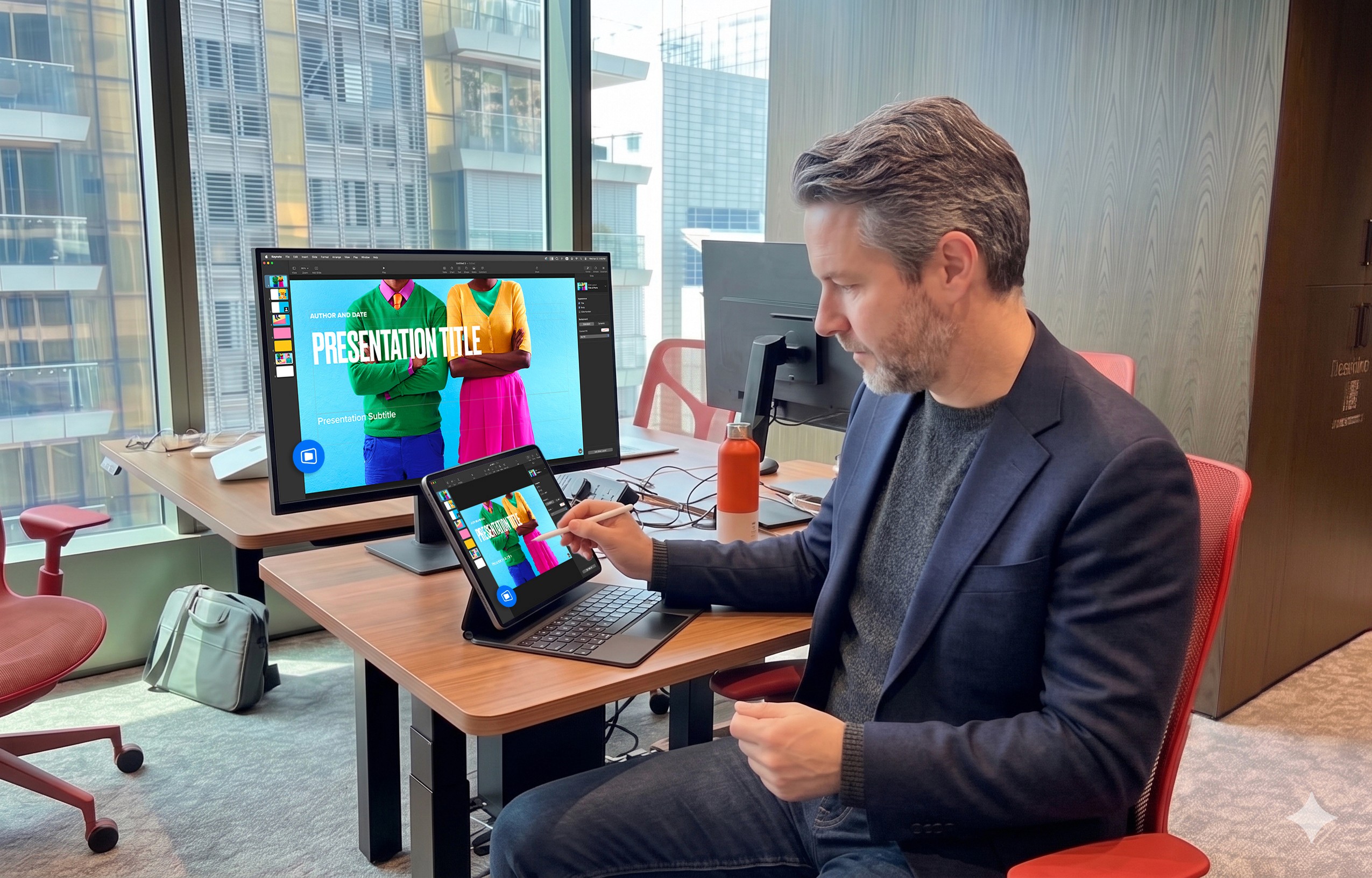
Once you start working outside of home regularly, the first thing you'll notice is the bag. A full laptop setup - machine, charger, mouse, maybe a portable monitor - adds up fast, especially if you're commuting by train or bike.
The fix is simple: leave your powerful machine at home. Carry only a lightweight tablet or thin laptop. DeskIn bridges the gap: open the app on your tablet, connect to your home workstation, and your full desktop environment streams to your screen. CAD software, video editing timelines, 40-tab research sessions. Everything runs on your hardware at home while you sit at a Deskimo desk across town.
A typical morning might start with email and focused work at a café-style hot desk over coffee. After lunch, you book a Deskimo private meeting room, connect to your home workstation through DeskIn, and tackle the heavy rendering or design work. Your bag weighs less than a paperback. Your output doesn't change.
Working on public Wi-Fi has always been a quiet risk. When you open sensitive files on a portable device at a hot desk, those files are now physically travelling with you on a drive that could be stolen or compromised.
DeskIn's architecture sidesteps this. Your work runs on your home or office machine; the actual files never leave your network. Your device becomes a window: it displays pixels, sends back your clicks and keystrokes, and stores nothing from the session. Combined with DeskIn's end-to-end encryption and Privacy Mode (which blanks the host screen so no passerby sees what you're working on), the setup is arguably safer than carrying a laptop.
This matters most for teams working with regulated data - legal, healthcare, finance. Now you can offer staff the freedom to work from any Deskimo location without stretching your security perimeter to every space they visit.

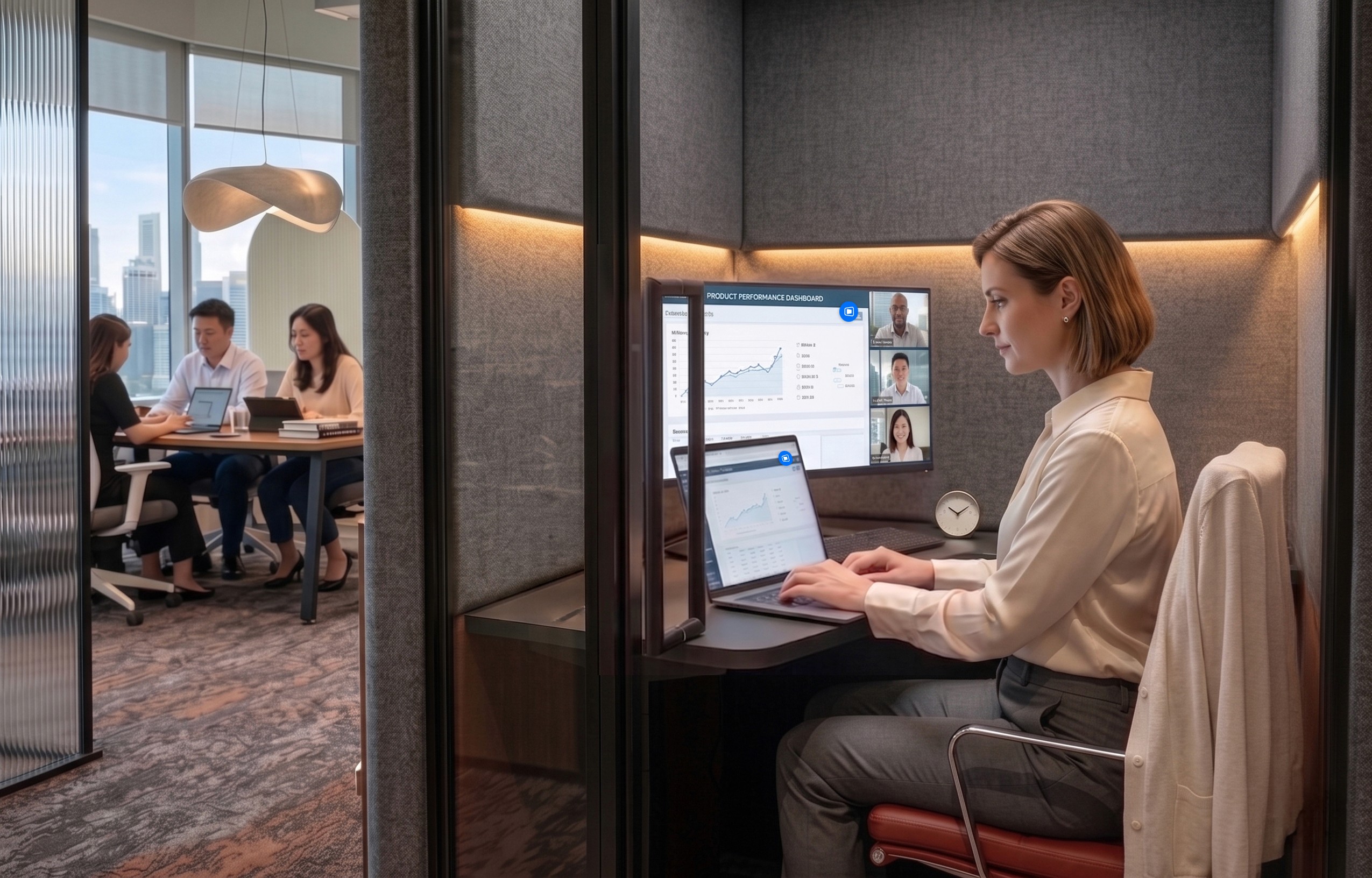
One of the underrated benefits of coworking spaces is that they often provide equipment that you wouldn't buy. Many Deskimo locations have meeting rooms equipped with external monitors, smart TVs or dual-display desks. Check the amenities at your chosen location and ask the staff if this is important for your session.
DeskIn's screen management feature allows you to make the most of these setups without the need for additional cables or adapters. You can wirelessly extend your remote desktop across multiple displays, which is a great upgrade for anyone working with spreadsheets, design files or code. For example, you could put financial models on one screen, reference documents on another, communication on a third; all without buying a single monitor.
The idea is appealing, but the practical question is where to begin. Here are a few guidelines:
If focusing at home has been a struggle, book a few Deskimo sessions across different locations and see what clicks. Some people thrive in café energy; others need a silent private booth. Once you know where you work best, install DeskIn on both your desktop and your portable device. Spend a session fine-tuning the connection before you depend on it for work.
Open coworking areas suit light communication and email. Quiet zones are better for focused writing or deep analysis. Private meeting rooms belong to client calls and heavy multi-screen work. With Deskimo's pay-per-minute pricing, you only pay for the room type you actually need; no overspending on a meeting room when a hot desk will do.
A permanent private office in a major city can run from several hundred to several thousand dollars a month. A combined Deskimo and DeskIn setup, used a few days a week, typically costs at a fraction of that, before you even count the hardware you no longer need to buy. Ask the Deskimo staff about location pricing and team plans, as costs vary by city and space type.
Coworking spaces are not a perfect substitute for a dedicated office. Availability fluctuates, noise levels vary, and long sessions on pay-per-minute pricing is costly. The fix is simple: book ahead for important sessions, have an alternative location in mind, and use Deskimo day passes or bundles when you know you'll be there all day.
If you are using remote desktop software to work but struggle with noisy home environments, a coworking space could be the missing piece. Try booking a workspace on Deskimo app using the referral code DESKIN to get for $10 off (new users only). Setting up a new Deskimo Business account? Use referral code DESKBIZ for 60% off your first credit package. If you already have a Deskimo membership but find yourself hauling heavy gears to every session, DeskIn could change that. Download the app, connect to your desktop in minutes. Use promo code DESKIMO for 50% off DeskIn for the first month (or 20% off on annual plans). This promotion is valid until 31 July 2026. Terms and conditions apply.
The best remote setup isn't about buying more gear. It's about showing up anywhere with almost nothing, and still doing your best work.

Deskimo is an on-demand workspace platform that gives professionals pay-per-minute access to coworking spaces, private offices, and meeting rooms. No long-term leases. No monthly subscriptions. Book a space when you need it and only pay for the time you use.
DeskIn is remote desktop software that delivers low-latency access to your personal and enterprise computers from any device. With end-to-end encryption, multi-screen management, and fast data transmission, it's made for professionals who need all the power of a desktop computer without having to carry the hardware.
Remote work promised freedom, but for many professionals it quietly delivered a new kind of friction. The apartment is too noisy. The café Wi-Fi is patchy. The laptop bag gets heavier every month as cables, chargers, and a second monitor piles on. Somewhere along the way, "working from anywhere" started to feel a lot like hauling your office everywhere.
The fix is to pair two tools that solve opposite halves of the same problem. Deskimo, a coworking space platform, gives you on-demand access to workspaces by the minute. DeskIn, a remote desktop software, gives you access to your home or office computer from any device. Put them together and you get a workflow that removes hardware limits, keeps your data on your home machine, and lets you walk into any city with nothing but a tablet.
Working from home sounds ideal until your partner takes a call in the shared study. Or when the neighbour upstairs starts drilling at 9 a.m. Most work requires deep engagement and intense focus, free from distractions. Most homes were not designed to provide these on demand.
Coworking spaces fill this gap in three ways. Firstly, they set a physical boundary between personal life and work. Research suggests coworking setup is linked to higher productivity than working from home. Secondly, they offer amenities that are difficult to replicate at home: strong Wi-Fi, ergonomic chairs, private meeting rooms and quiet zones. Thirdly, individual workstations, open-plan workspaces foster a professional presence. You are most likely surrounded by people who are also there to work, and this social context encourages you to do the same.
The downside of most coworking spaces is the commitment. Monthly memberships and yearly office leases assume you need a desk every day, but most remote workers don't. Deskimo removes that friction: book a desk or meeting room by the hour, only when you need it, at hundreds of locations across cities.
Once you start working outside of home regularly, the first thing you'll notice is the bag. A full laptop setup - machine, charger, mouse, maybe a portable monitor - adds up fast, especially if you're commuting by train or bike.
The fix is simple: leave your powerful machine at home. Carry only a lightweight tablet or thin laptop. DeskIn bridges the gap: open the app on your tablet, connect to your home workstation, and your full desktop environment streams to your screen. CAD software, video editing timelines, 40-tab research sessions. Everything runs on your hardware at home while you sit at a Deskimo desk across town.
A typical morning might start with email and focused work at a café-style hot desk over coffee. After lunch, you book a Deskimo private meeting room, connect to your home workstation through DeskIn, and tackle the heavy rendering or design work. Your bag weighs less than a paperback. Your output doesn't change.
Working on public Wi-Fi has always been a quiet risk. When you open sensitive files on a portable device at a hot desk, those files are now physically travelling with you on a drive that could be stolen or compromised.
DeskIn's architecture sidesteps this. Your work runs on your home or office machine; the actual files never leave your network. Your device becomes a window: it displays pixels, sends back your clicks and keystrokes, and stores nothing from the session. Combined with DeskIn's end-to-end encryption and Privacy Mode (which blanks the host screen so no passerby sees what you're working on), the setup is arguably safer than carrying a laptop.
This matters most for teams working with regulated data - legal, healthcare, finance. Now you can offer staff the freedom to work from any Deskimo location without stretching your security perimeter to every space they visit.
One of the underrated benefits of coworking spaces is that they often provide equipment that you wouldn't buy. Many Deskimo locations have meeting rooms equipped with external monitors, smart TVs or dual-display desks. Check the amenities at your chosen location and ask the staff if this is important for your session.
DeskIn's screen management feature allows you to make the most of these setups without the need for additional cables or adapters. You can wirelessly extend your remote desktop across multiple displays, which is a great upgrade for anyone working with spreadsheets, design files or code. For example, you could put financial models on one screen, reference documents on another, communication on a third; all without buying a single monitor.
The idea is appealing, but the practical question is where to begin. Here are a few guidelines:
If focusing at home has been a struggle, book a few Deskimo sessions across different locations and see what clicks. Some people thrive in café energy; others need a silent private booth. Once you know where you work best, install DeskIn on both your desktop and your portable device. Spend a session fine-tuning the connection before you depend on it for work.
Open coworking areas suit light communication and email. Quiet zones are better for focused writing or deep analysis. Private meeting rooms belong to client calls and heavy multi-screen work. With Deskimo's pay-per-minute pricing, you only pay for the room type you actually need; no overspending on a meeting room when a hot desk will do.
A permanent private office in a major city can run from several hundred to several thousand dollars a month. A combined Deskimo and DeskIn setup, used a few days a week, typically costs at a fraction of that, before you even count the hardware you no longer need to buy. Ask the Deskimo staff about location pricing and team plans, as costs vary by city and space type.
Coworking spaces are not a perfect substitute for a dedicated office. Availability fluctuates, noise levels vary, and long sessions on pay-per-minute pricing is costly. The fix is simple: book ahead for important sessions, have an alternative location in mind, and use Deskimo day passes or bundles when you know you'll be there all day.
If you are using remote desktop software to work but struggle with noisy home environments, a coworking space could be the missing piece. Try booking a workspace on Deskimo app using the referral code DESKIN to get for $10 off (new users only). Setting up a new Deskimo Business account? Use referral code DESKBIZ for 60% off your first credit package. If you already have a Deskimo membership but find yourself hauling heavy gears to every session, DeskIn could change that. Download the app, connect to your desktop in minutes. Use promo code DESKIMO for 50% off DeskIn for the first month (or 20% off on annual plans). This promotion is valid until 31 July 2026. Terms and conditions apply.
The best remote setup isn't about buying more gear. It's about showing up anywhere with almost nothing, and still doing your best work.
Deskimo is an on-demand workspace platform that gives professionals pay-per-minute access to coworking spaces, private offices, and meeting rooms. No long-term leases. No monthly subscriptions. Book a space when you need it and only pay for the time you use.
DeskIn is remote desktop software that delivers low-latency access to your personal and enterprise computers from any device. With end-to-end encryption, multi-screen management, and fast data transmission, it's made for professionals who need all the power of a desktop computer without having to carry the hardware.


How to Play MapleStory Classic World on Mac
A lot of the players who are most excited about MapleStory Classic World grew up on 2005-era MapleStory — and a large share of that generation now does its computing on a MacBook. Nexon clearly knows this: a native macOS client was on the feature list for the second Closed Online Test, which ran August 4–12, 2026, alongside Ossyria and third job advancement. But as of this writing, that Mac client is still in development, not publicly available, and there's still no confirmed public launch date for the game itself.
So if you want to play MapleStory Classic World on a Mac right now — or want a reliable plan for when the game does launch — you've got two real options: run Windows in a virtual machine, or use DeskIn remote desktop to control an actual Windows PC from your Mac. This guide covers both, including a login-conflict issue that catches a lot of virtual machine users off guard.
Not yet, publicly. Nexon's May 2026 roadmap update confirmed macOS support is in development, and it appeared as a testable feature in the second Closed Online Test. Windows PC remains the confirmed launch platform, and Nexon hasn't said whether the Mac client will be ready at launch or arrive afterward. The game hasn't had a full public release on any platform — Nexon has said one more test is planned before launch.
Given that, Mac players currently have two ways in: a Windows virtual machine, or remote desktop software that connects to a real Windows PC.
Classic World is exclusive to GMS (Global MapleStory), covering North America, Europe, and most other regions without a local Nexon partner. Markets with their own official MapleStory service — Korea, China, Japan, Taiwan/Hong Kong, and Southeast Asia — aren't GMS-eligible, so Mac players in those regions would need a VPN to reach Classic World, which isn't recommended. Whether NA and EU will run as separate worlds hasn't been confirmed.
Tools like Parallels Desktop or VMware Fusion let you run a full Windows install inside macOS, and then install MapleStory Classic World the way a Windows user would. It works, but it asks a lot of your Mac's hardware.
RAM: 16GB minimum recommended; 8GB is genuinely tight, since macOS and Windows are both running at once and macOS alone can eat most of that before Windows gets a share. For a comfortable setup with guides or Discord open on the side, aim for 32GB.
CPU/GPU: Virtual machines can't pass hardware through at 100%; graphics get software-emulated, which typically costs 20–30% of the performance you'd get on native Windows hardware.
Thermals: Running two full operating systems under load generates real heat, and laptop-class Macs with limited cooling can throttle during longer grinding sessions.
Apple Silicon translation overhead: M-series Macs can only run Windows on ARM in a VM. If Classic World ships as an x86/x64 build, it needs an extra translation layer to run at all, stacking on top of the virtualization overhead already mentioned.
Anti-cheat compatibility is a real unknown: the original MapleStory has historically been hostile to virtualized environments because of its anti-cheat system, and Nexon hasn't said how Classic World's anti-cheat will treat VMs. Treat virtualization as a maybe, not a guaranteed plan.
There's also the practical overhead: setting up a VM means downloading a Windows image, allocating dozens of gigabytes of disk space, installing display drivers, and — on Apple Silicon — dealing with ARM compatibility quirks that don't show up on a real x86 PC. Keyboard shortcuts can also conflict, since macOS system shortcuts (Control, Option, Command) don't always play nicely with a Windows game's default keybinds.
Instead of building a Windows environment inside your Mac, DeskIn lets you connect directly to a Windows PC you already have — your desktop at home, a work machine, or a spare laptop — and control it from your Mac in real time. The game runs on genuine Windows hardware the whole time, so there's no emulation tax, no ARM translation layer, and no anti-cheat guessing game.
A virtual machine makes sense if:
You don't have access to any Windows PC at all, so a Mac VM is your only option.
Your Mac has strong specs — 16GB+ RAM, ideally 32GB, and a higher-end M-series chip that can absorb the performance loss.
You're comfortable with a fairly technical setup process.
You rarely need to switch between devices, so the single-login limitation isn't a practical issue for you.
DeskIn makes more sense if:
You already have a Windows PC (or another Mac) that can run MapleStory Classic World, and you just want to reach it from your MacBook.
You're traveling or away from your desk often and want to pick up where you left off without re-downloading anything.
You don't want to deal with logging out of one device every time you switch to another.
Your Mac has more modest specs, and you'd rather not risk stutters, crashes, or a game that won't launch at all.
If you already own a Windows machine, DeskIn is generally the lower-effort, lower-risk choice. A VM is really a fallback for players with no Windows access and a Mac powerful enough to absorb the overhead.
Step 1: Set up the Windows PC. Install MapleStory Classic World on a Windows PC and create your character, then install DeskIn on that same PC, sign in, and enable unattended access with a connection password so you can reach it later without anyone at the keyboard.
Step 2: Install DeskIn on your Mac. Download the macOS version of DeskIn, sign in with the same account, and your Windows PC will appear in your device list.
Step 3: Connect. Select the PC, enter the connection password, and you'll get a live view of the Windows desktop that you control with your Mac's mouse and trackpad — the same session, the same login, no conflicts.
Step 4: Tune quality for your connection. On a stable connection, push quality up to enjoy Classic World's remastered pixel art in full detail; on the road, prioritize smoothness to cut down on input lag.
Step 5: Log in and play. Open the game inside the remote session and log in as usual — grinding, party quests, and shopping all work exactly as they would sitting at the PC directly.
Resolution and quality: Free-tier users should start around 720p/30fps for a stable baseline; paid-tier users can push up to 4K 60FPS or 2K 240FPS on a strong connection to get the most out of Classic World's art.
Screen scaling: If your Mac and Windows PC have very different display sizes, use DeskIn's automatic scaling option in the toolbar, or adjust the remote PC's resolution to match your Mac's screen more closely.
Keyboard and mouse mapping: DeskIn maps your Mac's keyboard directly to the remote PC. Turning on Game Mouse mode prevents the keyboard from getting locked mid-session.
Controller support: If Mac keyboard controls feel awkward, pair a controller to your Mac and enable controller mapping from the toolbar — DeskIn will pass those inputs straight through to the remote PC.
Simple Setup:No Windows installation required — connect and start playing within minutes.
Doesn't tax your Mac's hardware. All the actual computation happens on the remote Windows PC; your Mac just displays the stream and sends inputs.
Performance and compatibility match native Windows, because that's exactly what's running — no ARM translation layer to worry about.
No account login conflicts, since DeskIn connects to the same existing session instead of creating a new device.
Cross-device flexibility. The same account lets you connect from Mac, iPhone, iPad, or Android, and it's always the same underlying session — no juggling logins between devices.
Not publicly yet. Nexon has confirmed a macOS client is in development and tested it in the second Closed Online Test, but Windows remains the confirmed launch platform and no public Mac release has shipped.
Yes. DeskIn uses end-to-end encryption and two-factor login, and since you're remotely operating a PC you already control, your credentials never pass through a third party.
Technically you can install one, but the experience will be rough. With 8GB split between macOS and Windows, there's very little left over for Windows, and stutters or crashes become likely during longer sessions. DeskIn is the more stable option here, since the remote PC handles all the processing — your Mac's RAM isn't a bottleneck.
Real-world performance depends on both ends' network quality, but since DeskIn connects to native Windows hardware with no virtualization overhead, and its low-latency streaming keeps end-to-end delay under 40ms on a good connection, it typically feels smoother than a resource-constrained VM.
No. DeskIn controls the same PC and the same already-active session rather than logging in as a new device, so it doesn't trigger MapleStory's single-session login limit — this is exactly the conflict that trips up VM users switching between two separate Windows installs.
DeskIn needs a Windows (or other supported platform) machine to connect to. If you don't have one, consider borrowing access to a friend's or family member's PC, or renting a cloud Windows machine as your connection target.
DeskIn supports Windows, macOS, iOS, and Android. A Mac can connect to a Windows PC, and a Windows PC can just as easily connect to and control a Mac.
MapleStory Classic World doesn't have a public Mac client yet, but that doesn't mean Mac players have to gamble on a resource-hungry virtual machine and hope the anti-cheat cooperates. If you already have access to a Windows PC that can run the game — or even another Mac — connecting to it through DeskIn gets you native Windows performance, none of the virtualization overhead, and none of the account-login headaches that come with running a second "device." Set it up once, and you'll be ready to log in the moment Classic World opens its doors.

How to Play MapleStory Classic World on Mobile Before the Official App Arrives
MapleStory Classic World has turned into one of the most-searched topics in the MapleStory community this year. Nexon's pre-Big Bang server pulled in roughly 5,000 players for its first Closed Online Test back in April 2026, and thousands more signed up for the second test that ran August 4–12, 2026. With Ossyria, third job advancement, and controller support now confirmed, interest has never been higher — and a lot of that interest is coming from players who want to know one thing: can you play MapleStory Classic World on your phone?
Short answer: not with an official app, not yet. This guide breaks down exactly what Nexon has confirmed about platforms so far, then walks through how DeskIn remote desktop lets you play MapleStory Classic World on mobile right now, without waiting on an app that hasn't been announced.
As of this writing, Nexon has not announced a mobile or console version of MapleStory Classic World. The confirmed platforms are Windows PC and macOS — macOS support was specifically added as a testable feature during the second Closed Online Test in August 2026, alongside Ossyria and third job advancement, but it's still listed as "in development" rather than publicly available.
There's also no full public launch date yet. Nexon has run two Closed Online Tests so far and has said one more test is planned before release, so most community trackers currently estimate a launch window in late 2026 or early 2027 — but that's community speculation, not an official date.
Put simply: if you want to play MapleStory Classic World on a phone or tablet today, a native app isn't an option. The only practical route is streaming the PC version from a Windows machine you already have access to.
Classic World is exclusive to GMS (Global MapleStory), Nexon's English-language service for North America, Europe, and most other regions without a local Nexon partner. Players in markets with their own official MapleStory service — Korea, China, Japan, Taiwan/Hong Kong, and Southeast Asia — aren't eligible for GMS accounts, so Classic World isn't accessible there without a VPN, which isn't recommended. It's not yet confirmed whether NA and EU will run as separate worlds within Classic World.
DeskIn is a cross-platform remote desktop app built specifically with PC gaming in mind, and it maps well onto exactly the problem MapleStory Classic World mobile players are trying to solve.
Stable, low-latency connections. DeskIn's ZeroSync® engine keeps end-to-end latency under 40ms on a good connection and automatically reroutes around congested paths, so grinding, dodging, and skill combos in Classic World's classic-era combat don't feel delayed.
Up to 4K 60FPS / 2K 240FPS streaming. Classic World's remastered pixel art holds up well when it isn't compressed into mush — DeskIn's streaming keeps text and sprites sharp even on a phone screen.
You're connecting to your own PC, not emulating one. DeskIn doesn't run Windows inside your phone; it streams the display of a Windows computer you control and sends your inputs back in real time. That means full compatibility and full performance — no emulation layer to fight with.
End-to-end encryption and two-factor login. Sessions are encrypted end-to-end, and you can set an allowlist of authorized devices, so only you can connect to your own PC.
Flexible, per-character keybinds. Classic World's Warrior, Magician, Bowman, and Thief classes each use very different skill layouts. DeskIn's on-screen game keyboard lets you build a custom key layout and save it as its own profile, so you can switch between characters without re-mapping keys every time.
Built-in virtual mouse. In pointer mode, DeskIn adds virtual left/right mouse buttons over the stream, which makes precise UI clicks — inventory, cash shop, trade windows — far easier than tapping blindly on a touchscreen.
Once you're connected, mobile play through DeskIn covers pretty much everything you'd do sitting at your PC:
Daily quests and login rewards — knock these out on your commute instead of waiting until you're home.
Cash shop browsing — scroll and preview cosmetics with touch gestures just like any shopping app.
Grinding and leveling — use the virtual directional pad and skill-key layout to keep training in familiar maps.
Party quests — latency low enough to keep up with a party's pacing on runs like Kerning City PQ.
Trading and the marketplace — check prices and list items using the virtual mouse for precise clicks.
Guild chat and messaging — reply to your guild or party the moment something comes up.
Step 1: Set up DeskIn on the Windows PC running Classic World. Install DeskIn on the PC where you've registered for testing (or where the game is installed once it launches), sign in, and turn on unattended access so the PC can be reached without anyone sitting in front of it.
Step 2: Install the DeskIn app on your phone. Download DeskIn from the App Store or Google Play, sign in with the same account, and your PC will show up in the device list.
Step 3: Connect and switch to pointer mode. Tap your PC to connect, then switch the control mode from touch to pointer — this unlocks the customizable virtual keyboard and virtual mouse.
Step 4: Browsing the cash shop. Drag to move the cursor and tap the virtual mouse buttons to click through menus and item previews, exactly like using a mouse on a desktop.
Step 5: Grinding. Open the game keyboard menu, build a layout with your movement keys and skill keys, and save it as a profile. Pull it up any time you start a grinding session.
Step 6: Pick the right streaming quality for your connection. On mobile data, prioritize smoothness over resolution to cut down on input delay; on Wi-Fi, bump the quality up to enjoy Classic World's remastered art at full clarity.
A tablet's bigger screen is a natural fit for content that needs either more reading room or more precision — daily quest text and boss encounters both qualify.
Step 1: Same setup as mobile. Install DeskIn on your iPad or Android tablet and sign in — connection steps are identical to the phone app.
Step 2: Daily quests. The larger display makes quest text, item descriptions, and map markers easier to read at a glance, so you're less likely to misread an objective mid-run.
Step 3: Boss fights. Bosses demand precise dodges and timing that touch controls alone can struggle with — pair your tablet with a Bluetooth keyboard and mouse, or a controller (see below), instead of relying on the virtual keyboard.
Step 4: Bump the frame rate for boss content. Choose a higher refresh setting in DeskIn's connection options so skill telegraphs and boss patterns read clearly in real time.
Step 5: Use split-screen for guide lookups. Run DeskIn alongside a browser or notes app in split view to check attack patterns without leaving the fight.
If virtual buttons don't feel precise enough, DeskIn supports Bluetooth controllers, including Xbox, PlayStation, and several third-party pads.
Step 1: Pair the controller with your phone. Use your phone's Bluetooth settings to pair the controller first.
Step 2: Connect through DeskIn. Once connected to your PC, DeskIn automatically detects the paired controller — no extra driver install needed.
Step 3: Test your inputs. Head into a training map first and confirm movement, attacks, and skills map to the buttons you expect before jumping into content that matters.
Step 4: Favor smoothness for fast-paced play. When you're actively grinding or fighting with a controller, prioritize DeskIn's smoothness setting over max resolution for the most responsive feel.
Running a Warrior and a Bowman means running two very different skill bars. Here's how to keep them separate in DeskIn instead of re-mapping keys every login:
Step 1: Switch to pointer mode and open the game keyboard menu. After connecting, switch to pointer mode and open DeskIn's game keyboard settings.
Step 2: Create a new keyboard layout. Tap "New Keyboard" and add your movement pad, skill keys, and item keys to match your current character's build.
Step 3: Name it by character or class. Label the layout something identifiable — "Bowman" or "Main Warrior" — and save it.
Step 4: Load the right profile when you switch characters. Before logging into a different character, select its saved layout from the game keyboard menu instead of rebuilding it from scratch.
Step 5: Update layouts as skills change. When a class gets rebalanced or you unlock new skills after a job advancement, go back into that profile and add the new keys.
No. Nexon has not announced a mobile or console version. Confirmed platforms are Windows, with a macOS client currently in development.
Nexon hasn't announced a public release date. Two Closed Online Tests have run so far (April 16–24 and August 4–12, 2026), with one more test planned before launch. Community estimates point to late 2026 or early 2027, but that isn't official.
No. DeskIn remotely operates your own PC and sends the same mouse and keyboard input you'd normally use — it isn't a macro, bot, or memory-editing tool, so it doesn't behave like the automation that anti-cheat systems are built to catch.
DeskIn's low-latency streaming keeps things playable on a stable connection, generally noticeably smoother than trying to force a browser workaround. Real-world latency still depends on both ends' network quality, so Wi-Fi is recommended over cellular when possible.
For checking dailies or browsing the shop occasionally, the free plan typically covers it. If you plan to grind for long sessions, use a controller regularly, or manage several devices, a paid plan unlocks higher streaming quality and additional features.
Setup and connection steps are identical. The difference is screen size — phones are handy for quick, single-hand tasks like dailies and the shop, while tablets are better suited to boss fights and content where you want a controller or external keyboard.
Until Nexon ships a mobile client — if one ever gets announced — DeskIn is the most practical way to keep playing MapleStory Classic World away from your desk. Install it on both your gaming PC and your phone or tablet, set up a keybind profile per character, and you can knock out dailies, grind, and even tackle boss fights without being tied to a monitor.

เปลี่ยน iPad ให้เป็นจอภาพที่สองสำหรับคอมพิวเตอร์ Windows และ Mac
A second monitor can make everyday work feel much easier, especially when you are switching between research, documents, meetings, design files, or dashboards. If you already own an iPad, you may be able to use it as an extra display instead of buying another monitor.
This guide explains how to use an iPad as a second monitor for Mac with Apple Sidecar, and how Windows or cross-platform users can use DeskIn screen extension on supported paid plans.
Increase screen space so you can view more content at the same time. This helps reduce constant window switching during multitasking.
Keep each screen focused on a different task. For example, you can edit a video on one screen and keep source materials on the other, or write a paper while browsing references side by side.
Use the iPad display you already have. For students, remote workers, and light creative work, an iPad can be a convenient and cost-effective second-screen option.
Save desk space and avoid carrying another external monitor when you work from home, travel, or move between rooms.
Apple Sidecar lets compatible iPads work as an external display for compatible MacBook and iMac devices. It is a good native option if both devices support Sidecar and are signed in with the same Apple ID.
Note: To use Apple Sidecar, your Mac and iPad should use the same Apple ID, have Bluetooth and Wi-Fi turned on, and stay within close wireless range. Sidecar availability depends on Apple device and operating system compatibility.
Open the Mac System Settings >> Click "Display" in the sidebar >> Click the "+" pop up menu on the right and choose your iPad.
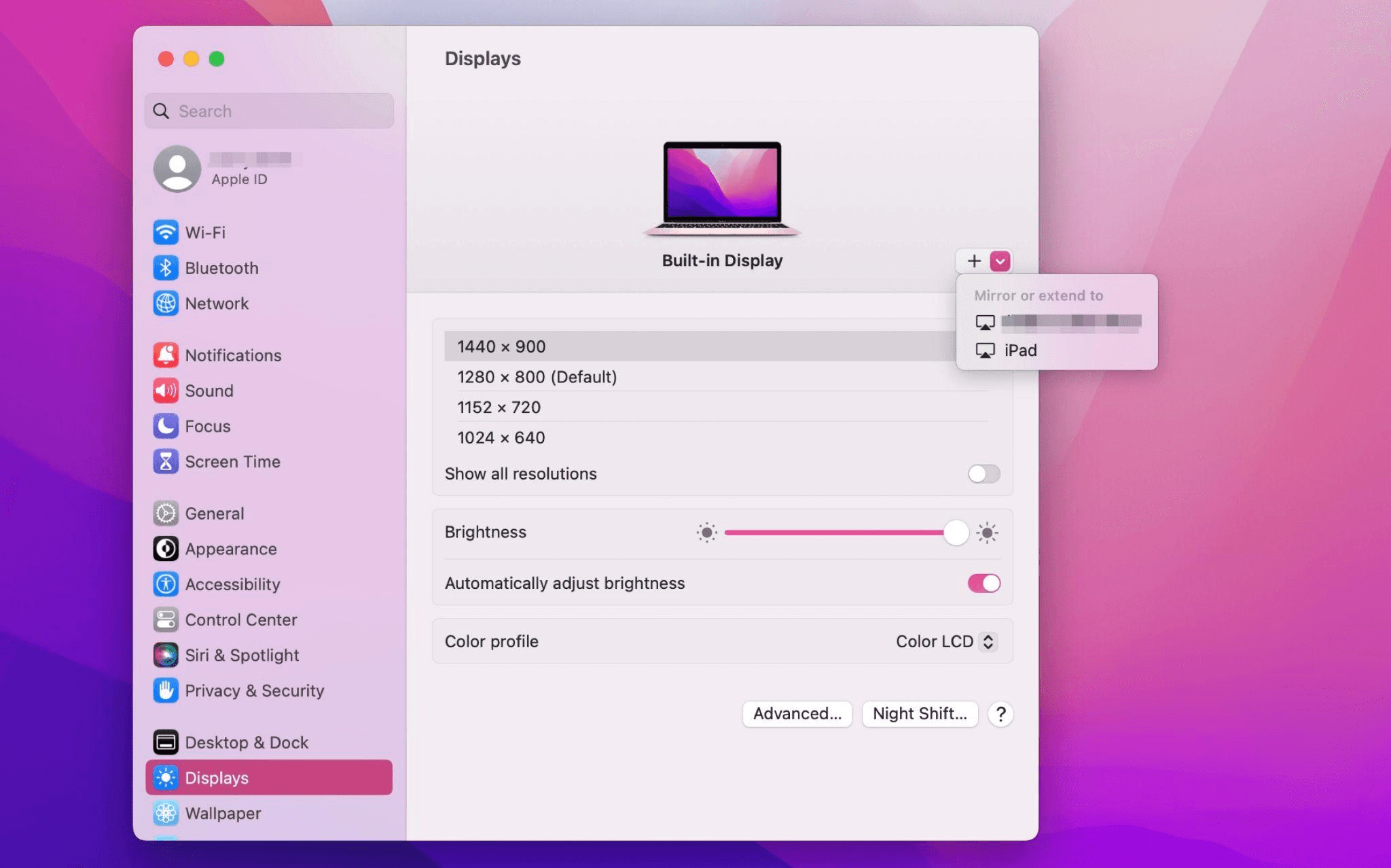
Select the iPad, change the Use as settings to "Extended Display". Check the Airplay settings on the top toolbar of the mac and set iPad as "Use As Separate Display".
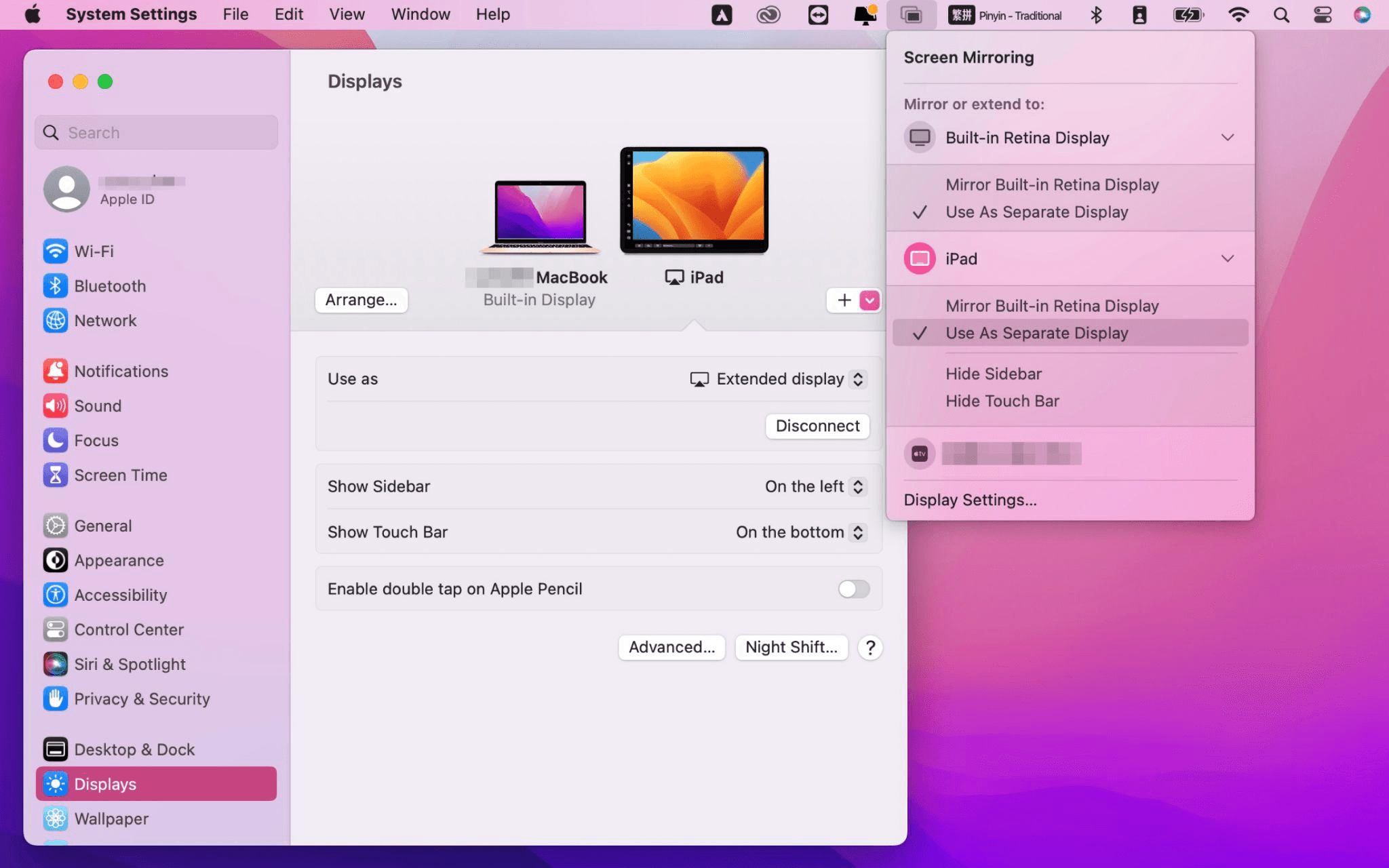
After completing the settings, your iPad will become the second display for your Mac. You can drag windows from your Mac to your iPad smoothly. You can also use the sidebar on the iPad or change the position of the sidebar on the system display settings.
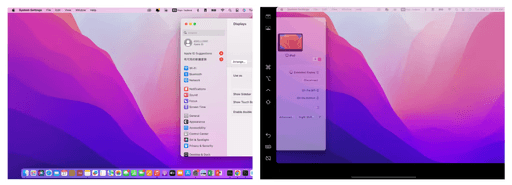
MacBook Screen (Left) and iPad Screen (Right)
Apple Sidecar only supports mac released after 2016 and iPadOS13 or newer. If you are using an old Apple device or a Windows device, you can still use DeskIn remote software to do the screen extension. It supports using iPad as a second display for Mac and Windows, and the smoothness is no worse than sidecar.
Install DeskIn on both your computer and iPad. Sign in to your DeskIn account on each device. When you log in on a new device for the first time, you may need to complete email verification to help protect your account.

To use Screen Extension, you'll need to subscribe to any Premium plan. Click here to view DeskIn plans.
Open DeskIn on your Windows or Mac computer, go to the screen management area, and choose the screen extension option. Select your iPad as the target display and start extending.
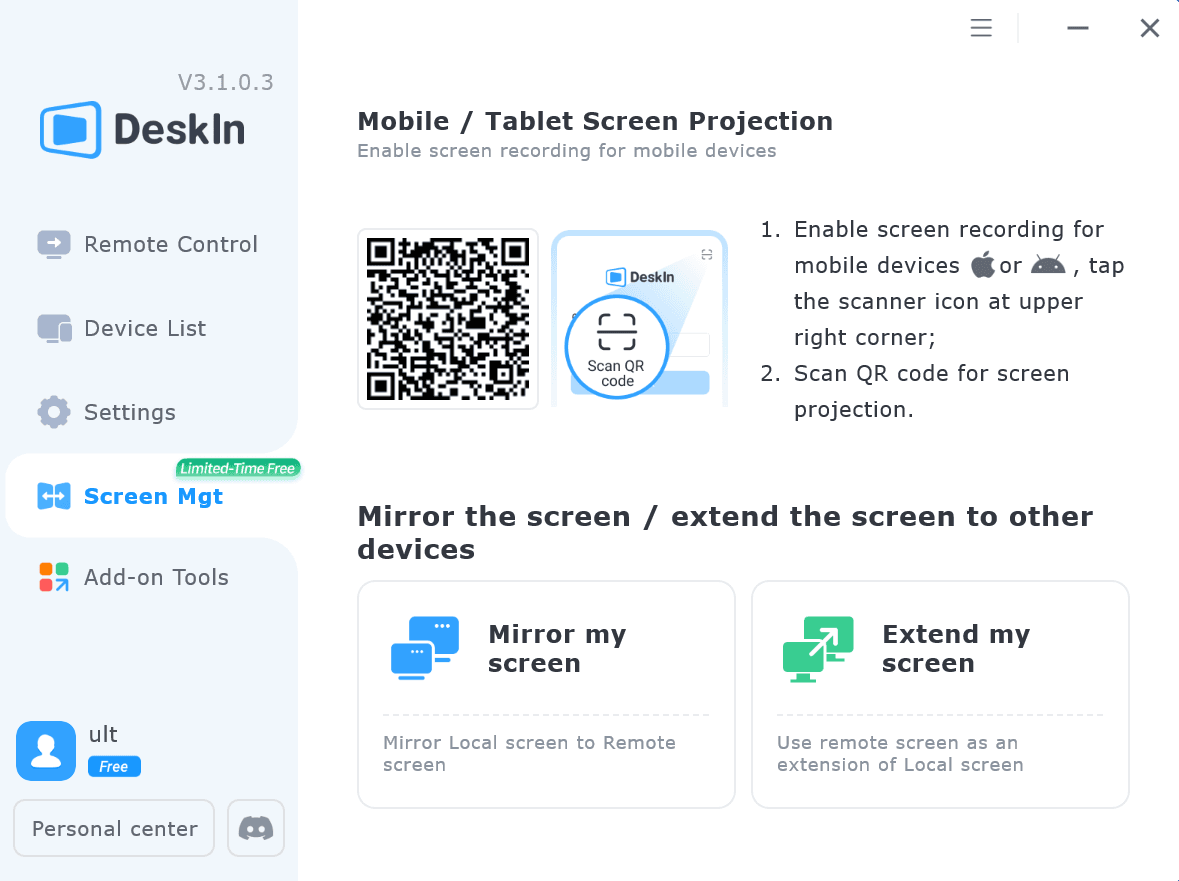
Once connected, your iPad can work as an additional display, letting you move windows between your computer and iPad for a wider workspace.
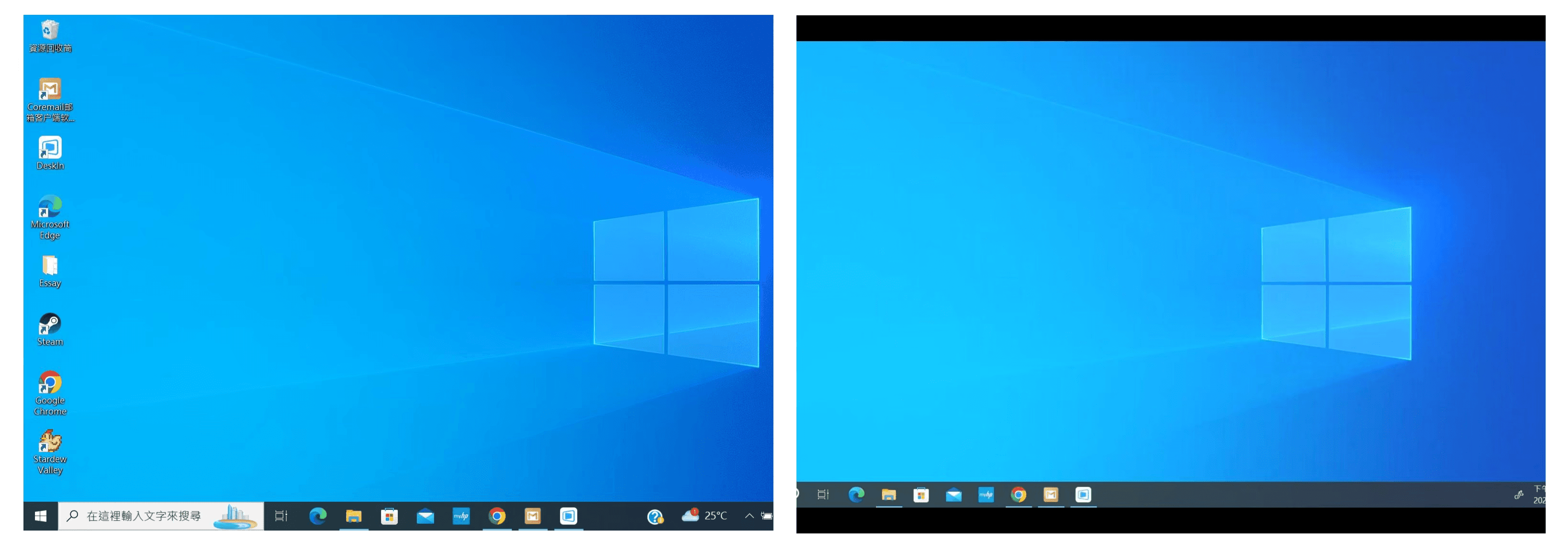
Computer Screen (Left) and iPad Screen (Right)
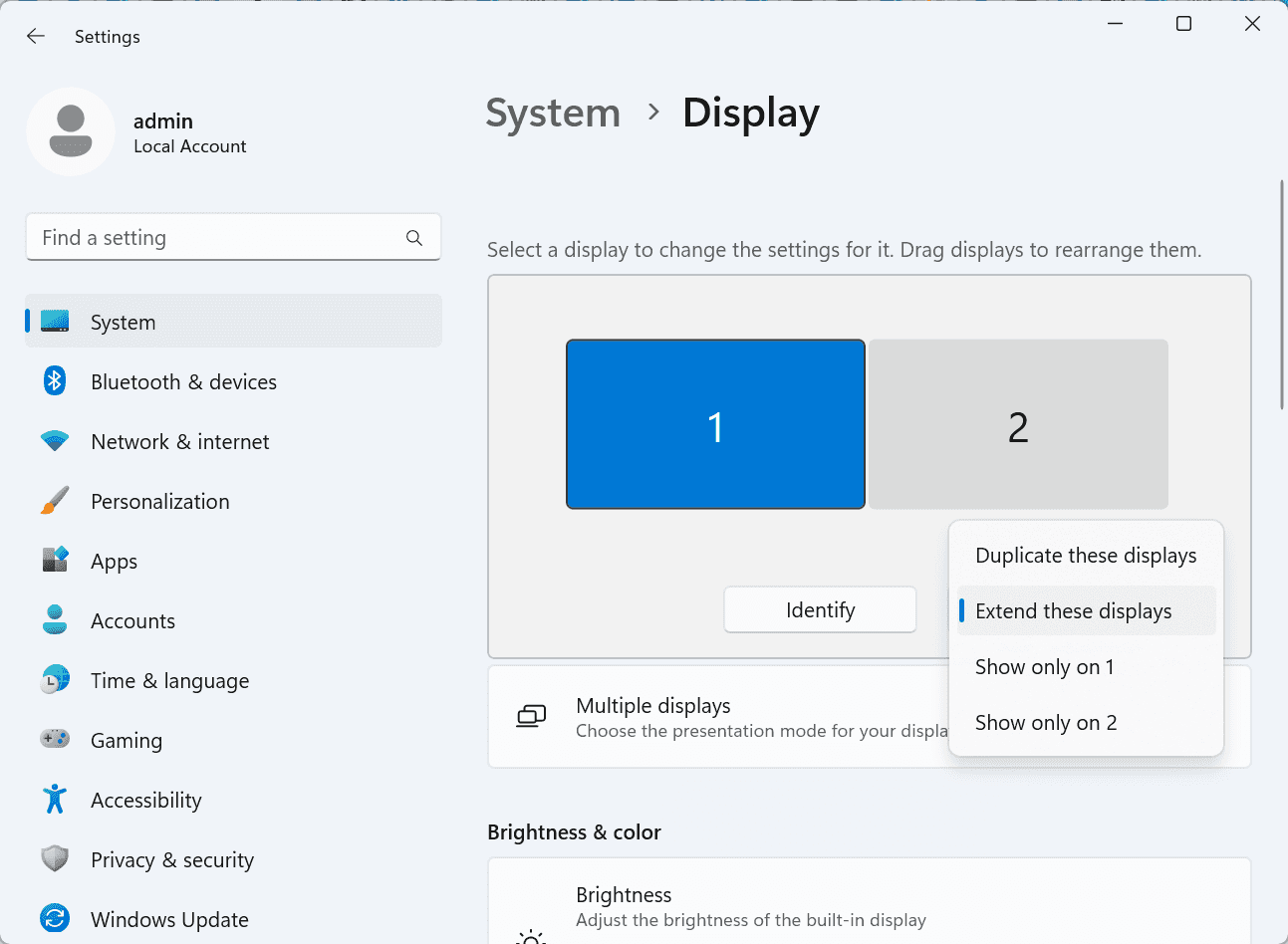
After extension, if you find that your iPad is only mirroring the content on your computer screen, please go to Windows System Settings >> Display Settings and change the screen option to "Extend these displays". You can also modify the screen position by dragging the 2 screens.
Need | Best Option | Why |
Use iPad as a second monitor for a compatible Mac | Apple Sidecar | Built into Apple devices and easy to set up when both devices are compatible. |
Use iPad as a second monitor for Windows | DeskIn | Sidecar does not support Windows, while DeskIn supports cross-platform screen extension on eligible plans. |
Work across Windows, macOS, iPad, Android tablets, and mobile devices | DeskIn | Better suited for users who need cross-platform remote access and flexible device combinations. |
Yes. Windows does not support Apple Sidecar, but you can use DeskIn screen extension on a paid plan that includes this feature to turn your iPad into an additional display for a Windows computer.
DeskIn Screen Extension is included in all paid plans. After subscribing, you can use it across all supported systems with no restrictions.
Yes. DeskIn supports using an iPad as an additional screen with Windows and Mac computers when your plan includes screen mirroring or screen extension.
Using an iPad as a second monitor is a practical way to expand your workspace without buying another display. Mac users with compatible devices can use Apple Sidecar, while Windows and cross-platform users can use DeskIn screen extension on eligible paid plans.
If you want to work across Windows, macOS, iPad, and other devices, DeskIn gives you a flexible way to build a portable multi-screen workspace. Download DeskIn and choose the plan that fits your screen extension and remote access needs.
How to Play MapleStory Classic World on Mac
A lot of the players who are most excited about MapleStory Classic World grew up on 2005-era MapleStory — and a large share of that generation now does its computing on a MacBook. Nexon clearly knows this: a native macOS client was on the feature list for the second Closed Online Test, which ran August 4–12, 2026, alongside Ossyria and third job advancement. But as of this writing, that Mac client is still in development, not publicly available, and there's still no confirmed public launch date for the game itself.
So if you want to play MapleStory Classic World on a Mac right now — or want a reliable plan for when the game does launch — you've got two real options: run Windows in a virtual machine, or use DeskIn remote desktop to control an actual Windows PC from your Mac. This guide covers both, including a login-conflict issue that catches a lot of virtual machine users off guard.
Not yet, publicly. Nexon's May 2026 roadmap update confirmed macOS support is in development, and it appeared as a testable feature in the second Closed Online Test. Windows PC remains the confirmed launch platform, and Nexon hasn't said whether the Mac client will be ready at launch or arrive afterward. The game hasn't had a full public release on any platform — Nexon has said one more test is planned before launch.
Given that, Mac players currently have two ways in: a Windows virtual machine, or remote desktop software that connects to a real Windows PC.
Classic World is exclusive to GMS (Global MapleStory), covering North America, Europe, and most other regions without a local Nexon partner. Markets with their own official MapleStory service — Korea, China, Japan, Taiwan/Hong Kong, and Southeast Asia — aren't GMS-eligible, so Mac players in those regions would need a VPN to reach Classic World, which isn't recommended. Whether NA and EU will run as separate worlds hasn't been confirmed.
Tools like Parallels Desktop or VMware Fusion let you run a full Windows install inside macOS, and then install MapleStory Classic World the way a Windows user would. It works, but it asks a lot of your Mac's hardware.
RAM: 16GB minimum recommended; 8GB is genuinely tight, since macOS and Windows are both running at once and macOS alone can eat most of that before Windows gets a share. For a comfortable setup with guides or Discord open on the side, aim for 32GB.
CPU/GPU: Virtual machines can't pass hardware through at 100%; graphics get software-emulated, which typically costs 20–30% of the performance you'd get on native Windows hardware.
Thermals: Running two full operating systems under load generates real heat, and laptop-class Macs with limited cooling can throttle during longer grinding sessions.
Apple Silicon translation overhead: M-series Macs can only run Windows on ARM in a VM. If Classic World ships as an x86/x64 build, it needs an extra translation layer to run at all, stacking on top of the virtualization overhead already mentioned.
Anti-cheat compatibility is a real unknown: the original MapleStory has historically been hostile to virtualized environments because of its anti-cheat system, and Nexon hasn't said how Classic World's anti-cheat will treat VMs. Treat virtualization as a maybe, not a guaranteed plan.
There's also the practical overhead: setting up a VM means downloading a Windows image, allocating dozens of gigabytes of disk space, installing display drivers, and — on Apple Silicon — dealing with ARM compatibility quirks that don't show up on a real x86 PC. Keyboard shortcuts can also conflict, since macOS system shortcuts (Control, Option, Command) don't always play nicely with a Windows game's default keybinds.
Instead of building a Windows environment inside your Mac, DeskIn lets you connect directly to a Windows PC you already have — your desktop at home, a work machine, or a spare laptop — and control it from your Mac in real time. The game runs on genuine Windows hardware the whole time, so there's no emulation tax, no ARM translation layer, and no anti-cheat guessing game.
A virtual machine makes sense if:
You don't have access to any Windows PC at all, so a Mac VM is your only option.
Your Mac has strong specs — 16GB+ RAM, ideally 32GB, and a higher-end M-series chip that can absorb the performance loss.
You're comfortable with a fairly technical setup process.
You rarely need to switch between devices, so the single-login limitation isn't a practical issue for you.
DeskIn makes more sense if:
You already have a Windows PC (or another Mac) that can run MapleStory Classic World, and you just want to reach it from your MacBook.
You're traveling or away from your desk often and want to pick up where you left off without re-downloading anything.
You don't want to deal with logging out of one device every time you switch to another.
Your Mac has more modest specs, and you'd rather not risk stutters, crashes, or a game that won't launch at all.
If you already own a Windows machine, DeskIn is generally the lower-effort, lower-risk choice. A VM is really a fallback for players with no Windows access and a Mac powerful enough to absorb the overhead.
Step 1: Set up the Windows PC. Install MapleStory Classic World on a Windows PC and create your character, then install DeskIn on that same PC, sign in, and enable unattended access with a connection password so you can reach it later without anyone at the keyboard.
Step 2: Install DeskIn on your Mac. Download the macOS version of DeskIn, sign in with the same account, and your Windows PC will appear in your device list.
Step 3: Connect. Select the PC, enter the connection password, and you'll get a live view of the Windows desktop that you control with your Mac's mouse and trackpad — the same session, the same login, no conflicts.
Step 4: Tune quality for your connection. On a stable connection, push quality up to enjoy Classic World's remastered pixel art in full detail; on the road, prioritize smoothness to cut down on input lag.
Step 5: Log in and play. Open the game inside the remote session and log in as usual — grinding, party quests, and shopping all work exactly as they would sitting at the PC directly.
Resolution and quality: Free-tier users should start around 720p/30fps for a stable baseline; paid-tier users can push up to 4K 60FPS or 2K 240FPS on a strong connection to get the most out of Classic World's art.
Screen scaling: If your Mac and Windows PC have very different display sizes, use DeskIn's automatic scaling option in the toolbar, or adjust the remote PC's resolution to match your Mac's screen more closely.
Keyboard and mouse mapping: DeskIn maps your Mac's keyboard directly to the remote PC. Turning on Game Mouse mode prevents the keyboard from getting locked mid-session.
Controller support: If Mac keyboard controls feel awkward, pair a controller to your Mac and enable controller mapping from the toolbar — DeskIn will pass those inputs straight through to the remote PC.
Simple Setup:No Windows installation required — connect and start playing within minutes.
Doesn't tax your Mac's hardware. All the actual computation happens on the remote Windows PC; your Mac just displays the stream and sends inputs.
Performance and compatibility match native Windows, because that's exactly what's running — no ARM translation layer to worry about.
No account login conflicts, since DeskIn connects to the same existing session instead of creating a new device.
Cross-device flexibility. The same account lets you connect from Mac, iPhone, iPad, or Android, and it's always the same underlying session — no juggling logins between devices.
Not publicly yet. Nexon has confirmed a macOS client is in development and tested it in the second Closed Online Test, but Windows remains the confirmed launch platform and no public Mac release has shipped.
Yes. DeskIn uses end-to-end encryption and two-factor login, and since you're remotely operating a PC you already control, your credentials never pass through a third party.
Technically you can install one, but the experience will be rough. With 8GB split between macOS and Windows, there's very little left over for Windows, and stutters or crashes become likely during longer sessions. DeskIn is the more stable option here, since the remote PC handles all the processing — your Mac's RAM isn't a bottleneck.
Real-world performance depends on both ends' network quality, but since DeskIn connects to native Windows hardware with no virtualization overhead, and its low-latency streaming keeps end-to-end delay under 40ms on a good connection, it typically feels smoother than a resource-constrained VM.
No. DeskIn controls the same PC and the same already-active session rather than logging in as a new device, so it doesn't trigger MapleStory's single-session login limit — this is exactly the conflict that trips up VM users switching between two separate Windows installs.
DeskIn needs a Windows (or other supported platform) machine to connect to. If you don't have one, consider borrowing access to a friend's or family member's PC, or renting a cloud Windows machine as your connection target.
DeskIn supports Windows, macOS, iOS, and Android. A Mac can connect to a Windows PC, and a Windows PC can just as easily connect to and control a Mac.
MapleStory Classic World doesn't have a public Mac client yet, but that doesn't mean Mac players have to gamble on a resource-hungry virtual machine and hope the anti-cheat cooperates. If you already have access to a Windows PC that can run the game — or even another Mac — connecting to it through DeskIn gets you native Windows performance, none of the virtualization overhead, and none of the account-login headaches that come with running a second "device." Set it up once, and you'll be ready to log in the moment Classic World opens its doors.
How to Play MapleStory Classic World on Mobile Before the Official App Arrives
MapleStory Classic World has turned into one of the most-searched topics in the MapleStory community this year. Nexon's pre-Big Bang server pulled in roughly 5,000 players for its first Closed Online Test back in April 2026, and thousands more signed up for the second test that ran August 4–12, 2026. With Ossyria, third job advancement, and controller support now confirmed, interest has never been higher — and a lot of that interest is coming from players who want to know one thing: can you play MapleStory Classic World on your phone?
Short answer: not with an official app, not yet. This guide breaks down exactly what Nexon has confirmed about platforms so far, then walks through how DeskIn remote desktop lets you play MapleStory Classic World on mobile right now, without waiting on an app that hasn't been announced.
As of this writing, Nexon has not announced a mobile or console version of MapleStory Classic World. The confirmed platforms are Windows PC and macOS — macOS support was specifically added as a testable feature during the second Closed Online Test in August 2026, alongside Ossyria and third job advancement, but it's still listed as "in development" rather than publicly available.
There's also no full public launch date yet. Nexon has run two Closed Online Tests so far and has said one more test is planned before release, so most community trackers currently estimate a launch window in late 2026 or early 2027 — but that's community speculation, not an official date.
Put simply: if you want to play MapleStory Classic World on a phone or tablet today, a native app isn't an option. The only practical route is streaming the PC version from a Windows machine you already have access to.
Classic World is exclusive to GMS (Global MapleStory), Nexon's English-language service for North America, Europe, and most other regions without a local Nexon partner. Players in markets with their own official MapleStory service — Korea, China, Japan, Taiwan/Hong Kong, and Southeast Asia — aren't eligible for GMS accounts, so Classic World isn't accessible there without a VPN, which isn't recommended. It's not yet confirmed whether NA and EU will run as separate worlds within Classic World.
DeskIn is a cross-platform remote desktop app built specifically with PC gaming in mind, and it maps well onto exactly the problem MapleStory Classic World mobile players are trying to solve.
Stable, low-latency connections. DeskIn's ZeroSync® engine keeps end-to-end latency under 40ms on a good connection and automatically reroutes around congested paths, so grinding, dodging, and skill combos in Classic World's classic-era combat don't feel delayed.
Up to 4K 60FPS / 2K 240FPS streaming. Classic World's remastered pixel art holds up well when it isn't compressed into mush — DeskIn's streaming keeps text and sprites sharp even on a phone screen.
You're connecting to your own PC, not emulating one. DeskIn doesn't run Windows inside your phone; it streams the display of a Windows computer you control and sends your inputs back in real time. That means full compatibility and full performance — no emulation layer to fight with.
End-to-end encryption and two-factor login. Sessions are encrypted end-to-end, and you can set an allowlist of authorized devices, so only you can connect to your own PC.
Flexible, per-character keybinds. Classic World's Warrior, Magician, Bowman, and Thief classes each use very different skill layouts. DeskIn's on-screen game keyboard lets you build a custom key layout and save it as its own profile, so you can switch between characters without re-mapping keys every time.
Built-in virtual mouse. In pointer mode, DeskIn adds virtual left/right mouse buttons over the stream, which makes precise UI clicks — inventory, cash shop, trade windows — far easier than tapping blindly on a touchscreen.
Once you're connected, mobile play through DeskIn covers pretty much everything you'd do sitting at your PC:
Daily quests and login rewards — knock these out on your commute instead of waiting until you're home.
Cash shop browsing — scroll and preview cosmetics with touch gestures just like any shopping app.
Grinding and leveling — use the virtual directional pad and skill-key layout to keep training in familiar maps.
Party quests — latency low enough to keep up with a party's pacing on runs like Kerning City PQ.
Trading and the marketplace — check prices and list items using the virtual mouse for precise clicks.
Guild chat and messaging — reply to your guild or party the moment something comes up.
Step 1: Set up DeskIn on the Windows PC running Classic World. Install DeskIn on the PC where you've registered for testing (or where the game is installed once it launches), sign in, and turn on unattended access so the PC can be reached without anyone sitting in front of it.
Step 2: Install the DeskIn app on your phone. Download DeskIn from the App Store or Google Play, sign in with the same account, and your PC will show up in the device list.
Step 3: Connect and switch to pointer mode. Tap your PC to connect, then switch the control mode from touch to pointer — this unlocks the customizable virtual keyboard and virtual mouse.
Step 4: Browsing the cash shop. Drag to move the cursor and tap the virtual mouse buttons to click through menus and item previews, exactly like using a mouse on a desktop.
Step 5: Grinding. Open the game keyboard menu, build a layout with your movement keys and skill keys, and save it as a profile. Pull it up any time you start a grinding session.
Step 6: Pick the right streaming quality for your connection. On mobile data, prioritize smoothness over resolution to cut down on input delay; on Wi-Fi, bump the quality up to enjoy Classic World's remastered art at full clarity.
A tablet's bigger screen is a natural fit for content that needs either more reading room or more precision — daily quest text and boss encounters both qualify.
Step 1: Same setup as mobile. Install DeskIn on your iPad or Android tablet and sign in — connection steps are identical to the phone app.
Step 2: Daily quests. The larger display makes quest text, item descriptions, and map markers easier to read at a glance, so you're less likely to misread an objective mid-run.
Step 3: Boss fights. Bosses demand precise dodges and timing that touch controls alone can struggle with — pair your tablet with a Bluetooth keyboard and mouse, or a controller (see below), instead of relying on the virtual keyboard.
Step 4: Bump the frame rate for boss content. Choose a higher refresh setting in DeskIn's connection options so skill telegraphs and boss patterns read clearly in real time.
Step 5: Use split-screen for guide lookups. Run DeskIn alongside a browser or notes app in split view to check attack patterns without leaving the fight.
If virtual buttons don't feel precise enough, DeskIn supports Bluetooth controllers, including Xbox, PlayStation, and several third-party pads.
Step 1: Pair the controller with your phone. Use your phone's Bluetooth settings to pair the controller first.
Step 2: Connect through DeskIn. Once connected to your PC, DeskIn automatically detects the paired controller — no extra driver install needed.
Step 3: Test your inputs. Head into a training map first and confirm movement, attacks, and skills map to the buttons you expect before jumping into content that matters.
Step 4: Favor smoothness for fast-paced play. When you're actively grinding or fighting with a controller, prioritize DeskIn's smoothness setting over max resolution for the most responsive feel.
Running a Warrior and a Bowman means running two very different skill bars. Here's how to keep them separate in DeskIn instead of re-mapping keys every login:
Step 1: Switch to pointer mode and open the game keyboard menu. After connecting, switch to pointer mode and open DeskIn's game keyboard settings.
Step 2: Create a new keyboard layout. Tap "New Keyboard" and add your movement pad, skill keys, and item keys to match your current character's build.
Step 3: Name it by character or class. Label the layout something identifiable — "Bowman" or "Main Warrior" — and save it.
Step 4: Load the right profile when you switch characters. Before logging into a different character, select its saved layout from the game keyboard menu instead of rebuilding it from scratch.
Step 5: Update layouts as skills change. When a class gets rebalanced or you unlock new skills after a job advancement, go back into that profile and add the new keys.
No. Nexon has not announced a mobile or console version. Confirmed platforms are Windows, with a macOS client currently in development.
Nexon hasn't announced a public release date. Two Closed Online Tests have run so far (April 16–24 and August 4–12, 2026), with one more test planned before launch. Community estimates point to late 2026 or early 2027, but that isn't official.
No. DeskIn remotely operates your own PC and sends the same mouse and keyboard input you'd normally use — it isn't a macro, bot, or memory-editing tool, so it doesn't behave like the automation that anti-cheat systems are built to catch.
DeskIn's low-latency streaming keeps things playable on a stable connection, generally noticeably smoother than trying to force a browser workaround. Real-world latency still depends on both ends' network quality, so Wi-Fi is recommended over cellular when possible.
For checking dailies or browsing the shop occasionally, the free plan typically covers it. If you plan to grind for long sessions, use a controller regularly, or manage several devices, a paid plan unlocks higher streaming quality and additional features.
Setup and connection steps are identical. The difference is screen size — phones are handy for quick, single-hand tasks like dailies and the shop, while tablets are better suited to boss fights and content where you want a controller or external keyboard.
Until Nexon ships a mobile client — if one ever gets announced — DeskIn is the most practical way to keep playing MapleStory Classic World away from your desk. Install it on both your gaming PC and your phone or tablet, set up a keybind profile per character, and you can knock out dailies, grind, and even tackle boss fights without being tied to a monitor.
Products
ดาวน์โหลด
Resources
ติดต่อเรา
Email: support@deskin.io
Office: 991D Alexandra Road #02-17, Singapore 119972
Copyright © 2026 Zuler Technology PTE. LTD. All rights reserved.
ติดต่อเรา
Email: support@deskin.io
Office: 991D Alexandra Road #02-17, Singapore 119972
Products
ดาวน์โหลด
Resources
Copyright © 2026 Zuler Technology PTE. LTD. All rights reserved.
Products
ดาวน์โหลด
Resources
ติดต่อเรา
support@deskin.io
991D Alexandra Road #02-17
Singapore 119972
Copyright © 2026 Zuler Technology PTE. LTD. All rights reserved.
【New User Special Offer】
Save
Extra 20%
on your first order|4K60FPS
Extra
20% Off
|For
New Users
【New User Special Offer】
Save
Extra 20%
on first order


