Kerja Lebih Produktif
Kerja Lebih Produktif
/
/
GA
Diperbarui
Diperbarui
Diperbarui
Ever feel like your laptop screen just isn’t cutting it anymore? Like you’re constantly flipping between tabs, resizing windows, and trying to squeeze too much into too little space? Whether you're editing videos, designing, or just trying to keep Slack, Zoom, and Notion open at once, having a second screen can seriously save your sanity.
That’s where tools like Duet Display come in. It’s been a popular pick for a while, letting you turn your iPad (or other devices) into a screen extender. Pretty handy, right? But here’s the thing: in 2025, we’ve got options. And if you’re the kind of person who wants more than “just works,” there’s a new name worth checking out — DeskIn.
It’s not just another Duet Display alternative; it’s a screen extender with muscle. Real-time performance, ultra-low latency, and even 4K60FPS streaming. Deskin is built for people who actually need speed and clarity, not just extra screen space.
So if you’re setting up a dual monitor rig for work, gaming, or both, let’s break it down: Duet Display vs DeskIn — who really wins the second screen game in 2025?
Originally built by former Apple engineers, Duet Display is an app that transforms your iPad, iPhone, Android device, or even another computer into a wireless or wired screen extender for your Mac or Windows PC. It's designed to bring portable, dual-screen power to people who don't want to haul around an extra monitor.
macOS
Windows
iOS / iPadOS
Android
Converts your mobile device into a second screen
Wired (USB) and wireless screen extension
Touch input and Apple Pencil support for interactive second-screen use
Basic stylus input for sketching or light creative work on an extended display
Share keyboard and mouse across two devices
Desktop-to-desktop screen extension
iOS mirroring (view your iPhone on your PC or Mac)
Headless mode for server control
A lightweight, portable monitor replacement — perfect for digital nomads
Most advanced features are locked behind a paywall
Doesn’t support full-color accuracy (no 4:4:4 rendering)
Not optimized for gaming — no game controller passthrough or high-FPS streaming
Students or remote workers needing a budget-friendly dual monitor setup
Designers doing light sketching with Apple Pencil
Travelers who want a second screen without packing an extra display
Tech-savvy users wanting to control multiple machines from one device
Duet Display is great for everyday multitasking. It shines when you’re on the go or working with limited gear. But if your workflow demands real-time responsiveness, ultra-crisp 4K visuals, or pro-grade color fidelity, you might start hitting its limits fast. And that’s why more people in 2025 are eyeing a more powerful Duet Display alternative, like DeskIn.

Let’s talk about DeskIn, a powerful remote desktop and screen extender built for people who expect more than just basic mirroring. If you’ve ever felt limited by clunky mirroring apps or laggy connections, DeskIn is the upgrade your workflow (and sanity) deserves.
Unlike typical tools, DeskIn rolls three essentials into one: buttery-smooth screen extension, full-featured remote desktop access, and real-time device interaction, all in one powerful app.
Imagine being able to turn your tablet, phone, or second laptop into a high-performance display — wirelessly, and without compromising on speed or visual quality. That’s what DeskIn delivers.
4K60FPS or 2K144FPS support: Whether you’re editing videos, drawing, or gaming, DeskIn gives you a smooth and responsive display, no jitter, no ghosting.
≤40ms latency: So fast, it feels like you’re working directly on the device. No input lag, no delays — just instant action.
Full 4:4:4 True Color: Perfect for designers, video editors, and anyone doing color-critical work. You get the rich, uncompressed visuals with accurate shades and smooth gradients — no weird banding or washed-out tones.
Seamless dual monitor setup: Drag and drop between screens effortlessly, even across different platforms.
Supports Mac, iPad, Windows, and Android: It works across all your devices, no brand lock-in.
No USB cable needed: DeskIn is fully wireless. Set up from anywhere, whether you’re in a café or on your couch.
Designed for creatives, mobile professionals, and gamers: Whether you're editing, presenting, or gaming remotely, DeskIn adapts to how you work and play. From graphic designers to streamers, DeskIn adapts to how you work.
Native support for screen casting, file transfer, and game controller input: You can share screens, move files, and connect peripherals with zero fuss.
Free plan with advanced features: Unlike many tools that gate essential functions behind a paywall, DeskIn gives you full access to screen extension, remote access, and file transfer, all for free.
In short, DeskIn is more than a duet display alternative; it’s a complete upgrade. Whether you’re working remotely, gaming on the go, or doing high-end creative work, DeskIn keeps everything connected and running like it’s all on the same machine.
Ready to try it for yourself? Download DeskIn now and turn your tablet, phone, or second laptop into a true high-performance second screen — no cables, no lag, just full creative control.
Feature | Duet Display | DeskIn |
Platform Support | Windows, Mac, Android, iPad, iPhone | Windows, Mac, Android, iPad, iPhone |
Max Resolution | Up to 4K60FPS | Up to 4K60FPS or 2K144FPS |
Color Accuracy | Compressed Color (Chroma Subsampling) | Full 4:4:4 True Color |
Remote Access | Limited | Full remote desktop access |
Gaming | Not recommended | Fully supported |
File Transfer | Yes | Yes |
Best For | Light users | Power users, creatives, gamers |
You already know DeskIn is fast, but where it really shines is in the real world. Here’s how people are using it to unlock creative flow, game on the go, and level up their everyday productivity, all without the limitations of traditional mirroring apps.

Designing from your tablet has never felt this close to native. With DeskIn, you can launch full desktop software like Photoshop, Blender, or Figma right from your PC, and control it all in real time from your iPad or Android tablet. No frustrating lag. No washed-out colors.
Need to retouch an image, animate a frame-by-frame sequence, or adjust a UI layout down to the pixel? You can do it all remotely while keeping every color, curve, and detail crisp and accurate. It's like having your full creative workstation in your backpack, just without the bulk.
This isn’t some clunky screen mirror job; it’s real-time remote gaming with ultra-responsive performance. DeskIn turns your tablet or phone into a serious second screen for your PC games. Want to play Cyberpunk 2077 on your couch with buttery-smooth 2K144FPS streaming? Go for it.
You can even customize on-screen controls or plug in a game controller for a full-console experience, no lag, no weird input delay, and none of the dull video quality you get with older tools. It’s perfect for casual sessions, remote play, or even streaming your gameplay on the go.
For gamers who want to take it further, check out:
Working remotely? Forget bulky monitors or clunky dongles. With DeskIn, you can set up a fully functional dual monitor setup anywhere, your kitchen table, a hotel room, or your favorite corner in the café.
Just pair your laptop with your tablet or second device, and then you get your two screens and wire-free. Respond to emails on one screen while referencing documents on the other. Or keep Zoom open on one display while taking notes on the second. No cables. No hassle. Just smooth, portable productivity.
Need more flexibility? Check out these blogs:
Need to send a huge file from your laptop to your phone? Or use your drawing tablet while connected remotely? No problem.
DeskIn supports lightning-fast file transfers, seamless peripheral integration, and even game controller passthrough — features that most Duet Display alternatives don’t come close to offering. Whether you’re moving assets between machines or gaming with a full controller setup, DeskIn keeps it all connected and running without hiccups.
Want to transfer files between devices seamlessly? Learn how to transfer files over remote desktop, and transfer files between Windows and Mac wirelessly using DeskIn.
If you’re just looking to turn your iPad into a second screen for light multitasking, Duet Display still gets the job done. It's easy to use and familiar, but it’s also limited by its paywalls, performance ceilings, and lack of advanced features.
DeskIn, on the other hand, delivers far more than just screen extension. It brings together high-performance visuals, ultra-low latency, full 4:4:4 True Color, peripheral support, file transfer, and wireless freedom — in one seamless experience. Whether you’re a creative pro, a gamer, or a remote worker, DeskIn gives you the flexibility to do more, with powerful core features available for free, and optional upgrades if you need them.
One tool. Multiple devices. Zero compromise.
Download DeskIn today and experience buttery-smooth dual-screen workflows, perfect color accuracy, and total creative control, all in one app.
Your workspace just got an upgrade.
Ever feel like your laptop screen just isn’t cutting it anymore? Like you’re constantly flipping between tabs, resizing windows, and trying to squeeze too much into too little space? Whether you're editing videos, designing, or just trying to keep Slack, Zoom, and Notion open at once, having a second screen can seriously save your sanity.
That’s where tools like Duet Display come in. It’s been a popular pick for a while, letting you turn your iPad (or other devices) into a screen extender. Pretty handy, right? But here’s the thing: in 2025, we’ve got options. And if you’re the kind of person who wants more than “just works,” there’s a new name worth checking out — DeskIn.
It’s not just another Duet Display alternative; it’s a screen extender with muscle. Real-time performance, ultra-low latency, and even 4K60FPS streaming. Deskin is built for people who actually need speed and clarity, not just extra screen space.
So if you’re setting up a dual monitor rig for work, gaming, or both, let’s break it down: Duet Display vs DeskIn — who really wins the second screen game in 2025?
Originally built by former Apple engineers, Duet Display is an app that transforms your iPad, iPhone, Android device, or even another computer into a wireless or wired screen extender for your Mac or Windows PC. It's designed to bring portable, dual-screen power to people who don't want to haul around an extra monitor.
macOS
Windows
iOS / iPadOS
Android
Converts your mobile device into a second screen
Wired (USB) and wireless screen extension
Touch input and Apple Pencil support for interactive second-screen use
Basic stylus input for sketching or light creative work on an extended display
Share keyboard and mouse across two devices
Desktop-to-desktop screen extension
iOS mirroring (view your iPhone on your PC or Mac)
Headless mode for server control
A lightweight, portable monitor replacement — perfect for digital nomads
Most advanced features are locked behind a paywall
Doesn’t support full-color accuracy (no 4:4:4 rendering)
Not optimized for gaming — no game controller passthrough or high-FPS streaming
Students or remote workers needing a budget-friendly dual monitor setup
Designers doing light sketching with Apple Pencil
Travelers who want a second screen without packing an extra display
Tech-savvy users wanting to control multiple machines from one device
Duet Display is great for everyday multitasking. It shines when you’re on the go or working with limited gear. But if your workflow demands real-time responsiveness, ultra-crisp 4K visuals, or pro-grade color fidelity, you might start hitting its limits fast. And that’s why more people in 2025 are eyeing a more powerful Duet Display alternative, like DeskIn.
Let’s talk about DeskIn, a powerful remote desktop and screen extender built for people who expect more than just basic mirroring. If you’ve ever felt limited by clunky mirroring apps or laggy connections, DeskIn is the upgrade your workflow (and sanity) deserves.
Unlike typical tools, DeskIn rolls three essentials into one: buttery-smooth screen extension, full-featured remote desktop access, and real-time device interaction, all in one powerful app.
Imagine being able to turn your tablet, phone, or second laptop into a high-performance display — wirelessly, and without compromising on speed or visual quality. That’s what DeskIn delivers.
4K60FPS or 2K144FPS support: Whether you’re editing videos, drawing, or gaming, DeskIn gives you a smooth and responsive display, no jitter, no ghosting.
≤40ms latency: So fast, it feels like you’re working directly on the device. No input lag, no delays — just instant action.
Full 4:4:4 True Color: Perfect for designers, video editors, and anyone doing color-critical work. You get the rich, uncompressed visuals with accurate shades and smooth gradients — no weird banding or washed-out tones.
Seamless dual monitor setup: Drag and drop between screens effortlessly, even across different platforms.
Supports Mac, iPad, Windows, and Android: It works across all your devices, no brand lock-in.
No USB cable needed: DeskIn is fully wireless. Set up from anywhere, whether you’re in a café or on your couch.
Designed for creatives, mobile professionals, and gamers: Whether you're editing, presenting, or gaming remotely, DeskIn adapts to how you work and play. From graphic designers to streamers, DeskIn adapts to how you work.
Native support for screen casting, file transfer, and game controller input: You can share screens, move files, and connect peripherals with zero fuss.
Free plan with advanced features: Unlike many tools that gate essential functions behind a paywall, DeskIn gives you full access to screen extension, remote access, and file transfer, all for free.
In short, DeskIn is more than a duet display alternative; it’s a complete upgrade. Whether you’re working remotely, gaming on the go, or doing high-end creative work, DeskIn keeps everything connected and running like it’s all on the same machine.
Ready to try it for yourself? Download DeskIn now and turn your tablet, phone, or second laptop into a true high-performance second screen — no cables, no lag, just full creative control.
Feature | Duet Display | DeskIn |
Platform Support | Windows, Mac, Android, iPad, iPhone | Windows, Mac, Android, iPad, iPhone |
Max Resolution | Up to 4K60FPS | Up to 4K60FPS or 2K144FPS |
Color Accuracy | Compressed Color (Chroma Subsampling) | Full 4:4:4 True Color |
Remote Access | Limited | Full remote desktop access |
Gaming | Not recommended | Fully supported |
File Transfer | Yes | Yes |
Best For | Light users | Power users, creatives, gamers |
You already know DeskIn is fast, but where it really shines is in the real world. Here’s how people are using it to unlock creative flow, game on the go, and level up their everyday productivity, all without the limitations of traditional mirroring apps.
Designing from your tablet has never felt this close to native. With DeskIn, you can launch full desktop software like Photoshop, Blender, or Figma right from your PC, and control it all in real time from your iPad or Android tablet. No frustrating lag. No washed-out colors.
Need to retouch an image, animate a frame-by-frame sequence, or adjust a UI layout down to the pixel? You can do it all remotely while keeping every color, curve, and detail crisp and accurate. It's like having your full creative workstation in your backpack, just without the bulk.
This isn’t some clunky screen mirror job; it’s real-time remote gaming with ultra-responsive performance. DeskIn turns your tablet or phone into a serious second screen for your PC games. Want to play Cyberpunk 2077 on your couch with buttery-smooth 2K144FPS streaming? Go for it.
You can even customize on-screen controls or plug in a game controller for a full-console experience, no lag, no weird input delay, and none of the dull video quality you get with older tools. It’s perfect for casual sessions, remote play, or even streaming your gameplay on the go.
For gamers who want to take it further, check out:
Working remotely? Forget bulky monitors or clunky dongles. With DeskIn, you can set up a fully functional dual monitor setup anywhere, your kitchen table, a hotel room, or your favorite corner in the café.
Just pair your laptop with your tablet or second device, and then you get your two screens and wire-free. Respond to emails on one screen while referencing documents on the other. Or keep Zoom open on one display while taking notes on the second. No cables. No hassle. Just smooth, portable productivity.
Need more flexibility? Check out these blogs:
Need to send a huge file from your laptop to your phone? Or use your drawing tablet while connected remotely? No problem.
DeskIn supports lightning-fast file transfers, seamless peripheral integration, and even game controller passthrough — features that most Duet Display alternatives don’t come close to offering. Whether you’re moving assets between machines or gaming with a full controller setup, DeskIn keeps it all connected and running without hiccups.
Want to transfer files between devices seamlessly? Learn how to transfer files over remote desktop, and transfer files between Windows and Mac wirelessly using DeskIn.
If you’re just looking to turn your iPad into a second screen for light multitasking, Duet Display still gets the job done. It's easy to use and familiar, but it’s also limited by its paywalls, performance ceilings, and lack of advanced features.
DeskIn, on the other hand, delivers far more than just screen extension. It brings together high-performance visuals, ultra-low latency, full 4:4:4 True Color, peripheral support, file transfer, and wireless freedom — in one seamless experience. Whether you’re a creative pro, a gamer, or a remote worker, DeskIn gives you the flexibility to do more, with powerful core features available for free, and optional upgrades if you need them.
One tool. Multiple devices. Zero compromise.
Download DeskIn today and experience buttery-smooth dual-screen workflows, perfect color accuracy, and total creative control, all in one app.
Your workspace just got an upgrade.

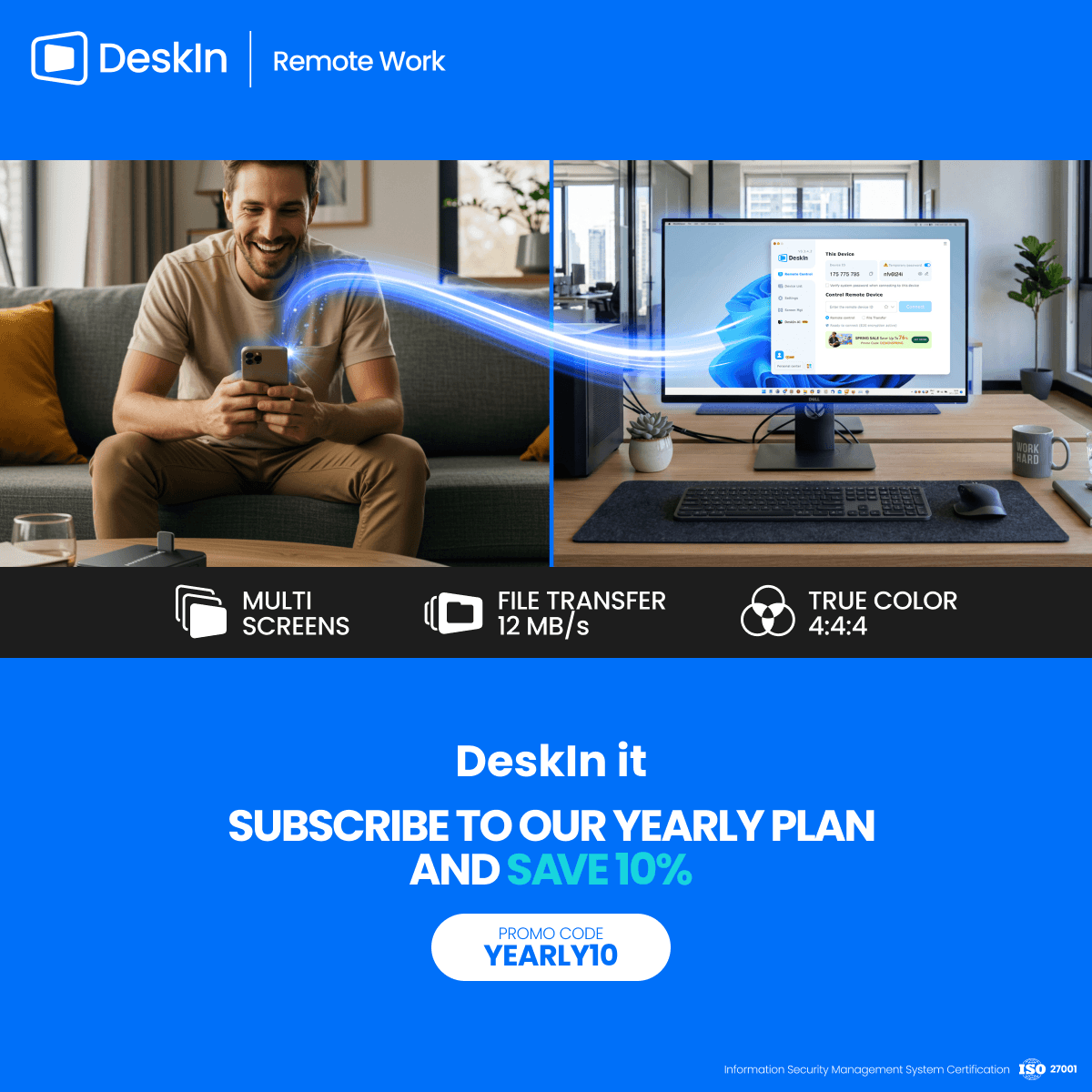

Ubah iPad Menjadi Monitor Kedua Untuk Komputer Windows Dan Mac
A second monitor can make everyday work feel much easier, especially when you are switching between research, documents, meetings, design files, or dashboards. If you already own an iPad, you may be able to use it as an extra display instead of buying another monitor.
This guide explains how to use an iPad as a second monitor for Mac with Apple Sidecar, and how Windows or cross-platform users can use DeskIn screen extension on supported paid plans.
Increase screen space so you can view more content at the same time. This helps reduce constant window switching during multitasking.
Keep each screen focused on a different task. For example, you can edit a video on one screen and keep source materials on the other, or write a paper while browsing references side by side.
Use the iPad display you already have. For students, remote workers, and light creative work, an iPad can be a convenient and cost-effective second-screen option.
Save desk space and avoid carrying another external monitor when you work from home, travel, or move between rooms.
Apple Sidecar lets compatible iPads work as an external display for compatible MacBook and iMac devices. It is a good native option if both devices support Sidecar and are signed in with the same Apple ID.
Note: To use Apple Sidecar, your Mac and iPad should use the same Apple ID, have Bluetooth and Wi-Fi turned on, and stay within close wireless range. Sidecar availability depends on Apple device and operating system compatibility.
Open the Mac System Settings >> Click "Display" in the sidebar >> Click the "+" pop up menu on the right and choose your iPad.
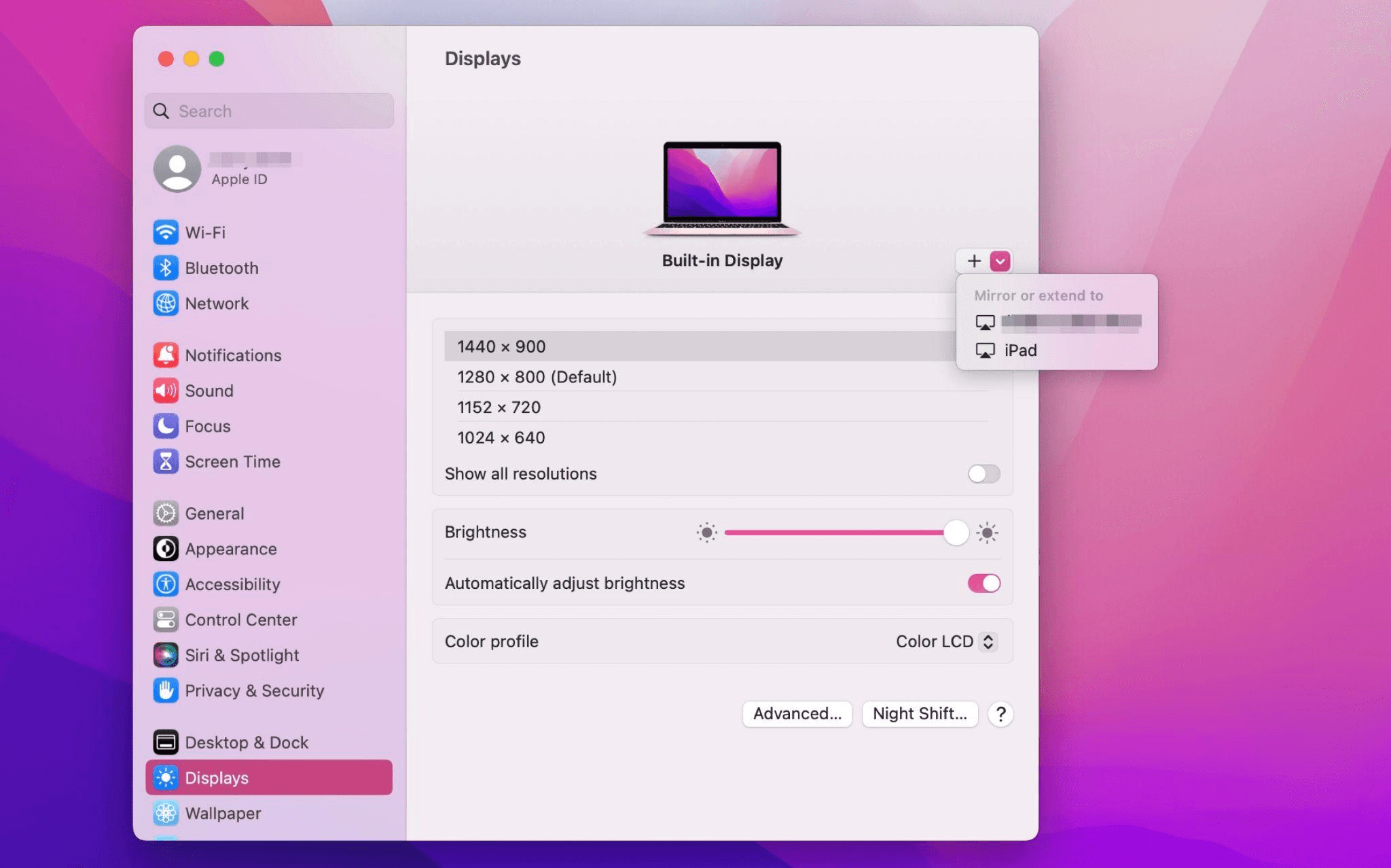
Select the iPad, change the Use as settings to "Extended Display". Check the Airplay settings on the top toolbar of the mac and set iPad as "Use As Separate Display".
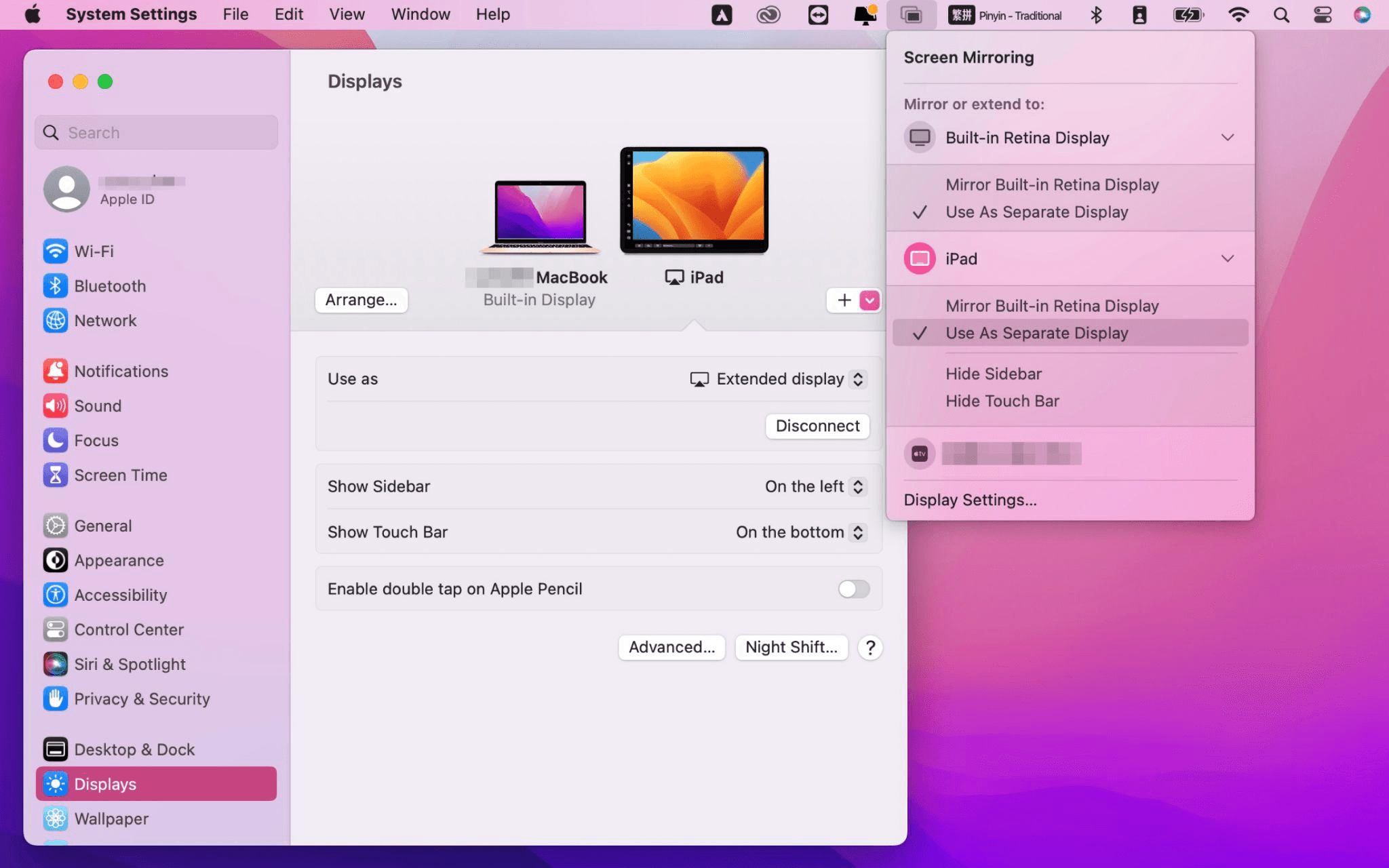
After completing the settings, your iPad will become the second display for your Mac. You can drag windows from your Mac to your iPad smoothly. You can also use the sidebar on the iPad or change the position of the sidebar on the system display settings.
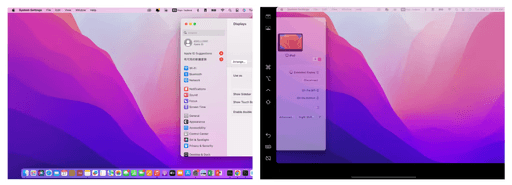
MacBook Screen (Left) and iPad Screen (Right)
Apple Sidecar only supports mac released after 2016 and iPadOS13 or newer. If you are using an old Apple device or a Windows device, you can still use DeskIn remote software to do the screen extension. It supports using iPad as a second display for Mac and Windows, and the smoothness is no worse than sidecar.
Install DeskIn on both your computer and iPad. Sign in to your DeskIn account on each device. When you log in on a new device for the first time, you may need to complete email verification to help protect your account.

To use Screen Extension, you'll need to subscribe to any Premium plan. Click here to view DeskIn plans.
Open DeskIn on your Windows or Mac computer, go to the screen management area, and choose the screen extension option. Select your iPad as the target display and start extending.
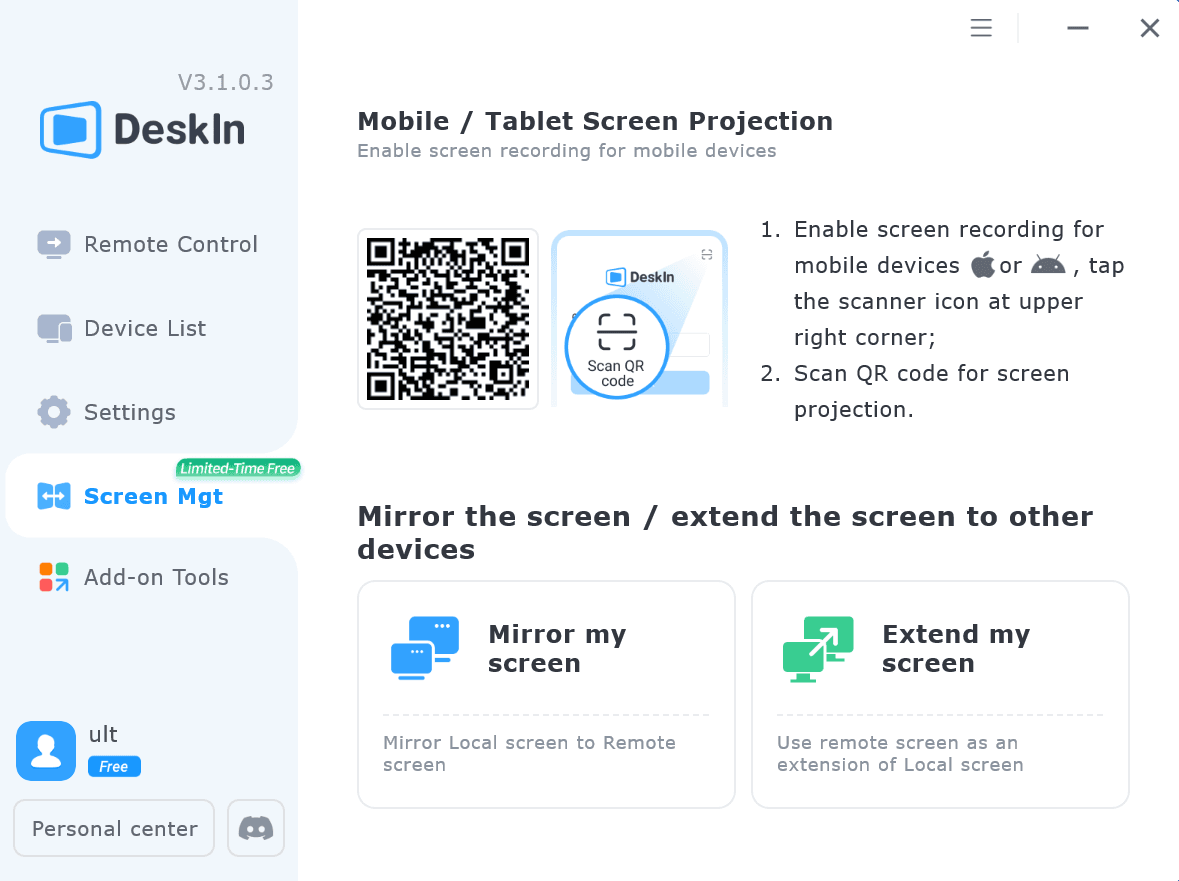
Once connected, your iPad can work as an additional display, letting you move windows between your computer and iPad for a wider workspace.
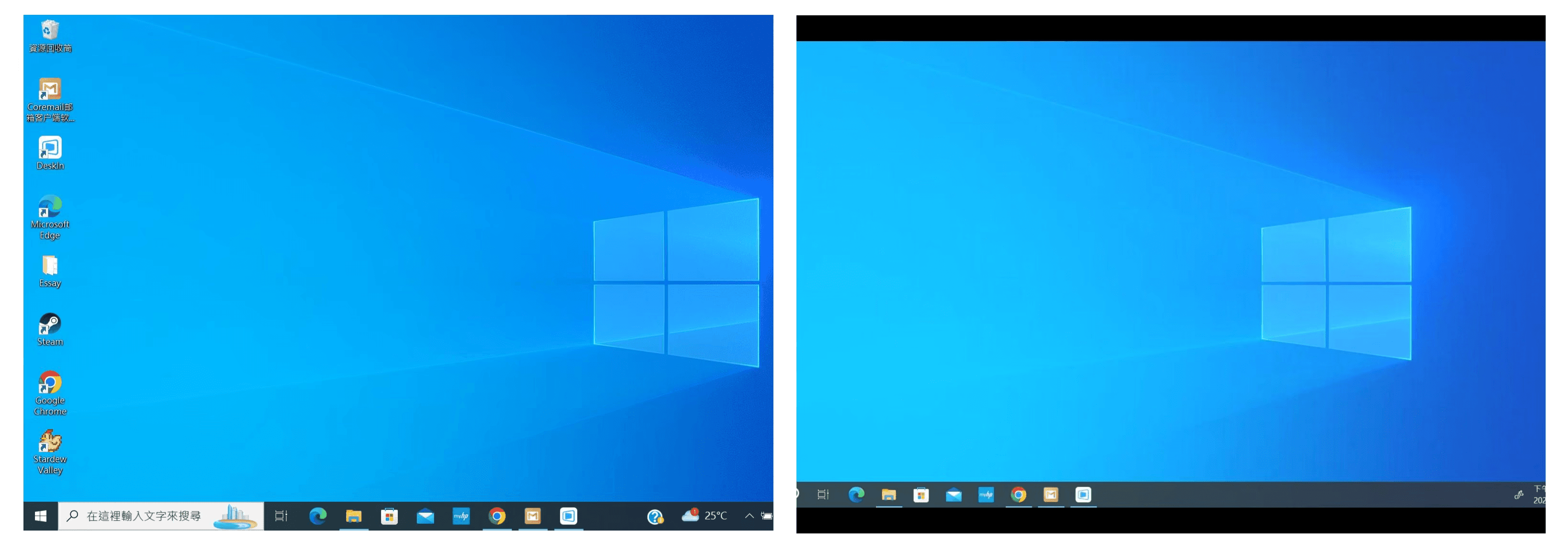
Computer Screen (Left) and iPad Screen (Right)
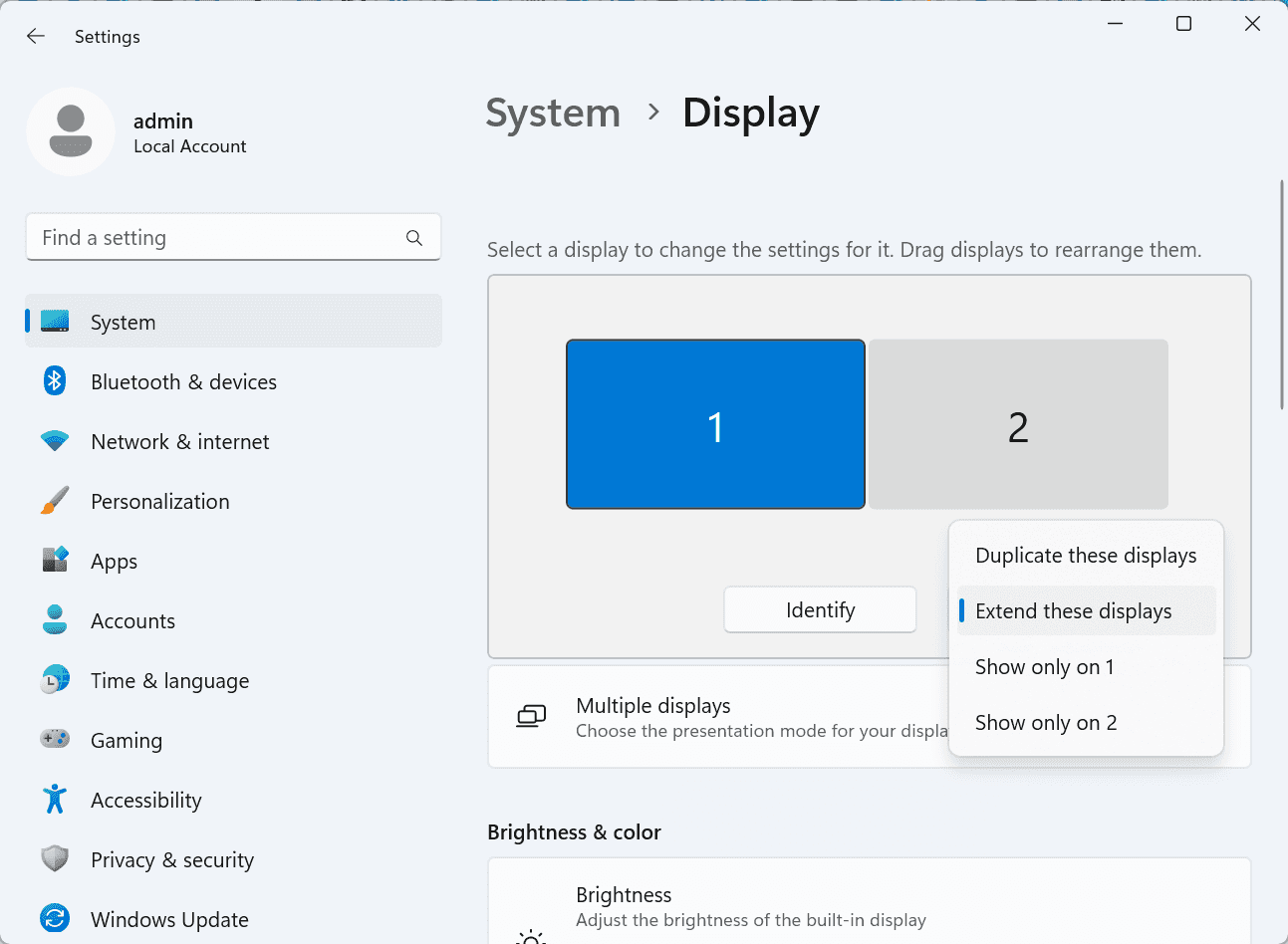
After extension, if you find that your iPad is only mirroring the content on your computer screen, please go to Windows System Settings >> Display Settings and change the screen option to "Extend these displays". You can also modify the screen position by dragging the 2 screens.
Need | Best Option | Why |
Use iPad as a second monitor for a compatible Mac | Apple Sidecar | Built into Apple devices and easy to set up when both devices are compatible. |
Use iPad as a second monitor for Windows | DeskIn | Sidecar does not support Windows, while DeskIn supports cross-platform screen extension on eligible plans. |
Work across Windows, macOS, iPad, Android tablets, and mobile devices | DeskIn | Better suited for users who need cross-platform remote access and flexible device combinations. |
Yes. Windows does not support Apple Sidecar, but you can use DeskIn screen extension on a paid plan that includes this feature to turn your iPad into an additional display for a Windows computer.
DeskIn Screen Extension is included in all paid plans. After subscribing, you can use it across all supported systems with no restrictions.
Yes. DeskIn supports using an iPad as an additional screen with Windows and Mac computers when your plan includes screen mirroring or screen extension.
Using an iPad as a second monitor is a practical way to expand your workspace without buying another display. Mac users with compatible devices can use Apple Sidecar, while Windows and cross-platform users can use DeskIn screen extension on eligible paid plans.
If you want to work across Windows, macOS, iPad, and other devices, DeskIn gives you a flexible way to build a portable multi-screen workspace. Download DeskIn and choose the plan that fits your screen extension and remote access needs.

Top 6 RustDesk Alternative Tools for Faster, Easier Remote Access
Remote access should feel like flipping a light switch, not decoding a control panel. Yet many users exploring RustDesk eventually run into friction: connection IDs, server setup, or occasional lag. While RustDesk is powerful, it’s not always the easiest or smoothest option, especially for non-technical users.
That’s why more people are actively searching for a reliable RustDesk alternative that combines performance, simplicity, and flexibility. Whether you want a plug-and-play solution or something more advanced, this guide will help you find the best fit.
RustDesk stands out as a privacy-friendly, self-hosted remote desktop tool. However, real-world usage reveals a few common challenges:
Complicated setup for the RustDesk self-hosted environments
Manual connection steps requiring IDs and passwords
Occasional latency or unstable connections
Limited user-friendly features out of the box
For many users, especially those helping family or managing multiple devices, simplicity matters just as much as control.
When evaluating a RustDesk alternative, focus on these key factors:
Ease of use: Quick setup without technical overhead
Performance: Smooth, low-latency remote sessions
Compatibility: Support for Windows, macOS, Linux, and mobile
Security: Strong encryption and access controls
Flexibility: Options ranging from cloud-based to open source
The ideal tool strikes a balance between power and convenience, something many modern solutions now deliver better than traditional setups.
Here’s a quick breakdown of the top tools and where they shine:
DeskIn – Best all-in-one RustDesk alternative for performance and ease of use
AnyDesk – Best lightweight tool for fast connections
TeamViewer – Best for enterprise-grade remote support
MeshCentral – Best open-source and self-hosted solution
DWService – Best free browser-based tool
Chrome Remote Desktop – Best simple, no-frills option
Ultra-low latency with smooth high-frame-rate streaming
No complex setup or server deployment required
Cross-platform including Rustdesk alternative for Android
Secure with encryption and device control features
Built-in file transfer and multi-device management
Smaller awareness than legacy competitors
Best for: Users who want a powerful yet simple remote desktop solution
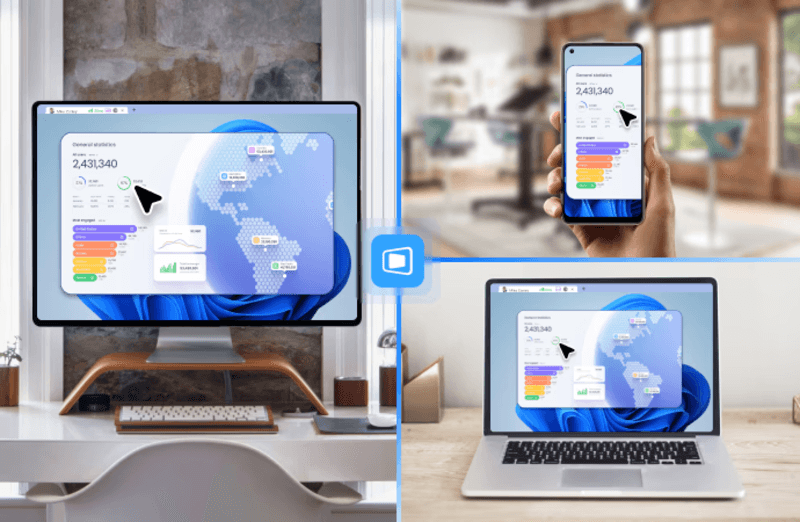
DeskIn removes the friction that often comes with remote access tools. Instead of relying on IDs or manual configurations, it offers a streamlined connection experience that works right out of the box. This makes it especially valuable for users supporting non-technical family members or managing multiple remote devices.
Performance is where DeskIn truly distinguishes itself. Compared to RustDesk, which can sometimes struggle with latency, DeskIn delivers consistently smooth sessions with minimal lag. It also eliminates the need for self-hosting, making it a strong free RustDesk alternative option for users who want powerful features without the complexity.
For those exploring options beyond the RustDesk alternative GitHub projects, DeskIn provides a polished, ready-to-use experience that balances simplicity with professional-grade performance.
Lightweight and fast installation
Good performance on low bandwidth
Cross-platform support
Easy-to-use interface
Performance may drop during long sessions
File transfer can be inconsistent
Best for: Users needing quick and simple remote access
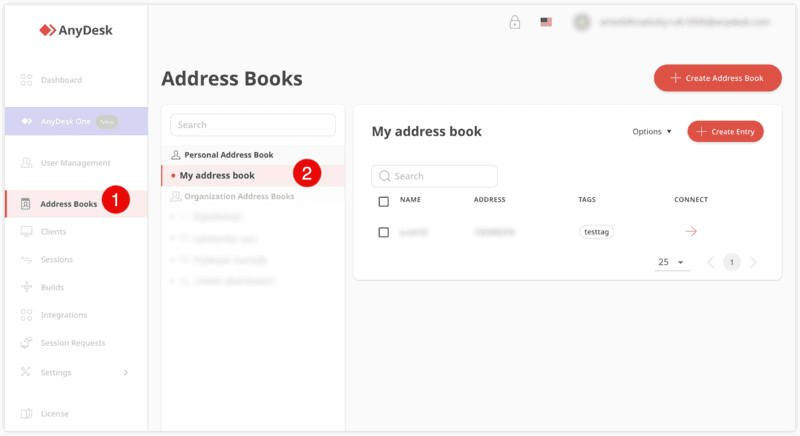
AnyDesk is often considered a natural step up from RustDesk for users who want something easier to deploy. It offers a lightweight application that connects quickly and performs well under normal conditions. This makes it suitable for quick troubleshooting or occasional remote access.
However, performance consistency can be an issue. Users frequently report lag or instability during extended sessions or when handling more demanding tasks. While AnyDesk is a solid option for basic needs, it may not fully satisfy users looking for a more robust, all-in-one solution.
👀 You may also be interested in: |
|---|
Enterprise-grade security with encryption and 2FA
Stable performance across global networks
Rich features like file transfer and session recording
Broad device compatibility
Expensive for commercial use
Free version has limitations
Heavier resource usage on some systems
Best for: Businesses and IT teams managing multiple endpoints
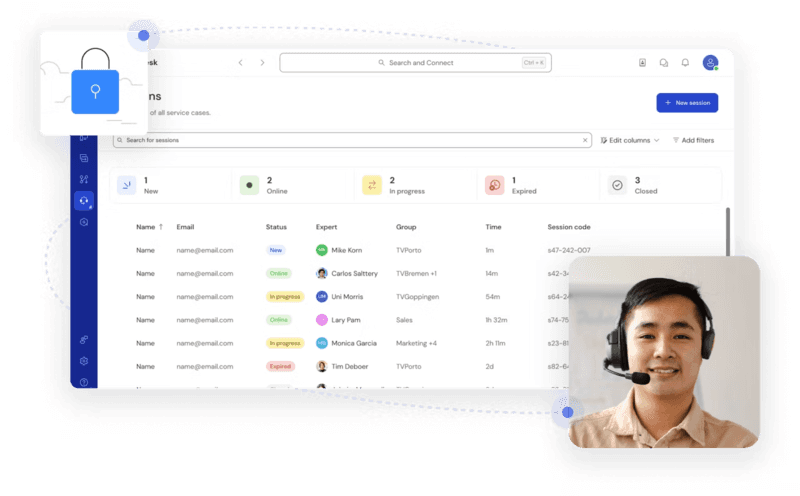
TeamViewer has long been a dominant player in the remote desktop space, offering a comprehensive suite of features designed for enterprise environments. It excels in reliability and global connectivity, making it a popular choice for IT support teams.
That said, its pricing model is a major drawback for many users. Frequent users may quickly encounter licensing restrictions, and costs can escalate for businesses. Additionally, its heavier footprint can impact performance on lower-end devices. DeskIn offers a more modern alternative by delivering similar performance and essential features without the same cost barriers. For users who want enterprise-level capabilities with better efficiency, it presents a compelling option.
👀 You may also be interested in: |
|---|
Fully RustDesk alternative open source solution
Web-based management dashboard
Supports multi-device environments
Strong customization and control
Complex setup and maintenance
Requires technical expertise
Best for: Advanced users needing a Rustdesk alternative self-hosted
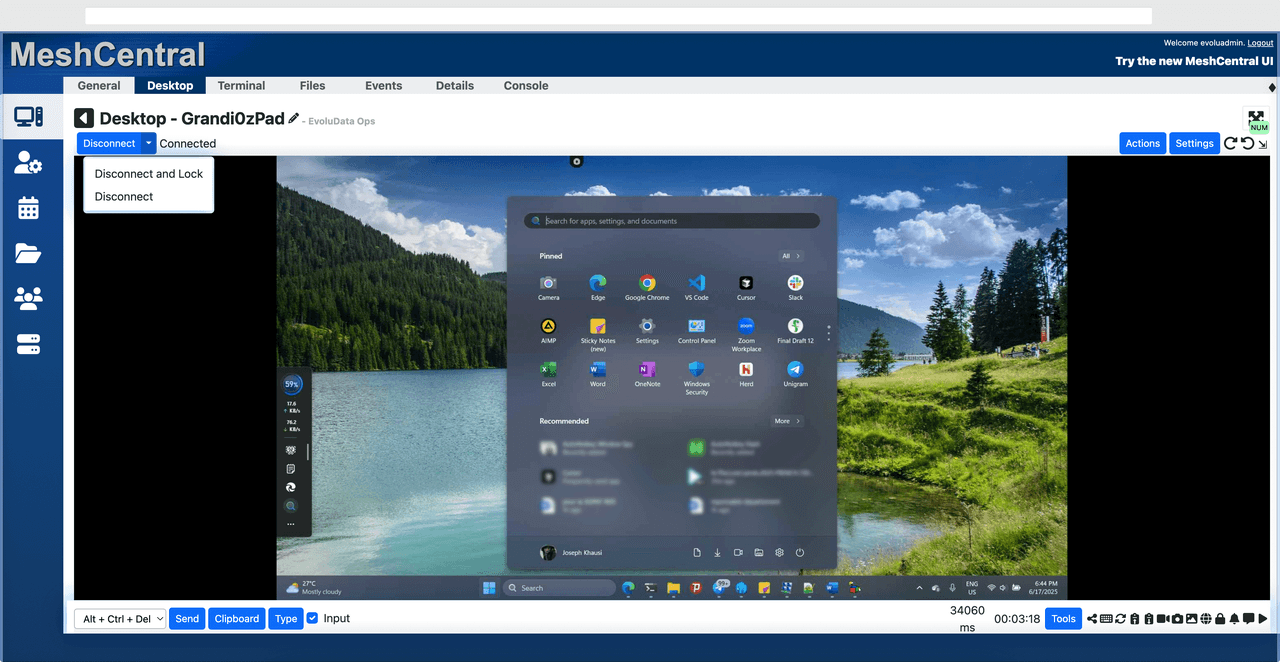
MeshCentral is a powerful open-source platform designed for users who want full control over their remote access infrastructure. It supports multiple devices and provides a centralized dashboard for management, making it attractive for IT professionals.
However, this flexibility comes with complexity. Setting up and maintaining a MeshCentral server requires technical knowledge, which can be a barrier for many users. Compared to this, DeskIn offers a much simpler deployment process while still delivering strong performance and security. For users who prioritize ease of use over full control, modern solutions like DeskIn provide a more accessible alternative.
Completely free
Browser-based access
Open-source foundation
Simple setup
Limited performance
Basic feature set
Best for: Users looking for a simple, free RustDesk alternative
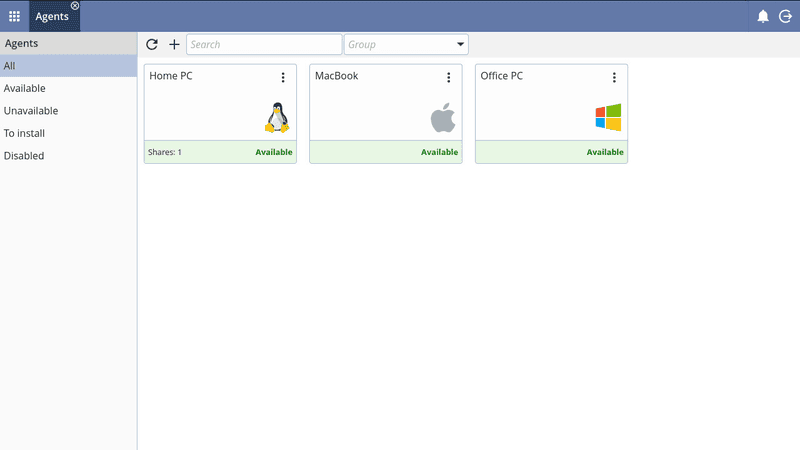
DWService offers a browser-based approach to remote access with no heavy installation, making it convenient for quick connections in restricted environments. It supports both desktop access and file management across major platforms.
However, performance often feels sluggish, especially on demanding tasks, and features remain basic; lacking session recording, smooth multi-monitor support, or advanced security controls. While suitable for occasional personal use, it falls short for professional or high-performance scenarios.
Free and easy to use
Browser-based setup
Cross-platform compatibility
Very limited features
No advanced management or collaboration tools
Best for: Casual users needing basic remote access
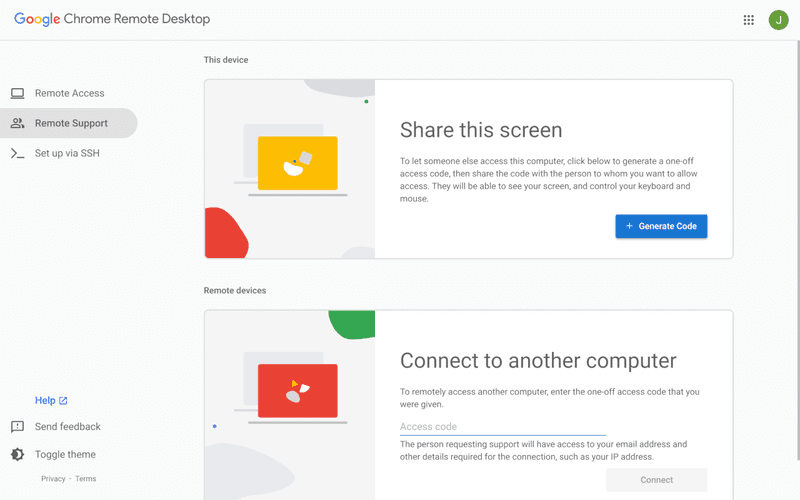
Chrome Remote Desktop is one of the simplest remote access tools available. It’s easy to set up and works across devices, making it a convenient choice for occasional use.
However, it lacks many essential features such as file transfer, session management, and advanced security controls. For users with more demanding needs, it quickly becomes insufficient. Compared to Chrome Remote Desktop, DeskIn provides a much more complete experience without sacrificing ease of use, making it a better long-term solution.
👀 You may also be interested in: |
|---|
RustDesk is powerful but can be difficult to set up and manage, especially with self-hosting. Many users prefer tools that offer similar performance without technical complexity. DeskIn simplifies remote access while maintaining strong performance and security.
Several tools qualify as a free RustDesk alternative, including DWService and Chrome Remote Desktop. However, DeskIn stands out by offering better performance and usability even in its free version.
Yes, tools like MeshCentral and DWService are considered RustDesk alternative open source options. They provide flexibility and control but often require technical expertise to set up and maintain.
Beginners should choose tools with a simple setup and intuitive interfaces. DeskIn is an excellent option because it removes the need for manual configuration while still delivering advanced features.
RustDesk is a powerful starting point, but it’s not always the easiest or most efficient tool for everyday use. From setup complexity to performance limitations, many users eventually look for a better RustDesk alternative.
Among all the options, DeskIn stands out as the most balanced solution. It combines speed, simplicity, and cross-platform support into one seamless experience. If you’re ready to move beyond technical friction and enjoy truly smooth remote access, DeskIn is a choice that simply works.
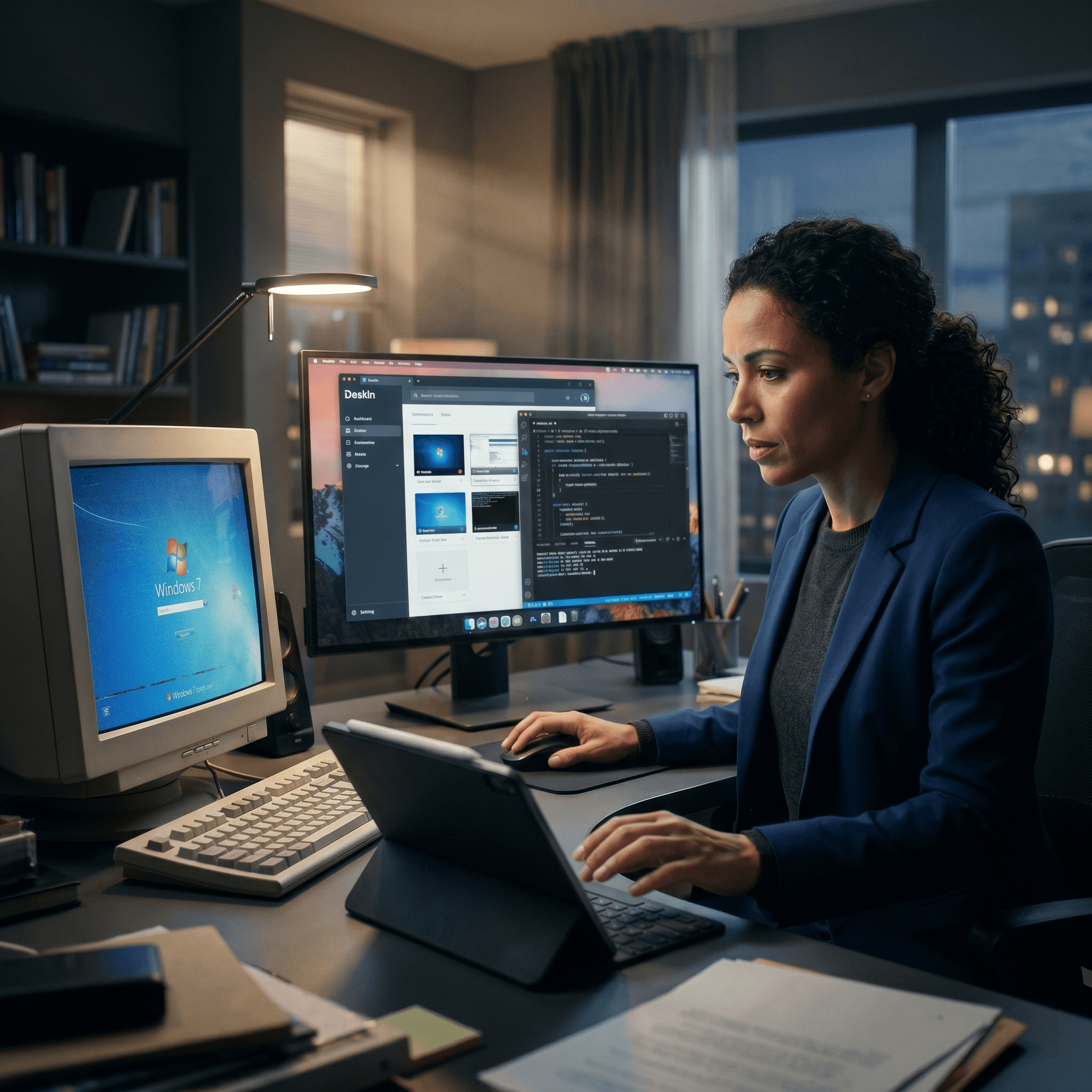
Top 7 RDP Alternative Tools for Faster, Safer Remote Access
Remote desktop access used to feel like a solid bridge. Now, for many users, traditional RDP feels more like a creaky rope ladder. With performance issues, security concerns, and limited cross-platform support, it's no surprise that more people are actively searching for a better RDP alternative that actually keeps up with modern workflows.
If you're managing multiple servers, working across devices, or just tired of unstable connections, this guide will walk you through the best tools worth switching to.
RDP (Remote Desktop Protocol) is a proprietary protocol developed by Microsoft that allows users to connect to another computer over a network. It's widely used for accessing Windows servers, virtual machines, and remote workstations.
While powerful in controlled environments, RDP is often tied to Windows systems and requires configuration like port forwarding or VPNs. Compared to newer tools, it can feel rigid and outdated.
You may also be interested in: |
|---|
RDP still works, but it comes with trade-offs that many users find frustrating:
Security risks if not properly configured
Complex setup for remote or external access
Limited cross-platform compatibility
Performance issues over unstable networks
Many IT teams are now actively replacing it, especially when looking for a Windows RDP client alternative or something that works seamlessly across macOS, Linux, and mobile devices. That's where modern Remote Desktop alternatives shine.
Choosing the right tool is like picking the right vehicle. Some are built for speed, others for heavy-duty enterprise work. Here's a quick snapshot:
DeskIn – Best all-in-one RDP alternative for performance and cross-platform use
TeamViewer – Best for enterprise remote support
AnyDesk – Best lightweight option for fast connections
RustDesk – Best Windows RDP alternative open-source solution
Remmina – Best RDP alternative for Linux users
Chrome Remote Desktop – Best simple browser-based tool
Splashtop – Best for high-performance business environments
Ultra-low latency with smooth high-frame-rate streaming
Works across Windows, macOS, Linux, iOS, and Android
Strong encryption and secure access controls
Built-in file transfer and multi-session support
Newer compared to legacy brands
Best for: Users who want a powerful, flexible RDP alternative
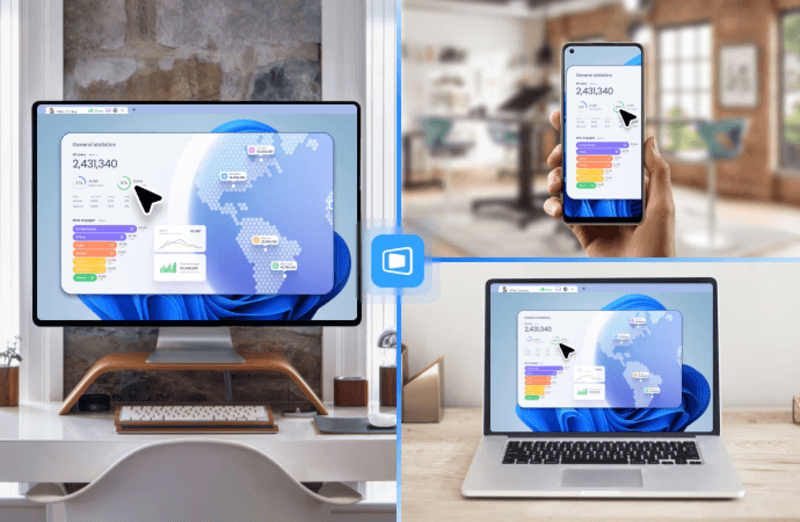
DeskIn feels less like remote access and more like teleportation for your desktop. Whether you're managing servers, supporting clients, or working remotely, it delivers consistently smooth performance without the usual lag spikes seen in traditional RDP setups.
Unlike many tools, DeskIn eliminates the need for complex configurations. You don't need to wrestle with firewalls or VPNs just to connect. It also works seamlessly across platforms, making it a strong alternative to Microsoft Remote Desktop for Mac and mobile users alike.
For teams juggling multiple systems, DeskIn provides a unified experience that replaces fragmented workflows. It's also a strong free RDP alternative option with premium-level capabilities, making it ideal for both individuals and businesses.
Enterprise-grade security and compliance
Extensive feature set including collaboration tools
Cross-platform compatibility
Reliable global performance
Expensive licensing
Can be overkill for individuals
Best for: Enterprises needing secure and scalable remote access
TeamViewer is a comprehensive remote desktop platform widely adopted by IT teams, support professionals, and enterprises. Its feature set extends far beyond simple screen sharing—it includes robust device management, remote printing, file transfer, session recording, and even augmented reality support for field service. TeamViewer's security architecture relies on AES‑256 encryption, two‑factor authentication, and whitelisting, making it suitable for organizations with strict compliance requirements. It runs on virtually every operating system and mobile platform.
The main trade‑off is its pricing: licenses are subscription‑based and can become expensive for small teams or individual users, especially as TeamViewer aggressively flags personal use as commercial, leading to session restrictions.
Fast and responsive
Lightweight installation
Works well on low bandwidth
Easy to use
File transfer can be inconsistent
Lag during longer sessions
Best for: Users needing quick, simple remote access
AnyDesk is a lightweight remote desktop application prized for its speed and efficiency, often recommended as a fast alternative to Microsoft's native Remote Desktop on Windows 10 and Android. It uses a proprietary video codec, DeskRT, to achieve low latency even on limited bandwidth, making it ideal for quick support sessions and accessing devices over mobile networks. The interface is clean and minimalist, with features like address book management, file transfer, and session recording available.
However, users frequently report instability during extended sessions; performance can degrade over time, and file transfers may slow considerably compared to competitors. While its free version is generous for personal use, professional users often find the performance ceiling limits its suitability for continuous, demanding workloads. DeskIn, by contrast, maintains consistent performance even during extended use, making it better suited for professional workloads.
You may also be interested in: |
|---|
Free and open-source
Self-hosting for full control
Strong privacy protection
Active community
Technical setup required
Limited user-friendly features
Best for: Developers and privacy-focused users
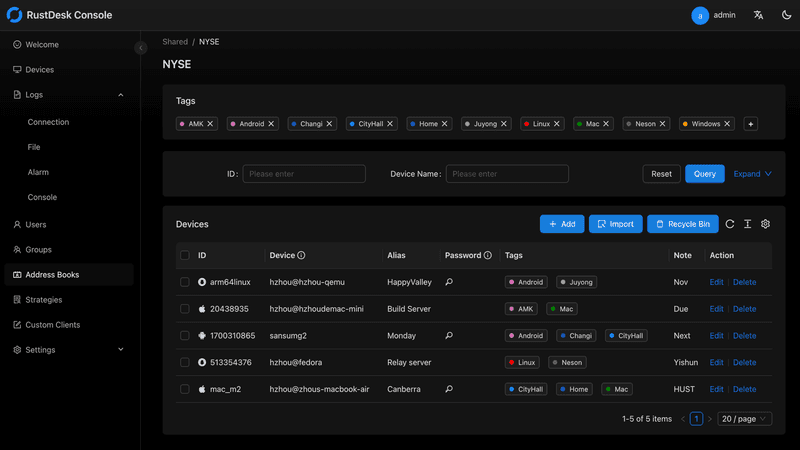
RustDesk has emerged as a leading open‑source remote desktop alternative, appealing to developers and organizations that require full control over their data. It allows users to self‑host the relay and rendezvous servers, meaning no third‑party infrastructure handles connection metadata. Built with Rust, it offers a modern codebase with cross‑platform clients (Windows, macOS, Linux, Android, iOS) and supports essential features such as file transfer, TCP tunneling, and customizable address books.
The major barrier is its complexity: deploying a self‑hosted environment requires technical expertise to configure firewalls, SSL certificates, and ongoing server maintenance. For those using the public relay, performance can be inconsistent depending on server load and geographic proximity.
You may also be interested in: Top RustDesk Alternatives for Better Performance, Security & Ease of Use |
|---|
Open-source and free
Supports multiple protocols including RDP and VNC
Lightweight and flexible
Native to Linux environments
Limited features compared to modern tools
UI can feel outdated
Best for: Linux users looking for a traditional RDP alternative Linux
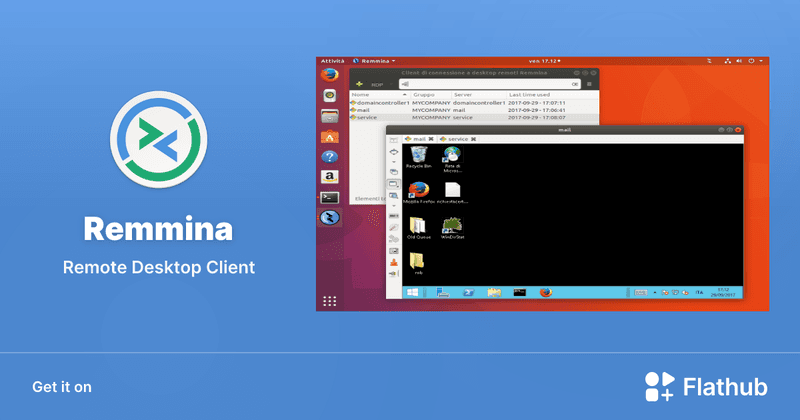
Remmina is a beloved open‑source remote desktop client for Linux, supporting multiple protocols (RDP, VNC, SSH, SPICE, and others) in a single unified interface. It is frequently chosen by system administrators and Linux enthusiasts who need a flexible, lightweight tool to manage diverse environments. Remmina offers tabbed sessions, quick‑connect profiles, and a plugin system that extends its capabilities.
However, its strength - protocol flexibility, also highlights its limitations. As a frontend client rather than a full remote access solution, it lacks features like unattended access, centralized account management, or robust session recording out of the box. Performance can vary by protocol, and the user experience lags behind more polished commercial tools, particularly for users seeking a plug‑and‑play setup.
Free and easy to use
Browser-based setup
Cross-platform access
Very limited features
No advanced management tools
Best for: Casual users needing basic remote access
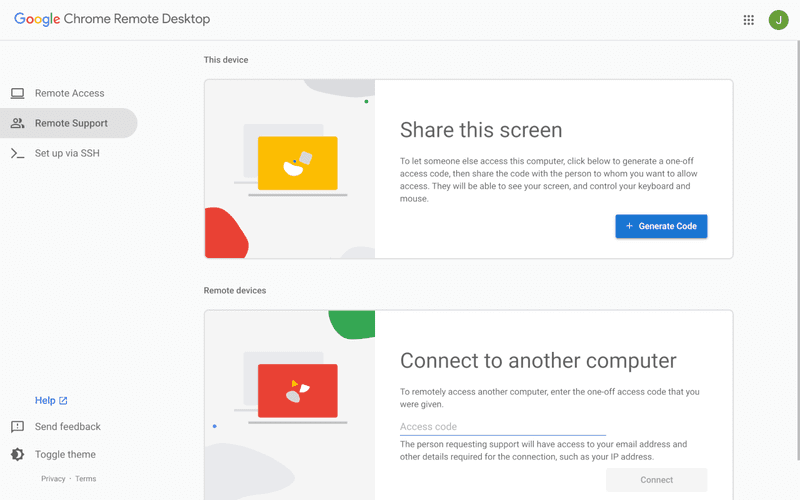
Chrome Remote Desktop is a free, browser‑based remote access tool from Google that requires nothing more than a Chrome browser and a Google account. It excels in simplicity: installation takes seconds, and connections are mediated through Google's infrastructure, eliminating complex firewall configurations. For occasional use—such as helping a family member or quickly accessing a home computer—it works reliably across Windows, macOS, Linux, and even ChromeOS.
The trade‑off is its minimal feature set. There is no native file transfer, multi‑session management, remote printing, or granular permission controls. Collaboration tools are absent, and the reliance on a Google account for authentication can be a limitation in professional environments. It remains a convenient entry‑level tool but struggles to meet the needs of power users or IT teams.
You may also be interested in: |
|---|
High-quality streaming performance
Strong security features
Good for business environments
Reliable connections
Subscription-based pricing
Limited free version
Best for: Businesses needing performance-focused remote access
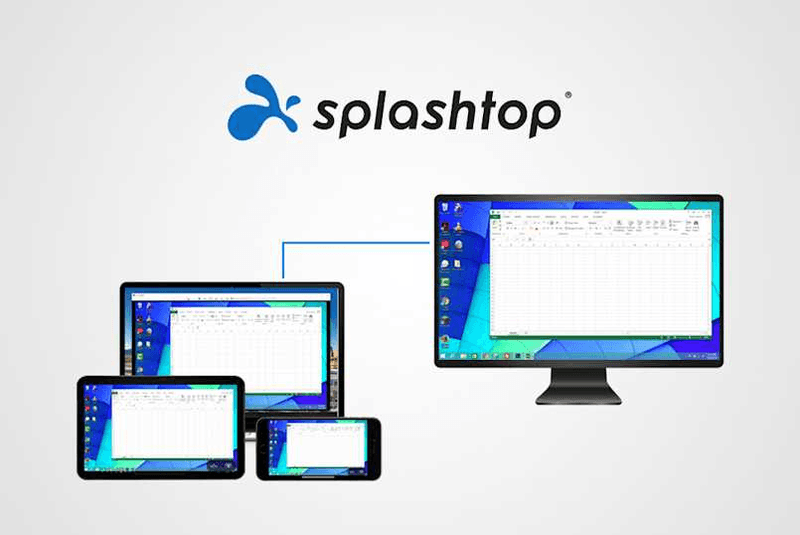
Splashtop is a high‑performance remote desktop solution frequently adopted by creative professionals, educational institutions, and enterprises that prioritize fluid interaction. It delivers low‑latency streaming with support for high‑frame‑rate displays, making it suitable for video editing, CAD work, and other graphics‑intensive tasks. Splashtop offers a range of editions—from Business Access to SOS for on‑demand support—all of which include robust security (AES‑256, device authentication) and features like file transfer, remote printing, and multi‑monitor navigation. Its performance over local networks and the internet is consistently praised.
The primary drawback is cost: while competitive, the subscription model can accumulate quickly for users needing access to multiple devices or advanced features, especially when compared to similarly capable tools with more flexible pricing structures. DeskIn offers similar performance benefits with a more flexible pricing structure, making it a compelling alternative.
You may also be interested in: |
|---|
RDP can be difficult to configure, less secure if exposed, and limited outside Windows environments. Modern tools like DeskIn provide better performance, security, and ease of use.
The best RDP alternative depends on your needs, but DeskIn stands out for its balance of speed, security, and cross-platform compatibility.
Yes, several tools qualify as an RDP alternative free, including RustDesk and Chrome Remote Desktop. DeskIn also offers a free tier with advanced capabilities.
Microsoft is evolving its remote desktop ecosystem, but traditional RDP isn't disappearing overnight. However, many users are already transitioning to more modern solutions like DeskIn for better reliability and flexibility.
RDP has served its purpose, but the digital world has outgrown its limitations. Whether you need better performance, stronger security, or true cross-platform access, switching to a modern RDP alternative is no longer optional, it's inevitable.
Among all the options, DeskIn stands out as a future-ready solution. It combines speed, simplicity, and power into one seamless experience, helping you leave behind the friction of traditional remote desktop tools and step into something far more efficient.
Ubah iPad Menjadi Monitor Kedua Untuk Komputer Windows Dan Mac
A second monitor can make everyday work feel much easier, especially when you are switching between research, documents, meetings, design files, or dashboards. If you already own an iPad, you may be able to use it as an extra display instead of buying another monitor.
This guide explains how to use an iPad as a second monitor for Mac with Apple Sidecar, and how Windows or cross-platform users can use DeskIn screen extension on supported paid plans.
Increase screen space so you can view more content at the same time. This helps reduce constant window switching during multitasking.
Keep each screen focused on a different task. For example, you can edit a video on one screen and keep source materials on the other, or write a paper while browsing references side by side.
Use the iPad display you already have. For students, remote workers, and light creative work, an iPad can be a convenient and cost-effective second-screen option.
Save desk space and avoid carrying another external monitor when you work from home, travel, or move between rooms.
Apple Sidecar lets compatible iPads work as an external display for compatible MacBook and iMac devices. It is a good native option if both devices support Sidecar and are signed in with the same Apple ID.
Note: To use Apple Sidecar, your Mac and iPad should use the same Apple ID, have Bluetooth and Wi-Fi turned on, and stay within close wireless range. Sidecar availability depends on Apple device and operating system compatibility.
Open the Mac System Settings >> Click "Display" in the sidebar >> Click the "+" pop up menu on the right and choose your iPad.
Select the iPad, change the Use as settings to "Extended Display". Check the Airplay settings on the top toolbar of the mac and set iPad as "Use As Separate Display".
After completing the settings, your iPad will become the second display for your Mac. You can drag windows from your Mac to your iPad smoothly. You can also use the sidebar on the iPad or change the position of the sidebar on the system display settings.
MacBook Screen (Left) and iPad Screen (Right)
Apple Sidecar only supports mac released after 2016 and iPadOS13 or newer. If you are using an old Apple device or a Windows device, you can still use DeskIn remote software to do the screen extension. It supports using iPad as a second display for Mac and Windows, and the smoothness is no worse than sidecar.
Install DeskIn on both your computer and iPad. Sign in to your DeskIn account on each device. When you log in on a new device for the first time, you may need to complete email verification to help protect your account.
To use Screen Extension, you'll need to subscribe to any Premium plan. Click here to view DeskIn plans.
Open DeskIn on your Windows or Mac computer, go to the screen management area, and choose the screen extension option. Select your iPad as the target display and start extending.
Once connected, your iPad can work as an additional display, letting you move windows between your computer and iPad for a wider workspace.
Computer Screen (Left) and iPad Screen (Right)
After extension, if you find that your iPad is only mirroring the content on your computer screen, please go to Windows System Settings >> Display Settings and change the screen option to "Extend these displays". You can also modify the screen position by dragging the 2 screens.
Need | Best Option | Why |
Use iPad as a second monitor for a compatible Mac | Apple Sidecar | Built into Apple devices and easy to set up when both devices are compatible. |
Use iPad as a second monitor for Windows | DeskIn | Sidecar does not support Windows, while DeskIn supports cross-platform screen extension on eligible plans. |
Work across Windows, macOS, iPad, Android tablets, and mobile devices | DeskIn | Better suited for users who need cross-platform remote access and flexible device combinations. |
Yes. Windows does not support Apple Sidecar, but you can use DeskIn screen extension on a paid plan that includes this feature to turn your iPad into an additional display for a Windows computer.
DeskIn Screen Extension is included in all paid plans. After subscribing, you can use it across all supported systems with no restrictions.
Yes. DeskIn supports using an iPad as an additional screen with Windows and Mac computers when your plan includes screen mirroring or screen extension.
Using an iPad as a second monitor is a practical way to expand your workspace without buying another display. Mac users with compatible devices can use Apple Sidecar, while Windows and cross-platform users can use DeskIn screen extension on eligible paid plans.
If you want to work across Windows, macOS, iPad, and other devices, DeskIn gives you a flexible way to build a portable multi-screen workspace. Download DeskIn and choose the plan that fits your screen extension and remote access needs.
Top 6 RustDesk Alternative Tools for Faster, Easier Remote Access
Remote access should feel like flipping a light switch, not decoding a control panel. Yet many users exploring RustDesk eventually run into friction: connection IDs, server setup, or occasional lag. While RustDesk is powerful, it’s not always the easiest or smoothest option, especially for non-technical users.
That’s why more people are actively searching for a reliable RustDesk alternative that combines performance, simplicity, and flexibility. Whether you want a plug-and-play solution or something more advanced, this guide will help you find the best fit.
RustDesk stands out as a privacy-friendly, self-hosted remote desktop tool. However, real-world usage reveals a few common challenges:
Complicated setup for the RustDesk self-hosted environments
Manual connection steps requiring IDs and passwords
Occasional latency or unstable connections
Limited user-friendly features out of the box
For many users, especially those helping family or managing multiple devices, simplicity matters just as much as control.
When evaluating a RustDesk alternative, focus on these key factors:
Ease of use: Quick setup without technical overhead
Performance: Smooth, low-latency remote sessions
Compatibility: Support for Windows, macOS, Linux, and mobile
Security: Strong encryption and access controls
Flexibility: Options ranging from cloud-based to open source
The ideal tool strikes a balance between power and convenience, something many modern solutions now deliver better than traditional setups.
Here’s a quick breakdown of the top tools and where they shine:
DeskIn – Best all-in-one RustDesk alternative for performance and ease of use
AnyDesk – Best lightweight tool for fast connections
TeamViewer – Best for enterprise-grade remote support
MeshCentral – Best open-source and self-hosted solution
DWService – Best free browser-based tool
Chrome Remote Desktop – Best simple, no-frills option
Ultra-low latency with smooth high-frame-rate streaming
No complex setup or server deployment required
Cross-platform including Rustdesk alternative for Android
Secure with encryption and device control features
Built-in file transfer and multi-device management
Smaller awareness than legacy competitors
Best for: Users who want a powerful yet simple remote desktop solution
DeskIn removes the friction that often comes with remote access tools. Instead of relying on IDs or manual configurations, it offers a streamlined connection experience that works right out of the box. This makes it especially valuable for users supporting non-technical family members or managing multiple remote devices.
Performance is where DeskIn truly distinguishes itself. Compared to RustDesk, which can sometimes struggle with latency, DeskIn delivers consistently smooth sessions with minimal lag. It also eliminates the need for self-hosting, making it a strong free RustDesk alternative option for users who want powerful features without the complexity.
For those exploring options beyond the RustDesk alternative GitHub projects, DeskIn provides a polished, ready-to-use experience that balances simplicity with professional-grade performance.
Lightweight and fast installation
Good performance on low bandwidth
Cross-platform support
Easy-to-use interface
Performance may drop during long sessions
File transfer can be inconsistent
Best for: Users needing quick and simple remote access
AnyDesk is often considered a natural step up from RustDesk for users who want something easier to deploy. It offers a lightweight application that connects quickly and performs well under normal conditions. This makes it suitable for quick troubleshooting or occasional remote access.
However, performance consistency can be an issue. Users frequently report lag or instability during extended sessions or when handling more demanding tasks. While AnyDesk is a solid option for basic needs, it may not fully satisfy users looking for a more robust, all-in-one solution.
👀 You may also be interested in: |
|---|
Enterprise-grade security with encryption and 2FA
Stable performance across global networks
Rich features like file transfer and session recording
Broad device compatibility
Expensive for commercial use
Free version has limitations
Heavier resource usage on some systems
Best for: Businesses and IT teams managing multiple endpoints
TeamViewer has long been a dominant player in the remote desktop space, offering a comprehensive suite of features designed for enterprise environments. It excels in reliability and global connectivity, making it a popular choice for IT support teams.
That said, its pricing model is a major drawback for many users. Frequent users may quickly encounter licensing restrictions, and costs can escalate for businesses. Additionally, its heavier footprint can impact performance on lower-end devices. DeskIn offers a more modern alternative by delivering similar performance and essential features without the same cost barriers. For users who want enterprise-level capabilities with better efficiency, it presents a compelling option.
👀 You may also be interested in: |
|---|
Fully RustDesk alternative open source solution
Web-based management dashboard
Supports multi-device environments
Strong customization and control
Complex setup and maintenance
Requires technical expertise
Best for: Advanced users needing a Rustdesk alternative self-hosted
MeshCentral is a powerful open-source platform designed for users who want full control over their remote access infrastructure. It supports multiple devices and provides a centralized dashboard for management, making it attractive for IT professionals.
However, this flexibility comes with complexity. Setting up and maintaining a MeshCentral server requires technical knowledge, which can be a barrier for many users. Compared to this, DeskIn offers a much simpler deployment process while still delivering strong performance and security. For users who prioritize ease of use over full control, modern solutions like DeskIn provide a more accessible alternative.
Completely free
Browser-based access
Open-source foundation
Simple setup
Limited performance
Basic feature set
Best for: Users looking for a simple, free RustDesk alternative
DWService offers a browser-based approach to remote access with no heavy installation, making it convenient for quick connections in restricted environments. It supports both desktop access and file management across major platforms.
However, performance often feels sluggish, especially on demanding tasks, and features remain basic; lacking session recording, smooth multi-monitor support, or advanced security controls. While suitable for occasional personal use, it falls short for professional or high-performance scenarios.
Free and easy to use
Browser-based setup
Cross-platform compatibility
Very limited features
No advanced management or collaboration tools
Best for: Casual users needing basic remote access
Chrome Remote Desktop is one of the simplest remote access tools available. It’s easy to set up and works across devices, making it a convenient choice for occasional use.
However, it lacks many essential features such as file transfer, session management, and advanced security controls. For users with more demanding needs, it quickly becomes insufficient. Compared to Chrome Remote Desktop, DeskIn provides a much more complete experience without sacrificing ease of use, making it a better long-term solution.
👀 You may also be interested in: |
|---|
RustDesk is powerful but can be difficult to set up and manage, especially with self-hosting. Many users prefer tools that offer similar performance without technical complexity. DeskIn simplifies remote access while maintaining strong performance and security.
Several tools qualify as a free RustDesk alternative, including DWService and Chrome Remote Desktop. However, DeskIn stands out by offering better performance and usability even in its free version.
Yes, tools like MeshCentral and DWService are considered RustDesk alternative open source options. They provide flexibility and control but often require technical expertise to set up and maintain.
Beginners should choose tools with a simple setup and intuitive interfaces. DeskIn is an excellent option because it removes the need for manual configuration while still delivering advanced features.
RustDesk is a powerful starting point, but it’s not always the easiest or most efficient tool for everyday use. From setup complexity to performance limitations, many users eventually look for a better RustDesk alternative.
Among all the options, DeskIn stands out as the most balanced solution. It combines speed, simplicity, and cross-platform support into one seamless experience. If you’re ready to move beyond technical friction and enjoy truly smooth remote access, DeskIn is a choice that simply works.
Lebih Lanjut
Informasi
Hubungi Kami
Email: support@deskin.io
Office: 991D Alexandra Road #02-17, Singapore 119972
Copyright © 2026 Zuler Technology PTE. LTD. All rights reserved.
Hubungi Kami
Email: support@deskin.io
Office: 991D Alexandra Road #02-17, Singapore 119972
Lebih Lanjut
Informasi
Copyright © 2026 Zuler Technology PTE. LTD. All rights reserved.
Lebih Lanjut
Informasi
Hubungi Kami
support@deskin.io
991D Alexandra Road #02-17
Singapore 119972
Copyright © 2026 Zuler Technology PTE. LTD. All rights reserved.
【New User Special Offer】
Save
Extra 20%
on your first order|4K60FPS
Extra
20% Off
|For
New Users
【New User Special Offer】
Save
Extra 20%
on first order


