Game
Game
·
8 min read
·
8 min read
Karly Chan
Published on
Updated on
Updated on
Want to check an event, claim a reward, or finish a daily from your MacBook? The best method now depends on your Mac model, macOS version, regional MapleStory service, and whether you already have a Windows gaming PC.
This guide covers the official Global MapleStory Mac client first, then DeskIn remote access, Windows virtual machines, and Boot Camp. If your character already lives on a Windows PC, download DeskIn to reach that same setup without building a second game environment on your Mac.
Yes. Global MapleStory now offers an official Mac download for supported Apple silicon Macs. Nexon's current requirements list macOS Sequoia 15 or later, an Apple M1 chip or newer, and 16 GB of memory as the recommended Mac configuration.
This does not mean every regional MapleStory service supports macOS. Accounts, servers, launchers, and release schedules can differ by publisher. MapleStory M, MapleStory Worlds, and Artale are also separate products; they do not replace your Global MapleStory characters or progression.
If you play Global MapleStory and your Mac meets the official requirements, native installation is the simplest local option.
Check your Mac model and macOS version under Apple menu > About This Mac.
Compare your hardware with the official Nexon system requirements.
Download the Mac client only from the official Global MapleStory website.
Install, sign in, and test patching, keyboard input, audio, resolution, and one safe map before longer sessions.
If the Mac download is unavailable for your service or your hardware is unsupported, use one of the alternatives below.
DeskIn is remote desktop software, not an emulator. MapleStory and its launcher remain on your Windows PC; the Mac receives video and audio and sends back your keyboard, mouse, or compatible controller input.
This is useful when your Windows setup is already patched and configured, when you are traveling with a MacBook, or when your Mac does not meet the native client requirements. The host must stay powered on and online, and responsiveness depends on both networks.
Update MapleStory, its launcher, Windows, and the graphics driver. Sign in once and verify the game, keyboard, mouse, and audio locally. Use Ethernet on the host when possible.
Download the correct DeskIn app for Windows and macOS, then sign in to the same DeskIn account on both devices.
Prevent the Windows PC from sleeping. In DeskIn, enable launch at startup and unattended access, then create a strong security password. Configure Wake-on-LAN in advance if the hardware and network support it.
Open DeskIn on the Mac, select the Windows host in the device list, and enter the security password. Launch MapleStory from the remote desktop exactly as you would at home.
Start with a stable quality preset and 60 FPS. Watch the live network data, then lower resolution or frame rate if latency or packet loss rises. Test held movement, jump, potions, chat, and controller mapping in a safe map.
If your regional service has no Mac client and you do not have another Windows PC, a virtual machine or an existing Intel Mac Boot Camp setup may be possible. Both require more storage, maintenance, and compatibility testing than a native install or remote connection.
A VM runs Windows inside macOS. Parallels Desktop and VMware Fusion are common options. On Apple silicon, this generally means Windows 11 ARM; on Intel Macs, x64 Windows may be available.
Before installing, check the virtualization software's current requirements. A practical starting point is a Mac with at least 16 GB of memory and roughly 80–100 GB of free SSD space, but the VM, Windows, launcher, anti-cheat, and game all need to work together. Compatibility can change after updates.
Install the VM from its official guide, assign resources conservatively, update Windows and the VM tools, then install MapleStory from the correct regional site. If the launcher or protection software blocks virtualization, do not bypass it; use a supported native or Windows host instead.
Boot Camp installs Windows in a separate partition and boots the Mac directly into it. It is available only on Intel Macs, not M1, M2, M3, M4, or later Apple silicon models.
Apple's published Boot Camp path is for Windows 10, whose general support ended on October 14, 2025. For that reason, Boot Camp is best treated as a legacy option for an existing, maintained setup—not the first choice for a new installation. Back up the Mac before changing partitions.
Both methods run Windows, but a VM shares hardware with macOS and switches without a restart. Boot Camp uses an Intel Mac's hardware more directly but requires a reboot and a separate partition.
Comparison | Windows virtual machine | Boot Camp |
|---|---|---|
Supported Macs | Intel and Apple silicon (software-dependent) | Intel Macs only |
Common tools | Parallels Desktop, VMware Fusion | Boot Camp Assistant |
Windows version | Windows 11 ARM on Apple silicon; x64 on Intel | Apple officially documents Windows 10 |
How it runs | Windows runs inside macOS | Mac boots directly into Windows |
Resource use | macOS and Windows share CPU, memory, and storage | Windows uses Mac hardware directly |
Switching | No restart required | Restart required |
Storage | Virtual disk plus Windows and game files | Separate Windows partition |
Main limitation | Game launcher or anti-cheat compatibility can change | Intel-only; Apple's official Windows 10 path is now legacy |
Choose the native client when your Mac and regional service support it. Choose DeskIn when you already have a Windows PC or need access away from home. Consider a VM only when no supported native client or host computer is available. Treat Boot Camp as a legacy Intel-only route rather than a new default.
Method | Best for | Mac requirements | Setup | Experience |
|---|---|---|---|---|
DeskIn remote desktop | Existing Windows PC or remote access away from home | Any Mac that can run DeskIn; stable network | Low | Host-dependent; network-sensitive |
Windows VM | No other Windows PC; comfortable troubleshooting | A capable Mac; enough RAM and SSD space | High | Compatibility varies |
Boot Camp | No other Windows PC; comfortable troubleshooting | Intel Mac only | High | Compatibility varies |
Yes, if your Mac meets Nexon's current requirements. The official support page lists macOS Sequoia 15 or later, an Apple M1 chip or newer, and 16 GB of memory as the recommended Mac configuration. Check the requirements again before installing because supported systems can change.
Nexon's current requirements specify Apple silicon. An Intel Mac may need a Windows VM, an older Boot Camp setup, or remote access to a supported Windows PC. Do not assume an older Mac will be supported just because it can run a recent macOS release.
Often, yes. The game workload stays on the host computer, so DeskIn usually uses fewer local resources than running Windows and MapleStory in a virtual machine. Close unnecessary apps and lower the stream resolution if decoding or memory pressure becomes noticeable.
Use Ethernet on the host when possible and a stable Wi-Fi connection on the Mac. Lower stream resolution or frame rate before raising visual quality. Test Command, Control, Option, held movement, jump, potions, chat, and controller input in a safe map.
Remote play always adds network and disconnect risk. Test ordinary content first, use manual one-to-one inputs, and avoid macros or unattended gameplay. For reaction-heavy bosses or high-value transactions, playing directly on the host is safer.
Yes, when the controller, Mac, DeskIn version, and host setup are compatible. Pair the controller locally, enable gamepad mapping, and verify diagonals, held inputs, and every important button before entering difficult content.
For supported Apple silicon Macs, the native Global MapleStory client is the simplest local option. DeskIn is useful when you already have a configured Windows PC, need remote access while traveling, or use a Mac that does not meet the native requirements. VMs and Boot Camp are troubleshooting-heavy alternatives whose compatibility can change.
If remote access fits your setup, download DeskIn, test it in a safe map, and tune quality for a stable connection before tackling demanding content.
Want to check an event, claim a reward, or finish a daily from your MacBook? The best method now depends on your Mac model, macOS version, regional MapleStory service, and whether you already have a Windows gaming PC.
This guide covers the official Global MapleStory Mac client first, then DeskIn remote access, Windows virtual machines, and Boot Camp. If your character already lives on a Windows PC, download DeskIn to reach that same setup without building a second game environment on your Mac.
Yes. Global MapleStory now offers an official Mac download for supported Apple silicon Macs. Nexon's current requirements list macOS Sequoia 15 or later, an Apple M1 chip or newer, and 16 GB of memory as the recommended Mac configuration.
This does not mean every regional MapleStory service supports macOS. Accounts, servers, launchers, and release schedules can differ by publisher. MapleStory M, MapleStory Worlds, and Artale are also separate products; they do not replace your Global MapleStory characters or progression.
If you play Global MapleStory and your Mac meets the official requirements, native installation is the simplest local option.
Check your Mac model and macOS version under Apple menu > About This Mac.
Compare your hardware with the official Nexon system requirements.
Download the Mac client only from the official Global MapleStory website.
Install, sign in, and test patching, keyboard input, audio, resolution, and one safe map before longer sessions.
If the Mac download is unavailable for your service or your hardware is unsupported, use one of the alternatives below.
DeskIn is remote desktop software, not an emulator. MapleStory and its launcher remain on your Windows PC; the Mac receives video and audio and sends back your keyboard, mouse, or compatible controller input.
This is useful when your Windows setup is already patched and configured, when you are traveling with a MacBook, or when your Mac does not meet the native client requirements. The host must stay powered on and online, and responsiveness depends on both networks.
Update MapleStory, its launcher, Windows, and the graphics driver. Sign in once and verify the game, keyboard, mouse, and audio locally. Use Ethernet on the host when possible.
Download the correct DeskIn app for Windows and macOS, then sign in to the same DeskIn account on both devices.
Prevent the Windows PC from sleeping. In DeskIn, enable launch at startup and unattended access, then create a strong security password. Configure Wake-on-LAN in advance if the hardware and network support it.
Open DeskIn on the Mac, select the Windows host in the device list, and enter the security password. Launch MapleStory from the remote desktop exactly as you would at home.
Start with a stable quality preset and 60 FPS. Watch the live network data, then lower resolution or frame rate if latency or packet loss rises. Test held movement, jump, potions, chat, and controller mapping in a safe map.
If your regional service has no Mac client and you do not have another Windows PC, a virtual machine or an existing Intel Mac Boot Camp setup may be possible. Both require more storage, maintenance, and compatibility testing than a native install or remote connection.
A VM runs Windows inside macOS. Parallels Desktop and VMware Fusion are common options. On Apple silicon, this generally means Windows 11 ARM; on Intel Macs, x64 Windows may be available.
Before installing, check the virtualization software's current requirements. A practical starting point is a Mac with at least 16 GB of memory and roughly 80–100 GB of free SSD space, but the VM, Windows, launcher, anti-cheat, and game all need to work together. Compatibility can change after updates.
Install the VM from its official guide, assign resources conservatively, update Windows and the VM tools, then install MapleStory from the correct regional site. If the launcher or protection software blocks virtualization, do not bypass it; use a supported native or Windows host instead.
Boot Camp installs Windows in a separate partition and boots the Mac directly into it. It is available only on Intel Macs, not M1, M2, M3, M4, or later Apple silicon models.
Apple's published Boot Camp path is for Windows 10, whose general support ended on October 14, 2025. For that reason, Boot Camp is best treated as a legacy option for an existing, maintained setup—not the first choice for a new installation. Back up the Mac before changing partitions.
Both methods run Windows, but a VM shares hardware with macOS and switches without a restart. Boot Camp uses an Intel Mac's hardware more directly but requires a reboot and a separate partition.
Comparison | Windows virtual machine | Boot Camp |
|---|---|---|
Supported Macs | Intel and Apple silicon (software-dependent) | Intel Macs only |
Common tools | Parallels Desktop, VMware Fusion | Boot Camp Assistant |
Windows version | Windows 11 ARM on Apple silicon; x64 on Intel | Apple officially documents Windows 10 |
How it runs | Windows runs inside macOS | Mac boots directly into Windows |
Resource use | macOS and Windows share CPU, memory, and storage | Windows uses Mac hardware directly |
Switching | No restart required | Restart required |
Storage | Virtual disk plus Windows and game files | Separate Windows partition |
Main limitation | Game launcher or anti-cheat compatibility can change | Intel-only; Apple's official Windows 10 path is now legacy |
Choose the native client when your Mac and regional service support it. Choose DeskIn when you already have a Windows PC or need access away from home. Consider a VM only when no supported native client or host computer is available. Treat Boot Camp as a legacy Intel-only route rather than a new default.
Method | Best for | Mac requirements | Setup | Experience |
|---|---|---|---|---|
DeskIn remote desktop | Existing Windows PC or remote access away from home | Any Mac that can run DeskIn; stable network | Low | Host-dependent; network-sensitive |
Windows VM | No other Windows PC; comfortable troubleshooting | A capable Mac; enough RAM and SSD space | High | Compatibility varies |
Boot Camp | No other Windows PC; comfortable troubleshooting | Intel Mac only | High | Compatibility varies |
Yes, if your Mac meets Nexon's current requirements. The official support page lists macOS Sequoia 15 or later, an Apple M1 chip or newer, and 16 GB of memory as the recommended Mac configuration. Check the requirements again before installing because supported systems can change.
Nexon's current requirements specify Apple silicon. An Intel Mac may need a Windows VM, an older Boot Camp setup, or remote access to a supported Windows PC. Do not assume an older Mac will be supported just because it can run a recent macOS release.
Often, yes. The game workload stays on the host computer, so DeskIn usually uses fewer local resources than running Windows and MapleStory in a virtual machine. Close unnecessary apps and lower the stream resolution if decoding or memory pressure becomes noticeable.
Use Ethernet on the host when possible and a stable Wi-Fi connection on the Mac. Lower stream resolution or frame rate before raising visual quality. Test Command, Control, Option, held movement, jump, potions, chat, and controller input in a safe map.
Remote play always adds network and disconnect risk. Test ordinary content first, use manual one-to-one inputs, and avoid macros or unattended gameplay. For reaction-heavy bosses or high-value transactions, playing directly on the host is safer.
Yes, when the controller, Mac, DeskIn version, and host setup are compatible. Pair the controller locally, enable gamepad mapping, and verify diagonals, held inputs, and every important button before entering difficult content.
For supported Apple silicon Macs, the native Global MapleStory client is the simplest local option. DeskIn is useful when you already have a configured Windows PC, need remote access while traveling, or use a Mac that does not meet the native requirements. VMs and Boot Camp are troubleshooting-heavy alternatives whose compatibility can change.
If remote access fits your setup, download DeskIn, test it in a safe map, and tune quality for a stable connection before tackling demanding content.


MapleStory Worlds Mobile Overheating or Hard to Control? Fix Artale Lag, Heat, and Touch Controls
Missed a jump because the on-screen stick drifted the wrong way? Is your phone getting hot, losing frames, or draining its battery halfway through a grinding session? If you want a more comfortable way to play Artale away from your desk, download DeskIn and connect to the desktop setup you already use.
This guide explains the most common problems with running Artale inside the native MapleStory Worlds mobile app, why they happen, and how remote play can reduce phone-side workload while giving you more flexible controls.
How to Play Every MapleStory Version on iPhone, iPad, and Android
How to Play MapleStory with a Controller on Mac, iPhone, iPad, and Android
Community posts about Artale on mobile often mention slow first loads, black loading screens, inconsistent input, and the need to redo key bindings. The experience varies by device and region, but the same pain points come up repeatedly:
The phone gets hot and battery drains quickly during longer sessions.
Login and map loading can feel slow, especially when the connection is unstable.
Crowded maps, bosses, and skill effects may trigger frame drops, stutter, or crashes.
The virtual joystick can make short hops, direction changes, and rope movement imprecise.
Buttons and menus may cover platforms, enemies, or small inventory targets.
Repeated potion, movement, and skill inputs can cause finger fatigue.
Multi-button actions may be awkward on a phone or tablet, especially during jump attacks or combo-heavy play.
When you run Artale natively, your phone handles the game logic, graphics, networking, display, and touch input at the same time. That load increases when:
Graphics, frame rate, screen brightness, or visual effects are set high.
Background apps consume memory or processor time.
The device is charging, inside a thick case, or used in a warm environment.
The network is weak enough to cause repeated loading, reconnecting, or position rollback.
As the device heats up, the operating system may reduce CPU or GPU speed to protect the hardware. That thermal throttling can turn heat into lower frame rates and delayed input, even on a relatively powerful phone.
Artale is playable through MapleStory Worlds on mobile, but a small touchscreen still has limits for a keyboard-heavy side-scrolling RPG:
A virtual stick provides no physical feedback, so precise movement is harder.
Skill, potion, jump, and utility buttons compete for limited screen space.
Your fingers can cover the character, platforms, or attack cues.
Inventory, shop, and chat interfaces still contain small click targets.
Long sessions require the same grip and repeated thumb movement.
That means Artale mobile controls can feel awkward even when the phone is not overheating. Performance settings alone cannot fix button placement, blocked visibility, or the lack of physical feedback.
MapleStory Worlds is officially available on desktop and mobile. Instead of running Artale locally on your phone, DeskIn can stream your Windows or Mac session to an iPhone, iPad, or Android device. The computer runs the game; the phone displays the video stream and sends your inputs.
Because the desktop handles the game itself, the phone no longer performs the full local render. It still decodes video, maintains a network connection, and powers the screen, so it can still warm up—but phone-side load and battery use may be lower than native play.
You reconnect to the computer session you already use, with the same launcher, account, and desktop interface. This is useful for checking the marketplace, handling daily tasks, or continuing a grinding session without learning a second layout.
DeskIn’s game keyboard lets you place movement, jump, potion, skill, mouse, and multi-key controls on screen. You can adjust position, size, and transparency, then save separate layouts for different classes.
DeskIn supports gamepad mapping from a local phone, tablet, PC, or Mac to the remote computer. Controller compatibility can vary, so test movement and skills in a safe map before a boss fight.
Install MapleStory Worlds and Artale on the Windows or Mac computer you will use as the host. Update the game, launcher, operating system, and graphics drivers, then confirm that login, sound, and keyboard input work.
Install DeskIn on both the host computer and your phone or tablet. Sign in with the same DeskIn account on both devices.
Prevent the host from sleeping. In DeskIn, enable start with system and configure unattended access with a security password.
Open DeskIn on the phone, choose the computer from the device list, enter the security password, and launch Artale.
Start with a smooth-quality preset and 60 FPS. If the connection is stable, raise image quality gradually; if inputs feel delayed, prioritize smoothness and check the live network statistics.
For a full setup walkthrough, see DeskIn’s unattended access guide.
Connect to the host computer, open the bottom toolbar, then choose Keyboard > Game Keyboard.
Create a layout and add movement, jump, skills, potions, mouse buttons, or multi-key actions. Move or resize each control so it does not cover platforms or combat cues.
Save the layout by class or character. Create additional profiles when another character uses a different skill bar.
See the custom game keyboard guide for detailed control-mapping instructions.
Pair a supported Bluetooth or wired controller with your phone or tablet.
Connect to the computer in DeskIn, open the toolbar, and enable gamepad mapping or redirection.
Test movement, jump, attacks, and skill bindings in a low-risk area before playing difficult content.
If auto-mapping does not work, follow the DeskIn gamepad mapping guide and check whether your controller is supported.
If you prefer the native MapleStory Worlds app, reduce the device load before replacing your setup:
Lower graphics quality, effects, and frame rate instead of starting at the maximum.
Reduce screen brightness and close recording, streaming, location, and unnecessary background apps.
Avoid charging while playing. If the phone becomes unusually hot, stop and let it cool naturally.
Remove a thick case and avoid direct sunlight or hot rooms.
Use stable Wi-Fi when possible so the phone is not constantly switching networks.
Update MapleStory Worlds and the mobile operating system, and keep adequate free storage.
Shorten play sessions. Stop immediately if the device shows a temperature warning, loses touch response, shuts down, or shows signs of battery swelling.
Some warmth during a demanding game is common. A temperature warning, disabled charging, unstable touch input, unexpected shutdown, or battery swelling is not something to ignore. Stop playing and let the device cool before troubleshooting.
Processor speed is only one factor. Thermal throttling, memory pressure, app updates, server or network conditions, and crowded maps can all affect performance. Test lower graphics settings, close background apps, and compare a stable Wi-Fi connection.
No. Remote play moves the game workload to the computer, but the phone still decodes video, sends inputs, uses the network, and powers the screen. Lower streaming quality, frame rate, and brightness if the phone still gets warm.
It can provide more flexible on-screen layouts and compatible controller mapping. Actual responsiveness still depends on the phone, controller, network latency, and remote settings, so test the layout before difficult content.
The native app is convenient for quick logins and simple tasks. DeskIn is useful when you already have a capable desktop, want the desktop interface, need custom key layouts, or prefer a controller. Choose based on the task and your network quality.
Artale mobile lag, heat, and battery drain usually come from a mix of device load, cooling limits, background activity, and network conditions. Control problems are often separate: virtual sticks, crowded buttons, and blocked visibility can remain frustrating even after graphics settings are lowered.
If you already play Artale on a Windows or Mac computer, download DeskIn to stream that session to your phone or tablet, build controls around your class, and switch to a gamepad when touch input is not precise enough.

How to Claim VALORANT Gift Packs on Mobile
Tired of missing limited‑time Night Market discounts, fresh Daily Shop skins, Battle Pass rewards, and free Kingdom Store accessory refreshes for VALORANT when you’re away from your PC? What? You can actually log into VALORANT from your phone. Flip through Night Market discount cards, pick your favorite weapon skins, check Battle Pass progress, and redeem exclusive charms and sprays anytime. Never miss out on in‑game offers and limited‑time drops. No need to stay glued to your computer. Browse your PC‑side game interface remotely while commuting or relaxing. Try DeskIn for low‑latency remote streaming and explore VALORANT’s four core store systems wherever you are!
VALORANT features four independent item and skin acquisition systems, each with separate rules, reward pools, and refresh mechanics that do not interfere with one another: Limited‑time Night Market, permanent Daily Shop, Seasonal Battle Pass, and Kingdom Store.
Limited‑time Night Market**: An official occasional discount event. Every player gets 6 random skin discount cards whose contents cannot be changed once opened. Discounts range from 10%‑49%, and rewards vary per account. The reward pool only includes select weapon skins released for at least two Acts. Battle Pass skins, new collections, Ultimate skins, limited‑time series, and high‑value melee weapons are excluded.
Daily Shop: The game’s permanent store. Four random individual weapon skins refresh every early morning and cannot be manually reset. Most items sell at full price, while a few may feature temporary discounts. The pool covers most old and new weapon skins and serves as the main source for buying standalone skins. Certain limited and high‑tier items will not appear here.
Seasonal Battle Pass**: Updates every Act with free and premium reward tracks. Unlock the paid track to earn season‑exclusive skins, charms, sprays, kill effects and more. All content is season‑limited and will not enter the Night Market or regular shops. Rewards cannot be purchased or obtained retroactively once the season ends.
Kingdom Store:A free weekly‑rotating accessory shop refreshing every Wednesday. Each player receives 4 random accessories redeemable only with Kingdom Credits earned in‑game. VP purchases and discounts are unavailable. The pool brings back past Battle Pass accessories such as charms, sprays, player cards, and titles. Weapon skins are not offered here.
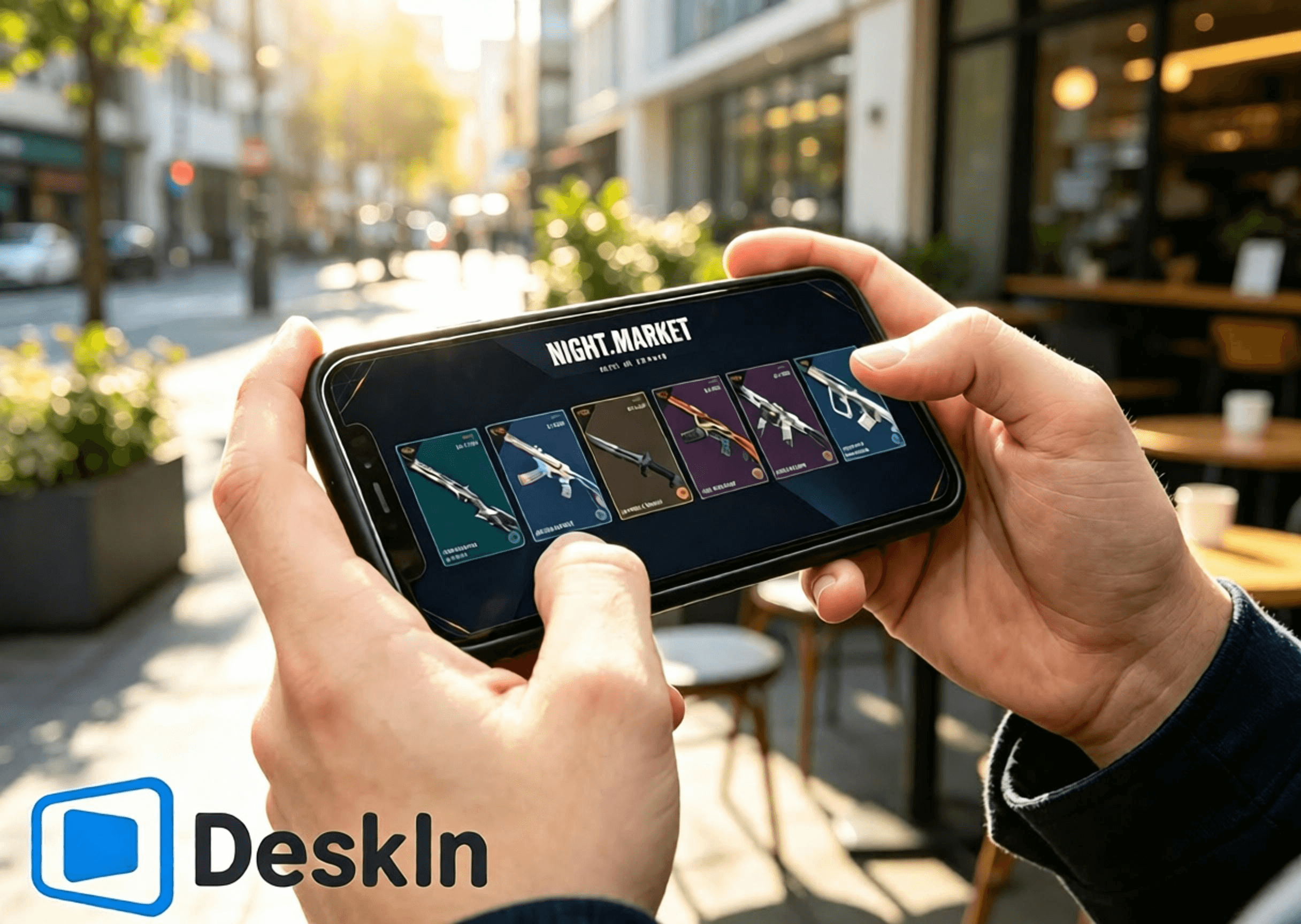
⚡ Ultra‑low‑latency streaming. Smooth navigation for opening Night Market cards, browsing the Daily Shop, checking Battle Pass rewards, and switching to the Kingdom Store page.
🛠️ Simple installation and login. One‑click connection, beginner‑friendly setup.
💻 Full cross‑OS PC support: Windows and Mac can both act as host machines to run the game and storefronts.
📱 Full mobile‑device coverage: Android, iPhone, and iPad support remote control to explore all four VALORANT store systems.
🔧 Customizable touch‑control layouts. Adjust in‑shop operation UI freely without blocking content.
🖼️ High‑definition video transmission. Weapon‑skin models, lighting details, Battle Pass effects, and accessory textures render sharply.
🎮 Top‑tier picture quality and frame rate. Dual‑mode switching between 4K/60fps and 2K/240fps. Fluid playback with no ghosting while viewing skin animations and fine details.
✨ Near‑millisecond‑level latency, consistently kept below 40 ms. Responsive remote clicks and page transitions with no lag or mis‑taps.
Install the VALORANT client on your PC and log in to your Riot account. Fully update the game client and Vanguard anti‑cheat beforehand. Avoid pop‑up updates or restart prompts after remote connection that would block access to the Night Market, Daily Shop, Battle Pass, and Kingdom Store.
Download and install the DeskIn PC client from the official website. Register and log in to your personal DeskIn account. Keep DeskIn running in the background with your device online so your phone can initiate connections anytime.
Complete steps to browse stores and claim rewards from Android via DeskIn. DeskIn enables one‑click remote connections from Android devices. Check the Night Market, Daily Shop, Seasonal Battle Pass, and Kingdom Store without sitting at your desktop.
1. Download DeskIn Get the official DeskIn mobile client from legitimate Android channels. Log in using the exact same account as your PC to finish device pairing. Ensure stable network connectivity on both ends.
2. Establish a remote connection Launch DeskIn on your phone and select your online Windows/Mac host to start a connection. Switch your phone to landscape mode for a wider field of view to display the full in‑game store UI. Confirm desktop video loads properly and touch inputs respond smoothly. All game accounts and store data reside on your host PC; your mobile device only receives video and sends touch commands.
3. Explore the four store systems Launch VALORANT on your host PC and navigate freely between store pages:
✅ Limited‑time Night Market: Tap the Night Market icon in the upper right corner. Flip your 6 exclusive discount cards one by one. Note skin names, original prices, discounted prices, and discount percentages. Save screenshots of skins you like for later comparison. Card contents lock permanently once opened and cannot be reset.
✅ Daily Shop: Open the permanent store tab to view your four fresh daily weapon‑skin offerings, their styles and prices, and seize opportunities to buy standalone skins.
✅ Seasonal Battle Pass**: Enter the Battle Pass menu. Review free and premium track progress and unclaimed rewards. Decide whether to purchase the pass and secure limited‑time rewards before the Act concludes.
✅ Kingdom Store**: Navigate to the Kingdom Credit redemption page. Check the four weekly‑rotated accessories refreshed every Wednesday. See which charms, sprays, player cards, and titles you are missing and redeem for free with Kingdom Credits as desired.
Full steps to browse stores and claim rewards on iPhone and iPad. Apple devices fully support remote access to all four VALORANT stores with simple operation and sharp visuals. Large‑screen iPads work especially well for examining skins and accessory details.
1. Pair accounts across devices Keep DeskIn installed and logged‑in on your PC with the host device online. Download official DeskIn from the App Store on your iPhone or iPad and sign in with the identical DeskIn account to complete pairing. Log into your correct Riot account on the PC ahead of time. All four store datasets are account‑bound; logging into the wrong account will show incorrect personal store content.
2. Connect to your host PC from iOS Open DeskIn on your phone or tablet and select your Windows/Mac host to establish a remote session. Always use landscape orientation. Compact iPhones suit quick card‑opening, price‑checking and store refreshes. Large‑screen iPads deliver ample viewing space for weapon‑model animations, Battle‑Pass reward previews, and accessory previews.
3. Operate all store features Launch VALORANT and toggle between store pages: inspect Night Market discounted skins, verify Daily Shop rotations, check Battle‑Pass progression and time‑limited rewards, and view weekly Kingdom Store free accessories. Note: Night Market discounts apply only to base skins. Additional variants and upgrades require separate Radianite Points purchases, with discounts peaking at 49%.
VALORANT has no native Mac build. Mac users can run the game inside a virtual machine or cloud‑hosted Windows environment and still access the complete suite of four stores.
1. Set up a stable Windows environment. Install VALORANT and log into your Riot account. Complete all game and anti‑cheat updates to guarantee the store UI loads correctly.
2. Install the DeskIn desktop client on macOS. Log in using the same DeskIn account used by your mobile device. Treat your Windows virtual machine running VALORANT as the controlled host machine and keep DeskIn online. You may now remotely view all store content from your phone.
You are only browsing stores, skins and accessories, not competing in matches. Prioritize stability, smoothness, and clarity.
- Stay in landscape mode to properly fit the store UI and avoid cropped visuals.
- Choose 720P / 1080P resolution to balance sharpness and performance.
- Prefer 5GHz / 6GHz high‑speed Wi‑Fi to reduce latency and network jitter.
- If touch feels sluggish or video stutters, lower bitrate and resolution to preserve stability.
- Pause PC downloads, system updates, and game updates during remote sessions to free network bandwidth.
- Reposition virtual touch overlays so they do not block Night Market cards, Daily Shop skins, Battle‑Pass rewards, or Kingdom Store redemption buttons.
- Take screenshots after browsing to compare skins and plan purchases and redemptions.
- Double‑check your logged‑in account, VP balance, and Kingdom‑Credit balance before paying or redeeming to prevent mis‑operations.
Large tablet screens render details more completely and deliver superior viewing for skin animations, accessory assets, and Battle‑Pass rewards. Optimized settings for tablets:
- Lock full‑screen landscape orientation to maximize store‑UI visibility.
- Set resolution to 1080P‑1440P to faithfully reproduce weapon lighting, animations, and accessory textures.
- Connect your host PC via Ethernet cable to eliminate network fluctuation for maximum stability.
- Use stable private Wi‑Fi on your tablet; avoid public networks that cause latency and disconnections.
- Prioritize visual quality over extremely high frame rates for viewing‑focused usage.
- Moderately reduce bitrate during minor network fluctuations to maintain smooth playback.
- Custom‑place virtual touch controls away from purchase and redemption buttons to prevent accidental taps.
Iconic animated collections such as Reaver, Oni, Ion, Gaia’s Vengeance, and Glitchpop, plus Battle‑Pass exclusive effect items, show off richer animations and finer details on tablets.
A: Exactly the same. Night Market, shop, and Battle‑Pass data sync in real‑time with your account. No discrepancies occur.
A: Adjust color profile and zoom level. Static‑view detail rendering will become clearer and more comfortable.
A: Pure video streaming does not modify game files. Store‑only browsing carries no risk. Remote competitive gameplay is not recommended by the official stance.
A: Enable the virtual‑display feature. You can capture video and navigate the shop even with your physical monitor powered off.
A: The game detects your host PC’s home‑region IP, so cross‑region locks and security checks will not trigger.
A: Customize your virtual‑button layout, or pair a Bluetooth mouse for far more precise control.
A: Rules are identical. Kingdom‑store accessories rotate back periodically. Battle‑Pass items become permanently unobtainable once their Act ends.
A: The same Riot account cannot run VALORANT on two hosts simultaneously. Close one instance before switching. All data remains interoperable.
VALORANT’s four reward systems each serve distinct purposes. Whether you are away from home or without a computer, DeskIn streams high‑definition, low‑latency VALORANT footage from Windows or Mac hosts to Android, iPhone, and iPad devices. Flip Night Market cards, check Daily Shop rotations, track Battle‑Pass progression, and redeem free Kingdom Store accessories on‑the‑go. Never miss discounts or limited‑time loot. Download DeskIn now to try remote access.

How to Play PUBG: BATTLEGROUNDS on iPad or Mobile From Your PC
Yes—you can play PUBG on iPad, iPhone, or Android by streaming PUBG: BATTLEGROUNDS from your own Windows PC. Download DeskIn on the PC and mobile device; the host runs the full PC game while the phone or tablet displays the stream and sends touch, keyboard, mouse, or compatible controller input.
This setup is useful when you are away from your desk and want to check an event, claim a daily login reward, visit the store, or play from another room. For ranked matches and precision gunfights, however, remote play adds network and input delay. A local keyboard-and-mouse setup remains the safer choice for competitive play.
Important: DeskIn is not an official KRAFTON, PUBG Studios, or BattlEye product. Game and anti-cheat policies can change. Review the latest PUBG: BATTLEGROUNDS rules before connecting, and do not use macros, scripts, automation, recoil control, auto-clicking, or one-button multi-action commands.
Before setting anything up, decide which version you actually want to access.
Option | Where the game runs | Progress used | Best for |
|---|---|---|---|
PUBG: BATTLEGROUNDS through DeskIn | Your Windows gaming PC | The PC account you sign in with | Accessing the full PC game from an iPad or phone |
PUBG MOBILE | Natively on iOS or Android | Your PUBG MOBILE account | A game designed for touchscreens and mobile hardware |
PUBG: BATTLEGROUNDS on console | PlayStation 5 or Xbox Series X|S | The account and progression available to that console environment | Native current-generation console play |
Native PUBG: BATTLEGROUNDS install on iPad or iPhone | Not available | Not applicable | The Windows client is not an iOS or iPadOS app |
Remote play does not convert PUBG: BATTLEGROUNDS into PUBG MOBILE, nor does DeskIn merge the two accounts. You keep seeing your PC items and progress because you are controlling the same PC client and signing in to the same PC platform account.
As of this article's August 2026 fact check, the official PUBG play page lists Steam, Epic Games, PlayStation, and Xbox entry points. PUBG's current-generation console transition notice confirms that console service is now limited to PlayStation 5 and Xbox Series X|S; older PS4 and Xbox One platform lists are no longer current.
Do not assume that purchases, cosmetics, ranks, or progression transfer between PUBG MOBILE, console, Steam, and Epic. PUBG's matchmaking documentation confirms Steam/Epic cross-platform play on PC and Xbox/PlayStation cross-platform play on console, but cross-play is not the same as cross-progression. Check the current support documentation for your exact pair of platforms before making a purchase.
The best use case depends on how sensitive the task is to delay.
Claim a daily attendance or check-in reward while traveling.
Open the PC client to check a limited-time event or store rotation.
Review inventory, menus, settings, or account information.
Download an update before you return to your desk.
Play a casual session from another room on a larger iPad screen.
Access the Windows version from a Mac, iPad, or phone that cannot run it natively.
One Reddit player asked specifically how to collect PUBG daily attendance rewards while traveling without a PC. That is an ideal remote-access problem: the task is time-sensitive but does not require tournament-level aiming.
Ranked matches where every frame and input matters.
Long-range aiming on a small phone display.
Unstable hotel Wi-Fi, public Wi-Fi, or a moving cellular connection.
A first-time control layout that has not been tested in Training Mode.
Any setup that depends on automated inputs or prohibited macros.
Remote play adds an encode, network, decode, and return-input path. Even when the picture looks smooth, the total response can differ from playing directly on the host PC. Community reports from PUBG streamed to handheld devices also highlight frame pacing and control difficulty. Treat remote competitive play as an experiment, not a guaranteed replacement for your desktop setup.
Prepare the following:
A Windows PC that can run PUBG: BATTLEGROUNDS normally.
PUBG installed and updated through your official PC platform.
An iPad, iPhone, or Android phone or tablet.
DeskIn Personal installed on the PC and mobile device.
A stable connection at both ends; Ethernet for the host PC is strongly preferred.
Optional: a compatible Bluetooth or wired controller.
PUBG’s official minimum requirements currently list Windows 10, 8 GB of RAM, a DirectX 11-class GPU, broadband internet, and 40 GB of available storage. The recommended requirements increase the CPU, memory, graphics, and storage targets. These requirements apply to the host PC because it still renders the game; a powerful iPad cannot compensate for a host that already stutters locally.
Before leaving home, also:
Launch PUBG once and confirm that the current update works.
Pause unrelated game downloads, cloud backups, and OS updates.
Prevent the host from entering an unreachable sleep state.
Test a full connection over cellular data or an outside network.
Confirm that you can recover from launcher prompts or a dropped session.
Download DeskIn from the official site and install it on the PC that already runs PUBG. Sign in or complete the device authorization process, then secure the host with a strong access password.
Run a local test connection before relying on the setup remotely. Windows permission prompts, launcher updates, firewall rules, or sleep settings are much easier to fix while you are still next to the computer.
Use DeskIn’s official download page to reach the iOS App Store or Google Play listing. Open the app on your iPad, iPhone, or Android device and connect to the authorized Windows PC with the account or device code and password required by your setup.
Once connected, you should see the actual Windows desktop. This is the key distinction from PUBG MOBILE: no second copy of your PC game is being created on the tablet.
Open Steam or your official PC launcher inside the remote session, then start PUBG: BATTLEGROUNDS. Before entering a live match, verify the following in the lobby and Training Mode:
Video motion is stable enough to track the camera.
The minimap and inventory text remain readable.
Left and right mouse input behave correctly.
Movement keys continue responding when held.
Remote audio reaches the mobile device.
Push-to-talk and microphone behavior meet your needs.
Reconnecting does not leave a key or mouse button stuck.
If a launcher or anti-cheat dialog appears outside the game window, switch back to the full remote desktop and address the prompt manually.
DeskIn offers two practical control routes for PC games on mobile.
DeskIn’s official customized gaming keyboard guide explains how to place a joystick, mouse buttons, and keyboard keys on a mobile screen, then adjust their size, position, labels, and transparency.
For PUBG, keep the overlay minimal:
Left side: movement joystick or WASD.
Right side: camera and basic mouse input.
Edge buttons: map, inventory, crouch, prone, interact, reload, and push-to-talk.
Avoid placing controls over the minimap, crosshair, health bar, or interaction prompts.
Touch controls are reasonable for menus, rewards, and simple movement. They are much harder to use for simultaneous movement, aiming, leaning, firing, and recoil management.
Fair-play rule: map each on-screen control to a normal single input. DeskIn may offer combination keys or custom macros on eligible plans, but do not use them in PUBG. PUBG’s published rules prohibit macros, scripts, automatic mouse functions, and other unauthorized tools or hardware that affect normal gameplay.
For longer sessions, a physical controller is usually more comfortable than a dense touch overlay. DeskIn’s official guide shows how to use a local controller with a remote PC game:
Pair the controller to the iPad, phone, tablet, or local computer through Bluetooth or a cable.
Connect to the gaming PC through DeskIn.
Open Gamepad Redirect in the DeskIn session toolbar.
Select the detected controller and test it before joining a match.
PUBG Support confirms that compatible controllers can be used through Steam, and PUBG has continued updating PC controller support. That does not mean every controller, mobile OS, or remote route will behave identically, so test your buttons and stick sensitivity in Training Mode first.
The host must upload a continuous video stream while receiving your input. A wired connection removes one major source of wireless interference and is usually the highest-impact improvement.
Stay close enough to the access point to avoid rapid signal changes. A strong speed-test result alone does not guarantee good remote play; consistency, jitter, and packet loss matter because PUBG reacts poorly to irregular input delivery.
Start with a conservative resolution and frame rate. If controls feel consistent, raise quality in small steps. If the stream stutters, reduce resolution or bitrate first. A stable 1080p image is more useful for aiming than an unstable higher-resolution feed.
DeskIn’s official remote gaming page lists low-latency game streaming, high-FPS modes, keyboard, mouse, controller support, and touch-optimized controls. Its current Gaming plan advertises up to 4K 60 FPS or 2K 240 FPS, while the free plan is listed at 1080p 30 FPS. These are plan capabilities, not a promise for every session. Actual results depend on the plan, host GPU and encoder, mobile decoder, display, network route, and game performance.
Close unnecessary browsers, recording tools, downloads, and other GPU-heavy programs. If PUBG is already CPU- or GPU-bound locally, video encoding can add more pressure. Lower the in-game settings or remote-stream quality until local rendering and the remote feed are both stable.
A larger screen makes the minimap, inventory, and distant silhouettes easier to read than on a small phone. It does not remove latency, but it can reduce missed taps and visual strain.
A same-room Wi-Fi test does not represent hotel Wi-Fi or cellular data. Connect through an external network, launch the game, claim a reward, enter Training Mode, close the session, and reconnect. This exposes routing, sleep, and authentication issues early.
The host must be on and able to run DeskIn and PUBG during the session. If you do not want to leave it fully awake, DeskIn provides a Wake-on-LAN setup guide.
Wake-on-LAN is conditional. The Windows PC, network adapter, BIOS, and network must support the required wake settings. DeskIn’s official instructions also require another device running DeskIn on the same LAN to assist with the wake request. A blue screen, crash, abnormal shutdown, or incompatible hardware can prevent remote boot, so test this feature before depending on it during a trip.
PUBG’s published rules prohibit unauthorized programs and hardware that interfere with normal play, including cheats, helpers, bots, scripts, trainers, automatic programs, automatic mouse functions, macros, game-data readers, and hardware that bypasses anti-cheat. A 2026 anti-cheat update again highlights macro mice, recoil scripts, and abnormal inputs as enforcement targets.
The published language does not give third-party remote desktop products a blanket approval. Community posts also contain reports of bans while using cloud, virtualized, or remote setups, but those anecdotes do not establish the exact cause of every enforcement action. The responsible position is neither “remote play is automatically banned” nor “DeskIn is guaranteed safe.”
Reduce avoidable risk by following these rules:
Download DeskIn and PUBG only from official sources.
Never share the remote device code, access password, or game account.
Use ordinary manual input only.
Do not create recoil control, rapid-fire, repeated-heal, movement, or multi-action macros.
Do not use remote access for unattended farming or automation.
Stop if PUBG or its anti-cheat displays a warning or behaves unexpectedly.
Review the current PUBG Terms of Service and contact PUBG Support if you need an official compatibility decision.
No native iOS or iPadOS version of the Windows PUBG: BATTLEGROUNDS client is available. You can install PUBG MOBILE as a separate mobile game, or stream the PC version from your own Windows computer with remote desktop software such as DeskIn.
No. They are distinct products designed for different platforms. Their controls, content, matchmaking, purchases, and account systems should not be treated as interchangeable.
Do not assume it does. Remote access preserves your PC progress because you are still using the PC account on the host. It does not transfer PUBG MOBILE progress to PUBG: BATTLEGROUNDS. Cross-progression and item migration also vary among PC and console platforms.
Yes, if you have a separate Windows gaming PC that runs PUBG. Install DeskIn on both computers and connect from the Mac to the Windows host. The Mac is the client; the Windows PC still runs the game. PUBG does not provide a native macOS client, and anti-cheat limits some virtualization approaches.
DeskIn supports redirecting a compatible local controller to the remote PC on eligible setups. Pair the controller with the iPad, enable Gamepad Redirect in DeskIn, and verify all controls in PUBG Training Mode before joining a match.
It depends on the network and controls, but it is not the most reliable competitive setup. Ranked play is sensitive to latency, jitter, frame pacing, and precise input. Remote access is better suited to check-ins, menus, casual testing, and situations where portability matters more than peak responsiveness.
Only PUBG and its anti-cheat providers can make an authoritative compatibility decision. Do not use macros or automation, check the current rules, and contact PUBG Support if you need confirmation for a specific setup. No third party can guarantee that a future policy or detection system will treat every configuration the same way.
Remote play is most useful when it solves a real access problem: you are traveling, a daily reward is about to expire, or your iPad is the only screen nearby. DeskIn lets the Windows PC continue doing the heavy work while your mobile device becomes the remote display and controller.
Start by downloading DeskIn Personal and testing a simple lobby or reward-claiming session at home. If you need the customized gaming keyboard, controller redirection, or higher frame-rate modes, compare DeskIn Personal plans and verify the current feature and device requirements before subscribing.
MapleStory Worlds Mobile Overheating or Hard to Control? Fix Artale Lag, Heat, and Touch Controls
Missed a jump because the on-screen stick drifted the wrong way? Is your phone getting hot, losing frames, or draining its battery halfway through a grinding session? If you want a more comfortable way to play Artale away from your desk, download DeskIn and connect to the desktop setup you already use.
This guide explains the most common problems with running Artale inside the native MapleStory Worlds mobile app, why they happen, and how remote play can reduce phone-side workload while giving you more flexible controls.
How to Play Every MapleStory Version on iPhone, iPad, and Android
How to Play MapleStory with a Controller on Mac, iPhone, iPad, and Android
Community posts about Artale on mobile often mention slow first loads, black loading screens, inconsistent input, and the need to redo key bindings. The experience varies by device and region, but the same pain points come up repeatedly:
The phone gets hot and battery drains quickly during longer sessions.
Login and map loading can feel slow, especially when the connection is unstable.
Crowded maps, bosses, and skill effects may trigger frame drops, stutter, or crashes.
The virtual joystick can make short hops, direction changes, and rope movement imprecise.
Buttons and menus may cover platforms, enemies, or small inventory targets.
Repeated potion, movement, and skill inputs can cause finger fatigue.
Multi-button actions may be awkward on a phone or tablet, especially during jump attacks or combo-heavy play.
When you run Artale natively, your phone handles the game logic, graphics, networking, display, and touch input at the same time. That load increases when:
Graphics, frame rate, screen brightness, or visual effects are set high.
Background apps consume memory or processor time.
The device is charging, inside a thick case, or used in a warm environment.
The network is weak enough to cause repeated loading, reconnecting, or position rollback.
As the device heats up, the operating system may reduce CPU or GPU speed to protect the hardware. That thermal throttling can turn heat into lower frame rates and delayed input, even on a relatively powerful phone.
Artale is playable through MapleStory Worlds on mobile, but a small touchscreen still has limits for a keyboard-heavy side-scrolling RPG:
A virtual stick provides no physical feedback, so precise movement is harder.
Skill, potion, jump, and utility buttons compete for limited screen space.
Your fingers can cover the character, platforms, or attack cues.
Inventory, shop, and chat interfaces still contain small click targets.
Long sessions require the same grip and repeated thumb movement.
That means Artale mobile controls can feel awkward even when the phone is not overheating. Performance settings alone cannot fix button placement, blocked visibility, or the lack of physical feedback.
MapleStory Worlds is officially available on desktop and mobile. Instead of running Artale locally on your phone, DeskIn can stream your Windows or Mac session to an iPhone, iPad, or Android device. The computer runs the game; the phone displays the video stream and sends your inputs.
Because the desktop handles the game itself, the phone no longer performs the full local render. It still decodes video, maintains a network connection, and powers the screen, so it can still warm up—but phone-side load and battery use may be lower than native play.
You reconnect to the computer session you already use, with the same launcher, account, and desktop interface. This is useful for checking the marketplace, handling daily tasks, or continuing a grinding session without learning a second layout.
DeskIn’s game keyboard lets you place movement, jump, potion, skill, mouse, and multi-key controls on screen. You can adjust position, size, and transparency, then save separate layouts for different classes.
DeskIn supports gamepad mapping from a local phone, tablet, PC, or Mac to the remote computer. Controller compatibility can vary, so test movement and skills in a safe map before a boss fight.
Install MapleStory Worlds and Artale on the Windows or Mac computer you will use as the host. Update the game, launcher, operating system, and graphics drivers, then confirm that login, sound, and keyboard input work.
Install DeskIn on both the host computer and your phone or tablet. Sign in with the same DeskIn account on both devices.
Prevent the host from sleeping. In DeskIn, enable start with system and configure unattended access with a security password.
Open DeskIn on the phone, choose the computer from the device list, enter the security password, and launch Artale.
Start with a smooth-quality preset and 60 FPS. If the connection is stable, raise image quality gradually; if inputs feel delayed, prioritize smoothness and check the live network statistics.
For a full setup walkthrough, see DeskIn’s unattended access guide.
Connect to the host computer, open the bottom toolbar, then choose Keyboard > Game Keyboard.
Create a layout and add movement, jump, skills, potions, mouse buttons, or multi-key actions. Move or resize each control so it does not cover platforms or combat cues.
Save the layout by class or character. Create additional profiles when another character uses a different skill bar.
See the custom game keyboard guide for detailed control-mapping instructions.
Pair a supported Bluetooth or wired controller with your phone or tablet.
Connect to the computer in DeskIn, open the toolbar, and enable gamepad mapping or redirection.
Test movement, jump, attacks, and skill bindings in a low-risk area before playing difficult content.
If auto-mapping does not work, follow the DeskIn gamepad mapping guide and check whether your controller is supported.
If you prefer the native MapleStory Worlds app, reduce the device load before replacing your setup:
Lower graphics quality, effects, and frame rate instead of starting at the maximum.
Reduce screen brightness and close recording, streaming, location, and unnecessary background apps.
Avoid charging while playing. If the phone becomes unusually hot, stop and let it cool naturally.
Remove a thick case and avoid direct sunlight or hot rooms.
Use stable Wi-Fi when possible so the phone is not constantly switching networks.
Update MapleStory Worlds and the mobile operating system, and keep adequate free storage.
Shorten play sessions. Stop immediately if the device shows a temperature warning, loses touch response, shuts down, or shows signs of battery swelling.
Some warmth during a demanding game is common. A temperature warning, disabled charging, unstable touch input, unexpected shutdown, or battery swelling is not something to ignore. Stop playing and let the device cool before troubleshooting.
Processor speed is only one factor. Thermal throttling, memory pressure, app updates, server or network conditions, and crowded maps can all affect performance. Test lower graphics settings, close background apps, and compare a stable Wi-Fi connection.
No. Remote play moves the game workload to the computer, but the phone still decodes video, sends inputs, uses the network, and powers the screen. Lower streaming quality, frame rate, and brightness if the phone still gets warm.
It can provide more flexible on-screen layouts and compatible controller mapping. Actual responsiveness still depends on the phone, controller, network latency, and remote settings, so test the layout before difficult content.
The native app is convenient for quick logins and simple tasks. DeskIn is useful when you already have a capable desktop, want the desktop interface, need custom key layouts, or prefer a controller. Choose based on the task and your network quality.
Artale mobile lag, heat, and battery drain usually come from a mix of device load, cooling limits, background activity, and network conditions. Control problems are often separate: virtual sticks, crowded buttons, and blocked visibility can remain frustrating even after graphics settings are lowered.
If you already play Artale on a Windows or Mac computer, download DeskIn to stream that session to your phone or tablet, build controls around your class, and switch to a gamepad when touch input is not precise enough.
How to Claim VALORANT Gift Packs on Mobile
Tired of missing limited‑time Night Market discounts, fresh Daily Shop skins, Battle Pass rewards, and free Kingdom Store accessory refreshes for VALORANT when you’re away from your PC? What? You can actually log into VALORANT from your phone. Flip through Night Market discount cards, pick your favorite weapon skins, check Battle Pass progress, and redeem exclusive charms and sprays anytime. Never miss out on in‑game offers and limited‑time drops. No need to stay glued to your computer. Browse your PC‑side game interface remotely while commuting or relaxing. Try DeskIn for low‑latency remote streaming and explore VALORANT’s four core store systems wherever you are!
VALORANT features four independent item and skin acquisition systems, each with separate rules, reward pools, and refresh mechanics that do not interfere with one another: Limited‑time Night Market, permanent Daily Shop, Seasonal Battle Pass, and Kingdom Store.
Limited‑time Night Market**: An official occasional discount event. Every player gets 6 random skin discount cards whose contents cannot be changed once opened. Discounts range from 10%‑49%, and rewards vary per account. The reward pool only includes select weapon skins released for at least two Acts. Battle Pass skins, new collections, Ultimate skins, limited‑time series, and high‑value melee weapons are excluded.
Daily Shop: The game’s permanent store. Four random individual weapon skins refresh every early morning and cannot be manually reset. Most items sell at full price, while a few may feature temporary discounts. The pool covers most old and new weapon skins and serves as the main source for buying standalone skins. Certain limited and high‑tier items will not appear here.
Seasonal Battle Pass**: Updates every Act with free and premium reward tracks. Unlock the paid track to earn season‑exclusive skins, charms, sprays, kill effects and more. All content is season‑limited and will not enter the Night Market or regular shops. Rewards cannot be purchased or obtained retroactively once the season ends.
Kingdom Store:A free weekly‑rotating accessory shop refreshing every Wednesday. Each player receives 4 random accessories redeemable only with Kingdom Credits earned in‑game. VP purchases and discounts are unavailable. The pool brings back past Battle Pass accessories such as charms, sprays, player cards, and titles. Weapon skins are not offered here.
⚡ Ultra‑low‑latency streaming. Smooth navigation for opening Night Market cards, browsing the Daily Shop, checking Battle Pass rewards, and switching to the Kingdom Store page.
🛠️ Simple installation and login. One‑click connection, beginner‑friendly setup.
💻 Full cross‑OS PC support: Windows and Mac can both act as host machines to run the game and storefronts.
📱 Full mobile‑device coverage: Android, iPhone, and iPad support remote control to explore all four VALORANT store systems.
🔧 Customizable touch‑control layouts. Adjust in‑shop operation UI freely without blocking content.
🖼️ High‑definition video transmission. Weapon‑skin models, lighting details, Battle Pass effects, and accessory textures render sharply.
🎮 Top‑tier picture quality and frame rate. Dual‑mode switching between 4K/60fps and 2K/240fps. Fluid playback with no ghosting while viewing skin animations and fine details.
✨ Near‑millisecond‑level latency, consistently kept below 40 ms. Responsive remote clicks and page transitions with no lag or mis‑taps.
Install the VALORANT client on your PC and log in to your Riot account. Fully update the game client and Vanguard anti‑cheat beforehand. Avoid pop‑up updates or restart prompts after remote connection that would block access to the Night Market, Daily Shop, Battle Pass, and Kingdom Store.
Download and install the DeskIn PC client from the official website. Register and log in to your personal DeskIn account. Keep DeskIn running in the background with your device online so your phone can initiate connections anytime.
Complete steps to browse stores and claim rewards from Android via DeskIn. DeskIn enables one‑click remote connections from Android devices. Check the Night Market, Daily Shop, Seasonal Battle Pass, and Kingdom Store without sitting at your desktop.
1. Download DeskIn Get the official DeskIn mobile client from legitimate Android channels. Log in using the exact same account as your PC to finish device pairing. Ensure stable network connectivity on both ends.
2. Establish a remote connection Launch DeskIn on your phone and select your online Windows/Mac host to start a connection. Switch your phone to landscape mode for a wider field of view to display the full in‑game store UI. Confirm desktop video loads properly and touch inputs respond smoothly. All game accounts and store data reside on your host PC; your mobile device only receives video and sends touch commands.
3. Explore the four store systems Launch VALORANT on your host PC and navigate freely between store pages:
✅ Limited‑time Night Market: Tap the Night Market icon in the upper right corner. Flip your 6 exclusive discount cards one by one. Note skin names, original prices, discounted prices, and discount percentages. Save screenshots of skins you like for later comparison. Card contents lock permanently once opened and cannot be reset.
✅ Daily Shop: Open the permanent store tab to view your four fresh daily weapon‑skin offerings, their styles and prices, and seize opportunities to buy standalone skins.
✅ Seasonal Battle Pass**: Enter the Battle Pass menu. Review free and premium track progress and unclaimed rewards. Decide whether to purchase the pass and secure limited‑time rewards before the Act concludes.
✅ Kingdom Store**: Navigate to the Kingdom Credit redemption page. Check the four weekly‑rotated accessories refreshed every Wednesday. See which charms, sprays, player cards, and titles you are missing and redeem for free with Kingdom Credits as desired.
Full steps to browse stores and claim rewards on iPhone and iPad. Apple devices fully support remote access to all four VALORANT stores with simple operation and sharp visuals. Large‑screen iPads work especially well for examining skins and accessory details.
1. Pair accounts across devices Keep DeskIn installed and logged‑in on your PC with the host device online. Download official DeskIn from the App Store on your iPhone or iPad and sign in with the identical DeskIn account to complete pairing. Log into your correct Riot account on the PC ahead of time. All four store datasets are account‑bound; logging into the wrong account will show incorrect personal store content.
2. Connect to your host PC from iOS Open DeskIn on your phone or tablet and select your Windows/Mac host to establish a remote session. Always use landscape orientation. Compact iPhones suit quick card‑opening, price‑checking and store refreshes. Large‑screen iPads deliver ample viewing space for weapon‑model animations, Battle‑Pass reward previews, and accessory previews.
3. Operate all store features Launch VALORANT and toggle between store pages: inspect Night Market discounted skins, verify Daily Shop rotations, check Battle‑Pass progression and time‑limited rewards, and view weekly Kingdom Store free accessories. Note: Night Market discounts apply only to base skins. Additional variants and upgrades require separate Radianite Points purchases, with discounts peaking at 49%.
VALORANT has no native Mac build. Mac users can run the game inside a virtual machine or cloud‑hosted Windows environment and still access the complete suite of four stores.
1. Set up a stable Windows environment. Install VALORANT and log into your Riot account. Complete all game and anti‑cheat updates to guarantee the store UI loads correctly.
2. Install the DeskIn desktop client on macOS. Log in using the same DeskIn account used by your mobile device. Treat your Windows virtual machine running VALORANT as the controlled host machine and keep DeskIn online. You may now remotely view all store content from your phone.
You are only browsing stores, skins and accessories, not competing in matches. Prioritize stability, smoothness, and clarity.
- Stay in landscape mode to properly fit the store UI and avoid cropped visuals.
- Choose 720P / 1080P resolution to balance sharpness and performance.
- Prefer 5GHz / 6GHz high‑speed Wi‑Fi to reduce latency and network jitter.
- If touch feels sluggish or video stutters, lower bitrate and resolution to preserve stability.
- Pause PC downloads, system updates, and game updates during remote sessions to free network bandwidth.
- Reposition virtual touch overlays so they do not block Night Market cards, Daily Shop skins, Battle‑Pass rewards, or Kingdom Store redemption buttons.
- Take screenshots after browsing to compare skins and plan purchases and redemptions.
- Double‑check your logged‑in account, VP balance, and Kingdom‑Credit balance before paying or redeeming to prevent mis‑operations.
Large tablet screens render details more completely and deliver superior viewing for skin animations, accessory assets, and Battle‑Pass rewards. Optimized settings for tablets:
- Lock full‑screen landscape orientation to maximize store‑UI visibility.
- Set resolution to 1080P‑1440P to faithfully reproduce weapon lighting, animations, and accessory textures.
- Connect your host PC via Ethernet cable to eliminate network fluctuation for maximum stability.
- Use stable private Wi‑Fi on your tablet; avoid public networks that cause latency and disconnections.
- Prioritize visual quality over extremely high frame rates for viewing‑focused usage.
- Moderately reduce bitrate during minor network fluctuations to maintain smooth playback.
- Custom‑place virtual touch controls away from purchase and redemption buttons to prevent accidental taps.
Iconic animated collections such as Reaver, Oni, Ion, Gaia’s Vengeance, and Glitchpop, plus Battle‑Pass exclusive effect items, show off richer animations and finer details on tablets.
A: Exactly the same. Night Market, shop, and Battle‑Pass data sync in real‑time with your account. No discrepancies occur.
A: Adjust color profile and zoom level. Static‑view detail rendering will become clearer and more comfortable.
A: Pure video streaming does not modify game files. Store‑only browsing carries no risk. Remote competitive gameplay is not recommended by the official stance.
A: Enable the virtual‑display feature. You can capture video and navigate the shop even with your physical monitor powered off.
A: The game detects your host PC’s home‑region IP, so cross‑region locks and security checks will not trigger.
A: Customize your virtual‑button layout, or pair a Bluetooth mouse for far more precise control.
A: Rules are identical. Kingdom‑store accessories rotate back periodically. Battle‑Pass items become permanently unobtainable once their Act ends.
A: The same Riot account cannot run VALORANT on two hosts simultaneously. Close one instance before switching. All data remains interoperable.
VALORANT’s four reward systems each serve distinct purposes. Whether you are away from home or without a computer, DeskIn streams high‑definition, low‑latency VALORANT footage from Windows or Mac hosts to Android, iPhone, and iPad devices. Flip Night Market cards, check Daily Shop rotations, track Battle‑Pass progression, and redeem free Kingdom Store accessories on‑the‑go. Never miss discounts or limited‑time loot. Download DeskIn now to try remote access.
Products
Download
Resources
Contact Us
Email: support@deskin.io
Office: 991D Alexandra Road #02-17, Singapore 119972
Copyright © 2026 Zuler Technology PTE. LTD. All rights reserved.
Contact Us
Email: support@deskin.io
Office: 991D Alexandra Road #02-17, Singapore 119972
Products
Download
Resources
Copyright © 2026 Zuler Technology PTE. LTD. All rights reserved.
Products
Download
Resources
Contact Us
support@deskin.io
991D Alexandra Road #02-17
Singapore 119972
Copyright © 2026 Zuler Technology PTE. LTD. All rights reserved.


