Blog
Search Docs…
ALL TOPICS
COMPARISONS
GAME
PRODUCTIVITY
TROUBLESHOOTING

MapleStory Worlds Mobile Overheating or Hard to Control? Fix Artale Lag, Heat, and Touch Controls
Missed a jump because the on-screen stick drifted the wrong way? Is your phone getting hot, losing frames, or draining its battery halfway through a grinding session? If you want a more comfortable way to play Artale away from your desk, download DeskIn and connect to the desktop setup you already use.
This guide explains the most common problems with running Artale inside the native MapleStory Worlds mobile app, why they happen, and how remote play can reduce phone-side workload while giving you more flexible controls.
You may also like
How to Play Every MapleStory Version on iPhone, iPad, and Android
How to Play MapleStory with a Controller on Mac, iPhone, iPad, and Android
What Problems Do Players Report When Playing Artale on Mobile?
Community posts about Artale on mobile often mention slow first loads, black loading screens, inconsistent input, and the need to redo key bindings. The experience varies by device and region, but the same pain points come up repeatedly:
The phone gets hot and battery drains quickly during longer sessions.
Login and map loading can feel slow, especially when the connection is unstable.
Crowded maps, bosses, and skill effects may trigger frame drops, stutter, or crashes.
The virtual joystick can make short hops, direction changes, and rope movement imprecise.
Buttons and menus may cover platforms, enemies, or small inventory targets.
Repeated potion, movement, and skill inputs can cause finger fatigue.
Multi-button actions may be awkward on a phone or tablet, especially during jump attacks or combo-heavy play.
Why Does Artale Cause Mobile Overheating, Lag, and Control Problems?
1. Phone performance and thermal limits
When you run Artale natively, your phone handles the game logic, graphics, networking, display, and touch input at the same time. That load increases when:
Graphics, frame rate, screen brightness, or visual effects are set high.
Background apps consume memory or processor time.
The device is charging, inside a thick case, or used in a warm environment.
The network is weak enough to cause repeated loading, reconnecting, or position rollback.
As the device heats up, the operating system may reduce CPU or GPU speed to protect the hardware. That thermal throttling can turn heat into lower frame rates and delayed input, even on a relatively powerful phone.
2. Touch UI and input limitations
Artale is playable through MapleStory Worlds on mobile, but a small touchscreen still has limits for a keyboard-heavy side-scrolling RPG:
A virtual stick provides no physical feedback, so precise movement is harder.
Skill, potion, jump, and utility buttons compete for limited screen space.
Your fingers can cover the character, platforms, or attack cues.
Inventory, shop, and chat interfaces still contain small click targets.
Long sessions require the same grip and repeated thumb movement.
That means Artale mobile controls can feel awkward even when the phone is not overheating. Performance settings alone cannot fix button placement, blocked visibility, or the lack of physical feedback.
A Practical Fix: Use DeskIn to Play Desktop Artale on Your Phone
MapleStory Worlds is officially available on desktop and mobile. Instead of running Artale locally on your phone, DeskIn can stream your Windows or Mac session to an iPhone, iPad, or Android device. The computer runs the game; the phone displays the video stream and sends your inputs.
Why use DeskIn for Artale remote play?
Lower the workload on your phone
Because the desktop handles the game itself, the phone no longer performs the full local render. It still decodes video, maintains a network connection, and powers the screen, so it can still warm up—but phone-side load and battery use may be lower than native play.
Keep the desktop UI and the same game session
You reconnect to the computer session you already use, with the same launcher, account, and desktop interface. This is useful for checking the marketplace, handling daily tasks, or continuing a grinding session without learning a second layout.
Build custom virtual controls for each character
DeskIn’s game keyboard lets you place movement, jump, potion, skill, mouse, and multi-key controls on screen. You can adjust position, size, and transparency, then save separate layouts for different classes.
Switch to a physical controller when touch controls feel cramped
DeskIn supports gamepad mapping from a local phone, tablet, PC, or Mac to the remote computer. Controller compatibility can vary, so test movement and skills in a safe map before a boss fight.
How to play Artale on iPhone, iPad, or Android with DeskIn
Install MapleStory Worlds and Artale on the Windows or Mac computer you will use as the host. Update the game, launcher, operating system, and graphics drivers, then confirm that login, sound, and keyboard input work.
Install DeskIn on both the host computer and your phone or tablet. Sign in with the same DeskIn account on both devices.
Prevent the host from sleeping. In DeskIn, enable start with system and configure unattended access with a security password.
Open DeskIn on the phone, choose the computer from the device list, enter the security password, and launch Artale.
Start with a smooth-quality preset and 60 FPS. If the connection is stable, raise image quality gradually; if inputs feel delayed, prioritize smoothness and check the live network statistics.
For a full setup walkthrough, see DeskIn’s unattended access guide.
How to configure virtual buttons for Artale
Connect to the host computer, open the bottom toolbar, then choose Keyboard > Game Keyboard.
Create a layout and add movement, jump, skills, potions, mouse buttons, or multi-key actions. Move or resize each control so it does not cover platforms or combat cues.
Save the layout by class or character. Create additional profiles when another character uses a different skill bar.
See the custom game keyboard guide for detailed control-mapping instructions.
How to use a controller for Artale remote play
Pair a supported Bluetooth or wired controller with your phone or tablet.
Connect to the computer in DeskIn, open the toolbar, and enable gamepad mapping or redirection.
Test movement, jump, attacks, and skill bindings in a low-risk area before playing difficult content.
If auto-mapping does not work, follow the DeskIn gamepad mapping guide and check whether your controller is supported.
You may also like
Other Ways to Reduce MapleStory Mobile Overheating
If you prefer the native MapleStory Worlds app, reduce the device load before replacing your setup:
Lower graphics quality, effects, and frame rate instead of starting at the maximum.
Reduce screen brightness and close recording, streaming, location, and unnecessary background apps.
Avoid charging while playing. If the phone becomes unusually hot, stop and let it cool naturally.
Remove a thick case and avoid direct sunlight or hot rooms.
Use stable Wi-Fi when possible so the phone is not constantly switching networks.
Update MapleStory Worlds and the mobile operating system, and keep adequate free storage.
Shorten play sessions. Stop immediately if the device shows a temperature warning, loses touch response, shuts down, or shows signs of battery swelling.
MapleStory Mobile Overheating and Artale Controls FAQ
Is it normal for a phone to get hot while playing Artale?
Some warmth during a demanding game is common. A temperature warning, disabled charging, unstable touch input, unexpected shutdown, or battery swelling is not something to ignore. Stop playing and let the device cool before troubleshooting.
Why does Artale lag even on a high-end phone?
Processor speed is only one factor. Thermal throttling, memory pressure, app updates, server or network conditions, and crowded maps can all affect performance. Test lower graphics settings, close background apps, and compare a stable Wi-Fi connection.
Will DeskIn completely stop my phone from heating up?
No. Remote play moves the game workload to the computer, but the phone still decodes video, sends inputs, uses the network, and powers the screen. Lower streaming quality, frame rate, and brightness if the phone still gets warm.
Can DeskIn improve Artale mobile controls?
It can provide more flexible on-screen layouts and compatible controller mapping. Actual responsiveness still depends on the phone, controller, network latency, and remote settings, so test the layout before difficult content.
Should I use the native app or DeskIn to play Artale on mobile?
The native app is convenient for quick logins and simple tasks. DeskIn is useful when you already have a capable desktop, want the desktop interface, need custom key layouts, or prefer a controller. Choose based on the task and your network quality.
Final Thoughts
Artale mobile lag, heat, and battery drain usually come from a mix of device load, cooling limits, background activity, and network conditions. Control problems are often separate: virtual sticks, crowded buttons, and blocked visibility can remain frustrating even after graphics settings are lowered.
If you already play Artale on a Windows or Mac computer, download DeskIn to stream that session to your phone or tablet, build controls around your class, and switch to a gamepad when touch input is not precise enough.

How to Claim VALORANT Gift Packs on Mobile
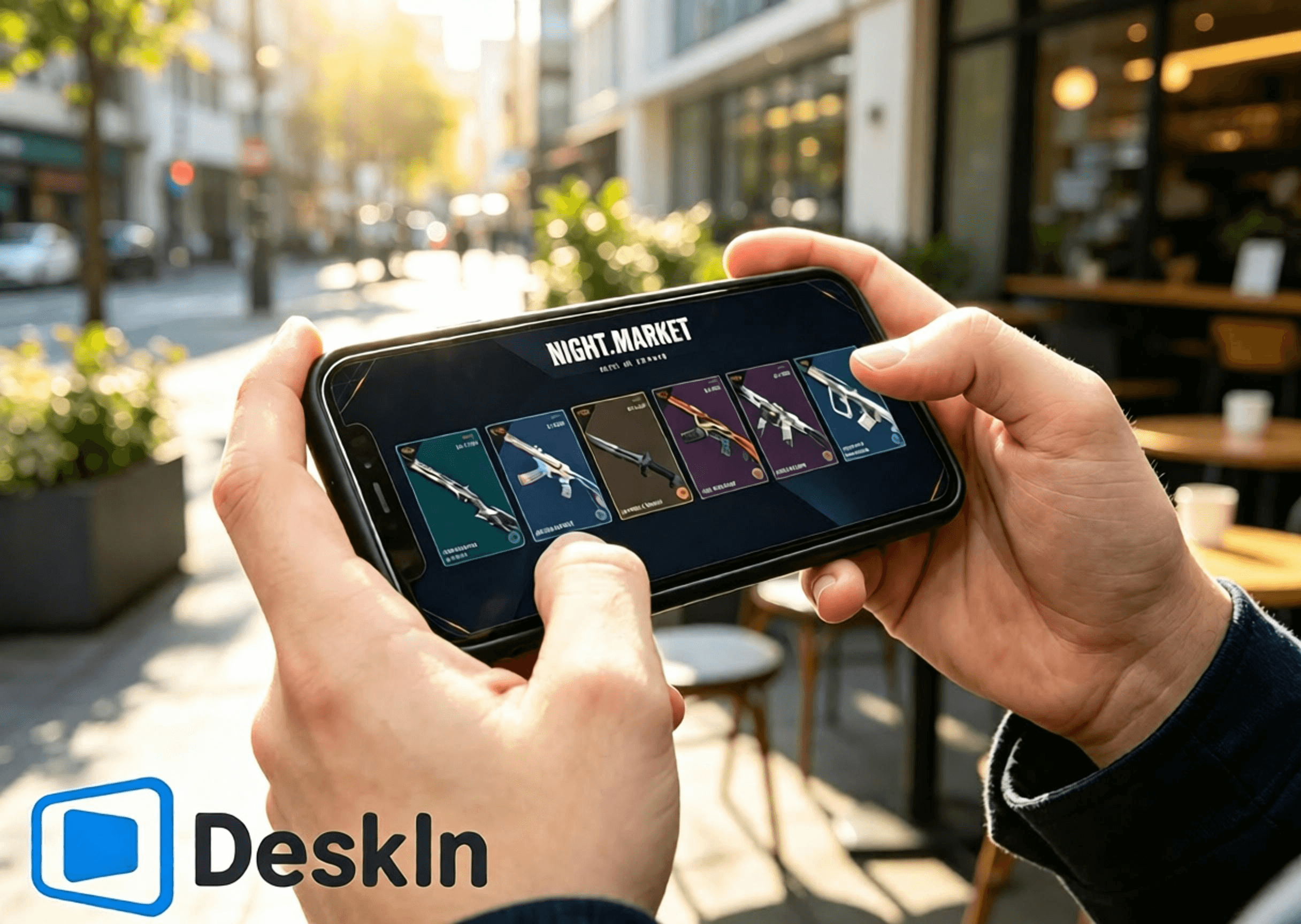
Tired of missing limited‑time Night Market discounts, fresh Daily Shop skins, Battle Pass rewards, and free Kingdom Store accessory refreshes for VALORANT when you’re away from your PC? What? You can actually log into VALORANT from your phone. Flip through Night Market discount cards, pick your favorite weapon skins, check Battle Pass progress, and redeem exclusive charms and sprays anytime. Never miss out on in‑game offers and limited‑time drops. No need to stay glued to your computer. Browse your PC‑side game interface remotely while commuting or relaxing. Try DeskIn for low‑latency remote streaming and explore VALORANT’s four core store systems wherever you are!
I. What Gift Packs Are Available in VALORANT
VALORANT features four independent item and skin acquisition systems, each with separate rules, reward pools, and refresh mechanics that do not interfere with one another: Limited‑time Night Market, permanent Daily Shop, Seasonal Battle Pass, and Kingdom Store.
Limited‑time Night Market**: An official occasional discount event. Every player gets 6 random skin discount cards whose contents cannot be changed once opened. Discounts range from 10%‑49%, and rewards vary per account. The reward pool only includes select weapon skins released for at least two Acts. Battle Pass skins, new collections, Ultimate skins, limited‑time series, and high‑value melee weapons are excluded.
Daily Shop: The game’s permanent store. Four random individual weapon skins refresh every early morning and cannot be manually reset. Most items sell at full price, while a few may feature temporary discounts. The pool covers most old and new weapon skins and serves as the main source for buying standalone skins. Certain limited and high‑tier items will not appear here.
Seasonal Battle Pass**: Updates every Act with free and premium reward tracks. Unlock the paid track to earn season‑exclusive skins, charms, sprays, kill effects and more. All content is season‑limited and will not enter the Night Market or regular shops. Rewards cannot be purchased or obtained retroactively once the season ends.
Kingdom Store:A free weekly‑rotating accessory shop refreshing every Wednesday. Each player receives 4 random accessories redeemable only with Kingdom Credits earned in‑game. VP purchases and discounts are unavailable. The pool brings back past Battle Pass accessories such as charms, sprays, player cards, and titles. Weapon skins are not offered here.
II. Core Advantages of Using DeskIn to Access VALORANT
⚡ Ultra‑low‑latency streaming. Smooth navigation for opening Night Market cards, browsing the Daily Shop, checking Battle Pass rewards, and switching to the Kingdom Store page.
🛠️ Simple installation and login. One‑click connection, beginner‑friendly setup.
💻 Full cross‑OS PC support: Windows and Mac can both act as host machines to run the game and storefronts.
📱 Full mobile‑device coverage: Android, iPhone, and iPad support remote control to explore all four VALORANT store systems.
🔧 Customizable touch‑control layouts. Adjust in‑shop operation UI freely without blocking content.
🖼️ High‑definition video transmission. Weapon‑skin models, lighting details, Battle Pass effects, and accessory textures render sharply.
🎮 Top‑tier picture quality and frame rate. Dual‑mode switching between 4K/60fps and 2K/240fps. Fluid playback with no ghosting while viewing skin animations and fine details.
✨ Near‑millisecond‑level latency, consistently kept below 40 ms. Responsive remote clicks and page transitions with no lag or mis‑taps.
III. How to Log Into VALORANT and Claim Rewards on Mobile
Pre‑requisites (Windows PC)
Install the VALORANT client on your PC and log in to your Riot account. Fully update the game client and Vanguard anti‑cheat beforehand. Avoid pop‑up updates or restart prompts after remote connection that would block access to the Night Market, Daily Shop, Battle Pass, and Kingdom Store.
Download and install the DeskIn PC client from the official website. Register and log in to your personal DeskIn account. Keep DeskIn running in the background with your device online so your phone can initiate connections anytime.
Log Into VALORANT on Android Phones
Complete steps to browse stores and claim rewards from Android via DeskIn. DeskIn enables one‑click remote connections from Android devices. Check the Night Market, Daily Shop, Seasonal Battle Pass, and Kingdom Store without sitting at your desktop.
1. Download DeskIn Get the official DeskIn mobile client from legitimate Android channels. Log in using the exact same account as your PC to finish device pairing. Ensure stable network connectivity on both ends.
2. Establish a remote connection Launch DeskIn on your phone and select your online Windows/Mac host to start a connection. Switch your phone to landscape mode for a wider field of view to display the full in‑game store UI. Confirm desktop video loads properly and touch inputs respond smoothly. All game accounts and store data reside on your host PC; your mobile device only receives video and sends touch commands.
3. Explore the four store systems Launch VALORANT on your host PC and navigate freely between store pages:
✅ Limited‑time Night Market: Tap the Night Market icon in the upper right corner. Flip your 6 exclusive discount cards one by one. Note skin names, original prices, discounted prices, and discount percentages. Save screenshots of skins you like for later comparison. Card contents lock permanently once opened and cannot be reset.
✅ Daily Shop: Open the permanent store tab to view your four fresh daily weapon‑skin offerings, their styles and prices, and seize opportunities to buy standalone skins.
✅ Seasonal Battle Pass**: Enter the Battle Pass menu. Review free and premium track progress and unclaimed rewards. Decide whether to purchase the pass and secure limited‑time rewards before the Act concludes.
✅ Kingdom Store**: Navigate to the Kingdom Credit redemption page. Check the four weekly‑rotated accessories refreshed every Wednesday. See which charms, sprays, player cards, and titles you are missing and redeem for free with Kingdom Credits as desired.
Log Into VALORANT on iPhone / iPad
Full steps to browse stores and claim rewards on iPhone and iPad. Apple devices fully support remote access to all four VALORANT stores with simple operation and sharp visuals. Large‑screen iPads work especially well for examining skins and accessory details.
1. Pair accounts across devices Keep DeskIn installed and logged‑in on your PC with the host device online. Download official DeskIn from the App Store on your iPhone or iPad and sign in with the identical DeskIn account to complete pairing. Log into your correct Riot account on the PC ahead of time. All four store datasets are account‑bound; logging into the wrong account will show incorrect personal store content.
2. Connect to your host PC from iOS Open DeskIn on your phone or tablet and select your Windows/Mac host to establish a remote session. Always use landscape orientation. Compact iPhones suit quick card‑opening, price‑checking and store refreshes. Large‑screen iPads deliver ample viewing space for weapon‑model animations, Battle‑Pass reward previews, and accessory previews.
3. Operate all store features Launch VALORANT and toggle between store pages: inspect Night Market discounted skins, verify Daily Shop rotations, check Battle‑Pass progression and time‑limited rewards, and view weekly Kingdom Store free accessories. Note: Night Market discounts apply only to base skins. Additional variants and upgrades require separate Radianite Points purchases, with discounts peaking at 49%.
Log Into VALORANT on Mac Computers
VALORANT has no native Mac build. Mac users can run the game inside a virtual machine or cloud‑hosted Windows environment and still access the complete suite of four stores.
1. Set up a stable Windows environment. Install VALORANT and log into your Riot account. Complete all game and anti‑cheat updates to guarantee the store UI loads correctly.
2. Install the DeskIn desktop client on macOS. Log in using the same DeskIn account used by your mobile device. Treat your Windows virtual machine running VALORANT as the controlled host machine and keep DeskIn online. You may now remotely view all store content from your phone.
IV. VALORANT Recommended Settings
Mobile Phones
You are only browsing stores, skins and accessories, not competing in matches. Prioritize stability, smoothness, and clarity.
- Stay in landscape mode to properly fit the store UI and avoid cropped visuals.
- Choose 720P / 1080P resolution to balance sharpness and performance.
- Prefer 5GHz / 6GHz high‑speed Wi‑Fi to reduce latency and network jitter.
- If touch feels sluggish or video stutters, lower bitrate and resolution to preserve stability.
- Pause PC downloads, system updates, and game updates during remote sessions to free network bandwidth.
- Reposition virtual touch overlays so they do not block Night Market cards, Daily Shop skins, Battle‑Pass rewards, or Kingdom Store redemption buttons.
- Take screenshots after browsing to compare skins and plan purchases and redemptions.
- Double‑check your logged‑in account, VP balance, and Kingdom‑Credit balance before paying or redeeming to prevent mis‑operations.
Tablets
Large tablet screens render details more completely and deliver superior viewing for skin animations, accessory assets, and Battle‑Pass rewards. Optimized settings for tablets:
- Lock full‑screen landscape orientation to maximize store‑UI visibility.
- Set resolution to 1080P‑1440P to faithfully reproduce weapon lighting, animations, and accessory textures.
- Connect your host PC via Ethernet cable to eliminate network fluctuation for maximum stability.
- Use stable private Wi‑Fi on your tablet; avoid public networks that cause latency and disconnections.
- Prioritize visual quality over extremely high frame rates for viewing‑focused usage.
- Moderately reduce bitrate during minor network fluctuations to maintain smooth playback.
- Custom‑place virtual touch controls away from purchase and redemption buttons to prevent accidental taps.
Iconic animated collections such as Reaver, Oni, Ion, Gaia’s Vengeance, and Glitchpop, plus Battle‑Pass exclusive effect items, show off richer animations and finer details on tablets.
V. Frequently Asked Questions
Q1: Will store content seen through DeskIn differ from what I see directly on my home PC?
A: Exactly the same. Night Market, shop, and Battle‑Pass data sync in real‑time with your account. No discrepancies occur.
Q2: Text and skin details look washed‑out when browsing stores on a tablet. How do I fix this?
A: Adjust color profile and zoom level. Static‑view detail rendering will become clearer and more comfortable.
Q3: Am I at risk of anti‑cheat flags if I only browse stores remotely with DeskIn and do not play matches?
A: Pure video streaming does not modify game files. Store‑only browsing carries no risk. Remote competitive gameplay is not recommended by the official stance.
Q4: Can I keep my PC monitor turned off to save power and still remotely open VALORANT to browse stores?
A: Enable the virtual‑display feature. You can capture video and navigate the shop even with your physical monitor powered off.
Q5: If I travel abroad and connect back home via DeskIn to view new cosmetics, will this trigger cross‑region verification?
A: The game detects your host PC’s home‑region IP, so cross‑region locks and security checks will not trigger.
Q6: Accidental taps happen when navigating stores with mobile touch inputs. What can I do?
A: Customize your virtual‑button layout, or pair a Bluetooth mouse for far more precise control.
Q7: If I regularly check the Kingdom Store and Battle Pass remotely, do reward‑return rules match those on PC?
A: Rules are identical. Kingdom‑store accessories rotate back periodically. Battle‑Pass items become permanently unobtainable once their Act ends.
Q8: Will account conflicts happen if I switch remote connections between a Windows PC and a Mac PC to view stores?
A: The same Riot account cannot run VALORANT on two hosts simultaneously. Close one instance before switching. All data remains interoperable.
VI. Summary
VALORANT’s four reward systems each serve distinct purposes. Whether you are away from home or without a computer, DeskIn streams high‑definition, low‑latency VALORANT footage from Windows or Mac hosts to Android, iPhone, and iPad devices. Flip Night Market cards, check Daily Shop rotations, track Battle‑Pass progression, and redeem free Kingdom Store accessories on‑the‑go. Never miss discounts or limited‑time loot. Download DeskIn now to try remote access.

GAME
How to Play PUBG: BATTLEGROUNDS on iPad or Mobile From Your PC
Yes—you can play PUBG on iPad, iPhone, or Android by streaming PUBG: BATTLEGROUNDS from your own Windows PC. Download DeskIn on the PC and mobile device; the host runs the full PC game while the phone or tablet displays the stream and sends touch, keyboard, mouse, or compatible controller input.
This setup is useful when you are away from your desk and want to check an event, claim a daily login reward, visit the store, or play from another room. For ranked matches and precision gunfights, however, remote play adds network and input delay. A local keyboard-and-mouse setup remains the safer choice for competitive play.
Important: DeskIn is not an official KRAFTON, PUBG Studios, or BattlEye product. Game and anti-cheat policies can change. Review the latest PUBG: BATTLEGROUNDS rules before connecting, and do not use macros, scripts, automation, recoil control, auto-clicking, or one-button multi-action commands.
PUBG PC, PUBG MOBILE, and remote play are not the same thing
Before setting anything up, decide which version you actually want to access.
Option | Where the game runs | Progress used | Best for |
|---|---|---|---|
PUBG: BATTLEGROUNDS through DeskIn | Your Windows gaming PC | The PC account you sign in with | Accessing the full PC game from an iPad or phone |
PUBG MOBILE | Natively on iOS or Android | Your PUBG MOBILE account | A game designed for touchscreens and mobile hardware |
PUBG: BATTLEGROUNDS on console | PlayStation 5 or Xbox Series X|S | The account and progression available to that console environment | Native current-generation console play |
Native PUBG: BATTLEGROUNDS install on iPad or iPhone | Not available | Not applicable | The Windows client is not an iOS or iPadOS app |
Remote play does not convert PUBG: BATTLEGROUNDS into PUBG MOBILE, nor does DeskIn merge the two accounts. You keep seeing your PC items and progress because you are controlling the same PC client and signing in to the same PC platform account.
As of this article's August 2026 fact check, the official PUBG play page lists Steam, Epic Games, PlayStation, and Xbox entry points. PUBG's current-generation console transition notice confirms that console service is now limited to PlayStation 5 and Xbox Series X|S; older PS4 and Xbox One platform lists are no longer current.
Do not assume that purchases, cosmetics, ranks, or progression transfer between PUBG MOBILE, console, Steam, and Epic. PUBG's matchmaking documentation confirms Steam/Epic cross-platform play on PC and Xbox/PlayStation cross-platform play on console, but cross-play is not the same as cross-progression. Check the current support documentation for your exact pair of platforms before making a purchase.
When does PUBG remote play make sense?
The best use case depends on how sensitive the task is to delay.
Good use cases: login rewards, events, and light interaction
Claim a daily attendance or check-in reward while traveling.
Open the PC client to check a limited-time event or store rotation.
Review inventory, menus, settings, or account information.
Download an update before you return to your desk.
Play a casual session from another room on a larger iPad screen.
Access the Windows version from a Mac, iPad, or phone that cannot run it natively.
One Reddit player asked specifically how to collect PUBG daily attendance rewards while traveling without a PC. That is an ideal remote-access problem: the task is time-sensitive but does not require tournament-level aiming.
Less suitable: ranked and reaction-heavy gunfights
Ranked matches where every frame and input matters.
Long-range aiming on a small phone display.
Unstable hotel Wi-Fi, public Wi-Fi, or a moving cellular connection.
A first-time control layout that has not been tested in Training Mode.
Any setup that depends on automated inputs or prohibited macros.
Remote play adds an encode, network, decode, and return-input path. Even when the picture looks smooth, the total response can differ from playing directly on the host PC. Community reports from PUBG streamed to handheld devices also highlight frame pacing and control difficulty. Treat remote competitive play as an experiment, not a guaranteed replacement for your desktop setup.
What you need before playing PUBG PC on mobile
Prepare the following:
A Windows PC that can run PUBG: BATTLEGROUNDS normally.
PUBG installed and updated through your official PC platform.
An iPad, iPhone, or Android phone or tablet.
DeskIn Personal installed on the PC and mobile device.
A stable connection at both ends; Ethernet for the host PC is strongly preferred.
Optional: a compatible Bluetooth or wired controller.
PUBG’s official minimum requirements currently list Windows 10, 8 GB of RAM, a DirectX 11-class GPU, broadband internet, and 40 GB of available storage. The recommended requirements increase the CPU, memory, graphics, and storage targets. These requirements apply to the host PC because it still renders the game; a powerful iPad cannot compensate for a host that already stutters locally.
Before leaving home, also:
Launch PUBG once and confirm that the current update works.
Pause unrelated game downloads, cloud backups, and OS updates.
Prevent the host from entering an unreachable sleep state.
Test a full connection over cellular data or an outside network.
Confirm that you can recover from launcher prompts or a dropped session.
How to play PUBG on an iPad, iPhone, or Android device with DeskIn
Step 1: Install DeskIn on the Windows gaming PC
Download DeskIn from the official site and install it on the PC that already runs PUBG. Sign in or complete the device authorization process, then secure the host with a strong access password.
Run a local test connection before relying on the setup remotely. Windows permission prompts, launcher updates, firewall rules, or sleep settings are much easier to fix while you are still next to the computer.
Step 2: Install DeskIn on the mobile device
Use DeskIn’s official download page to reach the iOS App Store or Google Play listing. Open the app on your iPad, iPhone, or Android device and connect to the authorized Windows PC with the account or device code and password required by your setup.
Once connected, you should see the actual Windows desktop. This is the key distinction from PUBG MOBILE: no second copy of your PC game is being created on the tablet.
Step 3: Launch PUBG on the remote PC
Open Steam or your official PC launcher inside the remote session, then start PUBG: BATTLEGROUNDS. Before entering a live match, verify the following in the lobby and Training Mode:
Video motion is stable enough to track the camera.
The minimap and inventory text remain readable.
Left and right mouse input behave correctly.
Movement keys continue responding when held.
Remote audio reaches the mobile device.
Push-to-talk and microphone behavior meet your needs.
Reconnecting does not leave a key or mouse button stuck.
If a launcher or anti-cheat dialog appears outside the game window, switch back to the full remote desktop and address the prompt manually.
Step 4: Choose touch controls or a controller
DeskIn offers two practical control routes for PC games on mobile.
Option A: a customized on-screen gaming keyboard
DeskIn’s official customized gaming keyboard guide explains how to place a joystick, mouse buttons, and keyboard keys on a mobile screen, then adjust their size, position, labels, and transparency.
For PUBG, keep the overlay minimal:
Left side: movement joystick or WASD.
Right side: camera and basic mouse input.
Edge buttons: map, inventory, crouch, prone, interact, reload, and push-to-talk.
Avoid placing controls over the minimap, crosshair, health bar, or interaction prompts.
Touch controls are reasonable for menus, rewards, and simple movement. They are much harder to use for simultaneous movement, aiming, leaning, firing, and recoil management.
Fair-play rule: map each on-screen control to a normal single input. DeskIn may offer combination keys or custom macros on eligible plans, but do not use them in PUBG. PUBG’s published rules prohibit macros, scripts, automatic mouse functions, and other unauthorized tools or hardware that affect normal gameplay.
Option B: a local controller
For longer sessions, a physical controller is usually more comfortable than a dense touch overlay. DeskIn’s official guide shows how to use a local controller with a remote PC game:
Pair the controller to the iPad, phone, tablet, or local computer through Bluetooth or a cable.
Connect to the gaming PC through DeskIn.
Open Gamepad Redirect in the DeskIn session toolbar.
Select the detected controller and test it before joining a match.
PUBG Support confirms that compatible controllers can be used through Steam, and PUBG has continued updating PC controller support. That does not mean every controller, mobile OS, or remote route will behave identically, so test your buttons and stick sensitivity in Training Mode first.
How to reduce latency when streaming PUBG from PC to phone
Connect the host PC by Ethernet
The host must upload a continuous video stream while receiving your input. A wired connection removes one major source of wireless interference and is usually the highest-impact improvement.
Use stable 5 GHz or 6 GHz Wi-Fi on the mobile device
Stay close enough to the access point to avoid rapid signal changes. A strong speed-test result alone does not guarantee good remote play; consistency, jitter, and packet loss matter because PUBG reacts poorly to irregular input delivery.
Stabilize the stream before raising image quality
Start with a conservative resolution and frame rate. If controls feel consistent, raise quality in small steps. If the stream stutters, reduce resolution or bitrate first. A stable 1080p image is more useful for aiming than an unstable higher-resolution feed.
DeskIn’s official remote gaming page lists low-latency game streaming, high-FPS modes, keyboard, mouse, controller support, and touch-optimized controls. Its current Gaming plan advertises up to 4K 60 FPS or 2K 240 FPS, while the free plan is listed at 1080p 30 FPS. These are plan capabilities, not a promise for every session. Actual results depend on the plan, host GPU and encoder, mobile decoder, display, network route, and game performance.
Keep enough performance headroom on the PC
Close unnecessary browsers, recording tools, downloads, and other GPU-heavy programs. If PUBG is already CPU- or GPU-bound locally, video encoding can add more pressure. Lower the in-game settings or remote-stream quality until local rendering and the remote feed are both stable.
Use an iPad when interface readability matters
A larger screen makes the minimap, inventory, and distant silhouettes easier to read than on a small phone. It does not remove latency, but it can reduce missed taps and visual strain.
Test outside your home network before traveling
A same-room Wi-Fi test does not represent hotel Wi-Fi or cellular data. Connect through an external network, launch the game, claim a reward, enter Training Mode, close the session, and reconnect. This exposes routing, sleep, and authentication issues early.
Does the gaming PC have to stay on?
The host must be on and able to run DeskIn and PUBG during the session. If you do not want to leave it fully awake, DeskIn provides a Wake-on-LAN setup guide.
Wake-on-LAN is conditional. The Windows PC, network adapter, BIOS, and network must support the required wake settings. DeskIn’s official instructions also require another device running DeskIn on the same LAN to assist with the wake request. A blue screen, crash, abnormal shutdown, or incompatible hardware can prevent remote boot, so test this feature before depending on it during a trip.
PUBG anti-cheat and account-safety precautions
PUBG’s published rules prohibit unauthorized programs and hardware that interfere with normal play, including cheats, helpers, bots, scripts, trainers, automatic programs, automatic mouse functions, macros, game-data readers, and hardware that bypasses anti-cheat. A 2026 anti-cheat update again highlights macro mice, recoil scripts, and abnormal inputs as enforcement targets.
The published language does not give third-party remote desktop products a blanket approval. Community posts also contain reports of bans while using cloud, virtualized, or remote setups, but those anecdotes do not establish the exact cause of every enforcement action. The responsible position is neither “remote play is automatically banned” nor “DeskIn is guaranteed safe.”
Reduce avoidable risk by following these rules:
Download DeskIn and PUBG only from official sources.
Never share the remote device code, access password, or game account.
Use ordinary manual input only.
Do not create recoil control, rapid-fire, repeated-heal, movement, or multi-action macros.
Do not use remote access for unattended farming or automation.
Stop if PUBG or its anti-cheat displays a warning or behaves unexpectedly.
Review the current PUBG Terms of Service and contact PUBG Support if you need an official compatibility decision.
Frequently asked questions
Can I install PUBG: BATTLEGROUNDS directly on an iPad or iPhone?
No native iOS or iPadOS version of the Windows PUBG: BATTLEGROUNDS client is available. You can install PUBG MOBILE as a separate mobile game, or stream the PC version from your own Windows computer with remote desktop software such as DeskIn.
Is PUBG MOBILE the same game as PUBG: BATTLEGROUNDS on PC?
No. They are distinct products designed for different platforms. Their controls, content, matchmaking, purchases, and account systems should not be treated as interchangeable.
Does PUBG progress sync between mobile and PC?
Do not assume it does. Remote access preserves your PC progress because you are still using the PC account on the host. It does not transfer PUBG MOBILE progress to PUBG: BATTLEGROUNDS. Cross-progression and item migration also vary among PC and console platforms.
Can I play PUBG on a Mac with this method?
Yes, if you have a separate Windows gaming PC that runs PUBG. Install DeskIn on both computers and connect from the Mac to the Windows host. The Mac is the client; the Windows PC still runs the game. PUBG does not provide a native macOS client, and anti-cheat limits some virtualization approaches.
Can I use a controller while playing PUBG on an iPad?
DeskIn supports redirecting a compatible local controller to the remote PC on eligible setups. Pair the controller with the iPad, enable Gamepad Redirect in DeskIn, and verify all controls in PUBG Training Mode before joining a match.
Is PUBG remote play good enough for ranked matches?
It depends on the network and controls, but it is not the most reliable competitive setup. Ranked play is sensitive to latency, jitter, frame pacing, and precise input. Remote access is better suited to check-ins, menus, casual testing, and situations where portability matters more than peak responsiveness.
Can remote desktop software trigger PUBG anti-cheat?
Only PUBG and its anti-cheat providers can make an authoritative compatibility decision. Do not use macros or automation, check the current rules, and contact PUBG Support if you need confirmation for a specific setup. No third party can guarantee that a future policy or detection system will treat every configuration the same way.
Access your PUBG PC without confusing it with the mobile edition
Remote play is most useful when it solves a real access problem: you are traveling, a daily reward is about to expire, or your iPad is the only screen nearby. DeskIn lets the Windows PC continue doing the heavy work while your mobile device becomes the remote display and controller.
Start by downloading DeskIn Personal and testing a simple lobby or reward-claiming session at home. If you need the customized gaming keyboard, controller redirection, or higher frame-rate modes, compare DeskIn Personal plans and verify the current feature and device requirements before subscribing.

GAME
How to Play Palworld on Mac, iPad, or Mobile from Your Windows PC
Yes—you can play Palworld on Mac natively on supported Apple-silicon Macs, or use a Mac, iPad, iPhone, or Android device to reach the exact Windows installation and save on your gaming PC. Download DeskIn on both devices to stream the host PC rather than installing the Windows build on the client.
The platform situation is also more confusing than many older guides suggest. Palworld 1.0 officially launched on July 10, 2026, and the game has an official Mac App Store version for supported Apple Silicon Macs, while search results also mention official mobile projects. None of those facts means that the Windows PC build can simply be installed on every iPhone, iPad, or Android device—or that purchases and saves automatically move between storefronts.
This guide explains the current choices, when remote access is useful, and how to play Palworld on Mac, use Palworld on iPad, or play Palworld on mobile from PC by connecting to your own Windows computer with DeskIn.
Quick answer: A supported Apple Silicon Mac can install the official Mac App Store version, but the listing requires macOS 14 or later and an M1 chip or newer. An iPad, iPhone, or Android device does not run that Mac build. To continue the exact Palworld installation and save already on your Windows PC, install DeskIn on both devices, prepare unattended access, connect to the PC, enable Game Mode, and test your controller before leaving home.
Can You Play Palworld on Mac, iPad, or Mobile?
Yes, but the method depends on the device and the copy you want to use. The following status was verified on August 13, 2026; storefront availability and mobile-project details can change.
Device or route | What runs Palworld? | What to know |
|---|---|---|
Windows gaming PC | The Windows PC runs the Steam or other supported PC copy | Best route for continuing the installation, settings, mods, and save already on that host |
Supported Apple Silicon Mac | The official Mac App Store build can run natively | Apple lists macOS 14 or later and M1 or newer; this is a Mac app, not an iPad/iPhone app |
Intel or unsupported Mac | The Mac cannot install the current official Apple Silicon build | Remote the Windows PC, use a compatible cloud option, or verify another supported route |
iPad or iPhone | The Windows PC runs the game; the Apple device can be a remote client | Do not mistake the Mac App Store listing for an iOS/iPadOS build |
Android phone or tablet | The Windows PC runs the game; Android can be a remote client | Avoid unofficial APKs claiming to be the complete Windows build |
Licensed Palworld mobile projects | Their own mobile software and service run on the device | Treat them as separate products unless their official documentation explicitly confirms ownership, save, or account compatibility |
That makes “Can I play Palworld on Mac?” a two-part question. If you have a supported M-series Mac and want the Mac App Store version, native play is available. If you already own Palworld on Windows, need the same save and setup, have an Intel Mac, or prefer the gaming PC’s stronger GPU, remote access may be the cleaner option.
Palworld Mac App Store vs Steam: Why Remote the Windows PC?
The official Mac release does not eliminate every reason to remote your Windows copy. It creates another option.
Palworld is no longer in Early Access: Pocketpair released version 1.0 on July 10, 2026. Older guides that describe 1.0 as upcoming are outdated. Storefront ownership, save handling, server support, and Mac performance should still be checked for the current build rather than inferred from the version number.
Remote access makes sense when:
You already own the Windows or Steam copy and do not want to assume that another storefront purchase is included.
Your current world, character, settings, screenshots, and optional mods live on the Windows PC.
You do not want to manually copy save files between Windows and the Mac App Store build.
Your Mac is Intel-based or does not meet the official macOS and Apple Silicon requirements.
Your Mac can run the native version but the Windows gaming PC has much stronger graphics hardware.
You want to use an iPad, iPhone, Android device, or low-spec laptop as the screen and controller.
You need a brief remote check-in rather than a second full installation.
The key benefit is continuity. DeskIn opens the same Windows desktop, launcher, Palworld executable, and save environment that you already use locally. It does not copy the game to the client, create a second license, or claim to convert a Steam purchase into a Mac App Store purchase.
Cross-Play Is Not the Same as Cross-Save or Cross-Store Ownership
Palworld’s current storefront information advertises cross-platform multiplayer, and the Mac version’s update history states that cross-play became available across platforms. That answers whether supported platforms can play together under the game’s current rules; it does not automatically answer three different questions:
Does one purchase unlock every storefront?
Does one local save automatically appear in another storefront’s build?
Can every platform join every world or server with identical features and versions?
Do not use “cross-play” as proof of cross-save, shared ownership, or automatic Steam-to-Mac migration. Check the current official support information for the exact storefront and world type you use.
Remote access avoids making a transfer promise. You are not moving the save from Steam to the Mac App Store or from Windows to iPad. You are controlling the original Windows PC and opening the same host-side files. If Steam Cloud is enabled, it remains a Steam feature on the host; DeskIn is not the cloud-save provider.
Palworld Mobile Is Not Automatically the PC Version on a Phone
Google results can surface the official Palworld Mobile project, other licensed Palworld mobile announcements, cloud-gaming pages, remote-play guides, and unofficial APK downloads together. Those are not interchangeable.
An official use of the Palworld name does not by itself mean a mobile product shares the Windows executable, your Steam license, your world, or your save. Likewise, a website offering a “Palworld mobile PC version APK” should not be trusted simply because its icon resembles the game.
In this guide, play Palworld on mobile from PC has a precise meaning: your own Windows computer launches and renders its installed PC copy, while DeskIn streams the screen to your iPad, iPhone, or Android device and returns your ordinary input. It is remote access, not an emulator, sideload, cracked package, or mobile-port download.
What Remote Play Actually Does
When you use Palworld remote play through DeskIn:
The Windows host launches Palworld and loads the host’s world or server session.
The host CPU and GPU run simulation and render the game.
DeskIn encodes the Windows display and sends video and audio to the client.
The Mac, iPad, iPhone, or Android device displays the stream.
Your local keyboard, mouse, touch layout, or controller sends ordinary input back to Windows.
The client does not need to match the gaming PC’s rendering power, but it still needs a stable connection and enough decoding performance. The host also needs spare capacity to run the game and encode the stream at the same time.
Palworld Scenarios That Work Well for Remote Access
Palworld mixes exploration and combat with slower inventory, crafting, and base-management tasks. That gives remote access more use cases than “play a full session from a phone.”
Useful lower-pressure check-ins include:
Inspecting storage, food, medicine, equipment, or crafting materials.
Checking Pal assignments, pathing, beds, work suitability, and production stations.
Reviewing breeding farms, egg progress, ranch output, or expedition results.
Collecting finished items and starting another production queue.
Confirming whether a dedicated server is reachable or friends are online.
Organizing the Palbox, technology menu, inventory, and base layout.
Continuing exploration or building from a MacBook or iPad with a tested controller.
Do not promise that every base will keep producing after you disconnect. A local single-player world, a hosted multiplayer world, and a dedicated server do not have identical simulation behavior. Community reports also describe pathing, assignment, transport, and breeding interruptions. Use a brief remote check-in to observe the actual world rather than assuming every system continued normally while no world was running.
Before You Leave: Prepare the Windows Host
Remote access is reliable only when the host is ready before you need it. Complete this checklist locally.
Update and launch everything once
Update Windows, the GPU driver, Palworld, the storefront launcher, and DeskIn. Then launch Palworld locally and load the correct world or join the intended server. Check for a version mismatch, EULA, account prompt, shader process, firewall request, or mod error.
Palworld’s official news warns that outdated mods can cause crashes and that save data may disappear in single-player or multiplayer. Remove incompatible mods and follow the official backup or recovery guidance. Remote access does not prevent save corruption or repair a world that already fails locally.
Back up the save and exit normally
Before a trip or major update, create a current backup using the official guidance for your version and storefront. Confirm that you know which world and character you are opening. When a remote session ends, return to the title screen and close the game normally; do not habitually terminate the host or connection while a save is in progress.
Configure secure unattended access
Install DeskIn on the Windows host, enable start-with-system if appropriate, and set a strong security password. Limit access to your own trusted devices and accounts. Complete every one-time Windows permission or firewall prompt while you are physically at the PC.
Test the connection twice: once on the same network, then again with the client on a phone hotspot or another external network. A local Wi-Fi test alone does not prove that hotel, office, campus, or mobile data will reach the host.
Prevent sleep—or test Windows Wake-on-LAN
The simplest setup keeps the Windows host powered, awake, and connected through Ethernet. If you use DeskIn Wake-on-LAN, configure the Windows network adapter and motherboard BIOS/UEFI, then test it before leaving.
DeskIn’s official guide says Wake-on-LAN requires another DeskIn-enabled device to remain active on the same LAN as the sleeping/off PC. It cannot recover an abnormal shutdown, crash, or blue screen. Treat it as a conditional recovery option, not a guarantee that any unreachable PC can be started remotely.
Reserve performance for both game and stream. Pause downloads, cloud backups, video rendering, mining, recording, and other GPU-heavy workloads. Use Ethernet on the host when possible. Confirm that Palworld runs smoothly locally before adding video encoding; a remote tool cannot make an overloaded host faster.
How to Play Palworld on Mac from Your Windows PC
1. Install DeskIn on both computers
Download DeskIn from the official site on the Windows gaming PC and Mac. Sign in or connect the trusted devices with the required device ID and security password. On the Mac, grant only the permissions needed for input, display, and audio.
2. Connect to Windows before launching Palworld
Select the Windows PC from the Mac. Confirm that you can move the pointer, type in a harmless field, open the storefront launcher, and adjust Windows volume. This separates a general remote-control problem from a Palworld input problem.
If Palworld was already running, first verify that the correct world is loaded and no save, update, or reconnect message is hidden behind the game window.
3. Enable Game Mode
Open the DeskIn session toolbar and enable Game Mode. DeskIn explains that its normal input method is designed for desktop applications, while Game Mode changes how it sends input to game engines.
Test movement, camera, menus, inventory, building, Pal commands, aiming, firing, dodging, partner skills, mounts, map, chat, and push-to-talk. Check whether macOS shortcuts intercept any key. Do not install unverified scripts or modify game files to solve a remote-input problem.
4. Choose stability before maximum image quality
Start with a conservative resolution and 60 FPS target. On eligible Gaming or Performance plans and supported hardware, DeskIn supports up to 4K 60 FPS or 2K 240 FPS. These are capability ceilings—not guarantees—and actual results depend on the host, client, display, game, plan, and network route.
If camera movement becomes blurry or building feels delayed, lower stream resolution, keep a steady frame rate, reduce normal in-game settings, and close competing host workloads. A consistent 1080p or 2K stream is usually more useful than unstable 4K.
How to Play Palworld on iPad or Mobile
1. Install the mobile DeskIn client
Install DeskIn from the official app store for the mobile device, sign in, and connect to the prepared Windows host. The phone or tablet is the client screen; the Windows PC remains the machine running Palworld.
For a quick base check, Touch mode can be enough to open menus, inspect storage, or start a crafting queue. Full exploration, combat, flying, and building require many simultaneous inputs, so a physical controller is usually more practical.
2. Pair a controller with the mobile device
Pair a compatible Xbox or PlayStation-style controller through the mobile device’s Bluetooth settings. Connect to the Windows PC, enable Game Mode, and launch Palworld.
DeskIn can automatically map many local gamepads to the host. If it does not, open the session toolbar and select the Gamepad Redirection option under external-device controls. DeskIn warns that some controller models may not map, so test rather than assume.
3. Verify the complete Palworld control set
Before exploring or joining friends, test:
Both sticks, stick clicks, triggers, bumpers, D-pad, face buttons, and menu buttons.
Camera, aiming, attacks, dodge, crouch, sprint, jump, reload, Pal Sphere, and partner skill.
Inventory, Palbox, map, build wheel, dismantle, technology, and work assignment.
Mount controls on land, water, and in the air.
Controller prompts, sensitivity, deadzones, vibration, and reconnection after the controller sleeps.
DeskIn also supports a virtual gamepad and custom touch layouts. Create separate layouts for quick base management and general play if useful, but expect a dense Palworld layout to cover part of a small screen. Never add macros or automated repeated actions to a touch layout.
A Safe Test Sequence Before a Long Session
Windows desktop: verify normal remote input and audio.
Title screen: confirm the correct version, account, world, and server.
Base check: open storage, Palbox, production, and building menus.
Low-risk movement: walk, turn the camera, mount a Pal, and use basic attacks away from danger.
Combat test: fight a low-risk enemy and verify every controller input.
Network test: remain connected long enough to observe jitter, audio breakup, and controller sleep behavior.
Long session: only continue when the host, save, controls, and route are stable.
Repeat the test after Palworld updates, DeskIn updates, GPU driver changes, a new controller, or a different network.
Troubleshooting Palworld Remote Play
Palworld remote play shows a black screen
First look at the physical or locally accessible Windows host. If Palworld is also black there, update the game and driver, verify files through the storefront, remove incompatible mods, and solve the local launch problem before testing remote access again.
If the host renders normally but the client is black, reconnect from the Windows desktop, switch between windowed/borderless/fullscreen modes using Palworld’s normal settings, and reduce capture resolution. Community threads document Palworld black-screen cases in Steam Link configurations, but fixes vary by host OS, GPU, capture path, and client. Do not copy a random driver flag or launch parameter without verifying it for your own supported setup.
Video works, but Palworld does not respond to input
Confirm that DeskIn controls the Windows desktop. Then enable Game Mode and reconnect. For a controller, check that it is paired to the client, recognized by the client OS, and passed through with Gamepad Redirection. Disconnect duplicate or unusual input devices during diagnosis.
Test one layer at a time: client controller, Windows game-controller panel, DeskIn desktop control, Palworld title screen, then gameplay. This identifies where input stops.
The controller layout is wrong or buttons switch prompts
Verify whether the host sees one controller or multiple virtual/physical devices. Reconnect with only the intended gamepad, confirm Palworld’s normal controller settings, and retest. Do not use an emulator, macro tool, or remapper merely to hide a remote-play fault unless Palworld and the tool’s official guidance explicitly permit that configuration.
The stream is blurry, laggy, or stutters near a busy base
Large bases, many active Pals, effects, and rapid camera movement can increase game and encoding load. Lower stream resolution, reduce normal Palworld graphics settings, stop host recording and downloads, and use Ethernet. On the client, use strong 5 GHz/6 GHz Wi-Fi or a stable wired adapter where supported.
Do not judge the route only from the title screen. Observe it at the busiest base and during combat.
The Windows PC is offline while I am away
Check whether Windows slept, restarted for an update, lost power, changed network, or crashed. Wake-on-LAN works only when its prerequisites are already configured and another DeskIn device can send the wake packet on the host LAN. An abnormal shutdown may require someone at the PC.
My world or character is missing
Stop before creating or overwriting data with the same name. Confirm the correct storefront account, world type, server, and host profile. Follow Palworld’s current official backup/recovery guidance and preserve the existing save folders before attempting repairs. DeskIn only shows and controls the host; it does not restore or merge Palworld saves.
Security and Fair-Use Checklist
Use DeskIn only with computers and accounts you are authorized to access.
Protect the DeskIn device password, storefront account, and two-factor authentication.
Avoid entering credentials where another person can see the remote client screen.
Do not download unofficial Palworld APKs, cracked clients, save injectors, or unknown “mobile PC version” packages.
Do not add macros, bots, automated repeated inputs, or unauthorized game modifications through a remote layout.
Check current Palworld server and mod rules before joining multiplayer.
Back up saves before major updates and close the game normally.
FAQ
Is Palworld available natively on Mac?
Yes. The official Mac App Store listing supports macOS 14 or later on Macs with an Apple M1 chip or newer. If you already use a Windows or Steam copy, have an Intel Mac, or want the exact Windows save and setup, you can instead play Palworld on Mac by remotely controlling your Windows PC with DeskIn.
Can I install the Mac App Store version on an iPad or iPhone?
No. Apple labels the Palworld listing “Only for Mac.” An iPad or iPhone can be a DeskIn client that displays and controls the Windows PC version, but it does not install the macOS build.
Is Palworld Mobile the same as the Windows PC game?
Do not assume so. Official licensed mobile projects have their own software, release plans, and service documentation. Unless an official source explicitly confirms shared ownership or saves, treat them as separate from the Windows installation. Remote access is different because it opens the actual PC already in your home.
Does Palworld cross-play mean Steam and Mac saves synchronize?
No. Cross-play describes supported players joining across platforms; it does not automatically prove cross-store purchase entitlement or cross-save. Verify current official support for the exact Steam, Mac App Store, console, world, or server combination you use.
Can DeskIn continue my existing Steam save on an iPad?
Yes, by continuing on the same Windows PC. The iPad does not receive or convert the save; it controls the host that already contains the Steam installation and save environment. Confirm the correct world and back it up before traveling.
Can I use a controller for Palworld on iPad through DeskIn?
Yes, many compatible controllers can auto-map to the Windows host. Pair the controller with the iPad, enable Game Mode, use Gamepad Redirection if needed, and test every Palworld action. DeskIn notes that some controller models may not map.
Do Pals keep working after I disconnect?
It depends on whether the world or server continues running and on the current game behavior. A local single-player world generally does not behave like an always-on dedicated server, and community users report occasional pathing or assignment problems. Check the actual base remotely rather than assuming uninterrupted production.
Why is Palworld remote play a black screen?
Determine whether the host is also black. Fix local game, driver, mod, or file problems first. If only the client is black, reconnect from the desktop, try Palworld’s supported display modes, lower capture resolution, and report the exact host GPU, OS, launcher, DeskIn version, and client device if the issue remains.
Can DeskIn wake my Windows gaming PC remotely?
Conditionally. Windows Wake-on-LAN requires compatible adapter and BIOS settings plus another DeskIn-enabled device on the same LAN to send the wake packet. It cannot recover every power loss, crash, or abnormal shutdown, so test it before relying on it.
Final Takeaway
The accurate 2026 answer is not simply “Palworld does not support Mac.” Supported Apple Silicon Macs have an official native option. Remote access remains valuable when you want to play Palworld on Mac from the existing Windows/Steam setup, use Palworld on iPad, or play Palworld on mobile from PC without moving your world to another storefront or downloading an unofficial package.
Prepare the host locally, back up the save, configure secure unattended access, prevent sleep or test Wake-on-LAN, and connect with DeskIn. Enable Game Mode, redirect a controller when necessary, and begin with a low-risk base check. The result is access to the same Windows session—not a mobile port, cross-save claim, or guaranteed replacement for native local play. When you are ready to test your setup, download DeskIn for personal use and begin with a low-risk Palworld session.
GAME
How to Play Cyberpunk 2077 on Mac or iPad from Your Windows PC
Yes—you can play Cyberpunk 2077 on a supported Apple-silicon Mac natively, while an iPad or iPhone needs a streaming route. To continue the exact Windows copy, save, mods, and graphics setup, download DeskIn on the gaming PC and client device; the Windows PC still runs the game.
Quick answer: Cyberpunk 2077: Ultimate Edition now runs natively on eligible Apple-silicon Macs, but the Mac app does not install on an iPad or iPhone. To play Cyberpunk 2077 on iPad—or to use the exact game, save, graphics settings, and mods already on a Windows PC—DeskIn can stream that PC screen and relay your controller, keyboard, or mouse input. The Windows PC still runs the game.
Platform and feature facts checked August 13, 2026. Recheck official requirements before purchasing or installing.
Can You Play Cyberpunk 2077 on Mac or iPad?
Yes on a supported Mac, but not through a native iPad installation. CD PROJEKT RED released Cyberpunk 2077: Ultimate Edition for Apple-silicon Macs on July 17, 2025. The full game is not listed as an iPadOS or iOS app. On an iPad, remote play works by displaying and controlling a copy running on your own Windows PC.
Device or route | Does the full game run locally? | Best for | Important limit |
|---|---|---|---|
Eligible Apple-silicon Mac | Yes, with the official Mac build | Offline local play and a straightforward Mac experience | Requires macOS 15.5+, M1 or later, and at least 16 GB unified memory |
Mac controlling a Windows PC | No; Windows is the host | Existing Windows install/save, Intel or ineligible Mac, Windows RTX settings, or avoiding another large install | Both devices and the network must sustain the session |
iPad or iPhone controlling a Windows PC | No; Windows is the host | Sofa, hotel, or short mobile sessions with a controller | The Mac App Store build is not an iPad/iPhone app |
Cloud gaming service | No; provider servers run it | Playing without owning a capable host PC | Catalog, region, queue, subscription, and session rules vary |
Remote desktop is also different from an emulator. DeskIn does not translate the Windows game to macOS or iPadOS. It sends the host's video and audio to the client, then returns ordinary input to the host.
Cyberpunk 2077 Mac System Requirements: Check Native Play First
The official App Store minimum is macOS 15.5 or later, an Apple M1 chip or later, and 16 GB of unified memory. Its stated minimum target is about 30 fps at 1440×900 or 1600×900 with the “For This Mac” preset. The listed recommendation is an M3 Pro with 18 GB for about 60 fps at 1800×1125 or 1920×1080. The App Store download includes all voiceovers and lists 159 GB, plus temporary installation headroom.
These details answer two common questions:
An 8 GB M1 or M2 Mac does not meet the official 16 GB minimum.
“Available on Mac” does not mean that every Mac can deliver native 4K, ray tracing, or 60 fps.
If your Mac is eligible and you want a self-contained local copy that works without reaching a Windows PC, the native build is usually the simplest option. Apple and CDPR built it for Apple silicon, including the “For This Mac” preset, MetalFX features, Mac display behavior, and platform save integrations.
Cyberpunk 2077 Mac App Store vs Steam, GOG, and Epic
The Mac release is sold on the Mac App Store and is also available through GOG.com, Steam, and Epic Games Store. CDPR's launch notice says players who already own the game on GOG, Steam, or Epic can download the Mac build through that same storefront without buying it again. That statement does not turn a Steam purchase into a Mac App Store purchase; stay within the storefront where you own the license.
For save continuity, CDPR offers cross progression. Update both versions, open Load Game, enable Cross Progression, sign in to the same CD PROJEKT RED account, and create a new save. A cloud icon should appear next to the uploaded save before you attempt to continue elsewhere.
Do not treat “cross progression” as a reason to skip backups. Make a fresh manual save and keep a safe copy before moving between a modded Windows installation, a native Mac build, or a console. A save that depends on Windows-only mods may not behave correctly in another environment.
Why Remote the Windows PC If a Native Mac Version Exists?
Remote access is no longer the only way to play Cyberpunk 2077 on Mac, but it solves a different set of problems.
Continue the exact Windows session
When DeskIn opens the same Windows PC you normally use, the game reads the same local installation, launcher account, configuration, and save files. You are not waiting for a cloud save to move to a second copy before every short session.
Use the stronger GPU you already own
Night City is demanding. A high-end Windows PC may render higher settings, ray tracing, path tracing, or DLSS modes more efficiently than an entry-level Mac. Remote play lets the host perform that work while a lightweight MacBook or iPad acts as the screen and controller.
This does not create performance the host cannot produce. If the Windows PC renders 35 fps at 4K, a 60 fps stream cannot turn it into true 60 fps gameplay. Set the game to a stable frame rate first, then tune the stream.
Avoid another large installation
The official Mac download is large. A remote session can be practical when the Mac has limited storage, you are borrowing a Mac, or you only want occasional access from an iPad.
Retain a carefully configured Windows environment
Some players have custom graphics settings or permitted single-player mods on Windows. Remote access keeps that environment on the host. It does not guarantee that every mod, overlay, controller remapper, or launcher prompt will work remotely; test the full chain before traveling.
What 4K Remote Gaming and 4:4:4 Actually Mean
DeskIn’s official remote-gaming page lists supported configurations up to 4K 60 FPS or 2K 240 FPS. Its Performance plan also includes 4:4:4 true color. These are plan and hardware capabilities, not a guarantee for every session; actual results depend on the host encoder, client decoder and display, game frame rate, bandwidth, route, and Wi-Fi conditions.
Why 4:4:4 can matter in Night City
4:4:4 preserves full chroma resolution instead of reducing color detail. It can make small HUD labels, red or blue interface edges, neon signs, and fine text look cleaner. It is especially noticeable when a desktop image contains sharp colored boundaries.
4:4:4 is not the same as HDR. It cannot correct an HDR/SDR mismatch, raised or crushed blacks, incorrect gamma, or a client display that does not support the same HDR path. If dark alleys look washed out or the sky shows heavy banding, test a consistent SDR setup before adding more variables.
Start below 4K on an iPad
An iPad does not need a 4K stream simply because the host monitor is 4K. Start at 1080p and 60 fps, or choose a resolution close to the client's visible area. Confirm stable movement and readable text, then raise resolution. A consistent 1080p/60 session usually feels better than 4K that repeatedly drops frames or bitrate.
Before Leaving Home: Prepare the Windows Host
Remote play is easiest to fix while you are still sitting in front of the PC. Complete this checklist before a trip.
Update and launch once. Update Windows, the GPU driver, launcher, Cyberpunk 2077, DeskIn, and the controller firmware. Start the game and reach the main menu.
Create and verify a manual save. Exit to the menu, create a fresh manual save, and check for the expected cloud icon if using cross progression. Keep a backup before changing platforms or mods.
Connect the host by Ethernet. This removes one wireless hop and leaves more of the latency budget for the client connection.
Finish sign-ins and authentication. Complete launcher prompts and two-factor authentication before leaving. Never share the host password or CDPR/Steam credentials.
Configure unattended access. In DeskIn, enable start with system and set a strong security password. Restrict access to trusted devices where possible.
Prevent unexpected sleep. DeskIn's unattended-access guide requires the host to stay reachable. Configure Windows power behavior intentionally.
Treat Wake-on-LAN as a tested fallback. DeskIn WOL requires compatible Windows BIOS/NIC settings and another DeskIn-running device on the same LAN. It cannot recover a blue screen, crash, failed update, or loss of power.
Test from another network. A same-Wi-Fi test does not represent hotel or mobile data. Make one short external-network connection before relying on it.
How to Play Cyberpunk 2077 on Mac from Your Windows PC
1. Install DeskIn on both computers
Install the current DeskIn client on the Windows gaming PC and the Mac. Sign in to your own account and verify that the Windows device appears in the Mac's device list. Grant only the permissions the apps request from their official installers.
2. Connect to the desktop before launching the game
Start a normal remote-control session first. Check that the Windows desktop, audio, and pointer respond. Then open Steam, GOG, or Epic and launch Cyberpunk 2077 from inside the session. This makes launcher prompts and focus changes visible.
3. Enable Game Mode and set a conservative quality target
Use DeskIn's gaming-oriented mode where available. Begin at 1080p/60 and normal or high color quality. Walk around a dense street, turn the camera quickly, drive for a minute, and open the inventory. Raise resolution only if the host frame rate and stream statistics remain stable.
4. Match the Mac display without cropping the HUD
Choose Fit or an equivalent aspect-preserving mode first. Black bars are preferable to cutting off the minimap, health, dialogue choices, or button prompts. Increase the game's text or HUD size when possible rather than zooming until interface edges disappear.
How to Play Cyberpunk 2077 on iPad or Mobile from PC
1. Install the mobile DeskIn client
Install DeskIn from the official iOS/iPadOS or Android store and sign in. Connect to the already prepared Windows host. The iPad is the client; it is not installing the Mac or Windows executable.
2. Pair a physical controller
Pair a supported Xbox, PlayStation, or other compatible Bluetooth controller with the iPad or phone. A physical controller is strongly preferable for driving, aiming, combat, dialogue selection, and quick-access actions. Touch or a virtual gamepad can work for inventory, photo mode, reading shards, and short low-risk tasks.
3. Verify controller redirection before loading a difficult save
At the main menu, test both sticks, triggers, D-pad, menu buttons, camera, crouch, scan, dodge, weapon switching, and vehicle controls. DeskIn documents automatic gamepad mapping and a Gamepad Redirection fallback, but also notes that some controller models may not map.
Use one input layer at a time. If Steam Input, a third-party remapper, and DeskIn gamepad redirection all translate the same device, you may see duplicate presses, ignored sticks, or prompts that rapidly switch between keyboard and controller icons.
4. Run a low-risk Night City test
Load a safe manual save. Test walking, camera movement, dialogue, inventory, combat, and driving separately. A session that feels fine in a menu may still become uncomfortable during a high-speed turn or precision shot.
A Practical Quality Ladder for Cyberpunk 2077 Remote Play
Use this order so you change one variable at a time:
Stabilize the game at a consistent host frame rate.
Set the stream to 1080p/60 fps and ordinary SDR.
Confirm controller response, audio sync, and readable HUD text.
Increase bitrate or color quality for dark gradients and neon edges.
Try a client-native or 1440p resolution if the display benefits.
Attempt 4K only on a capable client and a consistently strong route.
Add HDR only when the host capture, DeskIn session, operating systems, and client display support a consistent HDR workflow.
If a change causes stutter, reverse the last change. Lowering stream resolution often helps more than reducing the game's frame-rate target, but the correct choice depends on whether the bottleneck is host rendering, encoding, bandwidth, decoding, or display refresh.
Troubleshooting Cyberpunk 2077 Remote Play
Cyberpunk 2077 remote play input is not working
First verify that the keyboard, mouse, or controller operates the Windows desktop. Then click the game window to restore focus and test at the main menu. If the desktop works but the game does not, disable duplicate remappers and test either Steam Input or DeskIn Gamepad Redirection—not several layers together. Reconnect the controller after the game reaches the menu if detection order appears to matter.
Do not apply old executable hex edits found in archived forum threads. Patch behavior changes, and modifying the executable can introduce security, stability, or update problems. Use current official support if a clean configuration still fails.
The image is dark, washed out, or shows color banding
Temporarily disable HDR on both ends and test SDR. Restore default gamma, remove graphics/color mods, and compare a local host screenshot with the remote image. Increase stream color quality or bitrate only after confirming that the game itself looks correct on the host. Remember that 4:4:4 improves chroma detail but does not fix an HDR mismatch.
Text is too small or the iPad has black bars
Keep aspect-ratio fitting enabled so the HUD remains visible. Lower the host resolution or increase the game's text/interface scale. Cropping to fill the iPad may enlarge the image but can hide critical UI at the edges.
Driving or combat stutters while menus look fine
Fast camera motion and dense city scenes increase both rendering and encoding demand. Check host fps first. Close downloads and overlays, use Ethernet on the host, move the client to strong 5 GHz/6 GHz Wi-Fi, and reduce stream resolution before raising bitrate. A stable 60 fps pipeline matters more than the 4K label.
The Windows PC is offline while you are away
If it is merely powered off or sleeping and WOL was correctly configured, another DeskIn device on the same home LAN may wake it. WOL cannot repair a crashed game, blue screen, failed boot, router outage, or power loss. There is no safe software-only substitute for testing host reliability before travel.
My latest save is missing
Do not create many new saves on the wrong platform. Return to the source installation, update it, enable cross progression, sign in to the same CDPR account, create a new manual save, and wait for the cloud icon. Remote controlling the original Windows PC should use its existing local save, but cloud and backup checks still matter before moving to another installation.
Security and Responsible-Use Checklist
Download DeskIn, launchers, and the game only from official sources.
Use a unique security password and trusted-device controls for unattended access.
Keep two-factor authentication enabled on storefront and CDPR accounts.
Do not expose passwords in screenshots, recordings, or shared devices.
Avoid public Wi-Fi for long sessions; if necessary, use a trusted network and end the session completely afterward.
Do not use remote access for automation, unattended farming, or behavior that violates platform or game rules.
Exit to the menu and save normally before disconnecting or shutting down the host.
FAQ
Is Cyberpunk 2077 available natively on Mac?
Yes. Cyberpunk 2077: Ultimate Edition launched for Apple-silicon Macs on July 17, 2025. Official requirements start at macOS 15.5, an M1 chip, and 16 GB unified memory.
Can I install the Mac version on an iPad or iPhone?
No. The Mac App Store listing is a macOS application, not an iPadOS or iOS build. To play Cyberpunk 2077 on iPad, you can remotely control your Windows PC or use another legitimately available streaming service.
Do Steam, GOG, or Epic owners need to buy the Mac version again?
Not on the same supported storefront, according to CDPR's Mac launch notice. Existing Steam, GOG, and Epic owners can download the Mac build through their respective storefront. The Mac App Store remains a separate storefront.
Does Cyberpunk 2077 cross progression work between Mac and PC?
Yes, when both games are updated and connected to the same CD PROJEKT RED account. Enable cross-platform saves and create a new save; verify its cloud icon before switching platforms.
Does DeskIn transfer my Cyberpunk 2077 save to the iPad?
No transfer is needed for the same remote Windows session. Cyberpunk 2077 continues to run on the host and reads that PC's files. The iPad receives video/audio and sends input; it does not hold the Windows installation.
Can DeskIn guarantee Cyberpunk 2077 at 4K 60 fps?
No. DeskIn supports up to 4K 60 FPS or 2K 240 FPS on eligible configurations, but actual results depend on the plan, host game frame rate, encoder, client decoder and display, network route, and bandwidth. Start at 1080p/60 and scale up only after testing.
Is 4:4:4 true color the same as HDR?
No. 4:4:4 describes chroma sampling and can preserve fine colored detail. HDR describes a wider luminance/color presentation pipeline. One does not guarantee the other.
Can I use a controller for Cyberpunk 2077 on iPad?
Yes, with a controller supported by the iPad and DeskIn mapping path. Test every action before combat. If automatic mapping fails, try DeskIn Gamepad Redirection and remove conflicting remappers.
Can Wake-on-LAN restart a crashed Cyberpunk 2077 PC?
No. WOL may power on a compatible Windows PC after prior BIOS/NIC setup and with another DeskIn device on the same LAN. It cannot recover a blue screen, abnormal shutdown, broken boot, or power outage.
Should I use native Mac play or remote Windows play?
Use native Mac play for a supported, self-contained local installation. Use remote Windows play when you need the exact Windows environment, existing save/session, Windows graphics stack, an ineligible Mac, an iPad, or limited client storage—and have a reliable host and network.
Final Takeaway
The current answer is a choice, not a workaround. Eligible Apple-silicon Macs can run Cyberpunk 2077 natively. An iPad cannot install that Mac app, and a player who wants the exact Windows save, RTX-powered host, or configured PC environment may still prefer Cyberpunk 2077 remote play with DeskIn. Prepare the host, protect the save, validate every input, and climb from stable 1080p/60 toward 4K only when the complete path can sustain it. When you are ready to test your setup, download DeskIn for personal use and begin with a low-risk Cyberpunk 2077 session.

GAME
How to Play Rust on iPad or Mobile While Away from Your PC
Yes—you can play Rust on iPad, iPhone, or Android by streaming your own Windows gaming PC. Rust+ is a companion app, while Rust Mobile is a separate game. Download DeskIn on the host and mobile device to reach the same PC edition, server, and account environment while away.
Quick answer: Rust+ is a companion app, not the full game. Rust Mobile is a separate authorized mobile project. To play the exact PC edition of Rust on an iPad or phone, you can use DeskIn to view and control your own Windows gaming PC. The PC still runs Rust, so host performance, server access, controls, anti-cheat, and network delay all still matter.
Platform and feature facts checked August 13, 2026. Recheck official Rust and Rust Mobile announcements because availability can change.
Can You Play Rust on Mobile or iPad?
Yes, but “Rust on mobile” can describe three very different experiences. Choose by what you need to do, not by the app name alone.
Option | Runs the full PC edition? | What it is useful for | Main limit |
|---|---|---|---|
Rust+ companion app | No | Server/map information, team chat, vending machines, paired Smart Switches, and Smart Alarm notifications | It cannot move, fight, build, or manage your character like the PC game |
Rust Mobile | No; it is a separate mobile project | A mobile-first Rust survival experience planned for Android/iOS; current tests may be limited by region and device | Do not treat a limited test as a worldwide release or assume PC servers, saves, purchases, or cross-progression |
DeskIn remote play | Yes—the Windows PC runs it | Accessing the same PC install, server list, character session, and settings from an iPad or phone | Requires a reachable host PC, working input, server access, and a stable route |
Remote desktop is not an emulator and does not install the Windows executable on iPadOS or Android. DeskIn captures the Windows screen and audio, sends them to the mobile device, and relays your input back to the host.
Rust+ App vs Rust Mobile vs PC Rust Remote Play
What the Rust+ companion app can do
Facepunch’s official Rust+ app can pair with supported servers and show player count, time, online teammates, the map, points of interest, vending machines, and events such as the cargo ship. Its team chat appears in both the app and in-game chat.
Rust+ can also pair with in-game electrical devices. A Smart Switch can be turned on or off remotely. A Smart Alarm can send a customized push notification when its connected circuit receives a signal. Other optional notifications include a teammate joining and being killed while offline.
A raid warning is therefore only as useful as the in-game detection circuit, pairing, notification permissions, server connection, and phone settings behind it. An offline-death alert is not the same as automatic coverage of every wall. Test the alarm before relying on it.
What Rust+ cannot do
Rust+ does not open the full 3D game or let you control your character. You cannot use it alone to spawn, move through a base, repair a wall, move loot, or fight raiders. That distinction is why a player may combine Rust+ for awareness with remote PC access for an actual login.
What is Rust Mobile?
Rust Mobile is officially authorized and endorsed by Facepunch and is designed for Android and iOS with a development partner. Facepunch’s current FAQ describes a limited Canada-only Android test, limited device eligibility, and a full data wipe after testing. A roadmap has pointed to a 2026 global release, but a limited test is not the same as general iOS/Android availability; verify the live official announcement for your region.
The official material reviewed for this article does not promise shared PC servers, shared purchases, cross-play, or cross-progression. Treat Rust Mobile as its own product unless a current official FAQ explicitly says otherwise. Avoid unofficial download pages that claim a PC/mobile link without evidence.
What does remote PC Rust mean?
With Rust remote play, the original Windows PC launches Steam and Rust. Your iPad or phone is a remote display and input device. This is the route for a player who wants the same PC edition and server environment rather than a companion view or separate mobile build.
Steam currently lists “Remote Play on Tablet” for Rust and discloses kernel-level Easy Anti-Cheat. Remote access does not remove updates, authentication, server rules, queues, or anti-cheat checks. Use current official software and never attempt a bypass.
When Playing PC Rust on a Phone Is Actually Useful
Remote access is strongest for short, deliberate sessions:
Open the server and check whether the base or sleeping bag still exists.
Add upkeep, move a small set of items, or complete a simple crafting task.
Review damage and salvage after an offline raid.
Coordinate with teammates after a Rust+ notification.
Join before a planned session so updates or queues do not surprise you later.
Play more fully from a tablet when you have already validated keyboard, mouse, display, and network performance.
Menus and base management tolerate more delay than gunfights. A phone-only touch layout may be adequate for a quick inspection but frustrating for inventory splitting, building, recoil control, or precise PvP.
Can Remote Access Help Defend a Rust Raid?
It can give you a chance, but it cannot guarantee a defense. A useful chain has to work end to end:
An in-game sensor and Smart Alarm detect the event.
Rust+ remains paired and the phone permits the notification.
You are available and choose to respond.
The Windows PC is on or can be woken.
DeskIn connects, and Steam, Rust, and Easy Anti-Cheat are ready.
The server is online and does not hold you in a long queue.
Rust loads before the raid is over.
Your controls and network remain usable under combat pressure.
Because any link can fail, do not write plans around a guaranteed mobile defense. Use layered base design, teammates, server choice, and realistic expectations. Rust+ alerts can also intrude on work and sleep; configure quiet hours or phone Focus profiles so you—not the game—decide when to react.
Before You Leave: Prepare the Windows Rust PC
Complete the first test while sitting in front of the host.
Update everything. Update Windows, the GPU driver, Steam, Rust, Easy Anti-Cheat, DeskIn, and your mobile app. Launch Rust once and reach the server list.
Verify the server. Favorite the correct server and note its name. Wipe and queue policies vary by server; a monthly Rust update does not make every community server follow identical rules.
Finish authentication. Complete Steam Guard, email codes, EULA prompts, and any server-specific requirements before leaving.
Use Ethernet on the host. Removing the host Wi-Fi hop usually makes remote play more stable.
Configure unattended access. Set DeskIn to start with Windows and use a strong, unique security password. Allow access only from trusted devices.
Prevent accidental sleep. DeskIn’s unattended guide notes that a sleeping host may disable its network connection. Set the Windows power plan intentionally.
Test Wake-on-LAN if needed. DeskIn WOL requires compatible BIOS/UEFI and network-adapter settings plus another DeskIn-enabled device on the same home LAN. It cannot repair a crash, blue screen, power outage, failed boot, or router outage.
Connect from an external network. A same-Wi-Fi test does not represent mobile data, office Wi-Fi, or a hotel connection.
Test a quiet server session. Do not make the first real test during a raid or while carrying valuable loot.
How to Play Rust on iPad or Mobile with DeskIn
1. Install DeskIn on the host and mobile device
Download DeskIn from its official site or app-store listing. Install it on the Windows gaming PC and the iPad, iPhone, or Android device. Sign in to your account and verify that the host appears in the device list.
On iOS, the phone or iPad can control another device, but Apple’s platform restrictions mean the iOS device itself cannot be remotely controlled. In this setup, Windows is the controlled host and the mobile device is the controller.
2. Connect to the Windows desktop first
Open a normal DeskIn session. Confirm that video, audio, pointer movement, keyboard input, and clicks work on the desktop. Then launch Steam and Rust from inside the session so you can see authentication, update, or anti-cheat prompts.
3. Enable Game Mode
DeskIn’s Game Mode changes how input is sent to game engines. Enable it if ordinary desktop input works but Rust captures movement or buttons incorrectly. Start at 1080p and 60 fps; increase resolution only after the session is consistently responsive.
4. Choose the right control method
For serious PC Rust play, a physical keyboard and mouse provide the closest match to the host setup. Pair them with a capable tablet if the operating system and accessories support the combination.
A physical controller is more portable, but PC Rust control support and mappings may not match Rust Console Edition. DeskIn documents automatic controller mapping and a Gamepad Redirection fallback under External Device. It also notes that some controller models may not map. Test the device rather than assuming compatibility.
Touch or a virtual gamepad can work for low-risk actions. Create a Rust-specific layout with only the controls you truly need; too many small on-screen buttons obscure the inventory and combat view.
5. Test every critical Rust action
On a safe server or in a safe location, verify:
movement, looking, jumping, crouching, sprinting, and freelook;
primary/secondary action, reload, flashlight, and weapon switching;
inventory, hotbar, item dragging, splitting stacks, and dropping items;
door/code-lock interaction, building plan, hammer, and repair;
map, chat, push-to-talk, console, and escape/menu behavior;
respawn and sleeping-bag selection.
A controller that navigates Steam may still fail in Rust. An interface that works in a menu may be unusable in a firefight.
Rust Remote Play Latency: Use a Stability Ladder
DeskIn supports configurations up to 4K 60 FPS or 2K 240 FPS on eligible plans and hardware, but these are capability ceilings, not a promise for every route. Rust’s fast camera movement, foliage, particle effects, base complexity, and gunfights can stress both host rendering and video encoding.
Tune in this order:
Make Rust run at a stable frame rate on the host first.
Use wired Ethernet for the Windows PC.
Start the stream at 1080p/60 and normal quality.
Put the mobile client on strong 5 GHz/6 GHz Wi-Fi or a stable wired tablet connection where possible.
Close host downloads, game updates, cloud sync, and unnecessary overlays.
Test menus, base movement, open terrain, and a low-stakes fight separately.
Raise resolution or color quality only after input and frame pacing stay stable.
If base management feels fine but aiming does not, the setup may still be useful—just not for remote PvP. Lowering quality cannot eliminate physical network distance, congestion, or server latency.
Troubleshooting Rust Remote Play
The controller works on the iPad but not in Rust
Test it on the Windows desktop and Steam first, then click the Rust window to restore focus. Enable DeskIn Game Mode. If automatic mapping fails, try External Device → Gamepad Redirection. Avoid stacking several translation layers: Steam Input, a third-party remapper, and DeskIn mapping can produce duplicate or missing input. Change one layer at a time and reconnect after Rust reaches the menu.
Video and audio work, but keyboard or mouse input does not
Return to the desktop to determine whether the issue is DeskIn permission/input or game focus. Relaunch Rust from the remote desktop and retest with Game Mode. Do not use executable patches, macros, or anti-cheat workarounds from old forum posts. If a clean, current setup still fails, contact official DeskIn, Steam, Facepunch, or server support with the exact device and version details.
Rust needs an update or Easy Anti-Cheat will not launch
Allow the official update to finish and restart through Steam. Remote access cannot safely skip an anti-cheat check. Monthly Rust updates commonly arrive on the first Thursday, so update before a planned trip or wipe session.
The server is missing, wiped, restarted, or full
Confirm the exact server name and its official/community schedule. A forced game update and a server’s map or blueprint wipe are related but not universally identical. If the server has a queue, remote desktop cannot bypass it; joining earlier or selecting a different permitted server are the legitimate options.
Rust+ is not sending the expected alert
Confirm that the phone permits Rust+ notifications, the correct server and Smart Alarm are paired, the server connection is enabled in the in-game Rust+ menu, and the sensor circuit has been tested. Facepunch notes that servers can send notifications only after the user opts in. Do not assume an offline-death alert protects every part of a base.
The gaming PC appears offline
If WOL was prepared and the machine is in a supported power state, use another DeskIn-enabled device on the same home LAN to send the wake request. WOL cannot solve a blue screen, abnormal shutdown, power failure, router outage, or an unbootable Windows update. Arrange a trusted local fallback for long trips if the PC is important.
The image is sharp but aiming still feels delayed
Resolution is not responsiveness. Check host fps, DeskIn connection statistics, Wi-Fi signal, background traffic, and server ping. Reduce stream resolution/quality and retest. If latency remains inconsistent, reserve that route for base checks and wait for a better connection before PvP.
Security, Fair Play, and Healthy Boundaries
Download Rust, Rust+, Rust Mobile, Steam, and DeskIn only from official sources.
Use unique passwords, trusted-device controls, and Steam Guard; never post device IDs or access codes publicly.
Keep Rust and Easy Anti-Cheat current. Do not use remote access for bots, macros, automated farming, anti-cheat bypasses, or behavior prohibited by a server.
End the DeskIn session fully when using a shared mobile device or network.
Configure Rust+ notification categories, phone Focus profiles, and quiet hours around work, study, sleep, and family time.
Treat an alert as information, not an obligation. Choosing to handle the loss later is a valid way to play.
FAQ
Is Rust+ the full Rust game on mobile?
No. Rust+ is a companion app for server information, map features, team chat, paired devices, and notifications. It does not provide full character control or PC gameplay.
Can I install PC Rust directly on an iPad?
No. The PC executable does not install natively on iPadOS. You can use an iPad as a remote screen and controller for your own Windows PC, while the PC continues to run Rust.
Is Rust Mobile the same game and server as PC Rust?
No shared-server or cross-progression promise was established in the official sources reviewed. Rust Mobile is an authorized mobile project for Android and iOS; treat its servers, purchases, and progress as separate unless a current official announcement says otherwise.
Can Rust+ warn me when my base is being raided?
Yes, when you build and test an appropriate in-game detection circuit connected to a paired Smart Alarm and keep notifications enabled. Rust+ also offers other alerts, but an offline-death notification alone does not guarantee coverage of every raid.
Can I defend a Rust raid from my phone?
Possibly, but never with certainty. The notification, PC, DeskIn session, Rust launch, server queue, controls, and network must all work before the raid ends. Test the setup and maintain realistic expectations.
What is the best way to control Rust on iPad?
A physical keyboard and mouse are the safest choice for the PC edition’s many precise actions. A controller or custom touch layout can work for some players and tasks, but mapping support varies and must be tested thoroughly.
Does DeskIn guarantee low-latency Rust gameplay at 4K 60 FPS or 2K 240 FPS?
No. DeskIn supports up to 4K 60 FPS or 2K 240 FPS on eligible configurations, but actual resolution, frame rate, and latency depend on the host, client, plan, encoder/decoder, network route, and game/server performance. Start at a stable 1080p/60.
Can DeskIn wake my Rust PC remotely?
Yes, conditionally. DeskIn Wake-on-LAN requires Windows BIOS/UEFI and network-adapter setup plus another DeskIn device active on the same LAN. It cannot recover a crash, blue screen, power loss, or broken network.
Does remote play bypass Easy Anti-Cheat or a server queue?
No. Remote access does not exempt Rust from Easy Anti-Cheat, Steam authentication, updates, queues, or server rules. Never use bypasses, automation, or prohibited input tools.
How do I stop Rust+ alerts from taking over work or sleep?
Use Rust+ notification controls together with phone Focus modes or quiet hours. Enable urgent alerts only during wipes when you deliberately want to respond, and rely on teammates or accept the outcome at other times.
Final Takeaway
The clearest way to play Rust on mobile is to choose the right layer. Use Rust+ to monitor and communicate, treat Rust Mobile as a separate authorized mobile experience, and use DeskIn when you need to control the exact PC edition from an iPad or phone. Prepare the host, verify the server, test every input, and judge the connection on its real strengths. Remote access can make a quick check or even a response possible, but it should never be sold as a guaranteed raid defense. When you are ready to test your setup, download DeskIn for personal use and begin with a low-risk Rust session.

GAME
How to Play Rainbow Six Siege on Mac or iPad from Your PC
Yes—you can play Rainbow Six Siege on Mac or iPad by remotely controlling a Windows PC that owns and runs the game. Rainbow Six Mobile is a separate title. Download DeskIn on both devices to access the PC edition, while remembering that remote play adds network and input delay.
Quick answer: The PC edition of Rainbow Six Siege does not install natively on macOS or iPadOS. Rainbow Six Mobile is a separate mobile-first game. To access the same Windows PC edition, Ubisoft account, settings, and PC matchmaking from a Mac or iPad, DeskIn can display and control your own Windows gaming PC. The host still runs Siege, so account access, anti-cheat, server status, input, and latency all remain in effect.
Facts checked August 13, 2026. Ubisoft seasons, free-access modes, and platform features can change.
Can You Play Rainbow Six Siege on Mac or iPad?
Yes through remote access to a Windows PC, but not as a native installation of the PC edition. Rainbow Six Mobile is available natively on iOS and Android, while remote play keeps you in the Windows Siege environment.
Route | What runs locally? | Best for | Main limit |
|---|---|---|---|
Windows PC Siege | Full PC edition | Lowest local latency, PC matchmaking, serious competitive play | Requires a suitable Windows PC |
Mac/iPad controlling a Windows PC | DeskIn client; Windows host runs Siege | Same PC install, settings, friends, and account while away | Entire host/network/input path must be stable |
Rainbow Six Mobile | Native iOS/Android game | Mobile-first controls and quick play without a PC host | Separate game experience; do not assume shared rank, inventory, or matchmaking |
Console Siege | Console edition | Native controller play and console ecosystem | Not a native Mac/iPad route; input and matchmaking rules differ |
Remote desktop is not an emulator. The Mac or iPad receives the host’s video/audio and sends normal input back. It does not convert the Windows executable into a macOS or iPadOS app.
Rainbow Six Mobile vs Siege: Know Which Game You Want
Rainbow Six Mobile launched worldwide on February 23, 2026 for iOS and Android. Ubisoft describes it as a mobile-optimized 5v5 attacker-versus-defender game with its own controls, maps, modes, operator progression, customization, and seasons.
That makes R6 Mobile the simplest choice when you want a native mobile session and do not need the exact PC environment. Use remote PC Siege when your goal is to:
join friends in the PC ecosystem;
keep your Windows sensitivity, keybinds, operator loadouts, and display settings;
use the same Steam/Ubisoft Connect installation;
practice the PC edition from a MacBook with keyboard and mouse;
access the Windows PC edition when no native Mac build exists.
Ubisoft has offered cross-rewards for launching both games with one Ubisoft Connect account. Cross-rewards do not prove shared PC/mobile rank, purchases, inventory, matchmaking, or progression. Treat them as separate games unless a current official page explicitly states otherwise.
What Happened to the Name Rainbow Six Siege X?
Siege X was the name of the major evolution launched in June 2025. Ubisoft’s current Year 11 pages and Steam store use Tom Clancy’s Rainbow Six Siege again. People still search both names, but this article uses the current product name.
Siege now has a free-access tier with selected modes and operators. Ubisoft states that competitive modes such as Ranked and Siege Cup require upgrading to an eligible paid edition. “Free access” therefore does not mean every mode, operator, or competitive feature is included.
Does Rainbow Six Siege Cross-Progression Work on Mac or iPad?
Siege stores supported cross-platform progression on the Ubisoft account. A remote session does not move the save to the Mac or iPad; it opens the same Windows host and Ubisoft account already used on that PC.
If you also play on a console, confirm that every platform is linked to the intended Ubisoft account before making changes. Do not casually unlink accounts: purchases and progression rules have exceptions, and the wrong link can create a support problem. Remote access also does not remove the Steam-to-Ubisoft Connect link required by the Steam edition.
Before Leaving: Prepare the Windows Siege Host
Update and launch once. Update Windows, graphics drivers, Steam, Ubisoft Connect, Rainbow Six Siege, DeskIn, and peripherals. Reach the Siege main menu.
Verify ownership and free-access limits. Confirm that the intended Ubisoft account can open the modes you plan to play.
Complete sign-in and two-factor authentication. Finish Steam Guard and Ubisoft prompts before travel. Never share authentication codes.
Check Ubisoft service status. A platform outage can resemble a remote connection failure.
Use Ethernet on the host. Siege already depends on server latency; avoid adding a second unstable wireless hop.
Set a stable local frame rate. The stream cannot deliver frames the host fails to render. Favor consistent fps over maximum graphics quality.
Choose borderless/windowed only if tested. Fullscreen transitions and overlays can sometimes steal focus or produce a black view in remote/capture workflows.
Configure DeskIn unattended access. Enable start with Windows, use a strong security password, and restrict trusted devices.
Prevent unintended sleep. A sleeping PC may lose network reachability. Test Wake-on-LAN separately if you plan to use it.
Test from another network. Same-LAN success does not predict hotel, campus, office, or mobile-hotspot performance.
How to Play Rainbow Six Siege on Mac with DeskIn
1. Install DeskIn on Windows and macOS
Install the current official DeskIn clients on both computers. Sign in to your own account and confirm the Windows PC appears on the Mac. Grant the permissions requested by macOS for the local DeskIn client.
2. Connect to the desktop before opening Siege
Start a normal remote session. Test the pointer, keyboard, audio, and shortcuts on Windows first. Open Steam or Ubisoft Connect inside the session, then launch Siege so account, update, overlay, or anti-cheat prompts remain visible.
3. Enable Game Mode
DeskIn’s Game Mode changes how input reaches game engines. Use it if desktop input works but Siege fails to capture the mouse correctly. DeskIn also offers keyboard mapping between macOS and Windows; verify Command/Control/Option behavior before entering a match.
4. Start at 1080p/60
Use 1080p at 60 fps as the first baseline. A sharp 4K picture is less useful than predictable aim, clean audio, and stable frame pacing. Increase refresh rate or resolution only after testing the entire route.
5. Test a wired gaming mouse and keyboard
For PC Siege, a direct mouse and keyboard on the Mac are the closest match to the Windows setup. Turn off macOS pointer acceleration or conflicting utility features only through normal OS/vendor settings; do not install input spoofers. Match the remote resolution and retest Siege sensitivity rather than assuming the local feel will be identical.
How to Play Rainbow Six Siege on iPad from PC
1. Use the iPad as the controller device
Install DeskIn from the official iOS listing and connect to the prepared Windows host. iOS controls another device in this setup; the PC edition is not installed on the iPad.
2. Choose physical input where possible
A compatible keyboard/mouse setup offers more PC-like control, while a Bluetooth controller is more portable. DeskIn supports automatic gamepad mapping and a Gamepad Redirection fallback, but some models may not map. Test the exact controller and iPadOS version.
Touch controls can open menus or support a short casual test, but Siege needs movement, aim, lean, crouch, drone, observation tools, gadgets, firing modes, reload, ping, voice chat, and scoreboard access. A crowded overlay can hide an angle or create an accidental action.
3. Do not confuse R6 Mobile controller behavior with PC Siege
A controller working—or failing—in the native R6 Mobile app says nothing conclusive about its DeskIn-to-Windows behavior. They use different applications and input paths. Test each separately.
Rainbow Six Siege Input Test Before a Real Match
Use the Shooting Range, tutorials, or another low-stakes environment first.
Confirm raw camera rotation across a full mouse sweep.
Test hip-fire and ADS sensitivity separately.
Lean left/right while standing and aiming.
Crouch, prone, vault, rappel, sprint, and slow walk.
Deploy primary/secondary gadgets and switch weapons.
Enter and exit drones/cameras; test ping and observation controls.
Check push-to-talk, team voice, spatial audio, and mute controls.
Open the scoreboard, chat, Ubisoft overlay, and escape menu.
Verify that no button creates a duplicate action or switches input prompts repeatedly.
One successful menu click does not validate Siege input. A five-minute range test should include fast 180-degree turns, micro-adjustments, recoil, and rapid transitions between drone and operator control.
Rainbow Six Siege Input Lag: Tune for Competitive Clarity
DeskIn supports configurations up to 4K 60 FPS or 2K 240 FPS on eligible plans, devices, and hardware. These are capability ceilings—not a latency guarantee. For Siege, tune in this order:
stabilize host game fps;
use host Ethernet;
start at 1080p/60 with an ordinary SDR path;
use strong 5 GHz/6 GHz Wi-Fi or Ethernet on the Mac where possible;
stop downloads, updates, cloud sync, and unnecessary overlays;
verify directional audio and voice-chat timing;
test a custom game or casual mode from the real external network;
raise fps or resolution one variable at a time.
DeskIn’s keyboard/mouse settings can optionally block local input during high latency to prevent misoperations. Know whether this setting is enabled: an intentionally blocked click can otherwise look like a broken mouse.
Should you play Ranked remotely?
Only after the setup remains predictable across multiple external-network sessions. Siege’s narrow angles, one-shot headshots, sound cues, and short peeks punish jitter more than menus or slower games. If aim feels inconsistent, keep remote access for practice, casual modes, loadout checks, or spectating friends—not Ranked.
Troubleshooting Rainbow Six Siege Remote Play
The mouse works on Windows but not in Siege
Click the game to restore focus, enable DeskIn Game Mode, and retest in the Shooting Range. Close duplicate mouse utilities and overlays one at a time. If a controller is connected, disconnect it temporarily to stop input-mode switching. Do not edit anti-cheat files or use input-spoofing software.
Keyboard and controller prompts keep switching
Use one primary input path. Disable unused remappers, unplug extra controllers, and choose either normal keyboard/mouse input or DeskIn Gamepad Redirection. Reconnect after reaching the main menu and confirm the prompt remains stable.
The controller works on iPad but not on the Windows game
First confirm it controls another Windows game or the controller test panel. Then try DeskIn’s External Device → Gamepad Redirection. Some models are not mapped, and Steam Input can conflict with another translation layer. Change only one setting at a time.
The screen turns black or freezes during launch
Check whether Siege is visible on the physical host. Return to the Windows desktop, close conflicting overlays, and test borderless/windowed mode through normal game settings. Update the GPU driver and verify game files through the official launcher. Never copy anti-cheat binaries from another game or follow unsafe executable-edit tutorials.
Steam opens Ubisoft Connect but the game does not launch
Confirm Steam is linked to the correct Ubisoft account, both clients are updated, and authentication is complete. Launch from the store where the license is owned. If Ubisoft services are degraded, wait and recheck the official status page rather than repeatedly relinking accounts.
The image looks smooth but peeking feels late
Check host fps, DeskIn connection metrics, client Wi-Fi, background traffic, and Siege server ping. Lower stream resolution/quality and retest. A stable video does not prove low input latency; if timing remains inconsistent, avoid competitive matches.
Voice chat or spatial audio is delayed
Close duplicate voice apps, verify the host’s default playback/input devices, and compare game audio with a local host test. Use a headset connected to the client only after confirming DeskIn’s audio/input route. Keep Discord and Ubisoft overlays from fighting for focus or microphone control.
Anti-Cheat, Fair Play, and Account Safety
Remote the legitimate Windows PC edition you own or can access under Ubisoft’s current terms.
Do not use console input spoofers, MouseTrap evasion, macros, recoil scripts, bots, automation, or binary modifications.
Do not share the Ubisoft account or DeskIn security password with squadmates.
Keep two-factor authentication enabled and verify the correct Ubisoft account before linking platforms.
Use current official game, launcher, anti-cheat, DeskIn, and driver versions.
Respect competition rules; tournament organizers may prohibit third-party clients even when ordinary personal play is allowed.
FAQ
Is Rainbow Six Siege available natively on Mac?
No. The current PC edition is not a native macOS game. You can remotely control a Windows PC from a Mac with DeskIn, while the Windows host runs Siege.
Can I install PC Rainbow Six Siege on an iPad?
No. The Windows PC executable does not install on iPadOS. Rainbow Six Mobile is a separate native iOS game; DeskIn is the route to your own PC edition.
Is Rainbow Six Mobile the same as Rainbow Six Siege?
No. R6 Mobile is a mobile-first 5v5 title optimized for iOS/Android with its own systems. Do not assume it shares Siege’s PC rank, inventory, purchases, progression, or matchmaking.
Does Siege have cross-progression?
Yes, for supported Siege progression tied to the correct Ubisoft account. Remote play of the same Windows host does not require transferring progression to the Mac/iPad, because it opens that existing PC session.
Can I use a Mac keyboard and mouse for Rainbow Six Siege?
Yes, DeskIn can relay Mac keyboard/mouse input to Windows. Enable Game Mode, verify key mapping, and test camera capture and sensitivity in the Shooting Range before a match.
Can I use a controller for Rainbow Six Siege on iPad?
Yes, with a supported controller and a working DeskIn mapping path. Some controllers may not map, and Steam Input can conflict with another remapper. Test every action before matchmaking.
Does DeskIn guarantee high-FPS, low-latency Siege?
No. DeskIn supports up to 4K 60 FPS or 2K 240 FPS on eligible configurations, but these are capability ceilings. Actual results depend on the plan, host, client, encoder/decoder, network route, display, and game server. Start at a stable 1080p/60 and test the real external route.
Is Rainbow Six Siege free now?
It has a free-access tier, but not every mode and operator is included. Ubisoft says Ranked and Siege Cup require upgrading to an eligible paid version.
Can remote play bypass Ubisoft anti-cheat or MouseTrap?
No. Remote access is not an anti-cheat or input-rule bypass. Never use spoofing devices, macros, scripts, automation, or prohibited modifications.
Why does Siege fail remotely when DeskIn still works?
The Windows desktop can remain reachable during a Ubisoft service outage, account prompt, launcher update, anti-cheat error, or game crash. Check the host screen and Ubisoft’s official service status before changing the network setup.
Final Takeaway
To play Rainbow Six Siege on Mac or iPad, first decide whether you want the separate native Rainbow Six Mobile experience or the exact Windows PC edition. DeskIn can extend the latter to a MacBook or iPad, but Siege rewards precision: prepare both launchers, use one clean input path, start at stable 1080p/60, and test drones, leaning, aim, audio, and voice on the real network. Remote access can be practical; Ranked viability is never something to assume. When you are ready to test your setup, download DeskIn for personal use and begin with a low-risk Rainbow Six Siege session.

GAME
How to Play Marvel’s Spider-Man 2 on Mac or iPad from Your PC
Yes—you can play Marvel’s Spider-Man 2 on Mac or iPad by streaming the Windows PC edition from your own gaming computer. Download DeskIn on the host and client device to continue the same PC save and settings; the Windows PC still determines game performance, ray tracing, and stability.
This guide explains how to play Spider-Man 2 on Mac, use Spider-Man 2 on iPad, protect your save before leaving home, configure a controller, and separate host-PC problems from remote-play problems.
Quick answer — checked August 13, 2026: Marvel’s Spider-Man 2 is officially available for PS5 and Windows PC, not as a native macOS or iPadOS game. To play the Windows edition on a Mac or iPad, keep the game running on your own compatible PC and use DeskIn to view and control that PC remotely. The host still determines game performance, patches, ray tracing, saves, and stability.
Can You Play Marvel’s Spider-Man 2 on Mac or iPad?
Yes, by remotely accessing a Windows PC that owns and runs the game. This does not install the Windows game on the Mac or iPad, and it does not convert it into a mobile port.
Route | Where the game runs | Main benefit | Important limit |
|---|---|---|---|
Windows PC | Locally on Windows 10/11 | Official PC release and graphics options | Requires compatible hardware and 140 GB SSD space |
Mac with DeskIn | Your Windows gaming PC | Continue the same PC copy and save on a Mac screen | No native macOS build; depends on the host and network |
iPad with DeskIn | Your Windows gaming PC | Portable display with controller support | Not a native iPad game; touch-only control is limited |
PS5 Remote Play | Your own PS5 | Appropriate for a PS5 copy | Separate from the Windows/DeskIn workflow in this guide |
Remote desktop is not a Mac port, emulator, or cloud copy
A remote desktop application sends the Windows PC’s video and audio to another device, then returns your controller, keyboard, mouse, or mapped touch input to the PC. Your own computer performs the rendering and keeps the installed game, launcher, settings, and save files.
That distinction matters: DeskIn does not make an unsupported executable run locally on macOS, provide a game license, or move a save between unrelated editions.
Check the Windows PC Before You Play Remotely
The official minimum specification targets 720p at 30 fps on very-low settings. It lists Windows 10/11 64-bit, an Intel Core i3-8100 or AMD Ryzen 3 3100, GTX 1650 or RX 5500 XT, 16 GB RAM, and 140 GB of SSD space. The recommended target is 1080p at 60 fps with an RTX 3060 or RX 5700 and a stronger CPU.
Remote streaming adds encoding work, so “the game launches” is not enough. Before travel, test a dense street, fast swinging, combat, a cutscene, and Photo Mode on the host. If the PC cannot hold a stable frame rate locally, raising the remote stream to 4K cannot fix it.
The PC edition is sold through Steam and Epic Games Store. A PlayStation account is optional on PC; linking one can unlock optional benefits, but it is not required simply to run the game.
Why Use PC Remote Play Instead of a Mac Compatibility Layer?
People searching for Marvel’s Spider-Man 2 on MacBook often find compatibility-layer experiments. Community reports describe T-poses, broken character models, cutscene failures, and infinite loading on some Apple-silicon setups. Some unofficial guides also ask users to replace executable files.
Those workarounds are not the method recommended here. Running the legitimate Windows copy on a supported Windows host avoids the Mac translation layer and unsafe replacement files. It does not eliminate ordinary PC bugs, but it keeps troubleshooting within the official PC environment.
Prepare Spider-Man 2 for Remote Play Before Leaving Home
1. Update the official software stack
Update Windows, the GPU driver, Steam or Epic, Marvel’s Spider-Man 2, and DeskIn. Nixxes has continued releasing stability fixes, including a 2026 hotfix for some ray-tracing device-hang crashes. Test after updating instead of assuming yesterday’s settings remain stable.
2. Protect the save
Create a fresh manual save, exit to the title screen cleanly, and confirm the launcher’s cloud-sync status. The game also gained autosave backups at key story points, but an autosave is not a substitute for checking the file you expect to resume.
If you are troubleshooting crashes or mods, preserve a separate backup before changing files. Do not test a new configuration first on your only long-running save.
3. Stabilize the host
Connect the gaming PC by Ethernet when possible. Pause downloads, recording uploads, cloud backups, and background updates. Launch the game locally and verify video, audio, input, and the correct save.
4. Configure unattended access and power behavior
Confirm that the correct PC appears in DeskIn and that your approved access method works while nobody is at the keyboard. Prevent the PC from sleeping during the planned session, or configure supported Wake-on-LAN in advance.
Wake-on-LAN is conditional: hardware, firmware, Windows, network, and power state all matter. It cannot revive a blue-screened PC, recover an abnormal shutdown, accept a firmware prompt, or repair a failed game process.
5. Test from an external network
Do one rehearsal using cellular data or another Wi-Fi network. A successful test on the same home LAN does not prove that hotel, office, or mobile routing will behave the same way.
How to Play Spider-Man 2 on Mac with DeskIn
Step 1: Install DeskIn on both computers
Install DeskIn on the Windows gaming PC and Mac, sign in or pair the devices using the approved workflow, and verify the host name. Use a unique password and only grant unattended access to devices you control.
Step 2: Connect to the Windows desktop first
Start a normal remote session before opening the game. Confirm the correct Windows display, keyboard input, audio, launcher login, and save-sync status. This makes a black screen or missing controller easier to isolate.
Step 3: Enter Game Mode at a stable baseline
Select DeskIn Game Mode and begin at 1080p and 60 FPS if the host can sustain it. Eligible DeskIn configurations support up to 4K 60 FPS or 2K 240 FPS, but neither target is guaranteed for Spider-Man 2. Host rendering, encoder load, network route, client decoding, display refresh, and the DeskIn plan all affect the result.
Step 4: Connect and verify the controller
Pair the controller with the Mac, enable the relevant gamepad redirection or mapping option, and use one input-translation layer at a time. If Steam Input is also enabled, avoid blindly stacking mappings; duplicated or conflicting layers can cause missing or repeated input.
Step 5: Launch the game and run a safe test
Load a low-risk area rather than a boss fight. Test Peter and Miles, camera control, menus, swinging, Web Wings, dodge, parry, gadgets, abilities, Photo Mode, pause, and the map action before continuing the story.
How to Play Spider-Man 2 on iPad from Your PC
Install DeskIn on the Windows host and iPad, connect to the prepared PC, then launch the official PC copy. An iPad provides a larger portable screen than a phone, but it remains a remote display and input endpoint—the Windows PC still runs the game.
For menus, photo review, or a quick collectible, mapped touch input may be enough. For traversal and combat, pair a compatible physical controller with the iPad. Fast camera movement, trigger-based swinging, simultaneous button combinations, and precise dodging make touch-only play a poor default.
Will every DualSense feature work remotely?
Do not assume so. Official PC support says full DualSense features require a wired USB connection to the PC. A controller paired to an iPad or Mac and redirected remotely can provide standard game inputs, but Bluetooth or remote routing may not preserve every adaptive-trigger, haptic, touchpad, speaker, or accessibility behavior.
If full DualSense fidelity matters more than mobility, play with the controller wired directly to the Windows host. If mobility matters more, test every essential action and accept that some feedback may be simplified.
Spider-Man 2 Controller Test Checklist
Before a mission, confirm all of the following:
Both analog sticks move and control the camera without drift.
R2 starts and maintains a swing.
L2/R2 aiming and traversal combinations register together.
Web Wings open and steer correctly.
Dodge, jump, parry, gadgets, and abilities work during combat.
Character switching between Peter and Miles works when available.
Pause, map/touchpad-equivalent, Photo Mode, and menu navigation are reachable.
Reconnecting the controller does not create two virtual controllers.
Best Settings: Start at 1080p60, Then Raise Quality
Use this quality ladder instead of selecting the maximum immediately:
Make the game stable on the host with remote streaming closed.
Use Ethernet for the host and reliable 5 GHz/6 GHz Wi-Fi or wired networking for the client.
Start the remote session at 1080p60.
Test fast swinging through a dense district, a fight, a cutscene, and Photo Mode.
Confirm audio stays synchronized and small UI text remains readable.
Raise the stream to 1440p or 4K only if frame pacing and input remain stable.
Enable or increase ray tracing last, then repeat the same test route.
A higher stream resolution can improve fine detail, but it cannot invent frames the host failed to render. Fast swinging can expose both host frame-time spikes and compression artifacts, so compare the local monitor with the remote screen before blaming the network.
Troubleshooting Spider-Man 2 PC Remote Play
Controller is connected but not working in the game
Close the game, confirm the controller appears on the client, enable the intended DeskIn gamepad path, and reopen the game. If Steam Input is active, test once with it enabled and once disabled rather than stacking multiple profiles. Remove duplicate virtual controllers and reconnect before launching.
R2 does not swing, or the map/touchpad action is missing
Check the trigger range and controller layout. Map the missing action explicitly if supported, then retest outside combat. Remember that official full DualSense behavior requires a wired connection to the PC; a remote controller may expose a different feature set.
The game stutters while swinging
Look at the host monitor first. If it stutters locally, lower game graphics, ray tracing, resolution, or background load. If the host is smooth but the remote view breaks up, reduce stream resolution or bitrate, improve Wi-Fi, and stop competing traffic. If video is smooth but control feels late, investigate route latency and controller connectivity.
Ray tracing causes a crash or device hang
Install the latest official game patch and supported GPU driver, then reproduce the issue locally with remote streaming closed. Reduce or disable ray tracing before changing network settings. Remote access cannot stabilize a crashing renderer.
There is a black screen but audio continues
Return to the desktop view, try borderless-windowed mode, and verify the correct monitor and graphics adapter. Disable overlays one at a time and retest locally. Avoid unofficial executable replacements promoted as universal fixes.
The save is missing, or loading it crashes
Stop making new saves until you verify the correct Steam/Epic account, cloud-sync status, local save set, and available autosave backups. Restore from a known-good copy only after preserving the current files. Mods or altered game files should be removed using their documented process before retesting.
The PC appears offline
Check whether it is sleeping, powered off, disconnected, or crashed. Use Wake-on-LAN only if it was configured and tested beforehand. If Windows or the game has failed abnormally, someone may need physical access to the host.
Security and Responsible Use
Use remote access only with a copy and PC you are authorized to use. Protect both DeskIn and the game launcher with strong credentials and two-factor authentication where available. Do not expose account recovery codes on a shared screen, install cracked executables, automate gameplay, or use remote access to bypass platform or game rules.
FAQ
Is Marvel’s Spider-Man 2 available natively on Mac?
No official native macOS edition was listed at the research date. A Mac can act as the client while an authorized Windows PC runs the game.
Is Spider-Man 2 available as a native iPad game?
No. The full game does not have a native iPadOS release. DeskIn streams your Windows PC session to the iPad.
Can I use my existing Steam or Epic copy?
Yes, if it is installed and licensed on the Windows host. Remote access controls that existing PC environment; it does not provide another license.
Is a PlayStation account required for the PC edition?
No. PlayStation account linking is optional on PC, although it can provide optional benefits.
Can I play Spider-Man 2 on a MacBook without a Windows PC?
Not with the workflow in this article. DeskIn needs a compatible Windows host that actually runs the game.
Does DeskIn guarantee 4K 60 FPS or 2K 240 FPS?
No. DeskIn supports up to 4K 60 FPS or 2K 240 FPS on eligible configurations, but actual output depends on the host’s game performance, encoding, network route, client decoding, display, and plan eligibility.
Which controller should I use on iPad?
Use a compatible physical controller whose full layout you can test. Do not assume a remote or Bluetooth DualSense preserves every feature available through wired USB on the PC.
Why does Spider-Man 2 stutter only when swinging quickly?
Fast traversal stresses rendering and video compression. Compare local host performance with the remote view to identify whether the bottleneck is game rendering, encoding, network, decoding, or display.
How do I protect my Spider-Man 2 save before travel?
Create a manual save, exit cleanly, confirm cloud synchronization, preserve a backup, and load it once before leaving. Test patches or graphics changes on a low-risk save first.
Can Wake-on-LAN restart a crashed gaming PC?
No. Wake-on-LAN may wake a correctly configured sleeping or powered-down PC, but it cannot repair a system crash, failed update, firmware prompt, or abnormal shutdown.
Final Takeaway
The practical way to play Spider-Man 2 on Mac or use Spider-Man 2 on iPad is to keep the official PC copy on a stable Windows gaming PC and treat the other device as a remote screen and controller. Protect the save, test the controller, begin at 1080p60, and raise resolution or ray tracing only after fast swinging is stable. When you are ready to test your setup, download DeskIn for personal use and begin with a low-risk Marvel’s Spider-Man 2 session.

GAME
How to Play Gears of War: E-Day on iPad or Mobile from Your PC
Yes—you can play Gears of War: E-Day on iPad or mobile through Xbox Cloud Gaming or by streaming a licensed Windows PC copy. To use your own PC, download DeskIn on the host and mobile device; the PC runs the game while the iPad or phone displays the stream and sends controller input.
This guide shows how to play Gears of War E-Day on mobile, compares the official cloud option with Gears E-Day PC remote play, and turns current beta feedback about controllers, stutter, crashes, and latency into a practical pre-launch checklist.
Quick answer — researched August 13, 2026: Gears of War: E-Day launches October 6, 2026 for Xbox Series X|S and Windows PC, with official cloud availability and Xbox Play Anywhere support. There is no native iOS or Android version announced. On iPad or mobile, use eligible Xbox Cloud Gaming, or use DeskIn to stream a licensed copy running on your own Windows PC.
Is Gears of War: E-Day Available on Mobile?
Not as a native iPhone, iPad, or Android app. A mobile device can receive an interactive video stream from Microsoft’s cloud infrastructure, your own Xbox console, or your own Windows PC.
Route | Where E-Day runs | Best for | Main limit |
|---|---|---|---|
Windows PC or Xbox Series X and Series S | Locally on your hardware | Native performance and lowest local input delay | Requires supported hardware and storage |
Xbox Cloud Gaming | Microsoft cloud hardware | Playing without leaving a gaming PC powered on | Requires eligible access, catalog availability, network, and region support |
DeskIn remote PC | Your own Windows gaming PC | Keeping your PC launcher, files, graphics settings, and hardware | Your host must be online, stable, and powerful enough |
Xbox console Remote Play | Your own Xbox console | Streaming an installed console copy | A different host and setup from the PC workflow here |
Remote PC play is not a mobile port
With DeskIn, the Windows host launches the official game and renders every frame. The phone or tablet displays the stream and sends controller or touch input back. DeskIn does not install E-Day on iPadOS, supply a license, or convert the game into a native mobile build.
Xbox Cloud Gaming and DeskIn solve different problems
Choose Gears E-Day Xbox Cloud Gaming when you want Microsoft’s cloud hardware and have the necessary service access. Choose DeskIn when you already have a suitable gaming PC and specifically want its installed edition, graphics configuration, local environment, and other desktop resources.
Neither route is universally better. Cloud gaming removes host maintenance; remote PC access gives you control over the host. Both still depend on the connection from the mobile device.
Understand Gears E-Day Play Anywhere Before Buying
Xbox lists E-Day as an Xbox Play Anywhere title. A qualifying digital purchase through the Xbox/Microsoft ecosystem provides access across Xbox Series X|S and Xbox on PC, with Xbox cloud saves listed on the store page.
Do not extend that promise to every storefront. A Steam purchase is a Steam entitlement, not automatically an Xbox Play Anywhere purchase. Before launch, confirm the storefront, account, edition, cloud-save behavior, and multiplayer subscription that apply to your copy.
The global release is October 6, 2026. The Premium Edition includes up to five days of early access. Online campaign co-op, Horde Siege, Versus, and other online features may require a Game Pass plan that includes online multiplayer.
Check Gears E-Day PC Requirements First
The Steam page lists Windows 10 version 22H2, DirectX 12, 12 GB RAM, an SSD, and 130 GB of available space among the minimum requirements. Check the current store page again before installing because requirements and driver guidance can change before launch.
A host that merely meets minimum specifications is not automatically a good remote-gaming host. It must run the game and encode the outgoing video simultaneously. Test the built-in benchmark or a demanding area locally, with the same resolution and graphics settings you plan to use remotely.
Microsoft and The Coalition are working with NVIDIA on the PC edition and RTX features, but marketing features are not a performance guarantee for every GPU. Establish a stable local frame rate before adding the remote stream.
What Current E-Day Beta Feedback Tells Us
The full game was still unreleased when this guide was researched. The following issues come from the August 2026 multiplayer beta and community discussions, so treat them as preparation signals—not confirmed launch defects:
Controllers detected by Windows or the Xbox overlay but not by the game.
Menus switching back to keyboard-and-mouse prompts.
Steam Input or multiple virtual-controller layers conflicting.
Hard freezes, random crashes, and long shader-compilation waits.
Large frame-rate differences across PCs and settings.
Matchmaking, ping, desync, and delayed match entry.
The useful lesson is diagnostic: confirm the game works locally before blaming DeskIn, then introduce one input and streaming layer at a time. Recheck official known issues and launch patch notes in October.
Prepare the Windows PC Before Launch Night or Travel
1. Install and update the official build
Use the storefront you actually purchased from. Update Windows, the GPU driver, the Xbox app or Steam, E-Day, and DeskIn. Finish any shader compilation and reboot once before the final test.
2. Run a local stability test
Test campaign or training, then multiplayer if available. Watch for host-side stutter, crashes, audio problems, controller loss, and excessive CPU/GPU/VRAM use. Remote streaming cannot fix a game process that is already unstable.
3. Verify the account and save route
Confirm the correct Microsoft/Xbox or Steam account, edition, online entitlement, and cloud-save status. Play Anywhere and Xbox cloud saves have defined ecosystem boundaries; do not assume a different storefront will share the same entitlement or files.
4. Connect the host by Ethernet
Use a wired connection where possible and pause downloads, updates, cloud backups, and streaming uploads. A fast speed test cannot reveal every problem; stability, packet loss, jitter, and route quality also matter.
5. Configure unattended access
Enable DeskIn to start with Windows, set a strong security password, and verify the correct PC in the device list. Prevent sleep during the planned session, or configure Wake-on-LAN and test it from outside the home network.
Wake-on-LAN needs compatible hardware, firmware, Windows settings, network conditions, and a helper device on the same LAN. It cannot recover a hard freeze, blue screen, failed update, or abnormal shutdown.
How to Play Gears E-Day on iPad with DeskIn
Step 1: Install DeskIn on the host and iPad
Install DeskIn on the Windows gaming PC and iPad, then sign in or pair the devices through your approved workflow. In this setup the iPad controls the Windows host; the game does not run on iPadOS.
Step 2: Connect to the desktop before opening E-Day
Verify the Windows display, sound, launcher login, and controller visibility in a normal desktop session. Starting outside the game gives you a recovery path if fullscreen capture or input behaves unexpectedly.
Step 3: Pair a physical controller
Pair a compatible Xbox or PlayStation controller with the iPad. DeskIn can redirect gamepad signals to the host, and its documentation provides a remapping option if automatic mapping fails. Some controllers may not map, so test your exact model.
Step 4: Enable Game Mode
Switch to DeskIn Game Mode so input is handled for games rather than ordinary desktop applications. Begin at a stable 1080p/60 target. Eligible DeskIn configurations support up to 4K 60 FPS or 2K 240 FPS, but actual results depend on the host, encoder, network route, client, display, and service plan.
Step 5: Use Boot Camp or Combat Training first
Official E-Day materials describe Boot Camp and Combat Training as places to learn mechanics and control schemes; Combat Training also supports four-player co-op. Use these modes to validate input and latency before campaign co-op, Horde Siege, or competitive Versus.
Can You Play Gears E-Day on an Android Phone?
Yes, through an eligible cloud route or by remotely controlling your own Windows PC. For DeskIn, install the Android client, connect to the prepared host, enable Game Mode, and pair a controller.
A phone’s small display makes distant targets, cover edges, Tac-Com information, and multiplayer UI harder to read. Increase subtitle and HUD size where available. A virtual gamepad may handle menus or a quick check, but Gears’ cover movement, aiming, active reload, and weapon switching make a physical controller the practical default.
Gears E-Day Controller Test Checklist
Current beta discussions make controller testing especially important. Before joining friends, verify:
Movement and camera sticks respond without drift or doubled input.
Roadie Run starts, stops, and turns as expected.
Cover snap, cover exit, vault, mantle, and wall-bounce inputs register.
Aim, fire, melee, grenade, and execution inputs work.
Active Reload timing is visible and the reload button registers once.
Tac-Com, ping/mark, weapon selection, and D-pad actions work.
Pause, social, lobby, text/chat, and settings menus are reachable.
Controller glyphs do not constantly switch to keyboard prompts.
Disconnecting and reconnecting does not create duplicate controllers.
Vibration and other feedback are present only if your path supports them; do not rely on them for essential cues.
What if the controller works in Windows but not E-Day?
Close the game and establish a single controller path before relaunching. Test DeskIn gamepad redirection without stacking an unnecessary mapper. On Steam, compare Steam Input enabled versus disabled rather than running both configurations simultaneously. Remove duplicate virtual devices and reconnect the intended controller before launch.
Avoid invasive community fixes, driver deletion, device spoofing, or anti-cheat bypass. Beta workarounds may become obsolete or introduce security and compatibility risks.
Is Remote Play Good for Campaign, Horde Siege, or Versus?
Mode | Remote-play fit | Why |
|---|---|---|
Boot Camp / Combat Training | Best first test | Low-risk environment for controls, graphics, and latency |
Solo campaign | Usually the most forgiving | Difficulty and pacing are under your control |
Online campaign co-op | Test before committing | Added delay or disconnects affect a partner |
Horde Siege | Connection-sensitive | Twelve-player PvE, timed extraction, and squad coordination raise the cost of instability |
Social Versus / bots | Better than ranked for testing | Lets you evaluate aim and cover movement with lower stakes |
Ranked/competitive Versus | Highest risk | Remote latency adds to game-server latency and can affect aim, wall bounce, reaction, and hit registration |
DeskIn cannot remove E-Day’s normal server ping. The full path includes controller-to-client delay, video encode, network routing, client decode, display response, and the game server. Use a low-risk playlist before deciding whether a route is acceptable for competitive play.
Best Settings: Stable 1080p60 Before 4K
The Xbox console product page advertises features such as 4K Ultra HD, HDR, and 60 fps on supported Series X|S configurations. That does not mean every PC or remote session will deliver Gears E-Day 4K 60FPS.
Use this order:
Run E-Day locally with DeskIn disconnected.
Complete shader compilation and test the same map or benchmark twice.
Cap the host at a frame rate it can sustain consistently.
Connect the host by Ethernet and the mobile client through reliable 5 GHz/6 GHz Wi-Fi.
Start DeskIn at 1080p60.
Test cover transitions, roadie run, active reload, explosions, smoke, and a crowded fight.
Raise stream resolution or frame rate one step at a time.
Add demanding ray-tracing or maximum-quality options last.
A 60 fps stream cannot turn an unstable 40 fps host into true 60 fps gameplay. Resolution also does not compensate for packet loss or a congested route.
Troubleshooting Gears E-Day PC Remote Play
The stream stutters or feels sluggish
Watch the host display first. If Gears E-Day PC stutter occurs locally, lower game settings, resolution, ray tracing, or background load. If the host is smooth but the remote video breaks up, reduce stream quality, improve Wi-Fi, and stop competing traffic. If the video is smooth but inputs feel late, check route latency and controller connection.
The game freezes or crashes
Reproduce the problem locally with remote streaming closed. Install official patches and supported drivers, verify files through the official launcher, and remove unsupported overlays or mods one at a time. DeskIn cannot recover a frozen game process from the gameplay screen, and WOL cannot repair a crashed PC.
Shader compilation takes a long time
Allow it to finish locally before travel. Do not power off the PC mid-process. After a major driver or game update, expect caches to rebuild and repeat the local benchmark before opening a remote session.
The controller shows keyboard-and-mouse prompts
Exit E-Day, remove duplicate input layers, connect the intended controller, enable one redirection/mapping path, and relaunch. Compare Steam Input on/off if using Steam. Test every critical action in training; changing glyphs can be a symptom of two devices competing.
Multiplayer ping or hit registration feels worse
Separate game-server ping from remote-session latency. Test the same server and playlist locally, then remotely. Use Ethernet on the host, avoid public Wi-Fi, choose a closer/cleaner route where possible, and do not use ranked play as the first diagnostic environment.
The host PC is offline
Check whether Windows is asleep, shut down, disconnected, updating, frozen, or crashed. Use Wake-on-LAN only if it was configured and rehearsed. An abnormal state may require physical access.
Security and Fair Play
Use only accounts, copies, PCs, and subscriptions you are authorized to access. Protect DeskIn and Microsoft/Steam accounts with unique credentials and two-factor authentication. Do not share recovery codes on the remote screen, automate challenges, manipulate matchmaking, spoof controllers to bypass restrictions, or use remote access to evade game or platform rules.
FAQ
When does Gears of War: E-Day release?
The global release is October 6, 2026. Premium Edition advertises up to five days of early access. Check official listings for regional timing and changes.
Is there a native Gears E-Day iPad or Android app?
No native mobile edition was announced at the research date. Mobile devices can receive Xbox cloud, console-remote, or PC-remote streams.
Can I play Gears E-Day through Xbox Cloud Gaming?
Xbox officially lists cloud availability. Actual access depends on the eligible plan, region, catalog status, account, and network at the time you play.
Why would I use DeskIn if Xbox Cloud Gaming is available?
DeskIn runs the copy installed on your own Windows PC, letting that host determine hardware, launcher, files, and graphics settings. Xbox Cloud Gaming runs on Microsoft infrastructure and removes the need to maintain a powered home PC.
Does Xbox Play Anywhere include my Steam purchase?
No such assumption should be made. Play Anywhere applies to qualifying Xbox/Microsoft ecosystem purchases; Steam is a separate storefront entitlement.
Will my progress sync between Xbox and PC?
Xbox lists Play Anywhere and Xbox cloud saves for its supported ecosystem. Verify the account and edition. Do not assume saves transfer to or from a separate Steam entitlement without explicit support.
Can DeskIn guarantee low latency, 4K 60 FPS, or 2K 240 FPS?
No. DeskIn’s 4K 60 FPS and 2K 240 FPS modes are capability ceilings on eligible configurations. Actual results depend on host rendering, encoding, the network route, client decoding, display support, server ping, and plan eligibility.
Is a controller required on iPad?
It is strongly recommended. Virtual touch controls can help with menus or brief actions, but cover movement, aiming, active reload, and multiplayer combat suit a physical controller.
Are the beta controller and performance problems guaranteed at launch?
No. They are August 2026 beta reports. Use them as a test checklist and recheck official launch notes rather than presenting them as permanent defects.
Can Wake-on-LAN fix a hard-frozen PC?
No. It may wake a correctly configured PC in a supported power state, but it cannot repair a frozen game, blue screen, abnormal shutdown, or failed update.
Final Takeaway
To play Gears of War E-Day on mobile, first choose the host: Microsoft’s cloud, your Xbox, or your own Windows PC. DeskIn is the route for players who want their PC installation and hardware. Prepare the host, test one controller path in Combat Training, start at stable 1080p60, and treat competitive Versus as the final—not the first—latency test. When you are ready to test your setup, download DeskIn for personal use and begin with a low-risk Gears of War: E-Day session.

GAME
How to Play Lineage Classic on Mac, iPhone, iPad, or Android
Waiting through a login queue only to leave home, wanting to check a shop, or carrying a MacBook that cannot run the Windows client are practical reasons to search for Lineage Classic remote play. The key distinction is that the game continues running on your Windows PC. A Mac or phone is only the remote screen and controller.
To access the complete Windows desktop across platforms, download DeskIn on both devices. This is remote control—not a native Lineage Classic mobile release, an emulator, or cross-save.
Lineage Classic availability is region-specific. Confirm that your account can access the service and review the current official PC download and system requirements before setting up remote access.
PURPLE On vs. DeskIn for Lineage Classic
PURPLE On is NCSoft’s game-focused streaming option inside the PURPLE ecosystem. It is the first option to check when it supports your game, account, region, and destination device. Players commonly care about device registration, whether the PC launcher is ready, missing video, and controls that stop responding.
For setup details, use the current official PURPLE On guide for your service rather than assuming every regional edition has identical support.
DeskIn provides access to the whole Windows desktop from Windows, macOS, iOS, or Android. It can be useful when you need Mac access, launcher troubleshooting, Windows settings, or another cross-platform remote route. It does not replace the game publisher’s rules.
If the terminology is new, compare remote gaming and cloud gaming: DeskIn uses the Windows PC you already own rather than a provider-hosted game machine.
You may also be interested in:
How to Remote Play Lineage Classic with DeskIn
Prepare the PC
Update Windows, PURPLE, Lineage Classic, and the graphics driver. Launch the game locally, confirm the account and input, disable sleep, and use Ethernet if possible.
Enable unattended access
Install DeskIn on the PC and remote device, sign in to the same DeskIn account, enable startup and unattended access, and set a strong security password. Keep multi-factor protection enabled where available.
Before leaving home, follow a secure remote desktop checklist and test from a different network.
Connect and test controls
Choose the host from the device list and enter the password. Start at a conservative resolution and frame rate. DeskIn offers up to 4K 60 FPS or 2K 240 FPS under supported plan, device, display, and network conditions; prioritize stability over the maximum setting.
On mobile, build a small virtual layout for individual keys only. On Mac, test mouse capture, keyboard shortcuts, and text input before entering combat.
Fix a Mouse or Blank-Screen Problem
Confirm Lineage Classic is visible and responsive on the host PC.
Match the remote tool and launcher privilege level; avoid unnecessarily running browsers or unrelated apps as administrator.
Switch between windowed and borderless modes if capture fails.
Reconnect after changing display or input mode.
Test outside combat before assuming the game blocks remote input.
You may also like:
Is Lineage Classic Remote Play Safe for the Account?
No remote tool can promise that an account will never be restricted. Use the official client, operate your own account manually, and avoid automation, auto-hunt scripts, rapid-fire settings, macros, or one-button potion routines. If the current operating policy is unclear, ask the publisher before relying on remote play.
Lineage Classic Remote Play FAQ
Is there a native Lineage Classic app for Mac?
The PC service requires its supported Windows environment. A Mac can display and control that Windows PC remotely, but this does not install the game on macOS.
Do I need DeskIn if PURPLE On works?
Not necessarily. Use the official option when it covers the required platform and workflow. DeskIn is useful when you need the full desktop, Mac support, or broader Windows troubleshooting.
Can I play from another country?
Technically a remote connection may work, but distance raises latency and regional account rules still apply. This guide does not recommend bypassing regional restrictions.
Keep Remote Sessions Manual and Low Risk
Remote access is most appropriate for checking status and performing short, low-risk actions. Prepare and test the PC before leaving, keep every input manual, and stop if the game or security software shows an unexpected warning. Download DeskIn only after confirming it fits the current Lineage Classic policy and your device setup.
Load More
Blog
Search Docs…
ALL TOPICS
COMPARISONS
GAME
PRODUCTIVITY
TROUBLESHOOTING
MapleStory Worlds Mobile Overheating or Hard to Control? Fix Artale Lag, Heat, and Touch Controls
Missed a jump because the on-screen stick drifted the wrong way? Is your phone getting hot, losing frames, or draining its battery halfway through a grinding session? If you want a more comfortable way to play Artale away from your desk, download DeskIn and connect to the desktop setup you already use.
This guide explains the most common problems with running Artale inside the native MapleStory Worlds mobile app, why they happen, and how remote play can reduce phone-side workload while giving you more flexible controls.
You may also like
How to Play Every MapleStory Version on iPhone, iPad, and Android
How to Play MapleStory with a Controller on Mac, iPhone, iPad, and Android
What Problems Do Players Report When Playing Artale on Mobile?
Community posts about Artale on mobile often mention slow first loads, black loading screens, inconsistent input, and the need to redo key bindings. The experience varies by device and region, but the same pain points come up repeatedly:
The phone gets hot and battery drains quickly during longer sessions.
Login and map loading can feel slow, especially when the connection is unstable.
Crowded maps, bosses, and skill effects may trigger frame drops, stutter, or crashes.
The virtual joystick can make short hops, direction changes, and rope movement imprecise.
Buttons and menus may cover platforms, enemies, or small inventory targets.
Repeated potion, movement, and skill inputs can cause finger fatigue.
Multi-button actions may be awkward on a phone or tablet, especially during jump attacks or combo-heavy play.
Why Does Artale Cause Mobile Overheating, Lag, and Control Problems?
1. Phone performance and thermal limits
When you run Artale natively, your phone handles the game logic, graphics, networking, display, and touch input at the same time. That load increases when:
Graphics, frame rate, screen brightness, or visual effects are set high.
Background apps consume memory or processor time.
The device is charging, inside a thick case, or used in a warm environment.
The network is weak enough to cause repeated loading, reconnecting, or position rollback.
As the device heats up, the operating system may reduce CPU or GPU speed to protect the hardware. That thermal throttling can turn heat into lower frame rates and delayed input, even on a relatively powerful phone.
2. Touch UI and input limitations
Artale is playable through MapleStory Worlds on mobile, but a small touchscreen still has limits for a keyboard-heavy side-scrolling RPG:
A virtual stick provides no physical feedback, so precise movement is harder.
Skill, potion, jump, and utility buttons compete for limited screen space.
Your fingers can cover the character, platforms, or attack cues.
Inventory, shop, and chat interfaces still contain small click targets.
Long sessions require the same grip and repeated thumb movement.
That means Artale mobile controls can feel awkward even when the phone is not overheating. Performance settings alone cannot fix button placement, blocked visibility, or the lack of physical feedback.
A Practical Fix: Use DeskIn to Play Desktop Artale on Your Phone
MapleStory Worlds is officially available on desktop and mobile. Instead of running Artale locally on your phone, DeskIn can stream your Windows or Mac session to an iPhone, iPad, or Android device. The computer runs the game; the phone displays the video stream and sends your inputs.
Why use DeskIn for Artale remote play?
Lower the workload on your phone
Because the desktop handles the game itself, the phone no longer performs the full local render. It still decodes video, maintains a network connection, and powers the screen, so it can still warm up—but phone-side load and battery use may be lower than native play.
Keep the desktop UI and the same game session
You reconnect to the computer session you already use, with the same launcher, account, and desktop interface. This is useful for checking the marketplace, handling daily tasks, or continuing a grinding session without learning a second layout.
Build custom virtual controls for each character
DeskIn’s game keyboard lets you place movement, jump, potion, skill, mouse, and multi-key controls on screen. You can adjust position, size, and transparency, then save separate layouts for different classes.
Switch to a physical controller when touch controls feel cramped
DeskIn supports gamepad mapping from a local phone, tablet, PC, or Mac to the remote computer. Controller compatibility can vary, so test movement and skills in a safe map before a boss fight.
How to play Artale on iPhone, iPad, or Android with DeskIn
Install MapleStory Worlds and Artale on the Windows or Mac computer you will use as the host. Update the game, launcher, operating system, and graphics drivers, then confirm that login, sound, and keyboard input work.
Install DeskIn on both the host computer and your phone or tablet. Sign in with the same DeskIn account on both devices.
Prevent the host from sleeping. In DeskIn, enable start with system and configure unattended access with a security password.
Open DeskIn on the phone, choose the computer from the device list, enter the security password, and launch Artale.
Start with a smooth-quality preset and 60 FPS. If the connection is stable, raise image quality gradually; if inputs feel delayed, prioritize smoothness and check the live network statistics.
For a full setup walkthrough, see DeskIn’s unattended access guide.
How to configure virtual buttons for Artale
Connect to the host computer, open the bottom toolbar, then choose Keyboard > Game Keyboard.
Create a layout and add movement, jump, skills, potions, mouse buttons, or multi-key actions. Move or resize each control so it does not cover platforms or combat cues.
Save the layout by class or character. Create additional profiles when another character uses a different skill bar.
See the custom game keyboard guide for detailed control-mapping instructions.
How to use a controller for Artale remote play
Pair a supported Bluetooth or wired controller with your phone or tablet.
Connect to the computer in DeskIn, open the toolbar, and enable gamepad mapping or redirection.
Test movement, jump, attacks, and skill bindings in a low-risk area before playing difficult content.
If auto-mapping does not work, follow the DeskIn gamepad mapping guide and check whether your controller is supported.
You may also like
Other Ways to Reduce MapleStory Mobile Overheating
If you prefer the native MapleStory Worlds app, reduce the device load before replacing your setup:
Lower graphics quality, effects, and frame rate instead of starting at the maximum.
Reduce screen brightness and close recording, streaming, location, and unnecessary background apps.
Avoid charging while playing. If the phone becomes unusually hot, stop and let it cool naturally.
Remove a thick case and avoid direct sunlight or hot rooms.
Use stable Wi-Fi when possible so the phone is not constantly switching networks.
Update MapleStory Worlds and the mobile operating system, and keep adequate free storage.
Shorten play sessions. Stop immediately if the device shows a temperature warning, loses touch response, shuts down, or shows signs of battery swelling.
MapleStory Mobile Overheating and Artale Controls FAQ
Is it normal for a phone to get hot while playing Artale?
Some warmth during a demanding game is common. A temperature warning, disabled charging, unstable touch input, unexpected shutdown, or battery swelling is not something to ignore. Stop playing and let the device cool before troubleshooting.
Why does Artale lag even on a high-end phone?
Processor speed is only one factor. Thermal throttling, memory pressure, app updates, server or network conditions, and crowded maps can all affect performance. Test lower graphics settings, close background apps, and compare a stable Wi-Fi connection.
Will DeskIn completely stop my phone from heating up?
No. Remote play moves the game workload to the computer, but the phone still decodes video, sends inputs, uses the network, and powers the screen. Lower streaming quality, frame rate, and brightness if the phone still gets warm.
Can DeskIn improve Artale mobile controls?
It can provide more flexible on-screen layouts and compatible controller mapping. Actual responsiveness still depends on the phone, controller, network latency, and remote settings, so test the layout before difficult content.
Should I use the native app or DeskIn to play Artale on mobile?
The native app is convenient for quick logins and simple tasks. DeskIn is useful when you already have a capable desktop, want the desktop interface, need custom key layouts, or prefer a controller. Choose based on the task and your network quality.
Final Thoughts
Artale mobile lag, heat, and battery drain usually come from a mix of device load, cooling limits, background activity, and network conditions. Control problems are often separate: virtual sticks, crowded buttons, and blocked visibility can remain frustrating even after graphics settings are lowered.
If you already play Artale on a Windows or Mac computer, download DeskIn to stream that session to your phone or tablet, build controls around your class, and switch to a gamepad when touch input is not precise enough.
How to Claim VALORANT Gift Packs on Mobile
Tired of missing limited‑time Night Market discounts, fresh Daily Shop skins, Battle Pass rewards, and free Kingdom Store accessory refreshes for VALORANT when you’re away from your PC? What? You can actually log into VALORANT from your phone. Flip through Night Market discount cards, pick your favorite weapon skins, check Battle Pass progress, and redeem exclusive charms and sprays anytime. Never miss out on in‑game offers and limited‑time drops. No need to stay glued to your computer. Browse your PC‑side game interface remotely while commuting or relaxing. Try DeskIn for low‑latency remote streaming and explore VALORANT’s four core store systems wherever you are!
I. What Gift Packs Are Available in VALORANT
VALORANT features four independent item and skin acquisition systems, each with separate rules, reward pools, and refresh mechanics that do not interfere with one another: Limited‑time Night Market, permanent Daily Shop, Seasonal Battle Pass, and Kingdom Store.
Limited‑time Night Market**: An official occasional discount event. Every player gets 6 random skin discount cards whose contents cannot be changed once opened. Discounts range from 10%‑49%, and rewards vary per account. The reward pool only includes select weapon skins released for at least two Acts. Battle Pass skins, new collections, Ultimate skins, limited‑time series, and high‑value melee weapons are excluded.
Daily Shop: The game’s permanent store. Four random individual weapon skins refresh every early morning and cannot be manually reset. Most items sell at full price, while a few may feature temporary discounts. The pool covers most old and new weapon skins and serves as the main source for buying standalone skins. Certain limited and high‑tier items will not appear here.
Seasonal Battle Pass**: Updates every Act with free and premium reward tracks. Unlock the paid track to earn season‑exclusive skins, charms, sprays, kill effects and more. All content is season‑limited and will not enter the Night Market or regular shops. Rewards cannot be purchased or obtained retroactively once the season ends.
Kingdom Store:A free weekly‑rotating accessory shop refreshing every Wednesday. Each player receives 4 random accessories redeemable only with Kingdom Credits earned in‑game. VP purchases and discounts are unavailable. The pool brings back past Battle Pass accessories such as charms, sprays, player cards, and titles. Weapon skins are not offered here.
II. Core Advantages of Using DeskIn to Access VALORANT
⚡ Ultra‑low‑latency streaming. Smooth navigation for opening Night Market cards, browsing the Daily Shop, checking Battle Pass rewards, and switching to the Kingdom Store page.
🛠️ Simple installation and login. One‑click connection, beginner‑friendly setup.
💻 Full cross‑OS PC support: Windows and Mac can both act as host machines to run the game and storefronts.
📱 Full mobile‑device coverage: Android, iPhone, and iPad support remote control to explore all four VALORANT store systems.
🔧 Customizable touch‑control layouts. Adjust in‑shop operation UI freely without blocking content.
🖼️ High‑definition video transmission. Weapon‑skin models, lighting details, Battle Pass effects, and accessory textures render sharply.
🎮 Top‑tier picture quality and frame rate. Dual‑mode switching between 4K/60fps and 2K/240fps. Fluid playback with no ghosting while viewing skin animations and fine details.
✨ Near‑millisecond‑level latency, consistently kept below 40 ms. Responsive remote clicks and page transitions with no lag or mis‑taps.
III. How to Log Into VALORANT and Claim Rewards on Mobile
Pre‑requisites (Windows PC)
Install the VALORANT client on your PC and log in to your Riot account. Fully update the game client and Vanguard anti‑cheat beforehand. Avoid pop‑up updates or restart prompts after remote connection that would block access to the Night Market, Daily Shop, Battle Pass, and Kingdom Store.
Download and install the DeskIn PC client from the official website. Register and log in to your personal DeskIn account. Keep DeskIn running in the background with your device online so your phone can initiate connections anytime.
Log Into VALORANT on Android Phones
Complete steps to browse stores and claim rewards from Android via DeskIn. DeskIn enables one‑click remote connections from Android devices. Check the Night Market, Daily Shop, Seasonal Battle Pass, and Kingdom Store without sitting at your desktop.
1. Download DeskIn Get the official DeskIn mobile client from legitimate Android channels. Log in using the exact same account as your PC to finish device pairing. Ensure stable network connectivity on both ends.
2. Establish a remote connection Launch DeskIn on your phone and select your online Windows/Mac host to start a connection. Switch your phone to landscape mode for a wider field of view to display the full in‑game store UI. Confirm desktop video loads properly and touch inputs respond smoothly. All game accounts and store data reside on your host PC; your mobile device only receives video and sends touch commands.
3. Explore the four store systems Launch VALORANT on your host PC and navigate freely between store pages:
✅ Limited‑time Night Market: Tap the Night Market icon in the upper right corner. Flip your 6 exclusive discount cards one by one. Note skin names, original prices, discounted prices, and discount percentages. Save screenshots of skins you like for later comparison. Card contents lock permanently once opened and cannot be reset.
✅ Daily Shop: Open the permanent store tab to view your four fresh daily weapon‑skin offerings, their styles and prices, and seize opportunities to buy standalone skins.
✅ Seasonal Battle Pass**: Enter the Battle Pass menu. Review free and premium track progress and unclaimed rewards. Decide whether to purchase the pass and secure limited‑time rewards before the Act concludes.
✅ Kingdom Store**: Navigate to the Kingdom Credit redemption page. Check the four weekly‑rotated accessories refreshed every Wednesday. See which charms, sprays, player cards, and titles you are missing and redeem for free with Kingdom Credits as desired.
Log Into VALORANT on iPhone / iPad
Full steps to browse stores and claim rewards on iPhone and iPad. Apple devices fully support remote access to all four VALORANT stores with simple operation and sharp visuals. Large‑screen iPads work especially well for examining skins and accessory details.
1. Pair accounts across devices Keep DeskIn installed and logged‑in on your PC with the host device online. Download official DeskIn from the App Store on your iPhone or iPad and sign in with the identical DeskIn account to complete pairing. Log into your correct Riot account on the PC ahead of time. All four store datasets are account‑bound; logging into the wrong account will show incorrect personal store content.
2. Connect to your host PC from iOS Open DeskIn on your phone or tablet and select your Windows/Mac host to establish a remote session. Always use landscape orientation. Compact iPhones suit quick card‑opening, price‑checking and store refreshes. Large‑screen iPads deliver ample viewing space for weapon‑model animations, Battle‑Pass reward previews, and accessory previews.
3. Operate all store features Launch VALORANT and toggle between store pages: inspect Night Market discounted skins, verify Daily Shop rotations, check Battle‑Pass progression and time‑limited rewards, and view weekly Kingdom Store free accessories. Note: Night Market discounts apply only to base skins. Additional variants and upgrades require separate Radianite Points purchases, with discounts peaking at 49%.
Log Into VALORANT on Mac Computers
VALORANT has no native Mac build. Mac users can run the game inside a virtual machine or cloud‑hosted Windows environment and still access the complete suite of four stores.
1. Set up a stable Windows environment. Install VALORANT and log into your Riot account. Complete all game and anti‑cheat updates to guarantee the store UI loads correctly.
2. Install the DeskIn desktop client on macOS. Log in using the same DeskIn account used by your mobile device. Treat your Windows virtual machine running VALORANT as the controlled host machine and keep DeskIn online. You may now remotely view all store content from your phone.
IV. VALORANT Recommended Settings
Mobile Phones
You are only browsing stores, skins and accessories, not competing in matches. Prioritize stability, smoothness, and clarity.
- Stay in landscape mode to properly fit the store UI and avoid cropped visuals.
- Choose 720P / 1080P resolution to balance sharpness and performance.
- Prefer 5GHz / 6GHz high‑speed Wi‑Fi to reduce latency and network jitter.
- If touch feels sluggish or video stutters, lower bitrate and resolution to preserve stability.
- Pause PC downloads, system updates, and game updates during remote sessions to free network bandwidth.
- Reposition virtual touch overlays so they do not block Night Market cards, Daily Shop skins, Battle‑Pass rewards, or Kingdom Store redemption buttons.
- Take screenshots after browsing to compare skins and plan purchases and redemptions.
- Double‑check your logged‑in account, VP balance, and Kingdom‑Credit balance before paying or redeeming to prevent mis‑operations.
Tablets
Large tablet screens render details more completely and deliver superior viewing for skin animations, accessory assets, and Battle‑Pass rewards. Optimized settings for tablets:
- Lock full‑screen landscape orientation to maximize store‑UI visibility.
- Set resolution to 1080P‑1440P to faithfully reproduce weapon lighting, animations, and accessory textures.
- Connect your host PC via Ethernet cable to eliminate network fluctuation for maximum stability.
- Use stable private Wi‑Fi on your tablet; avoid public networks that cause latency and disconnections.
- Prioritize visual quality over extremely high frame rates for viewing‑focused usage.
- Moderately reduce bitrate during minor network fluctuations to maintain smooth playback.
- Custom‑place virtual touch controls away from purchase and redemption buttons to prevent accidental taps.
Iconic animated collections such as Reaver, Oni, Ion, Gaia’s Vengeance, and Glitchpop, plus Battle‑Pass exclusive effect items, show off richer animations and finer details on tablets.
V. Frequently Asked Questions
Q1: Will store content seen through DeskIn differ from what I see directly on my home PC?
A: Exactly the same. Night Market, shop, and Battle‑Pass data sync in real‑time with your account. No discrepancies occur.
Q2: Text and skin details look washed‑out when browsing stores on a tablet. How do I fix this?
A: Adjust color profile and zoom level. Static‑view detail rendering will become clearer and more comfortable.
Q3: Am I at risk of anti‑cheat flags if I only browse stores remotely with DeskIn and do not play matches?
A: Pure video streaming does not modify game files. Store‑only browsing carries no risk. Remote competitive gameplay is not recommended by the official stance.
Q4: Can I keep my PC monitor turned off to save power and still remotely open VALORANT to browse stores?
A: Enable the virtual‑display feature. You can capture video and navigate the shop even with your physical monitor powered off.
Q5: If I travel abroad and connect back home via DeskIn to view new cosmetics, will this trigger cross‑region verification?
A: The game detects your host PC’s home‑region IP, so cross‑region locks and security checks will not trigger.
Q6: Accidental taps happen when navigating stores with mobile touch inputs. What can I do?
A: Customize your virtual‑button layout, or pair a Bluetooth mouse for far more precise control.
Q7: If I regularly check the Kingdom Store and Battle Pass remotely, do reward‑return rules match those on PC?
A: Rules are identical. Kingdom‑store accessories rotate back periodically. Battle‑Pass items become permanently unobtainable once their Act ends.
Q8: Will account conflicts happen if I switch remote connections between a Windows PC and a Mac PC to view stores?
A: The same Riot account cannot run VALORANT on two hosts simultaneously. Close one instance before switching. All data remains interoperable.
VI. Summary
VALORANT’s four reward systems each serve distinct purposes. Whether you are away from home or without a computer, DeskIn streams high‑definition, low‑latency VALORANT footage from Windows or Mac hosts to Android, iPhone, and iPad devices. Flip Night Market cards, check Daily Shop rotations, track Battle‑Pass progression, and redeem free Kingdom Store accessories on‑the‑go. Never miss discounts or limited‑time loot. Download DeskIn now to try remote access.
GAME
How to Play PUBG: BATTLEGROUNDS on iPad or Mobile From Your PC
Yes—you can play PUBG on iPad, iPhone, or Android by streaming PUBG: BATTLEGROUNDS from your own Windows PC. Download DeskIn on the PC and mobile device; the host runs the full PC game while the phone or tablet displays the stream and sends touch, keyboard, mouse, or compatible controller input.
This setup is useful when you are away from your desk and want to check an event, claim a daily login reward, visit the store, or play from another room. For ranked matches and precision gunfights, however, remote play adds network and input delay. A local keyboard-and-mouse setup remains the safer choice for competitive play.
Important: DeskIn is not an official KRAFTON, PUBG Studios, or BattlEye product. Game and anti-cheat policies can change. Review the latest PUBG: BATTLEGROUNDS rules before connecting, and do not use macros, scripts, automation, recoil control, auto-clicking, or one-button multi-action commands.
PUBG PC, PUBG MOBILE, and remote play are not the same thing
Before setting anything up, decide which version you actually want to access.
Option | Where the game runs | Progress used | Best for |
|---|---|---|---|
PUBG: BATTLEGROUNDS through DeskIn | Your Windows gaming PC | The PC account you sign in with | Accessing the full PC game from an iPad or phone |
PUBG MOBILE | Natively on iOS or Android | Your PUBG MOBILE account | A game designed for touchscreens and mobile hardware |
PUBG: BATTLEGROUNDS on console | PlayStation 5 or Xbox Series X|S | The account and progression available to that console environment | Native current-generation console play |
Native PUBG: BATTLEGROUNDS install on iPad or iPhone | Not available | Not applicable | The Windows client is not an iOS or iPadOS app |
Remote play does not convert PUBG: BATTLEGROUNDS into PUBG MOBILE, nor does DeskIn merge the two accounts. You keep seeing your PC items and progress because you are controlling the same PC client and signing in to the same PC platform account.
As of this article's August 2026 fact check, the official PUBG play page lists Steam, Epic Games, PlayStation, and Xbox entry points. PUBG's current-generation console transition notice confirms that console service is now limited to PlayStation 5 and Xbox Series X|S; older PS4 and Xbox One platform lists are no longer current.
Do not assume that purchases, cosmetics, ranks, or progression transfer between PUBG MOBILE, console, Steam, and Epic. PUBG's matchmaking documentation confirms Steam/Epic cross-platform play on PC and Xbox/PlayStation cross-platform play on console, but cross-play is not the same as cross-progression. Check the current support documentation for your exact pair of platforms before making a purchase.
When does PUBG remote play make sense?
The best use case depends on how sensitive the task is to delay.
Good use cases: login rewards, events, and light interaction
Claim a daily attendance or check-in reward while traveling.
Open the PC client to check a limited-time event or store rotation.
Review inventory, menus, settings, or account information.
Download an update before you return to your desk.
Play a casual session from another room on a larger iPad screen.
Access the Windows version from a Mac, iPad, or phone that cannot run it natively.
One Reddit player asked specifically how to collect PUBG daily attendance rewards while traveling without a PC. That is an ideal remote-access problem: the task is time-sensitive but does not require tournament-level aiming.
Less suitable: ranked and reaction-heavy gunfights
Ranked matches where every frame and input matters.
Long-range aiming on a small phone display.
Unstable hotel Wi-Fi, public Wi-Fi, or a moving cellular connection.
A first-time control layout that has not been tested in Training Mode.
Any setup that depends on automated inputs or prohibited macros.
Remote play adds an encode, network, decode, and return-input path. Even when the picture looks smooth, the total response can differ from playing directly on the host PC. Community reports from PUBG streamed to handheld devices also highlight frame pacing and control difficulty. Treat remote competitive play as an experiment, not a guaranteed replacement for your desktop setup.
What you need before playing PUBG PC on mobile
Prepare the following:
A Windows PC that can run PUBG: BATTLEGROUNDS normally.
PUBG installed and updated through your official PC platform.
An iPad, iPhone, or Android phone or tablet.
DeskIn Personal installed on the PC and mobile device.
A stable connection at both ends; Ethernet for the host PC is strongly preferred.
Optional: a compatible Bluetooth or wired controller.
PUBG’s official minimum requirements currently list Windows 10, 8 GB of RAM, a DirectX 11-class GPU, broadband internet, and 40 GB of available storage. The recommended requirements increase the CPU, memory, graphics, and storage targets. These requirements apply to the host PC because it still renders the game; a powerful iPad cannot compensate for a host that already stutters locally.
Before leaving home, also:
Launch PUBG once and confirm that the current update works.
Pause unrelated game downloads, cloud backups, and OS updates.
Prevent the host from entering an unreachable sleep state.
Test a full connection over cellular data or an outside network.
Confirm that you can recover from launcher prompts or a dropped session.
How to play PUBG on an iPad, iPhone, or Android device with DeskIn
Step 1: Install DeskIn on the Windows gaming PC
Download DeskIn from the official site and install it on the PC that already runs PUBG. Sign in or complete the device authorization process, then secure the host with a strong access password.
Run a local test connection before relying on the setup remotely. Windows permission prompts, launcher updates, firewall rules, or sleep settings are much easier to fix while you are still next to the computer.
Step 2: Install DeskIn on the mobile device
Use DeskIn’s official download page to reach the iOS App Store or Google Play listing. Open the app on your iPad, iPhone, or Android device and connect to the authorized Windows PC with the account or device code and password required by your setup.
Once connected, you should see the actual Windows desktop. This is the key distinction from PUBG MOBILE: no second copy of your PC game is being created on the tablet.
Step 3: Launch PUBG on the remote PC
Open Steam or your official PC launcher inside the remote session, then start PUBG: BATTLEGROUNDS. Before entering a live match, verify the following in the lobby and Training Mode:
Video motion is stable enough to track the camera.
The minimap and inventory text remain readable.
Left and right mouse input behave correctly.
Movement keys continue responding when held.
Remote audio reaches the mobile device.
Push-to-talk and microphone behavior meet your needs.
Reconnecting does not leave a key or mouse button stuck.
If a launcher or anti-cheat dialog appears outside the game window, switch back to the full remote desktop and address the prompt manually.
Step 4: Choose touch controls or a controller
DeskIn offers two practical control routes for PC games on mobile.
Option A: a customized on-screen gaming keyboard
DeskIn’s official customized gaming keyboard guide explains how to place a joystick, mouse buttons, and keyboard keys on a mobile screen, then adjust their size, position, labels, and transparency.
For PUBG, keep the overlay minimal:
Left side: movement joystick or WASD.
Right side: camera and basic mouse input.
Edge buttons: map, inventory, crouch, prone, interact, reload, and push-to-talk.
Avoid placing controls over the minimap, crosshair, health bar, or interaction prompts.
Touch controls are reasonable for menus, rewards, and simple movement. They are much harder to use for simultaneous movement, aiming, leaning, firing, and recoil management.
Fair-play rule: map each on-screen control to a normal single input. DeskIn may offer combination keys or custom macros on eligible plans, but do not use them in PUBG. PUBG’s published rules prohibit macros, scripts, automatic mouse functions, and other unauthorized tools or hardware that affect normal gameplay.
Option B: a local controller
For longer sessions, a physical controller is usually more comfortable than a dense touch overlay. DeskIn’s official guide shows how to use a local controller with a remote PC game:
Pair the controller to the iPad, phone, tablet, or local computer through Bluetooth or a cable.
Connect to the gaming PC through DeskIn.
Open Gamepad Redirect in the DeskIn session toolbar.
Select the detected controller and test it before joining a match.
PUBG Support confirms that compatible controllers can be used through Steam, and PUBG has continued updating PC controller support. That does not mean every controller, mobile OS, or remote route will behave identically, so test your buttons and stick sensitivity in Training Mode first.
How to reduce latency when streaming PUBG from PC to phone
Connect the host PC by Ethernet
The host must upload a continuous video stream while receiving your input. A wired connection removes one major source of wireless interference and is usually the highest-impact improvement.
Use stable 5 GHz or 6 GHz Wi-Fi on the mobile device
Stay close enough to the access point to avoid rapid signal changes. A strong speed-test result alone does not guarantee good remote play; consistency, jitter, and packet loss matter because PUBG reacts poorly to irregular input delivery.
Stabilize the stream before raising image quality
Start with a conservative resolution and frame rate. If controls feel consistent, raise quality in small steps. If the stream stutters, reduce resolution or bitrate first. A stable 1080p image is more useful for aiming than an unstable higher-resolution feed.
DeskIn’s official remote gaming page lists low-latency game streaming, high-FPS modes, keyboard, mouse, controller support, and touch-optimized controls. Its current Gaming plan advertises up to 4K 60 FPS or 2K 240 FPS, while the free plan is listed at 1080p 30 FPS. These are plan capabilities, not a promise for every session. Actual results depend on the plan, host GPU and encoder, mobile decoder, display, network route, and game performance.
Keep enough performance headroom on the PC
Close unnecessary browsers, recording tools, downloads, and other GPU-heavy programs. If PUBG is already CPU- or GPU-bound locally, video encoding can add more pressure. Lower the in-game settings or remote-stream quality until local rendering and the remote feed are both stable.
Use an iPad when interface readability matters
A larger screen makes the minimap, inventory, and distant silhouettes easier to read than on a small phone. It does not remove latency, but it can reduce missed taps and visual strain.
Test outside your home network before traveling
A same-room Wi-Fi test does not represent hotel Wi-Fi or cellular data. Connect through an external network, launch the game, claim a reward, enter Training Mode, close the session, and reconnect. This exposes routing, sleep, and authentication issues early.
Does the gaming PC have to stay on?
The host must be on and able to run DeskIn and PUBG during the session. If you do not want to leave it fully awake, DeskIn provides a Wake-on-LAN setup guide.
Wake-on-LAN is conditional. The Windows PC, network adapter, BIOS, and network must support the required wake settings. DeskIn’s official instructions also require another device running DeskIn on the same LAN to assist with the wake request. A blue screen, crash, abnormal shutdown, or incompatible hardware can prevent remote boot, so test this feature before depending on it during a trip.
PUBG anti-cheat and account-safety precautions
PUBG’s published rules prohibit unauthorized programs and hardware that interfere with normal play, including cheats, helpers, bots, scripts, trainers, automatic programs, automatic mouse functions, macros, game-data readers, and hardware that bypasses anti-cheat. A 2026 anti-cheat update again highlights macro mice, recoil scripts, and abnormal inputs as enforcement targets.
The published language does not give third-party remote desktop products a blanket approval. Community posts also contain reports of bans while using cloud, virtualized, or remote setups, but those anecdotes do not establish the exact cause of every enforcement action. The responsible position is neither “remote play is automatically banned” nor “DeskIn is guaranteed safe.”
Reduce avoidable risk by following these rules:
Download DeskIn and PUBG only from official sources.
Never share the remote device code, access password, or game account.
Use ordinary manual input only.
Do not create recoil control, rapid-fire, repeated-heal, movement, or multi-action macros.
Do not use remote access for unattended farming or automation.
Stop if PUBG or its anti-cheat displays a warning or behaves unexpectedly.
Review the current PUBG Terms of Service and contact PUBG Support if you need an official compatibility decision.
Frequently asked questions
Can I install PUBG: BATTLEGROUNDS directly on an iPad or iPhone?
No native iOS or iPadOS version of the Windows PUBG: BATTLEGROUNDS client is available. You can install PUBG MOBILE as a separate mobile game, or stream the PC version from your own Windows computer with remote desktop software such as DeskIn.
Is PUBG MOBILE the same game as PUBG: BATTLEGROUNDS on PC?
No. They are distinct products designed for different platforms. Their controls, content, matchmaking, purchases, and account systems should not be treated as interchangeable.
Does PUBG progress sync between mobile and PC?
Do not assume it does. Remote access preserves your PC progress because you are still using the PC account on the host. It does not transfer PUBG MOBILE progress to PUBG: BATTLEGROUNDS. Cross-progression and item migration also vary among PC and console platforms.
Can I play PUBG on a Mac with this method?
Yes, if you have a separate Windows gaming PC that runs PUBG. Install DeskIn on both computers and connect from the Mac to the Windows host. The Mac is the client; the Windows PC still runs the game. PUBG does not provide a native macOS client, and anti-cheat limits some virtualization approaches.
Can I use a controller while playing PUBG on an iPad?
DeskIn supports redirecting a compatible local controller to the remote PC on eligible setups. Pair the controller with the iPad, enable Gamepad Redirect in DeskIn, and verify all controls in PUBG Training Mode before joining a match.
Is PUBG remote play good enough for ranked matches?
It depends on the network and controls, but it is not the most reliable competitive setup. Ranked play is sensitive to latency, jitter, frame pacing, and precise input. Remote access is better suited to check-ins, menus, casual testing, and situations where portability matters more than peak responsiveness.
Can remote desktop software trigger PUBG anti-cheat?
Only PUBG and its anti-cheat providers can make an authoritative compatibility decision. Do not use macros or automation, check the current rules, and contact PUBG Support if you need confirmation for a specific setup. No third party can guarantee that a future policy or detection system will treat every configuration the same way.
Access your PUBG PC without confusing it with the mobile edition
Remote play is most useful when it solves a real access problem: you are traveling, a daily reward is about to expire, or your iPad is the only screen nearby. DeskIn lets the Windows PC continue doing the heavy work while your mobile device becomes the remote display and controller.
Start by downloading DeskIn Personal and testing a simple lobby or reward-claiming session at home. If you need the customized gaming keyboard, controller redirection, or higher frame-rate modes, compare DeskIn Personal plans and verify the current feature and device requirements before subscribing.
GAME
How to Play Palworld on Mac, iPad, or Mobile from Your Windows PC
Yes—you can play Palworld on Mac natively on supported Apple-silicon Macs, or use a Mac, iPad, iPhone, or Android device to reach the exact Windows installation and save on your gaming PC. Download DeskIn on both devices to stream the host PC rather than installing the Windows build on the client.
The platform situation is also more confusing than many older guides suggest. Palworld 1.0 officially launched on July 10, 2026, and the game has an official Mac App Store version for supported Apple Silicon Macs, while search results also mention official mobile projects. None of those facts means that the Windows PC build can simply be installed on every iPhone, iPad, or Android device—or that purchases and saves automatically move between storefronts.
This guide explains the current choices, when remote access is useful, and how to play Palworld on Mac, use Palworld on iPad, or play Palworld on mobile from PC by connecting to your own Windows computer with DeskIn.
Quick answer: A supported Apple Silicon Mac can install the official Mac App Store version, but the listing requires macOS 14 or later and an M1 chip or newer. An iPad, iPhone, or Android device does not run that Mac build. To continue the exact Palworld installation and save already on your Windows PC, install DeskIn on both devices, prepare unattended access, connect to the PC, enable Game Mode, and test your controller before leaving home.
Can You Play Palworld on Mac, iPad, or Mobile?
Yes, but the method depends on the device and the copy you want to use. The following status was verified on August 13, 2026; storefront availability and mobile-project details can change.
Device or route | What runs Palworld? | What to know |
|---|---|---|
Windows gaming PC | The Windows PC runs the Steam or other supported PC copy | Best route for continuing the installation, settings, mods, and save already on that host |
Supported Apple Silicon Mac | The official Mac App Store build can run natively | Apple lists macOS 14 or later and M1 or newer; this is a Mac app, not an iPad/iPhone app |
Intel or unsupported Mac | The Mac cannot install the current official Apple Silicon build | Remote the Windows PC, use a compatible cloud option, or verify another supported route |
iPad or iPhone | The Windows PC runs the game; the Apple device can be a remote client | Do not mistake the Mac App Store listing for an iOS/iPadOS build |
Android phone or tablet | The Windows PC runs the game; Android can be a remote client | Avoid unofficial APKs claiming to be the complete Windows build |
Licensed Palworld mobile projects | Their own mobile software and service run on the device | Treat them as separate products unless their official documentation explicitly confirms ownership, save, or account compatibility |
That makes “Can I play Palworld on Mac?” a two-part question. If you have a supported M-series Mac and want the Mac App Store version, native play is available. If you already own Palworld on Windows, need the same save and setup, have an Intel Mac, or prefer the gaming PC’s stronger GPU, remote access may be the cleaner option.
Palworld Mac App Store vs Steam: Why Remote the Windows PC?
The official Mac release does not eliminate every reason to remote your Windows copy. It creates another option.
Palworld is no longer in Early Access: Pocketpair released version 1.0 on July 10, 2026. Older guides that describe 1.0 as upcoming are outdated. Storefront ownership, save handling, server support, and Mac performance should still be checked for the current build rather than inferred from the version number.
Remote access makes sense when:
You already own the Windows or Steam copy and do not want to assume that another storefront purchase is included.
Your current world, character, settings, screenshots, and optional mods live on the Windows PC.
You do not want to manually copy save files between Windows and the Mac App Store build.
Your Mac is Intel-based or does not meet the official macOS and Apple Silicon requirements.
Your Mac can run the native version but the Windows gaming PC has much stronger graphics hardware.
You want to use an iPad, iPhone, Android device, or low-spec laptop as the screen and controller.
You need a brief remote check-in rather than a second full installation.
The key benefit is continuity. DeskIn opens the same Windows desktop, launcher, Palworld executable, and save environment that you already use locally. It does not copy the game to the client, create a second license, or claim to convert a Steam purchase into a Mac App Store purchase.
Cross-Play Is Not the Same as Cross-Save or Cross-Store Ownership
Palworld’s current storefront information advertises cross-platform multiplayer, and the Mac version’s update history states that cross-play became available across platforms. That answers whether supported platforms can play together under the game’s current rules; it does not automatically answer three different questions:
Does one purchase unlock every storefront?
Does one local save automatically appear in another storefront’s build?
Can every platform join every world or server with identical features and versions?
Do not use “cross-play” as proof of cross-save, shared ownership, or automatic Steam-to-Mac migration. Check the current official support information for the exact storefront and world type you use.
Remote access avoids making a transfer promise. You are not moving the save from Steam to the Mac App Store or from Windows to iPad. You are controlling the original Windows PC and opening the same host-side files. If Steam Cloud is enabled, it remains a Steam feature on the host; DeskIn is not the cloud-save provider.
Palworld Mobile Is Not Automatically the PC Version on a Phone
Google results can surface the official Palworld Mobile project, other licensed Palworld mobile announcements, cloud-gaming pages, remote-play guides, and unofficial APK downloads together. Those are not interchangeable.
An official use of the Palworld name does not by itself mean a mobile product shares the Windows executable, your Steam license, your world, or your save. Likewise, a website offering a “Palworld mobile PC version APK” should not be trusted simply because its icon resembles the game.
In this guide, play Palworld on mobile from PC has a precise meaning: your own Windows computer launches and renders its installed PC copy, while DeskIn streams the screen to your iPad, iPhone, or Android device and returns your ordinary input. It is remote access, not an emulator, sideload, cracked package, or mobile-port download.
What Remote Play Actually Does
When you use Palworld remote play through DeskIn:
The Windows host launches Palworld and loads the host’s world or server session.
The host CPU and GPU run simulation and render the game.
DeskIn encodes the Windows display and sends video and audio to the client.
The Mac, iPad, iPhone, or Android device displays the stream.
Your local keyboard, mouse, touch layout, or controller sends ordinary input back to Windows.
The client does not need to match the gaming PC’s rendering power, but it still needs a stable connection and enough decoding performance. The host also needs spare capacity to run the game and encode the stream at the same time.
Palworld Scenarios That Work Well for Remote Access
Palworld mixes exploration and combat with slower inventory, crafting, and base-management tasks. That gives remote access more use cases than “play a full session from a phone.”
Useful lower-pressure check-ins include:
Inspecting storage, food, medicine, equipment, or crafting materials.
Checking Pal assignments, pathing, beds, work suitability, and production stations.
Reviewing breeding farms, egg progress, ranch output, or expedition results.
Collecting finished items and starting another production queue.
Confirming whether a dedicated server is reachable or friends are online.
Organizing the Palbox, technology menu, inventory, and base layout.
Continuing exploration or building from a MacBook or iPad with a tested controller.
Do not promise that every base will keep producing after you disconnect. A local single-player world, a hosted multiplayer world, and a dedicated server do not have identical simulation behavior. Community reports also describe pathing, assignment, transport, and breeding interruptions. Use a brief remote check-in to observe the actual world rather than assuming every system continued normally while no world was running.
Before You Leave: Prepare the Windows Host
Remote access is reliable only when the host is ready before you need it. Complete this checklist locally.
Update and launch everything once
Update Windows, the GPU driver, Palworld, the storefront launcher, and DeskIn. Then launch Palworld locally and load the correct world or join the intended server. Check for a version mismatch, EULA, account prompt, shader process, firewall request, or mod error.
Palworld’s official news warns that outdated mods can cause crashes and that save data may disappear in single-player or multiplayer. Remove incompatible mods and follow the official backup or recovery guidance. Remote access does not prevent save corruption or repair a world that already fails locally.
Back up the save and exit normally
Before a trip or major update, create a current backup using the official guidance for your version and storefront. Confirm that you know which world and character you are opening. When a remote session ends, return to the title screen and close the game normally; do not habitually terminate the host or connection while a save is in progress.
Configure secure unattended access
Install DeskIn on the Windows host, enable start-with-system if appropriate, and set a strong security password. Limit access to your own trusted devices and accounts. Complete every one-time Windows permission or firewall prompt while you are physically at the PC.
Test the connection twice: once on the same network, then again with the client on a phone hotspot or another external network. A local Wi-Fi test alone does not prove that hotel, office, campus, or mobile data will reach the host.
Prevent sleep—or test Windows Wake-on-LAN
The simplest setup keeps the Windows host powered, awake, and connected through Ethernet. If you use DeskIn Wake-on-LAN, configure the Windows network adapter and motherboard BIOS/UEFI, then test it before leaving.
DeskIn’s official guide says Wake-on-LAN requires another DeskIn-enabled device to remain active on the same LAN as the sleeping/off PC. It cannot recover an abnormal shutdown, crash, or blue screen. Treat it as a conditional recovery option, not a guarantee that any unreachable PC can be started remotely.
Reserve performance for both game and stream. Pause downloads, cloud backups, video rendering, mining, recording, and other GPU-heavy workloads. Use Ethernet on the host when possible. Confirm that Palworld runs smoothly locally before adding video encoding; a remote tool cannot make an overloaded host faster.
How to Play Palworld on Mac from Your Windows PC
1. Install DeskIn on both computers
Download DeskIn from the official site on the Windows gaming PC and Mac. Sign in or connect the trusted devices with the required device ID and security password. On the Mac, grant only the permissions needed for input, display, and audio.
2. Connect to Windows before launching Palworld
Select the Windows PC from the Mac. Confirm that you can move the pointer, type in a harmless field, open the storefront launcher, and adjust Windows volume. This separates a general remote-control problem from a Palworld input problem.
If Palworld was already running, first verify that the correct world is loaded and no save, update, or reconnect message is hidden behind the game window.
3. Enable Game Mode
Open the DeskIn session toolbar and enable Game Mode. DeskIn explains that its normal input method is designed for desktop applications, while Game Mode changes how it sends input to game engines.
Test movement, camera, menus, inventory, building, Pal commands, aiming, firing, dodging, partner skills, mounts, map, chat, and push-to-talk. Check whether macOS shortcuts intercept any key. Do not install unverified scripts or modify game files to solve a remote-input problem.
4. Choose stability before maximum image quality
Start with a conservative resolution and 60 FPS target. On eligible Gaming or Performance plans and supported hardware, DeskIn supports up to 4K 60 FPS or 2K 240 FPS. These are capability ceilings—not guarantees—and actual results depend on the host, client, display, game, plan, and network route.
If camera movement becomes blurry or building feels delayed, lower stream resolution, keep a steady frame rate, reduce normal in-game settings, and close competing host workloads. A consistent 1080p or 2K stream is usually more useful than unstable 4K.
How to Play Palworld on iPad or Mobile
1. Install the mobile DeskIn client
Install DeskIn from the official app store for the mobile device, sign in, and connect to the prepared Windows host. The phone or tablet is the client screen; the Windows PC remains the machine running Palworld.
For a quick base check, Touch mode can be enough to open menus, inspect storage, or start a crafting queue. Full exploration, combat, flying, and building require many simultaneous inputs, so a physical controller is usually more practical.
2. Pair a controller with the mobile device
Pair a compatible Xbox or PlayStation-style controller through the mobile device’s Bluetooth settings. Connect to the Windows PC, enable Game Mode, and launch Palworld.
DeskIn can automatically map many local gamepads to the host. If it does not, open the session toolbar and select the Gamepad Redirection option under external-device controls. DeskIn warns that some controller models may not map, so test rather than assume.
3. Verify the complete Palworld control set
Before exploring or joining friends, test:
Both sticks, stick clicks, triggers, bumpers, D-pad, face buttons, and menu buttons.
Camera, aiming, attacks, dodge, crouch, sprint, jump, reload, Pal Sphere, and partner skill.
Inventory, Palbox, map, build wheel, dismantle, technology, and work assignment.
Mount controls on land, water, and in the air.
Controller prompts, sensitivity, deadzones, vibration, and reconnection after the controller sleeps.
DeskIn also supports a virtual gamepad and custom touch layouts. Create separate layouts for quick base management and general play if useful, but expect a dense Palworld layout to cover part of a small screen. Never add macros or automated repeated actions to a touch layout.
A Safe Test Sequence Before a Long Session
Windows desktop: verify normal remote input and audio.
Title screen: confirm the correct version, account, world, and server.
Base check: open storage, Palbox, production, and building menus.
Low-risk movement: walk, turn the camera, mount a Pal, and use basic attacks away from danger.
Combat test: fight a low-risk enemy and verify every controller input.
Network test: remain connected long enough to observe jitter, audio breakup, and controller sleep behavior.
Long session: only continue when the host, save, controls, and route are stable.
Repeat the test after Palworld updates, DeskIn updates, GPU driver changes, a new controller, or a different network.
Troubleshooting Palworld Remote Play
Palworld remote play shows a black screen
First look at the physical or locally accessible Windows host. If Palworld is also black there, update the game and driver, verify files through the storefront, remove incompatible mods, and solve the local launch problem before testing remote access again.
If the host renders normally but the client is black, reconnect from the Windows desktop, switch between windowed/borderless/fullscreen modes using Palworld’s normal settings, and reduce capture resolution. Community threads document Palworld black-screen cases in Steam Link configurations, but fixes vary by host OS, GPU, capture path, and client. Do not copy a random driver flag or launch parameter without verifying it for your own supported setup.
Video works, but Palworld does not respond to input
Confirm that DeskIn controls the Windows desktop. Then enable Game Mode and reconnect. For a controller, check that it is paired to the client, recognized by the client OS, and passed through with Gamepad Redirection. Disconnect duplicate or unusual input devices during diagnosis.
Test one layer at a time: client controller, Windows game-controller panel, DeskIn desktop control, Palworld title screen, then gameplay. This identifies where input stops.
The controller layout is wrong or buttons switch prompts
Verify whether the host sees one controller or multiple virtual/physical devices. Reconnect with only the intended gamepad, confirm Palworld’s normal controller settings, and retest. Do not use an emulator, macro tool, or remapper merely to hide a remote-play fault unless Palworld and the tool’s official guidance explicitly permit that configuration.
The stream is blurry, laggy, or stutters near a busy base
Large bases, many active Pals, effects, and rapid camera movement can increase game and encoding load. Lower stream resolution, reduce normal Palworld graphics settings, stop host recording and downloads, and use Ethernet. On the client, use strong 5 GHz/6 GHz Wi-Fi or a stable wired adapter where supported.
Do not judge the route only from the title screen. Observe it at the busiest base and during combat.
The Windows PC is offline while I am away
Check whether Windows slept, restarted for an update, lost power, changed network, or crashed. Wake-on-LAN works only when its prerequisites are already configured and another DeskIn device can send the wake packet on the host LAN. An abnormal shutdown may require someone at the PC.
My world or character is missing
Stop before creating or overwriting data with the same name. Confirm the correct storefront account, world type, server, and host profile. Follow Palworld’s current official backup/recovery guidance and preserve the existing save folders before attempting repairs. DeskIn only shows and controls the host; it does not restore or merge Palworld saves.
Security and Fair-Use Checklist
Use DeskIn only with computers and accounts you are authorized to access.
Protect the DeskIn device password, storefront account, and two-factor authentication.
Avoid entering credentials where another person can see the remote client screen.
Do not download unofficial Palworld APKs, cracked clients, save injectors, or unknown “mobile PC version” packages.
Do not add macros, bots, automated repeated inputs, or unauthorized game modifications through a remote layout.
Check current Palworld server and mod rules before joining multiplayer.
Back up saves before major updates and close the game normally.
FAQ
Is Palworld available natively on Mac?
Yes. The official Mac App Store listing supports macOS 14 or later on Macs with an Apple M1 chip or newer. If you already use a Windows or Steam copy, have an Intel Mac, or want the exact Windows save and setup, you can instead play Palworld on Mac by remotely controlling your Windows PC with DeskIn.
Can I install the Mac App Store version on an iPad or iPhone?
No. Apple labels the Palworld listing “Only for Mac.” An iPad or iPhone can be a DeskIn client that displays and controls the Windows PC version, but it does not install the macOS build.
Is Palworld Mobile the same as the Windows PC game?
Do not assume so. Official licensed mobile projects have their own software, release plans, and service documentation. Unless an official source explicitly confirms shared ownership or saves, treat them as separate from the Windows installation. Remote access is different because it opens the actual PC already in your home.
Does Palworld cross-play mean Steam and Mac saves synchronize?
No. Cross-play describes supported players joining across platforms; it does not automatically prove cross-store purchase entitlement or cross-save. Verify current official support for the exact Steam, Mac App Store, console, world, or server combination you use.
Can DeskIn continue my existing Steam save on an iPad?
Yes, by continuing on the same Windows PC. The iPad does not receive or convert the save; it controls the host that already contains the Steam installation and save environment. Confirm the correct world and back it up before traveling.
Can I use a controller for Palworld on iPad through DeskIn?
Yes, many compatible controllers can auto-map to the Windows host. Pair the controller with the iPad, enable Game Mode, use Gamepad Redirection if needed, and test every Palworld action. DeskIn notes that some controller models may not map.
Do Pals keep working after I disconnect?
It depends on whether the world or server continues running and on the current game behavior. A local single-player world generally does not behave like an always-on dedicated server, and community users report occasional pathing or assignment problems. Check the actual base remotely rather than assuming uninterrupted production.
Why is Palworld remote play a black screen?
Determine whether the host is also black. Fix local game, driver, mod, or file problems first. If only the client is black, reconnect from the desktop, try Palworld’s supported display modes, lower capture resolution, and report the exact host GPU, OS, launcher, DeskIn version, and client device if the issue remains.
Can DeskIn wake my Windows gaming PC remotely?
Conditionally. Windows Wake-on-LAN requires compatible adapter and BIOS settings plus another DeskIn-enabled device on the same LAN to send the wake packet. It cannot recover every power loss, crash, or abnormal shutdown, so test it before relying on it.
Final Takeaway
The accurate 2026 answer is not simply “Palworld does not support Mac.” Supported Apple Silicon Macs have an official native option. Remote access remains valuable when you want to play Palworld on Mac from the existing Windows/Steam setup, use Palworld on iPad, or play Palworld on mobile from PC without moving your world to another storefront or downloading an unofficial package.
Prepare the host locally, back up the save, configure secure unattended access, prevent sleep or test Wake-on-LAN, and connect with DeskIn. Enable Game Mode, redirect a controller when necessary, and begin with a low-risk base check. The result is access to the same Windows session—not a mobile port, cross-save claim, or guaranteed replacement for native local play. When you are ready to test your setup, download DeskIn for personal use and begin with a low-risk Palworld session.
GAME
How to Play Cyberpunk 2077 on Mac or iPad from Your Windows PC
Yes—you can play Cyberpunk 2077 on a supported Apple-silicon Mac natively, while an iPad or iPhone needs a streaming route. To continue the exact Windows copy, save, mods, and graphics setup, download DeskIn on the gaming PC and client device; the Windows PC still runs the game.
Quick answer: Cyberpunk 2077: Ultimate Edition now runs natively on eligible Apple-silicon Macs, but the Mac app does not install on an iPad or iPhone. To play Cyberpunk 2077 on iPad—or to use the exact game, save, graphics settings, and mods already on a Windows PC—DeskIn can stream that PC screen and relay your controller, keyboard, or mouse input. The Windows PC still runs the game.
Platform and feature facts checked August 13, 2026. Recheck official requirements before purchasing or installing.
Can You Play Cyberpunk 2077 on Mac or iPad?
Yes on a supported Mac, but not through a native iPad installation. CD PROJEKT RED released Cyberpunk 2077: Ultimate Edition for Apple-silicon Macs on July 17, 2025. The full game is not listed as an iPadOS or iOS app. On an iPad, remote play works by displaying and controlling a copy running on your own Windows PC.
Device or route | Does the full game run locally? | Best for | Important limit |
|---|---|---|---|
Eligible Apple-silicon Mac | Yes, with the official Mac build | Offline local play and a straightforward Mac experience | Requires macOS 15.5+, M1 or later, and at least 16 GB unified memory |
Mac controlling a Windows PC | No; Windows is the host | Existing Windows install/save, Intel or ineligible Mac, Windows RTX settings, or avoiding another large install | Both devices and the network must sustain the session |
iPad or iPhone controlling a Windows PC | No; Windows is the host | Sofa, hotel, or short mobile sessions with a controller | The Mac App Store build is not an iPad/iPhone app |
Cloud gaming service | No; provider servers run it | Playing without owning a capable host PC | Catalog, region, queue, subscription, and session rules vary |
Remote desktop is also different from an emulator. DeskIn does not translate the Windows game to macOS or iPadOS. It sends the host's video and audio to the client, then returns ordinary input to the host.
Cyberpunk 2077 Mac System Requirements: Check Native Play First
The official App Store minimum is macOS 15.5 or later, an Apple M1 chip or later, and 16 GB of unified memory. Its stated minimum target is about 30 fps at 1440×900 or 1600×900 with the “For This Mac” preset. The listed recommendation is an M3 Pro with 18 GB for about 60 fps at 1800×1125 or 1920×1080. The App Store download includes all voiceovers and lists 159 GB, plus temporary installation headroom.
These details answer two common questions:
An 8 GB M1 or M2 Mac does not meet the official 16 GB minimum.
“Available on Mac” does not mean that every Mac can deliver native 4K, ray tracing, or 60 fps.
If your Mac is eligible and you want a self-contained local copy that works without reaching a Windows PC, the native build is usually the simplest option. Apple and CDPR built it for Apple silicon, including the “For This Mac” preset, MetalFX features, Mac display behavior, and platform save integrations.
Cyberpunk 2077 Mac App Store vs Steam, GOG, and Epic
The Mac release is sold on the Mac App Store and is also available through GOG.com, Steam, and Epic Games Store. CDPR's launch notice says players who already own the game on GOG, Steam, or Epic can download the Mac build through that same storefront without buying it again. That statement does not turn a Steam purchase into a Mac App Store purchase; stay within the storefront where you own the license.
For save continuity, CDPR offers cross progression. Update both versions, open Load Game, enable Cross Progression, sign in to the same CD PROJEKT RED account, and create a new save. A cloud icon should appear next to the uploaded save before you attempt to continue elsewhere.
Do not treat “cross progression” as a reason to skip backups. Make a fresh manual save and keep a safe copy before moving between a modded Windows installation, a native Mac build, or a console. A save that depends on Windows-only mods may not behave correctly in another environment.
Why Remote the Windows PC If a Native Mac Version Exists?
Remote access is no longer the only way to play Cyberpunk 2077 on Mac, but it solves a different set of problems.
Continue the exact Windows session
When DeskIn opens the same Windows PC you normally use, the game reads the same local installation, launcher account, configuration, and save files. You are not waiting for a cloud save to move to a second copy before every short session.
Use the stronger GPU you already own
Night City is demanding. A high-end Windows PC may render higher settings, ray tracing, path tracing, or DLSS modes more efficiently than an entry-level Mac. Remote play lets the host perform that work while a lightweight MacBook or iPad acts as the screen and controller.
This does not create performance the host cannot produce. If the Windows PC renders 35 fps at 4K, a 60 fps stream cannot turn it into true 60 fps gameplay. Set the game to a stable frame rate first, then tune the stream.
Avoid another large installation
The official Mac download is large. A remote session can be practical when the Mac has limited storage, you are borrowing a Mac, or you only want occasional access from an iPad.
Retain a carefully configured Windows environment
Some players have custom graphics settings or permitted single-player mods on Windows. Remote access keeps that environment on the host. It does not guarantee that every mod, overlay, controller remapper, or launcher prompt will work remotely; test the full chain before traveling.
What 4K Remote Gaming and 4:4:4 Actually Mean
DeskIn’s official remote-gaming page lists supported configurations up to 4K 60 FPS or 2K 240 FPS. Its Performance plan also includes 4:4:4 true color. These are plan and hardware capabilities, not a guarantee for every session; actual results depend on the host encoder, client decoder and display, game frame rate, bandwidth, route, and Wi-Fi conditions.
Why 4:4:4 can matter in Night City
4:4:4 preserves full chroma resolution instead of reducing color detail. It can make small HUD labels, red or blue interface edges, neon signs, and fine text look cleaner. It is especially noticeable when a desktop image contains sharp colored boundaries.
4:4:4 is not the same as HDR. It cannot correct an HDR/SDR mismatch, raised or crushed blacks, incorrect gamma, or a client display that does not support the same HDR path. If dark alleys look washed out or the sky shows heavy banding, test a consistent SDR setup before adding more variables.
Start below 4K on an iPad
An iPad does not need a 4K stream simply because the host monitor is 4K. Start at 1080p and 60 fps, or choose a resolution close to the client's visible area. Confirm stable movement and readable text, then raise resolution. A consistent 1080p/60 session usually feels better than 4K that repeatedly drops frames or bitrate.
Before Leaving Home: Prepare the Windows Host
Remote play is easiest to fix while you are still sitting in front of the PC. Complete this checklist before a trip.
Update and launch once. Update Windows, the GPU driver, launcher, Cyberpunk 2077, DeskIn, and the controller firmware. Start the game and reach the main menu.
Create and verify a manual save. Exit to the menu, create a fresh manual save, and check for the expected cloud icon if using cross progression. Keep a backup before changing platforms or mods.
Connect the host by Ethernet. This removes one wireless hop and leaves more of the latency budget for the client connection.
Finish sign-ins and authentication. Complete launcher prompts and two-factor authentication before leaving. Never share the host password or CDPR/Steam credentials.
Configure unattended access. In DeskIn, enable start with system and set a strong security password. Restrict access to trusted devices where possible.
Prevent unexpected sleep. DeskIn's unattended-access guide requires the host to stay reachable. Configure Windows power behavior intentionally.
Treat Wake-on-LAN as a tested fallback. DeskIn WOL requires compatible Windows BIOS/NIC settings and another DeskIn-running device on the same LAN. It cannot recover a blue screen, crash, failed update, or loss of power.
Test from another network. A same-Wi-Fi test does not represent hotel or mobile data. Make one short external-network connection before relying on it.
How to Play Cyberpunk 2077 on Mac from Your Windows PC
1. Install DeskIn on both computers
Install the current DeskIn client on the Windows gaming PC and the Mac. Sign in to your own account and verify that the Windows device appears in the Mac's device list. Grant only the permissions the apps request from their official installers.
2. Connect to the desktop before launching the game
Start a normal remote-control session first. Check that the Windows desktop, audio, and pointer respond. Then open Steam, GOG, or Epic and launch Cyberpunk 2077 from inside the session. This makes launcher prompts and focus changes visible.
3. Enable Game Mode and set a conservative quality target
Use DeskIn's gaming-oriented mode where available. Begin at 1080p/60 and normal or high color quality. Walk around a dense street, turn the camera quickly, drive for a minute, and open the inventory. Raise resolution only if the host frame rate and stream statistics remain stable.
4. Match the Mac display without cropping the HUD
Choose Fit or an equivalent aspect-preserving mode first. Black bars are preferable to cutting off the minimap, health, dialogue choices, or button prompts. Increase the game's text or HUD size when possible rather than zooming until interface edges disappear.
How to Play Cyberpunk 2077 on iPad or Mobile from PC
1. Install the mobile DeskIn client
Install DeskIn from the official iOS/iPadOS or Android store and sign in. Connect to the already prepared Windows host. The iPad is the client; it is not installing the Mac or Windows executable.
2. Pair a physical controller
Pair a supported Xbox, PlayStation, or other compatible Bluetooth controller with the iPad or phone. A physical controller is strongly preferable for driving, aiming, combat, dialogue selection, and quick-access actions. Touch or a virtual gamepad can work for inventory, photo mode, reading shards, and short low-risk tasks.
3. Verify controller redirection before loading a difficult save
At the main menu, test both sticks, triggers, D-pad, menu buttons, camera, crouch, scan, dodge, weapon switching, and vehicle controls. DeskIn documents automatic gamepad mapping and a Gamepad Redirection fallback, but also notes that some controller models may not map.
Use one input layer at a time. If Steam Input, a third-party remapper, and DeskIn gamepad redirection all translate the same device, you may see duplicate presses, ignored sticks, or prompts that rapidly switch between keyboard and controller icons.
4. Run a low-risk Night City test
Load a safe manual save. Test walking, camera movement, dialogue, inventory, combat, and driving separately. A session that feels fine in a menu may still become uncomfortable during a high-speed turn or precision shot.
A Practical Quality Ladder for Cyberpunk 2077 Remote Play
Use this order so you change one variable at a time:
Stabilize the game at a consistent host frame rate.
Set the stream to 1080p/60 fps and ordinary SDR.
Confirm controller response, audio sync, and readable HUD text.
Increase bitrate or color quality for dark gradients and neon edges.
Try a client-native or 1440p resolution if the display benefits.
Attempt 4K only on a capable client and a consistently strong route.
Add HDR only when the host capture, DeskIn session, operating systems, and client display support a consistent HDR workflow.
If a change causes stutter, reverse the last change. Lowering stream resolution often helps more than reducing the game's frame-rate target, but the correct choice depends on whether the bottleneck is host rendering, encoding, bandwidth, decoding, or display refresh.
Troubleshooting Cyberpunk 2077 Remote Play
Cyberpunk 2077 remote play input is not working
First verify that the keyboard, mouse, or controller operates the Windows desktop. Then click the game window to restore focus and test at the main menu. If the desktop works but the game does not, disable duplicate remappers and test either Steam Input or DeskIn Gamepad Redirection—not several layers together. Reconnect the controller after the game reaches the menu if detection order appears to matter.
Do not apply old executable hex edits found in archived forum threads. Patch behavior changes, and modifying the executable can introduce security, stability, or update problems. Use current official support if a clean configuration still fails.
The image is dark, washed out, or shows color banding
Temporarily disable HDR on both ends and test SDR. Restore default gamma, remove graphics/color mods, and compare a local host screenshot with the remote image. Increase stream color quality or bitrate only after confirming that the game itself looks correct on the host. Remember that 4:4:4 improves chroma detail but does not fix an HDR mismatch.
Text is too small or the iPad has black bars
Keep aspect-ratio fitting enabled so the HUD remains visible. Lower the host resolution or increase the game's text/interface scale. Cropping to fill the iPad may enlarge the image but can hide critical UI at the edges.
Driving or combat stutters while menus look fine
Fast camera motion and dense city scenes increase both rendering and encoding demand. Check host fps first. Close downloads and overlays, use Ethernet on the host, move the client to strong 5 GHz/6 GHz Wi-Fi, and reduce stream resolution before raising bitrate. A stable 60 fps pipeline matters more than the 4K label.
The Windows PC is offline while you are away
If it is merely powered off or sleeping and WOL was correctly configured, another DeskIn device on the same home LAN may wake it. WOL cannot repair a crashed game, blue screen, failed boot, router outage, or power loss. There is no safe software-only substitute for testing host reliability before travel.
My latest save is missing
Do not create many new saves on the wrong platform. Return to the source installation, update it, enable cross progression, sign in to the same CDPR account, create a new manual save, and wait for the cloud icon. Remote controlling the original Windows PC should use its existing local save, but cloud and backup checks still matter before moving to another installation.
Security and Responsible-Use Checklist
Download DeskIn, launchers, and the game only from official sources.
Use a unique security password and trusted-device controls for unattended access.
Keep two-factor authentication enabled on storefront and CDPR accounts.
Do not expose passwords in screenshots, recordings, or shared devices.
Avoid public Wi-Fi for long sessions; if necessary, use a trusted network and end the session completely afterward.
Do not use remote access for automation, unattended farming, or behavior that violates platform or game rules.
Exit to the menu and save normally before disconnecting or shutting down the host.
FAQ
Is Cyberpunk 2077 available natively on Mac?
Yes. Cyberpunk 2077: Ultimate Edition launched for Apple-silicon Macs on July 17, 2025. Official requirements start at macOS 15.5, an M1 chip, and 16 GB unified memory.
Can I install the Mac version on an iPad or iPhone?
No. The Mac App Store listing is a macOS application, not an iPadOS or iOS build. To play Cyberpunk 2077 on iPad, you can remotely control your Windows PC or use another legitimately available streaming service.
Do Steam, GOG, or Epic owners need to buy the Mac version again?
Not on the same supported storefront, according to CDPR's Mac launch notice. Existing Steam, GOG, and Epic owners can download the Mac build through their respective storefront. The Mac App Store remains a separate storefront.
Does Cyberpunk 2077 cross progression work between Mac and PC?
Yes, when both games are updated and connected to the same CD PROJEKT RED account. Enable cross-platform saves and create a new save; verify its cloud icon before switching platforms.
Does DeskIn transfer my Cyberpunk 2077 save to the iPad?
No transfer is needed for the same remote Windows session. Cyberpunk 2077 continues to run on the host and reads that PC's files. The iPad receives video/audio and sends input; it does not hold the Windows installation.
Can DeskIn guarantee Cyberpunk 2077 at 4K 60 fps?
No. DeskIn supports up to 4K 60 FPS or 2K 240 FPS on eligible configurations, but actual results depend on the plan, host game frame rate, encoder, client decoder and display, network route, and bandwidth. Start at 1080p/60 and scale up only after testing.
Is 4:4:4 true color the same as HDR?
No. 4:4:4 describes chroma sampling and can preserve fine colored detail. HDR describes a wider luminance/color presentation pipeline. One does not guarantee the other.
Can I use a controller for Cyberpunk 2077 on iPad?
Yes, with a controller supported by the iPad and DeskIn mapping path. Test every action before combat. If automatic mapping fails, try DeskIn Gamepad Redirection and remove conflicting remappers.
Can Wake-on-LAN restart a crashed Cyberpunk 2077 PC?
No. WOL may power on a compatible Windows PC after prior BIOS/NIC setup and with another DeskIn device on the same LAN. It cannot recover a blue screen, abnormal shutdown, broken boot, or power outage.
Should I use native Mac play or remote Windows play?
Use native Mac play for a supported, self-contained local installation. Use remote Windows play when you need the exact Windows environment, existing save/session, Windows graphics stack, an ineligible Mac, an iPad, or limited client storage—and have a reliable host and network.
Final Takeaway
The current answer is a choice, not a workaround. Eligible Apple-silicon Macs can run Cyberpunk 2077 natively. An iPad cannot install that Mac app, and a player who wants the exact Windows save, RTX-powered host, or configured PC environment may still prefer Cyberpunk 2077 remote play with DeskIn. Prepare the host, protect the save, validate every input, and climb from stable 1080p/60 toward 4K only when the complete path can sustain it. When you are ready to test your setup, download DeskIn for personal use and begin with a low-risk Cyberpunk 2077 session.
GAME
How to Play Rust on iPad or Mobile While Away from Your PC
Yes—you can play Rust on iPad, iPhone, or Android by streaming your own Windows gaming PC. Rust+ is a companion app, while Rust Mobile is a separate game. Download DeskIn on the host and mobile device to reach the same PC edition, server, and account environment while away.
Quick answer: Rust+ is a companion app, not the full game. Rust Mobile is a separate authorized mobile project. To play the exact PC edition of Rust on an iPad or phone, you can use DeskIn to view and control your own Windows gaming PC. The PC still runs Rust, so host performance, server access, controls, anti-cheat, and network delay all still matter.
Platform and feature facts checked August 13, 2026. Recheck official Rust and Rust Mobile announcements because availability can change.
Can You Play Rust on Mobile or iPad?
Yes, but “Rust on mobile” can describe three very different experiences. Choose by what you need to do, not by the app name alone.
Option | Runs the full PC edition? | What it is useful for | Main limit |
|---|---|---|---|
Rust+ companion app | No | Server/map information, team chat, vending machines, paired Smart Switches, and Smart Alarm notifications | It cannot move, fight, build, or manage your character like the PC game |
Rust Mobile | No; it is a separate mobile project | A mobile-first Rust survival experience planned for Android/iOS; current tests may be limited by region and device | Do not treat a limited test as a worldwide release or assume PC servers, saves, purchases, or cross-progression |
DeskIn remote play | Yes—the Windows PC runs it | Accessing the same PC install, server list, character session, and settings from an iPad or phone | Requires a reachable host PC, working input, server access, and a stable route |
Remote desktop is not an emulator and does not install the Windows executable on iPadOS or Android. DeskIn captures the Windows screen and audio, sends them to the mobile device, and relays your input back to the host.
Rust+ App vs Rust Mobile vs PC Rust Remote Play
What the Rust+ companion app can do
Facepunch’s official Rust+ app can pair with supported servers and show player count, time, online teammates, the map, points of interest, vending machines, and events such as the cargo ship. Its team chat appears in both the app and in-game chat.
Rust+ can also pair with in-game electrical devices. A Smart Switch can be turned on or off remotely. A Smart Alarm can send a customized push notification when its connected circuit receives a signal. Other optional notifications include a teammate joining and being killed while offline.
A raid warning is therefore only as useful as the in-game detection circuit, pairing, notification permissions, server connection, and phone settings behind it. An offline-death alert is not the same as automatic coverage of every wall. Test the alarm before relying on it.
What Rust+ cannot do
Rust+ does not open the full 3D game or let you control your character. You cannot use it alone to spawn, move through a base, repair a wall, move loot, or fight raiders. That distinction is why a player may combine Rust+ for awareness with remote PC access for an actual login.
What is Rust Mobile?
Rust Mobile is officially authorized and endorsed by Facepunch and is designed for Android and iOS with a development partner. Facepunch’s current FAQ describes a limited Canada-only Android test, limited device eligibility, and a full data wipe after testing. A roadmap has pointed to a 2026 global release, but a limited test is not the same as general iOS/Android availability; verify the live official announcement for your region.
The official material reviewed for this article does not promise shared PC servers, shared purchases, cross-play, or cross-progression. Treat Rust Mobile as its own product unless a current official FAQ explicitly says otherwise. Avoid unofficial download pages that claim a PC/mobile link without evidence.
What does remote PC Rust mean?
With Rust remote play, the original Windows PC launches Steam and Rust. Your iPad or phone is a remote display and input device. This is the route for a player who wants the same PC edition and server environment rather than a companion view or separate mobile build.
Steam currently lists “Remote Play on Tablet” for Rust and discloses kernel-level Easy Anti-Cheat. Remote access does not remove updates, authentication, server rules, queues, or anti-cheat checks. Use current official software and never attempt a bypass.
When Playing PC Rust on a Phone Is Actually Useful
Remote access is strongest for short, deliberate sessions:
Open the server and check whether the base or sleeping bag still exists.
Add upkeep, move a small set of items, or complete a simple crafting task.
Review damage and salvage after an offline raid.
Coordinate with teammates after a Rust+ notification.
Join before a planned session so updates or queues do not surprise you later.
Play more fully from a tablet when you have already validated keyboard, mouse, display, and network performance.
Menus and base management tolerate more delay than gunfights. A phone-only touch layout may be adequate for a quick inspection but frustrating for inventory splitting, building, recoil control, or precise PvP.
Can Remote Access Help Defend a Rust Raid?
It can give you a chance, but it cannot guarantee a defense. A useful chain has to work end to end:
An in-game sensor and Smart Alarm detect the event.
Rust+ remains paired and the phone permits the notification.
You are available and choose to respond.
The Windows PC is on or can be woken.
DeskIn connects, and Steam, Rust, and Easy Anti-Cheat are ready.
The server is online and does not hold you in a long queue.
Rust loads before the raid is over.
Your controls and network remain usable under combat pressure.
Because any link can fail, do not write plans around a guaranteed mobile defense. Use layered base design, teammates, server choice, and realistic expectations. Rust+ alerts can also intrude on work and sleep; configure quiet hours or phone Focus profiles so you—not the game—decide when to react.
Before You Leave: Prepare the Windows Rust PC
Complete the first test while sitting in front of the host.
Update everything. Update Windows, the GPU driver, Steam, Rust, Easy Anti-Cheat, DeskIn, and your mobile app. Launch Rust once and reach the server list.
Verify the server. Favorite the correct server and note its name. Wipe and queue policies vary by server; a monthly Rust update does not make every community server follow identical rules.
Finish authentication. Complete Steam Guard, email codes, EULA prompts, and any server-specific requirements before leaving.
Use Ethernet on the host. Removing the host Wi-Fi hop usually makes remote play more stable.
Configure unattended access. Set DeskIn to start with Windows and use a strong, unique security password. Allow access only from trusted devices.
Prevent accidental sleep. DeskIn’s unattended guide notes that a sleeping host may disable its network connection. Set the Windows power plan intentionally.
Test Wake-on-LAN if needed. DeskIn WOL requires compatible BIOS/UEFI and network-adapter settings plus another DeskIn-enabled device on the same home LAN. It cannot repair a crash, blue screen, power outage, failed boot, or router outage.
Connect from an external network. A same-Wi-Fi test does not represent mobile data, office Wi-Fi, or a hotel connection.
Test a quiet server session. Do not make the first real test during a raid or while carrying valuable loot.
How to Play Rust on iPad or Mobile with DeskIn
1. Install DeskIn on the host and mobile device
Download DeskIn from its official site or app-store listing. Install it on the Windows gaming PC and the iPad, iPhone, or Android device. Sign in to your account and verify that the host appears in the device list.
On iOS, the phone or iPad can control another device, but Apple’s platform restrictions mean the iOS device itself cannot be remotely controlled. In this setup, Windows is the controlled host and the mobile device is the controller.
2. Connect to the Windows desktop first
Open a normal DeskIn session. Confirm that video, audio, pointer movement, keyboard input, and clicks work on the desktop. Then launch Steam and Rust from inside the session so you can see authentication, update, or anti-cheat prompts.
3. Enable Game Mode
DeskIn’s Game Mode changes how input is sent to game engines. Enable it if ordinary desktop input works but Rust captures movement or buttons incorrectly. Start at 1080p and 60 fps; increase resolution only after the session is consistently responsive.
4. Choose the right control method
For serious PC Rust play, a physical keyboard and mouse provide the closest match to the host setup. Pair them with a capable tablet if the operating system and accessories support the combination.
A physical controller is more portable, but PC Rust control support and mappings may not match Rust Console Edition. DeskIn documents automatic controller mapping and a Gamepad Redirection fallback under External Device. It also notes that some controller models may not map. Test the device rather than assuming compatibility.
Touch or a virtual gamepad can work for low-risk actions. Create a Rust-specific layout with only the controls you truly need; too many small on-screen buttons obscure the inventory and combat view.
5. Test every critical Rust action
On a safe server or in a safe location, verify:
movement, looking, jumping, crouching, sprinting, and freelook;
primary/secondary action, reload, flashlight, and weapon switching;
inventory, hotbar, item dragging, splitting stacks, and dropping items;
door/code-lock interaction, building plan, hammer, and repair;
map, chat, push-to-talk, console, and escape/menu behavior;
respawn and sleeping-bag selection.
A controller that navigates Steam may still fail in Rust. An interface that works in a menu may be unusable in a firefight.
Rust Remote Play Latency: Use a Stability Ladder
DeskIn supports configurations up to 4K 60 FPS or 2K 240 FPS on eligible plans and hardware, but these are capability ceilings, not a promise for every route. Rust’s fast camera movement, foliage, particle effects, base complexity, and gunfights can stress both host rendering and video encoding.
Tune in this order:
Make Rust run at a stable frame rate on the host first.
Use wired Ethernet for the Windows PC.
Start the stream at 1080p/60 and normal quality.
Put the mobile client on strong 5 GHz/6 GHz Wi-Fi or a stable wired tablet connection where possible.
Close host downloads, game updates, cloud sync, and unnecessary overlays.
Test menus, base movement, open terrain, and a low-stakes fight separately.
Raise resolution or color quality only after input and frame pacing stay stable.
If base management feels fine but aiming does not, the setup may still be useful—just not for remote PvP. Lowering quality cannot eliminate physical network distance, congestion, or server latency.
Troubleshooting Rust Remote Play
The controller works on the iPad but not in Rust
Test it on the Windows desktop and Steam first, then click the Rust window to restore focus. Enable DeskIn Game Mode. If automatic mapping fails, try External Device → Gamepad Redirection. Avoid stacking several translation layers: Steam Input, a third-party remapper, and DeskIn mapping can produce duplicate or missing input. Change one layer at a time and reconnect after Rust reaches the menu.
Video and audio work, but keyboard or mouse input does not
Return to the desktop to determine whether the issue is DeskIn permission/input or game focus. Relaunch Rust from the remote desktop and retest with Game Mode. Do not use executable patches, macros, or anti-cheat workarounds from old forum posts. If a clean, current setup still fails, contact official DeskIn, Steam, Facepunch, or server support with the exact device and version details.
Rust needs an update or Easy Anti-Cheat will not launch
Allow the official update to finish and restart through Steam. Remote access cannot safely skip an anti-cheat check. Monthly Rust updates commonly arrive on the first Thursday, so update before a planned trip or wipe session.
The server is missing, wiped, restarted, or full
Confirm the exact server name and its official/community schedule. A forced game update and a server’s map or blueprint wipe are related but not universally identical. If the server has a queue, remote desktop cannot bypass it; joining earlier or selecting a different permitted server are the legitimate options.
Rust+ is not sending the expected alert
Confirm that the phone permits Rust+ notifications, the correct server and Smart Alarm are paired, the server connection is enabled in the in-game Rust+ menu, and the sensor circuit has been tested. Facepunch notes that servers can send notifications only after the user opts in. Do not assume an offline-death alert protects every part of a base.
The gaming PC appears offline
If WOL was prepared and the machine is in a supported power state, use another DeskIn-enabled device on the same home LAN to send the wake request. WOL cannot solve a blue screen, abnormal shutdown, power failure, router outage, or an unbootable Windows update. Arrange a trusted local fallback for long trips if the PC is important.
The image is sharp but aiming still feels delayed
Resolution is not responsiveness. Check host fps, DeskIn connection statistics, Wi-Fi signal, background traffic, and server ping. Reduce stream resolution/quality and retest. If latency remains inconsistent, reserve that route for base checks and wait for a better connection before PvP.
Security, Fair Play, and Healthy Boundaries
Download Rust, Rust+, Rust Mobile, Steam, and DeskIn only from official sources.
Use unique passwords, trusted-device controls, and Steam Guard; never post device IDs or access codes publicly.
Keep Rust and Easy Anti-Cheat current. Do not use remote access for bots, macros, automated farming, anti-cheat bypasses, or behavior prohibited by a server.
End the DeskIn session fully when using a shared mobile device or network.
Configure Rust+ notification categories, phone Focus profiles, and quiet hours around work, study, sleep, and family time.
Treat an alert as information, not an obligation. Choosing to handle the loss later is a valid way to play.
FAQ
Is Rust+ the full Rust game on mobile?
No. Rust+ is a companion app for server information, map features, team chat, paired devices, and notifications. It does not provide full character control or PC gameplay.
Can I install PC Rust directly on an iPad?
No. The PC executable does not install natively on iPadOS. You can use an iPad as a remote screen and controller for your own Windows PC, while the PC continues to run Rust.
Is Rust Mobile the same game and server as PC Rust?
No shared-server or cross-progression promise was established in the official sources reviewed. Rust Mobile is an authorized mobile project for Android and iOS; treat its servers, purchases, and progress as separate unless a current official announcement says otherwise.
Can Rust+ warn me when my base is being raided?
Yes, when you build and test an appropriate in-game detection circuit connected to a paired Smart Alarm and keep notifications enabled. Rust+ also offers other alerts, but an offline-death notification alone does not guarantee coverage of every raid.
Can I defend a Rust raid from my phone?
Possibly, but never with certainty. The notification, PC, DeskIn session, Rust launch, server queue, controls, and network must all work before the raid ends. Test the setup and maintain realistic expectations.
What is the best way to control Rust on iPad?
A physical keyboard and mouse are the safest choice for the PC edition’s many precise actions. A controller or custom touch layout can work for some players and tasks, but mapping support varies and must be tested thoroughly.
Does DeskIn guarantee low-latency Rust gameplay at 4K 60 FPS or 2K 240 FPS?
No. DeskIn supports up to 4K 60 FPS or 2K 240 FPS on eligible configurations, but actual resolution, frame rate, and latency depend on the host, client, plan, encoder/decoder, network route, and game/server performance. Start at a stable 1080p/60.
Can DeskIn wake my Rust PC remotely?
Yes, conditionally. DeskIn Wake-on-LAN requires Windows BIOS/UEFI and network-adapter setup plus another DeskIn device active on the same LAN. It cannot recover a crash, blue screen, power loss, or broken network.
Does remote play bypass Easy Anti-Cheat or a server queue?
No. Remote access does not exempt Rust from Easy Anti-Cheat, Steam authentication, updates, queues, or server rules. Never use bypasses, automation, or prohibited input tools.
How do I stop Rust+ alerts from taking over work or sleep?
Use Rust+ notification controls together with phone Focus modes or quiet hours. Enable urgent alerts only during wipes when you deliberately want to respond, and rely on teammates or accept the outcome at other times.
Final Takeaway
The clearest way to play Rust on mobile is to choose the right layer. Use Rust+ to monitor and communicate, treat Rust Mobile as a separate authorized mobile experience, and use DeskIn when you need to control the exact PC edition from an iPad or phone. Prepare the host, verify the server, test every input, and judge the connection on its real strengths. Remote access can make a quick check or even a response possible, but it should never be sold as a guaranteed raid defense. When you are ready to test your setup, download DeskIn for personal use and begin with a low-risk Rust session.
GAME
How to Play Rainbow Six Siege on Mac or iPad from Your PC
Yes—you can play Rainbow Six Siege on Mac or iPad by remotely controlling a Windows PC that owns and runs the game. Rainbow Six Mobile is a separate title. Download DeskIn on both devices to access the PC edition, while remembering that remote play adds network and input delay.
Quick answer: The PC edition of Rainbow Six Siege does not install natively on macOS or iPadOS. Rainbow Six Mobile is a separate mobile-first game. To access the same Windows PC edition, Ubisoft account, settings, and PC matchmaking from a Mac or iPad, DeskIn can display and control your own Windows gaming PC. The host still runs Siege, so account access, anti-cheat, server status, input, and latency all remain in effect.
Facts checked August 13, 2026. Ubisoft seasons, free-access modes, and platform features can change.
Can You Play Rainbow Six Siege on Mac or iPad?
Yes through remote access to a Windows PC, but not as a native installation of the PC edition. Rainbow Six Mobile is available natively on iOS and Android, while remote play keeps you in the Windows Siege environment.
Route | What runs locally? | Best for | Main limit |
|---|---|---|---|
Windows PC Siege | Full PC edition | Lowest local latency, PC matchmaking, serious competitive play | Requires a suitable Windows PC |
Mac/iPad controlling a Windows PC | DeskIn client; Windows host runs Siege | Same PC install, settings, friends, and account while away | Entire host/network/input path must be stable |
Rainbow Six Mobile | Native iOS/Android game | Mobile-first controls and quick play without a PC host | Separate game experience; do not assume shared rank, inventory, or matchmaking |
Console Siege | Console edition | Native controller play and console ecosystem | Not a native Mac/iPad route; input and matchmaking rules differ |
Remote desktop is not an emulator. The Mac or iPad receives the host’s video/audio and sends normal input back. It does not convert the Windows executable into a macOS or iPadOS app.
Rainbow Six Mobile vs Siege: Know Which Game You Want
Rainbow Six Mobile launched worldwide on February 23, 2026 for iOS and Android. Ubisoft describes it as a mobile-optimized 5v5 attacker-versus-defender game with its own controls, maps, modes, operator progression, customization, and seasons.
That makes R6 Mobile the simplest choice when you want a native mobile session and do not need the exact PC environment. Use remote PC Siege when your goal is to:
join friends in the PC ecosystem;
keep your Windows sensitivity, keybinds, operator loadouts, and display settings;
use the same Steam/Ubisoft Connect installation;
practice the PC edition from a MacBook with keyboard and mouse;
access the Windows PC edition when no native Mac build exists.
Ubisoft has offered cross-rewards for launching both games with one Ubisoft Connect account. Cross-rewards do not prove shared PC/mobile rank, purchases, inventory, matchmaking, or progression. Treat them as separate games unless a current official page explicitly states otherwise.
What Happened to the Name Rainbow Six Siege X?
Siege X was the name of the major evolution launched in June 2025. Ubisoft’s current Year 11 pages and Steam store use Tom Clancy’s Rainbow Six Siege again. People still search both names, but this article uses the current product name.
Siege now has a free-access tier with selected modes and operators. Ubisoft states that competitive modes such as Ranked and Siege Cup require upgrading to an eligible paid edition. “Free access” therefore does not mean every mode, operator, or competitive feature is included.
Does Rainbow Six Siege Cross-Progression Work on Mac or iPad?
Siege stores supported cross-platform progression on the Ubisoft account. A remote session does not move the save to the Mac or iPad; it opens the same Windows host and Ubisoft account already used on that PC.
If you also play on a console, confirm that every platform is linked to the intended Ubisoft account before making changes. Do not casually unlink accounts: purchases and progression rules have exceptions, and the wrong link can create a support problem. Remote access also does not remove the Steam-to-Ubisoft Connect link required by the Steam edition.
Before Leaving: Prepare the Windows Siege Host
Update and launch once. Update Windows, graphics drivers, Steam, Ubisoft Connect, Rainbow Six Siege, DeskIn, and peripherals. Reach the Siege main menu.
Verify ownership and free-access limits. Confirm that the intended Ubisoft account can open the modes you plan to play.
Complete sign-in and two-factor authentication. Finish Steam Guard and Ubisoft prompts before travel. Never share authentication codes.
Check Ubisoft service status. A platform outage can resemble a remote connection failure.
Use Ethernet on the host. Siege already depends on server latency; avoid adding a second unstable wireless hop.
Set a stable local frame rate. The stream cannot deliver frames the host fails to render. Favor consistent fps over maximum graphics quality.
Choose borderless/windowed only if tested. Fullscreen transitions and overlays can sometimes steal focus or produce a black view in remote/capture workflows.
Configure DeskIn unattended access. Enable start with Windows, use a strong security password, and restrict trusted devices.
Prevent unintended sleep. A sleeping PC may lose network reachability. Test Wake-on-LAN separately if you plan to use it.
Test from another network. Same-LAN success does not predict hotel, campus, office, or mobile-hotspot performance.
How to Play Rainbow Six Siege on Mac with DeskIn
1. Install DeskIn on Windows and macOS
Install the current official DeskIn clients on both computers. Sign in to your own account and confirm the Windows PC appears on the Mac. Grant the permissions requested by macOS for the local DeskIn client.
2. Connect to the desktop before opening Siege
Start a normal remote session. Test the pointer, keyboard, audio, and shortcuts on Windows first. Open Steam or Ubisoft Connect inside the session, then launch Siege so account, update, overlay, or anti-cheat prompts remain visible.
3. Enable Game Mode
DeskIn’s Game Mode changes how input reaches game engines. Use it if desktop input works but Siege fails to capture the mouse correctly. DeskIn also offers keyboard mapping between macOS and Windows; verify Command/Control/Option behavior before entering a match.
4. Start at 1080p/60
Use 1080p at 60 fps as the first baseline. A sharp 4K picture is less useful than predictable aim, clean audio, and stable frame pacing. Increase refresh rate or resolution only after testing the entire route.
5. Test a wired gaming mouse and keyboard
For PC Siege, a direct mouse and keyboard on the Mac are the closest match to the Windows setup. Turn off macOS pointer acceleration or conflicting utility features only through normal OS/vendor settings; do not install input spoofers. Match the remote resolution and retest Siege sensitivity rather than assuming the local feel will be identical.
How to Play Rainbow Six Siege on iPad from PC
1. Use the iPad as the controller device
Install DeskIn from the official iOS listing and connect to the prepared Windows host. iOS controls another device in this setup; the PC edition is not installed on the iPad.
2. Choose physical input where possible
A compatible keyboard/mouse setup offers more PC-like control, while a Bluetooth controller is more portable. DeskIn supports automatic gamepad mapping and a Gamepad Redirection fallback, but some models may not map. Test the exact controller and iPadOS version.
Touch controls can open menus or support a short casual test, but Siege needs movement, aim, lean, crouch, drone, observation tools, gadgets, firing modes, reload, ping, voice chat, and scoreboard access. A crowded overlay can hide an angle or create an accidental action.
3. Do not confuse R6 Mobile controller behavior with PC Siege
A controller working—or failing—in the native R6 Mobile app says nothing conclusive about its DeskIn-to-Windows behavior. They use different applications and input paths. Test each separately.
Rainbow Six Siege Input Test Before a Real Match
Use the Shooting Range, tutorials, or another low-stakes environment first.
Confirm raw camera rotation across a full mouse sweep.
Test hip-fire and ADS sensitivity separately.
Lean left/right while standing and aiming.
Crouch, prone, vault, rappel, sprint, and slow walk.
Deploy primary/secondary gadgets and switch weapons.
Enter and exit drones/cameras; test ping and observation controls.
Check push-to-talk, team voice, spatial audio, and mute controls.
Open the scoreboard, chat, Ubisoft overlay, and escape menu.
Verify that no button creates a duplicate action or switches input prompts repeatedly.
One successful menu click does not validate Siege input. A five-minute range test should include fast 180-degree turns, micro-adjustments, recoil, and rapid transitions between drone and operator control.
Rainbow Six Siege Input Lag: Tune for Competitive Clarity
DeskIn supports configurations up to 4K 60 FPS or 2K 240 FPS on eligible plans, devices, and hardware. These are capability ceilings—not a latency guarantee. For Siege, tune in this order:
stabilize host game fps;
use host Ethernet;
start at 1080p/60 with an ordinary SDR path;
use strong 5 GHz/6 GHz Wi-Fi or Ethernet on the Mac where possible;
stop downloads, updates, cloud sync, and unnecessary overlays;
verify directional audio and voice-chat timing;
test a custom game or casual mode from the real external network;
raise fps or resolution one variable at a time.
DeskIn’s keyboard/mouse settings can optionally block local input during high latency to prevent misoperations. Know whether this setting is enabled: an intentionally blocked click can otherwise look like a broken mouse.
Should you play Ranked remotely?
Only after the setup remains predictable across multiple external-network sessions. Siege’s narrow angles, one-shot headshots, sound cues, and short peeks punish jitter more than menus or slower games. If aim feels inconsistent, keep remote access for practice, casual modes, loadout checks, or spectating friends—not Ranked.
Troubleshooting Rainbow Six Siege Remote Play
The mouse works on Windows but not in Siege
Click the game to restore focus, enable DeskIn Game Mode, and retest in the Shooting Range. Close duplicate mouse utilities and overlays one at a time. If a controller is connected, disconnect it temporarily to stop input-mode switching. Do not edit anti-cheat files or use input-spoofing software.
Keyboard and controller prompts keep switching
Use one primary input path. Disable unused remappers, unplug extra controllers, and choose either normal keyboard/mouse input or DeskIn Gamepad Redirection. Reconnect after reaching the main menu and confirm the prompt remains stable.
The controller works on iPad but not on the Windows game
First confirm it controls another Windows game or the controller test panel. Then try DeskIn’s External Device → Gamepad Redirection. Some models are not mapped, and Steam Input can conflict with another translation layer. Change only one setting at a time.
The screen turns black or freezes during launch
Check whether Siege is visible on the physical host. Return to the Windows desktop, close conflicting overlays, and test borderless/windowed mode through normal game settings. Update the GPU driver and verify game files through the official launcher. Never copy anti-cheat binaries from another game or follow unsafe executable-edit tutorials.
Steam opens Ubisoft Connect but the game does not launch
Confirm Steam is linked to the correct Ubisoft account, both clients are updated, and authentication is complete. Launch from the store where the license is owned. If Ubisoft services are degraded, wait and recheck the official status page rather than repeatedly relinking accounts.
The image looks smooth but peeking feels late
Check host fps, DeskIn connection metrics, client Wi-Fi, background traffic, and Siege server ping. Lower stream resolution/quality and retest. A stable video does not prove low input latency; if timing remains inconsistent, avoid competitive matches.
Voice chat or spatial audio is delayed
Close duplicate voice apps, verify the host’s default playback/input devices, and compare game audio with a local host test. Use a headset connected to the client only after confirming DeskIn’s audio/input route. Keep Discord and Ubisoft overlays from fighting for focus or microphone control.
Anti-Cheat, Fair Play, and Account Safety
Remote the legitimate Windows PC edition you own or can access under Ubisoft’s current terms.
Do not use console input spoofers, MouseTrap evasion, macros, recoil scripts, bots, automation, or binary modifications.
Do not share the Ubisoft account or DeskIn security password with squadmates.
Keep two-factor authentication enabled and verify the correct Ubisoft account before linking platforms.
Use current official game, launcher, anti-cheat, DeskIn, and driver versions.
Respect competition rules; tournament organizers may prohibit third-party clients even when ordinary personal play is allowed.
FAQ
Is Rainbow Six Siege available natively on Mac?
No. The current PC edition is not a native macOS game. You can remotely control a Windows PC from a Mac with DeskIn, while the Windows host runs Siege.
Can I install PC Rainbow Six Siege on an iPad?
No. The Windows PC executable does not install on iPadOS. Rainbow Six Mobile is a separate native iOS game; DeskIn is the route to your own PC edition.
Is Rainbow Six Mobile the same as Rainbow Six Siege?
No. R6 Mobile is a mobile-first 5v5 title optimized for iOS/Android with its own systems. Do not assume it shares Siege’s PC rank, inventory, purchases, progression, or matchmaking.
Does Siege have cross-progression?
Yes, for supported Siege progression tied to the correct Ubisoft account. Remote play of the same Windows host does not require transferring progression to the Mac/iPad, because it opens that existing PC session.
Can I use a Mac keyboard and mouse for Rainbow Six Siege?
Yes, DeskIn can relay Mac keyboard/mouse input to Windows. Enable Game Mode, verify key mapping, and test camera capture and sensitivity in the Shooting Range before a match.
Can I use a controller for Rainbow Six Siege on iPad?
Yes, with a supported controller and a working DeskIn mapping path. Some controllers may not map, and Steam Input can conflict with another remapper. Test every action before matchmaking.
Does DeskIn guarantee high-FPS, low-latency Siege?
No. DeskIn supports up to 4K 60 FPS or 2K 240 FPS on eligible configurations, but these are capability ceilings. Actual results depend on the plan, host, client, encoder/decoder, network route, display, and game server. Start at a stable 1080p/60 and test the real external route.
Is Rainbow Six Siege free now?
It has a free-access tier, but not every mode and operator is included. Ubisoft says Ranked and Siege Cup require upgrading to an eligible paid version.
Can remote play bypass Ubisoft anti-cheat or MouseTrap?
No. Remote access is not an anti-cheat or input-rule bypass. Never use spoofing devices, macros, scripts, automation, or prohibited modifications.
Why does Siege fail remotely when DeskIn still works?
The Windows desktop can remain reachable during a Ubisoft service outage, account prompt, launcher update, anti-cheat error, or game crash. Check the host screen and Ubisoft’s official service status before changing the network setup.
Final Takeaway
To play Rainbow Six Siege on Mac or iPad, first decide whether you want the separate native Rainbow Six Mobile experience or the exact Windows PC edition. DeskIn can extend the latter to a MacBook or iPad, but Siege rewards precision: prepare both launchers, use one clean input path, start at stable 1080p/60, and test drones, leaning, aim, audio, and voice on the real network. Remote access can be practical; Ranked viability is never something to assume. When you are ready to test your setup, download DeskIn for personal use and begin with a low-risk Rainbow Six Siege session.
GAME
How to Play Marvel’s Spider-Man 2 on Mac or iPad from Your PC
Yes—you can play Marvel’s Spider-Man 2 on Mac or iPad by streaming the Windows PC edition from your own gaming computer. Download DeskIn on the host and client device to continue the same PC save and settings; the Windows PC still determines game performance, ray tracing, and stability.
This guide explains how to play Spider-Man 2 on Mac, use Spider-Man 2 on iPad, protect your save before leaving home, configure a controller, and separate host-PC problems from remote-play problems.
Quick answer — checked August 13, 2026: Marvel’s Spider-Man 2 is officially available for PS5 and Windows PC, not as a native macOS or iPadOS game. To play the Windows edition on a Mac or iPad, keep the game running on your own compatible PC and use DeskIn to view and control that PC remotely. The host still determines game performance, patches, ray tracing, saves, and stability.
Can You Play Marvel’s Spider-Man 2 on Mac or iPad?
Yes, by remotely accessing a Windows PC that owns and runs the game. This does not install the Windows game on the Mac or iPad, and it does not convert it into a mobile port.
Route | Where the game runs | Main benefit | Important limit |
|---|---|---|---|
Windows PC | Locally on Windows 10/11 | Official PC release and graphics options | Requires compatible hardware and 140 GB SSD space |
Mac with DeskIn | Your Windows gaming PC | Continue the same PC copy and save on a Mac screen | No native macOS build; depends on the host and network |
iPad with DeskIn | Your Windows gaming PC | Portable display with controller support | Not a native iPad game; touch-only control is limited |
PS5 Remote Play | Your own PS5 | Appropriate for a PS5 copy | Separate from the Windows/DeskIn workflow in this guide |
Remote desktop is not a Mac port, emulator, or cloud copy
A remote desktop application sends the Windows PC’s video and audio to another device, then returns your controller, keyboard, mouse, or mapped touch input to the PC. Your own computer performs the rendering and keeps the installed game, launcher, settings, and save files.
That distinction matters: DeskIn does not make an unsupported executable run locally on macOS, provide a game license, or move a save between unrelated editions.
Check the Windows PC Before You Play Remotely
The official minimum specification targets 720p at 30 fps on very-low settings. It lists Windows 10/11 64-bit, an Intel Core i3-8100 or AMD Ryzen 3 3100, GTX 1650 or RX 5500 XT, 16 GB RAM, and 140 GB of SSD space. The recommended target is 1080p at 60 fps with an RTX 3060 or RX 5700 and a stronger CPU.
Remote streaming adds encoding work, so “the game launches” is not enough. Before travel, test a dense street, fast swinging, combat, a cutscene, and Photo Mode on the host. If the PC cannot hold a stable frame rate locally, raising the remote stream to 4K cannot fix it.
The PC edition is sold through Steam and Epic Games Store. A PlayStation account is optional on PC; linking one can unlock optional benefits, but it is not required simply to run the game.
Why Use PC Remote Play Instead of a Mac Compatibility Layer?
People searching for Marvel’s Spider-Man 2 on MacBook often find compatibility-layer experiments. Community reports describe T-poses, broken character models, cutscene failures, and infinite loading on some Apple-silicon setups. Some unofficial guides also ask users to replace executable files.
Those workarounds are not the method recommended here. Running the legitimate Windows copy on a supported Windows host avoids the Mac translation layer and unsafe replacement files. It does not eliminate ordinary PC bugs, but it keeps troubleshooting within the official PC environment.
Prepare Spider-Man 2 for Remote Play Before Leaving Home
1. Update the official software stack
Update Windows, the GPU driver, Steam or Epic, Marvel’s Spider-Man 2, and DeskIn. Nixxes has continued releasing stability fixes, including a 2026 hotfix for some ray-tracing device-hang crashes. Test after updating instead of assuming yesterday’s settings remain stable.
2. Protect the save
Create a fresh manual save, exit to the title screen cleanly, and confirm the launcher’s cloud-sync status. The game also gained autosave backups at key story points, but an autosave is not a substitute for checking the file you expect to resume.
If you are troubleshooting crashes or mods, preserve a separate backup before changing files. Do not test a new configuration first on your only long-running save.
3. Stabilize the host
Connect the gaming PC by Ethernet when possible. Pause downloads, recording uploads, cloud backups, and background updates. Launch the game locally and verify video, audio, input, and the correct save.
4. Configure unattended access and power behavior
Confirm that the correct PC appears in DeskIn and that your approved access method works while nobody is at the keyboard. Prevent the PC from sleeping during the planned session, or configure supported Wake-on-LAN in advance.
Wake-on-LAN is conditional: hardware, firmware, Windows, network, and power state all matter. It cannot revive a blue-screened PC, recover an abnormal shutdown, accept a firmware prompt, or repair a failed game process.
5. Test from an external network
Do one rehearsal using cellular data or another Wi-Fi network. A successful test on the same home LAN does not prove that hotel, office, or mobile routing will behave the same way.
How to Play Spider-Man 2 on Mac with DeskIn
Step 1: Install DeskIn on both computers
Install DeskIn on the Windows gaming PC and Mac, sign in or pair the devices using the approved workflow, and verify the host name. Use a unique password and only grant unattended access to devices you control.
Step 2: Connect to the Windows desktop first
Start a normal remote session before opening the game. Confirm the correct Windows display, keyboard input, audio, launcher login, and save-sync status. This makes a black screen or missing controller easier to isolate.
Step 3: Enter Game Mode at a stable baseline
Select DeskIn Game Mode and begin at 1080p and 60 FPS if the host can sustain it. Eligible DeskIn configurations support up to 4K 60 FPS or 2K 240 FPS, but neither target is guaranteed for Spider-Man 2. Host rendering, encoder load, network route, client decoding, display refresh, and the DeskIn plan all affect the result.
Step 4: Connect and verify the controller
Pair the controller with the Mac, enable the relevant gamepad redirection or mapping option, and use one input-translation layer at a time. If Steam Input is also enabled, avoid blindly stacking mappings; duplicated or conflicting layers can cause missing or repeated input.
Step 5: Launch the game and run a safe test
Load a low-risk area rather than a boss fight. Test Peter and Miles, camera control, menus, swinging, Web Wings, dodge, parry, gadgets, abilities, Photo Mode, pause, and the map action before continuing the story.
How to Play Spider-Man 2 on iPad from Your PC
Install DeskIn on the Windows host and iPad, connect to the prepared PC, then launch the official PC copy. An iPad provides a larger portable screen than a phone, but it remains a remote display and input endpoint—the Windows PC still runs the game.
For menus, photo review, or a quick collectible, mapped touch input may be enough. For traversal and combat, pair a compatible physical controller with the iPad. Fast camera movement, trigger-based swinging, simultaneous button combinations, and precise dodging make touch-only play a poor default.
Will every DualSense feature work remotely?
Do not assume so. Official PC support says full DualSense features require a wired USB connection to the PC. A controller paired to an iPad or Mac and redirected remotely can provide standard game inputs, but Bluetooth or remote routing may not preserve every adaptive-trigger, haptic, touchpad, speaker, or accessibility behavior.
If full DualSense fidelity matters more than mobility, play with the controller wired directly to the Windows host. If mobility matters more, test every essential action and accept that some feedback may be simplified.
Spider-Man 2 Controller Test Checklist
Before a mission, confirm all of the following:
Both analog sticks move and control the camera without drift.
R2 starts and maintains a swing.
L2/R2 aiming and traversal combinations register together.
Web Wings open and steer correctly.
Dodge, jump, parry, gadgets, and abilities work during combat.
Character switching between Peter and Miles works when available.
Pause, map/touchpad-equivalent, Photo Mode, and menu navigation are reachable.
Reconnecting the controller does not create two virtual controllers.
Best Settings: Start at 1080p60, Then Raise Quality
Use this quality ladder instead of selecting the maximum immediately:
Make the game stable on the host with remote streaming closed.
Use Ethernet for the host and reliable 5 GHz/6 GHz Wi-Fi or wired networking for the client.
Start the remote session at 1080p60.
Test fast swinging through a dense district, a fight, a cutscene, and Photo Mode.
Confirm audio stays synchronized and small UI text remains readable.
Raise the stream to 1440p or 4K only if frame pacing and input remain stable.
Enable or increase ray tracing last, then repeat the same test route.
A higher stream resolution can improve fine detail, but it cannot invent frames the host failed to render. Fast swinging can expose both host frame-time spikes and compression artifacts, so compare the local monitor with the remote screen before blaming the network.
Troubleshooting Spider-Man 2 PC Remote Play
Controller is connected but not working in the game
Close the game, confirm the controller appears on the client, enable the intended DeskIn gamepad path, and reopen the game. If Steam Input is active, test once with it enabled and once disabled rather than stacking multiple profiles. Remove duplicate virtual controllers and reconnect before launching.
R2 does not swing, or the map/touchpad action is missing
Check the trigger range and controller layout. Map the missing action explicitly if supported, then retest outside combat. Remember that official full DualSense behavior requires a wired connection to the PC; a remote controller may expose a different feature set.
The game stutters while swinging
Look at the host monitor first. If it stutters locally, lower game graphics, ray tracing, resolution, or background load. If the host is smooth but the remote view breaks up, reduce stream resolution or bitrate, improve Wi-Fi, and stop competing traffic. If video is smooth but control feels late, investigate route latency and controller connectivity.
Ray tracing causes a crash or device hang
Install the latest official game patch and supported GPU driver, then reproduce the issue locally with remote streaming closed. Reduce or disable ray tracing before changing network settings. Remote access cannot stabilize a crashing renderer.
There is a black screen but audio continues
Return to the desktop view, try borderless-windowed mode, and verify the correct monitor and graphics adapter. Disable overlays one at a time and retest locally. Avoid unofficial executable replacements promoted as universal fixes.
The save is missing, or loading it crashes
Stop making new saves until you verify the correct Steam/Epic account, cloud-sync status, local save set, and available autosave backups. Restore from a known-good copy only after preserving the current files. Mods or altered game files should be removed using their documented process before retesting.
The PC appears offline
Check whether it is sleeping, powered off, disconnected, or crashed. Use Wake-on-LAN only if it was configured and tested beforehand. If Windows or the game has failed abnormally, someone may need physical access to the host.
Security and Responsible Use
Use remote access only with a copy and PC you are authorized to use. Protect both DeskIn and the game launcher with strong credentials and two-factor authentication where available. Do not expose account recovery codes on a shared screen, install cracked executables, automate gameplay, or use remote access to bypass platform or game rules.
FAQ
Is Marvel’s Spider-Man 2 available natively on Mac?
No official native macOS edition was listed at the research date. A Mac can act as the client while an authorized Windows PC runs the game.
Is Spider-Man 2 available as a native iPad game?
No. The full game does not have a native iPadOS release. DeskIn streams your Windows PC session to the iPad.
Can I use my existing Steam or Epic copy?
Yes, if it is installed and licensed on the Windows host. Remote access controls that existing PC environment; it does not provide another license.
Is a PlayStation account required for the PC edition?
No. PlayStation account linking is optional on PC, although it can provide optional benefits.
Can I play Spider-Man 2 on a MacBook without a Windows PC?
Not with the workflow in this article. DeskIn needs a compatible Windows host that actually runs the game.
Does DeskIn guarantee 4K 60 FPS or 2K 240 FPS?
No. DeskIn supports up to 4K 60 FPS or 2K 240 FPS on eligible configurations, but actual output depends on the host’s game performance, encoding, network route, client decoding, display, and plan eligibility.
Which controller should I use on iPad?
Use a compatible physical controller whose full layout you can test. Do not assume a remote or Bluetooth DualSense preserves every feature available through wired USB on the PC.
Why does Spider-Man 2 stutter only when swinging quickly?
Fast traversal stresses rendering and video compression. Compare local host performance with the remote view to identify whether the bottleneck is game rendering, encoding, network, decoding, or display.
How do I protect my Spider-Man 2 save before travel?
Create a manual save, exit cleanly, confirm cloud synchronization, preserve a backup, and load it once before leaving. Test patches or graphics changes on a low-risk save first.
Can Wake-on-LAN restart a crashed gaming PC?
No. Wake-on-LAN may wake a correctly configured sleeping or powered-down PC, but it cannot repair a system crash, failed update, firmware prompt, or abnormal shutdown.
Final Takeaway
The practical way to play Spider-Man 2 on Mac or use Spider-Man 2 on iPad is to keep the official PC copy on a stable Windows gaming PC and treat the other device as a remote screen and controller. Protect the save, test the controller, begin at 1080p60, and raise resolution or ray tracing only after fast swinging is stable. When you are ready to test your setup, download DeskIn for personal use and begin with a low-risk Marvel’s Spider-Man 2 session.
GAME
How to Play Gears of War: E-Day on iPad or Mobile from Your PC
Yes—you can play Gears of War: E-Day on iPad or mobile through Xbox Cloud Gaming or by streaming a licensed Windows PC copy. To use your own PC, download DeskIn on the host and mobile device; the PC runs the game while the iPad or phone displays the stream and sends controller input.
This guide shows how to play Gears of War E-Day on mobile, compares the official cloud option with Gears E-Day PC remote play, and turns current beta feedback about controllers, stutter, crashes, and latency into a practical pre-launch checklist.
Quick answer — researched August 13, 2026: Gears of War: E-Day launches October 6, 2026 for Xbox Series X|S and Windows PC, with official cloud availability and Xbox Play Anywhere support. There is no native iOS or Android version announced. On iPad or mobile, use eligible Xbox Cloud Gaming, or use DeskIn to stream a licensed copy running on your own Windows PC.
Is Gears of War: E-Day Available on Mobile?
Not as a native iPhone, iPad, or Android app. A mobile device can receive an interactive video stream from Microsoft’s cloud infrastructure, your own Xbox console, or your own Windows PC.
Route | Where E-Day runs | Best for | Main limit |
|---|---|---|---|
Windows PC or Xbox Series X and Series S | Locally on your hardware | Native performance and lowest local input delay | Requires supported hardware and storage |
Xbox Cloud Gaming | Microsoft cloud hardware | Playing without leaving a gaming PC powered on | Requires eligible access, catalog availability, network, and region support |
DeskIn remote PC | Your own Windows gaming PC | Keeping your PC launcher, files, graphics settings, and hardware | Your host must be online, stable, and powerful enough |
Xbox console Remote Play | Your own Xbox console | Streaming an installed console copy | A different host and setup from the PC workflow here |
Remote PC play is not a mobile port
With DeskIn, the Windows host launches the official game and renders every frame. The phone or tablet displays the stream and sends controller or touch input back. DeskIn does not install E-Day on iPadOS, supply a license, or convert the game into a native mobile build.
Xbox Cloud Gaming and DeskIn solve different problems
Choose Gears E-Day Xbox Cloud Gaming when you want Microsoft’s cloud hardware and have the necessary service access. Choose DeskIn when you already have a suitable gaming PC and specifically want its installed edition, graphics configuration, local environment, and other desktop resources.
Neither route is universally better. Cloud gaming removes host maintenance; remote PC access gives you control over the host. Both still depend on the connection from the mobile device.
Understand Gears E-Day Play Anywhere Before Buying
Xbox lists E-Day as an Xbox Play Anywhere title. A qualifying digital purchase through the Xbox/Microsoft ecosystem provides access across Xbox Series X|S and Xbox on PC, with Xbox cloud saves listed on the store page.
Do not extend that promise to every storefront. A Steam purchase is a Steam entitlement, not automatically an Xbox Play Anywhere purchase. Before launch, confirm the storefront, account, edition, cloud-save behavior, and multiplayer subscription that apply to your copy.
The global release is October 6, 2026. The Premium Edition includes up to five days of early access. Online campaign co-op, Horde Siege, Versus, and other online features may require a Game Pass plan that includes online multiplayer.
Check Gears E-Day PC Requirements First
The Steam page lists Windows 10 version 22H2, DirectX 12, 12 GB RAM, an SSD, and 130 GB of available space among the minimum requirements. Check the current store page again before installing because requirements and driver guidance can change before launch.
A host that merely meets minimum specifications is not automatically a good remote-gaming host. It must run the game and encode the outgoing video simultaneously. Test the built-in benchmark or a demanding area locally, with the same resolution and graphics settings you plan to use remotely.
Microsoft and The Coalition are working with NVIDIA on the PC edition and RTX features, but marketing features are not a performance guarantee for every GPU. Establish a stable local frame rate before adding the remote stream.
What Current E-Day Beta Feedback Tells Us
The full game was still unreleased when this guide was researched. The following issues come from the August 2026 multiplayer beta and community discussions, so treat them as preparation signals—not confirmed launch defects:
Controllers detected by Windows or the Xbox overlay but not by the game.
Menus switching back to keyboard-and-mouse prompts.
Steam Input or multiple virtual-controller layers conflicting.
Hard freezes, random crashes, and long shader-compilation waits.
Large frame-rate differences across PCs and settings.
Matchmaking, ping, desync, and delayed match entry.
The useful lesson is diagnostic: confirm the game works locally before blaming DeskIn, then introduce one input and streaming layer at a time. Recheck official known issues and launch patch notes in October.
Prepare the Windows PC Before Launch Night or Travel
1. Install and update the official build
Use the storefront you actually purchased from. Update Windows, the GPU driver, the Xbox app or Steam, E-Day, and DeskIn. Finish any shader compilation and reboot once before the final test.
2. Run a local stability test
Test campaign or training, then multiplayer if available. Watch for host-side stutter, crashes, audio problems, controller loss, and excessive CPU/GPU/VRAM use. Remote streaming cannot fix a game process that is already unstable.
3. Verify the account and save route
Confirm the correct Microsoft/Xbox or Steam account, edition, online entitlement, and cloud-save status. Play Anywhere and Xbox cloud saves have defined ecosystem boundaries; do not assume a different storefront will share the same entitlement or files.
4. Connect the host by Ethernet
Use a wired connection where possible and pause downloads, updates, cloud backups, and streaming uploads. A fast speed test cannot reveal every problem; stability, packet loss, jitter, and route quality also matter.
5. Configure unattended access
Enable DeskIn to start with Windows, set a strong security password, and verify the correct PC in the device list. Prevent sleep during the planned session, or configure Wake-on-LAN and test it from outside the home network.
Wake-on-LAN needs compatible hardware, firmware, Windows settings, network conditions, and a helper device on the same LAN. It cannot recover a hard freeze, blue screen, failed update, or abnormal shutdown.
How to Play Gears E-Day on iPad with DeskIn
Step 1: Install DeskIn on the host and iPad
Install DeskIn on the Windows gaming PC and iPad, then sign in or pair the devices through your approved workflow. In this setup the iPad controls the Windows host; the game does not run on iPadOS.
Step 2: Connect to the desktop before opening E-Day
Verify the Windows display, sound, launcher login, and controller visibility in a normal desktop session. Starting outside the game gives you a recovery path if fullscreen capture or input behaves unexpectedly.
Step 3: Pair a physical controller
Pair a compatible Xbox or PlayStation controller with the iPad. DeskIn can redirect gamepad signals to the host, and its documentation provides a remapping option if automatic mapping fails. Some controllers may not map, so test your exact model.
Step 4: Enable Game Mode
Switch to DeskIn Game Mode so input is handled for games rather than ordinary desktop applications. Begin at a stable 1080p/60 target. Eligible DeskIn configurations support up to 4K 60 FPS or 2K 240 FPS, but actual results depend on the host, encoder, network route, client, display, and service plan.
Step 5: Use Boot Camp or Combat Training first
Official E-Day materials describe Boot Camp and Combat Training as places to learn mechanics and control schemes; Combat Training also supports four-player co-op. Use these modes to validate input and latency before campaign co-op, Horde Siege, or competitive Versus.
Can You Play Gears E-Day on an Android Phone?
Yes, through an eligible cloud route or by remotely controlling your own Windows PC. For DeskIn, install the Android client, connect to the prepared host, enable Game Mode, and pair a controller.
A phone’s small display makes distant targets, cover edges, Tac-Com information, and multiplayer UI harder to read. Increase subtitle and HUD size where available. A virtual gamepad may handle menus or a quick check, but Gears’ cover movement, aiming, active reload, and weapon switching make a physical controller the practical default.
Gears E-Day Controller Test Checklist
Current beta discussions make controller testing especially important. Before joining friends, verify:
Movement and camera sticks respond without drift or doubled input.
Roadie Run starts, stops, and turns as expected.
Cover snap, cover exit, vault, mantle, and wall-bounce inputs register.
Aim, fire, melee, grenade, and execution inputs work.
Active Reload timing is visible and the reload button registers once.
Tac-Com, ping/mark, weapon selection, and D-pad actions work.
Pause, social, lobby, text/chat, and settings menus are reachable.
Controller glyphs do not constantly switch to keyboard prompts.
Disconnecting and reconnecting does not create duplicate controllers.
Vibration and other feedback are present only if your path supports them; do not rely on them for essential cues.
What if the controller works in Windows but not E-Day?
Close the game and establish a single controller path before relaunching. Test DeskIn gamepad redirection without stacking an unnecessary mapper. On Steam, compare Steam Input enabled versus disabled rather than running both configurations simultaneously. Remove duplicate virtual devices and reconnect the intended controller before launch.
Avoid invasive community fixes, driver deletion, device spoofing, or anti-cheat bypass. Beta workarounds may become obsolete or introduce security and compatibility risks.
Is Remote Play Good for Campaign, Horde Siege, or Versus?
Mode | Remote-play fit | Why |
|---|---|---|
Boot Camp / Combat Training | Best first test | Low-risk environment for controls, graphics, and latency |
Solo campaign | Usually the most forgiving | Difficulty and pacing are under your control |
Online campaign co-op | Test before committing | Added delay or disconnects affect a partner |
Horde Siege | Connection-sensitive | Twelve-player PvE, timed extraction, and squad coordination raise the cost of instability |
Social Versus / bots | Better than ranked for testing | Lets you evaluate aim and cover movement with lower stakes |
Ranked/competitive Versus | Highest risk | Remote latency adds to game-server latency and can affect aim, wall bounce, reaction, and hit registration |
DeskIn cannot remove E-Day’s normal server ping. The full path includes controller-to-client delay, video encode, network routing, client decode, display response, and the game server. Use a low-risk playlist before deciding whether a route is acceptable for competitive play.
Best Settings: Stable 1080p60 Before 4K
The Xbox console product page advertises features such as 4K Ultra HD, HDR, and 60 fps on supported Series X|S configurations. That does not mean every PC or remote session will deliver Gears E-Day 4K 60FPS.
Use this order:
Run E-Day locally with DeskIn disconnected.
Complete shader compilation and test the same map or benchmark twice.
Cap the host at a frame rate it can sustain consistently.
Connect the host by Ethernet and the mobile client through reliable 5 GHz/6 GHz Wi-Fi.
Start DeskIn at 1080p60.
Test cover transitions, roadie run, active reload, explosions, smoke, and a crowded fight.
Raise stream resolution or frame rate one step at a time.
Add demanding ray-tracing or maximum-quality options last.
A 60 fps stream cannot turn an unstable 40 fps host into true 60 fps gameplay. Resolution also does not compensate for packet loss or a congested route.
Troubleshooting Gears E-Day PC Remote Play
The stream stutters or feels sluggish
Watch the host display first. If Gears E-Day PC stutter occurs locally, lower game settings, resolution, ray tracing, or background load. If the host is smooth but the remote video breaks up, reduce stream quality, improve Wi-Fi, and stop competing traffic. If the video is smooth but inputs feel late, check route latency and controller connection.
The game freezes or crashes
Reproduce the problem locally with remote streaming closed. Install official patches and supported drivers, verify files through the official launcher, and remove unsupported overlays or mods one at a time. DeskIn cannot recover a frozen game process from the gameplay screen, and WOL cannot repair a crashed PC.
Shader compilation takes a long time
Allow it to finish locally before travel. Do not power off the PC mid-process. After a major driver or game update, expect caches to rebuild and repeat the local benchmark before opening a remote session.
The controller shows keyboard-and-mouse prompts
Exit E-Day, remove duplicate input layers, connect the intended controller, enable one redirection/mapping path, and relaunch. Compare Steam Input on/off if using Steam. Test every critical action in training; changing glyphs can be a symptom of two devices competing.
Multiplayer ping or hit registration feels worse
Separate game-server ping from remote-session latency. Test the same server and playlist locally, then remotely. Use Ethernet on the host, avoid public Wi-Fi, choose a closer/cleaner route where possible, and do not use ranked play as the first diagnostic environment.
The host PC is offline
Check whether Windows is asleep, shut down, disconnected, updating, frozen, or crashed. Use Wake-on-LAN only if it was configured and rehearsed. An abnormal state may require physical access.
Security and Fair Play
Use only accounts, copies, PCs, and subscriptions you are authorized to access. Protect DeskIn and Microsoft/Steam accounts with unique credentials and two-factor authentication. Do not share recovery codes on the remote screen, automate challenges, manipulate matchmaking, spoof controllers to bypass restrictions, or use remote access to evade game or platform rules.
FAQ
When does Gears of War: E-Day release?
The global release is October 6, 2026. Premium Edition advertises up to five days of early access. Check official listings for regional timing and changes.
Is there a native Gears E-Day iPad or Android app?
No native mobile edition was announced at the research date. Mobile devices can receive Xbox cloud, console-remote, or PC-remote streams.
Can I play Gears E-Day through Xbox Cloud Gaming?
Xbox officially lists cloud availability. Actual access depends on the eligible plan, region, catalog status, account, and network at the time you play.
Why would I use DeskIn if Xbox Cloud Gaming is available?
DeskIn runs the copy installed on your own Windows PC, letting that host determine hardware, launcher, files, and graphics settings. Xbox Cloud Gaming runs on Microsoft infrastructure and removes the need to maintain a powered home PC.
Does Xbox Play Anywhere include my Steam purchase?
No such assumption should be made. Play Anywhere applies to qualifying Xbox/Microsoft ecosystem purchases; Steam is a separate storefront entitlement.
Will my progress sync between Xbox and PC?
Xbox lists Play Anywhere and Xbox cloud saves for its supported ecosystem. Verify the account and edition. Do not assume saves transfer to or from a separate Steam entitlement without explicit support.
Can DeskIn guarantee low latency, 4K 60 FPS, or 2K 240 FPS?
No. DeskIn’s 4K 60 FPS and 2K 240 FPS modes are capability ceilings on eligible configurations. Actual results depend on host rendering, encoding, the network route, client decoding, display support, server ping, and plan eligibility.
Is a controller required on iPad?
It is strongly recommended. Virtual touch controls can help with menus or brief actions, but cover movement, aiming, active reload, and multiplayer combat suit a physical controller.
Are the beta controller and performance problems guaranteed at launch?
No. They are August 2026 beta reports. Use them as a test checklist and recheck official launch notes rather than presenting them as permanent defects.
Can Wake-on-LAN fix a hard-frozen PC?
No. It may wake a correctly configured PC in a supported power state, but it cannot repair a frozen game, blue screen, abnormal shutdown, or failed update.
Final Takeaway
To play Gears of War E-Day on mobile, first choose the host: Microsoft’s cloud, your Xbox, or your own Windows PC. DeskIn is the route for players who want their PC installation and hardware. Prepare the host, test one controller path in Combat Training, start at stable 1080p60, and treat competitive Versus as the final—not the first—latency test. When you are ready to test your setup, download DeskIn for personal use and begin with a low-risk Gears of War: E-Day session.
GAME
How to Play Lineage Classic on Mac, iPhone, iPad, or Android
Waiting through a login queue only to leave home, wanting to check a shop, or carrying a MacBook that cannot run the Windows client are practical reasons to search for Lineage Classic remote play. The key distinction is that the game continues running on your Windows PC. A Mac or phone is only the remote screen and controller.
To access the complete Windows desktop across platforms, download DeskIn on both devices. This is remote control—not a native Lineage Classic mobile release, an emulator, or cross-save.
Lineage Classic availability is region-specific. Confirm that your account can access the service and review the current official PC download and system requirements before setting up remote access.
PURPLE On vs. DeskIn for Lineage Classic
PURPLE On is NCSoft’s game-focused streaming option inside the PURPLE ecosystem. It is the first option to check when it supports your game, account, region, and destination device. Players commonly care about device registration, whether the PC launcher is ready, missing video, and controls that stop responding.
For setup details, use the current official PURPLE On guide for your service rather than assuming every regional edition has identical support.
DeskIn provides access to the whole Windows desktop from Windows, macOS, iOS, or Android. It can be useful when you need Mac access, launcher troubleshooting, Windows settings, or another cross-platform remote route. It does not replace the game publisher’s rules.
If the terminology is new, compare remote gaming and cloud gaming: DeskIn uses the Windows PC you already own rather than a provider-hosted game machine.
You may also be interested in:
How to Remote Play Lineage Classic with DeskIn
Prepare the PC
Update Windows, PURPLE, Lineage Classic, and the graphics driver. Launch the game locally, confirm the account and input, disable sleep, and use Ethernet if possible.
Enable unattended access
Install DeskIn on the PC and remote device, sign in to the same DeskIn account, enable startup and unattended access, and set a strong security password. Keep multi-factor protection enabled where available.
Before leaving home, follow a secure remote desktop checklist and test from a different network.
Connect and test controls
Choose the host from the device list and enter the password. Start at a conservative resolution and frame rate. DeskIn offers up to 4K 60 FPS or 2K 240 FPS under supported plan, device, display, and network conditions; prioritize stability over the maximum setting.
On mobile, build a small virtual layout for individual keys only. On Mac, test mouse capture, keyboard shortcuts, and text input before entering combat.
Fix a Mouse or Blank-Screen Problem
Confirm Lineage Classic is visible and responsive on the host PC.
Match the remote tool and launcher privilege level; avoid unnecessarily running browsers or unrelated apps as administrator.
Switch between windowed and borderless modes if capture fails.
Reconnect after changing display or input mode.
Test outside combat before assuming the game blocks remote input.
You may also like:
Is Lineage Classic Remote Play Safe for the Account?
No remote tool can promise that an account will never be restricted. Use the official client, operate your own account manually, and avoid automation, auto-hunt scripts, rapid-fire settings, macros, or one-button potion routines. If the current operating policy is unclear, ask the publisher before relying on remote play.
Lineage Classic Remote Play FAQ
Is there a native Lineage Classic app for Mac?
The PC service requires its supported Windows environment. A Mac can display and control that Windows PC remotely, but this does not install the game on macOS.
Do I need DeskIn if PURPLE On works?
Not necessarily. Use the official option when it covers the required platform and workflow. DeskIn is useful when you need the full desktop, Mac support, or broader Windows troubleshooting.
Can I play from another country?
Technically a remote connection may work, but distance raises latency and regional account rules still apply. This guide does not recommend bypassing regional restrictions.
Keep Remote Sessions Manual and Low Risk
Remote access is most appropriate for checking status and performing short, low-risk actions. Prepare and test the PC before leaving, keep every input manual, and stop if the game or security software shows an unexpected warning. Download DeskIn only after confirming it fits the current Lineage Classic policy and your device setup.
Load More
Blog
Search Docs…
ALL TOPICS
COMPARISONS
GAME
PRODUCTIVITY
TROUBLESHOOTING
MapleStory Worlds Mobile Overheating or Hard to Control? Fix Artale Lag, Heat, and Touch Controls
Missed a jump because the on-screen stick drifted the wrong way? Is your phone getting hot, losing frames, or draining its battery halfway through a grinding session? If you want a more comfortable way to play Artale away from your desk, download DeskIn and connect to the desktop setup you already use.
This guide explains the most common problems with running Artale inside the native MapleStory Worlds mobile app, why they happen, and how remote play can reduce phone-side workload while giving you more flexible controls.
You may also like
How to Play Every MapleStory Version on iPhone, iPad, and Android
How to Play MapleStory with a Controller on Mac, iPhone, iPad, and Android
What Problems Do Players Report When Playing Artale on Mobile?
Community posts about Artale on mobile often mention slow first loads, black loading screens, inconsistent input, and the need to redo key bindings. The experience varies by device and region, but the same pain points come up repeatedly:
The phone gets hot and battery drains quickly during longer sessions.
Login and map loading can feel slow, especially when the connection is unstable.
Crowded maps, bosses, and skill effects may trigger frame drops, stutter, or crashes.
The virtual joystick can make short hops, direction changes, and rope movement imprecise.
Buttons and menus may cover platforms, enemies, or small inventory targets.
Repeated potion, movement, and skill inputs can cause finger fatigue.
Multi-button actions may be awkward on a phone or tablet, especially during jump attacks or combo-heavy play.
Why Does Artale Cause Mobile Overheating, Lag, and Control Problems?
1. Phone performance and thermal limits
When you run Artale natively, your phone handles the game logic, graphics, networking, display, and touch input at the same time. That load increases when:
Graphics, frame rate, screen brightness, or visual effects are set high.
Background apps consume memory or processor time.
The device is charging, inside a thick case, or used in a warm environment.
The network is weak enough to cause repeated loading, reconnecting, or position rollback.
As the device heats up, the operating system may reduce CPU or GPU speed to protect the hardware. That thermal throttling can turn heat into lower frame rates and delayed input, even on a relatively powerful phone.
2. Touch UI and input limitations
Artale is playable through MapleStory Worlds on mobile, but a small touchscreen still has limits for a keyboard-heavy side-scrolling RPG:
A virtual stick provides no physical feedback, so precise movement is harder.
Skill, potion, jump, and utility buttons compete for limited screen space.
Your fingers can cover the character, platforms, or attack cues.
Inventory, shop, and chat interfaces still contain small click targets.
Long sessions require the same grip and repeated thumb movement.
That means Artale mobile controls can feel awkward even when the phone is not overheating. Performance settings alone cannot fix button placement, blocked visibility, or the lack of physical feedback.
A Practical Fix: Use DeskIn to Play Desktop Artale on Your Phone
MapleStory Worlds is officially available on desktop and mobile. Instead of running Artale locally on your phone, DeskIn can stream your Windows or Mac session to an iPhone, iPad, or Android device. The computer runs the game; the phone displays the video stream and sends your inputs.
Why use DeskIn for Artale remote play?
Lower the workload on your phone
Because the desktop handles the game itself, the phone no longer performs the full local render. It still decodes video, maintains a network connection, and powers the screen, so it can still warm up—but phone-side load and battery use may be lower than native play.
Keep the desktop UI and the same game session
You reconnect to the computer session you already use, with the same launcher, account, and desktop interface. This is useful for checking the marketplace, handling daily tasks, or continuing a grinding session without learning a second layout.
Build custom virtual controls for each character
DeskIn’s game keyboard lets you place movement, jump, potion, skill, mouse, and multi-key controls on screen. You can adjust position, size, and transparency, then save separate layouts for different classes.
Switch to a physical controller when touch controls feel cramped
DeskIn supports gamepad mapping from a local phone, tablet, PC, or Mac to the remote computer. Controller compatibility can vary, so test movement and skills in a safe map before a boss fight.
How to play Artale on iPhone, iPad, or Android with DeskIn
Install MapleStory Worlds and Artale on the Windows or Mac computer you will use as the host. Update the game, launcher, operating system, and graphics drivers, then confirm that login, sound, and keyboard input work.
Install DeskIn on both the host computer and your phone or tablet. Sign in with the same DeskIn account on both devices.
Prevent the host from sleeping. In DeskIn, enable start with system and configure unattended access with a security password.
Open DeskIn on the phone, choose the computer from the device list, enter the security password, and launch Artale.
Start with a smooth-quality preset and 60 FPS. If the connection is stable, raise image quality gradually; if inputs feel delayed, prioritize smoothness and check the live network statistics.
For a full setup walkthrough, see DeskIn’s unattended access guide.
How to configure virtual buttons for Artale
Connect to the host computer, open the bottom toolbar, then choose Keyboard > Game Keyboard.
Create a layout and add movement, jump, skills, potions, mouse buttons, or multi-key actions. Move or resize each control so it does not cover platforms or combat cues.
Save the layout by class or character. Create additional profiles when another character uses a different skill bar.
See the custom game keyboard guide for detailed control-mapping instructions.
How to use a controller for Artale remote play
Pair a supported Bluetooth or wired controller with your phone or tablet.
Connect to the computer in DeskIn, open the toolbar, and enable gamepad mapping or redirection.
Test movement, jump, attacks, and skill bindings in a low-risk area before playing difficult content.
If auto-mapping does not work, follow the DeskIn gamepad mapping guide and check whether your controller is supported.
You may also like
Other Ways to Reduce MapleStory Mobile Overheating
If you prefer the native MapleStory Worlds app, reduce the device load before replacing your setup:
Lower graphics quality, effects, and frame rate instead of starting at the maximum.
Reduce screen brightness and close recording, streaming, location, and unnecessary background apps.
Avoid charging while playing. If the phone becomes unusually hot, stop and let it cool naturally.
Remove a thick case and avoid direct sunlight or hot rooms.
Use stable Wi-Fi when possible so the phone is not constantly switching networks.
Update MapleStory Worlds and the mobile operating system, and keep adequate free storage.
Shorten play sessions. Stop immediately if the device shows a temperature warning, loses touch response, shuts down, or shows signs of battery swelling.
MapleStory Mobile Overheating and Artale Controls FAQ
Is it normal for a phone to get hot while playing Artale?
Some warmth during a demanding game is common. A temperature warning, disabled charging, unstable touch input, unexpected shutdown, or battery swelling is not something to ignore. Stop playing and let the device cool before troubleshooting.
Why does Artale lag even on a high-end phone?
Processor speed is only one factor. Thermal throttling, memory pressure, app updates, server or network conditions, and crowded maps can all affect performance. Test lower graphics settings, close background apps, and compare a stable Wi-Fi connection.
Will DeskIn completely stop my phone from heating up?
No. Remote play moves the game workload to the computer, but the phone still decodes video, sends inputs, uses the network, and powers the screen. Lower streaming quality, frame rate, and brightness if the phone still gets warm.
Can DeskIn improve Artale mobile controls?
It can provide more flexible on-screen layouts and compatible controller mapping. Actual responsiveness still depends on the phone, controller, network latency, and remote settings, so test the layout before difficult content.
Should I use the native app or DeskIn to play Artale on mobile?
The native app is convenient for quick logins and simple tasks. DeskIn is useful when you already have a capable desktop, want the desktop interface, need custom key layouts, or prefer a controller. Choose based on the task and your network quality.
Final Thoughts
Artale mobile lag, heat, and battery drain usually come from a mix of device load, cooling limits, background activity, and network conditions. Control problems are often separate: virtual sticks, crowded buttons, and blocked visibility can remain frustrating even after graphics settings are lowered.
If you already play Artale on a Windows or Mac computer, download DeskIn to stream that session to your phone or tablet, build controls around your class, and switch to a gamepad when touch input is not precise enough.
How to Claim VALORANT Gift Packs on Mobile
Tired of missing limited‑time Night Market discounts, fresh Daily Shop skins, Battle Pass rewards, and free Kingdom Store accessory refreshes for VALORANT when you’re away from your PC? What? You can actually log into VALORANT from your phone. Flip through Night Market discount cards, pick your favorite weapon skins, check Battle Pass progress, and redeem exclusive charms and sprays anytime. Never miss out on in‑game offers and limited‑time drops. No need to stay glued to your computer. Browse your PC‑side game interface remotely while commuting or relaxing. Try DeskIn for low‑latency remote streaming and explore VALORANT’s four core store systems wherever you are!
I. What Gift Packs Are Available in VALORANT
VALORANT features four independent item and skin acquisition systems, each with separate rules, reward pools, and refresh mechanics that do not interfere with one another: Limited‑time Night Market, permanent Daily Shop, Seasonal Battle Pass, and Kingdom Store.
Limited‑time Night Market**: An official occasional discount event. Every player gets 6 random skin discount cards whose contents cannot be changed once opened. Discounts range from 10%‑49%, and rewards vary per account. The reward pool only includes select weapon skins released for at least two Acts. Battle Pass skins, new collections, Ultimate skins, limited‑time series, and high‑value melee weapons are excluded.
Daily Shop: The game’s permanent store. Four random individual weapon skins refresh every early morning and cannot be manually reset. Most items sell at full price, while a few may feature temporary discounts. The pool covers most old and new weapon skins and serves as the main source for buying standalone skins. Certain limited and high‑tier items will not appear here.
Seasonal Battle Pass**: Updates every Act with free and premium reward tracks. Unlock the paid track to earn season‑exclusive skins, charms, sprays, kill effects and more. All content is season‑limited and will not enter the Night Market or regular shops. Rewards cannot be purchased or obtained retroactively once the season ends.
Kingdom Store:A free weekly‑rotating accessory shop refreshing every Wednesday. Each player receives 4 random accessories redeemable only with Kingdom Credits earned in‑game. VP purchases and discounts are unavailable. The pool brings back past Battle Pass accessories such as charms, sprays, player cards, and titles. Weapon skins are not offered here.
II. Core Advantages of Using DeskIn to Access VALORANT
⚡ Ultra‑low‑latency streaming. Smooth navigation for opening Night Market cards, browsing the Daily Shop, checking Battle Pass rewards, and switching to the Kingdom Store page.
🛠️ Simple installation and login. One‑click connection, beginner‑friendly setup.
💻 Full cross‑OS PC support: Windows and Mac can both act as host machines to run the game and storefronts.
📱 Full mobile‑device coverage: Android, iPhone, and iPad support remote control to explore all four VALORANT store systems.
🔧 Customizable touch‑control layouts. Adjust in‑shop operation UI freely without blocking content.
🖼️ High‑definition video transmission. Weapon‑skin models, lighting details, Battle Pass effects, and accessory textures render sharply.
🎮 Top‑tier picture quality and frame rate. Dual‑mode switching between 4K/60fps and 2K/240fps. Fluid playback with no ghosting while viewing skin animations and fine details.
✨ Near‑millisecond‑level latency, consistently kept below 40 ms. Responsive remote clicks and page transitions with no lag or mis‑taps.
III. How to Log Into VALORANT and Claim Rewards on Mobile
Pre‑requisites (Windows PC)
Install the VALORANT client on your PC and log in to your Riot account. Fully update the game client and Vanguard anti‑cheat beforehand. Avoid pop‑up updates or restart prompts after remote connection that would block access to the Night Market, Daily Shop, Battle Pass, and Kingdom Store.
Download and install the DeskIn PC client from the official website. Register and log in to your personal DeskIn account. Keep DeskIn running in the background with your device online so your phone can initiate connections anytime.
Log Into VALORANT on Android Phones
Complete steps to browse stores and claim rewards from Android via DeskIn. DeskIn enables one‑click remote connections from Android devices. Check the Night Market, Daily Shop, Seasonal Battle Pass, and Kingdom Store without sitting at your desktop.
1. Download DeskIn Get the official DeskIn mobile client from legitimate Android channels. Log in using the exact same account as your PC to finish device pairing. Ensure stable network connectivity on both ends.
2. Establish a remote connection Launch DeskIn on your phone and select your online Windows/Mac host to start a connection. Switch your phone to landscape mode for a wider field of view to display the full in‑game store UI. Confirm desktop video loads properly and touch inputs respond smoothly. All game accounts and store data reside on your host PC; your mobile device only receives video and sends touch commands.
3. Explore the four store systems Launch VALORANT on your host PC and navigate freely between store pages:
✅ Limited‑time Night Market: Tap the Night Market icon in the upper right corner. Flip your 6 exclusive discount cards one by one. Note skin names, original prices, discounted prices, and discount percentages. Save screenshots of skins you like for later comparison. Card contents lock permanently once opened and cannot be reset.
✅ Daily Shop: Open the permanent store tab to view your four fresh daily weapon‑skin offerings, their styles and prices, and seize opportunities to buy standalone skins.
✅ Seasonal Battle Pass**: Enter the Battle Pass menu. Review free and premium track progress and unclaimed rewards. Decide whether to purchase the pass and secure limited‑time rewards before the Act concludes.
✅ Kingdom Store**: Navigate to the Kingdom Credit redemption page. Check the four weekly‑rotated accessories refreshed every Wednesday. See which charms, sprays, player cards, and titles you are missing and redeem for free with Kingdom Credits as desired.
Log Into VALORANT on iPhone / iPad
Full steps to browse stores and claim rewards on iPhone and iPad. Apple devices fully support remote access to all four VALORANT stores with simple operation and sharp visuals. Large‑screen iPads work especially well for examining skins and accessory details.
1. Pair accounts across devices Keep DeskIn installed and logged‑in on your PC with the host device online. Download official DeskIn from the App Store on your iPhone or iPad and sign in with the identical DeskIn account to complete pairing. Log into your correct Riot account on the PC ahead of time. All four store datasets are account‑bound; logging into the wrong account will show incorrect personal store content.
2. Connect to your host PC from iOS Open DeskIn on your phone or tablet and select your Windows/Mac host to establish a remote session. Always use landscape orientation. Compact iPhones suit quick card‑opening, price‑checking and store refreshes. Large‑screen iPads deliver ample viewing space for weapon‑model animations, Battle‑Pass reward previews, and accessory previews.
3. Operate all store features Launch VALORANT and toggle between store pages: inspect Night Market discounted skins, verify Daily Shop rotations, check Battle‑Pass progression and time‑limited rewards, and view weekly Kingdom Store free accessories. Note: Night Market discounts apply only to base skins. Additional variants and upgrades require separate Radianite Points purchases, with discounts peaking at 49%.
Log Into VALORANT on Mac Computers
VALORANT has no native Mac build. Mac users can run the game inside a virtual machine or cloud‑hosted Windows environment and still access the complete suite of four stores.
1. Set up a stable Windows environment. Install VALORANT and log into your Riot account. Complete all game and anti‑cheat updates to guarantee the store UI loads correctly.
2. Install the DeskIn desktop client on macOS. Log in using the same DeskIn account used by your mobile device. Treat your Windows virtual machine running VALORANT as the controlled host machine and keep DeskIn online. You may now remotely view all store content from your phone.
IV. VALORANT Recommended Settings
Mobile Phones
You are only browsing stores, skins and accessories, not competing in matches. Prioritize stability, smoothness, and clarity.
- Stay in landscape mode to properly fit the store UI and avoid cropped visuals.
- Choose 720P / 1080P resolution to balance sharpness and performance.
- Prefer 5GHz / 6GHz high‑speed Wi‑Fi to reduce latency and network jitter.
- If touch feels sluggish or video stutters, lower bitrate and resolution to preserve stability.
- Pause PC downloads, system updates, and game updates during remote sessions to free network bandwidth.
- Reposition virtual touch overlays so they do not block Night Market cards, Daily Shop skins, Battle‑Pass rewards, or Kingdom Store redemption buttons.
- Take screenshots after browsing to compare skins and plan purchases and redemptions.
- Double‑check your logged‑in account, VP balance, and Kingdom‑Credit balance before paying or redeeming to prevent mis‑operations.
Tablets
Large tablet screens render details more completely and deliver superior viewing for skin animations, accessory assets, and Battle‑Pass rewards. Optimized settings for tablets:
- Lock full‑screen landscape orientation to maximize store‑UI visibility.
- Set resolution to 1080P‑1440P to faithfully reproduce weapon lighting, animations, and accessory textures.
- Connect your host PC via Ethernet cable to eliminate network fluctuation for maximum stability.
- Use stable private Wi‑Fi on your tablet; avoid public networks that cause latency and disconnections.
- Prioritize visual quality over extremely high frame rates for viewing‑focused usage.
- Moderately reduce bitrate during minor network fluctuations to maintain smooth playback.
- Custom‑place virtual touch controls away from purchase and redemption buttons to prevent accidental taps.
Iconic animated collections such as Reaver, Oni, Ion, Gaia’s Vengeance, and Glitchpop, plus Battle‑Pass exclusive effect items, show off richer animations and finer details on tablets.
V. Frequently Asked Questions
Q1: Will store content seen through DeskIn differ from what I see directly on my home PC?
A: Exactly the same. Night Market, shop, and Battle‑Pass data sync in real‑time with your account. No discrepancies occur.
Q2: Text and skin details look washed‑out when browsing stores on a tablet. How do I fix this?
A: Adjust color profile and zoom level. Static‑view detail rendering will become clearer and more comfortable.
Q3: Am I at risk of anti‑cheat flags if I only browse stores remotely with DeskIn and do not play matches?
A: Pure video streaming does not modify game files. Store‑only browsing carries no risk. Remote competitive gameplay is not recommended by the official stance.
Q4: Can I keep my PC monitor turned off to save power and still remotely open VALORANT to browse stores?
A: Enable the virtual‑display feature. You can capture video and navigate the shop even with your physical monitor powered off.
Q5: If I travel abroad and connect back home via DeskIn to view new cosmetics, will this trigger cross‑region verification?
A: The game detects your host PC’s home‑region IP, so cross‑region locks and security checks will not trigger.
Q6: Accidental taps happen when navigating stores with mobile touch inputs. What can I do?
A: Customize your virtual‑button layout, or pair a Bluetooth mouse for far more precise control.
Q7: If I regularly check the Kingdom Store and Battle Pass remotely, do reward‑return rules match those on PC?
A: Rules are identical. Kingdom‑store accessories rotate back periodically. Battle‑Pass items become permanently unobtainable once their Act ends.
Q8: Will account conflicts happen if I switch remote connections between a Windows PC and a Mac PC to view stores?
A: The same Riot account cannot run VALORANT on two hosts simultaneously. Close one instance before switching. All data remains interoperable.
VI. Summary
VALORANT’s four reward systems each serve distinct purposes. Whether you are away from home or without a computer, DeskIn streams high‑definition, low‑latency VALORANT footage from Windows or Mac hosts to Android, iPhone, and iPad devices. Flip Night Market cards, check Daily Shop rotations, track Battle‑Pass progression, and redeem free Kingdom Store accessories on‑the‑go. Never miss discounts or limited‑time loot. Download DeskIn now to try remote access.
GAME
How to Play PUBG: BATTLEGROUNDS on iPad or Mobile From Your PC
Yes—you can play PUBG on iPad, iPhone, or Android by streaming PUBG: BATTLEGROUNDS from your own Windows PC. Download DeskIn on the PC and mobile device; the host runs the full PC game while the phone or tablet displays the stream and sends touch, keyboard, mouse, or compatible controller input.
This setup is useful when you are away from your desk and want to check an event, claim a daily login reward, visit the store, or play from another room. For ranked matches and precision gunfights, however, remote play adds network and input delay. A local keyboard-and-mouse setup remains the safer choice for competitive play.
Important: DeskIn is not an official KRAFTON, PUBG Studios, or BattlEye product. Game and anti-cheat policies can change. Review the latest PUBG: BATTLEGROUNDS rules before connecting, and do not use macros, scripts, automation, recoil control, auto-clicking, or one-button multi-action commands.
PUBG PC, PUBG MOBILE, and remote play are not the same thing
Before setting anything up, decide which version you actually want to access.
Option | Where the game runs | Progress used | Best for |
|---|---|---|---|
PUBG: BATTLEGROUNDS through DeskIn | Your Windows gaming PC | The PC account you sign in with | Accessing the full PC game from an iPad or phone |
PUBG MOBILE | Natively on iOS or Android | Your PUBG MOBILE account | A game designed for touchscreens and mobile hardware |
PUBG: BATTLEGROUNDS on console | PlayStation 5 or Xbox Series X|S | The account and progression available to that console environment | Native current-generation console play |
Native PUBG: BATTLEGROUNDS install on iPad or iPhone | Not available | Not applicable | The Windows client is not an iOS or iPadOS app |
Remote play does not convert PUBG: BATTLEGROUNDS into PUBG MOBILE, nor does DeskIn merge the two accounts. You keep seeing your PC items and progress because you are controlling the same PC client and signing in to the same PC platform account.
As of this article's August 2026 fact check, the official PUBG play page lists Steam, Epic Games, PlayStation, and Xbox entry points. PUBG's current-generation console transition notice confirms that console service is now limited to PlayStation 5 and Xbox Series X|S; older PS4 and Xbox One platform lists are no longer current.
Do not assume that purchases, cosmetics, ranks, or progression transfer between PUBG MOBILE, console, Steam, and Epic. PUBG's matchmaking documentation confirms Steam/Epic cross-platform play on PC and Xbox/PlayStation cross-platform play on console, but cross-play is not the same as cross-progression. Check the current support documentation for your exact pair of platforms before making a purchase.
When does PUBG remote play make sense?
The best use case depends on how sensitive the task is to delay.
Good use cases: login rewards, events, and light interaction
Claim a daily attendance or check-in reward while traveling.
Open the PC client to check a limited-time event or store rotation.
Review inventory, menus, settings, or account information.
Download an update before you return to your desk.
Play a casual session from another room on a larger iPad screen.
Access the Windows version from a Mac, iPad, or phone that cannot run it natively.
One Reddit player asked specifically how to collect PUBG daily attendance rewards while traveling without a PC. That is an ideal remote-access problem: the task is time-sensitive but does not require tournament-level aiming.
Less suitable: ranked and reaction-heavy gunfights
Ranked matches where every frame and input matters.
Long-range aiming on a small phone display.
Unstable hotel Wi-Fi, public Wi-Fi, or a moving cellular connection.
A first-time control layout that has not been tested in Training Mode.
Any setup that depends on automated inputs or prohibited macros.
Remote play adds an encode, network, decode, and return-input path. Even when the picture looks smooth, the total response can differ from playing directly on the host PC. Community reports from PUBG streamed to handheld devices also highlight frame pacing and control difficulty. Treat remote competitive play as an experiment, not a guaranteed replacement for your desktop setup.
What you need before playing PUBG PC on mobile
Prepare the following:
A Windows PC that can run PUBG: BATTLEGROUNDS normally.
PUBG installed and updated through your official PC platform.
An iPad, iPhone, or Android phone or tablet.
DeskIn Personal installed on the PC and mobile device.
A stable connection at both ends; Ethernet for the host PC is strongly preferred.
Optional: a compatible Bluetooth or wired controller.
PUBG’s official minimum requirements currently list Windows 10, 8 GB of RAM, a DirectX 11-class GPU, broadband internet, and 40 GB of available storage. The recommended requirements increase the CPU, memory, graphics, and storage targets. These requirements apply to the host PC because it still renders the game; a powerful iPad cannot compensate for a host that already stutters locally.
Before leaving home, also:
Launch PUBG once and confirm that the current update works.
Pause unrelated game downloads, cloud backups, and OS updates.
Prevent the host from entering an unreachable sleep state.
Test a full connection over cellular data or an outside network.
Confirm that you can recover from launcher prompts or a dropped session.
How to play PUBG on an iPad, iPhone, or Android device with DeskIn
Step 1: Install DeskIn on the Windows gaming PC
Download DeskIn from the official site and install it on the PC that already runs PUBG. Sign in or complete the device authorization process, then secure the host with a strong access password.
Run a local test connection before relying on the setup remotely. Windows permission prompts, launcher updates, firewall rules, or sleep settings are much easier to fix while you are still next to the computer.
Step 2: Install DeskIn on the mobile device
Use DeskIn’s official download page to reach the iOS App Store or Google Play listing. Open the app on your iPad, iPhone, or Android device and connect to the authorized Windows PC with the account or device code and password required by your setup.
Once connected, you should see the actual Windows desktop. This is the key distinction from PUBG MOBILE: no second copy of your PC game is being created on the tablet.
Step 3: Launch PUBG on the remote PC
Open Steam or your official PC launcher inside the remote session, then start PUBG: BATTLEGROUNDS. Before entering a live match, verify the following in the lobby and Training Mode:
Video motion is stable enough to track the camera.
The minimap and inventory text remain readable.
Left and right mouse input behave correctly.
Movement keys continue responding when held.
Remote audio reaches the mobile device.
Push-to-talk and microphone behavior meet your needs.
Reconnecting does not leave a key or mouse button stuck.
If a launcher or anti-cheat dialog appears outside the game window, switch back to the full remote desktop and address the prompt manually.
Step 4: Choose touch controls or a controller
DeskIn offers two practical control routes for PC games on mobile.
Option A: a customized on-screen gaming keyboard
DeskIn’s official customized gaming keyboard guide explains how to place a joystick, mouse buttons, and keyboard keys on a mobile screen, then adjust their size, position, labels, and transparency.
For PUBG, keep the overlay minimal:
Left side: movement joystick or WASD.
Right side: camera and basic mouse input.
Edge buttons: map, inventory, crouch, prone, interact, reload, and push-to-talk.
Avoid placing controls over the minimap, crosshair, health bar, or interaction prompts.
Touch controls are reasonable for menus, rewards, and simple movement. They are much harder to use for simultaneous movement, aiming, leaning, firing, and recoil management.
Fair-play rule: map each on-screen control to a normal single input. DeskIn may offer combination keys or custom macros on eligible plans, but do not use them in PUBG. PUBG’s published rules prohibit macros, scripts, automatic mouse functions, and other unauthorized tools or hardware that affect normal gameplay.
Option B: a local controller
For longer sessions, a physical controller is usually more comfortable than a dense touch overlay. DeskIn’s official guide shows how to use a local controller with a remote PC game:
Pair the controller to the iPad, phone, tablet, or local computer through Bluetooth or a cable.
Connect to the gaming PC through DeskIn.
Open Gamepad Redirect in the DeskIn session toolbar.
Select the detected controller and test it before joining a match.
PUBG Support confirms that compatible controllers can be used through Steam, and PUBG has continued updating PC controller support. That does not mean every controller, mobile OS, or remote route will behave identically, so test your buttons and stick sensitivity in Training Mode first.
How to reduce latency when streaming PUBG from PC to phone
Connect the host PC by Ethernet
The host must upload a continuous video stream while receiving your input. A wired connection removes one major source of wireless interference and is usually the highest-impact improvement.
Use stable 5 GHz or 6 GHz Wi-Fi on the mobile device
Stay close enough to the access point to avoid rapid signal changes. A strong speed-test result alone does not guarantee good remote play; consistency, jitter, and packet loss matter because PUBG reacts poorly to irregular input delivery.
Stabilize the stream before raising image quality
Start with a conservative resolution and frame rate. If controls feel consistent, raise quality in small steps. If the stream stutters, reduce resolution or bitrate first. A stable 1080p image is more useful for aiming than an unstable higher-resolution feed.
DeskIn’s official remote gaming page lists low-latency game streaming, high-FPS modes, keyboard, mouse, controller support, and touch-optimized controls. Its current Gaming plan advertises up to 4K 60 FPS or 2K 240 FPS, while the free plan is listed at 1080p 30 FPS. These are plan capabilities, not a promise for every session. Actual results depend on the plan, host GPU and encoder, mobile decoder, display, network route, and game performance.
Keep enough performance headroom on the PC
Close unnecessary browsers, recording tools, downloads, and other GPU-heavy programs. If PUBG is already CPU- or GPU-bound locally, video encoding can add more pressure. Lower the in-game settings or remote-stream quality until local rendering and the remote feed are both stable.
Use an iPad when interface readability matters
A larger screen makes the minimap, inventory, and distant silhouettes easier to read than on a small phone. It does not remove latency, but it can reduce missed taps and visual strain.
Test outside your home network before traveling
A same-room Wi-Fi test does not represent hotel Wi-Fi or cellular data. Connect through an external network, launch the game, claim a reward, enter Training Mode, close the session, and reconnect. This exposes routing, sleep, and authentication issues early.
Does the gaming PC have to stay on?
The host must be on and able to run DeskIn and PUBG during the session. If you do not want to leave it fully awake, DeskIn provides a Wake-on-LAN setup guide.
Wake-on-LAN is conditional. The Windows PC, network adapter, BIOS, and network must support the required wake settings. DeskIn’s official instructions also require another device running DeskIn on the same LAN to assist with the wake request. A blue screen, crash, abnormal shutdown, or incompatible hardware can prevent remote boot, so test this feature before depending on it during a trip.
PUBG anti-cheat and account-safety precautions
PUBG’s published rules prohibit unauthorized programs and hardware that interfere with normal play, including cheats, helpers, bots, scripts, trainers, automatic programs, automatic mouse functions, macros, game-data readers, and hardware that bypasses anti-cheat. A 2026 anti-cheat update again highlights macro mice, recoil scripts, and abnormal inputs as enforcement targets.
The published language does not give third-party remote desktop products a blanket approval. Community posts also contain reports of bans while using cloud, virtualized, or remote setups, but those anecdotes do not establish the exact cause of every enforcement action. The responsible position is neither “remote play is automatically banned” nor “DeskIn is guaranteed safe.”
Reduce avoidable risk by following these rules:
Download DeskIn and PUBG only from official sources.
Never share the remote device code, access password, or game account.
Use ordinary manual input only.
Do not create recoil control, rapid-fire, repeated-heal, movement, or multi-action macros.
Do not use remote access for unattended farming or automation.
Stop if PUBG or its anti-cheat displays a warning or behaves unexpectedly.
Review the current PUBG Terms of Service and contact PUBG Support if you need an official compatibility decision.
Frequently asked questions
Can I install PUBG: BATTLEGROUNDS directly on an iPad or iPhone?
No native iOS or iPadOS version of the Windows PUBG: BATTLEGROUNDS client is available. You can install PUBG MOBILE as a separate mobile game, or stream the PC version from your own Windows computer with remote desktop software such as DeskIn.
Is PUBG MOBILE the same game as PUBG: BATTLEGROUNDS on PC?
No. They are distinct products designed for different platforms. Their controls, content, matchmaking, purchases, and account systems should not be treated as interchangeable.
Does PUBG progress sync between mobile and PC?
Do not assume it does. Remote access preserves your PC progress because you are still using the PC account on the host. It does not transfer PUBG MOBILE progress to PUBG: BATTLEGROUNDS. Cross-progression and item migration also vary among PC and console platforms.
Can I play PUBG on a Mac with this method?
Yes, if you have a separate Windows gaming PC that runs PUBG. Install DeskIn on both computers and connect from the Mac to the Windows host. The Mac is the client; the Windows PC still runs the game. PUBG does not provide a native macOS client, and anti-cheat limits some virtualization approaches.
Can I use a controller while playing PUBG on an iPad?
DeskIn supports redirecting a compatible local controller to the remote PC on eligible setups. Pair the controller with the iPad, enable Gamepad Redirect in DeskIn, and verify all controls in PUBG Training Mode before joining a match.
Is PUBG remote play good enough for ranked matches?
It depends on the network and controls, but it is not the most reliable competitive setup. Ranked play is sensitive to latency, jitter, frame pacing, and precise input. Remote access is better suited to check-ins, menus, casual testing, and situations where portability matters more than peak responsiveness.
Can remote desktop software trigger PUBG anti-cheat?
Only PUBG and its anti-cheat providers can make an authoritative compatibility decision. Do not use macros or automation, check the current rules, and contact PUBG Support if you need confirmation for a specific setup. No third party can guarantee that a future policy or detection system will treat every configuration the same way.
Access your PUBG PC without confusing it with the mobile edition
Remote play is most useful when it solves a real access problem: you are traveling, a daily reward is about to expire, or your iPad is the only screen nearby. DeskIn lets the Windows PC continue doing the heavy work while your mobile device becomes the remote display and controller.
Start by downloading DeskIn Personal and testing a simple lobby or reward-claiming session at home. If you need the customized gaming keyboard, controller redirection, or higher frame-rate modes, compare DeskIn Personal plans and verify the current feature and device requirements before subscribing.
GAME
How to Play Palworld on Mac, iPad, or Mobile from Your Windows PC
Yes—you can play Palworld on Mac natively on supported Apple-silicon Macs, or use a Mac, iPad, iPhone, or Android device to reach the exact Windows installation and save on your gaming PC. Download DeskIn on both devices to stream the host PC rather than installing the Windows build on the client.
The platform situation is also more confusing than many older guides suggest. Palworld 1.0 officially launched on July 10, 2026, and the game has an official Mac App Store version for supported Apple Silicon Macs, while search results also mention official mobile projects. None of those facts means that the Windows PC build can simply be installed on every iPhone, iPad, or Android device—or that purchases and saves automatically move between storefronts.
This guide explains the current choices, when remote access is useful, and how to play Palworld on Mac, use Palworld on iPad, or play Palworld on mobile from PC by connecting to your own Windows computer with DeskIn.
Quick answer: A supported Apple Silicon Mac can install the official Mac App Store version, but the listing requires macOS 14 or later and an M1 chip or newer. An iPad, iPhone, or Android device does not run that Mac build. To continue the exact Palworld installation and save already on your Windows PC, install DeskIn on both devices, prepare unattended access, connect to the PC, enable Game Mode, and test your controller before leaving home.
Can You Play Palworld on Mac, iPad, or Mobile?
Yes, but the method depends on the device and the copy you want to use. The following status was verified on August 13, 2026; storefront availability and mobile-project details can change.
Device or route | What runs Palworld? | What to know |
|---|---|---|
Windows gaming PC | The Windows PC runs the Steam or other supported PC copy | Best route for continuing the installation, settings, mods, and save already on that host |
Supported Apple Silicon Mac | The official Mac App Store build can run natively | Apple lists macOS 14 or later and M1 or newer; this is a Mac app, not an iPad/iPhone app |
Intel or unsupported Mac | The Mac cannot install the current official Apple Silicon build | Remote the Windows PC, use a compatible cloud option, or verify another supported route |
iPad or iPhone | The Windows PC runs the game; the Apple device can be a remote client | Do not mistake the Mac App Store listing for an iOS/iPadOS build |
Android phone or tablet | The Windows PC runs the game; Android can be a remote client | Avoid unofficial APKs claiming to be the complete Windows build |
Licensed Palworld mobile projects | Their own mobile software and service run on the device | Treat them as separate products unless their official documentation explicitly confirms ownership, save, or account compatibility |
That makes “Can I play Palworld on Mac?” a two-part question. If you have a supported M-series Mac and want the Mac App Store version, native play is available. If you already own Palworld on Windows, need the same save and setup, have an Intel Mac, or prefer the gaming PC’s stronger GPU, remote access may be the cleaner option.
Palworld Mac App Store vs Steam: Why Remote the Windows PC?
The official Mac release does not eliminate every reason to remote your Windows copy. It creates another option.
Palworld is no longer in Early Access: Pocketpair released version 1.0 on July 10, 2026. Older guides that describe 1.0 as upcoming are outdated. Storefront ownership, save handling, server support, and Mac performance should still be checked for the current build rather than inferred from the version number.
Remote access makes sense when:
You already own the Windows or Steam copy and do not want to assume that another storefront purchase is included.
Your current world, character, settings, screenshots, and optional mods live on the Windows PC.
You do not want to manually copy save files between Windows and the Mac App Store build.
Your Mac is Intel-based or does not meet the official macOS and Apple Silicon requirements.
Your Mac can run the native version but the Windows gaming PC has much stronger graphics hardware.
You want to use an iPad, iPhone, Android device, or low-spec laptop as the screen and controller.
You need a brief remote check-in rather than a second full installation.
The key benefit is continuity. DeskIn opens the same Windows desktop, launcher, Palworld executable, and save environment that you already use locally. It does not copy the game to the client, create a second license, or claim to convert a Steam purchase into a Mac App Store purchase.
Cross-Play Is Not the Same as Cross-Save or Cross-Store Ownership
Palworld’s current storefront information advertises cross-platform multiplayer, and the Mac version’s update history states that cross-play became available across platforms. That answers whether supported platforms can play together under the game’s current rules; it does not automatically answer three different questions:
Does one purchase unlock every storefront?
Does one local save automatically appear in another storefront’s build?
Can every platform join every world or server with identical features and versions?
Do not use “cross-play” as proof of cross-save, shared ownership, or automatic Steam-to-Mac migration. Check the current official support information for the exact storefront and world type you use.
Remote access avoids making a transfer promise. You are not moving the save from Steam to the Mac App Store or from Windows to iPad. You are controlling the original Windows PC and opening the same host-side files. If Steam Cloud is enabled, it remains a Steam feature on the host; DeskIn is not the cloud-save provider.
Palworld Mobile Is Not Automatically the PC Version on a Phone
Google results can surface the official Palworld Mobile project, other licensed Palworld mobile announcements, cloud-gaming pages, remote-play guides, and unofficial APK downloads together. Those are not interchangeable.
An official use of the Palworld name does not by itself mean a mobile product shares the Windows executable, your Steam license, your world, or your save. Likewise, a website offering a “Palworld mobile PC version APK” should not be trusted simply because its icon resembles the game.
In this guide, play Palworld on mobile from PC has a precise meaning: your own Windows computer launches and renders its installed PC copy, while DeskIn streams the screen to your iPad, iPhone, or Android device and returns your ordinary input. It is remote access, not an emulator, sideload, cracked package, or mobile-port download.
What Remote Play Actually Does
When you use Palworld remote play through DeskIn:
The Windows host launches Palworld and loads the host’s world or server session.
The host CPU and GPU run simulation and render the game.
DeskIn encodes the Windows display and sends video and audio to the client.
The Mac, iPad, iPhone, or Android device displays the stream.
Your local keyboard, mouse, touch layout, or controller sends ordinary input back to Windows.
The client does not need to match the gaming PC’s rendering power, but it still needs a stable connection and enough decoding performance. The host also needs spare capacity to run the game and encode the stream at the same time.
Palworld Scenarios That Work Well for Remote Access
Palworld mixes exploration and combat with slower inventory, crafting, and base-management tasks. That gives remote access more use cases than “play a full session from a phone.”
Useful lower-pressure check-ins include:
Inspecting storage, food, medicine, equipment, or crafting materials.
Checking Pal assignments, pathing, beds, work suitability, and production stations.
Reviewing breeding farms, egg progress, ranch output, or expedition results.
Collecting finished items and starting another production queue.
Confirming whether a dedicated server is reachable or friends are online.
Organizing the Palbox, technology menu, inventory, and base layout.
Continuing exploration or building from a MacBook or iPad with a tested controller.
Do not promise that every base will keep producing after you disconnect. A local single-player world, a hosted multiplayer world, and a dedicated server do not have identical simulation behavior. Community reports also describe pathing, assignment, transport, and breeding interruptions. Use a brief remote check-in to observe the actual world rather than assuming every system continued normally while no world was running.
Before You Leave: Prepare the Windows Host
Remote access is reliable only when the host is ready before you need it. Complete this checklist locally.
Update and launch everything once
Update Windows, the GPU driver, Palworld, the storefront launcher, and DeskIn. Then launch Palworld locally and load the correct world or join the intended server. Check for a version mismatch, EULA, account prompt, shader process, firewall request, or mod error.
Palworld’s official news warns that outdated mods can cause crashes and that save data may disappear in single-player or multiplayer. Remove incompatible mods and follow the official backup or recovery guidance. Remote access does not prevent save corruption or repair a world that already fails locally.
Back up the save and exit normally
Before a trip or major update, create a current backup using the official guidance for your version and storefront. Confirm that you know which world and character you are opening. When a remote session ends, return to the title screen and close the game normally; do not habitually terminate the host or connection while a save is in progress.
Configure secure unattended access
Install DeskIn on the Windows host, enable start-with-system if appropriate, and set a strong security password. Limit access to your own trusted devices and accounts. Complete every one-time Windows permission or firewall prompt while you are physically at the PC.
Test the connection twice: once on the same network, then again with the client on a phone hotspot or another external network. A local Wi-Fi test alone does not prove that hotel, office, campus, or mobile data will reach the host.
Prevent sleep—or test Windows Wake-on-LAN
The simplest setup keeps the Windows host powered, awake, and connected through Ethernet. If you use DeskIn Wake-on-LAN, configure the Windows network adapter and motherboard BIOS/UEFI, then test it before leaving.
DeskIn’s official guide says Wake-on-LAN requires another DeskIn-enabled device to remain active on the same LAN as the sleeping/off PC. It cannot recover an abnormal shutdown, crash, or blue screen. Treat it as a conditional recovery option, not a guarantee that any unreachable PC can be started remotely.
Reserve performance for both game and stream. Pause downloads, cloud backups, video rendering, mining, recording, and other GPU-heavy workloads. Use Ethernet on the host when possible. Confirm that Palworld runs smoothly locally before adding video encoding; a remote tool cannot make an overloaded host faster.
How to Play Palworld on Mac from Your Windows PC
1. Install DeskIn on both computers
Download DeskIn from the official site on the Windows gaming PC and Mac. Sign in or connect the trusted devices with the required device ID and security password. On the Mac, grant only the permissions needed for input, display, and audio.
2. Connect to Windows before launching Palworld
Select the Windows PC from the Mac. Confirm that you can move the pointer, type in a harmless field, open the storefront launcher, and adjust Windows volume. This separates a general remote-control problem from a Palworld input problem.
If Palworld was already running, first verify that the correct world is loaded and no save, update, or reconnect message is hidden behind the game window.
3. Enable Game Mode
Open the DeskIn session toolbar and enable Game Mode. DeskIn explains that its normal input method is designed for desktop applications, while Game Mode changes how it sends input to game engines.
Test movement, camera, menus, inventory, building, Pal commands, aiming, firing, dodging, partner skills, mounts, map, chat, and push-to-talk. Check whether macOS shortcuts intercept any key. Do not install unverified scripts or modify game files to solve a remote-input problem.
4. Choose stability before maximum image quality
Start with a conservative resolution and 60 FPS target. On eligible Gaming or Performance plans and supported hardware, DeskIn supports up to 4K 60 FPS or 2K 240 FPS. These are capability ceilings—not guarantees—and actual results depend on the host, client, display, game, plan, and network route.
If camera movement becomes blurry or building feels delayed, lower stream resolution, keep a steady frame rate, reduce normal in-game settings, and close competing host workloads. A consistent 1080p or 2K stream is usually more useful than unstable 4K.
How to Play Palworld on iPad or Mobile
1. Install the mobile DeskIn client
Install DeskIn from the official app store for the mobile device, sign in, and connect to the prepared Windows host. The phone or tablet is the client screen; the Windows PC remains the machine running Palworld.
For a quick base check, Touch mode can be enough to open menus, inspect storage, or start a crafting queue. Full exploration, combat, flying, and building require many simultaneous inputs, so a physical controller is usually more practical.
2. Pair a controller with the mobile device
Pair a compatible Xbox or PlayStation-style controller through the mobile device’s Bluetooth settings. Connect to the Windows PC, enable Game Mode, and launch Palworld.
DeskIn can automatically map many local gamepads to the host. If it does not, open the session toolbar and select the Gamepad Redirection option under external-device controls. DeskIn warns that some controller models may not map, so test rather than assume.
3. Verify the complete Palworld control set
Before exploring or joining friends, test:
Both sticks, stick clicks, triggers, bumpers, D-pad, face buttons, and menu buttons.
Camera, aiming, attacks, dodge, crouch, sprint, jump, reload, Pal Sphere, and partner skill.
Inventory, Palbox, map, build wheel, dismantle, technology, and work assignment.
Mount controls on land, water, and in the air.
Controller prompts, sensitivity, deadzones, vibration, and reconnection after the controller sleeps.
DeskIn also supports a virtual gamepad and custom touch layouts. Create separate layouts for quick base management and general play if useful, but expect a dense Palworld layout to cover part of a small screen. Never add macros or automated repeated actions to a touch layout.
A Safe Test Sequence Before a Long Session
Windows desktop: verify normal remote input and audio.
Title screen: confirm the correct version, account, world, and server.
Base check: open storage, Palbox, production, and building menus.
Low-risk movement: walk, turn the camera, mount a Pal, and use basic attacks away from danger.
Combat test: fight a low-risk enemy and verify every controller input.
Network test: remain connected long enough to observe jitter, audio breakup, and controller sleep behavior.
Long session: only continue when the host, save, controls, and route are stable.
Repeat the test after Palworld updates, DeskIn updates, GPU driver changes, a new controller, or a different network.
Troubleshooting Palworld Remote Play
Palworld remote play shows a black screen
First look at the physical or locally accessible Windows host. If Palworld is also black there, update the game and driver, verify files through the storefront, remove incompatible mods, and solve the local launch problem before testing remote access again.
If the host renders normally but the client is black, reconnect from the Windows desktop, switch between windowed/borderless/fullscreen modes using Palworld’s normal settings, and reduce capture resolution. Community threads document Palworld black-screen cases in Steam Link configurations, but fixes vary by host OS, GPU, capture path, and client. Do not copy a random driver flag or launch parameter without verifying it for your own supported setup.
Video works, but Palworld does not respond to input
Confirm that DeskIn controls the Windows desktop. Then enable Game Mode and reconnect. For a controller, check that it is paired to the client, recognized by the client OS, and passed through with Gamepad Redirection. Disconnect duplicate or unusual input devices during diagnosis.
Test one layer at a time: client controller, Windows game-controller panel, DeskIn desktop control, Palworld title screen, then gameplay. This identifies where input stops.
The controller layout is wrong or buttons switch prompts
Verify whether the host sees one controller or multiple virtual/physical devices. Reconnect with only the intended gamepad, confirm Palworld’s normal controller settings, and retest. Do not use an emulator, macro tool, or remapper merely to hide a remote-play fault unless Palworld and the tool’s official guidance explicitly permit that configuration.
The stream is blurry, laggy, or stutters near a busy base
Large bases, many active Pals, effects, and rapid camera movement can increase game and encoding load. Lower stream resolution, reduce normal Palworld graphics settings, stop host recording and downloads, and use Ethernet. On the client, use strong 5 GHz/6 GHz Wi-Fi or a stable wired adapter where supported.
Do not judge the route only from the title screen. Observe it at the busiest base and during combat.
The Windows PC is offline while I am away
Check whether Windows slept, restarted for an update, lost power, changed network, or crashed. Wake-on-LAN works only when its prerequisites are already configured and another DeskIn device can send the wake packet on the host LAN. An abnormal shutdown may require someone at the PC.
My world or character is missing
Stop before creating or overwriting data with the same name. Confirm the correct storefront account, world type, server, and host profile. Follow Palworld’s current official backup/recovery guidance and preserve the existing save folders before attempting repairs. DeskIn only shows and controls the host; it does not restore or merge Palworld saves.
Security and Fair-Use Checklist
Use DeskIn only with computers and accounts you are authorized to access.
Protect the DeskIn device password, storefront account, and two-factor authentication.
Avoid entering credentials where another person can see the remote client screen.
Do not download unofficial Palworld APKs, cracked clients, save injectors, or unknown “mobile PC version” packages.
Do not add macros, bots, automated repeated inputs, or unauthorized game modifications through a remote layout.
Check current Palworld server and mod rules before joining multiplayer.
Back up saves before major updates and close the game normally.
FAQ
Is Palworld available natively on Mac?
Yes. The official Mac App Store listing supports macOS 14 or later on Macs with an Apple M1 chip or newer. If you already use a Windows or Steam copy, have an Intel Mac, or want the exact Windows save and setup, you can instead play Palworld on Mac by remotely controlling your Windows PC with DeskIn.
Can I install the Mac App Store version on an iPad or iPhone?
No. Apple labels the Palworld listing “Only for Mac.” An iPad or iPhone can be a DeskIn client that displays and controls the Windows PC version, but it does not install the macOS build.
Is Palworld Mobile the same as the Windows PC game?
Do not assume so. Official licensed mobile projects have their own software, release plans, and service documentation. Unless an official source explicitly confirms shared ownership or saves, treat them as separate from the Windows installation. Remote access is different because it opens the actual PC already in your home.
Does Palworld cross-play mean Steam and Mac saves synchronize?
No. Cross-play describes supported players joining across platforms; it does not automatically prove cross-store purchase entitlement or cross-save. Verify current official support for the exact Steam, Mac App Store, console, world, or server combination you use.
Can DeskIn continue my existing Steam save on an iPad?
Yes, by continuing on the same Windows PC. The iPad does not receive or convert the save; it controls the host that already contains the Steam installation and save environment. Confirm the correct world and back it up before traveling.
Can I use a controller for Palworld on iPad through DeskIn?
Yes, many compatible controllers can auto-map to the Windows host. Pair the controller with the iPad, enable Game Mode, use Gamepad Redirection if needed, and test every Palworld action. DeskIn notes that some controller models may not map.
Do Pals keep working after I disconnect?
It depends on whether the world or server continues running and on the current game behavior. A local single-player world generally does not behave like an always-on dedicated server, and community users report occasional pathing or assignment problems. Check the actual base remotely rather than assuming uninterrupted production.
Why is Palworld remote play a black screen?
Determine whether the host is also black. Fix local game, driver, mod, or file problems first. If only the client is black, reconnect from the desktop, try Palworld’s supported display modes, lower capture resolution, and report the exact host GPU, OS, launcher, DeskIn version, and client device if the issue remains.
Can DeskIn wake my Windows gaming PC remotely?
Conditionally. Windows Wake-on-LAN requires compatible adapter and BIOS settings plus another DeskIn-enabled device on the same LAN to send the wake packet. It cannot recover every power loss, crash, or abnormal shutdown, so test it before relying on it.
Final Takeaway
The accurate 2026 answer is not simply “Palworld does not support Mac.” Supported Apple Silicon Macs have an official native option. Remote access remains valuable when you want to play Palworld on Mac from the existing Windows/Steam setup, use Palworld on iPad, or play Palworld on mobile from PC without moving your world to another storefront or downloading an unofficial package.
Prepare the host locally, back up the save, configure secure unattended access, prevent sleep or test Wake-on-LAN, and connect with DeskIn. Enable Game Mode, redirect a controller when necessary, and begin with a low-risk base check. The result is access to the same Windows session—not a mobile port, cross-save claim, or guaranteed replacement for native local play. When you are ready to test your setup, download DeskIn for personal use and begin with a low-risk Palworld session.
GAME
How to Play Cyberpunk 2077 on Mac or iPad from Your Windows PC
Yes—you can play Cyberpunk 2077 on a supported Apple-silicon Mac natively, while an iPad or iPhone needs a streaming route. To continue the exact Windows copy, save, mods, and graphics setup, download DeskIn on the gaming PC and client device; the Windows PC still runs the game.
Quick answer: Cyberpunk 2077: Ultimate Edition now runs natively on eligible Apple-silicon Macs, but the Mac app does not install on an iPad or iPhone. To play Cyberpunk 2077 on iPad—or to use the exact game, save, graphics settings, and mods already on a Windows PC—DeskIn can stream that PC screen and relay your controller, keyboard, or mouse input. The Windows PC still runs the game.
Platform and feature facts checked August 13, 2026. Recheck official requirements before purchasing or installing.
Can You Play Cyberpunk 2077 on Mac or iPad?
Yes on a supported Mac, but not through a native iPad installation. CD PROJEKT RED released Cyberpunk 2077: Ultimate Edition for Apple-silicon Macs on July 17, 2025. The full game is not listed as an iPadOS or iOS app. On an iPad, remote play works by displaying and controlling a copy running on your own Windows PC.
Device or route | Does the full game run locally? | Best for | Important limit |
|---|---|---|---|
Eligible Apple-silicon Mac | Yes, with the official Mac build | Offline local play and a straightforward Mac experience | Requires macOS 15.5+, M1 or later, and at least 16 GB unified memory |
Mac controlling a Windows PC | No; Windows is the host | Existing Windows install/save, Intel or ineligible Mac, Windows RTX settings, or avoiding another large install | Both devices and the network must sustain the session |
iPad or iPhone controlling a Windows PC | No; Windows is the host | Sofa, hotel, or short mobile sessions with a controller | The Mac App Store build is not an iPad/iPhone app |
Cloud gaming service | No; provider servers run it | Playing without owning a capable host PC | Catalog, region, queue, subscription, and session rules vary |
Remote desktop is also different from an emulator. DeskIn does not translate the Windows game to macOS or iPadOS. It sends the host's video and audio to the client, then returns ordinary input to the host.
Cyberpunk 2077 Mac System Requirements: Check Native Play First
The official App Store minimum is macOS 15.5 or later, an Apple M1 chip or later, and 16 GB of unified memory. Its stated minimum target is about 30 fps at 1440×900 or 1600×900 with the “For This Mac” preset. The listed recommendation is an M3 Pro with 18 GB for about 60 fps at 1800×1125 or 1920×1080. The App Store download includes all voiceovers and lists 159 GB, plus temporary installation headroom.
These details answer two common questions:
An 8 GB M1 or M2 Mac does not meet the official 16 GB minimum.
“Available on Mac” does not mean that every Mac can deliver native 4K, ray tracing, or 60 fps.
If your Mac is eligible and you want a self-contained local copy that works without reaching a Windows PC, the native build is usually the simplest option. Apple and CDPR built it for Apple silicon, including the “For This Mac” preset, MetalFX features, Mac display behavior, and platform save integrations.
Cyberpunk 2077 Mac App Store vs Steam, GOG, and Epic
The Mac release is sold on the Mac App Store and is also available through GOG.com, Steam, and Epic Games Store. CDPR's launch notice says players who already own the game on GOG, Steam, or Epic can download the Mac build through that same storefront without buying it again. That statement does not turn a Steam purchase into a Mac App Store purchase; stay within the storefront where you own the license.
For save continuity, CDPR offers cross progression. Update both versions, open Load Game, enable Cross Progression, sign in to the same CD PROJEKT RED account, and create a new save. A cloud icon should appear next to the uploaded save before you attempt to continue elsewhere.
Do not treat “cross progression” as a reason to skip backups. Make a fresh manual save and keep a safe copy before moving between a modded Windows installation, a native Mac build, or a console. A save that depends on Windows-only mods may not behave correctly in another environment.
Why Remote the Windows PC If a Native Mac Version Exists?
Remote access is no longer the only way to play Cyberpunk 2077 on Mac, but it solves a different set of problems.
Continue the exact Windows session
When DeskIn opens the same Windows PC you normally use, the game reads the same local installation, launcher account, configuration, and save files. You are not waiting for a cloud save to move to a second copy before every short session.
Use the stronger GPU you already own
Night City is demanding. A high-end Windows PC may render higher settings, ray tracing, path tracing, or DLSS modes more efficiently than an entry-level Mac. Remote play lets the host perform that work while a lightweight MacBook or iPad acts as the screen and controller.
This does not create performance the host cannot produce. If the Windows PC renders 35 fps at 4K, a 60 fps stream cannot turn it into true 60 fps gameplay. Set the game to a stable frame rate first, then tune the stream.
Avoid another large installation
The official Mac download is large. A remote session can be practical when the Mac has limited storage, you are borrowing a Mac, or you only want occasional access from an iPad.
Retain a carefully configured Windows environment
Some players have custom graphics settings or permitted single-player mods on Windows. Remote access keeps that environment on the host. It does not guarantee that every mod, overlay, controller remapper, or launcher prompt will work remotely; test the full chain before traveling.
What 4K Remote Gaming and 4:4:4 Actually Mean
DeskIn’s official remote-gaming page lists supported configurations up to 4K 60 FPS or 2K 240 FPS. Its Performance plan also includes 4:4:4 true color. These are plan and hardware capabilities, not a guarantee for every session; actual results depend on the host encoder, client decoder and display, game frame rate, bandwidth, route, and Wi-Fi conditions.
Why 4:4:4 can matter in Night City
4:4:4 preserves full chroma resolution instead of reducing color detail. It can make small HUD labels, red or blue interface edges, neon signs, and fine text look cleaner. It is especially noticeable when a desktop image contains sharp colored boundaries.
4:4:4 is not the same as HDR. It cannot correct an HDR/SDR mismatch, raised or crushed blacks, incorrect gamma, or a client display that does not support the same HDR path. If dark alleys look washed out or the sky shows heavy banding, test a consistent SDR setup before adding more variables.
Start below 4K on an iPad
An iPad does not need a 4K stream simply because the host monitor is 4K. Start at 1080p and 60 fps, or choose a resolution close to the client's visible area. Confirm stable movement and readable text, then raise resolution. A consistent 1080p/60 session usually feels better than 4K that repeatedly drops frames or bitrate.
Before Leaving Home: Prepare the Windows Host
Remote play is easiest to fix while you are still sitting in front of the PC. Complete this checklist before a trip.
Update and launch once. Update Windows, the GPU driver, launcher, Cyberpunk 2077, DeskIn, and the controller firmware. Start the game and reach the main menu.
Create and verify a manual save. Exit to the menu, create a fresh manual save, and check for the expected cloud icon if using cross progression. Keep a backup before changing platforms or mods.
Connect the host by Ethernet. This removes one wireless hop and leaves more of the latency budget for the client connection.
Finish sign-ins and authentication. Complete launcher prompts and two-factor authentication before leaving. Never share the host password or CDPR/Steam credentials.
Configure unattended access. In DeskIn, enable start with system and set a strong security password. Restrict access to trusted devices where possible.
Prevent unexpected sleep. DeskIn's unattended-access guide requires the host to stay reachable. Configure Windows power behavior intentionally.
Treat Wake-on-LAN as a tested fallback. DeskIn WOL requires compatible Windows BIOS/NIC settings and another DeskIn-running device on the same LAN. It cannot recover a blue screen, crash, failed update, or loss of power.
Test from another network. A same-Wi-Fi test does not represent hotel or mobile data. Make one short external-network connection before relying on it.
How to Play Cyberpunk 2077 on Mac from Your Windows PC
1. Install DeskIn on both computers
Install the current DeskIn client on the Windows gaming PC and the Mac. Sign in to your own account and verify that the Windows device appears in the Mac's device list. Grant only the permissions the apps request from their official installers.
2. Connect to the desktop before launching the game
Start a normal remote-control session first. Check that the Windows desktop, audio, and pointer respond. Then open Steam, GOG, or Epic and launch Cyberpunk 2077 from inside the session. This makes launcher prompts and focus changes visible.
3. Enable Game Mode and set a conservative quality target
Use DeskIn's gaming-oriented mode where available. Begin at 1080p/60 and normal or high color quality. Walk around a dense street, turn the camera quickly, drive for a minute, and open the inventory. Raise resolution only if the host frame rate and stream statistics remain stable.
4. Match the Mac display without cropping the HUD
Choose Fit or an equivalent aspect-preserving mode first. Black bars are preferable to cutting off the minimap, health, dialogue choices, or button prompts. Increase the game's text or HUD size when possible rather than zooming until interface edges disappear.
How to Play Cyberpunk 2077 on iPad or Mobile from PC
1. Install the mobile DeskIn client
Install DeskIn from the official iOS/iPadOS or Android store and sign in. Connect to the already prepared Windows host. The iPad is the client; it is not installing the Mac or Windows executable.
2. Pair a physical controller
Pair a supported Xbox, PlayStation, or other compatible Bluetooth controller with the iPad or phone. A physical controller is strongly preferable for driving, aiming, combat, dialogue selection, and quick-access actions. Touch or a virtual gamepad can work for inventory, photo mode, reading shards, and short low-risk tasks.
3. Verify controller redirection before loading a difficult save
At the main menu, test both sticks, triggers, D-pad, menu buttons, camera, crouch, scan, dodge, weapon switching, and vehicle controls. DeskIn documents automatic gamepad mapping and a Gamepad Redirection fallback, but also notes that some controller models may not map.
Use one input layer at a time. If Steam Input, a third-party remapper, and DeskIn gamepad redirection all translate the same device, you may see duplicate presses, ignored sticks, or prompts that rapidly switch between keyboard and controller icons.
4. Run a low-risk Night City test
Load a safe manual save. Test walking, camera movement, dialogue, inventory, combat, and driving separately. A session that feels fine in a menu may still become uncomfortable during a high-speed turn or precision shot.
A Practical Quality Ladder for Cyberpunk 2077 Remote Play
Use this order so you change one variable at a time:
Stabilize the game at a consistent host frame rate.
Set the stream to 1080p/60 fps and ordinary SDR.
Confirm controller response, audio sync, and readable HUD text.
Increase bitrate or color quality for dark gradients and neon edges.
Try a client-native or 1440p resolution if the display benefits.
Attempt 4K only on a capable client and a consistently strong route.
Add HDR only when the host capture, DeskIn session, operating systems, and client display support a consistent HDR workflow.
If a change causes stutter, reverse the last change. Lowering stream resolution often helps more than reducing the game's frame-rate target, but the correct choice depends on whether the bottleneck is host rendering, encoding, bandwidth, decoding, or display refresh.
Troubleshooting Cyberpunk 2077 Remote Play
Cyberpunk 2077 remote play input is not working
First verify that the keyboard, mouse, or controller operates the Windows desktop. Then click the game window to restore focus and test at the main menu. If the desktop works but the game does not, disable duplicate remappers and test either Steam Input or DeskIn Gamepad Redirection—not several layers together. Reconnect the controller after the game reaches the menu if detection order appears to matter.
Do not apply old executable hex edits found in archived forum threads. Patch behavior changes, and modifying the executable can introduce security, stability, or update problems. Use current official support if a clean configuration still fails.
The image is dark, washed out, or shows color banding
Temporarily disable HDR on both ends and test SDR. Restore default gamma, remove graphics/color mods, and compare a local host screenshot with the remote image. Increase stream color quality or bitrate only after confirming that the game itself looks correct on the host. Remember that 4:4:4 improves chroma detail but does not fix an HDR mismatch.
Text is too small or the iPad has black bars
Keep aspect-ratio fitting enabled so the HUD remains visible. Lower the host resolution or increase the game's text/interface scale. Cropping to fill the iPad may enlarge the image but can hide critical UI at the edges.
Driving or combat stutters while menus look fine
Fast camera motion and dense city scenes increase both rendering and encoding demand. Check host fps first. Close downloads and overlays, use Ethernet on the host, move the client to strong 5 GHz/6 GHz Wi-Fi, and reduce stream resolution before raising bitrate. A stable 60 fps pipeline matters more than the 4K label.
The Windows PC is offline while you are away
If it is merely powered off or sleeping and WOL was correctly configured, another DeskIn device on the same home LAN may wake it. WOL cannot repair a crashed game, blue screen, failed boot, router outage, or power loss. There is no safe software-only substitute for testing host reliability before travel.
My latest save is missing
Do not create many new saves on the wrong platform. Return to the source installation, update it, enable cross progression, sign in to the same CDPR account, create a new manual save, and wait for the cloud icon. Remote controlling the original Windows PC should use its existing local save, but cloud and backup checks still matter before moving to another installation.
Security and Responsible-Use Checklist
Download DeskIn, launchers, and the game only from official sources.
Use a unique security password and trusted-device controls for unattended access.
Keep two-factor authentication enabled on storefront and CDPR accounts.
Do not expose passwords in screenshots, recordings, or shared devices.
Avoid public Wi-Fi for long sessions; if necessary, use a trusted network and end the session completely afterward.
Do not use remote access for automation, unattended farming, or behavior that violates platform or game rules.
Exit to the menu and save normally before disconnecting or shutting down the host.
FAQ
Is Cyberpunk 2077 available natively on Mac?
Yes. Cyberpunk 2077: Ultimate Edition launched for Apple-silicon Macs on July 17, 2025. Official requirements start at macOS 15.5, an M1 chip, and 16 GB unified memory.
Can I install the Mac version on an iPad or iPhone?
No. The Mac App Store listing is a macOS application, not an iPadOS or iOS build. To play Cyberpunk 2077 on iPad, you can remotely control your Windows PC or use another legitimately available streaming service.
Do Steam, GOG, or Epic owners need to buy the Mac version again?
Not on the same supported storefront, according to CDPR's Mac launch notice. Existing Steam, GOG, and Epic owners can download the Mac build through their respective storefront. The Mac App Store remains a separate storefront.
Does Cyberpunk 2077 cross progression work between Mac and PC?
Yes, when both games are updated and connected to the same CD PROJEKT RED account. Enable cross-platform saves and create a new save; verify its cloud icon before switching platforms.
Does DeskIn transfer my Cyberpunk 2077 save to the iPad?
No transfer is needed for the same remote Windows session. Cyberpunk 2077 continues to run on the host and reads that PC's files. The iPad receives video/audio and sends input; it does not hold the Windows installation.
Can DeskIn guarantee Cyberpunk 2077 at 4K 60 fps?
No. DeskIn supports up to 4K 60 FPS or 2K 240 FPS on eligible configurations, but actual results depend on the plan, host game frame rate, encoder, client decoder and display, network route, and bandwidth. Start at 1080p/60 and scale up only after testing.
Is 4:4:4 true color the same as HDR?
No. 4:4:4 describes chroma sampling and can preserve fine colored detail. HDR describes a wider luminance/color presentation pipeline. One does not guarantee the other.
Can I use a controller for Cyberpunk 2077 on iPad?
Yes, with a controller supported by the iPad and DeskIn mapping path. Test every action before combat. If automatic mapping fails, try DeskIn Gamepad Redirection and remove conflicting remappers.
Can Wake-on-LAN restart a crashed Cyberpunk 2077 PC?
No. WOL may power on a compatible Windows PC after prior BIOS/NIC setup and with another DeskIn device on the same LAN. It cannot recover a blue screen, abnormal shutdown, broken boot, or power outage.
Should I use native Mac play or remote Windows play?
Use native Mac play for a supported, self-contained local installation. Use remote Windows play when you need the exact Windows environment, existing save/session, Windows graphics stack, an ineligible Mac, an iPad, or limited client storage—and have a reliable host and network.
Final Takeaway
The current answer is a choice, not a workaround. Eligible Apple-silicon Macs can run Cyberpunk 2077 natively. An iPad cannot install that Mac app, and a player who wants the exact Windows save, RTX-powered host, or configured PC environment may still prefer Cyberpunk 2077 remote play with DeskIn. Prepare the host, protect the save, validate every input, and climb from stable 1080p/60 toward 4K only when the complete path can sustain it. When you are ready to test your setup, download DeskIn for personal use and begin with a low-risk Cyberpunk 2077 session.
GAME
How to Play Rust on iPad or Mobile While Away from Your PC
Yes—you can play Rust on iPad, iPhone, or Android by streaming your own Windows gaming PC. Rust+ is a companion app, while Rust Mobile is a separate game. Download DeskIn on the host and mobile device to reach the same PC edition, server, and account environment while away.
Quick answer: Rust+ is a companion app, not the full game. Rust Mobile is a separate authorized mobile project. To play the exact PC edition of Rust on an iPad or phone, you can use DeskIn to view and control your own Windows gaming PC. The PC still runs Rust, so host performance, server access, controls, anti-cheat, and network delay all still matter.
Platform and feature facts checked August 13, 2026. Recheck official Rust and Rust Mobile announcements because availability can change.
Can You Play Rust on Mobile or iPad?
Yes, but “Rust on mobile” can describe three very different experiences. Choose by what you need to do, not by the app name alone.
Option | Runs the full PC edition? | What it is useful for | Main limit |
|---|---|---|---|
Rust+ companion app | No | Server/map information, team chat, vending machines, paired Smart Switches, and Smart Alarm notifications | It cannot move, fight, build, or manage your character like the PC game |
Rust Mobile | No; it is a separate mobile project | A mobile-first Rust survival experience planned for Android/iOS; current tests may be limited by region and device | Do not treat a limited test as a worldwide release or assume PC servers, saves, purchases, or cross-progression |
DeskIn remote play | Yes—the Windows PC runs it | Accessing the same PC install, server list, character session, and settings from an iPad or phone | Requires a reachable host PC, working input, server access, and a stable route |
Remote desktop is not an emulator and does not install the Windows executable on iPadOS or Android. DeskIn captures the Windows screen and audio, sends them to the mobile device, and relays your input back to the host.
Rust+ App vs Rust Mobile vs PC Rust Remote Play
What the Rust+ companion app can do
Facepunch’s official Rust+ app can pair with supported servers and show player count, time, online teammates, the map, points of interest, vending machines, and events such as the cargo ship. Its team chat appears in both the app and in-game chat.
Rust+ can also pair with in-game electrical devices. A Smart Switch can be turned on or off remotely. A Smart Alarm can send a customized push notification when its connected circuit receives a signal. Other optional notifications include a teammate joining and being killed while offline.
A raid warning is therefore only as useful as the in-game detection circuit, pairing, notification permissions, server connection, and phone settings behind it. An offline-death alert is not the same as automatic coverage of every wall. Test the alarm before relying on it.
What Rust+ cannot do
Rust+ does not open the full 3D game or let you control your character. You cannot use it alone to spawn, move through a base, repair a wall, move loot, or fight raiders. That distinction is why a player may combine Rust+ for awareness with remote PC access for an actual login.
What is Rust Mobile?
Rust Mobile is officially authorized and endorsed by Facepunch and is designed for Android and iOS with a development partner. Facepunch’s current FAQ describes a limited Canada-only Android test, limited device eligibility, and a full data wipe after testing. A roadmap has pointed to a 2026 global release, but a limited test is not the same as general iOS/Android availability; verify the live official announcement for your region.
The official material reviewed for this article does not promise shared PC servers, shared purchases, cross-play, or cross-progression. Treat Rust Mobile as its own product unless a current official FAQ explicitly says otherwise. Avoid unofficial download pages that claim a PC/mobile link without evidence.
What does remote PC Rust mean?
With Rust remote play, the original Windows PC launches Steam and Rust. Your iPad or phone is a remote display and input device. This is the route for a player who wants the same PC edition and server environment rather than a companion view or separate mobile build.
Steam currently lists “Remote Play on Tablet” for Rust and discloses kernel-level Easy Anti-Cheat. Remote access does not remove updates, authentication, server rules, queues, or anti-cheat checks. Use current official software and never attempt a bypass.
When Playing PC Rust on a Phone Is Actually Useful
Remote access is strongest for short, deliberate sessions:
Open the server and check whether the base or sleeping bag still exists.
Add upkeep, move a small set of items, or complete a simple crafting task.
Review damage and salvage after an offline raid.
Coordinate with teammates after a Rust+ notification.
Join before a planned session so updates or queues do not surprise you later.
Play more fully from a tablet when you have already validated keyboard, mouse, display, and network performance.
Menus and base management tolerate more delay than gunfights. A phone-only touch layout may be adequate for a quick inspection but frustrating for inventory splitting, building, recoil control, or precise PvP.
Can Remote Access Help Defend a Rust Raid?
It can give you a chance, but it cannot guarantee a defense. A useful chain has to work end to end:
An in-game sensor and Smart Alarm detect the event.
Rust+ remains paired and the phone permits the notification.
You are available and choose to respond.
The Windows PC is on or can be woken.
DeskIn connects, and Steam, Rust, and Easy Anti-Cheat are ready.
The server is online and does not hold you in a long queue.
Rust loads before the raid is over.
Your controls and network remain usable under combat pressure.
Because any link can fail, do not write plans around a guaranteed mobile defense. Use layered base design, teammates, server choice, and realistic expectations. Rust+ alerts can also intrude on work and sleep; configure quiet hours or phone Focus profiles so you—not the game—decide when to react.
Before You Leave: Prepare the Windows Rust PC
Complete the first test while sitting in front of the host.
Update everything. Update Windows, the GPU driver, Steam, Rust, Easy Anti-Cheat, DeskIn, and your mobile app. Launch Rust once and reach the server list.
Verify the server. Favorite the correct server and note its name. Wipe and queue policies vary by server; a monthly Rust update does not make every community server follow identical rules.
Finish authentication. Complete Steam Guard, email codes, EULA prompts, and any server-specific requirements before leaving.
Use Ethernet on the host. Removing the host Wi-Fi hop usually makes remote play more stable.
Configure unattended access. Set DeskIn to start with Windows and use a strong, unique security password. Allow access only from trusted devices.
Prevent accidental sleep. DeskIn’s unattended guide notes that a sleeping host may disable its network connection. Set the Windows power plan intentionally.
Test Wake-on-LAN if needed. DeskIn WOL requires compatible BIOS/UEFI and network-adapter settings plus another DeskIn-enabled device on the same home LAN. It cannot repair a crash, blue screen, power outage, failed boot, or router outage.
Connect from an external network. A same-Wi-Fi test does not represent mobile data, office Wi-Fi, or a hotel connection.
Test a quiet server session. Do not make the first real test during a raid or while carrying valuable loot.
How to Play Rust on iPad or Mobile with DeskIn
1. Install DeskIn on the host and mobile device
Download DeskIn from its official site or app-store listing. Install it on the Windows gaming PC and the iPad, iPhone, or Android device. Sign in to your account and verify that the host appears in the device list.
On iOS, the phone or iPad can control another device, but Apple’s platform restrictions mean the iOS device itself cannot be remotely controlled. In this setup, Windows is the controlled host and the mobile device is the controller.
2. Connect to the Windows desktop first
Open a normal DeskIn session. Confirm that video, audio, pointer movement, keyboard input, and clicks work on the desktop. Then launch Steam and Rust from inside the session so you can see authentication, update, or anti-cheat prompts.
3. Enable Game Mode
DeskIn’s Game Mode changes how input is sent to game engines. Enable it if ordinary desktop input works but Rust captures movement or buttons incorrectly. Start at 1080p and 60 fps; increase resolution only after the session is consistently responsive.
4. Choose the right control method
For serious PC Rust play, a physical keyboard and mouse provide the closest match to the host setup. Pair them with a capable tablet if the operating system and accessories support the combination.
A physical controller is more portable, but PC Rust control support and mappings may not match Rust Console Edition. DeskIn documents automatic controller mapping and a Gamepad Redirection fallback under External Device. It also notes that some controller models may not map. Test the device rather than assuming compatibility.
Touch or a virtual gamepad can work for low-risk actions. Create a Rust-specific layout with only the controls you truly need; too many small on-screen buttons obscure the inventory and combat view.
5. Test every critical Rust action
On a safe server or in a safe location, verify:
movement, looking, jumping, crouching, sprinting, and freelook;
primary/secondary action, reload, flashlight, and weapon switching;
inventory, hotbar, item dragging, splitting stacks, and dropping items;
door/code-lock interaction, building plan, hammer, and repair;
map, chat, push-to-talk, console, and escape/menu behavior;
respawn and sleeping-bag selection.
A controller that navigates Steam may still fail in Rust. An interface that works in a menu may be unusable in a firefight.
Rust Remote Play Latency: Use a Stability Ladder
DeskIn supports configurations up to 4K 60 FPS or 2K 240 FPS on eligible plans and hardware, but these are capability ceilings, not a promise for every route. Rust’s fast camera movement, foliage, particle effects, base complexity, and gunfights can stress both host rendering and video encoding.
Tune in this order:
Make Rust run at a stable frame rate on the host first.
Use wired Ethernet for the Windows PC.
Start the stream at 1080p/60 and normal quality.
Put the mobile client on strong 5 GHz/6 GHz Wi-Fi or a stable wired tablet connection where possible.
Close host downloads, game updates, cloud sync, and unnecessary overlays.
Test menus, base movement, open terrain, and a low-stakes fight separately.
Raise resolution or color quality only after input and frame pacing stay stable.
If base management feels fine but aiming does not, the setup may still be useful—just not for remote PvP. Lowering quality cannot eliminate physical network distance, congestion, or server latency.
Troubleshooting Rust Remote Play
The controller works on the iPad but not in Rust
Test it on the Windows desktop and Steam first, then click the Rust window to restore focus. Enable DeskIn Game Mode. If automatic mapping fails, try External Device → Gamepad Redirection. Avoid stacking several translation layers: Steam Input, a third-party remapper, and DeskIn mapping can produce duplicate or missing input. Change one layer at a time and reconnect after Rust reaches the menu.
Video and audio work, but keyboard or mouse input does not
Return to the desktop to determine whether the issue is DeskIn permission/input or game focus. Relaunch Rust from the remote desktop and retest with Game Mode. Do not use executable patches, macros, or anti-cheat workarounds from old forum posts. If a clean, current setup still fails, contact official DeskIn, Steam, Facepunch, or server support with the exact device and version details.
Rust needs an update or Easy Anti-Cheat will not launch
Allow the official update to finish and restart through Steam. Remote access cannot safely skip an anti-cheat check. Monthly Rust updates commonly arrive on the first Thursday, so update before a planned trip or wipe session.
The server is missing, wiped, restarted, or full
Confirm the exact server name and its official/community schedule. A forced game update and a server’s map or blueprint wipe are related but not universally identical. If the server has a queue, remote desktop cannot bypass it; joining earlier or selecting a different permitted server are the legitimate options.
Rust+ is not sending the expected alert
Confirm that the phone permits Rust+ notifications, the correct server and Smart Alarm are paired, the server connection is enabled in the in-game Rust+ menu, and the sensor circuit has been tested. Facepunch notes that servers can send notifications only after the user opts in. Do not assume an offline-death alert protects every part of a base.
The gaming PC appears offline
If WOL was prepared and the machine is in a supported power state, use another DeskIn-enabled device on the same home LAN to send the wake request. WOL cannot solve a blue screen, abnormal shutdown, power failure, router outage, or an unbootable Windows update. Arrange a trusted local fallback for long trips if the PC is important.
The image is sharp but aiming still feels delayed
Resolution is not responsiveness. Check host fps, DeskIn connection statistics, Wi-Fi signal, background traffic, and server ping. Reduce stream resolution/quality and retest. If latency remains inconsistent, reserve that route for base checks and wait for a better connection before PvP.
Security, Fair Play, and Healthy Boundaries
Download Rust, Rust+, Rust Mobile, Steam, and DeskIn only from official sources.
Use unique passwords, trusted-device controls, and Steam Guard; never post device IDs or access codes publicly.
Keep Rust and Easy Anti-Cheat current. Do not use remote access for bots, macros, automated farming, anti-cheat bypasses, or behavior prohibited by a server.
End the DeskIn session fully when using a shared mobile device or network.
Configure Rust+ notification categories, phone Focus profiles, and quiet hours around work, study, sleep, and family time.
Treat an alert as information, not an obligation. Choosing to handle the loss later is a valid way to play.
FAQ
Is Rust+ the full Rust game on mobile?
No. Rust+ is a companion app for server information, map features, team chat, paired devices, and notifications. It does not provide full character control or PC gameplay.
Can I install PC Rust directly on an iPad?
No. The PC executable does not install natively on iPadOS. You can use an iPad as a remote screen and controller for your own Windows PC, while the PC continues to run Rust.
Is Rust Mobile the same game and server as PC Rust?
No shared-server or cross-progression promise was established in the official sources reviewed. Rust Mobile is an authorized mobile project for Android and iOS; treat its servers, purchases, and progress as separate unless a current official announcement says otherwise.
Can Rust+ warn me when my base is being raided?
Yes, when you build and test an appropriate in-game detection circuit connected to a paired Smart Alarm and keep notifications enabled. Rust+ also offers other alerts, but an offline-death notification alone does not guarantee coverage of every raid.
Can I defend a Rust raid from my phone?
Possibly, but never with certainty. The notification, PC, DeskIn session, Rust launch, server queue, controls, and network must all work before the raid ends. Test the setup and maintain realistic expectations.
What is the best way to control Rust on iPad?
A physical keyboard and mouse are the safest choice for the PC edition’s many precise actions. A controller or custom touch layout can work for some players and tasks, but mapping support varies and must be tested thoroughly.
Does DeskIn guarantee low-latency Rust gameplay at 4K 60 FPS or 2K 240 FPS?
No. DeskIn supports up to 4K 60 FPS or 2K 240 FPS on eligible configurations, but actual resolution, frame rate, and latency depend on the host, client, plan, encoder/decoder, network route, and game/server performance. Start at a stable 1080p/60.
Can DeskIn wake my Rust PC remotely?
Yes, conditionally. DeskIn Wake-on-LAN requires Windows BIOS/UEFI and network-adapter setup plus another DeskIn device active on the same LAN. It cannot recover a crash, blue screen, power loss, or broken network.
Does remote play bypass Easy Anti-Cheat or a server queue?
No. Remote access does not exempt Rust from Easy Anti-Cheat, Steam authentication, updates, queues, or server rules. Never use bypasses, automation, or prohibited input tools.
How do I stop Rust+ alerts from taking over work or sleep?
Use Rust+ notification controls together with phone Focus modes or quiet hours. Enable urgent alerts only during wipes when you deliberately want to respond, and rely on teammates or accept the outcome at other times.
Final Takeaway
The clearest way to play Rust on mobile is to choose the right layer. Use Rust+ to monitor and communicate, treat Rust Mobile as a separate authorized mobile experience, and use DeskIn when you need to control the exact PC edition from an iPad or phone. Prepare the host, verify the server, test every input, and judge the connection on its real strengths. Remote access can make a quick check or even a response possible, but it should never be sold as a guaranteed raid defense. When you are ready to test your setup, download DeskIn for personal use and begin with a low-risk Rust session.
GAME
How to Play Rainbow Six Siege on Mac or iPad from Your PC
Yes—you can play Rainbow Six Siege on Mac or iPad by remotely controlling a Windows PC that owns and runs the game. Rainbow Six Mobile is a separate title. Download DeskIn on both devices to access the PC edition, while remembering that remote play adds network and input delay.
Quick answer: The PC edition of Rainbow Six Siege does not install natively on macOS or iPadOS. Rainbow Six Mobile is a separate mobile-first game. To access the same Windows PC edition, Ubisoft account, settings, and PC matchmaking from a Mac or iPad, DeskIn can display and control your own Windows gaming PC. The host still runs Siege, so account access, anti-cheat, server status, input, and latency all remain in effect.
Facts checked August 13, 2026. Ubisoft seasons, free-access modes, and platform features can change.
Can You Play Rainbow Six Siege on Mac or iPad?
Yes through remote access to a Windows PC, but not as a native installation of the PC edition. Rainbow Six Mobile is available natively on iOS and Android, while remote play keeps you in the Windows Siege environment.
Route | What runs locally? | Best for | Main limit |
|---|---|---|---|
Windows PC Siege | Full PC edition | Lowest local latency, PC matchmaking, serious competitive play | Requires a suitable Windows PC |
Mac/iPad controlling a Windows PC | DeskIn client; Windows host runs Siege | Same PC install, settings, friends, and account while away | Entire host/network/input path must be stable |
Rainbow Six Mobile | Native iOS/Android game | Mobile-first controls and quick play without a PC host | Separate game experience; do not assume shared rank, inventory, or matchmaking |
Console Siege | Console edition | Native controller play and console ecosystem | Not a native Mac/iPad route; input and matchmaking rules differ |
Remote desktop is not an emulator. The Mac or iPad receives the host’s video/audio and sends normal input back. It does not convert the Windows executable into a macOS or iPadOS app.
Rainbow Six Mobile vs Siege: Know Which Game You Want
Rainbow Six Mobile launched worldwide on February 23, 2026 for iOS and Android. Ubisoft describes it as a mobile-optimized 5v5 attacker-versus-defender game with its own controls, maps, modes, operator progression, customization, and seasons.
That makes R6 Mobile the simplest choice when you want a native mobile session and do not need the exact PC environment. Use remote PC Siege when your goal is to:
join friends in the PC ecosystem;
keep your Windows sensitivity, keybinds, operator loadouts, and display settings;
use the same Steam/Ubisoft Connect installation;
practice the PC edition from a MacBook with keyboard and mouse;
access the Windows PC edition when no native Mac build exists.
Ubisoft has offered cross-rewards for launching both games with one Ubisoft Connect account. Cross-rewards do not prove shared PC/mobile rank, purchases, inventory, matchmaking, or progression. Treat them as separate games unless a current official page explicitly states otherwise.
What Happened to the Name Rainbow Six Siege X?
Siege X was the name of the major evolution launched in June 2025. Ubisoft’s current Year 11 pages and Steam store use Tom Clancy’s Rainbow Six Siege again. People still search both names, but this article uses the current product name.
Siege now has a free-access tier with selected modes and operators. Ubisoft states that competitive modes such as Ranked and Siege Cup require upgrading to an eligible paid edition. “Free access” therefore does not mean every mode, operator, or competitive feature is included.
Does Rainbow Six Siege Cross-Progression Work on Mac or iPad?
Siege stores supported cross-platform progression on the Ubisoft account. A remote session does not move the save to the Mac or iPad; it opens the same Windows host and Ubisoft account already used on that PC.
If you also play on a console, confirm that every platform is linked to the intended Ubisoft account before making changes. Do not casually unlink accounts: purchases and progression rules have exceptions, and the wrong link can create a support problem. Remote access also does not remove the Steam-to-Ubisoft Connect link required by the Steam edition.
Before Leaving: Prepare the Windows Siege Host
Update and launch once. Update Windows, graphics drivers, Steam, Ubisoft Connect, Rainbow Six Siege, DeskIn, and peripherals. Reach the Siege main menu.
Verify ownership and free-access limits. Confirm that the intended Ubisoft account can open the modes you plan to play.
Complete sign-in and two-factor authentication. Finish Steam Guard and Ubisoft prompts before travel. Never share authentication codes.
Check Ubisoft service status. A platform outage can resemble a remote connection failure.
Use Ethernet on the host. Siege already depends on server latency; avoid adding a second unstable wireless hop.
Set a stable local frame rate. The stream cannot deliver frames the host fails to render. Favor consistent fps over maximum graphics quality.
Choose borderless/windowed only if tested. Fullscreen transitions and overlays can sometimes steal focus or produce a black view in remote/capture workflows.
Configure DeskIn unattended access. Enable start with Windows, use a strong security password, and restrict trusted devices.
Prevent unintended sleep. A sleeping PC may lose network reachability. Test Wake-on-LAN separately if you plan to use it.
Test from another network. Same-LAN success does not predict hotel, campus, office, or mobile-hotspot performance.
How to Play Rainbow Six Siege on Mac with DeskIn
1. Install DeskIn on Windows and macOS
Install the current official DeskIn clients on both computers. Sign in to your own account and confirm the Windows PC appears on the Mac. Grant the permissions requested by macOS for the local DeskIn client.
2. Connect to the desktop before opening Siege
Start a normal remote session. Test the pointer, keyboard, audio, and shortcuts on Windows first. Open Steam or Ubisoft Connect inside the session, then launch Siege so account, update, overlay, or anti-cheat prompts remain visible.
3. Enable Game Mode
DeskIn’s Game Mode changes how input reaches game engines. Use it if desktop input works but Siege fails to capture the mouse correctly. DeskIn also offers keyboard mapping between macOS and Windows; verify Command/Control/Option behavior before entering a match.
4. Start at 1080p/60
Use 1080p at 60 fps as the first baseline. A sharp 4K picture is less useful than predictable aim, clean audio, and stable frame pacing. Increase refresh rate or resolution only after testing the entire route.
5. Test a wired gaming mouse and keyboard
For PC Siege, a direct mouse and keyboard on the Mac are the closest match to the Windows setup. Turn off macOS pointer acceleration or conflicting utility features only through normal OS/vendor settings; do not install input spoofers. Match the remote resolution and retest Siege sensitivity rather than assuming the local feel will be identical.
How to Play Rainbow Six Siege on iPad from PC
1. Use the iPad as the controller device
Install DeskIn from the official iOS listing and connect to the prepared Windows host. iOS controls another device in this setup; the PC edition is not installed on the iPad.
2. Choose physical input where possible
A compatible keyboard/mouse setup offers more PC-like control, while a Bluetooth controller is more portable. DeskIn supports automatic gamepad mapping and a Gamepad Redirection fallback, but some models may not map. Test the exact controller and iPadOS version.
Touch controls can open menus or support a short casual test, but Siege needs movement, aim, lean, crouch, drone, observation tools, gadgets, firing modes, reload, ping, voice chat, and scoreboard access. A crowded overlay can hide an angle or create an accidental action.
3. Do not confuse R6 Mobile controller behavior with PC Siege
A controller working—or failing—in the native R6 Mobile app says nothing conclusive about its DeskIn-to-Windows behavior. They use different applications and input paths. Test each separately.
Rainbow Six Siege Input Test Before a Real Match
Use the Shooting Range, tutorials, or another low-stakes environment first.
Confirm raw camera rotation across a full mouse sweep.
Test hip-fire and ADS sensitivity separately.
Lean left/right while standing and aiming.
Crouch, prone, vault, rappel, sprint, and slow walk.
Deploy primary/secondary gadgets and switch weapons.
Enter and exit drones/cameras; test ping and observation controls.
Check push-to-talk, team voice, spatial audio, and mute controls.
Open the scoreboard, chat, Ubisoft overlay, and escape menu.
Verify that no button creates a duplicate action or switches input prompts repeatedly.
One successful menu click does not validate Siege input. A five-minute range test should include fast 180-degree turns, micro-adjustments, recoil, and rapid transitions between drone and operator control.
Rainbow Six Siege Input Lag: Tune for Competitive Clarity
DeskIn supports configurations up to 4K 60 FPS or 2K 240 FPS on eligible plans, devices, and hardware. These are capability ceilings—not a latency guarantee. For Siege, tune in this order:
stabilize host game fps;
use host Ethernet;
start at 1080p/60 with an ordinary SDR path;
use strong 5 GHz/6 GHz Wi-Fi or Ethernet on the Mac where possible;
stop downloads, updates, cloud sync, and unnecessary overlays;
verify directional audio and voice-chat timing;
test a custom game or casual mode from the real external network;
raise fps or resolution one variable at a time.
DeskIn’s keyboard/mouse settings can optionally block local input during high latency to prevent misoperations. Know whether this setting is enabled: an intentionally blocked click can otherwise look like a broken mouse.
Should you play Ranked remotely?
Only after the setup remains predictable across multiple external-network sessions. Siege’s narrow angles, one-shot headshots, sound cues, and short peeks punish jitter more than menus or slower games. If aim feels inconsistent, keep remote access for practice, casual modes, loadout checks, or spectating friends—not Ranked.
Troubleshooting Rainbow Six Siege Remote Play
The mouse works on Windows but not in Siege
Click the game to restore focus, enable DeskIn Game Mode, and retest in the Shooting Range. Close duplicate mouse utilities and overlays one at a time. If a controller is connected, disconnect it temporarily to stop input-mode switching. Do not edit anti-cheat files or use input-spoofing software.
Keyboard and controller prompts keep switching
Use one primary input path. Disable unused remappers, unplug extra controllers, and choose either normal keyboard/mouse input or DeskIn Gamepad Redirection. Reconnect after reaching the main menu and confirm the prompt remains stable.
The controller works on iPad but not on the Windows game
First confirm it controls another Windows game or the controller test panel. Then try DeskIn’s External Device → Gamepad Redirection. Some models are not mapped, and Steam Input can conflict with another translation layer. Change only one setting at a time.
The screen turns black or freezes during launch
Check whether Siege is visible on the physical host. Return to the Windows desktop, close conflicting overlays, and test borderless/windowed mode through normal game settings. Update the GPU driver and verify game files through the official launcher. Never copy anti-cheat binaries from another game or follow unsafe executable-edit tutorials.
Steam opens Ubisoft Connect but the game does not launch
Confirm Steam is linked to the correct Ubisoft account, both clients are updated, and authentication is complete. Launch from the store where the license is owned. If Ubisoft services are degraded, wait and recheck the official status page rather than repeatedly relinking accounts.
The image looks smooth but peeking feels late
Check host fps, DeskIn connection metrics, client Wi-Fi, background traffic, and Siege server ping. Lower stream resolution/quality and retest. A stable video does not prove low input latency; if timing remains inconsistent, avoid competitive matches.
Voice chat or spatial audio is delayed
Close duplicate voice apps, verify the host’s default playback/input devices, and compare game audio with a local host test. Use a headset connected to the client only after confirming DeskIn’s audio/input route. Keep Discord and Ubisoft overlays from fighting for focus or microphone control.
Anti-Cheat, Fair Play, and Account Safety
Remote the legitimate Windows PC edition you own or can access under Ubisoft’s current terms.
Do not use console input spoofers, MouseTrap evasion, macros, recoil scripts, bots, automation, or binary modifications.
Do not share the Ubisoft account or DeskIn security password with squadmates.
Keep two-factor authentication enabled and verify the correct Ubisoft account before linking platforms.
Use current official game, launcher, anti-cheat, DeskIn, and driver versions.
Respect competition rules; tournament organizers may prohibit third-party clients even when ordinary personal play is allowed.
FAQ
Is Rainbow Six Siege available natively on Mac?
No. The current PC edition is not a native macOS game. You can remotely control a Windows PC from a Mac with DeskIn, while the Windows host runs Siege.
Can I install PC Rainbow Six Siege on an iPad?
No. The Windows PC executable does not install on iPadOS. Rainbow Six Mobile is a separate native iOS game; DeskIn is the route to your own PC edition.
Is Rainbow Six Mobile the same as Rainbow Six Siege?
No. R6 Mobile is a mobile-first 5v5 title optimized for iOS/Android with its own systems. Do not assume it shares Siege’s PC rank, inventory, purchases, progression, or matchmaking.
Does Siege have cross-progression?
Yes, for supported Siege progression tied to the correct Ubisoft account. Remote play of the same Windows host does not require transferring progression to the Mac/iPad, because it opens that existing PC session.
Can I use a Mac keyboard and mouse for Rainbow Six Siege?
Yes, DeskIn can relay Mac keyboard/mouse input to Windows. Enable Game Mode, verify key mapping, and test camera capture and sensitivity in the Shooting Range before a match.
Can I use a controller for Rainbow Six Siege on iPad?
Yes, with a supported controller and a working DeskIn mapping path. Some controllers may not map, and Steam Input can conflict with another remapper. Test every action before matchmaking.
Does DeskIn guarantee high-FPS, low-latency Siege?
No. DeskIn supports up to 4K 60 FPS or 2K 240 FPS on eligible configurations, but these are capability ceilings. Actual results depend on the plan, host, client, encoder/decoder, network route, display, and game server. Start at a stable 1080p/60 and test the real external route.
Is Rainbow Six Siege free now?
It has a free-access tier, but not every mode and operator is included. Ubisoft says Ranked and Siege Cup require upgrading to an eligible paid version.
Can remote play bypass Ubisoft anti-cheat or MouseTrap?
No. Remote access is not an anti-cheat or input-rule bypass. Never use spoofing devices, macros, scripts, automation, or prohibited modifications.
Why does Siege fail remotely when DeskIn still works?
The Windows desktop can remain reachable during a Ubisoft service outage, account prompt, launcher update, anti-cheat error, or game crash. Check the host screen and Ubisoft’s official service status before changing the network setup.
Final Takeaway
To play Rainbow Six Siege on Mac or iPad, first decide whether you want the separate native Rainbow Six Mobile experience or the exact Windows PC edition. DeskIn can extend the latter to a MacBook or iPad, but Siege rewards precision: prepare both launchers, use one clean input path, start at stable 1080p/60, and test drones, leaning, aim, audio, and voice on the real network. Remote access can be practical; Ranked viability is never something to assume. When you are ready to test your setup, download DeskIn for personal use and begin with a low-risk Rainbow Six Siege session.
GAME
How to Play Marvel’s Spider-Man 2 on Mac or iPad from Your PC
Yes—you can play Marvel’s Spider-Man 2 on Mac or iPad by streaming the Windows PC edition from your own gaming computer. Download DeskIn on the host and client device to continue the same PC save and settings; the Windows PC still determines game performance, ray tracing, and stability.
This guide explains how to play Spider-Man 2 on Mac, use Spider-Man 2 on iPad, protect your save before leaving home, configure a controller, and separate host-PC problems from remote-play problems.
Quick answer — checked August 13, 2026: Marvel’s Spider-Man 2 is officially available for PS5 and Windows PC, not as a native macOS or iPadOS game. To play the Windows edition on a Mac or iPad, keep the game running on your own compatible PC and use DeskIn to view and control that PC remotely. The host still determines game performance, patches, ray tracing, saves, and stability.
Can You Play Marvel’s Spider-Man 2 on Mac or iPad?
Yes, by remotely accessing a Windows PC that owns and runs the game. This does not install the Windows game on the Mac or iPad, and it does not convert it into a mobile port.
Route | Where the game runs | Main benefit | Important limit |
|---|---|---|---|
Windows PC | Locally on Windows 10/11 | Official PC release and graphics options | Requires compatible hardware and 140 GB SSD space |
Mac with DeskIn | Your Windows gaming PC | Continue the same PC copy and save on a Mac screen | No native macOS build; depends on the host and network |
iPad with DeskIn | Your Windows gaming PC | Portable display with controller support | Not a native iPad game; touch-only control is limited |
PS5 Remote Play | Your own PS5 | Appropriate for a PS5 copy | Separate from the Windows/DeskIn workflow in this guide |
Remote desktop is not a Mac port, emulator, or cloud copy
A remote desktop application sends the Windows PC’s video and audio to another device, then returns your controller, keyboard, mouse, or mapped touch input to the PC. Your own computer performs the rendering and keeps the installed game, launcher, settings, and save files.
That distinction matters: DeskIn does not make an unsupported executable run locally on macOS, provide a game license, or move a save between unrelated editions.
Check the Windows PC Before You Play Remotely
The official minimum specification targets 720p at 30 fps on very-low settings. It lists Windows 10/11 64-bit, an Intel Core i3-8100 or AMD Ryzen 3 3100, GTX 1650 or RX 5500 XT, 16 GB RAM, and 140 GB of SSD space. The recommended target is 1080p at 60 fps with an RTX 3060 or RX 5700 and a stronger CPU.
Remote streaming adds encoding work, so “the game launches” is not enough. Before travel, test a dense street, fast swinging, combat, a cutscene, and Photo Mode on the host. If the PC cannot hold a stable frame rate locally, raising the remote stream to 4K cannot fix it.
The PC edition is sold through Steam and Epic Games Store. A PlayStation account is optional on PC; linking one can unlock optional benefits, but it is not required simply to run the game.
Why Use PC Remote Play Instead of a Mac Compatibility Layer?
People searching for Marvel’s Spider-Man 2 on MacBook often find compatibility-layer experiments. Community reports describe T-poses, broken character models, cutscene failures, and infinite loading on some Apple-silicon setups. Some unofficial guides also ask users to replace executable files.
Those workarounds are not the method recommended here. Running the legitimate Windows copy on a supported Windows host avoids the Mac translation layer and unsafe replacement files. It does not eliminate ordinary PC bugs, but it keeps troubleshooting within the official PC environment.
Prepare Spider-Man 2 for Remote Play Before Leaving Home
1. Update the official software stack
Update Windows, the GPU driver, Steam or Epic, Marvel’s Spider-Man 2, and DeskIn. Nixxes has continued releasing stability fixes, including a 2026 hotfix for some ray-tracing device-hang crashes. Test after updating instead of assuming yesterday’s settings remain stable.
2. Protect the save
Create a fresh manual save, exit to the title screen cleanly, and confirm the launcher’s cloud-sync status. The game also gained autosave backups at key story points, but an autosave is not a substitute for checking the file you expect to resume.
If you are troubleshooting crashes or mods, preserve a separate backup before changing files. Do not test a new configuration first on your only long-running save.
3. Stabilize the host
Connect the gaming PC by Ethernet when possible. Pause downloads, recording uploads, cloud backups, and background updates. Launch the game locally and verify video, audio, input, and the correct save.
4. Configure unattended access and power behavior
Confirm that the correct PC appears in DeskIn and that your approved access method works while nobody is at the keyboard. Prevent the PC from sleeping during the planned session, or configure supported Wake-on-LAN in advance.
Wake-on-LAN is conditional: hardware, firmware, Windows, network, and power state all matter. It cannot revive a blue-screened PC, recover an abnormal shutdown, accept a firmware prompt, or repair a failed game process.
5. Test from an external network
Do one rehearsal using cellular data or another Wi-Fi network. A successful test on the same home LAN does not prove that hotel, office, or mobile routing will behave the same way.
How to Play Spider-Man 2 on Mac with DeskIn
Step 1: Install DeskIn on both computers
Install DeskIn on the Windows gaming PC and Mac, sign in or pair the devices using the approved workflow, and verify the host name. Use a unique password and only grant unattended access to devices you control.
Step 2: Connect to the Windows desktop first
Start a normal remote session before opening the game. Confirm the correct Windows display, keyboard input, audio, launcher login, and save-sync status. This makes a black screen or missing controller easier to isolate.
Step 3: Enter Game Mode at a stable baseline
Select DeskIn Game Mode and begin at 1080p and 60 FPS if the host can sustain it. Eligible DeskIn configurations support up to 4K 60 FPS or 2K 240 FPS, but neither target is guaranteed for Spider-Man 2. Host rendering, encoder load, network route, client decoding, display refresh, and the DeskIn plan all affect the result.
Step 4: Connect and verify the controller
Pair the controller with the Mac, enable the relevant gamepad redirection or mapping option, and use one input-translation layer at a time. If Steam Input is also enabled, avoid blindly stacking mappings; duplicated or conflicting layers can cause missing or repeated input.
Step 5: Launch the game and run a safe test
Load a low-risk area rather than a boss fight. Test Peter and Miles, camera control, menus, swinging, Web Wings, dodge, parry, gadgets, abilities, Photo Mode, pause, and the map action before continuing the story.
How to Play Spider-Man 2 on iPad from Your PC
Install DeskIn on the Windows host and iPad, connect to the prepared PC, then launch the official PC copy. An iPad provides a larger portable screen than a phone, but it remains a remote display and input endpoint—the Windows PC still runs the game.
For menus, photo review, or a quick collectible, mapped touch input may be enough. For traversal and combat, pair a compatible physical controller with the iPad. Fast camera movement, trigger-based swinging, simultaneous button combinations, and precise dodging make touch-only play a poor default.
Will every DualSense feature work remotely?
Do not assume so. Official PC support says full DualSense features require a wired USB connection to the PC. A controller paired to an iPad or Mac and redirected remotely can provide standard game inputs, but Bluetooth or remote routing may not preserve every adaptive-trigger, haptic, touchpad, speaker, or accessibility behavior.
If full DualSense fidelity matters more than mobility, play with the controller wired directly to the Windows host. If mobility matters more, test every essential action and accept that some feedback may be simplified.
Spider-Man 2 Controller Test Checklist
Before a mission, confirm all of the following:
Both analog sticks move and control the camera without drift.
R2 starts and maintains a swing.
L2/R2 aiming and traversal combinations register together.
Web Wings open and steer correctly.
Dodge, jump, parry, gadgets, and abilities work during combat.
Character switching between Peter and Miles works when available.
Pause, map/touchpad-equivalent, Photo Mode, and menu navigation are reachable.
Reconnecting the controller does not create two virtual controllers.
Best Settings: Start at 1080p60, Then Raise Quality
Use this quality ladder instead of selecting the maximum immediately:
Make the game stable on the host with remote streaming closed.
Use Ethernet for the host and reliable 5 GHz/6 GHz Wi-Fi or wired networking for the client.
Start the remote session at 1080p60.
Test fast swinging through a dense district, a fight, a cutscene, and Photo Mode.
Confirm audio stays synchronized and small UI text remains readable.
Raise the stream to 1440p or 4K only if frame pacing and input remain stable.
Enable or increase ray tracing last, then repeat the same test route.
A higher stream resolution can improve fine detail, but it cannot invent frames the host failed to render. Fast swinging can expose both host frame-time spikes and compression artifacts, so compare the local monitor with the remote screen before blaming the network.
Troubleshooting Spider-Man 2 PC Remote Play
Controller is connected but not working in the game
Close the game, confirm the controller appears on the client, enable the intended DeskIn gamepad path, and reopen the game. If Steam Input is active, test once with it enabled and once disabled rather than stacking multiple profiles. Remove duplicate virtual controllers and reconnect before launching.
R2 does not swing, or the map/touchpad action is missing
Check the trigger range and controller layout. Map the missing action explicitly if supported, then retest outside combat. Remember that official full DualSense behavior requires a wired connection to the PC; a remote controller may expose a different feature set.
The game stutters while swinging
Look at the host monitor first. If it stutters locally, lower game graphics, ray tracing, resolution, or background load. If the host is smooth but the remote view breaks up, reduce stream resolution or bitrate, improve Wi-Fi, and stop competing traffic. If video is smooth but control feels late, investigate route latency and controller connectivity.
Ray tracing causes a crash or device hang
Install the latest official game patch and supported GPU driver, then reproduce the issue locally with remote streaming closed. Reduce or disable ray tracing before changing network settings. Remote access cannot stabilize a crashing renderer.
There is a black screen but audio continues
Return to the desktop view, try borderless-windowed mode, and verify the correct monitor and graphics adapter. Disable overlays one at a time and retest locally. Avoid unofficial executable replacements promoted as universal fixes.
The save is missing, or loading it crashes
Stop making new saves until you verify the correct Steam/Epic account, cloud-sync status, local save set, and available autosave backups. Restore from a known-good copy only after preserving the current files. Mods or altered game files should be removed using their documented process before retesting.
The PC appears offline
Check whether it is sleeping, powered off, disconnected, or crashed. Use Wake-on-LAN only if it was configured and tested beforehand. If Windows or the game has failed abnormally, someone may need physical access to the host.
Security and Responsible Use
Use remote access only with a copy and PC you are authorized to use. Protect both DeskIn and the game launcher with strong credentials and two-factor authentication where available. Do not expose account recovery codes on a shared screen, install cracked executables, automate gameplay, or use remote access to bypass platform or game rules.
FAQ
Is Marvel’s Spider-Man 2 available natively on Mac?
No official native macOS edition was listed at the research date. A Mac can act as the client while an authorized Windows PC runs the game.
Is Spider-Man 2 available as a native iPad game?
No. The full game does not have a native iPadOS release. DeskIn streams your Windows PC session to the iPad.
Can I use my existing Steam or Epic copy?
Yes, if it is installed and licensed on the Windows host. Remote access controls that existing PC environment; it does not provide another license.
Is a PlayStation account required for the PC edition?
No. PlayStation account linking is optional on PC, although it can provide optional benefits.
Can I play Spider-Man 2 on a MacBook without a Windows PC?
Not with the workflow in this article. DeskIn needs a compatible Windows host that actually runs the game.
Does DeskIn guarantee 4K 60 FPS or 2K 240 FPS?
No. DeskIn supports up to 4K 60 FPS or 2K 240 FPS on eligible configurations, but actual output depends on the host’s game performance, encoding, network route, client decoding, display, and plan eligibility.
Which controller should I use on iPad?
Use a compatible physical controller whose full layout you can test. Do not assume a remote or Bluetooth DualSense preserves every feature available through wired USB on the PC.
Why does Spider-Man 2 stutter only when swinging quickly?
Fast traversal stresses rendering and video compression. Compare local host performance with the remote view to identify whether the bottleneck is game rendering, encoding, network, decoding, or display.
How do I protect my Spider-Man 2 save before travel?
Create a manual save, exit cleanly, confirm cloud synchronization, preserve a backup, and load it once before leaving. Test patches or graphics changes on a low-risk save first.
Can Wake-on-LAN restart a crashed gaming PC?
No. Wake-on-LAN may wake a correctly configured sleeping or powered-down PC, but it cannot repair a system crash, failed update, firmware prompt, or abnormal shutdown.
Final Takeaway
The practical way to play Spider-Man 2 on Mac or use Spider-Man 2 on iPad is to keep the official PC copy on a stable Windows gaming PC and treat the other device as a remote screen and controller. Protect the save, test the controller, begin at 1080p60, and raise resolution or ray tracing only after fast swinging is stable. When you are ready to test your setup, download DeskIn for personal use and begin with a low-risk Marvel’s Spider-Man 2 session.
GAME
How to Play Gears of War: E-Day on iPad or Mobile from Your PC
Yes—you can play Gears of War: E-Day on iPad or mobile through Xbox Cloud Gaming or by streaming a licensed Windows PC copy. To use your own PC, download DeskIn on the host and mobile device; the PC runs the game while the iPad or phone displays the stream and sends controller input.
This guide shows how to play Gears of War E-Day on mobile, compares the official cloud option with Gears E-Day PC remote play, and turns current beta feedback about controllers, stutter, crashes, and latency into a practical pre-launch checklist.
Quick answer — researched August 13, 2026: Gears of War: E-Day launches October 6, 2026 for Xbox Series X|S and Windows PC, with official cloud availability and Xbox Play Anywhere support. There is no native iOS or Android version announced. On iPad or mobile, use eligible Xbox Cloud Gaming, or use DeskIn to stream a licensed copy running on your own Windows PC.
Is Gears of War: E-Day Available on Mobile?
Not as a native iPhone, iPad, or Android app. A mobile device can receive an interactive video stream from Microsoft’s cloud infrastructure, your own Xbox console, or your own Windows PC.
Route | Where E-Day runs | Best for | Main limit |
|---|---|---|---|
Windows PC or Xbox Series X and Series S | Locally on your hardware | Native performance and lowest local input delay | Requires supported hardware and storage |
Xbox Cloud Gaming | Microsoft cloud hardware | Playing without leaving a gaming PC powered on | Requires eligible access, catalog availability, network, and region support |
DeskIn remote PC | Your own Windows gaming PC | Keeping your PC launcher, files, graphics settings, and hardware | Your host must be online, stable, and powerful enough |
Xbox console Remote Play | Your own Xbox console | Streaming an installed console copy | A different host and setup from the PC workflow here |
Remote PC play is not a mobile port
With DeskIn, the Windows host launches the official game and renders every frame. The phone or tablet displays the stream and sends controller or touch input back. DeskIn does not install E-Day on iPadOS, supply a license, or convert the game into a native mobile build.
Xbox Cloud Gaming and DeskIn solve different problems
Choose Gears E-Day Xbox Cloud Gaming when you want Microsoft’s cloud hardware and have the necessary service access. Choose DeskIn when you already have a suitable gaming PC and specifically want its installed edition, graphics configuration, local environment, and other desktop resources.
Neither route is universally better. Cloud gaming removes host maintenance; remote PC access gives you control over the host. Both still depend on the connection from the mobile device.
Understand Gears E-Day Play Anywhere Before Buying
Xbox lists E-Day as an Xbox Play Anywhere title. A qualifying digital purchase through the Xbox/Microsoft ecosystem provides access across Xbox Series X|S and Xbox on PC, with Xbox cloud saves listed on the store page.
Do not extend that promise to every storefront. A Steam purchase is a Steam entitlement, not automatically an Xbox Play Anywhere purchase. Before launch, confirm the storefront, account, edition, cloud-save behavior, and multiplayer subscription that apply to your copy.
The global release is October 6, 2026. The Premium Edition includes up to five days of early access. Online campaign co-op, Horde Siege, Versus, and other online features may require a Game Pass plan that includes online multiplayer.
Check Gears E-Day PC Requirements First
The Steam page lists Windows 10 version 22H2, DirectX 12, 12 GB RAM, an SSD, and 130 GB of available space among the minimum requirements. Check the current store page again before installing because requirements and driver guidance can change before launch.
A host that merely meets minimum specifications is not automatically a good remote-gaming host. It must run the game and encode the outgoing video simultaneously. Test the built-in benchmark or a demanding area locally, with the same resolution and graphics settings you plan to use remotely.
Microsoft and The Coalition are working with NVIDIA on the PC edition and RTX features, but marketing features are not a performance guarantee for every GPU. Establish a stable local frame rate before adding the remote stream.
What Current E-Day Beta Feedback Tells Us
The full game was still unreleased when this guide was researched. The following issues come from the August 2026 multiplayer beta and community discussions, so treat them as preparation signals—not confirmed launch defects:
Controllers detected by Windows or the Xbox overlay but not by the game.
Menus switching back to keyboard-and-mouse prompts.
Steam Input or multiple virtual-controller layers conflicting.
Hard freezes, random crashes, and long shader-compilation waits.
Large frame-rate differences across PCs and settings.
Matchmaking, ping, desync, and delayed match entry.
The useful lesson is diagnostic: confirm the game works locally before blaming DeskIn, then introduce one input and streaming layer at a time. Recheck official known issues and launch patch notes in October.
Prepare the Windows PC Before Launch Night or Travel
1. Install and update the official build
Use the storefront you actually purchased from. Update Windows, the GPU driver, the Xbox app or Steam, E-Day, and DeskIn. Finish any shader compilation and reboot once before the final test.
2. Run a local stability test
Test campaign or training, then multiplayer if available. Watch for host-side stutter, crashes, audio problems, controller loss, and excessive CPU/GPU/VRAM use. Remote streaming cannot fix a game process that is already unstable.
3. Verify the account and save route
Confirm the correct Microsoft/Xbox or Steam account, edition, online entitlement, and cloud-save status. Play Anywhere and Xbox cloud saves have defined ecosystem boundaries; do not assume a different storefront will share the same entitlement or files.
4. Connect the host by Ethernet
Use a wired connection where possible and pause downloads, updates, cloud backups, and streaming uploads. A fast speed test cannot reveal every problem; stability, packet loss, jitter, and route quality also matter.
5. Configure unattended access
Enable DeskIn to start with Windows, set a strong security password, and verify the correct PC in the device list. Prevent sleep during the planned session, or configure Wake-on-LAN and test it from outside the home network.
Wake-on-LAN needs compatible hardware, firmware, Windows settings, network conditions, and a helper device on the same LAN. It cannot recover a hard freeze, blue screen, failed update, or abnormal shutdown.
How to Play Gears E-Day on iPad with DeskIn
Step 1: Install DeskIn on the host and iPad
Install DeskIn on the Windows gaming PC and iPad, then sign in or pair the devices through your approved workflow. In this setup the iPad controls the Windows host; the game does not run on iPadOS.
Step 2: Connect to the desktop before opening E-Day
Verify the Windows display, sound, launcher login, and controller visibility in a normal desktop session. Starting outside the game gives you a recovery path if fullscreen capture or input behaves unexpectedly.
Step 3: Pair a physical controller
Pair a compatible Xbox or PlayStation controller with the iPad. DeskIn can redirect gamepad signals to the host, and its documentation provides a remapping option if automatic mapping fails. Some controllers may not map, so test your exact model.
Step 4: Enable Game Mode
Switch to DeskIn Game Mode so input is handled for games rather than ordinary desktop applications. Begin at a stable 1080p/60 target. Eligible DeskIn configurations support up to 4K 60 FPS or 2K 240 FPS, but actual results depend on the host, encoder, network route, client, display, and service plan.
Step 5: Use Boot Camp or Combat Training first
Official E-Day materials describe Boot Camp and Combat Training as places to learn mechanics and control schemes; Combat Training also supports four-player co-op. Use these modes to validate input and latency before campaign co-op, Horde Siege, or competitive Versus.
Can You Play Gears E-Day on an Android Phone?
Yes, through an eligible cloud route or by remotely controlling your own Windows PC. For DeskIn, install the Android client, connect to the prepared host, enable Game Mode, and pair a controller.
A phone’s small display makes distant targets, cover edges, Tac-Com information, and multiplayer UI harder to read. Increase subtitle and HUD size where available. A virtual gamepad may handle menus or a quick check, but Gears’ cover movement, aiming, active reload, and weapon switching make a physical controller the practical default.
Gears E-Day Controller Test Checklist
Current beta discussions make controller testing especially important. Before joining friends, verify:
Movement and camera sticks respond without drift or doubled input.
Roadie Run starts, stops, and turns as expected.
Cover snap, cover exit, vault, mantle, and wall-bounce inputs register.
Aim, fire, melee, grenade, and execution inputs work.
Active Reload timing is visible and the reload button registers once.
Tac-Com, ping/mark, weapon selection, and D-pad actions work.
Pause, social, lobby, text/chat, and settings menus are reachable.
Controller glyphs do not constantly switch to keyboard prompts.
Disconnecting and reconnecting does not create duplicate controllers.
Vibration and other feedback are present only if your path supports them; do not rely on them for essential cues.
What if the controller works in Windows but not E-Day?
Close the game and establish a single controller path before relaunching. Test DeskIn gamepad redirection without stacking an unnecessary mapper. On Steam, compare Steam Input enabled versus disabled rather than running both configurations simultaneously. Remove duplicate virtual devices and reconnect the intended controller before launch.
Avoid invasive community fixes, driver deletion, device spoofing, or anti-cheat bypass. Beta workarounds may become obsolete or introduce security and compatibility risks.
Is Remote Play Good for Campaign, Horde Siege, or Versus?
Mode | Remote-play fit | Why |
|---|---|---|
Boot Camp / Combat Training | Best first test | Low-risk environment for controls, graphics, and latency |
Solo campaign | Usually the most forgiving | Difficulty and pacing are under your control |
Online campaign co-op | Test before committing | Added delay or disconnects affect a partner |
Horde Siege | Connection-sensitive | Twelve-player PvE, timed extraction, and squad coordination raise the cost of instability |
Social Versus / bots | Better than ranked for testing | Lets you evaluate aim and cover movement with lower stakes |
Ranked/competitive Versus | Highest risk | Remote latency adds to game-server latency and can affect aim, wall bounce, reaction, and hit registration |
DeskIn cannot remove E-Day’s normal server ping. The full path includes controller-to-client delay, video encode, network routing, client decode, display response, and the game server. Use a low-risk playlist before deciding whether a route is acceptable for competitive play.
Best Settings: Stable 1080p60 Before 4K
The Xbox console product page advertises features such as 4K Ultra HD, HDR, and 60 fps on supported Series X|S configurations. That does not mean every PC or remote session will deliver Gears E-Day 4K 60FPS.
Use this order:
Run E-Day locally with DeskIn disconnected.
Complete shader compilation and test the same map or benchmark twice.
Cap the host at a frame rate it can sustain consistently.
Connect the host by Ethernet and the mobile client through reliable 5 GHz/6 GHz Wi-Fi.
Start DeskIn at 1080p60.
Test cover transitions, roadie run, active reload, explosions, smoke, and a crowded fight.
Raise stream resolution or frame rate one step at a time.
Add demanding ray-tracing or maximum-quality options last.
A 60 fps stream cannot turn an unstable 40 fps host into true 60 fps gameplay. Resolution also does not compensate for packet loss or a congested route.
Troubleshooting Gears E-Day PC Remote Play
The stream stutters or feels sluggish
Watch the host display first. If Gears E-Day PC stutter occurs locally, lower game settings, resolution, ray tracing, or background load. If the host is smooth but the remote video breaks up, reduce stream quality, improve Wi-Fi, and stop competing traffic. If the video is smooth but inputs feel late, check route latency and controller connection.
The game freezes or crashes
Reproduce the problem locally with remote streaming closed. Install official patches and supported drivers, verify files through the official launcher, and remove unsupported overlays or mods one at a time. DeskIn cannot recover a frozen game process from the gameplay screen, and WOL cannot repair a crashed PC.
Shader compilation takes a long time
Allow it to finish locally before travel. Do not power off the PC mid-process. After a major driver or game update, expect caches to rebuild and repeat the local benchmark before opening a remote session.
The controller shows keyboard-and-mouse prompts
Exit E-Day, remove duplicate input layers, connect the intended controller, enable one redirection/mapping path, and relaunch. Compare Steam Input on/off if using Steam. Test every critical action in training; changing glyphs can be a symptom of two devices competing.
Multiplayer ping or hit registration feels worse
Separate game-server ping from remote-session latency. Test the same server and playlist locally, then remotely. Use Ethernet on the host, avoid public Wi-Fi, choose a closer/cleaner route where possible, and do not use ranked play as the first diagnostic environment.
The host PC is offline
Check whether Windows is asleep, shut down, disconnected, updating, frozen, or crashed. Use Wake-on-LAN only if it was configured and rehearsed. An abnormal state may require physical access.
Security and Fair Play
Use only accounts, copies, PCs, and subscriptions you are authorized to access. Protect DeskIn and Microsoft/Steam accounts with unique credentials and two-factor authentication. Do not share recovery codes on the remote screen, automate challenges, manipulate matchmaking, spoof controllers to bypass restrictions, or use remote access to evade game or platform rules.
FAQ
When does Gears of War: E-Day release?
The global release is October 6, 2026. Premium Edition advertises up to five days of early access. Check official listings for regional timing and changes.
Is there a native Gears E-Day iPad or Android app?
No native mobile edition was announced at the research date. Mobile devices can receive Xbox cloud, console-remote, or PC-remote streams.
Can I play Gears E-Day through Xbox Cloud Gaming?
Xbox officially lists cloud availability. Actual access depends on the eligible plan, region, catalog status, account, and network at the time you play.
Why would I use DeskIn if Xbox Cloud Gaming is available?
DeskIn runs the copy installed on your own Windows PC, letting that host determine hardware, launcher, files, and graphics settings. Xbox Cloud Gaming runs on Microsoft infrastructure and removes the need to maintain a powered home PC.
Does Xbox Play Anywhere include my Steam purchase?
No such assumption should be made. Play Anywhere applies to qualifying Xbox/Microsoft ecosystem purchases; Steam is a separate storefront entitlement.
Will my progress sync between Xbox and PC?
Xbox lists Play Anywhere and Xbox cloud saves for its supported ecosystem. Verify the account and edition. Do not assume saves transfer to or from a separate Steam entitlement without explicit support.
Can DeskIn guarantee low latency, 4K 60 FPS, or 2K 240 FPS?
No. DeskIn’s 4K 60 FPS and 2K 240 FPS modes are capability ceilings on eligible configurations. Actual results depend on host rendering, encoding, the network route, client decoding, display support, server ping, and plan eligibility.
Is a controller required on iPad?
It is strongly recommended. Virtual touch controls can help with menus or brief actions, but cover movement, aiming, active reload, and multiplayer combat suit a physical controller.
Are the beta controller and performance problems guaranteed at launch?
No. They are August 2026 beta reports. Use them as a test checklist and recheck official launch notes rather than presenting them as permanent defects.
Can Wake-on-LAN fix a hard-frozen PC?
No. It may wake a correctly configured PC in a supported power state, but it cannot repair a frozen game, blue screen, abnormal shutdown, or failed update.
Final Takeaway
To play Gears of War E-Day on mobile, first choose the host: Microsoft’s cloud, your Xbox, or your own Windows PC. DeskIn is the route for players who want their PC installation and hardware. Prepare the host, test one controller path in Combat Training, start at stable 1080p60, and treat competitive Versus as the final—not the first—latency test. When you are ready to test your setup, download DeskIn for personal use and begin with a low-risk Gears of War: E-Day session.
GAME
How to Play Lineage Classic on Mac, iPhone, iPad, or Android
Waiting through a login queue only to leave home, wanting to check a shop, or carrying a MacBook that cannot run the Windows client are practical reasons to search for Lineage Classic remote play. The key distinction is that the game continues running on your Windows PC. A Mac or phone is only the remote screen and controller.
To access the complete Windows desktop across platforms, download DeskIn on both devices. This is remote control—not a native Lineage Classic mobile release, an emulator, or cross-save.
Lineage Classic availability is region-specific. Confirm that your account can access the service and review the current official PC download and system requirements before setting up remote access.
PURPLE On vs. DeskIn for Lineage Classic
PURPLE On is NCSoft’s game-focused streaming option inside the PURPLE ecosystem. It is the first option to check when it supports your game, account, region, and destination device. Players commonly care about device registration, whether the PC launcher is ready, missing video, and controls that stop responding.
For setup details, use the current official PURPLE On guide for your service rather than assuming every regional edition has identical support.
DeskIn provides access to the whole Windows desktop from Windows, macOS, iOS, or Android. It can be useful when you need Mac access, launcher troubleshooting, Windows settings, or another cross-platform remote route. It does not replace the game publisher’s rules.
If the terminology is new, compare remote gaming and cloud gaming: DeskIn uses the Windows PC you already own rather than a provider-hosted game machine.
You may also be interested in:
How to Remote Play Lineage Classic with DeskIn
Prepare the PC
Update Windows, PURPLE, Lineage Classic, and the graphics driver. Launch the game locally, confirm the account and input, disable sleep, and use Ethernet if possible.
Enable unattended access
Install DeskIn on the PC and remote device, sign in to the same DeskIn account, enable startup and unattended access, and set a strong security password. Keep multi-factor protection enabled where available.
Before leaving home, follow a secure remote desktop checklist and test from a different network.
Connect and test controls
Choose the host from the device list and enter the password. Start at a conservative resolution and frame rate. DeskIn offers up to 4K 60 FPS or 2K 240 FPS under supported plan, device, display, and network conditions; prioritize stability over the maximum setting.
On mobile, build a small virtual layout for individual keys only. On Mac, test mouse capture, keyboard shortcuts, and text input before entering combat.
Fix a Mouse or Blank-Screen Problem
Confirm Lineage Classic is visible and responsive on the host PC.
Match the remote tool and launcher privilege level; avoid unnecessarily running browsers or unrelated apps as administrator.
Switch between windowed and borderless modes if capture fails.
Reconnect after changing display or input mode.
Test outside combat before assuming the game blocks remote input.
You may also like:
Is Lineage Classic Remote Play Safe for the Account?
No remote tool can promise that an account will never be restricted. Use the official client, operate your own account manually, and avoid automation, auto-hunt scripts, rapid-fire settings, macros, or one-button potion routines. If the current operating policy is unclear, ask the publisher before relying on remote play.
Lineage Classic Remote Play FAQ
Is there a native Lineage Classic app for Mac?
The PC service requires its supported Windows environment. A Mac can display and control that Windows PC remotely, but this does not install the game on macOS.
Do I need DeskIn if PURPLE On works?
Not necessarily. Use the official option when it covers the required platform and workflow. DeskIn is useful when you need the full desktop, Mac support, or broader Windows troubleshooting.
Can I play from another country?
Technically a remote connection may work, but distance raises latency and regional account rules still apply. This guide does not recommend bypassing regional restrictions.
Keep Remote Sessions Manual and Low Risk
Remote access is most appropriate for checking status and performing short, low-risk actions. Prepare and test the PC before leaving, keep every input manual, and stop if the game or security software shows an unexpected warning. Download DeskIn only after confirming it fits the current Lineage Classic policy and your device setup.
Load More


Products
Download
Resources
Contact Us
Email: support@deskin.io
Office: 991D Alexandra Road #02-17, Singapore 119972
Copyright © 2026 Zuler Technology PTE. LTD. All rights reserved.
Products
Download
Resources
Contact Us
support@deskin.io
991D Alexandra Road #02-17
Singapore 119972
Copyright © 2026 Zuler Technology PTE. LTD. All rights reserved.
Contact Us
Email: support@deskin.io
Office: 991D Alexandra Road #02-17, Singapore 119972
Products
Download
Resources
Copyright © 2026 Zuler Technology PTE. LTD. All rights reserved.