ประสิทธิภาพ
ประสิทธิภาพ
·
5 นาที
·
5 นาที
การวิเคราะห์ข้อมูล
Published on
Updated on
Updated on
หากมีความจริงเพียงหนึ่งเดียวเกี่ยวกับการทำงาน (และความสนุก) ในยุคปัจจุบัน ก็คือความจริงนี้: หน้าจอเดียวไม่เคยเพียงพอ
ไม่ว่าคุณจะเป็นนักออกแบบที่จัดการเลเยอร์ใน Photoshop, นักเล่นเกมที่เฝ้าดู Discord ขัดข้องระหว่างกลางของภารกิจ, นักเรียนที่พยายามให้ Zoom ไม่หลับ หรือผู้พัฒนาที่ล้นไปด้วยหน้าต่าง terminal เราทุกคนเคยสัมผัสถึงความหิวหน้าจอ ในขณะนั้นเมื่อคุณกระซิบว่า "ฉันต้องการ... พื้นที่มากขึ้น"
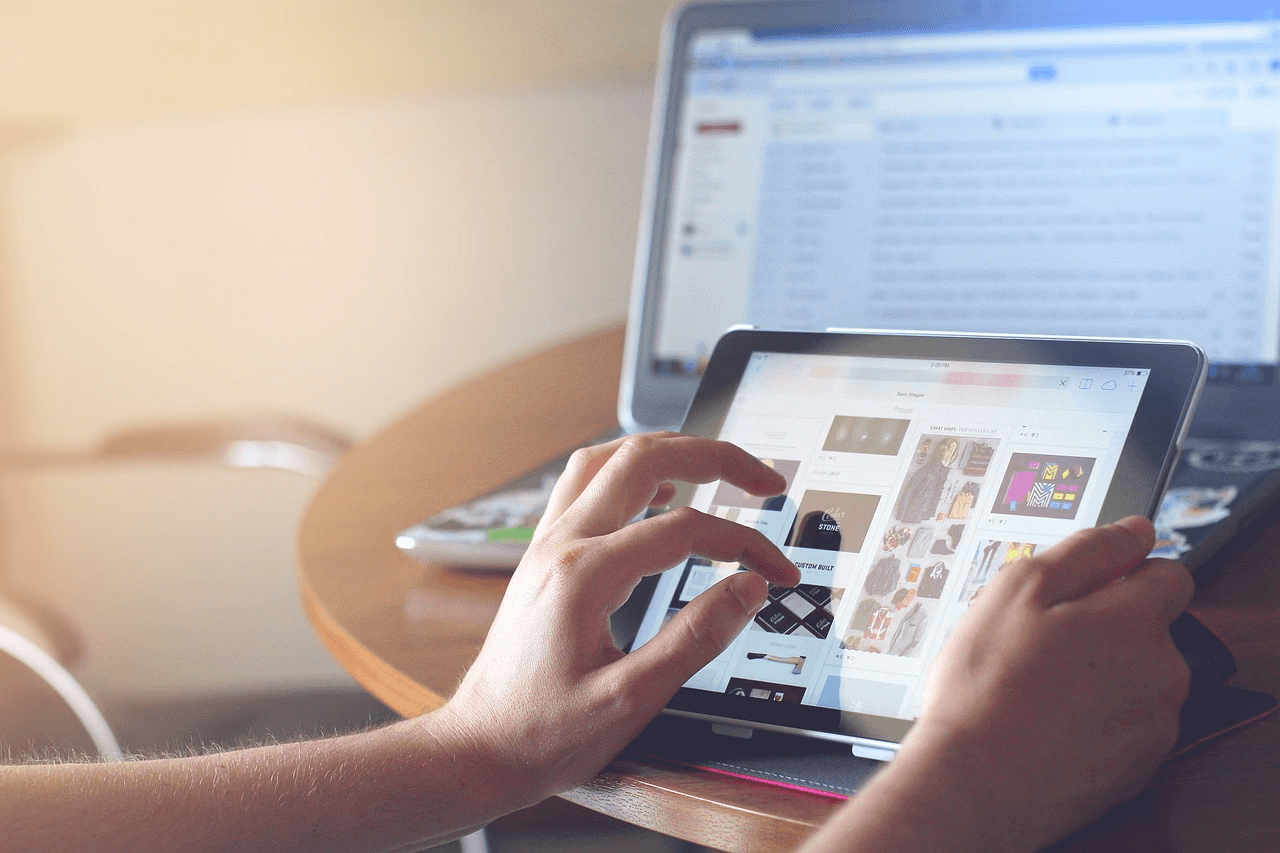
ตามปกติหมายถึงการซื้อจอภาพที่สอง, พกพาจอภาพพกพาที่ใหญ่โต, หรือจัดการกับความยุ่งเหยิงของ HDMI, USB-C, และ dongles แต่ด้วยเทคโนโลยีการแสดงหน้าจอระยะไกลรุ่นต่อไปนี้ คุณสามารถ เปลี่ยนแท็บเล็ตเป็นหน้าจอที่สองสำหรับแล็ปท็อป แบบไร้สายได้ง่ายๆ ด้วย DeskIn
คู่มือนี้จะแบ่งปันทุกอย่างที่คุณจำเป็นต้องรู้เกี่ยวกับการเลือกขยายหน้าจอแล็ปท็อปที่ดีที่สุด ทำไม DeskIn ถึงก้าวหน้า และวิธีที่คุณสามารถยกระดับการทำงานของคุณได้โดยไม่ต้องมีสาย เคเบิล และความเสี่ยงทางงบประมาณ
คำตอบสั้นๆ: ทุกคนที่ใช้แล็ปท็อป
ในโลกที่การทำงานหลายอย่างพร้อมๆ กันเป็นเรื่องปกติ ทุกคนมักเจอกำแพงเดียวกัน: เราต้องการพื้นที่หน้าจอมากขึ้น ผู้ใช้ทุกประเภทได้รับประโยชน์จากการมีพื้นที่ดิจิทัลที่ใหญ่ขึ้น
นักออกแบบ & นักสร้างสรรค์
คนที่ใช้เครื่องมือแบบภาพ จากการออกแบบกราฟิกไปจนถึงการตัดต่อวิดีโอและการสร้างภาพเป็นครั้งแรก ต้องการพื้นที่สำหรับเลเยอร์ ทรัพย์สิน การอ้างอิงและเครื่องมือสร้างสรรค์อยู่ตลอดเวลา
นักเล่นเกม
ผู้เล่นที่ยังคงเชื่อมต่อกับ Discord, แชท Twitch หรือการควบคุมการสตรีมในขณะที่รักษาเกมหลักของพวกเขาเป็นสำคัญ
นักพัฒนา
คนที่มีความเชี่ยวชาญด้านเทคโนโลยีซึ่งมักจัดการหน้าต่างหลายบาน terminal log หรือเอกสารที่มีความจำเป็นต้องมีพื้นที่ที่ไม่เกะกะเพื่อประสิทธิภาพที่ดีขึ้น
นักเรียน & ผู้ที่ทำงานจากระยะไกล
คนที่เข้าร่วมการประชุม การวิจัย การศึกษา หรือจัดการแอปหลายตัวในขณะเดียวกันสลับงานอย่างต่อเนื่อง
Minimalists, ผู้เดินทาง ขนาดโต๊ะเล็ก
คนที่ทำงานจากร้านกาแฟ สนามบิน พื้นที่ coworking ห้องพักในโรงแรมหรือการตั้งค่าที่บ้านเล็กๆ และไม่มีพื้นที่สำหรับจอมอนิเตอร์เต็มรูปแบบ
หากพูดกันตรงๆ การทำงานหลายอย่างบนหน้าจอแล็ปท็อปเดียวเหมือนกับการพยายามทำอาหารคอร์สสามจานบนเตาเล็กๆ หนึ่งเตา เครื่องขยายหน้าจอแล็ปท็อปให้คุณมีเตาเพิ่มที่คุณต้องการ มันเปลี่ยนทุกอย่างไป ดังนี้:
เพิ่มประสิทธิภาพการทำงาน
นึกถึงสิ่งนี้เป็นการเติมแรงแบบกังชวนให้กับกลไกการทำงานของคุณ ด้วยหน้าจอสองแผง แอปต่างๆ ของคุณจะหยุดต่อสู้เพื่อความสนใจ ไม่ต้องกังวลเกี่ยวกับการเปลี่ยนแอป ทุกอย่างที่คุณต้องการอยู่ตรงนั้นและพร้อมที่จะดำเนินการ สมองของคุณจะขอบคุณ
การทำงานหลายอย่างที่เรียบง่าย
Zoom ด้านซ้าย, บันทึกเตือนด้านขวา โค้ดด้านบน, ดูตัวอย่างจริงๆ ด้านล่าง อีเมลของคุณเปิดอยู่โดยไม่รบกวนพื้นที่การทำงานของคุณ มันเหมือนกับเปลี่ยนสตูดิโออพาร์ตเมนต์ที่อึดอัดให้เป็นบ้านสองชั้น ทันใดนั้น ทุกอย่างมีห้องของตัวเอง
ปรับปรุงการวางท่าทาง
การเปลี่ยนหน้าต่างตลอดเวลาไม่เพียงแค่รบกวนเท่านั้น มันยังเป็นการออกกำลังกายสำหรับคอที่ไม่มีใครถามหาอีกด้วย การกระจายเครื่องมือของคุณข้ามสองหน้าจอช่วยให้อยู่ในท่าทางธรรมชาติและทำให้ตาของคุณรู้สึกผ่อนคลาย น้อยกว่า, แต่มีมากกว่า
การทำงานและพื้นที่ที่จำกัด
ไม่มีจอมอนิเตอร์ใหญ่ที่พองใหญ่ ไม่มีสถานีเชื่อมต่อที่ดูเหมือนเครื่องยนต์ยานอวกาศ แค่แล็ปท็อปของคุณและอุปกรณ์ที่สองที่ทำงานเป็นหน้าจอเพิ่มเติมของคุณ มันเป็นการตั้งค่าสองหน้าจอที่จริงๆ แล้วพอดีกับกระเป๋าเป้ของคุณ (หรือโต๊ะกาแฟของคุณโดยไม่ก่อให้เกิดการแกล้งตา)
โฟกัสและควบคุมการทำงานที่ดีขึ้น
สองหนาจอ = สองโซน. การทำงานลึกบนหน้าจอหลักของคุณ, การอ้างอิง หรือเครื่องมือการสื่อสารบนหน้าจอที่สอง มันคือวิธีที่คุณจัดระเบียบชีวิตดิจิทัลให้เป็น "ทำเดี๋ยวนี้" และ "ตรวจสอบต่อไปนี้" โดยไม่สูญเสียที่ที่คุณอยู่
เครื่องขยายหน้าจอของ DeskIn สำหรับแล็ปท็อปเป็นคุณสมบัติไร้สายที่เปลี่ยนแท็บเล็ต โทรศัพท์ หรือล็อกท็อปอื่นๆ ของคุณให้เป็นหน้าจอที่สองที่มีประสิทธิภาพสูง มันเป็นส่วนหนึ่งของชุดเครื่องมือ เพิ่มผลิตภาพระยะไกล ของ DeskIn ซึ่งออกแบบมาเพื่อช่วยให้คุณทำงาน เล่น และสร้างสรรค์ได้ข้ามอุปกรณ์ด้วยความตอบสนองตามเวลาจริง
ด้วย DeskIn คุณสามารถ:
ขยายหรือสะท้อนหน้าจอแล็ปท็อปของคุณแบบไร้สาย
ใช้แท็บเล็ตเป็นพื้นที่ทำงานที่มีปฏิสัมพันธ์
สร้างการตั้งค่าหน้าจอสองหน้าจอและหลายหน้าจอได้ทุกที่
จอภาพที่สองสามารถทำงานด้วยประสิทธิภาพ 4K/2K โดยไม่ต้องใช้สาย
มันมีน้ำหนักเบา รวดเร็ว ไม่ซับซ้อน และถูกสร้างขึ้นสำหรับโลกที่การทำงานเกิดขึ้นทุกที่

การเลือกเครื่องขยายหน้าจอแล็ปท็อปไม่ควรรู้สึกเหมือนการประกอบยานอวกาศ DeskIn ทำให้มันเรียบเนี๊ยบมาก ยืดหยุ่นมาก และทรงพลังอย่างไม่น่าเชื่อ เป็นเครื่องมือที่คุณติดตั้งครั้งเดียวแล้วจะไม่รู้อย่างไรที่คุณเคยอยู่โดยไม่มีมัน
DeskIn ไม่เลือกข้าง ไม่ว่าคุณจะอยู่ทีม Windows ทีม macOS หรือเป็นคนที่มีอุปกรณ์มากเกินไป (เห็นพวกคุณ) DeskIn ทำงานอย่างลื่นไหลบน Windows, macOS, iOS, iPadOS, และ Android
หากการตั้งค่าสองหน้าจอแบบดั้งเดิมรู้สึกเหมือนสุสานสายเคเบิล HDMI, DisplayPort, USB-C, dongles ที่หายไปแต่คุณต้องการ DeskIn คือยาขนานเอก
นี่คือการตั้งค่าสองหน้าจอแบบไร้สายที่ทำได้อย่างดี ไม่ต้องใช้พอร์ต ไม่ต้องมีอะแดปเตอร์ ไม่มีละครความเข้ากันได้ของฮาร์ดแวร์
เพียงติดตั้ง DeskIn เชื่อมต่ออุปกรณ์ และแตะแท็บ “ขยายหน้าจอของฉัน” และบูม คุณมีการตั้งค่าสองหน้าจอไร้สายที่ไร้รอยต่อ มันคือสิ่งที่ชนิดเหมือนกับเวทมนตร์ที่แล็ปท็อปของคุณได้สัมผัสในรอบหลายปี
เครื่องมือแสดงผลไร้สายส่วนใหญ่โอเคจนกระทั่งคุณลองเลื่อน วาด เล่นเกม หรือต้องการอะไรก็ตามที่มีการเคลื่อนไหวจริงๆ DeskIn เอาจริงเรื่องสมรรถนะ ส่งให้กับ:
4K60FPS/2K240FPS สำหรับความละเอียดที่คมชัดพิเศษ
<40ms ความหน่วงต่ำ สำหรับการเคลื่อนไหวที่ลื่นไหล
ความแม่นยำของสี 4:4:4 ซึ่งเป็นสิ่งสำคัญสำหรับนักออกแบบและบรรณาธิการ
นี่คือสถานที่ที่ DeskIn โดดเด่นที่สุด บรรณาธิการวิดีโอได้รับการดูตัวอย่างแบบเรียลไทม์โดยไม่มีการกระตุก นักเล่นเกมรักษา Discord หรือการควบคุมสตรีมไว้อย่างมีชีวิตโดยไม่มีความหน่วงศิลปินดิจิทัลเพลิดเพลินกับการร่างปากกาที่เป็นธรรมชาติตอบสนองเมื่อสร้างภาพร่างบนแท็บเล็ตเป็นหน้าจอที่สอง
มันไม่ใช่เพียง “หน้าจอไร้สาย” มันคือหน้าจอไร้สายที่ทำงานเหมือนหน้าจอพรีเมียม
ไม่ต้องมีด้องเกิลและความหน่วง ทดลองใช้งาน DeskIn วันนี้และสัมผัสกับการทำงานไร้สายของหน้าจอสองที่อย่างแท้จริง
ขณะนี้เราได้แผนภาพว่าใครได้รับประโยชน์มากที่สุดจากการมีพื้นที่หน้าจอเพิ่มเติม มาดูกันต่อว่าเป็นอย่างไรในชีวิตจริง
ไม่ว่าคุณจะเรียน ออกแบบ โค้ด หรือเล่นเกม DeskIn เปลี่ยนการทำงานประจำวันให้เป็นการตั้งค่าที่ราบรื่น เร็ว และเหมาะสมกับการทำงานหลายอย่างพร้อมๆกัน
นี่คือวิธีที่ผู้ใช้งานต่างๆ ใช้ DeskIn ในการทำงานประจำวัน
การพยายามจดบันทึกบนหน้าจอเดียวกันกับการประชุม Zoom ควรนับเป็นกีฬาประเภทโอลิมปิก เมื่อ DeskIn ทำหน้าที่เป็นหน้าจอที่สองของคุณสำหรับแล็ปท็อป ทุกอย่างกลายเป็นระเบียบ สงบ และประสิทธิภาพ
การตั้งค่าที่เป็นที่นิยมบางประการรวมถึง:
Zoom + Docs — เก็บการเรียนหรือการประชุมของคุณเห็นได้ในขณะที่จดบันทึกโดยไม่ต้องสลับหน้าต่าง
อีเมล + ปฏิทิน — จัดการวันของคุณโดยไม่ต้องคลิกกลับไปกลับมา
Notion + เบราว์เซอร์ — วิจัยบนหน้าจอหนึ่ง จับไอเดียทันทีบนอีกหน้าจอหนึ่ง
ด้วยการแบ่งพื้นที่ทำงานของคุณข้ามสองหน้าจอ DeskIn ช่วยให้คุณดึงเวลากลับจากการสลับแท็บที่ไม่สิ้นสุด สำหรับพนักงานที่ทำงานที่ร้านกาแฟ นักเที่ยวเดินทาง ผู้เชี่ยวชาญที่ทำงานจากระยะไกล และนักเรียน จอสองแผงนี้เป็นการประหยัดเวลาที่สำคัญที่รู้สึกเป็นธรรมชาติโดยทันที
สำหรับนักออกแบบ นักวาดภาพ และบรรณาธิการ DeskIn รู้สึกเหมือนปลดล็อกสตูดิโอใหม่ๆ ที่พอดีในกระเป๋าของคุณ การใช้แท็บเล็ตเป็นเครื่องขยายหน้าจอแล็ปท็อปไร้สายของคุณพลิกการทำงานของคุณให้เป็นพื้นที่สร้างสรรค์ที่ลื่นไหลและยืดหยุ่นสูง
ลองจินตนาการถึงสิ่งนี้:
การวาดภาพบน iPad ของคุณในขณะที่คงบอร์ดอ้างอิงหลักของคุณเปิดอยู่บนแล็ปท็อปของคุณ
การกระจายเลเยอร์ แผง หรือลำดับเหตุการณ์ข้ามสองหน้าจอใน Procreate, Figma, Photoshop, หรือเครื่องมือการออกแบบใดๆ ที่คุณรัก
สนุกกับการตอบสนองขอบปากแบบไร้สายขณะที่แท็บเล็ตของคุณทำหน้าที่เป็นผ้าใบขยาย
มันคือการตั้งค่าที่ช่วยรักษาการไหลสร้างสรรค์ของคุณให้เป็นไปอย่าไม่ขัดจังหวะ และปล่อยให้เครื่องมือทุกตัวมีพื้นที่เฉพาะของตัวเอง ไม่มีความยุ่งเหยิง ไม่มีการประนีประนอม เพียงการสร้างสรรค์เพียงเน้นอย่างเดียว
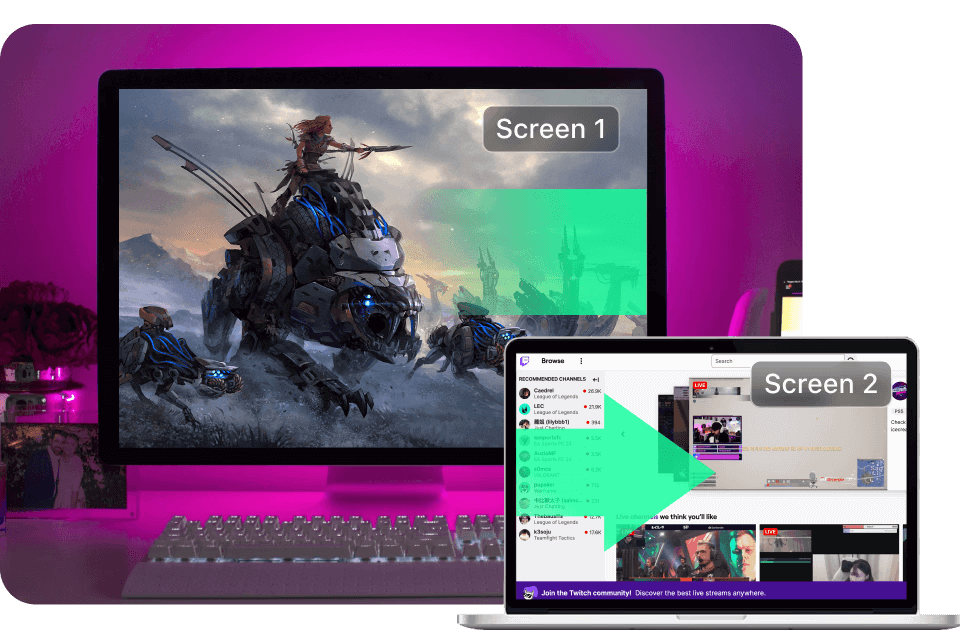
นักเล่นเกมต้องการมากกว่าบรรยากาศเกม พวกเขาต้องการการมองเห็น ด้วยเหตุนี้จึงมีความสำคัญไม่ว่าสำหรับการสตรีม, การจัดระเบียบกับเพื่อนร่วมทีม, หรือการเฝ้าดูแชท หน้าจอที่สองสำหรับแล็ปท็อปนั้นเปลี่ยนทุกสิ่ง
วิธีการแก้ปัญหา การเล่นเกมระยะไกล ของ DeskIn ทั่วไปดูเหมือน:
หน้าจอหลัก = เกม
หน้าจอที่สอง = Discord, แชท Twitch, OBS, Spotify, walkthroughs หรือคู่มือการสร้างไอเท็ม
เพราะ DeskIn มีความหน่วงต่ำ ทุกอย่างบนหน้าจอที่สองของคุณรู้สึกที่ตอบสนองและประสาน ไม่มีกระตุก ไม่มีความหน่วง มีแค่การเฝ้าดูที่ราบรื่นขณะการเล่นเกมของคุณยังคงเต็มหน้าจอและไม่ขาดตอน
สมบูรณ์แบบสำหรับสตรีมเมอร์ ผู้เล่นในการแข่งขัน หรือใครก็ตามที่รักการเห็นสิ่งที่จำเป็นในพริบตา
และหากคุณต้องการสำรวจเค้าโครงที่ซับซ้อนยิ่งขึ้น ลองดูคำแนะนำของเรา Set Up Dual Monitor for Gaming: The Ultimate Guide for 2025.
นักพัฒนารู้ถึงความยากลำบาก: การบันทึกอยู่ตรงนี้ terminal อยู่ที่นั่น เอกสารกำลังแฝงตัวอยู่หลังหน้าต่างอีก 5 บาน หน้าจอแล็ปท็อปเดียวสามารถแคบแคบได้อย่างรวดเร็ว แต่ DeskIn แก้ปัญหานั้นด้วยการตั้งค่าสองหน้าจอไร้สายที่ยืดหยุ่น
ด้วย DeskIn คุณสามารถ:
สนับสนุนลูกค้าในขณะที่เก็บบันทึก terminal หรือเครื่องมือแก้จุดบกพร่องที่ทำงานได้บนหน้าจอที่ขยาย
เก็บเอกสาร API ประเด็นของ GitHub Stack Overflow หรือข้อกำหนดการออกแบบเปิดโดยไม่กีดขวาง IDE ของคุณ
เฝ้าดู dashboards หรือเอาต์พุตคอนโซลขณะที่โค้ดไม่ถูกรบกวนบนหน้าจอหลักของคุณ
ไม่มีจอมอนิเตอร์ขนาดใหญ่ ไม่มีสถานีเชื่อมต่อ ไม่มีฮับ USB-C ที่หายไปในเวลาที่คุณต้องการ แค่วิธีการแก้ปัญหาที่คริสสาระมาก ให้นักพัฒนามองเห็นและควบคุมได้ทันที
การตั้งค่าเครื่องขยายหน้าจอแล็ปท็อปไร้สายของคุณไม่ควรให้รู้สึกเหมือนปริศนาทางเทคโนโลยี ด้วย DeskIn คุณสามารถเปลี่ยนแท็บเล็ต โทรศัพท์ หรือแล็ปท็อปที่สองของคุณให้กลายเป็นหน้าจอขยายในเวลาน้อยกว่าที่จะใช้ในการแก้ไขสาย HDMI
ต่อไปนี้คือวิธีการตั้งค่าสองหน้าจอของคุณให้ทำงาน:
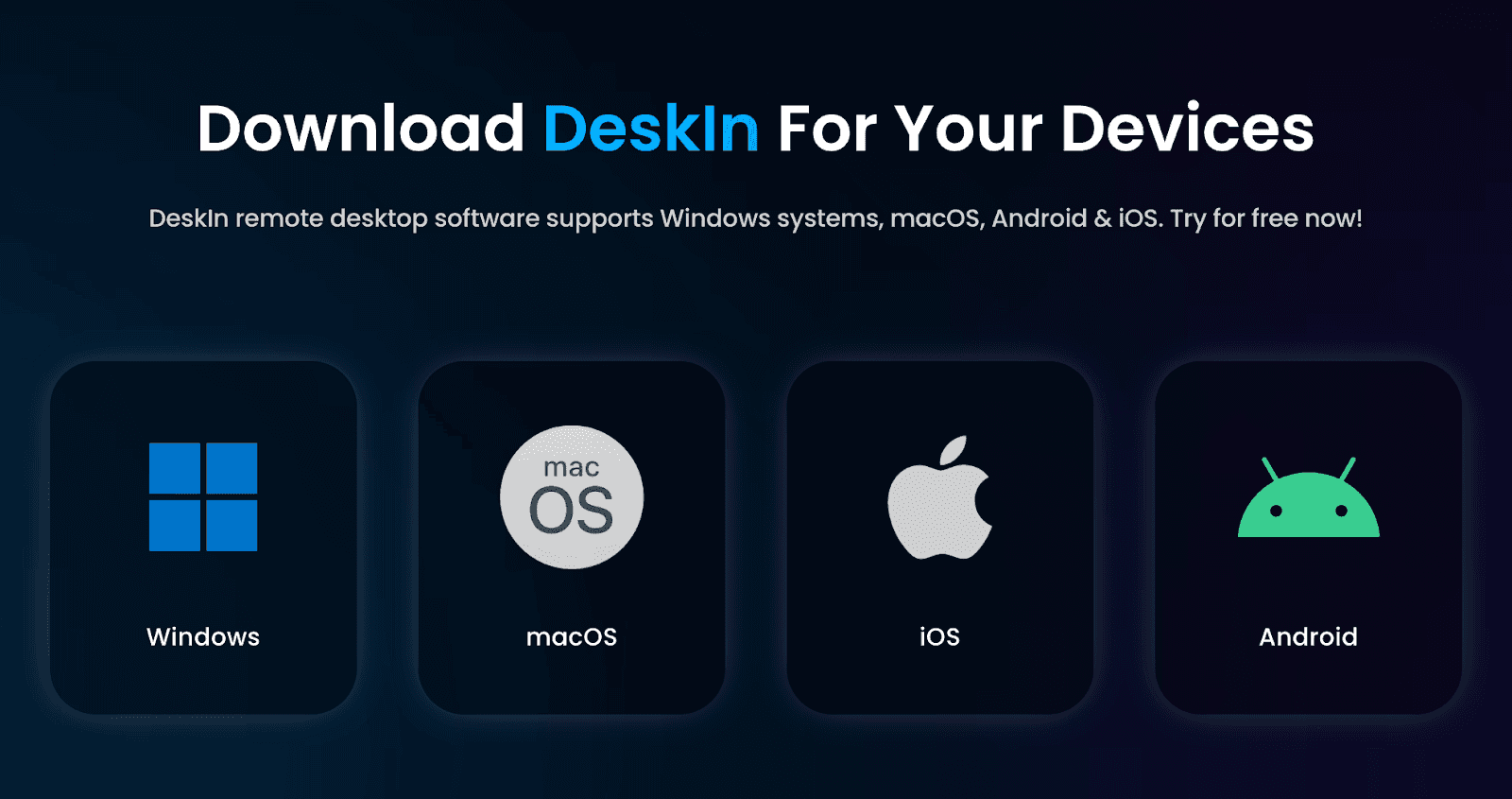
ดาวน์โหลด DeskIn บนแล็ปท็อปของคุณและอุปกรณ์ที่คุณต้องการใช้เป็นหน้าจอที่สองของแล็ปท็อป
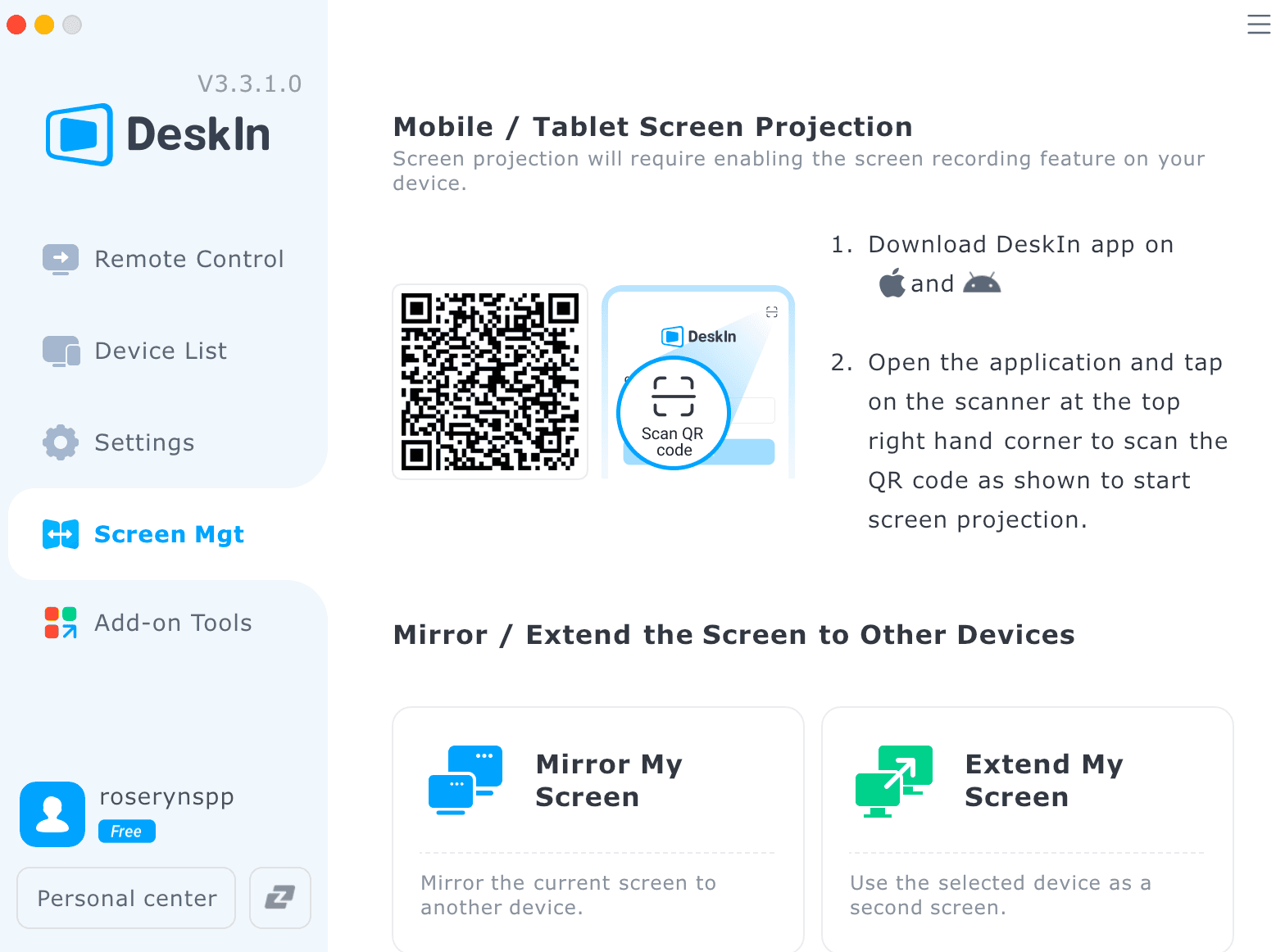
จากแถบเครื่องมือซ้าย ไปที่ การจัดการหน้าจอ และแตะ ขยายหน้าจอของฉัน เพื่อเริ่มต้นการตั้งค่า
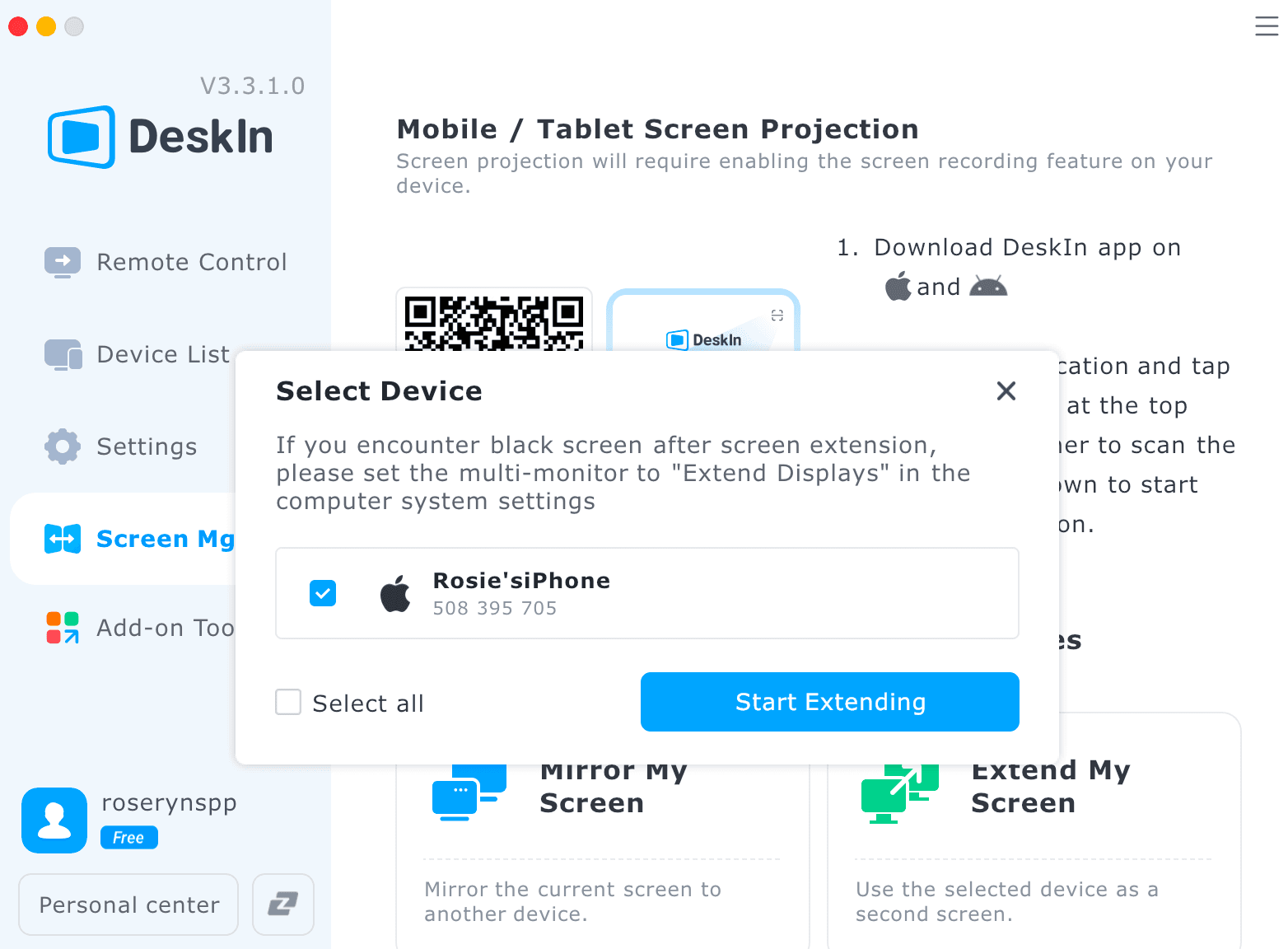
เลือกอุปกรณ์เป้าหมายของคุณจากรายการ แตะ เริ่มต้นการขยาย และอุปกรณ์ที่สองของคุณจะกลายเป็นภาพขยายไร้สายทันที
ไม่ใช่ทุกการแก้ปัญหาหลายหน้าจอที่สร้างอย่างเท่าเทียมกัน บางส่วนต้องใช้สาย บางส่วนต้องการอุปกรณ์เสริมเพิ่มเติม และบางส่วนใช้พื้นที่โต๊ะมากกว่าที่คุณเต็มใจจะสละ ต่อไปนี้คือวิธีที่เครื่องขยายหน้าจอของ DeskIn เปรียบเทียบกับตัวเลือกยอดนิยมอื่นๆ
แอปขยายหน้าจอ กลายเป็นคำตอบที่ทันสมัยและเบาน้ำหนักต่อการตั้งค่าหลายหน้าจอแบบดั้งเดิม พวกเขาทำให้คุณสามารถเปลี่ยนแท็บเล็ต โทรศัพท์ หรือล็อกทอปที่ยังใช้ไม่ได้ให้กลายเป็นจอภาพพิเศษโดยไม่ต้องเสียเงินซื้อฮาร์ดแวร์ใหม่
ข้อดี:
ประหยัดงบประมาณ
ทำงานข้ามแพลตฟอร์ม (Windows, macOS, iOS, iPadOS, Android)
100% ไร้สาย, ไม่ต้องใช้สายหรือ dongles
ข้อเสีย:
ต้องการการเชื่อมต่อ Wi-Fi ที่เสถียร
แต่นี่คือจุดที่ DeskIn แตกต่าง ในขณะที่หลายแอปประสบปัญหาการหน่วง การเชื่อมต่อ หรือการแสดงภาพที่ขาดหาย DeskIn ใช้เครื่องยนต์ที่ถูกปรับแต่งเพื่อส่งภาพที่ราบรื่น การเชื่อมต่ออุปกรณ์อย่างรวดเร็ว และการตอบสนองทีน่าเชื่อถือ — แก้ไขข้อบกพร่องที่ใหญ่ที่สุดของเครื่องมือขยายหน้าจอสำหรับแล็ปท็อปทั่วไป
สถานีเชื่อมต่อเป็นวิธีคลาสสิกในการขยายพื้นที่การทำงานของคุณ: เชื่อมต่อแล็ปท็อปของคุณเข้ากับสถานีเชื่อมต่อ, เชื่อมต่อจอภาพ คีย์บอร์ด และเมาส์, และคุณจะมีการตั้งค่าเดสก์ท็อปอย่างเต็มรูปแบบ
ข้อดี:
ให้กำลังการจ่ายไฟ
รองรับอุปกรณ์ภายนอกหลายตัว
การเชื่อมสายที่เสถียรและน่าเชื่อถือ
ข้อเสีย:
ราคาแพง
ขนาดใหญ่และไม่สะดวกต่อการเดินทาง
เหมาะสำหรับโต๊ะทำงานถาวร, ไม่เหมาะสำหรับพนักงานที่ทำงานไฮบริดหรือเคลื่อนที่
ยอดเยี่ยมสำหรับการตั้งค่าที่ทำงานที่คงที่ ไม่ดีนักหาก "ที่ทำงาน" ของคุณเปลี่ยนแปลงทุกสัปดาห์
จอมอนิเตอร์พกพาให้หน้าจอที่สองที่คุณสามารถใส่กระเป๋าก่อนเดินทาง พวกเขาได้รับความนิยมเพราะมีความรู้สึกเหมือนวัตถุที่คุ้นเคย: แค่เสียบ, ตั้งค่า, และไป
ข้อดี:
การใช้งานง่ายติดตั้งและใช้งานได้ทันที
พร้อมให้เลือกหลากหลายขนาด
ความรู้สึกเหมือนใช้จอภาพแบบดั้งเดิม
ข้อเสีย:
ยังคงใช้สาย (USB-C หรือ HDMI)
อาจมีราคาแพง
หน้าจอที่เปราะบางที่ต้องจัดการอย่างระมัดระวัง
อุปกรณ์เสริมที่ต้องพกพาเพิ่ม
ในที่สุด, จอมอนิเตอร์พกพามีความเหมาะสมกับคนที่อยู่ในสถานที่เป็นหลัก สำหรับนักเดินทาง, คนทำงานดิจิทัล, หรือผู้ใช้ที่มีโต๊ะขนาดเล็ก พวกเขาเพิ่มความยุ่งเหยิงแทนที่จะลดมัน
คุณสมบัติ / ตัวเลือก | เครื่องขยายหน้าจอ DeskIn | สถานีเชื่อมต่อ + จอภาพภายนอก | จอมอนิเตอร์พกพา |
ค่าใช้จ่าย | ใช้ฟรี | การลงทุนที่สูงกว่า | ปานกลางถึงสูง |
การพกพา | น้ำหนักเบา | หนัก | หนัก |
การตั้งค่า | ติดตั้งได้ทันที ไร้สาย | การตั้งค่าที่ซับซ้อน (สาย, สถานีเชื่อมต่อ, จอภาพ) | รวดเร็วแต่ต้องใช้สาย |
ต้องใช้สายเคเบิล | ไม่ต้อง | ต้องใช้ | ต้องใช้ |
การรองรับข้ามแพลตฟอร์ม | ทำงานบน Windows, macOS, iOS, iPadOS, Android | ขึ้นอยู่กับรุ่น | ขึ้นอยู่กับรุ่น |
พื้นที่โต๊ะที่ต้องการ | น้อยที่สุด | สูง | ปานกลาง |
สมรรถนะ | สูง (การหน่วงต่ำ สนับสนุน 4K/2K) | สูงมาก (สาย) | ดี (สาย) |
เหมาะสำหรับ | ทุกคน: ผู้ทำงานจากระยะไกล นักเดินทาง นักเรียน ดิจิทัลโนแมด นักเล่นเกม | การตั้งค่าที่ทำงานถาวร, ผู้ใช้ที่มีพลัง | คนทำงานที่มีการเคลื่อนไหวบางครั้ง, สำนักงานที่บ้าน |
ถ้าคุณต้องการหน้าจอที่สองที่ยังคงตามไลฟ์สไตล์ของคุณ ไม่ว่าคุณจะเดินทาง เรียน ทำงานไฮบริด หรือกระเด้งไปร้านกาแฟ DeskIn เป็นวิธีขยายหน้าจอแล็ปท็อปที่พกพาได้จริง ราคาย่อมเยา และทรงพลังไร้สาย effortlessly ที่สุด มันให้ความยืดหยุ่นอย่างแท้จริงโดยไม่ใช้สายและเพิ่มผลิตภาพโดยไม่ต้องเสียค่าใช้จ่ายเพิ่ม
พร้อมที่จะยกระดับกระบวนการทำงานของคุณหรือยัง? ดาวน์โหลด DeskIn ตอนนี้ และสนุกกับอิสระหน้าจอสองโดยไม่มีความยุ่งเหยิง ขีดจำกัด หรือปัญหาเกี่ยวกับฮาร์ดแวร์
เครื่องขยายหน้าจอแล็ปท็อปคืออะไรและมันทำงานอย่างไร?
เครื่องขยายหน้าจอแล็ปท็อปคือเครื่องมือหรือซอฟต์แวร์ที่ให้คุณเพิ่มจอภาพพิเศษให้กับแล็ปท็อปของคุณ ช่วยให้คุณมีพื้นที่ทำงานมากขึ้น ด้วยตัวเลือกไร้สายเช่น DeskIn คุณสามารถเปลี่ยนแท็บเล็ต โทรศัพท์ หรือแล็ปท็อปอื่นๆ ของคุณให้เป็นหน้าจอที่สองสำหรับแล็ปท็อปโดยไม่ต้องใช้สายใดๆ
ฉันสามารถใช้ iPad หรือแท็บเล็ตเป็นหน้าจอที่สองได้ไหม?
ได้อย่างแน่นอน! ด้วย DeskIn คุณสามารถใช้แท็บเล็ตเป็นหน้าจอที่สองได้อย่างง่ายดาย รวมถึง iPad แท็บเล็ต Android และสมาร์ทโฟน แค่ติดตั้งแอป เชื่อมต่ออุปกรณ์ของคุณ และแตะ “ขยายหน้าจอของฉัน”
เครื่องขยายหน้าจอแล็ปท็อปไร้สายเชื่อถือได้หรือไม่?
แน่นอน เครื่องมือสมัยใหม่เช่น DeskIn ออกแบบมาเพื่อการทำงานที่ราบรื่นและความหน่วงต่ำ DeskIn สนับสนุน 4K60FPS, 2K240Hz, และความแม่นยำของสีสูง ทำให้เป็นเครื่องขยายหน้าจอแล็ปท็อปไร้สายที่เชื่อถือได้สำหรับการทำงาน การเล่นเกม และงานสร้างสรรค์
ฉันต้องใช้สายเคเบิล, dongles, หรืออะแดปเตอร์ไหม?
ไม่ต้องใช้สายใดๆ! DeskIn ทำงานไร้สายเต็มรูปแบบ ไม่ต้องใช้ HDMI, USB-C หรือสถานีเชื่อมต่อ เพียงติดตั้งแอปบนอุปกรณ์ทั้งสองและเชื่อมต่อผ่าน Wi-Fi
ฉันสามารถเชื่อมต่ออุปกรณ์ใดกับ DeskIn ได้บ้าง?
DeskIn รองรับการข้ามแพลตฟอร์มอย่างสมบูรณ์ คุณสามารถขยายหน้าจอระหว่าง Windows, macOS, iOS, iPadOS, และอุปกรณ์ Android ซึ่งหมายความว่าคุณสามารถใช้โทรศัพท์ แท็บเล็ต หรือแล็ปท็อปอื่นๆ เป็นจอภาพเสริมของคุณ
ในโลกที่การทำงานหลายอย่างพร้อมๆ กันคือปกติและพื้นที่หน้าจอไม่เคยพอ การมีเครื่องขยายหน้าจอแล็ปท็อปไม่ใช่เพียงความสะดวกสบาย มันเป็นการยกระดับผลิตภาพจริงๆ
DeskIn ขยายการยกระดับนั้นไปไกลยิ่งขึ้นโดยให้คุณมีวิธีการที่ไร้สายแบบราบรื่น ข้ามแพลตฟอร์ม เพื่อเปลี่ยนแท็บเล็ต โทรศัพท์ หรือแล็ปท็อปที่ว่างเปล่าของคุณให้เป็นจอภาพเสริมที่ทรงพลัง ไม่ว่าคุณจะกำลังเรียน, ออกแบบ, โค้ด, เล่นเกม, หรือทำงานในขณะเดินทาง DeskIn ทำให้กระบวนการทำงานของคุณรู้สึกใหญ่ขึ้น เร็วขึ้น และจัดระเบียบได้อย่างลงตัว
ไม่มีสายเคเบิล ไม่มีจอมอนิเตอร์หนักๆ ไม่มีข้อจำกัด เพียงแค่อิสระหน้าจอคู่ที่แท้จริงทุกที่ที่คุณอยู่
ทำไมต้องรอ? ทดลองใช้ DeskIn วันนี้และเปลี่ยนแล็ปท็อปประจำวันของคุณให้เป็นเครื่องมือมัลติทาสก์ไร้สายที่ยืดหยุ่น ดาวน์โหลดตอนนี้และสัมผัสการใช้หน้าจอที่สองที่ง่ายที่สุดที่คุณเคยใช้
หากมีความจริงเพียงหนึ่งเดียวเกี่ยวกับการทำงาน (และความสนุก) ในยุคปัจจุบัน ก็คือความจริงนี้: หน้าจอเดียวไม่เคยเพียงพอ
ไม่ว่าคุณจะเป็นนักออกแบบที่จัดการเลเยอร์ใน Photoshop, นักเล่นเกมที่เฝ้าดู Discord ขัดข้องระหว่างกลางของภารกิจ, นักเรียนที่พยายามให้ Zoom ไม่หลับ หรือผู้พัฒนาที่ล้นไปด้วยหน้าต่าง terminal เราทุกคนเคยสัมผัสถึงความหิวหน้าจอ ในขณะนั้นเมื่อคุณกระซิบว่า "ฉันต้องการ... พื้นที่มากขึ้น"
ตามปกติหมายถึงการซื้อจอภาพที่สอง, พกพาจอภาพพกพาที่ใหญ่โต, หรือจัดการกับความยุ่งเหยิงของ HDMI, USB-C, และ dongles แต่ด้วยเทคโนโลยีการแสดงหน้าจอระยะไกลรุ่นต่อไปนี้ คุณสามารถ เปลี่ยนแท็บเล็ตเป็นหน้าจอที่สองสำหรับแล็ปท็อป แบบไร้สายได้ง่ายๆ ด้วย DeskIn
คู่มือนี้จะแบ่งปันทุกอย่างที่คุณจำเป็นต้องรู้เกี่ยวกับการเลือกขยายหน้าจอแล็ปท็อปที่ดีที่สุด ทำไม DeskIn ถึงก้าวหน้า และวิธีที่คุณสามารถยกระดับการทำงานของคุณได้โดยไม่ต้องมีสาย เคเบิล และความเสี่ยงทางงบประมาณ
คำตอบสั้นๆ: ทุกคนที่ใช้แล็ปท็อป
ในโลกที่การทำงานหลายอย่างพร้อมๆ กันเป็นเรื่องปกติ ทุกคนมักเจอกำแพงเดียวกัน: เราต้องการพื้นที่หน้าจอมากขึ้น ผู้ใช้ทุกประเภทได้รับประโยชน์จากการมีพื้นที่ดิจิทัลที่ใหญ่ขึ้น
นักออกแบบ & นักสร้างสรรค์
คนที่ใช้เครื่องมือแบบภาพ จากการออกแบบกราฟิกไปจนถึงการตัดต่อวิดีโอและการสร้างภาพเป็นครั้งแรก ต้องการพื้นที่สำหรับเลเยอร์ ทรัพย์สิน การอ้างอิงและเครื่องมือสร้างสรรค์อยู่ตลอดเวลา
นักเล่นเกม
ผู้เล่นที่ยังคงเชื่อมต่อกับ Discord, แชท Twitch หรือการควบคุมการสตรีมในขณะที่รักษาเกมหลักของพวกเขาเป็นสำคัญ
นักพัฒนา
คนที่มีความเชี่ยวชาญด้านเทคโนโลยีซึ่งมักจัดการหน้าต่างหลายบาน terminal log หรือเอกสารที่มีความจำเป็นต้องมีพื้นที่ที่ไม่เกะกะเพื่อประสิทธิภาพที่ดีขึ้น
นักเรียน & ผู้ที่ทำงานจากระยะไกล
คนที่เข้าร่วมการประชุม การวิจัย การศึกษา หรือจัดการแอปหลายตัวในขณะเดียวกันสลับงานอย่างต่อเนื่อง
Minimalists, ผู้เดินทาง ขนาดโต๊ะเล็ก
คนที่ทำงานจากร้านกาแฟ สนามบิน พื้นที่ coworking ห้องพักในโรงแรมหรือการตั้งค่าที่บ้านเล็กๆ และไม่มีพื้นที่สำหรับจอมอนิเตอร์เต็มรูปแบบ
หากพูดกันตรงๆ การทำงานหลายอย่างบนหน้าจอแล็ปท็อปเดียวเหมือนกับการพยายามทำอาหารคอร์สสามจานบนเตาเล็กๆ หนึ่งเตา เครื่องขยายหน้าจอแล็ปท็อปให้คุณมีเตาเพิ่มที่คุณต้องการ มันเปลี่ยนทุกอย่างไป ดังนี้:
เพิ่มประสิทธิภาพการทำงาน
นึกถึงสิ่งนี้เป็นการเติมแรงแบบกังชวนให้กับกลไกการทำงานของคุณ ด้วยหน้าจอสองแผง แอปต่างๆ ของคุณจะหยุดต่อสู้เพื่อความสนใจ ไม่ต้องกังวลเกี่ยวกับการเปลี่ยนแอป ทุกอย่างที่คุณต้องการอยู่ตรงนั้นและพร้อมที่จะดำเนินการ สมองของคุณจะขอบคุณ
การทำงานหลายอย่างที่เรียบง่าย
Zoom ด้านซ้าย, บันทึกเตือนด้านขวา โค้ดด้านบน, ดูตัวอย่างจริงๆ ด้านล่าง อีเมลของคุณเปิดอยู่โดยไม่รบกวนพื้นที่การทำงานของคุณ มันเหมือนกับเปลี่ยนสตูดิโออพาร์ตเมนต์ที่อึดอัดให้เป็นบ้านสองชั้น ทันใดนั้น ทุกอย่างมีห้องของตัวเอง
ปรับปรุงการวางท่าทาง
การเปลี่ยนหน้าต่างตลอดเวลาไม่เพียงแค่รบกวนเท่านั้น มันยังเป็นการออกกำลังกายสำหรับคอที่ไม่มีใครถามหาอีกด้วย การกระจายเครื่องมือของคุณข้ามสองหน้าจอช่วยให้อยู่ในท่าทางธรรมชาติและทำให้ตาของคุณรู้สึกผ่อนคลาย น้อยกว่า, แต่มีมากกว่า
การทำงานและพื้นที่ที่จำกัด
ไม่มีจอมอนิเตอร์ใหญ่ที่พองใหญ่ ไม่มีสถานีเชื่อมต่อที่ดูเหมือนเครื่องยนต์ยานอวกาศ แค่แล็ปท็อปของคุณและอุปกรณ์ที่สองที่ทำงานเป็นหน้าจอเพิ่มเติมของคุณ มันเป็นการตั้งค่าสองหน้าจอที่จริงๆ แล้วพอดีกับกระเป๋าเป้ของคุณ (หรือโต๊ะกาแฟของคุณโดยไม่ก่อให้เกิดการแกล้งตา)
โฟกัสและควบคุมการทำงานที่ดีขึ้น
สองหนาจอ = สองโซน. การทำงานลึกบนหน้าจอหลักของคุณ, การอ้างอิง หรือเครื่องมือการสื่อสารบนหน้าจอที่สอง มันคือวิธีที่คุณจัดระเบียบชีวิตดิจิทัลให้เป็น "ทำเดี๋ยวนี้" และ "ตรวจสอบต่อไปนี้" โดยไม่สูญเสียที่ที่คุณอยู่
เครื่องขยายหน้าจอของ DeskIn สำหรับแล็ปท็อปเป็นคุณสมบัติไร้สายที่เปลี่ยนแท็บเล็ต โทรศัพท์ หรือล็อกท็อปอื่นๆ ของคุณให้เป็นหน้าจอที่สองที่มีประสิทธิภาพสูง มันเป็นส่วนหนึ่งของชุดเครื่องมือ เพิ่มผลิตภาพระยะไกล ของ DeskIn ซึ่งออกแบบมาเพื่อช่วยให้คุณทำงาน เล่น และสร้างสรรค์ได้ข้ามอุปกรณ์ด้วยความตอบสนองตามเวลาจริง
ด้วย DeskIn คุณสามารถ:
ขยายหรือสะท้อนหน้าจอแล็ปท็อปของคุณแบบไร้สาย
ใช้แท็บเล็ตเป็นพื้นที่ทำงานที่มีปฏิสัมพันธ์
สร้างการตั้งค่าหน้าจอสองหน้าจอและหลายหน้าจอได้ทุกที่
จอภาพที่สองสามารถทำงานด้วยประสิทธิภาพ 4K/2K โดยไม่ต้องใช้สาย
มันมีน้ำหนักเบา รวดเร็ว ไม่ซับซ้อน และถูกสร้างขึ้นสำหรับโลกที่การทำงานเกิดขึ้นทุกที่
การเลือกเครื่องขยายหน้าจอแล็ปท็อปไม่ควรรู้สึกเหมือนการประกอบยานอวกาศ DeskIn ทำให้มันเรียบเนี๊ยบมาก ยืดหยุ่นมาก และทรงพลังอย่างไม่น่าเชื่อ เป็นเครื่องมือที่คุณติดตั้งครั้งเดียวแล้วจะไม่รู้อย่างไรที่คุณเคยอยู่โดยไม่มีมัน
DeskIn ไม่เลือกข้าง ไม่ว่าคุณจะอยู่ทีม Windows ทีม macOS หรือเป็นคนที่มีอุปกรณ์มากเกินไป (เห็นพวกคุณ) DeskIn ทำงานอย่างลื่นไหลบน Windows, macOS, iOS, iPadOS, และ Android
หากการตั้งค่าสองหน้าจอแบบดั้งเดิมรู้สึกเหมือนสุสานสายเคเบิล HDMI, DisplayPort, USB-C, dongles ที่หายไปแต่คุณต้องการ DeskIn คือยาขนานเอก
นี่คือการตั้งค่าสองหน้าจอแบบไร้สายที่ทำได้อย่างดี ไม่ต้องใช้พอร์ต ไม่ต้องมีอะแดปเตอร์ ไม่มีละครความเข้ากันได้ของฮาร์ดแวร์
เพียงติดตั้ง DeskIn เชื่อมต่ออุปกรณ์ และแตะแท็บ “ขยายหน้าจอของฉัน” และบูม คุณมีการตั้งค่าสองหน้าจอไร้สายที่ไร้รอยต่อ มันคือสิ่งที่ชนิดเหมือนกับเวทมนตร์ที่แล็ปท็อปของคุณได้สัมผัสในรอบหลายปี
เครื่องมือแสดงผลไร้สายส่วนใหญ่โอเคจนกระทั่งคุณลองเลื่อน วาด เล่นเกม หรือต้องการอะไรก็ตามที่มีการเคลื่อนไหวจริงๆ DeskIn เอาจริงเรื่องสมรรถนะ ส่งให้กับ:
4K60FPS/2K240FPS สำหรับความละเอียดที่คมชัดพิเศษ
<40ms ความหน่วงต่ำ สำหรับการเคลื่อนไหวที่ลื่นไหล
ความแม่นยำของสี 4:4:4 ซึ่งเป็นสิ่งสำคัญสำหรับนักออกแบบและบรรณาธิการ
นี่คือสถานที่ที่ DeskIn โดดเด่นที่สุด บรรณาธิการวิดีโอได้รับการดูตัวอย่างแบบเรียลไทม์โดยไม่มีการกระตุก นักเล่นเกมรักษา Discord หรือการควบคุมสตรีมไว้อย่างมีชีวิตโดยไม่มีความหน่วงศิลปินดิจิทัลเพลิดเพลินกับการร่างปากกาที่เป็นธรรมชาติตอบสนองเมื่อสร้างภาพร่างบนแท็บเล็ตเป็นหน้าจอที่สอง
มันไม่ใช่เพียง “หน้าจอไร้สาย” มันคือหน้าจอไร้สายที่ทำงานเหมือนหน้าจอพรีเมียม
ไม่ต้องมีด้องเกิลและความหน่วง ทดลองใช้งาน DeskIn วันนี้และสัมผัสกับการทำงานไร้สายของหน้าจอสองที่อย่างแท้จริง
ขณะนี้เราได้แผนภาพว่าใครได้รับประโยชน์มากที่สุดจากการมีพื้นที่หน้าจอเพิ่มเติม มาดูกันต่อว่าเป็นอย่างไรในชีวิตจริง
ไม่ว่าคุณจะเรียน ออกแบบ โค้ด หรือเล่นเกม DeskIn เปลี่ยนการทำงานประจำวันให้เป็นการตั้งค่าที่ราบรื่น เร็ว และเหมาะสมกับการทำงานหลายอย่างพร้อมๆกัน
นี่คือวิธีที่ผู้ใช้งานต่างๆ ใช้ DeskIn ในการทำงานประจำวัน
การพยายามจดบันทึกบนหน้าจอเดียวกันกับการประชุม Zoom ควรนับเป็นกีฬาประเภทโอลิมปิก เมื่อ DeskIn ทำหน้าที่เป็นหน้าจอที่สองของคุณสำหรับแล็ปท็อป ทุกอย่างกลายเป็นระเบียบ สงบ และประสิทธิภาพ
การตั้งค่าที่เป็นที่นิยมบางประการรวมถึง:
Zoom + Docs — เก็บการเรียนหรือการประชุมของคุณเห็นได้ในขณะที่จดบันทึกโดยไม่ต้องสลับหน้าต่าง
อีเมล + ปฏิทิน — จัดการวันของคุณโดยไม่ต้องคลิกกลับไปกลับมา
Notion + เบราว์เซอร์ — วิจัยบนหน้าจอหนึ่ง จับไอเดียทันทีบนอีกหน้าจอหนึ่ง
ด้วยการแบ่งพื้นที่ทำงานของคุณข้ามสองหน้าจอ DeskIn ช่วยให้คุณดึงเวลากลับจากการสลับแท็บที่ไม่สิ้นสุด สำหรับพนักงานที่ทำงานที่ร้านกาแฟ นักเที่ยวเดินทาง ผู้เชี่ยวชาญที่ทำงานจากระยะไกล และนักเรียน จอสองแผงนี้เป็นการประหยัดเวลาที่สำคัญที่รู้สึกเป็นธรรมชาติโดยทันที
สำหรับนักออกแบบ นักวาดภาพ และบรรณาธิการ DeskIn รู้สึกเหมือนปลดล็อกสตูดิโอใหม่ๆ ที่พอดีในกระเป๋าของคุณ การใช้แท็บเล็ตเป็นเครื่องขยายหน้าจอแล็ปท็อปไร้สายของคุณพลิกการทำงานของคุณให้เป็นพื้นที่สร้างสรรค์ที่ลื่นไหลและยืดหยุ่นสูง
ลองจินตนาการถึงสิ่งนี้:
การวาดภาพบน iPad ของคุณในขณะที่คงบอร์ดอ้างอิงหลักของคุณเปิดอยู่บนแล็ปท็อปของคุณ
การกระจายเลเยอร์ แผง หรือลำดับเหตุการณ์ข้ามสองหน้าจอใน Procreate, Figma, Photoshop, หรือเครื่องมือการออกแบบใดๆ ที่คุณรัก
สนุกกับการตอบสนองขอบปากแบบไร้สายขณะที่แท็บเล็ตของคุณทำหน้าที่เป็นผ้าใบขยาย
มันคือการตั้งค่าที่ช่วยรักษาการไหลสร้างสรรค์ของคุณให้เป็นไปอย่าไม่ขัดจังหวะ และปล่อยให้เครื่องมือทุกตัวมีพื้นที่เฉพาะของตัวเอง ไม่มีความยุ่งเหยิง ไม่มีการประนีประนอม เพียงการสร้างสรรค์เพียงเน้นอย่างเดียว
นักเล่นเกมต้องการมากกว่าบรรยากาศเกม พวกเขาต้องการการมองเห็น ด้วยเหตุนี้จึงมีความสำคัญไม่ว่าสำหรับการสตรีม, การจัดระเบียบกับเพื่อนร่วมทีม, หรือการเฝ้าดูแชท หน้าจอที่สองสำหรับแล็ปท็อปนั้นเปลี่ยนทุกสิ่ง
วิธีการแก้ปัญหา การเล่นเกมระยะไกล ของ DeskIn ทั่วไปดูเหมือน:
หน้าจอหลัก = เกม
หน้าจอที่สอง = Discord, แชท Twitch, OBS, Spotify, walkthroughs หรือคู่มือการสร้างไอเท็ม
เพราะ DeskIn มีความหน่วงต่ำ ทุกอย่างบนหน้าจอที่สองของคุณรู้สึกที่ตอบสนองและประสาน ไม่มีกระตุก ไม่มีความหน่วง มีแค่การเฝ้าดูที่ราบรื่นขณะการเล่นเกมของคุณยังคงเต็มหน้าจอและไม่ขาดตอน
สมบูรณ์แบบสำหรับสตรีมเมอร์ ผู้เล่นในการแข่งขัน หรือใครก็ตามที่รักการเห็นสิ่งที่จำเป็นในพริบตา
และหากคุณต้องการสำรวจเค้าโครงที่ซับซ้อนยิ่งขึ้น ลองดูคำแนะนำของเรา Set Up Dual Monitor for Gaming: The Ultimate Guide for 2025.
นักพัฒนารู้ถึงความยากลำบาก: การบันทึกอยู่ตรงนี้ terminal อยู่ที่นั่น เอกสารกำลังแฝงตัวอยู่หลังหน้าต่างอีก 5 บาน หน้าจอแล็ปท็อปเดียวสามารถแคบแคบได้อย่างรวดเร็ว แต่ DeskIn แก้ปัญหานั้นด้วยการตั้งค่าสองหน้าจอไร้สายที่ยืดหยุ่น
ด้วย DeskIn คุณสามารถ:
สนับสนุนลูกค้าในขณะที่เก็บบันทึก terminal หรือเครื่องมือแก้จุดบกพร่องที่ทำงานได้บนหน้าจอที่ขยาย
เก็บเอกสาร API ประเด็นของ GitHub Stack Overflow หรือข้อกำหนดการออกแบบเปิดโดยไม่กีดขวาง IDE ของคุณ
เฝ้าดู dashboards หรือเอาต์พุตคอนโซลขณะที่โค้ดไม่ถูกรบกวนบนหน้าจอหลักของคุณ
ไม่มีจอมอนิเตอร์ขนาดใหญ่ ไม่มีสถานีเชื่อมต่อ ไม่มีฮับ USB-C ที่หายไปในเวลาที่คุณต้องการ แค่วิธีการแก้ปัญหาที่คริสสาระมาก ให้นักพัฒนามองเห็นและควบคุมได้ทันที
การตั้งค่าเครื่องขยายหน้าจอแล็ปท็อปไร้สายของคุณไม่ควรให้รู้สึกเหมือนปริศนาทางเทคโนโลยี ด้วย DeskIn คุณสามารถเปลี่ยนแท็บเล็ต โทรศัพท์ หรือแล็ปท็อปที่สองของคุณให้กลายเป็นหน้าจอขยายในเวลาน้อยกว่าที่จะใช้ในการแก้ไขสาย HDMI
ต่อไปนี้คือวิธีการตั้งค่าสองหน้าจอของคุณให้ทำงาน:
ดาวน์โหลด DeskIn บนแล็ปท็อปของคุณและอุปกรณ์ที่คุณต้องการใช้เป็นหน้าจอที่สองของแล็ปท็อป
จากแถบเครื่องมือซ้าย ไปที่ การจัดการหน้าจอ และแตะ ขยายหน้าจอของฉัน เพื่อเริ่มต้นการตั้งค่า
เลือกอุปกรณ์เป้าหมายของคุณจากรายการ แตะ เริ่มต้นการขยาย และอุปกรณ์ที่สองของคุณจะกลายเป็นภาพขยายไร้สายทันที
ไม่ใช่ทุกการแก้ปัญหาหลายหน้าจอที่สร้างอย่างเท่าเทียมกัน บางส่วนต้องใช้สาย บางส่วนต้องการอุปกรณ์เสริมเพิ่มเติม และบางส่วนใช้พื้นที่โต๊ะมากกว่าที่คุณเต็มใจจะสละ ต่อไปนี้คือวิธีที่เครื่องขยายหน้าจอของ DeskIn เปรียบเทียบกับตัวเลือกยอดนิยมอื่นๆ
แอปขยายหน้าจอ กลายเป็นคำตอบที่ทันสมัยและเบาน้ำหนักต่อการตั้งค่าหลายหน้าจอแบบดั้งเดิม พวกเขาทำให้คุณสามารถเปลี่ยนแท็บเล็ต โทรศัพท์ หรือล็อกทอปที่ยังใช้ไม่ได้ให้กลายเป็นจอภาพพิเศษโดยไม่ต้องเสียเงินซื้อฮาร์ดแวร์ใหม่
ข้อดี:
ประหยัดงบประมาณ
ทำงานข้ามแพลตฟอร์ม (Windows, macOS, iOS, iPadOS, Android)
100% ไร้สาย, ไม่ต้องใช้สายหรือ dongles
ข้อเสีย:
ต้องการการเชื่อมต่อ Wi-Fi ที่เสถียร
แต่นี่คือจุดที่ DeskIn แตกต่าง ในขณะที่หลายแอปประสบปัญหาการหน่วง การเชื่อมต่อ หรือการแสดงภาพที่ขาดหาย DeskIn ใช้เครื่องยนต์ที่ถูกปรับแต่งเพื่อส่งภาพที่ราบรื่น การเชื่อมต่ออุปกรณ์อย่างรวดเร็ว และการตอบสนองทีน่าเชื่อถือ — แก้ไขข้อบกพร่องที่ใหญ่ที่สุดของเครื่องมือขยายหน้าจอสำหรับแล็ปท็อปทั่วไป
สถานีเชื่อมต่อเป็นวิธีคลาสสิกในการขยายพื้นที่การทำงานของคุณ: เชื่อมต่อแล็ปท็อปของคุณเข้ากับสถานีเชื่อมต่อ, เชื่อมต่อจอภาพ คีย์บอร์ด และเมาส์, และคุณจะมีการตั้งค่าเดสก์ท็อปอย่างเต็มรูปแบบ
ข้อดี:
ให้กำลังการจ่ายไฟ
รองรับอุปกรณ์ภายนอกหลายตัว
การเชื่อมสายที่เสถียรและน่าเชื่อถือ
ข้อเสีย:
ราคาแพง
ขนาดใหญ่และไม่สะดวกต่อการเดินทาง
เหมาะสำหรับโต๊ะทำงานถาวร, ไม่เหมาะสำหรับพนักงานที่ทำงานไฮบริดหรือเคลื่อนที่
ยอดเยี่ยมสำหรับการตั้งค่าที่ทำงานที่คงที่ ไม่ดีนักหาก "ที่ทำงาน" ของคุณเปลี่ยนแปลงทุกสัปดาห์
จอมอนิเตอร์พกพาให้หน้าจอที่สองที่คุณสามารถใส่กระเป๋าก่อนเดินทาง พวกเขาได้รับความนิยมเพราะมีความรู้สึกเหมือนวัตถุที่คุ้นเคย: แค่เสียบ, ตั้งค่า, และไป
ข้อดี:
การใช้งานง่ายติดตั้งและใช้งานได้ทันที
พร้อมให้เลือกหลากหลายขนาด
ความรู้สึกเหมือนใช้จอภาพแบบดั้งเดิม
ข้อเสีย:
ยังคงใช้สาย (USB-C หรือ HDMI)
อาจมีราคาแพง
หน้าจอที่เปราะบางที่ต้องจัดการอย่างระมัดระวัง
อุปกรณ์เสริมที่ต้องพกพาเพิ่ม
ในที่สุด, จอมอนิเตอร์พกพามีความเหมาะสมกับคนที่อยู่ในสถานที่เป็นหลัก สำหรับนักเดินทาง, คนทำงานดิจิทัล, หรือผู้ใช้ที่มีโต๊ะขนาดเล็ก พวกเขาเพิ่มความยุ่งเหยิงแทนที่จะลดมัน
คุณสมบัติ / ตัวเลือก | เครื่องขยายหน้าจอ DeskIn | สถานีเชื่อมต่อ + จอภาพภายนอก | จอมอนิเตอร์พกพา |
ค่าใช้จ่าย | ใช้ฟรี | การลงทุนที่สูงกว่า | ปานกลางถึงสูง |
การพกพา | น้ำหนักเบา | หนัก | หนัก |
การตั้งค่า | ติดตั้งได้ทันที ไร้สาย | การตั้งค่าที่ซับซ้อน (สาย, สถานีเชื่อมต่อ, จอภาพ) | รวดเร็วแต่ต้องใช้สาย |
ต้องใช้สายเคเบิล | ไม่ต้อง | ต้องใช้ | ต้องใช้ |
การรองรับข้ามแพลตฟอร์ม | ทำงานบน Windows, macOS, iOS, iPadOS, Android | ขึ้นอยู่กับรุ่น | ขึ้นอยู่กับรุ่น |
พื้นที่โต๊ะที่ต้องการ | น้อยที่สุด | สูง | ปานกลาง |
สมรรถนะ | สูง (การหน่วงต่ำ สนับสนุน 4K/2K) | สูงมาก (สาย) | ดี (สาย) |
เหมาะสำหรับ | ทุกคน: ผู้ทำงานจากระยะไกล นักเดินทาง นักเรียน ดิจิทัลโนแมด นักเล่นเกม | การตั้งค่าที่ทำงานถาวร, ผู้ใช้ที่มีพลัง | คนทำงานที่มีการเคลื่อนไหวบางครั้ง, สำนักงานที่บ้าน |
ถ้าคุณต้องการหน้าจอที่สองที่ยังคงตามไลฟ์สไตล์ของคุณ ไม่ว่าคุณจะเดินทาง เรียน ทำงานไฮบริด หรือกระเด้งไปร้านกาแฟ DeskIn เป็นวิธีขยายหน้าจอแล็ปท็อปที่พกพาได้จริง ราคาย่อมเยา และทรงพลังไร้สาย effortlessly ที่สุด มันให้ความยืดหยุ่นอย่างแท้จริงโดยไม่ใช้สายและเพิ่มผลิตภาพโดยไม่ต้องเสียค่าใช้จ่ายเพิ่ม
พร้อมที่จะยกระดับกระบวนการทำงานของคุณหรือยัง? ดาวน์โหลด DeskIn ตอนนี้ และสนุกกับอิสระหน้าจอสองโดยไม่มีความยุ่งเหยิง ขีดจำกัด หรือปัญหาเกี่ยวกับฮาร์ดแวร์
เครื่องขยายหน้าจอแล็ปท็อปคืออะไรและมันทำงานอย่างไร?
เครื่องขยายหน้าจอแล็ปท็อปคือเครื่องมือหรือซอฟต์แวร์ที่ให้คุณเพิ่มจอภาพพิเศษให้กับแล็ปท็อปของคุณ ช่วยให้คุณมีพื้นที่ทำงานมากขึ้น ด้วยตัวเลือกไร้สายเช่น DeskIn คุณสามารถเปลี่ยนแท็บเล็ต โทรศัพท์ หรือแล็ปท็อปอื่นๆ ของคุณให้เป็นหน้าจอที่สองสำหรับแล็ปท็อปโดยไม่ต้องใช้สายใดๆ
ฉันสามารถใช้ iPad หรือแท็บเล็ตเป็นหน้าจอที่สองได้ไหม?
ได้อย่างแน่นอน! ด้วย DeskIn คุณสามารถใช้แท็บเล็ตเป็นหน้าจอที่สองได้อย่างง่ายดาย รวมถึง iPad แท็บเล็ต Android และสมาร์ทโฟน แค่ติดตั้งแอป เชื่อมต่ออุปกรณ์ของคุณ และแตะ “ขยายหน้าจอของฉัน”
เครื่องขยายหน้าจอแล็ปท็อปไร้สายเชื่อถือได้หรือไม่?
แน่นอน เครื่องมือสมัยใหม่เช่น DeskIn ออกแบบมาเพื่อการทำงานที่ราบรื่นและความหน่วงต่ำ DeskIn สนับสนุน 4K60FPS, 2K240Hz, และความแม่นยำของสีสูง ทำให้เป็นเครื่องขยายหน้าจอแล็ปท็อปไร้สายที่เชื่อถือได้สำหรับการทำงาน การเล่นเกม และงานสร้างสรรค์
ฉันต้องใช้สายเคเบิล, dongles, หรืออะแดปเตอร์ไหม?
ไม่ต้องใช้สายใดๆ! DeskIn ทำงานไร้สายเต็มรูปแบบ ไม่ต้องใช้ HDMI, USB-C หรือสถานีเชื่อมต่อ เพียงติดตั้งแอปบนอุปกรณ์ทั้งสองและเชื่อมต่อผ่าน Wi-Fi
ฉันสามารถเชื่อมต่ออุปกรณ์ใดกับ DeskIn ได้บ้าง?
DeskIn รองรับการข้ามแพลตฟอร์มอย่างสมบูรณ์ คุณสามารถขยายหน้าจอระหว่าง Windows, macOS, iOS, iPadOS, และอุปกรณ์ Android ซึ่งหมายความว่าคุณสามารถใช้โทรศัพท์ แท็บเล็ต หรือแล็ปท็อปอื่นๆ เป็นจอภาพเสริมของคุณ
ในโลกที่การทำงานหลายอย่างพร้อมๆ กันคือปกติและพื้นที่หน้าจอไม่เคยพอ การมีเครื่องขยายหน้าจอแล็ปท็อปไม่ใช่เพียงความสะดวกสบาย มันเป็นการยกระดับผลิตภาพจริงๆ
DeskIn ขยายการยกระดับนั้นไปไกลยิ่งขึ้นโดยให้คุณมีวิธีการที่ไร้สายแบบราบรื่น ข้ามแพลตฟอร์ม เพื่อเปลี่ยนแท็บเล็ต โทรศัพท์ หรือแล็ปท็อปที่ว่างเปล่าของคุณให้เป็นจอภาพเสริมที่ทรงพลัง ไม่ว่าคุณจะกำลังเรียน, ออกแบบ, โค้ด, เล่นเกม, หรือทำงานในขณะเดินทาง DeskIn ทำให้กระบวนการทำงานของคุณรู้สึกใหญ่ขึ้น เร็วขึ้น และจัดระเบียบได้อย่างลงตัว
ไม่มีสายเคเบิล ไม่มีจอมอนิเตอร์หนักๆ ไม่มีข้อจำกัด เพียงแค่อิสระหน้าจอคู่ที่แท้จริงทุกที่ที่คุณอยู่
ทำไมต้องรอ? ทดลองใช้ DeskIn วันนี้และเปลี่ยนแล็ปท็อปประจำวันของคุณให้เป็นเครื่องมือมัลติทาสก์ไร้สายที่ยืดหยุ่น ดาวน์โหลดตอนนี้และสัมผัสการใช้หน้าจอที่สองที่ง่ายที่สุดที่คุณเคยใช้


How to Play MapleStory Classic World on Mac
A lot of the players who are most excited about MapleStory Classic World grew up on 2005-era MapleStory — and a large share of that generation now does its computing on a MacBook. Nexon clearly knows this: a native macOS client was on the feature list for the second Closed Online Test, which ran August 4–12, 2026, alongside Ossyria and third job advancement. But as of this writing, that Mac client is still in development, not publicly available, and there's still no confirmed public launch date for the game itself.
So if you want to play MapleStory Classic World on a Mac right now — or want a reliable plan for when the game does launch — you've got two real options: run Windows in a virtual machine, or use DeskIn remote desktop to control an actual Windows PC from your Mac. This guide covers both, including a login-conflict issue that catches a lot of virtual machine users off guard.
Not yet, publicly. Nexon's May 2026 roadmap update confirmed macOS support is in development, and it appeared as a testable feature in the second Closed Online Test. Windows PC remains the confirmed launch platform, and Nexon hasn't said whether the Mac client will be ready at launch or arrive afterward. The game hasn't had a full public release on any platform — Nexon has said one more test is planned before launch.
Given that, Mac players currently have two ways in: a Windows virtual machine, or remote desktop software that connects to a real Windows PC.
Classic World is exclusive to GMS (Global MapleStory), covering North America, Europe, and most other regions without a local Nexon partner. Markets with their own official MapleStory service — Korea, China, Japan, Taiwan/Hong Kong, and Southeast Asia — aren't GMS-eligible, so Mac players in those regions would need a VPN to reach Classic World, which isn't recommended. Whether NA and EU will run as separate worlds hasn't been confirmed.
Tools like Parallels Desktop or VMware Fusion let you run a full Windows install inside macOS, and then install MapleStory Classic World the way a Windows user would. It works, but it asks a lot of your Mac's hardware.
RAM: 16GB minimum recommended; 8GB is genuinely tight, since macOS and Windows are both running at once and macOS alone can eat most of that before Windows gets a share. For a comfortable setup with guides or Discord open on the side, aim for 32GB.
CPU/GPU: Virtual machines can't pass hardware through at 100%; graphics get software-emulated, which typically costs 20–30% of the performance you'd get on native Windows hardware.
Thermals: Running two full operating systems under load generates real heat, and laptop-class Macs with limited cooling can throttle during longer grinding sessions.
Apple Silicon translation overhead: M-series Macs can only run Windows on ARM in a VM. If Classic World ships as an x86/x64 build, it needs an extra translation layer to run at all, stacking on top of the virtualization overhead already mentioned.
Anti-cheat compatibility is a real unknown: the original MapleStory has historically been hostile to virtualized environments because of its anti-cheat system, and Nexon hasn't said how Classic World's anti-cheat will treat VMs. Treat virtualization as a maybe, not a guaranteed plan.
There's also the practical overhead: setting up a VM means downloading a Windows image, allocating dozens of gigabytes of disk space, installing display drivers, and — on Apple Silicon — dealing with ARM compatibility quirks that don't show up on a real x86 PC. Keyboard shortcuts can also conflict, since macOS system shortcuts (Control, Option, Command) don't always play nicely with a Windows game's default keybinds.
Instead of building a Windows environment inside your Mac, DeskIn lets you connect directly to a Windows PC you already have — your desktop at home, a work machine, or a spare laptop — and control it from your Mac in real time. The game runs on genuine Windows hardware the whole time, so there's no emulation tax, no ARM translation layer, and no anti-cheat guessing game.
A virtual machine makes sense if:
You don't have access to any Windows PC at all, so a Mac VM is your only option.
Your Mac has strong specs — 16GB+ RAM, ideally 32GB, and a higher-end M-series chip that can absorb the performance loss.
You're comfortable with a fairly technical setup process.
You rarely need to switch between devices, so the single-login limitation isn't a practical issue for you.
DeskIn makes more sense if:
You already have a Windows PC (or another Mac) that can run MapleStory Classic World, and you just want to reach it from your MacBook.
You're traveling or away from your desk often and want to pick up where you left off without re-downloading anything.
You don't want to deal with logging out of one device every time you switch to another.
Your Mac has more modest specs, and you'd rather not risk stutters, crashes, or a game that won't launch at all.
If you already own a Windows machine, DeskIn is generally the lower-effort, lower-risk choice. A VM is really a fallback for players with no Windows access and a Mac powerful enough to absorb the overhead.
Step 1: Set up the Windows PC. Install MapleStory Classic World on a Windows PC and create your character, then install DeskIn on that same PC, sign in, and enable unattended access with a connection password so you can reach it later without anyone at the keyboard.
Step 2: Install DeskIn on your Mac. Download the macOS version of DeskIn, sign in with the same account, and your Windows PC will appear in your device list.
Step 3: Connect. Select the PC, enter the connection password, and you'll get a live view of the Windows desktop that you control with your Mac's mouse and trackpad — the same session, the same login, no conflicts.
Step 4: Tune quality for your connection. On a stable connection, push quality up to enjoy Classic World's remastered pixel art in full detail; on the road, prioritize smoothness to cut down on input lag.
Step 5: Log in and play. Open the game inside the remote session and log in as usual — grinding, party quests, and shopping all work exactly as they would sitting at the PC directly.
Resolution and quality: Free-tier users should start around 720p/30fps for a stable baseline; paid-tier users can push up to 4K 60FPS or 2K 240FPS on a strong connection to get the most out of Classic World's art.
Screen scaling: If your Mac and Windows PC have very different display sizes, use DeskIn's automatic scaling option in the toolbar, or adjust the remote PC's resolution to match your Mac's screen more closely.
Keyboard and mouse mapping: DeskIn maps your Mac's keyboard directly to the remote PC. Turning on Game Mouse mode prevents the keyboard from getting locked mid-session.
Controller support: If Mac keyboard controls feel awkward, pair a controller to your Mac and enable controller mapping from the toolbar — DeskIn will pass those inputs straight through to the remote PC.
Simple Setup:No Windows installation required — connect and start playing within minutes.
Doesn't tax your Mac's hardware. All the actual computation happens on the remote Windows PC; your Mac just displays the stream and sends inputs.
Performance and compatibility match native Windows, because that's exactly what's running — no ARM translation layer to worry about.
No account login conflicts, since DeskIn connects to the same existing session instead of creating a new device.
Cross-device flexibility. The same account lets you connect from Mac, iPhone, iPad, or Android, and it's always the same underlying session — no juggling logins between devices.
Not publicly yet. Nexon has confirmed a macOS client is in development and tested it in the second Closed Online Test, but Windows remains the confirmed launch platform and no public Mac release has shipped.
Yes. DeskIn uses end-to-end encryption and two-factor login, and since you're remotely operating a PC you already control, your credentials never pass through a third party.
Technically you can install one, but the experience will be rough. With 8GB split between macOS and Windows, there's very little left over for Windows, and stutters or crashes become likely during longer sessions. DeskIn is the more stable option here, since the remote PC handles all the processing — your Mac's RAM isn't a bottleneck.
Real-world performance depends on both ends' network quality, but since DeskIn connects to native Windows hardware with no virtualization overhead, and its low-latency streaming keeps end-to-end delay under 40ms on a good connection, it typically feels smoother than a resource-constrained VM.
No. DeskIn controls the same PC and the same already-active session rather than logging in as a new device, so it doesn't trigger MapleStory's single-session login limit — this is exactly the conflict that trips up VM users switching between two separate Windows installs.
DeskIn needs a Windows (or other supported platform) machine to connect to. If you don't have one, consider borrowing access to a friend's or family member's PC, or renting a cloud Windows machine as your connection target.
DeskIn supports Windows, macOS, iOS, and Android. A Mac can connect to a Windows PC, and a Windows PC can just as easily connect to and control a Mac.
MapleStory Classic World doesn't have a public Mac client yet, but that doesn't mean Mac players have to gamble on a resource-hungry virtual machine and hope the anti-cheat cooperates. If you already have access to a Windows PC that can run the game — or even another Mac — connecting to it through DeskIn gets you native Windows performance, none of the virtualization overhead, and none of the account-login headaches that come with running a second "device." Set it up once, and you'll be ready to log in the moment Classic World opens its doors.

How to Play MapleStory Classic World on Mobile Before the Official App Arrives
MapleStory Classic World has turned into one of the most-searched topics in the MapleStory community this year. Nexon's pre-Big Bang server pulled in roughly 5,000 players for its first Closed Online Test back in April 2026, and thousands more signed up for the second test that ran August 4–12, 2026. With Ossyria, third job advancement, and controller support now confirmed, interest has never been higher — and a lot of that interest is coming from players who want to know one thing: can you play MapleStory Classic World on your phone?
Short answer: not with an official app, not yet. This guide breaks down exactly what Nexon has confirmed about platforms so far, then walks through how DeskIn remote desktop lets you play MapleStory Classic World on mobile right now, without waiting on an app that hasn't been announced.
As of this writing, Nexon has not announced a mobile or console version of MapleStory Classic World. The confirmed platforms are Windows PC and macOS — macOS support was specifically added as a testable feature during the second Closed Online Test in August 2026, alongside Ossyria and third job advancement, but it's still listed as "in development" rather than publicly available.
There's also no full public launch date yet. Nexon has run two Closed Online Tests so far and has said one more test is planned before release, so most community trackers currently estimate a launch window in late 2026 or early 2027 — but that's community speculation, not an official date.
Put simply: if you want to play MapleStory Classic World on a phone or tablet today, a native app isn't an option. The only practical route is streaming the PC version from a Windows machine you already have access to.
Classic World is exclusive to GMS (Global MapleStory), Nexon's English-language service for North America, Europe, and most other regions without a local Nexon partner. Players in markets with their own official MapleStory service — Korea, China, Japan, Taiwan/Hong Kong, and Southeast Asia — aren't eligible for GMS accounts, so Classic World isn't accessible there without a VPN, which isn't recommended. It's not yet confirmed whether NA and EU will run as separate worlds within Classic World.
DeskIn is a cross-platform remote desktop app built specifically with PC gaming in mind, and it maps well onto exactly the problem MapleStory Classic World mobile players are trying to solve.
Stable, low-latency connections. DeskIn's ZeroSync® engine keeps end-to-end latency under 40ms on a good connection and automatically reroutes around congested paths, so grinding, dodging, and skill combos in Classic World's classic-era combat don't feel delayed.
Up to 4K 60FPS / 2K 240FPS streaming. Classic World's remastered pixel art holds up well when it isn't compressed into mush — DeskIn's streaming keeps text and sprites sharp even on a phone screen.
You're connecting to your own PC, not emulating one. DeskIn doesn't run Windows inside your phone; it streams the display of a Windows computer you control and sends your inputs back in real time. That means full compatibility and full performance — no emulation layer to fight with.
End-to-end encryption and two-factor login. Sessions are encrypted end-to-end, and you can set an allowlist of authorized devices, so only you can connect to your own PC.
Flexible, per-character keybinds. Classic World's Warrior, Magician, Bowman, and Thief classes each use very different skill layouts. DeskIn's on-screen game keyboard lets you build a custom key layout and save it as its own profile, so you can switch between characters without re-mapping keys every time.
Built-in virtual mouse. In pointer mode, DeskIn adds virtual left/right mouse buttons over the stream, which makes precise UI clicks — inventory, cash shop, trade windows — far easier than tapping blindly on a touchscreen.
Once you're connected, mobile play through DeskIn covers pretty much everything you'd do sitting at your PC:
Daily quests and login rewards — knock these out on your commute instead of waiting until you're home.
Cash shop browsing — scroll and preview cosmetics with touch gestures just like any shopping app.
Grinding and leveling — use the virtual directional pad and skill-key layout to keep training in familiar maps.
Party quests — latency low enough to keep up with a party's pacing on runs like Kerning City PQ.
Trading and the marketplace — check prices and list items using the virtual mouse for precise clicks.
Guild chat and messaging — reply to your guild or party the moment something comes up.
Step 1: Set up DeskIn on the Windows PC running Classic World. Install DeskIn on the PC where you've registered for testing (or where the game is installed once it launches), sign in, and turn on unattended access so the PC can be reached without anyone sitting in front of it.
Step 2: Install the DeskIn app on your phone. Download DeskIn from the App Store or Google Play, sign in with the same account, and your PC will show up in the device list.
Step 3: Connect and switch to pointer mode. Tap your PC to connect, then switch the control mode from touch to pointer — this unlocks the customizable virtual keyboard and virtual mouse.
Step 4: Browsing the cash shop. Drag to move the cursor and tap the virtual mouse buttons to click through menus and item previews, exactly like using a mouse on a desktop.
Step 5: Grinding. Open the game keyboard menu, build a layout with your movement keys and skill keys, and save it as a profile. Pull it up any time you start a grinding session.
Step 6: Pick the right streaming quality for your connection. On mobile data, prioritize smoothness over resolution to cut down on input delay; on Wi-Fi, bump the quality up to enjoy Classic World's remastered art at full clarity.
A tablet's bigger screen is a natural fit for content that needs either more reading room or more precision — daily quest text and boss encounters both qualify.
Step 1: Same setup as mobile. Install DeskIn on your iPad or Android tablet and sign in — connection steps are identical to the phone app.
Step 2: Daily quests. The larger display makes quest text, item descriptions, and map markers easier to read at a glance, so you're less likely to misread an objective mid-run.
Step 3: Boss fights. Bosses demand precise dodges and timing that touch controls alone can struggle with — pair your tablet with a Bluetooth keyboard and mouse, or a controller (see below), instead of relying on the virtual keyboard.
Step 4: Bump the frame rate for boss content. Choose a higher refresh setting in DeskIn's connection options so skill telegraphs and boss patterns read clearly in real time.
Step 5: Use split-screen for guide lookups. Run DeskIn alongside a browser or notes app in split view to check attack patterns without leaving the fight.
If virtual buttons don't feel precise enough, DeskIn supports Bluetooth controllers, including Xbox, PlayStation, and several third-party pads.
Step 1: Pair the controller with your phone. Use your phone's Bluetooth settings to pair the controller first.
Step 2: Connect through DeskIn. Once connected to your PC, DeskIn automatically detects the paired controller — no extra driver install needed.
Step 3: Test your inputs. Head into a training map first and confirm movement, attacks, and skills map to the buttons you expect before jumping into content that matters.
Step 4: Favor smoothness for fast-paced play. When you're actively grinding or fighting with a controller, prioritize DeskIn's smoothness setting over max resolution for the most responsive feel.
Running a Warrior and a Bowman means running two very different skill bars. Here's how to keep them separate in DeskIn instead of re-mapping keys every login:
Step 1: Switch to pointer mode and open the game keyboard menu. After connecting, switch to pointer mode and open DeskIn's game keyboard settings.
Step 2: Create a new keyboard layout. Tap "New Keyboard" and add your movement pad, skill keys, and item keys to match your current character's build.
Step 3: Name it by character or class. Label the layout something identifiable — "Bowman" or "Main Warrior" — and save it.
Step 4: Load the right profile when you switch characters. Before logging into a different character, select its saved layout from the game keyboard menu instead of rebuilding it from scratch.
Step 5: Update layouts as skills change. When a class gets rebalanced or you unlock new skills after a job advancement, go back into that profile and add the new keys.
No. Nexon has not announced a mobile or console version. Confirmed platforms are Windows, with a macOS client currently in development.
Nexon hasn't announced a public release date. Two Closed Online Tests have run so far (April 16–24 and August 4–12, 2026), with one more test planned before launch. Community estimates point to late 2026 or early 2027, but that isn't official.
No. DeskIn remotely operates your own PC and sends the same mouse and keyboard input you'd normally use — it isn't a macro, bot, or memory-editing tool, so it doesn't behave like the automation that anti-cheat systems are built to catch.
DeskIn's low-latency streaming keeps things playable on a stable connection, generally noticeably smoother than trying to force a browser workaround. Real-world latency still depends on both ends' network quality, so Wi-Fi is recommended over cellular when possible.
For checking dailies or browsing the shop occasionally, the free plan typically covers it. If you plan to grind for long sessions, use a controller regularly, or manage several devices, a paid plan unlocks higher streaming quality and additional features.
Setup and connection steps are identical. The difference is screen size — phones are handy for quick, single-hand tasks like dailies and the shop, while tablets are better suited to boss fights and content where you want a controller or external keyboard.
Until Nexon ships a mobile client — if one ever gets announced — DeskIn is the most practical way to keep playing MapleStory Classic World away from your desk. Install it on both your gaming PC and your phone or tablet, set up a keybind profile per character, and you can knock out dailies, grind, and even tackle boss fights without being tied to a monitor.

เปลี่ยน iPad ให้เป็นจอภาพที่สองสำหรับคอมพิวเตอร์ Windows และ Mac
A second monitor can make everyday work feel much easier, especially when you are switching between research, documents, meetings, design files, or dashboards. If you already own an iPad, you may be able to use it as an extra display instead of buying another monitor.
This guide explains how to use an iPad as a second monitor for Mac with Apple Sidecar, and how Windows or cross-platform users can use DeskIn screen extension on supported paid plans.
Increase screen space so you can view more content at the same time. This helps reduce constant window switching during multitasking.
Keep each screen focused on a different task. For example, you can edit a video on one screen and keep source materials on the other, or write a paper while browsing references side by side.
Use the iPad display you already have. For students, remote workers, and light creative work, an iPad can be a convenient and cost-effective second-screen option.
Save desk space and avoid carrying another external monitor when you work from home, travel, or move between rooms.
Apple Sidecar lets compatible iPads work as an external display for compatible MacBook and iMac devices. It is a good native option if both devices support Sidecar and are signed in with the same Apple ID.
Note: To use Apple Sidecar, your Mac and iPad should use the same Apple ID, have Bluetooth and Wi-Fi turned on, and stay within close wireless range. Sidecar availability depends on Apple device and operating system compatibility.
Open the Mac System Settings >> Click "Display" in the sidebar >> Click the "+" pop up menu on the right and choose your iPad.
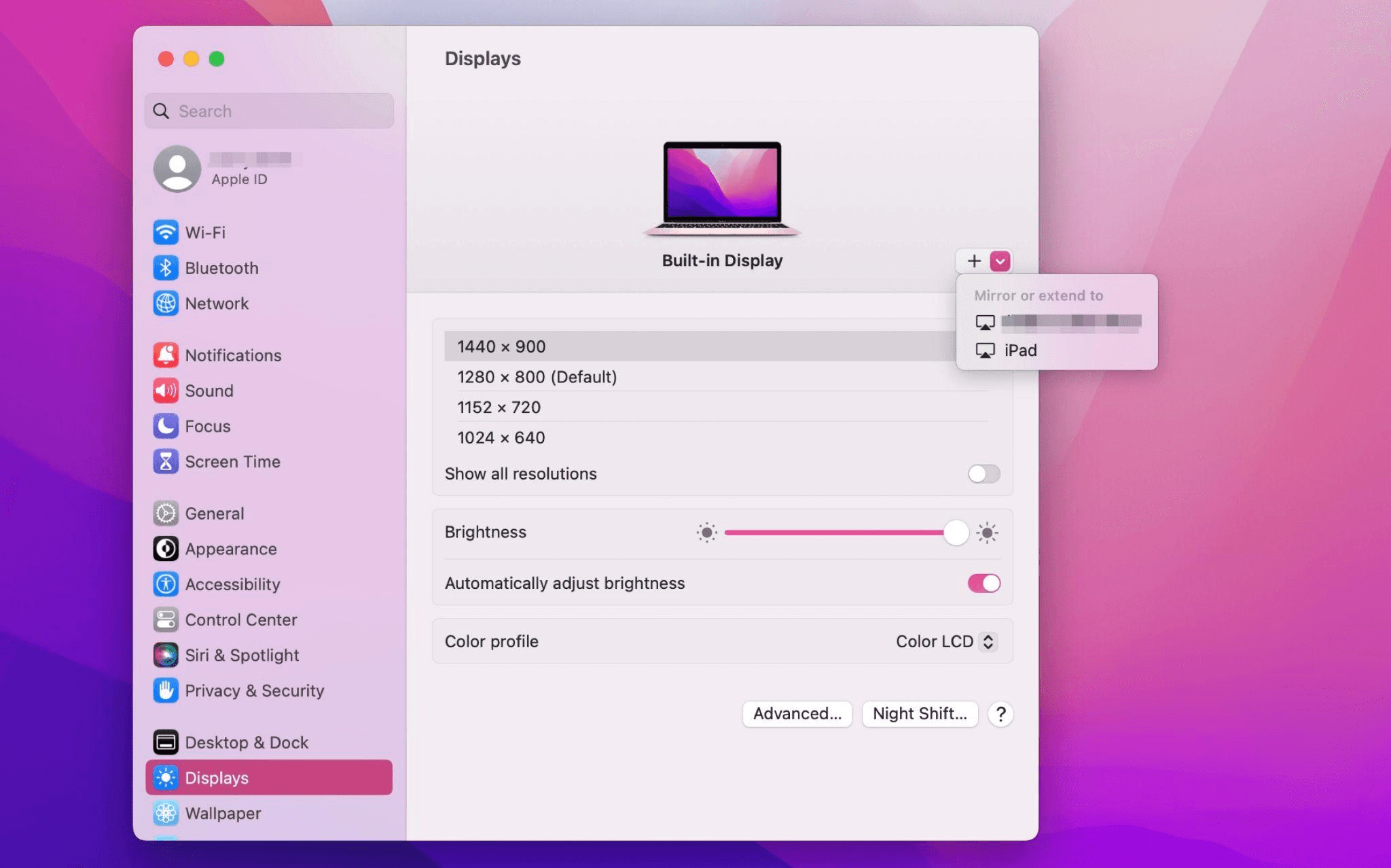
Select the iPad, change the Use as settings to "Extended Display". Check the Airplay settings on the top toolbar of the mac and set iPad as "Use As Separate Display".
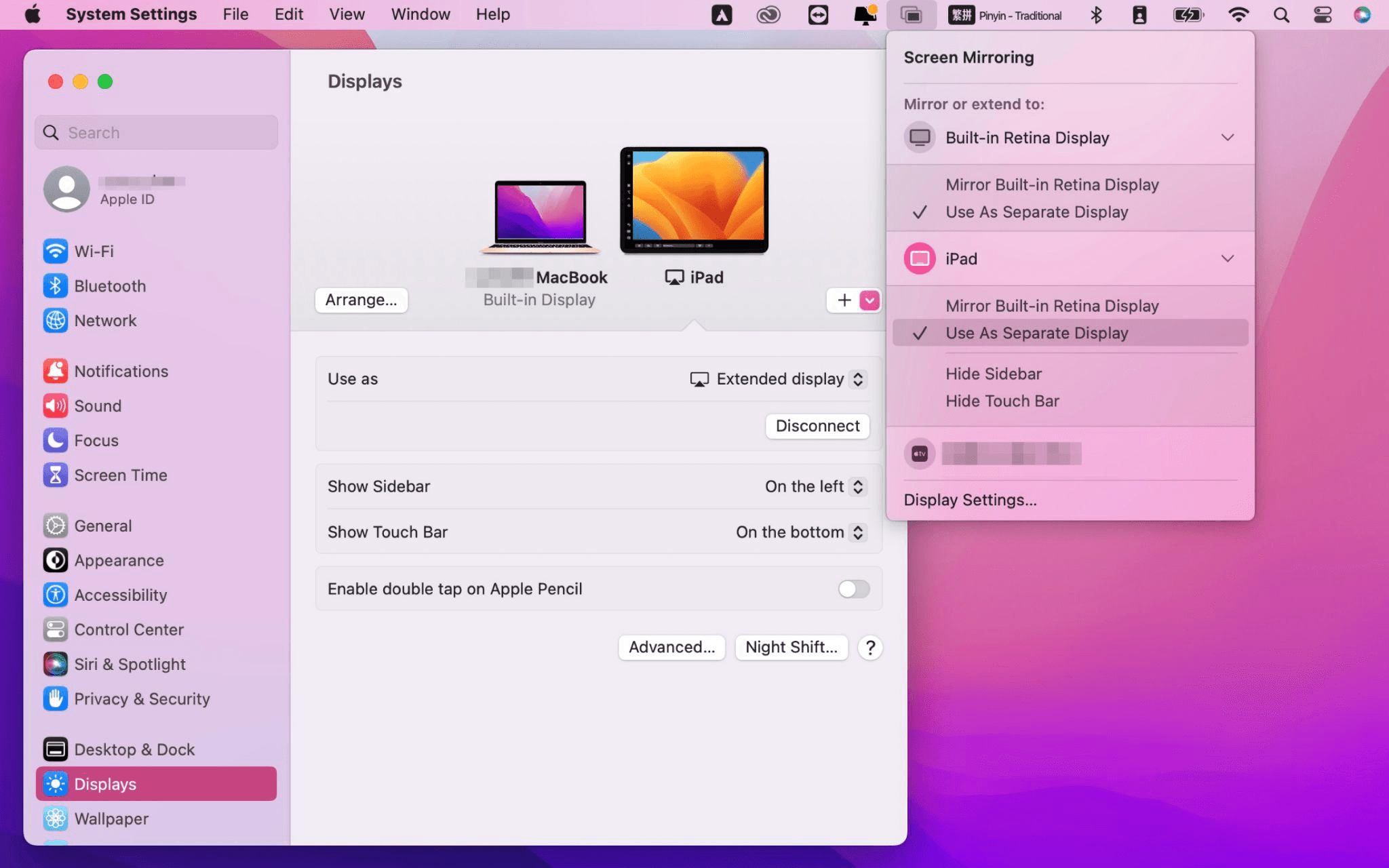
After completing the settings, your iPad will become the second display for your Mac. You can drag windows from your Mac to your iPad smoothly. You can also use the sidebar on the iPad or change the position of the sidebar on the system display settings.
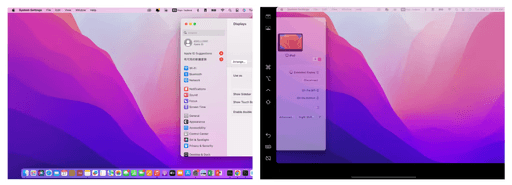
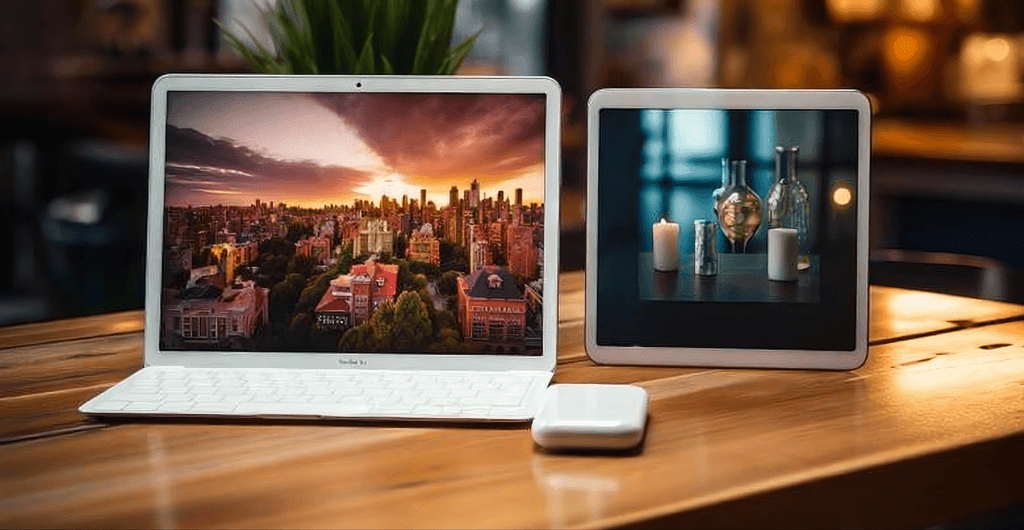
MacBook Screen (Left) and iPad Screen (Right)
Apple Sidecar only supports mac released after 2016 and iPadOS13 or newer. If you are using an old Apple device or a Windows device, you can still use DeskIn remote software to do the screen extension. It supports using iPad as a second display for Mac and Windows, and the smoothness is no worse than sidecar.
Install DeskIn on both your computer and iPad. Sign in to your DeskIn account on each device. When you log in on a new device for the first time, you may need to complete email verification to help protect your account.

To use Screen Extension, you'll need to subscribe to any Premium plan. Click here to view DeskIn plans.
Open DeskIn on your Windows or Mac computer, go to the screen management area, and choose the screen extension option. Select your iPad as the target display and start extending.
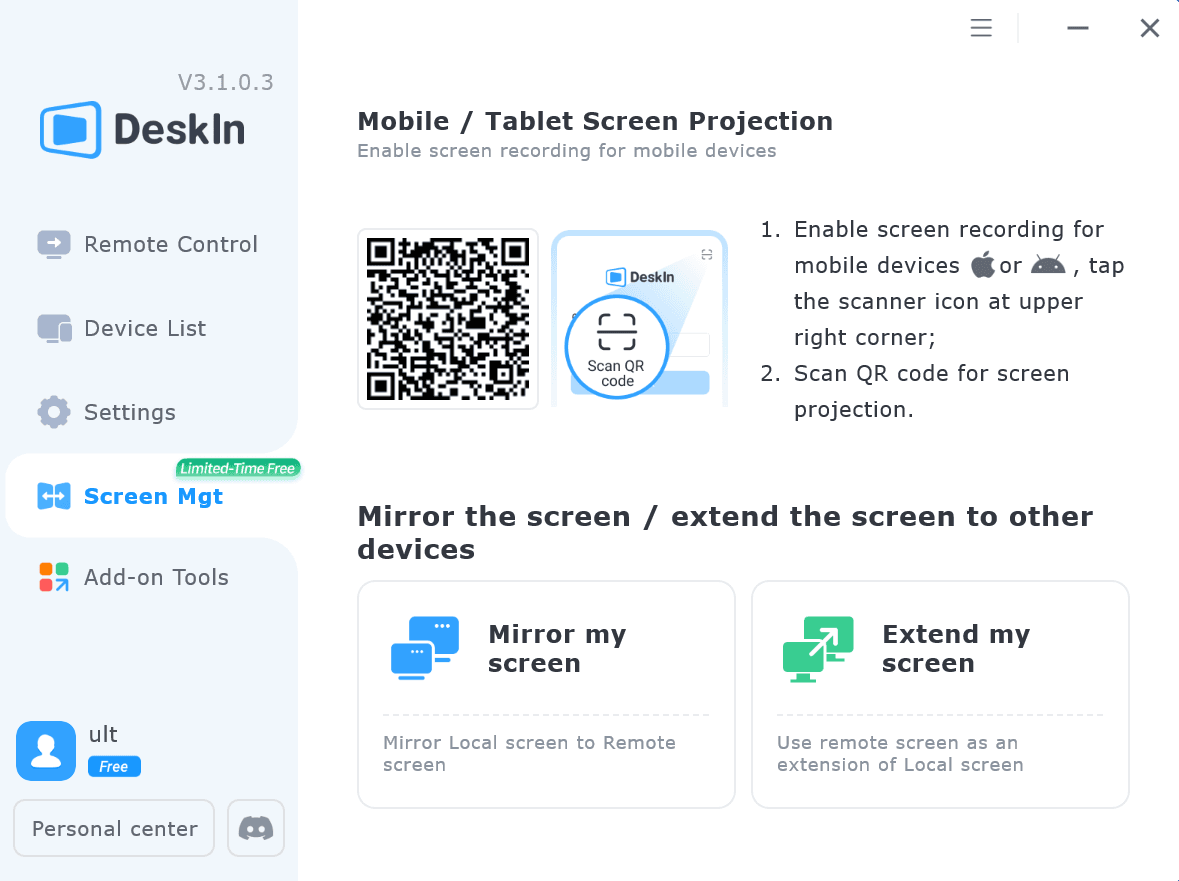
Once connected, your iPad can work as an additional display, letting you move windows between your computer and iPad for a wider workspace.
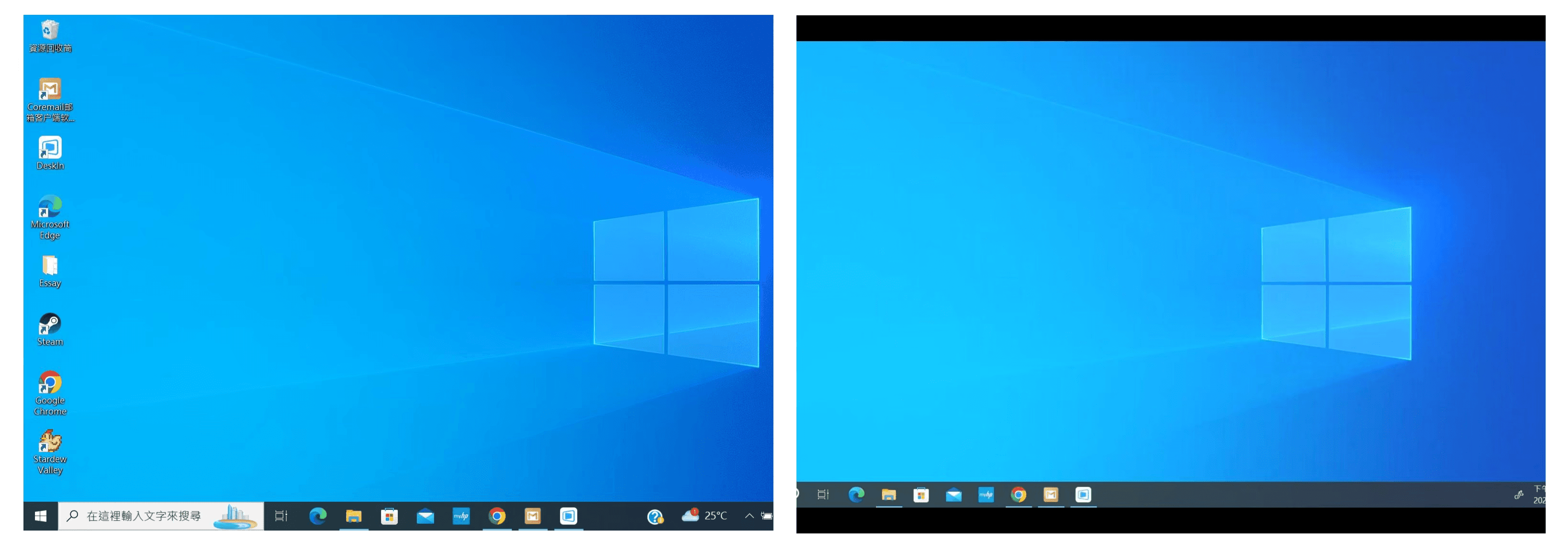
Computer Screen (Left) and iPad Screen (Right)
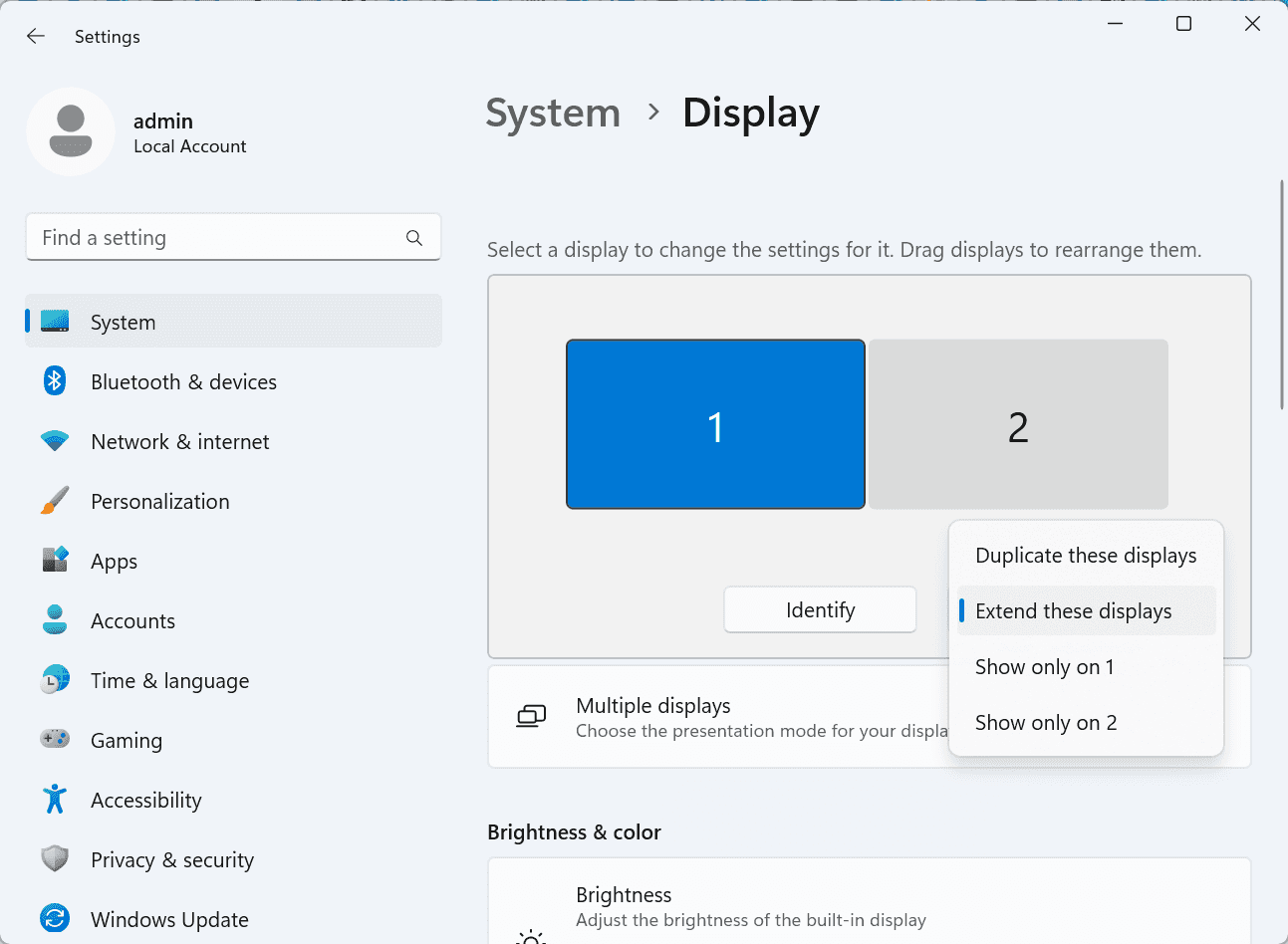
After extension, if you find that your iPad is only mirroring the content on your computer screen, please go to Windows System Settings >> Display Settings and change the screen option to "Extend these displays". You can also modify the screen position by dragging the 2 screens.
Need | Best Option | Why |
Use iPad as a second monitor for a compatible Mac | Apple Sidecar | Built into Apple devices and easy to set up when both devices are compatible. |
Use iPad as a second monitor for Windows | DeskIn | Sidecar does not support Windows, while DeskIn supports cross-platform screen extension on eligible plans. |
Work across Windows, macOS, iPad, Android tablets, and mobile devices | DeskIn | Better suited for users who need cross-platform remote access and flexible device combinations. |
Yes. Windows does not support Apple Sidecar, but you can use DeskIn screen extension on a paid plan that includes this feature to turn your iPad into an additional display for a Windows computer.
DeskIn Screen Extension is included in all paid plans. After subscribing, you can use it across all supported systems with no restrictions.
Yes. DeskIn supports using an iPad as an additional screen with Windows and Mac computers when your plan includes screen mirroring or screen extension.
Using an iPad as a second monitor is a practical way to expand your workspace without buying another display. Mac users with compatible devices can use Apple Sidecar, while Windows and cross-platform users can use DeskIn screen extension on eligible paid plans.
If you want to work across Windows, macOS, iPad, and other devices, DeskIn gives you a flexible way to build a portable multi-screen workspace. Download DeskIn and choose the plan that fits your screen extension and remote access needs.
How to Play MapleStory Classic World on Mac
A lot of the players who are most excited about MapleStory Classic World grew up on 2005-era MapleStory — and a large share of that generation now does its computing on a MacBook. Nexon clearly knows this: a native macOS client was on the feature list for the second Closed Online Test, which ran August 4–12, 2026, alongside Ossyria and third job advancement. But as of this writing, that Mac client is still in development, not publicly available, and there's still no confirmed public launch date for the game itself.
So if you want to play MapleStory Classic World on a Mac right now — or want a reliable plan for when the game does launch — you've got two real options: run Windows in a virtual machine, or use DeskIn remote desktop to control an actual Windows PC from your Mac. This guide covers both, including a login-conflict issue that catches a lot of virtual machine users off guard.
Not yet, publicly. Nexon's May 2026 roadmap update confirmed macOS support is in development, and it appeared as a testable feature in the second Closed Online Test. Windows PC remains the confirmed launch platform, and Nexon hasn't said whether the Mac client will be ready at launch or arrive afterward. The game hasn't had a full public release on any platform — Nexon has said one more test is planned before launch.
Given that, Mac players currently have two ways in: a Windows virtual machine, or remote desktop software that connects to a real Windows PC.
Classic World is exclusive to GMS (Global MapleStory), covering North America, Europe, and most other regions without a local Nexon partner. Markets with their own official MapleStory service — Korea, China, Japan, Taiwan/Hong Kong, and Southeast Asia — aren't GMS-eligible, so Mac players in those regions would need a VPN to reach Classic World, which isn't recommended. Whether NA and EU will run as separate worlds hasn't been confirmed.
Tools like Parallels Desktop or VMware Fusion let you run a full Windows install inside macOS, and then install MapleStory Classic World the way a Windows user would. It works, but it asks a lot of your Mac's hardware.
RAM: 16GB minimum recommended; 8GB is genuinely tight, since macOS and Windows are both running at once and macOS alone can eat most of that before Windows gets a share. For a comfortable setup with guides or Discord open on the side, aim for 32GB.
CPU/GPU: Virtual machines can't pass hardware through at 100%; graphics get software-emulated, which typically costs 20–30% of the performance you'd get on native Windows hardware.
Thermals: Running two full operating systems under load generates real heat, and laptop-class Macs with limited cooling can throttle during longer grinding sessions.
Apple Silicon translation overhead: M-series Macs can only run Windows on ARM in a VM. If Classic World ships as an x86/x64 build, it needs an extra translation layer to run at all, stacking on top of the virtualization overhead already mentioned.
Anti-cheat compatibility is a real unknown: the original MapleStory has historically been hostile to virtualized environments because of its anti-cheat system, and Nexon hasn't said how Classic World's anti-cheat will treat VMs. Treat virtualization as a maybe, not a guaranteed plan.
There's also the practical overhead: setting up a VM means downloading a Windows image, allocating dozens of gigabytes of disk space, installing display drivers, and — on Apple Silicon — dealing with ARM compatibility quirks that don't show up on a real x86 PC. Keyboard shortcuts can also conflict, since macOS system shortcuts (Control, Option, Command) don't always play nicely with a Windows game's default keybinds.
Instead of building a Windows environment inside your Mac, DeskIn lets you connect directly to a Windows PC you already have — your desktop at home, a work machine, or a spare laptop — and control it from your Mac in real time. The game runs on genuine Windows hardware the whole time, so there's no emulation tax, no ARM translation layer, and no anti-cheat guessing game.
A virtual machine makes sense if:
You don't have access to any Windows PC at all, so a Mac VM is your only option.
Your Mac has strong specs — 16GB+ RAM, ideally 32GB, and a higher-end M-series chip that can absorb the performance loss.
You're comfortable with a fairly technical setup process.
You rarely need to switch between devices, so the single-login limitation isn't a practical issue for you.
DeskIn makes more sense if:
You already have a Windows PC (or another Mac) that can run MapleStory Classic World, and you just want to reach it from your MacBook.
You're traveling or away from your desk often and want to pick up where you left off without re-downloading anything.
You don't want to deal with logging out of one device every time you switch to another.
Your Mac has more modest specs, and you'd rather not risk stutters, crashes, or a game that won't launch at all.
If you already own a Windows machine, DeskIn is generally the lower-effort, lower-risk choice. A VM is really a fallback for players with no Windows access and a Mac powerful enough to absorb the overhead.
Step 1: Set up the Windows PC. Install MapleStory Classic World on a Windows PC and create your character, then install DeskIn on that same PC, sign in, and enable unattended access with a connection password so you can reach it later without anyone at the keyboard.
Step 2: Install DeskIn on your Mac. Download the macOS version of DeskIn, sign in with the same account, and your Windows PC will appear in your device list.
Step 3: Connect. Select the PC, enter the connection password, and you'll get a live view of the Windows desktop that you control with your Mac's mouse and trackpad — the same session, the same login, no conflicts.
Step 4: Tune quality for your connection. On a stable connection, push quality up to enjoy Classic World's remastered pixel art in full detail; on the road, prioritize smoothness to cut down on input lag.
Step 5: Log in and play. Open the game inside the remote session and log in as usual — grinding, party quests, and shopping all work exactly as they would sitting at the PC directly.
Resolution and quality: Free-tier users should start around 720p/30fps for a stable baseline; paid-tier users can push up to 4K 60FPS or 2K 240FPS on a strong connection to get the most out of Classic World's art.
Screen scaling: If your Mac and Windows PC have very different display sizes, use DeskIn's automatic scaling option in the toolbar, or adjust the remote PC's resolution to match your Mac's screen more closely.
Keyboard and mouse mapping: DeskIn maps your Mac's keyboard directly to the remote PC. Turning on Game Mouse mode prevents the keyboard from getting locked mid-session.
Controller support: If Mac keyboard controls feel awkward, pair a controller to your Mac and enable controller mapping from the toolbar — DeskIn will pass those inputs straight through to the remote PC.
Simple Setup:No Windows installation required — connect and start playing within minutes.
Doesn't tax your Mac's hardware. All the actual computation happens on the remote Windows PC; your Mac just displays the stream and sends inputs.
Performance and compatibility match native Windows, because that's exactly what's running — no ARM translation layer to worry about.
No account login conflicts, since DeskIn connects to the same existing session instead of creating a new device.
Cross-device flexibility. The same account lets you connect from Mac, iPhone, iPad, or Android, and it's always the same underlying session — no juggling logins between devices.
Not publicly yet. Nexon has confirmed a macOS client is in development and tested it in the second Closed Online Test, but Windows remains the confirmed launch platform and no public Mac release has shipped.
Yes. DeskIn uses end-to-end encryption and two-factor login, and since you're remotely operating a PC you already control, your credentials never pass through a third party.
Technically you can install one, but the experience will be rough. With 8GB split between macOS and Windows, there's very little left over for Windows, and stutters or crashes become likely during longer sessions. DeskIn is the more stable option here, since the remote PC handles all the processing — your Mac's RAM isn't a bottleneck.
Real-world performance depends on both ends' network quality, but since DeskIn connects to native Windows hardware with no virtualization overhead, and its low-latency streaming keeps end-to-end delay under 40ms on a good connection, it typically feels smoother than a resource-constrained VM.
No. DeskIn controls the same PC and the same already-active session rather than logging in as a new device, so it doesn't trigger MapleStory's single-session login limit — this is exactly the conflict that trips up VM users switching between two separate Windows installs.
DeskIn needs a Windows (or other supported platform) machine to connect to. If you don't have one, consider borrowing access to a friend's or family member's PC, or renting a cloud Windows machine as your connection target.
DeskIn supports Windows, macOS, iOS, and Android. A Mac can connect to a Windows PC, and a Windows PC can just as easily connect to and control a Mac.
MapleStory Classic World doesn't have a public Mac client yet, but that doesn't mean Mac players have to gamble on a resource-hungry virtual machine and hope the anti-cheat cooperates. If you already have access to a Windows PC that can run the game — or even another Mac — connecting to it through DeskIn gets you native Windows performance, none of the virtualization overhead, and none of the account-login headaches that come with running a second "device." Set it up once, and you'll be ready to log in the moment Classic World opens its doors.
How to Play MapleStory Classic World on Mobile Before the Official App Arrives
MapleStory Classic World has turned into one of the most-searched topics in the MapleStory community this year. Nexon's pre-Big Bang server pulled in roughly 5,000 players for its first Closed Online Test back in April 2026, and thousands more signed up for the second test that ran August 4–12, 2026. With Ossyria, third job advancement, and controller support now confirmed, interest has never been higher — and a lot of that interest is coming from players who want to know one thing: can you play MapleStory Classic World on your phone?
Short answer: not with an official app, not yet. This guide breaks down exactly what Nexon has confirmed about platforms so far, then walks through how DeskIn remote desktop lets you play MapleStory Classic World on mobile right now, without waiting on an app that hasn't been announced.
As of this writing, Nexon has not announced a mobile or console version of MapleStory Classic World. The confirmed platforms are Windows PC and macOS — macOS support was specifically added as a testable feature during the second Closed Online Test in August 2026, alongside Ossyria and third job advancement, but it's still listed as "in development" rather than publicly available.
There's also no full public launch date yet. Nexon has run two Closed Online Tests so far and has said one more test is planned before release, so most community trackers currently estimate a launch window in late 2026 or early 2027 — but that's community speculation, not an official date.
Put simply: if you want to play MapleStory Classic World on a phone or tablet today, a native app isn't an option. The only practical route is streaming the PC version from a Windows machine you already have access to.
Classic World is exclusive to GMS (Global MapleStory), Nexon's English-language service for North America, Europe, and most other regions without a local Nexon partner. Players in markets with their own official MapleStory service — Korea, China, Japan, Taiwan/Hong Kong, and Southeast Asia — aren't eligible for GMS accounts, so Classic World isn't accessible there without a VPN, which isn't recommended. It's not yet confirmed whether NA and EU will run as separate worlds within Classic World.
DeskIn is a cross-platform remote desktop app built specifically with PC gaming in mind, and it maps well onto exactly the problem MapleStory Classic World mobile players are trying to solve.
Stable, low-latency connections. DeskIn's ZeroSync® engine keeps end-to-end latency under 40ms on a good connection and automatically reroutes around congested paths, so grinding, dodging, and skill combos in Classic World's classic-era combat don't feel delayed.
Up to 4K 60FPS / 2K 240FPS streaming. Classic World's remastered pixel art holds up well when it isn't compressed into mush — DeskIn's streaming keeps text and sprites sharp even on a phone screen.
You're connecting to your own PC, not emulating one. DeskIn doesn't run Windows inside your phone; it streams the display of a Windows computer you control and sends your inputs back in real time. That means full compatibility and full performance — no emulation layer to fight with.
End-to-end encryption and two-factor login. Sessions are encrypted end-to-end, and you can set an allowlist of authorized devices, so only you can connect to your own PC.
Flexible, per-character keybinds. Classic World's Warrior, Magician, Bowman, and Thief classes each use very different skill layouts. DeskIn's on-screen game keyboard lets you build a custom key layout and save it as its own profile, so you can switch between characters without re-mapping keys every time.
Built-in virtual mouse. In pointer mode, DeskIn adds virtual left/right mouse buttons over the stream, which makes precise UI clicks — inventory, cash shop, trade windows — far easier than tapping blindly on a touchscreen.
Once you're connected, mobile play through DeskIn covers pretty much everything you'd do sitting at your PC:
Daily quests and login rewards — knock these out on your commute instead of waiting until you're home.
Cash shop browsing — scroll and preview cosmetics with touch gestures just like any shopping app.
Grinding and leveling — use the virtual directional pad and skill-key layout to keep training in familiar maps.
Party quests — latency low enough to keep up with a party's pacing on runs like Kerning City PQ.
Trading and the marketplace — check prices and list items using the virtual mouse for precise clicks.
Guild chat and messaging — reply to your guild or party the moment something comes up.
Step 1: Set up DeskIn on the Windows PC running Classic World. Install DeskIn on the PC where you've registered for testing (or where the game is installed once it launches), sign in, and turn on unattended access so the PC can be reached without anyone sitting in front of it.
Step 2: Install the DeskIn app on your phone. Download DeskIn from the App Store or Google Play, sign in with the same account, and your PC will show up in the device list.
Step 3: Connect and switch to pointer mode. Tap your PC to connect, then switch the control mode from touch to pointer — this unlocks the customizable virtual keyboard and virtual mouse.
Step 4: Browsing the cash shop. Drag to move the cursor and tap the virtual mouse buttons to click through menus and item previews, exactly like using a mouse on a desktop.
Step 5: Grinding. Open the game keyboard menu, build a layout with your movement keys and skill keys, and save it as a profile. Pull it up any time you start a grinding session.
Step 6: Pick the right streaming quality for your connection. On mobile data, prioritize smoothness over resolution to cut down on input delay; on Wi-Fi, bump the quality up to enjoy Classic World's remastered art at full clarity.
A tablet's bigger screen is a natural fit for content that needs either more reading room or more precision — daily quest text and boss encounters both qualify.
Step 1: Same setup as mobile. Install DeskIn on your iPad or Android tablet and sign in — connection steps are identical to the phone app.
Step 2: Daily quests. The larger display makes quest text, item descriptions, and map markers easier to read at a glance, so you're less likely to misread an objective mid-run.
Step 3: Boss fights. Bosses demand precise dodges and timing that touch controls alone can struggle with — pair your tablet with a Bluetooth keyboard and mouse, or a controller (see below), instead of relying on the virtual keyboard.
Step 4: Bump the frame rate for boss content. Choose a higher refresh setting in DeskIn's connection options so skill telegraphs and boss patterns read clearly in real time.
Step 5: Use split-screen for guide lookups. Run DeskIn alongside a browser or notes app in split view to check attack patterns without leaving the fight.
If virtual buttons don't feel precise enough, DeskIn supports Bluetooth controllers, including Xbox, PlayStation, and several third-party pads.
Step 1: Pair the controller with your phone. Use your phone's Bluetooth settings to pair the controller first.
Step 2: Connect through DeskIn. Once connected to your PC, DeskIn automatically detects the paired controller — no extra driver install needed.
Step 3: Test your inputs. Head into a training map first and confirm movement, attacks, and skills map to the buttons you expect before jumping into content that matters.
Step 4: Favor smoothness for fast-paced play. When you're actively grinding or fighting with a controller, prioritize DeskIn's smoothness setting over max resolution for the most responsive feel.
Running a Warrior and a Bowman means running two very different skill bars. Here's how to keep them separate in DeskIn instead of re-mapping keys every login:
Step 1: Switch to pointer mode and open the game keyboard menu. After connecting, switch to pointer mode and open DeskIn's game keyboard settings.
Step 2: Create a new keyboard layout. Tap "New Keyboard" and add your movement pad, skill keys, and item keys to match your current character's build.
Step 3: Name it by character or class. Label the layout something identifiable — "Bowman" or "Main Warrior" — and save it.
Step 4: Load the right profile when you switch characters. Before logging into a different character, select its saved layout from the game keyboard menu instead of rebuilding it from scratch.
Step 5: Update layouts as skills change. When a class gets rebalanced or you unlock new skills after a job advancement, go back into that profile and add the new keys.
No. Nexon has not announced a mobile or console version. Confirmed platforms are Windows, with a macOS client currently in development.
Nexon hasn't announced a public release date. Two Closed Online Tests have run so far (April 16–24 and August 4–12, 2026), with one more test planned before launch. Community estimates point to late 2026 or early 2027, but that isn't official.
No. DeskIn remotely operates your own PC and sends the same mouse and keyboard input you'd normally use — it isn't a macro, bot, or memory-editing tool, so it doesn't behave like the automation that anti-cheat systems are built to catch.
DeskIn's low-latency streaming keeps things playable on a stable connection, generally noticeably smoother than trying to force a browser workaround. Real-world latency still depends on both ends' network quality, so Wi-Fi is recommended over cellular when possible.
For checking dailies or browsing the shop occasionally, the free plan typically covers it. If you plan to grind for long sessions, use a controller regularly, or manage several devices, a paid plan unlocks higher streaming quality and additional features.
Setup and connection steps are identical. The difference is screen size — phones are handy for quick, single-hand tasks like dailies and the shop, while tablets are better suited to boss fights and content where you want a controller or external keyboard.
Until Nexon ships a mobile client — if one ever gets announced — DeskIn is the most practical way to keep playing MapleStory Classic World away from your desk. Install it on both your gaming PC and your phone or tablet, set up a keybind profile per character, and you can knock out dailies, grind, and even tackle boss fights without being tied to a monitor.
Products
ดาวน์โหลด
Resources
ติดต่อเรา
Email: support@deskin.io
Office: 991D Alexandra Road #02-17, Singapore 119972
Copyright © 2026 Zuler Technology PTE. LTD. All rights reserved.
ติดต่อเรา
Email: support@deskin.io
Office: 991D Alexandra Road #02-17, Singapore 119972
Products
ดาวน์โหลด
Resources
Copyright © 2026 Zuler Technology PTE. LTD. All rights reserved.
Products
ดาวน์โหลด
Resources
ติดต่อเรา
support@deskin.io
991D Alexandra Road #02-17
Singapore 119972
Copyright © 2026 Zuler Technology PTE. LTD. All rights reserved.
【New User Special Offer】
Save
Extra 20%
on your first order|4K60FPS
Extra
20% Off
|For
New Users
【New User Special Offer】
Save
Extra 20%
on first order


