Năng suất
Năng suất
/
/
author
Đã cập nhật
Đã cập nhật
Đã cập nhật
Bạn có biết rằng bạn có thể chỉ dùng một bộ bàn phím và chuột để điều khiển đồng thời nhiều máy tính, ngay cả khi các máy tính đó ở xa? Bài viết này sẽ chỉ cho bạn cách thực hiện theo cách rất đơn giản mà ngay cả người mới về công nghệ cũng có thể làm được chỉ trong 5 phút.
Hãy tưởng tượng bạn đang vận hành nhiều máy tính, việc phải chuyển đổi giữa các bàn phím và chuột khác nhau khiến bạn khó chịu. Nếu bạn có thể điều khiển tất cả máy tính chỉ bằng một bộ bàn phím và chuột, điều đó thực sự có thể cải thiện hiệu suất.
Hãy tưởng tượng khi bạn ở xa nhà, bạn vẫn có thể chỉ dùng một chiếc laptop để quản lý từ xa nhiều máy tính tại nhà hoặc ở văn phòng!
Nếu bạn là kỹ sư IT cần hỗ trợ kỹ thuật cho toàn bộ nhân viên trong công ty, bạn có thể kiểm tra và xử lý sự cố cho nhiều máy tính cùng lúc mà không cần rời khỏi vị trí làm việc, tiết kiệm thời gian và công sức.
DeskIn là phần mềm điều khiển từ xa cho phép bạn dễ dàng truy cập và điều khiển các thiết bị từ xa. Bạn có thể điều khiển nhiều thiết bị cùng lúc bằng bàn phím và chuột cục bộ. DeskIn có chất lượng kết nối rất tốt——chất lượng hình ảnh có thể đạt 4K60FPS và không bị mất kết nối. Bàn phím và chuột được ánh xạ hoàn hảo cho cả MacBook lẫn PC Windows, giúp sử dụng mượt mà và dễ dàng.
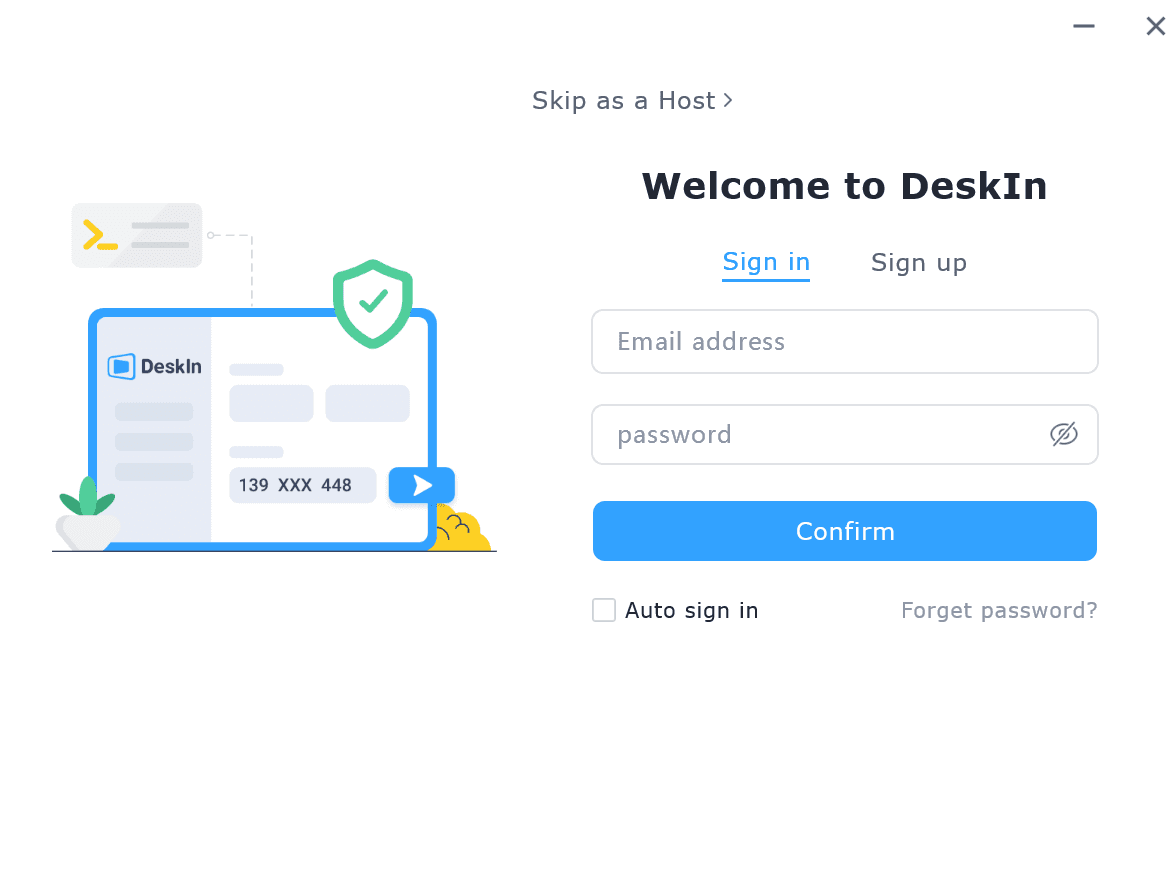
Tải DeskIn trên tất cả máy tính của bạn, đăng ký tài khoản miễn phí và đăng nhập.
Lưu ý: Khi bạn đăng nhập lần đầu trên một thiết bị mới, bạn cần hoàn tất xác minh email để bảo vệ an toàn cho tài khoản của mình.
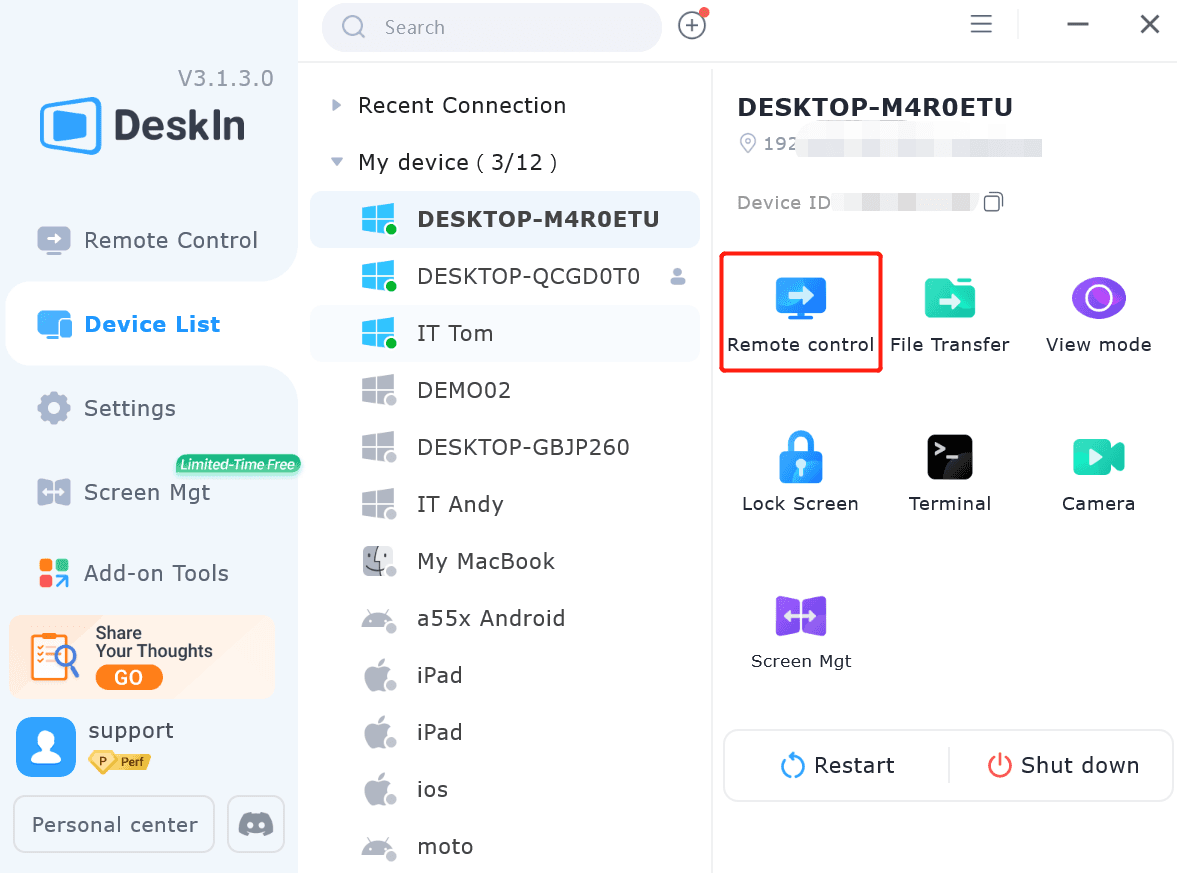
Nếu tất cả thiết bị của bạn đã đăng nhập cùng một tài khoản, bạn có thể tìm thấy chúng trong "Danh sách thiết bị". Chọn thiết bị bạn muốn điều khiển và nhấp "Điều khiển từ xa" trên thanh công cụ bên phải, sau đó bạn sẽ được kết nối với thiết bị.
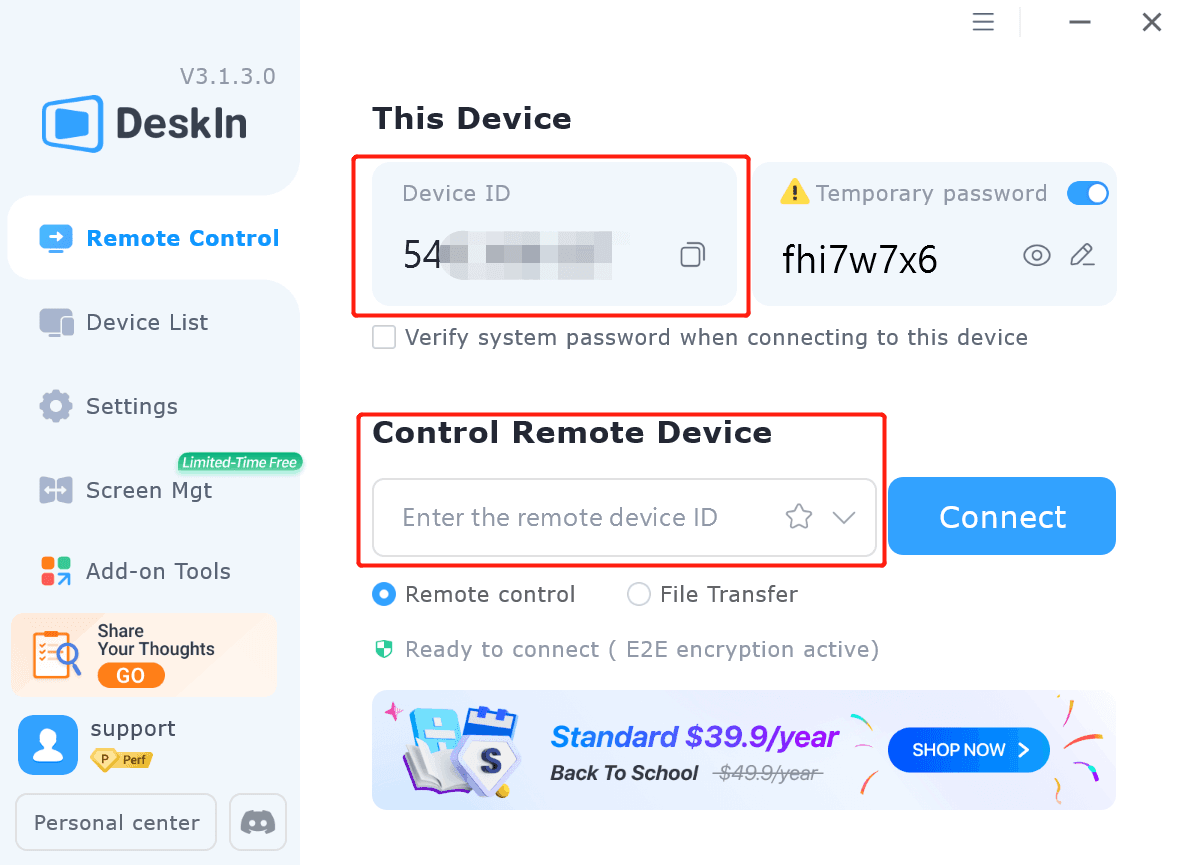
Bạn cũng có thể kết nối các thiết bị bằng "ID thiết bị". Mở DeskIn trên thiết bị cục bộ hoặc thiết bị đã kết nối với bàn phím và chuột bạn muốn sử dụng. Nhập "ID thiết bị" của máy tính bạn muốn điều khiển, nhấp "Kết nối" rồi bạn sẽ kết nối đến thiết bị. Bạn có thể dùng phương thức Mật khẩu hoặc Không mật khẩu để xác minh kết nối.
Xác minh "Không mật khẩu" nghĩa là bạn cần đồng ý thủ công với yêu cầu kết nối trên thiết bị được điều khiển. Chúng tôi khuyên bạn nên đặt mật khẩu bảo mật tại "Cài đặt" >> "Cài đặt bảo mật". Bằng cách này, ngay cả khi thiết bị bạn muốn điều khiển ở xa, bạn vẫn có thể kết nối mà không cần người trực.
Nếu bạn muốn điều khiển nhiều thiết bị, chỉ cần lặp lại bước 2. DeskIn không giới hạn số lượng máy tính có thể được điều khiển đồng thời. Bạn có thể hiển thị các cửa sổ máy tính ở chế độ toàn màn hình——khi đó bạn phải chuyển tab để điều khiển các máy tính khác nhau, hoặc chế độ đa màn hình, cho phép bạn hiển thị tất cả màn hình máy tính cùng lúc.
Dưới đây là một ví dụ:
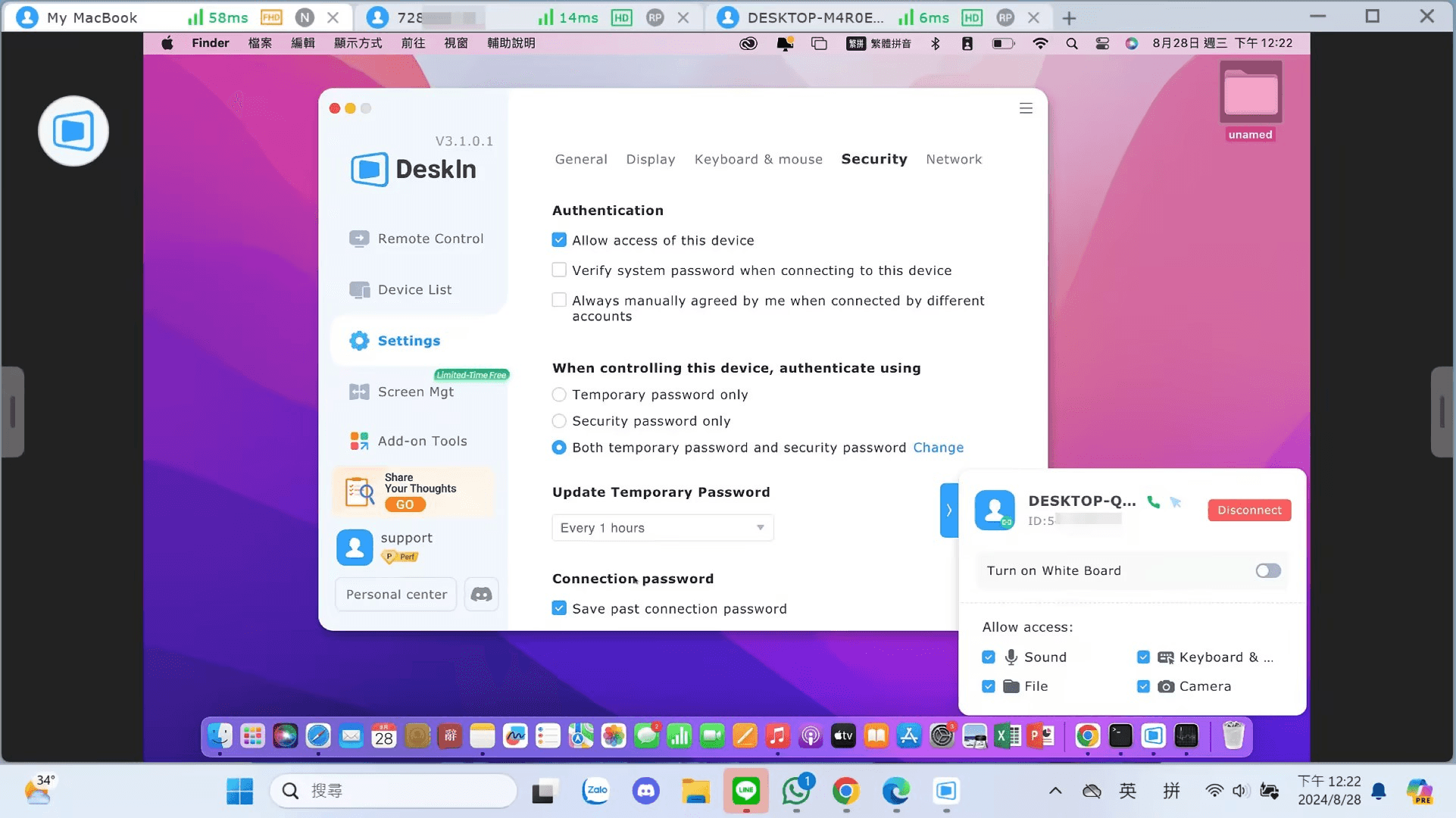
Chế độ toàn màn hình: Điều khiển đồng thời máy tính MacBook và Windows
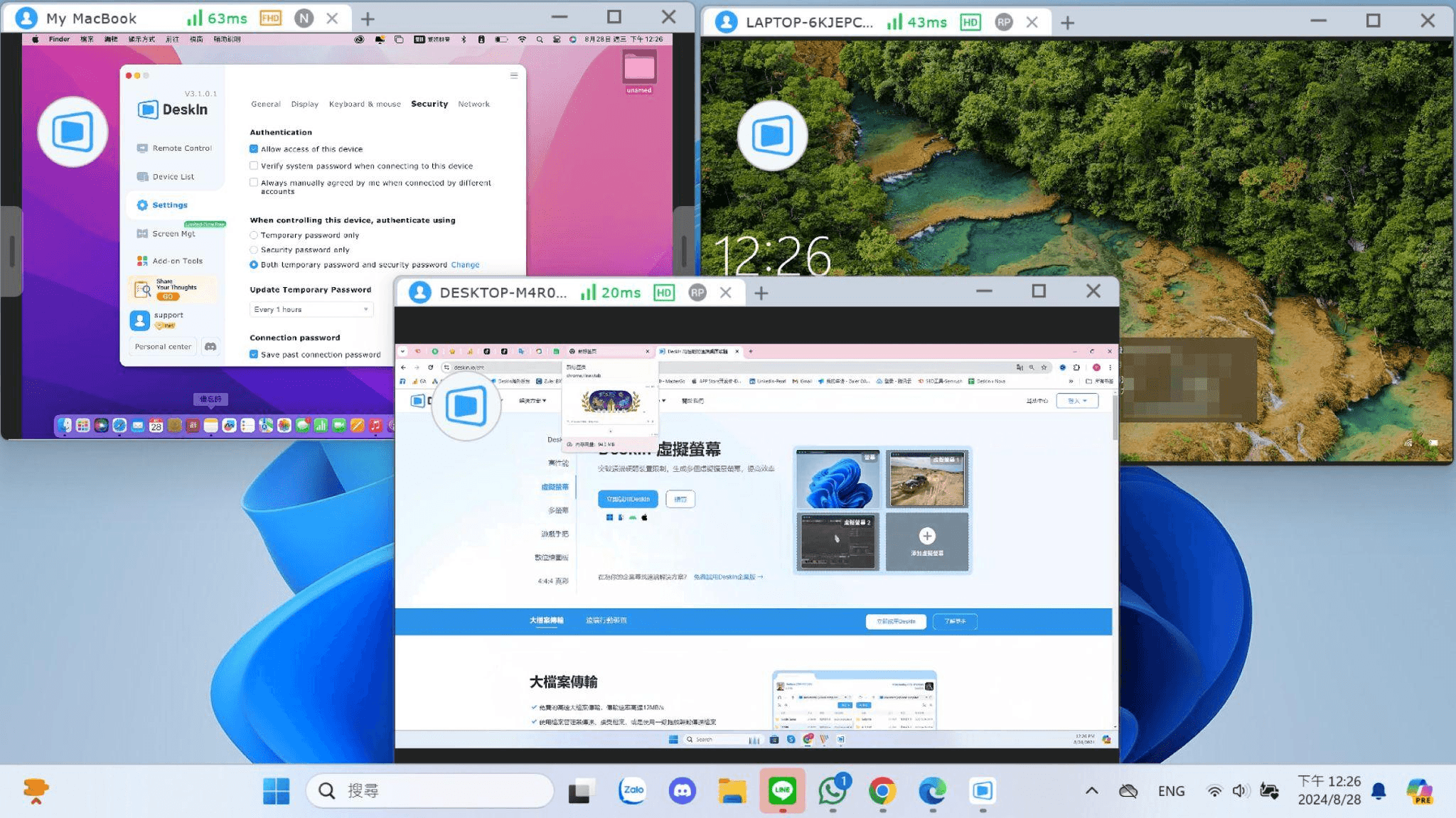
Chế độ đa màn hình: Điều khiển đồng thời máy tính MacBook và Windows
Dù bạn đang điều khiển MacBook hay Windows, DeskIn đều có thể ánh xạ bàn phím và chuột một cách hoàn hảo để sử dụng không phiền toái. Phiên bản miễn phí hỗ trợ đăng nhập trên 3 thiết bị, và phiên bản trả phí hỗ trợ đăng nhập trên 100 thiết bị, cho phép bạn kết nối nhanh chóng và thuận tiện.
Bài viết này hướng dẫn bạn cách điều khiển đồng thời nhiều máy tính bằng một bộ bàn phím và chuột với giải pháp desktop từ xa DeskIn. Rất đơn giản để sử dụng, hãy thử ngay!
Bạn có biết rằng bạn có thể chỉ dùng một bộ bàn phím và chuột để điều khiển đồng thời nhiều máy tính, ngay cả khi các máy tính đó ở xa? Bài viết này sẽ chỉ cho bạn cách thực hiện theo cách rất đơn giản mà ngay cả người mới về công nghệ cũng có thể làm được chỉ trong 5 phút.
Hãy tưởng tượng bạn đang vận hành nhiều máy tính, việc phải chuyển đổi giữa các bàn phím và chuột khác nhau khiến bạn khó chịu. Nếu bạn có thể điều khiển tất cả máy tính chỉ bằng một bộ bàn phím và chuột, điều đó thực sự có thể cải thiện hiệu suất.
Hãy tưởng tượng khi bạn ở xa nhà, bạn vẫn có thể chỉ dùng một chiếc laptop để quản lý từ xa nhiều máy tính tại nhà hoặc ở văn phòng!
Nếu bạn là kỹ sư IT cần hỗ trợ kỹ thuật cho toàn bộ nhân viên trong công ty, bạn có thể kiểm tra và xử lý sự cố cho nhiều máy tính cùng lúc mà không cần rời khỏi vị trí làm việc, tiết kiệm thời gian và công sức.
DeskIn là phần mềm điều khiển từ xa cho phép bạn dễ dàng truy cập và điều khiển các thiết bị từ xa. Bạn có thể điều khiển nhiều thiết bị cùng lúc bằng bàn phím và chuột cục bộ. DeskIn có chất lượng kết nối rất tốt——chất lượng hình ảnh có thể đạt 4K60FPS và không bị mất kết nối. Bàn phím và chuột được ánh xạ hoàn hảo cho cả MacBook lẫn PC Windows, giúp sử dụng mượt mà và dễ dàng.
Tải DeskIn trên tất cả máy tính của bạn, đăng ký tài khoản miễn phí và đăng nhập.
Lưu ý: Khi bạn đăng nhập lần đầu trên một thiết bị mới, bạn cần hoàn tất xác minh email để bảo vệ an toàn cho tài khoản của mình.
Nếu tất cả thiết bị của bạn đã đăng nhập cùng một tài khoản, bạn có thể tìm thấy chúng trong "Danh sách thiết bị". Chọn thiết bị bạn muốn điều khiển và nhấp "Điều khiển từ xa" trên thanh công cụ bên phải, sau đó bạn sẽ được kết nối với thiết bị.
Bạn cũng có thể kết nối các thiết bị bằng "ID thiết bị". Mở DeskIn trên thiết bị cục bộ hoặc thiết bị đã kết nối với bàn phím và chuột bạn muốn sử dụng. Nhập "ID thiết bị" của máy tính bạn muốn điều khiển, nhấp "Kết nối" rồi bạn sẽ kết nối đến thiết bị. Bạn có thể dùng phương thức Mật khẩu hoặc Không mật khẩu để xác minh kết nối.
Xác minh "Không mật khẩu" nghĩa là bạn cần đồng ý thủ công với yêu cầu kết nối trên thiết bị được điều khiển. Chúng tôi khuyên bạn nên đặt mật khẩu bảo mật tại "Cài đặt" >> "Cài đặt bảo mật". Bằng cách này, ngay cả khi thiết bị bạn muốn điều khiển ở xa, bạn vẫn có thể kết nối mà không cần người trực.
Nếu bạn muốn điều khiển nhiều thiết bị, chỉ cần lặp lại bước 2. DeskIn không giới hạn số lượng máy tính có thể được điều khiển đồng thời. Bạn có thể hiển thị các cửa sổ máy tính ở chế độ toàn màn hình——khi đó bạn phải chuyển tab để điều khiển các máy tính khác nhau, hoặc chế độ đa màn hình, cho phép bạn hiển thị tất cả màn hình máy tính cùng lúc.
Dưới đây là một ví dụ:
Chế độ toàn màn hình: Điều khiển đồng thời máy tính MacBook và Windows
Chế độ đa màn hình: Điều khiển đồng thời máy tính MacBook và Windows
Dù bạn đang điều khiển MacBook hay Windows, DeskIn đều có thể ánh xạ bàn phím và chuột một cách hoàn hảo để sử dụng không phiền toái. Phiên bản miễn phí hỗ trợ đăng nhập trên 3 thiết bị, và phiên bản trả phí hỗ trợ đăng nhập trên 100 thiết bị, cho phép bạn kết nối nhanh chóng và thuận tiện.
Bài viết này hướng dẫn bạn cách điều khiển đồng thời nhiều máy tính bằng một bộ bàn phím và chuột với giải pháp desktop từ xa DeskIn. Rất đơn giản để sử dụng, hãy thử ngay!


Biến iPad thành màn hình thứ hai cho máy tính Windows và Mac
Đối với những người làm việc đa nhiệm, việc có màn hình thứ hai có thể tăng năng suất đáng kể. Nếu bạn làm việc tại nhà hoặc là sinh viên chưa có thiết lập hai màn hình, đây là cách bạn có thể dễ dàng biến chiếc iPad đang nhàn rỗi thành màn hình thứ hai cho máy tính của mình.
Tăng không gian hiển thị để xem được nhiều nội dung hơn cùng lúc. Với người dùng đa nhiệm, họ có thể tránh phải chuyển qua lại giữa các cửa sổ, tiết kiệm thời gian.
Mỗi màn hình hoạt động độc lập, giúp không gian làm việc gọn gàng hơn. Khi chỉnh sửa video, một màn hình dùng để biên tập và màn hình còn lại để đặt tư liệu. Khi viết bài, một màn hình để viết, màn hình kia để tìm kiếm thông tin, v.v.
Kích thước màn hình iPad đủ lớn và chất lượng hiển thị khá tốt. Với người dùng có nhu cầu thiết kế hoặc dùng MacBook, cách này có thể tiết kiệm chi phí hơn so với mua thêm màn hình, đồng thời không gặp vấn đề lệch màu.
Nhiều người đã có sẵn iPad ở nhà. Bằng cách dùng thiết bị sẵn có làm màn hình kép, bạn tiết kiệm được chi phí mua thêm màn hình và cả không gian đặt nó.
Tính năng gốc của Apple là Apple Sidecar cho phép bạn dùng iPad làm màn hình ngoài cho MacBook và iMac. Chỉ cần một vài thiết lập đơn giản là bạn có thể tạo kết nối liền mạch giữa iPad và máy tính.
Lưu ý: Để dùng Apple Sidecar, hai thiết bị cần đăng nhập cùng một Apple ID hoặc ở cùng một mạng. Cả hai thiết bị phải bật Bluetooth, Wi-Fi, và khoảng cách không được vượt quá 10 mét (khoảng 10 mét).
Mở Cài đặt hệ thống trên Mac >> Nhấp vào "Display" ở thanh bên >> Nhấp vào menu bật lên "+" ở bên phải và chọn iPad của bạn.
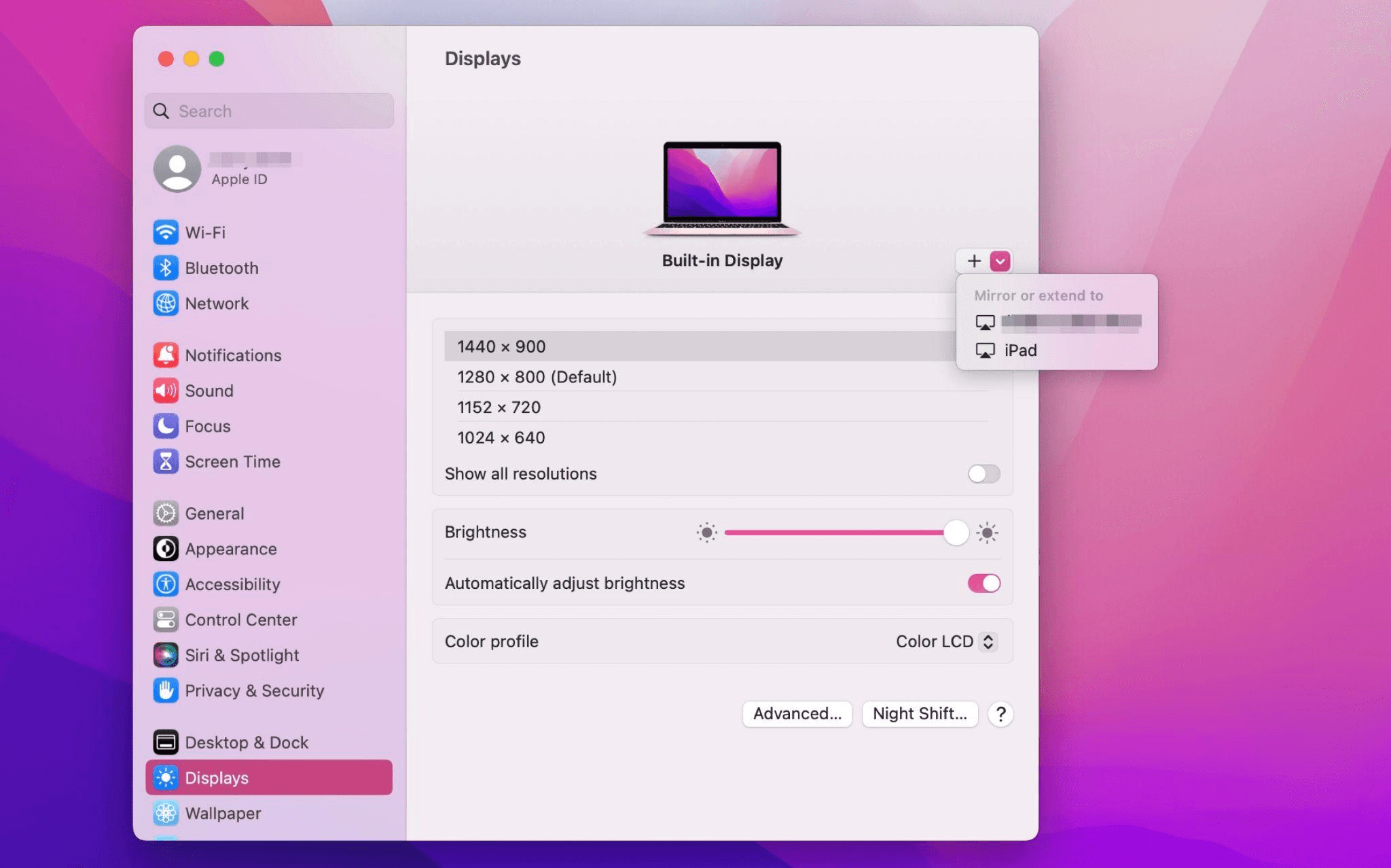
Chọn iPad, đổi thiết lập Use as thành "Extended Display". Kiểm tra cài đặt Airplay trên thanh công cụ trên cùng của Mac và đặt iPad là "Use As Separate Display".
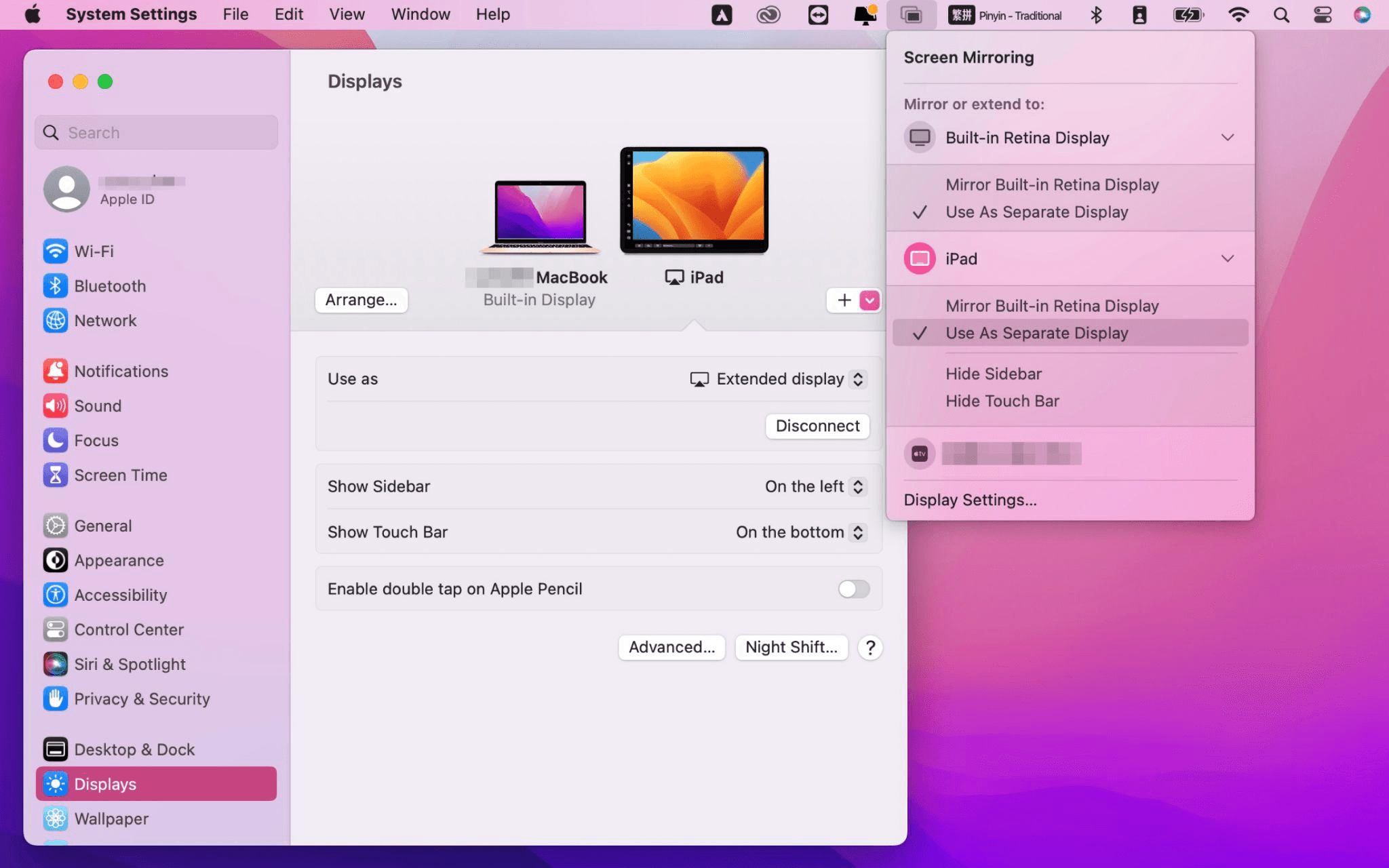
Sau khi hoàn tất cài đặt, iPad của bạn sẽ trở thành màn hình thứ hai cho máy Mac. Bạn có thể kéo thả cửa sổ từ Mac sang iPad một cách mượt mà. Bạn cũng có thể dùng thanh bên trên iPad hoặc thay đổi vị trí thanh bên trong cài đặt hiển thị của hệ thống.
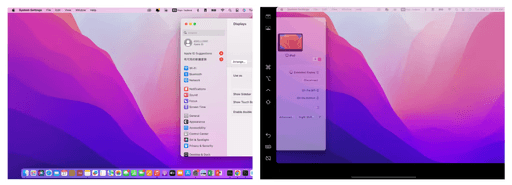
Màn hình MacBook (Trái) và màn hình iPad (Phải)
Apple Sidecar chỉ hỗ trợ máy Mac phát hành sau năm 2016 và iPadOS 13 trở lên. Nếu bạn đang dùng thiết bị Apple đời cũ hoặc thiết bị Windows, bạn vẫn có thể dùng phần mềm điều khiển từ xa DeskIn để mở rộng màn hình. Phần mềm này hỗ trợ dùng iPad làm màn hình thứ hai cho cả Mac và Windows, và độ mượt không hề kém Sidecar.
Tải DeskIn trên máy tính và iPad của bạn, đăng ký tài khoản miễn phí và đăng nhập trên từng thiết bị.

Lưu ý: Lần đầu đăng nhập vào một thiết bị mới, bạn cần hoàn tất xác minh email để bảo vệ an toàn cho tài khoản của mình.
Mở ứng dụng DeskIn trên máy tính Windows/Mac >> Vào tab "Screen Mgt" >> Nhấp “Extend my screen”
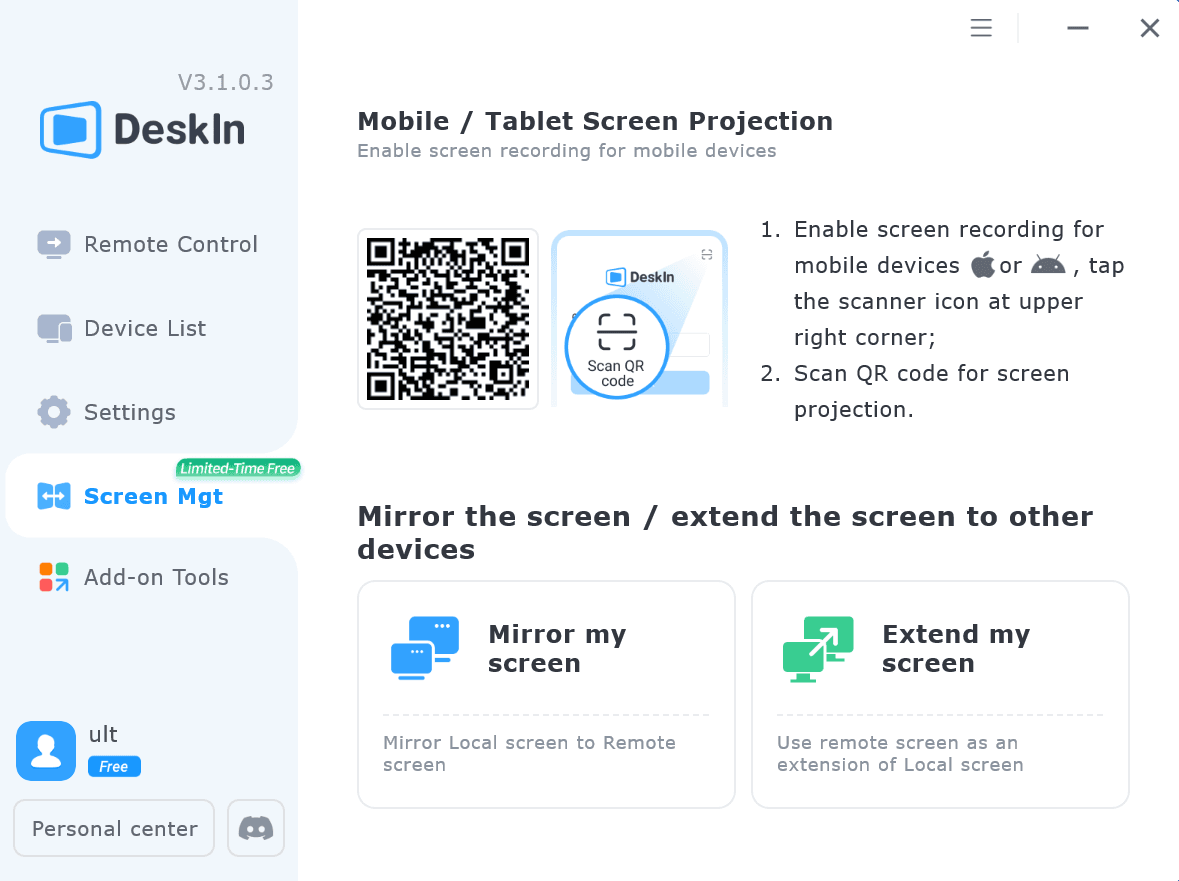
Chọn iPad của bạn và nhấp “Start Extending”. Sau khi kết nối, iPad sẽ trở thành màn hình thứ hai của máy tính Windows/Mac, bạn có thể di chuyển cửa sổ giữa hai màn hình như thể chúng là một.
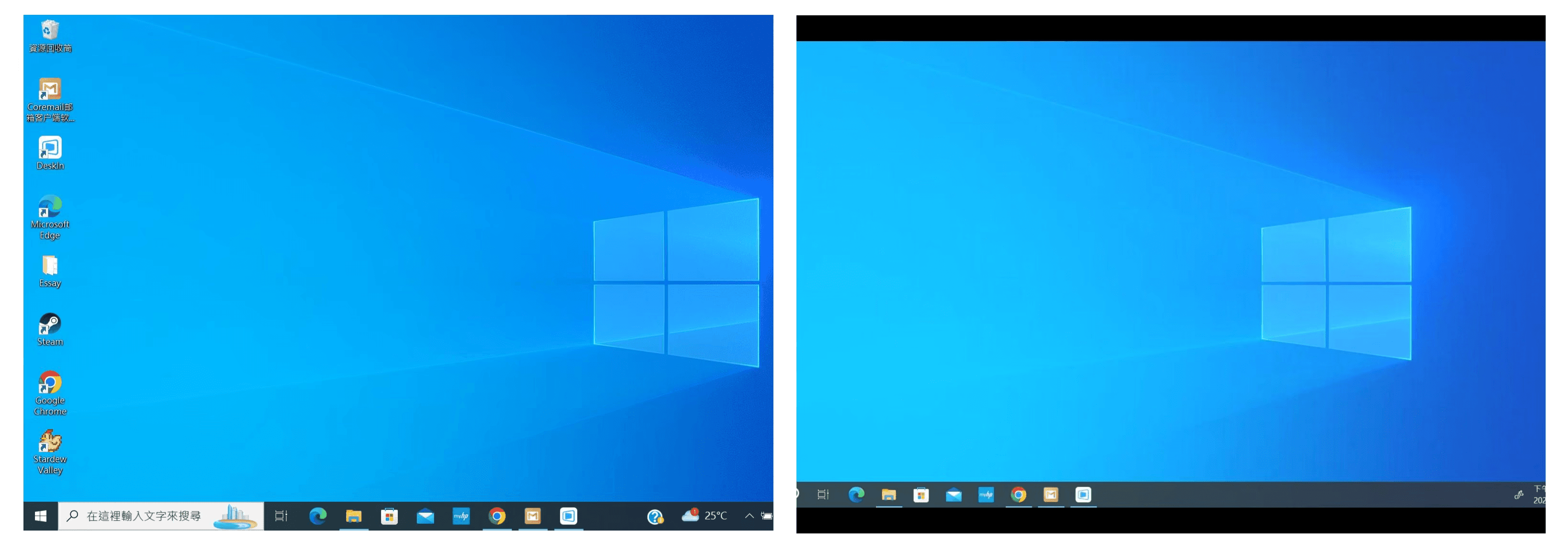
Màn hình máy tính (Trái) và màn hình iPad (Phải)
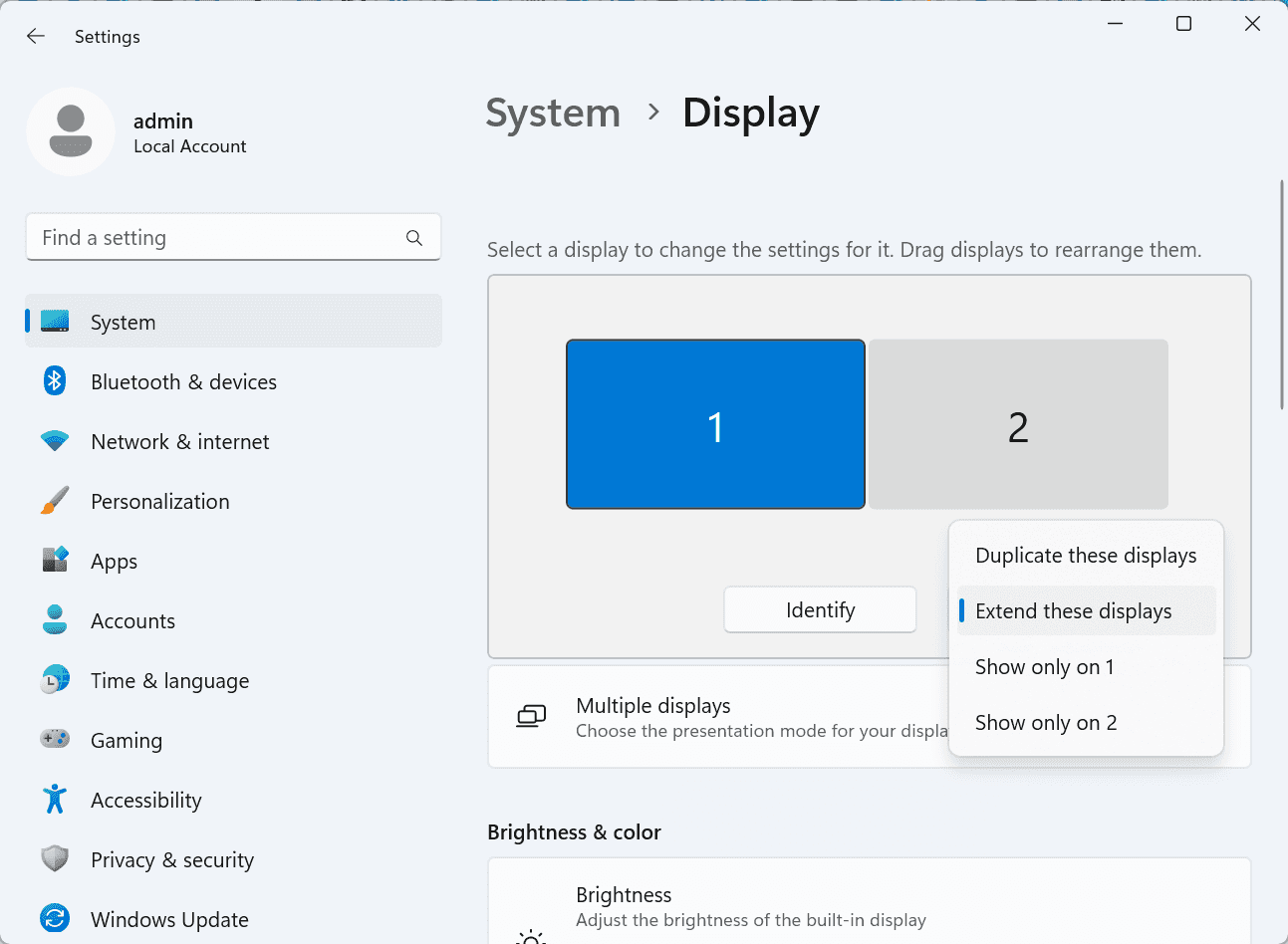
Sau khi mở rộng, nếu bạn thấy iPad chỉ đang phản chiếu nội dung trên màn hình máy tính, vui lòng vào Cài đặt hệ thống Windows >> Cài đặt hiển thị và đổi tùy chọn màn hình thành "Extend these displays". Bạn cũng có thể chỉnh vị trí màn hình bằng cách kéo thả 2 màn hình.
Bài viết này giới thiệu cách sử dụng phần mềm điều khiển máy tính từ xa DeskIn để biến iPad thành "màn hình thứ hai" cho máy tính Mac và Windows. Điều này đặc biệt hữu ích cho những người cần xử lý nhiều tác vụ cùng lúc và muốn nâng cao năng suất. Nếu bạn đang tìm một công cụ mở rộng màn hình hoạt động trên MacBook, iPad, máy tính bảng Android và PC Windows, DeskIn remote desktop là giải pháp tốt nhất dành cho bạn. Hãy tải DeskIn và dùng thử ngay!

Top 6 RustDesk Alternative Tools for Faster, Easier Remote Access
Remote access should feel like flipping a light switch, not decoding a control panel. Yet many users exploring RustDesk eventually run into friction: connection IDs, server setup, or occasional lag. While RustDesk is powerful, it’s not always the easiest or smoothest option, especially for non-technical users.
That’s why more people are actively searching for a reliable RustDesk alternative that combines performance, simplicity, and flexibility. Whether you want a plug-and-play solution or something more advanced, this guide will help you find the best fit.
RustDesk stands out as a privacy-friendly, self-hosted remote desktop tool. However, real-world usage reveals a few common challenges:
Complicated setup for the RustDesk self-hosted environments
Manual connection steps requiring IDs and passwords
Occasional latency or unstable connections
Limited user-friendly features out of the box
For many users, especially those helping family or managing multiple devices, simplicity matters just as much as control.
When evaluating a RustDesk alternative, focus on these key factors:
Ease of use: Quick setup without technical overhead
Performance: Smooth, low-latency remote sessions
Compatibility: Support for Windows, macOS, Linux, and mobile
Security: Strong encryption and access controls
Flexibility: Options ranging from cloud-based to open source
The ideal tool strikes a balance between power and convenience, something many modern solutions now deliver better than traditional setups.
Here’s a quick breakdown of the top tools and where they shine:
DeskIn – Best all-in-one RustDesk alternative for performance and ease of use
AnyDesk – Best lightweight tool for fast connections
TeamViewer – Best for enterprise-grade remote support
MeshCentral – Best open-source and self-hosted solution
DWService – Best free browser-based tool
Chrome Remote Desktop – Best simple, no-frills option
Ultra-low latency with smooth high-frame-rate streaming
No complex setup or server deployment required
Cross-platform including Rustdesk alternative for Android
Secure with encryption and device control features
Built-in file transfer and multi-device management
Smaller awareness than legacy competitors
Best for: Users who want a powerful yet simple remote desktop solution
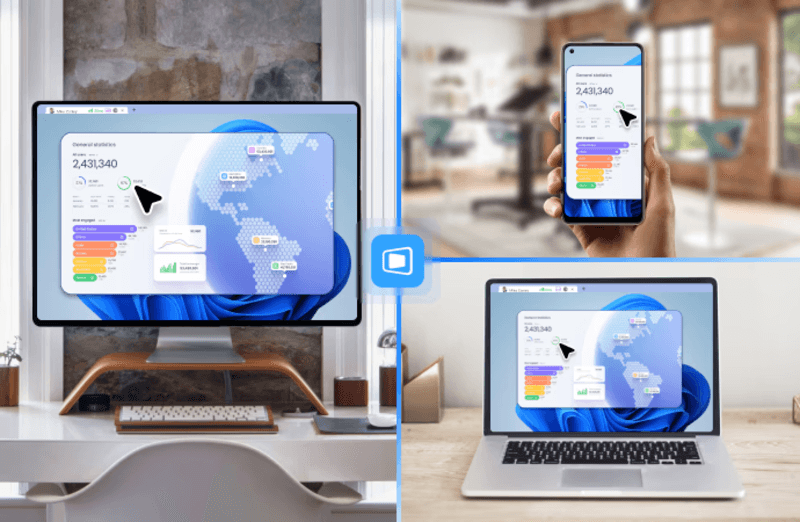
DeskIn removes the friction that often comes with remote access tools. Instead of relying on IDs or manual configurations, it offers a streamlined connection experience that works right out of the box. This makes it especially valuable for users supporting non-technical family members or managing multiple remote devices.
Performance is where DeskIn truly distinguishes itself. Compared to RustDesk, which can sometimes struggle with latency, DeskIn delivers consistently smooth sessions with minimal lag. It also eliminates the need for self-hosting, making it a strong free RustDesk alternative option for users who want powerful features without the complexity.
For those exploring options beyond the RustDesk alternative GitHub projects, DeskIn provides a polished, ready-to-use experience that balances simplicity with professional-grade performance.
Lightweight and fast installation
Good performance on low bandwidth
Cross-platform support
Easy-to-use interface
Performance may drop during long sessions
File transfer can be inconsistent
Best for: Users needing quick and simple remote access
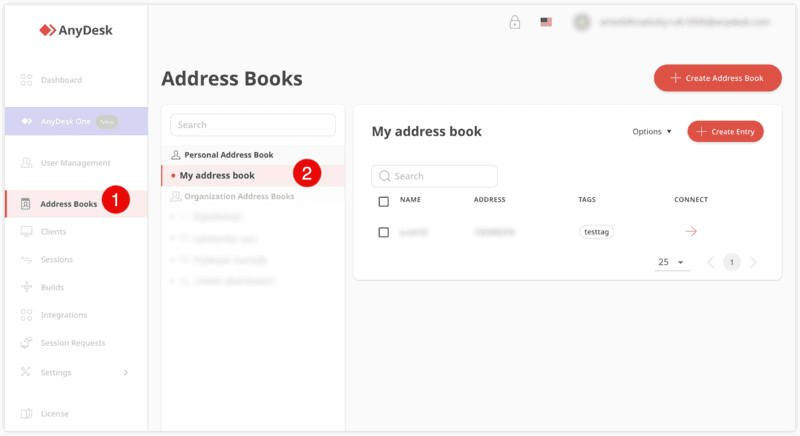
AnyDesk is often considered a natural step up from RustDesk for users who want something easier to deploy. It offers a lightweight application that connects quickly and performs well under normal conditions. This makes it suitable for quick troubleshooting or occasional remote access.
However, performance consistency can be an issue. Users frequently report lag or instability during extended sessions or when handling more demanding tasks. While AnyDesk is a solid option for basic needs, it may not fully satisfy users looking for a more robust, all-in-one solution.
👀 You may also be interested in: |
|---|
Enterprise-grade security with encryption and 2FA
Stable performance across global networks
Rich features like file transfer and session recording
Broad device compatibility
Expensive for commercial use
Free version has limitations
Heavier resource usage on some systems
Best for: Businesses and IT teams managing multiple endpoints
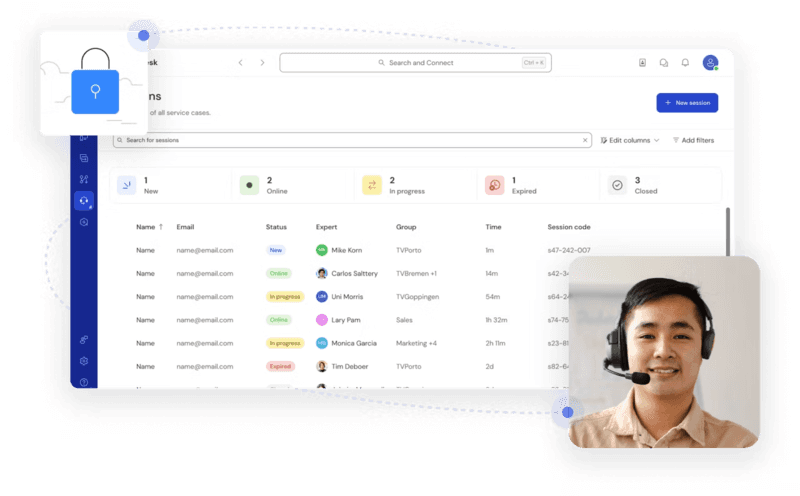
TeamViewer has long been a dominant player in the remote desktop space, offering a comprehensive suite of features designed for enterprise environments. It excels in reliability and global connectivity, making it a popular choice for IT support teams.
That said, its pricing model is a major drawback for many users. Frequent users may quickly encounter licensing restrictions, and costs can escalate for businesses. Additionally, its heavier footprint can impact performance on lower-end devices. DeskIn offers a more modern alternative by delivering similar performance and essential features without the same cost barriers. For users who want enterprise-level capabilities with better efficiency, it presents a compelling option.
👀 You may also be interested in: |
|---|
Fully RustDesk alternative open source solution
Web-based management dashboard
Supports multi-device environments
Strong customization and control
Complex setup and maintenance
Requires technical expertise
Best for: Advanced users needing a Rustdesk alternative self-hosted
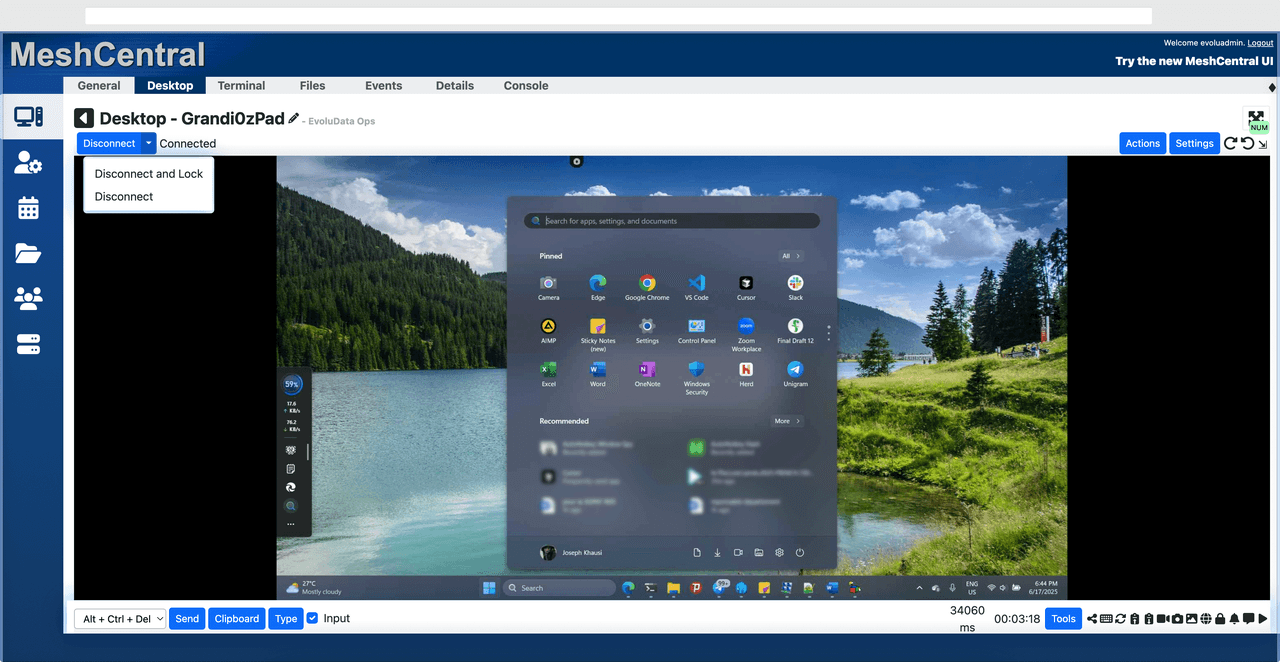
MeshCentral is a powerful open-source platform designed for users who want full control over their remote access infrastructure. It supports multiple devices and provides a centralized dashboard for management, making it attractive for IT professionals.
However, this flexibility comes with complexity. Setting up and maintaining a MeshCentral server requires technical knowledge, which can be a barrier for many users. Compared to this, DeskIn offers a much simpler deployment process while still delivering strong performance and security. For users who prioritize ease of use over full control, modern solutions like DeskIn provide a more accessible alternative.
Completely free
Browser-based access
Open-source foundation
Simple setup
Limited performance
Basic feature set
Best for: Users looking for a simple, free RustDesk alternative
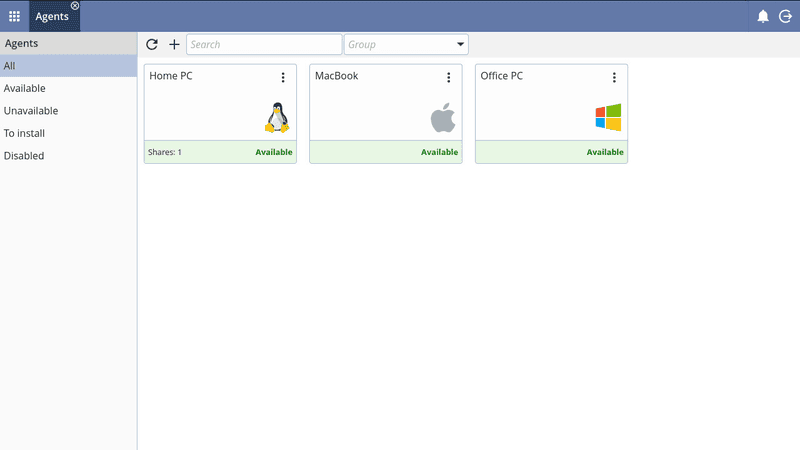
DWService offers a browser-based approach to remote access with no heavy installation, making it convenient for quick connections in restricted environments. It supports both desktop access and file management across major platforms.
However, performance often feels sluggish, especially on demanding tasks, and features remain basic; lacking session recording, smooth multi-monitor support, or advanced security controls. While suitable for occasional personal use, it falls short for professional or high-performance scenarios.
Free and easy to use
Browser-based setup
Cross-platform compatibility
Very limited features
No advanced management or collaboration tools
Best for: Casual users needing basic remote access
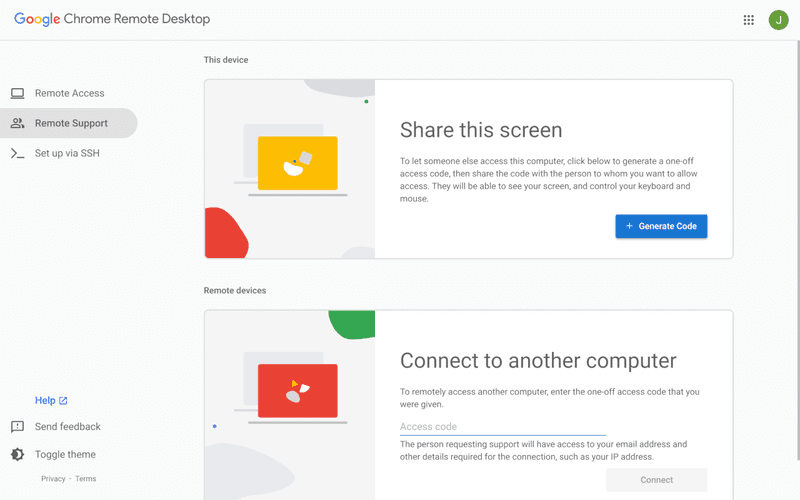
Chrome Remote Desktop is one of the simplest remote access tools available. It’s easy to set up and works across devices, making it a convenient choice for occasional use.
However, it lacks many essential features such as file transfer, session management, and advanced security controls. For users with more demanding needs, it quickly becomes insufficient. Compared to Chrome Remote Desktop, DeskIn provides a much more complete experience without sacrificing ease of use, making it a better long-term solution.
👀 You may also be interested in: |
|---|
RustDesk is powerful but can be difficult to set up and manage, especially with self-hosting. Many users prefer tools that offer similar performance without technical complexity. DeskIn simplifies remote access while maintaining strong performance and security.
Several tools qualify as a free RustDesk alternative, including DWService and Chrome Remote Desktop. However, DeskIn stands out by offering better performance and usability even in its free version.
Yes, tools like MeshCentral and DWService are considered RustDesk alternative open source options. They provide flexibility and control but often require technical expertise to set up and maintain.
Beginners should choose tools with a simple setup and intuitive interfaces. DeskIn is an excellent option because it removes the need for manual configuration while still delivering advanced features.
RustDesk is a powerful starting point, but it’s not always the easiest or most efficient tool for everyday use. From setup complexity to performance limitations, many users eventually look for a better RustDesk alternative.
Among all the options, DeskIn stands out as the most balanced solution. It combines speed, simplicity, and cross-platform support into one seamless experience. If you’re ready to move beyond technical friction and enjoy truly smooth remote access, DeskIn is a choice that simply works.
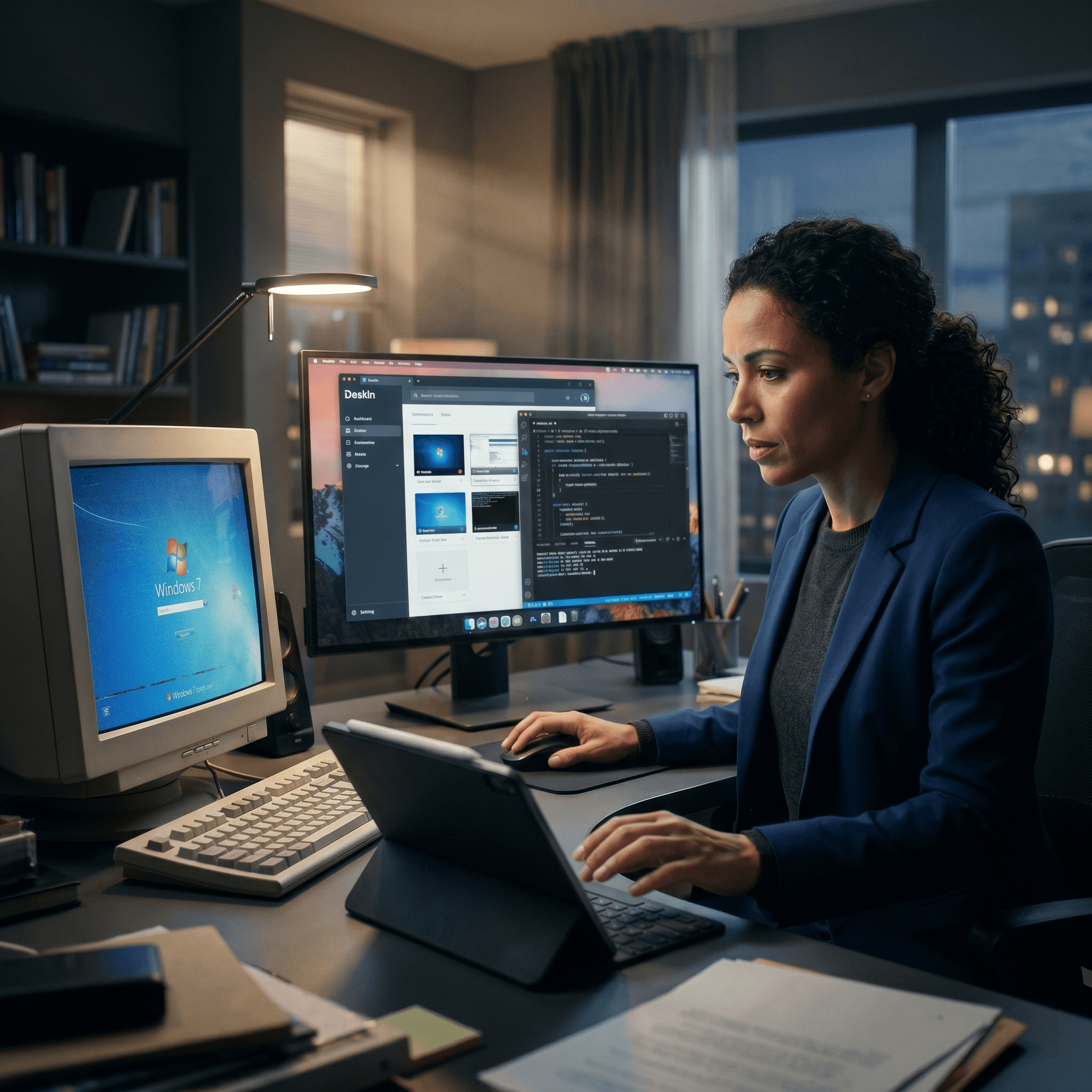
Top 7 RDP Alternative Tools for Faster, Safer Remote Access
Remote desktop access used to feel like a solid bridge. Now, for many users, traditional RDP feels more like a creaky rope ladder. With performance issues, security concerns, and limited cross-platform support, it's no surprise that more people are actively searching for a better RDP alternative that actually keeps up with modern workflows.
If you're managing multiple servers, working across devices, or just tired of unstable connections, this guide will walk you through the best tools worth switching to.
RDP (Remote Desktop Protocol) is a proprietary protocol developed by Microsoft that allows users to connect to another computer over a network. It's widely used for accessing Windows servers, virtual machines, and remote workstations.
While powerful in controlled environments, RDP is often tied to Windows systems and requires configuration like port forwarding or VPNs. Compared to newer tools, it can feel rigid and outdated.
You may also be interested in: |
|---|
RDP still works, but it comes with trade-offs that many users find frustrating:
Security risks if not properly configured
Complex setup for remote or external access
Limited cross-platform compatibility
Performance issues over unstable networks
Many IT teams are now actively replacing it, especially when looking for a Windows RDP client alternative or something that works seamlessly across macOS, Linux, and mobile devices. That's where modern Remote Desktop alternatives shine.
Choosing the right tool is like picking the right vehicle. Some are built for speed, others for heavy-duty enterprise work. Here's a quick snapshot:
DeskIn – Best all-in-one RDP alternative for performance and cross-platform use
TeamViewer – Best for enterprise remote support
AnyDesk – Best lightweight option for fast connections
RustDesk – Best Windows RDP alternative open-source solution
Remmina – Best RDP alternative for Linux users
Chrome Remote Desktop – Best simple browser-based tool
Splashtop – Best for high-performance business environments
Ultra-low latency with smooth high-frame-rate streaming
Works across Windows, macOS, Linux, iOS, and Android
Strong encryption and secure access controls
Built-in file transfer and multi-session support
Newer compared to legacy brands
Best for: Users who want a powerful, flexible RDP alternative
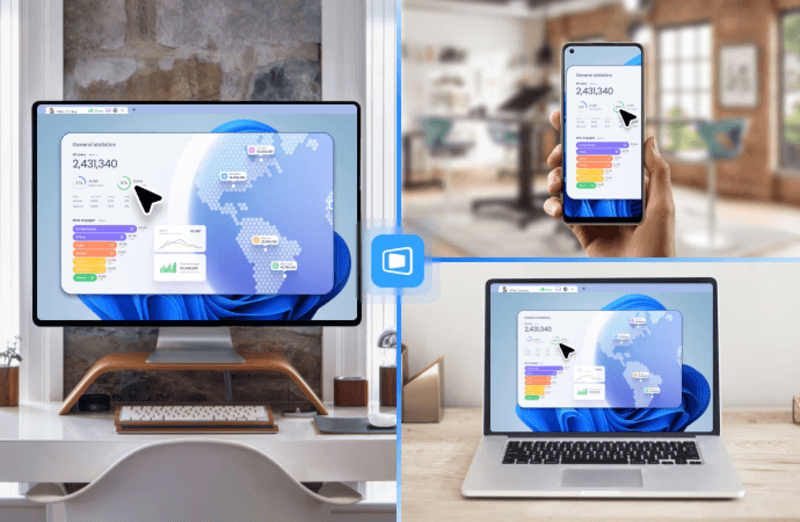
DeskIn feels less like remote access and more like teleportation for your desktop. Whether you're managing servers, supporting clients, or working remotely, it delivers consistently smooth performance without the usual lag spikes seen in traditional RDP setups.
Unlike many tools, DeskIn eliminates the need for complex configurations. You don't need to wrestle with firewalls or VPNs just to connect. It also works seamlessly across platforms, making it a strong alternative to Microsoft Remote Desktop for Mac and mobile users alike.
For teams juggling multiple systems, DeskIn provides a unified experience that replaces fragmented workflows. It's also a strong free RDP alternative option with premium-level capabilities, making it ideal for both individuals and businesses.
Enterprise-grade security and compliance
Extensive feature set including collaboration tools
Cross-platform compatibility
Reliable global performance
Expensive licensing
Can be overkill for individuals
Best for: Enterprises needing secure and scalable remote access
TeamViewer is a comprehensive remote desktop platform widely adopted by IT teams, support professionals, and enterprises. Its feature set extends far beyond simple screen sharing—it includes robust device management, remote printing, file transfer, session recording, and even augmented reality support for field service. TeamViewer's security architecture relies on AES‑256 encryption, two‑factor authentication, and whitelisting, making it suitable for organizations with strict compliance requirements. It runs on virtually every operating system and mobile platform.
The main trade‑off is its pricing: licenses are subscription‑based and can become expensive for small teams or individual users, especially as TeamViewer aggressively flags personal use as commercial, leading to session restrictions.
Fast and responsive
Lightweight installation
Works well on low bandwidth
Easy to use
File transfer can be inconsistent
Lag during longer sessions
Best for: Users needing quick, simple remote access
AnyDesk is a lightweight remote desktop application prized for its speed and efficiency, often recommended as a fast alternative to Microsoft's native Remote Desktop on Windows 10 and Android. It uses a proprietary video codec, DeskRT, to achieve low latency even on limited bandwidth, making it ideal for quick support sessions and accessing devices over mobile networks. The interface is clean and minimalist, with features like address book management, file transfer, and session recording available.
However, users frequently report instability during extended sessions; performance can degrade over time, and file transfers may slow considerably compared to competitors. While its free version is generous for personal use, professional users often find the performance ceiling limits its suitability for continuous, demanding workloads. DeskIn, by contrast, maintains consistent performance even during extended use, making it better suited for professional workloads.
You may also be interested in: |
|---|
Free and open-source
Self-hosting for full control
Strong privacy protection
Active community
Technical setup required
Limited user-friendly features
Best for: Developers and privacy-focused users
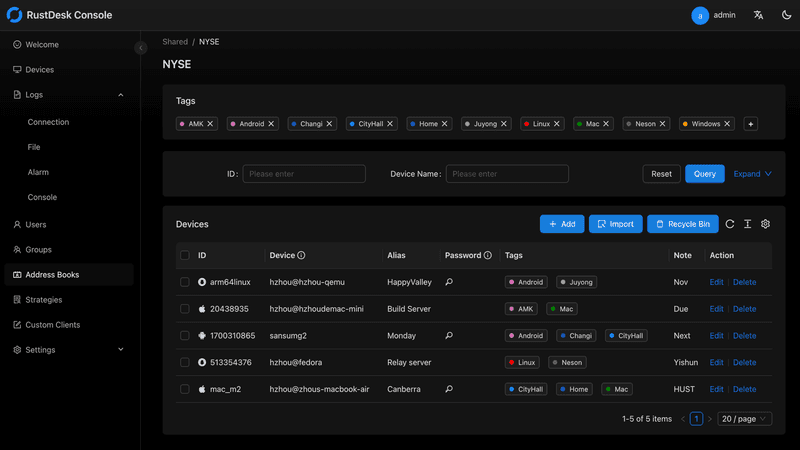
RustDesk has emerged as a leading open‑source remote desktop alternative, appealing to developers and organizations that require full control over their data. It allows users to self‑host the relay and rendezvous servers, meaning no third‑party infrastructure handles connection metadata. Built with Rust, it offers a modern codebase with cross‑platform clients (Windows, macOS, Linux, Android, iOS) and supports essential features such as file transfer, TCP tunneling, and customizable address books.
The major barrier is its complexity: deploying a self‑hosted environment requires technical expertise to configure firewalls, SSL certificates, and ongoing server maintenance. For those using the public relay, performance can be inconsistent depending on server load and geographic proximity.
You may also be interested in: Top RustDesk Alternatives for Better Performance, Security & Ease of Use |
|---|
Open-source and free
Supports multiple protocols including RDP and VNC
Lightweight and flexible
Native to Linux environments
Limited features compared to modern tools
UI can feel outdated
Best for: Linux users looking for a traditional RDP alternative Linux
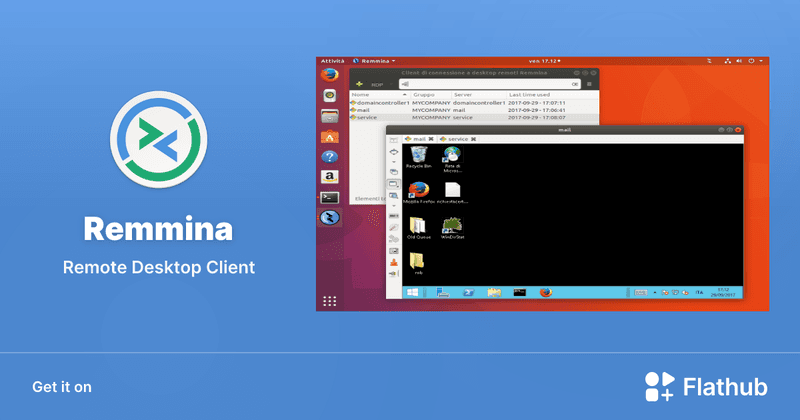
Remmina is a beloved open‑source remote desktop client for Linux, supporting multiple protocols (RDP, VNC, SSH, SPICE, and others) in a single unified interface. It is frequently chosen by system administrators and Linux enthusiasts who need a flexible, lightweight tool to manage diverse environments. Remmina offers tabbed sessions, quick‑connect profiles, and a plugin system that extends its capabilities.
However, its strength - protocol flexibility, also highlights its limitations. As a frontend client rather than a full remote access solution, it lacks features like unattended access, centralized account management, or robust session recording out of the box. Performance can vary by protocol, and the user experience lags behind more polished commercial tools, particularly for users seeking a plug‑and‑play setup.
Free and easy to use
Browser-based setup
Cross-platform access
Very limited features
No advanced management tools
Best for: Casual users needing basic remote access
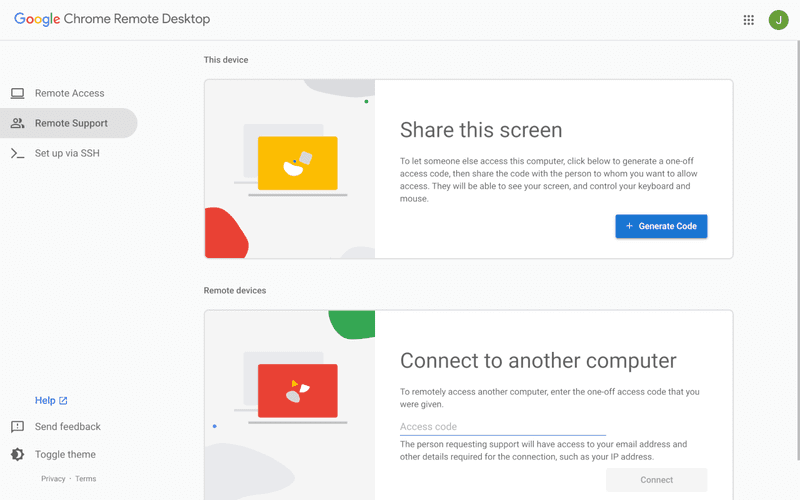
Chrome Remote Desktop is a free, browser‑based remote access tool from Google that requires nothing more than a Chrome browser and a Google account. It excels in simplicity: installation takes seconds, and connections are mediated through Google's infrastructure, eliminating complex firewall configurations. For occasional use—such as helping a family member or quickly accessing a home computer—it works reliably across Windows, macOS, Linux, and even ChromeOS.
The trade‑off is its minimal feature set. There is no native file transfer, multi‑session management, remote printing, or granular permission controls. Collaboration tools are absent, and the reliance on a Google account for authentication can be a limitation in professional environments. It remains a convenient entry‑level tool but struggles to meet the needs of power users or IT teams.
You may also be interested in: |
|---|
High-quality streaming performance
Strong security features
Good for business environments
Reliable connections
Subscription-based pricing
Limited free version
Best for: Businesses needing performance-focused remote access
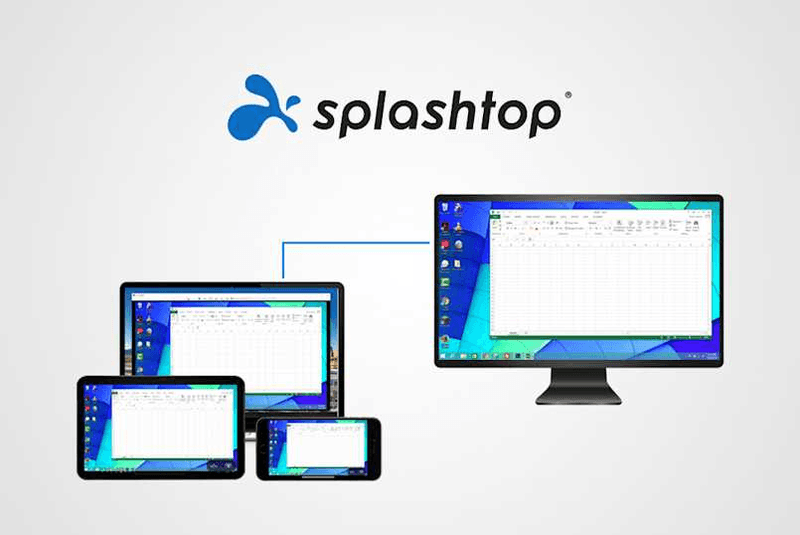
Splashtop is a high‑performance remote desktop solution frequently adopted by creative professionals, educational institutions, and enterprises that prioritize fluid interaction. It delivers low‑latency streaming with support for high‑frame‑rate displays, making it suitable for video editing, CAD work, and other graphics‑intensive tasks. Splashtop offers a range of editions—from Business Access to SOS for on‑demand support—all of which include robust security (AES‑256, device authentication) and features like file transfer, remote printing, and multi‑monitor navigation. Its performance over local networks and the internet is consistently praised.
The primary drawback is cost: while competitive, the subscription model can accumulate quickly for users needing access to multiple devices or advanced features, especially when compared to similarly capable tools with more flexible pricing structures. DeskIn offers similar performance benefits with a more flexible pricing structure, making it a compelling alternative.
You may also be interested in: |
|---|
RDP can be difficult to configure, less secure if exposed, and limited outside Windows environments. Modern tools like DeskIn provide better performance, security, and ease of use.
The best RDP alternative depends on your needs, but DeskIn stands out for its balance of speed, security, and cross-platform compatibility.
Yes, several tools qualify as an RDP alternative free, including RustDesk and Chrome Remote Desktop. DeskIn also offers a free tier with advanced capabilities.
Microsoft is evolving its remote desktop ecosystem, but traditional RDP isn't disappearing overnight. However, many users are already transitioning to more modern solutions like DeskIn for better reliability and flexibility.
RDP has served its purpose, but the digital world has outgrown its limitations. Whether you need better performance, stronger security, or true cross-platform access, switching to a modern RDP alternative is no longer optional, it's inevitable.
Among all the options, DeskIn stands out as a future-ready solution. It combines speed, simplicity, and power into one seamless experience, helping you leave behind the friction of traditional remote desktop tools and step into something far more efficient.
Biến iPad thành màn hình thứ hai cho máy tính Windows và Mac
Đối với những người làm việc đa nhiệm, việc có màn hình thứ hai có thể tăng năng suất đáng kể. Nếu bạn làm việc tại nhà hoặc là sinh viên chưa có thiết lập hai màn hình, đây là cách bạn có thể dễ dàng biến chiếc iPad đang nhàn rỗi thành màn hình thứ hai cho máy tính của mình.
Tăng không gian hiển thị để xem được nhiều nội dung hơn cùng lúc. Với người dùng đa nhiệm, họ có thể tránh phải chuyển qua lại giữa các cửa sổ, tiết kiệm thời gian.
Mỗi màn hình hoạt động độc lập, giúp không gian làm việc gọn gàng hơn. Khi chỉnh sửa video, một màn hình dùng để biên tập và màn hình còn lại để đặt tư liệu. Khi viết bài, một màn hình để viết, màn hình kia để tìm kiếm thông tin, v.v.
Kích thước màn hình iPad đủ lớn và chất lượng hiển thị khá tốt. Với người dùng có nhu cầu thiết kế hoặc dùng MacBook, cách này có thể tiết kiệm chi phí hơn so với mua thêm màn hình, đồng thời không gặp vấn đề lệch màu.
Nhiều người đã có sẵn iPad ở nhà. Bằng cách dùng thiết bị sẵn có làm màn hình kép, bạn tiết kiệm được chi phí mua thêm màn hình và cả không gian đặt nó.
Tính năng gốc của Apple là Apple Sidecar cho phép bạn dùng iPad làm màn hình ngoài cho MacBook và iMac. Chỉ cần một vài thiết lập đơn giản là bạn có thể tạo kết nối liền mạch giữa iPad và máy tính.
Lưu ý: Để dùng Apple Sidecar, hai thiết bị cần đăng nhập cùng một Apple ID hoặc ở cùng một mạng. Cả hai thiết bị phải bật Bluetooth, Wi-Fi, và khoảng cách không được vượt quá 10 mét (khoảng 10 mét).
Mở Cài đặt hệ thống trên Mac >> Nhấp vào "Display" ở thanh bên >> Nhấp vào menu bật lên "+" ở bên phải và chọn iPad của bạn.
Chọn iPad, đổi thiết lập Use as thành "Extended Display". Kiểm tra cài đặt Airplay trên thanh công cụ trên cùng của Mac và đặt iPad là "Use As Separate Display".
Sau khi hoàn tất cài đặt, iPad của bạn sẽ trở thành màn hình thứ hai cho máy Mac. Bạn có thể kéo thả cửa sổ từ Mac sang iPad một cách mượt mà. Bạn cũng có thể dùng thanh bên trên iPad hoặc thay đổi vị trí thanh bên trong cài đặt hiển thị của hệ thống.
Màn hình MacBook (Trái) và màn hình iPad (Phải)
Apple Sidecar chỉ hỗ trợ máy Mac phát hành sau năm 2016 và iPadOS 13 trở lên. Nếu bạn đang dùng thiết bị Apple đời cũ hoặc thiết bị Windows, bạn vẫn có thể dùng phần mềm điều khiển từ xa DeskIn để mở rộng màn hình. Phần mềm này hỗ trợ dùng iPad làm màn hình thứ hai cho cả Mac và Windows, và độ mượt không hề kém Sidecar.
Tải DeskIn trên máy tính và iPad của bạn, đăng ký tài khoản miễn phí và đăng nhập trên từng thiết bị.
Lưu ý: Lần đầu đăng nhập vào một thiết bị mới, bạn cần hoàn tất xác minh email để bảo vệ an toàn cho tài khoản của mình.
Mở ứng dụng DeskIn trên máy tính Windows/Mac >> Vào tab "Screen Mgt" >> Nhấp “Extend my screen”
Chọn iPad của bạn và nhấp “Start Extending”. Sau khi kết nối, iPad sẽ trở thành màn hình thứ hai của máy tính Windows/Mac, bạn có thể di chuyển cửa sổ giữa hai màn hình như thể chúng là một.
Màn hình máy tính (Trái) và màn hình iPad (Phải)
Sau khi mở rộng, nếu bạn thấy iPad chỉ đang phản chiếu nội dung trên màn hình máy tính, vui lòng vào Cài đặt hệ thống Windows >> Cài đặt hiển thị và đổi tùy chọn màn hình thành "Extend these displays". Bạn cũng có thể chỉnh vị trí màn hình bằng cách kéo thả 2 màn hình.
Bài viết này giới thiệu cách sử dụng phần mềm điều khiển máy tính từ xa DeskIn để biến iPad thành "màn hình thứ hai" cho máy tính Mac và Windows. Điều này đặc biệt hữu ích cho những người cần xử lý nhiều tác vụ cùng lúc và muốn nâng cao năng suất. Nếu bạn đang tìm một công cụ mở rộng màn hình hoạt động trên MacBook, iPad, máy tính bảng Android và PC Windows, DeskIn remote desktop là giải pháp tốt nhất dành cho bạn. Hãy tải DeskIn và dùng thử ngay!
Top 6 RustDesk Alternative Tools for Faster, Easier Remote Access
Remote access should feel like flipping a light switch, not decoding a control panel. Yet many users exploring RustDesk eventually run into friction: connection IDs, server setup, or occasional lag. While RustDesk is powerful, it’s not always the easiest or smoothest option, especially for non-technical users.
That’s why more people are actively searching for a reliable RustDesk alternative that combines performance, simplicity, and flexibility. Whether you want a plug-and-play solution or something more advanced, this guide will help you find the best fit.
RustDesk stands out as a privacy-friendly, self-hosted remote desktop tool. However, real-world usage reveals a few common challenges:
Complicated setup for the RustDesk self-hosted environments
Manual connection steps requiring IDs and passwords
Occasional latency or unstable connections
Limited user-friendly features out of the box
For many users, especially those helping family or managing multiple devices, simplicity matters just as much as control.
When evaluating a RustDesk alternative, focus on these key factors:
Ease of use: Quick setup without technical overhead
Performance: Smooth, low-latency remote sessions
Compatibility: Support for Windows, macOS, Linux, and mobile
Security: Strong encryption and access controls
Flexibility: Options ranging from cloud-based to open source
The ideal tool strikes a balance between power and convenience, something many modern solutions now deliver better than traditional setups.
Here’s a quick breakdown of the top tools and where they shine:
DeskIn – Best all-in-one RustDesk alternative for performance and ease of use
AnyDesk – Best lightweight tool for fast connections
TeamViewer – Best for enterprise-grade remote support
MeshCentral – Best open-source and self-hosted solution
DWService – Best free browser-based tool
Chrome Remote Desktop – Best simple, no-frills option
Ultra-low latency with smooth high-frame-rate streaming
No complex setup or server deployment required
Cross-platform including Rustdesk alternative for Android
Secure with encryption and device control features
Built-in file transfer and multi-device management
Smaller awareness than legacy competitors
Best for: Users who want a powerful yet simple remote desktop solution
DeskIn removes the friction that often comes with remote access tools. Instead of relying on IDs or manual configurations, it offers a streamlined connection experience that works right out of the box. This makes it especially valuable for users supporting non-technical family members or managing multiple remote devices.
Performance is where DeskIn truly distinguishes itself. Compared to RustDesk, which can sometimes struggle with latency, DeskIn delivers consistently smooth sessions with minimal lag. It also eliminates the need for self-hosting, making it a strong free RustDesk alternative option for users who want powerful features without the complexity.
For those exploring options beyond the RustDesk alternative GitHub projects, DeskIn provides a polished, ready-to-use experience that balances simplicity with professional-grade performance.
Lightweight and fast installation
Good performance on low bandwidth
Cross-platform support
Easy-to-use interface
Performance may drop during long sessions
File transfer can be inconsistent
Best for: Users needing quick and simple remote access
AnyDesk is often considered a natural step up from RustDesk for users who want something easier to deploy. It offers a lightweight application that connects quickly and performs well under normal conditions. This makes it suitable for quick troubleshooting or occasional remote access.
However, performance consistency can be an issue. Users frequently report lag or instability during extended sessions or when handling more demanding tasks. While AnyDesk is a solid option for basic needs, it may not fully satisfy users looking for a more robust, all-in-one solution.
👀 You may also be interested in: |
|---|
Enterprise-grade security with encryption and 2FA
Stable performance across global networks
Rich features like file transfer and session recording
Broad device compatibility
Expensive for commercial use
Free version has limitations
Heavier resource usage on some systems
Best for: Businesses and IT teams managing multiple endpoints
TeamViewer has long been a dominant player in the remote desktop space, offering a comprehensive suite of features designed for enterprise environments. It excels in reliability and global connectivity, making it a popular choice for IT support teams.
That said, its pricing model is a major drawback for many users. Frequent users may quickly encounter licensing restrictions, and costs can escalate for businesses. Additionally, its heavier footprint can impact performance on lower-end devices. DeskIn offers a more modern alternative by delivering similar performance and essential features without the same cost barriers. For users who want enterprise-level capabilities with better efficiency, it presents a compelling option.
👀 You may also be interested in: |
|---|
Fully RustDesk alternative open source solution
Web-based management dashboard
Supports multi-device environments
Strong customization and control
Complex setup and maintenance
Requires technical expertise
Best for: Advanced users needing a Rustdesk alternative self-hosted
MeshCentral is a powerful open-source platform designed for users who want full control over their remote access infrastructure. It supports multiple devices and provides a centralized dashboard for management, making it attractive for IT professionals.
However, this flexibility comes with complexity. Setting up and maintaining a MeshCentral server requires technical knowledge, which can be a barrier for many users. Compared to this, DeskIn offers a much simpler deployment process while still delivering strong performance and security. For users who prioritize ease of use over full control, modern solutions like DeskIn provide a more accessible alternative.
Completely free
Browser-based access
Open-source foundation
Simple setup
Limited performance
Basic feature set
Best for: Users looking for a simple, free RustDesk alternative
DWService offers a browser-based approach to remote access with no heavy installation, making it convenient for quick connections in restricted environments. It supports both desktop access and file management across major platforms.
However, performance often feels sluggish, especially on demanding tasks, and features remain basic; lacking session recording, smooth multi-monitor support, or advanced security controls. While suitable for occasional personal use, it falls short for professional or high-performance scenarios.
Free and easy to use
Browser-based setup
Cross-platform compatibility
Very limited features
No advanced management or collaboration tools
Best for: Casual users needing basic remote access
Chrome Remote Desktop is one of the simplest remote access tools available. It’s easy to set up and works across devices, making it a convenient choice for occasional use.
However, it lacks many essential features such as file transfer, session management, and advanced security controls. For users with more demanding needs, it quickly becomes insufficient. Compared to Chrome Remote Desktop, DeskIn provides a much more complete experience without sacrificing ease of use, making it a better long-term solution.
👀 You may also be interested in: |
|---|
RustDesk is powerful but can be difficult to set up and manage, especially with self-hosting. Many users prefer tools that offer similar performance without technical complexity. DeskIn simplifies remote access while maintaining strong performance and security.
Several tools qualify as a free RustDesk alternative, including DWService and Chrome Remote Desktop. However, DeskIn stands out by offering better performance and usability even in its free version.
Yes, tools like MeshCentral and DWService are considered RustDesk alternative open source options. They provide flexibility and control but often require technical expertise to set up and maintain.
Beginners should choose tools with a simple setup and intuitive interfaces. DeskIn is an excellent option because it removes the need for manual configuration while still delivering advanced features.
RustDesk is a powerful starting point, but it’s not always the easiest or most efficient tool for everyday use. From setup complexity to performance limitations, many users eventually look for a better RustDesk alternative.
Among all the options, DeskIn stands out as the most balanced solution. It combines speed, simplicity, and cross-platform support into one seamless experience. If you’re ready to move beyond technical friction and enjoy truly smooth remote access, DeskIn is a choice that simply works.
Products
Tải xuống
Resources
Contact Us
Email: support@deskin.io
Office: 991D Alexandra Road #02-17, Singapore 119972
Copyright © 2026 Zuler Technology PTE. LTD. All rights reserved.
Contact Us
Email: support@deskin.io
Office: 991D Alexandra Road #02-17, Singapore 119972
Products
Tải xuống
Resources
Copyright © 2026 Zuler Technology PTE. LTD. All rights reserved.
Products
Tải xuống
Resources
Contact Us
support@deskin.io
991D Alexandra Road #02-17
Singapore 119972
Copyright © 2026 Zuler Technology PTE. LTD. All rights reserved.
【New User Special Offer】
Save
Extra 20%
on your first order|4K60FPS
Extra
20% Off
|For
New Users
【New User Special Offer】
Save
Extra 20%
on first order


