應用對比
應用對比
·
5 Minutes
·
5 Minutes
GA
已更新
已更新
已更新
In a world where your work, games, and creative projects live across multiple screens, the question isn’t whether you should go digital: it’s how you should operate remotely without losing speed, control, or quality.
Two popular paths dominate today’s workflow: remote desktop access and cloud computing. Both sound futuristic, both promise freedom, and both seem like they should solve the same problem. But they don’t.
If you’ve ever wondered: Which one is faster? Which one is more secure? Which one handles heavy apps, giant files, or games without stuttering? Do I actually need both?
Then welcome, you’re in the right place.
By the end of this guide, you’ll know exactly which tool fits your workflow (spoiler: one of them unlocks way more power than the other), and why a next-gen platform like DeskIn is redefining how remote work, remote design, remote support, and even remote gaming are done.

At its core, remote desktop access means connecting to your own computer; Windows, macOS, iOS, or even an Android device, from anywhere in the world and controlling it as if you were sitting right in front of it.
Remote access for gaming: Play PC games from a laptop, iPad, or phone with your own library, mods, and saves.
Remote access for design: Run heavy design software like Blender, AutoCAD, Adobe Premiere, Unreal Engine, or Fusion 360 on a powerful workstation and control it remotely.
Remote support software: IT teams troubleshoot PCs, manage systems, and support family members’ devices in minutes.
Remote mobile access: Control Android devices from a desktop for testing, presentations, or support.
Remote file transfer & productivity: Access documents, move files instantly, or continue work without syncing or uploading anything to the cloud.
Everyday convenience: Use a tablet or secondary device to access a computer in another room, stream content to a shared screen, or stay connected with someone working remotely.
Helping friends and family: Assist relatives with device settings, software issues, or general tech confusion from afar, no need to be physically present.
Student workflows: Students travel light with a tablet or lightweight laptop while still accessing more powerful machines remotely to complete resource-heavy coursework.
Working from anywhere: Professionals connect back to office computers while traveling, working from home, or sitting in shared spaces, picking up tasks exactly where they paused them earlier.
You use your own hardware, with no limitations from cloud servers.
Full compatibility with any app, game, or proprietary tool.
No need to migrate your workflow or switch ecosystems.
Your data stays local, improving privacy and reducing exposure.
Great for performance-critical activity (gaming, 3D design, video editing, etc).
Traditional remote desktop tools often struggled with:
Latency
Poor image quality
Compression artifacts
Unstable network
Weak security
Slow file transfer
But next-generation remote access software like DeskIn pushed past these limits, delivering:
≤40ms latency
ultra-smooth streaming at 2K240FPS / 4K60FPS
200+global nodes
secure encryption
and blazing file transfer speeds
Suddenly, remote desktop access isn’t just “IT stuff”; it becomes a performance powerhouse.

In simple terms, cloud computing means your apps, storage, and processing power live on remote servers instead of your personal machine.
You’ve definitely used cloud tools like:
Amazon Web Services (AWS)
Microsoft Azure
Google Cloud Platform (GCP)
IBM Cloud
Team collaboration: Everyone works in the same shared environment, seeing updates instantly without messy file versions.
Real-time editing: Tools like Figma or Google Workspace run processing in the cloud, so your device only handles the interaction, making everything feel fast and lightweight.
Zero hardware maintenance: The cloud provider takes care of servers, updates, backups, and security so you can forget about constantly maintaining IT on your end.
Access from any device: Your files and apps are stored online, so you can get to them from your laptop, phone, or tablet without the hassle of filling up a USB flash drive or syncing manually.
Especially when compared to remote desktop tools, including:
Limited support for heavy, GPU-intensive software: Most cloud platforms can’t reliably run apps like Premiere Pro, Blender, CAD tools, or AAA games because they require dedicated local GPU acceleration.
Performance locked to the provider’s server conditions: If the cloud server is overloaded, throttled, or geographically far from you, your speed drops, and there’s nothing you can do about it.
Recurring subscription costs that add up quickly: You’re not just paying once; cloud services charge monthly for storage, users, bandwidth, compute power, and sometimes even for higher performance tiers.
No direct control over hardware or system configuration: You can’t tweak GPU settings, install drivers, adjust performance modes, or customize your environment the way you can on your own machine.
Storage and bandwidth limits for big projects: Large video files, 3D assets, game builds, or RAW footage can quickly hit cloud storage caps, and moving them in/out of the cloud takes time and uses bandwidth.
Latency that shifts with region, network load, and pricing tier: Even with fast internet, cloud platforms may introduce delay because your input travels through multiple servers before reaching your workspace.
So while cloud computing is great for collaboration and lightweight tasks, it often falls short for real work that requires speed, power, and precision.
Category | Remote Desktop Access | Cloud Computing |
|---|---|---|
Performance | Uses your own hardware; full CPU/GPU power | Depends on provider; often limited |
Latency | As low as ≤40ms with tools like DeskIn | Higher & inconsistent |
Cost | One device = infinite remote access | Subscription fees per user/app |
Scalability | Limited by your hardware, but fully controlled | Scales easily, but expensive |
Collaboration | Single-user control, yet still supports collaboration. | True multi-user, real-time editing. |
Hardware Control | Full control | No control; hardware abstracted |
Security | Local data stays local | Depends on vendor policies |
Heavy Workloads | Perfect for GPU/CPU heavy tasks | Usually restricted |
Remote Support | Full control of the remote system | Not possible |
Gaming | Full library, mods, saves | Limited libraries, higher input lag |
Cross-Device Work | Seamless across laptop, tablet, mobile | Requires cloud-compatible apps |
Device Flexibility | Access your entire environment | Use only apps offered in the cloud |
Cloud platforms shine when you’re sharing files or working across teams, but they can’t replace the control you get from your own device. When the job requires direct, secure access to a full desktop or private network, without shifting your entire workflow online, remote desktop access solutions like DeskIn deliver exactly what’s needed.
Choosing between cloud computing and remote desktop access really depends on what you’re trying to do. Collaboration-heavy tasks work well in the cloud, but anything performance-based, real-time, or tied to a specific device will instantly benefit from remote access software like DeskIn. Below are the most common scenarios and exactly where each solution wins.
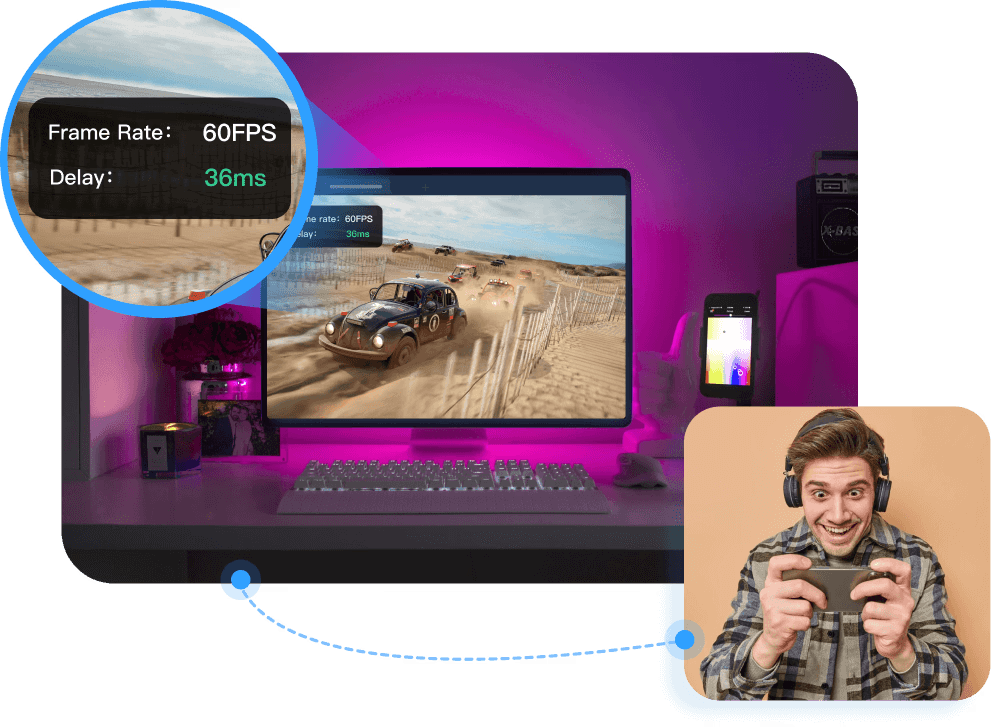
Cloud gaming sounds exciting until reality hits: you’re locked into a limited game library, stuck with subscriptions, and constantly battling input delay. Even on a fast connection, server-based gaming simply can’t guarantee the responsiveness gamers expect.
With remote desktop access, you’re playing directly on your own high-performance PC, complete with your mods, saves, launchers, settings, and full library. No restrictions, no missing titles, no compromises.
And on top of raw performance, DeskIn includes gamer-focused features that cloud platforms can’t offer:
Play PC Games on Mobile: Optimized touch controls, gaming keyboard presets, and shortcuts for smooth smartphone/tablet gameplay.
Mirror Mobile Games to PC: Stream your mobile titles to your desktop for clearer visuals and easier control.
Extend Your Game Screen: Use your Mac/iPad as a second screen for your gaming PC; play in full screen while extending Discord for real-time chat.
Immersive Auto 3D Game View: Automatically switches to 3D view for all FPP/TPP games for a near-local gaming experience.
Game Controller Adaptation: Seamless support for game controllers, allowing precise input mapping and native-feeling control during remote play.
If you’re serious about remote access for gaming, DeskIn is hands-down the best remote desktop solution. It gives you cloud-like convenience without giving up the power of your own machine.
Recommended Read:
4 Ways to Connect Android to PCs [Nearby & Remotely]
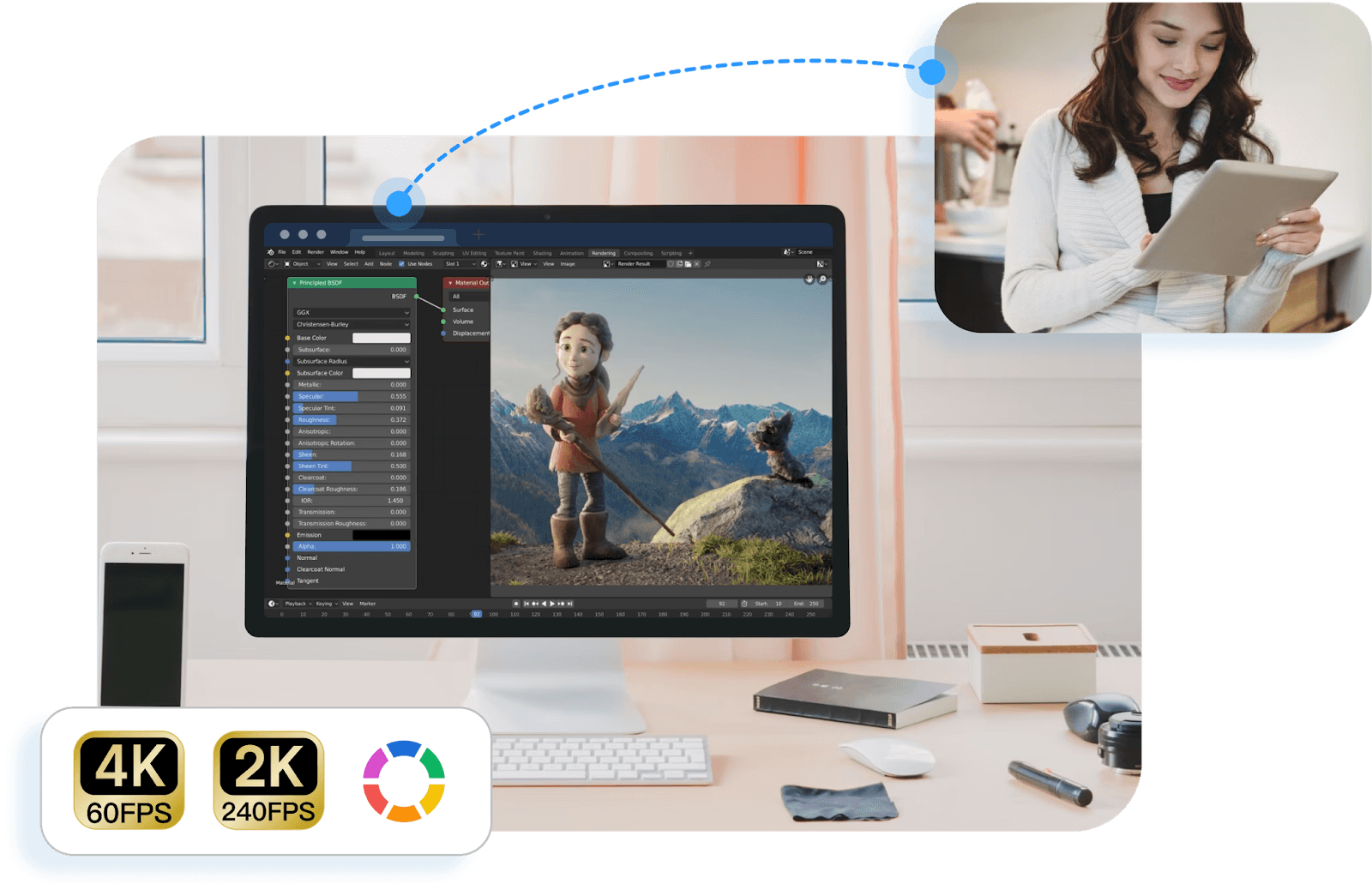
Cloud computing platforms like AWS, Microsoft Azure, or Google Cloud are built for scalable infrastructure, not real-time creative workflows. For GPU-intensive tasks such as video editing, 3D modeling, animation, or CAD, cloud environments often introduce latency, performance limits, or high usage costs, making remote desktop access to a powerful local workstation the more reliable choice.
Professional creative workflows like rendering, simulation, color grading, and 3D sculpting depend on direct access to dedicated CPU and GPU resources, which cloud platforms struggle to deliver consistently in real time.
With DeskIn’s remote desktop access, creators tap into their full setup from anywhere:
Adobe Premiere Pro and After Effects
DaVinci Resolve
Blender, Maya, ZBrush
AutoCAD, SolidWorks, Revit
Unreal and Unity engines
DeskIn’s ultra-low latency and 4:4:4 color accuracy keep every detail true to your original workspace, while its flexible peripheral support makes remote creation feel natural. Digital tablets with 8,096 levels of pressure sensitivity retain precise pressure and coordinate mapping, and your local ergonomic mouse and Bluetooth keyboard integrate seamlessly with your remote workstation. For creators who depend on precision and power, DeskIn turns any laptop or tablet into a fully capable production machine.
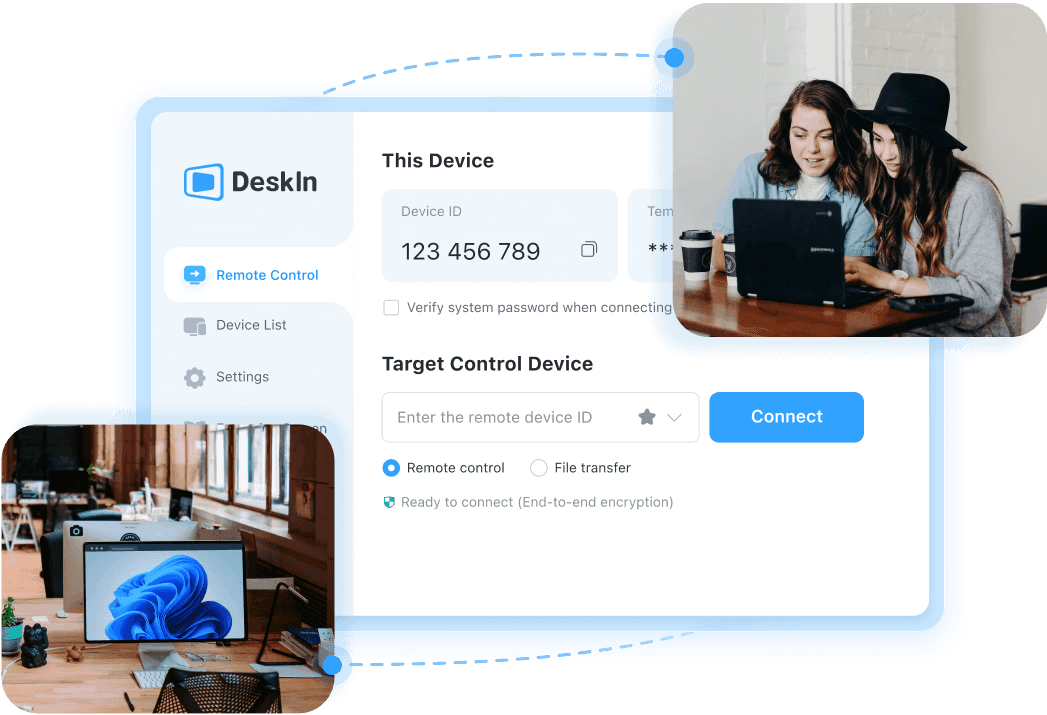
Most remote workers juggle two types of tools:
Cloud apps for email, spreadsheets, docs, and team collaboration
Remote desktop access for internal systems, on-prem software, VPN-only tools, or legacy apps
Cloud-based productivity apps are useful, but they can’t replace the deeper system access many businesses still depend on.
With DeskIn, remote workers get:
Direct access to office desktops and internal networks
Smooth control over legacy software that can’t be moved to the cloud
A faster, more secure way to connect without complicated IT setups
DeskIn makes remote work feel like you’re literally sitting at your office workstation: a huge advantage for hybrid teams or companies transitioning toward digital operations but still relying on older infrastructure.
Recommended Read:
3 Ways to Remote Into PC from Mac Smoothly [6 Recommended Tools]
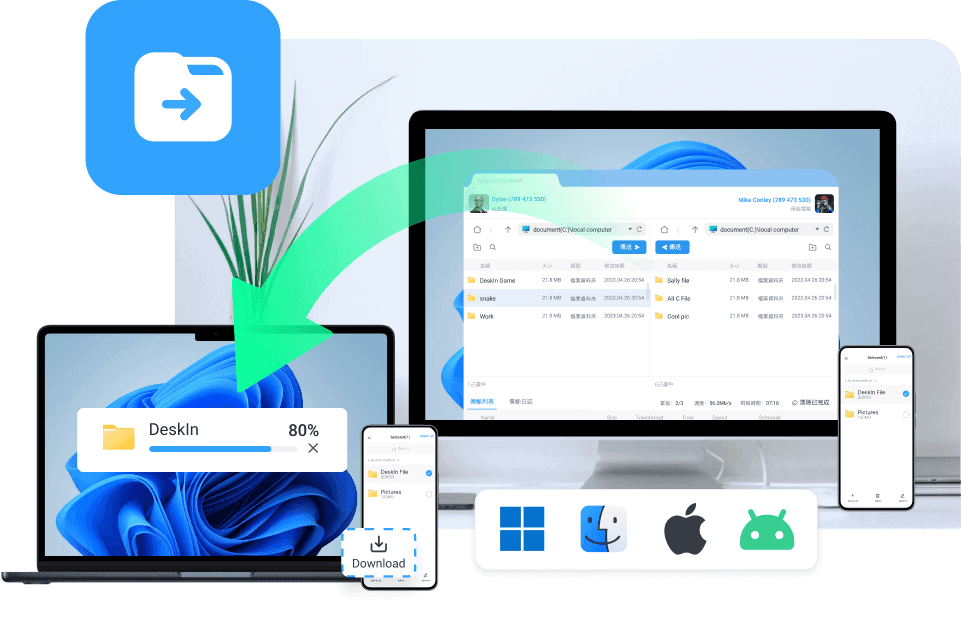
Cloud services can host apps, but they cannot fix your hardware. They cannot troubleshoot an OS issue. They cannot adjust system settings or diagnose performance problems on a physical device.
This is why IT teams worldwide rely on remote access software.
DeskIn gives technicians what cloud platforms simply can’t:
Full remote control over Windows, macOS, and Android
Mobile-to-PC access
Fast remote file transfer for patches and installers
Real-time diagnostics and system repair
Ability to assist non-technical users with immediate support
Whether it’s an enterprise technician or someone helping a family member, DeskIn offers the deeper system-level access required for true remote support: something cloud computing will never replicate.
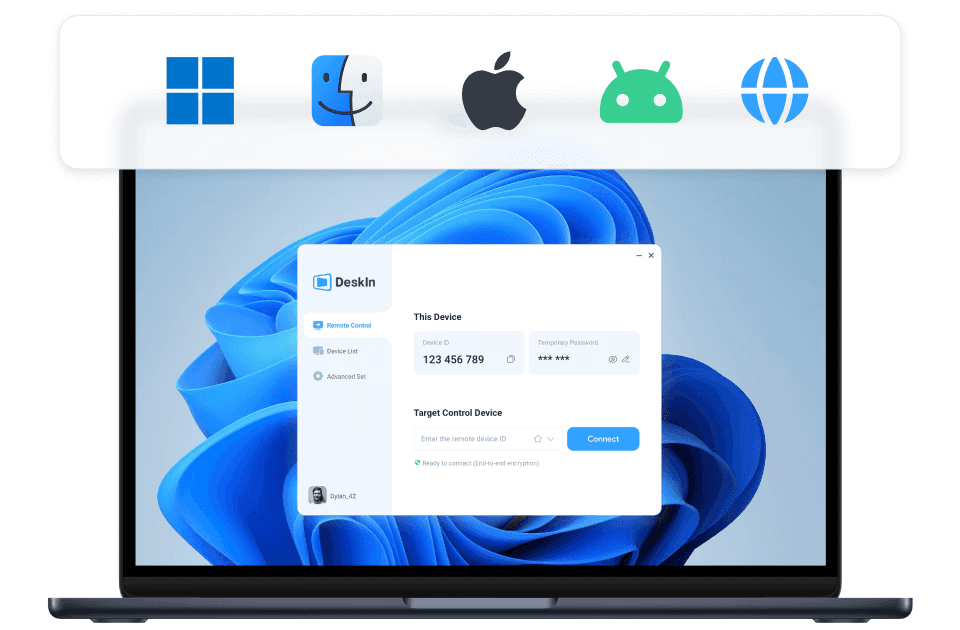
For quick tasks: checking docs, reviewing slides, or light note-taking, cloud tools are perfectly fine. But once you need a full application, your files, or your exact desktop environment, cloud apps suddenly feel very limiting.
DeskIn steps in as the all-in-one productivity bridge:
Access your full desktop from a laptop, tablet, or phone
Use all your existing apps without reinstalling them
Jump between devices effortlessly
Work with large files instantly using remote file transfer
Avoid syncing issues or version conflicts
Travelers, freelancers, students, and digital nomads often prefer DeskIn because it keeps their entire workflow intact, even when they’re far away from their primary device.
Recommended Read:
5 Ways to Remote Access Windows from Any Device Easily
With uncompromised speed, precision, and flexibility, DeskIn delivers the complete experience that creators, gamers, IT teams, and remote workers need, making it the clear winner for anyone seeking powerful, reliable, and truly high-performance remote desktop access.
Try DeskIn for free today. Unlock advanced remote desktop features with no credit card required.
Yes. Remote desktop access uses your own hardware, giving you full CPU/GPU power for tasks like gaming, 3D modeling, CAD, and video editing. Cloud apps generally can’t handle these intensive workloads.
Absolutely. DeskIn is fully cross-platform, making it easy to connect between laptops, desktops, tablets, and smartphones using the same remote access software.
Yes. DeskIn is optimized for remote access for gaming, supporting 2K240FPS, 4K60FPS, ≤40ms latency, mobile play, extended displays, and Auto 3D Game View—far beyond what cloud gaming platforms allow.
Definitely. Cloud tools are great for collaboration and shared files, while DeskIn handles performance-heavy or device-specific tasks. Many users combine both for a complete workflow.
DeskIn uses AES 256-bit encryption and secure tunneling to protect your sessions, files, and credentials, making it a reliable choice for remote support software and enterprise-level use.
The cloud is great for convenience: shared files, storage, and simple teamwork. But when you need real performance, full control of your own hardware, and true real-time responsiveness, remote desktop access is the clear winner. That’s exactly where DeskIn excels.
DeskIn delivers the speed, precision, and flexibility that cloud tools can’t match, making it the stronger choice for gaming, creative work, IT support, and anywhere high-performance remote access matters.
If you want fast, secure, and powerful remote access from any device, DeskIn is simply the better choice every time.
Ready to upgrade your workflow? Download DeskIn now and experience ultra-fast remote desktop access with zero limits
In a world where your work, games, and creative projects live across multiple screens, the question isn’t whether you should go digital: it’s how you should operate remotely without losing speed, control, or quality.
Two popular paths dominate today’s workflow: remote desktop access and cloud computing. Both sound futuristic, both promise freedom, and both seem like they should solve the same problem. But they don’t.
If you’ve ever wondered: Which one is faster? Which one is more secure? Which one handles heavy apps, giant files, or games without stuttering? Do I actually need both?
Then welcome, you’re in the right place.
By the end of this guide, you’ll know exactly which tool fits your workflow (spoiler: one of them unlocks way more power than the other), and why a next-gen platform like DeskIn is redefining how remote work, remote design, remote support, and even remote gaming are done.
At its core, remote desktop access means connecting to your own computer; Windows, macOS, iOS, or even an Android device, from anywhere in the world and controlling it as if you were sitting right in front of it.
Remote access for gaming: Play PC games from a laptop, iPad, or phone with your own library, mods, and saves.
Remote access for design: Run heavy design software like Blender, AutoCAD, Adobe Premiere, Unreal Engine, or Fusion 360 on a powerful workstation and control it remotely.
Remote support software: IT teams troubleshoot PCs, manage systems, and support family members’ devices in minutes.
Remote mobile access: Control Android devices from a desktop for testing, presentations, or support.
Remote file transfer & productivity: Access documents, move files instantly, or continue work without syncing or uploading anything to the cloud.
Everyday convenience: Use a tablet or secondary device to access a computer in another room, stream content to a shared screen, or stay connected with someone working remotely.
Helping friends and family: Assist relatives with device settings, software issues, or general tech confusion from afar, no need to be physically present.
Student workflows: Students travel light with a tablet or lightweight laptop while still accessing more powerful machines remotely to complete resource-heavy coursework.
Working from anywhere: Professionals connect back to office computers while traveling, working from home, or sitting in shared spaces, picking up tasks exactly where they paused them earlier.
You use your own hardware, with no limitations from cloud servers.
Full compatibility with any app, game, or proprietary tool.
No need to migrate your workflow or switch ecosystems.
Your data stays local, improving privacy and reducing exposure.
Great for performance-critical activity (gaming, 3D design, video editing, etc).
Traditional remote desktop tools often struggled with:
Latency
Poor image quality
Compression artifacts
Unstable network
Weak security
Slow file transfer
But next-generation remote access software like DeskIn pushed past these limits, delivering:
≤40ms latency
ultra-smooth streaming at 2K240FPS / 4K60FPS
200+global nodes
secure encryption
and blazing file transfer speeds
Suddenly, remote desktop access isn’t just “IT stuff”; it becomes a performance powerhouse.
In simple terms, cloud computing means your apps, storage, and processing power live on remote servers instead of your personal machine.
You’ve definitely used cloud tools like:
Amazon Web Services (AWS)
Microsoft Azure
Google Cloud Platform (GCP)
IBM Cloud
Team collaboration: Everyone works in the same shared environment, seeing updates instantly without messy file versions.
Real-time editing: Tools like Figma or Google Workspace run processing in the cloud, so your device only handles the interaction, making everything feel fast and lightweight.
Zero hardware maintenance: The cloud provider takes care of servers, updates, backups, and security so you can forget about constantly maintaining IT on your end.
Access from any device: Your files and apps are stored online, so you can get to them from your laptop, phone, or tablet without the hassle of filling up a USB flash drive or syncing manually.
Especially when compared to remote desktop tools, including:
Limited support for heavy, GPU-intensive software: Most cloud platforms can’t reliably run apps like Premiere Pro, Blender, CAD tools, or AAA games because they require dedicated local GPU acceleration.
Performance locked to the provider’s server conditions: If the cloud server is overloaded, throttled, or geographically far from you, your speed drops, and there’s nothing you can do about it.
Recurring subscription costs that add up quickly: You’re not just paying once; cloud services charge monthly for storage, users, bandwidth, compute power, and sometimes even for higher performance tiers.
No direct control over hardware or system configuration: You can’t tweak GPU settings, install drivers, adjust performance modes, or customize your environment the way you can on your own machine.
Storage and bandwidth limits for big projects: Large video files, 3D assets, game builds, or RAW footage can quickly hit cloud storage caps, and moving them in/out of the cloud takes time and uses bandwidth.
Latency that shifts with region, network load, and pricing tier: Even with fast internet, cloud platforms may introduce delay because your input travels through multiple servers before reaching your workspace.
So while cloud computing is great for collaboration and lightweight tasks, it often falls short for real work that requires speed, power, and precision.
Category | Remote Desktop Access | Cloud Computing |
|---|---|---|
Performance | Uses your own hardware; full CPU/GPU power | Depends on provider; often limited |
Latency | As low as ≤40ms with tools like DeskIn | Higher & inconsistent |
Cost | One device = infinite remote access | Subscription fees per user/app |
Scalability | Limited by your hardware, but fully controlled | Scales easily, but expensive |
Collaboration | Single-user control, yet still supports collaboration. | True multi-user, real-time editing. |
Hardware Control | Full control | No control; hardware abstracted |
Security | Local data stays local | Depends on vendor policies |
Heavy Workloads | Perfect for GPU/CPU heavy tasks | Usually restricted |
Remote Support | Full control of the remote system | Not possible |
Gaming | Full library, mods, saves | Limited libraries, higher input lag |
Cross-Device Work | Seamless across laptop, tablet, mobile | Requires cloud-compatible apps |
Device Flexibility | Access your entire environment | Use only apps offered in the cloud |
Cloud platforms shine when you’re sharing files or working across teams, but they can’t replace the control you get from your own device. When the job requires direct, secure access to a full desktop or private network, without shifting your entire workflow online, remote desktop access solutions like DeskIn deliver exactly what’s needed.
Choosing between cloud computing and remote desktop access really depends on what you’re trying to do. Collaboration-heavy tasks work well in the cloud, but anything performance-based, real-time, or tied to a specific device will instantly benefit from remote access software like DeskIn. Below are the most common scenarios and exactly where each solution wins.
Cloud gaming sounds exciting until reality hits: you’re locked into a limited game library, stuck with subscriptions, and constantly battling input delay. Even on a fast connection, server-based gaming simply can’t guarantee the responsiveness gamers expect.
With remote desktop access, you’re playing directly on your own high-performance PC, complete with your mods, saves, launchers, settings, and full library. No restrictions, no missing titles, no compromises.
And on top of raw performance, DeskIn includes gamer-focused features that cloud platforms can’t offer:
Play PC Games on Mobile: Optimized touch controls, gaming keyboard presets, and shortcuts for smooth smartphone/tablet gameplay.
Mirror Mobile Games to PC: Stream your mobile titles to your desktop for clearer visuals and easier control.
Extend Your Game Screen: Use your Mac/iPad as a second screen for your gaming PC; play in full screen while extending Discord for real-time chat.
Immersive Auto 3D Game View: Automatically switches to 3D view for all FPP/TPP games for a near-local gaming experience.
Game Controller Adaptation: Seamless support for game controllers, allowing precise input mapping and native-feeling control during remote play.
If you’re serious about remote access for gaming, DeskIn is hands-down the best remote desktop solution. It gives you cloud-like convenience without giving up the power of your own machine.
Recommended Read:
4 Ways to Connect Android to PCs [Nearby & Remotely]
Cloud computing platforms like AWS, Microsoft Azure, or Google Cloud are built for scalable infrastructure, not real-time creative workflows. For GPU-intensive tasks such as video editing, 3D modeling, animation, or CAD, cloud environments often introduce latency, performance limits, or high usage costs, making remote desktop access to a powerful local workstation the more reliable choice.
Professional creative workflows like rendering, simulation, color grading, and 3D sculpting depend on direct access to dedicated CPU and GPU resources, which cloud platforms struggle to deliver consistently in real time.
With DeskIn’s remote desktop access, creators tap into their full setup from anywhere:
Adobe Premiere Pro and After Effects
DaVinci Resolve
Blender, Maya, ZBrush
AutoCAD, SolidWorks, Revit
Unreal and Unity engines
DeskIn’s ultra-low latency and 4:4:4 color accuracy keep every detail true to your original workspace, while its flexible peripheral support makes remote creation feel natural. Digital tablets with 8,096 levels of pressure sensitivity retain precise pressure and coordinate mapping, and your local ergonomic mouse and Bluetooth keyboard integrate seamlessly with your remote workstation. For creators who depend on precision and power, DeskIn turns any laptop or tablet into a fully capable production machine.
Most remote workers juggle two types of tools:
Cloud apps for email, spreadsheets, docs, and team collaboration
Remote desktop access for internal systems, on-prem software, VPN-only tools, or legacy apps
Cloud-based productivity apps are useful, but they can’t replace the deeper system access many businesses still depend on.
With DeskIn, remote workers get:
Direct access to office desktops and internal networks
Smooth control over legacy software that can’t be moved to the cloud
A faster, more secure way to connect without complicated IT setups
DeskIn makes remote work feel like you’re literally sitting at your office workstation: a huge advantage for hybrid teams or companies transitioning toward digital operations but still relying on older infrastructure.
Recommended Read:
3 Ways to Remote Into PC from Mac Smoothly [6 Recommended Tools]
Cloud services can host apps, but they cannot fix your hardware. They cannot troubleshoot an OS issue. They cannot adjust system settings or diagnose performance problems on a physical device.
This is why IT teams worldwide rely on remote access software.
DeskIn gives technicians what cloud platforms simply can’t:
Full remote control over Windows, macOS, and Android
Mobile-to-PC access
Fast remote file transfer for patches and installers
Real-time diagnostics and system repair
Ability to assist non-technical users with immediate support
Whether it’s an enterprise technician or someone helping a family member, DeskIn offers the deeper system-level access required for true remote support: something cloud computing will never replicate.
For quick tasks: checking docs, reviewing slides, or light note-taking, cloud tools are perfectly fine. But once you need a full application, your files, or your exact desktop environment, cloud apps suddenly feel very limiting.
DeskIn steps in as the all-in-one productivity bridge:
Access your full desktop from a laptop, tablet, or phone
Use all your existing apps without reinstalling them
Jump between devices effortlessly
Work with large files instantly using remote file transfer
Avoid syncing issues or version conflicts
Travelers, freelancers, students, and digital nomads often prefer DeskIn because it keeps their entire workflow intact, even when they’re far away from their primary device.
Recommended Read:
5 Ways to Remote Access Windows from Any Device Easily
With uncompromised speed, precision, and flexibility, DeskIn delivers the complete experience that creators, gamers, IT teams, and remote workers need, making it the clear winner for anyone seeking powerful, reliable, and truly high-performance remote desktop access.
Try DeskIn for free today. Unlock advanced remote desktop features with no credit card required.
Yes. Remote desktop access uses your own hardware, giving you full CPU/GPU power for tasks like gaming, 3D modeling, CAD, and video editing. Cloud apps generally can’t handle these intensive workloads.
Absolutely. DeskIn is fully cross-platform, making it easy to connect between laptops, desktops, tablets, and smartphones using the same remote access software.
Yes. DeskIn is optimized for remote access for gaming, supporting 2K240FPS, 4K60FPS, ≤40ms latency, mobile play, extended displays, and Auto 3D Game View—far beyond what cloud gaming platforms allow.
Definitely. Cloud tools are great for collaboration and shared files, while DeskIn handles performance-heavy or device-specific tasks. Many users combine both for a complete workflow.
DeskIn uses AES 256-bit encryption and secure tunneling to protect your sessions, files, and credentials, making it a reliable choice for remote support software and enterprise-level use.
The cloud is great for convenience: shared files, storage, and simple teamwork. But when you need real performance, full control of your own hardware, and true real-time responsiveness, remote desktop access is the clear winner. That’s exactly where DeskIn excels.
DeskIn delivers the speed, precision, and flexibility that cloud tools can’t match, making it the stronger choice for gaming, creative work, IT support, and anywhere high-performance remote access matters.
If you want fast, secure, and powerful remote access from any device, DeskIn is simply the better choice every time.
Ready to upgrade your workflow? Download DeskIn now and experience ultra-fast remote desktop access with zero limits


如何把iPad變成電腦的第二螢幕?(Mac/Windows完整教學)
想找個 App 或軟體,可以用自己的 iPad 當第二螢幕,而且要有最好的解析度和畫面更新率?在日常學習生活中,通常一台筆電或許就能完成所有的工作。但面臨剪輯、設計、寫程式、資料校對等需要多視窗作業的工作時,多一塊顯示器真的能大大提升效率。如果你是居家辦公者、或是學生,沒有條件或是不想購入多一個螢幕,其實可以透過DeskIn遠端桌面、蘋果内建「Sidecar」功能以及Duet Display將 iPad 作爲延伸螢幕。本文也會同步說明 DeskIn 目前的螢幕鏡像/延伸方案限制,避免設定前產生誤解。
💻立即下載DeskIn遠端桌面,將iPad變成電腦的第二螢幕,提升工作效率!

iPad 當延伸螢幕後,可以把主要工作放在電腦,副螢幕放置參考資料或工具軟體,複製、拖曳更順暢,不必再來回切換。
例如:寫程式時在電腦編碼、iPad顯示需求文檔;剪輯影片時電腦進行剪輯、iPad顯示素材;製作簡報時,電腦處理內容、iPad展示資料。兩塊螢幕分工明確,效率大幅提升。
iPad 的螢幕解析度高、色彩表現好,比部分便宜的外接螢幕更適合設計相關工作。
多數人家裡已有 iPad,出門攜帶也方便。把它當成副螢幕,不僅能節省購買顯示器的成本,也讓移動辦公更靈活。
方法 | 支援平台 | 連接方式 | 免費/付費 | 適用情境 | 備註 |
Windows / Mac | 無線 | 任一付费方案包含 | iPad 延伸螢幕 Windows 或 Mac | 支援跨系統,操作簡單 | |
Apple Sidecar | Mac | 無線 / USB | 免費(需Mac/iPad) | Mac iPad 雙螢幕 | 需同一 Apple ID,僅限 Mac/iPad |
Duet Display | Windows / Mac | USB 有線(付費) | 付費 | iPad 當第二螢幕 | 適合喜歡有線連接的用戶 |
DeskIn 遠端桌面跨平台支援螢幕鏡像和延伸,而且高清、零延遲,是最好用的把iPad作爲電腦延伸螢幕的應用程式。它支援最高4K 解析度、60FPS,無需同一個網路就可以進行螢幕延伸,而且無論是Windows還是MacOS都可以。要使用DeskIn
DeskIn 除了支援延伸螢幕,還同時支援更多進階互動功能,將你的iPad與電腦串聯,例如用iPad遠端操控電腦、iPad與電腦之間進行檔案傳輸、掃碼投影、甚至遠端相機功能。DeskIn是iPad必裝的生產力工具和延伸螢幕工具,非常安全,而且畫面直覺,簡單易用。
💻立即下載DeskIn遠端桌面并升级方案,將iPad變成電腦的第二螢幕,提升工作效率!
📖相關文章推薦:
必學6個雙螢幕效率提升技巧!把iPad/安卓平板變成電腦的“第二螢幕”
💡優點:
跨平台支援,無論是MacOS還是Windows,一個軟體輕鬆搞定
高畫質延伸螢幕,最高支援 4K 60FPS,無感延遲
就算不在同一網絡下,也可以進行螢幕延伸
無需複雜設定,界面直覺
步驟二:在電腦端DeskIn上點擊左邊菜單「鏡像屏/擴展屏」>>「立刻進行螢幕擴展」,在選單中點選你的iPad,并點擊「開始螢幕擴展」即可
步驟三(非必須):若進行螢幕擴充後,您發現iPad只是鏡像電腦螢幕上的内容,請前往系統顯示器修改設定
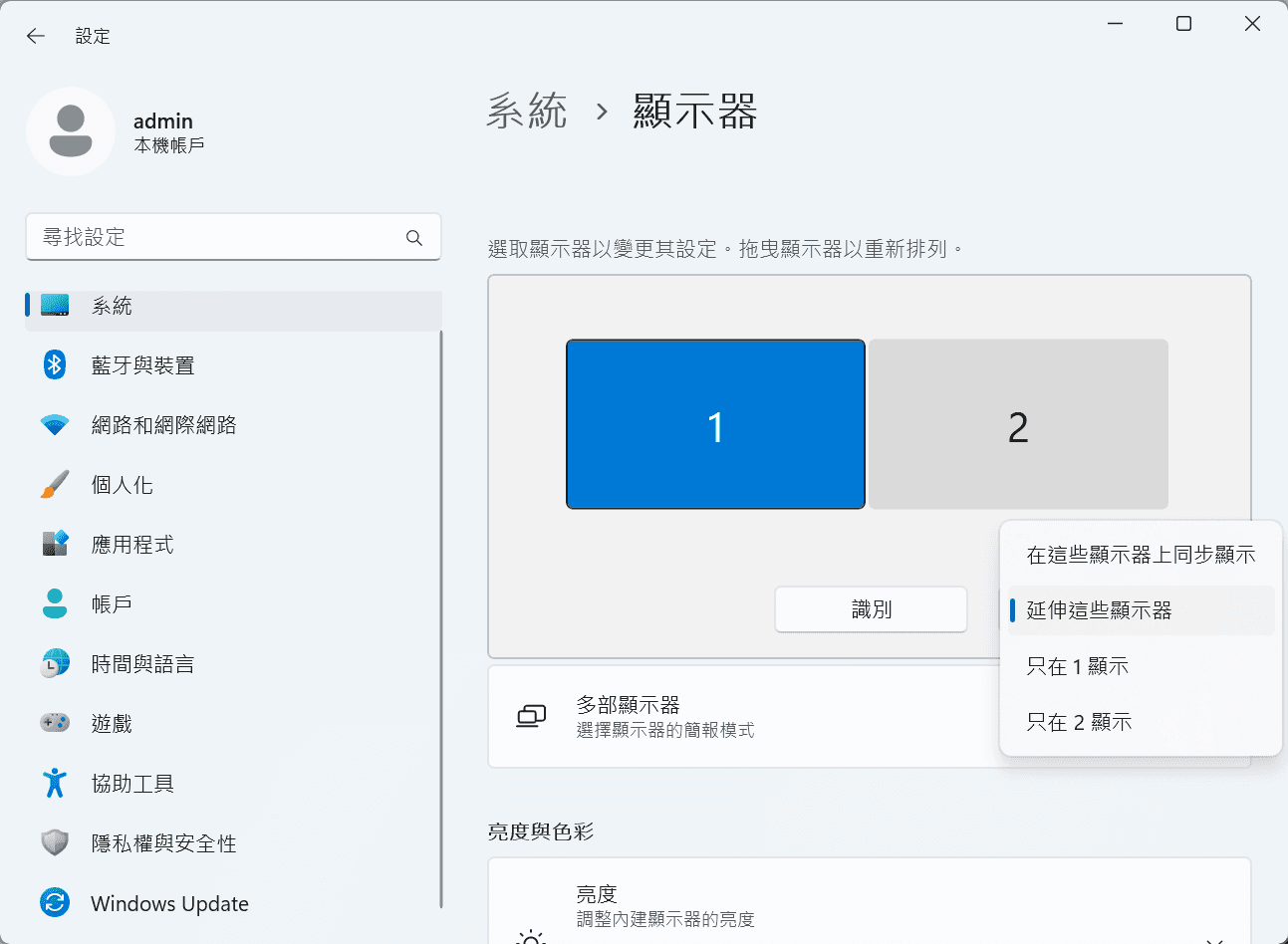
Windows:前往系統設定>>顯示器設定,將螢幕選項設定為「延伸這些顯示器」,你還可以根據您的使用習慣,透過拖拽修改1、2兩塊螢幕的左右順序。
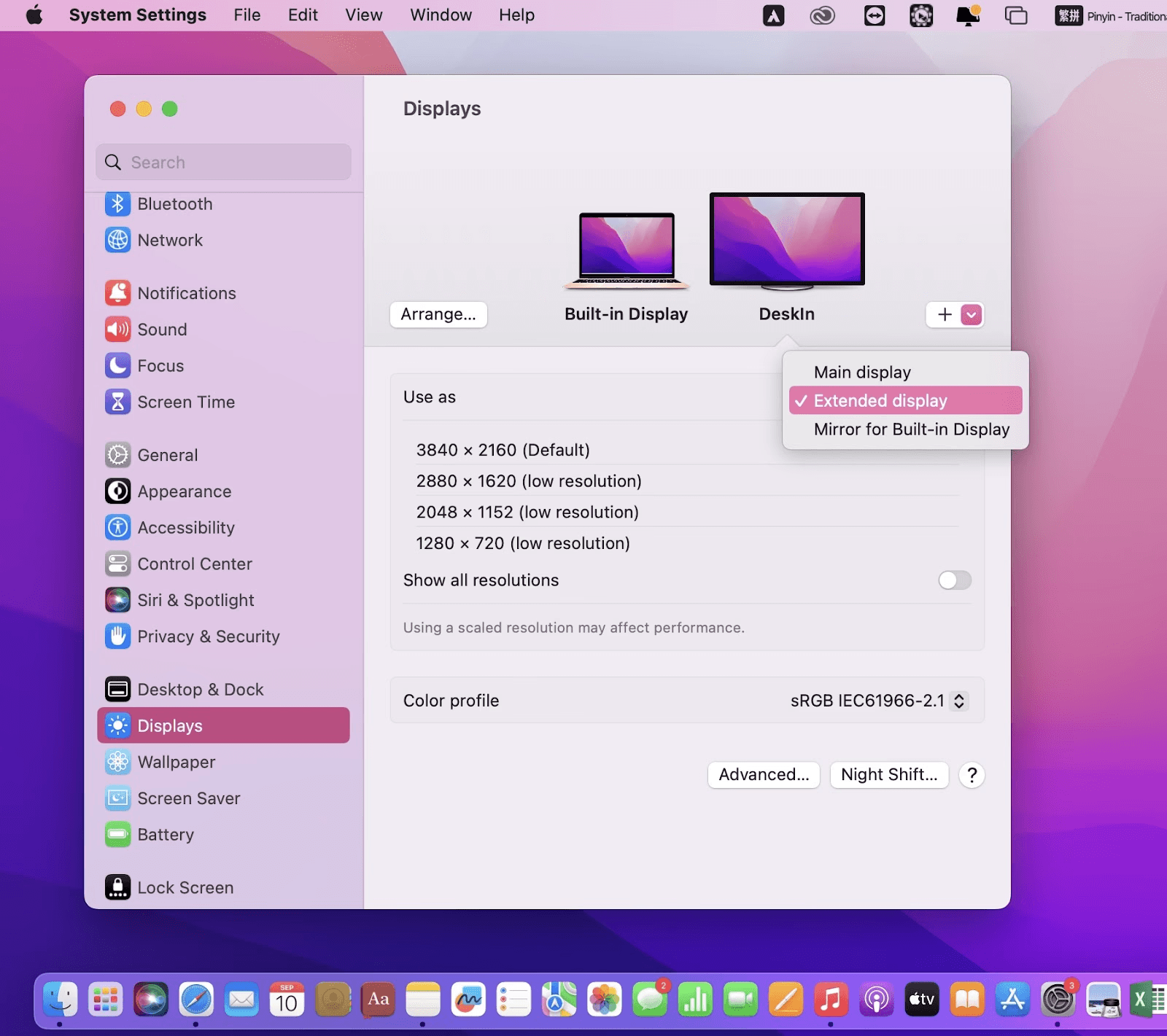
MacOS:進入系統設置 >> 顯示設置,選擇 DeskIn 螢幕,並將螢幕選項改為"擴展顯示"。您也可以點擊"排列…"來調整兩個螢幕的位置。
蘋果本身自帶的Apple sidecar,「並行」功能支援將iPad用作Mac電腦的外部延伸顯示器。
步驟一:打開mac系統設定,點選側邊欄的「顯示器」進入設定,點擊「+」號,選中您的iPad。

步驟二:選中iPad,選擇它做爲「延伸的顯示器」,並檢查mac頂部工具列的Airplay設定,將iPad的選項設定為「作爲單獨的顯示器使用」即可。iPad的側邊欄還有一些快捷按鍵可以使用,你也可以在mac上設定這個側邊欄的位置或是直接將其隱藏
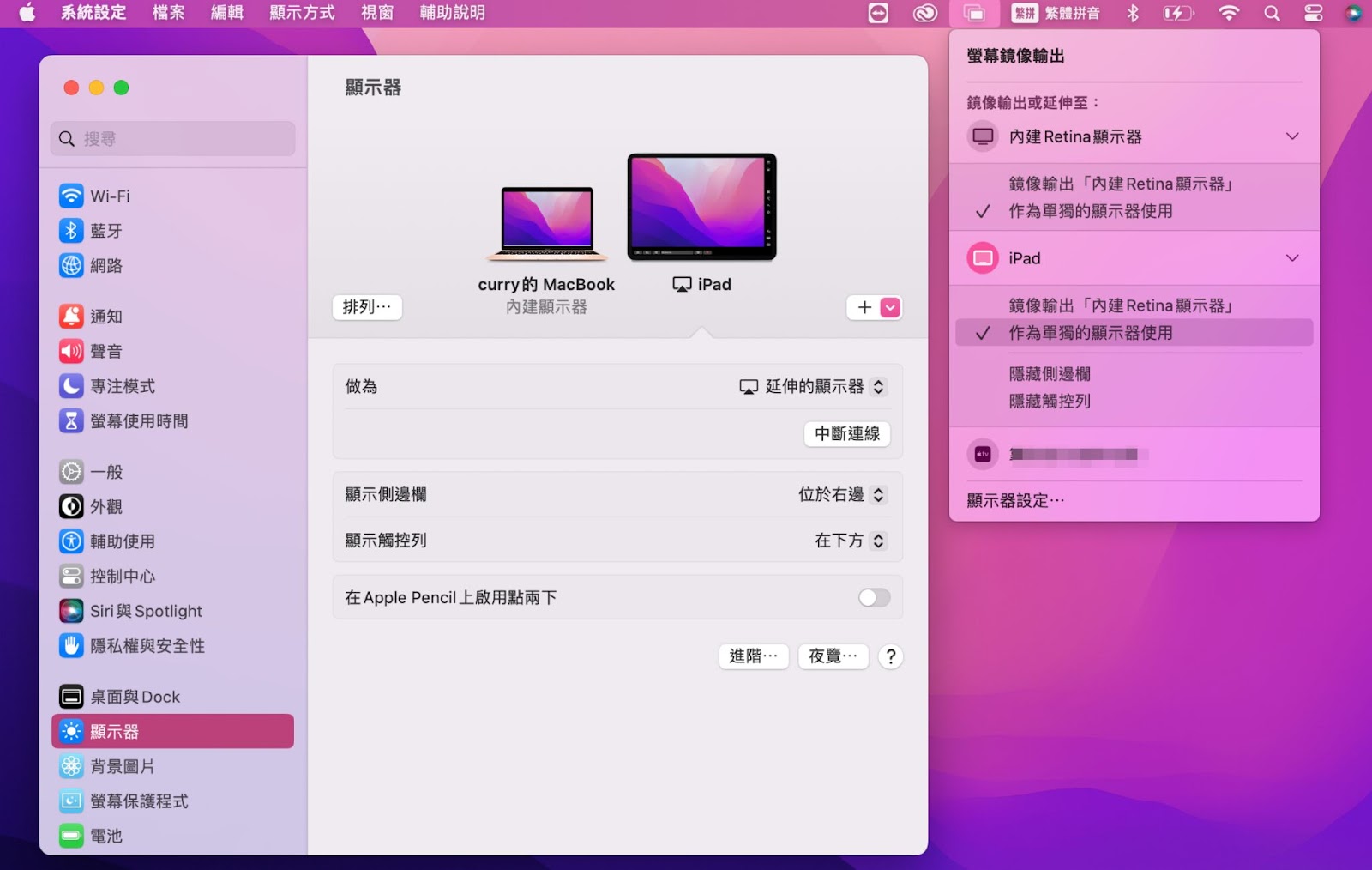
❗局限性:
兩台裝置已經登入同一個Apple ID,或在同一網絡下。
兩台裝置都已經開啓藍牙、Wi-Fi和「sidecar」功能,而且距離不能超過10公尺(大約10米)。
只適用2016年之後推出的mac和iPadOS13以上版本使用,其他蘋果裝置和Windows都無法用。
📖相關文章推薦:
Duet Display 是一款付費應用,可以將 iPad 延伸螢幕 Windows 或 Mac,實現 iPad 雙螢幕 的工作體驗。它支援 有線 USB 連接(低延遲、高畫質)以及 無線 Wi-Fi 連接(需 Duet Air / Pro 訂閱),讓你把 iPad 當外接螢幕 使用,提升多任務辦公效率。
在 iPad App Store 下載 Duet Display,並在電腦端安裝對應軟體(支援 Windows / Mac)。開啟這兩個裝置的Duet Display。
使用 USB 或 Wi-Fi 連接 iPad 與電腦,開啟兩端應用程式,系統會自動偵測。
Windows:右鍵桌面 →「顯示設定」→選「延伸這些顯示器」。 Mac:系統偏好設定 → 顯示器 → 排列 iPad 作為第二螢幕。

完成後,你就可以把 iPad 當螢幕 或 iPad 當第二螢幕 使用,輕鬆實現螢幕延伸,提高工作效率。
📖相關文章推薦:
可以,iPad 透過 Apple Sidecar 功能或第三方工具(如 DeskIn)即可延伸成電腦的副螢幕。這樣能提升多工效率,例如同時瀏覽文件與視訊,或將軟體工具面板移到 iPad,讓主螢幕更專注於主要工作。
可以,iPad 不僅能當副螢幕,還支援 Split View 與 Slide Over 多工顯示模式。使用這些功能時,能同時在 iPad 螢幕上開啟兩個 App 或浮動視窗,達到雙螢幕效果,讓工作與娛樂的效率更高。
DeskIn 透過遠端連線,能將電腦畫面延伸到 iPad 或其他裝置,模擬成第二螢幕。安裝 DeskIn 並登入帳號後,選擇擴展模式即可使用,操作簡單且跨平台支援,適合需要高效多螢幕作業的使用者。
DeskIn 是一款跨平台遠端桌面軟體,支援 Windows、macOS、iOS、Android 及 Web。它提供高畫質低延遲連線,能遠端操控電腦、檔案存取與螢幕擴展,適合遠距辦公、線上教學、設計與多工場景。DeskIn提供了不同的付費方案,滿足不同專業化場景的使用需求。
本文介紹了如何把iPad變成Mac和Windows電腦的“第二螢幕”,以提升辦公效率,這對於需要同時處理多項任務,或是使用多視窗辦公的人來説非常有用。您可以將工作分配到多個螢幕上,從而減少混亂並提高效率。最推薦使用遠端生產力工具DeskIn遠端桌面軟體要進行iPad螢幕延伸,因爲它簡單易用,而且支援將iPad變成Mac和Windows電腦的擴充螢幕,能照顧到更多的日常使用情境,立即下載DeskIn!

Top 6 RustDesk Alternative Tools for Faster, Easier Remote Access
Remote access should feel like flipping a light switch, not decoding a control panel. Yet many users exploring RustDesk eventually run into friction: connection IDs, server setup, or occasional lag. While RustDesk is powerful, it’s not always the easiest or smoothest option, especially for non-technical users.
That’s why more people are actively searching for a reliable RustDesk alternative that combines performance, simplicity, and flexibility. Whether you want a plug-and-play solution or something more advanced, this guide will help you find the best fit.
RustDesk stands out as a privacy-friendly, self-hosted remote desktop tool. However, real-world usage reveals a few common challenges:
Complicated setup for the RustDesk self-hosted environments
Manual connection steps requiring IDs and passwords
Occasional latency or unstable connections
Limited user-friendly features out of the box
For many users, especially those helping family or managing multiple devices, simplicity matters just as much as control.
When evaluating a RustDesk alternative, focus on these key factors:
Ease of use: Quick setup without technical overhead
Performance: Smooth, low-latency remote sessions
Compatibility: Support for Windows, macOS, Linux, and mobile
Security: Strong encryption and access controls
Flexibility: Options ranging from cloud-based to open source
The ideal tool strikes a balance between power and convenience, something many modern solutions now deliver better than traditional setups.
Here’s a quick breakdown of the top tools and where they shine:
DeskIn – Best all-in-one RustDesk alternative for performance and ease of use
AnyDesk – Best lightweight tool for fast connections
TeamViewer – Best for enterprise-grade remote support
MeshCentral – Best open-source and self-hosted solution
DWService – Best free browser-based tool
Chrome Remote Desktop – Best simple, no-frills option
Ultra-low latency with smooth high-frame-rate streaming
No complex setup or server deployment required
Cross-platform including Rustdesk alternative for Android
Secure with encryption and device control features
Built-in file transfer and multi-device management
Smaller awareness than legacy competitors
Best for: Users who want a powerful yet simple remote desktop solution
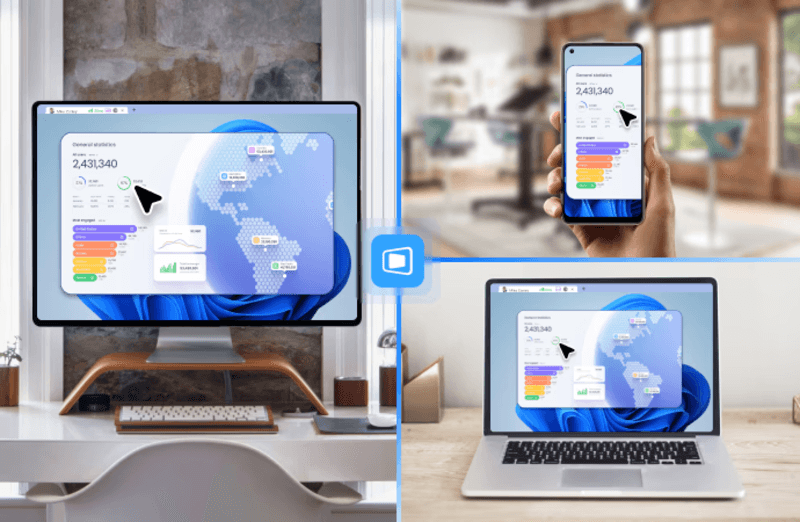
DeskIn removes the friction that often comes with remote access tools. Instead of relying on IDs or manual configurations, it offers a streamlined connection experience that works right out of the box. This makes it especially valuable for users supporting non-technical family members or managing multiple remote devices.
Performance is where DeskIn truly distinguishes itself. Compared to RustDesk, which can sometimes struggle with latency, DeskIn delivers consistently smooth sessions with minimal lag. It also eliminates the need for self-hosting, making it a strong free RustDesk alternative option for users who want powerful features without the complexity.
For those exploring options beyond the RustDesk alternative GitHub projects, DeskIn provides a polished, ready-to-use experience that balances simplicity with professional-grade performance.
Lightweight and fast installation
Good performance on low bandwidth
Cross-platform support
Easy-to-use interface
Performance may drop during long sessions
File transfer can be inconsistent
Best for: Users needing quick and simple remote access
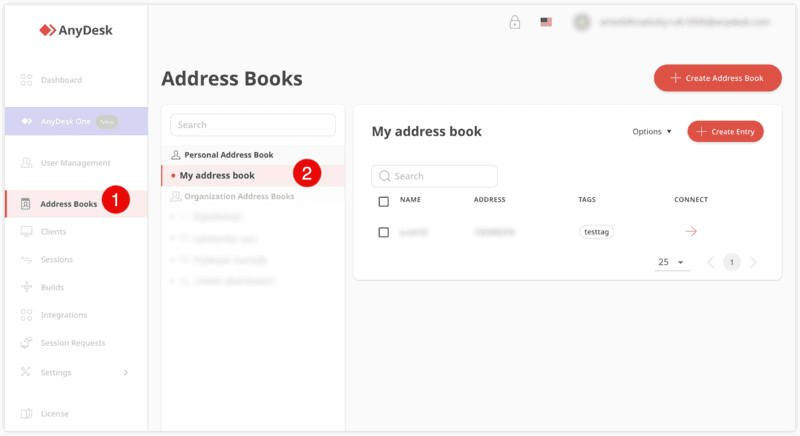
AnyDesk is often considered a natural step up from RustDesk for users who want something easier to deploy. It offers a lightweight application that connects quickly and performs well under normal conditions. This makes it suitable for quick troubleshooting or occasional remote access.
However, performance consistency can be an issue. Users frequently report lag or instability during extended sessions or when handling more demanding tasks. While AnyDesk is a solid option for basic needs, it may not fully satisfy users looking for a more robust, all-in-one solution.
👀 You may also be interested in: |
|---|
Enterprise-grade security with encryption and 2FA
Stable performance across global networks
Rich features like file transfer and session recording
Broad device compatibility
Expensive for commercial use
Free version has limitations
Heavier resource usage on some systems
Best for: Businesses and IT teams managing multiple endpoints
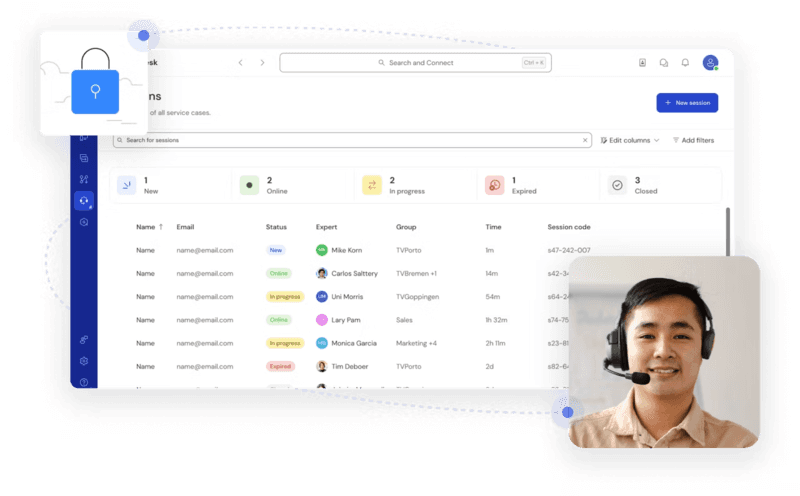
TeamViewer has long been a dominant player in the remote desktop space, offering a comprehensive suite of features designed for enterprise environments. It excels in reliability and global connectivity, making it a popular choice for IT support teams.
That said, its pricing model is a major drawback for many users. Frequent users may quickly encounter licensing restrictions, and costs can escalate for businesses. Additionally, its heavier footprint can impact performance on lower-end devices. DeskIn offers a more modern alternative by delivering similar performance and essential features without the same cost barriers. For users who want enterprise-level capabilities with better efficiency, it presents a compelling option.
👀 You may also be interested in: |
|---|
Fully RustDesk alternative open source solution
Web-based management dashboard
Supports multi-device environments
Strong customization and control
Complex setup and maintenance
Requires technical expertise
Best for: Advanced users needing a Rustdesk alternative self-hosted
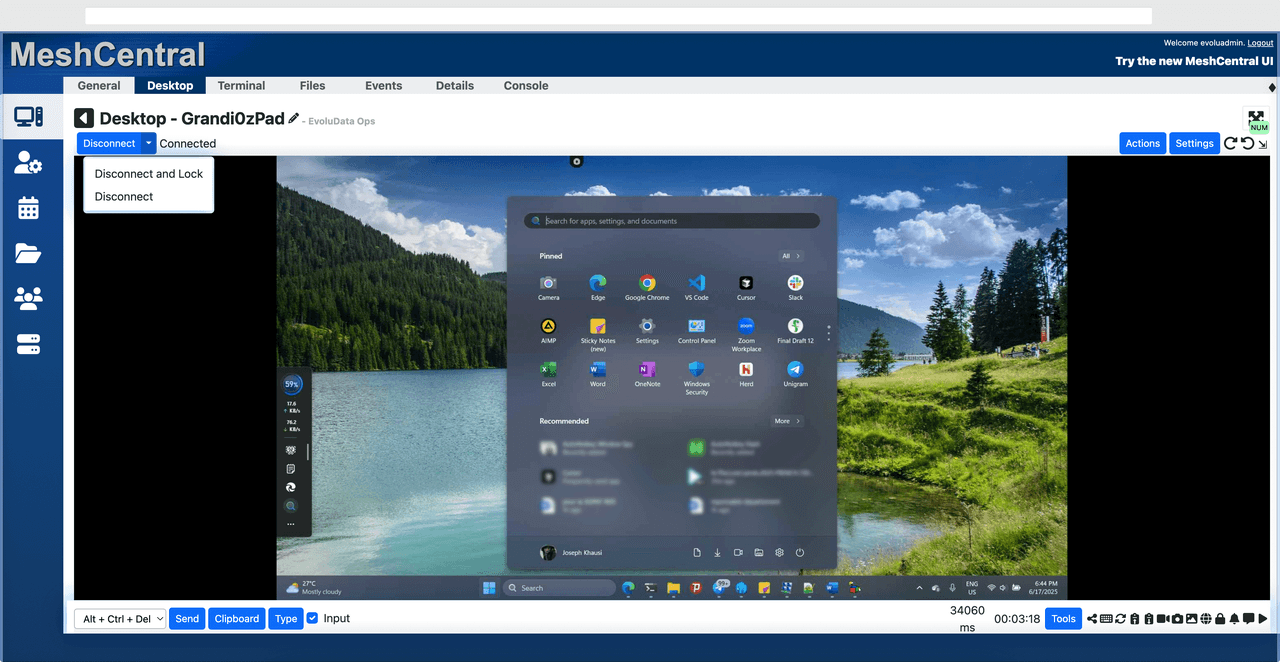
MeshCentral is a powerful open-source platform designed for users who want full control over their remote access infrastructure. It supports multiple devices and provides a centralized dashboard for management, making it attractive for IT professionals.
However, this flexibility comes with complexity. Setting up and maintaining a MeshCentral server requires technical knowledge, which can be a barrier for many users. Compared to this, DeskIn offers a much simpler deployment process while still delivering strong performance and security. For users who prioritize ease of use over full control, modern solutions like DeskIn provide a more accessible alternative.
Completely free
Browser-based access
Open-source foundation
Simple setup
Limited performance
Basic feature set
Best for: Users looking for a simple, free RustDesk alternative
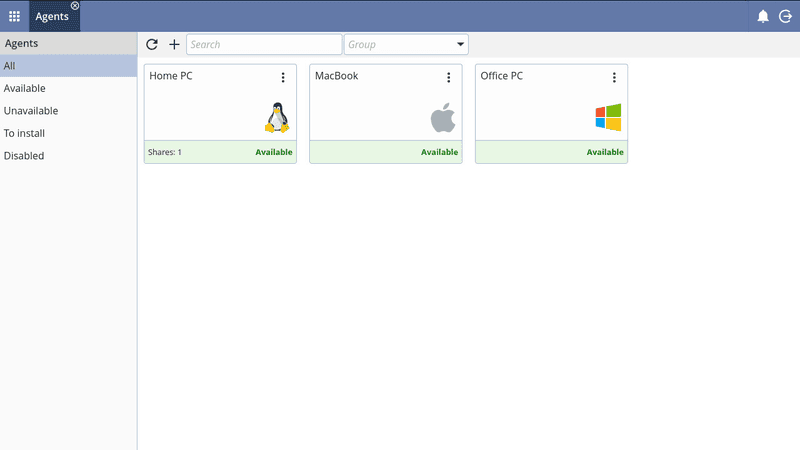
DWService offers a browser-based approach to remote access with no heavy installation, making it convenient for quick connections in restricted environments. It supports both desktop access and file management across major platforms.
However, performance often feels sluggish, especially on demanding tasks, and features remain basic; lacking session recording, smooth multi-monitor support, or advanced security controls. While suitable for occasional personal use, it falls short for professional or high-performance scenarios.
Free and easy to use
Browser-based setup
Cross-platform compatibility
Very limited features
No advanced management or collaboration tools
Best for: Casual users needing basic remote access
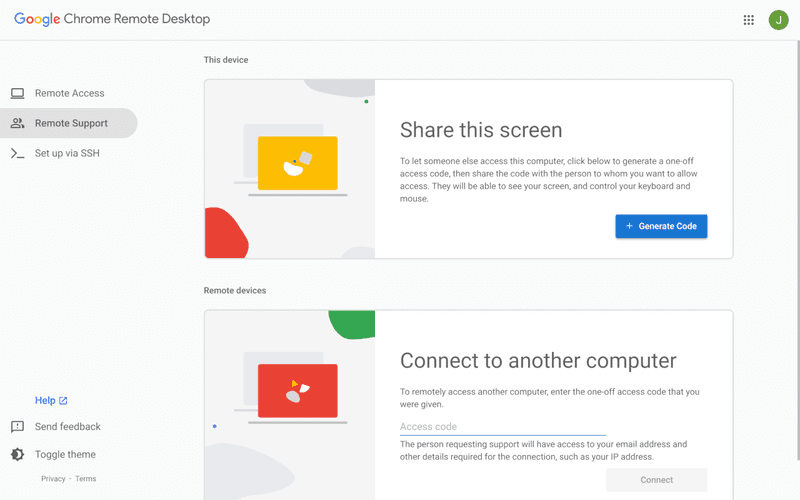
Chrome Remote Desktop is one of the simplest remote access tools available. It’s easy to set up and works across devices, making it a convenient choice for occasional use.
However, it lacks many essential features such as file transfer, session management, and advanced security controls. For users with more demanding needs, it quickly becomes insufficient. Compared to Chrome Remote Desktop, DeskIn provides a much more complete experience without sacrificing ease of use, making it a better long-term solution.
👀 You may also be interested in: |
|---|
RustDesk is powerful but can be difficult to set up and manage, especially with self-hosting. Many users prefer tools that offer similar performance without technical complexity. DeskIn simplifies remote access while maintaining strong performance and security.
Several tools qualify as a free RustDesk alternative, including DWService and Chrome Remote Desktop. However, DeskIn stands out by offering better performance and usability even in its free version.
Yes, tools like MeshCentral and DWService are considered RustDesk alternative open source options. They provide flexibility and control but often require technical expertise to set up and maintain.
Beginners should choose tools with a simple setup and intuitive interfaces. DeskIn is an excellent option because it removes the need for manual configuration while still delivering advanced features.
RustDesk is a powerful starting point, but it’s not always the easiest or most efficient tool for everyday use. From setup complexity to performance limitations, many users eventually look for a better RustDesk alternative.
Among all the options, DeskIn stands out as the most balanced solution. It combines speed, simplicity, and cross-platform support into one seamless experience. If you’re ready to move beyond technical friction and enjoy truly smooth remote access, DeskIn is a choice that simply works.
Top 7 RDP Alternative Tools for Faster, Safer Remote Access
Remote desktop access used to feel like a solid bridge. Now, for many users, traditional RDP feels more like a creaky rope ladder. With performance issues, security concerns, and limited cross-platform support, it's no surprise that more people are actively searching for a better RDP alternative that actually keeps up with modern workflows.
If you're managing multiple servers, working across devices, or just tired of unstable connections, this guide will walk you through the best tools worth switching to.
RDP (Remote Desktop Protocol) is a proprietary protocol developed by Microsoft that allows users to connect to another computer over a network. It's widely used for accessing Windows servers, virtual machines, and remote workstations.
While powerful in controlled environments, RDP is often tied to Windows systems and requires configuration like port forwarding or VPNs. Compared to newer tools, it can feel rigid and outdated.
You may also be interested in: |
|---|
RDP still works, but it comes with trade-offs that many users find frustrating:
Security risks if not properly configured
Complex setup for remote or external access
Limited cross-platform compatibility
Performance issues over unstable networks
Many IT teams are now actively replacing it, especially when looking for a Windows RDP client alternative or something that works seamlessly across macOS, Linux, and mobile devices. That's where modern Remote Desktop alternatives shine.
Choosing the right tool is like picking the right vehicle. Some are built for speed, others for heavy-duty enterprise work. Here's a quick snapshot:
DeskIn – Best all-in-one RDP alternative for performance and cross-platform use
TeamViewer – Best for enterprise remote support
AnyDesk – Best lightweight option for fast connections
RustDesk – Best Windows RDP alternative open-source solution
Remmina – Best RDP alternative for Linux users
Chrome Remote Desktop – Best simple browser-based tool
Splashtop – Best for high-performance business environments
Ultra-low latency with smooth high-frame-rate streaming
Works across Windows, macOS, Linux, iOS, and Android
Strong encryption and secure access controls
Built-in file transfer and multi-session support
Newer compared to legacy brands
Best for: Users who want a powerful, flexible RDP alternative
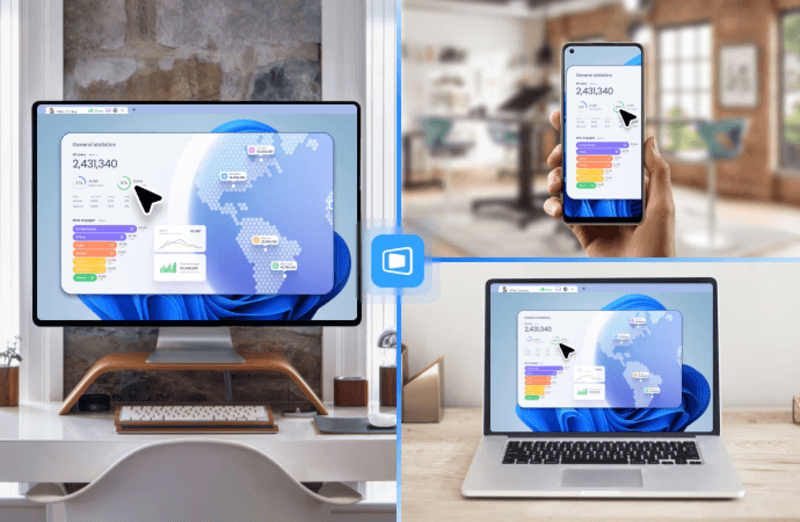
DeskIn feels less like remote access and more like teleportation for your desktop. Whether you're managing servers, supporting clients, or working remotely, it delivers consistently smooth performance without the usual lag spikes seen in traditional RDP setups.
Unlike many tools, DeskIn eliminates the need for complex configurations. You don't need to wrestle with firewalls or VPNs just to connect. It also works seamlessly across platforms, making it a strong alternative to Microsoft Remote Desktop for Mac and mobile users alike.
For teams juggling multiple systems, DeskIn provides a unified experience that replaces fragmented workflows. It's also a strong free RDP alternative option with premium-level capabilities, making it ideal for both individuals and businesses.
Enterprise-grade security and compliance
Extensive feature set including collaboration tools
Cross-platform compatibility
Reliable global performance
Expensive licensing
Can be overkill for individuals
Best for: Enterprises needing secure and scalable remote access
TeamViewer is a comprehensive remote desktop platform widely adopted by IT teams, support professionals, and enterprises. Its feature set extends far beyond simple screen sharing—it includes robust device management, remote printing, file transfer, session recording, and even augmented reality support for field service. TeamViewer's security architecture relies on AES‑256 encryption, two‑factor authentication, and whitelisting, making it suitable for organizations with strict compliance requirements. It runs on virtually every operating system and mobile platform.
The main trade‑off is its pricing: licenses are subscription‑based and can become expensive for small teams or individual users, especially as TeamViewer aggressively flags personal use as commercial, leading to session restrictions.
Fast and responsive
Lightweight installation
Works well on low bandwidth
Easy to use
File transfer can be inconsistent
Lag during longer sessions
Best for: Users needing quick, simple remote access
AnyDesk is a lightweight remote desktop application prized for its speed and efficiency, often recommended as a fast alternative to Microsoft's native Remote Desktop on Windows 10 and Android. It uses a proprietary video codec, DeskRT, to achieve low latency even on limited bandwidth, making it ideal for quick support sessions and accessing devices over mobile networks. The interface is clean and minimalist, with features like address book management, file transfer, and session recording available.
However, users frequently report instability during extended sessions; performance can degrade over time, and file transfers may slow considerably compared to competitors. While its free version is generous for personal use, professional users often find the performance ceiling limits its suitability for continuous, demanding workloads. DeskIn, by contrast, maintains consistent performance even during extended use, making it better suited for professional workloads.
You may also be interested in: |
|---|
Free and open-source
Self-hosting for full control
Strong privacy protection
Active community
Technical setup required
Limited user-friendly features
Best for: Developers and privacy-focused users
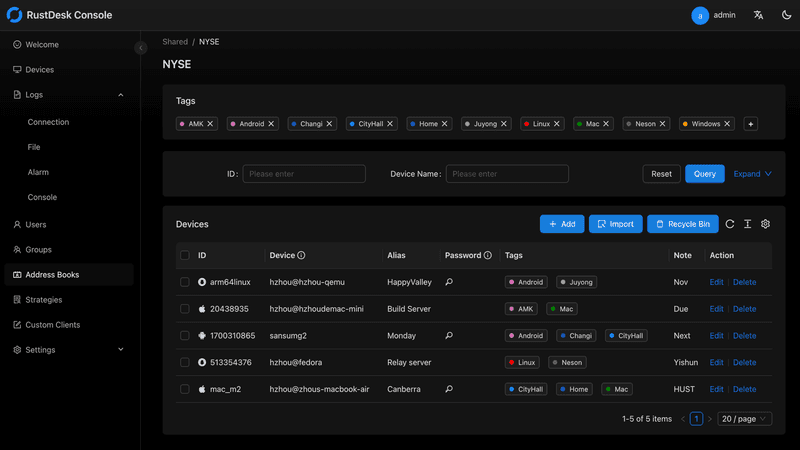
RustDesk has emerged as a leading open‑source remote desktop alternative, appealing to developers and organizations that require full control over their data. It allows users to self‑host the relay and rendezvous servers, meaning no third‑party infrastructure handles connection metadata. Built with Rust, it offers a modern codebase with cross‑platform clients (Windows, macOS, Linux, Android, iOS) and supports essential features such as file transfer, TCP tunneling, and customizable address books.
The major barrier is its complexity: deploying a self‑hosted environment requires technical expertise to configure firewalls, SSL certificates, and ongoing server maintenance. For those using the public relay, performance can be inconsistent depending on server load and geographic proximity.
You may also be interested in: Top RustDesk Alternatives for Better Performance, Security & Ease of Use |
|---|
Open-source and free
Supports multiple protocols including RDP and VNC
Lightweight and flexible
Native to Linux environments
Limited features compared to modern tools
UI can feel outdated
Best for: Linux users looking for a traditional RDP alternative Linux
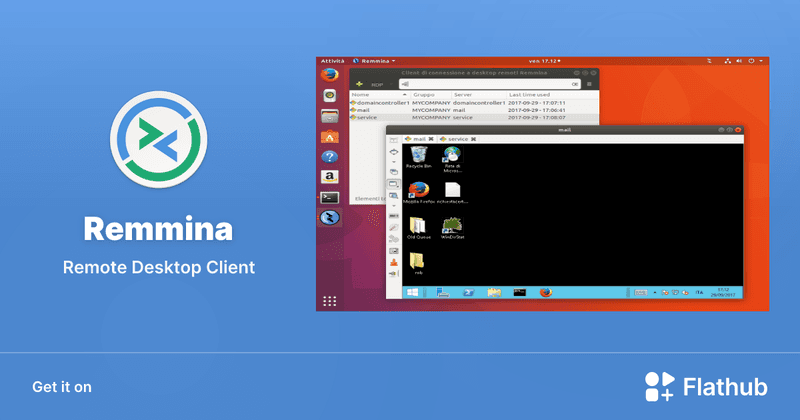
Remmina is a beloved open‑source remote desktop client for Linux, supporting multiple protocols (RDP, VNC, SSH, SPICE, and others) in a single unified interface. It is frequently chosen by system administrators and Linux enthusiasts who need a flexible, lightweight tool to manage diverse environments. Remmina offers tabbed sessions, quick‑connect profiles, and a plugin system that extends its capabilities.
However, its strength - protocol flexibility, also highlights its limitations. As a frontend client rather than a full remote access solution, it lacks features like unattended access, centralized account management, or robust session recording out of the box. Performance can vary by protocol, and the user experience lags behind more polished commercial tools, particularly for users seeking a plug‑and‑play setup.
Free and easy to use
Browser-based setup
Cross-platform access
Very limited features
No advanced management tools
Best for: Casual users needing basic remote access
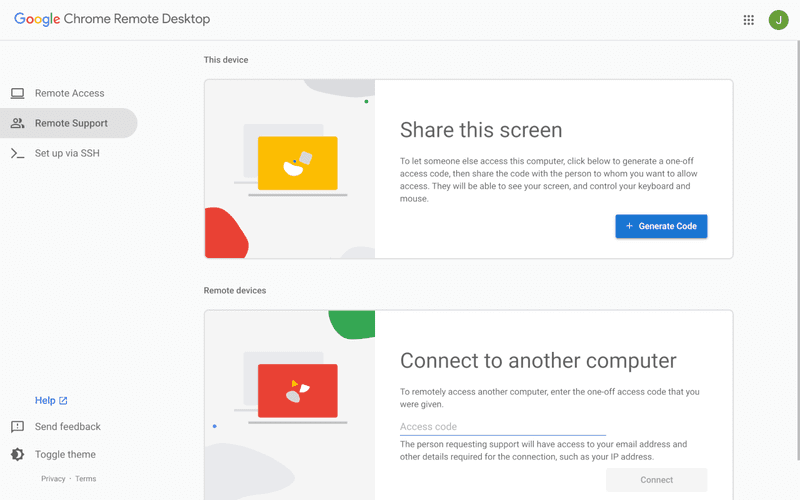
Chrome Remote Desktop is a free, browser‑based remote access tool from Google that requires nothing more than a Chrome browser and a Google account. It excels in simplicity: installation takes seconds, and connections are mediated through Google's infrastructure, eliminating complex firewall configurations. For occasional use—such as helping a family member or quickly accessing a home computer—it works reliably across Windows, macOS, Linux, and even ChromeOS.
The trade‑off is its minimal feature set. There is no native file transfer, multi‑session management, remote printing, or granular permission controls. Collaboration tools are absent, and the reliance on a Google account for authentication can be a limitation in professional environments. It remains a convenient entry‑level tool but struggles to meet the needs of power users or IT teams.
You may also be interested in: |
|---|
High-quality streaming performance
Strong security features
Good for business environments
Reliable connections
Subscription-based pricing
Limited free version
Best for: Businesses needing performance-focused remote access
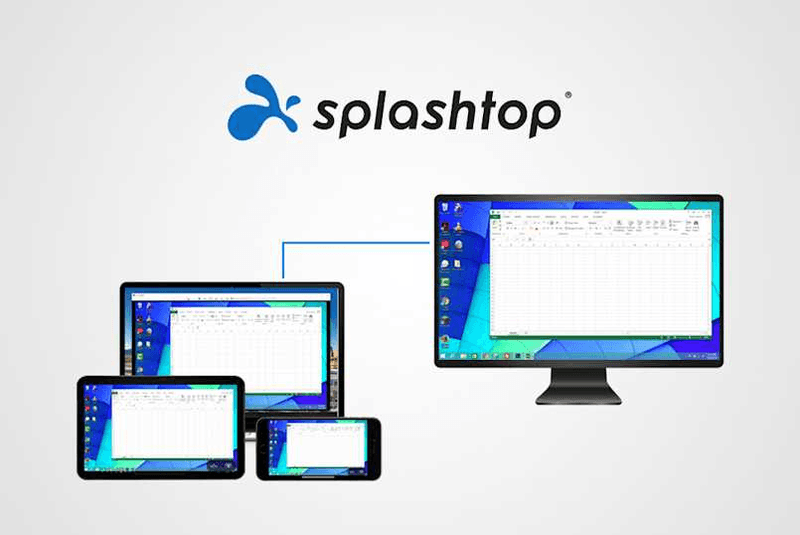
Splashtop is a high‑performance remote desktop solution frequently adopted by creative professionals, educational institutions, and enterprises that prioritize fluid interaction. It delivers low‑latency streaming with support for high‑frame‑rate displays, making it suitable for video editing, CAD work, and other graphics‑intensive tasks. Splashtop offers a range of editions—from Business Access to SOS for on‑demand support—all of which include robust security (AES‑256, device authentication) and features like file transfer, remote printing, and multi‑monitor navigation. Its performance over local networks and the internet is consistently praised.
The primary drawback is cost: while competitive, the subscription model can accumulate quickly for users needing access to multiple devices or advanced features, especially when compared to similarly capable tools with more flexible pricing structures. DeskIn offers similar performance benefits with a more flexible pricing structure, making it a compelling alternative.
You may also be interested in: |
|---|
RDP can be difficult to configure, less secure if exposed, and limited outside Windows environments. Modern tools like DeskIn provide better performance, security, and ease of use.
The best RDP alternative depends on your needs, but DeskIn stands out for its balance of speed, security, and cross-platform compatibility.
Yes, several tools qualify as an RDP alternative free, including RustDesk and Chrome Remote Desktop. DeskIn also offers a free tier with advanced capabilities.
Microsoft is evolving its remote desktop ecosystem, but traditional RDP isn't disappearing overnight. However, many users are already transitioning to more modern solutions like DeskIn for better reliability and flexibility.
RDP has served its purpose, but the digital world has outgrown its limitations. Whether you need better performance, stronger security, or true cross-platform access, switching to a modern RDP alternative is no longer optional, it's inevitable.
Among all the options, DeskIn stands out as a future-ready solution. It combines speed, simplicity, and power into one seamless experience, helping you leave behind the friction of traditional remote desktop tools and step into something far more efficient.
如何把iPad變成電腦的第二螢幕?(Mac/Windows完整教學)
想找個 App 或軟體,可以用自己的 iPad 當第二螢幕,而且要有最好的解析度和畫面更新率?在日常學習生活中,通常一台筆電或許就能完成所有的工作。但面臨剪輯、設計、寫程式、資料校對等需要多視窗作業的工作時,多一塊顯示器真的能大大提升效率。如果你是居家辦公者、或是學生,沒有條件或是不想購入多一個螢幕,其實可以透過DeskIn遠端桌面、蘋果内建「Sidecar」功能以及Duet Display將 iPad 作爲延伸螢幕。本文也會同步說明 DeskIn 目前的螢幕鏡像/延伸方案限制,避免設定前產生誤解。
💻立即下載DeskIn遠端桌面,將iPad變成電腦的第二螢幕,提升工作效率!
iPad 當延伸螢幕後,可以把主要工作放在電腦,副螢幕放置參考資料或工具軟體,複製、拖曳更順暢,不必再來回切換。
例如:寫程式時在電腦編碼、iPad顯示需求文檔;剪輯影片時電腦進行剪輯、iPad顯示素材;製作簡報時,電腦處理內容、iPad展示資料。兩塊螢幕分工明確,效率大幅提升。
iPad 的螢幕解析度高、色彩表現好,比部分便宜的外接螢幕更適合設計相關工作。
多數人家裡已有 iPad,出門攜帶也方便。把它當成副螢幕,不僅能節省購買顯示器的成本,也讓移動辦公更靈活。
方法 | 支援平台 | 連接方式 | 免費/付費 | 適用情境 | 備註 |
Windows / Mac | 無線 | 任一付费方案包含 | iPad 延伸螢幕 Windows 或 Mac | 支援跨系統,操作簡單 | |
Apple Sidecar | Mac | 無線 / USB | 免費(需Mac/iPad) | Mac iPad 雙螢幕 | 需同一 Apple ID,僅限 Mac/iPad |
Duet Display | Windows / Mac | USB 有線(付費) | 付費 | iPad 當第二螢幕 | 適合喜歡有線連接的用戶 |
DeskIn 遠端桌面跨平台支援螢幕鏡像和延伸,而且高清、零延遲,是最好用的把iPad作爲電腦延伸螢幕的應用程式。它支援最高4K 解析度、60FPS,無需同一個網路就可以進行螢幕延伸,而且無論是Windows還是MacOS都可以。要使用DeskIn
DeskIn 除了支援延伸螢幕,還同時支援更多進階互動功能,將你的iPad與電腦串聯,例如用iPad遠端操控電腦、iPad與電腦之間進行檔案傳輸、掃碼投影、甚至遠端相機功能。DeskIn是iPad必裝的生產力工具和延伸螢幕工具,非常安全,而且畫面直覺,簡單易用。
💻立即下載DeskIn遠端桌面并升级方案,將iPad變成電腦的第二螢幕,提升工作效率!
📖相關文章推薦:
必學6個雙螢幕效率提升技巧!把iPad/安卓平板變成電腦的“第二螢幕”
💡優點:
跨平台支援,無論是MacOS還是Windows,一個軟體輕鬆搞定
高畫質延伸螢幕,最高支援 4K 60FPS,無感延遲
就算不在同一網絡下,也可以進行螢幕延伸
無需複雜設定,界面直覺
步驟二:在電腦端DeskIn上點擊左邊菜單「鏡像屏/擴展屏」>>「立刻進行螢幕擴展」,在選單中點選你的iPad,并點擊「開始螢幕擴展」即可
步驟三(非必須):若進行螢幕擴充後,您發現iPad只是鏡像電腦螢幕上的内容,請前往系統顯示器修改設定
Windows:前往系統設定>>顯示器設定,將螢幕選項設定為「延伸這些顯示器」,你還可以根據您的使用習慣,透過拖拽修改1、2兩塊螢幕的左右順序。
MacOS:進入系統設置 >> 顯示設置,選擇 DeskIn 螢幕,並將螢幕選項改為"擴展顯示"。您也可以點擊"排列…"來調整兩個螢幕的位置。
蘋果本身自帶的Apple sidecar,「並行」功能支援將iPad用作Mac電腦的外部延伸顯示器。
步驟一:打開mac系統設定,點選側邊欄的「顯示器」進入設定,點擊「+」號,選中您的iPad。
步驟二:選中iPad,選擇它做爲「延伸的顯示器」,並檢查mac頂部工具列的Airplay設定,將iPad的選項設定為「作爲單獨的顯示器使用」即可。iPad的側邊欄還有一些快捷按鍵可以使用,你也可以在mac上設定這個側邊欄的位置或是直接將其隱藏
❗局限性:
兩台裝置已經登入同一個Apple ID,或在同一網絡下。
兩台裝置都已經開啓藍牙、Wi-Fi和「sidecar」功能,而且距離不能超過10公尺(大約10米)。
只適用2016年之後推出的mac和iPadOS13以上版本使用,其他蘋果裝置和Windows都無法用。
📖相關文章推薦:
Duet Display 是一款付費應用,可以將 iPad 延伸螢幕 Windows 或 Mac,實現 iPad 雙螢幕 的工作體驗。它支援 有線 USB 連接(低延遲、高畫質)以及 無線 Wi-Fi 連接(需 Duet Air / Pro 訂閱),讓你把 iPad 當外接螢幕 使用,提升多任務辦公效率。
在 iPad App Store 下載 Duet Display,並在電腦端安裝對應軟體(支援 Windows / Mac)。開啟這兩個裝置的Duet Display。
使用 USB 或 Wi-Fi 連接 iPad 與電腦,開啟兩端應用程式,系統會自動偵測。
Windows:右鍵桌面 →「顯示設定」→選「延伸這些顯示器」。 Mac:系統偏好設定 → 顯示器 → 排列 iPad 作為第二螢幕。
完成後,你就可以把 iPad 當螢幕 或 iPad 當第二螢幕 使用,輕鬆實現螢幕延伸,提高工作效率。
📖相關文章推薦:
可以,iPad 透過 Apple Sidecar 功能或第三方工具(如 DeskIn)即可延伸成電腦的副螢幕。這樣能提升多工效率,例如同時瀏覽文件與視訊,或將軟體工具面板移到 iPad,讓主螢幕更專注於主要工作。
可以,iPad 不僅能當副螢幕,還支援 Split View 與 Slide Over 多工顯示模式。使用這些功能時,能同時在 iPad 螢幕上開啟兩個 App 或浮動視窗,達到雙螢幕效果,讓工作與娛樂的效率更高。
DeskIn 透過遠端連線,能將電腦畫面延伸到 iPad 或其他裝置,模擬成第二螢幕。安裝 DeskIn 並登入帳號後,選擇擴展模式即可使用,操作簡單且跨平台支援,適合需要高效多螢幕作業的使用者。
DeskIn 是一款跨平台遠端桌面軟體,支援 Windows、macOS、iOS、Android 及 Web。它提供高畫質低延遲連線,能遠端操控電腦、檔案存取與螢幕擴展,適合遠距辦公、線上教學、設計與多工場景。DeskIn提供了不同的付費方案,滿足不同專業化場景的使用需求。
本文介紹了如何把iPad變成Mac和Windows電腦的“第二螢幕”,以提升辦公效率,這對於需要同時處理多項任務,或是使用多視窗辦公的人來説非常有用。您可以將工作分配到多個螢幕上,從而減少混亂並提高效率。最推薦使用遠端生產力工具DeskIn遠端桌面軟體要進行iPad螢幕延伸,因爲它簡單易用,而且支援將iPad變成Mac和Windows電腦的擴充螢幕,能照顧到更多的日常使用情境,立即下載DeskIn!
Top 6 RustDesk Alternative Tools for Faster, Easier Remote Access
Remote access should feel like flipping a light switch, not decoding a control panel. Yet many users exploring RustDesk eventually run into friction: connection IDs, server setup, or occasional lag. While RustDesk is powerful, it’s not always the easiest or smoothest option, especially for non-technical users.
That’s why more people are actively searching for a reliable RustDesk alternative that combines performance, simplicity, and flexibility. Whether you want a plug-and-play solution or something more advanced, this guide will help you find the best fit.
RustDesk stands out as a privacy-friendly, self-hosted remote desktop tool. However, real-world usage reveals a few common challenges:
Complicated setup for the RustDesk self-hosted environments
Manual connection steps requiring IDs and passwords
Occasional latency or unstable connections
Limited user-friendly features out of the box
For many users, especially those helping family or managing multiple devices, simplicity matters just as much as control.
When evaluating a RustDesk alternative, focus on these key factors:
Ease of use: Quick setup without technical overhead
Performance: Smooth, low-latency remote sessions
Compatibility: Support for Windows, macOS, Linux, and mobile
Security: Strong encryption and access controls
Flexibility: Options ranging from cloud-based to open source
The ideal tool strikes a balance between power and convenience, something many modern solutions now deliver better than traditional setups.
Here’s a quick breakdown of the top tools and where they shine:
DeskIn – Best all-in-one RustDesk alternative for performance and ease of use
AnyDesk – Best lightweight tool for fast connections
TeamViewer – Best for enterprise-grade remote support
MeshCentral – Best open-source and self-hosted solution
DWService – Best free browser-based tool
Chrome Remote Desktop – Best simple, no-frills option
Ultra-low latency with smooth high-frame-rate streaming
No complex setup or server deployment required
Cross-platform including Rustdesk alternative for Android
Secure with encryption and device control features
Built-in file transfer and multi-device management
Smaller awareness than legacy competitors
Best for: Users who want a powerful yet simple remote desktop solution
DeskIn removes the friction that often comes with remote access tools. Instead of relying on IDs or manual configurations, it offers a streamlined connection experience that works right out of the box. This makes it especially valuable for users supporting non-technical family members or managing multiple remote devices.
Performance is where DeskIn truly distinguishes itself. Compared to RustDesk, which can sometimes struggle with latency, DeskIn delivers consistently smooth sessions with minimal lag. It also eliminates the need for self-hosting, making it a strong free RustDesk alternative option for users who want powerful features without the complexity.
For those exploring options beyond the RustDesk alternative GitHub projects, DeskIn provides a polished, ready-to-use experience that balances simplicity with professional-grade performance.
Lightweight and fast installation
Good performance on low bandwidth
Cross-platform support
Easy-to-use interface
Performance may drop during long sessions
File transfer can be inconsistent
Best for: Users needing quick and simple remote access
AnyDesk is often considered a natural step up from RustDesk for users who want something easier to deploy. It offers a lightweight application that connects quickly and performs well under normal conditions. This makes it suitable for quick troubleshooting or occasional remote access.
However, performance consistency can be an issue. Users frequently report lag or instability during extended sessions or when handling more demanding tasks. While AnyDesk is a solid option for basic needs, it may not fully satisfy users looking for a more robust, all-in-one solution.
👀 You may also be interested in: |
|---|
Enterprise-grade security with encryption and 2FA
Stable performance across global networks
Rich features like file transfer and session recording
Broad device compatibility
Expensive for commercial use
Free version has limitations
Heavier resource usage on some systems
Best for: Businesses and IT teams managing multiple endpoints
TeamViewer has long been a dominant player in the remote desktop space, offering a comprehensive suite of features designed for enterprise environments. It excels in reliability and global connectivity, making it a popular choice for IT support teams.
That said, its pricing model is a major drawback for many users. Frequent users may quickly encounter licensing restrictions, and costs can escalate for businesses. Additionally, its heavier footprint can impact performance on lower-end devices. DeskIn offers a more modern alternative by delivering similar performance and essential features without the same cost barriers. For users who want enterprise-level capabilities with better efficiency, it presents a compelling option.
👀 You may also be interested in: |
|---|
Fully RustDesk alternative open source solution
Web-based management dashboard
Supports multi-device environments
Strong customization and control
Complex setup and maintenance
Requires technical expertise
Best for: Advanced users needing a Rustdesk alternative self-hosted
MeshCentral is a powerful open-source platform designed for users who want full control over their remote access infrastructure. It supports multiple devices and provides a centralized dashboard for management, making it attractive for IT professionals.
However, this flexibility comes with complexity. Setting up and maintaining a MeshCentral server requires technical knowledge, which can be a barrier for many users. Compared to this, DeskIn offers a much simpler deployment process while still delivering strong performance and security. For users who prioritize ease of use over full control, modern solutions like DeskIn provide a more accessible alternative.
Completely free
Browser-based access
Open-source foundation
Simple setup
Limited performance
Basic feature set
Best for: Users looking for a simple, free RustDesk alternative
DWService offers a browser-based approach to remote access with no heavy installation, making it convenient for quick connections in restricted environments. It supports both desktop access and file management across major platforms.
However, performance often feels sluggish, especially on demanding tasks, and features remain basic; lacking session recording, smooth multi-monitor support, or advanced security controls. While suitable for occasional personal use, it falls short for professional or high-performance scenarios.
Free and easy to use
Browser-based setup
Cross-platform compatibility
Very limited features
No advanced management or collaboration tools
Best for: Casual users needing basic remote access
Chrome Remote Desktop is one of the simplest remote access tools available. It’s easy to set up and works across devices, making it a convenient choice for occasional use.
However, it lacks many essential features such as file transfer, session management, and advanced security controls. For users with more demanding needs, it quickly becomes insufficient. Compared to Chrome Remote Desktop, DeskIn provides a much more complete experience without sacrificing ease of use, making it a better long-term solution.
👀 You may also be interested in: |
|---|
RustDesk is powerful but can be difficult to set up and manage, especially with self-hosting. Many users prefer tools that offer similar performance without technical complexity. DeskIn simplifies remote access while maintaining strong performance and security.
Several tools qualify as a free RustDesk alternative, including DWService and Chrome Remote Desktop. However, DeskIn stands out by offering better performance and usability even in its free version.
Yes, tools like MeshCentral and DWService are considered RustDesk alternative open source options. They provide flexibility and control but often require technical expertise to set up and maintain.
Beginners should choose tools with a simple setup and intuitive interfaces. DeskIn is an excellent option because it removes the need for manual configuration while still delivering advanced features.
RustDesk is a powerful starting point, but it’s not always the easiest or most efficient tool for everyday use. From setup complexity to performance limitations, many users eventually look for a better RustDesk alternative.
Among all the options, DeskIn stands out as the most balanced solution. It combines speed, simplicity, and cross-platform support into one seamless experience. If you’re ready to move beyond technical friction and enjoy truly smooth remote access, DeskIn is a choice that simply works.
聯絡我們
電子郵件: support@deskin.io
總部: 991D Alexandra Road #02-17, Singapore 119972
聯絡我們
電子郵件: support@deskin.io
總部: 991D Alexandra Road #02-17, Singapore 119972
聯絡我們
support@deskin.io
991D Alexandra Road #02-17, Singapore 119972


