所有
所有
·
7 Minutes
·
7 Minutes
GA
已更新
已更新
已更新
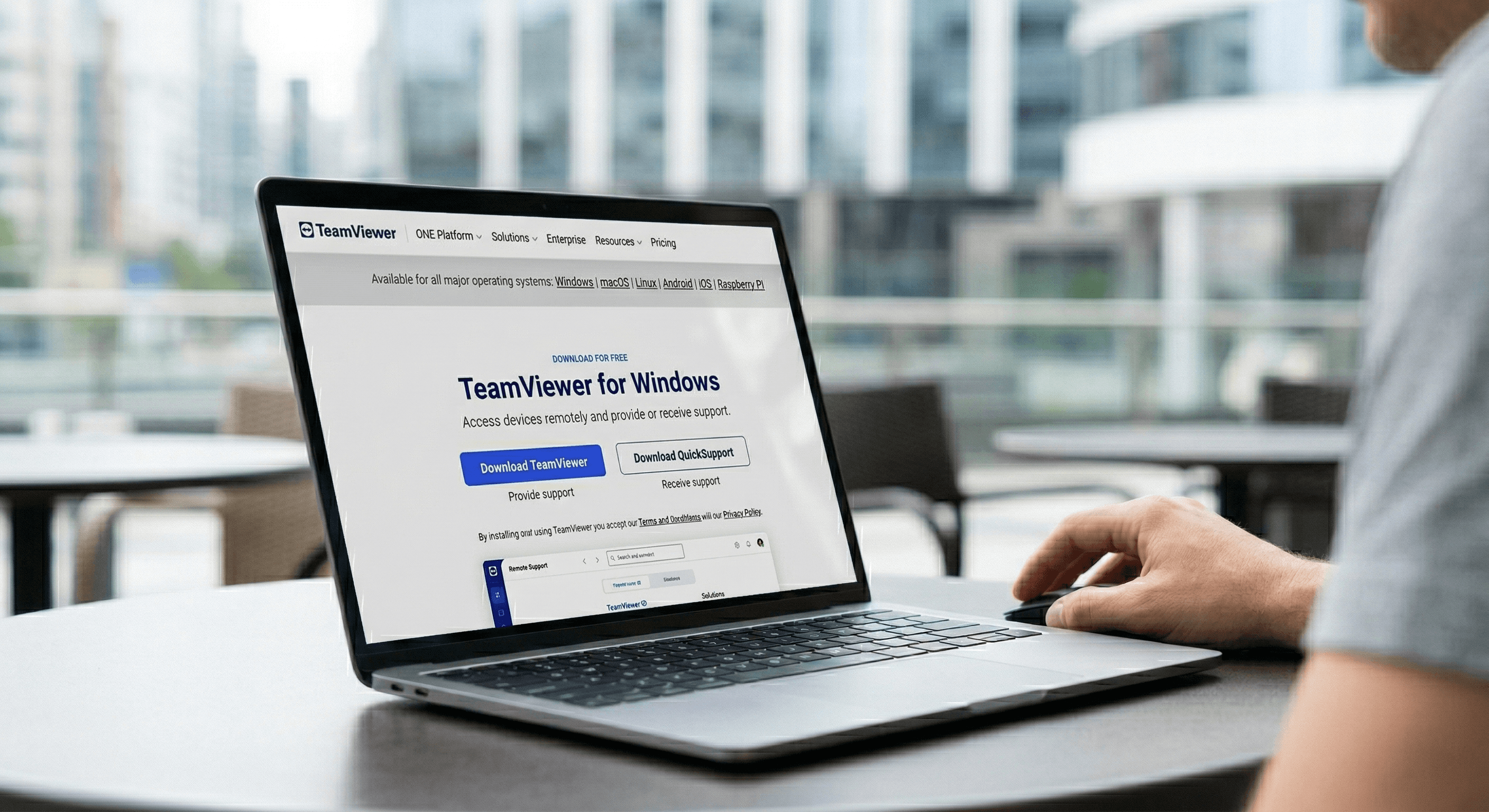
Turning on your computer remotely can save time, energy, and frustration. Many users rely on TeamViewer Wake on LAN to start a sleeping computer without physically pressing the power button. Whether you want to access your office PC from home or wake a server in another room, Wake on LAN makes remote work much easier.
In this guide, we'll walk through how to configure TeamViewer Wake on LAN step by step. We'll also introduce DeskIn, a simpler remote access solution that can make remote wake and control smoother and more reliable. If you've ever struggled with complicated configuration or TeamViewer Wake on LAN not working, keep reading to discover an easier approach.
Wake on LAN (WoL) is a network technology that allows a computer to power on or wake from sleep when it receives a special network signal called a "magic packet." This packet is sent through the network to the computer's network interface card, which remains partially active even when the system is powered down.
When configured correctly, tools like TeamViewer send that packet from another device on the same network or through the internet. The target computer's motherboard and network adapter detect the signal and trigger the system to start up.
This process is often used for remote work, server management, or accessing a home PC while traveling. Many people combine remote desktop Wake on LAN features with remote control software so they can both power on and operate their computer from anywhere.
Setting up TeamViewer Wake on LAN involves configuring your hardware, operating system, and TeamViewer settings. Follow the steps below carefully to ensure everything works properly.
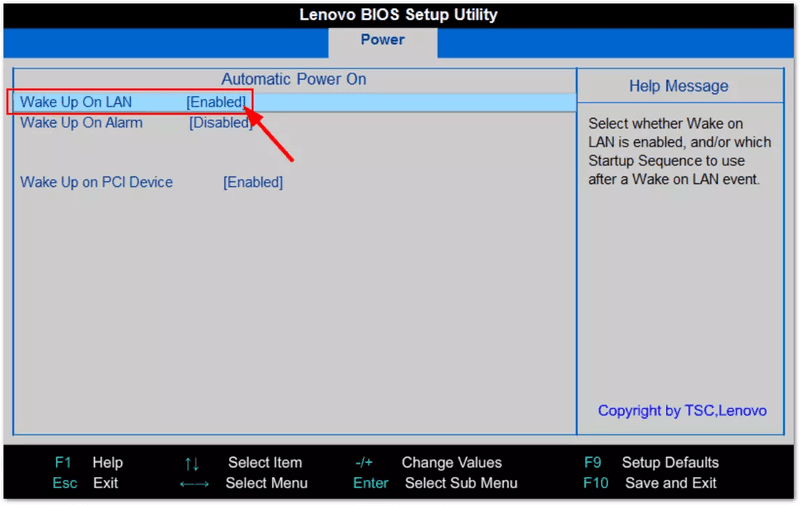
First, you need to activate Wake on LAN at the hardware level. Restart your computer and enter the BIOS or UEFI setup menu. This is usually done by pressing keys like F2, F12, Delete, or Esc during startup. Inside the BIOS interface, navigate to the Power Management section.
Look for an option such as Wake on LAN, Power On by PCI-E, or Resume by LAN and enable it. Save the settings and exit the BIOS. Without this configuration, no Wake on LAN software will be able to power on your computer remotely.
Next, you need to allow your network adapter to receive wake signals. Open Device Manager and locate your network adapter under the Network Adapters category. Right-click the adapter and open its Properties panel.
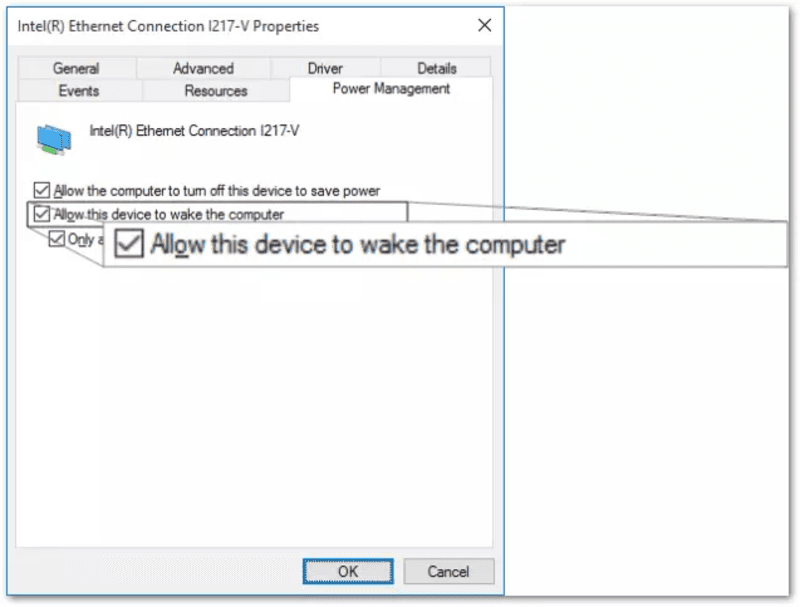
In the Power Management tab, enable the option allowing the device to wake the computer. In the Advanced settings, ensure Wake on Magic Packet is enabled. These steps are essential for both Wake on LAN Windows 10 and Windows 11 configurations. If your adapter does not support WoL, the feature will not work.
Windows Fast Startup can sometimes interfere with WoL signals. Open Control Panel, go to Power Options, and locate the settings for what the power button does. From there, disable the fast startup feature and save your changes. This small adjustment often fixes problems when Wake on LAN Windows 11 or older Windows versions fail to respond to wake requests.
If these configuration steps start to feel complex, this is where DeskIn stands out. DeskIn integrates remote wake and remote access into a more streamlined workflow with fewer configuration hurdles.
To use TeamViewer Wake on LAN, your computer must be linked to your TeamViewer account. Install the TeamViewer Host application on the computer you want to wake remotely. After installation, sign in and assign the device to your TeamViewer account. Once the computer appears in your device list, you will be able to configure wake options and manage the device remotely.
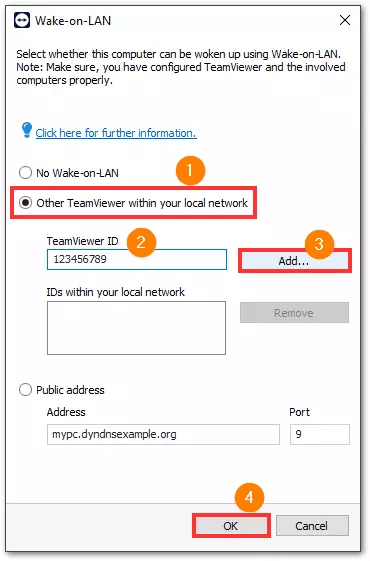
Now you can configure the WoL settings inside TeamViewer. Open the application settings. Under the Device menu, go to Network, click Wake-on-LAN, click "Other TeamViewer within your local network", enter the TeamViewer ID of the device waking up the remote computer, click "Add...", and confirm by clicking "OK".
After configuration, open your TeamViewer device list. Locate the offline computer and select the option to wake it. TeamViewer will send a magic packet through the network and start the remote computer. This method works on different systems, including TeamViewer Wake on LAN Mac, although Mac devices typically only wake from sleep mode rather than from a full shutdown.
If the device does not wake up, the issue may relate to network configuration, router settings, or incorrect BIOS settings. Many users searching for Wake on LAN not working run into these common problems.
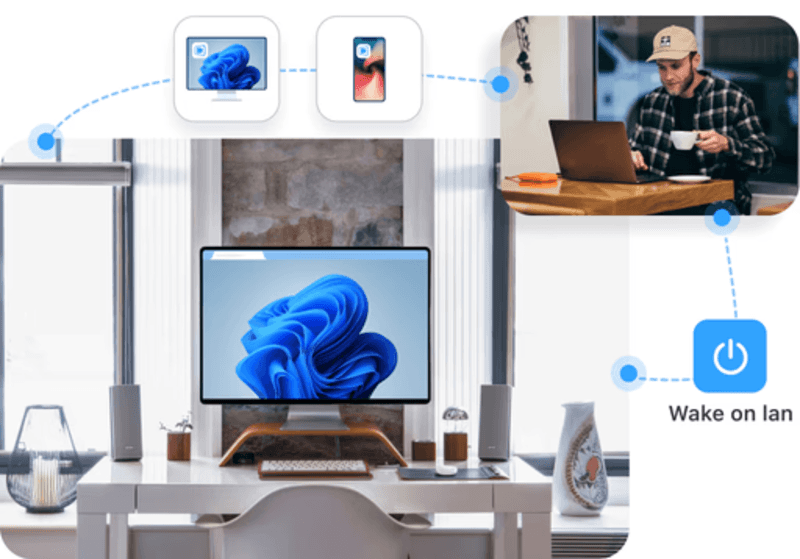
While TeamViewer Wake on LAN works for many users, the setup process can be complicated. BIOS configuration, network adapter settings, and router port forwarding can make the process frustrating.
DeskIn offers a more streamlined approach for Wake on LAN and device management. Instead of juggling multiple configuration layers, DeskIn focuses on simplicity and reliability. Once your devices are connected to the same account, you can quickly access and manage them from anywhere without dealing with complicated networking rules. Another advantage is performance. DeskIn supports high-resolution remote sessions with smooth frame delivery, making it suitable not only for office work but also for creative tasks and high-performance workflows. This means you can wake your device, connect instantly, and continue working without interruptions.
DeskIn also integrates device management and remote control into one unified platform. Instead of using separate tools for wake, connection, and control, everything is handled in one place, which reduces troubleshooting time and improves reliability for daily remote work. If you frequently rely on remote desktop Wake on LAN functionality, DeskIn can provide a smoother and more predictable experience compared to traditional setups.
Want to see a detailed DeskIn walkthrough? Read our complete guide on setting up Wake on LAN.
👀 You may also be interested in:
To use Wake on LAN with TeamViewer, you must enable Wake on LAN in BIOS, configure the network adapter, install TeamViewer Host, and set up the WoL settings in the application.
Many users ask if TeamViewer Wake on LAN is free. The feature is available in TeamViewer, but commercial usage may require a paid license depending on how the software is used.
To enable remote wake functionality, the target computer must support Wake on LAN, be connected via Ethernet, and have WoL activated in both hardware and operating system settings.
If TeamViewer Wake on LAN is not working, check BIOS settings, network adapter configuration, router port forwarding, and Windows power settings. If the process becomes too complicated, solutions like DeskIn provide simpler remote access alternatives.
Setting up TeamViewer Wake on LAN allows you to power on your computer remotely and access it whenever needed. By enabling Wake on LAN in BIOS, configuring your network adapter, and linking the device to TeamViewer, you can wake your PC from another device across the network.
However, the configuration process can sometimes be complex, especially when dealing with router settings or troubleshooting wake failures. If you want a more streamlined remote access experience, DeskIn offers a powerful alternative with smoother connectivity and easier device management. With DeskIn, you can spend less time configuring systems and more time getting work done remotely.
Turning on your computer remotely can save time, energy, and frustration. Many users rely on TeamViewer Wake on LAN to start a sleeping computer without physically pressing the power button. Whether you want to access your office PC from home or wake a server in another room, Wake on LAN makes remote work much easier.
In this guide, we'll walk through how to configure TeamViewer Wake on LAN step by step. We'll also introduce DeskIn, a simpler remote access solution that can make remote wake and control smoother and more reliable. If you've ever struggled with complicated configuration or TeamViewer Wake on LAN not working, keep reading to discover an easier approach.
Wake on LAN (WoL) is a network technology that allows a computer to power on or wake from sleep when it receives a special network signal called a "magic packet." This packet is sent through the network to the computer's network interface card, which remains partially active even when the system is powered down.
When configured correctly, tools like TeamViewer send that packet from another device on the same network or through the internet. The target computer's motherboard and network adapter detect the signal and trigger the system to start up.
This process is often used for remote work, server management, or accessing a home PC while traveling. Many people combine remote desktop Wake on LAN features with remote control software so they can both power on and operate their computer from anywhere.
Setting up TeamViewer Wake on LAN involves configuring your hardware, operating system, and TeamViewer settings. Follow the steps below carefully to ensure everything works properly.
First, you need to activate Wake on LAN at the hardware level. Restart your computer and enter the BIOS or UEFI setup menu. This is usually done by pressing keys like F2, F12, Delete, or Esc during startup. Inside the BIOS interface, navigate to the Power Management section.
Look for an option such as Wake on LAN, Power On by PCI-E, or Resume by LAN and enable it. Save the settings and exit the BIOS. Without this configuration, no Wake on LAN software will be able to power on your computer remotely.
Next, you need to allow your network adapter to receive wake signals. Open Device Manager and locate your network adapter under the Network Adapters category. Right-click the adapter and open its Properties panel.
In the Power Management tab, enable the option allowing the device to wake the computer. In the Advanced settings, ensure Wake on Magic Packet is enabled. These steps are essential for both Wake on LAN Windows 10 and Windows 11 configurations. If your adapter does not support WoL, the feature will not work.
Windows Fast Startup can sometimes interfere with WoL signals. Open Control Panel, go to Power Options, and locate the settings for what the power button does. From there, disable the fast startup feature and save your changes. This small adjustment often fixes problems when Wake on LAN Windows 11 or older Windows versions fail to respond to wake requests.
If these configuration steps start to feel complex, this is where DeskIn stands out. DeskIn integrates remote wake and remote access into a more streamlined workflow with fewer configuration hurdles.
To use TeamViewer Wake on LAN, your computer must be linked to your TeamViewer account. Install the TeamViewer Host application on the computer you want to wake remotely. After installation, sign in and assign the device to your TeamViewer account. Once the computer appears in your device list, you will be able to configure wake options and manage the device remotely.
Now you can configure the WoL settings inside TeamViewer. Open the application settings. Under the Device menu, go to Network, click Wake-on-LAN, click "Other TeamViewer within your local network", enter the TeamViewer ID of the device waking up the remote computer, click "Add...", and confirm by clicking "OK".
After configuration, open your TeamViewer device list. Locate the offline computer and select the option to wake it. TeamViewer will send a magic packet through the network and start the remote computer. This method works on different systems, including TeamViewer Wake on LAN Mac, although Mac devices typically only wake from sleep mode rather than from a full shutdown.
If the device does not wake up, the issue may relate to network configuration, router settings, or incorrect BIOS settings. Many users searching for Wake on LAN not working run into these common problems.
While TeamViewer Wake on LAN works for many users, the setup process can be complicated. BIOS configuration, network adapter settings, and router port forwarding can make the process frustrating.
DeskIn offers a more streamlined approach for Wake on LAN and device management. Instead of juggling multiple configuration layers, DeskIn focuses on simplicity and reliability. Once your devices are connected to the same account, you can quickly access and manage them from anywhere without dealing with complicated networking rules. Another advantage is performance. DeskIn supports high-resolution remote sessions with smooth frame delivery, making it suitable not only for office work but also for creative tasks and high-performance workflows. This means you can wake your device, connect instantly, and continue working without interruptions.
DeskIn also integrates device management and remote control into one unified platform. Instead of using separate tools for wake, connection, and control, everything is handled in one place, which reduces troubleshooting time and improves reliability for daily remote work. If you frequently rely on remote desktop Wake on LAN functionality, DeskIn can provide a smoother and more predictable experience compared to traditional setups.
Want to see a detailed DeskIn walkthrough? Read our complete guide on setting up Wake on LAN.
👀 You may also be interested in:
To use Wake on LAN with TeamViewer, you must enable Wake on LAN in BIOS, configure the network adapter, install TeamViewer Host, and set up the WoL settings in the application.
Many users ask if TeamViewer Wake on LAN is free. The feature is available in TeamViewer, but commercial usage may require a paid license depending on how the software is used.
To enable remote wake functionality, the target computer must support Wake on LAN, be connected via Ethernet, and have WoL activated in both hardware and operating system settings.
If TeamViewer Wake on LAN is not working, check BIOS settings, network adapter configuration, router port forwarding, and Windows power settings. If the process becomes too complicated, solutions like DeskIn provide simpler remote access alternatives.
Setting up TeamViewer Wake on LAN allows you to power on your computer remotely and access it whenever needed. By enabling Wake on LAN in BIOS, configuring your network adapter, and linking the device to TeamViewer, you can wake your PC from another device across the network.
However, the configuration process can sometimes be complex, especially when dealing with router settings or troubleshooting wake failures. If you want a more streamlined remote access experience, DeskIn offers a powerful alternative with smoother connectivity and easier device management. With DeskIn, you can spend less time configuring systems and more time getting work done remotely.


《新楓之谷:經典版》沒有 Mac 版,如何在 MacBook 上玩新楓之谷經典版?
《新楓之谷:經典版》從 2026 年 7 月 29 日開服以來,巴哈姆特楓之谷板幾乎天天都有新的職業攻略、練功地圖分享,回鍋玩家熱度很高。但跟過往的新楓之谷一樣,官方沒有支援 Mac 版本,一直困擾 Mac 玩家的問題又來了——「到底要怎麼在 Mac 上玩楓之谷經典版?」
目前官方尚未推出《新楓之谷:經典版》原生 macOS 版本,也沒有相關計畫釋出,所以你無法像 Windows 玩家一樣直接下載主程式遊玩。
要實現在 MacBook Air、MacBook Pro 或 iMac 裝置上玩楓之谷經典版。目前常見的有兩種解法——安裝虛擬機,或是直接用遠端桌面如 DeskIn 連線 Windows 電腦玩。兩種方式適用的人群不同,本文將詳細對比兩種方式並介紹 DeskIn 遠端桌面在 Mac 上玩新楓之谷經典版的詳細步驟,讓你不用把 MacBook 硬體吃到滿也能順暢重返楓之谷。
不少教學會建議透過 Parallels Desktop 或 VMware Fusion,在 Mac 裡面另外跑一套 Windows 系統也就是虛擬機,再到虛擬機裡安裝楓之谷經典版。這個方法確實可行,但因為虛擬機實際上是讓 Mac 同時運行 macOS 與 Windows 兩套完整系統,而不是只是「多開一個視窗」,所以對硬體效能與記憶體的要求遠比想像中高。
記憶體(RAM): 16GB 以上;想穩定遊玩、同時開著攻略或聊天視窗,32GB 以上會是比較理想的配置。8GB 會非常吃緊(macOS 分完後可能只剩不到 4GB 給 Windows,容易卡頓、閃退)
CPU / GPU 效能:虛擬機無法讓硬體 100% 直通,顯示卡需透過軟體模擬,整體效能會比原生 Windows 電腦折損約 20% 至 30%。
散熱系統:雙系統同時滿載運作,長時間遊玩容易發燙,筆電型 Mac 散熱空間有限,可能觸發降頻導致更卡。
晶片架構:M 系列(Apple Silicon)Mac 僅能安裝 Windows on ARM,楓之谷經典版為 x86,執行時需額外經過轉譯,會再疊加一層效能損耗。
安裝流程繁瑣:從註冊帳號、下載映像檔、建立虛擬機、調整硬碟容量到安裝顯示驅動工具,步驟相當多,對不熟悉電腦設定的玩家不太友善。
吃掉大量儲存與效能:虛擬機需要額外劃分幾十 GB 硬碟空間給 Windows 系統與遊戲本體,加上虛擬化本身會消耗 Mac 效能,長時間練功容易讓筆電風扇狂轉、發燙。
成本高:大虛擬機軟體僅提供短期免費試用,之後需要付費訂閱或買斷才能持續使用,對只是想偶爾懷舊一下的玩家來說,投入成本偏高。
鍵盤快捷鍵衝突:在 Mac 鍵盤上操作 Windows 遊戲,Control、Shift、Option 等系統功能鍵很容易跟遊戲內建快捷鍵打架,技能鍵設定得重新適應。
帳號登入衝突:虛擬機相當於一台「新裝置」,如果你有另一台常用的電腦在玩楓之谷經典版,在切換裝置的時候會需要頻繁進行帳號登入登出動作。
反外掛相容性:虛擬機容易被反外掛機制偵測並封鎖,導致遊戲卡在啟動畫面或無法連線。
對於沒有 Windows 電腦的人來說,如果你的 Mac 配置夠高,而且可以接受相對繁瑣的安裝流程和適用限制,虛擬機確實是個不錯的解決方案。但如果你是想在出差、出門時透過 Macbook 筆電玩《新楓之谷:經典版》或是你已經有一台可以裝《新楓之谷:經典版》的 Windows 電腦,更推薦使用 DeskIn 遠端回Windows 電腦遊玩。
這個方法適合本身已經有一台能運行官方《新楓之谷:經典版》的 Windows 電腦。DeskIn 支援 macOS 版本,能讓你的 MacBook、iMac 直接跨系統連回 Windows 電腦遊玩《新楓之谷:經典版》,由於遊戲實際上是還是在 Windows 硬體上運行,效能、相容性都不用打折扣,所以此方法對於硬體裝置幾乎沒什麼要求,只需要保證網路穩定即可。遊戲進度完全同步,不用擔心帳號登入登出問題,也省去虛擬機的安裝與維護。
步驟 1:在 Windows 電腦安裝楓之谷經典版與 DeskIn 先在一台 Windows 電腦上到官網完成楓之谷經典版的下載安裝與角色創建,接著安裝 DeskIn 桌面版並登入帳號,開啟無人值守連線設定並設定好連線密碼,方便之後直接從 Mac 連進來。
步驟 2:在 MacBook 上安裝 DeskIn 到 DeskIn 官網下載 macOS 版安裝檔,安裝完成後用同一組帳號登入,裝置列表就會出現剛剛設定好的 Windows 電腦。
步驟 3:建立遠端連線 從裝置列表點選你的 Windows 電腦、輸入連線密碼即可建立連線,直接用 Mac 的滑鼠、觸控板操作遊戲,練功、跑副本、逛楓之谷市集都跟平常在電腦前操作一樣直覺。
連線後即可依照網路狀況在調整畫質、真率、螢幕解析度等相關設定:
畫質和解析度:免費版使用者推薦先從流暢畫質 720p 和 30幀 開始,遊戲版玩家在網路較穩定時可以設定最高 4K60FPS / 2K144FPS,享受楓之谷經典版重製的高解析度像素美術
螢幕比例和縮放:如果你的 Mac 和 Windows電腦螢幕差距太大,你可以在工具列>>顯示,調整比例縮放模式為自動縮放。或調整螢幕解析度到合適比例。
鍵鼠映射:DeskIn 本身會將 Mac 的鍵盤直接映射對應到遠端 Windows 電腦,你也可以開啟“遊戲鼠標”功能,避免鍵盤被鎖。
接上遊戲手把:覺得 Mac 按鍵玩的不爽,DeskIn甚至支援在將 Mac 接上手把來控制遠端的 Windows 電腦玩《新楓之谷:經典版》。只要將你的手把連上 Mac, 在工具列找到手把映射,點擊你的手把啟用即可。
如果你想在手機、iPad 上玩《新楓之谷:經典版》,可以參考:用 DeskIn 在手機、平板上玩新楓之谷經典版的教學。
兩種方式適合的人群和場景不同,可以根據你的情況選擇合適方案:
手邊完全沒有 Windows 裝置,Mac 是唯一能用來玩遊戲的裝置
Mac 的記憶體規格、晶片效能足夠好,能承受虛擬化帶來的效能損耗與發熱
非技術小白,可以完成繁瑣的虛擬機安裝設定
不太常需要切換裝置遊玩,能接受潛在相容性風險與和反外掛偵測問題
家裡或公司已經有一台能順跑楓之谷經典版的 Windows 電腦
Mac 本身規格較入門,或是想在 MacBook 筆電遊玩
常常需要出差、外出,需要頻繁切換裝置
3C 小白,想找設定簡單,穩定的方案
不想冒著卡頓、閃退甚至無法順利啟動遊戲的風險
簡單來說,如果你的情境是「本來就有 Windows 電腦、同時想在 Mac明晚」,DeskIn 幾乎是更省事、風險更低的選擇;只有在完全沒有 Windows 電腦、且 Mac 硬體規格夠高的前提下,虛擬機才會是相對合理的備案。
設定簡單,適合小白,幾分鐘就能開玩。
不吃 Mac 本身效能,比較不會有筆電發燙、風扇狂轉的困擾。
跨平台彈性高,鍵鼠自動映射,同一組帳號,Mac、手機平板都能用,進度持續同步。
無人值守連線:設定好安全密碼,即使電腦旁邊沒人也能隨時連回遊戲
端對端加密&黑白名單設定:不用擔心惡意連線導致遊戲帳號、角色資料被其他人存取。
< 40ms 低延遲:即時線路優化,避免卡頓,閃避、連招、放技能都反饋即時。
4K 60幀 / 2K 240幀 高畫質串流:手機也能享受到接近原生電腦的清晰畫質與流暢幀率。
穩定連線:全球有200+伺服器,讓你在哪都能順暢練功、打王不中斷。
手把支援:直接接上手把遊玩,操作更順手。
目前官方僅公告 Windows PC 版本,尚未有任何關於 macOS 原生版本的公告,Mac 用戶現階段仍需透過推薦適用 DeskIn 遠端桌面連回Windows電腦玩官方版《新楓之谷:經典版》。
DeskIn 採用端對端加密與雙重驗證機制,且遠端連線本質上是「操作自己已登入的電腦」,帳號密碼並不會經過第三方伺服器存取,安全性設計上與一般遠端辦公連線相同。
技術上可以安裝,但體驗上會非常吃力。8GB 記憶體要同時分給 macOS 與 Windows 兩套系統,扣掉 macOS 本身佔用後,能分給 Windows 的記憶體通常所剩無幾,很容易出現卡頓、閃退,長時間練功的體驗會打折扣。這種情況下改用 DeskIn 遠端連線一台規格足夠的 Windows 電腦,會是更穩定的選擇,因為運算工作都在遠端電腦上完成,不會受限於 Mac 本身的記憶體大小。
實際體驗會受雙邊網路品質影響,但由於遠端連線的是原生 Windows 硬體、沒有虛擬化的效能耗損,加上 DeskIn 主打低延遲即時串流技術,在網路穩定的情況下操作流暢度通常會優於在低配虛擬機裡跑遊戲的體驗。
不會。DeskIn 連線操作的就是那台電腦、那個原本就在跑的遊戲連線,不是另外用新裝置登入,所以不會觸發楓之谷「同一帳號只能單一連線」的限制,這也是虛擬機方案很容易忽略、但用 DeskIn 完全不會遇到的問題。
DeskIn 需要連線到一台正在運作的 Windows(或其他支援平台)電腦,如果手邊沒有現成的 Windows 主機,更推薦使用虛擬機方案。
DeskIn 支援 Windows、macOS、iOS、Android 跨平台連線,Mac 用戶可以連線 Windows 電腦,反過來 Windows 電腦也能連線控制 Mac,彈性相當高。
楓之谷經典版目前雖然沒有 Mac 原生版本,但不代表 Mac 玩家就得被迫在筆電裡硬塞一套對硬體要求極高的 Windows 虛擬機,還得提心吊膽處理帳號被擠下線的問題。如果手邊已經有一台能順跑遊戲的 Windows 電腦(或另一台 Mac),透過 DeskIn 遠端桌面直接連線,不僅省去繁瑣的虛擬機設定、不用擔心 Mac 記憶體與效能不夠用,更完全避開了楓之谷單一連線登入帶來的衝突,遊戲體驗也更貼近原生 Windows 效能。想重溫 2005 年楓之谷回憶的 Mac 玩家,不妨試試看用這個方法開玩。

《新楓之谷:經典版》手機版還沒上?用 DeskIn 遠端桌面現在手機就能玩新楓之谷經典版
《新楓之谷:經典版》自 2026 年 7 月 29 日由遊戲橘子在台港澳正式開服後,掀起一波 2005 年老楓迷的回鍋潮,社群、巴哈姆特哈啦板每天都能看到職業攻略、練功路線分享文。不過官方目前還沒上線手機版,對很多無法常在電腦前的上班族、學生黨來說,最實際的問題就是「如何可以在手機玩到新楓之谷經典版?」。
目前最佳的方案就是透過 DeskIn 遠端桌面連回 PC,在 iPhone、安卓手機、甚至 iPad 平板玩官方楓之谷經典版。本文會先幫大家釐清楓之谷經典版各平台的支援現況,說明為什麼透過DeskIn 遠端桌面遠端 PC 是目前最佳的在手機玩《新楓之谷:經典版》的方式,並附上手機、平板、遊戲手把的完整設定教學,讓你在官方手遊版本正式推出前也能隨時在手機延續楓之谷進度,快人一步。

截止2026年8月13日,官方新楓之谷經典版僅支援 Windows。
Windows PC:官网可下载官方版,2026 年 7 月 29 日正式開服。
macOS:官方未推出原生 Mac 版本,Mac 玩家可透过 DeskIn 操作 Windows 電腦遊玩。
iOS / Android(手機、平板):官方未推出正式 iOS/Android 手遊。遊戲橘子在官網公告中提到目標 9 月左右推出「Mobile Companion App」,但未明確時間,也未說明 手遊版 是否支援完整電腦版功能、支援哪些機型。

在搜索關於新楓之谷手機版的資訊時,你可能會看到有聲稱的《新楓之谷:經典版》APK,但注意這些都不是官方包,下載存在一定風險,而且影響遊戲體驗,還是等遊戲橘子提供官方下載管道為主。
換句話說,在官方手遊版本上線之前,想在手機、平板來給新楓之谷經典版角色練等、解每日、逛楓之谷市集,最安全、穩定可行的方式,就是透過 DeskIn 遠端桌面,用「手機遠端連線 PC」的方式遊玩官方版楓之谷經典版。
首先,DeskIn是一個遠端桌面軟體,可以讓你安全地從iPhone、安卓手機、筆電、iPad 直接操作自己的電腦,不用另外安裝虛擬機或模擬器,基本0設定即可遊玩。楓之谷經典版還是在你的電腦運行,DeskIn 負責把畫面即時投放到手機,操作也是即時傳回電腦,遊戲進度完全同步,並且使用電腦原本的效能,沒有額外的相容性風險,也不用擔心發燙、閃退等問題。
你也不需要下載 APK,不會有病毒或者玩到盜版遊戲的風險。
除了簡單、安全,DeskIn 還提供高品質的連線和遊戲支援功能,讓你玩遊戲更順暢:
無人值守連線:設定好安全密碼,即使電腦旁邊沒人也能隨時連回遊戲
端對端加密&黑白名單設定:不用擔心惡意連線導致遊戲帳號、角色資料被其他人存取。
< 40ms 低延遲:即時線路優化,避免卡頓,閃避、連招、放技能都反饋即時。
4K 60幀 / 2K 240幀 高畫質串流:手機也能享受到接近原生電腦的清晰畫質與流暢幀率。
穩定連線:全球有200+伺服器,讓你在哪都能玩台服不用加速器,練功、打王不中斷。
自訂虛擬鍵盤:可以自訂虛擬按鍵位置、大小並幫不同角色分別保存按鍵方案,練不同角色時輕鬆切換。
手把支援:適合長時間練功,操作更順手。
內建虛擬滑鼠:可以觸控,或直接拖曳游標定位後點擊,如電腦般操作,道具欄、商城介面、任務視窗點擊梗精準。
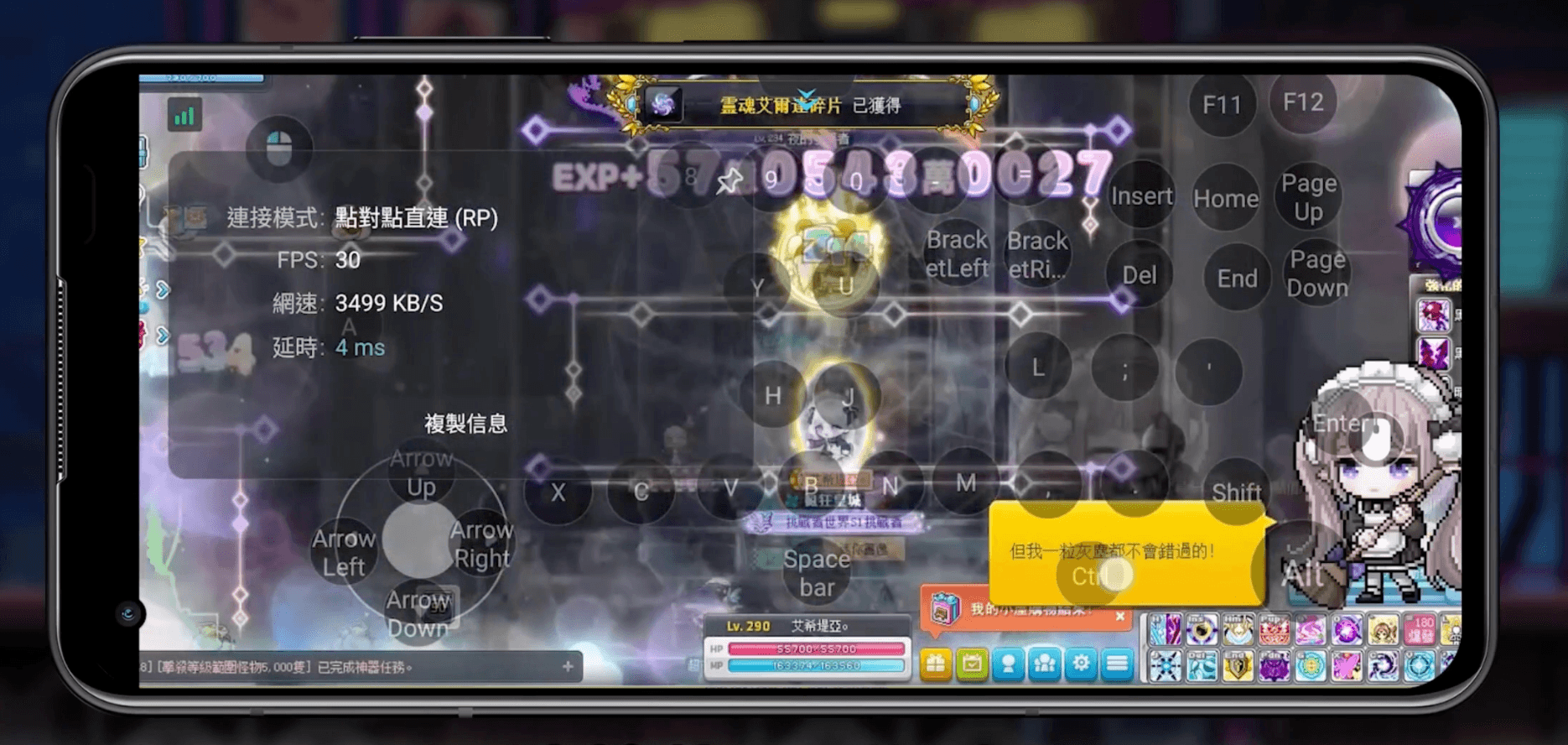
只要電腦端保持開機、楓之谷經典版有登入,手機端透過 DeskIn 幾乎可以做到跟坐在電腦前一樣的事情,常見情境包括:
解每日任務:出門通勤、排隊等餐時,打開手機連線接續每日任務、每日獎勵、通行證進度領取。需要頻繁點擊 NPC 對話並看任務文字也沒問題。
逛自由市集:隨時登入商店撿漏低價好物,不錯過限時活動商店。
拍賣場交易:查價、上架、購買裝備道具。
練功打怪刷圖:不用死守電腦前也能隨時開啟放置練功,收集材料。
組隊副本:組隊副本的走位與技能輸出,跟隊友語音搭配操作也沒問題。
社群互動:頻道聊天、公會訊息、好友邀請,隨時用手機回覆,不錯過團隊揪團時機。
補藥水整理背包:定期回到村莊購買藥水、清理背包、切換技能配置。
地圖移動與等待過渡:坐船前往天空之城或跨越長地圖的步行時間,玩家不需操作,只需維持連線不中斷。
無需複雜設定,幾分鐘就能輕鬆開玩:
在裝好《新楓之谷:經典版》的 Windows 電腦上安裝 DeskIn 桌面版,登入,開啟無人值守並設定好連線密碼,讓電腦保持連網並關閉休眠模式。
到 App Store 或 Google Play 搜尋 DeskIn,使用與電腦同一個帳號登入,就能在裝置列表找到你的電腦。
點選電腦裝置,輸入連線密碼後就能成功連回電腦,打開並開始遊玩《新楓之谷:經典版》了。
如果你想在iPad 或 按照平板玩《新楓之谷:經典版》,請同樣參考上述步驟。
如果你想在Mac 玩《新楓之谷:經典版》,請參考:如何在Mac 玩《新楓之谷:經典版》?
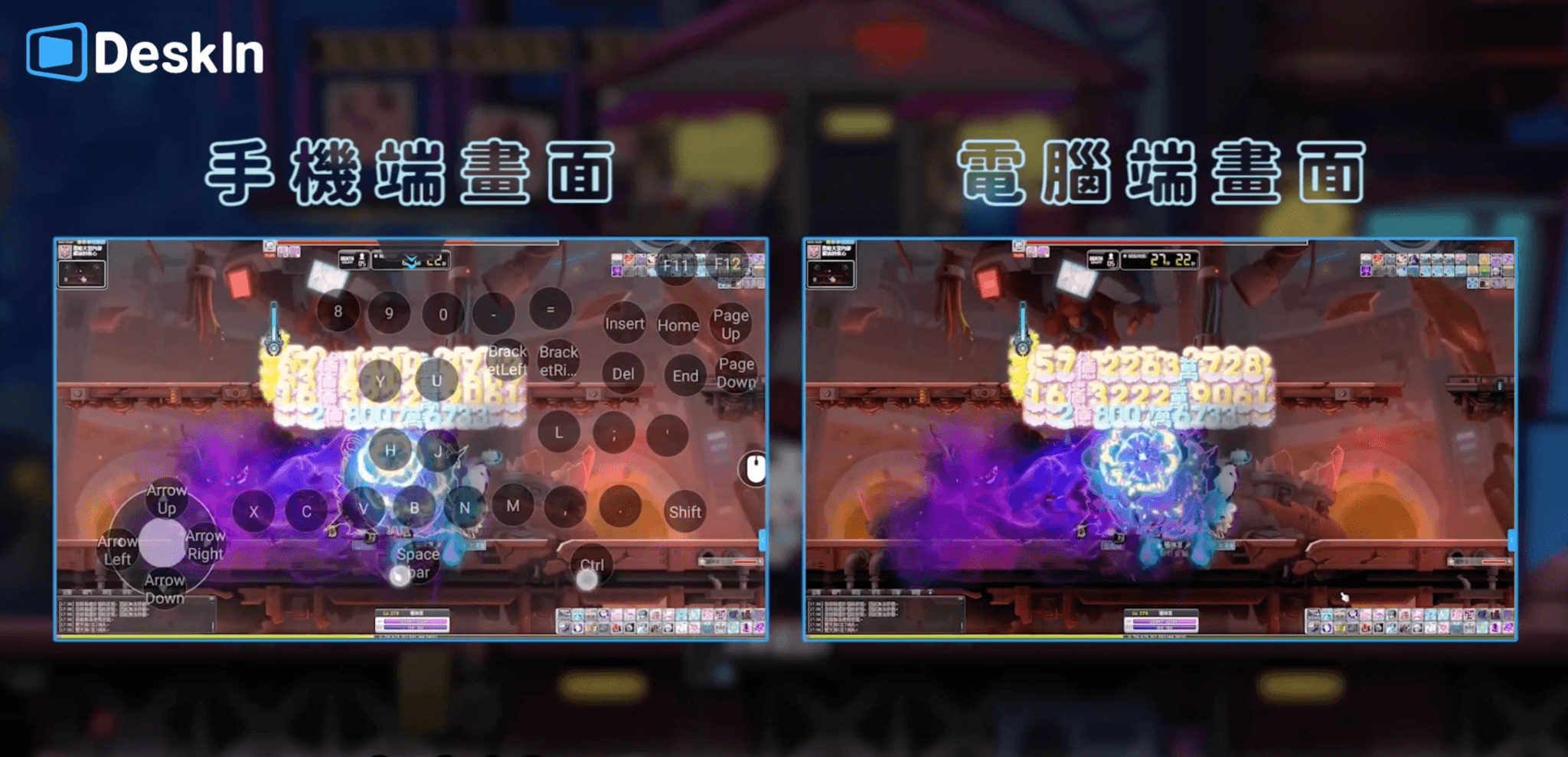
建議調整為橫向畫面。如果只是逛逛商店,畫面品質優先選到 順暢/30FPS,若是解每日,練等刷圖,網路狀況允許下可以調整到高清/60FPS。如果遇到遠端玩遊戲畫面凍結卡頓,可按照教程調整。
在逛商店、點擊對話任務或操作遊戲時,你可能需要點擊滑鼠,點開工具欄切換滑鼠控制方式,可選「觸屏樣式」或「指針樣式」,找到你最順手的設定。
你可以在畫面上楓之谷經典版五大職業(劍士、法師、弓箭手、盜賊、海盜)技能配置差異很大,如果同時養多個角色,每次都要重新排列虛擬鍵盤會很麻煩。DeskIn 可以把不同角色的按鍵方案分開保存:
步驟 1:工具列選單找到「鍵盤」>>「遊戲鍵盤」選項並點擊進入。
步驟 2:新建一組鍵盤方案 點選「新建鍵盤」,依照角色需要添加「滑鼠」按鍵、「鍵盤」按鍵「方向盤」到畫面上,你也可以添加一鍵釋放技能的組合按鍵。調整大小、透明度和位置,避免遮擋重要按鈕。
步驟 3:以角色職業(例如「法師」「盜賊」)命名並保存 ,之後在不同角色練功時,在「遊戲鍵盤」介面切換鍵盤,就能直接沿用之前設定好的技能鍵位置。
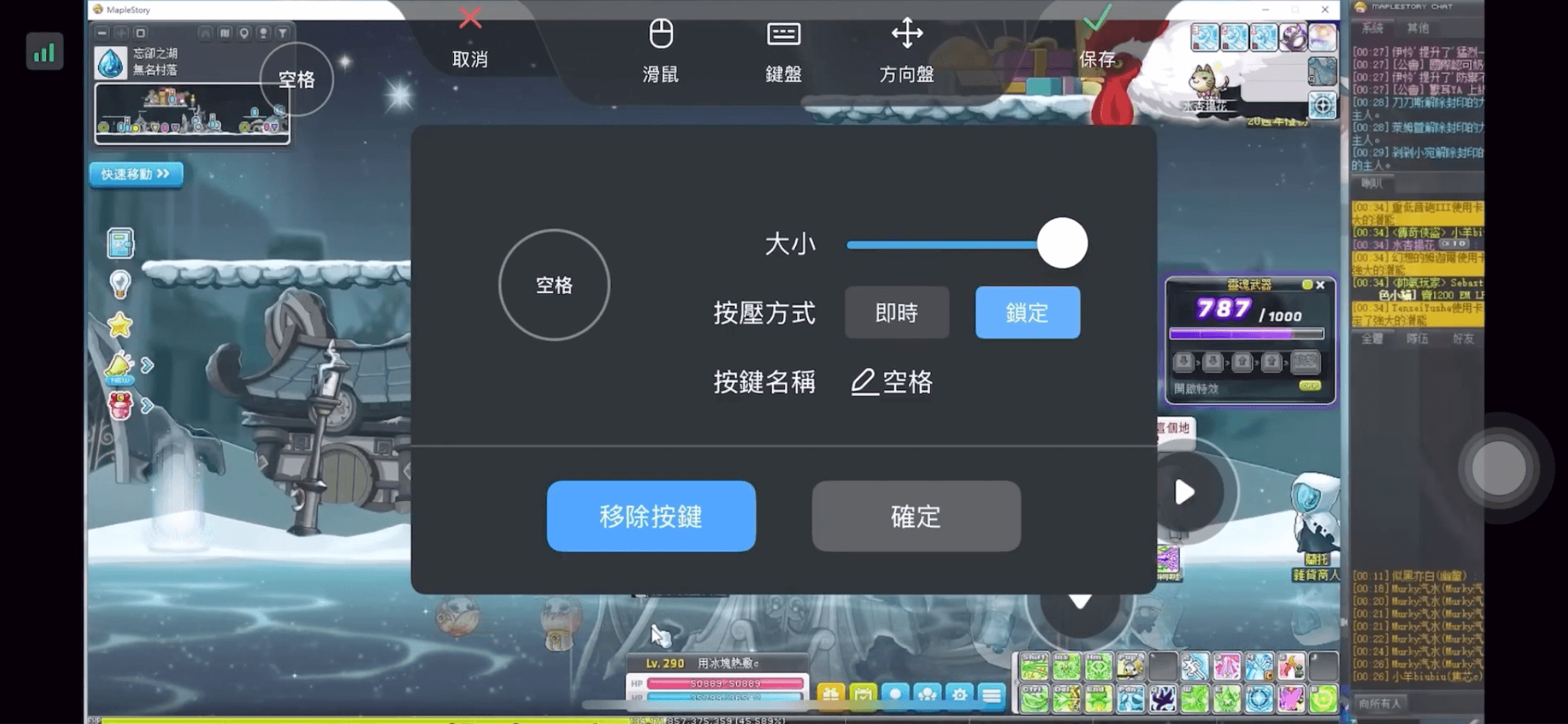
在打boss或是需要長時間練功時,覺得虛擬鍵盤操作不夠精準,DeskIn 也支援外接遊戲鍵盤和遊戲手把進行遊戲,包含 Xbox、PlayStation 及部分第三方手把,設定方式如下:
步驟 1:手把與手機配對 先將手機與藍牙/有線遊戲手把完成配對。
步驟 2:在 DeskIn 連線畫面開啟手把功能 連線電腦後,手機展開工具列選單「鍵盤」>>「手把影射」,點擊你的遊戲手把啟動。
步驟 3:確認按鍵對應 手把上的方向鍵、按鈕會對應到電腦端的鍵盤或滑鼠操作,可以先進入楓之谷經典版的系統設定或練功地圖,實際測試移動、攻擊、技能按鍵是否對應正確。
不可以,《新楓之谷:經典版》暫時未上線官方手機版本手遊。若想在手機玩《新楓之谷:經典版》,可以用 DeskIn 遠端桌面連回電腦遊玩官方PC版。
目前官方只公告正在準備 Mobile Companion App,並以 9 月左右為目標,但沒有給出確切日期,也沒說明是不是完整手遊版本,實際內容與開放時間請以遊戲橘子官網公告為準。
不建議,此APK並非官方app,可能會感染惡意木馬並遭成信息洩露風險。若想在手機玩《新楓之谷:經典版》,更推薦用 DeskIn 遠端桌面連回電腦遊玩官方PC版。
不會。DeskIn 的本質是遠端操作你自己電腦上的正版遊戲畫面與輸入,並非外掛程式,是完全不同的東西——遊戲端看到的操作,就是你手動輸入的滑鼠鍵盤指令,沒有自動化練功或修改遊戲數據的行為。
DeskIn 採用低延遲的即時串流技術,在網路環境穩定的情況下,操作手感可以接近在電腦前直接玩的體驗,比起單純用手機瀏覽器或模擬器嘗試繞過限制要順暢許多。實際延遲仍會受雙邊網路品質影響,建議優先用 Wi‑Fi 連線。
一般偶爾想用手機接續進度、逛市集、收信件的玩家,免費版通常就能應付基本連線與操作需求;如果常常需要長時間掛機練功、使用遊戲手把或為不同角色連等設定虛擬鍵盤,建議升級付費版本取得更完整的遊戲相關功能與更高畫質選項。
在《新楓之谷:經典版》官方手遊版本正式亮相之前,DeskIn 提供了一個穩定、低延遲又安全的解法,讓你用手機、平板連上家中電腦,繼續練等、刷副本、逛楓之谷世界,還能依角色分開保存按鍵方案、搭配手把操作。想體驗看看的話,可以直接到電腦與手機分別安裝 DeskIn,設定好連線後馬上就能開玩。

如何把iPad變成電腦的第二螢幕?(Mac/Windows完整教學)
想找個 App 或軟體,可以用自己的 iPad 當第二螢幕,而且要有最好的解析度和畫面更新率?在日常學習生活中,通常一台筆電或許就能完成所有的工作。但面臨剪輯、設計、寫程式、資料校對等需要多視窗作業的工作時,多一塊顯示器真的能大大提升效率。如果你是居家辦公者、或是學生,沒有條件或是不想購入多一個螢幕,其實可以透過DeskIn遠端桌面、蘋果内建「Sidecar」功能以及Duet Display將 iPad 作爲延伸螢幕。本文也會同步說明 DeskIn 目前的螢幕鏡像/延伸方案限制,避免設定前產生誤解。
💻立即下載DeskIn遠端桌面,將iPad變成電腦的第二螢幕,提升工作效率!

iPad 當延伸螢幕後,可以把主要工作放在電腦,副螢幕放置參考資料或工具軟體,複製、拖曳更順暢,不必再來回切換。
例如:寫程式時在電腦編碼、iPad顯示需求文檔;剪輯影片時電腦進行剪輯、iPad顯示素材;製作簡報時,電腦處理內容、iPad展示資料。兩塊螢幕分工明確,效率大幅提升。
iPad 的螢幕解析度高、色彩表現好,比部分便宜的外接螢幕更適合設計相關工作。
多數人家裡已有 iPad,出門攜帶也方便。把它當成副螢幕,不僅能節省購買顯示器的成本,也讓移動辦公更靈活。
方法 | 支援平台 | 連接方式 | 免費/付費 | 適用情境 | 備註 |
Windows / Mac | 無線 | 任一付费方案包含 | iPad 延伸螢幕 Windows 或 Mac | 支援跨系統,操作簡單 | |
Apple Sidecar | Mac | 無線 / USB | 免費(需Mac/iPad) | Mac iPad 雙螢幕 | 需同一 Apple ID,僅限 Mac/iPad |
Duet Display | Windows / Mac | USB 有線(付費) | 付費 | iPad 當第二螢幕 | 適合喜歡有線連接的用戶 |
DeskIn 遠端桌面跨平台支援螢幕鏡像和延伸,而且高清、零延遲,是最好用的把iPad作爲電腦延伸螢幕的應用程式。它支援最高4K 解析度、60FPS,無需同一個網路就可以進行螢幕延伸,而且無論是Windows還是MacOS都可以。要使用DeskIn
DeskIn 除了支援延伸螢幕,還同時支援更多進階互動功能,將你的iPad與電腦串聯,例如用iPad遠端操控電腦、iPad與電腦之間進行檔案傳輸、掃碼投影、甚至遠端相機功能。DeskIn是iPad必裝的生產力工具和延伸螢幕工具,非常安全,而且畫面直覺,簡單易用。
💻立即下載DeskIn遠端桌面并升级方案,將iPad變成電腦的第二螢幕,提升工作效率!
📖相關文章推薦:
必學6個雙螢幕效率提升技巧!把iPad/安卓平板變成電腦的“第二螢幕”
💡優點:
跨平台支援,無論是MacOS還是Windows,一個軟體輕鬆搞定
高畫質延伸螢幕,最高支援 4K 60FPS,無感延遲
就算不在同一網絡下,也可以進行螢幕延伸
無需複雜設定,界面直覺
步驟二:在電腦端DeskIn上點擊左邊菜單「鏡像屏/擴展屏」>>「立刻進行螢幕擴展」,在選單中點選你的iPad,并點擊「開始螢幕擴展」即可
步驟三(非必須):若進行螢幕擴充後,您發現iPad只是鏡像電腦螢幕上的内容,請前往系統顯示器修改設定
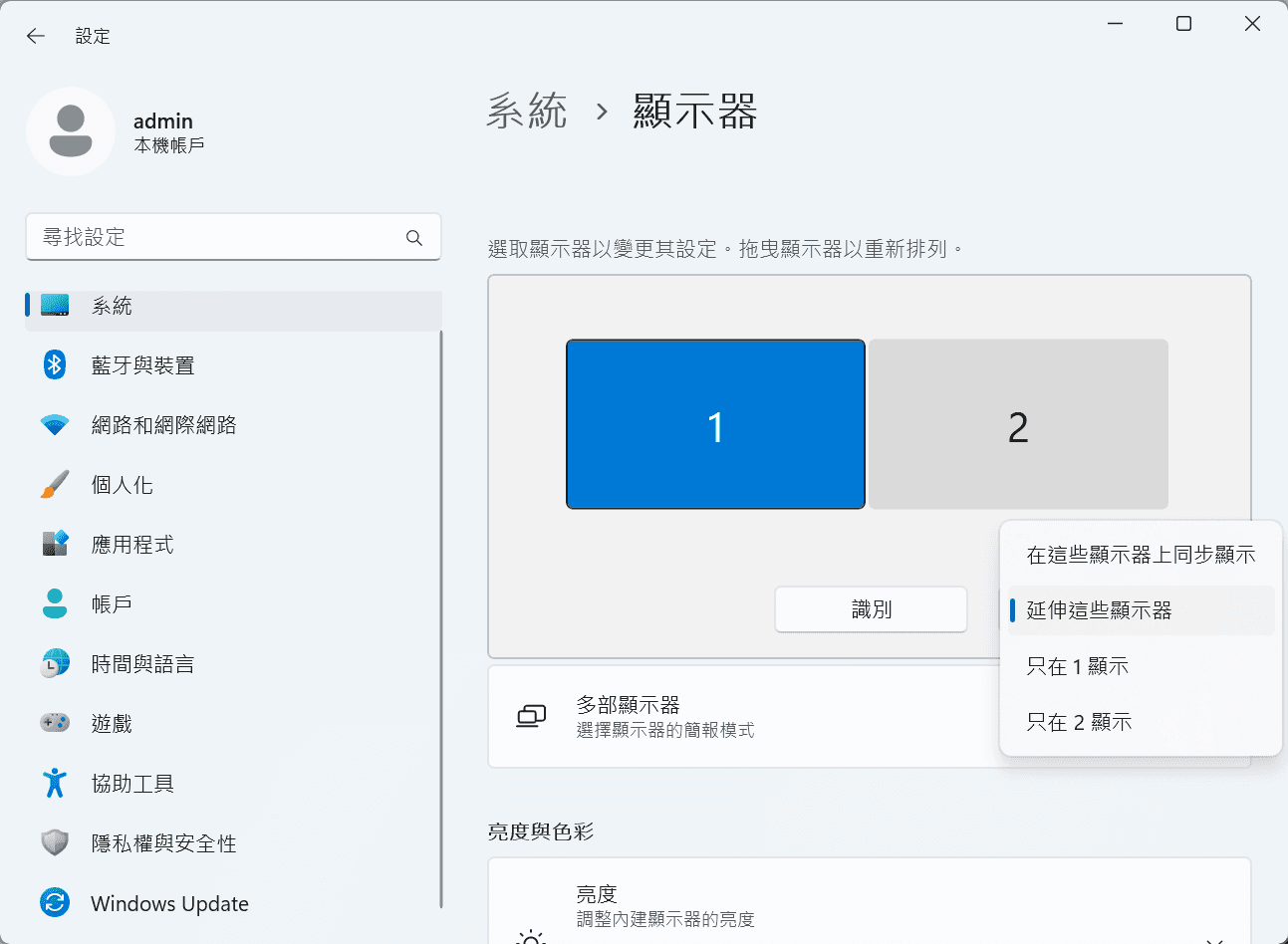
Windows:前往系統設定>>顯示器設定,將螢幕選項設定為「延伸這些顯示器」,你還可以根據您的使用習慣,透過拖拽修改1、2兩塊螢幕的左右順序。
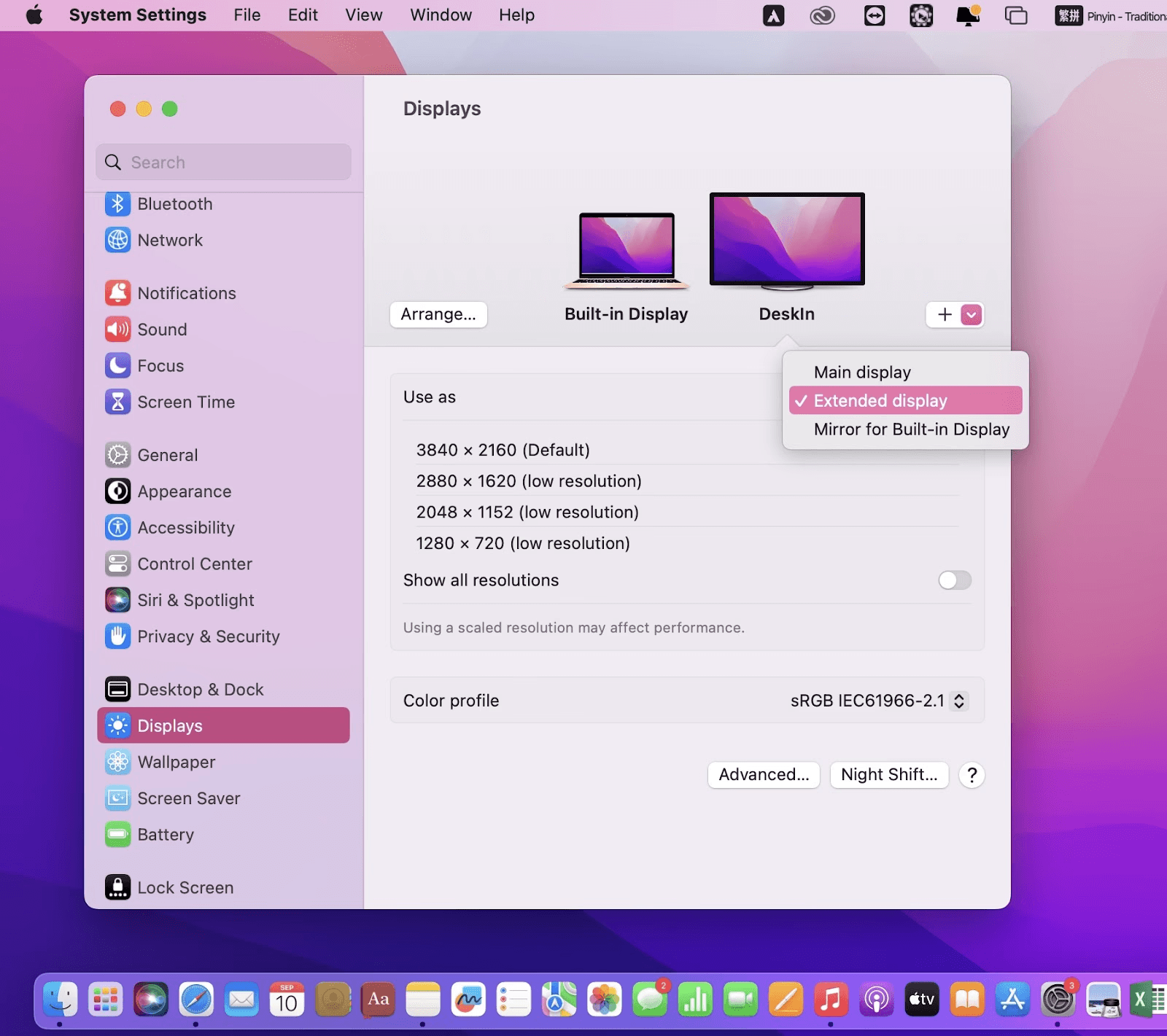
MacOS:進入系統設置 >> 顯示設置,選擇 DeskIn 螢幕,並將螢幕選項改為"擴展顯示"。您也可以點擊"排列…"來調整兩個螢幕的位置。
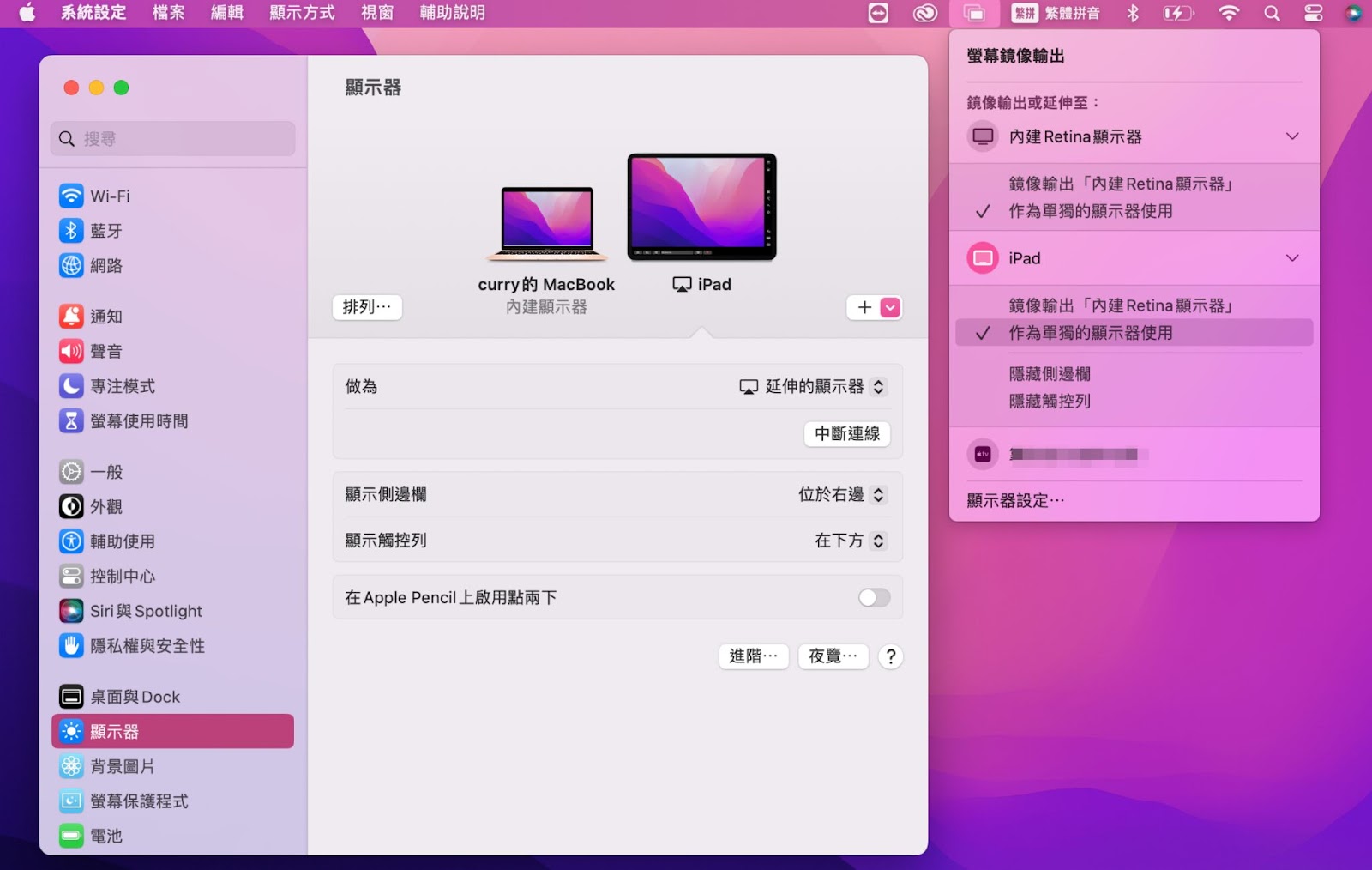
蘋果本身自帶的Apple sidecar,「並行」功能支援將iPad用作Mac電腦的外部延伸顯示器。
步驟一:打開mac系統設定,點選側邊欄的「顯示器」進入設定,點擊「+」號,選中您的iPad。

步驟二:選中iPad,選擇它做爲「延伸的顯示器」,並檢查mac頂部工具列的Airplay設定,將iPad的選項設定為「作爲單獨的顯示器使用」即可。iPad的側邊欄還有一些快捷按鍵可以使用,你也可以在mac上設定這個側邊欄的位置或是直接將其隱藏
❗局限性:
兩台裝置已經登入同一個Apple ID,或在同一網絡下。
兩台裝置都已經開啓藍牙、Wi-Fi和「sidecar」功能,而且距離不能超過10公尺(大約10米)。
只適用2016年之後推出的mac和iPadOS13以上版本使用,其他蘋果裝置和Windows都無法用。
📖相關文章推薦:
Duet Display 是一款付費應用,可以將 iPad 延伸螢幕 Windows 或 Mac,實現 iPad 雙螢幕 的工作體驗。它支援 有線 USB 連接(低延遲、高畫質)以及 無線 Wi-Fi 連接(需 Duet Air / Pro 訂閱),讓你把 iPad 當外接螢幕 使用,提升多任務辦公效率。
在 iPad App Store 下載 Duet Display,並在電腦端安裝對應軟體(支援 Windows / Mac)。開啟這兩個裝置的Duet Display。
使用 USB 或 Wi-Fi 連接 iPad 與電腦,開啟兩端應用程式,系統會自動偵測。
Windows:右鍵桌面 →「顯示設定」→選「延伸這些顯示器」。 Mac:系統偏好設定 → 顯示器 → 排列 iPad 作為第二螢幕。

完成後,你就可以把 iPad 當螢幕 或 iPad 當第二螢幕 使用,輕鬆實現螢幕延伸,提高工作效率。
📖相關文章推薦:
可以,iPad 透過 Apple Sidecar 功能或第三方工具(如 DeskIn)即可延伸成電腦的副螢幕。這樣能提升多工效率,例如同時瀏覽文件與視訊,或將軟體工具面板移到 iPad,讓主螢幕更專注於主要工作。
可以,iPad 不僅能當副螢幕,還支援 Split View 與 Slide Over 多工顯示模式。使用這些功能時,能同時在 iPad 螢幕上開啟兩個 App 或浮動視窗,達到雙螢幕效果,讓工作與娛樂的效率更高。
DeskIn 透過遠端連線,能將電腦畫面延伸到 iPad 或其他裝置,模擬成第二螢幕。安裝 DeskIn 並登入帳號後,選擇擴展模式即可使用,操作簡單且跨平台支援,適合需要高效多螢幕作業的使用者。
DeskIn 是一款跨平台遠端桌面軟體,支援 Windows、macOS、iOS、Android 及 Web。它提供高畫質低延遲連線,能遠端操控電腦、檔案存取與螢幕擴展,適合遠距辦公、線上教學、設計與多工場景。DeskIn提供了不同的付費方案,滿足不同專業化場景的使用需求。
本文介紹了如何把iPad變成Mac和Windows電腦的“第二螢幕”,以提升辦公效率,這對於需要同時處理多項任務,或是使用多視窗辦公的人來説非常有用。您可以將工作分配到多個螢幕上,從而減少混亂並提高效率。最推薦使用遠端生產力工具DeskIn遠端桌面軟體要進行iPad螢幕延伸,因爲它簡單易用,而且支援將iPad變成Mac和Windows電腦的擴充螢幕,能照顧到更多的日常使用情境,立即下載DeskIn!
《新楓之谷:經典版》沒有 Mac 版,如何在 MacBook 上玩新楓之谷經典版?
《新楓之谷:經典版》從 2026 年 7 月 29 日開服以來,巴哈姆特楓之谷板幾乎天天都有新的職業攻略、練功地圖分享,回鍋玩家熱度很高。但跟過往的新楓之谷一樣,官方沒有支援 Mac 版本,一直困擾 Mac 玩家的問題又來了——「到底要怎麼在 Mac 上玩楓之谷經典版?」
目前官方尚未推出《新楓之谷:經典版》原生 macOS 版本,也沒有相關計畫釋出,所以你無法像 Windows 玩家一樣直接下載主程式遊玩。
要實現在 MacBook Air、MacBook Pro 或 iMac 裝置上玩楓之谷經典版。目前常見的有兩種解法——安裝虛擬機,或是直接用遠端桌面如 DeskIn 連線 Windows 電腦玩。兩種方式適用的人群不同,本文將詳細對比兩種方式並介紹 DeskIn 遠端桌面在 Mac 上玩新楓之谷經典版的詳細步驟,讓你不用把 MacBook 硬體吃到滿也能順暢重返楓之谷。
不少教學會建議透過 Parallels Desktop 或 VMware Fusion,在 Mac 裡面另外跑一套 Windows 系統也就是虛擬機,再到虛擬機裡安裝楓之谷經典版。這個方法確實可行,但因為虛擬機實際上是讓 Mac 同時運行 macOS 與 Windows 兩套完整系統,而不是只是「多開一個視窗」,所以對硬體效能與記憶體的要求遠比想像中高。
記憶體(RAM): 16GB 以上;想穩定遊玩、同時開著攻略或聊天視窗,32GB 以上會是比較理想的配置。8GB 會非常吃緊(macOS 分完後可能只剩不到 4GB 給 Windows,容易卡頓、閃退)
CPU / GPU 效能:虛擬機無法讓硬體 100% 直通,顯示卡需透過軟體模擬,整體效能會比原生 Windows 電腦折損約 20% 至 30%。
散熱系統:雙系統同時滿載運作,長時間遊玩容易發燙,筆電型 Mac 散熱空間有限,可能觸發降頻導致更卡。
晶片架構:M 系列(Apple Silicon)Mac 僅能安裝 Windows on ARM,楓之谷經典版為 x86,執行時需額外經過轉譯,會再疊加一層效能損耗。
安裝流程繁瑣:從註冊帳號、下載映像檔、建立虛擬機、調整硬碟容量到安裝顯示驅動工具,步驟相當多,對不熟悉電腦設定的玩家不太友善。
吃掉大量儲存與效能:虛擬機需要額外劃分幾十 GB 硬碟空間給 Windows 系統與遊戲本體,加上虛擬化本身會消耗 Mac 效能,長時間練功容易讓筆電風扇狂轉、發燙。
成本高:大虛擬機軟體僅提供短期免費試用,之後需要付費訂閱或買斷才能持續使用,對只是想偶爾懷舊一下的玩家來說,投入成本偏高。
鍵盤快捷鍵衝突:在 Mac 鍵盤上操作 Windows 遊戲,Control、Shift、Option 等系統功能鍵很容易跟遊戲內建快捷鍵打架,技能鍵設定得重新適應。
帳號登入衝突:虛擬機相當於一台「新裝置」,如果你有另一台常用的電腦在玩楓之谷經典版,在切換裝置的時候會需要頻繁進行帳號登入登出動作。
反外掛相容性:虛擬機容易被反外掛機制偵測並封鎖,導致遊戲卡在啟動畫面或無法連線。
對於沒有 Windows 電腦的人來說,如果你的 Mac 配置夠高,而且可以接受相對繁瑣的安裝流程和適用限制,虛擬機確實是個不錯的解決方案。但如果你是想在出差、出門時透過 Macbook 筆電玩《新楓之谷:經典版》或是你已經有一台可以裝《新楓之谷:經典版》的 Windows 電腦,更推薦使用 DeskIn 遠端回Windows 電腦遊玩。
這個方法適合本身已經有一台能運行官方《新楓之谷:經典版》的 Windows 電腦。DeskIn 支援 macOS 版本,能讓你的 MacBook、iMac 直接跨系統連回 Windows 電腦遊玩《新楓之谷:經典版》,由於遊戲實際上是還是在 Windows 硬體上運行,效能、相容性都不用打折扣,所以此方法對於硬體裝置幾乎沒什麼要求,只需要保證網路穩定即可。遊戲進度完全同步,不用擔心帳號登入登出問題,也省去虛擬機的安裝與維護。
步驟 1:在 Windows 電腦安裝楓之谷經典版與 DeskIn 先在一台 Windows 電腦上到官網完成楓之谷經典版的下載安裝與角色創建,接著安裝 DeskIn 桌面版並登入帳號,開啟無人值守連線設定並設定好連線密碼,方便之後直接從 Mac 連進來。
步驟 2:在 MacBook 上安裝 DeskIn 到 DeskIn 官網下載 macOS 版安裝檔,安裝完成後用同一組帳號登入,裝置列表就會出現剛剛設定好的 Windows 電腦。
步驟 3:建立遠端連線 從裝置列表點選你的 Windows 電腦、輸入連線密碼即可建立連線,直接用 Mac 的滑鼠、觸控板操作遊戲,練功、跑副本、逛楓之谷市集都跟平常在電腦前操作一樣直覺。
連線後即可依照網路狀況在調整畫質、真率、螢幕解析度等相關設定:
畫質和解析度:免費版使用者推薦先從流暢畫質 720p 和 30幀 開始,遊戲版玩家在網路較穩定時可以設定最高 4K60FPS / 2K144FPS,享受楓之谷經典版重製的高解析度像素美術
螢幕比例和縮放:如果你的 Mac 和 Windows電腦螢幕差距太大,你可以在工具列>>顯示,調整比例縮放模式為自動縮放。或調整螢幕解析度到合適比例。
鍵鼠映射:DeskIn 本身會將 Mac 的鍵盤直接映射對應到遠端 Windows 電腦,你也可以開啟“遊戲鼠標”功能,避免鍵盤被鎖。
接上遊戲手把:覺得 Mac 按鍵玩的不爽,DeskIn甚至支援在將 Mac 接上手把來控制遠端的 Windows 電腦玩《新楓之谷:經典版》。只要將你的手把連上 Mac, 在工具列找到手把映射,點擊你的手把啟用即可。
如果你想在手機、iPad 上玩《新楓之谷:經典版》,可以參考:用 DeskIn 在手機、平板上玩新楓之谷經典版的教學。
兩種方式適合的人群和場景不同,可以根據你的情況選擇合適方案:
手邊完全沒有 Windows 裝置,Mac 是唯一能用來玩遊戲的裝置
Mac 的記憶體規格、晶片效能足夠好,能承受虛擬化帶來的效能損耗與發熱
非技術小白,可以完成繁瑣的虛擬機安裝設定
不太常需要切換裝置遊玩,能接受潛在相容性風險與和反外掛偵測問題
家裡或公司已經有一台能順跑楓之谷經典版的 Windows 電腦
Mac 本身規格較入門,或是想在 MacBook 筆電遊玩
常常需要出差、外出,需要頻繁切換裝置
3C 小白,想找設定簡單,穩定的方案
不想冒著卡頓、閃退甚至無法順利啟動遊戲的風險
簡單來說,如果你的情境是「本來就有 Windows 電腦、同時想在 Mac明晚」,DeskIn 幾乎是更省事、風險更低的選擇;只有在完全沒有 Windows 電腦、且 Mac 硬體規格夠高的前提下,虛擬機才會是相對合理的備案。
設定簡單,適合小白,幾分鐘就能開玩。
不吃 Mac 本身效能,比較不會有筆電發燙、風扇狂轉的困擾。
跨平台彈性高,鍵鼠自動映射,同一組帳號,Mac、手機平板都能用,進度持續同步。
無人值守連線:設定好安全密碼,即使電腦旁邊沒人也能隨時連回遊戲
端對端加密&黑白名單設定:不用擔心惡意連線導致遊戲帳號、角色資料被其他人存取。
< 40ms 低延遲:即時線路優化,避免卡頓,閃避、連招、放技能都反饋即時。
4K 60幀 / 2K 240幀 高畫質串流:手機也能享受到接近原生電腦的清晰畫質與流暢幀率。
穩定連線:全球有200+伺服器,讓你在哪都能順暢練功、打王不中斷。
手把支援:直接接上手把遊玩,操作更順手。
目前官方僅公告 Windows PC 版本,尚未有任何關於 macOS 原生版本的公告,Mac 用戶現階段仍需透過推薦適用 DeskIn 遠端桌面連回Windows電腦玩官方版《新楓之谷:經典版》。
DeskIn 採用端對端加密與雙重驗證機制,且遠端連線本質上是「操作自己已登入的電腦」,帳號密碼並不會經過第三方伺服器存取,安全性設計上與一般遠端辦公連線相同。
技術上可以安裝,但體驗上會非常吃力。8GB 記憶體要同時分給 macOS 與 Windows 兩套系統,扣掉 macOS 本身佔用後,能分給 Windows 的記憶體通常所剩無幾,很容易出現卡頓、閃退,長時間練功的體驗會打折扣。這種情況下改用 DeskIn 遠端連線一台規格足夠的 Windows 電腦,會是更穩定的選擇,因為運算工作都在遠端電腦上完成,不會受限於 Mac 本身的記憶體大小。
實際體驗會受雙邊網路品質影響,但由於遠端連線的是原生 Windows 硬體、沒有虛擬化的效能耗損,加上 DeskIn 主打低延遲即時串流技術,在網路穩定的情況下操作流暢度通常會優於在低配虛擬機裡跑遊戲的體驗。
不會。DeskIn 連線操作的就是那台電腦、那個原本就在跑的遊戲連線,不是另外用新裝置登入,所以不會觸發楓之谷「同一帳號只能單一連線」的限制,這也是虛擬機方案很容易忽略、但用 DeskIn 完全不會遇到的問題。
DeskIn 需要連線到一台正在運作的 Windows(或其他支援平台)電腦,如果手邊沒有現成的 Windows 主機,更推薦使用虛擬機方案。
DeskIn 支援 Windows、macOS、iOS、Android 跨平台連線,Mac 用戶可以連線 Windows 電腦,反過來 Windows 電腦也能連線控制 Mac,彈性相當高。
楓之谷經典版目前雖然沒有 Mac 原生版本,但不代表 Mac 玩家就得被迫在筆電裡硬塞一套對硬體要求極高的 Windows 虛擬機,還得提心吊膽處理帳號被擠下線的問題。如果手邊已經有一台能順跑遊戲的 Windows 電腦(或另一台 Mac),透過 DeskIn 遠端桌面直接連線,不僅省去繁瑣的虛擬機設定、不用擔心 Mac 記憶體與效能不夠用,更完全避開了楓之谷單一連線登入帶來的衝突,遊戲體驗也更貼近原生 Windows 效能。想重溫 2005 年楓之谷回憶的 Mac 玩家,不妨試試看用這個方法開玩。
《新楓之谷:經典版》手機版還沒上?用 DeskIn 遠端桌面現在手機就能玩新楓之谷經典版
《新楓之谷:經典版》自 2026 年 7 月 29 日由遊戲橘子在台港澳正式開服後,掀起一波 2005 年老楓迷的回鍋潮,社群、巴哈姆特哈啦板每天都能看到職業攻略、練功路線分享文。不過官方目前還沒上線手機版,對很多無法常在電腦前的上班族、學生黨來說,最實際的問題就是「如何可以在手機玩到新楓之谷經典版?」。
目前最佳的方案就是透過 DeskIn 遠端桌面連回 PC,在 iPhone、安卓手機、甚至 iPad 平板玩官方楓之谷經典版。本文會先幫大家釐清楓之谷經典版各平台的支援現況,說明為什麼透過DeskIn 遠端桌面遠端 PC 是目前最佳的在手機玩《新楓之谷:經典版》的方式,並附上手機、平板、遊戲手把的完整設定教學,讓你在官方手遊版本正式推出前也能隨時在手機延續楓之谷進度,快人一步。
截止2026年8月13日,官方新楓之谷經典版僅支援 Windows。
Windows PC:官网可下载官方版,2026 年 7 月 29 日正式開服。
macOS:官方未推出原生 Mac 版本,Mac 玩家可透过 DeskIn 操作 Windows 電腦遊玩。
iOS / Android(手機、平板):官方未推出正式 iOS/Android 手遊。遊戲橘子在官網公告中提到目標 9 月左右推出「Mobile Companion App」,但未明確時間,也未說明 手遊版 是否支援完整電腦版功能、支援哪些機型。
在搜索關於新楓之谷手機版的資訊時,你可能會看到有聲稱的《新楓之谷:經典版》APK,但注意這些都不是官方包,下載存在一定風險,而且影響遊戲體驗,還是等遊戲橘子提供官方下載管道為主。
換句話說,在官方手遊版本上線之前,想在手機、平板來給新楓之谷經典版角色練等、解每日、逛楓之谷市集,最安全、穩定可行的方式,就是透過 DeskIn 遠端桌面,用「手機遠端連線 PC」的方式遊玩官方版楓之谷經典版。
首先,DeskIn是一個遠端桌面軟體,可以讓你安全地從iPhone、安卓手機、筆電、iPad 直接操作自己的電腦,不用另外安裝虛擬機或模擬器,基本0設定即可遊玩。楓之谷經典版還是在你的電腦運行,DeskIn 負責把畫面即時投放到手機,操作也是即時傳回電腦,遊戲進度完全同步,並且使用電腦原本的效能,沒有額外的相容性風險,也不用擔心發燙、閃退等問題。
你也不需要下載 APK,不會有病毒或者玩到盜版遊戲的風險。
除了簡單、安全,DeskIn 還提供高品質的連線和遊戲支援功能,讓你玩遊戲更順暢:
無人值守連線:設定好安全密碼,即使電腦旁邊沒人也能隨時連回遊戲
端對端加密&黑白名單設定:不用擔心惡意連線導致遊戲帳號、角色資料被其他人存取。
< 40ms 低延遲:即時線路優化,避免卡頓,閃避、連招、放技能都反饋即時。
4K 60幀 / 2K 240幀 高畫質串流:手機也能享受到接近原生電腦的清晰畫質與流暢幀率。
穩定連線:全球有200+伺服器,讓你在哪都能玩台服不用加速器,練功、打王不中斷。
自訂虛擬鍵盤:可以自訂虛擬按鍵位置、大小並幫不同角色分別保存按鍵方案,練不同角色時輕鬆切換。
手把支援:適合長時間練功,操作更順手。
內建虛擬滑鼠:可以觸控,或直接拖曳游標定位後點擊,如電腦般操作,道具欄、商城介面、任務視窗點擊梗精準。
只要電腦端保持開機、楓之谷經典版有登入,手機端透過 DeskIn 幾乎可以做到跟坐在電腦前一樣的事情,常見情境包括:
解每日任務:出門通勤、排隊等餐時,打開手機連線接續每日任務、每日獎勵、通行證進度領取。需要頻繁點擊 NPC 對話並看任務文字也沒問題。
逛自由市集:隨時登入商店撿漏低價好物,不錯過限時活動商店。
拍賣場交易:查價、上架、購買裝備道具。
練功打怪刷圖:不用死守電腦前也能隨時開啟放置練功,收集材料。
組隊副本:組隊副本的走位與技能輸出,跟隊友語音搭配操作也沒問題。
社群互動:頻道聊天、公會訊息、好友邀請,隨時用手機回覆,不錯過團隊揪團時機。
補藥水整理背包:定期回到村莊購買藥水、清理背包、切換技能配置。
地圖移動與等待過渡:坐船前往天空之城或跨越長地圖的步行時間,玩家不需操作,只需維持連線不中斷。
無需複雜設定,幾分鐘就能輕鬆開玩:
在裝好《新楓之谷:經典版》的 Windows 電腦上安裝 DeskIn 桌面版,登入,開啟無人值守並設定好連線密碼,讓電腦保持連網並關閉休眠模式。
到 App Store 或 Google Play 搜尋 DeskIn,使用與電腦同一個帳號登入,就能在裝置列表找到你的電腦。
點選電腦裝置,輸入連線密碼後就能成功連回電腦,打開並開始遊玩《新楓之谷:經典版》了。
如果你想在iPad 或 按照平板玩《新楓之谷:經典版》,請同樣參考上述步驟。
如果你想在Mac 玩《新楓之谷:經典版》,請參考:如何在Mac 玩《新楓之谷:經典版》?
建議調整為橫向畫面。如果只是逛逛商店,畫面品質優先選到 順暢/30FPS,若是解每日,練等刷圖,網路狀況允許下可以調整到高清/60FPS。如果遇到遠端玩遊戲畫面凍結卡頓,可按照教程調整。
在逛商店、點擊對話任務或操作遊戲時,你可能需要點擊滑鼠,點開工具欄切換滑鼠控制方式,可選「觸屏樣式」或「指針樣式」,找到你最順手的設定。
你可以在畫面上楓之谷經典版五大職業(劍士、法師、弓箭手、盜賊、海盜)技能配置差異很大,如果同時養多個角色,每次都要重新排列虛擬鍵盤會很麻煩。DeskIn 可以把不同角色的按鍵方案分開保存:
步驟 1:工具列選單找到「鍵盤」>>「遊戲鍵盤」選項並點擊進入。
步驟 2:新建一組鍵盤方案 點選「新建鍵盤」,依照角色需要添加「滑鼠」按鍵、「鍵盤」按鍵「方向盤」到畫面上,你也可以添加一鍵釋放技能的組合按鍵。調整大小、透明度和位置,避免遮擋重要按鈕。
步驟 3:以角色職業(例如「法師」「盜賊」)命名並保存 ,之後在不同角色練功時,在「遊戲鍵盤」介面切換鍵盤,就能直接沿用之前設定好的技能鍵位置。
在打boss或是需要長時間練功時,覺得虛擬鍵盤操作不夠精準,DeskIn 也支援外接遊戲鍵盤和遊戲手把進行遊戲,包含 Xbox、PlayStation 及部分第三方手把,設定方式如下:
步驟 1:手把與手機配對 先將手機與藍牙/有線遊戲手把完成配對。
步驟 2:在 DeskIn 連線畫面開啟手把功能 連線電腦後,手機展開工具列選單「鍵盤」>>「手把影射」,點擊你的遊戲手把啟動。
步驟 3:確認按鍵對應 手把上的方向鍵、按鈕會對應到電腦端的鍵盤或滑鼠操作,可以先進入楓之谷經典版的系統設定或練功地圖,實際測試移動、攻擊、技能按鍵是否對應正確。
不可以,《新楓之谷:經典版》暫時未上線官方手機版本手遊。若想在手機玩《新楓之谷:經典版》,可以用 DeskIn 遠端桌面連回電腦遊玩官方PC版。
目前官方只公告正在準備 Mobile Companion App,並以 9 月左右為目標,但沒有給出確切日期,也沒說明是不是完整手遊版本,實際內容與開放時間請以遊戲橘子官網公告為準。
不建議,此APK並非官方app,可能會感染惡意木馬並遭成信息洩露風險。若想在手機玩《新楓之谷:經典版》,更推薦用 DeskIn 遠端桌面連回電腦遊玩官方PC版。
不會。DeskIn 的本質是遠端操作你自己電腦上的正版遊戲畫面與輸入,並非外掛程式,是完全不同的東西——遊戲端看到的操作,就是你手動輸入的滑鼠鍵盤指令,沒有自動化練功或修改遊戲數據的行為。
DeskIn 採用低延遲的即時串流技術,在網路環境穩定的情況下,操作手感可以接近在電腦前直接玩的體驗,比起單純用手機瀏覽器或模擬器嘗試繞過限制要順暢許多。實際延遲仍會受雙邊網路品質影響,建議優先用 Wi‑Fi 連線。
一般偶爾想用手機接續進度、逛市集、收信件的玩家,免費版通常就能應付基本連線與操作需求;如果常常需要長時間掛機練功、使用遊戲手把或為不同角色連等設定虛擬鍵盤,建議升級付費版本取得更完整的遊戲相關功能與更高畫質選項。
在《新楓之谷:經典版》官方手遊版本正式亮相之前,DeskIn 提供了一個穩定、低延遲又安全的解法,讓你用手機、平板連上家中電腦,繼續練等、刷副本、逛楓之谷世界,還能依角色分開保存按鍵方案、搭配手把操作。想體驗看看的話,可以直接到電腦與手機分別安裝 DeskIn,設定好連線後馬上就能開玩。
聯絡我們
電子郵件: support@deskin.io
總部: 991D Alexandra Road #02-17, Singapore 119972
聯絡我們
電子郵件: support@deskin.io
總部: 991D Alexandra Road #02-17, Singapore 119972
聯絡我們
support@deskin.io
991D Alexandra Road #02-17, Singapore 119972


