如何把筆電變成 Windows/Mac PC 的第二塊螢幕?

如何把筆電變成 Windows/Mac PC 的第二塊螢幕?

產品教學

產品教學

·

10分鐘

DeskIn

已更新

已更新

已更新

如果你需要多工作業,電腦螢幕太小又不想多買一塊螢幕,使用筆電作為PC電腦的第二塊螢幕會是一個很不錯的方案,不僅省時省錢,還可以重複利用起你那積灰了的舊筆電。

如果你的筆電和PC電腦是相同的操作系統(如都是Windows 或 都是macOS),設定通常比較簡單也有内建的功能支援;但如果要做到跨平台(譬如將Windows筆電用作macOS的第二螢幕或將macOS筆電用作Windows PC的第二螢幕),就需要借助第三方軟體的幫助。

本文將介紹 3 種有效的方法,可以將你的筆電變成Windows/Mac電腦的第二螢幕,包括同系統的內建解決方案,以及可靠的第三方工具DeskIn,可以同時做到同系統之間的螢幕延伸以及跨平台的螢幕延伸。以下介紹的方法也實用于筆電之間或PC電腦之間,繼續閱讀看看吧!

💻立即下載DeskIn,一起學習怎麽將筆電變成電腦的第二螢幕吧!

免費下載DeskIn

📚 延伸閱讀

1. 如何跨平台把筆電作為Windows/macOS的第二螢幕

如果你需要連接不同作業系統的電腦,例如用 Windows 筆電作為 Mac 的第二螢幕,把macOS筆電用作Windows PC的第二螢幕,第三方遠端桌面軟體 DeskIn 是最可靠的解法。DeskIn是一款功能強大而又使用簡單的遠端桌面軟體,除了普通的遠端控制另一台電腦功能,也支援跨平台螢幕共享和將其他平板、筆電變成電腦的第二螢幕。

不同於僅限同系統裝置之間螢幕延伸的內建工具,DeskIn 支援 Windows、macOS、iOS 和 Android 之間跨平台的無縫連線和延伸螢幕,而且兩者無需在同一網路下。關鍵是設定超簡單!只需要簡單的3個步驟就可以把筆電變成Windows/macOS 的第二螢幕。

DeskIn支援最高 4K 解析度超低延遲(<40ms),所以就算是跨平台,也能有流暢清晰的雙螢幕使用體驗,跟有線的完全沒差。DeskIn 也使用 256 位元加密,安全性毋庸置疑。

🎼 DeskIn 優勢功能

  • 跨平台相容:輕鬆連接 Windows、macOS、iOS 和 Android 裝置,用作第二螢幕

  • 設定簡單:輕鬆3個步驟就可以完成螢幕延伸

  • 4K60幀高解析串流:工作、娛樂都清晰流暢

  • 低延遲 (<40ms):雙螢幕之間視窗切換超絲滑

  • 進階功能多場景應用:延伸螢幕、鏡像螢幕、檔案傳輸,適合辦公、遊戲、遠端支援

使用DeskIn把筆電作爲第二螢幕的方法步驟: 

步驟一:下載並安裝 DeskIn
前往 DeskIn 官方網站,在兩台筆電或電腦上分別下載對應版本並安裝。

免費下載DeskIn

步驟二:登入 DeskIn 帳號
在兩台電腦上啟動 DeskIn,注冊並登入相同帳號。

步驟三:將筆電設為第二螢幕
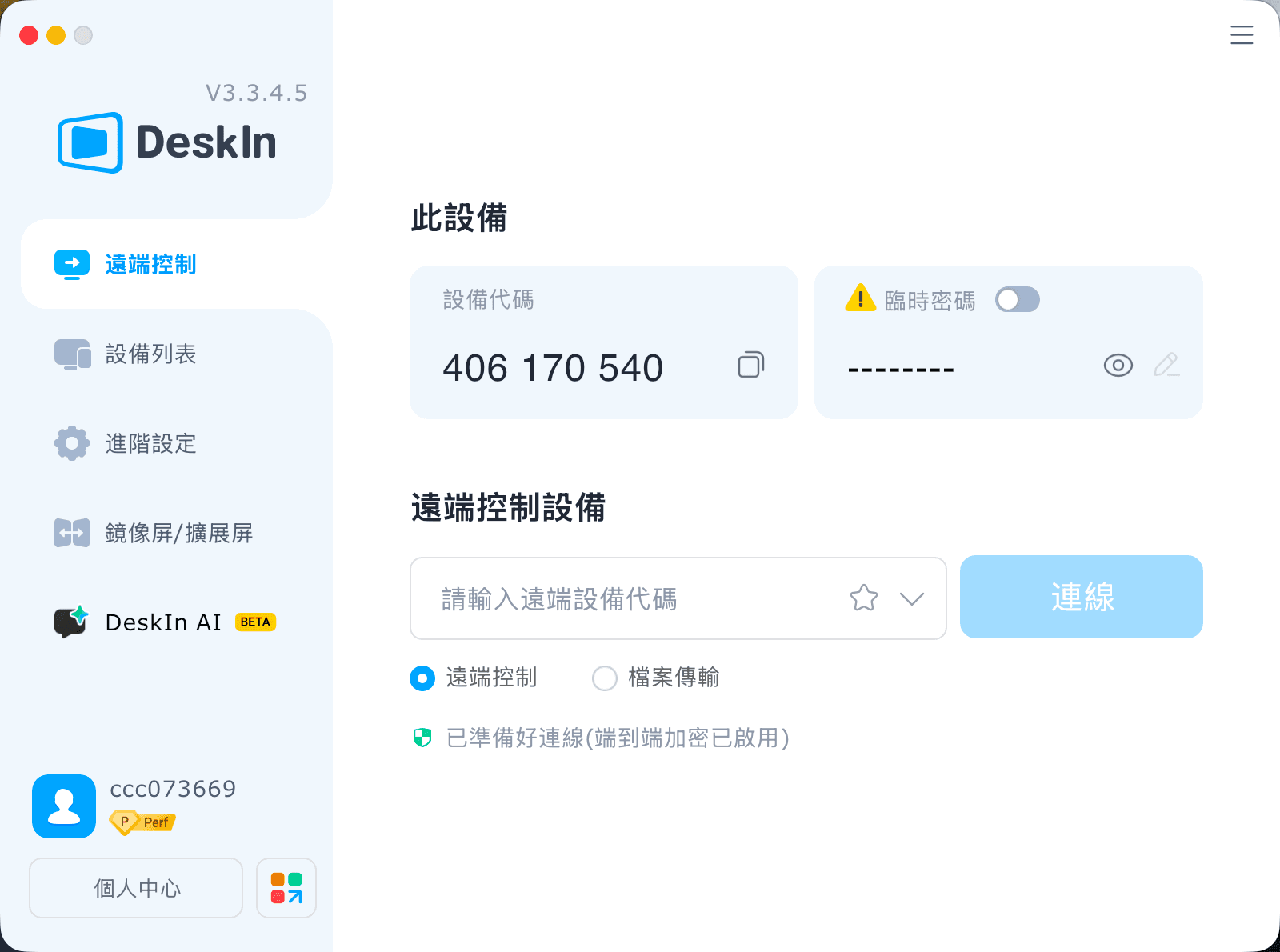
在主電腦(發送畫面的一方),進入 「Screen Mgt」 → 選擇 「Extend My Screen」 → 選擇目標筆電 → 點擊 「Start Extending」即可!

Use Laptop as Second Monitor

💻很簡單吧!立即下載DeskIn嘗試把你的筆電變成電腦的第二螢幕吧!

免費下載DeskIn

2. 把 Windows 筆電 作爲另一台 Windows電腦的第二螢幕

如果你使用的是 Windows 11(版本 22H2 或更高),也可以使用內建的 Wireless Display 功能,免費將另一台 Windows 筆電當作第二螢幕使用。設定步驟如下:

在作為接收端的筆電

  1. 打開 「設定」「系統」「投影到此電腦」

  2. 如果系統提示,點 「可選功能」「新增功能」 → 搜尋並安裝 「Wireless Display」

  3. 安裝後回到 「投影到此電腦」 頁面並開啟接收功能

在作為主機的電腦

  1. Windows + K 或進入 「設定」「顯示器」「多重顯示器」「連接到無線顯示器」

  2. 選擇目標筆電連接

  3. 連線成功後,按 Windows + P 選擇顯示模式(鏡像 / 延伸 / 只在第二螢幕顯示)

    Tweak Settings on Projecting to this PC

💻如果你覺得這個方案有點複雜,嘗試簡單方法DeskIn將Windows筆電用作Windows電腦的第二螢幕!

免費下載DeskIn

3. 將 Mac 筆電作為另一台 macOS 的第二螢幕

macOS 內建 AirPlay / Sidecar 功能,可將一台 Mac 筆電用作另一台 Mac的延伸螢幕。畫質和流暢度都非常好,適用於創意工作、簡報、擴展工作空間,只是對裝置有一些限制:

需求條件

  • 兩台 Mac 都需為 macOS Monterey 或更新版本

  • 兩台mac需要在同一網路下或登入相同 Apple ID

連接方法

  • 方法一:在主 Mac(發送畫面的一方)打開 控制中心 → 選擇 螢幕鏡像 → 點擊目標 Mac 連線

  • 方法二:進入 Apple 選單顯示器新增顯示器 → 選擇目標 Mac即可!

    Choose Displays and Add Display in Menu

💻如果你的mac不支援這個方法,嘗試用DeskIn將mac筆電用作mac電腦的第二螢幕吧!

免費下載DeskIn

常見問題(FAQs)

Q1:能用 HDMI 直接連筆電當第二螢幕嗎?
不行,大多數筆電的 HDMI 是輸出端口,並不支援輸入。

Q2:USB-C 可以嗎?
少數情況可以,大多數筆電的 USB-C 不支援視訊輸入。但可以透過第三方軟體或硬體轉接方案解決。

結論

把筆電變成Windows或Mac PC的第二螢幕是非常使用的技能,具體選擇那種方法取決於你的需求:

  • 兩台 Windows :可用內建 Wireless Display 或 DeskIn

  • 兩台 Mac :可用 AirPlay 或 DeskIn

  • 跨平台需要更高性能:DeskIn 提供高品質、低延遲的穩定串流

總結來説,DeskIn 會是把筆電用作延伸螢幕的最佳解決方案,因爲他不僅適用所有操作系統和任意方向的延伸螢幕,而且設定簡單、操作流暢,還有很多進階功能,立即下載DeskIn試試吧!

免費下載DeskIn

如果你需要多工作業,電腦螢幕太小又不想多買一塊螢幕,使用筆電作為PC電腦的第二塊螢幕會是一個很不錯的方案,不僅省時省錢,還可以重複利用起你那積灰了的舊筆電。

如果你的筆電和PC電腦是相同的操作系統(如都是Windows 或 都是macOS),設定通常比較簡單也有内建的功能支援;但如果要做到跨平台(譬如將Windows筆電用作macOS的第二螢幕或將macOS筆電用作Windows PC的第二螢幕),就需要借助第三方軟體的幫助。

本文將介紹 3 種有效的方法,可以將你的筆電變成Windows/Mac電腦的第二螢幕,包括同系統的內建解決方案,以及可靠的第三方工具DeskIn,可以同時做到同系統之間的螢幕延伸以及跨平台的螢幕延伸。以下介紹的方法也實用于筆電之間或PC電腦之間,繼續閱讀看看吧!

💻立即下載DeskIn,一起學習怎麽將筆電變成電腦的第二螢幕吧!

免費下載DeskIn

📚 延伸閱讀

1. 如何跨平台把筆電作為Windows/macOS的第二螢幕

如果你需要連接不同作業系統的電腦,例如用 Windows 筆電作為 Mac 的第二螢幕,把macOS筆電用作Windows PC的第二螢幕,第三方遠端桌面軟體 DeskIn 是最可靠的解法。DeskIn是一款功能強大而又使用簡單的遠端桌面軟體,除了普通的遠端控制另一台電腦功能,也支援跨平台螢幕共享和將其他平板、筆電變成電腦的第二螢幕。

不同於僅限同系統裝置之間螢幕延伸的內建工具,DeskIn 支援 Windows、macOS、iOS 和 Android 之間跨平台的無縫連線和延伸螢幕,而且兩者無需在同一網路下。關鍵是設定超簡單!只需要簡單的3個步驟就可以把筆電變成Windows/macOS 的第二螢幕。

DeskIn支援最高 4K 解析度超低延遲(<40ms),所以就算是跨平台,也能有流暢清晰的雙螢幕使用體驗,跟有線的完全沒差。DeskIn 也使用 256 位元加密,安全性毋庸置疑。

🎼 DeskIn 優勢功能

  • 跨平台相容:輕鬆連接 Windows、macOS、iOS 和 Android 裝置,用作第二螢幕

  • 設定簡單:輕鬆3個步驟就可以完成螢幕延伸

  • 4K60幀高解析串流:工作、娛樂都清晰流暢

  • 低延遲 (<40ms):雙螢幕之間視窗切換超絲滑

  • 進階功能多場景應用:延伸螢幕、鏡像螢幕、檔案傳輸,適合辦公、遊戲、遠端支援

使用DeskIn把筆電作爲第二螢幕的方法步驟: 

步驟一:下載並安裝 DeskIn
前往 DeskIn 官方網站,在兩台筆電或電腦上分別下載對應版本並安裝。

免費下載DeskIn

步驟二:登入 DeskIn 帳號
在兩台電腦上啟動 DeskIn,注冊並登入相同帳號。

步驟三:將筆電設為第二螢幕
在主電腦(發送畫面的一方),進入 「Screen Mgt」 → 選擇 「Extend My Screen」 → 選擇目標筆電 → 點擊 「Start Extending」即可!

Use Laptop as Second Monitor

💻很簡單吧!立即下載DeskIn嘗試把你的筆電變成電腦的第二螢幕吧!

免費下載DeskIn

2. 把 Windows 筆電 作爲另一台 Windows電腦的第二螢幕

如果你使用的是 Windows 11(版本 22H2 或更高),也可以使用內建的 Wireless Display 功能,免費將另一台 Windows 筆電當作第二螢幕使用。設定步驟如下:

在作為接收端的筆電

  1. 打開 「設定」「系統」「投影到此電腦」

  2. 如果系統提示,點 「可選功能」「新增功能」 → 搜尋並安裝 「Wireless Display」

  3. 安裝後回到 「投影到此電腦」 頁面並開啟接收功能

在作為主機的電腦

  1. Windows + K 或進入 「設定」「顯示器」「多重顯示器」「連接到無線顯示器」

  2. 選擇目標筆電連接

  3. 連線成功後,按 Windows + P 選擇顯示模式(鏡像 / 延伸 / 只在第二螢幕顯示)

    Tweak Settings on Projecting to this PC

💻如果你覺得這個方案有點複雜,嘗試簡單方法DeskIn將Windows筆電用作Windows電腦的第二螢幕!

免費下載DeskIn

3. 將 Mac 筆電作為另一台 macOS 的第二螢幕

macOS 內建 AirPlay / Sidecar 功能,可將一台 Mac 筆電用作另一台 Mac的延伸螢幕。畫質和流暢度都非常好,適用於創意工作、簡報、擴展工作空間,只是對裝置有一些限制:

需求條件

  • 兩台 Mac 都需為 macOS Monterey 或更新版本

  • 兩台mac需要在同一網路下或登入相同 Apple ID

連接方法

  • 方法一:在主 Mac(發送畫面的一方)打開 控制中心 → 選擇 螢幕鏡像 → 點擊目標 Mac 連線

  • 方法二:進入 Apple 選單顯示器新增顯示器 → 選擇目標 Mac即可!

    Choose Displays and Add Display in Menu

💻如果你的mac不支援這個方法,嘗試用DeskIn將mac筆電用作mac電腦的第二螢幕吧!

免費下載DeskIn

常見問題(FAQs)

Q1:能用 HDMI 直接連筆電當第二螢幕嗎?
不行,大多數筆電的 HDMI 是輸出端口,並不支援輸入。

Q2:USB-C 可以嗎?
少數情況可以,大多數筆電的 USB-C 不支援視訊輸入。但可以透過第三方軟體或硬體轉接方案解決。

結論

把筆電變成Windows或Mac PC的第二螢幕是非常使用的技能,具體選擇那種方法取決於你的需求:

  • 兩台 Windows :可用內建 Wireless Display 或 DeskIn

  • 兩台 Mac :可用 AirPlay 或 DeskIn

  • 跨平台需要更高性能:DeskIn 提供高品質、低延遲的穩定串流

總結來説,DeskIn 會是把筆電用作延伸螢幕的最佳解決方案,因爲他不僅適用所有操作系統和任意方向的延伸螢幕,而且設定簡單、操作流暢,還有很多進階功能,立即下載DeskIn試試吧!

免費下載DeskIn
把筆電變成 Windows/Mac PC 的第二塊螢幕:跨平台解決方案
deskin promo

What’s next?

Controlling a Windows PC from a Mac using Chrome Remote Desktop

Control Windows from Your Mac with Chrome Remote Desktop: Setup Guide & Pitfalls | DeskIn Japan

Introduction: Getting Past the Mac–Windows Divide

For Mac users working in Japan, there's a recurring frustration: a piece of software you need exists only on Windows. Whether it's CAD tools, Japanese accounting software (kaikei sofuto, 会計ソフト) required by your company, Windows-exclusive business systems, or PC games — the need to run Windows doesn't go away just because you prefer Mac.

The good news is you don't need to buy a separate Windows machine. Google's free tool Chrome Remote Desktop lets you control a Windows PC remotely from your Mac, and the setup is simpler than most people expect.

This guide walks through the fastest path to getting connected, and then covers the cross-platform quirks that tend to catch Mac users off guard once they're actually in a session.

Setup: Connecting Your Mac to a Windows PC

Chrome Remote Desktop's configuration is straightforward, but it requires preparation on both machines — the Windows PC being controlled (the host) and the Mac doing the controlling (the client). Here's the fastest path to a working connection.

On the Windows PC (Host)

Start by allowing remote access on the Windows machine.

  1. Install the extension and host software
    Open Chrome and go to the Chrome Remote Desktop access page. Under "Set up remote access," click the blue download icon. Follow the prompts to add the Chrome extension and run the installer (.msi file).


  1. Name your PC and set a PIN
    After installation, give the PC a name you'll recognise. Then set a PIN of at least six digits — you'll need to enter this every time you connect from your Mac, so write it somewhere safe.


3. Important: Disable Sleep Mode
This is the step most people miss, and it will prevent connections entirely if skipped. A Windows PC in sleep mode cannot be reached remotely.

  • Go to Settings → System → Power & Battery

  • Under "Screen and Sleep," set "Put device to sleep after" to Never when plugged in


On the Mac (Client)

Once the Windows side is configured, connecting from your Mac is simple.

  1. Log in to the access site
    Open Chrome on your Mac and navigate to the same Chrome Remote Desktop access page. Make sure you're logged into the same Google account you used when setting up the Windows PC.


  1. Select your PC and authenticate
    Your Windows PC will appear under "Remote devices." Click it and enter your PIN — the Windows desktop will open inside your Chrome browser.


3. Connection complete
You can now control Windows using your Mac's keyboard and mouse.

Tip: For quicker access in the future, use Chrome's "Install as app" option to add Chrome Remote Desktop to your Mac's Dock — saves a few clicks every time.

H2: Cross-Platform Pitfalls: What Mac Users Run Into

Chrome Remote Desktop is easy to set up, but once you're inside a session, the Mac–Windows gap creates friction points that directly affect how much work you can actually get done. These are worth understanding before you depend on CRD for anything important.

H3: Keyboard Mapping Conflicts

The biggest source of frustration for Mac users is the modifier key difference.

  • Command key vs Control key: On Mac, you copy with Command + C. On Windows, it's Control + C.. In a remote session, Mac's Command key is sometimes interpreted as the Windows key rather than Control — meaning the shortcuts your hands have memorised simply don't work as expected.

  • The Command + Q problem: This one catches people regularly. If you're working in a Windows application and instinctively press Command + Q  to close it, you don't close the Windows app — you close Chrome on your Mac, ending the remote session entirely. It happens more than once before you break the habit.

Power Management: No Wake on LAN Support

This is a significant operational limitation, and worth understanding before you depend on CRD for regular remote access.

  • Wake on LAN (WoL) not supported: Chrome Remote Desktop cannot remotely power on or wake up a PC that is off or sleeping. To maintain reliable remote access, the Windows PC must be left powered on continuously.

  • Always-on requirement: For people living in Japan, where electricity costs are relatively high and there's a cultural awareness around energy waste (mottainai, もったいない — the Japanese concept of waste-aversion that runs through everyday life), leaving a PC running overnight when it doesn't need to be is a friction point both practically and psychologically.

No more struggling with key input or power management. Stop here and try DeskIn — built for Mac users. [Install DeskIn for free]

Trackpad and Mouse Feel

The smooth, precise feel that makes Mac trackpads enjoyable doesn't carry through to a remote Windows session cleanly.

  • Lost gestures: Mac-specific gestures — three-finger swipes to switch desktops, pinch-to-zoom — don't transmit to Windows correctly and either do nothing or trigger the wrong action.

  • Unnatural scrolling: Mac's inertial scrolling feels choppy in the remote environment. Right-click response has a slight lag. These are small things individually, but they add up over a full work session.

Performance and Latency

As a browser-based tool, Chrome Remote Desktop is constrained by what it can push through a browser window.

  • Frame rate cap: Chrome Remote Desktop typically runs at around 30FPS. For standard document editing this is fine, but anything with fast on-screen movement shows obvious lag and ghosting.

  • Not suited for demanding tasks: Video editing, FPS games, or any application requiring sub-second responsiveness — the latency is too significant to be practical.

Who Should Use Chrome Remote Desktop?

Based on everything above, here's an honest assessment of where CRD works well and where it doesn't. Use this as a checklist before you decide.

✓ Recommended — CRD is a good fit for:

  • Quick file checks: Accessing a document on your home PC from the office or a café

  • Occasional admin tasks: Restarting a server, running a quick software update

  • Light office work: Simple browser-based data entry, sending emails — tasks where speed isn't critical

  • Zero-cost access: When "free and connected" is the overriding priority over performance

✗ Not recommended — CRD is a poor fit for:

  • Daily remote work: Working remotely for several hours at a stretch. Keyboard friction and choppy performance become a real source of stress.

  • Creative work: Video editing, graphic design, CAD. Accurate mouse movement, colour fidelity, and smooth rendering are all compromised.

  • Latency-sensitive tasks (gaming etc.): Any application where split-second responsiveness matters.

  • Professionals who need native performance: Not "can I connect" — but "does it feel like my own machine?"

In short: Chrome Remote Desktop is best treated as an emergency backup tool, not a primary workflow. If any of the "not recommended" scenarios describe your situation, a more capable tool is worth exploring.

When You're Ready to Go Further: DeskIn

There's a gap between "it connects" and "it feels like my own machine." If you've spent time with Chrome Remote Desktop and found yourself in that gap — frustrated by keyboard confusion, the always-on power requirement, or choppy performance — DeskIn is the purpose-built solution for exactly those problems.

Smart Key Mapping: Command/Control Auto-Mapping for Mac

One of DeskIn's standout features is its intelligent key mapping that bridges the OS divide automatically.

The Command/Control confusion that CRD leaves unresolved — and the "Command + Q closes Chrome" problem that ends remote sessions unexpectedly — are both solved. Your Mac keyboard layout works as expected in Windows, without workarounds. You can type at full speed without stopping to think about which key does what.

Wake on LAN — Start Your PC Only When You Need It

"I want to connect from outside, but I don't want to leave my PC running all day..." — DeskIn solves this.

With Wake on LAN (WoL) support, you can remotely power on a Windows PC from your Mac — even if it's shut down or sleeping. Start it when you need it, work, then let it sleep again. Less electricity, less wear on hardware, and a smarter way to work.

4K/60FPS Performance: The "Local Machine" Feel

DeskIn streams at 4K resolution and up to 60FPS — far beyond what CRD's browser-based approach can achieve.

Whether you're doing fine-detail design work, editing video, or playing a game, the response feels close to native. The lag that makes CRD frustrating for demanding tasks effectively disappears.


iPad and Mobile: Fully Connected on the Go

DeskIn's performance advantage extends beyond Mac to mobile — connecting from an iPad or smartphone delivers the same quality experience.

Use your iPad as an extended display for Windows, or connect a mouse and keyboard for a complete remote work setup. Gesture support is optimised for touch in a way that CRD's mobile app isn't. If you move between Mac and iPad regularly, DeskIn handles both well.

Performance Comparison: Chrome Remote Desktop vs DeskIn

Feature

Chrome Remote Desktop

DeskIn

Primary use case

Occasional access / emergency use

Business, creative work, gaming

Display quality

Up to 30FPS (choppy)

4K / 60–144FPS (extremely smooth)

Keyboard mapping

Basic — Command/Ctrl conflicts

Auto-optimised for Mac/Windows (no conflicts)

Wake on LAN

Not supported — PC must stay on

Supported — start PC remotely

Input feel

Noticeable lag, gesture loss

Low latency, Mac-native feel

Cost

Free

Free tier available / Pro version

Summary

Chrome Remote Desktop earns its place as an entry-level tool. Its ease of use and zero cost make it a great starting point for quick file access, occasional light tasks, and situations where budget is the overriding factor.

But if you're using a remote desktop regularly — for work, creative projects, or gaming — the accumulated frustrations of keyboard conflicts, always-on power requirements, and performance caps start to outweigh the convenience of free.

When that point arrives, DeskIn is the obvious next step: a tool designed from the ground up for people who need remote access to actually feel like working locally. Whether you're at your apartment, in a café in Kichioji, or somewhere further afield — your Windows machine should feel like it's right in front of you.

Experience professional-grade performance now — [Download DeskIn free and try it]

DeskIn or Chrome Remote Desktop Fits Your Workflow Best

DeskIn vs Chrome Remote Desktop: Which One Fits Your Workflow Best?

When it comes to remote access tools, the comparison between DeskIn and Chrome Remote Desktop often comes down to one simple question: do you just need quick access, or do you need performance and control?

Both tools are reliable, secure, and widely used. But they are built for very different types of users. Chrome Remote Desktop focuses on simplicity and accessibility, while DeskIn is designed for users who need high performance, stability, and advanced features across multiple devices.

If you're deciding between the two, this guide breaks down not just what they offer, but which one actually fits your workflow.


Quick Comparison: DeskIn vs Chrome Remote Desktop

Feature

DeskIn

Chrome Remote Desktop

Performance

Up to 4K 60FPS/2K 240FPS, low latency

Standard performance

Ease of Use

Requires app installation

Browser-based, very simple

Device Support

Windows, macOS, iOS, Android

Works via Chrome browser

File Transfer

Fast and stable

Limited

Multi-device Management

Yes

No

Mobile Experience

Optimized for iPad & iPhone

Basic

Security

Privacy screens and granular black/whitelists

Basic

Price

Free + paid plans

Completely free

In short, Chrome Remote Desktop is great for quick, lightweight access, while DeskIn is built for users who expect more from their remote desktop experience.

Free download DeskIn

Chrome Remote Desktop Overview

Chrome Remote Desktop

Chrome Remote Desktop is one of the simplest remote access tools available. It runs directly through the Chrome browser and requires only a Google account to get started. This makes it especially popular among casual users and those already working within the Google ecosystem.

It works particularly well on devices like Chromebooks, where everything is already browser-based. It's also accessible across platforms, including mobile devices like iPhone and iPad, though the experience on mobile can feel limited compared to desktop use.

If you're wondering how to use Chrome Remote Desktop, the process is straightforward. You install the Chrome extension, sign in with your Google account, set up a PIN on the host device, and then connect from another device using the same account. The entire setup usually takes just a few minutes.

That said, simplicity comes with trade-offs. Chrome Remote Desktop lacks advanced features like high frame rate streaming, multi-monitor control, or professional-grade file transfer. For occasional access, it works well. But for more demanding tasks, users often start to feel its limitations.

👀You may also be interested in:


DeskIn Overview: A More Powerful Chrome Remote Desktop Alternative

DeskIn Remote Desktop

If Chrome Remote Desktop is a lightweight sketch, DeskIn is a full workstation painted in high resolution. DeskIn focuses on performance, stability, and flexibility. It supports up to 4K 60FPS streaming, making it suitable for tasks where visual clarity and responsiveness matter, such as design work, video editing, or even gaming.

As a Chrome remote desktop alternative, unlike browser-based tools, DeskIn is a dedicated remote desktop application. While this requires installation, it unlocks a much more stable and feature-rich experience. Users can manage multiple devices, transfer large files efficiently, and enjoy smoother control across different platforms.

DeskIn is also optimized for mobile workflows. Whether you're using an iPad or smartphone, the interaction feels more responsive and closer to a desktop experience, rather than a simplified viewer. For users who find Chrome Remote Desktop "good enough" at first but limiting over time, DeskIn often becomes the natural upgrade path.


DeskIn vs Chrome Remote Desktop: Real Use Cases

The real difference between these two tools becomes clear when you look at how they perform in everyday scenarios.

1. For Casual Remote Access

If you only need to check files on your home computer or help a friend troubleshoot something quickly, Chrome Remote Desktop is more than enough. It's free, easy to set up, and doesn't require installing extra software beyond Chrome. In this case, DeskIn may feel like overkill.

2. For Remote Work and Productivity

For professionals working remotely on a daily basis, stability and efficiency matter much more. This is where DeskIn starts to stand out.

Tasks like editing documents, managing multiple screens, or transferring files between devices become smoother and faster. Chrome Remote Desktop can handle basic workflows, but it often struggles with responsiveness and lacks the tools needed for a seamless work environment.

3. For High-Performance Tasks (Design, Editing, Gaming)

This is where the gap becomes impossible to ignore. DeskIn's support for high resolution and high frame rates makes it suitable for visually demanding work. Whether you're editing videos, working with design software, or running simulations, performance consistency is critical. Chrome Remote Desktop, on the other hand, is not designed for these scenarios. It works, but not comfortably.

4. For Chromebook and Google Ecosystem Users

If you rely heavily on Google services or use a Chromebook, Chrome Remote Desktop integrates naturally into your workflow. It's lightweight, requires no additional setup, and feels like an extension of the browser itself. In this scenario, it remains a very practical choice.

5. For iPad and iPhone Remote Access

Mobile usage highlights another important difference. While remote desktop Chrome iPhone, and Chrome Remote Desktop iPad are functional, they often feel like simplified versions of the desktop experience. Controls can be less intuitive, and performance may vary depending on the connection.

DeskIn, by contrast, is designed with cross-device interaction in mind, offering a smoother and more responsive mobile experience.

👀 You may also be interested in:


FAQs About Chrome Remote Desktop and DeskIn

1. Is there anything better than Chrome Remote Desktop?

Yes. Tools like DeskIn offer better performance, more features, and improved stability, especially for professional use cases.

2. Is Chrome Remote Desktop discontinued?

No, Chrome Remote Desktop is still actively maintained by Google. It continues to receive security updates and remains available for users needing simple, free remote access.

3. Is DeskIn Remote Desktop legit?

Yes, DeskIn is a legitimate remote desktop solution. It uses encryption to secure connections and provides access controls, making it safe for both personal and professional use.

4. Final Verdict: Which One Should You Choose?

When comparing DeskIn vs Chrome Remote Desktop, the choice depends on how demanding your remote access needs are. Chrome Remote Desktop is simple, free, and ideal for occasional use, especially if you just need quick access to a device without extra setup.


As your workflow becomes more intensive, the limitations start to surface. DeskIn offers a smoother, more stable experience with better performance and control, making it a strong long-term Chrome remote desktop alternative for users who rely on remote access every day.

Free download DeskIn
editors using remote desktop for video editing

8 Best Remote Desktops for Video Editing in 2026

Remote video editing is no longer a compromise; it's a workflow upgrade. Whether you're working in Adobe Premiere Pro, After Effects, or DaVinci Resolve, the right remote desktop can turn your laptop into a high-performance editing station.

But not all tools are built for remote video editing collaboration. Lag, poor color accuracy, and unstable connections can ruin productivity. In this guide, we'll break down the best remote desktop for video editing tools so that you can edit smoothly from anywhere.


Why You Need a Remote Desktop for Video Editing

Modern creators are no longer tied to a single workstation. With remote work software, you can access your powerful desktop from anywhere without investing in an expensive laptop. For many editors, especially freelancers and small teams, this solves a real problem: you already have a high-performance PC, but mobility is limited. Instead of duplicating hardware, video editing remote desktop tools let you stream your workflow in real time.

Another key benefit is remote collaboration. Teams can work on the same project across different locations, review edits instantly, and avoid large file transfers via remote collaboration tools. However, this only works if your remote desktop software supports high frame rates, low latency, and stable connections. Otherwise, editing becomes frustrating.

Free download DeskIn

Quick Comparison of Best Remote Desktops for Video Editing

Here's a quick overview of the best tools and who they're for:

  1. DeskIn – Best overall for performance + affordability + multi-device workflows

  2. Parsec – Best for ultra-low latency editing

  3. Splashtop – Best for high-resolution streaming

  4. HP Anyware – Best for enterprise-level workflows

  5. Jump Desktop – Best for Mac users

  6. AnyDesk – Best lightweight remote access

  7. Chrome Remote Desktop – Best free basic option

  8. RustDesk – Best open-source alternative


1. The Best Overall Remote Desktop for Video Editing: DeskIn

Pros

  • Up to 4K 60FPS / 2K 240FPS performance

  • Ultra-low latency for smooth editing timelines

  • Multi-device support (PC, Mac, iPad, Android)

  • Affordable pricing with free plan available

Cons

  • Smaller brand awareness compared to legacy tools

DeskIn remote video editing workflow interface

DeskIn stands out as the best remote desktop for video editing by balancing performance, stability, and accessibility. Unlike many traditional remote support tools, it is designed for high-frame-rate tasks, making timeline scrubbing, preview playback, and effects editing feel responsive and fluid.

For creators working across devices, DeskIn enables seamless remote video editing collaboration. You can access your main editing PC from a laptop, tablet, or even a secondary workstation without noticeable lag. Compared to tools like Chrome Remote Desktop, which struggle with video-heavy workloads, DeskIn maintains consistent quality and responsiveness—making it a practical choice for both solo editors and distributed teams.

Free download DeskIn

2. Best for Low-Latency Editing: Parsec

Pros

  • Extremely low latency

  • High frame rate streaming

  • Popular among creative professionals

Cons

  • Limited collaboration features

  • Setup can be complex for beginners

Parsec remote desktop for video editing

Parsec is widely recognized as a top choice for remote video editing, especially when latency is your biggest concern. Its streaming technology is optimized for real-time responsiveness, which makes it ideal for tasks like timeline scrubbing and motion graphics work in After Effects.

However, while Parsec excels in performance, it lacks some features needed for full remote video editing collaboration. Multi-user workflows and advanced access control are not as robust as some newer tools. For users who need both performance and flexibility, alternatives like DeskIn may provide a more balanced solution.


3. Splashtop – Best for High-Resolution Streaming

Pros

  • Supports 4K streaming

  • Strong color accuracy

  • Reliable for creative tasks

Cons

  • Higher cost for advanced features

  • Can experience latency over long distances

Splashtop remote video editing interface

Splashtop is a solid option for editors who prioritize visual fidelity. Its support for high-resolution streaming and 4:4:4 color makes it suitable for color grading and detailed editing work.

That said, performance consistency can vary depending on network conditions. Some users report lag when working outside local networks. Compared to more optimized remote work software like DeskIn, Splashtop may require a stronger connection to maintain the same level of smoothness.


4. Best for Enterprise Workflows: HP Anyware

Pros

  • Industry-grade performance

  • Secure and scalable

  • Used in professional studios

Cons

  • Expensive

  • Complex setup

HP Anyware remote editing workflow

HP Anyware (formerly Teradici) is designed for high-end production environments. It uses advanced protocols to deliver excellent performance and security, making it a common choice in the media and entertainment industries.

However, for small teams or individual creators, it may be overkill. The cost and setup complexity make it less accessible compared to modern remote desktops for video editing tools that offer similar performance with easier deployment. The high cost and technical complexity create barriers that modern remote desktop solutions have eliminated, like DeskIn, offering comparable performance with far simpler deployment.


5. Best for Mac Users: Jump Desktop

Pros

  • Great macOS integration

  • Smooth performance

  • Easy to use

Cons

  • Limited advanced features

  • Not ideal for heavy collaboration

ump Desktop remote editing on Mac

Jump Desktop has earned a loyal following among Mac users seeking a straightforward, efficient remote desktop for video editing. Its Fluid Remote Desktop protocol provides smooth, responsive performance for most editing tasks without unnecessary complexity.

Where it falls short is in collaboration. Jump Desktop is built for individual use, lacking the team-oriented features that creative groups need. For solo professionals, it works well, but teams will quickly miss real-time collaboration tools found on other platforms.


6. Best Lightweight Option: AnyDesk

Pros

  • Fast and lightweight

  • Easy to set up

  • Works on multiple devices

Cons

  • Limited performance for video editing

  • Lower visual quality

AnyDesk remote desktop interface

AnyDesk has built its reputation on lightweight design and remarkable ease of use for general remote access. It handles everyday tasks competently, connecting quickly and running smoothly on modest hardware.

The limitations become apparent with demanding creative work. Remote video editing requires consistent frame rates and crystal-clear visuals—areas where AnyDesk struggles. For professional editors who need precision, the performance gap becomes impossible to ignore.


7. Chrome Remote Desktop – Best Free Option

Pros

  • Completely free

  • Easy browser-based setup

  • Works on any device

Cons

  • Poor performance for editing

  • Limited features

Chrome Remote Desktop video editing

Chrome Remote Desktop is one of the most accessible remote support tools, offering a simple way to access your computer from anywhere. It's free, requires almost no setup, and lets you access your computer from anywhere with just a browser. For basic technical support or quick file grabs, it gets the job done.

However, it is not built for remote video editing. Users often experience lag, compression artifacts, and low frame rates. If you're working on professional projects, upgrading to a more capable solution is highly recommended.


8. RustDesk – Best Open-Source Alternative

Pros

  • Open-source

  • Self-hosting available

  • Free to use

Cons

  • Requires technical setup

  • Performance can vary

RustDesk remote desktop editing

RustDesk appeals to users who prioritize open-source philosophy and want complete control over their remote access infrastructure. The flexibility to self-host and customize is genuinely valuable for privacy-conscious users. RustDesk is an interesting option for users who prefer open-source remote desktop not working alternatives or want full control over their infrastructure.

Performance, however, depends entirely on your configuration skills. Without technical expertise, achieving the smooth, low-latency experience required for professional editing is challenging. It's powerful for those who know how to tune it, but not plug-and-play.


FAQs About the Best Remote Desktop for Video Editing

Q1. Can video editing be done remotely?

Yes, with the right remote desktop for video editing, you can edit videos smoothly from anywhere. Tools like DeskIn and Parsec provide low latency and high frame rates for professional workflows.


Q2. What is the best free remote desktop for video editing?

Free options like Chrome Remote Desktop exist, but they lack performance. DeskIn offers a free plan with better performance, making it a stronger choice for real editing work.


Q3. Is Parsec good for video editing?

Yes, Parsec is excellent for low-latency editing. However, it may lack collaboration features needed for team workflows.


Q4. Why is my remote desktop not working smoothly?

Common issues include poor network connection, low bandwidth, or software limitations. Choosing optimized remote work software like DeskIn can significantly improve performance.


Conclusion

Choosing the best remote desktop for video editing depends on your workflow, budget, and performance needs. While tools like Parsec and Splashtop excel in specific areas, many solutions struggle to balance performance, stability, and usability.

If you're looking for a well-rounded solution, DeskIn offers a strong combination of high performance, smooth streaming, and cross-device flexibility. Whether you're working solo or collaborating remotely, it provides a reliable foundation for modern remote video editing workflows.

Free download DeskIn
Controlling a Windows PC from a Mac using Chrome Remote Desktop

Control Windows from Your Mac with Chrome Remote Desktop: Setup Guide & Pitfalls | DeskIn Japan

Introduction: Getting Past the Mac–Windows Divide

For Mac users working in Japan, there's a recurring frustration: a piece of software you need exists only on Windows. Whether it's CAD tools, Japanese accounting software (kaikei sofuto, 会計ソフト) required by your company, Windows-exclusive business systems, or PC games — the need to run Windows doesn't go away just because you prefer Mac.

The good news is you don't need to buy a separate Windows machine. Google's free tool Chrome Remote Desktop lets you control a Windows PC remotely from your Mac, and the setup is simpler than most people expect.

This guide walks through the fastest path to getting connected, and then covers the cross-platform quirks that tend to catch Mac users off guard once they're actually in a session.

Setup: Connecting Your Mac to a Windows PC

Chrome Remote Desktop's configuration is straightforward, but it requires preparation on both machines — the Windows PC being controlled (the host) and the Mac doing the controlling (the client). Here's the fastest path to a working connection.

On the Windows PC (Host)

Start by allowing remote access on the Windows machine.

  1. Install the extension and host software
    Open Chrome and go to the Chrome Remote Desktop access page. Under "Set up remote access," click the blue download icon. Follow the prompts to add the Chrome extension and run the installer (.msi file).


  1. Name your PC and set a PIN
    After installation, give the PC a name you'll recognise. Then set a PIN of at least six digits — you'll need to enter this every time you connect from your Mac, so write it somewhere safe.


3. Important: Disable Sleep Mode
This is the step most people miss, and it will prevent connections entirely if skipped. A Windows PC in sleep mode cannot be reached remotely.

  • Go to Settings → System → Power & Battery

  • Under "Screen and Sleep," set "Put device to sleep after" to Never when plugged in


On the Mac (Client)

Once the Windows side is configured, connecting from your Mac is simple.

  1. Log in to the access site
    Open Chrome on your Mac and navigate to the same Chrome Remote Desktop access page. Make sure you're logged into the same Google account you used when setting up the Windows PC.


  1. Select your PC and authenticate
    Your Windows PC will appear under "Remote devices." Click it and enter your PIN — the Windows desktop will open inside your Chrome browser.


3. Connection complete
You can now control Windows using your Mac's keyboard and mouse.

Tip: For quicker access in the future, use Chrome's "Install as app" option to add Chrome Remote Desktop to your Mac's Dock — saves a few clicks every time.

H2: Cross-Platform Pitfalls: What Mac Users Run Into

Chrome Remote Desktop is easy to set up, but once you're inside a session, the Mac–Windows gap creates friction points that directly affect how much work you can actually get done. These are worth understanding before you depend on CRD for anything important.

H3: Keyboard Mapping Conflicts

The biggest source of frustration for Mac users is the modifier key difference.

  • Command key vs Control key: On Mac, you copy with Command + C. On Windows, it's Control + C.. In a remote session, Mac's Command key is sometimes interpreted as the Windows key rather than Control — meaning the shortcuts your hands have memorised simply don't work as expected.

  • The Command + Q problem: This one catches people regularly. If you're working in a Windows application and instinctively press Command + Q  to close it, you don't close the Windows app — you close Chrome on your Mac, ending the remote session entirely. It happens more than once before you break the habit.

Power Management: No Wake on LAN Support

This is a significant operational limitation, and worth understanding before you depend on CRD for regular remote access.

  • Wake on LAN (WoL) not supported: Chrome Remote Desktop cannot remotely power on or wake up a PC that is off or sleeping. To maintain reliable remote access, the Windows PC must be left powered on continuously.

  • Always-on requirement: For people living in Japan, where electricity costs are relatively high and there's a cultural awareness around energy waste (mottainai, もったいない — the Japanese concept of waste-aversion that runs through everyday life), leaving a PC running overnight when it doesn't need to be is a friction point both practically and psychologically.

No more struggling with key input or power management. Stop here and try DeskIn — built for Mac users. [Install DeskIn for free]

Trackpad and Mouse Feel

The smooth, precise feel that makes Mac trackpads enjoyable doesn't carry through to a remote Windows session cleanly.

  • Lost gestures: Mac-specific gestures — three-finger swipes to switch desktops, pinch-to-zoom — don't transmit to Windows correctly and either do nothing or trigger the wrong action.

  • Unnatural scrolling: Mac's inertial scrolling feels choppy in the remote environment. Right-click response has a slight lag. These are small things individually, but they add up over a full work session.

Performance and Latency

As a browser-based tool, Chrome Remote Desktop is constrained by what it can push through a browser window.

  • Frame rate cap: Chrome Remote Desktop typically runs at around 30FPS. For standard document editing this is fine, but anything with fast on-screen movement shows obvious lag and ghosting.

  • Not suited for demanding tasks: Video editing, FPS games, or any application requiring sub-second responsiveness — the latency is too significant to be practical.

Who Should Use Chrome Remote Desktop?

Based on everything above, here's an honest assessment of where CRD works well and where it doesn't. Use this as a checklist before you decide.

✓ Recommended — CRD is a good fit for:

  • Quick file checks: Accessing a document on your home PC from the office or a café

  • Occasional admin tasks: Restarting a server, running a quick software update

  • Light office work: Simple browser-based data entry, sending emails — tasks where speed isn't critical

  • Zero-cost access: When "free and connected" is the overriding priority over performance

✗ Not recommended — CRD is a poor fit for:

  • Daily remote work: Working remotely for several hours at a stretch. Keyboard friction and choppy performance become a real source of stress.

  • Creative work: Video editing, graphic design, CAD. Accurate mouse movement, colour fidelity, and smooth rendering are all compromised.

  • Latency-sensitive tasks (gaming etc.): Any application where split-second responsiveness matters.

  • Professionals who need native performance: Not "can I connect" — but "does it feel like my own machine?"

In short: Chrome Remote Desktop is best treated as an emergency backup tool, not a primary workflow. If any of the "not recommended" scenarios describe your situation, a more capable tool is worth exploring.

When You're Ready to Go Further: DeskIn

There's a gap between "it connects" and "it feels like my own machine." If you've spent time with Chrome Remote Desktop and found yourself in that gap — frustrated by keyboard confusion, the always-on power requirement, or choppy performance — DeskIn is the purpose-built solution for exactly those problems.

Smart Key Mapping: Command/Control Auto-Mapping for Mac

One of DeskIn's standout features is its intelligent key mapping that bridges the OS divide automatically.

The Command/Control confusion that CRD leaves unresolved — and the "Command + Q closes Chrome" problem that ends remote sessions unexpectedly — are both solved. Your Mac keyboard layout works as expected in Windows, without workarounds. You can type at full speed without stopping to think about which key does what.

Wake on LAN — Start Your PC Only When You Need It

"I want to connect from outside, but I don't want to leave my PC running all day..." — DeskIn solves this.

With Wake on LAN (WoL) support, you can remotely power on a Windows PC from your Mac — even if it's shut down or sleeping. Start it when you need it, work, then let it sleep again. Less electricity, less wear on hardware, and a smarter way to work.

4K/60FPS Performance: The "Local Machine" Feel

DeskIn streams at 4K resolution and up to 60FPS — far beyond what CRD's browser-based approach can achieve.

Whether you're doing fine-detail design work, editing video, or playing a game, the response feels close to native. The lag that makes CRD frustrating for demanding tasks effectively disappears.


iPad and Mobile: Fully Connected on the Go

DeskIn's performance advantage extends beyond Mac to mobile — connecting from an iPad or smartphone delivers the same quality experience.

Use your iPad as an extended display for Windows, or connect a mouse and keyboard for a complete remote work setup. Gesture support is optimised for touch in a way that CRD's mobile app isn't. If you move between Mac and iPad regularly, DeskIn handles both well.

Performance Comparison: Chrome Remote Desktop vs DeskIn

Feature

Chrome Remote Desktop

DeskIn

Primary use case

Occasional access / emergency use

Business, creative work, gaming

Display quality

Up to 30FPS (choppy)

4K / 60–144FPS (extremely smooth)

Keyboard mapping

Basic — Command/Ctrl conflicts

Auto-optimised for Mac/Windows (no conflicts)

Wake on LAN

Not supported — PC must stay on

Supported — start PC remotely

Input feel

Noticeable lag, gesture loss

Low latency, Mac-native feel

Cost

Free

Free tier available / Pro version

Summary

Chrome Remote Desktop earns its place as an entry-level tool. Its ease of use and zero cost make it a great starting point for quick file access, occasional light tasks, and situations where budget is the overriding factor.

But if you're using a remote desktop regularly — for work, creative projects, or gaming — the accumulated frustrations of keyboard conflicts, always-on power requirements, and performance caps start to outweigh the convenience of free.

When that point arrives, DeskIn is the obvious next step: a tool designed from the ground up for people who need remote access to actually feel like working locally. Whether you're at your apartment, in a café in Kichioji, or somewhere further afield — your Windows machine should feel like it's right in front of you.

Experience professional-grade performance now — [Download DeskIn free and try it]

DeskIn or Chrome Remote Desktop Fits Your Workflow Best

DeskIn vs Chrome Remote Desktop: Which One Fits Your Workflow Best?

When it comes to remote access tools, the comparison between DeskIn and Chrome Remote Desktop often comes down to one simple question: do you just need quick access, or do you need performance and control?

Both tools are reliable, secure, and widely used. But they are built for very different types of users. Chrome Remote Desktop focuses on simplicity and accessibility, while DeskIn is designed for users who need high performance, stability, and advanced features across multiple devices.

If you're deciding between the two, this guide breaks down not just what they offer, but which one actually fits your workflow.


Quick Comparison: DeskIn vs Chrome Remote Desktop

Feature

DeskIn

Chrome Remote Desktop

Performance

Up to 4K 60FPS/2K 240FPS, low latency

Standard performance

Ease of Use

Requires app installation

Browser-based, very simple

Device Support

Windows, macOS, iOS, Android

Works via Chrome browser

File Transfer

Fast and stable

Limited

Multi-device Management

Yes

No

Mobile Experience

Optimized for iPad & iPhone

Basic

Security

Privacy screens and granular black/whitelists

Basic

Price

Free + paid plans

Completely free

In short, Chrome Remote Desktop is great for quick, lightweight access, while DeskIn is built for users who expect more from their remote desktop experience.

Free download DeskIn

Chrome Remote Desktop Overview

Chrome Remote Desktop

Chrome Remote Desktop is one of the simplest remote access tools available. It runs directly through the Chrome browser and requires only a Google account to get started. This makes it especially popular among casual users and those already working within the Google ecosystem.

It works particularly well on devices like Chromebooks, where everything is already browser-based. It's also accessible across platforms, including mobile devices like iPhone and iPad, though the experience on mobile can feel limited compared to desktop use.

If you're wondering how to use Chrome Remote Desktop, the process is straightforward. You install the Chrome extension, sign in with your Google account, set up a PIN on the host device, and then connect from another device using the same account. The entire setup usually takes just a few minutes.

That said, simplicity comes with trade-offs. Chrome Remote Desktop lacks advanced features like high frame rate streaming, multi-monitor control, or professional-grade file transfer. For occasional access, it works well. But for more demanding tasks, users often start to feel its limitations.

👀You may also be interested in:


DeskIn Overview: A More Powerful Chrome Remote Desktop Alternative

DeskIn Remote Desktop

If Chrome Remote Desktop is a lightweight sketch, DeskIn is a full workstation painted in high resolution. DeskIn focuses on performance, stability, and flexibility. It supports up to 4K 60FPS streaming, making it suitable for tasks where visual clarity and responsiveness matter, such as design work, video editing, or even gaming.

As a Chrome remote desktop alternative, unlike browser-based tools, DeskIn is a dedicated remote desktop application. While this requires installation, it unlocks a much more stable and feature-rich experience. Users can manage multiple devices, transfer large files efficiently, and enjoy smoother control across different platforms.

DeskIn is also optimized for mobile workflows. Whether you're using an iPad or smartphone, the interaction feels more responsive and closer to a desktop experience, rather than a simplified viewer. For users who find Chrome Remote Desktop "good enough" at first but limiting over time, DeskIn often becomes the natural upgrade path.


DeskIn vs Chrome Remote Desktop: Real Use Cases

The real difference between these two tools becomes clear when you look at how they perform in everyday scenarios.

1. For Casual Remote Access

If you only need to check files on your home computer or help a friend troubleshoot something quickly, Chrome Remote Desktop is more than enough. It's free, easy to set up, and doesn't require installing extra software beyond Chrome. In this case, DeskIn may feel like overkill.

2. For Remote Work and Productivity

For professionals working remotely on a daily basis, stability and efficiency matter much more. This is where DeskIn starts to stand out.

Tasks like editing documents, managing multiple screens, or transferring files between devices become smoother and faster. Chrome Remote Desktop can handle basic workflows, but it often struggles with responsiveness and lacks the tools needed for a seamless work environment.

3. For High-Performance Tasks (Design, Editing, Gaming)

This is where the gap becomes impossible to ignore. DeskIn's support for high resolution and high frame rates makes it suitable for visually demanding work. Whether you're editing videos, working with design software, or running simulations, performance consistency is critical. Chrome Remote Desktop, on the other hand, is not designed for these scenarios. It works, but not comfortably.

4. For Chromebook and Google Ecosystem Users

If you rely heavily on Google services or use a Chromebook, Chrome Remote Desktop integrates naturally into your workflow. It's lightweight, requires no additional setup, and feels like an extension of the browser itself. In this scenario, it remains a very practical choice.

5. For iPad and iPhone Remote Access

Mobile usage highlights another important difference. While remote desktop Chrome iPhone, and Chrome Remote Desktop iPad are functional, they often feel like simplified versions of the desktop experience. Controls can be less intuitive, and performance may vary depending on the connection.

DeskIn, by contrast, is designed with cross-device interaction in mind, offering a smoother and more responsive mobile experience.

👀 You may also be interested in:


FAQs About Chrome Remote Desktop and DeskIn

1. Is there anything better than Chrome Remote Desktop?

Yes. Tools like DeskIn offer better performance, more features, and improved stability, especially for professional use cases.

2. Is Chrome Remote Desktop discontinued?

No, Chrome Remote Desktop is still actively maintained by Google. It continues to receive security updates and remains available for users needing simple, free remote access.

3. Is DeskIn Remote Desktop legit?

Yes, DeskIn is a legitimate remote desktop solution. It uses encryption to secure connections and provides access controls, making it safe for both personal and professional use.

4. Final Verdict: Which One Should You Choose?

When comparing DeskIn vs Chrome Remote Desktop, the choice depends on how demanding your remote access needs are. Chrome Remote Desktop is simple, free, and ideal for occasional use, especially if you just need quick access to a device without extra setup.


As your workflow becomes more intensive, the limitations start to surface. DeskIn offers a smoother, more stable experience with better performance and control, making it a strong long-term Chrome remote desktop alternative for users who rely on remote access every day.

Free download DeskIn

專業、穩定、安全。

專業、穩定、安全。

聯絡我們

電子郵件: support@deskin.io

總部: 991D Alexandra Road #02-17, Singapore 119972

版權所有 © 2026 Zuler Technology PTE. LTD. 保留所有權利。

聯絡我們

電子郵件: support@deskin.io

總部: 991D Alexandra Road #02-17, Singapore 119972

版權所有 © 2026 Zuler Technology PTE. LTD. 保留所有權利。

版權所有 © 2026 Zuler Technology PTE. LTD. 保留所有權利。