Cara Untuk
Cara Untuk
/
10 Minutes
/
10 Minutes
GA
Diperbarui
Diperbarui
Diperbarui
Remote gaming isn’t just a niche tool anymore; it’s becoming the new normal lifestyle. Gamers today want to play wherever they are: on a low-spec laptop, a tablet, or even a phone. But here’s the catch: high-end gaming rigs are expensive, heavy, and definitely not travel-friendly. That’s where remote desktop software for gaming steps in, letting you tap into the power of your home gaming PC from literally anywhere.
But here’s the truth no one says out loud: Not every remote desktop software can handle gaming, especially fast, competitive titles. Some introduce lag, input delay, or washed-out graphics that absolutely ruin the experience.
That’s why new-gen solutions like DeskIn have emerged, tools built specifically to deliver low-latency remote desktop, high FPS, crisp color, and real gaming control, not just “screen access”.

Gamers don’t switch to remote desktop software for gaming just because it sounds cool: they use it because it solves real, everyday problems in ways traditional setups simply can’t. Here are the most common (and honestly, most relatable) reasons players are embracing remote access:
As it turns out, a MacBook, Chromebook, or iPad can’t run AAA games by itself, but if you use remote desktop software to stream the game from a PC you own with good hardware, these devices turn into portable high-end gaming screens. It offloads the computation-intensive rendering work to your main PC and then just streams over the action to your secondary device.
Business trips, holidays, vacations; none need to interrupt gaming when you have a stable remote gaming setup going. You can complete some work at a hotel desk and then dive right into your Steam library without having to lug around a heavy gaming laptop or desktop tower through the airport. Remote access keeps your gaming routine alive, no matter the time zone.
Modern remote desktop software for gamers makes it incredibly easy to play from a phone or tablet. Just pair a controller or use touch input, and the device becomes a portable gaming machine. Perfect for casual sessions on the couch, during commutes, or while relaxing between flights.
Unlike cloud gaming, which often limits you to curated catalogs, remote desktop software streams your entire PC exactly as it is. Mods, custom settings, experimental builds, add-ons, indie games, everything stays intact. Your entire library travels with you without any platform restrictions.
Instead of investing in multiple PCs for different locations or devices, gamers rely on remote desktop software for gaming to stretch the value of a single high-spec rig. From tablets to old laptops, anything becomes a viable gaming screen. This approach saves money, simplifies setups, and makes remote play feel seamless and efficient.
Developers can run heavy builds on a workstation and test gameplay, performance, or UI remotely from a laptop or tablet. This is especially useful for quick QA checks, debugging, or testing across different environments without constantly switching machines.
Remote access also makes it easy to project mobile games onto a larger display. Developers, streamers, and testers can mirror mobile gameplay to a PC or monitor for better visibility, recording, or live demonstrations. Using remote desktop software, mobile games become easier to analyze, present, and refine on a full-sized screen.
The best remote desktop software for gaming doesn’t just give you access to your PC on another system: it gives you access to both the strength of your host device and a finely tuned gaming experience, all in one package. These are the core elements that contribute to the polished, playable feel of remote gaming.
Latency determines whether a game feels responsive or frustrating. In shooting and MOBA games, or skill-based competitive ones too, the delay of over 40ms could disrupt aim and timing. Modern low-latency remote desktop tools, including optimized platforms like DeskIn, use advanced protocols to reduce input delays and keep gameplay tight and reactive.
Many standard remote access apps cap FPS at 30–60, which isn’t enough for fast-paced games. High FPS means smoother camera movement, cleaner motion, and better precision. Today’s gaming-focused platforms support 120FPS+, with some solutions streaming up to 2K144FPS for near-native fluidity.
Remote gaming benefits massively from crisp detail, especially in 4K titles or visually heavy worlds. Older tools often compress visuals into blurry text and washed-out colors. Newer remote desktop software for gaming maintains sharper resolution and better color fidelity, offering clearer textures and more accurate UI readability.
Fast input recognition is essential. This consistency is essential for any game that demands timing and precision. A well-optimized remote desktop software for gamers should ensure that every input is transmitted cleanly, avoiding ghost touches or lag spikes that disrupt the flow of gameplay.
Network stability plays a massive role in remote gaming performance. Many people assume remote play always means lag, but modern platforms prove otherwise.
These systems help maintain smooth gameplay even when Wi-Fi conditions fluctuate. Instead of sudden freezes or pixelation, the software dynamically adjusts to keep the experience stable.
DeskIn stands out as one of the most performance-focused options in the remote desktop software for the gaming space. It’s engineered for speed, clarity, and responsiveness: the things that actually matter when you’re playing fast, demanding games instead of just accessing a desktop.

Ultra-low latency with ZeroSync® Engine
ZeroSync® keeps total delay under 40ms, delivering fast, precise input that feels close to native PC gameplay.
High FPS support up to 2K240FPS / 4K60FPS
DeskIn streams smooth, high-frame-rate gameplay, reducing motion blur and helping with precise aiming and fast camera movement.
4:4:4 true color for clean visuals
Text stays sharp, shadows stay detailed, and in-game elements remain easy to spot: no muddy compression like older tools.
Cross-device compatibility ( iOS, iPadOS, Android,Windows, macOS)
Play on virtually any screen you own, turning everyday devices into a portable gaming setup.
Full support for gaming shortcuts, hotkeys, and controllers
Inputs register instantly, making DeskIn ideal for games that rely on timing, combos, or precise movement.
Extended Screen Mode for bigger setups
Use additional devices as extra displays, perfect for strategy, multitasking, or expanded immersion.
Immersive Auto 3D Game View
DeskIn automatically enhances supported games with a 3D-style depth effect, making remote visuals feel richer and more immersive without extra setup.
Bank-level AES-256 encryption for strong security (local + remote modes)
DeskIn protects every session with AES-256 encryption, the same standard used by banks, ensuring secure gameplay whether you’re on home Wi-Fi, public networks, or mobile hotspots.
Fast setup with a clean, intuitive UI
Simple onboarding means you’re gaming in minutes, not wrestling with settings.
With ultra-low latency, high frame-rate streaming, intelligent visual enhancements, and secure remote sessions, DeskIn pushes remote desktop software for gaming far beyond traditional remote access tools.
Recommended Read:
When comparing remote desktop software for gaming, the differences become obvious fast. Some tools work well on a local network, some are meant for office tasks, and some lock you into limited game catalogs. DeskIn stands apart because it’s built specifically for high-performance remote gaming, not generic screen sharing.
Here’s how it compares to the usual options:
DeskIn – Designed for high-performance remote gaming
Built for low latency, high FPS streaming, crisp visuals, and accurate input. It supports any game in your library with no platform restrictions and works smoothly across PC, Mac, Android, iPad, and more.
Steam Link – Great for Steam-only games, but limited beyond LAN
Steam Link works nicely on the same network, but quickly struggles with latency over long distances. It also supports only Steam titles, leaving out Epic, Battle.net, standalone launchers, and modded games.
TeamViewer – Too slow for real gaming
TeamViewer is excellent for remote support and business use, but not for gaming. High latency, low FPS, and aggressive compression make fast gameplay nearly impossible.
Chrome Remote Desktop – Not optimized for games
CRD is great for quick access to files or simple tasks, but lacks the frame rate, input precision, and color quality that remote desktop software for gaming demands. Even casual games feel sluggish.
Cloud gaming platforms – Limited game libraries + ongoing subscription costs
Services like GeForce NOW, Xbox Cloud Gaming, or Boosteroid depend on supported titles. Mods, custom files, and personal libraries often won’t work. Plus, you pay a monthly fee and compete with server availability.
Across all these comparisons, the difference is clear: DeskIn gives you full freedom, zero restrictions, and higher performance. Your entire PC becomes your remote gaming rig: no locked library, no extra fees, and no hardware limits.
DeskIn fits anyone who wants high-quality remote desktop software for gaming without limits. Try DeskIn for free today, turn any device into a gaming powerhouse.
Getting started with DeskIn is quick and beginner-friendly. Here’s how to set up your remote desktop software for gaming in minutes:
Download and install DeskIn on the computer that will run your games. This PC will handle all the processing, graphics, and performance during your remote session.
Next, install DeskIn on the device you want to play from, whether it’s a phone, tablet, laptop, iPad, Android device, or MacBook.
Sign in on both devices using the same account. If you’re new, creating a free account takes less than a minute.
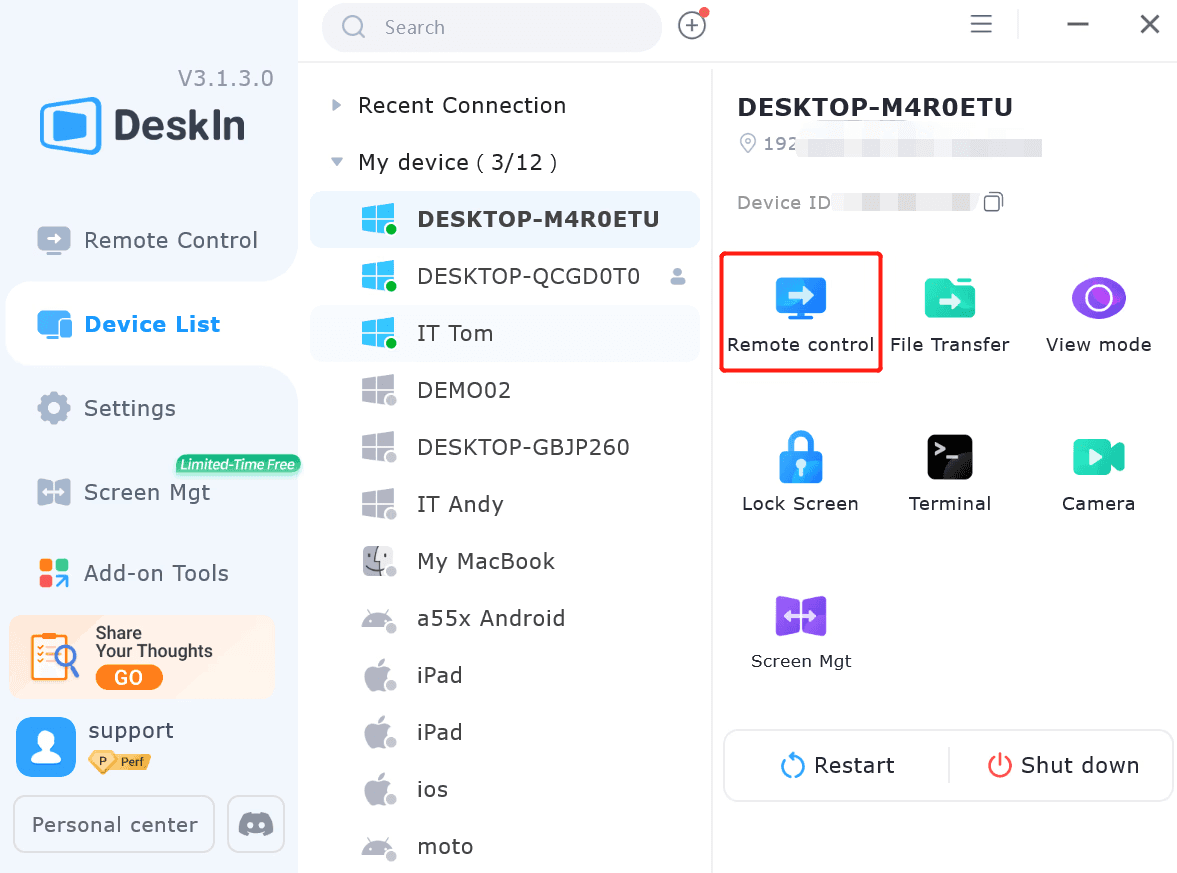
Once both devices are online, your gaming PC will appear in the DeskIn app. Tap or click to connect, enter the password, and your remote session will start instantly.
For the best remote gaming performance, turn on controller mode or adjust keyboard/mouse mapping. DeskIn supports gamepads, hotkeys, and precise input options for smooth gameplay.
Launch your favorite game from your remote device and enjoy full access to your library. You can play PC games remotely with high FPS, low latency, and crisp visuals — whether you’re at home or halfway across the world.
Is remote desktop software good for gaming?
Yes, especially with modern remote desktop software for gaming that supports low latency, high FPS, and optimized streaming. Tools built for performance can deliver smooth, responsive gameplay that feels close to playing directly on your PC.
Can I play FPS games remotely?
Definitely. FPS games demand quick reactions, and DeskIn’s ≤40ms latency keeps aiming, movement, and shooting responsive. With high-FPS streaming and accurate input handling, even competitive shooters perform well through DeskIn’s remote gaming engine.
Does DeskIn support controllers and keyboard mapping?
Yes. DeskIn provides full controller support (Xbox, PlayStation, third-party), precise mouse input, and customizable keyboard mapping. This ensures your remote gaming setup feels just as natural as playing directly on your PC, no matter the device.
Is the connection secure?
Absolutely. DeskIn uses AES-256 bank-level encryption to safeguard every session, whether you’re gaming from home, a café, or a hotel Wi-Fi network. Your data, inputs, and streaming feed stay protected end to end.
Can I play games on mobile devices with DeskIn?
Yes. DeskIn makes it easy to play PC games remotely on iOS and Android phones or tablets. High-quality streaming and responsive controls turn everyday mobile devices into portable gaming screens with minimal setup required.
Remote gaming is no longer a compromise. With modern remote desktop software for gaming, players can now enjoy high FPS, low latency, and sharp visuals that feel close to native PC play.
DeskIn delivers exactly that: combining ≤40ms responsiveness, crisp color, smooth streaming, and effortless setup across PCs, laptops, tablets, and phones. It gives gamers true cross-device freedom without sacrificing performance.
Game anywhere. Try DeskIn, the best remote desktop software for gaming. Free to start.
Remote gaming isn’t just a niche tool anymore; it’s becoming the new normal lifestyle. Gamers today want to play wherever they are: on a low-spec laptop, a tablet, or even a phone. But here’s the catch: high-end gaming rigs are expensive, heavy, and definitely not travel-friendly. That’s where remote desktop software for gaming steps in, letting you tap into the power of your home gaming PC from literally anywhere.
But here’s the truth no one says out loud: Not every remote desktop software can handle gaming, especially fast, competitive titles. Some introduce lag, input delay, or washed-out graphics that absolutely ruin the experience.
That’s why new-gen solutions like DeskIn have emerged, tools built specifically to deliver low-latency remote desktop, high FPS, crisp color, and real gaming control, not just “screen access”.
Gamers don’t switch to remote desktop software for gaming just because it sounds cool: they use it because it solves real, everyday problems in ways traditional setups simply can’t. Here are the most common (and honestly, most relatable) reasons players are embracing remote access:
As it turns out, a MacBook, Chromebook, or iPad can’t run AAA games by itself, but if you use remote desktop software to stream the game from a PC you own with good hardware, these devices turn into portable high-end gaming screens. It offloads the computation-intensive rendering work to your main PC and then just streams over the action to your secondary device.
Business trips, holidays, vacations; none need to interrupt gaming when you have a stable remote gaming setup going. You can complete some work at a hotel desk and then dive right into your Steam library without having to lug around a heavy gaming laptop or desktop tower through the airport. Remote access keeps your gaming routine alive, no matter the time zone.
Modern remote desktop software for gamers makes it incredibly easy to play from a phone or tablet. Just pair a controller or use touch input, and the device becomes a portable gaming machine. Perfect for casual sessions on the couch, during commutes, or while relaxing between flights.
Unlike cloud gaming, which often limits you to curated catalogs, remote desktop software streams your entire PC exactly as it is. Mods, custom settings, experimental builds, add-ons, indie games, everything stays intact. Your entire library travels with you without any platform restrictions.
Instead of investing in multiple PCs for different locations or devices, gamers rely on remote desktop software for gaming to stretch the value of a single high-spec rig. From tablets to old laptops, anything becomes a viable gaming screen. This approach saves money, simplifies setups, and makes remote play feel seamless and efficient.
Developers can run heavy builds on a workstation and test gameplay, performance, or UI remotely from a laptop or tablet. This is especially useful for quick QA checks, debugging, or testing across different environments without constantly switching machines.
Remote access also makes it easy to project mobile games onto a larger display. Developers, streamers, and testers can mirror mobile gameplay to a PC or monitor for better visibility, recording, or live demonstrations. Using remote desktop software, mobile games become easier to analyze, present, and refine on a full-sized screen.
The best remote desktop software for gaming doesn’t just give you access to your PC on another system: it gives you access to both the strength of your host device and a finely tuned gaming experience, all in one package. These are the core elements that contribute to the polished, playable feel of remote gaming.
Latency determines whether a game feels responsive or frustrating. In shooting and MOBA games, or skill-based competitive ones too, the delay of over 40ms could disrupt aim and timing. Modern low-latency remote desktop tools, including optimized platforms like DeskIn, use advanced protocols to reduce input delays and keep gameplay tight and reactive.
Many standard remote access apps cap FPS at 30–60, which isn’t enough for fast-paced games. High FPS means smoother camera movement, cleaner motion, and better precision. Today’s gaming-focused platforms support 120FPS+, with some solutions streaming up to 2K144FPS for near-native fluidity.
Remote gaming benefits massively from crisp detail, especially in 4K titles or visually heavy worlds. Older tools often compress visuals into blurry text and washed-out colors. Newer remote desktop software for gaming maintains sharper resolution and better color fidelity, offering clearer textures and more accurate UI readability.
Fast input recognition is essential. This consistency is essential for any game that demands timing and precision. A well-optimized remote desktop software for gamers should ensure that every input is transmitted cleanly, avoiding ghost touches or lag spikes that disrupt the flow of gameplay.
Network stability plays a massive role in remote gaming performance. Many people assume remote play always means lag, but modern platforms prove otherwise.
These systems help maintain smooth gameplay even when Wi-Fi conditions fluctuate. Instead of sudden freezes or pixelation, the software dynamically adjusts to keep the experience stable.
DeskIn stands out as one of the most performance-focused options in the remote desktop software for the gaming space. It’s engineered for speed, clarity, and responsiveness: the things that actually matter when you’re playing fast, demanding games instead of just accessing a desktop.
Ultra-low latency with ZeroSync® Engine
ZeroSync® keeps total delay under 40ms, delivering fast, precise input that feels close to native PC gameplay.
High FPS support up to 2K240FPS / 4K60FPS
DeskIn streams smooth, high-frame-rate gameplay, reducing motion blur and helping with precise aiming and fast camera movement.
4:4:4 true color for clean visuals
Text stays sharp, shadows stay detailed, and in-game elements remain easy to spot: no muddy compression like older tools.
Cross-device compatibility ( iOS, iPadOS, Android,Windows, macOS)
Play on virtually any screen you own, turning everyday devices into a portable gaming setup.
Full support for gaming shortcuts, hotkeys, and controllers
Inputs register instantly, making DeskIn ideal for games that rely on timing, combos, or precise movement.
Extended Screen Mode for bigger setups
Use additional devices as extra displays, perfect for strategy, multitasking, or expanded immersion.
Immersive Auto 3D Game View
DeskIn automatically enhances supported games with a 3D-style depth effect, making remote visuals feel richer and more immersive without extra setup.
Bank-level AES-256 encryption for strong security (local + remote modes)
DeskIn protects every session with AES-256 encryption, the same standard used by banks, ensuring secure gameplay whether you’re on home Wi-Fi, public networks, or mobile hotspots.
Fast setup with a clean, intuitive UI
Simple onboarding means you’re gaming in minutes, not wrestling with settings.
With ultra-low latency, high frame-rate streaming, intelligent visual enhancements, and secure remote sessions, DeskIn pushes remote desktop software for gaming far beyond traditional remote access tools.
Recommended Read:
When comparing remote desktop software for gaming, the differences become obvious fast. Some tools work well on a local network, some are meant for office tasks, and some lock you into limited game catalogs. DeskIn stands apart because it’s built specifically for high-performance remote gaming, not generic screen sharing.
Here’s how it compares to the usual options:
DeskIn – Designed for high-performance remote gaming
Built for low latency, high FPS streaming, crisp visuals, and accurate input. It supports any game in your library with no platform restrictions and works smoothly across PC, Mac, Android, iPad, and more.
Steam Link – Great for Steam-only games, but limited beyond LAN
Steam Link works nicely on the same network, but quickly struggles with latency over long distances. It also supports only Steam titles, leaving out Epic, Battle.net, standalone launchers, and modded games.
TeamViewer – Too slow for real gaming
TeamViewer is excellent for remote support and business use, but not for gaming. High latency, low FPS, and aggressive compression make fast gameplay nearly impossible.
Chrome Remote Desktop – Not optimized for games
CRD is great for quick access to files or simple tasks, but lacks the frame rate, input precision, and color quality that remote desktop software for gaming demands. Even casual games feel sluggish.
Cloud gaming platforms – Limited game libraries + ongoing subscription costs
Services like GeForce NOW, Xbox Cloud Gaming, or Boosteroid depend on supported titles. Mods, custom files, and personal libraries often won’t work. Plus, you pay a monthly fee and compete with server availability.
Across all these comparisons, the difference is clear: DeskIn gives you full freedom, zero restrictions, and higher performance. Your entire PC becomes your remote gaming rig: no locked library, no extra fees, and no hardware limits.
DeskIn fits anyone who wants high-quality remote desktop software for gaming without limits. Try DeskIn for free today, turn any device into a gaming powerhouse.
Getting started with DeskIn is quick and beginner-friendly. Here’s how to set up your remote desktop software for gaming in minutes:
Download and install DeskIn on the computer that will run your games. This PC will handle all the processing, graphics, and performance during your remote session.
Next, install DeskIn on the device you want to play from, whether it’s a phone, tablet, laptop, iPad, Android device, or MacBook.
Sign in on both devices using the same account. If you’re new, creating a free account takes less than a minute.
Once both devices are online, your gaming PC will appear in the DeskIn app. Tap or click to connect, enter the password, and your remote session will start instantly.
For the best remote gaming performance, turn on controller mode or adjust keyboard/mouse mapping. DeskIn supports gamepads, hotkeys, and precise input options for smooth gameplay.
Launch your favorite game from your remote device and enjoy full access to your library. You can play PC games remotely with high FPS, low latency, and crisp visuals — whether you’re at home or halfway across the world.
Is remote desktop software good for gaming?
Yes, especially with modern remote desktop software for gaming that supports low latency, high FPS, and optimized streaming. Tools built for performance can deliver smooth, responsive gameplay that feels close to playing directly on your PC.
Can I play FPS games remotely?
Definitely. FPS games demand quick reactions, and DeskIn’s ≤40ms latency keeps aiming, movement, and shooting responsive. With high-FPS streaming and accurate input handling, even competitive shooters perform well through DeskIn’s remote gaming engine.
Does DeskIn support controllers and keyboard mapping?
Yes. DeskIn provides full controller support (Xbox, PlayStation, third-party), precise mouse input, and customizable keyboard mapping. This ensures your remote gaming setup feels just as natural as playing directly on your PC, no matter the device.
Is the connection secure?
Absolutely. DeskIn uses AES-256 bank-level encryption to safeguard every session, whether you’re gaming from home, a café, or a hotel Wi-Fi network. Your data, inputs, and streaming feed stay protected end to end.
Can I play games on mobile devices with DeskIn?
Yes. DeskIn makes it easy to play PC games remotely on iOS and Android phones or tablets. High-quality streaming and responsive controls turn everyday mobile devices into portable gaming screens with minimal setup required.
Remote gaming is no longer a compromise. With modern remote desktop software for gaming, players can now enjoy high FPS, low latency, and sharp visuals that feel close to native PC play.
DeskIn delivers exactly that: combining ≤40ms responsiveness, crisp color, smooth streaming, and effortless setup across PCs, laptops, tablets, and phones. It gives gamers true cross-device freedom without sacrificing performance.
Game anywhere. Try DeskIn, the best remote desktop software for gaming. Free to start.

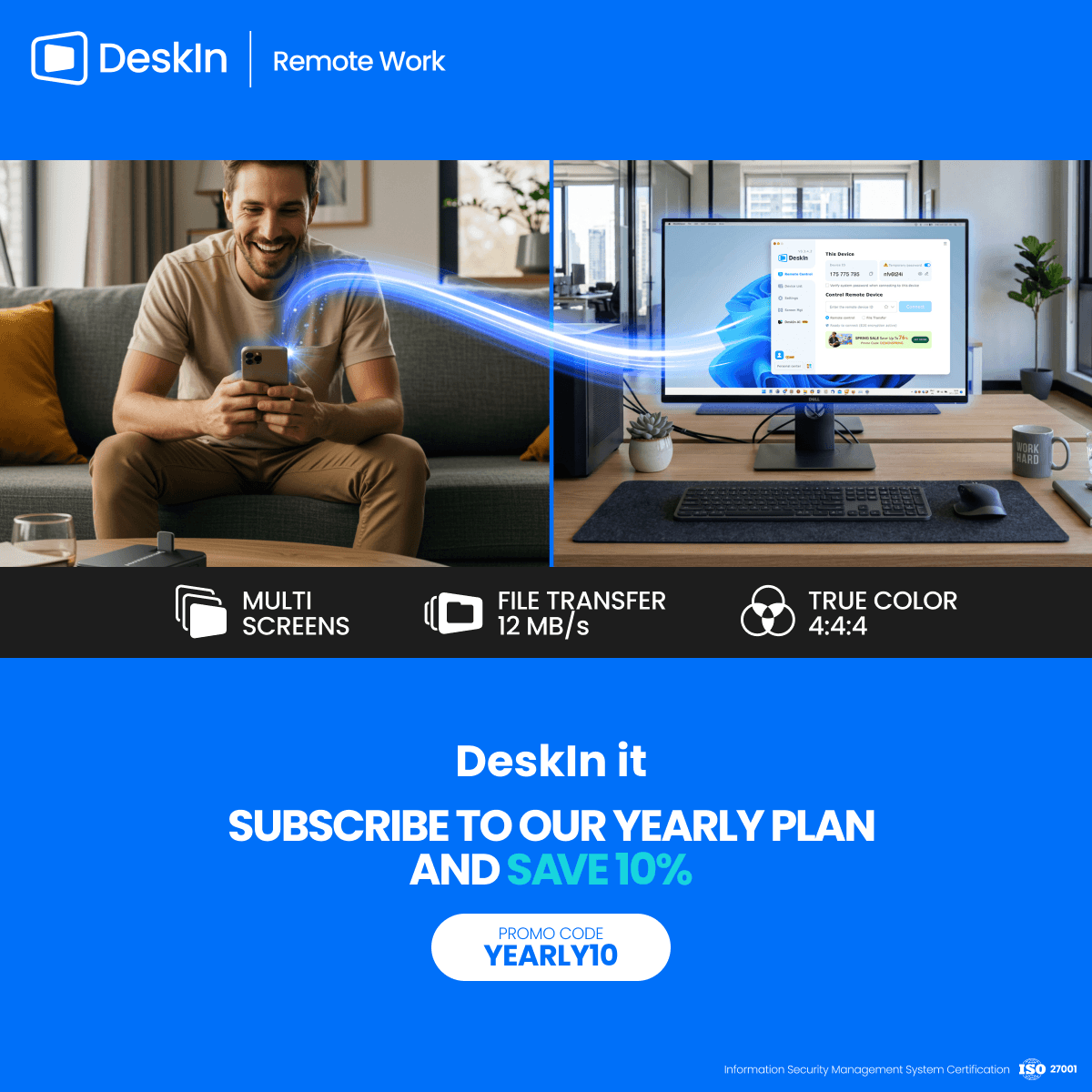

Ubah iPad Menjadi Monitor Kedua Untuk Komputer Windows Dan Mac
A second monitor can make everyday work feel much easier, especially when you are switching between research, documents, meetings, design files, or dashboards. If you already own an iPad, you may be able to use it as an extra display instead of buying another monitor.
This guide explains how to use an iPad as a second monitor for Mac with Apple Sidecar, and how Windows or cross-platform users can use DeskIn screen extension on supported paid plans.
Increase screen space so you can view more content at the same time. This helps reduce constant window switching during multitasking.
Keep each screen focused on a different task. For example, you can edit a video on one screen and keep source materials on the other, or write a paper while browsing references side by side.
Use the iPad display you already have. For students, remote workers, and light creative work, an iPad can be a convenient and cost-effective second-screen option.
Save desk space and avoid carrying another external monitor when you work from home, travel, or move between rooms.
Apple Sidecar lets compatible iPads work as an external display for compatible MacBook and iMac devices. It is a good native option if both devices support Sidecar and are signed in with the same Apple ID.
Note: To use Apple Sidecar, your Mac and iPad should use the same Apple ID, have Bluetooth and Wi-Fi turned on, and stay within close wireless range. Sidecar availability depends on Apple device and operating system compatibility.
Open the Mac System Settings >> Click "Display" in the sidebar >> Click the "+" pop up menu on the right and choose your iPad.
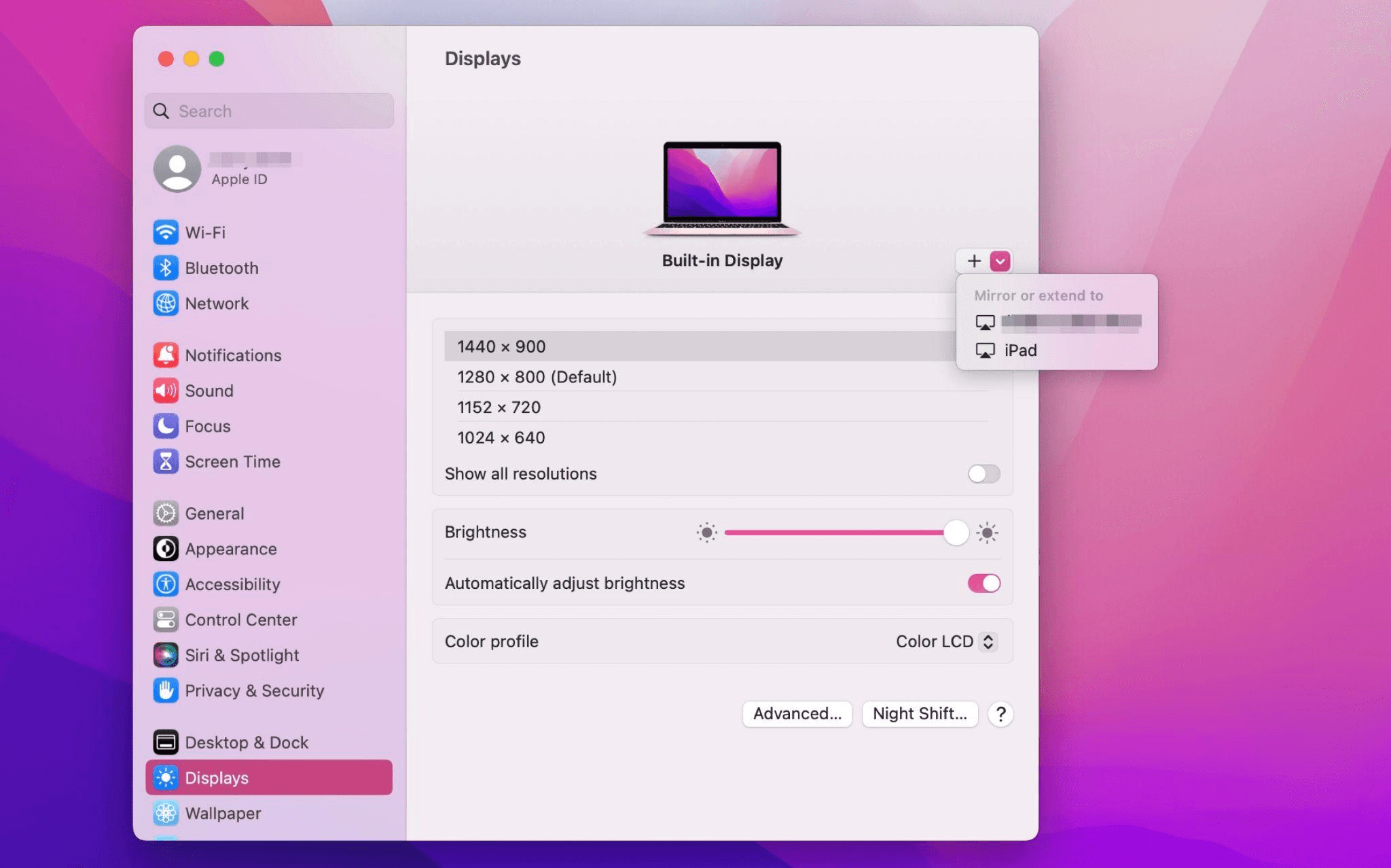
Select the iPad, change the Use as settings to "Extended Display". Check the Airplay settings on the top toolbar of the mac and set iPad as "Use As Separate Display".
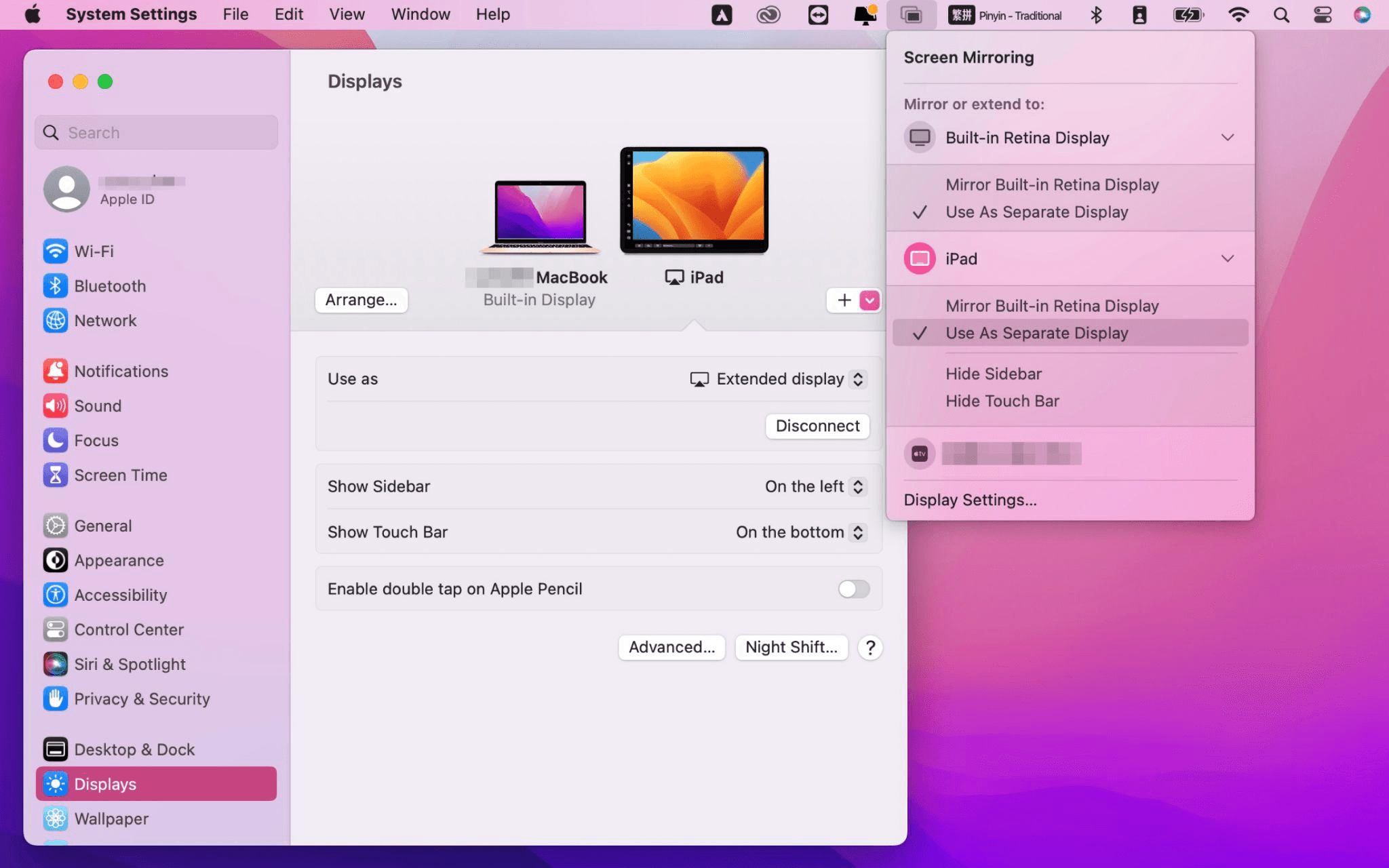
After completing the settings, your iPad will become the second display for your Mac. You can drag windows from your Mac to your iPad smoothly. You can also use the sidebar on the iPad or change the position of the sidebar on the system display settings.
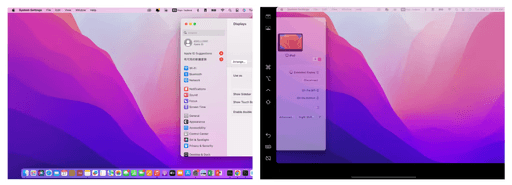
MacBook Screen (Left) and iPad Screen (Right)
Apple Sidecar only supports mac released after 2016 and iPadOS13 or newer. If you are using an old Apple device or a Windows device, you can still use DeskIn remote software to do the screen extension. It supports using iPad as a second display for Mac and Windows, and the smoothness is no worse than sidecar.
Install DeskIn on both your computer and iPad. Sign in to your DeskIn account on each device. When you log in on a new device for the first time, you may need to complete email verification to help protect your account.

To use Screen Extension, you'll need to subscribe to any Premium plan. Click here to view DeskIn plans.
Open DeskIn on your Windows or Mac computer, go to the screen management area, and choose the screen extension option. Select your iPad as the target display and start extending.
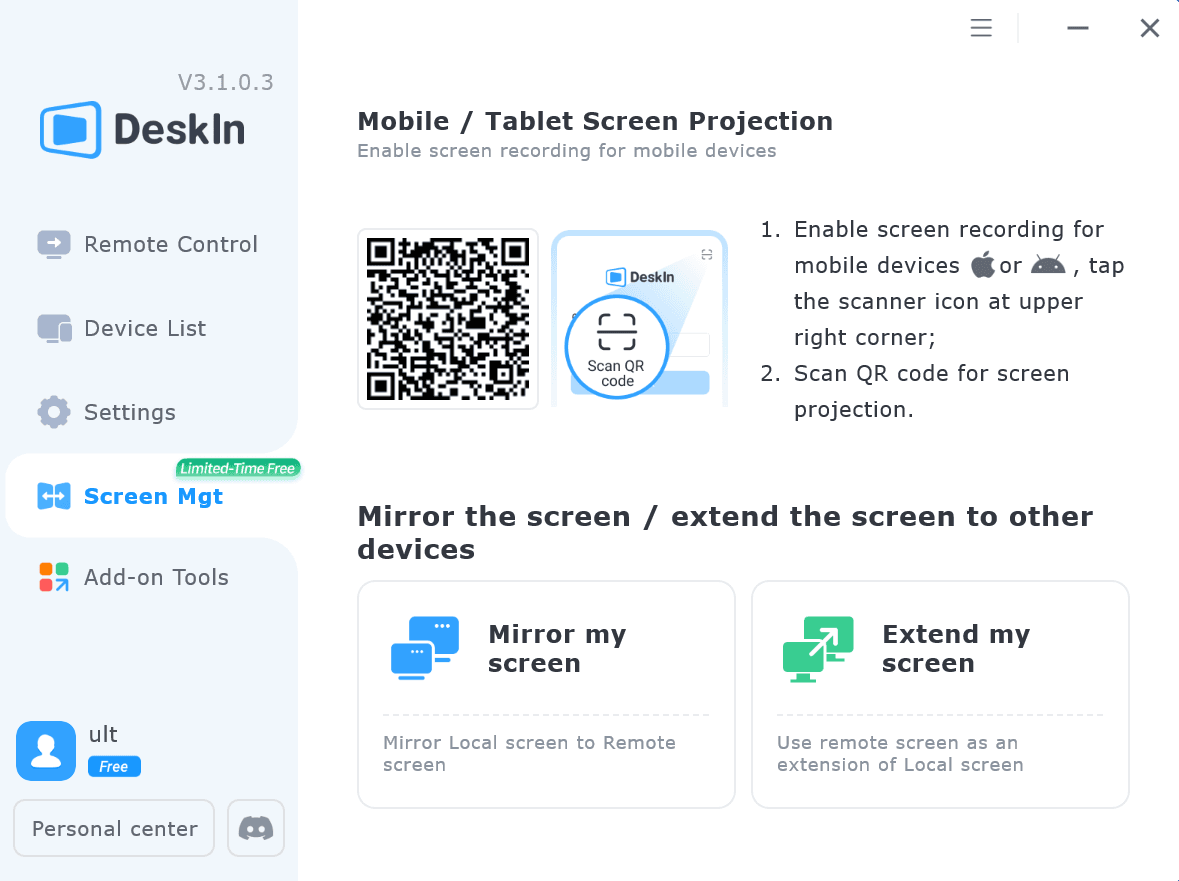
Once connected, your iPad can work as an additional display, letting you move windows between your computer and iPad for a wider workspace.
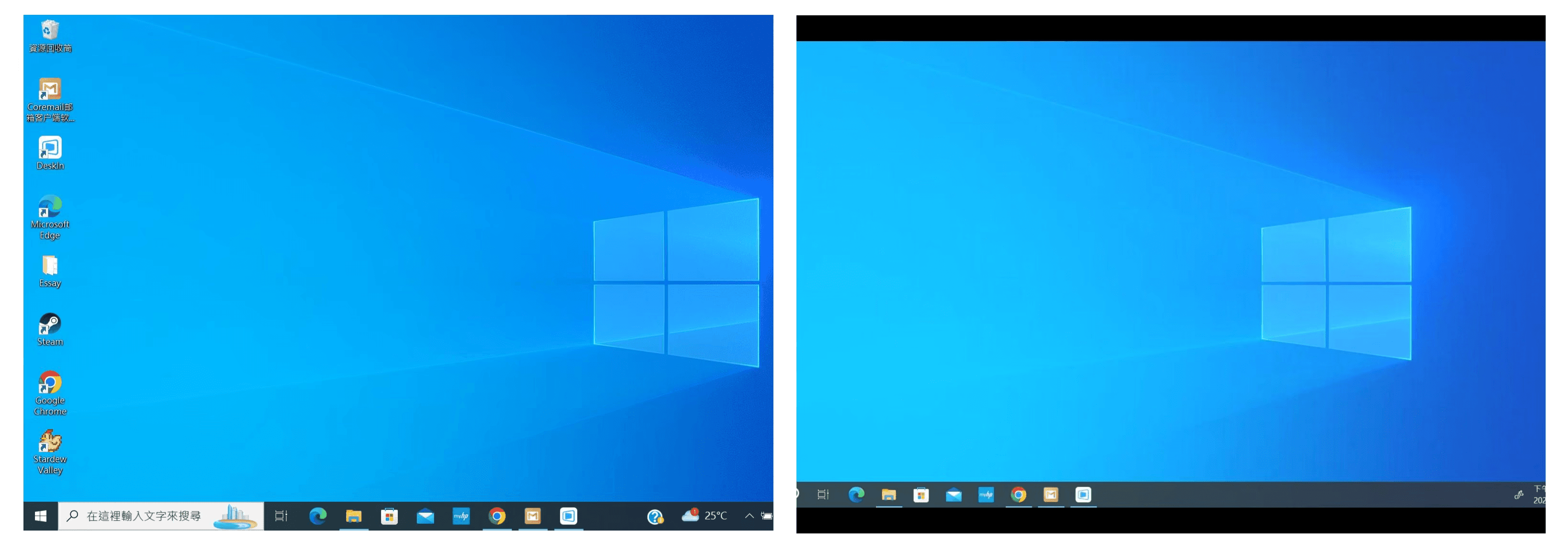
Computer Screen (Left) and iPad Screen (Right)
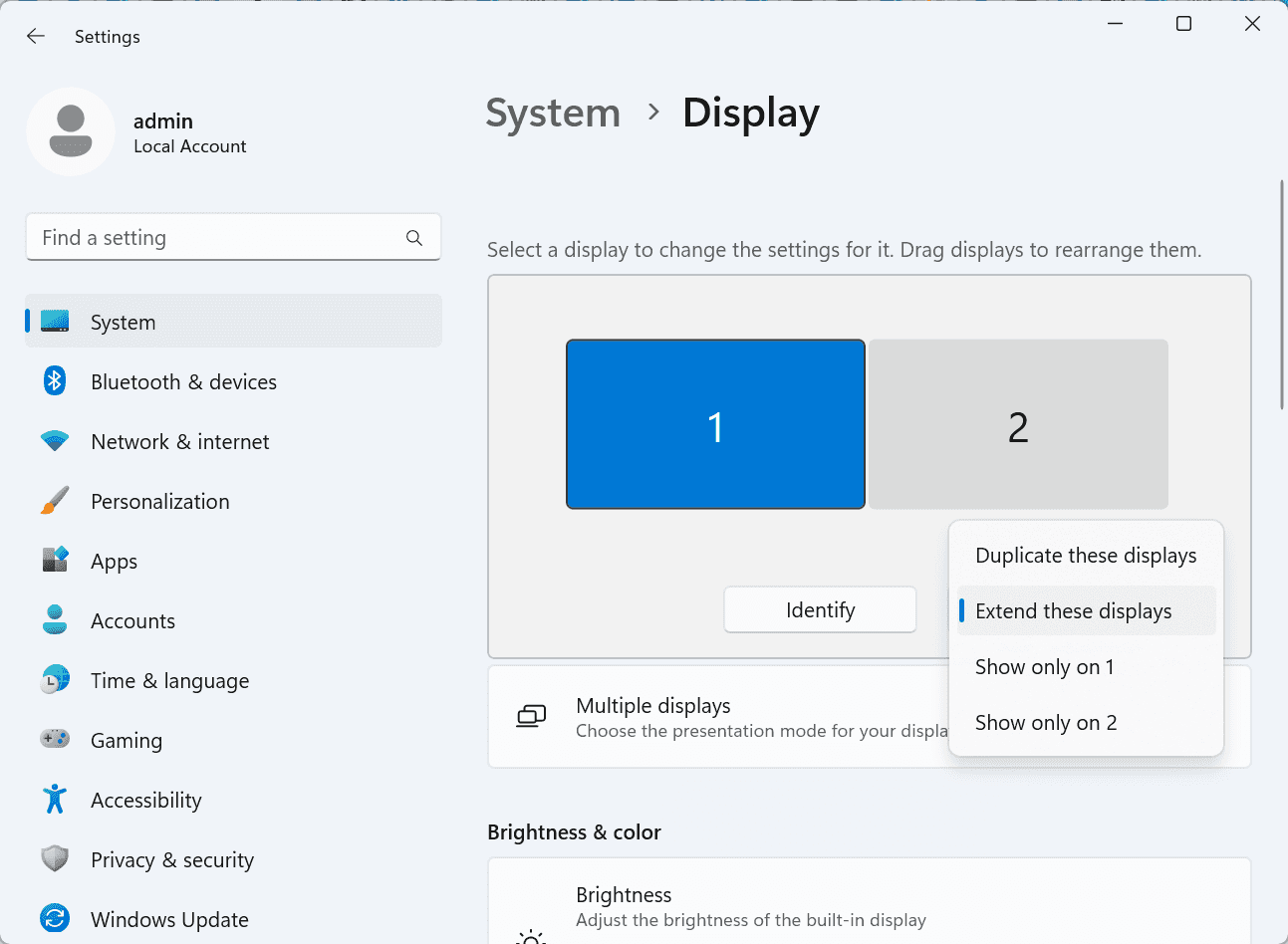
After extension, if you find that your iPad is only mirroring the content on your computer screen, please go to Windows System Settings >> Display Settings and change the screen option to "Extend these displays". You can also modify the screen position by dragging the 2 screens.
Need | Best Option | Why |
Use iPad as a second monitor for a compatible Mac | Apple Sidecar | Built into Apple devices and easy to set up when both devices are compatible. |
Use iPad as a second monitor for Windows | DeskIn | Sidecar does not support Windows, while DeskIn supports cross-platform screen extension on eligible plans. |
Work across Windows, macOS, iPad, Android tablets, and mobile devices | DeskIn | Better suited for users who need cross-platform remote access and flexible device combinations. |
Yes. Windows does not support Apple Sidecar, but you can use DeskIn screen extension on a paid plan that includes this feature to turn your iPad into an additional display for a Windows computer.
DeskIn Screen Extension is included in all paid plans. After subscribing, you can use it across all supported systems with no restrictions.
Yes. DeskIn supports using an iPad as an additional screen with Windows and Mac computers when your plan includes screen mirroring or screen extension.
Using an iPad as a second monitor is a practical way to expand your workspace without buying another display. Mac users with compatible devices can use Apple Sidecar, while Windows and cross-platform users can use DeskIn screen extension on eligible paid plans.
If you want to work across Windows, macOS, iPad, and other devices, DeskIn gives you a flexible way to build a portable multi-screen workspace. Download DeskIn and choose the plan that fits your screen extension and remote access needs.

Top 6 RustDesk Alternative Tools for Faster, Easier Remote Access
Remote access should feel like flipping a light switch, not decoding a control panel. Yet many users exploring RustDesk eventually run into friction: connection IDs, server setup, or occasional lag. While RustDesk is powerful, it’s not always the easiest or smoothest option, especially for non-technical users.
That’s why more people are actively searching for a reliable RustDesk alternative that combines performance, simplicity, and flexibility. Whether you want a plug-and-play solution or something more advanced, this guide will help you find the best fit.
RustDesk stands out as a privacy-friendly, self-hosted remote desktop tool. However, real-world usage reveals a few common challenges:
Complicated setup for the RustDesk self-hosted environments
Manual connection steps requiring IDs and passwords
Occasional latency or unstable connections
Limited user-friendly features out of the box
For many users, especially those helping family or managing multiple devices, simplicity matters just as much as control.
When evaluating a RustDesk alternative, focus on these key factors:
Ease of use: Quick setup without technical overhead
Performance: Smooth, low-latency remote sessions
Compatibility: Support for Windows, macOS, Linux, and mobile
Security: Strong encryption and access controls
Flexibility: Options ranging from cloud-based to open source
The ideal tool strikes a balance between power and convenience, something many modern solutions now deliver better than traditional setups.
Here’s a quick breakdown of the top tools and where they shine:
DeskIn – Best all-in-one RustDesk alternative for performance and ease of use
AnyDesk – Best lightweight tool for fast connections
TeamViewer – Best for enterprise-grade remote support
MeshCentral – Best open-source and self-hosted solution
DWService – Best free browser-based tool
Chrome Remote Desktop – Best simple, no-frills option
Ultra-low latency with smooth high-frame-rate streaming
No complex setup or server deployment required
Cross-platform including Rustdesk alternative for Android
Secure with encryption and device control features
Built-in file transfer and multi-device management
Smaller awareness than legacy competitors
Best for: Users who want a powerful yet simple remote desktop solution
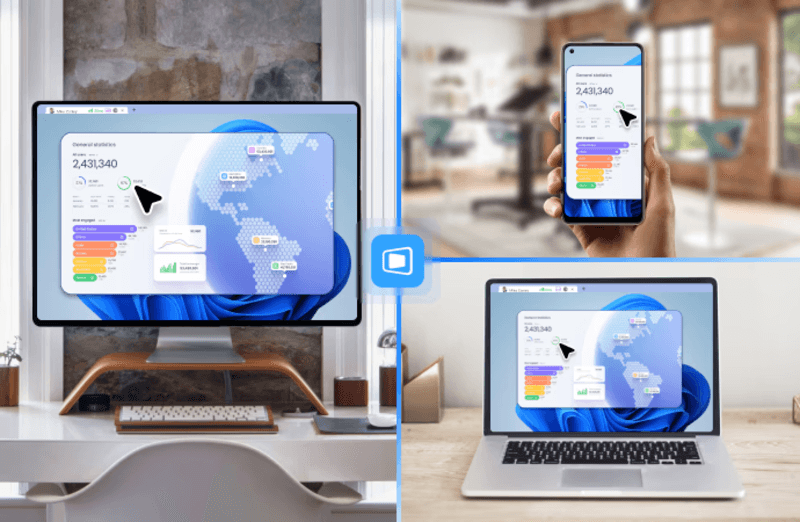
DeskIn removes the friction that often comes with remote access tools. Instead of relying on IDs or manual configurations, it offers a streamlined connection experience that works right out of the box. This makes it especially valuable for users supporting non-technical family members or managing multiple remote devices.
Performance is where DeskIn truly distinguishes itself. Compared to RustDesk, which can sometimes struggle with latency, DeskIn delivers consistently smooth sessions with minimal lag. It also eliminates the need for self-hosting, making it a strong free RustDesk alternative option for users who want powerful features without the complexity.
For those exploring options beyond the RustDesk alternative GitHub projects, DeskIn provides a polished, ready-to-use experience that balances simplicity with professional-grade performance.
Lightweight and fast installation
Good performance on low bandwidth
Cross-platform support
Easy-to-use interface
Performance may drop during long sessions
File transfer can be inconsistent
Best for: Users needing quick and simple remote access
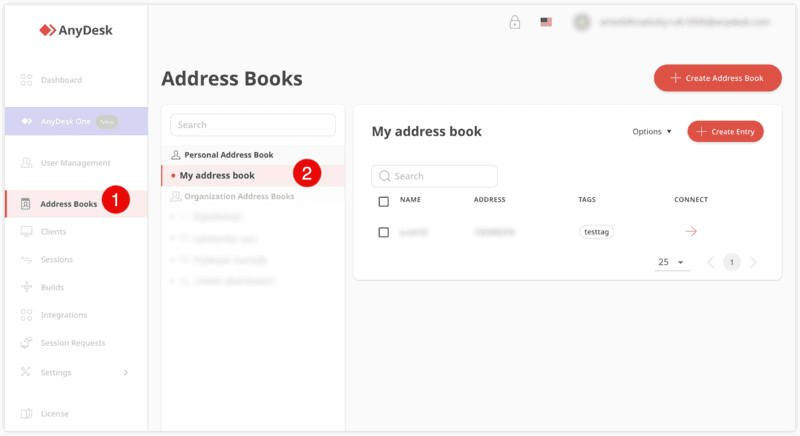
AnyDesk is often considered a natural step up from RustDesk for users who want something easier to deploy. It offers a lightweight application that connects quickly and performs well under normal conditions. This makes it suitable for quick troubleshooting or occasional remote access.
However, performance consistency can be an issue. Users frequently report lag or instability during extended sessions or when handling more demanding tasks. While AnyDesk is a solid option for basic needs, it may not fully satisfy users looking for a more robust, all-in-one solution.
👀 You may also be interested in: |
|---|
Enterprise-grade security with encryption and 2FA
Stable performance across global networks
Rich features like file transfer and session recording
Broad device compatibility
Expensive for commercial use
Free version has limitations
Heavier resource usage on some systems
Best for: Businesses and IT teams managing multiple endpoints
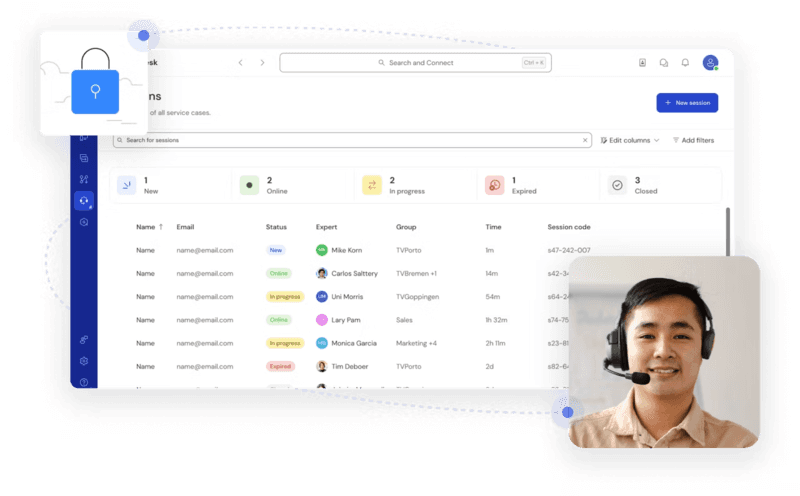
TeamViewer has long been a dominant player in the remote desktop space, offering a comprehensive suite of features designed for enterprise environments. It excels in reliability and global connectivity, making it a popular choice for IT support teams.
That said, its pricing model is a major drawback for many users. Frequent users may quickly encounter licensing restrictions, and costs can escalate for businesses. Additionally, its heavier footprint can impact performance on lower-end devices. DeskIn offers a more modern alternative by delivering similar performance and essential features without the same cost barriers. For users who want enterprise-level capabilities with better efficiency, it presents a compelling option.
👀 You may also be interested in: |
|---|
Fully RustDesk alternative open source solution
Web-based management dashboard
Supports multi-device environments
Strong customization and control
Complex setup and maintenance
Requires technical expertise
Best for: Advanced users needing a Rustdesk alternative self-hosted
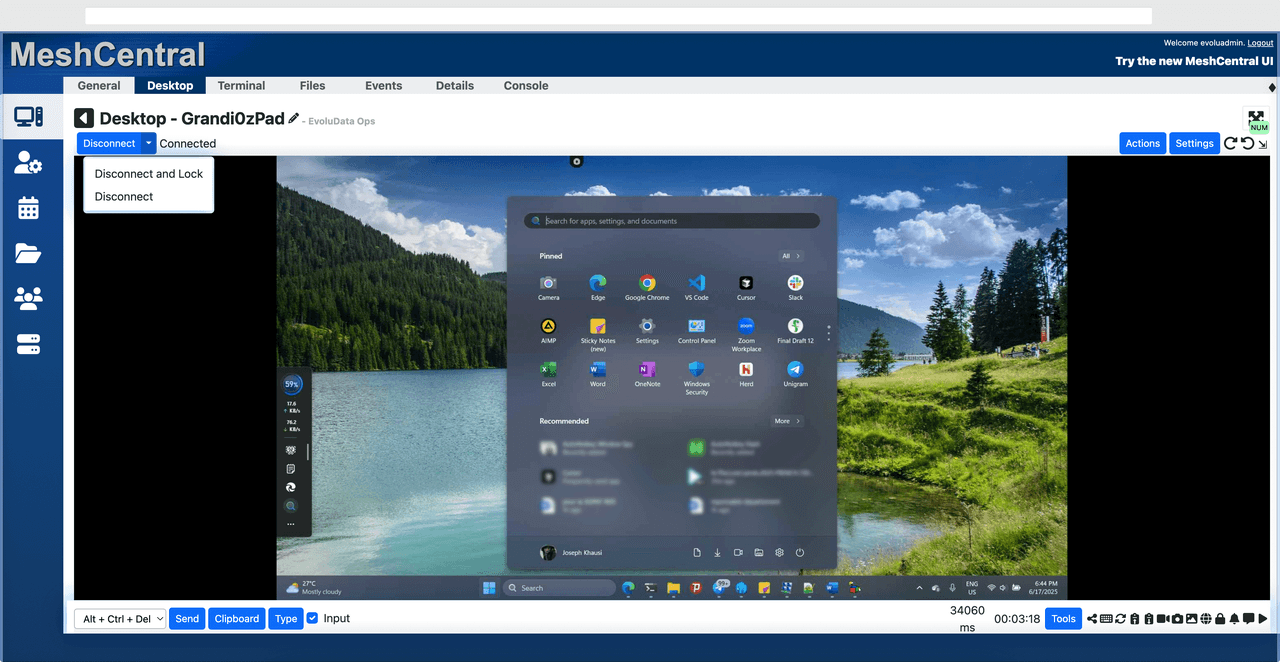
MeshCentral is a powerful open-source platform designed for users who want full control over their remote access infrastructure. It supports multiple devices and provides a centralized dashboard for management, making it attractive for IT professionals.
However, this flexibility comes with complexity. Setting up and maintaining a MeshCentral server requires technical knowledge, which can be a barrier for many users. Compared to this, DeskIn offers a much simpler deployment process while still delivering strong performance and security. For users who prioritize ease of use over full control, modern solutions like DeskIn provide a more accessible alternative.
Completely free
Browser-based access
Open-source foundation
Simple setup
Limited performance
Basic feature set
Best for: Users looking for a simple, free RustDesk alternative
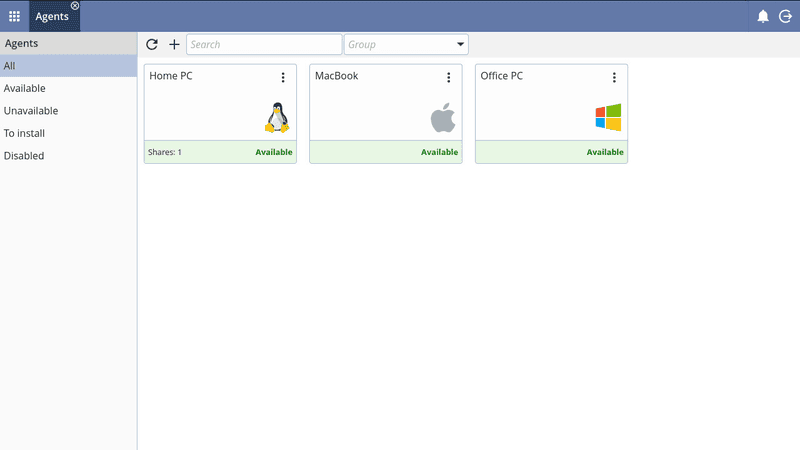
DWService offers a browser-based approach to remote access with no heavy installation, making it convenient for quick connections in restricted environments. It supports both desktop access and file management across major platforms.
However, performance often feels sluggish, especially on demanding tasks, and features remain basic; lacking session recording, smooth multi-monitor support, or advanced security controls. While suitable for occasional personal use, it falls short for professional or high-performance scenarios.
Free and easy to use
Browser-based setup
Cross-platform compatibility
Very limited features
No advanced management or collaboration tools
Best for: Casual users needing basic remote access
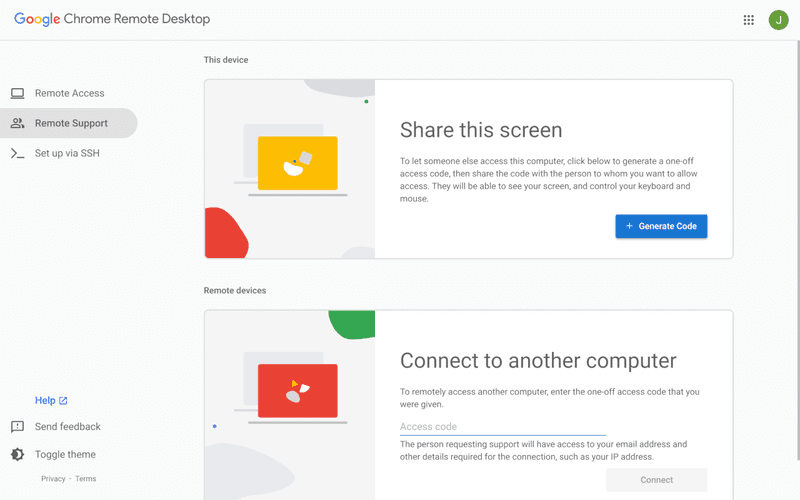
Chrome Remote Desktop is one of the simplest remote access tools available. It’s easy to set up and works across devices, making it a convenient choice for occasional use.
However, it lacks many essential features such as file transfer, session management, and advanced security controls. For users with more demanding needs, it quickly becomes insufficient. Compared to Chrome Remote Desktop, DeskIn provides a much more complete experience without sacrificing ease of use, making it a better long-term solution.
👀 You may also be interested in: |
|---|
RustDesk is powerful but can be difficult to set up and manage, especially with self-hosting. Many users prefer tools that offer similar performance without technical complexity. DeskIn simplifies remote access while maintaining strong performance and security.
Several tools qualify as a free RustDesk alternative, including DWService and Chrome Remote Desktop. However, DeskIn stands out by offering better performance and usability even in its free version.
Yes, tools like MeshCentral and DWService are considered RustDesk alternative open source options. They provide flexibility and control but often require technical expertise to set up and maintain.
Beginners should choose tools with a simple setup and intuitive interfaces. DeskIn is an excellent option because it removes the need for manual configuration while still delivering advanced features.
RustDesk is a powerful starting point, but it’s not always the easiest or most efficient tool for everyday use. From setup complexity to performance limitations, many users eventually look for a better RustDesk alternative.
Among all the options, DeskIn stands out as the most balanced solution. It combines speed, simplicity, and cross-platform support into one seamless experience. If you’re ready to move beyond technical friction and enjoy truly smooth remote access, DeskIn is a choice that simply works.
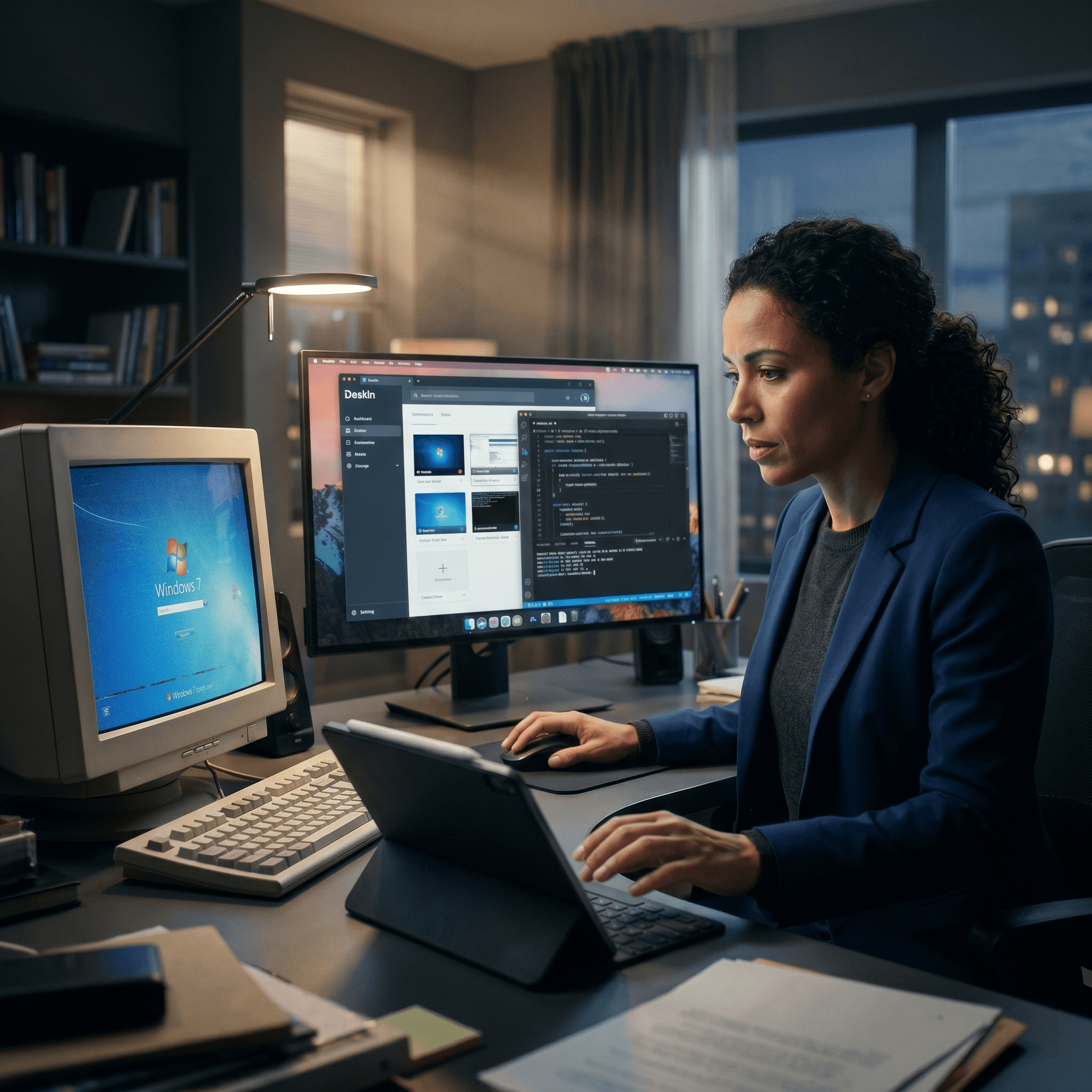
Top 7 RDP Alternative Tools for Faster, Safer Remote Access
Remote desktop access used to feel like a solid bridge. Now, for many users, traditional RDP feels more like a creaky rope ladder. With performance issues, security concerns, and limited cross-platform support, it's no surprise that more people are actively searching for a better RDP alternative that actually keeps up with modern workflows.
If you're managing multiple servers, working across devices, or just tired of unstable connections, this guide will walk you through the best tools worth switching to.
RDP (Remote Desktop Protocol) is a proprietary protocol developed by Microsoft that allows users to connect to another computer over a network. It's widely used for accessing Windows servers, virtual machines, and remote workstations.
While powerful in controlled environments, RDP is often tied to Windows systems and requires configuration like port forwarding or VPNs. Compared to newer tools, it can feel rigid and outdated.
You may also be interested in: |
|---|
RDP still works, but it comes with trade-offs that many users find frustrating:
Security risks if not properly configured
Complex setup for remote or external access
Limited cross-platform compatibility
Performance issues over unstable networks
Many IT teams are now actively replacing it, especially when looking for a Windows RDP client alternative or something that works seamlessly across macOS, Linux, and mobile devices. That's where modern Remote Desktop alternatives shine.
Choosing the right tool is like picking the right vehicle. Some are built for speed, others for heavy-duty enterprise work. Here's a quick snapshot:
DeskIn – Best all-in-one RDP alternative for performance and cross-platform use
TeamViewer – Best for enterprise remote support
AnyDesk – Best lightweight option for fast connections
RustDesk – Best Windows RDP alternative open-source solution
Remmina – Best RDP alternative for Linux users
Chrome Remote Desktop – Best simple browser-based tool
Splashtop – Best for high-performance business environments
Ultra-low latency with smooth high-frame-rate streaming
Works across Windows, macOS, Linux, iOS, and Android
Strong encryption and secure access controls
Built-in file transfer and multi-session support
Newer compared to legacy brands
Best for: Users who want a powerful, flexible RDP alternative
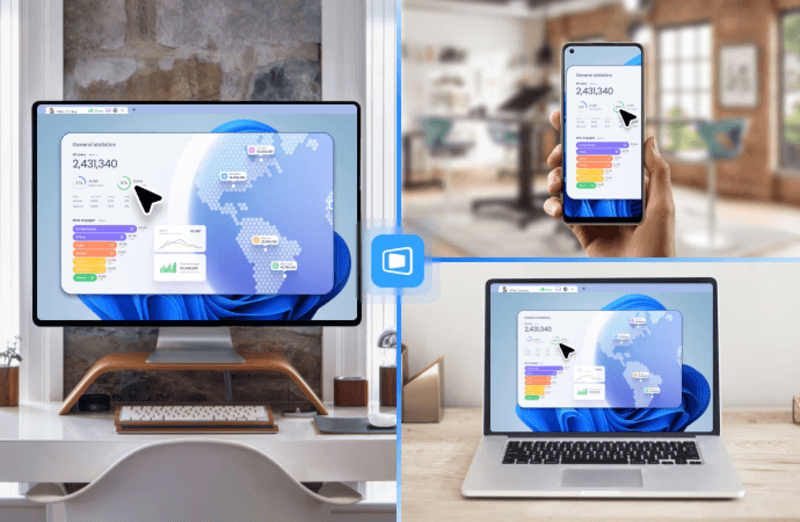
DeskIn feels less like remote access and more like teleportation for your desktop. Whether you're managing servers, supporting clients, or working remotely, it delivers consistently smooth performance without the usual lag spikes seen in traditional RDP setups.
Unlike many tools, DeskIn eliminates the need for complex configurations. You don't need to wrestle with firewalls or VPNs just to connect. It also works seamlessly across platforms, making it a strong alternative to Microsoft Remote Desktop for Mac and mobile users alike.
For teams juggling multiple systems, DeskIn provides a unified experience that replaces fragmented workflows. It's also a strong free RDP alternative option with premium-level capabilities, making it ideal for both individuals and businesses.
Enterprise-grade security and compliance
Extensive feature set including collaboration tools
Cross-platform compatibility
Reliable global performance
Expensive licensing
Can be overkill for individuals
Best for: Enterprises needing secure and scalable remote access
TeamViewer is a comprehensive remote desktop platform widely adopted by IT teams, support professionals, and enterprises. Its feature set extends far beyond simple screen sharing—it includes robust device management, remote printing, file transfer, session recording, and even augmented reality support for field service. TeamViewer's security architecture relies on AES‑256 encryption, two‑factor authentication, and whitelisting, making it suitable for organizations with strict compliance requirements. It runs on virtually every operating system and mobile platform.
The main trade‑off is its pricing: licenses are subscription‑based and can become expensive for small teams or individual users, especially as TeamViewer aggressively flags personal use as commercial, leading to session restrictions.
Fast and responsive
Lightweight installation
Works well on low bandwidth
Easy to use
File transfer can be inconsistent
Lag during longer sessions
Best for: Users needing quick, simple remote access
AnyDesk is a lightweight remote desktop application prized for its speed and efficiency, often recommended as a fast alternative to Microsoft's native Remote Desktop on Windows 10 and Android. It uses a proprietary video codec, DeskRT, to achieve low latency even on limited bandwidth, making it ideal for quick support sessions and accessing devices over mobile networks. The interface is clean and minimalist, with features like address book management, file transfer, and session recording available.
However, users frequently report instability during extended sessions; performance can degrade over time, and file transfers may slow considerably compared to competitors. While its free version is generous for personal use, professional users often find the performance ceiling limits its suitability for continuous, demanding workloads. DeskIn, by contrast, maintains consistent performance even during extended use, making it better suited for professional workloads.
You may also be interested in: |
|---|
Free and open-source
Self-hosting for full control
Strong privacy protection
Active community
Technical setup required
Limited user-friendly features
Best for: Developers and privacy-focused users
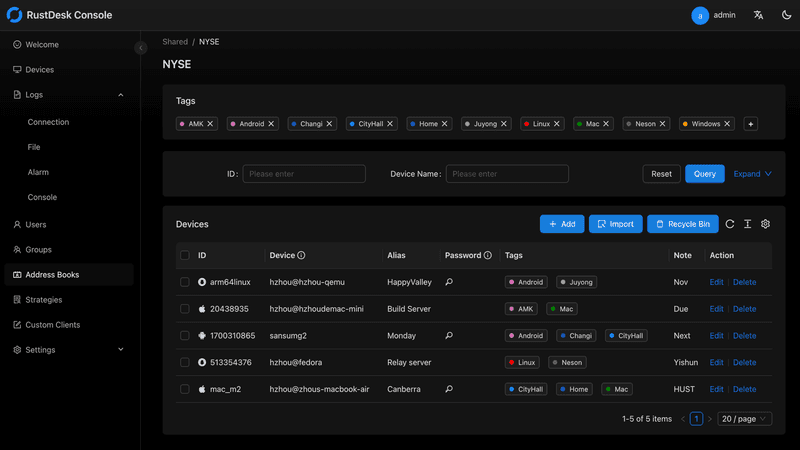
RustDesk has emerged as a leading open‑source remote desktop alternative, appealing to developers and organizations that require full control over their data. It allows users to self‑host the relay and rendezvous servers, meaning no third‑party infrastructure handles connection metadata. Built with Rust, it offers a modern codebase with cross‑platform clients (Windows, macOS, Linux, Android, iOS) and supports essential features such as file transfer, TCP tunneling, and customizable address books.
The major barrier is its complexity: deploying a self‑hosted environment requires technical expertise to configure firewalls, SSL certificates, and ongoing server maintenance. For those using the public relay, performance can be inconsistent depending on server load and geographic proximity.
You may also be interested in: Top RustDesk Alternatives for Better Performance, Security & Ease of Use |
|---|
Open-source and free
Supports multiple protocols including RDP and VNC
Lightweight and flexible
Native to Linux environments
Limited features compared to modern tools
UI can feel outdated
Best for: Linux users looking for a traditional RDP alternative Linux
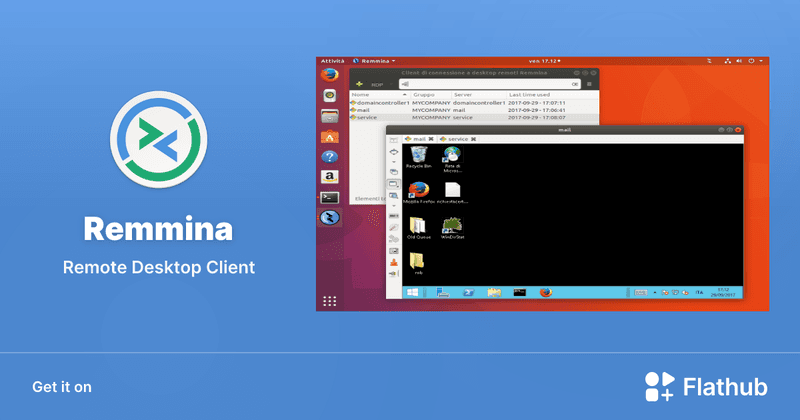
Remmina is a beloved open‑source remote desktop client for Linux, supporting multiple protocols (RDP, VNC, SSH, SPICE, and others) in a single unified interface. It is frequently chosen by system administrators and Linux enthusiasts who need a flexible, lightweight tool to manage diverse environments. Remmina offers tabbed sessions, quick‑connect profiles, and a plugin system that extends its capabilities.
However, its strength - protocol flexibility, also highlights its limitations. As a frontend client rather than a full remote access solution, it lacks features like unattended access, centralized account management, or robust session recording out of the box. Performance can vary by protocol, and the user experience lags behind more polished commercial tools, particularly for users seeking a plug‑and‑play setup.
Free and easy to use
Browser-based setup
Cross-platform access
Very limited features
No advanced management tools
Best for: Casual users needing basic remote access
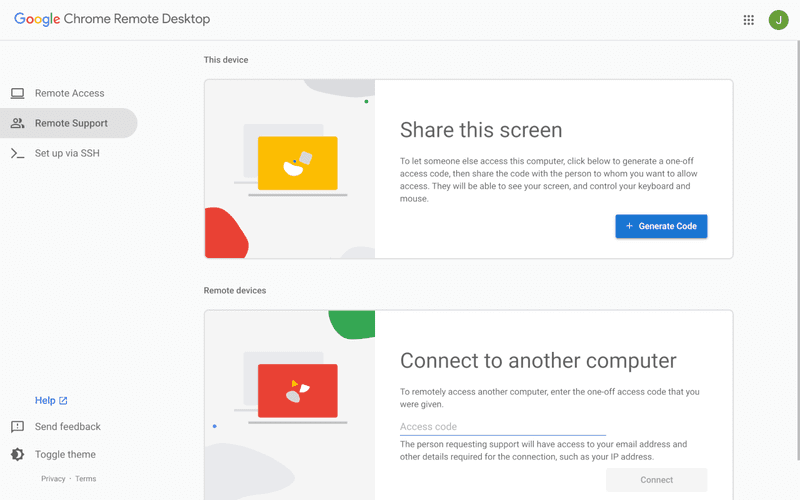
Chrome Remote Desktop is a free, browser‑based remote access tool from Google that requires nothing more than a Chrome browser and a Google account. It excels in simplicity: installation takes seconds, and connections are mediated through Google's infrastructure, eliminating complex firewall configurations. For occasional use—such as helping a family member or quickly accessing a home computer—it works reliably across Windows, macOS, Linux, and even ChromeOS.
The trade‑off is its minimal feature set. There is no native file transfer, multi‑session management, remote printing, or granular permission controls. Collaboration tools are absent, and the reliance on a Google account for authentication can be a limitation in professional environments. It remains a convenient entry‑level tool but struggles to meet the needs of power users or IT teams.
You may also be interested in: |
|---|
High-quality streaming performance
Strong security features
Good for business environments
Reliable connections
Subscription-based pricing
Limited free version
Best for: Businesses needing performance-focused remote access
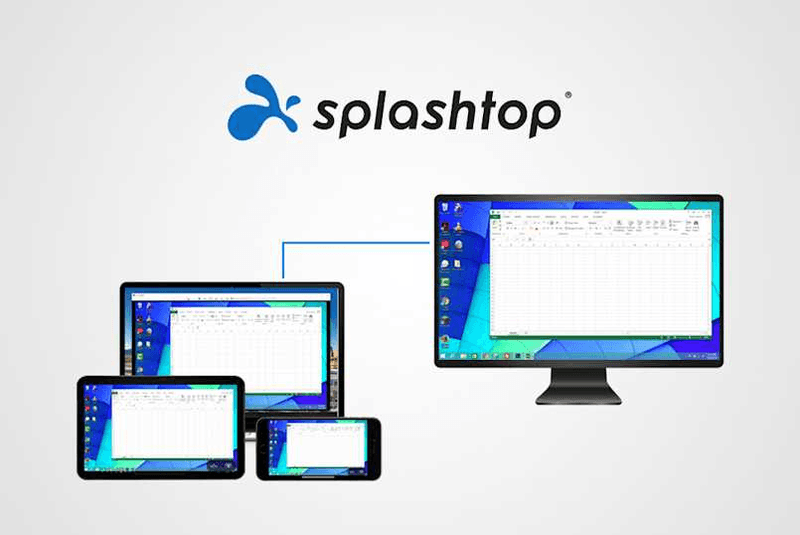
Splashtop is a high‑performance remote desktop solution frequently adopted by creative professionals, educational institutions, and enterprises that prioritize fluid interaction. It delivers low‑latency streaming with support for high‑frame‑rate displays, making it suitable for video editing, CAD work, and other graphics‑intensive tasks. Splashtop offers a range of editions—from Business Access to SOS for on‑demand support—all of which include robust security (AES‑256, device authentication) and features like file transfer, remote printing, and multi‑monitor navigation. Its performance over local networks and the internet is consistently praised.
The primary drawback is cost: while competitive, the subscription model can accumulate quickly for users needing access to multiple devices or advanced features, especially when compared to similarly capable tools with more flexible pricing structures. DeskIn offers similar performance benefits with a more flexible pricing structure, making it a compelling alternative.
You may also be interested in: |
|---|
RDP can be difficult to configure, less secure if exposed, and limited outside Windows environments. Modern tools like DeskIn provide better performance, security, and ease of use.
The best RDP alternative depends on your needs, but DeskIn stands out for its balance of speed, security, and cross-platform compatibility.
Yes, several tools qualify as an RDP alternative free, including RustDesk and Chrome Remote Desktop. DeskIn also offers a free tier with advanced capabilities.
Microsoft is evolving its remote desktop ecosystem, but traditional RDP isn't disappearing overnight. However, many users are already transitioning to more modern solutions like DeskIn for better reliability and flexibility.
RDP has served its purpose, but the digital world has outgrown its limitations. Whether you need better performance, stronger security, or true cross-platform access, switching to a modern RDP alternative is no longer optional, it's inevitable.
Among all the options, DeskIn stands out as a future-ready solution. It combines speed, simplicity, and power into one seamless experience, helping you leave behind the friction of traditional remote desktop tools and step into something far more efficient.
Ubah iPad Menjadi Monitor Kedua Untuk Komputer Windows Dan Mac
A second monitor can make everyday work feel much easier, especially when you are switching between research, documents, meetings, design files, or dashboards. If you already own an iPad, you may be able to use it as an extra display instead of buying another monitor.
This guide explains how to use an iPad as a second monitor for Mac with Apple Sidecar, and how Windows or cross-platform users can use DeskIn screen extension on supported paid plans.
Increase screen space so you can view more content at the same time. This helps reduce constant window switching during multitasking.
Keep each screen focused on a different task. For example, you can edit a video on one screen and keep source materials on the other, or write a paper while browsing references side by side.
Use the iPad display you already have. For students, remote workers, and light creative work, an iPad can be a convenient and cost-effective second-screen option.
Save desk space and avoid carrying another external monitor when you work from home, travel, or move between rooms.
Apple Sidecar lets compatible iPads work as an external display for compatible MacBook and iMac devices. It is a good native option if both devices support Sidecar and are signed in with the same Apple ID.
Note: To use Apple Sidecar, your Mac and iPad should use the same Apple ID, have Bluetooth and Wi-Fi turned on, and stay within close wireless range. Sidecar availability depends on Apple device and operating system compatibility.
Open the Mac System Settings >> Click "Display" in the sidebar >> Click the "+" pop up menu on the right and choose your iPad.
Select the iPad, change the Use as settings to "Extended Display". Check the Airplay settings on the top toolbar of the mac and set iPad as "Use As Separate Display".
After completing the settings, your iPad will become the second display for your Mac. You can drag windows from your Mac to your iPad smoothly. You can also use the sidebar on the iPad or change the position of the sidebar on the system display settings.
MacBook Screen (Left) and iPad Screen (Right)
Apple Sidecar only supports mac released after 2016 and iPadOS13 or newer. If you are using an old Apple device or a Windows device, you can still use DeskIn remote software to do the screen extension. It supports using iPad as a second display for Mac and Windows, and the smoothness is no worse than sidecar.
Install DeskIn on both your computer and iPad. Sign in to your DeskIn account on each device. When you log in on a new device for the first time, you may need to complete email verification to help protect your account.
To use Screen Extension, you'll need to subscribe to any Premium plan. Click here to view DeskIn plans.
Open DeskIn on your Windows or Mac computer, go to the screen management area, and choose the screen extension option. Select your iPad as the target display and start extending.
Once connected, your iPad can work as an additional display, letting you move windows between your computer and iPad for a wider workspace.
Computer Screen (Left) and iPad Screen (Right)
After extension, if you find that your iPad is only mirroring the content on your computer screen, please go to Windows System Settings >> Display Settings and change the screen option to "Extend these displays". You can also modify the screen position by dragging the 2 screens.
Need | Best Option | Why |
Use iPad as a second monitor for a compatible Mac | Apple Sidecar | Built into Apple devices and easy to set up when both devices are compatible. |
Use iPad as a second monitor for Windows | DeskIn | Sidecar does not support Windows, while DeskIn supports cross-platform screen extension on eligible plans. |
Work across Windows, macOS, iPad, Android tablets, and mobile devices | DeskIn | Better suited for users who need cross-platform remote access and flexible device combinations. |
Yes. Windows does not support Apple Sidecar, but you can use DeskIn screen extension on a paid plan that includes this feature to turn your iPad into an additional display for a Windows computer.
DeskIn Screen Extension is included in all paid plans. After subscribing, you can use it across all supported systems with no restrictions.
Yes. DeskIn supports using an iPad as an additional screen with Windows and Mac computers when your plan includes screen mirroring or screen extension.
Using an iPad as a second monitor is a practical way to expand your workspace without buying another display. Mac users with compatible devices can use Apple Sidecar, while Windows and cross-platform users can use DeskIn screen extension on eligible paid plans.
If you want to work across Windows, macOS, iPad, and other devices, DeskIn gives you a flexible way to build a portable multi-screen workspace. Download DeskIn and choose the plan that fits your screen extension and remote access needs.
Top 6 RustDesk Alternative Tools for Faster, Easier Remote Access
Remote access should feel like flipping a light switch, not decoding a control panel. Yet many users exploring RustDesk eventually run into friction: connection IDs, server setup, or occasional lag. While RustDesk is powerful, it’s not always the easiest or smoothest option, especially for non-technical users.
That’s why more people are actively searching for a reliable RustDesk alternative that combines performance, simplicity, and flexibility. Whether you want a plug-and-play solution or something more advanced, this guide will help you find the best fit.
RustDesk stands out as a privacy-friendly, self-hosted remote desktop tool. However, real-world usage reveals a few common challenges:
Complicated setup for the RustDesk self-hosted environments
Manual connection steps requiring IDs and passwords
Occasional latency or unstable connections
Limited user-friendly features out of the box
For many users, especially those helping family or managing multiple devices, simplicity matters just as much as control.
When evaluating a RustDesk alternative, focus on these key factors:
Ease of use: Quick setup without technical overhead
Performance: Smooth, low-latency remote sessions
Compatibility: Support for Windows, macOS, Linux, and mobile
Security: Strong encryption and access controls
Flexibility: Options ranging from cloud-based to open source
The ideal tool strikes a balance between power and convenience, something many modern solutions now deliver better than traditional setups.
Here’s a quick breakdown of the top tools and where they shine:
DeskIn – Best all-in-one RustDesk alternative for performance and ease of use
AnyDesk – Best lightweight tool for fast connections
TeamViewer – Best for enterprise-grade remote support
MeshCentral – Best open-source and self-hosted solution
DWService – Best free browser-based tool
Chrome Remote Desktop – Best simple, no-frills option
Ultra-low latency with smooth high-frame-rate streaming
No complex setup or server deployment required
Cross-platform including Rustdesk alternative for Android
Secure with encryption and device control features
Built-in file transfer and multi-device management
Smaller awareness than legacy competitors
Best for: Users who want a powerful yet simple remote desktop solution
DeskIn removes the friction that often comes with remote access tools. Instead of relying on IDs or manual configurations, it offers a streamlined connection experience that works right out of the box. This makes it especially valuable for users supporting non-technical family members or managing multiple remote devices.
Performance is where DeskIn truly distinguishes itself. Compared to RustDesk, which can sometimes struggle with latency, DeskIn delivers consistently smooth sessions with minimal lag. It also eliminates the need for self-hosting, making it a strong free RustDesk alternative option for users who want powerful features without the complexity.
For those exploring options beyond the RustDesk alternative GitHub projects, DeskIn provides a polished, ready-to-use experience that balances simplicity with professional-grade performance.
Lightweight and fast installation
Good performance on low bandwidth
Cross-platform support
Easy-to-use interface
Performance may drop during long sessions
File transfer can be inconsistent
Best for: Users needing quick and simple remote access
AnyDesk is often considered a natural step up from RustDesk for users who want something easier to deploy. It offers a lightweight application that connects quickly and performs well under normal conditions. This makes it suitable for quick troubleshooting or occasional remote access.
However, performance consistency can be an issue. Users frequently report lag or instability during extended sessions or when handling more demanding tasks. While AnyDesk is a solid option for basic needs, it may not fully satisfy users looking for a more robust, all-in-one solution.
👀 You may also be interested in: |
|---|
Enterprise-grade security with encryption and 2FA
Stable performance across global networks
Rich features like file transfer and session recording
Broad device compatibility
Expensive for commercial use
Free version has limitations
Heavier resource usage on some systems
Best for: Businesses and IT teams managing multiple endpoints
TeamViewer has long been a dominant player in the remote desktop space, offering a comprehensive suite of features designed for enterprise environments. It excels in reliability and global connectivity, making it a popular choice for IT support teams.
That said, its pricing model is a major drawback for many users. Frequent users may quickly encounter licensing restrictions, and costs can escalate for businesses. Additionally, its heavier footprint can impact performance on lower-end devices. DeskIn offers a more modern alternative by delivering similar performance and essential features without the same cost barriers. For users who want enterprise-level capabilities with better efficiency, it presents a compelling option.
👀 You may also be interested in: |
|---|
Fully RustDesk alternative open source solution
Web-based management dashboard
Supports multi-device environments
Strong customization and control
Complex setup and maintenance
Requires technical expertise
Best for: Advanced users needing a Rustdesk alternative self-hosted
MeshCentral is a powerful open-source platform designed for users who want full control over their remote access infrastructure. It supports multiple devices and provides a centralized dashboard for management, making it attractive for IT professionals.
However, this flexibility comes with complexity. Setting up and maintaining a MeshCentral server requires technical knowledge, which can be a barrier for many users. Compared to this, DeskIn offers a much simpler deployment process while still delivering strong performance and security. For users who prioritize ease of use over full control, modern solutions like DeskIn provide a more accessible alternative.
Completely free
Browser-based access
Open-source foundation
Simple setup
Limited performance
Basic feature set
Best for: Users looking for a simple, free RustDesk alternative
DWService offers a browser-based approach to remote access with no heavy installation, making it convenient for quick connections in restricted environments. It supports both desktop access and file management across major platforms.
However, performance often feels sluggish, especially on demanding tasks, and features remain basic; lacking session recording, smooth multi-monitor support, or advanced security controls. While suitable for occasional personal use, it falls short for professional or high-performance scenarios.
Free and easy to use
Browser-based setup
Cross-platform compatibility
Very limited features
No advanced management or collaboration tools
Best for: Casual users needing basic remote access
Chrome Remote Desktop is one of the simplest remote access tools available. It’s easy to set up and works across devices, making it a convenient choice for occasional use.
However, it lacks many essential features such as file transfer, session management, and advanced security controls. For users with more demanding needs, it quickly becomes insufficient. Compared to Chrome Remote Desktop, DeskIn provides a much more complete experience without sacrificing ease of use, making it a better long-term solution.
👀 You may also be interested in: |
|---|
RustDesk is powerful but can be difficult to set up and manage, especially with self-hosting. Many users prefer tools that offer similar performance without technical complexity. DeskIn simplifies remote access while maintaining strong performance and security.
Several tools qualify as a free RustDesk alternative, including DWService and Chrome Remote Desktop. However, DeskIn stands out by offering better performance and usability even in its free version.
Yes, tools like MeshCentral and DWService are considered RustDesk alternative open source options. They provide flexibility and control but often require technical expertise to set up and maintain.
Beginners should choose tools with a simple setup and intuitive interfaces. DeskIn is an excellent option because it removes the need for manual configuration while still delivering advanced features.
RustDesk is a powerful starting point, but it’s not always the easiest or most efficient tool for everyday use. From setup complexity to performance limitations, many users eventually look for a better RustDesk alternative.
Among all the options, DeskIn stands out as the most balanced solution. It combines speed, simplicity, and cross-platform support into one seamless experience. If you’re ready to move beyond technical friction and enjoy truly smooth remote access, DeskIn is a choice that simply works.
Lebih Lanjut
Informasi
Hubungi Kami
Email: support@deskin.io
Office: 991D Alexandra Road #02-17, Singapore 119972
Copyright © 2026 Zuler Technology PTE. LTD. All rights reserved.
Hubungi Kami
Email: support@deskin.io
Office: 991D Alexandra Road #02-17, Singapore 119972
Lebih Lanjut
Informasi
Copyright © 2026 Zuler Technology PTE. LTD. All rights reserved.
Lebih Lanjut
Informasi
Hubungi Kami
support@deskin.io
991D Alexandra Road #02-17
Singapore 119972
Copyright © 2026 Zuler Technology PTE. LTD. All rights reserved.
【New User Special Offer】
Save
Extra 20%
on your first order|4K60FPS
Extra
20% Off
|For
New Users
【New User Special Offer】
Save
Extra 20%
on first order


