4.13. Audio Call
This article will introduce you to the Audio Call feature to help you make better use of the DeskIn Enterprise Edition.
4.13.1 Version Requirement
Main control client (Windows): v2.0.2 or higher Controlled client (Windows): v2.0.2 or higher
4.13.2 Function Scenarios
Technical Support: Technical support staff can directly communicate with users, observe the problem scene, provide guidance, and resolve issues quickly, avoiding waiting and delays.
Integrated Work Environment: Both the main control and controlled sides can engage in remote control and audio calls directly within DeskIn, without needing to switch between different applications or tools. This simplifies processes and enhances communication efficiency.
Collaborative Work: Users can discuss issues, share ideas, and collaborate to solve tasks directly within the remote control interface, without relying on additional communication tools.
4.13.3 How to Operate
The super administrator needs to configure the Audio Call License in the [Console] → [User Management] → [License Allocation].
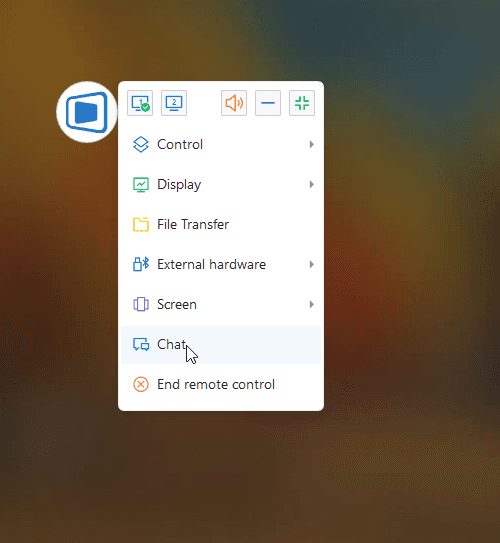
Click on the Interaction button in the main control remote toolbar to open the chat box, and then click the call button to initiate the audio call.
Console - License Configuration

Main Control Remote Toolbar
Controlled Device Display


