ทั้งหมด
ทั้งหมด
·
8 นาที
·
8 นาที
การวิเคราะห์ข้อมูล
Published on
Updated on
Updated on
การเข้าถึงเดสก์ท็อประยะไกล (Remote desktop) เคยให้ความรู้สึกเหมือนสะพานที่มั่นคง แต่ปัจจุบันสำหรับผู้ใช้หลายคน RDP แบบดั้งเดิมกลับให้ความรู้สึกเหมือนบันไดลิงที่พร้อมจะขาด ด้วยปัญหาด้านประสิทธิภาพ ความกังวลเรื่องความปลอดภัย และการสนับสนุนข้ามแพลตฟอร์มที่จำกัด จึงไม่ใช่เรื่องแปลกที่ผู้คนจำนวนมากขึ้นกำลังมองหา ทางเลือก RDP ที่ดีกว่า ซึ่งสามารถ ตอบโจทย์การทำงานในยุคปัจจุบัน ได้อย่างแท้จริง
หากคุณกำลังจัดการเซิร์ฟเวอร์หลายเครื่อง ทำงานข้ามอุปกรณ์ หรือเพียงแค่เหนื่อยหน่ายกับการเชื่อมต่อที่ไม่เสถียร คู่มือนี้จะพาคุณไปรู้จักกับเครื่องมือที่ดีที่สุดที่คุ้มค่าแก่การเปลี่ยนมาใช้งาน
RDP (Remote Desktop Protocol) เป็นโปรโตคอลที่เป็นกรรมสิทธิ์ซึ่งพัฒนาโดย Microsoft เพื่อช่วยให้ผู้ใช้สามารถเชื่อมต่อกับคอมพิวเตอร์เครื่องอื่นผ่านเครือข่ายได้ โดยนิยมใช้อย่างแพร่หลายในการเข้าถึงเซิร์ฟเวอร์ Windows, Virtual Machine และเวิร์กสเตชันระยะไกล
แม้ว่าจะมีประสิทธิภาพสูงในสภาพแวดล้อมที่ควบคุมได้ แต่ RDP มักจะผูกติดอยู่กับระบบ Windows และจำเป็นต้องมีการตั้งค่าต่างๆ เช่น การส่งต่อพอร์ต (Port Forwarding) หรือ VPN เมื่อเทียบกับเครื่องมือรุ่นใหม่ๆ แล้ว RDP จึงให้ความรู้สึกที่ยุ่งยากและล้าสมัย
คุณอาจสนใจสิ่งนี้เช่นกัน: |
|---|
แม้ RDP จะยังคงใช้งานได้ แต่ก็มีข้อจำกัดหลายประการที่สร้างความลำบากให้แก่ผู้ใช้:
ความเสี่ยงด้านความปลอดภัยหากไม่มีการตั้งค่าอย่างเหมาะสม
ขั้นตอนการตั้งค่าสำหรับการเข้าถึงระยะไกลจากภายนอกที่ซับซ้อน
การทำงานร่วมกันข้ามแพลตฟอร์มที่จำกัด
ปัญหาด้านประสิทธิภาพเมื่อเชื่อมต่อผ่านเครือข่ายที่ไม่เสถียร
ปัจจุบัน ทีมไอทีจำนวนมากต่างพากันเปลี่ยนไปใช้เทคโนโลยีอื่นแทน โดยเฉพาะอย่างยิ่งเมื่อต้องการหาซอฟต์แวร์ทางเลือกสำหรับ Windows RDP Client หรือโซลูชันที่สามารถทำงานได้อย่างไร้รอยต่อบน macOS, Linux และอุปกรณ์เคลื่อนที่ ซึ่งนี่คือจุดเด่นของทางเลือกใหม่อย่าง Remote Desktop ในปัจจุบัน
การเลือกเครื่องมือที่เหมาะสมเปรียบเสมือนการเลือกรถยนต์คู่ใจ บางคันออกแบบมาเพื่อความเร็ว ขณะที่บางคันสร้างขึ้นเพื่องานหนักระดับองค์กร และนี่คือภาพรวมโดยย่อ:
DeskIn – ทางเลือก RDP แบบ All-in-One ที่ดีที่สุด ทั้งในด้านประสิทธิภาพและการทำงานข้ามแพลตฟอร์ม
TeamViewer – ดีที่สุดสำหรับการสนับสนุนระยะไกลในระดับองค์กร (Enterprise Remote Support)
AnyDesk – ตัวเลือกที่เน้นความคล่องตัวและรวดเร็วที่สุดสำหรับการเชื่อมต่อที่ฉับไว
RustDesk – โซลูชันโอเพนซอร์สทางเลือกแทน Windows RDP ที่ดีที่สุด
Remmina – ทางเลือก RDP ที่ดีที่สุดสำหรับผู้ใช้ Linux
Chrome Remote Desktop – เครื่องมือบนเบราว์เซอร์ที่เรียบง่ายและใช้งานง่ายที่สุด
Splashtop – ดีที่สุดสำหรับสภาพแวดล้อมทางธุรกิจที่ต้องการประสิทธิภาพสูง
ความหน่วงต่ำเป็นพิเศษ (Ultra-low latency) พร้อมการสตรีมเฟรมเรตสูงที่ราบรื่น
รองรับการทำงานข้ามระบบทั้ง Windows, macOS, Linux, iOS และ Android
การเข้ารหัสที่แข็งแกร่งและระบบควบคุมการเข้าถึงที่ปลอดภัยสูง
มีฟังก์ชันรับส่งไฟล์ในตัวและรองรับการเชื่อมต่อพร้อมกันหลายเซสชัน
เป็นแบรนด์ใหม่เมื่อเทียบกับเจ้าตลาดดั้งเดิม
เหมาะสำหรับ: ผู้ใช้ที่ต้องการทางเลือก RDP ที่ทรงพลัง ยืดหยุ่น และมีประสิทธิภาพสูง
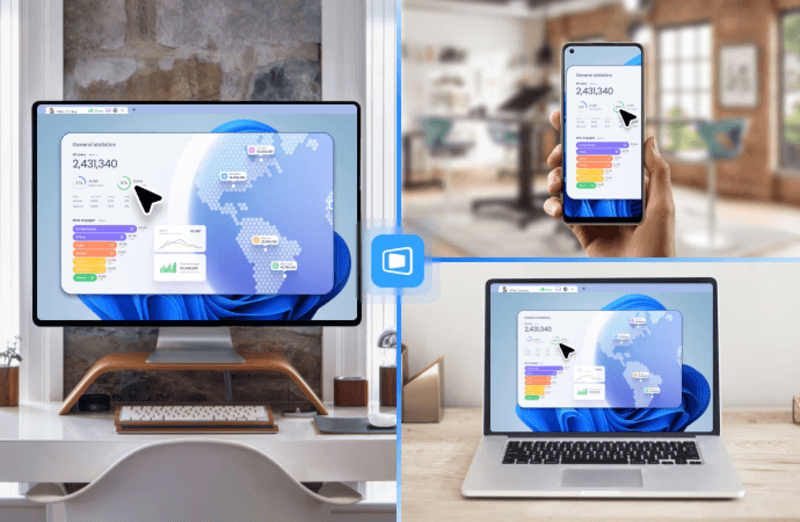
DeskIn ให้ความรู้สึกที่เหนือกว่าการเข้าถึงระยะไกลทั่วไป แต่เปรียบเสมือน การเทเลพอร์ต หน้าจอเดสก์ท็อปของคุณ ไม่ว่าคุณจะกำลังจัดการเซิร์ฟเวอร์ สนับสนุนลูกค้า หรือทำงานจากระยะไกล ซอฟต์แวร์นี้พร้อมมอบประสิทธิภาพที่ราบรื่นอย่างต่อเนื่อง โดยปราศจากปัญหาอาการกระตุกหรือดีเลย์ที่พบได้บ่อยใน RDP แบบเดิม
DeskIn แตกต่างจากเครื่องมืออื่นตรงที่ช่วยขจัดความจำเป็นในการตั้งค่าระบบที่ซับซ้อน คุณไม่จำเป็นต้องวุ่นวายกับการตั้งค่าไฟร์วอลล์หรือ VPN เพื่อเชื่อมต่ออีกต่อไป อีกทั้งยังทำงานได้อย่างไร้รอยต่อข้ามแพลตฟอร์ม ทำให้เป็นทางเลือกที่ยอดเยี่ยมแทน Microsoft Remote Desktop สำหรับทั้งผู้ใช้ Mac และอุปกรณ์เคลื่อนที่
สำหรับทีมที่ต้องดูแลระบบหลากหลายระบบ DeskIn มอบประสบการณ์การทำงานที่เป็นหนึ่งเดียวเพื่อทดแทนกระบวนการทำงานที่กระจัดกระจาย นอกจากนี้ยังเป็นทางเลือก RDP ฟรีที่มีฟังก์ชันการทำงานเทียบเท่าระดับพรีเมียม จึงเหมาะอย่างยิ่งสำหรับทั้งผู้ใช้ทั่วไปและภาคธุรกิจ
ความปลอดภัยและการปฏิบัติตามข้อกำหนดระดับองค์กร (Enterprise-grade)
คุณสมบัติการใช้งานที่หลากหลาย รวมถึงเครื่องมือสำหรับการทำงานร่วมกัน
รองรับการทำงานข้ามแพลตฟอร์มอย่างครอบคลุม
ประสิทธิภาพการเชื่อมต่อทั่วโลกที่น่าเชื่อถือ
ค่าลิขสิทธิ์ราคาสูง
อาจมีฟังก์ชันการทำงานที่เกินความจำเป็นสำหรับผู้ใช้ทั่วไป
เหมาะสำหรับ: องค์กรขนาดใหญ่ที่ต้องการการเข้าถึงระยะไกลที่ปลอดภัยและขยายขนาดได้ง่าย
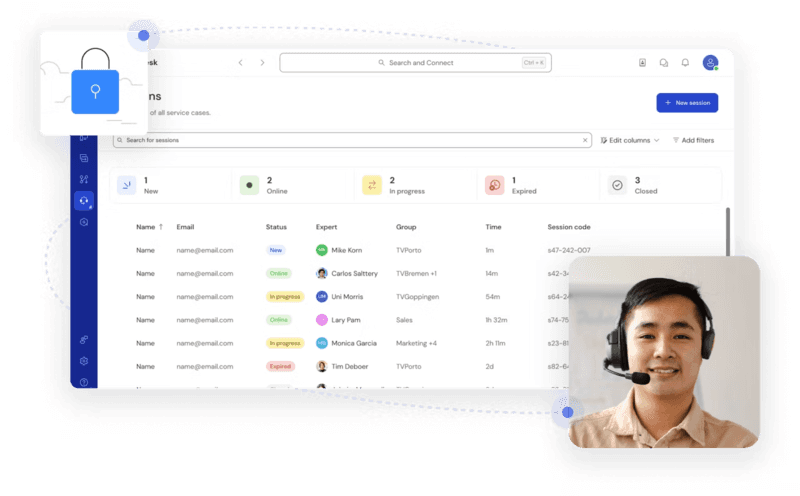
TeamViewer เป็น แพลตฟอร์มรีโมทเดสก์ท็อปที่ครบวงจร ซึ่งได้รับการยอมรับอย่างกว้างขวางจากทีมไอที ผู้เชี่ยวชาญด้านการสนับสนุน และองค์กรต่างๆ ฟังก์ชันการทำงานของซอฟต์แวร์นี้ไปไกลกว่าแค่การแชร์หน้าจอทั่วไป โดยรวมถึงระบบการจัดการอุปกรณ์ที่แข็งแกร่ง การสั่งพิมพ์ระยะไกล การโอนย้ายไฟล์ การบันทึกเซสชัน และแม้แต่การสนับสนุนด้านเทคโนโลยี AR สำหรับการทำงานภาคสนาม สถาปัตยกรรมความปลอดภัยของ TeamViewer ใช้การเข้ารหัส AES-256, การยืนยันตัวตนแบบสองขั้นตอน (2FA) และการกำหนดบัญชีที่อนุญาต (Whitelisting) ทำให้เหมาะสมอย่างยิ่งสำหรับองค์กรที่มีข้อกำหนดการปฏิบัติตามมาตรฐานที่เข้มงวด โดยรองรับการทำงานบนระบบปฏิบัติการและแพลตฟอร์มมือถือเกือบทั้งหมด
ข้อจำกัดหลักคือเรื่องราคา: รูปแบบลิขสิทธิ์เป็นแบบสมัครสมาชิกรายปี (Subscription) ซึ่งอาจมีราคาสูงสำหรับทีมขนาดเล็กหรือผู้ใช้ทั่วไป ประกอบกับระบบตรวจสอบการใช้งานเชิงพาณิชย์ของ TeamViewer ที่มีความเข้มงวดเป็นพิเศษ ซึ่งอาจส่งผลให้เซสชันการใช้งานส่วนบุคคลถูกจำกัดได้
รวดเร็วและตอบสนองได้ทันใจ
ไฟล์ติดตั้งมีขนาดเล็กและติดตั้งง่าย
ทำงานได้ดีแม้ในสภาพแวดล้อมที่มีแบนด์วิดท์ต่ำ
ใช้งานง่ายไม่ซับซ้อน
การโอนย้ายไฟล์อาจมีความไม่เสถียรในบางครั้ง
อาจเกิดอาการหน่วงหรือดีเลย์เมื่อเชื่อมต่อเป็นเวลานาน
เหมาะสำหรับ: ผู้ใช้ที่ต้องการการเข้าถึงระยะไกลที่รวดเร็วและเรียบง่าย
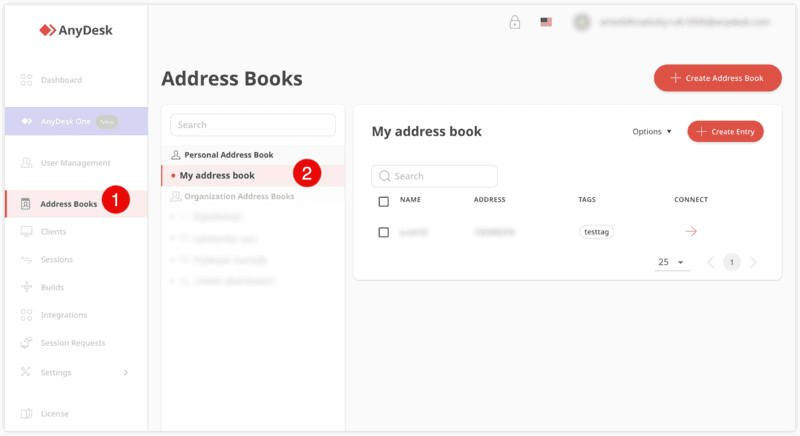
AnyDesk เป็น แอปพลิเคชันรีโมทเดสก์ท็อปขนาดกะทัดรัด ที่โดดเด่นในเรื่องความเร็วและประสิทธิภาพ มักได้รับคำแนะนำในฐานะ ทางเลือกที่รวดเร็ว แทน Remote Desktop ของ Microsoft บน Windows 10 และ Android ซอฟต์แวร์นี้ใช้ตัวแปลงสัญญาณวิดีโอที่เป็นกรรมสิทธิ์เฉพาะชื่อ DeskRT เพื่อให้ได้ความหน่วงต่ำแม้ใช้แบนด์วิดท์ที่จำกัด จึงเหมาะอย่างยิ่งสำหรับเซสชันการสนับสนุนด่วนและการเข้าถึงอุปกรณ์ผ่านเครือข่ายมือถือ อินเทอร์เฟซได้รับการออกแบบให้ดูสะอาดตาและเรียบง่าย พร้อมด้วยฟังก์ชันต่างๆ เช่น การจัดการสมุดรายชื่อ การรับส่งไฟล์ และการบันทึกเซสชัน
อย่างไรก็ตาม ผู้ใช้มักรายงานปัญหาเรื่องความไม่เสถียรเมื่อใช้งานเซสชันยาวนาน โดยประสิทธิภาพอาจลดลงตามระยะเวลา และการรับส่งไฟล์อาจช้าลงอย่างเห็นได้ชัดเมื่อเทียบกับคู่แข่งรายอื่น แม้ว่าเวอร์ชันฟรีจะค่อนข้างครอบคลุมสำหรับการใช้งานส่วนบุคคล แต่ผู้ใช้ระดับมืออาชีพมักพบว่าขีดจำกัดด้านประสิทธิภาพทำให้ไม่เหมาะกับงานที่ต้องการความต่อเนื่องสูง ในทางกลับกัน DeskIn สามารถรักษาประสิทธิภาพการทำงานที่สม่ำเสมอแม้จะใช้งานอย่างต่อเนื่องยาวนาน จึงตอบโจทย์การทำงานระดับมืออาชีพได้ดียิ่งกว่า
คุณอาจสนใจสิ่งนี้เช่นกัน: |
|---|
ใช้งานฟรีและเป็นซอฟต์แวร์โอเพนซอร์ส
รองรับการทำ Self-hosting เพื่อการควบคุมระบบอย่างเต็มรูปแบบ
การปกป้องความเป็นส่วนตัวที่แข็งแกร่ง
มีชุมชนผู้ใช้ที่คอยให้การสนับสนุนและอัปเดตอย่างต่อเนื่อง
จำเป็นต้องมีความรู้ทางเทคนิคในการตั้งค่า
ฟีเจอร์การใช้งานสำหรับผู้ใช้ทั่วไปอาจยังมีจำกัด
เหมาะสำหรับ: นักพัฒนาและผู้ใช้ที่ให้ความสำคัญกับความเป็นส่วนตัวของข้อมูลเป็นหลัก
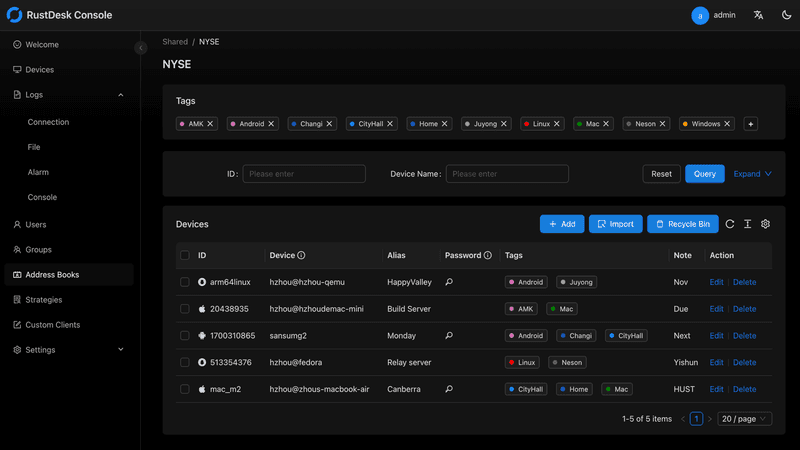
RustDesk ได้ก้าวขึ้นมาเป็น โซลูชันโอเพนซอร์สชั้นนำสำหรับรีโมทเดสก์ท็อป ซึ่งตอบโจทย์นักพัฒนาและองค์กรที่ต้องการควบคุมข้อมูลของตนเองอย่างสมบูรณ์ ซอฟต์แวร์นี้อนุญาตให้ผู้ใช้ตั้งเซิร์ฟเวอร์รีเลย์และเรนเดวูเองได้ (Self-host) ซึ่งหมายความว่าจะไม่มีโครงสร้างพื้นฐานของบุคคลที่สามเข้ามาเกี่ยวข้องกับข้อมูลเมตาของการเชื่อมต่อ ตัวโปรแกรมเขียนขึ้นด้วยภาษา Rust จึงมีชุดโค้ดที่ทันสมัย พร้อมไคลเอนต์ที่รองรับการทำงานข้ามแพลตฟอร์ม (Windows, macOS, Linux, Android, iOS) และมีฟังก์ชันที่จำเป็น เช่น การรับส่งไฟล์, TCP tunneling รวมถึงสมุดรายชื่อที่ปรับแต่งได้
อุปสรรคสำคัญคือความซับซ้อนในการใช้งาน: การติดตั้งและดูแลรักษาสภาพแวดล้อมแบบ Self-hosted จำเป็นต้องอาศัยความเชี่ยวชาญทางเทคนิคเพื่อตั้งค่าไฟร์วอลล์, ใบรับรอง SSL และการบำรุงรักษาเซิร์ฟเวอร์อย่างต่อเนื่อง สำหรับผู้ที่เลือกใช้เซิร์ฟเวอร์รีเลย์สาธารณะ ประสิทธิภาพการเชื่อมต่ออาจไม่เสถียรขึ้นอยู่กับปริมาณการใช้งานเซิร์ฟเวอร์และระยะทางทางภูมิศาสตร์
คุณอาจสนใจสิ่งนี้เช่นกัน: สุดยอดทางเลือกแทน RustDesk เพื่อประสิทธิภาพ ความปลอดภัย และการใช้งานที่ง่ายยิ่งขึ้น |
|---|
เป็นซอฟต์แวร์โอเพนซอร์สและใช้งานฟรี
รองรับโปรโตคอลหลากหลาย รวมถึง RDP และ VNC
น้ำหนักเบาและมีความยืดหยุ่นสูง
ออกแบบมาเพื่อสภาพแวดล้อม Linux โดยเฉพาะ
คุณสมบัติบางประการอาจจำกัดเมื่อเทียบกับเครื่องมือสมัยใหม่
อินเทอร์เฟซผู้ใช้ (UI) อาจดูล้าสมัยไปบ้าง
เหมาะสำหรับ: ผู้ใช้ Linux ที่กำลังมองหาทางเลือก RDP บนระบบปฏิบัติการ Linux แบบดั้งเดิม
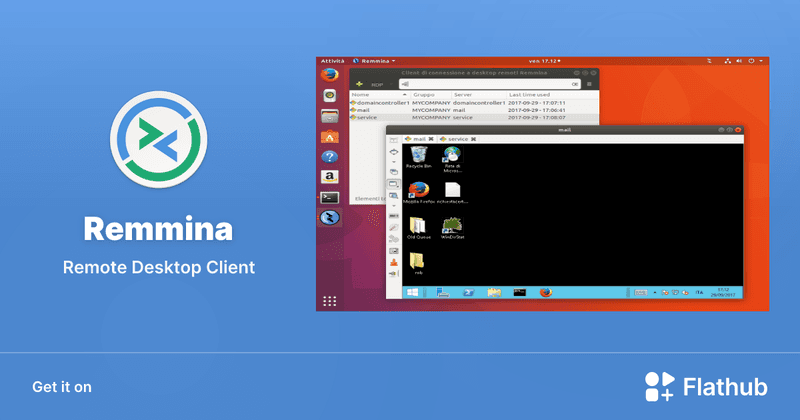
Remmina เป็นไคลเอนต์รีโมทเดสก์ท็อปแบบโอเพนซอร์สยอดนิยมสำหรับระบบปฏิบัติการ Linux โดยรองรับโปรโตคอลหลากหลายประเภท (RDP, VNC, SSH, SPICE และอื่นๆ) ภายใต้อินเทอร์เฟซเดียว จึงมักเป็นตัวเลือกแรกๆ สำหรับผู้ดูแลระบบและผู้ใช้งาน Linux ที่ต้องการเครื่องมือที่มีความยืดหยุ่นสูงและเบาเครื่องเพื่อจัดการสภาพแวดล้อมที่หลากหลาย Remmina ยังมาพร้อมฟังก์ชันการแบ่งแท็บเซสชัน โปรไฟล์การเชื่อมต่อด่วน และระบบปลั๊กอินเพื่อขยายขีดความสามารถการใช้งาน
อย่างไรก็ตาม จุดแข็ง ในเรื่องความยืดหยุ่นของโปรโตคอลก็นำมาซึ่งข้อจำกัดเช่นกัน เนื่องจากมันเป็นเพียงโปรแกรมไคลเอนต์ส่วนหน้า (Frontend Client) ไม่ใช่โซลูชันสำหรับการเข้าถึงระยะไกลแบบเต็มรูปแบบ จึงไม่มีฟีเจอร์สำเร็จรูปอย่างเช่นการเข้าถึงแบบไม่ต้องมีผู้คุมหน้าเครื่อง (Unattended Access) ระบบจัดการบัญชีส่วนกลาง หรือระบบบันทึกเซสชันประสิทธิภาพสูง นอกจากนี้ประสิทธิภาพการทำงานอาจแตกต่างกันไปตามโปรโตคอลที่เลือกใช้ และประสบการณ์การใช้งานยังมีความราบรื่นน้อยกว่าเครื่องมือเชิงพาณิชย์ที่พัฒนามาอย่างประณีต โดยเฉพาะสำหรับผู้ใช้ที่ต้องการซอฟต์แวร์ประเภทพร้อมใช้งานทันที (Plug-and-play)
ฟรีและใช้งานง่ายมาก
ตั้งค่าผ่านเบราว์เซอร์ได้อย่างรวดเร็ว
เข้าถึงได้จากทุกแพลตฟอร์ม
ฟีเจอร์การใช้งานจำกัดมาก
ไม่มีเครื่องมือจัดการขั้นสูงสำหรับผู้ดูแลระบบ
เหมาะสำหรับ: ผู้ใช้ทั่วไปที่ต้องการการเข้าถึงระยะไกลขั้นพื้นฐาน
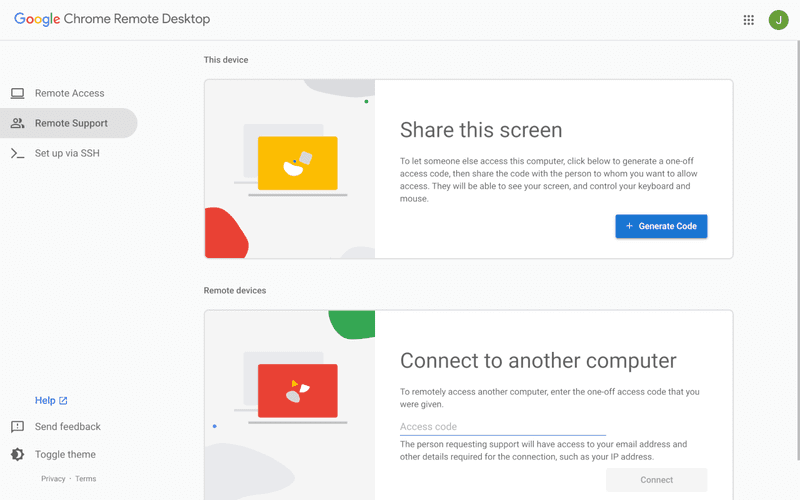
Chrome Remote Desktop เป็น เครื่องมือเข้าถึงระยะไกลบนเบราว์เซอร์จาก Google ที่เปิดให้ใช้งานฟรี โดยต้องการเพียงเบราว์เซอร์ Chrome และบัญชี Google เท่านั้น จุดเด่นของเครื่องมือนี้คือความเรียบง่าย: การติดตั้งใช้เวลาเพียงไม่กี่วินาที และการเชื่อมต่อทั้งหมดจะทำงานผ่านโครงสร้างพื้นฐานของ Google ช่วยขจัดปัญหาการตั้งค่าไฟร์วอลล์ที่ซับซ้อน สำหรับการใช้งานเป็นครั้งคราว เช่น การช่วยเหลือสมาชิกในครอบครัว หรือการเข้าถึงคอมพิวเตอร์ที่บ้านอย่างรวดเร็ว เครื่องมือนี้ทำงานได้อย่างน่าเชื่อถือบน Windows, macOS, Linux และ ChromeOS
แต่สิ่งที่คุณต้องแลกมาคือชุดฟีเจอร์ที่เรียบง่ายที่สุด โดยไม่มีระบบรับส่งไฟล์ในตัว ระบบจัดการหลายเซสชัน การสั่งพิมพ์ระยะไกล หรือการควบคุมสิทธิ์อย่างละเอียด รวมถึงไม่มีเครื่องมือสำหรับการทำงานร่วมกัน และการต้องพึ่งพาบัญชี Google ในการยืนยันตัวตนอาจเป็นข้อจำกัดสำหรับสภาพแวดล้อมการทำงานระดับมืออาชีพ จึงถือเป็นเครื่องมือเริ่มต้นที่สะดวก แต่ยังไม่สามารถตอบโจทย์ความต้องการของกลุ่มผู้ใช้ระดับสูงหรือทีมไอทีได้
คุณอาจสนใจสิ่งนี้เช่นกัน: |
|---|
ประสิทธิภาพการสตรีมหน้าจอคุณภาพสูง
ระบบรักษาความปลอดภัยที่แข็งแกร่ง
เหมาะอย่างยิ่งสำหรับสภาพแวดล้อมทางธุรกิจ
การเชื่อมต่อที่มีความเสถียรสูง
คิดราคาในรูปแบบการสมัครสมาชิก
เวอร์ชันใช้งานฟรีค่อนข้างจำกัด
เหมาะสำหรับ: ธุรกิจที่ต้องการระบบเข้าถึงระยะไกลที่เน้นประสิทธิภาพการทำงานเป็นหลัก
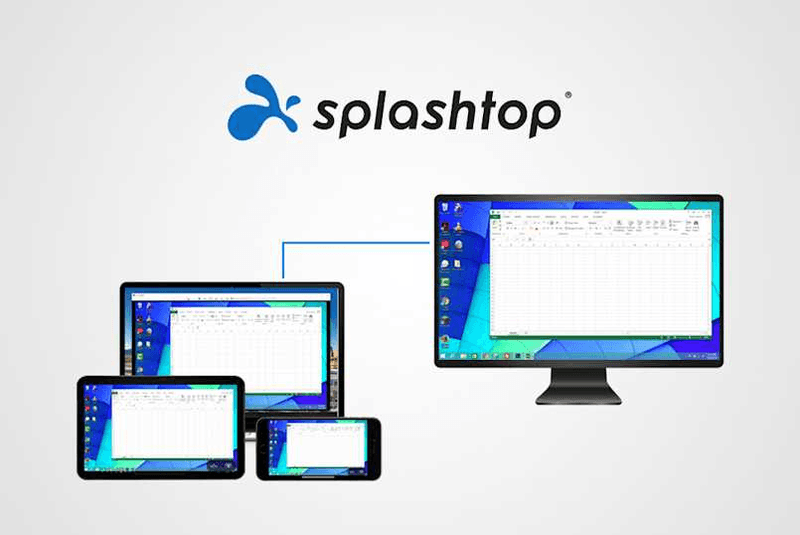
Splashtop เป็นโซลูชันรีโมทเดสก์ท็อปประสิทธิภาพสูงที่ได้รับความนิยมในกลุ่มสายงานสร้างสรรค์ (Creative Professionals) สถาบันการศึกษา และองค์กรธุรกิจที่เน้นความลื่นไหลในการทำงาน ซอฟต์แวร์นี้ให้การสตรีมที่มีความหน่วงต่ำ พร้อมรองรับจอแสดงผลที่มีอัตราเฟรมเรตสูง จึงเหมาะสำหรับงานตัดต่อวิดีโอ งานออกแบบ CAD และงานด้านกราฟิกอื่นๆ Splashtop มีเวอร์ชันให้เลือกใช้หลากหลาย ตั้งแต่ Business Access ไปจนถึง SOS สำหรับการสนับสนุนทางเทคนิคแบบเร่งด่วน โดยทุกเวอร์ชันมาพร้อมระบบความปลอดภัยที่แน่นหนา (AES-256, การยืนยันตัวตนอุปกรณ์) รวมถึงฟังก์ชันต่างๆ เช่น การโอนย้ายไฟล์ การสั่งพิมพ์ระยะไกล และการจัดการหลายหน้าจอ ซึ่งได้รับเสียงชื่นชมอย่างสม่ำเสมอในแง่ของประสิทธิภาพการเชื่อมต่อทั้งภายในเครือข่ายท้องถิ่นและผ่านอินเทอร์เน็ต
ข้อจำกัดหลักคือเรื่องต้นทุน: แม้จะมีราคาที่แข่งขันได้ แต่รูปแบบการสมัครสมาชิกอาจเพิ่มพูนอย่างรวดเร็วสำหรับผู้ใช้ที่ต้องการเข้าถึงอุปกรณ์จำนวนมากหรือต้องการฟีเจอร์ระดับสูง โดยเฉพาะเมื่อเปรียบเทียบกับเครื่องมืออื่นที่มีความสามารถใกล้เคียงกันแต่มีโครงสร้างราคาที่ยืดหยุ่นกว่า ซึ่ง DeskIn มอบประโยชน์ด้านประสิทธิภาพในระดับที่ใกล้เคียงกันพร้อมโครงสร้างราคาที่คุ้มค่ากว่า ทำให้กลายเป็นอีกหนึ่งทางเลือกที่น่าสนใจอย่างยิ่ง
คุณอาจสนใจสิ่งนี้เช่นกัน: |
|---|
RDP อาจมีความยุ่งยากในการตั้งค่า มีความปลอดภัยน้อยกว่าหากเปิดพอร์ตทิ้งไว้ และมีข้อจำกัดในการใช้งานนอกเหนือจากสภาพแวดล้อม Windows เครื่องมือสมัยใหม่อย่าง DeskIn จึงเข้ามาช่วยมอบประสิทธิภาพ ความปลอดภัย และความง่ายดายในการใช้งานที่ดียิ่งขึ้น
ทางเลือก RDP ที่ดีที่สุดขึ้นอยู่กับความต้องการเฉพาะของคุณ แต่ DeskIn มีความโดดเด่นอย่างมากในด้านความลงตัวระหว่างความเร็ว ความปลอดภัย และความสามารถในการทำงานข้ามแพลตฟอร์ม
มี เครื่องมือหลายตัวจัดเป็นทางเลือก RDP แบบฟรี รวมถึง RustDesk และ Chrome Remote Desktop นอกจากนี้ DeskIn ยังมีแผนบริการแบบฟรีที่มาพร้อมขีดความสามารถขั้นสูงให้เลือกใช้งานด้วยเช่นกัน
Microsoft กำลังพัฒนาและปรับปรุงระบบนิเวศการเข้าถึงระยะไกลอย่างต่อเนื่อง แต่ RDP แบบดั้งเดิมจะยังไม่หายไปในทันที อย่างไรก็ตาม ผู้ใช้จำนวนมากได้เริ่มเปลี่ยนผ่านไปสู่โซลูชันที่ทันสมัยกว่า เช่น DeskIn เพื่อความน่าเชื่อถือและความยืดหยุ่นที่เหนือกว่าแล้ว
แม้ว่า RDP จะเคยทำหน้าที่ของมันได้เป็นอย่างดี แต่โลกดิจิทัลในปัจจุบันได้ก้าวข้ามข้อจำกัดของมันไปแล้ว ไม่ว่าคุณจะต้องการประสิทธิภาพที่สูงขึ้น ความปลอดภัยที่รัดกุมยิ่งขึ้น หรือการเข้าถึงข้ามแพลตฟอร์มอย่างแท้จริง การเปลี่ยนไปใช้ทางเลือก RDP ที่ทันสมัยจึงไม่ใช่แค่ทางเลือกอีกต่อไป แต่เป็นสิ่งจำเป็นที่หลีกเลี่ยงไม่ได้
ในบรรดาตัวเลือกทั้งหมด DeskIn โดดเด่นในฐานะโซลูชันแห่งอนาคตที่ผสมผสานทั้งความเร็ว ความง่าย และความทรงพลังเข้าไว้ด้วยกันอย่างลงตัว ช่วยให้คุณก้าวข้ามข้อจำกัดและความติดขัดของเครื่องมือรีโมทเดสก์ท็อปแบบเดิมๆ เพื่อสัมผัสประสบการณ์การทำงานที่มีประสิทธิภาพสูงขึ้นอย่างแท้จริง
การเข้าถึงเดสก์ท็อประยะไกล (Remote desktop) เคยให้ความรู้สึกเหมือนสะพานที่มั่นคง แต่ปัจจุบันสำหรับผู้ใช้หลายคน RDP แบบดั้งเดิมกลับให้ความรู้สึกเหมือนบันไดลิงที่พร้อมจะขาด ด้วยปัญหาด้านประสิทธิภาพ ความกังวลเรื่องความปลอดภัย และการสนับสนุนข้ามแพลตฟอร์มที่จำกัด จึงไม่ใช่เรื่องแปลกที่ผู้คนจำนวนมากขึ้นกำลังมองหา ทางเลือก RDP ที่ดีกว่า ซึ่งสามารถ ตอบโจทย์การทำงานในยุคปัจจุบัน ได้อย่างแท้จริง
หากคุณกำลังจัดการเซิร์ฟเวอร์หลายเครื่อง ทำงานข้ามอุปกรณ์ หรือเพียงแค่เหนื่อยหน่ายกับการเชื่อมต่อที่ไม่เสถียร คู่มือนี้จะพาคุณไปรู้จักกับเครื่องมือที่ดีที่สุดที่คุ้มค่าแก่การเปลี่ยนมาใช้งาน
RDP (Remote Desktop Protocol) เป็นโปรโตคอลที่เป็นกรรมสิทธิ์ซึ่งพัฒนาโดย Microsoft เพื่อช่วยให้ผู้ใช้สามารถเชื่อมต่อกับคอมพิวเตอร์เครื่องอื่นผ่านเครือข่ายได้ โดยนิยมใช้อย่างแพร่หลายในการเข้าถึงเซิร์ฟเวอร์ Windows, Virtual Machine และเวิร์กสเตชันระยะไกล
แม้ว่าจะมีประสิทธิภาพสูงในสภาพแวดล้อมที่ควบคุมได้ แต่ RDP มักจะผูกติดอยู่กับระบบ Windows และจำเป็นต้องมีการตั้งค่าต่างๆ เช่น การส่งต่อพอร์ต (Port Forwarding) หรือ VPN เมื่อเทียบกับเครื่องมือรุ่นใหม่ๆ แล้ว RDP จึงให้ความรู้สึกที่ยุ่งยากและล้าสมัย
คุณอาจสนใจสิ่งนี้เช่นกัน: |
|---|
แม้ RDP จะยังคงใช้งานได้ แต่ก็มีข้อจำกัดหลายประการที่สร้างความลำบากให้แก่ผู้ใช้:
ความเสี่ยงด้านความปลอดภัยหากไม่มีการตั้งค่าอย่างเหมาะสม
ขั้นตอนการตั้งค่าสำหรับการเข้าถึงระยะไกลจากภายนอกที่ซับซ้อน
การทำงานร่วมกันข้ามแพลตฟอร์มที่จำกัด
ปัญหาด้านประสิทธิภาพเมื่อเชื่อมต่อผ่านเครือข่ายที่ไม่เสถียร
ปัจจุบัน ทีมไอทีจำนวนมากต่างพากันเปลี่ยนไปใช้เทคโนโลยีอื่นแทน โดยเฉพาะอย่างยิ่งเมื่อต้องการหาซอฟต์แวร์ทางเลือกสำหรับ Windows RDP Client หรือโซลูชันที่สามารถทำงานได้อย่างไร้รอยต่อบน macOS, Linux และอุปกรณ์เคลื่อนที่ ซึ่งนี่คือจุดเด่นของทางเลือกใหม่อย่าง Remote Desktop ในปัจจุบัน
การเลือกเครื่องมือที่เหมาะสมเปรียบเสมือนการเลือกรถยนต์คู่ใจ บางคันออกแบบมาเพื่อความเร็ว ขณะที่บางคันสร้างขึ้นเพื่องานหนักระดับองค์กร และนี่คือภาพรวมโดยย่อ:
DeskIn – ทางเลือก RDP แบบ All-in-One ที่ดีที่สุด ทั้งในด้านประสิทธิภาพและการทำงานข้ามแพลตฟอร์ม
TeamViewer – ดีที่สุดสำหรับการสนับสนุนระยะไกลในระดับองค์กร (Enterprise Remote Support)
AnyDesk – ตัวเลือกที่เน้นความคล่องตัวและรวดเร็วที่สุดสำหรับการเชื่อมต่อที่ฉับไว
RustDesk – โซลูชันโอเพนซอร์สทางเลือกแทน Windows RDP ที่ดีที่สุด
Remmina – ทางเลือก RDP ที่ดีที่สุดสำหรับผู้ใช้ Linux
Chrome Remote Desktop – เครื่องมือบนเบราว์เซอร์ที่เรียบง่ายและใช้งานง่ายที่สุด
Splashtop – ดีที่สุดสำหรับสภาพแวดล้อมทางธุรกิจที่ต้องการประสิทธิภาพสูง
ความหน่วงต่ำเป็นพิเศษ (Ultra-low latency) พร้อมการสตรีมเฟรมเรตสูงที่ราบรื่น
รองรับการทำงานข้ามระบบทั้ง Windows, macOS, Linux, iOS และ Android
การเข้ารหัสที่แข็งแกร่งและระบบควบคุมการเข้าถึงที่ปลอดภัยสูง
มีฟังก์ชันรับส่งไฟล์ในตัวและรองรับการเชื่อมต่อพร้อมกันหลายเซสชัน
เป็นแบรนด์ใหม่เมื่อเทียบกับเจ้าตลาดดั้งเดิม
เหมาะสำหรับ: ผู้ใช้ที่ต้องการทางเลือก RDP ที่ทรงพลัง ยืดหยุ่น และมีประสิทธิภาพสูง
DeskIn ให้ความรู้สึกที่เหนือกว่าการเข้าถึงระยะไกลทั่วไป แต่เปรียบเสมือน การเทเลพอร์ต หน้าจอเดสก์ท็อปของคุณ ไม่ว่าคุณจะกำลังจัดการเซิร์ฟเวอร์ สนับสนุนลูกค้า หรือทำงานจากระยะไกล ซอฟต์แวร์นี้พร้อมมอบประสิทธิภาพที่ราบรื่นอย่างต่อเนื่อง โดยปราศจากปัญหาอาการกระตุกหรือดีเลย์ที่พบได้บ่อยใน RDP แบบเดิม
DeskIn แตกต่างจากเครื่องมืออื่นตรงที่ช่วยขจัดความจำเป็นในการตั้งค่าระบบที่ซับซ้อน คุณไม่จำเป็นต้องวุ่นวายกับการตั้งค่าไฟร์วอลล์หรือ VPN เพื่อเชื่อมต่ออีกต่อไป อีกทั้งยังทำงานได้อย่างไร้รอยต่อข้ามแพลตฟอร์ม ทำให้เป็นทางเลือกที่ยอดเยี่ยมแทน Microsoft Remote Desktop สำหรับทั้งผู้ใช้ Mac และอุปกรณ์เคลื่อนที่
สำหรับทีมที่ต้องดูแลระบบหลากหลายระบบ DeskIn มอบประสบการณ์การทำงานที่เป็นหนึ่งเดียวเพื่อทดแทนกระบวนการทำงานที่กระจัดกระจาย นอกจากนี้ยังเป็นทางเลือก RDP ฟรีที่มีฟังก์ชันการทำงานเทียบเท่าระดับพรีเมียม จึงเหมาะอย่างยิ่งสำหรับทั้งผู้ใช้ทั่วไปและภาคธุรกิจ
ความปลอดภัยและการปฏิบัติตามข้อกำหนดระดับองค์กร (Enterprise-grade)
คุณสมบัติการใช้งานที่หลากหลาย รวมถึงเครื่องมือสำหรับการทำงานร่วมกัน
รองรับการทำงานข้ามแพลตฟอร์มอย่างครอบคลุม
ประสิทธิภาพการเชื่อมต่อทั่วโลกที่น่าเชื่อถือ
ค่าลิขสิทธิ์ราคาสูง
อาจมีฟังก์ชันการทำงานที่เกินความจำเป็นสำหรับผู้ใช้ทั่วไป
เหมาะสำหรับ: องค์กรขนาดใหญ่ที่ต้องการการเข้าถึงระยะไกลที่ปลอดภัยและขยายขนาดได้ง่าย
TeamViewer เป็น แพลตฟอร์มรีโมทเดสก์ท็อปที่ครบวงจร ซึ่งได้รับการยอมรับอย่างกว้างขวางจากทีมไอที ผู้เชี่ยวชาญด้านการสนับสนุน และองค์กรต่างๆ ฟังก์ชันการทำงานของซอฟต์แวร์นี้ไปไกลกว่าแค่การแชร์หน้าจอทั่วไป โดยรวมถึงระบบการจัดการอุปกรณ์ที่แข็งแกร่ง การสั่งพิมพ์ระยะไกล การโอนย้ายไฟล์ การบันทึกเซสชัน และแม้แต่การสนับสนุนด้านเทคโนโลยี AR สำหรับการทำงานภาคสนาม สถาปัตยกรรมความปลอดภัยของ TeamViewer ใช้การเข้ารหัส AES-256, การยืนยันตัวตนแบบสองขั้นตอน (2FA) และการกำหนดบัญชีที่อนุญาต (Whitelisting) ทำให้เหมาะสมอย่างยิ่งสำหรับองค์กรที่มีข้อกำหนดการปฏิบัติตามมาตรฐานที่เข้มงวด โดยรองรับการทำงานบนระบบปฏิบัติการและแพลตฟอร์มมือถือเกือบทั้งหมด
ข้อจำกัดหลักคือเรื่องราคา: รูปแบบลิขสิทธิ์เป็นแบบสมัครสมาชิกรายปี (Subscription) ซึ่งอาจมีราคาสูงสำหรับทีมขนาดเล็กหรือผู้ใช้ทั่วไป ประกอบกับระบบตรวจสอบการใช้งานเชิงพาณิชย์ของ TeamViewer ที่มีความเข้มงวดเป็นพิเศษ ซึ่งอาจส่งผลให้เซสชันการใช้งานส่วนบุคคลถูกจำกัดได้
รวดเร็วและตอบสนองได้ทันใจ
ไฟล์ติดตั้งมีขนาดเล็กและติดตั้งง่าย
ทำงานได้ดีแม้ในสภาพแวดล้อมที่มีแบนด์วิดท์ต่ำ
ใช้งานง่ายไม่ซับซ้อน
การโอนย้ายไฟล์อาจมีความไม่เสถียรในบางครั้ง
อาจเกิดอาการหน่วงหรือดีเลย์เมื่อเชื่อมต่อเป็นเวลานาน
เหมาะสำหรับ: ผู้ใช้ที่ต้องการการเข้าถึงระยะไกลที่รวดเร็วและเรียบง่าย
AnyDesk เป็น แอปพลิเคชันรีโมทเดสก์ท็อปขนาดกะทัดรัด ที่โดดเด่นในเรื่องความเร็วและประสิทธิภาพ มักได้รับคำแนะนำในฐานะ ทางเลือกที่รวดเร็ว แทน Remote Desktop ของ Microsoft บน Windows 10 และ Android ซอฟต์แวร์นี้ใช้ตัวแปลงสัญญาณวิดีโอที่เป็นกรรมสิทธิ์เฉพาะชื่อ DeskRT เพื่อให้ได้ความหน่วงต่ำแม้ใช้แบนด์วิดท์ที่จำกัด จึงเหมาะอย่างยิ่งสำหรับเซสชันการสนับสนุนด่วนและการเข้าถึงอุปกรณ์ผ่านเครือข่ายมือถือ อินเทอร์เฟซได้รับการออกแบบให้ดูสะอาดตาและเรียบง่าย พร้อมด้วยฟังก์ชันต่างๆ เช่น การจัดการสมุดรายชื่อ การรับส่งไฟล์ และการบันทึกเซสชัน
อย่างไรก็ตาม ผู้ใช้มักรายงานปัญหาเรื่องความไม่เสถียรเมื่อใช้งานเซสชันยาวนาน โดยประสิทธิภาพอาจลดลงตามระยะเวลา และการรับส่งไฟล์อาจช้าลงอย่างเห็นได้ชัดเมื่อเทียบกับคู่แข่งรายอื่น แม้ว่าเวอร์ชันฟรีจะค่อนข้างครอบคลุมสำหรับการใช้งานส่วนบุคคล แต่ผู้ใช้ระดับมืออาชีพมักพบว่าขีดจำกัดด้านประสิทธิภาพทำให้ไม่เหมาะกับงานที่ต้องการความต่อเนื่องสูง ในทางกลับกัน DeskIn สามารถรักษาประสิทธิภาพการทำงานที่สม่ำเสมอแม้จะใช้งานอย่างต่อเนื่องยาวนาน จึงตอบโจทย์การทำงานระดับมืออาชีพได้ดียิ่งกว่า
คุณอาจสนใจสิ่งนี้เช่นกัน: |
|---|
ใช้งานฟรีและเป็นซอฟต์แวร์โอเพนซอร์ส
รองรับการทำ Self-hosting เพื่อการควบคุมระบบอย่างเต็มรูปแบบ
การปกป้องความเป็นส่วนตัวที่แข็งแกร่ง
มีชุมชนผู้ใช้ที่คอยให้การสนับสนุนและอัปเดตอย่างต่อเนื่อง
จำเป็นต้องมีความรู้ทางเทคนิคในการตั้งค่า
ฟีเจอร์การใช้งานสำหรับผู้ใช้ทั่วไปอาจยังมีจำกัด
เหมาะสำหรับ: นักพัฒนาและผู้ใช้ที่ให้ความสำคัญกับความเป็นส่วนตัวของข้อมูลเป็นหลัก
RustDesk ได้ก้าวขึ้นมาเป็น โซลูชันโอเพนซอร์สชั้นนำสำหรับรีโมทเดสก์ท็อป ซึ่งตอบโจทย์นักพัฒนาและองค์กรที่ต้องการควบคุมข้อมูลของตนเองอย่างสมบูรณ์ ซอฟต์แวร์นี้อนุญาตให้ผู้ใช้ตั้งเซิร์ฟเวอร์รีเลย์และเรนเดวูเองได้ (Self-host) ซึ่งหมายความว่าจะไม่มีโครงสร้างพื้นฐานของบุคคลที่สามเข้ามาเกี่ยวข้องกับข้อมูลเมตาของการเชื่อมต่อ ตัวโปรแกรมเขียนขึ้นด้วยภาษา Rust จึงมีชุดโค้ดที่ทันสมัย พร้อมไคลเอนต์ที่รองรับการทำงานข้ามแพลตฟอร์ม (Windows, macOS, Linux, Android, iOS) และมีฟังก์ชันที่จำเป็น เช่น การรับส่งไฟล์, TCP tunneling รวมถึงสมุดรายชื่อที่ปรับแต่งได้
อุปสรรคสำคัญคือความซับซ้อนในการใช้งาน: การติดตั้งและดูแลรักษาสภาพแวดล้อมแบบ Self-hosted จำเป็นต้องอาศัยความเชี่ยวชาญทางเทคนิคเพื่อตั้งค่าไฟร์วอลล์, ใบรับรอง SSL และการบำรุงรักษาเซิร์ฟเวอร์อย่างต่อเนื่อง สำหรับผู้ที่เลือกใช้เซิร์ฟเวอร์รีเลย์สาธารณะ ประสิทธิภาพการเชื่อมต่ออาจไม่เสถียรขึ้นอยู่กับปริมาณการใช้งานเซิร์ฟเวอร์และระยะทางทางภูมิศาสตร์
คุณอาจสนใจสิ่งนี้เช่นกัน: สุดยอดทางเลือกแทน RustDesk เพื่อประสิทธิภาพ ความปลอดภัย และการใช้งานที่ง่ายยิ่งขึ้น |
|---|
เป็นซอฟต์แวร์โอเพนซอร์สและใช้งานฟรี
รองรับโปรโตคอลหลากหลาย รวมถึง RDP และ VNC
น้ำหนักเบาและมีความยืดหยุ่นสูง
ออกแบบมาเพื่อสภาพแวดล้อม Linux โดยเฉพาะ
คุณสมบัติบางประการอาจจำกัดเมื่อเทียบกับเครื่องมือสมัยใหม่
อินเทอร์เฟซผู้ใช้ (UI) อาจดูล้าสมัยไปบ้าง
เหมาะสำหรับ: ผู้ใช้ Linux ที่กำลังมองหาทางเลือก RDP บนระบบปฏิบัติการ Linux แบบดั้งเดิม
Remmina เป็นไคลเอนต์รีโมทเดสก์ท็อปแบบโอเพนซอร์สยอดนิยมสำหรับระบบปฏิบัติการ Linux โดยรองรับโปรโตคอลหลากหลายประเภท (RDP, VNC, SSH, SPICE และอื่นๆ) ภายใต้อินเทอร์เฟซเดียว จึงมักเป็นตัวเลือกแรกๆ สำหรับผู้ดูแลระบบและผู้ใช้งาน Linux ที่ต้องการเครื่องมือที่มีความยืดหยุ่นสูงและเบาเครื่องเพื่อจัดการสภาพแวดล้อมที่หลากหลาย Remmina ยังมาพร้อมฟังก์ชันการแบ่งแท็บเซสชัน โปรไฟล์การเชื่อมต่อด่วน และระบบปลั๊กอินเพื่อขยายขีดความสามารถการใช้งาน
อย่างไรก็ตาม จุดแข็ง ในเรื่องความยืดหยุ่นของโปรโตคอลก็นำมาซึ่งข้อจำกัดเช่นกัน เนื่องจากมันเป็นเพียงโปรแกรมไคลเอนต์ส่วนหน้า (Frontend Client) ไม่ใช่โซลูชันสำหรับการเข้าถึงระยะไกลแบบเต็มรูปแบบ จึงไม่มีฟีเจอร์สำเร็จรูปอย่างเช่นการเข้าถึงแบบไม่ต้องมีผู้คุมหน้าเครื่อง (Unattended Access) ระบบจัดการบัญชีส่วนกลาง หรือระบบบันทึกเซสชันประสิทธิภาพสูง นอกจากนี้ประสิทธิภาพการทำงานอาจแตกต่างกันไปตามโปรโตคอลที่เลือกใช้ และประสบการณ์การใช้งานยังมีความราบรื่นน้อยกว่าเครื่องมือเชิงพาณิชย์ที่พัฒนามาอย่างประณีต โดยเฉพาะสำหรับผู้ใช้ที่ต้องการซอฟต์แวร์ประเภทพร้อมใช้งานทันที (Plug-and-play)
ฟรีและใช้งานง่ายมาก
ตั้งค่าผ่านเบราว์เซอร์ได้อย่างรวดเร็ว
เข้าถึงได้จากทุกแพลตฟอร์ม
ฟีเจอร์การใช้งานจำกัดมาก
ไม่มีเครื่องมือจัดการขั้นสูงสำหรับผู้ดูแลระบบ
เหมาะสำหรับ: ผู้ใช้ทั่วไปที่ต้องการการเข้าถึงระยะไกลขั้นพื้นฐาน
Chrome Remote Desktop เป็น เครื่องมือเข้าถึงระยะไกลบนเบราว์เซอร์จาก Google ที่เปิดให้ใช้งานฟรี โดยต้องการเพียงเบราว์เซอร์ Chrome และบัญชี Google เท่านั้น จุดเด่นของเครื่องมือนี้คือความเรียบง่าย: การติดตั้งใช้เวลาเพียงไม่กี่วินาที และการเชื่อมต่อทั้งหมดจะทำงานผ่านโครงสร้างพื้นฐานของ Google ช่วยขจัดปัญหาการตั้งค่าไฟร์วอลล์ที่ซับซ้อน สำหรับการใช้งานเป็นครั้งคราว เช่น การช่วยเหลือสมาชิกในครอบครัว หรือการเข้าถึงคอมพิวเตอร์ที่บ้านอย่างรวดเร็ว เครื่องมือนี้ทำงานได้อย่างน่าเชื่อถือบน Windows, macOS, Linux และ ChromeOS
แต่สิ่งที่คุณต้องแลกมาคือชุดฟีเจอร์ที่เรียบง่ายที่สุด โดยไม่มีระบบรับส่งไฟล์ในตัว ระบบจัดการหลายเซสชัน การสั่งพิมพ์ระยะไกล หรือการควบคุมสิทธิ์อย่างละเอียด รวมถึงไม่มีเครื่องมือสำหรับการทำงานร่วมกัน และการต้องพึ่งพาบัญชี Google ในการยืนยันตัวตนอาจเป็นข้อจำกัดสำหรับสภาพแวดล้อมการทำงานระดับมืออาชีพ จึงถือเป็นเครื่องมือเริ่มต้นที่สะดวก แต่ยังไม่สามารถตอบโจทย์ความต้องการของกลุ่มผู้ใช้ระดับสูงหรือทีมไอทีได้
คุณอาจสนใจสิ่งนี้เช่นกัน: |
|---|
ประสิทธิภาพการสตรีมหน้าจอคุณภาพสูง
ระบบรักษาความปลอดภัยที่แข็งแกร่ง
เหมาะอย่างยิ่งสำหรับสภาพแวดล้อมทางธุรกิจ
การเชื่อมต่อที่มีความเสถียรสูง
คิดราคาในรูปแบบการสมัครสมาชิก
เวอร์ชันใช้งานฟรีค่อนข้างจำกัด
เหมาะสำหรับ: ธุรกิจที่ต้องการระบบเข้าถึงระยะไกลที่เน้นประสิทธิภาพการทำงานเป็นหลัก
Splashtop เป็นโซลูชันรีโมทเดสก์ท็อปประสิทธิภาพสูงที่ได้รับความนิยมในกลุ่มสายงานสร้างสรรค์ (Creative Professionals) สถาบันการศึกษา และองค์กรธุรกิจที่เน้นความลื่นไหลในการทำงาน ซอฟต์แวร์นี้ให้การสตรีมที่มีความหน่วงต่ำ พร้อมรองรับจอแสดงผลที่มีอัตราเฟรมเรตสูง จึงเหมาะสำหรับงานตัดต่อวิดีโอ งานออกแบบ CAD และงานด้านกราฟิกอื่นๆ Splashtop มีเวอร์ชันให้เลือกใช้หลากหลาย ตั้งแต่ Business Access ไปจนถึง SOS สำหรับการสนับสนุนทางเทคนิคแบบเร่งด่วน โดยทุกเวอร์ชันมาพร้อมระบบความปลอดภัยที่แน่นหนา (AES-256, การยืนยันตัวตนอุปกรณ์) รวมถึงฟังก์ชันต่างๆ เช่น การโอนย้ายไฟล์ การสั่งพิมพ์ระยะไกล และการจัดการหลายหน้าจอ ซึ่งได้รับเสียงชื่นชมอย่างสม่ำเสมอในแง่ของประสิทธิภาพการเชื่อมต่อทั้งภายในเครือข่ายท้องถิ่นและผ่านอินเทอร์เน็ต
ข้อจำกัดหลักคือเรื่องต้นทุน: แม้จะมีราคาที่แข่งขันได้ แต่รูปแบบการสมัครสมาชิกอาจเพิ่มพูนอย่างรวดเร็วสำหรับผู้ใช้ที่ต้องการเข้าถึงอุปกรณ์จำนวนมากหรือต้องการฟีเจอร์ระดับสูง โดยเฉพาะเมื่อเปรียบเทียบกับเครื่องมืออื่นที่มีความสามารถใกล้เคียงกันแต่มีโครงสร้างราคาที่ยืดหยุ่นกว่า ซึ่ง DeskIn มอบประโยชน์ด้านประสิทธิภาพในระดับที่ใกล้เคียงกันพร้อมโครงสร้างราคาที่คุ้มค่ากว่า ทำให้กลายเป็นอีกหนึ่งทางเลือกที่น่าสนใจอย่างยิ่ง
คุณอาจสนใจสิ่งนี้เช่นกัน: |
|---|
RDP อาจมีความยุ่งยากในการตั้งค่า มีความปลอดภัยน้อยกว่าหากเปิดพอร์ตทิ้งไว้ และมีข้อจำกัดในการใช้งานนอกเหนือจากสภาพแวดล้อม Windows เครื่องมือสมัยใหม่อย่าง DeskIn จึงเข้ามาช่วยมอบประสิทธิภาพ ความปลอดภัย และความง่ายดายในการใช้งานที่ดียิ่งขึ้น
ทางเลือก RDP ที่ดีที่สุดขึ้นอยู่กับความต้องการเฉพาะของคุณ แต่ DeskIn มีความโดดเด่นอย่างมากในด้านความลงตัวระหว่างความเร็ว ความปลอดภัย และความสามารถในการทำงานข้ามแพลตฟอร์ม
มี เครื่องมือหลายตัวจัดเป็นทางเลือก RDP แบบฟรี รวมถึง RustDesk และ Chrome Remote Desktop นอกจากนี้ DeskIn ยังมีแผนบริการแบบฟรีที่มาพร้อมขีดความสามารถขั้นสูงให้เลือกใช้งานด้วยเช่นกัน
Microsoft กำลังพัฒนาและปรับปรุงระบบนิเวศการเข้าถึงระยะไกลอย่างต่อเนื่อง แต่ RDP แบบดั้งเดิมจะยังไม่หายไปในทันที อย่างไรก็ตาม ผู้ใช้จำนวนมากได้เริ่มเปลี่ยนผ่านไปสู่โซลูชันที่ทันสมัยกว่า เช่น DeskIn เพื่อความน่าเชื่อถือและความยืดหยุ่นที่เหนือกว่าแล้ว
แม้ว่า RDP จะเคยทำหน้าที่ของมันได้เป็นอย่างดี แต่โลกดิจิทัลในปัจจุบันได้ก้าวข้ามข้อจำกัดของมันไปแล้ว ไม่ว่าคุณจะต้องการประสิทธิภาพที่สูงขึ้น ความปลอดภัยที่รัดกุมยิ่งขึ้น หรือการเข้าถึงข้ามแพลตฟอร์มอย่างแท้จริง การเปลี่ยนไปใช้ทางเลือก RDP ที่ทันสมัยจึงไม่ใช่แค่ทางเลือกอีกต่อไป แต่เป็นสิ่งจำเป็นที่หลีกเลี่ยงไม่ได้
ในบรรดาตัวเลือกทั้งหมด DeskIn โดดเด่นในฐานะโซลูชันแห่งอนาคตที่ผสมผสานทั้งความเร็ว ความง่าย และความทรงพลังเข้าไว้ด้วยกันอย่างลงตัว ช่วยให้คุณก้าวข้ามข้อจำกัดและความติดขัดของเครื่องมือรีโมทเดสก์ท็อปแบบเดิมๆ เพื่อสัมผัสประสบการณ์การทำงานที่มีประสิทธิภาพสูงขึ้นอย่างแท้จริง

MapleStory Worlds บนมือถือเครื่องร้อนหรือควบคุมยากใช่ไหม? วิธีแก้ปัญหาแล็ก เครื่องร้อน และปุ่มสัมผัสใน Artale
คุณเคยพลาดจังหวะกระโดดเพราะจอยสติ๊กบนหน้าจอดริฟต์ไปผิดทางหรือไม่? โทรศัพท์ของคุณร้อนเกินไป เฟรมเรตตก หรือแบตเตอรี่หมดไวระหว่างการฟาร์มเลเวลใช่ไหม? หากคุณต้องการวิธีเล่น Artale ที่สะดวกสบายยิ่งขึ้นในตอนที่ไม่ได้อยู่หน้าคอมพิวเตอร์ ดาวน์โหลด DeskIn และเชื่อมต่อเข้ากับชุดเดสก์ท็อปที่คุณใช้งานอยู่แล้วได้ทันที
คู่มือนี้จะอธิบายถึงปัญหาที่พบบ่อยที่สุดเมื่อรัน Artale ผ่านแอปมือถือ MapleStory Worlds โดยตรง สาเหตุของปัญหา และวิธีที่การควบคุมระยะไกล (Remote Play) จะช่วยลดภาระการทำงานของโทรศัพท์ พร้อมทั้งมอบการควบคุมที่ยืดหยุ่นยิ่งขึ้นให้กับคุณ
โพสต์ในชุมชนเกี่ยวกับ Artale บนมือถือ มักจะกล่าวถึงการโหลดเข้าเกมครั้งแรกที่ช้า หน้าจอโหลดค้างเป็นสีดำ การตอบสนองของปุ่มกดที่ไม่เสถียร และความจำเป็นในการตั้งค่าปุ่มลัดใหม่ ประสบการณ์การเล่นจะแตกต่างกันไปตามอุปกรณ์และภูมิภาค แต่ปัญหาหลักๆ ที่พบได้บ่อยมีดังนี้:
โทรศัพท์ร้อนจัดและแบตเตอรี่ลดลงอย่างรวดเร็วเมื่อเล่นเป็นเวลานาน
การเข้าสู่ระบบและการโหลดแผนที่ช้า โดยเฉพาะเมื่อการเชื่อมต่ออินเทอร์เน็ตไม่เสถียร
แผนที่ที่มีผู้เล่นหนาแน่น บอส และเอฟเฟกต์สกิลต่างๆ อาจทำให้เฟรมเรตตก กระตุก หรือเกมหลุดได้
จอยสติ๊กเสมือนจริงทำให้การกระโดดระยะสั้น การเปลี่ยนทิศทาง และการไต่เชือกทำได้อย่างไม่แม่นยำ
ปุ่มควบคุมและเมนูต่างๆ อาจบดบังแท่นยืน ศัตรู หรือไอเทมขนาดเล็กในช่องเก็บของ
การกดปุ่มปั๊มยา เคลื่อนที่ และใช้สกิลซ้ำๆ อาจทำให้เกิดอาการนิ้วล้าได้
การกดหลายปุ่มพร้อมกันอาจทำได้ยากบนโทรศัพท์หรือแท็บเล็ต โดยเฉพาะในจังหวะที่ต้องกระโดดโจมตีหรือการเล่นที่ต้องใช้คอมโบหนักๆ
เมื่อคุณรัน Artale บนมือถือโดยตรง โทรศัพท์ของคุณจะต้องประมวลผลทั้งระบบเกม กราฟิก เครือข่าย การแสดงผล และการสัมผัสหน้าจอไปพร้อมๆ กัน ภาระการทำงานดังกล่าวจะเพิ่มขึ้นเมื่อ:
ตั้งค่ากราฟิก เฟรมเรต ความสว่างหน้าจอ หรือเอฟเฟกต์ภาพไว้สูง
มีแอปพลิเคชันเบื้องหลังคอยดึงหน่วยความจำหรือทรัพยากรของหน่วยประมวลผล
อุปกรณ์กำลังชาร์จแบตเตอรี่ ใส่เคสที่หนา หรือใช้งานในสภาพแวดล้อมที่ร้อน
สัญญาณเครือข่ายอ่อนเกินไป จนทำให้เกิดการโหลดซ้ำ การเชื่อมต่อใหม่ หรือตัวละครถอยหลังกลับตำแหน่งเดิม (Rollback)
เมื่ออุปกรณ์ร้อนขึ้น ระบบปฏิบัติการอาจลดความเร็วของ CPU หรือ GPU ลงเพื่อป้องกันความเสียหายต่อฮาร์ดแวร์ การจำกัดประสิทธิภาพเนื่องจากความร้อน (Thermal Throttling) นี้อาจส่งผลให้เฟรมเรตตกและการตอบสนองของปุ่มกดล่าช้า แม้ว่าจะเล่นบนโทรศัพท์ที่มีสเปกค่อนข้างสูงก็ตาม
แม้ว่า Artale จะสามารถเล่นผ่าน MapleStory Worlds บนมือถือได้ แต่หน้าจอสัมผัสขนาดเล็กก็ยังมีข้อจำกัดสำหรับเกมแนว Side-Scrolling RPG ที่ต้องใช้ปุ่มบนคีย์บอร์ดจำนวนมาก:
จอยสติ๊กเสมือนไม่มีแรงตอบสนองทางกายภาพ ทำให้การเคลื่อนที่อย่างแม่นยำทำได้ยากขึ้น
ปุ่มสกิล ปุ่มปั๊มยา ปุ่มกระโดด และปุ่มฟังก์ชันเสริมต่างๆ ต้องแย่งพื้นที่บนหน้าจอที่มีอยู่อย่างจำกัด
นิ้วของคุณอาจจะไปบดบังตัวละคร แท่นยืน หรือสัญญาณการโจมตีของศัตรู
หน้าต่างช่องเก็บของ ร้านค้า และช่องแชทยังคงมีปุ่มคลิกขนาดเล็กที่กดยาก
การเล่นเป็นเวลานานจำเป็นต้องจับโทรศัพท์ในท่าเดิมและขยับนิ้วโป้งซ้ำๆ
ซึ่งหมายความว่าการควบคุม Artale บนมือถืออาจให้ความรู้สึกที่ไม่ถนัดมือ แม้ว่าโทรศัพท์จะไม่ร้อนก็ตาม ลำดับการตั้งค่าประสิทธิภาพเพียงอย่างเดียวไม่สามารถแก้ปัญหาเรื่องการวางตำแหน่งปุ่ม การบดบังวิสัยทัศน์ หรือการขาดการตอบสนองทางกายภาพได้
MapleStory Worlds เปิดให้บริการอย่างเป็นทางการทั้งบน PC และมือถือ แทนที่จะรัน Artale บนโทรศัพท์โดยตรง คุณสามารถใช้ DeskIn สตรีมภาพการเล่นจาก Windows หรือ Mac ไปยัง iPhone, iPad หรืออุปกรณ์ Android ของคุณได้ โดยให้คอมพิวเตอร์เป็นตัวประมวลผลเกม ส่วนโทรศัพท์จะทำหน้าที่แสดงผลวิดีโอและส่งคำสั่งควบคุมของคุณกลับไป
เนื่องจากคอมพิวเตอร์เดสก์ท็อปทำหน้าที่ประมวลผลเกมทั้งหมด โทรศัพท์จึงไม่ต้องรันกราฟิกในเครื่องอีกต่อไป แม้ว่าโทรศัพท์จะยังคงต้องถอดรหัสวิดีโอ รักษาการเชื่อมต่อเครือข่าย และเปิดหน้าจออยู่ ซึ่งอาจทำให้เครื่องอุ่นขึ้นบ้าง แต่ภาระงานและการใช้แบตเตอรี่จะต่ำกว่าการเล่นบนมือถือโดยตรงอย่างเห็นได้ชัด
คุณสามารถเชื่อมต่อกลับไปยังคอมพิวเตอร์ที่คุณใช้งานอยู่แล้วด้วย Launcher บัญชี และอินเทอร์เฟซเดสก์ท็อปเดียวกัน ซึ่งสะดวกมากสำหรับการเช็กตลาดซื้อขาย ทำภารกิจประจำวัน หรือฟาร์มเลเวลต่อ โดยไม่ต้องเรียนรู้การจัดวางปุ่มแบบใหม่อีกรอบ
แป้นพิมพ์เกมของ DeskIn ช่วยให้คุณสามารถจัดวางปุ่มเคลื่อนที่ กระโดด ปั๊มยา สกิล เมาส์ และปุ่มลัดต่างๆ บนหน้าจอได้ตามต้องการ คุณสามารถปรับตำแหน่ง ขนาด และความโปร่งใส จากนั้นบันทึกเค้าโครงแยกสำหรับแต่ละอาชีพได้
DeskIn รองรับการเชื่อมต่อคอนโทรลเลอร์ (Gamepad Mapping) จากโทรศัพท์ แท็บเล็ต PC หรือ Mac ของคุณไปยังคอมพิวเตอร์ปลายทาง ความเข้ากันได้ของคอนโทรลเลอร์อาจแตกต่างกันไป ดังนั้นโปรดทดสอบการเคลื่อนที่และสกิลในแผนที่ที่ปลอดภัยก่อนเริ่มสู้บอส
ติดตั้ง MapleStory Worlds และ Artale บนคอมพิวเตอร์ Windows หรือ Mac ที่คุณจะใช้เป็นเครื่องหลัก อัปเดตเกม Launcher ระบบปฏิบัติการ และไดรเวอร์การ์ดจอให้เรียบร้อย จากนั้นตรวจสอบให้แน่ใจว่าการเข้าสู่ระบบ เสียง และการพิมพ์คีย์บอร์ดทำงานได้ปกติ
ติดตั้ง DeskIn ทั้งบนคอมพิวเตอร์เครื่องหลักและบนโทรศัพท์หรือแท็บเล็ตของคุณ เข้าสู่ระบบด้วยบัญชี DeskIn เดียวกันบนอุปกรณ์ทั้งสองเครื่อง
ตั้งค่าไม่ให้คอมพิวเตอร์เครื่องหลักเข้าสู่โหมดสลีป (Sleep) ในแอป DeskIn ให้เปิดใช้งานฟังก์ชันเริ่มทำงานพร้อมระบบ และตั้งค่าการเข้าถึงแบบไม่ต้องเฝ้าหน้าจอ (Unattended Access) พร้อมรหัสผ่านความปลอดภัย
เปิด DeskIn บนโทรศัพท์ เลือกคอมพิวเตอร์จากรายการอุปกรณ์ ใส่รหัสผ่านความปลอดภัย และเริ่มรัน Artale
เริ่มต้นด้วยการตั้งค่าคุณภาพแบบเน้นความลื่นไหล (Smooth) และ 60 FPS หากการเชื่อมต่อเสถียรดีแล้ว ค่อยๆ ปรับเพิ่มคุณภาพของภาพ หากรู้สึกว่าปุ่มตอบสนองช้า ให้เลือกความลื่นไหลเป็นอันดับแรกและตรวจสอบสถานะเครือข่ายแบบเรียลไทม์
สำหรับการดูขั้นตอนการตั้งค่าอย่างละเอียด โปรดดู คู่มือการเข้าถึงแบบไม่ต้องเฝ้าหน้าจอของ DeskIn
เชื่อมต่อกับคอมพิวเตอร์เครื่องหลัก เปิดแถบเครื่องมือด้านล่าง จากนั้นเลือก แป้นพิมพ์ > แป้นพิมพ์เกม
สร้างเค้าโครงแป้นพิมพ์และเพิ่มปุ่มเคลื่อนที่ กระโดด สกิล ปั๊มยา ปุ่มเมาส์ หรือการกดหลายปุ่มพร้อมกัน ย้ายหรือปรับขนาดปุ่มควบคุมแต่ละปุ่มเพื่อไม่ให้บดบังแท่นยืนหรือสัญญาณเตือนในการต่อสู้
บันทึกเค้าโครงตามประเภทอาชีพหรือตัวละคร สร้างโปรไฟล์เพิ่มเติมเมื่อต้องการสลับไปใช้กับตัวละครอื่นที่มีแถบสกิลแตกต่างกัน
ดูคำแนะนำในการตั้งค่าปุ่มอย่างละเอียดได้ที่ คู่มือการกำหนดค่าแป้นพิมพ์เกมแบบกำหนดเอง
เชื่อมต่อคอนโทรลเลอร์บลูทูธหรือแบบมีสายที่รองรับเข้ากับโทรศัพท์หรือแท็บเล็ตของคุณ
เชื่อมต่อกับคอมพิวเตอร์ใน DeskIn เปิดแถบเครื่องมือ และเปิดใช้งานการจับคู่คอนโทรลเลอร์ (Gamepad Mapping) หรือการส่งต่อสัญญาณคอนโทรลเลอร์
ทดสอบการเคลื่อนที่ การกระโดด การโจมตี และการตั้งค่าปุ่มสกิลในพื้นที่ที่ปลอดภัยก่อนเริ่มเล่นเนื้อหาที่ท้าทาย
หากการตั้งค่าปุ่มอัตโนมัติไม่ทำงาน ให้ทำตาม คู่มือการจับคู่คอนโทรลเลอร์ของ DeskIn และตรวจสอบว่าคอนโทรลเลอร์ของคุณรองรับหรือไม่
หากคุณชอบเล่นผ่านแอป MapleStory Worlds บนมือถือโดยตรงมากกว่า ให้ลองใช้วิธีลดภาระการทำงานของอุปกรณ์ดังต่อไปนี้:
ลดคุณภาพกราฟิก เอฟเฟกต์ และอัตราเฟรมเรตลง แทนที่จะตั้งค่าไว้ที่ระดับสูงสุด
ลดความสว่างหน้าจอ และปิดแอปพลิเคชันบันทึกหน้าจอ สตรีมมิ่ง บริการระบุตำแหน่ง และแอปที่รันเบื้องหลังที่ไม่จำเป็น
หลีกเลี่ยงการชาร์จแบตเตอรี่ขณะเล่น หากโทรศัพท์ร้อนผิดปกติ ให้หยุดเล่นและปล่อยให้เครื่องเย็นลงตามธรรมชาติ
ถอดเคสหนาๆ ออก และหลีกเลี่ยงการเล่นในที่ที่โดนแสงแดดโดยตรงหรือในห้องที่ร้อน
ใช้ Wi-Fi ที่เสถียรเมื่อทำได้ เพื่อไม่ให้โทรศัพท์ต้องคอยสลับเครือข่ายมือถือไปมาตลอดเวลา
อัปเดตแอป MapleStory Worlds และระบบปฏิบัติการมือถือให้เป็นเวอร์ชันล่าสุด พร้อมทั้งเหลือพื้นที่จัดเก็บข้อมูลให้เพียงพอ
ลดระยะเวลาการเล่นในแต่ละรอบลง หยุดเล่นทันทีหากอุปกรณ์แสดงคำเตือนเรื่องอุณหภูมิ หน้าจอไม่ตอบสนองต่อการสัมผัส เครื่องดับเอง หรือมีสัญญาณเตือนว่าแบตเตอรี่บวม
ตัวเครื่องมีอุณหภูมิอุ่นขึ้นบ้างขณะรันเกมที่ใช้กราฟิกสูงถือเป็นเรื่องปกติ แต่หากมีข้อความเตือนเรื่องอุณหภูมิ ระบบไม่ยอมชาร์จไฟ หน้าจอสัมผัสตอบสนองไม่เสถียร เครื่องดับกะทันหัน หรือแบตเตอรี่บวม เป็นเรื่องที่ไม่ควรมองข้าม ให้หยุดเล่นทันทีและปล่อยให้อุปกรณ์เย็นลงก่อนที่จะหาสาเหตุต่อไป
ความเร็วของหน่วยประมวลผลเป็นเพียงปัจจัยหนึ่งเท่านั้น การจำกัดประสิทธิภาพเนื่องจากความร้อน หน่วยความจำเต็ม การอัปเดตแอป สภาพเซิร์ฟเวอร์หรือเครือข่ายอินเทอร์เน็ต และแผนที่ที่มีผู้เล่นหนาแน่น ล้วนส่งผลต่อประสิทธิภาพได้ ให้ทดลองลดการตั้งค่ากราฟิก ปิดแอปเบื้องหลัง และเปรียบเทียบความเร็วกับการเชื่อมต่อ Wi-Fi ที่เสถียร
ไม่เชิง เพราะการรีโมทเพลย์จะย้ายภาระการประมวลผลเกมไปไว้ที่คอมพิวเตอร์ แต่โทรศัพท์ยังคงต้องถอดรหัสสัญญาณภาพวิดีโอ ส่งคำสั่งควบคุม ใช้เครือข่าย และเปิดหน้าจอแสดงผลอยู่ หากโทรศัพท์ยังมีอาการอุ่น ให้ลองลดคุณภาพการสตรีม เฟรมเรต และความสว่างหน้าจอลง
DeskIn ช่วยให้การจัดวางปุ่มเสมือนบนหน้าจอยืดหยุ่นขึ้น และรองรับการแมปปุ่มกับคอนโทรลเลอร์ที่เข้ากันได้ ทั้งนี้การตอบสนองที่แท้จริงยังคงขึ้นอยู่กับโทรศัพท์ คอนโทรลเลอร์ ความหน่วงของเครือข่าย และการตั้งค่ารีโมท ดังนั้นโปรดทดสอบการจัดวางปุ่มก่อนไปลุยเนื้อหายากๆ
แอปมือถือโดยตรงจะสะดวกสำหรับการล็อกอินเข้าเกมอย่างรวดเร็วและทำภารกิจง่ายๆ ส่วน DeskIn จะเหมาะมากหากคุณมีคอมพิวเตอร์สเปกดีอยู่แล้ว และต้องการใช้อินเทอร์เฟซเวอร์ชัน PC ต้องการจัดวางปุ่มลัดตามความถนัด หรือชอบเล่นด้วยคอนโทรลเลอร์ ให้เลือกใช้ตามประเภทงานและคุณภาพเครือข่ายของคุณ
ปัญหาเกม Artale แล็ค เครื่องร้อน และแบตเตอรี่หมดไวบนมือถือ มักเกิดจากหลายปัจจัยร่วมกัน เช่น ภาระของตัวเครื่อง ขีดจำกัดในการระบายความร้อน กิจกรรมของแอปเบื้องหลัง และสภาพเครือข่าย ส่วนปัญหาเรื่องการควบคุมมักเป็นคนละประเด็นกัน: จอยสติ๊กเสมือน ปุ่มที่เบียดกัน และการบดบังวิสัยทัศน์บนหน้าจอยังคงเป็นเรื่องที่กวนใจอยู่ดี แม้ว่าจะปรับลดกราฟิกลงแล้วก็ตาม
หากคุณเล่น Artale บนคอมพิวเตอร์ Windows หรือ Mac อยู่แล้ว ดาวน์โหลด DeskIn เพื่อสตรีมเกมมาเล่นบนโทรศัพท์หรือแท็บเล็ตของคุณ พร้อมสร้างชุดปุ่มควบคุมให้เข้ากับสายอาชีพ และสลับไปใช้จอยเกมเมื่อต้องการความแม่นยำในการควบคุมที่เหนือกว่าการสัมผัสหน้าจอ

วิธีรับสิทธิ์แพ็กของขวัญ VALORANT บนมือถือ
เหนื่อยกับการที่ต้องพลาดส่วนลดจำกัดเวลาของตลาดมืด (Night Market) สกินใหม่ของร้านค้าประจำวัน (Daily Shop) ของรางวัลจากแบทเทิลพาส (Battle Pass) และการรีเฟรชเครื่องประดับฟรีจากร้านค้าอาณาจักร (Kingdom Store) สำหรับเกม VALORANT ตอนที่คุณไม่ได้อยู่หน้าจอพีซีใช่หรือไม่? รู้ไหมว่า คุณสามารถเข้าสู่ระบบ VALORANT จากโทรศัพท์มือถือของคุณได้จริง ๆ เพียงแค่เปิดการ์ดส่วนลดตลาดมืด เลือกสกินอาวุธที่คุณชอบ ตรวจสอบความคืบหน้าของแบทเทิลพาส และรับสเปรย์รวมถึงบัดดี้ปืนสุดพิเศษได้ทุกที่ทุกเวลา ไม่พลาดข้อเสนอในเกมและของดร็อปจำกัดเวลาอีกต่อไป ไม่จำเป็นต้องเฝ้าหน้าจอคอมพิวเตอร์อีกต่อไป ท่องอินเทอร์เฟซเกมฝั่งพีซีจากระยะไกลในขณะเดินทางหรือพักผ่อน ลองใช้ DeskIn เพื่อการสตรีมระยะไกลที่มีความหน่วงต่ำ และสำรวจระบบร้านค้าหลักทั้งสี่ของ VALORANT ได้ไม่ว่าคุณจะอยู่ที่ไหน!
👉 ดาวน์โหลด DeskIn อย่างเป็นทางการ:
VALORANT มีระบบการรับไอเทมและสกินที่เป็นอิสระจากกันสี่ระบบ โดยแต่ละระบบมีกฎ แหล่งรางวัล และกลไกการรีเฟรชที่แยกจากกันโดยไม่รบกวนกัน ได้แก่ ตลาดมืดแบบจำกัดเวลา, ร้านค้าประจำวันแบบถาวร, แบทเทิลพาสประจำฤดูกาล และร้านค้าอาณาจักร
ตลาดมืดแบบจำกัดเวลา**: กิจกรรมลดราคาอย่างเป็นทางการที่จัดขึ้นเป็นครั้งคราว ผู้เล่นทุกคนจะได้รับการ์ดส่วนลดสกินสุ่ม 6 ใบ ซึ่งไม่สามารถเปลี่ยนเนื้อหาข้างในได้เมื่อเปิดแล้ว ส่วนลดมีตั้งแต่ 10% ถึง 49% และของรางวัลจะแตกต่างกันไปตามแต่ละบัญชี แหล่งรางวัลจะรวมเฉพาะสกินอาวุธบางประเภทที่เปิดตัวมาแล้วอย่างน้อยสอง Act สกินแบทเทิลพาส คอลเลกชันใหม่ สกินระดับ Ultimate ซีรีส์จำกัดเวลา และอาวุธระยะประชิดที่มีมูลค่าสูงจะไม่รวมอยู่ในนี้
ร้านค้าประจำวัน: ร้านค้าถาวรของเกม สกินอาวุธเดี่ยวแบบสุ่มสี่สกินจะรีเฟรชทุกเช้าตรู่และไม่สามารถรีเซ็ตได้ด้วยตนเอง ไอเทมส่วนใหญ่ขายในราคาเต็ม ในขณะที่บางรายการอาจมีส่วนลดชั่วคราว แหล่งสกินครอบคลุมสกินอาวุธเก่าและใหม่ส่วนใหญ่ และเป็นแหล่งหลักในการซื้อสกินเดี่ยว ไอเทมลิมิเต็ดและระดับสูงบางรายการจะไม่ปรากฏที่นี่
แบทเทิลพาสประจำฤดูกาล**: อัปเดตทุก Act พร้อมเส้นทางรางวัลฟรีและพรีเมียม ปลดล็อกเส้นทางแบบชำระเงินเพื่อรับสกิน บัดดี้ปืน สเปรย์ เอฟเฟกต์การฆ่า และอื่น ๆ อีกมากมายที่เป็นเอกสิทธิ์เฉพาะฤดูกาล เนื้อหาทั้งหมดจำกัดเฉพาะฤดูกาลนั้น ๆ และจะไม่เข้าสู่ตลาดมืดหรือร้านค้าทั่วไป ไม่สามารถซื้อหรือรับรางวัลย้อนหลังได้หลังจากสิ้นสุดฤดูกาล
ร้านค้าอาณาจักร: ร้านค้าเครื่องประดับหมุนเวียนรายสัปดาห์ฟรีที่รีเฟรชทุกวันพุธ ผู้เล่นแต่ละคนจะได้รับเครื่องประดับสุ่ม 4 ชิ้นที่สามารถแลกได้ด้วยคะแนน Kingdom Credit ที่ได้รับในเกมเท่านั้น ไม่สามารถซื้อด้วย VP และไม่มีส่วนลด แหล่งไอเทมจะนำเครื่องประดับแบทเทิลพาสในอดีตกลับมา เช่น บัดดี้ปืน สเปรย์ การ์ดผู้เล่น และฉายา จะไม่มีสกินอาวุธจำหน่ายที่นี่
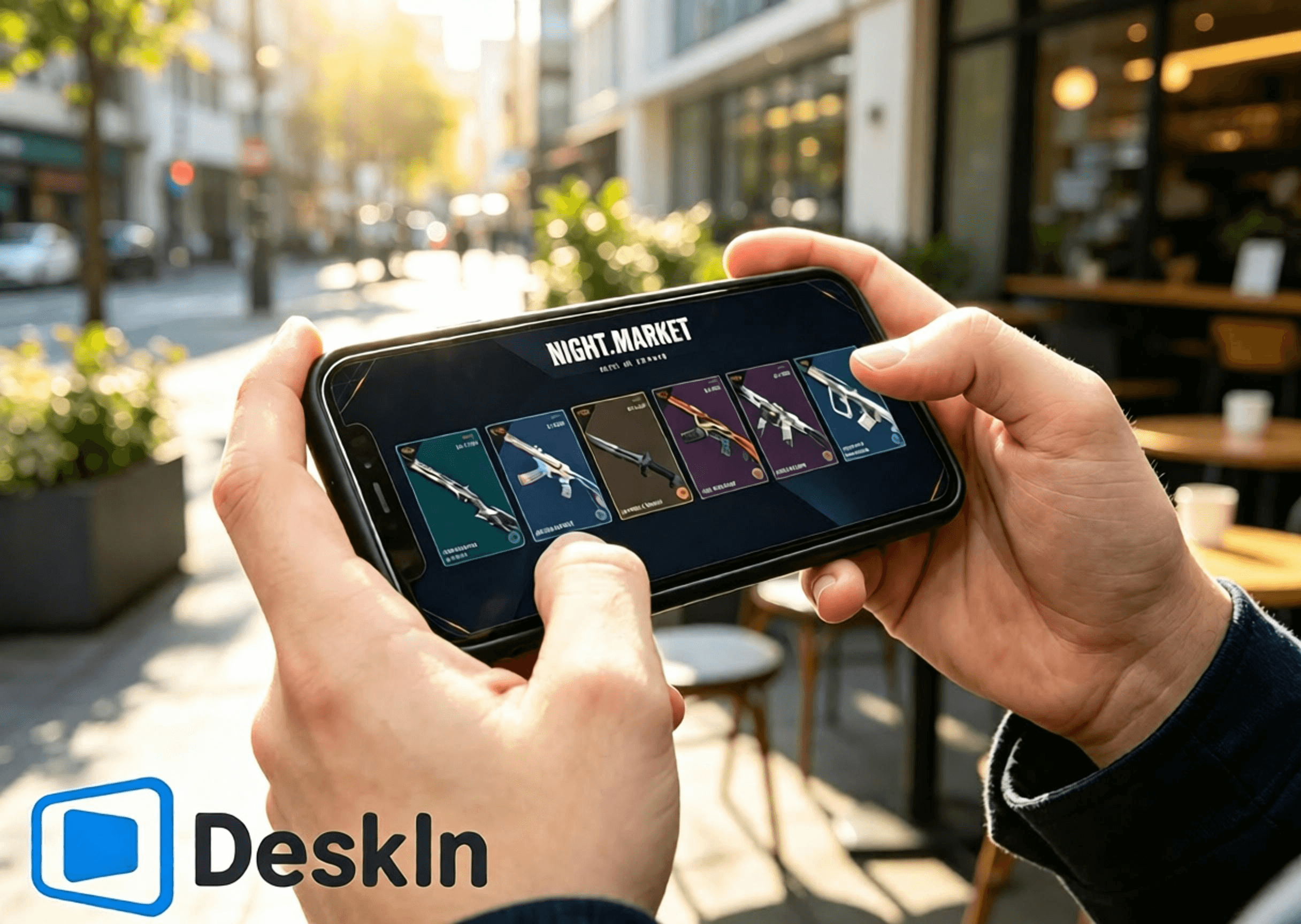
⚡ การสตรีมที่มีความหน่วงต่ำเป็นพิเศษ นำทางได้อย่างลื่นไหลเพื่อเปิดการ์ดตลาดมืด เรียกดูร้านค้าประจำวัน ตรวจสอบรางวัลแบทเทิลพาส และสลับไปยังหน้าร้านค้าอาณาจักร
🛠️ ติดตั้งและเข้าสู่ระบบได้ง่าย เชื่อมต่อได้ในคลิกเดียว เหมาะสำหรับผู้เริ่มต้น
💻 รองรับพีซีข้ามระบบปฏิบัติการอย่างสมบูรณ์: ทั้ง Windows และ Mac สามารถทำหน้าที่เป็นเครื่องโฮสต์เพื่อรันเกมและหน้าร้านค้าได้
📱 ครอบคลุมอุปกรณ์มือถือทั้งหมด: รองรับการควบคุมระยะไกลผ่าน Android, iPhone และ iPad เพื่อสำรวจระบบร้านค้าทั้งสี่ของ VALORANT
🔧 รูปแบบการควบคุมแบบสัมผัสที่ปรับแต่งได้ ปรับเปลี่ยน UI การทำงานในร้านค้าได้อย่างอิสระโดยไม่บังเนื้อหา
🖼️ การส่งผ่านวิดีโอความละเอียดสูง โมเดลสกินอาวุธ รายละเอียดแสง เอฟเฟกต์แบทเทิลพาส และพื้นผิวเครื่องประดับจะแสดงผลอย่างคมชัด
🎮 คุณภาพของภาพและอัตราเฟรมระดับแนวหน้า การสลับโหมดคู่ระหว่าง 4K/60fps และ 2K/240fps เล่นภาพได้อย่างลื่นไหลไม่มีเงาซ้อนขณะดูแอนิเมชันสกินและรายละเอียดต่าง ๆ
✨ ความหน่วงในระดับใกล้เคียงมิลลิวินาที โดยรักษาไว้ต่ำกว่า 40 ms เสมอ ตอบสนองการคลิกจากระยะไกลและการเปลี่ยนหน้าเว็บโดยไม่สะดุดหรือแตะผิดพลาด
👉 ดาวน์โหลด DeskIn อย่างเป็นทางการ:
ติดตั้งตัวเกม VALORANT บนพีซีของคุณและเข้าสู่ระบบบัญชี Riot อัปเดตตัวเกมและระบบป้องกันการโกง Vanguard ให้เป็นเวอร์ชันล่าสุดล่วงหน้า หลีกเลี่ยงการอัปเดตแบบป็อปอัปหรือการแจ้งเตือนให้รีสตาร์ทหลังจากเชื่อมต่อระยะไกล ซึ่งจะบล็อกการเข้าถึงตลาดมืด ร้านค้าประจำวัน แบทเทิลพาส และร้านค้าอาณาจักร
ดาวน์โหลดและติดตั้งโปรแกรม DeskIn สำหรับพีซีจากเว็บไซต์อย่างเป็นทางการ ลงทะเบียนและเข้าสู่ระบบบัญชี DeskIn ส่วนตัวของคุณ เปิด DeskIn ให้ทำงานในพื้นหลังและให้อุปกรณ์ออนไลน์อยู่เสมอ เพื่อให้โทรศัพท์ของคุณสามารถเริ่มการเชื่อมต่อได้ทุกเมื่อ
ขั้นตอนการทำงานเพื่อเรียกดูร้านค้าและรับรางวัลจาก Android ผ่าน DeskIn โดย DeskIn ช่วยให้เชื่อมต่อระยะไกลได้ในคลิกเดียวจากอุปกรณ์ Android ตรวจสอบตลาดมืด ร้านค้าประจำวัน แบทเทิลพาสประจำฤดูกาล และร้านค้าอาณาจักรได้โดยไม่ต้องนั่งอยู่ที่โต๊ะทำงาน
1. ดาวน์โหลด DeskIn รับแอปพลิเคชันมือถือ DeskIn อย่างเป็นทางการจากช่องทาง Android ที่น่าเชื่อถือ เข้าสู่ระบบโดยใช้บัญชีเดียวกันกับพีซีของคุณเพื่อจับคู่อุปกรณ์ให้เสร็จสิ้น ตรวจสอบให้แน่ใจว่าการเชื่อมต่อเครือข่ายทั้งสองฝั่งมีความเสถียร
2. สร้างการเชื่อมต่อระยะไกล เปิด DeskIn บนโทรศัพท์ของคุณและเลือกโฮสต์ Windows/Mac ที่ออนไลน์อยู่เพื่อเริ่มการเชื่อมต่อ สลับโทรศัพท์ของคุณเป็นโหมดแนวนอนเพื่อให้มีมุมมองที่กว้างขึ้นในการแสดง UI ร้านค้าในเกมทั้งหมด ยืนยันว่าวิดีโอเดสก์ท็อปโหลดอย่างถูกต้องและการตอบสนองต่อการสัมผัสเป็นไปอย่างราบรื่น บัญชีเกมและข้อมูลร้านค้าทั้งหมดจะอยู่ที่เครื่องพีซีโฮสต์ของคุณ อุปกรณ์มือถือของคุณจะรับเฉพาะสตรีมวิดีโอและส่งคำสั่งสัมผัสเท่านั้น
3. สำรวจระบบร้านค้าทั้งสี่ เปิดเกม VALORANT บนพีซีโฮสต์ของคุณและเปลี่ยนหน้าเพื่อดูร้านค้าต่าง ๆ ได้อย่างอิสระ:
✅ ตลาดมืดแบบจำกัดเวลา: แตะไอคอนตลาดมืดที่มุมขวาบน เปิดการ์ดส่วนลดพิเศษ 6 ใบของคุณทีละใบ สังเกตชื่อสกิน ราคาเดิม ราคาลด และเปอร์เซ็นต์ส่วนลด บันทึกภาพหน้าจอสกินที่คุณชอบเพื่อนำมาเปรียบเทียบในภายหลัง เนื้อหาของการ์ดจะถูกล็อคอย่างถาวรเมื่อเปิดแล้วและไม่สามารถรีเซ็ตได้
✅ ร้านค้าประจำวัน: เปิดแท็บร้านค้าถาวรเพื่อดูสกินอาวุธประจำวันใหม่สี่สกิน สไตล์และราคาของสกินเหล่านั้น และคว้าโอกาสในการซื้อสกินเดี่ยว
✅ แบทเทิลพาสประจำฤดูกาล**: เข้าสู่เมนูแบทเทิลพาส ตรวจสอบความคืบหน้าของเส้นทางฟรีและพรีเมียม รวมถึงรางวัลที่ยังไม่ได้กดรับ ตัดสินใจว่าจะซื้อพาสเพื่อรับรางวัลจำกัดเวลาเหล่านั้นก่อนที่ Act จะสิ้นสุดลงหรือไม่
✅ ร้านค้าอาณาจักร**: ไปที่หน้าแลกคะแนน Kingdom Credit ตรวจสอบเครื่องประดับหมุนเวียนสี่ชิ้นที่รีเฟรชทุกวันพุธ ดูว่าคุณยังขาดบัดดี้ปืน สเปรย์ การ์ดผู้เล่น และฉายาใดบ้าง และใช้คะแนน Kingdom Credit แลกได้ฟรีตามต้องการ
ขั้นตอนทั้งหมดในการเรียกดูร้านค้าและรับรางวัลบน iPhone และ iPad อุปกรณ์ Apple รองรับการเข้าถึงระยะไกลไปยังร้านค้า VALORANT ทั้งสี่แห่งได้อย่างสมบูรณ์แบบด้วยการทำงานที่ง่ายดายและภาพที่คมชัด โดยเฉพาะหน้าจอขนาดใหญ่ของ iPad จะใช้งานได้ดีมากในการตรวจสอบรายละเอียดสกินและเครื่องประดับ
1. จับคู่บัญชีข้ามอุปกรณ์ เปิด DeskIn และลงชื่อเข้าใช้บนพีซีของคุณโดยให้อุปกรณ์โฮสต์ออนไลน์อยู่ ดาวน์โหลด DeskIn อย่างเป็นทางการจาก App Store บน iPhone หรือ iPad ของคุณ และลงชื่อเข้าใช้ด้วยบัญชี DeskIn เดียวกันเพื่อจับคู่ให้เสร็จสมบูรณ์ ลงชื่อเข้าใช้บัญชี Riot ที่ถูกต้องบนพีซีไว้ล่วงหน้า ข้อมูลร้านค้าทั้งสี่ระบบจะผูกกับบัญชี การลงชื่อเข้าใช้บัญชีผิดจะแสดงเนื้อหาร้านค้าส่วนตัวที่ไม่ถูกต้อง
2. เชื่อมต่อกับพีซีโฮสต์ของคุณจาก iOS เปิด DeskIn บนโทรศัพท์หรือแท็บเล็ตของคุณ แล้วเลือกโฮสต์ Windows/Mac เพื่อเริ่มเซสชันระยะไกล แนะนำให้ใช้การวางแนวแนวนอนเสมอ หน้าจอ iPhone ขนาดกะทัดรัดเหมาะสำหรับการเปิดการ์ด ตรวจสอบราคา และรีเฟรชร้านค้าอย่างรวดเร็ว ส่วนหน้าจอขนาดใหญ่ของ iPad จะให้พื้นที่การมองเห็นที่กว้างขวางสำหรับการดูแอนิเมชันโมเดลอาวุธ ตัวอย่างรางวัลแบทเทิลพาส และตัวอย่างเครื่องประดับ
3. ใช้งานฟีเจอร์ร้านค้าทั้งหมด เปิด VALORANT และสลับไปมาระหว่างหน้าร้านค้า: ตรวจสอบสกินลดราคาในตลาดมืด ยืนยันการหมุนเวียนของร้านค้าประจำวัน ตรวจสอบความคืบหน้าของแบทเทิลพาสและรางวัลจำกัดเวลา และดูเครื่องประดับฟรีประจำสัปดาห์ในร้านค้าอาณาจักร หมายเหตุ: ส่วนลดตลาดมืดใช้ได้เฉพาะสกินพื้นฐานเท่านั้น สกินเวอร์ชันอัปเกรดและสีอื่น ๆ จะต้องซื้อแยกต่างหากด้วยคะแนน Radianite Point โดยส่วนลดจะสูงสุดที่ 49%
VALORANT ไม่มีตัวเกมเวอร์ชันสำหรับ Mac โดยตรง ผู้ใช้ Mac สามารถรันเกมผ่านโปรแกรมจำลอง (Virtual Machine) หรือสภาพแวดล้อม Windows บนคลาวด์ และยังคงเข้าถึงร้านค้าทั้งสี่ระบบได้
1. ตั้งค่าสภาพแวดล้อม Windows ให้เสถียร ติดตั้ง VALORANT และเข้าสู่ระบบบัญชี Riot ของคุณ อัปเดตเกมและระบบป้องกันการโกงทั้งหมดเพื่อให้แน่ใจว่า UI ของร้านค้าโหลดได้อย่างถูกต้อง
2. ติดตั้งโปรแกรม DeskIn บน macOS ลงชื่อเข้าใช้โดยใช้บัญชี DeskIn เดียวกันกับที่ใช้อุปกรณ์มือถือของคุณ ตั้งค่า Virtual Machine ของ Windows ที่รัน VALORANT ให้เป็นเครื่องโฮสต์ที่ถูกควบคุม และเปิด DeskIn ให้ออนไลน์ไว้ ตอนนี้คุณก็สามารถดูเนื้อหาร้านค้าทั้งหมดจากโทรศัพท์ของคุณได้จากระยะไกลแล้ว
คุณทำเพียงแค่เรียกดูร้านค้า สกิน และเครื่องประดับ ไม่ได้ทำการแข่งขันในเกม ดังนั้นควรให้ความสำคัญกับความเสถียร ความลื่นไหล และความคมชัด
- ใช้โหมดแนวนอนเสมอเพื่อให้พอดีกับ UI ของร้านค้าและหลีกเลี่ยงภาพถูกตัดขอบ
- เลือกความละเอียด 720P / 1080P เพื่อความสมดุลระหว่างความคมชัดและประสิทธิภาพ
- แนะนำให้ใช้ Wi-Fi ความเร็วสูง 5GHz / 6GHz เพื่อลดความหน่วงและการกระตุกของเครือข่าย
- หากรู้สึกว่าการสัมผัสตอบสนองช้าหรือวิดีโอกระตุก ให้ลดบิตเรตและความละเอียดลงเพื่อรักษาความเสถียร
- หยุดการดาวน์โหลดของพีซี การอัปเดตระบบ และการอัปเดตเกมชั่วคราวระหว่างเซสชันระยะไกลเพื่อคืนแบนด์วิดท์เครือข่าย
- ปรับตำแหน่งปุ่มควบคุมแบบสัมผัสจำลองเพื่อไม่ให้บังการ์ดตลาดมืด สกินร้านค้าประจำวัน รางวัลแบทเทิลพาส หรือปุ่มแลกรับของร้านค้าอาณาจักร
- จับภาพหน้าจอหลังจากเรียกดูเพื่อเปรียบเทียบสกินและวางแผนการซื้อหรือแลกรับรางวัล
- ตรวจสอบบัญชีที่เข้าสู่ระบบ ยอด VP และยอดคะแนน Kingdom Credit อีกครั้งก่อนชำระเงินหรือแลกรับเพื่อป้องกันการดำเนินการที่ผิดพลาด
หน้าจอแท็บเล็ตขนาดใหญ่จะแสดงรายละเอียดได้อย่างสมบูรณ์ยิ่งขึ้น และให้การรับชมแอนิเมชันสกิน รายละเอียดเครื่องประดับ และของรางวัลแบทเทิลพาสที่เหนือกว่า การตั้งค่าที่เหมาะสมที่สุดสำหรับแท็บเล็ต:
- ล็อคการวางแนวแนวนอนแบบเต็มหน้าจอเพื่อเพิ่มทัศนวิสัยของ UI ร้านค้าให้สูงสุด
- ตั้งค่าความละเอียดเป็น 1080P-1440P เพื่อแสดงแสงของอาวุธ แอนิเมชัน และพื้นผิวเครื่องประดับได้อย่างสมจริง
- เชื่อมต่อพีซีโฮสต์ของคุณผ่านสาย LAN เพื่อลดความผันผวนของเครือข่ายเพื่อความเสถียรสูงสุด
- ใช้ Wi-Fi ส่วนตัวที่เสถียรบนแท็บเล็ต หลีกเลี่ยงเครือข่ายสาธารณะที่ทำให้เกิดความหน่วงและการหลุดจากการเชื่อมต่อ
- ให้ความสำคัญกับคุณภาพของภาพมากกว่าอัตราเฟรมที่สูงเป็นพิเศษสำหรับการใช้งานที่เน้นการรับชม
- ลดบิตเรตลงเล็กน้อยเมื่อเครือข่ายมีความผันผวนเพื่อรักษาการแสดงผลที่ราบรื่น
- ปรับแต่งปุ่มควบคุมแบบสัมผัสจำลองให้ห่างจากปุ่มซื้อและปุ่มแลกรับรางวัลเพื่อป้องกันการแตะโดยไม่ได้ตั้งใจ
คอลเลกชันยอดนิยมที่มีแอนิเมชัน เช่น Reaver, Oni, Ion, Gaia’s Vengeance และ Glitchpop รวมถึงไอเทมเอฟเฟกต์พิเศษของแบทเทิลพาส จะแสดงแอนิเมชันที่สวยงามและรายละเอียดที่ละเอียดยิ่งขึ้นบนแท็บเล็ต
คำตอบ: เหมือนกันทุกประการ ข้อมูลตลาดมืด ร้านค้า และแบทเทิลพาสจะซิงค์แบบเรียลไทม์กับบัญชีของคุณ ไม่มีความคลาดเคลื่อนเกิดขึ้นแน่นอน
คำตอบ: ปรับโปรไฟล์สีและระดับการซูม การแสดงรายละเอียดในมุมมองคงที่จะชัดเจนและสบายตาขึ้น
คำตอบ: การสตรีมวิดีโอเพียงอย่างเดียวไม่ได้แก้ไขไฟล์เกม การเรียกดูเฉพาะร้านค้าไม่มีความเสี่ยงใด ๆ อย่างไรก็ตาม ทางผู้พัฒนาไม่แนะนำให้เล่นเกมแข่งขันผ่านการเชื่อมต่อระยะไกล
คำตอบ: เปิดใช้งานฟีเจอร์หน้าจอเสมือนจริง (Virtual Display) คุณจะสามารถสตรีมวิดีโอและใช้งานร้านค้าได้แม้ว่าจะปิดหน้าจอหลักของคุณอยู่ก็ตาม
คำตอบ: ตัวเกมจะตรวจจับ IP ภูมิภาคบ้านเกิดของพีซีโฮสต์ของคุณ ดังนั้นระบบจะไม่ล็อคข้ามภูมิภาคและไม่มีการตรวจสอบความปลอดภัย
คำตอบ: ปรับแต่งรูปแบบปุ่มจำลองของคุณ หรือจับคู่เมาส์ Bluetooth เพื่อการควบคุมที่แม่นยำยิ่งขึ้น
คำตอบ: กฎกติกาเหมือนกันทุกประการ เครื่องประดับในร้านค้าอาณาจักรจะหมุนเวียนกลับมาเป็นระยะ ส่วนไอเทมแบทเทิลพาสจะไม่สามารถรับได้อีกอย่างถาวรเมื่อ Act นั้นสิ้นสุดลง
คำตอบ: บัญชี Riot เดียวกันไม่สามารถรัน VALORANT บนโฮสต์สองเครื่องพร้อมกันได้ ให้ปิดเกมบนเครื่องหนึ่งก่อนที่จะสลับไปอีกเครื่อง ข้อมูลทั้งหมดจะเชื่อมโยงถึงกัน
ระบบรางวัลทั้งสี่ของ VALORANT ต่างมีวัตถุประสงค์ที่แตกต่างกัน ไม่ว่าคุณจะอยู่นอกบ้านหรือไม่มีคอมพิวเตอร์ DeskIn จะสตรีมภาพ VALORANT ความละเอียดสูงและมีความหน่วงต่ำจากโฮสต์ Windows หรือ Mac ไปยังอุปกรณ์ Android, iPhone และ iPad เปิดการ์ดตลาดมืด ตรวจสอบการหมุนเวียนของร้านค้าประจำวัน ติดตามความคืบหน้าของแบทเทิลพาส และแลกรับเครื่องประดับฟรีจากร้านค้าอาณาจักรได้ทุกที่ทุกเวลา ไม่พลาดส่วนลดหรือไอเทมจำกัดเวลาอีกต่อไป ดาวน์โหลด DeskIn ตอนนี้เพื่อทดลองใช้งานการเข้าถึงระยะไกล

วิธีเล่น PUBG: BATTLEGROUNDS บน iPad หรือมือถือจากเครื่อง PC ของคุณ
ใช่ คุณสามารถเล่น PUBG บน iPad, iPhone หรือ Android ได้โดยการสตรีม PUBG: BATTLEGROUNDS จากพีซีระบบ Windows ของคุณเอง ดาวน์โหลด DeskIn บนพีซีและอุปกรณ์มือถือ โดยเครื่องโฮสต์ (พีซี) จะรันตัวเกมเต็มรูปแบบ ในขณะที่โทรศัพท์หรือแท็บเล็ตจะแสดงผลหน้าจอสตรีมและส่งสัญญาณการสัมผัส แป้นพิมพ์ เมาส์ หรือการควบคุมจากคอนโทรลเลอร์ที่รองรับกลับไป
การตั้งค่านี้มีประโยชน์อย่างยิ่งเมื่อคุณไม่ได้อยู่ที่โต๊ะทำงานและต้องการตรวจสอบกิจกรรม รับรางวัลการเข้าสู่ระบบรายวัน เข้าชมร้านค้า หรือเล่นเกมจากอีกห้องหนึ่ง อย่างไรก็ตาม สำหรับการแข่งขันจัดอันดับ (Ranked matches) และการปะทะด้วยปืนที่ต้องการความแม่นยำสูง การเล่นระยะไกลจะเพิ่มความล่าช้าของการส่งข้อมูลผ่านเครือข่ายและการป้อนข้อมูล (Input delay) การเล่นด้วยคีย์บอร์ดและเมาส์ในระบบเครื่องโลคอลจึงยังคงเป็นตัวเลือกที่ปลอดภัยที่สุดสำหรับการเล่นเพื่อการแข่งขัน
ข้อสำคัญ: DeskIn ไม่ใช่ผลิตภัณฑ์อย่างเป็นทางการของ KRAFTON, PUBG Studios หรือ BattlEye นโยบายเกมและระบบป้องกันการโกงอาจมีการเปลี่ยนแปลง โปรดตรวจสอบกฎล่าสุดของ PUBG: BATTLEGROUNDS ก่อนเชื่อมต่อ และห้ามใช้มาโคร, สคริปต์, ระบบอัตโนมัติ, การควบคุมแรงถีบ, การคลิกอัตโนมัติ หรือคำสั่งแบบกดปุ่มเดียวเพื่อทำงานหลายอย่าง
ก่อนจะตั้งค่าใด ๆ โปรดตัดสินใจว่าคุณต้องการเข้าถึงเกมเวอร์ชันใดกันแน่
ตัวเลือก | อุปกรณ์ที่รันเกม | ความคืบหน้าของเกมที่ใช้ | เหมาะสำหรับ |
|---|---|---|---|
PUBG: BATTLEGROUNDS ผ่าน DeskIn | พีซีสำหรับเล่นเกมระบบ Windows ของคุณ | บัญชีพีซีที่คุณใช้เข้าสู่ระบบ | การเข้าถึงเกมเวอร์ชันพีซีเต็มรูปแบบจาก iPad หรือโทรศัพท์มือถือ |
PUBG MOBILE | รันโดยตรง (Native) บน iOS หรือ Android | บัญชี PUBG MOBILE ของคุณ | เกมที่ได้รับการออกแบบมาเฉพาะสำหรับหน้าจอสัมผัสและฮาร์ดแวร์มือถือ |
PUBG: BATTLEGROUNDS บนคอนโซล | PlayStation 5 หรือ Xbox Series X|S | บัญชีและความคืบหน้าที่มีอยู่เฉพาะในสภาพแวดล้อมคอนโซลนั้น ๆ | การเล่นเกมแบบ Native บนคอนโซลเจเนอเรชันปัจจุบัน |
การติดตั้ง PUBG: BATTLEGROUNDS แบบ Native บน iPad หรือ iPhone | ไม่มีให้บริการ | ไม่สามารถใช้งานได้ | ตัวเกมเวอร์ชัน Windows ไม่ใช่แอปพลิเคชันสำหรับ iOS หรือ iPadOS |
การเล่นระยะไกล (Remote play) ไม่ได้เปลี่ยน PUBG: BATTLEGROUNDS ให้กลายเป็น PUBG MOBILE และ DeskIn ก็ไม่ได้รวมบัญชีทั้งสองเข้าด้วยกัน คุณยังคงเห็นไอเทมและความคืบหน้าบนพีซีของคุณ เนื่องจากคุณกำลังควบคุมโปรแกรมเกมบนพีซีตัวเดิมและลงชื่อเข้าใช้ด้วยบัญชีแพลตฟอร์มพีซีเดิมของคุณ
จากการตรวจสอบข้อมูลในเดือนสิงหาคม ค.ศ. 2026 ของบทความนี้ หน้าเว็บการเล่น PUBG อย่างเป็นทางการ ได้ระบุช่องทางการเข้าเล่นผ่าน Steam, Epic Games, PlayStation และ Xbox ประกาศของ PUBG เกี่ยวกับ การเปลี่ยนผ่านไปยังคอนโซลเจเนอเรชันปัจจุบัน ยืนยันว่าบริการบนคอนโซลจำกัดเฉพาะ PlayStation 5 และ Xbox Series X|S เท่านั้น รายชื่อแพลตฟอร์มรุ่นเก่าอย่าง PS4 และ Xbox One ไม่ได้รับการอัปเดตแล้ว
อย่าเข้าใจผิดว่าการซื้อ ไอเทมแฟชั่น อันดับ หรือความคืบหน้าจะสามารถโอนย้ายระหว่าง PUBG MOBILE, คอนโซล, Steam และ Epic ได้ เอกสารการจับคู่ผู้เล่นของ PUBG ยืนยันว่า การเล่นข้ามแพลตฟอร์มระหว่าง Steam/Epic บนพีซี และการเล่นข้ามแพลตฟอร์มระหว่าง Xbox/PlayStation บนคอนโซล นั้นสามารถทำได้ แต่การเล่นข้ามแพลตฟอร์ม (Cross-play) ไม่ใช่สิ่งเดียวกับการแชร์ความคืบหน้าข้ามแพลตฟอร์ม (Cross-progression) โปรดตรวจสอบเอกสารสนับสนุนล่าสุดสำหรับคู่แพลตฟอร์มที่คุณต้องการก่อนตัดสินใจซื้อ
กรณีการใช้งานที่ดีที่สุดขึ้นอยู่กับว่ากิจกรรมนั้น ๆ อ่อนไหวต่อความล่าช้า (Delay) มากน้อยเพียงใด
รับรางวัลการเช็คอินหรือการเข้างานประจำวันขณะเดินทาง
เปิดตัวเกมบนพีซีเพื่อตรวจสอบกิจกรรมระยะเวลาจำกัดหรือรายการสินค้าในร้านค้า
ตรวจสอบคลังเก็บของ, เมนู, การตั้งค่า หรือข้อมูลบัญชี
ดาวน์โหลดอัปเดตก่อนที่คุณจะกลับไปที่โต๊ะทำงานของคุณ
เล่นเกมแบบสบาย ๆ จากอีกห้องหนึ่งผ่านหน้าจอ iPad ที่ใหญ่ขึ้น
เข้าถึงเกมเวอร์ชัน Windows จากเครื่อง Mac, iPad หรือโทรศัพท์ที่ไม่สามารถรันเกมนี้ได้โดยตรง
ผู้เล่นใน Reddit รายหนึ่งเคยตั้งคำถามเฉพาะเจาะจงเกี่ยวกับการรับรางวัลการเช็คอินประจำวันของ PUBG ขณะเดินทางโดยไม่มีพีซี นี่เป็นตัวอย่างปัญหาที่เหมาะอย่างยิ่งสำหรับการเข้าถึงระยะไกล: งานนี้มีข้อจำกัดเรื่องเวลา แต่ไม่จำเป็นต้องอาศัยการเล็งเป้าในระดับเดียวกับการแข่งขันระดับทัวร์นาเมนต์
การแข่งขัดอันดับที่ทุกเฟรมเรตและการป้อนคำสั่งมีความหมายอย่างยิ่ง
การเล็งเป้าระยะไกลบนหน้าจอโทรศัพท์ขนาดเล็ก
การใช้ Wi-Fi ที่ไม่เสถียรของโรงแรม, Wi-Fi สาธารณะ หรือการเชื่อมต่อเครือข่ายมือถือขณะเคลื่อนที่
การใช้งานโครงร่างปุ่มควบคุมเป็นครั้งแรกที่ยังไม่ผ่านการทดสอบในโหมดฝึกซ้อม (Training Mode)
การตั้งค่าใด ๆ ที่อาศัยการป้อนข้อมูลอัตโนมัติหรือมาโครที่ต้องห้าม
การเล่นระยะไกลจะเพิ่มขั้นตอนการเข้ารหัส เครือข่าย การถอดรหัส และการส่งสัญญาณป้อนข้อมูลกลับ แม้ว่าภาพจะดูลื่นไหล แต่การตอบสนองโดยรวมอาจแตกต่างจากการเล่นบนพีซีโฮสต์โดยตรง รายงานจากชุมชนผู้เล่นที่สตรีมเกม PUBG ไปยังอุปกรณ์พกพายังระบุถึงปัญหาเรื่องความต่อเนื่องของเฟรม (Frame pacing) และความยากในการควบคุม ขอแนะนำให้ถือว่าการเล่นระยะไกลในการแข่งขันเป็นการทดลองเล่น ไม่ใช่ตัวแทนทดแทนการตั้งค่าบนเครื่องเดสก์ท็อปของคุณ
โปรดจัดเตรียมสิ่งต่อไปนี้:
พีซีระบบ Windows ที่สามารถรันเกม PUBG: BATTLEGROUNDS ได้ตามปกติ
เกม PUBG ที่ติดตั้งและได้รับการอัปเดตผ่านแพลตฟอร์มพีซีอย่างเป็นทางการของคุณแล้ว
iPad, iPhone หรือโทรศัพท์และแท็บเล็ตระบบ Android
DeskIn Personal ที่ติดตั้งอยู่บนทั้งพีซีและอุปกรณ์มือถือ
การเชื่อมต่ออินเทอร์เน็ตที่เสถียรทั้งสองฝั่ง แนะนำเป็นอย่างยิ่งให้เชื่อมต่อสาย LAN (Ethernet) สำหรับพีซีโฮสต์
ตัวเลือกเสริม: คอนโทรลเลอร์แบบบลูทูธหรือแบบใช้สายที่เข้ากันได้
ความต้องการขั้นต่ำอย่างเป็นทางการของ PUBG ในปัจจุบันระบุว่าต้องใช้ Windows 10, RAM 8 GB, GPU ที่รองรับ DirectX 11, อินเทอร์เน็ตบรอดแบนด์ และพื้นที่จัดเก็บข้อมูลที่พร้อมใช้งาน 40 GB ส่วนสเปกที่แนะนำจะเพิ่มระดับความต้องการของ CPU, หน่วยความจำ, กราฟิก และพื้นที่จัดเก็บข้อมูล ข้อกำหนดเหล่านี้ใช้กับพีซีโฮสต์เนื่องจากยังคงทำหน้าที่เรนเดอร์เกมอยู่ และ iPad ที่มีประสิทธิภาพสูงก็ไม่สามารถชดเชยโฮสต์ที่เกิดอาการกระตุกได้
ก่อนออกจากบ้าน โปรดดำเนินการดังนี้เช่นกัน:
เปิดเกม PUBG หนึ่งครั้งเพื่อยืนยันว่าการอัปเดตล่าสุดสามารถทำงานได้
หยุดการดาวน์โหลดเกมอื่น ๆ การสำรองข้อมูลบนคลาวด์ และการอัปเดตระบบปฏิบัติการไว้ชั่วคราว
ป้องกันไม่ให้เครื่องโฮสต์เข้าสู่โหมดสลีป (Sleep state) ที่ไม่สามารถเข้าถึงได้
ทดสอบการเชื่อมต่ออย่างสมบูรณ์ผ่านเครือข่ายมือถือหรือเครือข่ายภายนอก
ตรวจสอบให้แน่ใจว่าคุณสามารถจัดการกับหน้าต่างแจ้งเตือนของตัวเปิดเกม (Launcher) หรือเซสชันที่หลุดได้
ดาวน์โหลด DeskIn จากเว็บไซต์อย่างเป็นทางการและติดตั้งบนพีซีที่ใช้เล่น PUBG ลงชื่อเข้าใช้หรือดำเนินการอนุญาตอุปกรณ์ให้เสร็จสิ้น จากนั้นกำหนดรหัสผ่านการเข้าถึงที่รัดกุมเพื่อความปลอดภัยของเครื่องโฮสต์
ทำการทดสอบการเชื่อมต่อภายในเครือข่ายเดียวกันก่อนที่จะนำไปใช้งานจริงจากระยะไกล หน้าต่างแจ้งเตือนสิทธิ์ของ Windows, การอัปเดตตัวเปิดเกม, กฎไฟร์วอลล์ หรือการตั้งค่าโหมดสลีป จะสามารถแก้ไขได้ง่ายกว่ามากเมื่อคุณยังอยู่ข้าง ๆ คอมพิวเตอร์
ใช้หน้าดาวน์โหลดอย่างเป็นทางการของ DeskIn เพื่อไปยังหน้ารายการแอปพลิเคชันใน iOS App Store หรือ Google Play Store เปิดแอปบน iPad, iPhone หรืออุปกรณ์ Android ของคุณ แล้วเชื่อมต่อไปยังพีซี Windows ที่ได้รับอนุญาตโดยใช้บัญชีหรือรหัสอุปกรณ์และรหัสผ่านตามที่กำหนด
เมื่อเชื่อมต่อแล้ว คุณจะเห็นหน้าจอเดสก์ท็อป Windows ของคุณ ซึ่งนี่คือความแตกต่างที่สำคัญจาก PUBG MOBILE: เพราะไม่มีการสร้างตัวเกมพีซีชุดที่สองขึ้นมาบนแท็บเล็ตของคุณ
เปิด Steam หรือตัวเปิดเกมพีซีอย่างเป็นทางการของคุณภายในเซสชันระยะไกล จากนั้นเริ่มเกม PUBG: BATTLEGROUNDS ก่อนจะเข้าสู่การแข่งขันจริง ให้ตรวจสอบสิ่งต่อไปนี้ในห้องล็อบบี้และโหมดฝึกซ้อม (Training Mode):
การเคลื่อนไหวของวิดีโอมีความเสถียรเพียงพอที่จะติดตามทิศทางกล้อง
แผนที่ย่อและข้อความในคลังเก็บของยังคงอ่านออกได้ชัดเจน
การป้อนข้อมูลเมาส์ซ้ายและขวาทำงานได้อย่างถูกต้อง
ปุ่มควบคุมการเคลื่อนไหวยังคงตอบสนองเมื่อกดค้างไว้
เสียงจากเครื่องระยะไกลส่งมาถึงอุปกรณ์มือถือของคุณ
การทำงานของระบบกดเพื่อพูด (Push-to-talk) และไมโครโฟนเป็นไปตามที่คุณต้องการ
การเชื่อมต่อใหม่ไม่ทำให้ปุ่มคีย์บอร์ดหรือปุ่มเมาส์ค้าง
หากหน้าต่างตัวเปิดเกมหรือระบบป้องกันการโกงปรากฏขึ้นนอกหน้าต่างเกม ให้สลับกลับไปยังหน้าจอเดสก์ท็อประยะไกลแบบเต็มจอเพื่อจัดการกับหน้าต่างแจ้งเตือนนั้นด้วยตนเอง
DeskIn นำเสนอสองช่องทางการควบคุมที่เป็นประโยชน์สำหรับการเล่นเกมพีซีบนมือถือ
คู่มือการใช้งาน คีย์บอร์ดสำหรับเล่นเกมแบบปรับแต่งเอง อย่างเป็นทางการของ DeskIn จะอธิบายวิธีการวางจอยสติ๊ก, ปุ่มเมาส์ และปุ่มคีย์บอร์ดบนหน้าจอมือถือ ตลอดจนการปรับขนาด ตำแหน่ง ป้ายชื่อ และความโปร่งใสของปุ่มเหล่านั้น
สำหรับเกม PUBG แนะนำให้รักษาปุ่มควบคุมเสมือน (Overlay) ไว้ในระดับที่น้อยที่สุด:
ฝั่งซ้าย: จอยสติ๊กสำหรับเคลื่อนที่ หรือปุ่ม WASD
ฝั่งขวา: มุมกล้องและการป้อนข้อมูลเมาส์ขั้นพื้นฐาน
ปุ่มตรงขอบจอ: แผนที่, คลังเก็บของ, ย่อตัว, นอนราบ, โต้ตอบ, รีโหลด และกดเพื่อพูด
หลีกเลี่ยงการวางปุ่มควบคุมทับแผนที่ย่อ, เป้าเล็ง, แถบพลังชีวิต หรือกล่องข้อความแจ้งเตือนการโต้ตอบ
ปุ่มควบคุมแบบสัมผัสเหมาะสำหรับเมนู การรับรางวัล และการเคลื่อนที่ง่าย ๆ เท่านั้น แต่จะใช้งานได้ยากขึ้นมากเมื่อต้องควบคุมการเคลื่อนที่, การเล็ง, การเอียงตัว, การยิง และการควบคุมแรงถีบไปพร้อม ๆ กัน
กฎการเล่นอย่างยุติธรรม: โปรดจับคู่การปุ่มควบคุมบนหน้าจอแต่ละปุ่มให้เข้ากับการป้อนข้อมูลแบบปกติเพียงคำสั่งเดียว DeskIn อาจเสนอปุ่มผสมหรือมาโครแบบกำหนดเองในแผนบริการที่ตรงตามเงื่อนไข แต่ห้ามนำมาใช้ในเกม PUBG กฎที่เผยแพร่ของ PUBG ห้ามการใช้มาโคร, สคริปต์, ฟังก์ชันเมาส์อัตโนมัติ และเครื่องมือหรือฮาร์ดแวร์อื่น ๆ ที่ไม่ได้รับอนุญาตซึ่งส่งผลกระทบต่อการเล่นเกมตามปกติ
สำหรับการเล่นเป็นเวลานาน การใช้คอนโทรลเลอร์จริงมักจะสะดวกสบายกว่าการควบคุมด้วยหน้าจอสัมผัสที่มีปุ่มหนาแน่น คู่มืออย่างเป็นทางการของ DeskIn แสดงวิธีการ ใช้คอนโทรลเลอร์โลคอลร่วมกับเกมพีซีระยะไกล:
จับคู่คอนโทรลเลอร์เข้ากับ iPad, โทรศัพท์, แท็บเล็ต หรือคอมพิวเตอร์โลคอลผ่านบลูทูธหรือสายเคเบิล
เชื่อมต่อไปยังพีซีสำหรับเล่นเกมผ่าน DeskIn
เปิดเมนู Gamepad Redirect (การเปลี่ยนเส้นทางเกมแพด) ในแถบเครื่องมือเซสชันของ DeskIn
เลือกคอนโทรลเลอร์ที่ตรวจพบและทดสอบก่อนที่จะเข้าร่วมการแข่งขัน
ฝ่ายสนับสนุนของ PUBG ยืนยันว่าสามารถใช้คอนโทรลเลอร์ที่เข้ากันได้ผ่าน Steam และ PUBG ได้อัปเดตการรองรับคอนโทรลเลอร์บนพีซีอย่างต่อเนื่อง แต่นั่นไม่ได้หมายความว่าคอนโทรลเลอร์ทุกตัว, ระบบปฏิบัติการมือถือทุกระบบ หรือช่องทางระยะไกลทุกรูปแบบจะทำงานเหมือนกันทุกประการ ดังนั้นโปรดทดสอบปุ่มต่าง ๆ และความไวของปุ่มกดในโหมดฝึกซ้อมก่อนเป็นอันดับแรก
เครื่องโฮสต์ต้องอัปโหลดสตรีมวิดีโออย่างต่อเนื่องในขณะที่รับข้อมูลนำเข้าของคุณ การเชื่อมต่อแบบใช้สายจะช่วยขจัดแหล่งที่มาสำคัญของสัญญาณรบกวนไร้สาย และมักเป็นการปรับปรุงที่เห็นผลชัดเจนที่สุด
อยู่ใกล้กับจุดกระจายสัญญาณ (Access point) มากพอเพื่อหลีกเลี่ยงการเปลี่ยนแปลงของระดับสัญญาณอย่างรวดเร็ว ผลทดสอบความเร็วอินเทอร์เน็ตที่สูงเพียงอย่างเดียวไม่ได้รับประกันว่าการเล่นระยะไกลจะดี ความสม่ำเสมอ, ค่าความผันผวนของสัญญาณ (Jitter) และการสูญเสียแพ็กเก็ตข้อมูล (Packet loss) ล้วนมีความสำคัญ เนื่องจากเกม PUBG ตอบสนองได้ไม่ดีนักต่อการส่งสัญญาณข้อมูลที่ไม่สม่ำเสมอ
เริ่มด้วยการตั้งค่าความละเอียดและอัตราเฟรมเรตในระดับต่ำก่อน หากการควบคุมรู้สึกสม่ำเสมอดีแล้ว ค่อย ๆ ปรับคุณภาพเพิ่มขึ้นทีละน้อย หากสตรีมมีอาการกระตุก ให้ลดความละเอียดหรือบิตเรตลงก่อน ภาพ 1080p ที่เสถียรจะมีประโยชน์ต่อการเล็งเป้ามากกว่าภาพความละเอียดสูงที่ขาดเสถียรภาพ
หน้าเว็บ การเล่นเกมระยะไกล อย่างเป็นทางการของ DeskIn ได้ระบุข้อมูลการสตรีมเกมที่มีความหน่วงต่ำ, โหมด FPS สูง, การรองรับคีย์บอร์ด เมาส์ คอนโทรลเลอร์ และปุ่มควบคุมที่ปรับให้เหมาะกับหน้าจอสัมผัส แผนบริการสำหรับเล่นเกม (Gaming plan) ในปัจจุบันเสนอคุณภาพสูงสุดถึง 4K 60 FPS หรือ 2K 240 FPS ในขณะที่แผนบริการฟรีระบุไว้ที่ 1080p 30 FPS ข้อมูลเหล่านี้คือขีดความสามารถของแผนบริการ ไม่ใช่การรับประกันสำหรับทุกเซสชัน ผลลัพธ์ที่แท้จริงจะขึ้นอยู่กับแผนบริการ, GPU และตัวเข้ารหัสของโฮสต์, ตัวถอดรหัสของมือถือ, หน้าจอแสดงผล, เส้นทางเครือข่าย และประสิทธิภาพของเกม
ปิดเบราว์เซอร์ เครื่องมือบันทึกหน้าจอ โปรแกรมดาวน์โหลด และโปรแกรมอื่น ๆ ที่ไม่จำเป็นและใช้ทรัพยากร GPU สูง หากเกม PUBG มีการใช้งาน CPU หรือ GPU ใกล้ขีดจำกัดอยู่แล้ว การเข้ารหัสวิดีโออาจยิ่งสร้างภาระเพิ่มขึ้น โปรดลดการตั้งค่าในเกมหรือคุณภาพการสตรีมระยะไกลลงจนกระทั่งการเรนเดอร์ในเครื่องโลคอลและการสตรีมระยะไกลมีความเสถียรทั้งคู่
หน้าจอที่ใหญ่ขึ้นช่วยให้อ่านแผนที่ย่อ คลังเก็บของ และสังเกตเป้าหมายในระยะไกลได้ง่ายกว่าหน้าจอโทรศัพท์ขนาดเล็ก แม้จะไม่สามารถช่วยลดความล่าช้า (Latency) ได้ แต่ช่วยลดความผิดพลาดในการกดปุ่มและอาการล้าทางสายตาได้
การทดสอบ Wi-Fi ภายในห้องเดียวกันไม่สามารถเป็นตัวแทนของ Wi-Fi โรงแรมหรือเครือข่ายมือถือได้ โปรดทดสอบเชื่อมต่อผ่านเครือข่ายภายนอก เปิดเกม รับรางวัล เข้าสู่โหมดฝึกซ้อม ปิดเซสชัน และเชื่อมต่อใหม่อีกครั้ง วิธีนี้จะช่วยเผยให้เห็นปัญหาเกี่ยวกับเส้นทางเครือข่าย โหมดสลีป และการยืนยันตัวตนได้ตั้งแต่เนิ่น ๆ
เครื่องโฮสต์ต้องเปิดใช้งานอยู่และสามารถเรียกใช้ DeskIn และ PUBG ในระหว่างเซสชันได้ หากคุณไม่ต้องการเปิดทิ้งไว้ให้ทำงานเต็มรูปแบบตลอดเวลา DeskIn มี คู่มือการตั้งค่า Wake-on-LAN ให้บริการ
คุณสมบัติ Wake-on-LAN มีเงื่อนไขเฉพาะ พีซี Windows, อแดปเตอร์เครือข่าย, BIOS และเครือข่ายต้องรองรับการตั้งค่าการปลุกระบบที่จำเป็น คำแนะนำอย่างเป็นทางการของ DeskIn ยังระบุว่าต้องมีอุปกรณ์อื่นที่รัน DeskIn อยู่ในเครือข่าย LAN เดียวกันเพื่อช่วยส่งคำขอเปิดเครื่อง อาการหน้าจอฟ้า, ระบบค้าง, การปิดเครื่องที่ผิดปกติ หรือฮาร์ดแวร์ที่ไม่เข้ากันสามารถขัดขวางการเปิดระบบระยะไกลได้ ดังนั้นโปรดทดสอบคุณสมบัตินี้ก่อนที่คุณจะพึ่งพามันในระหว่างการเดินทาง
กฎที่เผยแพร่ของ PUBG ห้ามไม่ให้ใช้โปรแกรมและฮาร์ดแวร์ที่ไม่ได้รับอนุญาตซึ่งรบกวนการเล่นตามปกติ รวมถึงโปรแกรมโกง, เครื่องมือช่วยเล่น, บอท, สคริปต์, เทรนเนอร์, โปรแกรมอัตโนมัติ, ฟังก์ชันเมาส์อัตโนมัติ, มาโคร, ตัวอ่านข้อมูลเกม และฮาร์ดแวร์ที่เลี่ยงระบบป้องกันการโกง การ อัปเดตระบบป้องกันการโกงปี 2026 เน้นย้ำอีกครั้งว่าเมาส์มาโคร, สคริปต์ช่วยควบคุมแรงถีบ และการป้อนข้อมูลที่ผิดปกติ เป็นเป้าหมายหลักในการลงโทษ
ข้อความที่เป็นทางการไม่ได้ให้การอนุมัติแก่โปรแกรมรีโมทเดสก์ท็อปของบุคคลที่สามโดยสิ้นเชิง นอกจากนี้ในโพสต์ของชุมชนยังมีความเห็นเกี่ยวกับการโดนแบนในขณะที่ใช้คลาวด์, ระบบเสมือน (Virtualization) หรือการตั้งค่าระยะไกล แต่เรื่องเล่าเหล่านั้นไม่สามารถระบุสาเหตุที่แท้จริงของการลงโทษได้ทั้งหมด ดังนั้น สิ่งที่ถูกต้องคือเราไม่อาจสรุปได้ว่า "การเล่นระยะไกลจะถูกแบนโดยอัตโนมัติ" หรือ "DeskIn ปลอดภัยแน่นอน 100%"
ลดความเสี่ยงที่เลี่ยงได้โดยปฏิบัติตามกฎเหล่านี้:
ดาวน์โหลด DeskIn และ PUBG จากแหล่งข้อมูลอย่างเป็นทางการเท่านั้น
ห้ามเปิดเผยรหัสอุปกรณ์ระยะไกล รหัสผ่านการเข้าถึง หรือบัญชีเกมกับผู้อื่น
ใช้เฉพาะการควบคุมและป้อนข้อมูลด้วยตนเองตามปกติเท่านั้น
ห้ามสร้างมาโครสำหรับควบคุมแรงถีบ, ยิงรัว, รักษาพลังชีวิตซ้ำ ๆ, การเคลื่อนที่ หรือคำสั่งการทำงานหลายอย่างพร้อมกัน
ห้ามใช้การเข้าถึงระยะไกลเพื่อการฟาร์มไอเทมอัตโนมัติหรือระบบอัตโนมัติที่ไม่มีผู้เฝ้าควบคุม
หยุดเล่นทันทีหาก PUBG หรือระบบป้องกันการโกงแสดงคำเตือนหรือทำงานผิดปกติ
ตรวจสอบข้อตกลงการให้บริการปัจจุบันของ PUBG และติดต่อฝ่ายสนับสนุนของ PUBG หากต้องการคำตัดสินเรื่องความเข้ากันได้ที่เป็นทางการ
ไม่มีตัวเกมเวอร์ชันสำหรับ iOS หรือ iPadOS ของตัวเกมหลัก PUBG: BATTLEGROUNDS บน Windows คุณสามารถเลือกติดตั้ง PUBG MOBILE ซึ่งเป็นเกมมือถือแยกต่างหาก หรือสตรีมเวอร์ชันพีซีจากคอมพิวเตอร์ Windows ของคุณเองด้วยซอฟต์แวร์รีโมทเดสก์ท็อปอย่าง DeskIn
ไม่ใช่ ทั้งสองคือผลิตภัณฑ์ที่แตกต่างกันซึ่งออกแบบมาสำหรับแพลตฟอร์มที่ต่างกัน ระบบควบคุม, เนื้อหา, ระบบจับคู่, การสั่งซื้อ และระบบบัญชีของทั้งสองเวอร์ชันไม่สามารถนำมาใช้งานทดแทนกันได้
ไม่สามารถซิงก์ข้ามกันได้ การเข้าใช้งานระยะไกลจะยังคงรักษาความคืบหน้าบนพีซีของคุณไว้เนื่องจากคุณกำลังใช้งานบัญชีพีซีบนเครื่องโฮสต์ แต่ไม่สามารถโอนความคืบหน้าของ PUBG MOBILE ไปยัง PUBG: BATTLEGROUNDS ได้ นอกจากนี้การแชร์ความคืบหน้าและการย้ายไอเทมยังแตกต่างกันไปในแต่ละแพลตฟอร์มพีซีและคอนโซล
ได้ หากคุณมีพีซีสำหรับเล่นเกมระบบ Windows ที่รันเกม PUBG อยู่ต่างหาก โปรดติดตั้ง DeskIn บนคอมพิวเตอร์ทั้งสองเครื่องและเชื่อมต่อจาก Mac ไปยังโฮสต์ Windows เครื่อง Mac จะทำหน้าที่เป็นเครื่องลูกข่าย (Client) ส่วนพีซี Windows จะยังคงทำหน้าที่รันเกม PUBG ไม่มีโปรแกรมสำหรับ macOS โดยเฉพาะ และระบบป้องกันการโกงอาจจำกัดวิธีการใช้งานระบบจำลองบางประเภท
DeskIn รองรับการเปลี่ยนเส้นทางสัญญาณของคอนโทรลเลอร์โลคอลที่เข้ากันได้ไปยังพีซีระยะไกลภายใต้แผนการตั้งค่าที่ตรงตามเงื่อนไข ให้จับคู่คอนโทรลเลอร์กับ iPad เปิดฟังก์ชัน Gamepad Redirect ใน DeskIn และตรวจสอบการควบคุมทั้งหมดในโหมดฝึกซ้อมของ PUBG ก่อนเข้าร่วมการแข่งขันจริง
ขึ้นอยู่กับเครือข่ายและการควบคุม แต่ไม่ใช่การตั้งค่าที่มีความน่าเชื่อถือที่สุดสำหรับการเล่นเพื่อเน้นการแข่งขัน การเล่นจัดอันดับมีความอ่อนไหวสูงต่อความหน่วง ค่าความผันผวนของสัญญาณ ความต่อเนื่องของเฟรมเรต และการป้อนข้อมูลที่แม่นยำ การเข้าถึงระยะไกลจึงเหมาะสำหรับการเช็คอิน จัดการเมนู ทดสอบระบบทั่วไป และสถานการณ์ที่การพกพามีความสำคัญมากกว่าความรวดเร็วในการตอบสนองสูงสุด
เฉพาะ PUBG และผู้ให้บริการระบบป้องกันการโกงเท่านั้นที่จะสามารถตัดสินใจเรื่องความเข้ากันได้ได้อย่างเป็นทางการ โปรดหลีกเลี่ยงการใช้งานมาโครหรือระบบอัตโนมัติ ตรวจสอบกฎปัจจุบัน และติดต่อฝ่ายสนับสนุนของ PUBG หากคุณต้องการคำยืนยันสำหรับการตั้งค่าเฉพาะเจาะจง ไม่มีบุคคลที่สามรายใดที่สามารถรับประกันได้ว่านโยบายหรือระบบตรวจจับในอนาคตจะปฏิบัติต่อทุกการตั้งค่าในรูปแบบเดียวกัน
การเล่นระยะไกลจะมีประโยชน์มากที่สุดเมื่อสามารถแก้ปัญหาการเข้าถึงที่เกิดขึ้นจริงได้ เช่น คุณกำลังเดินทาง, รางวัลประจำวันกำลังจะหมดอายุ หรือมีเพียง iPad เท่านั้นที่เป็นหน้าจอที่ใกล้ที่สุด DeskIn ช่วยให้พีซี Windows ของคุณยังคงทำงานหนักต่อไปในขณะที่อุปกรณ์มือถือของคุณทำหน้าที่เป็นหน้าจอและตัวควบคุมระยะไกล
เริ่มต้นด้วยการ ดาวน์โหลด DeskIn Personal และทดสอบการใช้งานทั่วไปในล็อบบี้หรือการรับรางวัลที่บ้านของคุณ หากคุณต้องการคีย์บอร์ดเกมแบบปรับแต่งเอง, การส่งสัญญาณคอนโทรลเลอร์ หรือโหมดเฟรมเรตที่สูงขึ้น โปรด เปรียบเทียบแผนบริการ DeskIn Personal และตรวจสอบข้อกำหนดของคุณสมบัติและอุปกรณ์ในปัจจุบันก่อนสมัครใช้งาน
MapleStory Worlds บนมือถือเครื่องร้อนหรือควบคุมยากใช่ไหม? วิธีแก้ปัญหาแล็ก เครื่องร้อน และปุ่มสัมผัสใน Artale
คุณเคยพลาดจังหวะกระโดดเพราะจอยสติ๊กบนหน้าจอดริฟต์ไปผิดทางหรือไม่? โทรศัพท์ของคุณร้อนเกินไป เฟรมเรตตก หรือแบตเตอรี่หมดไวระหว่างการฟาร์มเลเวลใช่ไหม? หากคุณต้องการวิธีเล่น Artale ที่สะดวกสบายยิ่งขึ้นในตอนที่ไม่ได้อยู่หน้าคอมพิวเตอร์ ดาวน์โหลด DeskIn และเชื่อมต่อเข้ากับชุดเดสก์ท็อปที่คุณใช้งานอยู่แล้วได้ทันที
คู่มือนี้จะอธิบายถึงปัญหาที่พบบ่อยที่สุดเมื่อรัน Artale ผ่านแอปมือถือ MapleStory Worlds โดยตรง สาเหตุของปัญหา และวิธีที่การควบคุมระยะไกล (Remote Play) จะช่วยลดภาระการทำงานของโทรศัพท์ พร้อมทั้งมอบการควบคุมที่ยืดหยุ่นยิ่งขึ้นให้กับคุณ
โพสต์ในชุมชนเกี่ยวกับ Artale บนมือถือ มักจะกล่าวถึงการโหลดเข้าเกมครั้งแรกที่ช้า หน้าจอโหลดค้างเป็นสีดำ การตอบสนองของปุ่มกดที่ไม่เสถียร และความจำเป็นในการตั้งค่าปุ่มลัดใหม่ ประสบการณ์การเล่นจะแตกต่างกันไปตามอุปกรณ์และภูมิภาค แต่ปัญหาหลักๆ ที่พบได้บ่อยมีดังนี้:
โทรศัพท์ร้อนจัดและแบตเตอรี่ลดลงอย่างรวดเร็วเมื่อเล่นเป็นเวลานาน
การเข้าสู่ระบบและการโหลดแผนที่ช้า โดยเฉพาะเมื่อการเชื่อมต่ออินเทอร์เน็ตไม่เสถียร
แผนที่ที่มีผู้เล่นหนาแน่น บอส และเอฟเฟกต์สกิลต่างๆ อาจทำให้เฟรมเรตตก กระตุก หรือเกมหลุดได้
จอยสติ๊กเสมือนจริงทำให้การกระโดดระยะสั้น การเปลี่ยนทิศทาง และการไต่เชือกทำได้อย่างไม่แม่นยำ
ปุ่มควบคุมและเมนูต่างๆ อาจบดบังแท่นยืน ศัตรู หรือไอเทมขนาดเล็กในช่องเก็บของ
การกดปุ่มปั๊มยา เคลื่อนที่ และใช้สกิลซ้ำๆ อาจทำให้เกิดอาการนิ้วล้าได้
การกดหลายปุ่มพร้อมกันอาจทำได้ยากบนโทรศัพท์หรือแท็บเล็ต โดยเฉพาะในจังหวะที่ต้องกระโดดโจมตีหรือการเล่นที่ต้องใช้คอมโบหนักๆ
เมื่อคุณรัน Artale บนมือถือโดยตรง โทรศัพท์ของคุณจะต้องประมวลผลทั้งระบบเกม กราฟิก เครือข่าย การแสดงผล และการสัมผัสหน้าจอไปพร้อมๆ กัน ภาระการทำงานดังกล่าวจะเพิ่มขึ้นเมื่อ:
ตั้งค่ากราฟิก เฟรมเรต ความสว่างหน้าจอ หรือเอฟเฟกต์ภาพไว้สูง
มีแอปพลิเคชันเบื้องหลังคอยดึงหน่วยความจำหรือทรัพยากรของหน่วยประมวลผล
อุปกรณ์กำลังชาร์จแบตเตอรี่ ใส่เคสที่หนา หรือใช้งานในสภาพแวดล้อมที่ร้อน
สัญญาณเครือข่ายอ่อนเกินไป จนทำให้เกิดการโหลดซ้ำ การเชื่อมต่อใหม่ หรือตัวละครถอยหลังกลับตำแหน่งเดิม (Rollback)
เมื่ออุปกรณ์ร้อนขึ้น ระบบปฏิบัติการอาจลดความเร็วของ CPU หรือ GPU ลงเพื่อป้องกันความเสียหายต่อฮาร์ดแวร์ การจำกัดประสิทธิภาพเนื่องจากความร้อน (Thermal Throttling) นี้อาจส่งผลให้เฟรมเรตตกและการตอบสนองของปุ่มกดล่าช้า แม้ว่าจะเล่นบนโทรศัพท์ที่มีสเปกค่อนข้างสูงก็ตาม
แม้ว่า Artale จะสามารถเล่นผ่าน MapleStory Worlds บนมือถือได้ แต่หน้าจอสัมผัสขนาดเล็กก็ยังมีข้อจำกัดสำหรับเกมแนว Side-Scrolling RPG ที่ต้องใช้ปุ่มบนคีย์บอร์ดจำนวนมาก:
จอยสติ๊กเสมือนไม่มีแรงตอบสนองทางกายภาพ ทำให้การเคลื่อนที่อย่างแม่นยำทำได้ยากขึ้น
ปุ่มสกิล ปุ่มปั๊มยา ปุ่มกระโดด และปุ่มฟังก์ชันเสริมต่างๆ ต้องแย่งพื้นที่บนหน้าจอที่มีอยู่อย่างจำกัด
นิ้วของคุณอาจจะไปบดบังตัวละคร แท่นยืน หรือสัญญาณการโจมตีของศัตรู
หน้าต่างช่องเก็บของ ร้านค้า และช่องแชทยังคงมีปุ่มคลิกขนาดเล็กที่กดยาก
การเล่นเป็นเวลานานจำเป็นต้องจับโทรศัพท์ในท่าเดิมและขยับนิ้วโป้งซ้ำๆ
ซึ่งหมายความว่าการควบคุม Artale บนมือถืออาจให้ความรู้สึกที่ไม่ถนัดมือ แม้ว่าโทรศัพท์จะไม่ร้อนก็ตาม ลำดับการตั้งค่าประสิทธิภาพเพียงอย่างเดียวไม่สามารถแก้ปัญหาเรื่องการวางตำแหน่งปุ่ม การบดบังวิสัยทัศน์ หรือการขาดการตอบสนองทางกายภาพได้
MapleStory Worlds เปิดให้บริการอย่างเป็นทางการทั้งบน PC และมือถือ แทนที่จะรัน Artale บนโทรศัพท์โดยตรง คุณสามารถใช้ DeskIn สตรีมภาพการเล่นจาก Windows หรือ Mac ไปยัง iPhone, iPad หรืออุปกรณ์ Android ของคุณได้ โดยให้คอมพิวเตอร์เป็นตัวประมวลผลเกม ส่วนโทรศัพท์จะทำหน้าที่แสดงผลวิดีโอและส่งคำสั่งควบคุมของคุณกลับไป
เนื่องจากคอมพิวเตอร์เดสก์ท็อปทำหน้าที่ประมวลผลเกมทั้งหมด โทรศัพท์จึงไม่ต้องรันกราฟิกในเครื่องอีกต่อไป แม้ว่าโทรศัพท์จะยังคงต้องถอดรหัสวิดีโอ รักษาการเชื่อมต่อเครือข่าย และเปิดหน้าจออยู่ ซึ่งอาจทำให้เครื่องอุ่นขึ้นบ้าง แต่ภาระงานและการใช้แบตเตอรี่จะต่ำกว่าการเล่นบนมือถือโดยตรงอย่างเห็นได้ชัด
คุณสามารถเชื่อมต่อกลับไปยังคอมพิวเตอร์ที่คุณใช้งานอยู่แล้วด้วย Launcher บัญชี และอินเทอร์เฟซเดสก์ท็อปเดียวกัน ซึ่งสะดวกมากสำหรับการเช็กตลาดซื้อขาย ทำภารกิจประจำวัน หรือฟาร์มเลเวลต่อ โดยไม่ต้องเรียนรู้การจัดวางปุ่มแบบใหม่อีกรอบ
แป้นพิมพ์เกมของ DeskIn ช่วยให้คุณสามารถจัดวางปุ่มเคลื่อนที่ กระโดด ปั๊มยา สกิล เมาส์ และปุ่มลัดต่างๆ บนหน้าจอได้ตามต้องการ คุณสามารถปรับตำแหน่ง ขนาด และความโปร่งใส จากนั้นบันทึกเค้าโครงแยกสำหรับแต่ละอาชีพได้
DeskIn รองรับการเชื่อมต่อคอนโทรลเลอร์ (Gamepad Mapping) จากโทรศัพท์ แท็บเล็ต PC หรือ Mac ของคุณไปยังคอมพิวเตอร์ปลายทาง ความเข้ากันได้ของคอนโทรลเลอร์อาจแตกต่างกันไป ดังนั้นโปรดทดสอบการเคลื่อนที่และสกิลในแผนที่ที่ปลอดภัยก่อนเริ่มสู้บอส
ติดตั้ง MapleStory Worlds และ Artale บนคอมพิวเตอร์ Windows หรือ Mac ที่คุณจะใช้เป็นเครื่องหลัก อัปเดตเกม Launcher ระบบปฏิบัติการ และไดรเวอร์การ์ดจอให้เรียบร้อย จากนั้นตรวจสอบให้แน่ใจว่าการเข้าสู่ระบบ เสียง และการพิมพ์คีย์บอร์ดทำงานได้ปกติ
ติดตั้ง DeskIn ทั้งบนคอมพิวเตอร์เครื่องหลักและบนโทรศัพท์หรือแท็บเล็ตของคุณ เข้าสู่ระบบด้วยบัญชี DeskIn เดียวกันบนอุปกรณ์ทั้งสองเครื่อง
ตั้งค่าไม่ให้คอมพิวเตอร์เครื่องหลักเข้าสู่โหมดสลีป (Sleep) ในแอป DeskIn ให้เปิดใช้งานฟังก์ชันเริ่มทำงานพร้อมระบบ และตั้งค่าการเข้าถึงแบบไม่ต้องเฝ้าหน้าจอ (Unattended Access) พร้อมรหัสผ่านความปลอดภัย
เปิด DeskIn บนโทรศัพท์ เลือกคอมพิวเตอร์จากรายการอุปกรณ์ ใส่รหัสผ่านความปลอดภัย และเริ่มรัน Artale
เริ่มต้นด้วยการตั้งค่าคุณภาพแบบเน้นความลื่นไหล (Smooth) และ 60 FPS หากการเชื่อมต่อเสถียรดีแล้ว ค่อยๆ ปรับเพิ่มคุณภาพของภาพ หากรู้สึกว่าปุ่มตอบสนองช้า ให้เลือกความลื่นไหลเป็นอันดับแรกและตรวจสอบสถานะเครือข่ายแบบเรียลไทม์
สำหรับการดูขั้นตอนการตั้งค่าอย่างละเอียด โปรดดู คู่มือการเข้าถึงแบบไม่ต้องเฝ้าหน้าจอของ DeskIn
เชื่อมต่อกับคอมพิวเตอร์เครื่องหลัก เปิดแถบเครื่องมือด้านล่าง จากนั้นเลือก แป้นพิมพ์ > แป้นพิมพ์เกม
สร้างเค้าโครงแป้นพิมพ์และเพิ่มปุ่มเคลื่อนที่ กระโดด สกิล ปั๊มยา ปุ่มเมาส์ หรือการกดหลายปุ่มพร้อมกัน ย้ายหรือปรับขนาดปุ่มควบคุมแต่ละปุ่มเพื่อไม่ให้บดบังแท่นยืนหรือสัญญาณเตือนในการต่อสู้
บันทึกเค้าโครงตามประเภทอาชีพหรือตัวละคร สร้างโปรไฟล์เพิ่มเติมเมื่อต้องการสลับไปใช้กับตัวละครอื่นที่มีแถบสกิลแตกต่างกัน
ดูคำแนะนำในการตั้งค่าปุ่มอย่างละเอียดได้ที่ คู่มือการกำหนดค่าแป้นพิมพ์เกมแบบกำหนดเอง
เชื่อมต่อคอนโทรลเลอร์บลูทูธหรือแบบมีสายที่รองรับเข้ากับโทรศัพท์หรือแท็บเล็ตของคุณ
เชื่อมต่อกับคอมพิวเตอร์ใน DeskIn เปิดแถบเครื่องมือ และเปิดใช้งานการจับคู่คอนโทรลเลอร์ (Gamepad Mapping) หรือการส่งต่อสัญญาณคอนโทรลเลอร์
ทดสอบการเคลื่อนที่ การกระโดด การโจมตี และการตั้งค่าปุ่มสกิลในพื้นที่ที่ปลอดภัยก่อนเริ่มเล่นเนื้อหาที่ท้าทาย
หากการตั้งค่าปุ่มอัตโนมัติไม่ทำงาน ให้ทำตาม คู่มือการจับคู่คอนโทรลเลอร์ของ DeskIn และตรวจสอบว่าคอนโทรลเลอร์ของคุณรองรับหรือไม่
หากคุณชอบเล่นผ่านแอป MapleStory Worlds บนมือถือโดยตรงมากกว่า ให้ลองใช้วิธีลดภาระการทำงานของอุปกรณ์ดังต่อไปนี้:
ลดคุณภาพกราฟิก เอฟเฟกต์ และอัตราเฟรมเรตลง แทนที่จะตั้งค่าไว้ที่ระดับสูงสุด
ลดความสว่างหน้าจอ และปิดแอปพลิเคชันบันทึกหน้าจอ สตรีมมิ่ง บริการระบุตำแหน่ง และแอปที่รันเบื้องหลังที่ไม่จำเป็น
หลีกเลี่ยงการชาร์จแบตเตอรี่ขณะเล่น หากโทรศัพท์ร้อนผิดปกติ ให้หยุดเล่นและปล่อยให้เครื่องเย็นลงตามธรรมชาติ
ถอดเคสหนาๆ ออก และหลีกเลี่ยงการเล่นในที่ที่โดนแสงแดดโดยตรงหรือในห้องที่ร้อน
ใช้ Wi-Fi ที่เสถียรเมื่อทำได้ เพื่อไม่ให้โทรศัพท์ต้องคอยสลับเครือข่ายมือถือไปมาตลอดเวลา
อัปเดตแอป MapleStory Worlds และระบบปฏิบัติการมือถือให้เป็นเวอร์ชันล่าสุด พร้อมทั้งเหลือพื้นที่จัดเก็บข้อมูลให้เพียงพอ
ลดระยะเวลาการเล่นในแต่ละรอบลง หยุดเล่นทันทีหากอุปกรณ์แสดงคำเตือนเรื่องอุณหภูมิ หน้าจอไม่ตอบสนองต่อการสัมผัส เครื่องดับเอง หรือมีสัญญาณเตือนว่าแบตเตอรี่บวม
ตัวเครื่องมีอุณหภูมิอุ่นขึ้นบ้างขณะรันเกมที่ใช้กราฟิกสูงถือเป็นเรื่องปกติ แต่หากมีข้อความเตือนเรื่องอุณหภูมิ ระบบไม่ยอมชาร์จไฟ หน้าจอสัมผัสตอบสนองไม่เสถียร เครื่องดับกะทันหัน หรือแบตเตอรี่บวม เป็นเรื่องที่ไม่ควรมองข้าม ให้หยุดเล่นทันทีและปล่อยให้อุปกรณ์เย็นลงก่อนที่จะหาสาเหตุต่อไป
ความเร็วของหน่วยประมวลผลเป็นเพียงปัจจัยหนึ่งเท่านั้น การจำกัดประสิทธิภาพเนื่องจากความร้อน หน่วยความจำเต็ม การอัปเดตแอป สภาพเซิร์ฟเวอร์หรือเครือข่ายอินเทอร์เน็ต และแผนที่ที่มีผู้เล่นหนาแน่น ล้วนส่งผลต่อประสิทธิภาพได้ ให้ทดลองลดการตั้งค่ากราฟิก ปิดแอปเบื้องหลัง และเปรียบเทียบความเร็วกับการเชื่อมต่อ Wi-Fi ที่เสถียร
ไม่เชิง เพราะการรีโมทเพลย์จะย้ายภาระการประมวลผลเกมไปไว้ที่คอมพิวเตอร์ แต่โทรศัพท์ยังคงต้องถอดรหัสสัญญาณภาพวิดีโอ ส่งคำสั่งควบคุม ใช้เครือข่าย และเปิดหน้าจอแสดงผลอยู่ หากโทรศัพท์ยังมีอาการอุ่น ให้ลองลดคุณภาพการสตรีม เฟรมเรต และความสว่างหน้าจอลง
DeskIn ช่วยให้การจัดวางปุ่มเสมือนบนหน้าจอยืดหยุ่นขึ้น และรองรับการแมปปุ่มกับคอนโทรลเลอร์ที่เข้ากันได้ ทั้งนี้การตอบสนองที่แท้จริงยังคงขึ้นอยู่กับโทรศัพท์ คอนโทรลเลอร์ ความหน่วงของเครือข่าย และการตั้งค่ารีโมท ดังนั้นโปรดทดสอบการจัดวางปุ่มก่อนไปลุยเนื้อหายากๆ
แอปมือถือโดยตรงจะสะดวกสำหรับการล็อกอินเข้าเกมอย่างรวดเร็วและทำภารกิจง่ายๆ ส่วน DeskIn จะเหมาะมากหากคุณมีคอมพิวเตอร์สเปกดีอยู่แล้ว และต้องการใช้อินเทอร์เฟซเวอร์ชัน PC ต้องการจัดวางปุ่มลัดตามความถนัด หรือชอบเล่นด้วยคอนโทรลเลอร์ ให้เลือกใช้ตามประเภทงานและคุณภาพเครือข่ายของคุณ
ปัญหาเกม Artale แล็ค เครื่องร้อน และแบตเตอรี่หมดไวบนมือถือ มักเกิดจากหลายปัจจัยร่วมกัน เช่น ภาระของตัวเครื่อง ขีดจำกัดในการระบายความร้อน กิจกรรมของแอปเบื้องหลัง และสภาพเครือข่าย ส่วนปัญหาเรื่องการควบคุมมักเป็นคนละประเด็นกัน: จอยสติ๊กเสมือน ปุ่มที่เบียดกัน และการบดบังวิสัยทัศน์บนหน้าจอยังคงเป็นเรื่องที่กวนใจอยู่ดี แม้ว่าจะปรับลดกราฟิกลงแล้วก็ตาม
หากคุณเล่น Artale บนคอมพิวเตอร์ Windows หรือ Mac อยู่แล้ว ดาวน์โหลด DeskIn เพื่อสตรีมเกมมาเล่นบนโทรศัพท์หรือแท็บเล็ตของคุณ พร้อมสร้างชุดปุ่มควบคุมให้เข้ากับสายอาชีพ และสลับไปใช้จอยเกมเมื่อต้องการความแม่นยำในการควบคุมที่เหนือกว่าการสัมผัสหน้าจอ
วิธีรับสิทธิ์แพ็กของขวัญ VALORANT บนมือถือ
เหนื่อยกับการที่ต้องพลาดส่วนลดจำกัดเวลาของตลาดมืด (Night Market) สกินใหม่ของร้านค้าประจำวัน (Daily Shop) ของรางวัลจากแบทเทิลพาส (Battle Pass) และการรีเฟรชเครื่องประดับฟรีจากร้านค้าอาณาจักร (Kingdom Store) สำหรับเกม VALORANT ตอนที่คุณไม่ได้อยู่หน้าจอพีซีใช่หรือไม่? รู้ไหมว่า คุณสามารถเข้าสู่ระบบ VALORANT จากโทรศัพท์มือถือของคุณได้จริง ๆ เพียงแค่เปิดการ์ดส่วนลดตลาดมืด เลือกสกินอาวุธที่คุณชอบ ตรวจสอบความคืบหน้าของแบทเทิลพาส และรับสเปรย์รวมถึงบัดดี้ปืนสุดพิเศษได้ทุกที่ทุกเวลา ไม่พลาดข้อเสนอในเกมและของดร็อปจำกัดเวลาอีกต่อไป ไม่จำเป็นต้องเฝ้าหน้าจอคอมพิวเตอร์อีกต่อไป ท่องอินเทอร์เฟซเกมฝั่งพีซีจากระยะไกลในขณะเดินทางหรือพักผ่อน ลองใช้ DeskIn เพื่อการสตรีมระยะไกลที่มีความหน่วงต่ำ และสำรวจระบบร้านค้าหลักทั้งสี่ของ VALORANT ได้ไม่ว่าคุณจะอยู่ที่ไหน!
👉 ดาวน์โหลด DeskIn อย่างเป็นทางการ:
VALORANT มีระบบการรับไอเทมและสกินที่เป็นอิสระจากกันสี่ระบบ โดยแต่ละระบบมีกฎ แหล่งรางวัล และกลไกการรีเฟรชที่แยกจากกันโดยไม่รบกวนกัน ได้แก่ ตลาดมืดแบบจำกัดเวลา, ร้านค้าประจำวันแบบถาวร, แบทเทิลพาสประจำฤดูกาล และร้านค้าอาณาจักร
ตลาดมืดแบบจำกัดเวลา**: กิจกรรมลดราคาอย่างเป็นทางการที่จัดขึ้นเป็นครั้งคราว ผู้เล่นทุกคนจะได้รับการ์ดส่วนลดสกินสุ่ม 6 ใบ ซึ่งไม่สามารถเปลี่ยนเนื้อหาข้างในได้เมื่อเปิดแล้ว ส่วนลดมีตั้งแต่ 10% ถึง 49% และของรางวัลจะแตกต่างกันไปตามแต่ละบัญชี แหล่งรางวัลจะรวมเฉพาะสกินอาวุธบางประเภทที่เปิดตัวมาแล้วอย่างน้อยสอง Act สกินแบทเทิลพาส คอลเลกชันใหม่ สกินระดับ Ultimate ซีรีส์จำกัดเวลา และอาวุธระยะประชิดที่มีมูลค่าสูงจะไม่รวมอยู่ในนี้
ร้านค้าประจำวัน: ร้านค้าถาวรของเกม สกินอาวุธเดี่ยวแบบสุ่มสี่สกินจะรีเฟรชทุกเช้าตรู่และไม่สามารถรีเซ็ตได้ด้วยตนเอง ไอเทมส่วนใหญ่ขายในราคาเต็ม ในขณะที่บางรายการอาจมีส่วนลดชั่วคราว แหล่งสกินครอบคลุมสกินอาวุธเก่าและใหม่ส่วนใหญ่ และเป็นแหล่งหลักในการซื้อสกินเดี่ยว ไอเทมลิมิเต็ดและระดับสูงบางรายการจะไม่ปรากฏที่นี่
แบทเทิลพาสประจำฤดูกาล**: อัปเดตทุก Act พร้อมเส้นทางรางวัลฟรีและพรีเมียม ปลดล็อกเส้นทางแบบชำระเงินเพื่อรับสกิน บัดดี้ปืน สเปรย์ เอฟเฟกต์การฆ่า และอื่น ๆ อีกมากมายที่เป็นเอกสิทธิ์เฉพาะฤดูกาล เนื้อหาทั้งหมดจำกัดเฉพาะฤดูกาลนั้น ๆ และจะไม่เข้าสู่ตลาดมืดหรือร้านค้าทั่วไป ไม่สามารถซื้อหรือรับรางวัลย้อนหลังได้หลังจากสิ้นสุดฤดูกาล
ร้านค้าอาณาจักร: ร้านค้าเครื่องประดับหมุนเวียนรายสัปดาห์ฟรีที่รีเฟรชทุกวันพุธ ผู้เล่นแต่ละคนจะได้รับเครื่องประดับสุ่ม 4 ชิ้นที่สามารถแลกได้ด้วยคะแนน Kingdom Credit ที่ได้รับในเกมเท่านั้น ไม่สามารถซื้อด้วย VP และไม่มีส่วนลด แหล่งไอเทมจะนำเครื่องประดับแบทเทิลพาสในอดีตกลับมา เช่น บัดดี้ปืน สเปรย์ การ์ดผู้เล่น และฉายา จะไม่มีสกินอาวุธจำหน่ายที่นี่
⚡ การสตรีมที่มีความหน่วงต่ำเป็นพิเศษ นำทางได้อย่างลื่นไหลเพื่อเปิดการ์ดตลาดมืด เรียกดูร้านค้าประจำวัน ตรวจสอบรางวัลแบทเทิลพาส และสลับไปยังหน้าร้านค้าอาณาจักร
🛠️ ติดตั้งและเข้าสู่ระบบได้ง่าย เชื่อมต่อได้ในคลิกเดียว เหมาะสำหรับผู้เริ่มต้น
💻 รองรับพีซีข้ามระบบปฏิบัติการอย่างสมบูรณ์: ทั้ง Windows และ Mac สามารถทำหน้าที่เป็นเครื่องโฮสต์เพื่อรันเกมและหน้าร้านค้าได้
📱 ครอบคลุมอุปกรณ์มือถือทั้งหมด: รองรับการควบคุมระยะไกลผ่าน Android, iPhone และ iPad เพื่อสำรวจระบบร้านค้าทั้งสี่ของ VALORANT
🔧 รูปแบบการควบคุมแบบสัมผัสที่ปรับแต่งได้ ปรับเปลี่ยน UI การทำงานในร้านค้าได้อย่างอิสระโดยไม่บังเนื้อหา
🖼️ การส่งผ่านวิดีโอความละเอียดสูง โมเดลสกินอาวุธ รายละเอียดแสง เอฟเฟกต์แบทเทิลพาส และพื้นผิวเครื่องประดับจะแสดงผลอย่างคมชัด
🎮 คุณภาพของภาพและอัตราเฟรมระดับแนวหน้า การสลับโหมดคู่ระหว่าง 4K/60fps และ 2K/240fps เล่นภาพได้อย่างลื่นไหลไม่มีเงาซ้อนขณะดูแอนิเมชันสกินและรายละเอียดต่าง ๆ
✨ ความหน่วงในระดับใกล้เคียงมิลลิวินาที โดยรักษาไว้ต่ำกว่า 40 ms เสมอ ตอบสนองการคลิกจากระยะไกลและการเปลี่ยนหน้าเว็บโดยไม่สะดุดหรือแตะผิดพลาด
👉 ดาวน์โหลด DeskIn อย่างเป็นทางการ:
ติดตั้งตัวเกม VALORANT บนพีซีของคุณและเข้าสู่ระบบบัญชี Riot อัปเดตตัวเกมและระบบป้องกันการโกง Vanguard ให้เป็นเวอร์ชันล่าสุดล่วงหน้า หลีกเลี่ยงการอัปเดตแบบป็อปอัปหรือการแจ้งเตือนให้รีสตาร์ทหลังจากเชื่อมต่อระยะไกล ซึ่งจะบล็อกการเข้าถึงตลาดมืด ร้านค้าประจำวัน แบทเทิลพาส และร้านค้าอาณาจักร
ดาวน์โหลดและติดตั้งโปรแกรม DeskIn สำหรับพีซีจากเว็บไซต์อย่างเป็นทางการ ลงทะเบียนและเข้าสู่ระบบบัญชี DeskIn ส่วนตัวของคุณ เปิด DeskIn ให้ทำงานในพื้นหลังและให้อุปกรณ์ออนไลน์อยู่เสมอ เพื่อให้โทรศัพท์ของคุณสามารถเริ่มการเชื่อมต่อได้ทุกเมื่อ
ขั้นตอนการทำงานเพื่อเรียกดูร้านค้าและรับรางวัลจาก Android ผ่าน DeskIn โดย DeskIn ช่วยให้เชื่อมต่อระยะไกลได้ในคลิกเดียวจากอุปกรณ์ Android ตรวจสอบตลาดมืด ร้านค้าประจำวัน แบทเทิลพาสประจำฤดูกาล และร้านค้าอาณาจักรได้โดยไม่ต้องนั่งอยู่ที่โต๊ะทำงาน
1. ดาวน์โหลด DeskIn รับแอปพลิเคชันมือถือ DeskIn อย่างเป็นทางการจากช่องทาง Android ที่น่าเชื่อถือ เข้าสู่ระบบโดยใช้บัญชีเดียวกันกับพีซีของคุณเพื่อจับคู่อุปกรณ์ให้เสร็จสิ้น ตรวจสอบให้แน่ใจว่าการเชื่อมต่อเครือข่ายทั้งสองฝั่งมีความเสถียร
2. สร้างการเชื่อมต่อระยะไกล เปิด DeskIn บนโทรศัพท์ของคุณและเลือกโฮสต์ Windows/Mac ที่ออนไลน์อยู่เพื่อเริ่มการเชื่อมต่อ สลับโทรศัพท์ของคุณเป็นโหมดแนวนอนเพื่อให้มีมุมมองที่กว้างขึ้นในการแสดง UI ร้านค้าในเกมทั้งหมด ยืนยันว่าวิดีโอเดสก์ท็อปโหลดอย่างถูกต้องและการตอบสนองต่อการสัมผัสเป็นไปอย่างราบรื่น บัญชีเกมและข้อมูลร้านค้าทั้งหมดจะอยู่ที่เครื่องพีซีโฮสต์ของคุณ อุปกรณ์มือถือของคุณจะรับเฉพาะสตรีมวิดีโอและส่งคำสั่งสัมผัสเท่านั้น
3. สำรวจระบบร้านค้าทั้งสี่ เปิดเกม VALORANT บนพีซีโฮสต์ของคุณและเปลี่ยนหน้าเพื่อดูร้านค้าต่าง ๆ ได้อย่างอิสระ:
✅ ตลาดมืดแบบจำกัดเวลา: แตะไอคอนตลาดมืดที่มุมขวาบน เปิดการ์ดส่วนลดพิเศษ 6 ใบของคุณทีละใบ สังเกตชื่อสกิน ราคาเดิม ราคาลด และเปอร์เซ็นต์ส่วนลด บันทึกภาพหน้าจอสกินที่คุณชอบเพื่อนำมาเปรียบเทียบในภายหลัง เนื้อหาของการ์ดจะถูกล็อคอย่างถาวรเมื่อเปิดแล้วและไม่สามารถรีเซ็ตได้
✅ ร้านค้าประจำวัน: เปิดแท็บร้านค้าถาวรเพื่อดูสกินอาวุธประจำวันใหม่สี่สกิน สไตล์และราคาของสกินเหล่านั้น และคว้าโอกาสในการซื้อสกินเดี่ยว
✅ แบทเทิลพาสประจำฤดูกาล**: เข้าสู่เมนูแบทเทิลพาส ตรวจสอบความคืบหน้าของเส้นทางฟรีและพรีเมียม รวมถึงรางวัลที่ยังไม่ได้กดรับ ตัดสินใจว่าจะซื้อพาสเพื่อรับรางวัลจำกัดเวลาเหล่านั้นก่อนที่ Act จะสิ้นสุดลงหรือไม่
✅ ร้านค้าอาณาจักร**: ไปที่หน้าแลกคะแนน Kingdom Credit ตรวจสอบเครื่องประดับหมุนเวียนสี่ชิ้นที่รีเฟรชทุกวันพุธ ดูว่าคุณยังขาดบัดดี้ปืน สเปรย์ การ์ดผู้เล่น และฉายาใดบ้าง และใช้คะแนน Kingdom Credit แลกได้ฟรีตามต้องการ
ขั้นตอนทั้งหมดในการเรียกดูร้านค้าและรับรางวัลบน iPhone และ iPad อุปกรณ์ Apple รองรับการเข้าถึงระยะไกลไปยังร้านค้า VALORANT ทั้งสี่แห่งได้อย่างสมบูรณ์แบบด้วยการทำงานที่ง่ายดายและภาพที่คมชัด โดยเฉพาะหน้าจอขนาดใหญ่ของ iPad จะใช้งานได้ดีมากในการตรวจสอบรายละเอียดสกินและเครื่องประดับ
1. จับคู่บัญชีข้ามอุปกรณ์ เปิด DeskIn และลงชื่อเข้าใช้บนพีซีของคุณโดยให้อุปกรณ์โฮสต์ออนไลน์อยู่ ดาวน์โหลด DeskIn อย่างเป็นทางการจาก App Store บน iPhone หรือ iPad ของคุณ และลงชื่อเข้าใช้ด้วยบัญชี DeskIn เดียวกันเพื่อจับคู่ให้เสร็จสมบูรณ์ ลงชื่อเข้าใช้บัญชี Riot ที่ถูกต้องบนพีซีไว้ล่วงหน้า ข้อมูลร้านค้าทั้งสี่ระบบจะผูกกับบัญชี การลงชื่อเข้าใช้บัญชีผิดจะแสดงเนื้อหาร้านค้าส่วนตัวที่ไม่ถูกต้อง
2. เชื่อมต่อกับพีซีโฮสต์ของคุณจาก iOS เปิด DeskIn บนโทรศัพท์หรือแท็บเล็ตของคุณ แล้วเลือกโฮสต์ Windows/Mac เพื่อเริ่มเซสชันระยะไกล แนะนำให้ใช้การวางแนวแนวนอนเสมอ หน้าจอ iPhone ขนาดกะทัดรัดเหมาะสำหรับการเปิดการ์ด ตรวจสอบราคา และรีเฟรชร้านค้าอย่างรวดเร็ว ส่วนหน้าจอขนาดใหญ่ของ iPad จะให้พื้นที่การมองเห็นที่กว้างขวางสำหรับการดูแอนิเมชันโมเดลอาวุธ ตัวอย่างรางวัลแบทเทิลพาส และตัวอย่างเครื่องประดับ
3. ใช้งานฟีเจอร์ร้านค้าทั้งหมด เปิด VALORANT และสลับไปมาระหว่างหน้าร้านค้า: ตรวจสอบสกินลดราคาในตลาดมืด ยืนยันการหมุนเวียนของร้านค้าประจำวัน ตรวจสอบความคืบหน้าของแบทเทิลพาสและรางวัลจำกัดเวลา และดูเครื่องประดับฟรีประจำสัปดาห์ในร้านค้าอาณาจักร หมายเหตุ: ส่วนลดตลาดมืดใช้ได้เฉพาะสกินพื้นฐานเท่านั้น สกินเวอร์ชันอัปเกรดและสีอื่น ๆ จะต้องซื้อแยกต่างหากด้วยคะแนน Radianite Point โดยส่วนลดจะสูงสุดที่ 49%
VALORANT ไม่มีตัวเกมเวอร์ชันสำหรับ Mac โดยตรง ผู้ใช้ Mac สามารถรันเกมผ่านโปรแกรมจำลอง (Virtual Machine) หรือสภาพแวดล้อม Windows บนคลาวด์ และยังคงเข้าถึงร้านค้าทั้งสี่ระบบได้
1. ตั้งค่าสภาพแวดล้อม Windows ให้เสถียร ติดตั้ง VALORANT และเข้าสู่ระบบบัญชี Riot ของคุณ อัปเดตเกมและระบบป้องกันการโกงทั้งหมดเพื่อให้แน่ใจว่า UI ของร้านค้าโหลดได้อย่างถูกต้อง
2. ติดตั้งโปรแกรม DeskIn บน macOS ลงชื่อเข้าใช้โดยใช้บัญชี DeskIn เดียวกันกับที่ใช้อุปกรณ์มือถือของคุณ ตั้งค่า Virtual Machine ของ Windows ที่รัน VALORANT ให้เป็นเครื่องโฮสต์ที่ถูกควบคุม และเปิด DeskIn ให้ออนไลน์ไว้ ตอนนี้คุณก็สามารถดูเนื้อหาร้านค้าทั้งหมดจากโทรศัพท์ของคุณได้จากระยะไกลแล้ว
คุณทำเพียงแค่เรียกดูร้านค้า สกิน และเครื่องประดับ ไม่ได้ทำการแข่งขันในเกม ดังนั้นควรให้ความสำคัญกับความเสถียร ความลื่นไหล และความคมชัด
- ใช้โหมดแนวนอนเสมอเพื่อให้พอดีกับ UI ของร้านค้าและหลีกเลี่ยงภาพถูกตัดขอบ
- เลือกความละเอียด 720P / 1080P เพื่อความสมดุลระหว่างความคมชัดและประสิทธิภาพ
- แนะนำให้ใช้ Wi-Fi ความเร็วสูง 5GHz / 6GHz เพื่อลดความหน่วงและการกระตุกของเครือข่าย
- หากรู้สึกว่าการสัมผัสตอบสนองช้าหรือวิดีโอกระตุก ให้ลดบิตเรตและความละเอียดลงเพื่อรักษาความเสถียร
- หยุดการดาวน์โหลดของพีซี การอัปเดตระบบ และการอัปเดตเกมชั่วคราวระหว่างเซสชันระยะไกลเพื่อคืนแบนด์วิดท์เครือข่าย
- ปรับตำแหน่งปุ่มควบคุมแบบสัมผัสจำลองเพื่อไม่ให้บังการ์ดตลาดมืด สกินร้านค้าประจำวัน รางวัลแบทเทิลพาส หรือปุ่มแลกรับของร้านค้าอาณาจักร
- จับภาพหน้าจอหลังจากเรียกดูเพื่อเปรียบเทียบสกินและวางแผนการซื้อหรือแลกรับรางวัล
- ตรวจสอบบัญชีที่เข้าสู่ระบบ ยอด VP และยอดคะแนน Kingdom Credit อีกครั้งก่อนชำระเงินหรือแลกรับเพื่อป้องกันการดำเนินการที่ผิดพลาด
หน้าจอแท็บเล็ตขนาดใหญ่จะแสดงรายละเอียดได้อย่างสมบูรณ์ยิ่งขึ้น และให้การรับชมแอนิเมชันสกิน รายละเอียดเครื่องประดับ และของรางวัลแบทเทิลพาสที่เหนือกว่า การตั้งค่าที่เหมาะสมที่สุดสำหรับแท็บเล็ต:
- ล็อคการวางแนวแนวนอนแบบเต็มหน้าจอเพื่อเพิ่มทัศนวิสัยของ UI ร้านค้าให้สูงสุด
- ตั้งค่าความละเอียดเป็น 1080P-1440P เพื่อแสดงแสงของอาวุธ แอนิเมชัน และพื้นผิวเครื่องประดับได้อย่างสมจริง
- เชื่อมต่อพีซีโฮสต์ของคุณผ่านสาย LAN เพื่อลดความผันผวนของเครือข่ายเพื่อความเสถียรสูงสุด
- ใช้ Wi-Fi ส่วนตัวที่เสถียรบนแท็บเล็ต หลีกเลี่ยงเครือข่ายสาธารณะที่ทำให้เกิดความหน่วงและการหลุดจากการเชื่อมต่อ
- ให้ความสำคัญกับคุณภาพของภาพมากกว่าอัตราเฟรมที่สูงเป็นพิเศษสำหรับการใช้งานที่เน้นการรับชม
- ลดบิตเรตลงเล็กน้อยเมื่อเครือข่ายมีความผันผวนเพื่อรักษาการแสดงผลที่ราบรื่น
- ปรับแต่งปุ่มควบคุมแบบสัมผัสจำลองให้ห่างจากปุ่มซื้อและปุ่มแลกรับรางวัลเพื่อป้องกันการแตะโดยไม่ได้ตั้งใจ
คอลเลกชันยอดนิยมที่มีแอนิเมชัน เช่น Reaver, Oni, Ion, Gaia’s Vengeance และ Glitchpop รวมถึงไอเทมเอฟเฟกต์พิเศษของแบทเทิลพาส จะแสดงแอนิเมชันที่สวยงามและรายละเอียดที่ละเอียดยิ่งขึ้นบนแท็บเล็ต
คำตอบ: เหมือนกันทุกประการ ข้อมูลตลาดมืด ร้านค้า และแบทเทิลพาสจะซิงค์แบบเรียลไทม์กับบัญชีของคุณ ไม่มีความคลาดเคลื่อนเกิดขึ้นแน่นอน
คำตอบ: ปรับโปรไฟล์สีและระดับการซูม การแสดงรายละเอียดในมุมมองคงที่จะชัดเจนและสบายตาขึ้น
คำตอบ: การสตรีมวิดีโอเพียงอย่างเดียวไม่ได้แก้ไขไฟล์เกม การเรียกดูเฉพาะร้านค้าไม่มีความเสี่ยงใด ๆ อย่างไรก็ตาม ทางผู้พัฒนาไม่แนะนำให้เล่นเกมแข่งขันผ่านการเชื่อมต่อระยะไกล
คำตอบ: เปิดใช้งานฟีเจอร์หน้าจอเสมือนจริง (Virtual Display) คุณจะสามารถสตรีมวิดีโอและใช้งานร้านค้าได้แม้ว่าจะปิดหน้าจอหลักของคุณอยู่ก็ตาม
คำตอบ: ตัวเกมจะตรวจจับ IP ภูมิภาคบ้านเกิดของพีซีโฮสต์ของคุณ ดังนั้นระบบจะไม่ล็อคข้ามภูมิภาคและไม่มีการตรวจสอบความปลอดภัย
คำตอบ: ปรับแต่งรูปแบบปุ่มจำลองของคุณ หรือจับคู่เมาส์ Bluetooth เพื่อการควบคุมที่แม่นยำยิ่งขึ้น
คำตอบ: กฎกติกาเหมือนกันทุกประการ เครื่องประดับในร้านค้าอาณาจักรจะหมุนเวียนกลับมาเป็นระยะ ส่วนไอเทมแบทเทิลพาสจะไม่สามารถรับได้อีกอย่างถาวรเมื่อ Act นั้นสิ้นสุดลง
คำตอบ: บัญชี Riot เดียวกันไม่สามารถรัน VALORANT บนโฮสต์สองเครื่องพร้อมกันได้ ให้ปิดเกมบนเครื่องหนึ่งก่อนที่จะสลับไปอีกเครื่อง ข้อมูลทั้งหมดจะเชื่อมโยงถึงกัน
ระบบรางวัลทั้งสี่ของ VALORANT ต่างมีวัตถุประสงค์ที่แตกต่างกัน ไม่ว่าคุณจะอยู่นอกบ้านหรือไม่มีคอมพิวเตอร์ DeskIn จะสตรีมภาพ VALORANT ความละเอียดสูงและมีความหน่วงต่ำจากโฮสต์ Windows หรือ Mac ไปยังอุปกรณ์ Android, iPhone และ iPad เปิดการ์ดตลาดมืด ตรวจสอบการหมุนเวียนของร้านค้าประจำวัน ติดตามความคืบหน้าของแบทเทิลพาส และแลกรับเครื่องประดับฟรีจากร้านค้าอาณาจักรได้ทุกที่ทุกเวลา ไม่พลาดส่วนลดหรือไอเทมจำกัดเวลาอีกต่อไป ดาวน์โหลด DeskIn ตอนนี้เพื่อทดลองใช้งานการเข้าถึงระยะไกล
Products
ดาวน์โหลด
Resources
ติดต่อเรา
Email: support@deskin.io
Office: 991D Alexandra Road #02-17, Singapore 119972
Copyright © 2026 Zuler Technology PTE. LTD. All rights reserved.
ติดต่อเรา
Email: support@deskin.io
Office: 991D Alexandra Road #02-17, Singapore 119972
Products
ดาวน์โหลด
Resources
Copyright © 2026 Zuler Technology PTE. LTD. All rights reserved.
Products
ดาวน์โหลด
Resources
ติดต่อเรา
support@deskin.io
991D Alexandra Road #02-17
Singapore 119972
Copyright © 2026 Zuler Technology PTE. LTD. All rights reserved.
【New User Special Offer】
Save
Extra 20%
on your first order|4K60FPS
Extra
20% Off
|For
New Users
【New User Special Offer】
Save
Extra 20%
on first order


