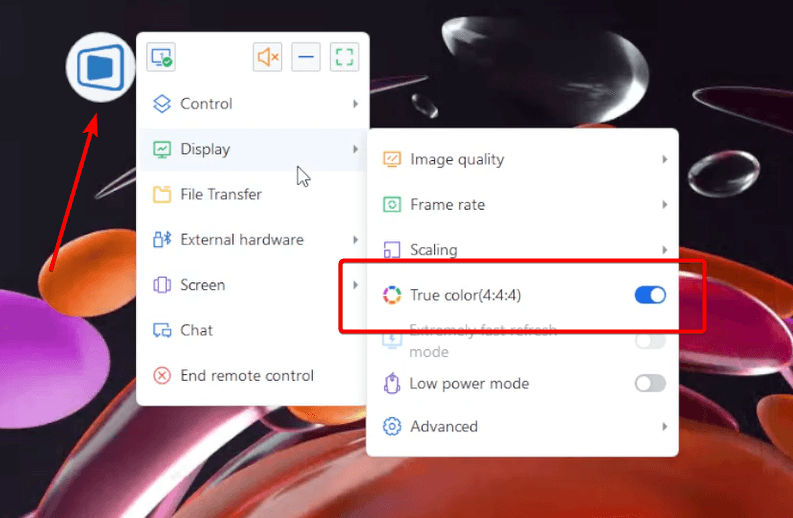
4.07 Conditions for Enabling 4:4:4 True Color Mode
If you need to enhance remote video stream quality, you can enable True Color Mode (4:4:4) in the remote control toolbar.
Compatible Environment
Operating System: Both controller and controlled devices must run Windows, not supported on Windows 7 or earlier (e.g., Windows XP).
GPU Requirement: NVIDIA graphics card.
Compatible GPU List: https://developer.nvidia.com/video-encode-and-decode-gpu-support-matrix-new (If your GPU is not listed and you require support, please contact support@deskin.io ).
Driver Version:
Windows NVIDIA driver version 445.87 or later.
DeskIn Version:
Both controller and controlled clients must be Enterprise Edition version V1.3.0.0 or above.
Activation Requirements
License Requirement:
Must purchase the Enterprise 4:4:4 True Color Package.
If your enterprise has not purchased it yet, please contact support@deskin.io
License Activation:
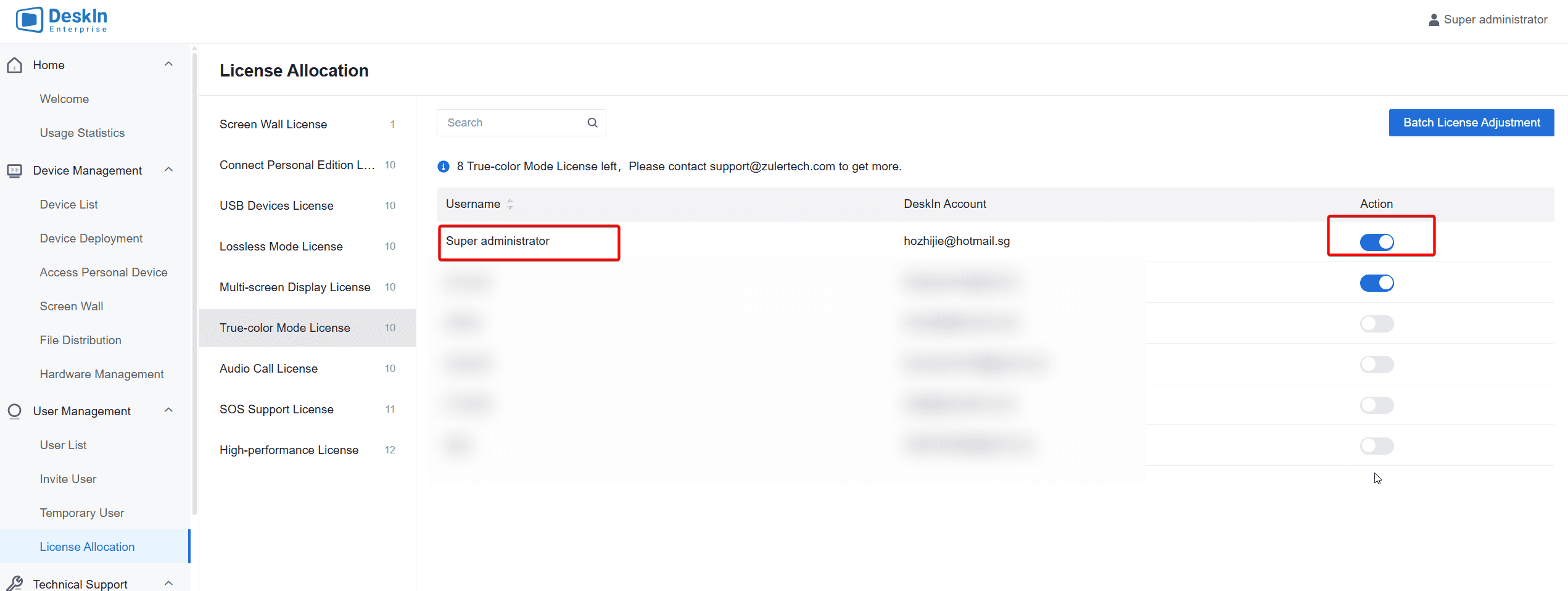
After purchasing the High-Performance Design Package, go to: Console → User Management → License Allocation → True Color Mode License
Enable the True Color License for required users.
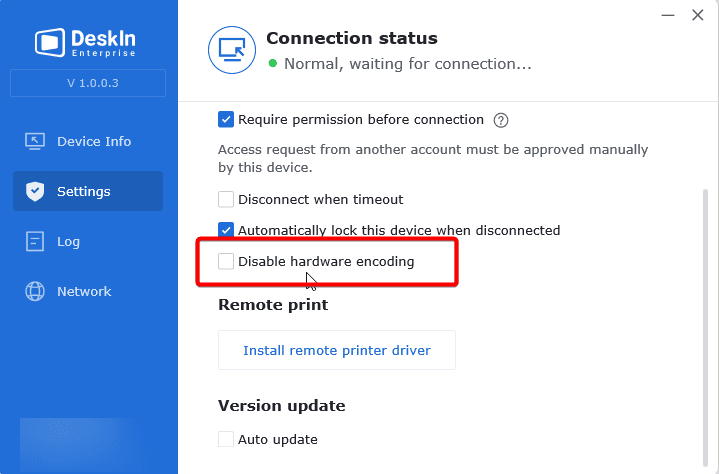
On the controlled device, under Security Settings, do not check "Disable Hardware Encoding".
On the controller device, click on the floating icon, navigate to Display > Advanced > enable "Hardware Encoding > set Encoding Format to H.264.
Verification
Once enabled, True Color Mode will be activated successfully.