4.03 How to Enable High-Quality Mode
Prerequisites:
Both the Local and the Client device must use the latest client version, v1.2.0 or above.
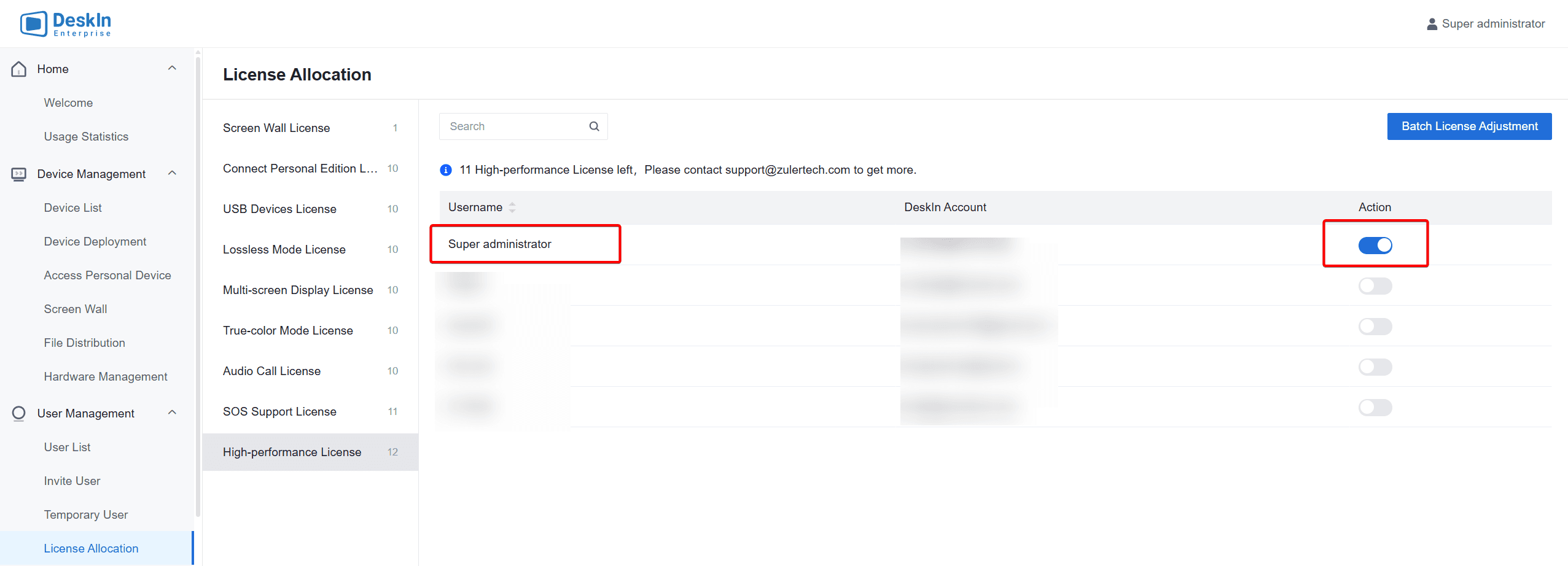
The enterprise administrator must allocate "HD Licenses" in the console. See [Additional Notes] below for details.
Steps to Enable High-Quality Mode:
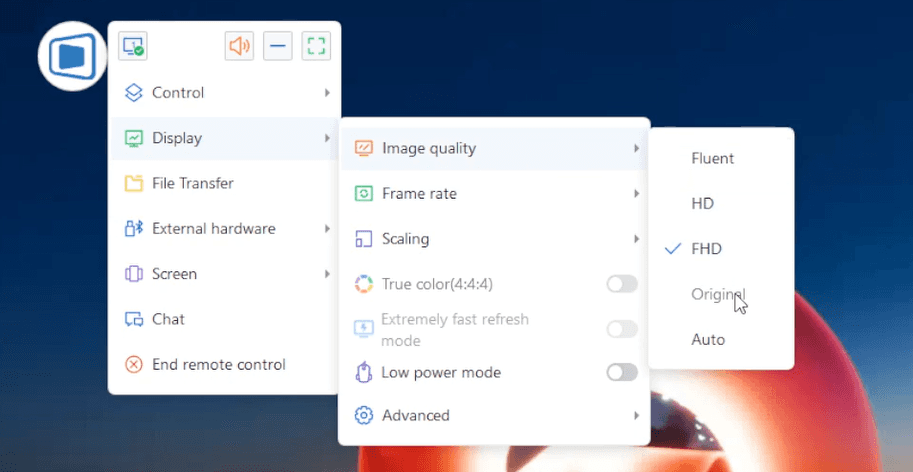
Initiate a remote connection from the controller and navigate to the floating toolbar: "Display" → "Image Quality " → "Full HD /Original Quality"
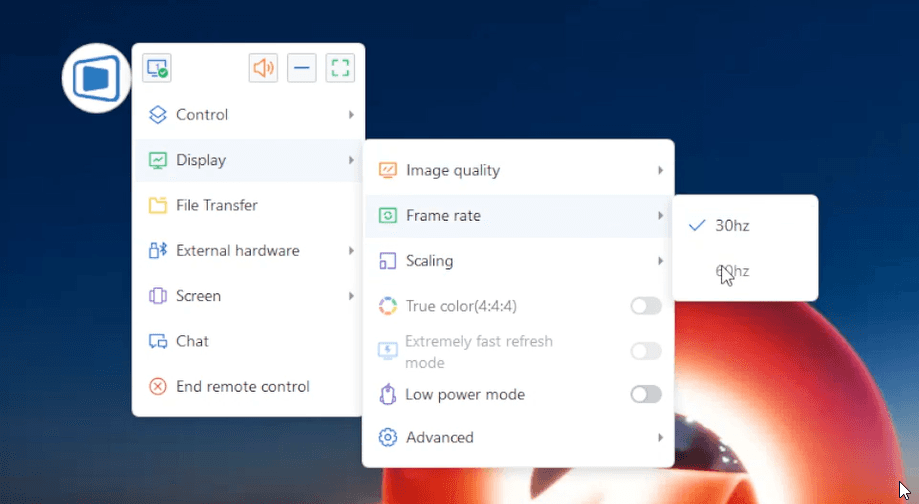
Select the refresh rate and set it to 60Hz:
For optimal performance in high-performance scenarios, refer to Section 8
Troubleshooting:
If the Original Quality mode is not selectable in the toolbar, contact your enterprise super administrator to allocate an HD License.
Go to Console → User Management → License Allocation → High Performance License Management
Check the account that requires High-Performance Mode access.