How to set up Wake On Lan in DeskIn?
To enable Wake-on-LAN (WOL), ensure your computer supports WOL in the BIOS/UEFI and that "Allow this device to wake the computer" is checked in your Network Adapter settings. Once configured, you can wake a powered-off device via the DeskIn app by selecting the offline device and clicking the "Wake Up" button, provided there is another DeskIn-enabled device active on the same local network to send the magic packet.
Setting up Wake-on-LAN with DeskIn
Please Note
To use Wake on Lan, it requires a device running DeskIn in the same LAN as the computer about to be woken up. Like other computers, Android devices (mobile phones, tablets) or family members' mobile phones, which can be used as auxiliary boot devices.
Linux devices do not support sending wake-up packets, and Mac and Linux devices do not support remote boot.
Devices that are in an abnormal shutdown state such as blue screen or crash do not support remote boot.
(Click to learn What is Wake On Lan?)
Step 1 - Setup Network card settings
Open Device Manager on Windows
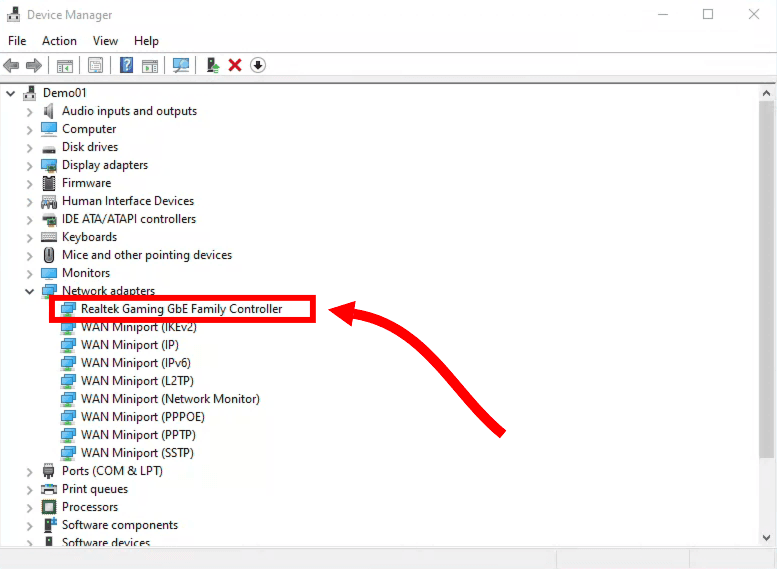
Locate the Network adapters option and expand it.
Right-click the Realtek Gaming GbE Family Controller and then click Properties.
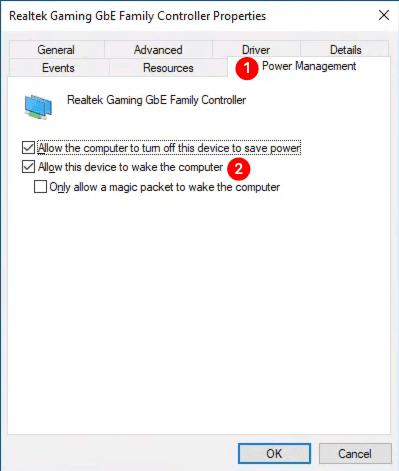
In the next window, navigate to the Power Management Tab, and check Allow this device to wake the computer
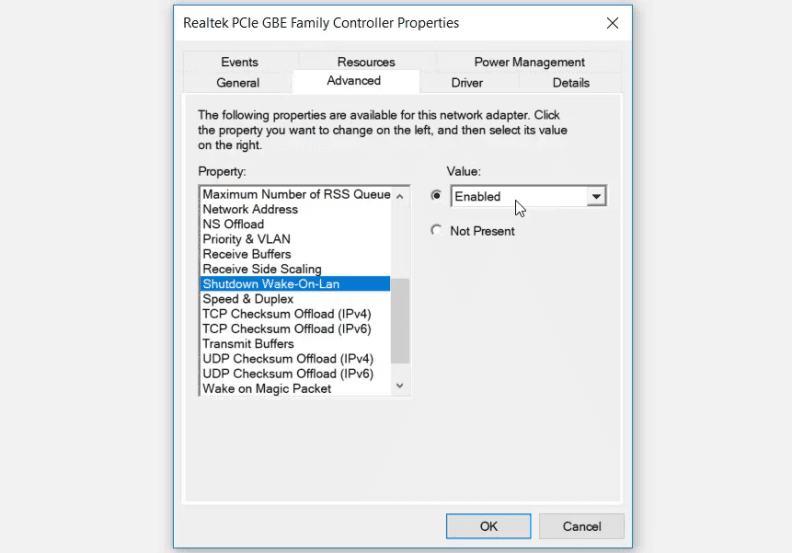
Switch to Advanced tab and locate Shutdown Wake-On-Lan and Wake on Magic Packet under the Property options. Click the Value drop-down menu on the right-hand side pane and then select Enabled.
Step 2 - Setup Motherboard BIOS Settings
After entering the motherboard BIOS, locate the following options, click the drop-down menu on the right side and then select Enabled.
Power On by PCIE/PCI devices
Power On by Onboard Lan
Wake up on LAN
Resume on LAN
Power on PME
Note
Different brands of motherboards have different names, basically the above ones.
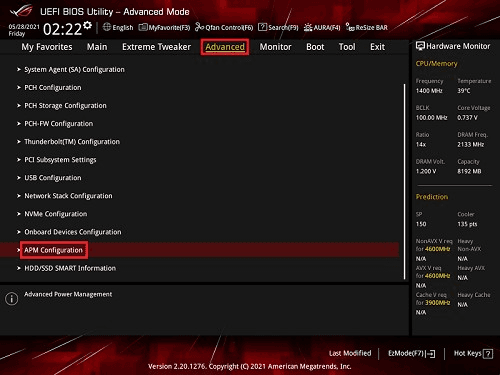
Take a certain ASUS motherboard as an example:
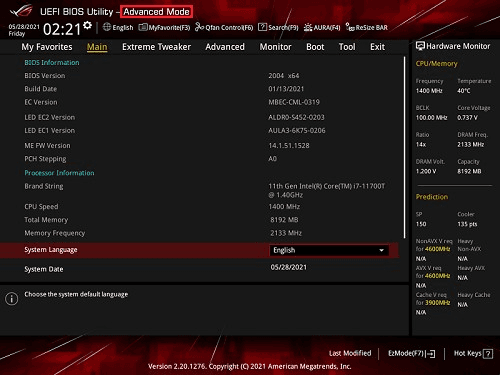
Navigate to Advanced tab, click APM Configuration
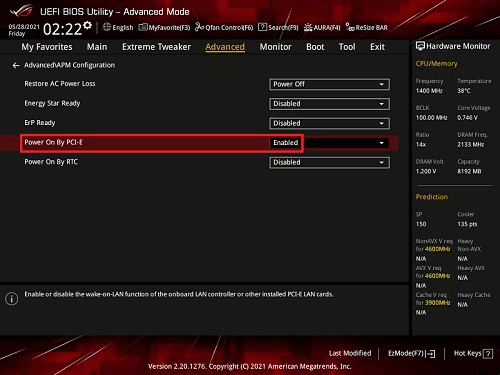
In the next window, select Power On By PCI-E and click the drop-down menu on the right side and then select Enabled.
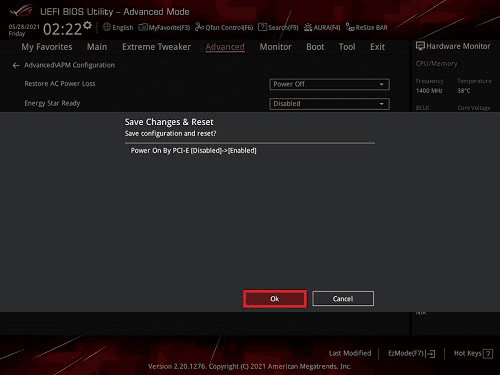
Press F10 to save the settings and restart
These are setup for other laptop brands (DELL)
Enter BIOS SETUP to configure:
POWER options:
AC Recovery → Power On
ASPM → Auto
Block Sleep → OFF
Deep Sleep Control → Disable
Intel Speed Shift Technology → ON
System Management
Wake On LAN/WLAN → LAN Only
Note:
Because the MAC address and IP address correspondence table on the router has a certain valid time. After timeout, it will no longer be able to respond. If you want to be able to remotely wake on your computer even after it has been shut down for a long time, you need one last extra step: follow step 3.
Step 3 - Perform ARP binding on the router
After the setup is complete, you can try to boot the device remotely.
Note: For mobile phones that assist in booting, you need to enable remote boot support in the DeskIn settings.