Pagiging produktibo
Pagiging produktibo
/
10 Minuto
/
10 Minuto
GA
Na-update
Na-update
Na-update
Ngayon ay 2026, at akalain mong magkakaroon na ng seamless na paglipat ng mga file sa pagitan ng mga device. Ngunit narito tayo: ang opisyal na Android File Transfer ng Google ay patuloy na nag-crash sa macOS Sequoia. Ang Quick Share ay natutukoy lamang ang mga device kalahati ng oras. At Bluetooth? Mas mabuting gamitin para sa isang contact card lamang—hindi para sa iyong 4GB na bakasyon na video.
Ang katotohanan ay ang software sa paglilipat ng file para sa Android ay nahati sa mga espesyal na tool. Ang ilan ay mahusay sa lokal na bilis. Ang iba ay nagbubukas ng remote access. Ang ilan ay nagpapahintulot na ma-access mo ang mga file sa isang computer mula sa Android habang ikaw ay 3,000 milya ang layo.
Maaaring gusto mo rin:
Kagamitan | Pinakamainam Para sa | Mga Plataporma | Koneksyon | Presyo |
|---|---|---|---|---|
DeskIn
| Remote na access sa file at cross‑platform na pamamahala | Win, Mac, iOS, Android, Web | P2P / Relay | Libreng / Bayad |
MobiKin Assistant para sa Android | Backup ng data ng Android at paglilipat (mga contact, file, atbp.) | Win, Mac ↔ Android | USB / Wi‑Fi | Freemium |
Quick Share | Instant na malapit na pagbabahagi (Android ↔ Win) | Android, Win, ChromeOS | Wi‑Fi Direct + BT | Libre |
Send Anywhere | Pagpapadala ng malalaking file sa pamamagitan ng 6‑digit na code | Lahat ng pangunahing OS | Wi‑Fi / Cellular | Libre / Bayad |
MacDroid
| Maaasahang Android ↔ Mac USB / Wi‑Fi | Mac ↔ Android | USB / Wi‑Fi | Freemium |
AirDroid | Remote na pamamahala at kontrol ng Android | Web, Win, Mac, Android | Wi‑Fi / Remote | Freemium |
Phone Link | Madaling pagsasama ng Windows-Android | Win, Android | Wi‑Fi / BT | Libre |
Smart Switch | Migrasyon ng device ng Samsung | Samsung, iOS, Android | USB / Wi‑Fi | Libre |
LocalSend | Privacy-friendly na mga lokal na network na paglilipat | Lahat ng pangunahing OS | LAN (Wi‑Fi) | Libre (Open source) |
iReaShare Android Manager | Kompletong pamamahala ng data ng Android | Win, Mac ↔ Android | USB / Wi‑Fi | Freemium |
Narito ang detalyadong pagsusuri para sa 10 pinakamahusay na aplikasyon sa paglilipat ng file ng Android.
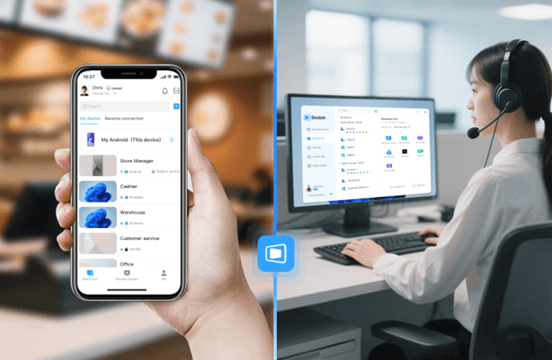
Hindi inaalintana ang remote access sa mga PC files mula sa anumang device (Android, iOS, Web)
High‑speed na P2P file transfer (hanggang 12MB/s) na may auto‑resume
Cross‑platform: control ng Windows/Mac mula sa Android, paglilipat ng mga file sa pagitan ng Android at Windows PC nang wireless
Built‑in Wake‑on‑LAN – i-on ang remote PC mula sa telepono
Sinusuportahan ng libre ang 3 device, wala nang limitasyon sa laki ng file
Nangangailangan ng pag-install ng app sa parehong dulo
Ang DeskIn ay naka-highlight mula sa iba pang software sa paglilipat ng file para sa mga tool ng Android sa pamamagitan ng pagpapahintulot sa iyo na ma-access ang mga file sa iyong PC mula sa iyong Android phone kahit na ikaw ay malayo. Pinapayagan ka rin ng DeskIn na ma-access ang mga file sa iyong computer mula sa Android kahit na ikaw ay milya ang layo.
Kailangan mo ba ng kontrata mula sa iyong office PC habang nasa paliparan? Simple lang, buksan ang DeskIn sa iyong Android, mag-browse sa remote desktop, at i-drag ang file sa iyong telepono. Ang koneksyon ay secure gamit ang AES‑256 + TLS 1.3, at ang mga transfer ay awtomatikong magpapatuloy kung bumagsak ang network.
Sa kabila ng mga one-off transfers, mahusay ang DeskIn para sa paglilipat ng mga file sa pagitan ng Android at Windows PC araw-araw. Maaari mong itulak ang mga screenshot mula sa iyong Android sa iyong Windows desktop gamit ang isang click, o hilahin ang mga design asset mula sa iyong Mac patungong iyong Android tablet. Para sa mga gumagamit na nagbabalibol ng maraming plataporma at nangangailangan ng parehong software sa paglilipat ng file ng Android para sa Windows at Mac, ang DeskIn ang tanging tool na gumagana sa lahat ng iyong device at plataporma.
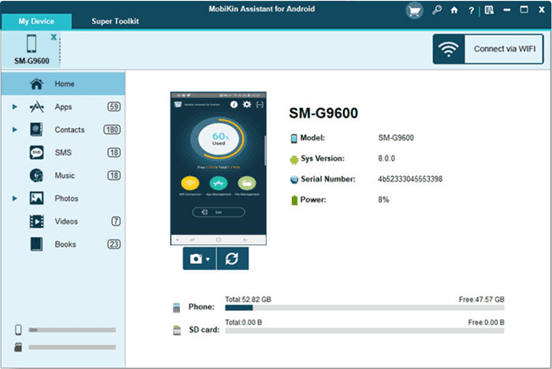
Native support para sa parehong Windows at macOS
USB at Wi-Fi na mga pagpipilian sa paglilipat
Two-way transfers – Android to Mac at Mac to Android
Pinangangasiwaan ang mga contact, SMS, apps, mga larawan, mga video, at higit pa
One-click na backup at ibalik
Bayad na software – buong bersyon mula sa $29.95
May mga limitasyon ang libreng pagsubok
Nangangailangan ng paghahanda ng USB debugging
Kung ikaw ay isang Mac user na naiinip sa iniwang Android File Transfer ng Google para sa Mac, na patuloy na nag-crash at hindi na-update sa loob ng maraming taon, ang MobiKin Assistant para sa Android ang maaasahang kapalit na kailangan mo. Ito ay nag-mount ng iyong Android device para sa mabilis na mga USB transfer, ngunit nagdaragdag din ito ng koneksyon ng Wi-Fi, two-way na paglilipat ng file, at malalim na pamamahala ng data.
Maaari mong i-export ang mga thread ng SMS, i-edit ang mga contact nang maramihan, mag-install ng mga app, at lumikha ng buong backups ng device na may isang click. Walang cloud, walang mga alalahanin sa privacy, walang mga pagkaputol sa koneksyon.
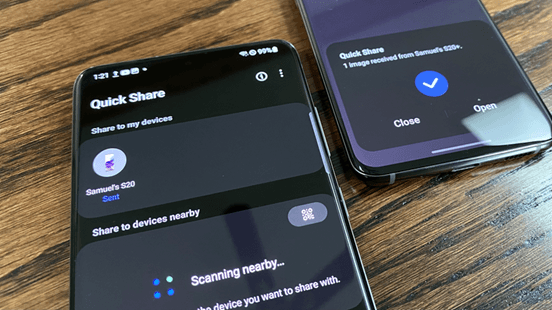
Pre‑installed sa karamihan ng mga Android phone (Android 6+)
Gumagamit ng Wi‑Fi Direct + Bluetooth – walang mobile data
May Windows app para sa cross‑platform
Nangangailangan ng 64‑bit Windows 10/11 ang bersyon ng Windows
Maaaring kulangin ang suporta ng mga lumang Android device
Ang Quick Share ang sagot ng Google sa AirDrop, at ito ay gumagana nang nakakagulat na mahusay para sa mga lokal na transfer. Kung naghahanap ka ng epektibong software sa paglilipat ng Bluetooth para sa Android, ang Quick Share ay awtomatikong nag-switch sa pagitan ng Bluetooth (para sa pagtukoy ng device) at Wi‑Fi Direct (para sa mataas na bilis ng data). Ang pagpapadala ng 4K video sa isang malapit na Windows laptop ay tumatagal ng ilang segundo, nang walang mga cable o mga cloud upload.
Ang Windows client (available mula sa Samsung o sa site ng Google) ay ginagawang isang viable option ang Quick Share para sa paglilipat ng mga file sa pagitan ng Android at Windows PC nang walang anumang dongles. Ito ay perpekto para sa mabilis, on-the-spot sharing sa bahay o sa opisina. Ang pangunahing limitasyon ay saklaw: ang parehong device ay dapat nasa loob ng saklaw ng Bluetooth (~10m). Para sa remote access, kakailanganin mo pa rin ang tool tulad ng DeskIn.
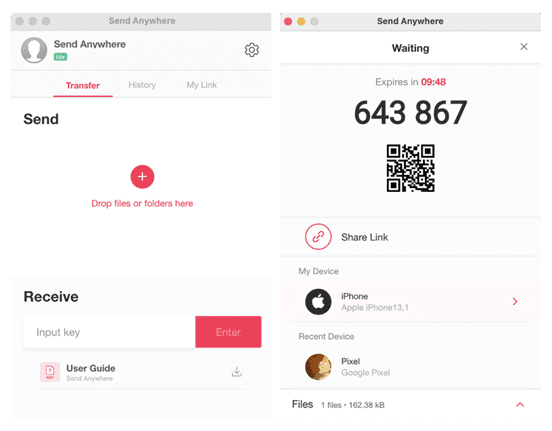
Walang limitasyon sa laki ng file
6‑digit key system – walang account na kinakailangan
Talagang cross‑platform: Android, iOS, Windows, Mac, Linux, Web
Ang mga key ay nag-e-expire sa loob ng 10 minuto – nakaka-stress para sa mga mabagal na tumatanggap
Ang mga bilis ay nakasalalay sa server relay
Ang Send Anywhere ay namumukod-tangi para sa mga kabatiran: pinipili mo ang isang file, ang app ay bumubuo ng 6‑digit na code, at ang tatanggap ay nag-input nito sa anumang device upang i-download. Wala itong pakialam kung sila ay nasa Android, iPhone, o Windows PC – ang file ay dumadaan sa mga server ng Send Anywhere (encrypted) at pagkatapos ay tinatanggal. Ito ay perpekto para sa paglilipat ng mga larawan mula sa Android patungo sa iPhone kapag lumilipat ng mga ecosystem, o para sa pagpapadala ng malaking video sa isang kliyente na hindi tech-savvy.
Dahil walang limitasyon sa laki ng file, maaari ka ring magpadala ng 100GB+ na mga file (bagaman ang mga bilis ay maaaring mag-iba). Ang libreng bersyon ay ganap na functional; ang bayad na plano ay nagdadala ng cloud storage at control ng link. Gayunpaman, nangangailangan ito ng koneksyon sa internet sa parehong panig, at ang 10-minutong expiry ay maaaring maging problema.
Para sa mataas na bilis ng paglilipat sa pagitan ng iyong mga device (mga telepono, tablet, at laptop) nang walang koneksyon sa internet, ang LocalSend ang mas magandang pagpipilian. Ang Quick Share ay mahusay para sa Android-to-Android transfers, ngunit nangangailangan ng koneksyon sa internet kapag nagbabahagi sa iPhones.
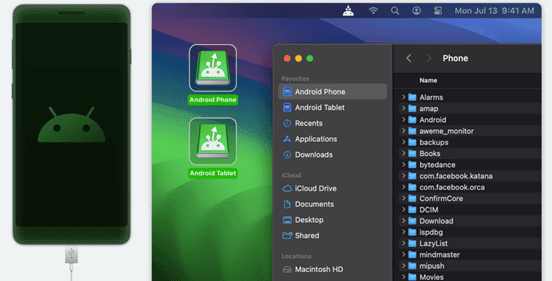
Mounter – nagmummount ng Android bilang isang native na macOS volume
Sumusuporta sa parehong USB at Wi‑Fi
Direktang mag-edit ng mga file sa Android device
Sa libreng bersyon, pinapayagan lamang ang Android → Mac transfers
Ang pro version ay nakabatay sa subscription
Ang MacDroid ay sumasagot sa pinakamalaking frustrasyon ng Android-on-Mac: hindi maaasahang mga koneksyon sa MTP. Ipinapakita nito ang iyong Android device bilang isang karaniwang disk drive sa Finder, kaya maaari mong ilipat ang mga file sa parehong paraan, i-renaming ang mga folder, o kahit na magbukas ng mga dokumento nang direkta mula sa iyong telepono. Ang bilis ng USB transfer ay matatag at mas mabilis kaysa sa Android File Transfer. Kung madalas kang naglilipat ng malalaking video file sa pagitan ng iyong Android phone at MacBook, ang MacDroid ang pinakamahusay na pagpipilian.
Ang wireless mode ay gumagana sa lokal na network, na nagbibigay sa iyo ng kaginhawaan na walang cable sa bahay. Gayunpaman, ang libreng bersyon ay labis na naglilimita sa mga outgoing transfer, na nagtutulak sa iyo patungo sa isang $19.99/year subscription. Para sa mga gumagamit na talagang kailangan lamang ng paminsang software sa paglilipat ng file ng Android para sa Mac, maaaring sapat na ang Android File Transfer (libre). Ngunit kung kailangan mo ng higit sa mga pangunahing paglilipat ng larawan—tulad ng pag-access sa mga system files o drag-and-drop management—ang MacDroid ay nagkakahalaga ng pamumuhunan. Bilang alternatibo, ang DeskIn ay nag-aalok ng remote transfer nang walang anumang device‑side mounting issues.
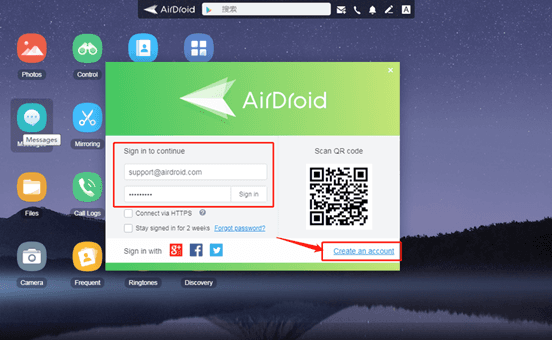
Wireless na paglilipat ng file sa pamamagitan ng web browser o desktop client
Remote control ng screen ng Android (para sa suporta)
SMS, notification mirroring
Mga alalahanin sa privacy; ang data ay dumadaan sa mga server ng AirDroid
May mga limitasyon ang libreng bersyon sa paglilipat
Ang AirDroid ay higit pa sa isang app sa paglilipat ng file. Ito ay isang kumpletong remote management suite. Maaari mong ma-access ang mga file ng iyong Android phone mula sa anumang web browser, maglipat ng mga larawan nang wireless, at kahit na magpadala ng SMS mula sa iyong PC. Ginagawa nitong isang makapangyarihang tool para sa pag-access ng mga file sa isang computer mula sa Android sa kabaligtaran: maaari mong itulak ang mga file mula sa iyong PC patungo sa iyong telepono sa pamamagitan lamang ng pag-drag ng mga ito sa window ng browser.
Ang downside ay karamihan sa mga tampok ay umaasa sa mga cloud server ng AirDroid, na nagdudulot ng mga tanong sa privacy at maaaring magpabagal sa malalaking paglilipat. Ang libreng tier ay naglilimita ng data sa 200MB/buwan.
Bumabaling ang AirDroid sa mga sikat sa mga IT support technicians na nangangailangan ng i-troubleshoot ang mga device ng mga kapamilya, ngunit para sa purong paglilipat ng file, DeskIn o LocalSend ay mas tuwid at pribado.
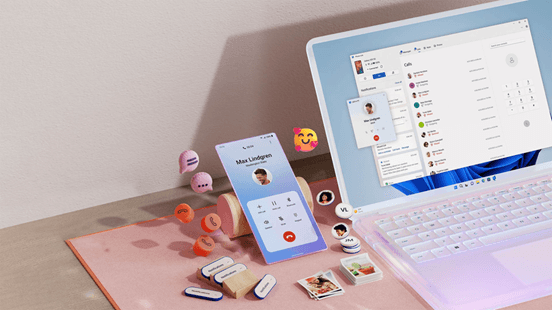
Built-in sa Windows 10/11
Drag‑and‑drop na paglilipat ng larawan
Tumingin ng mga notification, tumawag
Tanging mga larawan ang naililipat (walang mga dokumento, musika, atbp.)
Nangangailangan ng Microsoft account at ang Link sa Windows app
Ang Phone Link (dating Your Phone) ay opisyal na solusyon ng Microsoft upang ikonekta ang Android at Windows. Magaling ito sa pagsasama ng mga tampok ng komunikasyon ng iyong telepono – mga mensahe, tawag, mga notification – nang direkta sa iyong PC. Para sa paglilipat ng file, gayunpaman, ito ay striktong nilimita sa mga larawan. Maaari mong i-drag ang mga larawan mula sa iyong Android gallery patungo sa isang folder ng Windows, ngunit hindi mo maililipat ang mga PDF, APK, musika, o anumang iba pang uri ng file.
Kung ang iyong pangunahing pangangailangan ay paano maglipat ng mga file mula sa pc patungo sa pc, ang Phone Link ay hindi makakatulong; ito ay phone‑to‑PC lamang. Para sa mga gumagamit ng Android na pangunahing gustong i-backup ang mga kuha mula sa kanilang Windows computer, ito ay maginhawa at pre‑installed. Ngunit ang sinumang nangangailangan ng unibersal na software sa paglilipat ng file para sa Android ay mabilis na makakaranas ng hadlang. I-pair ito sa DeskIn para sa buong access sa dokumento.
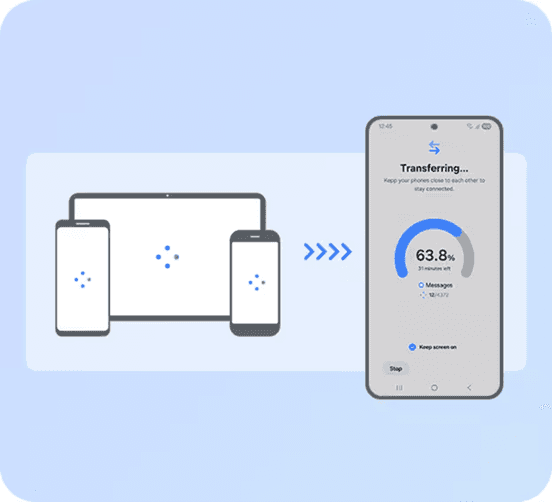
All-in‑one na migrasyon ng data (mga contact, mensahe, apps, mga larawan)
Gumagana rin sa iOS (cable o wireless)
Libreng at maaasahan
Pangunahing para sa setup ng device, hindi para sa araw-araw na paglilipat
Ang Smart Switch ay opisyal na tool ng Samsung upang ilipat ang data mula sa isang lumang telepono (Android o iPhone) patungo sa isang bagong Samsung Galaxy device. Ito ay hindi dinisenyo para sa araw-araw na paglipat ng file, ngunit ang isa ay gumaganap ng isang gawain nang lubos na mahusay: kumpletong migrasyon ng telepono. Maaari mong gamitin ang isang USB‑C sa USB‑C na cable para sa 20‑minutong buong restore, o gumamit ng wireless kung wala kang cable.
Para sa mga devoted na Samsung user, ang Smart Switch ay hindi matatawaran. Nililipat nito halos lahat, kasama ang mga WhatsApp chats (mula sa Android) at kasaysayan ng iMessage (mula sa iPhone). Gayunpaman, ito ay hindi isang pangkalahatang layunin na software sa paglilipat ng file ng Android para sa Windows – hindi mo maaring piliin ang isang solong dokumento upang kopyahin sa iyong PC. Ito ang lugar kung saan pumapasok ang mga tool tulad ng DeskIn o iReaShare.

Open source, walang mga server, walang tracking
Gumagana sa lahat ng platform: Android, iOS, Windows, Mac, Linux
Walang kinakailangang internet – gumamit ng LAN
Ang parehong device ay dapat nasa parehong Wi‑Fi
Ang interface ay basic at walang advanced features
Si LocalSend ay nakakuha ng napakalaking katanyagan sa Reddit bilang anti-"spyware" na alternatibo sa SHAREit at Xender. Ito ay ganap na open source, nagpadala ng mga file nang diretso sa iyong lokal na network (walang cloud servers), at hindi nangangailangan ng account o koneksyon sa internet. Para sa mga gumagamit ng may pag-alala sa privacy, ito ang ginintuang pamantayan para sa paglilipat ng mga file sa pagitan ng Android at Windows PC kapag ang dalawa ay nasa bahay.
Bagaman kulang ito sa remote access (dapat kang nasa parehong Wi‑Fi), ang LocalSend ay talagang mabilis at maaasahan. Gumagana rin ito offline, na ginagawang perpekto para sa mga kapaligiran ng campus o opisina na may limitadong internet. Ang app ay libre na walang mga ad o bayad na tier. Kung kailangan mong maglipat ng mga larawan mula sa Android patungo sa iPhone sa parehong network, ginagawa ito kaagad nang walang pag-compress ng kalidad.
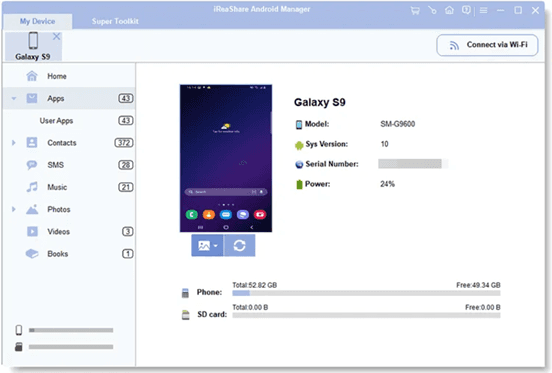
Kumpletong pamamahala: mga contact, mensahe, apps, mga larawan, mga video
High‑speed USB at Wi‑Fi transfer
Backup at restore functionality
Limitado ang libreng pagsubok; bayad ang buong bersyon
Windows/Mac lamang – walang mobile app para sa pagtanggap
Ang iReaShare Android Manager ay isang desktop‑based na app na nagbibigay sa iyo ng buong kontrol ng iyong Android device mula sa iyong computer. Hindi tulad ng simpleng mga app sa paglilipat, pinapayagan ka nitong tingnan, i-edit, idagdag, at tanggalin ang mga contact, magpadala/tumanggap ng SMS mula sa iyong PC, mag-install/mag-uninstall ng mga app nang maramihan, at, siyempre, maglipat ng anumang media file. Sinusuportahan nito ang parehong USB at Wi‑Fi na koneksyon, at ang bilis ng transfer ay palaging mataas – hanggang 12MB/s.
Ang software ay partikular na kapaki-pakinabang para sa mga gumagamit na gustong ma-access ang mga file sa isang computer mula sa Android sa kabaligtaran: maaari mong itulak ang mga file mula sa iyong PC patungo sa iyong telepono nang kasing ganda ng pag-pull ng mga ito. Ang libreng bersyon ay nagbibigay-daan sa iyo upang subukan ang mga tampok, ngunit ang mga advanced na function ay nangangailangan ng lisensya. Para sa mga gumagamit na regular na namamahala ng malalaking library ng larawan o kailangang i-backup ang mga text messages, ang iReaShare ay isang may kakayahan, all-in-one na alternatibo sa mga built-in na tool ng Google.
Ang mga wired USB 3.0 connections ay nananatiling nagwagi para sa purong bilis, ngunit ang DeskIn ay nagbigay ng pinakamahusay na balanse ng kaginhawaan at pagganap, lalo na kapag hindi ka malapit sa iyong computer. Ang bilis ng paglilipat ng mga file hanggang 12MB/s sa anumang distansya, na may automatic resume para sa hindi matatag na koneksyon. Para sa lokal na wireless speed, ang LocalSend ay pumapansin sa iyong Wi-Fi speed.
Ang Send Anywhere ang pinakasimpleng: bumuo ng isang 6‑digit na code sa Android, i-input ito sa iPhone, at ilipat ang mga larawan nang walang pagkawala ng kalidad. Ang DeskIn ay gumagana rin para sa cross‑platform na paglilipat ng file.
Siyempre. Ang DeskIn ay ginawa para dito. Pinapayagan ka nitong gisingin ang natutulog na PC nang remote, mag-browse ng mga folder, at mag-download ng mga file nang direkta sa iyong telepono. Walang kinakailangang configuration ng router. Ang AirDroid ay nag-aalok ng katulad na remote access ngunit may mga cap sa paglilipat sa libreng tier.
Walang solong software para sa paglilipat ng file ng Android ang nakakapag-ayos ng lahat. Ngunit ang isa ay kumikilos sa pinakamarami. Ang DeskIn ang tanging tool na nagpapahintulot sa iyo na ma-access ang mga file sa isang computer mula sa Android remotely, maglipat ng cross-platform, at kahit na matutunan kung paano maglipat ng mga file mula sa pc patungo sa pc—lahat ng ito ay may AES‑256 + TLS 1.3 encryption. Panatilihing LocalSend para sa pribadong lokal na pagbabahagi at Send Anywhere para sa mga emergency.
Ngunit simulan sa DeskIn. Itigil ang paghahanap para sa software sa paglilipat ng file ng Android para sa Windows o Mac. Isang app. Lahat ng iyong device.

Ngayon ay 2026, at akalain mong magkakaroon na ng seamless na paglipat ng mga file sa pagitan ng mga device. Ngunit narito tayo: ang opisyal na Android File Transfer ng Google ay patuloy na nag-crash sa macOS Sequoia. Ang Quick Share ay natutukoy lamang ang mga device kalahati ng oras. At Bluetooth? Mas mabuting gamitin para sa isang contact card lamang—hindi para sa iyong 4GB na bakasyon na video.
Ang katotohanan ay ang software sa paglilipat ng file para sa Android ay nahati sa mga espesyal na tool. Ang ilan ay mahusay sa lokal na bilis. Ang iba ay nagbubukas ng remote access. Ang ilan ay nagpapahintulot na ma-access mo ang mga file sa isang computer mula sa Android habang ikaw ay 3,000 milya ang layo.
Maaaring gusto mo rin:
Kagamitan | Pinakamainam Para sa | Mga Plataporma | Koneksyon | Presyo |
|---|---|---|---|---|
DeskIn
| Remote na access sa file at cross‑platform na pamamahala | Win, Mac, iOS, Android, Web | P2P / Relay | Libreng / Bayad |
MobiKin Assistant para sa Android | Backup ng data ng Android at paglilipat (mga contact, file, atbp.) | Win, Mac ↔ Android | USB / Wi‑Fi | Freemium |
Quick Share | Instant na malapit na pagbabahagi (Android ↔ Win) | Android, Win, ChromeOS | Wi‑Fi Direct + BT | Libre |
Send Anywhere | Pagpapadala ng malalaking file sa pamamagitan ng 6‑digit na code | Lahat ng pangunahing OS | Wi‑Fi / Cellular | Libre / Bayad |
MacDroid
| Maaasahang Android ↔ Mac USB / Wi‑Fi | Mac ↔ Android | USB / Wi‑Fi | Freemium |
AirDroid | Remote na pamamahala at kontrol ng Android | Web, Win, Mac, Android | Wi‑Fi / Remote | Freemium |
Phone Link | Madaling pagsasama ng Windows-Android | Win, Android | Wi‑Fi / BT | Libre |
Smart Switch | Migrasyon ng device ng Samsung | Samsung, iOS, Android | USB / Wi‑Fi | Libre |
LocalSend | Privacy-friendly na mga lokal na network na paglilipat | Lahat ng pangunahing OS | LAN (Wi‑Fi) | Libre (Open source) |
iReaShare Android Manager | Kompletong pamamahala ng data ng Android | Win, Mac ↔ Android | USB / Wi‑Fi | Freemium |
Narito ang detalyadong pagsusuri para sa 10 pinakamahusay na aplikasyon sa paglilipat ng file ng Android.
Hindi inaalintana ang remote access sa mga PC files mula sa anumang device (Android, iOS, Web)
High‑speed na P2P file transfer (hanggang 12MB/s) na may auto‑resume
Cross‑platform: control ng Windows/Mac mula sa Android, paglilipat ng mga file sa pagitan ng Android at Windows PC nang wireless
Built‑in Wake‑on‑LAN – i-on ang remote PC mula sa telepono
Sinusuportahan ng libre ang 3 device, wala nang limitasyon sa laki ng file
Nangangailangan ng pag-install ng app sa parehong dulo
Ang DeskIn ay naka-highlight mula sa iba pang software sa paglilipat ng file para sa mga tool ng Android sa pamamagitan ng pagpapahintulot sa iyo na ma-access ang mga file sa iyong PC mula sa iyong Android phone kahit na ikaw ay malayo. Pinapayagan ka rin ng DeskIn na ma-access ang mga file sa iyong computer mula sa Android kahit na ikaw ay milya ang layo.
Kailangan mo ba ng kontrata mula sa iyong office PC habang nasa paliparan? Simple lang, buksan ang DeskIn sa iyong Android, mag-browse sa remote desktop, at i-drag ang file sa iyong telepono. Ang koneksyon ay secure gamit ang AES‑256 + TLS 1.3, at ang mga transfer ay awtomatikong magpapatuloy kung bumagsak ang network.
Sa kabila ng mga one-off transfers, mahusay ang DeskIn para sa paglilipat ng mga file sa pagitan ng Android at Windows PC araw-araw. Maaari mong itulak ang mga screenshot mula sa iyong Android sa iyong Windows desktop gamit ang isang click, o hilahin ang mga design asset mula sa iyong Mac patungong iyong Android tablet. Para sa mga gumagamit na nagbabalibol ng maraming plataporma at nangangailangan ng parehong software sa paglilipat ng file ng Android para sa Windows at Mac, ang DeskIn ang tanging tool na gumagana sa lahat ng iyong device at plataporma.
Native support para sa parehong Windows at macOS
USB at Wi-Fi na mga pagpipilian sa paglilipat
Two-way transfers – Android to Mac at Mac to Android
Pinangangasiwaan ang mga contact, SMS, apps, mga larawan, mga video, at higit pa
One-click na backup at ibalik
Bayad na software – buong bersyon mula sa $29.95
May mga limitasyon ang libreng pagsubok
Nangangailangan ng paghahanda ng USB debugging
Kung ikaw ay isang Mac user na naiinip sa iniwang Android File Transfer ng Google para sa Mac, na patuloy na nag-crash at hindi na-update sa loob ng maraming taon, ang MobiKin Assistant para sa Android ang maaasahang kapalit na kailangan mo. Ito ay nag-mount ng iyong Android device para sa mabilis na mga USB transfer, ngunit nagdaragdag din ito ng koneksyon ng Wi-Fi, two-way na paglilipat ng file, at malalim na pamamahala ng data.
Maaari mong i-export ang mga thread ng SMS, i-edit ang mga contact nang maramihan, mag-install ng mga app, at lumikha ng buong backups ng device na may isang click. Walang cloud, walang mga alalahanin sa privacy, walang mga pagkaputol sa koneksyon.
Pre‑installed sa karamihan ng mga Android phone (Android 6+)
Gumagamit ng Wi‑Fi Direct + Bluetooth – walang mobile data
May Windows app para sa cross‑platform
Nangangailangan ng 64‑bit Windows 10/11 ang bersyon ng Windows
Maaaring kulangin ang suporta ng mga lumang Android device
Ang Quick Share ang sagot ng Google sa AirDrop, at ito ay gumagana nang nakakagulat na mahusay para sa mga lokal na transfer. Kung naghahanap ka ng epektibong software sa paglilipat ng Bluetooth para sa Android, ang Quick Share ay awtomatikong nag-switch sa pagitan ng Bluetooth (para sa pagtukoy ng device) at Wi‑Fi Direct (para sa mataas na bilis ng data). Ang pagpapadala ng 4K video sa isang malapit na Windows laptop ay tumatagal ng ilang segundo, nang walang mga cable o mga cloud upload.
Ang Windows client (available mula sa Samsung o sa site ng Google) ay ginagawang isang viable option ang Quick Share para sa paglilipat ng mga file sa pagitan ng Android at Windows PC nang walang anumang dongles. Ito ay perpekto para sa mabilis, on-the-spot sharing sa bahay o sa opisina. Ang pangunahing limitasyon ay saklaw: ang parehong device ay dapat nasa loob ng saklaw ng Bluetooth (~10m). Para sa remote access, kakailanganin mo pa rin ang tool tulad ng DeskIn.
Walang limitasyon sa laki ng file
6‑digit key system – walang account na kinakailangan
Talagang cross‑platform: Android, iOS, Windows, Mac, Linux, Web
Ang mga key ay nag-e-expire sa loob ng 10 minuto – nakaka-stress para sa mga mabagal na tumatanggap
Ang mga bilis ay nakasalalay sa server relay
Ang Send Anywhere ay namumukod-tangi para sa mga kabatiran: pinipili mo ang isang file, ang app ay bumubuo ng 6‑digit na code, at ang tatanggap ay nag-input nito sa anumang device upang i-download. Wala itong pakialam kung sila ay nasa Android, iPhone, o Windows PC – ang file ay dumadaan sa mga server ng Send Anywhere (encrypted) at pagkatapos ay tinatanggal. Ito ay perpekto para sa paglilipat ng mga larawan mula sa Android patungo sa iPhone kapag lumilipat ng mga ecosystem, o para sa pagpapadala ng malaking video sa isang kliyente na hindi tech-savvy.
Dahil walang limitasyon sa laki ng file, maaari ka ring magpadala ng 100GB+ na mga file (bagaman ang mga bilis ay maaaring mag-iba). Ang libreng bersyon ay ganap na functional; ang bayad na plano ay nagdadala ng cloud storage at control ng link. Gayunpaman, nangangailangan ito ng koneksyon sa internet sa parehong panig, at ang 10-minutong expiry ay maaaring maging problema.
Para sa mataas na bilis ng paglilipat sa pagitan ng iyong mga device (mga telepono, tablet, at laptop) nang walang koneksyon sa internet, ang LocalSend ang mas magandang pagpipilian. Ang Quick Share ay mahusay para sa Android-to-Android transfers, ngunit nangangailangan ng koneksyon sa internet kapag nagbabahagi sa iPhones.
Mounter – nagmummount ng Android bilang isang native na macOS volume
Sumusuporta sa parehong USB at Wi‑Fi
Direktang mag-edit ng mga file sa Android device
Sa libreng bersyon, pinapayagan lamang ang Android → Mac transfers
Ang pro version ay nakabatay sa subscription
Ang MacDroid ay sumasagot sa pinakamalaking frustrasyon ng Android-on-Mac: hindi maaasahang mga koneksyon sa MTP. Ipinapakita nito ang iyong Android device bilang isang karaniwang disk drive sa Finder, kaya maaari mong ilipat ang mga file sa parehong paraan, i-renaming ang mga folder, o kahit na magbukas ng mga dokumento nang direkta mula sa iyong telepono. Ang bilis ng USB transfer ay matatag at mas mabilis kaysa sa Android File Transfer. Kung madalas kang naglilipat ng malalaking video file sa pagitan ng iyong Android phone at MacBook, ang MacDroid ang pinakamahusay na pagpipilian.
Ang wireless mode ay gumagana sa lokal na network, na nagbibigay sa iyo ng kaginhawaan na walang cable sa bahay. Gayunpaman, ang libreng bersyon ay labis na naglilimita sa mga outgoing transfer, na nagtutulak sa iyo patungo sa isang $19.99/year subscription. Para sa mga gumagamit na talagang kailangan lamang ng paminsang software sa paglilipat ng file ng Android para sa Mac, maaaring sapat na ang Android File Transfer (libre). Ngunit kung kailangan mo ng higit sa mga pangunahing paglilipat ng larawan—tulad ng pag-access sa mga system files o drag-and-drop management—ang MacDroid ay nagkakahalaga ng pamumuhunan. Bilang alternatibo, ang DeskIn ay nag-aalok ng remote transfer nang walang anumang device‑side mounting issues.
Wireless na paglilipat ng file sa pamamagitan ng web browser o desktop client
Remote control ng screen ng Android (para sa suporta)
SMS, notification mirroring
Mga alalahanin sa privacy; ang data ay dumadaan sa mga server ng AirDroid
May mga limitasyon ang libreng bersyon sa paglilipat
Ang AirDroid ay higit pa sa isang app sa paglilipat ng file. Ito ay isang kumpletong remote management suite. Maaari mong ma-access ang mga file ng iyong Android phone mula sa anumang web browser, maglipat ng mga larawan nang wireless, at kahit na magpadala ng SMS mula sa iyong PC. Ginagawa nitong isang makapangyarihang tool para sa pag-access ng mga file sa isang computer mula sa Android sa kabaligtaran: maaari mong itulak ang mga file mula sa iyong PC patungo sa iyong telepono sa pamamagitan lamang ng pag-drag ng mga ito sa window ng browser.
Ang downside ay karamihan sa mga tampok ay umaasa sa mga cloud server ng AirDroid, na nagdudulot ng mga tanong sa privacy at maaaring magpabagal sa malalaking paglilipat. Ang libreng tier ay naglilimita ng data sa 200MB/buwan.
Bumabaling ang AirDroid sa mga sikat sa mga IT support technicians na nangangailangan ng i-troubleshoot ang mga device ng mga kapamilya, ngunit para sa purong paglilipat ng file, DeskIn o LocalSend ay mas tuwid at pribado.
Built-in sa Windows 10/11
Drag‑and‑drop na paglilipat ng larawan
Tumingin ng mga notification, tumawag
Tanging mga larawan ang naililipat (walang mga dokumento, musika, atbp.)
Nangangailangan ng Microsoft account at ang Link sa Windows app
Ang Phone Link (dating Your Phone) ay opisyal na solusyon ng Microsoft upang ikonekta ang Android at Windows. Magaling ito sa pagsasama ng mga tampok ng komunikasyon ng iyong telepono – mga mensahe, tawag, mga notification – nang direkta sa iyong PC. Para sa paglilipat ng file, gayunpaman, ito ay striktong nilimita sa mga larawan. Maaari mong i-drag ang mga larawan mula sa iyong Android gallery patungo sa isang folder ng Windows, ngunit hindi mo maililipat ang mga PDF, APK, musika, o anumang iba pang uri ng file.
Kung ang iyong pangunahing pangangailangan ay paano maglipat ng mga file mula sa pc patungo sa pc, ang Phone Link ay hindi makakatulong; ito ay phone‑to‑PC lamang. Para sa mga gumagamit ng Android na pangunahing gustong i-backup ang mga kuha mula sa kanilang Windows computer, ito ay maginhawa at pre‑installed. Ngunit ang sinumang nangangailangan ng unibersal na software sa paglilipat ng file para sa Android ay mabilis na makakaranas ng hadlang. I-pair ito sa DeskIn para sa buong access sa dokumento.
All-in‑one na migrasyon ng data (mga contact, mensahe, apps, mga larawan)
Gumagana rin sa iOS (cable o wireless)
Libreng at maaasahan
Pangunahing para sa setup ng device, hindi para sa araw-araw na paglilipat
Ang Smart Switch ay opisyal na tool ng Samsung upang ilipat ang data mula sa isang lumang telepono (Android o iPhone) patungo sa isang bagong Samsung Galaxy device. Ito ay hindi dinisenyo para sa araw-araw na paglipat ng file, ngunit ang isa ay gumaganap ng isang gawain nang lubos na mahusay: kumpletong migrasyon ng telepono. Maaari mong gamitin ang isang USB‑C sa USB‑C na cable para sa 20‑minutong buong restore, o gumamit ng wireless kung wala kang cable.
Para sa mga devoted na Samsung user, ang Smart Switch ay hindi matatawaran. Nililipat nito halos lahat, kasama ang mga WhatsApp chats (mula sa Android) at kasaysayan ng iMessage (mula sa iPhone). Gayunpaman, ito ay hindi isang pangkalahatang layunin na software sa paglilipat ng file ng Android para sa Windows – hindi mo maaring piliin ang isang solong dokumento upang kopyahin sa iyong PC. Ito ang lugar kung saan pumapasok ang mga tool tulad ng DeskIn o iReaShare.
Open source, walang mga server, walang tracking
Gumagana sa lahat ng platform: Android, iOS, Windows, Mac, Linux
Walang kinakailangang internet – gumamit ng LAN
Ang parehong device ay dapat nasa parehong Wi‑Fi
Ang interface ay basic at walang advanced features
Si LocalSend ay nakakuha ng napakalaking katanyagan sa Reddit bilang anti-"spyware" na alternatibo sa SHAREit at Xender. Ito ay ganap na open source, nagpadala ng mga file nang diretso sa iyong lokal na network (walang cloud servers), at hindi nangangailangan ng account o koneksyon sa internet. Para sa mga gumagamit ng may pag-alala sa privacy, ito ang ginintuang pamantayan para sa paglilipat ng mga file sa pagitan ng Android at Windows PC kapag ang dalawa ay nasa bahay.
Bagaman kulang ito sa remote access (dapat kang nasa parehong Wi‑Fi), ang LocalSend ay talagang mabilis at maaasahan. Gumagana rin ito offline, na ginagawang perpekto para sa mga kapaligiran ng campus o opisina na may limitadong internet. Ang app ay libre na walang mga ad o bayad na tier. Kung kailangan mong maglipat ng mga larawan mula sa Android patungo sa iPhone sa parehong network, ginagawa ito kaagad nang walang pag-compress ng kalidad.
Kumpletong pamamahala: mga contact, mensahe, apps, mga larawan, mga video
High‑speed USB at Wi‑Fi transfer
Backup at restore functionality
Limitado ang libreng pagsubok; bayad ang buong bersyon
Windows/Mac lamang – walang mobile app para sa pagtanggap
Ang iReaShare Android Manager ay isang desktop‑based na app na nagbibigay sa iyo ng buong kontrol ng iyong Android device mula sa iyong computer. Hindi tulad ng simpleng mga app sa paglilipat, pinapayagan ka nitong tingnan, i-edit, idagdag, at tanggalin ang mga contact, magpadala/tumanggap ng SMS mula sa iyong PC, mag-install/mag-uninstall ng mga app nang maramihan, at, siyempre, maglipat ng anumang media file. Sinusuportahan nito ang parehong USB at Wi‑Fi na koneksyon, at ang bilis ng transfer ay palaging mataas – hanggang 12MB/s.
Ang software ay partikular na kapaki-pakinabang para sa mga gumagamit na gustong ma-access ang mga file sa isang computer mula sa Android sa kabaligtaran: maaari mong itulak ang mga file mula sa iyong PC patungo sa iyong telepono nang kasing ganda ng pag-pull ng mga ito. Ang libreng bersyon ay nagbibigay-daan sa iyo upang subukan ang mga tampok, ngunit ang mga advanced na function ay nangangailangan ng lisensya. Para sa mga gumagamit na regular na namamahala ng malalaking library ng larawan o kailangang i-backup ang mga text messages, ang iReaShare ay isang may kakayahan, all-in-one na alternatibo sa mga built-in na tool ng Google.
Ang mga wired USB 3.0 connections ay nananatiling nagwagi para sa purong bilis, ngunit ang DeskIn ay nagbigay ng pinakamahusay na balanse ng kaginhawaan at pagganap, lalo na kapag hindi ka malapit sa iyong computer. Ang bilis ng paglilipat ng mga file hanggang 12MB/s sa anumang distansya, na may automatic resume para sa hindi matatag na koneksyon. Para sa lokal na wireless speed, ang LocalSend ay pumapansin sa iyong Wi-Fi speed.
Ang Send Anywhere ang pinakasimpleng: bumuo ng isang 6‑digit na code sa Android, i-input ito sa iPhone, at ilipat ang mga larawan nang walang pagkawala ng kalidad. Ang DeskIn ay gumagana rin para sa cross‑platform na paglilipat ng file.
Siyempre. Ang DeskIn ay ginawa para dito. Pinapayagan ka nitong gisingin ang natutulog na PC nang remote, mag-browse ng mga folder, at mag-download ng mga file nang direkta sa iyong telepono. Walang kinakailangang configuration ng router. Ang AirDroid ay nag-aalok ng katulad na remote access ngunit may mga cap sa paglilipat sa libreng tier.
Walang solong software para sa paglilipat ng file ng Android ang nakakapag-ayos ng lahat. Ngunit ang isa ay kumikilos sa pinakamarami. Ang DeskIn ang tanging tool na nagpapahintulot sa iyo na ma-access ang mga file sa isang computer mula sa Android remotely, maglipat ng cross-platform, at kahit na matutunan kung paano maglipat ng mga file mula sa pc patungo sa pc—lahat ng ito ay may AES‑256 + TLS 1.3 encryption. Panatilihing LocalSend para sa pribadong lokal na pagbabahagi at Send Anywhere para sa mga emergency.
Ngunit simulan sa DeskIn. Itigil ang paghahanap para sa software sa paglilipat ng file ng Android para sa Windows o Mac. Isang app. Lahat ng iyong device.


How to Play MapleStory Classic World on Mac
A lot of the players who are most excited about MapleStory Classic World grew up on 2005-era MapleStory — and a large share of that generation now does its computing on a MacBook. Nexon clearly knows this: a native macOS client was on the feature list for the second Closed Online Test, which ran August 4–12, 2026, alongside Ossyria and third job advancement. But as of this writing, that Mac client is still in development, not publicly available, and there's still no confirmed public launch date for the game itself.
So if you want to play MapleStory Classic World on a Mac right now — or want a reliable plan for when the game does launch — you've got two real options: run Windows in a virtual machine, or use DeskIn remote desktop to control an actual Windows PC from your Mac. This guide covers both, including a login-conflict issue that catches a lot of virtual machine users off guard.
Not yet, publicly. Nexon's May 2026 roadmap update confirmed macOS support is in development, and it appeared as a testable feature in the second Closed Online Test. Windows PC remains the confirmed launch platform, and Nexon hasn't said whether the Mac client will be ready at launch or arrive afterward. The game hasn't had a full public release on any platform — Nexon has said one more test is planned before launch.
Given that, Mac players currently have two ways in: a Windows virtual machine, or remote desktop software that connects to a real Windows PC.
Classic World is exclusive to GMS (Global MapleStory), covering North America, Europe, and most other regions without a local Nexon partner. Markets with their own official MapleStory service — Korea, China, Japan, Taiwan/Hong Kong, and Southeast Asia — aren't GMS-eligible, so Mac players in those regions would need a VPN to reach Classic World, which isn't recommended. Whether NA and EU will run as separate worlds hasn't been confirmed.
Tools like Parallels Desktop or VMware Fusion let you run a full Windows install inside macOS, and then install MapleStory Classic World the way a Windows user would. It works, but it asks a lot of your Mac's hardware.
RAM: 16GB minimum recommended; 8GB is genuinely tight, since macOS and Windows are both running at once and macOS alone can eat most of that before Windows gets a share. For a comfortable setup with guides or Discord open on the side, aim for 32GB.
CPU/GPU: Virtual machines can't pass hardware through at 100%; graphics get software-emulated, which typically costs 20–30% of the performance you'd get on native Windows hardware.
Thermals: Running two full operating systems under load generates real heat, and laptop-class Macs with limited cooling can throttle during longer grinding sessions.
Apple Silicon translation overhead: M-series Macs can only run Windows on ARM in a VM. If Classic World ships as an x86/x64 build, it needs an extra translation layer to run at all, stacking on top of the virtualization overhead already mentioned.
Anti-cheat compatibility is a real unknown: the original MapleStory has historically been hostile to virtualized environments because of its anti-cheat system, and Nexon hasn't said how Classic World's anti-cheat will treat VMs. Treat virtualization as a maybe, not a guaranteed plan.
There's also the practical overhead: setting up a VM means downloading a Windows image, allocating dozens of gigabytes of disk space, installing display drivers, and — on Apple Silicon — dealing with ARM compatibility quirks that don't show up on a real x86 PC. Keyboard shortcuts can also conflict, since macOS system shortcuts (Control, Option, Command) don't always play nicely with a Windows game's default keybinds.
Instead of building a Windows environment inside your Mac, DeskIn lets you connect directly to a Windows PC you already have — your desktop at home, a work machine, or a spare laptop — and control it from your Mac in real time. The game runs on genuine Windows hardware the whole time, so there's no emulation tax, no ARM translation layer, and no anti-cheat guessing game.
A virtual machine makes sense if:
You don't have access to any Windows PC at all, so a Mac VM is your only option.
Your Mac has strong specs — 16GB+ RAM, ideally 32GB, and a higher-end M-series chip that can absorb the performance loss.
You're comfortable with a fairly technical setup process.
You rarely need to switch between devices, so the single-login limitation isn't a practical issue for you.
DeskIn makes more sense if:
You already have a Windows PC (or another Mac) that can run MapleStory Classic World, and you just want to reach it from your MacBook.
You're traveling or away from your desk often and want to pick up where you left off without re-downloading anything.
You don't want to deal with logging out of one device every time you switch to another.
Your Mac has more modest specs, and you'd rather not risk stutters, crashes, or a game that won't launch at all.
If you already own a Windows machine, DeskIn is generally the lower-effort, lower-risk choice. A VM is really a fallback for players with no Windows access and a Mac powerful enough to absorb the overhead.
Step 1: Set up the Windows PC. Install MapleStory Classic World on a Windows PC and create your character, then install DeskIn on that same PC, sign in, and enable unattended access with a connection password so you can reach it later without anyone at the keyboard.
Step 2: Install DeskIn on your Mac. Download the macOS version of DeskIn, sign in with the same account, and your Windows PC will appear in your device list.
Step 3: Connect. Select the PC, enter the connection password, and you'll get a live view of the Windows desktop that you control with your Mac's mouse and trackpad — the same session, the same login, no conflicts.
Step 4: Tune quality for your connection. On a stable connection, push quality up to enjoy Classic World's remastered pixel art in full detail; on the road, prioritize smoothness to cut down on input lag.
Step 5: Log in and play. Open the game inside the remote session and log in as usual — grinding, party quests, and shopping all work exactly as they would sitting at the PC directly.
Resolution and quality: Free-tier users should start around 720p/30fps for a stable baseline; paid-tier users can push up to 4K 60FPS or 2K 240FPS on a strong connection to get the most out of Classic World's art.
Screen scaling: If your Mac and Windows PC have very different display sizes, use DeskIn's automatic scaling option in the toolbar, or adjust the remote PC's resolution to match your Mac's screen more closely.
Keyboard and mouse mapping: DeskIn maps your Mac's keyboard directly to the remote PC. Turning on Game Mouse mode prevents the keyboard from getting locked mid-session.
Controller support: If Mac keyboard controls feel awkward, pair a controller to your Mac and enable controller mapping from the toolbar — DeskIn will pass those inputs straight through to the remote PC.
Simple Setup:No Windows installation required — connect and start playing within minutes.
Doesn't tax your Mac's hardware. All the actual computation happens on the remote Windows PC; your Mac just displays the stream and sends inputs.
Performance and compatibility match native Windows, because that's exactly what's running — no ARM translation layer to worry about.
No account login conflicts, since DeskIn connects to the same existing session instead of creating a new device.
Cross-device flexibility. The same account lets you connect from Mac, iPhone, iPad, or Android, and it's always the same underlying session — no juggling logins between devices.
Not publicly yet. Nexon has confirmed a macOS client is in development and tested it in the second Closed Online Test, but Windows remains the confirmed launch platform and no public Mac release has shipped.
Yes. DeskIn uses end-to-end encryption and two-factor login, and since you're remotely operating a PC you already control, your credentials never pass through a third party.
Technically you can install one, but the experience will be rough. With 8GB split between macOS and Windows, there's very little left over for Windows, and stutters or crashes become likely during longer sessions. DeskIn is the more stable option here, since the remote PC handles all the processing — your Mac's RAM isn't a bottleneck.
Real-world performance depends on both ends' network quality, but since DeskIn connects to native Windows hardware with no virtualization overhead, and its low-latency streaming keeps end-to-end delay under 40ms on a good connection, it typically feels smoother than a resource-constrained VM.
No. DeskIn controls the same PC and the same already-active session rather than logging in as a new device, so it doesn't trigger MapleStory's single-session login limit — this is exactly the conflict that trips up VM users switching between two separate Windows installs.
DeskIn needs a Windows (or other supported platform) machine to connect to. If you don't have one, consider borrowing access to a friend's or family member's PC, or renting a cloud Windows machine as your connection target.
DeskIn supports Windows, macOS, iOS, and Android. A Mac can connect to a Windows PC, and a Windows PC can just as easily connect to and control a Mac.
MapleStory Classic World doesn't have a public Mac client yet, but that doesn't mean Mac players have to gamble on a resource-hungry virtual machine and hope the anti-cheat cooperates. If you already have access to a Windows PC that can run the game — or even another Mac — connecting to it through DeskIn gets you native Windows performance, none of the virtualization overhead, and none of the account-login headaches that come with running a second "device." Set it up once, and you'll be ready to log in the moment Classic World opens its doors.

How to Play MapleStory Classic World on Mobile Before the Official App Arrives
MapleStory Classic World has turned into one of the most-searched topics in the MapleStory community this year. Nexon's pre-Big Bang server pulled in roughly 5,000 players for its first Closed Online Test back in April 2026, and thousands more signed up for the second test that ran August 4–12, 2026. With Ossyria, third job advancement, and controller support now confirmed, interest has never been higher — and a lot of that interest is coming from players who want to know one thing: can you play MapleStory Classic World on your phone?
Short answer: not with an official app, not yet. This guide breaks down exactly what Nexon has confirmed about platforms so far, then walks through how DeskIn remote desktop lets you play MapleStory Classic World on mobile right now, without waiting on an app that hasn't been announced.
As of this writing, Nexon has not announced a mobile or console version of MapleStory Classic World. The confirmed platforms are Windows PC and macOS — macOS support was specifically added as a testable feature during the second Closed Online Test in August 2026, alongside Ossyria and third job advancement, but it's still listed as "in development" rather than publicly available.
There's also no full public launch date yet. Nexon has run two Closed Online Tests so far and has said one more test is planned before release, so most community trackers currently estimate a launch window in late 2026 or early 2027 — but that's community speculation, not an official date.
Put simply: if you want to play MapleStory Classic World on a phone or tablet today, a native app isn't an option. The only practical route is streaming the PC version from a Windows machine you already have access to.
Classic World is exclusive to GMS (Global MapleStory), Nexon's English-language service for North America, Europe, and most other regions without a local Nexon partner. Players in markets with their own official MapleStory service — Korea, China, Japan, Taiwan/Hong Kong, and Southeast Asia — aren't eligible for GMS accounts, so Classic World isn't accessible there without a VPN, which isn't recommended. It's not yet confirmed whether NA and EU will run as separate worlds within Classic World.
DeskIn is a cross-platform remote desktop app built specifically with PC gaming in mind, and it maps well onto exactly the problem MapleStory Classic World mobile players are trying to solve.
Stable, low-latency connections. DeskIn's ZeroSync® engine keeps end-to-end latency under 40ms on a good connection and automatically reroutes around congested paths, so grinding, dodging, and skill combos in Classic World's classic-era combat don't feel delayed.
Up to 4K 60FPS / 2K 240FPS streaming. Classic World's remastered pixel art holds up well when it isn't compressed into mush — DeskIn's streaming keeps text and sprites sharp even on a phone screen.
You're connecting to your own PC, not emulating one. DeskIn doesn't run Windows inside your phone; it streams the display of a Windows computer you control and sends your inputs back in real time. That means full compatibility and full performance — no emulation layer to fight with.
End-to-end encryption and two-factor login. Sessions are encrypted end-to-end, and you can set an allowlist of authorized devices, so only you can connect to your own PC.
Flexible, per-character keybinds. Classic World's Warrior, Magician, Bowman, and Thief classes each use very different skill layouts. DeskIn's on-screen game keyboard lets you build a custom key layout and save it as its own profile, so you can switch between characters without re-mapping keys every time.
Built-in virtual mouse. In pointer mode, DeskIn adds virtual left/right mouse buttons over the stream, which makes precise UI clicks — inventory, cash shop, trade windows — far easier than tapping blindly on a touchscreen.
Once you're connected, mobile play through DeskIn covers pretty much everything you'd do sitting at your PC:
Daily quests and login rewards — knock these out on your commute instead of waiting until you're home.
Cash shop browsing — scroll and preview cosmetics with touch gestures just like any shopping app.
Grinding and leveling — use the virtual directional pad and skill-key layout to keep training in familiar maps.
Party quests — latency low enough to keep up with a party's pacing on runs like Kerning City PQ.
Trading and the marketplace — check prices and list items using the virtual mouse for precise clicks.
Guild chat and messaging — reply to your guild or party the moment something comes up.
Step 1: Set up DeskIn on the Windows PC running Classic World. Install DeskIn on the PC where you've registered for testing (or where the game is installed once it launches), sign in, and turn on unattended access so the PC can be reached without anyone sitting in front of it.
Step 2: Install the DeskIn app on your phone. Download DeskIn from the App Store or Google Play, sign in with the same account, and your PC will show up in the device list.
Step 3: Connect and switch to pointer mode. Tap your PC to connect, then switch the control mode from touch to pointer — this unlocks the customizable virtual keyboard and virtual mouse.
Step 4: Browsing the cash shop. Drag to move the cursor and tap the virtual mouse buttons to click through menus and item previews, exactly like using a mouse on a desktop.
Step 5: Grinding. Open the game keyboard menu, build a layout with your movement keys and skill keys, and save it as a profile. Pull it up any time you start a grinding session.
Step 6: Pick the right streaming quality for your connection. On mobile data, prioritize smoothness over resolution to cut down on input delay; on Wi-Fi, bump the quality up to enjoy Classic World's remastered art at full clarity.
A tablet's bigger screen is a natural fit for content that needs either more reading room or more precision — daily quest text and boss encounters both qualify.
Step 1: Same setup as mobile. Install DeskIn on your iPad or Android tablet and sign in — connection steps are identical to the phone app.
Step 2: Daily quests. The larger display makes quest text, item descriptions, and map markers easier to read at a glance, so you're less likely to misread an objective mid-run.
Step 3: Boss fights. Bosses demand precise dodges and timing that touch controls alone can struggle with — pair your tablet with a Bluetooth keyboard and mouse, or a controller (see below), instead of relying on the virtual keyboard.
Step 4: Bump the frame rate for boss content. Choose a higher refresh setting in DeskIn's connection options so skill telegraphs and boss patterns read clearly in real time.
Step 5: Use split-screen for guide lookups. Run DeskIn alongside a browser or notes app in split view to check attack patterns without leaving the fight.
If virtual buttons don't feel precise enough, DeskIn supports Bluetooth controllers, including Xbox, PlayStation, and several third-party pads.
Step 1: Pair the controller with your phone. Use your phone's Bluetooth settings to pair the controller first.
Step 2: Connect through DeskIn. Once connected to your PC, DeskIn automatically detects the paired controller — no extra driver install needed.
Step 3: Test your inputs. Head into a training map first and confirm movement, attacks, and skills map to the buttons you expect before jumping into content that matters.
Step 4: Favor smoothness for fast-paced play. When you're actively grinding or fighting with a controller, prioritize DeskIn's smoothness setting over max resolution for the most responsive feel.
Running a Warrior and a Bowman means running two very different skill bars. Here's how to keep them separate in DeskIn instead of re-mapping keys every login:
Step 1: Switch to pointer mode and open the game keyboard menu. After connecting, switch to pointer mode and open DeskIn's game keyboard settings.
Step 2: Create a new keyboard layout. Tap "New Keyboard" and add your movement pad, skill keys, and item keys to match your current character's build.
Step 3: Name it by character or class. Label the layout something identifiable — "Bowman" or "Main Warrior" — and save it.
Step 4: Load the right profile when you switch characters. Before logging into a different character, select its saved layout from the game keyboard menu instead of rebuilding it from scratch.
Step 5: Update layouts as skills change. When a class gets rebalanced or you unlock new skills after a job advancement, go back into that profile and add the new keys.
No. Nexon has not announced a mobile or console version. Confirmed platforms are Windows, with a macOS client currently in development.
Nexon hasn't announced a public release date. Two Closed Online Tests have run so far (April 16–24 and August 4–12, 2026), with one more test planned before launch. Community estimates point to late 2026 or early 2027, but that isn't official.
No. DeskIn remotely operates your own PC and sends the same mouse and keyboard input you'd normally use — it isn't a macro, bot, or memory-editing tool, so it doesn't behave like the automation that anti-cheat systems are built to catch.
DeskIn's low-latency streaming keeps things playable on a stable connection, generally noticeably smoother than trying to force a browser workaround. Real-world latency still depends on both ends' network quality, so Wi-Fi is recommended over cellular when possible.
For checking dailies or browsing the shop occasionally, the free plan typically covers it. If you plan to grind for long sessions, use a controller regularly, or manage several devices, a paid plan unlocks higher streaming quality and additional features.
Setup and connection steps are identical. The difference is screen size — phones are handy for quick, single-hand tasks like dailies and the shop, while tablets are better suited to boss fights and content where you want a controller or external keyboard.
Until Nexon ships a mobile client — if one ever gets announced — DeskIn is the most practical way to keep playing MapleStory Classic World away from your desk. Install it on both your gaming PC and your phone or tablet, set up a keybind profile per character, and you can knock out dailies, grind, and even tackle boss fights without being tied to a monitor.

Gawing Pangalawang Monitor ang iPad Para sa Windows at Mac Computers
Para sa mga multitasking na manggagawa, ang pagkakaroon ng pangalawang monitor ay maaaring greatly increase ng productivity. Kung ikaw ay isang tao sa home office o isang estudyante na walang dual screen. Narito kung paano mo madaling gawing pangalawang monitor ang iyong idle iPad para sa iyong computer.
1. Taasan ang espasyo ng screen upang ipakita ang higit pa sa parehong oras. Para sa mga multi-task users, maiiwasan nilang magpalipat-lipat ng mga bintana, na nakakatipid ng oras.
2. Ang bawat screen ay gumagana nang hiwalay, ginagawang mas organisado ang workspace.
Kapag nag-e-edit ng mga video, isang screen ang ginagamit para sa pag-e-edit at ang isa para sa paglalagay ng mga materyales. Kapag sumusulat ng papel, isang screen para sa pagsusulat, ang isa para sa paghahanap ng impormasyon atbp.
3. Ang laki ng screen ng iPad ay sapat na malaki, at ang kalidad ng display ay medyo maganda. Para sa mga gumagamit na may mga pangangailangan sa disenyo o gumagamit ng MacBook, mas nagiging cost-effective ito kaysa sa pagbili ng karagdagang screen, at wala nang problema sa pagkakaiba ng kulay.
4. Maraming tao ang may mga iPad sa bahay. Sa pamamagitan ng paggamit ng device na mayroon ka bilang isang dual screen, nakakatipid ka sa gastos ng pagbili ng isa pang screen at ng espasyong ilalagay ito.
Ang sariling tampok ng Apple na Apple Sidecar ay nagbibigay-daan sa iyo na gamitin ang iPad bilang isang external display para sa MacBook at iMac. Gumawa lamang ng ilang simpleng setting at maaari mong makamit ang seamless connection sa pagitan ng iyong iPad at computer.
Paalala: Upang magamit ang Apple Sidecar, ang dalawang device ay dapat nakalog sa parehong Apple ID o nasa parehong network. Dapat i-on ang Bluetooth at Wi-Fi sa parehong device, at hindi dapat lumagpas ang distansya ng 10 meters (tungkol sa 10 meters).
Buksan ang Mac System Settings >> I-click ang "Display" sa sidebar >> I-click ang "+" pop up menu sa kanan at piliin ang iyong iPad.
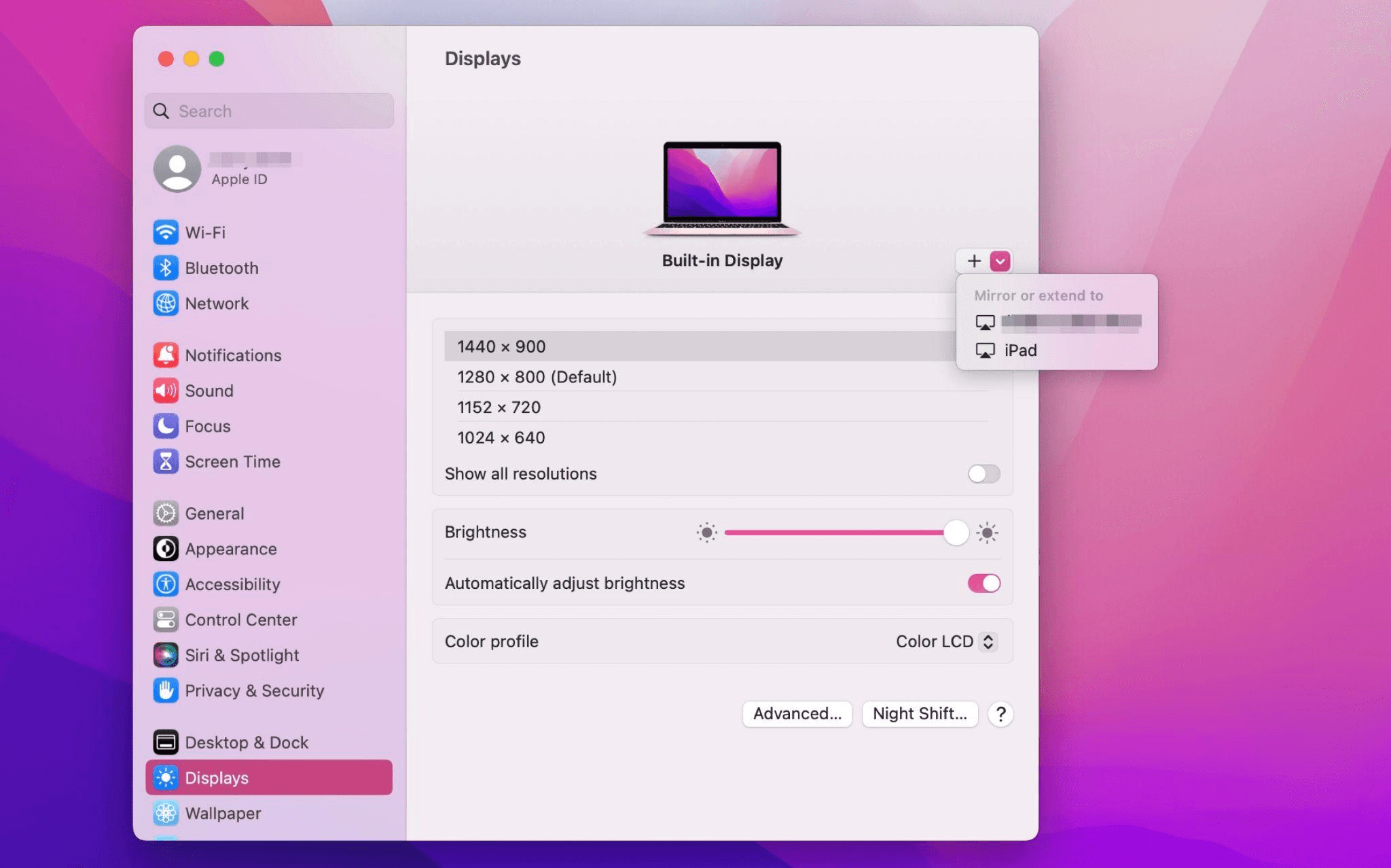
Piliin ang iPad, baguhin ang Use as settings sa "Extended Display". Suriin ang Airplay settings sa itaas na toolbar ng Mac at itakda ang iPad bilang "Use As Separate Display".
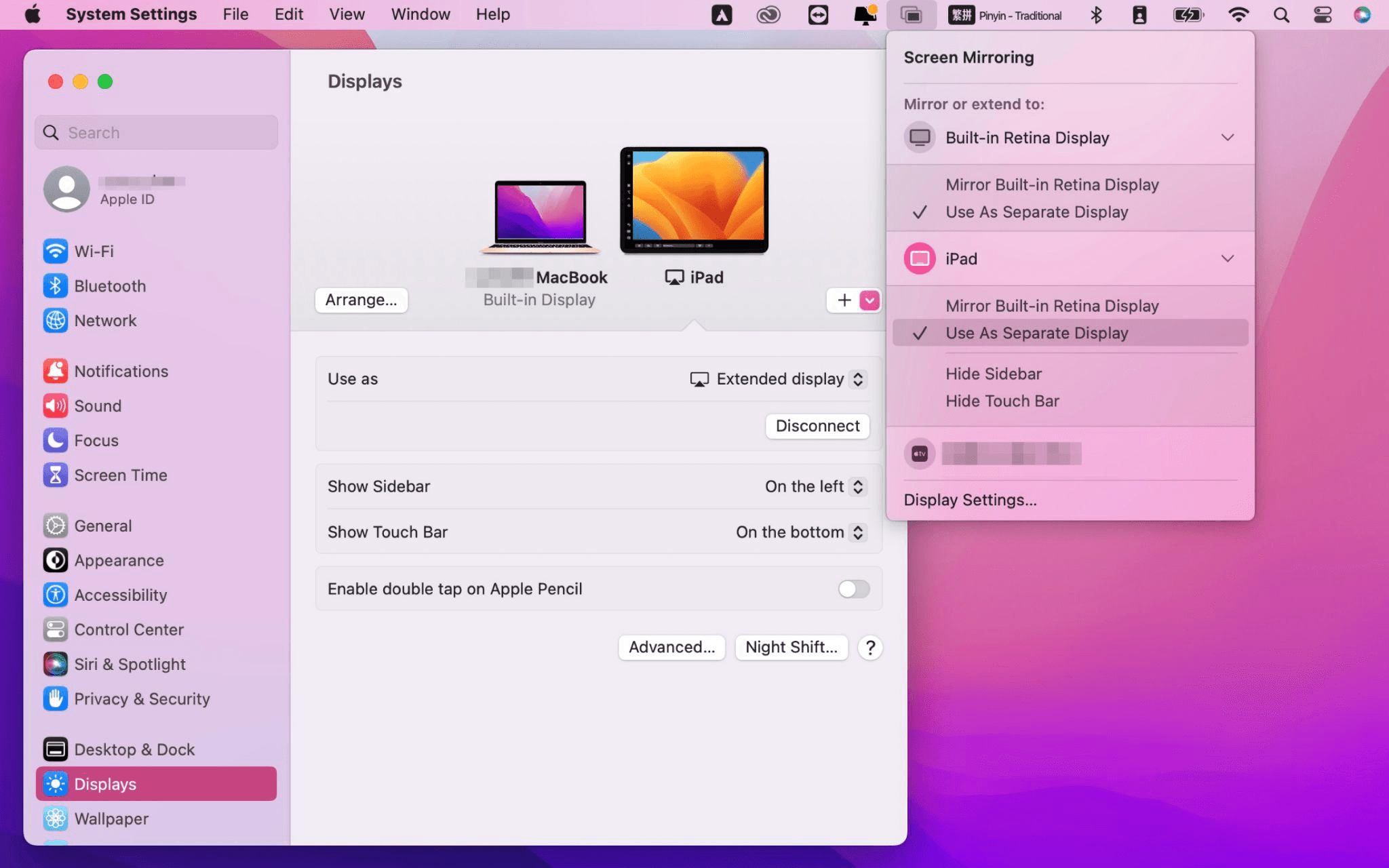
Matapos makumpleto ang mga setting, ang iyong iPad ay magiging pangalawang display para sa iyong Mac. Maaari mong ilipat ang mga bintana mula sa iyong Mac papunta sa iyong iPad nang maayos. Maaari mo ring gamitin ang sidebar sa iPad o baguhin ang posisyon ng sidebar sa system display settings.
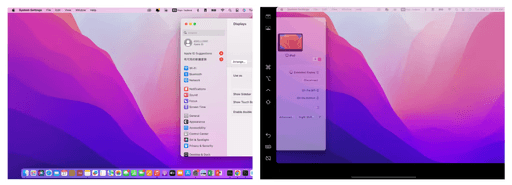
MacBook Screen (Kaliwa) at iPad Screen (Kanan)
Ang Apple Sidecar ay sumusuporta lamang sa mga Mac na inilabas pagkatapos ng 2016 at iPadOS13 o bago. Kung gumagamit ka ng lumang Apple device o Windows device, maaari mo pa ring gamitin ang DeskIn remote software upang gawin ang screen extension. Sinusuportahan nito ang paggamit ng iPad bilang pangalawang display para sa Mac at Windows, at ang smoothness ay hindi mas mababa sa sidecar.
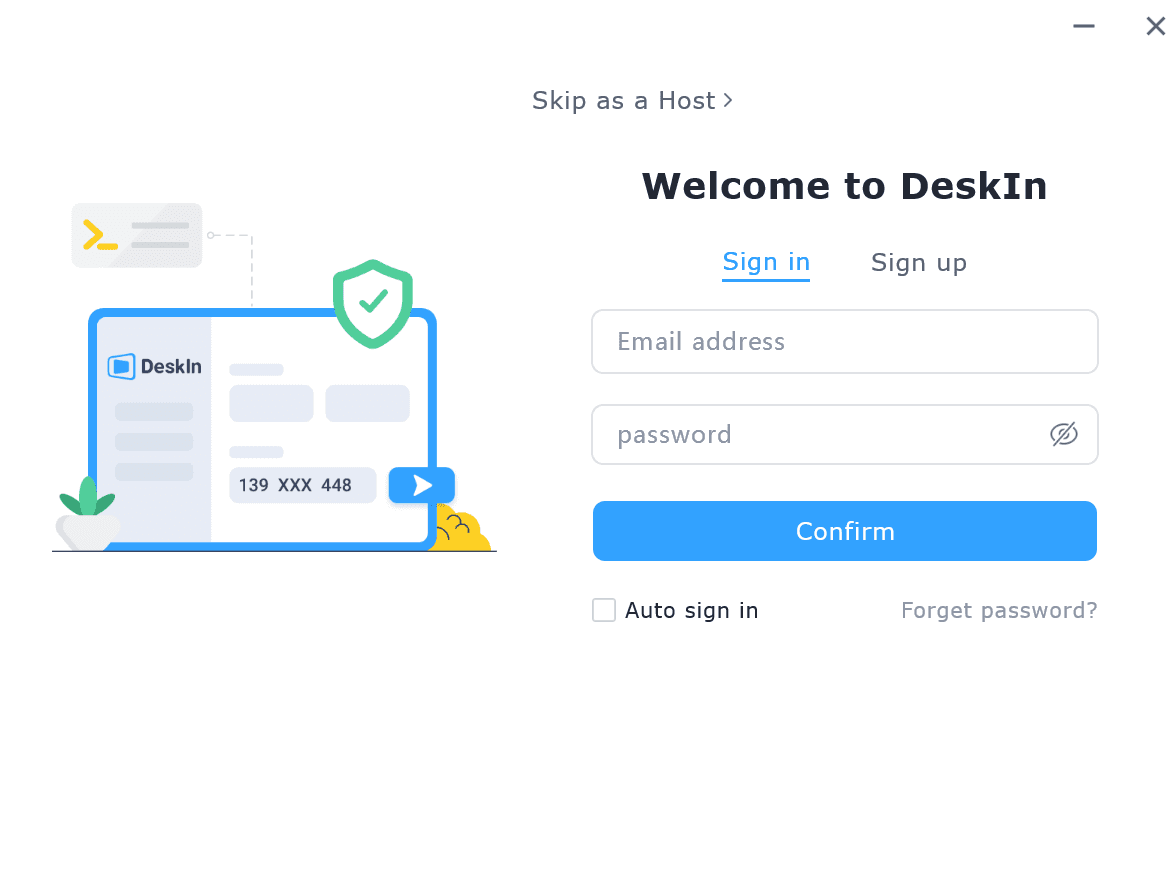
I-download ang DeskIn sa iyong computer at iPad, magrehistro para sa isang libreng account at mag-log in nang hiwalay.

Paalala: Sa iyong unang pag-log in sa isang bagong device, kailangan mong kumpletuhin ang email verification, na naglalayong protektahan ang seguridad ng iyong account.
Buksan ang DeskIn app sa iyong Windows/Mac computer >> Pumunta sa "Screen Mgt" Tab >> I-click ang "Extend my screen"
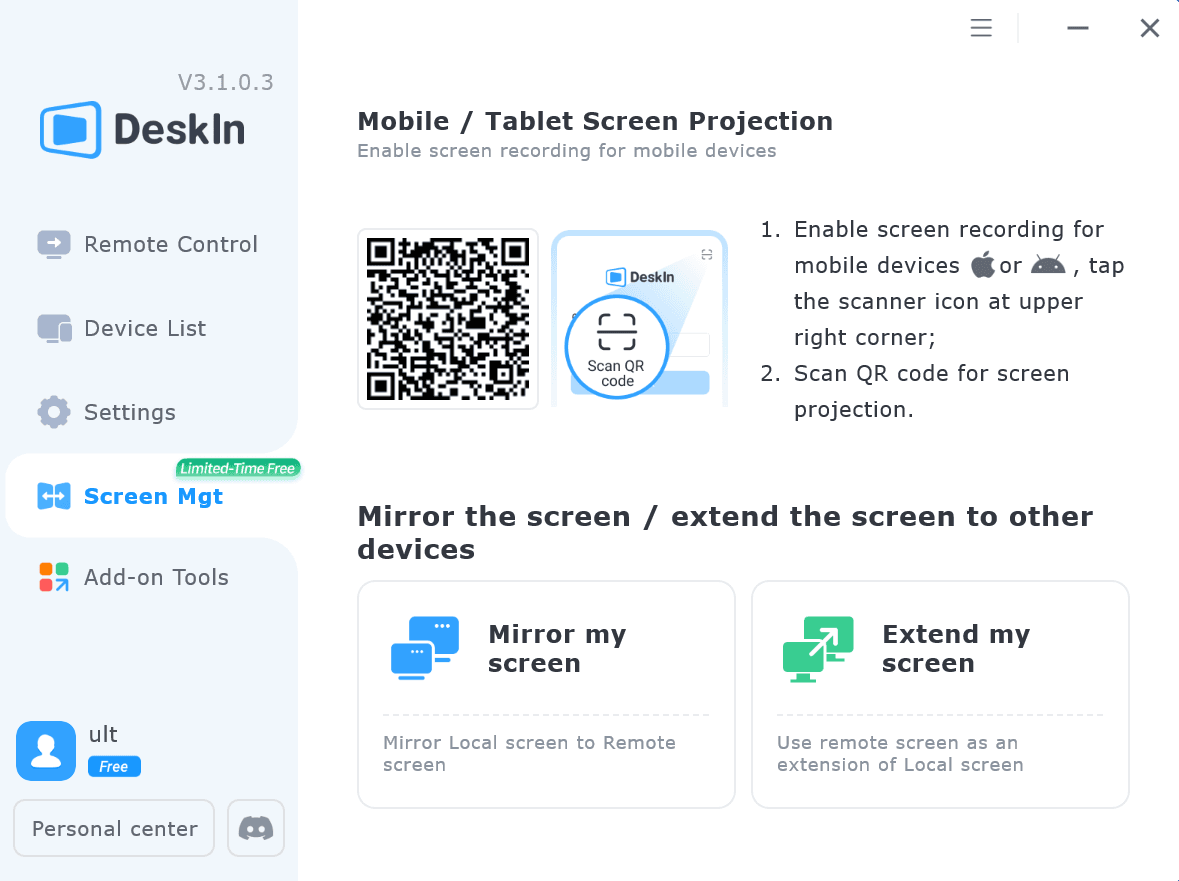
Piliin ang iyong iPad, at i-click ang "Start Extending". Kapag nakakonekta, ang iyong iPad ay magiging pangalawang display ng iyong Windows/Mac computer, maaari mong ilipat ang mga bintana sa pagitan ng dalawang screen na para bang nasa isa lamang ito.
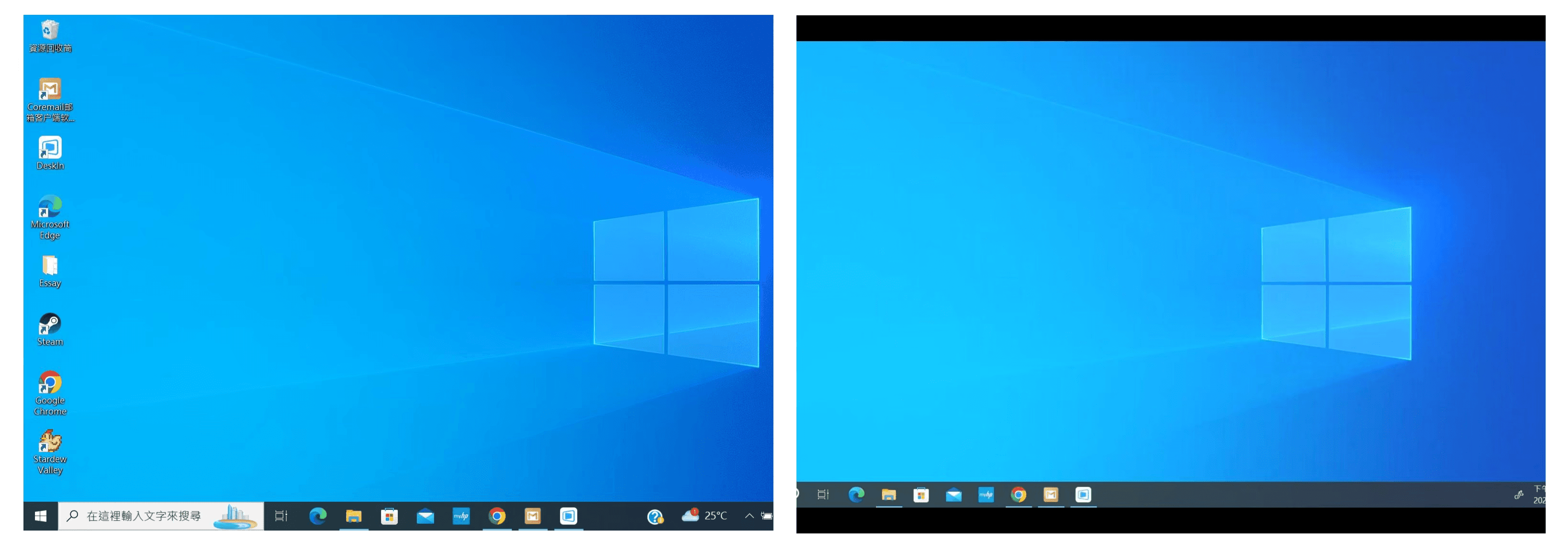
Computer Screen (Kaliwa) at iPad Screen (Kanan)
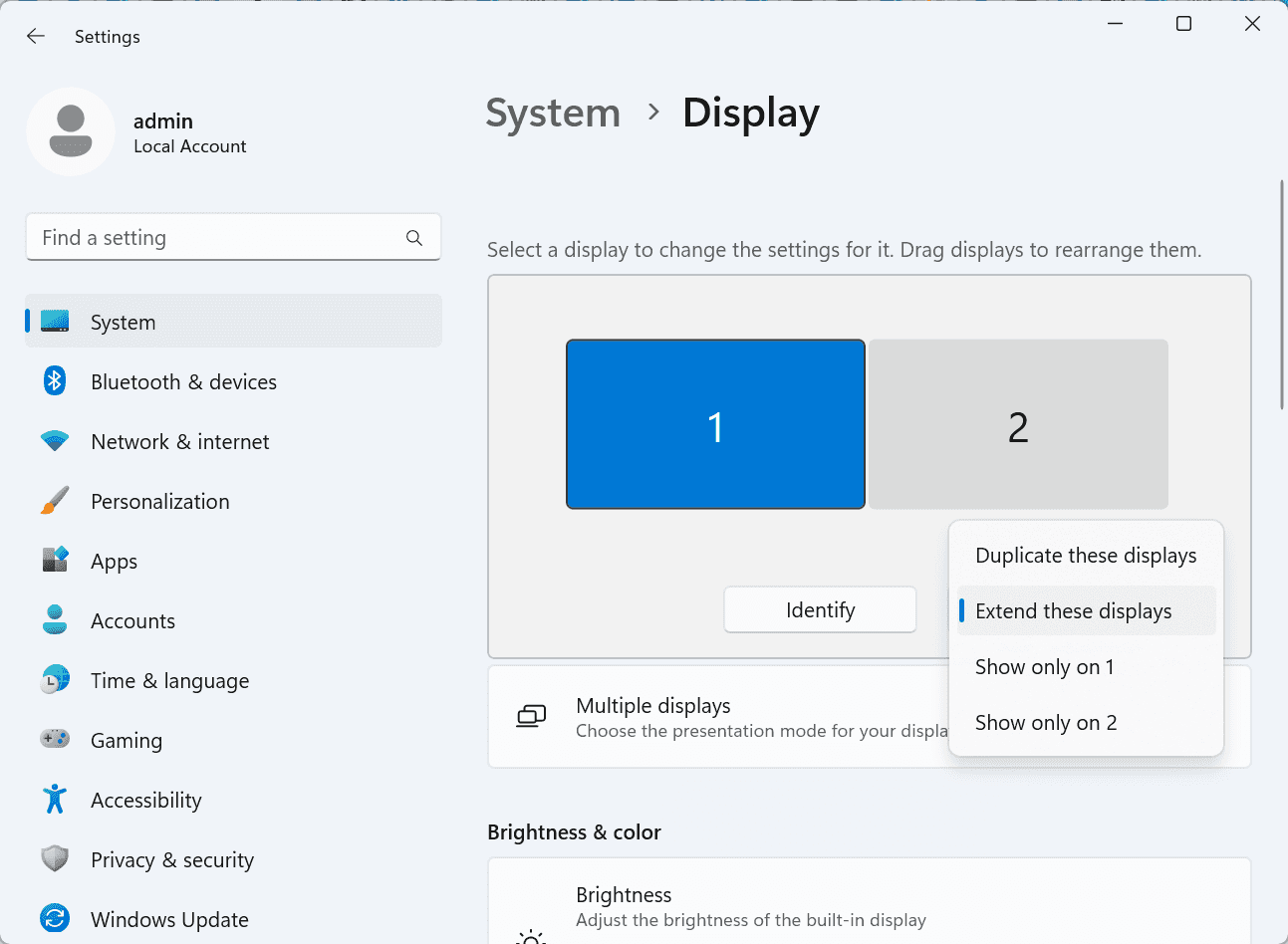
Matapos ang extension, kung napansin mong ang iyong iPad ay nagmi-mirror lamang ng nilalaman sa iyong computer screen, mangyaring pumunta sa Windows System Settings >> Display Settings at baguhin ang screen option sa "Extend these displays". Maaari mo ring baguhin ang posisyon ng screen sa pamamagitan ng pag-drag ng 2 screens.
Ang artikulong ito ay nagpapakita kung paano gamitin ang DeskIn remote desktop software upang gawing "pangalawang screen" ang isang iPad para sa Mac at Windows computers. Ito ay lalong kapaki-pakinabang para sa mga tao na kailangang hawakan ang maraming gawain nang sabay-sabay at nais na mapabuti ang productivity. Kung naghahanap ka ng screen extension tool na gumagana sa iyong MacBook, iPad, Android Tablet at Windows PC, ang DeskIn remote desktop ay ang pinakamainam na solusyon para sa iyo. I-download ang DeskIn at subukan ito ngayon!
How to Play MapleStory Classic World on Mac
A lot of the players who are most excited about MapleStory Classic World grew up on 2005-era MapleStory — and a large share of that generation now does its computing on a MacBook. Nexon clearly knows this: a native macOS client was on the feature list for the second Closed Online Test, which ran August 4–12, 2026, alongside Ossyria and third job advancement. But as of this writing, that Mac client is still in development, not publicly available, and there's still no confirmed public launch date for the game itself.
So if you want to play MapleStory Classic World on a Mac right now — or want a reliable plan for when the game does launch — you've got two real options: run Windows in a virtual machine, or use DeskIn remote desktop to control an actual Windows PC from your Mac. This guide covers both, including a login-conflict issue that catches a lot of virtual machine users off guard.
Not yet, publicly. Nexon's May 2026 roadmap update confirmed macOS support is in development, and it appeared as a testable feature in the second Closed Online Test. Windows PC remains the confirmed launch platform, and Nexon hasn't said whether the Mac client will be ready at launch or arrive afterward. The game hasn't had a full public release on any platform — Nexon has said one more test is planned before launch.
Given that, Mac players currently have two ways in: a Windows virtual machine, or remote desktop software that connects to a real Windows PC.
Classic World is exclusive to GMS (Global MapleStory), covering North America, Europe, and most other regions without a local Nexon partner. Markets with their own official MapleStory service — Korea, China, Japan, Taiwan/Hong Kong, and Southeast Asia — aren't GMS-eligible, so Mac players in those regions would need a VPN to reach Classic World, which isn't recommended. Whether NA and EU will run as separate worlds hasn't been confirmed.
Tools like Parallels Desktop or VMware Fusion let you run a full Windows install inside macOS, and then install MapleStory Classic World the way a Windows user would. It works, but it asks a lot of your Mac's hardware.
RAM: 16GB minimum recommended; 8GB is genuinely tight, since macOS and Windows are both running at once and macOS alone can eat most of that before Windows gets a share. For a comfortable setup with guides or Discord open on the side, aim for 32GB.
CPU/GPU: Virtual machines can't pass hardware through at 100%; graphics get software-emulated, which typically costs 20–30% of the performance you'd get on native Windows hardware.
Thermals: Running two full operating systems under load generates real heat, and laptop-class Macs with limited cooling can throttle during longer grinding sessions.
Apple Silicon translation overhead: M-series Macs can only run Windows on ARM in a VM. If Classic World ships as an x86/x64 build, it needs an extra translation layer to run at all, stacking on top of the virtualization overhead already mentioned.
Anti-cheat compatibility is a real unknown: the original MapleStory has historically been hostile to virtualized environments because of its anti-cheat system, and Nexon hasn't said how Classic World's anti-cheat will treat VMs. Treat virtualization as a maybe, not a guaranteed plan.
There's also the practical overhead: setting up a VM means downloading a Windows image, allocating dozens of gigabytes of disk space, installing display drivers, and — on Apple Silicon — dealing with ARM compatibility quirks that don't show up on a real x86 PC. Keyboard shortcuts can also conflict, since macOS system shortcuts (Control, Option, Command) don't always play nicely with a Windows game's default keybinds.
Instead of building a Windows environment inside your Mac, DeskIn lets you connect directly to a Windows PC you already have — your desktop at home, a work machine, or a spare laptop — and control it from your Mac in real time. The game runs on genuine Windows hardware the whole time, so there's no emulation tax, no ARM translation layer, and no anti-cheat guessing game.
A virtual machine makes sense if:
You don't have access to any Windows PC at all, so a Mac VM is your only option.
Your Mac has strong specs — 16GB+ RAM, ideally 32GB, and a higher-end M-series chip that can absorb the performance loss.
You're comfortable with a fairly technical setup process.
You rarely need to switch between devices, so the single-login limitation isn't a practical issue for you.
DeskIn makes more sense if:
You already have a Windows PC (or another Mac) that can run MapleStory Classic World, and you just want to reach it from your MacBook.
You're traveling or away from your desk often and want to pick up where you left off without re-downloading anything.
You don't want to deal with logging out of one device every time you switch to another.
Your Mac has more modest specs, and you'd rather not risk stutters, crashes, or a game that won't launch at all.
If you already own a Windows machine, DeskIn is generally the lower-effort, lower-risk choice. A VM is really a fallback for players with no Windows access and a Mac powerful enough to absorb the overhead.
Step 1: Set up the Windows PC. Install MapleStory Classic World on a Windows PC and create your character, then install DeskIn on that same PC, sign in, and enable unattended access with a connection password so you can reach it later without anyone at the keyboard.
Step 2: Install DeskIn on your Mac. Download the macOS version of DeskIn, sign in with the same account, and your Windows PC will appear in your device list.
Step 3: Connect. Select the PC, enter the connection password, and you'll get a live view of the Windows desktop that you control with your Mac's mouse and trackpad — the same session, the same login, no conflicts.
Step 4: Tune quality for your connection. On a stable connection, push quality up to enjoy Classic World's remastered pixel art in full detail; on the road, prioritize smoothness to cut down on input lag.
Step 5: Log in and play. Open the game inside the remote session and log in as usual — grinding, party quests, and shopping all work exactly as they would sitting at the PC directly.
Resolution and quality: Free-tier users should start around 720p/30fps for a stable baseline; paid-tier users can push up to 4K 60FPS or 2K 240FPS on a strong connection to get the most out of Classic World's art.
Screen scaling: If your Mac and Windows PC have very different display sizes, use DeskIn's automatic scaling option in the toolbar, or adjust the remote PC's resolution to match your Mac's screen more closely.
Keyboard and mouse mapping: DeskIn maps your Mac's keyboard directly to the remote PC. Turning on Game Mouse mode prevents the keyboard from getting locked mid-session.
Controller support: If Mac keyboard controls feel awkward, pair a controller to your Mac and enable controller mapping from the toolbar — DeskIn will pass those inputs straight through to the remote PC.
Simple Setup:No Windows installation required — connect and start playing within minutes.
Doesn't tax your Mac's hardware. All the actual computation happens on the remote Windows PC; your Mac just displays the stream and sends inputs.
Performance and compatibility match native Windows, because that's exactly what's running — no ARM translation layer to worry about.
No account login conflicts, since DeskIn connects to the same existing session instead of creating a new device.
Cross-device flexibility. The same account lets you connect from Mac, iPhone, iPad, or Android, and it's always the same underlying session — no juggling logins between devices.
Not publicly yet. Nexon has confirmed a macOS client is in development and tested it in the second Closed Online Test, but Windows remains the confirmed launch platform and no public Mac release has shipped.
Yes. DeskIn uses end-to-end encryption and two-factor login, and since you're remotely operating a PC you already control, your credentials never pass through a third party.
Technically you can install one, but the experience will be rough. With 8GB split between macOS and Windows, there's very little left over for Windows, and stutters or crashes become likely during longer sessions. DeskIn is the more stable option here, since the remote PC handles all the processing — your Mac's RAM isn't a bottleneck.
Real-world performance depends on both ends' network quality, but since DeskIn connects to native Windows hardware with no virtualization overhead, and its low-latency streaming keeps end-to-end delay under 40ms on a good connection, it typically feels smoother than a resource-constrained VM.
No. DeskIn controls the same PC and the same already-active session rather than logging in as a new device, so it doesn't trigger MapleStory's single-session login limit — this is exactly the conflict that trips up VM users switching between two separate Windows installs.
DeskIn needs a Windows (or other supported platform) machine to connect to. If you don't have one, consider borrowing access to a friend's or family member's PC, or renting a cloud Windows machine as your connection target.
DeskIn supports Windows, macOS, iOS, and Android. A Mac can connect to a Windows PC, and a Windows PC can just as easily connect to and control a Mac.
MapleStory Classic World doesn't have a public Mac client yet, but that doesn't mean Mac players have to gamble on a resource-hungry virtual machine and hope the anti-cheat cooperates. If you already have access to a Windows PC that can run the game — or even another Mac — connecting to it through DeskIn gets you native Windows performance, none of the virtualization overhead, and none of the account-login headaches that come with running a second "device." Set it up once, and you'll be ready to log in the moment Classic World opens its doors.
How to Play MapleStory Classic World on Mobile Before the Official App Arrives
MapleStory Classic World has turned into one of the most-searched topics in the MapleStory community this year. Nexon's pre-Big Bang server pulled in roughly 5,000 players for its first Closed Online Test back in April 2026, and thousands more signed up for the second test that ran August 4–12, 2026. With Ossyria, third job advancement, and controller support now confirmed, interest has never been higher — and a lot of that interest is coming from players who want to know one thing: can you play MapleStory Classic World on your phone?
Short answer: not with an official app, not yet. This guide breaks down exactly what Nexon has confirmed about platforms so far, then walks through how DeskIn remote desktop lets you play MapleStory Classic World on mobile right now, without waiting on an app that hasn't been announced.
As of this writing, Nexon has not announced a mobile or console version of MapleStory Classic World. The confirmed platforms are Windows PC and macOS — macOS support was specifically added as a testable feature during the second Closed Online Test in August 2026, alongside Ossyria and third job advancement, but it's still listed as "in development" rather than publicly available.
There's also no full public launch date yet. Nexon has run two Closed Online Tests so far and has said one more test is planned before release, so most community trackers currently estimate a launch window in late 2026 or early 2027 — but that's community speculation, not an official date.
Put simply: if you want to play MapleStory Classic World on a phone or tablet today, a native app isn't an option. The only practical route is streaming the PC version from a Windows machine you already have access to.
Classic World is exclusive to GMS (Global MapleStory), Nexon's English-language service for North America, Europe, and most other regions without a local Nexon partner. Players in markets with their own official MapleStory service — Korea, China, Japan, Taiwan/Hong Kong, and Southeast Asia — aren't eligible for GMS accounts, so Classic World isn't accessible there without a VPN, which isn't recommended. It's not yet confirmed whether NA and EU will run as separate worlds within Classic World.
DeskIn is a cross-platform remote desktop app built specifically with PC gaming in mind, and it maps well onto exactly the problem MapleStory Classic World mobile players are trying to solve.
Stable, low-latency connections. DeskIn's ZeroSync® engine keeps end-to-end latency under 40ms on a good connection and automatically reroutes around congested paths, so grinding, dodging, and skill combos in Classic World's classic-era combat don't feel delayed.
Up to 4K 60FPS / 2K 240FPS streaming. Classic World's remastered pixel art holds up well when it isn't compressed into mush — DeskIn's streaming keeps text and sprites sharp even on a phone screen.
You're connecting to your own PC, not emulating one. DeskIn doesn't run Windows inside your phone; it streams the display of a Windows computer you control and sends your inputs back in real time. That means full compatibility and full performance — no emulation layer to fight with.
End-to-end encryption and two-factor login. Sessions are encrypted end-to-end, and you can set an allowlist of authorized devices, so only you can connect to your own PC.
Flexible, per-character keybinds. Classic World's Warrior, Magician, Bowman, and Thief classes each use very different skill layouts. DeskIn's on-screen game keyboard lets you build a custom key layout and save it as its own profile, so you can switch between characters without re-mapping keys every time.
Built-in virtual mouse. In pointer mode, DeskIn adds virtual left/right mouse buttons over the stream, which makes precise UI clicks — inventory, cash shop, trade windows — far easier than tapping blindly on a touchscreen.
Once you're connected, mobile play through DeskIn covers pretty much everything you'd do sitting at your PC:
Daily quests and login rewards — knock these out on your commute instead of waiting until you're home.
Cash shop browsing — scroll and preview cosmetics with touch gestures just like any shopping app.
Grinding and leveling — use the virtual directional pad and skill-key layout to keep training in familiar maps.
Party quests — latency low enough to keep up with a party's pacing on runs like Kerning City PQ.
Trading and the marketplace — check prices and list items using the virtual mouse for precise clicks.
Guild chat and messaging — reply to your guild or party the moment something comes up.
Step 1: Set up DeskIn on the Windows PC running Classic World. Install DeskIn on the PC where you've registered for testing (or where the game is installed once it launches), sign in, and turn on unattended access so the PC can be reached without anyone sitting in front of it.
Step 2: Install the DeskIn app on your phone. Download DeskIn from the App Store or Google Play, sign in with the same account, and your PC will show up in the device list.
Step 3: Connect and switch to pointer mode. Tap your PC to connect, then switch the control mode from touch to pointer — this unlocks the customizable virtual keyboard and virtual mouse.
Step 4: Browsing the cash shop. Drag to move the cursor and tap the virtual mouse buttons to click through menus and item previews, exactly like using a mouse on a desktop.
Step 5: Grinding. Open the game keyboard menu, build a layout with your movement keys and skill keys, and save it as a profile. Pull it up any time you start a grinding session.
Step 6: Pick the right streaming quality for your connection. On mobile data, prioritize smoothness over resolution to cut down on input delay; on Wi-Fi, bump the quality up to enjoy Classic World's remastered art at full clarity.
A tablet's bigger screen is a natural fit for content that needs either more reading room or more precision — daily quest text and boss encounters both qualify.
Step 1: Same setup as mobile. Install DeskIn on your iPad or Android tablet and sign in — connection steps are identical to the phone app.
Step 2: Daily quests. The larger display makes quest text, item descriptions, and map markers easier to read at a glance, so you're less likely to misread an objective mid-run.
Step 3: Boss fights. Bosses demand precise dodges and timing that touch controls alone can struggle with — pair your tablet with a Bluetooth keyboard and mouse, or a controller (see below), instead of relying on the virtual keyboard.
Step 4: Bump the frame rate for boss content. Choose a higher refresh setting in DeskIn's connection options so skill telegraphs and boss patterns read clearly in real time.
Step 5: Use split-screen for guide lookups. Run DeskIn alongside a browser or notes app in split view to check attack patterns without leaving the fight.
If virtual buttons don't feel precise enough, DeskIn supports Bluetooth controllers, including Xbox, PlayStation, and several third-party pads.
Step 1: Pair the controller with your phone. Use your phone's Bluetooth settings to pair the controller first.
Step 2: Connect through DeskIn. Once connected to your PC, DeskIn automatically detects the paired controller — no extra driver install needed.
Step 3: Test your inputs. Head into a training map first and confirm movement, attacks, and skills map to the buttons you expect before jumping into content that matters.
Step 4: Favor smoothness for fast-paced play. When you're actively grinding or fighting with a controller, prioritize DeskIn's smoothness setting over max resolution for the most responsive feel.
Running a Warrior and a Bowman means running two very different skill bars. Here's how to keep them separate in DeskIn instead of re-mapping keys every login:
Step 1: Switch to pointer mode and open the game keyboard menu. After connecting, switch to pointer mode and open DeskIn's game keyboard settings.
Step 2: Create a new keyboard layout. Tap "New Keyboard" and add your movement pad, skill keys, and item keys to match your current character's build.
Step 3: Name it by character or class. Label the layout something identifiable — "Bowman" or "Main Warrior" — and save it.
Step 4: Load the right profile when you switch characters. Before logging into a different character, select its saved layout from the game keyboard menu instead of rebuilding it from scratch.
Step 5: Update layouts as skills change. When a class gets rebalanced or you unlock new skills after a job advancement, go back into that profile and add the new keys.
No. Nexon has not announced a mobile or console version. Confirmed platforms are Windows, with a macOS client currently in development.
Nexon hasn't announced a public release date. Two Closed Online Tests have run so far (April 16–24 and August 4–12, 2026), with one more test planned before launch. Community estimates point to late 2026 or early 2027, but that isn't official.
No. DeskIn remotely operates your own PC and sends the same mouse and keyboard input you'd normally use — it isn't a macro, bot, or memory-editing tool, so it doesn't behave like the automation that anti-cheat systems are built to catch.
DeskIn's low-latency streaming keeps things playable on a stable connection, generally noticeably smoother than trying to force a browser workaround. Real-world latency still depends on both ends' network quality, so Wi-Fi is recommended over cellular when possible.
For checking dailies or browsing the shop occasionally, the free plan typically covers it. If you plan to grind for long sessions, use a controller regularly, or manage several devices, a paid plan unlocks higher streaming quality and additional features.
Setup and connection steps are identical. The difference is screen size — phones are handy for quick, single-hand tasks like dailies and the shop, while tablets are better suited to boss fights and content where you want a controller or external keyboard.
Until Nexon ships a mobile client — if one ever gets announced — DeskIn is the most practical way to keep playing MapleStory Classic World away from your desk. Install it on both your gaming PC and your phone or tablet, set up a keybind profile per character, and you can knock out dailies, grind, and even tackle boss fights without being tied to a monitor.
Products
Download
Resources
Contact Us
Email: support@deskin.io
Office: 991D Alexandra Road #02-17, Singapore 119972
Copyright © 2026 Zuler Technology PTE. LTD. All rights reserved.
Contact Us
Email: support@deskin.io
Office: 991D Alexandra Road #02-17, Singapore 119972
Products
Download
Resources
Copyright © 2026 Zuler Technology PTE. LTD. All rights reserved.
Products
Download
Resources
Contact Us
support@deskin.io
991D Alexandra Road #02-17
Singapore 119972
Copyright © 2026 Zuler Technology PTE. LTD. All rights reserved.
【New User Special Offer】
Save
Extra 20%
on your first order|4K60FPS
Extra
20% Off
|For
New Users
【New User Special Offer】
Save
Extra 20%
on first order


