Pagiging produktibo
Pagiging produktibo
/
8 Minuto
/
8 Minuto
W. Ting
Na-update
Na-update
Na-update
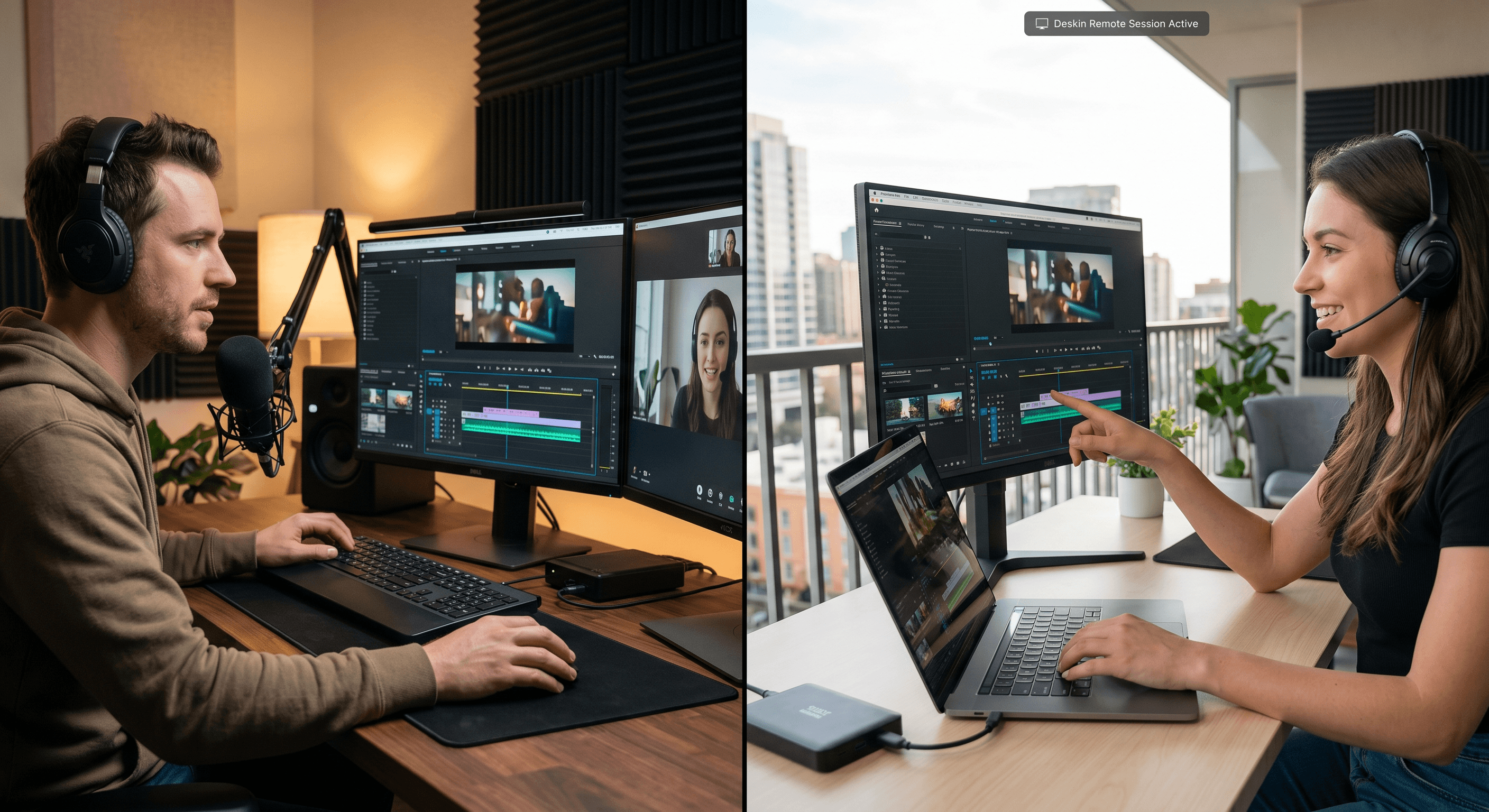
Ang remote video editing ay hindi na isang kompromiso; ito ay isang upgrade sa workflow. Gumagawa ka man sa Adobe Premiere Pro, After Effects, o DaVinci Resolve, ang tamang remote desktop ay kayang gawing isang high-performance editing station ang iyong laptop.
Ngunit hindi lahat ng tool ay binuo para sa kolaborasyon sa remote video editing. Ang lag, mahinang katumpakan sa kulay, at hindi matatag na koneksyon ay maaaring makasira sa pagiging produktibo. Sa gabay na ito, hihimayin natin ang pinakamahusay na remote desktop para sa mga video editing tool upang makapag-edit ka nang maayos mula saanman.
Ang mga modernong creator ay hindi na nakatali sa isang solong workstation. Gamit ang software sa remote work, maaari mong ma-access ang iyong makapangyarihang desktop mula saanman nang hindi kailangang mamuhunan sa isang mahal na laptop. Para sa maraming editor, lalo na ang mga freelancer at maliliit na team, nilulutas nito ang isang tunay na problema: mayroon ka nang high-performance na PC, ngunit limitado ang kadaliang kumilos. Sa halip na magdoble ng hardware, pinapayagan ka ng mga remote desktop tool para sa video editing na i-stream ang iyong workflow sa real time.
Ang isa pang pangunahing pakinabang ay ang remote na kolaborasyon. Ang mga team ay maaaring gumawa sa parehong proyekto sa iba't ibang lokasyon, suriin ang mga edit nang madalian, at iwasan ang malalaking paglilipat ng file sa pamamagitan ng mga tool sa remote na kolaborasyon. Gayunpaman, gagana lamang ito kung sinusuportahan ng iyong remote desktop software ang matataas na frame rate, mababang latency, at matatag na koneksyon. Kung hindi, magiging nakakadismaya ang pag-e-edit.

Narito ang isang mabilis na pangkalahatang-ideya ng pinakamahusay na mga tool at para kanino ang mga ito:
DeskIn – Pinakamahusay sa pangkalahatan para sa pagganap + pagiging abot-kaya + multi-device workflows
Parsec – Pinakamahusay para sa ultra-low latency na pag-e-edit
Splashtop – Pinakamahusay para sa high-resolution streaming
HP Anyware – Pinakamahusay para sa enterprise-level workflows
Jump Desktop – Pinakamahusay para sa mga user ng Mac
AnyDesk – Pinakamahusay na magaan na remote access
Chrome Remote Desktop – Pinakamahusay na libreng pangunahing opsyon
RustDesk – Pinakamahusay na open-source na alternatibo
Hanggang 4K 60FPS / 2K 240FPS na pagganap
Ultra-low latency para sa makinis na mga timeline ng pag-e-edit
Suporta sa multi-device (PC, Mac, iPad, Android)
Abot-kayang presyo na may available na libreng plano
Mas maliit na kamalayan sa brand kumpara sa mga legacy tool
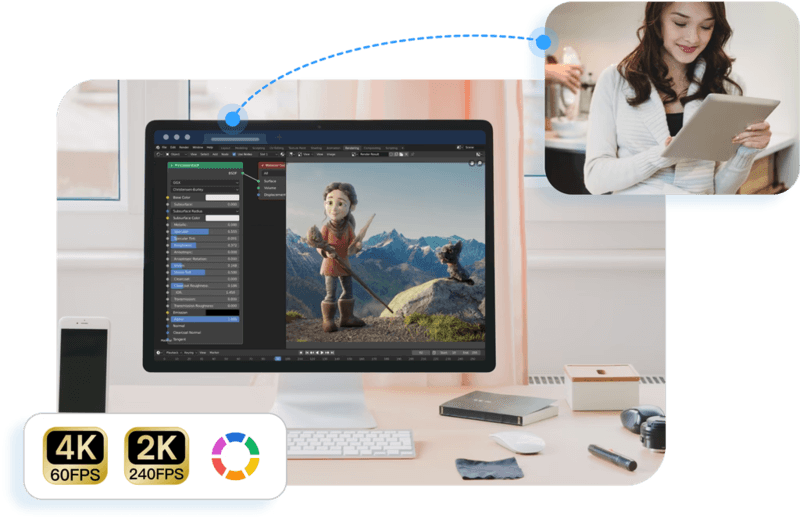
Namumukod-tangi ang DeskIn bilang pinakamahusay na remote desktop para sa video editing sa pamamagitan ng pagbabalanse ng pagganap, katatagan, at pagiging naa-access. Hindi tulad ng maraming tradisyonal na mga tool sa remote support, idinisenyo ito para sa mga gawaing may mataas na frame-rate, na ginagawang mabilis at tuluy-tuloy ang pag-scrub sa timeline, pag-play ng preview, at pag-edit ng mga effect.
Para sa mga creator na nagtatrabaho sa iba't ibang device, nagbibigay-daan ang DeskIn para sa tuluy-tuloy na kolaborasyon sa remote video editing. Maaari mong i-access ang iyong pangunahing PC para sa pag-e-edit mula sa isang laptop, tablet, o maging sa isang pangalawang workstation nang walang kapansin-pansing lag. Kung ikukumpara sa mga tool tulad ng Chrome Remote Desktop, na nahihirapan sa mga gawaing mabigat sa video, pinapanatili ng DeskIn ang pare-parehong kalidad at pagtugon—na ginagawa itong isang praktikal na pagpipilian para sa parehong mga solo editor at mga team na magkakahiwalay ang lokasyon.
Napakababang latency
Mataas na frame rate streaming
Sikat sa mga malikhaing propesyonal
Limitadong mga tampok sa kolaborasyon
Maaaring kumplikado ang pag-setup para sa mga nagsisimula
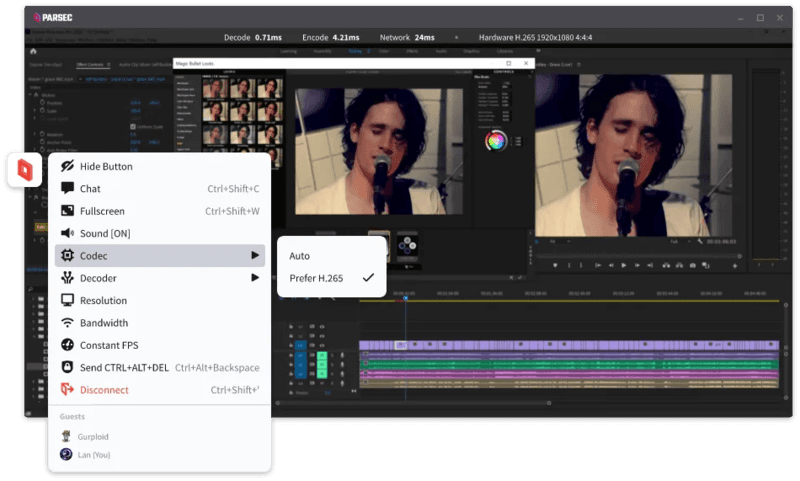
Ang Parsec ay malawakang kinikilala bilang isang nangungunang pagpipilian para sa remote video editing, lalo na kapag ang latency ang iyong pinakamalaking alalahanin. Ang teknolohiya ng pag-stream nito ay na-optimize para sa real-time na pagtugon, na ginagawa itong perpekto para sa mga gawain tulad ng timeline scrubbing at gawaing motion graphics sa After Effects.
Gayunpaman, habang mahusay ang Parsec sa pagganap, kulang ito sa ilang mga tampok na kinakailangan para sa buong kolaborasyon sa remote video editing. Ang mga multi-user workflow at advanced na kontrol sa pag-access ay hindi kasing-tatag ng ilang mas bagong tool. Para sa mga user na nangangailangan ng parehong pagganap at kakayahang umangkop, ang mga alternatibo tulad ng DeskIn ay maaaring magbigay ng mas balanseng solusyon.
Sumusuporta sa 4K streaming
Malakas na katumpakan sa kulay
Maaasahan para sa mga malikhaing gawain
Mas mataas na gastos para sa mga advanced na tampok
Maaaring makaranas ng latency sa malalayong distansya
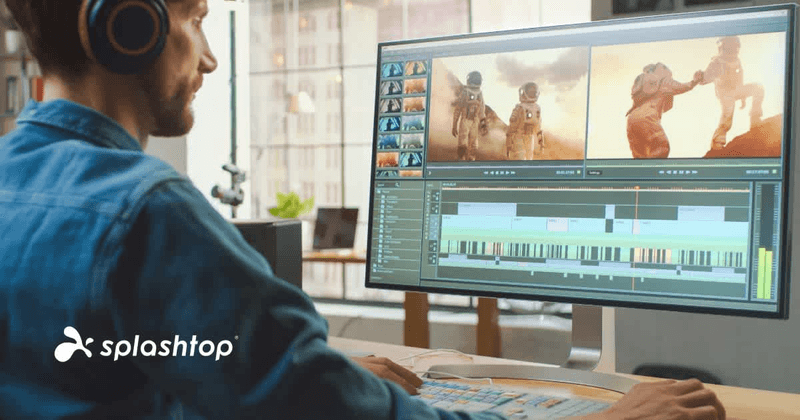
Ang Splashtop ay isang solidong opsyon para sa mga editor na nagbibigay-priyoridad sa visual fidelity. Ang suporta nito para sa high-resolution streaming at 4:4:4 color ay ginagawa itong angkop para sa color grading at detalyadong gawaing pag-edit.
Sinasabing ang pare-parehong pagganap nito ay maaaring mag-iba depende sa kondisyon ng network. Ang ilang mga user ay nag-uulat ng lag kapag nagtatrabaho sa labas ng mga lokal na network. Kung ikukumpara sa mas na-optimize na software sa remote work tulad ng DeskIn, ang Splashtop ay maaaring mangailangan ng mas malakas na koneksyon upang mapanatili ang parehong antas ng swabe.
Pagganap na pang-industriya ang antas
Ligtas at nasusukat
Ginagamit sa mga propesyonal na studio
Mahal
Kumplikadong pag-setup
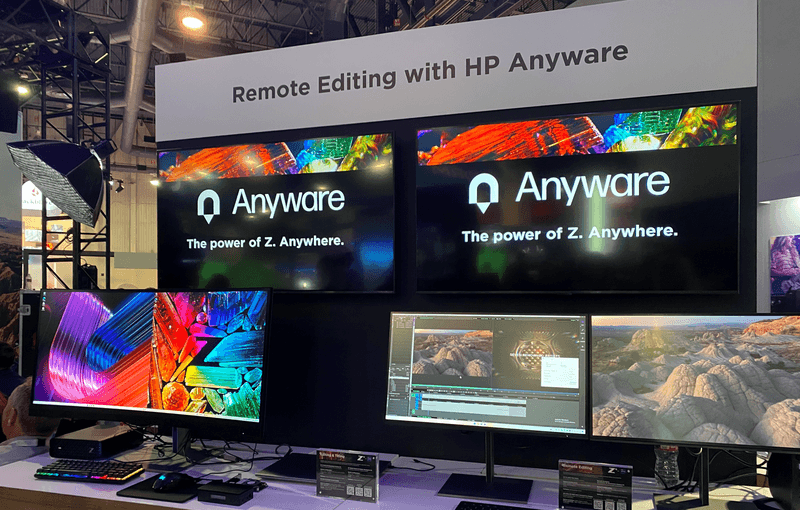
Ang HP Anyware (dating Teradici) ay idinisenyo para sa mga high-end na kapaligiran sa produksyon. Gumagamit ito ng mga advanced na protocol upang maghatid ng mahusay na pagganap at seguridad, na ginagawa itong isang karaniwang pagpipilian sa mga industriya ng media at libangan.
Gayunpaman, para sa maliliit na team o indibidwal na creator, maaaring masyado na itong marami. Ang gastos at pagiging kumplikado ng pag-setup ay nagiging sanhi upang hindi ito gaanong madaling ma-access kumpara sa mga modernong remote desktop para sa video editing tool na nag-aalok ng katulad na pagganap na may mas madaling pag-deploy. Ang mataas na gastos at teknikal na kumplikado ay lumilikha ng mga hadlang na inalis na ng mga modernong solusyon sa remote desktop, tulad ng DeskIn, na nag-aalok ng maihahambing na pagganap na may mas simpleng pag-deploy.
Mahusay na pagsasama sa macOS
Makisig na pagganap
Madaling gamitin
Limitadong mga advanced na tampok
Hindi perpekto para sa mabigat na kolaborasyon
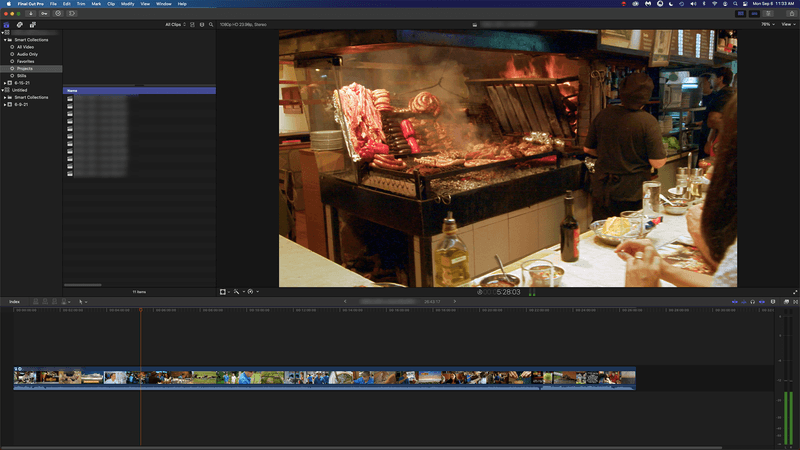
Ang Jump Desktop ay nakakuha ng tapat na tagasunod sa mga user ng Mac na naghahanap ng direkta, mahusay na remote desktop para sa video editing. Ang Fluid Remote Desktop protocol nito ay nagbibigay ng maayos at mabilis na pagganap para sa karamihan ng mga gawaing pag-edit nang walang hindi kinakailangang kumplikado.
Kung saan ito nagkukulang ay sa kolaborasyon. Ang Jump Desktop ay binuo para sa indibidwal na paggamit, na kulang sa mga tampok na nakatuon sa team na kailangan ng mga malikhaing grupo. Para sa mga solo propesyonal, gumagana ito nang maayos, ngunit mabilis na hahanap-hanapin ng mga team ang mga tool sa real-time na kolaborasyon na matatagpuan sa iba pang mga platform.
Mga Kalamangan
Mabilis at magaan
Madaling i-set up
Gumagana sa maraming device
Mga Kahinaan
Limitadong pagganap para sa video editing
Mas mababang kalidad ng visual
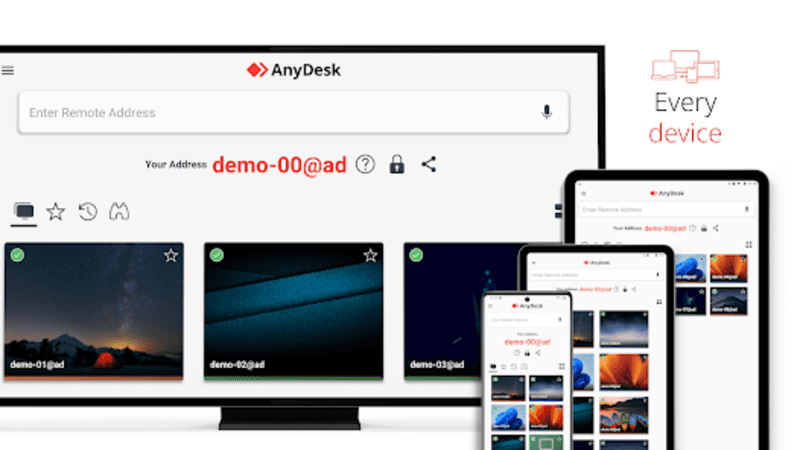
Itinatag ng AnyDesk ang reputasyon nito sa magaang disenyo at kahanga-hangang kadalian ng paggamit para sa pangkalahatang remote access. Mahusay nitong pinangangasiwaan ang mga pang-araw-araw na gawain, mabilis na kumokonekta at tumatakbo nang maayos sa katamtamang hardware.
Ang mga limitasyon ay nagiging halata sa mga hinihinging malikhaing gawa. Ang remote video editing ay nangangailangan ng pare-parehong frame rate at napakalinaw na mga visual—mga bahagi kung saan nahihirapan ang AnyDesk. Para sa mga propesyonal na editor na nangangailangan ng katumpakan, ang agwat sa pagganap ay nagiging imposible nang balewalain.
Ganap na libre
Madaling pag-setup na nakabatay sa browser
Gumagana sa anumang device
Mahinang pagganap para sa pag-edit
Limitadong mga tampok
Ang Chrome Remote Desktop ay isa sa mga pinaka-naa-access na tool sa remote support, na nag-aalok ng simpleng paraan upang ma-access ang iyong computer mula saanman. Ito ay libre, halos hindi nangangailangan ng pag-setup, at nagbibigay-daan sa iyong i-access ang iyong computer mula saanman gamit lamang ang isang browser. Para sa pangunahing teknikal na suporta o mabilisang pagkuha ng file, nagagawa nito ang trabaho.
Gayunpaman, hindi ito binuo para sa remote video editing. Madalas na nakakaranas ang mga user ng lag, mga compression artifact, at mababang frame rate. Kung nagtatrabaho ka sa mga propesyonal na proyekto, lubos na inirerekomenda ang pag-upgrade sa isang mas may kakayahang solusyon.
Open-source
Available ang self-hosting
Libreng gamitin
Nangangailangan ng teknikal na pag-setup
Maaaring mag-iba ang pagganap
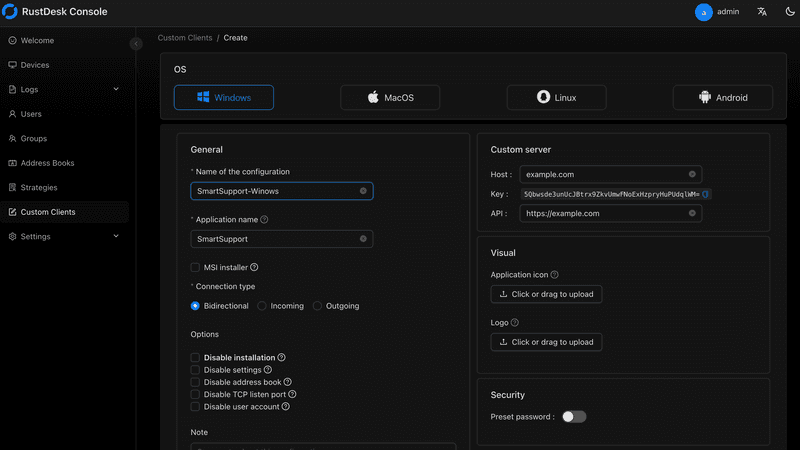
Ang RustDesk ay umaakit sa mga user na nagbibigay-priyoridad sa pilosopiyang open-source na nais ng kumpletong kontrol sa kanilang imprastraktura ng remote access. Ang kakayahang umangkop sa self-host at pagpapasadya ay tunay na mahalaga para sa mga user na nag-aalala sa privacy. Ang RustDesk ay isang kagiliw-giliw na opsyon para sa mga user na mas gusto ang mga alternatibong open-source na remote desktop na hindi gumagana o nais ng buong kontrol sa kanilang imprastraktura.
Gayunpaman, ang pagganap ay ganap na nakasalalay sa iyong mga kasanayan sa pagsasaayos. Kung walang teknikal na kadalubhasaan, ang pagkamit ng maayos, low-latency na karanasan na kinakailangan para sa propesyonal na pag-edit ay mahirap. Ito ay makapangyarihan para sa mga nakakaalam kung paano ito i-tune, ngunit hindi ito plug-and-play.
Oo, gamit ang tamang remote desktop para sa video editing, maaari kang mag-edit ng mga video nang maayos mula saanman. Ang mga tool tulad ng DeskIn at Parsec ay nagbibigay ng mababang latency at matataas na frame rate para sa mga propesyonal na workflow.
Mayroong mga libreng opsyon tulad ng Chrome Remote Desktop, ngunit kulang sila sa pagganap. Nag-aalok ang DeskIn ng libreng plano na may mas mahusay na pagganap, na ginagawa itong isang mas malakas na pagpipilian para sa tunay na gawaing pag-edit.
Oo, ang Parsec ay mahusay para sa low-latency na pag-e-edit. Gayunpaman, maaaring kulang ito sa mga tampok ng kolaborasyon na kinakailangan para sa mga workflow ng team.
Kasama sa mga karaniwang isyu ang mahinang koneksyon sa network, mababang bandwidth, o mga limitasyon sa software. Ang pagpili ng na-optimize na software sa remote work tulad ng DeskIn ay maaaring makabuluhang mapabuti ang pagganap.
Ang pagpili ng pinakamahusay na remote desktop para sa video editing ay nakasalalay sa iyong workflow, badyet, at mga pangangailangan sa pagganap. Habang ang mga tool tulad ng Parsec at Splashtop ay mahusay sa mga partikular na lugar, maraming solusyon ang nahihirapan na balansehin ang pagganap, katatagan, at kakayahang magamit.
Kung naghahanap ka ng isang mahusay na bilog na solusyon, ang DeskIn ay nag-aalok ng isang malakas na kumbinasyon ng mataas na pagganap, makinis na pag-stream, at kakayahang umangkop sa iba't ibang device. Gumagawa ka man nang mag-isa o nakikipagtulungan nang malayuan, nagbibigay ito ng maaasahang pundasyon para sa mga modernong workflow sa remote video editing.
Ang remote video editing ay hindi na isang kompromiso; ito ay isang upgrade sa workflow. Gumagawa ka man sa Adobe Premiere Pro, After Effects, o DaVinci Resolve, ang tamang remote desktop ay kayang gawing isang high-performance editing station ang iyong laptop.
Ngunit hindi lahat ng tool ay binuo para sa kolaborasyon sa remote video editing. Ang lag, mahinang katumpakan sa kulay, at hindi matatag na koneksyon ay maaaring makasira sa pagiging produktibo. Sa gabay na ito, hihimayin natin ang pinakamahusay na remote desktop para sa mga video editing tool upang makapag-edit ka nang maayos mula saanman.
Ang mga modernong creator ay hindi na nakatali sa isang solong workstation. Gamit ang software sa remote work, maaari mong ma-access ang iyong makapangyarihang desktop mula saanman nang hindi kailangang mamuhunan sa isang mahal na laptop. Para sa maraming editor, lalo na ang mga freelancer at maliliit na team, nilulutas nito ang isang tunay na problema: mayroon ka nang high-performance na PC, ngunit limitado ang kadaliang kumilos. Sa halip na magdoble ng hardware, pinapayagan ka ng mga remote desktop tool para sa video editing na i-stream ang iyong workflow sa real time.
Ang isa pang pangunahing pakinabang ay ang remote na kolaborasyon. Ang mga team ay maaaring gumawa sa parehong proyekto sa iba't ibang lokasyon, suriin ang mga edit nang madalian, at iwasan ang malalaking paglilipat ng file sa pamamagitan ng mga tool sa remote na kolaborasyon. Gayunpaman, gagana lamang ito kung sinusuportahan ng iyong remote desktop software ang matataas na frame rate, mababang latency, at matatag na koneksyon. Kung hindi, magiging nakakadismaya ang pag-e-edit.
Narito ang isang mabilis na pangkalahatang-ideya ng pinakamahusay na mga tool at para kanino ang mga ito:
DeskIn – Pinakamahusay sa pangkalahatan para sa pagganap + pagiging abot-kaya + multi-device workflows
Parsec – Pinakamahusay para sa ultra-low latency na pag-e-edit
Splashtop – Pinakamahusay para sa high-resolution streaming
HP Anyware – Pinakamahusay para sa enterprise-level workflows
Jump Desktop – Pinakamahusay para sa mga user ng Mac
AnyDesk – Pinakamahusay na magaan na remote access
Chrome Remote Desktop – Pinakamahusay na libreng pangunahing opsyon
RustDesk – Pinakamahusay na open-source na alternatibo
Hanggang 4K 60FPS / 2K 240FPS na pagganap
Ultra-low latency para sa makinis na mga timeline ng pag-e-edit
Suporta sa multi-device (PC, Mac, iPad, Android)
Abot-kayang presyo na may available na libreng plano
Mas maliit na kamalayan sa brand kumpara sa mga legacy tool
Namumukod-tangi ang DeskIn bilang pinakamahusay na remote desktop para sa video editing sa pamamagitan ng pagbabalanse ng pagganap, katatagan, at pagiging naa-access. Hindi tulad ng maraming tradisyonal na mga tool sa remote support, idinisenyo ito para sa mga gawaing may mataas na frame-rate, na ginagawang mabilis at tuluy-tuloy ang pag-scrub sa timeline, pag-play ng preview, at pag-edit ng mga effect.
Para sa mga creator na nagtatrabaho sa iba't ibang device, nagbibigay-daan ang DeskIn para sa tuluy-tuloy na kolaborasyon sa remote video editing. Maaari mong i-access ang iyong pangunahing PC para sa pag-e-edit mula sa isang laptop, tablet, o maging sa isang pangalawang workstation nang walang kapansin-pansing lag. Kung ikukumpara sa mga tool tulad ng Chrome Remote Desktop, na nahihirapan sa mga gawaing mabigat sa video, pinapanatili ng DeskIn ang pare-parehong kalidad at pagtugon—na ginagawa itong isang praktikal na pagpipilian para sa parehong mga solo editor at mga team na magkakahiwalay ang lokasyon.
Napakababang latency
Mataas na frame rate streaming
Sikat sa mga malikhaing propesyonal
Limitadong mga tampok sa kolaborasyon
Maaaring kumplikado ang pag-setup para sa mga nagsisimula
Ang Parsec ay malawakang kinikilala bilang isang nangungunang pagpipilian para sa remote video editing, lalo na kapag ang latency ang iyong pinakamalaking alalahanin. Ang teknolohiya ng pag-stream nito ay na-optimize para sa real-time na pagtugon, na ginagawa itong perpekto para sa mga gawain tulad ng timeline scrubbing at gawaing motion graphics sa After Effects.
Gayunpaman, habang mahusay ang Parsec sa pagganap, kulang ito sa ilang mga tampok na kinakailangan para sa buong kolaborasyon sa remote video editing. Ang mga multi-user workflow at advanced na kontrol sa pag-access ay hindi kasing-tatag ng ilang mas bagong tool. Para sa mga user na nangangailangan ng parehong pagganap at kakayahang umangkop, ang mga alternatibo tulad ng DeskIn ay maaaring magbigay ng mas balanseng solusyon.
Sumusuporta sa 4K streaming
Malakas na katumpakan sa kulay
Maaasahan para sa mga malikhaing gawain
Mas mataas na gastos para sa mga advanced na tampok
Maaaring makaranas ng latency sa malalayong distansya
Ang Splashtop ay isang solidong opsyon para sa mga editor na nagbibigay-priyoridad sa visual fidelity. Ang suporta nito para sa high-resolution streaming at 4:4:4 color ay ginagawa itong angkop para sa color grading at detalyadong gawaing pag-edit.
Sinasabing ang pare-parehong pagganap nito ay maaaring mag-iba depende sa kondisyon ng network. Ang ilang mga user ay nag-uulat ng lag kapag nagtatrabaho sa labas ng mga lokal na network. Kung ikukumpara sa mas na-optimize na software sa remote work tulad ng DeskIn, ang Splashtop ay maaaring mangailangan ng mas malakas na koneksyon upang mapanatili ang parehong antas ng swabe.
Pagganap na pang-industriya ang antas
Ligtas at nasusukat
Ginagamit sa mga propesyonal na studio
Mahal
Kumplikadong pag-setup
Ang HP Anyware (dating Teradici) ay idinisenyo para sa mga high-end na kapaligiran sa produksyon. Gumagamit ito ng mga advanced na protocol upang maghatid ng mahusay na pagganap at seguridad, na ginagawa itong isang karaniwang pagpipilian sa mga industriya ng media at libangan.
Gayunpaman, para sa maliliit na team o indibidwal na creator, maaaring masyado na itong marami. Ang gastos at pagiging kumplikado ng pag-setup ay nagiging sanhi upang hindi ito gaanong madaling ma-access kumpara sa mga modernong remote desktop para sa video editing tool na nag-aalok ng katulad na pagganap na may mas madaling pag-deploy. Ang mataas na gastos at teknikal na kumplikado ay lumilikha ng mga hadlang na inalis na ng mga modernong solusyon sa remote desktop, tulad ng DeskIn, na nag-aalok ng maihahambing na pagganap na may mas simpleng pag-deploy.
Mahusay na pagsasama sa macOS
Makisig na pagganap
Madaling gamitin
Limitadong mga advanced na tampok
Hindi perpekto para sa mabigat na kolaborasyon
Ang Jump Desktop ay nakakuha ng tapat na tagasunod sa mga user ng Mac na naghahanap ng direkta, mahusay na remote desktop para sa video editing. Ang Fluid Remote Desktop protocol nito ay nagbibigay ng maayos at mabilis na pagganap para sa karamihan ng mga gawaing pag-edit nang walang hindi kinakailangang kumplikado.
Kung saan ito nagkukulang ay sa kolaborasyon. Ang Jump Desktop ay binuo para sa indibidwal na paggamit, na kulang sa mga tampok na nakatuon sa team na kailangan ng mga malikhaing grupo. Para sa mga solo propesyonal, gumagana ito nang maayos, ngunit mabilis na hahanap-hanapin ng mga team ang mga tool sa real-time na kolaborasyon na matatagpuan sa iba pang mga platform.
Mga Kalamangan
Mabilis at magaan
Madaling i-set up
Gumagana sa maraming device
Mga Kahinaan
Limitadong pagganap para sa video editing
Mas mababang kalidad ng visual
Itinatag ng AnyDesk ang reputasyon nito sa magaang disenyo at kahanga-hangang kadalian ng paggamit para sa pangkalahatang remote access. Mahusay nitong pinangangasiwaan ang mga pang-araw-araw na gawain, mabilis na kumokonekta at tumatakbo nang maayos sa katamtamang hardware.
Ang mga limitasyon ay nagiging halata sa mga hinihinging malikhaing gawa. Ang remote video editing ay nangangailangan ng pare-parehong frame rate at napakalinaw na mga visual—mga bahagi kung saan nahihirapan ang AnyDesk. Para sa mga propesyonal na editor na nangangailangan ng katumpakan, ang agwat sa pagganap ay nagiging imposible nang balewalain.
Ganap na libre
Madaling pag-setup na nakabatay sa browser
Gumagana sa anumang device
Mahinang pagganap para sa pag-edit
Limitadong mga tampok
Ang Chrome Remote Desktop ay isa sa mga pinaka-naa-access na tool sa remote support, na nag-aalok ng simpleng paraan upang ma-access ang iyong computer mula saanman. Ito ay libre, halos hindi nangangailangan ng pag-setup, at nagbibigay-daan sa iyong i-access ang iyong computer mula saanman gamit lamang ang isang browser. Para sa pangunahing teknikal na suporta o mabilisang pagkuha ng file, nagagawa nito ang trabaho.
Gayunpaman, hindi ito binuo para sa remote video editing. Madalas na nakakaranas ang mga user ng lag, mga compression artifact, at mababang frame rate. Kung nagtatrabaho ka sa mga propesyonal na proyekto, lubos na inirerekomenda ang pag-upgrade sa isang mas may kakayahang solusyon.
Open-source
Available ang self-hosting
Libreng gamitin
Nangangailangan ng teknikal na pag-setup
Maaaring mag-iba ang pagganap
Ang RustDesk ay umaakit sa mga user na nagbibigay-priyoridad sa pilosopiyang open-source na nais ng kumpletong kontrol sa kanilang imprastraktura ng remote access. Ang kakayahang umangkop sa self-host at pagpapasadya ay tunay na mahalaga para sa mga user na nag-aalala sa privacy. Ang RustDesk ay isang kagiliw-giliw na opsyon para sa mga user na mas gusto ang mga alternatibong open-source na remote desktop na hindi gumagana o nais ng buong kontrol sa kanilang imprastraktura.
Gayunpaman, ang pagganap ay ganap na nakasalalay sa iyong mga kasanayan sa pagsasaayos. Kung walang teknikal na kadalubhasaan, ang pagkamit ng maayos, low-latency na karanasan na kinakailangan para sa propesyonal na pag-edit ay mahirap. Ito ay makapangyarihan para sa mga nakakaalam kung paano ito i-tune, ngunit hindi ito plug-and-play.
Oo, gamit ang tamang remote desktop para sa video editing, maaari kang mag-edit ng mga video nang maayos mula saanman. Ang mga tool tulad ng DeskIn at Parsec ay nagbibigay ng mababang latency at matataas na frame rate para sa mga propesyonal na workflow.
Mayroong mga libreng opsyon tulad ng Chrome Remote Desktop, ngunit kulang sila sa pagganap. Nag-aalok ang DeskIn ng libreng plano na may mas mahusay na pagganap, na ginagawa itong isang mas malakas na pagpipilian para sa tunay na gawaing pag-edit.
Oo, ang Parsec ay mahusay para sa low-latency na pag-e-edit. Gayunpaman, maaaring kulang ito sa mga tampok ng kolaborasyon na kinakailangan para sa mga workflow ng team.
Kasama sa mga karaniwang isyu ang mahinang koneksyon sa network, mababang bandwidth, o mga limitasyon sa software. Ang pagpili ng na-optimize na software sa remote work tulad ng DeskIn ay maaaring makabuluhang mapabuti ang pagganap.
Ang pagpili ng pinakamahusay na remote desktop para sa video editing ay nakasalalay sa iyong workflow, badyet, at mga pangangailangan sa pagganap. Habang ang mga tool tulad ng Parsec at Splashtop ay mahusay sa mga partikular na lugar, maraming solusyon ang nahihirapan na balansehin ang pagganap, katatagan, at kakayahang magamit.
Kung naghahanap ka ng isang mahusay na bilog na solusyon, ang DeskIn ay nag-aalok ng isang malakas na kumbinasyon ng mataas na pagganap, makinis na pag-stream, at kakayahang umangkop sa iba't ibang device. Gumagawa ka man nang mag-isa o nakikipagtulungan nang malayuan, nagbibigay ito ng maaasahang pundasyon para sa mga modernong workflow sa remote video editing.


Nag-o-overheat o Mahirap Kontrolin ang MapleStory Worlds Mobile? Ayusin ang Artale Lag, Init, at Touch Controls
Nalampasan mo ba ang isang jump dahil ang on-screen stick ay gumalaw sa maling direksyon? Umiinit ba ang iyong telepono, nawawalan ng mga frame, o nauubos ang baterya nito sa kalagitnaan ng isang grinding session? Kung gusto mo ng mas kumportableng paraan upang maglaro ng Artale malayo sa iyong desk, i-download ang DeskIn at kumonekta sa desktop setup na ginagamit mo na.
Ipinapaliwanag ng gabay na ito ang pinakakaraniwang mga problema sa pagpapatakbo ng Artale sa loob ng native na MapleStory Worlds mobile app, kung bakit nangyayari ang mga ito, at kung paano mababawasan ng remote play ang workload sa panig ng telepono habang binibigyan ka ng mas madaling kontrol.
Paano Maglaro ng Bawat Bersyon ng MapleStory sa iPhone, iPad, at Android
Paano Maglaro ng MapleStory gamit ang Controller sa Mac, iPhone, iPad, at Android
Ang mga post ng komunidad tungkol sa Artale sa mobile ay madalas na nagbabanggit ng mabagal na unang pag-load, itim na loading screen, hindi tugmang input, at ang pangangailangang gawin muli ang mga key binding. Nag-iiba ang karanasan depende sa device at rehiyon, ngunit ang parehong mga isyu ay paulit-ulit na lumalabas:
Umiinit ang telepono at mabilis na nauubos ang baterya sa mas mahabang session.
Ang pag-login at pag-load ng mapa ay maaaring maging mabagal, lalo na kapag hindi matatag ang koneksyon.
Ang mga masisikip na mapa, mga boss, at mga skill effect ay maaaring magdulot ng mga frame drop, lag, o pag-crash.
Ang virtual joystick ay maaaring maging sanhi ng hindi tumpak na mga short hop, pagbabago ng direksyon, at paggalaw sa lubid.
Ang mga button at menu ay maaaring makatakip sa mga platform, kaaway, o maliliit na target sa inventory.
Ang paulit-ulit na pagpindot para sa potion, paggalaw, at skill ay maaaring magdulot ng pagkapagod ng daliri.
Ang mga aksyon na nangangailangan ng maraming button ay maaaring maging mahirap sa isang telepono o tablet, lalo na sa panahon ng mga jump attack o combo-heavy na paglalaro.
Kapag pinapatakbo mo ang Artale nang native, pinangangasiwaan ng iyong telepono ang game logic, graphics, networking, display, at touch input nang sabay-sabay. Tumaas ang load na iyon kapag:
Ang graphics, frame rate, liwanag ng screen, o visual effects ay nakatakda sa mataas.
Ang mga app sa background ay kumokonsumo ng memorya o oras ng processor.
Ang device ay nagcha-charge, nasa loob ng makapal na case, o ginagamit sa isang mainit na kapaligiran.
Ang network ay sapat na mahina upang magdulot ng paulit-ulit na pag-load, muling pagkonekta, o pag-rollback ng posisyon.
Habang umiinit ang device, maaaring bawasan ng operating system ang bilis ng CPU o GPU upang protektahan ang hardware. Ang thermal throttling na iyon ay maaaring magdulot ng mas mababang frame rate at naantalang input, kahit sa isang medyo malakas na telepono.
Ang Artale ay maaaring laruin sa pamamagitan ng MapleStory Worlds sa mobile, ngunit ang isang maliit na touchscreen ay may mga limitasyon pa rin para sa isang keyboard-heavy side-scrolling RPG:
Ang isang virtual stick ay hindi nagbibigay ng pisikal na feedback, kaya mas mahirap ang tumpak na paggalaw.
Ang mga button para sa skill, potion, talon, at utility ay nag-aagawan sa limitadong espasyo sa screen.
Maaaring matakpan ng iyong mga daliri ang karakter, mga platform, o mga hudyat ng pag-atake.
Ang mga interface para sa inventory, shop, at chat ay mayroon pa ring maliliit na click target.
Ang mga mahabang session ay nangangailangan ng parehong grip at paulit-ulit na paggalaw ng hinlalaki.
Ibig sabihin, ang mga kontrol ng Artale sa mobile ay maaaring maging mahirap gamitin kahit hindi umiinit ang telepono. Ang mga setting ng pagganap lamang ay hindi makakaayos sa paglalagay ng button, nahaharangang visibility, o kawalan ng pisikal na feedback.
Ang MapleStory Worlds ay opisyal na magagamit sa desktop at mobile. Sa halip na patakbuhin ang Artale nang lokal sa iyong telepono, maaaring i-stream ng DeskIn ang iyong Windows o Mac session sa isang iPhone, iPad, o Android device. Ang computer ang nagpapatakbo ng laro; ang telepono naman ang nagpapakita ng video stream at nagpapadala ng iyong mga input.
Dahil ang desktop ang humahawak sa mismong laro, hindi na ginagawa ng telepono ang buong lokal na rendering. Nagde-decode pa rin ito ng video, nagpapanatili ng koneksyon sa network, at nagpapagana sa screen, kaya maaari pa rin itong uminit—ngunit ang load sa panig ng telepono at paggamit ng baterya ay maaaring mas mababa kaysa sa native na paglalaro.
Muli kang kumokonekta sa computer session na ginagamit mo na, gamit ang parehong launcher, account, at desktop interface. Kapaki-pakinabang ito para sa pag-check sa marketplace, pag-asikaso sa mga pang-araw-araw na gawain, o pagpapatuloy ng grinding session nang hindi na kailangang mag-aral ng panibagong layout.
Ang game keyboard ng DeskIn ay nagbibigay-daan sa iyo na maglagay ng mga kontrol para sa paggalaw, jump, potion, skill, mouse, at multi-key sa screen. Maaari mong ayusin ang posisyon, laki, at transparency, pagkatapos ay mag-save ng magkakahiwalay na layout para sa iba't ibang klase (classes).
Sinusuportahan ng DeskIn ang gamepad mapping mula sa lokal na telepono, tablet, PC, o Mac papunta sa remote na computer. Maaaring mag-iba ang compatibility ng controller, kaya subukan muna ang paggalaw at mga skill sa isang ligtas na mapa bago makipaglaban sa boss.
I-install ang MapleStory Worlds at Artale sa Windows o Mac computer na gagamitin mo bilang host. I-update ang laro, launcher, operating system, at graphics drivers, pagkatapos ay kumpirmahin na gumagana ang login, tunog, at keyboard input.
I-install ang DeskIn sa parehong host computer at sa iyong telepono o tablet. Mag-sign in gamit ang parehong DeskIn account sa parehong device.
Iwasang mapunta sa sleep mode ang host. Sa DeskIn, i-enable ang

Paano I-claim ang mga VALORANT Gift Pack sa Mobile
Pagod ka na bang makaligtaan ang mga limitadong oras na diskwento sa Night Market, mga bagong Daily Shop skin, mga reward sa Battle Pass, at libreng Kingdom Store accessory refreshes para sa VALORANT kapag wala ka sa iyong PC? Ano? Maaari ka talagang mag-log in sa VALORANT mula sa iyong telepono. I-flip ang mga discount card sa Night Market, piliin ang iyong mga paboritong skin ng armas, suriin ang progreso ng Battle Pass, at i-redeem ang mga eksklusibong charm at spray anumang oras. Huwag kailanman palampasin ang mga in‑game na alok at limitadong oras na mga drop. Hindi na kailangang manatiling nakatutok sa iyong computer. I-browse ang interface ng laro sa bahagi ng iyong PC nang malayuan habang nagko-commute o nagpapahinga. Subukan ang DeskIn para sa low-latency remote streaming at galugarin ang apat na pangunahing sistema ng tindahan ng VALORANT nasaan ka man!
👉 Opisyal na Pag-download ng DeskIn:
Nagtatampok ang VALORANT ng apat na independiyenteng sistema ng pagkuha ng item at skin, bawat isa ay may magkakahiwalay na panuntunan, reward pool, at refresh mechanics na hindi nakakaapekto sa isa't isa: Limitadong oras na Night Market, permanenteng Daily Shop, Seasonal Battle Pass, at Kingdom Store.
Limitadong oras na Night Market**: Isang opisyal na paminsan-minsang kaganapan ng diskwento. Ang bawat manlalaro ay nakakakuha ng 6 na random na skin discount card na ang mga nilalaman ay hindi na mababago kapag nabuksan na. Ang mga diskwento ay mula 10%-49%, at ang mga reward ay nag-iiba bawat account. Kasama lang sa reward pool ang mga piling skin ng armas na inilabas para sa hindi bababa sa dalawang Act. Eksklusibo rito ang mga Battle Pass skin, bagong koleksyon, Ultimate skin, limitadong oras na serye, at mga high-value na melee na armas.
Daily Shop: Ang permanenteng tindahan ng laro. Apat na random na indibidwal na skin ng armas ang nagre-refresh tuwing madaling araw at hindi maaaring manu-manong i-reset. Karamihan sa mga item ay ibinebenta sa buong presyo, habang ang ilan ay maaaring magtampok ng mga pansamantalang diskwento. Sinasaklaw ng pool ang karamihan sa mga luma at bagong skin ng armas at nagsisilbing pangunahing mapagkukunan para sa pagbili ng mga standalone na skin. Ang ilang partikular na limitado at matataas na antas na item ay hindi lilitaw dito.
Seasonal Battle Pass**: Nag-a-update bawat Act na may libre at premium na mga track ng reward. I-unlock ang may bayad na track para makakuha ng mga skin, charm, spray, kill effect na eksklusibo sa season at higit pa. Ang lahat ng nilalaman ay limitado sa season at hindi papasok sa Night Market o mga regular na tindahan. Ang mga reward ay hindi mabibili o makukuha nang retroaktibo kapag natapos na ang season.
Kingdom Store:Isang libreng lingguhang umiikot na tindahan ng accessory na nagre-refresh tuwing Miyerkules. Ang bawat manlalaro ay tumatanggap ng 4 na random na accessory na maaaring i-redeem lamang gamit ang Kingdom Credits na nakuha sa laro. Hindi available ang mga pagbili at diskwento sa VP. Ibinabalik ng pool ang mga nakaraang Battle Pass accessory tulad ng mga charm, spray, player card, at pamagat. Ang mga skin ng armas ay hindi inaalok dito.
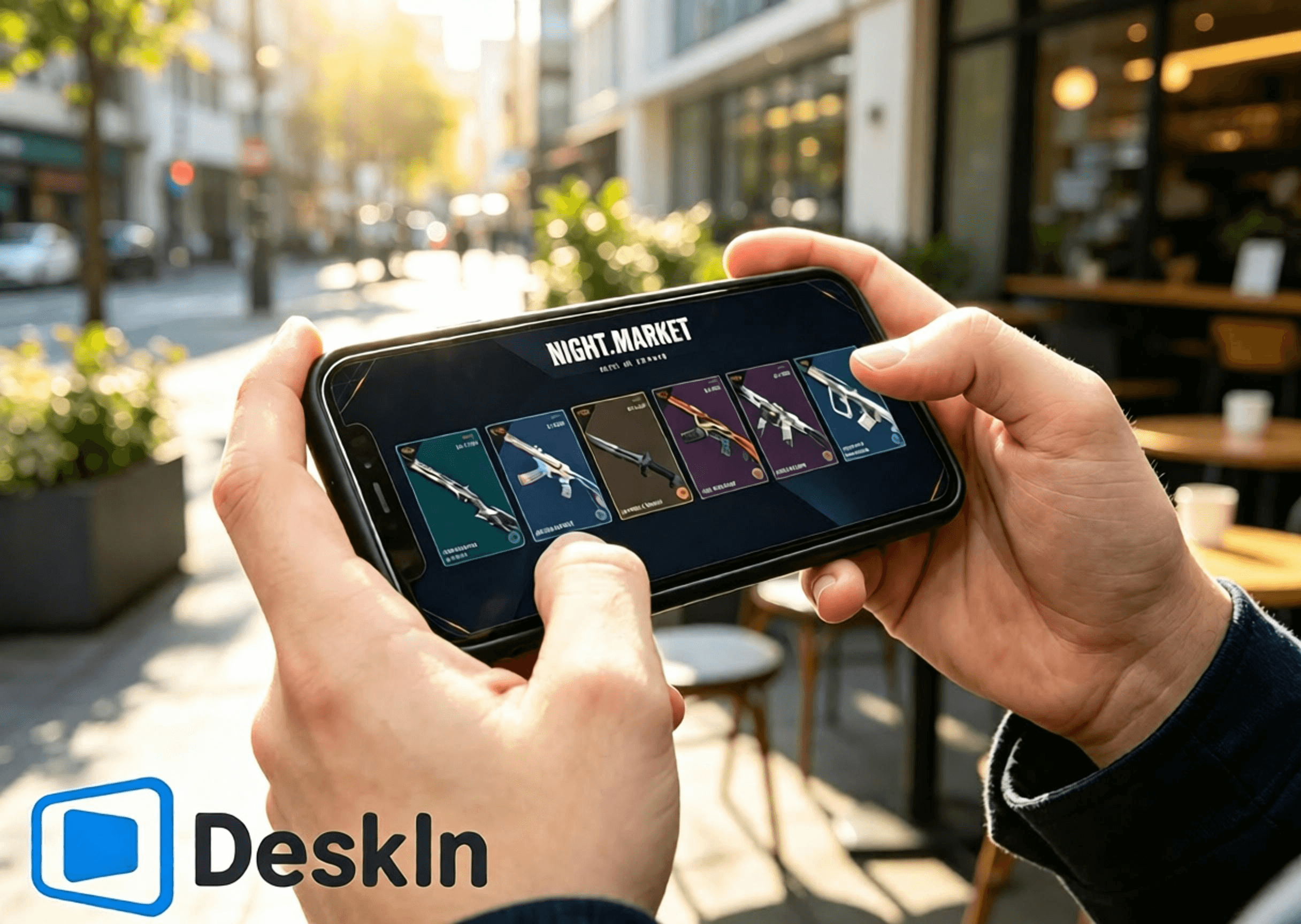
⚡ Ultra-low-latency streaming. Makinis na pag-navigate para sa pagbubukas ng mga card sa Night Market, pag-browse sa Daily Shop, pagsuri sa mga reward sa Battle Pass, at paglipat sa pahina ng Kingdom Store.
🛠️ Simpleng pag-install at pag-login. One-click na koneksyon, madaling i-setup para sa mga nagsisimula.
💻 Buong suporta sa cross-OS PC: Parehong gumagana ang Windows at Mac bilang mga host machine para patakbuhin ang laro at mga storefront.
📱 Buong saklaw ng mobile device: Sinusuportahan ng Android, iPhone, at iPad ang remote control para galugarin ang lahat ng apat na sistema ng tindahan ng VALORANT.
🔧 Nako-customize na touch-control na mga layout. Isaayos ang UI ng pagpapatakbo sa loob ng tindahan nang malaya nang hindi hinaharangan ang nilalaman.
🖼️ High-definition na pagpapadala ng video. Malinaw na nagre-render ang mga modelo ng skin ng armas, mga detalye ng lighting, mga effect sa Battle Pass, at mga texture ng accessory.
🎮 Top-tier na kalidad ng larawan at frame rate. Dual-mode switching sa pagitan ng 4K/60fps at 2K/240fps. Fluid na pag-playback na walang ghosting habang tinitingnan ang mga skin animation at maiinam na detalye.
✨ Malapit sa millisecond-level na latency, patuloy na pinananatili sa ibaba ng 40 ms. Mabilis na tumutugon na mga remote click at paglipat ng pahina nang walang lag o maling tap.
👉 Opisyal na Pag-download ng DeskIn:
I-install ang VALORANT client sa iyong PC at mag-log in sa iyong Riot account. Ganap na i-update ang game client at Vanguard anti-cheat muna. Iwasan ang mga pop-up update o mga prompt ng pag-restart pagkatapos ng malayuang koneksyon na haharang sa pag-access sa Night Market, Daily Shop, Battle Pass, at Kingdom Store.
I-download at i-install ang DeskIn PC client mula sa opisyal na website. Magrehistro at mag-log in sa iyong personal na DeskIn account. Panatilihing tumatakbo ang DeskIn sa background habang online ang iyong device para makapagsimula ng mga koneksyon ang iyong telepono anumang oras.
Kumpletuhin ang mga hakbang para mag-browse sa mga tindahan at mag-claim ng mga reward mula sa Android sa pamamagitan ng DeskIn. Nagbibigay-daan ang DeskIn ng one-click na malayuang koneksyon mula sa mga Android device. Suriin ang Night Market, Daily Shop, Seasonal Battle Pass, at Kingdom Store nang hindi nakaupo sa iyong desktop.
1. I-download ang DeskIn Kuhanin ang opisyal na DeskIn mobile client mula sa mga lehitimong channel ng Android. Mag-log in gamit ang eksaktong parehong account gaya ng iyong PC para tapusin ang pagpapares ng device. Tiyakin ang matatag na koneksyon sa network sa parehong dulo.
2. Magtatag ng malayuang koneksyon Ilunsad ang DeskIn sa iyong telepono at piliin ang iyong online na Windows/Mac host para simulan ang koneksyon. Ibahagi ang iyong telepono sa landscape mode para sa mas malawak na field ng view upang maipakita ang buong UI ng tindahan sa loob ng laro. Kumpirmahin na maayos na naglo-load ang video ng desktop at ang mga touch input ay tumutugon nang maayos. Ang lahat ng game account at data ng tindahan ay nasa iyong host PC; ang iyong mobile device ay tumatanggap lamang ng video at nagpapadala ng mga touch command.
3. Galugarin ang apat na sistema ng tindahan Ilunsad ang VALORANT sa iyong host PC at malayang mag-navigate sa pagitan ng mga pahina ng tindahan:
✅ Limitadong oras na Night Market: I-tap ang icon ng Night Market sa kanang sulok sa itaas. I-flip ang iyong 6 na eksklusibong discount card nang paisa-isa. Tandaan ang mga pangalan ng skin, orihinal na presyo, may diskwentong presyo, at porsyento ng diskwento. I-save ang mga screenshot ng mga skin na gusto mo para sa paghahambing sa ibang pagkakataon. permanenteng naka-lock ang mga nilalaman ng card kapag nabuksan na at hindi na maaaring i-reset.
✅ Daily Shop: Buksan ang tab ng permanenteng tindahan para tingnan ang iyong apat na bagong pang-araw-araw na inaalok na skin ng armas, ang kanilang mga istilo at presyo, at samantalahin ang mga pagkakataong bumili ng mga standalone na skin.
✅ Seasonal Battle Pass**: Ipasok ang menu ng Battle Pass. Suriin ang progreso ng libre at premium na track at mga hindi pa na-claim na reward. Magpasya kung bibili ng pass at kukuha ng mga limitadong oras na reward bago matapos ang Act.
✅ Kingdom Store**: Mag-navigate sa pahina ng pag-redeem ng Kingdom Credit. Suriin ang apat na lingguhang umiikot na accessory na nagre-refresh tuwing Miyerkules. Tingnan kung aling mga charm, spray, player card, at pamagat ang kulang sa iyo at i-redeem nang libre gamit ang Kingdom Credits ayon sa ninanais.
Buong mga hakbang sa pag-browse sa mga tindahan at pag-claim ng mga reward sa iPhone at iPad. Ganap na sinusuportahan ng mga Apple device ang malayuang pag-access sa lahat ng apat na tindahan ng VALORANT na may simpleng operasyon at malinaw na visual. Gumagana nang napakahusay ang mga malalaking screen na iPad para sa pagsusuri ng mga skin at mga detalye ng accessory.
1. Ipares ang mga account sa mga device Panatilihing naka-install at naka-log in ang DeskIn sa iyong PC habang online ang host device. I-download ang opisyal na DeskIn mula sa App Store sa iyong iPhone o iPad at mag-sign in gamit ang magkatulad na DeskIn account para makumpleto ang pagpapares. Mag-log in sa iyong tamang Riot account sa PC nang mas maaga. Ang lahat ng apat na dataset ng tindahan ay nakatali sa account; ang pag-log in sa maling account ay magpapakita ng maling nilalaman ng personal na tindahan.
2. Kumonekta sa iyong host PC mula sa iOS Buksan ang DeskIn sa iyong telepono o tablet at piliin ang iyong Windows/Mac host para magtatag ng malayuang session. Palaging gamitin ang landscape na oryentasyon. Ang mga compact na iPhone ay angkop para sa mabilis na pagbubukas ng card, pagsusuri ng presyo at pagre-refresh ng tindahan. Ang mga malalaking screen na iPad ay naghahatid ng sapat na puwang sa panonood para sa mga animation ng modelo ng armas, mga preview ng reward sa Battle-Pass, at mga preview ng accessory.
3. Patakbuhin ang lahat ng tampok sa tindahan Ilunsad ang VALORANT at magpalipat-lipat sa mga pahina ng tindahan: i-inspect ang mga may diskwentong skin sa Night Market, i-verify ang mga pag-ikot sa Daily Shop, suriin ang progreso ng Battle-Pass at mga limitadong oras na reward, at tingnan ang lingguhang libreng accessory sa Kingdom Store. Tandaan: Nalalapat lamang ang mga diskwento sa Night Market sa mga base skin. Ang mga karagdagang variant at upgrade ay nangangailangan ng hiwalay na pagbili ng Radianite Points, na may mga diskwento na umaabot hanggang 49%.
Walang katutubong Mac build ang VALORANT. Maaaring patakbuhin ng mga gumagamit ng Mac ang laro sa loob ng isang virtual machine o cloud-hosted na kapaligiran ng Windows at ma-access pa rin ang kumpletong hanay ng apat na tindahan.
1. Mag-set up ng matatag na kapaligiran ng Windows. I-install ang VALORANT at mag-log in sa iyong Riot account. Kumpletuhin ang lahat ng update sa laro at anti-cheat para matiyak na tama ang paglo-load ng UI ng tindahan.
2. I-install ang DeskIn desktop client sa macOS. Mag-log in gamit ang parehong DeskIn account na ginamit ng iyong mobile device. Tratuhin ang iyong Windows virtual machine na nagpapatakbo ng VALORANT bilang kontroladong host machine at panatilihing online ang DeskIn. Maaari mo na ngayong tingnan nang malayuan ang lahat ng nilalaman ng tindahan mula sa iyong telepono.
Nagba-browse ka lamang sa mga tindahan, skin at accessory, hindi nakikipagkumpitensya sa mga laban. Unahin ang katatagan, kinis, at kalinawan.
- Manatili sa landscape mode para maayos na magkasya ang UI ng tindahan at maiwasan ang mga na-crop na visual.
- Pumili ng 720P / 1080P na resolution para balansehin ang kalinawan at pagganap.
- Mas gustuhin ang 5GHz / 6GHz high-speed Wi-Fi para mabawasan ang latency at jitter sa network.
- Kung mabagal ang touch o nauutal ang video, babaan ang bitrate at resolution para mapanatili ang katatagan.
- I-pause ang mga pag-download sa PC, mga update sa system, at mga update sa laro sa panahon ng mga malayuang session para mapalaya ang bandwidth ng network.
- I-reposition ang virtual touch overlays para hindi nila maharangan ang mga card sa Night Market, mga skin sa Daily Shop, mga reward sa Battle-Pass, o mga button sa pag-redeem sa Kingdom Store.
- Kumuha ng mga screenshot pagkatapos mag-browse para ihambing ang mga skin at magplano ng mga pagbili at pag-redeem.
- Double-check ang iyong naka-log in na account, balanse sa VP, at balanse sa Kingdom-Credit bago magbayad o mag-redeem para maiwasan ang mga maling operasyon.
Ang mga malalaking screen ng tablet ay nagre-render ng mga detalye nang mas kumpleto at naghahatid ng mas mahusay na panonood para sa mga skin animation, mga asset ng accessory, at mga reward sa Battle-Pass. Mga na-optimize na setting para sa mga tablet:
- I-lock ang full-screen landscape orientation para ma-maximize ang visibility ng store-UI.
- Itakda ang resolution sa 1080P-1440P para tapat na kopyahin ang lighting ng armas, mga animation, at mga texture ng accessory.
- Ikonekta ang iyong host PC sa pamamagitan ng Ethernet cable para maalis ang pagbabago sa network para sa maximum na katatagan.
- Gumamit ng matatag na pribadong Wi-Fi sa iyong tablet; iwasan ang mga pampublikong network na nagdudulot ng latency at mga pagkasira ng koneksyon.
- Unahin ang kalidad ng visual kaysa sa napakataas na frame rates para sa paggamit na nakatutok sa panonood.
- Katamtamang bawasan ang bitrate sa panahon ng maliliit na pagbabago sa network para mapanatili ang makinis na pag-playback.
- I-customize ang paglalagay ng virtual touch controls malayo sa mga button ng pagbili at pag-redeem para maiwasan ang mga hindi sinasadyang tap.
Ang mga iconic na animated na koleksyon tulad ng Reaver, Oni, Ion, Gaia's Vengeance, at Glitchpop, kasama ang mga eksklusibong effect item sa Battle-Pass, ay nagpapakita ng mas mayayamang animation at mas pinong mga detalye sa mga tablet.
S: Eksaktong pareho. Nag-sync sa real-time ang data ng Night Market, tindahan, at Battle-Pass sa iyong account. Walang mga pagkakaiba na mangyayari.
S: Isaayos ang profile ng kulay at antas ng zoom. Magiging mas malinaw at mas komportable ang pag-render ng detalye ng static-view.
S: Ang purong video streaming ay hindi nagbabago sa mga file ng laro. Ang pag-browse sa tindahan lamang ay walang panganib. Ang malayuang mapagkumpitensyang gameplay ay hindi inirerekomenda ng opisyal na pananaw.
S: I-enable ang tampok na virtual-display. Maaari kang kumuha ng video at mag-navigate sa tindahan kahit na nakapatay ang iyong pisikal na monitor.
S: Natutukoy ng laro ang IP ng rehiyon ng iyong host PC sa bahay, kaya ang mga lock sa cross-region at mga pagsusuri sa seguridad ay hindi magti-trigger.
S: I-customize ang layout ng iyong virtual-button, o ipares ang isang Bluetooth mouse para sa mas tumpak na kontrol.
S: Ang mga panuntunan ay magkapareho. Paminsan-minsang umiikot pabalik ang mga accessory sa Kingdom-store. Ang mga item sa Battle-Pass ay magiging permanenteng hindi na makukuha kapag natapos na ang kanilang Act.
S: Ang parehong Riot account ay hindi maaaring magpatakbo ng VALORANT sa dalawang host nang sabay-sabay. Isara ang isang instance bago lumipat. Ang lahat ng data ay nananatiling interoperable.
Ang apat na sistema ng reward ng VALORANT ay bawat isa ay nagsisilbi sa magkakaibang layunin. Malayo ka man sa bahay o walang computer, nag-i-stream ang DeskIn ng high-definition, low-latency na VALORANT footage mula sa mga Windows o Mac host patungo sa mga Android, iPhone, at iPad device. I-flip ang mga card sa Night Market, suriin ang mga pag-ikot sa Daily Shop, subaybayan ang progreso ng Battle-Pass, at i-redeem ang mga libreng accessory sa Kingdom Store habang naglalakbay. Huwag kailanman palampasin ang mga diskwento o limitadong oras na pagnakawan. I-download ang DeskIn ngayon para subukan ang malayuang pag-access.

Paano Laruin ang PUBG: BATTLEGROUNDS sa iPad o Mobile Mula sa Iyong PC
Oo—maaari kang maglaro ng PUBG sa iPad, iPhone, o Android sa pamamagitan ng pag-stream ng PUBG: BATTLEGROUNDS mula sa iyong sariling Windows PC. I-download ang DeskIn sa PC at mobile device; pinapatakbo ng host ang buong PC game habang ipinapakita ng phone o tablet ang stream at nagpapadala ng touch, keyboard, mouse, o compatible na controller input.
Ang setup na ito ay kapaki-pakinabang kapag malayo ka sa iyong desk at gusto mong tingnan ang isang event, mag-claim ng daily login reward, bumisita sa store, o maglaro mula sa ibang kuwarto. Para sa mga ranked match at precision gunfight, gayunpaman, ang remote play ay nagdaragdag ng network at input delay. Ang isang lokal na keyboard-and-mouse setup ay nananatiling mas ligtas na pagpipilian para sa competitive na paglalaro.
Mahalaga: Ang DeskIn ay hindi opisyal na produkto ng KRAFTON, PUBG Studios, o BattlEye. Maaaring magbago ang mga patakaran sa laro at anti-cheat. Suriin ang pinakabagong mga panuntunan ng PUBG: BATTLEGROUNDS bago kumonekta, at huwag gumamit ng mga macro, script, automation, recoil control, auto-clicking, o one-button multi-action commands.
Bago mag-set up ng anuman, magpasya kung aling bersyon ang gusto mo talagang ma-access.
Opsyon | Kung saan gumagana ang laro | Progress na ginamit | Pinakamahusay para sa |
|---|---|---|---|
PUBG: BATTLEGROUNDS sa pamamagitan ng DeskIn | Ang iyong Windows gaming PC | Ang PC account na ginagamit mo sa pag-sign in | Pag-access sa buong laro sa PC mula sa isang iPad o telepono |
PUBG MOBILE | Natively sa iOS o Android | Ang iyong PUBG MOBILE account | Isang larong idinisenyo para sa mga touchscreen at mobile hardware |
PUBG: BATTLEGROUNDS sa console | PlayStation 5 o Xbox Series X|S | Ang account at progress na available sa console environment na iyon | Native na paglalaro sa kasalukuyang henerasyon ng console |
Native PUBG: BATTLEGROUNDS na naka-install sa iPad o iPhone | Hindi available | Hindi naaangkop | Ang Windows client ay hindi isang iOS o iPadOS app |
Hindi ginagawang PUBG MOBILE ng remote play ang PUBG: BATTLEGROUNDS, at hindi rin pinagsasama ng DeskIn ang dalawang account. Patuloy mong makikita ang iyong mga item at progress sa PC dahil kinokontrol mo ang parehong PC client at nag-sign in sa parehong PC platform account.
As of sa fact check ng artikulong ito noong Agosto 2026, ang opisyal na page ng paglalaro ng PUBG ay naglilista ng mga entry point para sa Steam, Epic Games, PlayStation, at Xbox. Ang paunawa sa paglipat ng console sa kasalukuyang henerasyon ng PUBG ay nagkukumpirma na ang serbisyo ng console ay limitado na ngayon sa PlayStation 5 at Xbox Series X|S; ang mga lumang listahan ng platform ng PS4 at Xbox One ay hindi na napapanahon.
Huwag ipagpalagay na ang mga pagbili, cosmetics, ranks, o progress ay naililipat sa pagitan ng PUBG MOBILE, console, Steam, at Epic. Ang matchmaking documentation ng PUBG ay nagkukumpirma ng Steam/Epic cross-platform play sa PC at Xbox/PlayStation cross-platform play sa console, ngunit ang cross-play ay hindi katulad ng cross-progression. Suriin ang kasalukuyang dokumentasyon ng suporta para sa iyong eksaktong pares ng mga platform bago bumili.
Ang pinakamahusay na sitwasyon ng paggamit ay nakadepende sa kung gaano ka-sensitive ang gawain sa delay.
Mag-claim ng daily attendance o check-in reward habang naglalakbay.
Buksan ang PC client para tingnan ang isang limitadong oras na event o pag-ikot sa store.
Suriin ang inventory, mga menu, setting, o impormasyon ng account.
Mag-download ng update bago ka bumalik sa iyong desk.
Maglaro ng casual session mula sa ibang kuwarto sa mas malaking screen ng iPad.
I-access ang bersyon ng Windows mula sa isang Mac, iPad, o telepono na hindi ito kayang patakbuhin nang natively.
Isang manlalaro sa Reddit ang nagtanong partikular kung paano mangolekta ng mga daily attendance reward sa PUBG habang naglalakbay nang walang PC. Iyon ay isang perpektong problema sa remote-access: ang gawain ay sensitibo sa oras ngunit hindi nangangailangan ng tournament-level na pag-asinta.
Mga ranked match kung saan mahalaga ang bawat frame at input.
Malayuang pag-asinta sa maliit na display ng telepono.
Hindi matatag na Wi-Fi sa hotel, pampublikong Wi-Fi, o gumagalaw na cellular connection.
Isang unang beses na control layout na hindi pa nasusubukan sa Training Mode.
Anumang setup na nakadepende sa mga awtomatikong input o ipinagbabawal na macro.
Ang remote play ay nagdaragdag ng encode, network, decode, at return-input path. Kahit na mukhang smooth ang larawan, ang kabuuang tugon ay maaaring mag-iba sa direktang paglalaro sa host PC. Ang mga ulat ng komunidad mula sa PUBG na na-stream sa mga handheld device ay nagpapakita rin ng kahirapan sa frame pacing at pagkontrol. Ituring ang remote competitive play bilang isang eksperimento, hindi isang garantisadong kapalit para sa iyong desktop setup.
Ihanda ang mga sumusunod:
Isang Windows PC na kayang patakbuhin ang PUBG: BATTLEGROUNDS nang normal.
PUBG na naka-install at updated sa pamamagitan ng iyong opisyal na PC platform.
Isang iPad, iPhone, o Android phone o tablet.
Naka-install na DeskIn Personal sa PC at mobile device.
Isang matatag na koneksyon sa magkabilang dulo; mas mainam ang Ethernet para sa host PC.
Opsyonal: isang compatible na Bluetooth o wired controller.
Kasalukuyang nililista ng mga opisyal na minimum na kinakailangan ng PUBG ang Windows 10, 8 GB ng RAM, isang DirectX 11-class GPU, broadband internet, at 40 GB ng available na storage. Ang mga inirerekomendang kinakailangan ay nagtataas sa target ng CPU, memorya, graphics, at storage. Nalalapat ang mga kinakailangang ito sa host PC dahil ito pa rin ang nagre-render ng laro; ang isang makapangyarihang iPad ay hindi makakabawi para sa isang host na nagla-lag na sa lokal na antas.
Bago umalis ng bahay, gawin din ang mga ito:
I-launch ang PUBG nang isang beses at kumpirmahin na gumagana ang kasalukuyang update.
I-pause ang mga walang kaugnayang game download, cloud backup, at OS update.
Iwasang mapunta sa sleep state ang host na hindi na maa-access.
Subukan ang buong koneksyon sa pamamagitan ng cellular data o isang panlabas na network.
Kumpirmahin na maaari kang makarekober mula sa mga prompt ng launcher o naputol na session.
I-download ang DeskIn mula sa opisyal na site at i-install ito sa PC na nagpapatakbo na ng PUBG. Mag-sign in o kumpletuhin ang proseso ng pahintulot sa device, pagkatapos ay i-secure ang host gamit ang isang matibay na access password.
Magpatakbo ng lokal na pagsubok sa koneksyon bago umasa sa setup nang malayuan. Ang mga prompt sa pahintulot ng Windows, mga update sa launcher, mga panuntunan sa firewall, o mga setting sa pagtulog ay mas madaling ayusin habang nasa tabi ka pa ng computer.
Gamitin ang opisyal na page ng pag-download ng DeskIn upang maabot ang listahan sa iOS App Store o Google Play. Buksan ang app sa iyong iPad, iPhone, o Android device at kumonekta sa awtorisadong Windows PC gamit ang account o device code at password na kinakailangan ng iyong setup.
Kapag nakakonekta na, dapat mong makita ang aktwal na Windows desktop. Ito ang pangunahing pagkakaiba sa PUBG MOBILE: walang pangalawang kopya ng iyong laro sa PC ang nililikha sa tablet.
Buksan ang Steam o ang iyong opisyal na launcher ng PC sa loob ng remote session, pagkatapos ay simulan ang PUBG: BATTLEGROUNDS. Bago pumasok sa isang live na match, i-verify ang mga sumusunod sa lobby at Training Mode:
Ang galaw ng video ay sapat na matatag upang masubaybayan ang camera.
Ang teksto sa minimap at inventory ay nananatiling nababasa.
Gumagana nang tama ang left at right mouse input.
Ang mga pindutan sa paggalaw ay patuloy na tumutugon kapag pinindot nang matagal.
Ang audio mula sa malayo ay nakakarating sa mobile device.
Ang gawi ng push-to-talk at mikropono ay nakakatugon sa iyong mga pangangailangan.
Ang muling pagkonekta ay hindi nag-iiwan sa isang susi o pindutan ng mouse na naka-stuck.
Kung may lumitaw na launcher o anti-cheat dialog sa labas ng window ng laro, lumipat pabalik sa buong malayong desktop at asikasuhin ang prompt nang manu-mano.
Nag-aalok ang DeskIn ng dalawang praktikal na paraan ng pagkontrol para sa mga laro sa PC sa mobile.
Ipinapaliwanag ng opisyal na gabay sa customized na gaming keyboard ng DeskIn kung paano maglagay ng joystick, mga pindutan ng mouse, at mga pindutan ng keyboard sa isang mobile screen, pagkatapos ay ayusin ang kanilang laki, posisyon, label, at transparency.
Para sa PUBG, panatilihing simple ang overlay:
Kaliwang bahagi: joystick sa paggalaw o WASD.
Kanang bahagi: camera at pangunahing input ng mouse.
Mga pindutan sa gilid: mapa, inventory, yuko, dapa, interaksyon, reload, at push-to-talk.
Iwasang maglagay ng mga control sa ibabaw ng minimap, crosshair, health bar, o mga prompt ng interaksyon.
Ang mga touch control ay makatwiran para sa mga menu, reward, at simpleng paggalaw. Mas mahirap silang gamitin para sa sabay-sabay na paggalaw, pag-asinta, pagsilip, pagbaril, at pamamahala ng recoil.
Panuntunan sa patas na paglalaro: i-map ang bawat on-screen control sa isang normal na solong input. Maaaring mag-alok ang DeskIn ng mga combination key o custom na macro sa mga karapat-dapat na plano, ngunit huwag gamitin ang mga ito sa PUBG. Ang mga inilathalang panuntunan ng PUBG ay nagbabawal sa mga macro, script, awtomatikong function ng mouse, at iba pang hindi awtorisadong tool o hardware na nakakaapekto sa normal na gameplay.
Para sa mas mahabang session, ang isang pisikal na controller ay karaniwang mas kumportable kaysa sa isang siksik na touch overlay. Ipinapakita ng opisyal na gabay ng DeskIn kung paano gumamit ng lokal na controller sa isang malayong laro sa PC:
I-pair ang controller sa iPad, telepono, tablet, o lokal na computer sa pamamagitan ng Bluetooth o isang cable.
Kumonekta sa gaming PC sa pamamagitan ng DeskIn.
Buksan ang Gamepad Redirect sa toolbar ng DeskIn session.
Piliin ang nakitang controller at subukan ito bago sumali sa isang match.
Kinukumpirma ng Suporta ng PUBG na ang mga compatible na controller ay maaaring gamitin sa pamamagitan ng Steam, at patuloy na ina-update ng PUBG ang suporta sa PC controller. Hindi ibig sabihin na ang bawat controller, mobile OS, o paraan ng remote ay gagana nang magkapareho, kaya subukan muna ang iyong mga pindutan at stick sensitivity sa Training Mode.
Dapat mag-upload ang host ng tuluy-tuloy na video stream habang tinatanggap ang iyong input. Ang isang wired na koneksyon ay nag-aalis ng isang pangunahing pinagmumulan ng wireless interference at karaniwang may pinakamalaking epekto sa pagpapabuti.
Manatiling sapat na malapit sa access point upang maiwasan ang mabilis na pagbabago ng signal. Ang isang malakas na resulta ng speed-test lamang ay hindi garantiya ng magandang remote play; mahalaga ang pagkakapare-pareho, jitter, at packet loss dahil hindi maganda ang reaksyon ng PUBG sa hindi regular na pagpapadala ng input.
Magsimula sa isang simpleng resolution at frame rate. Kung pare-pareho ang pakiramdam ng mga kontrol, taasan ang kalidad sa maliliit na hakbang. Kung nagla-lag ang stream, bawasan muna ang resolution o bitrate. Ang isang matatag na 1080p na imahe ay mas kapaki-pakinabang para sa pag-asinta kaysa sa isang hindi matatag na mas mataas na resolution na feed.
Inililista ng opisyal na pahina ng remote gaming ng DeskIn ang mababang-latency na game streaming, mga high-FPS mode, suporta sa keyboard, mouse, controller, at mga control na touch-optimized. Ang kasalukuyan nitong Gaming plan ay nag-aanunsyo ng hanggang 4K 60 FPS o 2K 240 FPS, habang ang libreng plano ay nakalista sa 1080p 30 FPS. Ang mga ito ay mga kakayahan ng plano, hindi pangako para sa bawat session. Ang mga aktwal na resulta ay nakasalalay sa plano, host GPU at encoder, mobile decoder, display, network route, at pagganap ng laro.
Isara ang mga hindi kinakailangang browser, tool sa pag-record, download, at iba pang program na gumagamit ng maraming GPU. Kung ang PUBG ay limitado na sa CPU o GPU sa lokal na antas, ang video encoding ay maaaring magdagdag ng higit pang pressure. Ibaba ang mga in-game setting o kalidad ng remote-stream hanggang sa maging matatag ang lokal na rendering at ang remote feed.
Ang mas malaking screen ay nagpapadali sa pagbabasa ng minimap, inventory, at malalayong silhouette kaysa sa maliit na telepono. Hindi nito inaalis ang latency, ngunit maaari nitong bawasan ang mga maling pag-tap at pagkapagod ng mata.
Ang pagsubok sa Wi-Fi sa parehong kuwarto ay hindi kumakatawan sa Wi-Fi sa hotel o cellular data. Kumonekta sa pamamagitan ng panlabas na network, i-launch ang laro, mag-claim ng reward, pumasok sa Training Mode, isara ang session, at muling kumonekta. Inilalantad nito nang maaga ang mga isyu sa routing, pagtulog ng computer, at authentication.
Dapat na nakabukas ang host at kayang patakbuhin ang DeskIn at PUBG sa panahon ng session. Kung ayaw mo itong iwanang ganap na gising, nagbibigay ang DeskIn ng isang gabay sa pag-set up ng Wake-on-LAN.
Ang Wake-on-LAN ay may mga kondisyon. Ang Windows PC, network adapter, BIOS, at network ay dapat sumuporta sa mga kinakailangang setting sa paggising. Ang mga opisyal na tagubilin ng DeskIn ay nangangailangan din ng isa pang device na nagpapatakbo ng DeskIn sa parehong LAN upang tumulong sa hiling sa paggising. Ang blue screen, crash, abnormal na shutdown, o hindi compatible na hardware ay maaaring makahadlang sa remote boot, kaya subukan ang tampok na ito bago umasa dito sa panahon ng biyahe.
Ipinagbabawal ng mga inilathalang panuntunan ng PUBG ang mga hindi awtorisadong program at hardware na nakakasagabal sa normal na paglalaro, kabilang ang mga cheat, helper, bot, script, trainer, awtomatikong program, awtomatikong function ng mouse, macro, tagabasa ng game-data, at hardware na lumalagpas sa anti-cheat. Ang isang 2026 anti-cheat update ay muling nagpapakita sa mga macro mice, recoil script, at abnormal na input bilang mga target para sa pagpapatupad ng parusa.
Ang inilathalang wika ay hindi nagbibigay ng pangkalahatang pag-apruba sa mga third-party na remote desktop na produkto. Naglalaman din ang mga post sa komunidad ng mga ulat ng mga ban habang gumagamit ng mga cloud, virtualized, o remote na setup, ngunit ang mga kuwentong iyon ay hindi nagpapatunay sa eksaktong sanhi ng bawat aksyon sa pagpaparusa. Ang responsableng posisyon ay hindi "awtomatikong naka-ban ang remote play" o "garantisadong ligtas ang DeskIn.”
Bawasan ang maiiwasang panganib sa pamamagitan ng pagsunod sa mga panuntunang ito:
I-download ang DeskIn at PUBG mula lamang sa mga opisyal na pinagmulan.
Huwag kailanman ibahagi ang remote device code, access password, o game account.
Gumamit lamang ng ordinaryong manu-manong input.
Huwag gumawa ng mga macro para sa recoil control, mabilis na pagbaril, paulit-ulit na paggamot, paggalaw, o multi-action.
Huwag gamitin ang remote access para sa hindi binabantayang farming o automation.
Huminto kung ang PUBG o ang anti-cheat nito ay nagpakita ng babala o gumana nang hindi inaasahan.
Suriin ang kasalukuyang Mga Tuntunin ng Serbisyo ng PUBG at makipag-ugnayan sa Suporta ng PUBG kung kailangan mo ng opisyal na desisyon sa compatibility.
Walang native na bersyon ng Windows PUBG: BATTLEGROUNDS client para sa iOS o iPadOS ang available. Maaari mong i-install ang PUBG MOBILE bilang isang hiwalay na laro sa mobile, o i-stream ang bersyon ng PC mula sa iyong sariling Windows computer gamit ang remote desktop software tulad ng DeskIn.
Hindi. Ang mga ito ay magkaibang produkto na idinisenyo para sa iba't ibang platform. Ang kanilang mga kontrol, nilalaman, matchmaking, mga pagbili, at mga account system ay hindi dapat ituring na pwedeng pagpalitin.
Huwag ipagpalagay na sumasabay ito. Pinapanatili ng remote access ang iyong progress sa PC dahil ginagamit mo pa rin ang PC account sa host. Hindi nito inililipat ang progress ng PUBG MOBILE sa PUBG: BATTLEGROUNDS. Ang cross-progression at paglipat ng item ay nag-iiba rin sa mga platform ng PC at console.
Oo, kung mayroon kang hiwalay na Windows gaming PC na nagpapatakbo ng PUBG. I-install ang DeskIn sa magkabilang computer at kumonekta mula sa Mac patungo sa Windows host. Ang Mac ang client; ang Windows PC pa rin ang nagpapatakbo ng laro. Hindi nagbibigay ang PUBG ng native na macOS client, at nililimitahan ng anti-cheat ang ilang paraan ng virtualization.
Sinusuportahan ng DeskIn ang pag-redirect ng isang compatible na lokal na controller sa malayong PC sa mga kwalipikadong setup. I-pair ang controller sa iPad, paganahin ang Gamepad Redirect sa DeskIn, at i-verify ang lahat ng kontrol sa PUBG Training Mode bago sumali sa isang match.
Depende ito sa network at mga kontrol, ngunit hindi ito ang pinaka-maaasahang competitive setup. Ang ranked play ay sensitibo sa latency, jitter, frame pacing, at tumpak na input. Mas angkop ang remote access sa mga check-in, menu, casual testing, at mga sitwasyon kung saan mas mahalaga ang portability kaysa sa pinakamabilis na tugon.
Tanging ang PUBG at ang mga anti-cheat provider nito ang makakagawa ng opisyal na desisyon sa compatibility. Huwag gumamit ng mga macro o automation, suriin ang mga kasalukuyang panuntunan, at makipag-ugnayan sa Suporta ng PUBG kung kailangan mo ng kumpirmasyon para sa isang partikular na setup. Walang third party ang makakagarantiya na ang isang patakaran sa hinaharap o detection system ay magpapakita ng parehong pagtrato sa bawat configuration.
Ang remote play ay pinaka-kapaki-pakinabang kapag nilulutas nito ang isang totoong problema sa pag-access: naglalakbay ka, malapit nang mag-expire ang isang daily reward, o ang iyong iPad lamang ang tanging screen sa malapit. Hinahayaan ng DeskIn ang Windows PC na magpatuloy sa paggawa ng mabigat na trabaho habang ang iyong mobile device ay nagiging malayong display at controller.
Magsimula sa pamamagitan ng pag-download ng DeskIn Personal at pagsubok ng isang simpleng lobby o session ng pag-claim ng reward sa bahay. Kung kailangan mo ng customized na gaming keyboard, controller redirection, o mas mataas na frame-rate mode, ihambing ang mga plano ng DeskIn Personal at i-verify ang kasalukuyang tampok at kinakailangan ng device bago mag-subscribe.
Nag-o-overheat o Mahirap Kontrolin ang MapleStory Worlds Mobile? Ayusin ang Artale Lag, Init, at Touch Controls
Nalampasan mo ba ang isang jump dahil ang on-screen stick ay gumalaw sa maling direksyon? Umiinit ba ang iyong telepono, nawawalan ng mga frame, o nauubos ang baterya nito sa kalagitnaan ng isang grinding session? Kung gusto mo ng mas kumportableng paraan upang maglaro ng Artale malayo sa iyong desk, i-download ang DeskIn at kumonekta sa desktop setup na ginagamit mo na.
Ipinapaliwanag ng gabay na ito ang pinakakaraniwang mga problema sa pagpapatakbo ng Artale sa loob ng native na MapleStory Worlds mobile app, kung bakit nangyayari ang mga ito, at kung paano mababawasan ng remote play ang workload sa panig ng telepono habang binibigyan ka ng mas madaling kontrol.
Paano Maglaro ng Bawat Bersyon ng MapleStory sa iPhone, iPad, at Android
Paano Maglaro ng MapleStory gamit ang Controller sa Mac, iPhone, iPad, at Android
Ang mga post ng komunidad tungkol sa Artale sa mobile ay madalas na nagbabanggit ng mabagal na unang pag-load, itim na loading screen, hindi tugmang input, at ang pangangailangang gawin muli ang mga key binding. Nag-iiba ang karanasan depende sa device at rehiyon, ngunit ang parehong mga isyu ay paulit-ulit na lumalabas:
Umiinit ang telepono at mabilis na nauubos ang baterya sa mas mahabang session.
Ang pag-login at pag-load ng mapa ay maaaring maging mabagal, lalo na kapag hindi matatag ang koneksyon.
Ang mga masisikip na mapa, mga boss, at mga skill effect ay maaaring magdulot ng mga frame drop, lag, o pag-crash.
Ang virtual joystick ay maaaring maging sanhi ng hindi tumpak na mga short hop, pagbabago ng direksyon, at paggalaw sa lubid.
Ang mga button at menu ay maaaring makatakip sa mga platform, kaaway, o maliliit na target sa inventory.
Ang paulit-ulit na pagpindot para sa potion, paggalaw, at skill ay maaaring magdulot ng pagkapagod ng daliri.
Ang mga aksyon na nangangailangan ng maraming button ay maaaring maging mahirap sa isang telepono o tablet, lalo na sa panahon ng mga jump attack o combo-heavy na paglalaro.
Kapag pinapatakbo mo ang Artale nang native, pinangangasiwaan ng iyong telepono ang game logic, graphics, networking, display, at touch input nang sabay-sabay. Tumaas ang load na iyon kapag:
Ang graphics, frame rate, liwanag ng screen, o visual effects ay nakatakda sa mataas.
Ang mga app sa background ay kumokonsumo ng memorya o oras ng processor.
Ang device ay nagcha-charge, nasa loob ng makapal na case, o ginagamit sa isang mainit na kapaligiran.
Ang network ay sapat na mahina upang magdulot ng paulit-ulit na pag-load, muling pagkonekta, o pag-rollback ng posisyon.
Habang umiinit ang device, maaaring bawasan ng operating system ang bilis ng CPU o GPU upang protektahan ang hardware. Ang thermal throttling na iyon ay maaaring magdulot ng mas mababang frame rate at naantalang input, kahit sa isang medyo malakas na telepono.
Ang Artale ay maaaring laruin sa pamamagitan ng MapleStory Worlds sa mobile, ngunit ang isang maliit na touchscreen ay may mga limitasyon pa rin para sa isang keyboard-heavy side-scrolling RPG:
Ang isang virtual stick ay hindi nagbibigay ng pisikal na feedback, kaya mas mahirap ang tumpak na paggalaw.
Ang mga button para sa skill, potion, talon, at utility ay nag-aagawan sa limitadong espasyo sa screen.
Maaaring matakpan ng iyong mga daliri ang karakter, mga platform, o mga hudyat ng pag-atake.
Ang mga interface para sa inventory, shop, at chat ay mayroon pa ring maliliit na click target.
Ang mga mahabang session ay nangangailangan ng parehong grip at paulit-ulit na paggalaw ng hinlalaki.
Ibig sabihin, ang mga kontrol ng Artale sa mobile ay maaaring maging mahirap gamitin kahit hindi umiinit ang telepono. Ang mga setting ng pagganap lamang ay hindi makakaayos sa paglalagay ng button, nahaharangang visibility, o kawalan ng pisikal na feedback.
Ang MapleStory Worlds ay opisyal na magagamit sa desktop at mobile. Sa halip na patakbuhin ang Artale nang lokal sa iyong telepono, maaaring i-stream ng DeskIn ang iyong Windows o Mac session sa isang iPhone, iPad, o Android device. Ang computer ang nagpapatakbo ng laro; ang telepono naman ang nagpapakita ng video stream at nagpapadala ng iyong mga input.
Dahil ang desktop ang humahawak sa mismong laro, hindi na ginagawa ng telepono ang buong lokal na rendering. Nagde-decode pa rin ito ng video, nagpapanatili ng koneksyon sa network, at nagpapagana sa screen, kaya maaari pa rin itong uminit—ngunit ang load sa panig ng telepono at paggamit ng baterya ay maaaring mas mababa kaysa sa native na paglalaro.
Muli kang kumokonekta sa computer session na ginagamit mo na, gamit ang parehong launcher, account, at desktop interface. Kapaki-pakinabang ito para sa pag-check sa marketplace, pag-asikaso sa mga pang-araw-araw na gawain, o pagpapatuloy ng grinding session nang hindi na kailangang mag-aral ng panibagong layout.
Ang game keyboard ng DeskIn ay nagbibigay-daan sa iyo na maglagay ng mga kontrol para sa paggalaw, jump, potion, skill, mouse, at multi-key sa screen. Maaari mong ayusin ang posisyon, laki, at transparency, pagkatapos ay mag-save ng magkakahiwalay na layout para sa iba't ibang klase (classes).
Sinusuportahan ng DeskIn ang gamepad mapping mula sa lokal na telepono, tablet, PC, o Mac papunta sa remote na computer. Maaaring mag-iba ang compatibility ng controller, kaya subukan muna ang paggalaw at mga skill sa isang ligtas na mapa bago makipaglaban sa boss.
I-install ang MapleStory Worlds at Artale sa Windows o Mac computer na gagamitin mo bilang host. I-update ang laro, launcher, operating system, at graphics drivers, pagkatapos ay kumpirmahin na gumagana ang login, tunog, at keyboard input.
I-install ang DeskIn sa parehong host computer at sa iyong telepono o tablet. Mag-sign in gamit ang parehong DeskIn account sa parehong device.
Iwasang mapunta sa sleep mode ang host. Sa DeskIn, i-enable ang
Paano I-claim ang mga VALORANT Gift Pack sa Mobile
Pagod ka na bang makaligtaan ang mga limitadong oras na diskwento sa Night Market, mga bagong Daily Shop skin, mga reward sa Battle Pass, at libreng Kingdom Store accessory refreshes para sa VALORANT kapag wala ka sa iyong PC? Ano? Maaari ka talagang mag-log in sa VALORANT mula sa iyong telepono. I-flip ang mga discount card sa Night Market, piliin ang iyong mga paboritong skin ng armas, suriin ang progreso ng Battle Pass, at i-redeem ang mga eksklusibong charm at spray anumang oras. Huwag kailanman palampasin ang mga in‑game na alok at limitadong oras na mga drop. Hindi na kailangang manatiling nakatutok sa iyong computer. I-browse ang interface ng laro sa bahagi ng iyong PC nang malayuan habang nagko-commute o nagpapahinga. Subukan ang DeskIn para sa low-latency remote streaming at galugarin ang apat na pangunahing sistema ng tindahan ng VALORANT nasaan ka man!
👉 Opisyal na Pag-download ng DeskIn:
Nagtatampok ang VALORANT ng apat na independiyenteng sistema ng pagkuha ng item at skin, bawat isa ay may magkakahiwalay na panuntunan, reward pool, at refresh mechanics na hindi nakakaapekto sa isa't isa: Limitadong oras na Night Market, permanenteng Daily Shop, Seasonal Battle Pass, at Kingdom Store.
Limitadong oras na Night Market**: Isang opisyal na paminsan-minsang kaganapan ng diskwento. Ang bawat manlalaro ay nakakakuha ng 6 na random na skin discount card na ang mga nilalaman ay hindi na mababago kapag nabuksan na. Ang mga diskwento ay mula 10%-49%, at ang mga reward ay nag-iiba bawat account. Kasama lang sa reward pool ang mga piling skin ng armas na inilabas para sa hindi bababa sa dalawang Act. Eksklusibo rito ang mga Battle Pass skin, bagong koleksyon, Ultimate skin, limitadong oras na serye, at mga high-value na melee na armas.
Daily Shop: Ang permanenteng tindahan ng laro. Apat na random na indibidwal na skin ng armas ang nagre-refresh tuwing madaling araw at hindi maaaring manu-manong i-reset. Karamihan sa mga item ay ibinebenta sa buong presyo, habang ang ilan ay maaaring magtampok ng mga pansamantalang diskwento. Sinasaklaw ng pool ang karamihan sa mga luma at bagong skin ng armas at nagsisilbing pangunahing mapagkukunan para sa pagbili ng mga standalone na skin. Ang ilang partikular na limitado at matataas na antas na item ay hindi lilitaw dito.
Seasonal Battle Pass**: Nag-a-update bawat Act na may libre at premium na mga track ng reward. I-unlock ang may bayad na track para makakuha ng mga skin, charm, spray, kill effect na eksklusibo sa season at higit pa. Ang lahat ng nilalaman ay limitado sa season at hindi papasok sa Night Market o mga regular na tindahan. Ang mga reward ay hindi mabibili o makukuha nang retroaktibo kapag natapos na ang season.
Kingdom Store:Isang libreng lingguhang umiikot na tindahan ng accessory na nagre-refresh tuwing Miyerkules. Ang bawat manlalaro ay tumatanggap ng 4 na random na accessory na maaaring i-redeem lamang gamit ang Kingdom Credits na nakuha sa laro. Hindi available ang mga pagbili at diskwento sa VP. Ibinabalik ng pool ang mga nakaraang Battle Pass accessory tulad ng mga charm, spray, player card, at pamagat. Ang mga skin ng armas ay hindi inaalok dito.
⚡ Ultra-low-latency streaming. Makinis na pag-navigate para sa pagbubukas ng mga card sa Night Market, pag-browse sa Daily Shop, pagsuri sa mga reward sa Battle Pass, at paglipat sa pahina ng Kingdom Store.
🛠️ Simpleng pag-install at pag-login. One-click na koneksyon, madaling i-setup para sa mga nagsisimula.
💻 Buong suporta sa cross-OS PC: Parehong gumagana ang Windows at Mac bilang mga host machine para patakbuhin ang laro at mga storefront.
📱 Buong saklaw ng mobile device: Sinusuportahan ng Android, iPhone, at iPad ang remote control para galugarin ang lahat ng apat na sistema ng tindahan ng VALORANT.
🔧 Nako-customize na touch-control na mga layout. Isaayos ang UI ng pagpapatakbo sa loob ng tindahan nang malaya nang hindi hinaharangan ang nilalaman.
🖼️ High-definition na pagpapadala ng video. Malinaw na nagre-render ang mga modelo ng skin ng armas, mga detalye ng lighting, mga effect sa Battle Pass, at mga texture ng accessory.
🎮 Top-tier na kalidad ng larawan at frame rate. Dual-mode switching sa pagitan ng 4K/60fps at 2K/240fps. Fluid na pag-playback na walang ghosting habang tinitingnan ang mga skin animation at maiinam na detalye.
✨ Malapit sa millisecond-level na latency, patuloy na pinananatili sa ibaba ng 40 ms. Mabilis na tumutugon na mga remote click at paglipat ng pahina nang walang lag o maling tap.
👉 Opisyal na Pag-download ng DeskIn:
I-install ang VALORANT client sa iyong PC at mag-log in sa iyong Riot account. Ganap na i-update ang game client at Vanguard anti-cheat muna. Iwasan ang mga pop-up update o mga prompt ng pag-restart pagkatapos ng malayuang koneksyon na haharang sa pag-access sa Night Market, Daily Shop, Battle Pass, at Kingdom Store.
I-download at i-install ang DeskIn PC client mula sa opisyal na website. Magrehistro at mag-log in sa iyong personal na DeskIn account. Panatilihing tumatakbo ang DeskIn sa background habang online ang iyong device para makapagsimula ng mga koneksyon ang iyong telepono anumang oras.
Kumpletuhin ang mga hakbang para mag-browse sa mga tindahan at mag-claim ng mga reward mula sa Android sa pamamagitan ng DeskIn. Nagbibigay-daan ang DeskIn ng one-click na malayuang koneksyon mula sa mga Android device. Suriin ang Night Market, Daily Shop, Seasonal Battle Pass, at Kingdom Store nang hindi nakaupo sa iyong desktop.
1. I-download ang DeskIn Kuhanin ang opisyal na DeskIn mobile client mula sa mga lehitimong channel ng Android. Mag-log in gamit ang eksaktong parehong account gaya ng iyong PC para tapusin ang pagpapares ng device. Tiyakin ang matatag na koneksyon sa network sa parehong dulo.
2. Magtatag ng malayuang koneksyon Ilunsad ang DeskIn sa iyong telepono at piliin ang iyong online na Windows/Mac host para simulan ang koneksyon. Ibahagi ang iyong telepono sa landscape mode para sa mas malawak na field ng view upang maipakita ang buong UI ng tindahan sa loob ng laro. Kumpirmahin na maayos na naglo-load ang video ng desktop at ang mga touch input ay tumutugon nang maayos. Ang lahat ng game account at data ng tindahan ay nasa iyong host PC; ang iyong mobile device ay tumatanggap lamang ng video at nagpapadala ng mga touch command.
3. Galugarin ang apat na sistema ng tindahan Ilunsad ang VALORANT sa iyong host PC at malayang mag-navigate sa pagitan ng mga pahina ng tindahan:
✅ Limitadong oras na Night Market: I-tap ang icon ng Night Market sa kanang sulok sa itaas. I-flip ang iyong 6 na eksklusibong discount card nang paisa-isa. Tandaan ang mga pangalan ng skin, orihinal na presyo, may diskwentong presyo, at porsyento ng diskwento. I-save ang mga screenshot ng mga skin na gusto mo para sa paghahambing sa ibang pagkakataon. permanenteng naka-lock ang mga nilalaman ng card kapag nabuksan na at hindi na maaaring i-reset.
✅ Daily Shop: Buksan ang tab ng permanenteng tindahan para tingnan ang iyong apat na bagong pang-araw-araw na inaalok na skin ng armas, ang kanilang mga istilo at presyo, at samantalahin ang mga pagkakataong bumili ng mga standalone na skin.
✅ Seasonal Battle Pass**: Ipasok ang menu ng Battle Pass. Suriin ang progreso ng libre at premium na track at mga hindi pa na-claim na reward. Magpasya kung bibili ng pass at kukuha ng mga limitadong oras na reward bago matapos ang Act.
✅ Kingdom Store**: Mag-navigate sa pahina ng pag-redeem ng Kingdom Credit. Suriin ang apat na lingguhang umiikot na accessory na nagre-refresh tuwing Miyerkules. Tingnan kung aling mga charm, spray, player card, at pamagat ang kulang sa iyo at i-redeem nang libre gamit ang Kingdom Credits ayon sa ninanais.
Buong mga hakbang sa pag-browse sa mga tindahan at pag-claim ng mga reward sa iPhone at iPad. Ganap na sinusuportahan ng mga Apple device ang malayuang pag-access sa lahat ng apat na tindahan ng VALORANT na may simpleng operasyon at malinaw na visual. Gumagana nang napakahusay ang mga malalaking screen na iPad para sa pagsusuri ng mga skin at mga detalye ng accessory.
1. Ipares ang mga account sa mga device Panatilihing naka-install at naka-log in ang DeskIn sa iyong PC habang online ang host device. I-download ang opisyal na DeskIn mula sa App Store sa iyong iPhone o iPad at mag-sign in gamit ang magkatulad na DeskIn account para makumpleto ang pagpapares. Mag-log in sa iyong tamang Riot account sa PC nang mas maaga. Ang lahat ng apat na dataset ng tindahan ay nakatali sa account; ang pag-log in sa maling account ay magpapakita ng maling nilalaman ng personal na tindahan.
2. Kumonekta sa iyong host PC mula sa iOS Buksan ang DeskIn sa iyong telepono o tablet at piliin ang iyong Windows/Mac host para magtatag ng malayuang session. Palaging gamitin ang landscape na oryentasyon. Ang mga compact na iPhone ay angkop para sa mabilis na pagbubukas ng card, pagsusuri ng presyo at pagre-refresh ng tindahan. Ang mga malalaking screen na iPad ay naghahatid ng sapat na puwang sa panonood para sa mga animation ng modelo ng armas, mga preview ng reward sa Battle-Pass, at mga preview ng accessory.
3. Patakbuhin ang lahat ng tampok sa tindahan Ilunsad ang VALORANT at magpalipat-lipat sa mga pahina ng tindahan: i-inspect ang mga may diskwentong skin sa Night Market, i-verify ang mga pag-ikot sa Daily Shop, suriin ang progreso ng Battle-Pass at mga limitadong oras na reward, at tingnan ang lingguhang libreng accessory sa Kingdom Store. Tandaan: Nalalapat lamang ang mga diskwento sa Night Market sa mga base skin. Ang mga karagdagang variant at upgrade ay nangangailangan ng hiwalay na pagbili ng Radianite Points, na may mga diskwento na umaabot hanggang 49%.
Walang katutubong Mac build ang VALORANT. Maaaring patakbuhin ng mga gumagamit ng Mac ang laro sa loob ng isang virtual machine o cloud-hosted na kapaligiran ng Windows at ma-access pa rin ang kumpletong hanay ng apat na tindahan.
1. Mag-set up ng matatag na kapaligiran ng Windows. I-install ang VALORANT at mag-log in sa iyong Riot account. Kumpletuhin ang lahat ng update sa laro at anti-cheat para matiyak na tama ang paglo-load ng UI ng tindahan.
2. I-install ang DeskIn desktop client sa macOS. Mag-log in gamit ang parehong DeskIn account na ginamit ng iyong mobile device. Tratuhin ang iyong Windows virtual machine na nagpapatakbo ng VALORANT bilang kontroladong host machine at panatilihing online ang DeskIn. Maaari mo na ngayong tingnan nang malayuan ang lahat ng nilalaman ng tindahan mula sa iyong telepono.
Nagba-browse ka lamang sa mga tindahan, skin at accessory, hindi nakikipagkumpitensya sa mga laban. Unahin ang katatagan, kinis, at kalinawan.
- Manatili sa landscape mode para maayos na magkasya ang UI ng tindahan at maiwasan ang mga na-crop na visual.
- Pumili ng 720P / 1080P na resolution para balansehin ang kalinawan at pagganap.
- Mas gustuhin ang 5GHz / 6GHz high-speed Wi-Fi para mabawasan ang latency at jitter sa network.
- Kung mabagal ang touch o nauutal ang video, babaan ang bitrate at resolution para mapanatili ang katatagan.
- I-pause ang mga pag-download sa PC, mga update sa system, at mga update sa laro sa panahon ng mga malayuang session para mapalaya ang bandwidth ng network.
- I-reposition ang virtual touch overlays para hindi nila maharangan ang mga card sa Night Market, mga skin sa Daily Shop, mga reward sa Battle-Pass, o mga button sa pag-redeem sa Kingdom Store.
- Kumuha ng mga screenshot pagkatapos mag-browse para ihambing ang mga skin at magplano ng mga pagbili at pag-redeem.
- Double-check ang iyong naka-log in na account, balanse sa VP, at balanse sa Kingdom-Credit bago magbayad o mag-redeem para maiwasan ang mga maling operasyon.
Ang mga malalaking screen ng tablet ay nagre-render ng mga detalye nang mas kumpleto at naghahatid ng mas mahusay na panonood para sa mga skin animation, mga asset ng accessory, at mga reward sa Battle-Pass. Mga na-optimize na setting para sa mga tablet:
- I-lock ang full-screen landscape orientation para ma-maximize ang visibility ng store-UI.
- Itakda ang resolution sa 1080P-1440P para tapat na kopyahin ang lighting ng armas, mga animation, at mga texture ng accessory.
- Ikonekta ang iyong host PC sa pamamagitan ng Ethernet cable para maalis ang pagbabago sa network para sa maximum na katatagan.
- Gumamit ng matatag na pribadong Wi-Fi sa iyong tablet; iwasan ang mga pampublikong network na nagdudulot ng latency at mga pagkasira ng koneksyon.
- Unahin ang kalidad ng visual kaysa sa napakataas na frame rates para sa paggamit na nakatutok sa panonood.
- Katamtamang bawasan ang bitrate sa panahon ng maliliit na pagbabago sa network para mapanatili ang makinis na pag-playback.
- I-customize ang paglalagay ng virtual touch controls malayo sa mga button ng pagbili at pag-redeem para maiwasan ang mga hindi sinasadyang tap.
Ang mga iconic na animated na koleksyon tulad ng Reaver, Oni, Ion, Gaia's Vengeance, at Glitchpop, kasama ang mga eksklusibong effect item sa Battle-Pass, ay nagpapakita ng mas mayayamang animation at mas pinong mga detalye sa mga tablet.
S: Eksaktong pareho. Nag-sync sa real-time ang data ng Night Market, tindahan, at Battle-Pass sa iyong account. Walang mga pagkakaiba na mangyayari.
S: Isaayos ang profile ng kulay at antas ng zoom. Magiging mas malinaw at mas komportable ang pag-render ng detalye ng static-view.
S: Ang purong video streaming ay hindi nagbabago sa mga file ng laro. Ang pag-browse sa tindahan lamang ay walang panganib. Ang malayuang mapagkumpitensyang gameplay ay hindi inirerekomenda ng opisyal na pananaw.
S: I-enable ang tampok na virtual-display. Maaari kang kumuha ng video at mag-navigate sa tindahan kahit na nakapatay ang iyong pisikal na monitor.
S: Natutukoy ng laro ang IP ng rehiyon ng iyong host PC sa bahay, kaya ang mga lock sa cross-region at mga pagsusuri sa seguridad ay hindi magti-trigger.
S: I-customize ang layout ng iyong virtual-button, o ipares ang isang Bluetooth mouse para sa mas tumpak na kontrol.
S: Ang mga panuntunan ay magkapareho. Paminsan-minsang umiikot pabalik ang mga accessory sa Kingdom-store. Ang mga item sa Battle-Pass ay magiging permanenteng hindi na makukuha kapag natapos na ang kanilang Act.
S: Ang parehong Riot account ay hindi maaaring magpatakbo ng VALORANT sa dalawang host nang sabay-sabay. Isara ang isang instance bago lumipat. Ang lahat ng data ay nananatiling interoperable.
Ang apat na sistema ng reward ng VALORANT ay bawat isa ay nagsisilbi sa magkakaibang layunin. Malayo ka man sa bahay o walang computer, nag-i-stream ang DeskIn ng high-definition, low-latency na VALORANT footage mula sa mga Windows o Mac host patungo sa mga Android, iPhone, at iPad device. I-flip ang mga card sa Night Market, suriin ang mga pag-ikot sa Daily Shop, subaybayan ang progreso ng Battle-Pass, at i-redeem ang mga libreng accessory sa Kingdom Store habang naglalakbay. Huwag kailanman palampasin ang mga diskwento o limitadong oras na pagnakawan. I-download ang DeskIn ngayon para subukan ang malayuang pag-access.
Products
Download
Resources
Contact Us
Email: support@deskin.io
Office: 991D Alexandra Road #02-17, Singapore 119972
Copyright © 2026 Zuler Technology PTE. LTD. All rights reserved.
Contact Us
Email: support@deskin.io
Office: 991D Alexandra Road #02-17, Singapore 119972
Products
Download
Resources
Copyright © 2026 Zuler Technology PTE. LTD. All rights reserved.
Products
Download
Resources
Contact Us
support@deskin.io
991D Alexandra Road #02-17
Singapore 119972
Copyright © 2026 Zuler Technology PTE. LTD. All rights reserved.
【New User Special Offer】
Save
Extra 20%
on your first order|4K60FPS
Extra
20% Off
|For
New Users
【New User Special Offer】
Save
Extra 20%
on first order


