Tất cả
Tất cả
/
7 Minutes
/
7 Minutes
GA
Đã cập nhật
Đã cập nhật
Đã cập nhật
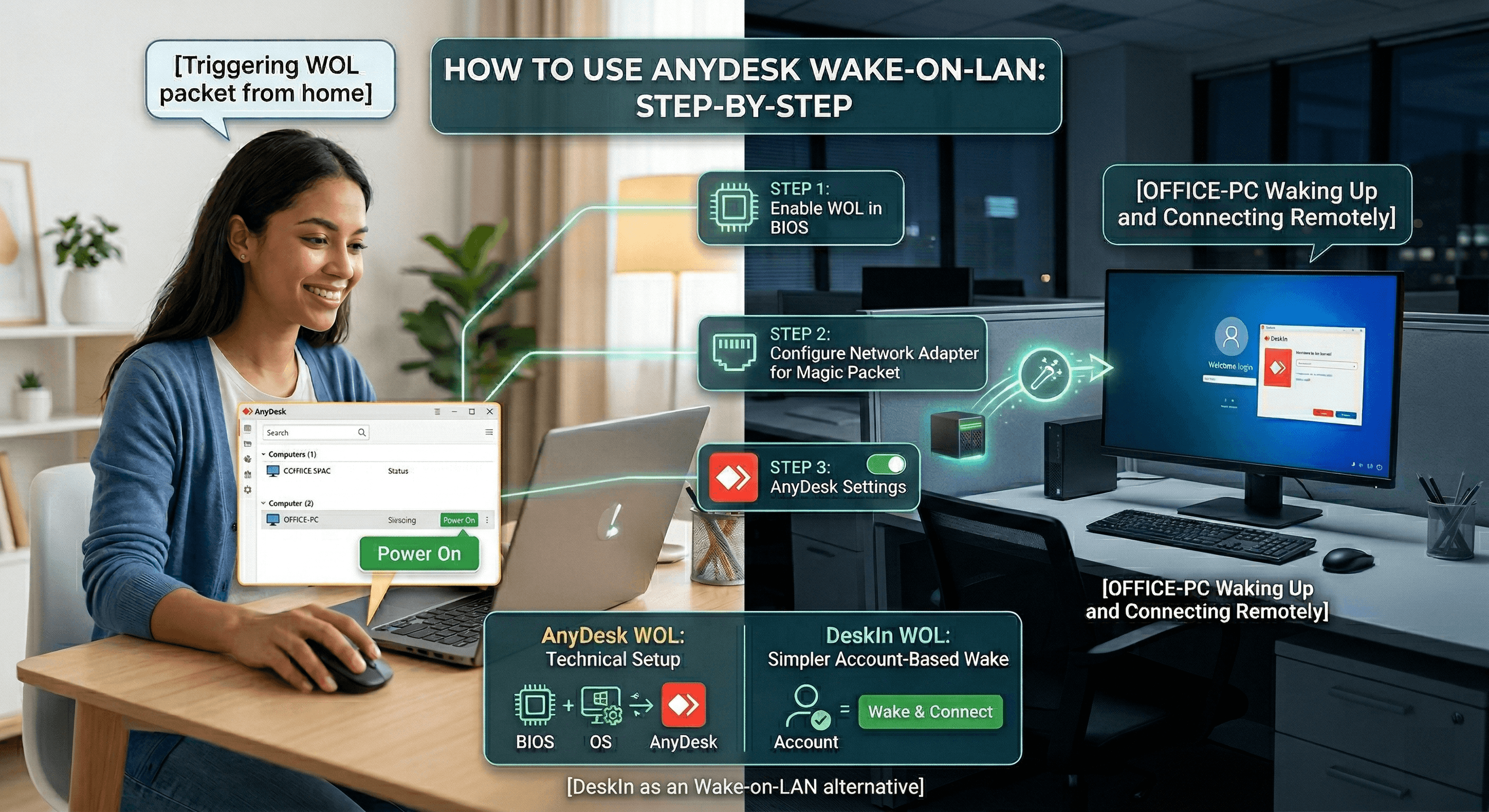
If you want to remotely power on a sleeping computer, AnyDesk Wake on LAN can be a useful feature. It allows you to wake a device without physically pressing the power button, making remote work and system maintenance much easier.
In this guide, we'll walk through how to configure AnyDesk Wake on LAN step by step, including BIOS settings, operating system configuration, and AnyDesk options. While the process works well when everything is configured correctly, it can also involve several technical steps. That's why we'll also introduce DeskIn, a simpler and more streamlined alternative for remote access and Wake on LAN. Keep reading to learn both approaches.
Wake on LAN is a networking feature that allows a device to be powered on remotely through a special network signal known as a "magic packet." When the sleeping computer's network card receives this packet, it sends a signal to the motherboard to start the system.
The main benefit of Wake on LAN is convenience and energy efficiency. Instead of keeping a computer running all day, you can leave it in sleep or shutdown mode and wake it only when needed. This saves electricity and extends hardware lifespan.
Another advantage is accessibility. Whether you're working from home, performing remote maintenance, or managing servers, Wake on LAN ensures devices remain reachable even when they are powered down. IT teams often rely on this capability to troubleshoot systems or perform updates without being physically present.
Configuring AnyDesk Wake on LAN involves preparing the hardware, enabling settings in your operating system, and activating the feature in AnyDesk itself. The steps below will guide you through the process.
The first requirement is enabling Wake on LAN at the motherboard level.
Restart your computer.
Enter the BIOS or UEFI menu during startup (usually by pressing F2, DEL, or F10).
Open the Power Management section.
Locate a setting such as Wake on LAN, Power on by PCI-E, or similar.
Enable the option.
Save changes and exit the BIOS.
This step ensures the motherboard will allow network signals to power the system on.
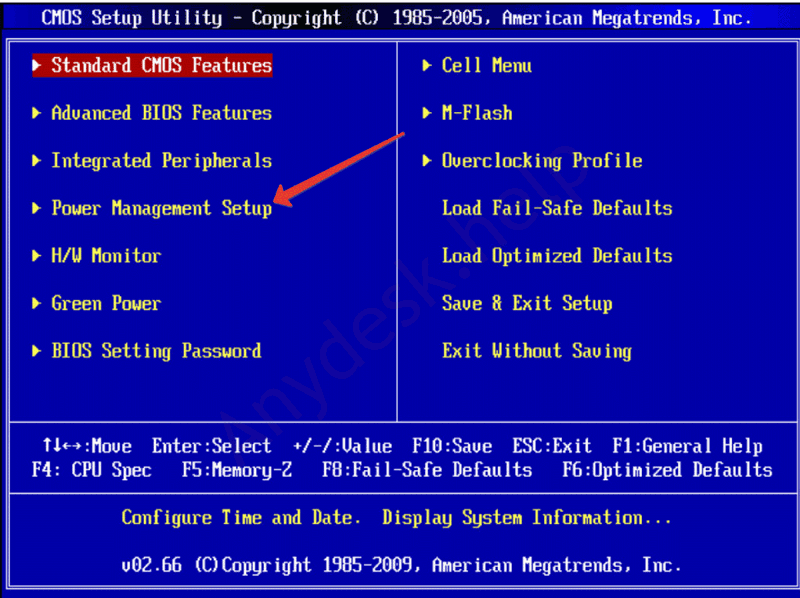
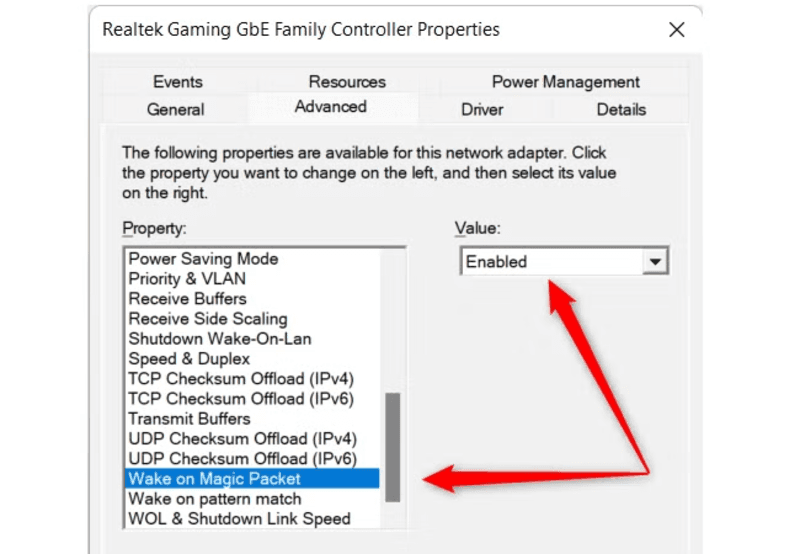
Next, you need to allow the network card to receive wake signals.
Open Device Manager.
Expand Network Adapters.
Right-click your Ethernet adapter and select Properties.
Go to the Advanced tab and enable Wake on Magic Packet.
Open the Power Management tab.
Check Allow this device to wake the computer.
Also, enable Only allow a magic packet to wake the computer.
For users running AnyDesk Wake on LAN on Windows 11 or older systems, these steps are essentially the same.
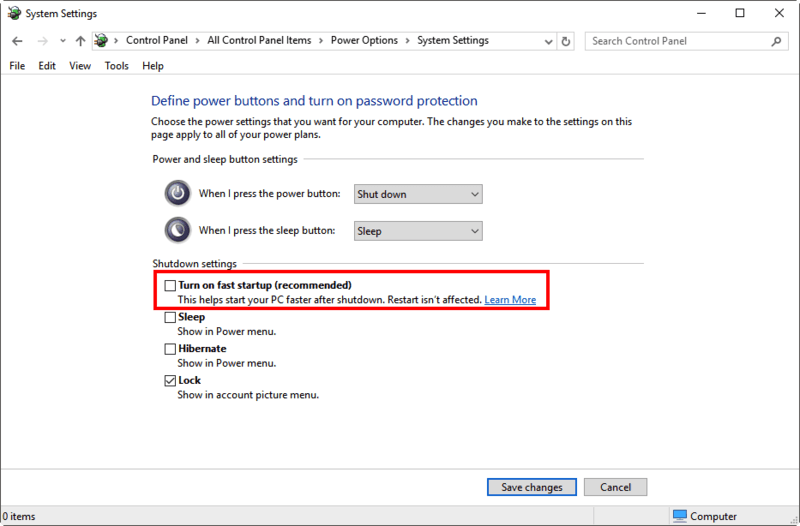
Some Windows systems block network wake signals due to the fast startup feature.
To disable it:
Open Control Panel.
Go to Power Options.
Click Choose what the power buttons do.
Select Change settings that are currently unavailable.
Uncheck Turn on fast startup.
This step often fixes situations where AnyDesk Wake on LAN is not working even though the configuration appears correct.
Now configure the feature inside the AnyDesk client.
Open AnyDesk on the target computer.
Go to Settings.
Navigate to the Wake-on-LAN option.
Enable Allow Wake-on-LAN.
Ensure another AnyDesk device on the same network remains online.
When you try to connect to the sleeping device, AnyDesk will show a "Power On" option.
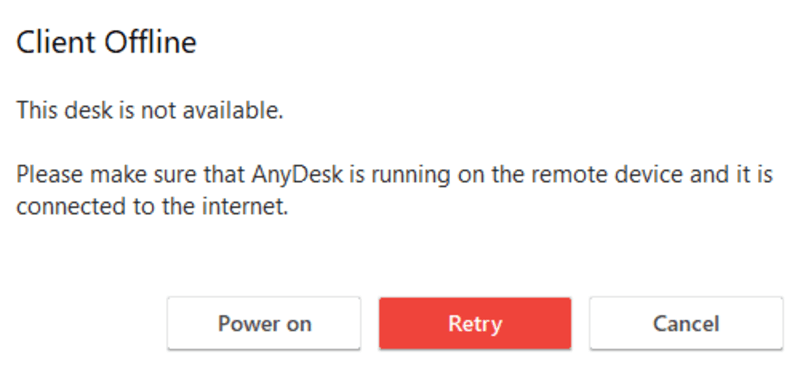
After completing the setup:
Open AnyDesk on your remote device.
Enter the address of the sleeping computer.
Click Power On.
AnyDesk will locate another active device on the same network and ask it to send the wake packet.
This process is how Wake on LAN AnyDesk functions behind the scenes. If everything is configured correctly, the sleeping machine will start, and AnyDesk will automatically connect.
Sometimes you may see errors such as AnyDesk Wake on LAN no device found. This usually means there is no active device on the same network to send the magic packet. Another frequent issue is that AnyDesk Wake on LAN not working due to Wi-Fi limitations. Wake signals are most reliable over wired Ethernet connections.
If troubleshooting becomes too time-consuming, many users choose tools designed to simplify remote desktop Wake on LAN workflows.
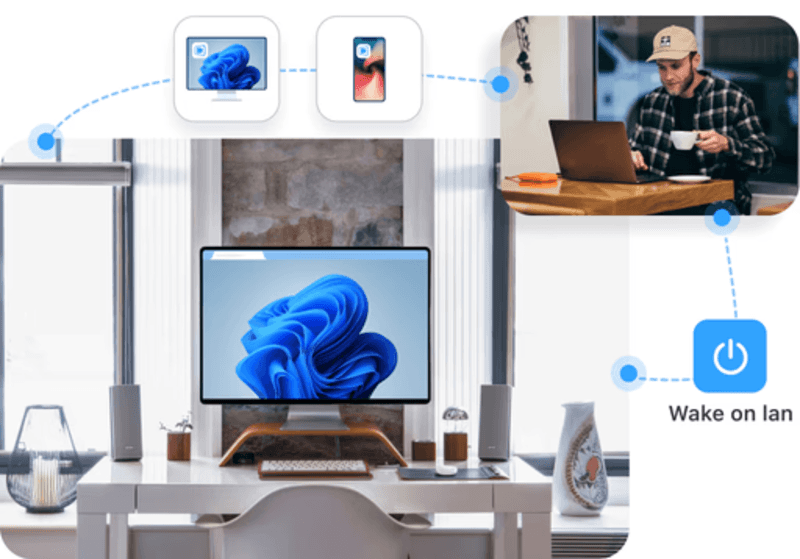
While AnyDesk provides Wake on LAN functionality, the setup process can be technical. Users often need to adjust BIOS settings, network adapters, and device configurations before the feature works properly.
DeskIn focuses on making remote access simpler and more reliable. First, the setup process is easier. Devices linked to the same DeskIn account can be managed quickly without complex network configuration or troubleshooting steps. Second, DeskIn delivers excellent performance for remote connections. It supports high-resolution sessions, smooth frame rates, and stable connections even when accessing powerful workstations remotely. Third, DeskIn integrates device management, remote access, and connectivity tools into one platform. Instead of relying on multiple Wake on LAN software tools, users can manage everything from a single interface.
For professionals who frequently need remote access, DeskIn provides a faster and more predictable experience.
👀 You may also be interested in
Yes. AnyDesk supports Wake on LAN as long as the hardware, operating system, and application settings are configured properly. Another device on the same network must remain active to send the wake signal.
You must enable Wake on LAN in three places: the BIOS or UEFI firmware, the operating system's network adapter settings, and the AnyDesk client configuration. Once enabled, you can wake a sleeping device remotely.
Wake on LAN works by sending a "magic packet" containing the device's MAC address through the network. The network card receives the packet and signals the motherboard to power the system.
Yes, but only if the system supports Wake on LAN from the shutdown state and still receives standby power through the network adapter. For smoother remote control workflows, many users adopt tools like DeskIn.
Setting up AnyDesk Wake on LAN allows you to power on a remote computer without physically accessing it. By enabling BIOS settings, configuring the network adapter, and activating the feature inside AnyDesk, you can wake sleeping machines and connect instantly.
However, the setup process can sometimes be complicated, especially when dealing with hardware compatibility or network configuration issues. If you prefer a simpler and more reliable remote access experience, DeskIn provides an excellent alternative.
With streamlined device management, stable remote sessions, and easier setup, DeskIn helps you stay connected to your computers anytime while still benefiting from the power of Wake on LAN.
If you want to remotely power on a sleeping computer, AnyDesk Wake on LAN can be a useful feature. It allows you to wake a device without physically pressing the power button, making remote work and system maintenance much easier.
In this guide, we'll walk through how to configure AnyDesk Wake on LAN step by step, including BIOS settings, operating system configuration, and AnyDesk options. While the process works well when everything is configured correctly, it can also involve several technical steps. That's why we'll also introduce DeskIn, a simpler and more streamlined alternative for remote access and Wake on LAN. Keep reading to learn both approaches.
Wake on LAN is a networking feature that allows a device to be powered on remotely through a special network signal known as a "magic packet." When the sleeping computer's network card receives this packet, it sends a signal to the motherboard to start the system.
The main benefit of Wake on LAN is convenience and energy efficiency. Instead of keeping a computer running all day, you can leave it in sleep or shutdown mode and wake it only when needed. This saves electricity and extends hardware lifespan.
Another advantage is accessibility. Whether you're working from home, performing remote maintenance, or managing servers, Wake on LAN ensures devices remain reachable even when they are powered down. IT teams often rely on this capability to troubleshoot systems or perform updates without being physically present.
Configuring AnyDesk Wake on LAN involves preparing the hardware, enabling settings in your operating system, and activating the feature in AnyDesk itself. The steps below will guide you through the process.
The first requirement is enabling Wake on LAN at the motherboard level.
Restart your computer.
Enter the BIOS or UEFI menu during startup (usually by pressing F2, DEL, or F10).
Open the Power Management section.
Locate a setting such as Wake on LAN, Power on by PCI-E, or similar.
Enable the option.
Save changes and exit the BIOS.
This step ensures the motherboard will allow network signals to power the system on.
Next, you need to allow the network card to receive wake signals.
Open Device Manager.
Expand Network Adapters.
Right-click your Ethernet adapter and select Properties.
Go to the Advanced tab and enable Wake on Magic Packet.
Open the Power Management tab.
Check Allow this device to wake the computer.
Also, enable Only allow a magic packet to wake the computer.
For users running AnyDesk Wake on LAN on Windows 11 or older systems, these steps are essentially the same.
Some Windows systems block network wake signals due to the fast startup feature.
To disable it:
Open Control Panel.
Go to Power Options.
Click Choose what the power buttons do.
Select Change settings that are currently unavailable.
Uncheck Turn on fast startup.
This step often fixes situations where AnyDesk Wake on LAN is not working even though the configuration appears correct.
Now configure the feature inside the AnyDesk client.
Open AnyDesk on the target computer.
Go to Settings.
Navigate to the Wake-on-LAN option.
Enable Allow Wake-on-LAN.
Ensure another AnyDesk device on the same network remains online.
When you try to connect to the sleeping device, AnyDesk will show a "Power On" option.
After completing the setup:
Open AnyDesk on your remote device.
Enter the address of the sleeping computer.
Click Power On.
AnyDesk will locate another active device on the same network and ask it to send the wake packet.
This process is how Wake on LAN AnyDesk functions behind the scenes. If everything is configured correctly, the sleeping machine will start, and AnyDesk will automatically connect.
Sometimes you may see errors such as AnyDesk Wake on LAN no device found. This usually means there is no active device on the same network to send the magic packet. Another frequent issue is that AnyDesk Wake on LAN not working due to Wi-Fi limitations. Wake signals are most reliable over wired Ethernet connections.
If troubleshooting becomes too time-consuming, many users choose tools designed to simplify remote desktop Wake on LAN workflows.
While AnyDesk provides Wake on LAN functionality, the setup process can be technical. Users often need to adjust BIOS settings, network adapters, and device configurations before the feature works properly.
DeskIn focuses on making remote access simpler and more reliable. First, the setup process is easier. Devices linked to the same DeskIn account can be managed quickly without complex network configuration or troubleshooting steps. Second, DeskIn delivers excellent performance for remote connections. It supports high-resolution sessions, smooth frame rates, and stable connections even when accessing powerful workstations remotely. Third, DeskIn integrates device management, remote access, and connectivity tools into one platform. Instead of relying on multiple Wake on LAN software tools, users can manage everything from a single interface.
For professionals who frequently need remote access, DeskIn provides a faster and more predictable experience.
👀 You may also be interested in
Yes. AnyDesk supports Wake on LAN as long as the hardware, operating system, and application settings are configured properly. Another device on the same network must remain active to send the wake signal.
You must enable Wake on LAN in three places: the BIOS or UEFI firmware, the operating system's network adapter settings, and the AnyDesk client configuration. Once enabled, you can wake a sleeping device remotely.
Wake on LAN works by sending a "magic packet" containing the device's MAC address through the network. The network card receives the packet and signals the motherboard to power the system.
Yes, but only if the system supports Wake on LAN from the shutdown state and still receives standby power through the network adapter. For smoother remote control workflows, many users adopt tools like DeskIn.
Setting up AnyDesk Wake on LAN allows you to power on a remote computer without physically accessing it. By enabling BIOS settings, configuring the network adapter, and activating the feature inside AnyDesk, you can wake sleeping machines and connect instantly.
However, the setup process can sometimes be complicated, especially when dealing with hardware compatibility or network configuration issues. If you prefer a simpler and more reliable remote access experience, DeskIn provides an excellent alternative.
With streamlined device management, stable remote sessions, and easier setup, DeskIn helps you stay connected to your computers anytime while still benefiting from the power of Wake on LAN.


How to Play MapleStory Classic World on Mac
A lot of the players who are most excited about MapleStory Classic World grew up on 2005-era MapleStory — and a large share of that generation now does its computing on a MacBook. Nexon clearly knows this: a native macOS client was on the feature list for the second Closed Online Test, which ran August 4–12, 2026, alongside Ossyria and third job advancement. But as of this writing, that Mac client is still in development, not publicly available, and there's still no confirmed public launch date for the game itself.
So if you want to play MapleStory Classic World on a Mac right now — or want a reliable plan for when the game does launch — you've got two real options: run Windows in a virtual machine, or use DeskIn remote desktop to control an actual Windows PC from your Mac. This guide covers both, including a login-conflict issue that catches a lot of virtual machine users off guard.
Not yet, publicly. Nexon's May 2026 roadmap update confirmed macOS support is in development, and it appeared as a testable feature in the second Closed Online Test. Windows PC remains the confirmed launch platform, and Nexon hasn't said whether the Mac client will be ready at launch or arrive afterward. The game hasn't had a full public release on any platform — Nexon has said one more test is planned before launch.
Given that, Mac players currently have two ways in: a Windows virtual machine, or remote desktop software that connects to a real Windows PC.
Classic World is exclusive to GMS (Global MapleStory), covering North America, Europe, and most other regions without a local Nexon partner. Markets with their own official MapleStory service — Korea, China, Japan, Taiwan/Hong Kong, and Southeast Asia — aren't GMS-eligible, so Mac players in those regions would need a VPN to reach Classic World, which isn't recommended. Whether NA and EU will run as separate worlds hasn't been confirmed.
Tools like Parallels Desktop or VMware Fusion let you run a full Windows install inside macOS, and then install MapleStory Classic World the way a Windows user would. It works, but it asks a lot of your Mac's hardware.
RAM: 16GB minimum recommended; 8GB is genuinely tight, since macOS and Windows are both running at once and macOS alone can eat most of that before Windows gets a share. For a comfortable setup with guides or Discord open on the side, aim for 32GB.
CPU/GPU: Virtual machines can't pass hardware through at 100%; graphics get software-emulated, which typically costs 20–30% of the performance you'd get on native Windows hardware.
Thermals: Running two full operating systems under load generates real heat, and laptop-class Macs with limited cooling can throttle during longer grinding sessions.
Apple Silicon translation overhead: M-series Macs can only run Windows on ARM in a VM. If Classic World ships as an x86/x64 build, it needs an extra translation layer to run at all, stacking on top of the virtualization overhead already mentioned.
Anti-cheat compatibility is a real unknown: the original MapleStory has historically been hostile to virtualized environments because of its anti-cheat system, and Nexon hasn't said how Classic World's anti-cheat will treat VMs. Treat virtualization as a maybe, not a guaranteed plan.
There's also the practical overhead: setting up a VM means downloading a Windows image, allocating dozens of gigabytes of disk space, installing display drivers, and — on Apple Silicon — dealing with ARM compatibility quirks that don't show up on a real x86 PC. Keyboard shortcuts can also conflict, since macOS system shortcuts (Control, Option, Command) don't always play nicely with a Windows game's default keybinds.
Instead of building a Windows environment inside your Mac, DeskIn lets you connect directly to a Windows PC you already have — your desktop at home, a work machine, or a spare laptop — and control it from your Mac in real time. The game runs on genuine Windows hardware the whole time, so there's no emulation tax, no ARM translation layer, and no anti-cheat guessing game.
A virtual machine makes sense if:
You don't have access to any Windows PC at all, so a Mac VM is your only option.
Your Mac has strong specs — 16GB+ RAM, ideally 32GB, and a higher-end M-series chip that can absorb the performance loss.
You're comfortable with a fairly technical setup process.
You rarely need to switch between devices, so the single-login limitation isn't a practical issue for you.
DeskIn makes more sense if:
You already have a Windows PC (or another Mac) that can run MapleStory Classic World, and you just want to reach it from your MacBook.
You're traveling or away from your desk often and want to pick up where you left off without re-downloading anything.
You don't want to deal with logging out of one device every time you switch to another.
Your Mac has more modest specs, and you'd rather not risk stutters, crashes, or a game that won't launch at all.
If you already own a Windows machine, DeskIn is generally the lower-effort, lower-risk choice. A VM is really a fallback for players with no Windows access and a Mac powerful enough to absorb the overhead.
Step 1: Set up the Windows PC. Install MapleStory Classic World on a Windows PC and create your character, then install DeskIn on that same PC, sign in, and enable unattended access with a connection password so you can reach it later without anyone at the keyboard.
Step 2: Install DeskIn on your Mac. Download the macOS version of DeskIn, sign in with the same account, and your Windows PC will appear in your device list.
Step 3: Connect. Select the PC, enter the connection password, and you'll get a live view of the Windows desktop that you control with your Mac's mouse and trackpad — the same session, the same login, no conflicts.
Step 4: Tune quality for your connection. On a stable connection, push quality up to enjoy Classic World's remastered pixel art in full detail; on the road, prioritize smoothness to cut down on input lag.
Step 5: Log in and play. Open the game inside the remote session and log in as usual — grinding, party quests, and shopping all work exactly as they would sitting at the PC directly.
Resolution and quality: Free-tier users should start around 720p/30fps for a stable baseline; paid-tier users can push up to 4K 60FPS or 2K 240FPS on a strong connection to get the most out of Classic World's art.
Screen scaling: If your Mac and Windows PC have very different display sizes, use DeskIn's automatic scaling option in the toolbar, or adjust the remote PC's resolution to match your Mac's screen more closely.
Keyboard and mouse mapping: DeskIn maps your Mac's keyboard directly to the remote PC. Turning on Game Mouse mode prevents the keyboard from getting locked mid-session.
Controller support: If Mac keyboard controls feel awkward, pair a controller to your Mac and enable controller mapping from the toolbar — DeskIn will pass those inputs straight through to the remote PC.
Simple Setup:No Windows installation required — connect and start playing within minutes.
Doesn't tax your Mac's hardware. All the actual computation happens on the remote Windows PC; your Mac just displays the stream and sends inputs.
Performance and compatibility match native Windows, because that's exactly what's running — no ARM translation layer to worry about.
No account login conflicts, since DeskIn connects to the same existing session instead of creating a new device.
Cross-device flexibility. The same account lets you connect from Mac, iPhone, iPad, or Android, and it's always the same underlying session — no juggling logins between devices.
Not publicly yet. Nexon has confirmed a macOS client is in development and tested it in the second Closed Online Test, but Windows remains the confirmed launch platform and no public Mac release has shipped.
Yes. DeskIn uses end-to-end encryption and two-factor login, and since you're remotely operating a PC you already control, your credentials never pass through a third party.
Technically you can install one, but the experience will be rough. With 8GB split between macOS and Windows, there's very little left over for Windows, and stutters or crashes become likely during longer sessions. DeskIn is the more stable option here, since the remote PC handles all the processing — your Mac's RAM isn't a bottleneck.
Real-world performance depends on both ends' network quality, but since DeskIn connects to native Windows hardware with no virtualization overhead, and its low-latency streaming keeps end-to-end delay under 40ms on a good connection, it typically feels smoother than a resource-constrained VM.
No. DeskIn controls the same PC and the same already-active session rather than logging in as a new device, so it doesn't trigger MapleStory's single-session login limit — this is exactly the conflict that trips up VM users switching between two separate Windows installs.
DeskIn needs a Windows (or other supported platform) machine to connect to. If you don't have one, consider borrowing access to a friend's or family member's PC, or renting a cloud Windows machine as your connection target.
DeskIn supports Windows, macOS, iOS, and Android. A Mac can connect to a Windows PC, and a Windows PC can just as easily connect to and control a Mac.
MapleStory Classic World doesn't have a public Mac client yet, but that doesn't mean Mac players have to gamble on a resource-hungry virtual machine and hope the anti-cheat cooperates. If you already have access to a Windows PC that can run the game — or even another Mac — connecting to it through DeskIn gets you native Windows performance, none of the virtualization overhead, and none of the account-login headaches that come with running a second "device." Set it up once, and you'll be ready to log in the moment Classic World opens its doors.

How to Play MapleStory Classic World on Mobile Before the Official App Arrives
MapleStory Classic World has turned into one of the most-searched topics in the MapleStory community this year. Nexon's pre-Big Bang server pulled in roughly 5,000 players for its first Closed Online Test back in April 2026, and thousands more signed up for the second test that ran August 4–12, 2026. With Ossyria, third job advancement, and controller support now confirmed, interest has never been higher — and a lot of that interest is coming from players who want to know one thing: can you play MapleStory Classic World on your phone?
Short answer: not with an official app, not yet. This guide breaks down exactly what Nexon has confirmed about platforms so far, then walks through how DeskIn remote desktop lets you play MapleStory Classic World on mobile right now, without waiting on an app that hasn't been announced.
As of this writing, Nexon has not announced a mobile or console version of MapleStory Classic World. The confirmed platforms are Windows PC and macOS — macOS support was specifically added as a testable feature during the second Closed Online Test in August 2026, alongside Ossyria and third job advancement, but it's still listed as "in development" rather than publicly available.
There's also no full public launch date yet. Nexon has run two Closed Online Tests so far and has said one more test is planned before release, so most community trackers currently estimate a launch window in late 2026 or early 2027 — but that's community speculation, not an official date.
Put simply: if you want to play MapleStory Classic World on a phone or tablet today, a native app isn't an option. The only practical route is streaming the PC version from a Windows machine you already have access to.
Classic World is exclusive to GMS (Global MapleStory), Nexon's English-language service for North America, Europe, and most other regions without a local Nexon partner. Players in markets with their own official MapleStory service — Korea, China, Japan, Taiwan/Hong Kong, and Southeast Asia — aren't eligible for GMS accounts, so Classic World isn't accessible there without a VPN, which isn't recommended. It's not yet confirmed whether NA and EU will run as separate worlds within Classic World.
DeskIn is a cross-platform remote desktop app built specifically with PC gaming in mind, and it maps well onto exactly the problem MapleStory Classic World mobile players are trying to solve.
Stable, low-latency connections. DeskIn's ZeroSync® engine keeps end-to-end latency under 40ms on a good connection and automatically reroutes around congested paths, so grinding, dodging, and skill combos in Classic World's classic-era combat don't feel delayed.
Up to 4K 60FPS / 2K 240FPS streaming. Classic World's remastered pixel art holds up well when it isn't compressed into mush — DeskIn's streaming keeps text and sprites sharp even on a phone screen.
You're connecting to your own PC, not emulating one. DeskIn doesn't run Windows inside your phone; it streams the display of a Windows computer you control and sends your inputs back in real time. That means full compatibility and full performance — no emulation layer to fight with.
End-to-end encryption and two-factor login. Sessions are encrypted end-to-end, and you can set an allowlist of authorized devices, so only you can connect to your own PC.
Flexible, per-character keybinds. Classic World's Warrior, Magician, Bowman, and Thief classes each use very different skill layouts. DeskIn's on-screen game keyboard lets you build a custom key layout and save it as its own profile, so you can switch between characters without re-mapping keys every time.
Built-in virtual mouse. In pointer mode, DeskIn adds virtual left/right mouse buttons over the stream, which makes precise UI clicks — inventory, cash shop, trade windows — far easier than tapping blindly on a touchscreen.
Once you're connected, mobile play through DeskIn covers pretty much everything you'd do sitting at your PC:
Daily quests and login rewards — knock these out on your commute instead of waiting until you're home.
Cash shop browsing — scroll and preview cosmetics with touch gestures just like any shopping app.
Grinding and leveling — use the virtual directional pad and skill-key layout to keep training in familiar maps.
Party quests — latency low enough to keep up with a party's pacing on runs like Kerning City PQ.
Trading and the marketplace — check prices and list items using the virtual mouse for precise clicks.
Guild chat and messaging — reply to your guild or party the moment something comes up.
Step 1: Set up DeskIn on the Windows PC running Classic World. Install DeskIn on the PC where you've registered for testing (or where the game is installed once it launches), sign in, and turn on unattended access so the PC can be reached without anyone sitting in front of it.
Step 2: Install the DeskIn app on your phone. Download DeskIn from the App Store or Google Play, sign in with the same account, and your PC will show up in the device list.
Step 3: Connect and switch to pointer mode. Tap your PC to connect, then switch the control mode from touch to pointer — this unlocks the customizable virtual keyboard and virtual mouse.
Step 4: Browsing the cash shop. Drag to move the cursor and tap the virtual mouse buttons to click through menus and item previews, exactly like using a mouse on a desktop.
Step 5: Grinding. Open the game keyboard menu, build a layout with your movement keys and skill keys, and save it as a profile. Pull it up any time you start a grinding session.
Step 6: Pick the right streaming quality for your connection. On mobile data, prioritize smoothness over resolution to cut down on input delay; on Wi-Fi, bump the quality up to enjoy Classic World's remastered art at full clarity.
A tablet's bigger screen is a natural fit for content that needs either more reading room or more precision — daily quest text and boss encounters both qualify.
Step 1: Same setup as mobile. Install DeskIn on your iPad or Android tablet and sign in — connection steps are identical to the phone app.
Step 2: Daily quests. The larger display makes quest text, item descriptions, and map markers easier to read at a glance, so you're less likely to misread an objective mid-run.
Step 3: Boss fights. Bosses demand precise dodges and timing that touch controls alone can struggle with — pair your tablet with a Bluetooth keyboard and mouse, or a controller (see below), instead of relying on the virtual keyboard.
Step 4: Bump the frame rate for boss content. Choose a higher refresh setting in DeskIn's connection options so skill telegraphs and boss patterns read clearly in real time.
Step 5: Use split-screen for guide lookups. Run DeskIn alongside a browser or notes app in split view to check attack patterns without leaving the fight.
If virtual buttons don't feel precise enough, DeskIn supports Bluetooth controllers, including Xbox, PlayStation, and several third-party pads.
Step 1: Pair the controller with your phone. Use your phone's Bluetooth settings to pair the controller first.
Step 2: Connect through DeskIn. Once connected to your PC, DeskIn automatically detects the paired controller — no extra driver install needed.
Step 3: Test your inputs. Head into a training map first and confirm movement, attacks, and skills map to the buttons you expect before jumping into content that matters.
Step 4: Favor smoothness for fast-paced play. When you're actively grinding or fighting with a controller, prioritize DeskIn's smoothness setting over max resolution for the most responsive feel.
Running a Warrior and a Bowman means running two very different skill bars. Here's how to keep them separate in DeskIn instead of re-mapping keys every login:
Step 1: Switch to pointer mode and open the game keyboard menu. After connecting, switch to pointer mode and open DeskIn's game keyboard settings.
Step 2: Create a new keyboard layout. Tap "New Keyboard" and add your movement pad, skill keys, and item keys to match your current character's build.
Step 3: Name it by character or class. Label the layout something identifiable — "Bowman" or "Main Warrior" — and save it.
Step 4: Load the right profile when you switch characters. Before logging into a different character, select its saved layout from the game keyboard menu instead of rebuilding it from scratch.
Step 5: Update layouts as skills change. When a class gets rebalanced or you unlock new skills after a job advancement, go back into that profile and add the new keys.
No. Nexon has not announced a mobile or console version. Confirmed platforms are Windows, with a macOS client currently in development.
Nexon hasn't announced a public release date. Two Closed Online Tests have run so far (April 16–24 and August 4–12, 2026), with one more test planned before launch. Community estimates point to late 2026 or early 2027, but that isn't official.
No. DeskIn remotely operates your own PC and sends the same mouse and keyboard input you'd normally use — it isn't a macro, bot, or memory-editing tool, so it doesn't behave like the automation that anti-cheat systems are built to catch.
DeskIn's low-latency streaming keeps things playable on a stable connection, generally noticeably smoother than trying to force a browser workaround. Real-world latency still depends on both ends' network quality, so Wi-Fi is recommended over cellular when possible.
For checking dailies or browsing the shop occasionally, the free plan typically covers it. If you plan to grind for long sessions, use a controller regularly, or manage several devices, a paid plan unlocks higher streaming quality and additional features.
Setup and connection steps are identical. The difference is screen size — phones are handy for quick, single-hand tasks like dailies and the shop, while tablets are better suited to boss fights and content where you want a controller or external keyboard.
Until Nexon ships a mobile client — if one ever gets announced — DeskIn is the most practical way to keep playing MapleStory Classic World away from your desk. Install it on both your gaming PC and your phone or tablet, set up a keybind profile per character, and you can knock out dailies, grind, and even tackle boss fights without being tied to a monitor.

Biến iPad thành màn hình thứ hai cho máy tính Windows và Mac
Đối với những người làm việc đa nhiệm, việc có màn hình thứ hai có thể tăng năng suất đáng kể. Nếu bạn làm việc tại nhà hoặc là sinh viên chưa có thiết lập hai màn hình, đây là cách bạn có thể dễ dàng biến chiếc iPad đang nhàn rỗi thành màn hình thứ hai cho máy tính của mình.
Tăng không gian hiển thị để xem được nhiều nội dung hơn cùng lúc. Với người dùng đa nhiệm, họ có thể tránh phải chuyển qua lại giữa các cửa sổ, tiết kiệm thời gian.
Mỗi màn hình hoạt động độc lập, giúp không gian làm việc gọn gàng hơn. Khi chỉnh sửa video, một màn hình dùng để biên tập và màn hình còn lại để đặt tư liệu. Khi viết bài, một màn hình để viết, màn hình kia để tìm kiếm thông tin, v.v.
Kích thước màn hình iPad đủ lớn và chất lượng hiển thị khá tốt. Với người dùng có nhu cầu thiết kế hoặc dùng MacBook, cách này có thể tiết kiệm chi phí hơn so với mua thêm màn hình, đồng thời không gặp vấn đề lệch màu.
Nhiều người đã có sẵn iPad ở nhà. Bằng cách dùng thiết bị sẵn có làm màn hình kép, bạn tiết kiệm được chi phí mua thêm màn hình và cả không gian đặt nó.
Tính năng gốc của Apple là Apple Sidecar cho phép bạn dùng iPad làm màn hình ngoài cho MacBook và iMac. Chỉ cần một vài thiết lập đơn giản là bạn có thể tạo kết nối liền mạch giữa iPad và máy tính.
Lưu ý: Để dùng Apple Sidecar, hai thiết bị cần đăng nhập cùng một Apple ID hoặc ở cùng một mạng. Cả hai thiết bị phải bật Bluetooth, Wi-Fi, và khoảng cách không được vượt quá 10 mét (khoảng 10 mét).
Mở Cài đặt hệ thống trên Mac >> Nhấp vào "Display" ở thanh bên >> Nhấp vào menu bật lên "+" ở bên phải và chọn iPad của bạn.
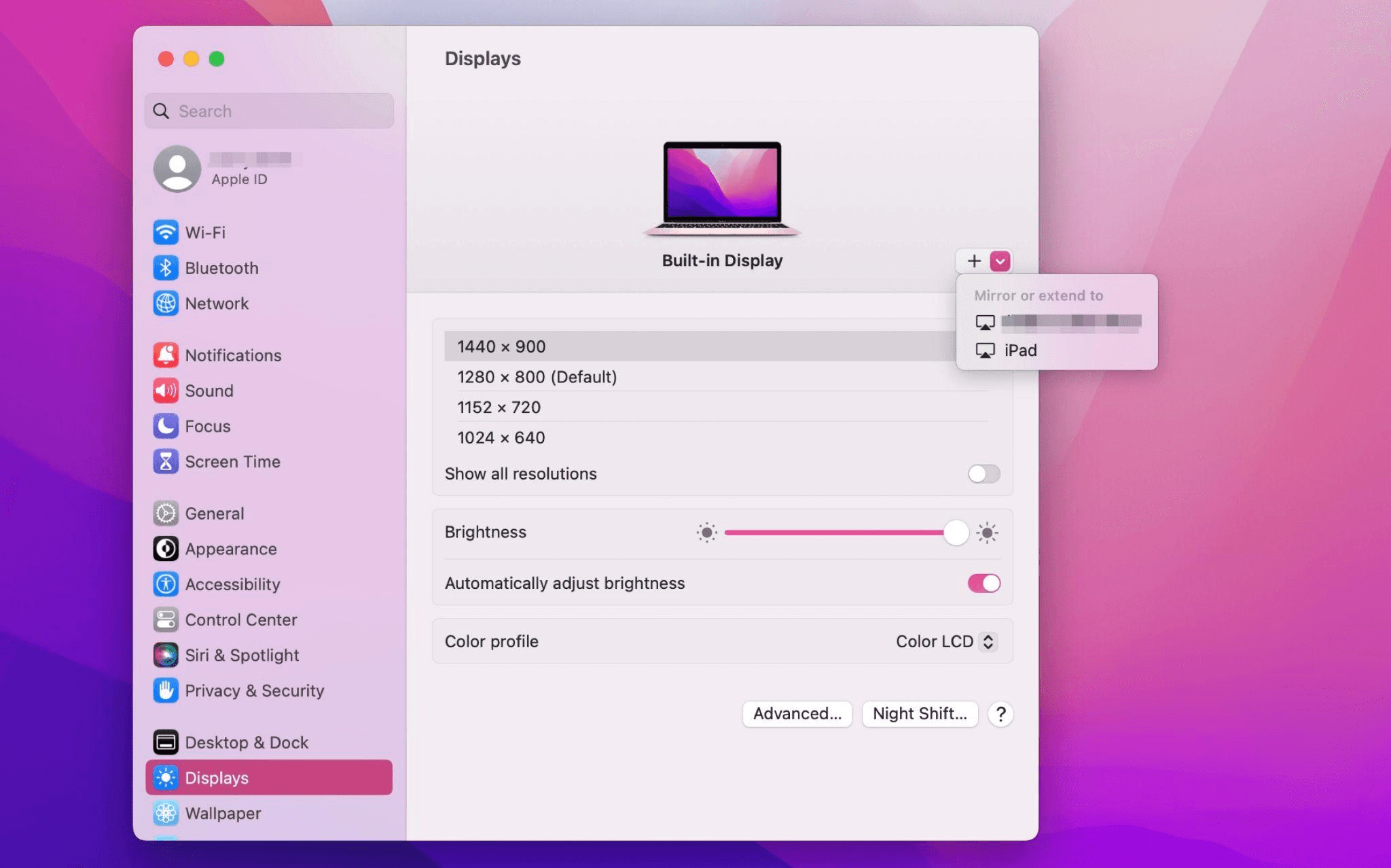
Chọn iPad, đổi thiết lập Use as thành "Extended Display". Kiểm tra cài đặt Airplay trên thanh công cụ trên cùng của Mac và đặt iPad là "Use As Separate Display".
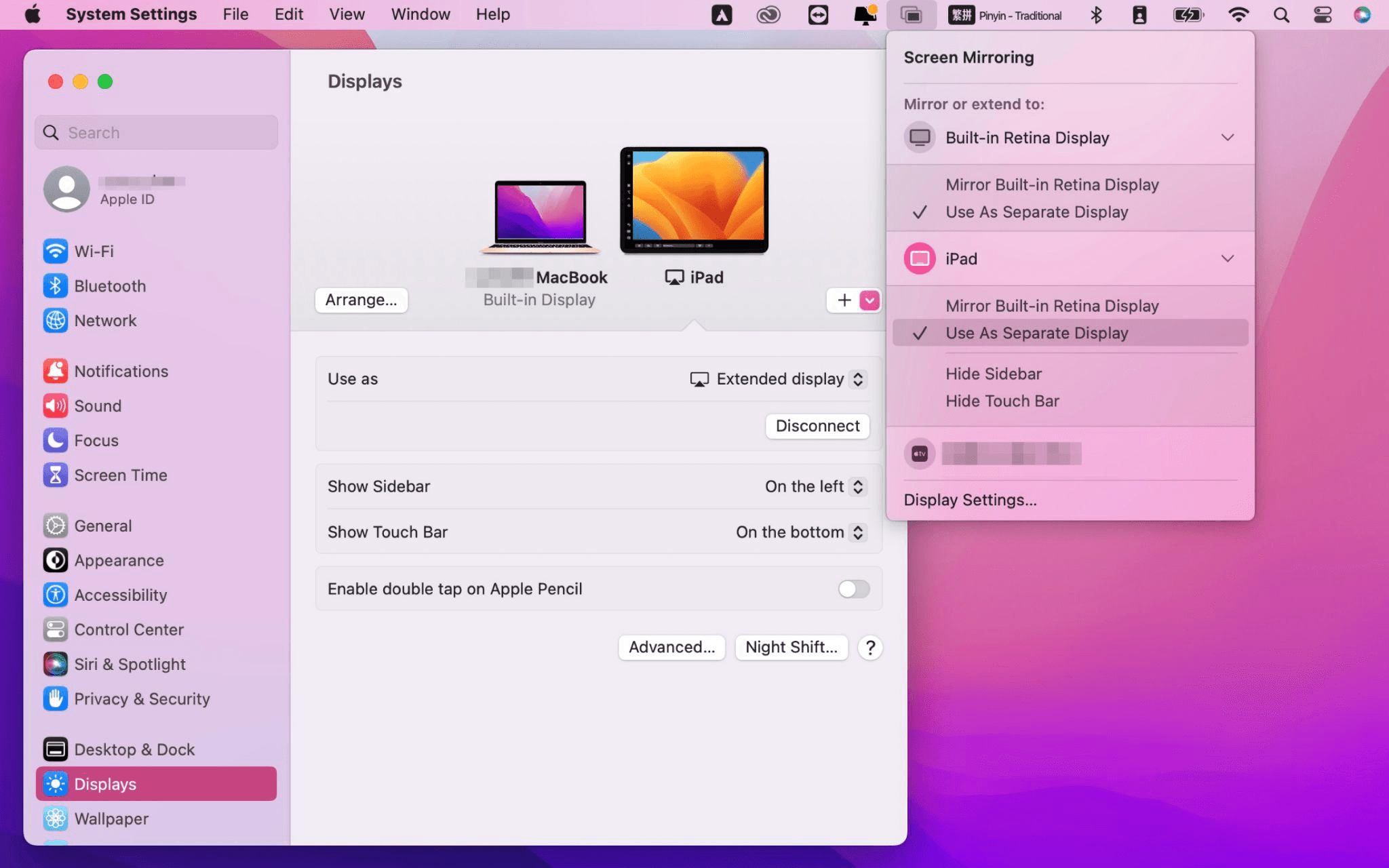
Sau khi hoàn tất cài đặt, iPad của bạn sẽ trở thành màn hình thứ hai cho máy Mac. Bạn có thể kéo thả cửa sổ từ Mac sang iPad một cách mượt mà. Bạn cũng có thể dùng thanh bên trên iPad hoặc thay đổi vị trí thanh bên trong cài đặt hiển thị của hệ thống.
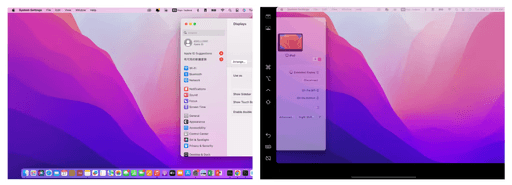
Màn hình MacBook (Trái) và màn hình iPad (Phải)
Apple Sidecar chỉ hỗ trợ máy Mac phát hành sau năm 2016 và iPadOS 13 trở lên. Nếu bạn đang dùng thiết bị Apple đời cũ hoặc thiết bị Windows, bạn vẫn có thể dùng phần mềm điều khiển từ xa DeskIn để mở rộng màn hình. Phần mềm này hỗ trợ dùng iPad làm màn hình thứ hai cho cả Mac và Windows, và độ mượt không hề kém Sidecar.
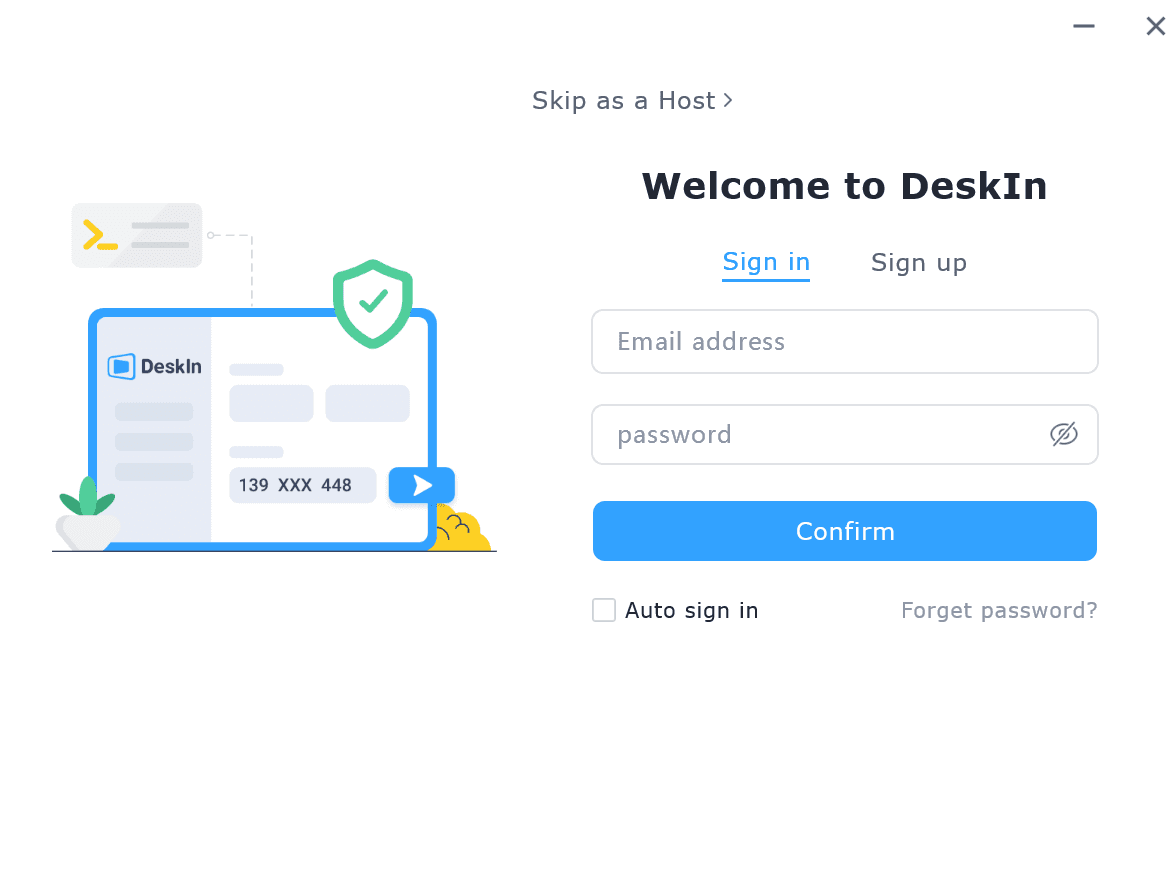
Tải DeskIn trên máy tính và iPad của bạn, đăng ký tài khoản miễn phí và đăng nhập trên từng thiết bị.

Lưu ý: Lần đầu đăng nhập vào một thiết bị mới, bạn cần hoàn tất xác minh email để bảo vệ an toàn cho tài khoản của mình.
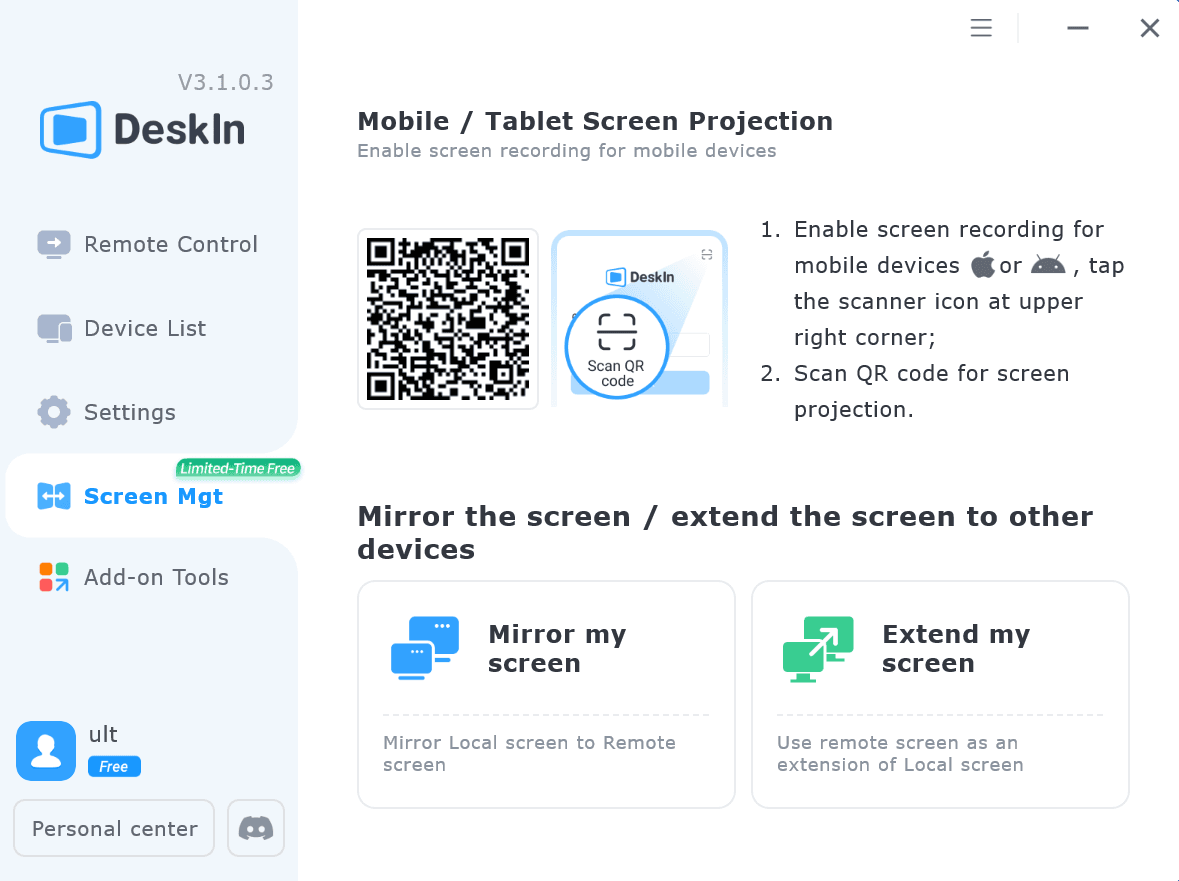
Mở ứng dụng DeskIn trên máy tính Windows/Mac >> Vào tab "Screen Mgt" >> Nhấp “Extend my screen”
Chọn iPad của bạn và nhấp “Start Extending”. Sau khi kết nối, iPad sẽ trở thành màn hình thứ hai của máy tính Windows/Mac, bạn có thể di chuyển cửa sổ giữa hai màn hình như thể chúng là một.
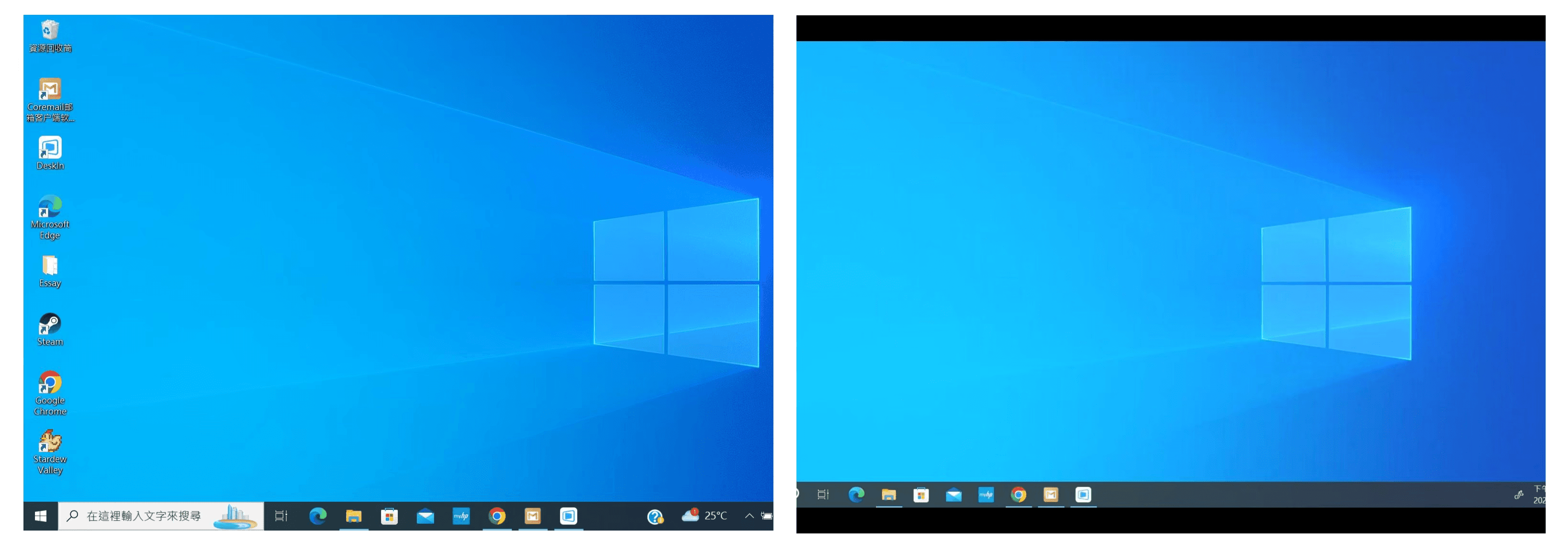
Màn hình máy tính (Trái) và màn hình iPad (Phải)
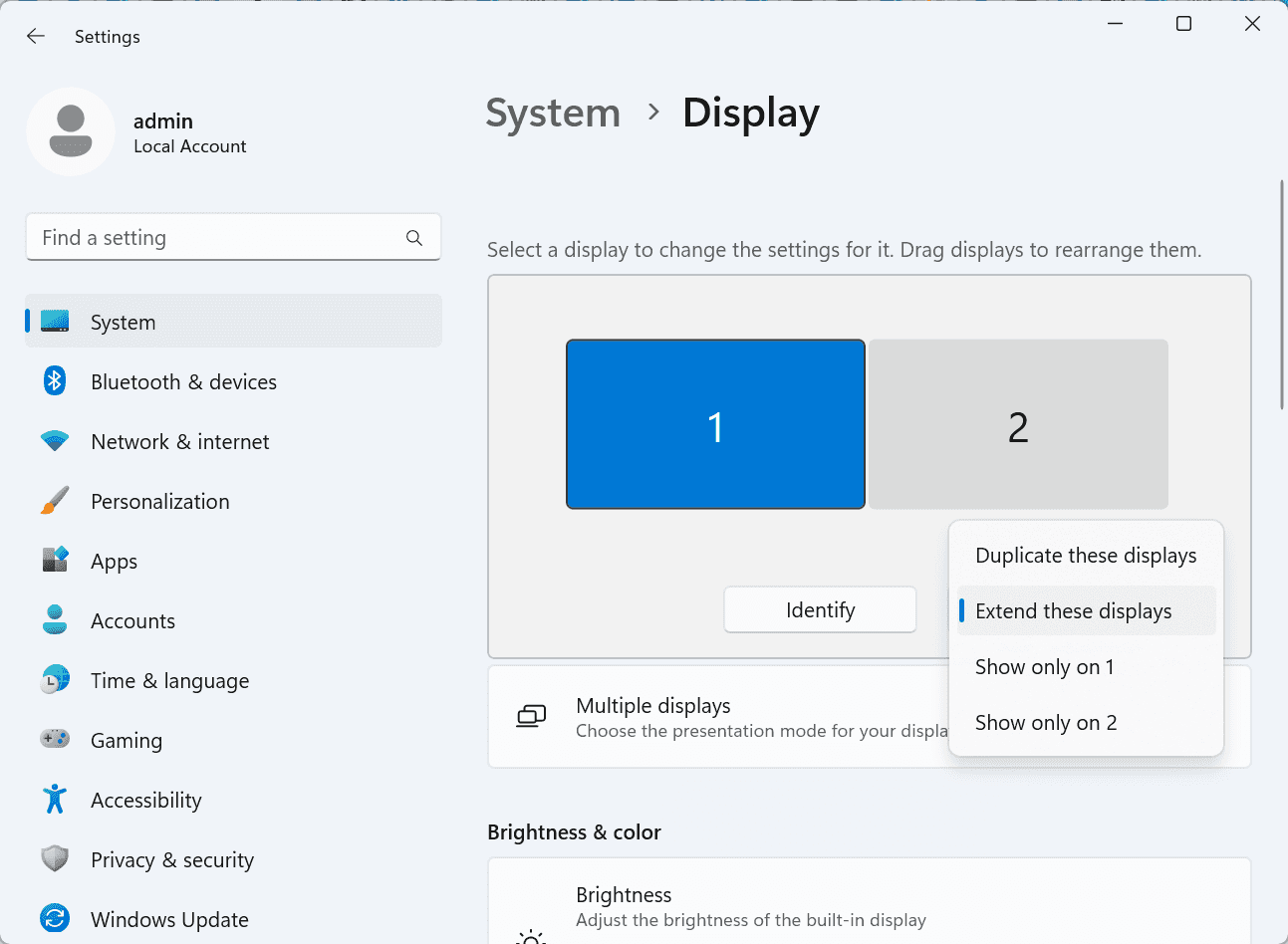
Sau khi mở rộng, nếu bạn thấy iPad chỉ đang phản chiếu nội dung trên màn hình máy tính, vui lòng vào Cài đặt hệ thống Windows >> Cài đặt hiển thị và đổi tùy chọn màn hình thành "Extend these displays". Bạn cũng có thể chỉnh vị trí màn hình bằng cách kéo thả 2 màn hình.
Bài viết này giới thiệu cách sử dụng phần mềm điều khiển máy tính từ xa DeskIn để biến iPad thành "màn hình thứ hai" cho máy tính Mac và Windows. Điều này đặc biệt hữu ích cho những người cần xử lý nhiều tác vụ cùng lúc và muốn nâng cao năng suất. Nếu bạn đang tìm một công cụ mở rộng màn hình hoạt động trên MacBook, iPad, máy tính bảng Android và PC Windows, DeskIn remote desktop là giải pháp tốt nhất dành cho bạn. Hãy tải DeskIn và dùng thử ngay!
How to Play MapleStory Classic World on Mac
A lot of the players who are most excited about MapleStory Classic World grew up on 2005-era MapleStory — and a large share of that generation now does its computing on a MacBook. Nexon clearly knows this: a native macOS client was on the feature list for the second Closed Online Test, which ran August 4–12, 2026, alongside Ossyria and third job advancement. But as of this writing, that Mac client is still in development, not publicly available, and there's still no confirmed public launch date for the game itself.
So if you want to play MapleStory Classic World on a Mac right now — or want a reliable plan for when the game does launch — you've got two real options: run Windows in a virtual machine, or use DeskIn remote desktop to control an actual Windows PC from your Mac. This guide covers both, including a login-conflict issue that catches a lot of virtual machine users off guard.
Not yet, publicly. Nexon's May 2026 roadmap update confirmed macOS support is in development, and it appeared as a testable feature in the second Closed Online Test. Windows PC remains the confirmed launch platform, and Nexon hasn't said whether the Mac client will be ready at launch or arrive afterward. The game hasn't had a full public release on any platform — Nexon has said one more test is planned before launch.
Given that, Mac players currently have two ways in: a Windows virtual machine, or remote desktop software that connects to a real Windows PC.
Classic World is exclusive to GMS (Global MapleStory), covering North America, Europe, and most other regions without a local Nexon partner. Markets with their own official MapleStory service — Korea, China, Japan, Taiwan/Hong Kong, and Southeast Asia — aren't GMS-eligible, so Mac players in those regions would need a VPN to reach Classic World, which isn't recommended. Whether NA and EU will run as separate worlds hasn't been confirmed.
Tools like Parallels Desktop or VMware Fusion let you run a full Windows install inside macOS, and then install MapleStory Classic World the way a Windows user would. It works, but it asks a lot of your Mac's hardware.
RAM: 16GB minimum recommended; 8GB is genuinely tight, since macOS and Windows are both running at once and macOS alone can eat most of that before Windows gets a share. For a comfortable setup with guides or Discord open on the side, aim for 32GB.
CPU/GPU: Virtual machines can't pass hardware through at 100%; graphics get software-emulated, which typically costs 20–30% of the performance you'd get on native Windows hardware.
Thermals: Running two full operating systems under load generates real heat, and laptop-class Macs with limited cooling can throttle during longer grinding sessions.
Apple Silicon translation overhead: M-series Macs can only run Windows on ARM in a VM. If Classic World ships as an x86/x64 build, it needs an extra translation layer to run at all, stacking on top of the virtualization overhead already mentioned.
Anti-cheat compatibility is a real unknown: the original MapleStory has historically been hostile to virtualized environments because of its anti-cheat system, and Nexon hasn't said how Classic World's anti-cheat will treat VMs. Treat virtualization as a maybe, not a guaranteed plan.
There's also the practical overhead: setting up a VM means downloading a Windows image, allocating dozens of gigabytes of disk space, installing display drivers, and — on Apple Silicon — dealing with ARM compatibility quirks that don't show up on a real x86 PC. Keyboard shortcuts can also conflict, since macOS system shortcuts (Control, Option, Command) don't always play nicely with a Windows game's default keybinds.
Instead of building a Windows environment inside your Mac, DeskIn lets you connect directly to a Windows PC you already have — your desktop at home, a work machine, or a spare laptop — and control it from your Mac in real time. The game runs on genuine Windows hardware the whole time, so there's no emulation tax, no ARM translation layer, and no anti-cheat guessing game.
A virtual machine makes sense if:
You don't have access to any Windows PC at all, so a Mac VM is your only option.
Your Mac has strong specs — 16GB+ RAM, ideally 32GB, and a higher-end M-series chip that can absorb the performance loss.
You're comfortable with a fairly technical setup process.
You rarely need to switch between devices, so the single-login limitation isn't a practical issue for you.
DeskIn makes more sense if:
You already have a Windows PC (or another Mac) that can run MapleStory Classic World, and you just want to reach it from your MacBook.
You're traveling or away from your desk often and want to pick up where you left off without re-downloading anything.
You don't want to deal with logging out of one device every time you switch to another.
Your Mac has more modest specs, and you'd rather not risk stutters, crashes, or a game that won't launch at all.
If you already own a Windows machine, DeskIn is generally the lower-effort, lower-risk choice. A VM is really a fallback for players with no Windows access and a Mac powerful enough to absorb the overhead.
Step 1: Set up the Windows PC. Install MapleStory Classic World on a Windows PC and create your character, then install DeskIn on that same PC, sign in, and enable unattended access with a connection password so you can reach it later without anyone at the keyboard.
Step 2: Install DeskIn on your Mac. Download the macOS version of DeskIn, sign in with the same account, and your Windows PC will appear in your device list.
Step 3: Connect. Select the PC, enter the connection password, and you'll get a live view of the Windows desktop that you control with your Mac's mouse and trackpad — the same session, the same login, no conflicts.
Step 4: Tune quality for your connection. On a stable connection, push quality up to enjoy Classic World's remastered pixel art in full detail; on the road, prioritize smoothness to cut down on input lag.
Step 5: Log in and play. Open the game inside the remote session and log in as usual — grinding, party quests, and shopping all work exactly as they would sitting at the PC directly.
Resolution and quality: Free-tier users should start around 720p/30fps for a stable baseline; paid-tier users can push up to 4K 60FPS or 2K 240FPS on a strong connection to get the most out of Classic World's art.
Screen scaling: If your Mac and Windows PC have very different display sizes, use DeskIn's automatic scaling option in the toolbar, or adjust the remote PC's resolution to match your Mac's screen more closely.
Keyboard and mouse mapping: DeskIn maps your Mac's keyboard directly to the remote PC. Turning on Game Mouse mode prevents the keyboard from getting locked mid-session.
Controller support: If Mac keyboard controls feel awkward, pair a controller to your Mac and enable controller mapping from the toolbar — DeskIn will pass those inputs straight through to the remote PC.
Simple Setup:No Windows installation required — connect and start playing within minutes.
Doesn't tax your Mac's hardware. All the actual computation happens on the remote Windows PC; your Mac just displays the stream and sends inputs.
Performance and compatibility match native Windows, because that's exactly what's running — no ARM translation layer to worry about.
No account login conflicts, since DeskIn connects to the same existing session instead of creating a new device.
Cross-device flexibility. The same account lets you connect from Mac, iPhone, iPad, or Android, and it's always the same underlying session — no juggling logins between devices.
Not publicly yet. Nexon has confirmed a macOS client is in development and tested it in the second Closed Online Test, but Windows remains the confirmed launch platform and no public Mac release has shipped.
Yes. DeskIn uses end-to-end encryption and two-factor login, and since you're remotely operating a PC you already control, your credentials never pass through a third party.
Technically you can install one, but the experience will be rough. With 8GB split between macOS and Windows, there's very little left over for Windows, and stutters or crashes become likely during longer sessions. DeskIn is the more stable option here, since the remote PC handles all the processing — your Mac's RAM isn't a bottleneck.
Real-world performance depends on both ends' network quality, but since DeskIn connects to native Windows hardware with no virtualization overhead, and its low-latency streaming keeps end-to-end delay under 40ms on a good connection, it typically feels smoother than a resource-constrained VM.
No. DeskIn controls the same PC and the same already-active session rather than logging in as a new device, so it doesn't trigger MapleStory's single-session login limit — this is exactly the conflict that trips up VM users switching between two separate Windows installs.
DeskIn needs a Windows (or other supported platform) machine to connect to. If you don't have one, consider borrowing access to a friend's or family member's PC, or renting a cloud Windows machine as your connection target.
DeskIn supports Windows, macOS, iOS, and Android. A Mac can connect to a Windows PC, and a Windows PC can just as easily connect to and control a Mac.
MapleStory Classic World doesn't have a public Mac client yet, but that doesn't mean Mac players have to gamble on a resource-hungry virtual machine and hope the anti-cheat cooperates. If you already have access to a Windows PC that can run the game — or even another Mac — connecting to it through DeskIn gets you native Windows performance, none of the virtualization overhead, and none of the account-login headaches that come with running a second "device." Set it up once, and you'll be ready to log in the moment Classic World opens its doors.
How to Play MapleStory Classic World on Mobile Before the Official App Arrives
MapleStory Classic World has turned into one of the most-searched topics in the MapleStory community this year. Nexon's pre-Big Bang server pulled in roughly 5,000 players for its first Closed Online Test back in April 2026, and thousands more signed up for the second test that ran August 4–12, 2026. With Ossyria, third job advancement, and controller support now confirmed, interest has never been higher — and a lot of that interest is coming from players who want to know one thing: can you play MapleStory Classic World on your phone?
Short answer: not with an official app, not yet. This guide breaks down exactly what Nexon has confirmed about platforms so far, then walks through how DeskIn remote desktop lets you play MapleStory Classic World on mobile right now, without waiting on an app that hasn't been announced.
As of this writing, Nexon has not announced a mobile or console version of MapleStory Classic World. The confirmed platforms are Windows PC and macOS — macOS support was specifically added as a testable feature during the second Closed Online Test in August 2026, alongside Ossyria and third job advancement, but it's still listed as "in development" rather than publicly available.
There's also no full public launch date yet. Nexon has run two Closed Online Tests so far and has said one more test is planned before release, so most community trackers currently estimate a launch window in late 2026 or early 2027 — but that's community speculation, not an official date.
Put simply: if you want to play MapleStory Classic World on a phone or tablet today, a native app isn't an option. The only practical route is streaming the PC version from a Windows machine you already have access to.
Classic World is exclusive to GMS (Global MapleStory), Nexon's English-language service for North America, Europe, and most other regions without a local Nexon partner. Players in markets with their own official MapleStory service — Korea, China, Japan, Taiwan/Hong Kong, and Southeast Asia — aren't eligible for GMS accounts, so Classic World isn't accessible there without a VPN, which isn't recommended. It's not yet confirmed whether NA and EU will run as separate worlds within Classic World.
DeskIn is a cross-platform remote desktop app built specifically with PC gaming in mind, and it maps well onto exactly the problem MapleStory Classic World mobile players are trying to solve.
Stable, low-latency connections. DeskIn's ZeroSync® engine keeps end-to-end latency under 40ms on a good connection and automatically reroutes around congested paths, so grinding, dodging, and skill combos in Classic World's classic-era combat don't feel delayed.
Up to 4K 60FPS / 2K 240FPS streaming. Classic World's remastered pixel art holds up well when it isn't compressed into mush — DeskIn's streaming keeps text and sprites sharp even on a phone screen.
You're connecting to your own PC, not emulating one. DeskIn doesn't run Windows inside your phone; it streams the display of a Windows computer you control and sends your inputs back in real time. That means full compatibility and full performance — no emulation layer to fight with.
End-to-end encryption and two-factor login. Sessions are encrypted end-to-end, and you can set an allowlist of authorized devices, so only you can connect to your own PC.
Flexible, per-character keybinds. Classic World's Warrior, Magician, Bowman, and Thief classes each use very different skill layouts. DeskIn's on-screen game keyboard lets you build a custom key layout and save it as its own profile, so you can switch between characters without re-mapping keys every time.
Built-in virtual mouse. In pointer mode, DeskIn adds virtual left/right mouse buttons over the stream, which makes precise UI clicks — inventory, cash shop, trade windows — far easier than tapping blindly on a touchscreen.
Once you're connected, mobile play through DeskIn covers pretty much everything you'd do sitting at your PC:
Daily quests and login rewards — knock these out on your commute instead of waiting until you're home.
Cash shop browsing — scroll and preview cosmetics with touch gestures just like any shopping app.
Grinding and leveling — use the virtual directional pad and skill-key layout to keep training in familiar maps.
Party quests — latency low enough to keep up with a party's pacing on runs like Kerning City PQ.
Trading and the marketplace — check prices and list items using the virtual mouse for precise clicks.
Guild chat and messaging — reply to your guild or party the moment something comes up.
Step 1: Set up DeskIn on the Windows PC running Classic World. Install DeskIn on the PC where you've registered for testing (or where the game is installed once it launches), sign in, and turn on unattended access so the PC can be reached without anyone sitting in front of it.
Step 2: Install the DeskIn app on your phone. Download DeskIn from the App Store or Google Play, sign in with the same account, and your PC will show up in the device list.
Step 3: Connect and switch to pointer mode. Tap your PC to connect, then switch the control mode from touch to pointer — this unlocks the customizable virtual keyboard and virtual mouse.
Step 4: Browsing the cash shop. Drag to move the cursor and tap the virtual mouse buttons to click through menus and item previews, exactly like using a mouse on a desktop.
Step 5: Grinding. Open the game keyboard menu, build a layout with your movement keys and skill keys, and save it as a profile. Pull it up any time you start a grinding session.
Step 6: Pick the right streaming quality for your connection. On mobile data, prioritize smoothness over resolution to cut down on input delay; on Wi-Fi, bump the quality up to enjoy Classic World's remastered art at full clarity.
A tablet's bigger screen is a natural fit for content that needs either more reading room or more precision — daily quest text and boss encounters both qualify.
Step 1: Same setup as mobile. Install DeskIn on your iPad or Android tablet and sign in — connection steps are identical to the phone app.
Step 2: Daily quests. The larger display makes quest text, item descriptions, and map markers easier to read at a glance, so you're less likely to misread an objective mid-run.
Step 3: Boss fights. Bosses demand precise dodges and timing that touch controls alone can struggle with — pair your tablet with a Bluetooth keyboard and mouse, or a controller (see below), instead of relying on the virtual keyboard.
Step 4: Bump the frame rate for boss content. Choose a higher refresh setting in DeskIn's connection options so skill telegraphs and boss patterns read clearly in real time.
Step 5: Use split-screen for guide lookups. Run DeskIn alongside a browser or notes app in split view to check attack patterns without leaving the fight.
If virtual buttons don't feel precise enough, DeskIn supports Bluetooth controllers, including Xbox, PlayStation, and several third-party pads.
Step 1: Pair the controller with your phone. Use your phone's Bluetooth settings to pair the controller first.
Step 2: Connect through DeskIn. Once connected to your PC, DeskIn automatically detects the paired controller — no extra driver install needed.
Step 3: Test your inputs. Head into a training map first and confirm movement, attacks, and skills map to the buttons you expect before jumping into content that matters.
Step 4: Favor smoothness for fast-paced play. When you're actively grinding or fighting with a controller, prioritize DeskIn's smoothness setting over max resolution for the most responsive feel.
Running a Warrior and a Bowman means running two very different skill bars. Here's how to keep them separate in DeskIn instead of re-mapping keys every login:
Step 1: Switch to pointer mode and open the game keyboard menu. After connecting, switch to pointer mode and open DeskIn's game keyboard settings.
Step 2: Create a new keyboard layout. Tap "New Keyboard" and add your movement pad, skill keys, and item keys to match your current character's build.
Step 3: Name it by character or class. Label the layout something identifiable — "Bowman" or "Main Warrior" — and save it.
Step 4: Load the right profile when you switch characters. Before logging into a different character, select its saved layout from the game keyboard menu instead of rebuilding it from scratch.
Step 5: Update layouts as skills change. When a class gets rebalanced or you unlock new skills after a job advancement, go back into that profile and add the new keys.
No. Nexon has not announced a mobile or console version. Confirmed platforms are Windows, with a macOS client currently in development.
Nexon hasn't announced a public release date. Two Closed Online Tests have run so far (April 16–24 and August 4–12, 2026), with one more test planned before launch. Community estimates point to late 2026 or early 2027, but that isn't official.
No. DeskIn remotely operates your own PC and sends the same mouse and keyboard input you'd normally use — it isn't a macro, bot, or memory-editing tool, so it doesn't behave like the automation that anti-cheat systems are built to catch.
DeskIn's low-latency streaming keeps things playable on a stable connection, generally noticeably smoother than trying to force a browser workaround. Real-world latency still depends on both ends' network quality, so Wi-Fi is recommended over cellular when possible.
For checking dailies or browsing the shop occasionally, the free plan typically covers it. If you plan to grind for long sessions, use a controller regularly, or manage several devices, a paid plan unlocks higher streaming quality and additional features.
Setup and connection steps are identical. The difference is screen size — phones are handy for quick, single-hand tasks like dailies and the shop, while tablets are better suited to boss fights and content where you want a controller or external keyboard.
Until Nexon ships a mobile client — if one ever gets announced — DeskIn is the most practical way to keep playing MapleStory Classic World away from your desk. Install it on both your gaming PC and your phone or tablet, set up a keybind profile per character, and you can knock out dailies, grind, and even tackle boss fights without being tied to a monitor.
Products
Tải xuống
Resources
Contact Us
Email: support@deskin.io
Office: 991D Alexandra Road #02-17, Singapore 119972
Copyright © 2026 Zuler Technology PTE. LTD. All rights reserved.
Contact Us
Email: support@deskin.io
Office: 991D Alexandra Road #02-17, Singapore 119972
Products
Tải xuống
Resources
Copyright © 2026 Zuler Technology PTE. LTD. All rights reserved.
Products
Tải xuống
Resources
Contact Us
support@deskin.io
991D Alexandra Road #02-17
Singapore 119972
Copyright © 2026 Zuler Technology PTE. LTD. All rights reserved.
【New User Special Offer】
Save
Extra 20%
on your first order|4K60FPS
Extra
20% Off
|For
New Users
【New User Special Offer】
Save
Extra 20%
on first order


