Công nghệ
Công nghệ
/
5 phút
/
5 phút
GA
Đã cập nhật
Đã cập nhật
Đã cập nhật
Trong thế giới kết nối ngày nay, có một giải pháp truy cập từ xa đáng tin cậy không còn là điều xa xỉ; đó là điều kiện sống còn cơ bản. Dù bạn đang chơi game trên điện thoại, chỉnh sửa portfolio trên iPad, sửa laptop cho bố mẹ (lại nữa), hay đơn giản là muốn truy cập tệp trên PC công việc khi đang nhâm nhi nước dừa ngoài bãi biển, truy cập từ xa đã trở thành công cụ hằng ngày mà chúng ta không thể thiếu.
Nhưng đây mới là câu hỏi thực sự:
Làm sao một công nghệ có thể phục vụ game thủ, người sáng tạo, chuyên gia IT, sinh viên, nhân sự làm việc từ xa và các gia đình thường ngày, khi mỗi nhóm có nhu cầu hoàn toàn khác nhau?
Đó là lúc DeskIn xuất hiện. Một công cụ desktop từ xa thế hệ mới biến mọi thiết bị thành trung tâm điều khiển của bạn. Nó nhanh, linh hoạt, trực quan và mạnh mẽ, nhưng quan trọng nhất là thích ứng với con người bạn và cách bạn làm việc.
Hãy cùng phân tích cách các nhóm người dùng khác nhau hưởng lợi từ phần mềm truy cập từ xa full-stack hiện đại của DeskIn.

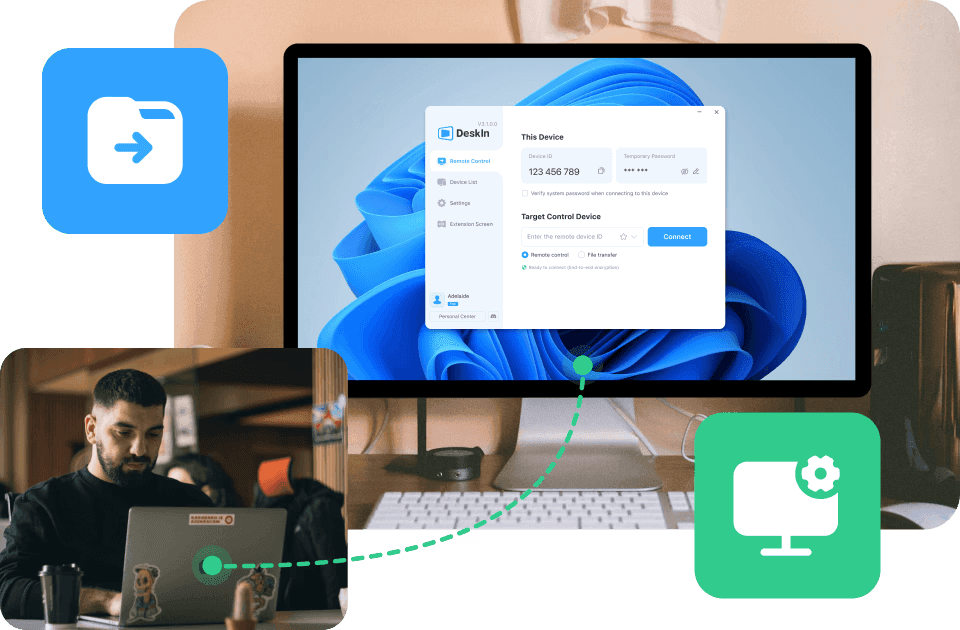
Giải pháp truy cập từ xa là công nghệ cho phép bạn kết nối, truy cập, xem và điều khiển một thiết bị khác—máy tính, máy tính bảng hoặc điện thoại thông minh—từ bất kỳ đâu. Hãy tưởng tượng mang cả desktop của bạn theo người như để trong túi. Đó chính là bản chất của truy cập PC từ xa.
Các trường hợp sử dụng điển hình gồm:
Làm việc tại nhà và truy cập desktop ở văn phòng
Giúp gia đình khắc phục sự cố thiết bị
Lấy tệp từ máy tính khi đang di chuyển
Chơi game PC trên thiết bị di động
Dùng máy tính bảng như màn hình mở rộng
Chạy phần mềm nặng trên laptop cấu hình thấp
Cung cấp hỗ trợ IT từ xa ở khoảng cách xa
Chia sẻ màn hình để dạy học, cộng tác hoặc thuyết trình
Nhưng điều quan trọng là: Người dùng khác nhau cần những thứ khác nhau từ phần mềm desktop từ xa.
Game thủ muốn FPS cao. Nhà thiết kế muốn màu sắc chuẩn xác. Đội IT muốn công cụ toàn quyền kiểm soát. Sinh viên muốn truy cập ứng dụng cụ thể. Gia đình muốn thứ gì đó đơn giản và an toàn.
DeskIn kết nối tất cả nhu cầu này trong một nền tảng thân thiện: engine độ trễ thấp, truyền tải chất lượng cao, không giới hạn paywall và các tính năng nâng cao trên mọi thiết bị.
Hãy cùng khám phá.
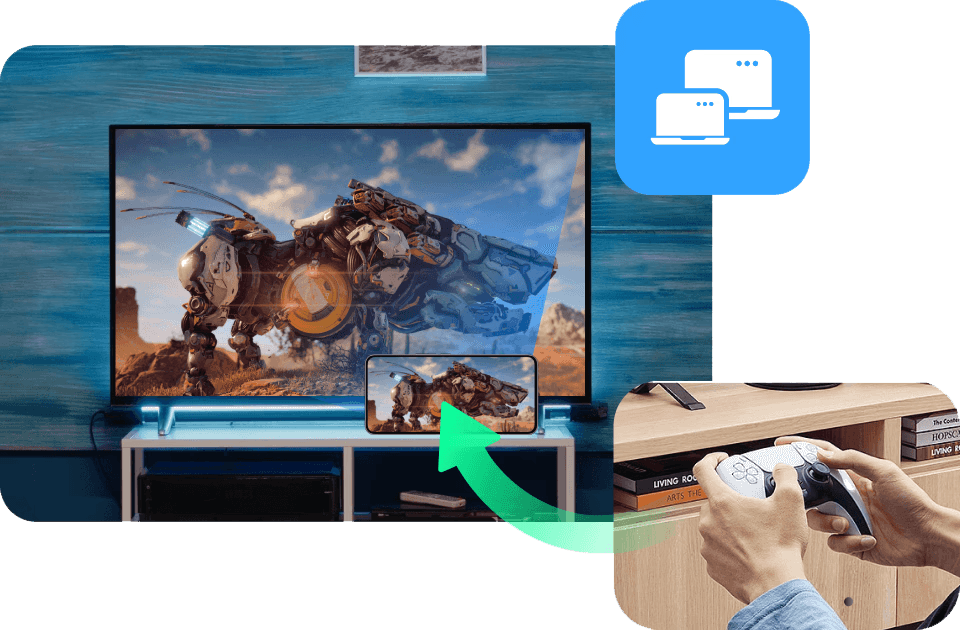
Nếu bạn là game thủ, bạn hiểu rõ khó khăn này: cuối cùng cũng có thời gian chơi, nhưng lại không ở gần PC gaming. Hoặc tệ hơn, bạn ở gần nó nhưng TV đang có người dùng, bàn làm việc không thoải mái, hoặc dàn máy của bạn thậm chí ở thành phố khác. Thêm các vấn đề kinh điển như lag, tụt khung hình và tương thích kém từ các nền tảng đám mây, niềm vui biến mất rất nhanh.
Đó là lúc DeskIn thực sự tạo nên khác biệt.
Với Remote Game của Deskin, game thủ còn nhận được:
Hỗ trợ tương thích tay cầm chơi game
Truy cập PC từ xa mượt mà cho mọi thể loại game từ thiết bị di động
Truyền màn hình lên màn hình lớn hơn
Khả năng dùng điện thoại, máy tính bảng và laptop như màn hình thứ hai (bản đồ, kho đồ, Discord, v.v.)
Chế độ xem Auto 3D sống động cho góc nhìn chơi game chân thực hơn
Chơi từ sofa, sân bay hay nhà bà. DeskIn khiến chơi game từ xa có cảm giác như đang chơi tại chỗ.
Đọc thêm:
3 cách tối ưu để chơi game PC từ xa mọi lúc, mọi nơi: Không trễ, toàn quyền điều khiển!
Thiết lập màn hình kép để chơi game: Hướng dẫn tối ưu cho năm 2025
Cách dùng bàn phím gaming tùy chỉnh và phím nóng để chơi game PC trên điện thoại?
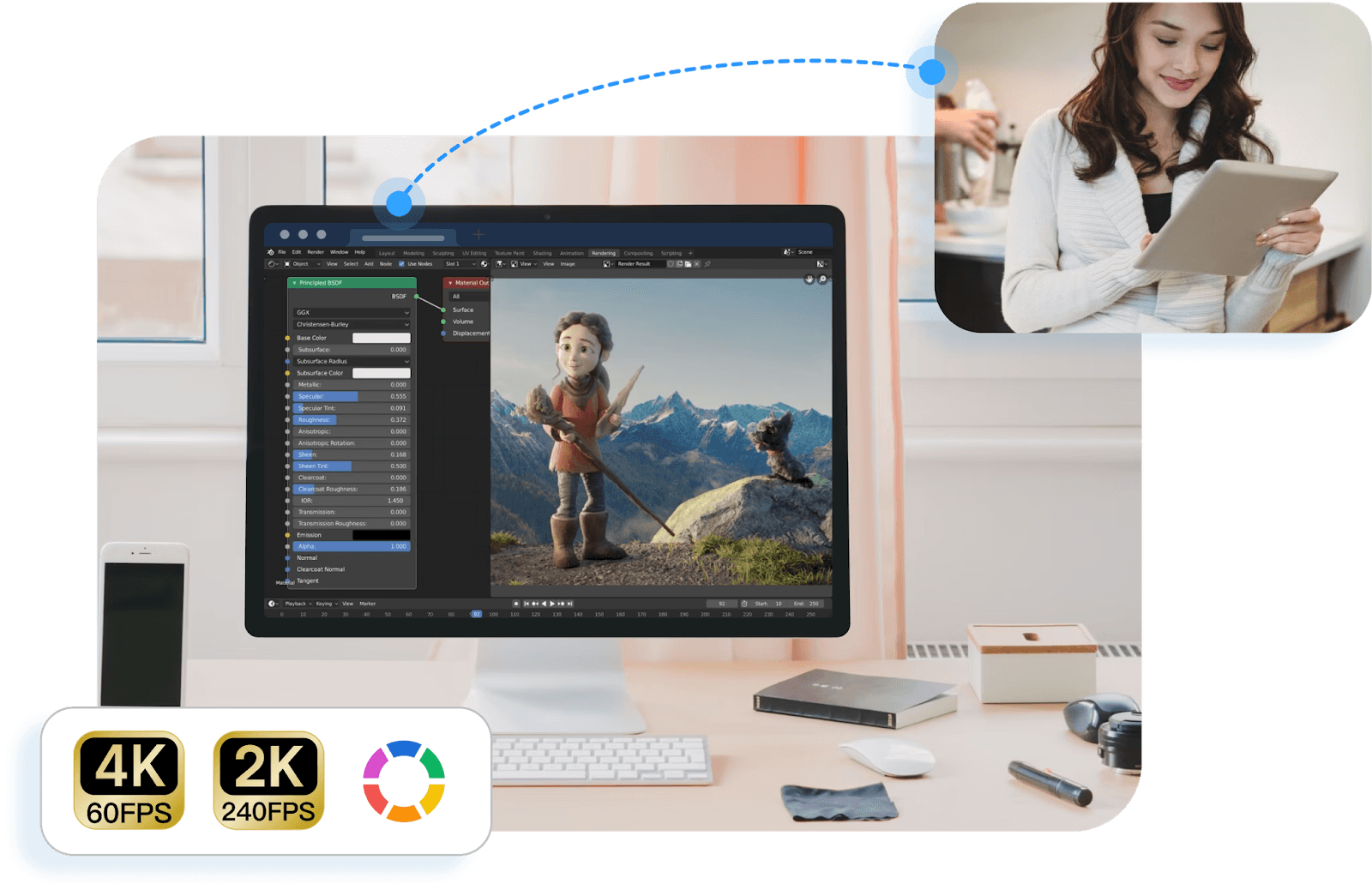
Nhà thiết kế sống cùng độ chính xác. Bạn cần màu sắc chuẩn, bút cảm ứng phản hồi tốt và tự do làm việc với các tệp dự án dung lượng lớn—những điều mà hầu hết phần mềm desktop từ xa truyền thống không xử lý tốt.
Với Remote Design của DeskIn, người làm sáng tạo có thể:
Dùng iPad làm màn hình thứ hai hoặc bảng vẽ kỹ thuật số
Vẽ với cảm ứng lực và độ trễ tối thiểu
Chia sẻ màn hình để cộng tác thời gian thực với khách hàng hoặc nhóm
Trò chuyện, chú thích và chỉnh sửa thiết kế ngay lập tức
Chuyển tài nguyên dung lượng lớn giữa các thiết bị, không giới hạn kích thước, không nén
Dù bạn đang thiết kế logo, chỉnh sửa video 4K hay retouch ảnh khi di chuyển, DeskIn vẫn giữ luồng sáng tạo của bạn liền mạch trên mọi thiết bị.
Đọc thêm: Phần mềm làm việc từ xa cho người sáng tạo: Màu chuẩn, tốc độ thật
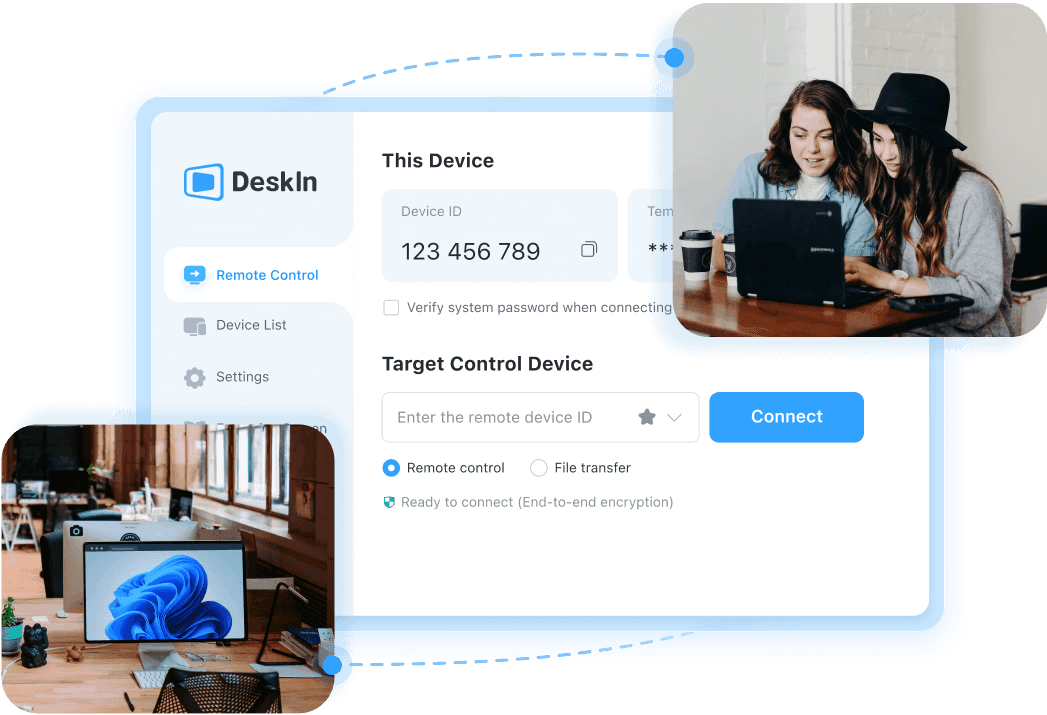
Làm việc từ xa rất dễ, cho đến khi bạn nhận ra bảng tính, phần mềm kế toán hoặc hệ thống nội bộ nằm trên PC văn phòng. DeskIn biến mọi thiết bị thành trạm làm việc di động thông qua truy cập PC từ xa an toàn, nhanh và mượt.
Với Remote Work của DeskIn, bạn có thể:
Truy cập máy tính công việc an toàn từ nhà
Chuyển tệp ngay lập tức bằng kéo-thả
Chạy ứng dụng doanh nghiệp với hiệu năng đầy đủ
Đăng nhập vào hệ thống hoặc công cụ chỉ có trên mạng văn phòng
Wake-on-LAN để bật PC văn phòng từ bất cứ đâu
Trò chuyện thoại tích hợp cho họp
Mở rộng màn hình không rắc rối để đa nhiệm

Kỹ thuật viên IT hiểu rõ nỗi đau của việc di chuyển xa, đến tận nơi hoặc cố hướng dẫn người không rành công nghệ qua điện thoại. DeskIn xóa bỏ sự bực bội đó bằng cách cung cấp trung tâm chỉ huy đầy đủ để xử lý sự cố từ xa.
Thông qua Remote Support của DeskIn, đội hỗ trợ có thể:
Toàn quyền điều khiển màn hình mọi thiết bị
Truy cập Task Manager, terminal và công cụ hệ thống
Khởi động lại, tắt máy hoặc Wake-on-LAN từ xa
Dùng kết nối không giám sát cho các thiết bị luôn sẵn sàng
Nhóm thiết bị và chuyển đổi tức thì giữa chúng
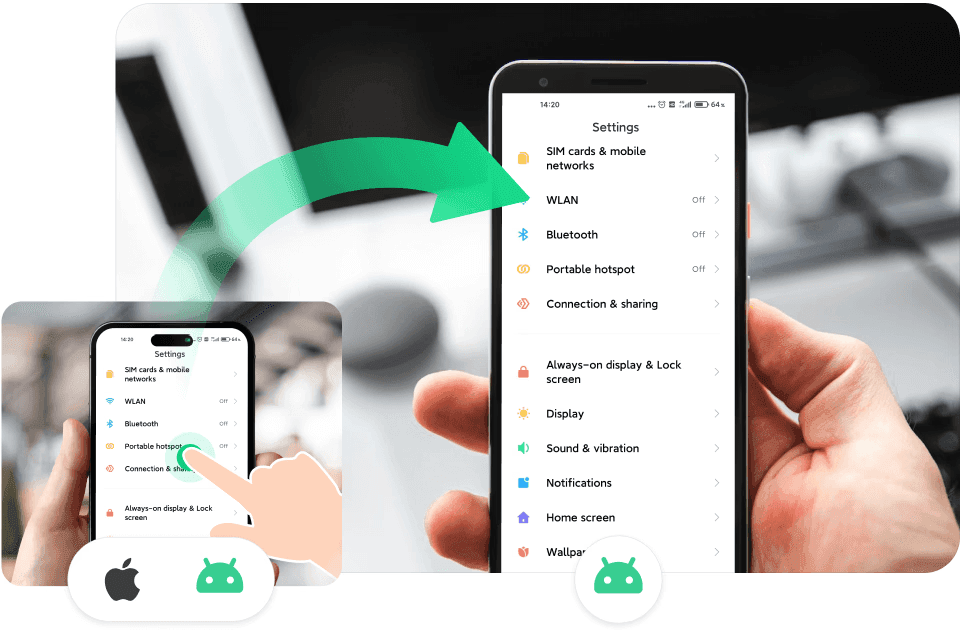
Không phải ai cũng cần công cụ IT nâng cao; đôi khi bạn chỉ cần sửa nhanh một việc. DeskIn giúp cuộc sống công nghệ thường ngày dễ dàng hơn cho gia đình, người dùng phổ thông và bất kỳ ai muốn “xử lý việc từ xa”.
Hãy tưởng tượng các tình huống sau:
Giúp bố mẹ cài máy in
Sửa máy tính bảng của con khi bạn đang ra ngoài
Lấy tệp từ máy tính ở nhà trong lúc họp
Dùng điện thoại cũ làm camera em bé hoặc thú cưng
Gửi ảnh từ Android sang iPhone (hoặc ngược lại) không rắc rối
Đây là công cụ desktop từ xa nhẹ nhàng, không căng thẳng mà gia đình bạn chưa biết mình cần, nhưng sẽ thích ngay khi thử.
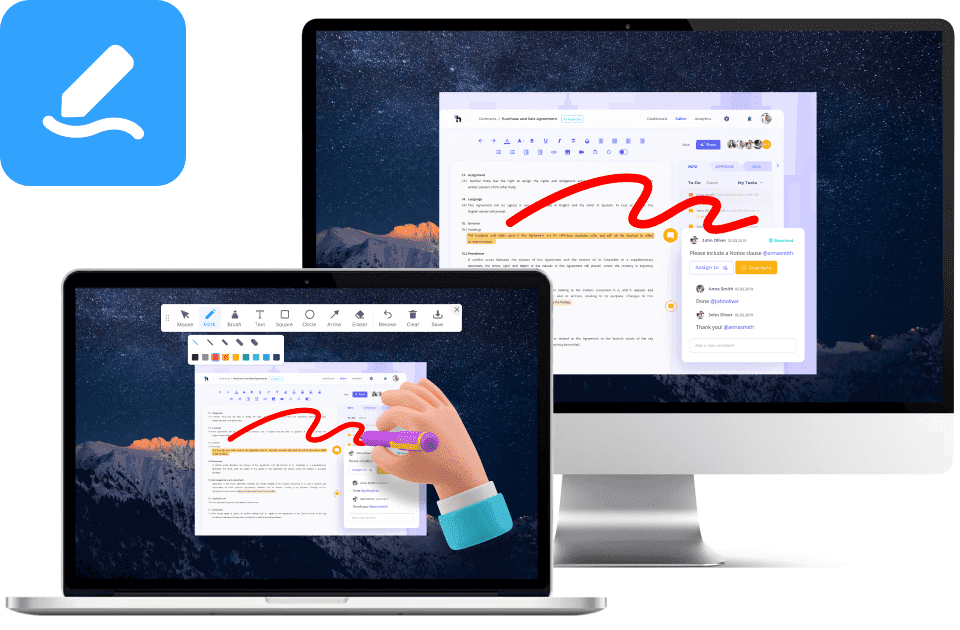
Các công cụ đám mây như Canva, Docs và Google Classroom rất tuyệt, nhưng không thể thay thế quyền truy cập máy tính đầy đủ. Sinh viên thường cần phần mềm mà trường không cung cấp trên đám mây: AutoCAD, Adobe Suite, MATLAB, Unity, SPSS và nhiều hơn nữa. Giáo viên cũng cần trình diễn phần mềm thực tế, chạy mô phỏng và xem bài sinh viên vượt ngoài PDF và ảnh chụp màn hình.
DeskIn lấp đầy khoảng trống đó bằng phần mềm desktop từ xa mạnh mẽ, chuẩn lớp học:
Truy cập máy tính phòng lab của trường từ nhà
Chạy ứng dụng nặng mà không cần sở hữu PC mạnh
Dùng chia sẻ màn hình mượt, độ trễ thấp để giảng dạy
Cộng tác thời gian thực với điều khiển từ xa và chú thích
Cho phép sinh viên tham gia bài học từ mọi thiết bị
Công cụ đám mây hỗ trợ việc học. DeskIn nâng tầm nó. Với truy cập tệp từ xa thực thụ, truyền tải nhanh và hình ảnh chất lượng cao, sinh viên và nhà giáo dục có trải nghiệm phòng máy đầy đủ ở bất kỳ đâu.
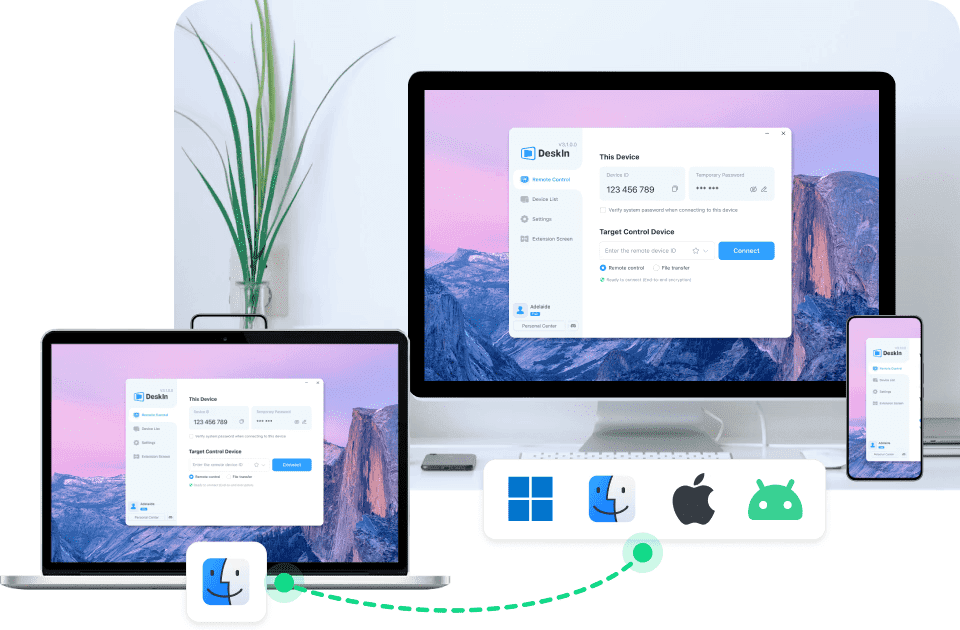
Sự thật là: công cụ đám mây rất tốt để chia sẻ tài liệu, nhưng không thể sửa thiết bị. Khi bố mẹ bạn gọi và nói “màn hình của mẹ có gì đó hiện lên,” Google Drive không giúp được. DeskIn thì có thể.
DeskIn mang đến cho gia đình quyền truy cập PC từ xa thực tế để bạn có thể:
Sửa máy tính cho người thân
Cài ứng dụng cho họ
Gỡ các cửa sổ bật lên không mong muốn
Điều chỉnh cài đặt
Giúp họ tìm tệp
Chuyển tài liệu giúp họ
Thay vì mô tả từng bước bằng lời (“Bấm vào cái đó… không, không phải cái đó!”), bạn có thể trực tiếp điều khiển màn hình của họ và xử lý trong vài giây.
Thay vì phụ thuộc vào các nền tảng lỗi thời, chậm hoặc bị giới hạn, người dùng có được phần mềm desktop từ xa hiện đại thích ứng với nhiều thiết bị, phong cách làm việc và yêu cầu hiệu năng khác nhau. DeskIn đủ mạnh cho người dùng nâng cao nhưng vẫn đủ đơn giản cho người mới: một sự cân bằng hiếm có trong thế giới phần mềm truy cập từ xa.
Tương thích đa nền tảng (Windows, Mac, iOS, Android)
DeskIn kết nối liền mạch mọi hệ điều hành phổ biến, đảm bảo truy cập PC từ xa mượt mà dù bạn chuyển giữa điện thoại, máy tính bảng, laptop hay desktop.
Độ trễ siêu thấp (thấp tới 40ms)
Với ZeroSync® Engine, DeskIn giữ thao tác phản hồi tức thì, hoàn hảo cho chơi game, thiết kế hoặc xử lý sự cố thời gian thực.
Hiệu năng cao (4K60FPS, 2K144FPS)
Tận hưởng hình ảnh sắc nét và truyền tải mượt như bơ, vượt trội hơn nhiều công cụ desktop từ xa truyền thống.
Mã hóa 256-bit an toàn + màn hình riêng tư
Bảo mật nâng cao đảm bảo phiên làm việc, tệp và dữ liệu riêng tư của bạn được bảo vệ toàn diện trong mọi kết nối.
Chuyển tệp nhanh, đáng tin cậy
Di chuyển tệp giữa các thiết bị tức thì, giúp truy cập tệp từ xa đơn giản như kéo-thả.
Chat, gọi thoại & bảng trắng tích hợp
Giao tiếp rõ ràng trong các phiên hỗ trợ, cộng tác hoặc dạy học từ xa.
Wake-on-LAN
Bật PC ở cơ quan hoặc ở nhà từ bất kỳ đâu, kể cả khi máy đang ngủ.
Truy cập không giám sát
Hoàn hảo cho hỗ trợ IT, làm việc từ xa hoặc truy cập thiết bị cá nhân mà không cần người ở đầu bên kia.
In từ xa
In tài liệu từ máy tính từ xa sang máy in cục bộ của bạn ngay lập tức.
Tính năng chơi game
FPS cao, độ trễ thấp, hỗ trợ tay cầm và pipeline truyền tải mượt mà giúp DeskIn trở thành lựa chọn hàng đầu cho các phiên remote game.
Thích ứng thiết bị ngoại vi
Dùng máy tính bảng làm bề mặt vẽ, điện thoại làm tay cầm hoặc kết nối thiết bị ngoại vi liền mạch giữa các thiết bị.
Chế độ quản lý màn hình
Chọn mở rộng màn hình, phản chiếu hoặc màn hình ảo để tăng đa nhiệm và năng suất trên mọi thiết lập.
DeskIn không khóa các tính năng nâng cao sau gói đăng ký hoặc giới hạn thiết bị. Mọi thứ từ truyền tải hiệu năng cao đến đầy đủ khả năng của công cụ desktop từ xa đều được bao gồm.
Dùng thử DeskIn miễn phí và mở khóa toàn quyền kiểm soát thiết bị của bạn, mọi lúc, mọi nơi.
Bắt đầu với DeskIn được thiết kế đơn giản như chính khả năng mạnh mẽ của giải pháp truy cập từ xa. Không cấu hình phức tạp, không thiết lập kỹ thuật, chỉ kết nối tức thì giữa các thiết bị.
Hãy làm theo 3 bước nhanh sau:
1. Tải DeskIn trên cả hai thiết bị
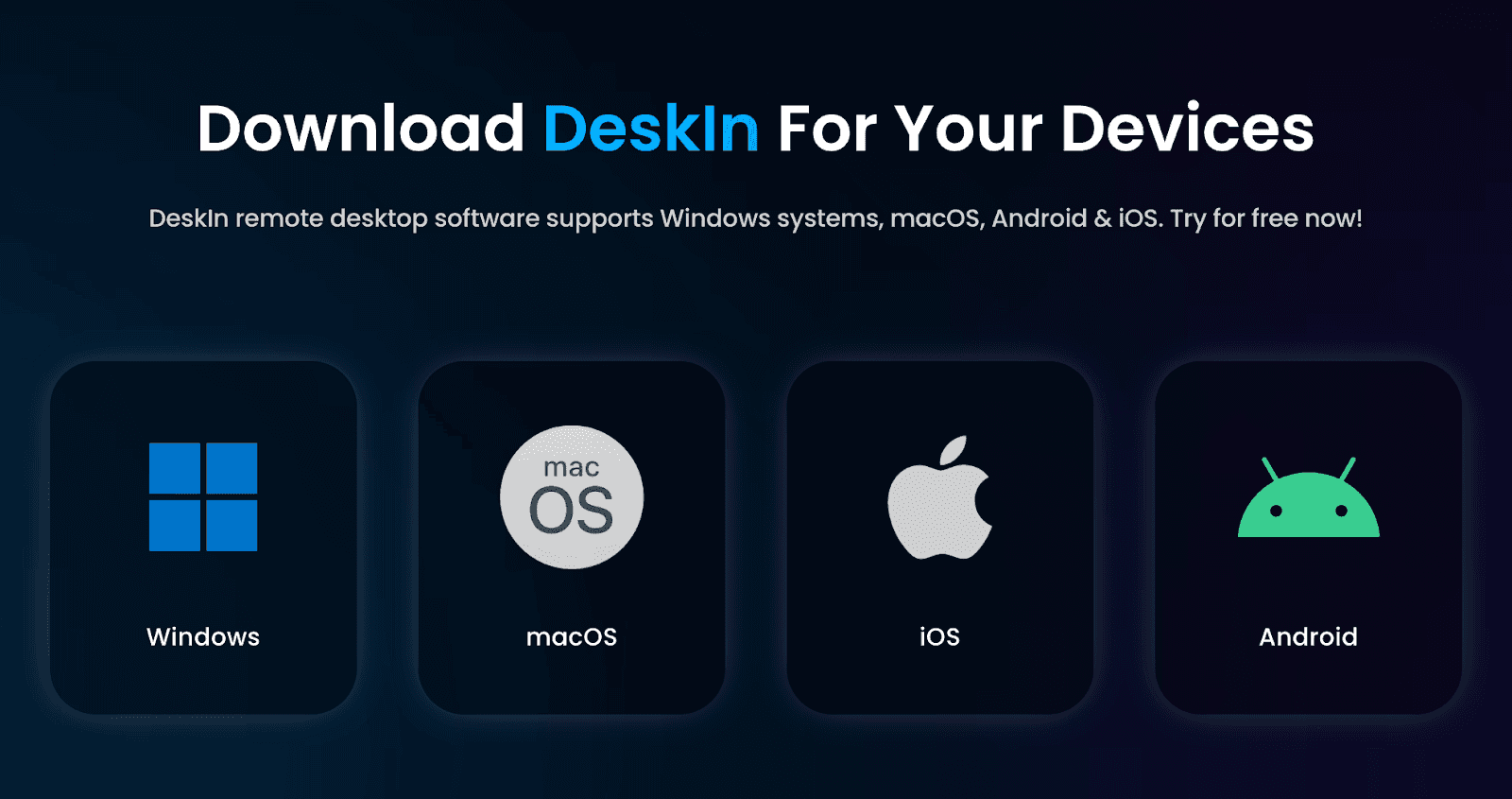
Cài đặt DeskIn trên desktop, laptop, điện thoại hoặc máy tính bảng. Ứng dụng hoạt động trên Windows, macOS, iOS và Android để mang lại truy cập PC từ xa đa nền tảng thực sự.
2. Đăng nhập cùng một tài khoản DeskIn
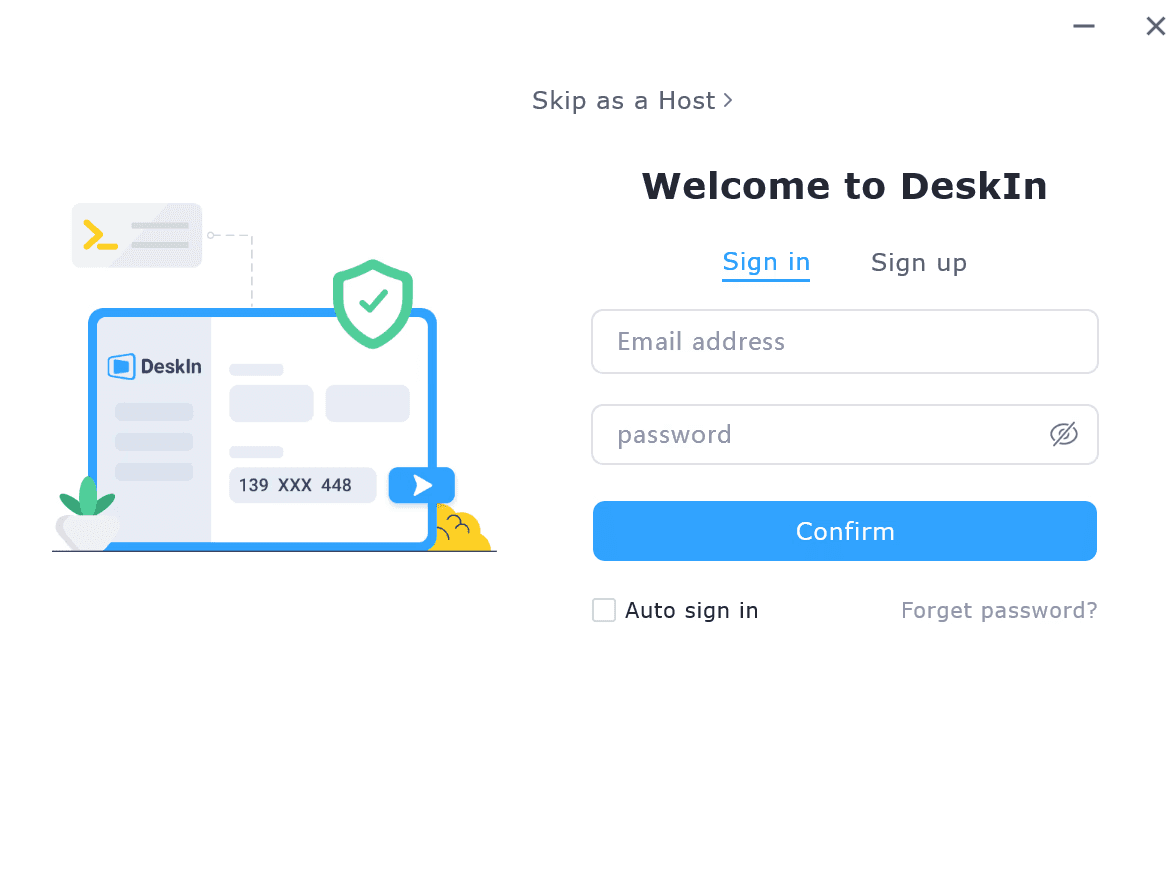
Đăng nhập bằng tài khoản DeskIn để các thiết bị của bạn đồng bộ an toàn và hiển thị trong danh sách thiết bị.
3. Nhập Connect ID & Mật khẩu của thiết bị từ xa
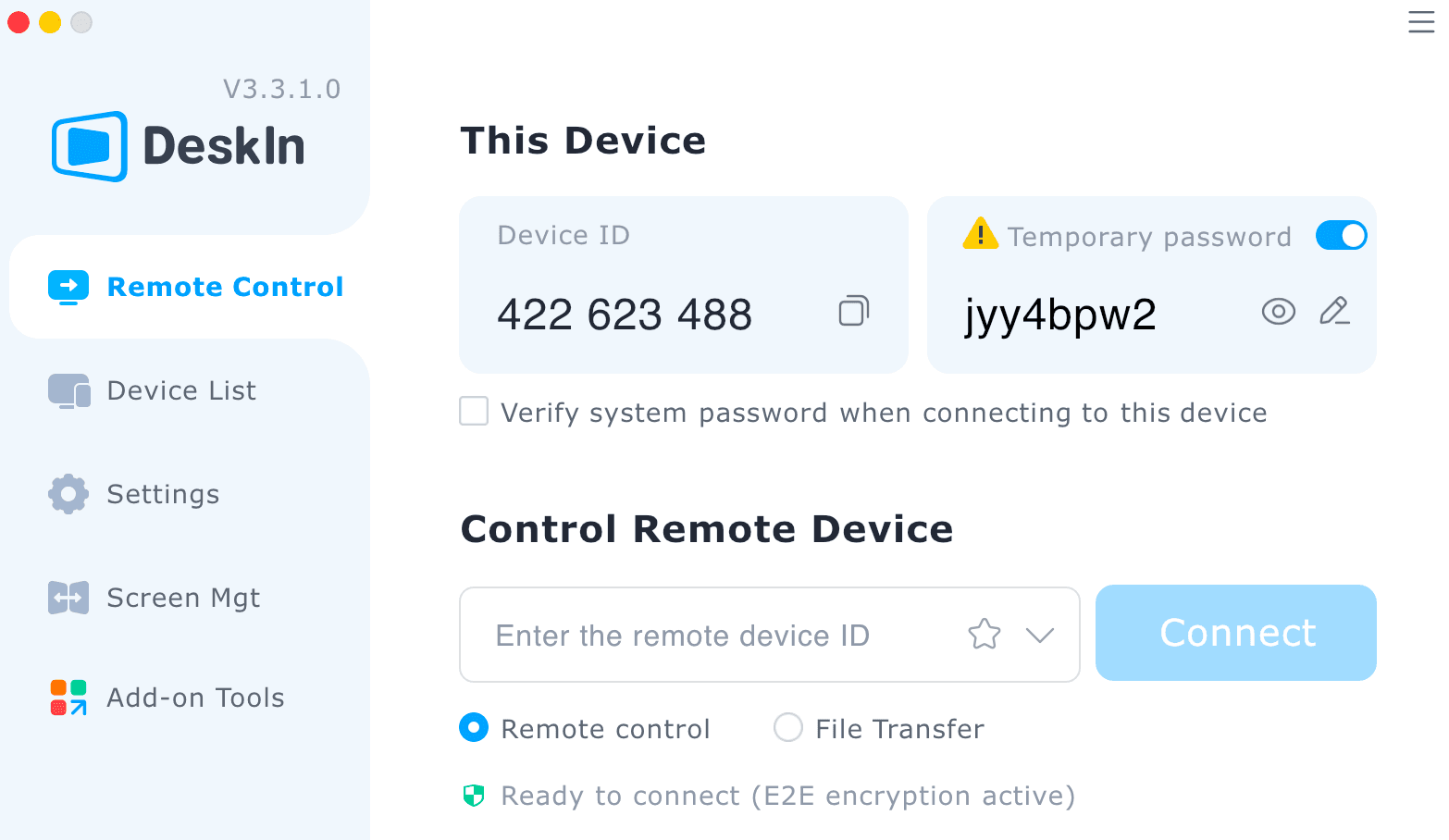
Với các phiên nhanh hoặc khi hỗ trợ người khác, chỉ cần nhập Device ID và mật khẩu tạm thời hiển thị trên thiết bị của họ để thiết lập phiên an toàn.
Sau khi kết nối, hãy chọn chính xác điều bạn muốn làm:
Tùy chọn khả dụng
Điều khiển từ xa — Toàn quyền truy cập desktop cho công việc, hỗ trợ, năng suất hoặc chơi game
Chuyển tệp — Di chuyển tệp giữa các thiết bị tức thì với sự tiện lợi kéo-thả
Phản chiếu màn hình — Xem màn hình từ xa theo thời gian thực trên mọi thiết bị
Mở rộng màn hình — Dùng điện thoại hoặc máy tính bảng làm màn hình mở rộng để đa nhiệm
Công cụ tích hợp — Dùng chế độ vẽ, bảng trắng, chế độ camera và chat để giao tiếp rõ ràng hơn
Cài đặt tùy chỉnh — Điều chỉnh độ phân giải, bitrate và tốc độ khung hình theo mạng và nhu cầu hiệu năng của bạn
DeskIn có an toàn cho công việc từ xa và tệp nhạy cảm không?
Có. DeskIn sử dụng mã hóa 256-bit, xác thực thiết bị và chế độ màn hình riêng tư để bảo vệ dữ liệu của bạn. Mọi phiên từ xa đều được mã hóa đầy đủ, an toàn cho công việc, hỗ trợ IT và truy cập tệp bảo mật.
DeskIn có thể dùng để chơi game không?
Chắc chắn. DeskIn được tối ưu cho truy cập PC từ xa hiệu năng cao, hỗ trợ đến 4K60FPS, độ trễ thấp (thấp tới 40ms), đầu vào tay cầm và truyền tải mượt: hoàn hảo cho chơi game từ xa hoặc chơi game PC trên điện thoại/máy tính bảng.
DeskIn có hoạt động trên các hệ điều hành khác nhau không?
Có. DeskIn hoàn toàn đa nền tảng, hỗ trợ Windows, macOS, iOS và Android. Bạn có thể kết nối và điều khiển mọi tổ hợp thiết bị một cách dễ dàng.
Tôi có thể làm gì sau khi kết nối với thiết bị từ xa bằng DeskIn?
Bạn có thể điều khiển thiết bị từ xa, chuyển tệp, phản chiếu màn hình, mở rộng màn hình, truy cập camera, dùng công cụ bảng trắng tích hợp, điều chỉnh độ phân giải/tốc độ khung hình, thậm chí bật nguồn thiết bị qua Wake-on-LAN—tất cả trong một phần mềm truy cập từ xa.
DeskIn có phù hợp cho hỗ trợ IT và quản lý nhiều thiết bị không?
Có. DeskIn bao gồm các tính năng hỗ trợ IT mạnh mẽ như truy cập không giám sát, nhóm thiết bị, truy cập task manager/terminal, giám sát đa màn hình và công cụ chat/bảng trắng tích hợp để xử lý sự cố thời gian thực.
Tôi có cần trả phí để dùng các tính năng nâng cao của DeskIn không?
Không. Không giống nhiều công cụ desktop từ xa khác, DeskIn cung cấp đầy đủ tính năng nâng cao, mở rộng màn hình, truyền tải FPS cao, chuyển tệp, Wake-on-LAN và hơn thế nữa, hoàn toàn miễn phí, không giới hạn thời gian hay phí ẩn.
DeskIn không chỉ là một giải pháp truy cập từ xa khác: đó là một nền tảng toàn diện, lấy người dùng làm trung tâm, được xây dựng để thích nghi với cách bạn làm việc, giải trí, sáng tạo và hỗ trợ người khác. Từ game thủ, nhà thiết kế đến người làm việc từ xa, sinh viên và gia đình, DeskIn mang lại tốc độ nhanh, hình ảnh sắc nét, tương thích đa thiết bị và các tính năng dễ dùng giúp truy cập từ xa trở nên nhẹ nhàng.
Với mã hóa bảo mật, thiết lập đơn giản và tính năng nâng cao miễn phí, bất kỳ ai cũng có thể bắt đầu trong vài phút và tận hưởng truy cập PC từ xa mượt mà ở bất cứ đâu.
Sẵn sàng toàn quyền kiểm soát thiết bị của bạn, bất kể bạn ở đâu? Hãy thử các giải pháp truy cập từ xa của DeskIn và cảm nhận sự khác biệt.
Trong thế giới kết nối ngày nay, có một giải pháp truy cập từ xa đáng tin cậy không còn là điều xa xỉ; đó là điều kiện sống còn cơ bản. Dù bạn đang chơi game trên điện thoại, chỉnh sửa portfolio trên iPad, sửa laptop cho bố mẹ (lại nữa), hay đơn giản là muốn truy cập tệp trên PC công việc khi đang nhâm nhi nước dừa ngoài bãi biển, truy cập từ xa đã trở thành công cụ hằng ngày mà chúng ta không thể thiếu.
Nhưng đây mới là câu hỏi thực sự:
Làm sao một công nghệ có thể phục vụ game thủ, người sáng tạo, chuyên gia IT, sinh viên, nhân sự làm việc từ xa và các gia đình thường ngày, khi mỗi nhóm có nhu cầu hoàn toàn khác nhau?
Đó là lúc DeskIn xuất hiện. Một công cụ desktop từ xa thế hệ mới biến mọi thiết bị thành trung tâm điều khiển của bạn. Nó nhanh, linh hoạt, trực quan và mạnh mẽ, nhưng quan trọng nhất là thích ứng với con người bạn và cách bạn làm việc.
Hãy cùng phân tích cách các nhóm người dùng khác nhau hưởng lợi từ phần mềm truy cập từ xa full-stack hiện đại của DeskIn.
Giải pháp truy cập từ xa là công nghệ cho phép bạn kết nối, truy cập, xem và điều khiển một thiết bị khác—máy tính, máy tính bảng hoặc điện thoại thông minh—từ bất kỳ đâu. Hãy tưởng tượng mang cả desktop của bạn theo người như để trong túi. Đó chính là bản chất của truy cập PC từ xa.
Các trường hợp sử dụng điển hình gồm:
Làm việc tại nhà và truy cập desktop ở văn phòng
Giúp gia đình khắc phục sự cố thiết bị
Lấy tệp từ máy tính khi đang di chuyển
Chơi game PC trên thiết bị di động
Dùng máy tính bảng như màn hình mở rộng
Chạy phần mềm nặng trên laptop cấu hình thấp
Cung cấp hỗ trợ IT từ xa ở khoảng cách xa
Chia sẻ màn hình để dạy học, cộng tác hoặc thuyết trình
Nhưng điều quan trọng là: Người dùng khác nhau cần những thứ khác nhau từ phần mềm desktop từ xa.
Game thủ muốn FPS cao. Nhà thiết kế muốn màu sắc chuẩn xác. Đội IT muốn công cụ toàn quyền kiểm soát. Sinh viên muốn truy cập ứng dụng cụ thể. Gia đình muốn thứ gì đó đơn giản và an toàn.
DeskIn kết nối tất cả nhu cầu này trong một nền tảng thân thiện: engine độ trễ thấp, truyền tải chất lượng cao, không giới hạn paywall và các tính năng nâng cao trên mọi thiết bị.
Hãy cùng khám phá.
Nếu bạn là game thủ, bạn hiểu rõ khó khăn này: cuối cùng cũng có thời gian chơi, nhưng lại không ở gần PC gaming. Hoặc tệ hơn, bạn ở gần nó nhưng TV đang có người dùng, bàn làm việc không thoải mái, hoặc dàn máy của bạn thậm chí ở thành phố khác. Thêm các vấn đề kinh điển như lag, tụt khung hình và tương thích kém từ các nền tảng đám mây, niềm vui biến mất rất nhanh.
Đó là lúc DeskIn thực sự tạo nên khác biệt.
Với Remote Game của Deskin, game thủ còn nhận được:
Hỗ trợ tương thích tay cầm chơi game
Truy cập PC từ xa mượt mà cho mọi thể loại game từ thiết bị di động
Truyền màn hình lên màn hình lớn hơn
Khả năng dùng điện thoại, máy tính bảng và laptop như màn hình thứ hai (bản đồ, kho đồ, Discord, v.v.)
Chế độ xem Auto 3D sống động cho góc nhìn chơi game chân thực hơn
Chơi từ sofa, sân bay hay nhà bà. DeskIn khiến chơi game từ xa có cảm giác như đang chơi tại chỗ.
Đọc thêm:
3 cách tối ưu để chơi game PC từ xa mọi lúc, mọi nơi: Không trễ, toàn quyền điều khiển!
Thiết lập màn hình kép để chơi game: Hướng dẫn tối ưu cho năm 2025
Cách dùng bàn phím gaming tùy chỉnh và phím nóng để chơi game PC trên điện thoại?
Nhà thiết kế sống cùng độ chính xác. Bạn cần màu sắc chuẩn, bút cảm ứng phản hồi tốt và tự do làm việc với các tệp dự án dung lượng lớn—những điều mà hầu hết phần mềm desktop từ xa truyền thống không xử lý tốt.
Với Remote Design của DeskIn, người làm sáng tạo có thể:
Dùng iPad làm màn hình thứ hai hoặc bảng vẽ kỹ thuật số
Vẽ với cảm ứng lực và độ trễ tối thiểu
Chia sẻ màn hình để cộng tác thời gian thực với khách hàng hoặc nhóm
Trò chuyện, chú thích và chỉnh sửa thiết kế ngay lập tức
Chuyển tài nguyên dung lượng lớn giữa các thiết bị, không giới hạn kích thước, không nén
Dù bạn đang thiết kế logo, chỉnh sửa video 4K hay retouch ảnh khi di chuyển, DeskIn vẫn giữ luồng sáng tạo của bạn liền mạch trên mọi thiết bị.
Đọc thêm: Phần mềm làm việc từ xa cho người sáng tạo: Màu chuẩn, tốc độ thật
Làm việc từ xa rất dễ, cho đến khi bạn nhận ra bảng tính, phần mềm kế toán hoặc hệ thống nội bộ nằm trên PC văn phòng. DeskIn biến mọi thiết bị thành trạm làm việc di động thông qua truy cập PC từ xa an toàn, nhanh và mượt.
Với Remote Work của DeskIn, bạn có thể:
Truy cập máy tính công việc an toàn từ nhà
Chuyển tệp ngay lập tức bằng kéo-thả
Chạy ứng dụng doanh nghiệp với hiệu năng đầy đủ
Đăng nhập vào hệ thống hoặc công cụ chỉ có trên mạng văn phòng
Wake-on-LAN để bật PC văn phòng từ bất cứ đâu
Trò chuyện thoại tích hợp cho họp
Mở rộng màn hình không rắc rối để đa nhiệm
Kỹ thuật viên IT hiểu rõ nỗi đau của việc di chuyển xa, đến tận nơi hoặc cố hướng dẫn người không rành công nghệ qua điện thoại. DeskIn xóa bỏ sự bực bội đó bằng cách cung cấp trung tâm chỉ huy đầy đủ để xử lý sự cố từ xa.
Thông qua Remote Support của DeskIn, đội hỗ trợ có thể:
Toàn quyền điều khiển màn hình mọi thiết bị
Truy cập Task Manager, terminal và công cụ hệ thống
Khởi động lại, tắt máy hoặc Wake-on-LAN từ xa
Dùng kết nối không giám sát cho các thiết bị luôn sẵn sàng
Nhóm thiết bị và chuyển đổi tức thì giữa chúng
Không phải ai cũng cần công cụ IT nâng cao; đôi khi bạn chỉ cần sửa nhanh một việc. DeskIn giúp cuộc sống công nghệ thường ngày dễ dàng hơn cho gia đình, người dùng phổ thông và bất kỳ ai muốn “xử lý việc từ xa”.
Hãy tưởng tượng các tình huống sau:
Giúp bố mẹ cài máy in
Sửa máy tính bảng của con khi bạn đang ra ngoài
Lấy tệp từ máy tính ở nhà trong lúc họp
Dùng điện thoại cũ làm camera em bé hoặc thú cưng
Gửi ảnh từ Android sang iPhone (hoặc ngược lại) không rắc rối
Đây là công cụ desktop từ xa nhẹ nhàng, không căng thẳng mà gia đình bạn chưa biết mình cần, nhưng sẽ thích ngay khi thử.
Các công cụ đám mây như Canva, Docs và Google Classroom rất tuyệt, nhưng không thể thay thế quyền truy cập máy tính đầy đủ. Sinh viên thường cần phần mềm mà trường không cung cấp trên đám mây: AutoCAD, Adobe Suite, MATLAB, Unity, SPSS và nhiều hơn nữa. Giáo viên cũng cần trình diễn phần mềm thực tế, chạy mô phỏng và xem bài sinh viên vượt ngoài PDF và ảnh chụp màn hình.
DeskIn lấp đầy khoảng trống đó bằng phần mềm desktop từ xa mạnh mẽ, chuẩn lớp học:
Truy cập máy tính phòng lab của trường từ nhà
Chạy ứng dụng nặng mà không cần sở hữu PC mạnh
Dùng chia sẻ màn hình mượt, độ trễ thấp để giảng dạy
Cộng tác thời gian thực với điều khiển từ xa và chú thích
Cho phép sinh viên tham gia bài học từ mọi thiết bị
Công cụ đám mây hỗ trợ việc học. DeskIn nâng tầm nó. Với truy cập tệp từ xa thực thụ, truyền tải nhanh và hình ảnh chất lượng cao, sinh viên và nhà giáo dục có trải nghiệm phòng máy đầy đủ ở bất kỳ đâu.
Sự thật là: công cụ đám mây rất tốt để chia sẻ tài liệu, nhưng không thể sửa thiết bị. Khi bố mẹ bạn gọi và nói “màn hình của mẹ có gì đó hiện lên,” Google Drive không giúp được. DeskIn thì có thể.
DeskIn mang đến cho gia đình quyền truy cập PC từ xa thực tế để bạn có thể:
Sửa máy tính cho người thân
Cài ứng dụng cho họ
Gỡ các cửa sổ bật lên không mong muốn
Điều chỉnh cài đặt
Giúp họ tìm tệp
Chuyển tài liệu giúp họ
Thay vì mô tả từng bước bằng lời (“Bấm vào cái đó… không, không phải cái đó!”), bạn có thể trực tiếp điều khiển màn hình của họ và xử lý trong vài giây.
Thay vì phụ thuộc vào các nền tảng lỗi thời, chậm hoặc bị giới hạn, người dùng có được phần mềm desktop từ xa hiện đại thích ứng với nhiều thiết bị, phong cách làm việc và yêu cầu hiệu năng khác nhau. DeskIn đủ mạnh cho người dùng nâng cao nhưng vẫn đủ đơn giản cho người mới: một sự cân bằng hiếm có trong thế giới phần mềm truy cập từ xa.
Tương thích đa nền tảng (Windows, Mac, iOS, Android)
DeskIn kết nối liền mạch mọi hệ điều hành phổ biến, đảm bảo truy cập PC từ xa mượt mà dù bạn chuyển giữa điện thoại, máy tính bảng, laptop hay desktop.
Độ trễ siêu thấp (thấp tới 40ms)
Với ZeroSync® Engine, DeskIn giữ thao tác phản hồi tức thì, hoàn hảo cho chơi game, thiết kế hoặc xử lý sự cố thời gian thực.
Hiệu năng cao (4K60FPS, 2K144FPS)
Tận hưởng hình ảnh sắc nét và truyền tải mượt như bơ, vượt trội hơn nhiều công cụ desktop từ xa truyền thống.
Mã hóa 256-bit an toàn + màn hình riêng tư
Bảo mật nâng cao đảm bảo phiên làm việc, tệp và dữ liệu riêng tư của bạn được bảo vệ toàn diện trong mọi kết nối.
Chuyển tệp nhanh, đáng tin cậy
Di chuyển tệp giữa các thiết bị tức thì, giúp truy cập tệp từ xa đơn giản như kéo-thả.
Chat, gọi thoại & bảng trắng tích hợp
Giao tiếp rõ ràng trong các phiên hỗ trợ, cộng tác hoặc dạy học từ xa.
Wake-on-LAN
Bật PC ở cơ quan hoặc ở nhà từ bất kỳ đâu, kể cả khi máy đang ngủ.
Truy cập không giám sát
Hoàn hảo cho hỗ trợ IT, làm việc từ xa hoặc truy cập thiết bị cá nhân mà không cần người ở đầu bên kia.
In từ xa
In tài liệu từ máy tính từ xa sang máy in cục bộ của bạn ngay lập tức.
Tính năng chơi game
FPS cao, độ trễ thấp, hỗ trợ tay cầm và pipeline truyền tải mượt mà giúp DeskIn trở thành lựa chọn hàng đầu cho các phiên remote game.
Thích ứng thiết bị ngoại vi
Dùng máy tính bảng làm bề mặt vẽ, điện thoại làm tay cầm hoặc kết nối thiết bị ngoại vi liền mạch giữa các thiết bị.
Chế độ quản lý màn hình
Chọn mở rộng màn hình, phản chiếu hoặc màn hình ảo để tăng đa nhiệm và năng suất trên mọi thiết lập.
DeskIn không khóa các tính năng nâng cao sau gói đăng ký hoặc giới hạn thiết bị. Mọi thứ từ truyền tải hiệu năng cao đến đầy đủ khả năng của công cụ desktop từ xa đều được bao gồm.
Dùng thử DeskIn miễn phí và mở khóa toàn quyền kiểm soát thiết bị của bạn, mọi lúc, mọi nơi.
Bắt đầu với DeskIn được thiết kế đơn giản như chính khả năng mạnh mẽ của giải pháp truy cập từ xa. Không cấu hình phức tạp, không thiết lập kỹ thuật, chỉ kết nối tức thì giữa các thiết bị.
Hãy làm theo 3 bước nhanh sau:
1. Tải DeskIn trên cả hai thiết bị
Cài đặt DeskIn trên desktop, laptop, điện thoại hoặc máy tính bảng. Ứng dụng hoạt động trên Windows, macOS, iOS và Android để mang lại truy cập PC từ xa đa nền tảng thực sự.
2. Đăng nhập cùng một tài khoản DeskIn
Đăng nhập bằng tài khoản DeskIn để các thiết bị của bạn đồng bộ an toàn và hiển thị trong danh sách thiết bị.
3. Nhập Connect ID & Mật khẩu của thiết bị từ xa
Với các phiên nhanh hoặc khi hỗ trợ người khác, chỉ cần nhập Device ID và mật khẩu tạm thời hiển thị trên thiết bị của họ để thiết lập phiên an toàn.
Sau khi kết nối, hãy chọn chính xác điều bạn muốn làm:
Tùy chọn khả dụng
Điều khiển từ xa — Toàn quyền truy cập desktop cho công việc, hỗ trợ, năng suất hoặc chơi game
Chuyển tệp — Di chuyển tệp giữa các thiết bị tức thì với sự tiện lợi kéo-thả
Phản chiếu màn hình — Xem màn hình từ xa theo thời gian thực trên mọi thiết bị
Mở rộng màn hình — Dùng điện thoại hoặc máy tính bảng làm màn hình mở rộng để đa nhiệm
Công cụ tích hợp — Dùng chế độ vẽ, bảng trắng, chế độ camera và chat để giao tiếp rõ ràng hơn
Cài đặt tùy chỉnh — Điều chỉnh độ phân giải, bitrate và tốc độ khung hình theo mạng và nhu cầu hiệu năng của bạn
DeskIn có an toàn cho công việc từ xa và tệp nhạy cảm không?
Có. DeskIn sử dụng mã hóa 256-bit, xác thực thiết bị và chế độ màn hình riêng tư để bảo vệ dữ liệu của bạn. Mọi phiên từ xa đều được mã hóa đầy đủ, an toàn cho công việc, hỗ trợ IT và truy cập tệp bảo mật.
DeskIn có thể dùng để chơi game không?
Chắc chắn. DeskIn được tối ưu cho truy cập PC từ xa hiệu năng cao, hỗ trợ đến 4K60FPS, độ trễ thấp (thấp tới 40ms), đầu vào tay cầm và truyền tải mượt: hoàn hảo cho chơi game từ xa hoặc chơi game PC trên điện thoại/máy tính bảng.
DeskIn có hoạt động trên các hệ điều hành khác nhau không?
Có. DeskIn hoàn toàn đa nền tảng, hỗ trợ Windows, macOS, iOS và Android. Bạn có thể kết nối và điều khiển mọi tổ hợp thiết bị một cách dễ dàng.
Tôi có thể làm gì sau khi kết nối với thiết bị từ xa bằng DeskIn?
Bạn có thể điều khiển thiết bị từ xa, chuyển tệp, phản chiếu màn hình, mở rộng màn hình, truy cập camera, dùng công cụ bảng trắng tích hợp, điều chỉnh độ phân giải/tốc độ khung hình, thậm chí bật nguồn thiết bị qua Wake-on-LAN—tất cả trong một phần mềm truy cập từ xa.
DeskIn có phù hợp cho hỗ trợ IT và quản lý nhiều thiết bị không?
Có. DeskIn bao gồm các tính năng hỗ trợ IT mạnh mẽ như truy cập không giám sát, nhóm thiết bị, truy cập task manager/terminal, giám sát đa màn hình và công cụ chat/bảng trắng tích hợp để xử lý sự cố thời gian thực.
Tôi có cần trả phí để dùng các tính năng nâng cao của DeskIn không?
Không. Không giống nhiều công cụ desktop từ xa khác, DeskIn cung cấp đầy đủ tính năng nâng cao, mở rộng màn hình, truyền tải FPS cao, chuyển tệp, Wake-on-LAN và hơn thế nữa, hoàn toàn miễn phí, không giới hạn thời gian hay phí ẩn.
DeskIn không chỉ là một giải pháp truy cập từ xa khác: đó là một nền tảng toàn diện, lấy người dùng làm trung tâm, được xây dựng để thích nghi với cách bạn làm việc, giải trí, sáng tạo và hỗ trợ người khác. Từ game thủ, nhà thiết kế đến người làm việc từ xa, sinh viên và gia đình, DeskIn mang lại tốc độ nhanh, hình ảnh sắc nét, tương thích đa thiết bị và các tính năng dễ dùng giúp truy cập từ xa trở nên nhẹ nhàng.
Với mã hóa bảo mật, thiết lập đơn giản và tính năng nâng cao miễn phí, bất kỳ ai cũng có thể bắt đầu trong vài phút và tận hưởng truy cập PC từ xa mượt mà ở bất cứ đâu.
Sẵn sàng toàn quyền kiểm soát thiết bị của bạn, bất kể bạn ở đâu? Hãy thử các giải pháp truy cập từ xa của DeskIn và cảm nhận sự khác biệt.


How to Play MapleStory Classic World on Mac
A lot of the players who are most excited about MapleStory Classic World grew up on 2005-era MapleStory — and a large share of that generation now does its computing on a MacBook. Nexon clearly knows this: a native macOS client was on the feature list for the second Closed Online Test, which ran August 4–12, 2026, alongside Ossyria and third job advancement. But as of this writing, that Mac client is still in development, not publicly available, and there's still no confirmed public launch date for the game itself.
So if you want to play MapleStory Classic World on a Mac right now — or want a reliable plan for when the game does launch — you've got two real options: run Windows in a virtual machine, or use DeskIn remote desktop to control an actual Windows PC from your Mac. This guide covers both, including a login-conflict issue that catches a lot of virtual machine users off guard.
Not yet, publicly. Nexon's May 2026 roadmap update confirmed macOS support is in development, and it appeared as a testable feature in the second Closed Online Test. Windows PC remains the confirmed launch platform, and Nexon hasn't said whether the Mac client will be ready at launch or arrive afterward. The game hasn't had a full public release on any platform — Nexon has said one more test is planned before launch.
Given that, Mac players currently have two ways in: a Windows virtual machine, or remote desktop software that connects to a real Windows PC.
Classic World is exclusive to GMS (Global MapleStory), covering North America, Europe, and most other regions without a local Nexon partner. Markets with their own official MapleStory service — Korea, China, Japan, Taiwan/Hong Kong, and Southeast Asia — aren't GMS-eligible, so Mac players in those regions would need a VPN to reach Classic World, which isn't recommended. Whether NA and EU will run as separate worlds hasn't been confirmed.
Tools like Parallels Desktop or VMware Fusion let you run a full Windows install inside macOS, and then install MapleStory Classic World the way a Windows user would. It works, but it asks a lot of your Mac's hardware.
RAM: 16GB minimum recommended; 8GB is genuinely tight, since macOS and Windows are both running at once and macOS alone can eat most of that before Windows gets a share. For a comfortable setup with guides or Discord open on the side, aim for 32GB.
CPU/GPU: Virtual machines can't pass hardware through at 100%; graphics get software-emulated, which typically costs 20–30% of the performance you'd get on native Windows hardware.
Thermals: Running two full operating systems under load generates real heat, and laptop-class Macs with limited cooling can throttle during longer grinding sessions.
Apple Silicon translation overhead: M-series Macs can only run Windows on ARM in a VM. If Classic World ships as an x86/x64 build, it needs an extra translation layer to run at all, stacking on top of the virtualization overhead already mentioned.
Anti-cheat compatibility is a real unknown: the original MapleStory has historically been hostile to virtualized environments because of its anti-cheat system, and Nexon hasn't said how Classic World's anti-cheat will treat VMs. Treat virtualization as a maybe, not a guaranteed plan.
There's also the practical overhead: setting up a VM means downloading a Windows image, allocating dozens of gigabytes of disk space, installing display drivers, and — on Apple Silicon — dealing with ARM compatibility quirks that don't show up on a real x86 PC. Keyboard shortcuts can also conflict, since macOS system shortcuts (Control, Option, Command) don't always play nicely with a Windows game's default keybinds.
Instead of building a Windows environment inside your Mac, DeskIn lets you connect directly to a Windows PC you already have — your desktop at home, a work machine, or a spare laptop — and control it from your Mac in real time. The game runs on genuine Windows hardware the whole time, so there's no emulation tax, no ARM translation layer, and no anti-cheat guessing game.
A virtual machine makes sense if:
You don't have access to any Windows PC at all, so a Mac VM is your only option.
Your Mac has strong specs — 16GB+ RAM, ideally 32GB, and a higher-end M-series chip that can absorb the performance loss.
You're comfortable with a fairly technical setup process.
You rarely need to switch between devices, so the single-login limitation isn't a practical issue for you.
DeskIn makes more sense if:
You already have a Windows PC (or another Mac) that can run MapleStory Classic World, and you just want to reach it from your MacBook.
You're traveling or away from your desk often and want to pick up where you left off without re-downloading anything.
You don't want to deal with logging out of one device every time you switch to another.
Your Mac has more modest specs, and you'd rather not risk stutters, crashes, or a game that won't launch at all.
If you already own a Windows machine, DeskIn is generally the lower-effort, lower-risk choice. A VM is really a fallback for players with no Windows access and a Mac powerful enough to absorb the overhead.
Step 1: Set up the Windows PC. Install MapleStory Classic World on a Windows PC and create your character, then install DeskIn on that same PC, sign in, and enable unattended access with a connection password so you can reach it later without anyone at the keyboard.
Step 2: Install DeskIn on your Mac. Download the macOS version of DeskIn, sign in with the same account, and your Windows PC will appear in your device list.
Step 3: Connect. Select the PC, enter the connection password, and you'll get a live view of the Windows desktop that you control with your Mac's mouse and trackpad — the same session, the same login, no conflicts.
Step 4: Tune quality for your connection. On a stable connection, push quality up to enjoy Classic World's remastered pixel art in full detail; on the road, prioritize smoothness to cut down on input lag.
Step 5: Log in and play. Open the game inside the remote session and log in as usual — grinding, party quests, and shopping all work exactly as they would sitting at the PC directly.
Resolution and quality: Free-tier users should start around 720p/30fps for a stable baseline; paid-tier users can push up to 4K 60FPS or 2K 240FPS on a strong connection to get the most out of Classic World's art.
Screen scaling: If your Mac and Windows PC have very different display sizes, use DeskIn's automatic scaling option in the toolbar, or adjust the remote PC's resolution to match your Mac's screen more closely.
Keyboard and mouse mapping: DeskIn maps your Mac's keyboard directly to the remote PC. Turning on Game Mouse mode prevents the keyboard from getting locked mid-session.
Controller support: If Mac keyboard controls feel awkward, pair a controller to your Mac and enable controller mapping from the toolbar — DeskIn will pass those inputs straight through to the remote PC.
Simple Setup:No Windows installation required — connect and start playing within minutes.
Doesn't tax your Mac's hardware. All the actual computation happens on the remote Windows PC; your Mac just displays the stream and sends inputs.
Performance and compatibility match native Windows, because that's exactly what's running — no ARM translation layer to worry about.
No account login conflicts, since DeskIn connects to the same existing session instead of creating a new device.
Cross-device flexibility. The same account lets you connect from Mac, iPhone, iPad, or Android, and it's always the same underlying session — no juggling logins between devices.
Not publicly yet. Nexon has confirmed a macOS client is in development and tested it in the second Closed Online Test, but Windows remains the confirmed launch platform and no public Mac release has shipped.
Yes. DeskIn uses end-to-end encryption and two-factor login, and since you're remotely operating a PC you already control, your credentials never pass through a third party.
Technically you can install one, but the experience will be rough. With 8GB split between macOS and Windows, there's very little left over for Windows, and stutters or crashes become likely during longer sessions. DeskIn is the more stable option here, since the remote PC handles all the processing — your Mac's RAM isn't a bottleneck.
Real-world performance depends on both ends' network quality, but since DeskIn connects to native Windows hardware with no virtualization overhead, and its low-latency streaming keeps end-to-end delay under 40ms on a good connection, it typically feels smoother than a resource-constrained VM.
No. DeskIn controls the same PC and the same already-active session rather than logging in as a new device, so it doesn't trigger MapleStory's single-session login limit — this is exactly the conflict that trips up VM users switching between two separate Windows installs.
DeskIn needs a Windows (or other supported platform) machine to connect to. If you don't have one, consider borrowing access to a friend's or family member's PC, or renting a cloud Windows machine as your connection target.
DeskIn supports Windows, macOS, iOS, and Android. A Mac can connect to a Windows PC, and a Windows PC can just as easily connect to and control a Mac.
MapleStory Classic World doesn't have a public Mac client yet, but that doesn't mean Mac players have to gamble on a resource-hungry virtual machine and hope the anti-cheat cooperates. If you already have access to a Windows PC that can run the game — or even another Mac — connecting to it through DeskIn gets you native Windows performance, none of the virtualization overhead, and none of the account-login headaches that come with running a second "device." Set it up once, and you'll be ready to log in the moment Classic World opens its doors.

How to Play MapleStory Classic World on Mobile Before the Official App Arrives
MapleStory Classic World has turned into one of the most-searched topics in the MapleStory community this year. Nexon's pre-Big Bang server pulled in roughly 5,000 players for its first Closed Online Test back in April 2026, and thousands more signed up for the second test that ran August 4–12, 2026. With Ossyria, third job advancement, and controller support now confirmed, interest has never been higher — and a lot of that interest is coming from players who want to know one thing: can you play MapleStory Classic World on your phone?
Short answer: not with an official app, not yet. This guide breaks down exactly what Nexon has confirmed about platforms so far, then walks through how DeskIn remote desktop lets you play MapleStory Classic World on mobile right now, without waiting on an app that hasn't been announced.
As of this writing, Nexon has not announced a mobile or console version of MapleStory Classic World. The confirmed platforms are Windows PC and macOS — macOS support was specifically added as a testable feature during the second Closed Online Test in August 2026, alongside Ossyria and third job advancement, but it's still listed as "in development" rather than publicly available.
There's also no full public launch date yet. Nexon has run two Closed Online Tests so far and has said one more test is planned before release, so most community trackers currently estimate a launch window in late 2026 or early 2027 — but that's community speculation, not an official date.
Put simply: if you want to play MapleStory Classic World on a phone or tablet today, a native app isn't an option. The only practical route is streaming the PC version from a Windows machine you already have access to.
Classic World is exclusive to GMS (Global MapleStory), Nexon's English-language service for North America, Europe, and most other regions without a local Nexon partner. Players in markets with their own official MapleStory service — Korea, China, Japan, Taiwan/Hong Kong, and Southeast Asia — aren't eligible for GMS accounts, so Classic World isn't accessible there without a VPN, which isn't recommended. It's not yet confirmed whether NA and EU will run as separate worlds within Classic World.
DeskIn is a cross-platform remote desktop app built specifically with PC gaming in mind, and it maps well onto exactly the problem MapleStory Classic World mobile players are trying to solve.
Stable, low-latency connections. DeskIn's ZeroSync® engine keeps end-to-end latency under 40ms on a good connection and automatically reroutes around congested paths, so grinding, dodging, and skill combos in Classic World's classic-era combat don't feel delayed.
Up to 4K 60FPS / 2K 240FPS streaming. Classic World's remastered pixel art holds up well when it isn't compressed into mush — DeskIn's streaming keeps text and sprites sharp even on a phone screen.
You're connecting to your own PC, not emulating one. DeskIn doesn't run Windows inside your phone; it streams the display of a Windows computer you control and sends your inputs back in real time. That means full compatibility and full performance — no emulation layer to fight with.
End-to-end encryption and two-factor login. Sessions are encrypted end-to-end, and you can set an allowlist of authorized devices, so only you can connect to your own PC.
Flexible, per-character keybinds. Classic World's Warrior, Magician, Bowman, and Thief classes each use very different skill layouts. DeskIn's on-screen game keyboard lets you build a custom key layout and save it as its own profile, so you can switch between characters without re-mapping keys every time.
Built-in virtual mouse. In pointer mode, DeskIn adds virtual left/right mouse buttons over the stream, which makes precise UI clicks — inventory, cash shop, trade windows — far easier than tapping blindly on a touchscreen.
Once you're connected, mobile play through DeskIn covers pretty much everything you'd do sitting at your PC:
Daily quests and login rewards — knock these out on your commute instead of waiting until you're home.
Cash shop browsing — scroll and preview cosmetics with touch gestures just like any shopping app.
Grinding and leveling — use the virtual directional pad and skill-key layout to keep training in familiar maps.
Party quests — latency low enough to keep up with a party's pacing on runs like Kerning City PQ.
Trading and the marketplace — check prices and list items using the virtual mouse for precise clicks.
Guild chat and messaging — reply to your guild or party the moment something comes up.
Step 1: Set up DeskIn on the Windows PC running Classic World. Install DeskIn on the PC where you've registered for testing (or where the game is installed once it launches), sign in, and turn on unattended access so the PC can be reached without anyone sitting in front of it.
Step 2: Install the DeskIn app on your phone. Download DeskIn from the App Store or Google Play, sign in with the same account, and your PC will show up in the device list.
Step 3: Connect and switch to pointer mode. Tap your PC to connect, then switch the control mode from touch to pointer — this unlocks the customizable virtual keyboard and virtual mouse.
Step 4: Browsing the cash shop. Drag to move the cursor and tap the virtual mouse buttons to click through menus and item previews, exactly like using a mouse on a desktop.
Step 5: Grinding. Open the game keyboard menu, build a layout with your movement keys and skill keys, and save it as a profile. Pull it up any time you start a grinding session.
Step 6: Pick the right streaming quality for your connection. On mobile data, prioritize smoothness over resolution to cut down on input delay; on Wi-Fi, bump the quality up to enjoy Classic World's remastered art at full clarity.
A tablet's bigger screen is a natural fit for content that needs either more reading room or more precision — daily quest text and boss encounters both qualify.
Step 1: Same setup as mobile. Install DeskIn on your iPad or Android tablet and sign in — connection steps are identical to the phone app.
Step 2: Daily quests. The larger display makes quest text, item descriptions, and map markers easier to read at a glance, so you're less likely to misread an objective mid-run.
Step 3: Boss fights. Bosses demand precise dodges and timing that touch controls alone can struggle with — pair your tablet with a Bluetooth keyboard and mouse, or a controller (see below), instead of relying on the virtual keyboard.
Step 4: Bump the frame rate for boss content. Choose a higher refresh setting in DeskIn's connection options so skill telegraphs and boss patterns read clearly in real time.
Step 5: Use split-screen for guide lookups. Run DeskIn alongside a browser or notes app in split view to check attack patterns without leaving the fight.
If virtual buttons don't feel precise enough, DeskIn supports Bluetooth controllers, including Xbox, PlayStation, and several third-party pads.
Step 1: Pair the controller with your phone. Use your phone's Bluetooth settings to pair the controller first.
Step 2: Connect through DeskIn. Once connected to your PC, DeskIn automatically detects the paired controller — no extra driver install needed.
Step 3: Test your inputs. Head into a training map first and confirm movement, attacks, and skills map to the buttons you expect before jumping into content that matters.
Step 4: Favor smoothness for fast-paced play. When you're actively grinding or fighting with a controller, prioritize DeskIn's smoothness setting over max resolution for the most responsive feel.
Running a Warrior and a Bowman means running two very different skill bars. Here's how to keep them separate in DeskIn instead of re-mapping keys every login:
Step 1: Switch to pointer mode and open the game keyboard menu. After connecting, switch to pointer mode and open DeskIn's game keyboard settings.
Step 2: Create a new keyboard layout. Tap "New Keyboard" and add your movement pad, skill keys, and item keys to match your current character's build.
Step 3: Name it by character or class. Label the layout something identifiable — "Bowman" or "Main Warrior" — and save it.
Step 4: Load the right profile when you switch characters. Before logging into a different character, select its saved layout from the game keyboard menu instead of rebuilding it from scratch.
Step 5: Update layouts as skills change. When a class gets rebalanced or you unlock new skills after a job advancement, go back into that profile and add the new keys.
No. Nexon has not announced a mobile or console version. Confirmed platforms are Windows, with a macOS client currently in development.
Nexon hasn't announced a public release date. Two Closed Online Tests have run so far (April 16–24 and August 4–12, 2026), with one more test planned before launch. Community estimates point to late 2026 or early 2027, but that isn't official.
No. DeskIn remotely operates your own PC and sends the same mouse and keyboard input you'd normally use — it isn't a macro, bot, or memory-editing tool, so it doesn't behave like the automation that anti-cheat systems are built to catch.
DeskIn's low-latency streaming keeps things playable on a stable connection, generally noticeably smoother than trying to force a browser workaround. Real-world latency still depends on both ends' network quality, so Wi-Fi is recommended over cellular when possible.
For checking dailies or browsing the shop occasionally, the free plan typically covers it. If you plan to grind for long sessions, use a controller regularly, or manage several devices, a paid plan unlocks higher streaming quality and additional features.
Setup and connection steps are identical. The difference is screen size — phones are handy for quick, single-hand tasks like dailies and the shop, while tablets are better suited to boss fights and content where you want a controller or external keyboard.
Until Nexon ships a mobile client — if one ever gets announced — DeskIn is the most practical way to keep playing MapleStory Classic World away from your desk. Install it on both your gaming PC and your phone or tablet, set up a keybind profile per character, and you can knock out dailies, grind, and even tackle boss fights without being tied to a monitor.

Biến iPad thành màn hình thứ hai cho máy tính Windows và Mac
Đối với những người làm việc đa nhiệm, việc có màn hình thứ hai có thể tăng năng suất đáng kể. Nếu bạn làm việc tại nhà hoặc là sinh viên chưa có thiết lập hai màn hình, đây là cách bạn có thể dễ dàng biến chiếc iPad đang nhàn rỗi thành màn hình thứ hai cho máy tính của mình.
Tăng không gian hiển thị để xem được nhiều nội dung hơn cùng lúc. Với người dùng đa nhiệm, họ có thể tránh phải chuyển qua lại giữa các cửa sổ, tiết kiệm thời gian.
Mỗi màn hình hoạt động độc lập, giúp không gian làm việc gọn gàng hơn. Khi chỉnh sửa video, một màn hình dùng để biên tập và màn hình còn lại để đặt tư liệu. Khi viết bài, một màn hình để viết, màn hình kia để tìm kiếm thông tin, v.v.
Kích thước màn hình iPad đủ lớn và chất lượng hiển thị khá tốt. Với người dùng có nhu cầu thiết kế hoặc dùng MacBook, cách này có thể tiết kiệm chi phí hơn so với mua thêm màn hình, đồng thời không gặp vấn đề lệch màu.
Nhiều người đã có sẵn iPad ở nhà. Bằng cách dùng thiết bị sẵn có làm màn hình kép, bạn tiết kiệm được chi phí mua thêm màn hình và cả không gian đặt nó.
Tính năng gốc của Apple là Apple Sidecar cho phép bạn dùng iPad làm màn hình ngoài cho MacBook và iMac. Chỉ cần một vài thiết lập đơn giản là bạn có thể tạo kết nối liền mạch giữa iPad và máy tính.
Lưu ý: Để dùng Apple Sidecar, hai thiết bị cần đăng nhập cùng một Apple ID hoặc ở cùng một mạng. Cả hai thiết bị phải bật Bluetooth, Wi-Fi, và khoảng cách không được vượt quá 10 mét (khoảng 10 mét).
Mở Cài đặt hệ thống trên Mac >> Nhấp vào "Display" ở thanh bên >> Nhấp vào menu bật lên "+" ở bên phải và chọn iPad của bạn.
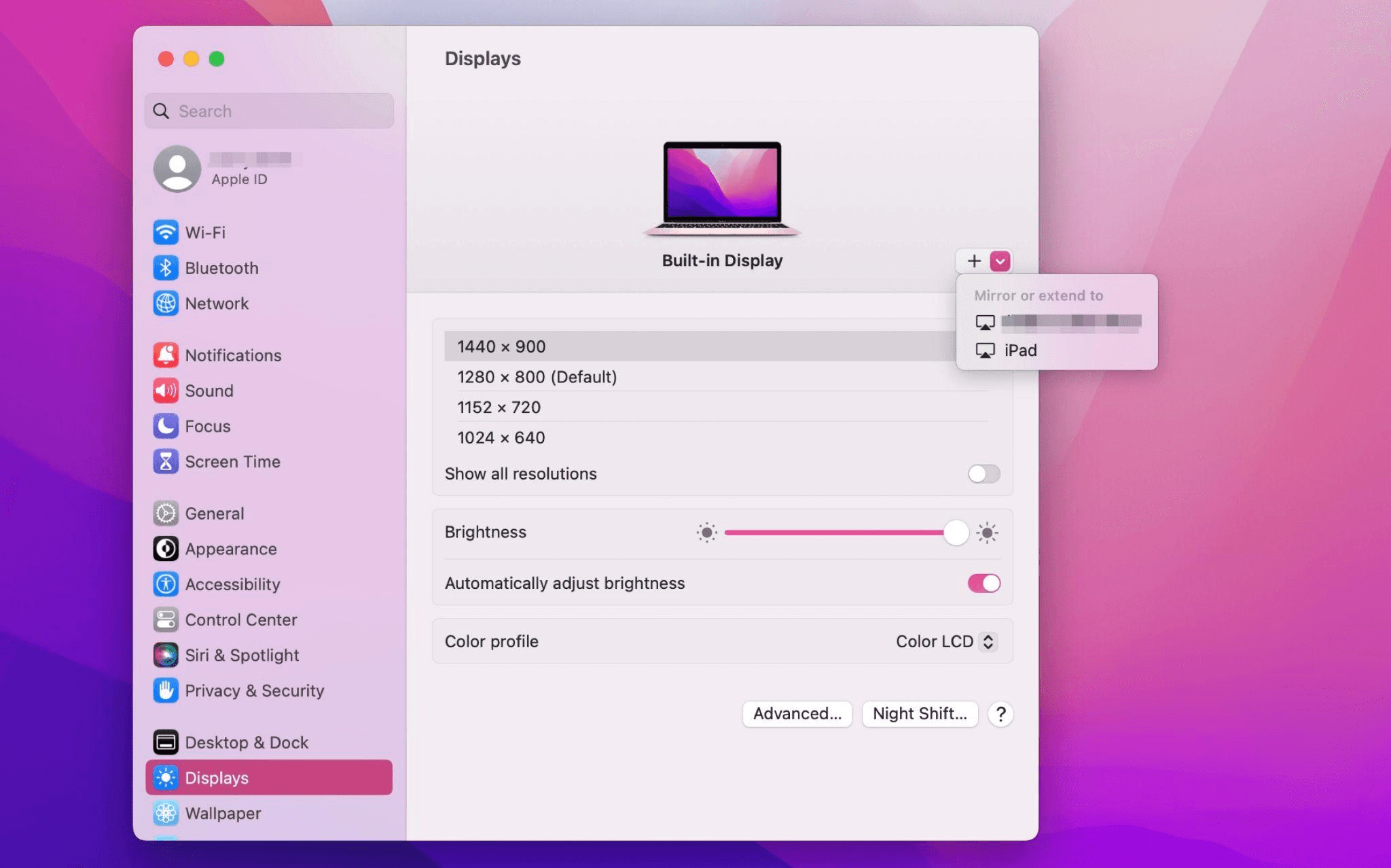
Chọn iPad, đổi thiết lập Use as thành "Extended Display". Kiểm tra cài đặt Airplay trên thanh công cụ trên cùng của Mac và đặt iPad là "Use As Separate Display".
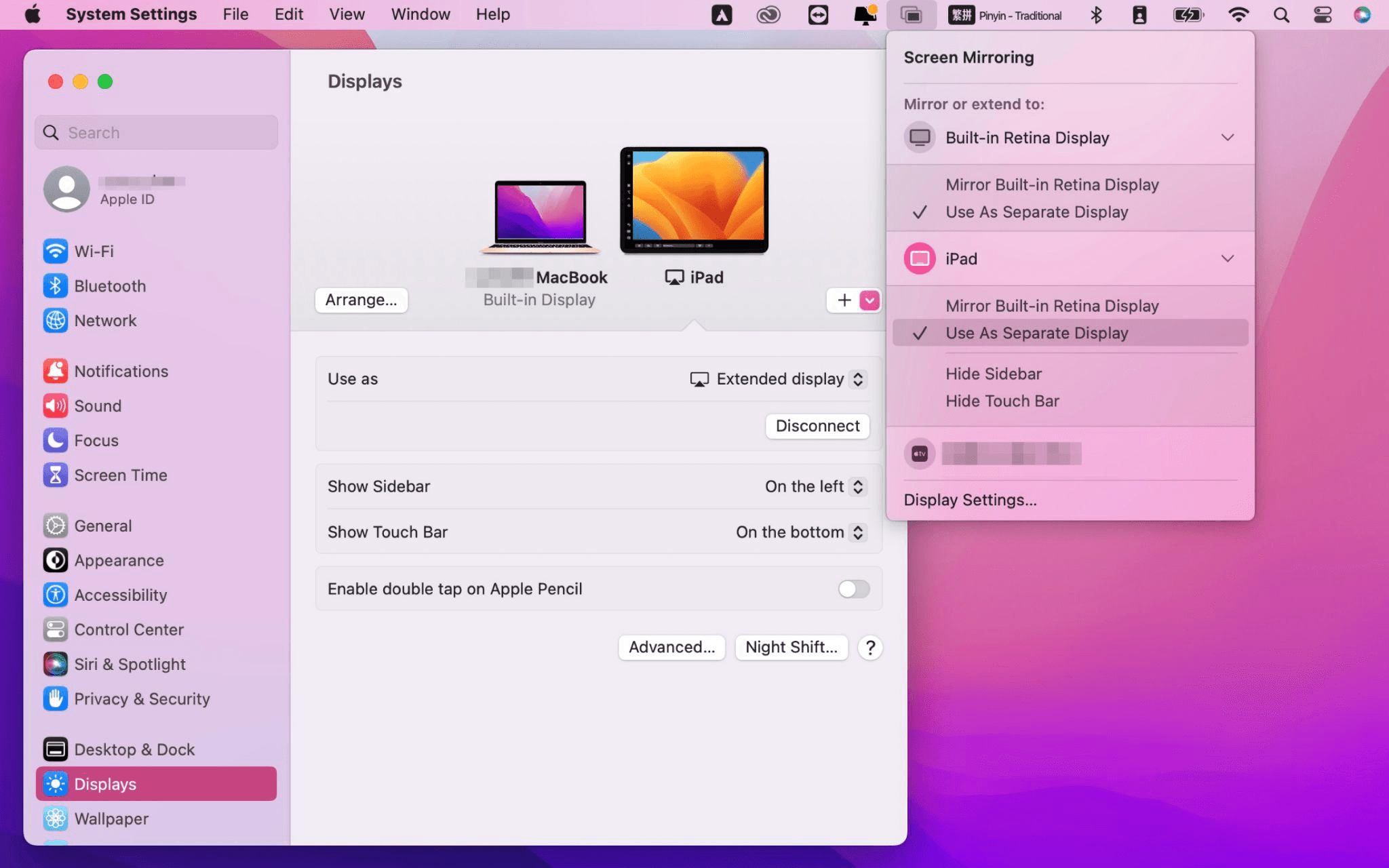
Sau khi hoàn tất cài đặt, iPad của bạn sẽ trở thành màn hình thứ hai cho máy Mac. Bạn có thể kéo thả cửa sổ từ Mac sang iPad một cách mượt mà. Bạn cũng có thể dùng thanh bên trên iPad hoặc thay đổi vị trí thanh bên trong cài đặt hiển thị của hệ thống.
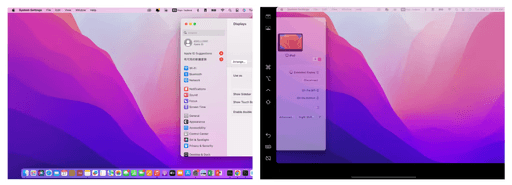
Màn hình MacBook (Trái) và màn hình iPad (Phải)
Apple Sidecar chỉ hỗ trợ máy Mac phát hành sau năm 2016 và iPadOS 13 trở lên. Nếu bạn đang dùng thiết bị Apple đời cũ hoặc thiết bị Windows, bạn vẫn có thể dùng phần mềm điều khiển từ xa DeskIn để mở rộng màn hình. Phần mềm này hỗ trợ dùng iPad làm màn hình thứ hai cho cả Mac và Windows, và độ mượt không hề kém Sidecar.
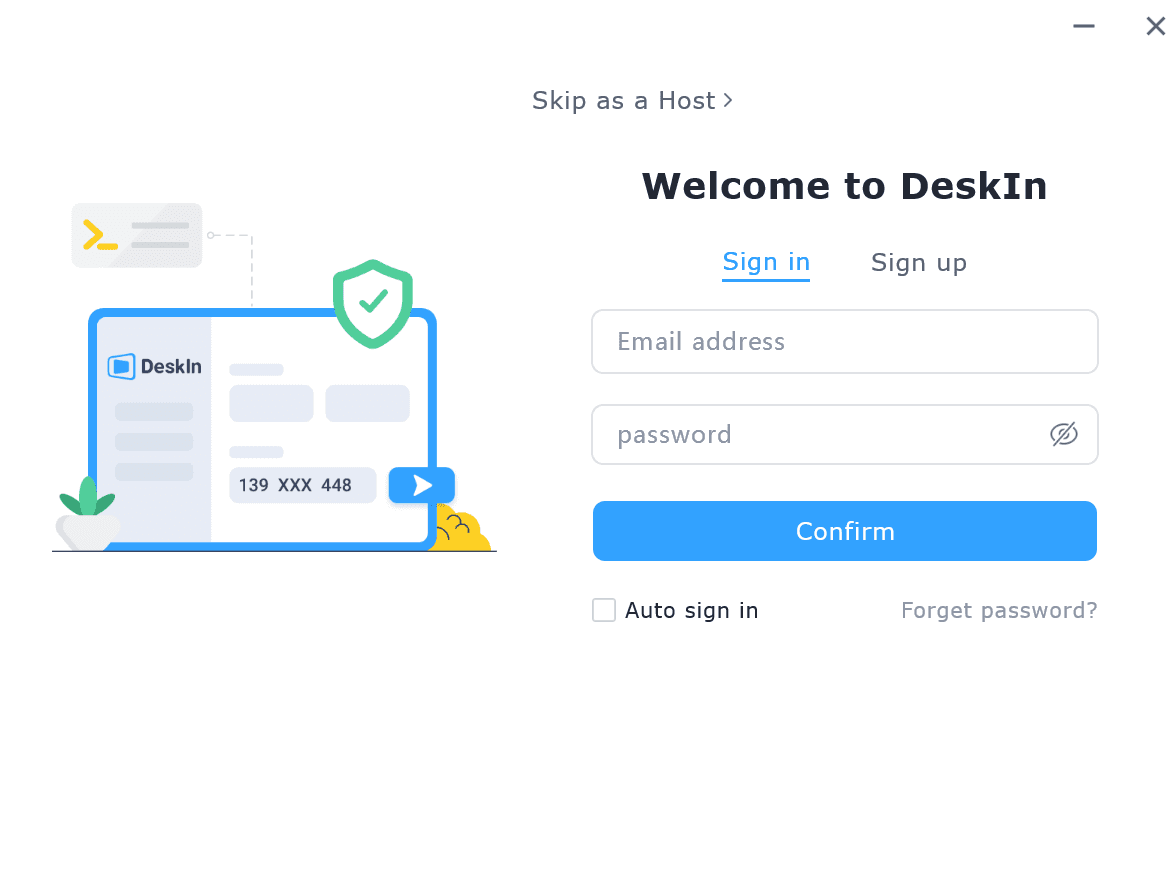
Tải DeskIn trên máy tính và iPad của bạn, đăng ký tài khoản miễn phí và đăng nhập trên từng thiết bị.

Lưu ý: Lần đầu đăng nhập vào một thiết bị mới, bạn cần hoàn tất xác minh email để bảo vệ an toàn cho tài khoản của mình.
Mở ứng dụng DeskIn trên máy tính Windows/Mac >> Vào tab "Screen Mgt" >> Nhấp “Extend my screen”
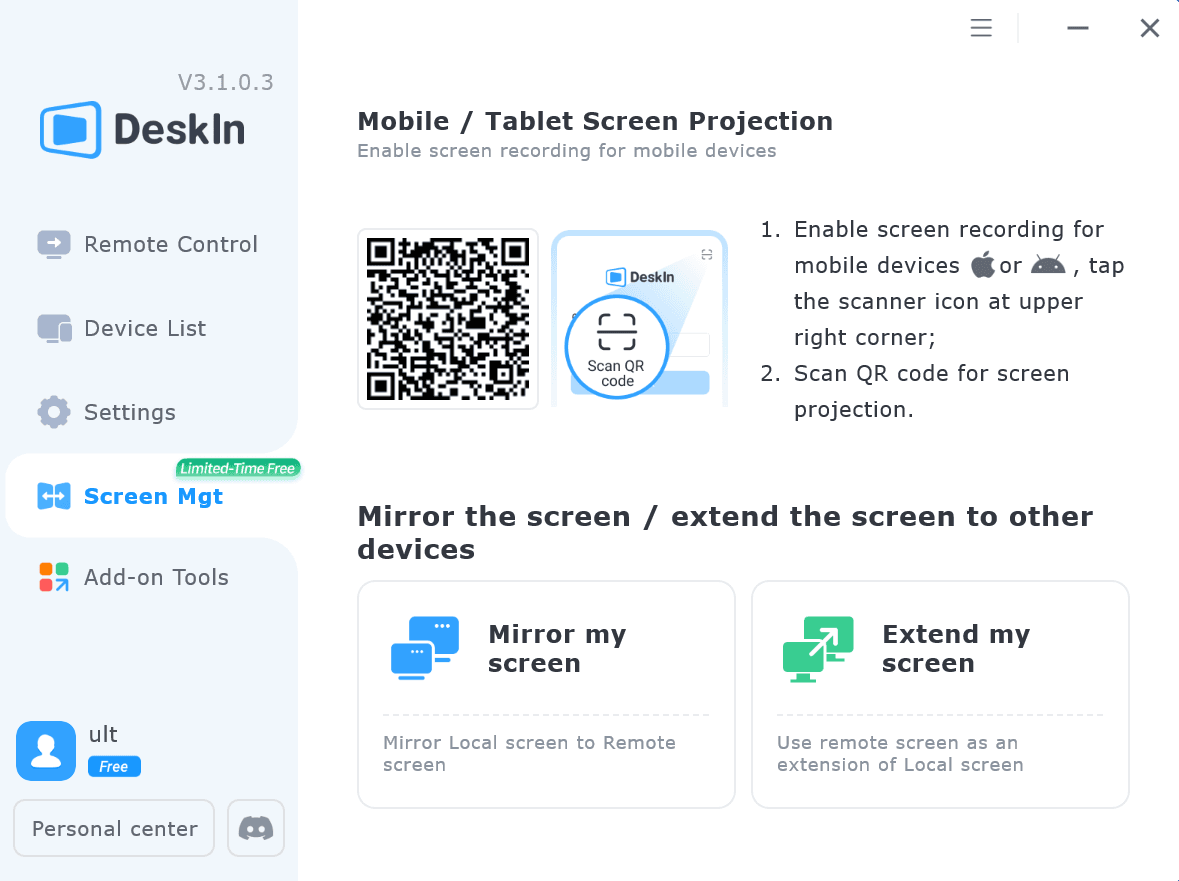
Chọn iPad của bạn và nhấp “Start Extending”. Sau khi kết nối, iPad sẽ trở thành màn hình thứ hai của máy tính Windows/Mac, bạn có thể di chuyển cửa sổ giữa hai màn hình như thể chúng là một.
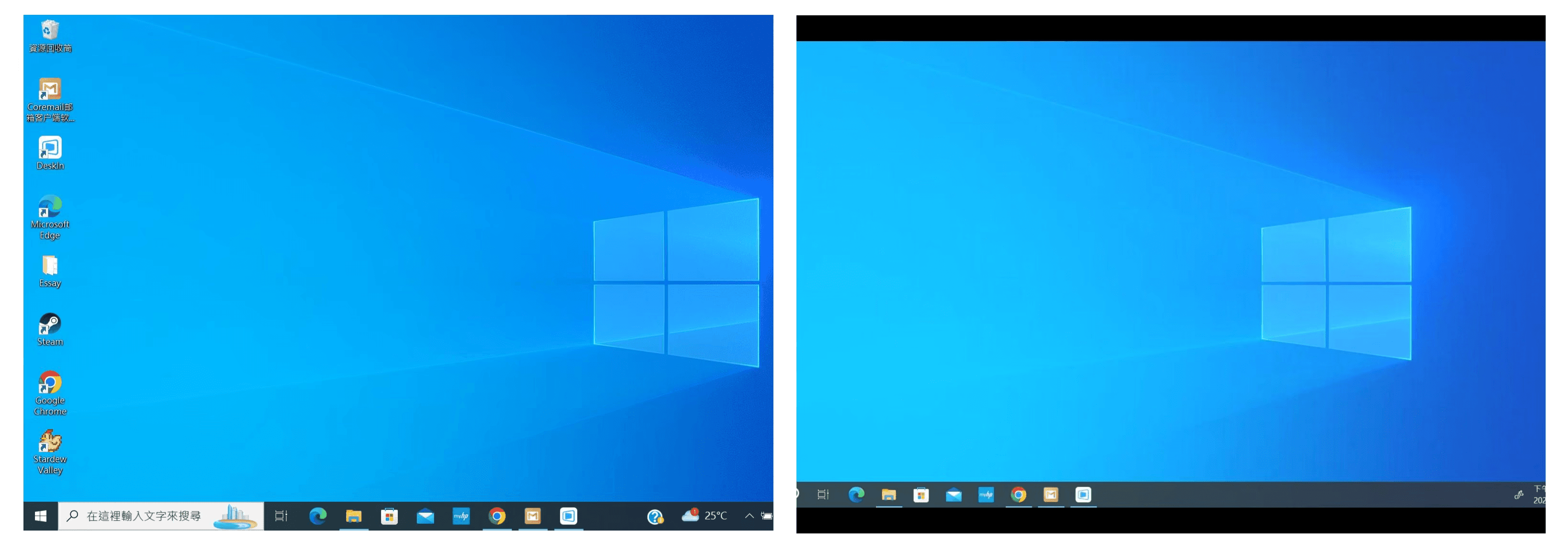
Màn hình máy tính (Trái) và màn hình iPad (Phải)
Sau khi mở rộng, nếu bạn thấy iPad chỉ đang phản chiếu nội dung trên màn hình máy tính, vui lòng vào Cài đặt hệ thống Windows >> Cài đặt hiển thị và đổi tùy chọn màn hình thành "Extend these displays". Bạn cũng có thể chỉnh vị trí màn hình bằng cách kéo thả 2 màn hình.
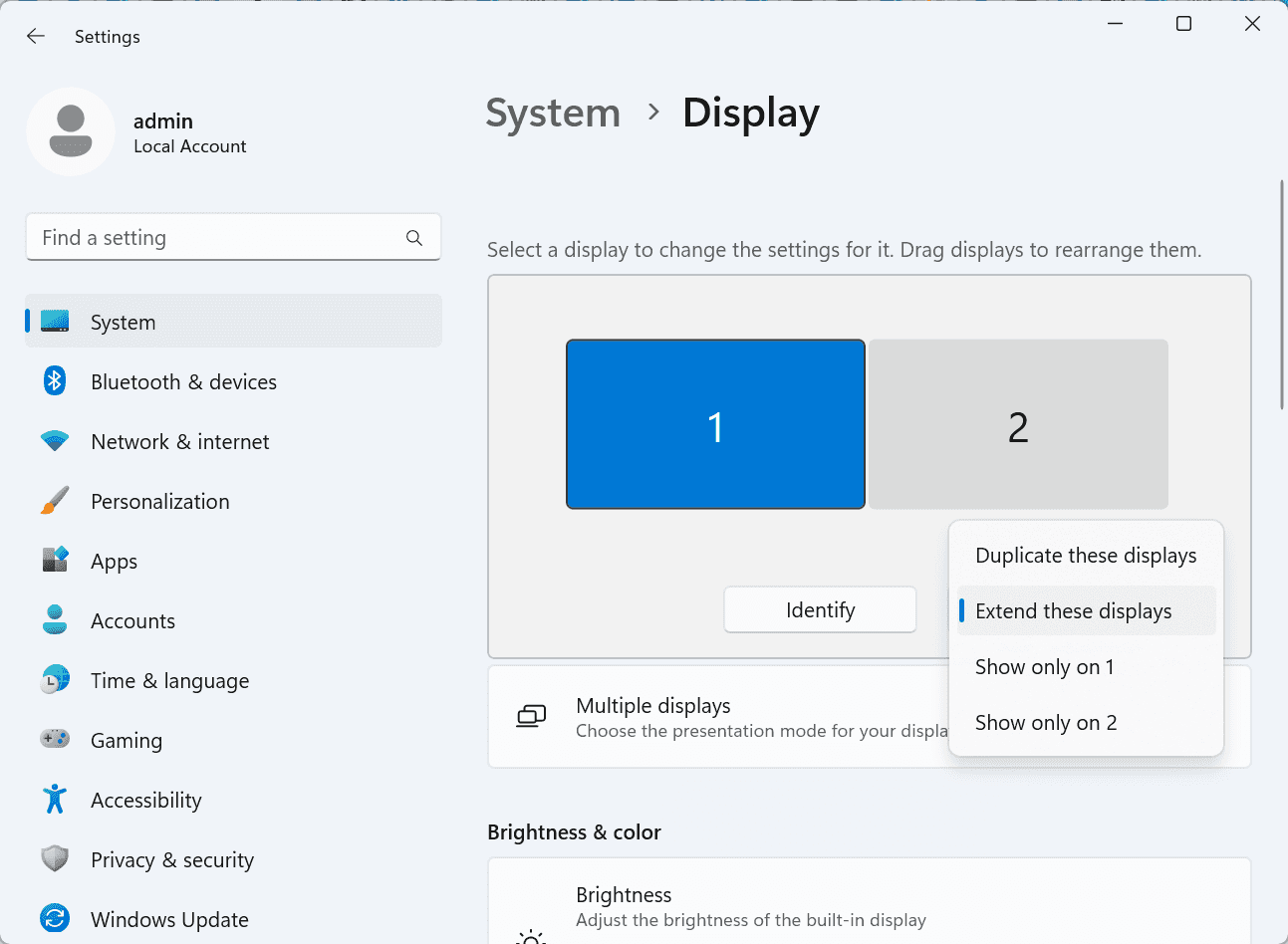
Bài viết này giới thiệu cách sử dụng phần mềm điều khiển máy tính từ xa DeskIn để biến iPad thành "màn hình thứ hai" cho máy tính Mac và Windows. Điều này đặc biệt hữu ích cho những người cần xử lý nhiều tác vụ cùng lúc và muốn nâng cao năng suất. Nếu bạn đang tìm một công cụ mở rộng màn hình hoạt động trên MacBook, iPad, máy tính bảng Android và PC Windows, DeskIn remote desktop là giải pháp tốt nhất dành cho bạn. Hãy tải DeskIn và dùng thử ngay!
How to Play MapleStory Classic World on Mac
A lot of the players who are most excited about MapleStory Classic World grew up on 2005-era MapleStory — and a large share of that generation now does its computing on a MacBook. Nexon clearly knows this: a native macOS client was on the feature list for the second Closed Online Test, which ran August 4–12, 2026, alongside Ossyria and third job advancement. But as of this writing, that Mac client is still in development, not publicly available, and there's still no confirmed public launch date for the game itself.
So if you want to play MapleStory Classic World on a Mac right now — or want a reliable plan for when the game does launch — you've got two real options: run Windows in a virtual machine, or use DeskIn remote desktop to control an actual Windows PC from your Mac. This guide covers both, including a login-conflict issue that catches a lot of virtual machine users off guard.
Not yet, publicly. Nexon's May 2026 roadmap update confirmed macOS support is in development, and it appeared as a testable feature in the second Closed Online Test. Windows PC remains the confirmed launch platform, and Nexon hasn't said whether the Mac client will be ready at launch or arrive afterward. The game hasn't had a full public release on any platform — Nexon has said one more test is planned before launch.
Given that, Mac players currently have two ways in: a Windows virtual machine, or remote desktop software that connects to a real Windows PC.
Classic World is exclusive to GMS (Global MapleStory), covering North America, Europe, and most other regions without a local Nexon partner. Markets with their own official MapleStory service — Korea, China, Japan, Taiwan/Hong Kong, and Southeast Asia — aren't GMS-eligible, so Mac players in those regions would need a VPN to reach Classic World, which isn't recommended. Whether NA and EU will run as separate worlds hasn't been confirmed.
Tools like Parallels Desktop or VMware Fusion let you run a full Windows install inside macOS, and then install MapleStory Classic World the way a Windows user would. It works, but it asks a lot of your Mac's hardware.
RAM: 16GB minimum recommended; 8GB is genuinely tight, since macOS and Windows are both running at once and macOS alone can eat most of that before Windows gets a share. For a comfortable setup with guides or Discord open on the side, aim for 32GB.
CPU/GPU: Virtual machines can't pass hardware through at 100%; graphics get software-emulated, which typically costs 20–30% of the performance you'd get on native Windows hardware.
Thermals: Running two full operating systems under load generates real heat, and laptop-class Macs with limited cooling can throttle during longer grinding sessions.
Apple Silicon translation overhead: M-series Macs can only run Windows on ARM in a VM. If Classic World ships as an x86/x64 build, it needs an extra translation layer to run at all, stacking on top of the virtualization overhead already mentioned.
Anti-cheat compatibility is a real unknown: the original MapleStory has historically been hostile to virtualized environments because of its anti-cheat system, and Nexon hasn't said how Classic World's anti-cheat will treat VMs. Treat virtualization as a maybe, not a guaranteed plan.
There's also the practical overhead: setting up a VM means downloading a Windows image, allocating dozens of gigabytes of disk space, installing display drivers, and — on Apple Silicon — dealing with ARM compatibility quirks that don't show up on a real x86 PC. Keyboard shortcuts can also conflict, since macOS system shortcuts (Control, Option, Command) don't always play nicely with a Windows game's default keybinds.
Instead of building a Windows environment inside your Mac, DeskIn lets you connect directly to a Windows PC you already have — your desktop at home, a work machine, or a spare laptop — and control it from your Mac in real time. The game runs on genuine Windows hardware the whole time, so there's no emulation tax, no ARM translation layer, and no anti-cheat guessing game.
A virtual machine makes sense if:
You don't have access to any Windows PC at all, so a Mac VM is your only option.
Your Mac has strong specs — 16GB+ RAM, ideally 32GB, and a higher-end M-series chip that can absorb the performance loss.
You're comfortable with a fairly technical setup process.
You rarely need to switch between devices, so the single-login limitation isn't a practical issue for you.
DeskIn makes more sense if:
You already have a Windows PC (or another Mac) that can run MapleStory Classic World, and you just want to reach it from your MacBook.
You're traveling or away from your desk often and want to pick up where you left off without re-downloading anything.
You don't want to deal with logging out of one device every time you switch to another.
Your Mac has more modest specs, and you'd rather not risk stutters, crashes, or a game that won't launch at all.
If you already own a Windows machine, DeskIn is generally the lower-effort, lower-risk choice. A VM is really a fallback for players with no Windows access and a Mac powerful enough to absorb the overhead.
Step 1: Set up the Windows PC. Install MapleStory Classic World on a Windows PC and create your character, then install DeskIn on that same PC, sign in, and enable unattended access with a connection password so you can reach it later without anyone at the keyboard.
Step 2: Install DeskIn on your Mac. Download the macOS version of DeskIn, sign in with the same account, and your Windows PC will appear in your device list.
Step 3: Connect. Select the PC, enter the connection password, and you'll get a live view of the Windows desktop that you control with your Mac's mouse and trackpad — the same session, the same login, no conflicts.
Step 4: Tune quality for your connection. On a stable connection, push quality up to enjoy Classic World's remastered pixel art in full detail; on the road, prioritize smoothness to cut down on input lag.
Step 5: Log in and play. Open the game inside the remote session and log in as usual — grinding, party quests, and shopping all work exactly as they would sitting at the PC directly.
Resolution and quality: Free-tier users should start around 720p/30fps for a stable baseline; paid-tier users can push up to 4K 60FPS or 2K 240FPS on a strong connection to get the most out of Classic World's art.
Screen scaling: If your Mac and Windows PC have very different display sizes, use DeskIn's automatic scaling option in the toolbar, or adjust the remote PC's resolution to match your Mac's screen more closely.
Keyboard and mouse mapping: DeskIn maps your Mac's keyboard directly to the remote PC. Turning on Game Mouse mode prevents the keyboard from getting locked mid-session.
Controller support: If Mac keyboard controls feel awkward, pair a controller to your Mac and enable controller mapping from the toolbar — DeskIn will pass those inputs straight through to the remote PC.
Simple Setup:No Windows installation required — connect and start playing within minutes.
Doesn't tax your Mac's hardware. All the actual computation happens on the remote Windows PC; your Mac just displays the stream and sends inputs.
Performance and compatibility match native Windows, because that's exactly what's running — no ARM translation layer to worry about.
No account login conflicts, since DeskIn connects to the same existing session instead of creating a new device.
Cross-device flexibility. The same account lets you connect from Mac, iPhone, iPad, or Android, and it's always the same underlying session — no juggling logins between devices.
Not publicly yet. Nexon has confirmed a macOS client is in development and tested it in the second Closed Online Test, but Windows remains the confirmed launch platform and no public Mac release has shipped.
Yes. DeskIn uses end-to-end encryption and two-factor login, and since you're remotely operating a PC you already control, your credentials never pass through a third party.
Technically you can install one, but the experience will be rough. With 8GB split between macOS and Windows, there's very little left over for Windows, and stutters or crashes become likely during longer sessions. DeskIn is the more stable option here, since the remote PC handles all the processing — your Mac's RAM isn't a bottleneck.
Real-world performance depends on both ends' network quality, but since DeskIn connects to native Windows hardware with no virtualization overhead, and its low-latency streaming keeps end-to-end delay under 40ms on a good connection, it typically feels smoother than a resource-constrained VM.
No. DeskIn controls the same PC and the same already-active session rather than logging in as a new device, so it doesn't trigger MapleStory's single-session login limit — this is exactly the conflict that trips up VM users switching between two separate Windows installs.
DeskIn needs a Windows (or other supported platform) machine to connect to. If you don't have one, consider borrowing access to a friend's or family member's PC, or renting a cloud Windows machine as your connection target.
DeskIn supports Windows, macOS, iOS, and Android. A Mac can connect to a Windows PC, and a Windows PC can just as easily connect to and control a Mac.
MapleStory Classic World doesn't have a public Mac client yet, but that doesn't mean Mac players have to gamble on a resource-hungry virtual machine and hope the anti-cheat cooperates. If you already have access to a Windows PC that can run the game — or even another Mac — connecting to it through DeskIn gets you native Windows performance, none of the virtualization overhead, and none of the account-login headaches that come with running a second "device." Set it up once, and you'll be ready to log in the moment Classic World opens its doors.
How to Play MapleStory Classic World on Mobile Before the Official App Arrives
MapleStory Classic World has turned into one of the most-searched topics in the MapleStory community this year. Nexon's pre-Big Bang server pulled in roughly 5,000 players for its first Closed Online Test back in April 2026, and thousands more signed up for the second test that ran August 4–12, 2026. With Ossyria, third job advancement, and controller support now confirmed, interest has never been higher — and a lot of that interest is coming from players who want to know one thing: can you play MapleStory Classic World on your phone?
Short answer: not with an official app, not yet. This guide breaks down exactly what Nexon has confirmed about platforms so far, then walks through how DeskIn remote desktop lets you play MapleStory Classic World on mobile right now, without waiting on an app that hasn't been announced.
As of this writing, Nexon has not announced a mobile or console version of MapleStory Classic World. The confirmed platforms are Windows PC and macOS — macOS support was specifically added as a testable feature during the second Closed Online Test in August 2026, alongside Ossyria and third job advancement, but it's still listed as "in development" rather than publicly available.
There's also no full public launch date yet. Nexon has run two Closed Online Tests so far and has said one more test is planned before release, so most community trackers currently estimate a launch window in late 2026 or early 2027 — but that's community speculation, not an official date.
Put simply: if you want to play MapleStory Classic World on a phone or tablet today, a native app isn't an option. The only practical route is streaming the PC version from a Windows machine you already have access to.
Classic World is exclusive to GMS (Global MapleStory), Nexon's English-language service for North America, Europe, and most other regions without a local Nexon partner. Players in markets with their own official MapleStory service — Korea, China, Japan, Taiwan/Hong Kong, and Southeast Asia — aren't eligible for GMS accounts, so Classic World isn't accessible there without a VPN, which isn't recommended. It's not yet confirmed whether NA and EU will run as separate worlds within Classic World.
DeskIn is a cross-platform remote desktop app built specifically with PC gaming in mind, and it maps well onto exactly the problem MapleStory Classic World mobile players are trying to solve.
Stable, low-latency connections. DeskIn's ZeroSync® engine keeps end-to-end latency under 40ms on a good connection and automatically reroutes around congested paths, so grinding, dodging, and skill combos in Classic World's classic-era combat don't feel delayed.
Up to 4K 60FPS / 2K 240FPS streaming. Classic World's remastered pixel art holds up well when it isn't compressed into mush — DeskIn's streaming keeps text and sprites sharp even on a phone screen.
You're connecting to your own PC, not emulating one. DeskIn doesn't run Windows inside your phone; it streams the display of a Windows computer you control and sends your inputs back in real time. That means full compatibility and full performance — no emulation layer to fight with.
End-to-end encryption and two-factor login. Sessions are encrypted end-to-end, and you can set an allowlist of authorized devices, so only you can connect to your own PC.
Flexible, per-character keybinds. Classic World's Warrior, Magician, Bowman, and Thief classes each use very different skill layouts. DeskIn's on-screen game keyboard lets you build a custom key layout and save it as its own profile, so you can switch between characters without re-mapping keys every time.
Built-in virtual mouse. In pointer mode, DeskIn adds virtual left/right mouse buttons over the stream, which makes precise UI clicks — inventory, cash shop, trade windows — far easier than tapping blindly on a touchscreen.
Once you're connected, mobile play through DeskIn covers pretty much everything you'd do sitting at your PC:
Daily quests and login rewards — knock these out on your commute instead of waiting until you're home.
Cash shop browsing — scroll and preview cosmetics with touch gestures just like any shopping app.
Grinding and leveling — use the virtual directional pad and skill-key layout to keep training in familiar maps.
Party quests — latency low enough to keep up with a party's pacing on runs like Kerning City PQ.
Trading and the marketplace — check prices and list items using the virtual mouse for precise clicks.
Guild chat and messaging — reply to your guild or party the moment something comes up.
Step 1: Set up DeskIn on the Windows PC running Classic World. Install DeskIn on the PC where you've registered for testing (or where the game is installed once it launches), sign in, and turn on unattended access so the PC can be reached without anyone sitting in front of it.
Step 2: Install the DeskIn app on your phone. Download DeskIn from the App Store or Google Play, sign in with the same account, and your PC will show up in the device list.
Step 3: Connect and switch to pointer mode. Tap your PC to connect, then switch the control mode from touch to pointer — this unlocks the customizable virtual keyboard and virtual mouse.
Step 4: Browsing the cash shop. Drag to move the cursor and tap the virtual mouse buttons to click through menus and item previews, exactly like using a mouse on a desktop.
Step 5: Grinding. Open the game keyboard menu, build a layout with your movement keys and skill keys, and save it as a profile. Pull it up any time you start a grinding session.
Step 6: Pick the right streaming quality for your connection. On mobile data, prioritize smoothness over resolution to cut down on input delay; on Wi-Fi, bump the quality up to enjoy Classic World's remastered art at full clarity.
A tablet's bigger screen is a natural fit for content that needs either more reading room or more precision — daily quest text and boss encounters both qualify.
Step 1: Same setup as mobile. Install DeskIn on your iPad or Android tablet and sign in — connection steps are identical to the phone app.
Step 2: Daily quests. The larger display makes quest text, item descriptions, and map markers easier to read at a glance, so you're less likely to misread an objective mid-run.
Step 3: Boss fights. Bosses demand precise dodges and timing that touch controls alone can struggle with — pair your tablet with a Bluetooth keyboard and mouse, or a controller (see below), instead of relying on the virtual keyboard.
Step 4: Bump the frame rate for boss content. Choose a higher refresh setting in DeskIn's connection options so skill telegraphs and boss patterns read clearly in real time.
Step 5: Use split-screen for guide lookups. Run DeskIn alongside a browser or notes app in split view to check attack patterns without leaving the fight.
If virtual buttons don't feel precise enough, DeskIn supports Bluetooth controllers, including Xbox, PlayStation, and several third-party pads.
Step 1: Pair the controller with your phone. Use your phone's Bluetooth settings to pair the controller first.
Step 2: Connect through DeskIn. Once connected to your PC, DeskIn automatically detects the paired controller — no extra driver install needed.
Step 3: Test your inputs. Head into a training map first and confirm movement, attacks, and skills map to the buttons you expect before jumping into content that matters.
Step 4: Favor smoothness for fast-paced play. When you're actively grinding or fighting with a controller, prioritize DeskIn's smoothness setting over max resolution for the most responsive feel.
Running a Warrior and a Bowman means running two very different skill bars. Here's how to keep them separate in DeskIn instead of re-mapping keys every login:
Step 1: Switch to pointer mode and open the game keyboard menu. After connecting, switch to pointer mode and open DeskIn's game keyboard settings.
Step 2: Create a new keyboard layout. Tap "New Keyboard" and add your movement pad, skill keys, and item keys to match your current character's build.
Step 3: Name it by character or class. Label the layout something identifiable — "Bowman" or "Main Warrior" — and save it.
Step 4: Load the right profile when you switch characters. Before logging into a different character, select its saved layout from the game keyboard menu instead of rebuilding it from scratch.
Step 5: Update layouts as skills change. When a class gets rebalanced or you unlock new skills after a job advancement, go back into that profile and add the new keys.
No. Nexon has not announced a mobile or console version. Confirmed platforms are Windows, with a macOS client currently in development.
Nexon hasn't announced a public release date. Two Closed Online Tests have run so far (April 16–24 and August 4–12, 2026), with one more test planned before launch. Community estimates point to late 2026 or early 2027, but that isn't official.
No. DeskIn remotely operates your own PC and sends the same mouse and keyboard input you'd normally use — it isn't a macro, bot, or memory-editing tool, so it doesn't behave like the automation that anti-cheat systems are built to catch.
DeskIn's low-latency streaming keeps things playable on a stable connection, generally noticeably smoother than trying to force a browser workaround. Real-world latency still depends on both ends' network quality, so Wi-Fi is recommended over cellular when possible.
For checking dailies or browsing the shop occasionally, the free plan typically covers it. If you plan to grind for long sessions, use a controller regularly, or manage several devices, a paid plan unlocks higher streaming quality and additional features.
Setup and connection steps are identical. The difference is screen size — phones are handy for quick, single-hand tasks like dailies and the shop, while tablets are better suited to boss fights and content where you want a controller or external keyboard.
Until Nexon ships a mobile client — if one ever gets announced — DeskIn is the most practical way to keep playing MapleStory Classic World away from your desk. Install it on both your gaming PC and your phone or tablet, set up a keybind profile per character, and you can knock out dailies, grind, and even tackle boss fights without being tied to a monitor.
Products
Tải xuống
Resources
Contact Us
Email: support@deskin.io
Office: 991D Alexandra Road #02-17, Singapore 119972
Copyright © 2026 Zuler Technology PTE. LTD. All rights reserved.
Contact Us
Email: support@deskin.io
Office: 991D Alexandra Road #02-17, Singapore 119972
Products
Tải xuống
Resources
Copyright © 2026 Zuler Technology PTE. LTD. All rights reserved.
Products
Tải xuống
Resources
Contact Us
support@deskin.io
991D Alexandra Road #02-17
Singapore 119972
Copyright © 2026 Zuler Technology PTE. LTD. All rights reserved.
【New User Special Offer】
Save
Extra 20%
on your first order|4K60FPS
Extra
20% Off
|For
New Users
【New User Special Offer】
Save
Extra 20%
on first order


