Cách làm
Cách làm
/
5 phút
/
5 phút
GA
Đã cập nhật
Đã cập nhật
Đã cập nhật
Hãy tưởng tượng thế này: mẹ bạn gọi điện trong hoảng loạn vì “Wi-Fi bị mất rồi.” Hoặc bạn thân của bạn không thể tìm ra cách tắt cài đặt bí ẩn đang làm hao pin. Bạn cố giải thích qua điện thoại, nhưng giống như mô tả một màu sắc cho người chưa từng nhìn thấy nó vậy, khiến cả hai bên đều bực bội.

Sẽ dễ hơn nhiều nếu bạn chỉ cần chia sẻ màn hình iPhone sang iPhone và nhìn chính xác những gì họ đang thấy, phải không? Tốt hơn nữa, bạn có thể hướng dẫn họ khắc phục theo thời gian thực mà không cần rời khỏi ghế sofa?
Đó chính xác là điều mà việc truy cập iPhone từ xa từ một iPhone khác có thể làm được. Và trong hướng dẫn này, chúng ta sẽ phân tích đó là gì, vì sao bạn có thể cần nó, và cách tốt nhất để thực hiện bằng DeskIn, một ứng dụng truy cập từ xa mạnh mẽ, an toàn và dễ sử dụng.
Đề xuất đọc: Hướng dẫn đầy đủ năm 2025 về chia sẻ màn hình iPhone với iPad
Nói đơn giản, truy cập từ xa là dùng thiết bị của bạn để xem và điều khiển màn hình của một iPhone khác; tương tự như cầm điện thoại của người khác trong tay mà không thực sự cầm nó.
Dù một số nền tảng khiến việc điều khiển iPhone từ xa trở nên cực kỳ dễ dàng, thế giới iOS lại không như vậy. Apple giới hạn rất chặt những gì bạn được phép làm từ xa. May mắn là bạn vẫn có thể chia sẻ màn hình iPhone sang iPhone, trao đổi để xử lý nhiều lỗi, và phối hợp theo thời gian thực.
Hãy hình dung nó như sự kết hợp giữa chia sẻ màn hình và một người hướng dẫn cá nhân; bạn thấy điều gì đang diễn ra, họ thấy chỗ cần chạm, và vấn đề được giải quyết nhanh hơn.
Truy cập iPhone từ xa không chỉ dành cho dân IT trong phòng máy chủ. Dưới đây là vài tình huống thường ngày mà biết cách điều khiển iPhone từ xa trở thành siêu năng lực của bạn:
Bạn đã từng cố giải thích “vào Cài đặt > Wi‑Fi” cho ai đó cứ khẳng định họ đang ở Cài đặt nhưng thực ra lại ở Ghi chú chưa? Với chia sẻ màn hình iPhone sang iPhone, bạn có thể thấy chính xác những gì họ thấy và chỉ họ đi đúng hướng.
Nếu bạn điều hành doanh nghiệp nhỏ, đào tạo ứng dụng, hoặc hỗ trợ khách hàng về công cụ di động, truy cập từ xa giúp bạn hướng dẫn họ qua từng tính năng mà không cần gửi email dài như tiểu thuyết.
Đang thử nghiệm ứng dụng? Đánh giá bản mẫu thiết kế? Giờ đây bạn có thể xem thay đổi trực tiếp, đưa phản hồi tức thì và tránh cảnh gửi ảnh chụp màn hình qua lại.
Đôi khi bạn muốn đảm bảo con mình không vô tình chỉnh sai cài đặt kiểm soát của phụ huynh. Thỉnh thoảng bạn cần hướng dẫn chúng dùng ứng dụng làm bài tập. Truy cập từ xa giúp bạn hỗ trợ mà không cần đứng kè kè bên cạnh.
Apple không cho phép điều khiển hoàn toàn thiết bị iOS từ xa trừ khi máy đã jailbreak. Tuy có một số ít người sẵn sàng làm vậy, nhưng với phần lớn mọi người thì đó là một câu trả lời “KHÔNG” lớn. Jailbreak làm mất bảo hành, tạo lỗ hổng bảo mật và có thể khiến iPhone hoạt động không ổn định.
Dù vậy, bạn vẫn có thể:
Xem màn hình iPhone khác theo thời gian thực
Trao đổi về sự cố trong khi chia sẻ màn hình
Đưa hướng dẫn thao tác chạm mà không cần cách làm rủi ro
Đây là lúc DeskIn phát huy tác dụng. Dù bạn không thể trực tiếp “lái” iPhone của người khác như máy tính từ xa, bạn vẫn có thể hướng dẫn họ theo cách hiệu quả tương đương cho hỗ trợ, giảng dạy và cộng tác.
Nghe đúng thứ bạn cần? Tải DeskIn và thử cách truy cập iPhone từ xa an toàn, dễ dàng nhất có thể, ngay từ túi của bạn.

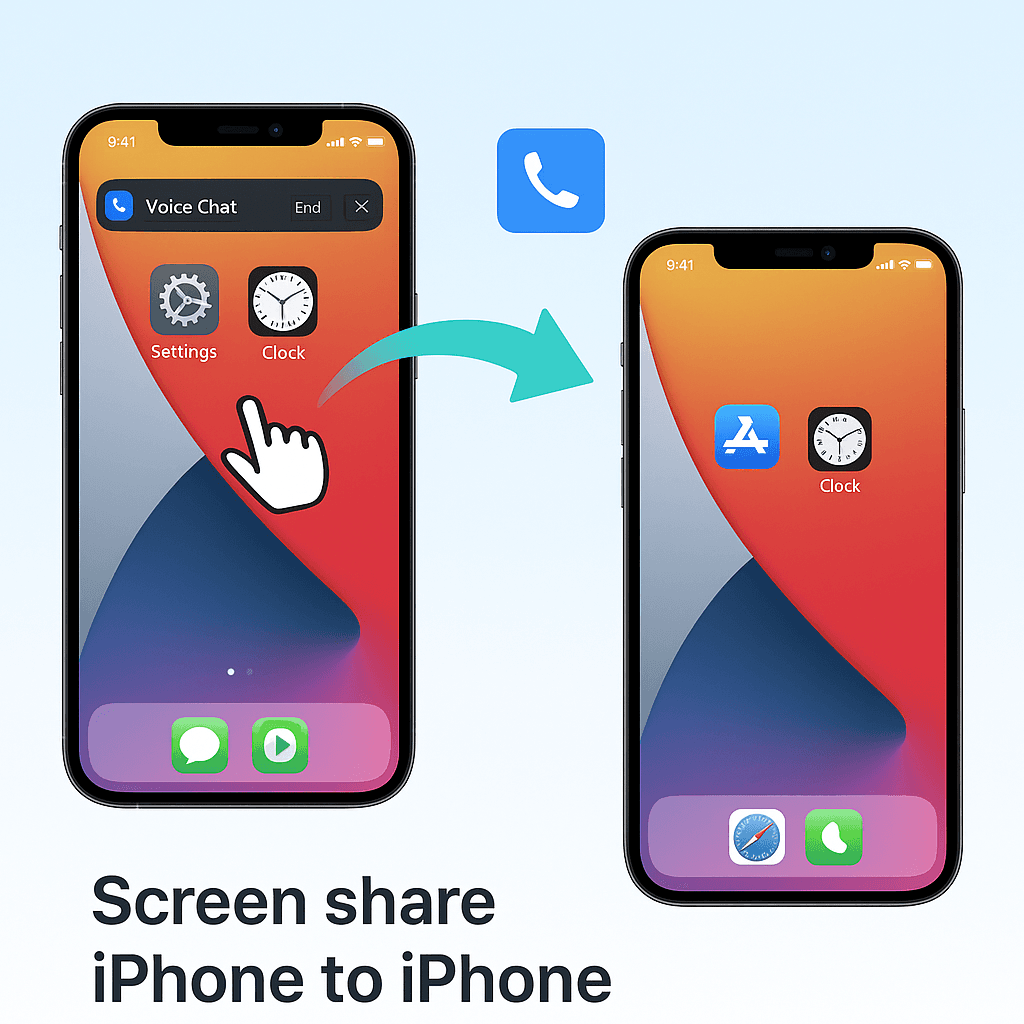
DeskIn giúp hỗ trợ từ xa trên iPhone trở nên đơn giản, an toàn và nhanh chóng, không đau đầu kỹ thuật, không cách làm rủi ro. Dù bạn đang giúp người thân, đào tạo khách hàng hay thử nghiệm ứng dụng, nó được thiết kế để hoạt động mượt mà giữa các thiết bị iOS.
Đây là những gì bạn nhận được:
Chia sẻ màn hình theo thời gian thực (iOS ↔ iOS): Xem ngay màn hình iPhone khác để bạn có thể hướng dẫn từng bước mà không phải đoán xem phía bên kia đang xảy ra chuyện gì.
Độ trễ siêu thấp (≤40ms): Gần như không có độ trễ, chia sẻ màn hình iPhone sang iPhone cho cảm giác tự nhiên và phản hồi nhanh, dù bạn đang chỉ một tùy chọn menu hay cùng xem một ứng dụng.
Thiết kế ưu tiên di động, tối ưu cho cảm ứng: DeskIn rất dễ dùng. Không còn thao tác desktop gượng gạo, ứng dụng được xây dựng cho chạm, vuốt và cử chỉ bằng ngón tay, giúp điều khiển iPhone từ xa trực quan cho cả hai bên.
Không cần jailbreak hay thiết lập rủi ro: Bạn có thể truy cập từ xa một iPhone từ iPhone khác mà không ảnh hưởng bảo mật hay mất bảo hành. Mỗi phiên đều yêu cầu mật khẩu hoặc xác minh thủ công yêu cầu kết nối, cho bạn toàn quyền kiểm soát ai có thể xem màn hình của mình.
Tích hợp trò chuyện thoại và điều khiển phiên: Nói chuyện theo thời gian thực, hướng dẫn bằng lời và quản lý phiên chỉ với một lần chạm — mọi thứ bạn cần để hỗ trợ iPhone từ xa mượt mà trong một ứng dụng.
Với DeskIn, truy cập iPhone từ xa trở thành hiện thực an toàn và thiết thực — hoàn hảo cho hỗ trợ kỹ thuật, cộng tác hoặc xử lý sự cố nhanh ở bất cứ đâu.
Bắt đầu truy cập từ xa một iPhone từ iPhone khác bằng DeskIn chỉ mất vài phút. Hãy làm theo các bước đơn giản sau:
Cài DeskIn trên cả hai iPhone: Tải DeskIn từ App Store và cài trên cả thiết bị “hỗ trợ” và “nhận hỗ trợ”.
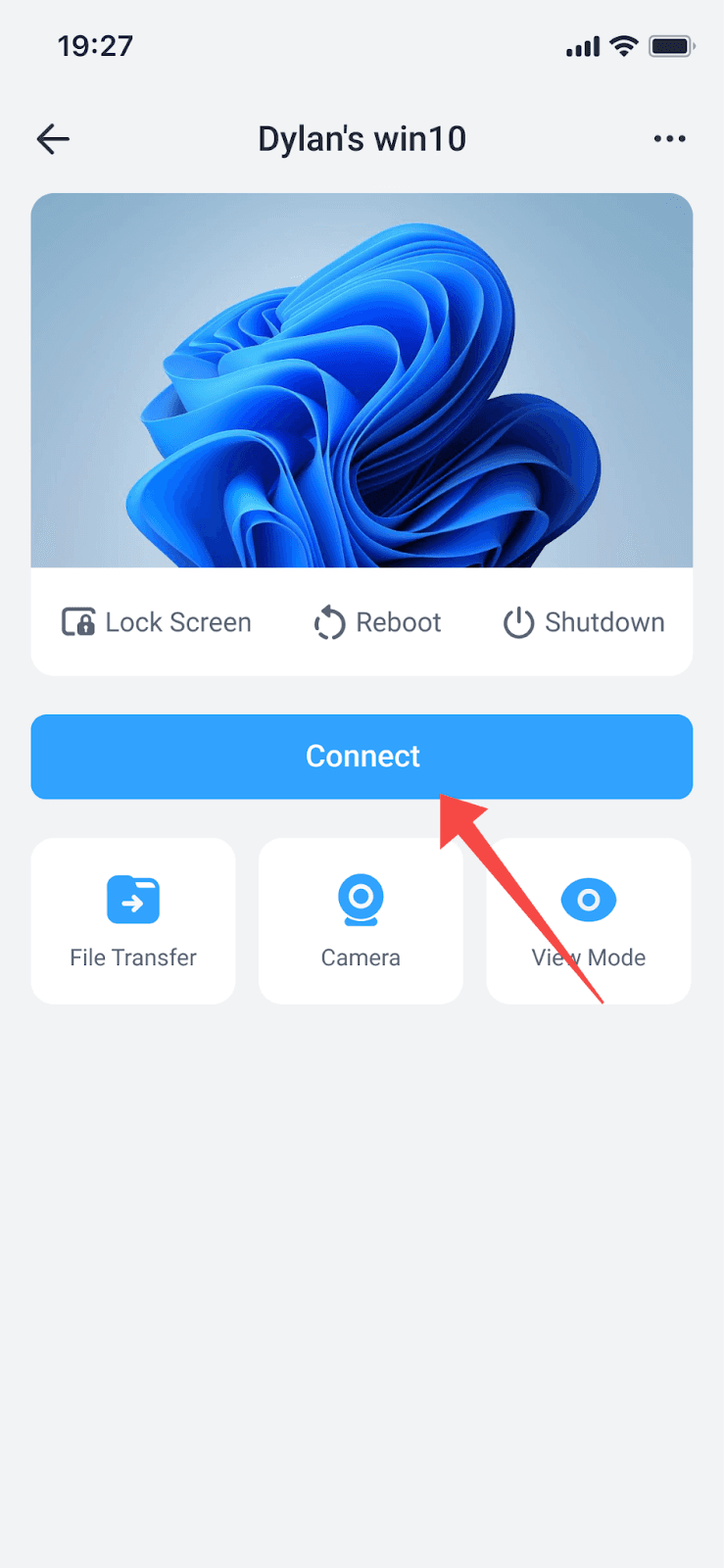
Tạo hoặc tham gia phiên an toàn: Trên iPhone nhận hỗ trợ, bật “Allow Remote Connect to This Device” để tạo ID thiết bị và mật khẩu. Sau đó, người hỗ trợ có thể bắt đầu phiên bằng cách nhập các thông tin đó để kết nối.
Chấp nhận quyền truy cập: iPhone nhận hỗ trợ sẽ được nhắc cho phép chia sẻ màn hình từ iPhone sang iPhone. Cấp quyền xem màn hình và trò chuyện thoại nếu cần.
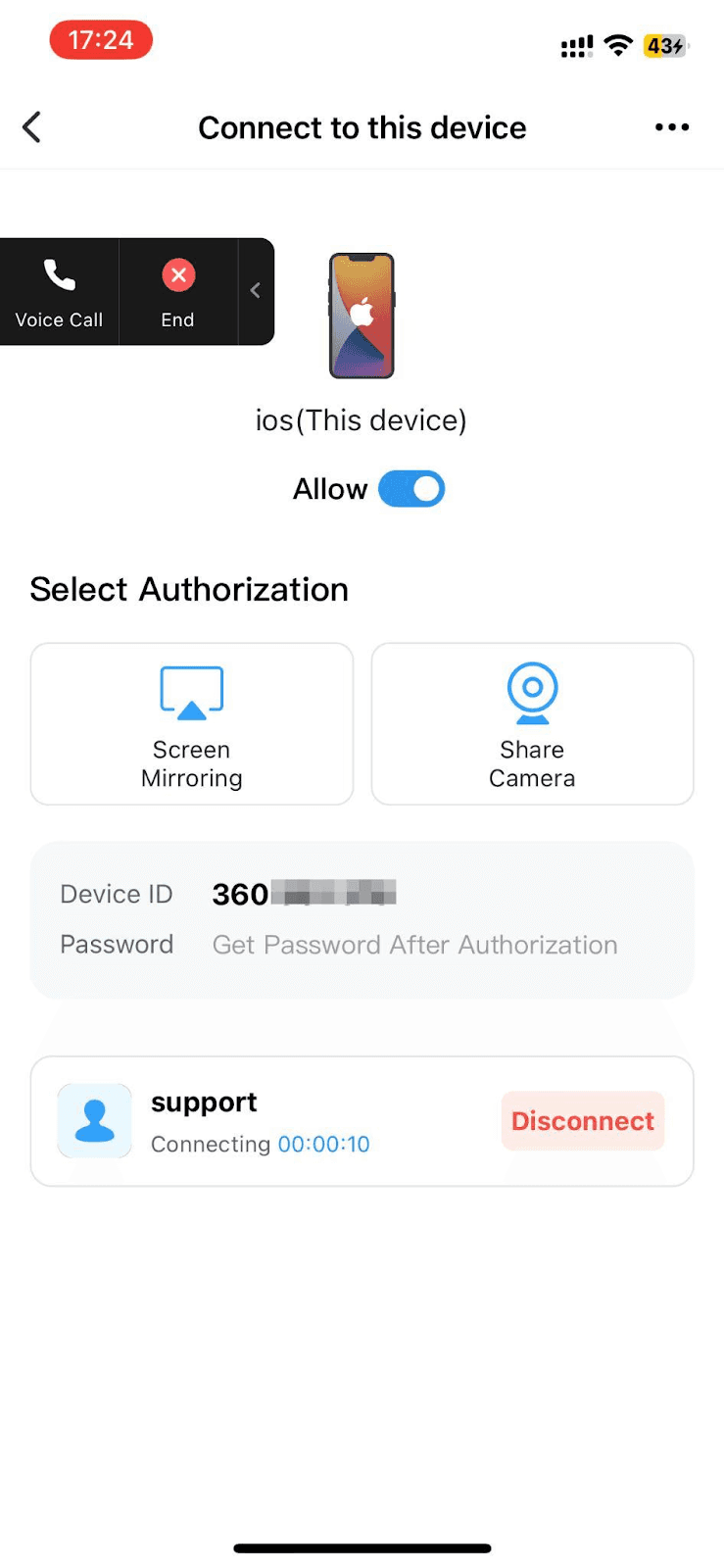
Bắt đầu chia sẻ màn hình với tùy chọn trò chuyện thoại: Sau khi kết nối, bạn có thể xem màn hình iPhone kia theo thời gian thực và dùng trò chuyện thoại tích hợp để hỗ trợ iPhone từ xa rõ ràng.
Chỉ với bốn bước, bạn sẽ có kết nối an toàn, phản hồi nhanh, giúp việc điều khiển iPhone từ xa để hỗ trợ, đào tạo hoặc cộng tác trở nên đơn giản và không áp lực.
Khi đã biết cách truy cập từ xa một iPhone từ iPhone khác bằng DeskIn, bạn sẽ bắt đầu nhận ra các tình huống mà nó giúp tiết kiệm thời gian và làm cuộc sống dễ dàng hơn. Dưới đây là một vài ví dụ nơi các tính năng của nó thực sự nổi bật:
Hỗ trợ công nghệ cho phụ huynh hoặc người lớn tuổi, bớt căng thẳng: Thay vì giải thích dài dòng qua điện thoại, công cụ chat và chia sẻ màn hình trực tiếp của DeskIn cho phép bạn hướng dẫn họ trực tiếp — không nhầm lẫn, chỉ có kết quả nhanh.
Hỗ trợ iOS từ xa chuyên nghiệp: Với nhà phát triển ứng dụng, nhân viên IT hoặc người đào tạo di động, chia sẻ màn hình độ trễ thấp và chat thoại của DeskIn biến hỗ trợ iPhone từ xa thành trải nghiệm mượt mà, thân thiện với khách hàng.
Hướng dẫn thực hành từ bất cứ đâu: Thiết kế ưu tiên di động của DeskIn khiến nó lý tưởng để hướng dẫn người học dùng ứng dụng, công cụ thiết kế, hoặc thậm chí cài đặt trò chơi — như thể bạn đang ở ngay bên cạnh họ.
Kiểm thử ứng dụng và vòng phản hồi hiệu quả: Xem người thử nghiệm tương tác với ứng dụng của bạn theo thời gian thực, phát hiện ngay vấn đề về khả năng sử dụng và điều chỉnh linh hoạt — tất cả nhờ kết nối liền mạch của DeskIn.
iPhone không chỉ là một chiếc điện thoại; đó là nơi lưu ảnh và tin nhắn cá nhân, một chiếc ví chứa đầy thông tin thanh toán, và trong vài trường hợp còn là công việc của bạn. Đây là một lý do vì sao việc dùng phương thức an toàn để truy cập iPhone từ xa từ iPhone khác rất quan trọng. DeskIn là môi trường khép kín với kết nối mã hóa và các cơ chế kiểm soát phiên, nhờ đó đảm bảo dữ liệu của bạn chỉ truyền giữa bạn và người mà bạn cấp quyền truy cập.
Chỉ kết nối với người đáng tin cậy, không bao giờ chấp nhận yêu cầu phiên ngẫu nhiên.
Dùng mã truy cập tạm thời hết hạn sau mỗi lần kết nối.
Xem lại quyền trước khi chấp nhận yêu cầu chia sẻ màn hình hoặc trò chuyện thoại.
Kết thúc phiên ngay lập tức khi hoàn thành công việc.
Luôn cập nhật DeskIn để nhận các bản vá bảo mật mới nhất.
Với những thói quen này, hỗ trợ iPhone từ xa luôn an toàn, riêng tư và hoàn toàn trong tầm kiểm soát của bạn, giúp bạn yên tâm mỗi khi chia sẻ màn hình.
Muốn tìm hiểu thêm về cách bảo vệ thiết bị của bạn? Hãy xem cách nhận biết có ai đang truy cập iPhone của bạn từ xa hay không, để biết các dấu hiệu cần chú ý và mẹo an toàn bổ sung.
Đ: Do các quy tắc an toàn của iOS, bạn không thể toàn quyền điều khiển màn hình iPhone. Với DeskIn, bạn có thể xem theo thời gian thực và trò chuyện bằng giọng nói để hỗ trợ iPhone từ xa hiệu quả.
Đ: Có. Miễn là cả hai thiết bị có kết nối internet ổn định, Wi‑Fi hoặc dữ liệu di động, bạn có thể chia sẻ màn hình iPhone sang iPhone mà không gặp vấn đề.
Đ: Chắc chắn. Vì DeskIn có trên iOS, iPadOS và macOS, bạn cũng có thể ghép iPhone với iPad hoặc Mac mà không khác biệt gì. Bạn cũng có thể biến iPad thành màn hình phụ thực sự cho MacBook, hoặc theo dõi hướng dẫn của chúng tôi để điều khiển Mac của bạn từ xa nếu bạn muốn di chuyển hoàn toàn tự do trên mọi thiết bị Apple.
Đ: Có. DeskIn hỗ trợ Windows, macOS, iOS, iPadOS và Android, vì vậy bạn có thể kết nối hầu như mọi tổ hợp thiết bị, dù bạn cần truy cập từ xa iPhone từ một iPhone khác hay làm việc đa nền tảng.
Từ hỗ trợ kỹ thuật nhanh gọn cho phụ huynh đến hỗ trợ iPhone từ xa chuyên nghiệp cho khách hàng, khả năng chia sẻ màn hình iPhone sang iPhone nâng cao đáng kể việc giải quyết vấn đề và cộng tác, biến một quy trình vốn tẻ nhạt và khó chịu thành trực quan, tinh gọn và dễ xử lý hơn. DeskIn đưa toàn bộ quá trình thành thời gian thực và tương tác.
Sẵn sàng xem nó hoạt động thực tế chứ? Cài đặt DeskIn từ App Store ngay hôm nay và tự mình thử chia sẻ di động‑sang‑di động. Bạn có thể truy cập trực tiếp một iPhone từ iPhone khác chỉ với vài lần chạm, và thậm chí bảo mật dễ dàng mà không gặp bất kỳ phiền toái nào như thiết lập phức tạp.
Muốn mở rộng hơn ngoài di động‑sang‑di động? Hãy xem hướng dẫn của chúng tôi về phản chiếu màn hình iPhone hoặc iPad lên MacBook để có quy trình làm việc đa thiết bị liền mạch.
Hãy tưởng tượng thế này: mẹ bạn gọi điện trong hoảng loạn vì “Wi-Fi bị mất rồi.” Hoặc bạn thân của bạn không thể tìm ra cách tắt cài đặt bí ẩn đang làm hao pin. Bạn cố giải thích qua điện thoại, nhưng giống như mô tả một màu sắc cho người chưa từng nhìn thấy nó vậy, khiến cả hai bên đều bực bội.
Sẽ dễ hơn nhiều nếu bạn chỉ cần chia sẻ màn hình iPhone sang iPhone và nhìn chính xác những gì họ đang thấy, phải không? Tốt hơn nữa, bạn có thể hướng dẫn họ khắc phục theo thời gian thực mà không cần rời khỏi ghế sofa?
Đó chính xác là điều mà việc truy cập iPhone từ xa từ một iPhone khác có thể làm được. Và trong hướng dẫn này, chúng ta sẽ phân tích đó là gì, vì sao bạn có thể cần nó, và cách tốt nhất để thực hiện bằng DeskIn, một ứng dụng truy cập từ xa mạnh mẽ, an toàn và dễ sử dụng.
Đề xuất đọc: Hướng dẫn đầy đủ năm 2025 về chia sẻ màn hình iPhone với iPad
Nói đơn giản, truy cập từ xa là dùng thiết bị của bạn để xem và điều khiển màn hình của một iPhone khác; tương tự như cầm điện thoại của người khác trong tay mà không thực sự cầm nó.
Dù một số nền tảng khiến việc điều khiển iPhone từ xa trở nên cực kỳ dễ dàng, thế giới iOS lại không như vậy. Apple giới hạn rất chặt những gì bạn được phép làm từ xa. May mắn là bạn vẫn có thể chia sẻ màn hình iPhone sang iPhone, trao đổi để xử lý nhiều lỗi, và phối hợp theo thời gian thực.
Hãy hình dung nó như sự kết hợp giữa chia sẻ màn hình và một người hướng dẫn cá nhân; bạn thấy điều gì đang diễn ra, họ thấy chỗ cần chạm, và vấn đề được giải quyết nhanh hơn.
Truy cập iPhone từ xa không chỉ dành cho dân IT trong phòng máy chủ. Dưới đây là vài tình huống thường ngày mà biết cách điều khiển iPhone từ xa trở thành siêu năng lực của bạn:
Bạn đã từng cố giải thích “vào Cài đặt > Wi‑Fi” cho ai đó cứ khẳng định họ đang ở Cài đặt nhưng thực ra lại ở Ghi chú chưa? Với chia sẻ màn hình iPhone sang iPhone, bạn có thể thấy chính xác những gì họ thấy và chỉ họ đi đúng hướng.
Nếu bạn điều hành doanh nghiệp nhỏ, đào tạo ứng dụng, hoặc hỗ trợ khách hàng về công cụ di động, truy cập từ xa giúp bạn hướng dẫn họ qua từng tính năng mà không cần gửi email dài như tiểu thuyết.
Đang thử nghiệm ứng dụng? Đánh giá bản mẫu thiết kế? Giờ đây bạn có thể xem thay đổi trực tiếp, đưa phản hồi tức thì và tránh cảnh gửi ảnh chụp màn hình qua lại.
Đôi khi bạn muốn đảm bảo con mình không vô tình chỉnh sai cài đặt kiểm soát của phụ huynh. Thỉnh thoảng bạn cần hướng dẫn chúng dùng ứng dụng làm bài tập. Truy cập từ xa giúp bạn hỗ trợ mà không cần đứng kè kè bên cạnh.
Apple không cho phép điều khiển hoàn toàn thiết bị iOS từ xa trừ khi máy đã jailbreak. Tuy có một số ít người sẵn sàng làm vậy, nhưng với phần lớn mọi người thì đó là một câu trả lời “KHÔNG” lớn. Jailbreak làm mất bảo hành, tạo lỗ hổng bảo mật và có thể khiến iPhone hoạt động không ổn định.
Dù vậy, bạn vẫn có thể:
Xem màn hình iPhone khác theo thời gian thực
Trao đổi về sự cố trong khi chia sẻ màn hình
Đưa hướng dẫn thao tác chạm mà không cần cách làm rủi ro
Đây là lúc DeskIn phát huy tác dụng. Dù bạn không thể trực tiếp “lái” iPhone của người khác như máy tính từ xa, bạn vẫn có thể hướng dẫn họ theo cách hiệu quả tương đương cho hỗ trợ, giảng dạy và cộng tác.
Nghe đúng thứ bạn cần? Tải DeskIn và thử cách truy cập iPhone từ xa an toàn, dễ dàng nhất có thể, ngay từ túi của bạn.
DeskIn giúp hỗ trợ từ xa trên iPhone trở nên đơn giản, an toàn và nhanh chóng, không đau đầu kỹ thuật, không cách làm rủi ro. Dù bạn đang giúp người thân, đào tạo khách hàng hay thử nghiệm ứng dụng, nó được thiết kế để hoạt động mượt mà giữa các thiết bị iOS.
Đây là những gì bạn nhận được:
Chia sẻ màn hình theo thời gian thực (iOS ↔ iOS): Xem ngay màn hình iPhone khác để bạn có thể hướng dẫn từng bước mà không phải đoán xem phía bên kia đang xảy ra chuyện gì.
Độ trễ siêu thấp (≤40ms): Gần như không có độ trễ, chia sẻ màn hình iPhone sang iPhone cho cảm giác tự nhiên và phản hồi nhanh, dù bạn đang chỉ một tùy chọn menu hay cùng xem một ứng dụng.
Thiết kế ưu tiên di động, tối ưu cho cảm ứng: DeskIn rất dễ dùng. Không còn thao tác desktop gượng gạo, ứng dụng được xây dựng cho chạm, vuốt và cử chỉ bằng ngón tay, giúp điều khiển iPhone từ xa trực quan cho cả hai bên.
Không cần jailbreak hay thiết lập rủi ro: Bạn có thể truy cập từ xa một iPhone từ iPhone khác mà không ảnh hưởng bảo mật hay mất bảo hành. Mỗi phiên đều yêu cầu mật khẩu hoặc xác minh thủ công yêu cầu kết nối, cho bạn toàn quyền kiểm soát ai có thể xem màn hình của mình.
Tích hợp trò chuyện thoại và điều khiển phiên: Nói chuyện theo thời gian thực, hướng dẫn bằng lời và quản lý phiên chỉ với một lần chạm — mọi thứ bạn cần để hỗ trợ iPhone từ xa mượt mà trong một ứng dụng.
Với DeskIn, truy cập iPhone từ xa trở thành hiện thực an toàn và thiết thực — hoàn hảo cho hỗ trợ kỹ thuật, cộng tác hoặc xử lý sự cố nhanh ở bất cứ đâu.
Bắt đầu truy cập từ xa một iPhone từ iPhone khác bằng DeskIn chỉ mất vài phút. Hãy làm theo các bước đơn giản sau:
Cài DeskIn trên cả hai iPhone: Tải DeskIn từ App Store và cài trên cả thiết bị “hỗ trợ” và “nhận hỗ trợ”.
Tạo hoặc tham gia phiên an toàn: Trên iPhone nhận hỗ trợ, bật “Allow Remote Connect to This Device” để tạo ID thiết bị và mật khẩu. Sau đó, người hỗ trợ có thể bắt đầu phiên bằng cách nhập các thông tin đó để kết nối.
Chấp nhận quyền truy cập: iPhone nhận hỗ trợ sẽ được nhắc cho phép chia sẻ màn hình từ iPhone sang iPhone. Cấp quyền xem màn hình và trò chuyện thoại nếu cần.
Bắt đầu chia sẻ màn hình với tùy chọn trò chuyện thoại: Sau khi kết nối, bạn có thể xem màn hình iPhone kia theo thời gian thực và dùng trò chuyện thoại tích hợp để hỗ trợ iPhone từ xa rõ ràng.
Chỉ với bốn bước, bạn sẽ có kết nối an toàn, phản hồi nhanh, giúp việc điều khiển iPhone từ xa để hỗ trợ, đào tạo hoặc cộng tác trở nên đơn giản và không áp lực.
Khi đã biết cách truy cập từ xa một iPhone từ iPhone khác bằng DeskIn, bạn sẽ bắt đầu nhận ra các tình huống mà nó giúp tiết kiệm thời gian và làm cuộc sống dễ dàng hơn. Dưới đây là một vài ví dụ nơi các tính năng của nó thực sự nổi bật:
Hỗ trợ công nghệ cho phụ huynh hoặc người lớn tuổi, bớt căng thẳng: Thay vì giải thích dài dòng qua điện thoại, công cụ chat và chia sẻ màn hình trực tiếp của DeskIn cho phép bạn hướng dẫn họ trực tiếp — không nhầm lẫn, chỉ có kết quả nhanh.
Hỗ trợ iOS từ xa chuyên nghiệp: Với nhà phát triển ứng dụng, nhân viên IT hoặc người đào tạo di động, chia sẻ màn hình độ trễ thấp và chat thoại của DeskIn biến hỗ trợ iPhone từ xa thành trải nghiệm mượt mà, thân thiện với khách hàng.
Hướng dẫn thực hành từ bất cứ đâu: Thiết kế ưu tiên di động của DeskIn khiến nó lý tưởng để hướng dẫn người học dùng ứng dụng, công cụ thiết kế, hoặc thậm chí cài đặt trò chơi — như thể bạn đang ở ngay bên cạnh họ.
Kiểm thử ứng dụng và vòng phản hồi hiệu quả: Xem người thử nghiệm tương tác với ứng dụng của bạn theo thời gian thực, phát hiện ngay vấn đề về khả năng sử dụng và điều chỉnh linh hoạt — tất cả nhờ kết nối liền mạch của DeskIn.
iPhone không chỉ là một chiếc điện thoại; đó là nơi lưu ảnh và tin nhắn cá nhân, một chiếc ví chứa đầy thông tin thanh toán, và trong vài trường hợp còn là công việc của bạn. Đây là một lý do vì sao việc dùng phương thức an toàn để truy cập iPhone từ xa từ iPhone khác rất quan trọng. DeskIn là môi trường khép kín với kết nối mã hóa và các cơ chế kiểm soát phiên, nhờ đó đảm bảo dữ liệu của bạn chỉ truyền giữa bạn và người mà bạn cấp quyền truy cập.
Chỉ kết nối với người đáng tin cậy, không bao giờ chấp nhận yêu cầu phiên ngẫu nhiên.
Dùng mã truy cập tạm thời hết hạn sau mỗi lần kết nối.
Xem lại quyền trước khi chấp nhận yêu cầu chia sẻ màn hình hoặc trò chuyện thoại.
Kết thúc phiên ngay lập tức khi hoàn thành công việc.
Luôn cập nhật DeskIn để nhận các bản vá bảo mật mới nhất.
Với những thói quen này, hỗ trợ iPhone từ xa luôn an toàn, riêng tư và hoàn toàn trong tầm kiểm soát của bạn, giúp bạn yên tâm mỗi khi chia sẻ màn hình.
Muốn tìm hiểu thêm về cách bảo vệ thiết bị của bạn? Hãy xem cách nhận biết có ai đang truy cập iPhone của bạn từ xa hay không, để biết các dấu hiệu cần chú ý và mẹo an toàn bổ sung.
Đ: Do các quy tắc an toàn của iOS, bạn không thể toàn quyền điều khiển màn hình iPhone. Với DeskIn, bạn có thể xem theo thời gian thực và trò chuyện bằng giọng nói để hỗ trợ iPhone từ xa hiệu quả.
Đ: Có. Miễn là cả hai thiết bị có kết nối internet ổn định, Wi‑Fi hoặc dữ liệu di động, bạn có thể chia sẻ màn hình iPhone sang iPhone mà không gặp vấn đề.
Đ: Chắc chắn. Vì DeskIn có trên iOS, iPadOS và macOS, bạn cũng có thể ghép iPhone với iPad hoặc Mac mà không khác biệt gì. Bạn cũng có thể biến iPad thành màn hình phụ thực sự cho MacBook, hoặc theo dõi hướng dẫn của chúng tôi để điều khiển Mac của bạn từ xa nếu bạn muốn di chuyển hoàn toàn tự do trên mọi thiết bị Apple.
Đ: Có. DeskIn hỗ trợ Windows, macOS, iOS, iPadOS và Android, vì vậy bạn có thể kết nối hầu như mọi tổ hợp thiết bị, dù bạn cần truy cập từ xa iPhone từ một iPhone khác hay làm việc đa nền tảng.
Từ hỗ trợ kỹ thuật nhanh gọn cho phụ huynh đến hỗ trợ iPhone từ xa chuyên nghiệp cho khách hàng, khả năng chia sẻ màn hình iPhone sang iPhone nâng cao đáng kể việc giải quyết vấn đề và cộng tác, biến một quy trình vốn tẻ nhạt và khó chịu thành trực quan, tinh gọn và dễ xử lý hơn. DeskIn đưa toàn bộ quá trình thành thời gian thực và tương tác.
Sẵn sàng xem nó hoạt động thực tế chứ? Cài đặt DeskIn từ App Store ngay hôm nay và tự mình thử chia sẻ di động‑sang‑di động. Bạn có thể truy cập trực tiếp một iPhone từ iPhone khác chỉ với vài lần chạm, và thậm chí bảo mật dễ dàng mà không gặp bất kỳ phiền toái nào như thiết lập phức tạp.
Muốn mở rộng hơn ngoài di động‑sang‑di động? Hãy xem hướng dẫn của chúng tôi về phản chiếu màn hình iPhone hoặc iPad lên MacBook để có quy trình làm việc đa thiết bị liền mạch.

Top 6 RustDesk Alternative Tools for Faster, Easier Remote Access
Remote access should feel like flipping a light switch, not decoding a control panel. Yet many users exploring RustDesk eventually run into friction: connection IDs, server setup, or occasional lag. While RustDesk is powerful, it’s not always the easiest or smoothest option, especially for non-technical users.
That’s why more people are actively searching for a reliable RustDesk alternative that combines performance, simplicity, and flexibility. Whether you want a plug-and-play solution or something more advanced, this guide will help you find the best fit.
RustDesk stands out as a privacy-friendly, self-hosted remote desktop tool. However, real-world usage reveals a few common challenges:
Complicated setup for the RustDesk self-hosted environments
Manual connection steps requiring IDs and passwords
Occasional latency or unstable connections
Limited user-friendly features out of the box
For many users, especially those helping family or managing multiple devices, simplicity matters just as much as control.
When evaluating a RustDesk alternative, focus on these key factors:
Ease of use: Quick setup without technical overhead
Performance: Smooth, low-latency remote sessions
Compatibility: Support for Windows, macOS, Linux, and mobile
Security: Strong encryption and access controls
Flexibility: Options ranging from cloud-based to open source
The ideal tool strikes a balance between power and convenience, something many modern solutions now deliver better than traditional setups.
Here’s a quick breakdown of the top tools and where they shine:
DeskIn – Best all-in-one RustDesk alternative for performance and ease of use
AnyDesk – Best lightweight tool for fast connections
TeamViewer – Best for enterprise-grade remote support
MeshCentral – Best open-source and self-hosted solution
DWService – Best free browser-based tool
Chrome Remote Desktop – Best simple, no-frills option
Ultra-low latency with smooth high-frame-rate streaming
No complex setup or server deployment required
Cross-platform including Rustdesk alternative for Android
Secure with encryption and device control features
Built-in file transfer and multi-device management
Smaller awareness than legacy competitors
Best for: Users who want a powerful yet simple remote desktop solution
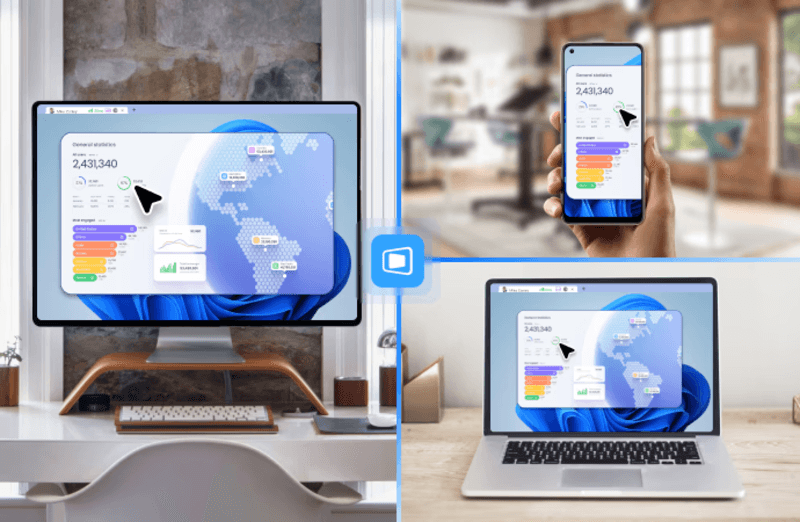
DeskIn removes the friction that often comes with remote access tools. Instead of relying on IDs or manual configurations, it offers a streamlined connection experience that works right out of the box. This makes it especially valuable for users supporting non-technical family members or managing multiple remote devices.
Performance is where DeskIn truly distinguishes itself. Compared to RustDesk, which can sometimes struggle with latency, DeskIn delivers consistently smooth sessions with minimal lag. It also eliminates the need for self-hosting, making it a strong free RustDesk alternative option for users who want powerful features without the complexity.
For those exploring options beyond the RustDesk alternative GitHub projects, DeskIn provides a polished, ready-to-use experience that balances simplicity with professional-grade performance.
Lightweight and fast installation
Good performance on low bandwidth
Cross-platform support
Easy-to-use interface
Performance may drop during long sessions
File transfer can be inconsistent
Best for: Users needing quick and simple remote access
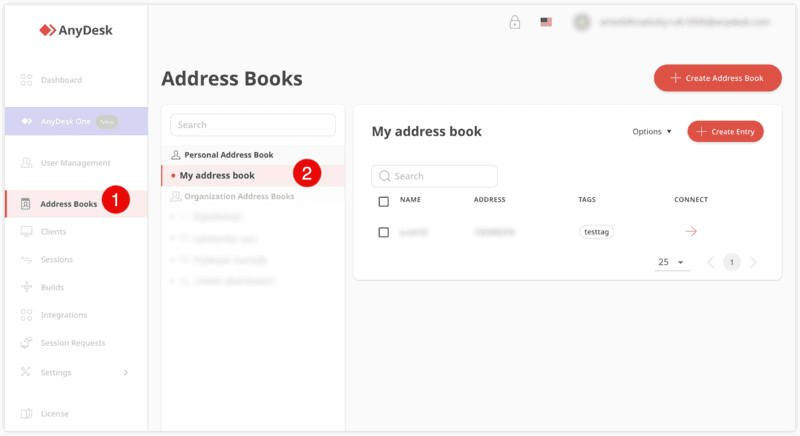
AnyDesk is often considered a natural step up from RustDesk for users who want something easier to deploy. It offers a lightweight application that connects quickly and performs well under normal conditions. This makes it suitable for quick troubleshooting or occasional remote access.
However, performance consistency can be an issue. Users frequently report lag or instability during extended sessions or when handling more demanding tasks. While AnyDesk is a solid option for basic needs, it may not fully satisfy users looking for a more robust, all-in-one solution.
👀 You may also be interested in: |
|---|
Enterprise-grade security with encryption and 2FA
Stable performance across global networks
Rich features like file transfer and session recording
Broad device compatibility
Expensive for commercial use
Free version has limitations
Heavier resource usage on some systems
Best for: Businesses and IT teams managing multiple endpoints
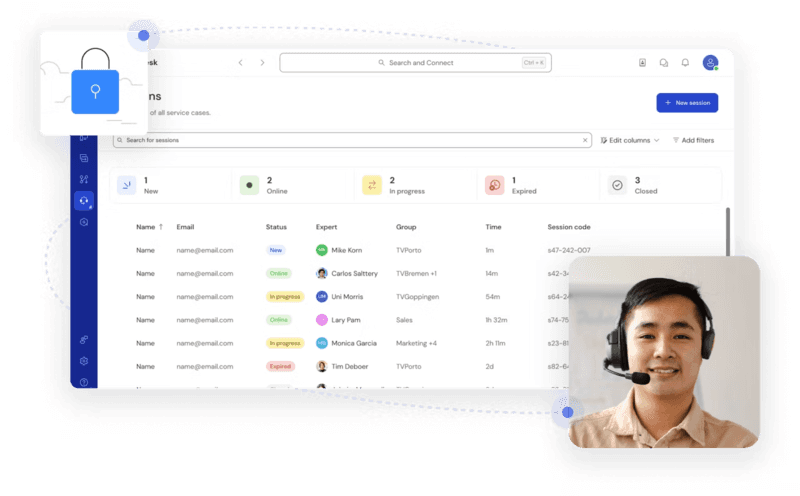
TeamViewer has long been a dominant player in the remote desktop space, offering a comprehensive suite of features designed for enterprise environments. It excels in reliability and global connectivity, making it a popular choice for IT support teams.
That said, its pricing model is a major drawback for many users. Frequent users may quickly encounter licensing restrictions, and costs can escalate for businesses. Additionally, its heavier footprint can impact performance on lower-end devices. DeskIn offers a more modern alternative by delivering similar performance and essential features without the same cost barriers. For users who want enterprise-level capabilities with better efficiency, it presents a compelling option.
👀 You may also be interested in: |
|---|
Fully RustDesk alternative open source solution
Web-based management dashboard
Supports multi-device environments
Strong customization and control
Complex setup and maintenance
Requires technical expertise
Best for: Advanced users needing a Rustdesk alternative self-hosted
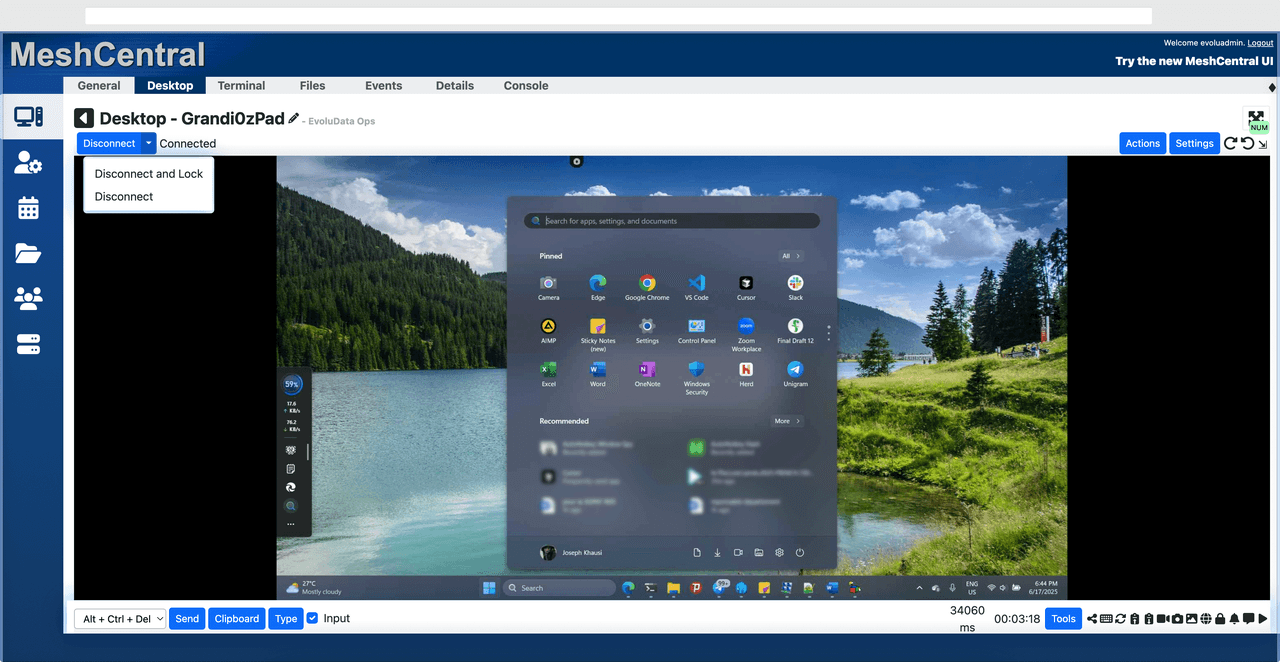
MeshCentral is a powerful open-source platform designed for users who want full control over their remote access infrastructure. It supports multiple devices and provides a centralized dashboard for management, making it attractive for IT professionals.
However, this flexibility comes with complexity. Setting up and maintaining a MeshCentral server requires technical knowledge, which can be a barrier for many users. Compared to this, DeskIn offers a much simpler deployment process while still delivering strong performance and security. For users who prioritize ease of use over full control, modern solutions like DeskIn provide a more accessible alternative.
Completely free
Browser-based access
Open-source foundation
Simple setup
Limited performance
Basic feature set
Best for: Users looking for a simple, free RustDesk alternative
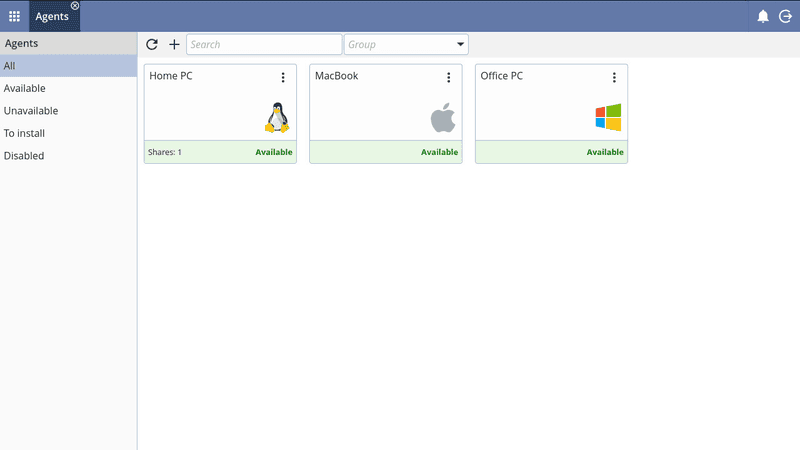
DWService offers a browser-based approach to remote access with no heavy installation, making it convenient for quick connections in restricted environments. It supports both desktop access and file management across major platforms.
However, performance often feels sluggish, especially on demanding tasks, and features remain basic; lacking session recording, smooth multi-monitor support, or advanced security controls. While suitable for occasional personal use, it falls short for professional or high-performance scenarios.
Free and easy to use
Browser-based setup
Cross-platform compatibility
Very limited features
No advanced management or collaboration tools
Best for: Casual users needing basic remote access
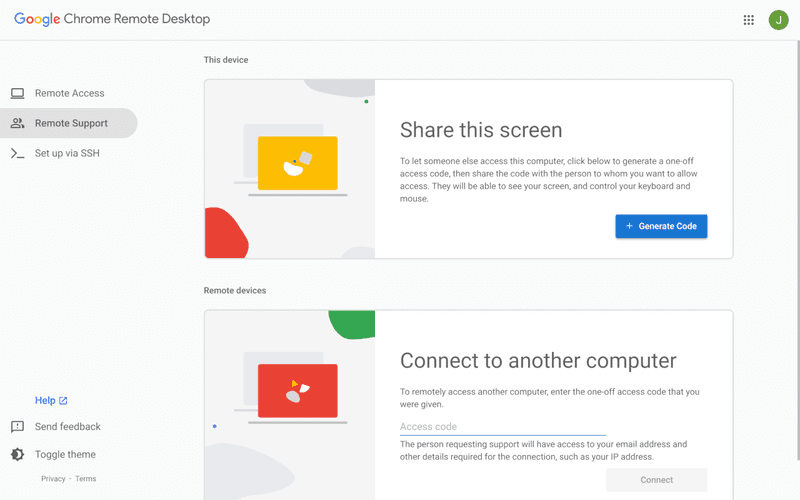
Chrome Remote Desktop is one of the simplest remote access tools available. It’s easy to set up and works across devices, making it a convenient choice for occasional use.
However, it lacks many essential features such as file transfer, session management, and advanced security controls. For users with more demanding needs, it quickly becomes insufficient. Compared to Chrome Remote Desktop, DeskIn provides a much more complete experience without sacrificing ease of use, making it a better long-term solution.
👀 You may also be interested in: |
|---|
RustDesk is powerful but can be difficult to set up and manage, especially with self-hosting. Many users prefer tools that offer similar performance without technical complexity. DeskIn simplifies remote access while maintaining strong performance and security.
Several tools qualify as a free RustDesk alternative, including DWService and Chrome Remote Desktop. However, DeskIn stands out by offering better performance and usability even in its free version.
Yes, tools like MeshCentral and DWService are considered RustDesk alternative open source options. They provide flexibility and control but often require technical expertise to set up and maintain.
Beginners should choose tools with a simple setup and intuitive interfaces. DeskIn is an excellent option because it removes the need for manual configuration while still delivering advanced features.
RustDesk is a powerful starting point, but it’s not always the easiest or most efficient tool for everyday use. From setup complexity to performance limitations, many users eventually look for a better RustDesk alternative.
Among all the options, DeskIn stands out as the most balanced solution. It combines speed, simplicity, and cross-platform support into one seamless experience. If you’re ready to move beyond technical friction and enjoy truly smooth remote access, DeskIn is a choice that simply works.

Top 7 RDP Alternative Tools for Faster, Safer Remote Access
Remote desktop access used to feel like a solid bridge. Now, for many users, traditional RDP feels more like a creaky rope ladder. With performance issues, security concerns, and limited cross-platform support, it's no surprise that more people are actively searching for a better RDP alternative that actually keeps up with modern workflows.
If you're managing multiple servers, working across devices, or just tired of unstable connections, this guide will walk you through the best tools worth switching to.
RDP (Remote Desktop Protocol) is a proprietary protocol developed by Microsoft that allows users to connect to another computer over a network. It's widely used for accessing Windows servers, virtual machines, and remote workstations.
While powerful in controlled environments, RDP is often tied to Windows systems and requires configuration like port forwarding or VPNs. Compared to newer tools, it can feel rigid and outdated.
You may also be interested in: |
|---|
RDP still works, but it comes with trade-offs that many users find frustrating:
Security risks if not properly configured
Complex setup for remote or external access
Limited cross-platform compatibility
Performance issues over unstable networks
Many IT teams are now actively replacing it, especially when looking for a Windows RDP client alternative or something that works seamlessly across macOS, Linux, and mobile devices. That's where modern Remote Desktop alternatives shine.
Choosing the right tool is like picking the right vehicle. Some are built for speed, others for heavy-duty enterprise work. Here's a quick snapshot:
DeskIn – Best all-in-one RDP alternative for performance and cross-platform use
TeamViewer – Best for enterprise remote support
AnyDesk – Best lightweight option for fast connections
RustDesk – Best Windows RDP alternative open-source solution
Remmina – Best RDP alternative for Linux users
Chrome Remote Desktop – Best simple browser-based tool
Splashtop – Best for high-performance business environments
Ultra-low latency with smooth high-frame-rate streaming
Works across Windows, macOS, Linux, iOS, and Android
Strong encryption and secure access controls
Built-in file transfer and multi-session support
Newer compared to legacy brands
Best for: Users who want a powerful, flexible RDP alternative
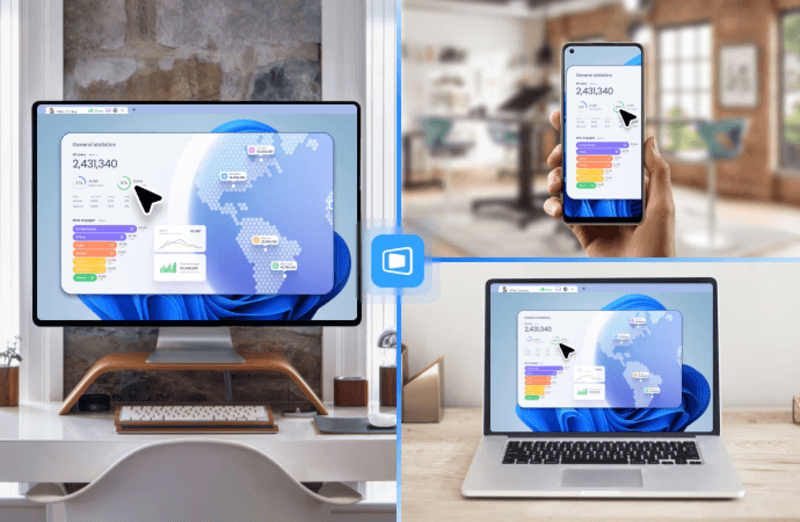
DeskIn feels less like remote access and more like teleportation for your desktop. Whether you're managing servers, supporting clients, or working remotely, it delivers consistently smooth performance without the usual lag spikes seen in traditional RDP setups.
Unlike many tools, DeskIn eliminates the need for complex configurations. You don't need to wrestle with firewalls or VPNs just to connect. It also works seamlessly across platforms, making it a strong alternative to Microsoft Remote Desktop for Mac and mobile users alike.
For teams juggling multiple systems, DeskIn provides a unified experience that replaces fragmented workflows. It's also a strong free RDP alternative option with premium-level capabilities, making it ideal for both individuals and businesses.
Enterprise-grade security and compliance
Extensive feature set including collaboration tools
Cross-platform compatibility
Reliable global performance
Expensive licensing
Can be overkill for individuals
Best for: Enterprises needing secure and scalable remote access
TeamViewer is a comprehensive remote desktop platform widely adopted by IT teams, support professionals, and enterprises. Its feature set extends far beyond simple screen sharing—it includes robust device management, remote printing, file transfer, session recording, and even augmented reality support for field service. TeamViewer's security architecture relies on AES‑256 encryption, two‑factor authentication, and whitelisting, making it suitable for organizations with strict compliance requirements. It runs on virtually every operating system and mobile platform.
The main trade‑off is its pricing: licenses are subscription‑based and can become expensive for small teams or individual users, especially as TeamViewer aggressively flags personal use as commercial, leading to session restrictions.
Fast and responsive
Lightweight installation
Works well on low bandwidth
Easy to use
File transfer can be inconsistent
Lag during longer sessions
Best for: Users needing quick, simple remote access
AnyDesk is a lightweight remote desktop application prized for its speed and efficiency, often recommended as a fast alternative to Microsoft's native Remote Desktop on Windows 10 and Android. It uses a proprietary video codec, DeskRT, to achieve low latency even on limited bandwidth, making it ideal for quick support sessions and accessing devices over mobile networks. The interface is clean and minimalist, with features like address book management, file transfer, and session recording available.
However, users frequently report instability during extended sessions; performance can degrade over time, and file transfers may slow considerably compared to competitors. While its free version is generous for personal use, professional users often find the performance ceiling limits its suitability for continuous, demanding workloads. DeskIn, by contrast, maintains consistent performance even during extended use, making it better suited for professional workloads.
You may also be interested in: |
|---|
Free and open-source
Self-hosting for full control
Strong privacy protection
Active community
Technical setup required
Limited user-friendly features
Best for: Developers and privacy-focused users
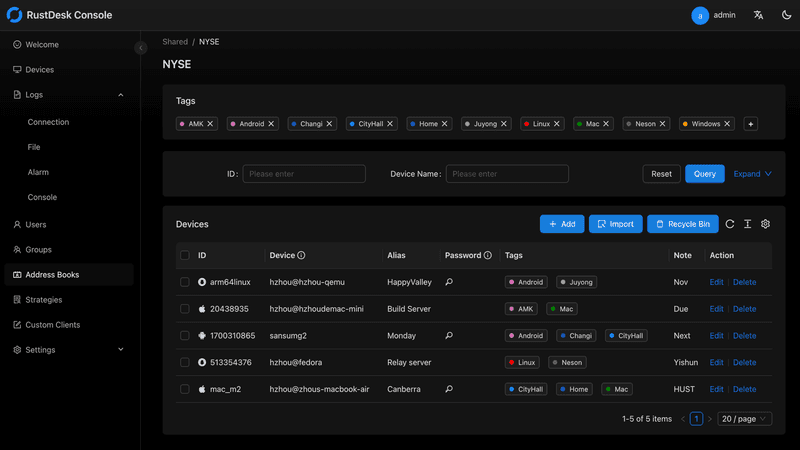
RustDesk has emerged as a leading open‑source remote desktop alternative, appealing to developers and organizations that require full control over their data. It allows users to self‑host the relay and rendezvous servers, meaning no third‑party infrastructure handles connection metadata. Built with Rust, it offers a modern codebase with cross‑platform clients (Windows, macOS, Linux, Android, iOS) and supports essential features such as file transfer, TCP tunneling, and customizable address books.
The major barrier is its complexity: deploying a self‑hosted environment requires technical expertise to configure firewalls, SSL certificates, and ongoing server maintenance. For those using the public relay, performance can be inconsistent depending on server load and geographic proximity.
You may also be interested in: Top RustDesk Alternatives for Better Performance, Security & Ease of Use |
|---|
Open-source and free
Supports multiple protocols including RDP and VNC
Lightweight and flexible
Native to Linux environments
Limited features compared to modern tools
UI can feel outdated
Best for: Linux users looking for a traditional RDP alternative Linux
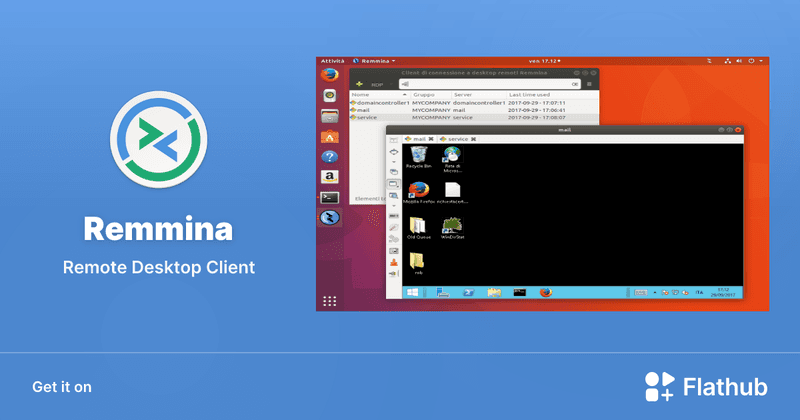
Remmina is a beloved open‑source remote desktop client for Linux, supporting multiple protocols (RDP, VNC, SSH, SPICE, and others) in a single unified interface. It is frequently chosen by system administrators and Linux enthusiasts who need a flexible, lightweight tool to manage diverse environments. Remmina offers tabbed sessions, quick‑connect profiles, and a plugin system that extends its capabilities.
However, its strength - protocol flexibility, also highlights its limitations. As a frontend client rather than a full remote access solution, it lacks features like unattended access, centralized account management, or robust session recording out of the box. Performance can vary by protocol, and the user experience lags behind more polished commercial tools, particularly for users seeking a plug‑and‑play setup.
Free and easy to use
Browser-based setup
Cross-platform access
Very limited features
No advanced management tools
Best for: Casual users needing basic remote access
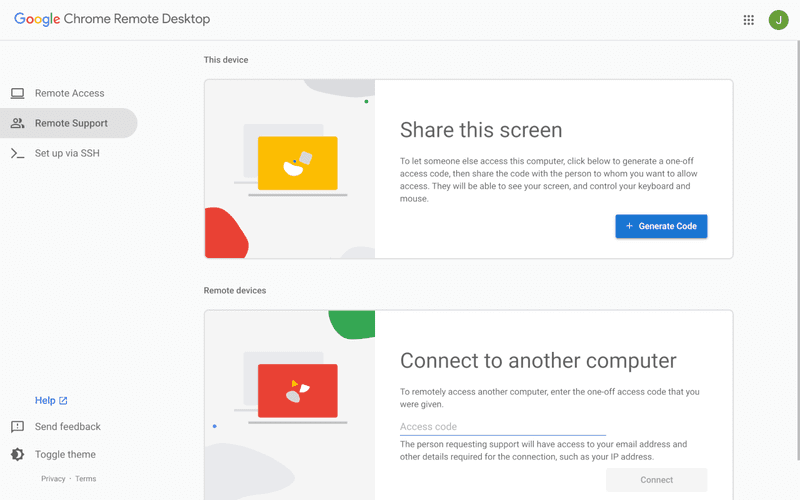
Chrome Remote Desktop is a free, browser‑based remote access tool from Google that requires nothing more than a Chrome browser and a Google account. It excels in simplicity: installation takes seconds, and connections are mediated through Google's infrastructure, eliminating complex firewall configurations. For occasional use—such as helping a family member or quickly accessing a home computer—it works reliably across Windows, macOS, Linux, and even ChromeOS.
The trade‑off is its minimal feature set. There is no native file transfer, multi‑session management, remote printing, or granular permission controls. Collaboration tools are absent, and the reliance on a Google account for authentication can be a limitation in professional environments. It remains a convenient entry‑level tool but struggles to meet the needs of power users or IT teams.
You may also be interested in: |
|---|
High-quality streaming performance
Strong security features
Good for business environments
Reliable connections
Subscription-based pricing
Limited free version
Best for: Businesses needing performance-focused remote access
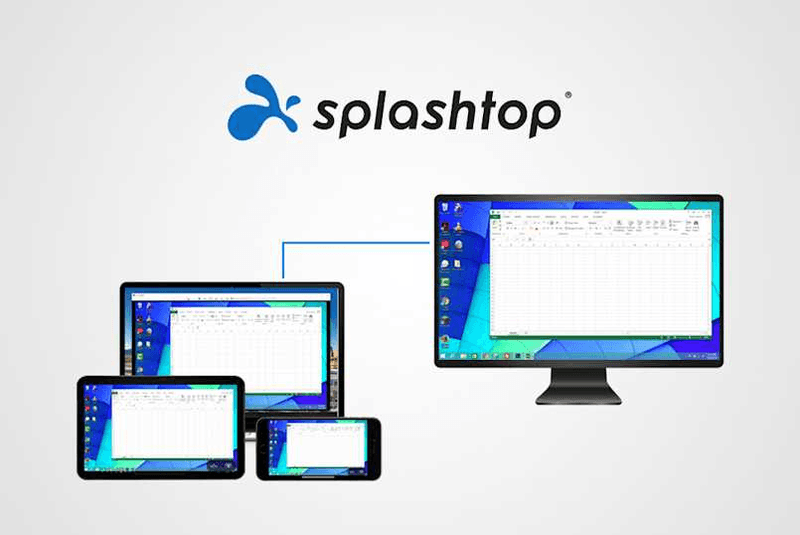
Splashtop is a high‑performance remote desktop solution frequently adopted by creative professionals, educational institutions, and enterprises that prioritize fluid interaction. It delivers low‑latency streaming with support for high‑frame‑rate displays, making it suitable for video editing, CAD work, and other graphics‑intensive tasks. Splashtop offers a range of editions—from Business Access to SOS for on‑demand support—all of which include robust security (AES‑256, device authentication) and features like file transfer, remote printing, and multi‑monitor navigation. Its performance over local networks and the internet is consistently praised.
The primary drawback is cost: while competitive, the subscription model can accumulate quickly for users needing access to multiple devices or advanced features, especially when compared to similarly capable tools with more flexible pricing structures. DeskIn offers similar performance benefits with a more flexible pricing structure, making it a compelling alternative.
You may also be interested in: |
|---|
RDP can be difficult to configure, less secure if exposed, and limited outside Windows environments. Modern tools like DeskIn provide better performance, security, and ease of use.
The best RDP alternative depends on your needs, but DeskIn stands out for its balance of speed, security, and cross-platform compatibility.
Yes, several tools qualify as an RDP alternative free, including RustDesk and Chrome Remote Desktop. DeskIn also offers a free tier with advanced capabilities.
Microsoft is evolving its remote desktop ecosystem, but traditional RDP isn't disappearing overnight. However, many users are already transitioning to more modern solutions like DeskIn for better reliability and flexibility.
RDP has served its purpose, but the digital world has outgrown its limitations. Whether you need better performance, stronger security, or true cross-platform access, switching to a modern RDP alternative is no longer optional, it's inevitable.
Among all the options, DeskIn stands out as a future-ready solution. It combines speed, simplicity, and power into one seamless experience, helping you leave behind the friction of traditional remote desktop tools and step into something far more efficient.
Top 10 Splashtop Alternative Tools for Faster, More Reliable Remote Access (2026)
If your remote desktop tool has started to feel like a buffering video at the worst possible moment, you're not alone. Many users are actively searching for a better Splashtop alternative due to rising costs, laggy connections, and limited flexibility. Whether you're managing remote IT support or simply accessing your work computer from home, the right tool can turn frustration into seamless control. Let’s dive into the best options available today.
Before switching, it’s worth knowing what actually matters. A great remote desktop tool should offer:
Smooth performance with low latency and high frame rates
Strong security like AES-256 encryption and 2FA
Cross-platform compatibility (desktop + mobile)
Easy setup and intuitive interface
Transparent pricing without hidden increases
Stable unattended remote access
These factors define the best remote desktop experience in 2026.
Tool | Pros | Cons | Best For |
|---|---|---|---|
High performance, affordable, smooth | Newer brand | High-quality remote work | |
AnyDesk | Lightweight, fast | Security limits | Quick sessions |
TeamViewer | Secure, scalable | Expensive | Enterprises |
Chrome Remote Desktop | Free, simple
| Limited features | Personal use |
Zoho Assist | Clean UI, integrations | Stability issues | IT support |
RemotePC | Affordable | Performance inconsistency | SMBs |
RealVNC | Secure | Occasional disconnects | Secure access |
LogMeIn | Feature-rich | High cost | Enterprises |
ScreenConnect | Powerful | Complex setup | MSPs |
RustDesk | Open-source | Technical setup | Developers |
Up to 4K 60FPS/2K 240FPS ultra-smooth remote control
Low latency even across long distances
Competitive pricing with strong value
Cross-platform including mobile
Smaller brand awareness
Best for: Performance-driven users and remote professionals
DeskIn is designed for users who are tired of lag and blurry screens. It delivers a near-local experience, making it ideal for developers, designers, and remote teams who rely on precision and speed. Compared to many traditional tools, it feels significantly more responsive.
Beyond performance, DeskIn balances cost and capability extremely well. If you're looking for a free alternative to Splashtop or a scalable upgrade, it offers a compelling mix of speed, security, and usability. Many users consider it a strong case where DeskIn is better than Splashtop, especially when stability matters.
Very lightweight installation
Fast connections on low bandwidth
Easy to use interface
Limited advanced security features
Occasional connection instability
Best for: Quick remote support and simple workflows
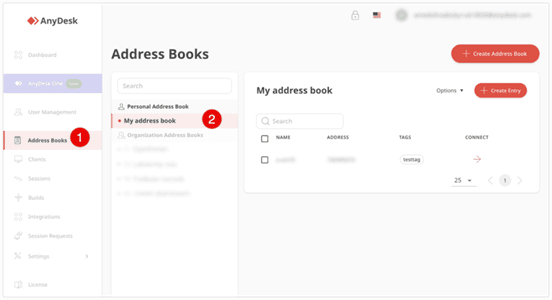
AnyDesk is frequently recommended as a Splashtop alternative thanks to its exceptional speed and minimal system footprint. The installer is just a few megabytes, and the application runs smoothly even on older hardware. It performs particularly well in low‑bandwidth environments, where its proprietary video codec maintains responsive connections during quick troubleshooting sessions.
That said, users who require consistently high frame rates, crisp visuals for design work, or advanced session management may find AnyDesk’s simplicity limiting. While it handles basic tasks admirably, power users often need more stability and richer feature sets.
You may also be interested in:
Strong security (AES-256, 2FA)
Wide device compatibility
Mature ecosystem and features
Reliable remote support tools
Expensive pricing plans
Can feel heavy for small teams
Best for: Enterprises and large organizations
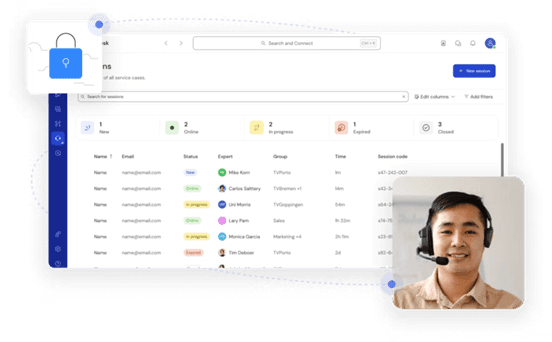
TeamViewer has long been a dominant force in remote desktop software, trusted by IT departments and enterprises worldwide. Its comprehensive feature set includes remote support, meeting tools, file transfer, and even augmented‑reality assistance, all secured with AES‑256 encryption and two‑factor authentication.
However, this power comes at a price—literally. TeamViewer’s licensing model can be prohibitively expensive for smaller businesses or individual users. The interface, while feature‑rich, can also feel cluttered for those who simply need unattended access to a few computers.
You may also be interested in:
Completely free to use
Easy browser-based setup
Works across devices
Very limited features
Not suitable for business use
Best for: Individuals needing a free remote desktop
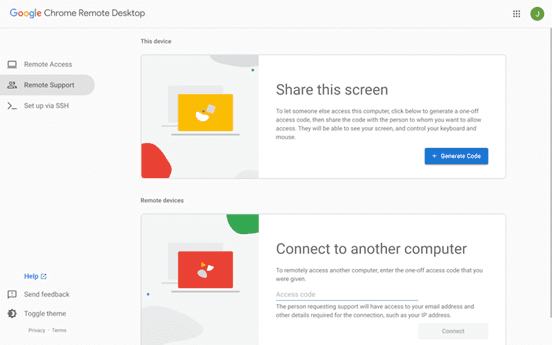
Chrome Remote Desktop is the ultimate choice for users seeking a straightforward, completely free remote access solution. Setup takes less than a minute: install the browser extension, authenticate with your Google account, and you can instantly access any computer from another device.
The trade‑off for this simplicity is a very limited feature set. There is no file transfer, multi‑monitor switching, remote printing, or session recording. Users who find themselves needing more than bare‑bones access will see a significant boost in efficiency and experience by upgrading to a dedicated tool like DeskIn, which retains ease of use while adding the features power users rely on.
You may also be interested in:
Intuitive interface
Good integrations with Zoho ecosystem
Cloud-based access
Occasional performance issues
Limited advanced features
Best for: IT helpdesk teams
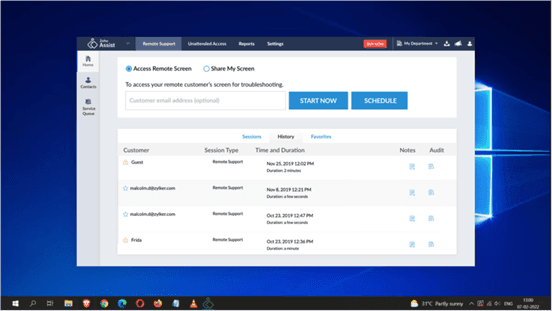
Zoho Assist delivers a clean, well‑organized remote support experience that integrates naturally with the broader Zoho ecosystem. Its dashboard is intuitive, making it easy for helpdesk teams to manage clients, schedule sessions, and generate reports. For organizations already using Zoho CRM or other Zoho applications, the seamless integration streamlines workflows and reduces the need to switch between different tools.
Despite its polished interface, performance consistency can be an issue, especially during file transfers or when connecting to machines with slower internet connections. The feature set, while sufficient for standard helpdesk operations, lacks some of the advanced controls that IT professionals expect for more complex troubleshooting.
Affordable pricing
Easy setup
Supports multiple devices
Performance can vary
Limited advanced capabilities
Best for: Small businesses and budget users
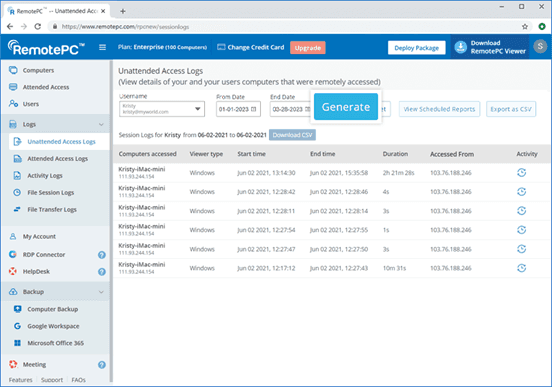
RemotePC positions itself as a budget‑friendly alternative for users who need basic remote access without a steep learning curve. Setup is straightforward, and the pricing structure is refreshingly simple—affordable plans that allow connection to multiple computers without hidden fees. It covers essential features like remote printing, file transfer, and even a simple chat function, making it a practical choice for small businesses and individual users.
However, performance can vary depending on network conditions and the specific devices being connected. Some users report occasional lag or reduced frame rates, which can become frustrating during extended sessions.
Strong encryption and security
Customisable setup
Reliable remote connections
Occasional login interruptions
Slight learning curve
Best for: Security-focused users
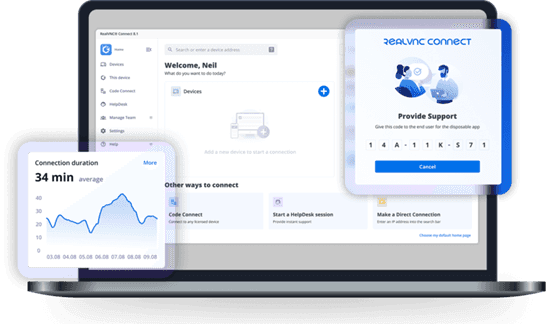
RealVNC has built a strong reputation for secure remote access. It uses robust encryption and offers granular permission controls, allowing administrators to tailor access levels for different users. The platform is highly customizable, supporting on‑premises deployments as well as cloud‑based options, which appeals to organizations with strict security requirements.
While security is clearly its strength, the user experience can sometimes feel less polished than newer competitors. Occasional login interruptions and a steeper configuration curve mean that getting the most out of RealVNC often requires technical expertise. For businesses that need both enterprise‑grade security and consistently high performance without complex setup, a more balanced solution, such as DeskIn, can deliver the best of both worlds, combining strong encryption with a streamlined, speed‑optimized experience.
Comprehensive feature set
Strong integrations
Good for collaboration
Reliable access
High pricing
Overkill for simple use cases
Best for: Enterprises needing all-in-one solutions
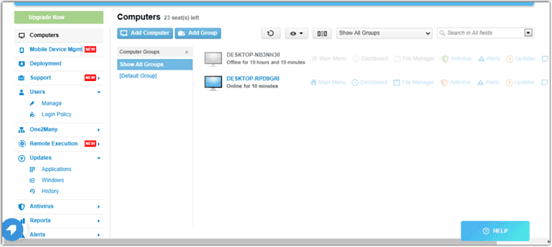
LogMeIn provides a comprehensive toolkit that extends far beyond simple remote desktop access. It includes robust file storage, collaboration features, and extensive integration options, making it well‑suited for enterprises that want an all‑in‑one remote work platform. The service is known for its reliability and strong customer support, which can be critical for large organizations managing hundreds or thousands of endpoints.
The main drawback is the cost. LogMeIn’s pricing plans are among the highest in the industry, and the feature set can be overwhelming for users who only need occasional remote access. Many of its advanced capabilities go unused by smaller teams, making it difficult to justify the expense.
Highly customizable
Remote support features
Multi-session support
Complex setup
Difficult to manage at scale
Best for: MSPs and IT teams
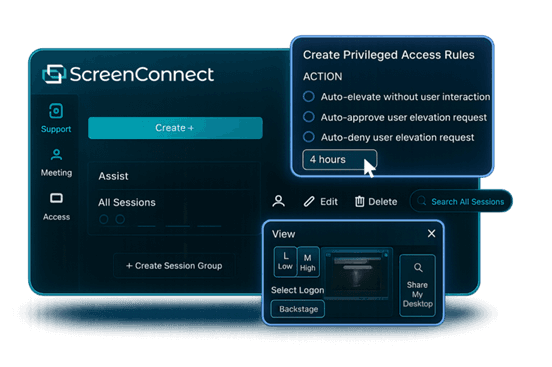
ScreenConnect (now part of ConnectWise) is a powerful, highly customizable remote support platform built with IT professionals and managed service providers in mind. It excels at multi‑session management, allowing technicians to handle several concurrent connections from a single interface. The level of granular control, over permissions, session recording, and even the appearance of the client UI, makes it a favorite among those who need to tailor the software to specific operational workflows.
However, this flexibility comes with a steep learning curve. Initial setup and ongoing management can be complex, especially for smaller teams without dedicated IT administration. For teams seeking a powerful yet approachable solution, DeskIn offers a streamlined alternative that delivers professional‑grade reliability and speed without the administrative overhead.
Free and open-source
Self-hosting options
Strong privacy control
Requires technical setup
Limited support
Best for: Developers and privacy-focused users
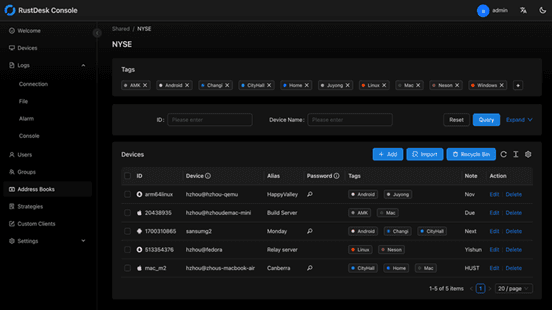
RustDesk appeals to developers and privacy‑conscious users who want full control over their remote access infrastructure. As an open‑source solution, it allows self‑hosting on private servers, ensuring that no session data ever passes through third‑party servers. This transparency and autonomy are highly valued by organizations with strict data sovereignty requirements or those simply wishing to avoid vendor lock‑in.
The flip side is that RustDesk requires technical expertise to deploy and maintain. Users must manage their own servers, handle updates, and troubleshoot connection issues without dedicated commercial support. While the core software is free, the total cost of ownership in time and resources can be significant.
You may also be interested in:
DeskIn is one of the strongest options due to its balance of performance, pricing, and usability. TeamViewer and AnyDesk are also popular choices.
Yes, Chrome Remote Desktop and RustDesk are free options. DeskIn also offers a competitive free plan with better performance.
The best remote desktop tools combine speed, security, and ease of use. DeskIn stands out for performance, while TeamViewer excels in enterprise environments.
Yes, most tools support mobile, making them suitable as a Splashtop alternative for Android or a Splashtop alternative for iPad.
Many users cite high Splashtop pricing, lag issues, and limited scalability as reasons to explore alternatives.
Finding the right Splashtop alternative is less about replacing a tool and more about upgrading your workflow. While options like AnyDesk and TeamViewer each have their strengths, DeskIn stands out by combining high performance, smooth visuals, and cost efficiency in one package. If you want a remote desktop experience that feels fast, stable, and future-ready, DeskIn is easily one of the smartest choices you can make today.
Top 6 RustDesk Alternative Tools for Faster, Easier Remote Access
Remote access should feel like flipping a light switch, not decoding a control panel. Yet many users exploring RustDesk eventually run into friction: connection IDs, server setup, or occasional lag. While RustDesk is powerful, it’s not always the easiest or smoothest option, especially for non-technical users.
That’s why more people are actively searching for a reliable RustDesk alternative that combines performance, simplicity, and flexibility. Whether you want a plug-and-play solution or something more advanced, this guide will help you find the best fit.
RustDesk stands out as a privacy-friendly, self-hosted remote desktop tool. However, real-world usage reveals a few common challenges:
Complicated setup for the RustDesk self-hosted environments
Manual connection steps requiring IDs and passwords
Occasional latency or unstable connections
Limited user-friendly features out of the box
For many users, especially those helping family or managing multiple devices, simplicity matters just as much as control.
When evaluating a RustDesk alternative, focus on these key factors:
Ease of use: Quick setup without technical overhead
Performance: Smooth, low-latency remote sessions
Compatibility: Support for Windows, macOS, Linux, and mobile
Security: Strong encryption and access controls
Flexibility: Options ranging from cloud-based to open source
The ideal tool strikes a balance between power and convenience, something many modern solutions now deliver better than traditional setups.
Here’s a quick breakdown of the top tools and where they shine:
DeskIn – Best all-in-one RustDesk alternative for performance and ease of use
AnyDesk – Best lightweight tool for fast connections
TeamViewer – Best for enterprise-grade remote support
MeshCentral – Best open-source and self-hosted solution
DWService – Best free browser-based tool
Chrome Remote Desktop – Best simple, no-frills option
Ultra-low latency with smooth high-frame-rate streaming
No complex setup or server deployment required
Cross-platform including Rustdesk alternative for Android
Secure with encryption and device control features
Built-in file transfer and multi-device management
Smaller awareness than legacy competitors
Best for: Users who want a powerful yet simple remote desktop solution
DeskIn removes the friction that often comes with remote access tools. Instead of relying on IDs or manual configurations, it offers a streamlined connection experience that works right out of the box. This makes it especially valuable for users supporting non-technical family members or managing multiple remote devices.
Performance is where DeskIn truly distinguishes itself. Compared to RustDesk, which can sometimes struggle with latency, DeskIn delivers consistently smooth sessions with minimal lag. It also eliminates the need for self-hosting, making it a strong free RustDesk alternative option for users who want powerful features without the complexity.
For those exploring options beyond the RustDesk alternative GitHub projects, DeskIn provides a polished, ready-to-use experience that balances simplicity with professional-grade performance.
Lightweight and fast installation
Good performance on low bandwidth
Cross-platform support
Easy-to-use interface
Performance may drop during long sessions
File transfer can be inconsistent
Best for: Users needing quick and simple remote access
AnyDesk is often considered a natural step up from RustDesk for users who want something easier to deploy. It offers a lightweight application that connects quickly and performs well under normal conditions. This makes it suitable for quick troubleshooting or occasional remote access.
However, performance consistency can be an issue. Users frequently report lag or instability during extended sessions or when handling more demanding tasks. While AnyDesk is a solid option for basic needs, it may not fully satisfy users looking for a more robust, all-in-one solution.
👀 You may also be interested in: |
|---|
Enterprise-grade security with encryption and 2FA
Stable performance across global networks
Rich features like file transfer and session recording
Broad device compatibility
Expensive for commercial use
Free version has limitations
Heavier resource usage on some systems
Best for: Businesses and IT teams managing multiple endpoints
TeamViewer has long been a dominant player in the remote desktop space, offering a comprehensive suite of features designed for enterprise environments. It excels in reliability and global connectivity, making it a popular choice for IT support teams.
That said, its pricing model is a major drawback for many users. Frequent users may quickly encounter licensing restrictions, and costs can escalate for businesses. Additionally, its heavier footprint can impact performance on lower-end devices. DeskIn offers a more modern alternative by delivering similar performance and essential features without the same cost barriers. For users who want enterprise-level capabilities with better efficiency, it presents a compelling option.
👀 You may also be interested in: |
|---|
Fully RustDesk alternative open source solution
Web-based management dashboard
Supports multi-device environments
Strong customization and control
Complex setup and maintenance
Requires technical expertise
Best for: Advanced users needing a Rustdesk alternative self-hosted
MeshCentral is a powerful open-source platform designed for users who want full control over their remote access infrastructure. It supports multiple devices and provides a centralized dashboard for management, making it attractive for IT professionals.
However, this flexibility comes with complexity. Setting up and maintaining a MeshCentral server requires technical knowledge, which can be a barrier for many users. Compared to this, DeskIn offers a much simpler deployment process while still delivering strong performance and security. For users who prioritize ease of use over full control, modern solutions like DeskIn provide a more accessible alternative.
Completely free
Browser-based access
Open-source foundation
Simple setup
Limited performance
Basic feature set
Best for: Users looking for a simple, free RustDesk alternative
DWService offers a browser-based approach to remote access with no heavy installation, making it convenient for quick connections in restricted environments. It supports both desktop access and file management across major platforms.
However, performance often feels sluggish, especially on demanding tasks, and features remain basic; lacking session recording, smooth multi-monitor support, or advanced security controls. While suitable for occasional personal use, it falls short for professional or high-performance scenarios.
Free and easy to use
Browser-based setup
Cross-platform compatibility
Very limited features
No advanced management or collaboration tools
Best for: Casual users needing basic remote access
Chrome Remote Desktop is one of the simplest remote access tools available. It’s easy to set up and works across devices, making it a convenient choice for occasional use.
However, it lacks many essential features such as file transfer, session management, and advanced security controls. For users with more demanding needs, it quickly becomes insufficient. Compared to Chrome Remote Desktop, DeskIn provides a much more complete experience without sacrificing ease of use, making it a better long-term solution.
👀 You may also be interested in: |
|---|
RustDesk is powerful but can be difficult to set up and manage, especially with self-hosting. Many users prefer tools that offer similar performance without technical complexity. DeskIn simplifies remote access while maintaining strong performance and security.
Several tools qualify as a free RustDesk alternative, including DWService and Chrome Remote Desktop. However, DeskIn stands out by offering better performance and usability even in its free version.
Yes, tools like MeshCentral and DWService are considered RustDesk alternative open source options. They provide flexibility and control but often require technical expertise to set up and maintain.
Beginners should choose tools with a simple setup and intuitive interfaces. DeskIn is an excellent option because it removes the need for manual configuration while still delivering advanced features.
RustDesk is a powerful starting point, but it’s not always the easiest or most efficient tool for everyday use. From setup complexity to performance limitations, many users eventually look for a better RustDesk alternative.
Among all the options, DeskIn stands out as the most balanced solution. It combines speed, simplicity, and cross-platform support into one seamless experience. If you’re ready to move beyond technical friction and enjoy truly smooth remote access, DeskIn is a choice that simply works.
Top 7 RDP Alternative Tools for Faster, Safer Remote Access
Remote desktop access used to feel like a solid bridge. Now, for many users, traditional RDP feels more like a creaky rope ladder. With performance issues, security concerns, and limited cross-platform support, it's no surprise that more people are actively searching for a better RDP alternative that actually keeps up with modern workflows.
If you're managing multiple servers, working across devices, or just tired of unstable connections, this guide will walk you through the best tools worth switching to.
RDP (Remote Desktop Protocol) is a proprietary protocol developed by Microsoft that allows users to connect to another computer over a network. It's widely used for accessing Windows servers, virtual machines, and remote workstations.
While powerful in controlled environments, RDP is often tied to Windows systems and requires configuration like port forwarding or VPNs. Compared to newer tools, it can feel rigid and outdated.
You may also be interested in: |
|---|
RDP still works, but it comes with trade-offs that many users find frustrating:
Security risks if not properly configured
Complex setup for remote or external access
Limited cross-platform compatibility
Performance issues over unstable networks
Many IT teams are now actively replacing it, especially when looking for a Windows RDP client alternative or something that works seamlessly across macOS, Linux, and mobile devices. That's where modern Remote Desktop alternatives shine.
Choosing the right tool is like picking the right vehicle. Some are built for speed, others for heavy-duty enterprise work. Here's a quick snapshot:
DeskIn – Best all-in-one RDP alternative for performance and cross-platform use
TeamViewer – Best for enterprise remote support
AnyDesk – Best lightweight option for fast connections
RustDesk – Best Windows RDP alternative open-source solution
Remmina – Best RDP alternative for Linux users
Chrome Remote Desktop – Best simple browser-based tool
Splashtop – Best for high-performance business environments
Ultra-low latency with smooth high-frame-rate streaming
Works across Windows, macOS, Linux, iOS, and Android
Strong encryption and secure access controls
Built-in file transfer and multi-session support
Newer compared to legacy brands
Best for: Users who want a powerful, flexible RDP alternative
DeskIn feels less like remote access and more like teleportation for your desktop. Whether you're managing servers, supporting clients, or working remotely, it delivers consistently smooth performance without the usual lag spikes seen in traditional RDP setups.
Unlike many tools, DeskIn eliminates the need for complex configurations. You don't need to wrestle with firewalls or VPNs just to connect. It also works seamlessly across platforms, making it a strong alternative to Microsoft Remote Desktop for Mac and mobile users alike.
For teams juggling multiple systems, DeskIn provides a unified experience that replaces fragmented workflows. It's also a strong free RDP alternative option with premium-level capabilities, making it ideal for both individuals and businesses.
Enterprise-grade security and compliance
Extensive feature set including collaboration tools
Cross-platform compatibility
Reliable global performance
Expensive licensing
Can be overkill for individuals
Best for: Enterprises needing secure and scalable remote access
TeamViewer is a comprehensive remote desktop platform widely adopted by IT teams, support professionals, and enterprises. Its feature set extends far beyond simple screen sharing—it includes robust device management, remote printing, file transfer, session recording, and even augmented reality support for field service. TeamViewer's security architecture relies on AES‑256 encryption, two‑factor authentication, and whitelisting, making it suitable for organizations with strict compliance requirements. It runs on virtually every operating system and mobile platform.
The main trade‑off is its pricing: licenses are subscription‑based and can become expensive for small teams or individual users, especially as TeamViewer aggressively flags personal use as commercial, leading to session restrictions.
Fast and responsive
Lightweight installation
Works well on low bandwidth
Easy to use
File transfer can be inconsistent
Lag during longer sessions
Best for: Users needing quick, simple remote access
AnyDesk is a lightweight remote desktop application prized for its speed and efficiency, often recommended as a fast alternative to Microsoft's native Remote Desktop on Windows 10 and Android. It uses a proprietary video codec, DeskRT, to achieve low latency even on limited bandwidth, making it ideal for quick support sessions and accessing devices over mobile networks. The interface is clean and minimalist, with features like address book management, file transfer, and session recording available.
However, users frequently report instability during extended sessions; performance can degrade over time, and file transfers may slow considerably compared to competitors. While its free version is generous for personal use, professional users often find the performance ceiling limits its suitability for continuous, demanding workloads. DeskIn, by contrast, maintains consistent performance even during extended use, making it better suited for professional workloads.
You may also be interested in: |
|---|
Free and open-source
Self-hosting for full control
Strong privacy protection
Active community
Technical setup required
Limited user-friendly features
Best for: Developers and privacy-focused users
RustDesk has emerged as a leading open‑source remote desktop alternative, appealing to developers and organizations that require full control over their data. It allows users to self‑host the relay and rendezvous servers, meaning no third‑party infrastructure handles connection metadata. Built with Rust, it offers a modern codebase with cross‑platform clients (Windows, macOS, Linux, Android, iOS) and supports essential features such as file transfer, TCP tunneling, and customizable address books.
The major barrier is its complexity: deploying a self‑hosted environment requires technical expertise to configure firewalls, SSL certificates, and ongoing server maintenance. For those using the public relay, performance can be inconsistent depending on server load and geographic proximity.
You may also be interested in: Top RustDesk Alternatives for Better Performance, Security & Ease of Use |
|---|
Open-source and free
Supports multiple protocols including RDP and VNC
Lightweight and flexible
Native to Linux environments
Limited features compared to modern tools
UI can feel outdated
Best for: Linux users looking for a traditional RDP alternative Linux
Remmina is a beloved open‑source remote desktop client for Linux, supporting multiple protocols (RDP, VNC, SSH, SPICE, and others) in a single unified interface. It is frequently chosen by system administrators and Linux enthusiasts who need a flexible, lightweight tool to manage diverse environments. Remmina offers tabbed sessions, quick‑connect profiles, and a plugin system that extends its capabilities.
However, its strength - protocol flexibility, also highlights its limitations. As a frontend client rather than a full remote access solution, it lacks features like unattended access, centralized account management, or robust session recording out of the box. Performance can vary by protocol, and the user experience lags behind more polished commercial tools, particularly for users seeking a plug‑and‑play setup.
Free and easy to use
Browser-based setup
Cross-platform access
Very limited features
No advanced management tools
Best for: Casual users needing basic remote access
Chrome Remote Desktop is a free, browser‑based remote access tool from Google that requires nothing more than a Chrome browser and a Google account. It excels in simplicity: installation takes seconds, and connections are mediated through Google's infrastructure, eliminating complex firewall configurations. For occasional use—such as helping a family member or quickly accessing a home computer—it works reliably across Windows, macOS, Linux, and even ChromeOS.
The trade‑off is its minimal feature set. There is no native file transfer, multi‑session management, remote printing, or granular permission controls. Collaboration tools are absent, and the reliance on a Google account for authentication can be a limitation in professional environments. It remains a convenient entry‑level tool but struggles to meet the needs of power users or IT teams.
You may also be interested in: |
|---|
High-quality streaming performance
Strong security features
Good for business environments
Reliable connections
Subscription-based pricing
Limited free version
Best for: Businesses needing performance-focused remote access
Splashtop is a high‑performance remote desktop solution frequently adopted by creative professionals, educational institutions, and enterprises that prioritize fluid interaction. It delivers low‑latency streaming with support for high‑frame‑rate displays, making it suitable for video editing, CAD work, and other graphics‑intensive tasks. Splashtop offers a range of editions—from Business Access to SOS for on‑demand support—all of which include robust security (AES‑256, device authentication) and features like file transfer, remote printing, and multi‑monitor navigation. Its performance over local networks and the internet is consistently praised.
The primary drawback is cost: while competitive, the subscription model can accumulate quickly for users needing access to multiple devices or advanced features, especially when compared to similarly capable tools with more flexible pricing structures. DeskIn offers similar performance benefits with a more flexible pricing structure, making it a compelling alternative.
You may also be interested in: |
|---|
RDP can be difficult to configure, less secure if exposed, and limited outside Windows environments. Modern tools like DeskIn provide better performance, security, and ease of use.
The best RDP alternative depends on your needs, but DeskIn stands out for its balance of speed, security, and cross-platform compatibility.
Yes, several tools qualify as an RDP alternative free, including RustDesk and Chrome Remote Desktop. DeskIn also offers a free tier with advanced capabilities.
Microsoft is evolving its remote desktop ecosystem, but traditional RDP isn't disappearing overnight. However, many users are already transitioning to more modern solutions like DeskIn for better reliability and flexibility.
RDP has served its purpose, but the digital world has outgrown its limitations. Whether you need better performance, stronger security, or true cross-platform access, switching to a modern RDP alternative is no longer optional, it's inevitable.
Among all the options, DeskIn stands out as a future-ready solution. It combines speed, simplicity, and power into one seamless experience, helping you leave behind the friction of traditional remote desktop tools and step into something far more efficient.
Products
Tải xuống
Resources
Contact Us
Email: support@deskin.io
Office: 991D Alexandra Road #02-17, Singapore 119972
Copyright © 2026 Zuler Technology PTE. LTD. All rights reserved.
Contact Us
Email: support@deskin.io
Office: 991D Alexandra Road #02-17, Singapore 119972
Products
Tải xuống
Resources
Copyright © 2026 Zuler Technology PTE. LTD. All rights reserved.
Products
Tải xuống
Resources
Contact Us
support@deskin.io
991D Alexandra Road #02-17
Singapore 119972
Copyright © 2026 Zuler Technology PTE. LTD. All rights reserved.
【New User Special Offer】
Save
Extra 20%
on your first order|4K60FPS
Extra
20% Off
|For
New Users
【New User Special Offer】
Save
Extra 20%
on first order


