Use an iMac as a Monitor for a PC with DeskIn Wirelessly

GA

/

5 Minutes

/

已更新

2025年12月11日

Want to use an iMac as a monitor, extend your PC screen, or turn that gorgeous Retina panel into an iMac external monitor, but Apple keeps saying “nope”? You’re not imagining it. iMacs were never designed to accept HDMI or Windows input, which is why every attempt to use an iMac as a monitor for a PC ends in frustration, adapters, and more frustration.

Good news: there is a modern, cable-free way to turn your iMac into a crisp second display for your PC. No outdated Target Display Mode. No compatibility headaches. No tech sorcery required.

Meet DeskIn, the smarter way to do what Apple never intended.

Why People Want to Use an iMac as a Monitor for a PC

It’s a totally fair question; can you use an iMac as a monitor? The short answer: you can, but not the way most people expect.

But before we get into the technical pitfalls, let’s talk about why so many users keep trying this combo:

1. Because iMac screens are stunning

Retina resolution. Pin-sharp detail. Wide color gamut. High brightness. Whether you’re a designer tweaking colors, a gamer who loves beautiful visuals, or someone who just lives with way too many browser tabs, the iMac display is a dream. No budget second monitor can compete with it.

2. Work-from-home setups demand more space

When you are balancing multiple Zoom calls, spreadsheets, email threads, and documents, working with only one screen is like typing with one hand tied behind your back. Many people want to use an iMac as a second monitor for a PC simply to get more workspace without buying another monitor or rearranging the whole desk.

3. Gamers crave the aesthetic + performance

Let’s be honest: pairing a powerful Windows gaming PC with the clean minimalism of an iMac looks incredible. Gamers want the vibe and the performance. Being able to mirror or extend your PC screen to an iMac would give you a beautiful, space-saving setup with hardware you already own.

4. Creative professionals want cross-platform freedom

Photographers, illustrators, editors, and 3D artists often switch between macOS and Windows workflows. They want Windows apps but still want the iMac’s superior color accuracy for previews. Using the iMac as an external monitor feels like the perfect hybrid solution, on paper, at least.

5. Older iMacs still have world-class displays

Even iMacs from 2010–2014 have great panels. Many users think: “If the computer is slow, at least the screen is still premium. Why not repurpose it?”

Which leads to hours of research on how to use an iMac as a monitor, and the inevitable discovery that it’s not that simple.

But here’s where the plot twists… what seems like an obvious idea runs into years of Apple-specific limitations and hardware roadblocks. And that’s exactly where a smarter software-based solution changes everything.

Why It's Technically Challenging to Use an iMac as a Monitor for a PC 

You’d think connecting your PC to an iMac would be as simple as plugging in an HDMI cable. But nope. Apple made sure it’s not that simple.

Let’s debunk the myths and explain what actually works, what doesn’t, and why DeskIn is the smarter solution.

The Target Display Mode Myth

If you’ve searched “how to use iMac as monitor,” you’ve probably stumbled onto something called Target Display Mode, often treated like a secret cheat code for turning an iMac into a second screen. But here’s the truth behind it:

  • TDM only worked on certain 2010–2014 iMacs

  • It required Mini DisplayPort (2009–2010) or Thunderbolt 1/2 (2011–2014)

  • It supported Mac-to-Mac input, not Windows

  • It only worked on older macOS versions (High Sierra or earlier)

In other words, Target Display Mode is a feature from another era. It doesn’t exist on modern Retina iMacs, and it’s disabled entirely on macOS Big Sur and up. So if your iMac is newer than 2014, or your OS is newer than High Sierra, Target Display Mode isn’t an option anymore.

Even worse, TDM never supported HDMI or DisplayPort input from a Windows PC. So anyone trying to use an iMac as a monitor for a PC hits a wall instantly.

HDMI + Thunderbolt Adapters Do Not Work

Thousands of people have tried chaining adapters like: PC → HDMI → Adapter → Thunderbolt → iMac

Here’s why it fails:

  • Thunderbolt ports on iMac do not accept video input

  • iMacs were never designed to be external displays

  • Windows PCs cannot output the signal iMacs expect

No adapter will magically turn your iMac into a plug-and-play monitor. (If you’ve bought five adapters already, sorry.) So hardware solutions, while tempting, are dead ends for almost everyone.

Even Older iMacs Face Compatibility Issues

Let’s say you do have a 2011 or 2012 iMac. You still face major obstacles:

  • You must run an old macOS version

  • Your PC must output via the DisplayPort protocol

  • Most GPUs don’t output the exact signal iMacs expect

  • Newer Windows PCs can’t handshake with old iMac ports

  • Some models work only with specific cables or chipsets

So even supported iMacs often fail to activate Target Display Mode in real-world setups.

Why DeskIn Stands Out?

All the usual roadblocks, Target Display Mode, outdated macOS versions, incompatible ports, and adapter experiments make one thing obvious: iMacs were never designed to work as plug-in PC monitors.

A software solution like DeskIn flips the script.

Instead of forcing the iMac to accept video input it simply can’t handle, DeskIn uses a modern, software-first approach that bypasses every hardware limitation. No cables to match, no vintage iMac hunt, no compatibility roulette.

In short, DeskIn turns the question “can you use an iMac as a monitor?” from a complicated puzzle into a simple yes.

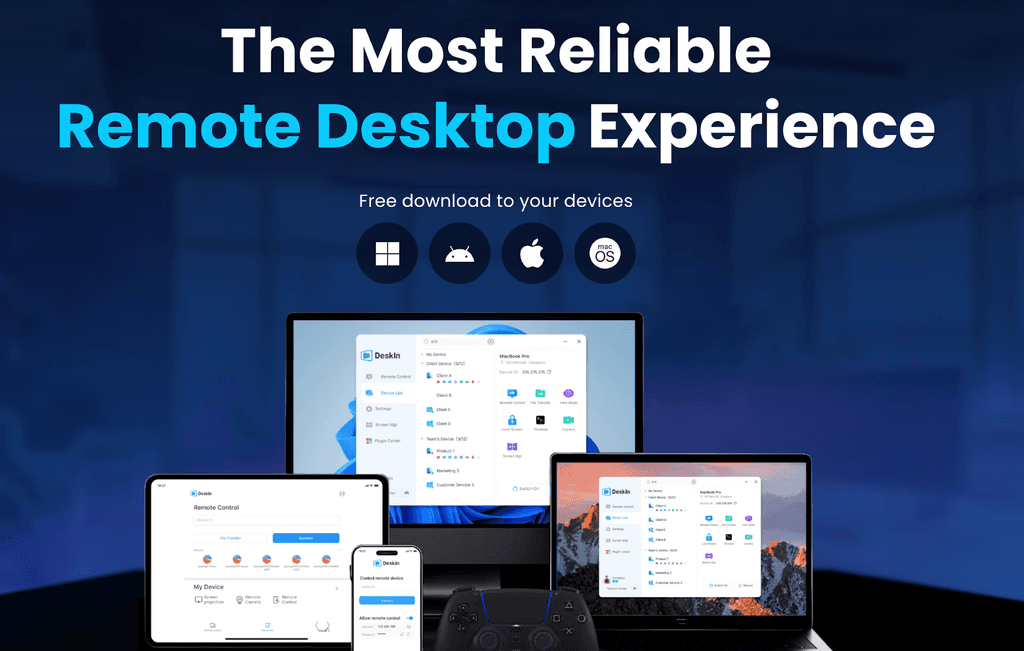
Free download DeskIn

Try DeskIn: A Smarter Way to Use an iMac as a Monitor for a PC

DeskIn remote desktop

DeskIn, a cross-platform, high-performance remote desktop + screen extension tool designed for:

  • Windows → macOS

  • macOS → Windows

  • Mobile ↔ Desktop

  • Desktop ↔ Mobile

  • Mobile ↔ Mobile

Key Features That Make DeskIn the Perfect Fit

  • Cross-platform control (PC ↔ iMac)
    Connect your Windows PC directly to your iMac, control everything from macOS (or vice versa), and switch seamlessly between devices. Or vice versa.

  • Ultra-low latency (2K240FPS / 4K60FPS support)
    DeskIn delivers smooth, near-instant responsiveness with support for 2K240FPS and 4K60FPS. Whether you’re gaming, designing, or working, the stream feels natural, not laggy or compressed.

  • Fast File Transfer Between PC and Mac
    Move files across devices effortlessly: drag, drop, done. Perfect for designers, editors, and multitaskers switching between platforms. See the full file-transfer guide here.

  • Wireless screen sharing/extension
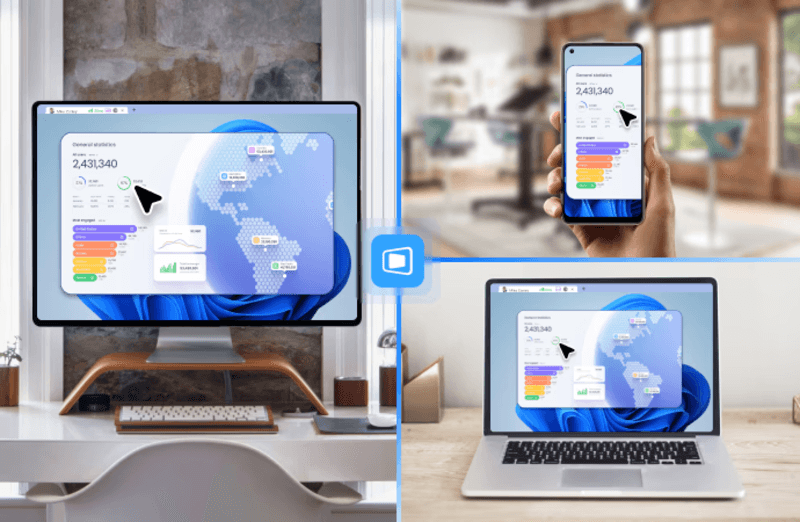
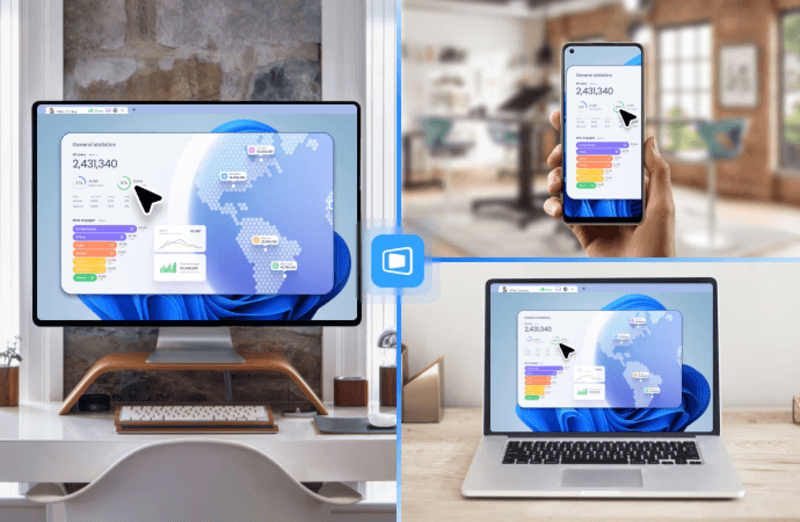
    Mirror your PC screen to the iMac or use it as a true extended screen. It’s the clean, cable-free answer to traditional dual-monitor setups.

  • Built-in Voice Chat & Whiteboard Tools
    Collaborate, troubleshoot, or guide someone remotely with voice chat and annotation tools. A lifesaver for cross-system remote collaboration, tech support, or team training.

    Free download DeskIn

Step-by-Step: Use DeskIn to Extend PC to iMac

Turning your iMac into a second monitor with DeskIn takes just a few minutes.
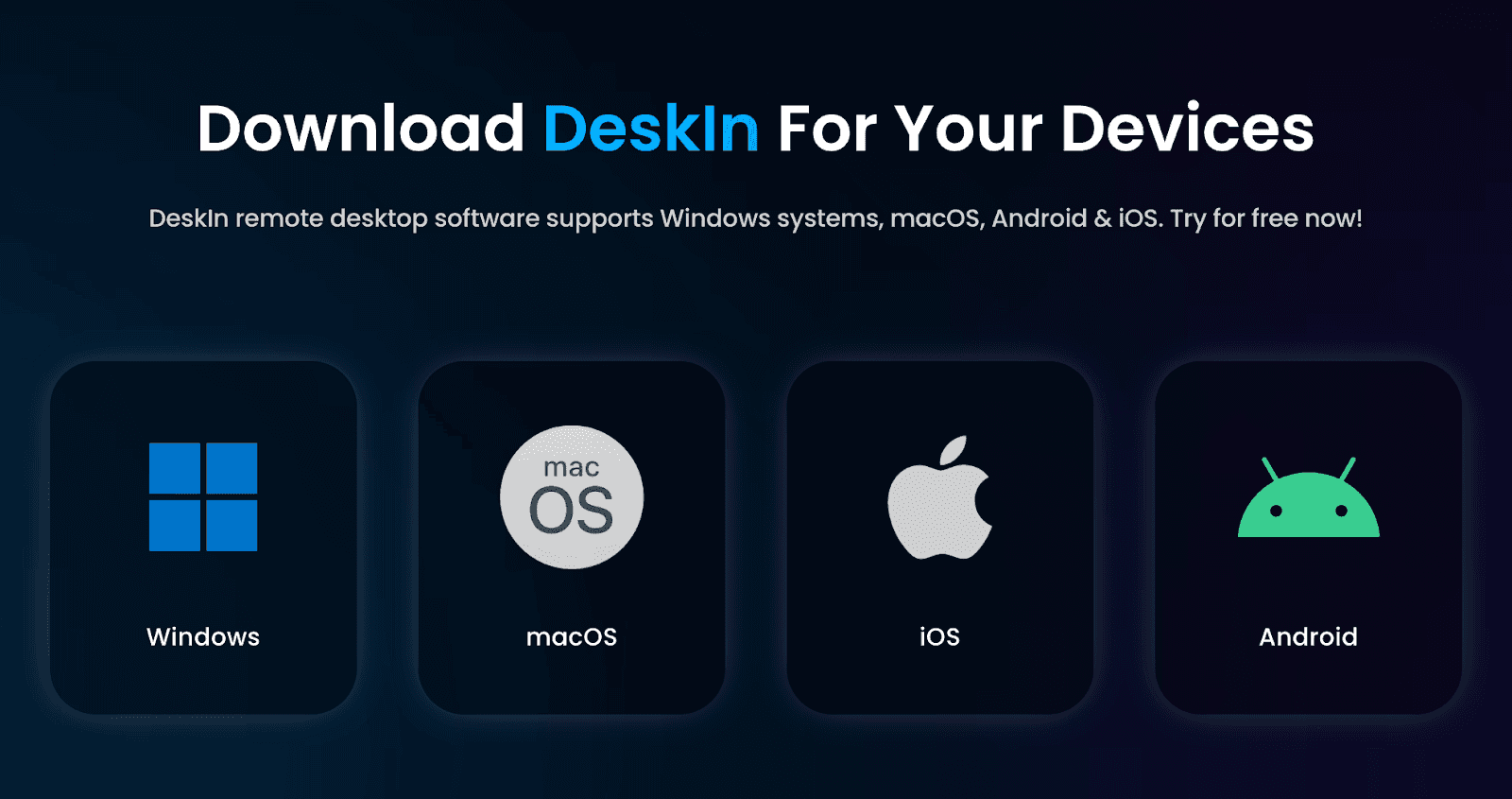
Step 1: Download DeskIn from the Official Site on Both Devices

Download DeskIn for Devices

Install DeskIn on your Windows PC and your iMac. Launch DeskIn and log in or create a free account. Once both apps are open, you’re ready to extend the devices.
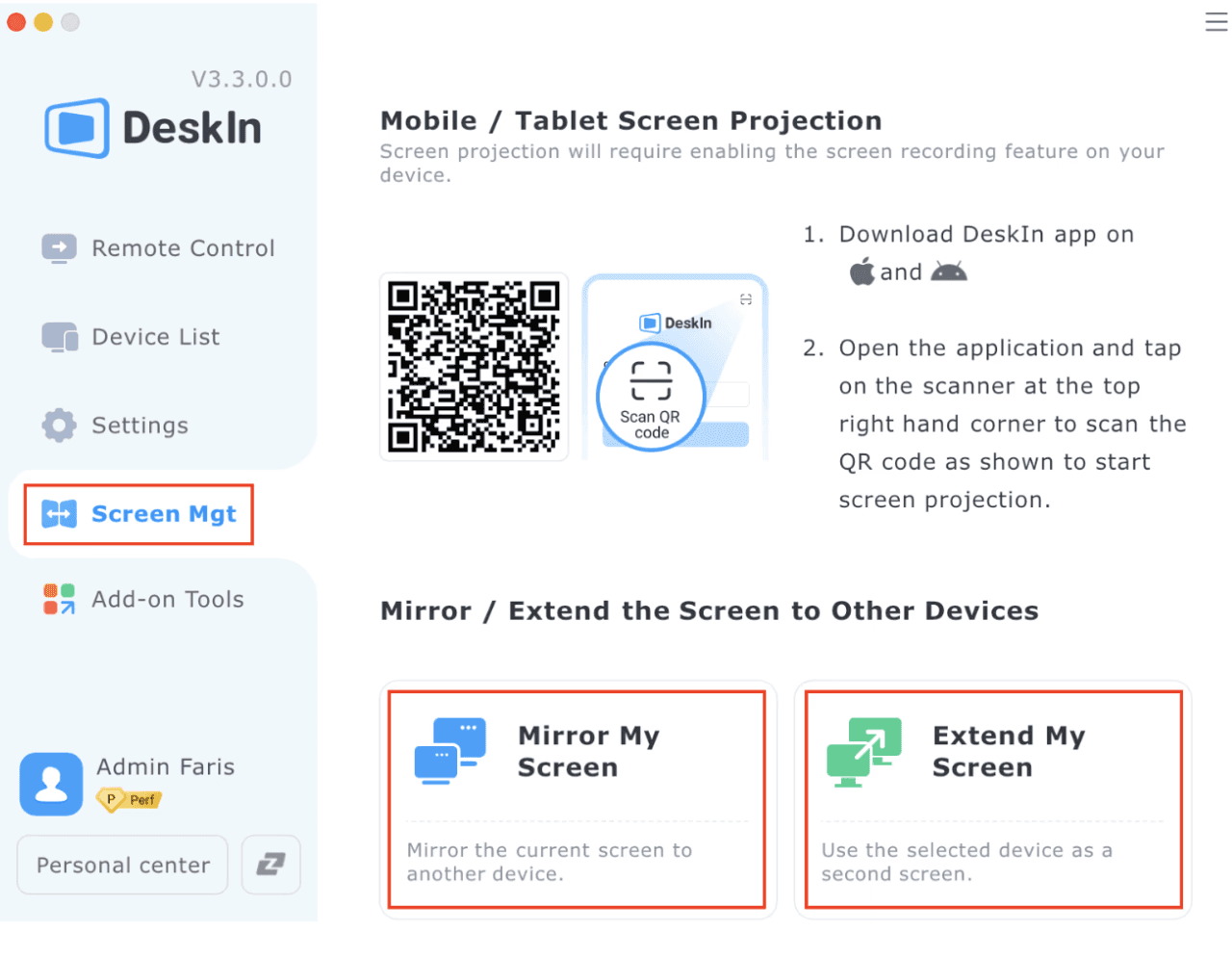
Step 2: Choose Mirror or Extend Mode

How to mirror or extend screen

In DeskIn, go to “Screen Mgt” and select how you want to use your iMac:

  • Mirror My Screen: Show your PC screen on the iMac

  • Extend My Screen: Use the iMac as a true second display
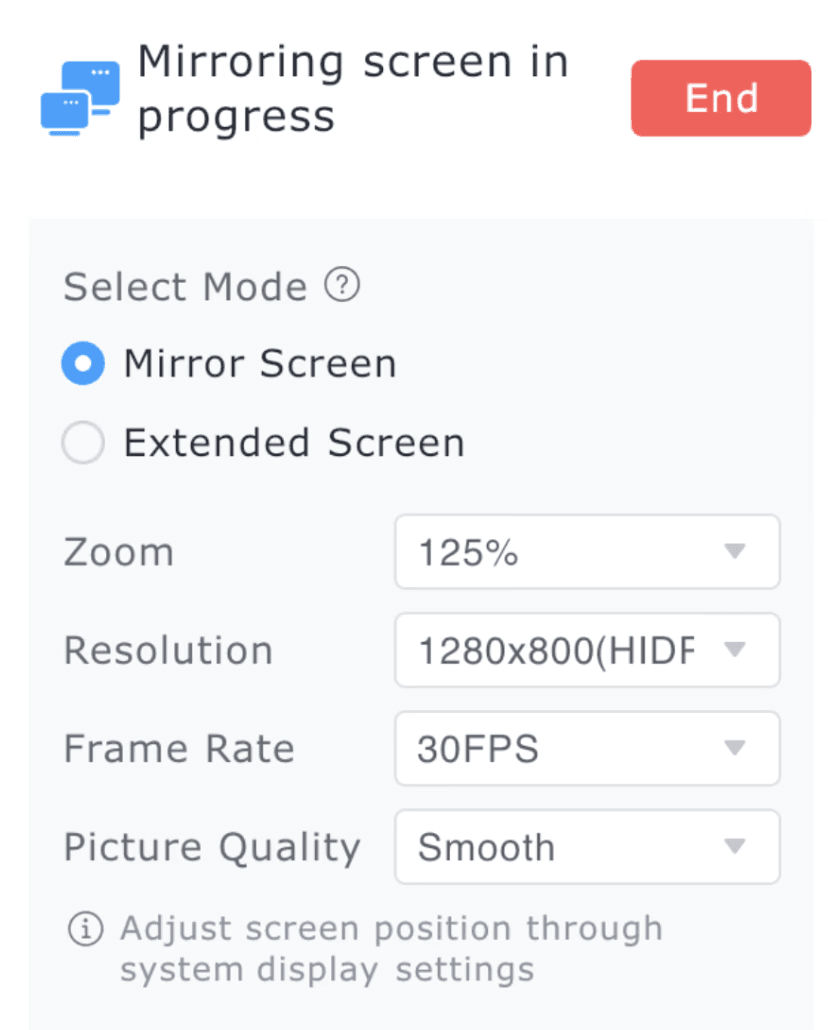
Step 3: Optimize Your Display

DesKIn Mirroring screen setting

Pick your resolution, screen size, and frame rate (from smooth 60FPS to high-performance modes). Enable full-screen, adjust picture quality, and fine-tune the setup until everything looks perfect on your iMac display.

It only takes 3 minutes to connect your PC and iMac using DeskIn. Try it today and enjoy a clutter-free dual-screen setup. Start your first session now!

Free download DeskIn

Use Cases: Who Needs to Use an iMac as a Monitor for a PC

DeskIn turns the idea of using your iMac as a PC display into something surprisingly smooth and genuinely exciting. With a mix of everyday convenience and high-performance tech, here’s where this setup shines the most:

Remote Workers – Multitasking, Upgraded

The old-school one-screen shuffle, with Zoom here and spreadsheets there and a million tabs everywhere, gets old quickly. Making your iMac a second display will get you the space you need to work smarter instead of harder, without having to buy new hardware or rework your entire desk.

Gamers – High-FPS Meets High Aesthetic

Gamers need visibility, clarity, and space. Using the iMac as a second monitor for your PC gives you room for maps, chats, Discord, stream controls, or monitoring performance stats while keeping your main gameplay on your primary screen. DeskIn makes the setup seamless—smooth, low-latency streaming with the added bonus of your iMac’s stunning display. RGB tower on the right, Retina display on the left; clean, powerful, functional.

Read More: Screenshare Your Game in Full HD with Low Latency 

Designers & Creatives – Pixel Perfection on Demand

Designers often rely on dual-screen setups to maximize efficiency: editing on one screen, reference assets or tool panels on the other. Using an iMac as a second monitor gives creatives the clarity of a Retina panel for previews while still running Windows-only software (3D suites, CAD tools, visualizers). DeskIn bridges the two worlds, letting you work across systems without sacrificing display quality.

Read More: Remote Work Software for Creatives: True Color, Real Speed 

Presenters & Tech Support Pros – Clearer Screens, Cleaner Demos

Live demos, workflow explanations, and troubleshooting sessions all look better on a bigger, sharper display. Using your iMac as an extended screen gives you more room to manage tools, windows, and instructions without fumbling for space.

Students – Study Space, Simplified

Modern student life is multitasking at its core: video lectures, research, notes, assignments, online tools, and tutorials often open all at once. Turning the iMac into a second monitor for a PC gives students the space to learn more comfortably: lecture on one screen, notes or assignments on the other. DeskIn turns any study session into a cleaner, more efficient setup without needing to buy a new monitor.

Free download DeskIn

FAQ

  1. Can you use an iMac as a monitor for a PC wirelessly?
    Yes, but not through HDMI, Thunderbolt, or any direct cable connection. A software solution like DeskIn offers the easiest and most reliable way to use an iMac as a monitor for a PC without fighting hardware limitations.

  2. Does Target Display Mode still work for using an iMac as a second monitor?
    Only on very old iMacs (2010–2014) running older macOS versions. It does not work with modern iMacs, and it doesn’t support Windows input at all. DeskIn bypasses the need for Target Display Mode entirely, working on both older and current iMac models.

  3. Can old iMacs be used as monitors for PCs?
    Only a few early models technically support Target Display Mode, and even then, compatibility can be hit-or-miss. DeskIn removes all of those limitations, allowing any iMac, old or new, to function as a PC display through a simple, wireless software setup.

  4. Will there be lag if I use DeskIn to mirror my PC to an iMac?
    DeskIn is engineered for ultra-low latency, offering smooth performance up to 2K240FPS or 4K60FPS. Whether you’re working, designing, or gaming, the experience feels responsive and natural.

  5. Is DeskIn safe to use for remote access and screen sharing?
    Yes. DeskIn uses AES-256 encryption, secure device login, permission-based access, and optional privacy features like privacy screen and view-only mode to protect your workspace. It’s built for professional remote access while keeping your data, screens, and sessions secure.

Use an iMac as a Monitor for a PC Effortlessly with DeskIn

Using an iMac as a second monitor for your PC doesn’t have to be complicated. Forget about the cables, old Target Display Mode how-to’s and compatibility hurdles, DeskIn makes the whole process effortless. With a simple, wireless setup that works on any iMac, you get a smooth, high-quality display experience without the hardware hassle.

Whether you’re working, gaming, or creating, DeskIn delivers a clean, reliable, cross-platform setup that just works

Turn your iMac into a high-performance PC display in minutes. Try DeskIn for free and enjoy the advanced features with zero upfront cost.

Free download DeskIn

Want to use an iMac as a monitor, extend your PC screen, or turn that gorgeous Retina panel into an iMac external monitor, but Apple keeps saying “nope”? You’re not imagining it. iMacs were never designed to accept HDMI or Windows input, which is why every attempt to use an iMac as a monitor for a PC ends in frustration, adapters, and more frustration.

Good news: there is a modern, cable-free way to turn your iMac into a crisp second display for your PC. No outdated Target Display Mode. No compatibility headaches. No tech sorcery required.

Meet DeskIn, the smarter way to do what Apple never intended.

Why People Want to Use an iMac as a Monitor for a PC

It’s a totally fair question; can you use an iMac as a monitor? The short answer: you can, but not the way most people expect.

But before we get into the technical pitfalls, let’s talk about why so many users keep trying this combo:

1. Because iMac screens are stunning

Retina resolution. Pin-sharp detail. Wide color gamut. High brightness. Whether you’re a designer tweaking colors, a gamer who loves beautiful visuals, or someone who just lives with way too many browser tabs, the iMac display is a dream. No budget second monitor can compete with it.

2. Work-from-home setups demand more space

When you are balancing multiple Zoom calls, spreadsheets, email threads, and documents, working with only one screen is like typing with one hand tied behind your back. Many people want to use an iMac as a second monitor for a PC simply to get more workspace without buying another monitor or rearranging the whole desk.

3. Gamers crave the aesthetic + performance

Let’s be honest: pairing a powerful Windows gaming PC with the clean minimalism of an iMac looks incredible. Gamers want the vibe and the performance. Being able to mirror or extend your PC screen to an iMac would give you a beautiful, space-saving setup with hardware you already own.

4. Creative professionals want cross-platform freedom

Photographers, illustrators, editors, and 3D artists often switch between macOS and Windows workflows. They want Windows apps but still want the iMac’s superior color accuracy for previews. Using the iMac as an external monitor feels like the perfect hybrid solution, on paper, at least.

5. Older iMacs still have world-class displays

Even iMacs from 2010–2014 have great panels. Many users think: “If the computer is slow, at least the screen is still premium. Why not repurpose it?”

Which leads to hours of research on how to use an iMac as a monitor, and the inevitable discovery that it’s not that simple.

But here’s where the plot twists… what seems like an obvious idea runs into years of Apple-specific limitations and hardware roadblocks. And that’s exactly where a smarter software-based solution changes everything.

Why It's Technically Challenging to Use an iMac as a Monitor for a PC 

You’d think connecting your PC to an iMac would be as simple as plugging in an HDMI cable. But nope. Apple made sure it’s not that simple.

Let’s debunk the myths and explain what actually works, what doesn’t, and why DeskIn is the smarter solution.

The Target Display Mode Myth

If you’ve searched “how to use iMac as monitor,” you’ve probably stumbled onto something called Target Display Mode, often treated like a secret cheat code for turning an iMac into a second screen. But here’s the truth behind it:

  • TDM only worked on certain 2010–2014 iMacs

  • It required Mini DisplayPort (2009–2010) or Thunderbolt 1/2 (2011–2014)

  • It supported Mac-to-Mac input, not Windows

  • It only worked on older macOS versions (High Sierra or earlier)

In other words, Target Display Mode is a feature from another era. It doesn’t exist on modern Retina iMacs, and it’s disabled entirely on macOS Big Sur and up. So if your iMac is newer than 2014, or your OS is newer than High Sierra, Target Display Mode isn’t an option anymore.

Even worse, TDM never supported HDMI or DisplayPort input from a Windows PC. So anyone trying to use an iMac as a monitor for a PC hits a wall instantly.

HDMI + Thunderbolt Adapters Do Not Work

Thousands of people have tried chaining adapters like: PC → HDMI → Adapter → Thunderbolt → iMac

Here’s why it fails:

  • Thunderbolt ports on iMac do not accept video input

  • iMacs were never designed to be external displays

  • Windows PCs cannot output the signal iMacs expect

No adapter will magically turn your iMac into a plug-and-play monitor. (If you’ve bought five adapters already, sorry.) So hardware solutions, while tempting, are dead ends for almost everyone.

Even Older iMacs Face Compatibility Issues

Let’s say you do have a 2011 or 2012 iMac. You still face major obstacles:

  • You must run an old macOS version

  • Your PC must output via the DisplayPort protocol

  • Most GPUs don’t output the exact signal iMacs expect

  • Newer Windows PCs can’t handshake with old iMac ports

  • Some models work only with specific cables or chipsets

So even supported iMacs often fail to activate Target Display Mode in real-world setups.

Why DeskIn Stands Out?

All the usual roadblocks, Target Display Mode, outdated macOS versions, incompatible ports, and adapter experiments make one thing obvious: iMacs were never designed to work as plug-in PC monitors.

A software solution like DeskIn flips the script.

Instead of forcing the iMac to accept video input it simply can’t handle, DeskIn uses a modern, software-first approach that bypasses every hardware limitation. No cables to match, no vintage iMac hunt, no compatibility roulette.

In short, DeskIn turns the question “can you use an iMac as a monitor?” from a complicated puzzle into a simple yes.

Free download DeskIn

Try DeskIn: A Smarter Way to Use an iMac as a Monitor for a PC

DeskIn remote desktop

DeskIn, a cross-platform, high-performance remote desktop + screen extension tool designed for:

  • Windows → macOS

  • macOS → Windows

  • Mobile ↔ Desktop

  • Desktop ↔ Mobile

  • Mobile ↔ Mobile

Key Features That Make DeskIn the Perfect Fit

  • Cross-platform control (PC ↔ iMac)
    Connect your Windows PC directly to your iMac, control everything from macOS (or vice versa), and switch seamlessly between devices. Or vice versa.

  • Ultra-low latency (2K240FPS / 4K60FPS support)
    DeskIn delivers smooth, near-instant responsiveness with support for 2K240FPS and 4K60FPS. Whether you’re gaming, designing, or working, the stream feels natural, not laggy or compressed.

  • Fast File Transfer Between PC and Mac
    Move files across devices effortlessly: drag, drop, done. Perfect for designers, editors, and multitaskers switching between platforms. See the full file-transfer guide here.

  • Wireless screen sharing/extension
    Mirror your PC screen to the iMac or use it as a true extended screen. It’s the clean, cable-free answer to traditional dual-monitor setups.

  • Built-in Voice Chat & Whiteboard Tools
    Collaborate, troubleshoot, or guide someone remotely with voice chat and annotation tools. A lifesaver for cross-system remote collaboration, tech support, or team training.

    Free download DeskIn

Step-by-Step: Use DeskIn to Extend PC to iMac

Turning your iMac into a second monitor with DeskIn takes just a few minutes.

Step 1: Download DeskIn from the Official Site on Both Devices

Download DeskIn for Devices

Install DeskIn on your Windows PC and your iMac. Launch DeskIn and log in or create a free account. Once both apps are open, you’re ready to extend the devices.

Step 2: Choose Mirror or Extend Mode

How to mirror or extend screen

In DeskIn, go to “Screen Mgt” and select how you want to use your iMac:

  • Mirror My Screen: Show your PC screen on the iMac

  • Extend My Screen: Use the iMac as a true second display

Step 3: Optimize Your Display

DesKIn Mirroring screen setting

Pick your resolution, screen size, and frame rate (from smooth 60FPS to high-performance modes). Enable full-screen, adjust picture quality, and fine-tune the setup until everything looks perfect on your iMac display.

It only takes 3 minutes to connect your PC and iMac using DeskIn. Try it today and enjoy a clutter-free dual-screen setup. Start your first session now!

Free download DeskIn

Use Cases: Who Needs to Use an iMac as a Monitor for a PC

DeskIn turns the idea of using your iMac as a PC display into something surprisingly smooth and genuinely exciting. With a mix of everyday convenience and high-performance tech, here’s where this setup shines the most:

Remote Workers – Multitasking, Upgraded

The old-school one-screen shuffle, with Zoom here and spreadsheets there and a million tabs everywhere, gets old quickly. Making your iMac a second display will get you the space you need to work smarter instead of harder, without having to buy new hardware or rework your entire desk.

Gamers – High-FPS Meets High Aesthetic

Gamers need visibility, clarity, and space. Using the iMac as a second monitor for your PC gives you room for maps, chats, Discord, stream controls, or monitoring performance stats while keeping your main gameplay on your primary screen. DeskIn makes the setup seamless—smooth, low-latency streaming with the added bonus of your iMac’s stunning display. RGB tower on the right, Retina display on the left; clean, powerful, functional.

Read More: Screenshare Your Game in Full HD with Low Latency 

Designers & Creatives – Pixel Perfection on Demand

Designers often rely on dual-screen setups to maximize efficiency: editing on one screen, reference assets or tool panels on the other. Using an iMac as a second monitor gives creatives the clarity of a Retina panel for previews while still running Windows-only software (3D suites, CAD tools, visualizers). DeskIn bridges the two worlds, letting you work across systems without sacrificing display quality.

Read More: Remote Work Software for Creatives: True Color, Real Speed 

Presenters & Tech Support Pros – Clearer Screens, Cleaner Demos

Live demos, workflow explanations, and troubleshooting sessions all look better on a bigger, sharper display. Using your iMac as an extended screen gives you more room to manage tools, windows, and instructions without fumbling for space.

Students – Study Space, Simplified

Modern student life is multitasking at its core: video lectures, research, notes, assignments, online tools, and tutorials often open all at once. Turning the iMac into a second monitor for a PC gives students the space to learn more comfortably: lecture on one screen, notes or assignments on the other. DeskIn turns any study session into a cleaner, more efficient setup without needing to buy a new monitor.

Free download DeskIn

FAQ

  1. Can you use an iMac as a monitor for a PC wirelessly?
    Yes, but not through HDMI, Thunderbolt, or any direct cable connection. A software solution like DeskIn offers the easiest and most reliable way to use an iMac as a monitor for a PC without fighting hardware limitations.

  2. Does Target Display Mode still work for using an iMac as a second monitor?
    Only on very old iMacs (2010–2014) running older macOS versions. It does not work with modern iMacs, and it doesn’t support Windows input at all. DeskIn bypasses the need for Target Display Mode entirely, working on both older and current iMac models.

  3. Can old iMacs be used as monitors for PCs?
    Only a few early models technically support Target Display Mode, and even then, compatibility can be hit-or-miss. DeskIn removes all of those limitations, allowing any iMac, old or new, to function as a PC display through a simple, wireless software setup.

  4. Will there be lag if I use DeskIn to mirror my PC to an iMac?
    DeskIn is engineered for ultra-low latency, offering smooth performance up to 2K240FPS or 4K60FPS. Whether you’re working, designing, or gaming, the experience feels responsive and natural.

  5. Is DeskIn safe to use for remote access and screen sharing?
    Yes. DeskIn uses AES-256 encryption, secure device login, permission-based access, and optional privacy features like privacy screen and view-only mode to protect your workspace. It’s built for professional remote access while keeping your data, screens, and sessions secure.

Use an iMac as a Monitor for a PC Effortlessly with DeskIn

Using an iMac as a second monitor for your PC doesn’t have to be complicated. Forget about the cables, old Target Display Mode how-to’s and compatibility hurdles, DeskIn makes the whole process effortless. With a simple, wireless setup that works on any iMac, you get a smooth, high-quality display experience without the hardware hassle.

Whether you’re working, gaming, or creating, DeskIn delivers a clean, reliable, cross-platform setup that just works

Turn your iMac into a high-performance PC display in minutes. Try DeskIn for free and enjoy the advanced features with zero upfront cost.

Free download DeskIn

Play x Work
All at Once

DeskIn Remote Game

only $14.32 USD 🎉 Limited on July 16-31

Add promo code: deskinsummer1

Use imac as monitor for PC

章節目錄

1212 big sale
Use imac as monitor for PC

Use an iMac as a Monitor for a PC with DeskIn Wirelessly

Want to use an iMac as a monitor, extend your PC screen, or turn that gorgeous Retina panel into an iMac external monitor, but Apple keeps saying “nope”? You’re not imagining it. iMacs were never designed to accept HDMI or Windows input, which is why every attempt to use an iMac as a monitor for a PC ends in frustration, adapters, and more frustration.

Good news: there is a modern, cable-free way to turn your iMac into a crisp second display for your PC. No outdated Target Display Mode. No compatibility headaches. No tech sorcery required.

Meet DeskIn, the smarter way to do what Apple never intended.

Why People Want to Use an iMac as a Monitor for a PC

It’s a totally fair question; can you use an iMac as a monitor? The short answer: you can, but not the way most people expect.

But before we get into the technical pitfalls, let’s talk about why so many users keep trying this combo:

1. Because iMac screens are stunning

Retina resolution. Pin-sharp detail. Wide color gamut. High brightness. Whether you’re a designer tweaking colors, a gamer who loves beautiful visuals, or someone who just lives with way too many browser tabs, the iMac display is a dream. No budget second monitor can compete with it.

2. Work-from-home setups demand more space

When you are balancing multiple Zoom calls, spreadsheets, email threads, and documents, working with only one screen is like typing with one hand tied behind your back. Many people want to use an iMac as a second monitor for a PC simply to get more workspace without buying another monitor or rearranging the whole desk.

3. Gamers crave the aesthetic + performance

Let’s be honest: pairing a powerful Windows gaming PC with the clean minimalism of an iMac looks incredible. Gamers want the vibe and the performance. Being able to mirror or extend your PC screen to an iMac would give you a beautiful, space-saving setup with hardware you already own.

4. Creative professionals want cross-platform freedom

Photographers, illustrators, editors, and 3D artists often switch between macOS and Windows workflows. They want Windows apps but still want the iMac’s superior color accuracy for previews. Using the iMac as an external monitor feels like the perfect hybrid solution, on paper, at least.

5. Older iMacs still have world-class displays

Even iMacs from 2010–2014 have great panels. Many users think: “If the computer is slow, at least the screen is still premium. Why not repurpose it?”

Which leads to hours of research on how to use an iMac as a monitor, and the inevitable discovery that it’s not that simple.

But here’s where the plot twists… what seems like an obvious idea runs into years of Apple-specific limitations and hardware roadblocks. And that’s exactly where a smarter software-based solution changes everything.

Why It's Technically Challenging to Use an iMac as a Monitor for a PC 

You’d think connecting your PC to an iMac would be as simple as plugging in an HDMI cable. But nope. Apple made sure it’s not that simple.

Let’s debunk the myths and explain what actually works, what doesn’t, and why DeskIn is the smarter solution.

The Target Display Mode Myth

If you’ve searched “how to use iMac as monitor,” you’ve probably stumbled onto something called Target Display Mode, often treated like a secret cheat code for turning an iMac into a second screen. But here’s the truth behind it:

  • TDM only worked on certain 2010–2014 iMacs

  • It required Mini DisplayPort (2009–2010) or Thunderbolt 1/2 (2011–2014)

  • It supported Mac-to-Mac input, not Windows

  • It only worked on older macOS versions (High Sierra or earlier)

In other words, Target Display Mode is a feature from another era. It doesn’t exist on modern Retina iMacs, and it’s disabled entirely on macOS Big Sur and up. So if your iMac is newer than 2014, or your OS is newer than High Sierra, Target Display Mode isn’t an option anymore.

Even worse, TDM never supported HDMI or DisplayPort input from a Windows PC. So anyone trying to use an iMac as a monitor for a PC hits a wall instantly.

HDMI + Thunderbolt Adapters Do Not Work

Thousands of people have tried chaining adapters like: PC → HDMI → Adapter → Thunderbolt → iMac

Here’s why it fails:

  • Thunderbolt ports on iMac do not accept video input

  • iMacs were never designed to be external displays

  • Windows PCs cannot output the signal iMacs expect

No adapter will magically turn your iMac into a plug-and-play monitor. (If you’ve bought five adapters already, sorry.) So hardware solutions, while tempting, are dead ends for almost everyone.

Even Older iMacs Face Compatibility Issues

Let’s say you do have a 2011 or 2012 iMac. You still face major obstacles:

  • You must run an old macOS version

  • Your PC must output via the DisplayPort protocol

  • Most GPUs don’t output the exact signal iMacs expect

  • Newer Windows PCs can’t handshake with old iMac ports

  • Some models work only with specific cables or chipsets

So even supported iMacs often fail to activate Target Display Mode in real-world setups.

Why DeskIn Stands Out?

All the usual roadblocks, Target Display Mode, outdated macOS versions, incompatible ports, and adapter experiments make one thing obvious: iMacs were never designed to work as plug-in PC monitors.

A software solution like DeskIn flips the script.

Instead of forcing the iMac to accept video input it simply can’t handle, DeskIn uses a modern, software-first approach that bypasses every hardware limitation. No cables to match, no vintage iMac hunt, no compatibility roulette.

In short, DeskIn turns the question “can you use an iMac as a monitor?” from a complicated puzzle into a simple yes.

Free download DeskIn

Try DeskIn: A Smarter Way to Use an iMac as a Monitor for a PC

DeskIn remote desktop

DeskIn, a cross-platform, high-performance remote desktop + screen extension tool designed for:

  • Windows → macOS

  • macOS → Windows

  • Mobile ↔ Desktop

  • Desktop ↔ Mobile

  • Mobile ↔ Mobile

Key Features That Make DeskIn the Perfect Fit

  • Cross-platform control (PC ↔ iMac)
    Connect your Windows PC directly to your iMac, control everything from macOS (or vice versa), and switch seamlessly between devices. Or vice versa.

  • Ultra-low latency (2K240FPS / 4K60FPS support)
    DeskIn delivers smooth, near-instant responsiveness with support for 2K240FPS and 4K60FPS. Whether you’re gaming, designing, or working, the stream feels natural, not laggy or compressed.

  • Fast File Transfer Between PC and Mac
    Move files across devices effortlessly: drag, drop, done. Perfect for designers, editors, and multitaskers switching between platforms. See the full file-transfer guide here.

  • Wireless screen sharing/extension
    Mirror your PC screen to the iMac or use it as a true extended screen. It’s the clean, cable-free answer to traditional dual-monitor setups.

  • Built-in Voice Chat & Whiteboard Tools
    Collaborate, troubleshoot, or guide someone remotely with voice chat and annotation tools. A lifesaver for cross-system remote collaboration, tech support, or team training.

    Free download DeskIn

Step-by-Step: Use DeskIn to Extend PC to iMac

Turning your iMac into a second monitor with DeskIn takes just a few minutes.

Step 1: Download DeskIn from the Official Site on Both Devices

Download DeskIn for Devices

Install DeskIn on your Windows PC and your iMac. Launch DeskIn and log in or create a free account. Once both apps are open, you’re ready to extend the devices.

Step 2: Choose Mirror or Extend Mode

How to mirror or extend screen

In DeskIn, go to “Screen Mgt” and select how you want to use your iMac:

  • Mirror My Screen: Show your PC screen on the iMac

  • Extend My Screen: Use the iMac as a true second display

Step 3: Optimize Your Display

DesKIn Mirroring screen setting

Pick your resolution, screen size, and frame rate (from smooth 60FPS to high-performance modes). Enable full-screen, adjust picture quality, and fine-tune the setup until everything looks perfect on your iMac display.

It only takes 3 minutes to connect your PC and iMac using DeskIn. Try it today and enjoy a clutter-free dual-screen setup. Start your first session now!

Free download DeskIn

Use Cases: Who Needs to Use an iMac as a Monitor for a PC

DeskIn turns the idea of using your iMac as a PC display into something surprisingly smooth and genuinely exciting. With a mix of everyday convenience and high-performance tech, here’s where this setup shines the most:

Remote Workers – Multitasking, Upgraded

The old-school one-screen shuffle, with Zoom here and spreadsheets there and a million tabs everywhere, gets old quickly. Making your iMac a second display will get you the space you need to work smarter instead of harder, without having to buy new hardware or rework your entire desk.

Gamers – High-FPS Meets High Aesthetic

Gamers need visibility, clarity, and space. Using the iMac as a second monitor for your PC gives you room for maps, chats, Discord, stream controls, or monitoring performance stats while keeping your main gameplay on your primary screen. DeskIn makes the setup seamless—smooth, low-latency streaming with the added bonus of your iMac’s stunning display. RGB tower on the right, Retina display on the left; clean, powerful, functional.

Read More: Screenshare Your Game in Full HD with Low Latency 

Designers & Creatives – Pixel Perfection on Demand

Designers often rely on dual-screen setups to maximize efficiency: editing on one screen, reference assets or tool panels on the other. Using an iMac as a second monitor gives creatives the clarity of a Retina panel for previews while still running Windows-only software (3D suites, CAD tools, visualizers). DeskIn bridges the two worlds, letting you work across systems without sacrificing display quality.

Read More: Remote Work Software for Creatives: True Color, Real Speed 

Presenters & Tech Support Pros – Clearer Screens, Cleaner Demos

Live demos, workflow explanations, and troubleshooting sessions all look better on a bigger, sharper display. Using your iMac as an extended screen gives you more room to manage tools, windows, and instructions without fumbling for space.

Students – Study Space, Simplified

Modern student life is multitasking at its core: video lectures, research, notes, assignments, online tools, and tutorials often open all at once. Turning the iMac into a second monitor for a PC gives students the space to learn more comfortably: lecture on one screen, notes or assignments on the other. DeskIn turns any study session into a cleaner, more efficient setup without needing to buy a new monitor.

Free download DeskIn

FAQ

  1. Can you use an iMac as a monitor for a PC wirelessly?
    Yes, but not through HDMI, Thunderbolt, or any direct cable connection. A software solution like DeskIn offers the easiest and most reliable way to use an iMac as a monitor for a PC without fighting hardware limitations.

  2. Does Target Display Mode still work for using an iMac as a second monitor?
    Only on very old iMacs (2010–2014) running older macOS versions. It does not work with modern iMacs, and it doesn’t support Windows input at all. DeskIn bypasses the need for Target Display Mode entirely, working on both older and current iMac models.

  3. Can old iMacs be used as monitors for PCs?
    Only a few early models technically support Target Display Mode, and even then, compatibility can be hit-or-miss. DeskIn removes all of those limitations, allowing any iMac, old or new, to function as a PC display through a simple, wireless software setup.

  4. Will there be lag if I use DeskIn to mirror my PC to an iMac?
    DeskIn is engineered for ultra-low latency, offering smooth performance up to 2K240FPS or 4K60FPS. Whether you’re working, designing, or gaming, the experience feels responsive and natural.

  5. Is DeskIn safe to use for remote access and screen sharing?
    Yes. DeskIn uses AES-256 encryption, secure device login, permission-based access, and optional privacy features like privacy screen and view-only mode to protect your workspace. It’s built for professional remote access while keeping your data, screens, and sessions secure.

Use an iMac as a Monitor for a PC Effortlessly with DeskIn

Using an iMac as a second monitor for your PC doesn’t have to be complicated. Forget about the cables, old Target Display Mode how-to’s and compatibility hurdles, DeskIn makes the whole process effortless. With a simple, wireless setup that works on any iMac, you get a smooth, high-quality display experience without the hardware hassle.

Whether you’re working, gaming, or creating, DeskIn delivers a clean, reliable, cross-platform setup that just works

Turn your iMac into a high-performance PC display in minutes. Try DeskIn for free and enjoy the advanced features with zero upfront cost.

Free download DeskIn
Use imac as monitor for PC

Use an iMac as a Monitor for a PC with DeskIn Wirelessly

Want to use an iMac as a monitor, extend your PC screen, or turn that gorgeous Retina panel into an iMac external monitor, but Apple keeps saying “nope”? You’re not imagining it. iMacs were never designed to accept HDMI or Windows input, which is why every attempt to use an iMac as a monitor for a PC ends in frustration, adapters, and more frustration.

Good news: there is a modern, cable-free way to turn your iMac into a crisp second display for your PC. No outdated Target Display Mode. No compatibility headaches. No tech sorcery required.

Meet DeskIn, the smarter way to do what Apple never intended.

Why People Want to Use an iMac as a Monitor for a PC

It’s a totally fair question; can you use an iMac as a monitor? The short answer: you can, but not the way most people expect.

But before we get into the technical pitfalls, let’s talk about why so many users keep trying this combo:

1. Because iMac screens are stunning

Retina resolution. Pin-sharp detail. Wide color gamut. High brightness. Whether you’re a designer tweaking colors, a gamer who loves beautiful visuals, or someone who just lives with way too many browser tabs, the iMac display is a dream. No budget second monitor can compete with it.

2. Work-from-home setups demand more space

When you are balancing multiple Zoom calls, spreadsheets, email threads, and documents, working with only one screen is like typing with one hand tied behind your back. Many people want to use an iMac as a second monitor for a PC simply to get more workspace without buying another monitor or rearranging the whole desk.

3. Gamers crave the aesthetic + performance

Let’s be honest: pairing a powerful Windows gaming PC with the clean minimalism of an iMac looks incredible. Gamers want the vibe and the performance. Being able to mirror or extend your PC screen to an iMac would give you a beautiful, space-saving setup with hardware you already own.

4. Creative professionals want cross-platform freedom

Photographers, illustrators, editors, and 3D artists often switch between macOS and Windows workflows. They want Windows apps but still want the iMac’s superior color accuracy for previews. Using the iMac as an external monitor feels like the perfect hybrid solution, on paper, at least.

5. Older iMacs still have world-class displays

Even iMacs from 2010–2014 have great panels. Many users think: “If the computer is slow, at least the screen is still premium. Why not repurpose it?”

Which leads to hours of research on how to use an iMac as a monitor, and the inevitable discovery that it’s not that simple.

But here’s where the plot twists… what seems like an obvious idea runs into years of Apple-specific limitations and hardware roadblocks. And that’s exactly where a smarter software-based solution changes everything.

Why It's Technically Challenging to Use an iMac as a Monitor for a PC 

You’d think connecting your PC to an iMac would be as simple as plugging in an HDMI cable. But nope. Apple made sure it’s not that simple.

Let’s debunk the myths and explain what actually works, what doesn’t, and why DeskIn is the smarter solution.

The Target Display Mode Myth

If you’ve searched “how to use iMac as monitor,” you’ve probably stumbled onto something called Target Display Mode, often treated like a secret cheat code for turning an iMac into a second screen. But here’s the truth behind it:

  • TDM only worked on certain 2010–2014 iMacs

  • It required Mini DisplayPort (2009–2010) or Thunderbolt 1/2 (2011–2014)

  • It supported Mac-to-Mac input, not Windows

  • It only worked on older macOS versions (High Sierra or earlier)

In other words, Target Display Mode is a feature from another era. It doesn’t exist on modern Retina iMacs, and it’s disabled entirely on macOS Big Sur and up. So if your iMac is newer than 2014, or your OS is newer than High Sierra, Target Display Mode isn’t an option anymore.

Even worse, TDM never supported HDMI or DisplayPort input from a Windows PC. So anyone trying to use an iMac as a monitor for a PC hits a wall instantly.

HDMI + Thunderbolt Adapters Do Not Work

Thousands of people have tried chaining adapters like: PC → HDMI → Adapter → Thunderbolt → iMac

Here’s why it fails:

  • Thunderbolt ports on iMac do not accept video input

  • iMacs were never designed to be external displays

  • Windows PCs cannot output the signal iMacs expect

No adapter will magically turn your iMac into a plug-and-play monitor. (If you’ve bought five adapters already, sorry.) So hardware solutions, while tempting, are dead ends for almost everyone.

Even Older iMacs Face Compatibility Issues

Let’s say you do have a 2011 or 2012 iMac. You still face major obstacles:

  • You must run an old macOS version

  • Your PC must output via the DisplayPort protocol

  • Most GPUs don’t output the exact signal iMacs expect

  • Newer Windows PCs can’t handshake with old iMac ports

  • Some models work only with specific cables or chipsets

So even supported iMacs often fail to activate Target Display Mode in real-world setups.

Why DeskIn Stands Out?

All the usual roadblocks, Target Display Mode, outdated macOS versions, incompatible ports, and adapter experiments make one thing obvious: iMacs were never designed to work as plug-in PC monitors.

A software solution like DeskIn flips the script.

Instead of forcing the iMac to accept video input it simply can’t handle, DeskIn uses a modern, software-first approach that bypasses every hardware limitation. No cables to match, no vintage iMac hunt, no compatibility roulette.

In short, DeskIn turns the question “can you use an iMac as a monitor?” from a complicated puzzle into a simple yes.

Free download DeskIn

Try DeskIn: A Smarter Way to Use an iMac as a Monitor for a PC

DeskIn remote desktop

DeskIn, a cross-platform, high-performance remote desktop + screen extension tool designed for:

  • Windows → macOS

  • macOS → Windows

  • Mobile ↔ Desktop

  • Desktop ↔ Mobile

  • Mobile ↔ Mobile

Key Features That Make DeskIn the Perfect Fit

  • Cross-platform control (PC ↔ iMac)
    Connect your Windows PC directly to your iMac, control everything from macOS (or vice versa), and switch seamlessly between devices. Or vice versa.

  • Ultra-low latency (2K240FPS / 4K60FPS support)
    DeskIn delivers smooth, near-instant responsiveness with support for 2K240FPS and 4K60FPS. Whether you’re gaming, designing, or working, the stream feels natural, not laggy or compressed.

  • Fast File Transfer Between PC and Mac
    Move files across devices effortlessly: drag, drop, done. Perfect for designers, editors, and multitaskers switching between platforms. See the full file-transfer guide here.

  • Wireless screen sharing/extension
    Mirror your PC screen to the iMac or use it as a true extended screen. It’s the clean, cable-free answer to traditional dual-monitor setups.

  • Built-in Voice Chat & Whiteboard Tools
    Collaborate, troubleshoot, or guide someone remotely with voice chat and annotation tools. A lifesaver for cross-system remote collaboration, tech support, or team training.

    Free download DeskIn

Step-by-Step: Use DeskIn to Extend PC to iMac

Turning your iMac into a second monitor with DeskIn takes just a few minutes.

Step 1: Download DeskIn from the Official Site on Both Devices

Download DeskIn for Devices

Install DeskIn on your Windows PC and your iMac. Launch DeskIn and log in or create a free account. Once both apps are open, you’re ready to extend the devices.

Step 2: Choose Mirror or Extend Mode

How to mirror or extend screen

In DeskIn, go to “Screen Mgt” and select how you want to use your iMac:

  • Mirror My Screen: Show your PC screen on the iMac

  • Extend My Screen: Use the iMac as a true second display

Step 3: Optimize Your Display

DesKIn Mirroring screen setting

Pick your resolution, screen size, and frame rate (from smooth 60FPS to high-performance modes). Enable full-screen, adjust picture quality, and fine-tune the setup until everything looks perfect on your iMac display.

It only takes 3 minutes to connect your PC and iMac using DeskIn. Try it today and enjoy a clutter-free dual-screen setup. Start your first session now!

Free download DeskIn

Use Cases: Who Needs to Use an iMac as a Monitor for a PC

DeskIn turns the idea of using your iMac as a PC display into something surprisingly smooth and genuinely exciting. With a mix of everyday convenience and high-performance tech, here’s where this setup shines the most:

Remote Workers – Multitasking, Upgraded

The old-school one-screen shuffle, with Zoom here and spreadsheets there and a million tabs everywhere, gets old quickly. Making your iMac a second display will get you the space you need to work smarter instead of harder, without having to buy new hardware or rework your entire desk.

Gamers – High-FPS Meets High Aesthetic

Gamers need visibility, clarity, and space. Using the iMac as a second monitor for your PC gives you room for maps, chats, Discord, stream controls, or monitoring performance stats while keeping your main gameplay on your primary screen. DeskIn makes the setup seamless—smooth, low-latency streaming with the added bonus of your iMac’s stunning display. RGB tower on the right, Retina display on the left; clean, powerful, functional.

Read More: Screenshare Your Game in Full HD with Low Latency 

Designers & Creatives – Pixel Perfection on Demand

Designers often rely on dual-screen setups to maximize efficiency: editing on one screen, reference assets or tool panels on the other. Using an iMac as a second monitor gives creatives the clarity of a Retina panel for previews while still running Windows-only software (3D suites, CAD tools, visualizers). DeskIn bridges the two worlds, letting you work across systems without sacrificing display quality.

Read More: Remote Work Software for Creatives: True Color, Real Speed 

Presenters & Tech Support Pros – Clearer Screens, Cleaner Demos

Live demos, workflow explanations, and troubleshooting sessions all look better on a bigger, sharper display. Using your iMac as an extended screen gives you more room to manage tools, windows, and instructions without fumbling for space.

Students – Study Space, Simplified

Modern student life is multitasking at its core: video lectures, research, notes, assignments, online tools, and tutorials often open all at once. Turning the iMac into a second monitor for a PC gives students the space to learn more comfortably: lecture on one screen, notes or assignments on the other. DeskIn turns any study session into a cleaner, more efficient setup without needing to buy a new monitor.

Free download DeskIn

FAQ

  1. Can you use an iMac as a monitor for a PC wirelessly?
    Yes, but not through HDMI, Thunderbolt, or any direct cable connection. A software solution like DeskIn offers the easiest and most reliable way to use an iMac as a monitor for a PC without fighting hardware limitations.

  2. Does Target Display Mode still work for using an iMac as a second monitor?
    Only on very old iMacs (2010–2014) running older macOS versions. It does not work with modern iMacs, and it doesn’t support Windows input at all. DeskIn bypasses the need for Target Display Mode entirely, working on both older and current iMac models.

  3. Can old iMacs be used as monitors for PCs?
    Only a few early models technically support Target Display Mode, and even then, compatibility can be hit-or-miss. DeskIn removes all of those limitations, allowing any iMac, old or new, to function as a PC display through a simple, wireless software setup.

  4. Will there be lag if I use DeskIn to mirror my PC to an iMac?
    DeskIn is engineered for ultra-low latency, offering smooth performance up to 2K240FPS or 4K60FPS. Whether you’re working, designing, or gaming, the experience feels responsive and natural.

  5. Is DeskIn safe to use for remote access and screen sharing?
    Yes. DeskIn uses AES-256 encryption, secure device login, permission-based access, and optional privacy features like privacy screen and view-only mode to protect your workspace. It’s built for professional remote access while keeping your data, screens, and sessions secure.

Use an iMac as a Monitor for a PC Effortlessly with DeskIn

Using an iMac as a second monitor for your PC doesn’t have to be complicated. Forget about the cables, old Target Display Mode how-to’s and compatibility hurdles, DeskIn makes the whole process effortless. With a simple, wireless setup that works on any iMac, you get a smooth, high-quality display experience without the hardware hassle.

Whether you’re working, gaming, or creating, DeskIn delivers a clean, reliable, cross-platform setup that just works

Turn your iMac into a high-performance PC display in minutes. Try DeskIn for free and enjoy the advanced features with zero upfront cost.

Free download DeskIn
Ultraview vs. DeskIn

DeskIn vs. UltraViewer: Which Remote Desktop Tool Is Better for 2026?

Remote work in 2026 isn’t just about opening a laptop from your couch anymore. We’re gaming remotely, fixing our parents’ computers from across the city, moving files between devices, controlling our phones from a PC, and switching between Windows, macOS, Android, and iOS like it’s nothing.

But here’s the truth: not all remote desktop software is ready for that.

If you’ve ever struggled with laggy screen control, clunky file transfers, outdated interfaces, or remote access tools that still don’t support mobile devices in 2026 (yes, it still happens), you already know the pain.

Today, we’re comparing two tools people often consider: UltraViewer and DeskIn.

UltraViewer is familiar and simple.

But, DeskIn is next-gen and built for the world we actually live in.

Let’s dive into which remote desktop tool truly wins in speed, mobility, and real-world usability.

What Is UltraViewer and How Does It Work?

UltraViewer is a lightweight remote access tool created to make remote support easy, especially for IT technicians helping clients, or for individuals who want to remotely control a friend’s or family member’s PC without a complicated setup.

At its core, UltraViewer focuses on simplicity: install → share ID/password → connect.

Ultraviewer vs. DeskIn

Ultraviewer Remote Desktop Software Features

Despite being minimalistic, UltraViewer offers a handful of core functions that people still rely on:

  • Remote control of another PC
    Control a Windows computer to configure settings or resolve issues directly.

  • Basic file transfer
    You can move documents or small files between devices, though transfer speeds are modest.

  • Built-in chat window
    Useful for guiding users in real time while taking actions on their screen.

  • Easy customer pairing
    Its simplicity makes it ideal for small support teams who just need to jump into a session fast.

  • Free version available
    A key reason many casual users still consider UltraViewer is for basic remote assistance.

Limitations of UltraViewer

But while UltraViewer gets the fundamentals right, it starts to show its age, especially when compared with modern remote desktop software built for today’s multi-device, high-performance needs.

Here’s where it struggles:

  • Windows-only support
    No macOS, Linux, iOS, or Android. In 2026, this significantly limits who can use it and how flexible your workflow can be.

  • Outdated interface
    The UI feels stuck in an older era. It works, but it’s not designed for multitasking or modern usability.

  • No performance optimization
    No support for high-FPS streaming, gaming, media rendering, or low-latency workflows.

  • Basic encryption
    Suitable for casual support, but not robust enough for sensitive or enterprise environments.

  • No mobile remote access
    You can’t control a PC from your phone, and you can’t control a phone from your PC, both essential features in today’s mobile-first world.

  • Limited productivity features
    No multi-screen support, no screen extension mode, no quick-access shortcuts, no game mode, and no advanced session tools.

UltraViewer Alternative in 2026

If your needs are simple, like helping someone install software, fixing a printer issue, or doing light troubleshooting, UltraViewer performs reliably enough.

But the moment you need more speed, better performance, mobile flexibility, or modern usability, its limitations become impossible to ignore. It simply wasn’t built for remote gaming, design workflows, multitasking, or cross-platform environments.

This is where DeskIn steps in,  not just to patch the gaps, but to completely reimagine what a modern remote desktop software should offer in 2026. With advanced mobile access, ultra-low latency, high-resolution streaming, and powerful session tools, DeskIn elevates remote access far beyond the basics that UltraViewer provides.

Free download DeskIn

Meet DeskIn: The Next-Gen Lifestyle Remote Desktop Tool

DeskIn remote desktop software

If UltraViewer represents the old-school way of doing remote support, DeskIn represents everything modern users expect today: power, mobility, speed, and smoothness 

Think of DeskIn remote desktop as the all-in-one remote control PC platform designed not only for tech support sessions or emergency troubleshooting, but also for:

  • Mobile remote control

  • Remote PC gaming

  • Creative and design work

  • Professional IT support

  • Fast file transfer

  • Productivity on the go

  • Multitasking between devices

  • Cross-platform collaboration

  • Media creation and content editing

  • Seamless remote work from anywhere

Instead of being “just another remote access tool,” DeskIn acts like a portable extension of your entire digital environment, your apps, your games, your files, your multi-screen workspace, no matter what device you’re on.

Free download DeskIn

Why DeskIn Stands Out in 2026

DeskIn includes everything UltraViewer can do, but then pushes far beyond it with next-generation performance, mobile flexibility, and creator-friendly tools. It’s built for real-world 2026 workflows, not 2015-era remote support.

Cross-platform support

DeskIn Cross-platform support


DeskIn works across every major platform:

  • Windows

  • macOS

  • Android

  • iOS

This already puts it leagues ahead of UltraViewer, which is restricted to Windows-only. In today’s multi-device world, that alone is a game-changer.

Ultra low latency (below 40 ms)

Powered by DeskIn’s ZeroSync engine, input response feels instant, crucial for gaming, design, 3D visualization, coding, live demos, and real-time troubleshooting. No stutter, no delay, no waiting.

Free download DeskIn

4K60FPS & 2K240FPS performance

4K High performance for Gaming

DeskIn treats remote access like high-end streaming.

With DeskIn, you can:

  • Edit high-resolution footage from afar

  • Run rendering tasks on your studio PC

  • Play games smoothly

  • Use animation or CAD software remotely

It’s the kind of fluid experience that makes you forget you’re even connecting remotely.

Remote control of Android devices

This is huge. DeskIn lets you control your phone or tablet directly from your PC, open apps, troubleshoot mobile issues, or record content. Something UltraViewer simply cannot do.

PC-to-Mobile screen extension

Turn your tablet or mobile device into a wireless second monitor of PC. Perfect for remote workers needing more screen real estate, students multitasking, or designers who want an extended canvas.

Game controller + key mapping

Customize combination keys preset for PC gaming

DeskIn unlocks remote gaming without friction. Your phone becomes a mobile console, complete with customizable key presets that make gameplay feel natural and responsive.

12MB/s file transfer

Move large media files, project folders, or game assets in seconds. Compared with UltraViewer’s basic transfer speeds, DeskIn feels dramatically faster and more dependable.

Read More: How to Transfer Files Over Remote Desktop Easily & Smoothly 

Enterprise-grade security

AES-256 encryption, multi-layer authentication, stable tunnels, built for individuals and businesses that need security without sacrifice.

Free download DeskIn

Who DeskIn Is Perfect For

DeskIn isn’t just “for IT people.” Its versatility makes it a powerful daily tool for Everyone:

  • Remote workers needing secure access to office PCs

  • Students switching between devices for study or projects

  • IT support teams handling multi-device troubleshooting

  • Designers and creators who need 4K-capable remote workflows

  • Gamers who want smooth mobile-to-PC play

  • Professionals on the go, working from airports or cafes

  • Businesses that rely on reliable, secure remote access

DeskIn supports all of them, across all platforms, with the same level of speed, clarity, and control.

DeskIn isn’t just a step forward from UltraViewer; it’s a redefinition of what remote desktop software should feel like in 2026. Smooth, powerful, cross-platform, and built for real life,  whether that’s a late-night gaming session or a critical work project. It delivers a near-zero-lag, high-fidelity remote access experience across every device you own, not just Windows PCs.

Ready to test DeskIn’s advanced features? Download DeskIn for free and see the difference yourself.

Free download DeskIn

DeskIn vs UltraViewer: Feature-by-Feature Comparison

Choosing the right remote desktop software comes down to one core question: Which tool gives you the flexibility, performance, and control you need in 2026?

Below is a simple, side-by-side comparison of UltraViewer and DeskIn, focusing on the features that matter most: speed, platform support, mobility, security, and overall experience.

Feature

UltraViewer

DeskIn

Platform Support

Windows only

Windows, macOS, Android, iOS

Performance & Latency

Basic, higher latency

Ultra-low latency (<40 ms), ZeroSync engine

Streaming Quality

No optimization; struggles with media-heavy tasks

4K60FPS & 2K240FPS high-performance streaming

Mobile Remote Access

No mobile apps

Full Android/iOS support, mobile-to-PC access

Control Android Devices

Not supported

Fully controllable Android devices

Remote Control PC from Phone

No

Yes, smooth and responsive

Remote Gaming Support

Not designed for gaming

Controller mapping, key presets, low latency

File Transfer

Basic, slower speeds

High-speed transfers up to 12MB/s

Interface & Ease of Use

Outdated UI, limited options

Modern interface, intuitive, flexible tools

Session Tools

Chat window only

Voice chat, multi-screen mode, quick shortcuts

Security

Basic encryption

AES-256 encryption + multi-layer authentication

Screen Extension Mode

Not available

Mobile/tablet/laptop screen extension

Support for Designers/Creatives

Limited performance

Optimized for graphic design, video editing, 3D tools

Unattended Access

Partially limited

Fully supported, ideal for remote work setups

Best For

Simple Windows-only remote assistance

Remote workers, gamers, designers, support teams, cross-platform users

Free download DeskIn

Use Case Comparison

Remote Support:

For quick Windows-only fixes, UltraViewer gets the job done. But when support gets chaotic, multiple devices, real-time communication, or anything beyond “restart your router”, it hits its limit. 

DeskIn jumps ahead with voice chat, mobile-to-mobile support, and unattended access, giving you an IT toolkit that feels built for actual 2026 support work.

Work-from-Home / Productivity:

UltraViewer can remote into a PC, sure, but it doesn’t play well with more complex, multi-screen, cross-platform workflows. 

DeskIn brings the full productivity buffet: dual-screen support, ultra-low latency, and fast file sync that makes remote work feel almost local. Perfect for anyone juggling designs, spreadsheets, or a dozen tabs at once.

Gaming / Media Streaming:

This is where things get spicy. Try streaming a game through UltraViewer, and you’ll quickly realize it wasn’t designed with gamers in mind. No high-FPS pipeline, no low-latency optimization, everything feels a bit… mushy.

DeskIn is built for real performance: 4K streaming, sub-40ms latency, and proper rendering so your gameplay doesn’t turn into a slideshow. Add controller mapping, and your phone becomes a serious portable gaming rig.

Read More: How Remote Desktop Can Help App and Game Developers Work Smarter 

Mobile Remote Access:

This one isn’t even a competition; it’s a wipeout. UltraViewer doesn’t touch mobile, no apps, no phone control, nothing. 

DeskIn goes all in: access your PC from your phone, control Android devices remotely, or use your tablet as a second screen. If mobility matters, DeskIn wins by a landslide.

Free download DeskIn

FAQ

  1. Does UltraViewer work on macOS or mobile devices?
    No. UltraViewer only works on Windows. This is fine for simple, single-platform setups, but limiting if you use Mac, Android, or iOS. DeskIn, on the other hand, supports all major platforms — Windows, macOS, Android, and iOS — making it far more flexible for modern multi-device users.

  2. Is UltraViewer good for gaming or high-performance tasks?
    Not really. UltraViewer isn’t optimized for gaming, 4K streaming, or any performance-heavy workflow. If you need low latency, smooth rendering, or high FPS support, DeskIn is built exactly for that,  offering 4K60FPS, sub-40ms latency, and even game controller mapping for remote play.

  3. Is UltraViewer secure enough for business or professional use?
    UltraViewer uses basic encryption suitable for casual support, but it lacks advanced security features required for professional or corporate environments. DeskIn offers AES-256 encryption, multi-layer authentication, and stable tunnels built for business-level security.

  4. Does UltraViewer support multi-screen or screen extension workflows?
    No. UltraViewer is limited to simple remote control on a single display. DeskIn supports multi-screen setups and even lets you extend your desktop onto a tablet or phone, ideal for multitasking, creative work, and remote productivity.

  5. Is UltraViewer good for remote support?
    Yes, for basic Windows-to-Windows support, it works well. But if you need voice chat, mobile-to-mobile assistance, or unattended access, UltraViewer is limited. DeskIn offers all of these, making support smoother, faster, and far more versatile across different devices.

UltraViewer or DeskIn? Here’s the Clear Winner for 2026

At the end of the day, UltraViewer works for basic, Windows-only support, but that’s where its strengths end. If you need real speed, mobility, or cross-platform flexibility, it simply can’t keep up. DeskIn delivers the modern remote experience users expect in 2026: ultra-fast, mobile-ready, secure, and optimized for both work and play.

That’s why DeskIn is the clear choice for remote workers who require reliable access, students managing multiple devices, creatives working with high-resolution content, and gamers looking for low-latency performance.

If you’re ready for remote access that keeps up with your lifestyle, try DeskIn for free today and experience what modern remote access feels like.

Free download DeskIn
Ultraview vs. DeskIn

DeskIn vs. UltraViewer: Which Remote Desktop Tool Is Better for 2026?

Remote work in 2026 isn’t just about opening a laptop from your couch anymore. We’re gaming remotely, fixing our parents’ computers from across the city, moving files between devices, controlling our phones from a PC, and switching between Windows, macOS, Android, and iOS like it’s nothing.

But here’s the truth: not all remote desktop software is ready for that.

If you’ve ever struggled with laggy screen control, clunky file transfers, outdated interfaces, or remote access tools that still don’t support mobile devices in 2026 (yes, it still happens), you already know the pain.

Today, we’re comparing two tools people often consider: UltraViewer and DeskIn.

UltraViewer is familiar and simple.

But, DeskIn is next-gen and built for the world we actually live in.

Let’s dive into which remote desktop tool truly wins in speed, mobility, and real-world usability.

What Is UltraViewer and How Does It Work?

UltraViewer is a lightweight remote access tool created to make remote support easy, especially for IT technicians helping clients, or for individuals who want to remotely control a friend’s or family member’s PC without a complicated setup.

At its core, UltraViewer focuses on simplicity: install → share ID/password → connect.

Ultraviewer vs. DeskIn

Ultraviewer Remote Desktop Software Features

Despite being minimalistic, UltraViewer offers a handful of core functions that people still rely on:

  • Remote control of another PC
    Control a Windows computer to configure settings or resolve issues directly.

  • Basic file transfer
    You can move documents or small files between devices, though transfer speeds are modest.

  • Built-in chat window
    Useful for guiding users in real time while taking actions on their screen.

  • Easy customer pairing
    Its simplicity makes it ideal for small support teams who just need to jump into a session fast.

  • Free version available
    A key reason many casual users still consider UltraViewer is for basic remote assistance.

Limitations of UltraViewer

But while UltraViewer gets the fundamentals right, it starts to show its age, especially when compared with modern remote desktop software built for today’s multi-device, high-performance needs.

Here’s where it struggles:

  • Windows-only support
    No macOS, Linux, iOS, or Android. In 2026, this significantly limits who can use it and how flexible your workflow can be.

  • Outdated interface
    The UI feels stuck in an older era. It works, but it’s not designed for multitasking or modern usability.

  • No performance optimization
    No support for high-FPS streaming, gaming, media rendering, or low-latency workflows.

  • Basic encryption
    Suitable for casual support, but not robust enough for sensitive or enterprise environments.

  • No mobile remote access
    You can’t control a PC from your phone, and you can’t control a phone from your PC, both essential features in today’s mobile-first world.

  • Limited productivity features
    No multi-screen support, no screen extension mode, no quick-access shortcuts, no game mode, and no advanced session tools.

UltraViewer Alternative in 2026

If your needs are simple, like helping someone install software, fixing a printer issue, or doing light troubleshooting, UltraViewer performs reliably enough.

But the moment you need more speed, better performance, mobile flexibility, or modern usability, its limitations become impossible to ignore. It simply wasn’t built for remote gaming, design workflows, multitasking, or cross-platform environments.

This is where DeskIn steps in,  not just to patch the gaps, but to completely reimagine what a modern remote desktop software should offer in 2026. With advanced mobile access, ultra-low latency, high-resolution streaming, and powerful session tools, DeskIn elevates remote access far beyond the basics that UltraViewer provides.

Free download DeskIn

Meet DeskIn: The Next-Gen Lifestyle Remote Desktop Tool

DeskIn remote desktop software

If UltraViewer represents the old-school way of doing remote support, DeskIn represents everything modern users expect today: power, mobility, speed, and smoothness 

Think of DeskIn remote desktop as the all-in-one remote control PC platform designed not only for tech support sessions or emergency troubleshooting, but also for:

  • Mobile remote control

  • Remote PC gaming

  • Creative and design work

  • Professional IT support

  • Fast file transfer

  • Productivity on the go

  • Multitasking between devices

  • Cross-platform collaboration

  • Media creation and content editing

  • Seamless remote work from anywhere

Instead of being “just another remote access tool,” DeskIn acts like a portable extension of your entire digital environment, your apps, your games, your files, your multi-screen workspace, no matter what device you’re on.

Free download DeskIn

Why DeskIn Stands Out in 2026

DeskIn includes everything UltraViewer can do, but then pushes far beyond it with next-generation performance, mobile flexibility, and creator-friendly tools. It’s built for real-world 2026 workflows, not 2015-era remote support.

Cross-platform support

DeskIn Cross-platform support


DeskIn works across every major platform:

  • Windows

  • macOS

  • Android

  • iOS

This already puts it leagues ahead of UltraViewer, which is restricted to Windows-only. In today’s multi-device world, that alone is a game-changer.

Ultra low latency (below 40 ms)

Powered by DeskIn’s ZeroSync engine, input response feels instant, crucial for gaming, design, 3D visualization, coding, live demos, and real-time troubleshooting. No stutter, no delay, no waiting.

Free download DeskIn

4K60FPS & 2K240FPS performance

4K High performance for Gaming

DeskIn treats remote access like high-end streaming.

With DeskIn, you can:

  • Edit high-resolution footage from afar

  • Run rendering tasks on your studio PC

  • Play games smoothly

  • Use animation or CAD software remotely

It’s the kind of fluid experience that makes you forget you’re even connecting remotely.

Remote control of Android devices

This is huge. DeskIn lets you control your phone or tablet directly from your PC, open apps, troubleshoot mobile issues, or record content. Something UltraViewer simply cannot do.

PC-to-Mobile screen extension

Turn your tablet or mobile device into a wireless second monitor of PC. Perfect for remote workers needing more screen real estate, students multitasking, or designers who want an extended canvas.

Game controller + key mapping

Customize combination keys preset for PC gaming

DeskIn unlocks remote gaming without friction. Your phone becomes a mobile console, complete with customizable key presets that make gameplay feel natural and responsive.

12MB/s file transfer

Move large media files, project folders, or game assets in seconds. Compared with UltraViewer’s basic transfer speeds, DeskIn feels dramatically faster and more dependable.

Read More: How to Transfer Files Over Remote Desktop Easily & Smoothly 

Enterprise-grade security

AES-256 encryption, multi-layer authentication, stable tunnels, built for individuals and businesses that need security without sacrifice.

Free download DeskIn

Who DeskIn Is Perfect For

DeskIn isn’t just “for IT people.” Its versatility makes it a powerful daily tool for Everyone:

  • Remote workers needing secure access to office PCs

  • Students switching between devices for study or projects

  • IT support teams handling multi-device troubleshooting

  • Designers and creators who need 4K-capable remote workflows

  • Gamers who want smooth mobile-to-PC play

  • Professionals on the go, working from airports or cafes

  • Businesses that rely on reliable, secure remote access

DeskIn supports all of them, across all platforms, with the same level of speed, clarity, and control.

DeskIn isn’t just a step forward from UltraViewer; it’s a redefinition of what remote desktop software should feel like in 2026. Smooth, powerful, cross-platform, and built for real life,  whether that’s a late-night gaming session or a critical work project. It delivers a near-zero-lag, high-fidelity remote access experience across every device you own, not just Windows PCs.

Ready to test DeskIn’s advanced features? Download DeskIn for free and see the difference yourself.

Free download DeskIn

DeskIn vs UltraViewer: Feature-by-Feature Comparison

Choosing the right remote desktop software comes down to one core question: Which tool gives you the flexibility, performance, and control you need in 2026?

Below is a simple, side-by-side comparison of UltraViewer and DeskIn, focusing on the features that matter most: speed, platform support, mobility, security, and overall experience.

Feature

UltraViewer

DeskIn

Platform Support

Windows only

Windows, macOS, Android, iOS

Performance & Latency

Basic, higher latency

Ultra-low latency (<40 ms), ZeroSync engine

Streaming Quality

No optimization; struggles with media-heavy tasks

4K60FPS & 2K240FPS high-performance streaming

Mobile Remote Access

No mobile apps

Full Android/iOS support, mobile-to-PC access

Control Android Devices

Not supported

Fully controllable Android devices

Remote Control PC from Phone

No

Yes, smooth and responsive

Remote Gaming Support

Not designed for gaming

Controller mapping, key presets, low latency

File Transfer

Basic, slower speeds

High-speed transfers up to 12MB/s

Interface & Ease of Use

Outdated UI, limited options

Modern interface, intuitive, flexible tools

Session Tools

Chat window only

Voice chat, multi-screen mode, quick shortcuts

Security

Basic encryption

AES-256 encryption + multi-layer authentication

Screen Extension Mode

Not available

Mobile/tablet/laptop screen extension

Support for Designers/Creatives

Limited performance

Optimized for graphic design, video editing, 3D tools

Unattended Access

Partially limited

Fully supported, ideal for remote work setups

Best For

Simple Windows-only remote assistance

Remote workers, gamers, designers, support teams, cross-platform users

Free download DeskIn

Use Case Comparison

Remote Support:

For quick Windows-only fixes, UltraViewer gets the job done. But when support gets chaotic, multiple devices, real-time communication, or anything beyond “restart your router”, it hits its limit. 

DeskIn jumps ahead with voice chat, mobile-to-mobile support, and unattended access, giving you an IT toolkit that feels built for actual 2026 support work.

Work-from-Home / Productivity:

UltraViewer can remote into a PC, sure, but it doesn’t play well with more complex, multi-screen, cross-platform workflows. 

DeskIn brings the full productivity buffet: dual-screen support, ultra-low latency, and fast file sync that makes remote work feel almost local. Perfect for anyone juggling designs, spreadsheets, or a dozen tabs at once.

Gaming / Media Streaming:

This is where things get spicy. Try streaming a game through UltraViewer, and you’ll quickly realize it wasn’t designed with gamers in mind. No high-FPS pipeline, no low-latency optimization, everything feels a bit… mushy.

DeskIn is built for real performance: 4K streaming, sub-40ms latency, and proper rendering so your gameplay doesn’t turn into a slideshow. Add controller mapping, and your phone becomes a serious portable gaming rig.

Read More: How Remote Desktop Can Help App and Game Developers Work Smarter 

Mobile Remote Access:

This one isn’t even a competition; it’s a wipeout. UltraViewer doesn’t touch mobile, no apps, no phone control, nothing. 

DeskIn goes all in: access your PC from your phone, control Android devices remotely, or use your tablet as a second screen. If mobility matters, DeskIn wins by a landslide.

Free download DeskIn

FAQ

  1. Does UltraViewer work on macOS or mobile devices?
    No. UltraViewer only works on Windows. This is fine for simple, single-platform setups, but limiting if you use Mac, Android, or iOS. DeskIn, on the other hand, supports all major platforms — Windows, macOS, Android, and iOS — making it far more flexible for modern multi-device users.

  2. Is UltraViewer good for gaming or high-performance tasks?
    Not really. UltraViewer isn’t optimized for gaming, 4K streaming, or any performance-heavy workflow. If you need low latency, smooth rendering, or high FPS support, DeskIn is built exactly for that,  offering 4K60FPS, sub-40ms latency, and even game controller mapping for remote play.

  3. Is UltraViewer secure enough for business or professional use?
    UltraViewer uses basic encryption suitable for casual support, but it lacks advanced security features required for professional or corporate environments. DeskIn offers AES-256 encryption, multi-layer authentication, and stable tunnels built for business-level security.

  4. Does UltraViewer support multi-screen or screen extension workflows?
    No. UltraViewer is limited to simple remote control on a single display. DeskIn supports multi-screen setups and even lets you extend your desktop onto a tablet or phone, ideal for multitasking, creative work, and remote productivity.

  5. Is UltraViewer good for remote support?
    Yes, for basic Windows-to-Windows support, it works well. But if you need voice chat, mobile-to-mobile assistance, or unattended access, UltraViewer is limited. DeskIn offers all of these, making support smoother, faster, and far more versatile across different devices.

UltraViewer or DeskIn? Here’s the Clear Winner for 2026

At the end of the day, UltraViewer works for basic, Windows-only support, but that’s where its strengths end. If you need real speed, mobility, or cross-platform flexibility, it simply can’t keep up. DeskIn delivers the modern remote experience users expect in 2026: ultra-fast, mobile-ready, secure, and optimized for both work and play.

That’s why DeskIn is the clear choice for remote workers who require reliable access, students managing multiple devices, creatives working with high-resolution content, and gamers looking for low-latency performance.

If you’re ready for remote access that keeps up with your lifestyle, try DeskIn for free today and experience what modern remote access feels like.

Free download DeskIn
Screen extender

Best Laptop Screen Extender Solutions for Designers, Gamers, Developers, and More

If there’s one universal truth about modern work (and play), it’s this: one screen is never enough.

Whether you’re a designer juggling layers in Photoshop, a gamer watching Discord melt down mid-raid, a student trying to keep Zoom awake, or a developer drowning in terminal panes, we’ve all felt the screen hunger. That moment when you whisper, “I need… more space.”

Screen extender

Traditionally, this means buying a second monitor, carrying bulky portable displays, or dealing with a snake pit of HDMI, USB-C, and dongles. But thanks to next-gen remote display tech, you can now turn a tablet into a second screen for a laptop wirelessly with DeskIn.

This guide breaks down everything you need to know about choosing the best laptop screen extender, why DeskIn leads the pack, and how you can upgrade your workflow with zero cables, zero pain, and zero budget risk.

Who Needs a Laptop Screen Extender

Short answer: Everyone who uses a laptop.

In today’s multitasking-heavy world, almost everyone hits the same wall: we all need more screen space. Every type of user benefits from having a bigger digital workspace.

  • Designers & Creatives
    People who live in visual tools, from graphic design to video editing to digital illustration, constantly need room for layers, assets, references, and creative tools.

  • Gamers
    Players who stay connected with Discord, Twitch chat, or stream controls while keeping their main game front and center.

  • Developers
    Tech minds who often handle multiple windows, terminals, logs, or documentation at once need an uncluttered workspace to stay efficient.

  • Students & Remote Workers
    Anyone attending meetings, researching, studying, or managing multiple apps while constantly switching between tasks.

  • Minimalists, Travelers & Small-Desk Users
    People who work from cafés, airports, coworking spaces, hotel rooms, or small home setups, and don’t have space for a full monitor.

Why Do You Need a Laptop Screen Extender?

Let’s be honest: multitasking on a single laptop screen feels like trying to cook a three-course meal on one tiny stove. A laptop screen extender gives you the extra burners you’ve been craving: more space, more control, more flow. Here’s why it changes everything:

  • Enhanced Productivity
    Think of this as your workflow turbo-boost. With two screens, your apps stop fighting for attention. No more alt-tab gymnastics, everything you need stays open, visible, and ready for action. Your brain will thank you.

  • Simplified Multitasking
    Zoom on the left, notes on the right. Code up top, real-time preview below. Your email stays open without hijacking your workspace. It’s like turning a cramped studio apartment into a duplex; suddenly, everything has its own room.

  • Improved Ergonomics
    Constant window-switching isn’t just annoying, it’s a neck workout nobody asked for. Spreading your tools across two displays keeps your posture natural and your eyes relaxed. Less strain, more gain.

  • Mobile & Minimal Workspaces
    No bulky monitors. No docking stations that look like spaceship engines. Just your laptop and a second device acting as your extra screen. It’s the dual-monitor setup that actually fits in your backpack (or your café table without causing side-eye).

  • Better Focus & Workflow Control
    Two screens = two zones. Deep work on your main display, references, or communication tools on the second. It’s how you organize your digital life into “Do This Now” and “Check This Later”,  without losing your place.

What is DeskIn's Screen Extender? 

DeskIn’s screen extender for a laptop is a wireless feature that turns your tablet, phone, or even another laptop into a fully functional, high-performance second display. It’s part of DeskIn’s broader suite of remote productivity tools, designed to help you work, play, and create across devices with real-time responsiveness.

With DeskIn, you can:

  • Extend or mirror your laptop screen wirelessly

  • Use a tablet as an interactive workspace

  • Create dual-screen and multi-screen setups anywhere

  • The second display also achieves 4K/2K performance without cables

It’s lightweight, fast, frictionless, and built for a world where work happens everywhere.

Free download DeskIn

Why Choose DeskIn as Your Laptop Screen Extender

Choosing a laptop screen extender shouldn’t feel like assembling a spaceship. DeskIn makes it beautifully simple, wildly flexible, and surprisingly powerful; the kind of tool you install once and immediately wonder how you ever lived without it.

Cross-Device Compatibility

DeskIn doesn’t play favorites. Whether you’re team Windows, team macOS, or someone who owns way too many devices (we see you), DeskIn works effortlessly across Windows, macOS, iOS, iPadOS, and Android.

Wireless Setup, No Cables Needed

If traditional dual-screen setups feel like a cable graveyard, HDMI, DisplayPort, USB-C, dongles that disappear the moment you need them, DeskIn is the antidote.

This is a wireless dual-screen done right. No ports. No adapters. No hardware compatibility drama.

Just install DeskIn, connect devices, and tap that “Extend my screen” feature, and boom,  you’ve got a seamless, wireless dual-monitor setup. It’s the closest thing to magic your laptop has experienced in years.

High-Performance Experience

Most wireless display tools are fine until you try scrolling, drawing, gaming, or opening anything with actual motion. DeskIn takes performance seriously, delivering:

  • 4K60FPS/2K240FPS for ultra-sharp detail

  • <40ms Low latency for buttery-smooth movement

  • 4:4:4 true color accuracy, a must for designers and editors

This is where DeskIn shines. Video editors get real-time previews without stutter. Gamers keep Discord or stream controls live without lag. Digital artists enjoy natural, responsive pen strokes when sketching on a tablet as a second display.

It’s not just a “wireless screen.” It’s a wireless screen that performs like a premium monitor.

Ditch the dongles and lag. Try DeskIn today and experience truly smooth, wireless dual-screen performance.

Free download DeskIn

Use Cases: DeskIn for Work, Creativity, and Gaming

Now that we’ve mapped out who gains the most from having extra screen space, let’s take it a step further and look at what that actually looks like in real life. 

Whether you’re studying, designing, coding, or gaming, DeskIn transforms everyday workflows into smoother, faster, multitasking-friendly setups. 

Here’s how different users put DeskIn to work across their day-to-day tasks.

For Students or Mobile Workers: Boosting Productivity with Dual Screens

Trying to take notes on the same screen as your Zoom call should count as an Olympic sport. With DeskIn acting as your second screen for a laptop, everything suddenly becomes calm, organized, and surprisingly efficient.

Some popular setups include:

  • Zoom + Docs — keep your class or meeting visible while writing notes without window-juggling.

  • Email + Calendar — manage your day with zero clicking back and forth.

  • Notion + Browser — research on one screen, capture ideas instantly on the other.

By splitting your workspace across two displays, DeskIn helps you claw back minutes from constant tab-switching. For café workers, travelers, remote professionals, and students, this dual monitor setup is a massive time-saver that feels instantly natural.

Creative Professionals: Extend Canvas to Tablet

For designers, illustrators, and editors, DeskIn feels like unlocking an entirely new studio; one that fits in your bag. Using a tablet as your wireless laptop screen extender turns your workflow into a fluid, ultra-flexible creative playground.

Picture this:

  • Sketching on your iPad while keeping your main reference board open on your laptop.

  • Spreading layers, panels, or timelines across two screens in Procreate, Figma, Photoshop, or any design tool you love.

  • Enjoy smooth wireless pen responsiveness while your tablet acts as an extended canvas.

It’s the kind of setup that keeps your creative flow uninterrupted and lets every tool have its own dedicated space. No clutter. No compromises. Just pure, focused creation.

Gamers: Stream or Monitor Chat from Second Screen

DeskIn remote game solution

Gamers need more than just the game; they need visibility. Whether you’re streaming, coordinating with teammates, or keeping an eye on chat, a second screen for a laptop changes everything.

A typical DeskIn remote gaming solution looks like:

  • Main display = the game

  • Second screen = Discord, Twitch chat, OBS, Spotify, walkthroughs, or build guides

Because DeskIn delivers low-latency, everything on your second screen feels responsive and synced. No freezes, no choppiness. Just smooth monitoring while your gameplay stays full-screen and uninterrupted.

Perfect for streamers, competitive players, or anyone who loves having the essentials at a glance.

And if you want to explore even more advanced layouts, check out our guide Set Up Dual Monitor for Gaming: The Ultimate Guide for 2025.

For Developers & Programmers:

Developers know the struggle: logs here, terminal there, documentation somewhere behind five other windows. A single laptop screen becomes cramped fast, but DeskIn solves that with a flexible, wireless dual-monitor setup.

With DeskIn, you can:

  • Support clients while keeping logs, terminals, or debugging tools running on the extended display.

  • Keep API documentation, GitHub issues, Stack Overflow, or design specs open without blocking your IDE.

  • Monitor dashboards or console outputs while coding uninterrupted on your main screen.

No bulky monitor. No docking station. No USB-C hub that magically disappears when you need it. Just a clean, portable solution that gives developers instant visibility and control.

Free download DeskIn

How to Set Up Your Wireless Extended Display in 3 Easy Steps

Setting up your wireless laptop screen extender shouldn’t feel like a tech puzzle. With DeskIn, you can turn your tablet, phone, or second laptop into an extended display in less time than it takes to untangle an HDMI cable. 

Here’s how to get your dual-screen running:

1. Install DeskIn on both devices

Download DeskIn for All Systems

Download DeskIn on your laptop and the device you want to use as your second screen for the laptop.

Free download DeskIn


2. Open “Screen Mgt” and select “Extend my screen”

DeskIn extend screen set up

From the left toolbar, go to Screen Mgt and tap Extend My Screen to begin the setup.

3. Choose the device to extend your screen to

Select device to extend PC screen

Select your target device from the list, tap Start Extending, and your second device instantly becomes a wireless extended display.

DeskIn Screen Extender vs. The Alternatives

Not all dual-screen solutions are created equal. Some require cables, some demand extra gear, and some take up more desk space than you’re willing to sacrifice. Here’s how the DeskIn screen extender stacks up against other popular options.

Screen Extender Apps (Like DeskIn)

Screen extender apps have become the modern, lightweight answer to traditional multi-monitor setups. They let you turn tablets, phones, or spare laptops into extra displays without buying new hardware.

Pros:

  • Budget-friendly

  • Works cross-platform (Windows, macOS, iOS, iPadOS, Android)

  • 100% wireless, no cables or dongles

Cons:

  • Requires a stable Wi-Fi connection

But this is where DeskIn stands out. While many apps struggle with lag, pairing issues, or choppy performance, DeskIn’s optimized engine delivers smooth visuals, fast device linking, and reliable responsiveness — solving the biggest drawbacks of typical screen extenders for laptop tools.

Free download DeskIn

Docking Stations with External Monitors

Docking stations are the classic way to expand your workspace: plug your laptop into a dock, connect a monitor, keyboard, and mouse, and you’ve got a full desktop-style setup.

Pros:

  • Provides power delivery

  • Supports multiple peripherals

  • Stable, reliable wired connection

Cons:

  • Expensive

  • Bulky and not travel-friendly

  • Best for permanent desks, not hybrid or mobile workers

Great for fixed office setups, not so great if your “office” changes every week.

Portable Monitors

Portable monitors give you a physical second screen you can toss into your bag. They’re popular because they feel familiar: just plug in, set up, and go.

Pros:

  • Easy plug-and-play

  • Widely available in various sizes

  • Feels like using a traditional monitor

Cons:

  • Still wired (USB-C or HDMI)

  • Can be pricey

  • Fragile screens that need careful handling

  • Extra gear to carry around

In the end, portable monitors are ideal for people who stay mostly in one place. For travelers, digital nomads, or small-desk workers, they add clutter instead of reducing it.

Which Laptop Screen Extender Solution is Right for You?

Feature / Option

DeskIn Screen Extender

Docking Station + External Monitor

Portable Monitor

Cost

Free to use

Higher investment

Moderate to high

Portability

Lightweight

Heavy

Heavy

Setup

Instant, wireless

Complex setup (cables, dock, monitor)

Fast but requires cables

Cables Needed

None

Yes

Yes

Cross-Platform Support

Works on Windows, macOS, iOS, iPadOS, Android

Varies by model

Varies by model

Desk Space Required

Minimal

High

Moderate

Performance

High (low latency, 4K/2K supported)

Very high (wired)

Good (wired)

Ideal For

Everyone: Remote workers, travelers, students, digital nomads, gamers

Fixed office setups, power users

Semi-mobile workers, home offices

If you want a second screen that keeps up with your life, whether you’re traveling, studying, working hybrid, or bouncing between cafés, DeskIn is the most portable, affordable, and effortlessly powerful laptop screen extender you’ll find. It delivers true flexibility without cables and real productivity without the extra cost.

Ready to upgrade your workflow? Download DeskIn now and enjoy dual-screen freedom without the clutter, the limits, or the hardware headaches.

Free download DeskIn

Screen Extender FAQ

  1. What is a laptop screen extender, and how does it work?
    A laptop screen extender is a tool or software that lets you add an extra display to your laptop, giving you more workspace. With a wireless option like DeskIn, you can turn your tablet, phone, or even another laptop into a second screen for your laptop without using any cables.

  2. Can I use my iPad or tablet as a second screen?
    Yes! With DeskIn, you can easily use a tablet as a second screen, including iPads, Android tablets, and smartphones. Just install the app, connect your devices, and tap “Extend my screen.”

  3. Is a wireless laptop screen extender reliable?
    Absolutely. Modern tools like DeskIn are designed for smooth, low-latency performance. DeskIn supports 4K60FPS, 2K240Hz, and high color accuracy, making it a reliable wireless laptop screen extender for work, gaming, and creative tasks.

  4. Do I need any cables, dongles, or adapters?
    No cables needed! DeskIn works fully wirelessly, no HDMI, USB-C, or docking station required. Just install the app on both devices and connect over Wi-Fi.

  5. What devices can I connect with DeskIn?
    DeskIn is fully cross-platform. You can extend your screen between Windows, macOS, iOS, iPadOS, and Android devices. This means you can use a phone, tablet, or even another laptop as your extended display.

DeskIn: The Smarter, Wireless Laptop Screen Extender

In a world where multitasking is the norm and screen space is never enough, a laptop screen extender isn’t just a convenience; it’s a real productivity upgrade. 

DeskIn takes that upgrade even further by giving you a smooth, wireless, cross-platform way to turn your tablet, phone, or spare laptop into a powerful extended display. Whether you’re studying, designing, coding, gaming, or working on the go, DeskIn makes your workflow feel bigger, faster, and effortlessly more organized.

No cables. No bulky monitors. No limits. Just pure dual-screen freedom wherever you are.

Why wait? Try DeskIn today and transform your everyday laptop into a flexible, wireless multitasking machine. Download now and experience the easiest second screen you’ll ever use.

Free download DeskIn
Screen extender

Best Laptop Screen Extender Solutions for Designers, Gamers, Developers, and More

If there’s one universal truth about modern work (and play), it’s this: one screen is never enough.

Whether you’re a designer juggling layers in Photoshop, a gamer watching Discord melt down mid-raid, a student trying to keep Zoom awake, or a developer drowning in terminal panes, we’ve all felt the screen hunger. That moment when you whisper, “I need… more space.”

Screen extender

Traditionally, this means buying a second monitor, carrying bulky portable displays, or dealing with a snake pit of HDMI, USB-C, and dongles. But thanks to next-gen remote display tech, you can now turn a tablet into a second screen for a laptop wirelessly with DeskIn.

This guide breaks down everything you need to know about choosing the best laptop screen extender, why DeskIn leads the pack, and how you can upgrade your workflow with zero cables, zero pain, and zero budget risk.

Who Needs a Laptop Screen Extender

Short answer: Everyone who uses a laptop.

In today’s multitasking-heavy world, almost everyone hits the same wall: we all need more screen space. Every type of user benefits from having a bigger digital workspace.

  • Designers & Creatives
    People who live in visual tools, from graphic design to video editing to digital illustration, constantly need room for layers, assets, references, and creative tools.

  • Gamers
    Players who stay connected with Discord, Twitch chat, or stream controls while keeping their main game front and center.

  • Developers
    Tech minds who often handle multiple windows, terminals, logs, or documentation at once need an uncluttered workspace to stay efficient.

  • Students & Remote Workers
    Anyone attending meetings, researching, studying, or managing multiple apps while constantly switching between tasks.

  • Minimalists, Travelers & Small-Desk Users
    People who work from cafés, airports, coworking spaces, hotel rooms, or small home setups, and don’t have space for a full monitor.

Why Do You Need a Laptop Screen Extender?

Let’s be honest: multitasking on a single laptop screen feels like trying to cook a three-course meal on one tiny stove. A laptop screen extender gives you the extra burners you’ve been craving: more space, more control, more flow. Here’s why it changes everything:

  • Enhanced Productivity
    Think of this as your workflow turbo-boost. With two screens, your apps stop fighting for attention. No more alt-tab gymnastics, everything you need stays open, visible, and ready for action. Your brain will thank you.

  • Simplified Multitasking
    Zoom on the left, notes on the right. Code up top, real-time preview below. Your email stays open without hijacking your workspace. It’s like turning a cramped studio apartment into a duplex; suddenly, everything has its own room.

  • Improved Ergonomics
    Constant window-switching isn’t just annoying, it’s a neck workout nobody asked for. Spreading your tools across two displays keeps your posture natural and your eyes relaxed. Less strain, more gain.

  • Mobile & Minimal Workspaces
    No bulky monitors. No docking stations that look like spaceship engines. Just your laptop and a second device acting as your extra screen. It’s the dual-monitor setup that actually fits in your backpack (or your café table without causing side-eye).

  • Better Focus & Workflow Control
    Two screens = two zones. Deep work on your main display, references, or communication tools on the second. It’s how you organize your digital life into “Do This Now” and “Check This Later”,  without losing your place.

What is DeskIn's Screen Extender? 

DeskIn’s screen extender for a laptop is a wireless feature that turns your tablet, phone, or even another laptop into a fully functional, high-performance second display. It’s part of DeskIn’s broader suite of remote productivity tools, designed to help you work, play, and create across devices with real-time responsiveness.

With DeskIn, you can:

  • Extend or mirror your laptop screen wirelessly

  • Use a tablet as an interactive workspace

  • Create dual-screen and multi-screen setups anywhere

  • The second display also achieves 4K/2K performance without cables

It’s lightweight, fast, frictionless, and built for a world where work happens everywhere.

Free download DeskIn

Why Choose DeskIn as Your Laptop Screen Extender

Choosing a laptop screen extender shouldn’t feel like assembling a spaceship. DeskIn makes it beautifully simple, wildly flexible, and surprisingly powerful; the kind of tool you install once and immediately wonder how you ever lived without it.

Cross-Device Compatibility

DeskIn doesn’t play favorites. Whether you’re team Windows, team macOS, or someone who owns way too many devices (we see you), DeskIn works effortlessly across Windows, macOS, iOS, iPadOS, and Android.

Wireless Setup, No Cables Needed

If traditional dual-screen setups feel like a cable graveyard, HDMI, DisplayPort, USB-C, dongles that disappear the moment you need them, DeskIn is the antidote.

This is a wireless dual-screen done right. No ports. No adapters. No hardware compatibility drama.

Just install DeskIn, connect devices, and tap that “Extend my screen” feature, and boom,  you’ve got a seamless, wireless dual-monitor setup. It’s the closest thing to magic your laptop has experienced in years.

High-Performance Experience

Most wireless display tools are fine until you try scrolling, drawing, gaming, or opening anything with actual motion. DeskIn takes performance seriously, delivering:

  • 4K60FPS/2K240FPS for ultra-sharp detail

  • <40ms Low latency for buttery-smooth movement

  • 4:4:4 true color accuracy, a must for designers and editors

This is where DeskIn shines. Video editors get real-time previews without stutter. Gamers keep Discord or stream controls live without lag. Digital artists enjoy natural, responsive pen strokes when sketching on a tablet as a second display.

It’s not just a “wireless screen.” It’s a wireless screen that performs like a premium monitor.

Ditch the dongles and lag. Try DeskIn today and experience truly smooth, wireless dual-screen performance.

Free download DeskIn

Use Cases: DeskIn for Work, Creativity, and Gaming

Now that we’ve mapped out who gains the most from having extra screen space, let’s take it a step further and look at what that actually looks like in real life. 

Whether you’re studying, designing, coding, or gaming, DeskIn transforms everyday workflows into smoother, faster, multitasking-friendly setups. 

Here’s how different users put DeskIn to work across their day-to-day tasks.

For Students or Mobile Workers: Boosting Productivity with Dual Screens

Trying to take notes on the same screen as your Zoom call should count as an Olympic sport. With DeskIn acting as your second screen for a laptop, everything suddenly becomes calm, organized, and surprisingly efficient.

Some popular setups include:

  • Zoom + Docs — keep your class or meeting visible while writing notes without window-juggling.

  • Email + Calendar — manage your day with zero clicking back and forth.

  • Notion + Browser — research on one screen, capture ideas instantly on the other.

By splitting your workspace across two displays, DeskIn helps you claw back minutes from constant tab-switching. For café workers, travelers, remote professionals, and students, this dual monitor setup is a massive time-saver that feels instantly natural.

Creative Professionals: Extend Canvas to Tablet

For designers, illustrators, and editors, DeskIn feels like unlocking an entirely new studio; one that fits in your bag. Using a tablet as your wireless laptop screen extender turns your workflow into a fluid, ultra-flexible creative playground.

Picture this:

  • Sketching on your iPad while keeping your main reference board open on your laptop.

  • Spreading layers, panels, or timelines across two screens in Procreate, Figma, Photoshop, or any design tool you love.

  • Enjoy smooth wireless pen responsiveness while your tablet acts as an extended canvas.

It’s the kind of setup that keeps your creative flow uninterrupted and lets every tool have its own dedicated space. No clutter. No compromises. Just pure, focused creation.

Gamers: Stream or Monitor Chat from Second Screen

DeskIn remote game solution

Gamers need more than just the game; they need visibility. Whether you’re streaming, coordinating with teammates, or keeping an eye on chat, a second screen for a laptop changes everything.

A typical DeskIn remote gaming solution looks like:

  • Main display = the game

  • Second screen = Discord, Twitch chat, OBS, Spotify, walkthroughs, or build guides

Because DeskIn delivers low-latency, everything on your second screen feels responsive and synced. No freezes, no choppiness. Just smooth monitoring while your gameplay stays full-screen and uninterrupted.

Perfect for streamers, competitive players, or anyone who loves having the essentials at a glance.

And if you want to explore even more advanced layouts, check out our guide Set Up Dual Monitor for Gaming: The Ultimate Guide for 2025.

For Developers & Programmers:

Developers know the struggle: logs here, terminal there, documentation somewhere behind five other windows. A single laptop screen becomes cramped fast, but DeskIn solves that with a flexible, wireless dual-monitor setup.

With DeskIn, you can:

  • Support clients while keeping logs, terminals, or debugging tools running on the extended display.

  • Keep API documentation, GitHub issues, Stack Overflow, or design specs open without blocking your IDE.

  • Monitor dashboards or console outputs while coding uninterrupted on your main screen.

No bulky monitor. No docking station. No USB-C hub that magically disappears when you need it. Just a clean, portable solution that gives developers instant visibility and control.

Free download DeskIn

How to Set Up Your Wireless Extended Display in 3 Easy Steps

Setting up your wireless laptop screen extender shouldn’t feel like a tech puzzle. With DeskIn, you can turn your tablet, phone, or second laptop into an extended display in less time than it takes to untangle an HDMI cable. 

Here’s how to get your dual-screen running:

1. Install DeskIn on both devices

Download DeskIn for All Systems

Download DeskIn on your laptop and the device you want to use as your second screen for the laptop.

Free download DeskIn


2. Open “Screen Mgt” and select “Extend my screen”

DeskIn extend screen set up

From the left toolbar, go to Screen Mgt and tap Extend My Screen to begin the setup.

3. Choose the device to extend your screen to

Select device to extend PC screen

Select your target device from the list, tap Start Extending, and your second device instantly becomes a wireless extended display.

DeskIn Screen Extender vs. The Alternatives

Not all dual-screen solutions are created equal. Some require cables, some demand extra gear, and some take up more desk space than you’re willing to sacrifice. Here’s how the DeskIn screen extender stacks up against other popular options.

Screen Extender Apps (Like DeskIn)

Screen extender apps have become the modern, lightweight answer to traditional multi-monitor setups. They let you turn tablets, phones, or spare laptops into extra displays without buying new hardware.

Pros:

  • Budget-friendly

  • Works cross-platform (Windows, macOS, iOS, iPadOS, Android)

  • 100% wireless, no cables or dongles

Cons:

  • Requires a stable Wi-Fi connection

But this is where DeskIn stands out. While many apps struggle with lag, pairing issues, or choppy performance, DeskIn’s optimized engine delivers smooth visuals, fast device linking, and reliable responsiveness — solving the biggest drawbacks of typical screen extenders for laptop tools.

Free download DeskIn

Docking Stations with External Monitors

Docking stations are the classic way to expand your workspace: plug your laptop into a dock, connect a monitor, keyboard, and mouse, and you’ve got a full desktop-style setup.

Pros:

  • Provides power delivery

  • Supports multiple peripherals

  • Stable, reliable wired connection

Cons:

  • Expensive

  • Bulky and not travel-friendly

  • Best for permanent desks, not hybrid or mobile workers

Great for fixed office setups, not so great if your “office” changes every week.

Portable Monitors

Portable monitors give you a physical second screen you can toss into your bag. They’re popular because they feel familiar: just plug in, set up, and go.

Pros:

  • Easy plug-and-play

  • Widely available in various sizes

  • Feels like using a traditional monitor

Cons:

  • Still wired (USB-C or HDMI)

  • Can be pricey

  • Fragile screens that need careful handling

  • Extra gear to carry around

In the end, portable monitors are ideal for people who stay mostly in one place. For travelers, digital nomads, or small-desk workers, they add clutter instead of reducing it.

Which Laptop Screen Extender Solution is Right for You?

Feature / Option

DeskIn Screen Extender

Docking Station + External Monitor

Portable Monitor

Cost

Free to use

Higher investment

Moderate to high

Portability

Lightweight

Heavy

Heavy

Setup

Instant, wireless

Complex setup (cables, dock, monitor)

Fast but requires cables

Cables Needed

None

Yes

Yes

Cross-Platform Support

Works on Windows, macOS, iOS, iPadOS, Android

Varies by model

Varies by model

Desk Space Required

Minimal

High

Moderate

Performance

High (low latency, 4K/2K supported)

Very high (wired)

Good (wired)

Ideal For

Everyone: Remote workers, travelers, students, digital nomads, gamers

Fixed office setups, power users

Semi-mobile workers, home offices

If you want a second screen that keeps up with your life, whether you’re traveling, studying, working hybrid, or bouncing between cafés, DeskIn is the most portable, affordable, and effortlessly powerful laptop screen extender you’ll find. It delivers true flexibility without cables and real productivity without the extra cost.

Ready to upgrade your workflow? Download DeskIn now and enjoy dual-screen freedom without the clutter, the limits, or the hardware headaches.

Free download DeskIn

Screen Extender FAQ

  1. What is a laptop screen extender, and how does it work?
    A laptop screen extender is a tool or software that lets you add an extra display to your laptop, giving you more workspace. With a wireless option like DeskIn, you can turn your tablet, phone, or even another laptop into a second screen for your laptop without using any cables.

  2. Can I use my iPad or tablet as a second screen?
    Yes! With DeskIn, you can easily use a tablet as a second screen, including iPads, Android tablets, and smartphones. Just install the app, connect your devices, and tap “Extend my screen.”

  3. Is a wireless laptop screen extender reliable?
    Absolutely. Modern tools like DeskIn are designed for smooth, low-latency performance. DeskIn supports 4K60FPS, 2K240Hz, and high color accuracy, making it a reliable wireless laptop screen extender for work, gaming, and creative tasks.

  4. Do I need any cables, dongles, or adapters?
    No cables needed! DeskIn works fully wirelessly, no HDMI, USB-C, or docking station required. Just install the app on both devices and connect over Wi-Fi.

  5. What devices can I connect with DeskIn?
    DeskIn is fully cross-platform. You can extend your screen between Windows, macOS, iOS, iPadOS, and Android devices. This means you can use a phone, tablet, or even another laptop as your extended display.

DeskIn: The Smarter, Wireless Laptop Screen Extender

In a world where multitasking is the norm and screen space is never enough, a laptop screen extender isn’t just a convenience; it’s a real productivity upgrade. 

DeskIn takes that upgrade even further by giving you a smooth, wireless, cross-platform way to turn your tablet, phone, or spare laptop into a powerful extended display. Whether you’re studying, designing, coding, gaming, or working on the go, DeskIn makes your workflow feel bigger, faster, and effortlessly more organized.

No cables. No bulky monitors. No limits. Just pure dual-screen freedom wherever you are.

Why wait? Try DeskIn today and transform your everyday laptop into a flexible, wireless multitasking machine. Download now and experience the easiest second screen you’ll ever use.

Free download DeskIn
Use imac as monitor for PC

Use an iMac as a Monitor for a PC with DeskIn Wirelessly

Want to use an iMac as a monitor, extend your PC screen, or turn that gorgeous Retina panel into an iMac external monitor, but Apple keeps saying “nope”? You’re not imagining it. iMacs were never designed to accept HDMI or Windows input, which is why every attempt to use an iMac as a monitor for a PC ends in frustration, adapters, and more frustration.

Good news: there is a modern, cable-free way to turn your iMac into a crisp second display for your PC. No outdated Target Display Mode. No compatibility headaches. No tech sorcery required.

Meet DeskIn, the smarter way to do what Apple never intended.

Why People Want to Use an iMac as a Monitor for a PC

It’s a totally fair question; can you use an iMac as a monitor? The short answer: you can, but not the way most people expect.

But before we get into the technical pitfalls, let’s talk about why so many users keep trying this combo:

1. Because iMac screens are stunning

Retina resolution. Pin-sharp detail. Wide color gamut. High brightness. Whether you’re a designer tweaking colors, a gamer who loves beautiful visuals, or someone who just lives with way too many browser tabs, the iMac display is a dream. No budget second monitor can compete with it.

2. Work-from-home setups demand more space

When you are balancing multiple Zoom calls, spreadsheets, email threads, and documents, working with only one screen is like typing with one hand tied behind your back. Many people want to use an iMac as a second monitor for a PC simply to get more workspace without buying another monitor or rearranging the whole desk.

3. Gamers crave the aesthetic + performance

Let’s be honest: pairing a powerful Windows gaming PC with the clean minimalism of an iMac looks incredible. Gamers want the vibe and the performance. Being able to mirror or extend your PC screen to an iMac would give you a beautiful, space-saving setup with hardware you already own.

4. Creative professionals want cross-platform freedom

Photographers, illustrators, editors, and 3D artists often switch between macOS and Windows workflows. They want Windows apps but still want the iMac’s superior color accuracy for previews. Using the iMac as an external monitor feels like the perfect hybrid solution, on paper, at least.

5. Older iMacs still have world-class displays

Even iMacs from 2010–2014 have great panels. Many users think: “If the computer is slow, at least the screen is still premium. Why not repurpose it?”

Which leads to hours of research on how to use an iMac as a monitor, and the inevitable discovery that it’s not that simple.

But here’s where the plot twists… what seems like an obvious idea runs into years of Apple-specific limitations and hardware roadblocks. And that’s exactly where a smarter software-based solution changes everything.

Why It's Technically Challenging to Use an iMac as a Monitor for a PC 

You’d think connecting your PC to an iMac would be as simple as plugging in an HDMI cable. But nope. Apple made sure it’s not that simple.

Let’s debunk the myths and explain what actually works, what doesn’t, and why DeskIn is the smarter solution.

The Target Display Mode Myth

If you’ve searched “how to use iMac as monitor,” you’ve probably stumbled onto something called Target Display Mode, often treated like a secret cheat code for turning an iMac into a second screen. But here’s the truth behind it:

  • TDM only worked on certain 2010–2014 iMacs

  • It required Mini DisplayPort (2009–2010) or Thunderbolt 1/2 (2011–2014)

  • It supported Mac-to-Mac input, not Windows

  • It only worked on older macOS versions (High Sierra or earlier)

In other words, Target Display Mode is a feature from another era. It doesn’t exist on modern Retina iMacs, and it’s disabled entirely on macOS Big Sur and up. So if your iMac is newer than 2014, or your OS is newer than High Sierra, Target Display Mode isn’t an option anymore.

Even worse, TDM never supported HDMI or DisplayPort input from a Windows PC. So anyone trying to use an iMac as a monitor for a PC hits a wall instantly.

HDMI + Thunderbolt Adapters Do Not Work

Thousands of people have tried chaining adapters like: PC → HDMI → Adapter → Thunderbolt → iMac

Here’s why it fails:

  • Thunderbolt ports on iMac do not accept video input

  • iMacs were never designed to be external displays

  • Windows PCs cannot output the signal iMacs expect

No adapter will magically turn your iMac into a plug-and-play monitor. (If you’ve bought five adapters already, sorry.) So hardware solutions, while tempting, are dead ends for almost everyone.

Even Older iMacs Face Compatibility Issues

Let’s say you do have a 2011 or 2012 iMac. You still face major obstacles:

  • You must run an old macOS version

  • Your PC must output via the DisplayPort protocol

  • Most GPUs don’t output the exact signal iMacs expect

  • Newer Windows PCs can’t handshake with old iMac ports

  • Some models work only with specific cables or chipsets

So even supported iMacs often fail to activate Target Display Mode in real-world setups.

Why DeskIn Stands Out?

All the usual roadblocks, Target Display Mode, outdated macOS versions, incompatible ports, and adapter experiments make one thing obvious: iMacs were never designed to work as plug-in PC monitors.

A software solution like DeskIn flips the script.

Instead of forcing the iMac to accept video input it simply can’t handle, DeskIn uses a modern, software-first approach that bypasses every hardware limitation. No cables to match, no vintage iMac hunt, no compatibility roulette.

In short, DeskIn turns the question “can you use an iMac as a monitor?” from a complicated puzzle into a simple yes.

Free download DeskIn

Try DeskIn: A Smarter Way to Use an iMac as a Monitor for a PC

DeskIn remote desktop

DeskIn, a cross-platform, high-performance remote desktop + screen extension tool designed for:

  • Windows → macOS

  • macOS → Windows

  • Mobile ↔ Desktop

  • Desktop ↔ Mobile

  • Mobile ↔ Mobile

Key Features That Make DeskIn the Perfect Fit

  • Cross-platform control (PC ↔ iMac)
    Connect your Windows PC directly to your iMac, control everything from macOS (or vice versa), and switch seamlessly between devices. Or vice versa.

  • Ultra-low latency (2K240FPS / 4K60FPS support)
    DeskIn delivers smooth, near-instant responsiveness with support for 2K240FPS and 4K60FPS. Whether you’re gaming, designing, or working, the stream feels natural, not laggy or compressed.

  • Fast File Transfer Between PC and Mac
    Move files across devices effortlessly: drag, drop, done. Perfect for designers, editors, and multitaskers switching between platforms. See the full file-transfer guide here.

  • Wireless screen sharing/extension
    Mirror your PC screen to the iMac or use it as a true extended screen. It’s the clean, cable-free answer to traditional dual-monitor setups.

  • Built-in Voice Chat & Whiteboard Tools
    Collaborate, troubleshoot, or guide someone remotely with voice chat and annotation tools. A lifesaver for cross-system remote collaboration, tech support, or team training.

    Free download DeskIn

Step-by-Step: Use DeskIn to Extend PC to iMac

Turning your iMac into a second monitor with DeskIn takes just a few minutes.

Step 1: Download DeskIn from the Official Site on Both Devices

Download DeskIn for Devices

Install DeskIn on your Windows PC and your iMac. Launch DeskIn and log in or create a free account. Once both apps are open, you’re ready to extend the devices.

Step 2: Choose Mirror or Extend Mode

How to mirror or extend screen

In DeskIn, go to “Screen Mgt” and select how you want to use your iMac:

  • Mirror My Screen: Show your PC screen on the iMac

  • Extend My Screen: Use the iMac as a true second display

Step 3: Optimize Your Display

DesKIn Mirroring screen setting

Pick your resolution, screen size, and frame rate (from smooth 60FPS to high-performance modes). Enable full-screen, adjust picture quality, and fine-tune the setup until everything looks perfect on your iMac display.

It only takes 3 minutes to connect your PC and iMac using DeskIn. Try it today and enjoy a clutter-free dual-screen setup. Start your first session now!

Free download DeskIn

Use Cases: Who Needs to Use an iMac as a Monitor for a PC

DeskIn turns the idea of using your iMac as a PC display into something surprisingly smooth and genuinely exciting. With a mix of everyday convenience and high-performance tech, here’s where this setup shines the most:

Remote Workers – Multitasking, Upgraded

The old-school one-screen shuffle, with Zoom here and spreadsheets there and a million tabs everywhere, gets old quickly. Making your iMac a second display will get you the space you need to work smarter instead of harder, without having to buy new hardware or rework your entire desk.

Gamers – High-FPS Meets High Aesthetic

Gamers need visibility, clarity, and space. Using the iMac as a second monitor for your PC gives you room for maps, chats, Discord, stream controls, or monitoring performance stats while keeping your main gameplay on your primary screen. DeskIn makes the setup seamless—smooth, low-latency streaming with the added bonus of your iMac’s stunning display. RGB tower on the right, Retina display on the left; clean, powerful, functional.

Read More: Screenshare Your Game in Full HD with Low Latency 

Designers & Creatives – Pixel Perfection on Demand

Designers often rely on dual-screen setups to maximize efficiency: editing on one screen, reference assets or tool panels on the other. Using an iMac as a second monitor gives creatives the clarity of a Retina panel for previews while still running Windows-only software (3D suites, CAD tools, visualizers). DeskIn bridges the two worlds, letting you work across systems without sacrificing display quality.

Read More: Remote Work Software for Creatives: True Color, Real Speed 

Presenters & Tech Support Pros – Clearer Screens, Cleaner Demos

Live demos, workflow explanations, and troubleshooting sessions all look better on a bigger, sharper display. Using your iMac as an extended screen gives you more room to manage tools, windows, and instructions without fumbling for space.

Students – Study Space, Simplified

Modern student life is multitasking at its core: video lectures, research, notes, assignments, online tools, and tutorials often open all at once. Turning the iMac into a second monitor for a PC gives students the space to learn more comfortably: lecture on one screen, notes or assignments on the other. DeskIn turns any study session into a cleaner, more efficient setup without needing to buy a new monitor.

Free download DeskIn

FAQ

  1. Can you use an iMac as a monitor for a PC wirelessly?
    Yes, but not through HDMI, Thunderbolt, or any direct cable connection. A software solution like DeskIn offers the easiest and most reliable way to use an iMac as a monitor for a PC without fighting hardware limitations.

  2. Does Target Display Mode still work for using an iMac as a second monitor?
    Only on very old iMacs (2010–2014) running older macOS versions. It does not work with modern iMacs, and it doesn’t support Windows input at all. DeskIn bypasses the need for Target Display Mode entirely, working on both older and current iMac models.

  3. Can old iMacs be used as monitors for PCs?
    Only a few early models technically support Target Display Mode, and even then, compatibility can be hit-or-miss. DeskIn removes all of those limitations, allowing any iMac, old or new, to function as a PC display through a simple, wireless software setup.

  4. Will there be lag if I use DeskIn to mirror my PC to an iMac?
    DeskIn is engineered for ultra-low latency, offering smooth performance up to 2K240FPS or 4K60FPS. Whether you’re working, designing, or gaming, the experience feels responsive and natural.

  5. Is DeskIn safe to use for remote access and screen sharing?
    Yes. DeskIn uses AES-256 encryption, secure device login, permission-based access, and optional privacy features like privacy screen and view-only mode to protect your workspace. It’s built for professional remote access while keeping your data, screens, and sessions secure.

Use an iMac as a Monitor for a PC Effortlessly with DeskIn

Using an iMac as a second monitor for your PC doesn’t have to be complicated. Forget about the cables, old Target Display Mode how-to’s and compatibility hurdles, DeskIn makes the whole process effortless. With a simple, wireless setup that works on any iMac, you get a smooth, high-quality display experience without the hardware hassle.

Whether you’re working, gaming, or creating, DeskIn delivers a clean, reliable, cross-platform setup that just works

Turn your iMac into a high-performance PC display in minutes. Try DeskIn for free and enjoy the advanced features with zero upfront cost.

Free download DeskIn
Ultraview vs. DeskIn

DeskIn vs. UltraViewer: Which Remote Desktop Tool Is Better for 2026?

Remote work in 2026 isn’t just about opening a laptop from your couch anymore. We’re gaming remotely, fixing our parents’ computers from across the city, moving files between devices, controlling our phones from a PC, and switching between Windows, macOS, Android, and iOS like it’s nothing.

But here’s the truth: not all remote desktop software is ready for that.

If you’ve ever struggled with laggy screen control, clunky file transfers, outdated interfaces, or remote access tools that still don’t support mobile devices in 2026 (yes, it still happens), you already know the pain.

Today, we’re comparing two tools people often consider: UltraViewer and DeskIn.

UltraViewer is familiar and simple.

But, DeskIn is next-gen and built for the world we actually live in.

Let’s dive into which remote desktop tool truly wins in speed, mobility, and real-world usability.

What Is UltraViewer and How Does It Work?

UltraViewer is a lightweight remote access tool created to make remote support easy, especially for IT technicians helping clients, or for individuals who want to remotely control a friend’s or family member’s PC without a complicated setup.

At its core, UltraViewer focuses on simplicity: install → share ID/password → connect.

Ultraviewer vs. DeskIn

Ultraviewer Remote Desktop Software Features

Despite being minimalistic, UltraViewer offers a handful of core functions that people still rely on:

  • Remote control of another PC
    Control a Windows computer to configure settings or resolve issues directly.

  • Basic file transfer
    You can move documents or small files between devices, though transfer speeds are modest.

  • Built-in chat window
    Useful for guiding users in real time while taking actions on their screen.

  • Easy customer pairing
    Its simplicity makes it ideal for small support teams who just need to jump into a session fast.

  • Free version available
    A key reason many casual users still consider UltraViewer is for basic remote assistance.

Limitations of UltraViewer

But while UltraViewer gets the fundamentals right, it starts to show its age, especially when compared with modern remote desktop software built for today’s multi-device, high-performance needs.

Here’s where it struggles:

  • Windows-only support
    No macOS, Linux, iOS, or Android. In 2026, this significantly limits who can use it and how flexible your workflow can be.

  • Outdated interface
    The UI feels stuck in an older era. It works, but it’s not designed for multitasking or modern usability.

  • No performance optimization
    No support for high-FPS streaming, gaming, media rendering, or low-latency workflows.

  • Basic encryption
    Suitable for casual support, but not robust enough for sensitive or enterprise environments.

  • No mobile remote access
    You can’t control a PC from your phone, and you can’t control a phone from your PC, both essential features in today’s mobile-first world.

  • Limited productivity features
    No multi-screen support, no screen extension mode, no quick-access shortcuts, no game mode, and no advanced session tools.

UltraViewer Alternative in 2026

If your needs are simple, like helping someone install software, fixing a printer issue, or doing light troubleshooting, UltraViewer performs reliably enough.

But the moment you need more speed, better performance, mobile flexibility, or modern usability, its limitations become impossible to ignore. It simply wasn’t built for remote gaming, design workflows, multitasking, or cross-platform environments.

This is where DeskIn steps in,  not just to patch the gaps, but to completely reimagine what a modern remote desktop software should offer in 2026. With advanced mobile access, ultra-low latency, high-resolution streaming, and powerful session tools, DeskIn elevates remote access far beyond the basics that UltraViewer provides.

Free download DeskIn

Meet DeskIn: The Next-Gen Lifestyle Remote Desktop Tool

DeskIn remote desktop software

If UltraViewer represents the old-school way of doing remote support, DeskIn represents everything modern users expect today: power, mobility, speed, and smoothness 

Think of DeskIn remote desktop as the all-in-one remote control PC platform designed not only for tech support sessions or emergency troubleshooting, but also for:

  • Mobile remote control

  • Remote PC gaming

  • Creative and design work

  • Professional IT support

  • Fast file transfer

  • Productivity on the go

  • Multitasking between devices

  • Cross-platform collaboration

  • Media creation and content editing

  • Seamless remote work from anywhere

Instead of being “just another remote access tool,” DeskIn acts like a portable extension of your entire digital environment, your apps, your games, your files, your multi-screen workspace, no matter what device you’re on.

Free download DeskIn

Why DeskIn Stands Out in 2026

DeskIn includes everything UltraViewer can do, but then pushes far beyond it with next-generation performance, mobile flexibility, and creator-friendly tools. It’s built for real-world 2026 workflows, not 2015-era remote support.

Cross-platform support

DeskIn Cross-platform support


DeskIn works across every major platform:

  • Windows

  • macOS

  • Android

  • iOS

This already puts it leagues ahead of UltraViewer, which is restricted to Windows-only. In today’s multi-device world, that alone is a game-changer.

Ultra low latency (below 40 ms)

Powered by DeskIn’s ZeroSync engine, input response feels instant, crucial for gaming, design, 3D visualization, coding, live demos, and real-time troubleshooting. No stutter, no delay, no waiting.

Free download DeskIn

4K60FPS & 2K240FPS performance

4K High performance for Gaming

DeskIn treats remote access like high-end streaming.

With DeskIn, you can:

  • Edit high-resolution footage from afar

  • Run rendering tasks on your studio PC

  • Play games smoothly

  • Use animation or CAD software remotely

It’s the kind of fluid experience that makes you forget you’re even connecting remotely.

Remote control of Android devices

This is huge. DeskIn lets you control your phone or tablet directly from your PC, open apps, troubleshoot mobile issues, or record content. Something UltraViewer simply cannot do.

PC-to-Mobile screen extension

Turn your tablet or mobile device into a wireless second monitor of PC. Perfect for remote workers needing more screen real estate, students multitasking, or designers who want an extended canvas.

Game controller + key mapping

Customize combination keys preset for PC gaming

DeskIn unlocks remote gaming without friction. Your phone becomes a mobile console, complete with customizable key presets that make gameplay feel natural and responsive.

12MB/s file transfer

Move large media files, project folders, or game assets in seconds. Compared with UltraViewer’s basic transfer speeds, DeskIn feels dramatically faster and more dependable.

Read More: How to Transfer Files Over Remote Desktop Easily & Smoothly 

Enterprise-grade security

AES-256 encryption, multi-layer authentication, stable tunnels, built for individuals and businesses that need security without sacrifice.

Free download DeskIn

Who DeskIn Is Perfect For

DeskIn isn’t just “for IT people.” Its versatility makes it a powerful daily tool for Everyone:

  • Remote workers needing secure access to office PCs

  • Students switching between devices for study or projects

  • IT support teams handling multi-device troubleshooting

  • Designers and creators who need 4K-capable remote workflows

  • Gamers who want smooth mobile-to-PC play

  • Professionals on the go, working from airports or cafes

  • Businesses that rely on reliable, secure remote access

DeskIn supports all of them, across all platforms, with the same level of speed, clarity, and control.

DeskIn isn’t just a step forward from UltraViewer; it’s a redefinition of what remote desktop software should feel like in 2026. Smooth, powerful, cross-platform, and built for real life,  whether that’s a late-night gaming session or a critical work project. It delivers a near-zero-lag, high-fidelity remote access experience across every device you own, not just Windows PCs.

Ready to test DeskIn’s advanced features? Download DeskIn for free and see the difference yourself.

Free download DeskIn

DeskIn vs UltraViewer: Feature-by-Feature Comparison

Choosing the right remote desktop software comes down to one core question: Which tool gives you the flexibility, performance, and control you need in 2026?

Below is a simple, side-by-side comparison of UltraViewer and DeskIn, focusing on the features that matter most: speed, platform support, mobility, security, and overall experience.

Feature

UltraViewer

DeskIn

Platform Support

Windows only

Windows, macOS, Android, iOS

Performance & Latency

Basic, higher latency

Ultra-low latency (<40 ms), ZeroSync engine

Streaming Quality

No optimization; struggles with media-heavy tasks

4K60FPS & 2K240FPS high-performance streaming

Mobile Remote Access

No mobile apps

Full Android/iOS support, mobile-to-PC access

Control Android Devices

Not supported

Fully controllable Android devices

Remote Control PC from Phone

No

Yes, smooth and responsive

Remote Gaming Support

Not designed for gaming

Controller mapping, key presets, low latency

File Transfer

Basic, slower speeds

High-speed transfers up to 12MB/s

Interface & Ease of Use

Outdated UI, limited options

Modern interface, intuitive, flexible tools

Session Tools

Chat window only

Voice chat, multi-screen mode, quick shortcuts

Security

Basic encryption

AES-256 encryption + multi-layer authentication

Screen Extension Mode

Not available

Mobile/tablet/laptop screen extension

Support for Designers/Creatives

Limited performance

Optimized for graphic design, video editing, 3D tools

Unattended Access

Partially limited

Fully supported, ideal for remote work setups

Best For

Simple Windows-only remote assistance

Remote workers, gamers, designers, support teams, cross-platform users

Free download DeskIn

Use Case Comparison

Remote Support:

For quick Windows-only fixes, UltraViewer gets the job done. But when support gets chaotic, multiple devices, real-time communication, or anything beyond “restart your router”, it hits its limit. 

DeskIn jumps ahead with voice chat, mobile-to-mobile support, and unattended access, giving you an IT toolkit that feels built for actual 2026 support work.

Work-from-Home / Productivity:

UltraViewer can remote into a PC, sure, but it doesn’t play well with more complex, multi-screen, cross-platform workflows. 

DeskIn brings the full productivity buffet: dual-screen support, ultra-low latency, and fast file sync that makes remote work feel almost local. Perfect for anyone juggling designs, spreadsheets, or a dozen tabs at once.

Gaming / Media Streaming:

This is where things get spicy. Try streaming a game through UltraViewer, and you’ll quickly realize it wasn’t designed with gamers in mind. No high-FPS pipeline, no low-latency optimization, everything feels a bit… mushy.

DeskIn is built for real performance: 4K streaming, sub-40ms latency, and proper rendering so your gameplay doesn’t turn into a slideshow. Add controller mapping, and your phone becomes a serious portable gaming rig.

Read More: How Remote Desktop Can Help App and Game Developers Work Smarter 

Mobile Remote Access:

This one isn’t even a competition; it’s a wipeout. UltraViewer doesn’t touch mobile, no apps, no phone control, nothing. 

DeskIn goes all in: access your PC from your phone, control Android devices remotely, or use your tablet as a second screen. If mobility matters, DeskIn wins by a landslide.

Free download DeskIn

FAQ

  1. Does UltraViewer work on macOS or mobile devices?
    No. UltraViewer only works on Windows. This is fine for simple, single-platform setups, but limiting if you use Mac, Android, or iOS. DeskIn, on the other hand, supports all major platforms — Windows, macOS, Android, and iOS — making it far more flexible for modern multi-device users.

  2. Is UltraViewer good for gaming or high-performance tasks?
    Not really. UltraViewer isn’t optimized for gaming, 4K streaming, or any performance-heavy workflow. If you need low latency, smooth rendering, or high FPS support, DeskIn is built exactly for that,  offering 4K60FPS, sub-40ms latency, and even game controller mapping for remote play.

  3. Is UltraViewer secure enough for business or professional use?
    UltraViewer uses basic encryption suitable for casual support, but it lacks advanced security features required for professional or corporate environments. DeskIn offers AES-256 encryption, multi-layer authentication, and stable tunnels built for business-level security.

  4. Does UltraViewer support multi-screen or screen extension workflows?
    No. UltraViewer is limited to simple remote control on a single display. DeskIn supports multi-screen setups and even lets you extend your desktop onto a tablet or phone, ideal for multitasking, creative work, and remote productivity.

  5. Is UltraViewer good for remote support?
    Yes, for basic Windows-to-Windows support, it works well. But if you need voice chat, mobile-to-mobile assistance, or unattended access, UltraViewer is limited. DeskIn offers all of these, making support smoother, faster, and far more versatile across different devices.

UltraViewer or DeskIn? Here’s the Clear Winner for 2026

At the end of the day, UltraViewer works for basic, Windows-only support, but that’s where its strengths end. If you need real speed, mobility, or cross-platform flexibility, it simply can’t keep up. DeskIn delivers the modern remote experience users expect in 2026: ultra-fast, mobile-ready, secure, and optimized for both work and play.

That’s why DeskIn is the clear choice for remote workers who require reliable access, students managing multiple devices, creatives working with high-resolution content, and gamers looking for low-latency performance.

If you’re ready for remote access that keeps up with your lifestyle, try DeskIn for free today and experience what modern remote access feels like.

Free download DeskIn

專業、穩定、安全。

專業、穩定、安全。

專業、穩定、安全。

聯絡我們

電子郵件: support@deskin.io

總部: 991D Alexandra Road #02-17, Singapore 119972

版權所有 © 2025 Zuler Technology PTE. LTD. 保留所有權利。

版權所有 © 2025 Zuler Technology PTE. LTD. 保留所有權利。

聯絡我們

電子郵件: support@deskin.io

總部: 991D Alexandra Road #02-17, Singapore 119972

版權所有 © 2025 Zuler Technology PTE. LTD. 保留所有權利。

1212 雙重折扣

年付折扣 62% + 促銷再減 20% 🚀 每月只要 $3.33USD 起

👉 請使用折扣碼 [DESKIN1212]

62% + 20% OFF

🚀 每月只要 $3.33USD 起

👉 請使用折扣碼 [DESKIN1212]

1212 雙重折扣

62% + 20% OFF 🚀 每月只要 $3.33USD 起

👉 請使用折扣碼 [DESKIN1212]