すべて
すべて
/
7 Min
/
7 Min
Wei Ting
更新済み
更新済み
更新済み
Imagine needing to access your office computer from home, only to realize it's shut down. Or perhaps you're an IT administrator responsible for maintaining dozens of machines across multiple locations. In both scenarios, Wake on LAN software transforms impossibility into simplicity—letting you power on remote systems with a single click.
Wake on LAN (WOL) technology has been around for decades, but the tools to trigger it have evolved dramatically. Today's Wake on LAN software ranges from bare-bones utilities that simply send magic packets to sophisticated platforms that combine remote wake-up with full remote desktop control.
In this guide, we'll explore the four best Wake on LAN software solutions available, helping you find the perfect fit whether you need Wake on LAN software for Windows, a Wake on LAN Android app, or an integrated solution that does it all. And if you're tired of juggling multiple tools, we'll show you why DeskIn might be the only one you'll ever need.

After evaluating dozens of options based on features, ease of use, platform compatibility, and user reviews, here are the four best Wake on LAN software solutions available today:
NetCrunch Wake On LAN Tool - Best lightweight utility for IT admins who need a portable, no-installation tool for occasional local network use.
WOL-Manager - Best Wake on LAN Android app for mobile users who need to wake computers remotely from their phone or tablet.
Depicus Wake on LAN - Best cross-platform versatility with tools for Windows, Mac, Linux, and even web-based interfaces.
NirSoft WakeOnLAN - Best free utility for Windows power users who want network scanning capabilities alongside WOL functionality.
Note
If you want the best integrated solution combining reliable WOL with full remote desktop control in one seamless interface, DeskIn may be your first choice.
Pros
Portable executable—no installation required
Ultra-simple interface: just enter the MAC address and send
Completely free with no feature limitations
Works on Windows 10/11 x64
Cons
Local network only (no built-in remote wake capabilities)
No mobile app or cross-platform support
Bare-bones functionality only
Best for: IT administrators who need a quick, no-fuss utility for occasional use without installing heavyweight software.
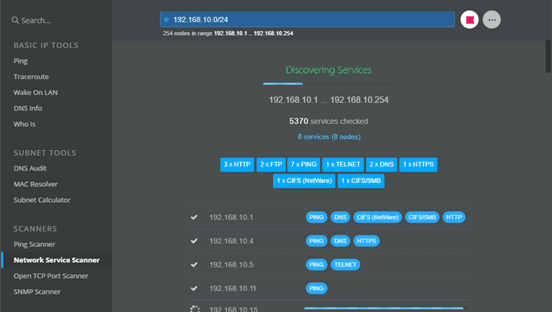
The NetCrunch Wake On LAN Tool is exactly what you'd expect from a dedicated Wake on LAN software download—it does one thing and does it exceptionally well. Part of the NetCrunch admin toolset, this portable utility requires no installation or configuration. Simply launch the executable, enter the MAC address of your target device, and click send. The tool broadcasts a magic packet to your local network, and if the remote system supports WOL and is properly configured, it powers on.
What makes this tool particularly appealing for IT professionals is its reliability and simplicity. When you're troubleshooting Wake on LAN not working issues, having a clean, focused tool eliminates variables. It's ideal for turning on systems after hours, recovering offline endpoints, or managing distributed workstations. However, because it operates only on the local network, you'll need additional solutions—like VPN access or a cloud relay—for true remote wake capabilities.
Pros
Remote wake over the internet (WAN) support
Group wake functionality—power on multiple devices simultaneously
Instant-wake feature for frequently accessed devices
Works with IP addresses, broadcast addresses, and dynamic domain names
Cons
Android only (no iOS version mentioned)
Requires router configuration for external access
Focuses solely on wake-up, not remote control
Best for: Mobile users who need to wake computers from anywhere using their Android device.
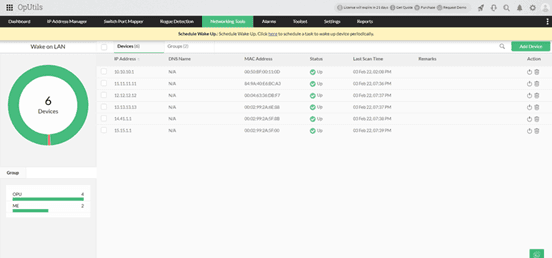
For those seeking a dedicated Wake on LAN Android app, WOL-Manager stands out as a comprehensive solution. This app transforms your smartphone into a powerful remote wake tool, capable of powering on PCs, NAS devices, servers, or any WOL-compatible equipment from anywhere in the world. Unlike basic tools that only work locally, WOL-Manager supports wake-over-internet functionality, provided your router is configured correctly with port forwarding or dynamic DNS services like DynDns.
The app's group management feature is particularly valuable for users with multiple devices. You can organize computers by location or function and wake entire groups with a single tap. The "Instant-Wake" feature automatically powers on specified devices immediately after app launch—perfect for users who regularly need the same machines. WOL-Manager works well with DD-WRT router firmware and gives you flexibility in how you target devices: by IP address, broadcast address, or domain name. Once the computer wakes, you'll need separate remote desktop Wake on LAN software to actually control it - a limitation that integrated solutions like DeskIn elegantly solve.
Pros:
Multiple tool variants for different scenarios (GUI, command line, web-based)
Supports Windows, macOS, and Linux
Includes specialized tools like WOL for Cisco and remote subnet wake-up
Long-standing reputation in the WOL community
Cons:
Interface feels dated compared to modern apps
Some tools require technical knowledge to use effectively
Free versions may have limitations
Best for: Technical users who need flexibility across different platforms and network configurations.
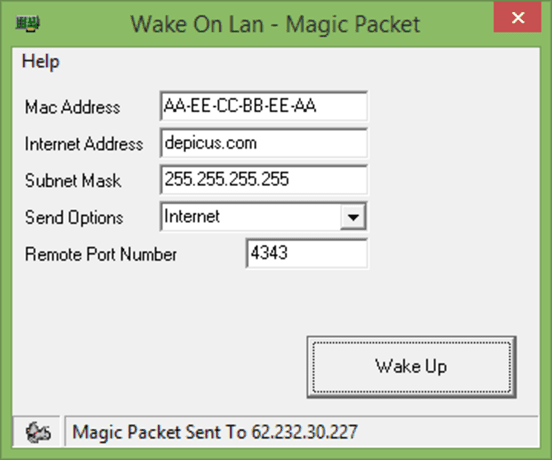
Depicus has been a trusted name in the Wake on LAN software space for years, offering a suite of tools that cater to virtually every use case. Their collection includes a simple GUI tool for Windows, command-line utilities for scripting and automation, and even web-based tools that can run from a browser. This makes Depicus one of the most versatile options when you need Wake on LAN software Mac compatibility, alongside Windows support.
What sets Depicus apart is its attention to complex networking scenarios. Their tools can handle waking computers across different subnets—a challenge that often causes wake on lan not working errors in enterprise environments. The "Wake On Lan Command Line" tool is particularly useful for system administrators who need to integrate wake-up commands into scripts or scheduled tasks. While the interfaces may not win beauty contests, the reliability and depth of functionality make Depicus a go-to resource for professionals who need precise control over their WOL implementation.
You may also be interested in:
Pros
Completely free for personal and commercial use
Scans the network and displays all active devices
Allows saving device lists for future reference
Supports command-line options for automation
Tiny footprint (under 100 KB)
Cons
Windows only
Basic interface with limited hand-holding
Requires understanding of networking concepts
Best for: Windows users who want a powerful, no-cost utility with network scanning capabilities.
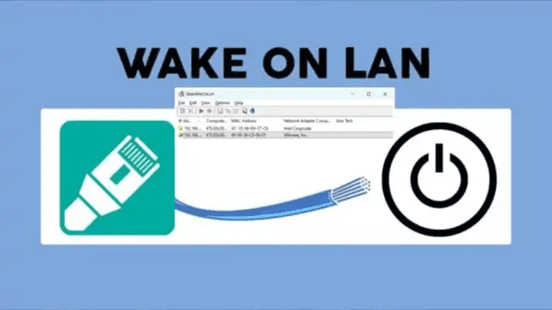
NirSoft has built a reputation for creating small, powerful utilities that do exactly what they promise—and Wake on LAN is no exception. This Wake on LAN software for Windows goes beyond simple magic packet sending by including a network scanner that discovers all devices on your local network, displaying their IP addresses, MAC addresses, and device names. This feature alone saves tremendous time when you're setting up WOL for multiple computers and need to collect MAC addresses.
Once you've scanned and saved your device list, waking computers becomes a matter of selecting them from a list and clicking a button. The tool supports sending magic packets to individual devices or entire groups, and its command-line options make it ideal for scripting. For IT professionals managing Windows environments, NirSoft WakeOnLAN represents the perfect balance of power, simplicity, and cost - it's free, portable, and packed with features that simplify WOL management. The only caveat? It's strictly for local network use, so you'll need additional infrastructure for remote waking.
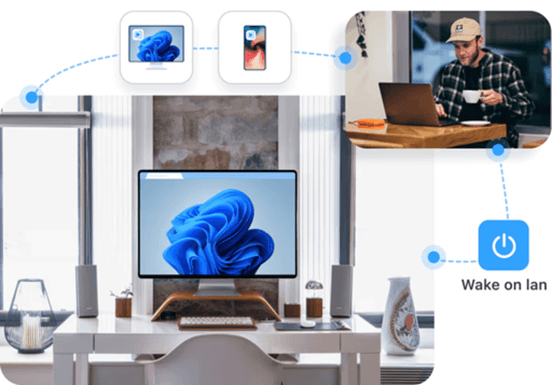
Most Wake on LAN software tools focus on a single task: sending a magic packet. Once the computer powers on, the job is technically done. But in real-world use, waking a device is only the beginning.
DeskIn takes a more practical approach by integrating Wake on LAN directly into a full remote desktop platform. When a device appears offline, you can trigger a wake request through DeskIn's cloud relay system without configuring port forwarding or manually managing network settings. Once the system boots, the platform transitions seamlessly into a remote desktop session, allowing you to access and control the computer immediately.
Unlike basic WOL utilities that provide no confirmation, DeskIn also displays real-time device status, so you know exactly when the machine is online and ready. Instead of combining multiple tools, users get a unified wake-and-connect workflow designed for consistent remote access across Windows, macOS, iOS, and Android.
The best free option depends on your needs. For a simple, portable Wake on LAN software free utility, NirSoft Wake-On-LAN is excellent. It's under 100KB, requires no installation, and includes network scanning. For IT professionals, NetCrunch's Wake On LAN Tool is completely free and dead-simple. If you want an integrated solution that combines WOL with remote desktop, DeskIn offers robust free functionality that goes beyond basic packet sending.
Yes, but it requires additional configuration. With basic Wake on LAN software download options like NirSoft or NetCrunch, you'll need to set up port forwarding on your router and potentially use dynamic DNS. Alternatively, cloud-based solutions like DeskIn handle remote wake automatically through their infrastructure; no port forwarding required, making it the simplest option for remote waking.
Wake on LAN not working issues typically stem from one of several causes:
BIOS settings: WOL must be enabled in the system firmware
Network card configuration: Power management settings in Windows need adjustment
Fast Startup: Windows Fast Startup prevents a proper shutdown for WOL
Router ARP cache: After a prolonged shutdown, routers may forget the device's MAC address
When selecting Wake-on-LAN software for Windows 10 or Windows 11 compatible tools, consider whether you need local-only or remote wake capabilities. For local network use, NirSoft or NetCrunch work perfectly. If you need to wake computers over the internet, look for solutions with cloud relay (like DeskIn) or those that support port forwarding. Also consider whether you need a remote desktop after wake; if so, an integrated platform saves significant hassle.
The landscape of Wake on LAN software has evolved far beyond simple magic packet utilities. Today's best tools recognize that waking a computer is rarely the end goal—it's the first step toward actually using that machine. Whether you choose a dedicated utility like NetCrunch or Depicus depends on whether you're comfortable assembling a toolkit of separate applications.
For most users, however, the integrated approach of DeskIn represents the future of remote access. By combining reliable Wake on LAN Windows 11 support with full remote desktop capabilities, DeskIn delivers a unified experience that saves time, reduces complexity, and just works. No more wondering if the packet arrived. No more switching between apps. Just one click from sleep to full control.
Ready to experience remote access the way it should be? Try DeskIn today and discover the difference an integrated WOL solution makes.
Imagine needing to access your office computer from home, only to realize it's shut down. Or perhaps you're an IT administrator responsible for maintaining dozens of machines across multiple locations. In both scenarios, Wake on LAN software transforms impossibility into simplicity—letting you power on remote systems with a single click.
Wake on LAN (WOL) technology has been around for decades, but the tools to trigger it have evolved dramatically. Today's Wake on LAN software ranges from bare-bones utilities that simply send magic packets to sophisticated platforms that combine remote wake-up with full remote desktop control.
In this guide, we'll explore the four best Wake on LAN software solutions available, helping you find the perfect fit whether you need Wake on LAN software for Windows, a Wake on LAN Android app, or an integrated solution that does it all. And if you're tired of juggling multiple tools, we'll show you why DeskIn might be the only one you'll ever need.
After evaluating dozens of options based on features, ease of use, platform compatibility, and user reviews, here are the four best Wake on LAN software solutions available today:
NetCrunch Wake On LAN Tool - Best lightweight utility for IT admins who need a portable, no-installation tool for occasional local network use.
WOL-Manager - Best Wake on LAN Android app for mobile users who need to wake computers remotely from their phone or tablet.
Depicus Wake on LAN - Best cross-platform versatility with tools for Windows, Mac, Linux, and even web-based interfaces.
NirSoft WakeOnLAN - Best free utility for Windows power users who want network scanning capabilities alongside WOL functionality.
Note
If you want the best integrated solution combining reliable WOL with full remote desktop control in one seamless interface, DeskIn may be your first choice.
Pros
Portable executable—no installation required
Ultra-simple interface: just enter the MAC address and send
Completely free with no feature limitations
Works on Windows 10/11 x64
Cons
Local network only (no built-in remote wake capabilities)
No mobile app or cross-platform support
Bare-bones functionality only
Best for: IT administrators who need a quick, no-fuss utility for occasional use without installing heavyweight software.
The NetCrunch Wake On LAN Tool is exactly what you'd expect from a dedicated Wake on LAN software download—it does one thing and does it exceptionally well. Part of the NetCrunch admin toolset, this portable utility requires no installation or configuration. Simply launch the executable, enter the MAC address of your target device, and click send. The tool broadcasts a magic packet to your local network, and if the remote system supports WOL and is properly configured, it powers on.
What makes this tool particularly appealing for IT professionals is its reliability and simplicity. When you're troubleshooting Wake on LAN not working issues, having a clean, focused tool eliminates variables. It's ideal for turning on systems after hours, recovering offline endpoints, or managing distributed workstations. However, because it operates only on the local network, you'll need additional solutions—like VPN access or a cloud relay—for true remote wake capabilities.
Pros
Remote wake over the internet (WAN) support
Group wake functionality—power on multiple devices simultaneously
Instant-wake feature for frequently accessed devices
Works with IP addresses, broadcast addresses, and dynamic domain names
Cons
Android only (no iOS version mentioned)
Requires router configuration for external access
Focuses solely on wake-up, not remote control
Best for: Mobile users who need to wake computers from anywhere using their Android device.
For those seeking a dedicated Wake on LAN Android app, WOL-Manager stands out as a comprehensive solution. This app transforms your smartphone into a powerful remote wake tool, capable of powering on PCs, NAS devices, servers, or any WOL-compatible equipment from anywhere in the world. Unlike basic tools that only work locally, WOL-Manager supports wake-over-internet functionality, provided your router is configured correctly with port forwarding or dynamic DNS services like DynDns.
The app's group management feature is particularly valuable for users with multiple devices. You can organize computers by location or function and wake entire groups with a single tap. The "Instant-Wake" feature automatically powers on specified devices immediately after app launch—perfect for users who regularly need the same machines. WOL-Manager works well with DD-WRT router firmware and gives you flexibility in how you target devices: by IP address, broadcast address, or domain name. Once the computer wakes, you'll need separate remote desktop Wake on LAN software to actually control it - a limitation that integrated solutions like DeskIn elegantly solve.
Pros:
Multiple tool variants for different scenarios (GUI, command line, web-based)
Supports Windows, macOS, and Linux
Includes specialized tools like WOL for Cisco and remote subnet wake-up
Long-standing reputation in the WOL community
Cons:
Interface feels dated compared to modern apps
Some tools require technical knowledge to use effectively
Free versions may have limitations
Best for: Technical users who need flexibility across different platforms and network configurations.
Depicus has been a trusted name in the Wake on LAN software space for years, offering a suite of tools that cater to virtually every use case. Their collection includes a simple GUI tool for Windows, command-line utilities for scripting and automation, and even web-based tools that can run from a browser. This makes Depicus one of the most versatile options when you need Wake on LAN software Mac compatibility, alongside Windows support.
What sets Depicus apart is its attention to complex networking scenarios. Their tools can handle waking computers across different subnets—a challenge that often causes wake on lan not working errors in enterprise environments. The "Wake On Lan Command Line" tool is particularly useful for system administrators who need to integrate wake-up commands into scripts or scheduled tasks. While the interfaces may not win beauty contests, the reliability and depth of functionality make Depicus a go-to resource for professionals who need precise control over their WOL implementation.
You may also be interested in:
Pros
Completely free for personal and commercial use
Scans the network and displays all active devices
Allows saving device lists for future reference
Supports command-line options for automation
Tiny footprint (under 100 KB)
Cons
Windows only
Basic interface with limited hand-holding
Requires understanding of networking concepts
Best for: Windows users who want a powerful, no-cost utility with network scanning capabilities.
NirSoft has built a reputation for creating small, powerful utilities that do exactly what they promise—and Wake on LAN is no exception. This Wake on LAN software for Windows goes beyond simple magic packet sending by including a network scanner that discovers all devices on your local network, displaying their IP addresses, MAC addresses, and device names. This feature alone saves tremendous time when you're setting up WOL for multiple computers and need to collect MAC addresses.
Once you've scanned and saved your device list, waking computers becomes a matter of selecting them from a list and clicking a button. The tool supports sending magic packets to individual devices or entire groups, and its command-line options make it ideal for scripting. For IT professionals managing Windows environments, NirSoft WakeOnLAN represents the perfect balance of power, simplicity, and cost - it's free, portable, and packed with features that simplify WOL management. The only caveat? It's strictly for local network use, so you'll need additional infrastructure for remote waking.
Most Wake on LAN software tools focus on a single task: sending a magic packet. Once the computer powers on, the job is technically done. But in real-world use, waking a device is only the beginning.
DeskIn takes a more practical approach by integrating Wake on LAN directly into a full remote desktop platform. When a device appears offline, you can trigger a wake request through DeskIn's cloud relay system without configuring port forwarding or manually managing network settings. Once the system boots, the platform transitions seamlessly into a remote desktop session, allowing you to access and control the computer immediately.
Unlike basic WOL utilities that provide no confirmation, DeskIn also displays real-time device status, so you know exactly when the machine is online and ready. Instead of combining multiple tools, users get a unified wake-and-connect workflow designed for consistent remote access across Windows, macOS, iOS, and Android.
The best free option depends on your needs. For a simple, portable Wake on LAN software free utility, NirSoft Wake-On-LAN is excellent. It's under 100KB, requires no installation, and includes network scanning. For IT professionals, NetCrunch's Wake On LAN Tool is completely free and dead-simple. If you want an integrated solution that combines WOL with remote desktop, DeskIn offers robust free functionality that goes beyond basic packet sending.
Yes, but it requires additional configuration. With basic Wake on LAN software download options like NirSoft or NetCrunch, you'll need to set up port forwarding on your router and potentially use dynamic DNS. Alternatively, cloud-based solutions like DeskIn handle remote wake automatically through their infrastructure; no port forwarding required, making it the simplest option for remote waking.
Wake on LAN not working issues typically stem from one of several causes:
BIOS settings: WOL must be enabled in the system firmware
Network card configuration: Power management settings in Windows need adjustment
Fast Startup: Windows Fast Startup prevents a proper shutdown for WOL
Router ARP cache: After a prolonged shutdown, routers may forget the device's MAC address
When selecting Wake-on-LAN software for Windows 10 or Windows 11 compatible tools, consider whether you need local-only or remote wake capabilities. For local network use, NirSoft or NetCrunch work perfectly. If you need to wake computers over the internet, look for solutions with cloud relay (like DeskIn) or those that support port forwarding. Also consider whether you need a remote desktop after wake; if so, an integrated platform saves significant hassle.
The landscape of Wake on LAN software has evolved far beyond simple magic packet utilities. Today's best tools recognize that waking a computer is rarely the end goal—it's the first step toward actually using that machine. Whether you choose a dedicated utility like NetCrunch or Depicus depends on whether you're comfortable assembling a toolkit of separate applications.
For most users, however, the integrated approach of DeskIn represents the future of remote access. By combining reliable Wake on LAN Windows 11 support with full remote desktop capabilities, DeskIn delivers a unified experience that saves time, reduces complexity, and just works. No more wondering if the packet arrived. No more switching between apps. Just one click from sleep to full control.
Ready to experience remote access the way it should be? Try DeskIn today and discover the difference an integrated WOL solution makes.



How to Play MapleStory Classic World on Mac
A lot of the players who are most excited about MapleStory Classic World grew up on 2005-era MapleStory — and a large share of that generation now does its computing on a MacBook. Nexon clearly knows this: a native macOS client was on the feature list for the second Closed Online Test, which ran August 4–12, 2026, alongside Ossyria and third job advancement. But as of this writing, that Mac client is still in development, not publicly available, and there's still no confirmed public launch date for the game itself.
So if you want to play MapleStory Classic World on a Mac right now — or want a reliable plan for when the game does launch — you've got two real options: run Windows in a virtual machine, or use DeskIn remote desktop to control an actual Windows PC from your Mac. This guide covers both, including a login-conflict issue that catches a lot of virtual machine users off guard.
Not yet, publicly. Nexon's May 2026 roadmap update confirmed macOS support is in development, and it appeared as a testable feature in the second Closed Online Test. Windows PC remains the confirmed launch platform, and Nexon hasn't said whether the Mac client will be ready at launch or arrive afterward. The game hasn't had a full public release on any platform — Nexon has said one more test is planned before launch.
Given that, Mac players currently have two ways in: a Windows virtual machine, or remote desktop software that connects to a real Windows PC.
Classic World is exclusive to GMS (Global MapleStory), covering North America, Europe, and most other regions without a local Nexon partner. Markets with their own official MapleStory service — Korea, China, Japan, Taiwan/Hong Kong, and Southeast Asia — aren't GMS-eligible, so Mac players in those regions would need a VPN to reach Classic World, which isn't recommended. Whether NA and EU will run as separate worlds hasn't been confirmed.
Tools like Parallels Desktop or VMware Fusion let you run a full Windows install inside macOS, and then install MapleStory Classic World the way a Windows user would. It works, but it asks a lot of your Mac's hardware.
RAM: 16GB minimum recommended; 8GB is genuinely tight, since macOS and Windows are both running at once and macOS alone can eat most of that before Windows gets a share. For a comfortable setup with guides or Discord open on the side, aim for 32GB.
CPU/GPU: Virtual machines can't pass hardware through at 100%; graphics get software-emulated, which typically costs 20–30% of the performance you'd get on native Windows hardware.
Thermals: Running two full operating systems under load generates real heat, and laptop-class Macs with limited cooling can throttle during longer grinding sessions.
Apple Silicon translation overhead: M-series Macs can only run Windows on ARM in a VM. If Classic World ships as an x86/x64 build, it needs an extra translation layer to run at all, stacking on top of the virtualization overhead already mentioned.
Anti-cheat compatibility is a real unknown: the original MapleStory has historically been hostile to virtualized environments because of its anti-cheat system, and Nexon hasn't said how Classic World's anti-cheat will treat VMs. Treat virtualization as a maybe, not a guaranteed plan.
There's also the practical overhead: setting up a VM means downloading a Windows image, allocating dozens of gigabytes of disk space, installing display drivers, and — on Apple Silicon — dealing with ARM compatibility quirks that don't show up on a real x86 PC. Keyboard shortcuts can also conflict, since macOS system shortcuts (Control, Option, Command) don't always play nicely with a Windows game's default keybinds.
Instead of building a Windows environment inside your Mac, DeskIn lets you connect directly to a Windows PC you already have — your desktop at home, a work machine, or a spare laptop — and control it from your Mac in real time. The game runs on genuine Windows hardware the whole time, so there's no emulation tax, no ARM translation layer, and no anti-cheat guessing game.
A virtual machine makes sense if:
You don't have access to any Windows PC at all, so a Mac VM is your only option.
Your Mac has strong specs — 16GB+ RAM, ideally 32GB, and a higher-end M-series chip that can absorb the performance loss.
You're comfortable with a fairly technical setup process.
You rarely need to switch between devices, so the single-login limitation isn't a practical issue for you.
DeskIn makes more sense if:
You already have a Windows PC (or another Mac) that can run MapleStory Classic World, and you just want to reach it from your MacBook.
You're traveling or away from your desk often and want to pick up where you left off without re-downloading anything.
You don't want to deal with logging out of one device every time you switch to another.
Your Mac has more modest specs, and you'd rather not risk stutters, crashes, or a game that won't launch at all.
If you already own a Windows machine, DeskIn is generally the lower-effort, lower-risk choice. A VM is really a fallback for players with no Windows access and a Mac powerful enough to absorb the overhead.
Step 1: Set up the Windows PC. Install MapleStory Classic World on a Windows PC and create your character, then install DeskIn on that same PC, sign in, and enable unattended access with a connection password so you can reach it later without anyone at the keyboard.
Step 2: Install DeskIn on your Mac. Download the macOS version of DeskIn, sign in with the same account, and your Windows PC will appear in your device list.
Step 3: Connect. Select the PC, enter the connection password, and you'll get a live view of the Windows desktop that you control with your Mac's mouse and trackpad — the same session, the same login, no conflicts.
Step 4: Tune quality for your connection. On a stable connection, push quality up to enjoy Classic World's remastered pixel art in full detail; on the road, prioritize smoothness to cut down on input lag.
Step 5: Log in and play. Open the game inside the remote session and log in as usual — grinding, party quests, and shopping all work exactly as they would sitting at the PC directly.
Resolution and quality: Free-tier users should start around 720p/30fps for a stable baseline; paid-tier users can push up to 4K 60FPS or 2K 240FPS on a strong connection to get the most out of Classic World's art.
Screen scaling: If your Mac and Windows PC have very different display sizes, use DeskIn's automatic scaling option in the toolbar, or adjust the remote PC's resolution to match your Mac's screen more closely.
Keyboard and mouse mapping: DeskIn maps your Mac's keyboard directly to the remote PC. Turning on Game Mouse mode prevents the keyboard from getting locked mid-session.
Controller support: If Mac keyboard controls feel awkward, pair a controller to your Mac and enable controller mapping from the toolbar — DeskIn will pass those inputs straight through to the remote PC.
Simple Setup:No Windows installation required — connect and start playing within minutes.
Doesn't tax your Mac's hardware. All the actual computation happens on the remote Windows PC; your Mac just displays the stream and sends inputs.
Performance and compatibility match native Windows, because that's exactly what's running — no ARM translation layer to worry about.
No account login conflicts, since DeskIn connects to the same existing session instead of creating a new device.
Cross-device flexibility. The same account lets you connect from Mac, iPhone, iPad, or Android, and it's always the same underlying session — no juggling logins between devices.
Not publicly yet. Nexon has confirmed a macOS client is in development and tested it in the second Closed Online Test, but Windows remains the confirmed launch platform and no public Mac release has shipped.
Yes. DeskIn uses end-to-end encryption and two-factor login, and since you're remotely operating a PC you already control, your credentials never pass through a third party.
Technically you can install one, but the experience will be rough. With 8GB split between macOS and Windows, there's very little left over for Windows, and stutters or crashes become likely during longer sessions. DeskIn is the more stable option here, since the remote PC handles all the processing — your Mac's RAM isn't a bottleneck.
Real-world performance depends on both ends' network quality, but since DeskIn connects to native Windows hardware with no virtualization overhead, and its low-latency streaming keeps end-to-end delay under 40ms on a good connection, it typically feels smoother than a resource-constrained VM.
No. DeskIn controls the same PC and the same already-active session rather than logging in as a new device, so it doesn't trigger MapleStory's single-session login limit — this is exactly the conflict that trips up VM users switching between two separate Windows installs.
DeskIn needs a Windows (or other supported platform) machine to connect to. If you don't have one, consider borrowing access to a friend's or family member's PC, or renting a cloud Windows machine as your connection target.
DeskIn supports Windows, macOS, iOS, and Android. A Mac can connect to a Windows PC, and a Windows PC can just as easily connect to and control a Mac.
MapleStory Classic World doesn't have a public Mac client yet, but that doesn't mean Mac players have to gamble on a resource-hungry virtual machine and hope the anti-cheat cooperates. If you already have access to a Windows PC that can run the game — or even another Mac — connecting to it through DeskIn gets you native Windows performance, none of the virtualization overhead, and none of the account-login headaches that come with running a second "device." Set it up once, and you'll be ready to log in the moment Classic World opens its doors.

How to Play MapleStory Classic World on Mobile Before the Official App Arrives
MapleStory Classic World has turned into one of the most-searched topics in the MapleStory community this year. Nexon's pre-Big Bang server pulled in roughly 5,000 players for its first Closed Online Test back in April 2026, and thousands more signed up for the second test that ran August 4–12, 2026. With Ossyria, third job advancement, and controller support now confirmed, interest has never been higher — and a lot of that interest is coming from players who want to know one thing: can you play MapleStory Classic World on your phone?
Short answer: not with an official app, not yet. This guide breaks down exactly what Nexon has confirmed about platforms so far, then walks through how DeskIn remote desktop lets you play MapleStory Classic World on mobile right now, without waiting on an app that hasn't been announced.
As of this writing, Nexon has not announced a mobile or console version of MapleStory Classic World. The confirmed platforms are Windows PC and macOS — macOS support was specifically added as a testable feature during the second Closed Online Test in August 2026, alongside Ossyria and third job advancement, but it's still listed as "in development" rather than publicly available.
There's also no full public launch date yet. Nexon has run two Closed Online Tests so far and has said one more test is planned before release, so most community trackers currently estimate a launch window in late 2026 or early 2027 — but that's community speculation, not an official date.
Put simply: if you want to play MapleStory Classic World on a phone or tablet today, a native app isn't an option. The only practical route is streaming the PC version from a Windows machine you already have access to.
Classic World is exclusive to GMS (Global MapleStory), Nexon's English-language service for North America, Europe, and most other regions without a local Nexon partner. Players in markets with their own official MapleStory service — Korea, China, Japan, Taiwan/Hong Kong, and Southeast Asia — aren't eligible for GMS accounts, so Classic World isn't accessible there without a VPN, which isn't recommended. It's not yet confirmed whether NA and EU will run as separate worlds within Classic World.
DeskIn is a cross-platform remote desktop app built specifically with PC gaming in mind, and it maps well onto exactly the problem MapleStory Classic World mobile players are trying to solve.
Stable, low-latency connections. DeskIn's ZeroSync® engine keeps end-to-end latency under 40ms on a good connection and automatically reroutes around congested paths, so grinding, dodging, and skill combos in Classic World's classic-era combat don't feel delayed.
Up to 4K 60FPS / 2K 240FPS streaming. Classic World's remastered pixel art holds up well when it isn't compressed into mush — DeskIn's streaming keeps text and sprites sharp even on a phone screen.
You're connecting to your own PC, not emulating one. DeskIn doesn't run Windows inside your phone; it streams the display of a Windows computer you control and sends your inputs back in real time. That means full compatibility and full performance — no emulation layer to fight with.
End-to-end encryption and two-factor login. Sessions are encrypted end-to-end, and you can set an allowlist of authorized devices, so only you can connect to your own PC.
Flexible, per-character keybinds. Classic World's Warrior, Magician, Bowman, and Thief classes each use very different skill layouts. DeskIn's on-screen game keyboard lets you build a custom key layout and save it as its own profile, so you can switch between characters without re-mapping keys every time.
Built-in virtual mouse. In pointer mode, DeskIn adds virtual left/right mouse buttons over the stream, which makes precise UI clicks — inventory, cash shop, trade windows — far easier than tapping blindly on a touchscreen.
Once you're connected, mobile play through DeskIn covers pretty much everything you'd do sitting at your PC:
Daily quests and login rewards — knock these out on your commute instead of waiting until you're home.
Cash shop browsing — scroll and preview cosmetics with touch gestures just like any shopping app.
Grinding and leveling — use the virtual directional pad and skill-key layout to keep training in familiar maps.
Party quests — latency low enough to keep up with a party's pacing on runs like Kerning City PQ.
Trading and the marketplace — check prices and list items using the virtual mouse for precise clicks.
Guild chat and messaging — reply to your guild or party the moment something comes up.
Step 1: Set up DeskIn on the Windows PC running Classic World. Install DeskIn on the PC where you've registered for testing (or where the game is installed once it launches), sign in, and turn on unattended access so the PC can be reached without anyone sitting in front of it.
Step 2: Install the DeskIn app on your phone. Download DeskIn from the App Store or Google Play, sign in with the same account, and your PC will show up in the device list.
Step 3: Connect and switch to pointer mode. Tap your PC to connect, then switch the control mode from touch to pointer — this unlocks the customizable virtual keyboard and virtual mouse.
Step 4: Browsing the cash shop. Drag to move the cursor and tap the virtual mouse buttons to click through menus and item previews, exactly like using a mouse on a desktop.
Step 5: Grinding. Open the game keyboard menu, build a layout with your movement keys and skill keys, and save it as a profile. Pull it up any time you start a grinding session.
Step 6: Pick the right streaming quality for your connection. On mobile data, prioritize smoothness over resolution to cut down on input delay; on Wi-Fi, bump the quality up to enjoy Classic World's remastered art at full clarity.
A tablet's bigger screen is a natural fit for content that needs either more reading room or more precision — daily quest text and boss encounters both qualify.
Step 1: Same setup as mobile. Install DeskIn on your iPad or Android tablet and sign in — connection steps are identical to the phone app.
Step 2: Daily quests. The larger display makes quest text, item descriptions, and map markers easier to read at a glance, so you're less likely to misread an objective mid-run.
Step 3: Boss fights. Bosses demand precise dodges and timing that touch controls alone can struggle with — pair your tablet with a Bluetooth keyboard and mouse, or a controller (see below), instead of relying on the virtual keyboard.
Step 4: Bump the frame rate for boss content. Choose a higher refresh setting in DeskIn's connection options so skill telegraphs and boss patterns read clearly in real time.
Step 5: Use split-screen for guide lookups. Run DeskIn alongside a browser or notes app in split view to check attack patterns without leaving the fight.
If virtual buttons don't feel precise enough, DeskIn supports Bluetooth controllers, including Xbox, PlayStation, and several third-party pads.
Step 1: Pair the controller with your phone. Use your phone's Bluetooth settings to pair the controller first.
Step 2: Connect through DeskIn. Once connected to your PC, DeskIn automatically detects the paired controller — no extra driver install needed.
Step 3: Test your inputs. Head into a training map first and confirm movement, attacks, and skills map to the buttons you expect before jumping into content that matters.
Step 4: Favor smoothness for fast-paced play. When you're actively grinding or fighting with a controller, prioritize DeskIn's smoothness setting over max resolution for the most responsive feel.
Running a Warrior and a Bowman means running two very different skill bars. Here's how to keep them separate in DeskIn instead of re-mapping keys every login:
Step 1: Switch to pointer mode and open the game keyboard menu. After connecting, switch to pointer mode and open DeskIn's game keyboard settings.
Step 2: Create a new keyboard layout. Tap "New Keyboard" and add your movement pad, skill keys, and item keys to match your current character's build.
Step 3: Name it by character or class. Label the layout something identifiable — "Bowman" or "Main Warrior" — and save it.
Step 4: Load the right profile when you switch characters. Before logging into a different character, select its saved layout from the game keyboard menu instead of rebuilding it from scratch.
Step 5: Update layouts as skills change. When a class gets rebalanced or you unlock new skills after a job advancement, go back into that profile and add the new keys.
No. Nexon has not announced a mobile or console version. Confirmed platforms are Windows, with a macOS client currently in development.
Nexon hasn't announced a public release date. Two Closed Online Tests have run so far (April 16–24 and August 4–12, 2026), with one more test planned before launch. Community estimates point to late 2026 or early 2027, but that isn't official.
No. DeskIn remotely operates your own PC and sends the same mouse and keyboard input you'd normally use — it isn't a macro, bot, or memory-editing tool, so it doesn't behave like the automation that anti-cheat systems are built to catch.
DeskIn's low-latency streaming keeps things playable on a stable connection, generally noticeably smoother than trying to force a browser workaround. Real-world latency still depends on both ends' network quality, so Wi-Fi is recommended over cellular when possible.
For checking dailies or browsing the shop occasionally, the free plan typically covers it. If you plan to grind for long sessions, use a controller regularly, or manage several devices, a paid plan unlocks higher streaming quality and additional features.
Setup and connection steps are identical. The difference is screen size — phones are handy for quick, single-hand tasks like dailies and the shop, while tablets are better suited to boss fights and content where you want a controller or external keyboard.
Until Nexon ships a mobile client — if one ever gets announced — DeskIn is the most practical way to keep playing MapleStory Classic World away from your desk. Install it on both your gaming PC and your phone or tablet, set up a keybind profile per character, and you can knock out dailies, grind, and even tackle boss fights without being tied to a monitor.

WindowsとMacコンピュータをiPadでセカンドモニターに!
マルチタスクをこなすにとっ社員にとって、セカンドモニターを使用することは生産性を大幅に向上させることができます。ホームオフィスの方やデュアルスクリーンを持っていない学生の方へ。使用していないiPadを簡単にコンピュータのセカンドモニターに変える方法をご紹介します。
1. 画面スペースを増やして同時により多く表示できます。マルチタスクユーザーは、ウィンドウの切り替えを避けることで時間を節約できます。
2. 各画面が独立して動作するため、作業スペースがより整理されます。
ビデオ編集では、一つの画面を編集に、もう一つの画面を素材置き場に。論文を書く場合、片方の画面で執筆、もう片方で情報を検索などです。
3. iPadの画面サイズは十分大きく、表示品質も非常に良好です。デザイン作業のニーズがあるユーザーやMacBookユーザーにとって、追加のスクリーンを購入するよりもコスト効率が高く、色差の問題もありません。
4. 多くの人が家にiPadを持っています。この手持ちのデバイスをデュアルスクリーンとして使用することで、別のスクリーンを購入するコストや置くスペースを節約できます。
Appleのネイティブ機能であるApple Sidecarを使用すると、iPadをMacBookやiMacの外部ディスプレイとして使用できます。簡単な設定を行うだけで、iPadとコンピュータ間のシームレスな接続が可能です。
注意:Apple Sidecarを使用するには、2台のデバイスが同じApple IDにログインしているか、同じネットワークに接続していることが必要です。両方のデバイスにBluetooth、Wi-Fiがオンになっており、距離は10メートル以内である必要があります。
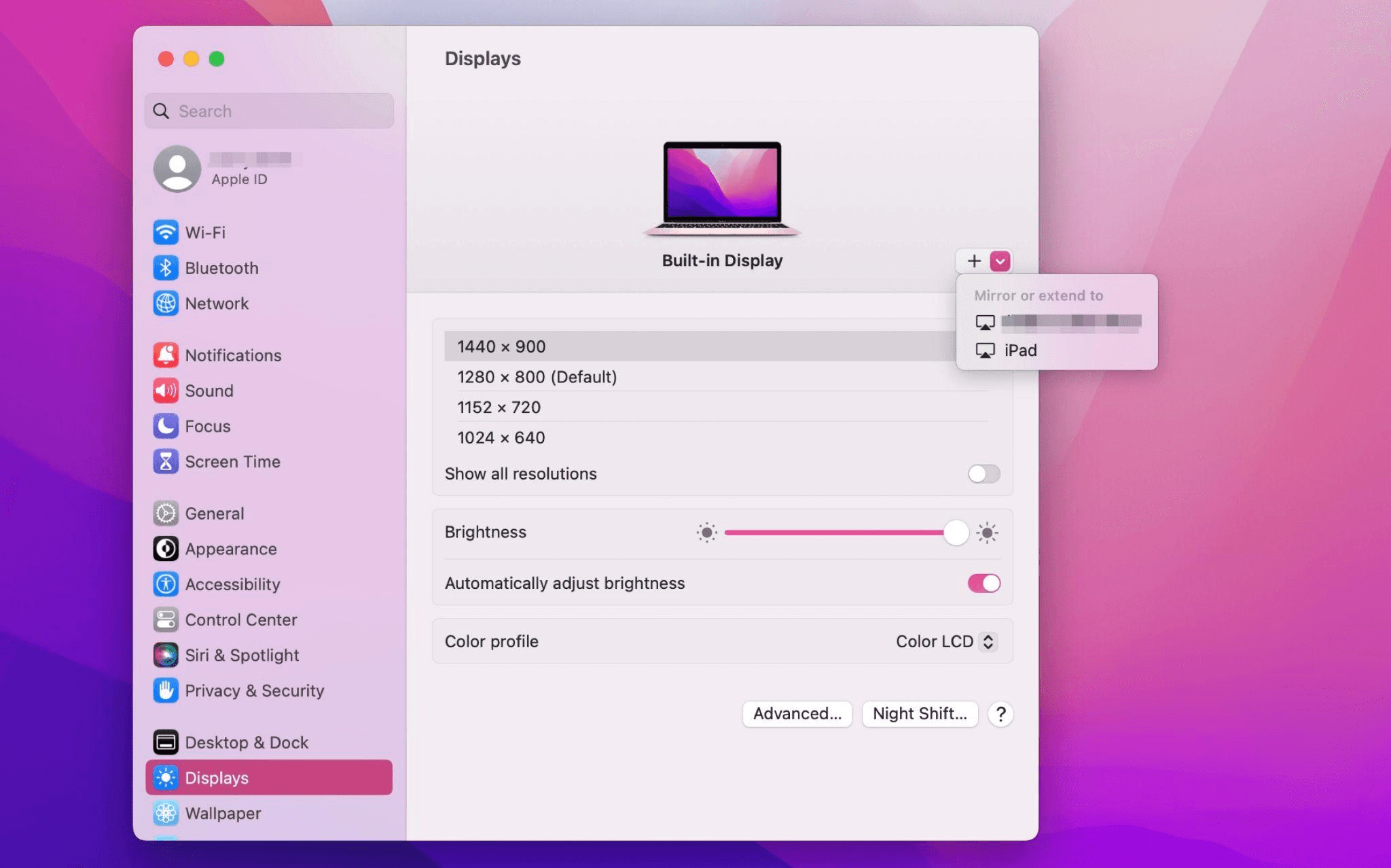
Macシステム設定を開き、サイドバーの「ディスプレイ」クリック >> 右側の「+」ポップアップメニューをクリックし、iPadを選択します。
iPadを選択し、使用設定を「拡張ディスプレイ」に変更します。Macの上部ツールバーのAirplay設定を確認し、iPadを「別のディスプレイとして使用」に設定します。
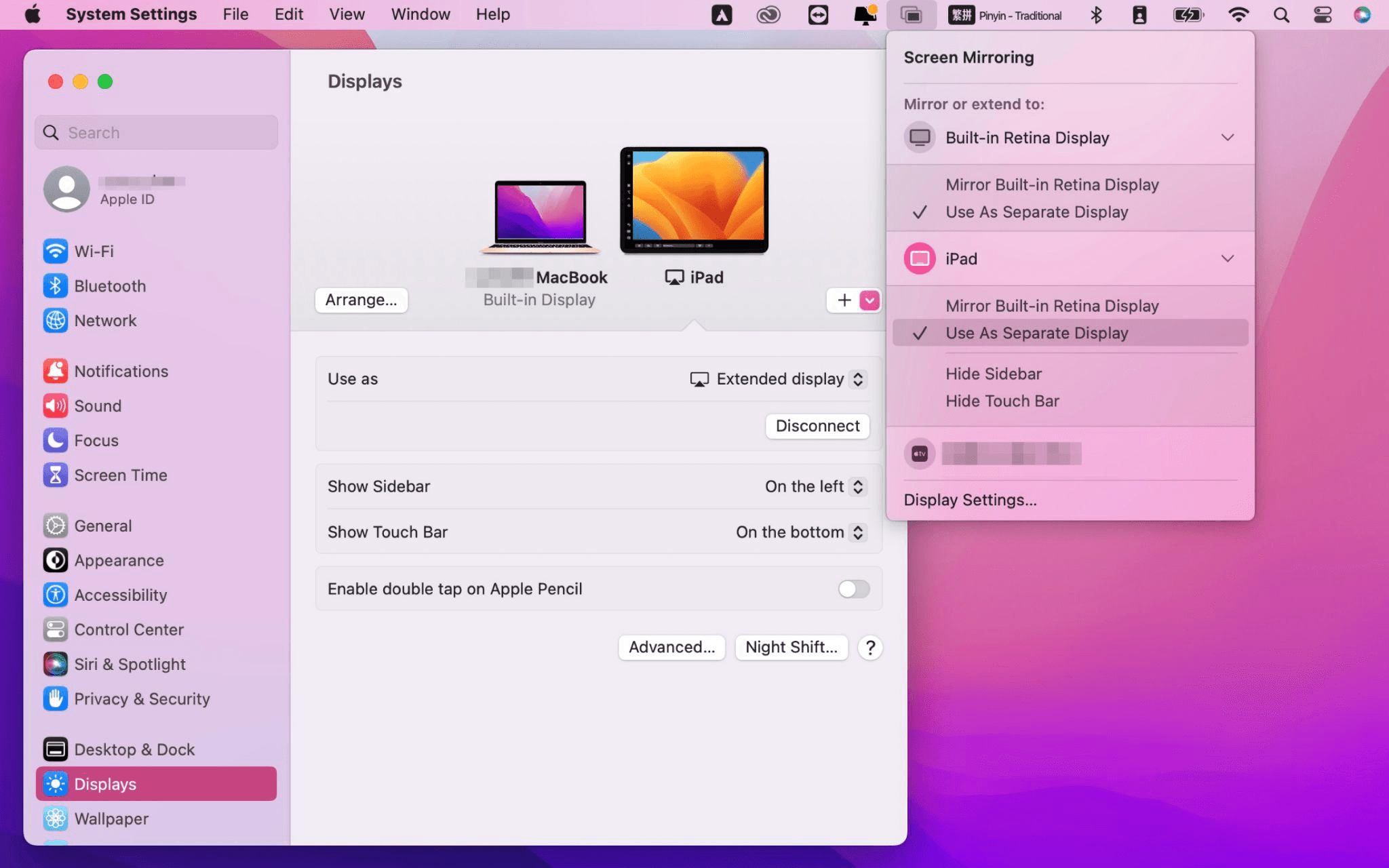
設定が完了すると、iPadがMacのセカンドディスプレイとなります。MacからiPadにウィンドウをスムーズにドラッグすることができます。また、iPadのサイドバーを使用したり、システムディスプレイ設定でサイドバーの位置を変更したりできます。
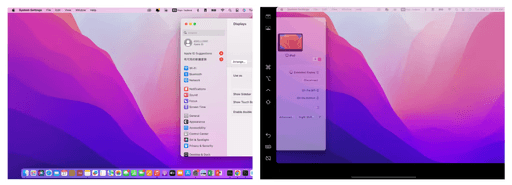
MacBookスクリーン(左)とiPadスクリーン(右)
Apple Sidecarは、2016年以降に発売されたMacとiPadOS13以上のみをサポートします。古いAppleデバイスやWindowsデバイスを使用している場合でも、DeskInリモートソフトウェアを利用して画面拡張を行うことができます。iPadをMacやWindowsのセカンドディスプレイとして使用でき、その滑らかさはSidecarに劣りません。
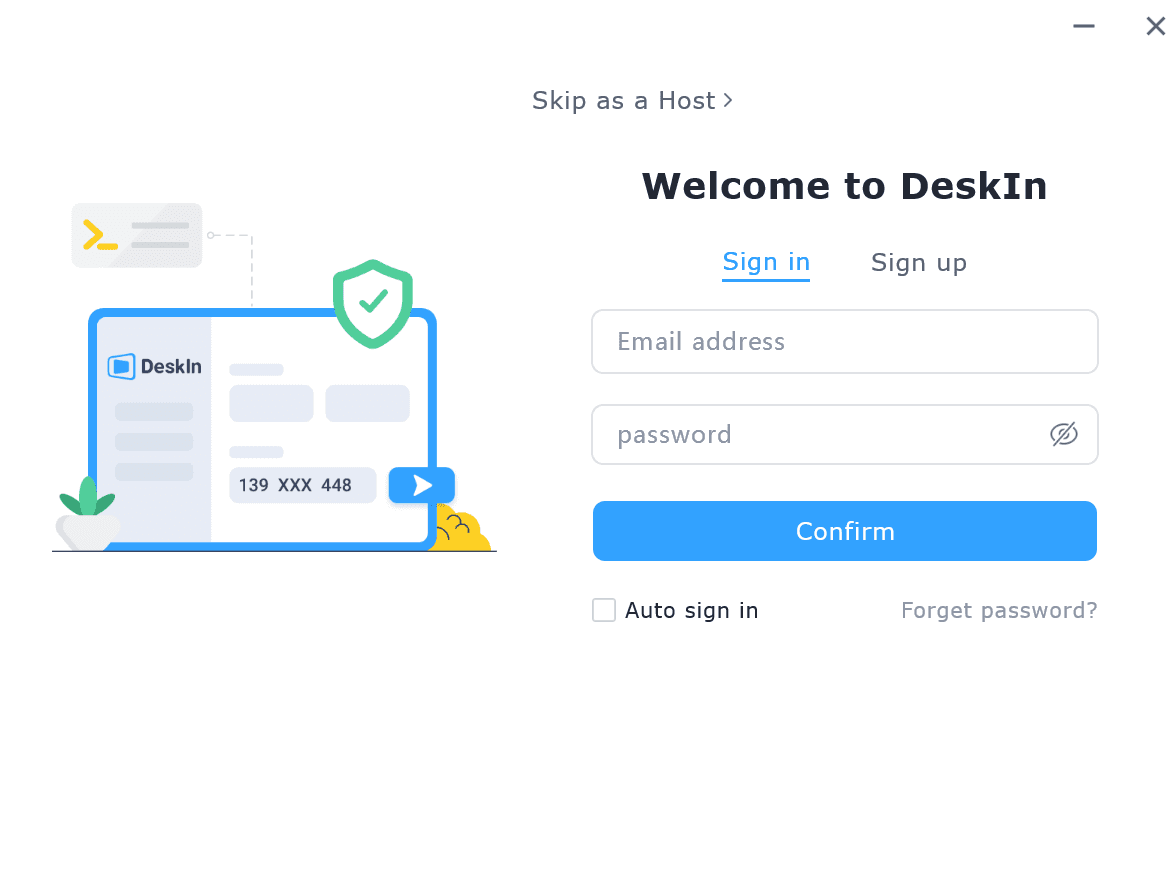
コンピューターとiPadにDeskInをダウンロードし、無料アカウントを登録して別々にログインします。

注意: 新しいデバイスに初めてログインする際には、アカウントのセキュリティを保護するためにメール認証を完了する必要があります。
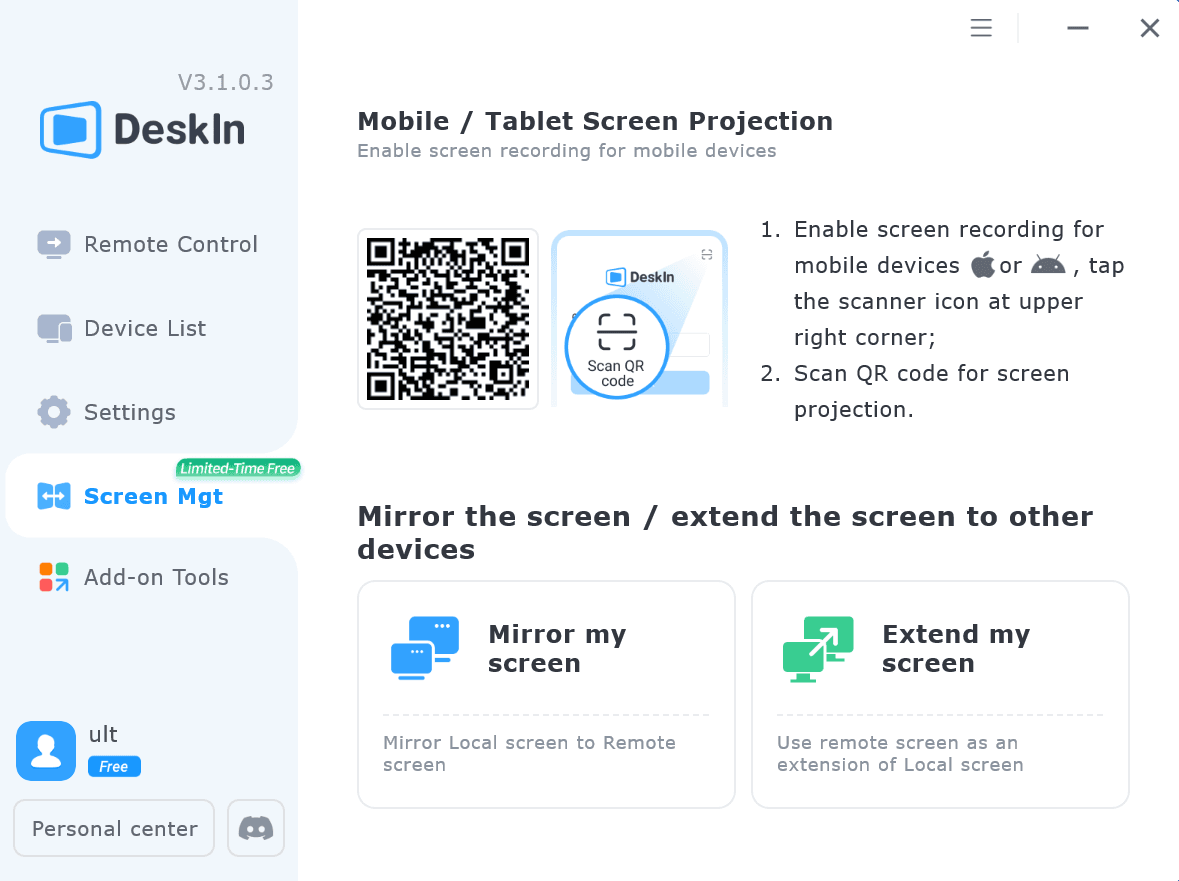
Windows/MacコンピュータでDeskInアプリを開き、「スクリーン管理」タブに行き、「画面を拡張する」をクリックします。
iPadを選択し、「拡張を開始」をクリックします。接続が完了すると、iPadはWindows/Macコンピューターのセカンドディスプレイとなり、2つのスクリーンを1つのもののようにウィンドウを移動できます。
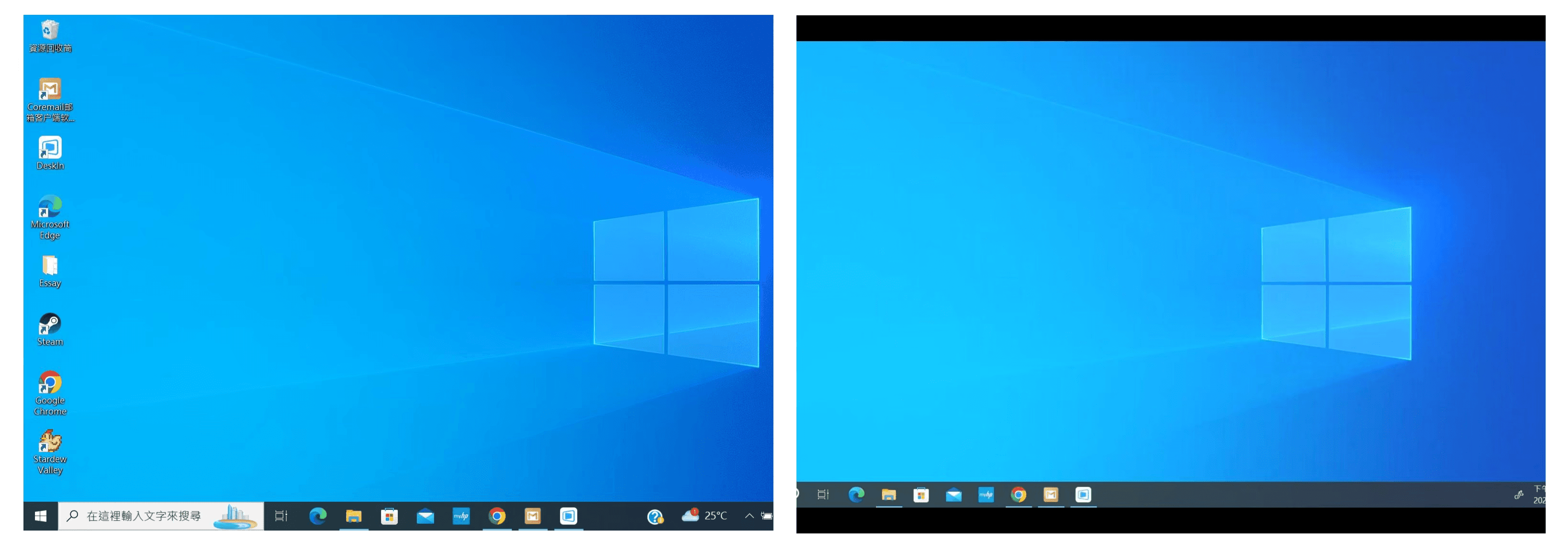
コンピュータスクリーン(左)とiPadスクリーン(右)
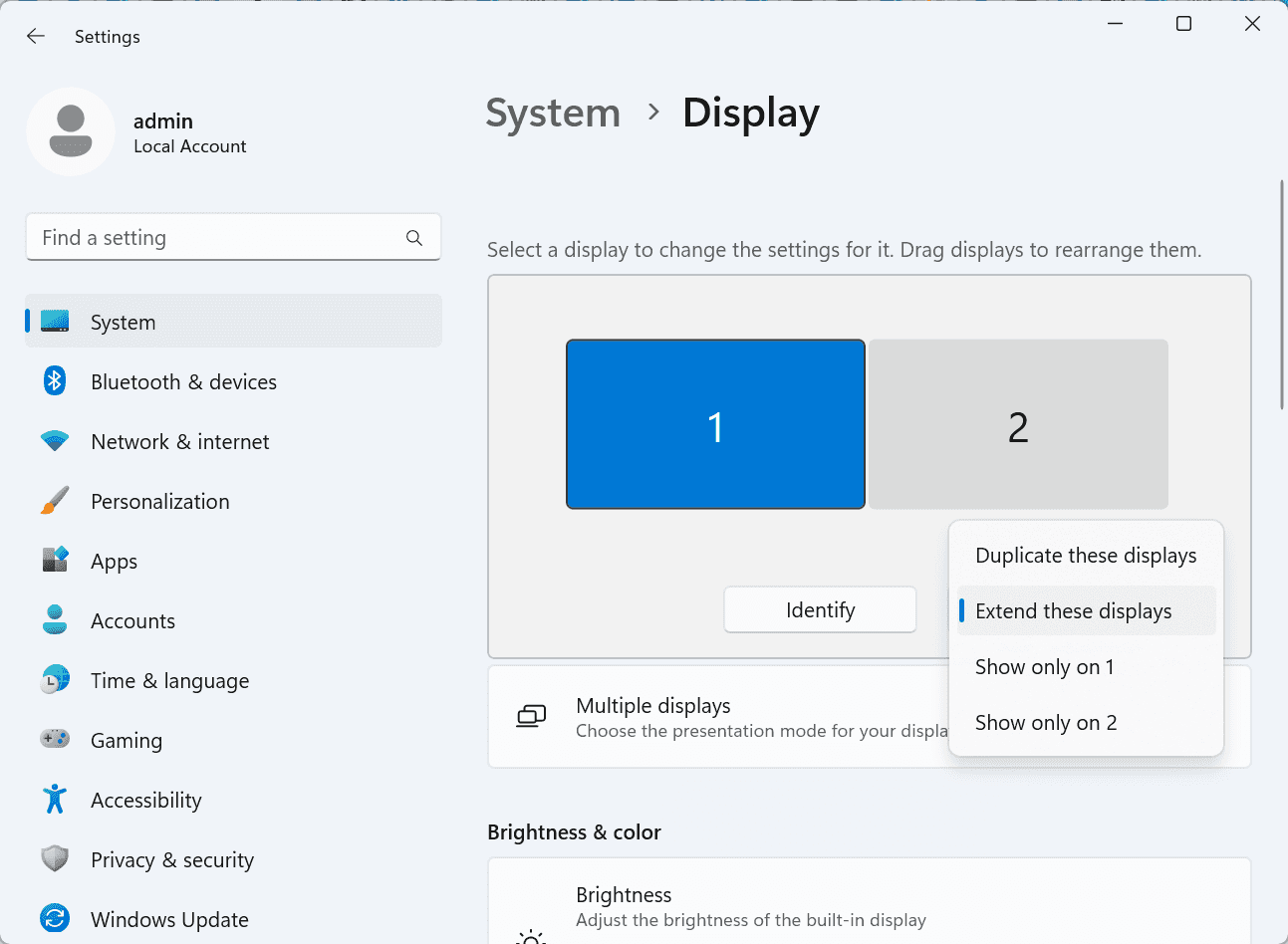
拡張後、iPadがコンピュータ画面の内容をミラーリングしているだけの場合はWindowsシステム設定 >>ディスプレイ設定に行き、「これらのディスプレイを拡張」を選択してください。2つの画面をドラッグして画面の位置を変更することもできます。
この記事では、DeskInリモートデスクトップソフトウェアを使用してiPadをMacおよびWindowsコンピューターの「セカンドスクリーン」にする方法を紹介します。これは、同時に複数のタスクを処理し、生産性を向上させたい方に特に有用です。MacBook、iPad、Androidタブレット、およびWindows PCで動作する画面拡張ツールを探している場合、DeskInリモートデスクトップは最適なソリューションです。DeskInをダウンロードして、ぜひお試しください!
How to Play MapleStory Classic World on Mac
A lot of the players who are most excited about MapleStory Classic World grew up on 2005-era MapleStory — and a large share of that generation now does its computing on a MacBook. Nexon clearly knows this: a native macOS client was on the feature list for the second Closed Online Test, which ran August 4–12, 2026, alongside Ossyria and third job advancement. But as of this writing, that Mac client is still in development, not publicly available, and there's still no confirmed public launch date for the game itself.
So if you want to play MapleStory Classic World on a Mac right now — or want a reliable plan for when the game does launch — you've got two real options: run Windows in a virtual machine, or use DeskIn remote desktop to control an actual Windows PC from your Mac. This guide covers both, including a login-conflict issue that catches a lot of virtual machine users off guard.
Not yet, publicly. Nexon's May 2026 roadmap update confirmed macOS support is in development, and it appeared as a testable feature in the second Closed Online Test. Windows PC remains the confirmed launch platform, and Nexon hasn't said whether the Mac client will be ready at launch or arrive afterward. The game hasn't had a full public release on any platform — Nexon has said one more test is planned before launch.
Given that, Mac players currently have two ways in: a Windows virtual machine, or remote desktop software that connects to a real Windows PC.
Classic World is exclusive to GMS (Global MapleStory), covering North America, Europe, and most other regions without a local Nexon partner. Markets with their own official MapleStory service — Korea, China, Japan, Taiwan/Hong Kong, and Southeast Asia — aren't GMS-eligible, so Mac players in those regions would need a VPN to reach Classic World, which isn't recommended. Whether NA and EU will run as separate worlds hasn't been confirmed.
Tools like Parallels Desktop or VMware Fusion let you run a full Windows install inside macOS, and then install MapleStory Classic World the way a Windows user would. It works, but it asks a lot of your Mac's hardware.
RAM: 16GB minimum recommended; 8GB is genuinely tight, since macOS and Windows are both running at once and macOS alone can eat most of that before Windows gets a share. For a comfortable setup with guides or Discord open on the side, aim for 32GB.
CPU/GPU: Virtual machines can't pass hardware through at 100%; graphics get software-emulated, which typically costs 20–30% of the performance you'd get on native Windows hardware.
Thermals: Running two full operating systems under load generates real heat, and laptop-class Macs with limited cooling can throttle during longer grinding sessions.
Apple Silicon translation overhead: M-series Macs can only run Windows on ARM in a VM. If Classic World ships as an x86/x64 build, it needs an extra translation layer to run at all, stacking on top of the virtualization overhead already mentioned.
Anti-cheat compatibility is a real unknown: the original MapleStory has historically been hostile to virtualized environments because of its anti-cheat system, and Nexon hasn't said how Classic World's anti-cheat will treat VMs. Treat virtualization as a maybe, not a guaranteed plan.
There's also the practical overhead: setting up a VM means downloading a Windows image, allocating dozens of gigabytes of disk space, installing display drivers, and — on Apple Silicon — dealing with ARM compatibility quirks that don't show up on a real x86 PC. Keyboard shortcuts can also conflict, since macOS system shortcuts (Control, Option, Command) don't always play nicely with a Windows game's default keybinds.
Instead of building a Windows environment inside your Mac, DeskIn lets you connect directly to a Windows PC you already have — your desktop at home, a work machine, or a spare laptop — and control it from your Mac in real time. The game runs on genuine Windows hardware the whole time, so there's no emulation tax, no ARM translation layer, and no anti-cheat guessing game.
A virtual machine makes sense if:
You don't have access to any Windows PC at all, so a Mac VM is your only option.
Your Mac has strong specs — 16GB+ RAM, ideally 32GB, and a higher-end M-series chip that can absorb the performance loss.
You're comfortable with a fairly technical setup process.
You rarely need to switch between devices, so the single-login limitation isn't a practical issue for you.
DeskIn makes more sense if:
You already have a Windows PC (or another Mac) that can run MapleStory Classic World, and you just want to reach it from your MacBook.
You're traveling or away from your desk often and want to pick up where you left off without re-downloading anything.
You don't want to deal with logging out of one device every time you switch to another.
Your Mac has more modest specs, and you'd rather not risk stutters, crashes, or a game that won't launch at all.
If you already own a Windows machine, DeskIn is generally the lower-effort, lower-risk choice. A VM is really a fallback for players with no Windows access and a Mac powerful enough to absorb the overhead.
Step 1: Set up the Windows PC. Install MapleStory Classic World on a Windows PC and create your character, then install DeskIn on that same PC, sign in, and enable unattended access with a connection password so you can reach it later without anyone at the keyboard.
Step 2: Install DeskIn on your Mac. Download the macOS version of DeskIn, sign in with the same account, and your Windows PC will appear in your device list.
Step 3: Connect. Select the PC, enter the connection password, and you'll get a live view of the Windows desktop that you control with your Mac's mouse and trackpad — the same session, the same login, no conflicts.
Step 4: Tune quality for your connection. On a stable connection, push quality up to enjoy Classic World's remastered pixel art in full detail; on the road, prioritize smoothness to cut down on input lag.
Step 5: Log in and play. Open the game inside the remote session and log in as usual — grinding, party quests, and shopping all work exactly as they would sitting at the PC directly.
Resolution and quality: Free-tier users should start around 720p/30fps for a stable baseline; paid-tier users can push up to 4K 60FPS or 2K 240FPS on a strong connection to get the most out of Classic World's art.
Screen scaling: If your Mac and Windows PC have very different display sizes, use DeskIn's automatic scaling option in the toolbar, or adjust the remote PC's resolution to match your Mac's screen more closely.
Keyboard and mouse mapping: DeskIn maps your Mac's keyboard directly to the remote PC. Turning on Game Mouse mode prevents the keyboard from getting locked mid-session.
Controller support: If Mac keyboard controls feel awkward, pair a controller to your Mac and enable controller mapping from the toolbar — DeskIn will pass those inputs straight through to the remote PC.
Simple Setup:No Windows installation required — connect and start playing within minutes.
Doesn't tax your Mac's hardware. All the actual computation happens on the remote Windows PC; your Mac just displays the stream and sends inputs.
Performance and compatibility match native Windows, because that's exactly what's running — no ARM translation layer to worry about.
No account login conflicts, since DeskIn connects to the same existing session instead of creating a new device.
Cross-device flexibility. The same account lets you connect from Mac, iPhone, iPad, or Android, and it's always the same underlying session — no juggling logins between devices.
Not publicly yet. Nexon has confirmed a macOS client is in development and tested it in the second Closed Online Test, but Windows remains the confirmed launch platform and no public Mac release has shipped.
Yes. DeskIn uses end-to-end encryption and two-factor login, and since you're remotely operating a PC you already control, your credentials never pass through a third party.
Technically you can install one, but the experience will be rough. With 8GB split between macOS and Windows, there's very little left over for Windows, and stutters or crashes become likely during longer sessions. DeskIn is the more stable option here, since the remote PC handles all the processing — your Mac's RAM isn't a bottleneck.
Real-world performance depends on both ends' network quality, but since DeskIn connects to native Windows hardware with no virtualization overhead, and its low-latency streaming keeps end-to-end delay under 40ms on a good connection, it typically feels smoother than a resource-constrained VM.
No. DeskIn controls the same PC and the same already-active session rather than logging in as a new device, so it doesn't trigger MapleStory's single-session login limit — this is exactly the conflict that trips up VM users switching between two separate Windows installs.
DeskIn needs a Windows (or other supported platform) machine to connect to. If you don't have one, consider borrowing access to a friend's or family member's PC, or renting a cloud Windows machine as your connection target.
DeskIn supports Windows, macOS, iOS, and Android. A Mac can connect to a Windows PC, and a Windows PC can just as easily connect to and control a Mac.
MapleStory Classic World doesn't have a public Mac client yet, but that doesn't mean Mac players have to gamble on a resource-hungry virtual machine and hope the anti-cheat cooperates. If you already have access to a Windows PC that can run the game — or even another Mac — connecting to it through DeskIn gets you native Windows performance, none of the virtualization overhead, and none of the account-login headaches that come with running a second "device." Set it up once, and you'll be ready to log in the moment Classic World opens its doors.
How to Play MapleStory Classic World on Mobile Before the Official App Arrives
MapleStory Classic World has turned into one of the most-searched topics in the MapleStory community this year. Nexon's pre-Big Bang server pulled in roughly 5,000 players for its first Closed Online Test back in April 2026, and thousands more signed up for the second test that ran August 4–12, 2026. With Ossyria, third job advancement, and controller support now confirmed, interest has never been higher — and a lot of that interest is coming from players who want to know one thing: can you play MapleStory Classic World on your phone?
Short answer: not with an official app, not yet. This guide breaks down exactly what Nexon has confirmed about platforms so far, then walks through how DeskIn remote desktop lets you play MapleStory Classic World on mobile right now, without waiting on an app that hasn't been announced.
As of this writing, Nexon has not announced a mobile or console version of MapleStory Classic World. The confirmed platforms are Windows PC and macOS — macOS support was specifically added as a testable feature during the second Closed Online Test in August 2026, alongside Ossyria and third job advancement, but it's still listed as "in development" rather than publicly available.
There's also no full public launch date yet. Nexon has run two Closed Online Tests so far and has said one more test is planned before release, so most community trackers currently estimate a launch window in late 2026 or early 2027 — but that's community speculation, not an official date.
Put simply: if you want to play MapleStory Classic World on a phone or tablet today, a native app isn't an option. The only practical route is streaming the PC version from a Windows machine you already have access to.
Classic World is exclusive to GMS (Global MapleStory), Nexon's English-language service for North America, Europe, and most other regions without a local Nexon partner. Players in markets with their own official MapleStory service — Korea, China, Japan, Taiwan/Hong Kong, and Southeast Asia — aren't eligible for GMS accounts, so Classic World isn't accessible there without a VPN, which isn't recommended. It's not yet confirmed whether NA and EU will run as separate worlds within Classic World.
DeskIn is a cross-platform remote desktop app built specifically with PC gaming in mind, and it maps well onto exactly the problem MapleStory Classic World mobile players are trying to solve.
Stable, low-latency connections. DeskIn's ZeroSync® engine keeps end-to-end latency under 40ms on a good connection and automatically reroutes around congested paths, so grinding, dodging, and skill combos in Classic World's classic-era combat don't feel delayed.
Up to 4K 60FPS / 2K 240FPS streaming. Classic World's remastered pixel art holds up well when it isn't compressed into mush — DeskIn's streaming keeps text and sprites sharp even on a phone screen.
You're connecting to your own PC, not emulating one. DeskIn doesn't run Windows inside your phone; it streams the display of a Windows computer you control and sends your inputs back in real time. That means full compatibility and full performance — no emulation layer to fight with.
End-to-end encryption and two-factor login. Sessions are encrypted end-to-end, and you can set an allowlist of authorized devices, so only you can connect to your own PC.
Flexible, per-character keybinds. Classic World's Warrior, Magician, Bowman, and Thief classes each use very different skill layouts. DeskIn's on-screen game keyboard lets you build a custom key layout and save it as its own profile, so you can switch between characters without re-mapping keys every time.
Built-in virtual mouse. In pointer mode, DeskIn adds virtual left/right mouse buttons over the stream, which makes precise UI clicks — inventory, cash shop, trade windows — far easier than tapping blindly on a touchscreen.
Once you're connected, mobile play through DeskIn covers pretty much everything you'd do sitting at your PC:
Daily quests and login rewards — knock these out on your commute instead of waiting until you're home.
Cash shop browsing — scroll and preview cosmetics with touch gestures just like any shopping app.
Grinding and leveling — use the virtual directional pad and skill-key layout to keep training in familiar maps.
Party quests — latency low enough to keep up with a party's pacing on runs like Kerning City PQ.
Trading and the marketplace — check prices and list items using the virtual mouse for precise clicks.
Guild chat and messaging — reply to your guild or party the moment something comes up.
Step 1: Set up DeskIn on the Windows PC running Classic World. Install DeskIn on the PC where you've registered for testing (or where the game is installed once it launches), sign in, and turn on unattended access so the PC can be reached without anyone sitting in front of it.
Step 2: Install the DeskIn app on your phone. Download DeskIn from the App Store or Google Play, sign in with the same account, and your PC will show up in the device list.
Step 3: Connect and switch to pointer mode. Tap your PC to connect, then switch the control mode from touch to pointer — this unlocks the customizable virtual keyboard and virtual mouse.
Step 4: Browsing the cash shop. Drag to move the cursor and tap the virtual mouse buttons to click through menus and item previews, exactly like using a mouse on a desktop.
Step 5: Grinding. Open the game keyboard menu, build a layout with your movement keys and skill keys, and save it as a profile. Pull it up any time you start a grinding session.
Step 6: Pick the right streaming quality for your connection. On mobile data, prioritize smoothness over resolution to cut down on input delay; on Wi-Fi, bump the quality up to enjoy Classic World's remastered art at full clarity.
A tablet's bigger screen is a natural fit for content that needs either more reading room or more precision — daily quest text and boss encounters both qualify.
Step 1: Same setup as mobile. Install DeskIn on your iPad or Android tablet and sign in — connection steps are identical to the phone app.
Step 2: Daily quests. The larger display makes quest text, item descriptions, and map markers easier to read at a glance, so you're less likely to misread an objective mid-run.
Step 3: Boss fights. Bosses demand precise dodges and timing that touch controls alone can struggle with — pair your tablet with a Bluetooth keyboard and mouse, or a controller (see below), instead of relying on the virtual keyboard.
Step 4: Bump the frame rate for boss content. Choose a higher refresh setting in DeskIn's connection options so skill telegraphs and boss patterns read clearly in real time.
Step 5: Use split-screen for guide lookups. Run DeskIn alongside a browser or notes app in split view to check attack patterns without leaving the fight.
If virtual buttons don't feel precise enough, DeskIn supports Bluetooth controllers, including Xbox, PlayStation, and several third-party pads.
Step 1: Pair the controller with your phone. Use your phone's Bluetooth settings to pair the controller first.
Step 2: Connect through DeskIn. Once connected to your PC, DeskIn automatically detects the paired controller — no extra driver install needed.
Step 3: Test your inputs. Head into a training map first and confirm movement, attacks, and skills map to the buttons you expect before jumping into content that matters.
Step 4: Favor smoothness for fast-paced play. When you're actively grinding or fighting with a controller, prioritize DeskIn's smoothness setting over max resolution for the most responsive feel.
Running a Warrior and a Bowman means running two very different skill bars. Here's how to keep them separate in DeskIn instead of re-mapping keys every login:
Step 1: Switch to pointer mode and open the game keyboard menu. After connecting, switch to pointer mode and open DeskIn's game keyboard settings.
Step 2: Create a new keyboard layout. Tap "New Keyboard" and add your movement pad, skill keys, and item keys to match your current character's build.
Step 3: Name it by character or class. Label the layout something identifiable — "Bowman" or "Main Warrior" — and save it.
Step 4: Load the right profile when you switch characters. Before logging into a different character, select its saved layout from the game keyboard menu instead of rebuilding it from scratch.
Step 5: Update layouts as skills change. When a class gets rebalanced or you unlock new skills after a job advancement, go back into that profile and add the new keys.
No. Nexon has not announced a mobile or console version. Confirmed platforms are Windows, with a macOS client currently in development.
Nexon hasn't announced a public release date. Two Closed Online Tests have run so far (April 16–24 and August 4–12, 2026), with one more test planned before launch. Community estimates point to late 2026 or early 2027, but that isn't official.
No. DeskIn remotely operates your own PC and sends the same mouse and keyboard input you'd normally use — it isn't a macro, bot, or memory-editing tool, so it doesn't behave like the automation that anti-cheat systems are built to catch.
DeskIn's low-latency streaming keeps things playable on a stable connection, generally noticeably smoother than trying to force a browser workaround. Real-world latency still depends on both ends' network quality, so Wi-Fi is recommended over cellular when possible.
For checking dailies or browsing the shop occasionally, the free plan typically covers it. If you plan to grind for long sessions, use a controller regularly, or manage several devices, a paid plan unlocks higher streaming quality and additional features.
Setup and connection steps are identical. The difference is screen size — phones are handy for quick, single-hand tasks like dailies and the shop, while tablets are better suited to boss fights and content where you want a controller or external keyboard.
Until Nexon ships a mobile client — if one ever gets announced — DeskIn is the most practical way to keep playing MapleStory Classic World away from your desk. Install it on both your gaming PC and your phone or tablet, set up a keybind profile per character, and you can knock out dailies, grind, and even tackle boss fights without being tied to a monitor.
連絡先
メール: support@deskin.io
オフィスの住所:
991D Alexandra Road #02-17
シンガポール 119972
著作権 © 2026 Zuler Technology PTE. LTD. 無断複写・転載を禁じます。
お問い合わせ
Eメール: support@deskin.io
本社: 991D Alexandra Road #02-17, シンガポール 119972
著作権 © 2026 Zuler Technology PTE. LTD. 無断複写・転載を禁じます。
連絡先
support@deskin.io
991D Alexandra Road #02-17
シンガポール 119972
著作権 © 2026 Zuler Technology PTE. LTD. 無断複写・転載を禁じます。


