Game
Game
·
10 นาที
·
10 นาที
การวิเคราะห์ข้อมูล
Published on
Updated on
Updated on
เคยพยายามแชร์เกมของคุณแล้วการแชร์หน้าจอของ Discord ค้างระหว่างการต่อสู้หรือพังระหว่างการโทรไหม? คุณไม่ได้อยู่คนเดียว ตั้งแต่การแชร์หน้าจอ Discord ที่ไม่ทำงานไปจนถึงหน่วง, หน้าจอดำ หรือคุณภาพต่ำเมื่อคุณแชร์หน้าจอบน Discord มือถือ ประสบการณ์มักจะขาด, โดยเฉพาะสำหรับการเล่นเกม, การออกแบบ หรือการสนับสนุน
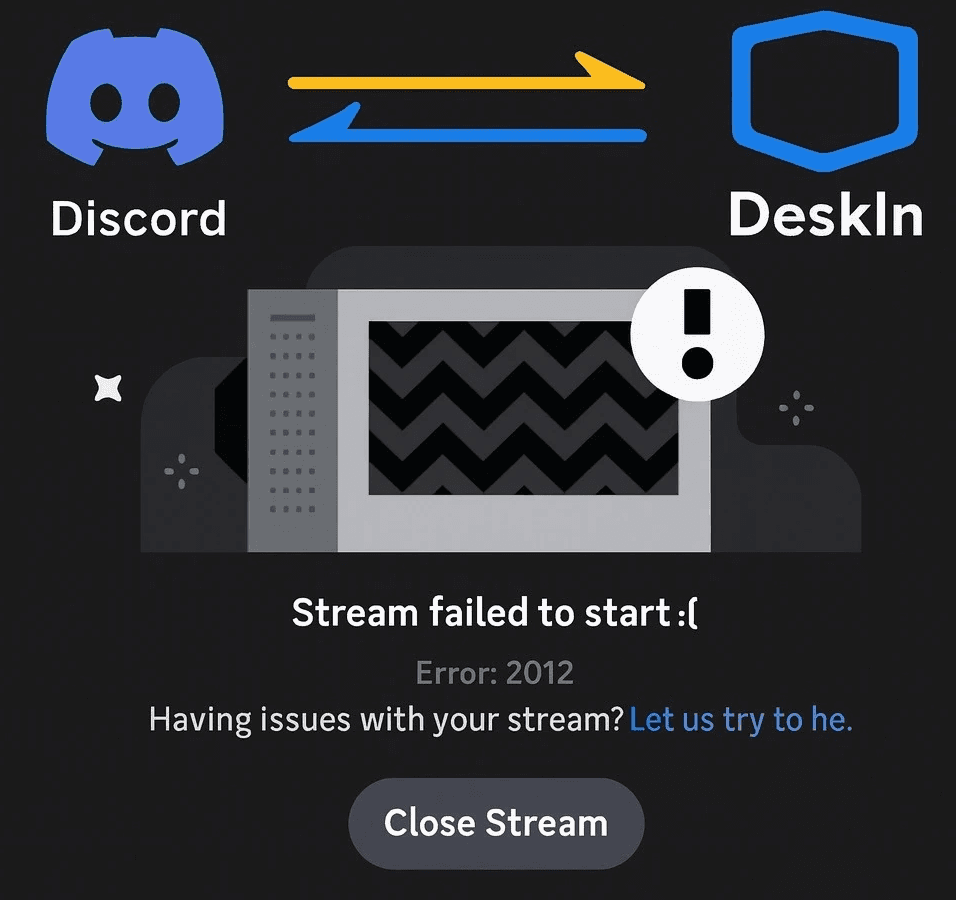
นั่นคือจุดที่ DeskIn เข้ามา
ในฐานะที่เป็นทางเลือกของ Discord และแอพแบ่งปันหน้าจอ DeskIn ให้บริการการแบ่งปันหน้าจอที่มีความล่าช้าต่ำ, ควบคุมได้เต็มที่, และความคมชัดระดับสูง ไม่ว่าคุณจะต้องการเดสก์ท็อประยะไกลฟรีสำหรับการทำงานหรือเครื่องมือแบ่งปันหน้าจอที่ดีที่สุดสำหรับสตรีมครั้งต่อไป DeskIn มีคำตอบให้คุณ
มาสรุปกันเถอะ

ดังนั้น, การแชร์หน้าจอ Discord ทำงานอย่างไร?
ในพื้นฐานของมัน ฟีเจอร์นี้จับภาพสิ่งที่เกิดขึ้นบนหน้าจอของคุณ ไม่ว่าจะเป็นเกม, แท็บเบราว์เซอร์, หรือเดสก์ท็อปเต็มรูปแบบ และสตรีมไปยังผู้ใช้ในช่องเสียงหรือการโทร เพียงคลิกที่ไอคอน “แชร์หน้าจอของคุณ” ใกล้กับการควบคุมเสียงของคุณ เลือกหน้าจอหรือแอพที่คุณต้องการแชร์ และเลือกเริ่มถ่ายทอดสด จากนั้นเพื่อนของคุณสามารถดูสิ่งที่คุณแชร์ได้
แต่ความเรียบง่ายสิ้นสุดตรงนี้ เมื่อคุณพยายามสตรีมเกมที่เคลื่อนที่เร็ว หรือไฟล์ออกแบบที่มีความละเอียดสูง หรือแม้กระทั่งสลับระหว่างแอพ ความแตกต่างก็เริ่มปรากฏ

มาสรุปปัญหาที่พบบ่อย (และน่าหงุดหงิด) ที่ผู้ใช้รายงาน:
ไม่มีเสียง: คุณกำลังแชร์หน้าจอของคุณ แต่ไม่มีใครได้ยินเกม, วิดีโอ, หรือไมโครโฟนของคุณ มักจะเกิดจากสิทธิ์ของแอพ, การตั้งค่าเอาต์พุตที่ไม่ถูกต้อง, หรือ Discord ไม่ได้จับเสียงจากแหล่งที่ถูกต้อง หรือเวอร์ชันเบราว์เซอร์ที่ใช้, ซึ่งมีข้อจำกัดในการแชร์เสียง
หน้าจอดำ: คุณคลิก “เริ่มถ่ายทอดสด” แต่ไม่มีอะไรเกิดขึ้น มีแต่หน้าจอดำ สิ่งนี้เกิดขึ้นเพราะปัญหาไดรเวอร์, เวอร์ชัน Discord ที่ล้าสมัย, หรือแอพพลิเคชันที่แชร์ที่มีการแสดงผลเต็มจอ
คุณภาพต่ำบนมือถือ: เมื่อคุณพยายามแชร์หน้าจอบน Discord มือถือ ความละเอียดลดลง ข้อความอ่านไม่ออก และการเล่นเกมกลายเป็นภาพพิกเซล ซึ่งอาจเกิดจาก Discord ไม่ได้จัดการกับความละเอียดอย่างถูกต้อง
พังระหว่างการสตรีมเกม: โดยเฉพาะกับเกมที่ใช้ GPU สูง สตรีมด้วยคุณภาพสูง การสตรีมกับแอพพลิเคชันบางตัวหรือการตั้งค่ามัลติมอนิเตอร์ Discord อาจพังระหว่างสตรีม ทิ้งให้คุณและเพื่อนของคุณดูหน้าจอค้างหรือต้องเริ่มการโทรใหม่
ข้อจำกัดภายในสำหรับการแชร์ความละเอียดสูงหรือ FPS สูง: ต้องการสตรีมใน 4K หรือแม้กระทั่ง 144FPS? นั่นไม่สามารถเกิดขึ้นได้ Discord จำกัดความละเอียดและเฟรมเรต เว้นแต่คุณจะจ่ายสำหรับ Nitro และแม้แต่ในกรณีนั้น การแสดงผลก็ยังไม่เสมอไปที่จะเชื่อถือได้
หากคุณเคยค้นหาใน Google ว่า “การแชร์หน้าจอ Discord ไม่ทำงาน” หรือ “วิธีแก้ไขการหน่วงของการแชร์หน้าจอ Discord" คุณก็เป็นครึ่งหนึ่งของอินเทอร์เน็ตที่ค้นหานั้นด้วย นี่คือเหตุผลที่เกิดขึ้น
ข้อจำกัดทางเซิร์ฟเวอร์: Discord ส่งทุกอย่างผ่านเซิร์ฟเวอร์ของมัน หากพวกมันใช้งานหนัก (ซึ่งมักเกิดขึ้นในเวลาสูงสุด) การสตรีมของคุณจะช้า หรือค้างไม่หยุด
ไม่มีการเพิ่มประสิทธิภาพของฮาร์ดแวร์: ไม่เหมือนเครื่องมือสตรีมที่ถูกออกแบบมา Discord ไม่ใช้การเร่งฮาร์ดแวร์ GPU อย่างเต็มที่ หรือเข้ารหัสวิดีโอขั้นสูง นำไปสู่การหน่วง, การดีซิงค์, และการดรอปเฟรม
ความขัดแย้งของอุปกรณ์และ OS: ไดรเวอร์เก่า, สิทธิ์ที่ขาดแคลน และการตั้งค่าความปลอดภัย (โดยเฉพาะใน Mac และ Windows 11) อาจปิดกั้นการจับภาพหน้าจอทั้งหมด
บั๊กของแอพเฉพาะ: โปรแกรมบางโปรแกรมเช่น Photoshop หรือเกมที่ทำงานในโหมดเต็มจอโดยพิเศษไม่เข้ากับการแชร์หน้าจอของ Discord ผลลัพธ์คือหน้าจอดำหรือการพังอย่างต่อเนื่อง
ขาดสิทธิ์: Discord อาจไม่มีสิทธิ์ที่จำเป็นในการเข้าถึงหน้าจอหรือไมโครโฟนของคุณ ทำให้การสตรีมล้มเหลว
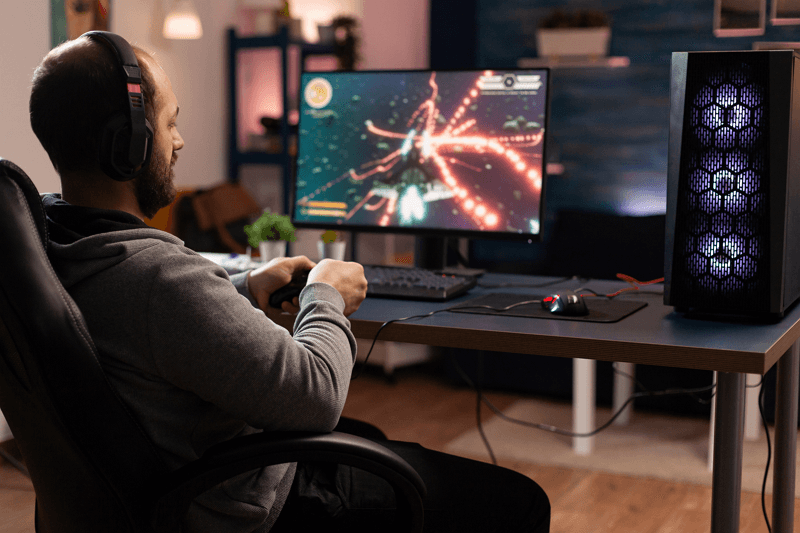
DeskIn เป็นซอฟต์แวร์แชร์หน้าจอและเครื่องมือควบคุมระยะไกลที่มีประสิทธิภาพสูง ถูกสร้างเพื่อการใช้งานแบบเรียลไทม์—การทำงาน, การเล่นเกม, การออกแบบ, การสนับสนุน, และอื่นๆ เมื่อการแชร์หน้าจอของ Discord หน่วงหรือพัง DeskIn ให้บริการการสตรีมที่ราบรื่น, เสถียร, และคมชัด
นี้คือเหตุผลที่มันเป็นตัวเลือกที่ใหญ่ที่สุดของ Discord สำหรับการแชร์หน้าจอ:
การเชื่อมต่อที่รวดเร็วและเสถียร: DeskIn ทำงานบนเครื่องยนต์ ZeroSync® ของตนเอง มอบการสื่อสารแบบเรียลไทม์ที่ราบรื่นและเชื่อถือได้ คุณจะไม่ถูกตัดการเชื่อมต่อในระหว่างเกม หรือจำเป็นต้องเชื่อมต่อใหม่ซ้ำๆ ระหว่างการประชุม มันเชื่อมต่ออยู่เสมอ
ความล่าช้าต่ำมาก (<40ms): DeskIn ใช้เทคโนโลยีการเข้ารหัสและถอดรหัสเสียงและวิดีโอระดับมืออาชีพ ที่ได้รับการปรับให้เหมาะสมสำหรับการสตรีมหน้าจอและการส่งเสียง ดังนั้นสิ่งที่คุณเห็นคือสิ่งที่พวกเขาเห็นทันที เหมาะสำหรับการเล่นเกม, การออกแบบ, การสนับสนุน, หรือการงานใดๆ ที่เวลาเป็นสิ่งสำคัญ
รองรับ 4K60FPS / 2K240FPS: สตรีมด้วยความคมชัด DeskIn รองรับการส่งออกความละเอียดสูงเพื่อให้ผู้ชมของคุณเห็นทุกรายละเอียด ตั้งแต่ข้อความ UI ขนาดเล็กไปจนถึงการอนิเมชั่นที่ละเอียด เหมาะสำหรับสตรีมเมอร์, นักเล่นเกม, และนักออกแบบ
รองรับการควบคุมระยะไกล: ต่างจาก Discord ที่จำกัดการแชร์หน้าจอไว้ในพื้นที่ดูเฉย DeskIn ให้การควบคุมระยะไกลเต็มรูปแบบแก่ผู้ใช้ เหมาะสำหรับการทำงานร่วมกันสด แก้ปัญหา IT หรือการเรียนรู้ที่ต้องอธิบายขั้นตอน
ปรับให้เหมาะสำหรับมือถือ, Mac & PC: DeskIn รองรับการเชื่อมต่อที่ราบรื่นระหว่าง iOS, Android, Windows และ Mac, พร้อมการดำเนินการที่เหมาะสำหรับมือถือ, การเปลี่ยนผ่านที่ราบรื่นและฟังก์ชันการทำงานเต็มรูปแบบ ไม่มีการลดคุณภาพ, ไม่มีการหน่วง
การควบคุมเกมระยะไกล: ต้องการเล่นเกม PC บนโทรศัพท์ของคุณ? หรือสะท้อนเกมมือถือไปยังหน้าจอใหญ่ขึ้น? DeskIn สามารถจัดการได้อย่างง่ายดาย ด้วยฟีเจอร์คลิกคอมบิเนชันเกมที่ปรับแต่งได้และฟีเจอร์สะท้อนหน้าจอ ทำให้มันเป็นตัวเลือกสำหรับผู้เล่นเกมมือถือ, สตรีมเมอร์, และคนที่ต้องการเพลิดเพลินกับการเล่นระยะไกลพร้อมการควบคุมเต็มรูปแบบ
พร้อมที่จะเห็นความแตกต่างด้วยตัวเอง? ลองใช้ DeskIn ฟรีและสตรีมแบบที่มันควรจะเป็น—คมชัด, เสถียร, และราบรื่น
ฟีเจอร์ | Discord | DeskIn |
ความละเอียดสูงสุด | 720p (ฟรี) / 1080p พร้อม Nitro | รองรับความละเอียดสูงถึง 4K60FPS / 2K240FPS |
ความล่าช้า | 80–150ms | <40ms ความล่าช้าต่ำอย่างยิ่ง |
การควบคุมระยะไกล | ดูอย่างเดียว | ควบคุมระยะไกลเต็มรูปแบบ |
ประสิทธิภาพบนมือถือ | มักหน่วงบนมือถือ | ราบรื่นข้ามแพลตฟอร์ม (iOS/Android) |
คุณภาพของวิดีโอ/ออดิโอ | มักไม่ซิงค์ | การเข้ารหัส & ถอดรหัสระดับมืออาชีพ |
เสถียรภาพ | สามารถพังเมื่อโหลดสูง | เครื่องยนต์ ZeroSync® สำหรับการแชร์ที่เสถียรมาก |
รองรับเกมมิ่ง | พังหรือหน่วง | โหมดเกมมิ่งสำหรับทั้ง PC & มือถือ |
การตั้งราคา | ฟรี / Nitro = $$ | เวอร์ชันฟรีพร้อมฟีเจอร์ขั้นสูง |
แน่นอน การแชร์หน้าจอของ Discord ทำงานได้สำหรับการแชร์แบบเฉลยทั่วไปและการโทร แต่เมื่อคุณต้องการพลัง, ความคมชัด, และการควบคุม DeskIn อยู่ในระดับของตัวเอง นี่คือวิธีที่มันขึ้นอันดับเมื่อ Discord ขาด
คืนเกมไม่ควรจะถูกทำลายด้วยการหน่วงหรือสตรีมที่เบลอ ด้วยการแชร์หน้าจอที่มีความล่าช้าต่ำ DeskIn รักษาการเล่นเกมของคุณให้คมชัดและตอบสนองผ่านอุปกรณ์ คุณสามารถสตรีม PC ของคุณไปยังโทรศัพท์หรือแท็บเล็ตของเพื่อน และพวกเขาจะเห็นทุกการเคลื่อนไหวทันที เหมาะสำหรับการเดินผ่านเกม, เกม co-op, หรือแค่โชว์ทักษะของคุณ
ต้องการข้อมูลเพิ่มเติมกับการตั้งค่าการเล่นเกมของคุณ? เรียนรู้วิธี ตั้งค่ามอนิเตอร์คู่สำหรับการเล่นเกม และใช้ประโยชน์เต็มที่จากประสบการณ์ DeskIn ของคุณ
อย่าให้อุปกรณ์แล็ปท็อปเก่ายับยั้งคุณ DeskIn ช่วยให้คุณสตรีมเกม PC ที่มีความประสิทธิภาพสูงไปยังอุปกรณ์ที่เบาหรือเก่าโดยไม่ต้องเสียคุณภาพ เป็นวิธีที่ชาญฉลาดในการปรับใช้อุปกรณ์มือสองหรือเล่นในขณะที่อยู่ห่างจากการตั้งค่าหลักของคุณ
ต้องการผลักดันขีดจำกัดของการตั้งค่ามือถือของคุณ? DeskIn แม้กระทั่งให้คุณเล่นเกม Android บน iPhone, ทำให้การเล่นข้ามแพลตฟอร์มเป็นจริง แม้กระทั่งบนอุปกรณ์งบประมาณ
งานสร้างสรรค์ต้องการความคมชัด DeskIn รองรับสูงถึง 4K60FPS และการความคมชัดของสีสูง ดังนั้นเมื่อคุณกำลังแสดงแฟ้ม Figma, แก้ไขวิดีโอ, หรือเดินลูกค้าผ่านการนำเสนอทุกอย่างจะดูคมชัด ไม่มีการมัวเบลอในแบบเลย์เอาต์หรือการนำเสนอกระตุกเช่นกับการแชร์หน้าจอของ Discord คุณยังสามารถสะท้อนหน้าจอ PC ไปยังหลายอุปกรณ์พร้อมกันซึ่งเจ๋งมาก
DeskIn ให้คุณสะท้อนหรือควบคุมแอพสร้างสรรค์เช่น Procreate หรือ Photoshop จากระยะไกล ทำงานบน iPad ของคุณในขณะที่ควบคุมเครื่องมือจากเดสก์ท็อปของคุณ เหมาะสำหรับศิลปิน, นักออกแบบ, หรือนักสร้างเนื้อหาที่สลับไปมาระหว่างอุปกรณ์แต่ต้องการการทำงานที่ราบรื่น
สงสัยว่า DeskIn เปลี่ยนการทำงานจากระยะไกลสำหรับผู้สร้างอย่างไร? ตรวจสอบการวิจัยเชิงลึกของเราเกี่ยวกับ ซอฟต์แวร์การทำงานระยะไกลที่ดีที่สุดสำหรับนักออกแบบ, และดูว่าเป็นอย่างไรที่สร้างเพื่อประสิทธิภาพและความแม่นยำ
พยายามช่วยเหลือใครบางคนบน Discord คุณจะจบลงด้วยการพูดว่า “คลิกที่สิ่งนั้น” หนึ่งโหลครั้ง ด้วย DeskIn คุณสามารถเข้ามา, แก้ปัญหาได้โดยตรงด้วยการเข้าถึงและควบคุมคอมพิวเตอร์ของเพื่อนคุณจากโทรศัพท์มือถือของคุณ และทำให้มันเสร็จ, ไม่ว่าคุณกำลังสนับสนุนลูกค้า, ช่วยเหลือทีมพนักงาน, หรือพ่อแม่ผ่านการตั้งค่าปรินเตอร์ DeskIn ให้บริการการโทรเสียงฟรี ดังนั้นคุณสามารถเริ่มสนทนาแบบเรียลไทม์กับลูกค้าหรือพ่อแม่ของคุณเพื่อจบการแก้ปัญหา เหมือนกับว่าคุณอยู่ตรงหน้าพวกเขาจริง ๆ
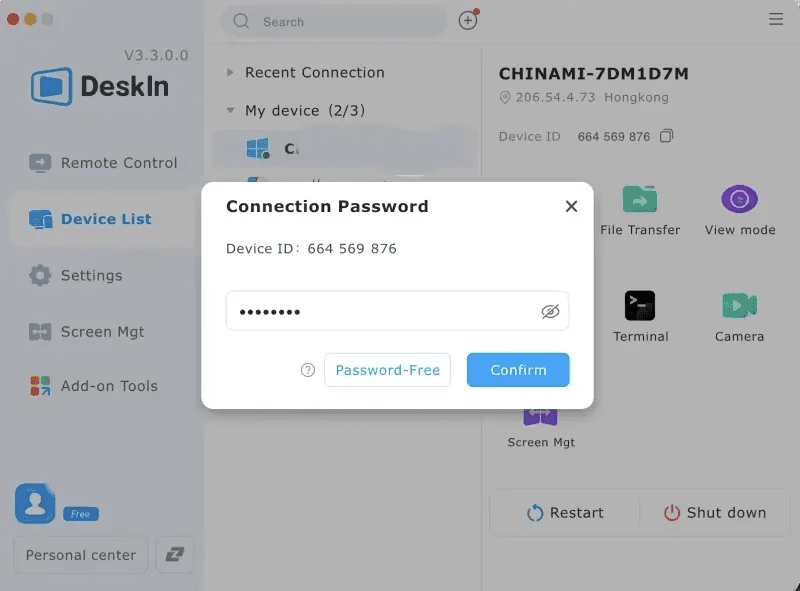
ดาวน์โหลด DeskIn: ไปที่เว็บไซต์ DeskIn และติดตั้งแอพสำหรับ Windows, macOS, iOS, หรือ Android—ฟรีและมีน้ำหนักเบา
สร้าง & เข้าสู่ระบบบัญชี DeskIn ของคุณ: สมัครบัญชี DeskIn ฟรีและเข้าสู่ระบบทั้งบนอุปกรณ์โฮสต์และลูกค้าที่คุณต้องการเชื่อมต่อ.
เชื่อมต่ออุปกรณ์ของคุณ: เชื่อมต่ออุปกรณ์ของคุณโดยใช้รหัสอุปกรณ์และรหัสความปลอดภัย
เริ่มแชร์หน้าจอด้วยความล่าช้าต่ำ: คลิกปุ่ม “สะท้อนหน้าจอของฉัน” เพื่อแชร์หน้าจอพีซีของคุณด้วยคุณภาพ HD และความล่าช้าต่ำ
ต้องการเล่นเกมขณะเดินทาง? เพียงทำตามขั้นตอนเดียวกัน: ดาวน์โหลด DeskIn บนโทรศัพท์และพีซีของคุณ, เข้าสู่ระบบ, และเชื่อมต่อทั้งสองอุปกรณ์ จากนั้นคุณสามารถเล่นเกมเดสก์ท็อปที่คุณชื่นชอบบนมือถือของคุณด้วยความละเอียดเต็มรูปแบบและความล่าช้าต่ำ โดยใช้การควบคุมบนหน้าจอ
DeskIn เสนอประสบการณ์การเล่นเกมระยะไกลที่ราบรื่นด้วย:
โหมดสัมผัส สำหรับการควบคุมแบบแตะง่าย
การปรับแต่งคีย์ผสมเกม สำหรับการป้อนที่แม่นยำ
ความสามารถในการใช้งานด้วย gamepad, รวมถึงการรองรับคอนโทรลเลอร์ Bluetooth
การตั้งค่าความละเอียดและอัตราเฟรมที่ปรับได้, เพื่อให้คุณสามารถปรับแต่งการทำงานตามอุปกรณ์และเครือข่ายของคุณ
หากคุณกำลังใช้ Android, เรียนรู้เพิ่มเติมในคำแนะนำฉบับเต็มของเราเกี่ยวกับวิธีการเล่นเกม PC บน Android.
เพื่อเข้าถึงไฟล์งานในคอมพิวเตอร์สำนักงานของคุณจากที่บ้านหรือขณะเดินทาง เพียงดาวน์โหลด DeskIn บนอุปกรณ์งานและส่วนตัวของคุณ, เข้าสู่ระบบ, และเชื่อมต่อ จากนั้นคุณสามารถควบคุมเดสก์ท็อปของคุณ, เรียกใช้แอพ, แก้ไขหรือโอนย้ายไฟล์จากระยะไกลได้อย่างราบรื่นและปลอดภัย
DeskIn ยังรวมฟีเจอร์การทำงานระยะไกลฟรีที่ทรงพลัง เช่น:
การเข้าถึงที่ไม่มีคนจำเป็น สำหรับการเข้าสู่ระบบโดยไม่ต้องการคนที่จุดสิ้นสุด
การพิมพ์ระยะไกล เพื่อพิมพ์เอกสารสำนักงานโดยตรงจากอุปกรณ์ที่บ้านของคุณ
การปิดเครื่องและบูทระยะไกล เพื่อประหยัดพลังงานและเริ่มใหม่
Wake-on-LAN (WoL) เพื่อเปิดเครื่อง PC ระยะไกลของคุณได้ทุกเวลา แม้ว่ามันจะอยู่ในโหมดสลีป
คุณลักษณะเหล่านี้ทำให้ DeskIn เป็นประโยชน์อย่างยิ่งสำหรับมืออาชีพที่ต้องการการเข้าถึงเตรียมงานเต็มรูปแบบได้ทุกที่ทุกเวลา
เริ่มต้นกับ DeskIn วันนี้—และสัมผัสประสบการณ์การแชร์หน้าจอที่เร็ว, ราบรื่น, และสร้างเพื่อการทำงาน
ในขณะที่การแชร์หน้าจอ Discord นั้นยอดเยี่ยมสำหรับการโทรธรรมดาและการแชร์ด่วน แต่มักจะล้าหลังภายใต้แรงกดดัน ไม่ว่าจะเป็นการหน่วง, การแสดงผลที่เบลอ, หรือการควบคุมที่จำกัด ประสบการณ์ไม่เพียงพอเมื่อคุณต้องการประสิทธิภาพจริง ๆ
DeskIn เปลี่ยนสิ่งนั้น มันถูกสร้างขึ้นสำหรับผู้ที่ต้องการมากกว่าเพียงการสตรีมที่ดีนัก—นักเล่นเกมที่ต้องการการเล่นเกมอย่างลื่นไหล, นักออกแบบที่ใส่ใจในรายละเอียด, และทีมระยะไกลที่พึ่งพาความชัดเจนและการควบคุม
หากคุณเบื่อที่จะถามว่าทำไมการแชร์หน้าจอ Discord ของคุณจึงไม่ทำงาน ถึงเวลาสำหรับการอัปเกรดแล้ว
เริ่มใช้ DeskIn ฟรีตอนนี้. เพราะการแชร์หน้าจอควรใช้งานได้เสถียรและราบรื่นทุกครั้ง
เคยพยายามแชร์เกมของคุณแล้วการแชร์หน้าจอของ Discord ค้างระหว่างการต่อสู้หรือพังระหว่างการโทรไหม? คุณไม่ได้อยู่คนเดียว ตั้งแต่การแชร์หน้าจอ Discord ที่ไม่ทำงานไปจนถึงหน่วง, หน้าจอดำ หรือคุณภาพต่ำเมื่อคุณแชร์หน้าจอบน Discord มือถือ ประสบการณ์มักจะขาด, โดยเฉพาะสำหรับการเล่นเกม, การออกแบบ หรือการสนับสนุน
นั่นคือจุดที่ DeskIn เข้ามา
ในฐานะที่เป็นทางเลือกของ Discord และแอพแบ่งปันหน้าจอ DeskIn ให้บริการการแบ่งปันหน้าจอที่มีความล่าช้าต่ำ, ควบคุมได้เต็มที่, และความคมชัดระดับสูง ไม่ว่าคุณจะต้องการเดสก์ท็อประยะไกลฟรีสำหรับการทำงานหรือเครื่องมือแบ่งปันหน้าจอที่ดีที่สุดสำหรับสตรีมครั้งต่อไป DeskIn มีคำตอบให้คุณ
มาสรุปกันเถอะ
ดังนั้น, การแชร์หน้าจอ Discord ทำงานอย่างไร?
ในพื้นฐานของมัน ฟีเจอร์นี้จับภาพสิ่งที่เกิดขึ้นบนหน้าจอของคุณ ไม่ว่าจะเป็นเกม, แท็บเบราว์เซอร์, หรือเดสก์ท็อปเต็มรูปแบบ และสตรีมไปยังผู้ใช้ในช่องเสียงหรือการโทร เพียงคลิกที่ไอคอน “แชร์หน้าจอของคุณ” ใกล้กับการควบคุมเสียงของคุณ เลือกหน้าจอหรือแอพที่คุณต้องการแชร์ และเลือกเริ่มถ่ายทอดสด จากนั้นเพื่อนของคุณสามารถดูสิ่งที่คุณแชร์ได้
แต่ความเรียบง่ายสิ้นสุดตรงนี้ เมื่อคุณพยายามสตรีมเกมที่เคลื่อนที่เร็ว หรือไฟล์ออกแบบที่มีความละเอียดสูง หรือแม้กระทั่งสลับระหว่างแอพ ความแตกต่างก็เริ่มปรากฏ
มาสรุปปัญหาที่พบบ่อย (และน่าหงุดหงิด) ที่ผู้ใช้รายงาน:
ไม่มีเสียง: คุณกำลังแชร์หน้าจอของคุณ แต่ไม่มีใครได้ยินเกม, วิดีโอ, หรือไมโครโฟนของคุณ มักจะเกิดจากสิทธิ์ของแอพ, การตั้งค่าเอาต์พุตที่ไม่ถูกต้อง, หรือ Discord ไม่ได้จับเสียงจากแหล่งที่ถูกต้อง หรือเวอร์ชันเบราว์เซอร์ที่ใช้, ซึ่งมีข้อจำกัดในการแชร์เสียง
หน้าจอดำ: คุณคลิก “เริ่มถ่ายทอดสด” แต่ไม่มีอะไรเกิดขึ้น มีแต่หน้าจอดำ สิ่งนี้เกิดขึ้นเพราะปัญหาไดรเวอร์, เวอร์ชัน Discord ที่ล้าสมัย, หรือแอพพลิเคชันที่แชร์ที่มีการแสดงผลเต็มจอ
คุณภาพต่ำบนมือถือ: เมื่อคุณพยายามแชร์หน้าจอบน Discord มือถือ ความละเอียดลดลง ข้อความอ่านไม่ออก และการเล่นเกมกลายเป็นภาพพิกเซล ซึ่งอาจเกิดจาก Discord ไม่ได้จัดการกับความละเอียดอย่างถูกต้อง
พังระหว่างการสตรีมเกม: โดยเฉพาะกับเกมที่ใช้ GPU สูง สตรีมด้วยคุณภาพสูง การสตรีมกับแอพพลิเคชันบางตัวหรือการตั้งค่ามัลติมอนิเตอร์ Discord อาจพังระหว่างสตรีม ทิ้งให้คุณและเพื่อนของคุณดูหน้าจอค้างหรือต้องเริ่มการโทรใหม่
ข้อจำกัดภายในสำหรับการแชร์ความละเอียดสูงหรือ FPS สูง: ต้องการสตรีมใน 4K หรือแม้กระทั่ง 144FPS? นั่นไม่สามารถเกิดขึ้นได้ Discord จำกัดความละเอียดและเฟรมเรต เว้นแต่คุณจะจ่ายสำหรับ Nitro และแม้แต่ในกรณีนั้น การแสดงผลก็ยังไม่เสมอไปที่จะเชื่อถือได้
หากคุณเคยค้นหาใน Google ว่า “การแชร์หน้าจอ Discord ไม่ทำงาน” หรือ “วิธีแก้ไขการหน่วงของการแชร์หน้าจอ Discord" คุณก็เป็นครึ่งหนึ่งของอินเทอร์เน็ตที่ค้นหานั้นด้วย นี่คือเหตุผลที่เกิดขึ้น
ข้อจำกัดทางเซิร์ฟเวอร์: Discord ส่งทุกอย่างผ่านเซิร์ฟเวอร์ของมัน หากพวกมันใช้งานหนัก (ซึ่งมักเกิดขึ้นในเวลาสูงสุด) การสตรีมของคุณจะช้า หรือค้างไม่หยุด
ไม่มีการเพิ่มประสิทธิภาพของฮาร์ดแวร์: ไม่เหมือนเครื่องมือสตรีมที่ถูกออกแบบมา Discord ไม่ใช้การเร่งฮาร์ดแวร์ GPU อย่างเต็มที่ หรือเข้ารหัสวิดีโอขั้นสูง นำไปสู่การหน่วง, การดีซิงค์, และการดรอปเฟรม
ความขัดแย้งของอุปกรณ์และ OS: ไดรเวอร์เก่า, สิทธิ์ที่ขาดแคลน และการตั้งค่าความปลอดภัย (โดยเฉพาะใน Mac และ Windows 11) อาจปิดกั้นการจับภาพหน้าจอทั้งหมด
บั๊กของแอพเฉพาะ: โปรแกรมบางโปรแกรมเช่น Photoshop หรือเกมที่ทำงานในโหมดเต็มจอโดยพิเศษไม่เข้ากับการแชร์หน้าจอของ Discord ผลลัพธ์คือหน้าจอดำหรือการพังอย่างต่อเนื่อง
ขาดสิทธิ์: Discord อาจไม่มีสิทธิ์ที่จำเป็นในการเข้าถึงหน้าจอหรือไมโครโฟนของคุณ ทำให้การสตรีมล้มเหลว
DeskIn เป็นซอฟต์แวร์แชร์หน้าจอและเครื่องมือควบคุมระยะไกลที่มีประสิทธิภาพสูง ถูกสร้างเพื่อการใช้งานแบบเรียลไทม์—การทำงาน, การเล่นเกม, การออกแบบ, การสนับสนุน, และอื่นๆ เมื่อการแชร์หน้าจอของ Discord หน่วงหรือพัง DeskIn ให้บริการการสตรีมที่ราบรื่น, เสถียร, และคมชัด
นี้คือเหตุผลที่มันเป็นตัวเลือกที่ใหญ่ที่สุดของ Discord สำหรับการแชร์หน้าจอ:
การเชื่อมต่อที่รวดเร็วและเสถียร: DeskIn ทำงานบนเครื่องยนต์ ZeroSync® ของตนเอง มอบการสื่อสารแบบเรียลไทม์ที่ราบรื่นและเชื่อถือได้ คุณจะไม่ถูกตัดการเชื่อมต่อในระหว่างเกม หรือจำเป็นต้องเชื่อมต่อใหม่ซ้ำๆ ระหว่างการประชุม มันเชื่อมต่ออยู่เสมอ
ความล่าช้าต่ำมาก (<40ms): DeskIn ใช้เทคโนโลยีการเข้ารหัสและถอดรหัสเสียงและวิดีโอระดับมืออาชีพ ที่ได้รับการปรับให้เหมาะสมสำหรับการสตรีมหน้าจอและการส่งเสียง ดังนั้นสิ่งที่คุณเห็นคือสิ่งที่พวกเขาเห็นทันที เหมาะสำหรับการเล่นเกม, การออกแบบ, การสนับสนุน, หรือการงานใดๆ ที่เวลาเป็นสิ่งสำคัญ
รองรับ 4K60FPS / 2K240FPS: สตรีมด้วยความคมชัด DeskIn รองรับการส่งออกความละเอียดสูงเพื่อให้ผู้ชมของคุณเห็นทุกรายละเอียด ตั้งแต่ข้อความ UI ขนาดเล็กไปจนถึงการอนิเมชั่นที่ละเอียด เหมาะสำหรับสตรีมเมอร์, นักเล่นเกม, และนักออกแบบ
รองรับการควบคุมระยะไกล: ต่างจาก Discord ที่จำกัดการแชร์หน้าจอไว้ในพื้นที่ดูเฉย DeskIn ให้การควบคุมระยะไกลเต็มรูปแบบแก่ผู้ใช้ เหมาะสำหรับการทำงานร่วมกันสด แก้ปัญหา IT หรือการเรียนรู้ที่ต้องอธิบายขั้นตอน
ปรับให้เหมาะสำหรับมือถือ, Mac & PC: DeskIn รองรับการเชื่อมต่อที่ราบรื่นระหว่าง iOS, Android, Windows และ Mac, พร้อมการดำเนินการที่เหมาะสำหรับมือถือ, การเปลี่ยนผ่านที่ราบรื่นและฟังก์ชันการทำงานเต็มรูปแบบ ไม่มีการลดคุณภาพ, ไม่มีการหน่วง
การควบคุมเกมระยะไกล: ต้องการเล่นเกม PC บนโทรศัพท์ของคุณ? หรือสะท้อนเกมมือถือไปยังหน้าจอใหญ่ขึ้น? DeskIn สามารถจัดการได้อย่างง่ายดาย ด้วยฟีเจอร์คลิกคอมบิเนชันเกมที่ปรับแต่งได้และฟีเจอร์สะท้อนหน้าจอ ทำให้มันเป็นตัวเลือกสำหรับผู้เล่นเกมมือถือ, สตรีมเมอร์, และคนที่ต้องการเพลิดเพลินกับการเล่นระยะไกลพร้อมการควบคุมเต็มรูปแบบ
พร้อมที่จะเห็นความแตกต่างด้วยตัวเอง? ลองใช้ DeskIn ฟรีและสตรีมแบบที่มันควรจะเป็น—คมชัด, เสถียร, และราบรื่น
ฟีเจอร์ | Discord | DeskIn |
ความละเอียดสูงสุด | 720p (ฟรี) / 1080p พร้อม Nitro | รองรับความละเอียดสูงถึง 4K60FPS / 2K240FPS |
ความล่าช้า | 80–150ms | <40ms ความล่าช้าต่ำอย่างยิ่ง |
การควบคุมระยะไกล | ดูอย่างเดียว | ควบคุมระยะไกลเต็มรูปแบบ |
ประสิทธิภาพบนมือถือ | มักหน่วงบนมือถือ | ราบรื่นข้ามแพลตฟอร์ม (iOS/Android) |
คุณภาพของวิดีโอ/ออดิโอ | มักไม่ซิงค์ | การเข้ารหัส & ถอดรหัสระดับมืออาชีพ |
เสถียรภาพ | สามารถพังเมื่อโหลดสูง | เครื่องยนต์ ZeroSync® สำหรับการแชร์ที่เสถียรมาก |
รองรับเกมมิ่ง | พังหรือหน่วง | โหมดเกมมิ่งสำหรับทั้ง PC & มือถือ |
การตั้งราคา | ฟรี / Nitro = $$ | เวอร์ชันฟรีพร้อมฟีเจอร์ขั้นสูง |
แน่นอน การแชร์หน้าจอของ Discord ทำงานได้สำหรับการแชร์แบบเฉลยทั่วไปและการโทร แต่เมื่อคุณต้องการพลัง, ความคมชัด, และการควบคุม DeskIn อยู่ในระดับของตัวเอง นี่คือวิธีที่มันขึ้นอันดับเมื่อ Discord ขาด
คืนเกมไม่ควรจะถูกทำลายด้วยการหน่วงหรือสตรีมที่เบลอ ด้วยการแชร์หน้าจอที่มีความล่าช้าต่ำ DeskIn รักษาการเล่นเกมของคุณให้คมชัดและตอบสนองผ่านอุปกรณ์ คุณสามารถสตรีม PC ของคุณไปยังโทรศัพท์หรือแท็บเล็ตของเพื่อน และพวกเขาจะเห็นทุกการเคลื่อนไหวทันที เหมาะสำหรับการเดินผ่านเกม, เกม co-op, หรือแค่โชว์ทักษะของคุณ
ต้องการข้อมูลเพิ่มเติมกับการตั้งค่าการเล่นเกมของคุณ? เรียนรู้วิธี ตั้งค่ามอนิเตอร์คู่สำหรับการเล่นเกม และใช้ประโยชน์เต็มที่จากประสบการณ์ DeskIn ของคุณ
อย่าให้อุปกรณ์แล็ปท็อปเก่ายับยั้งคุณ DeskIn ช่วยให้คุณสตรีมเกม PC ที่มีความประสิทธิภาพสูงไปยังอุปกรณ์ที่เบาหรือเก่าโดยไม่ต้องเสียคุณภาพ เป็นวิธีที่ชาญฉลาดในการปรับใช้อุปกรณ์มือสองหรือเล่นในขณะที่อยู่ห่างจากการตั้งค่าหลักของคุณ
ต้องการผลักดันขีดจำกัดของการตั้งค่ามือถือของคุณ? DeskIn แม้กระทั่งให้คุณเล่นเกม Android บน iPhone, ทำให้การเล่นข้ามแพลตฟอร์มเป็นจริง แม้กระทั่งบนอุปกรณ์งบประมาณ
งานสร้างสรรค์ต้องการความคมชัด DeskIn รองรับสูงถึง 4K60FPS และการความคมชัดของสีสูง ดังนั้นเมื่อคุณกำลังแสดงแฟ้ม Figma, แก้ไขวิดีโอ, หรือเดินลูกค้าผ่านการนำเสนอทุกอย่างจะดูคมชัด ไม่มีการมัวเบลอในแบบเลย์เอาต์หรือการนำเสนอกระตุกเช่นกับการแชร์หน้าจอของ Discord คุณยังสามารถสะท้อนหน้าจอ PC ไปยังหลายอุปกรณ์พร้อมกันซึ่งเจ๋งมาก
DeskIn ให้คุณสะท้อนหรือควบคุมแอพสร้างสรรค์เช่น Procreate หรือ Photoshop จากระยะไกล ทำงานบน iPad ของคุณในขณะที่ควบคุมเครื่องมือจากเดสก์ท็อปของคุณ เหมาะสำหรับศิลปิน, นักออกแบบ, หรือนักสร้างเนื้อหาที่สลับไปมาระหว่างอุปกรณ์แต่ต้องการการทำงานที่ราบรื่น
สงสัยว่า DeskIn เปลี่ยนการทำงานจากระยะไกลสำหรับผู้สร้างอย่างไร? ตรวจสอบการวิจัยเชิงลึกของเราเกี่ยวกับ ซอฟต์แวร์การทำงานระยะไกลที่ดีที่สุดสำหรับนักออกแบบ, และดูว่าเป็นอย่างไรที่สร้างเพื่อประสิทธิภาพและความแม่นยำ
พยายามช่วยเหลือใครบางคนบน Discord คุณจะจบลงด้วยการพูดว่า “คลิกที่สิ่งนั้น” หนึ่งโหลครั้ง ด้วย DeskIn คุณสามารถเข้ามา, แก้ปัญหาได้โดยตรงด้วยการเข้าถึงและควบคุมคอมพิวเตอร์ของเพื่อนคุณจากโทรศัพท์มือถือของคุณ และทำให้มันเสร็จ, ไม่ว่าคุณกำลังสนับสนุนลูกค้า, ช่วยเหลือทีมพนักงาน, หรือพ่อแม่ผ่านการตั้งค่าปรินเตอร์ DeskIn ให้บริการการโทรเสียงฟรี ดังนั้นคุณสามารถเริ่มสนทนาแบบเรียลไทม์กับลูกค้าหรือพ่อแม่ของคุณเพื่อจบการแก้ปัญหา เหมือนกับว่าคุณอยู่ตรงหน้าพวกเขาจริง ๆ
ดาวน์โหลด DeskIn: ไปที่เว็บไซต์ DeskIn และติดตั้งแอพสำหรับ Windows, macOS, iOS, หรือ Android—ฟรีและมีน้ำหนักเบา
สร้าง & เข้าสู่ระบบบัญชี DeskIn ของคุณ: สมัครบัญชี DeskIn ฟรีและเข้าสู่ระบบทั้งบนอุปกรณ์โฮสต์และลูกค้าที่คุณต้องการเชื่อมต่อ.
เชื่อมต่ออุปกรณ์ของคุณ: เชื่อมต่ออุปกรณ์ของคุณโดยใช้รหัสอุปกรณ์และรหัสความปลอดภัย
เริ่มแชร์หน้าจอด้วยความล่าช้าต่ำ: คลิกปุ่ม “สะท้อนหน้าจอของฉัน” เพื่อแชร์หน้าจอพีซีของคุณด้วยคุณภาพ HD และความล่าช้าต่ำ
ต้องการเล่นเกมขณะเดินทาง? เพียงทำตามขั้นตอนเดียวกัน: ดาวน์โหลด DeskIn บนโทรศัพท์และพีซีของคุณ, เข้าสู่ระบบ, และเชื่อมต่อทั้งสองอุปกรณ์ จากนั้นคุณสามารถเล่นเกมเดสก์ท็อปที่คุณชื่นชอบบนมือถือของคุณด้วยความละเอียดเต็มรูปแบบและความล่าช้าต่ำ โดยใช้การควบคุมบนหน้าจอ
DeskIn เสนอประสบการณ์การเล่นเกมระยะไกลที่ราบรื่นด้วย:
โหมดสัมผัส สำหรับการควบคุมแบบแตะง่าย
การปรับแต่งคีย์ผสมเกม สำหรับการป้อนที่แม่นยำ
ความสามารถในการใช้งานด้วย gamepad, รวมถึงการรองรับคอนโทรลเลอร์ Bluetooth
การตั้งค่าความละเอียดและอัตราเฟรมที่ปรับได้, เพื่อให้คุณสามารถปรับแต่งการทำงานตามอุปกรณ์และเครือข่ายของคุณ
หากคุณกำลังใช้ Android, เรียนรู้เพิ่มเติมในคำแนะนำฉบับเต็มของเราเกี่ยวกับวิธีการเล่นเกม PC บน Android.
เพื่อเข้าถึงไฟล์งานในคอมพิวเตอร์สำนักงานของคุณจากที่บ้านหรือขณะเดินทาง เพียงดาวน์โหลด DeskIn บนอุปกรณ์งานและส่วนตัวของคุณ, เข้าสู่ระบบ, และเชื่อมต่อ จากนั้นคุณสามารถควบคุมเดสก์ท็อปของคุณ, เรียกใช้แอพ, แก้ไขหรือโอนย้ายไฟล์จากระยะไกลได้อย่างราบรื่นและปลอดภัย
DeskIn ยังรวมฟีเจอร์การทำงานระยะไกลฟรีที่ทรงพลัง เช่น:
การเข้าถึงที่ไม่มีคนจำเป็น สำหรับการเข้าสู่ระบบโดยไม่ต้องการคนที่จุดสิ้นสุด
การพิมพ์ระยะไกล เพื่อพิมพ์เอกสารสำนักงานโดยตรงจากอุปกรณ์ที่บ้านของคุณ
การปิดเครื่องและบูทระยะไกล เพื่อประหยัดพลังงานและเริ่มใหม่
Wake-on-LAN (WoL) เพื่อเปิดเครื่อง PC ระยะไกลของคุณได้ทุกเวลา แม้ว่ามันจะอยู่ในโหมดสลีป
คุณลักษณะเหล่านี้ทำให้ DeskIn เป็นประโยชน์อย่างยิ่งสำหรับมืออาชีพที่ต้องการการเข้าถึงเตรียมงานเต็มรูปแบบได้ทุกที่ทุกเวลา
เริ่มต้นกับ DeskIn วันนี้—และสัมผัสประสบการณ์การแชร์หน้าจอที่เร็ว, ราบรื่น, และสร้างเพื่อการทำงาน
ในขณะที่การแชร์หน้าจอ Discord นั้นยอดเยี่ยมสำหรับการโทรธรรมดาและการแชร์ด่วน แต่มักจะล้าหลังภายใต้แรงกดดัน ไม่ว่าจะเป็นการหน่วง, การแสดงผลที่เบลอ, หรือการควบคุมที่จำกัด ประสบการณ์ไม่เพียงพอเมื่อคุณต้องการประสิทธิภาพจริง ๆ
DeskIn เปลี่ยนสิ่งนั้น มันถูกสร้างขึ้นสำหรับผู้ที่ต้องการมากกว่าเพียงการสตรีมที่ดีนัก—นักเล่นเกมที่ต้องการการเล่นเกมอย่างลื่นไหล, นักออกแบบที่ใส่ใจในรายละเอียด, และทีมระยะไกลที่พึ่งพาความชัดเจนและการควบคุม
หากคุณเบื่อที่จะถามว่าทำไมการแชร์หน้าจอ Discord ของคุณจึงไม่ทำงาน ถึงเวลาสำหรับการอัปเกรดแล้ว
เริ่มใช้ DeskIn ฟรีตอนนี้. เพราะการแชร์หน้าจอควรใช้งานได้เสถียรและราบรื่นทุกครั้ง

เปลี่ยน iPad ให้เป็นจอภาพที่สองสำหรับคอมพิวเตอร์ Windows และ Mac
A second monitor can make everyday work feel much easier, especially when you are switching between research, documents, meetings, design files, or dashboards. If you already own an iPad, you may be able to use it as an extra display instead of buying another monitor.
This guide explains how to use an iPad as a second monitor for Mac with Apple Sidecar, and how Windows or cross-platform users can use DeskIn screen extension on supported paid plans.
Increase screen space so you can view more content at the same time. This helps reduce constant window switching during multitasking.
Keep each screen focused on a different task. For example, you can edit a video on one screen and keep source materials on the other, or write a paper while browsing references side by side.
Use the iPad display you already have. For students, remote workers, and light creative work, an iPad can be a convenient and cost-effective second-screen option.
Save desk space and avoid carrying another external monitor when you work from home, travel, or move between rooms.
Apple Sidecar lets compatible iPads work as an external display for compatible MacBook and iMac devices. It is a good native option if both devices support Sidecar and are signed in with the same Apple ID.
Note: To use Apple Sidecar, your Mac and iPad should use the same Apple ID, have Bluetooth and Wi-Fi turned on, and stay within close wireless range. Sidecar availability depends on Apple device and operating system compatibility.
Open the Mac System Settings >> Click "Display" in the sidebar >> Click the "+" pop up menu on the right and choose your iPad.
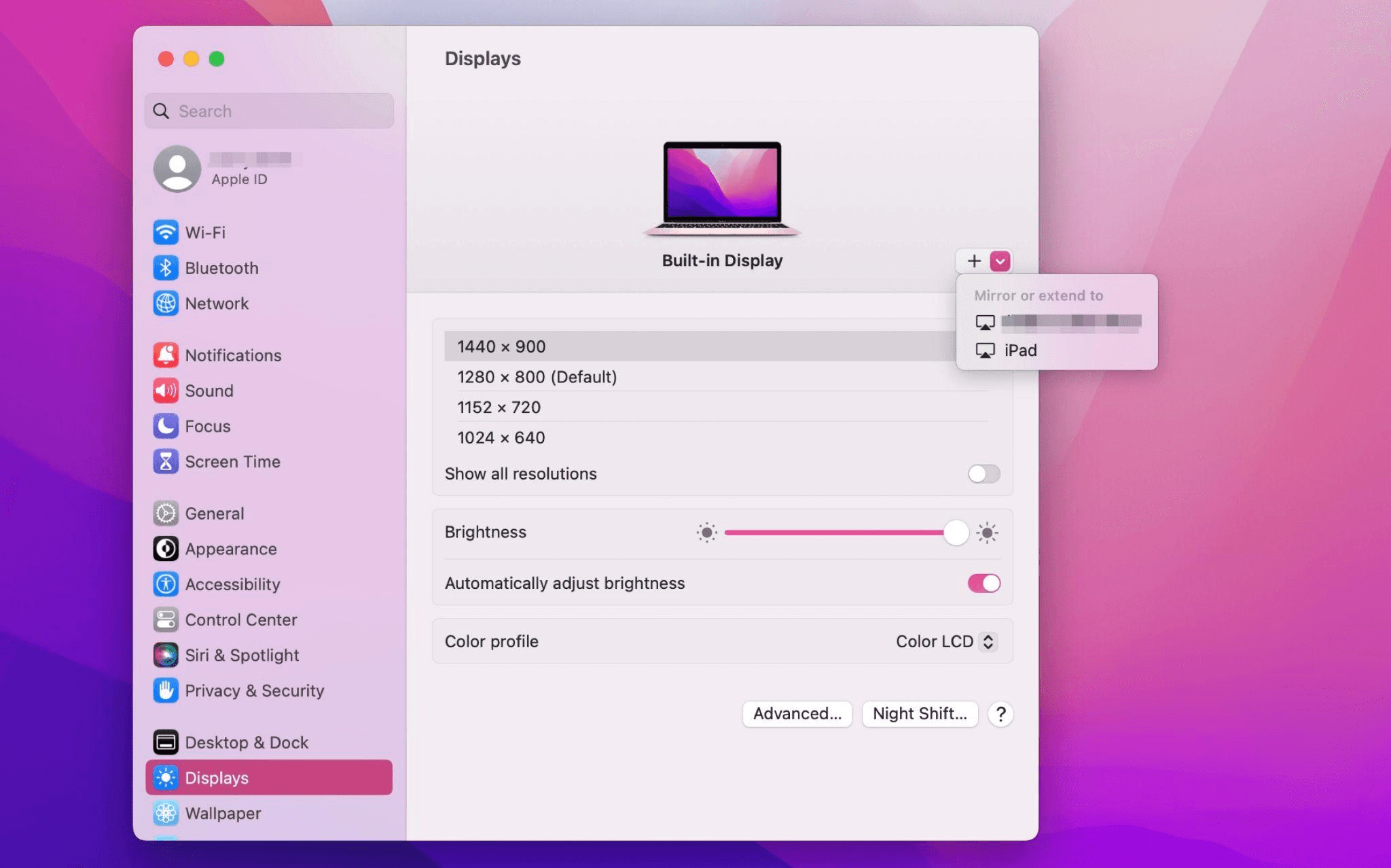
Select the iPad, change the Use as settings to "Extended Display". Check the Airplay settings on the top toolbar of the mac and set iPad as "Use As Separate Display".
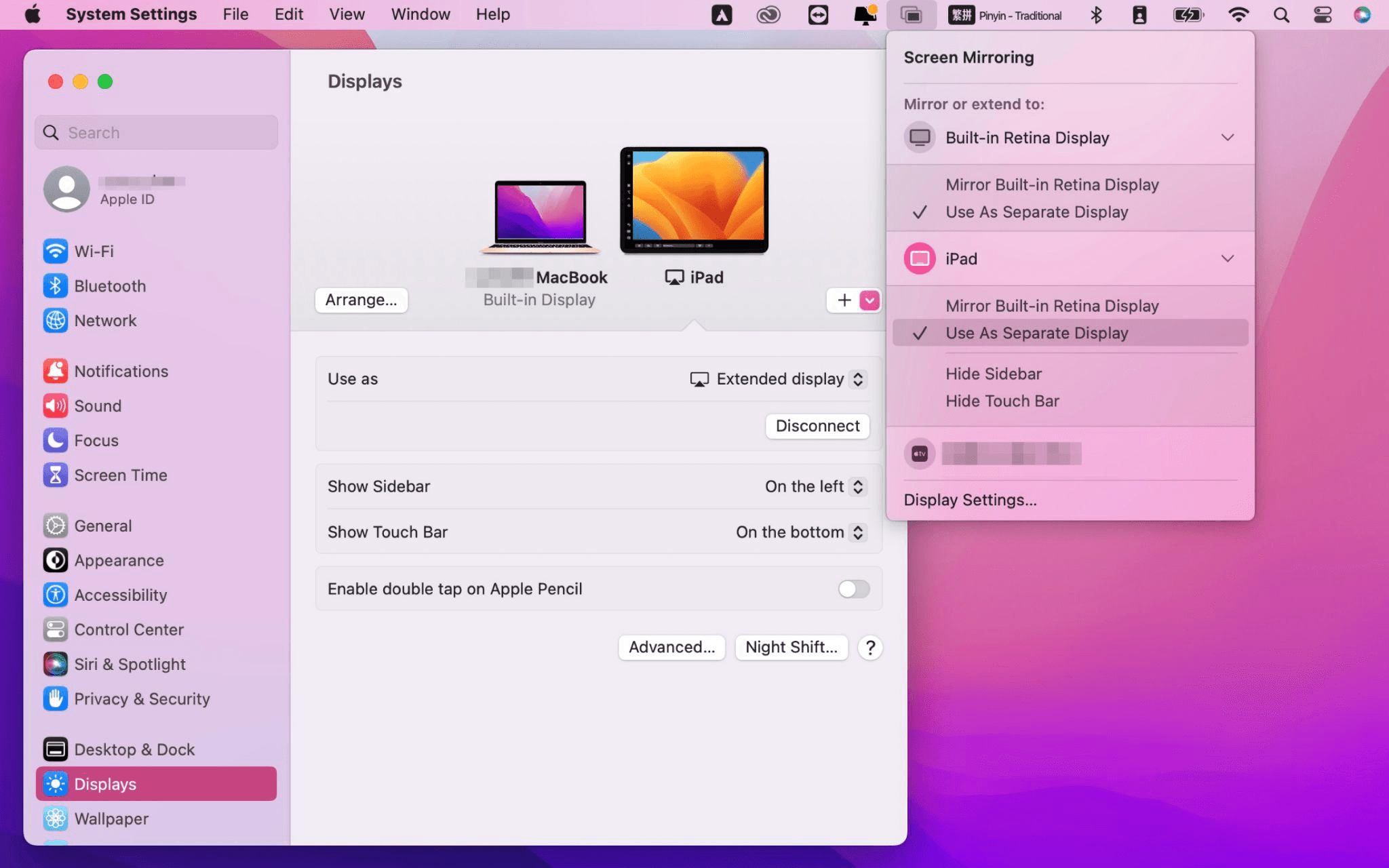
After completing the settings, your iPad will become the second display for your Mac. You can drag windows from your Mac to your iPad smoothly. You can also use the sidebar on the iPad or change the position of the sidebar on the system display settings.
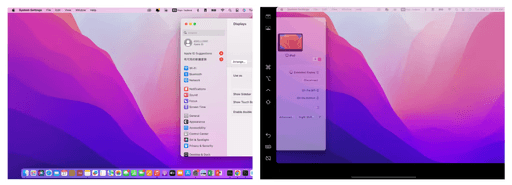
MacBook Screen (Left) and iPad Screen (Right)
Apple Sidecar only supports mac released after 2016 and iPadOS13 or newer. If you are using an old Apple device or a Windows device, you can still use DeskIn remote software to do the screen extension. It supports using iPad as a second display for Mac and Windows, and the smoothness is no worse than sidecar.
Install DeskIn on both your computer and iPad. Sign in to your DeskIn account on each device. When you log in on a new device for the first time, you may need to complete email verification to help protect your account.

To use Screen Extension, you'll need to subscribe to any Premium plan. Click here to view DeskIn plans.
Open DeskIn on your Windows or Mac computer, go to the screen management area, and choose the screen extension option. Select your iPad as the target display and start extending.
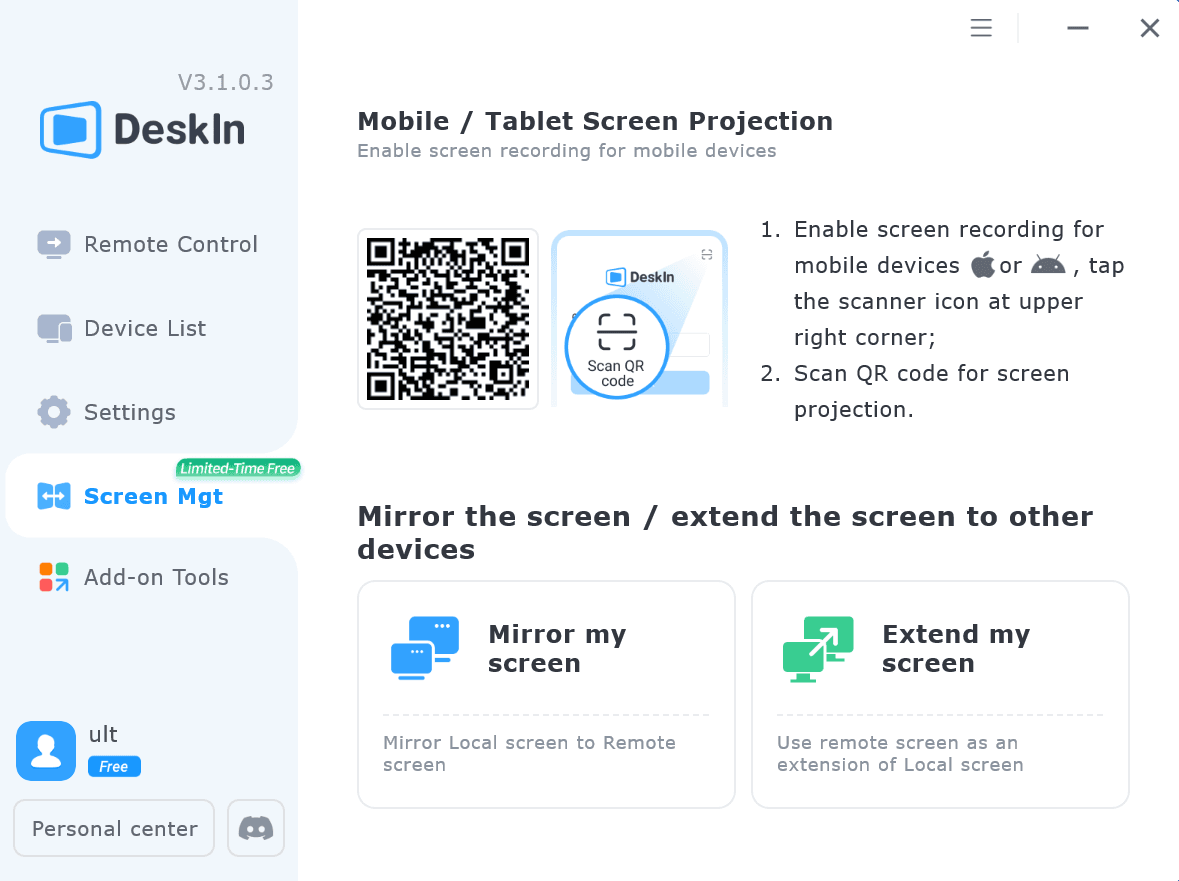
Once connected, your iPad can work as an additional display, letting you move windows between your computer and iPad for a wider workspace.
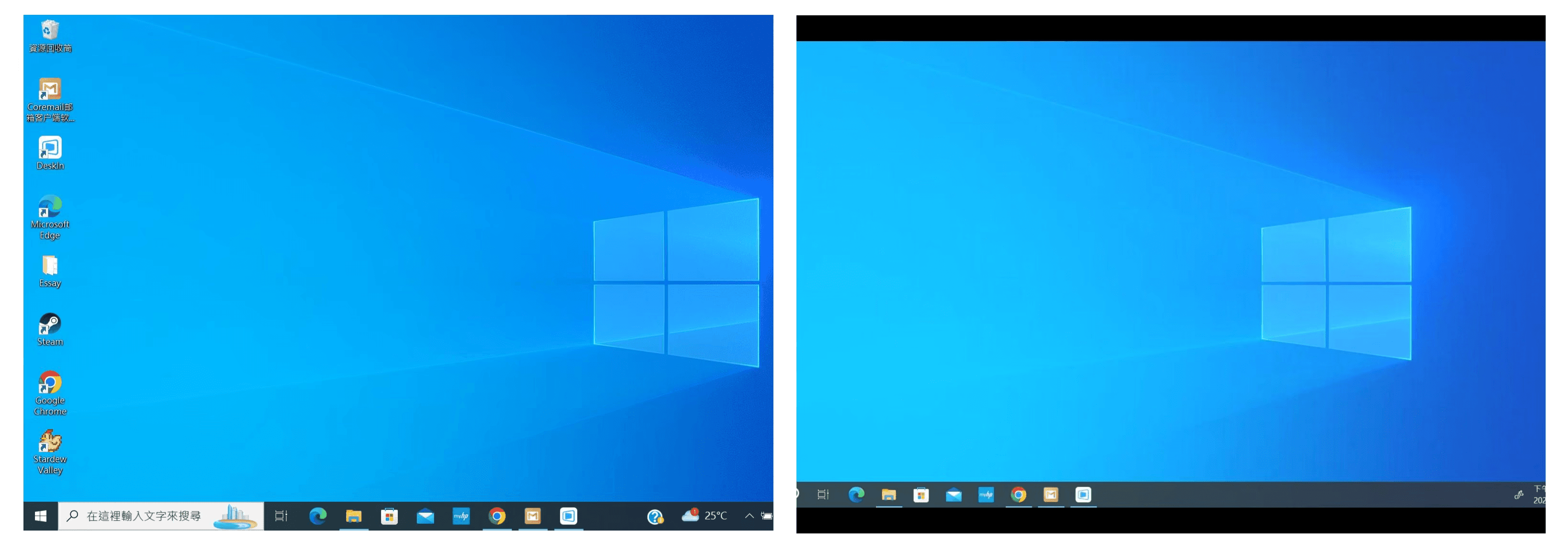
Computer Screen (Left) and iPad Screen (Right)
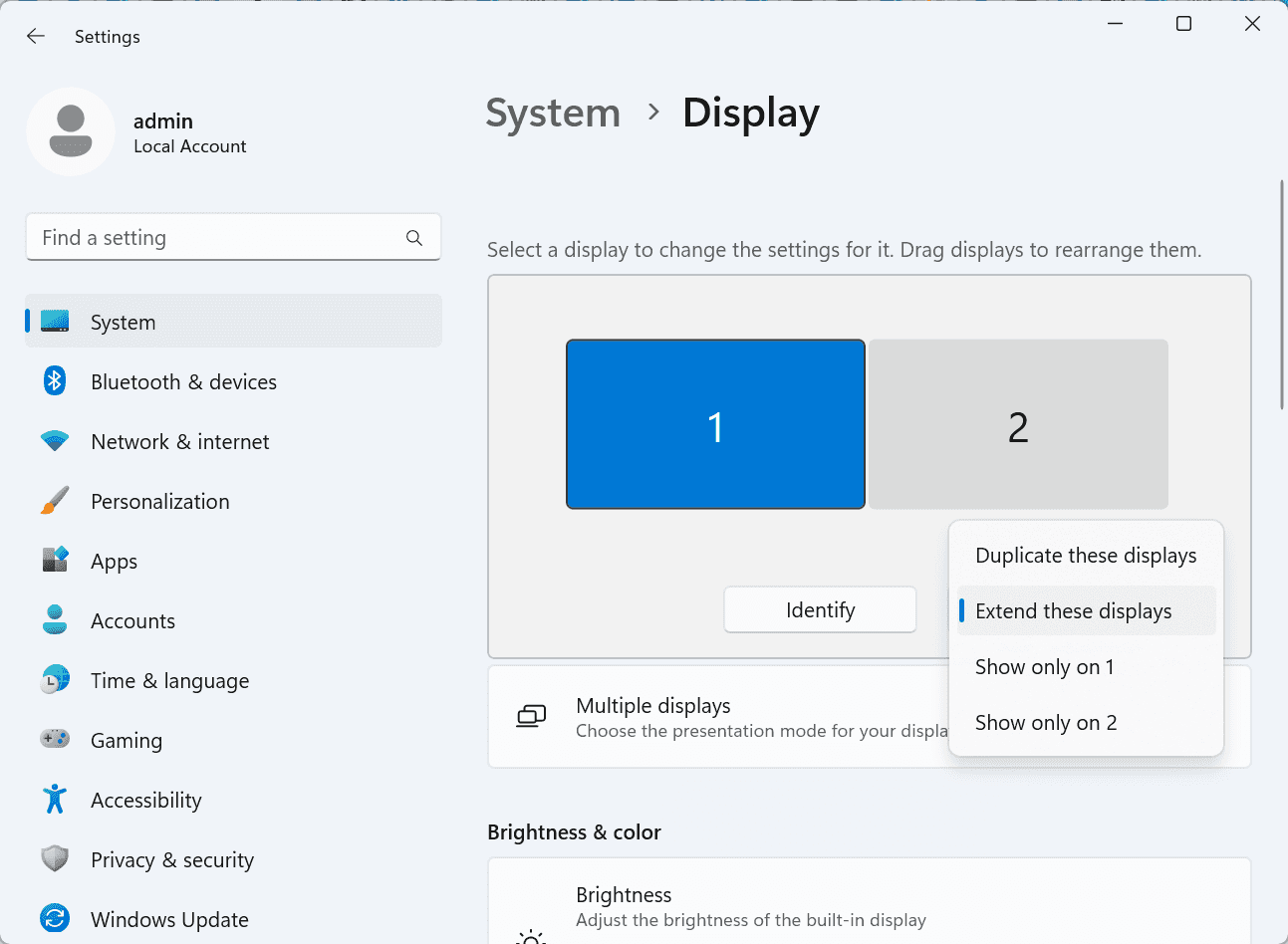
After extension, if you find that your iPad is only mirroring the content on your computer screen, please go to Windows System Settings >> Display Settings and change the screen option to "Extend these displays". You can also modify the screen position by dragging the 2 screens.
Need | Best Option | Why |
Use iPad as a second monitor for a compatible Mac | Apple Sidecar | Built into Apple devices and easy to set up when both devices are compatible. |
Use iPad as a second monitor for Windows | DeskIn | Sidecar does not support Windows, while DeskIn supports cross-platform screen extension on eligible plans. |
Work across Windows, macOS, iPad, Android tablets, and mobile devices | DeskIn | Better suited for users who need cross-platform remote access and flexible device combinations. |
Yes. Windows does not support Apple Sidecar, but you can use DeskIn screen extension on a paid plan that includes this feature to turn your iPad into an additional display for a Windows computer.
DeskIn Screen Extension is included in all paid plans. After subscribing, you can use it across all supported systems with no restrictions.
Yes. DeskIn supports using an iPad as an additional screen with Windows and Mac computers when your plan includes screen mirroring or screen extension.
Using an iPad as a second monitor is a practical way to expand your workspace without buying another display. Mac users with compatible devices can use Apple Sidecar, while Windows and cross-platform users can use DeskIn screen extension on eligible paid plans.
If you want to work across Windows, macOS, iPad, and other devices, DeskIn gives you a flexible way to build a portable multi-screen workspace. Download DeskIn and choose the plan that fits your screen extension and remote access needs.

Top 6 RustDesk Alternative Tools for Faster, Easier Remote Access
Remote access should feel like flipping a light switch, not decoding a control panel. Yet many users exploring RustDesk eventually run into friction: connection IDs, server setup, or occasional lag. While RustDesk is powerful, it’s not always the easiest or smoothest option, especially for non-technical users.
That’s why more people are actively searching for a reliable RustDesk alternative that combines performance, simplicity, and flexibility. Whether you want a plug-and-play solution or something more advanced, this guide will help you find the best fit.
RustDesk stands out as a privacy-friendly, self-hosted remote desktop tool. However, real-world usage reveals a few common challenges:
Complicated setup for the RustDesk self-hosted environments
Manual connection steps requiring IDs and passwords
Occasional latency or unstable connections
Limited user-friendly features out of the box
For many users, especially those helping family or managing multiple devices, simplicity matters just as much as control.
When evaluating a RustDesk alternative, focus on these key factors:
Ease of use: Quick setup without technical overhead
Performance: Smooth, low-latency remote sessions
Compatibility: Support for Windows, macOS, Linux, and mobile
Security: Strong encryption and access controls
Flexibility: Options ranging from cloud-based to open source
The ideal tool strikes a balance between power and convenience, something many modern solutions now deliver better than traditional setups.
Here’s a quick breakdown of the top tools and where they shine:
DeskIn – Best all-in-one RustDesk alternative for performance and ease of use
AnyDesk – Best lightweight tool for fast connections
TeamViewer – Best for enterprise-grade remote support
MeshCentral – Best open-source and self-hosted solution
DWService – Best free browser-based tool
Chrome Remote Desktop – Best simple, no-frills option
Ultra-low latency with smooth high-frame-rate streaming
No complex setup or server deployment required
Cross-platform including Rustdesk alternative for Android
Secure with encryption and device control features
Built-in file transfer and multi-device management
Smaller awareness than legacy competitors
Best for: Users who want a powerful yet simple remote desktop solution
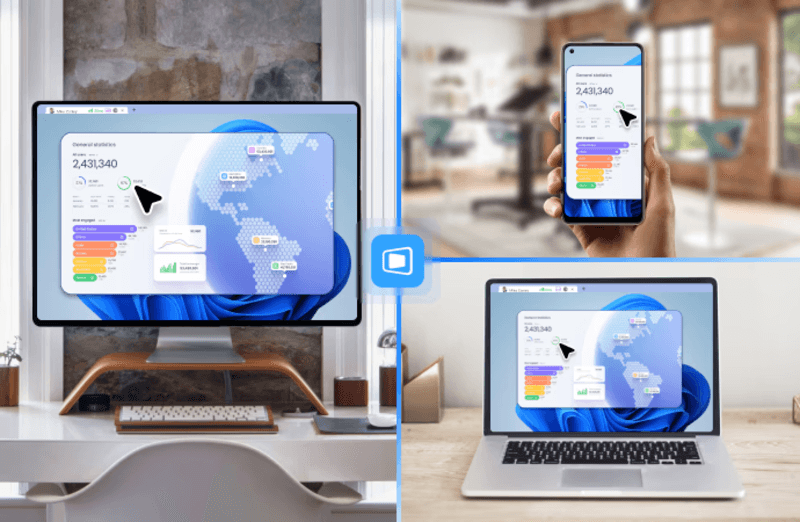
DeskIn removes the friction that often comes with remote access tools. Instead of relying on IDs or manual configurations, it offers a streamlined connection experience that works right out of the box. This makes it especially valuable for users supporting non-technical family members or managing multiple remote devices.
Performance is where DeskIn truly distinguishes itself. Compared to RustDesk, which can sometimes struggle with latency, DeskIn delivers consistently smooth sessions with minimal lag. It also eliminates the need for self-hosting, making it a strong free RustDesk alternative option for users who want powerful features without the complexity.
For those exploring options beyond the RustDesk alternative GitHub projects, DeskIn provides a polished, ready-to-use experience that balances simplicity with professional-grade performance.
Lightweight and fast installation
Good performance on low bandwidth
Cross-platform support
Easy-to-use interface
Performance may drop during long sessions
File transfer can be inconsistent
Best for: Users needing quick and simple remote access
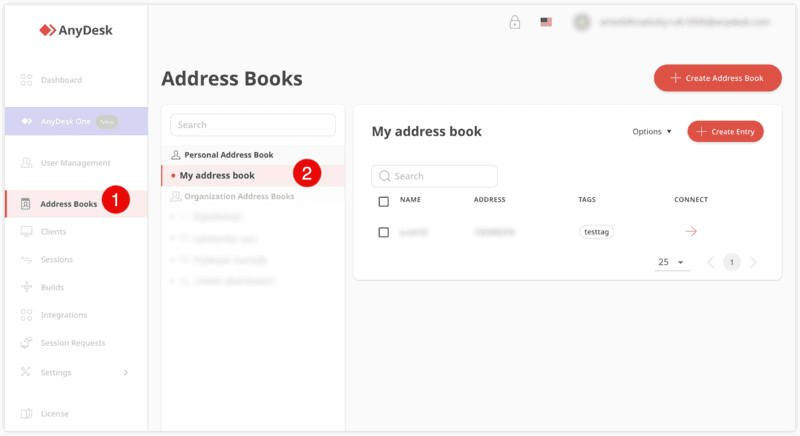
AnyDesk is often considered a natural step up from RustDesk for users who want something easier to deploy. It offers a lightweight application that connects quickly and performs well under normal conditions. This makes it suitable for quick troubleshooting or occasional remote access.
However, performance consistency can be an issue. Users frequently report lag or instability during extended sessions or when handling more demanding tasks. While AnyDesk is a solid option for basic needs, it may not fully satisfy users looking for a more robust, all-in-one solution.
👀 You may also be interested in: |
|---|
Enterprise-grade security with encryption and 2FA
Stable performance across global networks
Rich features like file transfer and session recording
Broad device compatibility
Expensive for commercial use
Free version has limitations
Heavier resource usage on some systems
Best for: Businesses and IT teams managing multiple endpoints
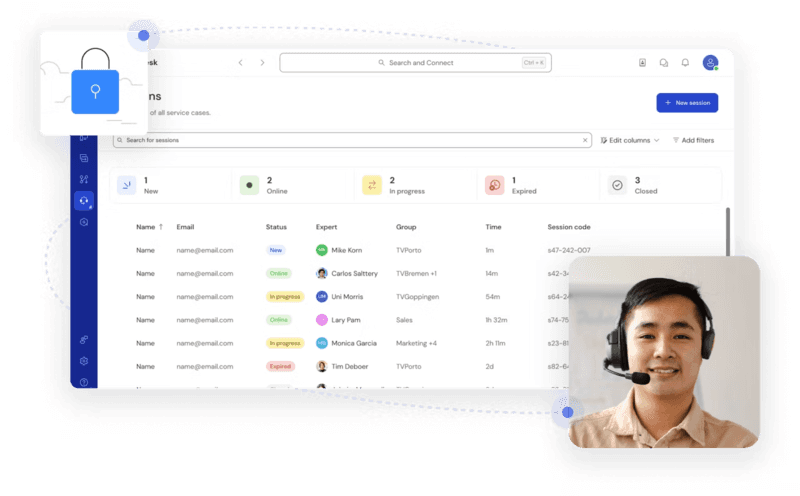
TeamViewer has long been a dominant player in the remote desktop space, offering a comprehensive suite of features designed for enterprise environments. It excels in reliability and global connectivity, making it a popular choice for IT support teams.
That said, its pricing model is a major drawback for many users. Frequent users may quickly encounter licensing restrictions, and costs can escalate for businesses. Additionally, its heavier footprint can impact performance on lower-end devices. DeskIn offers a more modern alternative by delivering similar performance and essential features without the same cost barriers. For users who want enterprise-level capabilities with better efficiency, it presents a compelling option.
👀 You may also be interested in: |
|---|
Fully RustDesk alternative open source solution
Web-based management dashboard
Supports multi-device environments
Strong customization and control
Complex setup and maintenance
Requires technical expertise
Best for: Advanced users needing a Rustdesk alternative self-hosted
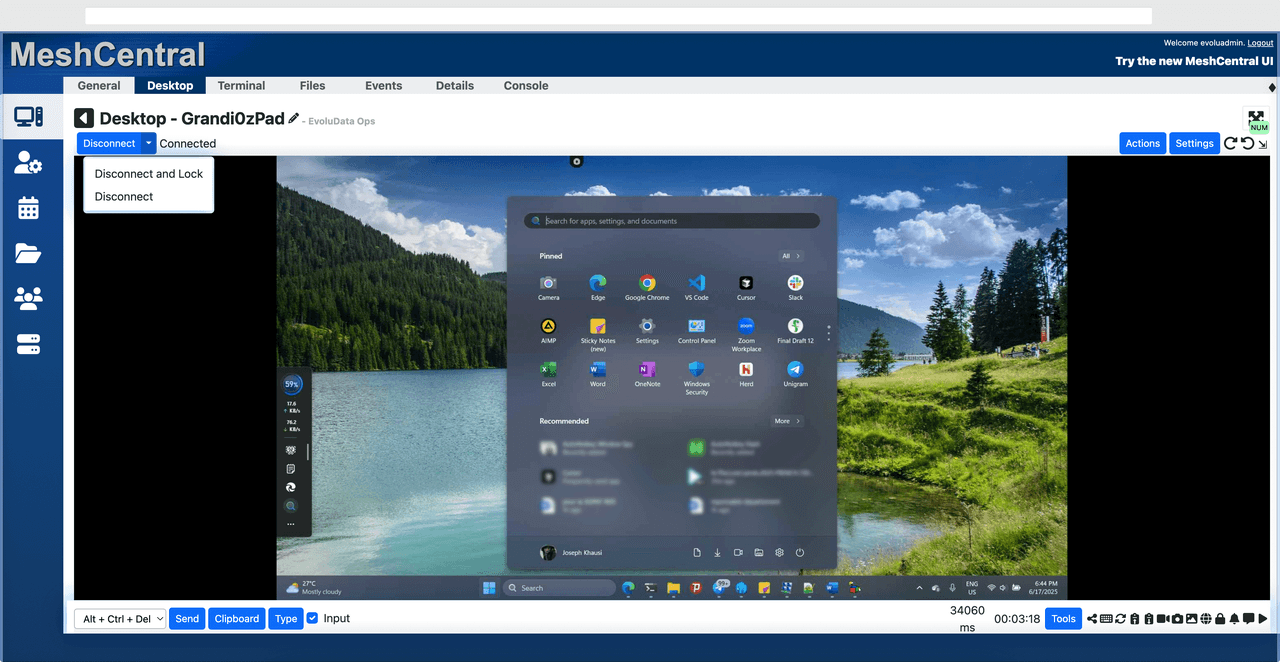
MeshCentral is a powerful open-source platform designed for users who want full control over their remote access infrastructure. It supports multiple devices and provides a centralized dashboard for management, making it attractive for IT professionals.
However, this flexibility comes with complexity. Setting up and maintaining a MeshCentral server requires technical knowledge, which can be a barrier for many users. Compared to this, DeskIn offers a much simpler deployment process while still delivering strong performance and security. For users who prioritize ease of use over full control, modern solutions like DeskIn provide a more accessible alternative.
Completely free
Browser-based access
Open-source foundation
Simple setup
Limited performance
Basic feature set
Best for: Users looking for a simple, free RustDesk alternative
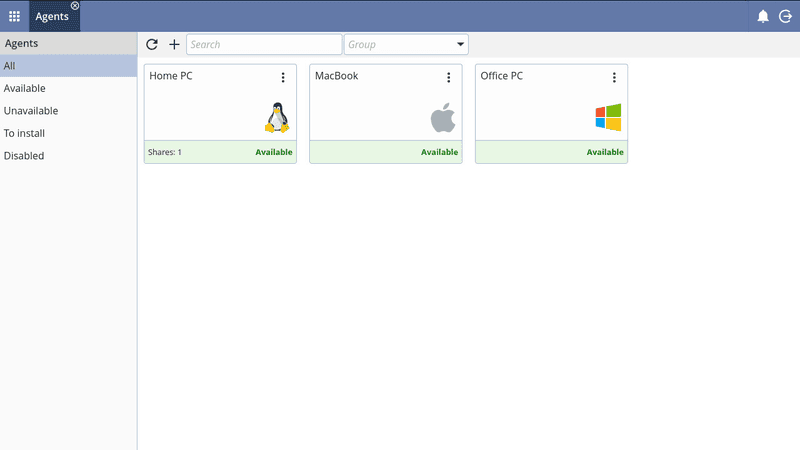
DWService offers a browser-based approach to remote access with no heavy installation, making it convenient for quick connections in restricted environments. It supports both desktop access and file management across major platforms.
However, performance often feels sluggish, especially on demanding tasks, and features remain basic; lacking session recording, smooth multi-monitor support, or advanced security controls. While suitable for occasional personal use, it falls short for professional or high-performance scenarios.
Free and easy to use
Browser-based setup
Cross-platform compatibility
Very limited features
No advanced management or collaboration tools
Best for: Casual users needing basic remote access
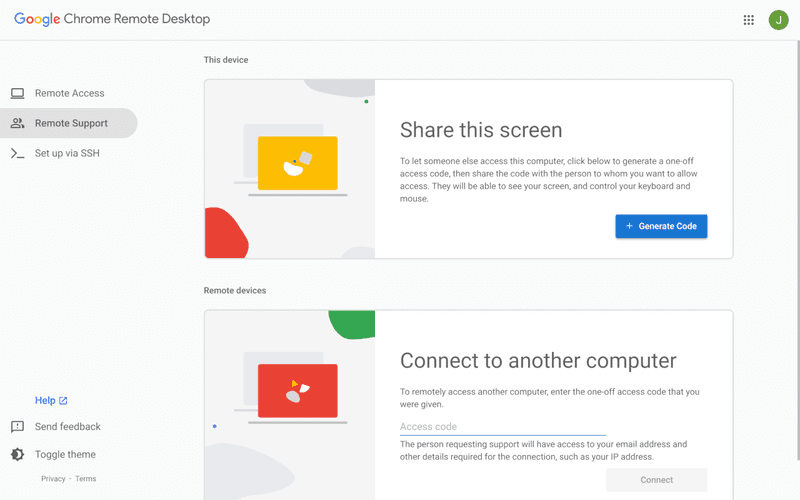
Chrome Remote Desktop is one of the simplest remote access tools available. It’s easy to set up and works across devices, making it a convenient choice for occasional use.
However, it lacks many essential features such as file transfer, session management, and advanced security controls. For users with more demanding needs, it quickly becomes insufficient. Compared to Chrome Remote Desktop, DeskIn provides a much more complete experience without sacrificing ease of use, making it a better long-term solution.
👀 You may also be interested in: |
|---|
RustDesk is powerful but can be difficult to set up and manage, especially with self-hosting. Many users prefer tools that offer similar performance without technical complexity. DeskIn simplifies remote access while maintaining strong performance and security.
Several tools qualify as a free RustDesk alternative, including DWService and Chrome Remote Desktop. However, DeskIn stands out by offering better performance and usability even in its free version.
Yes, tools like MeshCentral and DWService are considered RustDesk alternative open source options. They provide flexibility and control but often require technical expertise to set up and maintain.
Beginners should choose tools with a simple setup and intuitive interfaces. DeskIn is an excellent option because it removes the need for manual configuration while still delivering advanced features.
RustDesk is a powerful starting point, but it’s not always the easiest or most efficient tool for everyday use. From setup complexity to performance limitations, many users eventually look for a better RustDesk alternative.
Among all the options, DeskIn stands out as the most balanced solution. It combines speed, simplicity, and cross-platform support into one seamless experience. If you’re ready to move beyond technical friction and enjoy truly smooth remote access, DeskIn is a choice that simply works.
Top 7 RDP Alternative Tools for Faster, Safer Remote Access
Remote desktop access used to feel like a solid bridge. Now, for many users, traditional RDP feels more like a creaky rope ladder. With performance issues, security concerns, and limited cross-platform support, it's no surprise that more people are actively searching for a better RDP alternative that actually keeps up with modern workflows.
If you're managing multiple servers, working across devices, or just tired of unstable connections, this guide will walk you through the best tools worth switching to.
RDP (Remote Desktop Protocol) is a proprietary protocol developed by Microsoft that allows users to connect to another computer over a network. It's widely used for accessing Windows servers, virtual machines, and remote workstations.
While powerful in controlled environments, RDP is often tied to Windows systems and requires configuration like port forwarding or VPNs. Compared to newer tools, it can feel rigid and outdated.
You may also be interested in: |
|---|
RDP still works, but it comes with trade-offs that many users find frustrating:
Security risks if not properly configured
Complex setup for remote or external access
Limited cross-platform compatibility
Performance issues over unstable networks
Many IT teams are now actively replacing it, especially when looking for a Windows RDP client alternative or something that works seamlessly across macOS, Linux, and mobile devices. That's where modern Remote Desktop alternatives shine.
Choosing the right tool is like picking the right vehicle. Some are built for speed, others for heavy-duty enterprise work. Here's a quick snapshot:
DeskIn – Best all-in-one RDP alternative for performance and cross-platform use
TeamViewer – Best for enterprise remote support
AnyDesk – Best lightweight option for fast connections
RustDesk – Best Windows RDP alternative open-source solution
Remmina – Best RDP alternative for Linux users
Chrome Remote Desktop – Best simple browser-based tool
Splashtop – Best for high-performance business environments
Ultra-low latency with smooth high-frame-rate streaming
Works across Windows, macOS, Linux, iOS, and Android
Strong encryption and secure access controls
Built-in file transfer and multi-session support
Newer compared to legacy brands
Best for: Users who want a powerful, flexible RDP alternative
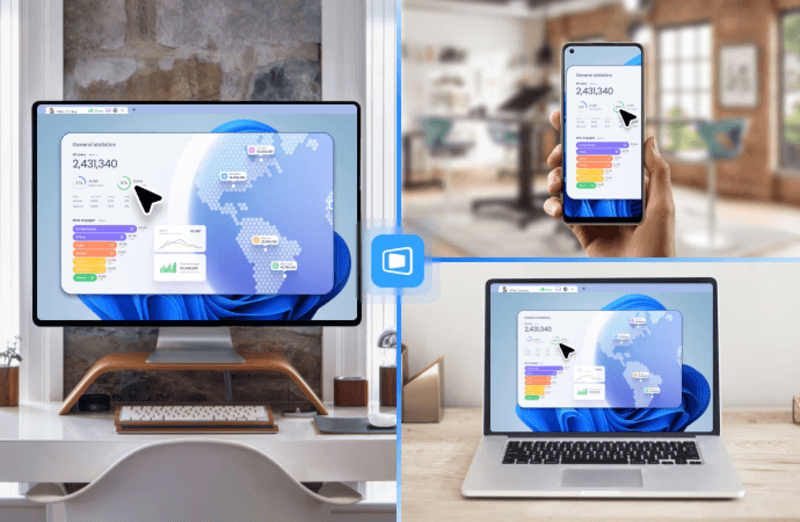
DeskIn feels less like remote access and more like teleportation for your desktop. Whether you're managing servers, supporting clients, or working remotely, it delivers consistently smooth performance without the usual lag spikes seen in traditional RDP setups.
Unlike many tools, DeskIn eliminates the need for complex configurations. You don't need to wrestle with firewalls or VPNs just to connect. It also works seamlessly across platforms, making it a strong alternative to Microsoft Remote Desktop for Mac and mobile users alike.
For teams juggling multiple systems, DeskIn provides a unified experience that replaces fragmented workflows. It's also a strong free RDP alternative option with premium-level capabilities, making it ideal for both individuals and businesses.
Enterprise-grade security and compliance
Extensive feature set including collaboration tools
Cross-platform compatibility
Reliable global performance
Expensive licensing
Can be overkill for individuals
Best for: Enterprises needing secure and scalable remote access
TeamViewer is a comprehensive remote desktop platform widely adopted by IT teams, support professionals, and enterprises. Its feature set extends far beyond simple screen sharing—it includes robust device management, remote printing, file transfer, session recording, and even augmented reality support for field service. TeamViewer's security architecture relies on AES‑256 encryption, two‑factor authentication, and whitelisting, making it suitable for organizations with strict compliance requirements. It runs on virtually every operating system and mobile platform.
The main trade‑off is its pricing: licenses are subscription‑based and can become expensive for small teams or individual users, especially as TeamViewer aggressively flags personal use as commercial, leading to session restrictions.
Fast and responsive
Lightweight installation
Works well on low bandwidth
Easy to use
File transfer can be inconsistent
Lag during longer sessions
Best for: Users needing quick, simple remote access
AnyDesk is a lightweight remote desktop application prized for its speed and efficiency, often recommended as a fast alternative to Microsoft's native Remote Desktop on Windows 10 and Android. It uses a proprietary video codec, DeskRT, to achieve low latency even on limited bandwidth, making it ideal for quick support sessions and accessing devices over mobile networks. The interface is clean and minimalist, with features like address book management, file transfer, and session recording available.
However, users frequently report instability during extended sessions; performance can degrade over time, and file transfers may slow considerably compared to competitors. While its free version is generous for personal use, professional users often find the performance ceiling limits its suitability for continuous, demanding workloads. DeskIn, by contrast, maintains consistent performance even during extended use, making it better suited for professional workloads.
You may also be interested in: |
|---|
Free and open-source
Self-hosting for full control
Strong privacy protection
Active community
Technical setup required
Limited user-friendly features
Best for: Developers and privacy-focused users
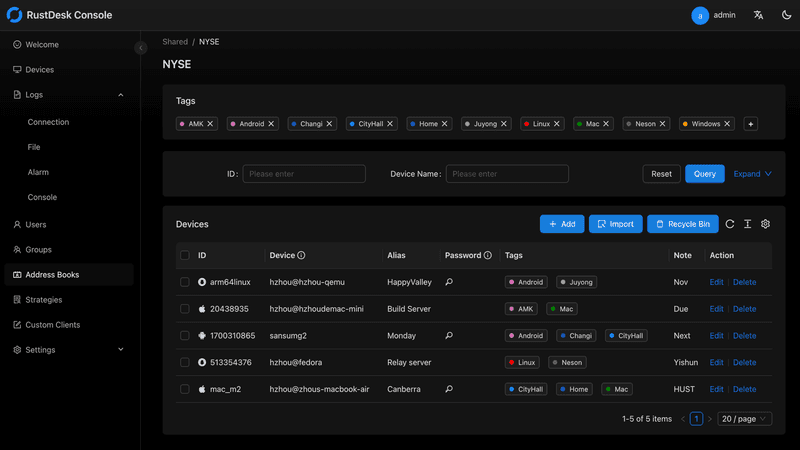
RustDesk has emerged as a leading open‑source remote desktop alternative, appealing to developers and organizations that require full control over their data. It allows users to self‑host the relay and rendezvous servers, meaning no third‑party infrastructure handles connection metadata. Built with Rust, it offers a modern codebase with cross‑platform clients (Windows, macOS, Linux, Android, iOS) and supports essential features such as file transfer, TCP tunneling, and customizable address books.
The major barrier is its complexity: deploying a self‑hosted environment requires technical expertise to configure firewalls, SSL certificates, and ongoing server maintenance. For those using the public relay, performance can be inconsistent depending on server load and geographic proximity.
You may also be interested in: Top RustDesk Alternatives for Better Performance, Security & Ease of Use |
|---|
Open-source and free
Supports multiple protocols including RDP and VNC
Lightweight and flexible
Native to Linux environments
Limited features compared to modern tools
UI can feel outdated
Best for: Linux users looking for a traditional RDP alternative Linux
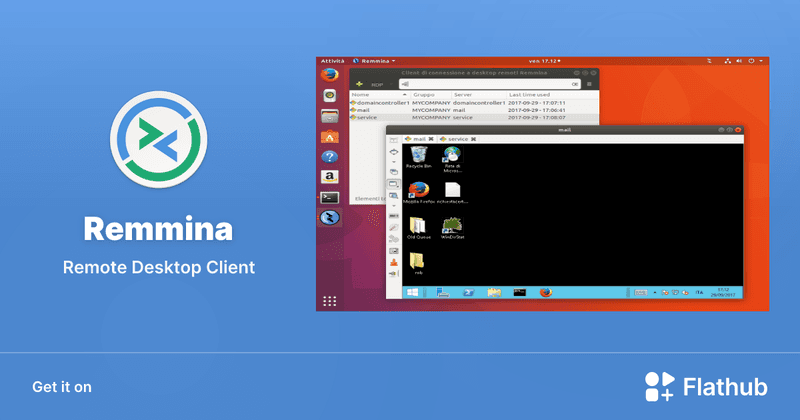
Remmina is a beloved open‑source remote desktop client for Linux, supporting multiple protocols (RDP, VNC, SSH, SPICE, and others) in a single unified interface. It is frequently chosen by system administrators and Linux enthusiasts who need a flexible, lightweight tool to manage diverse environments. Remmina offers tabbed sessions, quick‑connect profiles, and a plugin system that extends its capabilities.
However, its strength - protocol flexibility, also highlights its limitations. As a frontend client rather than a full remote access solution, it lacks features like unattended access, centralized account management, or robust session recording out of the box. Performance can vary by protocol, and the user experience lags behind more polished commercial tools, particularly for users seeking a plug‑and‑play setup.
Free and easy to use
Browser-based setup
Cross-platform access
Very limited features
No advanced management tools
Best for: Casual users needing basic remote access
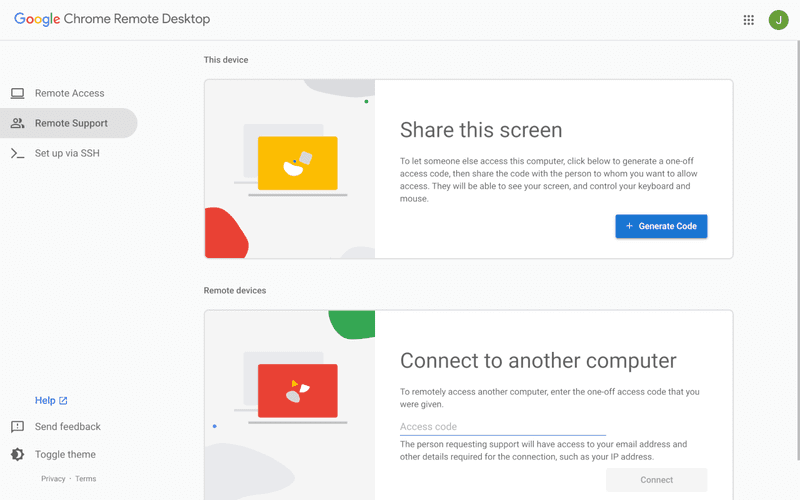
Chrome Remote Desktop is a free, browser‑based remote access tool from Google that requires nothing more than a Chrome browser and a Google account. It excels in simplicity: installation takes seconds, and connections are mediated through Google's infrastructure, eliminating complex firewall configurations. For occasional use—such as helping a family member or quickly accessing a home computer—it works reliably across Windows, macOS, Linux, and even ChromeOS.
The trade‑off is its minimal feature set. There is no native file transfer, multi‑session management, remote printing, or granular permission controls. Collaboration tools are absent, and the reliance on a Google account for authentication can be a limitation in professional environments. It remains a convenient entry‑level tool but struggles to meet the needs of power users or IT teams.
You may also be interested in: |
|---|
High-quality streaming performance
Strong security features
Good for business environments
Reliable connections
Subscription-based pricing
Limited free version
Best for: Businesses needing performance-focused remote access
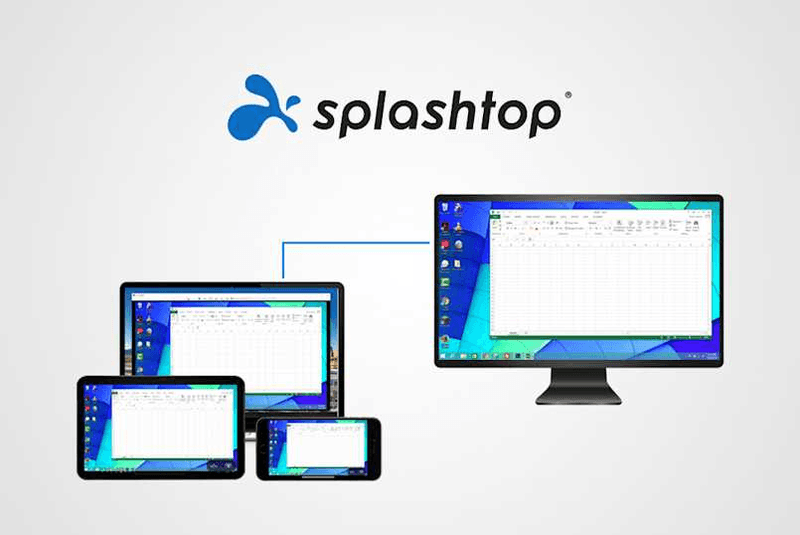
Splashtop is a high‑performance remote desktop solution frequently adopted by creative professionals, educational institutions, and enterprises that prioritize fluid interaction. It delivers low‑latency streaming with support for high‑frame‑rate displays, making it suitable for video editing, CAD work, and other graphics‑intensive tasks. Splashtop offers a range of editions—from Business Access to SOS for on‑demand support—all of which include robust security (AES‑256, device authentication) and features like file transfer, remote printing, and multi‑monitor navigation. Its performance over local networks and the internet is consistently praised.
The primary drawback is cost: while competitive, the subscription model can accumulate quickly for users needing access to multiple devices or advanced features, especially when compared to similarly capable tools with more flexible pricing structures. DeskIn offers similar performance benefits with a more flexible pricing structure, making it a compelling alternative.
You may also be interested in: |
|---|
RDP can be difficult to configure, less secure if exposed, and limited outside Windows environments. Modern tools like DeskIn provide better performance, security, and ease of use.
The best RDP alternative depends on your needs, but DeskIn stands out for its balance of speed, security, and cross-platform compatibility.
Yes, several tools qualify as an RDP alternative free, including RustDesk and Chrome Remote Desktop. DeskIn also offers a free tier with advanced capabilities.
Microsoft is evolving its remote desktop ecosystem, but traditional RDP isn't disappearing overnight. However, many users are already transitioning to more modern solutions like DeskIn for better reliability and flexibility.
RDP has served its purpose, but the digital world has outgrown its limitations. Whether you need better performance, stronger security, or true cross-platform access, switching to a modern RDP alternative is no longer optional, it's inevitable.
Among all the options, DeskIn stands out as a future-ready solution. It combines speed, simplicity, and power into one seamless experience, helping you leave behind the friction of traditional remote desktop tools and step into something far more efficient.
เปลี่ยน iPad ให้เป็นจอภาพที่สองสำหรับคอมพิวเตอร์ Windows และ Mac
A second monitor can make everyday work feel much easier, especially when you are switching between research, documents, meetings, design files, or dashboards. If you already own an iPad, you may be able to use it as an extra display instead of buying another monitor.
This guide explains how to use an iPad as a second monitor for Mac with Apple Sidecar, and how Windows or cross-platform users can use DeskIn screen extension on supported paid plans.
Increase screen space so you can view more content at the same time. This helps reduce constant window switching during multitasking.
Keep each screen focused on a different task. For example, you can edit a video on one screen and keep source materials on the other, or write a paper while browsing references side by side.
Use the iPad display you already have. For students, remote workers, and light creative work, an iPad can be a convenient and cost-effective second-screen option.
Save desk space and avoid carrying another external monitor when you work from home, travel, or move between rooms.
Apple Sidecar lets compatible iPads work as an external display for compatible MacBook and iMac devices. It is a good native option if both devices support Sidecar and are signed in with the same Apple ID.
Note: To use Apple Sidecar, your Mac and iPad should use the same Apple ID, have Bluetooth and Wi-Fi turned on, and stay within close wireless range. Sidecar availability depends on Apple device and operating system compatibility.
Open the Mac System Settings >> Click "Display" in the sidebar >> Click the "+" pop up menu on the right and choose your iPad.
Select the iPad, change the Use as settings to "Extended Display". Check the Airplay settings on the top toolbar of the mac and set iPad as "Use As Separate Display".
After completing the settings, your iPad will become the second display for your Mac. You can drag windows from your Mac to your iPad smoothly. You can also use the sidebar on the iPad or change the position of the sidebar on the system display settings.
MacBook Screen (Left) and iPad Screen (Right)
Apple Sidecar only supports mac released after 2016 and iPadOS13 or newer. If you are using an old Apple device or a Windows device, you can still use DeskIn remote software to do the screen extension. It supports using iPad as a second display for Mac and Windows, and the smoothness is no worse than sidecar.
Install DeskIn on both your computer and iPad. Sign in to your DeskIn account on each device. When you log in on a new device for the first time, you may need to complete email verification to help protect your account.
To use Screen Extension, you'll need to subscribe to any Premium plan. Click here to view DeskIn plans.
Open DeskIn on your Windows or Mac computer, go to the screen management area, and choose the screen extension option. Select your iPad as the target display and start extending.
Once connected, your iPad can work as an additional display, letting you move windows between your computer and iPad for a wider workspace.
Computer Screen (Left) and iPad Screen (Right)
After extension, if you find that your iPad is only mirroring the content on your computer screen, please go to Windows System Settings >> Display Settings and change the screen option to "Extend these displays". You can also modify the screen position by dragging the 2 screens.
Need | Best Option | Why |
Use iPad as a second monitor for a compatible Mac | Apple Sidecar | Built into Apple devices and easy to set up when both devices are compatible. |
Use iPad as a second monitor for Windows | DeskIn | Sidecar does not support Windows, while DeskIn supports cross-platform screen extension on eligible plans. |
Work across Windows, macOS, iPad, Android tablets, and mobile devices | DeskIn | Better suited for users who need cross-platform remote access and flexible device combinations. |
Yes. Windows does not support Apple Sidecar, but you can use DeskIn screen extension on a paid plan that includes this feature to turn your iPad into an additional display for a Windows computer.
DeskIn Screen Extension is included in all paid plans. After subscribing, you can use it across all supported systems with no restrictions.
Yes. DeskIn supports using an iPad as an additional screen with Windows and Mac computers when your plan includes screen mirroring or screen extension.
Using an iPad as a second monitor is a practical way to expand your workspace without buying another display. Mac users with compatible devices can use Apple Sidecar, while Windows and cross-platform users can use DeskIn screen extension on eligible paid plans.
If you want to work across Windows, macOS, iPad, and other devices, DeskIn gives you a flexible way to build a portable multi-screen workspace. Download DeskIn and choose the plan that fits your screen extension and remote access needs.
Top 6 RustDesk Alternative Tools for Faster, Easier Remote Access
Remote access should feel like flipping a light switch, not decoding a control panel. Yet many users exploring RustDesk eventually run into friction: connection IDs, server setup, or occasional lag. While RustDesk is powerful, it’s not always the easiest or smoothest option, especially for non-technical users.
That’s why more people are actively searching for a reliable RustDesk alternative that combines performance, simplicity, and flexibility. Whether you want a plug-and-play solution or something more advanced, this guide will help you find the best fit.
RustDesk stands out as a privacy-friendly, self-hosted remote desktop tool. However, real-world usage reveals a few common challenges:
Complicated setup for the RustDesk self-hosted environments
Manual connection steps requiring IDs and passwords
Occasional latency or unstable connections
Limited user-friendly features out of the box
For many users, especially those helping family or managing multiple devices, simplicity matters just as much as control.
When evaluating a RustDesk alternative, focus on these key factors:
Ease of use: Quick setup without technical overhead
Performance: Smooth, low-latency remote sessions
Compatibility: Support for Windows, macOS, Linux, and mobile
Security: Strong encryption and access controls
Flexibility: Options ranging from cloud-based to open source
The ideal tool strikes a balance between power and convenience, something many modern solutions now deliver better than traditional setups.
Here’s a quick breakdown of the top tools and where they shine:
DeskIn – Best all-in-one RustDesk alternative for performance and ease of use
AnyDesk – Best lightweight tool for fast connections
TeamViewer – Best for enterprise-grade remote support
MeshCentral – Best open-source and self-hosted solution
DWService – Best free browser-based tool
Chrome Remote Desktop – Best simple, no-frills option
Ultra-low latency with smooth high-frame-rate streaming
No complex setup or server deployment required
Cross-platform including Rustdesk alternative for Android
Secure with encryption and device control features
Built-in file transfer and multi-device management
Smaller awareness than legacy competitors
Best for: Users who want a powerful yet simple remote desktop solution
DeskIn removes the friction that often comes with remote access tools. Instead of relying on IDs or manual configurations, it offers a streamlined connection experience that works right out of the box. This makes it especially valuable for users supporting non-technical family members or managing multiple remote devices.
Performance is where DeskIn truly distinguishes itself. Compared to RustDesk, which can sometimes struggle with latency, DeskIn delivers consistently smooth sessions with minimal lag. It also eliminates the need for self-hosting, making it a strong free RustDesk alternative option for users who want powerful features without the complexity.
For those exploring options beyond the RustDesk alternative GitHub projects, DeskIn provides a polished, ready-to-use experience that balances simplicity with professional-grade performance.
Lightweight and fast installation
Good performance on low bandwidth
Cross-platform support
Easy-to-use interface
Performance may drop during long sessions
File transfer can be inconsistent
Best for: Users needing quick and simple remote access
AnyDesk is often considered a natural step up from RustDesk for users who want something easier to deploy. It offers a lightweight application that connects quickly and performs well under normal conditions. This makes it suitable for quick troubleshooting or occasional remote access.
However, performance consistency can be an issue. Users frequently report lag or instability during extended sessions or when handling more demanding tasks. While AnyDesk is a solid option for basic needs, it may not fully satisfy users looking for a more robust, all-in-one solution.
👀 You may also be interested in: |
|---|
Enterprise-grade security with encryption and 2FA
Stable performance across global networks
Rich features like file transfer and session recording
Broad device compatibility
Expensive for commercial use
Free version has limitations
Heavier resource usage on some systems
Best for: Businesses and IT teams managing multiple endpoints
TeamViewer has long been a dominant player in the remote desktop space, offering a comprehensive suite of features designed for enterprise environments. It excels in reliability and global connectivity, making it a popular choice for IT support teams.
That said, its pricing model is a major drawback for many users. Frequent users may quickly encounter licensing restrictions, and costs can escalate for businesses. Additionally, its heavier footprint can impact performance on lower-end devices. DeskIn offers a more modern alternative by delivering similar performance and essential features without the same cost barriers. For users who want enterprise-level capabilities with better efficiency, it presents a compelling option.
👀 You may also be interested in: |
|---|
Fully RustDesk alternative open source solution
Web-based management dashboard
Supports multi-device environments
Strong customization and control
Complex setup and maintenance
Requires technical expertise
Best for: Advanced users needing a Rustdesk alternative self-hosted
MeshCentral is a powerful open-source platform designed for users who want full control over their remote access infrastructure. It supports multiple devices and provides a centralized dashboard for management, making it attractive for IT professionals.
However, this flexibility comes with complexity. Setting up and maintaining a MeshCentral server requires technical knowledge, which can be a barrier for many users. Compared to this, DeskIn offers a much simpler deployment process while still delivering strong performance and security. For users who prioritize ease of use over full control, modern solutions like DeskIn provide a more accessible alternative.
Completely free
Browser-based access
Open-source foundation
Simple setup
Limited performance
Basic feature set
Best for: Users looking for a simple, free RustDesk alternative
DWService offers a browser-based approach to remote access with no heavy installation, making it convenient for quick connections in restricted environments. It supports both desktop access and file management across major platforms.
However, performance often feels sluggish, especially on demanding tasks, and features remain basic; lacking session recording, smooth multi-monitor support, or advanced security controls. While suitable for occasional personal use, it falls short for professional or high-performance scenarios.
Free and easy to use
Browser-based setup
Cross-platform compatibility
Very limited features
No advanced management or collaboration tools
Best for: Casual users needing basic remote access
Chrome Remote Desktop is one of the simplest remote access tools available. It’s easy to set up and works across devices, making it a convenient choice for occasional use.
However, it lacks many essential features such as file transfer, session management, and advanced security controls. For users with more demanding needs, it quickly becomes insufficient. Compared to Chrome Remote Desktop, DeskIn provides a much more complete experience without sacrificing ease of use, making it a better long-term solution.
👀 You may also be interested in: |
|---|
RustDesk is powerful but can be difficult to set up and manage, especially with self-hosting. Many users prefer tools that offer similar performance without technical complexity. DeskIn simplifies remote access while maintaining strong performance and security.
Several tools qualify as a free RustDesk alternative, including DWService and Chrome Remote Desktop. However, DeskIn stands out by offering better performance and usability even in its free version.
Yes, tools like MeshCentral and DWService are considered RustDesk alternative open source options. They provide flexibility and control but often require technical expertise to set up and maintain.
Beginners should choose tools with a simple setup and intuitive interfaces. DeskIn is an excellent option because it removes the need for manual configuration while still delivering advanced features.
RustDesk is a powerful starting point, but it’s not always the easiest or most efficient tool for everyday use. From setup complexity to performance limitations, many users eventually look for a better RustDesk alternative.
Among all the options, DeskIn stands out as the most balanced solution. It combines speed, simplicity, and cross-platform support into one seamless experience. If you’re ready to move beyond technical friction and enjoy truly smooth remote access, DeskIn is a choice that simply works.
Products
ดาวน์โหลด
Resources
ติดต่อเรา
Email: support@deskin.io
Office: 991D Alexandra Road #02-17, Singapore 119972
Copyright © 2026 Zuler Technology PTE. LTD. All rights reserved.
ติดต่อเรา
Email: support@deskin.io
Office: 991D Alexandra Road #02-17, Singapore 119972
Products
ดาวน์โหลด
Resources
Copyright © 2026 Zuler Technology PTE. LTD. All rights reserved.
Products
ดาวน์โหลด
Resources
ติดต่อเรา
support@deskin.io
991D Alexandra Road #02-17
Singapore 119972
Copyright © 2026 Zuler Technology PTE. LTD. All rights reserved.
【New User Special Offer】
Save
Extra 20%
on your first order|4K60FPS
Extra
20% Off
|For
New Users
【New User Special Offer】
Save
Extra 20%
on first order


