Technology
Technology
·
5 นาที
·
5 นาที
การวิเคราะห์ข้อมูล
Published on
Updated on
Updated on
In an era defined by hybrid work and distributed teams, the simple act of printing a document has become a surprisingly complex challenge. How can a remote designer print a physical prototype without a local high-end printer? Enter Remote Printing—the technology that transforms any networked printer into a globally accessible resource.
This guide breaks down what remote printing is, how it seamlessly bridges the digital and physical gaps, and why it’s no longer a luxury but a critical productivity tool for any modern team.
Remote printing enables users to send documents to any printer worldwide—across the office or across continents—without a physical connection. By using secure internet-based tools like cloud services, VPNs, or remote access software, it breaks the traditional tie between a device and its printer.
In today’s hybrid work era, this turns printing from a location‑locked task into an on‑demand resource—as simple as sending an email. Employees no longer need to be near the printer or rely on couriers to get physical documents where they’re needed.
Remote workflows aren’t theoretical anymore. People actually need to print across rooms, buildings, and borders every single day. Here are the most common use cases:
Office-to-Home (or Vice Versa)
With remote printing, you can easily solve the dilemma of sending documents needed by colleagues to the office printer while working from home, or finding meeting materials on your home computer while you are at the office. With just one click, documents can be printed wherever you want.
Mobile-to-Printer
When you’re on the move and need a contract or invoice printed fast, a strong remote printing solution turns your phone into a pocket-sized print controller, pushing documents to any linked printer instantly.
If you often print from your phone, you’ll also benefit from knowing how to access your desktop files directly from Android. Check out our seamless guide for remote workers and digital nomads.
Cross-Platform Workflows (Mac → Windows, iPhone → PC, Chromebook → Mac)
Teams using mixed devices can still print flawlessly. Remote desktop printing eliminates driver issues and compatibility limits, enabling smooth “print from anywhere” across every platform.
In today’s decentralized workplaces, printing needs haven’t disappeared—they’ve simply shifted. Teams rely on remote printing to bridge the gap between digital work and physical documents across locations, devices, and time zones.
Employees working from home or across different cities can send signed contracts, presentations, or compliance materials directly to approved office printers—keeping collaboration seamless and standardized across regions.
Sales reps, consultants, and executives can print proposals, reports, or travel documents to their home-office printer from airports, hotels, or client sites, ensuring key paperwork is ready the moment they arrive.
Legal, HR, healthcare, and finance teams can route sensitive files only to authorized, monitored printers.
Designers, engineers, and architects can remotely access color-calibrated devices, large-format plotters, and other specialized printers—giving them accurate, professional output no matter where they work.
Rather than equipping every remote worker with a dedicated printer, organizations can centralize printing resources and cut shipping or courier costs by enabling local printing at regional offices.
Remote staff can print shipping labels, invoices, or warehouse documents exactly where they’re needed, while IT teams troubleshoot and test printers remotely—reducing downtime and onsite visits.
University students submit printed assignments or theses to campus printers while studying from home. Teachers print classroom materials or exam papers remotely before returning to school.
A user prints a recipe or a coupon at home while grocery shopping, using a mobile app connected to their home printer. A family member helps elderly relatives print prescriptions or forms by remotely accessing their home printer.
Remote printing bridges the gap between digital workflows and physical document needs—enabling productivity, security, and flexibility in an increasingly decentralized world.
Remote printing brings far more than convenience; it reshapes how modern teams work. It gives employees universal access, tighter security, and smoother workflows across every device and location.
Work From Anywhere, Without Boundaries
Print directly to office or shared printers from home, a client site, or even while traveling. No need to be physically near the device: your files follow you.
Stronger Security and Compliance
Encrypted transmission and authorization controls ensure confidential documents only land on approved printers, supporting standards like ISO 20071, AES 256-bit encryption, and internal data-security policies.
Cost and Resource Savings
Remote teams can share centralized, high-quality printers instead of purchasing extra hardware or shipping documents back and forth.
Faster, Cleaner Operations
Skip the email attachments and USB transfers. Contracts, labels, proofs, and reports reach the right printer instantly, keeping work moving.
Built for Hybrid and Distributed Teams
Every employee, office-based or remote, gets consistent, reliable access to printing resources, leveling the playing field across multiple locations.
Access to Specialized Printers Anytime
Use large-format, color-calibrated, or department-specific printers as if you were standing next to them—a major win for design, engineering, and logistics teams.
Fewer Touchpoints, Smaller Footprint
Reduce document shipping, local reprints, and manual handling. It’s greener, cleaner, and less error-prone.
Flexible for Modern Digital Workflows
Print seamlessly from mobile devices, cloud storage, or remote desktop printing sessions, all integrated into your existing digital tools.
Centralized IT Management
IT teams can deploy, monitor, and troubleshoot printers across multiple locations from one place, reducing on-site support and standardizing the entire print ecosystem.
In essence, remote printing upgrades a basic action into a powerful capability, driving productivity, strengthening security, and supporting today’s flexible workstyles.
Give your team the flexibility they deserve. Try DeskIn’s print-from-anywhere tool today.

Behind the scenes, remote printing is basically a smart relay system; your device sends the command, the remote computer receives it, and the printer does the work, no matter where you are. Here’s how it actually happens.
Most remote desktop printing starts with a secure tunnel. RDP sessions, VPNs, or cloud workspaces link your device to a distant computer, letting you control its files and its printers as if you were sitting right there.
If you work inside a virtual machine, print redirection jumps in. It grabs your print request, maps it to the right printer, and sends the job through the VM. No messy drivers, no manual setup: just clean, efficient output.
Here’s where things get fun. DeskIn skips the old-school complexity entirely. It auto-detects the entered printers, syncs them into your session, and turns remote printing solutions into a one-click experience. No VPN battles, no IT emergencies, only the smooth printing from anywhere.
Whether you’re on a laptop, phone, or tablet, your print command travels securely to the host machine and fires off instantly. That’s true print-from-anywhere power; real-time, encrypted, and surprisingly effortless.
Once upon a time, emailing a PDF felt like a clever workaround. Today, it’s slow, messy, and nowhere near the efficiency of remote printing.
Delays and Confusion
Email chains get buried, messages get missed, and suddenly a “quick print” turns into a mini scavenger hunt. With print-from-anywhere tools, the document goes straight to the printer, no middleman required.
Formatting Issues Across Devices
A file that looks perfect on your laptop might break on someone else’s screen. Fonts shift, margins move, and layouts fall apart. Remote desktop printing keeps your formatting intact because you print directly from the source machine.
No Control Over When or How It Prints
Emailing a PDF means surrendering control: you can’t choose the tray, page range, or printer settings. With proper remote printing solutions, you decide exactly how the final output looks.
Lack of Security and Access Management
Email isn’t built for sensitive documents. Anyone can forward, copy, or mishandle the file. Secure remote printing keeps everything encrypted and ensures only authorized devices can trigger a print job.
Setting up remote printing shouldn’t feel like threading a needle in the dark. DeskIn keeps everything clean and uncomplicated: no VPN puzzles, no outdated drivers, no “Why won’t this printer show up?” dread. With DeskIn, printers auto-detect, devices sync instantly, and your workflow finally gets the smooth print-from-anywhere experience it deserves.
DeskIn also supports both Windows 7 and later and macOS, so mixed-device teams aren’t stuck fighting compatibility issues. And because DeskIn transfer files through an encrypted channel, every print job stays protected end-to-end, giving you a truly secure remote printing solution.
To unlock the full experience, DeskIn uses a lightweight remote printing driver. It’s quick to install, but it’s also what gives you that instant, seamless control over printers on any remote computer.
Here’s how to get everything running in just a few minutes:
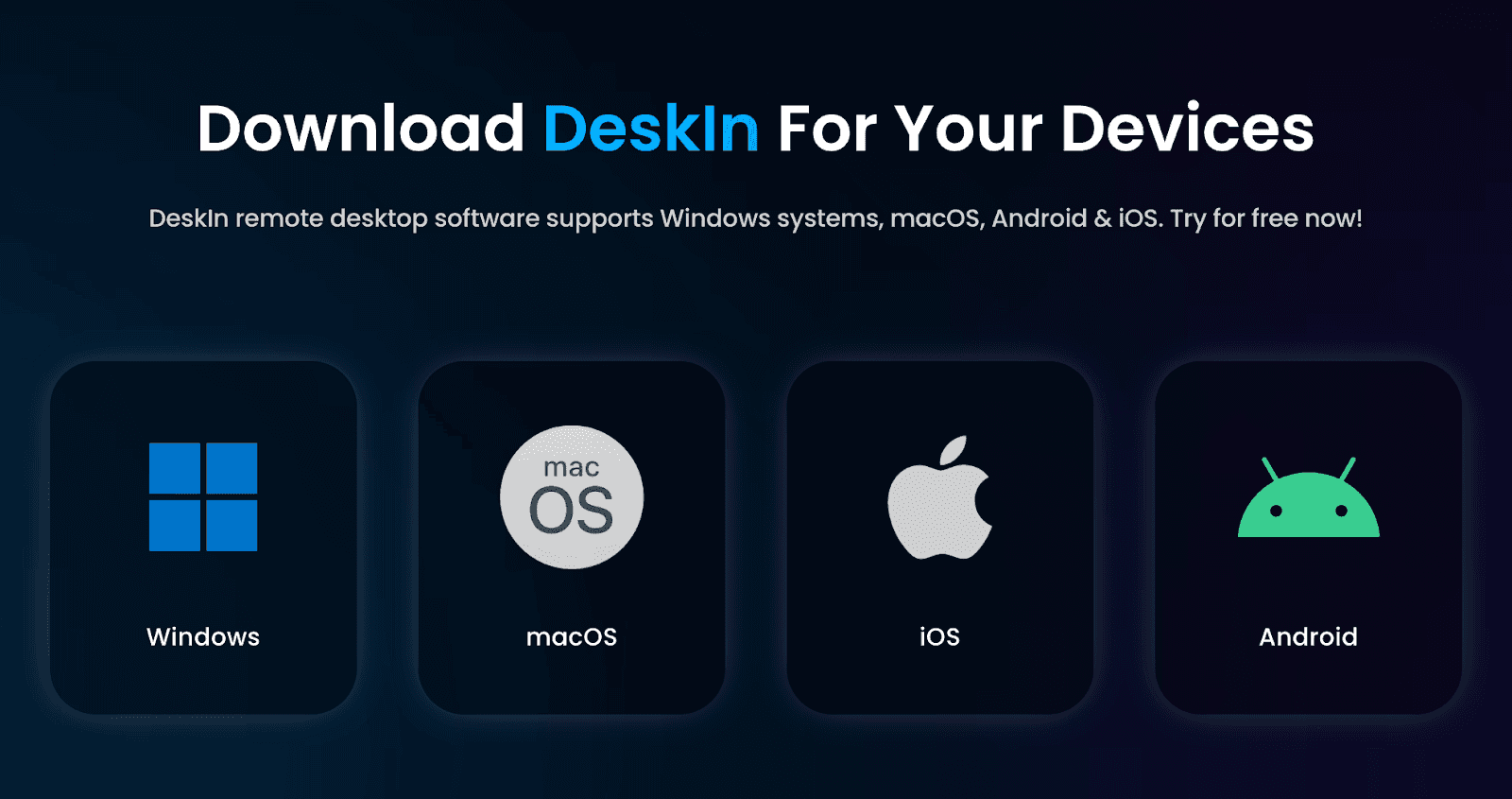
1. Install DeskIn on Both Devices and Log In with the Same Account
Download DeskIn on your local device and the remote computer connected to the printer. Log in using the same DeskIn account so both devices sync instantly.
2. Install DeskIn Remote Printing Driver on Both Devices
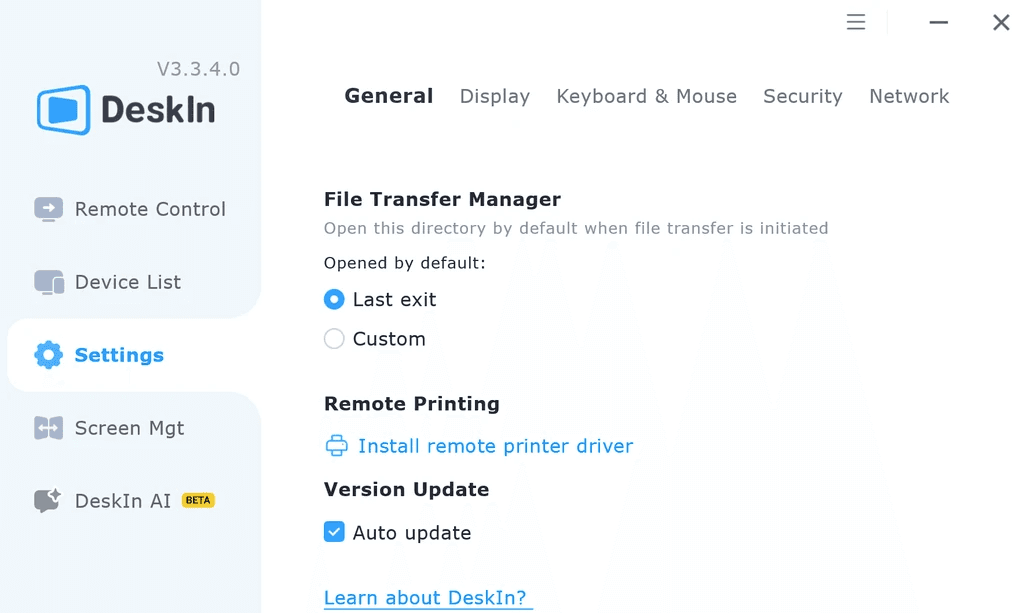
To unlock full remote desktop printing, DeskIn requires a small driver. You’ll find it under:
Settings → General → Remote Printing → Install Remote Printer Driver
This needs to be installed on both the local device and the remote computer you control. You’ll also need administrator access during installation.
3. Choose “DeskIn PDF Printer” When Printing
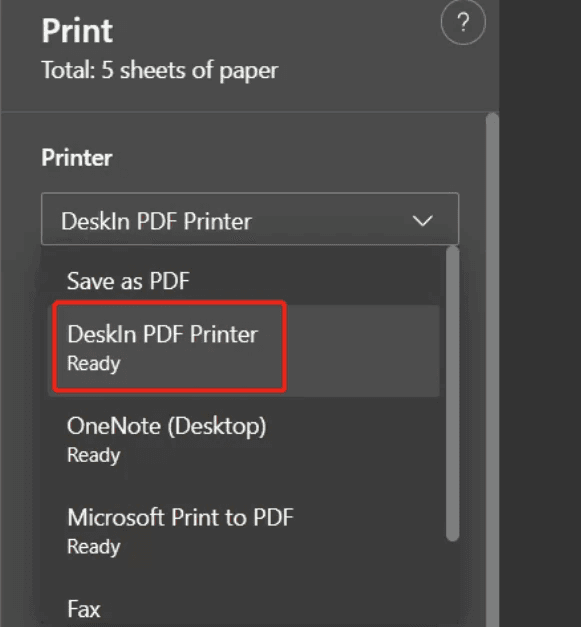
Once the driver is installed, printing remotely becomes straightforward.
When you hit Print on the remote computer, simply select DeskIn PDF Printer as your printer. This tells DeskIn to route the file securely back to your local device.
4. Pick Your Output Option
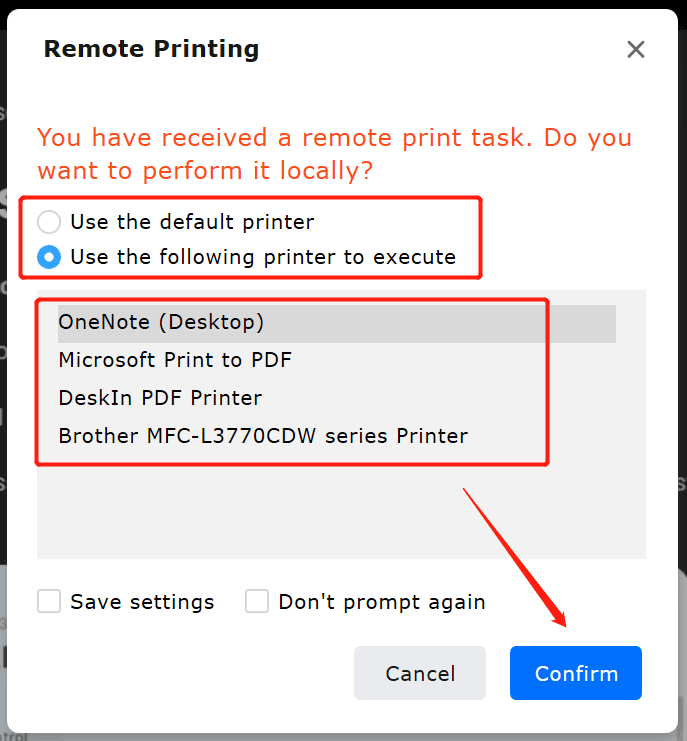
After selecting the printer, DeskIn will show a pop-up window asking how you want the document delivered.
Choose the option that fits your workflow, then click Confirm.DeskIn handles the rest behind the scenes.
Troubleshooting Tips (If Nothing Prints)
If the print button seems unresponsive or nothing appears on your local side, here are quick fixes:
Make sure the DeskIn printer driver is installed
On the controlled device, go to: DeskIn Client → Advanced Settings → Basic Settings → Install Remote Printing Driver
Try again after installation
Click Print and check whether your main device prompts you to select a printer.
Reinstall the driver if prompts don’t appear. Remove the DeskIn PDF Printer from the remote computer, then reinstall the driver through DeskIn.
If you’re looking for a remote printing solution that’s fast, secure, and actually easy to use, DeskIn stands out for all the right reasons. It’s built for real hybrid teams, not just IT pros, so printing from anywhere feels as simple as printing from your desk.
Secure Remote Printing, End-to-End: DeskIn uses AES 256-bit encryption to secure every print job in transit, protecting contracts, legal files, and sensitive client data while meeting modern enterprise security standards.
Cross-Platform Compatibility: Whether you’re jumping between Windows and macOS or printing from mobile, DeskIn keeps everything synced and smooth across different systems.
200+ Global Nodes for Stable Connectivity: DeskIn’s worldwide node network ensures fast, reliable connections no matter where your team is located. This means remote printing stays responsive and stable across countries and continents.
Real-Time Performance: With session latency below 40 ms and support for 2K/240FPS and 4K/60FPS streaming, DeskIn responds instantly to remote printing commands: no lag, no delays, just smooth execution.
Lightweight, Fast, and Setup-Friendly: DeskIn skips complicated network configurations. Install, log in, add the remote printing driver, and you’re ready; ideal for hybrid workers, remote offices, and traveling teams.
Is remote printing secure when using DeskIn?
Yes. DeskIn uses encrypted connections to protect your files from end to end. Every print job sent through its remote printing solution stays private and secure.
Do I need to install anything before printing remotely?
To enable remote desktop printing, both the local and remote devices need the DeskIn Remote Printing Driver installed. It only takes a minute and requires admin access.
Can I print from my phone using DeskIn?
Absolutely. DeskIn supports mobile-to-PC connections, so you can print from anywhere using your iOS or Android device.
What if the DeskIn printer doesn’t show up?
This usually means the remote printing driver wasn’t installed properly. Reinstall the driver on the controlled device, and the DeskIn PDF Printer should appear instantly.
Does DeskIn work with mixed operating systems?
Yes. DeskIn supports Windows and macOS, making remote printing easy across cross-platform setups—Mac to Windows, Windows to Mac, and more.
In today’s hybrid world, remote printing isn’t a luxury or an IT-only trick anymore: it’s a practical, everyday tool that keeps teams moving. From saving precious time to unlocking true work-from-anywhere flexibility, remote printing makes it easy to stay productive whether you’re at home, in the office, or halfway across the country.
As workflows become more distributed, the ability to print securely and reliably across devices becomes essential, not optional. And that’s exactly where DeskIn shines. It turns complex remote desktop printing into a clean, one-click experience, delivering the speed, stability, and security modern teams rely on.
DeskIn makes printing from anywhere feel effortless. No VPN headaches, no compatibility battles, no confusing setup, just instant results.
Ready to upgrade your workflow? Download DeskIn today and experience secure, seamless remote printing that actually works.
In an era defined by hybrid work and distributed teams, the simple act of printing a document has become a surprisingly complex challenge. How can a remote designer print a physical prototype without a local high-end printer? Enter Remote Printing—the technology that transforms any networked printer into a globally accessible resource.
This guide breaks down what remote printing is, how it seamlessly bridges the digital and physical gaps, and why it’s no longer a luxury but a critical productivity tool for any modern team.
Remote printing enables users to send documents to any printer worldwide—across the office or across continents—without a physical connection. By using secure internet-based tools like cloud services, VPNs, or remote access software, it breaks the traditional tie between a device and its printer.
In today’s hybrid work era, this turns printing from a location‑locked task into an on‑demand resource—as simple as sending an email. Employees no longer need to be near the printer or rely on couriers to get physical documents where they’re needed.
Remote workflows aren’t theoretical anymore. People actually need to print across rooms, buildings, and borders every single day. Here are the most common use cases:
Office-to-Home (or Vice Versa)
With remote printing, you can easily solve the dilemma of sending documents needed by colleagues to the office printer while working from home, or finding meeting materials on your home computer while you are at the office. With just one click, documents can be printed wherever you want.
Mobile-to-Printer
When you’re on the move and need a contract or invoice printed fast, a strong remote printing solution turns your phone into a pocket-sized print controller, pushing documents to any linked printer instantly.
If you often print from your phone, you’ll also benefit from knowing how to access your desktop files directly from Android. Check out our seamless guide for remote workers and digital nomads.
Cross-Platform Workflows (Mac → Windows, iPhone → PC, Chromebook → Mac)
Teams using mixed devices can still print flawlessly. Remote desktop printing eliminates driver issues and compatibility limits, enabling smooth “print from anywhere” across every platform.
In today’s decentralized workplaces, printing needs haven’t disappeared—they’ve simply shifted. Teams rely on remote printing to bridge the gap between digital work and physical documents across locations, devices, and time zones.
Employees working from home or across different cities can send signed contracts, presentations, or compliance materials directly to approved office printers—keeping collaboration seamless and standardized across regions.
Sales reps, consultants, and executives can print proposals, reports, or travel documents to their home-office printer from airports, hotels, or client sites, ensuring key paperwork is ready the moment they arrive.
Legal, HR, healthcare, and finance teams can route sensitive files only to authorized, monitored printers.
Designers, engineers, and architects can remotely access color-calibrated devices, large-format plotters, and other specialized printers—giving them accurate, professional output no matter where they work.
Rather than equipping every remote worker with a dedicated printer, organizations can centralize printing resources and cut shipping or courier costs by enabling local printing at regional offices.
Remote staff can print shipping labels, invoices, or warehouse documents exactly where they’re needed, while IT teams troubleshoot and test printers remotely—reducing downtime and onsite visits.
University students submit printed assignments or theses to campus printers while studying from home. Teachers print classroom materials or exam papers remotely before returning to school.
A user prints a recipe or a coupon at home while grocery shopping, using a mobile app connected to their home printer. A family member helps elderly relatives print prescriptions or forms by remotely accessing their home printer.
Remote printing bridges the gap between digital workflows and physical document needs—enabling productivity, security, and flexibility in an increasingly decentralized world.
Remote printing brings far more than convenience; it reshapes how modern teams work. It gives employees universal access, tighter security, and smoother workflows across every device and location.
Work From Anywhere, Without Boundaries
Print directly to office or shared printers from home, a client site, or even while traveling. No need to be physically near the device: your files follow you.
Stronger Security and Compliance
Encrypted transmission and authorization controls ensure confidential documents only land on approved printers, supporting standards like ISO 20071, AES 256-bit encryption, and internal data-security policies.
Cost and Resource Savings
Remote teams can share centralized, high-quality printers instead of purchasing extra hardware or shipping documents back and forth.
Faster, Cleaner Operations
Skip the email attachments and USB transfers. Contracts, labels, proofs, and reports reach the right printer instantly, keeping work moving.
Built for Hybrid and Distributed Teams
Every employee, office-based or remote, gets consistent, reliable access to printing resources, leveling the playing field across multiple locations.
Access to Specialized Printers Anytime
Use large-format, color-calibrated, or department-specific printers as if you were standing next to them—a major win for design, engineering, and logistics teams.
Fewer Touchpoints, Smaller Footprint
Reduce document shipping, local reprints, and manual handling. It’s greener, cleaner, and less error-prone.
Flexible for Modern Digital Workflows
Print seamlessly from mobile devices, cloud storage, or remote desktop printing sessions, all integrated into your existing digital tools.
Centralized IT Management
IT teams can deploy, monitor, and troubleshoot printers across multiple locations from one place, reducing on-site support and standardizing the entire print ecosystem.
In essence, remote printing upgrades a basic action into a powerful capability, driving productivity, strengthening security, and supporting today’s flexible workstyles.
Give your team the flexibility they deserve. Try DeskIn’s print-from-anywhere tool today.
Behind the scenes, remote printing is basically a smart relay system; your device sends the command, the remote computer receives it, and the printer does the work, no matter where you are. Here’s how it actually happens.
Most remote desktop printing starts with a secure tunnel. RDP sessions, VPNs, or cloud workspaces link your device to a distant computer, letting you control its files and its printers as if you were sitting right there.
If you work inside a virtual machine, print redirection jumps in. It grabs your print request, maps it to the right printer, and sends the job through the VM. No messy drivers, no manual setup: just clean, efficient output.
Here’s where things get fun. DeskIn skips the old-school complexity entirely. It auto-detects the entered printers, syncs them into your session, and turns remote printing solutions into a one-click experience. No VPN battles, no IT emergencies, only the smooth printing from anywhere.
Whether you’re on a laptop, phone, or tablet, your print command travels securely to the host machine and fires off instantly. That’s true print-from-anywhere power; real-time, encrypted, and surprisingly effortless.
Once upon a time, emailing a PDF felt like a clever workaround. Today, it’s slow, messy, and nowhere near the efficiency of remote printing.
Delays and Confusion
Email chains get buried, messages get missed, and suddenly a “quick print” turns into a mini scavenger hunt. With print-from-anywhere tools, the document goes straight to the printer, no middleman required.
Formatting Issues Across Devices
A file that looks perfect on your laptop might break on someone else’s screen. Fonts shift, margins move, and layouts fall apart. Remote desktop printing keeps your formatting intact because you print directly from the source machine.
No Control Over When or How It Prints
Emailing a PDF means surrendering control: you can’t choose the tray, page range, or printer settings. With proper remote printing solutions, you decide exactly how the final output looks.
Lack of Security and Access Management
Email isn’t built for sensitive documents. Anyone can forward, copy, or mishandle the file. Secure remote printing keeps everything encrypted and ensures only authorized devices can trigger a print job.
Setting up remote printing shouldn’t feel like threading a needle in the dark. DeskIn keeps everything clean and uncomplicated: no VPN puzzles, no outdated drivers, no “Why won’t this printer show up?” dread. With DeskIn, printers auto-detect, devices sync instantly, and your workflow finally gets the smooth print-from-anywhere experience it deserves.
DeskIn also supports both Windows 7 and later and macOS, so mixed-device teams aren’t stuck fighting compatibility issues. And because DeskIn transfer files through an encrypted channel, every print job stays protected end-to-end, giving you a truly secure remote printing solution.
To unlock the full experience, DeskIn uses a lightweight remote printing driver. It’s quick to install, but it’s also what gives you that instant, seamless control over printers on any remote computer.
Here’s how to get everything running in just a few minutes:
1. Install DeskIn on Both Devices and Log In with the Same Account
Download DeskIn on your local device and the remote computer connected to the printer. Log in using the same DeskIn account so both devices sync instantly.
2. Install DeskIn Remote Printing Driver on Both Devices
To unlock full remote desktop printing, DeskIn requires a small driver. You’ll find it under:
Settings → General → Remote Printing → Install Remote Printer Driver
This needs to be installed on both the local device and the remote computer you control. You’ll also need administrator access during installation.
3. Choose “DeskIn PDF Printer” When Printing
Once the driver is installed, printing remotely becomes straightforward.
When you hit Print on the remote computer, simply select DeskIn PDF Printer as your printer. This tells DeskIn to route the file securely back to your local device.
4. Pick Your Output Option
After selecting the printer, DeskIn will show a pop-up window asking how you want the document delivered.
Choose the option that fits your workflow, then click Confirm.DeskIn handles the rest behind the scenes.
Troubleshooting Tips (If Nothing Prints)
If the print button seems unresponsive or nothing appears on your local side, here are quick fixes:
Make sure the DeskIn printer driver is installed
On the controlled device, go to: DeskIn Client → Advanced Settings → Basic Settings → Install Remote Printing Driver
Try again after installation
Click Print and check whether your main device prompts you to select a printer.
Reinstall the driver if prompts don’t appear. Remove the DeskIn PDF Printer from the remote computer, then reinstall the driver through DeskIn.
If you’re looking for a remote printing solution that’s fast, secure, and actually easy to use, DeskIn stands out for all the right reasons. It’s built for real hybrid teams, not just IT pros, so printing from anywhere feels as simple as printing from your desk.
Secure Remote Printing, End-to-End: DeskIn uses AES 256-bit encryption to secure every print job in transit, protecting contracts, legal files, and sensitive client data while meeting modern enterprise security standards.
Cross-Platform Compatibility: Whether you’re jumping between Windows and macOS or printing from mobile, DeskIn keeps everything synced and smooth across different systems.
200+ Global Nodes for Stable Connectivity: DeskIn’s worldwide node network ensures fast, reliable connections no matter where your team is located. This means remote printing stays responsive and stable across countries and continents.
Real-Time Performance: With session latency below 40 ms and support for 2K/240FPS and 4K/60FPS streaming, DeskIn responds instantly to remote printing commands: no lag, no delays, just smooth execution.
Lightweight, Fast, and Setup-Friendly: DeskIn skips complicated network configurations. Install, log in, add the remote printing driver, and you’re ready; ideal for hybrid workers, remote offices, and traveling teams.
Is remote printing secure when using DeskIn?
Yes. DeskIn uses encrypted connections to protect your files from end to end. Every print job sent through its remote printing solution stays private and secure.
Do I need to install anything before printing remotely?
To enable remote desktop printing, both the local and remote devices need the DeskIn Remote Printing Driver installed. It only takes a minute and requires admin access.
Can I print from my phone using DeskIn?
Absolutely. DeskIn supports mobile-to-PC connections, so you can print from anywhere using your iOS or Android device.
What if the DeskIn printer doesn’t show up?
This usually means the remote printing driver wasn’t installed properly. Reinstall the driver on the controlled device, and the DeskIn PDF Printer should appear instantly.
Does DeskIn work with mixed operating systems?
Yes. DeskIn supports Windows and macOS, making remote printing easy across cross-platform setups—Mac to Windows, Windows to Mac, and more.
In today’s hybrid world, remote printing isn’t a luxury or an IT-only trick anymore: it’s a practical, everyday tool that keeps teams moving. From saving precious time to unlocking true work-from-anywhere flexibility, remote printing makes it easy to stay productive whether you’re at home, in the office, or halfway across the country.
As workflows become more distributed, the ability to print securely and reliably across devices becomes essential, not optional. And that’s exactly where DeskIn shines. It turns complex remote desktop printing into a clean, one-click experience, delivering the speed, stability, and security modern teams rely on.
DeskIn makes printing from anywhere feel effortless. No VPN headaches, no compatibility battles, no confusing setup, just instant results.
Ready to upgrade your workflow? Download DeskIn today and experience secure, seamless remote printing that actually works.


TECHNOLOGY
เปลี่ยน iPad ให้เป็นจอภาพที่สองสำหรับคอมพิวเตอร์ Windows และ Mac
A second monitor can make everyday work feel much easier, especially when you are switching between research, documents, meetings, design files, or dashboards. If you already own an iPad, you may be able to use it as an extra display instead of buying another monitor.
This guide explains how to use an iPad as a second monitor for Mac with Apple Sidecar, and how Windows or cross-platform users can use DeskIn screen extension on supported paid plans.
Increase screen space so you can view more content at the same time. This helps reduce constant window switching during multitasking.
Keep each screen focused on a different task. For example, you can edit a video on one screen and keep source materials on the other, or write a paper while browsing references side by side.
Use the iPad display you already have. For students, remote workers, and light creative work, an iPad can be a convenient and cost-effective second-screen option.
Save desk space and avoid carrying another external monitor when you work from home, travel, or move between rooms.
Apple Sidecar lets compatible iPads work as an external display for compatible MacBook and iMac devices. It is a good native option if both devices support Sidecar and are signed in with the same Apple ID.
Note: To use Apple Sidecar, your Mac and iPad should use the same Apple ID, have Bluetooth and Wi-Fi turned on, and stay within close wireless range. Sidecar availability depends on Apple device and operating system compatibility.
Open the Mac System Settings >> Click "Display" in the sidebar >> Click the "+" pop up menu on the right and choose your iPad.
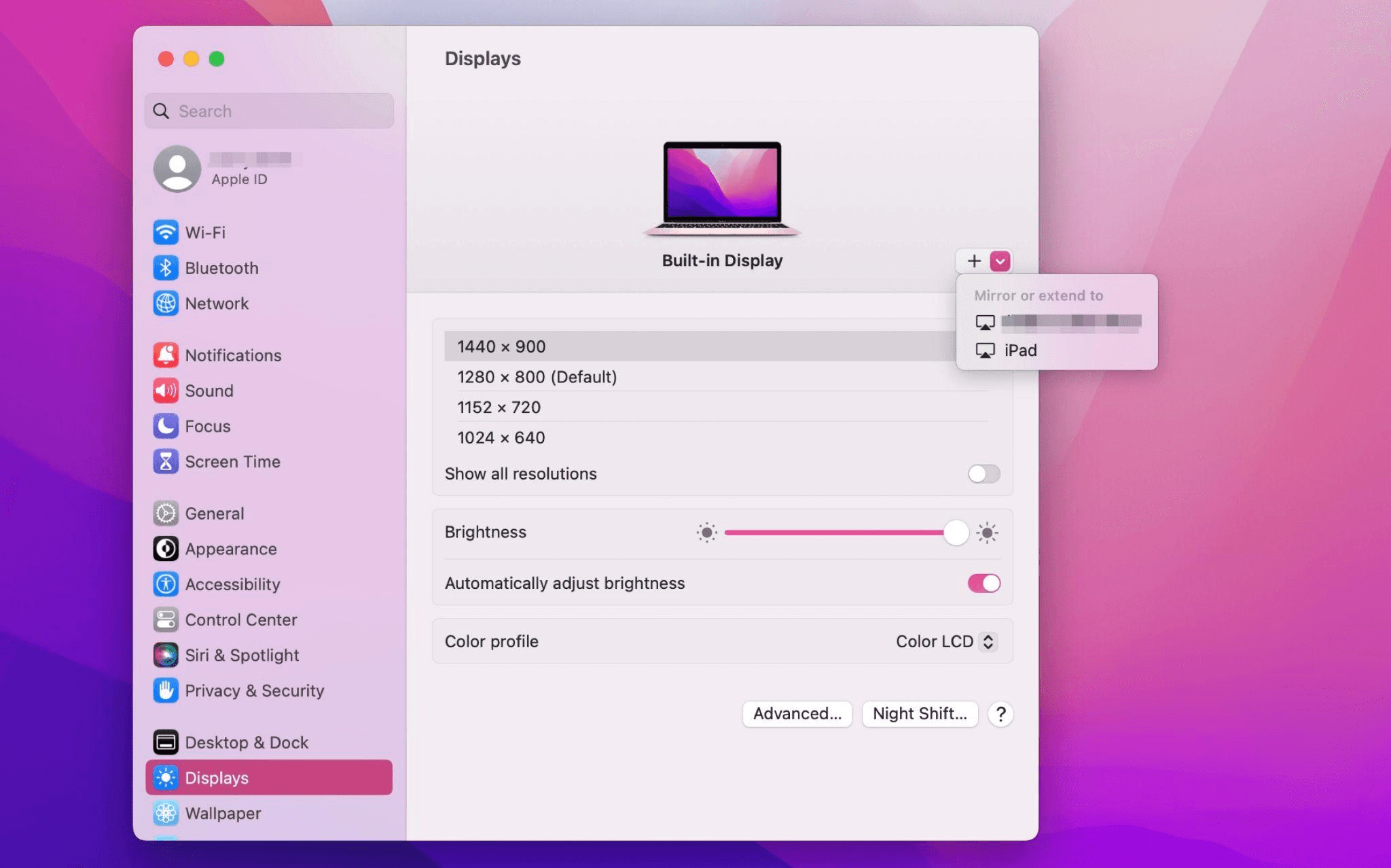
Select the iPad, change the Use as settings to "Extended Display". Check the Airplay settings on the top toolbar of the mac and set iPad as "Use As Separate Display".
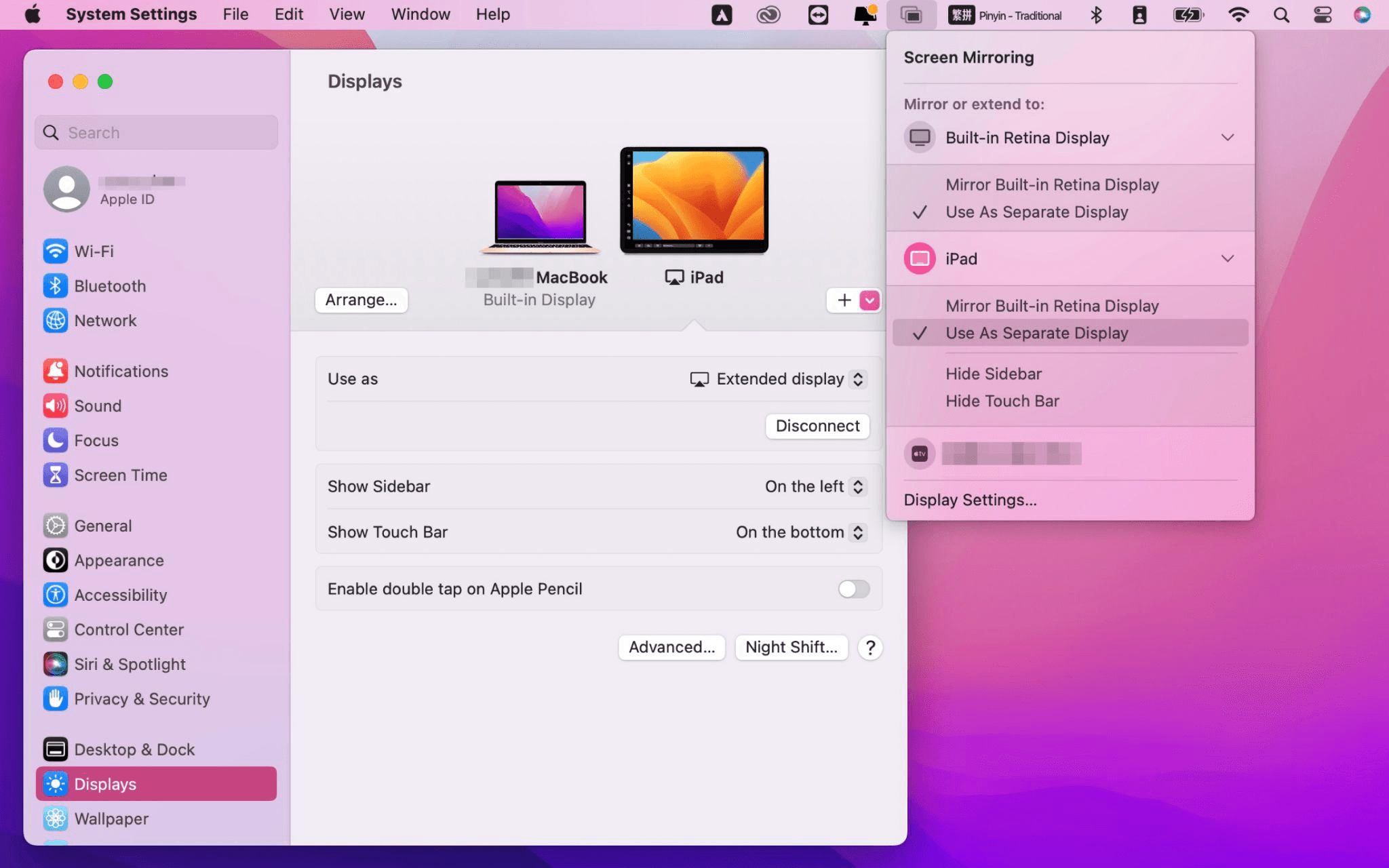
After completing the settings, your iPad will become the second display for your Mac. You can drag windows from your Mac to your iPad smoothly. You can also use the sidebar on the iPad or change the position of the sidebar on the system display settings.
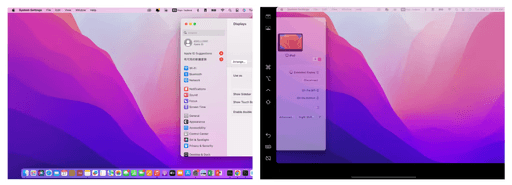
MacBook Screen (Left) and iPad Screen (Right)
Apple Sidecar only supports mac released after 2016 and iPadOS13 or newer. If you are using an old Apple device or a Windows device, you can still use DeskIn remote software to do the screen extension. It supports using iPad as a second display for Mac and Windows, and the smoothness is no worse than sidecar.
Install DeskIn on both your computer and iPad. Sign in to your DeskIn account on each device. When you log in on a new device for the first time, you may need to complete email verification to help protect your account.

To use Screen Extension, you'll need to subscribe to any Premium plan. Click here to view DeskIn plans.
Open DeskIn on your Windows or Mac computer, go to the screen management area, and choose the screen extension option. Select your iPad as the target display and start extending.
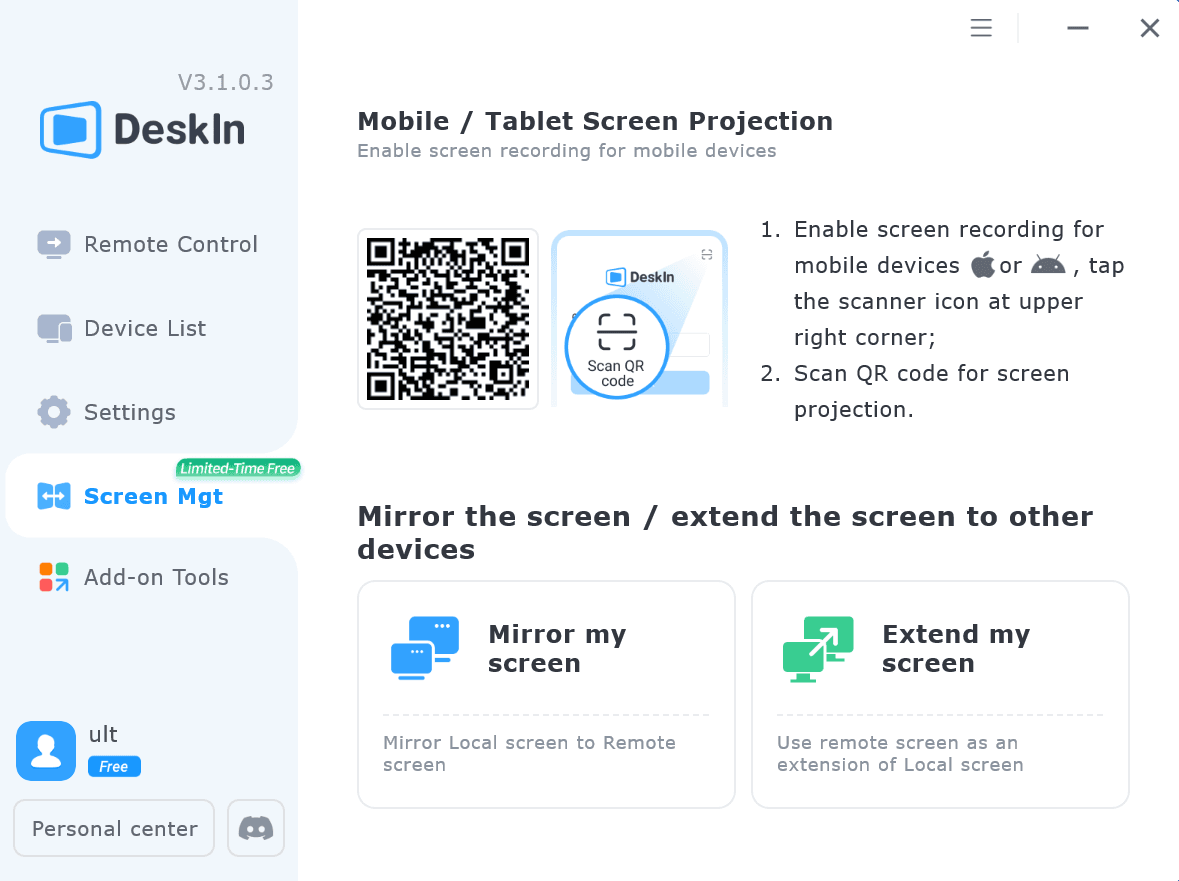
Once connected, your iPad can work as an additional display, letting you move windows between your computer and iPad for a wider workspace.
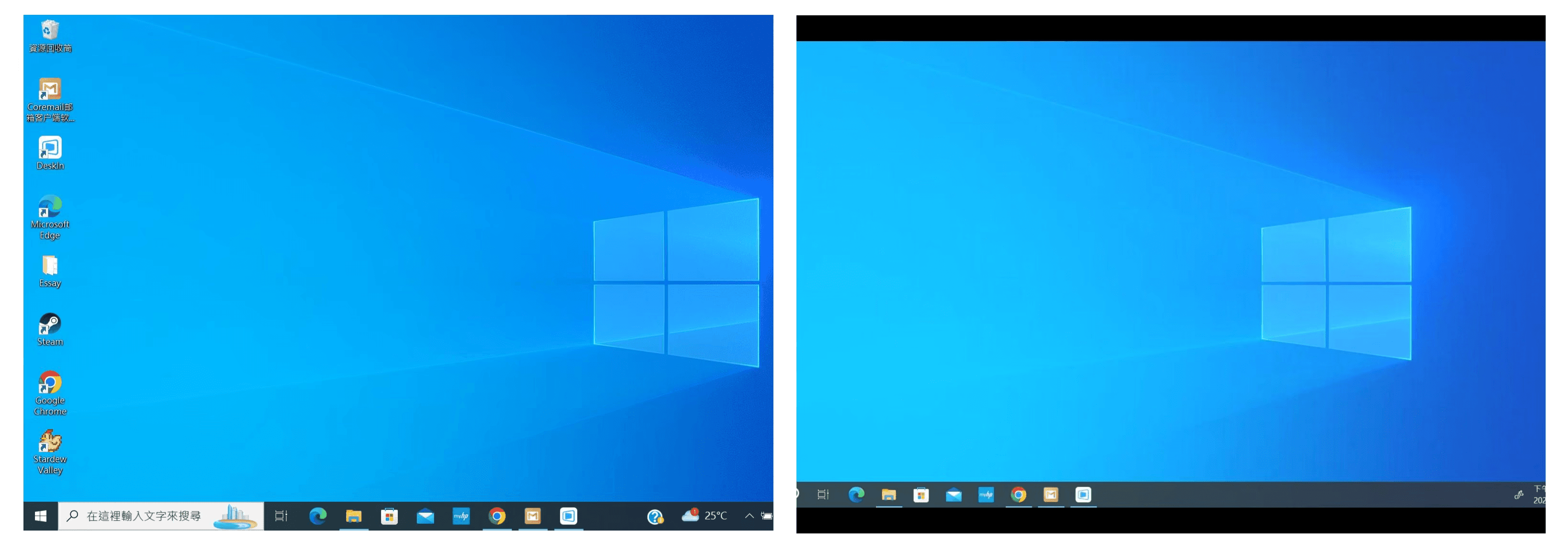
Computer Screen (Left) and iPad Screen (Right)
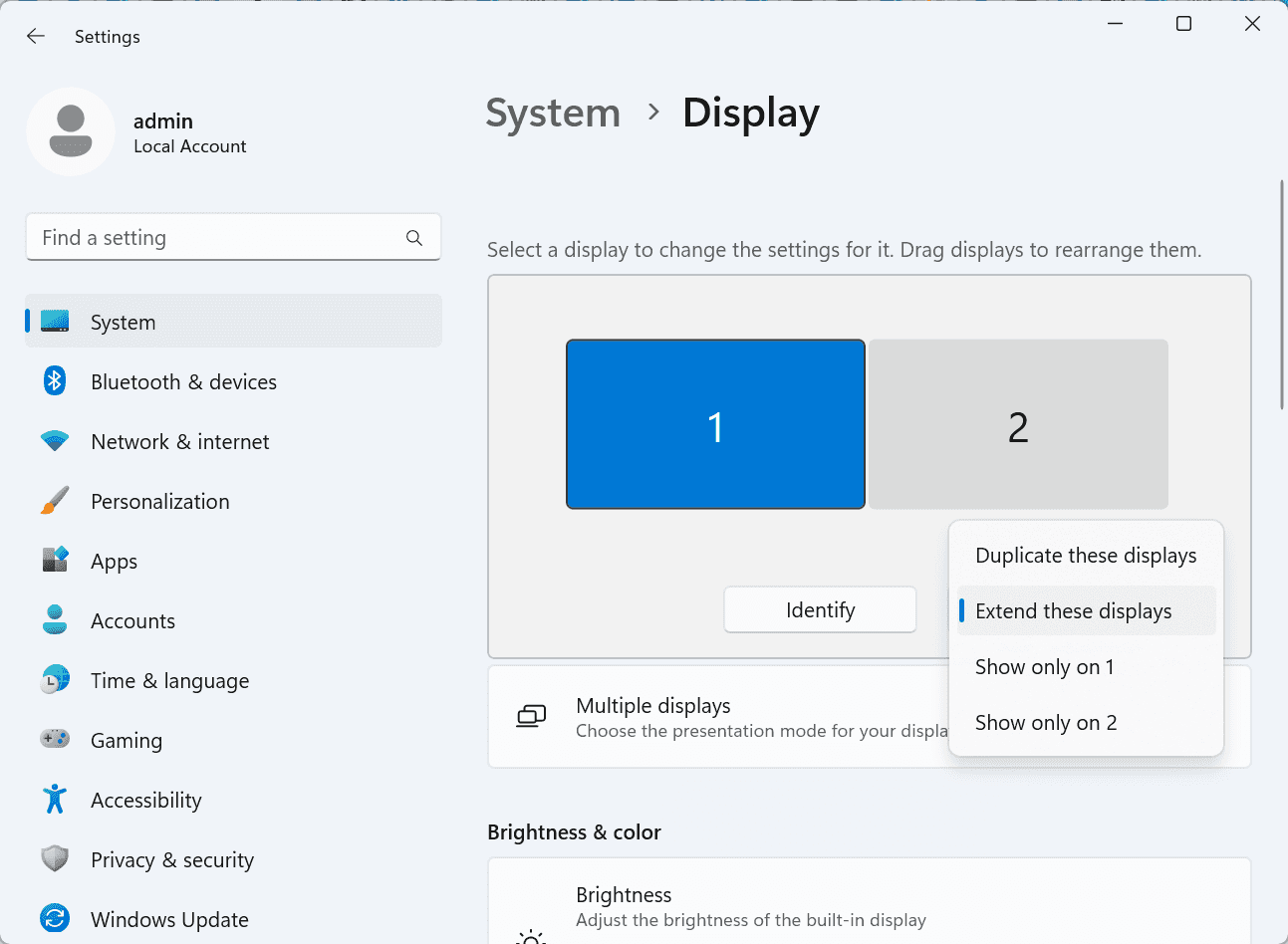
After extension, if you find that your iPad is only mirroring the content on your computer screen, please go to Windows System Settings >> Display Settings and change the screen option to "Extend these displays". You can also modify the screen position by dragging the 2 screens.
Need | Best Option | Why |
Use iPad as a second monitor for a compatible Mac | Apple Sidecar | Built into Apple devices and easy to set up when both devices are compatible. |
Use iPad as a second monitor for Windows | DeskIn | Sidecar does not support Windows, while DeskIn supports cross-platform screen extension on eligible plans. |
Work across Windows, macOS, iPad, Android tablets, and mobile devices | DeskIn | Better suited for users who need cross-platform remote access and flexible device combinations. |
Yes. Windows does not support Apple Sidecar, but you can use DeskIn screen extension on a paid plan that includes this feature to turn your iPad into an additional display for a Windows computer.
DeskIn Screen Extension is included in all paid plans. After subscribing, you can use it across all supported systems with no restrictions.
Yes. DeskIn supports using an iPad as an additional screen with Windows and Mac computers when your plan includes screen mirroring or screen extension.
Using an iPad as a second monitor is a practical way to expand your workspace without buying another display. Mac users with compatible devices can use Apple Sidecar, while Windows and cross-platform users can use DeskIn screen extension on eligible paid plans.
If you want to work across Windows, macOS, iPad, and other devices, DeskIn gives you a flexible way to build a portable multi-screen workspace. Download DeskIn and choose the plan that fits your screen extension and remote access needs.

TECHNOLOGY
Top 6 RustDesk Alternative Tools for Faster, Easier Remote Access
Remote access should feel like flipping a light switch, not decoding a control panel. Yet many users exploring RustDesk eventually run into friction: connection IDs, server setup, or occasional lag. While RustDesk is powerful, it’s not always the easiest or smoothest option, especially for non-technical users.
That’s why more people are actively searching for a reliable RustDesk alternative that combines performance, simplicity, and flexibility. Whether you want a plug-and-play solution or something more advanced, this guide will help you find the best fit.
RustDesk stands out as a privacy-friendly, self-hosted remote desktop tool. However, real-world usage reveals a few common challenges:
Complicated setup for the RustDesk self-hosted environments
Manual connection steps requiring IDs and passwords
Occasional latency or unstable connections
Limited user-friendly features out of the box
For many users, especially those helping family or managing multiple devices, simplicity matters just as much as control.
When evaluating a RustDesk alternative, focus on these key factors:
Ease of use: Quick setup without technical overhead
Performance: Smooth, low-latency remote sessions
Compatibility: Support for Windows, macOS, Linux, and mobile
Security: Strong encryption and access controls
Flexibility: Options ranging from cloud-based to open source
The ideal tool strikes a balance between power and convenience, something many modern solutions now deliver better than traditional setups.
Here’s a quick breakdown of the top tools and where they shine:
DeskIn – Best all-in-one RustDesk alternative for performance and ease of use
AnyDesk – Best lightweight tool for fast connections
TeamViewer – Best for enterprise-grade remote support
MeshCentral – Best open-source and self-hosted solution
DWService – Best free browser-based tool
Chrome Remote Desktop – Best simple, no-frills option
Ultra-low latency with smooth high-frame-rate streaming
No complex setup or server deployment required
Cross-platform including Rustdesk alternative for Android
Secure with encryption and device control features
Built-in file transfer and multi-device management
Smaller awareness than legacy competitors
Best for: Users who want a powerful yet simple remote desktop solution
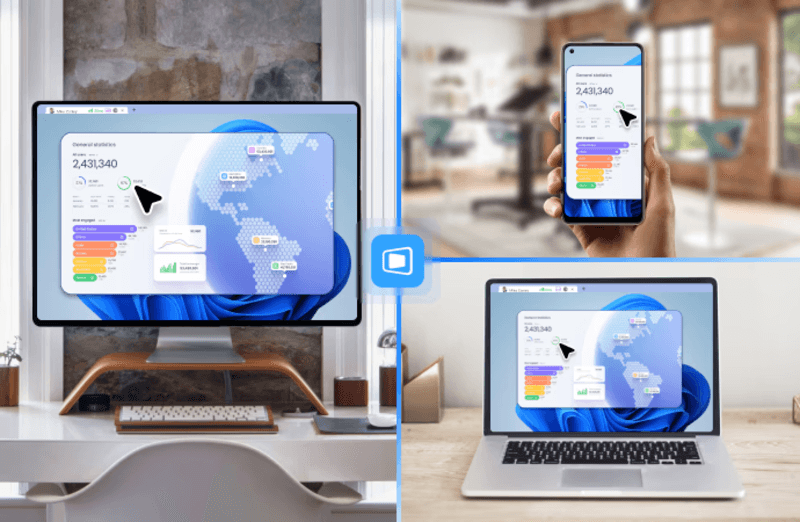
DeskIn removes the friction that often comes with remote access tools. Instead of relying on IDs or manual configurations, it offers a streamlined connection experience that works right out of the box. This makes it especially valuable for users supporting non-technical family members or managing multiple remote devices.
Performance is where DeskIn truly distinguishes itself. Compared to RustDesk, which can sometimes struggle with latency, DeskIn delivers consistently smooth sessions with minimal lag. It also eliminates the need for self-hosting, making it a strong free RustDesk alternative option for users who want powerful features without the complexity.
For those exploring options beyond the RustDesk alternative GitHub projects, DeskIn provides a polished, ready-to-use experience that balances simplicity with professional-grade performance.
Lightweight and fast installation
Good performance on low bandwidth
Cross-platform support
Easy-to-use interface
Performance may drop during long sessions
File transfer can be inconsistent
Best for: Users needing quick and simple remote access
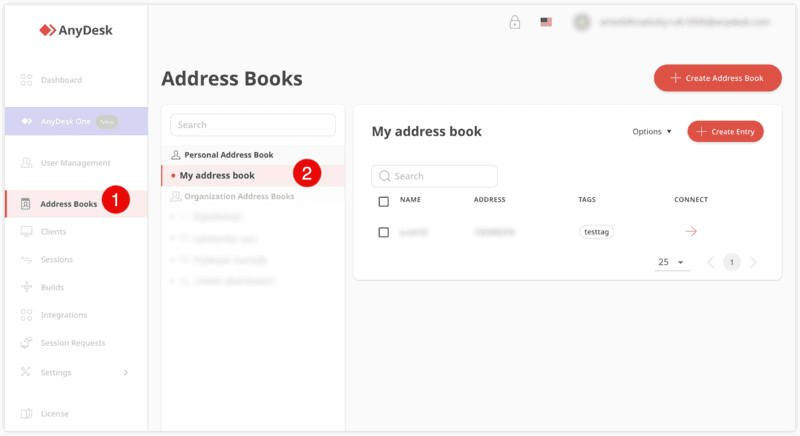
AnyDesk is often considered a natural step up from RustDesk for users who want something easier to deploy. It offers a lightweight application that connects quickly and performs well under normal conditions. This makes it suitable for quick troubleshooting or occasional remote access.
However, performance consistency can be an issue. Users frequently report lag or instability during extended sessions or when handling more demanding tasks. While AnyDesk is a solid option for basic needs, it may not fully satisfy users looking for a more robust, all-in-one solution.
👀 You may also be interested in: |
|---|
Enterprise-grade security with encryption and 2FA
Stable performance across global networks
Rich features like file transfer and session recording
Broad device compatibility
Expensive for commercial use
Free version has limitations
Heavier resource usage on some systems
Best for: Businesses and IT teams managing multiple endpoints
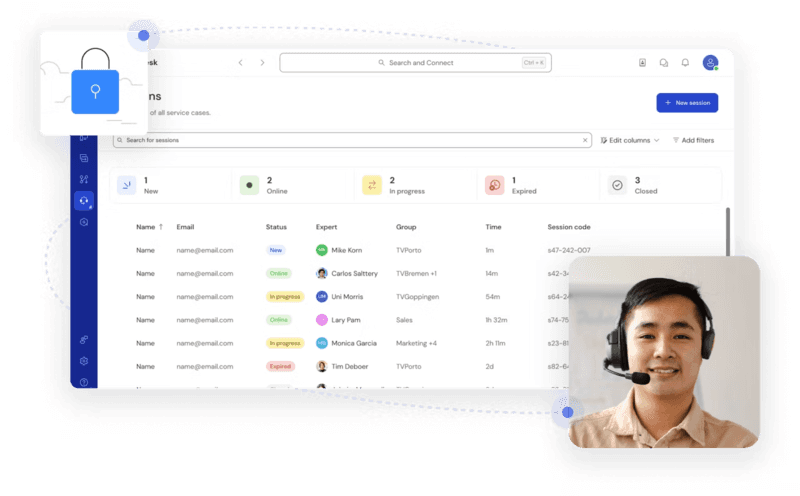
TeamViewer has long been a dominant player in the remote desktop space, offering a comprehensive suite of features designed for enterprise environments. It excels in reliability and global connectivity, making it a popular choice for IT support teams.
That said, its pricing model is a major drawback for many users. Frequent users may quickly encounter licensing restrictions, and costs can escalate for businesses. Additionally, its heavier footprint can impact performance on lower-end devices. DeskIn offers a more modern alternative by delivering similar performance and essential features without the same cost barriers. For users who want enterprise-level capabilities with better efficiency, it presents a compelling option.
👀 You may also be interested in: |
|---|
Fully RustDesk alternative open source solution
Web-based management dashboard
Supports multi-device environments
Strong customization and control
Complex setup and maintenance
Requires technical expertise
Best for: Advanced users needing a Rustdesk alternative self-hosted
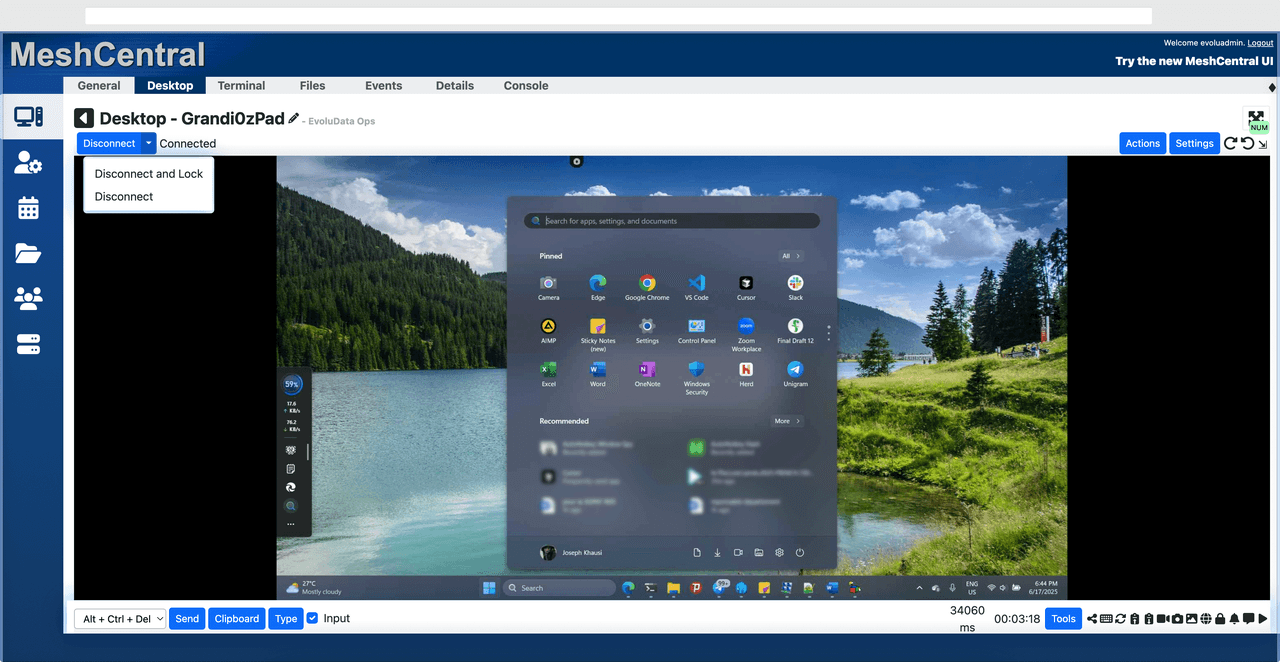
MeshCentral is a powerful open-source platform designed for users who want full control over their remote access infrastructure. It supports multiple devices and provides a centralized dashboard for management, making it attractive for IT professionals.
However, this flexibility comes with complexity. Setting up and maintaining a MeshCentral server requires technical knowledge, which can be a barrier for many users. Compared to this, DeskIn offers a much simpler deployment process while still delivering strong performance and security. For users who prioritize ease of use over full control, modern solutions like DeskIn provide a more accessible alternative.
Completely free
Browser-based access
Open-source foundation
Simple setup
Limited performance
Basic feature set
Best for: Users looking for a simple, free RustDesk alternative
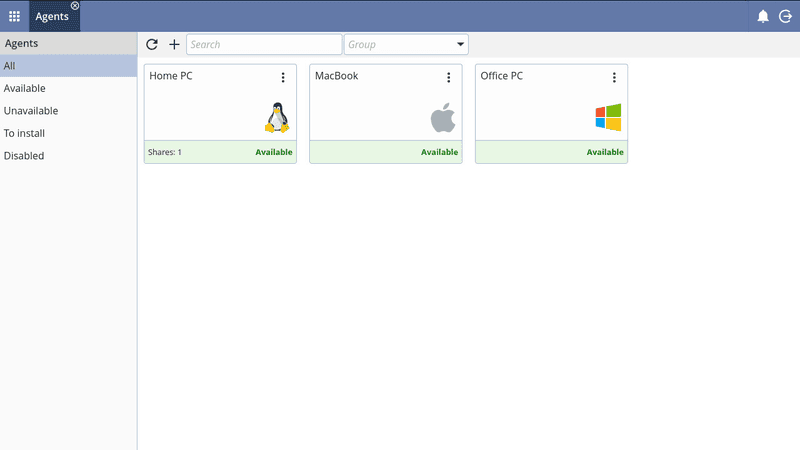
DWService offers a browser-based approach to remote access with no heavy installation, making it convenient for quick connections in restricted environments. It supports both desktop access and file management across major platforms.
However, performance often feels sluggish, especially on demanding tasks, and features remain basic; lacking session recording, smooth multi-monitor support, or advanced security controls. While suitable for occasional personal use, it falls short for professional or high-performance scenarios.
Free and easy to use
Browser-based setup
Cross-platform compatibility
Very limited features
No advanced management or collaboration tools
Best for: Casual users needing basic remote access
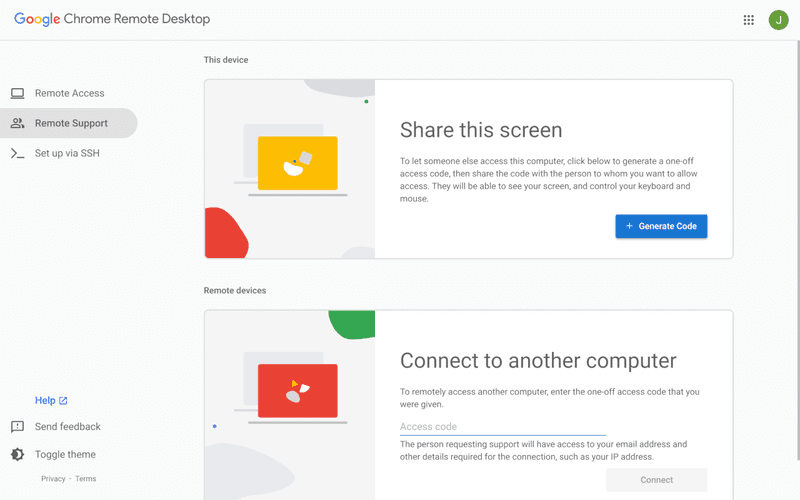
Chrome Remote Desktop is one of the simplest remote access tools available. It’s easy to set up and works across devices, making it a convenient choice for occasional use.
However, it lacks many essential features such as file transfer, session management, and advanced security controls. For users with more demanding needs, it quickly becomes insufficient. Compared to Chrome Remote Desktop, DeskIn provides a much more complete experience without sacrificing ease of use, making it a better long-term solution.
👀 You may also be interested in: |
|---|
RustDesk is powerful but can be difficult to set up and manage, especially with self-hosting. Many users prefer tools that offer similar performance without technical complexity. DeskIn simplifies remote access while maintaining strong performance and security.
Several tools qualify as a free RustDesk alternative, including DWService and Chrome Remote Desktop. However, DeskIn stands out by offering better performance and usability even in its free version.
Yes, tools like MeshCentral and DWService are considered RustDesk alternative open source options. They provide flexibility and control but often require technical expertise to set up and maintain.
Beginners should choose tools with a simple setup and intuitive interfaces. DeskIn is an excellent option because it removes the need for manual configuration while still delivering advanced features.
RustDesk is a powerful starting point, but it’s not always the easiest or most efficient tool for everyday use. From setup complexity to performance limitations, many users eventually look for a better RustDesk alternative.
Among all the options, DeskIn stands out as the most balanced solution. It combines speed, simplicity, and cross-platform support into one seamless experience. If you’re ready to move beyond technical friction and enjoy truly smooth remote access, DeskIn is a choice that simply works.

TECHNOLOGY
Top 7 RDP Alternative Tools for Faster, Safer Remote Access
Remote desktop access used to feel like a solid bridge. Now, for many users, traditional RDP feels more like a creaky rope ladder. With performance issues, security concerns, and limited cross-platform support, it's no surprise that more people are actively searching for a better RDP alternative that actually keeps up with modern workflows.
If you're managing multiple servers, working across devices, or just tired of unstable connections, this guide will walk you through the best tools worth switching to.
RDP (Remote Desktop Protocol) is a proprietary protocol developed by Microsoft that allows users to connect to another computer over a network. It's widely used for accessing Windows servers, virtual machines, and remote workstations.
While powerful in controlled environments, RDP is often tied to Windows systems and requires configuration like port forwarding or VPNs. Compared to newer tools, it can feel rigid and outdated.
You may also be interested in: |
|---|
RDP still works, but it comes with trade-offs that many users find frustrating:
Security risks if not properly configured
Complex setup for remote or external access
Limited cross-platform compatibility
Performance issues over unstable networks
Many IT teams are now actively replacing it, especially when looking for a Windows RDP client alternative or something that works seamlessly across macOS, Linux, and mobile devices. That's where modern Remote Desktop alternatives shine.
Choosing the right tool is like picking the right vehicle. Some are built for speed, others for heavy-duty enterprise work. Here's a quick snapshot:
DeskIn – Best all-in-one RDP alternative for performance and cross-platform use
TeamViewer – Best for enterprise remote support
AnyDesk – Best lightweight option for fast connections
RustDesk – Best Windows RDP alternative open-source solution
Remmina – Best RDP alternative for Linux users
Chrome Remote Desktop – Best simple browser-based tool
Splashtop – Best for high-performance business environments
Ultra-low latency with smooth high-frame-rate streaming
Works across Windows, macOS, Linux, iOS, and Android
Strong encryption and secure access controls
Built-in file transfer and multi-session support
Newer compared to legacy brands
Best for: Users who want a powerful, flexible RDP alternative
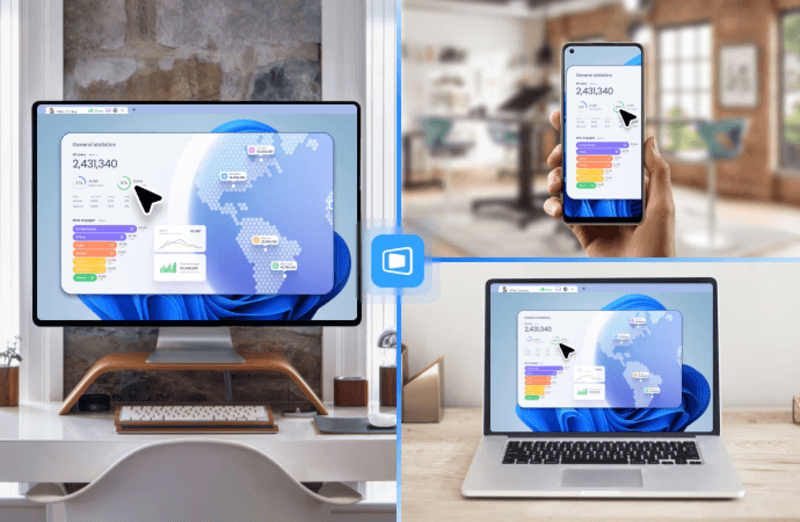
DeskIn feels less like remote access and more like teleportation for your desktop. Whether you're managing servers, supporting clients, or working remotely, it delivers consistently smooth performance without the usual lag spikes seen in traditional RDP setups.
Unlike many tools, DeskIn eliminates the need for complex configurations. You don't need to wrestle with firewalls or VPNs just to connect. It also works seamlessly across platforms, making it a strong alternative to Microsoft Remote Desktop for Mac and mobile users alike.
For teams juggling multiple systems, DeskIn provides a unified experience that replaces fragmented workflows. It's also a strong free RDP alternative option with premium-level capabilities, making it ideal for both individuals and businesses.
Enterprise-grade security and compliance
Extensive feature set including collaboration tools
Cross-platform compatibility
Reliable global performance
Expensive licensing
Can be overkill for individuals
Best for: Enterprises needing secure and scalable remote access
TeamViewer is a comprehensive remote desktop platform widely adopted by IT teams, support professionals, and enterprises. Its feature set extends far beyond simple screen sharing—it includes robust device management, remote printing, file transfer, session recording, and even augmented reality support for field service. TeamViewer's security architecture relies on AES‑256 encryption, two‑factor authentication, and whitelisting, making it suitable for organizations with strict compliance requirements. It runs on virtually every operating system and mobile platform.
The main trade‑off is its pricing: licenses are subscription‑based and can become expensive for small teams or individual users, especially as TeamViewer aggressively flags personal use as commercial, leading to session restrictions.
Fast and responsive
Lightweight installation
Works well on low bandwidth
Easy to use
File transfer can be inconsistent
Lag during longer sessions
Best for: Users needing quick, simple remote access
AnyDesk is a lightweight remote desktop application prized for its speed and efficiency, often recommended as a fast alternative to Microsoft's native Remote Desktop on Windows 10 and Android. It uses a proprietary video codec, DeskRT, to achieve low latency even on limited bandwidth, making it ideal for quick support sessions and accessing devices over mobile networks. The interface is clean and minimalist, with features like address book management, file transfer, and session recording available.
However, users frequently report instability during extended sessions; performance can degrade over time, and file transfers may slow considerably compared to competitors. While its free version is generous for personal use, professional users often find the performance ceiling limits its suitability for continuous, demanding workloads. DeskIn, by contrast, maintains consistent performance even during extended use, making it better suited for professional workloads.
You may also be interested in: |
|---|
Free and open-source
Self-hosting for full control
Strong privacy protection
Active community
Technical setup required
Limited user-friendly features
Best for: Developers and privacy-focused users
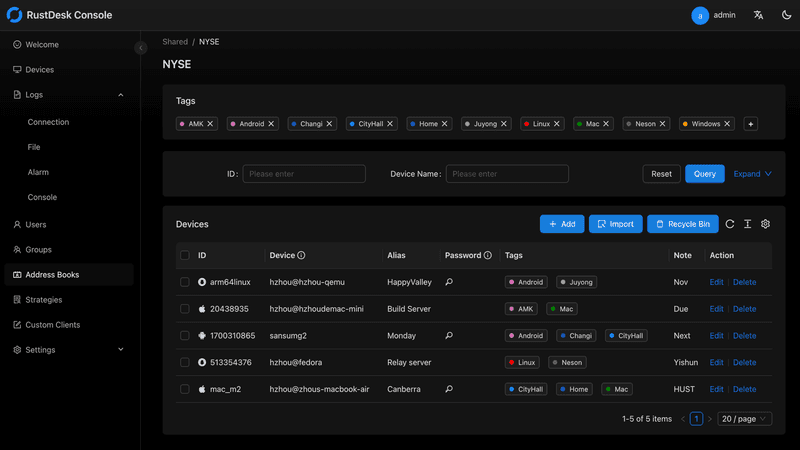
RustDesk has emerged as a leading open‑source remote desktop alternative, appealing to developers and organizations that require full control over their data. It allows users to self‑host the relay and rendezvous servers, meaning no third‑party infrastructure handles connection metadata. Built with Rust, it offers a modern codebase with cross‑platform clients (Windows, macOS, Linux, Android, iOS) and supports essential features such as file transfer, TCP tunneling, and customizable address books.
The major barrier is its complexity: deploying a self‑hosted environment requires technical expertise to configure firewalls, SSL certificates, and ongoing server maintenance. For those using the public relay, performance can be inconsistent depending on server load and geographic proximity.
You may also be interested in: Top RustDesk Alternatives for Better Performance, Security & Ease of Use |
|---|
Open-source and free
Supports multiple protocols including RDP and VNC
Lightweight and flexible
Native to Linux environments
Limited features compared to modern tools
UI can feel outdated
Best for: Linux users looking for a traditional RDP alternative Linux
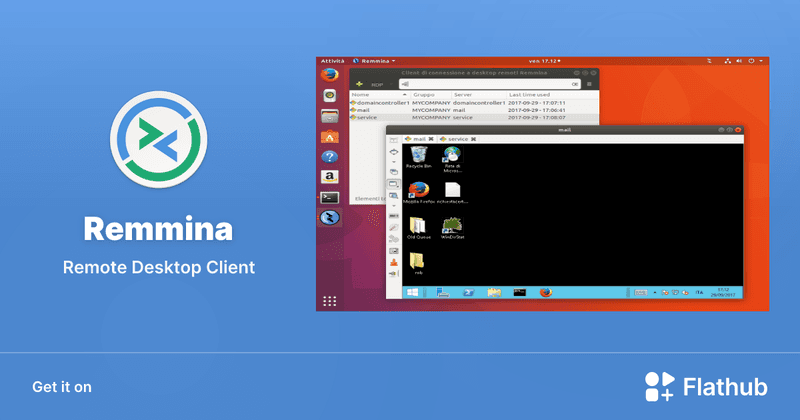
Remmina is a beloved open‑source remote desktop client for Linux, supporting multiple protocols (RDP, VNC, SSH, SPICE, and others) in a single unified interface. It is frequently chosen by system administrators and Linux enthusiasts who need a flexible, lightweight tool to manage diverse environments. Remmina offers tabbed sessions, quick‑connect profiles, and a plugin system that extends its capabilities.
However, its strength - protocol flexibility, also highlights its limitations. As a frontend client rather than a full remote access solution, it lacks features like unattended access, centralized account management, or robust session recording out of the box. Performance can vary by protocol, and the user experience lags behind more polished commercial tools, particularly for users seeking a plug‑and‑play setup.
Free and easy to use
Browser-based setup
Cross-platform access
Very limited features
No advanced management tools
Best for: Casual users needing basic remote access
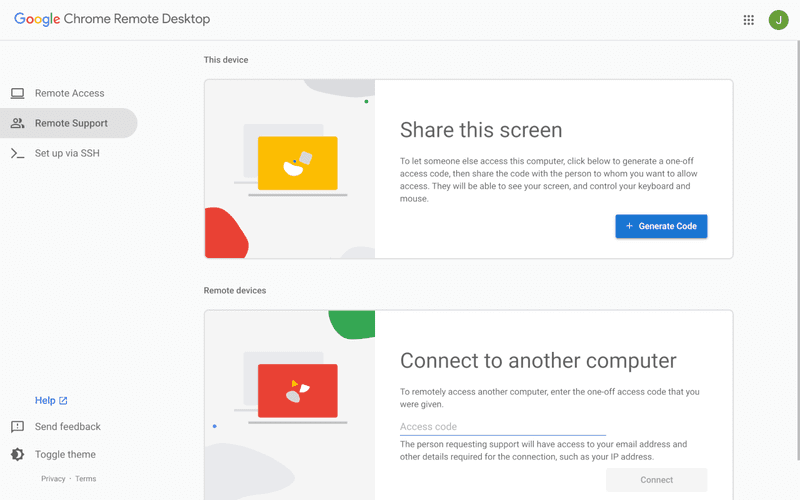
Chrome Remote Desktop is a free, browser‑based remote access tool from Google that requires nothing more than a Chrome browser and a Google account. It excels in simplicity: installation takes seconds, and connections are mediated through Google's infrastructure, eliminating complex firewall configurations. For occasional use—such as helping a family member or quickly accessing a home computer—it works reliably across Windows, macOS, Linux, and even ChromeOS.
The trade‑off is its minimal feature set. There is no native file transfer, multi‑session management, remote printing, or granular permission controls. Collaboration tools are absent, and the reliance on a Google account for authentication can be a limitation in professional environments. It remains a convenient entry‑level tool but struggles to meet the needs of power users or IT teams.
You may also be interested in: |
|---|
High-quality streaming performance
Strong security features
Good for business environments
Reliable connections
Subscription-based pricing
Limited free version
Best for: Businesses needing performance-focused remote access
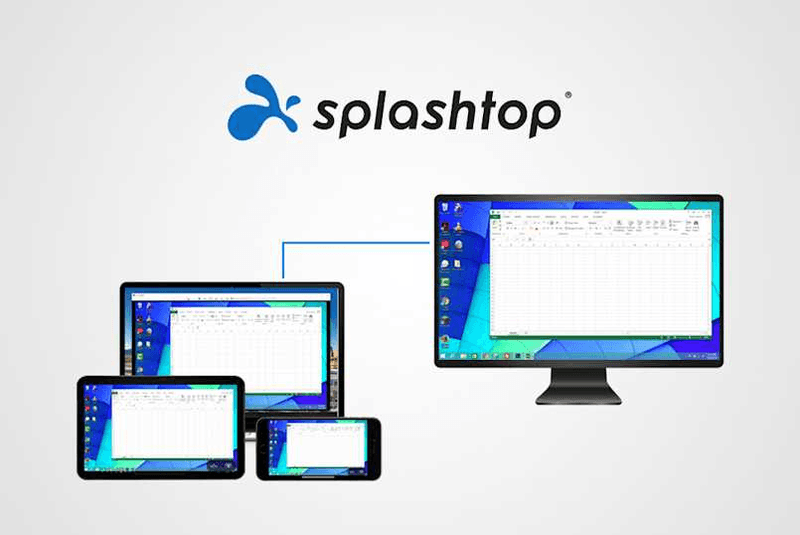
Splashtop is a high‑performance remote desktop solution frequently adopted by creative professionals, educational institutions, and enterprises that prioritize fluid interaction. It delivers low‑latency streaming with support for high‑frame‑rate displays, making it suitable for video editing, CAD work, and other graphics‑intensive tasks. Splashtop offers a range of editions—from Business Access to SOS for on‑demand support—all of which include robust security (AES‑256, device authentication) and features like file transfer, remote printing, and multi‑monitor navigation. Its performance over local networks and the internet is consistently praised.
The primary drawback is cost: while competitive, the subscription model can accumulate quickly for users needing access to multiple devices or advanced features, especially when compared to similarly capable tools with more flexible pricing structures. DeskIn offers similar performance benefits with a more flexible pricing structure, making it a compelling alternative.
You may also be interested in: |
|---|
RDP can be difficult to configure, less secure if exposed, and limited outside Windows environments. Modern tools like DeskIn provide better performance, security, and ease of use.
The best RDP alternative depends on your needs, but DeskIn stands out for its balance of speed, security, and cross-platform compatibility.
Yes, several tools qualify as an RDP alternative free, including RustDesk and Chrome Remote Desktop. DeskIn also offers a free tier with advanced capabilities.
Microsoft is evolving its remote desktop ecosystem, but traditional RDP isn't disappearing overnight. However, many users are already transitioning to more modern solutions like DeskIn for better reliability and flexibility.
RDP has served its purpose, but the digital world has outgrown its limitations. Whether you need better performance, stronger security, or true cross-platform access, switching to a modern RDP alternative is no longer optional, it's inevitable.
Among all the options, DeskIn stands out as a future-ready solution. It combines speed, simplicity, and power into one seamless experience, helping you leave behind the friction of traditional remote desktop tools and step into something far more efficient.
TECHNOLOGY
เปลี่ยน iPad ให้เป็นจอภาพที่สองสำหรับคอมพิวเตอร์ Windows และ Mac
A second monitor can make everyday work feel much easier, especially when you are switching between research, documents, meetings, design files, or dashboards. If you already own an iPad, you may be able to use it as an extra display instead of buying another monitor.
This guide explains how to use an iPad as a second monitor for Mac with Apple Sidecar, and how Windows or cross-platform users can use DeskIn screen extension on supported paid plans.
Increase screen space so you can view more content at the same time. This helps reduce constant window switching during multitasking.
Keep each screen focused on a different task. For example, you can edit a video on one screen and keep source materials on the other, or write a paper while browsing references side by side.
Use the iPad display you already have. For students, remote workers, and light creative work, an iPad can be a convenient and cost-effective second-screen option.
Save desk space and avoid carrying another external monitor when you work from home, travel, or move between rooms.
Apple Sidecar lets compatible iPads work as an external display for compatible MacBook and iMac devices. It is a good native option if both devices support Sidecar and are signed in with the same Apple ID.
Note: To use Apple Sidecar, your Mac and iPad should use the same Apple ID, have Bluetooth and Wi-Fi turned on, and stay within close wireless range. Sidecar availability depends on Apple device and operating system compatibility.
Open the Mac System Settings >> Click "Display" in the sidebar >> Click the "+" pop up menu on the right and choose your iPad.
Select the iPad, change the Use as settings to "Extended Display". Check the Airplay settings on the top toolbar of the mac and set iPad as "Use As Separate Display".
After completing the settings, your iPad will become the second display for your Mac. You can drag windows from your Mac to your iPad smoothly. You can also use the sidebar on the iPad or change the position of the sidebar on the system display settings.
MacBook Screen (Left) and iPad Screen (Right)
Apple Sidecar only supports mac released after 2016 and iPadOS13 or newer. If you are using an old Apple device or a Windows device, you can still use DeskIn remote software to do the screen extension. It supports using iPad as a second display for Mac and Windows, and the smoothness is no worse than sidecar.
Install DeskIn on both your computer and iPad. Sign in to your DeskIn account on each device. When you log in on a new device for the first time, you may need to complete email verification to help protect your account.
To use Screen Extension, you'll need to subscribe to any Premium plan. Click here to view DeskIn plans.
Open DeskIn on your Windows or Mac computer, go to the screen management area, and choose the screen extension option. Select your iPad as the target display and start extending.
Once connected, your iPad can work as an additional display, letting you move windows between your computer and iPad for a wider workspace.
Computer Screen (Left) and iPad Screen (Right)
After extension, if you find that your iPad is only mirroring the content on your computer screen, please go to Windows System Settings >> Display Settings and change the screen option to "Extend these displays". You can also modify the screen position by dragging the 2 screens.
Need | Best Option | Why |
Use iPad as a second monitor for a compatible Mac | Apple Sidecar | Built into Apple devices and easy to set up when both devices are compatible. |
Use iPad as a second monitor for Windows | DeskIn | Sidecar does not support Windows, while DeskIn supports cross-platform screen extension on eligible plans. |
Work across Windows, macOS, iPad, Android tablets, and mobile devices | DeskIn | Better suited for users who need cross-platform remote access and flexible device combinations. |
Yes. Windows does not support Apple Sidecar, but you can use DeskIn screen extension on a paid plan that includes this feature to turn your iPad into an additional display for a Windows computer.
DeskIn Screen Extension is included in all paid plans. After subscribing, you can use it across all supported systems with no restrictions.
Yes. DeskIn supports using an iPad as an additional screen with Windows and Mac computers when your plan includes screen mirroring or screen extension.
Using an iPad as a second monitor is a practical way to expand your workspace without buying another display. Mac users with compatible devices can use Apple Sidecar, while Windows and cross-platform users can use DeskIn screen extension on eligible paid plans.
If you want to work across Windows, macOS, iPad, and other devices, DeskIn gives you a flexible way to build a portable multi-screen workspace. Download DeskIn and choose the plan that fits your screen extension and remote access needs.
TECHNOLOGY
Top 6 RustDesk Alternative Tools for Faster, Easier Remote Access
Remote access should feel like flipping a light switch, not decoding a control panel. Yet many users exploring RustDesk eventually run into friction: connection IDs, server setup, or occasional lag. While RustDesk is powerful, it’s not always the easiest or smoothest option, especially for non-technical users.
That’s why more people are actively searching for a reliable RustDesk alternative that combines performance, simplicity, and flexibility. Whether you want a plug-and-play solution or something more advanced, this guide will help you find the best fit.
RustDesk stands out as a privacy-friendly, self-hosted remote desktop tool. However, real-world usage reveals a few common challenges:
Complicated setup for the RustDesk self-hosted environments
Manual connection steps requiring IDs and passwords
Occasional latency or unstable connections
Limited user-friendly features out of the box
For many users, especially those helping family or managing multiple devices, simplicity matters just as much as control.
When evaluating a RustDesk alternative, focus on these key factors:
Ease of use: Quick setup without technical overhead
Performance: Smooth, low-latency remote sessions
Compatibility: Support for Windows, macOS, Linux, and mobile
Security: Strong encryption and access controls
Flexibility: Options ranging from cloud-based to open source
The ideal tool strikes a balance between power and convenience, something many modern solutions now deliver better than traditional setups.
Here’s a quick breakdown of the top tools and where they shine:
DeskIn – Best all-in-one RustDesk alternative for performance and ease of use
AnyDesk – Best lightweight tool for fast connections
TeamViewer – Best for enterprise-grade remote support
MeshCentral – Best open-source and self-hosted solution
DWService – Best free browser-based tool
Chrome Remote Desktop – Best simple, no-frills option
Ultra-low latency with smooth high-frame-rate streaming
No complex setup or server deployment required
Cross-platform including Rustdesk alternative for Android
Secure with encryption and device control features
Built-in file transfer and multi-device management
Smaller awareness than legacy competitors
Best for: Users who want a powerful yet simple remote desktop solution
DeskIn removes the friction that often comes with remote access tools. Instead of relying on IDs or manual configurations, it offers a streamlined connection experience that works right out of the box. This makes it especially valuable for users supporting non-technical family members or managing multiple remote devices.
Performance is where DeskIn truly distinguishes itself. Compared to RustDesk, which can sometimes struggle with latency, DeskIn delivers consistently smooth sessions with minimal lag. It also eliminates the need for self-hosting, making it a strong free RustDesk alternative option for users who want powerful features without the complexity.
For those exploring options beyond the RustDesk alternative GitHub projects, DeskIn provides a polished, ready-to-use experience that balances simplicity with professional-grade performance.
Lightweight and fast installation
Good performance on low bandwidth
Cross-platform support
Easy-to-use interface
Performance may drop during long sessions
File transfer can be inconsistent
Best for: Users needing quick and simple remote access
AnyDesk is often considered a natural step up from RustDesk for users who want something easier to deploy. It offers a lightweight application that connects quickly and performs well under normal conditions. This makes it suitable for quick troubleshooting or occasional remote access.
However, performance consistency can be an issue. Users frequently report lag or instability during extended sessions or when handling more demanding tasks. While AnyDesk is a solid option for basic needs, it may not fully satisfy users looking for a more robust, all-in-one solution.
👀 You may also be interested in: |
|---|
Enterprise-grade security with encryption and 2FA
Stable performance across global networks
Rich features like file transfer and session recording
Broad device compatibility
Expensive for commercial use
Free version has limitations
Heavier resource usage on some systems
Best for: Businesses and IT teams managing multiple endpoints
TeamViewer has long been a dominant player in the remote desktop space, offering a comprehensive suite of features designed for enterprise environments. It excels in reliability and global connectivity, making it a popular choice for IT support teams.
That said, its pricing model is a major drawback for many users. Frequent users may quickly encounter licensing restrictions, and costs can escalate for businesses. Additionally, its heavier footprint can impact performance on lower-end devices. DeskIn offers a more modern alternative by delivering similar performance and essential features without the same cost barriers. For users who want enterprise-level capabilities with better efficiency, it presents a compelling option.
👀 You may also be interested in: |
|---|
Fully RustDesk alternative open source solution
Web-based management dashboard
Supports multi-device environments
Strong customization and control
Complex setup and maintenance
Requires technical expertise
Best for: Advanced users needing a Rustdesk alternative self-hosted
MeshCentral is a powerful open-source platform designed for users who want full control over their remote access infrastructure. It supports multiple devices and provides a centralized dashboard for management, making it attractive for IT professionals.
However, this flexibility comes with complexity. Setting up and maintaining a MeshCentral server requires technical knowledge, which can be a barrier for many users. Compared to this, DeskIn offers a much simpler deployment process while still delivering strong performance and security. For users who prioritize ease of use over full control, modern solutions like DeskIn provide a more accessible alternative.
Completely free
Browser-based access
Open-source foundation
Simple setup
Limited performance
Basic feature set
Best for: Users looking for a simple, free RustDesk alternative
DWService offers a browser-based approach to remote access with no heavy installation, making it convenient for quick connections in restricted environments. It supports both desktop access and file management across major platforms.
However, performance often feels sluggish, especially on demanding tasks, and features remain basic; lacking session recording, smooth multi-monitor support, or advanced security controls. While suitable for occasional personal use, it falls short for professional or high-performance scenarios.
Free and easy to use
Browser-based setup
Cross-platform compatibility
Very limited features
No advanced management or collaboration tools
Best for: Casual users needing basic remote access
Chrome Remote Desktop is one of the simplest remote access tools available. It’s easy to set up and works across devices, making it a convenient choice for occasional use.
However, it lacks many essential features such as file transfer, session management, and advanced security controls. For users with more demanding needs, it quickly becomes insufficient. Compared to Chrome Remote Desktop, DeskIn provides a much more complete experience without sacrificing ease of use, making it a better long-term solution.
👀 You may also be interested in: |
|---|
RustDesk is powerful but can be difficult to set up and manage, especially with self-hosting. Many users prefer tools that offer similar performance without technical complexity. DeskIn simplifies remote access while maintaining strong performance and security.
Several tools qualify as a free RustDesk alternative, including DWService and Chrome Remote Desktop. However, DeskIn stands out by offering better performance and usability even in its free version.
Yes, tools like MeshCentral and DWService are considered RustDesk alternative open source options. They provide flexibility and control but often require technical expertise to set up and maintain.
Beginners should choose tools with a simple setup and intuitive interfaces. DeskIn is an excellent option because it removes the need for manual configuration while still delivering advanced features.
RustDesk is a powerful starting point, but it’s not always the easiest or most efficient tool for everyday use. From setup complexity to performance limitations, many users eventually look for a better RustDesk alternative.
Among all the options, DeskIn stands out as the most balanced solution. It combines speed, simplicity, and cross-platform support into one seamless experience. If you’re ready to move beyond technical friction and enjoy truly smooth remote access, DeskIn is a choice that simply works.
Products
ดาวน์โหลด
Resources
ติดต่อเรา
Email: support@deskin.io
Office: 991D Alexandra Road #02-17, Singapore 119972
Copyright © 2026 Zuler Technology PTE. LTD. All rights reserved.
ติดต่อเรา
Email: support@deskin.io
Office: 991D Alexandra Road #02-17, Singapore 119972
Products
ดาวน์โหลด
Resources
Copyright © 2026 Zuler Technology PTE. LTD. All rights reserved.
Products
ดาวน์โหลด
Resources
ติดต่อเรา
support@deskin.io
991D Alexandra Road #02-17
Singapore 119972
Copyright © 2026 Zuler Technology PTE. LTD. All rights reserved.
【New User Special Offer】
Save
Extra 20%
on your first order|4K60FPS
Extra
20% Off
|For
New Users
【New User Special Offer】
Save
Extra 20%
on first order


