ประสิทธิภาพ
ประสิทธิภาพ
·
10 นาที
·
10 นาที
การวิเคราะห์ข้อมูล
Published on
Updated on
Updated on
Let’s face it. We’re living in a world where “the office” could mean your apartment, a train seat, or even a hotel lobby. But what happens when your main computer is many miles away and you need a file or access to an app? What happens when you need a quick fix for a client problem?
Remote viewing comes right in there. It’s simple, incredibly useful, and — let’s be honest — a little sci-fi in the best way. With the right setup, you can access your main device from almost anywhere, without lugging all your gear around. This trick is worth learning for you, whether you are a digital nomad, a freelancer, a remote support tech, or just someone who forgets files.
So, what is remote viewing in tech?
A remote viewing tool lets you access and control another device (usually your primary desktop or laptop) over the internet from a different device. And it’s more than just watching a screen. You can interact with the system in real-time: open apps, type, click, edit, drag files around — you can even restart the remote computer. Unlike screen sharing, where you’re mostly limited to observing, remote viewing tools give you full control.
Here are a few popular options:
DeskIn – DeskIn connects both smoothly and also offers a modern interface. It is great for both professionals and creatives.
AnyDesk – Even though free versions can be limited, AnyDesk is popular, and it is easy to use.
Chrome Remote Desktop – Chrome Remote Desktop is a Browser-based remote access tool. It is also simple to set up.
For this guide, we will highlight DeskIn– our go-to remote access software for its fast speed, free plan, and also cross-platform compatibility.
Let’s break down how remote viewing makes your day-to-day work easier and more flexible.
You can say goodbye to carrying a heavy laptop from now on. Your main workstation can stay safely at home while you work through another PC, smartphone, or tablet through remote viewing.
This setup lets you log in to your usual environment quickly and easily, whether you’re traveling, working from a coffee shop, or just in another room. You’ll have full access to all your files, programs, and settings without missing a beat.
It’s particularly useful for:
Freelancers on the move
Designers needing full desktop power through a lightweight tablet
Students accessing school projects from the library
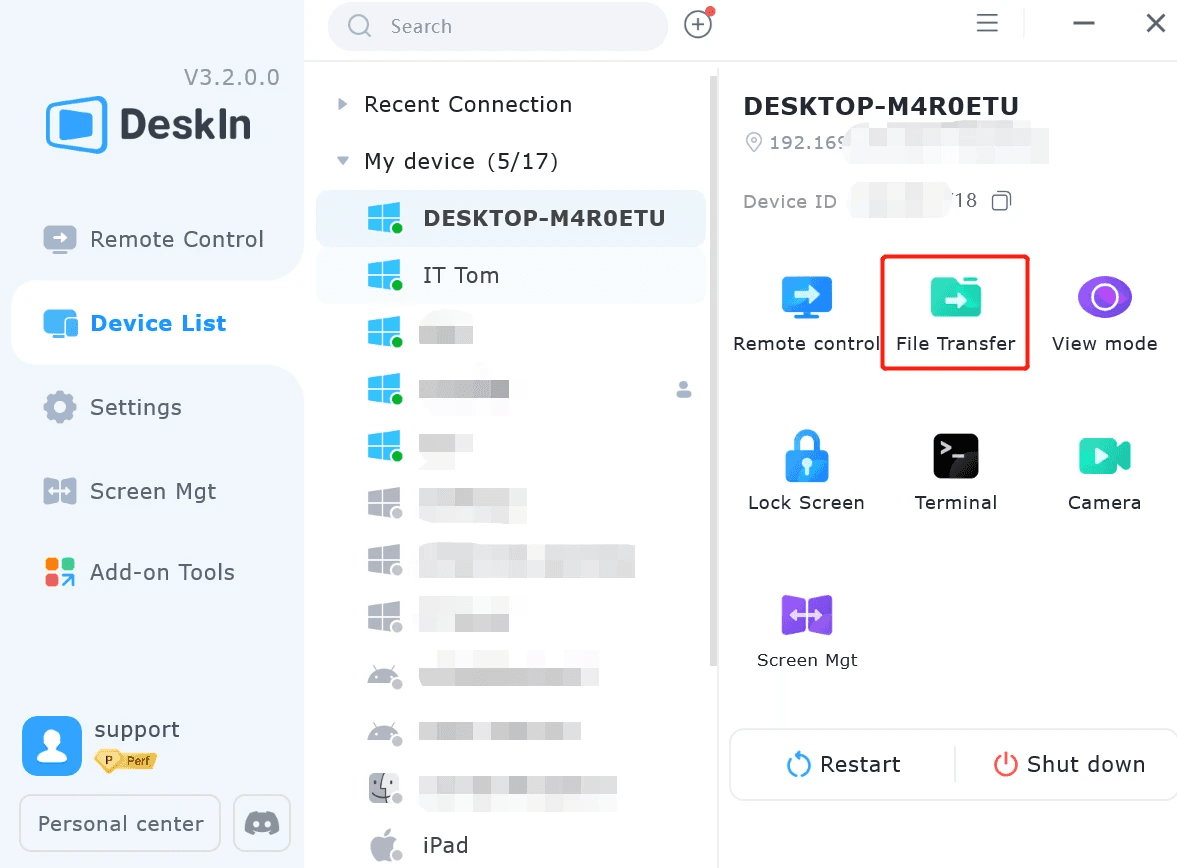
Ever had that “Oh no, it’s on my other laptop” moment? We’ve all been there — that heart-stopping second when you realize your pitch deck, that ultra-important client file, or even your half-finished design is stranded miles away on your home computer. With a remote tool, it doesn’t matter. Simply open up the app, and then connect to your computer. You are then able to grab whatever you need.
You can:
Transfer files between cross-systems.
Directly edit files on your remote desktop environment
Avoid emailing files back and forth to yourself
Want a quick mobile-focused guide? Learn how to access files on your computer from Android for fast on-the-go productivity.
Sometimes, less is more.
When you use remote viewing from your iPad (or any sleek little sidekick), you’re not just controlling another computer — you’re curating your space. No messy desktops. No side chats. Just you and the one thing you actually need open: your design tool, email app, or whatever mission you're on today.
This setup is great for:
Deep work or writing sessions
Reviewing work without notifications
Creative tasks like video editing, digital art, or layout design
It’s a small change that can make a big difference, especially when you turn your iPad into a second monitor to improve your work efficiency.
Remote viewing isn’t just for solo work — it’s for helping people without moving more than a finger. Frankly, if you’re known as the tech-savvy one in your group, you’ve probably been asked to fix someone’s phone — likely during the phone call itself.
Your dad can’t find the Settings icon. Again.
Your teammate’s screen freezes right before a big deadline.
Your client is in full-on panic mode because their app isn’t doing what it’s supposed to.
Instead of walking them through a 12-step process, you just remote in. This eliminates any need for one to say, “No, not that button!”
Curious how remote viewing also helps with remote support and troubleshooting? Here’s how you can rescue your PC from anywhere using DeskIn.

Remote viewing isn’t just about accessing a desktop—it’s about working in a way that is better, faster, and also more flexible. DeskIn delivers that experience, with security, clarity, and speed, that mobile professionals need today.
Whether you’re a designer on an iPad, a digital nomad juggling time zones, or a multitasker who moves between screens, DeskIn isn’t just helpful—it’s transformative.
Instant Response, Real-Time Control: Forget the lag. Remote interactions can feel smooth with DeskIn, which delivers performance that is lightning-fast and latency that is as low as 40ms, like local work.
4K Clarity for Pixel-Perfect Work: DeskIn supports up to 4K 60FPS and 2K 144FPS using True Color rendering, giving you a crystal-clear view of your desktop no matter what device you’re using.
Security That Protects You, Wherever You Work: Because DeskIn takes security seriously, it ensures remote productivity with enterprise-grade protection for every user. DeskIn lets you confidently work securely on any network, even public Wi-Fi when accessing financial data or editing a slide deck. Here’s what’s built in:
AES-256-bit encryption for every session
TLS end-to-end encryption to keep data secure during transit
Multi-factor authentication (MFA) to block unauthorized logins
Permission-based access controls—you choose who can connect and what they can see
Free Advanced features: DeskIn includes powerful features at no extra cost
Screen Mirroring: Share your screen in real-time—ideal for presentations, gaming, or remote feedback.
Screen Extension: Turn a second device into an extra display to boost multitasking.
Auto 3D View for Gaming: Enjoy optimized visuals and smoother remote play with automatic 3D rendering.
DeskIn makes setting up remote viewing as easy as ordering your favorite latte — no tech wizardry required (though the results might feel like it).
Whether you're editing Photoshop layers from your iPad in bed, reviewing files on your iPhone while riding in an Uber, or tapping into your MacBook from a coffee shop, DeskIn makes it effortless.
Cross-Platform, No Problem
First off, DeskIn is built for cross-platform flexibility. DeskIn works across Windows, macOS, Android, and iOS—mix and match freely. As long as your devices are online, you can connect without cables, OS limits, or hassle.
Your main computer is the hub of your remote setup — it’s the device you’ll be controlling from another pc, phone, or tablet.
Step 1: Download DeskIn on Your Main PC or Mac
Go to DeskIn’s official website or App Store, choose your platform (macOS or Windows), and download and run the installer.

Step 2: Install and Sign Up
Open DeskIn after installation, click “Sign Up” or “Log In” as needed, and register your email to get started.
Step 3: Set macOS Permissions (Skip This Step if You’re on Windows)
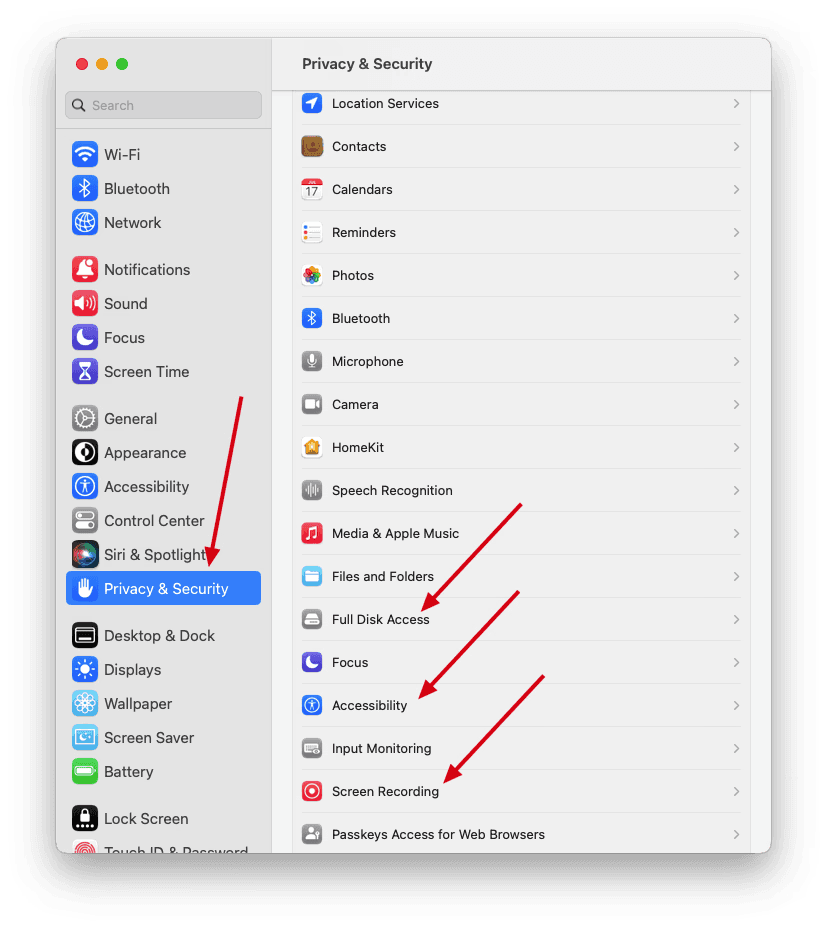
macOS will request permissions, just head to Privacy & Security and enable Screen Recording, Accessibility, and Full Disk Access.
Step 4: Customize Device Name and Set Access Password
For instance, give your device a name like “Office-PC,” something that is memorable, and set up a connection password for extra security.
Step 5: Keep DeskIn Running in the Background
Keep DeskIn running for remote sessions, enable auto-start via DeskIn Settings → General → Autostart, and your desktop will be ready for remote control.
This is your remote control center—perfect for file access, quick edits, or emergency tech support on the move.
Step 1: Download the Mobile App
Search for DeskIn on the App Store for iOS or on Google Play for Android.
Step 2: Log In with Your DeskIn Account
Use the same email and password you used to register your desktop
Step 3: Choose Your Host Device
Once logged in, select the device you want to connect to from the list, enter the password if prompted, choose ‘remote control,’ and start remote viewing.

This is your portable workstation—ideal for creatives, writers, and remote workers who want a big screen without the bulk.
Step 1: Download DeskIn from Your App Store
Just like mobile, search “DeskIn” on your tablet’s app store and install it
Step 2: Log In
Use your existing DeskIn account, and your registered laptop or desktop will appear
Step 3: Connect to Your Computer
Tap the listed device, choose the remote control feature, enter the password if prompted, and you’re in your remote workspace.

Step 4: Optimize for Tablet Power Use
Creative Workflows
Use Apple Pencil or a stylus to navigate design software (e.g., Figma, Photoshop)
Draw, annotate, or sign documents as if you were using a desktop pen tablet
Add Mouse + Keyboard
Connect Bluetooth accessories to turn your tablet into a full productivity station
Useful for spreadsheet work, copywriting, editing, or software development
In today’s work-anywhere world, productivity isn’t about location but about what you can access. Remote viewing lets you reclaim control of your time, your workflow, and your freedom, not just a connection to a screen.
DeskIn makes it effortless — whether you’re reviewing designs from a café, fixing a file from your phone, or running your entire desktop from a tablet. It’s beautifully clear, secure, also fast, working across all your devices—without the headaches of customary remote access tools.
If you are ready to leave all the limitations behind, now is the time. You, too, can embrace the true productivity that is location-free.
👉 Click here to download DeskIn.
Looking for alternatives before you decide? We’ve compared DeskIn with other remote work software options so you can see why DeskIn stands out for remote viewing.
Let’s face it. We’re living in a world where “the office” could mean your apartment, a train seat, or even a hotel lobby. But what happens when your main computer is many miles away and you need a file or access to an app? What happens when you need a quick fix for a client problem?
Remote viewing comes right in there. It’s simple, incredibly useful, and — let’s be honest — a little sci-fi in the best way. With the right setup, you can access your main device from almost anywhere, without lugging all your gear around. This trick is worth learning for you, whether you are a digital nomad, a freelancer, a remote support tech, or just someone who forgets files.
So, what is remote viewing in tech?
A remote viewing tool lets you access and control another device (usually your primary desktop or laptop) over the internet from a different device. And it’s more than just watching a screen. You can interact with the system in real-time: open apps, type, click, edit, drag files around — you can even restart the remote computer. Unlike screen sharing, where you’re mostly limited to observing, remote viewing tools give you full control.
Here are a few popular options:
DeskIn – DeskIn connects both smoothly and also offers a modern interface. It is great for both professionals and creatives.
AnyDesk – Even though free versions can be limited, AnyDesk is popular, and it is easy to use.
Chrome Remote Desktop – Chrome Remote Desktop is a Browser-based remote access tool. It is also simple to set up.
For this guide, we will highlight DeskIn– our go-to remote access software for its fast speed, free plan, and also cross-platform compatibility.
Let’s break down how remote viewing makes your day-to-day work easier and more flexible.
You can say goodbye to carrying a heavy laptop from now on. Your main workstation can stay safely at home while you work through another PC, smartphone, or tablet through remote viewing.
This setup lets you log in to your usual environment quickly and easily, whether you’re traveling, working from a coffee shop, or just in another room. You’ll have full access to all your files, programs, and settings without missing a beat.
It’s particularly useful for:
Freelancers on the move
Designers needing full desktop power through a lightweight tablet
Students accessing school projects from the library
Ever had that “Oh no, it’s on my other laptop” moment? We’ve all been there — that heart-stopping second when you realize your pitch deck, that ultra-important client file, or even your half-finished design is stranded miles away on your home computer. With a remote tool, it doesn’t matter. Simply open up the app, and then connect to your computer. You are then able to grab whatever you need.
You can:
Transfer files between cross-systems.
Directly edit files on your remote desktop environment
Avoid emailing files back and forth to yourself
Want a quick mobile-focused guide? Learn how to access files on your computer from Android for fast on-the-go productivity.
Sometimes, less is more.
When you use remote viewing from your iPad (or any sleek little sidekick), you’re not just controlling another computer — you’re curating your space. No messy desktops. No side chats. Just you and the one thing you actually need open: your design tool, email app, or whatever mission you're on today.
This setup is great for:
Deep work or writing sessions
Reviewing work without notifications
Creative tasks like video editing, digital art, or layout design
It’s a small change that can make a big difference, especially when you turn your iPad into a second monitor to improve your work efficiency.
Remote viewing isn’t just for solo work — it’s for helping people without moving more than a finger. Frankly, if you’re known as the tech-savvy one in your group, you’ve probably been asked to fix someone’s phone — likely during the phone call itself.
Your dad can’t find the Settings icon. Again.
Your teammate’s screen freezes right before a big deadline.
Your client is in full-on panic mode because their app isn’t doing what it’s supposed to.
Instead of walking them through a 12-step process, you just remote in. This eliminates any need for one to say, “No, not that button!”
Curious how remote viewing also helps with remote support and troubleshooting? Here’s how you can rescue your PC from anywhere using DeskIn.
Remote viewing isn’t just about accessing a desktop—it’s about working in a way that is better, faster, and also more flexible. DeskIn delivers that experience, with security, clarity, and speed, that mobile professionals need today.
Whether you’re a designer on an iPad, a digital nomad juggling time zones, or a multitasker who moves between screens, DeskIn isn’t just helpful—it’s transformative.
Instant Response, Real-Time Control: Forget the lag. Remote interactions can feel smooth with DeskIn, which delivers performance that is lightning-fast and latency that is as low as 40ms, like local work.
4K Clarity for Pixel-Perfect Work: DeskIn supports up to 4K 60FPS and 2K 144FPS using True Color rendering, giving you a crystal-clear view of your desktop no matter what device you’re using.
Security That Protects You, Wherever You Work: Because DeskIn takes security seriously, it ensures remote productivity with enterprise-grade protection for every user. DeskIn lets you confidently work securely on any network, even public Wi-Fi when accessing financial data or editing a slide deck. Here’s what’s built in:
AES-256-bit encryption for every session
TLS end-to-end encryption to keep data secure during transit
Multi-factor authentication (MFA) to block unauthorized logins
Permission-based access controls—you choose who can connect and what they can see
Free Advanced features: DeskIn includes powerful features at no extra cost
Screen Mirroring: Share your screen in real-time—ideal for presentations, gaming, or remote feedback.
Screen Extension: Turn a second device into an extra display to boost multitasking.
Auto 3D View for Gaming: Enjoy optimized visuals and smoother remote play with automatic 3D rendering.
DeskIn makes setting up remote viewing as easy as ordering your favorite latte — no tech wizardry required (though the results might feel like it).
Whether you're editing Photoshop layers from your iPad in bed, reviewing files on your iPhone while riding in an Uber, or tapping into your MacBook from a coffee shop, DeskIn makes it effortless.
Cross-Platform, No Problem
First off, DeskIn is built for cross-platform flexibility. DeskIn works across Windows, macOS, Android, and iOS—mix and match freely. As long as your devices are online, you can connect without cables, OS limits, or hassle.
Your main computer is the hub of your remote setup — it’s the device you’ll be controlling from another pc, phone, or tablet.
Step 1: Download DeskIn on Your Main PC or Mac
Go to DeskIn’s official website or App Store, choose your platform (macOS or Windows), and download and run the installer.
Step 2: Install and Sign Up
Open DeskIn after installation, click “Sign Up” or “Log In” as needed, and register your email to get started.
Step 3: Set macOS Permissions (Skip This Step if You’re on Windows)
macOS will request permissions, just head to Privacy & Security and enable Screen Recording, Accessibility, and Full Disk Access.
Step 4: Customize Device Name and Set Access Password
For instance, give your device a name like “Office-PC,” something that is memorable, and set up a connection password for extra security.
Step 5: Keep DeskIn Running in the Background
Keep DeskIn running for remote sessions, enable auto-start via DeskIn Settings → General → Autostart, and your desktop will be ready for remote control.
This is your remote control center—perfect for file access, quick edits, or emergency tech support on the move.
Step 1: Download the Mobile App
Search for DeskIn on the App Store for iOS or on Google Play for Android.
Step 2: Log In with Your DeskIn Account
Use the same email and password you used to register your desktop
Step 3: Choose Your Host Device
Once logged in, select the device you want to connect to from the list, enter the password if prompted, choose ‘remote control,’ and start remote viewing.
This is your portable workstation—ideal for creatives, writers, and remote workers who want a big screen without the bulk.
Step 1: Download DeskIn from Your App Store
Just like mobile, search “DeskIn” on your tablet’s app store and install it
Step 2: Log In
Use your existing DeskIn account, and your registered laptop or desktop will appear
Step 3: Connect to Your Computer
Tap the listed device, choose the remote control feature, enter the password if prompted, and you’re in your remote workspace.
Step 4: Optimize for Tablet Power Use
Creative Workflows
Use Apple Pencil or a stylus to navigate design software (e.g., Figma, Photoshop)
Draw, annotate, or sign documents as if you were using a desktop pen tablet
Add Mouse + Keyboard
Connect Bluetooth accessories to turn your tablet into a full productivity station
Useful for spreadsheet work, copywriting, editing, or software development
In today’s work-anywhere world, productivity isn’t about location but about what you can access. Remote viewing lets you reclaim control of your time, your workflow, and your freedom, not just a connection to a screen.
DeskIn makes it effortless — whether you’re reviewing designs from a café, fixing a file from your phone, or running your entire desktop from a tablet. It’s beautifully clear, secure, also fast, working across all your devices—without the headaches of customary remote access tools.
If you are ready to leave all the limitations behind, now is the time. You, too, can embrace the true productivity that is location-free.
👉 Click here to download DeskIn.
Looking for alternatives before you decide? We’ve compared DeskIn with other remote work software options so you can see why DeskIn stands out for remote viewing.



How to Play MapleStory Classic World on Mac
A lot of the players who are most excited about MapleStory Classic World grew up on 2005-era MapleStory — and a large share of that generation now does its computing on a MacBook. Nexon clearly knows this: a native macOS client was on the feature list for the second Closed Online Test, which ran August 4–12, 2026, alongside Ossyria and third job advancement. But as of this writing, that Mac client is still in development, not publicly available, and there's still no confirmed public launch date for the game itself.
So if you want to play MapleStory Classic World on a Mac right now — or want a reliable plan for when the game does launch — you've got two real options: run Windows in a virtual machine, or use DeskIn remote desktop to control an actual Windows PC from your Mac. This guide covers both, including a login-conflict issue that catches a lot of virtual machine users off guard.
Not yet, publicly. Nexon's May 2026 roadmap update confirmed macOS support is in development, and it appeared as a testable feature in the second Closed Online Test. Windows PC remains the confirmed launch platform, and Nexon hasn't said whether the Mac client will be ready at launch or arrive afterward. The game hasn't had a full public release on any platform — Nexon has said one more test is planned before launch.
Given that, Mac players currently have two ways in: a Windows virtual machine, or remote desktop software that connects to a real Windows PC.
Classic World is exclusive to GMS (Global MapleStory), covering North America, Europe, and most other regions without a local Nexon partner. Markets with their own official MapleStory service — Korea, China, Japan, Taiwan/Hong Kong, and Southeast Asia — aren't GMS-eligible, so Mac players in those regions would need a VPN to reach Classic World, which isn't recommended. Whether NA and EU will run as separate worlds hasn't been confirmed.
Tools like Parallels Desktop or VMware Fusion let you run a full Windows install inside macOS, and then install MapleStory Classic World the way a Windows user would. It works, but it asks a lot of your Mac's hardware.
RAM: 16GB minimum recommended; 8GB is genuinely tight, since macOS and Windows are both running at once and macOS alone can eat most of that before Windows gets a share. For a comfortable setup with guides or Discord open on the side, aim for 32GB.
CPU/GPU: Virtual machines can't pass hardware through at 100%; graphics get software-emulated, which typically costs 20–30% of the performance you'd get on native Windows hardware.
Thermals: Running two full operating systems under load generates real heat, and laptop-class Macs with limited cooling can throttle during longer grinding sessions.
Apple Silicon translation overhead: M-series Macs can only run Windows on ARM in a VM. If Classic World ships as an x86/x64 build, it needs an extra translation layer to run at all, stacking on top of the virtualization overhead already mentioned.
Anti-cheat compatibility is a real unknown: the original MapleStory has historically been hostile to virtualized environments because of its anti-cheat system, and Nexon hasn't said how Classic World's anti-cheat will treat VMs. Treat virtualization as a maybe, not a guaranteed plan.
There's also the practical overhead: setting up a VM means downloading a Windows image, allocating dozens of gigabytes of disk space, installing display drivers, and — on Apple Silicon — dealing with ARM compatibility quirks that don't show up on a real x86 PC. Keyboard shortcuts can also conflict, since macOS system shortcuts (Control, Option, Command) don't always play nicely with a Windows game's default keybinds.
Instead of building a Windows environment inside your Mac, DeskIn lets you connect directly to a Windows PC you already have — your desktop at home, a work machine, or a spare laptop — and control it from your Mac in real time. The game runs on genuine Windows hardware the whole time, so there's no emulation tax, no ARM translation layer, and no anti-cheat guessing game.
A virtual machine makes sense if:
You don't have access to any Windows PC at all, so a Mac VM is your only option.
Your Mac has strong specs — 16GB+ RAM, ideally 32GB, and a higher-end M-series chip that can absorb the performance loss.
You're comfortable with a fairly technical setup process.
You rarely need to switch between devices, so the single-login limitation isn't a practical issue for you.
DeskIn makes more sense if:
You already have a Windows PC (or another Mac) that can run MapleStory Classic World, and you just want to reach it from your MacBook.
You're traveling or away from your desk often and want to pick up where you left off without re-downloading anything.
You don't want to deal with logging out of one device every time you switch to another.
Your Mac has more modest specs, and you'd rather not risk stutters, crashes, or a game that won't launch at all.
If you already own a Windows machine, DeskIn is generally the lower-effort, lower-risk choice. A VM is really a fallback for players with no Windows access and a Mac powerful enough to absorb the overhead.
Step 1: Set up the Windows PC. Install MapleStory Classic World on a Windows PC and create your character, then install DeskIn on that same PC, sign in, and enable unattended access with a connection password so you can reach it later without anyone at the keyboard.
Step 2: Install DeskIn on your Mac. Download the macOS version of DeskIn, sign in with the same account, and your Windows PC will appear in your device list.
Step 3: Connect. Select the PC, enter the connection password, and you'll get a live view of the Windows desktop that you control with your Mac's mouse and trackpad — the same session, the same login, no conflicts.
Step 4: Tune quality for your connection. On a stable connection, push quality up to enjoy Classic World's remastered pixel art in full detail; on the road, prioritize smoothness to cut down on input lag.
Step 5: Log in and play. Open the game inside the remote session and log in as usual — grinding, party quests, and shopping all work exactly as they would sitting at the PC directly.
Resolution and quality: Free-tier users should start around 720p/30fps for a stable baseline; paid-tier users can push up to 4K 60FPS or 2K 240FPS on a strong connection to get the most out of Classic World's art.
Screen scaling: If your Mac and Windows PC have very different display sizes, use DeskIn's automatic scaling option in the toolbar, or adjust the remote PC's resolution to match your Mac's screen more closely.
Keyboard and mouse mapping: DeskIn maps your Mac's keyboard directly to the remote PC. Turning on Game Mouse mode prevents the keyboard from getting locked mid-session.
Controller support: If Mac keyboard controls feel awkward, pair a controller to your Mac and enable controller mapping from the toolbar — DeskIn will pass those inputs straight through to the remote PC.
Simple Setup:No Windows installation required — connect and start playing within minutes.
Doesn't tax your Mac's hardware. All the actual computation happens on the remote Windows PC; your Mac just displays the stream and sends inputs.
Performance and compatibility match native Windows, because that's exactly what's running — no ARM translation layer to worry about.
No account login conflicts, since DeskIn connects to the same existing session instead of creating a new device.
Cross-device flexibility. The same account lets you connect from Mac, iPhone, iPad, or Android, and it's always the same underlying session — no juggling logins between devices.
Not publicly yet. Nexon has confirmed a macOS client is in development and tested it in the second Closed Online Test, but Windows remains the confirmed launch platform and no public Mac release has shipped.
Yes. DeskIn uses end-to-end encryption and two-factor login, and since you're remotely operating a PC you already control, your credentials never pass through a third party.
Technically you can install one, but the experience will be rough. With 8GB split between macOS and Windows, there's very little left over for Windows, and stutters or crashes become likely during longer sessions. DeskIn is the more stable option here, since the remote PC handles all the processing — your Mac's RAM isn't a bottleneck.
Real-world performance depends on both ends' network quality, but since DeskIn connects to native Windows hardware with no virtualization overhead, and its low-latency streaming keeps end-to-end delay under 40ms on a good connection, it typically feels smoother than a resource-constrained VM.
No. DeskIn controls the same PC and the same already-active session rather than logging in as a new device, so it doesn't trigger MapleStory's single-session login limit — this is exactly the conflict that trips up VM users switching between two separate Windows installs.
DeskIn needs a Windows (or other supported platform) machine to connect to. If you don't have one, consider borrowing access to a friend's or family member's PC, or renting a cloud Windows machine as your connection target.
DeskIn supports Windows, macOS, iOS, and Android. A Mac can connect to a Windows PC, and a Windows PC can just as easily connect to and control a Mac.
MapleStory Classic World doesn't have a public Mac client yet, but that doesn't mean Mac players have to gamble on a resource-hungry virtual machine and hope the anti-cheat cooperates. If you already have access to a Windows PC that can run the game — or even another Mac — connecting to it through DeskIn gets you native Windows performance, none of the virtualization overhead, and none of the account-login headaches that come with running a second "device." Set it up once, and you'll be ready to log in the moment Classic World opens its doors.

How to Play MapleStory Classic World on Mobile Before the Official App Arrives
MapleStory Classic World has turned into one of the most-searched topics in the MapleStory community this year. Nexon's pre-Big Bang server pulled in roughly 5,000 players for its first Closed Online Test back in April 2026, and thousands more signed up for the second test that ran August 4–12, 2026. With Ossyria, third job advancement, and controller support now confirmed, interest has never been higher — and a lot of that interest is coming from players who want to know one thing: can you play MapleStory Classic World on your phone?
Short answer: not with an official app, not yet. This guide breaks down exactly what Nexon has confirmed about platforms so far, then walks through how DeskIn remote desktop lets you play MapleStory Classic World on mobile right now, without waiting on an app that hasn't been announced.
As of this writing, Nexon has not announced a mobile or console version of MapleStory Classic World. The confirmed platforms are Windows PC and macOS — macOS support was specifically added as a testable feature during the second Closed Online Test in August 2026, alongside Ossyria and third job advancement, but it's still listed as "in development" rather than publicly available.
There's also no full public launch date yet. Nexon has run two Closed Online Tests so far and has said one more test is planned before release, so most community trackers currently estimate a launch window in late 2026 or early 2027 — but that's community speculation, not an official date.
Put simply: if you want to play MapleStory Classic World on a phone or tablet today, a native app isn't an option. The only practical route is streaming the PC version from a Windows machine you already have access to.
Classic World is exclusive to GMS (Global MapleStory), Nexon's English-language service for North America, Europe, and most other regions without a local Nexon partner. Players in markets with their own official MapleStory service — Korea, China, Japan, Taiwan/Hong Kong, and Southeast Asia — aren't eligible for GMS accounts, so Classic World isn't accessible there without a VPN, which isn't recommended. It's not yet confirmed whether NA and EU will run as separate worlds within Classic World.
DeskIn is a cross-platform remote desktop app built specifically with PC gaming in mind, and it maps well onto exactly the problem MapleStory Classic World mobile players are trying to solve.
Stable, low-latency connections. DeskIn's ZeroSync® engine keeps end-to-end latency under 40ms on a good connection and automatically reroutes around congested paths, so grinding, dodging, and skill combos in Classic World's classic-era combat don't feel delayed.
Up to 4K 60FPS / 2K 240FPS streaming. Classic World's remastered pixel art holds up well when it isn't compressed into mush — DeskIn's streaming keeps text and sprites sharp even on a phone screen.
You're connecting to your own PC, not emulating one. DeskIn doesn't run Windows inside your phone; it streams the display of a Windows computer you control and sends your inputs back in real time. That means full compatibility and full performance — no emulation layer to fight with.
End-to-end encryption and two-factor login. Sessions are encrypted end-to-end, and you can set an allowlist of authorized devices, so only you can connect to your own PC.
Flexible, per-character keybinds. Classic World's Warrior, Magician, Bowman, and Thief classes each use very different skill layouts. DeskIn's on-screen game keyboard lets you build a custom key layout and save it as its own profile, so you can switch between characters without re-mapping keys every time.
Built-in virtual mouse. In pointer mode, DeskIn adds virtual left/right mouse buttons over the stream, which makes precise UI clicks — inventory, cash shop, trade windows — far easier than tapping blindly on a touchscreen.
Once you're connected, mobile play through DeskIn covers pretty much everything you'd do sitting at your PC:
Daily quests and login rewards — knock these out on your commute instead of waiting until you're home.
Cash shop browsing — scroll and preview cosmetics with touch gestures just like any shopping app.
Grinding and leveling — use the virtual directional pad and skill-key layout to keep training in familiar maps.
Party quests — latency low enough to keep up with a party's pacing on runs like Kerning City PQ.
Trading and the marketplace — check prices and list items using the virtual mouse for precise clicks.
Guild chat and messaging — reply to your guild or party the moment something comes up.
Step 1: Set up DeskIn on the Windows PC running Classic World. Install DeskIn on the PC where you've registered for testing (or where the game is installed once it launches), sign in, and turn on unattended access so the PC can be reached without anyone sitting in front of it.
Step 2: Install the DeskIn app on your phone. Download DeskIn from the App Store or Google Play, sign in with the same account, and your PC will show up in the device list.
Step 3: Connect and switch to pointer mode. Tap your PC to connect, then switch the control mode from touch to pointer — this unlocks the customizable virtual keyboard and virtual mouse.
Step 4: Browsing the cash shop. Drag to move the cursor and tap the virtual mouse buttons to click through menus and item previews, exactly like using a mouse on a desktop.
Step 5: Grinding. Open the game keyboard menu, build a layout with your movement keys and skill keys, and save it as a profile. Pull it up any time you start a grinding session.
Step 6: Pick the right streaming quality for your connection. On mobile data, prioritize smoothness over resolution to cut down on input delay; on Wi-Fi, bump the quality up to enjoy Classic World's remastered art at full clarity.
A tablet's bigger screen is a natural fit for content that needs either more reading room or more precision — daily quest text and boss encounters both qualify.
Step 1: Same setup as mobile. Install DeskIn on your iPad or Android tablet and sign in — connection steps are identical to the phone app.
Step 2: Daily quests. The larger display makes quest text, item descriptions, and map markers easier to read at a glance, so you're less likely to misread an objective mid-run.
Step 3: Boss fights. Bosses demand precise dodges and timing that touch controls alone can struggle with — pair your tablet with a Bluetooth keyboard and mouse, or a controller (see below), instead of relying on the virtual keyboard.
Step 4: Bump the frame rate for boss content. Choose a higher refresh setting in DeskIn's connection options so skill telegraphs and boss patterns read clearly in real time.
Step 5: Use split-screen for guide lookups. Run DeskIn alongside a browser or notes app in split view to check attack patterns without leaving the fight.
If virtual buttons don't feel precise enough, DeskIn supports Bluetooth controllers, including Xbox, PlayStation, and several third-party pads.
Step 1: Pair the controller with your phone. Use your phone's Bluetooth settings to pair the controller first.
Step 2: Connect through DeskIn. Once connected to your PC, DeskIn automatically detects the paired controller — no extra driver install needed.
Step 3: Test your inputs. Head into a training map first and confirm movement, attacks, and skills map to the buttons you expect before jumping into content that matters.
Step 4: Favor smoothness for fast-paced play. When you're actively grinding or fighting with a controller, prioritize DeskIn's smoothness setting over max resolution for the most responsive feel.
Running a Warrior and a Bowman means running two very different skill bars. Here's how to keep them separate in DeskIn instead of re-mapping keys every login:
Step 1: Switch to pointer mode and open the game keyboard menu. After connecting, switch to pointer mode and open DeskIn's game keyboard settings.
Step 2: Create a new keyboard layout. Tap "New Keyboard" and add your movement pad, skill keys, and item keys to match your current character's build.
Step 3: Name it by character or class. Label the layout something identifiable — "Bowman" or "Main Warrior" — and save it.
Step 4: Load the right profile when you switch characters. Before logging into a different character, select its saved layout from the game keyboard menu instead of rebuilding it from scratch.
Step 5: Update layouts as skills change. When a class gets rebalanced or you unlock new skills after a job advancement, go back into that profile and add the new keys.
No. Nexon has not announced a mobile or console version. Confirmed platforms are Windows, with a macOS client currently in development.
Nexon hasn't announced a public release date. Two Closed Online Tests have run so far (April 16–24 and August 4–12, 2026), with one more test planned before launch. Community estimates point to late 2026 or early 2027, but that isn't official.
No. DeskIn remotely operates your own PC and sends the same mouse and keyboard input you'd normally use — it isn't a macro, bot, or memory-editing tool, so it doesn't behave like the automation that anti-cheat systems are built to catch.
DeskIn's low-latency streaming keeps things playable on a stable connection, generally noticeably smoother than trying to force a browser workaround. Real-world latency still depends on both ends' network quality, so Wi-Fi is recommended over cellular when possible.
For checking dailies or browsing the shop occasionally, the free plan typically covers it. If you plan to grind for long sessions, use a controller regularly, or manage several devices, a paid plan unlocks higher streaming quality and additional features.
Setup and connection steps are identical. The difference is screen size — phones are handy for quick, single-hand tasks like dailies and the shop, while tablets are better suited to boss fights and content where you want a controller or external keyboard.
Until Nexon ships a mobile client — if one ever gets announced — DeskIn is the most practical way to keep playing MapleStory Classic World away from your desk. Install it on both your gaming PC and your phone or tablet, set up a keybind profile per character, and you can knock out dailies, grind, and even tackle boss fights without being tied to a monitor.

เปลี่ยน iPad ให้เป็นจอภาพที่สองสำหรับคอมพิวเตอร์ Windows และ Mac
A second monitor can make everyday work feel much easier, especially when you are switching between research, documents, meetings, design files, or dashboards. If you already own an iPad, you may be able to use it as an extra display instead of buying another monitor.
This guide explains how to use an iPad as a second monitor for Mac with Apple Sidecar, and how Windows or cross-platform users can use DeskIn screen extension on supported paid plans.
Increase screen space so you can view more content at the same time. This helps reduce constant window switching during multitasking.
Keep each screen focused on a different task. For example, you can edit a video on one screen and keep source materials on the other, or write a paper while browsing references side by side.
Use the iPad display you already have. For students, remote workers, and light creative work, an iPad can be a convenient and cost-effective second-screen option.
Save desk space and avoid carrying another external monitor when you work from home, travel, or move between rooms.
Apple Sidecar lets compatible iPads work as an external display for compatible MacBook and iMac devices. It is a good native option if both devices support Sidecar and are signed in with the same Apple ID.
Note: To use Apple Sidecar, your Mac and iPad should use the same Apple ID, have Bluetooth and Wi-Fi turned on, and stay within close wireless range. Sidecar availability depends on Apple device and operating system compatibility.
Open the Mac System Settings >> Click "Display" in the sidebar >> Click the "+" pop up menu on the right and choose your iPad.
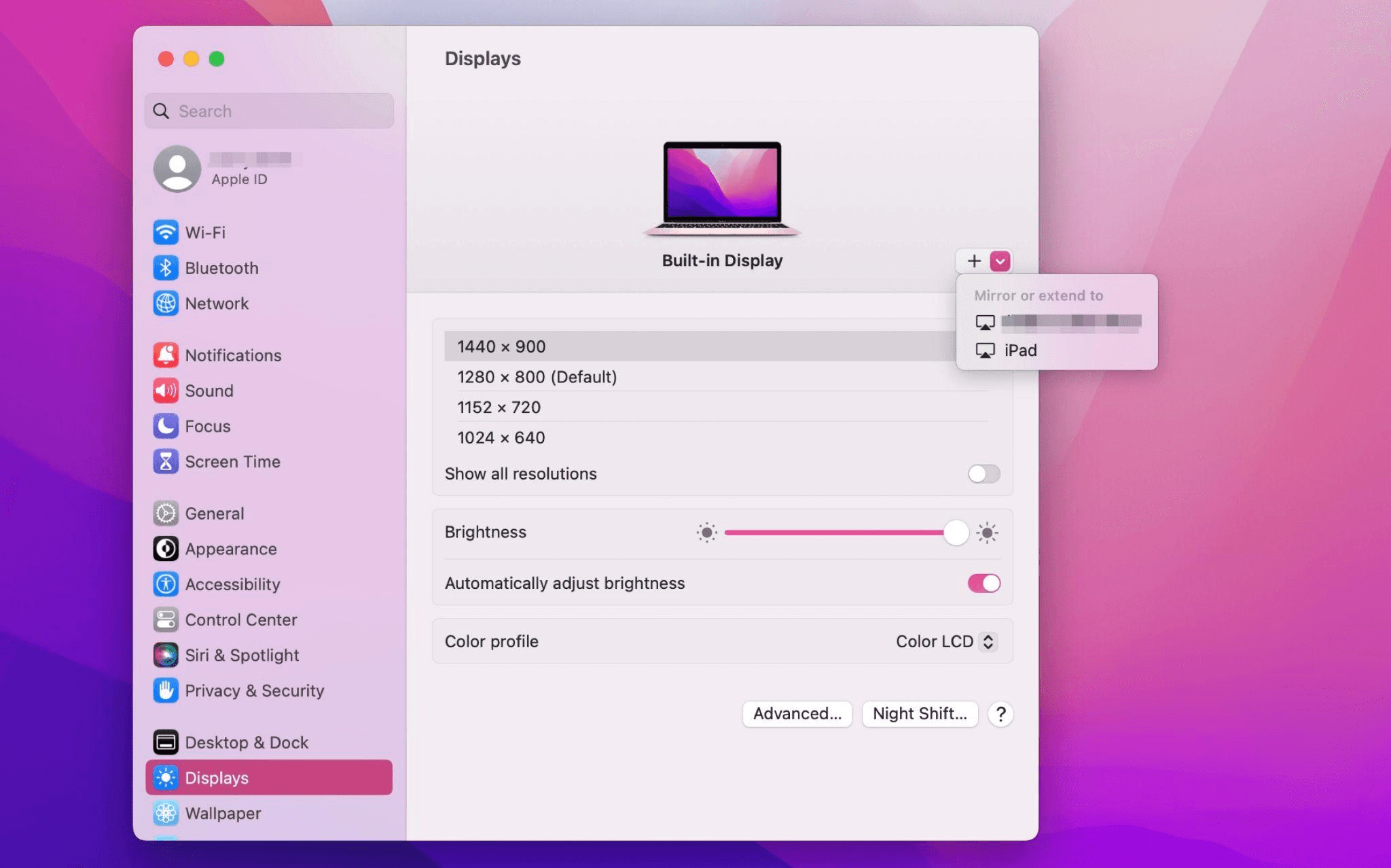
Select the iPad, change the Use as settings to "Extended Display". Check the Airplay settings on the top toolbar of the mac and set iPad as "Use As Separate Display".
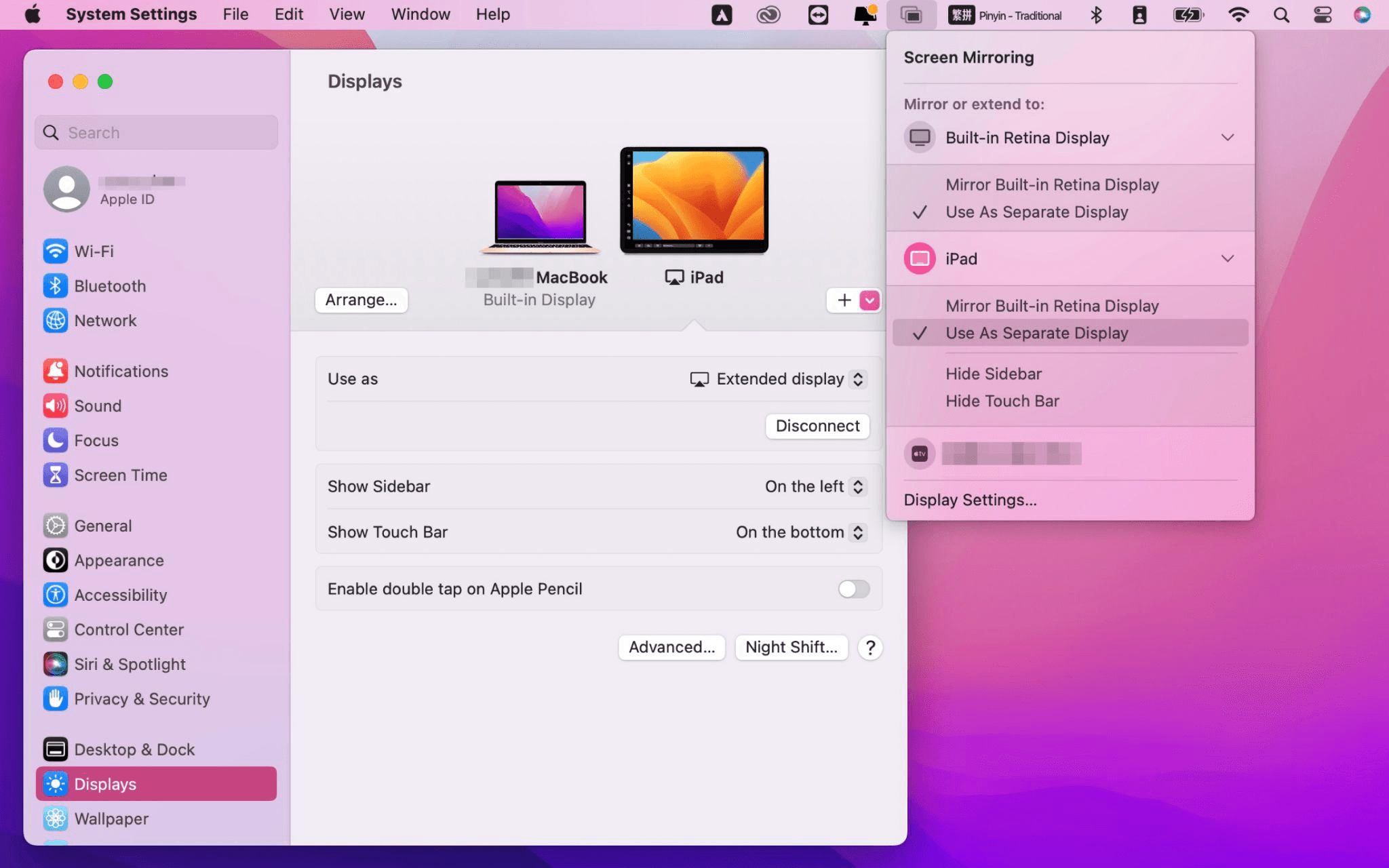
After completing the settings, your iPad will become the second display for your Mac. You can drag windows from your Mac to your iPad smoothly. You can also use the sidebar on the iPad or change the position of the sidebar on the system display settings.
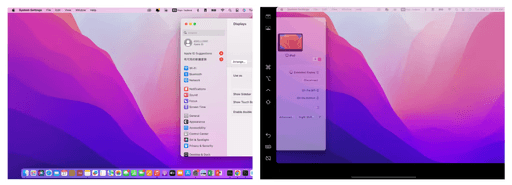
MacBook Screen (Left) and iPad Screen (Right)
Apple Sidecar only supports mac released after 2016 and iPadOS13 or newer. If you are using an old Apple device or a Windows device, you can still use DeskIn remote software to do the screen extension. It supports using iPad as a second display for Mac and Windows, and the smoothness is no worse than sidecar.
Install DeskIn on both your computer and iPad. Sign in to your DeskIn account on each device. When you log in on a new device for the first time, you may need to complete email verification to help protect your account.

To use Screen Extension, you'll need to subscribe to any Premium plan. Click here to view DeskIn plans.
Open DeskIn on your Windows or Mac computer, go to the screen management area, and choose the screen extension option. Select your iPad as the target display and start extending.
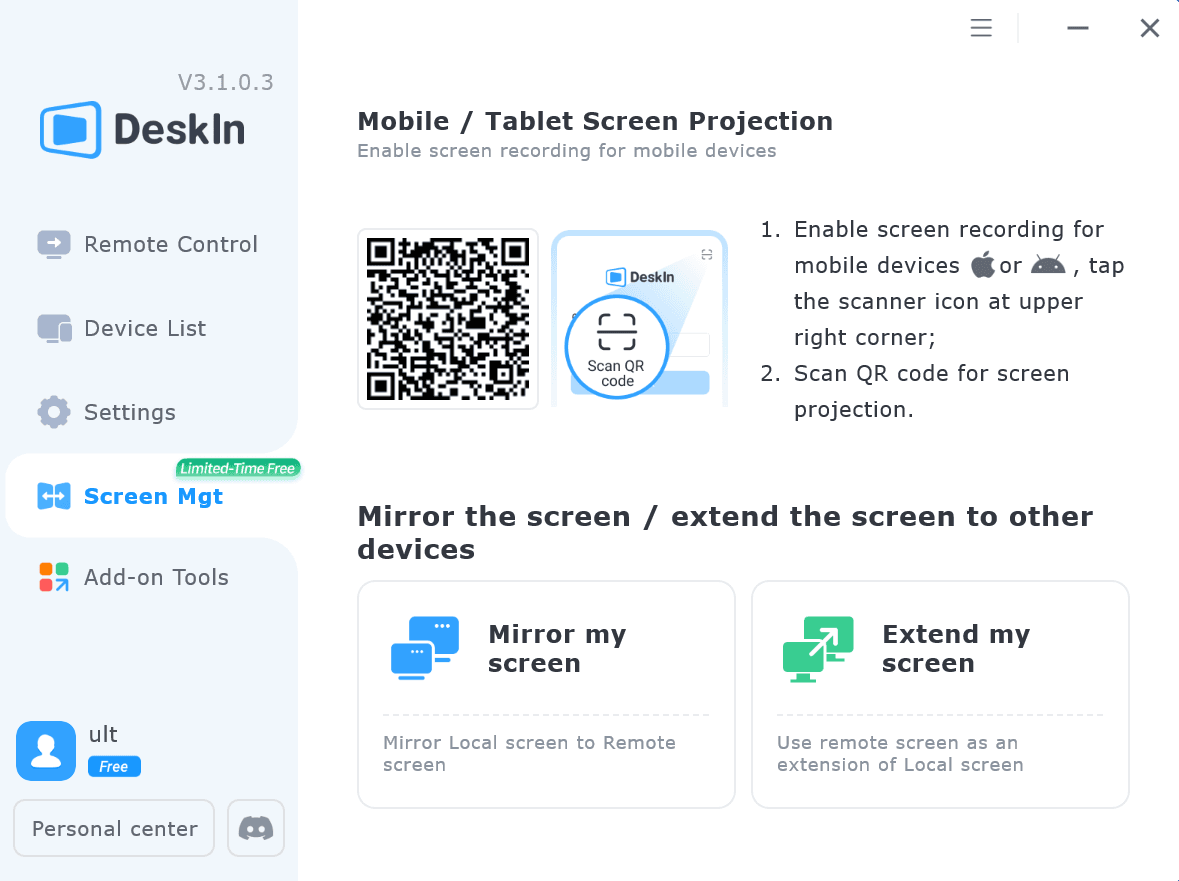
Once connected, your iPad can work as an additional display, letting you move windows between your computer and iPad for a wider workspace.
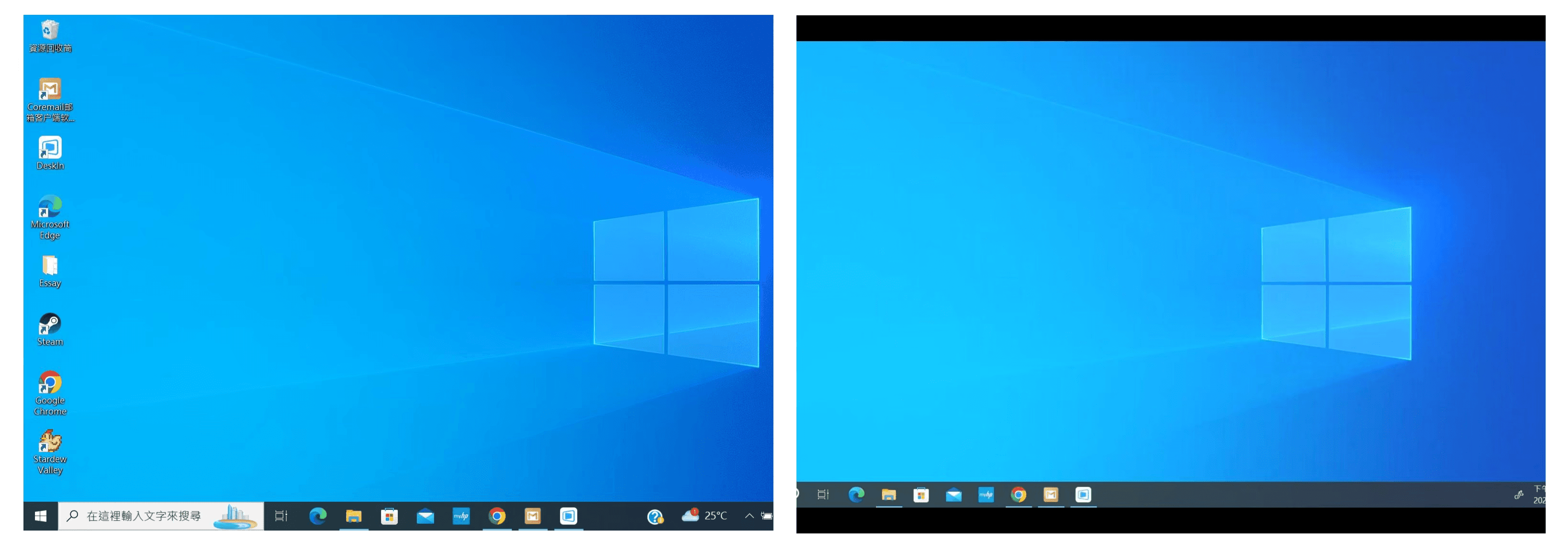
Computer Screen (Left) and iPad Screen (Right)
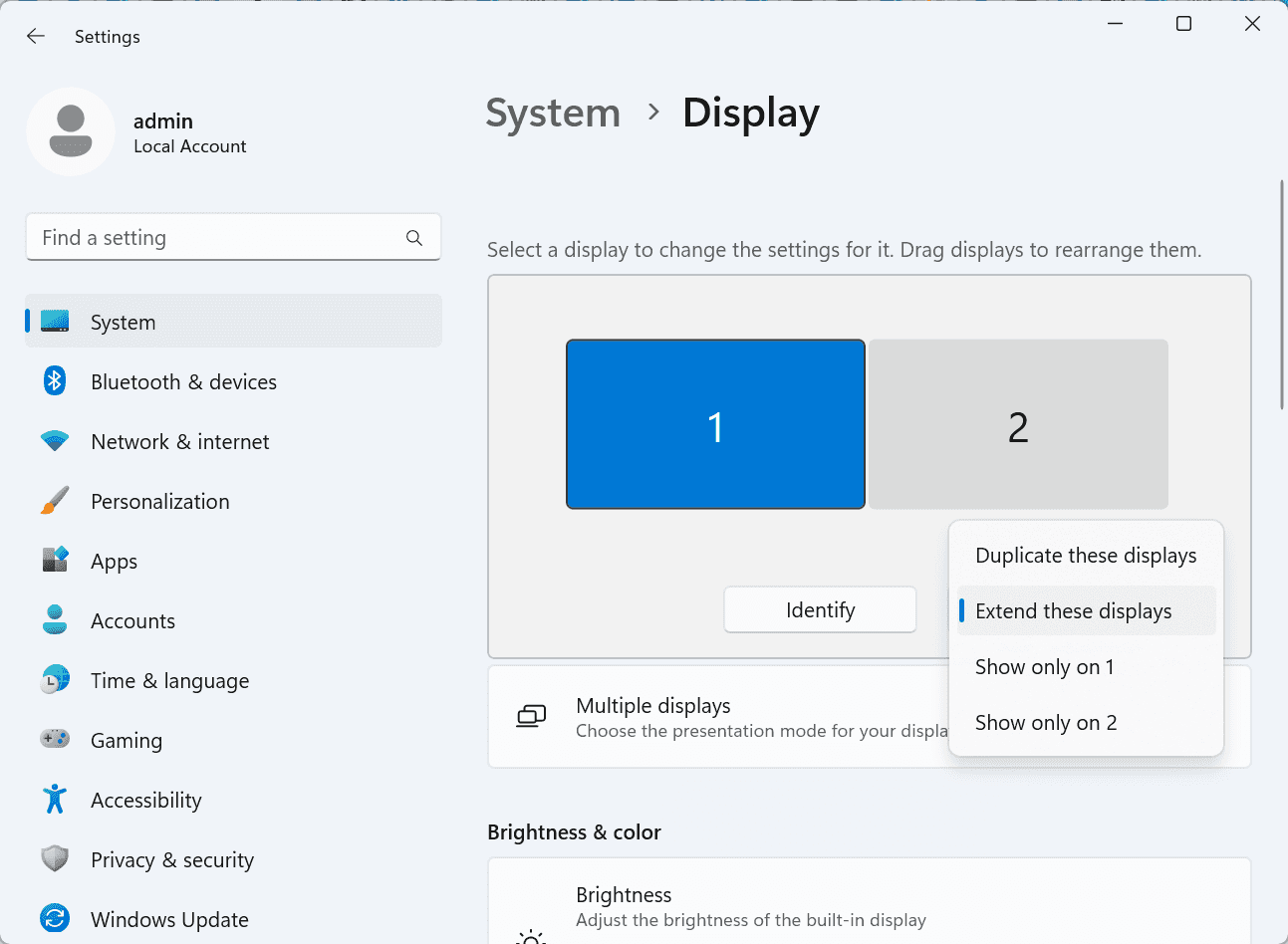
After extension, if you find that your iPad is only mirroring the content on your computer screen, please go to Windows System Settings >> Display Settings and change the screen option to "Extend these displays". You can also modify the screen position by dragging the 2 screens.
Need | Best Option | Why |
Use iPad as a second monitor for a compatible Mac | Apple Sidecar | Built into Apple devices and easy to set up when both devices are compatible. |
Use iPad as a second monitor for Windows | DeskIn | Sidecar does not support Windows, while DeskIn supports cross-platform screen extension on eligible plans. |
Work across Windows, macOS, iPad, Android tablets, and mobile devices | DeskIn | Better suited for users who need cross-platform remote access and flexible device combinations. |
Yes. Windows does not support Apple Sidecar, but you can use DeskIn screen extension on a paid plan that includes this feature to turn your iPad into an additional display for a Windows computer.
DeskIn Screen Extension is included in all paid plans. After subscribing, you can use it across all supported systems with no restrictions.
Yes. DeskIn supports using an iPad as an additional screen with Windows and Mac computers when your plan includes screen mirroring or screen extension.
Using an iPad as a second monitor is a practical way to expand your workspace without buying another display. Mac users with compatible devices can use Apple Sidecar, while Windows and cross-platform users can use DeskIn screen extension on eligible paid plans.
If you want to work across Windows, macOS, iPad, and other devices, DeskIn gives you a flexible way to build a portable multi-screen workspace. Download DeskIn and choose the plan that fits your screen extension and remote access needs.
How to Play MapleStory Classic World on Mac
A lot of the players who are most excited about MapleStory Classic World grew up on 2005-era MapleStory — and a large share of that generation now does its computing on a MacBook. Nexon clearly knows this: a native macOS client was on the feature list for the second Closed Online Test, which ran August 4–12, 2026, alongside Ossyria and third job advancement. But as of this writing, that Mac client is still in development, not publicly available, and there's still no confirmed public launch date for the game itself.
So if you want to play MapleStory Classic World on a Mac right now — or want a reliable plan for when the game does launch — you've got two real options: run Windows in a virtual machine, or use DeskIn remote desktop to control an actual Windows PC from your Mac. This guide covers both, including a login-conflict issue that catches a lot of virtual machine users off guard.
Not yet, publicly. Nexon's May 2026 roadmap update confirmed macOS support is in development, and it appeared as a testable feature in the second Closed Online Test. Windows PC remains the confirmed launch platform, and Nexon hasn't said whether the Mac client will be ready at launch or arrive afterward. The game hasn't had a full public release on any platform — Nexon has said one more test is planned before launch.
Given that, Mac players currently have two ways in: a Windows virtual machine, or remote desktop software that connects to a real Windows PC.
Classic World is exclusive to GMS (Global MapleStory), covering North America, Europe, and most other regions without a local Nexon partner. Markets with their own official MapleStory service — Korea, China, Japan, Taiwan/Hong Kong, and Southeast Asia — aren't GMS-eligible, so Mac players in those regions would need a VPN to reach Classic World, which isn't recommended. Whether NA and EU will run as separate worlds hasn't been confirmed.
Tools like Parallels Desktop or VMware Fusion let you run a full Windows install inside macOS, and then install MapleStory Classic World the way a Windows user would. It works, but it asks a lot of your Mac's hardware.
RAM: 16GB minimum recommended; 8GB is genuinely tight, since macOS and Windows are both running at once and macOS alone can eat most of that before Windows gets a share. For a comfortable setup with guides or Discord open on the side, aim for 32GB.
CPU/GPU: Virtual machines can't pass hardware through at 100%; graphics get software-emulated, which typically costs 20–30% of the performance you'd get on native Windows hardware.
Thermals: Running two full operating systems under load generates real heat, and laptop-class Macs with limited cooling can throttle during longer grinding sessions.
Apple Silicon translation overhead: M-series Macs can only run Windows on ARM in a VM. If Classic World ships as an x86/x64 build, it needs an extra translation layer to run at all, stacking on top of the virtualization overhead already mentioned.
Anti-cheat compatibility is a real unknown: the original MapleStory has historically been hostile to virtualized environments because of its anti-cheat system, and Nexon hasn't said how Classic World's anti-cheat will treat VMs. Treat virtualization as a maybe, not a guaranteed plan.
There's also the practical overhead: setting up a VM means downloading a Windows image, allocating dozens of gigabytes of disk space, installing display drivers, and — on Apple Silicon — dealing with ARM compatibility quirks that don't show up on a real x86 PC. Keyboard shortcuts can also conflict, since macOS system shortcuts (Control, Option, Command) don't always play nicely with a Windows game's default keybinds.
Instead of building a Windows environment inside your Mac, DeskIn lets you connect directly to a Windows PC you already have — your desktop at home, a work machine, or a spare laptop — and control it from your Mac in real time. The game runs on genuine Windows hardware the whole time, so there's no emulation tax, no ARM translation layer, and no anti-cheat guessing game.
A virtual machine makes sense if:
You don't have access to any Windows PC at all, so a Mac VM is your only option.
Your Mac has strong specs — 16GB+ RAM, ideally 32GB, and a higher-end M-series chip that can absorb the performance loss.
You're comfortable with a fairly technical setup process.
You rarely need to switch between devices, so the single-login limitation isn't a practical issue for you.
DeskIn makes more sense if:
You already have a Windows PC (or another Mac) that can run MapleStory Classic World, and you just want to reach it from your MacBook.
You're traveling or away from your desk often and want to pick up where you left off without re-downloading anything.
You don't want to deal with logging out of one device every time you switch to another.
Your Mac has more modest specs, and you'd rather not risk stutters, crashes, or a game that won't launch at all.
If you already own a Windows machine, DeskIn is generally the lower-effort, lower-risk choice. A VM is really a fallback for players with no Windows access and a Mac powerful enough to absorb the overhead.
Step 1: Set up the Windows PC. Install MapleStory Classic World on a Windows PC and create your character, then install DeskIn on that same PC, sign in, and enable unattended access with a connection password so you can reach it later without anyone at the keyboard.
Step 2: Install DeskIn on your Mac. Download the macOS version of DeskIn, sign in with the same account, and your Windows PC will appear in your device list.
Step 3: Connect. Select the PC, enter the connection password, and you'll get a live view of the Windows desktop that you control with your Mac's mouse and trackpad — the same session, the same login, no conflicts.
Step 4: Tune quality for your connection. On a stable connection, push quality up to enjoy Classic World's remastered pixel art in full detail; on the road, prioritize smoothness to cut down on input lag.
Step 5: Log in and play. Open the game inside the remote session and log in as usual — grinding, party quests, and shopping all work exactly as they would sitting at the PC directly.
Resolution and quality: Free-tier users should start around 720p/30fps for a stable baseline; paid-tier users can push up to 4K 60FPS or 2K 240FPS on a strong connection to get the most out of Classic World's art.
Screen scaling: If your Mac and Windows PC have very different display sizes, use DeskIn's automatic scaling option in the toolbar, or adjust the remote PC's resolution to match your Mac's screen more closely.
Keyboard and mouse mapping: DeskIn maps your Mac's keyboard directly to the remote PC. Turning on Game Mouse mode prevents the keyboard from getting locked mid-session.
Controller support: If Mac keyboard controls feel awkward, pair a controller to your Mac and enable controller mapping from the toolbar — DeskIn will pass those inputs straight through to the remote PC.
Simple Setup:No Windows installation required — connect and start playing within minutes.
Doesn't tax your Mac's hardware. All the actual computation happens on the remote Windows PC; your Mac just displays the stream and sends inputs.
Performance and compatibility match native Windows, because that's exactly what's running — no ARM translation layer to worry about.
No account login conflicts, since DeskIn connects to the same existing session instead of creating a new device.
Cross-device flexibility. The same account lets you connect from Mac, iPhone, iPad, or Android, and it's always the same underlying session — no juggling logins between devices.
Not publicly yet. Nexon has confirmed a macOS client is in development and tested it in the second Closed Online Test, but Windows remains the confirmed launch platform and no public Mac release has shipped.
Yes. DeskIn uses end-to-end encryption and two-factor login, and since you're remotely operating a PC you already control, your credentials never pass through a third party.
Technically you can install one, but the experience will be rough. With 8GB split between macOS and Windows, there's very little left over for Windows, and stutters or crashes become likely during longer sessions. DeskIn is the more stable option here, since the remote PC handles all the processing — your Mac's RAM isn't a bottleneck.
Real-world performance depends on both ends' network quality, but since DeskIn connects to native Windows hardware with no virtualization overhead, and its low-latency streaming keeps end-to-end delay under 40ms on a good connection, it typically feels smoother than a resource-constrained VM.
No. DeskIn controls the same PC and the same already-active session rather than logging in as a new device, so it doesn't trigger MapleStory's single-session login limit — this is exactly the conflict that trips up VM users switching between two separate Windows installs.
DeskIn needs a Windows (or other supported platform) machine to connect to. If you don't have one, consider borrowing access to a friend's or family member's PC, or renting a cloud Windows machine as your connection target.
DeskIn supports Windows, macOS, iOS, and Android. A Mac can connect to a Windows PC, and a Windows PC can just as easily connect to and control a Mac.
MapleStory Classic World doesn't have a public Mac client yet, but that doesn't mean Mac players have to gamble on a resource-hungry virtual machine and hope the anti-cheat cooperates. If you already have access to a Windows PC that can run the game — or even another Mac — connecting to it through DeskIn gets you native Windows performance, none of the virtualization overhead, and none of the account-login headaches that come with running a second "device." Set it up once, and you'll be ready to log in the moment Classic World opens its doors.
How to Play MapleStory Classic World on Mobile Before the Official App Arrives
MapleStory Classic World has turned into one of the most-searched topics in the MapleStory community this year. Nexon's pre-Big Bang server pulled in roughly 5,000 players for its first Closed Online Test back in April 2026, and thousands more signed up for the second test that ran August 4–12, 2026. With Ossyria, third job advancement, and controller support now confirmed, interest has never been higher — and a lot of that interest is coming from players who want to know one thing: can you play MapleStory Classic World on your phone?
Short answer: not with an official app, not yet. This guide breaks down exactly what Nexon has confirmed about platforms so far, then walks through how DeskIn remote desktop lets you play MapleStory Classic World on mobile right now, without waiting on an app that hasn't been announced.
As of this writing, Nexon has not announced a mobile or console version of MapleStory Classic World. The confirmed platforms are Windows PC and macOS — macOS support was specifically added as a testable feature during the second Closed Online Test in August 2026, alongside Ossyria and third job advancement, but it's still listed as "in development" rather than publicly available.
There's also no full public launch date yet. Nexon has run two Closed Online Tests so far and has said one more test is planned before release, so most community trackers currently estimate a launch window in late 2026 or early 2027 — but that's community speculation, not an official date.
Put simply: if you want to play MapleStory Classic World on a phone or tablet today, a native app isn't an option. The only practical route is streaming the PC version from a Windows machine you already have access to.
Classic World is exclusive to GMS (Global MapleStory), Nexon's English-language service for North America, Europe, and most other regions without a local Nexon partner. Players in markets with their own official MapleStory service — Korea, China, Japan, Taiwan/Hong Kong, and Southeast Asia — aren't eligible for GMS accounts, so Classic World isn't accessible there without a VPN, which isn't recommended. It's not yet confirmed whether NA and EU will run as separate worlds within Classic World.
DeskIn is a cross-platform remote desktop app built specifically with PC gaming in mind, and it maps well onto exactly the problem MapleStory Classic World mobile players are trying to solve.
Stable, low-latency connections. DeskIn's ZeroSync® engine keeps end-to-end latency under 40ms on a good connection and automatically reroutes around congested paths, so grinding, dodging, and skill combos in Classic World's classic-era combat don't feel delayed.
Up to 4K 60FPS / 2K 240FPS streaming. Classic World's remastered pixel art holds up well when it isn't compressed into mush — DeskIn's streaming keeps text and sprites sharp even on a phone screen.
You're connecting to your own PC, not emulating one. DeskIn doesn't run Windows inside your phone; it streams the display of a Windows computer you control and sends your inputs back in real time. That means full compatibility and full performance — no emulation layer to fight with.
End-to-end encryption and two-factor login. Sessions are encrypted end-to-end, and you can set an allowlist of authorized devices, so only you can connect to your own PC.
Flexible, per-character keybinds. Classic World's Warrior, Magician, Bowman, and Thief classes each use very different skill layouts. DeskIn's on-screen game keyboard lets you build a custom key layout and save it as its own profile, so you can switch between characters without re-mapping keys every time.
Built-in virtual mouse. In pointer mode, DeskIn adds virtual left/right mouse buttons over the stream, which makes precise UI clicks — inventory, cash shop, trade windows — far easier than tapping blindly on a touchscreen.
Once you're connected, mobile play through DeskIn covers pretty much everything you'd do sitting at your PC:
Daily quests and login rewards — knock these out on your commute instead of waiting until you're home.
Cash shop browsing — scroll and preview cosmetics with touch gestures just like any shopping app.
Grinding and leveling — use the virtual directional pad and skill-key layout to keep training in familiar maps.
Party quests — latency low enough to keep up with a party's pacing on runs like Kerning City PQ.
Trading and the marketplace — check prices and list items using the virtual mouse for precise clicks.
Guild chat and messaging — reply to your guild or party the moment something comes up.
Step 1: Set up DeskIn on the Windows PC running Classic World. Install DeskIn on the PC where you've registered for testing (or where the game is installed once it launches), sign in, and turn on unattended access so the PC can be reached without anyone sitting in front of it.
Step 2: Install the DeskIn app on your phone. Download DeskIn from the App Store or Google Play, sign in with the same account, and your PC will show up in the device list.
Step 3: Connect and switch to pointer mode. Tap your PC to connect, then switch the control mode from touch to pointer — this unlocks the customizable virtual keyboard and virtual mouse.
Step 4: Browsing the cash shop. Drag to move the cursor and tap the virtual mouse buttons to click through menus and item previews, exactly like using a mouse on a desktop.
Step 5: Grinding. Open the game keyboard menu, build a layout with your movement keys and skill keys, and save it as a profile. Pull it up any time you start a grinding session.
Step 6: Pick the right streaming quality for your connection. On mobile data, prioritize smoothness over resolution to cut down on input delay; on Wi-Fi, bump the quality up to enjoy Classic World's remastered art at full clarity.
A tablet's bigger screen is a natural fit for content that needs either more reading room or more precision — daily quest text and boss encounters both qualify.
Step 1: Same setup as mobile. Install DeskIn on your iPad or Android tablet and sign in — connection steps are identical to the phone app.
Step 2: Daily quests. The larger display makes quest text, item descriptions, and map markers easier to read at a glance, so you're less likely to misread an objective mid-run.
Step 3: Boss fights. Bosses demand precise dodges and timing that touch controls alone can struggle with — pair your tablet with a Bluetooth keyboard and mouse, or a controller (see below), instead of relying on the virtual keyboard.
Step 4: Bump the frame rate for boss content. Choose a higher refresh setting in DeskIn's connection options so skill telegraphs and boss patterns read clearly in real time.
Step 5: Use split-screen for guide lookups. Run DeskIn alongside a browser or notes app in split view to check attack patterns without leaving the fight.
If virtual buttons don't feel precise enough, DeskIn supports Bluetooth controllers, including Xbox, PlayStation, and several third-party pads.
Step 1: Pair the controller with your phone. Use your phone's Bluetooth settings to pair the controller first.
Step 2: Connect through DeskIn. Once connected to your PC, DeskIn automatically detects the paired controller — no extra driver install needed.
Step 3: Test your inputs. Head into a training map first and confirm movement, attacks, and skills map to the buttons you expect before jumping into content that matters.
Step 4: Favor smoothness for fast-paced play. When you're actively grinding or fighting with a controller, prioritize DeskIn's smoothness setting over max resolution for the most responsive feel.
Running a Warrior and a Bowman means running two very different skill bars. Here's how to keep them separate in DeskIn instead of re-mapping keys every login:
Step 1: Switch to pointer mode and open the game keyboard menu. After connecting, switch to pointer mode and open DeskIn's game keyboard settings.
Step 2: Create a new keyboard layout. Tap "New Keyboard" and add your movement pad, skill keys, and item keys to match your current character's build.
Step 3: Name it by character or class. Label the layout something identifiable — "Bowman" or "Main Warrior" — and save it.
Step 4: Load the right profile when you switch characters. Before logging into a different character, select its saved layout from the game keyboard menu instead of rebuilding it from scratch.
Step 5: Update layouts as skills change. When a class gets rebalanced or you unlock new skills after a job advancement, go back into that profile and add the new keys.
No. Nexon has not announced a mobile or console version. Confirmed platforms are Windows, with a macOS client currently in development.
Nexon hasn't announced a public release date. Two Closed Online Tests have run so far (April 16–24 and August 4–12, 2026), with one more test planned before launch. Community estimates point to late 2026 or early 2027, but that isn't official.
No. DeskIn remotely operates your own PC and sends the same mouse and keyboard input you'd normally use — it isn't a macro, bot, or memory-editing tool, so it doesn't behave like the automation that anti-cheat systems are built to catch.
DeskIn's low-latency streaming keeps things playable on a stable connection, generally noticeably smoother than trying to force a browser workaround. Real-world latency still depends on both ends' network quality, so Wi-Fi is recommended over cellular when possible.
For checking dailies or browsing the shop occasionally, the free plan typically covers it. If you plan to grind for long sessions, use a controller regularly, or manage several devices, a paid plan unlocks higher streaming quality and additional features.
Setup and connection steps are identical. The difference is screen size — phones are handy for quick, single-hand tasks like dailies and the shop, while tablets are better suited to boss fights and content where you want a controller or external keyboard.
Until Nexon ships a mobile client — if one ever gets announced — DeskIn is the most practical way to keep playing MapleStory Classic World away from your desk. Install it on both your gaming PC and your phone or tablet, set up a keybind profile per character, and you can knock out dailies, grind, and even tackle boss fights without being tied to a monitor.
Products
ดาวน์โหลด
Resources
ติดต่อเรา
Email: support@deskin.io
Office: 991D Alexandra Road #02-17, Singapore 119972
Copyright © 2026 Zuler Technology PTE. LTD. All rights reserved.
ติดต่อเรา
Email: support@deskin.io
Office: 991D Alexandra Road #02-17, Singapore 119972
Products
ดาวน์โหลด
Resources
Copyright © 2026 Zuler Technology PTE. LTD. All rights reserved.
Products
ดาวน์โหลด
Resources
ติดต่อเรา
support@deskin.io
991D Alexandra Road #02-17
Singapore 119972
Copyright © 2026 Zuler Technology PTE. LTD. All rights reserved.
【New User Special Offer】
Save
Extra 20%
on your first order|4K60FPS
Extra
20% Off
|For
New Users
【New User Special Offer】
Save
Extra 20%
on first order


