如何
如何
·
5 Minutes
·
5 Minutes
GA
已更新
已更新
已更新
Imagine this: your mom calls, panicked because “the Wi-Fi is gone.” Or your best friend can’t figure out how to turn off that mysterious setting that’s draining their battery. You try explaining over the phone, but it’s like describing a color to someone who’s never seen it, frustrating for both sides.

Wouldn’t it be easier if you could just screen share iPhone to iPhone and see exactly what they see? Better yet, guide them through the fix in real time without leaving your couch?
That’s exactly what remotely accessing an iPhone from another iPhone makes possible. And in this guide, we’re going to break down what it is, why you might want it, and the best way to do it using DeskIn, a powerful, secure, and easy-to-use remote access app.
Recommend reading: The Complete 2025 Guide to Sharing Your iPhone Screen with an iPad
Remote access, simply enough, is using your device to view and control the screen of another iPhone ; something akin to having someone else's phone in your hand without actually holding it.
While some platforms make remote iPhone control a cinch, the iOS world isn't one of them. Apple tightly restricts what it allows you do remotely. Fortunately, you can still screen share iPhone to iPhone, talk them through as many fixes, and work together in real time.
Think of it as screen sharing meets a personal guide; you see what’s happening, they see where to tap, and problems get solved faster.
Remote accessing iPhone isn’t just for IT nerds in server rooms. Here are some everyday scenarios where knowing how to remotely control iPhone becomes your superpower:
Ever tried explaining “go to Settings > Wi-Fi” to someone who swears they are in Settings but are actually in Notes? With screen sharing iPhone to iPhone, you can see exactly what they see and point them in the right direction.
If you run a small business, offer app training, or support clients on mobile tools, remote access means you can walk them through features without sending a novel-length email.
Testing an app? Review design mockups? You can now watch the changes live, provide instant feedback, and avoid the back-and-forth screenshots.
Sometimes you want to ensure your child is not configuring parental settings by chance. Occasionally you need to walk them through their homework app. Remote access lets you help without hovering over their shoulder.
Apple does not allow full remote control of iOS devices unless they’re jailbroken. While few are prepared to do so, yet, it's a big 'NO' for most people. Jailbreaking voids your warranty, creates security holes, and can make your iPhone unstable.
That said, you can still:
View another iPhone’s screen in real time
Talk through issues while sharing the screen
Provide touch guidance without risky workarounds
This is where DeskIn comes in. While you can’t directly “drive” someone’s iPhone like a remote desktop, you can guide them in a way that feels just as effective for support, teaching, and collaboration.
Sounds like exactly what you need? Download DeskIn and try how to access iPhone remotely in the safest, easiest way possible, all from your pocket.

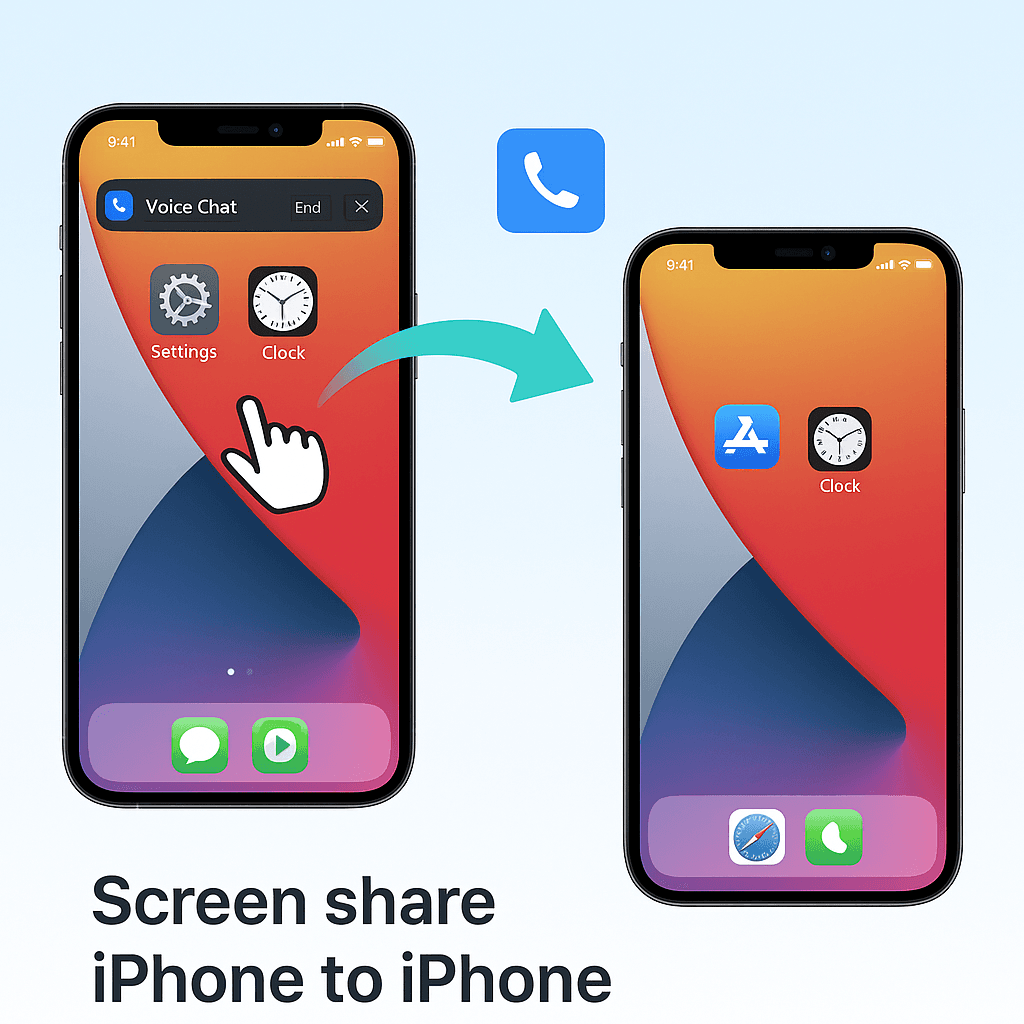
DeskIn makes iPhone remote support simple, secure, and fast with no tech headaches, no risky workarounds. Whether you’re helping a family member, training a client, or testing an app, it’s designed to work seamlessly between iOS devices.
Here’s what you get:
Screen sharing in real time (iOS ↔ iOS): View another iPhone’s screen instantly, so you can guide them step-by-step without second-guessing what’s happening on their end.
Ultra-low latency (≤40ms): With almost no delay, screen sharing iPhone to iPhone feels natural and responsive, whether you’re pointing out a menu option or reviewing an app together.
Mobile-first design, optimized for touch: DeskIn is easy to use. No awkward desktop controls, it is built for finger taps, swipes, and gestures, making remote iPhone control intuitive for both sides.
No jailbreak or risky setup: You can remotely access an iPhone from another iPhone without compromising security or voiding warranties. Each session requires a password or manual verification of the connection request, giving you full control over who can view your screen.
Built-in voice chat and session controls: Talk in real time, give instructions verbally, and manage the session with a simple tap, everything you need for smooth iPhone remote support in one app.
With DeskIn, accessing an iPhone remotely becomes a safe, practical reality, perfect for tech help, collaboration, or quick troubleshooting anywhere.
Getting started with remotely accessing an iPhone from another iPhone using DeskIn takes just a few minutes. Follow these simple steps:
Install DeskIn on both iPhones: Download DeskIn from the App Store and install it on both the “helper” and “receiver” devices.
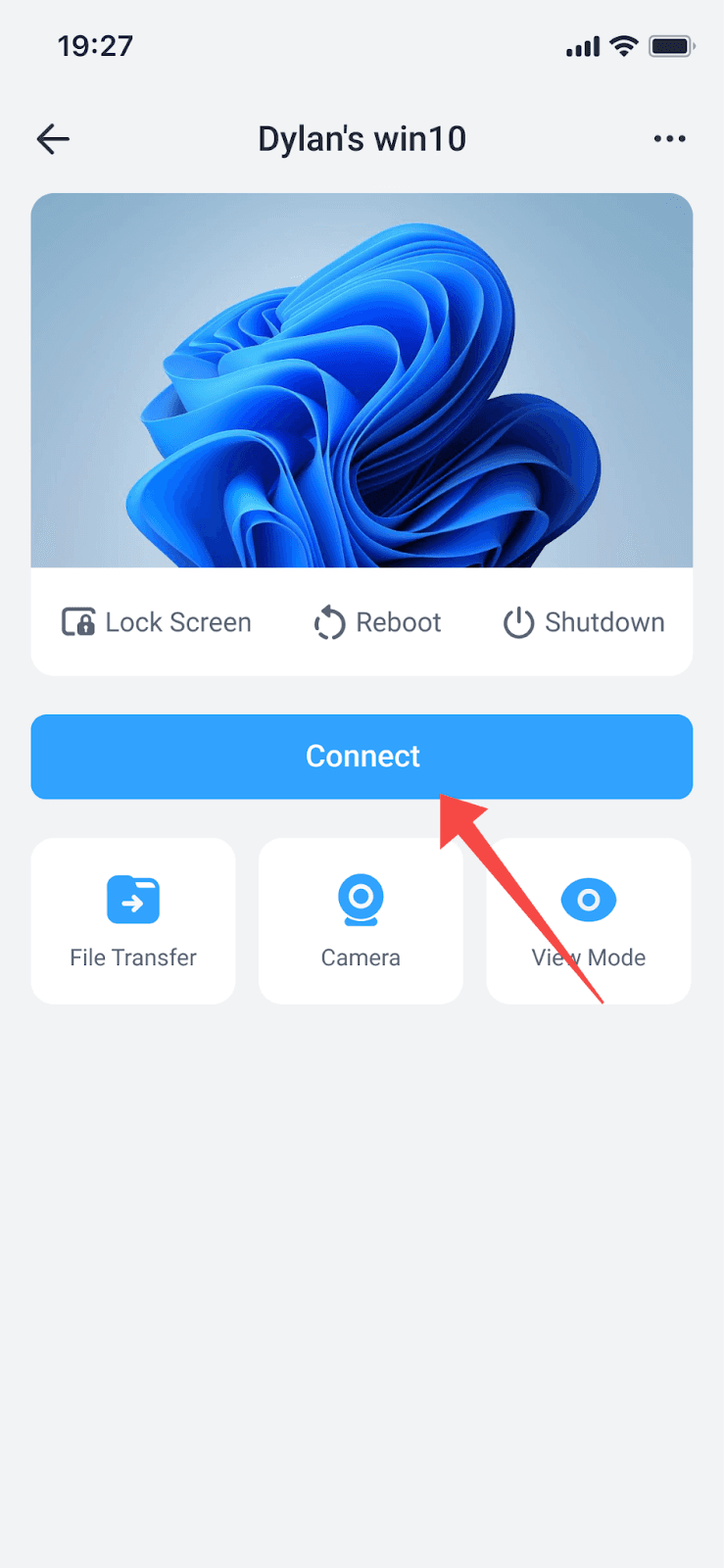
Create or join a secure session: On the receiver’s iPhone, enable “Allow Remote Connect to This Device” to generate a device ID and password. The helper can then start a session by entering those details to connect.
Accept access permissions: The receiving iPhone will be prompted to allow screen share from iPhone to iPhone. Grant permission for screen viewing and voice chat if needed.
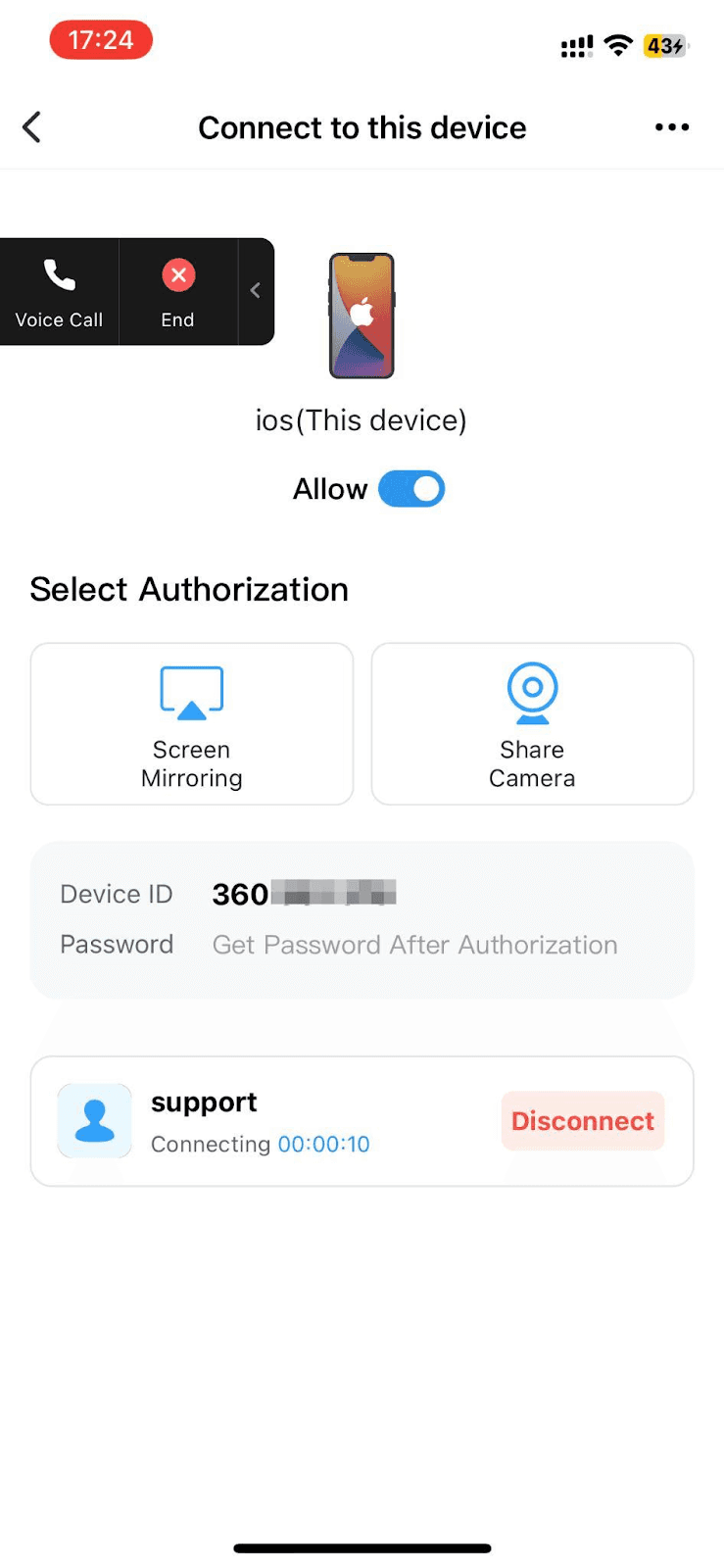
Start screen sharing with optional voice chat: Once connected, you can view the other iPhone’s screen in real time and use built-in voice chat for clear iPhone remote support.
In just four steps, you’ll have a secure, responsive connection, making how you control iPhone remotely for help, training, or collaboration simple and stress-free.
Once you know how to remotely access an iPhone from another iPhone with DeskIn, you’ll start spotting situations where it saves time and makes life easier. Here are a few examples where its features really stand out:
Parental or elder tech help, with less stress: Instead of long explanations over the phone, DeskIn’s chat tool and live screen sharing let you guide them directly — no confusion, just quick results.
Professional iOS remote support: For app developers, IT staff, or mobile trainers, DeskIn’s low-latency screen sharing and voice chat turn iPhone remote support into a smooth, client-friendly experience.
Hands-on teaching from anywhere: DeskIn’s mobile-first design makes it ideal for walking learners through apps, design tools, or even game settings, like being right there next to them.
Efficient app testing and feedback loops: Watch testers interact with your app in real time, spot usability issues instantly, and adjust on the fly, all powered by DeskIn’s seamless connection.
An iPhone is more than just a phone; it's a personal photo and message log, a wallet full of payment information, and even your job in some cases. This is one reason why it is important to use a secure method of remotely accessing your iPhone from another iPhone. DeskIn is an enclosed medium with encrypted connections and session controls in place, thereby ensuring your data merely passes between you and whoever you grant access to.
Only connect with trusted people, never accept random session requests.
Use temporary access codes that expire after each connection.
Review permissions before accepting screen sharing or voice chat requests.
End the session immediately when the task is done.
Keep DeskIn updated to benefit from the latest security patches.
With these habits, iPhone remote support stays safe, private, and fully under your control, giving you peace of mind every time you share your screen.
Want to learn more about protecting your device? Check out how to tell if someone is accessing your iPhone remotely, for signs to watch for, and extra safety tips.
A: Because of the iOS safety rules, you cannot have full command over an iPhone screen. With DeskIn, you can view in real time and talk via voice chat for effective iPhone remote support.
A: Yes. As long as both devices have a stable internet connection, Wi-Fi, or mobile data, you can screen share iPhone to iPhone without issues.
A: Absolutely. Since DeskIn is on iOS, iPadOS, and macOS, you can pair your iPhone to an iPad or Mac as well, with no difference at all. You can also turn your iPad into a real second monitor for your MacBook, or follow our guide to remote control your Mac if you want to be able to move completely freely across all Apple devices.
A: Yes. DeskIn supports Windows, macOS, iOS, iPadOS, and Android, so you can connect almost any combination of devices, whether you need to remotely access an iPhone from another iPhone or work cross-platform.
From swifty tech help for parents, to professional iPhone remote support for clients, the ability to screen share iPhone to iPhone greatly enhances problem-solving and collaboration, so what is a tedious and frustrating process becomes streamlined, visual, and easier to address. DeskIn moves the whole process to real-time and interactive.
Ready to see it in action? Install DeskIn from the App Store today and try mobile-to-mobile sharing yourself. You can directly access an iPhone from another iPhone in a matter of taps, and even make it secure with ease without any type of pain, like complex setups.
Want to expand beyond mobile-to-mobile? Check out our guide on screen mirroring your iPhone or iPad to a MacBook for a seamless multi-device workflow.
Imagine this: your mom calls, panicked because “the Wi-Fi is gone.” Or your best friend can’t figure out how to turn off that mysterious setting that’s draining their battery. You try explaining over the phone, but it’s like describing a color to someone who’s never seen it, frustrating for both sides.
Wouldn’t it be easier if you could just screen share iPhone to iPhone and see exactly what they see? Better yet, guide them through the fix in real time without leaving your couch?
That’s exactly what remotely accessing an iPhone from another iPhone makes possible. And in this guide, we’re going to break down what it is, why you might want it, and the best way to do it using DeskIn, a powerful, secure, and easy-to-use remote access app.
Recommend reading: The Complete 2025 Guide to Sharing Your iPhone Screen with an iPad
Remote access, simply enough, is using your device to view and control the screen of another iPhone ; something akin to having someone else's phone in your hand without actually holding it.
While some platforms make remote iPhone control a cinch, the iOS world isn't one of them. Apple tightly restricts what it allows you do remotely. Fortunately, you can still screen share iPhone to iPhone, talk them through as many fixes, and work together in real time.
Think of it as screen sharing meets a personal guide; you see what’s happening, they see where to tap, and problems get solved faster.
Remote accessing iPhone isn’t just for IT nerds in server rooms. Here are some everyday scenarios where knowing how to remotely control iPhone becomes your superpower:
Ever tried explaining “go to Settings > Wi-Fi” to someone who swears they are in Settings but are actually in Notes? With screen sharing iPhone to iPhone, you can see exactly what they see and point them in the right direction.
If you run a small business, offer app training, or support clients on mobile tools, remote access means you can walk them through features without sending a novel-length email.
Testing an app? Review design mockups? You can now watch the changes live, provide instant feedback, and avoid the back-and-forth screenshots.
Sometimes you want to ensure your child is not configuring parental settings by chance. Occasionally you need to walk them through their homework app. Remote access lets you help without hovering over their shoulder.
Apple does not allow full remote control of iOS devices unless they’re jailbroken. While few are prepared to do so, yet, it's a big 'NO' for most people. Jailbreaking voids your warranty, creates security holes, and can make your iPhone unstable.
That said, you can still:
View another iPhone’s screen in real time
Talk through issues while sharing the screen
Provide touch guidance without risky workarounds
This is where DeskIn comes in. While you can’t directly “drive” someone’s iPhone like a remote desktop, you can guide them in a way that feels just as effective for support, teaching, and collaboration.
Sounds like exactly what you need? Download DeskIn and try how to access iPhone remotely in the safest, easiest way possible, all from your pocket.
DeskIn makes iPhone remote support simple, secure, and fast with no tech headaches, no risky workarounds. Whether you’re helping a family member, training a client, or testing an app, it’s designed to work seamlessly between iOS devices.
Here’s what you get:
Screen sharing in real time (iOS ↔ iOS): View another iPhone’s screen instantly, so you can guide them step-by-step without second-guessing what’s happening on their end.
Ultra-low latency (≤40ms): With almost no delay, screen sharing iPhone to iPhone feels natural and responsive, whether you’re pointing out a menu option or reviewing an app together.
Mobile-first design, optimized for touch: DeskIn is easy to use. No awkward desktop controls, it is built for finger taps, swipes, and gestures, making remote iPhone control intuitive for both sides.
No jailbreak or risky setup: You can remotely access an iPhone from another iPhone without compromising security or voiding warranties. Each session requires a password or manual verification of the connection request, giving you full control over who can view your screen.
Built-in voice chat and session controls: Talk in real time, give instructions verbally, and manage the session with a simple tap, everything you need for smooth iPhone remote support in one app.
With DeskIn, accessing an iPhone remotely becomes a safe, practical reality, perfect for tech help, collaboration, or quick troubleshooting anywhere.
Getting started with remotely accessing an iPhone from another iPhone using DeskIn takes just a few minutes. Follow these simple steps:
Install DeskIn on both iPhones: Download DeskIn from the App Store and install it on both the “helper” and “receiver” devices.
Create or join a secure session: On the receiver’s iPhone, enable “Allow Remote Connect to This Device” to generate a device ID and password. The helper can then start a session by entering those details to connect.
Accept access permissions: The receiving iPhone will be prompted to allow screen share from iPhone to iPhone. Grant permission for screen viewing and voice chat if needed.
Start screen sharing with optional voice chat: Once connected, you can view the other iPhone’s screen in real time and use built-in voice chat for clear iPhone remote support.
In just four steps, you’ll have a secure, responsive connection, making how you control iPhone remotely for help, training, or collaboration simple and stress-free.
Once you know how to remotely access an iPhone from another iPhone with DeskIn, you’ll start spotting situations where it saves time and makes life easier. Here are a few examples where its features really stand out:
Parental or elder tech help, with less stress: Instead of long explanations over the phone, DeskIn’s chat tool and live screen sharing let you guide them directly — no confusion, just quick results.
Professional iOS remote support: For app developers, IT staff, or mobile trainers, DeskIn’s low-latency screen sharing and voice chat turn iPhone remote support into a smooth, client-friendly experience.
Hands-on teaching from anywhere: DeskIn’s mobile-first design makes it ideal for walking learners through apps, design tools, or even game settings, like being right there next to them.
Efficient app testing and feedback loops: Watch testers interact with your app in real time, spot usability issues instantly, and adjust on the fly, all powered by DeskIn’s seamless connection.
An iPhone is more than just a phone; it's a personal photo and message log, a wallet full of payment information, and even your job in some cases. This is one reason why it is important to use a secure method of remotely accessing your iPhone from another iPhone. DeskIn is an enclosed medium with encrypted connections and session controls in place, thereby ensuring your data merely passes between you and whoever you grant access to.
Only connect with trusted people, never accept random session requests.
Use temporary access codes that expire after each connection.
Review permissions before accepting screen sharing or voice chat requests.
End the session immediately when the task is done.
Keep DeskIn updated to benefit from the latest security patches.
With these habits, iPhone remote support stays safe, private, and fully under your control, giving you peace of mind every time you share your screen.
Want to learn more about protecting your device? Check out how to tell if someone is accessing your iPhone remotely, for signs to watch for, and extra safety tips.
A: Because of the iOS safety rules, you cannot have full command over an iPhone screen. With DeskIn, you can view in real time and talk via voice chat for effective iPhone remote support.
A: Yes. As long as both devices have a stable internet connection, Wi-Fi, or mobile data, you can screen share iPhone to iPhone without issues.
A: Absolutely. Since DeskIn is on iOS, iPadOS, and macOS, you can pair your iPhone to an iPad or Mac as well, with no difference at all. You can also turn your iPad into a real second monitor for your MacBook, or follow our guide to remote control your Mac if you want to be able to move completely freely across all Apple devices.
A: Yes. DeskIn supports Windows, macOS, iOS, iPadOS, and Android, so you can connect almost any combination of devices, whether you need to remotely access an iPhone from another iPhone or work cross-platform.
From swifty tech help for parents, to professional iPhone remote support for clients, the ability to screen share iPhone to iPhone greatly enhances problem-solving and collaboration, so what is a tedious and frustrating process becomes streamlined, visual, and easier to address. DeskIn moves the whole process to real-time and interactive.
Ready to see it in action? Install DeskIn from the App Store today and try mobile-to-mobile sharing yourself. You can directly access an iPhone from another iPhone in a matter of taps, and even make it secure with ease without any type of pain, like complex setups.
Want to expand beyond mobile-to-mobile? Check out our guide on screen mirroring your iPhone or iPad to a MacBook for a seamless multi-device workflow.


Top 6 RustDesk Alternative Tools for Faster, Easier Remote Access
Remote access should feel like flipping a light switch, not decoding a control panel. Yet many users exploring RustDesk eventually run into friction: connection IDs, server setup, or occasional lag. While RustDesk is powerful, it’s not always the easiest or smoothest option, especially for non-technical users.
That’s why more people are actively searching for a reliable RustDesk alternative that combines performance, simplicity, and flexibility. Whether you want a plug-and-play solution or something more advanced, this guide will help you find the best fit.
RustDesk stands out as a privacy-friendly, self-hosted remote desktop tool. However, real-world usage reveals a few common challenges:
Complicated setup for the RustDesk self-hosted environments
Manual connection steps requiring IDs and passwords
Occasional latency or unstable connections
Limited user-friendly features out of the box
For many users, especially those helping family or managing multiple devices, simplicity matters just as much as control.
When evaluating a RustDesk alternative, focus on these key factors:
Ease of use: Quick setup without technical overhead
Performance: Smooth, low-latency remote sessions
Compatibility: Support for Windows, macOS, Linux, and mobile
Security: Strong encryption and access controls
Flexibility: Options ranging from cloud-based to open source
The ideal tool strikes a balance between power and convenience, something many modern solutions now deliver better than traditional setups.
Here’s a quick breakdown of the top tools and where they shine:
DeskIn – Best all-in-one RustDesk alternative for performance and ease of use
AnyDesk – Best lightweight tool for fast connections
TeamViewer – Best for enterprise-grade remote support
MeshCentral – Best open-source and self-hosted solution
DWService – Best free browser-based tool
Chrome Remote Desktop – Best simple, no-frills option
Ultra-low latency with smooth high-frame-rate streaming
No complex setup or server deployment required
Cross-platform including Rustdesk alternative for Android
Secure with encryption and device control features
Built-in file transfer and multi-device management
Smaller awareness than legacy competitors
Best for: Users who want a powerful yet simple remote desktop solution
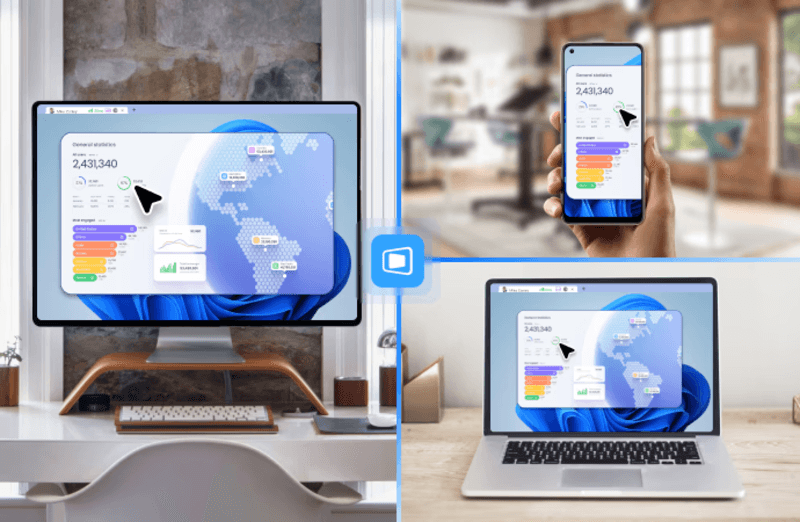
DeskIn removes the friction that often comes with remote access tools. Instead of relying on IDs or manual configurations, it offers a streamlined connection experience that works right out of the box. This makes it especially valuable for users supporting non-technical family members or managing multiple remote devices.
Performance is where DeskIn truly distinguishes itself. Compared to RustDesk, which can sometimes struggle with latency, DeskIn delivers consistently smooth sessions with minimal lag. It also eliminates the need for self-hosting, making it a strong free RustDesk alternative option for users who want powerful features without the complexity.
For those exploring options beyond the RustDesk alternative GitHub projects, DeskIn provides a polished, ready-to-use experience that balances simplicity with professional-grade performance.
Lightweight and fast installation
Good performance on low bandwidth
Cross-platform support
Easy-to-use interface
Performance may drop during long sessions
File transfer can be inconsistent
Best for: Users needing quick and simple remote access
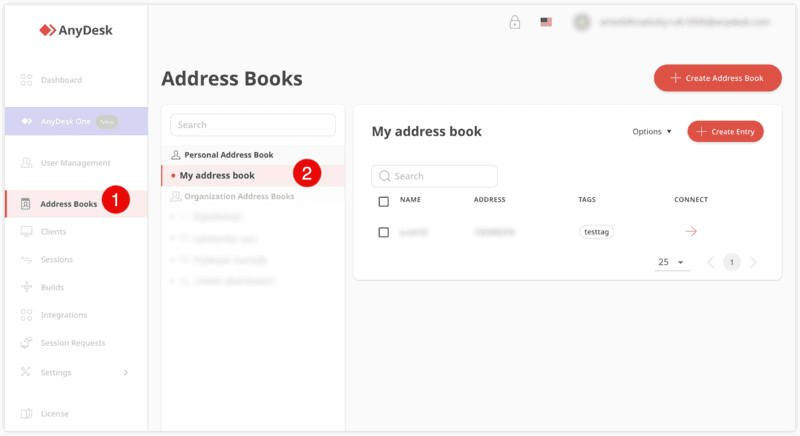
AnyDesk is often considered a natural step up from RustDesk for users who want something easier to deploy. It offers a lightweight application that connects quickly and performs well under normal conditions. This makes it suitable for quick troubleshooting or occasional remote access.
However, performance consistency can be an issue. Users frequently report lag or instability during extended sessions or when handling more demanding tasks. While AnyDesk is a solid option for basic needs, it may not fully satisfy users looking for a more robust, all-in-one solution.
👀 You may also be interested in: |
|---|
Enterprise-grade security with encryption and 2FA
Stable performance across global networks
Rich features like file transfer and session recording
Broad device compatibility
Expensive for commercial use
Free version has limitations
Heavier resource usage on some systems
Best for: Businesses and IT teams managing multiple endpoints
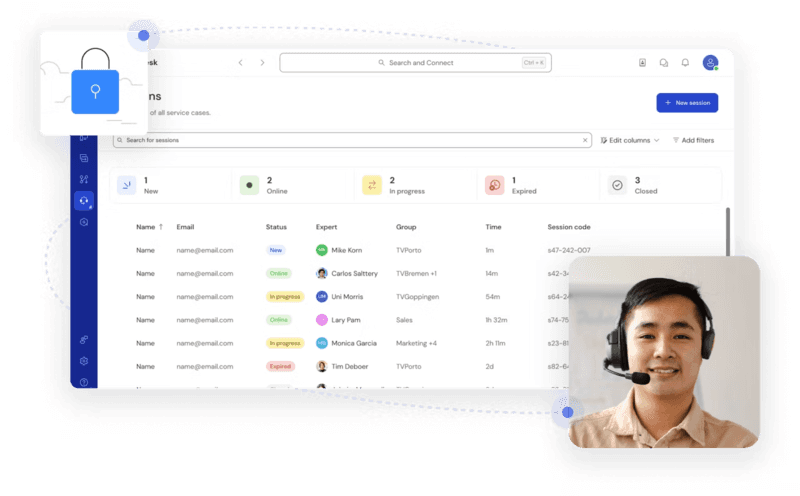
TeamViewer has long been a dominant player in the remote desktop space, offering a comprehensive suite of features designed for enterprise environments. It excels in reliability and global connectivity, making it a popular choice for IT support teams.
That said, its pricing model is a major drawback for many users. Frequent users may quickly encounter licensing restrictions, and costs can escalate for businesses. Additionally, its heavier footprint can impact performance on lower-end devices. DeskIn offers a more modern alternative by delivering similar performance and essential features without the same cost barriers. For users who want enterprise-level capabilities with better efficiency, it presents a compelling option.
👀 You may also be interested in: |
|---|
Fully RustDesk alternative open source solution
Web-based management dashboard
Supports multi-device environments
Strong customization and control
Complex setup and maintenance
Requires technical expertise
Best for: Advanced users needing a Rustdesk alternative self-hosted
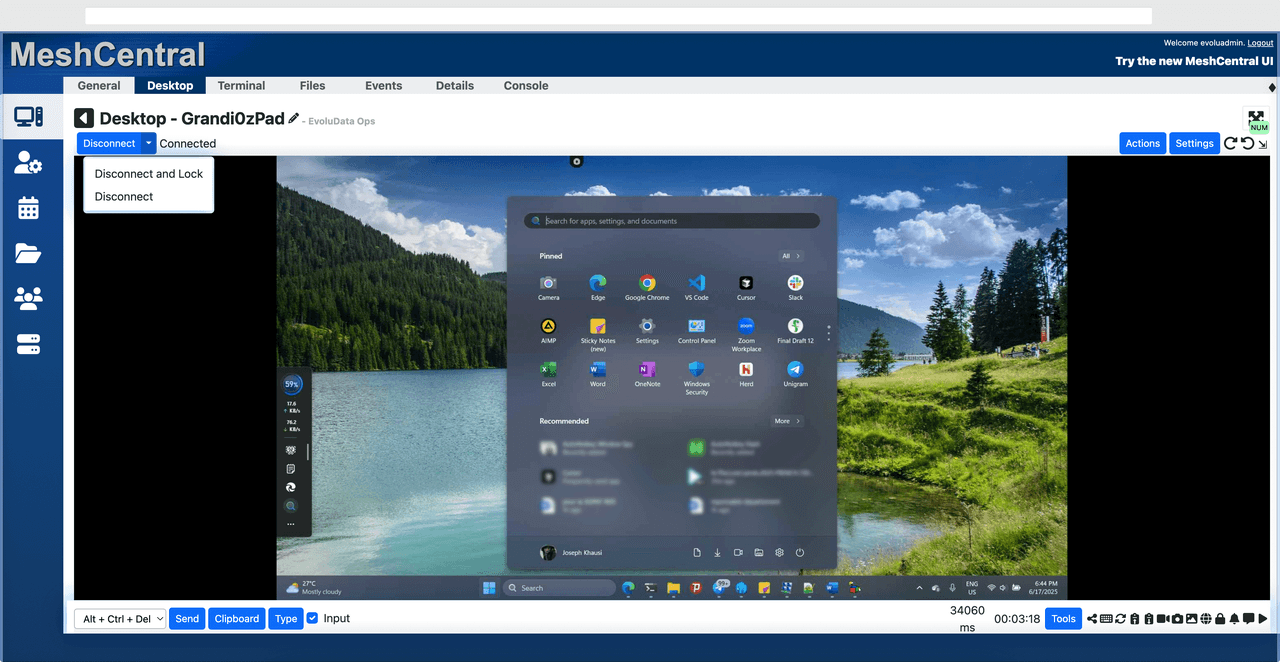
MeshCentral is a powerful open-source platform designed for users who want full control over their remote access infrastructure. It supports multiple devices and provides a centralized dashboard for management, making it attractive for IT professionals.
However, this flexibility comes with complexity. Setting up and maintaining a MeshCentral server requires technical knowledge, which can be a barrier for many users. Compared to this, DeskIn offers a much simpler deployment process while still delivering strong performance and security. For users who prioritize ease of use over full control, modern solutions like DeskIn provide a more accessible alternative.
Completely free
Browser-based access
Open-source foundation
Simple setup
Limited performance
Basic feature set
Best for: Users looking for a simple, free RustDesk alternative
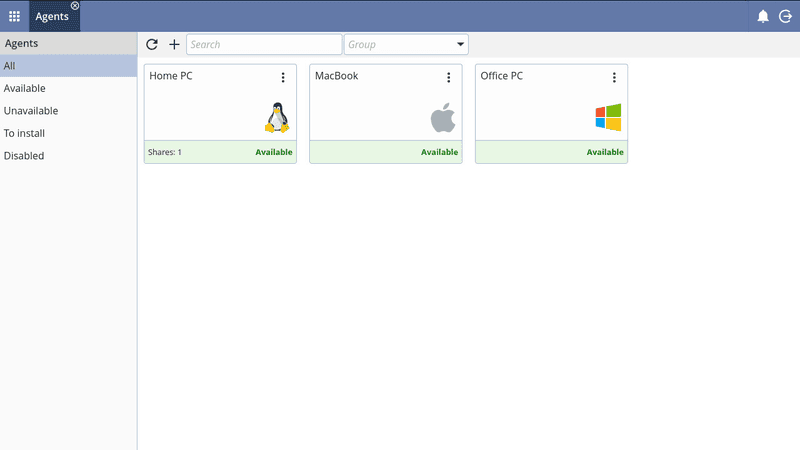
DWService offers a browser-based approach to remote access with no heavy installation, making it convenient for quick connections in restricted environments. It supports both desktop access and file management across major platforms.
However, performance often feels sluggish, especially on demanding tasks, and features remain basic; lacking session recording, smooth multi-monitor support, or advanced security controls. While suitable for occasional personal use, it falls short for professional or high-performance scenarios.
Free and easy to use
Browser-based setup
Cross-platform compatibility
Very limited features
No advanced management or collaboration tools
Best for: Casual users needing basic remote access
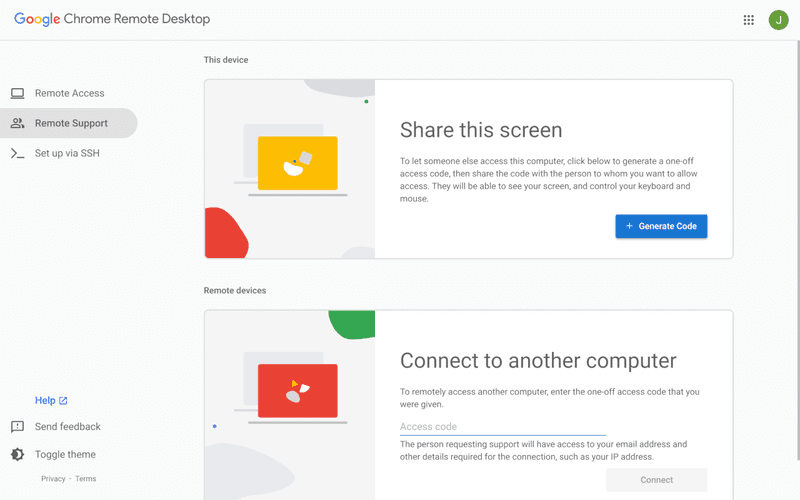
Chrome Remote Desktop is one of the simplest remote access tools available. It’s easy to set up and works across devices, making it a convenient choice for occasional use.
However, it lacks many essential features such as file transfer, session management, and advanced security controls. For users with more demanding needs, it quickly becomes insufficient. Compared to Chrome Remote Desktop, DeskIn provides a much more complete experience without sacrificing ease of use, making it a better long-term solution.
👀 You may also be interested in: |
|---|
RustDesk is powerful but can be difficult to set up and manage, especially with self-hosting. Many users prefer tools that offer similar performance without technical complexity. DeskIn simplifies remote access while maintaining strong performance and security.
Several tools qualify as a free RustDesk alternative, including DWService and Chrome Remote Desktop. However, DeskIn stands out by offering better performance and usability even in its free version.
Yes, tools like MeshCentral and DWService are considered RustDesk alternative open source options. They provide flexibility and control but often require technical expertise to set up and maintain.
Beginners should choose tools with a simple setup and intuitive interfaces. DeskIn is an excellent option because it removes the need for manual configuration while still delivering advanced features.
RustDesk is a powerful starting point, but it’s not always the easiest or most efficient tool for everyday use. From setup complexity to performance limitations, many users eventually look for a better RustDesk alternative.
Among all the options, DeskIn stands out as the most balanced solution. It combines speed, simplicity, and cross-platform support into one seamless experience. If you’re ready to move beyond technical friction and enjoy truly smooth remote access, DeskIn is a choice that simply works.

Top 7 RDP Alternative Tools for Faster, Safer Remote Access
Remote desktop access used to feel like a solid bridge. Now, for many users, traditional RDP feels more like a creaky rope ladder. With performance issues, security concerns, and limited cross-platform support, it's no surprise that more people are actively searching for a better RDP alternative that actually keeps up with modern workflows.
If you're managing multiple servers, working across devices, or just tired of unstable connections, this guide will walk you through the best tools worth switching to.
RDP (Remote Desktop Protocol) is a proprietary protocol developed by Microsoft that allows users to connect to another computer over a network. It's widely used for accessing Windows servers, virtual machines, and remote workstations.
While powerful in controlled environments, RDP is often tied to Windows systems and requires configuration like port forwarding or VPNs. Compared to newer tools, it can feel rigid and outdated.
You may also be interested in: |
|---|
RDP still works, but it comes with trade-offs that many users find frustrating:
Security risks if not properly configured
Complex setup for remote or external access
Limited cross-platform compatibility
Performance issues over unstable networks
Many IT teams are now actively replacing it, especially when looking for a Windows RDP client alternative or something that works seamlessly across macOS, Linux, and mobile devices. That's where modern Remote Desktop alternatives shine.
Choosing the right tool is like picking the right vehicle. Some are built for speed, others for heavy-duty enterprise work. Here's a quick snapshot:
DeskIn – Best all-in-one RDP alternative for performance and cross-platform use
TeamViewer – Best for enterprise remote support
AnyDesk – Best lightweight option for fast connections
RustDesk – Best Windows RDP alternative open-source solution
Remmina – Best RDP alternative for Linux users
Chrome Remote Desktop – Best simple browser-based tool
Splashtop – Best for high-performance business environments
Ultra-low latency with smooth high-frame-rate streaming
Works across Windows, macOS, Linux, iOS, and Android
Strong encryption and secure access controls
Built-in file transfer and multi-session support
Newer compared to legacy brands
Best for: Users who want a powerful, flexible RDP alternative
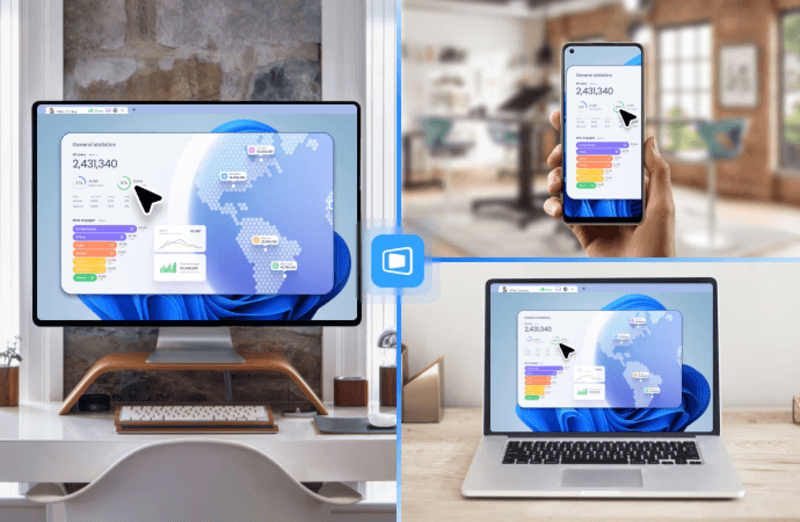
DeskIn feels less like remote access and more like teleportation for your desktop. Whether you're managing servers, supporting clients, or working remotely, it delivers consistently smooth performance without the usual lag spikes seen in traditional RDP setups.
Unlike many tools, DeskIn eliminates the need for complex configurations. You don't need to wrestle with firewalls or VPNs just to connect. It also works seamlessly across platforms, making it a strong alternative to Microsoft Remote Desktop for Mac and mobile users alike.
For teams juggling multiple systems, DeskIn provides a unified experience that replaces fragmented workflows. It's also a strong free RDP alternative option with premium-level capabilities, making it ideal for both individuals and businesses.
Enterprise-grade security and compliance
Extensive feature set including collaboration tools
Cross-platform compatibility
Reliable global performance
Expensive licensing
Can be overkill for individuals
Best for: Enterprises needing secure and scalable remote access
TeamViewer is a comprehensive remote desktop platform widely adopted by IT teams, support professionals, and enterprises. Its feature set extends far beyond simple screen sharing—it includes robust device management, remote printing, file transfer, session recording, and even augmented reality support for field service. TeamViewer's security architecture relies on AES‑256 encryption, two‑factor authentication, and whitelisting, making it suitable for organizations with strict compliance requirements. It runs on virtually every operating system and mobile platform.
The main trade‑off is its pricing: licenses are subscription‑based and can become expensive for small teams or individual users, especially as TeamViewer aggressively flags personal use as commercial, leading to session restrictions.
Fast and responsive
Lightweight installation
Works well on low bandwidth
Easy to use
File transfer can be inconsistent
Lag during longer sessions
Best for: Users needing quick, simple remote access
AnyDesk is a lightweight remote desktop application prized for its speed and efficiency, often recommended as a fast alternative to Microsoft's native Remote Desktop on Windows 10 and Android. It uses a proprietary video codec, DeskRT, to achieve low latency even on limited bandwidth, making it ideal for quick support sessions and accessing devices over mobile networks. The interface is clean and minimalist, with features like address book management, file transfer, and session recording available.
However, users frequently report instability during extended sessions; performance can degrade over time, and file transfers may slow considerably compared to competitors. While its free version is generous for personal use, professional users often find the performance ceiling limits its suitability for continuous, demanding workloads. DeskIn, by contrast, maintains consistent performance even during extended use, making it better suited for professional workloads.
You may also be interested in: |
|---|
Free and open-source
Self-hosting for full control
Strong privacy protection
Active community
Technical setup required
Limited user-friendly features
Best for: Developers and privacy-focused users
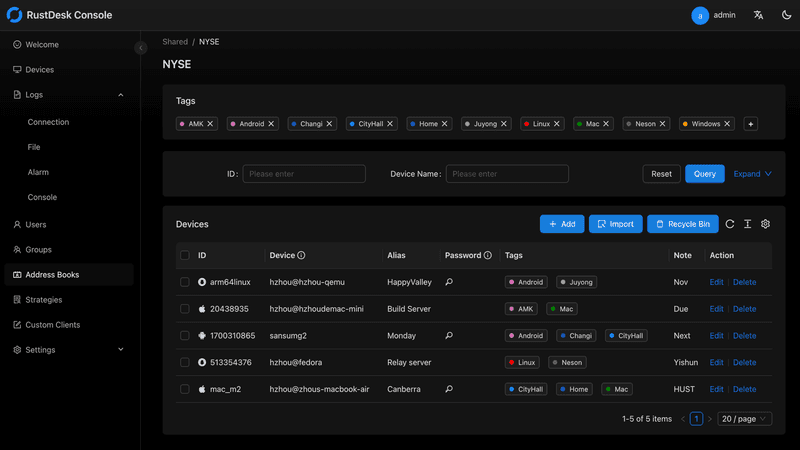
RustDesk has emerged as a leading open‑source remote desktop alternative, appealing to developers and organizations that require full control over their data. It allows users to self‑host the relay and rendezvous servers, meaning no third‑party infrastructure handles connection metadata. Built with Rust, it offers a modern codebase with cross‑platform clients (Windows, macOS, Linux, Android, iOS) and supports essential features such as file transfer, TCP tunneling, and customizable address books.
The major barrier is its complexity: deploying a self‑hosted environment requires technical expertise to configure firewalls, SSL certificates, and ongoing server maintenance. For those using the public relay, performance can be inconsistent depending on server load and geographic proximity.
You may also be interested in: Top RustDesk Alternatives for Better Performance, Security & Ease of Use |
|---|
Open-source and free
Supports multiple protocols including RDP and VNC
Lightweight and flexible
Native to Linux environments
Limited features compared to modern tools
UI can feel outdated
Best for: Linux users looking for a traditional RDP alternative Linux
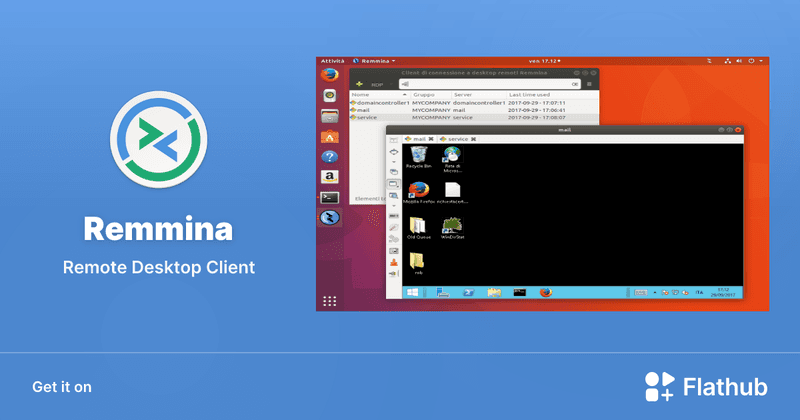
Remmina is a beloved open‑source remote desktop client for Linux, supporting multiple protocols (RDP, VNC, SSH, SPICE, and others) in a single unified interface. It is frequently chosen by system administrators and Linux enthusiasts who need a flexible, lightweight tool to manage diverse environments. Remmina offers tabbed sessions, quick‑connect profiles, and a plugin system that extends its capabilities.
However, its strength - protocol flexibility, also highlights its limitations. As a frontend client rather than a full remote access solution, it lacks features like unattended access, centralized account management, or robust session recording out of the box. Performance can vary by protocol, and the user experience lags behind more polished commercial tools, particularly for users seeking a plug‑and‑play setup.
Free and easy to use
Browser-based setup
Cross-platform access
Very limited features
No advanced management tools
Best for: Casual users needing basic remote access
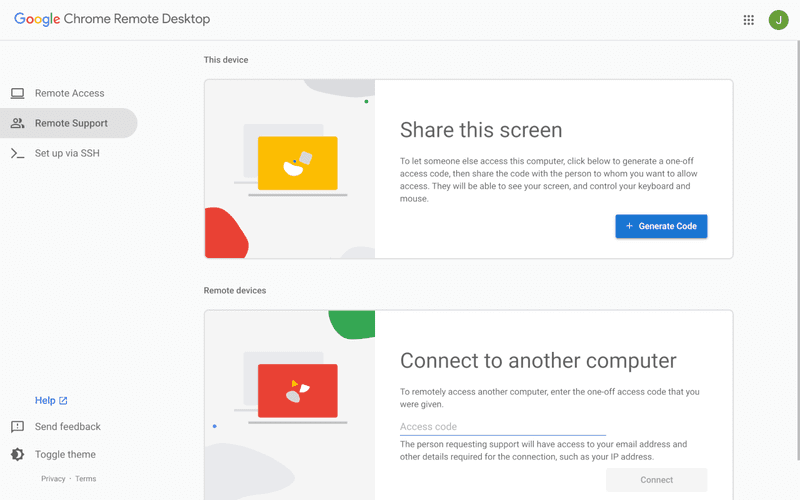
Chrome Remote Desktop is a free, browser‑based remote access tool from Google that requires nothing more than a Chrome browser and a Google account. It excels in simplicity: installation takes seconds, and connections are mediated through Google's infrastructure, eliminating complex firewall configurations. For occasional use—such as helping a family member or quickly accessing a home computer—it works reliably across Windows, macOS, Linux, and even ChromeOS.
The trade‑off is its minimal feature set. There is no native file transfer, multi‑session management, remote printing, or granular permission controls. Collaboration tools are absent, and the reliance on a Google account for authentication can be a limitation in professional environments. It remains a convenient entry‑level tool but struggles to meet the needs of power users or IT teams.
You may also be interested in: |
|---|
High-quality streaming performance
Strong security features
Good for business environments
Reliable connections
Subscription-based pricing
Limited free version
Best for: Businesses needing performance-focused remote access
Splashtop is a high‑performance remote desktop solution frequently adopted by creative professionals, educational institutions, and enterprises that prioritize fluid interaction. It delivers low‑latency streaming with support for high‑frame‑rate displays, making it suitable for video editing, CAD work, and other graphics‑intensive tasks. Splashtop offers a range of editions—from Business Access to SOS for on‑demand support—all of which include robust security (AES‑256, device authentication) and features like file transfer, remote printing, and multi‑monitor navigation. Its performance over local networks and the internet is consistently praised.
The primary drawback is cost: while competitive, the subscription model can accumulate quickly for users needing access to multiple devices or advanced features, especially when compared to similarly capable tools with more flexible pricing structures. DeskIn offers similar performance benefits with a more flexible pricing structure, making it a compelling alternative.
You may also be interested in: |
|---|
RDP can be difficult to configure, less secure if exposed, and limited outside Windows environments. Modern tools like DeskIn provide better performance, security, and ease of use.
The best RDP alternative depends on your needs, but DeskIn stands out for its balance of speed, security, and cross-platform compatibility.
Yes, several tools qualify as an RDP alternative free, including RustDesk and Chrome Remote Desktop. DeskIn also offers a free tier with advanced capabilities.
Microsoft is evolving its remote desktop ecosystem, but traditional RDP isn't disappearing overnight. However, many users are already transitioning to more modern solutions like DeskIn for better reliability and flexibility.
RDP has served its purpose, but the digital world has outgrown its limitations. Whether you need better performance, stronger security, or true cross-platform access, switching to a modern RDP alternative is no longer optional, it's inevitable.
Among all the options, DeskIn stands out as a future-ready solution. It combines speed, simplicity, and power into one seamless experience, helping you leave behind the friction of traditional remote desktop tools and step into something far more efficient.
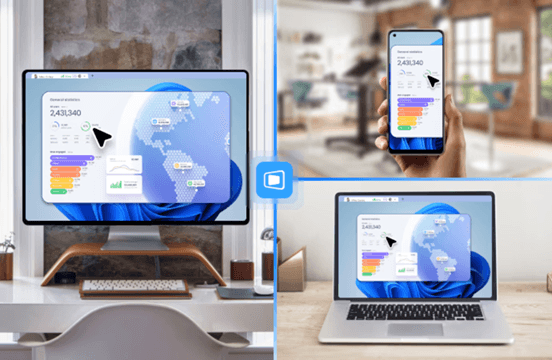
Top 10 Splashtop Alternative Tools for Faster, More Reliable Remote Access (2026)
If your remote desktop tool has started to feel like a buffering video at the worst possible moment, you're not alone. Many users are actively searching for a better Splashtop alternative due to rising costs, laggy connections, and limited flexibility. Whether you're managing remote IT support or simply accessing your work computer from home, the right tool can turn frustration into seamless control. Let’s dive into the best options available today.
Before switching, it’s worth knowing what actually matters. A great remote desktop tool should offer:
Smooth performance with low latency and high frame rates
Strong security like AES-256 encryption and 2FA
Cross-platform compatibility (desktop + mobile)
Easy setup and intuitive interface
Transparent pricing without hidden increases
Stable unattended remote access
These factors define the best remote desktop experience in 2026.
Tool | Pros | Cons | Best For |
|---|---|---|---|
High performance, affordable, smooth | Newer brand | High-quality remote work | |
AnyDesk | Lightweight, fast | Security limits | Quick sessions |
TeamViewer | Secure, scalable | Expensive | Enterprises |
Chrome Remote Desktop | Free, simple
| Limited features | Personal use |
Zoho Assist | Clean UI, integrations | Stability issues | IT support |
RemotePC | Affordable | Performance inconsistency | SMBs |
RealVNC | Secure | Occasional disconnects | Secure access |
LogMeIn | Feature-rich | High cost | Enterprises |
ScreenConnect | Powerful | Complex setup | MSPs |
RustDesk | Open-source | Technical setup | Developers |
Up to 4K 60FPS/2K 240FPS ultra-smooth remote control
Low latency even across long distances
Competitive pricing with strong value
Cross-platform including mobile
Smaller brand awareness
Best for: Performance-driven users and remote professionals
DeskIn is designed for users who are tired of lag and blurry screens. It delivers a near-local experience, making it ideal for developers, designers, and remote teams who rely on precision and speed. Compared to many traditional tools, it feels significantly more responsive.
Beyond performance, DeskIn balances cost and capability extremely well. If you're looking for a free alternative to Splashtop or a scalable upgrade, it offers a compelling mix of speed, security, and usability. Many users consider it a strong case where DeskIn is better than Splashtop, especially when stability matters.
Very lightweight installation
Fast connections on low bandwidth
Easy to use interface
Limited advanced security features
Occasional connection instability
Best for: Quick remote support and simple workflows
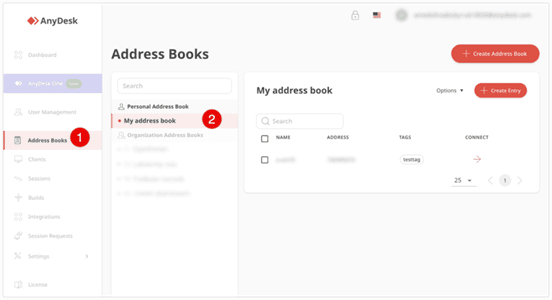
AnyDesk is frequently recommended as a Splashtop alternative thanks to its exceptional speed and minimal system footprint. The installer is just a few megabytes, and the application runs smoothly even on older hardware. It performs particularly well in low‑bandwidth environments, where its proprietary video codec maintains responsive connections during quick troubleshooting sessions.
That said, users who require consistently high frame rates, crisp visuals for design work, or advanced session management may find AnyDesk’s simplicity limiting. While it handles basic tasks admirably, power users often need more stability and richer feature sets.
You may also be interested in:
Strong security (AES-256, 2FA)
Wide device compatibility
Mature ecosystem and features
Reliable remote support tools
Expensive pricing plans
Can feel heavy for small teams
Best for: Enterprises and large organizations
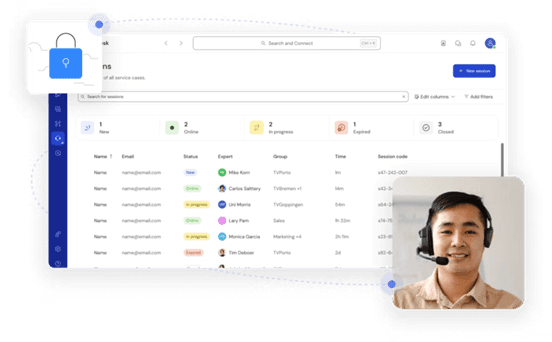
TeamViewer has long been a dominant force in remote desktop software, trusted by IT departments and enterprises worldwide. Its comprehensive feature set includes remote support, meeting tools, file transfer, and even augmented‑reality assistance, all secured with AES‑256 encryption and two‑factor authentication.
However, this power comes at a price—literally. TeamViewer’s licensing model can be prohibitively expensive for smaller businesses or individual users. The interface, while feature‑rich, can also feel cluttered for those who simply need unattended access to a few computers.
You may also be interested in:
Completely free to use
Easy browser-based setup
Works across devices
Very limited features
Not suitable for business use
Best for: Individuals needing a free remote desktop
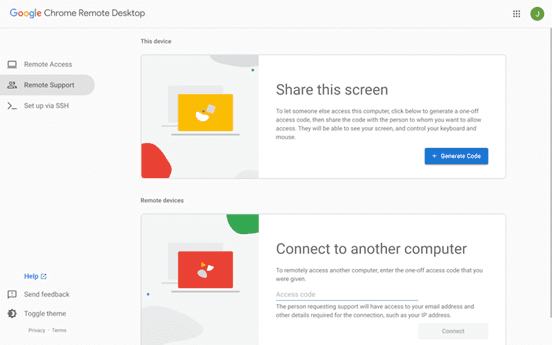
Chrome Remote Desktop is the ultimate choice for users seeking a straightforward, completely free remote access solution. Setup takes less than a minute: install the browser extension, authenticate with your Google account, and you can instantly access any computer from another device.
The trade‑off for this simplicity is a very limited feature set. There is no file transfer, multi‑monitor switching, remote printing, or session recording. Users who find themselves needing more than bare‑bones access will see a significant boost in efficiency and experience by upgrading to a dedicated tool like DeskIn, which retains ease of use while adding the features power users rely on.
You may also be interested in:
Intuitive interface
Good integrations with Zoho ecosystem
Cloud-based access
Occasional performance issues
Limited advanced features
Best for: IT helpdesk teams
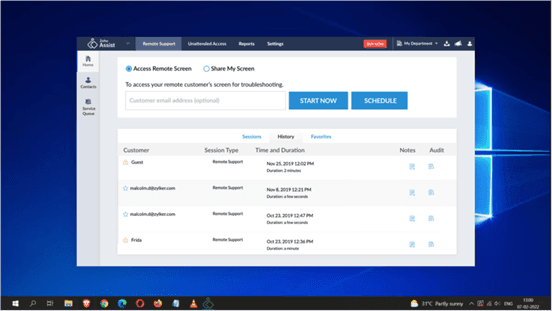
Zoho Assist delivers a clean, well‑organized remote support experience that integrates naturally with the broader Zoho ecosystem. Its dashboard is intuitive, making it easy for helpdesk teams to manage clients, schedule sessions, and generate reports. For organizations already using Zoho CRM or other Zoho applications, the seamless integration streamlines workflows and reduces the need to switch between different tools.
Despite its polished interface, performance consistency can be an issue, especially during file transfers or when connecting to machines with slower internet connections. The feature set, while sufficient for standard helpdesk operations, lacks some of the advanced controls that IT professionals expect for more complex troubleshooting.
Affordable pricing
Easy setup
Supports multiple devices
Performance can vary
Limited advanced capabilities
Best for: Small businesses and budget users
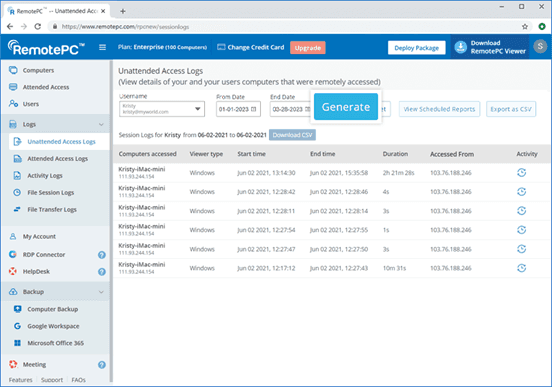
RemotePC positions itself as a budget‑friendly alternative for users who need basic remote access without a steep learning curve. Setup is straightforward, and the pricing structure is refreshingly simple—affordable plans that allow connection to multiple computers without hidden fees. It covers essential features like remote printing, file transfer, and even a simple chat function, making it a practical choice for small businesses and individual users.
However, performance can vary depending on network conditions and the specific devices being connected. Some users report occasional lag or reduced frame rates, which can become frustrating during extended sessions.
Strong encryption and security
Customisable setup
Reliable remote connections
Occasional login interruptions
Slight learning curve
Best for: Security-focused users
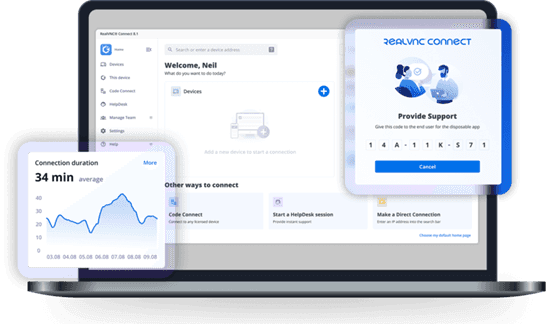
RealVNC has built a strong reputation for secure remote access. It uses robust encryption and offers granular permission controls, allowing administrators to tailor access levels for different users. The platform is highly customizable, supporting on‑premises deployments as well as cloud‑based options, which appeals to organizations with strict security requirements.
While security is clearly its strength, the user experience can sometimes feel less polished than newer competitors. Occasional login interruptions and a steeper configuration curve mean that getting the most out of RealVNC often requires technical expertise. For businesses that need both enterprise‑grade security and consistently high performance without complex setup, a more balanced solution, such as DeskIn, can deliver the best of both worlds, combining strong encryption with a streamlined, speed‑optimized experience.
Comprehensive feature set
Strong integrations
Good for collaboration
Reliable access
High pricing
Overkill for simple use cases
Best for: Enterprises needing all-in-one solutions
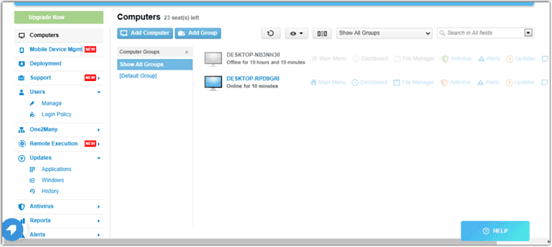
LogMeIn provides a comprehensive toolkit that extends far beyond simple remote desktop access. It includes robust file storage, collaboration features, and extensive integration options, making it well‑suited for enterprises that want an all‑in‑one remote work platform. The service is known for its reliability and strong customer support, which can be critical for large organizations managing hundreds or thousands of endpoints.
The main drawback is the cost. LogMeIn’s pricing plans are among the highest in the industry, and the feature set can be overwhelming for users who only need occasional remote access. Many of its advanced capabilities go unused by smaller teams, making it difficult to justify the expense.
Highly customizable
Remote support features
Multi-session support
Complex setup
Difficult to manage at scale
Best for: MSPs and IT teams
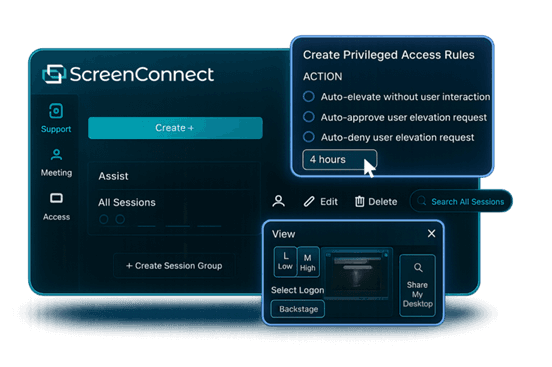
ScreenConnect (now part of ConnectWise) is a powerful, highly customizable remote support platform built with IT professionals and managed service providers in mind. It excels at multi‑session management, allowing technicians to handle several concurrent connections from a single interface. The level of granular control, over permissions, session recording, and even the appearance of the client UI, makes it a favorite among those who need to tailor the software to specific operational workflows.
However, this flexibility comes with a steep learning curve. Initial setup and ongoing management can be complex, especially for smaller teams without dedicated IT administration. For teams seeking a powerful yet approachable solution, DeskIn offers a streamlined alternative that delivers professional‑grade reliability and speed without the administrative overhead.
Free and open-source
Self-hosting options
Strong privacy control
Requires technical setup
Limited support
Best for: Developers and privacy-focused users
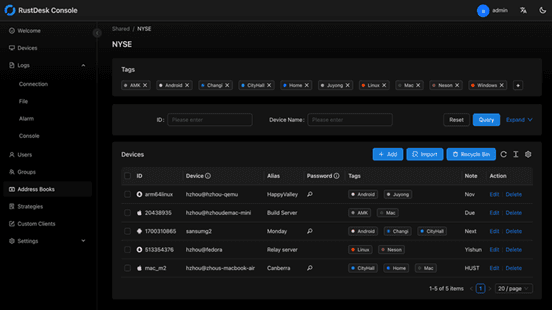
RustDesk appeals to developers and privacy‑conscious users who want full control over their remote access infrastructure. As an open‑source solution, it allows self‑hosting on private servers, ensuring that no session data ever passes through third‑party servers. This transparency and autonomy are highly valued by organizations with strict data sovereignty requirements or those simply wishing to avoid vendor lock‑in.
The flip side is that RustDesk requires technical expertise to deploy and maintain. Users must manage their own servers, handle updates, and troubleshoot connection issues without dedicated commercial support. While the core software is free, the total cost of ownership in time and resources can be significant.
You may also be interested in:
DeskIn is one of the strongest options due to its balance of performance, pricing, and usability. TeamViewer and AnyDesk are also popular choices.
Yes, Chrome Remote Desktop and RustDesk are free options. DeskIn also offers a competitive free plan with better performance.
The best remote desktop tools combine speed, security, and ease of use. DeskIn stands out for performance, while TeamViewer excels in enterprise environments.
Yes, most tools support mobile, making them suitable as a Splashtop alternative for Android or a Splashtop alternative for iPad.
Many users cite high Splashtop pricing, lag issues, and limited scalability as reasons to explore alternatives.
Finding the right Splashtop alternative is less about replacing a tool and more about upgrading your workflow. While options like AnyDesk and TeamViewer each have their strengths, DeskIn stands out by combining high performance, smooth visuals, and cost efficiency in one package. If you want a remote desktop experience that feels fast, stable, and future-ready, DeskIn is easily one of the smartest choices you can make today.
Top 6 RustDesk Alternative Tools for Faster, Easier Remote Access
Remote access should feel like flipping a light switch, not decoding a control panel. Yet many users exploring RustDesk eventually run into friction: connection IDs, server setup, or occasional lag. While RustDesk is powerful, it’s not always the easiest or smoothest option, especially for non-technical users.
That’s why more people are actively searching for a reliable RustDesk alternative that combines performance, simplicity, and flexibility. Whether you want a plug-and-play solution or something more advanced, this guide will help you find the best fit.
RustDesk stands out as a privacy-friendly, self-hosted remote desktop tool. However, real-world usage reveals a few common challenges:
Complicated setup for the RustDesk self-hosted environments
Manual connection steps requiring IDs and passwords
Occasional latency or unstable connections
Limited user-friendly features out of the box
For many users, especially those helping family or managing multiple devices, simplicity matters just as much as control.
When evaluating a RustDesk alternative, focus on these key factors:
Ease of use: Quick setup without technical overhead
Performance: Smooth, low-latency remote sessions
Compatibility: Support for Windows, macOS, Linux, and mobile
Security: Strong encryption and access controls
Flexibility: Options ranging from cloud-based to open source
The ideal tool strikes a balance between power and convenience, something many modern solutions now deliver better than traditional setups.
Here’s a quick breakdown of the top tools and where they shine:
DeskIn – Best all-in-one RustDesk alternative for performance and ease of use
AnyDesk – Best lightweight tool for fast connections
TeamViewer – Best for enterprise-grade remote support
MeshCentral – Best open-source and self-hosted solution
DWService – Best free browser-based tool
Chrome Remote Desktop – Best simple, no-frills option
Ultra-low latency with smooth high-frame-rate streaming
No complex setup or server deployment required
Cross-platform including Rustdesk alternative for Android
Secure with encryption and device control features
Built-in file transfer and multi-device management
Smaller awareness than legacy competitors
Best for: Users who want a powerful yet simple remote desktop solution
DeskIn removes the friction that often comes with remote access tools. Instead of relying on IDs or manual configurations, it offers a streamlined connection experience that works right out of the box. This makes it especially valuable for users supporting non-technical family members or managing multiple remote devices.
Performance is where DeskIn truly distinguishes itself. Compared to RustDesk, which can sometimes struggle with latency, DeskIn delivers consistently smooth sessions with minimal lag. It also eliminates the need for self-hosting, making it a strong free RustDesk alternative option for users who want powerful features without the complexity.
For those exploring options beyond the RustDesk alternative GitHub projects, DeskIn provides a polished, ready-to-use experience that balances simplicity with professional-grade performance.
Lightweight and fast installation
Good performance on low bandwidth
Cross-platform support
Easy-to-use interface
Performance may drop during long sessions
File transfer can be inconsistent
Best for: Users needing quick and simple remote access
AnyDesk is often considered a natural step up from RustDesk for users who want something easier to deploy. It offers a lightweight application that connects quickly and performs well under normal conditions. This makes it suitable for quick troubleshooting or occasional remote access.
However, performance consistency can be an issue. Users frequently report lag or instability during extended sessions or when handling more demanding tasks. While AnyDesk is a solid option for basic needs, it may not fully satisfy users looking for a more robust, all-in-one solution.
👀 You may also be interested in: |
|---|
Enterprise-grade security with encryption and 2FA
Stable performance across global networks
Rich features like file transfer and session recording
Broad device compatibility
Expensive for commercial use
Free version has limitations
Heavier resource usage on some systems
Best for: Businesses and IT teams managing multiple endpoints
TeamViewer has long been a dominant player in the remote desktop space, offering a comprehensive suite of features designed for enterprise environments. It excels in reliability and global connectivity, making it a popular choice for IT support teams.
That said, its pricing model is a major drawback for many users. Frequent users may quickly encounter licensing restrictions, and costs can escalate for businesses. Additionally, its heavier footprint can impact performance on lower-end devices. DeskIn offers a more modern alternative by delivering similar performance and essential features without the same cost barriers. For users who want enterprise-level capabilities with better efficiency, it presents a compelling option.
👀 You may also be interested in: |
|---|
Fully RustDesk alternative open source solution
Web-based management dashboard
Supports multi-device environments
Strong customization and control
Complex setup and maintenance
Requires technical expertise
Best for: Advanced users needing a Rustdesk alternative self-hosted
MeshCentral is a powerful open-source platform designed for users who want full control over their remote access infrastructure. It supports multiple devices and provides a centralized dashboard for management, making it attractive for IT professionals.
However, this flexibility comes with complexity. Setting up and maintaining a MeshCentral server requires technical knowledge, which can be a barrier for many users. Compared to this, DeskIn offers a much simpler deployment process while still delivering strong performance and security. For users who prioritize ease of use over full control, modern solutions like DeskIn provide a more accessible alternative.
Completely free
Browser-based access
Open-source foundation
Simple setup
Limited performance
Basic feature set
Best for: Users looking for a simple, free RustDesk alternative
DWService offers a browser-based approach to remote access with no heavy installation, making it convenient for quick connections in restricted environments. It supports both desktop access and file management across major platforms.
However, performance often feels sluggish, especially on demanding tasks, and features remain basic; lacking session recording, smooth multi-monitor support, or advanced security controls. While suitable for occasional personal use, it falls short for professional or high-performance scenarios.
Free and easy to use
Browser-based setup
Cross-platform compatibility
Very limited features
No advanced management or collaboration tools
Best for: Casual users needing basic remote access
Chrome Remote Desktop is one of the simplest remote access tools available. It’s easy to set up and works across devices, making it a convenient choice for occasional use.
However, it lacks many essential features such as file transfer, session management, and advanced security controls. For users with more demanding needs, it quickly becomes insufficient. Compared to Chrome Remote Desktop, DeskIn provides a much more complete experience without sacrificing ease of use, making it a better long-term solution.
👀 You may also be interested in: |
|---|
RustDesk is powerful but can be difficult to set up and manage, especially with self-hosting. Many users prefer tools that offer similar performance without technical complexity. DeskIn simplifies remote access while maintaining strong performance and security.
Several tools qualify as a free RustDesk alternative, including DWService and Chrome Remote Desktop. However, DeskIn stands out by offering better performance and usability even in its free version.
Yes, tools like MeshCentral and DWService are considered RustDesk alternative open source options. They provide flexibility and control but often require technical expertise to set up and maintain.
Beginners should choose tools with a simple setup and intuitive interfaces. DeskIn is an excellent option because it removes the need for manual configuration while still delivering advanced features.
RustDesk is a powerful starting point, but it’s not always the easiest or most efficient tool for everyday use. From setup complexity to performance limitations, many users eventually look for a better RustDesk alternative.
Among all the options, DeskIn stands out as the most balanced solution. It combines speed, simplicity, and cross-platform support into one seamless experience. If you’re ready to move beyond technical friction and enjoy truly smooth remote access, DeskIn is a choice that simply works.
Top 7 RDP Alternative Tools for Faster, Safer Remote Access
Remote desktop access used to feel like a solid bridge. Now, for many users, traditional RDP feels more like a creaky rope ladder. With performance issues, security concerns, and limited cross-platform support, it's no surprise that more people are actively searching for a better RDP alternative that actually keeps up with modern workflows.
If you're managing multiple servers, working across devices, or just tired of unstable connections, this guide will walk you through the best tools worth switching to.
RDP (Remote Desktop Protocol) is a proprietary protocol developed by Microsoft that allows users to connect to another computer over a network. It's widely used for accessing Windows servers, virtual machines, and remote workstations.
While powerful in controlled environments, RDP is often tied to Windows systems and requires configuration like port forwarding or VPNs. Compared to newer tools, it can feel rigid and outdated.
You may also be interested in: |
|---|
RDP still works, but it comes with trade-offs that many users find frustrating:
Security risks if not properly configured
Complex setup for remote or external access
Limited cross-platform compatibility
Performance issues over unstable networks
Many IT teams are now actively replacing it, especially when looking for a Windows RDP client alternative or something that works seamlessly across macOS, Linux, and mobile devices. That's where modern Remote Desktop alternatives shine.
Choosing the right tool is like picking the right vehicle. Some are built for speed, others for heavy-duty enterprise work. Here's a quick snapshot:
DeskIn – Best all-in-one RDP alternative for performance and cross-platform use
TeamViewer – Best for enterprise remote support
AnyDesk – Best lightweight option for fast connections
RustDesk – Best Windows RDP alternative open-source solution
Remmina – Best RDP alternative for Linux users
Chrome Remote Desktop – Best simple browser-based tool
Splashtop – Best for high-performance business environments
Ultra-low latency with smooth high-frame-rate streaming
Works across Windows, macOS, Linux, iOS, and Android
Strong encryption and secure access controls
Built-in file transfer and multi-session support
Newer compared to legacy brands
Best for: Users who want a powerful, flexible RDP alternative
DeskIn feels less like remote access and more like teleportation for your desktop. Whether you're managing servers, supporting clients, or working remotely, it delivers consistently smooth performance without the usual lag spikes seen in traditional RDP setups.
Unlike many tools, DeskIn eliminates the need for complex configurations. You don't need to wrestle with firewalls or VPNs just to connect. It also works seamlessly across platforms, making it a strong alternative to Microsoft Remote Desktop for Mac and mobile users alike.
For teams juggling multiple systems, DeskIn provides a unified experience that replaces fragmented workflows. It's also a strong free RDP alternative option with premium-level capabilities, making it ideal for both individuals and businesses.
Enterprise-grade security and compliance
Extensive feature set including collaboration tools
Cross-platform compatibility
Reliable global performance
Expensive licensing
Can be overkill for individuals
Best for: Enterprises needing secure and scalable remote access
TeamViewer is a comprehensive remote desktop platform widely adopted by IT teams, support professionals, and enterprises. Its feature set extends far beyond simple screen sharing—it includes robust device management, remote printing, file transfer, session recording, and even augmented reality support for field service. TeamViewer's security architecture relies on AES‑256 encryption, two‑factor authentication, and whitelisting, making it suitable for organizations with strict compliance requirements. It runs on virtually every operating system and mobile platform.
The main trade‑off is its pricing: licenses are subscription‑based and can become expensive for small teams or individual users, especially as TeamViewer aggressively flags personal use as commercial, leading to session restrictions.
Fast and responsive
Lightweight installation
Works well on low bandwidth
Easy to use
File transfer can be inconsistent
Lag during longer sessions
Best for: Users needing quick, simple remote access
AnyDesk is a lightweight remote desktop application prized for its speed and efficiency, often recommended as a fast alternative to Microsoft's native Remote Desktop on Windows 10 and Android. It uses a proprietary video codec, DeskRT, to achieve low latency even on limited bandwidth, making it ideal for quick support sessions and accessing devices over mobile networks. The interface is clean and minimalist, with features like address book management, file transfer, and session recording available.
However, users frequently report instability during extended sessions; performance can degrade over time, and file transfers may slow considerably compared to competitors. While its free version is generous for personal use, professional users often find the performance ceiling limits its suitability for continuous, demanding workloads. DeskIn, by contrast, maintains consistent performance even during extended use, making it better suited for professional workloads.
You may also be interested in: |
|---|
Free and open-source
Self-hosting for full control
Strong privacy protection
Active community
Technical setup required
Limited user-friendly features
Best for: Developers and privacy-focused users
RustDesk has emerged as a leading open‑source remote desktop alternative, appealing to developers and organizations that require full control over their data. It allows users to self‑host the relay and rendezvous servers, meaning no third‑party infrastructure handles connection metadata. Built with Rust, it offers a modern codebase with cross‑platform clients (Windows, macOS, Linux, Android, iOS) and supports essential features such as file transfer, TCP tunneling, and customizable address books.
The major barrier is its complexity: deploying a self‑hosted environment requires technical expertise to configure firewalls, SSL certificates, and ongoing server maintenance. For those using the public relay, performance can be inconsistent depending on server load and geographic proximity.
You may also be interested in: Top RustDesk Alternatives for Better Performance, Security & Ease of Use |
|---|
Open-source and free
Supports multiple protocols including RDP and VNC
Lightweight and flexible
Native to Linux environments
Limited features compared to modern tools
UI can feel outdated
Best for: Linux users looking for a traditional RDP alternative Linux
Remmina is a beloved open‑source remote desktop client for Linux, supporting multiple protocols (RDP, VNC, SSH, SPICE, and others) in a single unified interface. It is frequently chosen by system administrators and Linux enthusiasts who need a flexible, lightweight tool to manage diverse environments. Remmina offers tabbed sessions, quick‑connect profiles, and a plugin system that extends its capabilities.
However, its strength - protocol flexibility, also highlights its limitations. As a frontend client rather than a full remote access solution, it lacks features like unattended access, centralized account management, or robust session recording out of the box. Performance can vary by protocol, and the user experience lags behind more polished commercial tools, particularly for users seeking a plug‑and‑play setup.
Free and easy to use
Browser-based setup
Cross-platform access
Very limited features
No advanced management tools
Best for: Casual users needing basic remote access
Chrome Remote Desktop is a free, browser‑based remote access tool from Google that requires nothing more than a Chrome browser and a Google account. It excels in simplicity: installation takes seconds, and connections are mediated through Google's infrastructure, eliminating complex firewall configurations. For occasional use—such as helping a family member or quickly accessing a home computer—it works reliably across Windows, macOS, Linux, and even ChromeOS.
The trade‑off is its minimal feature set. There is no native file transfer, multi‑session management, remote printing, or granular permission controls. Collaboration tools are absent, and the reliance on a Google account for authentication can be a limitation in professional environments. It remains a convenient entry‑level tool but struggles to meet the needs of power users or IT teams.
You may also be interested in: |
|---|
High-quality streaming performance
Strong security features
Good for business environments
Reliable connections
Subscription-based pricing
Limited free version
Best for: Businesses needing performance-focused remote access
Splashtop is a high‑performance remote desktop solution frequently adopted by creative professionals, educational institutions, and enterprises that prioritize fluid interaction. It delivers low‑latency streaming with support for high‑frame‑rate displays, making it suitable for video editing, CAD work, and other graphics‑intensive tasks. Splashtop offers a range of editions—from Business Access to SOS for on‑demand support—all of which include robust security (AES‑256, device authentication) and features like file transfer, remote printing, and multi‑monitor navigation. Its performance over local networks and the internet is consistently praised.
The primary drawback is cost: while competitive, the subscription model can accumulate quickly for users needing access to multiple devices or advanced features, especially when compared to similarly capable tools with more flexible pricing structures. DeskIn offers similar performance benefits with a more flexible pricing structure, making it a compelling alternative.
You may also be interested in: |
|---|
RDP can be difficult to configure, less secure if exposed, and limited outside Windows environments. Modern tools like DeskIn provide better performance, security, and ease of use.
The best RDP alternative depends on your needs, but DeskIn stands out for its balance of speed, security, and cross-platform compatibility.
Yes, several tools qualify as an RDP alternative free, including RustDesk and Chrome Remote Desktop. DeskIn also offers a free tier with advanced capabilities.
Microsoft is evolving its remote desktop ecosystem, but traditional RDP isn't disappearing overnight. However, many users are already transitioning to more modern solutions like DeskIn for better reliability and flexibility.
RDP has served its purpose, but the digital world has outgrown its limitations. Whether you need better performance, stronger security, or true cross-platform access, switching to a modern RDP alternative is no longer optional, it's inevitable.
Among all the options, DeskIn stands out as a future-ready solution. It combines speed, simplicity, and power into one seamless experience, helping you leave behind the friction of traditional remote desktop tools and step into something far more efficient.
聯絡我們
電子郵件: support@deskin.io
總部: 991D Alexandra Road #02-17, Singapore 119972
聯絡我們
電子郵件: support@deskin.io
總部: 991D Alexandra Road #02-17, Singapore 119972
聯絡我們
support@deskin.io
991D Alexandra Road #02-17, Singapore 119972
年付低至
2.1 折
!4K60FPS 順暢辦公 + 遊戲,
錯過等1年!
低至
2.1 折
解鎖極致遠端體驗,
錯過等1年!
年付低至
2.1 折
!4K60FPS 順暢辦公 + 遊戲,
錯過等1年!


