快速助手終極指南:Windows 免費遠程支援神器,可惜 Mac 用不了!

W. Ting

/

10分鐘

/

已更新

2025年11月12日

當親友的電腦突然出現問題,您是否曾因距離而束手無策?別擔心,微軟內建的「快速助手」(Quick Assist)正是為此而生。這款免費的遠程支援工具,能讓您透過一組簡單的安全碼,即時查看甚至控制對方的 Windows 電腦,宛如親臨現場解決技術難題。本文將帶您全面瞭解這款神器,從核心功能到實操教學,一應俱全

在接下來的內容中,我們將深入探討「快速助手」(Quick Assist)的詳細使用教學,並為 Mac 用戶及需要更多進階功能的讀者,精選最佳的跨平台替代方案。同時,我們也將提供一系列實用技巧,協助您解決連線過程中可能遇到的常見問題。請繼續閱讀,發掘更有效率的遠程協作方式!

更多延伸閲讀
快速助手是什麽:瞭解其主要功能

快速助手

「快速助手」是微軟為Windows用戶打造的內建免費遠端協助工具,無需額外付費或安裝複雜軟體。只要雙方都是Windows 系統,透過一組簡單的安全碼,就能立即建立安全連線,實現螢幕共享甚至遠端控制。這款工具完美整合於作業系統中,讓技術支援變得輕鬆又高效,特別適合臨時性的電腦問題排除。

快速助手的優勢

別小看這款內建於系統的「Win10 小幫手」,它憑藉著以下四大優勢,成為許多人臨時遠端支援的首選:

  • 完全免費使用:無需任何訂閱費用,節省尋找免費軟體的時間與風險

  • 無需額外下載:內建於 Windows 系統中,隨時可從開始 menu 快速開啟

  • 操作極度簡單:直覺化的介面設計,協助者與被協助者都能輕鬆上手

  • 連線安全加密:透過微軟帳戶驗證與一次性安全碼,保障遠端連線的安全性

快速助手的局限性

確實,「快速助手」並非萬能,其設計上的局限性有時會為跨平台協作帶來不便,特別是對於 快速助手 Mac 用戶而言,更是完全無法使用,這在今日多裝置的環境下確實是一大硬傷。

具體來說,它的主要局限性包括:

  • 使用場景有限:只能支持普通的技術支援,如果涉及到遠程辦公、遠程玩游戲,以及遠程做設計就無法實現。

  • 不支援 macOS 系統:身為 Mac 用戶,您無法使用 Quick Assist 來生成代碼幫助他人,也無法輸入代碼去控制別人的電腦,這在需要跨平台協助時顯得相當不便。

  • 無法在兩台電腦之間傳輸檔案:遠端連線過程中,無法直接分享或交換檔案,必須依賴其他通訊軟體或雲端服務,中斷了解決問題的流暢度。如果需要在兩台電腦之間輕鬆地傳輸檔案,請考慮快速助手的最佳替代品—DeskIn。

  • 配對碼有時間限制:安全代碼具有時效性,如果您不熟悉操作流程,很可能在嘗試連線時代碼就已過期,需要重新生成,對新手來說較不友善。

  • 不支援無人值守存取:每次連線都必須由被控端的使用者在現場手動接受請求,無法直接連線到無人操作的電腦,缺乏彈性。

溫馨提示:如果快速助手的局限性100%影響到你的使用,請直接跳轉到本文的「快速助手最佳替代品」。

快速助手的下載與使用

由於「快速助手」是內建於 Win 10 快速助手 與 Win 11 快速助手 系統中的原生工具,因此在大多數情況下,您無需進行任何快速助手下載即可直接使用。但若您發現電腦中沒有此應用程式,可以前往 Microsoft Store 搜尋並手動安裝它。

在 Windows 上使用快速助手的步驟如下:

步驟1: 協助者開啟「快速助手」應用程式,點選「協助他人」,並使用 Microsoft 帳戶登入。
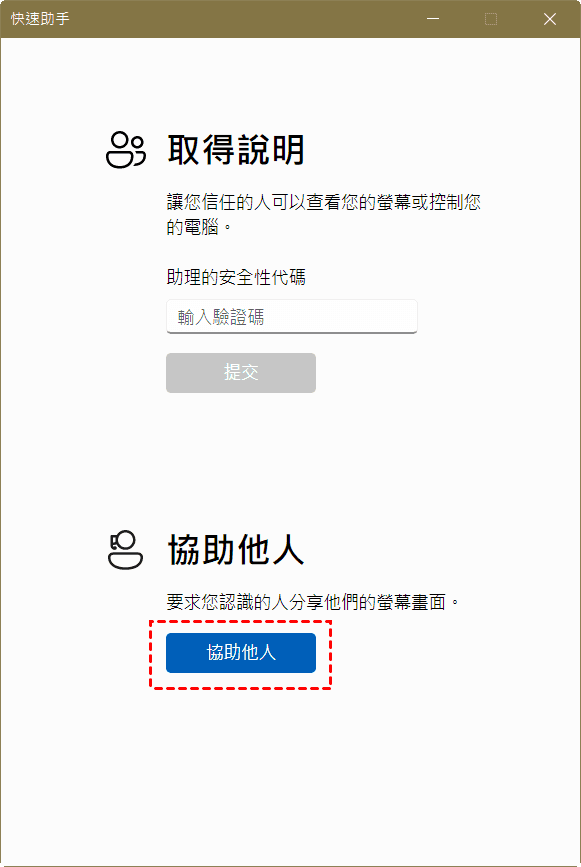
使用快速助手點擊協助他人

步驟2: 系統將產生一組 6 位數的安全代碼,將此代碼提供給需要協助的一方。

快速助手的安全代碼

步驟3: 被協助者在自己的電腦上開啟「快速助手」,在「取得協助」欄位中輸入協助者提供的安全碼。

步驟4: 被協助者選擇「共用螢幕」以允許協助者查看其桌面畫面。

步驟5: 協助者若需要直接操作對方電腦,可點選「要求控制」,待被協助者點選「允許」後,即可開始遠端控制。

步驟6: 連線過程中,任何一方均可隨時點選「停止共用」來立即結束遠端工作階段。
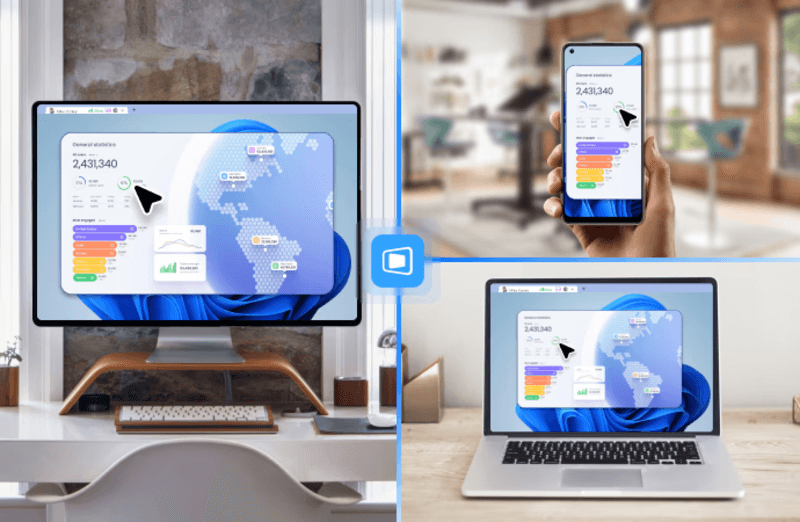
快速助手最佳替代品:無縫連接 Windows 與 Mac 用戶

快速助手的最佳替代品 DeskIn

DeskIn,一款絕佳的遠端工作軟體,也是一個功能全面的遠端連線兩台電腦的工具,其最顯著的特點在於強大的跨平台兼容性,無論您使用的是 Windows、macOS、Android 還是 iOS 設備,都能透過 DeskIn 實現無縫的遠端訪問與控制。

📥 想試試看嗎?DeskIn 有免費版可以下載,企業級的加密技術,用起來安全又放心!

免費下載DeskIn

簡單看看 DeskIn 的優勢有哪些:

  • 兼容性強:支援任何版本的 Windows 與 macOS 之間的無縫連接和遠端訪問,同時也兼容 Android 和 iOS 系統,實現真正的跨平台操作。

  • 高速檔案傳輸:支援無限制大小、類型和數量的跨系統檔案傳輸,傳輸速度最高可達 12MB/s,大幅提升工作效率。

  • 多元連接方式:提供多種簡易連接方式,包括使用臨時代碼、無需密碼連接,以及使用預設安全密碼隨時訪問設備。同時支援網絡喚醒(WOL)遠端開啟設備,並實現無人值守訪問。

  • 豐富協作功能:內建多種協作和螢幕管理功能,如擴展螢幕、投射螢幕、語音通話、註釋、共享剪貼簿等,能充分滿足個人或辦公的多樣化需求。

  • 簡單易用:只需在兩台設備上分別下載並安裝 DeskIn,使用同一帳號登入,然後在 Mac 上輸入 Windows 電腦的「裝置 ID」與「密碼」即可建立遠端連線。

如何用 DeskIn 輕鬆連缐兩台電腦:

步驟1:前往 DeskIn 官網下載軟體,確保在你的兩台電腦上同時下載並安装該軟體,并登录同一个 DeskIn 账户。

步驟2:登入后,你可以在 Windows 客戶端的设备列表中看到已登录的另一台電腦 ,直接点击,輸入安全密碼或者臨時密碼,即可開始連接。

📥 想試試看嗎?點擊 DeskIn 實現無縫連缐

免費下載DeskIn

快速助手:如何解決 Quick Assist 打不開

當您急需使用遠端協助功能時,卻發現「快速助手打不開」,應用程式毫無反應、閃退或卡在無限轉圈,確實會讓人非常焦急。別擔心,您可以透過以下一系列由簡至繁的排查步驟,嘗試解決這個問題。

解決「快速助手」無法開啟的步驟:

步驟1:重置 Microsoft Store 快取
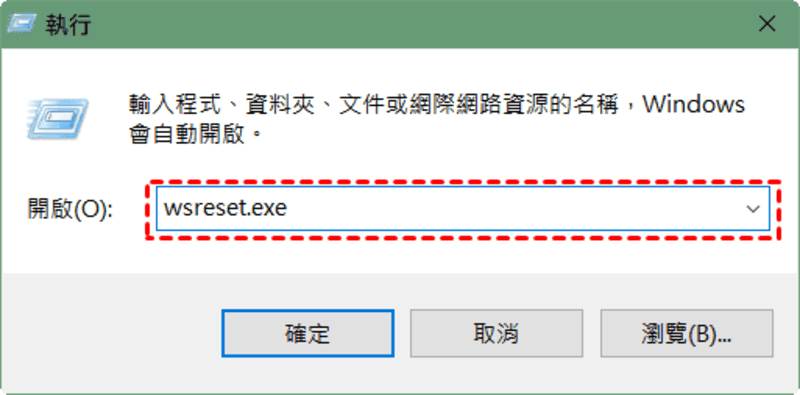
重置 Microsoft Store 快取

這能解決因應用商店快取異常導致的問題。按下 Windows + R 鍵,輸入 wsreset.exe 後按確定,會開啟一個命令提示字元視窗,等待約10秒後它會自動關閉並開啟 Microsoft Store,完成重置。

步驟2:檢查並安裝 Windows更新

許多問題可以透過系統更新修復。請前往「設定」>「更新與安全性」>「Windows Update」,檢查並安裝所有可用的更新。特別是如果您的 Windows 10 版本較舊,可能需要更新系統。

步驟3:安裝或修復 Microsoft Edge WebView2

「快速助手」的運作依賴此元件。對於 Windows 10 用戶,如果元件未自動安裝,您可能需要從 Microsoft 官方網站手動下載並安裝 Microsoft Edge WebView2。Windows 11 用戶通常已內建此元件。

步驟4:透過 PowerShell 重新安裝快速助手

如果上述方法無效,可以嘗試徹底重新安裝應用。以系統管理員身份開啟 PowerShell,然後依次執行以下兩條命令:

winget uninstall 9P7BP5VNWKX5
winget install 9P7BP5VNWKX5

步驟5:執行系統檔案檢查
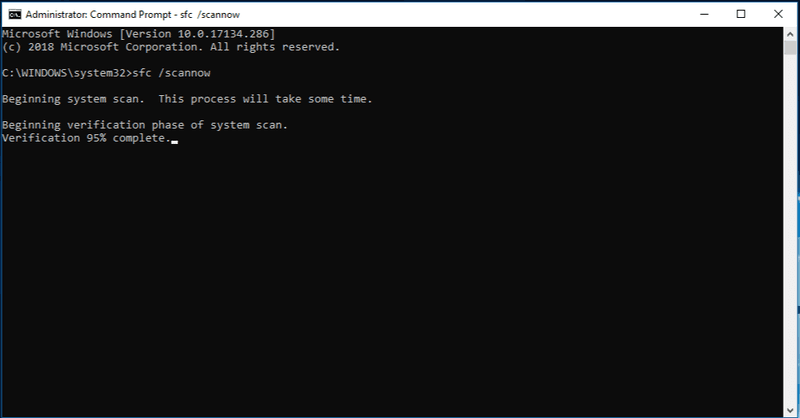
執行系統檔案檢查

系統檔案損壞也可能導致問題。以系統管理員身分開啟命令提示字元,輸入 sfc /scannow 並按Enter,讓系統自動掃描和修復損壞的系統檔案。

步驟6:建立新的本地用戶帳戶

有時問題可能僅存在於您當前的用戶設定檔中。您可以嘗試在電腦上建立一個新的本地用戶帳戶,並在新帳戶中嘗試開啟「快速助手」。

希望這些步驟能順利幫您解決「快速助手」無法開啟的困擾。如果問題依然存在,或許可以考慮使用其他遠端協助軟體,比如本文提到的 DeskIn 作為替代方案。

總結

總的來說,快速助手作為一款 Windows 系統內建的免費工具,無疑是解決同平台間臨時遠端協助需求的便捷選擇。然而,其無法跨平台運作、功能相對基礎等限制,也確實影響了使用彈性。若您經常需要連接不同作業系統(如 macOS),或需要檔案傳輸、無人值守等進階功能,那麼探索一款更強大的替代方案,DeskIn,將能為您帶來更流暢、高效的遠端協作體驗。

📥 想試試看嗎?點擊 DeskIn 即可免費探索强大的遠程連接!

免費下載DeskIn

快速助手的常見Q&A

快速助手安全碼逾時怎麼辦?

安全碼逾時後,協助者只需在快速助手應用中重新生成一組新的6位數安全碼,並提供給對方即可。這是因為安全碼設有時間限制(例如10分鐘有效),逾時代碼便會失效,需取得新代碼才能建立連線。

卸載快速助手應用安全嗎?

卸載快速助手基本上是安全的,它不會影響 Windows 系統的核心穩定性。一般情況下不建議卸載,但若因組織管理需求或應用程式本身問題需要卸載,可透過 Windows 設定 或使用 PowerShell 指令 來解除安裝。

使用快速助手時,被協助者能否隨時中斷遠端控制?

可以,被協助者隨時都能主動中斷遠端控制。在遠端工作階段中,被協助者只需點選快速助手工具列上的「停止共用」或直接關閉快速助手視窗,即可立即結束連線,確保控制權始終掌握在自己手中。

哪些軟體可以遠程控制電腦?

市面上有許多優秀的遠程控制軟體,例如 TeamViewer、AnyDesk 和 Chrome 遠端桌面,它們都支持跨平台操作,能滿足不同用戶的基本遠程協助需求。若您渴望一款功能更全面、體驗更流暢的「瑞士軍刀」級工具,DeskIn 遠端桌面將是您的理想選擇,它集高清畫質、低延遲和跨平台檔案傳輸於一身,能完美適應各種複雜場景。

國外用什麽遠程軟體?

在國際上,TeamViewer 和 AnyDesk 因其穩定性和廣泛的知名度而被許多用戶使用。但對於需要無縫連接 Windows 與 Mac 的用戶,DeskIn 提供了更為優越的解決方案,它不仅支援高速的跨系統檔案傳輸,還能實現高達4K畫質的流暢遠端控制,特別適合專業工作和協作需求。


當親友的電腦突然出現問題,您是否曾因距離而束手無策?別擔心,微軟內建的「快速助手」(Quick Assist)正是為此而生。這款免費的遠程支援工具,能讓您透過一組簡單的安全碼,即時查看甚至控制對方的 Windows 電腦,宛如親臨現場解決技術難題。本文將帶您全面瞭解這款神器,從核心功能到實操教學,一應俱全

在接下來的內容中,我們將深入探討「快速助手」(Quick Assist)的詳細使用教學,並為 Mac 用戶及需要更多進階功能的讀者,精選最佳的跨平台替代方案。同時,我們也將提供一系列實用技巧,協助您解決連線過程中可能遇到的常見問題。請繼續閱讀,發掘更有效率的遠程協作方式!

更多延伸閲讀

快速助手是什麽:瞭解其主要功能

快速助手

「快速助手」是微軟為Windows用戶打造的內建免費遠端協助工具,無需額外付費或安裝複雜軟體。只要雙方都是Windows 系統,透過一組簡單的安全碼,就能立即建立安全連線,實現螢幕共享甚至遠端控制。這款工具完美整合於作業系統中,讓技術支援變得輕鬆又高效,特別適合臨時性的電腦問題排除。

快速助手的優勢

別小看這款內建於系統的「Win10 小幫手」,它憑藉著以下四大優勢,成為許多人臨時遠端支援的首選:

  • 完全免費使用:無需任何訂閱費用,節省尋找免費軟體的時間與風險

  • 無需額外下載:內建於 Windows 系統中,隨時可從開始 menu 快速開啟

  • 操作極度簡單:直覺化的介面設計,協助者與被協助者都能輕鬆上手

  • 連線安全加密:透過微軟帳戶驗證與一次性安全碼,保障遠端連線的安全性

快速助手的局限性

確實,「快速助手」並非萬能,其設計上的局限性有時會為跨平台協作帶來不便,特別是對於 快速助手 Mac 用戶而言,更是完全無法使用,這在今日多裝置的環境下確實是一大硬傷。

具體來說,它的主要局限性包括:

  • 使用場景有限:只能支持普通的技術支援,如果涉及到遠程辦公、遠程玩游戲,以及遠程做設計就無法實現。

  • 不支援 macOS 系統:身為 Mac 用戶,您無法使用 Quick Assist 來生成代碼幫助他人,也無法輸入代碼去控制別人的電腦,這在需要跨平台協助時顯得相當不便。

  • 無法在兩台電腦之間傳輸檔案:遠端連線過程中,無法直接分享或交換檔案,必須依賴其他通訊軟體或雲端服務,中斷了解決問題的流暢度。如果需要在兩台電腦之間輕鬆地傳輸檔案,請考慮快速助手的最佳替代品—DeskIn。

  • 配對碼有時間限制:安全代碼具有時效性,如果您不熟悉操作流程,很可能在嘗試連線時代碼就已過期,需要重新生成,對新手來說較不友善。

  • 不支援無人值守存取:每次連線都必須由被控端的使用者在現場手動接受請求,無法直接連線到無人操作的電腦,缺乏彈性。

溫馨提示:如果快速助手的局限性100%影響到你的使用,請直接跳轉到本文的「快速助手最佳替代品」。

快速助手的下載與使用

由於「快速助手」是內建於 Win 10 快速助手 與 Win 11 快速助手 系統中的原生工具,因此在大多數情況下,您無需進行任何快速助手下載即可直接使用。但若您發現電腦中沒有此應用程式,可以前往 Microsoft Store 搜尋並手動安裝它。

在 Windows 上使用快速助手的步驟如下:

步驟1: 協助者開啟「快速助手」應用程式,點選「協助他人」,並使用 Microsoft 帳戶登入。

使用快速助手點擊協助他人

步驟2: 系統將產生一組 6 位數的安全代碼,將此代碼提供給需要協助的一方。

快速助手的安全代碼

步驟3: 被協助者在自己的電腦上開啟「快速助手」,在「取得協助」欄位中輸入協助者提供的安全碼。

步驟4: 被協助者選擇「共用螢幕」以允許協助者查看其桌面畫面。

步驟5: 協助者若需要直接操作對方電腦,可點選「要求控制」,待被協助者點選「允許」後,即可開始遠端控制。

步驟6: 連線過程中,任何一方均可隨時點選「停止共用」來立即結束遠端工作階段。

快速助手最佳替代品:無縫連接 Windows 與 Mac 用戶

快速助手的最佳替代品 DeskIn

DeskIn,一款絕佳的遠端工作軟體,也是一個功能全面的遠端連線兩台電腦的工具,其最顯著的特點在於強大的跨平台兼容性,無論您使用的是 Windows、macOS、Android 還是 iOS 設備,都能透過 DeskIn 實現無縫的遠端訪問與控制。

📥 想試試看嗎?DeskIn 有免費版可以下載,企業級的加密技術,用起來安全又放心!

免費下載DeskIn

簡單看看 DeskIn 的優勢有哪些:

  • 兼容性強:支援任何版本的 Windows 與 macOS 之間的無縫連接和遠端訪問,同時也兼容 Android 和 iOS 系統,實現真正的跨平台操作。

  • 高速檔案傳輸:支援無限制大小、類型和數量的跨系統檔案傳輸,傳輸速度最高可達 12MB/s,大幅提升工作效率。

  • 多元連接方式:提供多種簡易連接方式,包括使用臨時代碼、無需密碼連接,以及使用預設安全密碼隨時訪問設備。同時支援網絡喚醒(WOL)遠端開啟設備,並實現無人值守訪問。

  • 豐富協作功能:內建多種協作和螢幕管理功能,如擴展螢幕、投射螢幕、語音通話、註釋、共享剪貼簿等,能充分滿足個人或辦公的多樣化需求。

  • 簡單易用:只需在兩台設備上分別下載並安裝 DeskIn,使用同一帳號登入,然後在 Mac 上輸入 Windows 電腦的「裝置 ID」與「密碼」即可建立遠端連線。

如何用 DeskIn 輕鬆連缐兩台電腦:

步驟1:前往 DeskIn 官網下載軟體,確保在你的兩台電腦上同時下載並安装該軟體,并登录同一个 DeskIn 账户。

步驟2:登入后,你可以在 Windows 客戶端的设备列表中看到已登录的另一台電腦 ,直接点击,輸入安全密碼或者臨時密碼,即可開始連接。

📥 想試試看嗎?點擊 DeskIn 實現無縫連缐

免費下載DeskIn

快速助手:如何解決 Quick Assist 打不開

當您急需使用遠端協助功能時,卻發現「快速助手打不開」,應用程式毫無反應、閃退或卡在無限轉圈,確實會讓人非常焦急。別擔心,您可以透過以下一系列由簡至繁的排查步驟,嘗試解決這個問題。

解決「快速助手」無法開啟的步驟:

步驟1:重置 Microsoft Store 快取

重置 Microsoft Store 快取

這能解決因應用商店快取異常導致的問題。按下 Windows + R 鍵,輸入 wsreset.exe 後按確定,會開啟一個命令提示字元視窗,等待約10秒後它會自動關閉並開啟 Microsoft Store,完成重置。

步驟2:檢查並安裝 Windows更新

許多問題可以透過系統更新修復。請前往「設定」>「更新與安全性」>「Windows Update」,檢查並安裝所有可用的更新。特別是如果您的 Windows 10 版本較舊,可能需要更新系統。

步驟3:安裝或修復 Microsoft Edge WebView2

「快速助手」的運作依賴此元件。對於 Windows 10 用戶,如果元件未自動安裝,您可能需要從 Microsoft 官方網站手動下載並安裝 Microsoft Edge WebView2。Windows 11 用戶通常已內建此元件。

步驟4:透過 PowerShell 重新安裝快速助手

如果上述方法無效,可以嘗試徹底重新安裝應用。以系統管理員身份開啟 PowerShell,然後依次執行以下兩條命令:

winget uninstall 9P7BP5VNWKX5
winget install 9P7BP5VNWKX5

步驟5:執行系統檔案檢查

執行系統檔案檢查

系統檔案損壞也可能導致問題。以系統管理員身分開啟命令提示字元,輸入 sfc /scannow 並按Enter,讓系統自動掃描和修復損壞的系統檔案。

步驟6:建立新的本地用戶帳戶

有時問題可能僅存在於您當前的用戶設定檔中。您可以嘗試在電腦上建立一個新的本地用戶帳戶,並在新帳戶中嘗試開啟「快速助手」。

希望這些步驟能順利幫您解決「快速助手」無法開啟的困擾。如果問題依然存在,或許可以考慮使用其他遠端協助軟體,比如本文提到的 DeskIn 作為替代方案。

總結

總的來說,快速助手作為一款 Windows 系統內建的免費工具,無疑是解決同平台間臨時遠端協助需求的便捷選擇。然而,其無法跨平台運作、功能相對基礎等限制,也確實影響了使用彈性。若您經常需要連接不同作業系統(如 macOS),或需要檔案傳輸、無人值守等進階功能,那麼探索一款更強大的替代方案,DeskIn,將能為您帶來更流暢、高效的遠端協作體驗。

📥 想試試看嗎?點擊 DeskIn 即可免費探索强大的遠程連接!

免費下載DeskIn

快速助手的常見Q&A

快速助手安全碼逾時怎麼辦?

安全碼逾時後,協助者只需在快速助手應用中重新生成一組新的6位數安全碼,並提供給對方即可。這是因為安全碼設有時間限制(例如10分鐘有效),逾時代碼便會失效,需取得新代碼才能建立連線。

卸載快速助手應用安全嗎?

卸載快速助手基本上是安全的,它不會影響 Windows 系統的核心穩定性。一般情況下不建議卸載,但若因組織管理需求或應用程式本身問題需要卸載,可透過 Windows 設定 或使用 PowerShell 指令 來解除安裝。

使用快速助手時,被協助者能否隨時中斷遠端控制?

可以,被協助者隨時都能主動中斷遠端控制。在遠端工作階段中,被協助者只需點選快速助手工具列上的「停止共用」或直接關閉快速助手視窗,即可立即結束連線,確保控制權始終掌握在自己手中。

哪些軟體可以遠程控制電腦?

市面上有許多優秀的遠程控制軟體,例如 TeamViewer、AnyDesk 和 Chrome 遠端桌面,它們都支持跨平台操作,能滿足不同用戶的基本遠程協助需求。若您渴望一款功能更全面、體驗更流暢的「瑞士軍刀」級工具,DeskIn 遠端桌面將是您的理想選擇,它集高清畫質、低延遲和跨平台檔案傳輸於一身,能完美適應各種複雜場景。

國外用什麽遠程軟體?

在國際上,TeamViewer 和 AnyDesk 因其穩定性和廣泛的知名度而被許多用戶使用。但對於需要無縫連接 Windows 與 Mac 的用戶,DeskIn 提供了更為優越的解決方案,它不仅支援高速的跨系統檔案傳輸,還能實現高達4K畫質的流暢遠端控制,特別適合專業工作和協作需求。

快速助手終極指南:Windows 免費遠程支援神器

章節目錄

1212 big sale
 Best Screen Sharing for Game Testing

Best Screen Sharing for Game Testing: Why DeskIn Beats AnyDesk, TeamViewer & Parsec

Remote work didn’t just change how teams collaborate: it transformed how game testing gets done.

Today’s QA teams are global, developers work across time zones, and playtests happen far beyond a single studio. That makes screen sharing no longer optional, but essential. The challenge is that most remote tools weren’t built for real gameplay. They lag, drop frames, and blur the details QA teams rely on.

DeskIn is different. It’s engineered for high-FPS visuals, ultra-low latency, and accurate gameplay feedback, making it a modern screen-sharing solution built specifically for remote game testing and remote gameplay.

Let’s break down why DeskIn is quickly becoming the best screen-sharing tool for game developers, and why tools like AnyDesk, TeamViewer, and even Parsec fall short for serious QA work.

 Best Screen Sharing for Game Testing

Real Use Cases in Game QA & Development, Why Need a Screen Sharing Tool?

Remote screen sharing has moved from a "nice-to-have" to a critical, indispensable tool in modern game Quality Assurance (QA). Its adoption is driven by fundamental shifts in how games are developed, tested, and collaborated on.

Here’s a breakdown of why it's now essential:

  • Real-time bug reproduction
    QA shares live gameplay while developers observe inputs and system behavior, allowing issues to be reproduced and fixed immediately: no back-and-forth recordings required.

  • VFX and visual review
    Teams review lighting, shaders, and effects with crisp color accuracy during screen sharing for game testing, without compression hiding defects. 

  • Remote prototype playtesting
    Testers play early builds remotely, enabling fast feedback without large downloads or complex setup using remote game testing software.

  • Cross-play testing (mobile & PC)
    Teams can test mobile and PC gameplay side by side, mirroring mobile screens to desktop while validating controls, UI behavior, and performance across platforms, an essential use case for remote QA tools.

  • Animation timing review
    Animation teams benefit from high-FPS streaming to review movement and timing frame by frame. Subtle issues in transitions, hit reactions, or camera motion are easier to spot when playback is smooth and accurate.

  • Multiplayer latency testing
    QA can conduct latency and synchronization tests while developers watch live sessions. This helps teams identify network-related issues faster using effective remote dev tools.

  • Secure external QA access
    External QA partners can securely access builds and testing environments through DeskIn, making collaboration smoother while keeping pre-release content protected.

    Free download DeskIn

Modern Tools Elevating the Practice

Today’s game testing workflows rely on tools that go far beyond simple screen viewing solutions like Zoom. Modern remote platforms such as DeskIn, AnyDesk, TeamViewer, and Parsec introduce capabilities specifically designed to support game QA. 

Choosing the right tool comes down to which features best support real-time testing and collaboration, including:

  • High frame rate and low latency — critical for spotting fast-paced visual bugs and timing-sensitive issues.

  • Remote input control — allows developers to take over instantly and test hypotheses without lengthy explanations.

  • Built-in file transfer — enables quick delivery of new builds, patches, or configuration files.

  • Real-time screen mirroring — makes it easy to share bug reproduction steps for immediate analysis.

  • Audio calls and whiteboard tools — support clear communication and visual guidance without relying on third-party apps.

Together, these features transform remote sessions into efficient, collaborative QA environments, bringing teams closer to the feel of in-studio testing.

Which Screen Sharing Tool is Best for Game QA

Choosing the right screen sharing tool can make the difference between a lengthy, ambiguous bug report and a swift, precise fix.

For Game QA, the ideal solution must go beyond basic screen viewing; it needs to deliver high visual fidelity, ultra-low latency, cross-platform compatibility, and interactive control to keep up with the real-time, detail-sensitive nature of game testing. 

Below, we break down what to look for and compare top contenders shaping how modern game teams test.

DeskIn

DeskIn is designed around real game testing workflows, not just office tasks. Its features focus on what QA teams and developers actually need: low latency, high FPS, visual accuracy, and smooth collaboration.

Ultra-Low Latency for Accurate Gameplay

High-FPS Streaming: Up to 2K240FPS & 4K60FPS

Screen Mirroring, Sharing, and Extension for Flexible Testing

DeskIn screen extension between desktop and laptop supports multiple operating systems

Color Accuracy & Crisp Visuals 

DeskIn supports 4:4:4 true color mode, preserves visual clarity and color accuracy, which is critical for inspecting textures, lighting, shaders, and VFX. Multi-Device, Cross-System Testing

Modern studios work across platforms. 

DeskIn supports Windows, macOS, Chromebook, iOS, and Android, enabling seamless cross-system testing. 

Remote Mobile Game Testing (Unique Advantage)

Mobile screens can be mirrored and accessed remotely for iOS and Android testing. 

Remote File Transfer for Builds + Logs

Built-in file transfer speeds of up to 12MB/s, allowing teams to quickly share builds, crash logs, and save files during QA sessions. 

External Controller & Peripheral Support (Xbox and More)

DeskIn supports external device adaptation, including Xbox controllers and other common game peripherals, allowing QA teams to test real input behavior and control mapping during game testing.

Remote Terminal Access for Faster Debugging

Developers and QA can use command-line tools remotely without interrupting gameplay, making it easier to pull logs, run scripts, and validate fixes in real time during game testing.

Stable Performance Under Heavy Load

Powered by 200+ global nodes and smart network navigation, DeskIn maintains smooth, reliable performance even during GPU-intensive scenes, multiplayer testing, or large-scale playtests.

Whether you’re reproducing a graphical glitch, debugging a physics bug, or collaborating across continents, DeskIn is the best tool for turning remote QA into a seamless extension of the development floor. Try DeskIn today and experience high-FPS streaming, low latency, and crystal-clear visuals.

Free download DeskIn

AnyDesk

AnyDesk is primarily designed for IT support and remote troubleshooting, which limits its effectiveness for screen sharing for game testing.

  • Cross-platform compatibility: Supports Windows, macOS, Linux (Ubuntu, Debian, RHEL, SUSE, Mint), Android, iOS/iPadOS, plus specialized platforms like Raspberry Pi and ChromeOS.

  • Image quality & FPS: Supports up to 60 FPS, which is often insufficient for reviewing fast animations, camera motion, or combat flow.

  • Latency: Acceptable for support tasks (typically around 80–120ms), but inconsistent for timing-sensitive gameplay such as combat, physics interactions, or input validation.

  • Network stability: Generally stable for light workloads, but performance degrades under GPU-heavy scenes.

  • External device adaptation: Does not support game controllers, limiting accurate input and control testing.

  • Interactive features: Basic remote control; lacks advanced collaboration features tailored for QA.

  • File transfer speed: Supported, but slower and less integrated into rapid QA iteration cycles.

Recommended Read:
Why Should You Choose DeskIn Remote Desktop Instead Of Anydesk? 

TeamViewer

TeamViewer is a strong enterprise remote access tool, but its business-first design creates friction for real-time game QA.

  • Cross-platform compatibility: Supports Windows, macOS, Linux (including Ubuntu, Debian, Raspberry Pi), Android, iOS, and iPadOS.

  • Image quality & FPS: Resolution is auto-adjusted based on network conditions, which can reduce clarity during fast gameplay or visual reviews. 

  • Latency: Higher baseline latency, which becomes obvious during fast-paced or competitive gameplay testing.

  • Network stability: Stable for meetings and management tasks, but less reliable during long playtests or open-world stress testing.

  • External device adaptation: Does not support game controllers, limiting realism for gameplay input testing.

  • Interactive features: Strong for meetings and presentations, but lacks QA-focused interaction like seamless gameplay takeover.

  • File transfer speed: Supported at low speed, with a single file size limited to under 4GB, which can be restrictive for large builds.

Recommended Read:
TeamViewer Alternatives for People Who Just Want Something Simple 

Parsec

Parsec comes closer to gaming needs, but still has gaps for structured QA and dev pipelines.

  • Cross-platform compatibility: Strong on Windows and macOS; mobile and broader cross-system workflows are more limited.

  • Image quality & FPS: Capable of high FPS (Max at 4K60FPS) streaming, but visual quality and color fidelity depend heavily on manual configuration.

  • Latency: Low latency (50-80 ms) when well-tuned, but performance varies based on network setup and user expertise.

  • Network stability: Performs well in controlled environments, but requires tuning for consistent results across teams.

  • External device adaptation: Supports controllers, but setup can vary and may require additional configuration.

  • Interactive features: Focused on gameplay streaming rather than full QA collaboration (logs, builds, multi-device testing).

  • File transfer speed: Does not support built-in file transfer, requiring third-party tools for builds and logs.

Recommended Read:
Why DeskIn is the Best Parsec Alternative for Gamers 

Individually, these tools work. But for teams that need reliable, accurate, and efficient screen sharing for game testing, these gaps add friction fast.

If your QA team needs accuracy, speed, and stability, not just remote access, DeskIn is the upgrade that makes the difference.

Free download DeskIn

How to Set Up DeskIn for Game Testing

Getting started with DeskIn for game testing takes just a few minutes: no complex setup or technical configuration required.

Download DeskIn for Windows, macOS, iOS, Android
  1. Install DeskIn on both devices
    Download and install DeskIn on the test machine and the device used by QA or developers.

  2. Log in on both devices
    Sign in to your DeskIn account on both devices 

  3. Start a secure remote session
    Select the test device, click connect, and enter the password to begin a secure, low-latency session.

  4. Use screen sharing during testing
    Click the screen mgt in the left toolbar, select 'Mirror My Screen' feature.


    Free download DeskIn

FAQ

  1. Can I test fast-paced or competitive games remotely?
    Yes. DeskIn’s ultra-low latency and high-FPS streaming allow accurate testing of FPS, fighting games, and other timing-sensitive gameplay.

  2. Is screen sharing reliable for VFX, rendering, or art QA?
    Yes. DeskIn supports 4:4:4 true color mode, ensures color accuracy and sharp visuals, making it suitable for reviewing textures, lighting, shaders, and effects without compression blur.

  3. Can I use DeskIn to test mobile games remotely?
    Yes. DeskIn supports wireless screen mirroring for iOS and Android, enabling mobile game testing without cables or complex setup.

  4. Does DeskIn support file transfers for build sharing?
    Yes. DeskIn includes built-in file transfer up to 12MB/s for sharing builds, logs, and save files during QA sessions.

  5. Is DeskIn secure enough for pre-release testing?
    Yes, DeskIn uses AES-256 encryption (bank-level security) to protect remote sessions and file transfers for confidential, pre-release workflows.

Better Game Testing Starts With DeskIn

Traditional remote desktop tools were built for meetings, support, and office workflows: not for real game testing. When QA teams rely on tools that lag, drop frames, or blur visuals, critical gameplay issues slip through, and feedback loses accuracy.

DeskIn changes that. With gaming-grade performance, ultra-low latency, high-FPS screen sharing, and flexible cross-device testing, it gives QA and development teams a clear, responsive view of gameplay—no matter where they’re working from. From PC and mobile testing to art review and multiplayer validation, DeskIn supports modern remote game testing without compromise.

Start free with DeskIn today and see how smooth, accurate, and effortless remote game testing can be.

Free download DeskIn
 Best Screen Sharing for Game Testing

Best Screen Sharing for Game Testing: Why DeskIn Beats AnyDesk, TeamViewer & Parsec

Remote work didn’t just change how teams collaborate: it transformed how game testing gets done.

Today’s QA teams are global, developers work across time zones, and playtests happen far beyond a single studio. That makes screen sharing no longer optional, but essential. The challenge is that most remote tools weren’t built for real gameplay. They lag, drop frames, and blur the details QA teams rely on.

DeskIn is different. It’s engineered for high-FPS visuals, ultra-low latency, and accurate gameplay feedback, making it a modern screen-sharing solution built specifically for remote game testing and remote gameplay.

Let’s break down why DeskIn is quickly becoming the best screen-sharing tool for game developers, and why tools like AnyDesk, TeamViewer, and even Parsec fall short for serious QA work.

 Best Screen Sharing for Game Testing

Real Use Cases in Game QA & Development, Why Need a Screen Sharing Tool?

Remote screen sharing has moved from a "nice-to-have" to a critical, indispensable tool in modern game Quality Assurance (QA). Its adoption is driven by fundamental shifts in how games are developed, tested, and collaborated on.

Here’s a breakdown of why it's now essential:

  • Real-time bug reproduction
    QA shares live gameplay while developers observe inputs and system behavior, allowing issues to be reproduced and fixed immediately: no back-and-forth recordings required.

  • VFX and visual review
    Teams review lighting, shaders, and effects with crisp color accuracy during screen sharing for game testing, without compression hiding defects. 

  • Remote prototype playtesting
    Testers play early builds remotely, enabling fast feedback without large downloads or complex setup using remote game testing software.

  • Cross-play testing (mobile & PC)
    Teams can test mobile and PC gameplay side by side, mirroring mobile screens to desktop while validating controls, UI behavior, and performance across platforms, an essential use case for remote QA tools.

  • Animation timing review
    Animation teams benefit from high-FPS streaming to review movement and timing frame by frame. Subtle issues in transitions, hit reactions, or camera motion are easier to spot when playback is smooth and accurate.

  • Multiplayer latency testing
    QA can conduct latency and synchronization tests while developers watch live sessions. This helps teams identify network-related issues faster using effective remote dev tools.

  • Secure external QA access
    External QA partners can securely access builds and testing environments through DeskIn, making collaboration smoother while keeping pre-release content protected.

    Free download DeskIn

Modern Tools Elevating the Practice

Today’s game testing workflows rely on tools that go far beyond simple screen viewing solutions like Zoom. Modern remote platforms such as DeskIn, AnyDesk, TeamViewer, and Parsec introduce capabilities specifically designed to support game QA. 

Choosing the right tool comes down to which features best support real-time testing and collaboration, including:

  • High frame rate and low latency — critical for spotting fast-paced visual bugs and timing-sensitive issues.

  • Remote input control — allows developers to take over instantly and test hypotheses without lengthy explanations.

  • Built-in file transfer — enables quick delivery of new builds, patches, or configuration files.

  • Real-time screen mirroring — makes it easy to share bug reproduction steps for immediate analysis.

  • Audio calls and whiteboard tools — support clear communication and visual guidance without relying on third-party apps.

Together, these features transform remote sessions into efficient, collaborative QA environments, bringing teams closer to the feel of in-studio testing.

Which Screen Sharing Tool is Best for Game QA

Choosing the right screen sharing tool can make the difference between a lengthy, ambiguous bug report and a swift, precise fix.

For Game QA, the ideal solution must go beyond basic screen viewing; it needs to deliver high visual fidelity, ultra-low latency, cross-platform compatibility, and interactive control to keep up with the real-time, detail-sensitive nature of game testing. 

Below, we break down what to look for and compare top contenders shaping how modern game teams test.

DeskIn

DeskIn is designed around real game testing workflows, not just office tasks. Its features focus on what QA teams and developers actually need: low latency, high FPS, visual accuracy, and smooth collaboration.

Ultra-Low Latency for Accurate Gameplay

High-FPS Streaming: Up to 2K240FPS & 4K60FPS

Screen Mirroring, Sharing, and Extension for Flexible Testing

DeskIn screen extension between desktop and laptop supports multiple operating systems

Color Accuracy & Crisp Visuals 

DeskIn supports 4:4:4 true color mode, preserves visual clarity and color accuracy, which is critical for inspecting textures, lighting, shaders, and VFX. Multi-Device, Cross-System Testing

Modern studios work across platforms. 

DeskIn supports Windows, macOS, Chromebook, iOS, and Android, enabling seamless cross-system testing. 

Remote Mobile Game Testing (Unique Advantage)

Mobile screens can be mirrored and accessed remotely for iOS and Android testing. 

Remote File Transfer for Builds + Logs

Built-in file transfer speeds of up to 12MB/s, allowing teams to quickly share builds, crash logs, and save files during QA sessions. 

External Controller & Peripheral Support (Xbox and More)

DeskIn supports external device adaptation, including Xbox controllers and other common game peripherals, allowing QA teams to test real input behavior and control mapping during game testing.

Remote Terminal Access for Faster Debugging

Developers and QA can use command-line tools remotely without interrupting gameplay, making it easier to pull logs, run scripts, and validate fixes in real time during game testing.

Stable Performance Under Heavy Load

Powered by 200+ global nodes and smart network navigation, DeskIn maintains smooth, reliable performance even during GPU-intensive scenes, multiplayer testing, or large-scale playtests.

Whether you’re reproducing a graphical glitch, debugging a physics bug, or collaborating across continents, DeskIn is the best tool for turning remote QA into a seamless extension of the development floor. Try DeskIn today and experience high-FPS streaming, low latency, and crystal-clear visuals.

Free download DeskIn

AnyDesk

AnyDesk is primarily designed for IT support and remote troubleshooting, which limits its effectiveness for screen sharing for game testing.

  • Cross-platform compatibility: Supports Windows, macOS, Linux (Ubuntu, Debian, RHEL, SUSE, Mint), Android, iOS/iPadOS, plus specialized platforms like Raspberry Pi and ChromeOS.

  • Image quality & FPS: Supports up to 60 FPS, which is often insufficient for reviewing fast animations, camera motion, or combat flow.

  • Latency: Acceptable for support tasks (typically around 80–120ms), but inconsistent for timing-sensitive gameplay such as combat, physics interactions, or input validation.

  • Network stability: Generally stable for light workloads, but performance degrades under GPU-heavy scenes.

  • External device adaptation: Does not support game controllers, limiting accurate input and control testing.

  • Interactive features: Basic remote control; lacks advanced collaboration features tailored for QA.

  • File transfer speed: Supported, but slower and less integrated into rapid QA iteration cycles.

Recommended Read:
Why Should You Choose DeskIn Remote Desktop Instead Of Anydesk? 

TeamViewer

TeamViewer is a strong enterprise remote access tool, but its business-first design creates friction for real-time game QA.

  • Cross-platform compatibility: Supports Windows, macOS, Linux (including Ubuntu, Debian, Raspberry Pi), Android, iOS, and iPadOS.

  • Image quality & FPS: Resolution is auto-adjusted based on network conditions, which can reduce clarity during fast gameplay or visual reviews. 

  • Latency: Higher baseline latency, which becomes obvious during fast-paced or competitive gameplay testing.

  • Network stability: Stable for meetings and management tasks, but less reliable during long playtests or open-world stress testing.

  • External device adaptation: Does not support game controllers, limiting realism for gameplay input testing.

  • Interactive features: Strong for meetings and presentations, but lacks QA-focused interaction like seamless gameplay takeover.

  • File transfer speed: Supported at low speed, with a single file size limited to under 4GB, which can be restrictive for large builds.

Recommended Read:
TeamViewer Alternatives for People Who Just Want Something Simple 

Parsec

Parsec comes closer to gaming needs, but still has gaps for structured QA and dev pipelines.

  • Cross-platform compatibility: Strong on Windows and macOS; mobile and broader cross-system workflows are more limited.

  • Image quality & FPS: Capable of high FPS (Max at 4K60FPS) streaming, but visual quality and color fidelity depend heavily on manual configuration.

  • Latency: Low latency (50-80 ms) when well-tuned, but performance varies based on network setup and user expertise.

  • Network stability: Performs well in controlled environments, but requires tuning for consistent results across teams.

  • External device adaptation: Supports controllers, but setup can vary and may require additional configuration.

  • Interactive features: Focused on gameplay streaming rather than full QA collaboration (logs, builds, multi-device testing).

  • File transfer speed: Does not support built-in file transfer, requiring third-party tools for builds and logs.

Recommended Read:
Why DeskIn is the Best Parsec Alternative for Gamers 

Individually, these tools work. But for teams that need reliable, accurate, and efficient screen sharing for game testing, these gaps add friction fast.

If your QA team needs accuracy, speed, and stability, not just remote access, DeskIn is the upgrade that makes the difference.

Free download DeskIn

How to Set Up DeskIn for Game Testing

Getting started with DeskIn for game testing takes just a few minutes: no complex setup or technical configuration required.

Download DeskIn for Windows, macOS, iOS, Android
  1. Install DeskIn on both devices
    Download and install DeskIn on the test machine and the device used by QA or developers.

  2. Log in on both devices
    Sign in to your DeskIn account on both devices 

  3. Start a secure remote session
    Select the test device, click connect, and enter the password to begin a secure, low-latency session.

  4. Use screen sharing during testing
    Click the screen mgt in the left toolbar, select 'Mirror My Screen' feature.


    Free download DeskIn

FAQ

  1. Can I test fast-paced or competitive games remotely?
    Yes. DeskIn’s ultra-low latency and high-FPS streaming allow accurate testing of FPS, fighting games, and other timing-sensitive gameplay.

  2. Is screen sharing reliable for VFX, rendering, or art QA?
    Yes. DeskIn supports 4:4:4 true color mode, ensures color accuracy and sharp visuals, making it suitable for reviewing textures, lighting, shaders, and effects without compression blur.

  3. Can I use DeskIn to test mobile games remotely?
    Yes. DeskIn supports wireless screen mirroring for iOS and Android, enabling mobile game testing without cables or complex setup.

  4. Does DeskIn support file transfers for build sharing?
    Yes. DeskIn includes built-in file transfer up to 12MB/s for sharing builds, logs, and save files during QA sessions.

  5. Is DeskIn secure enough for pre-release testing?
    Yes, DeskIn uses AES-256 encryption (bank-level security) to protect remote sessions and file transfers for confidential, pre-release workflows.

Better Game Testing Starts With DeskIn

Traditional remote desktop tools were built for meetings, support, and office workflows: not for real game testing. When QA teams rely on tools that lag, drop frames, or blur visuals, critical gameplay issues slip through, and feedback loses accuracy.

DeskIn changes that. With gaming-grade performance, ultra-low latency, high-FPS screen sharing, and flexible cross-device testing, it gives QA and development teams a clear, responsive view of gameplay—no matter where they’re working from. From PC and mobile testing to art review and multiplayer validation, DeskIn supports modern remote game testing without compromise.

Start free with DeskIn today and see how smooth, accurate, and effortless remote game testing can be.

Free download DeskIn
emote Desktop Software for Gaming

How Remote Desktop Software for Gaming Improves Productivity & Play

Remote gaming isn’t just a niche tool anymore; it’s becoming the new normal lifestyle. Gamers today want to play wherever they are: on a low-spec laptop, a tablet, or even a phone. But here’s the catch: high-end gaming rigs are expensive, heavy, and definitely not travel-friendly. That’s where remote desktop software for gaming steps in, letting you tap into the power of your home gaming PC from literally anywhere.

But here’s the truth no one says out loud: Not every remote desktop software can handle gaming, especially fast, competitive titles. Some introduce lag, input delay, or washed-out graphics that absolutely ruin the experience.

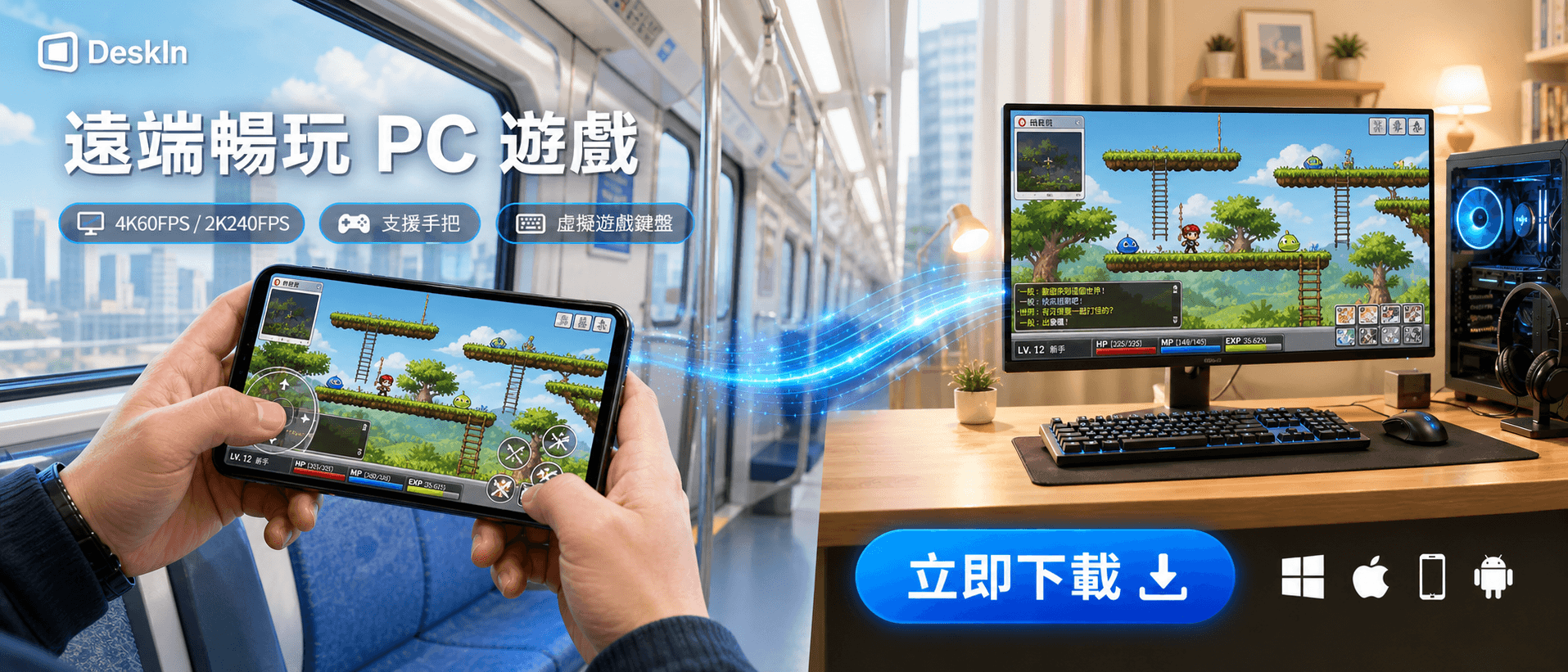
That’s why new-gen solutions like DeskIn have emerged, tools built specifically to deliver low-latency remote desktop, high FPS, crisp color, and real gaming control, not just “screen access”.

emote Desktop Software for Gaming

Why Gamers Use Remote Desktop Software

Gamers don’t switch to remote desktop software for gaming just because it sounds cool: they use it because it solves real, everyday problems in ways traditional setups simply can’t. Here are the most common (and honestly, most relatable) reasons players are embracing remote access:

  • Play high-end games on a low-end device
    As it turns out, a MacBook, Chromebook, or iPad can’t run AAA games by itself, but if you use remote desktop software to stream the game from a PC you own with good hardware, these devices turn into portable high-end gaming screens. It offloads the computation-intensive rendering work to your main PC and then just streams over the action to your secondary device.

  • Game while traveling
    Business trips, holidays, vacations; none need to interrupt gaming when you have a stable remote gaming setup going. You can complete some work at a hotel desk and then dive right into your Steam library without having to lug around a heavy gaming laptop or desktop tower through the airport. Remote access keeps your gaming routine alive, no matter the time zone.

  • Maximize mobility
    Modern remote desktop software for gamers makes it incredibly easy to play from a phone or tablet. Just pair a controller or use touch input, and the device becomes a portable gaming machine. Perfect for casual sessions on the couch, during commutes, or while relaxing between flights.

  • Access your full Steam/Battle.net/EPIC library remotely
    Unlike cloud gaming, which often limits you to curated catalogs, remote desktop software streams your entire PC exactly as it is. Mods, custom settings, experimental builds, add-ons, indie games, everything stays intact. Your entire library travels with you without any platform restrictions.

  • No need to buy multiple gaming PCs
    Instead of investing in multiple PCs for different locations or devices, gamers rely on remote desktop software for gaming to stretch the value of a single high-spec rig. From tablets to old laptops, anything becomes a viable gaming screen. This approach saves money, simplifies setups, and makes remote play feel seamless and efficient.

  • Game developers testing builds remotely
    Developers can run heavy builds on a workstation and test gameplay, performance, or UI remotely from a laptop or tablet. This is especially useful for quick QA checks, debugging, or testing across different environments without constantly switching machines.

  • Project mobile games onto a bigger screen
    Remote access also makes it easy to project mobile games onto a larger display. Developers, streamers, and testers can mirror mobile gameplay to a PC or monitor for better visibility, recording, or live demonstrations. Using remote desktop software, mobile games become easier to analyze, present, and refine on a full-sized screen.

Key Features of Remote Desktop Software for Gaming

The best remote desktop software for gaming doesn’t just give you access to your PC on another system: it gives you access to both the strength of your host device and a finely tuned gaming experience, all in one package. These are the core elements that contribute to the polished, playable feel of remote gaming.

Ultra-Low Latency

Latency determines whether a game feels responsive or frustrating. In shooting and MOBA games, or skill-based competitive ones too, the delay of over 40ms could disrupt aim and timing. Modern low-latency remote desktop tools, including optimized platforms like DeskIn, use advanced protocols to reduce input delays and keep gameplay tight and reactive.

High FPS Support (144–240FPS)

Many standard remote access apps cap FPS at 30–60, which isn’t enough for fast-paced games. High FPS means smoother camera movement, cleaner motion, and better precision. Today’s gaming-focused platforms support 120FPS+, with some solutions streaming up to 2K144FPS for near-native fluidity.

High Resolution 

Remote gaming benefits massively from crisp detail, especially in 4K titles or visually heavy worlds. Older tools often compress visuals into blurry text and washed-out colors. Newer remote desktop software for gaming maintains sharper resolution and better color fidelity, offering clearer textures and more accurate UI readability.

Accurate Keyboard, Controller & Mouse Input

Fast input recognition is essential. This consistency is essential for any game that demands timing and precision. A well-optimized remote desktop software for gamers should ensure that every input is transmitted cleanly, avoiding ghost touches or lag spikes that disrupt the flow of gameplay.

Stable Network Optimization

Network stability plays a massive role in remote gaming performance. Many people assume remote play always means lag, but modern platforms prove otherwise.

These systems help maintain smooth gameplay even when Wi-Fi conditions fluctuate. Instead of sudden freezes or pixelation, the software dynamically adjusts to keep the experience stable.

DeskIn: The Best Remote Desktop Software for Gaming Right Now

DeskIn stands out as one of the most performance-focused options in the remote desktop software for the gaming space. It’s engineered for speed, clarity, and responsiveness: the things that actually matter when you’re playing fast, demanding games instead of just accessing a desktop.

Free download DeskIn
  • Ultra-low latency with ZeroSync® Engine
    ZeroSync® keeps total delay under 40ms, delivering fast, precise input that feels close to native PC gameplay.

  • High FPS support up to 2K240FPS / 4K60FPS
    DeskIn streams smooth, high-frame-rate gameplay, reducing motion blur and helping with precise aiming and fast camera movement.

  • 4:4:4 true color for clean visuals
    Text stays sharp, shadows stay detailed, and in-game elements remain easy to spot: no muddy compression like older tools.

  • Cross-device compatibility ( iOS, iPadOS, Android,Windows, macOS)
    Play on virtually any screen you own, turning everyday devices into a portable gaming setup.

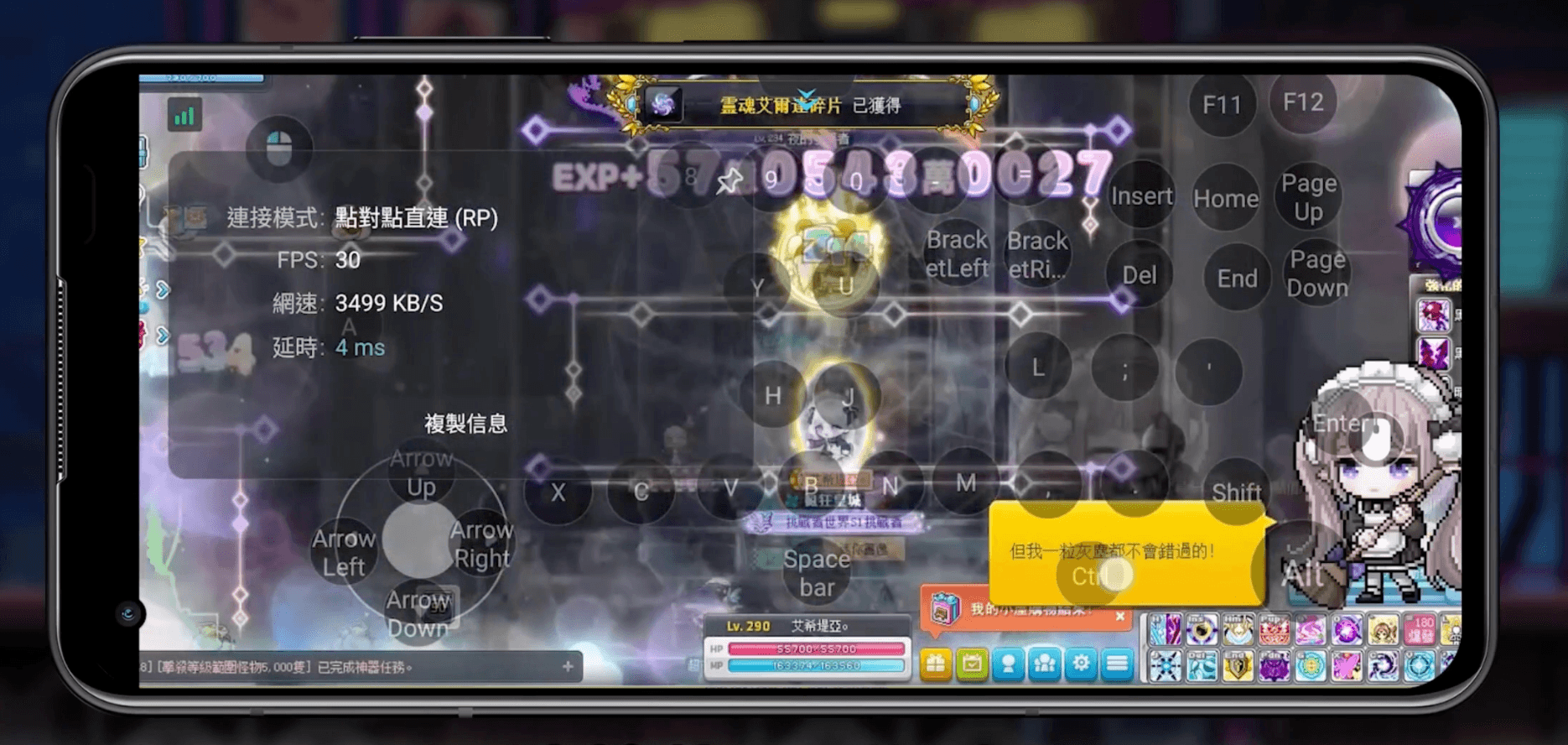
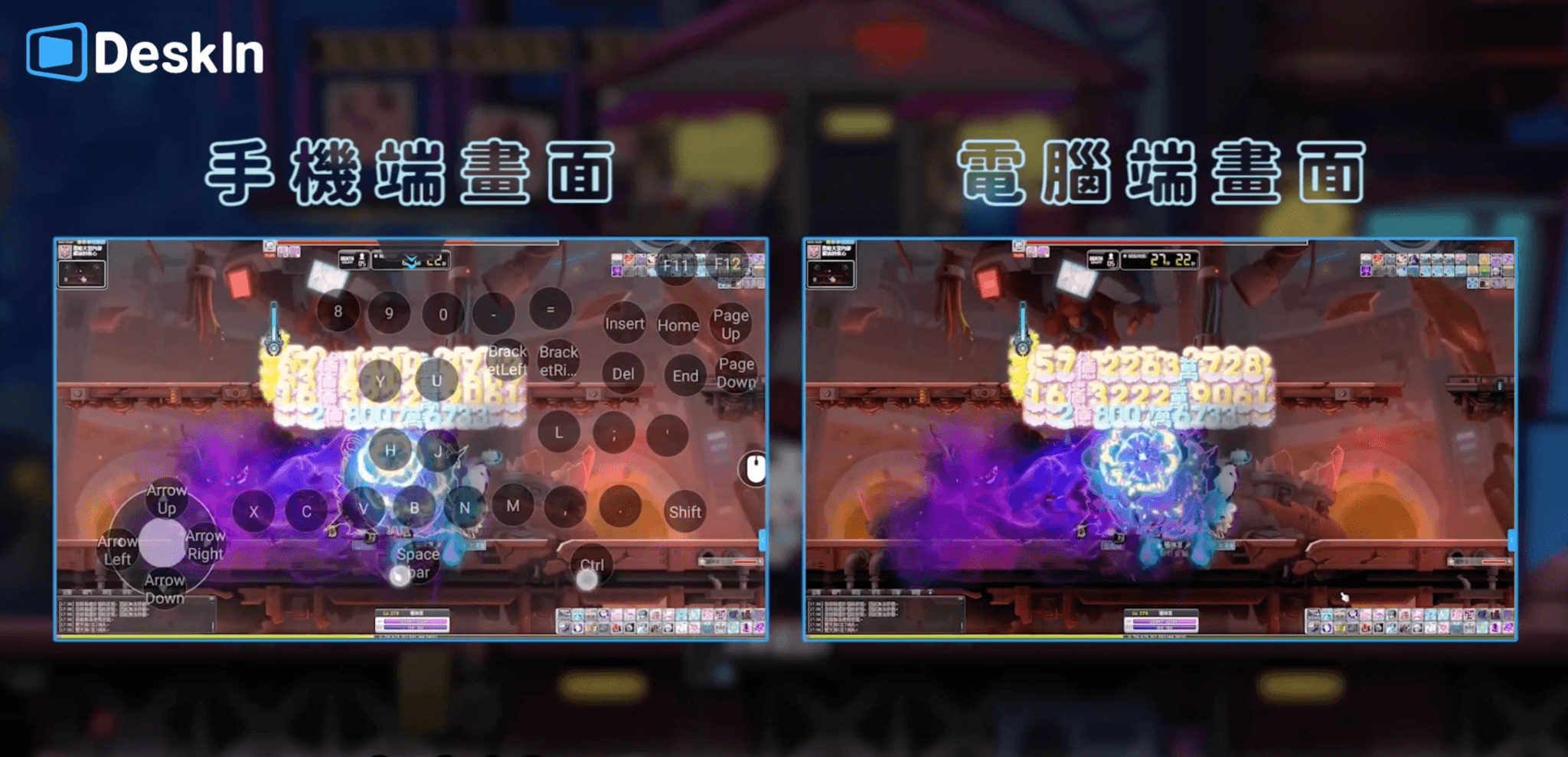
  • Full support for gaming shortcuts, hotkeys, and controllers
    Inputs register instantly, making DeskIn ideal for games that rely on timing, combos, or precise movement.

  • Extended Screen Mode for bigger setups
    Use additional devices as extra displays, perfect for strategy, multitasking, or expanded immersion.

  • Immersive Auto 3D Game View
    DeskIn automatically enhances supported games with a 3D-style depth effect, making remote visuals feel richer and more immersive without extra setup.

  • Bank-level AES-256 encryption for strong security (local + remote modes)
    DeskIn protects every session with AES-256 encryption, the same standard used by banks, ensuring secure gameplay whether you’re on home Wi-Fi, public networks, or mobile hotspots.

  • Fast setup with a clean, intuitive UI
    Simple onboarding means you’re gaming in minutes, not wrestling with settings.

With ultra-low latency, high frame-rate streaming, intelligent visual enhancements, and secure remote sessions, DeskIn pushes remote desktop software for gaming far beyond traditional remote access tools.

Recommended Read:

DeskIn vs Other Remote Desktop Tools

When comparing remote desktop software for gaming, the differences become obvious fast. Some tools work well on a local network, some are meant for office tasks, and some lock you into limited game catalogs. DeskIn stands apart because it’s built specifically for high-performance remote gaming, not generic screen sharing.

Here’s how it compares to the usual options:

  • DeskIn – Designed for high-performance remote gaming
    Built for low latency, high FPS streaming, crisp visuals, and accurate input. It supports any game in your library with no platform restrictions and works smoothly across PC, Mac, Android, iPad, and more.

  • Steam Link – Great for Steam-only games, but limited beyond LAN
    Steam Link works nicely on the same network, but quickly struggles with latency over long distances. It also supports only Steam titles, leaving out Epic, Battle.net, standalone launchers, and modded games.

  • TeamViewer – Too slow for real gaming
    TeamViewer is excellent for remote support and business use, but not for gaming. High latency, low FPS, and aggressive compression make fast gameplay nearly impossible.

  • Chrome Remote Desktop – Not optimized for games
    CRD is great for quick access to files or simple tasks, but lacks the frame rate, input precision, and color quality that remote desktop software for gaming demands. Even casual games feel sluggish.

  • Cloud gaming platforms – Limited game libraries + ongoing subscription costs
    Services like GeForce NOW, Xbox Cloud Gaming, or Boosteroid depend on supported titles. Mods, custom files, and personal libraries often won’t work. Plus, you pay a monthly fee and compete with server availability.

Across all these comparisons, the difference is clear: DeskIn gives you full freedom, zero restrictions, and higher performance. Your entire PC becomes your remote gaming rig: no locked library, no extra fees, and no hardware limits.

DeskIn fits anyone who wants high-quality remote desktop software for gaming without limits. Try DeskIn for free today, turn any device into a gaming powerhouse.

Free download DeskIn

How to Set Up Remote Gaming with DeskIn (Step-by-Step)

Getting started with DeskIn is quick and beginner-friendly. Here’s how to set up your remote desktop software for gaming in minutes:

1. Install DeskIn on your gaming PC 

Download and install DeskIn on the computer that will run your games. This PC will handle all the processing, graphics, and performance during your remote session.

2. Install DeskIn on your receiving device

Next, install DeskIn on the device you want to play from, whether it’s a phone, tablet, laptop, iPad, Android device, or MacBook.

3. Sign up and log in to a free account

Sign in on both devices using the same account. If you’re new, creating a free account takes less than a minute.

4. Connect your devices

remote control gaming pc

Once both devices are online, your gaming PC will appear in the DeskIn app. Tap or click to connect, enter the password, and your remote session will start instantly.

5. Enable game mouse, 3D mode or controller

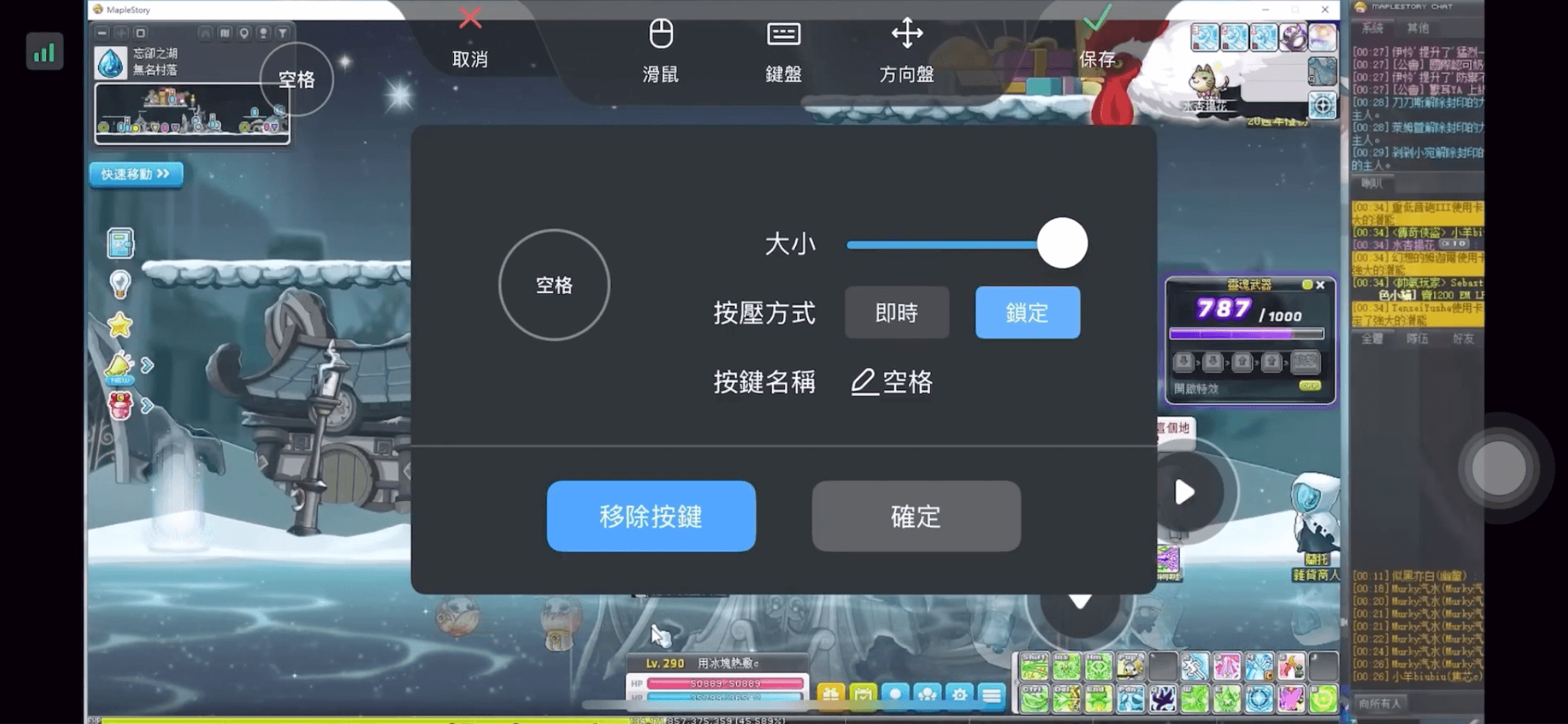
For the best remote gaming performance, turn on controller mode or adjust keyboard/mouse mapping. DeskIn supports gamepads, hotkeys, and precise input options for smooth gameplay.

6. Start playing

Launch your favorite game from your remote device and enjoy full access to your library. You can play PC games remotely with high FPS, low latency, and crisp visuals — whether you’re at home or halfway across the world.

Free download DeskIn

FAQ

  1. Is remote desktop software good for gaming?
    Yes, especially with modern remote desktop software for gaming that supports low latency, high FPS, and optimized streaming. Tools built for performance can deliver smooth, responsive gameplay that feels close to playing directly on your PC.

  2. Can I play FPS games remotely?
    Definitely. FPS games demand quick reactions, and DeskIn’s ≤40ms latency keeps aiming, movement, and shooting responsive. With high-FPS streaming and accurate input handling, even competitive shooters perform well through DeskIn’s remote gaming engine.

  3. Does DeskIn support controllers and keyboard mapping?
    Yes. DeskIn provides full controller support (Xbox, PlayStation, third-party), precise mouse input, and customizable keyboard mapping. This ensures your remote gaming setup feels just as natural as playing directly on your PC, no matter the device.

  4. Is the connection secure?
    Absolutely. DeskIn uses AES-256 bank-level encryption to safeguard every session, whether you’re gaming from home, a café, or a hotel Wi-Fi network. Your data, inputs, and streaming feed stay protected end to end.

  5. Can I play games on mobile devices with DeskIn?
    Yes. DeskIn makes it easy to play PC games remotely on iOS and Android phones or tablets. High-quality streaming and responsive controls turn everyday mobile devices into portable gaming screens with minimal setup required.

Why DeskIn Is the Future of Remote Gaming

Remote gaming is no longer a compromise. With modern remote desktop software for gaming, players can now enjoy high FPS, low latency, and sharp visuals that feel close to native PC play.

DeskIn delivers exactly that: combining ≤40ms responsiveness, crisp color, smooth streaming, and effortless setup across PCs, laptops, tablets, and phones. It gives gamers true cross-device freedom without sacrificing performance.

Game anywhere. Try DeskIn, the best remote desktop software for gaming. Free to start.

Free download DeskIn


emote Desktop Software for Gaming

How Remote Desktop Software for Gaming Improves Productivity & Play

Remote gaming isn’t just a niche tool anymore; it’s becoming the new normal lifestyle. Gamers today want to play wherever they are: on a low-spec laptop, a tablet, or even a phone. But here’s the catch: high-end gaming rigs are expensive, heavy, and definitely not travel-friendly. That’s where remote desktop software for gaming steps in, letting you tap into the power of your home gaming PC from literally anywhere.

But here’s the truth no one says out loud: Not every remote desktop software can handle gaming, especially fast, competitive titles. Some introduce lag, input delay, or washed-out graphics that absolutely ruin the experience.

That’s why new-gen solutions like DeskIn have emerged, tools built specifically to deliver low-latency remote desktop, high FPS, crisp color, and real gaming control, not just “screen access”.

emote Desktop Software for Gaming

Why Gamers Use Remote Desktop Software

Gamers don’t switch to remote desktop software for gaming just because it sounds cool: they use it because it solves real, everyday problems in ways traditional setups simply can’t. Here are the most common (and honestly, most relatable) reasons players are embracing remote access:

  • Play high-end games on a low-end device
    As it turns out, a MacBook, Chromebook, or iPad can’t run AAA games by itself, but if you use remote desktop software to stream the game from a PC you own with good hardware, these devices turn into portable high-end gaming screens. It offloads the computation-intensive rendering work to your main PC and then just streams over the action to your secondary device.

  • Game while traveling
    Business trips, holidays, vacations; none need to interrupt gaming when you have a stable remote gaming setup going. You can complete some work at a hotel desk and then dive right into your Steam library without having to lug around a heavy gaming laptop or desktop tower through the airport. Remote access keeps your gaming routine alive, no matter the time zone.

  • Maximize mobility
    Modern remote desktop software for gamers makes it incredibly easy to play from a phone or tablet. Just pair a controller or use touch input, and the device becomes a portable gaming machine. Perfect for casual sessions on the couch, during commutes, or while relaxing between flights.

  • Access your full Steam/Battle.net/EPIC library remotely
    Unlike cloud gaming, which often limits you to curated catalogs, remote desktop software streams your entire PC exactly as it is. Mods, custom settings, experimental builds, add-ons, indie games, everything stays intact. Your entire library travels with you without any platform restrictions.

  • No need to buy multiple gaming PCs
    Instead of investing in multiple PCs for different locations or devices, gamers rely on remote desktop software for gaming to stretch the value of a single high-spec rig. From tablets to old laptops, anything becomes a viable gaming screen. This approach saves money, simplifies setups, and makes remote play feel seamless and efficient.

  • Game developers testing builds remotely
    Developers can run heavy builds on a workstation and test gameplay, performance, or UI remotely from a laptop or tablet. This is especially useful for quick QA checks, debugging, or testing across different environments without constantly switching machines.

  • Project mobile games onto a bigger screen
    Remote access also makes it easy to project mobile games onto a larger display. Developers, streamers, and testers can mirror mobile gameplay to a PC or monitor for better visibility, recording, or live demonstrations. Using remote desktop software, mobile games become easier to analyze, present, and refine on a full-sized screen.

Key Features of Remote Desktop Software for Gaming

The best remote desktop software for gaming doesn’t just give you access to your PC on another system: it gives you access to both the strength of your host device and a finely tuned gaming experience, all in one package. These are the core elements that contribute to the polished, playable feel of remote gaming.

Ultra-Low Latency

Latency determines whether a game feels responsive or frustrating. In shooting and MOBA games, or skill-based competitive ones too, the delay of over 40ms could disrupt aim and timing. Modern low-latency remote desktop tools, including optimized platforms like DeskIn, use advanced protocols to reduce input delays and keep gameplay tight and reactive.

High FPS Support (144–240FPS)

Many standard remote access apps cap FPS at 30–60, which isn’t enough for fast-paced games. High FPS means smoother camera movement, cleaner motion, and better precision. Today’s gaming-focused platforms support 120FPS+, with some solutions streaming up to 2K144FPS for near-native fluidity.

High Resolution 

Remote gaming benefits massively from crisp detail, especially in 4K titles or visually heavy worlds. Older tools often compress visuals into blurry text and washed-out colors. Newer remote desktop software for gaming maintains sharper resolution and better color fidelity, offering clearer textures and more accurate UI readability.

Accurate Keyboard, Controller & Mouse Input

Fast input recognition is essential. This consistency is essential for any game that demands timing and precision. A well-optimized remote desktop software for gamers should ensure that every input is transmitted cleanly, avoiding ghost touches or lag spikes that disrupt the flow of gameplay.

Stable Network Optimization

Network stability plays a massive role in remote gaming performance. Many people assume remote play always means lag, but modern platforms prove otherwise.

These systems help maintain smooth gameplay even when Wi-Fi conditions fluctuate. Instead of sudden freezes or pixelation, the software dynamically adjusts to keep the experience stable.

DeskIn: The Best Remote Desktop Software for Gaming Right Now

DeskIn stands out as one of the most performance-focused options in the remote desktop software for the gaming space. It’s engineered for speed, clarity, and responsiveness: the things that actually matter when you’re playing fast, demanding games instead of just accessing a desktop.

Free download DeskIn
  • Ultra-low latency with ZeroSync® Engine
    ZeroSync® keeps total delay under 40ms, delivering fast, precise input that feels close to native PC gameplay.

  • High FPS support up to 2K240FPS / 4K60FPS
    DeskIn streams smooth, high-frame-rate gameplay, reducing motion blur and helping with precise aiming and fast camera movement.

  • 4:4:4 true color for clean visuals
    Text stays sharp, shadows stay detailed, and in-game elements remain easy to spot: no muddy compression like older tools.

  • Cross-device compatibility ( iOS, iPadOS, Android,Windows, macOS)
    Play on virtually any screen you own, turning everyday devices into a portable gaming setup.

  • Full support for gaming shortcuts, hotkeys, and controllers
    Inputs register instantly, making DeskIn ideal for games that rely on timing, combos, or precise movement.

  • Extended Screen Mode for bigger setups
    Use additional devices as extra displays, perfect for strategy, multitasking, or expanded immersion.

  • Immersive Auto 3D Game View
    DeskIn automatically enhances supported games with a 3D-style depth effect, making remote visuals feel richer and more immersive without extra setup.

  • Bank-level AES-256 encryption for strong security (local + remote modes)
    DeskIn protects every session with AES-256 encryption, the same standard used by banks, ensuring secure gameplay whether you’re on home Wi-Fi, public networks, or mobile hotspots.

  • Fast setup with a clean, intuitive UI
    Simple onboarding means you’re gaming in minutes, not wrestling with settings.

With ultra-low latency, high frame-rate streaming, intelligent visual enhancements, and secure remote sessions, DeskIn pushes remote desktop software for gaming far beyond traditional remote access tools.

Recommended Read:

DeskIn vs Other Remote Desktop Tools

When comparing remote desktop software for gaming, the differences become obvious fast. Some tools work well on a local network, some are meant for office tasks, and some lock you into limited game catalogs. DeskIn stands apart because it’s built specifically for high-performance remote gaming, not generic screen sharing.

Here’s how it compares to the usual options:

  • DeskIn – Designed for high-performance remote gaming
    Built for low latency, high FPS streaming, crisp visuals, and accurate input. It supports any game in your library with no platform restrictions and works smoothly across PC, Mac, Android, iPad, and more.

  • Steam Link – Great for Steam-only games, but limited beyond LAN
    Steam Link works nicely on the same network, but quickly struggles with latency over long distances. It also supports only Steam titles, leaving out Epic, Battle.net, standalone launchers, and modded games.

  • TeamViewer – Too slow for real gaming
    TeamViewer is excellent for remote support and business use, but not for gaming. High latency, low FPS, and aggressive compression make fast gameplay nearly impossible.

  • Chrome Remote Desktop – Not optimized for games
    CRD is great for quick access to files or simple tasks, but lacks the frame rate, input precision, and color quality that remote desktop software for gaming demands. Even casual games feel sluggish.

  • Cloud gaming platforms – Limited game libraries + ongoing subscription costs
    Services like GeForce NOW, Xbox Cloud Gaming, or Boosteroid depend on supported titles. Mods, custom files, and personal libraries often won’t work. Plus, you pay a monthly fee and compete with server availability.

Across all these comparisons, the difference is clear: DeskIn gives you full freedom, zero restrictions, and higher performance. Your entire PC becomes your remote gaming rig: no locked library, no extra fees, and no hardware limits.

DeskIn fits anyone who wants high-quality remote desktop software for gaming without limits. Try DeskIn for free today, turn any device into a gaming powerhouse.

Free download DeskIn

How to Set Up Remote Gaming with DeskIn (Step-by-Step)

Getting started with DeskIn is quick and beginner-friendly. Here’s how to set up your remote desktop software for gaming in minutes:

1. Install DeskIn on your gaming PC 

Download and install DeskIn on the computer that will run your games. This PC will handle all the processing, graphics, and performance during your remote session.

2. Install DeskIn on your receiving device

Next, install DeskIn on the device you want to play from, whether it’s a phone, tablet, laptop, iPad, Android device, or MacBook.

3. Sign up and log in to a free account

Sign in on both devices using the same account. If you’re new, creating a free account takes less than a minute.

4. Connect your devices

remote control gaming pc

Once both devices are online, your gaming PC will appear in the DeskIn app. Tap or click to connect, enter the password, and your remote session will start instantly.

5. Enable game mouse, 3D mode or controller

For the best remote gaming performance, turn on controller mode or adjust keyboard/mouse mapping. DeskIn supports gamepads, hotkeys, and precise input options for smooth gameplay.

6. Start playing

Launch your favorite game from your remote device and enjoy full access to your library. You can play PC games remotely with high FPS, low latency, and crisp visuals — whether you’re at home or halfway across the world.

Free download DeskIn

FAQ

  1. Is remote desktop software good for gaming?
    Yes, especially with modern remote desktop software for gaming that supports low latency, high FPS, and optimized streaming. Tools built for performance can deliver smooth, responsive gameplay that feels close to playing directly on your PC.

  2. Can I play FPS games remotely?
    Definitely. FPS games demand quick reactions, and DeskIn’s ≤40ms latency keeps aiming, movement, and shooting responsive. With high-FPS streaming and accurate input handling, even competitive shooters perform well through DeskIn’s remote gaming engine.

  3. Does DeskIn support controllers and keyboard mapping?
    Yes. DeskIn provides full controller support (Xbox, PlayStation, third-party), precise mouse input, and customizable keyboard mapping. This ensures your remote gaming setup feels just as natural as playing directly on your PC, no matter the device.

  4. Is the connection secure?
    Absolutely. DeskIn uses AES-256 bank-level encryption to safeguard every session, whether you’re gaming from home, a café, or a hotel Wi-Fi network. Your data, inputs, and streaming feed stay protected end to end.

  5. Can I play games on mobile devices with DeskIn?
    Yes. DeskIn makes it easy to play PC games remotely on iOS and Android phones or tablets. High-quality streaming and responsive controls turn everyday mobile devices into portable gaming screens with minimal setup required.

Why DeskIn Is the Future of Remote Gaming

Remote gaming is no longer a compromise. With modern remote desktop software for gaming, players can now enjoy high FPS, low latency, and sharp visuals that feel close to native PC play.

DeskIn delivers exactly that: combining ≤40ms responsiveness, crisp color, smooth streaming, and effortless setup across PCs, laptops, tablets, and phones. It gives gamers true cross-device freedom without sacrificing performance.

Game anywhere. Try DeskIn, the best remote desktop software for gaming. Free to start.

Free download DeskIn


Transfer photos from Android to iPhone

How to Transfer Photos from Android to iPhone Fast with DeskIn

Switching phones is exciting, until you need to move your photos. Suddenly, nothing feels simple. The cables don’t match, sharing apps compress your images into blurry blobs, and cloud uploads take ages (especially with 4K videos).

If you’ve been Googling how to transfer photos from Android to iPhone without losing your photo quality, this guide has your answer.

We’ll walk through all the common methods people use, highlight their pros and cons, and show you the fastest, most reliable option: DeskIn, a cross-device remote access and file transfer tool that moves your pictures in seconds with zero compression.

Transfer Photos from Android to iPhone Fast with DeskIn

Why Transferring Photos Between Android and iPhone is Usually a Hassle

Here are the biggest pain points:

  • Different Cables That Never Match
    Android uses USB-C while many iPhones use Lightning. Most people don’t have a cable that connects both devices directly, and even when you do, not all transfer methods support cross-platform use.

  • Bluetooth is Technically There, but Practically Useless
    Pairing might work, but transferring photos is painfully slow and unreliable. Even one high-resolution picture can take forever, making Bluetooth impossible for albums or videos.

  • AirDrop Doesn’t Work Across Ecosystems
    AirDrop is fast, smooth, and magical if you only use Apple devices. Android is completely locked out, so you can’t AirDrop your photos at all.

  • Messaging Apps Destroy Photo Quality
    LINE, WhatsApp, Facebook Messenger, and Instagram heavily compress images. Your crisp, 12MP travel photo turns into a pixelated, blurry version of itself.

  • Cloud Uploads Take Too Long
    Google Photos, Drive, and Dropbox require uploading first (slow) and then downloading again (also slow). Uploading 300 vacation photos over Wi-Fi can take hours, and sometimes cloud services reduce image quality unless you manually choose “original.”

  • Sending Large Albums is a Nightmare
    Most apps aren’t designed for bulk movement. Sending 300–500 photos one by one is tedious, and many apps fail if the connection drops.

  • Phone Switching Tools Aren’t Flexible
    Tools like Move to iOS only work during initial setup, often fail midway, and can’t selectively transfer certain albums or custom folders.

These pains just lead most users to spend the whole day trying to send photos from Android to iPhone, or giving up entirely.

There has to be something faster, right? There is.

The Fastest Method: Transfer Photos from Android to iPhone with DeskIn

DeskIn fast file transfer between Android and iPhone at 12MB per second

If you want speed, no compression, and a method that just works, DeskIn is the top choice. It’s designed for seamless cross-device file transfer: not just phones within the same ecosystem.

DeskIn is not just an Android-to-iPhone photo transfer app; it’s a full cross-platform remote access tool that lets you transfer files instantly between any devices, whether they’re beside you or miles apart.

Why DeskIn is the Best Option

Here’s what makes DeskIn the best way to transfer photos without a cable:

  • Remote file transfer built-in — No third-party apps needed, no cable needed.

  • Works over Wi-Fi or mobile data — Perfect when another device is not near a router

  • Bulk transfer support — Move hundreds or thousands of photos in one go

  • Zero compression — Your files stay original quality, including RAW and 4K

  • Cross-platform compatibility — Move from PC to PC, mobile to PC, PC to mobile, and mobile to mobile effortlessly

  • Ultra-fast transfer speed (up to 12MB/s) — moving large photo libraries in seconds

  • Remote file access — Even use your Android storage when the device is not with you

  • Secure connection with AES-256 encryption — keep every transfer fully protected

  • Privacy screen support — protect content during transfers and remote sessions

Think of DeskIn as a supercharged pipeline that moves data in seconds, not minutes. Compared to Bluetooth or cloud uploads, DeskIn transfers files at lightning speed.

Experience ultra-fast, zero-compression transfers. Download DeskIn now.

Free download DeskIn

Step-by-Step: How to Transfer Photos from Android to iPhone Using DeskIn

Ready to move your pictures? Here’s the simplest workflow.

DeskIn download page showing platform options for Windows, macOS, iOS, and Android devices.

Step 1: Download & Install DeskIn

Install DeskIn on your iPhone (App Store) and Android (Google Play), then sign up and verify your account.

Step 2: Connect Your Devices

Open DeskIn on your iPhone, go to the Device List, and select the Android you want to connect, or enter its device code under Remote Control and choose File Transfer.

DeskIn Remote Control interface showing File Transfer connection option

Step 3: Establish a Secure Connection

When prompted, enter the device security password or temporary access code. This authentication step ensures your devices connect securely before any files are transferred.

Step 4: Transfer Your Photos

Once connected, tap Send File, select the photos or videos you want to move, choose the destination folder on your iPhone, and hit Send. DeskIn instantly transfers everything in full resolution with no compression.

DeskIn File Transfer screen highlighting the Send button during upload

Step 5: View Files on Your iPhone

After the transfer completes, your photos will appear in your chosen folder or under Me → Downloaded Files inside the DeskIn app.

Free download DeskIn

You can also send files from your iPhone back to your Android using the same steps anytime, and the same workflow works seamlessly with Windows PCs and Mac computers for cross-device transfers.

Recommend Read:

Other Ways to Transfer Photos from Android to iPhone 

DeskIn is the fastest solution, but let’s go through other commonly used methods so you understand the differences.

Method 1 — Move to iOS App

Apple’s official migration tool is often the first method people try when Googling how to transfer photos from Android to iPhone. It can get the job done, but only under very specific conditions.

Pros:

  • Works during initial iPhone setup

  • Moves photos along with contacts and messages

Cons:

  • Can’t be used after iPhone setup

  • Slow with large albums

  • Frequently fails or stalls

  • Requires both devices to stay on the same Wi-Fi network

  • No selective transfer, you must move everything

Moving to iOS is fine for a brand-new iPhone, but not ideal if you just want to transfer photos from Android to iPhone later.

Method 2 — Google Photos Backup

Google Photos is a reliable cloud method for people comfortable with cloud storage. It works across ecosystems, but speed and quality depend heavily on your internet connection.

Pros:

  • Easy access across devices

  • Backups stay in the cloud for long-term storage

Cons:

  • Slow upload and download times

  • May compress photos unless set to “Original Quality”

  • Requires strong Wi-Fi or large data usage

  • Not ideal for large 4K videos or bulk transfers

Google Photos is a good fallback, but not a fast one.

Method 3 — WhatsApp, Messenger, or LINE

Messaging apps are convenient for sending a photo or two, especially when you’re chatting with someone already. But they’re not built for quality-preserving transfers.

Pros:

  • Simple for quick sharing

  • Good for casual, low-priority images

Cons:

  • Heavy compression destroys clarity

  • Not suitable for albums or high-resolution photos

  • Video quality drops significantly

These apps should only be used when quality doesn’t matter.

Quick Comparison Table

Here’s a quick side-by-side look at how common transfer methods stack up when moving photos between Android and iPhone:

Method

Speed

Quality

Bulk Transfer

Compression

Cable Needed

Ease of Use

DeskIn

Ultra-fast

Original quality

Yes

None

No

Very Easy

Move to iOS

Slow

Good

Yes

None

No

Moderate

Google Photos

Moderate

Varies

Yes

Possible

No

Easy

Messaging Apps (LINE/WhatsApp)

Fast for single photos

Low

No

Heavy

No

Easy

Bottom line: DeskIn still leads with ultra-fast transfer speed, no compression, and seamless bulk transfers.

Choose the smarter way. Try DeskIn for free today and move your photos the fast, frustration-free way.

Free download DeskIn

How DeskIn Makes Cross-Device File Management Easier

Connecting an Android phone to a computer using DeskIn remote access

With DeskIn remote PC access, your entire workstation is available anywhere. Here is how DeskIn fits naturally into every part of your digital life:

  • Remote work: Access office files, collaborate faster, and avoid cloud upload delays.

  • Remote gaming: Manage game assets and settings across devices with smooth remote control.

  • Remote design: Open your design workstation from anywhere, move large PSD/AI files, and transfer assets between Android, iPhone, Windows, and Mac with ease.

  • Remote mobile access: Open your Android files from anywhere, even when the phone isn’t with you.

  • Remote support: Help friends, family, or clients troubleshoot devices securely through remote control and file access.

  • Cross-device file transfer: Seamlessly transfer files from Android to iPhone, iPhone to PC, Android to Mac, and everything in between.

Whether you’re trying to send photos from Android to iPhone, move a large video to your laptop, or keep your workflow synced across devices, DeskIn isn’t just a tool: it’s your complete, all-in-one remote access and file management solution.

Free download DeskIn

FAQ

  1. Can I transfer photos from Android to iPhone without losing quality?
    Yes. Using DeskIn keeps your photos in their original resolution with zero compression, ensuring every image stays crisp and unaltered.

  2. Can I transfer videos, too?
    Absolutely. DeskIn supports high-quality video transfers, including large 1080p, 2K, and 4K files, without slowing down or reducing quality.

  3. Does DeskIn work without cables?
    Yes. DeskIn uses wireless file transfer, allowing you to send photos, videos, and documents without any USB-C or Lightning cables.

  4. Is DeskIn free?
    DeskIn offers a free version with powerful transfer and remote access features, with optional upgrades for advanced users.

  5. Do both devices need to be together?
    No. DeskIn supports remote file access, so you can transfer files even when your Android and iPhone aren’t in the same location.

Transfer Photos from Android to iPhone the Fast, Easy Way with DeskIn

Old-school methods make it unnecessarily hard to transfer photos from Android to iPhone, a slow process, compressed messaging apps, long cloud uploads, and tools that only work during setup. None of them delivers speed and full-quality results.

DeskIn fixes all of that. It’s the fastest, simplest way to send photos from Android to iPhone with zero compression, no cables, and no ecosystem limits. Whether you’re moving a few shots or entire albums, DeskIn keeps everything instant, secure, and effortless.

Ready for a smoother workflow? Download DeskIn now and transfer your photos in seconds: no cables, no compression, no hassle.

Free download DeskIn
Transfer photos from Android to iPhone

How to Transfer Photos from Android to iPhone Fast with DeskIn

Switching phones is exciting, until you need to move your photos. Suddenly, nothing feels simple. The cables don’t match, sharing apps compress your images into blurry blobs, and cloud uploads take ages (especially with 4K videos).

If you’ve been Googling how to transfer photos from Android to iPhone without losing your photo quality, this guide has your answer.

We’ll walk through all the common methods people use, highlight their pros and cons, and show you the fastest, most reliable option: DeskIn, a cross-device remote access and file transfer tool that moves your pictures in seconds with zero compression.

Transfer Photos from Android to iPhone Fast with DeskIn

Why Transferring Photos Between Android and iPhone is Usually a Hassle

Here are the biggest pain points:

  • Different Cables That Never Match
    Android uses USB-C while many iPhones use Lightning. Most people don’t have a cable that connects both devices directly, and even when you do, not all transfer methods support cross-platform use.

  • Bluetooth is Technically There, but Practically Useless
    Pairing might work, but transferring photos is painfully slow and unreliable. Even one high-resolution picture can take forever, making Bluetooth impossible for albums or videos.

  • AirDrop Doesn’t Work Across Ecosystems
    AirDrop is fast, smooth, and magical if you only use Apple devices. Android is completely locked out, so you can’t AirDrop your photos at all.

  • Messaging Apps Destroy Photo Quality
    LINE, WhatsApp, Facebook Messenger, and Instagram heavily compress images. Your crisp, 12MP travel photo turns into a pixelated, blurry version of itself.

  • Cloud Uploads Take Too Long
    Google Photos, Drive, and Dropbox require uploading first (slow) and then downloading again (also slow). Uploading 300 vacation photos over Wi-Fi can take hours, and sometimes cloud services reduce image quality unless you manually choose “original.”

  • Sending Large Albums is a Nightmare
    Most apps aren’t designed for bulk movement. Sending 300–500 photos one by one is tedious, and many apps fail if the connection drops.

  • Phone Switching Tools Aren’t Flexible
    Tools like Move to iOS only work during initial setup, often fail midway, and can’t selectively transfer certain albums or custom folders.

These pains just lead most users to spend the whole day trying to send photos from Android to iPhone, or giving up entirely.

There has to be something faster, right? There is.

The Fastest Method: Transfer Photos from Android to iPhone with DeskIn

DeskIn fast file transfer between Android and iPhone at 12MB per second

If you want speed, no compression, and a method that just works, DeskIn is the top choice. It’s designed for seamless cross-device file transfer: not just phones within the same ecosystem.

DeskIn is not just an Android-to-iPhone photo transfer app; it’s a full cross-platform remote access tool that lets you transfer files instantly between any devices, whether they’re beside you or miles apart.

Why DeskIn is the Best Option

Here’s what makes DeskIn the best way to transfer photos without a cable:

  • Remote file transfer built-in — No third-party apps needed, no cable needed.

  • Works over Wi-Fi or mobile data — Perfect when another device is not near a router

  • Bulk transfer support — Move hundreds or thousands of photos in one go

  • Zero compression — Your files stay original quality, including RAW and 4K

  • Cross-platform compatibility — Move from PC to PC, mobile to PC, PC to mobile, and mobile to mobile effortlessly

  • Ultra-fast transfer speed (up to 12MB/s) — moving large photo libraries in seconds

  • Remote file access — Even use your Android storage when the device is not with you

  • Secure connection with AES-256 encryption — keep every transfer fully protected

  • Privacy screen support — protect content during transfers and remote sessions

Think of DeskIn as a supercharged pipeline that moves data in seconds, not minutes. Compared to Bluetooth or cloud uploads, DeskIn transfers files at lightning speed.

Experience ultra-fast, zero-compression transfers. Download DeskIn now.

Free download DeskIn

Step-by-Step: How to Transfer Photos from Android to iPhone Using DeskIn

Ready to move your pictures? Here’s the simplest workflow.

DeskIn download page showing platform options for Windows, macOS, iOS, and Android devices.

Step 1: Download & Install DeskIn

Install DeskIn on your iPhone (App Store) and Android (Google Play), then sign up and verify your account.

Step 2: Connect Your Devices

Open DeskIn on your iPhone, go to the Device List, and select the Android you want to connect, or enter its device code under Remote Control and choose File Transfer.

DeskIn Remote Control interface showing File Transfer connection option

Step 3: Establish a Secure Connection

When prompted, enter the device security password or temporary access code. This authentication step ensures your devices connect securely before any files are transferred.

Step 4: Transfer Your Photos

Once connected, tap Send File, select the photos or videos you want to move, choose the destination folder on your iPhone, and hit Send. DeskIn instantly transfers everything in full resolution with no compression.

DeskIn File Transfer screen highlighting the Send button during upload

Step 5: View Files on Your iPhone

After the transfer completes, your photos will appear in your chosen folder or under Me → Downloaded Files inside the DeskIn app.

Free download DeskIn

You can also send files from your iPhone back to your Android using the same steps anytime, and the same workflow works seamlessly with Windows PCs and Mac computers for cross-device transfers.

Recommend Read:

Other Ways to Transfer Photos from Android to iPhone 

DeskIn is the fastest solution, but let’s go through other commonly used methods so you understand the differences.

Method 1 — Move to iOS App

Apple’s official migration tool is often the first method people try when Googling how to transfer photos from Android to iPhone. It can get the job done, but only under very specific conditions.

Pros:

  • Works during initial iPhone setup

  • Moves photos along with contacts and messages

Cons:

  • Can’t be used after iPhone setup

  • Slow with large albums

  • Frequently fails or stalls

  • Requires both devices to stay on the same Wi-Fi network

  • No selective transfer, you must move everything

Moving to iOS is fine for a brand-new iPhone, but not ideal if you just want to transfer photos from Android to iPhone later.

Method 2 — Google Photos Backup

Google Photos is a reliable cloud method for people comfortable with cloud storage. It works across ecosystems, but speed and quality depend heavily on your internet connection.

Pros:

  • Easy access across devices

  • Backups stay in the cloud for long-term storage

Cons:

  • Slow upload and download times

  • May compress photos unless set to “Original Quality”

  • Requires strong Wi-Fi or large data usage

  • Not ideal for large 4K videos or bulk transfers

Google Photos is a good fallback, but not a fast one.

Method 3 — WhatsApp, Messenger, or LINE

Messaging apps are convenient for sending a photo or two, especially when you’re chatting with someone already. But they’re not built for quality-preserving transfers.

Pros:

  • Simple for quick sharing

  • Good for casual, low-priority images

Cons:

  • Heavy compression destroys clarity

  • Not suitable for albums or high-resolution photos

  • Video quality drops significantly

These apps should only be used when quality doesn’t matter.

Quick Comparison Table

Here’s a quick side-by-side look at how common transfer methods stack up when moving photos between Android and iPhone:

Method

Speed

Quality

Bulk Transfer

Compression

Cable Needed

Ease of Use

DeskIn

Ultra-fast

Original quality

Yes

None

No

Very Easy

Move to iOS

Slow

Good

Yes

None

No

Moderate

Google Photos

Moderate

Varies

Yes

Possible

No

Easy

Messaging Apps (LINE/WhatsApp)

Fast for single photos

Low

No

Heavy

No

Easy

Bottom line: DeskIn still leads with ultra-fast transfer speed, no compression, and seamless bulk transfers.

Choose the smarter way. Try DeskIn for free today and move your photos the fast, frustration-free way.

Free download DeskIn

How DeskIn Makes Cross-Device File Management Easier

Connecting an Android phone to a computer using DeskIn remote access

With DeskIn remote PC access, your entire workstation is available anywhere. Here is how DeskIn fits naturally into every part of your digital life:

  • Remote work: Access office files, collaborate faster, and avoid cloud upload delays.

  • Remote gaming: Manage game assets and settings across devices with smooth remote control.

  • Remote design: Open your design workstation from anywhere, move large PSD/AI files, and transfer assets between Android, iPhone, Windows, and Mac with ease.

  • Remote mobile access: Open your Android files from anywhere, even when the phone isn’t with you.

  • Remote support: Help friends, family, or clients troubleshoot devices securely through remote control and file access.

  • Cross-device file transfer: Seamlessly transfer files from Android to iPhone, iPhone to PC, Android to Mac, and everything in between.

Whether you’re trying to send photos from Android to iPhone, move a large video to your laptop, or keep your workflow synced across devices, DeskIn isn’t just a tool: it’s your complete, all-in-one remote access and file management solution.

Free download DeskIn

FAQ

  1. Can I transfer photos from Android to iPhone without losing quality?
    Yes. Using DeskIn keeps your photos in their original resolution with zero compression, ensuring every image stays crisp and unaltered.

  2. Can I transfer videos, too?
    Absolutely. DeskIn supports high-quality video transfers, including large 1080p, 2K, and 4K files, without slowing down or reducing quality.

  3. Does DeskIn work without cables?
    Yes. DeskIn uses wireless file transfer, allowing you to send photos, videos, and documents without any USB-C or Lightning cables.

  4. Is DeskIn free?
    DeskIn offers a free version with powerful transfer and remote access features, with optional upgrades for advanced users.

  5. Do both devices need to be together?
    No. DeskIn supports remote file access, so you can transfer files even when your Android and iPhone aren’t in the same location.

Transfer Photos from Android to iPhone the Fast, Easy Way with DeskIn

Old-school methods make it unnecessarily hard to transfer photos from Android to iPhone, a slow process, compressed messaging apps, long cloud uploads, and tools that only work during setup. None of them delivers speed and full-quality results.

DeskIn fixes all of that. It’s the fastest, simplest way to send photos from Android to iPhone with zero compression, no cables, and no ecosystem limits. Whether you’re moving a few shots or entire albums, DeskIn keeps everything instant, secure, and effortless.

Ready for a smoother workflow? Download DeskIn now and transfer your photos in seconds: no cables, no compression, no hassle.

Free download DeskIn
 Best Screen Sharing for Game Testing

Best Screen Sharing for Game Testing: Why DeskIn Beats AnyDesk, TeamViewer & Parsec

Remote work didn’t just change how teams collaborate: it transformed how game testing gets done.

Today’s QA teams are global, developers work across time zones, and playtests happen far beyond a single studio. That makes screen sharing no longer optional, but essential. The challenge is that most remote tools weren’t built for real gameplay. They lag, drop frames, and blur the details QA teams rely on.

DeskIn is different. It’s engineered for high-FPS visuals, ultra-low latency, and accurate gameplay feedback, making it a modern screen-sharing solution built specifically for remote game testing and remote gameplay.

Let’s break down why DeskIn is quickly becoming the best screen-sharing tool for game developers, and why tools like AnyDesk, TeamViewer, and even Parsec fall short for serious QA work.

 Best Screen Sharing for Game Testing

Real Use Cases in Game QA & Development, Why Need a Screen Sharing Tool?

Remote screen sharing has moved from a "nice-to-have" to a critical, indispensable tool in modern game Quality Assurance (QA). Its adoption is driven by fundamental shifts in how games are developed, tested, and collaborated on.

Here’s a breakdown of why it's now essential:

  • Real-time bug reproduction
    QA shares live gameplay while developers observe inputs and system behavior, allowing issues to be reproduced and fixed immediately: no back-and-forth recordings required.

  • VFX and visual review
    Teams review lighting, shaders, and effects with crisp color accuracy during screen sharing for game testing, without compression hiding defects. 

  • Remote prototype playtesting
    Testers play early builds remotely, enabling fast feedback without large downloads or complex setup using remote game testing software.

  • Cross-play testing (mobile & PC)
    Teams can test mobile and PC gameplay side by side, mirroring mobile screens to desktop while validating controls, UI behavior, and performance across platforms, an essential use case for remote QA tools.

  • Animation timing review
    Animation teams benefit from high-FPS streaming to review movement and timing frame by frame. Subtle issues in transitions, hit reactions, or camera motion are easier to spot when playback is smooth and accurate.

  • Multiplayer latency testing
    QA can conduct latency and synchronization tests while developers watch live sessions. This helps teams identify network-related issues faster using effective remote dev tools.

  • Secure external QA access
    External QA partners can securely access builds and testing environments through DeskIn, making collaboration smoother while keeping pre-release content protected.

    Free download DeskIn

Modern Tools Elevating the Practice

Today’s game testing workflows rely on tools that go far beyond simple screen viewing solutions like Zoom. Modern remote platforms such as DeskIn, AnyDesk, TeamViewer, and Parsec introduce capabilities specifically designed to support game QA. 

Choosing the right tool comes down to which features best support real-time testing and collaboration, including:

  • High frame rate and low latency — critical for spotting fast-paced visual bugs and timing-sensitive issues.

  • Remote input control — allows developers to take over instantly and test hypotheses without lengthy explanations.

  • Built-in file transfer — enables quick delivery of new builds, patches, or configuration files.

  • Real-time screen mirroring — makes it easy to share bug reproduction steps for immediate analysis.

  • Audio calls and whiteboard tools — support clear communication and visual guidance without relying on third-party apps.

Together, these features transform remote sessions into efficient, collaborative QA environments, bringing teams closer to the feel of in-studio testing.

Which Screen Sharing Tool is Best for Game QA

Choosing the right screen sharing tool can make the difference between a lengthy, ambiguous bug report and a swift, precise fix.

For Game QA, the ideal solution must go beyond basic screen viewing; it needs to deliver high visual fidelity, ultra-low latency, cross-platform compatibility, and interactive control to keep up with the real-time, detail-sensitive nature of game testing. 

Below, we break down what to look for and compare top contenders shaping how modern game teams test.

DeskIn

DeskIn is designed around real game testing workflows, not just office tasks. Its features focus on what QA teams and developers actually need: low latency, high FPS, visual accuracy, and smooth collaboration.

Ultra-Low Latency for Accurate Gameplay

High-FPS Streaming: Up to 2K240FPS & 4K60FPS

Screen Mirroring, Sharing, and Extension for Flexible Testing

DeskIn screen extension between desktop and laptop supports multiple operating systems

Color Accuracy & Crisp Visuals 

DeskIn supports 4:4:4 true color mode, preserves visual clarity and color accuracy, which is critical for inspecting textures, lighting, shaders, and VFX. Multi-Device, Cross-System Testing

Modern studios work across platforms. 

DeskIn supports Windows, macOS, Chromebook, iOS, and Android, enabling seamless cross-system testing. 

Remote Mobile Game Testing (Unique Advantage)

Mobile screens can be mirrored and accessed remotely for iOS and Android testing. 

Remote File Transfer for Builds + Logs

Built-in file transfer speeds of up to 12MB/s, allowing teams to quickly share builds, crash logs, and save files during QA sessions. 

External Controller & Peripheral Support (Xbox and More)

DeskIn supports external device adaptation, including Xbox controllers and other common game peripherals, allowing QA teams to test real input behavior and control mapping during game testing.

Remote Terminal Access for Faster Debugging

Developers and QA can use command-line tools remotely without interrupting gameplay, making it easier to pull logs, run scripts, and validate fixes in real time during game testing.

Stable Performance Under Heavy Load

Powered by 200+ global nodes and smart network navigation, DeskIn maintains smooth, reliable performance even during GPU-intensive scenes, multiplayer testing, or large-scale playtests.

Whether you’re reproducing a graphical glitch, debugging a physics bug, or collaborating across continents, DeskIn is the best tool for turning remote QA into a seamless extension of the development floor. Try DeskIn today and experience high-FPS streaming, low latency, and crystal-clear visuals.

Free download DeskIn

AnyDesk

AnyDesk is primarily designed for IT support and remote troubleshooting, which limits its effectiveness for screen sharing for game testing.

  • Cross-platform compatibility: Supports Windows, macOS, Linux (Ubuntu, Debian, RHEL, SUSE, Mint), Android, iOS/iPadOS, plus specialized platforms like Raspberry Pi and ChromeOS.

  • Image quality & FPS: Supports up to 60 FPS, which is often insufficient for reviewing fast animations, camera motion, or combat flow.

  • Latency: Acceptable for support tasks (typically around 80–120ms), but inconsistent for timing-sensitive gameplay such as combat, physics interactions, or input validation.

  • Network stability: Generally stable for light workloads, but performance degrades under GPU-heavy scenes.

  • External device adaptation: Does not support game controllers, limiting accurate input and control testing.

  • Interactive features: Basic remote control; lacks advanced collaboration features tailored for QA.

  • File transfer speed: Supported, but slower and less integrated into rapid QA iteration cycles.

Recommended Read:
Why Should You Choose DeskIn Remote Desktop Instead Of Anydesk? 

TeamViewer

TeamViewer is a strong enterprise remote access tool, but its business-first design creates friction for real-time game QA.

  • Cross-platform compatibility: Supports Windows, macOS, Linux (including Ubuntu, Debian, Raspberry Pi), Android, iOS, and iPadOS.

  • Image quality & FPS: Resolution is auto-adjusted based on network conditions, which can reduce clarity during fast gameplay or visual reviews. 

  • Latency: Higher baseline latency, which becomes obvious during fast-paced or competitive gameplay testing.

  • Network stability: Stable for meetings and management tasks, but less reliable during long playtests or open-world stress testing.

  • External device adaptation: Does not support game controllers, limiting realism for gameplay input testing.

  • Interactive features: Strong for meetings and presentations, but lacks QA-focused interaction like seamless gameplay takeover.

  • File transfer speed: Supported at low speed, with a single file size limited to under 4GB, which can be restrictive for large builds.

Recommended Read:
TeamViewer Alternatives for People Who Just Want Something Simple 

Parsec

Parsec comes closer to gaming needs, but still has gaps for structured QA and dev pipelines.

  • Cross-platform compatibility: Strong on Windows and macOS; mobile and broader cross-system workflows are more limited.

  • Image quality & FPS: Capable of high FPS (Max at 4K60FPS) streaming, but visual quality and color fidelity depend heavily on manual configuration.

  • Latency: Low latency (50-80 ms) when well-tuned, but performance varies based on network setup and user expertise.

  • Network stability: Performs well in controlled environments, but requires tuning for consistent results across teams.

  • External device adaptation: Supports controllers, but setup can vary and may require additional configuration.

  • Interactive features: Focused on gameplay streaming rather than full QA collaboration (logs, builds, multi-device testing).

  • File transfer speed: Does not support built-in file transfer, requiring third-party tools for builds and logs.

Recommended Read:
Why DeskIn is the Best Parsec Alternative for Gamers 

Individually, these tools work. But for teams that need reliable, accurate, and efficient screen sharing for game testing, these gaps add friction fast.

If your QA team needs accuracy, speed, and stability, not just remote access, DeskIn is the upgrade that makes the difference.

Free download DeskIn

How to Set Up DeskIn for Game Testing

Getting started with DeskIn for game testing takes just a few minutes: no complex setup or technical configuration required.

Download DeskIn for Windows, macOS, iOS, Android
  1. Install DeskIn on both devices
    Download and install DeskIn on the test machine and the device used by QA or developers.

  2. Log in on both devices
    Sign in to your DeskIn account on both devices 

  3. Start a secure remote session
    Select the test device, click connect, and enter the password to begin a secure, low-latency session.

  4. Use screen sharing during testing
    Click the screen mgt in the left toolbar, select 'Mirror My Screen' feature.


    Free download DeskIn

FAQ

  1. Can I test fast-paced or competitive games remotely?
    Yes. DeskIn’s ultra-low latency and high-FPS streaming allow accurate testing of FPS, fighting games, and other timing-sensitive gameplay.

  2. Is screen sharing reliable for VFX, rendering, or art QA?
    Yes. DeskIn supports 4:4:4 true color mode, ensures color accuracy and sharp visuals, making it suitable for reviewing textures, lighting, shaders, and effects without compression blur.

  3. Can I use DeskIn to test mobile games remotely?
    Yes. DeskIn supports wireless screen mirroring for iOS and Android, enabling mobile game testing without cables or complex setup.

  4. Does DeskIn support file transfers for build sharing?
    Yes. DeskIn includes built-in file transfer up to 12MB/s for sharing builds, logs, and save files during QA sessions.

  5. Is DeskIn secure enough for pre-release testing?
    Yes, DeskIn uses AES-256 encryption (bank-level security) to protect remote sessions and file transfers for confidential, pre-release workflows.

Better Game Testing Starts With DeskIn

Traditional remote desktop tools were built for meetings, support, and office workflows: not for real game testing. When QA teams rely on tools that lag, drop frames, or blur visuals, critical gameplay issues slip through, and feedback loses accuracy.

DeskIn changes that. With gaming-grade performance, ultra-low latency, high-FPS screen sharing, and flexible cross-device testing, it gives QA and development teams a clear, responsive view of gameplay—no matter where they’re working from. From PC and mobile testing to art review and multiplayer validation, DeskIn supports modern remote game testing without compromise.

Start free with DeskIn today and see how smooth, accurate, and effortless remote game testing can be.

Free download DeskIn
emote Desktop Software for Gaming

How Remote Desktop Software for Gaming Improves Productivity & Play

Remote gaming isn’t just a niche tool anymore; it’s becoming the new normal lifestyle. Gamers today want to play wherever they are: on a low-spec laptop, a tablet, or even a phone. But here’s the catch: high-end gaming rigs are expensive, heavy, and definitely not travel-friendly. That’s where remote desktop software for gaming steps in, letting you tap into the power of your home gaming PC from literally anywhere.

But here’s the truth no one says out loud: Not every remote desktop software can handle gaming, especially fast, competitive titles. Some introduce lag, input delay, or washed-out graphics that absolutely ruin the experience.

That’s why new-gen solutions like DeskIn have emerged, tools built specifically to deliver low-latency remote desktop, high FPS, crisp color, and real gaming control, not just “screen access”.

emote Desktop Software for Gaming

Why Gamers Use Remote Desktop Software

Gamers don’t switch to remote desktop software for gaming just because it sounds cool: they use it because it solves real, everyday problems in ways traditional setups simply can’t. Here are the most common (and honestly, most relatable) reasons players are embracing remote access:

  • Play high-end games on a low-end device
    As it turns out, a MacBook, Chromebook, or iPad can’t run AAA games by itself, but if you use remote desktop software to stream the game from a PC you own with good hardware, these devices turn into portable high-end gaming screens. It offloads the computation-intensive rendering work to your main PC and then just streams over the action to your secondary device.

  • Game while traveling
    Business trips, holidays, vacations; none need to interrupt gaming when you have a stable remote gaming setup going. You can complete some work at a hotel desk and then dive right into your Steam library without having to lug around a heavy gaming laptop or desktop tower through the airport. Remote access keeps your gaming routine alive, no matter the time zone.

  • Maximize mobility
    Modern remote desktop software for gamers makes it incredibly easy to play from a phone or tablet. Just pair a controller or use touch input, and the device becomes a portable gaming machine. Perfect for casual sessions on the couch, during commutes, or while relaxing between flights.

  • Access your full Steam/Battle.net/EPIC library remotely
    Unlike cloud gaming, which often limits you to curated catalogs, remote desktop software streams your entire PC exactly as it is. Mods, custom settings, experimental builds, add-ons, indie games, everything stays intact. Your entire library travels with you without any platform restrictions.

  • No need to buy multiple gaming PCs
    Instead of investing in multiple PCs for different locations or devices, gamers rely on remote desktop software for gaming to stretch the value of a single high-spec rig. From tablets to old laptops, anything becomes a viable gaming screen. This approach saves money, simplifies setups, and makes remote play feel seamless and efficient.

  • Game developers testing builds remotely
    Developers can run heavy builds on a workstation and test gameplay, performance, or UI remotely from a laptop or tablet. This is especially useful for quick QA checks, debugging, or testing across different environments without constantly switching machines.

  • Project mobile games onto a bigger screen
    Remote access also makes it easy to project mobile games onto a larger display. Developers, streamers, and testers can mirror mobile gameplay to a PC or monitor for better visibility, recording, or live demonstrations. Using remote desktop software, mobile games become easier to analyze, present, and refine on a full-sized screen.

Key Features of Remote Desktop Software for Gaming

The best remote desktop software for gaming doesn’t just give you access to your PC on another system: it gives you access to both the strength of your host device and a finely tuned gaming experience, all in one package. These are the core elements that contribute to the polished, playable feel of remote gaming.

Ultra-Low Latency

Latency determines whether a game feels responsive or frustrating. In shooting and MOBA games, or skill-based competitive ones too, the delay of over 40ms could disrupt aim and timing. Modern low-latency remote desktop tools, including optimized platforms like DeskIn, use advanced protocols to reduce input delays and keep gameplay tight and reactive.

High FPS Support (144–240FPS)

Many standard remote access apps cap FPS at 30–60, which isn’t enough for fast-paced games. High FPS means smoother camera movement, cleaner motion, and better precision. Today’s gaming-focused platforms support 120FPS+, with some solutions streaming up to 2K144FPS for near-native fluidity.

High Resolution 

Remote gaming benefits massively from crisp detail, especially in 4K titles or visually heavy worlds. Older tools often compress visuals into blurry text and washed-out colors. Newer remote desktop software for gaming maintains sharper resolution and better color fidelity, offering clearer textures and more accurate UI readability.

Accurate Keyboard, Controller & Mouse Input

Fast input recognition is essential. This consistency is essential for any game that demands timing and precision. A well-optimized remote desktop software for gamers should ensure that every input is transmitted cleanly, avoiding ghost touches or lag spikes that disrupt the flow of gameplay.

Stable Network Optimization

Network stability plays a massive role in remote gaming performance. Many people assume remote play always means lag, but modern platforms prove otherwise.

These systems help maintain smooth gameplay even when Wi-Fi conditions fluctuate. Instead of sudden freezes or pixelation, the software dynamically adjusts to keep the experience stable.

DeskIn: The Best Remote Desktop Software for Gaming Right Now

DeskIn stands out as one of the most performance-focused options in the remote desktop software for the gaming space. It’s engineered for speed, clarity, and responsiveness: the things that actually matter when you’re playing fast, demanding games instead of just accessing a desktop.

Free download DeskIn
  • Ultra-low latency with ZeroSync® Engine
    ZeroSync® keeps total delay under 40ms, delivering fast, precise input that feels close to native PC gameplay.

  • High FPS support up to 2K240FPS / 4K60FPS
    DeskIn streams smooth, high-frame-rate gameplay, reducing motion blur and helping with precise aiming and fast camera movement.

  • 4:4:4 true color for clean visuals
    Text stays sharp, shadows stay detailed, and in-game elements remain easy to spot: no muddy compression like older tools.

  • Cross-device compatibility ( iOS, iPadOS, Android,Windows, macOS)
    Play on virtually any screen you own, turning everyday devices into a portable gaming setup.

  • Full support for gaming shortcuts, hotkeys, and controllers
    Inputs register instantly, making DeskIn ideal for games that rely on timing, combos, or precise movement.

  • Extended Screen Mode for bigger setups
    Use additional devices as extra displays, perfect for strategy, multitasking, or expanded immersion.

  • Immersive Auto 3D Game View
    DeskIn automatically enhances supported games with a 3D-style depth effect, making remote visuals feel richer and more immersive without extra setup.

  • Bank-level AES-256 encryption for strong security (local + remote modes)
    DeskIn protects every session with AES-256 encryption, the same standard used by banks, ensuring secure gameplay whether you’re on home Wi-Fi, public networks, or mobile hotspots.

  • Fast setup with a clean, intuitive UI
    Simple onboarding means you’re gaming in minutes, not wrestling with settings.

With ultra-low latency, high frame-rate streaming, intelligent visual enhancements, and secure remote sessions, DeskIn pushes remote desktop software for gaming far beyond traditional remote access tools.

Recommended Read:

DeskIn vs Other Remote Desktop Tools

When comparing remote desktop software for gaming, the differences become obvious fast. Some tools work well on a local network, some are meant for office tasks, and some lock you into limited game catalogs. DeskIn stands apart because it’s built specifically for high-performance remote gaming, not generic screen sharing.

Here’s how it compares to the usual options:

  • DeskIn – Designed for high-performance remote gaming
    Built for low latency, high FPS streaming, crisp visuals, and accurate input. It supports any game in your library with no platform restrictions and works smoothly across PC, Mac, Android, iPad, and more.

  • Steam Link – Great for Steam-only games, but limited beyond LAN
    Steam Link works nicely on the same network, but quickly struggles with latency over long distances. It also supports only Steam titles, leaving out Epic, Battle.net, standalone launchers, and modded games.

  • TeamViewer – Too slow for real gaming
    TeamViewer is excellent for remote support and business use, but not for gaming. High latency, low FPS, and aggressive compression make fast gameplay nearly impossible.

  • Chrome Remote Desktop – Not optimized for games
    CRD is great for quick access to files or simple tasks, but lacks the frame rate, input precision, and color quality that remote desktop software for gaming demands. Even casual games feel sluggish.

  • Cloud gaming platforms – Limited game libraries + ongoing subscription costs
    Services like GeForce NOW, Xbox Cloud Gaming, or Boosteroid depend on supported titles. Mods, custom files, and personal libraries often won’t work. Plus, you pay a monthly fee and compete with server availability.

Across all these comparisons, the difference is clear: DeskIn gives you full freedom, zero restrictions, and higher performance. Your entire PC becomes your remote gaming rig: no locked library, no extra fees, and no hardware limits.

DeskIn fits anyone who wants high-quality remote desktop software for gaming without limits. Try DeskIn for free today, turn any device into a gaming powerhouse.

Free download DeskIn

How to Set Up Remote Gaming with DeskIn (Step-by-Step)

Getting started with DeskIn is quick and beginner-friendly. Here’s how to set up your remote desktop software for gaming in minutes:

1. Install DeskIn on your gaming PC 

Download and install DeskIn on the computer that will run your games. This PC will handle all the processing, graphics, and performance during your remote session.

2. Install DeskIn on your receiving device

Next, install DeskIn on the device you want to play from, whether it’s a phone, tablet, laptop, iPad, Android device, or MacBook.

3. Sign up and log in to a free account

Sign in on both devices using the same account. If you’re new, creating a free account takes less than a minute.

4. Connect your devices

remote control gaming pc

Once both devices are online, your gaming PC will appear in the DeskIn app. Tap or click to connect, enter the password, and your remote session will start instantly.

5. Enable game mouse, 3D mode or controller

For the best remote gaming performance, turn on controller mode or adjust keyboard/mouse mapping. DeskIn supports gamepads, hotkeys, and precise input options for smooth gameplay.

6. Start playing

Launch your favorite game from your remote device and enjoy full access to your library. You can play PC games remotely with high FPS, low latency, and crisp visuals — whether you’re at home or halfway across the world.

Free download DeskIn

FAQ

  1. Is remote desktop software good for gaming?
    Yes, especially with modern remote desktop software for gaming that supports low latency, high FPS, and optimized streaming. Tools built for performance can deliver smooth, responsive gameplay that feels close to playing directly on your PC.

  2. Can I play FPS games remotely?
    Definitely. FPS games demand quick reactions, and DeskIn’s ≤40ms latency keeps aiming, movement, and shooting responsive. With high-FPS streaming and accurate input handling, even competitive shooters perform well through DeskIn’s remote gaming engine.

  3. Does DeskIn support controllers and keyboard mapping?
    Yes. DeskIn provides full controller support (Xbox, PlayStation, third-party), precise mouse input, and customizable keyboard mapping. This ensures your remote gaming setup feels just as natural as playing directly on your PC, no matter the device.

  4. Is the connection secure?
    Absolutely. DeskIn uses AES-256 bank-level encryption to safeguard every session, whether you’re gaming from home, a café, or a hotel Wi-Fi network. Your data, inputs, and streaming feed stay protected end to end.

  5. Can I play games on mobile devices with DeskIn?
    Yes. DeskIn makes it easy to play PC games remotely on iOS and Android phones or tablets. High-quality streaming and responsive controls turn everyday mobile devices into portable gaming screens with minimal setup required.

Why DeskIn Is the Future of Remote Gaming

Remote gaming is no longer a compromise. With modern remote desktop software for gaming, players can now enjoy high FPS, low latency, and sharp visuals that feel close to native PC play.

DeskIn delivers exactly that: combining ≤40ms responsiveness, crisp color, smooth streaming, and effortless setup across PCs, laptops, tablets, and phones. It gives gamers true cross-device freedom without sacrificing performance.

Game anywhere. Try DeskIn, the best remote desktop software for gaming. Free to start.

Free download DeskIn


專業、穩定、安全。

專業、穩定、安全。

專業、穩定、安全。

聯絡我們

電子郵件: support@deskin.io

總部: 991D Alexandra Road #02-17, Singapore 119972

版權所有 © 2026 Zuler Technology PTE. LTD. 保留所有權利。

版權所有 © 2026 Zuler Technology PTE. LTD. 保留所有權利。

聯絡我們

電子郵件: support@deskin.io

總部: 991D Alexandra Road #02-17, Singapore 119972

版權所有 © 2026 Zuler Technology PTE. LTD. 保留所有權利。

最高 73% OFF

年付方案 特別優惠 🎉 每月只要 $3.53 USD 起

👉 請使用折扣碼 [KICK26]

最高 73% OFF

年付特惠 🎉 每月只要 $3.53 USD 起

👉 請使用折扣碼 [KICK26]

最高 73% OFF

年付方案 特別優惠 🎉 每月只要 $3.53 USD 起

👉 請使用折扣碼 [KICK26]