How To
How To
·
5 Minutes
·
5 Minutes
GA
Published on
Updated on
Updated on
If you’re an artist, chances are you’ve heard of Procreate, the iPad-exclusive app that feels like magic for digital drawing. Smooth brushes, pressure sensitivity, endless layers—it’s a dream for illustrators. But there’s one problem: Windows users are left out.
Search online and you’ll find questions everywhere: Can you use Procreate on Windows? Can I use Procreate on Windows? Sadly, the short answer is NO. There’s no official Procreate on PC, and that leaves creatives scrambling for workarounds.
But what if we told you there’s a way not just to check Procreate through Windows PC, but to supercharge your workflow with bigger screens, dual displays, and even work from home? That’s where DeskIn steps in.
Let’s cut to the chase, there’s no magic download button that gives you Procreate Windows. The app is iPad-only, and that’s not changing anytime soon. But you’re not out of luck.
With DeskIn, you can bend the rules and unlock a workflow that feels even more powerful than running Procreate natively on a PC.
DeskIn bridges your iPad and Windows into one creative ecosystem, giving artists room to work bigger, smarter, and more freely.
Here’s where the fun begins. With DeskIn’s screen projection feature, your Procreate drawings appear live on your Windows machine. Every brush stroke in Procreate flows seamlessly onto a bigger display, so you can catch details you might miss on a smaller screen. It’s like your iPad becomes the artist’s pen while Windows becomes the gallery wall.
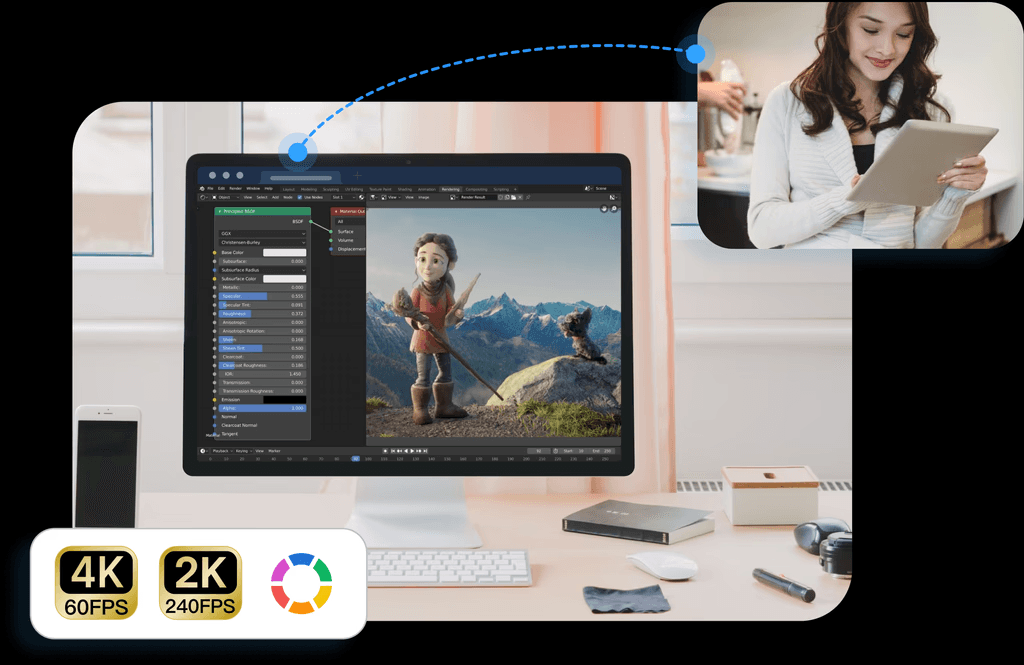
What DeskIn Features That Artists Love:
Free to Use: DeskIn gives you full access to its core features: mirroring, extending, and connecting devices, without paywalls or subscriptions. Just install it, sign in, and start creating right away.
Wirelessly Cross-regional Projection: No cables, no limits. DeskIn connects devices wirelessly, even across different networks or regions, so you can project your iPad screen to a Windows PC wherever inspiration strikes.
Cross-system friendly: DeskIn bridges devices that usually don’t talk to each other. Beyond mirroring iPad to Windows, it supports Android to Mac, Android to PC, iOS to Mac, iOS to Android, and even Android to iOS, truly a universal setup for every creator.
Low-latency: ≤40ms delay means your strokes appear the moment your Apple Pencil touches the iPad.
Crystal-clear visuals: Up to 2K60FPS, your colors and textures look as sharp as they deserve.
Download and install DeskIn on both iPad and Windows.
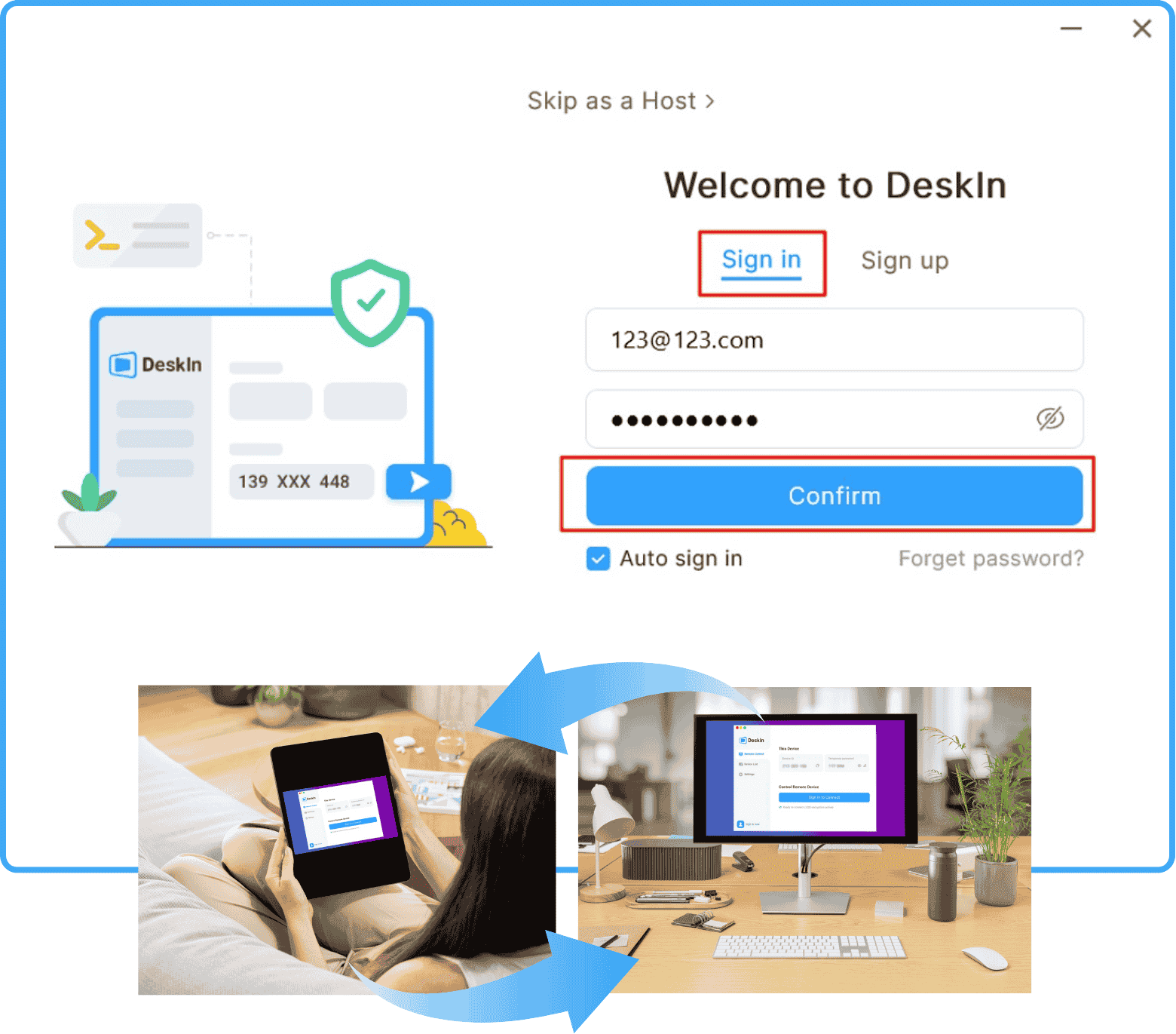
Log in to the same account on both devices.
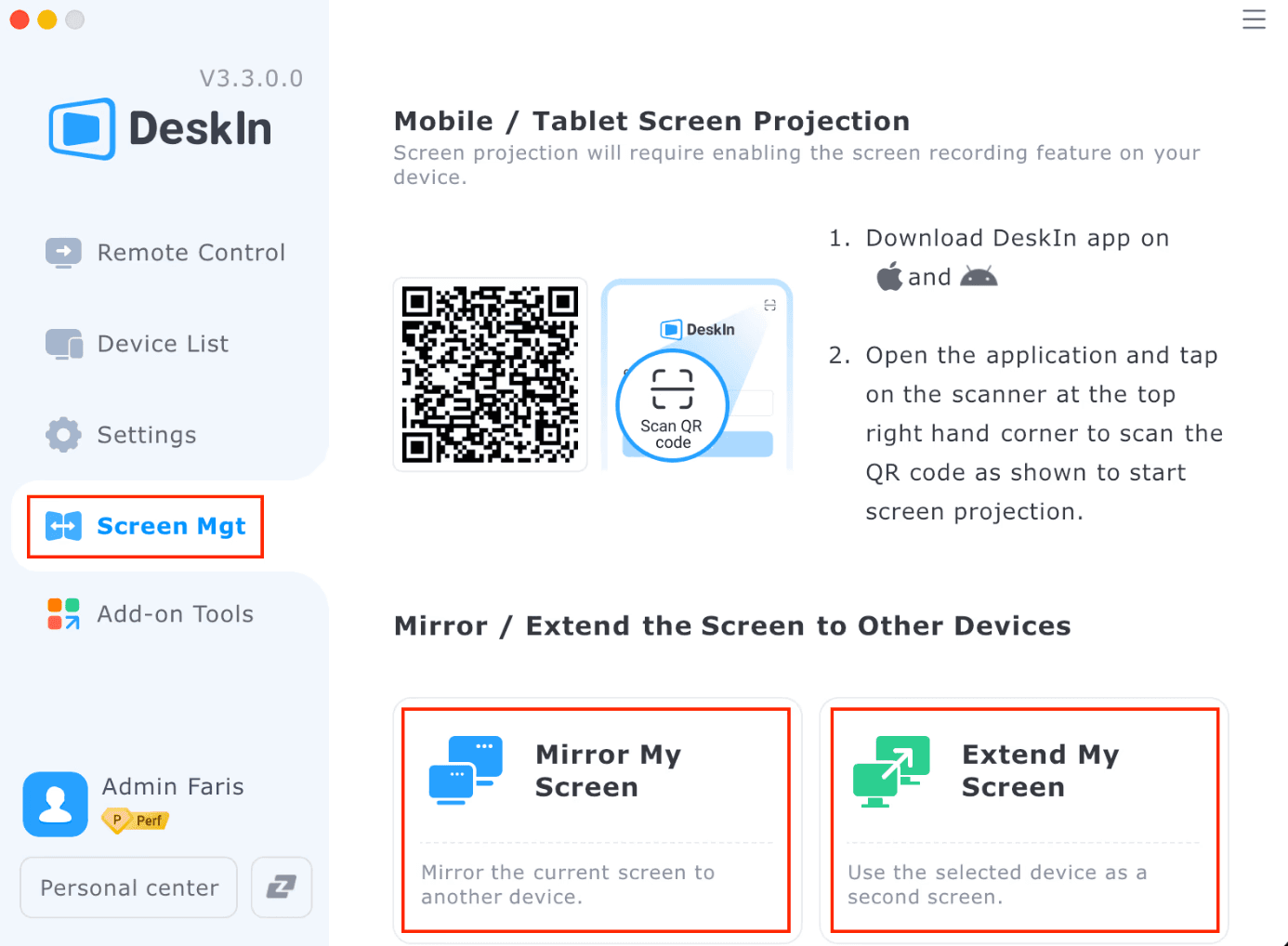
Open DeskIn for iPad to scan the QR code shown on your PC. Now, you can open Procreate and watch your sketches come alive instantly on your Windows screen.
Dive deeper into iPad-to-PC mirroring. Check out our guide: Everything You Need to Mirror Your iPad Screen on a PC.
Client reviews: Mirror Procreate to a client’s Windows laptop and let them watch your artwork in real time.
Teaching & streaming: Share your Procreate in crisp detail on Zoom or Twitch without lag or messy setups.
Recording: Capture every brush stroke directly on your PC for tutorials, reels, or portfolio clips—no storage hassles on iPad.
Want to try it now? Download DeskIn and start drawing remotely in just minutes.
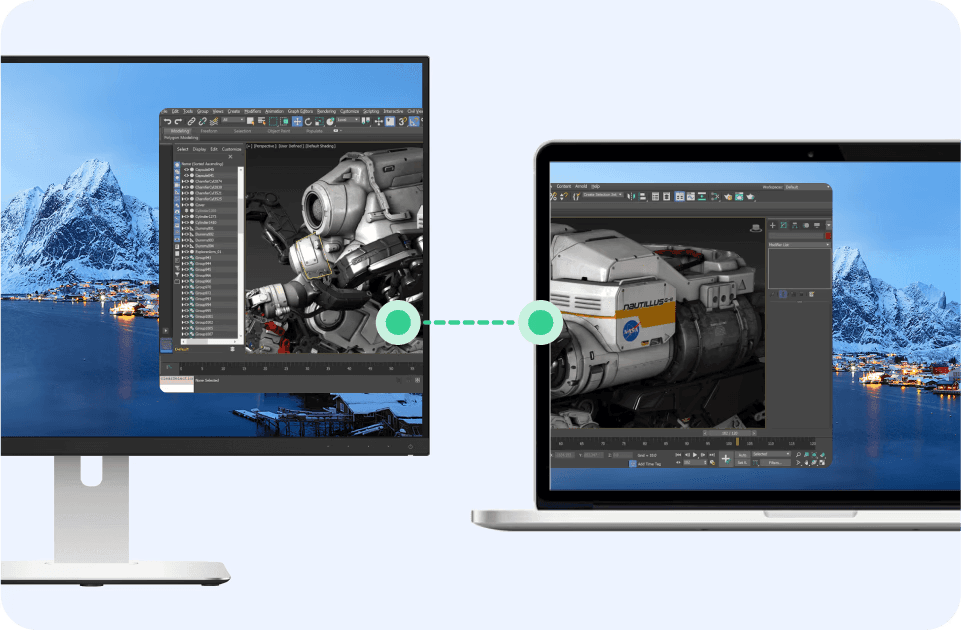
Artists don’t just need Procreate; they need space to spread out ideas, references, and notes. With DeskIn’s extended screen feature, you can turn your iPad into a second monitor for your Windows PC. It’s like carrying a portable dual-screen studio in your bag.
Use it like this: drag research documents, color palettes, or inspiration boards onto your iPad while keeping your main project open on Windows. Need to compare sketches side by side or reference multiple tabs? Just slide them over to the iPad screen without breaking your flow.
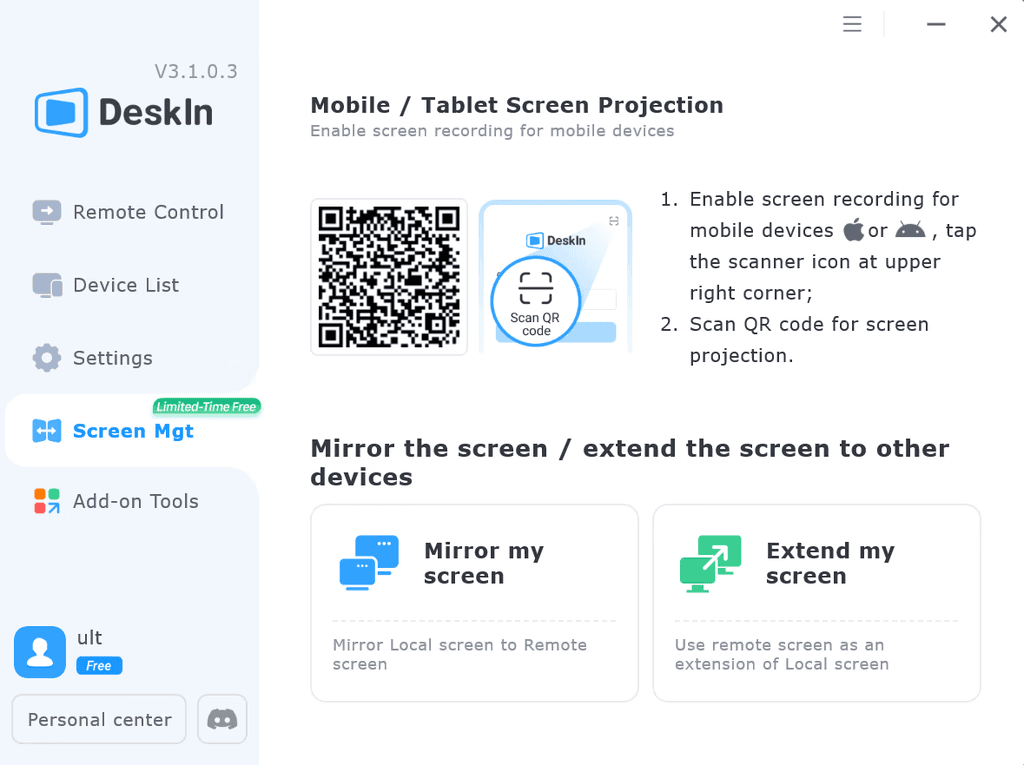
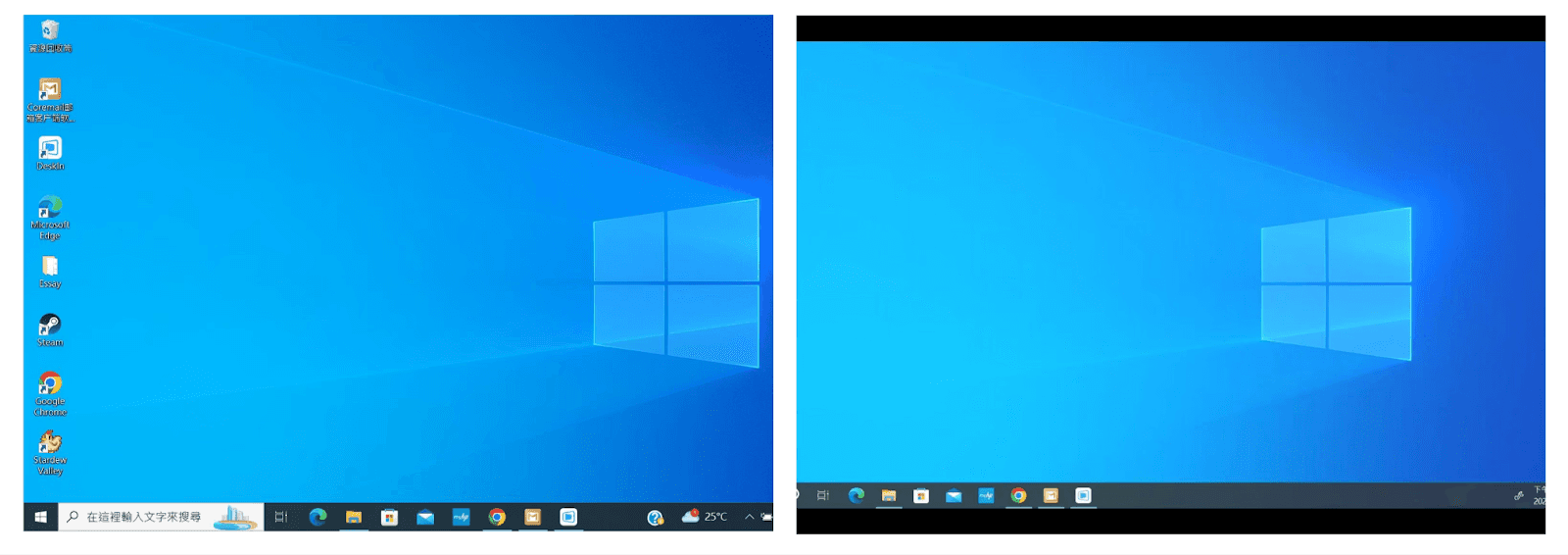
Install DeskIn on both your iPad and Windows PC and sign into the same account.
Open DeskIn on both devices.
Select “Extend Screen” from a Windows PC. Choose the target iPad you want to extend the screen to.
Drag any window, app, or document onto your iPad to use it as a second screen.
The switch between devices is seamless, letting creative pros glide from references to drawing without missing a beat.
Creativity doesn’t always wait until you’re back in the studio. Maybe you’re traveling with just your iPad and suddenly need to grab a file from your home PC. Or perhaps inspiration strikes at a café, and you want to tweak that Photoshop or Procreate Windows export sitting on your desktop.
With DeskIn, your iPad becomes a remote control for your entire computer whether it’s Windows or Mac. You can pull files, open apps, or even work directly on projects from miles away. And thanks to fast, stable connections with ultra-low latency, it feels almost like you’re sitting right in front of your desk.
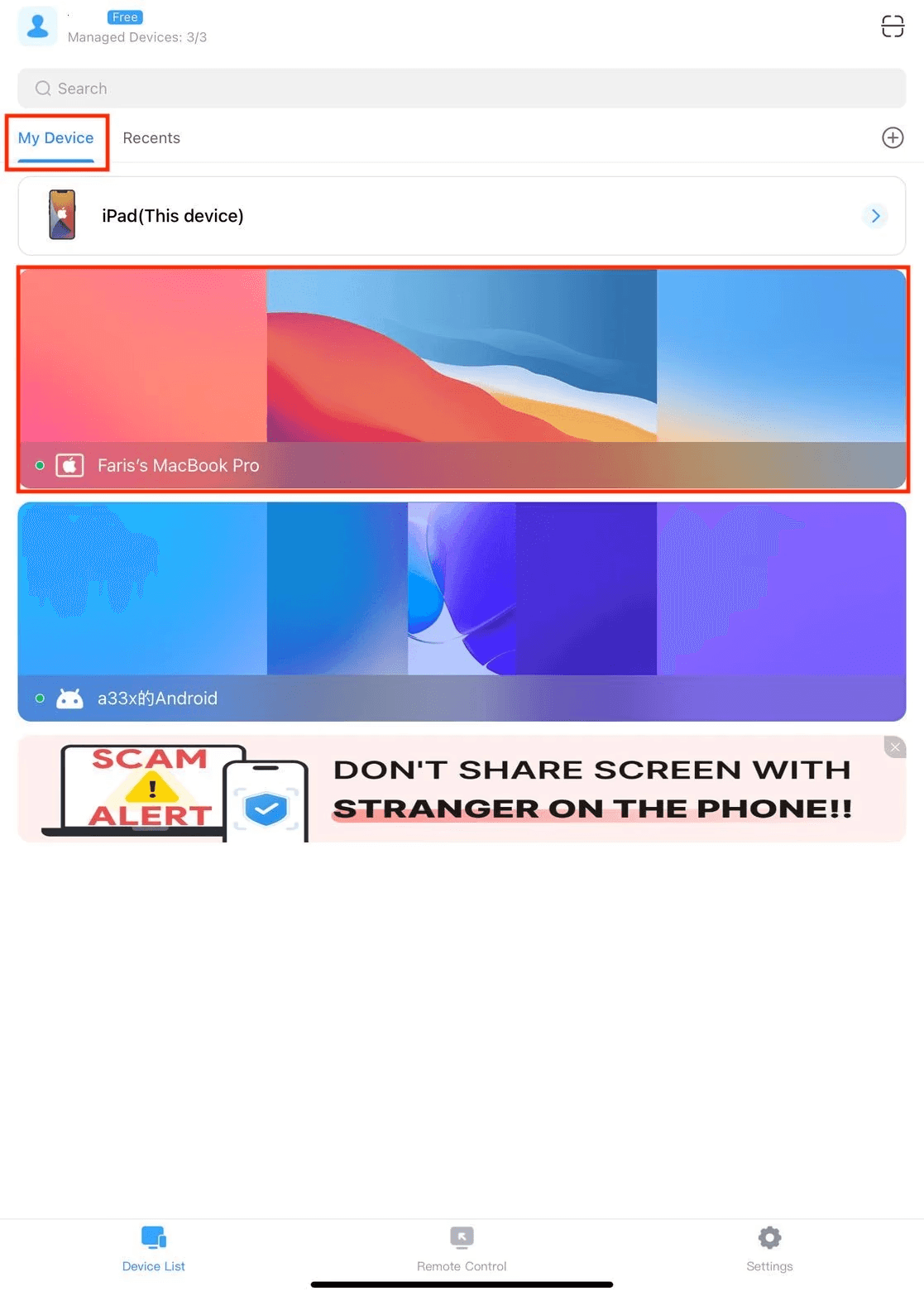
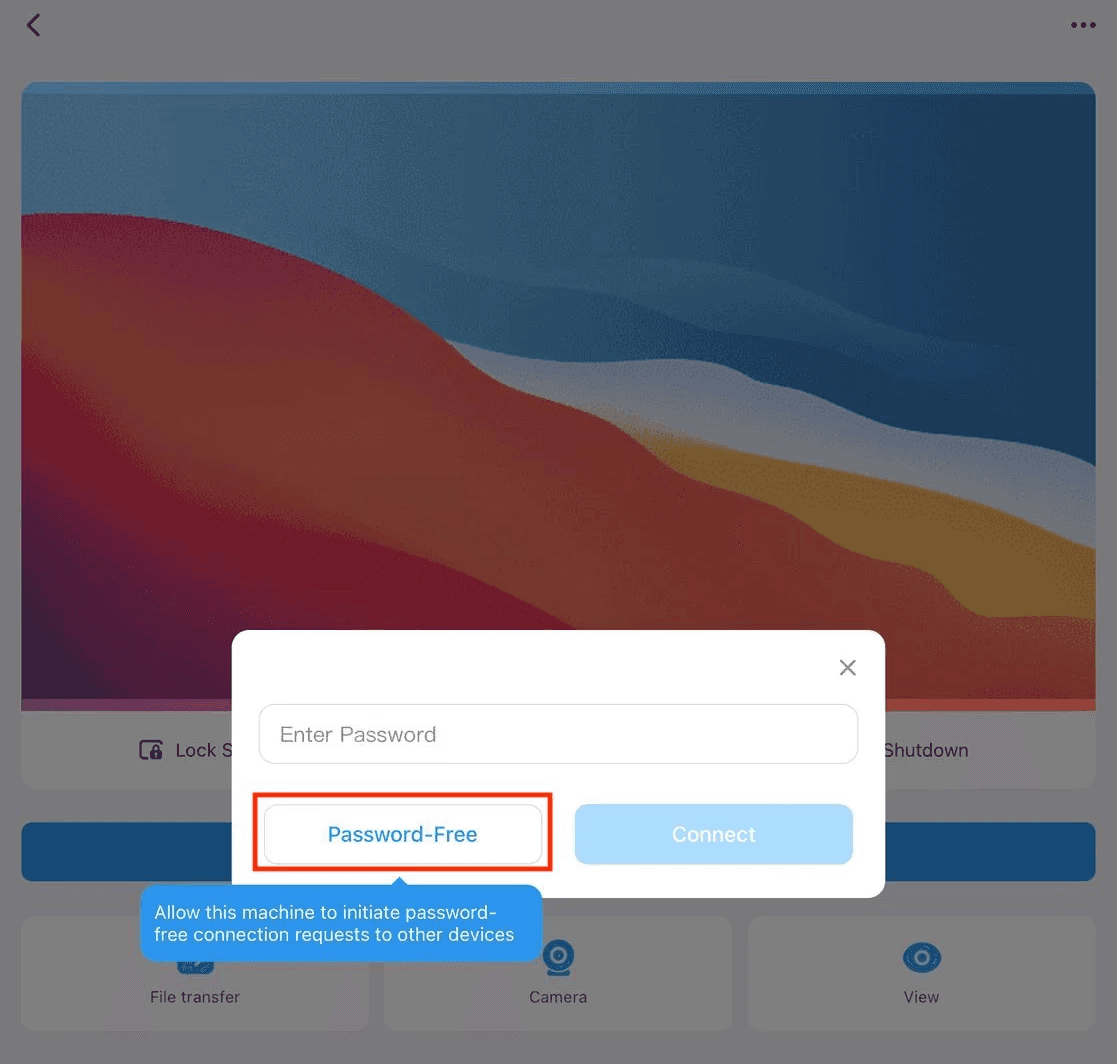
Install DeskIn on both your PC and iPad.
Sign in to the same account.
Launch DeskIn on your iPad and connect to your PC. You can directly connect without a password.
Now, you can access your desktop, files, and apps as if you were right there.
Remark: For unattended access, make sure your PC doesn’t go into sleep mode, otherwise you won’t be able to connect.
DeskIn makes it easier to stay productive, ensuring your tools and files are always available when you need them.
If you’ve been hunting for Procreate on PC, you’ve probably realized the app doesn’t exist outside the iPad. But that doesn’t mean Windows users are left without powerful tools. There are plenty of alternatives that deliver professional-grade features for digital artists.
Let’s look at some of the best options:
Krita – A free, open-source powerhouse loved by concept artists and illustrators. Krita offers advanced brush customization, HDR painting, and support for almost every file format you’ll need.
Clip Studio Paint – The go-to choice for manga, comics, and webtoon artists. It shines with pen stabilization, screentone libraries, 3D posing models, and even animation features.
Adobe Fresco – A stylus-first drawing app that blends vector and raster brushes. With Creative Cloud integration, Fresco pairs seamlessly with Photoshop and Illustrator for a smooth professional pipeline.
Corel Painter – Ideal for artists who want a natural, traditional feel. Its brush engine emulates oils, acrylics, and pastels so convincingly you almost forget you’re painting digitally.

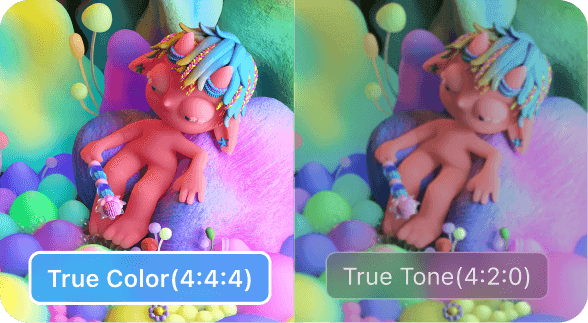
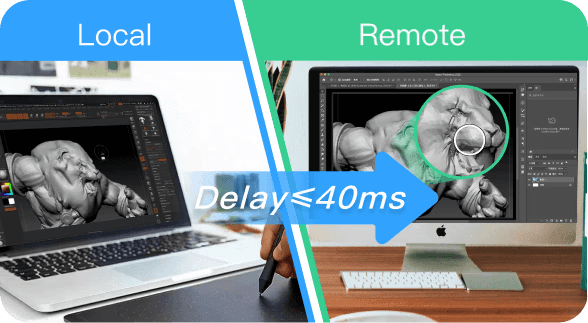
As an artist, it’s not just about the software—it’s about having a setup that can keep pace with your ideas. That’s exactly where DeskIn steps in. It creates a workspace that feels fluid, intuitive, and built for creative flow. Here’s why DeskIn is the perfect match for artists.
4K60FPS / 2K240FPS support: DeskIn captures every nuance of your work with stunning clarity. From smooth brushstrokes to fine color gradients, DeskIn gives artists the high-resolution and color precision their craft deserves.
4:4:4 true color display: Colors are sacred to artists, and DeskIn treats them with respect. Your palette stays true, no muddy blacks, no washed-out reds, just the tones you intended.
Pressure-sensitive stylus input: Tilt, pressure, and brush dynamics stay perfectly responsive. DeskIn adapts seamlessly to external devices like digital drawing boards, Bluetooth mice and keyboards, iPads, and Apple Pencil, keeping every creative tool in sync with your workflow.
Cross-platform compatibility: Jumping between iPad, Windows, and Mac is effortless. DeskIn supports use across multiple systems, connecting all your devices into one seamless creative studio.
Ultra-low latency (≤40ms): Nothing kills creativity faster than lag. With DeskIn, strokes appear instantly, so drawing feels as immediate as pen on paper.
Secure and stable connection: Your work deserves protection. DeskIn uses AES 256 encrypted connections and reliable performance, so your creative flow never gets interrupted.
Enhanced productivity: Need references on one screen and your Procreate on another? Or want to grab a file from your home computer while traveling? DeskIn makes multitasking easy.
Seamless integration: DeskIn fits effortlessly into any creative workflow. Built-in audio calls and a collaborative whiteboard make teaching, client reviews, and real-time feedback simple, with no extra apps or setup needed.
Cost-effective solution: Forget buying extra monitors or hardware. With just your iPad and PC, DeskIn gives you a pro-level workspace without the extra cost.
Ultimately, the fact of the matter is: Procreate does not run on Windows. But with DeskIn, you can mirror Procreate to Windows, and you can still enjoy Procreate creatives on your Windows screen, although the operations are all on your iPad. It leverages a workflow that’s more powerful than going native.
DeskIn is more than just a screen-sharing tool; you get a big-picture view of your art and accurate Apple Pencil input that mirrors to PC, dual-screen support for creating on one window and watching reference materials on the other, plus secure remote controlling while away from the desk. From teaching online to presenting to clients, from doodling casually to working on professional projects, DeskIn supports multiple scenarios with ease.
Ready to elevate your art? Download DeskIn and start creating without limits.

If you’re an artist, chances are you’ve heard of Procreate, the iPad-exclusive app that feels like magic for digital drawing. Smooth brushes, pressure sensitivity, endless layers—it’s a dream for illustrators. But there’s one problem: Windows users are left out.
Search online and you’ll find questions everywhere: Can you use Procreate on Windows? Can I use Procreate on Windows? Sadly, the short answer is NO. There’s no official Procreate on PC, and that leaves creatives scrambling for workarounds.
But what if we told you there’s a way not just to check Procreate through Windows PC, but to supercharge your workflow with bigger screens, dual displays, and even work from home? That’s where DeskIn steps in.
Let’s cut to the chase, there’s no magic download button that gives you Procreate Windows. The app is iPad-only, and that’s not changing anytime soon. But you’re not out of luck.
With DeskIn, you can bend the rules and unlock a workflow that feels even more powerful than running Procreate natively on a PC.
DeskIn bridges your iPad and Windows into one creative ecosystem, giving artists room to work bigger, smarter, and more freely.
Here’s where the fun begins. With DeskIn’s screen projection feature, your Procreate drawings appear live on your Windows machine. Every brush stroke in Procreate flows seamlessly onto a bigger display, so you can catch details you might miss on a smaller screen. It’s like your iPad becomes the artist’s pen while Windows becomes the gallery wall.
What DeskIn Features That Artists Love:
Free to Use: DeskIn gives you full access to its core features: mirroring, extending, and connecting devices, without paywalls or subscriptions. Just install it, sign in, and start creating right away.
Wirelessly Cross-regional Projection: No cables, no limits. DeskIn connects devices wirelessly, even across different networks or regions, so you can project your iPad screen to a Windows PC wherever inspiration strikes.
Cross-system friendly: DeskIn bridges devices that usually don’t talk to each other. Beyond mirroring iPad to Windows, it supports Android to Mac, Android to PC, iOS to Mac, iOS to Android, and even Android to iOS, truly a universal setup for every creator.
Low-latency: ≤40ms delay means your strokes appear the moment your Apple Pencil touches the iPad.
Crystal-clear visuals: Up to 2K60FPS, your colors and textures look as sharp as they deserve.
Download and install DeskIn on both iPad and Windows.
Log in to the same account on both devices.
Open DeskIn for iPad to scan the QR code shown on your PC. Now, you can open Procreate and watch your sketches come alive instantly on your Windows screen.
Dive deeper into iPad-to-PC mirroring. Check out our guide: Everything You Need to Mirror Your iPad Screen on a PC.
Client reviews: Mirror Procreate to a client’s Windows laptop and let them watch your artwork in real time.
Teaching & streaming: Share your Procreate in crisp detail on Zoom or Twitch without lag or messy setups.
Recording: Capture every brush stroke directly on your PC for tutorials, reels, or portfolio clips—no storage hassles on iPad.
Want to try it now? Download DeskIn and start drawing remotely in just minutes.
Artists don’t just need Procreate; they need space to spread out ideas, references, and notes. With DeskIn’s extended screen feature, you can turn your iPad into a second monitor for your Windows PC. It’s like carrying a portable dual-screen studio in your bag.
Use it like this: drag research documents, color palettes, or inspiration boards onto your iPad while keeping your main project open on Windows. Need to compare sketches side by side or reference multiple tabs? Just slide them over to the iPad screen without breaking your flow.
Install DeskIn on both your iPad and Windows PC and sign into the same account.
Open DeskIn on both devices.
Select “Extend Screen” from a Windows PC. Choose the target iPad you want to extend the screen to.
Drag any window, app, or document onto your iPad to use it as a second screen.
The switch between devices is seamless, letting creative pros glide from references to drawing without missing a beat.
Creativity doesn’t always wait until you’re back in the studio. Maybe you’re traveling with just your iPad and suddenly need to grab a file from your home PC. Or perhaps inspiration strikes at a café, and you want to tweak that Photoshop or Procreate Windows export sitting on your desktop.
With DeskIn, your iPad becomes a remote control for your entire computer whether it’s Windows or Mac. You can pull files, open apps, or even work directly on projects from miles away. And thanks to fast, stable connections with ultra-low latency, it feels almost like you’re sitting right in front of your desk.
Install DeskIn on both your PC and iPad.
Sign in to the same account.
Launch DeskIn on your iPad and connect to your PC. You can directly connect without a password.
Now, you can access your desktop, files, and apps as if you were right there.
Remark: For unattended access, make sure your PC doesn’t go into sleep mode, otherwise you won’t be able to connect.
DeskIn makes it easier to stay productive, ensuring your tools and files are always available when you need them.
If you’ve been hunting for Procreate on PC, you’ve probably realized the app doesn’t exist outside the iPad. But that doesn’t mean Windows users are left without powerful tools. There are plenty of alternatives that deliver professional-grade features for digital artists.
Let’s look at some of the best options:
Krita – A free, open-source powerhouse loved by concept artists and illustrators. Krita offers advanced brush customization, HDR painting, and support for almost every file format you’ll need.
Clip Studio Paint – The go-to choice for manga, comics, and webtoon artists. It shines with pen stabilization, screentone libraries, 3D posing models, and even animation features.
Adobe Fresco – A stylus-first drawing app that blends vector and raster brushes. With Creative Cloud integration, Fresco pairs seamlessly with Photoshop and Illustrator for a smooth professional pipeline.
Corel Painter – Ideal for artists who want a natural, traditional feel. Its brush engine emulates oils, acrylics, and pastels so convincingly you almost forget you’re painting digitally.
As an artist, it’s not just about the software—it’s about having a setup that can keep pace with your ideas. That’s exactly where DeskIn steps in. It creates a workspace that feels fluid, intuitive, and built for creative flow. Here’s why DeskIn is the perfect match for artists.
4K60FPS / 2K240FPS support: DeskIn captures every nuance of your work with stunning clarity. From smooth brushstrokes to fine color gradients, DeskIn gives artists the high-resolution and color precision their craft deserves.
4:4:4 true color display: Colors are sacred to artists, and DeskIn treats them with respect. Your palette stays true, no muddy blacks, no washed-out reds, just the tones you intended.
Pressure-sensitive stylus input: Tilt, pressure, and brush dynamics stay perfectly responsive. DeskIn adapts seamlessly to external devices like digital drawing boards, Bluetooth mice and keyboards, iPads, and Apple Pencil, keeping every creative tool in sync with your workflow.
Cross-platform compatibility: Jumping between iPad, Windows, and Mac is effortless. DeskIn supports use across multiple systems, connecting all your devices into one seamless creative studio.
Ultra-low latency (≤40ms): Nothing kills creativity faster than lag. With DeskIn, strokes appear instantly, so drawing feels as immediate as pen on paper.
Secure and stable connection: Your work deserves protection. DeskIn uses AES 256 encrypted connections and reliable performance, so your creative flow never gets interrupted.
Enhanced productivity: Need references on one screen and your Procreate on another? Or want to grab a file from your home computer while traveling? DeskIn makes multitasking easy.
Seamless integration: DeskIn fits effortlessly into any creative workflow. Built-in audio calls and a collaborative whiteboard make teaching, client reviews, and real-time feedback simple, with no extra apps or setup needed.
Cost-effective solution: Forget buying extra monitors or hardware. With just your iPad and PC, DeskIn gives you a pro-level workspace without the extra cost.
Ultimately, the fact of the matter is: Procreate does not run on Windows. But with DeskIn, you can mirror Procreate to Windows, and you can still enjoy Procreate creatives on your Windows screen, although the operations are all on your iPad. It leverages a workflow that’s more powerful than going native.
DeskIn is more than just a screen-sharing tool; you get a big-picture view of your art and accurate Apple Pencil input that mirrors to PC, dual-screen support for creating on one window and watching reference materials on the other, plus secure remote controlling while away from the desk. From teaching online to presenting to clients, from doodling casually to working on professional projects, DeskIn supports multiple scenarios with ease.
Ready to elevate your art? Download DeskIn and start creating without limits.


MapleStory Worlds Mobile Overheating or Hard to Control? Fix Artale Lag, Heat, and Touch Controls
Missed a jump because the on-screen stick drifted the wrong way? Is your phone getting hot, losing frames, or draining its battery halfway through a grinding session? If you want a more comfortable way to play Artale away from your desk, download DeskIn and connect to the desktop setup you already use.
This guide explains the most common problems with running Artale inside the native MapleStory Worlds mobile app, why they happen, and how remote play can reduce phone-side workload while giving you more flexible controls.
How to Play Every MapleStory Version on iPhone, iPad, and Android
How to Play MapleStory with a Controller on Mac, iPhone, iPad, and Android
Community posts about Artale on mobile often mention slow first loads, black loading screens, inconsistent input, and the need to redo key bindings. The experience varies by device and region, but the same pain points come up repeatedly:
The phone gets hot and battery drains quickly during longer sessions.
Login and map loading can feel slow, especially when the connection is unstable.
Crowded maps, bosses, and skill effects may trigger frame drops, stutter, or crashes.
The virtual joystick can make short hops, direction changes, and rope movement imprecise.
Buttons and menus may cover platforms, enemies, or small inventory targets.
Repeated potion, movement, and skill inputs can cause finger fatigue.
Multi-button actions may be awkward on a phone or tablet, especially during jump attacks or combo-heavy play.
When you run Artale natively, your phone handles the game logic, graphics, networking, display, and touch input at the same time. That load increases when:
Graphics, frame rate, screen brightness, or visual effects are set high.
Background apps consume memory or processor time.
The device is charging, inside a thick case, or used in a warm environment.
The network is weak enough to cause repeated loading, reconnecting, or position rollback.
As the device heats up, the operating system may reduce CPU or GPU speed to protect the hardware. That thermal throttling can turn heat into lower frame rates and delayed input, even on a relatively powerful phone.
Artale is playable through MapleStory Worlds on mobile, but a small touchscreen still has limits for a keyboard-heavy side-scrolling RPG:
A virtual stick provides no physical feedback, so precise movement is harder.
Skill, potion, jump, and utility buttons compete for limited screen space.
Your fingers can cover the character, platforms, or attack cues.
Inventory, shop, and chat interfaces still contain small click targets.
Long sessions require the same grip and repeated thumb movement.
That means Artale mobile controls can feel awkward even when the phone is not overheating. Performance settings alone cannot fix button placement, blocked visibility, or the lack of physical feedback.
MapleStory Worlds is officially available on desktop and mobile. Instead of running Artale locally on your phone, DeskIn can stream your Windows or Mac session to an iPhone, iPad, or Android device. The computer runs the game; the phone displays the video stream and sends your inputs.
Because the desktop handles the game itself, the phone no longer performs the full local render. It still decodes video, maintains a network connection, and powers the screen, so it can still warm up—but phone-side load and battery use may be lower than native play.
You reconnect to the computer session you already use, with the same launcher, account, and desktop interface. This is useful for checking the marketplace, handling daily tasks, or continuing a grinding session without learning a second layout.
DeskIn’s game keyboard lets you place movement, jump, potion, skill, mouse, and multi-key controls on screen. You can adjust position, size, and transparency, then save separate layouts for different classes.
DeskIn supports gamepad mapping from a local phone, tablet, PC, or Mac to the remote computer. Controller compatibility can vary, so test movement and skills in a safe map before a boss fight.
Install MapleStory Worlds and Artale on the Windows or Mac computer you will use as the host. Update the game, launcher, operating system, and graphics drivers, then confirm that login, sound, and keyboard input work.
Install DeskIn on both the host computer and your phone or tablet. Sign in with the same DeskIn account on both devices.
Prevent the host from sleeping. In DeskIn, enable start with system and configure unattended access with a security password.
Open DeskIn on the phone, choose the computer from the device list, enter the security password, and launch Artale.
Start with a smooth-quality preset and 60 FPS. If the connection is stable, raise image quality gradually; if inputs feel delayed, prioritize smoothness and check the live network statistics.
For a full setup walkthrough, see DeskIn’s unattended access guide.
Connect to the host computer, open the bottom toolbar, then choose Keyboard > Game Keyboard.
Create a layout and add movement, jump, skills, potions, mouse buttons, or multi-key actions. Move or resize each control so it does not cover platforms or combat cues.
Save the layout by class or character. Create additional profiles when another character uses a different skill bar.
See the custom game keyboard guide for detailed control-mapping instructions.
Pair a supported Bluetooth or wired controller with your phone or tablet.
Connect to the computer in DeskIn, open the toolbar, and enable gamepad mapping or redirection.
Test movement, jump, attacks, and skill bindings in a low-risk area before playing difficult content.
If auto-mapping does not work, follow the DeskIn gamepad mapping guide and check whether your controller is supported.
If you prefer the native MapleStory Worlds app, reduce the device load before replacing your setup:
Lower graphics quality, effects, and frame rate instead of starting at the maximum.
Reduce screen brightness and close recording, streaming, location, and unnecessary background apps.
Avoid charging while playing. If the phone becomes unusually hot, stop and let it cool naturally.
Remove a thick case and avoid direct sunlight or hot rooms.
Use stable Wi-Fi when possible so the phone is not constantly switching networks.
Update MapleStory Worlds and the mobile operating system, and keep adequate free storage.
Shorten play sessions. Stop immediately if the device shows a temperature warning, loses touch response, shuts down, or shows signs of battery swelling.
Some warmth during a demanding game is common. A temperature warning, disabled charging, unstable touch input, unexpected shutdown, or battery swelling is not something to ignore. Stop playing and let the device cool before troubleshooting.
Processor speed is only one factor. Thermal throttling, memory pressure, app updates, server or network conditions, and crowded maps can all affect performance. Test lower graphics settings, close background apps, and compare a stable Wi-Fi connection.
No. Remote play moves the game workload to the computer, but the phone still decodes video, sends inputs, uses the network, and powers the screen. Lower streaming quality, frame rate, and brightness if the phone still gets warm.
It can provide more flexible on-screen layouts and compatible controller mapping. Actual responsiveness still depends on the phone, controller, network latency, and remote settings, so test the layout before difficult content.
The native app is convenient for quick logins and simple tasks. DeskIn is useful when you already have a capable desktop, want the desktop interface, need custom key layouts, or prefer a controller. Choose based on the task and your network quality.
Artale mobile lag, heat, and battery drain usually come from a mix of device load, cooling limits, background activity, and network conditions. Control problems are often separate: virtual sticks, crowded buttons, and blocked visibility can remain frustrating even after graphics settings are lowered.
If you already play Artale on a Windows or Mac computer, download DeskIn to stream that session to your phone or tablet, build controls around your class, and switch to a gamepad when touch input is not precise enough.

How to Claim VALORANT Gift Packs on Mobile
Tired of missing limited‑time Night Market discounts, fresh Daily Shop skins, Battle Pass rewards, and free Kingdom Store accessory refreshes for VALORANT when you’re away from your PC? What? You can actually log into VALORANT from your phone. Flip through Night Market discount cards, pick your favorite weapon skins, check Battle Pass progress, and redeem exclusive charms and sprays anytime. Never miss out on in‑game offers and limited‑time drops. No need to stay glued to your computer. Browse your PC‑side game interface remotely while commuting or relaxing. Try DeskIn for low‑latency remote streaming and explore VALORANT’s four core store systems wherever you are!
VALORANT features four independent item and skin acquisition systems, each with separate rules, reward pools, and refresh mechanics that do not interfere with one another: Limited‑time Night Market, permanent Daily Shop, Seasonal Battle Pass, and Kingdom Store.
Limited‑time Night Market**: An official occasional discount event. Every player gets 6 random skin discount cards whose contents cannot be changed once opened. Discounts range from 10%‑49%, and rewards vary per account. The reward pool only includes select weapon skins released for at least two Acts. Battle Pass skins, new collections, Ultimate skins, limited‑time series, and high‑value melee weapons are excluded.
Daily Shop: The game’s permanent store. Four random individual weapon skins refresh every early morning and cannot be manually reset. Most items sell at full price, while a few may feature temporary discounts. The pool covers most old and new weapon skins and serves as the main source for buying standalone skins. Certain limited and high‑tier items will not appear here.
Seasonal Battle Pass**: Updates every Act with free and premium reward tracks. Unlock the paid track to earn season‑exclusive skins, charms, sprays, kill effects and more. All content is season‑limited and will not enter the Night Market or regular shops. Rewards cannot be purchased or obtained retroactively once the season ends.
Kingdom Store:A free weekly‑rotating accessory shop refreshing every Wednesday. Each player receives 4 random accessories redeemable only with Kingdom Credits earned in‑game. VP purchases and discounts are unavailable. The pool brings back past Battle Pass accessories such as charms, sprays, player cards, and titles. Weapon skins are not offered here.
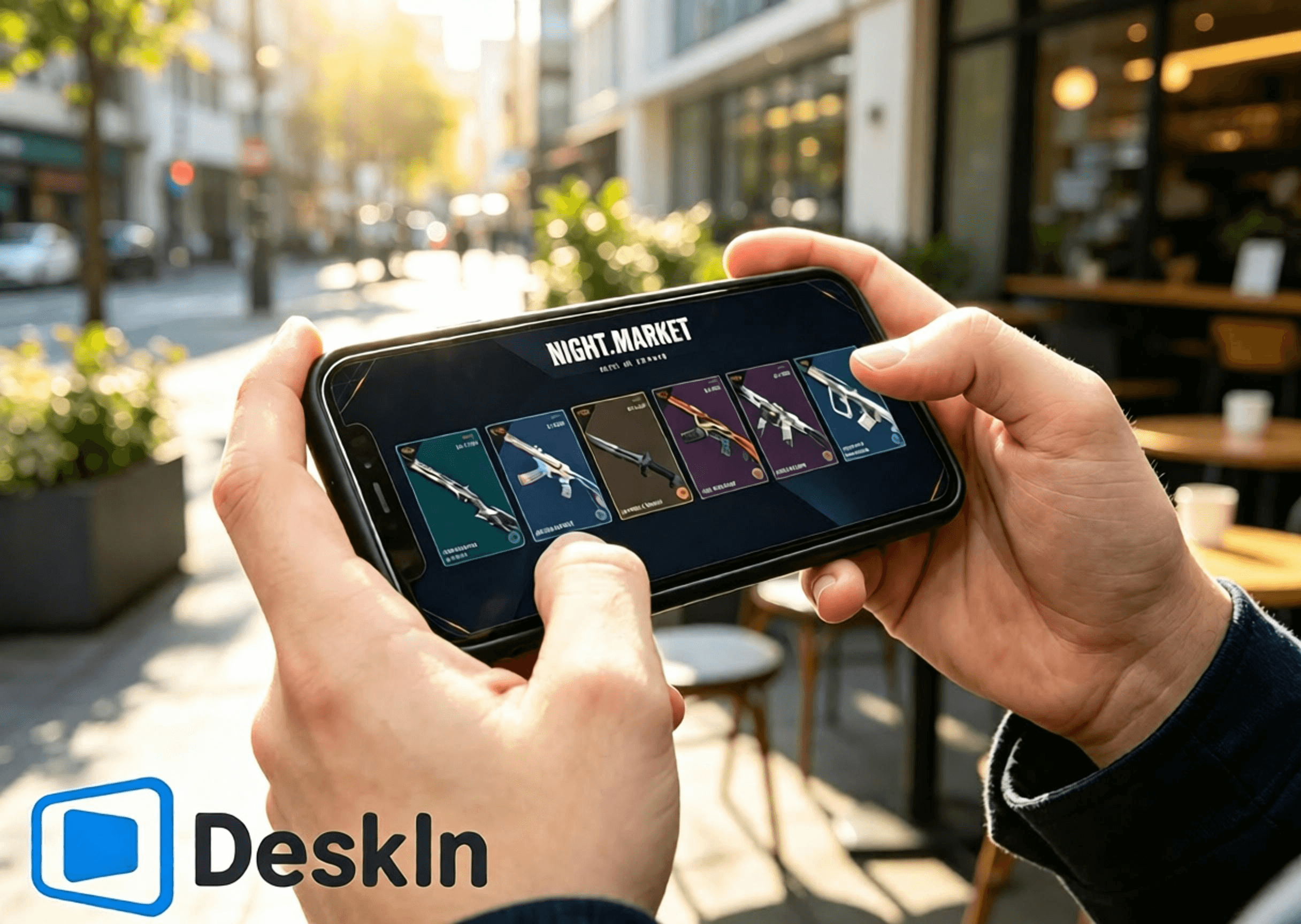
⚡ Ultra‑low‑latency streaming. Smooth navigation for opening Night Market cards, browsing the Daily Shop, checking Battle Pass rewards, and switching to the Kingdom Store page.
🛠️ Simple installation and login. One‑click connection, beginner‑friendly setup.
💻 Full cross‑OS PC support: Windows and Mac can both act as host machines to run the game and storefronts.
📱 Full mobile‑device coverage: Android, iPhone, and iPad support remote control to explore all four VALORANT store systems.
🔧 Customizable touch‑control layouts. Adjust in‑shop operation UI freely without blocking content.
🖼️ High‑definition video transmission. Weapon‑skin models, lighting details, Battle Pass effects, and accessory textures render sharply.
🎮 Top‑tier picture quality and frame rate. Dual‑mode switching between 4K/60fps and 2K/240fps. Fluid playback with no ghosting while viewing skin animations and fine details.
✨ Near‑millisecond‑level latency, consistently kept below 40 ms. Responsive remote clicks and page transitions with no lag or mis‑taps.
Install the VALORANT client on your PC and log in to your Riot account. Fully update the game client and Vanguard anti‑cheat beforehand. Avoid pop‑up updates or restart prompts after remote connection that would block access to the Night Market, Daily Shop, Battle Pass, and Kingdom Store.
Download and install the DeskIn PC client from the official website. Register and log in to your personal DeskIn account. Keep DeskIn running in the background with your device online so your phone can initiate connections anytime.
Complete steps to browse stores and claim rewards from Android via DeskIn. DeskIn enables one‑click remote connections from Android devices. Check the Night Market, Daily Shop, Seasonal Battle Pass, and Kingdom Store without sitting at your desktop.
1. Download DeskIn Get the official DeskIn mobile client from legitimate Android channels. Log in using the exact same account as your PC to finish device pairing. Ensure stable network connectivity on both ends.
2. Establish a remote connection Launch DeskIn on your phone and select your online Windows/Mac host to start a connection. Switch your phone to landscape mode for a wider field of view to display the full in‑game store UI. Confirm desktop video loads properly and touch inputs respond smoothly. All game accounts and store data reside on your host PC; your mobile device only receives video and sends touch commands.
3. Explore the four store systems Launch VALORANT on your host PC and navigate freely between store pages:
✅ Limited‑time Night Market: Tap the Night Market icon in the upper right corner. Flip your 6 exclusive discount cards one by one. Note skin names, original prices, discounted prices, and discount percentages. Save screenshots of skins you like for later comparison. Card contents lock permanently once opened and cannot be reset.
✅ Daily Shop: Open the permanent store tab to view your four fresh daily weapon‑skin offerings, their styles and prices, and seize opportunities to buy standalone skins.
✅ Seasonal Battle Pass**: Enter the Battle Pass menu. Review free and premium track progress and unclaimed rewards. Decide whether to purchase the pass and secure limited‑time rewards before the Act concludes.
✅ Kingdom Store**: Navigate to the Kingdom Credit redemption page. Check the four weekly‑rotated accessories refreshed every Wednesday. See which charms, sprays, player cards, and titles you are missing and redeem for free with Kingdom Credits as desired.
Full steps to browse stores and claim rewards on iPhone and iPad. Apple devices fully support remote access to all four VALORANT stores with simple operation and sharp visuals. Large‑screen iPads work especially well for examining skins and accessory details.
1. Pair accounts across devices Keep DeskIn installed and logged‑in on your PC with the host device online. Download official DeskIn from the App Store on your iPhone or iPad and sign in with the identical DeskIn account to complete pairing. Log into your correct Riot account on the PC ahead of time. All four store datasets are account‑bound; logging into the wrong account will show incorrect personal store content.
2. Connect to your host PC from iOS Open DeskIn on your phone or tablet and select your Windows/Mac host to establish a remote session. Always use landscape orientation. Compact iPhones suit quick card‑opening, price‑checking and store refreshes. Large‑screen iPads deliver ample viewing space for weapon‑model animations, Battle‑Pass reward previews, and accessory previews.
3. Operate all store features Launch VALORANT and toggle between store pages: inspect Night Market discounted skins, verify Daily Shop rotations, check Battle‑Pass progression and time‑limited rewards, and view weekly Kingdom Store free accessories. Note: Night Market discounts apply only to base skins. Additional variants and upgrades require separate Radianite Points purchases, with discounts peaking at 49%.
VALORANT has no native Mac build. Mac users can run the game inside a virtual machine or cloud‑hosted Windows environment and still access the complete suite of four stores.
1. Set up a stable Windows environment. Install VALORANT and log into your Riot account. Complete all game and anti‑cheat updates to guarantee the store UI loads correctly.
2. Install the DeskIn desktop client on macOS. Log in using the same DeskIn account used by your mobile device. Treat your Windows virtual machine running VALORANT as the controlled host machine and keep DeskIn online. You may now remotely view all store content from your phone.
You are only browsing stores, skins and accessories, not competing in matches. Prioritize stability, smoothness, and clarity.
- Stay in landscape mode to properly fit the store UI and avoid cropped visuals.
- Choose 720P / 1080P resolution to balance sharpness and performance.
- Prefer 5GHz / 6GHz high‑speed Wi‑Fi to reduce latency and network jitter.
- If touch feels sluggish or video stutters, lower bitrate and resolution to preserve stability.
- Pause PC downloads, system updates, and game updates during remote sessions to free network bandwidth.
- Reposition virtual touch overlays so they do not block Night Market cards, Daily Shop skins, Battle‑Pass rewards, or Kingdom Store redemption buttons.
- Take screenshots after browsing to compare skins and plan purchases and redemptions.
- Double‑check your logged‑in account, VP balance, and Kingdom‑Credit balance before paying or redeeming to prevent mis‑operations.
Large tablet screens render details more completely and deliver superior viewing for skin animations, accessory assets, and Battle‑Pass rewards. Optimized settings for tablets:
- Lock full‑screen landscape orientation to maximize store‑UI visibility.
- Set resolution to 1080P‑1440P to faithfully reproduce weapon lighting, animations, and accessory textures.
- Connect your host PC via Ethernet cable to eliminate network fluctuation for maximum stability.
- Use stable private Wi‑Fi on your tablet; avoid public networks that cause latency and disconnections.
- Prioritize visual quality over extremely high frame rates for viewing‑focused usage.
- Moderately reduce bitrate during minor network fluctuations to maintain smooth playback.
- Custom‑place virtual touch controls away from purchase and redemption buttons to prevent accidental taps.
Iconic animated collections such as Reaver, Oni, Ion, Gaia’s Vengeance, and Glitchpop, plus Battle‑Pass exclusive effect items, show off richer animations and finer details on tablets.
A: Exactly the same. Night Market, shop, and Battle‑Pass data sync in real‑time with your account. No discrepancies occur.
A: Adjust color profile and zoom level. Static‑view detail rendering will become clearer and more comfortable.
A: Pure video streaming does not modify game files. Store‑only browsing carries no risk. Remote competitive gameplay is not recommended by the official stance.
A: Enable the virtual‑display feature. You can capture video and navigate the shop even with your physical monitor powered off.
A: The game detects your host PC’s home‑region IP, so cross‑region locks and security checks will not trigger.
A: Customize your virtual‑button layout, or pair a Bluetooth mouse for far more precise control.
A: Rules are identical. Kingdom‑store accessories rotate back periodically. Battle‑Pass items become permanently unobtainable once their Act ends.
A: The same Riot account cannot run VALORANT on two hosts simultaneously. Close one instance before switching. All data remains interoperable.
VALORANT’s four reward systems each serve distinct purposes. Whether you are away from home or without a computer, DeskIn streams high‑definition, low‑latency VALORANT footage from Windows or Mac hosts to Android, iPhone, and iPad devices. Flip Night Market cards, check Daily Shop rotations, track Battle‑Pass progression, and redeem free Kingdom Store accessories on‑the‑go. Never miss discounts or limited‑time loot. Download DeskIn now to try remote access.

How to Play PUBG: BATTLEGROUNDS on iPad or Mobile From Your PC
Yes—you can play PUBG on iPad, iPhone, or Android by streaming PUBG: BATTLEGROUNDS from your own Windows PC. Download DeskIn on the PC and mobile device; the host runs the full PC game while the phone or tablet displays the stream and sends touch, keyboard, mouse, or compatible controller input.
This setup is useful when you are away from your desk and want to check an event, claim a daily login reward, visit the store, or play from another room. For ranked matches and precision gunfights, however, remote play adds network and input delay. A local keyboard-and-mouse setup remains the safer choice for competitive play.
Important: DeskIn is not an official KRAFTON, PUBG Studios, or BattlEye product. Game and anti-cheat policies can change. Review the latest PUBG: BATTLEGROUNDS rules before connecting, and do not use macros, scripts, automation, recoil control, auto-clicking, or one-button multi-action commands.
Before setting anything up, decide which version you actually want to access.
Option | Where the game runs | Progress used | Best for |
|---|---|---|---|
PUBG: BATTLEGROUNDS through DeskIn | Your Windows gaming PC | The PC account you sign in with | Accessing the full PC game from an iPad or phone |
PUBG MOBILE | Natively on iOS or Android | Your PUBG MOBILE account | A game designed for touchscreens and mobile hardware |
PUBG: BATTLEGROUNDS on console | PlayStation 5 or Xbox Series X|S | The account and progression available to that console environment | Native current-generation console play |
Native PUBG: BATTLEGROUNDS install on iPad or iPhone | Not available | Not applicable | The Windows client is not an iOS or iPadOS app |
Remote play does not convert PUBG: BATTLEGROUNDS into PUBG MOBILE, nor does DeskIn merge the two accounts. You keep seeing your PC items and progress because you are controlling the same PC client and signing in to the same PC platform account.
As of this article's August 2026 fact check, the official PUBG play page lists Steam, Epic Games, PlayStation, and Xbox entry points. PUBG's current-generation console transition notice confirms that console service is now limited to PlayStation 5 and Xbox Series X|S; older PS4 and Xbox One platform lists are no longer current.
Do not assume that purchases, cosmetics, ranks, or progression transfer between PUBG MOBILE, console, Steam, and Epic. PUBG's matchmaking documentation confirms Steam/Epic cross-platform play on PC and Xbox/PlayStation cross-platform play on console, but cross-play is not the same as cross-progression. Check the current support documentation for your exact pair of platforms before making a purchase.
The best use case depends on how sensitive the task is to delay.
Claim a daily attendance or check-in reward while traveling.
Open the PC client to check a limited-time event or store rotation.
Review inventory, menus, settings, or account information.
Download an update before you return to your desk.
Play a casual session from another room on a larger iPad screen.
Access the Windows version from a Mac, iPad, or phone that cannot run it natively.
One Reddit player asked specifically how to collect PUBG daily attendance rewards while traveling without a PC. That is an ideal remote-access problem: the task is time-sensitive but does not require tournament-level aiming.
Ranked matches where every frame and input matters.
Long-range aiming on a small phone display.
Unstable hotel Wi-Fi, public Wi-Fi, or a moving cellular connection.
A first-time control layout that has not been tested in Training Mode.
Any setup that depends on automated inputs or prohibited macros.
Remote play adds an encode, network, decode, and return-input path. Even when the picture looks smooth, the total response can differ from playing directly on the host PC. Community reports from PUBG streamed to handheld devices also highlight frame pacing and control difficulty. Treat remote competitive play as an experiment, not a guaranteed replacement for your desktop setup.
Prepare the following:
A Windows PC that can run PUBG: BATTLEGROUNDS normally.
PUBG installed and updated through your official PC platform.
An iPad, iPhone, or Android phone or tablet.
DeskIn Personal installed on the PC and mobile device.
A stable connection at both ends; Ethernet for the host PC is strongly preferred.
Optional: a compatible Bluetooth or wired controller.
PUBG’s official minimum requirements currently list Windows 10, 8 GB of RAM, a DirectX 11-class GPU, broadband internet, and 40 GB of available storage. The recommended requirements increase the CPU, memory, graphics, and storage targets. These requirements apply to the host PC because it still renders the game; a powerful iPad cannot compensate for a host that already stutters locally.
Before leaving home, also:
Launch PUBG once and confirm that the current update works.
Pause unrelated game downloads, cloud backups, and OS updates.
Prevent the host from entering an unreachable sleep state.
Test a full connection over cellular data or an outside network.
Confirm that you can recover from launcher prompts or a dropped session.
Download DeskIn from the official site and install it on the PC that already runs PUBG. Sign in or complete the device authorization process, then secure the host with a strong access password.
Run a local test connection before relying on the setup remotely. Windows permission prompts, launcher updates, firewall rules, or sleep settings are much easier to fix while you are still next to the computer.
Use DeskIn’s official download page to reach the iOS App Store or Google Play listing. Open the app on your iPad, iPhone, or Android device and connect to the authorized Windows PC with the account or device code and password required by your setup.
Once connected, you should see the actual Windows desktop. This is the key distinction from PUBG MOBILE: no second copy of your PC game is being created on the tablet.
Open Steam or your official PC launcher inside the remote session, then start PUBG: BATTLEGROUNDS. Before entering a live match, verify the following in the lobby and Training Mode:
Video motion is stable enough to track the camera.
The minimap and inventory text remain readable.
Left and right mouse input behave correctly.
Movement keys continue responding when held.
Remote audio reaches the mobile device.
Push-to-talk and microphone behavior meet your needs.
Reconnecting does not leave a key or mouse button stuck.
If a launcher or anti-cheat dialog appears outside the game window, switch back to the full remote desktop and address the prompt manually.
DeskIn offers two practical control routes for PC games on mobile.
DeskIn’s official customized gaming keyboard guide explains how to place a joystick, mouse buttons, and keyboard keys on a mobile screen, then adjust their size, position, labels, and transparency.
For PUBG, keep the overlay minimal:
Left side: movement joystick or WASD.
Right side: camera and basic mouse input.
Edge buttons: map, inventory, crouch, prone, interact, reload, and push-to-talk.
Avoid placing controls over the minimap, crosshair, health bar, or interaction prompts.
Touch controls are reasonable for menus, rewards, and simple movement. They are much harder to use for simultaneous movement, aiming, leaning, firing, and recoil management.
Fair-play rule: map each on-screen control to a normal single input. DeskIn may offer combination keys or custom macros on eligible plans, but do not use them in PUBG. PUBG’s published rules prohibit macros, scripts, automatic mouse functions, and other unauthorized tools or hardware that affect normal gameplay.
For longer sessions, a physical controller is usually more comfortable than a dense touch overlay. DeskIn’s official guide shows how to use a local controller with a remote PC game:
Pair the controller to the iPad, phone, tablet, or local computer through Bluetooth or a cable.
Connect to the gaming PC through DeskIn.
Open Gamepad Redirect in the DeskIn session toolbar.
Select the detected controller and test it before joining a match.
PUBG Support confirms that compatible controllers can be used through Steam, and PUBG has continued updating PC controller support. That does not mean every controller, mobile OS, or remote route will behave identically, so test your buttons and stick sensitivity in Training Mode first.
The host must upload a continuous video stream while receiving your input. A wired connection removes one major source of wireless interference and is usually the highest-impact improvement.
Stay close enough to the access point to avoid rapid signal changes. A strong speed-test result alone does not guarantee good remote play; consistency, jitter, and packet loss matter because PUBG reacts poorly to irregular input delivery.
Start with a conservative resolution and frame rate. If controls feel consistent, raise quality in small steps. If the stream stutters, reduce resolution or bitrate first. A stable 1080p image is more useful for aiming than an unstable higher-resolution feed.
DeskIn’s official remote gaming page lists low-latency game streaming, high-FPS modes, keyboard, mouse, controller support, and touch-optimized controls. Its current Gaming plan advertises up to 4K 60 FPS or 2K 240 FPS, while the free plan is listed at 1080p 30 FPS. These are plan capabilities, not a promise for every session. Actual results depend on the plan, host GPU and encoder, mobile decoder, display, network route, and game performance.
Close unnecessary browsers, recording tools, downloads, and other GPU-heavy programs. If PUBG is already CPU- or GPU-bound locally, video encoding can add more pressure. Lower the in-game settings or remote-stream quality until local rendering and the remote feed are both stable.
A larger screen makes the minimap, inventory, and distant silhouettes easier to read than on a small phone. It does not remove latency, but it can reduce missed taps and visual strain.
A same-room Wi-Fi test does not represent hotel Wi-Fi or cellular data. Connect through an external network, launch the game, claim a reward, enter Training Mode, close the session, and reconnect. This exposes routing, sleep, and authentication issues early.
The host must be on and able to run DeskIn and PUBG during the session. If you do not want to leave it fully awake, DeskIn provides a Wake-on-LAN setup guide.
Wake-on-LAN is conditional. The Windows PC, network adapter, BIOS, and network must support the required wake settings. DeskIn’s official instructions also require another device running DeskIn on the same LAN to assist with the wake request. A blue screen, crash, abnormal shutdown, or incompatible hardware can prevent remote boot, so test this feature before depending on it during a trip.
PUBG’s published rules prohibit unauthorized programs and hardware that interfere with normal play, including cheats, helpers, bots, scripts, trainers, automatic programs, automatic mouse functions, macros, game-data readers, and hardware that bypasses anti-cheat. A 2026 anti-cheat update again highlights macro mice, recoil scripts, and abnormal inputs as enforcement targets.
The published language does not give third-party remote desktop products a blanket approval. Community posts also contain reports of bans while using cloud, virtualized, or remote setups, but those anecdotes do not establish the exact cause of every enforcement action. The responsible position is neither “remote play is automatically banned” nor “DeskIn is guaranteed safe.”
Reduce avoidable risk by following these rules:
Download DeskIn and PUBG only from official sources.
Never share the remote device code, access password, or game account.
Use ordinary manual input only.
Do not create recoil control, rapid-fire, repeated-heal, movement, or multi-action macros.
Do not use remote access for unattended farming or automation.
Stop if PUBG or its anti-cheat displays a warning or behaves unexpectedly.
Review the current PUBG Terms of Service and contact PUBG Support if you need an official compatibility decision.
No native iOS or iPadOS version of the Windows PUBG: BATTLEGROUNDS client is available. You can install PUBG MOBILE as a separate mobile game, or stream the PC version from your own Windows computer with remote desktop software such as DeskIn.
No. They are distinct products designed for different platforms. Their controls, content, matchmaking, purchases, and account systems should not be treated as interchangeable.
Do not assume it does. Remote access preserves your PC progress because you are still using the PC account on the host. It does not transfer PUBG MOBILE progress to PUBG: BATTLEGROUNDS. Cross-progression and item migration also vary among PC and console platforms.
Yes, if you have a separate Windows gaming PC that runs PUBG. Install DeskIn on both computers and connect from the Mac to the Windows host. The Mac is the client; the Windows PC still runs the game. PUBG does not provide a native macOS client, and anti-cheat limits some virtualization approaches.
DeskIn supports redirecting a compatible local controller to the remote PC on eligible setups. Pair the controller with the iPad, enable Gamepad Redirect in DeskIn, and verify all controls in PUBG Training Mode before joining a match.
It depends on the network and controls, but it is not the most reliable competitive setup. Ranked play is sensitive to latency, jitter, frame pacing, and precise input. Remote access is better suited to check-ins, menus, casual testing, and situations where portability matters more than peak responsiveness.
Only PUBG and its anti-cheat providers can make an authoritative compatibility decision. Do not use macros or automation, check the current rules, and contact PUBG Support if you need confirmation for a specific setup. No third party can guarantee that a future policy or detection system will treat every configuration the same way.
Remote play is most useful when it solves a real access problem: you are traveling, a daily reward is about to expire, or your iPad is the only screen nearby. DeskIn lets the Windows PC continue doing the heavy work while your mobile device becomes the remote display and controller.
Start by downloading DeskIn Personal and testing a simple lobby or reward-claiming session at home. If you need the customized gaming keyboard, controller redirection, or higher frame-rate modes, compare DeskIn Personal plans and verify the current feature and device requirements before subscribing.
MapleStory Worlds Mobile Overheating or Hard to Control? Fix Artale Lag, Heat, and Touch Controls
Missed a jump because the on-screen stick drifted the wrong way? Is your phone getting hot, losing frames, or draining its battery halfway through a grinding session? If you want a more comfortable way to play Artale away from your desk, download DeskIn and connect to the desktop setup you already use.
This guide explains the most common problems with running Artale inside the native MapleStory Worlds mobile app, why they happen, and how remote play can reduce phone-side workload while giving you more flexible controls.
How to Play Every MapleStory Version on iPhone, iPad, and Android
How to Play MapleStory with a Controller on Mac, iPhone, iPad, and Android
Community posts about Artale on mobile often mention slow first loads, black loading screens, inconsistent input, and the need to redo key bindings. The experience varies by device and region, but the same pain points come up repeatedly:
The phone gets hot and battery drains quickly during longer sessions.
Login and map loading can feel slow, especially when the connection is unstable.
Crowded maps, bosses, and skill effects may trigger frame drops, stutter, or crashes.
The virtual joystick can make short hops, direction changes, and rope movement imprecise.
Buttons and menus may cover platforms, enemies, or small inventory targets.
Repeated potion, movement, and skill inputs can cause finger fatigue.
Multi-button actions may be awkward on a phone or tablet, especially during jump attacks or combo-heavy play.
When you run Artale natively, your phone handles the game logic, graphics, networking, display, and touch input at the same time. That load increases when:
Graphics, frame rate, screen brightness, or visual effects are set high.
Background apps consume memory or processor time.
The device is charging, inside a thick case, or used in a warm environment.
The network is weak enough to cause repeated loading, reconnecting, or position rollback.
As the device heats up, the operating system may reduce CPU or GPU speed to protect the hardware. That thermal throttling can turn heat into lower frame rates and delayed input, even on a relatively powerful phone.
Artale is playable through MapleStory Worlds on mobile, but a small touchscreen still has limits for a keyboard-heavy side-scrolling RPG:
A virtual stick provides no physical feedback, so precise movement is harder.
Skill, potion, jump, and utility buttons compete for limited screen space.
Your fingers can cover the character, platforms, or attack cues.
Inventory, shop, and chat interfaces still contain small click targets.
Long sessions require the same grip and repeated thumb movement.
That means Artale mobile controls can feel awkward even when the phone is not overheating. Performance settings alone cannot fix button placement, blocked visibility, or the lack of physical feedback.
MapleStory Worlds is officially available on desktop and mobile. Instead of running Artale locally on your phone, DeskIn can stream your Windows or Mac session to an iPhone, iPad, or Android device. The computer runs the game; the phone displays the video stream and sends your inputs.
Because the desktop handles the game itself, the phone no longer performs the full local render. It still decodes video, maintains a network connection, and powers the screen, so it can still warm up—but phone-side load and battery use may be lower than native play.
You reconnect to the computer session you already use, with the same launcher, account, and desktop interface. This is useful for checking the marketplace, handling daily tasks, or continuing a grinding session without learning a second layout.
DeskIn’s game keyboard lets you place movement, jump, potion, skill, mouse, and multi-key controls on screen. You can adjust position, size, and transparency, then save separate layouts for different classes.
DeskIn supports gamepad mapping from a local phone, tablet, PC, or Mac to the remote computer. Controller compatibility can vary, so test movement and skills in a safe map before a boss fight.
Install MapleStory Worlds and Artale on the Windows or Mac computer you will use as the host. Update the game, launcher, operating system, and graphics drivers, then confirm that login, sound, and keyboard input work.
Install DeskIn on both the host computer and your phone or tablet. Sign in with the same DeskIn account on both devices.
Prevent the host from sleeping. In DeskIn, enable start with system and configure unattended access with a security password.
Open DeskIn on the phone, choose the computer from the device list, enter the security password, and launch Artale.
Start with a smooth-quality preset and 60 FPS. If the connection is stable, raise image quality gradually; if inputs feel delayed, prioritize smoothness and check the live network statistics.
For a full setup walkthrough, see DeskIn’s unattended access guide.
Connect to the host computer, open the bottom toolbar, then choose Keyboard > Game Keyboard.
Create a layout and add movement, jump, skills, potions, mouse buttons, or multi-key actions. Move or resize each control so it does not cover platforms or combat cues.
Save the layout by class or character. Create additional profiles when another character uses a different skill bar.
See the custom game keyboard guide for detailed control-mapping instructions.
Pair a supported Bluetooth or wired controller with your phone or tablet.
Connect to the computer in DeskIn, open the toolbar, and enable gamepad mapping or redirection.
Test movement, jump, attacks, and skill bindings in a low-risk area before playing difficult content.
If auto-mapping does not work, follow the DeskIn gamepad mapping guide and check whether your controller is supported.
If you prefer the native MapleStory Worlds app, reduce the device load before replacing your setup:
Lower graphics quality, effects, and frame rate instead of starting at the maximum.
Reduce screen brightness and close recording, streaming, location, and unnecessary background apps.
Avoid charging while playing. If the phone becomes unusually hot, stop and let it cool naturally.
Remove a thick case and avoid direct sunlight or hot rooms.
Use stable Wi-Fi when possible so the phone is not constantly switching networks.
Update MapleStory Worlds and the mobile operating system, and keep adequate free storage.
Shorten play sessions. Stop immediately if the device shows a temperature warning, loses touch response, shuts down, or shows signs of battery swelling.
Some warmth during a demanding game is common. A temperature warning, disabled charging, unstable touch input, unexpected shutdown, or battery swelling is not something to ignore. Stop playing and let the device cool before troubleshooting.
Processor speed is only one factor. Thermal throttling, memory pressure, app updates, server or network conditions, and crowded maps can all affect performance. Test lower graphics settings, close background apps, and compare a stable Wi-Fi connection.
No. Remote play moves the game workload to the computer, but the phone still decodes video, sends inputs, uses the network, and powers the screen. Lower streaming quality, frame rate, and brightness if the phone still gets warm.
It can provide more flexible on-screen layouts and compatible controller mapping. Actual responsiveness still depends on the phone, controller, network latency, and remote settings, so test the layout before difficult content.
The native app is convenient for quick logins and simple tasks. DeskIn is useful when you already have a capable desktop, want the desktop interface, need custom key layouts, or prefer a controller. Choose based on the task and your network quality.
Artale mobile lag, heat, and battery drain usually come from a mix of device load, cooling limits, background activity, and network conditions. Control problems are often separate: virtual sticks, crowded buttons, and blocked visibility can remain frustrating even after graphics settings are lowered.
If you already play Artale on a Windows or Mac computer, download DeskIn to stream that session to your phone or tablet, build controls around your class, and switch to a gamepad when touch input is not precise enough.
How to Claim VALORANT Gift Packs on Mobile
Tired of missing limited‑time Night Market discounts, fresh Daily Shop skins, Battle Pass rewards, and free Kingdom Store accessory refreshes for VALORANT when you’re away from your PC? What? You can actually log into VALORANT from your phone. Flip through Night Market discount cards, pick your favorite weapon skins, check Battle Pass progress, and redeem exclusive charms and sprays anytime. Never miss out on in‑game offers and limited‑time drops. No need to stay glued to your computer. Browse your PC‑side game interface remotely while commuting or relaxing. Try DeskIn for low‑latency remote streaming and explore VALORANT’s four core store systems wherever you are!
VALORANT features four independent item and skin acquisition systems, each with separate rules, reward pools, and refresh mechanics that do not interfere with one another: Limited‑time Night Market, permanent Daily Shop, Seasonal Battle Pass, and Kingdom Store.
Limited‑time Night Market**: An official occasional discount event. Every player gets 6 random skin discount cards whose contents cannot be changed once opened. Discounts range from 10%‑49%, and rewards vary per account. The reward pool only includes select weapon skins released for at least two Acts. Battle Pass skins, new collections, Ultimate skins, limited‑time series, and high‑value melee weapons are excluded.
Daily Shop: The game’s permanent store. Four random individual weapon skins refresh every early morning and cannot be manually reset. Most items sell at full price, while a few may feature temporary discounts. The pool covers most old and new weapon skins and serves as the main source for buying standalone skins. Certain limited and high‑tier items will not appear here.
Seasonal Battle Pass**: Updates every Act with free and premium reward tracks. Unlock the paid track to earn season‑exclusive skins, charms, sprays, kill effects and more. All content is season‑limited and will not enter the Night Market or regular shops. Rewards cannot be purchased or obtained retroactively once the season ends.
Kingdom Store:A free weekly‑rotating accessory shop refreshing every Wednesday. Each player receives 4 random accessories redeemable only with Kingdom Credits earned in‑game. VP purchases and discounts are unavailable. The pool brings back past Battle Pass accessories such as charms, sprays, player cards, and titles. Weapon skins are not offered here.
⚡ Ultra‑low‑latency streaming. Smooth navigation for opening Night Market cards, browsing the Daily Shop, checking Battle Pass rewards, and switching to the Kingdom Store page.
🛠️ Simple installation and login. One‑click connection, beginner‑friendly setup.
💻 Full cross‑OS PC support: Windows and Mac can both act as host machines to run the game and storefronts.
📱 Full mobile‑device coverage: Android, iPhone, and iPad support remote control to explore all four VALORANT store systems.
🔧 Customizable touch‑control layouts. Adjust in‑shop operation UI freely without blocking content.
🖼️ High‑definition video transmission. Weapon‑skin models, lighting details, Battle Pass effects, and accessory textures render sharply.
🎮 Top‑tier picture quality and frame rate. Dual‑mode switching between 4K/60fps and 2K/240fps. Fluid playback with no ghosting while viewing skin animations and fine details.
✨ Near‑millisecond‑level latency, consistently kept below 40 ms. Responsive remote clicks and page transitions with no lag or mis‑taps.
Install the VALORANT client on your PC and log in to your Riot account. Fully update the game client and Vanguard anti‑cheat beforehand. Avoid pop‑up updates or restart prompts after remote connection that would block access to the Night Market, Daily Shop, Battle Pass, and Kingdom Store.
Download and install the DeskIn PC client from the official website. Register and log in to your personal DeskIn account. Keep DeskIn running in the background with your device online so your phone can initiate connections anytime.
Complete steps to browse stores and claim rewards from Android via DeskIn. DeskIn enables one‑click remote connections from Android devices. Check the Night Market, Daily Shop, Seasonal Battle Pass, and Kingdom Store without sitting at your desktop.
1. Download DeskIn Get the official DeskIn mobile client from legitimate Android channels. Log in using the exact same account as your PC to finish device pairing. Ensure stable network connectivity on both ends.
2. Establish a remote connection Launch DeskIn on your phone and select your online Windows/Mac host to start a connection. Switch your phone to landscape mode for a wider field of view to display the full in‑game store UI. Confirm desktop video loads properly and touch inputs respond smoothly. All game accounts and store data reside on your host PC; your mobile device only receives video and sends touch commands.
3. Explore the four store systems Launch VALORANT on your host PC and navigate freely between store pages:
✅ Limited‑time Night Market: Tap the Night Market icon in the upper right corner. Flip your 6 exclusive discount cards one by one. Note skin names, original prices, discounted prices, and discount percentages. Save screenshots of skins you like for later comparison. Card contents lock permanently once opened and cannot be reset.
✅ Daily Shop: Open the permanent store tab to view your four fresh daily weapon‑skin offerings, their styles and prices, and seize opportunities to buy standalone skins.
✅ Seasonal Battle Pass**: Enter the Battle Pass menu. Review free and premium track progress and unclaimed rewards. Decide whether to purchase the pass and secure limited‑time rewards before the Act concludes.
✅ Kingdom Store**: Navigate to the Kingdom Credit redemption page. Check the four weekly‑rotated accessories refreshed every Wednesday. See which charms, sprays, player cards, and titles you are missing and redeem for free with Kingdom Credits as desired.
Full steps to browse stores and claim rewards on iPhone and iPad. Apple devices fully support remote access to all four VALORANT stores with simple operation and sharp visuals. Large‑screen iPads work especially well for examining skins and accessory details.
1. Pair accounts across devices Keep DeskIn installed and logged‑in on your PC with the host device online. Download official DeskIn from the App Store on your iPhone or iPad and sign in with the identical DeskIn account to complete pairing. Log into your correct Riot account on the PC ahead of time. All four store datasets are account‑bound; logging into the wrong account will show incorrect personal store content.
2. Connect to your host PC from iOS Open DeskIn on your phone or tablet and select your Windows/Mac host to establish a remote session. Always use landscape orientation. Compact iPhones suit quick card‑opening, price‑checking and store refreshes. Large‑screen iPads deliver ample viewing space for weapon‑model animations, Battle‑Pass reward previews, and accessory previews.
3. Operate all store features Launch VALORANT and toggle between store pages: inspect Night Market discounted skins, verify Daily Shop rotations, check Battle‑Pass progression and time‑limited rewards, and view weekly Kingdom Store free accessories. Note: Night Market discounts apply only to base skins. Additional variants and upgrades require separate Radianite Points purchases, with discounts peaking at 49%.
VALORANT has no native Mac build. Mac users can run the game inside a virtual machine or cloud‑hosted Windows environment and still access the complete suite of four stores.
1. Set up a stable Windows environment. Install VALORANT and log into your Riot account. Complete all game and anti‑cheat updates to guarantee the store UI loads correctly.
2. Install the DeskIn desktop client on macOS. Log in using the same DeskIn account used by your mobile device. Treat your Windows virtual machine running VALORANT as the controlled host machine and keep DeskIn online. You may now remotely view all store content from your phone.
You are only browsing stores, skins and accessories, not competing in matches. Prioritize stability, smoothness, and clarity.
- Stay in landscape mode to properly fit the store UI and avoid cropped visuals.
- Choose 720P / 1080P resolution to balance sharpness and performance.
- Prefer 5GHz / 6GHz high‑speed Wi‑Fi to reduce latency and network jitter.
- If touch feels sluggish or video stutters, lower bitrate and resolution to preserve stability.
- Pause PC downloads, system updates, and game updates during remote sessions to free network bandwidth.
- Reposition virtual touch overlays so they do not block Night Market cards, Daily Shop skins, Battle‑Pass rewards, or Kingdom Store redemption buttons.
- Take screenshots after browsing to compare skins and plan purchases and redemptions.
- Double‑check your logged‑in account, VP balance, and Kingdom‑Credit balance before paying or redeeming to prevent mis‑operations.
Large tablet screens render details more completely and deliver superior viewing for skin animations, accessory assets, and Battle‑Pass rewards. Optimized settings for tablets:
- Lock full‑screen landscape orientation to maximize store‑UI visibility.
- Set resolution to 1080P‑1440P to faithfully reproduce weapon lighting, animations, and accessory textures.
- Connect your host PC via Ethernet cable to eliminate network fluctuation for maximum stability.
- Use stable private Wi‑Fi on your tablet; avoid public networks that cause latency and disconnections.
- Prioritize visual quality over extremely high frame rates for viewing‑focused usage.
- Moderately reduce bitrate during minor network fluctuations to maintain smooth playback.
- Custom‑place virtual touch controls away from purchase and redemption buttons to prevent accidental taps.
Iconic animated collections such as Reaver, Oni, Ion, Gaia’s Vengeance, and Glitchpop, plus Battle‑Pass exclusive effect items, show off richer animations and finer details on tablets.
A: Exactly the same. Night Market, shop, and Battle‑Pass data sync in real‑time with your account. No discrepancies occur.
A: Adjust color profile and zoom level. Static‑view detail rendering will become clearer and more comfortable.
A: Pure video streaming does not modify game files. Store‑only browsing carries no risk. Remote competitive gameplay is not recommended by the official stance.
A: Enable the virtual‑display feature. You can capture video and navigate the shop even with your physical monitor powered off.
A: The game detects your host PC’s home‑region IP, so cross‑region locks and security checks will not trigger.
A: Customize your virtual‑button layout, or pair a Bluetooth mouse for far more precise control.
A: Rules are identical. Kingdom‑store accessories rotate back periodically. Battle‑Pass items become permanently unobtainable once their Act ends.
A: The same Riot account cannot run VALORANT on two hosts simultaneously. Close one instance before switching. All data remains interoperable.
VALORANT’s four reward systems each serve distinct purposes. Whether you are away from home or without a computer, DeskIn streams high‑definition, low‑latency VALORANT footage from Windows or Mac hosts to Android, iPhone, and iPad devices. Flip Night Market cards, check Daily Shop rotations, track Battle‑Pass progression, and redeem free Kingdom Store accessories on‑the‑go. Never miss discounts or limited‑time loot. Download DeskIn now to try remote access.
Products
Download
Resources
Contact Us
Email: support@deskin.io
Office: 991D Alexandra Road #02-17, Singapore 119972
Copyright © 2026 Zuler Technology PTE. LTD. All rights reserved.
Contact Us
Email: support@deskin.io
Office: 991D Alexandra Road #02-17, Singapore 119972
Products
Download
Resources
Copyright © 2026 Zuler Technology PTE. LTD. All rights reserved.
Products
Download
Resources
Contact Us
support@deskin.io
991D Alexandra Road #02-17
Singapore 119972
Copyright © 2026 Zuler Technology PTE. LTD. All rights reserved.
WORLD TEACHER'S DAY 🎈PROMO
-
25% OFF
All YEARLY PLAN|4K60FPS & Unlimite Connection


