Why can't I control my Android phone?
The common reason for not being able to control an Android phone is that the "Control" permission is not enabled. To fix this, open the DeskIn app to select the Android device to remote control, and ensure the "Control this device" option is toggled on. If the issue persists, check if the Accessibility, various permissions and application authorization for DeskIn are enabled in your phone's system settings to allow remote input and gestures.
How to remote control
Using DeskIn to remotely control an Android phone or tablet, you need to first purchase the Root-free Android control add-on in your console, or upgrade your account to Standard Edition or above. If you have already buy a Root-free Android control add-on, but still cannot control the Android device, please check the following reasons:
1. Check your Android version
Controlled Android device system version requirement:
Android 5 or above: can be controlled via the 3 navigation button
Android 7 or above: can be fully controlled
2. Log in to the same account
DeskIn mobile control function requires the master device and controlled Android device to be from the same account. Please confirm whether the Android device you access to has logged in to the same account as the main controller, and the account has purchased the add-on or is Standard Edition or above.
3. If the Android device has authorized "Remote Control"
After the Android device has allowed “Connect to this device”, there are three authorization modes, "Screen Mirroring", "Share camera" and "Remote control". If you want to fully control the remote Android device, please make sure that the authorization mode selected by the Android device is "Remote Control".
4. Has the Android device given all the necessary permissions
Without 1) Storage permissions, 2) Record permission, 3) Accessibility permission, DeskIn is not able to control the Android device. Please ensure that all necessary permissions have been enabled according to the software instructions.
5. Check if the authorizations is still enabled
Since the authorization used by DeskIn is provided by the mobile phone system, long periods of standby will disable the authorization by DeskIn.
Keep DeskIn running on background and added to the Power whitelist can reduce the possibility of permissions being disabled. When the "Remote Control" permission remains enabled, there will be a small check mark on the lower right side, please check.
6. If the controlled device is in the authorized Android list
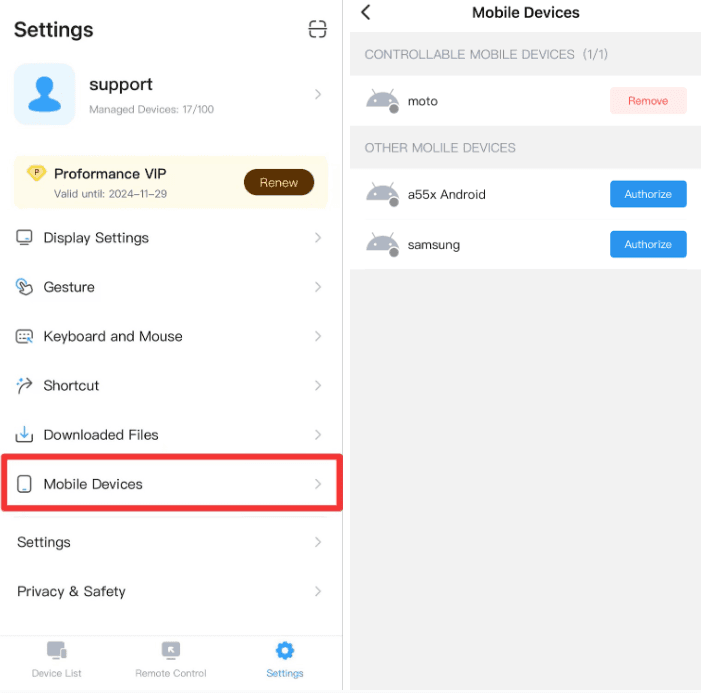
One Root-free Android control add-on allows one Android device to be controlled. If you have multiple Android devices, please ensure you have enough add-ons and whether the current controlled one is in the authorized Android list.
You can go to the DeskIn app >> Settings >> Mobile device to check the authorization list. You can remove the controllable device and authorize a new Android device.
Note:
Each add-on allows you to change authorized devices once per month.
7. If you using other remote software at the same time
If you are using other remote software to control your Android phone at the same time, it may cause system authorization confusion, making DeskIn not able to control the remote Android phone. You can try to uninstall the other remote software and try again.


