Tất cả
Tất cả
/
10 phút
/
10 phút
W. Ting
Đã cập nhật
Đã cập nhật
Đã cập nhật
Trong môi trường kinh doanh ngày nay, nhiều nhóm startup nhỏ phải đối mặt với những thách thức giao tiếp tương tự. Một nhóm gồm kỹ sư phần cứng, chuyên viên phát triển kinh doanh và quản lý vận hành thường gặp khó khăn vì sự kém hiệu quả của các chuỗi email bất tận, lãng phí thời gian đào trong hộp thư đầy lộn xộn để tìm “tệp mà ai đó đã gửi từ rất lâu trước đây.” Họ đang rất cần một ứng dụng nhóm thống nhất có thể tích hợp các phong cách làm việc khác nhau và chấm dứt sự hỗn loạn một lần và mãi mãi.
Với điều đó trong tâm trí, bài viết này sẽ khám phá cách chọn công cụ cộng tác phù hợp cho các nhóm đa chức năng. Trước tiên, chúng tôi sẽ giải thích giá trị cốt lõi của các công cụ cộng tác, sau đó đánh giá chi tiết sáu nền tảng nổi bật để giúp những nhóm như của bạn tìm ra giải pháp phù hợp nhất và nâng cao hiệu quả cộng tác tổng thể.
Đọc thêm:
Nền tảng cộng tác là một không gian làm việc trực tuyến cho phép các thành viên trong nhóm cùng làm việc, giao tiếp và quản lý dự án tại một nơi. Điểm mạnh lớn nhất của nó nằm ở việc phá vỡ rào cản phòng ban và địa lý—mọi người có thể đồng chỉnh sửa cùng một tài liệu theo thời gian thực, loại bỏ sự hỗn loạn khi trao đổi nhiều phiên bản tệp. Điều này không chỉ đảm bảo tính chính xác và kịp thời của thông tin mà còn giảm chi phí giao tiếp và cải thiện hiệu quả thực thi của toàn đội.
Cộng tác thời gian thực với phiên bản thống nhất: Các thành viên có thể đồng chỉnh sửa tài liệu và xem lịch sử phiên bản bất cứ lúc nào. Ví dụ, khi nhóm marketing soạn đề xuất chiến dịch, mọi người có thể chỉnh sửa và bình luận đồng thời, trong khi hệ thống tự động lưu mọi phiên bản—không còn nhầm lẫn kiểu “ban-cuoi-cung-v2”.
Nâng cao hiệu quả giao tiếp: Thảo luận có thể diễn ra trực tiếp trong tài liệu hoặc thẻ công việc, giữ toàn bộ ngữ cảnh và tệp ở cùng một chỗ. Ví dụ, khi kỹ sư báo lỗi trong công cụ quản lý dự án, quản lý sản phẩm và nhà thiết kế có thể phản hồi và đính kèm bản sửa ngay trong chuỗi đó—không còn phải chuyển qua lại giữa ứng dụng chat và email.
Trực quan hóa tiến độ và trách nhiệm rõ ràng: Các công cụ như bảng Kanban và biểu đồ Gantt giúp thấy ngay người phụ trách và trạng thái tiến độ của từng nhiệm vụ. Quản lý dự án có thể nhanh chóng biết nhiệm vụ nào đang “đang thực hiện,” “đã hoàn thành,” hoặc “bị chặn.”
Quản lý kiến thức và tệp tập trung: Tất cả tài liệu quan trọng và ghi chú họp được lưu trên đám mây, giúp thành viên mới hoặc hiện tại truy cập dễ dàng bất cứ lúc nào. Ví dụ, nhân sự mới có thể lập tức tìm thấy báo cáo dự án trước đây hoặc SOP mà không cần hỏi khắp nơi—rút ngắn thời gian onboard.
Sau khi hiểu lợi ích của nó, bước tiếp theo là xem xét nhu cầu của đội bạn. Không phải đội nào cũng cần cùng một công cụ. Vậy những ai là đối tượng phù hợp nhất với nền tảng cộng tác?
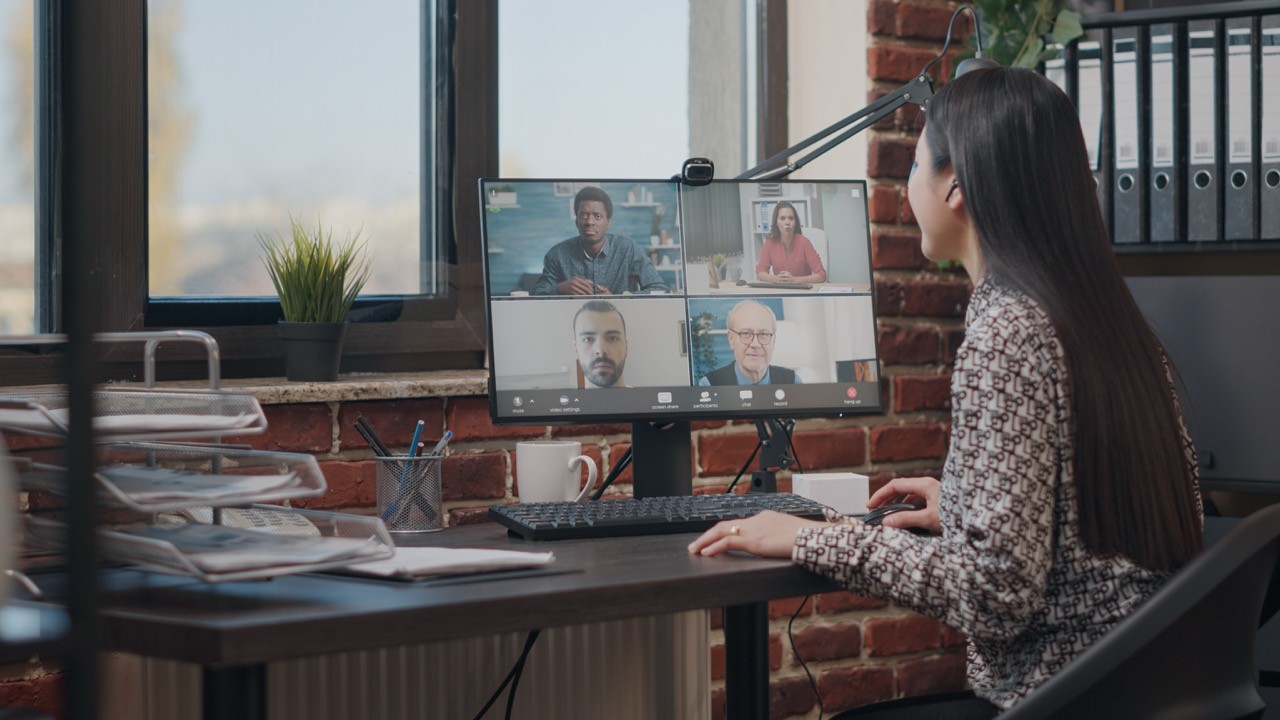
Nhóm làm việc từ xa hoặc phân tán: Thành viên ở các thành phố hoặc quốc gia khác nhau có thể dùng chat thời gian thực, họp video và ổ đĩa đám mây dùng chung để luôn đồng bộ và đảm bảo luồng thông tin thông suốt.
Nhóm định hướng dự án: Các đội cần phân công nhiệm vụ rõ ràng, theo dõi tiến độ và quản lý tệp tập trung—ví dụ, nhà phát triển phần mềm dùng bảng Kanban, hoặc nhóm marketing triển khai các chiến dịch quy mô lớn.
Nhóm sáng tạo và thiết kế: Những người thường xuyên duyệt và phản hồi bản nháp thiết kế hoặc kịch bản có thể chú thích trực quan và quản lý phiên bản dễ dàng—tránh nhầm lẫn về tệp nào là mới nhất.
Nhóm liên phòng ban: Khi phát triển sản phẩm cần ý kiến từ bộ phận kỹ thuật, kinh doanh và marketing, thảo luận chia sẻ và đồng chỉnh sửa sẽ tinh gọn giao tiếp và giảm thời gian họp.
Có vô số công cụ cộng tác trên thị trường, nhưng không phải công cụ nào cũng phù hợp với nhịp độ làm việc thực tế. Để giúp bạn tránh mệt mỏi khi ra quyết định, chúng tôi đã tuyển chọn sáu công cụ đáng tin cậy, dễ tích hợp và tăng năng suất, có thể thực sự nâng tầm quy trình làm việc của bạn. Hãy cùng khám phá công cụ nào có thể trở thành thiết yếu mới tại nơi làm việc của bạn.
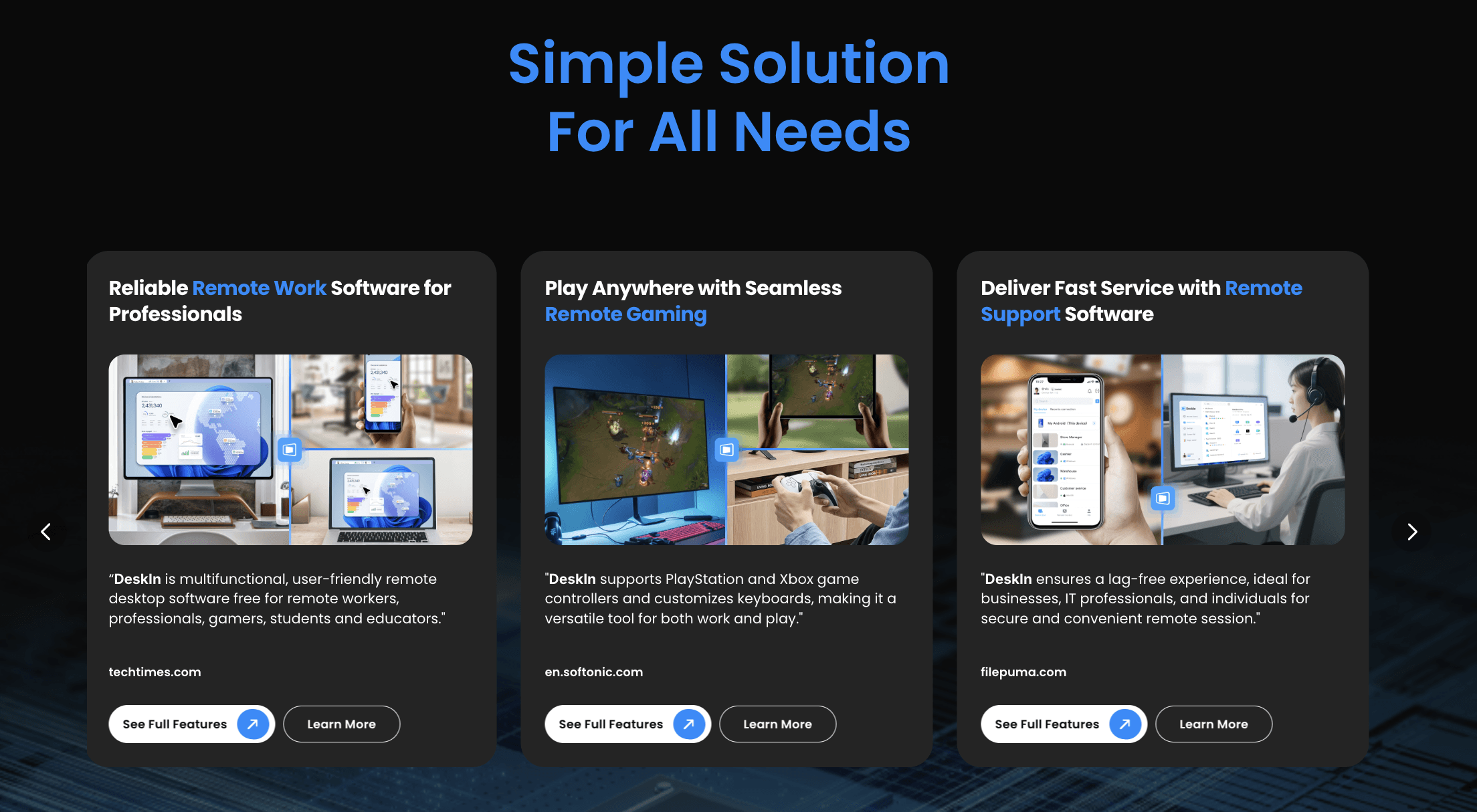
Trong các giải pháp cộng tác trực tuyến, DeskIn nổi bật với công nghệ máy tính từ xa ổn định và mượt mà, tạo nền tảng vững chắc cho cộng tác nhóm. Nó không chỉ cho phép thành viên truy cập an toàn máy tính văn phòng mọi lúc, mọi nơi mà còn nâng truy cập từ xa thành một không gian làm việc cộng tác toàn diện—giúp làm việc nhóm liền mạch dù thành viên ở đâu.
📥 Muốn dùng thử? DeskIn cung cấp phiên bản miễn phí với mã hóa cấp doanh nghiệp—an toàn và dễ sử dụng!

Điểm nổi bật của DeskIn:
Tính năng cộng tác phong phú: Ngoài truy cập từ xa, DeskIn còn cung cấp mở rộng màn hình, phản chiếu màn hình, trò chuyện thoại, chú thích trên màn hình và clipboard dùng chung để làm việc nhóm nhanh chóng, tương tác cao.
Truyền tệp đa hệ thống: Truyền không giới hạn kích thước, loại và số lượng tệp giữa các hệ thống với tốc độ lên đến 12MB/s.
Kết nối ổn định, chất lượng cao: Với hơn 200 nút toàn cầu, DeskIn đảm bảo kết nối mượt mà, đáng tin cậy và thời gian gián đoạn cực thấp—ngay cả trong các phiên làm việc dài.
Khả năng tương thích mạnh mẽ: Truy cập từ xa liền mạch trên Windows, macOS, iOS và Android.
4K Ultra HD & Độ trễ thấp: Hỗ trợ chất lượng hình ảnh lên đến 4K 60FPS với độ trễ dưới 40ms.
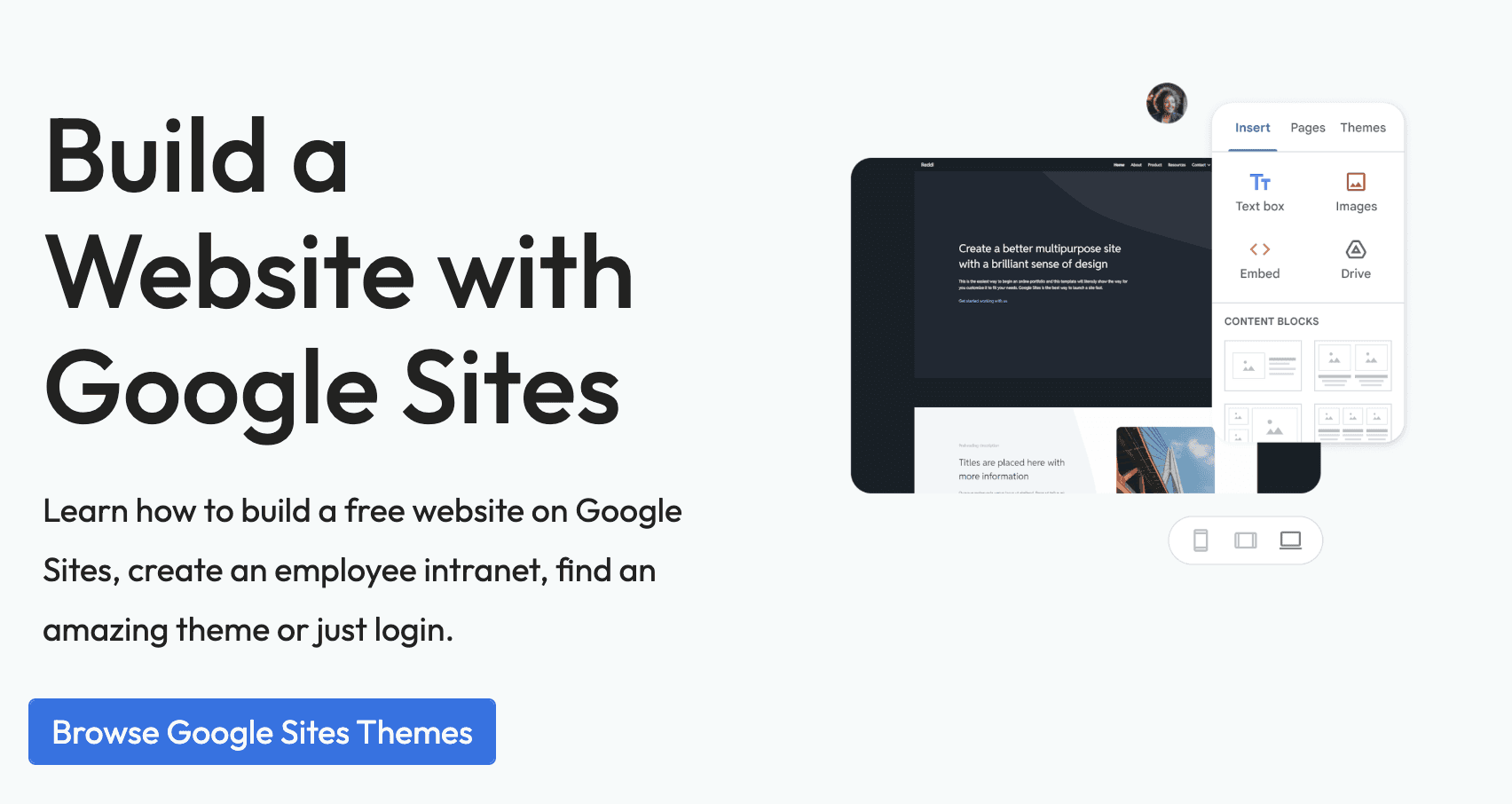
Google Sites là một hệ thống xây dựng web dựa trên wiki được thiết kế cho làm việc nhóm. Thành viên có thể dễ dàng chia sẻ và truy cập thông tin quan trọng tại một nơi—không cần lập trình. Giao diện kéo-thả, tích hợp sâu với Google Workspace (Drive, Calendar, v.v.) và cài đặt quyền linh hoạt khiến nó lý tưởng để tạo trung tâm dự án nội bộ, trang nhóm hoặc thậm chí các trang công khai.
Google Drive là nền tảng cốt lõi cho lưu trữ tệp và cộng tác nhóm. Thành viên có thể đồng chỉnh sửa tài liệu, bảng tính và slide theo thời gian thực, với mọi thay đổi được tự động lưu. Kiểm soát phiên bản được tích hợp sẵn, và quyền truy cập có thể được thiết lập chính xác cho cả chia sẻ nội bộ lẫn bên ngoài. Từ sáng tạo nội dung liên phòng ban đến lập kế hoạch chiến dịch hoặc tài liệu giáo dục, Google Drive giúp cộng tác tinh gọn và có tổ chức.
Lark (Feishu) là nền tảng giao tiếp thông minh tất cả trong một, kết hợp nhắn tin tức thời, họp video, tài liệu đám mây và quản lý nhiệm vụ trong cùng một nơi. Nó cho phép các nhóm xử lý giao tiếp, chỉnh sửa tài liệu và theo dõi nhiệm vụ trong một ứng dụng duy nhất—lý tưởng cho các nhóm làm việc từ xa hoặc liên phòng ban muốn tăng tốc luồng thông tin và tích hợp quy trình làm việc.
Trello là công cụ quản lý dự án trực quan, dễ dùng, dựa trên “bảng, danh sách và thẻ.” Nó giúp nhóm dễ dàng theo dõi tiến độ, phân công nhiệm vụ và cộng tác trực quan. Hệ thống kéo-thả đơn giản giúp trạng thái công việc minh bạch và hỗ trợ cập nhật, bình luận theo thời gian thực. Hoàn hảo cho nhóm dự án, nhân sự làm việc từ xa và quản lý quy trình (ví dụ: CRM, lập kế hoạch sự kiện).
Figma là công cụ thiết kế UI/UX trên nền tảng đám mây, tập trung vào cộng tác thời gian thực. Nhà thiết kế, quản lý sản phẩm và lập trình viên có thể đồng chỉnh sửa cùng một tệp thiết kế cùng lúc. Điều này loại bỏ việc gửi qua gửi lại tệp và đẩy nhanh hiệu quả từ thiết kế đến bàn giao. Với giao diện trực quan và tính năng tạo prototype mạnh mẽ, Figma lý tưởng cho phát triển sản phẩm và cộng tác trực quan trong các nhóm từ xa.
Sau cùng, giá trị thực sự của một nền tảng cộng tác nằm ở việc tập trung hóa và trực quan hóa quy trình làm việc của nhóm. Đồng chỉnh sửa theo thời gian thực giúp giảm mạnh chi phí giao tiếp và sự hỗn loạn phiên bản. Dù xử lý tài liệu, tệp thiết kế hay nhiệm vụ dự án, các công cụ trên đều cho phép đồng bộ và cộng tác theo thời gian thực.
Khi chọn nền tảng, hãy tập trung vào quy trình làm việc cốt lõi và điểm đau của đội bạn—đó là chìa khóa để chọn giải pháp phù hợp nhất và mở khóa năng suất của nhóm.
📥 Nhấp vào đây để dùng thử DeskIn—nền tảng cộng tác được chúng tôi khuyến nghị hàng đầu.
Redmine và Taiga là hai lựa chọn sáng giá. Redmine rất linh hoạt và có thể tùy chỉnh cao—phù hợp cho đội phát triển—trong khi Taiga được thiết kế cho quy trình agile với giao diện sạch sẽ và trực quan.
Không có phần mềm “tốt nhất” cho mọi trường hợp—điều quan trọng là phù hợp với nhu cầu của đội bạn. Với các đội cần vận hành từ xa rộng và cộng tác thời gian thực, một công cụ ổn định, giàu tính năng, đa nền tảng như DeskIn là lựa chọn tuyệt vời.
Có. Công cụ tài liệu của Proton Drive sử dụng mã hóa đầu cuối để đảm bảo chỉ bạn và cộng tác viên của bạn có thể truy cập dữ liệu, đồng thời vẫn hỗ trợ đồng chỉnh sửa theo thời gian thực—cân bằng hoàn hảo giữa quyền riêng tư và làm việc nhóm.
Trong môi trường kinh doanh ngày nay, nhiều nhóm startup nhỏ phải đối mặt với những thách thức giao tiếp tương tự. Một nhóm gồm kỹ sư phần cứng, chuyên viên phát triển kinh doanh và quản lý vận hành thường gặp khó khăn vì sự kém hiệu quả của các chuỗi email bất tận, lãng phí thời gian đào trong hộp thư đầy lộn xộn để tìm “tệp mà ai đó đã gửi từ rất lâu trước đây.” Họ đang rất cần một ứng dụng nhóm thống nhất có thể tích hợp các phong cách làm việc khác nhau và chấm dứt sự hỗn loạn một lần và mãi mãi.
Với điều đó trong tâm trí, bài viết này sẽ khám phá cách chọn công cụ cộng tác phù hợp cho các nhóm đa chức năng. Trước tiên, chúng tôi sẽ giải thích giá trị cốt lõi của các công cụ cộng tác, sau đó đánh giá chi tiết sáu nền tảng nổi bật để giúp những nhóm như của bạn tìm ra giải pháp phù hợp nhất và nâng cao hiệu quả cộng tác tổng thể.
Đọc thêm:
Nền tảng cộng tác là một không gian làm việc trực tuyến cho phép các thành viên trong nhóm cùng làm việc, giao tiếp và quản lý dự án tại một nơi. Điểm mạnh lớn nhất của nó nằm ở việc phá vỡ rào cản phòng ban và địa lý—mọi người có thể đồng chỉnh sửa cùng một tài liệu theo thời gian thực, loại bỏ sự hỗn loạn khi trao đổi nhiều phiên bản tệp. Điều này không chỉ đảm bảo tính chính xác và kịp thời của thông tin mà còn giảm chi phí giao tiếp và cải thiện hiệu quả thực thi của toàn đội.
Cộng tác thời gian thực với phiên bản thống nhất: Các thành viên có thể đồng chỉnh sửa tài liệu và xem lịch sử phiên bản bất cứ lúc nào. Ví dụ, khi nhóm marketing soạn đề xuất chiến dịch, mọi người có thể chỉnh sửa và bình luận đồng thời, trong khi hệ thống tự động lưu mọi phiên bản—không còn nhầm lẫn kiểu “ban-cuoi-cung-v2”.
Nâng cao hiệu quả giao tiếp: Thảo luận có thể diễn ra trực tiếp trong tài liệu hoặc thẻ công việc, giữ toàn bộ ngữ cảnh và tệp ở cùng một chỗ. Ví dụ, khi kỹ sư báo lỗi trong công cụ quản lý dự án, quản lý sản phẩm và nhà thiết kế có thể phản hồi và đính kèm bản sửa ngay trong chuỗi đó—không còn phải chuyển qua lại giữa ứng dụng chat và email.
Trực quan hóa tiến độ và trách nhiệm rõ ràng: Các công cụ như bảng Kanban và biểu đồ Gantt giúp thấy ngay người phụ trách và trạng thái tiến độ của từng nhiệm vụ. Quản lý dự án có thể nhanh chóng biết nhiệm vụ nào đang “đang thực hiện,” “đã hoàn thành,” hoặc “bị chặn.”
Quản lý kiến thức và tệp tập trung: Tất cả tài liệu quan trọng và ghi chú họp được lưu trên đám mây, giúp thành viên mới hoặc hiện tại truy cập dễ dàng bất cứ lúc nào. Ví dụ, nhân sự mới có thể lập tức tìm thấy báo cáo dự án trước đây hoặc SOP mà không cần hỏi khắp nơi—rút ngắn thời gian onboard.
Sau khi hiểu lợi ích của nó, bước tiếp theo là xem xét nhu cầu của đội bạn. Không phải đội nào cũng cần cùng một công cụ. Vậy những ai là đối tượng phù hợp nhất với nền tảng cộng tác?
Nhóm làm việc từ xa hoặc phân tán: Thành viên ở các thành phố hoặc quốc gia khác nhau có thể dùng chat thời gian thực, họp video và ổ đĩa đám mây dùng chung để luôn đồng bộ và đảm bảo luồng thông tin thông suốt.
Nhóm định hướng dự án: Các đội cần phân công nhiệm vụ rõ ràng, theo dõi tiến độ và quản lý tệp tập trung—ví dụ, nhà phát triển phần mềm dùng bảng Kanban, hoặc nhóm marketing triển khai các chiến dịch quy mô lớn.
Nhóm sáng tạo và thiết kế: Những người thường xuyên duyệt và phản hồi bản nháp thiết kế hoặc kịch bản có thể chú thích trực quan và quản lý phiên bản dễ dàng—tránh nhầm lẫn về tệp nào là mới nhất.
Nhóm liên phòng ban: Khi phát triển sản phẩm cần ý kiến từ bộ phận kỹ thuật, kinh doanh và marketing, thảo luận chia sẻ và đồng chỉnh sửa sẽ tinh gọn giao tiếp và giảm thời gian họp.
Có vô số công cụ cộng tác trên thị trường, nhưng không phải công cụ nào cũng phù hợp với nhịp độ làm việc thực tế. Để giúp bạn tránh mệt mỏi khi ra quyết định, chúng tôi đã tuyển chọn sáu công cụ đáng tin cậy, dễ tích hợp và tăng năng suất, có thể thực sự nâng tầm quy trình làm việc của bạn. Hãy cùng khám phá công cụ nào có thể trở thành thiết yếu mới tại nơi làm việc của bạn.
Trong các giải pháp cộng tác trực tuyến, DeskIn nổi bật với công nghệ máy tính từ xa ổn định và mượt mà, tạo nền tảng vững chắc cho cộng tác nhóm. Nó không chỉ cho phép thành viên truy cập an toàn máy tính văn phòng mọi lúc, mọi nơi mà còn nâng truy cập từ xa thành một không gian làm việc cộng tác toàn diện—giúp làm việc nhóm liền mạch dù thành viên ở đâu.
📥 Muốn dùng thử? DeskIn cung cấp phiên bản miễn phí với mã hóa cấp doanh nghiệp—an toàn và dễ sử dụng!
Điểm nổi bật của DeskIn:
Tính năng cộng tác phong phú: Ngoài truy cập từ xa, DeskIn còn cung cấp mở rộng màn hình, phản chiếu màn hình, trò chuyện thoại, chú thích trên màn hình và clipboard dùng chung để làm việc nhóm nhanh chóng, tương tác cao.
Truyền tệp đa hệ thống: Truyền không giới hạn kích thước, loại và số lượng tệp giữa các hệ thống với tốc độ lên đến 12MB/s.
Kết nối ổn định, chất lượng cao: Với hơn 200 nút toàn cầu, DeskIn đảm bảo kết nối mượt mà, đáng tin cậy và thời gian gián đoạn cực thấp—ngay cả trong các phiên làm việc dài.
Khả năng tương thích mạnh mẽ: Truy cập từ xa liền mạch trên Windows, macOS, iOS và Android.
4K Ultra HD & Độ trễ thấp: Hỗ trợ chất lượng hình ảnh lên đến 4K 60FPS với độ trễ dưới 40ms.
Google Sites là một hệ thống xây dựng web dựa trên wiki được thiết kế cho làm việc nhóm. Thành viên có thể dễ dàng chia sẻ và truy cập thông tin quan trọng tại một nơi—không cần lập trình. Giao diện kéo-thả, tích hợp sâu với Google Workspace (Drive, Calendar, v.v.) và cài đặt quyền linh hoạt khiến nó lý tưởng để tạo trung tâm dự án nội bộ, trang nhóm hoặc thậm chí các trang công khai.
Google Drive là nền tảng cốt lõi cho lưu trữ tệp và cộng tác nhóm. Thành viên có thể đồng chỉnh sửa tài liệu, bảng tính và slide theo thời gian thực, với mọi thay đổi được tự động lưu. Kiểm soát phiên bản được tích hợp sẵn, và quyền truy cập có thể được thiết lập chính xác cho cả chia sẻ nội bộ lẫn bên ngoài. Từ sáng tạo nội dung liên phòng ban đến lập kế hoạch chiến dịch hoặc tài liệu giáo dục, Google Drive giúp cộng tác tinh gọn và có tổ chức.
Lark (Feishu) là nền tảng giao tiếp thông minh tất cả trong một, kết hợp nhắn tin tức thời, họp video, tài liệu đám mây và quản lý nhiệm vụ trong cùng một nơi. Nó cho phép các nhóm xử lý giao tiếp, chỉnh sửa tài liệu và theo dõi nhiệm vụ trong một ứng dụng duy nhất—lý tưởng cho các nhóm làm việc từ xa hoặc liên phòng ban muốn tăng tốc luồng thông tin và tích hợp quy trình làm việc.
Trello là công cụ quản lý dự án trực quan, dễ dùng, dựa trên “bảng, danh sách và thẻ.” Nó giúp nhóm dễ dàng theo dõi tiến độ, phân công nhiệm vụ và cộng tác trực quan. Hệ thống kéo-thả đơn giản giúp trạng thái công việc minh bạch và hỗ trợ cập nhật, bình luận theo thời gian thực. Hoàn hảo cho nhóm dự án, nhân sự làm việc từ xa và quản lý quy trình (ví dụ: CRM, lập kế hoạch sự kiện).
Figma là công cụ thiết kế UI/UX trên nền tảng đám mây, tập trung vào cộng tác thời gian thực. Nhà thiết kế, quản lý sản phẩm và lập trình viên có thể đồng chỉnh sửa cùng một tệp thiết kế cùng lúc. Điều này loại bỏ việc gửi qua gửi lại tệp và đẩy nhanh hiệu quả từ thiết kế đến bàn giao. Với giao diện trực quan và tính năng tạo prototype mạnh mẽ, Figma lý tưởng cho phát triển sản phẩm và cộng tác trực quan trong các nhóm từ xa.
Sau cùng, giá trị thực sự của một nền tảng cộng tác nằm ở việc tập trung hóa và trực quan hóa quy trình làm việc của nhóm. Đồng chỉnh sửa theo thời gian thực giúp giảm mạnh chi phí giao tiếp và sự hỗn loạn phiên bản. Dù xử lý tài liệu, tệp thiết kế hay nhiệm vụ dự án, các công cụ trên đều cho phép đồng bộ và cộng tác theo thời gian thực.
Khi chọn nền tảng, hãy tập trung vào quy trình làm việc cốt lõi và điểm đau của đội bạn—đó là chìa khóa để chọn giải pháp phù hợp nhất và mở khóa năng suất của nhóm.
📥 Nhấp vào đây để dùng thử DeskIn—nền tảng cộng tác được chúng tôi khuyến nghị hàng đầu.
Redmine và Taiga là hai lựa chọn sáng giá. Redmine rất linh hoạt và có thể tùy chỉnh cao—phù hợp cho đội phát triển—trong khi Taiga được thiết kế cho quy trình agile với giao diện sạch sẽ và trực quan.
Không có phần mềm “tốt nhất” cho mọi trường hợp—điều quan trọng là phù hợp với nhu cầu của đội bạn. Với các đội cần vận hành từ xa rộng và cộng tác thời gian thực, một công cụ ổn định, giàu tính năng, đa nền tảng như DeskIn là lựa chọn tuyệt vời.
Có. Công cụ tài liệu của Proton Drive sử dụng mã hóa đầu cuối để đảm bảo chỉ bạn và cộng tác viên của bạn có thể truy cập dữ liệu, đồng thời vẫn hỗ trợ đồng chỉnh sửa theo thời gian thực—cân bằng hoàn hảo giữa quyền riêng tư và làm việc nhóm.


MapleStory Worlds Mobile Bị Quá Nhiệt Hoặc Khó Điều Khiển? Cách Khắc Phục Lỗi Lag, Nóng Máy và Lỗi Cảm Ứng Trên Artale
Bạn đã từng bỏ lỡ một cú nhảy vì cần gạt trên màn hình bị trôi lệch hướng? Điện thoại của bạn có bị nóng, tụt khung hình hoặc hết pin ngay giữa một trận cày cuốc căng thẳng không? Nếu bạn muốn có một cách chơi Artale thoải mái hơn khi không ngồi ở bàn làm việc, hãy tải xuống DeskIn và kết nối với cấu hình máy tính để bàn mà bạn đang sử dụng.
Hướng dẫn này sẽ giải thích các vấn đề phổ biến nhất khi chạy Artale trên ứng dụng di động MapleStory Worlds gốc, lý do tại sao chúng xảy ra và cách chơi từ xa có thể giảm tải cho điện thoại trong khi mang lại cho bạn các tùy khiển linh hoạt hơn.
Cách chơi mọi phiên bản MapleStory trên iPhone, iPad và Android
Cách chơi MapleStory bằng tay cầm trên Mac, iPhone, iPad và Android
Các bài viết của cộng đồng về Artale trên di động thường đề cập đến việc tải lần đầu chậm, màn hình tải đen, phản hồi không ổn định và việc phải cài đặt lại các phím tắt. Trải nghiệm sẽ khác nhau tùy thuộc vào thiết bị và khu vực, nhưng những điểm gây khó chịu sau đây luôn lặp lại:
Điện thoại bị nóng và hao pin nhanh chóng trong các phiên chơi game kéo dài.
Đăng nhập và tải bản đồ có cảm giác chậm, đặc biệt là khi kết nối mạng không ổn định.
Bản đồ đông đúc, các trận đấu boss và hiệu ứng kỹ năng có thể gây sụt khung hình, giật lag hoặc văng game.
Cần gạt ảo có thể khiến các bước nhảy ngắn, đổi hướng và di chuyển trên dây leo trở nên thiếu chính xác.
Các nút bấm và menu có thể che mất các nền tảng, kẻ thù hoặc các ô vật phẩm nhỏ trong túi đồ.
Việc liên tục nhấn dùng bình thuốc, di chuyển và phím kỹ năng có thể gây mỏi ngón tay.
Các thao tác tổ hợp nhiều nút có thể gặp khó khăn trên điện thoại hoặc máy tính bảng, đặc biệt là trong các đòn đánh nhảy hoặc lối chơi kết hợp nhiều chuỗi chiêu thức.
Khi bạn chạy Artale trực tiếp trên điện thoại, thiết bị của bạn phải xử lý đồng thời logic trò chơi, đồ họa, kết nối mạng, hiển thị và phản hồi cảm ứng. Tải lượng đó sẽ tăng lên khi:
Đồ họa, tốc độ khung hình, độ sáng màn hình hoặc hiệu ứng hình ảnh được thiết lập ở mức cao.
Các ứng dụng chạy ngầm tiêu tốn bộ nhớ hoặc thời gian xử lý của CPU.
Thiết bị đang sạc, nằm trong ốp lưng dày hoặc được sử dụng trong môi trường ấm nóng.
Mạng yếu dẫn đến việc tải lại liên tục, mất kết nối hoặc bị giật lùi vị trí nhân vật.
Khi thiết bị nóng lên, hệ điều hành có thể giảm tốc độ CPU hoặc GPU để bảo vệ phần cứng. Tình trạng giảm hiệu năng do nhiệt này có thể khiến khung hình bị sụt giảm và phản hồi đầu vào bị trễ, ngay cả trên một chiếc điện thoại tương đối mạnh mẽ.
Artale có thể chơi được thông qua MapleStory Worlds trên di động, nhưng một màn hình cảm ứng nhỏ vẫn có những hạn chế đối với một tựa game RPG đi ngang cần sử dụng nhiều phím bàn phím:
Cần gạt ảo không mang lại phản hồi vật lý, khiến việc di chuyển chính xác trở nên khó khăn hơn.
Các nút kỹ năng, bình thuốc, nhảy và tiện ích phải chen chúc trên không gian màn hình hạn chế.
Ngón tay của bạn có thể che mất nhân vật, nền tảng hoặc các cảnh báo tấn công.
Giao diện túi đồ, cửa hàng và trò chuyện vẫn có những điểm nhấp chọn rất nhỏ.
Các phiên chơi dài đòi hỏi tư thế cầm máy và chuyển động ngón cái lặp đi lặp lại mệt mỏi.
Điều đó có nghĩa là các nút điều khiển Artale trên di động có thể mang lại cảm giác ngượng tay ngay cả khi điện thoại không bị quá nhiệt. Chỉ riêng cài đặt hiệu suất không thể giải quyết được vấn đề vị trí nút bấm, tầm nhìn bị che khuất hoặc việc thiếu phản hồi vật lý.
MapleStory Worlds chính thức có mặt trên cả máy tính và thiết bị di động. Thay vì chạy Artale trực tiếp trên điện thoại, DeskIn có thể truyền phát phiên chơi trên Windows hoặc Mac của bạn tới iPhone, iPad hoặc thiết bị Android. Máy tính sẽ vận hành trò chơi; điện thoại hiển thị luồng video và truyền các thao tác điều khiển của bạn.
Do máy tính đảm nhận việc vận hành trò chơi, điện thoại không còn phải xử lý dựng hình trực tiếp nữa. Điện thoại vẫn thực hiện giải mã video, duy trì kết nối mạng và duy trì màn hình, vì vậy nó vẫn có thể ấm lên — nhưng lượng tải và mức tiêu hao pin của điện thoại có thể thấp hơn so với khi chơi trực tiếp.
Bạn kết nối lại với phiên làm việc trên máy tính mà bạn đang sử dụng, với cùng một trình khởi chạy, tài khoản và giao diện PC. Điều này rất hữu ích để kiểm tra thị trường giao dịch, làm nhiệm vụ hàng ngày hoặc tiếp tục cày cuốc mà không cần phải làm quen với một sơ đồ nút bấm thứ hai.
Bàn phím chơi game của DeskIn cho phép bạn đặt các phím di chuyển, nhảy, bình thuốc, kỹ năng, chuột và các tổ hợp phím ngay trên màn hình. Bạn có thể điều chỉnh vị trí, kích thước và độ trong suốt, sau đó lưu các sơ đồ phím riêng biệt cho các hệ phái khác nhau.
DeskIn hỗ trợ ánh xạ tay cầm chơi game từ điện thoại, máy tính bảng, PC hoặc Mac cục bộ sang máy tính từ xa. Khả năng tương thích của tay cầm có thể khác nhau, vì vậy hãy thử nghiệm di chuyển và kỹ năng ở một bản đồ an toàn trước khi tham gia đấu boss.
Cài đặt MapleStory Worlds và Artale trên máy tính Windows hoặc Mac mà bạn sẽ dùng làm máy chủ. Cập nhật trò chơi, trình khởi chạy, hệ điều hành và trình điều khiển đồ họa, sau đó xác nhận rằng việc đăng nhập, âm thanh và phím điều khiển hoạt động bình thường.
Cài đặt DeskIn trên cả máy tính chủ và điện thoại hoặc máy tính bảng của bạn. Đăng nhập bằng cùng một tài khoản DeskIn trên cả hai thiết bị.
Thiết lập để máy tính chủ không chuyển sang chế độ ngủ (sleep). Trong DeskIn, bật tính năng khởi động cùng hệ thống và cấu hình quyền truy cập không cần giám sát bằng mật khẩu bảo mật.
Mở DeskIn trên điện thoại, chọn máy tính từ danh sách thiết bị, nhập mật khẩu bảo mật và khởi chạy Artale.
Bắt đầu với thiết lập chất lượng mượt mà (smooth) và 60 FPS. Nếu kết nối ổn định, hãy tăng dần chất lượng hình ảnh; nếu các thao tác điều khiển bị trễ, hãy ưu tiên độ mượt mà và kiểm tra các thông số mạng trực tiếp.
Để xem hướng dẫn thiết lập chi tiết, vui lòng tham khảo hướng dẫn truy cập không cần giám sát của DeskIn.
Kết nối với máy tính chủ, mở thanh công cụ bên dưới, sau đó chọn Bàn phím > Bàn phím chơi game (Game Keyboard).
Tạo một sơ đồ phím và thêm các phím di chuyển, nhảy, kỹ năng, bình thuốc, nút chuột hoặc các tổ hợp phím. Di chuyển hoặc thay đổi kích thước của từng nút để nó không che khuất các nền tảng hoặc cảnh báo chiến đấu.
Lưu sơ đồ phím theo hệ phái hoặc nhân vật. Tạo thêm các cấu hình khác khi một nhân vật khác sử dụng thanh kỹ năng khác.
Xem hướng dẫn tùy chỉnh bàn phím chơi game để biết hướng dẫn chi tiết về cách ánh xạ phím.
Kết nối tay cầm Bluetooth hoặc tay cầm có dây được hỗ trợ với điện thoại hoặc máy tính bảng của bạn.
Kết nối với máy tính trong DeskIn, mở thanh công cụ và bật tính năng ánh xạ hoặc chuyển hướng tay cầm chơi game (gamepad mapping/redirection).
Thử nghiệm di chuyển, nhảy, tấn công và các phím kỹ năng ở khu vực an toàn trước khi chơi các nội dung có độ khó cao.
Nếu tính năng tự động ánh xạ không hoạt động, hãy làm theo hướng dẫn ánh xạ tay cầm của DeskIn và kiểm tra xem tay cầm của bạn có được hỗ trợ hay không.
MapleStory Worlds so với Artale: Nền tảng, Tiến trình và Các điểm khác biệt chính
Cách tạo bàn phím chơi game tùy chỉnh cho game PC trên di động
Nếu bạn thích sử dụng ứng dụng MapleStory Worlds gốc hơn, hãy giảm tải cho thiết bị trước khi thay đổi cấu hình chơi game của mình:
Giảm chất lượng đồ họa, hiệu ứng và tốc độ khung hình thay vì để ở mức tối đa.
Giảm độ sáng màn hình và đóng các ứng dụng ghi màn hình, phát trực tiếp, định vị và các ứng dụng chạy ngầm không cần thiết.
Tránh vừa sạc vừa chơi. Nếu điện thoại nóng lên bất thường, hãy dừng lại và để điện thoại nguội tự nhiên.
Tháo ốp lưng dày và tránh ánh nắng trực tiếp hoặc phòng có nhiệt độ cao.
Sử dụng kết nối Wi-Fi ổn định nếu có thể để điện thoại không phải liên tục chuyển đổi mạng.
Cập nhật MapleStory Worlds và hệ điều hành di động, đồng thời duy trì dung lượng lưu trữ trống đầy đủ.
Rút ngắn thời gian chơi game. Dừng chơi ngay lập tức nếu thiết bị hiển thị cảnh báo nhiệt độ, mất phản hồi cảm ứng, tự tắt nguồn hoặc có dấu hiệu phồng pin.
Điện thoại ấm lên một chút khi chơi một tựa game đòi hỏi cấu hình cao là điều bình thường. Tuy nhiên, nếu xuất hiện cảnh báo nhiệt độ, bị ngắt sạc, phản hồi cảm ứng không ổn định, thiết bị tắt nguồn đột ngột hoặc phồng pin thì đó là những dấu hiệu không thể xem nhẹ. Hãy dừng chơi và để thiết bị nguội trước khi tìm cách khắc phục.
Tốc độ của bộ vi xử lý chỉ là một trong nhiều yếu tố. Việc giảm hiệu năng do nhiệt, quá tải bộ nhớ, cập nhật ứng dụng, tình trạng máy chủ hoặc đường truyền mạng, cũng như các bản đồ đông đúc đều có thể ảnh hưởng đến hiệu suất. Hãy thử giảm cài đặt đồ họa, đóng ứng dụng chạy ngầm và kiểm tra xem kết nối Wi-Fi có ổn định không.
Không hoàn toàn. Chơi game từ xa chuyển tải xử lý trò chơi sang máy tính, nhưng điện thoại vẫn phải giải mã video, truyền tín hiệu điều khiển, sử dụng mạng và duy trì màn hình. Hãy giảm chất lượng truyền phát, tốc độ khung hình và độ sáng nếu điện thoại vẫn bị ấm.
Nó có thể cung cấp các sơ đồ phím ảo linh hoạt hơn trên màn hình và hỗ trợ ánh xạ tay cầm tương thích. Tuy nhiên, độ nhạy thực tế vẫn phụ thuộc vào điện thoại, tay cầm, độ trễ mạng và các thiết lập từ xa, vì vậy hãy thử nghiệm sơ đồ phím trước khi chơi các nội dung khó.
Ứng dụng gốc sẽ tiện lợi cho việc đăng nhập nhanh và làm các nhiệm vụ đơn giản. DeskIn sẽ hữu ích khi bạn đã có sẵn một máy tính đủ mạnh, muốn trải nghiệm giao diện máy tính, cần các phím ảo tùy chỉnh hoặc thích sử dụng tay cầm. Hãy lựa chọn dựa trên nhu cầu công việc của bạn và chất lượng mạng internet.
Tình trạng lag, nóng máy và hao pin khi chơi Artale trên di động thường bắt nguồn từ sự kết hợp giữa tải lượng thiết bị, giới hạn tản nhiệt, các hoạt động chạy ngầm và điều kiện mạng. Các vấn đề về điều khiển thường là một câu chuyện khác: cần gạt ảo, các nút bấm chen chúc và tầm nhìn bị che khuất vẫn có thể gây ức chế ngay cả khi bạn đã giảm cài đặt đồ họa.
Nếu bạn đã và đang chơi Artale trên máy tính Windows hoặc Mac, hãy tải xuống DeskIn để truyền phát phiên chơi đó tới điện thoại hoặc máy tính bảng của bạn, thiết lập các nút điều khiển phù hợp với hệ phái của mình và chuyển sang tay cầm khi các thao tác cảm ứng không đủ độ chính xác.

Cách nhận Gói quà VALORANT trên thiết bị di động
Bạn đã chán ngấy việc bỏ lỡ các đợt giảm giá Chợ Đêm giới hạn thời gian, các trang phục Cửa Hàng Hàng Ngày mới mẻ, phần thưởng Battle Pass và các lượt làm mới phụ kiện Cửa Hàng Kingdom miễn phí của VALORANT khi bạn không ở gần PC? Gì cơ? Bạn thực sự có thể đăng nhập vào VALORANT từ điện thoại của mình. Lật các thẻ giảm giá Chợ Đêm, chọn các trang phục vũ khí yêu thích của bạn, kiểm tra tiến trình Battle Pass và đổi các phụ kiện cũng như hình phun sơn độc quyền bất cứ lúc nào. Không bao giờ bỏ lỡ các ưu đãi trong trò chơi và các đợt rơi vật phẩm giới hạn thời gian. Không cần phải dính chặt vào máy tính của bạn. Duyệt qua giao diện trò chơi trên PC của bạn từ xa khi đang đi làm hoặc thư giãn. Hãy thử DeskIn để truyền phát trực tuyến từ xa với độ trễ thấp và khám phá bốn hệ thống cửa hàng cốt lõi của VALORANT dù bạn ở bất kỳ đâu!
👉 Tải xuống DeskIn chính thức:
VALORANT có bốn hệ thống thu thập vật phẩm và trang phục độc lập, mỗi hệ thống có các quy tắc, nhóm phần thưởng và cơ chế làm mới riêng biệt không can thiệp lẫn nhau: Chợ Đêm giới hạn thời gian, Cửa Hàng Hàng Ngày vĩnh viễn, Battle Pass theo mùa và Cửa Hàng Kingdom.
Chợ Đêm giới hạn thời gian**: Một sự kiện giảm giá chính thức thỉnh thoảng diễn ra. Mỗi người chơi nhận được 6 thẻ giảm giá trang phục ngẫu nhiên và nội dung của chúng không thể thay đổi sau khi đã mở. Mức giảm giá dao động từ 10% - 49% và phần thưởng khác nhau tùy theo từng tài khoản. Nhóm phần thưởng chỉ bao gồm một số trang phục vũ khí chọn lọc đã được phát hành ít nhất hai Hồi. Trang phục Battle Pass, bộ sưu tập mới, trang phục Tuyệt Phẩm (Ultimate), sê-ri giới hạn thời gian và vũ khí cận chiến có giá trị cao sẽ bị loại trừ.
Cửa Hàng Hàng Ngày: Cửa hàng vĩnh viễn của trò chơi. Bốn trang phục vũ khí cá nhân ngẫu nhiên sẽ được làm mới vào mỗi sáng sớm và không thể thiết lập lại thủ công. Hầu hết các vật phẩm được bán với giá gốc, trong khi một số ít có thể được giảm giá tạm thời. Nhóm vật phẩm bao gồm hầu hết các trang phục vũ khí cũ và mới và đóng vai trò là nguồn chính để mua các trang phục riêng lẻ. Một số vật phẩm giới hạn và cao cấp sẽ không xuất hiện ở đây.
Battle Pass theo mùa**: Cập nhật mỗi Hồi với các lộ trình phần thưởng miễn phí và cao cấp. Mở khóa lộ trình trả phí để nhận các trang phục, phụ kiện súng, hình phun sơn, hiệu ứng kết liễu độc quyền của mùa giải và hơn thế nữa. Tất cả nội dung đều bị giới hạn theo mùa và sẽ không xuất hiện trong Chợ Đêm hoặc các cửa hàng thông thường. Phần thưởng không thể mua hoặc nhận lại sau khi mùa giải kết thúc.
Cửa Hàng Kingdom:Cửa hàng phụ kiện xoay vòng hàng tuần miễn phí, làm mới vào mỗi Thứ Tư. Mỗi người chơi nhận được 4 phụ kiện ngẫu nhiên chỉ có thể đổi bằng Điểm Kingdom kiếm được trong trò chơi. Không áp dụng mua bằng VP và giảm giá. Nhóm vật phẩm này mang trở lại các phụ kiện Battle Pass trước đây như phụ kiện súng, hình phun sơn, thẻ người chơi và danh hiệu. Trang phục vũ khí không được cung cấp ở đây.
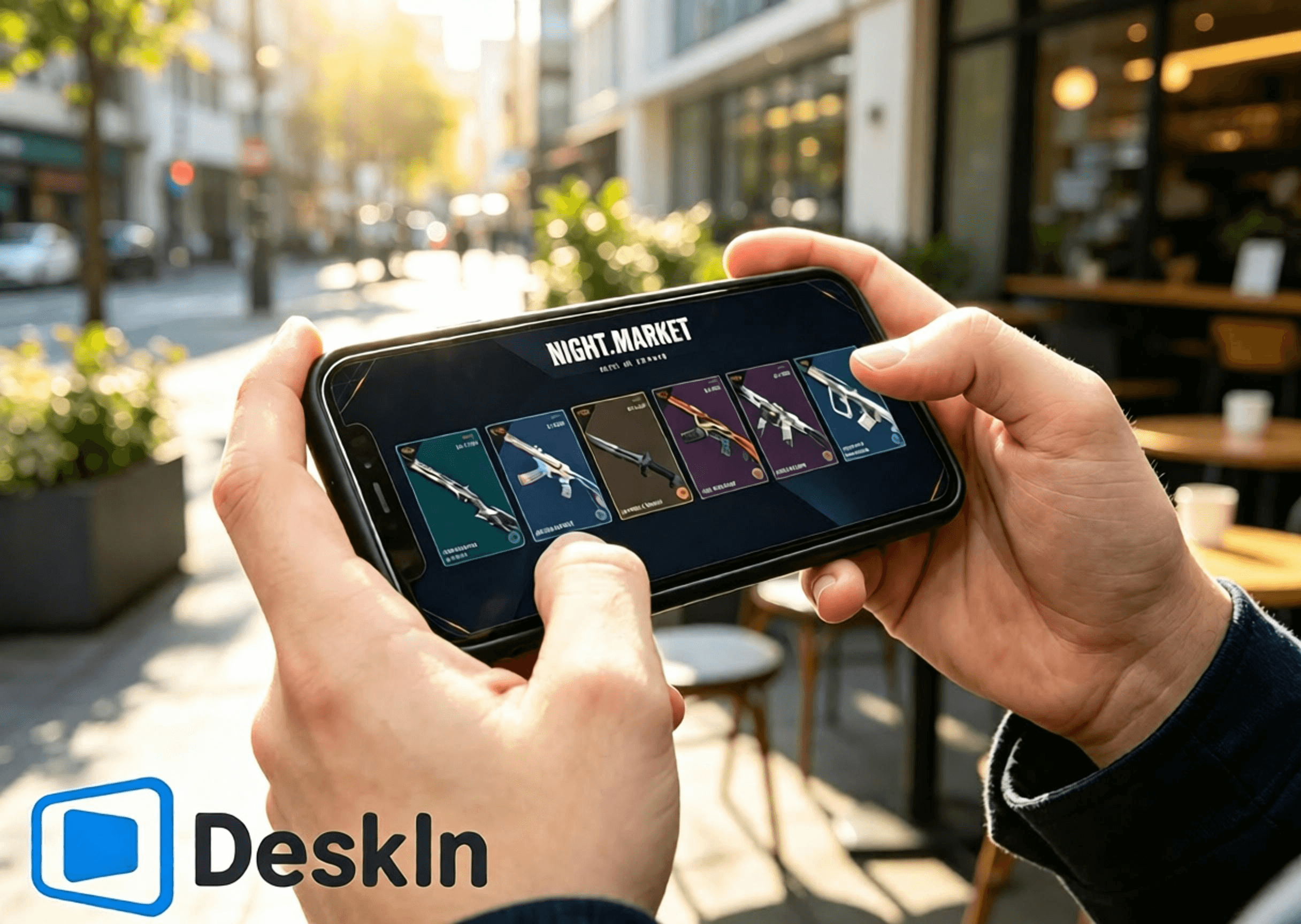
⚡ Truyền phát trực tuyến độ trễ siêu thấp. Điều hướng mượt mà để mở thẻ Chợ Đêm, duyệt Cửa Hàng Hàng Ngày, kiểm tra phần thưởng Battle Pass và chuyển sang trang Cửa Hàng Kingdom.
🛠️ Cài đặt và đăng nhập đơn giản. Kết nối bằng một cú nhấp chuột, thiết lập thân thiện với người mới bắt đầu.
💻 Hỗ trợ đầy đủ PC đa hệ điều hành: Cả Windows và Mac đều có thể hoạt động như máy chủ để chạy trò chơi và cửa hàng.
📱 Hỗ trợ đầy đủ thiết bị di động: Android, iPhone và iPad đều hỗ trợ điều khiển từ xa để khám phá cả bốn hệ thống cửa hàng của VALORANT.
🔧 Bố cục điều khiển cảm ứng có thể tùy chỉnh. Tự do điều chỉnh giao diện vận hành trong cửa hàng mà không che khuất nội dung.
🖼️ Truyền tải video độ nét cao. Các mô hình trang phục vũ khí, chi tiết ánh sáng, hiệu ứng Battle Pass và họa tiết phụ kiện được hiển thị sắc nét.
🎮 Chất lượng hình ảnh và tốc độ khung hình hàng đầu. Chuyển đổi chế độ kép giữa 4K/60fps và 2K/240fps. Phát lại mượt mà không bị bóng mờ khi xem hoạt ảnh trang phục và các chi tiết nhỏ.
✨ Độ trễ gần mức mili giây, luôn được duy trì dưới 40 ms. Phản hồi nhấp chuột từ xa và chuyển trang nhanh nhạy, không bị lag hay chạm nhầm.
👉 Tải xuống DeskIn chính thức:
Cài đặt ứng dụng VALORANT trên PC của bạn và đăng nhập vào tài khoản Riot của bạn. Cập nhật đầy đủ ứng dụng trò chơi và phần mềm chống gian lận Vanguard trước đó. Tránh các thông báo cập nhật bật lên hoặc yêu cầu khởi động lại sau khi kết nối từ xa có thể chặn quyền truy cập vào Chợ Đêm, Cửa Hàng Hàng Ngày, Battle Pass và Cửa Hàng Kingdom.
Tải xuống và cài đặt ứng dụng DeskIn PC từ trang web chính thức. Đăng ký và đăng nhập vào tài khoản DeskIn cá nhân của bạn. Duy trì DeskIn chạy ngầm và thiết bị của bạn trực tuyến để điện thoại của bạn có thể bắt đầu kết nối bất kỳ lúc nào.
Hoàn thành các bước để duyệt cửa hàng và nhận phần thưởng từ Android thông qua DeskIn. DeskIn cho phép kết nối từ xa chỉ bằng một cú nhấp chuột từ các thiết bị Android. Kiểm tra Chợ Đêm, Cửa Hàng Hàng Ngày, Battle Pass theo mùa và Cửa Hàng Kingdom mà không cần ngồi trước máy tính bàn.
1. Tải xuống DeskIn: Tải ứng dụng di động DeskIn chính thức từ các kênh Android hợp pháp. Đăng nhập bằng chính tài khoản mà bạn sử dụng trên PC để hoàn tất ghép nối thiết bị. Đảm bảo kết nối mạng ổn định ở cả hai đầu.
2. Thiết lập kết nối từ xa: Khởi chạy DeskIn trên điện thoại của bạn và chọn máy chủ Windows/Mac đang trực tuyến để bắt đầu kết nối. Chuyển điện thoại của bạn sang chế độ xoay ngang để có trường nhìn rộng hơn hiển thị toàn bộ giao diện cửa hàng trong trò chơi. Xác nhận video màn hình tải đúng cách và đầu vào cảm ứng phản hồi mượt mà. Tất cả tài khoản trò chơi và dữ liệu cửa hàng đều nằm trên PC chủ của bạn; thiết bị di động của bạn chỉ nhận video và gửi lệnh cảm ứng.
3. Khám phá bốn hệ thống cửa hàng: Khởi chạy VALORANT trên PC chủ của bạn và tự do điều hướng giữa các trang cửa hàng:
✅ Chợ Đêm giới hạn thời gian: Chạm vào biểu tượng Chợ Đêm ở góc trên bên phải. Lật 6 thẻ giảm giá độc quyền của bạn từng thẻ một. Lưu ý tên trang phục, giá gốc, giá sau giảm và phần trăm giảm giá. Lưu ảnh chụp màn hình các trang phục bạn thích để so sánh sau này. Nội dung thẻ sẽ khóa vĩnh viễn sau khi mở và không thể thiết lập lại.
✅ Cửa Hàng Hàng Ngày: Mở tab cửa hàng vĩnh viễn để xem bốn ưu đãi trang phục vũ khí mới hàng ngày, kiểu dáng và giá cả của chúng, đồng thời nắm bắt cơ hội mua các trang phục riêng lẻ.
✅ Battle Pass theo mùa**: Vào menu Battle Pass. Xem lại tiến trình lộ trình miễn phí và cao cấp cũng như các phần thưởng chưa nhận. Quyết định xem có nên mua thẻ thông hành và đảm bảo các phần thưởng giới hạn thời gian trước khi Hồi kết thúc hay không.
✅ Cửa Hàng Kingdom**: Điều hướng đến trang đổi Điểm Kingdom. Kiểm tra bốn phụ kiện xoay vòng hàng tuần được làm mới vào mỗi Thứ Tư. Xem bạn đang thiếu những phụ kiện súng, hình phun sơn, thẻ người chơi và danh hiệu nào và đổi miễn phí bằng Điểm Kingdom nếu muốn.
Các bước đầy đủ để duyệt cửa hàng và nhận phần thưởng trên iPhone và iPad. Các thiết bị Apple hỗ trợ đầy đủ quyền truy cập từ xa vào cả bốn cửa hàng VALORANT với thao tác đơn giản và hình ảnh sắc nét. iPad màn hình lớn hoạt động đặc biệt hiệu quả để kiểm tra chi tiết trang phục và phụ kiện.
1. Ghép nối tài khoản trên các thiết bị: Duy trì DeskIn được cài đặt và đăng nhập trên PC của bạn với thiết bị chủ đang trực tuyến. Tải xuống DeskIn chính thức từ App Store trên iPhone hoặc iPad của bạn và đăng nhập bằng cùng một tài khoản DeskIn để hoàn tất ghép nối. Đăng nhập vào đúng tài khoản Riot của bạn trên PC trước đó. Tất cả bốn tập dữ liệu cửa hàng đều được liên kết với tài khoản; đăng nhập sai tài khoản sẽ hiển thị nội dung cửa hàng cá nhân không chính xác.
2. Kết nối với PC chủ từ iOS: Mở DeskIn trên điện thoại hoặc máy tính bảng của bạn và chọn máy chủ Windows/Mac của bạn để thiết lập phiên làm việc từ xa. Luôn sử dụng hướng xoay ngang. iPhone nhỏ gọn phù hợp để mở thẻ nhanh, kiểm tra giá và làm mới cửa hàng. iPad màn hình lớn cung cấp không gian xem rộng rãi cho các hoạt ảnh mô hình vũ khí, bản xem trước phần thưởng Battle-Pass và bản xem trước phụ kiện.
3. Vận hành tất cả các tính năng của cửa hàng: Khởi chạy VALORANT và chuyển đổi giữa các trang cửa hàng: kiểm tra các trang phục được giảm giá trong Chợ Đêm, xác minh các lượt xoay vòng của Cửa Hàng Hàng Ngày, kiểm tra tiến trình Battle-Pass cùng phần thưởng giới hạn thời gian, và xem các phụ kiện miễn phí hàng tuần của Cửa Hàng Kingdom. Lưu ý: Giảm giá Chợ Đêm chỉ áp dụng cho trang phục cơ bản. Các biến thể và nâng cấp bổ sung yêu cầu mua riêng bằng Điểm Radianite, với mức giảm giá tối đa là 49%.
VALORANT không có phiên bản gốc cho Mac. Người dùng Mac có thể chạy trò chơi bên trong một máy ảo hoặc môi trường Windows được lưu trữ trên đám mây và vẫn truy cập được đầy đủ cả bốn cửa hàng.
1. Thiết lập môi trường Windows ổn định. Cài đặt VALORANT và đăng nhập vào tài khoản Riot của bạn. Hoàn tất tất cả các bản cập nhật trò chơi và phần mềm chống gian lận để đảm bảo giao diện cửa hàng tải chính xác.
2. Cài đặt ứng dụng DeskIn dành cho máy tính để bàn trên macOS. Đăng nhập bằng cùng một tài khoản DeskIn được sử dụng bởi thiết bị di động của bạn. Coi máy ảo Windows đang chạy VALORANT của bạn là máy chủ được điều khiển và duy trì DeskIn trực tuyến. Giờ đây, bạn có thể xem từ xa tất cả nội dung cửa hàng từ điện thoại của mình.
Bạn chỉ đang duyệt cửa hàng, trang phục và phụ kiện chứ không phải tham gia thi đấu. Hãy ưu tiên sự ổn định, mượt mà và rõ nét.
- Luôn ở chế độ xoay ngang để vừa vặn với giao diện cửa hàng và tránh hình ảnh bị cắt xén.
- Chọn độ phân giải 720P / 1080P để cân bằng giữa độ sắc nét và hiệu suất.
- Ưu tiên sử dụng Wi-Fi tốc độ cao 5GHz / 6GHz để giảm độ trễ và hiện tượng giật mạng.
- Nếu cảm ứng có cảm giác chậm chạp hoặc video bị giật, hãy giảm tốc độ bit (bitrate) và độ phân giải để duy trì sự ổn định.
- Tạm dừng tải xuống trên PC, cập nhật hệ thống và cập nhật trò chơi trong các phiên kết nối từ xa để giải phóng băng thông mạng.
- Định vị lại các lớp phủ cảm ứng ảo để chúng không che khuất các thẻ Chợ Đêm, trang phục Cửa Hàng Hàng Ngày, phần thưởng Battle-Pass hoặc các nút đổi thưởng của Cửa Hàng Kingdom.
- Chụp ảnh màn hình sau khi duyệt để so sánh các trang phục và lên kế hoạch mua sắm cũng như đổi thưởng.
- Kiểm tra lại tài khoản đã đăng nhập, số dư VP và số dư Điểm Kingdom của bạn trước khi thanh toán hoặc đổi thưởng để tránh các thao tác sai sót.
Màn hình máy tính bảng lớn hiển thị các chi tiết đầy đủ hơn và mang lại trải nghiệm xem vượt trội cho các hoạt ảnh trang phục, tài nguyên phụ kiện và phần thưởng Battle-Pass. Cài đặt tối ưu cho máy tính bảng:
- Khóa hướng xoay ngang toàn màn hình để tối đa hóa khả năng hiển thị giao diện cửa hàng.
- Đặt độ phân giải thành 1080P-1440P để tái tạo trung thực ánh sáng vũ khí, hoạt ảnh và họa tiết phụ kiện.
- Kết nối PC chủ của bạn qua cáp Ethernet để loại bỏ sự biến động của mạng nhằm đạt được sự ổn định tối đa.
- Sử dụng Wi-Fi riêng tư ổn định trên máy tính bảng của bạn; tránh các mạng công cộng gây ra độ trễ và mất kết nối.
- Ưu tiên chất lượng hình ảnh hơn tốc độ khung hình cực cao cho mục đích sử dụng tập trung vào việc xem.
- Giảm nhẹ tốc độ bit trong những lúc mạng biến động nhỏ để duy trì phát lại mượt mà.
- Tùy chỉnh vị trí các nút điều khiển cảm ứng ảo tránh xa các nút mua và đổi thưởng để tránh các lần chạm vô tình.
Các bộ sưu tập hoạt ảnh mang tính biểu tượng như Reaver, Oni, Ion, Gaia’s Vengeance và Glitchpop, cùng với các vật phẩm hiệu ứng độc quyền của Battle-Pass, hiển thị các hoạt ảnh phong phú hơn và chi tiết tinh tế hơn trên máy tính bảng.
A: Hoàn toàn giống nhau. Dữ liệu Chợ Đêm, cửa hàng và Battle-Pass đồng bộ hóa theo thời gian thực với tài khoản của bạn. Không có bất kỳ sự sai lệch nào xảy ra.
A: Điều chỉnh cấu hình màu và mức thu phóng. Việc hiển thị chi tiết ở chế độ xem tĩnh sẽ trở nên rõ ràng và dễ nhìn hơn.
A: Việc truyền phát video thuần túy không sửa đổi các tệp trò chơi. Việc chỉ duyệt cửa hàng không mang lại rủi ro nào. Chơi game thi đấu từ xa không được khuyến khích theo quan điểm chính thức.
A: Hãy bật tính năng màn hình ảo. Bạn có thể chụp hình ảnh và điều hướng cửa hàng ngay cả khi màn hình vật lý của bạn đã tắt nguồn.
A: Trò chơi phát hiện IP khu vực nhà của PC chủ của bạn, vì vậy các khóa liên khu vực và kiểm tra bảo mật sẽ không bị kích hoạt.
A: Tùy chỉnh bố cục nút ảo của bạn hoặc ghép nối chuột Bluetooth để điều khiển chính xác hơn nhiều.
A: Các quy tắc là hoàn toàn giống nhau. Các phụ kiện của Cửa Hàng Kingdom sẽ xoay vòng trở lại định kỳ. Các vật phẩm Battle-Pass sẽ vĩnh viễn không thể thu thập được nữa sau khi Hồi của chúng kết thúc.
A: Một tài khoản Riot không thể chạy VALORANT trên hai máy chủ cùng một lúc. Hãy đóng một phiên bản trước khi chuyển đổi. Tất cả dữ liệu vẫn có khả năng tương tác lẫn nhau.
Bốn hệ thống phần thưởng của VALORANT đều phục vụ các mục đích riêng biệt. Cho dù bạn đang xa nhà hay không có máy tính, DeskIn vẫn truyền phát hình ảnh VALORANT độ nét cao, độ trễ thấp từ các máy chủ Windows hoặc Mac đến các thiết bị Android, iPhone và iPad. Lật thẻ Chợ Đêm, kiểm tra các lượt xoay vòng của Cửa Hàng Hàng Ngày, theo dõi tiến trình Battle-Pass và đổi các phụ kiện Cửa Hàng Kingdom miễn phí khi đang di chuyển. Không bao giờ bỏ lỡ giảm giá hoặc các vật phẩm giới hạn thời gian. Tải xuống DeskIn ngay bây giờ để trải nghiệm truy cập từ xa.

Cách chơi PUBG: BATTLEGROUNDS trên iPad hoặc Điện thoại Di động Từ Máy tính của Bạn
Đúng vậy—bạn hoàn toàn có thể chơi PUBG trên iPad, iPhone hoặc Android bằng cách truyền phát (stream) PUBG: BATTLEGROUNDS từ máy tính Windows của chính mình. Tải xuống DeskIn trên PC và thiết bị di động; máy chủ (PC) sẽ chạy toàn bộ trò chơi gốc trong khi điện thoại hoặc máy tính bảng hiển thị màn hình truyền phát và gửi các lệnh điều khiển bằng cảm ứng, bàn phím, chuột hoặc tay cầm tương thích.
Thiết lập này rất hữu ích khi bạn không ở gần bàn làm việc nhưng muốn kiểm tra sự kiện, nhận phần thưởng đăng nhập hàng ngày, ghé cửa hàng hoặc chơi từ một phòng khác. Tuy nhiên, đối với các trận đấu xếp hạng và những pha đấu súng đòi hỏi độ chính xác cao, việc chơi từ xa sẽ tạo ra độ trễ mạng và độ trễ đầu vào. Thiết lập bàn phím và chuột cục bộ vẫn là lựa chọn an toàn hơn cho lối chơi cạnh tranh.
Quan trọng: DeskIn không phải là sản phẩm chính thức của KRAFTON, PUBG Studios hay BattlEye. Các chính sách trò chơi và chống gian lận có thể thay đổi. Hãy xem lại các quy tắc PUBG: BATTLEGROUNDS mới nhất trước khi kết nối và không sử dụng macro, script, tự động hóa, kiểm soát độ giật, tự động nhấp chuột hoặc các lệnh đa hành động bằng một nút bấm.
Trước khi thiết lập bất cứ điều gì, hãy quyết định phiên bản nào bạn thực sự muốn truy cập.
Tùy chọn | Nơi trò chơi chạy | Tiến trình được sử dụng | Phù hợp nhất cho |
|---|---|---|---|
PUBG: BATTLEGROUNDS thông qua DeskIn | PC chơi game Windows của bạn | Tài khoản PC bạn đăng nhập | Truy cập trò chơi PC đầy đủ từ iPad hoặc điện thoại |
PUBG MOBILE | Chạy trực tiếp trên iOS hoặc Android | Tài khoản PUBG MOBILE của bạn | Trò chơi được thiết kế riêng cho màn hình cảm ứng và phần cứng di động |
PUBG: BATTLEGROUNDS trên console | PlayStation 5 hoặc Xbox Series X|S | Tài khoản và tiến trình có sẵn trên môi trường console đó | Chơi trực tiếp trên console thế hệ hiện tại |
Cài đặt trực tiếp PUBG: BATTLEGROUNDS trên iPad hoặc iPhone | Không khả dụng | Không áp dụng | Phiên bản Windows không phải là ứng dụng iOS hay iPadOS |
Chơi từ xa không chuyển đổi PUBG: BATTLEGROUNDS thành PUBG MOBILE, và DeskIn cũng không gộp hai tài khoản này lại với nhau. Bạn vẫn sẽ thấy các vật phẩm và tiến trình PC của mình vì bạn đang điều khiển cùng một ứng dụng khách PC và đăng nhập vào cùng một tài khoản nền tảng PC.
Theo thông tin xác thực tính đến tháng 8 năm 2026 của bài viết này, trang chơi PUBG chính thức liệt kê các cổng vào là Steam, Epic Games, PlayStation và Xbox. Thông báo chuyển đổi console thế hệ hiện tại của PUBG xác nhận rằng dịch vụ console hiện được giới hạn ở PlayStation 5 và Xbox Series X|S; danh sách các nền tảng PS4 và Xbox One cũ hơn không còn hiện hành.
Đừng mặc định rằng các giao dịch mua, vật phẩm ngoại trang, thứ hạng hoặc tiến trình sẽ được chuyển đổi qua lại giữa PUBG MOBILE, console, Steam và Epic. Tài liệu hướng dẫn ghép trận của PUBG xác nhận tính năng chơi chéo nền tảng giữa Steam/Epic trên PC và chơi chéo nền tảng giữa Xbox/PlayStation trên console, nhưng chơi chéo (cross-play) không giống với tiến trình chéo (cross-progression). Hãy kiểm tra tài liệu hỗ trợ hiện tại cho cặp nền tảng chính xác của bạn trước khi thực hiện mua hàng.
Trường hợp sử dụng tốt nhất phụ thuộc vào mức độ nhạy cảm của tác vụ đối với độ trễ.
Nhận điểm danh hàng ngày hoặc phần thưởng đăng nhập khi đi du lịch.
Mở ứng dụng khách PC để kiểm tra sự kiện giới hạn thời gian hoặc sự thay đổi của cửa hàng.
Xem lại kho đồ, menu, cài đặt hoặc thông tin tài khoản.
Tải bản cập nhật trước khi bạn quay lại bàn làm việc.
Chơi một trận đấu giải trí từ phòng khác trên màn hình iPad lớn hơn.
Truy cập phiên bản Windows từ máy Mac, iPad hoặc điện thoại không thể chạy trực tiếp.
Một người chơi trên Reddit đã hỏi cụ thể cách nhận phần thưởng điểm danh hàng ngày của PUBG khi đi du lịch mà không mang theo PC. Đó là một bài toán truy cập từ xa lý tưởng: tác vụ này cần kịp thời về mặt thời gian nhưng không yêu cầu kỹ năng ngắm bắn ở cấp độ giải đấu.
Các trận đấu xếp hạng nơi từng khung hình và thao tác đầu vào đều mang tính quyết định.
Ngắm bắn tầm xa trên màn hình điện thoại nhỏ.
Wi-Fi khách sạn không ổn định, Wi-Fi công cộng hoặc kết nối mạng di động khi đang di chuyển.
Bố cục điều khiển lần đầu sử dụng chưa được thử nghiệm trong Chế độ huấn luyện.
Bất kỳ thiết lập nào phụ thuộc vào các thao tác nhập tự động hoặc macro bị cấm.
Chơi từ xa sẽ cộng thêm thời gian mã hóa, truyền tải mạng, giải mã và phản hồi thao tác. Ngay cả khi hình ảnh mượt mà, phản hồi tổng thể vẫn có thể khác biệt so với khi chơi trực tiếp trên PC chủ. Các báo cáo cộng đồng từ PUBG được truyền phát đến các thiết bị cầm tay cũng nêu bật khó khăn về tốc độ khung hình và khả năng điều khiển. Hãy coi việc chơi xếp hạng từ xa như một thử nghiệm, chứ không phải là sự thay thế đảm bảo cho thiết lập máy tính để bàn của bạn.
Chuẩn bị những thứ sau:
Một PC Windows có thể chạy PUBG: BATTLEGROUNDS bình thường.
PUBG đã được cài đặt và cập nhật thông qua nền tảng PC chính thức của bạn.
Một chiếc iPad, iPhone hoặc điện thoại/máy tính bảng Android.
DeskIn Personal đã được cài đặt trên cả PC và thiết bị di động.
Kết nối ổn định ở cả hai đầu; cực kỳ khuyến khích dùng mạng dây Ethernet cho PC chủ.
Tùy chọn: một tay cầm chơi game tương thích kết nối Bluetooth hoặc có dây.
Yêu cầu cấu hình tối thiểu chính thức của PUBG hiện tại bao gồm Windows 10, RAM 8 GB, GPU thuộc dòng DirectX 11, internet băng thông rộng và 40 GB dung lượng lưu trữ trống. Cấu hình khuyến nghị sẽ yêu cầu cao hơn về CPU, bộ nhớ, đồ họa và dung lượng lưu trữ. Các yêu cầu này áp dụng cho PC chủ vì nó vẫn thực hiện xử lý hình ảnh cho trò chơi; một chiếc iPad mạnh mẽ không thể bù đắp cho một PC chủ vốn đã bị giật lag cục bộ.
Trước khi rời khỏi nhà, bạn cũng nên:
Khởi động PUBG một lần để xác nhận bản cập nhật hiện tại hoạt động bình thường.
Tạm dừng các lượt tải xuống trò chơi không liên quan, sao lưu đám mây và cập nhật hệ điều hành.
Ngăn máy chủ chuyển sang trạng thái ngủ (sleep) không thể truy cập được.
Thử nghiệm kết nối đầy đủ qua dữ liệu di động hoặc mạng bên ngoài.
Xác nhận bạn có thể xử lý được các thông báo từ trình khởi chạy (launcher) hoặc khi bị ngắt kết nối.
Tải xuống DeskIn từ trang web chính thức và cài đặt trên PC đang chạy PUBG. Đăng nhập hoặc hoàn tất quá trình ủy quyền thiết bị, sau đó bảo mật máy chủ bằng mật khẩu truy cập mạnh.
Hãy chạy thử nghiệm kết nối cục bộ trước khi dựa hoàn toàn vào thiết lập điều khiển từ xa. Các yêu cầu cấp quyền của Windows, cập nhật trình khởi chạy, quy tắc tường lửa hoặc cài đặt chế độ ngủ sẽ dễ khắc phục hơn nhiều khi bạn đang ngồi ngay cạnh máy tính.
Sử dụng trang tải xuống chính thức của DeskIn để chuyển đến danh sách ứng dụng trên iOS App Store hoặc Google Play. Mở ứng dụng trên iPad, iPhone hoặc thiết bị Android của bạn và kết nối với PC Windows đã được ủy quyền bằng tài khoản hoặc mã thiết bị và mật khẩu theo yêu cầu thiết lập của bạn.
Sau khi kết nối, bạn sẽ thấy màn hình nền Windows thực tế. Đây là điểm khác biệt mấu chốt so với PUBG MOBILE: không có bản sao thứ hai nào của trò chơi PC được tạo ra trên máy tính bảng của bạn.
Mở Steam hoặc trình khởi chạy PC chính thức của bạn bên trong phiên kết nối từ xa, sau đó bắt đầu PUBG: BATTLEGROUNDS. Trước khi vào một trận đấu thực tế, hãy xác minh các điều sau trong sảnh chờ và Chế độ huấn luyện:
Chuyển động video đủ ổn định để theo dõi camera.
Bản đồ nhỏ và văn bản trong kho đồ vẫn có thể đọc được.
Thao tác nhấp chuột trái và phải hoạt động chính xác.
Các phím di chuyển tiếp tục phản hồi khi được nhấn giữ.
Âm thanh từ máy xa truyền đến thiết bị di động bình thường.
Tính năng bộ đàm (push-to-talk) và hoạt động của micro đáp ứng nhu cầu của bạn.
Việc kết nối lại không làm kẹt phím hoặc nút chuột.
Nếu hộp thoại của trình khởi chạy hoặc chương trình chống gian lận xuất hiện bên ngoài cửa sổ trò chơi, hãy chuyển trở lại màn hình máy tính từ xa đầy đủ và xử lý thông báo đó bằng cách thủ công.
DeskIn cung cấp hai phương thức điều khiển thực tế cho các trò chơi PC trên di động.
Hướng dẫn tùy chỉnh bàn phím chơi game chính thức của DeskIn giải thích cách bố trí cần điều khiển (joystick), các nút chuột và các phím bàn phím trên màn hình di động, sau đó điều chỉnh kích thước, vị trí, nhãn và độ trong suốt của chúng.
Đối với PUBG, hãy giữ giao diện phủ ở mức tối giản:
Phía bên trái: cần điều khiển di chuyển hoặc các phím WASD.
Phía bên phải: camera và các thao tác chuột cơ bản.
Các nút ở cạnh: bản đồ, kho đồ, ngồi, nằm, tương tác, nạp đạn và bộ đàm.
Tránh đặt các phím điều khiển đè lên bản đồ nhỏ, tâm ngắm, thanh máu hoặc các thông báo tương tác.
Điều khiển cảm ứng là hợp lý cho các menu, nhận thưởng và di chuyển đơn giản. Chúng khó sử dụng hơn nhiều cho các thao tác đồng thời như di chuyển, ngắm bắn, nghiêng người, bắn và kiểm soát độ giật.
Quy tắc chơi công bằng: gán mỗi phím điều khiển trên màn hình cho một thao tác nhập đơn thông thường. DeskIn có thể cung cấp các tổ hợp phím hoặc macro tùy chỉnh trên các gói dịch vụ đủ điều kiện, nhưng không sử dụng chúng trong PUBG. Quy tắc đã công bố của PUBG nghiêm cấm các macro, script, chức năng chuột tự động và các công cụ hoặc phần cứng trái phép khác ảnh hưởng đến lối chơi bình thường.
Đối với các phiên chơi game kéo dài, một tay cầm vật lý thường mang lại cảm giác thoải mái hơn so với một giao diện cảm ứng dày đặc. Hướng dẫn chính thức của DeskIn chỉ ra cách sử dụng tay cầm cục bộ với trò chơi PC từ xa:
Kết nối tay cầm với iPad, điện thoại, máy tính bảng hoặc máy tính cục bộ thông qua Bluetooth hoặc cáp.
Kết nối với PC chơi game thông qua DeskIn.
Mở Gamepad Redirect (Chuyển hướng tay cầm) trong thanh công cụ phiên làm việc của DeskIn.
Chọn tay cầm được phát hiện và thử nghiệm nó trước khi tham gia trận đấu.
Bộ phận Hỗ trợ PUBG xác nhận rằng các tay cầm tương thích có thể được sử dụng thông qua Steam, và PUBG liên tục cập nhật tính năng hỗ trợ tay cầm trên PC. Điều đó không có nghĩa là mọi tay cầm, hệ điều hành di động hay đường truyền từ xa đều hoạt động giống hệt nhau, vì vậy hãy thử nghiệm các nút và độ nhạy của cần gạt trong Chế độ huấn luyện trước.
Máy chủ phải tải lên luồng video liên tục đồng thời nhận tín hiệu đầu vào của bạn. Kết nối có dây sẽ loại bỏ một nguồn gây nhiễu sóng không dây lớn và thường là cải tiến mang lại hiệu quả cao nhất.
Hãy ở đủ gần điểm truy cập để tránh việc tín hiệu thay đổi nhanh chóng. Kết quả kiểm tra tốc độ cao thôi là chưa đủ để đảm bảo chơi game từ xa tốt; tính nhất quán, hiện tượng giật lag (jitter) và mất gói tin (packet loss) mới là điều quan trọng vì PUBG phản hồi rất kém với việc truyền tín hiệu đầu vào không đều.
Hãy bắt đầu với độ phân giải và tốc độ khung hình ở mức vừa phải. Nếu cảm thấy các thao tác điều khiển nhất quán, hãy nâng dần chất lượng từng bước nhỏ. Nếu luồng truyền phát bị giật, hãy giảm độ phân giải hoặc tốc độ bit (bitrate) trước. Một hình ảnh 1080p ổn định sẽ hữu ích cho việc ngắm bắn hơn là một luồng truyền phát độ phân giải cao nhưng không ổn định.
Trang chơi game từ xa chính thức của DeskIn liệt kê các tính năng truyền phát trò chơi có độ trễ thấp, chế độ FPS cao, hỗ trợ bàn phím, chuột, tay cầm và các phím điều khiển tối ưu hóa cho cảm ứng. Gói Gaming hiện tại của họ quảng cáo hỗ trợ lên đến 4K 60 FPS hoặc 2K 240 FPS, trong khi gói miễn phí được liệt kê ở mức 1080p 30 FPS. Đây là các khả năng của gói dịch vụ, không phải là lời hứa cho mọi phiên kết nối. Kết quả thực tế phụ thuộc vào gói dịch vụ, GPU và bộ mã hóa của máy chủ, bộ giải mã di động, màn hình, đường truyền mạng và hiệu suất trò chơi.
Đóng các trình duyệt không cần thiết, công cụ ghi màn hình, lượt tải xuống và các chương trình ngốn GPU khác. Nếu PUBG đã chiếm dụng hết CPU hoặc GPU cục bộ, việc mã hóa video có thể tạo thêm áp lực. Hãy giảm cài đặt trong trò chơi hoặc chất lượng truyền phát từ xa cho đến khi cả việc xử lý cục bộ và luồng truyền phát từ xa đều ổn định.
Màn hình lớn hơn giúp bản đồ nhỏ, kho đồ và các bóng dáng ở xa dễ đọc hơn so với trên một chiếc điện thoại nhỏ. Nó không loại bỏ được độ trễ, nhưng có thể giảm bớt các thao tác chạm nhầm và mỏi mắt.
Một thử nghiệm Wi-Fi trong cùng một phòng không phản ánh đúng thực tế của Wi-Fi khách sạn hoặc dữ liệu di động. Hãy kết nối thông qua một mạng bên ngoài, khởi động trò chơi, nhận thưởng, vào Chế độ huấn luyện, đóng phiên kết nối và kết nối lại. Điều này giúp phát hiện sớm các vấn đề về định tuyến, chế độ ngủ và xác thực.
Máy chủ phải được bật và có thể chạy DeskIn cũng như PUBG trong suốt phiên làm việc. Nếu bạn không muốn để máy hoạt động hoàn toàn, DeskIn cung cấp hướng dẫn thiết lập Wake-on-LAN.
Wake-on-LAN là tính năng có điều kiện. PC Windows, bộ chuyển đổi mạng, BIOS và mạng phải hỗ trợ các cài đặt đánh thức được yêu cầu. Hướng dẫn chính thức của DeskIn cũng yêu cầu một thiết bị khác đang chạy DeskIn trong cùng mạng LAN để hỗ trợ yêu cầu đánh thức. Màn hình xanh, sự cố sập nguồn, tắt máy bất thường hoặc phần cứng không tương thích có thể ngăn cản việc khởi động từ xa, vì vậy hãy thử nghiệm tính năng này trước khi dựa vào nó trong một chuyến đi.
Quy tắc đã công bố của PUBG nghiêm cấm các chương trình và phần cứng trái phép can thiệp vào quá trình chơi bình thường, bao gồm phần mềm gian lận, phần mềm hỗ trợ, bot, script, phần mềm can thiệp (trainers), chương trình tự động, chức năng chuột tự động, macro, trình đọc dữ liệu trò chơi và phần cứng bỏ qua hệ thống chống gian lận. Bản cập nhật chống gian lận năm 2026 một lần nữa nhấn mạnh chuột macro, script giảm giật và các thao tác đầu vào bất thường là mục tiêu xử lý.
Ngôn ngữ được công bố không đồng nghĩa với việc chấp thuận hoàn toàn cho các sản phẩm máy tính từ xa của bên thứ ba. Các bài đăng trên cộng đồng cũng có các báo cáo về việc bị khóa tài khoản khi sử dụng các thiết lập đám mây, ảo hóa hoặc điều khiển từ xa, nhưng những câu chuyện đó không xác định được nguyên nhân chính xác của từng hành động xử lý. Lập trường có trách nhiệm là không khẳng định "chơi từ xa tự động bị cấm" cũng như không "đảm bảo DeskIn an toàn tuyệt đối".
Giảm thiểu rủi ro có thể tránh được bằng cách tuân thủ các quy tắc sau:
Chỉ tải xuống DeskIn và PUBG từ các nguồn chính thức.
Không bao giờ chia sẻ mã thiết bị từ xa, mật khẩu truy cập hoặc tài khoản trò chơi.
Chỉ sử dụng các thao tác nhập thủ công thông thường.
Không tạo các macro kiểm soát độ giật, bắn nhanh, hồi máu liên tục, di chuyển hoặc đa hành động.
Không sử dụng quyền truy cập từ xa để cày cuốc không người trông coi hoặc tự động hóa.
Dừng lại nếu PUBG hoặc hệ thống chống gian lận của trò chơi hiển thị cảnh báo hoặc hoạt động bất thường.
Xem lại Điều khoản dịch vụ hiện tại của PUBG và liên hệ với Bộ phận Hỗ trợ PUBG nếu bạn cần một quyết định chính thức về tính tương thích.
Không có phiên bản iOS hoặc iPadOS gốc nào của ứng dụng khách PUBG: BATTLEGROUNDS trên Windows. Bạn có thể cài đặt PUBG MOBILE như một trò chơi di động riêng biệt hoặc truyền phát phiên bản PC từ máy tính Windows của chính mình bằng phần mềm máy tính từ xa như DeskIn.
Không. Chúng là các sản phẩm riêng biệt được thiết kế cho các nền tảng khác nhau. Các phím điều khiển, nội dung, ghép trận, mua sắm và hệ thống tài khoản của chúng không nên được coi là có thể dùng chung.
Đừng mặc định là có. Truy cập từ xa bảo toàn tiến trình PC của bạn vì bạn vẫn đang sử dụng tài khoản PC trên máy chủ. Nó không chuyển đổi tiến trình PUBG MOBILE sang PUBG: BATTLEGROUNDS. Tiến trình chéo và việc chuyển đổi vật phẩm cũng khác nhau giữa các nền tảng PC và console.
Có, nếu bạn có một PC chơi game Windows riêng biệt chạy được PUBG. Cài đặt DeskIn trên cả hai máy tính và kết nối từ Mac đến máy chủ Windows. Mac đóng vai trò là máy khách; PC Windows vẫn là máy chạy trò chơi. PUBG không cung cấp ứng dụng khách macOS gốc và hệ thống chống gian lận hạn chế một số phương pháp ảo hóa.
DeskIn hỗ trợ chuyển hướng tay cầm cục bộ tương thích đến PC từ xa trên các thiết bị đủ điều kiện. Hãy ghép nối tay cầm với iPad, bật Gamepad Redirect trong DeskIn và xác minh tất cả các phím điều khiển trong Chế độ huấn luyện PUBG trước khi tham gia trận đấu.
Điều đó phụ thuộc vào mạng và các phím điều khiển, nhưng đây không phải là thiết lập cạnh tranh đáng tin cậy nhất. Chơi xếp hạng rất nhạy cảm với độ trễ, hiện tượng giật lag, tốc độ khung hình và thao tác nhập chính xác. Truy cập từ xa phù hợp hơn cho việc điểm danh, quản lý menu, thử nghiệm thông thường và các tình huống mà tính di động quan trọng hơn phản hồi đỉnh cao.
Chỉ PUBG và các nhà cung cấp giải pháp chống gian lận của họ mới có thể đưa ra quyết định chính thức về tính tương thích. Không sử dụng macro hoặc tự động hóa, hãy kiểm tra các quy tắc hiện tại và liên hệ với Bộ phận Hỗ trợ PUBG nếu bạn cần xác nhận cho một thiết lập cụ thể. Không có bên thứ ba nào có thể đảm bảo rằng một chính sách hoặc hệ thống phát hiện trong tương lai sẽ xử lý mọi cấu hình theo cùng một cách.
Chơi từ xa hữu ích nhất khi nó giải quyết được một vấn đề tiếp cận thực tế: bạn đang đi du lịch, phần thưởng hàng ngày sắp hết hạn hoặc iPad là màn hình duy nhất ở gần bạn. DeskIn cho phép PC Windows tiếp tục thực hiện các tác vụ nặng trong khi thiết bị di động của bạn trở thành màn hình hiển thị và bộ điều khiển từ xa.
Bắt đầu bằng cách tải xuống DeskIn Personal và thử nghiệm một sảnh chờ đơn giản hoặc phiên nhận phần thưởng tại nhà. Nếu bạn cần bàn phím chơi game tùy chỉnh, chuyển hướng tay cầm hoặc các chế độ tốc độ khung hình cao hơn, hãy so sánh các gói DeskIn Personal và xác minh các yêu cầu về tính năng và thiết bị hiện tại trước khi đăng ký mua.
MapleStory Worlds Mobile Bị Quá Nhiệt Hoặc Khó Điều Khiển? Cách Khắc Phục Lỗi Lag, Nóng Máy và Lỗi Cảm Ứng Trên Artale
Bạn đã từng bỏ lỡ một cú nhảy vì cần gạt trên màn hình bị trôi lệch hướng? Điện thoại của bạn có bị nóng, tụt khung hình hoặc hết pin ngay giữa một trận cày cuốc căng thẳng không? Nếu bạn muốn có một cách chơi Artale thoải mái hơn khi không ngồi ở bàn làm việc, hãy tải xuống DeskIn và kết nối với cấu hình máy tính để bàn mà bạn đang sử dụng.
Hướng dẫn này sẽ giải thích các vấn đề phổ biến nhất khi chạy Artale trên ứng dụng di động MapleStory Worlds gốc, lý do tại sao chúng xảy ra và cách chơi từ xa có thể giảm tải cho điện thoại trong khi mang lại cho bạn các tùy khiển linh hoạt hơn.
Cách chơi mọi phiên bản MapleStory trên iPhone, iPad và Android
Cách chơi MapleStory bằng tay cầm trên Mac, iPhone, iPad và Android
Các bài viết của cộng đồng về Artale trên di động thường đề cập đến việc tải lần đầu chậm, màn hình tải đen, phản hồi không ổn định và việc phải cài đặt lại các phím tắt. Trải nghiệm sẽ khác nhau tùy thuộc vào thiết bị và khu vực, nhưng những điểm gây khó chịu sau đây luôn lặp lại:
Điện thoại bị nóng và hao pin nhanh chóng trong các phiên chơi game kéo dài.
Đăng nhập và tải bản đồ có cảm giác chậm, đặc biệt là khi kết nối mạng không ổn định.
Bản đồ đông đúc, các trận đấu boss và hiệu ứng kỹ năng có thể gây sụt khung hình, giật lag hoặc văng game.
Cần gạt ảo có thể khiến các bước nhảy ngắn, đổi hướng và di chuyển trên dây leo trở nên thiếu chính xác.
Các nút bấm và menu có thể che mất các nền tảng, kẻ thù hoặc các ô vật phẩm nhỏ trong túi đồ.
Việc liên tục nhấn dùng bình thuốc, di chuyển và phím kỹ năng có thể gây mỏi ngón tay.
Các thao tác tổ hợp nhiều nút có thể gặp khó khăn trên điện thoại hoặc máy tính bảng, đặc biệt là trong các đòn đánh nhảy hoặc lối chơi kết hợp nhiều chuỗi chiêu thức.
Khi bạn chạy Artale trực tiếp trên điện thoại, thiết bị của bạn phải xử lý đồng thời logic trò chơi, đồ họa, kết nối mạng, hiển thị và phản hồi cảm ứng. Tải lượng đó sẽ tăng lên khi:
Đồ họa, tốc độ khung hình, độ sáng màn hình hoặc hiệu ứng hình ảnh được thiết lập ở mức cao.
Các ứng dụng chạy ngầm tiêu tốn bộ nhớ hoặc thời gian xử lý của CPU.
Thiết bị đang sạc, nằm trong ốp lưng dày hoặc được sử dụng trong môi trường ấm nóng.
Mạng yếu dẫn đến việc tải lại liên tục, mất kết nối hoặc bị giật lùi vị trí nhân vật.
Khi thiết bị nóng lên, hệ điều hành có thể giảm tốc độ CPU hoặc GPU để bảo vệ phần cứng. Tình trạng giảm hiệu năng do nhiệt này có thể khiến khung hình bị sụt giảm và phản hồi đầu vào bị trễ, ngay cả trên một chiếc điện thoại tương đối mạnh mẽ.
Artale có thể chơi được thông qua MapleStory Worlds trên di động, nhưng một màn hình cảm ứng nhỏ vẫn có những hạn chế đối với một tựa game RPG đi ngang cần sử dụng nhiều phím bàn phím:
Cần gạt ảo không mang lại phản hồi vật lý, khiến việc di chuyển chính xác trở nên khó khăn hơn.
Các nút kỹ năng, bình thuốc, nhảy và tiện ích phải chen chúc trên không gian màn hình hạn chế.
Ngón tay của bạn có thể che mất nhân vật, nền tảng hoặc các cảnh báo tấn công.
Giao diện túi đồ, cửa hàng và trò chuyện vẫn có những điểm nhấp chọn rất nhỏ.
Các phiên chơi dài đòi hỏi tư thế cầm máy và chuyển động ngón cái lặp đi lặp lại mệt mỏi.
Điều đó có nghĩa là các nút điều khiển Artale trên di động có thể mang lại cảm giác ngượng tay ngay cả khi điện thoại không bị quá nhiệt. Chỉ riêng cài đặt hiệu suất không thể giải quyết được vấn đề vị trí nút bấm, tầm nhìn bị che khuất hoặc việc thiếu phản hồi vật lý.
MapleStory Worlds chính thức có mặt trên cả máy tính và thiết bị di động. Thay vì chạy Artale trực tiếp trên điện thoại, DeskIn có thể truyền phát phiên chơi trên Windows hoặc Mac của bạn tới iPhone, iPad hoặc thiết bị Android. Máy tính sẽ vận hành trò chơi; điện thoại hiển thị luồng video và truyền các thao tác điều khiển của bạn.
Do máy tính đảm nhận việc vận hành trò chơi, điện thoại không còn phải xử lý dựng hình trực tiếp nữa. Điện thoại vẫn thực hiện giải mã video, duy trì kết nối mạng và duy trì màn hình, vì vậy nó vẫn có thể ấm lên — nhưng lượng tải và mức tiêu hao pin của điện thoại có thể thấp hơn so với khi chơi trực tiếp.
Bạn kết nối lại với phiên làm việc trên máy tính mà bạn đang sử dụng, với cùng một trình khởi chạy, tài khoản và giao diện PC. Điều này rất hữu ích để kiểm tra thị trường giao dịch, làm nhiệm vụ hàng ngày hoặc tiếp tục cày cuốc mà không cần phải làm quen với một sơ đồ nút bấm thứ hai.
Bàn phím chơi game của DeskIn cho phép bạn đặt các phím di chuyển, nhảy, bình thuốc, kỹ năng, chuột và các tổ hợp phím ngay trên màn hình. Bạn có thể điều chỉnh vị trí, kích thước và độ trong suốt, sau đó lưu các sơ đồ phím riêng biệt cho các hệ phái khác nhau.
DeskIn hỗ trợ ánh xạ tay cầm chơi game từ điện thoại, máy tính bảng, PC hoặc Mac cục bộ sang máy tính từ xa. Khả năng tương thích của tay cầm có thể khác nhau, vì vậy hãy thử nghiệm di chuyển và kỹ năng ở một bản đồ an toàn trước khi tham gia đấu boss.
Cài đặt MapleStory Worlds và Artale trên máy tính Windows hoặc Mac mà bạn sẽ dùng làm máy chủ. Cập nhật trò chơi, trình khởi chạy, hệ điều hành và trình điều khiển đồ họa, sau đó xác nhận rằng việc đăng nhập, âm thanh và phím điều khiển hoạt động bình thường.
Cài đặt DeskIn trên cả máy tính chủ và điện thoại hoặc máy tính bảng của bạn. Đăng nhập bằng cùng một tài khoản DeskIn trên cả hai thiết bị.
Thiết lập để máy tính chủ không chuyển sang chế độ ngủ (sleep). Trong DeskIn, bật tính năng khởi động cùng hệ thống và cấu hình quyền truy cập không cần giám sát bằng mật khẩu bảo mật.
Mở DeskIn trên điện thoại, chọn máy tính từ danh sách thiết bị, nhập mật khẩu bảo mật và khởi chạy Artale.
Bắt đầu với thiết lập chất lượng mượt mà (smooth) và 60 FPS. Nếu kết nối ổn định, hãy tăng dần chất lượng hình ảnh; nếu các thao tác điều khiển bị trễ, hãy ưu tiên độ mượt mà và kiểm tra các thông số mạng trực tiếp.
Để xem hướng dẫn thiết lập chi tiết, vui lòng tham khảo hướng dẫn truy cập không cần giám sát của DeskIn.
Kết nối với máy tính chủ, mở thanh công cụ bên dưới, sau đó chọn Bàn phím > Bàn phím chơi game (Game Keyboard).
Tạo một sơ đồ phím và thêm các phím di chuyển, nhảy, kỹ năng, bình thuốc, nút chuột hoặc các tổ hợp phím. Di chuyển hoặc thay đổi kích thước của từng nút để nó không che khuất các nền tảng hoặc cảnh báo chiến đấu.
Lưu sơ đồ phím theo hệ phái hoặc nhân vật. Tạo thêm các cấu hình khác khi một nhân vật khác sử dụng thanh kỹ năng khác.
Xem hướng dẫn tùy chỉnh bàn phím chơi game để biết hướng dẫn chi tiết về cách ánh xạ phím.
Kết nối tay cầm Bluetooth hoặc tay cầm có dây được hỗ trợ với điện thoại hoặc máy tính bảng của bạn.
Kết nối với máy tính trong DeskIn, mở thanh công cụ và bật tính năng ánh xạ hoặc chuyển hướng tay cầm chơi game (gamepad mapping/redirection).
Thử nghiệm di chuyển, nhảy, tấn công và các phím kỹ năng ở khu vực an toàn trước khi chơi các nội dung có độ khó cao.
Nếu tính năng tự động ánh xạ không hoạt động, hãy làm theo hướng dẫn ánh xạ tay cầm của DeskIn và kiểm tra xem tay cầm của bạn có được hỗ trợ hay không.
MapleStory Worlds so với Artale: Nền tảng, Tiến trình và Các điểm khác biệt chính
Cách tạo bàn phím chơi game tùy chỉnh cho game PC trên di động
Nếu bạn thích sử dụng ứng dụng MapleStory Worlds gốc hơn, hãy giảm tải cho thiết bị trước khi thay đổi cấu hình chơi game của mình:
Giảm chất lượng đồ họa, hiệu ứng và tốc độ khung hình thay vì để ở mức tối đa.
Giảm độ sáng màn hình và đóng các ứng dụng ghi màn hình, phát trực tiếp, định vị và các ứng dụng chạy ngầm không cần thiết.
Tránh vừa sạc vừa chơi. Nếu điện thoại nóng lên bất thường, hãy dừng lại và để điện thoại nguội tự nhiên.
Tháo ốp lưng dày và tránh ánh nắng trực tiếp hoặc phòng có nhiệt độ cao.
Sử dụng kết nối Wi-Fi ổn định nếu có thể để điện thoại không phải liên tục chuyển đổi mạng.
Cập nhật MapleStory Worlds và hệ điều hành di động, đồng thời duy trì dung lượng lưu trữ trống đầy đủ.
Rút ngắn thời gian chơi game. Dừng chơi ngay lập tức nếu thiết bị hiển thị cảnh báo nhiệt độ, mất phản hồi cảm ứng, tự tắt nguồn hoặc có dấu hiệu phồng pin.
Điện thoại ấm lên một chút khi chơi một tựa game đòi hỏi cấu hình cao là điều bình thường. Tuy nhiên, nếu xuất hiện cảnh báo nhiệt độ, bị ngắt sạc, phản hồi cảm ứng không ổn định, thiết bị tắt nguồn đột ngột hoặc phồng pin thì đó là những dấu hiệu không thể xem nhẹ. Hãy dừng chơi và để thiết bị nguội trước khi tìm cách khắc phục.
Tốc độ của bộ vi xử lý chỉ là một trong nhiều yếu tố. Việc giảm hiệu năng do nhiệt, quá tải bộ nhớ, cập nhật ứng dụng, tình trạng máy chủ hoặc đường truyền mạng, cũng như các bản đồ đông đúc đều có thể ảnh hưởng đến hiệu suất. Hãy thử giảm cài đặt đồ họa, đóng ứng dụng chạy ngầm và kiểm tra xem kết nối Wi-Fi có ổn định không.
Không hoàn toàn. Chơi game từ xa chuyển tải xử lý trò chơi sang máy tính, nhưng điện thoại vẫn phải giải mã video, truyền tín hiệu điều khiển, sử dụng mạng và duy trì màn hình. Hãy giảm chất lượng truyền phát, tốc độ khung hình và độ sáng nếu điện thoại vẫn bị ấm.
Nó có thể cung cấp các sơ đồ phím ảo linh hoạt hơn trên màn hình và hỗ trợ ánh xạ tay cầm tương thích. Tuy nhiên, độ nhạy thực tế vẫn phụ thuộc vào điện thoại, tay cầm, độ trễ mạng và các thiết lập từ xa, vì vậy hãy thử nghiệm sơ đồ phím trước khi chơi các nội dung khó.
Ứng dụng gốc sẽ tiện lợi cho việc đăng nhập nhanh và làm các nhiệm vụ đơn giản. DeskIn sẽ hữu ích khi bạn đã có sẵn một máy tính đủ mạnh, muốn trải nghiệm giao diện máy tính, cần các phím ảo tùy chỉnh hoặc thích sử dụng tay cầm. Hãy lựa chọn dựa trên nhu cầu công việc của bạn và chất lượng mạng internet.
Tình trạng lag, nóng máy và hao pin khi chơi Artale trên di động thường bắt nguồn từ sự kết hợp giữa tải lượng thiết bị, giới hạn tản nhiệt, các hoạt động chạy ngầm và điều kiện mạng. Các vấn đề về điều khiển thường là một câu chuyện khác: cần gạt ảo, các nút bấm chen chúc và tầm nhìn bị che khuất vẫn có thể gây ức chế ngay cả khi bạn đã giảm cài đặt đồ họa.
Nếu bạn đã và đang chơi Artale trên máy tính Windows hoặc Mac, hãy tải xuống DeskIn để truyền phát phiên chơi đó tới điện thoại hoặc máy tính bảng của bạn, thiết lập các nút điều khiển phù hợp với hệ phái của mình và chuyển sang tay cầm khi các thao tác cảm ứng không đủ độ chính xác.
Cách nhận Gói quà VALORANT trên thiết bị di động
Bạn đã chán ngấy việc bỏ lỡ các đợt giảm giá Chợ Đêm giới hạn thời gian, các trang phục Cửa Hàng Hàng Ngày mới mẻ, phần thưởng Battle Pass và các lượt làm mới phụ kiện Cửa Hàng Kingdom miễn phí của VALORANT khi bạn không ở gần PC? Gì cơ? Bạn thực sự có thể đăng nhập vào VALORANT từ điện thoại của mình. Lật các thẻ giảm giá Chợ Đêm, chọn các trang phục vũ khí yêu thích của bạn, kiểm tra tiến trình Battle Pass và đổi các phụ kiện cũng như hình phun sơn độc quyền bất cứ lúc nào. Không bao giờ bỏ lỡ các ưu đãi trong trò chơi và các đợt rơi vật phẩm giới hạn thời gian. Không cần phải dính chặt vào máy tính của bạn. Duyệt qua giao diện trò chơi trên PC của bạn từ xa khi đang đi làm hoặc thư giãn. Hãy thử DeskIn để truyền phát trực tuyến từ xa với độ trễ thấp và khám phá bốn hệ thống cửa hàng cốt lõi của VALORANT dù bạn ở bất kỳ đâu!
👉 Tải xuống DeskIn chính thức:
VALORANT có bốn hệ thống thu thập vật phẩm và trang phục độc lập, mỗi hệ thống có các quy tắc, nhóm phần thưởng và cơ chế làm mới riêng biệt không can thiệp lẫn nhau: Chợ Đêm giới hạn thời gian, Cửa Hàng Hàng Ngày vĩnh viễn, Battle Pass theo mùa và Cửa Hàng Kingdom.
Chợ Đêm giới hạn thời gian**: Một sự kiện giảm giá chính thức thỉnh thoảng diễn ra. Mỗi người chơi nhận được 6 thẻ giảm giá trang phục ngẫu nhiên và nội dung của chúng không thể thay đổi sau khi đã mở. Mức giảm giá dao động từ 10% - 49% và phần thưởng khác nhau tùy theo từng tài khoản. Nhóm phần thưởng chỉ bao gồm một số trang phục vũ khí chọn lọc đã được phát hành ít nhất hai Hồi. Trang phục Battle Pass, bộ sưu tập mới, trang phục Tuyệt Phẩm (Ultimate), sê-ri giới hạn thời gian và vũ khí cận chiến có giá trị cao sẽ bị loại trừ.
Cửa Hàng Hàng Ngày: Cửa hàng vĩnh viễn của trò chơi. Bốn trang phục vũ khí cá nhân ngẫu nhiên sẽ được làm mới vào mỗi sáng sớm và không thể thiết lập lại thủ công. Hầu hết các vật phẩm được bán với giá gốc, trong khi một số ít có thể được giảm giá tạm thời. Nhóm vật phẩm bao gồm hầu hết các trang phục vũ khí cũ và mới và đóng vai trò là nguồn chính để mua các trang phục riêng lẻ. Một số vật phẩm giới hạn và cao cấp sẽ không xuất hiện ở đây.
Battle Pass theo mùa**: Cập nhật mỗi Hồi với các lộ trình phần thưởng miễn phí và cao cấp. Mở khóa lộ trình trả phí để nhận các trang phục, phụ kiện súng, hình phun sơn, hiệu ứng kết liễu độc quyền của mùa giải và hơn thế nữa. Tất cả nội dung đều bị giới hạn theo mùa và sẽ không xuất hiện trong Chợ Đêm hoặc các cửa hàng thông thường. Phần thưởng không thể mua hoặc nhận lại sau khi mùa giải kết thúc.
Cửa Hàng Kingdom:Cửa hàng phụ kiện xoay vòng hàng tuần miễn phí, làm mới vào mỗi Thứ Tư. Mỗi người chơi nhận được 4 phụ kiện ngẫu nhiên chỉ có thể đổi bằng Điểm Kingdom kiếm được trong trò chơi. Không áp dụng mua bằng VP và giảm giá. Nhóm vật phẩm này mang trở lại các phụ kiện Battle Pass trước đây như phụ kiện súng, hình phun sơn, thẻ người chơi và danh hiệu. Trang phục vũ khí không được cung cấp ở đây.
⚡ Truyền phát trực tuyến độ trễ siêu thấp. Điều hướng mượt mà để mở thẻ Chợ Đêm, duyệt Cửa Hàng Hàng Ngày, kiểm tra phần thưởng Battle Pass và chuyển sang trang Cửa Hàng Kingdom.
🛠️ Cài đặt và đăng nhập đơn giản. Kết nối bằng một cú nhấp chuột, thiết lập thân thiện với người mới bắt đầu.
💻 Hỗ trợ đầy đủ PC đa hệ điều hành: Cả Windows và Mac đều có thể hoạt động như máy chủ để chạy trò chơi và cửa hàng.
📱 Hỗ trợ đầy đủ thiết bị di động: Android, iPhone và iPad đều hỗ trợ điều khiển từ xa để khám phá cả bốn hệ thống cửa hàng của VALORANT.
🔧 Bố cục điều khiển cảm ứng có thể tùy chỉnh. Tự do điều chỉnh giao diện vận hành trong cửa hàng mà không che khuất nội dung.
🖼️ Truyền tải video độ nét cao. Các mô hình trang phục vũ khí, chi tiết ánh sáng, hiệu ứng Battle Pass và họa tiết phụ kiện được hiển thị sắc nét.
🎮 Chất lượng hình ảnh và tốc độ khung hình hàng đầu. Chuyển đổi chế độ kép giữa 4K/60fps và 2K/240fps. Phát lại mượt mà không bị bóng mờ khi xem hoạt ảnh trang phục và các chi tiết nhỏ.
✨ Độ trễ gần mức mili giây, luôn được duy trì dưới 40 ms. Phản hồi nhấp chuột từ xa và chuyển trang nhanh nhạy, không bị lag hay chạm nhầm.
👉 Tải xuống DeskIn chính thức:
Cài đặt ứng dụng VALORANT trên PC của bạn và đăng nhập vào tài khoản Riot của bạn. Cập nhật đầy đủ ứng dụng trò chơi và phần mềm chống gian lận Vanguard trước đó. Tránh các thông báo cập nhật bật lên hoặc yêu cầu khởi động lại sau khi kết nối từ xa có thể chặn quyền truy cập vào Chợ Đêm, Cửa Hàng Hàng Ngày, Battle Pass và Cửa Hàng Kingdom.
Tải xuống và cài đặt ứng dụng DeskIn PC từ trang web chính thức. Đăng ký và đăng nhập vào tài khoản DeskIn cá nhân của bạn. Duy trì DeskIn chạy ngầm và thiết bị của bạn trực tuyến để điện thoại của bạn có thể bắt đầu kết nối bất kỳ lúc nào.
Hoàn thành các bước để duyệt cửa hàng và nhận phần thưởng từ Android thông qua DeskIn. DeskIn cho phép kết nối từ xa chỉ bằng một cú nhấp chuột từ các thiết bị Android. Kiểm tra Chợ Đêm, Cửa Hàng Hàng Ngày, Battle Pass theo mùa và Cửa Hàng Kingdom mà không cần ngồi trước máy tính bàn.
1. Tải xuống DeskIn: Tải ứng dụng di động DeskIn chính thức từ các kênh Android hợp pháp. Đăng nhập bằng chính tài khoản mà bạn sử dụng trên PC để hoàn tất ghép nối thiết bị. Đảm bảo kết nối mạng ổn định ở cả hai đầu.
2. Thiết lập kết nối từ xa: Khởi chạy DeskIn trên điện thoại của bạn và chọn máy chủ Windows/Mac đang trực tuyến để bắt đầu kết nối. Chuyển điện thoại của bạn sang chế độ xoay ngang để có trường nhìn rộng hơn hiển thị toàn bộ giao diện cửa hàng trong trò chơi. Xác nhận video màn hình tải đúng cách và đầu vào cảm ứng phản hồi mượt mà. Tất cả tài khoản trò chơi và dữ liệu cửa hàng đều nằm trên PC chủ của bạn; thiết bị di động của bạn chỉ nhận video và gửi lệnh cảm ứng.
3. Khám phá bốn hệ thống cửa hàng: Khởi chạy VALORANT trên PC chủ của bạn và tự do điều hướng giữa các trang cửa hàng:
✅ Chợ Đêm giới hạn thời gian: Chạm vào biểu tượng Chợ Đêm ở góc trên bên phải. Lật 6 thẻ giảm giá độc quyền của bạn từng thẻ một. Lưu ý tên trang phục, giá gốc, giá sau giảm và phần trăm giảm giá. Lưu ảnh chụp màn hình các trang phục bạn thích để so sánh sau này. Nội dung thẻ sẽ khóa vĩnh viễn sau khi mở và không thể thiết lập lại.
✅ Cửa Hàng Hàng Ngày: Mở tab cửa hàng vĩnh viễn để xem bốn ưu đãi trang phục vũ khí mới hàng ngày, kiểu dáng và giá cả của chúng, đồng thời nắm bắt cơ hội mua các trang phục riêng lẻ.
✅ Battle Pass theo mùa**: Vào menu Battle Pass. Xem lại tiến trình lộ trình miễn phí và cao cấp cũng như các phần thưởng chưa nhận. Quyết định xem có nên mua thẻ thông hành và đảm bảo các phần thưởng giới hạn thời gian trước khi Hồi kết thúc hay không.
✅ Cửa Hàng Kingdom**: Điều hướng đến trang đổi Điểm Kingdom. Kiểm tra bốn phụ kiện xoay vòng hàng tuần được làm mới vào mỗi Thứ Tư. Xem bạn đang thiếu những phụ kiện súng, hình phun sơn, thẻ người chơi và danh hiệu nào và đổi miễn phí bằng Điểm Kingdom nếu muốn.
Các bước đầy đủ để duyệt cửa hàng và nhận phần thưởng trên iPhone và iPad. Các thiết bị Apple hỗ trợ đầy đủ quyền truy cập từ xa vào cả bốn cửa hàng VALORANT với thao tác đơn giản và hình ảnh sắc nét. iPad màn hình lớn hoạt động đặc biệt hiệu quả để kiểm tra chi tiết trang phục và phụ kiện.
1. Ghép nối tài khoản trên các thiết bị: Duy trì DeskIn được cài đặt và đăng nhập trên PC của bạn với thiết bị chủ đang trực tuyến. Tải xuống DeskIn chính thức từ App Store trên iPhone hoặc iPad của bạn và đăng nhập bằng cùng một tài khoản DeskIn để hoàn tất ghép nối. Đăng nhập vào đúng tài khoản Riot của bạn trên PC trước đó. Tất cả bốn tập dữ liệu cửa hàng đều được liên kết với tài khoản; đăng nhập sai tài khoản sẽ hiển thị nội dung cửa hàng cá nhân không chính xác.
2. Kết nối với PC chủ từ iOS: Mở DeskIn trên điện thoại hoặc máy tính bảng của bạn và chọn máy chủ Windows/Mac của bạn để thiết lập phiên làm việc từ xa. Luôn sử dụng hướng xoay ngang. iPhone nhỏ gọn phù hợp để mở thẻ nhanh, kiểm tra giá và làm mới cửa hàng. iPad màn hình lớn cung cấp không gian xem rộng rãi cho các hoạt ảnh mô hình vũ khí, bản xem trước phần thưởng Battle-Pass và bản xem trước phụ kiện.
3. Vận hành tất cả các tính năng của cửa hàng: Khởi chạy VALORANT và chuyển đổi giữa các trang cửa hàng: kiểm tra các trang phục được giảm giá trong Chợ Đêm, xác minh các lượt xoay vòng của Cửa Hàng Hàng Ngày, kiểm tra tiến trình Battle-Pass cùng phần thưởng giới hạn thời gian, và xem các phụ kiện miễn phí hàng tuần của Cửa Hàng Kingdom. Lưu ý: Giảm giá Chợ Đêm chỉ áp dụng cho trang phục cơ bản. Các biến thể và nâng cấp bổ sung yêu cầu mua riêng bằng Điểm Radianite, với mức giảm giá tối đa là 49%.
VALORANT không có phiên bản gốc cho Mac. Người dùng Mac có thể chạy trò chơi bên trong một máy ảo hoặc môi trường Windows được lưu trữ trên đám mây và vẫn truy cập được đầy đủ cả bốn cửa hàng.
1. Thiết lập môi trường Windows ổn định. Cài đặt VALORANT và đăng nhập vào tài khoản Riot của bạn. Hoàn tất tất cả các bản cập nhật trò chơi và phần mềm chống gian lận để đảm bảo giao diện cửa hàng tải chính xác.
2. Cài đặt ứng dụng DeskIn dành cho máy tính để bàn trên macOS. Đăng nhập bằng cùng một tài khoản DeskIn được sử dụng bởi thiết bị di động của bạn. Coi máy ảo Windows đang chạy VALORANT của bạn là máy chủ được điều khiển và duy trì DeskIn trực tuyến. Giờ đây, bạn có thể xem từ xa tất cả nội dung cửa hàng từ điện thoại của mình.
Bạn chỉ đang duyệt cửa hàng, trang phục và phụ kiện chứ không phải tham gia thi đấu. Hãy ưu tiên sự ổn định, mượt mà và rõ nét.
- Luôn ở chế độ xoay ngang để vừa vặn với giao diện cửa hàng và tránh hình ảnh bị cắt xén.
- Chọn độ phân giải 720P / 1080P để cân bằng giữa độ sắc nét và hiệu suất.
- Ưu tiên sử dụng Wi-Fi tốc độ cao 5GHz / 6GHz để giảm độ trễ và hiện tượng giật mạng.
- Nếu cảm ứng có cảm giác chậm chạp hoặc video bị giật, hãy giảm tốc độ bit (bitrate) và độ phân giải để duy trì sự ổn định.
- Tạm dừng tải xuống trên PC, cập nhật hệ thống và cập nhật trò chơi trong các phiên kết nối từ xa để giải phóng băng thông mạng.
- Định vị lại các lớp phủ cảm ứng ảo để chúng không che khuất các thẻ Chợ Đêm, trang phục Cửa Hàng Hàng Ngày, phần thưởng Battle-Pass hoặc các nút đổi thưởng của Cửa Hàng Kingdom.
- Chụp ảnh màn hình sau khi duyệt để so sánh các trang phục và lên kế hoạch mua sắm cũng như đổi thưởng.
- Kiểm tra lại tài khoản đã đăng nhập, số dư VP và số dư Điểm Kingdom của bạn trước khi thanh toán hoặc đổi thưởng để tránh các thao tác sai sót.
Màn hình máy tính bảng lớn hiển thị các chi tiết đầy đủ hơn và mang lại trải nghiệm xem vượt trội cho các hoạt ảnh trang phục, tài nguyên phụ kiện và phần thưởng Battle-Pass. Cài đặt tối ưu cho máy tính bảng:
- Khóa hướng xoay ngang toàn màn hình để tối đa hóa khả năng hiển thị giao diện cửa hàng.
- Đặt độ phân giải thành 1080P-1440P để tái tạo trung thực ánh sáng vũ khí, hoạt ảnh và họa tiết phụ kiện.
- Kết nối PC chủ của bạn qua cáp Ethernet để loại bỏ sự biến động của mạng nhằm đạt được sự ổn định tối đa.
- Sử dụng Wi-Fi riêng tư ổn định trên máy tính bảng của bạn; tránh các mạng công cộng gây ra độ trễ và mất kết nối.
- Ưu tiên chất lượng hình ảnh hơn tốc độ khung hình cực cao cho mục đích sử dụng tập trung vào việc xem.
- Giảm nhẹ tốc độ bit trong những lúc mạng biến động nhỏ để duy trì phát lại mượt mà.
- Tùy chỉnh vị trí các nút điều khiển cảm ứng ảo tránh xa các nút mua và đổi thưởng để tránh các lần chạm vô tình.
Các bộ sưu tập hoạt ảnh mang tính biểu tượng như Reaver, Oni, Ion, Gaia’s Vengeance và Glitchpop, cùng với các vật phẩm hiệu ứng độc quyền của Battle-Pass, hiển thị các hoạt ảnh phong phú hơn và chi tiết tinh tế hơn trên máy tính bảng.
A: Hoàn toàn giống nhau. Dữ liệu Chợ Đêm, cửa hàng và Battle-Pass đồng bộ hóa theo thời gian thực với tài khoản của bạn. Không có bất kỳ sự sai lệch nào xảy ra.
A: Điều chỉnh cấu hình màu và mức thu phóng. Việc hiển thị chi tiết ở chế độ xem tĩnh sẽ trở nên rõ ràng và dễ nhìn hơn.
A: Việc truyền phát video thuần túy không sửa đổi các tệp trò chơi. Việc chỉ duyệt cửa hàng không mang lại rủi ro nào. Chơi game thi đấu từ xa không được khuyến khích theo quan điểm chính thức.
A: Hãy bật tính năng màn hình ảo. Bạn có thể chụp hình ảnh và điều hướng cửa hàng ngay cả khi màn hình vật lý của bạn đã tắt nguồn.
A: Trò chơi phát hiện IP khu vực nhà của PC chủ của bạn, vì vậy các khóa liên khu vực và kiểm tra bảo mật sẽ không bị kích hoạt.
A: Tùy chỉnh bố cục nút ảo của bạn hoặc ghép nối chuột Bluetooth để điều khiển chính xác hơn nhiều.
A: Các quy tắc là hoàn toàn giống nhau. Các phụ kiện của Cửa Hàng Kingdom sẽ xoay vòng trở lại định kỳ. Các vật phẩm Battle-Pass sẽ vĩnh viễn không thể thu thập được nữa sau khi Hồi của chúng kết thúc.
A: Một tài khoản Riot không thể chạy VALORANT trên hai máy chủ cùng một lúc. Hãy đóng một phiên bản trước khi chuyển đổi. Tất cả dữ liệu vẫn có khả năng tương tác lẫn nhau.
Bốn hệ thống phần thưởng của VALORANT đều phục vụ các mục đích riêng biệt. Cho dù bạn đang xa nhà hay không có máy tính, DeskIn vẫn truyền phát hình ảnh VALORANT độ nét cao, độ trễ thấp từ các máy chủ Windows hoặc Mac đến các thiết bị Android, iPhone và iPad. Lật thẻ Chợ Đêm, kiểm tra các lượt xoay vòng của Cửa Hàng Hàng Ngày, theo dõi tiến trình Battle-Pass và đổi các phụ kiện Cửa Hàng Kingdom miễn phí khi đang di chuyển. Không bao giờ bỏ lỡ giảm giá hoặc các vật phẩm giới hạn thời gian. Tải xuống DeskIn ngay bây giờ để trải nghiệm truy cập từ xa.
Products
Tải xuống
Resources
Contact Us
Email: support@deskin.io
Office: 991D Alexandra Road #02-17, Singapore 119972
Copyright © 2026 Zuler Technology PTE. LTD. All rights reserved.
Contact Us
Email: support@deskin.io
Office: 991D Alexandra Road #02-17, Singapore 119972
Products
Tải xuống
Resources
Copyright © 2026 Zuler Technology PTE. LTD. All rights reserved.
Products
Tải xuống
Resources
Contact Us
support@deskin.io
991D Alexandra Road #02-17
Singapore 119972
Copyright © 2026 Zuler Technology PTE. LTD. All rights reserved.
WORLD TEACHER'S DAY 🎈PROMO
-
25% OFF
All YEARLY PLAN|4K60FPS & Unlimite Connection


