產品教學
產品教學
·
7 Mins
·
7 Mins
GA
已更新
已更新
已更新
Your new PC is ready, but all your files are still trapped in the old one. USB‑C won't talk to USB‑A, 1TB of data won't fit on a dusty 16GB flash drive, and that transfer cable you bought ships with a driver CD—but new PC doesn't even have a disc drive. These aren't one‑off headaches; they're the exact scenarios real users describe when they search for how to transfer files from PC to PC:
"I have a PC with a Type C port and another PC with a Type A port.
When I connect these, I am unable to transfer files."
"My new computer does not have a CD-ROM drive. How do I install the driver?"
"How do I get everything on my old PC on my new PC?"
Six methods exist. One of them is wireless, free to start, and completely independent of whether your computers run Windows, macOS, or other USB languages. Let's find yours!
Method | Best For | Hardware Needed | Speed | Skill Level |
|---|---|---|---|---|
DeskIn | Users with mismatched ports, mixed Windows/Mac, or anyone who hates cables | None
| Fast | Beginner |
External Hard Drive | One‑time, massive transfers (1 TB+) where the internet is slow | USB drive/ SSD | Very fast | Beginner |
USB Transfer Cable | Offline wired transfer; both PCs on the same desk | Special bridging cable | Fast | Intermediate (driver hunt) |
Local Network | Home/office users with both PCs on the same router | None | Medium | Intermediate |
Cloud Storage | Ongoing sync; files needed on multiple devices | None | Slow | Beginner |
PC Migration Software | Full system migration, including apps and settings | None | Medium‑Fast | Advanced / IT pro |
No cables, no adapters, no driver CDs – works entirely over Wi-Fi
Compatible with both Windows and macOS – easy cross-platform transfer
No file size limits – send 100GB+ videos or backups without splitting
Direct peer-to-peer transfer – files never touch a third-party cloud server
Drag-and-drop simplicity – no network discovery or drive mapping required
AES-256 encryption – your files are secure
Free tier available – no credit card required to start
Requires both PCs to be on the internet
Mismatched ports and missing drivers are the most common reasons PC-to-PC transfers fail. DeskIn removes both problems. No cable. No adapter. No installation media required. The application establishes a direct, encrypted peer-to-peer connection over Wi-Fi. It works on both Windows and macOS, and port types don’t matter.
DeskIn bypasses the physical layer entirely: No dongles, no "driver not found" errors, no expensive docks. This is also the only consumer‑friendly tool on this list that lets you transfer files between Windows and Mac wirelessly without any technical setup. Your old Windows workhorse and your new MacBook Air? They shake hands instantly.
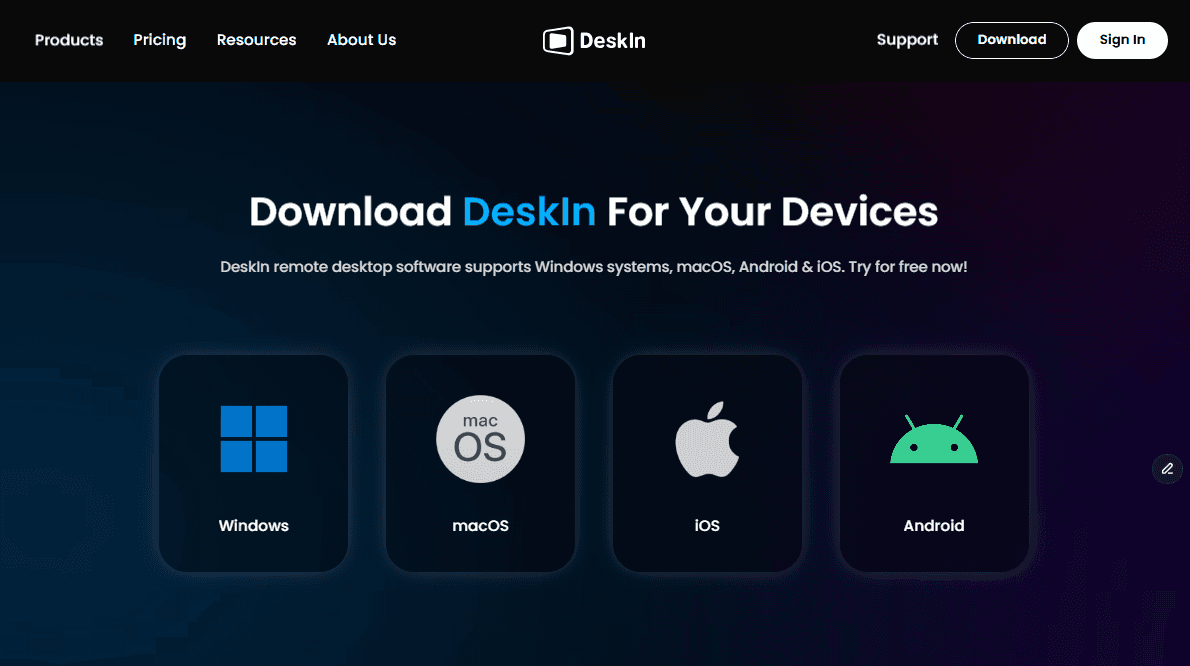
Visit DeskIn Personal Download and install it on both devices. Create and log in to your account on both devices. DeskIn offers a free trial, and you can start using it immediately.

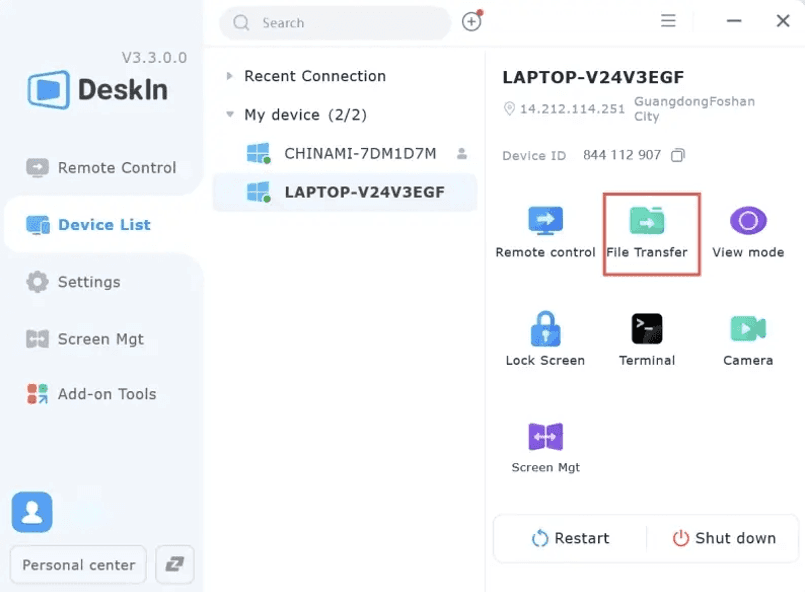
Navigate to the Device List, find the target PC, click the File Transfer button, and enter the Password (Remote Control).
Note: If your two devices are not logged into the same account, you will also need to enter the device code.
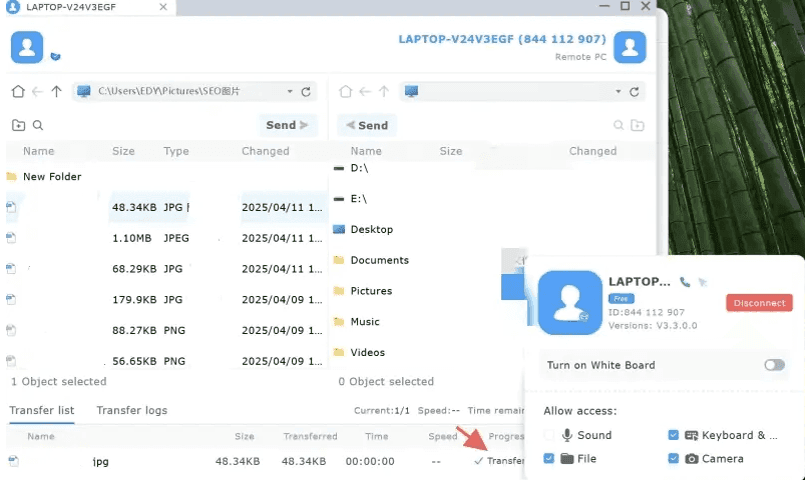
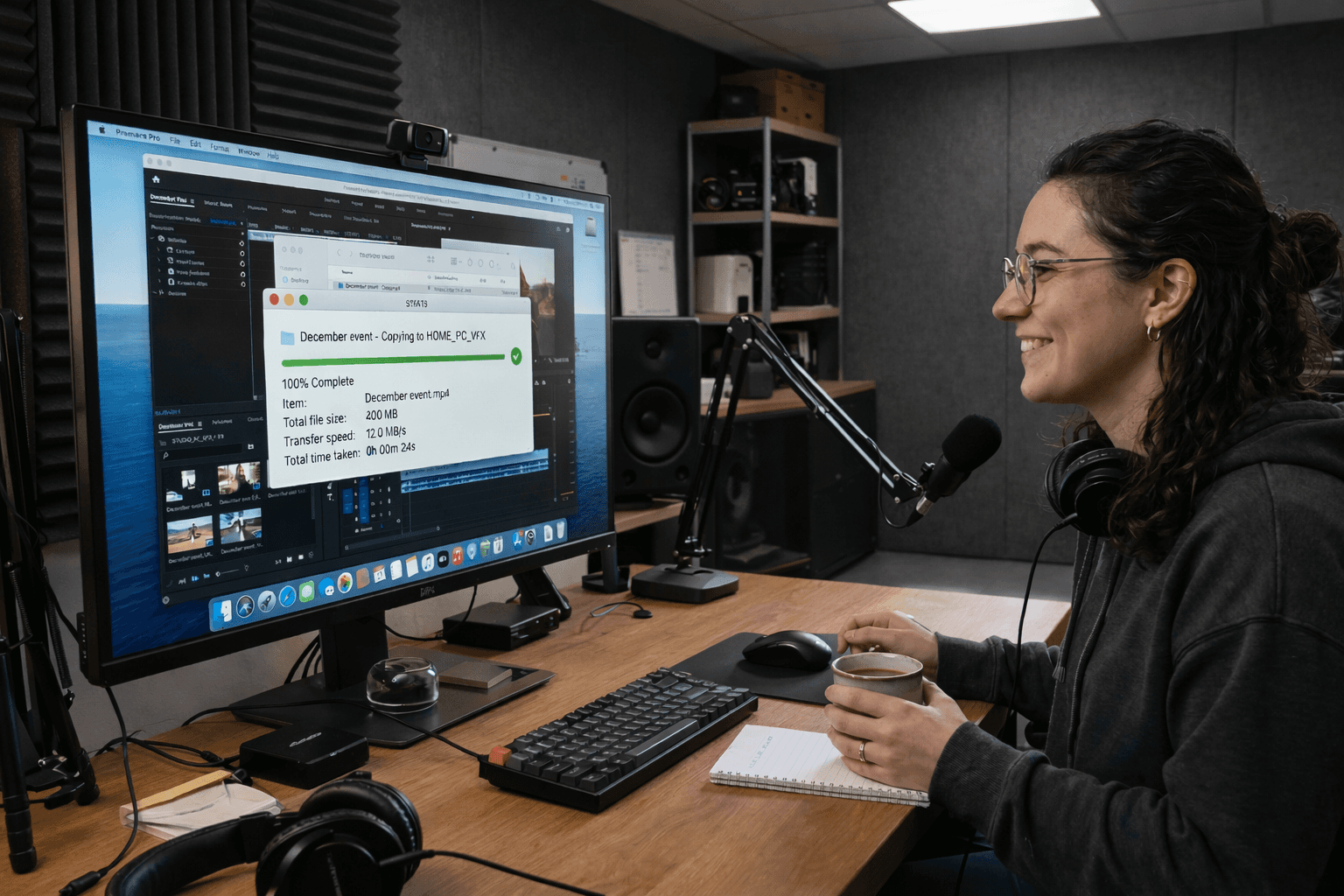
Simply drag and drop files between your computers. DeskIn will transfer files at 12MB/s. At the bottom of the page, you can track the progress of the file transfer. After a successful transfer, you can see the transferred files in your folder.
Note: DeskIn supports cross-system file transfers of unlimited size, type, and number.
That's it. Your files move directly - no cloud staging, no size limits on the free tier for transfers, and no waiting for uploads to finish before downloads can start.
You may also like:
No internet required; works anywhere
One‑time hardware cost; no subscriptions
Total physical control: Are files directly on my computer at all times
A physical device can be lost, stolen, or dropped
No built‑in encryption; data is exposed if the drive is misplaced
You must own a drive large enough to hold all your data
The Reddit user facing a terabyte of data wasn't exaggerating: "I want to transfer about 1TB of data. It's mostly just in a few folders." When you're moving that much information, cloud uploads can take days. External drives are still the fastest option for moving large amounts of data.
Connect the external hard drive to your old PC
Open your file explorer and drag the files or folders you want to transfer into the drive
Safely eject the hard drive and connect it to your new PC
Open the drive in your File Explorer and move the files to their new location
Pro tip: If you are moving your files directly to Windows system folders (like the entire C:\Users directory), you may need administrator permissions. Copy what you can; use DeskIn for the rest.
You may also like:
Faster than external HDDs for thousands of small files
No router or Wi‑Fi needed
Often includes simple transfer software
Requires a specialized USB cable transfer files — not a standard USB cord
PCs must be within cable length (usually 1–2 meters)
Driver CDs are often included; new PCs may lack optical drives
Cable becomes e‑waste after one use
The Reddit user who asked about bridging cables hit the exact pain point: "I've read about USB bridging cables, but you seem to need to install software from a CD. My new computer does not have a CD-ROM drive." This method works—if you can solve the driver dependency before your old PC is packed away.
Connect the cable to both PCs using the appropriate USB ports
Launch the software that came with the cable (usually auto-installs)
Select the files or folders you want to transfer and begin the process
Can you use an HDMI cable?
No. This question appears in forums constantly. HDMI carries video and audio. It does not carry your documents.
No new hardware to buy
Good for ongoing, recurring transfers
Works wirelessly; no cables between PCs
Speed is capped by your router and Wi‑Fi congestion
Both PCs must be powered on and on the same network
Initial setup requires navigating Windows Settings
If you frequently ask how to move downloads from one laptop to another in the same household, network sharing is the easiest ongoing option. Once set up, it works like moving files between folders on one computer — no speed limits, no USB sticks.
Connect both PCs to the same Wi‑Fi or wired network.
On the source PC, open Settings > Network & Internet > Ethernet (or Wi‑Fi) and ensure the network profile is set to Private.
Go to Control Panel > Network and Sharing Center > Advanced sharing settings.
Turn on Network discovery and File and printer sharing.
Right‑click the folder you want to share → Properties → Sharing → Share.
On the destination PC, open File Explorer, click Network in the sidebar, and double‑click the source PC's name.
For remote workers: You can also transfer files over remote desktop by connecting to the office PC and mapping local drives in the Remote Desktop session—ideal for pulling specific files while travelling.
Files are encrypted in transit and at rest
Accessible from any device, anywhere
No physical media to lose or damage
Requires a paid subscription for large volumes
Upload then = double the time
Speed is entirely dependent on your internet pipe
Not everyone is doing a one-time migration. Some users want their files to live in the cloud permanently—available on their phone, tablet, and laptop simultaneously. Cloud storage is less a "transfer method" and more a permanent relocation.
Install your preferred cloud provider's desktop app (Google Drive, OneDrive, Dropbox) on the old PC.
Sign in. Choose which folders to sync to the cloud.
Wait for the upload to complete. (For 1TB of data on average U.S. broadband, plan for roughly 48 hours of uninterrupted upload.)
On the new PC, install the same app and sign in with the same account.
The files will sync down to the new machine.
Heads up: If you delete a synced file on one device while both are signed in, it will be deleted everywhere. Always sign out of your old PC before wiping it.
Transfers applications, settings, and user profiles — not just files
High security (SFTP, AES‑256) for regulated industries
Can schedule transfers during off‑peak hours
Expensive (often enterprise licensing)
Steep learning curve
Massive overkill for most home users
The Reddit user asking "How do I get everything on my old PC on my new PC?" might not realize that "everything" includes application configurations, saved login sessions, and system tweaks accumulated over the years. Regular tools move your files. Migration software moves everything, including your apps, settings, and saved sessions.
Install the migration software on both PCs.
Choose a transfer type: network, direct cable, or external media.
Select which system elements to migrate (files, apps, settings).
Follow the vendor's wizard to complete the transfer.
When you actually need this: If you are moving your files directly on Windows system folders that Windows locks during normal operation, or if you are migrating an entire domain‑joined corporate machine, consumer tools won't cut it. This is a job for IT.
You may also like:
For personal files: Use DeskIn for a fast, wireless transfer—it's free for up to 2 GB and inexpensive for larger volumes. Unlike a bridging cable, you don't need to hunt down drivers or worry about whether your new PC has a CD-ROM drive.
For system settings: Use the built‑in Windows Backup app (Settings > Accounts > Windows Backup) to sync your preferences to your Microsoft account. Restore them during Windows 11 setup.
DeskIn requires zero configuration beyond installing and logging in to the app. Both PCs discover each other automatically: no network sharing settings to toggle, no folder permissions to configure. If you prefer native tools, Windows Nearby Sharing works when both devices are on the same Wi‑Fi, but it can be finicky with large folders. DeskIn handles bulk transfers more reliably.
This is the exact situation DeskIn was built for. The Reddit user with "a PC with a Type C port and another PC with a Type A port" doesn't need an adapter, a dongle, or a special cable. Use a wireless method. DeskIn or local network sharing means port types don’t matter at all. Your files move over Wi-Fi instead.
Yes, absolutely — if you plan to sell, recycle, or give it away. Deleting files and emptying the Recycle Bin is not enough. On Windows 10 or 11: go to Settings > System > Recovery, click Reset this PC, and select Remove everything. This ensures your personal data is unrecoverable. Before you wipe it, double-check that DeskIn (or your chosen transfer method) successfully moved everything. Once you reset, there's no going back.
No single method works for everyone — only the right one for your situation. External drives are fastest for large data. Windows Sharing works well at home. Migration software is for IT pros. But if you're dealing with mismatched ports, missing CD-ROM drives, or transferring between Windows and Mac, DeskIn is the only tool that skips all those problems. No cables, no drivers, no frustration. DeskIn also works for ongoing remote access, not just one-time transfers.
Start your free DeskIn backup today. No credit card required.
Your new PC is ready, but all your files are still trapped in the old one. USB‑C won't talk to USB‑A, 1TB of data won't fit on a dusty 16GB flash drive, and that transfer cable you bought ships with a driver CD—but new PC doesn't even have a disc drive. These aren't one‑off headaches; they're the exact scenarios real users describe when they search for how to transfer files from PC to PC:
"I have a PC with a Type C port and another PC with a Type A port.
When I connect these, I am unable to transfer files."
"My new computer does not have a CD-ROM drive. How do I install the driver?"
"How do I get everything on my old PC on my new PC?"
Six methods exist. One of them is wireless, free to start, and completely independent of whether your computers run Windows, macOS, or other USB languages. Let's find yours!
Method | Best For | Hardware Needed | Speed | Skill Level |
|---|---|---|---|---|
DeskIn | Users with mismatched ports, mixed Windows/Mac, or anyone who hates cables | None
| Fast | Beginner |
External Hard Drive | One‑time, massive transfers (1 TB+) where the internet is slow | USB drive/ SSD | Very fast | Beginner |
USB Transfer Cable | Offline wired transfer; both PCs on the same desk | Special bridging cable | Fast | Intermediate (driver hunt) |
Local Network | Home/office users with both PCs on the same router | None | Medium | Intermediate |
Cloud Storage | Ongoing sync; files needed on multiple devices | None | Slow | Beginner |
PC Migration Software | Full system migration, including apps and settings | None | Medium‑Fast | Advanced / IT pro |
No cables, no adapters, no driver CDs – works entirely over Wi-Fi
Compatible with both Windows and macOS – easy cross-platform transfer
No file size limits – send 100GB+ videos or backups without splitting
Direct peer-to-peer transfer – files never touch a third-party cloud server
Drag-and-drop simplicity – no network discovery or drive mapping required
AES-256 encryption – your files are secure
Free tier available – no credit card required to start
Requires both PCs to be on the internet
Mismatched ports and missing drivers are the most common reasons PC-to-PC transfers fail. DeskIn removes both problems. No cable. No adapter. No installation media required. The application establishes a direct, encrypted peer-to-peer connection over Wi-Fi. It works on both Windows and macOS, and port types don’t matter.
DeskIn bypasses the physical layer entirely: No dongles, no "driver not found" errors, no expensive docks. This is also the only consumer‑friendly tool on this list that lets you transfer files between Windows and Mac wirelessly without any technical setup. Your old Windows workhorse and your new MacBook Air? They shake hands instantly.
Visit DeskIn Personal Download and install it on both devices. Create and log in to your account on both devices. DeskIn offers a free trial, and you can start using it immediately.
Navigate to the Device List, find the target PC, click the File Transfer button, and enter the Password (Remote Control).
Note: If your two devices are not logged into the same account, you will also need to enter the device code.
Simply drag and drop files between your computers. DeskIn will transfer files at 12MB/s. At the bottom of the page, you can track the progress of the file transfer. After a successful transfer, you can see the transferred files in your folder.
Note: DeskIn supports cross-system file transfers of unlimited size, type, and number.
That's it. Your files move directly - no cloud staging, no size limits on the free tier for transfers, and no waiting for uploads to finish before downloads can start.
You may also like:
No internet required; works anywhere
One‑time hardware cost; no subscriptions
Total physical control: Are files directly on my computer at all times
A physical device can be lost, stolen, or dropped
No built‑in encryption; data is exposed if the drive is misplaced
You must own a drive large enough to hold all your data
The Reddit user facing a terabyte of data wasn't exaggerating: "I want to transfer about 1TB of data. It's mostly just in a few folders." When you're moving that much information, cloud uploads can take days. External drives are still the fastest option for moving large amounts of data.
Connect the external hard drive to your old PC
Open your file explorer and drag the files or folders you want to transfer into the drive
Safely eject the hard drive and connect it to your new PC
Open the drive in your File Explorer and move the files to their new location
Pro tip: If you are moving your files directly to Windows system folders (like the entire C:\Users directory), you may need administrator permissions. Copy what you can; use DeskIn for the rest.
You may also like:
Faster than external HDDs for thousands of small files
No router or Wi‑Fi needed
Often includes simple transfer software
Requires a specialized USB cable transfer files — not a standard USB cord
PCs must be within cable length (usually 1–2 meters)
Driver CDs are often included; new PCs may lack optical drives
Cable becomes e‑waste after one use
The Reddit user who asked about bridging cables hit the exact pain point: "I've read about USB bridging cables, but you seem to need to install software from a CD. My new computer does not have a CD-ROM drive." This method works—if you can solve the driver dependency before your old PC is packed away.
Connect the cable to both PCs using the appropriate USB ports
Launch the software that came with the cable (usually auto-installs)
Select the files or folders you want to transfer and begin the process
Can you use an HDMI cable?
No. This question appears in forums constantly. HDMI carries video and audio. It does not carry your documents.
No new hardware to buy
Good for ongoing, recurring transfers
Works wirelessly; no cables between PCs
Speed is capped by your router and Wi‑Fi congestion
Both PCs must be powered on and on the same network
Initial setup requires navigating Windows Settings
If you frequently ask how to move downloads from one laptop to another in the same household, network sharing is the easiest ongoing option. Once set up, it works like moving files between folders on one computer — no speed limits, no USB sticks.
Connect both PCs to the same Wi‑Fi or wired network.
On the source PC, open Settings > Network & Internet > Ethernet (or Wi‑Fi) and ensure the network profile is set to Private.
Go to Control Panel > Network and Sharing Center > Advanced sharing settings.
Turn on Network discovery and File and printer sharing.
Right‑click the folder you want to share → Properties → Sharing → Share.
On the destination PC, open File Explorer, click Network in the sidebar, and double‑click the source PC's name.
For remote workers: You can also transfer files over remote desktop by connecting to the office PC and mapping local drives in the Remote Desktop session—ideal for pulling specific files while travelling.
Files are encrypted in transit and at rest
Accessible from any device, anywhere
No physical media to lose or damage
Requires a paid subscription for large volumes
Upload then = double the time
Speed is entirely dependent on your internet pipe
Not everyone is doing a one-time migration. Some users want their files to live in the cloud permanently—available on their phone, tablet, and laptop simultaneously. Cloud storage is less a "transfer method" and more a permanent relocation.
Install your preferred cloud provider's desktop app (Google Drive, OneDrive, Dropbox) on the old PC.
Sign in. Choose which folders to sync to the cloud.
Wait for the upload to complete. (For 1TB of data on average U.S. broadband, plan for roughly 48 hours of uninterrupted upload.)
On the new PC, install the same app and sign in with the same account.
The files will sync down to the new machine.
Heads up: If you delete a synced file on one device while both are signed in, it will be deleted everywhere. Always sign out of your old PC before wiping it.
Transfers applications, settings, and user profiles — not just files
High security (SFTP, AES‑256) for regulated industries
Can schedule transfers during off‑peak hours
Expensive (often enterprise licensing)
Steep learning curve
Massive overkill for most home users
The Reddit user asking "How do I get everything on my old PC on my new PC?" might not realize that "everything" includes application configurations, saved login sessions, and system tweaks accumulated over the years. Regular tools move your files. Migration software moves everything, including your apps, settings, and saved sessions.
Install the migration software on both PCs.
Choose a transfer type: network, direct cable, or external media.
Select which system elements to migrate (files, apps, settings).
Follow the vendor's wizard to complete the transfer.
When you actually need this: If you are moving your files directly on Windows system folders that Windows locks during normal operation, or if you are migrating an entire domain‑joined corporate machine, consumer tools won't cut it. This is a job for IT.
You may also like:
For personal files: Use DeskIn for a fast, wireless transfer—it's free for up to 2 GB and inexpensive for larger volumes. Unlike a bridging cable, you don't need to hunt down drivers or worry about whether your new PC has a CD-ROM drive.
For system settings: Use the built‑in Windows Backup app (Settings > Accounts > Windows Backup) to sync your preferences to your Microsoft account. Restore them during Windows 11 setup.
DeskIn requires zero configuration beyond installing and logging in to the app. Both PCs discover each other automatically: no network sharing settings to toggle, no folder permissions to configure. If you prefer native tools, Windows Nearby Sharing works when both devices are on the same Wi‑Fi, but it can be finicky with large folders. DeskIn handles bulk transfers more reliably.
This is the exact situation DeskIn was built for. The Reddit user with "a PC with a Type C port and another PC with a Type A port" doesn't need an adapter, a dongle, or a special cable. Use a wireless method. DeskIn or local network sharing means port types don’t matter at all. Your files move over Wi-Fi instead.
Yes, absolutely — if you plan to sell, recycle, or give it away. Deleting files and emptying the Recycle Bin is not enough. On Windows 10 or 11: go to Settings > System > Recovery, click Reset this PC, and select Remove everything. This ensures your personal data is unrecoverable. Before you wipe it, double-check that DeskIn (or your chosen transfer method) successfully moved everything. Once you reset, there's no going back.
No single method works for everyone — only the right one for your situation. External drives are fastest for large data. Windows Sharing works well at home. Migration software is for IT pros. But if you're dealing with mismatched ports, missing CD-ROM drives, or transferring between Windows and Mac, DeskIn is the only tool that skips all those problems. No cables, no drivers, no frustration. DeskIn also works for ongoing remote access, not just one-time transfers.
Start your free DeskIn backup today. No credit card required.


炎魔忍耐跳到中風,手機玩Artale難操作又發燙,教你一招解決卡頓、耗電問題
想用手機玩 Artale,體驗下來卻問題多多?炎魔忍耐跳到一半卻按錯方向,虛擬按鍵擋住平台,練功一段時間後,手機開始發燙、掉幀,甚至直接閃退。這些都是巴哈姆特與 Threads 玩家在手機玩 Artale 經常遇到困擾。要解決這個問題,推薦你用 DeskIn 遠端桌面直接連回 Windows 或 Mac 電腦來遊玩原生楓之谷 Artale。
本文會向你詳細介紹造成手機玩原生 Artale 發燙卡頓問題的原因,並介紹如何用 DeskIn 遠端桌面在手機遊玩電腦版 Artale 來解決以上問題,獲得更順暢的遊戲體驗。
你可能感興趣:
在遊戲論壇巴哈姆特和 Threads 上,玩家回饋最多的關於手機玩Artale的問題包括:
手機發燙、耗電快,長時間遊玩後畫面開始掉幀。
載入地圖或登入速度慢,網路不穩時容易卡在 Loading 畫面。
怪物、玩家與技能特效同時出現時,容易卡頓或閃退。
虛擬搖桿反應不靈敏,長按、轉向或跳躍容易失誤。
按鍵、選單遮住地圖,可能點錯道具或看不清平台。
需要頻繁補藥、走位與施放技能時,手指容易疲勞。
iPad 同時按多鍵的體驗有限,組合操作或跳躍攻擊較難完成。
部分舊款 iPad 會在登入 Artale 時還會出現閃退。
原生 App 的遊戲運算、畫面渲染、網路傳輸與螢幕顯示都由手機負責。以下情況會讓負載進一步升高:
高畫質、高幀率及大量技能特效會增加 CPU 與 GPU 負擔。
記憶體不足或背景 App 過多,可能導致重新載入、黑畫面或閃退。
手機過熱後可能自動降低處理器效能,造成掉幀與操作延遲。
長時間維持高亮度、行動網路或錄影功能,會加快耗電。
邊充電邊玩、使用厚重保護殼或處於高溫環境,都會妨礙散熱。
網路波動也可能造成地圖載入緩慢、角色「拉回」或攻擊判定延遲。這類問題不一定代表手機效能不足,需要把裝置負載與連線狀況分開檢查。
Artale 的原生UI設計不靈敏,尤其是在小尺寸觸控螢幕,容易出現以下限制:
虛擬搖桿缺少實體回饋,短跳、轉向與繩梯移動較難精準控制。
技能、補藥與功能鍵數量多,按鍵容易重疊或遮住遊戲畫面。
手指會擋住角色與平台,炎魔忍耐等關卡更容易誤判落點。
背包、商城與聊天仍需要點擊較小的 UI,容易誤觸或點錯道具。
長時間維持同一握姿並頻繁按鍵,容易造成手指與手腕疲勞。
因此,即使手機效能足夠,操作不順也可能來自介面與輸入方式,而不只是發燙或網路問題。
與其讓手機直接執行遊戲,你可以透過 DeskIn 連回電腦,將 Artale 畫面串流到手機並傳送操作指令。此時手機主要負責串流和傳輸畫面和操作,遊戲運算和執行仍然使用電腦的硬體效能,能大大減少發熱、卡頓甚至閃退的問題。
透過 DeskIn 遠端桌面連回電腦玩Artale,CPU、GPU 與遊戲資料主要由 Windows 或 Mac 電腦處理,手機只負責串流畫面和操作映射,能大大減少手機本機渲染負載,避免原生執行遊戲造成的負擔。
DeskIn 支援 iOS、安卓、Windows和Mac,你可以隨時切換遊玩裝置,連回同一台 Windows 或 Mac 直接操作電腦上的Artale,不需要重複登入動作,也不用重新熟悉不同裝置的UI和操作。
DeskIn 的「遊戲鍵盤」功能可以讓你在螢幕上放置方向鍵、滑鼠按鍵、跳躍等技能按鍵,甚至組合按鍵。你可以隨意調整大小、透明度及位置,保證不會遮擋重要畫面並且符合自己操作習慣。依照不同職業與關卡,你可以保存多款佈局,下次使用時一鍵切換即可。
如果嫌手機螢幕太小,長時間操作產生疲勞,你耶可以將手把連接到手機或平板,使用實體搖桿與按鍵控制遠端電腦。
DeskIn 遠端桌面有智慧網路優化技術,保證連線更穩定,在連線時也可以看到實時的網路狀況、延遲、幀率數據,方便玩家及時手動調整畫質幀率,獲得更順暢的遊戲體驗。
步驟 1:在 Mac 或 Windows 電腦裝好 Artale
在電腦上安裝官方 Maplestory World 主程式和相關的遊戲,確保可以正常登入遊玩 Artale。
步驟 2:手機、電腦安裝 DeskIn App
在運行 Artale 的 Mac 或 Windows 電腦 安裝 DeskIn 桌面版;再到 App Store 或 Google Play 安裝 DeskIn應用程式。手機和電腦 登入同一個帳號,並在被控電腦開啟無人值守,關閉電腦休眠並設定好連線密碼,保證可以隨時從手機接入遊戲。
步驟 3:透過密碼驗證從手機連回電腦楓之谷
手機和電腦 登入同一個帳號之後,在手機DeskIn的裝置列表點選電腦裝置,輸入連線密碼後就能成功連回電腦,打開並開始遊玩電腦版 Artale 了。
如果你想在iPad 或 Android 平板玩《新楓之谷:經典版》,請同樣參考上述步驟。
若希望人在外面也能連線,電腦必須必須保持開機、連上網路且不進入睡眠。對於 Windows 電腦,你可以提前設定 WOL遠端開機,條件允許時,主機使用有線網路通常比 Wi-Fi 更穩定。
官方 Artale 手遊的虛擬按鍵使用體驗並不好,在使用 DeskIn 遠端電腦遊玩 Artale 時,你可以更靈活地在螢幕佈置虛擬按鍵位置,以獲得更順手的遊戲體驗。楓之谷不同角色職業的技能配置差異很大,如果同時養多個角色,DeskIn 支援把不同角色的按鍵方案分開保存下次使用一鍵切換:
步驟 1:手機連上電腦後,底部工具列選單找到「鍵盤」>>「遊戲鍵盤」。
步驟 2:點選「新建鍵盤」,依需加入滑鼠、鍵盤與方向控制,並調整大小、透明度和位置。你也可以設定組合按鍵並為其命名,實現一鍵放大招。完成後以角色職業(例如「法師」「盜賊」)命名並保存。
步驟 3:如果你練的不同職業角色鍵盤差距較大,可以重複步驟2設定多個鍵盤,之後在不同角色練功時,在「遊戲鍵盤」介面切換鍵盤。
詳細的設定步驟可以查看:手機自訂遊戲鍵盤教學。
長期打怪時,使用虛擬按鍵可能還是不夠爽,DeskIn也支援使用本地遊戲手把來操作遠端電腦上的 Artale 遊戲,具體步驟如下。
步驟 1:先將手機與藍牙/有線遊戲手把完成配對。
步驟 2:在 DeskIn 連線畫面展開底部工具列選單「鍵盤」>>「手把映射」,點擊你的遊戲手把啟動即可。
步驟 3:連上之後可以先測試功能映射是否正常。
詳細步驟可查看 DeskIn 手把映射教學。
如果仍想使用原生 App,可以先從下列設定降低負載:
降低遊戲畫質、特效與幀率,不要一開始便使用最高設定。
降低螢幕亮度,關閉錄影、直播、定位及不必要的背景 App。
避免邊充電邊玩;手機明顯發燙時,先停止遊戲並自然降溫。
拆下妨礙散熱的厚重保護殼,避免在陽光直射或高溫環境遊玩。
改用穩定 Wi-Fi,避免手機在訊號不佳時反覆搜尋或切換網路。
更新遊戲 App 與手機系統,並保留足夠的儲存空間。
縮短單次遊玩時間;若出現溫度警告、觸控異常或自動關機,應立即停止使用。
長時間執行遊戲後溫度上升並不少見,但不應忽略系統溫度警告、觸控失靈、異常關機或電池膨脹。出現這些情況時應立即停止遊玩,待裝置降溫後再檢查。
除了處理器效能,記憶體使用量、散熱、遊戲更新、背景 App 與網路品質都會影響體驗。先降低畫質並關閉背景 App,再更換穩定網路測試,較容易判斷瓶頸。
不會。遠端方式能把主要遊戲運算留在 Windows 電腦,但手機仍要進行影像解碼、網路傳輸與螢幕顯示。降低畫質、幀率與亮度,並保持網路穩定,通常更實際。
DeskIn 可讓玩家重新配置方向、跳躍、技能與補藥的位置、大小及透明度,也能改用相容手把。但實際反應仍受觸控裝置、網路延遲與遠端設定影響,建議先在安全地圖測試。
可以嘗試,但觸控輸入與網路延遲會提高難度。建議簡化按鍵、保留平台可視範圍,並先練習短跳與方向切換;若仍經常誤觸,可改用實體手把或回到本機鍵盤操作。
想快速登入、進行簡單任務,可先使用原生 App;如果手機持續發燙、操作介面不順,且手邊已有 Windows 電腦,DeskIn 遠端會更適合長時間練功、炎魔忍耐或需要多按鍵的場景。也可以先閱讀手機玩所有楓之谷版本,比較不同版本與裝置需求。
手機玩原生楓之谷時,發燙、卡頓與耗電通常來自裝置負載、散熱及網路;難操作則常與虛擬搖桿、按鍵遮擋及觸控回饋不足有關。只調低畫質不一定能同時解決兩類問題。
如果已有 Windows 電腦,推薦你下載 DeskIn 連回電腦遊玩 MapleStory Worlds/Artale,可以有效避免卡頓、發熱、閃退的問題,同時也能隨時在手機享受楓之谷的樂趣,虛擬按鍵的操作也比手機原生的更順手,快來試試吧!

手機要怎麼領取《特戰英豪》VALORANT 禮物包?
還在煩惱出門在外沒有電腦,錯過特戰英豪限時夜市折扣、每日商店新皮、賽季通行證獎勵與王國商店免費配飾更新?
什麼?原來手機也能輕鬆登入特戰英豪,隨時翻開夜市折扣卡牌、挑選心儀槍械皮膚、查閱通行證進度、兌換限定掛飾噴漆,不錯過每一輪遊戲福利與限定好物,不用死守電腦前,通勤、休閒出門都能隨心操控電腦端遊戲界面,快來 DeskIn 體驗低延遲遠端串流,隨時隨地暢覽特戰英豪四大商店體系!

VALORANT 擁有四大獨立的道具與皮膚獲取體系,各自規則、獎池、刷新機制完全獨立互不干擾:限時夜市、常駐每日商店、賽季通行證、王國商店。
限時夜市:官方不定期開放的折扣活動,每位玩家固定獲得 6 張隨機皮膚折扣卡,拆開後內容不可更改。折扣範圍為 10%-49%,每個帳號獎勵皆不同。獎池僅包含上架滿兩個 Act 的部分槍械皮膚,不含通行證、新套裝、終極皮膚、限定系列與高價近戰武器。
每日商店:遊戲常駐商店,每日凌晨刷新 4 款隨機單件槍械皮膚,不可手動刷新。商品多以原價出售,少數款式可能提供限時折扣。獎池涵蓋大部分新舊槍械皮膚,是玩家購買單槍皮膚的主要渠道,但部分限定與高階道具不會出現。
賽季通行證:每個 Act 限時更新,分為免費與付費路線。付費解鎖後可獲得賽季專屬皮膚、掛飾、噴漆、擊殺特效等獎勵。所有內容皆為賽季限定,不會進入夜市或商店,賽季結束後無法補購或再次取得。
王國商店:免費周更配飾商店,每週三刷新,每位玩家隨機獲得 4 款配飾。僅能使用遊戲內獲得的王國幣兌換,不提供 VP 購買或折扣。獎池包含往期通行證配飾,如掛飾、噴漆、名片與稱號,不包含槍械皮膚。
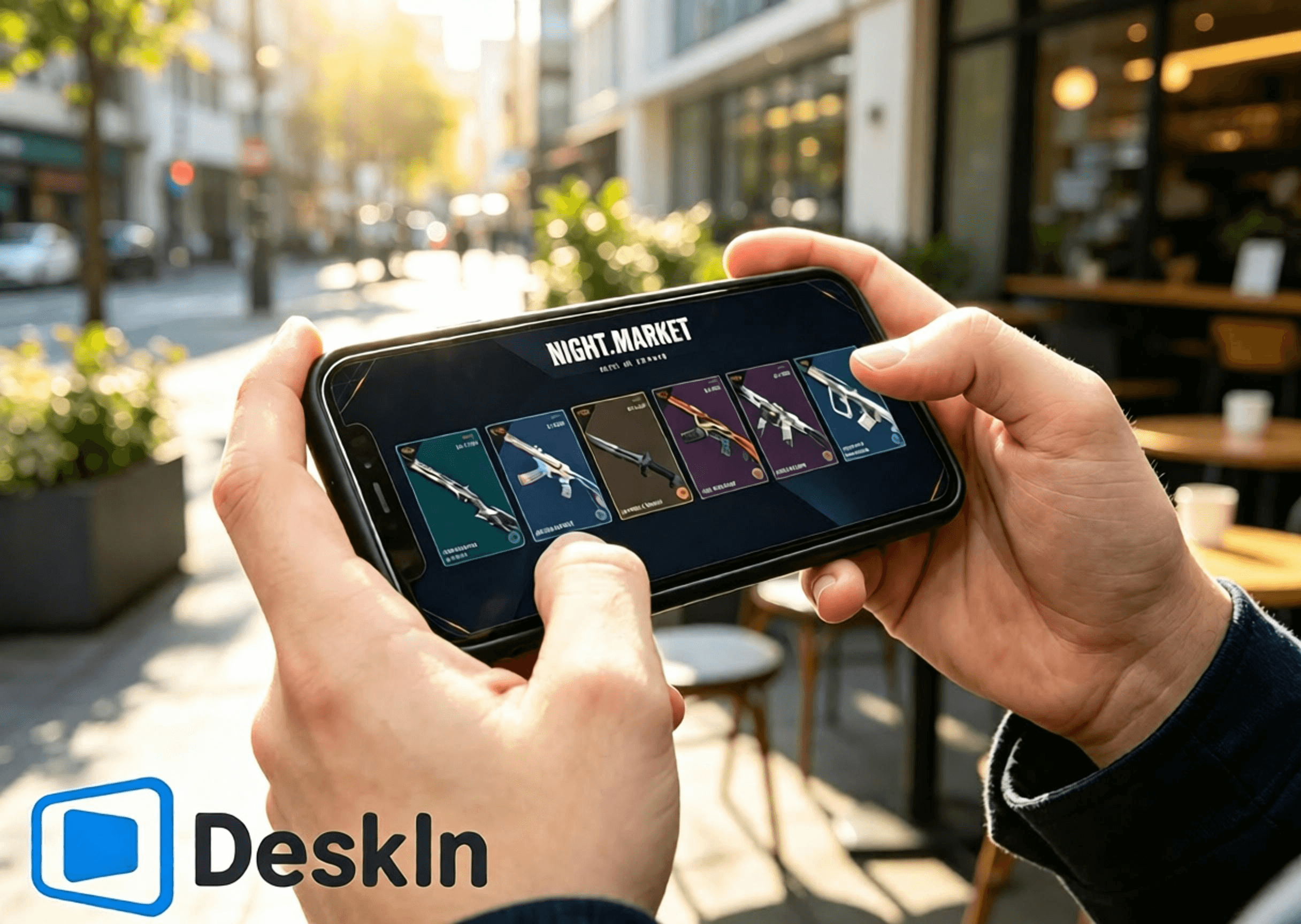
⚡超低延遲串流,翻夜市卡、刷每日商店、瀏覽通行證獎勵、切換王國商店頁面順滑無卡頓
🛠️安裝登錄簡單,一鍵建立連線,新手零門檻上手
💻雙系統電腦全适配:Windows、Mac 皆可作為被控主機運行遊戲與商店
📱全覆蓋移動設備:安卓、iPhone、iPad 均可遠端操控、瀏覽四大商店體系
🔧支援自定義觸控按鍵布局,商店操作界面可隨意調整不遮擋內容
🖼️高清畫面傳輸,皮膚建模、光影細節、通行證特效、配飾細節完整清晰
🎮頂級畫質帧率,支持4K/60fps、2K/240fps雙模式切換,畫面流暢絲滑,觀賞皮膚特效、細節展示無拖影
✨極致毫秒級延遲,穩定壓縮40ms以內超低延時,遠端點擊商店、切換頁面零滯後、無延遲錯位
官方下載通道:
Windows 電腦
電腦安裝特戰英豪客戶端,登錄個人拳頭帳號,提前完成遊戲本體與 Vanguard 反作弊完整更新,避免遠端連線後彈出更新、重啟提示,影響查看夜市、每日商店、通行證與王國商店。
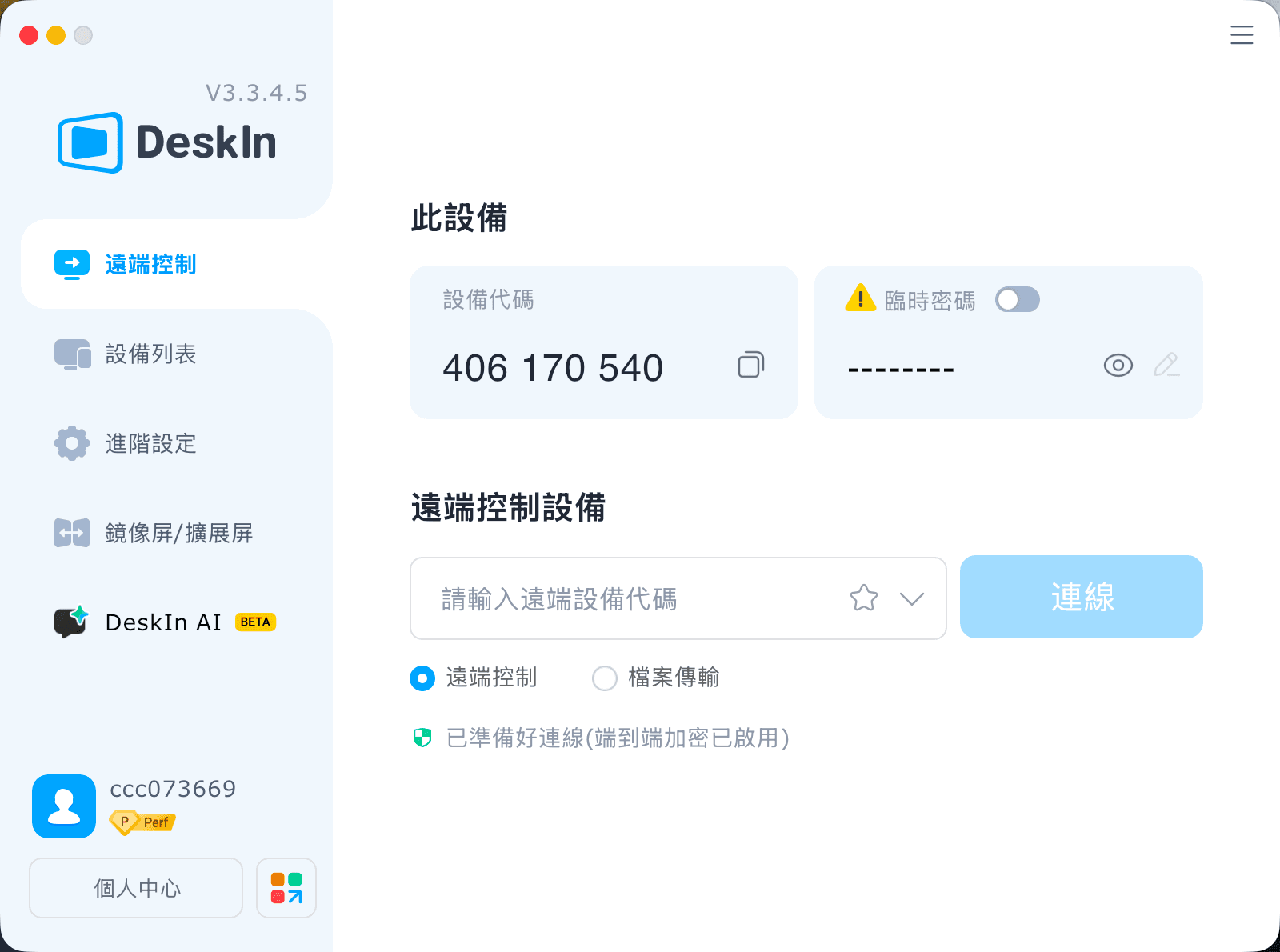
前往 DeskIn 官網下載安裝電腦客戶端,註冊並登錄個人專屬帳號,保持軟體常駐後台、設備在線待命,確保手機可隨時發起連線。
在安卓手機登入特戰英豪查看商店&領取禮包完整步驟
DeskIn 支援安卓設備一鍵遠端連線,隨時隨地查看夜市、每日商店、賽季通行證、王國商店,無需坐在電腦前操作。
下載DeskIn
安卓手機前往官方渠道下載正版 DeskIn 移動端,與電腦、虛擬機登錄完全一致的帳號,完成設備綁定配對,確保兩端網路正常連通。
建立遠端連線
打開手機端 DeskIn,選取已在線的 Windows/Mac 被控主機並發起連線;手機切換橫屏模式,拓寬操作視野,完整顯示遊戲商店界面。確認桌面畫面載入正常、觸控點擊順滑響應,遊戲運行、帳號數據、商店數據全部儲存於電腦端,手機僅負責畫面接收與觸控指令傳輸。
逐項查看四大商店內容
電腦端啟動無畏契約,進入遊戲主界面後可自由切換各大商店頁面:
✅ 限時夜市:點擊右上角夜市圖標,逐張翻開 6 張專屬折扣卡牌,記錄皮膚款式、原價、折後價與折扣比例,心儀皮膚可截圖留存對比,卡牌翻開後全程鎖定無法重置。
✅ 每日商店:打開常駐商店頁面,查看當日隨機刷新的 4 款單件槍械皮膚,確認款式與售價,把握零散單入皮膚的機會。
✅ 賽季通行證:進入通行證界面,瀏覽免費與付費進階獎勵進度、剩餘可領取道具,確認是否需要升級通行證、趕在賽季結束前拿滿絕版獎勵。
✅ 王國商店:打開王國幣兌換頁面,查看本週三刷新的 4 款專屬配飾,檢查掛飾、噴漆、名片、稱號是否為自身缺失道具,按需使用王國幣免費兌換。
在iOS登入特戰英豪查看商店&領取禮包完整步驟(iphone/ipad)
在iPhone、iPad登入特戰英豪查看商店&領取禮包完整步驟
蘋果設備同樣完整支援四大商店遠端查看,操作簡單、畫面清晰,大屏 iPad 更適合細緻瀏覽皮膚與配飾細節。
兩端帳號綁定配對
電腦端提前安裝並登錄 DeskIn,保持設備在線;iPhone、iPad 前往 App Store 下載正版 DeskIn,登錄與電腦端相同的帳號完成設備配對。建議提前在電腦登錄正確拳頭帳號,四大商店數據均與帳號綁定,登錯帳號無法查看個人專屬內容。
iOS 設備連線主控電腦
打開手機、平板端 DeskIn,選取對應 Windows/Mac 主機建立遠端連線,全程切換橫屏使用。小尺寸 iPhone 適合快速翻卡、查價、瀏覽商店更新;大屏 iPad 畫面視野充足,適合細緻觀看武器建模、動畫特效、通行證獎勵細節與配飾樣式。
全商店功能瀏覽操作
啟動遊戲後可自由切換四大商店頁面:查看夜市專屬折扣皮膚、核對每日商店刷新款式、檢查賽季通行證升級進度與絕版獎勵、瀏覽本週王國商店免費配飾。需注意夜市折扣僅適用皮膚本體,特效升級、額外配色需單獨消耗輻能點數購買,最高折扣可達 49%。

VALORANT 暫無原生 Mac 版本,Mac 用戶可透過虛擬機、雲 Windows 環境運行遊戲,同樣支援完整查看四大商店體系:
提前搭建穩定的 Windows 運行環境,安裝無畏契約並登錄個人拳頭帳號,完成所有遊戲與反作弊更新,確保客戶端可正常開啟商店頁面。
Mac 系統安裝 DeskIn 桌面版,登錄與手機端相同的帳號,將搭載遊戲的 Windows 虛擬機設為被控主機,保持軟體在線,即可隨時透過手機遠端操控查看所有商店內容。
僅用於瀏覽商店、查看皮膚與配飾,無需高帧率競技參數,以穩定、流暢、清晰為優先設定:
全程開啟橫屏模式,完整适配商店界面布局,避免畫面裁切
解析度優先選擇 720P/1080P,平衡清晰度與流暢度
優先連接 5GHz/6GHz 高速 WiFi,大幅降低網路延遲與波動
觸控遲鈍、畫面卡頓時,適當下調碼率與畫面清晰度,優保穩定性
遠端連線期間,關閉電腦下載、系統更新、遊戲更新等佔網路進程
調整虛擬觸控按鈕位置,不遮擋夜市卡牌、每日商店皮膚、通行證獎勵、王國商店兌換按鈕區域
查看完畢及時截圖留存,方便後期對比皮膚、規劃購買與兌換方案
付款、兌換前二次核對登錄帳號、VP 點數、王國幣餘額,避免操作失誤
大屏平板畫面更大、細節呈現更完整,瀏覽皮膚特效、配飾細節、通行證獎勵體驗遠超手機,專屬優化設置如下:
固定橫向全屏顯示,最大化商店界面視野
解析度調整至 1080P~1440P,完整還原武器光影、動畫細節與配飾質感
電腦主機優先連接有線網路,杜絕網路波動,穩定性拉滿
平板連接高穩定私人 WiFi,避免公共網路延遲、掉線問題
參數優先拉滿畫質,無需追求超高帧率,以觀看體驗為核心
網路輕微波動時,適度下調碼率,保證瀏覽全程流暢不卡頓
自定義觸控按鍵位置,避開商店購買、兌換、預覽按鈕區域,防止誤觸
掠奪、惡鬼、離子、蓋亞復仇、奇幻朋克等自帶動畫特效的經典套裝,以及賽季通行證專屬特效道具,在平板上的觀賞細節與效果會更加出色。
A:完全一致,帳號夜市、商店、通行證數據即時同步,不會有落差。
A:切換色彩模式、適度調整畫面縮放,靜態瀏覽細節會更清晰舒適。
A:僅畫面串流不會修改遊戲檔案,單純瀏覽無風險;官方不建議遠端進行對戰。
A:開啟虛擬螢幕功能,關閉螢幕也可正常擷取畫面、瀏覽商城。
A:遊戲偵測 IP 維持居家區域,不會觸發跨區鎖定與安全驗證。
A:自訂虛擬按鍵布局,或是外接藍牙滑鼠,操作更精準順手。
A:規則統一;王國飾品會輪換返場,通行證賽季結束後永久絕版。
A:同一帳號無法雙開遊戲,關閉一端即可順利切換,資料互通無問題。
特戰英豪VALORANT四大道具體系各有特色:限時夜市是入手低價老牌高階皮膚的唯一機會,最高 49% 折扣,Hi-Dro 全新入池;每日商店常駐輪換,適合零散入手心儀單款槍皮;賽季通行證产出獨家絕版賽季套裝與道具,錯過永久無補;王國商店免費周更,是補齊往期通行證小配飾的核心渠道。
無論身邊是否有電腦,透過 DeskIn 均可將 Windows、Mac 電腦遊戲畫面高清低延遲串流至安卓、iPhone、iPad,隨時隨地翻夜市卡牌、刷每日商店、檢查通行證升級進度、兌換王國商店免費配飾,不错過任何一次折扣與限定福利。

如何在手機/iPad 玩 PUBG 電腦版?DeskIn 遠端遊玩設定與注意事項
臨時外出卻想領活動獎勵、查看商店,或回家前先更新 PUBG?只要 Windows 主機已安裝《PUBG: BATTLEGROUNDS》,即可立即下載 DeskIn,從 iPad、iPhone 或 Android 遠端操作自己的電腦。本文會先釐清版本,再帶你完成連線與控制設定。
方式 | 遊戲在哪裡執行 | 使用的進度 | 適合情境 |
|---|---|---|---|
DeskIn 遠端 PUBG PC | 自己的 Windows 主機 | 原本 PC 帳號與存檔 | 外出查看活動、更新或低風險操作 |
《PUBG MOBILE:絕地求生M》 | iOS/Android 原生 App | 手機版帳號 | 觸控優化的手機遊戲 |
主機版 PUBG | PS5/Xbox Series X|S | 對應主機環境 | 電視與手把遊玩 |
DeskIn 不會把 PUBG PC 轉成手機版,也不會合併 PC、主機與《絕地求生M》的造型、排位或購買內容。你看到 PC 進度,是因為遠端控制同一台電腦。
出差或旅遊時登入、領取限時獎勵、查看商店。
回家前先啟動更新,省下等待時間。
在家中改用 iPad 大螢幕,處理背包、設定或訓練場測試。
手邊沒有 Windows 筆電時,臨時存取自己的遊戲主機。
不過,捷運、高鐵或巴士移動時,行動網路切換可能造成畫面糊化、操作延遲或斷線。排位與近距離槍戰更適合直接在主機前遊玩。
更新 Windows、顯示卡驅動、遊戲與啟動器,並在本機登入一次。確認 PUBG 能正常啟動後,避免主機自動休眠;主機若可接有線網路,連線通常較穩定。
在 Windows 主機與手機/iPad 安裝 DeskIn,登入同一帳號。於主機開啟開機自啟動與無人值守,並設定獨立安全密碼。外出前先用不同網路測試一次。
在手機的裝置清單選擇主機、輸入安全密碼,再開啟 PC 版 PUBG。這只是控制原本的 Windows 桌面,不會建立新的手機版帳號。
射擊遊戲不適合塞滿虛擬按鍵。可先連接相容的藍牙手把,或依DeskIn 手把映射指引設定;若使用虛擬鍵盤,每個按鈕只對應一個遊戲按鍵,不使用連發、巨集或多動作指令。
DeskIn 在合適方案、主機與網路條件下最高支援 4K 60 FPS 或 2K 240 FPS,但手機畫面不需要一開始就追求最高設定。建議先以 1080p、60 FPS 與流程畫質測試,再觀察即時網路數據逐步提高。
延遲來自主機編碼、網路傳輸、手機解碼與輸入回傳。遠端畫面即使流暢,也不等於本機反應時間;先在訓練場確認瞄準、聲音與按鍵,再決定是否進入一般對戰。
DeskIn 不是 KRAFTON、PUBG Studios 或 BattlEye 的官方產品。PUBG 條款可能限制特定遠端存取安排,且規範會更新;連線前應查看最新 PUBG 服務條款。如無法確認,避免用於排位或競技活動,也不要共享帳號、使用巨集、腳本、自動壓槍或自動點擊。
不行。Windows 版不是 iOS 或 Android App;DeskIn 是將自己的 Windows 畫面與操作傳到手機。想要原生觸控版,應下載《PUBG MOBILE:絕地求生M》。
不要預設會同步。遠端連回同一台 PC 會顯示原本的 PC 帳號內容,但不代表手機版、主機版、Steam 與 Epic 之間具有跨平台進度。
不是,但手把通常比小螢幕虛擬按鍵更適合瞄準與移動。相容性依手把、iPadOS、遊戲與連線方式而異,請先在訓練場測試。
可以測試,但移動中的 4G/5G 容易受基地台切換與壅塞影響。先用穩定 Wi‑Fi,並準備在斷線時安全退出。
想在離開電腦時處理 PUBG 活動、更新或輕量操作,可在出門前完成主機與控制測試,再立即下載 DeskIn連回自己的 Windows PC;競技對戰則以穩定網路與直接本機操作為優先。
炎魔忍耐跳到中風,手機玩Artale難操作又發燙,教你一招解決卡頓、耗電問題
想用手機玩 Artale,體驗下來卻問題多多?炎魔忍耐跳到一半卻按錯方向,虛擬按鍵擋住平台,練功一段時間後,手機開始發燙、掉幀,甚至直接閃退。這些都是巴哈姆特與 Threads 玩家在手機玩 Artale 經常遇到困擾。要解決這個問題,推薦你用 DeskIn 遠端桌面直接連回 Windows 或 Mac 電腦來遊玩原生楓之谷 Artale。
本文會向你詳細介紹造成手機玩原生 Artale 發燙卡頓問題的原因,並介紹如何用 DeskIn 遠端桌面在手機遊玩電腦版 Artale 來解決以上問題,獲得更順暢的遊戲體驗。
你可能感興趣:
在遊戲論壇巴哈姆特和 Threads 上,玩家回饋最多的關於手機玩Artale的問題包括:
手機發燙、耗電快,長時間遊玩後畫面開始掉幀。
載入地圖或登入速度慢,網路不穩時容易卡在 Loading 畫面。
怪物、玩家與技能特效同時出現時,容易卡頓或閃退。
虛擬搖桿反應不靈敏,長按、轉向或跳躍容易失誤。
按鍵、選單遮住地圖,可能點錯道具或看不清平台。
需要頻繁補藥、走位與施放技能時,手指容易疲勞。
iPad 同時按多鍵的體驗有限,組合操作或跳躍攻擊較難完成。
部分舊款 iPad 會在登入 Artale 時還會出現閃退。
原生 App 的遊戲運算、畫面渲染、網路傳輸與螢幕顯示都由手機負責。以下情況會讓負載進一步升高:
高畫質、高幀率及大量技能特效會增加 CPU 與 GPU 負擔。
記憶體不足或背景 App 過多,可能導致重新載入、黑畫面或閃退。
手機過熱後可能自動降低處理器效能,造成掉幀與操作延遲。
長時間維持高亮度、行動網路或錄影功能,會加快耗電。
邊充電邊玩、使用厚重保護殼或處於高溫環境,都會妨礙散熱。
網路波動也可能造成地圖載入緩慢、角色「拉回」或攻擊判定延遲。這類問題不一定代表手機效能不足,需要把裝置負載與連線狀況分開檢查。
Artale 的原生UI設計不靈敏,尤其是在小尺寸觸控螢幕,容易出現以下限制:
虛擬搖桿缺少實體回饋,短跳、轉向與繩梯移動較難精準控制。
技能、補藥與功能鍵數量多,按鍵容易重疊或遮住遊戲畫面。
手指會擋住角色與平台,炎魔忍耐等關卡更容易誤判落點。
背包、商城與聊天仍需要點擊較小的 UI,容易誤觸或點錯道具。
長時間維持同一握姿並頻繁按鍵,容易造成手指與手腕疲勞。
因此,即使手機效能足夠,操作不順也可能來自介面與輸入方式,而不只是發燙或網路問題。
與其讓手機直接執行遊戲,你可以透過 DeskIn 連回電腦,將 Artale 畫面串流到手機並傳送操作指令。此時手機主要負責串流和傳輸畫面和操作,遊戲運算和執行仍然使用電腦的硬體效能,能大大減少發熱、卡頓甚至閃退的問題。
透過 DeskIn 遠端桌面連回電腦玩Artale,CPU、GPU 與遊戲資料主要由 Windows 或 Mac 電腦處理,手機只負責串流畫面和操作映射,能大大減少手機本機渲染負載,避免原生執行遊戲造成的負擔。
DeskIn 支援 iOS、安卓、Windows和Mac,你可以隨時切換遊玩裝置,連回同一台 Windows 或 Mac 直接操作電腦上的Artale,不需要重複登入動作,也不用重新熟悉不同裝置的UI和操作。
DeskIn 的「遊戲鍵盤」功能可以讓你在螢幕上放置方向鍵、滑鼠按鍵、跳躍等技能按鍵,甚至組合按鍵。你可以隨意調整大小、透明度及位置,保證不會遮擋重要畫面並且符合自己操作習慣。依照不同職業與關卡,你可以保存多款佈局,下次使用時一鍵切換即可。
如果嫌手機螢幕太小,長時間操作產生疲勞,你耶可以將手把連接到手機或平板,使用實體搖桿與按鍵控制遠端電腦。
DeskIn 遠端桌面有智慧網路優化技術,保證連線更穩定,在連線時也可以看到實時的網路狀況、延遲、幀率數據,方便玩家及時手動調整畫質幀率,獲得更順暢的遊戲體驗。
步驟 1:在 Mac 或 Windows 電腦裝好 Artale
在電腦上安裝官方 Maplestory World 主程式和相關的遊戲,確保可以正常登入遊玩 Artale。
步驟 2:手機、電腦安裝 DeskIn App
在運行 Artale 的 Mac 或 Windows 電腦 安裝 DeskIn 桌面版;再到 App Store 或 Google Play 安裝 DeskIn應用程式。手機和電腦 登入同一個帳號,並在被控電腦開啟無人值守,關閉電腦休眠並設定好連線密碼,保證可以隨時從手機接入遊戲。
步驟 3:透過密碼驗證從手機連回電腦楓之谷
手機和電腦 登入同一個帳號之後,在手機DeskIn的裝置列表點選電腦裝置,輸入連線密碼後就能成功連回電腦,打開並開始遊玩電腦版 Artale 了。
如果你想在iPad 或 Android 平板玩《新楓之谷:經典版》,請同樣參考上述步驟。
若希望人在外面也能連線,電腦必須必須保持開機、連上網路且不進入睡眠。對於 Windows 電腦,你可以提前設定 WOL遠端開機,條件允許時,主機使用有線網路通常比 Wi-Fi 更穩定。
官方 Artale 手遊的虛擬按鍵使用體驗並不好,在使用 DeskIn 遠端電腦遊玩 Artale 時,你可以更靈活地在螢幕佈置虛擬按鍵位置,以獲得更順手的遊戲體驗。楓之谷不同角色職業的技能配置差異很大,如果同時養多個角色,DeskIn 支援把不同角色的按鍵方案分開保存下次使用一鍵切換:
步驟 1:手機連上電腦後,底部工具列選單找到「鍵盤」>>「遊戲鍵盤」。
步驟 2:點選「新建鍵盤」,依需加入滑鼠、鍵盤與方向控制,並調整大小、透明度和位置。你也可以設定組合按鍵並為其命名,實現一鍵放大招。完成後以角色職業(例如「法師」「盜賊」)命名並保存。
步驟 3:如果你練的不同職業角色鍵盤差距較大,可以重複步驟2設定多個鍵盤,之後在不同角色練功時,在「遊戲鍵盤」介面切換鍵盤。
詳細的設定步驟可以查看:手機自訂遊戲鍵盤教學。
長期打怪時,使用虛擬按鍵可能還是不夠爽,DeskIn也支援使用本地遊戲手把來操作遠端電腦上的 Artale 遊戲,具體步驟如下。
步驟 1:先將手機與藍牙/有線遊戲手把完成配對。
步驟 2:在 DeskIn 連線畫面展開底部工具列選單「鍵盤」>>「手把映射」,點擊你的遊戲手把啟動即可。
步驟 3:連上之後可以先測試功能映射是否正常。
詳細步驟可查看 DeskIn 手把映射教學。
如果仍想使用原生 App,可以先從下列設定降低負載:
降低遊戲畫質、特效與幀率,不要一開始便使用最高設定。
降低螢幕亮度,關閉錄影、直播、定位及不必要的背景 App。
避免邊充電邊玩;手機明顯發燙時,先停止遊戲並自然降溫。
拆下妨礙散熱的厚重保護殼,避免在陽光直射或高溫環境遊玩。
改用穩定 Wi-Fi,避免手機在訊號不佳時反覆搜尋或切換網路。
更新遊戲 App 與手機系統,並保留足夠的儲存空間。
縮短單次遊玩時間;若出現溫度警告、觸控異常或自動關機,應立即停止使用。
長時間執行遊戲後溫度上升並不少見,但不應忽略系統溫度警告、觸控失靈、異常關機或電池膨脹。出現這些情況時應立即停止遊玩,待裝置降溫後再檢查。
除了處理器效能,記憶體使用量、散熱、遊戲更新、背景 App 與網路品質都會影響體驗。先降低畫質並關閉背景 App,再更換穩定網路測試,較容易判斷瓶頸。
不會。遠端方式能把主要遊戲運算留在 Windows 電腦,但手機仍要進行影像解碼、網路傳輸與螢幕顯示。降低畫質、幀率與亮度,並保持網路穩定,通常更實際。
DeskIn 可讓玩家重新配置方向、跳躍、技能與補藥的位置、大小及透明度,也能改用相容手把。但實際反應仍受觸控裝置、網路延遲與遠端設定影響,建議先在安全地圖測試。
可以嘗試,但觸控輸入與網路延遲會提高難度。建議簡化按鍵、保留平台可視範圍,並先練習短跳與方向切換;若仍經常誤觸,可改用實體手把或回到本機鍵盤操作。
想快速登入、進行簡單任務,可先使用原生 App;如果手機持續發燙、操作介面不順,且手邊已有 Windows 電腦,DeskIn 遠端會更適合長時間練功、炎魔忍耐或需要多按鍵的場景。也可以先閱讀手機玩所有楓之谷版本,比較不同版本與裝置需求。
手機玩原生楓之谷時,發燙、卡頓與耗電通常來自裝置負載、散熱及網路;難操作則常與虛擬搖桿、按鍵遮擋及觸控回饋不足有關。只調低畫質不一定能同時解決兩類問題。
如果已有 Windows 電腦,推薦你下載 DeskIn 連回電腦遊玩 MapleStory Worlds/Artale,可以有效避免卡頓、發熱、閃退的問題,同時也能隨時在手機享受楓之谷的樂趣,虛擬按鍵的操作也比手機原生的更順手,快來試試吧!
手機要怎麼領取《特戰英豪》VALORANT 禮物包?
還在煩惱出門在外沒有電腦,錯過特戰英豪限時夜市折扣、每日商店新皮、賽季通行證獎勵與王國商店免費配飾更新?
什麼?原來手機也能輕鬆登入特戰英豪,隨時翻開夜市折扣卡牌、挑選心儀槍械皮膚、查閱通行證進度、兌換限定掛飾噴漆,不錯過每一輪遊戲福利與限定好物,不用死守電腦前,通勤、休閒出門都能隨心操控電腦端遊戲界面,快來 DeskIn 體驗低延遲遠端串流,隨時隨地暢覽特戰英豪四大商店體系!
VALORANT 擁有四大獨立的道具與皮膚獲取體系,各自規則、獎池、刷新機制完全獨立互不干擾:限時夜市、常駐每日商店、賽季通行證、王國商店。
限時夜市:官方不定期開放的折扣活動,每位玩家固定獲得 6 張隨機皮膚折扣卡,拆開後內容不可更改。折扣範圍為 10%-49%,每個帳號獎勵皆不同。獎池僅包含上架滿兩個 Act 的部分槍械皮膚,不含通行證、新套裝、終極皮膚、限定系列與高價近戰武器。
每日商店:遊戲常駐商店,每日凌晨刷新 4 款隨機單件槍械皮膚,不可手動刷新。商品多以原價出售,少數款式可能提供限時折扣。獎池涵蓋大部分新舊槍械皮膚,是玩家購買單槍皮膚的主要渠道,但部分限定與高階道具不會出現。
賽季通行證:每個 Act 限時更新,分為免費與付費路線。付費解鎖後可獲得賽季專屬皮膚、掛飾、噴漆、擊殺特效等獎勵。所有內容皆為賽季限定,不會進入夜市或商店,賽季結束後無法補購或再次取得。
王國商店:免費周更配飾商店,每週三刷新,每位玩家隨機獲得 4 款配飾。僅能使用遊戲內獲得的王國幣兌換,不提供 VP 購買或折扣。獎池包含往期通行證配飾,如掛飾、噴漆、名片與稱號,不包含槍械皮膚。
⚡超低延遲串流,翻夜市卡、刷每日商店、瀏覽通行證獎勵、切換王國商店頁面順滑無卡頓
🛠️安裝登錄簡單,一鍵建立連線,新手零門檻上手
💻雙系統電腦全适配:Windows、Mac 皆可作為被控主機運行遊戲與商店
📱全覆蓋移動設備:安卓、iPhone、iPad 均可遠端操控、瀏覽四大商店體系
🔧支援自定義觸控按鍵布局,商店操作界面可隨意調整不遮擋內容
🖼️高清畫面傳輸,皮膚建模、光影細節、通行證特效、配飾細節完整清晰
🎮頂級畫質帧率,支持4K/60fps、2K/240fps雙模式切換,畫面流暢絲滑,觀賞皮膚特效、細節展示無拖影
✨極致毫秒級延遲,穩定壓縮40ms以內超低延時,遠端點擊商店、切換頁面零滯後、無延遲錯位
官方下載通道:
Windows 電腦
電腦安裝特戰英豪客戶端,登錄個人拳頭帳號,提前完成遊戲本體與 Vanguard 反作弊完整更新,避免遠端連線後彈出更新、重啟提示,影響查看夜市、每日商店、通行證與王國商店。
前往 DeskIn 官網下載安裝電腦客戶端,註冊並登錄個人專屬帳號,保持軟體常駐後台、設備在線待命,確保手機可隨時發起連線。
在安卓手機登入特戰英豪查看商店&領取禮包完整步驟
DeskIn 支援安卓設備一鍵遠端連線,隨時隨地查看夜市、每日商店、賽季通行證、王國商店,無需坐在電腦前操作。
下載DeskIn
安卓手機前往官方渠道下載正版 DeskIn 移動端,與電腦、虛擬機登錄完全一致的帳號,完成設備綁定配對,確保兩端網路正常連通。
建立遠端連線
打開手機端 DeskIn,選取已在線的 Windows/Mac 被控主機並發起連線;手機切換橫屏模式,拓寬操作視野,完整顯示遊戲商店界面。確認桌面畫面載入正常、觸控點擊順滑響應,遊戲運行、帳號數據、商店數據全部儲存於電腦端,手機僅負責畫面接收與觸控指令傳輸。
逐項查看四大商店內容
電腦端啟動無畏契約,進入遊戲主界面後可自由切換各大商店頁面:
✅ 限時夜市:點擊右上角夜市圖標,逐張翻開 6 張專屬折扣卡牌,記錄皮膚款式、原價、折後價與折扣比例,心儀皮膚可截圖留存對比,卡牌翻開後全程鎖定無法重置。
✅ 每日商店:打開常駐商店頁面,查看當日隨機刷新的 4 款單件槍械皮膚,確認款式與售價,把握零散單入皮膚的機會。
✅ 賽季通行證:進入通行證界面,瀏覽免費與付費進階獎勵進度、剩餘可領取道具,確認是否需要升級通行證、趕在賽季結束前拿滿絕版獎勵。
✅ 王國商店:打開王國幣兌換頁面,查看本週三刷新的 4 款專屬配飾,檢查掛飾、噴漆、名片、稱號是否為自身缺失道具,按需使用王國幣免費兌換。
在iOS登入特戰英豪查看商店&領取禮包完整步驟(iphone/ipad)
在iPhone、iPad登入特戰英豪查看商店&領取禮包完整步驟
蘋果設備同樣完整支援四大商店遠端查看,操作簡單、畫面清晰,大屏 iPad 更適合細緻瀏覽皮膚與配飾細節。
兩端帳號綁定配對
電腦端提前安裝並登錄 DeskIn,保持設備在線;iPhone、iPad 前往 App Store 下載正版 DeskIn,登錄與電腦端相同的帳號完成設備配對。建議提前在電腦登錄正確拳頭帳號,四大商店數據均與帳號綁定,登錯帳號無法查看個人專屬內容。
iOS 設備連線主控電腦
打開手機、平板端 DeskIn,選取對應 Windows/Mac 主機建立遠端連線,全程切換橫屏使用。小尺寸 iPhone 適合快速翻卡、查價、瀏覽商店更新;大屏 iPad 畫面視野充足,適合細緻觀看武器建模、動畫特效、通行證獎勵細節與配飾樣式。
全商店功能瀏覽操作
啟動遊戲後可自由切換四大商店頁面:查看夜市專屬折扣皮膚、核對每日商店刷新款式、檢查賽季通行證升級進度與絕版獎勵、瀏覽本週王國商店免費配飾。需注意夜市折扣僅適用皮膚本體,特效升級、額外配色需單獨消耗輻能點數購買,最高折扣可達 49%。
VALORANT 暫無原生 Mac 版本,Mac 用戶可透過虛擬機、雲 Windows 環境運行遊戲,同樣支援完整查看四大商店體系:
提前搭建穩定的 Windows 運行環境,安裝無畏契約並登錄個人拳頭帳號,完成所有遊戲與反作弊更新,確保客戶端可正常開啟商店頁面。
Mac 系統安裝 DeskIn 桌面版,登錄與手機端相同的帳號,將搭載遊戲的 Windows 虛擬機設為被控主機,保持軟體在線,即可隨時透過手機遠端操控查看所有商店內容。
僅用於瀏覽商店、查看皮膚與配飾,無需高帧率競技參數,以穩定、流暢、清晰為優先設定:
全程開啟橫屏模式,完整适配商店界面布局,避免畫面裁切
解析度優先選擇 720P/1080P,平衡清晰度與流暢度
優先連接 5GHz/6GHz 高速 WiFi,大幅降低網路延遲與波動
觸控遲鈍、畫面卡頓時,適當下調碼率與畫面清晰度,優保穩定性
遠端連線期間,關閉電腦下載、系統更新、遊戲更新等佔網路進程
調整虛擬觸控按鈕位置,不遮擋夜市卡牌、每日商店皮膚、通行證獎勵、王國商店兌換按鈕區域
查看完畢及時截圖留存,方便後期對比皮膚、規劃購買與兌換方案
付款、兌換前二次核對登錄帳號、VP 點數、王國幣餘額,避免操作失誤
大屏平板畫面更大、細節呈現更完整,瀏覽皮膚特效、配飾細節、通行證獎勵體驗遠超手機,專屬優化設置如下:
固定橫向全屏顯示,最大化商店界面視野
解析度調整至 1080P~1440P,完整還原武器光影、動畫細節與配飾質感
電腦主機優先連接有線網路,杜絕網路波動,穩定性拉滿
平板連接高穩定私人 WiFi,避免公共網路延遲、掉線問題
參數優先拉滿畫質,無需追求超高帧率,以觀看體驗為核心
網路輕微波動時,適度下調碼率,保證瀏覽全程流暢不卡頓
自定義觸控按鍵位置,避開商店購買、兌換、預覽按鈕區域,防止誤觸
掠奪、惡鬼、離子、蓋亞復仇、奇幻朋克等自帶動畫特效的經典套裝,以及賽季通行證專屬特效道具,在平板上的觀賞細節與效果會更加出色。
A:完全一致,帳號夜市、商店、通行證數據即時同步,不會有落差。
A:切換色彩模式、適度調整畫面縮放,靜態瀏覽細節會更清晰舒適。
A:僅畫面串流不會修改遊戲檔案,單純瀏覽無風險;官方不建議遠端進行對戰。
A:開啟虛擬螢幕功能,關閉螢幕也可正常擷取畫面、瀏覽商城。
A:遊戲偵測 IP 維持居家區域,不會觸發跨區鎖定與安全驗證。
A:自訂虛擬按鍵布局,或是外接藍牙滑鼠,操作更精準順手。
A:規則統一;王國飾品會輪換返場,通行證賽季結束後永久絕版。
A:同一帳號無法雙開遊戲,關閉一端即可順利切換,資料互通無問題。
特戰英豪VALORANT四大道具體系各有特色:限時夜市是入手低價老牌高階皮膚的唯一機會,最高 49% 折扣,Hi-Dro 全新入池;每日商店常駐輪換,適合零散入手心儀單款槍皮;賽季通行證产出獨家絕版賽季套裝與道具,錯過永久無補;王國商店免費周更,是補齊往期通行證小配飾的核心渠道。
無論身邊是否有電腦,透過 DeskIn 均可將 Windows、Mac 電腦遊戲畫面高清低延遲串流至安卓、iPhone、iPad,隨時隨地翻夜市卡牌、刷每日商店、檢查通行證升級進度、兌換王國商店免費配飾,不错過任何一次折扣與限定福利。
聯絡我們
電子郵件: support@deskin.io
總部: 991D Alexandra Road #02-17, Singapore 119972
聯絡我們
電子郵件: support@deskin.io
總部: 991D Alexandra Road #02-17, Singapore 119972
聯絡我們
support@deskin.io
991D Alexandra Road #02-17, Singapore 119972
WORLD TEACHER'S DAY 🎈PROMO
-
25% OFF
All YEARLY PLAN|4K60FPS & Unlimite Connection


