Comparisons
Comparisons
·
10 นาที
·
10 นาที
ดับเบิลยู ทิง
Published on
Updated on
Updated on
When searching for remote work solutions, many business users have faced headaches over licensing and stability issues — especially around commercial use. AweSun, a remote desktop software that has gained significant attention, is often praised for its smooth performance. Yet, online discussions frequently raise doubts about its legitimacy and security, making “Is AweSun safe?” one of the most common questions from users.
In this article, we’ll take a deep dive into AweSun’s technical performance, evaluate the security concerns surrounding it, and offer hands-on usage guidance and safer alternatives — helping you make an informed, balanced decision.
Further Reading
For many users, trust in AweSun has wavered due to a lack of transparency from its developers. The main issue lies in the company’s failure to disclose a verified physical business address — a basic legal requirement in many countries. Without this, pursuing accountability in legal disputes becomes difficult.
Adding to the skepticism, online communities like Reddit are filled with repetitive, overly positive AweSun posts that appear to be bot-generated or from fake accounts — damaging the credibility of its reputation.
From a technical standpoint, AweSun does use encryption during transmission and is generally safe for everyday use. However, its parent company Oray’s Chinese background and subsequent restructuring under a Singapore-registered entity called AweRay have raised questions about data handling and jurisdiction.
For highly sensitive use cases, cybersecurity experts often recommend pairing AweSun with a VPN for added protection. Alternatively, users can skip the complexity and choose a more transparent, enterprise-grade solution like DeskIn, which offers full data protection by design.
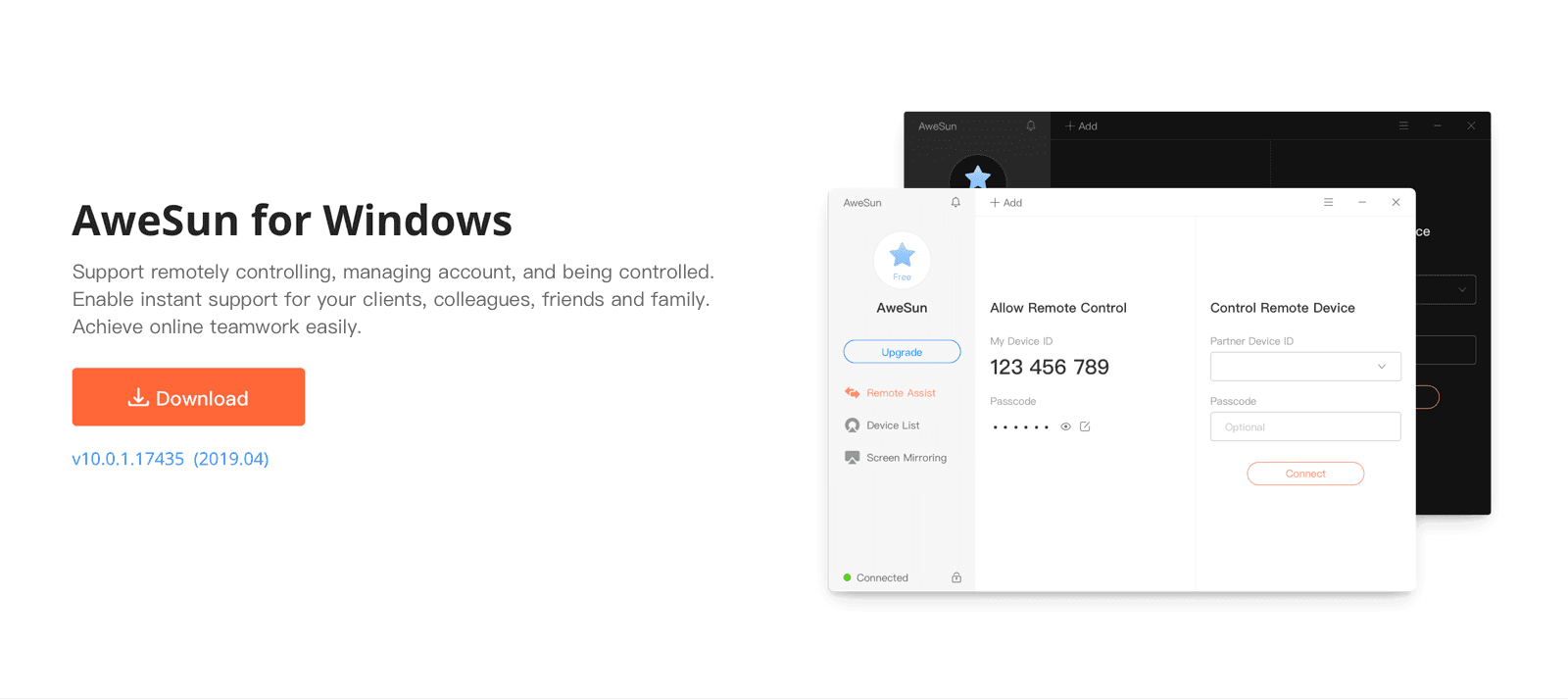
After addressing its security concerns, it’s only fair to assess AweSun’s actual performance as a remote desktop software. The company emphasizes its focus on ultra-performance — delivering high-frame-rate, lag-free remote control. But how realistic are these claims? Let’s take a closer look.
AweSun claims to achieve an impressive 7ms response time using its proprietary technology, providing users with a virtually zero-lag experience. This ultra-low latency significantly improves responsiveness during remote sessions, making it suitable for precision-based design, data entry, or document work — all with near-local feedback speed.
AweSun also highlights its support for 8K-quality remote streaming, delivering incredibly sharp visuals. Through lossless color restoration, every visual detail and shade is reproduced with high accuracy — ideal for graphic designers and video editors who demand color precision and image clarity, even over a remote connection.
AweSun provides a comprehensive remote service framework for enterprise clients, covering IT maintenance, remote work collaboration, and live tech support. It also offers APIs and SDKs for system integration, allowing organizations to automate and customize workflows — making it suitable for businesses of various sizes and technical needs.
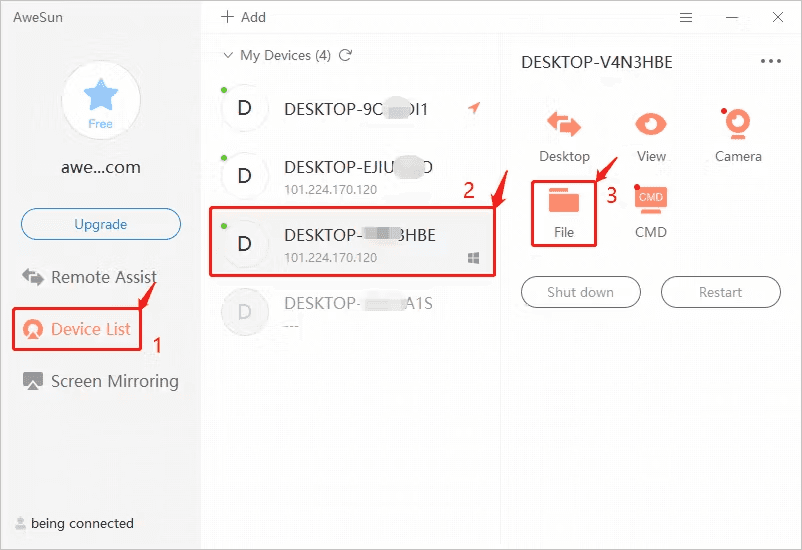
Once you understand AweSun’s key features, getting started is fairly simple. Here’s a quick step-by-step guide from installation to your first connection.
Steps:
Visit the official AweSun website or app store, download, and install the software.
Launch the program — you can use the portable “green” version or install the full version — then register for an account.
On the main screen, enter your partner’s device ID to initiate a remote control session.
Although AweSun shines in technical specs, users have reported several operational issues. The most common ones include frozen screens, no sound during sessions, or connections stuck on “connecting” indefinitely. Below is a summary of its pros, cons, and limitations.
Advantages | Disadvantages |
Smooth, fast performance | Login errors even with correct credentials |
Dual control modes on mobile: touch & pointer | Black screen during sessions Frequent lag, failed connections, “stuck” sessions |
Comprehensive free version | Lacks Android remote control, drawing tablet, virtual/extended/mirrored displays, file transfer between mobiles, WOL, voice chat, whiteboard |
Complete enterprise service framework | Poor transparency — no public address, suspected fake reviews |
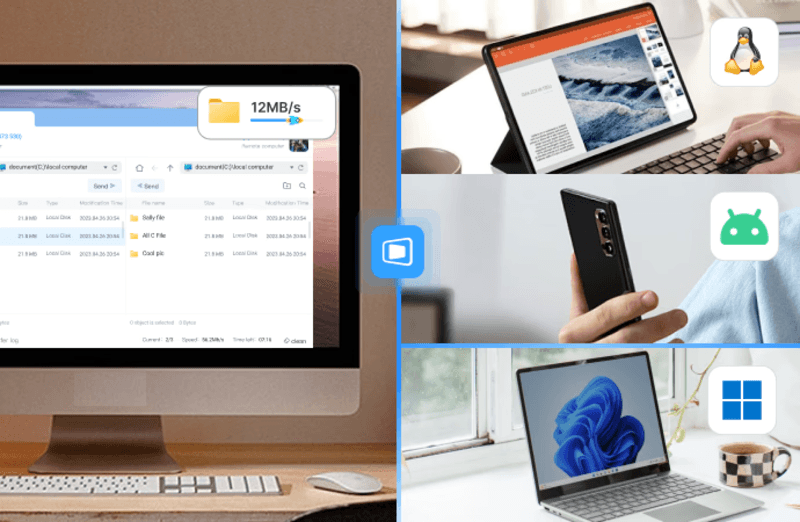
Given AweSun’s occasional connection lag, long waiting times, and user concerns about privacy and transparency, DeskIn stands out as a far more stable and secure alternative.
Aspect | AweSun Weaknesses | DeskIn Advantages |
|---|---|---|
Connection Stability | The connection process may lag, take a long time to establish, or remain stuck on “Connecting.” | Offers faster and more stable connections — long-lasting, smooth, and drop-free. |
Feature Completeness | Does not support advanced collaboration features such as virtual display, extended screen, mirrored screen, or voice calls. | Provides multiple screen management and collaboration tools — including extended display, screen mirroring, voice call, annotations, and shared clipboard. |
Mobile Operation | File transfer is not supported on mobile devices. | Enables file transfer between any devices — phone to PC, PC to PC, or phone to phone. |
Remote Wake-Up | Does not support WOL (Wake-on-LAN). | Supports Wake-on-LAN (WOL) for remote startup over a local network. |
Enterprise Security & Transparency | Company transparency is lacking; no physical address publicly disclosed. | Officially lists a physical headquarters address in Singapore, with greater business transparency. |
If you’re looking for a high-performance, safety-focused, and cost-effective remote access solution, DeskIn is a great choice. Every new device login is verified via email, and data transmission is protected by AES-256 encryption. It also supports privacy screen mode, black/white device lists, and advanced session protection.
With 200+ global relay nodes, DeskIn ensures high connection success rates, stable quality, and zero session time limits.
📥 Want to try it out? DeskIn offers a free version with enterprise-grade security — safe, fast, and reliable!

Take a quick look at DeskIn’s advantages:
High connection stability and quality: With over 200 global nodes, DeskIn ensures a high connection success rate, no time limits, and zero disconnections.
Software security: Both registration and new device logins require email verification.
Strong compatibility: Supports seamless connections and remote access across Windows, iOS, macOS, and Android platforms.
Remote connection security: Uses AES-256 encryption, allows setting up whitelists and blacklists, secure passwords, and supports enabling privacy screen mode or locking the remote screen to block suspicious device IDs and prevent risks.
Flexible connection options: Supports connecting via temporary codes without needing a password; you can also use a preset secure password to access remote devices anytime. Supports Wake-on-LAN (WOL).
Rich functionality: Beyond remote access, DeskIn offers various collaboration and screen management tools, such as extended screen, mirrored screen, voice calls, annotations, shared clipboard, and digital drawing tablet support.
Setup takes only two steps:
Download and install DeskIn on all target devices.
Register and sign in using the same account.
📥 Click here to try DeskIn for free!
If your AweSun remote session freezes, check the network connection on both ends and restart the software. For more stable performance, consider switching to DeskIn, which has higher success rates and smoother operation.
Ensure the audio transmission feature is enabled and that your device’s speaker settings are correct. If the issue persists, DeskIn provides excellent audio synchronization and stable playback.
The “Green Version” is AweSun’s portable, installation-free executable. Simply right-click and run it as administrator — perfect for temporary or on-the-go use cases.
All in all, AweSun demonstrates impressive technical potential — its claimed 7ms latency and 8K-quality streaming make it an attractive option for performance-focused users seeking a free remote access tool. However, concerns around security transparency and connection reliability cannot be ignored.
If data safety and connection stability are your top priorities, DeskIn clearly delivers stronger, more consistent performance and tighter security protections — making it the more trustworthy long-term choice.
📥 Try DeskIn Free Today!
Ultimately, the right solution depends on your priorities for performance, security, and budget — but between the two, DeskIn stands out as the more well-rounded and dependable remote access software.
When searching for remote work solutions, many business users have faced headaches over licensing and stability issues — especially around commercial use. AweSun, a remote desktop software that has gained significant attention, is often praised for its smooth performance. Yet, online discussions frequently raise doubts about its legitimacy and security, making “Is AweSun safe?” one of the most common questions from users.
In this article, we’ll take a deep dive into AweSun’s technical performance, evaluate the security concerns surrounding it, and offer hands-on usage guidance and safer alternatives — helping you make an informed, balanced decision.
Further Reading
For many users, trust in AweSun has wavered due to a lack of transparency from its developers. The main issue lies in the company’s failure to disclose a verified physical business address — a basic legal requirement in many countries. Without this, pursuing accountability in legal disputes becomes difficult.
Adding to the skepticism, online communities like Reddit are filled with repetitive, overly positive AweSun posts that appear to be bot-generated or from fake accounts — damaging the credibility of its reputation.
From a technical standpoint, AweSun does use encryption during transmission and is generally safe for everyday use. However, its parent company Oray’s Chinese background and subsequent restructuring under a Singapore-registered entity called AweRay have raised questions about data handling and jurisdiction.
For highly sensitive use cases, cybersecurity experts often recommend pairing AweSun with a VPN for added protection. Alternatively, users can skip the complexity and choose a more transparent, enterprise-grade solution like DeskIn, which offers full data protection by design.
After addressing its security concerns, it’s only fair to assess AweSun’s actual performance as a remote desktop software. The company emphasizes its focus on ultra-performance — delivering high-frame-rate, lag-free remote control. But how realistic are these claims? Let’s take a closer look.
AweSun claims to achieve an impressive 7ms response time using its proprietary technology, providing users with a virtually zero-lag experience. This ultra-low latency significantly improves responsiveness during remote sessions, making it suitable for precision-based design, data entry, or document work — all with near-local feedback speed.
AweSun also highlights its support for 8K-quality remote streaming, delivering incredibly sharp visuals. Through lossless color restoration, every visual detail and shade is reproduced with high accuracy — ideal for graphic designers and video editors who demand color precision and image clarity, even over a remote connection.
AweSun provides a comprehensive remote service framework for enterprise clients, covering IT maintenance, remote work collaboration, and live tech support. It also offers APIs and SDKs for system integration, allowing organizations to automate and customize workflows — making it suitable for businesses of various sizes and technical needs.
Once you understand AweSun’s key features, getting started is fairly simple. Here’s a quick step-by-step guide from installation to your first connection.
Steps:
Visit the official AweSun website or app store, download, and install the software.
Launch the program — you can use the portable “green” version or install the full version — then register for an account.
On the main screen, enter your partner’s device ID to initiate a remote control session.
Although AweSun shines in technical specs, users have reported several operational issues. The most common ones include frozen screens, no sound during sessions, or connections stuck on “connecting” indefinitely. Below is a summary of its pros, cons, and limitations.
Advantages | Disadvantages |
Smooth, fast performance | Login errors even with correct credentials |
Dual control modes on mobile: touch & pointer | Black screen during sessions Frequent lag, failed connections, “stuck” sessions |
Comprehensive free version | Lacks Android remote control, drawing tablet, virtual/extended/mirrored displays, file transfer between mobiles, WOL, voice chat, whiteboard |
Complete enterprise service framework | Poor transparency — no public address, suspected fake reviews |
Given AweSun’s occasional connection lag, long waiting times, and user concerns about privacy and transparency, DeskIn stands out as a far more stable and secure alternative.
Aspect | AweSun Weaknesses | DeskIn Advantages |
|---|---|---|
Connection Stability | The connection process may lag, take a long time to establish, or remain stuck on “Connecting.” | Offers faster and more stable connections — long-lasting, smooth, and drop-free. |
Feature Completeness | Does not support advanced collaboration features such as virtual display, extended screen, mirrored screen, or voice calls. | Provides multiple screen management and collaboration tools — including extended display, screen mirroring, voice call, annotations, and shared clipboard. |
Mobile Operation | File transfer is not supported on mobile devices. | Enables file transfer between any devices — phone to PC, PC to PC, or phone to phone. |
Remote Wake-Up | Does not support WOL (Wake-on-LAN). | Supports Wake-on-LAN (WOL) for remote startup over a local network. |
Enterprise Security & Transparency | Company transparency is lacking; no physical address publicly disclosed. | Officially lists a physical headquarters address in Singapore, with greater business transparency. |
If you’re looking for a high-performance, safety-focused, and cost-effective remote access solution, DeskIn is a great choice. Every new device login is verified via email, and data transmission is protected by AES-256 encryption. It also supports privacy screen mode, black/white device lists, and advanced session protection.
With 200+ global relay nodes, DeskIn ensures high connection success rates, stable quality, and zero session time limits.
📥 Want to try it out? DeskIn offers a free version with enterprise-grade security — safe, fast, and reliable!
Take a quick look at DeskIn’s advantages:
High connection stability and quality: With over 200 global nodes, DeskIn ensures a high connection success rate, no time limits, and zero disconnections.
Software security: Both registration and new device logins require email verification.
Strong compatibility: Supports seamless connections and remote access across Windows, iOS, macOS, and Android platforms.
Remote connection security: Uses AES-256 encryption, allows setting up whitelists and blacklists, secure passwords, and supports enabling privacy screen mode or locking the remote screen to block suspicious device IDs and prevent risks.
Flexible connection options: Supports connecting via temporary codes without needing a password; you can also use a preset secure password to access remote devices anytime. Supports Wake-on-LAN (WOL).
Rich functionality: Beyond remote access, DeskIn offers various collaboration and screen management tools, such as extended screen, mirrored screen, voice calls, annotations, shared clipboard, and digital drawing tablet support.
Setup takes only two steps:
Download and install DeskIn on all target devices.
Register and sign in using the same account.
📥 Click here to try DeskIn for free!
If your AweSun remote session freezes, check the network connection on both ends and restart the software. For more stable performance, consider switching to DeskIn, which has higher success rates and smoother operation.
Ensure the audio transmission feature is enabled and that your device’s speaker settings are correct. If the issue persists, DeskIn provides excellent audio synchronization and stable playback.
The “Green Version” is AweSun’s portable, installation-free executable. Simply right-click and run it as administrator — perfect for temporary or on-the-go use cases.
All in all, AweSun demonstrates impressive technical potential — its claimed 7ms latency and 8K-quality streaming make it an attractive option for performance-focused users seeking a free remote access tool. However, concerns around security transparency and connection reliability cannot be ignored.
If data safety and connection stability are your top priorities, DeskIn clearly delivers stronger, more consistent performance and tighter security protections — making it the more trustworthy long-term choice.
📥 Try DeskIn Free Today!
Ultimately, the right solution depends on your priorities for performance, security, and budget — but between the two, DeskIn stands out as the more well-rounded and dependable remote access software.


COMPARISONS
เปลี่ยน iPad ให้เป็นจอภาพที่สองสำหรับคอมพิวเตอร์ Windows และ Mac
A second monitor can make everyday work feel much easier, especially when you are switching between research, documents, meetings, design files, or dashboards. If you already own an iPad, you may be able to use it as an extra display instead of buying another monitor.
This guide explains how to use an iPad as a second monitor for Mac with Apple Sidecar, and how Windows or cross-platform users can use DeskIn screen extension on supported paid plans.
Increase screen space so you can view more content at the same time. This helps reduce constant window switching during multitasking.
Keep each screen focused on a different task. For example, you can edit a video on one screen and keep source materials on the other, or write a paper while browsing references side by side.
Use the iPad display you already have. For students, remote workers, and light creative work, an iPad can be a convenient and cost-effective second-screen option.
Save desk space and avoid carrying another external monitor when you work from home, travel, or move between rooms.
Apple Sidecar lets compatible iPads work as an external display for compatible MacBook and iMac devices. It is a good native option if both devices support Sidecar and are signed in with the same Apple ID.
Note: To use Apple Sidecar, your Mac and iPad should use the same Apple ID, have Bluetooth and Wi-Fi turned on, and stay within close wireless range. Sidecar availability depends on Apple device and operating system compatibility.
Open the Mac System Settings >> Click "Display" in the sidebar >> Click the "+" pop up menu on the right and choose your iPad.
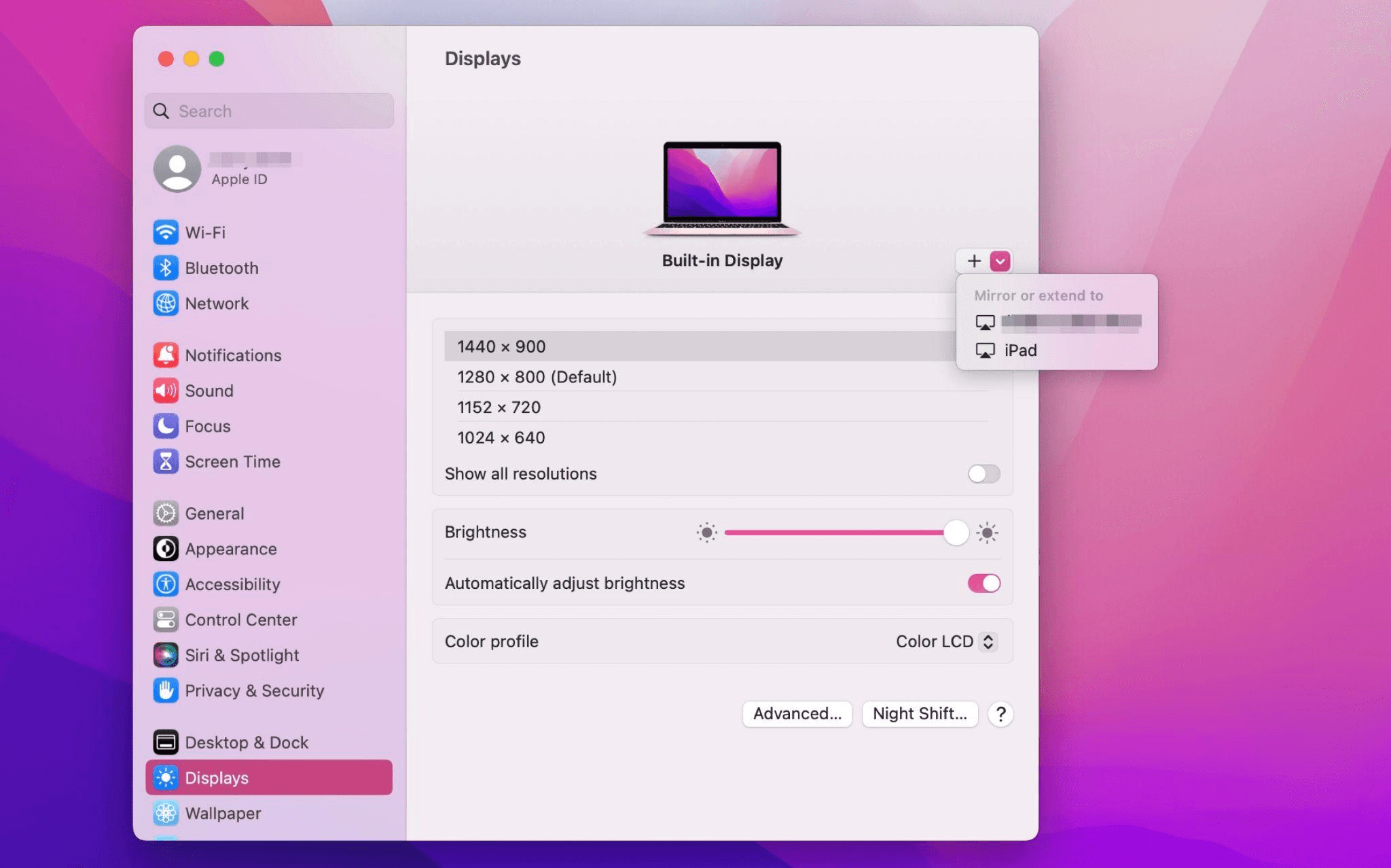
Select the iPad, change the Use as settings to "Extended Display". Check the Airplay settings on the top toolbar of the mac and set iPad as "Use As Separate Display".
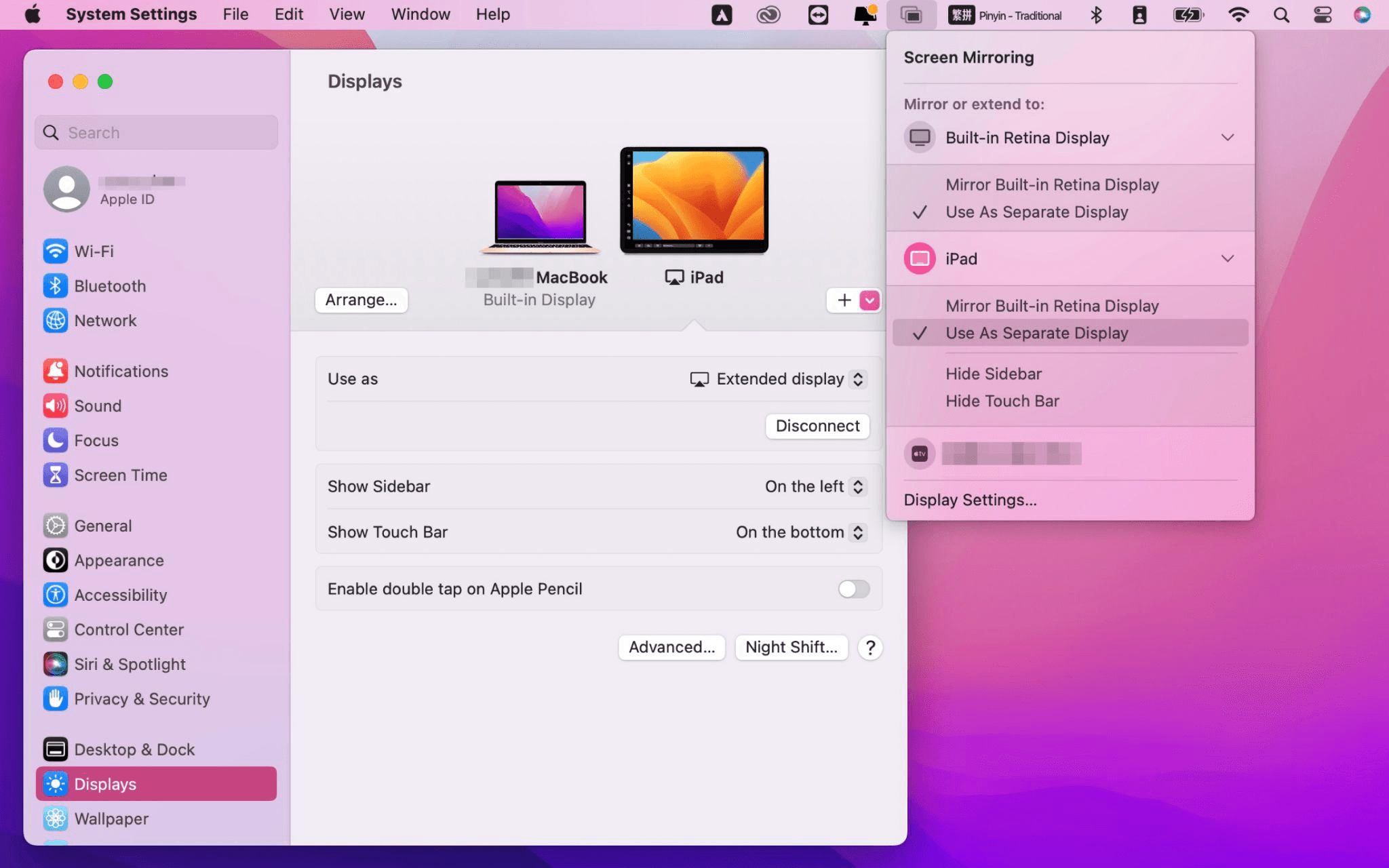
After completing the settings, your iPad will become the second display for your Mac. You can drag windows from your Mac to your iPad smoothly. You can also use the sidebar on the iPad or change the position of the sidebar on the system display settings.
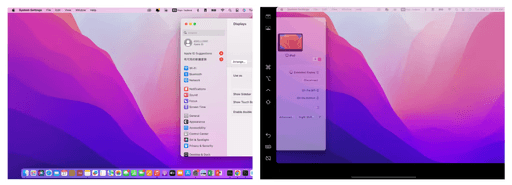
MacBook Screen (Left) and iPad Screen (Right)
Apple Sidecar only supports mac released after 2016 and iPadOS13 or newer. If you are using an old Apple device or a Windows device, you can still use DeskIn remote software to do the screen extension. It supports using iPad as a second display for Mac and Windows, and the smoothness is no worse than sidecar.
Install DeskIn on both your computer and iPad. Sign in to your DeskIn account on each device. When you log in on a new device for the first time, you may need to complete email verification to help protect your account.

To use Screen Extension, you'll need to subscribe to any Premium plan. Click here to view DeskIn plans.
Open DeskIn on your Windows or Mac computer, go to the screen management area, and choose the screen extension option. Select your iPad as the target display and start extending.
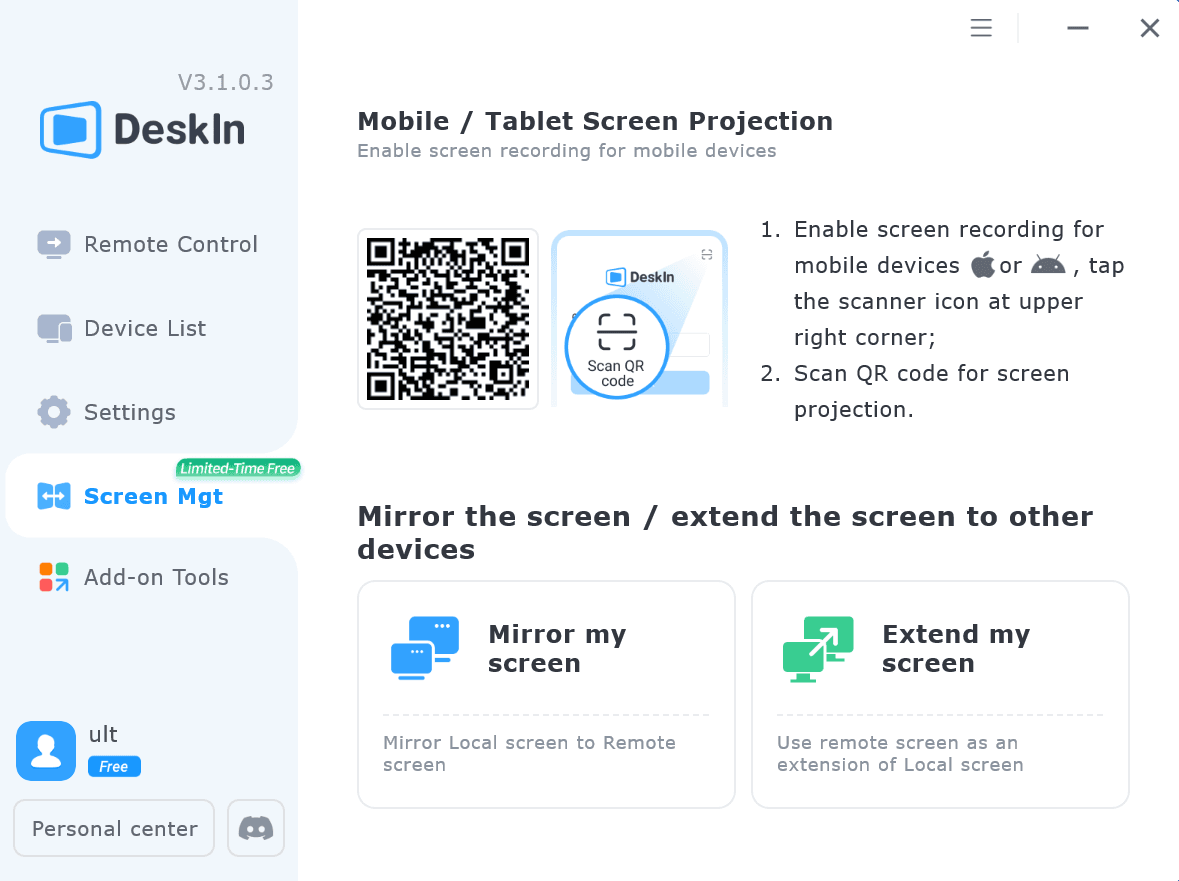
Once connected, your iPad can work as an additional display, letting you move windows between your computer and iPad for a wider workspace.
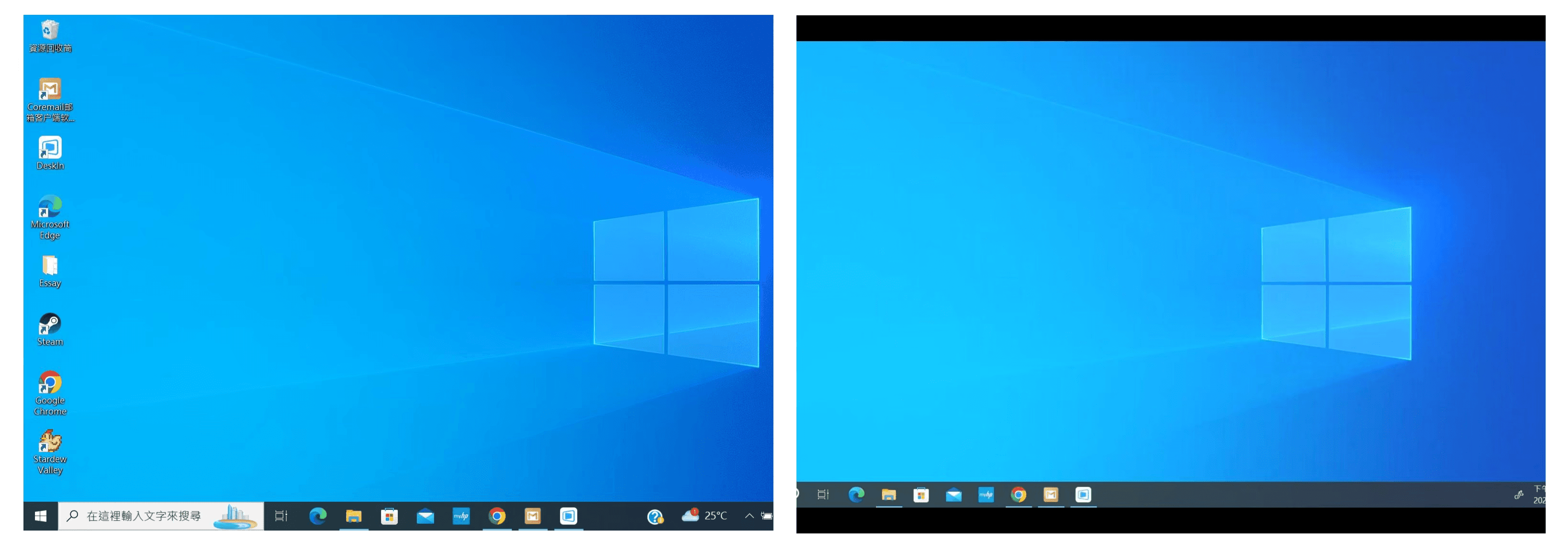
Computer Screen (Left) and iPad Screen (Right)
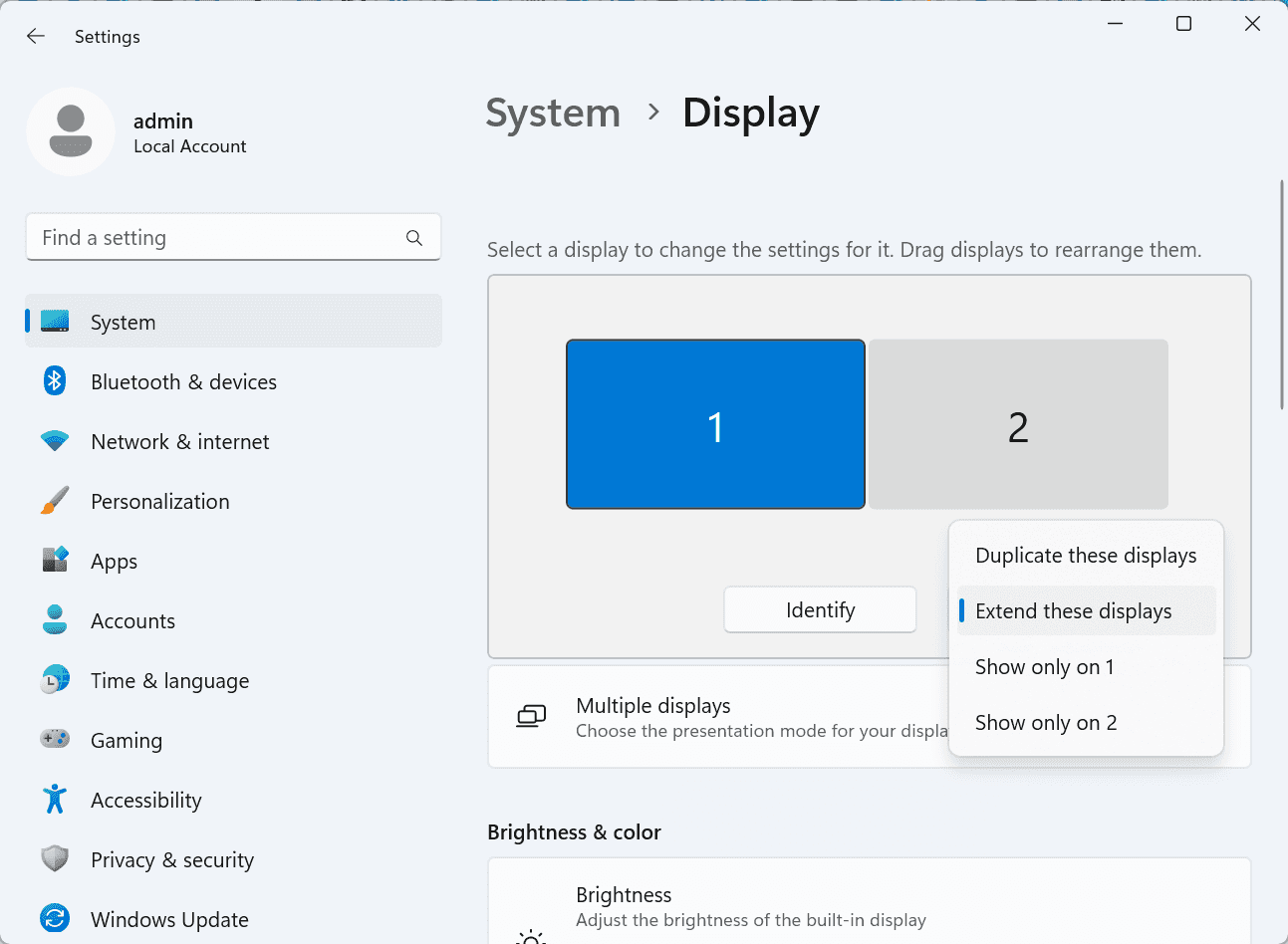
After extension, if you find that your iPad is only mirroring the content on your computer screen, please go to Windows System Settings >> Display Settings and change the screen option to "Extend these displays". You can also modify the screen position by dragging the 2 screens.
Need | Best Option | Why |
Use iPad as a second monitor for a compatible Mac | Apple Sidecar | Built into Apple devices and easy to set up when both devices are compatible. |
Use iPad as a second monitor for Windows | DeskIn | Sidecar does not support Windows, while DeskIn supports cross-platform screen extension on eligible plans. |
Work across Windows, macOS, iPad, Android tablets, and mobile devices | DeskIn | Better suited for users who need cross-platform remote access and flexible device combinations. |
Yes. Windows does not support Apple Sidecar, but you can use DeskIn screen extension on a paid plan that includes this feature to turn your iPad into an additional display for a Windows computer.
DeskIn Screen Extension is included in all paid plans. After subscribing, you can use it across all supported systems with no restrictions.
Yes. DeskIn supports using an iPad as an additional screen with Windows and Mac computers when your plan includes screen mirroring or screen extension.
Using an iPad as a second monitor is a practical way to expand your workspace without buying another display. Mac users with compatible devices can use Apple Sidecar, while Windows and cross-platform users can use DeskIn screen extension on eligible paid plans.
If you want to work across Windows, macOS, iPad, and other devices, DeskIn gives you a flexible way to build a portable multi-screen workspace. Download DeskIn and choose the plan that fits your screen extension and remote access needs.

COMPARISONS
Top 6 RustDesk Alternative Tools for Faster, Easier Remote Access
Remote access should feel like flipping a light switch, not decoding a control panel. Yet many users exploring RustDesk eventually run into friction: connection IDs, server setup, or occasional lag. While RustDesk is powerful, it’s not always the easiest or smoothest option, especially for non-technical users.
That’s why more people are actively searching for a reliable RustDesk alternative that combines performance, simplicity, and flexibility. Whether you want a plug-and-play solution or something more advanced, this guide will help you find the best fit.
RustDesk stands out as a privacy-friendly, self-hosted remote desktop tool. However, real-world usage reveals a few common challenges:
Complicated setup for the RustDesk self-hosted environments
Manual connection steps requiring IDs and passwords
Occasional latency or unstable connections
Limited user-friendly features out of the box
For many users, especially those helping family or managing multiple devices, simplicity matters just as much as control.
When evaluating a RustDesk alternative, focus on these key factors:
Ease of use: Quick setup without technical overhead
Performance: Smooth, low-latency remote sessions
Compatibility: Support for Windows, macOS, Linux, and mobile
Security: Strong encryption and access controls
Flexibility: Options ranging from cloud-based to open source
The ideal tool strikes a balance between power and convenience, something many modern solutions now deliver better than traditional setups.
Here’s a quick breakdown of the top tools and where they shine:
DeskIn – Best all-in-one RustDesk alternative for performance and ease of use
AnyDesk – Best lightweight tool for fast connections
TeamViewer – Best for enterprise-grade remote support
MeshCentral – Best open-source and self-hosted solution
DWService – Best free browser-based tool
Chrome Remote Desktop – Best simple, no-frills option
Ultra-low latency with smooth high-frame-rate streaming
No complex setup or server deployment required
Cross-platform including Rustdesk alternative for Android
Secure with encryption and device control features
Built-in file transfer and multi-device management
Smaller awareness than legacy competitors
Best for: Users who want a powerful yet simple remote desktop solution
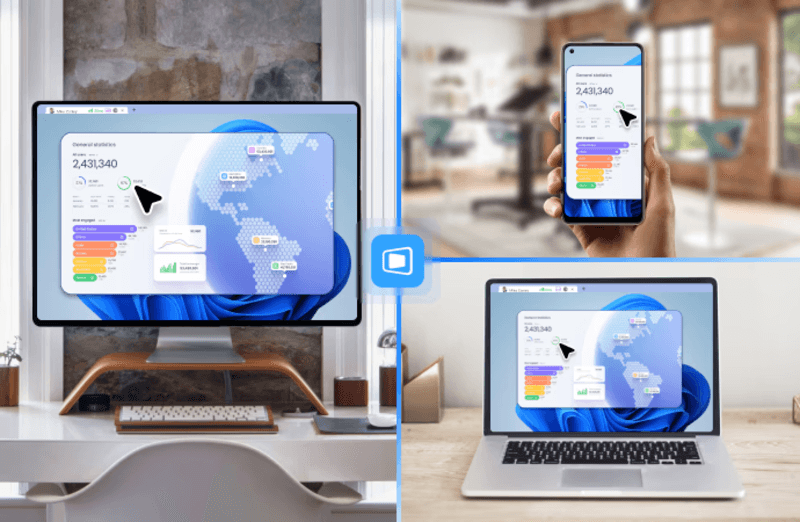
DeskIn removes the friction that often comes with remote access tools. Instead of relying on IDs or manual configurations, it offers a streamlined connection experience that works right out of the box. This makes it especially valuable for users supporting non-technical family members or managing multiple remote devices.
Performance is where DeskIn truly distinguishes itself. Compared to RustDesk, which can sometimes struggle with latency, DeskIn delivers consistently smooth sessions with minimal lag. It also eliminates the need for self-hosting, making it a strong free RustDesk alternative option for users who want powerful features without the complexity.
For those exploring options beyond the RustDesk alternative GitHub projects, DeskIn provides a polished, ready-to-use experience that balances simplicity with professional-grade performance.
Lightweight and fast installation
Good performance on low bandwidth
Cross-platform support
Easy-to-use interface
Performance may drop during long sessions
File transfer can be inconsistent
Best for: Users needing quick and simple remote access
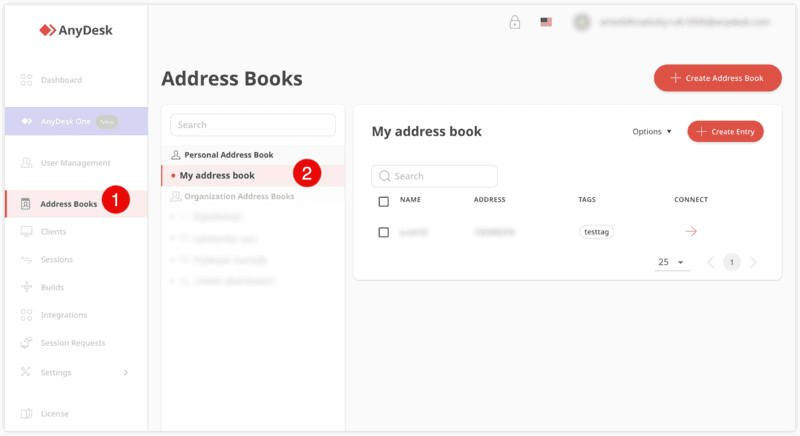
AnyDesk is often considered a natural step up from RustDesk for users who want something easier to deploy. It offers a lightweight application that connects quickly and performs well under normal conditions. This makes it suitable for quick troubleshooting or occasional remote access.
However, performance consistency can be an issue. Users frequently report lag or instability during extended sessions or when handling more demanding tasks. While AnyDesk is a solid option for basic needs, it may not fully satisfy users looking for a more robust, all-in-one solution.
👀 You may also be interested in: |
|---|
Enterprise-grade security with encryption and 2FA
Stable performance across global networks
Rich features like file transfer and session recording
Broad device compatibility
Expensive for commercial use
Free version has limitations
Heavier resource usage on some systems
Best for: Businesses and IT teams managing multiple endpoints
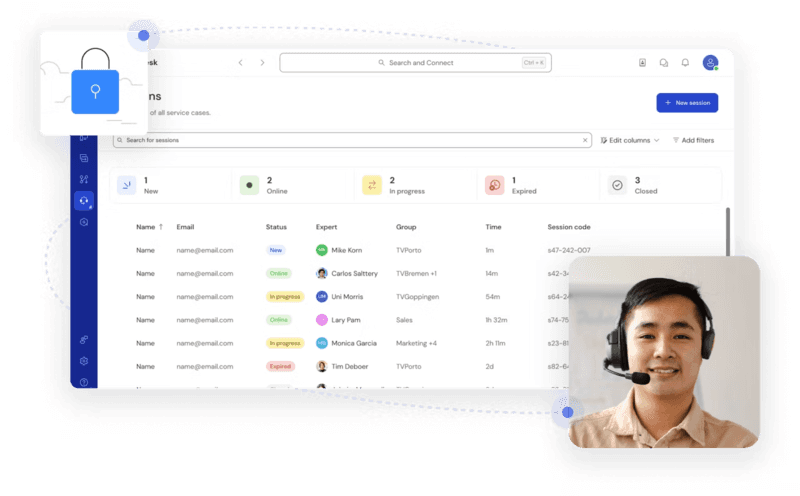
TeamViewer has long been a dominant player in the remote desktop space, offering a comprehensive suite of features designed for enterprise environments. It excels in reliability and global connectivity, making it a popular choice for IT support teams.
That said, its pricing model is a major drawback for many users. Frequent users may quickly encounter licensing restrictions, and costs can escalate for businesses. Additionally, its heavier footprint can impact performance on lower-end devices. DeskIn offers a more modern alternative by delivering similar performance and essential features without the same cost barriers. For users who want enterprise-level capabilities with better efficiency, it presents a compelling option.
👀 You may also be interested in: |
|---|
Fully RustDesk alternative open source solution
Web-based management dashboard
Supports multi-device environments
Strong customization and control
Complex setup and maintenance
Requires technical expertise
Best for: Advanced users needing a Rustdesk alternative self-hosted
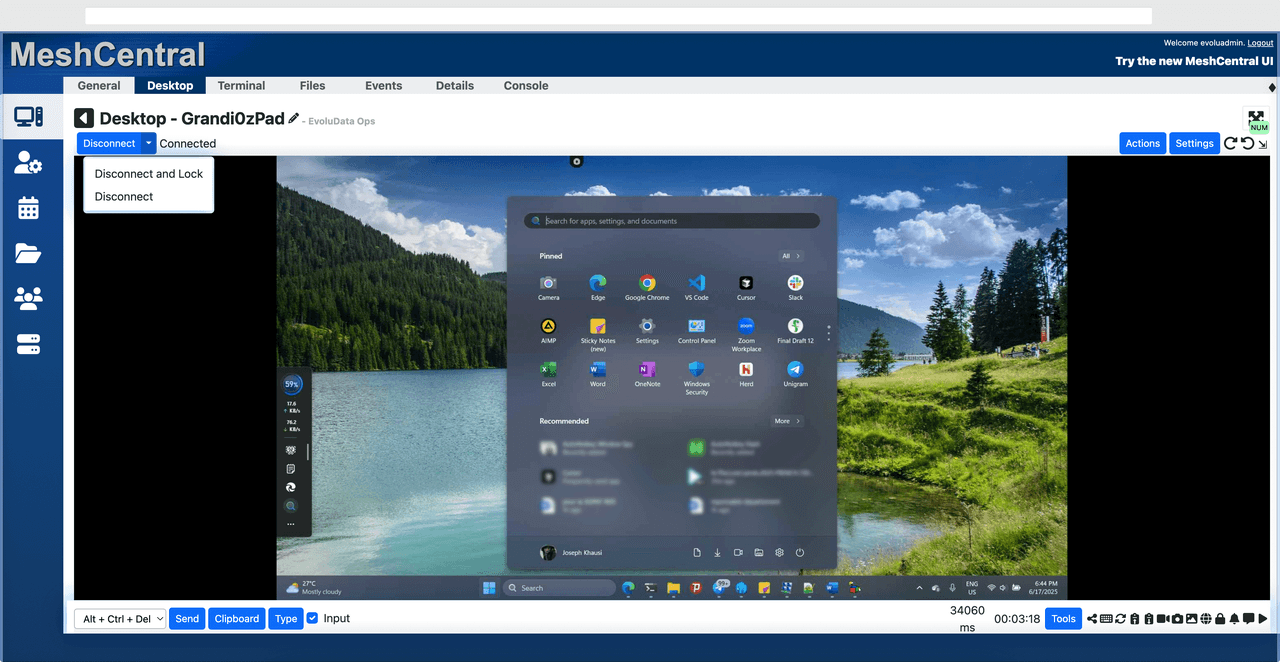
MeshCentral is a powerful open-source platform designed for users who want full control over their remote access infrastructure. It supports multiple devices and provides a centralized dashboard for management, making it attractive for IT professionals.
However, this flexibility comes with complexity. Setting up and maintaining a MeshCentral server requires technical knowledge, which can be a barrier for many users. Compared to this, DeskIn offers a much simpler deployment process while still delivering strong performance and security. For users who prioritize ease of use over full control, modern solutions like DeskIn provide a more accessible alternative.
Completely free
Browser-based access
Open-source foundation
Simple setup
Limited performance
Basic feature set
Best for: Users looking for a simple, free RustDesk alternative
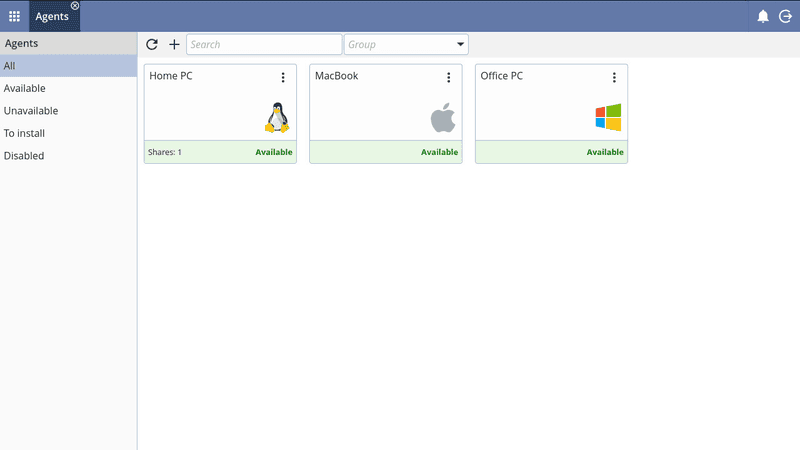
DWService offers a browser-based approach to remote access with no heavy installation, making it convenient for quick connections in restricted environments. It supports both desktop access and file management across major platforms.
However, performance often feels sluggish, especially on demanding tasks, and features remain basic; lacking session recording, smooth multi-monitor support, or advanced security controls. While suitable for occasional personal use, it falls short for professional or high-performance scenarios.
Free and easy to use
Browser-based setup
Cross-platform compatibility
Very limited features
No advanced management or collaboration tools
Best for: Casual users needing basic remote access
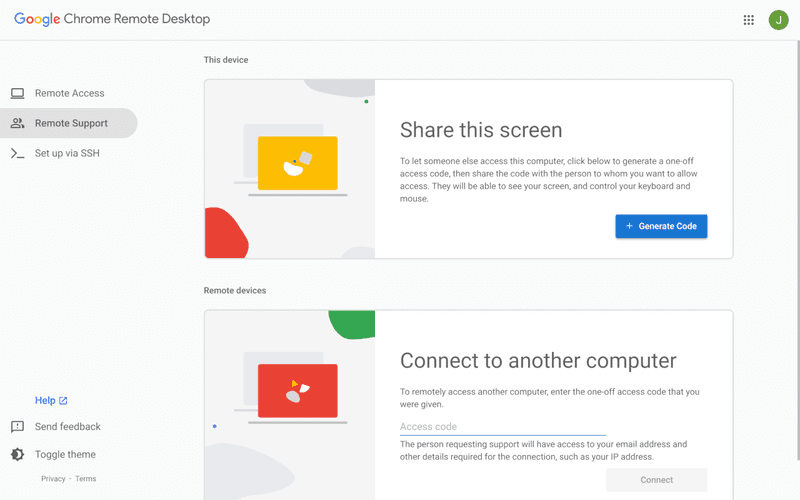
Chrome Remote Desktop is one of the simplest remote access tools available. It’s easy to set up and works across devices, making it a convenient choice for occasional use.
However, it lacks many essential features such as file transfer, session management, and advanced security controls. For users with more demanding needs, it quickly becomes insufficient. Compared to Chrome Remote Desktop, DeskIn provides a much more complete experience without sacrificing ease of use, making it a better long-term solution.
👀 You may also be interested in: |
|---|
RustDesk is powerful but can be difficult to set up and manage, especially with self-hosting. Many users prefer tools that offer similar performance without technical complexity. DeskIn simplifies remote access while maintaining strong performance and security.
Several tools qualify as a free RustDesk alternative, including DWService and Chrome Remote Desktop. However, DeskIn stands out by offering better performance and usability even in its free version.
Yes, tools like MeshCentral and DWService are considered RustDesk alternative open source options. They provide flexibility and control but often require technical expertise to set up and maintain.
Beginners should choose tools with a simple setup and intuitive interfaces. DeskIn is an excellent option because it removes the need for manual configuration while still delivering advanced features.
RustDesk is a powerful starting point, but it’s not always the easiest or most efficient tool for everyday use. From setup complexity to performance limitations, many users eventually look for a better RustDesk alternative.
Among all the options, DeskIn stands out as the most balanced solution. It combines speed, simplicity, and cross-platform support into one seamless experience. If you’re ready to move beyond technical friction and enjoy truly smooth remote access, DeskIn is a choice that simply works.

COMPARISONS
Top 7 RDP Alternative Tools for Faster, Safer Remote Access
Remote desktop access used to feel like a solid bridge. Now, for many users, traditional RDP feels more like a creaky rope ladder. With performance issues, security concerns, and limited cross-platform support, it's no surprise that more people are actively searching for a better RDP alternative that actually keeps up with modern workflows.
If you're managing multiple servers, working across devices, or just tired of unstable connections, this guide will walk you through the best tools worth switching to.
RDP (Remote Desktop Protocol) is a proprietary protocol developed by Microsoft that allows users to connect to another computer over a network. It's widely used for accessing Windows servers, virtual machines, and remote workstations.
While powerful in controlled environments, RDP is often tied to Windows systems and requires configuration like port forwarding or VPNs. Compared to newer tools, it can feel rigid and outdated.
You may also be interested in: |
|---|
RDP still works, but it comes with trade-offs that many users find frustrating:
Security risks if not properly configured
Complex setup for remote or external access
Limited cross-platform compatibility
Performance issues over unstable networks
Many IT teams are now actively replacing it, especially when looking for a Windows RDP client alternative or something that works seamlessly across macOS, Linux, and mobile devices. That's where modern Remote Desktop alternatives shine.
Choosing the right tool is like picking the right vehicle. Some are built for speed, others for heavy-duty enterprise work. Here's a quick snapshot:
DeskIn – Best all-in-one RDP alternative for performance and cross-platform use
TeamViewer – Best for enterprise remote support
AnyDesk – Best lightweight option for fast connections
RustDesk – Best Windows RDP alternative open-source solution
Remmina – Best RDP alternative for Linux users
Chrome Remote Desktop – Best simple browser-based tool
Splashtop – Best for high-performance business environments
Ultra-low latency with smooth high-frame-rate streaming
Works across Windows, macOS, Linux, iOS, and Android
Strong encryption and secure access controls
Built-in file transfer and multi-session support
Newer compared to legacy brands
Best for: Users who want a powerful, flexible RDP alternative
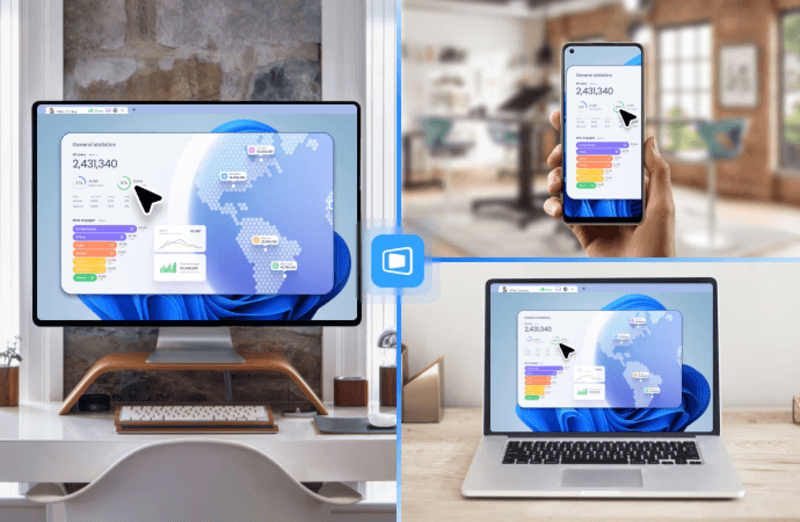
DeskIn feels less like remote access and more like teleportation for your desktop. Whether you're managing servers, supporting clients, or working remotely, it delivers consistently smooth performance without the usual lag spikes seen in traditional RDP setups.
Unlike many tools, DeskIn eliminates the need for complex configurations. You don't need to wrestle with firewalls or VPNs just to connect. It also works seamlessly across platforms, making it a strong alternative to Microsoft Remote Desktop for Mac and mobile users alike.
For teams juggling multiple systems, DeskIn provides a unified experience that replaces fragmented workflows. It's also a strong free RDP alternative option with premium-level capabilities, making it ideal for both individuals and businesses.
Enterprise-grade security and compliance
Extensive feature set including collaboration tools
Cross-platform compatibility
Reliable global performance
Expensive licensing
Can be overkill for individuals
Best for: Enterprises needing secure and scalable remote access
TeamViewer is a comprehensive remote desktop platform widely adopted by IT teams, support professionals, and enterprises. Its feature set extends far beyond simple screen sharing—it includes robust device management, remote printing, file transfer, session recording, and even augmented reality support for field service. TeamViewer's security architecture relies on AES‑256 encryption, two‑factor authentication, and whitelisting, making it suitable for organizations with strict compliance requirements. It runs on virtually every operating system and mobile platform.
The main trade‑off is its pricing: licenses are subscription‑based and can become expensive for small teams or individual users, especially as TeamViewer aggressively flags personal use as commercial, leading to session restrictions.
Fast and responsive
Lightweight installation
Works well on low bandwidth
Easy to use
File transfer can be inconsistent
Lag during longer sessions
Best for: Users needing quick, simple remote access
AnyDesk is a lightweight remote desktop application prized for its speed and efficiency, often recommended as a fast alternative to Microsoft's native Remote Desktop on Windows 10 and Android. It uses a proprietary video codec, DeskRT, to achieve low latency even on limited bandwidth, making it ideal for quick support sessions and accessing devices over mobile networks. The interface is clean and minimalist, with features like address book management, file transfer, and session recording available.
However, users frequently report instability during extended sessions; performance can degrade over time, and file transfers may slow considerably compared to competitors. While its free version is generous for personal use, professional users often find the performance ceiling limits its suitability for continuous, demanding workloads. DeskIn, by contrast, maintains consistent performance even during extended use, making it better suited for professional workloads.
You may also be interested in: |
|---|
Free and open-source
Self-hosting for full control
Strong privacy protection
Active community
Technical setup required
Limited user-friendly features
Best for: Developers and privacy-focused users
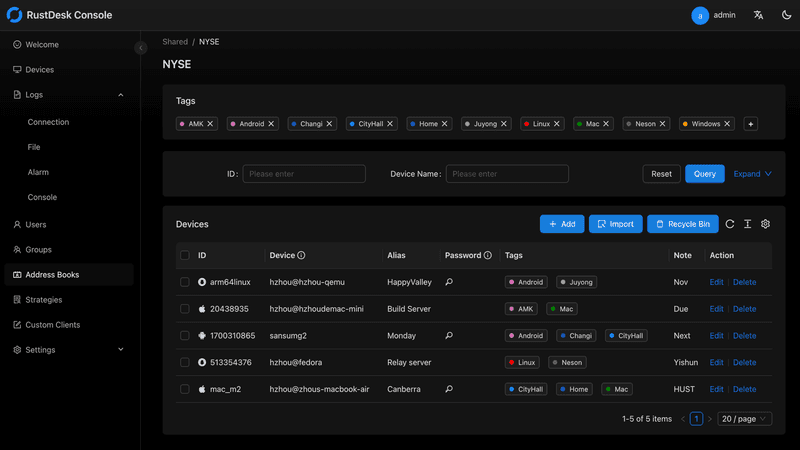
RustDesk has emerged as a leading open‑source remote desktop alternative, appealing to developers and organizations that require full control over their data. It allows users to self‑host the relay and rendezvous servers, meaning no third‑party infrastructure handles connection metadata. Built with Rust, it offers a modern codebase with cross‑platform clients (Windows, macOS, Linux, Android, iOS) and supports essential features such as file transfer, TCP tunneling, and customizable address books.
The major barrier is its complexity: deploying a self‑hosted environment requires technical expertise to configure firewalls, SSL certificates, and ongoing server maintenance. For those using the public relay, performance can be inconsistent depending on server load and geographic proximity.
You may also be interested in: Top RustDesk Alternatives for Better Performance, Security & Ease of Use |
|---|
Open-source and free
Supports multiple protocols including RDP and VNC
Lightweight and flexible
Native to Linux environments
Limited features compared to modern tools
UI can feel outdated
Best for: Linux users looking for a traditional RDP alternative Linux
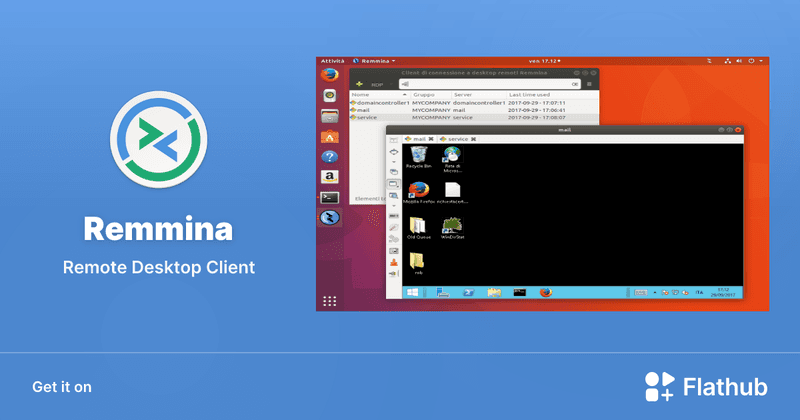
Remmina is a beloved open‑source remote desktop client for Linux, supporting multiple protocols (RDP, VNC, SSH, SPICE, and others) in a single unified interface. It is frequently chosen by system administrators and Linux enthusiasts who need a flexible, lightweight tool to manage diverse environments. Remmina offers tabbed sessions, quick‑connect profiles, and a plugin system that extends its capabilities.
However, its strength - protocol flexibility, also highlights its limitations. As a frontend client rather than a full remote access solution, it lacks features like unattended access, centralized account management, or robust session recording out of the box. Performance can vary by protocol, and the user experience lags behind more polished commercial tools, particularly for users seeking a plug‑and‑play setup.
Free and easy to use
Browser-based setup
Cross-platform access
Very limited features
No advanced management tools
Best for: Casual users needing basic remote access
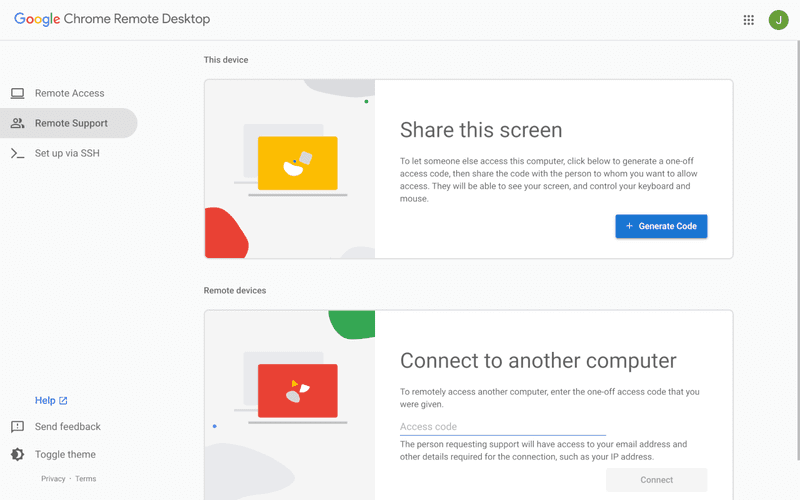
Chrome Remote Desktop is a free, browser‑based remote access tool from Google that requires nothing more than a Chrome browser and a Google account. It excels in simplicity: installation takes seconds, and connections are mediated through Google's infrastructure, eliminating complex firewall configurations. For occasional use—such as helping a family member or quickly accessing a home computer—it works reliably across Windows, macOS, Linux, and even ChromeOS.
The trade‑off is its minimal feature set. There is no native file transfer, multi‑session management, remote printing, or granular permission controls. Collaboration tools are absent, and the reliance on a Google account for authentication can be a limitation in professional environments. It remains a convenient entry‑level tool but struggles to meet the needs of power users or IT teams.
You may also be interested in: |
|---|
High-quality streaming performance
Strong security features
Good for business environments
Reliable connections
Subscription-based pricing
Limited free version
Best for: Businesses needing performance-focused remote access
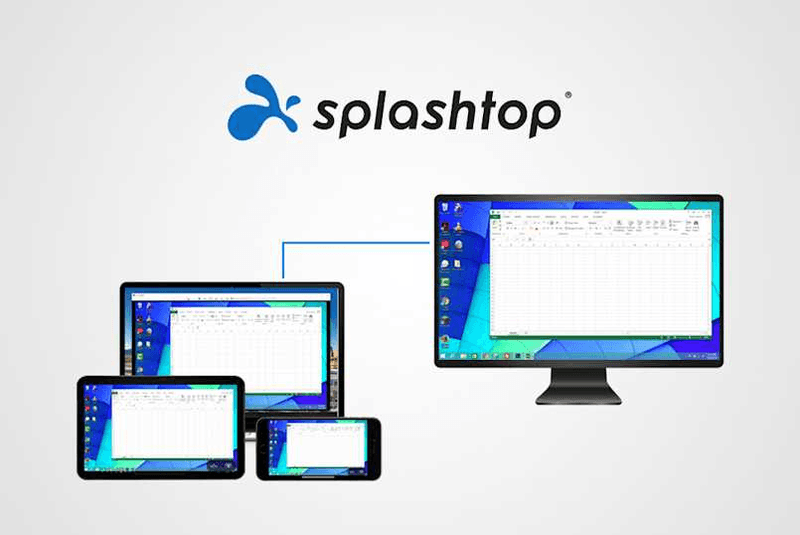
Splashtop is a high‑performance remote desktop solution frequently adopted by creative professionals, educational institutions, and enterprises that prioritize fluid interaction. It delivers low‑latency streaming with support for high‑frame‑rate displays, making it suitable for video editing, CAD work, and other graphics‑intensive tasks. Splashtop offers a range of editions—from Business Access to SOS for on‑demand support—all of which include robust security (AES‑256, device authentication) and features like file transfer, remote printing, and multi‑monitor navigation. Its performance over local networks and the internet is consistently praised.
The primary drawback is cost: while competitive, the subscription model can accumulate quickly for users needing access to multiple devices or advanced features, especially when compared to similarly capable tools with more flexible pricing structures. DeskIn offers similar performance benefits with a more flexible pricing structure, making it a compelling alternative.
You may also be interested in: |
|---|
RDP can be difficult to configure, less secure if exposed, and limited outside Windows environments. Modern tools like DeskIn provide better performance, security, and ease of use.
The best RDP alternative depends on your needs, but DeskIn stands out for its balance of speed, security, and cross-platform compatibility.
Yes, several tools qualify as an RDP alternative free, including RustDesk and Chrome Remote Desktop. DeskIn also offers a free tier with advanced capabilities.
Microsoft is evolving its remote desktop ecosystem, but traditional RDP isn't disappearing overnight. However, many users are already transitioning to more modern solutions like DeskIn for better reliability and flexibility.
RDP has served its purpose, but the digital world has outgrown its limitations. Whether you need better performance, stronger security, or true cross-platform access, switching to a modern RDP alternative is no longer optional, it's inevitable.
Among all the options, DeskIn stands out as a future-ready solution. It combines speed, simplicity, and power into one seamless experience, helping you leave behind the friction of traditional remote desktop tools and step into something far more efficient.
COMPARISONS
เปลี่ยน iPad ให้เป็นจอภาพที่สองสำหรับคอมพิวเตอร์ Windows และ Mac
A second monitor can make everyday work feel much easier, especially when you are switching between research, documents, meetings, design files, or dashboards. If you already own an iPad, you may be able to use it as an extra display instead of buying another monitor.
This guide explains how to use an iPad as a second monitor for Mac with Apple Sidecar, and how Windows or cross-platform users can use DeskIn screen extension on supported paid plans.
Increase screen space so you can view more content at the same time. This helps reduce constant window switching during multitasking.
Keep each screen focused on a different task. For example, you can edit a video on one screen and keep source materials on the other, or write a paper while browsing references side by side.
Use the iPad display you already have. For students, remote workers, and light creative work, an iPad can be a convenient and cost-effective second-screen option.
Save desk space and avoid carrying another external monitor when you work from home, travel, or move between rooms.
Apple Sidecar lets compatible iPads work as an external display for compatible MacBook and iMac devices. It is a good native option if both devices support Sidecar and are signed in with the same Apple ID.
Note: To use Apple Sidecar, your Mac and iPad should use the same Apple ID, have Bluetooth and Wi-Fi turned on, and stay within close wireless range. Sidecar availability depends on Apple device and operating system compatibility.
Open the Mac System Settings >> Click "Display" in the sidebar >> Click the "+" pop up menu on the right and choose your iPad.
Select the iPad, change the Use as settings to "Extended Display". Check the Airplay settings on the top toolbar of the mac and set iPad as "Use As Separate Display".
After completing the settings, your iPad will become the second display for your Mac. You can drag windows from your Mac to your iPad smoothly. You can also use the sidebar on the iPad or change the position of the sidebar on the system display settings.
MacBook Screen (Left) and iPad Screen (Right)
Apple Sidecar only supports mac released after 2016 and iPadOS13 or newer. If you are using an old Apple device or a Windows device, you can still use DeskIn remote software to do the screen extension. It supports using iPad as a second display for Mac and Windows, and the smoothness is no worse than sidecar.
Install DeskIn on both your computer and iPad. Sign in to your DeskIn account on each device. When you log in on a new device for the first time, you may need to complete email verification to help protect your account.
To use Screen Extension, you'll need to subscribe to any Premium plan. Click here to view DeskIn plans.
Open DeskIn on your Windows or Mac computer, go to the screen management area, and choose the screen extension option. Select your iPad as the target display and start extending.
Once connected, your iPad can work as an additional display, letting you move windows between your computer and iPad for a wider workspace.
Computer Screen (Left) and iPad Screen (Right)
After extension, if you find that your iPad is only mirroring the content on your computer screen, please go to Windows System Settings >> Display Settings and change the screen option to "Extend these displays". You can also modify the screen position by dragging the 2 screens.
Need | Best Option | Why |
Use iPad as a second monitor for a compatible Mac | Apple Sidecar | Built into Apple devices and easy to set up when both devices are compatible. |
Use iPad as a second monitor for Windows | DeskIn | Sidecar does not support Windows, while DeskIn supports cross-platform screen extension on eligible plans. |
Work across Windows, macOS, iPad, Android tablets, and mobile devices | DeskIn | Better suited for users who need cross-platform remote access and flexible device combinations. |
Yes. Windows does not support Apple Sidecar, but you can use DeskIn screen extension on a paid plan that includes this feature to turn your iPad into an additional display for a Windows computer.
DeskIn Screen Extension is included in all paid plans. After subscribing, you can use it across all supported systems with no restrictions.
Yes. DeskIn supports using an iPad as an additional screen with Windows and Mac computers when your plan includes screen mirroring or screen extension.
Using an iPad as a second monitor is a practical way to expand your workspace without buying another display. Mac users with compatible devices can use Apple Sidecar, while Windows and cross-platform users can use DeskIn screen extension on eligible paid plans.
If you want to work across Windows, macOS, iPad, and other devices, DeskIn gives you a flexible way to build a portable multi-screen workspace. Download DeskIn and choose the plan that fits your screen extension and remote access needs.
COMPARISONS
Top 6 RustDesk Alternative Tools for Faster, Easier Remote Access
Remote access should feel like flipping a light switch, not decoding a control panel. Yet many users exploring RustDesk eventually run into friction: connection IDs, server setup, or occasional lag. While RustDesk is powerful, it’s not always the easiest or smoothest option, especially for non-technical users.
That’s why more people are actively searching for a reliable RustDesk alternative that combines performance, simplicity, and flexibility. Whether you want a plug-and-play solution or something more advanced, this guide will help you find the best fit.
RustDesk stands out as a privacy-friendly, self-hosted remote desktop tool. However, real-world usage reveals a few common challenges:
Complicated setup for the RustDesk self-hosted environments
Manual connection steps requiring IDs and passwords
Occasional latency or unstable connections
Limited user-friendly features out of the box
For many users, especially those helping family or managing multiple devices, simplicity matters just as much as control.
When evaluating a RustDesk alternative, focus on these key factors:
Ease of use: Quick setup without technical overhead
Performance: Smooth, low-latency remote sessions
Compatibility: Support for Windows, macOS, Linux, and mobile
Security: Strong encryption and access controls
Flexibility: Options ranging from cloud-based to open source
The ideal tool strikes a balance between power and convenience, something many modern solutions now deliver better than traditional setups.
Here’s a quick breakdown of the top tools and where they shine:
DeskIn – Best all-in-one RustDesk alternative for performance and ease of use
AnyDesk – Best lightweight tool for fast connections
TeamViewer – Best for enterprise-grade remote support
MeshCentral – Best open-source and self-hosted solution
DWService – Best free browser-based tool
Chrome Remote Desktop – Best simple, no-frills option
Ultra-low latency with smooth high-frame-rate streaming
No complex setup or server deployment required
Cross-platform including Rustdesk alternative for Android
Secure with encryption and device control features
Built-in file transfer and multi-device management
Smaller awareness than legacy competitors
Best for: Users who want a powerful yet simple remote desktop solution
DeskIn removes the friction that often comes with remote access tools. Instead of relying on IDs or manual configurations, it offers a streamlined connection experience that works right out of the box. This makes it especially valuable for users supporting non-technical family members or managing multiple remote devices.
Performance is where DeskIn truly distinguishes itself. Compared to RustDesk, which can sometimes struggle with latency, DeskIn delivers consistently smooth sessions with minimal lag. It also eliminates the need for self-hosting, making it a strong free RustDesk alternative option for users who want powerful features without the complexity.
For those exploring options beyond the RustDesk alternative GitHub projects, DeskIn provides a polished, ready-to-use experience that balances simplicity with professional-grade performance.
Lightweight and fast installation
Good performance on low bandwidth
Cross-platform support
Easy-to-use interface
Performance may drop during long sessions
File transfer can be inconsistent
Best for: Users needing quick and simple remote access
AnyDesk is often considered a natural step up from RustDesk for users who want something easier to deploy. It offers a lightweight application that connects quickly and performs well under normal conditions. This makes it suitable for quick troubleshooting or occasional remote access.
However, performance consistency can be an issue. Users frequently report lag or instability during extended sessions or when handling more demanding tasks. While AnyDesk is a solid option for basic needs, it may not fully satisfy users looking for a more robust, all-in-one solution.
👀 You may also be interested in: |
|---|
Enterprise-grade security with encryption and 2FA
Stable performance across global networks
Rich features like file transfer and session recording
Broad device compatibility
Expensive for commercial use
Free version has limitations
Heavier resource usage on some systems
Best for: Businesses and IT teams managing multiple endpoints
TeamViewer has long been a dominant player in the remote desktop space, offering a comprehensive suite of features designed for enterprise environments. It excels in reliability and global connectivity, making it a popular choice for IT support teams.
That said, its pricing model is a major drawback for many users. Frequent users may quickly encounter licensing restrictions, and costs can escalate for businesses. Additionally, its heavier footprint can impact performance on lower-end devices. DeskIn offers a more modern alternative by delivering similar performance and essential features without the same cost barriers. For users who want enterprise-level capabilities with better efficiency, it presents a compelling option.
👀 You may also be interested in: |
|---|
Fully RustDesk alternative open source solution
Web-based management dashboard
Supports multi-device environments
Strong customization and control
Complex setup and maintenance
Requires technical expertise
Best for: Advanced users needing a Rustdesk alternative self-hosted
MeshCentral is a powerful open-source platform designed for users who want full control over their remote access infrastructure. It supports multiple devices and provides a centralized dashboard for management, making it attractive for IT professionals.
However, this flexibility comes with complexity. Setting up and maintaining a MeshCentral server requires technical knowledge, which can be a barrier for many users. Compared to this, DeskIn offers a much simpler deployment process while still delivering strong performance and security. For users who prioritize ease of use over full control, modern solutions like DeskIn provide a more accessible alternative.
Completely free
Browser-based access
Open-source foundation
Simple setup
Limited performance
Basic feature set
Best for: Users looking for a simple, free RustDesk alternative
DWService offers a browser-based approach to remote access with no heavy installation, making it convenient for quick connections in restricted environments. It supports both desktop access and file management across major platforms.
However, performance often feels sluggish, especially on demanding tasks, and features remain basic; lacking session recording, smooth multi-monitor support, or advanced security controls. While suitable for occasional personal use, it falls short for professional or high-performance scenarios.
Free and easy to use
Browser-based setup
Cross-platform compatibility
Very limited features
No advanced management or collaboration tools
Best for: Casual users needing basic remote access
Chrome Remote Desktop is one of the simplest remote access tools available. It’s easy to set up and works across devices, making it a convenient choice for occasional use.
However, it lacks many essential features such as file transfer, session management, and advanced security controls. For users with more demanding needs, it quickly becomes insufficient. Compared to Chrome Remote Desktop, DeskIn provides a much more complete experience without sacrificing ease of use, making it a better long-term solution.
👀 You may also be interested in: |
|---|
RustDesk is powerful but can be difficult to set up and manage, especially with self-hosting. Many users prefer tools that offer similar performance without technical complexity. DeskIn simplifies remote access while maintaining strong performance and security.
Several tools qualify as a free RustDesk alternative, including DWService and Chrome Remote Desktop. However, DeskIn stands out by offering better performance and usability even in its free version.
Yes, tools like MeshCentral and DWService are considered RustDesk alternative open source options. They provide flexibility and control but often require technical expertise to set up and maintain.
Beginners should choose tools with a simple setup and intuitive interfaces. DeskIn is an excellent option because it removes the need for manual configuration while still delivering advanced features.
RustDesk is a powerful starting point, but it’s not always the easiest or most efficient tool for everyday use. From setup complexity to performance limitations, many users eventually look for a better RustDesk alternative.
Among all the options, DeskIn stands out as the most balanced solution. It combines speed, simplicity, and cross-platform support into one seamless experience. If you’re ready to move beyond technical friction and enjoy truly smooth remote access, DeskIn is a choice that simply works.
Products
ดาวน์โหลด
Resources
ติดต่อเรา
Email: support@deskin.io
Office: 991D Alexandra Road #02-17, Singapore 119972
Copyright © 2026 Zuler Technology PTE. LTD. All rights reserved.
ติดต่อเรา
Email: support@deskin.io
Office: 991D Alexandra Road #02-17, Singapore 119972
Products
ดาวน์โหลด
Resources
Copyright © 2026 Zuler Technology PTE. LTD. All rights reserved.
Products
ดาวน์โหลด
Resources
ติดต่อเรา
support@deskin.io
991D Alexandra Road #02-17
Singapore 119972
Copyright © 2026 Zuler Technology PTE. LTD. All rights reserved.
【New User Special Offer】
Save
Extra 20%
on your first order|4K60FPS
Extra
20% Off
|For
New Users
【New User Special Offer】
Save
Extra 20%
on first order


