Pemecahan Masalah
Pemecahan Masalah
/
10 mnt
/
10 mnt
W. Ting
Diperbarui
Diperbarui
Diperbarui
Karyawan semakin perlu untuk mengakses komputer kantor, server, atau perangkat lunak khusus dari rumah atau saat bepergian. Pengaturan Protokol Desktop Jarak Jauh (RDP) yang sederhana mungkin tampak cepat, tetapi kenyamanan ini juga membawa masalah keamanan baru, terutama ketika data perusahaan yang sensitif mengalir melalui jaringan publik.
Jadi, apakah remote desktop aman secara default? Jawabannya tergantung pada bagaimana Anda mengonfigurasi dan melindunginya. Dalam panduan ini, kami akan membahas risiko apa saja yang perlu diwaspadai, dan bagaimana cara mengatur koneksi yang aman dengan 5 metode. Melalui 5 cara ini, Anda dapat mengakses remote desktop dengan aman, tetapi untuk mencapai keamanan 100% dengan pengoperasian yang paling mudah, kami sangat menyarankan Anda untuk menggunakan metode alternatif, DeskIn.
Lebih Banyak untuk Ditemukan:
Apakah RDP aman? Umumnya, tidak. RDP, yang kini disatukan sebagai Windows App, adalah protokol transport yang secara inheren rentan terhadap serangan eksternal karena desainnya. Ancaman umum meliputi:
Port Berbahaya & Penerowongan Protokol Tanpa Perlindungan: Mengekspos port RDP secara langsung ke internet menciptakan jembatan terbuka bagi penyerang untuk menyadap data, menyuntikkan malware, atau meluncurkan serangan DDoS yang mengganggu.
Kata Sandi yang Berulang & Lemah: Kredensial yang sederhana atau digunakan kembali (seperti email atau kata sandi media sosial) dengan mudah dipecahkan atau dicuri melalui serangan brute-force, memberikan akses tidak sah secara instan.
Pembajakan Sesi: Peretas dapat merebut kendali atas sesi RDP yang aktif untuk menanamkan kode berbahaya, mencuri data sensitif, atau menyabotase sistem tanpa terdeteksi.
Eksploitasi Server: Kerentanan kritis (misalnya, celah eksekusi kode jarak jauh) dalam layanan RDP Microsoft secara historis telah memungkinkan penyerang untuk melewati keamanan—risiko di masa depan tetap tidak terhindarkan.
Anda Mungkin Juga Membutuhkan: Mengapa Microsoft Remote Desktop Dihentikan

Untuk meningkatkan keamanan protokol desktop jarak jauh, VPN mengamankan akses RDP dengan mengalihkan lalu lintas melalui terowongan terenkripsi dan menyamarkan port default 3389, yang sangat diandalkan oleh RDP untuk koneksi—sehingga mencegah peretas secara langsung menyadap atau mengeksploitasi titik masuk yang rentan ini.
Dengan merutekan ulang koneksi melalui port alternatif dan jaringan pribadi, VPN secara efektif melindungi "jembatan" yang terekspos antara pengguna dan server RDP, memblokir upaya akses tidak sah seperti serangan brute-force atau pembajakan sesi.
VPN gratis yang direkomendasikan untuk RDP yang aman: Proton VPN, Windscribe, PrivadoVPN, Hide.me, dan Radmin VPN.
Anda Mungkin Juga Membutuhkan: Cara Mengamankan Remote Desktop dengan Mudah
Firewall bertindak sebagai penghalang pelindung di sekitar koneksi jarak jauh Anda, memantau dan menyaring lalu lintas masuk/keluar untuk memblokir akses tidak sah dan aktivitas berbahaya yang menargetkan sesi RDP. Dengan membatasi port terbuka dan memasukkan IP tepercaya ke dalam daftar putih, firewall mencegah penyerang mengeksploitasi jalur yang terekspos ke sistem Anda.
Langkah-langkah untuk menerapkan perlindungan firewall guna mengamankan RDP:
Langkah 1. Akses Windows Firewall
Tekan Win + R, ketik wf.msc, dan tekan Enter untuk membuka "Windows Defender Firewall dengan Keamanan Lanjutan".
Langkah 2. Aktifkan Aturan Masuk (Inbound Rule)
Pilih "Inbound Rules" di panel sebelah kiri.

Langkah 3. Tentukan Jenis Aturan yang Akan Diaktifkan
Klik kanan "Inbound Rules" > "New Rule" > Pilih "Port" > Klik "Next".

Langkah 4. Tentukan Jenis Port yang Akan Diaktifkan
Pilih "TCP" > Masukkan "3389" (port default RDP) > "Next".

Langkah 5. Izinkan atau Blokir Koneksi
Pilih "Allow the connection" > "Next".
Langkah 6. Tentukan Profil & Nama Firewall yang Akan Diterapkan
Centang "Domain", "Private", dan "Public" > Beri nama aturan (misalnya, "Secure RDP Access") > "Finish".
Autentikasi Multi-faktor (MFA) adalah metode keamanan yang memerlukan dua atau lebih faktor verifikasi (misalnya, kata sandi + kode seluler) untuk mengakses sumber daya. Berbeda dengan masuk biasa, MFA menambahkan lapisan penting—seperti mengonfirmasi identitas Anda melalui ponsel—secara drastis mengurangi risiko pelanggaran dengan memblokir penyerang bahkan jika mereka mencuri kata sandi Anda.
Langkah-langkah untuk mengaktifkan MFA untuk akses remote desktop yang aman:
LANGKAH 1: Unduh Microsoft Authenticator di ponsel Anda (iOS/Android).
LANGKAH 2: Di PC Anda, buka Pengaturan Keamanan > Opsi Keamanan Lanjutan > pilih "Gunakan aplikasi" untuk verifikasi.

LANGKAH 3: Buka Authenticator, ketuk + > "Akun Pribadi" > "Pindai Kode QR" (arahkan kamera ke layar PC).
LANGKAH 4: Jika pemindaian gagal, pilih "Saya tidak dapat memindai kode batang" di PC > ketuk "Masukkan kode secara manual" di ponsel > masukkan kode yang dihasilkan PC.
Port default RDP (3389) secara inheren tidak aman – ini adalah pintu gerbang eksternal yang diketahui publik yang terus-menerus dipindai oleh penyerang untuk mencari kerentanan. Pelaku kejahatan mengeksploitasi port terbuka ini untuk menyadap koneksi, mencuri kredensial, atau menyuntikkan malware di antara perangkat Anda dan server.
Selain VPN, mengubah port ini secara manual di Windows akan menyamarkan titik masuk Anda, secara signifikan meningkatkan keamanan koneksi RDP Anda terhadap serangan otomatis.
Langkah-langkah untuk mengubah port RDP Anda:
LANGKAH 1: Pilih port alternatif antara 1024-49151 (misalnya, 3390) – hindari port umum seperti 80/443.
LANGKAH 2: Hubungkan ke mesin Windows jarak jauh Anda melalui RDP.

LANGKAH 3: Tekan WIN + R > ketik regedit > tekan "Enter".

LANGKAH 4: Navigasikan ke: HKEY_LOCAL_MACHINE\System\CurrentControlSet\Control\Terminal Server\WinStations\RDP-Tcp
LANGKAH 5: Klik dua kali PortNumber > Pilih Desimal > Ganti 3389 dengan port baru Anda → Klik "OK".
LANGKAH 6: Nyalakan ulang komputer Anda untuk menerapkan perubahan.
Kontrol akses Windows menerapkan prinsip hak istimewa paling rendah, membatasi akun administrator hanya untuk tugas-tugas penting. Dengan membatasi modifikasi pengaturan RDP dan akses sumber daya jaringan, tindakan ini mencegah akun dengan hak istimewa berlebih menjadi vektor serangan—memastikan pengguna jarak jauh beroperasi dengan izin minimal kecuali ditingkatkan secara eksplisit untuk tindakan tertentu.
Langkah-langkah untuk mengonfigurasi Kontrol Akun Pengguna (UAC) untuk keamanan akses web Remote Desktop:
LANGKAH 1: Buka Panel Kontrol (Control Panel) → Menu Mulai → ketik "Control Panel" → Tekan Enter.
LANGKAH 2: Navigasikan ke Sistem dan Keamanan (System and Security) → Keamanan dan Pemeliharaan (Security and Maintenance) → "Ubah pengaturan Kontrol Akun Pengguna" (Change User Account Control settings).
LANGKAH 3: Sesuaikan penggeser ke salah satu tingkat berikut:
Selalu beri tahu (paling aman: meminta konfirmasi untuk semua perubahan sistem)
Beri tahu saya hanya ketika aplikasi mencoba membuat perubahan (default; meredupkan desktop)
Beri tahu saya tanpa meredupkan desktop (kurang mengganggu)
Jangan pernah beri tahu (tidak direkomendasikan; menonaktifkan peringatan UAC)

LANGKAH 4: Klik "OK" untuk menyimpan.
LANGKAH 5: Konfirmasikan dengan mengklik "Ya" (Yes) pada prompt UAC.
Selain strategi inti yang telah kami bahas, perkuat pertahanan Anda lebih jauh untuk keamanan Remote Desktop dengan 5 praktik penting berikut:
Perkuat Kata Sandi: Hindari kata-kata yang berhubungan dengan pribadi atau perusahaan, dan jangan pernah menggunakan kembali kata sandi untuk login yang berbeda. Gunakan kombinasi minimal 12 karakter (huruf, angka, simbol).
Terapkan NLA (Network Level Authentication): Aktifkan NLA bawaan RDP untuk mewajibkan bukti ekstra (kartu pintar, OTP, atau biometrik) sebelum sesi dimulai—memblokir upaya brute-force.
Terapkan Kebijakan Penguncian: Kunci akun secara otomatis setelah 3-5 kali upaya login yang gagal untuk menghentikan serangan credential-stuffing.
Pantau Sesi Aktif: Lacak aktivitas pengguna (logon, perintah, transfer file) secara real-time untuk mendeteksi anomali seperti jam akses yang tidak biasa.
Perbarui Secara Rutin: Lakukan patch pada Windows, klien RDP, VPN, firewall, dan alat MFA setiap bulan untuk menutup celah eksploitasi.
Seperti yang Anda lihat, beberapa pengaturan di atas sulit untuk ditangani, dan dapat menimbulkan risiko yang tidak terduga bagi Anda. Jika Anda menginginkan keamanan yang ditingkatkan, kolaborasi, dan kegunaan lintas platform, DeskIn menonjol sebagai pilihan yang lebih cerdas. Alat ini membawa keamanan remote desktop ke tingkat berikutnya dengan menghilangkan kebutuhan akan IP publik yang terekspos dan menawarkan akses aman terenkripsi dengan konfigurasi minimal.
Baik Anda bisnis kecil, pekerja lepas, atau bekerja dari jarak jauh, alat remote desktop paling aman ini memudahkan Anda untuk tetap aman dan produktif dari mana saja.
👉 Klik di sini untuk mengunduh
💡 Apa yang Membuat DeskIn Unggul:
Tidak Memerlukan IP Publik: Akses perangkat melalui kode sementara atau kata sandi yang telah ditentukan sebelumnya, menghilangkan risiko mengekspos jaringan Anda.
Enkripsi End-to-End: Amankan semua koneksi dengan protokol enkripsi yang kuat, memastikan data Anda tetap pribadi.
Daftar Putih/Daftar Hitam (Whitelist/Blacklist): Kontrol siapa saja yang dapat mengakses perangkat Anda dengan daftar akses yang dapat disesuaikan, memastikan hanya pengguna tepercaya yang dapat terhubung.
Layar Privasi: Lindungi informasi sensitif Anda dengan mengaktifkan mode layar privasi selama sesi jarak jauh.
Dukungan Lintas Platform: Gunakan DeskIn di Windows, macOS, iOS, dan Android, memastikan akses tanpa hambatan apa pun perangkat Anda.
Transfer File & Kolaborasi: Transfer file antar perangkat dengan mudah atau berkolaborasi dengan rekan tim selama sesi jarak jauh, meningkatkan produktivitas.
Berikut adalah langkah-langkah terperinci untuk menggunakan DeskIn guna mendapatkan akses remote desktop paling aman di Windows 10/11 Anda.
LANGKAH 1: Mulailah dengan mengunduh aplikasi DeskIn untuk platform Anda. Instal di perangkat host dan klien.
👉 Klik di sini untuk mengunduh
LANGKAH 2: Buat akun DeskIn, atau masuk jika Anda sudah memilikinya.
LANGKAH 3: Pada perangkat host, aktifkan akses jarak jauh melalui kode sementara atau tetapkan kata sandi yang telah ditentukan sebelumnya untuk akses mudah.
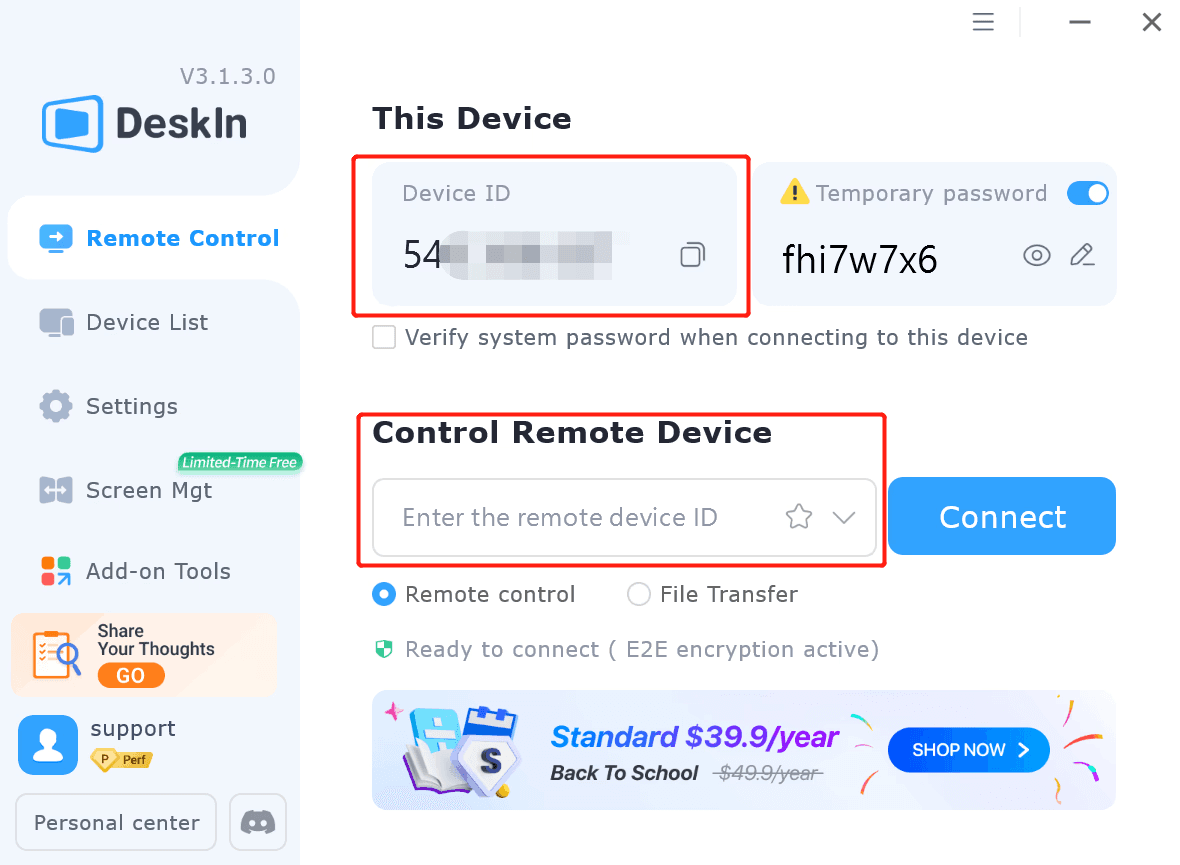
LANGKAH 4: Untuk mengakses perangkat jarak jauh, cukup masukkan kode sementara atau gunakan kata sandi yang telah ditentukan sebelumnya.
Setelah Anda menghubungkan komputer Anda, Anda dapat berbagi file, berkolaborasi secara real-time, berbagi layar dari jarak jauh antara Windows dan Mac, atau menggunakan mode layar privasi untuk melindungi informasi sensitif Anda. DeskIn juga memungkinkan koneksi multi-perangkat, sangat cocok untuk tim jarak jauh atau pengaturan kerja dari rumah.
RDP lebih aman secara default dengan enkripsi bawaan dan integrasi Windows. VNC mengirimkan data tanpa enkripsi secara langsung, sehingga memerlukan alat tambahan untuk keamanan. Keduanya dapat diperkuat, tetapi fitur tingkat perusahaan RDP membuatnya secara inheren lebih aman untuk akses jarak jauh.
DeskIn menempati peringkat paling aman untuk akses jarak jauh, menghilangkan risiko paparan IP publik. Alat ini menggabungkan enkripsi end-to-end dengan daftar putih/daftar hitam IP dan layar privasi. Fitur tingkat perusahaan ini memberikan keamanan yang tak tertandingi untuk sesi sensitif.
Memastikan akses remote desktop yang aman sangat penting dalam lanskap digital saat ini. Seiring dengan ketergantungan bisnis dan pekerja jarak jauh pada alat akses jarak jauh, pentingnya melindungi data dan sistem sensitif tidak dapat diabaikan. Dengan mengikuti praktik terbaik untuk keamanan remote desktop, seperti menggunakan VPN, menerapkan perlindungan Firewall, dan menggunakan Kontrol Akses, Anda dapat secara signifikan mengurangi risiko serangan siber.
Namun, konfigurasi manual dari fitur bawaan bisa jadi rumit, memakan waktu, dan rentan terhadap celah keamanan. Alih-alih berurusan dengan kerumitan mengonfigurasi pengaturan keamanan sendiri, pertimbangkan untuk memilih solusi seperti DeskIn, yang menawarkan alternatif yang lebih aman dan kaya fitur. Ini menyediakan platform yang mudah digunakan dengan enkripsi end-to-end, daftar putih, dan dukungan lintas platform, menjadikannya pilihan ideal bagi siapa saja yang menghargai keamanan dan efisiensi dalam kerja jarak jauh!
Karyawan semakin perlu untuk mengakses komputer kantor, server, atau perangkat lunak khusus dari rumah atau saat bepergian. Pengaturan Protokol Desktop Jarak Jauh (RDP) yang sederhana mungkin tampak cepat, tetapi kenyamanan ini juga membawa masalah keamanan baru, terutama ketika data perusahaan yang sensitif mengalir melalui jaringan publik.
Jadi, apakah remote desktop aman secara default? Jawabannya tergantung pada bagaimana Anda mengonfigurasi dan melindunginya. Dalam panduan ini, kami akan membahas risiko apa saja yang perlu diwaspadai, dan bagaimana cara mengatur koneksi yang aman dengan 5 metode. Melalui 5 cara ini, Anda dapat mengakses remote desktop dengan aman, tetapi untuk mencapai keamanan 100% dengan pengoperasian yang paling mudah, kami sangat menyarankan Anda untuk menggunakan metode alternatif, DeskIn.
Lebih Banyak untuk Ditemukan:
Apakah RDP aman? Umumnya, tidak. RDP, yang kini disatukan sebagai Windows App, adalah protokol transport yang secara inheren rentan terhadap serangan eksternal karena desainnya. Ancaman umum meliputi:
Port Berbahaya & Penerowongan Protokol Tanpa Perlindungan: Mengekspos port RDP secara langsung ke internet menciptakan jembatan terbuka bagi penyerang untuk menyadap data, menyuntikkan malware, atau meluncurkan serangan DDoS yang mengganggu.
Kata Sandi yang Berulang & Lemah: Kredensial yang sederhana atau digunakan kembali (seperti email atau kata sandi media sosial) dengan mudah dipecahkan atau dicuri melalui serangan brute-force, memberikan akses tidak sah secara instan.
Pembajakan Sesi: Peretas dapat merebut kendali atas sesi RDP yang aktif untuk menanamkan kode berbahaya, mencuri data sensitif, atau menyabotase sistem tanpa terdeteksi.
Eksploitasi Server: Kerentanan kritis (misalnya, celah eksekusi kode jarak jauh) dalam layanan RDP Microsoft secara historis telah memungkinkan penyerang untuk melewati keamanan—risiko di masa depan tetap tidak terhindarkan.
Anda Mungkin Juga Membutuhkan: Mengapa Microsoft Remote Desktop Dihentikan
Untuk meningkatkan keamanan protokol desktop jarak jauh, VPN mengamankan akses RDP dengan mengalihkan lalu lintas melalui terowongan terenkripsi dan menyamarkan port default 3389, yang sangat diandalkan oleh RDP untuk koneksi—sehingga mencegah peretas secara langsung menyadap atau mengeksploitasi titik masuk yang rentan ini.
Dengan merutekan ulang koneksi melalui port alternatif dan jaringan pribadi, VPN secara efektif melindungi "jembatan" yang terekspos antara pengguna dan server RDP, memblokir upaya akses tidak sah seperti serangan brute-force atau pembajakan sesi.
VPN gratis yang direkomendasikan untuk RDP yang aman: Proton VPN, Windscribe, PrivadoVPN, Hide.me, dan Radmin VPN.
Anda Mungkin Juga Membutuhkan: Cara Mengamankan Remote Desktop dengan Mudah
Firewall bertindak sebagai penghalang pelindung di sekitar koneksi jarak jauh Anda, memantau dan menyaring lalu lintas masuk/keluar untuk memblokir akses tidak sah dan aktivitas berbahaya yang menargetkan sesi RDP. Dengan membatasi port terbuka dan memasukkan IP tepercaya ke dalam daftar putih, firewall mencegah penyerang mengeksploitasi jalur yang terekspos ke sistem Anda.
Langkah-langkah untuk menerapkan perlindungan firewall guna mengamankan RDP:
Langkah 1. Akses Windows Firewall
Tekan Win + R, ketik wf.msc, dan tekan Enter untuk membuka "Windows Defender Firewall dengan Keamanan Lanjutan".
Langkah 2. Aktifkan Aturan Masuk (Inbound Rule)
Pilih "Inbound Rules" di panel sebelah kiri.
Langkah 3. Tentukan Jenis Aturan yang Akan Diaktifkan
Klik kanan "Inbound Rules" > "New Rule" > Pilih "Port" > Klik "Next".
Langkah 4. Tentukan Jenis Port yang Akan Diaktifkan
Pilih "TCP" > Masukkan "3389" (port default RDP) > "Next".
Langkah 5. Izinkan atau Blokir Koneksi
Pilih "Allow the connection" > "Next".
Langkah 6. Tentukan Profil & Nama Firewall yang Akan Diterapkan
Centang "Domain", "Private", dan "Public" > Beri nama aturan (misalnya, "Secure RDP Access") > "Finish".
Autentikasi Multi-faktor (MFA) adalah metode keamanan yang memerlukan dua atau lebih faktor verifikasi (misalnya, kata sandi + kode seluler) untuk mengakses sumber daya. Berbeda dengan masuk biasa, MFA menambahkan lapisan penting—seperti mengonfirmasi identitas Anda melalui ponsel—secara drastis mengurangi risiko pelanggaran dengan memblokir penyerang bahkan jika mereka mencuri kata sandi Anda.
Langkah-langkah untuk mengaktifkan MFA untuk akses remote desktop yang aman:
LANGKAH 1: Unduh Microsoft Authenticator di ponsel Anda (iOS/Android).
LANGKAH 2: Di PC Anda, buka Pengaturan Keamanan > Opsi Keamanan Lanjutan > pilih "Gunakan aplikasi" untuk verifikasi.
LANGKAH 3: Buka Authenticator, ketuk + > "Akun Pribadi" > "Pindai Kode QR" (arahkan kamera ke layar PC).
LANGKAH 4: Jika pemindaian gagal, pilih "Saya tidak dapat memindai kode batang" di PC > ketuk "Masukkan kode secara manual" di ponsel > masukkan kode yang dihasilkan PC.
Port default RDP (3389) secara inheren tidak aman – ini adalah pintu gerbang eksternal yang diketahui publik yang terus-menerus dipindai oleh penyerang untuk mencari kerentanan. Pelaku kejahatan mengeksploitasi port terbuka ini untuk menyadap koneksi, mencuri kredensial, atau menyuntikkan malware di antara perangkat Anda dan server.
Selain VPN, mengubah port ini secara manual di Windows akan menyamarkan titik masuk Anda, secara signifikan meningkatkan keamanan koneksi RDP Anda terhadap serangan otomatis.
Langkah-langkah untuk mengubah port RDP Anda:
LANGKAH 1: Pilih port alternatif antara 1024-49151 (misalnya, 3390) – hindari port umum seperti 80/443.
LANGKAH 2: Hubungkan ke mesin Windows jarak jauh Anda melalui RDP.
LANGKAH 3: Tekan WIN + R > ketik regedit > tekan "Enter".
LANGKAH 4: Navigasikan ke: HKEY_LOCAL_MACHINE\System\CurrentControlSet\Control\Terminal Server\WinStations\RDP-Tcp
LANGKAH 5: Klik dua kali PortNumber > Pilih Desimal > Ganti 3389 dengan port baru Anda → Klik "OK".
LANGKAH 6: Nyalakan ulang komputer Anda untuk menerapkan perubahan.
Kontrol akses Windows menerapkan prinsip hak istimewa paling rendah, membatasi akun administrator hanya untuk tugas-tugas penting. Dengan membatasi modifikasi pengaturan RDP dan akses sumber daya jaringan, tindakan ini mencegah akun dengan hak istimewa berlebih menjadi vektor serangan—memastikan pengguna jarak jauh beroperasi dengan izin minimal kecuali ditingkatkan secara eksplisit untuk tindakan tertentu.
Langkah-langkah untuk mengonfigurasi Kontrol Akun Pengguna (UAC) untuk keamanan akses web Remote Desktop:
LANGKAH 1: Buka Panel Kontrol (Control Panel) → Menu Mulai → ketik "Control Panel" → Tekan Enter.
LANGKAH 2: Navigasikan ke Sistem dan Keamanan (System and Security) → Keamanan dan Pemeliharaan (Security and Maintenance) → "Ubah pengaturan Kontrol Akun Pengguna" (Change User Account Control settings).
LANGKAH 3: Sesuaikan penggeser ke salah satu tingkat berikut:
Selalu beri tahu (paling aman: meminta konfirmasi untuk semua perubahan sistem)
Beri tahu saya hanya ketika aplikasi mencoba membuat perubahan (default; meredupkan desktop)
Beri tahu saya tanpa meredupkan desktop (kurang mengganggu)
Jangan pernah beri tahu (tidak direkomendasikan; menonaktifkan peringatan UAC)
LANGKAH 4: Klik "OK" untuk menyimpan.
LANGKAH 5: Konfirmasikan dengan mengklik "Ya" (Yes) pada prompt UAC.
Selain strategi inti yang telah kami bahas, perkuat pertahanan Anda lebih jauh untuk keamanan Remote Desktop dengan 5 praktik penting berikut:
Perkuat Kata Sandi: Hindari kata-kata yang berhubungan dengan pribadi atau perusahaan, dan jangan pernah menggunakan kembali kata sandi untuk login yang berbeda. Gunakan kombinasi minimal 12 karakter (huruf, angka, simbol).
Terapkan NLA (Network Level Authentication): Aktifkan NLA bawaan RDP untuk mewajibkan bukti ekstra (kartu pintar, OTP, atau biometrik) sebelum sesi dimulai—memblokir upaya brute-force.
Terapkan Kebijakan Penguncian: Kunci akun secara otomatis setelah 3-5 kali upaya login yang gagal untuk menghentikan serangan credential-stuffing.
Pantau Sesi Aktif: Lacak aktivitas pengguna (logon, perintah, transfer file) secara real-time untuk mendeteksi anomali seperti jam akses yang tidak biasa.
Perbarui Secara Rutin: Lakukan patch pada Windows, klien RDP, VPN, firewall, dan alat MFA setiap bulan untuk menutup celah eksploitasi.
Seperti yang Anda lihat, beberapa pengaturan di atas sulit untuk ditangani, dan dapat menimbulkan risiko yang tidak terduga bagi Anda. Jika Anda menginginkan keamanan yang ditingkatkan, kolaborasi, dan kegunaan lintas platform, DeskIn menonjol sebagai pilihan yang lebih cerdas. Alat ini membawa keamanan remote desktop ke tingkat berikutnya dengan menghilangkan kebutuhan akan IP publik yang terekspos dan menawarkan akses aman terenkripsi dengan konfigurasi minimal.
Baik Anda bisnis kecil, pekerja lepas, atau bekerja dari jarak jauh, alat remote desktop paling aman ini memudahkan Anda untuk tetap aman dan produktif dari mana saja.
👉 Klik di sini untuk mengunduh
💡 Apa yang Membuat DeskIn Unggul:
Tidak Memerlukan IP Publik: Akses perangkat melalui kode sementara atau kata sandi yang telah ditentukan sebelumnya, menghilangkan risiko mengekspos jaringan Anda.
Enkripsi End-to-End: Amankan semua koneksi dengan protokol enkripsi yang kuat, memastikan data Anda tetap pribadi.
Daftar Putih/Daftar Hitam (Whitelist/Blacklist): Kontrol siapa saja yang dapat mengakses perangkat Anda dengan daftar akses yang dapat disesuaikan, memastikan hanya pengguna tepercaya yang dapat terhubung.
Layar Privasi: Lindungi informasi sensitif Anda dengan mengaktifkan mode layar privasi selama sesi jarak jauh.
Dukungan Lintas Platform: Gunakan DeskIn di Windows, macOS, iOS, dan Android, memastikan akses tanpa hambatan apa pun perangkat Anda.
Transfer File & Kolaborasi: Transfer file antar perangkat dengan mudah atau berkolaborasi dengan rekan tim selama sesi jarak jauh, meningkatkan produktivitas.
Berikut adalah langkah-langkah terperinci untuk menggunakan DeskIn guna mendapatkan akses remote desktop paling aman di Windows 10/11 Anda.
LANGKAH 1: Mulailah dengan mengunduh aplikasi DeskIn untuk platform Anda. Instal di perangkat host dan klien.
👉 Klik di sini untuk mengunduh
LANGKAH 2: Buat akun DeskIn, atau masuk jika Anda sudah memilikinya.
LANGKAH 3: Pada perangkat host, aktifkan akses jarak jauh melalui kode sementara atau tetapkan kata sandi yang telah ditentukan sebelumnya untuk akses mudah.
LANGKAH 4: Untuk mengakses perangkat jarak jauh, cukup masukkan kode sementara atau gunakan kata sandi yang telah ditentukan sebelumnya.
Setelah Anda menghubungkan komputer Anda, Anda dapat berbagi file, berkolaborasi secara real-time, berbagi layar dari jarak jauh antara Windows dan Mac, atau menggunakan mode layar privasi untuk melindungi informasi sensitif Anda. DeskIn juga memungkinkan koneksi multi-perangkat, sangat cocok untuk tim jarak jauh atau pengaturan kerja dari rumah.
RDP lebih aman secara default dengan enkripsi bawaan dan integrasi Windows. VNC mengirimkan data tanpa enkripsi secara langsung, sehingga memerlukan alat tambahan untuk keamanan. Keduanya dapat diperkuat, tetapi fitur tingkat perusahaan RDP membuatnya secara inheren lebih aman untuk akses jarak jauh.
DeskIn menempati peringkat paling aman untuk akses jarak jauh, menghilangkan risiko paparan IP publik. Alat ini menggabungkan enkripsi end-to-end dengan daftar putih/daftar hitam IP dan layar privasi. Fitur tingkat perusahaan ini memberikan keamanan yang tak tertandingi untuk sesi sensitif.
Memastikan akses remote desktop yang aman sangat penting dalam lanskap digital saat ini. Seiring dengan ketergantungan bisnis dan pekerja jarak jauh pada alat akses jarak jauh, pentingnya melindungi data dan sistem sensitif tidak dapat diabaikan. Dengan mengikuti praktik terbaik untuk keamanan remote desktop, seperti menggunakan VPN, menerapkan perlindungan Firewall, dan menggunakan Kontrol Akses, Anda dapat secara signifikan mengurangi risiko serangan siber.
Namun, konfigurasi manual dari fitur bawaan bisa jadi rumit, memakan waktu, dan rentan terhadap celah keamanan. Alih-alih berurusan dengan kerumitan mengonfigurasi pengaturan keamanan sendiri, pertimbangkan untuk memilih solusi seperti DeskIn, yang menawarkan alternatif yang lebih aman dan kaya fitur. Ini menyediakan platform yang mudah digunakan dengan enkripsi end-to-end, daftar putih, dan dukungan lintas platform, menjadikannya pilihan ideal bagi siapa saja yang menghargai keamanan dan efisiensi dalam kerja jarak jauh!


MapleStory Worlds Mobile Terlalu Panas atau Sulit Dikendalikan? Atasi Lag, Panas, dan Kontrol Sentuh Artale
Melewatkan lompatan karena stik di layar bergeser ke arah yang salah? Apakah ponsel Anda menjadi panas, kehilangan bingkai, atau kehabisan baterai di tengah sesi grinding? Jika Anda menginginkan cara yang lebih nyaman untuk bermain Artale di luar meja kerja Anda, unduh DeskIn dan sambungkan ke pengaturan desktop yang biasa Anda gunakan.
Panduan ini menjelaskan masalah paling umum saat menjalankan Artale di dalam aplikasi seluler native MapleStory Worlds, mengapa hal itu terjadi, dan bagaimana remote play dapat mengurangi beban kerja di sisi ponsel sambil memberikan kontrol yang lebih fleksibel.
Cara Bermain Setiap Versi MapleStory di iPhone, iPad, dan Android
Cara Bermain MapleStory dengan Controller di Mac, iPhone, iPad, dan Android
Postingan komunitas tentang Artale di ponsel sering kali menyebutkan pemuatan pertama yang lambat, layar pemuatan hitam, input yang tidak konsisten, dan keharusan untuk mengatur ulang key binding. Pengalamannya bervariasi berdasarkan perangkat dan wilayah, tetapi poin-poin keluhan yang sama terus muncul berulang kali:
Ponsel menjadi panas dan baterai cepat habis selama sesi bermain yang lebih lama.
Proses login dan pemuatan peta terasa lambat, terutama saat koneksi tidak stabil.
Peta yang ramai, bos, dan efek keterampilan dapat memicu penurunan bingkai, patah-patah, atau crash.
Joystick virtual dapat membuat lompatan pendek, perubahan arah, dan gerakan tali menjadi tidak presisi.
Tombol dan menu dapat menutupi platform, musuh, atau target inventaris kecil.
Input ramuan, gerakan, dan keterampilan yang berulang-ulang dapat menyebabkan kelelahan jari.
Tindakan multi-tombol mungkin terasa canggung di ponsel atau tablet, terutama saat serangan lompat atau permainan yang padat kombo.
Saat Anda menjalankan Artale secara native, ponsel Anda menangani logika game, grafis, jaringan, tampilan, dan input sentuh secara bersamaan. Beban tersebut meningkat ketika:
Grafis, laju bingkai (frame rate), kecerahan layar, atau efek visual diatur tinggi.
Aplikasi latar belakang mengonsumsi memori atau waktu prosesor.
Perangkat sedang diisi daya, berada di dalam casing yang tebal, atau digunakan di lingkungan yang hangat.
Jaringan cukup lemah sehingga menyebabkan pemuatan berulang, penyambungan kembali, atau kemunduran posisi (rollback).
Saat perangkat memanas, sistem operasi dapat mengurangi kecepatan CPU atau GPU untuk melindungi perangkat keras. Pembatasan termal (thermal throttling) tersebut dapat mengubah panas menjadi laju bingkai yang lebih rendah dan input yang tertunda, bahkan pada ponsel yang relatif kuat.
Artale dapat dimainkan melalui MapleStory Worlds di ponsel, tetapi layar sentuh kecil masih memiliki batasan untuk RPG side-scrolling yang sangat bergantung pada keyboard:
Stik virtual tidak memberikan umpan balik fisik, sehingga gerakan presisi lebih sulit dilakukan.
Tombol keterampilan, ramuan, lompat, dan utilitas bersaing memperebutkan ruang layar yang terbatas.
Jari Anda dapat menutupi karakter, platform, atau isyarat serangan.
Antarmuka inventaris, toko, dan obrolan masih berisi target klik yang kecil.
Sesi yang lama memerlukan genggaman yang sama dan gerakan ibu jari yang berulang-ulang.
Artinya, kontrol seluler Artale dapat terasa canggung bahkan ketika ponsel tidak mengalami panas berlebih. Pengaturan performa saja tidak dapat memperbaiki penempatan tombol, visibilitas yang terhalang, atau kurangnya umpan balik fisik.
MapleStory Worlds tersedia secara resmi di desktop dan seluler. Alih-alih menjalankan Artale secara lokal di ponsel Anda, DeskIn dapat melakukan streaming sesi Windows atau Mac Anda ke perangkat iPhone, iPad, atau Android. Komputer menjalankan game; ponsel menampilkan aliran video dan mengirimkan input Anda.
Karena desktop menangani game itu sendiri, ponsel tidak lagi melakukan rendering lokal secara penuh. Ponsel masih mendekode video, mempertahankan koneksi jaringan, dan menyalakan layar, sehingga masih bisa menjadi hangat—tetapi beban sisi ponsel dan penggunaan baterai mungkin lebih rendah daripada bermain secara native.
Anda menyambung kembali ke sesi komputer yang biasa Anda gunakan, dengan peluncur, akun, dan antarmuka desktop yang sama. Ini berguna untuk memeriksa pasar, menangani tugas harian, atau melanjutkan sesi grinding tanpa harus mempelajari tata letak kedua.
Keyboard game DeskIn memungkinkan Anda menempatkan kontrol gerakan, lompat, ramuan, keterampilan, mouse, dan multi-tombol di layar. Anda dapat menyesuaikan posisi, ukuran, dan transparansi, lalu menyimpan tata letak terpisah untuk kelas yang berbeda.
DeskIn mendukung pemetaan gamepad dari ponsel lokal, tablet, PC, atau Mac ke komputer jarak jauh. Kompatibilitas controller dapat bervariasi, jadi uji gerakan dan keterampilan di peta yang aman sebelum pertarungan bos.
Instal MapleStory Worlds dan Artale di komputer Windows atau Mac yang akan Anda gunakan sebagai host. Perbarui game, peluncur, sistem operasi, dan driver grafis, lalu pastikan bahwa login, suara, dan input keyboard berfungsi.
Instal DeskIn di komputer host dan ponsel atau tablet Anda. Masuk dengan akun DeskIn yang sama di kedua perangkat.
Cegah host agar tidak masuk ke mode tidur (sleep). Di DeskIn, aktifkan mulai dengan sistem (start with system) dan konfigurasikan akses tanpa pengawasan (unattended access) dengan kata sandi keamanan.
Buka DeskIn di ponsel, pilih komputer dari daftar perangkat, masukkan kata sandi keamanan, dan luncurkan Artale.
Mulailah dengan prasetel kualitas mulus (smooth-quality) dan 60 FPS. Jika koneksi stabil, tingkatkan kualitas gambar secara bertahap; jika input terasa tertunda, prioritaskan kemulusan dan periksa statistik jaringan langsung.
Untuk panduan penyiapan lengkap, lihat panduan akses tanpa pengawasan DeskIn.
Sambungkan ke komputer host, buka bilah alat bawah, lalu pilih Keyboard > Keyboard Game.
Buat tata letak dan tambahkan gerakan, lompat, keterampilan, ramuan, tombol mouse, atau tindakan multi-tombol. Pindahkan atau ubah ukuran setiap kontrol agar tidak menutupi platform atau isyarat pertempuran.
Simpan tata letak berdasarkan kelas atau karakter. Buat profil tambahan ketika karakter lain menggunakan bilah keterampilan yang berbeda.
Lihat panduan keyboard game khusus untuk instruksi pemetaan kontrol yang terperinci.
Pasangkan controller Bluetooth atau kabel yang didukung dengan ponsel atau tablet Anda.
Hubungkan ke komputer di DeskIn, buka bilah alat, dan aktifkan pemetaan atau pengalihan gamepad.
Uji gerakan, lompat, serangan, dan pengikatan keterampilan di area berisiko rendah sebelum memainkan konten yang sulit.
Jika pemetaan otomatis tidak berfungsi, ikuti panduan pemetaan gamepad DeskIn dan periksa apakah controller Anda didukung.
Jika Anda lebih menyukai aplikasi native MapleStory Worlds, kurangi beban perangkat sebelum mengganti pengaturan Anda:
Turunkan kualitas grafis, efek, dan laju bingkai alih-alih memulainya pada pengaturan maksimum.
Kurangi kecerahan layar dan tutup aplikasi perekaman, streaming, lokasi, dan aplikasi latar belakang yang tidak perlu.
Hindari mengisi daya saat bermain. Jika ponsel menjadi sangat panas, hentikan dan biarkan dingin secara alami.
Lepaskan casing yang tebal dan hindari sinar matahari langsung atau ruangan yang panas.
Gunakan Wi-Fi yang stabil jika memungkinkan agar ponsel tidak terus-menerus berpindah jaringan.
Perbarui MapleStory Worlds dan sistem operasi seluler, serta jaga agar penyimpanan gratis tetap memadai.
Persingkat sesi bermain. Segera hentikan jika perangkat menunjukkan peringatan suhu, kehilangan respons sentuh, mati secara tiba-tiba, atau menunjukkan tanda-tanda baterai kembung.
Rasa hangat selama memainkan game yang menuntut adalah hal yang wajar. Namun, peringatan suhu, pengisian daya yang dinonaktifkan, input sentuh yang tidak stabil, mati secara tiba-tiba, atau baterai yang kembung bukanlah hal yang boleh diabaikan. Hentikan permainan dan biarkan perangkat mendingin sebelum melakukan pemecahan masalah.
Kecepatan prosesor hanyalah salah satu faktor. Pembatasan termal, tekanan memori, pembaruan aplikasi, kondisi server atau jaringan, dan peta yang ramai semuanya dapat memengaruhi performa. Uji pengaturan grafis yang lebih rendah, tutup aplikasi latar belakang, dan bandingkan dengan koneksi Wi-Fi yang stabil.
Tidak. Remote play memindahkan beban kerja game ke komputer, tetapi ponsel tetap mendekode video, mengirim input, menggunakan jaringan, dan menyalakan layar. Turunkan kualitas streaming, laju bingkai, dan kecerahan jika ponsel masih terasa hangat.
DeskIn dapat menyediakan tata letak di layar yang lebih fleksibel dan pemetaan controller yang kompatibel. Responsivitas aktual masih bergantung pada ponsel, controller, latensi jaringan, dan pengaturan jarak jauh, jadi uji tata letak tersebut sebelum memainkan konten yang sulit.
Aplikasi native nyaman untuk login cepat dan tugas-tugas sederhana. DeskIn berguna ketika Anda sudah memiliki desktop yang mumpuni, menginginkan antarmuka desktop, memerlukan tata letak tombol khusus, atau lebih menyukai controller. Pilihlah berdasarkan tugas dan kualitas jaringan Anda.
Lag, panas, dan baterai cepat habis pada Artale mobile biasanya berasal dari campuran beban perangkat, batas pendinginan, aktivitas latar belakang, dan kondisi jaringan. Masalah kontrol sering kali terpisah: stik virtual, tombol yang padat, dan visibilitas yang terhalang tetap bisa membuat frustrasi bahkan setelah pengaturan grafis diturunkan.
Jika Anda sudah memainkan Artale di komputer Windows atau Mac, unduh DeskIn untuk mengalirkan sesi tersebut ke ponsel atau tablet Anda, buat kontrol yang disesuaikan dengan kelas Anda, dan beralihlah ke gamepad saat input sentuh dirasa kurang presisi.

Cara Mengklaim Paket Hadiah VALORANT di HP
Bosan melewatkan diskon Night Market berbatas waktu, skin Daily Shop terbaru, hadiah Battle Pass, dan pembaruan aksesori Kingdom Store gratis untuk VALORANT saat Anda jauh dari PC? Apa? Anda sebenarnya bisa masuk ke VALORANT dari ponsel Anda. Buka kartu diskon Night Market, pilih skin senjata favorit Anda, periksa kemajuan Battle Pass, dan klaim gantungan senjata serta spray eksklusif kapan saja. Jangan pernah melewatkan penawaran dalam game dan drop berbatas waktu. Tidak perlu terus terpaku di depan komputer Anda. Telusuri antarmuka game PC Anda secara jarak jauh saat bepergian atau bersantai. Coba DeskIn untuk streaming jarak jauh berlatensi rendah dan jelajahi empat sistem toko utama VALORANT di mana pun Anda berada!
VALORANT menampilkan empat sistem perolehan item dan skin yang independen, masing-masing dengan aturan, kumpulan hadiah, dan mekanisme pembaruan terpisah yang tidak saling mengganggu: Night Market berbatas waktu, Daily Shop permanen, Battle Pass Musiman, dan Kingdom Store.
Night Market Berbatas Waktu: Acara diskon resmi yang diadakan sesekali. Setiap pemain mendapatkan 6 kartu diskon skin acak yang isinya tidak dapat diubah setelah dibuka. Diskon berkisar antara 10%-49%, dan hadiah bervariasi per akun. Kumpulan hadiah hanya mencakup skin senjata pilihan yang dirilis setidaknya selama dua Act. Skin Battle Pass, koleksi baru, skin Ultimate, seri terbatas, dan senjata melee bernilai tinggi tidak termasuk di dalamnya.
Daily Shop: Toko permanen dalam game. Empat skin senjata individu acak diperbarui setiap pagi hari dan tidak dapat disetel ulang secara manual. Sebagian besar item dijual dengan harga penuh, sementara beberapa di antaranya mungkin menampilkan diskon sementara. Kumpulan ini mencakup sebagian besar skin senjata lama dan baru serta berfungsi sebagai sumber utama untuk membeli skin mandiri. Item terbatas dan tingkat tinggi tertentu tidak akan muncul di sini.
Battle Pass Musiman: Diperbarui setiap Act dengan jalur hadiah gratis dan premium. Buka jalur berbayar untuk mendapatkan skin eksklusif musim, gantungan senjata, spray, efek eliminasi, dan banyak lagi. Semua konten terbatas pada musim tersebut dan tidak akan masuk ke Night Market atau toko biasa. Hadiah tidak dapat dibeli atau diperoleh secara retroaktif setelah musim berakhir.
Kingdom Store: Toko aksesori gratis yang berputar setiap minggu dan diperbarui setiap hari Rabu. Setiap pemain menerima 4 aksesori acak yang hanya dapat ditukarkan dengan Kingdom Credit yang diperoleh dalam game. Pembelian dengan VP dan diskon tidak tersedia. Kumpulan ini menghadirkan kembali aksesori Battle Pass masa lalu seperti gantungan senjata, spray, kartu pemain, dan gelar. Skin senjata tidak ditawarkan di sini.
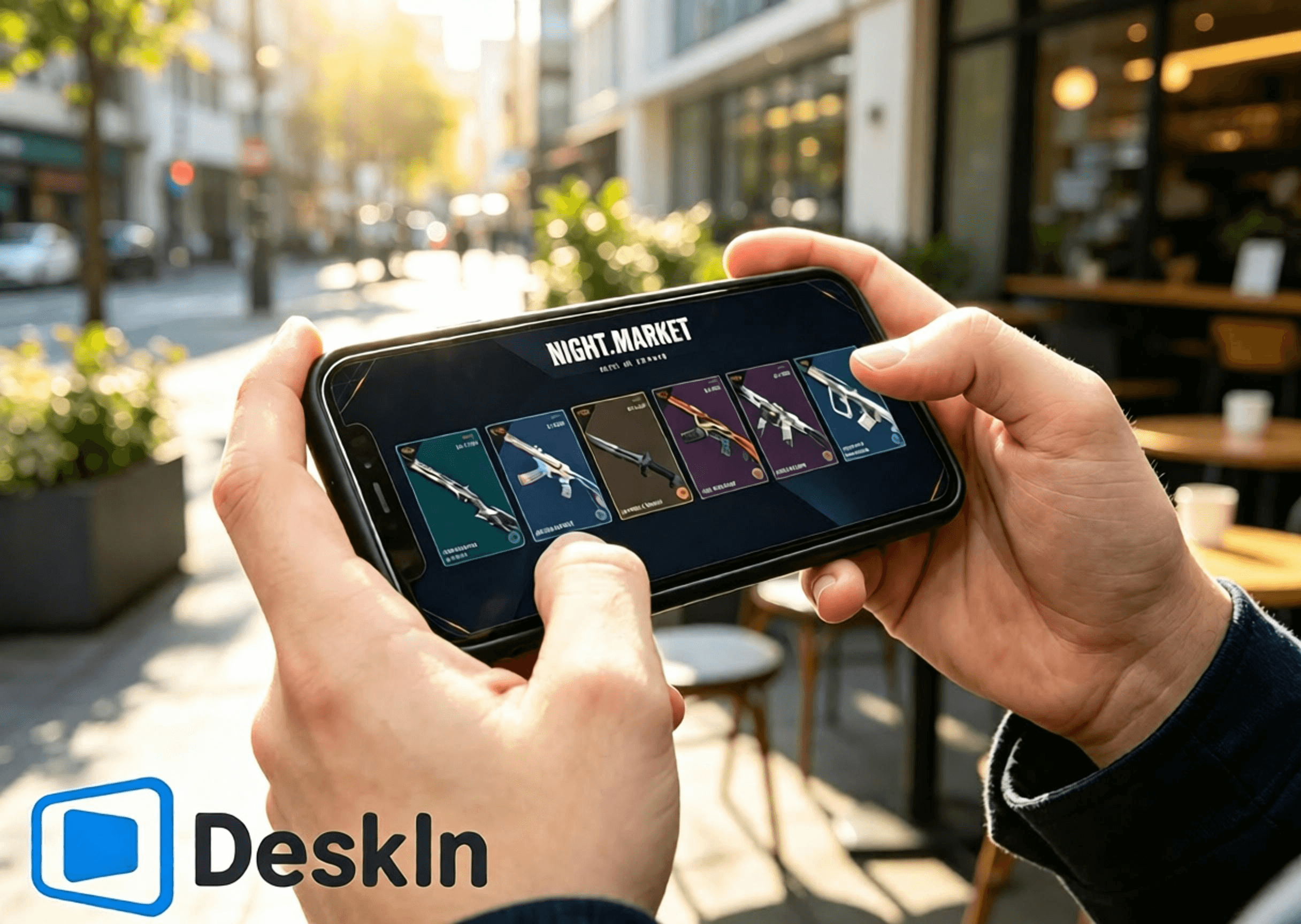
⚡ Streaming dengan latensi sangat rendah. Navigasi yang mulus untuk membuka kartu Night Market, menelusuri Daily Shop, memeriksa hadiah Battle Pass, dan beralih ke halaman Kingdom Store.
🛠️ Instalasi dan masuk yang sederhana. Koneksi satu klik, pengaturan yang ramah bagi pemula.
💻 Dukungan PC lintas-OS lengkap: Windows dan Mac keduanya dapat bertindak sebagai mesin host untuk menjalankan game dan toko.
📱 Cakupan perangkat seluler yang lengkap: Android, iPhone, dan iPad mendukung kontrol jarak jauh untuk menjelajahi keempat sistem toko VALORANT.
🔧 Tata letak kontrol sentuh yang dapat disesuaikan. Sesuaikan UI operasi di dalam toko secara bebas tanpa menghalangi konten.
🖼️ Transmisi video definisi tinggi. Model skin senjata, detail pencahayaan, efek Battle Pass, dan tekstur aksesori dirender dengan tajam.
🎮 Kualitas gambar dan frame rate tingkat tinggi. Peralihan mode ganda antara 4K/60fps dan 2K/240fps. Pemutaran yang lancar tanpa bayangan saat melihat animasi skin dan detail halus.
✨ Latensi mendekati tingkat milidetik, secara konsisten dijaga di bawah 40 ms. Klik jarak jauh dan transisi halaman yang responsif tanpa lag atau salah ketuk.
Instal klien VALORANT di PC Anda dan masuk ke akun Riot Anda. Perbarui sepenuhnya klien game dan anti-cheat Vanguard terlebih dahulu. Hindari pembaruan pop-up atau perintah restart setelah koneksi jarak jauh yang akan memblokir akses ke Night Market, Daily Shop, Battle Pass, dan Kingdom Store.
Unduh dan instal klien PC DeskIn dari situs web resmi. Daftar dan masuk ke akun DeskIn pribadi Anda. Biarkan DeskIn tetap berjalan di latar belakang dengan perangkat Anda online sehingga ponsel Anda dapat memulai koneksi kapan saja.
Selesaikan langkah-langkah untuk menelusuri toko dan mengeklaim hadiah dari Android melalui DeskIn. DeskIn memungkinkan koneksi jarak jauh satu klik dari perangkat Android. Periksa Night Market, Daily Shop, Battle Pass Musiman, dan Kingdom Store tanpa harus duduk di depan komputer Anda.
1. Unduh DeskIn: Dapatkan klien seluler resmi DeskIn dari saluran resmi Android. Masuk menggunakan akun yang sama persis dengan PC Anda untuk menyelesaikan pemasangan perangkat. Pastikan konektivitas jaringan stabil di kedua sisi.
2. Buat koneksi jarak jauh: Luncurkan DeskIn di ponsel Anda dan pilih host Windows/Mac Anda yang sedang online untuk memulai koneksi. Ubah ponsel Anda ke mode lanskap untuk bidang pandang yang lebih luas guna menampilkan UI toko dalam game secara lengkap. Pastikan video desktop dimuat dengan benar dan input sentuh merespons dengan lancar. Semua akun game dan data toko berada di PC host Anda; perangkat seluler Anda hanya menerima video dan mengirim perintah sentuh.
3. Jelajahi empat sistem toko: Luncurkan VALORANT di PC host Anda dan navigasikan dengan bebas di antara halaman toko:
✅ Night Market Berbatas Waktu: Ketuk ikon Night Market di sudut kanan atas. Buka 6 kartu diskon eksklusif Anda satu per satu. Perhatikan nama skin, harga asli, harga diskon, dan persentase diskon. Simpan tangkapan layar skin yang Anda suka untuk perbandingan nanti. Isi kartu terkunci secara permanen setelah dibuka dan tidak dapat disetel ulang.
✅ Daily Shop: Buka tab toko permanen untuk melihat empat penawaran skin senjata harian Anda yang baru, gaya dan harganya, serta manfaatkan peluang untuk membeli skin mandiri.
✅ Battle Pass Musiman: Masuk ke menu Battle Pass. Tinjau kemajuan jalur gratis dan premium serta hadiah yang belum diklaim. Tentukan apakah akan membeli pass dan mengamankan hadiah terbatas waktu sebelum Act berakhir.
✅ Kingdom Store: Navigasikan ke halaman penukaran Kingdom Credit. Periksa empat aksesori yang diputar mingguan yang diperbarui setiap hari Rabu. Lihat gantungan senjata, spray, kartu pemain, dan gelar apa saja yang belum Anda miliki dan tukarkan secara gratis dengan Kingdom Credit sesuai keinginan.
Langkah-langkah lengkap untuk menelusuri toko dan mengeklaim hadiah di iPhone dan iPad. Perangkat Apple mendukung penuh akses jarak jauh ke keempat toko VALORANT dengan pengoperasian yang mudah dan visual yang tajam. iPad dengan layar besar sangat cocok untuk memeriksa detail skin dan aksesori.
1. Pasangkan akun di seluruh perangkat: Biarkan DeskIn terinstal dan masuk di PC Anda dengan perangkat host dalam keadaan online. Unduh DeskIn resmi dari App Store di iPhone atau iPad Anda dan masuk dengan akun DeskIn yang identik untuk menyelesaikan pemasangan. Masuk ke akun Riot yang benar di PC sebelumnya. Keempat kumpulan data toko terikat pada akun; masuk ke akun yang salah akan menampilkan konten toko pribadi yang salah.
2. Hubungkan ke PC host Anda dari iOS: Buka DeskIn di ponsel atau tablet Anda dan pilih host Windows/Mac Anda untuk memulai sesi jarak jauh. Selalu gunakan orientasi lanskap. iPhone yang ringkas cocok untuk membuka kartu dengan cepat, memeriksa harga, dan pembaruan toko. iPad berlayar besar memberikan ruang pandang yang luas untuk animasi model senjata, pratinjau hadiah Battle-Pass, dan pratinjau aksesori.
3. Operasikan semua fitur toko: Jalankan VALORANT dan beralihlah di antara halaman toko: periksa skin berdiskon Night Market, verifikasi rotasi Daily Shop, periksa progres Battle-Pass dan hadiah terbatas waktu, serta lihat aksesori gratis mingguan Kingdom Store. Catatan: Diskon Night Market hanya berlaku untuk skin dasar. Varian tambahan dan peningkatan memerlukan pembelian Radianite Point terpisah, dengan diskon maksimal mencapai 49%.
VALORANT tidak memiliki build asli untuk Mac. Pengguna Mac dapat menjalankan game di dalam mesin virtual atau lingkungan Windows berbasis cloud dan tetap mengakses rangkaian lengkap dari keempat toko.
1. Siapkan lingkungan Windows yang stabil. Instal VALORANT dan masuk ke akun Riot Anda. Selesaikan semua pembaruan game dan anti-cheat untuk menjamin UI toko dimuat dengan benar.
2. Instal klien desktop DeskIn di macOS. Masuk menggunakan akun DeskIn yang sama dengan yang digunakan oleh perangkat seluler Anda. Perlakukan mesin virtual Windows Anda yang menjalankan VALORANT sebagai mesin host yang dikendalikan dan jaga agar DeskIn tetap online. Anda sekarang dapat melihat semua konten toko dari ponsel Anda secara jarak jauh.
Anda hanya menelusuri toko, skin, dan aksesori, bukan bersaing dalam pertandingan. Prioritaskan stabilitas, kelancaran, dan kejelasan.
- Tetap dalam mode lanskap agar pas dengan UI toko dan menghindari visual yang terpotong.
- Pilih resolusi 720P / 1080P untuk menyeimbangkan ketajaman dan performa.
- Pilih Wi-Fi berkecepatan tinggi 5GHz / 6GHz untuk mengurangi latensi dan jitter jaringan.
- Jika sentuhan terasa lambat atau video tersendat, turunkan bitrate dan resolusi untuk menjaga stabilitas.
- Jeda unduhan PC, pembaruan sistem, dan pembaruan game selama sesi jarak jauh untuk membebaskan bandwidth jaringan.
- Reposisikan overlay sentuh virtual agar tidak menghalangi kartu Night Market, skin Daily Shop, hadiah Battle-Pass, atau tombol penukaran Kingdom Store.
- Ambil tangkapan layar setelah menjelajah untuk membandingkan skin dan merencanakan pembelian serta penukaran.
- Periksa kembali akun yang masuk, saldo VP, dan saldo Kingdom-Credit Anda sebelum membayar atau menukarkan untuk mencegah kesalahan operasi.
Layar tablet yang besar merender detail secara lebih lengkap dan memberikan tampilan yang lebih baik untuk animasi skin, aset aksesori, dan hadiah Battle-Pass. Pengaturan yang dioptimalkan untuk tablet:
- Kunci orientasi lanskap layar penuh untuk memaksimalkan visibilitas UI toko.
- Atur resolusi ke 1080P-1440P untuk mereproduksi pencahayaan senjata, animasi, dan tekstur aksesori secara akurat.
- Hubungkan PC host Anda melalui kabel Ethernet untuk menghilangkan fluktuasi jaringan demi stabilitas maksimum.
- Gunakan Wi-Fi pribadi yang stabil di tablet Anda; hindari jaringan publik yang menyebabkan latensi dan terputusnya koneksi.
- Prioritaskan kualitas visual daripada frame rate yang sangat tinggi untuk penggunaan yang berfokus pada tampilan.
- Kurangi bitrate secara moderat selama fluktuasi jaringan kecil untuk menjaga pemutaran tetap lancar.
- Tempatkan kontrol sentuh virtual khusus jauh dari tombol pembelian dan penukaran untuk mencegah ketukan yang tidak disengaja.
Koleksi animasi ikonik seperti Reaver, Oni, Ion, Gaia’s Vengeance, dan Glitchpop, ditambah item efek eksklusif Battle-Pass, menunjukkan animasi yang lebih kaya dan detail yang lebih halus di tablet.
A: Sama persis. Data Night Market, toko, dan Battle-Pass disinkronkan secara real-time dengan akun Anda. Tidak terjadi perbedaan.
A: Sesuaikan profil warna dan tingkat zoom. Rendering detail tampilan statis akan menjadi lebih jelas dan nyaman.
A: Streaming video murni tidak mengubah file game. Penelusuran khusus toko tidak membawa risiko apa pun. Gameplay kompetitif jarak jauh tidak direkomendasikan oleh pihak resmi.
A: Aktifkan fitur layar virtual. Anda dapat menangkap video dan menavigasi toko meskipun monitor fisik Anda dalam keadaan mati.
A: Game mendeteksi IP wilayah asal PC host Anda, sehingga penguncian lintas wilayah dan pemeriksaan keamanan tidak akan dipicu.
A: Sesuaikan tata letak tombol virtual Anda, atau pasangkan mouse Bluetooth untuk kontrol yang jauh lebih presisi.
A: Aturannya identik. Aksesori Kingdom Store berputar kembali secara berkala. Item Battle-Pass menjadi tidak dapat diperoleh secara permanen setelah Act mereka berakhir.
A: Akun Riot yang sama tidak dapat menjalankan VALORANT pada dua host secara bersamaan. Tutup satu instans sebelum beralih. Semua data tetap saling terhubung.
Empat sistem hadiah VALORANT masing-masing memiliki tujuan yang berbeda. Baik saat Anda jauh dari rumah atau tanpa komputer, DeskIn melakukan streaming rekaman VALORANT definisi tinggi dengan latensi rendah dari host Windows or Mac ke perangkat Android, iPhone, dan iPad. Buka kartu Night Market, periksa rotasi Daily Shop, lacak progres Battle-Pass, dan tukarkan aksesori Kingdom Store gratis saat bepergian. Jangan pernah melewatkan diskon atau loot berbatas waktu. Unduh DeskIn sekarang untuk mencoba akses jarak jauh.

Cara Bermain PUBG: BATTLEGROUNDS di iPad atau HP dari PC Anda
Ya—Anda bisa memainkan PUBG di iPad, iPhone, atau Android dengan melakukan streaming PUBG: BATTLEGROUNDS dari PC Windows Anda sendiri. Unduh DeskIn di PC dan perangkat seluler; host menjalankan game PC secara penuh sementara ponsel atau tablet menampilkan streaming dan mengirimkan input sentuh, keyboard, mouse, atau pengontrol yang kompatibel.
Pengaturan ini berguna saat Anda jauh dari meja kerja dan ingin memeriksa acara, mengklaim hadiah masuk harian, mengunjungi toko, atau bermain dari ruangan lain. Namun, untuk pertandingan peringkat dan adu tembak presisi, bermain jarak jauh menambahkan penundaan jaringan dan input. Pengaturan keyboard-dan-mouse lokal tetap menjadi pilihan yang lebih aman untuk permainan kompetitif.
Penting: DeskIn bukan produk resmi dari KRAFTON, PUBG Studios, atau BattlEye. Kebijakan game dan anti-cheat dapat berubah. Tinjau aturan PUBG: BATTLEGROUNDS terbaru sebelum menghubungkan, dan jangan gunakan makro, skrip, otomatisasi, kontrol rekoil, klik otomatis, atau perintah multi-tindakan satu tombol.
Sebelum menyiapkan apa pun, tentukan versi mana yang sebenarnya ingin Anda akses.
Opsi | Tempat game berjalan | Kemajuan yang digunakan | Terbaik untuk |
|---|---|---|---|
PUBG: BATTLEGROUNDS melalui DeskIn | PC gaming Windows Anda | Akun PC tempat Anda masuk | Mengakses game PC lengkap dari iPad atau ponsel |
PUBG MOBILE | Secara native di iOS atau Android | Akun PUBG MOBILE Anda | Game yang dirancang untuk layar sentuh dan perangkat keras seluler |
PUBG: BATTLEGROUNDS di konsol | PlayStation 5 atau Xbox Series X|S | Akun dan perkembangan yang tersedia untuk lingkungan konsol tersebut | Permainan konsol generasi saat ini yang native |
Instalasi native PUBG: BATTLEGROUNDS di iPad atau iPhone | Tidak tersedia | Tidak berlaku | Klien Windows bukan aplikasi iOS atau iPadOS |
Permainan jarak jauh tidak mengubah PUBG: BATTLEGROUNDS menjadi PUBG MOBILE, dan DeskIn juga tidak menggabungkan kedua akun tersebut. Anda tetap melihat item dan perkembangan PC Anda karena Anda mengontrol klien PC yang sama dan masuk ke akun platform PC yang sama.
Hingga pemeriksaan fakta artikel ini pada Agustus 2026, halaman bermain resmi PUBG mencantumkan titik masuk Steam, Epic Games, PlayStation, dan Xbox. Pemberitahuan transisi konsol generasi saat ini dari PUBG mengonfirmasi bahwa layanan konsol sekarang terbatas pada PlayStation 5 dan Xbox Series X|S; daftar platform PS4 dan Xbox One yang lebih lama tidak lagi berlaku.
Jangan berasumsi bahwa pembelian, kosmetik, peringkat, atau perkembangan ditransfer antara PUBG MOBILE, konsol, Steam, dan Epic. Dokumentasi matchmaking PUBG mengonfirmasi permainan lintas platform Steam/Epic di PC dan permainan lintas platform Xbox/PlayStation di konsol, tetapi lintas bermain tidak sama dengan lintas perkembangan. Periksa dokumentasi dukungan saat ini untuk pasangan platform Anda sebelum melakukan pembelian.
Kasus penggunaan terbaik bergantung pada seberapa sensitif tugas tersebut terhadap penundaan.
Klaim hadiah kehadiran atau check-in harian saat bepergian.
Buka klien PC untuk memeriksa acara berbatas waktu atau rotasi toko.
Tinjau inventaris, menu, pengaturan, atau informasi akun.
Unduh pembaruan sebelum Anda kembali ke meja kerja.
Mainkan sesi santai dari ruangan lain di layar iPad yang lebih besar.
Akses versi Windows dari Mac, iPad, atau ponsel yang tidak dapat menjalankannya secara native.
Seorang pemain Reddit bertanya secara spesifik tentang cara mengumpulkan hadiah kehadiran harian PUBG saat bepergian tanpa PC. Itu adalah masalah akses jarak jauh yang ideal: tugas tersebut sensitif terhadap waktu tetapi tidak memerlukan bidikan tingkat turnamen.
Pertandingan peringkat di mana setiap bingkai dan input sangat penting.
Membidik jarak jauh pada layar ponsel yang kecil.
Wi-Fi hotel yang tidak stabil, Wi-Fi publik, atau koneksi seluler yang bergerak.
Tata letak kontrol pertama kali yang belum diuji dalam Mode Pelatihan.
Pengaturan apa pun yang bergantung pada input otomatis atau makro yang dilarang.
Permainan jarak jauh menambahkan jalur pengodean, jaringan, decoding, dan pengembalian-input. Bahkan ketika gambar terlihat mulus, respons totalnya bisa berbeda dari bermain langsung di PC host. Laporan komunitas dari PUBG yang di-streaming ke perangkat genggam juga menyoroti kecepatan bingkai dan kesulitan kontrol. Anggap permainan kompetitif jarak jauh sebagai eksperimen, bukan pengganti yang dijamin untuk pengaturan desktop Anda.
Siapkan hal-hal berikut:
PC Windows yang dapat menjalankan PUBG: BATTLEGROUNDS secara normal.
PUBG yang diinstal dan diperbarui melalui platform PC resmi Anda.
iPad, iPhone, atau ponsel atau tablet Android.
DeskIn Personal diinstal di PC and perangkat seluler.
Koneksi yang stabil di kedua ujung; Ethernet untuk PC host sangat disukai.
Opsional: pengontrol Bluetooth atau berkabel yang kompatibel.
Persyaratan minimum resmi PUBG saat ini mencantumkan Windows 10, RAM 8 GB, GPU kelas DirectX 11, internet pita lebar, dan penyimpanan yang tersedia sebesar 40 GB. Persyaratan yang direkomendasikan meningkatkan target CPU, memori, grafis, dan penyimpanan. Persyaratan ini berlaku untuk PC host karena PC tersebut yang merender game; iPad yang kuat tidak dapat mengimbangi host yang sudah tersendat secara lokal.
Sebelum meninggalkan rumah, lakukan juga:
Luncurkan PUBG sekali dan konfirmasikan bahwa pembaruan saat ini berfungsi.
Jeda unduhan game yang tidak terkait, cadangan awan, dan pembaruan OS.
Cegah host memasuki kondisi tidur (sleep) yang tidak dapat dijangkau.
Uji koneksi penuh melalui data seluler atau jaringan luar.
Konfirmasikan bahwa Anda dapat memulihkan diri dari petunjuk peluncur atau sesi yang terputus.
Unduh DeskIn dari situs resmi dan instal di PC yang sudah menjalankan PUBG. Masuk atau selesaikan proses otorisasi perangkat, lalu amankan host dengan kata sandi akses yang kuat.
Jalankan uji koneksi lokal sebelum mengandalkan pengaturan dari jarak jauh. Petunjuk izin Windows, pembaruan peluncur, aturan firewall, atau pengaturan tidur jauh lebih mudah diperbaiki saat Anda masih berada di dekat komputer.
Gunakan halaman unduhan resmi DeskIn untuk mencapai daftar iOS App Store atau Google Play. Buka aplikasi di iPad, iPhone, atau perangkat Android Anda dan hubungkan ke PC Windows yang berwenang dengan akun atau kode perangkat dan kata sandi yang diperlukan oleh pengaturan Anda.
Setelah terhubung, Anda akan melihat desktop Windows yang sebenarnya. Ini adalah perbedaan utama dari PUBG MOBILE: tidak ada salinan kedua dari game PC Anda yang dibuat di tablet.
Buka Steam atau peluncur PC resmi Anda di dalam sesi jarak jauh, lalu mulai PUBG: BATTLEGROUNDS. Sebelum memasuki pertandingan langsung, verifikasi hal-hal berikut di lobi dan Mode Pelatihan:
Gerakan video cukup stabil untuk melacak kamera.
Teks minimap dan inventaris tetap terbaca.
Input mouse kiri dan kanan berperilaku dengan benar.
Tombol gerakan terus merespons saat ditahan.
Audio jarak jauh mencapai perangkat seluler.
Perilaku push-to-talk dan mikrofon memenuhi kebutuhan Anda.
Menghubungkan kembali tidak membuat tombol atau tombol mouse tersangkut.
Jika peluncur atau dialog anti-cheat muncul di luar jendela game, beralihlah kembali ke desktop jarak jauh penuh dan tangani perintah tersebut secara manual.
DeskIn menawarkan dua rute kontrol praktis untuk game PC di seluler.
Panduan keyboard game yang disesuaikan resmi DeskIn menjelaskan cara menempatkan joystick, tombol mouse, dan tombol keyboard di layar seluler, lalu menyesuaikan ukuran, posisi, label, dan transparansinya.
Untuk PUBG, pertahankan overlay seminimal mungkin:
Sisi kiri: joystick gerakan atau WASD.
Sisi kanan: kamera dan input mouse dasar.
Tombol tepi: peta, inventaris, tiarap, tengkurap, interaksi, muat ulang, dan push-to-talk.
Hindari menempatkan kontrol di atas minimap, crosshair, bilah kesehatan, atau petunjuk interaksi.
Kontrol sentuh masuk akal untuk menu, hadiah, dan gerakan sederhana. Kontrol tersebut jauh lebih sulit digunakan untuk gerakan simultan, membidik, miring, menembak, dan manajemen rekoil.
Aturan permainan adil: petakan setiap kontrol di layar ke input tunggal yang normal. DeskIn mungkin menawarkan tombol kombinasi atau makro khusus pada paket yang memenuhi syarat, tetapi jangan menggunakannya di PUBG. Aturan PUBG yang diterbitkan melarang makro, skrip, fungsi mouse otomatis, dan alat atau perangkat keras tidak sah lainnya yang memengaruhi permainan normal.
Untuk sesi yang lebih lama, pengontrol fisik biasanya lebih nyaman daripada overlay sentuh yang padat. Panduan resmi DeskIn menunjukkan cara menggunakan pengontrol lokal dengan game PC jarak jauh:
Pasangkan pengontrol ke iPad, ponsel, tablet, atau komputer lokal melalui Bluetooth atau kabel.
Hubungkan ke PC gaming melalui DeskIn.
Buka Pengalihan Gamepad di bilah alat sesi DeskIn.
Pilih pengontrol yang terdeteksi dan uji sebelum bergabung dengan pertandingan.
Dukungan PUBG mengonfirmasi bahwa pengontrol yang kompatibel dapat digunakan melalui Steam, dan PUBG terus memperbarui dukungan pengontrol PC. Itu tidak berarti setiap pengontrol, OS seluler, atau rute jarak jauh akan berperilaku identik, jadi uji tombol dan sensitivitas stick Anda di Mode Pelatihan terlebih dahulu.
Host harus mengunggah aliran video berkelanjutan saat menerima input Anda. Koneksi berkabel menghilangkan satu sumber utama gangguan nirkabel dan biasanya merupakan peningkatan yang paling berdampak.
Tetaplah cukup dekat dengan titik akses untuk menghindari perubahan sinyal yang cepat. Hasil uji kecepatan yang kuat saja tidak menjamin permainan jarak jauh yang baik; konsistensi, jitter, dan kehilangan paket sangat penting karena PUBG bereaksi buruk terhadap pengiriman input yang tidak teratur.
Mulailah dengan resolusi dan kecepatan bingkai yang konservatif. Jika kontrol terasa konsisten, tingkatkan kualitas dalam langkah-langkah kecil. Jika aliran tersendat, kurangi resolusi atau bitrate terlebih dahulu. Gambar 1080p yang stabil lebih berguna untuk membidik daripada umpan beresolusi lebih tinggi yang tidak stabil.
Halaman game jarak jauh resmi DeskIn mencantumkan streaming game dengan latensi rendah, mode FPS tinggi, dukungan keyboard, mouse, pengontrol, dan kontrol yang dioptimalkan untuk sentuhan. Paket Gaming saat ini mengiklankan hingga 4K 60 FPS atau 2K 240 FPS, sedangkan paket gratis terdaftar di 1080p 30 FPS. Ini adalah kemampuan paket, bukan jaminan untuk setiap sesi. Hasil aktual bergantung pada paket, GPU dan encoder host, dekoder seluler, layar, rute jaringan, dan kinerja game.
Tutup peramban yang tidak perlu, alat perekam, unduhan, dan program berat GPU lainnya. Jika PUBG sudah terikat CPU atau GPU secara lokal, pengodean video dapat menambah tekanan. Turunkan pengaturan dalam game atau kualitas aliran jarak jauh hingga rendering lokal dan umpan jarak jauh stabil.
Layar yang lebih besar membuat minimap, inventaris, dan siluet yang jauh lebih mudah dibaca daripada di ponsel kecil. Ini tidak menghilangkan latensi, tetapi dapat mengurangi ketukan yang terlewat dan ketegangan visual.
Uji Wi-Fi di ruangan yang sama tidak mewakili Wi-Fi hotel atau data seluler. Hubungkan melalui jaringan eksternal, luncurkan game, klaim hadiah, masuk ke Mode Pelatihan, tutup sesi, dan hubungkan kembali. Ini mendeteksi masalah perutean, tidur, dan otentikasi sejak dini.
Host harus menyala dan dapat menjalankan DeskIn dan PUBG selama sesi. Jika Anda tidak ingin membiarkannya menyala sepenuhnya, DeskIn menyediakan panduan pengaturan Wake-on-LAN.
Wake-on-LAN bersifat kondisional. PC Windows, adaptor jaringan, BIOS, dan jaringan harus mendukung pengaturan bangun yang diperlukan. Instruksi resmi DeskIn juga memerlukan perangkat lain yang menjalankan DeskIn pada LAN yang sama untuk membantu permintaan bangun. Layar biru, mogok, mati tidak normal, atau perangkat keras yang tidak kompatibel dapat mencegah booting jarak jauh, jadi uji fitur ini sebelum bergantung padanya selama perjalanan.
Aturan resmi PUBG melarang program dan perangkat keras tidak sah yang mengganggu permainan normal, termasuk cheat, pembantu, bot, skrip, trainer, program otomatis, fungsi mouse otomatis, makro, pembaca data game, dan perangkat keras yang melewati anti-cheat. Pembaruan anti-cheat 2026 sekali lagi menyoroti mouse makro, skrip rekoil, dan input abnormal sebagai target penegakan hukum.
Bahasa yang diterbitkan tidak memberikan persetujuan menyeluruh kepada produk desktop jarak jauh pihak ketiga. Postingan komunitas juga berisi laporan pemblokiran saat menggunakan pengaturan awan, virtualisasi, atau jarak jauh, tetapi anekdot tersebut tidak menetapkan penyebab pasti dari setiap tindakan penegakan hukum. Posisi yang bertanggung jawab adalah bukan "permainan jarak jauh otomatis diblokir" maupun "DeskIn dijamin aman."
Kurangi risiko yang dapat dihindari dengan mengikuti aturan berikut:
Unduh DeskIn dan PUBG hanya dari sumber resmi.
Jangan pernah membagikan kode perangkat jarak jauh, kata sandi akses, atau akun game.
Gunakan input manual biasa saja.
Jangan membuat makro kontrol rekoil, tembakan cepat, penyembuhan berulang, gerakan, atau multi-tindakan.
Jangan gunakan akses jarak jauh untuk pertanian tanpa pengawasan atau otomatisasi.
Hentikan jika PUBG atau anti-cheat-nya menampilkan peringatan atau berperilaku tidak terduga.
Tinjau Ketentuan Layanan PUBG saat ini dan hubungi Dukungan PUBG jika Anda memerlukan keputusan kompatibilitas resmi.
Tidak ada versi iOS atau iPadOS native dari klien Windows PUBG: BATTLEGROUNDS yang tersedia. Anda dapat menginstal PUBG MOBILE sebagai game seluler terpisah, atau melakukan streaming versi PC dari komputer Windows Anda sendiri dengan perangkat lunak desktop jarak jauh seperti DeskIn.
Tidak. Keduanya adalah produk berbeda yang dirancang untuk platform yang berbeda. Kontrol, konten, pembuatan pertandingan, pembelian, dan sistem akun mereka tidak boleh diperlakukan sebagai hal yang dapat dipertukarkan.
Jangan berasumsi demikian. Akses jarak jauh mempertahankan kemajuan PC Anda karena Anda masih menggunakan akun PC di host. Ini tidak mentransfer kemajuan PUBG MOBILE ke PUBG: BATTLEGROUNDS. Lintas perkembangan dan migrasi item juga bervariasi antara platform PC dan konsol.
Ya, jika Anda memiliki PC gaming Windows terpisah yang menjalankan PUBG. Instal DeskIn di kedua komputer dan sambungkan dari Mac ke host Windows. Mac adalah klien; PC Windows tetap menjalankan game. PUBG tidak menyediakan klien macOS native, dan anti-cheat membatasi beberapa pendekatan virtualisasi.
DeskIn mendukung pengalihan pengontrol lokal yang kompatibel ke PC jarak jauh pada pengaturan yang memenuhi syarat. Pasangkan pengontrol dengan iPad, aktifkan Pengalihan Gamepad di DeskIn, dan verifikasi semua kontrol di Mode Pelatihan PUBG sebelum bergabung dengan pertandingan.
Itu tergantung pada jaringan dan kontrol, tetapi ini bukan pengaturan kompetitif yang paling andal. Permainan peringkat sensitif terhadap latensi, jitter, pacing bingkai, dan input yang tepat. Akses jarak jauh lebih cocok untuk check-in, menu, pengujian kasual, dan situasi di mana portabilitas lebih penting daripada respons puncak.
Hanya PUBG dan penyedia anti-cheat-nya yang dapat membuat keputusan kompatibilitas yang berwenang. Jangan gunakan makro atau otomatisasi, periksa aturan saat ini, dan hubungi Dukungan PUBG jika Anda memerlukan konfirmasi untuk pengaturan tertentu. Tidak ada pihak ketiga yang dapat menjamin bahwa kebijakan atau sistem deteksi di masa mendatang akan memperlakukan setiap konfigurasi dengan cara yang sama.
Permainan jarak jauh paling berguna saat menyelesaikan masalah akses yang nyata: Anda sedang bepergian, hadiah harian akan segera kedaluwarsa, atau iPad Anda adalah satu-satunya layar di sekitar Anda. DeskIn memungkinkan PC Windows terus melakukan pekerjaan berat sementara perangkat seluler Anda menjadi layar jarak jauh dan pengontrol.
Mulailah dengan mengunduh DeskIn Personal dan menguji lobi sederhana atau sesi pengambilan hadiah di rumah. Jika Anda membutuhkan keyboard game yang disesuaikan, pengalihan pengontrol, atau mode kecepatan bingkai yang lebih tinggi, bandingkan paket DeskIn Personal dan verifikasi persyaratan fitur dan perangkat saat ini sebelum berlangganan.
MapleStory Worlds Mobile Terlalu Panas atau Sulit Dikendalikan? Atasi Lag, Panas, dan Kontrol Sentuh Artale
Melewatkan lompatan karena stik di layar bergeser ke arah yang salah? Apakah ponsel Anda menjadi panas, kehilangan bingkai, atau kehabisan baterai di tengah sesi grinding? Jika Anda menginginkan cara yang lebih nyaman untuk bermain Artale di luar meja kerja Anda, unduh DeskIn dan sambungkan ke pengaturan desktop yang biasa Anda gunakan.
Panduan ini menjelaskan masalah paling umum saat menjalankan Artale di dalam aplikasi seluler native MapleStory Worlds, mengapa hal itu terjadi, dan bagaimana remote play dapat mengurangi beban kerja di sisi ponsel sambil memberikan kontrol yang lebih fleksibel.
Cara Bermain Setiap Versi MapleStory di iPhone, iPad, dan Android
Cara Bermain MapleStory dengan Controller di Mac, iPhone, iPad, dan Android
Postingan komunitas tentang Artale di ponsel sering kali menyebutkan pemuatan pertama yang lambat, layar pemuatan hitam, input yang tidak konsisten, dan keharusan untuk mengatur ulang key binding. Pengalamannya bervariasi berdasarkan perangkat dan wilayah, tetapi poin-poin keluhan yang sama terus muncul berulang kali:
Ponsel menjadi panas dan baterai cepat habis selama sesi bermain yang lebih lama.
Proses login dan pemuatan peta terasa lambat, terutama saat koneksi tidak stabil.
Peta yang ramai, bos, dan efek keterampilan dapat memicu penurunan bingkai, patah-patah, atau crash.
Joystick virtual dapat membuat lompatan pendek, perubahan arah, dan gerakan tali menjadi tidak presisi.
Tombol dan menu dapat menutupi platform, musuh, atau target inventaris kecil.
Input ramuan, gerakan, dan keterampilan yang berulang-ulang dapat menyebabkan kelelahan jari.
Tindakan multi-tombol mungkin terasa canggung di ponsel atau tablet, terutama saat serangan lompat atau permainan yang padat kombo.
Saat Anda menjalankan Artale secara native, ponsel Anda menangani logika game, grafis, jaringan, tampilan, dan input sentuh secara bersamaan. Beban tersebut meningkat ketika:
Grafis, laju bingkai (frame rate), kecerahan layar, atau efek visual diatur tinggi.
Aplikasi latar belakang mengonsumsi memori atau waktu prosesor.
Perangkat sedang diisi daya, berada di dalam casing yang tebal, atau digunakan di lingkungan yang hangat.
Jaringan cukup lemah sehingga menyebabkan pemuatan berulang, penyambungan kembali, atau kemunduran posisi (rollback).
Saat perangkat memanas, sistem operasi dapat mengurangi kecepatan CPU atau GPU untuk melindungi perangkat keras. Pembatasan termal (thermal throttling) tersebut dapat mengubah panas menjadi laju bingkai yang lebih rendah dan input yang tertunda, bahkan pada ponsel yang relatif kuat.
Artale dapat dimainkan melalui MapleStory Worlds di ponsel, tetapi layar sentuh kecil masih memiliki batasan untuk RPG side-scrolling yang sangat bergantung pada keyboard:
Stik virtual tidak memberikan umpan balik fisik, sehingga gerakan presisi lebih sulit dilakukan.
Tombol keterampilan, ramuan, lompat, dan utilitas bersaing memperebutkan ruang layar yang terbatas.
Jari Anda dapat menutupi karakter, platform, atau isyarat serangan.
Antarmuka inventaris, toko, dan obrolan masih berisi target klik yang kecil.
Sesi yang lama memerlukan genggaman yang sama dan gerakan ibu jari yang berulang-ulang.
Artinya, kontrol seluler Artale dapat terasa canggung bahkan ketika ponsel tidak mengalami panas berlebih. Pengaturan performa saja tidak dapat memperbaiki penempatan tombol, visibilitas yang terhalang, atau kurangnya umpan balik fisik.
MapleStory Worlds tersedia secara resmi di desktop dan seluler. Alih-alih menjalankan Artale secara lokal di ponsel Anda, DeskIn dapat melakukan streaming sesi Windows atau Mac Anda ke perangkat iPhone, iPad, atau Android. Komputer menjalankan game; ponsel menampilkan aliran video dan mengirimkan input Anda.
Karena desktop menangani game itu sendiri, ponsel tidak lagi melakukan rendering lokal secara penuh. Ponsel masih mendekode video, mempertahankan koneksi jaringan, dan menyalakan layar, sehingga masih bisa menjadi hangat—tetapi beban sisi ponsel dan penggunaan baterai mungkin lebih rendah daripada bermain secara native.
Anda menyambung kembali ke sesi komputer yang biasa Anda gunakan, dengan peluncur, akun, dan antarmuka desktop yang sama. Ini berguna untuk memeriksa pasar, menangani tugas harian, atau melanjutkan sesi grinding tanpa harus mempelajari tata letak kedua.
Keyboard game DeskIn memungkinkan Anda menempatkan kontrol gerakan, lompat, ramuan, keterampilan, mouse, dan multi-tombol di layar. Anda dapat menyesuaikan posisi, ukuran, dan transparansi, lalu menyimpan tata letak terpisah untuk kelas yang berbeda.
DeskIn mendukung pemetaan gamepad dari ponsel lokal, tablet, PC, atau Mac ke komputer jarak jauh. Kompatibilitas controller dapat bervariasi, jadi uji gerakan dan keterampilan di peta yang aman sebelum pertarungan bos.
Instal MapleStory Worlds dan Artale di komputer Windows atau Mac yang akan Anda gunakan sebagai host. Perbarui game, peluncur, sistem operasi, dan driver grafis, lalu pastikan bahwa login, suara, dan input keyboard berfungsi.
Instal DeskIn di komputer host dan ponsel atau tablet Anda. Masuk dengan akun DeskIn yang sama di kedua perangkat.
Cegah host agar tidak masuk ke mode tidur (sleep). Di DeskIn, aktifkan mulai dengan sistem (start with system) dan konfigurasikan akses tanpa pengawasan (unattended access) dengan kata sandi keamanan.
Buka DeskIn di ponsel, pilih komputer dari daftar perangkat, masukkan kata sandi keamanan, dan luncurkan Artale.
Mulailah dengan prasetel kualitas mulus (smooth-quality) dan 60 FPS. Jika koneksi stabil, tingkatkan kualitas gambar secara bertahap; jika input terasa tertunda, prioritaskan kemulusan dan periksa statistik jaringan langsung.
Untuk panduan penyiapan lengkap, lihat panduan akses tanpa pengawasan DeskIn.
Sambungkan ke komputer host, buka bilah alat bawah, lalu pilih Keyboard > Keyboard Game.
Buat tata letak dan tambahkan gerakan, lompat, keterampilan, ramuan, tombol mouse, atau tindakan multi-tombol. Pindahkan atau ubah ukuran setiap kontrol agar tidak menutupi platform atau isyarat pertempuran.
Simpan tata letak berdasarkan kelas atau karakter. Buat profil tambahan ketika karakter lain menggunakan bilah keterampilan yang berbeda.
Lihat panduan keyboard game khusus untuk instruksi pemetaan kontrol yang terperinci.
Pasangkan controller Bluetooth atau kabel yang didukung dengan ponsel atau tablet Anda.
Hubungkan ke komputer di DeskIn, buka bilah alat, dan aktifkan pemetaan atau pengalihan gamepad.
Uji gerakan, lompat, serangan, dan pengikatan keterampilan di area berisiko rendah sebelum memainkan konten yang sulit.
Jika pemetaan otomatis tidak berfungsi, ikuti panduan pemetaan gamepad DeskIn dan periksa apakah controller Anda didukung.
Jika Anda lebih menyukai aplikasi native MapleStory Worlds, kurangi beban perangkat sebelum mengganti pengaturan Anda:
Turunkan kualitas grafis, efek, dan laju bingkai alih-alih memulainya pada pengaturan maksimum.
Kurangi kecerahan layar dan tutup aplikasi perekaman, streaming, lokasi, dan aplikasi latar belakang yang tidak perlu.
Hindari mengisi daya saat bermain. Jika ponsel menjadi sangat panas, hentikan dan biarkan dingin secara alami.
Lepaskan casing yang tebal dan hindari sinar matahari langsung atau ruangan yang panas.
Gunakan Wi-Fi yang stabil jika memungkinkan agar ponsel tidak terus-menerus berpindah jaringan.
Perbarui MapleStory Worlds dan sistem operasi seluler, serta jaga agar penyimpanan gratis tetap memadai.
Persingkat sesi bermain. Segera hentikan jika perangkat menunjukkan peringatan suhu, kehilangan respons sentuh, mati secara tiba-tiba, atau menunjukkan tanda-tanda baterai kembung.
Rasa hangat selama memainkan game yang menuntut adalah hal yang wajar. Namun, peringatan suhu, pengisian daya yang dinonaktifkan, input sentuh yang tidak stabil, mati secara tiba-tiba, atau baterai yang kembung bukanlah hal yang boleh diabaikan. Hentikan permainan dan biarkan perangkat mendingin sebelum melakukan pemecahan masalah.
Kecepatan prosesor hanyalah salah satu faktor. Pembatasan termal, tekanan memori, pembaruan aplikasi, kondisi server atau jaringan, dan peta yang ramai semuanya dapat memengaruhi performa. Uji pengaturan grafis yang lebih rendah, tutup aplikasi latar belakang, dan bandingkan dengan koneksi Wi-Fi yang stabil.
Tidak. Remote play memindahkan beban kerja game ke komputer, tetapi ponsel tetap mendekode video, mengirim input, menggunakan jaringan, dan menyalakan layar. Turunkan kualitas streaming, laju bingkai, dan kecerahan jika ponsel masih terasa hangat.
DeskIn dapat menyediakan tata letak di layar yang lebih fleksibel dan pemetaan controller yang kompatibel. Responsivitas aktual masih bergantung pada ponsel, controller, latensi jaringan, dan pengaturan jarak jauh, jadi uji tata letak tersebut sebelum memainkan konten yang sulit.
Aplikasi native nyaman untuk login cepat dan tugas-tugas sederhana. DeskIn berguna ketika Anda sudah memiliki desktop yang mumpuni, menginginkan antarmuka desktop, memerlukan tata letak tombol khusus, atau lebih menyukai controller. Pilihlah berdasarkan tugas dan kualitas jaringan Anda.
Lag, panas, dan baterai cepat habis pada Artale mobile biasanya berasal dari campuran beban perangkat, batas pendinginan, aktivitas latar belakang, dan kondisi jaringan. Masalah kontrol sering kali terpisah: stik virtual, tombol yang padat, dan visibilitas yang terhalang tetap bisa membuat frustrasi bahkan setelah pengaturan grafis diturunkan.
Jika Anda sudah memainkan Artale di komputer Windows atau Mac, unduh DeskIn untuk mengalirkan sesi tersebut ke ponsel atau tablet Anda, buat kontrol yang disesuaikan dengan kelas Anda, dan beralihlah ke gamepad saat input sentuh dirasa kurang presisi.
Cara Mengklaim Paket Hadiah VALORANT di HP
Bosan melewatkan diskon Night Market berbatas waktu, skin Daily Shop terbaru, hadiah Battle Pass, dan pembaruan aksesori Kingdom Store gratis untuk VALORANT saat Anda jauh dari PC? Apa? Anda sebenarnya bisa masuk ke VALORANT dari ponsel Anda. Buka kartu diskon Night Market, pilih skin senjata favorit Anda, periksa kemajuan Battle Pass, dan klaim gantungan senjata serta spray eksklusif kapan saja. Jangan pernah melewatkan penawaran dalam game dan drop berbatas waktu. Tidak perlu terus terpaku di depan komputer Anda. Telusuri antarmuka game PC Anda secara jarak jauh saat bepergian atau bersantai. Coba DeskIn untuk streaming jarak jauh berlatensi rendah dan jelajahi empat sistem toko utama VALORANT di mana pun Anda berada!
VALORANT menampilkan empat sistem perolehan item dan skin yang independen, masing-masing dengan aturan, kumpulan hadiah, dan mekanisme pembaruan terpisah yang tidak saling mengganggu: Night Market berbatas waktu, Daily Shop permanen, Battle Pass Musiman, dan Kingdom Store.
Night Market Berbatas Waktu: Acara diskon resmi yang diadakan sesekali. Setiap pemain mendapatkan 6 kartu diskon skin acak yang isinya tidak dapat diubah setelah dibuka. Diskon berkisar antara 10%-49%, dan hadiah bervariasi per akun. Kumpulan hadiah hanya mencakup skin senjata pilihan yang dirilis setidaknya selama dua Act. Skin Battle Pass, koleksi baru, skin Ultimate, seri terbatas, dan senjata melee bernilai tinggi tidak termasuk di dalamnya.
Daily Shop: Toko permanen dalam game. Empat skin senjata individu acak diperbarui setiap pagi hari dan tidak dapat disetel ulang secara manual. Sebagian besar item dijual dengan harga penuh, sementara beberapa di antaranya mungkin menampilkan diskon sementara. Kumpulan ini mencakup sebagian besar skin senjata lama dan baru serta berfungsi sebagai sumber utama untuk membeli skin mandiri. Item terbatas dan tingkat tinggi tertentu tidak akan muncul di sini.
Battle Pass Musiman: Diperbarui setiap Act dengan jalur hadiah gratis dan premium. Buka jalur berbayar untuk mendapatkan skin eksklusif musim, gantungan senjata, spray, efek eliminasi, dan banyak lagi. Semua konten terbatas pada musim tersebut dan tidak akan masuk ke Night Market atau toko biasa. Hadiah tidak dapat dibeli atau diperoleh secara retroaktif setelah musim berakhir.
Kingdom Store: Toko aksesori gratis yang berputar setiap minggu dan diperbarui setiap hari Rabu. Setiap pemain menerima 4 aksesori acak yang hanya dapat ditukarkan dengan Kingdom Credit yang diperoleh dalam game. Pembelian dengan VP dan diskon tidak tersedia. Kumpulan ini menghadirkan kembali aksesori Battle Pass masa lalu seperti gantungan senjata, spray, kartu pemain, dan gelar. Skin senjata tidak ditawarkan di sini.
⚡ Streaming dengan latensi sangat rendah. Navigasi yang mulus untuk membuka kartu Night Market, menelusuri Daily Shop, memeriksa hadiah Battle Pass, dan beralih ke halaman Kingdom Store.
🛠️ Instalasi dan masuk yang sederhana. Koneksi satu klik, pengaturan yang ramah bagi pemula.
💻 Dukungan PC lintas-OS lengkap: Windows dan Mac keduanya dapat bertindak sebagai mesin host untuk menjalankan game dan toko.
📱 Cakupan perangkat seluler yang lengkap: Android, iPhone, dan iPad mendukung kontrol jarak jauh untuk menjelajahi keempat sistem toko VALORANT.
🔧 Tata letak kontrol sentuh yang dapat disesuaikan. Sesuaikan UI operasi di dalam toko secara bebas tanpa menghalangi konten.
🖼️ Transmisi video definisi tinggi. Model skin senjata, detail pencahayaan, efek Battle Pass, dan tekstur aksesori dirender dengan tajam.
🎮 Kualitas gambar dan frame rate tingkat tinggi. Peralihan mode ganda antara 4K/60fps dan 2K/240fps. Pemutaran yang lancar tanpa bayangan saat melihat animasi skin dan detail halus.
✨ Latensi mendekati tingkat milidetik, secara konsisten dijaga di bawah 40 ms. Klik jarak jauh dan transisi halaman yang responsif tanpa lag atau salah ketuk.
Instal klien VALORANT di PC Anda dan masuk ke akun Riot Anda. Perbarui sepenuhnya klien game dan anti-cheat Vanguard terlebih dahulu. Hindari pembaruan pop-up atau perintah restart setelah koneksi jarak jauh yang akan memblokir akses ke Night Market, Daily Shop, Battle Pass, dan Kingdom Store.
Unduh dan instal klien PC DeskIn dari situs web resmi. Daftar dan masuk ke akun DeskIn pribadi Anda. Biarkan DeskIn tetap berjalan di latar belakang dengan perangkat Anda online sehingga ponsel Anda dapat memulai koneksi kapan saja.
Selesaikan langkah-langkah untuk menelusuri toko dan mengeklaim hadiah dari Android melalui DeskIn. DeskIn memungkinkan koneksi jarak jauh satu klik dari perangkat Android. Periksa Night Market, Daily Shop, Battle Pass Musiman, dan Kingdom Store tanpa harus duduk di depan komputer Anda.
1. Unduh DeskIn: Dapatkan klien seluler resmi DeskIn dari saluran resmi Android. Masuk menggunakan akun yang sama persis dengan PC Anda untuk menyelesaikan pemasangan perangkat. Pastikan konektivitas jaringan stabil di kedua sisi.
2. Buat koneksi jarak jauh: Luncurkan DeskIn di ponsel Anda dan pilih host Windows/Mac Anda yang sedang online untuk memulai koneksi. Ubah ponsel Anda ke mode lanskap untuk bidang pandang yang lebih luas guna menampilkan UI toko dalam game secara lengkap. Pastikan video desktop dimuat dengan benar dan input sentuh merespons dengan lancar. Semua akun game dan data toko berada di PC host Anda; perangkat seluler Anda hanya menerima video dan mengirim perintah sentuh.
3. Jelajahi empat sistem toko: Luncurkan VALORANT di PC host Anda dan navigasikan dengan bebas di antara halaman toko:
✅ Night Market Berbatas Waktu: Ketuk ikon Night Market di sudut kanan atas. Buka 6 kartu diskon eksklusif Anda satu per satu. Perhatikan nama skin, harga asli, harga diskon, dan persentase diskon. Simpan tangkapan layar skin yang Anda suka untuk perbandingan nanti. Isi kartu terkunci secara permanen setelah dibuka dan tidak dapat disetel ulang.
✅ Daily Shop: Buka tab toko permanen untuk melihat empat penawaran skin senjata harian Anda yang baru, gaya dan harganya, serta manfaatkan peluang untuk membeli skin mandiri.
✅ Battle Pass Musiman: Masuk ke menu Battle Pass. Tinjau kemajuan jalur gratis dan premium serta hadiah yang belum diklaim. Tentukan apakah akan membeli pass dan mengamankan hadiah terbatas waktu sebelum Act berakhir.
✅ Kingdom Store: Navigasikan ke halaman penukaran Kingdom Credit. Periksa empat aksesori yang diputar mingguan yang diperbarui setiap hari Rabu. Lihat gantungan senjata, spray, kartu pemain, dan gelar apa saja yang belum Anda miliki dan tukarkan secara gratis dengan Kingdom Credit sesuai keinginan.
Langkah-langkah lengkap untuk menelusuri toko dan mengeklaim hadiah di iPhone dan iPad. Perangkat Apple mendukung penuh akses jarak jauh ke keempat toko VALORANT dengan pengoperasian yang mudah dan visual yang tajam. iPad dengan layar besar sangat cocok untuk memeriksa detail skin dan aksesori.
1. Pasangkan akun di seluruh perangkat: Biarkan DeskIn terinstal dan masuk di PC Anda dengan perangkat host dalam keadaan online. Unduh DeskIn resmi dari App Store di iPhone atau iPad Anda dan masuk dengan akun DeskIn yang identik untuk menyelesaikan pemasangan. Masuk ke akun Riot yang benar di PC sebelumnya. Keempat kumpulan data toko terikat pada akun; masuk ke akun yang salah akan menampilkan konten toko pribadi yang salah.
2. Hubungkan ke PC host Anda dari iOS: Buka DeskIn di ponsel atau tablet Anda dan pilih host Windows/Mac Anda untuk memulai sesi jarak jauh. Selalu gunakan orientasi lanskap. iPhone yang ringkas cocok untuk membuka kartu dengan cepat, memeriksa harga, dan pembaruan toko. iPad berlayar besar memberikan ruang pandang yang luas untuk animasi model senjata, pratinjau hadiah Battle-Pass, dan pratinjau aksesori.
3. Operasikan semua fitur toko: Jalankan VALORANT dan beralihlah di antara halaman toko: periksa skin berdiskon Night Market, verifikasi rotasi Daily Shop, periksa progres Battle-Pass dan hadiah terbatas waktu, serta lihat aksesori gratis mingguan Kingdom Store. Catatan: Diskon Night Market hanya berlaku untuk skin dasar. Varian tambahan dan peningkatan memerlukan pembelian Radianite Point terpisah, dengan diskon maksimal mencapai 49%.
VALORANT tidak memiliki build asli untuk Mac. Pengguna Mac dapat menjalankan game di dalam mesin virtual atau lingkungan Windows berbasis cloud dan tetap mengakses rangkaian lengkap dari keempat toko.
1. Siapkan lingkungan Windows yang stabil. Instal VALORANT dan masuk ke akun Riot Anda. Selesaikan semua pembaruan game dan anti-cheat untuk menjamin UI toko dimuat dengan benar.
2. Instal klien desktop DeskIn di macOS. Masuk menggunakan akun DeskIn yang sama dengan yang digunakan oleh perangkat seluler Anda. Perlakukan mesin virtual Windows Anda yang menjalankan VALORANT sebagai mesin host yang dikendalikan dan jaga agar DeskIn tetap online. Anda sekarang dapat melihat semua konten toko dari ponsel Anda secara jarak jauh.
Anda hanya menelusuri toko, skin, dan aksesori, bukan bersaing dalam pertandingan. Prioritaskan stabilitas, kelancaran, dan kejelasan.
- Tetap dalam mode lanskap agar pas dengan UI toko dan menghindari visual yang terpotong.
- Pilih resolusi 720P / 1080P untuk menyeimbangkan ketajaman dan performa.
- Pilih Wi-Fi berkecepatan tinggi 5GHz / 6GHz untuk mengurangi latensi dan jitter jaringan.
- Jika sentuhan terasa lambat atau video tersendat, turunkan bitrate dan resolusi untuk menjaga stabilitas.
- Jeda unduhan PC, pembaruan sistem, dan pembaruan game selama sesi jarak jauh untuk membebaskan bandwidth jaringan.
- Reposisikan overlay sentuh virtual agar tidak menghalangi kartu Night Market, skin Daily Shop, hadiah Battle-Pass, atau tombol penukaran Kingdom Store.
- Ambil tangkapan layar setelah menjelajah untuk membandingkan skin dan merencanakan pembelian serta penukaran.
- Periksa kembali akun yang masuk, saldo VP, dan saldo Kingdom-Credit Anda sebelum membayar atau menukarkan untuk mencegah kesalahan operasi.
Layar tablet yang besar merender detail secara lebih lengkap dan memberikan tampilan yang lebih baik untuk animasi skin, aset aksesori, dan hadiah Battle-Pass. Pengaturan yang dioptimalkan untuk tablet:
- Kunci orientasi lanskap layar penuh untuk memaksimalkan visibilitas UI toko.
- Atur resolusi ke 1080P-1440P untuk mereproduksi pencahayaan senjata, animasi, dan tekstur aksesori secara akurat.
- Hubungkan PC host Anda melalui kabel Ethernet untuk menghilangkan fluktuasi jaringan demi stabilitas maksimum.
- Gunakan Wi-Fi pribadi yang stabil di tablet Anda; hindari jaringan publik yang menyebabkan latensi dan terputusnya koneksi.
- Prioritaskan kualitas visual daripada frame rate yang sangat tinggi untuk penggunaan yang berfokus pada tampilan.
- Kurangi bitrate secara moderat selama fluktuasi jaringan kecil untuk menjaga pemutaran tetap lancar.
- Tempatkan kontrol sentuh virtual khusus jauh dari tombol pembelian dan penukaran untuk mencegah ketukan yang tidak disengaja.
Koleksi animasi ikonik seperti Reaver, Oni, Ion, Gaia’s Vengeance, dan Glitchpop, ditambah item efek eksklusif Battle-Pass, menunjukkan animasi yang lebih kaya dan detail yang lebih halus di tablet.
A: Sama persis. Data Night Market, toko, dan Battle-Pass disinkronkan secara real-time dengan akun Anda. Tidak terjadi perbedaan.
A: Sesuaikan profil warna dan tingkat zoom. Rendering detail tampilan statis akan menjadi lebih jelas dan nyaman.
A: Streaming video murni tidak mengubah file game. Penelusuran khusus toko tidak membawa risiko apa pun. Gameplay kompetitif jarak jauh tidak direkomendasikan oleh pihak resmi.
A: Aktifkan fitur layar virtual. Anda dapat menangkap video dan menavigasi toko meskipun monitor fisik Anda dalam keadaan mati.
A: Game mendeteksi IP wilayah asal PC host Anda, sehingga penguncian lintas wilayah dan pemeriksaan keamanan tidak akan dipicu.
A: Sesuaikan tata letak tombol virtual Anda, atau pasangkan mouse Bluetooth untuk kontrol yang jauh lebih presisi.
A: Aturannya identik. Aksesori Kingdom Store berputar kembali secara berkala. Item Battle-Pass menjadi tidak dapat diperoleh secara permanen setelah Act mereka berakhir.
A: Akun Riot yang sama tidak dapat menjalankan VALORANT pada dua host secara bersamaan. Tutup satu instans sebelum beralih. Semua data tetap saling terhubung.
Empat sistem hadiah VALORANT masing-masing memiliki tujuan yang berbeda. Baik saat Anda jauh dari rumah atau tanpa komputer, DeskIn melakukan streaming rekaman VALORANT definisi tinggi dengan latensi rendah dari host Windows or Mac ke perangkat Android, iPhone, dan iPad. Buka kartu Night Market, periksa rotasi Daily Shop, lacak progres Battle-Pass, dan tukarkan aksesori Kingdom Store gratis saat bepergian. Jangan pernah melewatkan diskon atau loot berbatas waktu. Unduh DeskIn sekarang untuk mencoba akses jarak jauh.
Lebih Lanjut
Informasi
Hubungi Kami
Email: support@deskin.io
Office: 991D Alexandra Road #02-17, Singapore 119972
Copyright © 2026 Zuler Technology PTE. LTD. All rights reserved.
Hubungi Kami
Email: support@deskin.io
Office: 991D Alexandra Road #02-17, Singapore 119972
Lebih Lanjut
Informasi
Copyright © 2026 Zuler Technology PTE. LTD. All rights reserved.
Lebih Lanjut
Informasi
Hubungi Kami
support@deskin.io
991D Alexandra Road #02-17
Singapore 119972
Copyright © 2026 Zuler Technology PTE. LTD. All rights reserved.
WORLD TEACHER'S DAY 🎈PROMO
-
25% OFF
All YEARLY PLAN|4K60FPS & Unlimite Connection


